
SC-PM21 - Pregnant PANASONIC - Free user manual and instructions
Find the device manual for free SC-PM21 PANASONIC in PDF.


| Product Type | Stereo system with CD/MP3 player, cassette and FM/AM tuner |
| Brand and Model | Panasonic SC-PM21 |
| Output Power | 15 W per channel (bass) + 5 W per channel (treble) at 6 Ω |
| Bi-amping | Yes |
| Speaker Impedance | 6 Ω (high frequency and low frequency) |
| Frequency Response (CD player) | 20 Hz – 20 kHz (+1 dB, −2 dB) |
| Supported Audio Formats | CD audio, CD-R/RW, MP3 (32–320 kbps) |
| Media Types | CD 8 cm/12 cm, cassette (normal position) |
| Number of Cassette Tracks | 4 tracks, 2 channels |
| Radio Bands | FM (87.5–108 MHz), AM (531–1602 kHz) |
| Preset Memory | 15 FM stations + 15 AM stations |
| Timers | Sleep timer, playback timer, recording timer |
| Sound Adjustments | Preset equalizer (Heavy, Clear, Soft, Vocal), adjustable bass/treble, ambience effect |
| CD Playback Functions | Random playback, programmed playback, repeat, track search, marking, direct access |
| Power Supply | Mains 220–240 V, 50 Hz |
| Standby Power Consumption | 0.5 W |
| Supplied Accessories | Remote control, AM loop antenna, indoor FM antenna, power cord, batteries |
| Maintenance and Cleaning | Soft, dry cloth; do not use alcohol, thinner or benzene |
| Safety | Do not expose to rain or moisture; do not block vents; refer servicing to qualified personnel |
| Repairability and Spare Parts | Original replacement parts recommended; authorized Panasonic after-sales service |
Frequently Asked Questions - SC-PM21 PANASONIC
User questions about SC-PM21 PANASONIC
0 question about this device. Answer the ones you know or ask your own.
Ask a new question about this device
Download the instructions for your Pregnant in PDF format for free! Find your manual SC-PM21 - PANASONIC and take your electronic device back in hand. On this page are published all the documents necessary for the use of your device. SC-PM21 by PANASONIC.
USER MANUAL SC-PM21 PANASONIC
natural_image
Illustration of four electronic devices: a remote control, front panel with display, speaker, and microphone (no text or symbols)COMPACT disc DIGITAL AUDIO
Before connecting, operating or adjusting this product, please read the instructions completely. Please keep this manual for future reference.
Operations in these instructions are described mainly using remote control, but you can do the operations on the main unit if the controls are the same.
natural_image
Abstract black-and-white illustration of musical notes and instruments (no text or symbols)Panasonic®
Operating Instructions
CD Stereo System
Model No. SC-PM21
Table of contents
Supplied accessories.... 2
IMPORTANT SAFETY
INSTRUCTIONS.... 3
Product Service 3
Listening caution.... 3
Getting started 4
Step 1 - Making the connections
Step 2 - Inserting batteries into the remote control
Step 3 - DEMO function
Placement of speakers
Overview of controls.... 6
Main unit
Remote control
CDs and MP3 – Play 7
Playing a disc
Advanced CDs and MP3 functions
Cassette tape – Play.... 9
Basic play
TPS (Tape Program Sensor)
Cassette tape – Record 10
Before recording
Recording CDs
Recording the radio
Other basic operations
Radio – Tune 11
Manual tuning
Memory preset
FM allocation setting
Timer....12
Setting the clock
Using the sleep timer
Using the play or record timer
Sound Adjustment.... 13
Selecting sound effects
Enjoying surround sound
Troubleshooting guide...... 14
Specifications 15
Maintenance.... 15
Warranty 16
Dear customer
Thank you for purchasing this product.
For optimum performance and safety, please read these instructions carefully.
These operating instructions are applicable to the following system.
| System | SC-PM21 |
| Main unit | SA-PM21 |
| Speakers | SB-PM21 |
The model number and serial number of this product can be found on either the back or the bottom of the unit.
Please note them in the space provided below and keep for future reference.
MODEL NUMBER ____
SERIAL NUMBER ____
User memo:
DATE OF PURCHASE
DEALER NAME
DEALER ADDRESS
TELEPHONE NUMBER
WARNING:
TO REDUCE THE RISK OF FIRE, ELECTRIC SHOCK OR PRODUCT DAMAGE, DO NOT EXPOSE THIS APPARATUS TO RAIN, MOISTURE, DRIPPING OR SPLASHING AND THAT NO OBJECTS FILLED WITH LIQUIDS, SUCH AS VASES, SHALL BE PLACED ON THE APPARATUS.
CAUTION!
THIS PRODUCT UTILIZES A LASER.
USE OF CONTROLS OR ADJUSTMENTS OR PERFORMANCE OF PROCEDURES OTHER THAN THOSE SPECIFIED HEREIN MAY RESULT IN HAZARDOUS RADIATION EXPOSURE.
DO NOT OPEN COVERS AND DO NOT REPAIR YOURSELF. REFER SERVICING TO QUALIFIED PERSONNEL.
CAUTION!
DO NOT INSTALL OR PLACE THIS UNIT IN A BOOKCASE, BUILT-IN CABINET OR IN ANOTHER CONFINED SPACE. ENSURE THE UNIT IS WELL VENTILATED. TO PREVENT RISK OF ELECTRIC SHOCK OR FIRE HAZARD DUE TO OVERHEATING, ENSURE THAT CURTAINS AND ANY OTHER MATERIALS DO NOT OBSTRUCT THE VENTILATION VENTS.
The socket outlet shall be installed near the equipment and easily accessible or the mains plug or an appliance coupler shall remain readily operable.
Supplied accessories
Please check and identify the supplied accessories.
Use numbers indicated in parentheses when asking for replacement parts. (As of January 2005)
1 x Remote control
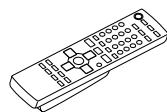
(N2QAJB000131)
1 x AC power supply cord
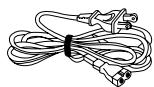
(K2CB2CB00006)
1 x AM loop antenna
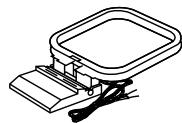
(N1DAAAA00001)
1 x FM indoor antenna
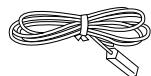
(RSA0007-L)
2 x Remote control batteries

CAUTION
RISK OF ELECTRIC SHOCK DO NOT OPEN

CAUTION: TO REDUCE THE RISK OF ELECTRIC SHOCK, DO NOT REMOVE SCREWS. NO USER-SERVICEABLE PARTS INSIDE. REFER SERVICING TO QUALIFIED SERVICE PERSONNEL.

The lightning flash with arrowhead symbol, within an equilateral triangle, is intended to alert the user to the presence of uninsulated “dangerous voltage” within the product’s enclosure that may be of sufficient magnitude to constitute a risk of electric shock to persons.

The exclamation point within an equilateral triangle is intended to alert the user to the presence of important operating and maintenance (servicing) instructions in the literature accompanying the appliance.
CAUTION
INVISIBLE LASER RADIATION
WHEN OPEN. AVOID
EXPOSURE TO BEAM.
The Ground Truth image displays a single, solid horizontal line. According to Rule 2 (UNDERSCORE & LINE RULES), this is a stylistic or background line, not a placeholder underscore. Therefore, the OCR result must ignore it. The provided OCR content is "____", which consists of four underscores. This is an incorrect interpretation of the line as a placeholder, violating the rule that stylistic lines must be ignored. The OCR has hallucinated text (underscores) where none should exist. Hence, the result is inconsistent with the Ground Truth.
ATTENTION
RADIATION LASER LORSQUE
OUVERT. ÉVITER TOUTE
EXPOSITION AU FAISCEAU.
RQLVS0003
Inside of product
IMPORTANT SAFETY INSTRUCTIONS
Read these operating instructions carefully before using the unit. Follow the safety instructions on the unit and the applicable safety instructions listed below. Keep these operating instructions handy for future reference.
1) Read these instructions.
2) Keep these instructions.
3) Heed all warnings.
4) Follow all instructions.
5) Do not use this apparatus near water.
6) Clean only with dry cloth.
7) Do not block any ventilation openings. Install in accordance with the manufacturer's instructions.
8) Do not install near any heat sources such as radiators, heat registers, stoves, or other apparatus (including amplifiers) that produce heat.
9) Do not defeat the safety purpose of the polarized or grounding-type plug. A polarized plug has two blades with one wider than the other. A grounding-type plug has two blades and a third grounding prong. The wide blade or the third prong are provided for your safety. If the provided plug does not fit into your outlet, consult an electrician for replacement of the obsolete outlet.
Product Service
- Damage requiring service—The unit should be serviced by qualified service personnel if:
(a) The AC power supply cord or the plug has been damaged; or
(b) Objects or liquids have gotten into the unit; or
(c) The unit has been exposed to rain; or
(d) The unit does not operate normally or exhibits a marked change in performance; or
(e) The unit has been dropped or the cabinet damaged.
- Servicing—Do not attempt to service the unit beyond that described in these operating instructions. Refer all other servicing to authorized servicing personnel.
- Replacement parts—When parts need replacing ensure the servicer uses parts specified by the manufacturer or parts that have the same characteristics as the original parts. Unauthorized substitutes may result in fire, electric shock, or other hazards.
- Safety check—After repairs or service, ask the servicer to perform safety checks to confirm that the unit is in proper working condition.
The servicer will require all components to service your system. Therefore, should service ever be necessary, be sure to bring the entire system.
Product information
For product information or assistance with product operation: Contact the Panasonic Canada Inc. Customer Care Centre at 905-624-5505, or visit the website (www.panasonic.ca), or an authorized Servicentre closest to you.
10) Protect the power cord from being walked on or pinched particularly at plugs, convenience receptacles, and the point where they exit from the apparatus.
11) Only use attachments/accessories specified by the manufacturer.
12) Use only with the cart, stand, tripod, bracket, or table specified by the manufacturer, or sold with the apparatus. When a cart is used, use caution when moving the cart/apparatus combination to avoid injury from tip-over.
13) Unplug this apparatus during lightning storms or when unused for long periods of time.
14) Refer all servicing to qualified service personnel. Servicing is required when the apparatus has been damaged in any way, such as power-supply cord or plug is damaged, liquid has been spilled or objects have fallen into the apparatus, the apparatus has been exposed to rain or moisture, does not operate normally, or has been dropped.

Listening caution


Selecting fine audio equipment such as the unit you've just purchased is only the start of your musical enjoyment. Now it's time to consider how you can maximize the fun and excitement your equipment offers. This manufacturer and the Electronic Industries Association's Consumer Electronics Group want you to get the most out of your equipment by playing it at a safe level. One that lets the sound come through loud and clear without annoying blaring or distortion—and, most importantly, without affecting your sensitive hearing.
We recommend that you avoid prolonged exposure to excessive noise.
Sound can be deceiving. Over time your hearing “comfort level” adapts to higher volumes of sound. So what sounds “normal” can actually be loud and harmful to your hearing.
Guard against this by setting your equipment at a safe level BEFORE your hearing adapts.
To establish a safe level:
- Start your volume control at a low setting.
- Slowly increase the sound until you can hear it comfortably and clearly, and without distortion.
Once you have established a comfortable sound level:
- Set the dial and leave it there.
Taking a minute to do this now will help to prevent hearing damage or loss in the future. After all, we want you listening for a lifetime.
Step 1 - Making the connections
Connect the AC power supply cord only after all other connections have been made.
Preparation
Twist and pull off the vinyl tip of the speaker cords.
OR

If the speaker cords do not have vinyl tips, directly connect them to the terminals.
1 Connect the FM indoor antenna.
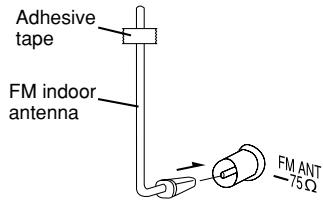
Tape the antenna to a wall or column, in a position with least amount of interference.
2 Connect the AM loop antenna.
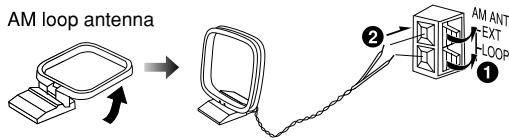
flowchart
graph TD
    A["AM loop antenna"] --> B["Computer"]
    B --> C["Server with AM ANT, EXT, LOOP labels"]
    C --> D["Arrow pointing to the device"]
Stand the antenna up on its base. Keep loose antenna cord away from other wires and cords.
3 Connect the speaker cables.
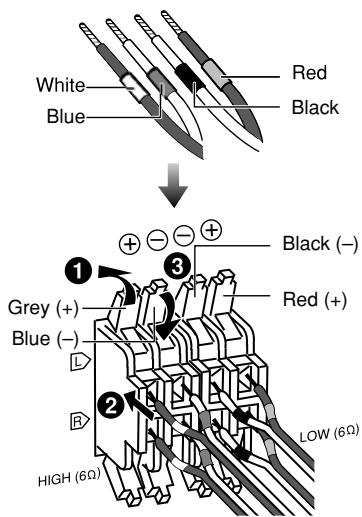
Cords with white and blue tags are for high frequency.
Cords with red and black tags are for low frequency.
Incorrect connection can damage the unit.
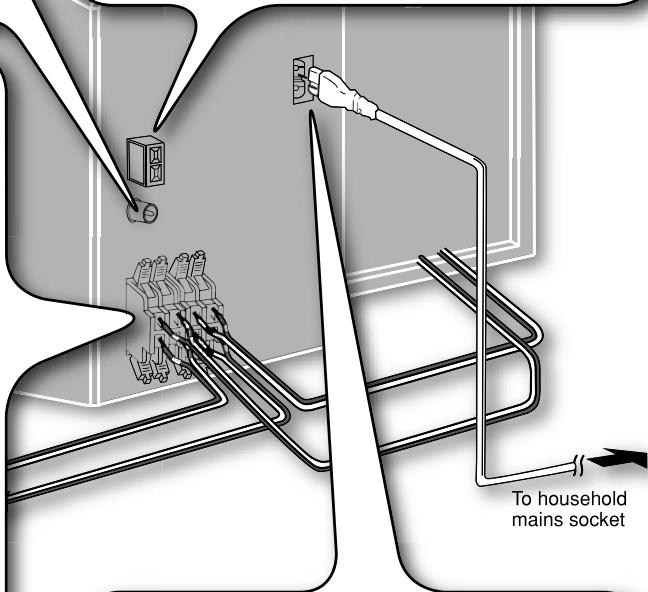
4 Connect the AC power supply cord.
- The included AC power supply cord is for use with this unit only. Do not use it with other equipment.
Optional antenna connections
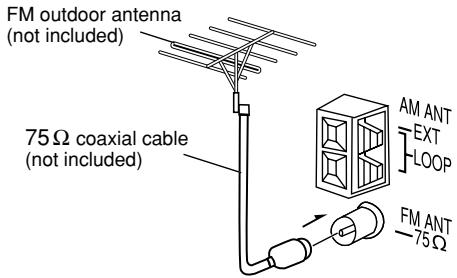
FM outdoor antenna
AM outdoor antenna
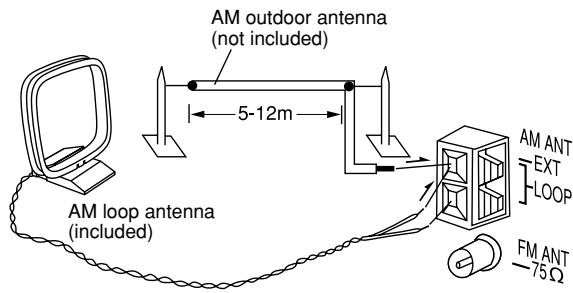
- Never use an outdoor antenna during a lightning storm.
- You can connect the FM outdoor antenna for better reception. Please consult your dealer for installation.
- Disconnect the FM indoor antenna if an FM outdoor antenna is installed.
- Connect the AM outdoor antenna without removing the AM loop antenna. Run 5 to 12m vinyl-covered wire horizontally along a window or other convenient location.
Step 2 - Inserting batteries into the remote control
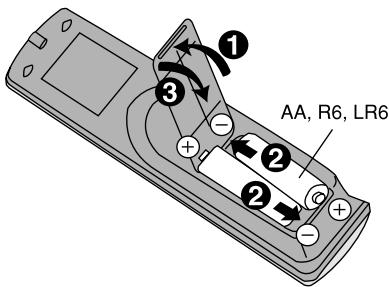
■ Batteries
- Insert so the poles (+ and −) match those in the remote control.
- Remove if the remote control is not going to be used for a long period of time. Store in a cool, dark place.
- Do not use rechargeable type batteries.
- Mishandling of batteries can cause electrolyte leakage which can damage items the fluid contacts and may cause a fire.
Do not:
- mix old and new batteries.
- use different types at the same time.
- heat or expose to flame.
• take apart or short circuit. - attempt to recharge alkaline or manganese batteries.
- use batteries if the covering has been peeled off.
Use
- Aim at the remote control sensor, avoiding obstacles, at a maximum range of 7 m (23 feet) directly in front of the unit. Refer to page 6 for remote control signal sensor position.
Step 3 - DEMO function

When the unit is first plugged in, a demonstration of its functions may be shown on the display. If the demo setting is off, you can show a demonstration by selecting "DEMO ON".
Press and hold [STOP ■, -DEMO].
The display change each time the button is held down.
![PANASONIC SC-PM21 - Press and hold [STOP ■, -DEMO]. - 1](/content/2019/08/104388/images/d5c95469a3d2c125005ef8869bb83bef8e2916b909a275fc8fef8631ea1ad475.jpg)
While in standby mode, select "DEMO OFF" to reduce power consumption.
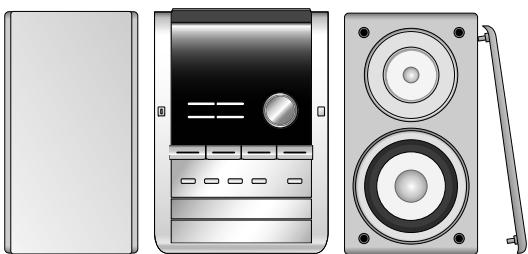
Placement of speakers
natural_image
Illustration of a desktop computer case with front panel, back panel, and speaker unit (no text or symbols)Speakers are designed identically so that no left or right channel orientation is necessary.
• These speakers do not have magnetic shielding. Do not place them near televisions, personal computers or other devices easily influenced by magnetism.
- To avoid damage to the speakers, do not touch the speaker cones if you have taken the nets off.
Note
- Keep your speakers at least 10 mm ( ^13/_32 ") away from the system for proper ventilation.
Use only the supplied speakers.
- The combination of the main unit and speakers provide the best sound. Using other speakers can damage the unit and sound quality will be negatively affected.
Caution
- Use the speakers only with the recommended system. Failure to do so can damage the amplifier and speakers, and can cause fire. Consult a qualified service person if damage occurs or if a sudden change in performance is apparent.
- Do not attach these speakers to walls or ceilings.
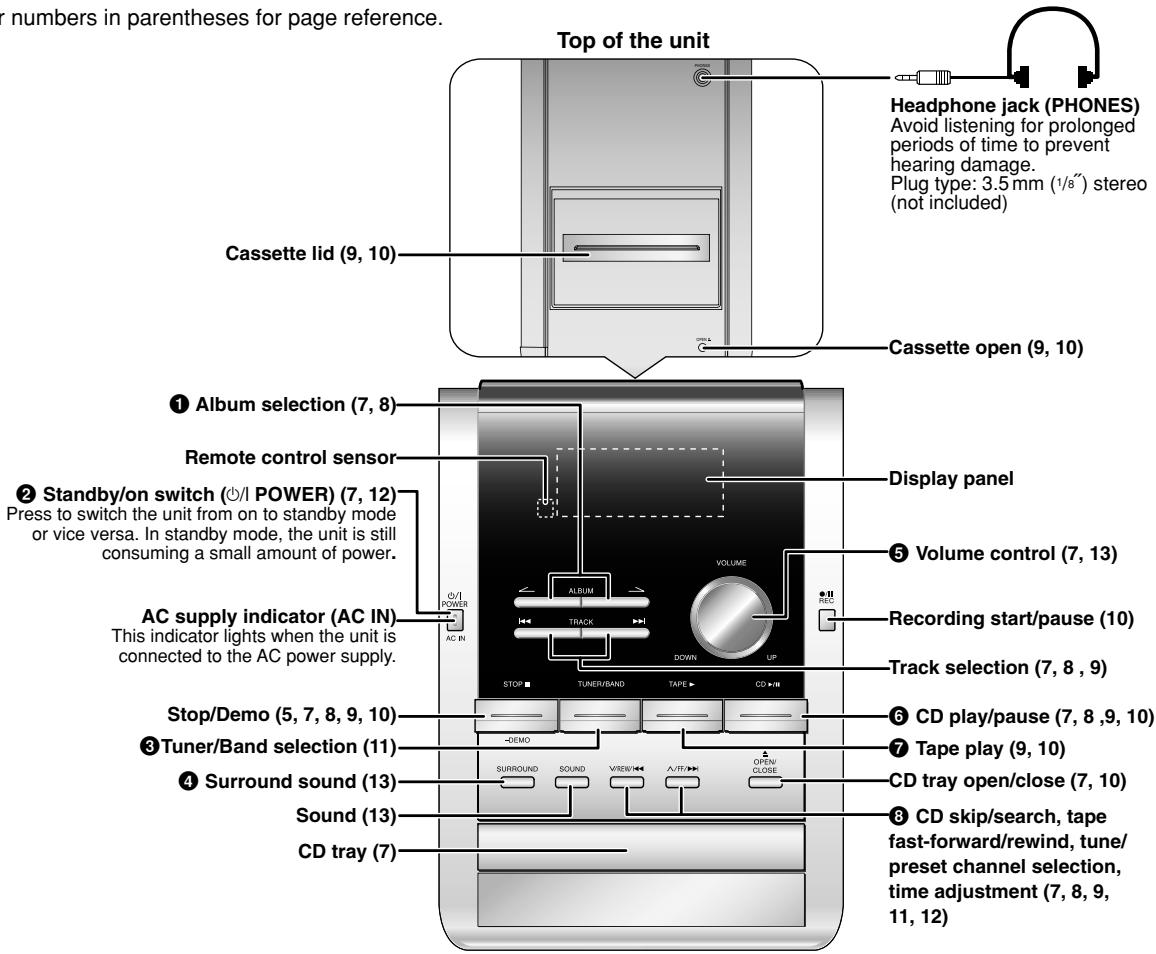
Main unit
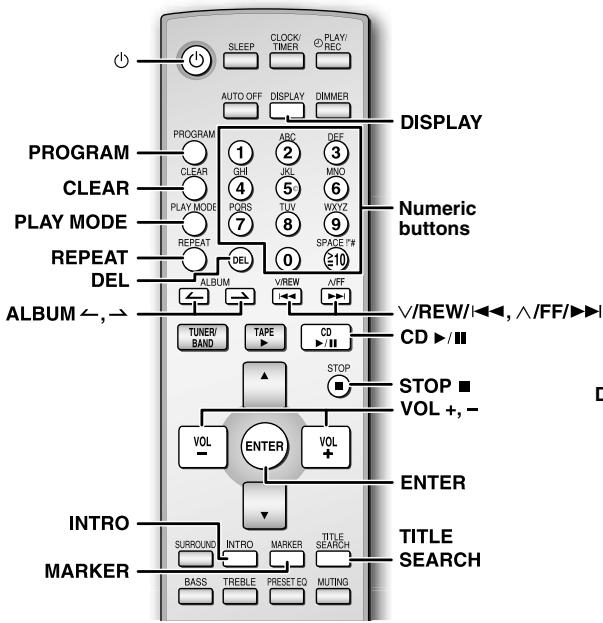
Refer numbers in parentheses for page reference.
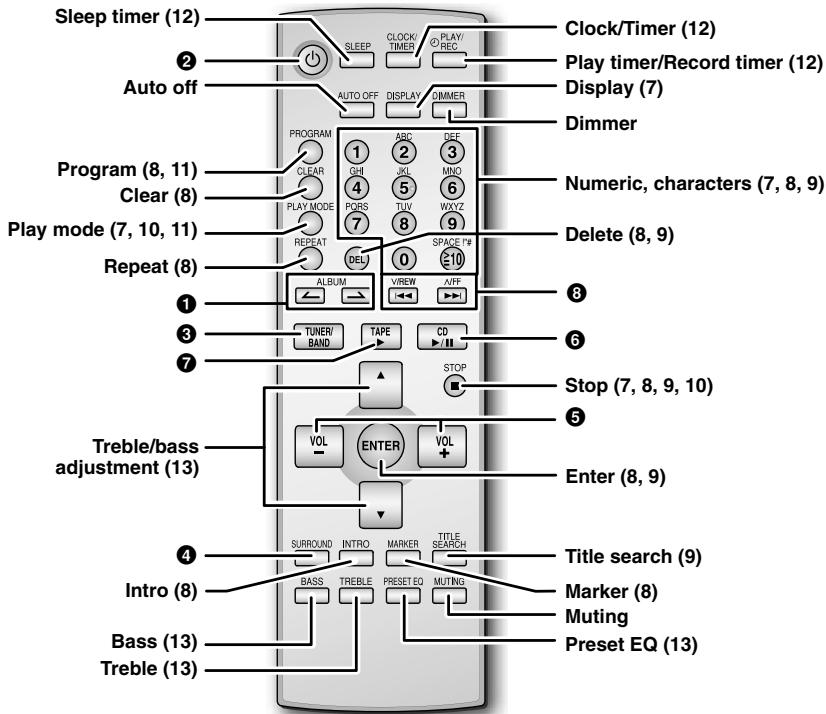
Remote control
Buttons such as ③ function the same as the controls on the main unit.
Playing a disc
1 Press [◎] to turn the unit on.
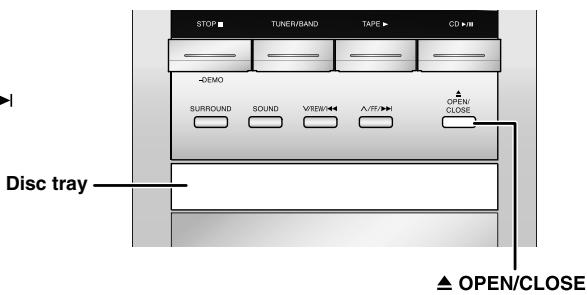
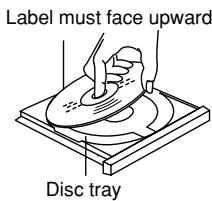
2 Press [▲ OPEN/CLOSE] to open the disc tray and then load the disc. Press again to close the tray.
3 Press [CD ▶/II] to start play.
4 Adjust the volume.
Other basic operations
| To | Action |
| stop the disc | Press [STOP ■]. |
| pause play | Press [CD ▶/■]. Press again to resume play. |
| skip tracks | Press [√/REW/i◀◀] or [√FF/▶▶]. |
| search through tracks (CD-DA Only) | Press and hold [√/REW/i◀◀] or [√FF/▶▶] during play or pause. |
| skip album (MP3 Only) | Press [ALBUM ← or →] in the play mode.Press [ALBUM ← or →] once and then the numeric buttons in the stop mode. |
Play Mode function
1 Press [CD ▶/II].
2 Press [PLAY MODE] to select the desired mode.
| Mode | To play |
| 1-TRACK1TR | one selected track on the disc.Press the numeric buttons to select the track. |
| 1-ALBUM1ALBUM(MP3 only) | one selected album on the disc.Press [ALBUM ← or →] to select the album. |
| RANDOMRND | a disc randomly. |
| 1-ALBUM RANDOM1ALBUM RND(MP3 only) | all tracks in one selected album randomly.Press [ALBUM ← or →] to select the album. |
- During RANDOM or 1-ALBUM RANDOM play, you cannot skip to tracks which have been played.
- During CD-DA RANDOM play, you can search backward or forward only within the current track.
CD display
DISPLAY This function allows you to display the information of the current track.
Press [DISPLAY] repeatedly during play or pause mode.
CD-DA
Remaining play time ↔ Elapsed play time
MP3
![PANASONIC SC-PM21 - Press [DISPLAY] repeatedly during play or pause mode. - 1](/content/2019/08/104388/images/c80b9c5cc79f42a937efed08c5a60c2adeea8e45a606bae680e44077d0a5b442.jpg)
flowchart
graph LR
    A["Elapsed time"] --> B["Album name"]
    B --> C["Track name"]
    D["ID3 (Artist)"] --> E["ID3 (Track)"]
    E --> F["ID3 (Album)"]
• Maximum number of displayable characters: 30
- This unit supports ver. 1.0 & 1.1 ID3 tags. Text data that is not supported will not be displayed.
- ID3 is a tag embedded in MP3 track to provide information about the track.
Advanced CDs and MP3 functions
Direct access play
This function allows you to start play from a specific track.
CD-DA
Press the numeric buttons to select and play your desired track.
MP3
1 Press [ALBUM ← or →] to select the album.
2 Press [^/FF/▶▶] once and then the numeric buttons to select and play your desired track.
For two-digit track, press [≥q10] once then the two digits.
For three-digit track, press [≥q10] twice then the three digits.
- This function does not work during any random/program mode.
Repeat play
CD-DA
MP3
REPEAT
You can repeat program play or other selected play mode.
Press [REPEAT] before or during play.
"REPEAT ON" and "☐" are displayed.
To cancel
Press [REPEAT] again.
"REPEAT OFF" is displayed and "☐" is cleared.
Marking a track
CD-DA
MP3
MARKER
Enable you to mark one track on the disc loaded so that you can directly play the track later.
During play, press and hold the [MARKER] until "STORING" blinks on the display to mark your favorite track.
Press [MARKER] during play or stop mode to recall and play a marked track.
- The marker memory is cleared when you open the CD tray.
- This function does not work during any random/program mode.
Program play
PROGRAM This function allows you to program up to 24 tracks.

CD-DA
1 Press [CD ▶/II] and then [STOP ■].
2 Press [PROGRAM].
3 Press the numeric buttons to select your desired track.
Repeat this step to program other tracks.
Example:
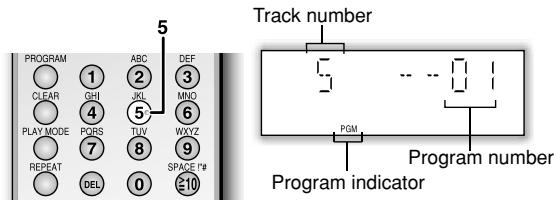
4 Press [CD ▶/II] to start play.
MP3
1 Press [CD ▶/II] and then [STOP ■].
2 Press [PROGRAM].
3 Press [ALBUM or ] to select your desired album.
4 Press [√FF/▶▶] once and then numeric buttons to select your desired track.
Example:
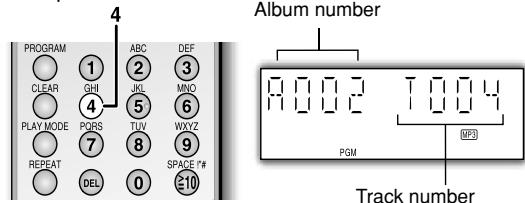
5 Press [ENTER] to store the program.
Repeat steps 3 to 5 to program other tracks.
6 Press [CD ▶/II] to start play.
| To | Action |
| cancel program mode | Press [PROGRAM] in the stop mode. |
| replay the program | Press [PROGRAM] then [CD ▶/II]. |
| check program contents | Press [V/REW/I◄◄] or [^FF/►►I] when “PGM” is displayed in the stop mode. To check while programming, press [PROGRAM] twice after “PGM” appears, then press [V/REW/I◄◄] or [^FF/►►I]. |
| add to the program | Repeat step 3 in the stop mode for CD-DA. Repeat steps 3 to 5 in the stop mode for MP3. |
| clear the last track | Press [DEL] in the stop mode. |
| clear all programmed tracks | Press [CLEAR] in the stop mode. “PGM CLEAR” is displayed. |
- When you try to program more than 24 tracks "PGM FULL" appears.
- During program play for CD-DA, you can search backward or forward only within the current track.
- The program memory is cleared when you open the CD tray.
INTRO function (Album scan)
MP3
INTRO
This function allows you to find an album by listening to the first track of all albums in the current disc for 10 seconds each.
1 Press [CD ▶/II] and then [STOP ■].
2 Press [INTRO] to start the intro function.
3 While your desired album is playing, press [CD ▶/II]. Intro mode canceled and the playback continues.
INTRO function is canceled after playing the first track in the last album.
To stop during the process, press [INTRO] or [STOP ■].
- This function does not work during any random/program mode.
Album/Track title search
MP3

Enable you to search your desired album or track.

1 Press [CD ▶/II] and then [STOP ■].
2 For album title search, press [TITLE SEARCH] once. For track title search, press [TITLE SEARCH] twice.
3 Press the numeric buttons repeatedly to select your desired character then press [√FF/▶▶] to key in the next character.
- You can enter up to 9 characters.
- To edit, press [V/REW/I◄◄] or [^FF/►►] to revise any characters.
- To delete, move the cursor over the character and then press [DEL].
| Numbered buttons | Characters | Numbered buttons | Characters |
| 1 | 1 | 6 | M N O 6 |
| 2 | A B C 2 | 7 | P Q R S 7 |
| 3 | D E F 3 | 8 | T U V 8 |
| 4 | G H I 4 | 9 | W X Y Z 9 |
| 5 | J K L 5 | 0 | 0 |
| ≥ 10 | space !“#$ %&’()*+,- ./:;=?_II | ||
4 Press [ENTER].
Press [∨/REW/l◄◄] or [√FF/►►] to search for previous or next match.
5 Press [CD ▶/II] to start play from the album/track found.
- "NOT FOUND" is displayed when there is no match.
- This function does not work during any random/program mode.
NOTE on CDs
- This unit can access up to 99 tracks.
- Choose CD with this mark.

- This unit can play MP3 files and CD-DA format audio CD-R/RW that have been finalized.
- It may not be able to play some CD-R/RW due to the condition of the recording.
- Do not use irregular shaped disc.
- Do not use disc with labels and stickers that are coming off or with adhesive exuding from under labels and stickers.
- Do not attach extra labels or stickers on the disc.
- Do not write anything on the CD.
Using DualDiscs
The “CD” sides of DualDiscs do not meet the CD-DA standard so it may not be possible to play them on this unit.
NOTE on MP3
- Files are treated as tracks and folders are treated as albums.
- This unit can access up to 999 tracks, 255 albums and 20 sessions.
- Disc must conform to ISO9660 level 1 or 2 (except for extended formats).
- To play in a certain order, prefix the folder and file names with 3-digits numbers in the order you want to play them.
MPEG Layer-3 audio decoding technology licensed from Fraunhofer IIS and Thomson multimedia.
Cassette tape – Play
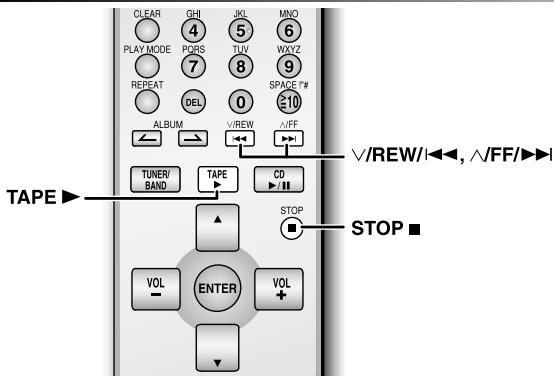
Basic play
1 Press [OPEN ▲] on top of the unit.
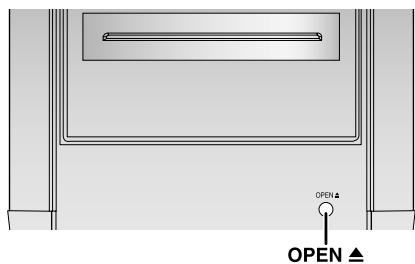
2 Insert a cassette.
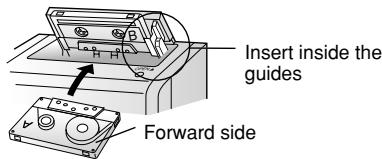
3 Close the lid by hand.
4 Press [TAPE ▶] to start play.
To play the other side of the cassette, turn the cassette over.
| To | Action |
| stop tape playback | Press [STOP ■]. |
| start one touch play | Press [TAPE ▶] when the unit is OFF with the cassette loaded. |
| fast-forward and rewind | Press [√/REW/l◄◄] or [√FF/►►] in the stop mode. |
TPS (Tape Program Sensor)
This function enables you to search the beginning of a track, up to a maximum of 9.
Press [∨/REW/◄◄] or [∧/FF/►►] during play.
Play resumes from the track found.
TPS may not function properly with:
- Short silent parts
- Noise occurs between tunes
- Silent parts found within tunes
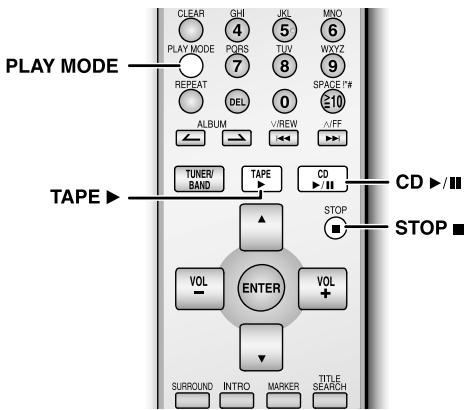
Before recording
Preparation
Wind up the leader tape so that recording can begin immediately.
- Use normal position tapes.
- High position and metal position tapes can be used, but this unit will not be able to record or erase them correctly.
Recording CDs
1 Insert the cassette to be recorded on.
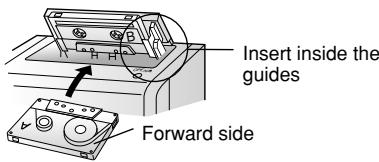
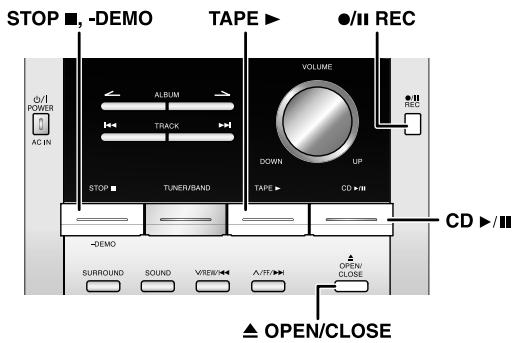
2 Press [▲ OPEN/CLOSE] to insert the CD. Press again to close.
3 Press [CD ▶/II] and then [STOP ■, -DEMO].
4 Press [●/II REC] to start recording.
Recording specific CDs or tracks
1 Press [CD ▶/II] and then [STOP ■, -DEMO].
2 Press [PLAY MODE] to select your desired mode (refer page 7).
3 Press [●/II REC] to start recording.
Recording programmed tracks
1 Program the tracks you want (refer page 8).
2 Press [●/II REC] to start recording.
Recording the radio
1 Insert the cassette to be recorded on.
2 Tune to the required station (refer page 11).
3 Press [●/II REC] to start recording.
Other basic operations
| To | Action |
| erase a recorded sound | 1) Insert the cassette to be recorded on.2) Press [TAPE ▶] and then [STOP ■].3) Press [●/■ REC]. |
| stop recording | Press [STOP ■]. |
| stop recording temporarily | 1) Press [●/■ REC].2) Press again to resume recording. |
| record on the other side of the tape | Turn the cassette over and press [●/■ REC]. |
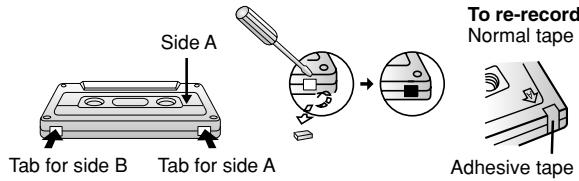
Erasure prevention
The illustration shows how to remove the tabs to prevent recording. To record on the tape again, cover as shown.
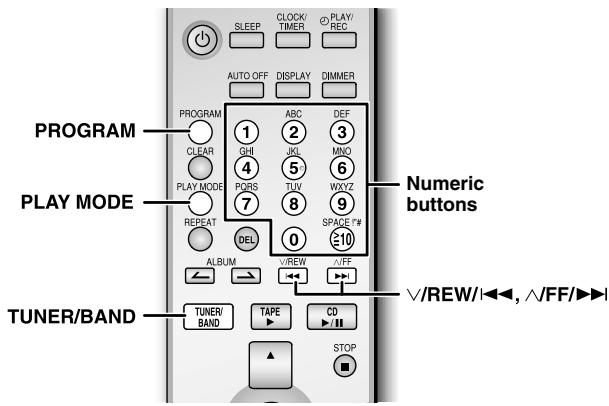
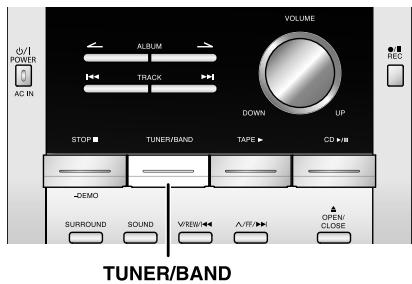
Manual tuning
1 Press [TUNER/BAND] to select "FM" or "AM".
2 Press [PLAY MODE] to select "MANUAL".
3 Press [V/REW/I◄◄] or [V/FF/►►] to select the frequency of the required station.
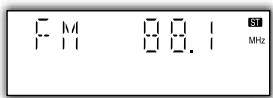
- ST is displayed when a stereo FM broadcast is being received.
To tune automatically
Press [V/REW/◄◄] or [^FF/►►] for a moment until the frequency starts changing rapidly. The unit begins auto tuning, stopping when it finds a station.
- Auto tuning may not function when there is excessive interference.
- To cancel auto tuning, press [∨/REW/I◄◄] or [∧/FF/►►] once again.
- Sound is momentarily interrupted if you load or unload tapes while listening to an AM broadcast.
To improve FM sound quality
Press and hold [PLAY MODE] to display "MONO"
To cancel
Press and hold [PLAY MODE] again until "MONO" disappear.
• MONO is also canceled if the frequency is changed.
- Turn off "MONO" for normal listening.
Memory preset
Up to 15 stations each can be set in the FM and AM bands.
Preparation
Press [TUNER/BAND] to select "FM" or "AM".
Automatic presetting
Press and hold [PROGRAM] to start presetting.
Manual presetting
1 Press [PLAY MODE] to select "MANUAL".
2 Press [V/REW/I◄◄] or [√FF/►►] to tune to the required station.
3 Press [PROGRAM].
4 Press numeric buttons to select a channel.
- The station occupying a channel is erased if another station is preset in that channel.
5 Repeat steps 2 to 4 to preset more stations.
Selecting a preset station
Press numeric buttons to select the channel.
- For channels 10 to 15 press [≥10], then the two digits.
OR
1 Press [PLAY MODE] to select "PRESET".
2 Press [∨/REW/◄◄] or [∧/FF/►►] to select the channel.
FM allocation setting
- This system can also receive FM broadcasts allocated in 0.1 MHz steps.
To change the step to 0.1 MHz
1 Press [TUNER/BAND] to select "AM".
2 Press and hold [TUNER/BAND].
- After a few seconds the display changes to a flashing display of the current minimum frequency.
3 Continue to hold down [TUNER/BAND].
- When the minimum frequency changes, release the button. To return to the original step, repeat the above steps.
- After changing the setting, previously preset frequency will be cleared.
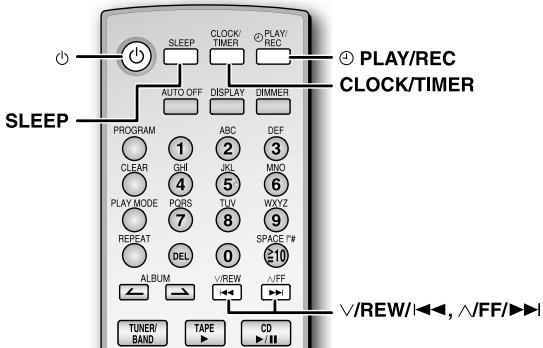
Setting the clock
This is a 12-hour clock.
1 Press [CLOCK/TIMER] to select "CLOCK".
Each time you press the button:
![PANASONIC SC-PM21 - Press [CLOCK/TIMER] to select "CLOCK". - 1](/content/2019/08/104388/images/c7b46337fab3cd33658dc173189c0862640fd982d05f0511774189ef9bb86066.jpg)
flowchart
graph LR
    A["CLOCK"] --> B["PLAY"]
    B --> C["REC"]
    D["Original display"] --> C
    E["Digital Display"] --> F["Output"]
2 Within 5 seconds, press [√/REW/|◀◀] or [√FF/▶▶] to set the time.
![PANASONIC SC-PM21 - Within 5 seconds, press [√/REW/|◀◀] or [√FF/▶▶] to set the time. - 1](/content/2019/08/104388/images/3cd688fe4390a793c7380d43c12cb09fc57944883b89fb4e2aba09929418544e.jpg)
3 Press [CLOCK/TIMER] again to confirm.
![PANASONIC SC-PM21 - Press [CLOCK/TIMER] again to confirm. - 1](/content/2019/08/104388/images/5e6eede71c518561c44333b5bff5f35cdcdfd0bffefc70263579ce60bf83193d.jpg)
Displaying the clock
Press [CLOCK/TIMER] to display the clock for few seconds.
- The clock may lose or gain some time over a period. Readjust if necessary.
Using the sleep timer
This function enables you to turn off the unit automatically after the set time.
Press [SLEEP] to select your desired time.
![PANASONIC SC-PM21 - Press [SLEEP] to select your desired time. - 1](/content/2019/08/104388/images/c3a54a3697d4dc1567803c17dfd349815e12a5491a5c2305c786b8c7330824cd.jpg)
flowchart
graph TD
    A["SLEEP 30"] --> B["SLEEP 60"] --> C["SLEEP 90"]
    D["SLEEP OFF"] --> E["SLEEP 120"]
    F["5 SLEEP"] --> G["30"]
    H["SLEEP"] --> I["Ground"]
Sleep timer indicator
To cancel
Press [SLEEP] to select "SLEEP OFF".
Changing the remaining time
Press [SLEEP] to show the time and press [SLEEP] again to select your desired time.
- The play and sleep timer or the record and sleep timer can be used together.
- The sleep timer always has priority. Be sure not to overlap timer settings.
Using the play or record timer
You can set the timer to come on at a certain time to wake you up (play timer) or to record from the radio (record timer).
Preparation
Turn the unit on and set the clock.
| Timer | Action |
| Play timer | Prepare the music source you want to listen to; cassette, CD or radio, and set the volume. |
| Record timer | Check the cassette's erasure prevention tabs (refer page 10), insert the tape and tune to the radio station (refer page 11). |
1 Press [CLOCK/TIMER] to select your desired timer. Each time you press the button:
![PANASONIC SC-PM21 - Press [CLOCK/TIMER] to select your desired timer. Each time you press the button: - 1](/content/2019/08/104388/images/d9339fad2e67b66d133ee143baaadfc8c0335dcbfdc75c0a486be91695c9d56e.jpg)
flowchart
graph LR
    A["CLOCK"] --> B["PLAY"]
    B --> C["REC"]
    D["Original display"] --> C
2 Within 5 seconds, press [∨/REW/◄◄] or [∧/FF/►►] to set the starting time.
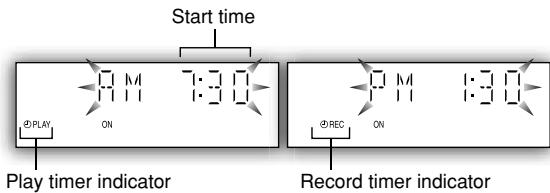
3 Press [CLOCK/TIMER] to confirm.
4 Repeat steps 2 to 3 to set the finishing time.
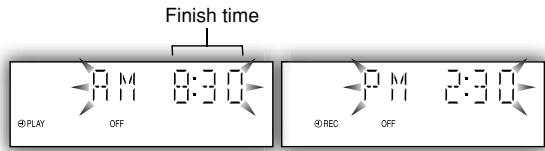
To activate the timer
5 Press [⊕PLAY/REC] to turn on your desired timer.
![PANASONIC SC-PM21 - Press [⊕PLAY/REC] to turn on your desired timer. - 1](/content/2019/08/104388/images/34a3e7e51eff7f98482d93bb97a361aef4ba37cfddba561606cda8ad722ff1ea.jpg)
6 Press [◎] to turn off the unit.
The unit must be off for the timers to operate.
Other basic operations
| To | Action |
| change the settings | Repeat steps 1 to 4 and 6 above. |
| change the source or volume | 1) Press [ 1 PLAY/REC] to clear the timer indicator from the display.2) Make changes to the source or volume.3) Do steps 5 to 6 as above. |
| check the settings (when the unit is on or in standby mode) | Press [CLOCK/TIMER] repeatedly to select 4 PLAY or 4 REC. |
| cancel | Press [ 2 PLAY/REC] to clear the timer indicators from the display. |
- Play timer and record timer cannot be used together.
- The play timer will start at the preset time with volume increasing gradually to preset level.
- The record timer will start 30 seconds before the set time with the volume muted.
- The timer comes on at the set time everyday if the timer is on.
- The unit must be in the standby mode for the timer to function.
- If you turn the unit off and on again while a timer is functioning, the finish time setting will not be activated.
Sound Adjustment
flowchart
graph TD
    A["TUNER/BAND"] --> B["TAPE"]
    B --> C["CO"]
    C --> D["STOP"]
    D --> E["VOLT"]
    E --> F["ENTER"]
    F --> G["VOLT +"]
    G --> H["PRESET EQ"]
    H --> I["SURROUND"]
    H --> J["BASS"]
    H --> K["TREBLE"]
    H --> L["TREBLE"]
    H --> M["PRESDET EQ"]
    style A fill:#f9f,stroke:#333
    style B fill:#ccf,stroke:#333
    style C fill:#cfc,stroke:#333
    style D fill:#fcc,stroke:#333
    style E fill:#cff,stroke:#333
    style F fill:#ffc,stroke:#333
    style G fill:#cfc,stroke:#333
    style H fill:#fcc,stroke:#333
    style I fill:#ffc,stroke:#333
    style J fill:#cfc,stroke:#333
    style K fill:#cfc,stroke:#333
    style L fill:#cfc,stroke:#333
Selecting sound effects
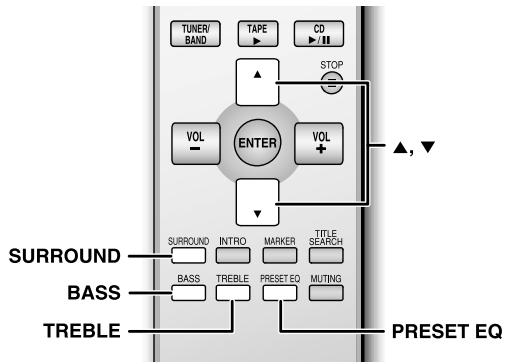
You can change the sound effect by selecting Preset EQ or adjusting the bass or treble effect.
Preset EQ
Press [PRESET EQ] repeatedly to select your desired setting.

OR
To select Preset EQ using the main unit:
1 Press and hold [SOUND] to select "PRESET EQ". Each time you press and hold the button:
PRESET EQ ↔ MANUAL EQ
2 Press [SOUND] repeatedly to select your desired setting.
| Setting | Effect |
| HEAVY | Adds punch to rock |
| CLEAR | Clarifies higher frequencies |
| SOFT | For background music |
| VOCAL | Adds gloss to vocal |
| EQ-OFF | No effect |
Bass or treble
Enable you to enjoy the lower or higher pitch sound.
1 Press [BASS] or [TREBLE] to select your desired setting.
| Setting | Effect |
| BASS | For lower pitch sound |
| TREBLE | For higher pitch sound |
2 Press [▼] or [▲] to adjust the level.
OR
To select bass or treble using the main unit:
1 Press and hold [SOUND] to select "MANUAL EQ".
2 Press [SOUND] to select bass or treble. Each time you press the button:
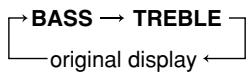
3 Turn the [VOLUME] up or down to adjust the bass or treble level.
- The tone level can be varied within -5 to +5.
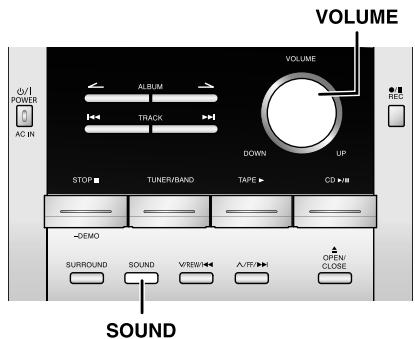
Enjoying surround sound
Enable you to add natural width and depth to the stereo sound.
To activate
Press [SURROUND] to display “■■■■” indicator.
To cancel
Press [SURROUND] again to clear “■■■” indicator.
- Surround sound is less discernible when listening through headphones.
- If interference in FM stereo reception increases, cancel the surround sound effect.
Troubleshooting guide
Before requesting service, make the following checks. If you are in doubt about some of the check points, or if the remedies indicated in the chart do not solve the problem, refer to the “Product information” on page 3.
Common problems
| No sound. | Turn the volume up.The speaker cords may not be connected properly. Turn the unit off, check and correct the connections and turn the unit on (refer page 4). |
| Sound is unfixed, reversed or comes from one speaker only. | Check the speaker connections (refer page 4). |
| Humming heard during play. | An AC power supply cord or fluorescent light is near the cables. Keep other appliances and cords away from this unit's cables. |
| “ERROR” is displayed. | Incorrect operation performed. Read the instructions and try again. |
| “- -:- -” appears on the display. | You plugged the AC power supply cord in for the first time or there was a power failure recently. Set the time (refer page 12). |
| “F76” is displayed. | Check and correct the speaker cord connections (refer page 4).If this does not fix the problem, there is a power supply problem. Consult the dealer. |
Listening to the radio
| Noise is heard.The stereo indicator flickers or doesn’t light.Sound is distorted. | Use an outdoor antenna (refer page 4). |
| A beat sound is heard. | Turn the TV off or separate it from the unit. |
| A low hum is heard during AM broadcast. | Separate the antenna from other cables and cords. |
When there is a television set nearby
| The picture on the TV disappears or stripes appear on the screen. | The location and orientation of the antenna are incorrect. If you are using an indoor antenna, change to an outdoor antenna (refer page 4). The TV antenna wire is too close to the unit. Separate the antenna wire of the TV set from the unit. |
Using the cassette deck
| Recording is not possible. | If the erasure prevention tabs have been removed, cover the holes with adhesive tape (refer page 10). |
Playing discs
| The display is wrong or play won’t start. | The disc may be upside down (refer page 7).Wipe the disc.Replace the disc if it is scratched, warped, or non-standard.Condensation may have formed inside the unit due to a sudden change in temperature. Wait about an hour for it to clear and try again. |
The remote control
| Remote control doesn’t work. | Check that the batteries are inserted correctly (refer page 5).Replace the batteries if they are worn. |
Specifications
AMPLIFIER SECTION
FTC OUTPUT POWER both channel driven
10% Total harmonic distortion
20 Hz–3.5 kHz
Low channel) 15 W per channel (6 Ω)
3.5 kHz–20 kHz
(High channel) 5 W per channel (6 Ω)
RMS OUTPUT POWER both channel driven
10% total harmonic distortion
1 kHz
(Low channel) 15 W per channel (6 Ω)
8 kHz
(High channel) 5 W per channel (6 Ω)
Total Bi-Amp power
Output Impedance
Headphone 16Ω - 32Ω
FM TUNER SECTION
Frequency range
87.5 MHz - 108.0 MHz (100 kHz steps)
87.9 MHz - 107.9 MHz (200 kHz steps)
Sensitivity
S/N 26 dB 1.25 μV
Antenna terminals
75Ω (unbalanced)
AM TUNER SECTION
Frequency range 520 kHz – 1710 kHz (10 kHz steps)
Sensitivity
S/N 20 dB (at 1000 kHz) 500 V/m
CASSETTE DECK SECTION
Track system 4 track, 2 channel
Heads
Record/playback Solid permalloy head
Erasure AC erase head
Motor
Recording system AC bias 100 kHz
Erase system AC erase 100kHz
Tape speed
Overall frequency response (+3, -6 dB at DECK OUT)
NORMAL 35 Hz – 14 kHz
S/N RATIO 50 dB (A weighted)
Wow and flutter 0.08% (WRMS)
Fast forward and rewind time
Approx. 120 seconds with C-60 cassette tape
CD SECTION
Disc played
CD/MP3/CD-R/RW 8 cm/12 cm (3 ^3 / 20 "/4 ^73 / 100 ")
Bit rate
MP3 32 kbps – 320 kbps
Sampling frequency
CD 44.1 kHz
MP3 32 kHz, 44.1 kHz, 48 kHz
ecoding
Beam source/wavelength
Number of channels
Wow and flutter
Digital filter
D/A converter
Frequency response
Semiconductor laser/780 nm
Stereo
Below measurable limit
8 fs
MASH (1 bit DAC)
20 Hz–20 kHz (+1 dB, -2 dB)
SPEAKER SECTION
Type
2 way, 2 speaker system
Speaker(s)
Woofer 10 cm (4") cone type
Tweeter 6 cm (2 ^3 / _8 ″) cone type
Impedance
HIGH 6Ω
LOW 6Ω
Input power (IEC)
HIGH 40 W (Max)
LOW 40 W (Max)
Sound pressure level
82 dB/W (1.0 m)
Crossover Frequency
3.5 kHz
Frequency range
50 Hz–30 kHz (−16 dB)
55 Hz–25 kHz (−10 dB)
Dimensions (W x H x D)
140 mm × 225 mm × 218 mm
(5^1/2'' × 8^7/8'' × 8^9/_16'')
1.95 kg (4.3 lbs.)
Mass
GENERAL
Power supply AC 120 V, 60 Hz
Power consumption 57W
Dimensions (W x H x D) 165 mm x 228 mm x 315.6 mm
(6^1/2'' × 9'' × 12^7/16'')
3.6 kg (7.9 lbs.)
Mass
Power consumption in standby mode 0.5 W
Notes:
- Specifications are subject to change without notice.
Mass and dimensions are approximate.
- Total harmonic distortion is measured by the digital spectrum analyzer.
Maintenance
If the surfaces are dirty
To clean this unit, wipe with a soft, dry cloth.
- Never use alcohol, paint thinner or benzine to clean this unit.
- Before using chemically treated cloth, read the instructions that came with the cloth carefully.
For a cleaner crisper sound
Clean the heads regularly to assure good quality playback and recording.
Use a cleaning tape (not included).
Panasonic Canada Inc.
5770 Ambler Drive, Mississauga, Ontario L4W 2T3
PANASONIC/TECHNICS PRODUCT – LIMITED WARRANTY
Panasonic Canada Inc. warrants this product to be free from defects in material and workmanship and agrees to remedy any such defect, or at its option, replace the product for a period as stated below from the date of original purchase.
Technics Audio Product
One (1) year, parts and labour
Panasonic Audio & DVD Product
One (1) year, parts and labour
Accessories including rechargeable batteries
Ninety (90) days
LIMITATIONS AND EXCLUSIONS
This warranty does not apply to products purchased outside Canada or to any product which has been improperly installed, subjected to usage for which the product was not designed, misused or abused, damaged during shipping, or which has been altered or repaired in any way that affects the reliability or detracts from the performance, nor does it cover any product which is used commercially. Dry cell batteries are also excluded from coverage under this warranty.
This warranty is extended to the original end user purchaser only. A purchase receipt or other proof of date of original purchase is required before warranty service is performed.
THIS EXPRESS, LIMITED WARRANTY IS IN LIEU OF ALL OTHER WARRANTIES, EXPRESS OR IMPLIED, INCLUDING ANY IMPLIED WARRANTIES OF MERCHANTABILITY AND FITNESS FOR A PARTICULAR PURPOSE.
IN NO EVENT WILL PANASONIC CANADA INC. BE LIABLE FOR ANY SPECIAL, INDIRECT OR CONSEQUENTIAL DAMAGES.
In certain instances, some jurisdictions do not allow the exclusion or limitation of incidental or consequential damages, or the exclusion of implied warranties, so the above limitations and exclusions may not be applicable.
WARRANTY SERVICE
For product operation and information assistance, please contact your Dealer or our Customer Care Centre at: Telephone #: (905) 624-5505 Fax #: (905) 238-2360 Web: www.panasonic.ca
For product repairs, please contact one of the following:
- Your Dealer who will inform you of an authorized Servicentre nearest you.
- Our Customer Care Centre at (905) 624-5505 or www.panasonic.ca
• A Panasonic Factory Servicentre listed below:
| Richmond, British Columbia | Calgary, Alberta | Mississauga, Ontario | Lachine, Québec |
| Panasonic Canada Inc. 12111 Riverside Way | Panasonic Canada Inc. 6835-8^th St. N. E. | Panasonic Canada Inc. 5770 Ambler Dr. | Panasonic Canada Inc. 3075, rue Louis A. Amos |
| Richmond, BC | Calgary, AB | Mississauga, ON | Lachine, QC |
| V6W 1K8 | T2E 7H7 | L4W 2T3 | H8T 1C4 |
| Tel: (604) 278-4211 | Tel: (403) 295-3955 | Tel: (905) 624-8447 | Tel: (514) 633-8684 |
| Fax: (604) 278-5627 | Fax: (403) 274-5493 | Fax: (905) 238-2418 | Fax: (514) 633-8020 |
IF YOU SHIP THE PRODUCT TO A SERVICENTRE
Carefully pack and send prepaid, adequately insured and preferably in the original carton. Include details of the defect claimed, and proof of date of original purchase.
natural_image
Illustration of four electronic devices: a remote control, front panel with display, speaker, and microphone (no text or symbols)COMPACT disc DIGITAL AUDIO
natural_image
Abstract black-and-white illustration of musical notes and instruments (no text or symbols)Panasonic®
flowchart
graph TD
    A["Antenne-cadre AM"] --> B["Device with cable"]
    B --> C["Chip with connecting wires"]
    C --> D["Chip with internal structure"]
    D --> E["AM ANT EXT LOOP"]
    D --> F["①"]
natural_image
Illustration of three electronic devices: front panel, front-mounted speaker, and rear speaker (no text or symbols)natural_image
Line drawing of hands using a power tool to cut a circular object on a wooden base (no text or symbols)Plateau du disque
SECTION BLOC D'ACCORD FM
Plage de fréquence
87,5 MHz – 108,0 MHz (modulation de 100 kHz)
87,9 MHz – 107,9 MHz (modulation de 200 kHz)
Sensibilité
1,5μV (IHF)
Rapport signal/bruit 26 dB
1,25μV
Bornes d'antenne
75 Ω (asymétriques)
SECTION BLOC D'ACCORD AM
Plage de fréquence
520 kHz – 1710 kHz (modulation de 10 kHz)
Sensibilité
Effacement c.a., 100 kHz
Vitesse de bande
4,8 cm/s
Dimensions (L x H x P)
140 mm × 225 mm × 218 mm
(5^1/2po × 8^7/8po × 8^9/_16po)
Poids
1,95 kg (4,3 lbs.)
DONNÉES GÉNÉRALES
Alimentation
CA 120 V, 60 Hz
Consommation
57W
Dimensions (L x H x P)
165 mm × 228 mm × 315,6 mm
(6^1/2po× 9po× 12^7/16po)
Poids
3,6 kg (7,9 lbs.)
Panasonic Canada Inc.
5770 Ambler Drive, Mississauga, Ontario L4W 2T3
Certificat de garantie limitée Panasonic/Technics
Panasonic Canada Inc.
12111 Riverside Way
Richmond, BC
V6W 1K8
Tél.: (604) 278-4211
Téléc.: (604) 278-5627
Panasonic Canada Inc.
6835-8 ^th St. N. E.
Calgary, AB
T2E 7H7
Panasonic Canada Inc.
5770 Ambler Dr.
Mississauga, ON
L4W 2T3
Tél.: (905) 624-8447
Téléc.: (905) 238-2418
Panasonic Canada Inc.
- Panasonic®
- CD Stereo System
- Table of contents
- Dear customer
- User memo:
- WARNING:
- CAUTION!
- Supplied accessories
- CAUTION
- ATTENTION
- IMPORTANT SAFETY INSTRUCTIONS
- Product Service
- Product information
- Listening caution
- Step 1 - Making the connections
- Preparation
- Connect the AC power supply cord.
- Optional antenna connections
- Step 2 - Inserting batteries into the remote control
- ■ Batteries
- Do not:
- Use
- Step 3 - DEMO function
- Press and hold [STOP ■, -DEMO].
- Placement of speakers
- Note
- Use only the supplied speakers.
- Main unit
- Remote control
- Playing a disc
- Play Mode function
- CD display
- Press [DISPLAY] repeatedly during play or pause mode.
- Advanced CDs and MP3 functions
- Direct access play
- Repeat play
- Marking a track
- Program play
- INTRO function (Album scan)
- Album/Track title search
- NOTE on CDs
- Using DualDiscs
- NOTE on MP3
- Cassette tape – Play
- Basic play
- TPS (Tape Program Sensor)
- Before recording
- Recording CDs
- Recording specific CDs or tracks
- Recording programmed tracks
- Recording the radio
- Erasure prevention
- Manual tuning
- To tune automatically
- To improve FM sound quality
- To cancel
- Memory preset
- Automatic presetting
- Manual presetting
- Selecting a preset station
- FM allocation setting
- Setting the clock
- Press [CLOCK/TIMER] to select "CLOCK".
- Within 5 seconds, press [√/REW/|◀◀] or [√FF/▶▶] to set the time.
- Press [CLOCK/TIMER] again to confirm.
- Displaying the clock
- Using the sleep timer
- Press [SLEEP] to select your desired time.
- Changing the remaining time
- Using the play or record timer
- Press [CLOCK/TIMER] to select your desired timer. Each time you press the button:
- Within 5 seconds, press [∨/REW/◄◄] or [∧/FF/►►] to set the starting time.
- Press [CLOCK/TIMER] to confirm.
- Repeat steps 2 to 3 to set the finishing time.
- To activate the timer
- Press [⊕PLAY/REC] to turn on your desired timer.
- Press [◎] to turn off the unit.
- Sound Adjustment
- Selecting sound effects
- Preset EQ
- Bass or treble
- Enjoying surround sound
- Troubleshooting guide
- Specifications
- AMPLIFIER SECTION
- FTC OUTPUT POWER both channel driven
- RMS OUTPUT POWER both channel driven
- Output Impedance
- FM TUNER SECTION
- Frequency range
- AM TUNER SECTION
- CASSETTE DECK SECTION
- CD SECTION
- Sampling frequency
- Beam source/wavelength
- SPEAKER SECTION
- GENERAL
- Power consumption in standby mode 0.5 W
- Notes:
- Maintenance
- If the surfaces are dirty
- To clean this unit, wipe with a soft, dry cloth.
- For a cleaner crisper sound
- Panasonic Canada Inc.
- PANASONIC/TECHNICS PRODUCT – LIMITED WARRANTY
- LIMITATIONS AND EXCLUSIONS
- WARRANTY SERVICE
- IF YOU SHIP THE PRODUCT TO A SERVICENTRE
- SECTION BLOC D'ACCORD FM
- SECTION BLOC D'ACCORD AM
- DONNÉES GÉNÉRALES
- Certificat de garantie limitée Panasonic/Technics
Brand : PANASONIC
Model : SC-PM21
Category : Pregnant