
PA80 - Arranger keyboard KORG - Free user manual and instructions
Find the device manual for free PA80 KORG in PDF.



| Product type | Arranger keyboard |
| Brand | KORG |
| Model | PA80 |
| Number of keys | 61 velocity-sensitive keys |
| Polyphony | 62 voices |
| Sounds | Over 600 sounds |
| Accompaniment styles | Over 240 styles |
| Display | Backlit LCD display |
| Power supply | DC 12V power adapter |
| Dimensions (W x D x H) | 1050 x 380 x 130 mm |
| Weight | 11 kg |
| MIDI connectors | In, Out, Thru |
| Audio outputs | 2 x 6.35 mm jack outputs |
| Pedal input | 1 sustain pedal input |
| Main functions | 16-track sequencer recorder, arpeggiator, tuner |
| Maintenance and cleaning | Clean with a soft, dry cloth. Do not use solvents. |
| Safety | Do not expose to moisture or extreme temperatures. Disconnect before cleaning. |
| Spare parts and repairability | Parts available from KORG after-sales service. |
Frequently Asked Questions - PA80 KORG
User questions about PA80 KORG
0 question about this device. Answer the ones you know or ask your own.
Ask a new question about this device
Download the instructions for your Arranger keyboard in PDF format for free! Find your manual PA80 - KORG and take your electronic device back in hand. On this page are published all the documents necessary for the use of your device. PA80 by KORG.
USER MANUAL PA80 KORG
The KORG MIDI Driver software is included with the optional AG-001B and AG-002B. If the application (sequencer) you are using on your IBM PC (compatible) is compatible with Windows, using the KORG MIDI Driver will allow the PA80 connected to the serial port to be handled as a MIDI device. If the application (sequencer) you are using on your Apple Macintosh is compatible with the Apple MIDI Manager, using the KORG MIDI driver will allow the PA80 connected to the serial port to exchange data with the Macintosh.
SETTING THE PA80
Before connecting PA80 to a PC or Mac, set it for this kind of configuration.
- Disable any SysEx filters on the MIDI IN (see “Page 10 - MIDI IN Filters” on page 14-5)
- Disable any SysEx filters on the MIDI OUT (see “Page 12 - MIDI OUT Filters” on page 14-5)
- Select the right TO HOST rate for your computer (see "To Host rate" on page 14-4).
- Press WRITE to save the configuration in the Global (see "The Write window" on page 14-1).
INSTALLING THE KORG MIDI DRIVER INTO WINDOWS 95/98
Note:If the processing speed of your computer is not fast enough, data from MIDI IN may not be received correctly.
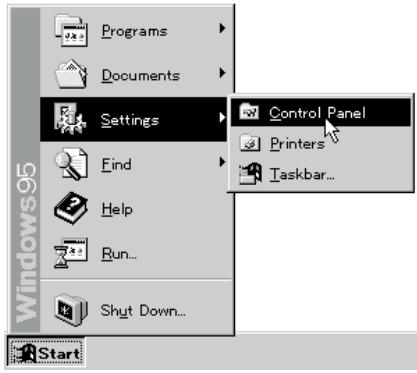
- In the task bar, click the [Start] button. Click the [Control Panel] item located in [Settings].
-
In the control panel, double-click the [Hardware] icon, and the hardware wizard will start up. Click the [Next >] button.
-
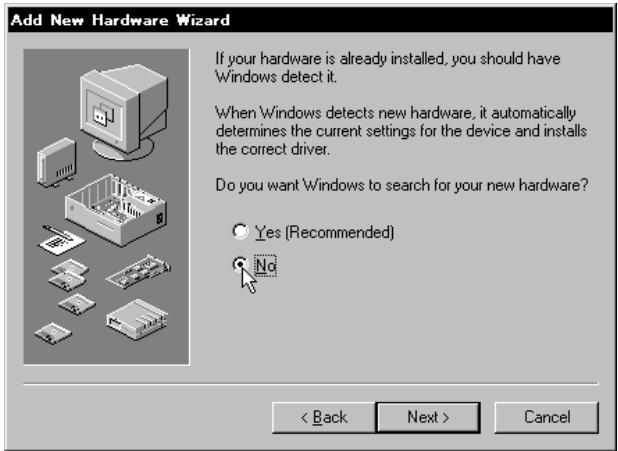
In reply to the question "Do you want Windows to search for your new hardware?" be sure to select [No], and click the [Next >] button.
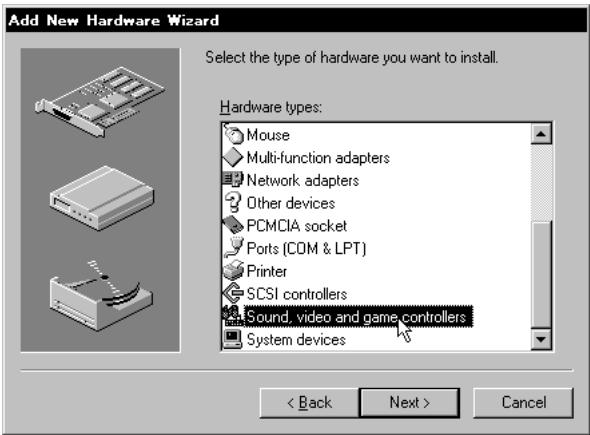
- Select [Sound, video, and game controllers] and click the [Next >] button.
- Click [Have Disk].
A dialog box will appear, allowing you to specify the drive and directory.
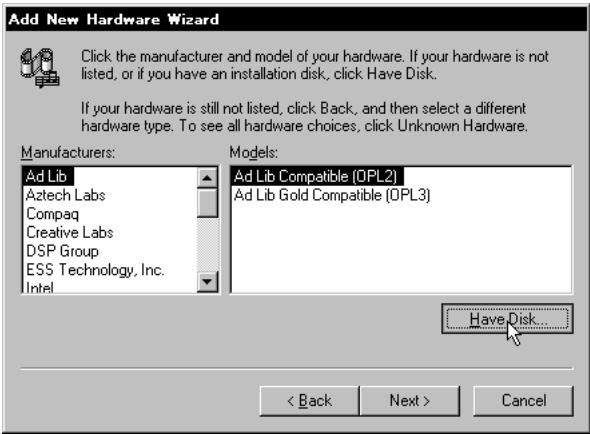
-
Insert the floppy disk included with the AG-001B into the floppy disk drive of your computer. If you have inserted it into drive A, type "A:\" (or "B:\" if using drive B), and click the [OK] button.
-
Click the [OK] button and then click [Finish].
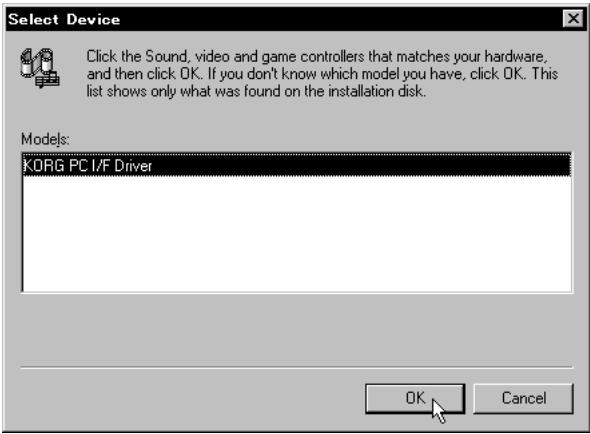
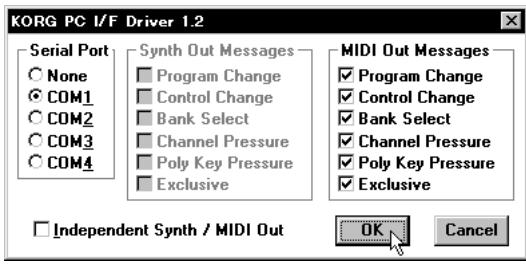
- Perform the setup following the procedure of "Setting up the KORG MIDI Driver (Windows)" (page 3), and click the [OK] button.
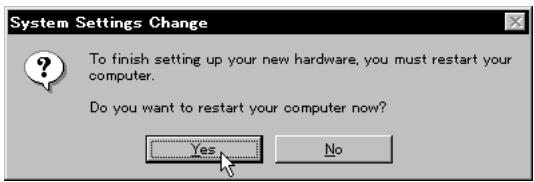
- Be sure to restart so that the driver will take effect.
MODIFYING THE KORG MIDI DRIVER SETUP FOR WINDOWS
- In the control panel, double-click the [Multimedia] icon, and the Multimedia Properties dialog box will appear.
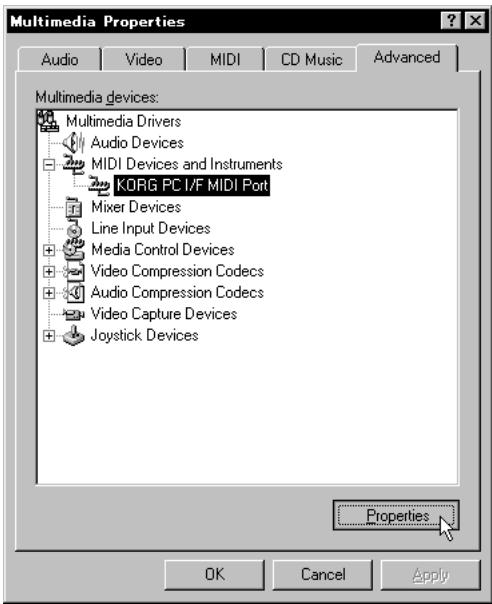
- Click the [Advanced] tab located in the upper right.
- Click [+] for [MIDI Devices and Instruments] (the display will change to [-] ), and click [KORG PC I/F MIDI Port].
- Click the [Properties] button.
The properties of the KORG PC I/F MIDI Port will appear.
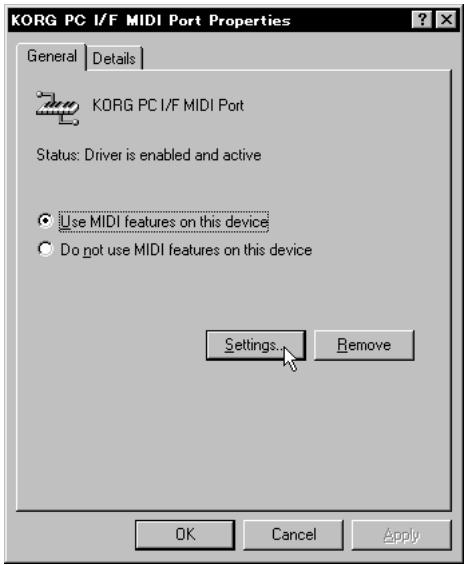
- Click the [Settings] button.
Follow the procedure of "Setting up the KORG MIDI Driver (Windows)", and click the [OK] button.
If you have modified the settings, restart Windows.
SETTING UP THE KORG MIDI DRIVER (WINDOWS)
- Set the Serial Port setting to the serial port that is connected to the PA80 [COM1]~[COM4].
If you wish to use the serial port for another purpose after installing the KORG MIDI Driver, either delete the driver or select [None] to defeat the driver. - When the PA80 is connected, [Independent Synth/MIDI Out] is not used, so do not check this item.
If you check it, there may be communication problems. - [MIDI Out Messages] allows you to select the messages that will be transmitted to the PA80.
- When you have finished making your selections, click the [OK] button. If you wish to cancel, click [Cancel].
INSTALLING THE KORG MIDI DRIVER INTO THE MACINTOSH
Note: In order to use the KORG MIDI Driver, Apple MIDI Manager and PatchBay must already be installed. Use the Apple MIDI Manager and PatchBay that are included with the MIDI application that you are using. They are not included with the AG-002B.
When the KORG MIDI Driver is used, the "Modem MIDI Out/Port settings" dialog box allows you to specify the MIDI channels and types of messages that will be sent to the PA80. If you do not require this function, you can simply use the Apple MIDI Driver without using the KORG MIDI Driver. When using the Apple MIDI Driver or when using a MIDI application (sequencer) which does not use the Apple MIDI Driver, refer to page 4.
- Copy the KORG MIDI Driver from the disk included with the AG-002B into the system folder of the startup drive.
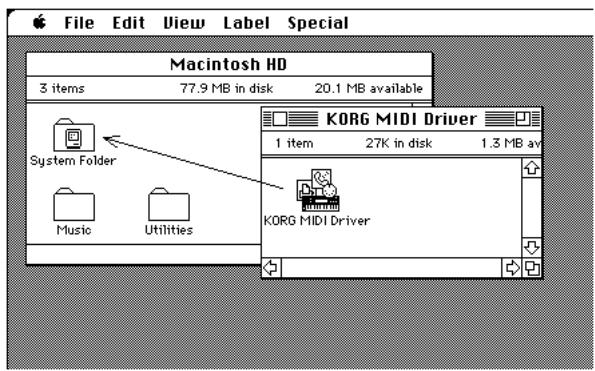
- If the system folder contains the Apple MIDI Driver, either delete it or move it to another folder. Be careful not to delete or move the Apple MIDI Manager.
Note: The KORG MIDI Driver includes the functions of the Apple MIDI Driver.
- From the Special menu, choose "Restart".
SETTING UP THE KORG MIDI DRIVER (MACINTOSH)
- Start up PatchBay.
If installation has been performed correctly, the KORG MIDI Driver icon will appear in the PatchBay window when PatchBay is started up, as shown below. (The Modem/Printer port displays may be different, depending on your setup.)
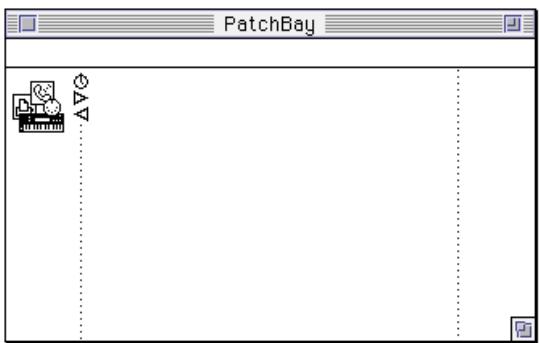
- In PatchBay, double-click the KORG MIDI Driver icon.
A setup dialog box will appear.
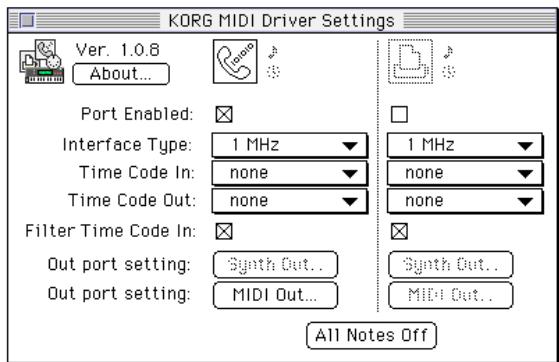
- Check Port Enabled for the port to which the PA80 is connected, and select [1 MHz] as the Interface Type.
(Since the PA80 does not contain a KORG PC IF, do not select [KORG PC IF].)
- Click the [Out Port Setting] button.
The following dialog box will appear. Here you can select the MIDI channels/messages that will be output to each port. Only the channels/messages which are checked will be output.
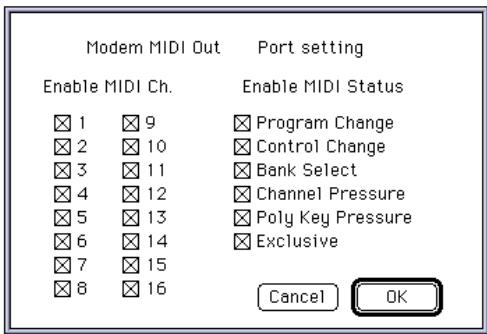
- After making settings, click the [OK] button.
-
Start up your MIDI application (sequencer), and drag with the mouse from the Out Port w symbol of the MIDI application to connect it to the MIDI Out of the MIDI Driver.
-
For details on using PatchBay, refer to the explanation contained in "About PatchBay..." in the " " menu.
- If you wish to use the Apple MIDI Driver, start up PatchBay (after first deleting or moving the KORG MIDI Driver if it is in the system folder), double-click the Apple MIDI Driver icon, check Enabled for the port to which the PA80 is connected, set the Interface Type to [1 MHz], and close the dialog box. In the PatchBay, drag with the mouse from the Out Port w symbol of the MIDI application (sequencer) to connect it to MIDI Out.
- If you are using a MIDI application (sequencer) which does not use the Apple MIDI Manager, select the Port to which the PA80 is connected, and set the Clock setting to [1 MHz].
- If you are using OMS (Open Music System) or Free-MIDI instead of the Apple MIDI Manager, you can use standard modem/printer port connection.
USING PC EXCHANGE TO CONVERT SMF DATA
Most commercially available Standard MIDI File (SMF) song files are saved in MS-DOS® format. You can use PC Exchange™ to convert MS-DOS® format SMF song files so that they can be recognized by the Macintosh.
- In the control panel, open PC Exchange.
The PC Exchange control panel will appear.
- Click the [Add...] button.
The [Specify application for DOS extension] window will appear.
- Input "MID" for the DOS extension item.
MS-DOS® uses a filename extension consisting of a period and three characters to distinguish different types of files. It is usual to assign an extension of ".MID" to SMF files.
- From the list that appears in the lower part of the dialog box, select a MIDI application (sequencer) that can use SMF data.
The icon selected for the application item will appear. Now select a MIDI application (sequencer) that can use SMF data, and that software will be able to open SMF song files.
- From the [Document type] popup menu choose [MIDI] and click the [OK] button.
The item added to the PC Exchange™ window will be displayed, and has been registered.
Now you can insert an MS-DOS® SMF disk into the disk drive and use it as is.
For details refer to the explanation of "Macintosh PC Exchange."
16. INSTALLATION ET RÉGLAGES DU KORG MIDI DRIVER
- SETTING THE PA80
- INSTALLING THE KORG MIDI DRIVER INTO WINDOWS 95/98
- MODIFYING THE KORG MIDI DRIVER SETUP FOR WINDOWS
- SETTING UP THE KORG MIDI DRIVER (WINDOWS)
- INSTALLING THE KORG MIDI DRIVER INTO THE MACINTOSH
- SETTING UP THE KORG MIDI DRIVER (MACINTOSH)
- USING PC EXCHANGE TO CONVERT SMF DATA
- INSTALLATION ET RÉGLAGES DU KORG MIDI DRIVER
Brand : KORG
Model : PA80
Category : Arranger keyboard