
CDR795 - CD Player PHILIPS - Free user manual and instructions
Find the device manual for free CDR795 PHILIPS in PDF.



| Product type | CD audio player/recorder |
| Brand | Philips |
| Model | CDR795 |
| Dimensions (W × H × D) | 435 × 88 × 310 mm |
| Weight | 5 kg |
| Power consumption (operating) | < 20 W |
| Power consumption (standby) | < 0.6 W |
| Power supply | Mains, 230 V~ (according to rating plate) |
| Frequency response | 2 – 20,000 Hz |
| Signal-to-noise ratio (playback, A-weighted) | 120 dB |
| Dynamic range (playback) | 98 dB |
| Total harmonic distortion (playback) | –95 dB |
| Channel separation (playback) | 105 dB |
| Signal-to-noise ratio (recording, A-weighted) | 93 dB |
| Dynamic range (recording) | 90 dB |
| Total harmonic distortion + noise (recording) | –86 dB |
| Laser type | GaAlAs semiconductor laser |
| Laser wavelength | 775 – 795 nm (at 25°C) |
| Laser output power | 2.5 mW (playback), 35 mW (writing) |
| Supported disc formats | Audio CD, CD-R audio, CD-RW audio, CD-MP3 |
| Main functions | CD playback, internal and external recording, programming, random play, repeat, finalization, CD-RW erasing, CD text editing |
| Inputs | Analog (RCA), digital coaxial, digital optical |
| Outputs | Analog (RCA), digital coaxial, digital optical, 6.3 mm headphone jack |
| Supplied accessories | Remote control, 2 AA batteries, 2 audio RCA cables, power cord |
| Maintenance and cleaning | Clean with a soft, slightly damp cloth; use a cleaning CD for the lens |
| Safety | Invisible laser radiation – do not open the casing; observe electrical safety instructions |
| Spare parts and repairability | Do not repair yourself – have it serviced by qualified personnel |
| General information | ENERGY STAR compliant, recyclable packaging, complies with CE standards |
Frequently Asked Questions - CDR795 PHILIPS
User questions about CDR795 PHILIPS
0 question about this device. Answer the ones you know or ask your own.
Ask a new question about this device
Download the instructions for your CD Player in PDF format for free! Find your manual CDR795 - PHILIPS and take your electronic device back in hand. On this page are published all the documents necessary for the use of your device. CDR795 by PHILIPS.
USER MANUAL CDR795 PHILIPS
Important notes for users in the U.K.
Mains plug
This apparatus is fitted with an approved 13 Amp plug. To change a fuse in this type of plug proceed as follows:
1 Remove fuse cover and fuse.
2 Fix new fuse which should be a BS1362 5 Amp, A.S.T.A. or BSI approved type.
3 Refit the fuse cover.
If the fitted plug is not suitable for your socket outlets, it should be cut off and an appropriate plug fitted in its place. If the mains plug contains a fuse, this should have a value of 5 Amp. If a plug without a fuse is used, the fuse at the distribution board should not be greater than 5 Amp.
Note: The severed plug must be disposed of to avoid a possible shock hazard should it be inserted into a 13 Amp socket elsewhere.
How to connect a plug
The wires in the mains lead are coloured with the following code: blue = neutral (N), brown = live (L).
As these colours may not correspond with the colour markings identifying the terminals in your plug, proceed as follows:
- Connect the blue wire to the terminal marked N or coloured black.
- Connect the brown wire to the terminal marked L or coloured red.
- Do not connect either wire to the earth terminal in the plug, marked E (or 12 ) or coloured green (or green and yellow).
Before replacing the plug cover, make certain that the cord grip is clamped over the sheath of the lead - not simply over the two wires.
Copyright in the U.K.
Recording and playback of material may require consent. See Copyright Act 1956 and The Performer's Protection Acts 1958 to 1972.
Italia
Philips Consumer Electronics
Philips, Glaslaan 2
5616 JB Eindhoven, The Netherlands
Norge
Environmental information ____ 5
Supplied accessories 5
Maintenance 5
Disc handling 5
Discs for recording 6
Discs for playback 6
Some words about MP3 ____ 6
Connections
Connections 7
Setup information 7
Connections general 7
Installations
Analogue connections 8
Digital connections 8–9
Mains 9
Controls 10
Remote control
Remote control usage 11
Remote control keys ____ 11
Basic functions
Switching on, switching to standby 12
Demonstration mode ____ 12
Loading discs 12
Playback 12
Selecting and searching (on all discs except MP3-CDs) ____ 13
Selecting and searching (on MP3-CDs only) — 13
SHUFFLE and REPEAT ____ 14
CD text display 14
ID3-tag 14
Programming track numbers ____ 14
Clearing the program ____ 14
About recording
Basic information 15
What is finalizing? ____ 15
Direct Line Recording (DLR) 15
Adjusting the recording level ____ 15
Internal recording
What is internal recording? ____ 16
Selecting the recording speed 16
Copying an entire CD ____ 16
Recording all tracks from a CD ____ 16
Recording a single track 17
Making and recording a program 17
External recording
What is external recording? ____ 18
Analogue or digital recording? ____ 18
Automatic track increment 18
Recording with automatic start 18
Manual recording 19
Timer recording 19
Erasing/CD text editing (on CD recorder only)
Erasing from a CDRW disc 20
CD text editing 20
Troubleshooting 21
Technical Data
Subject to modification without notice.
General
Power consumption
Active < 20 W
Standby ____ < 0.6 W
Dimensions, w × h × d ____ 435 × 88 × 310 mm
Weight 5 kg
Audio
Frequency response —— 2–20,000 Hz
Playback
S/N (A-weighted) 120 dB
S/N 110 dB
Dynamic range 98 dB
Total harmonic distortion ____ -95 dB
Channel separation 105 dB
Recording
S/N (A-weighted) 93 dB
S/N digital without SRC ____ equal to source
Dynamic range 90 dB
Total harmonic distortion + noise ____ -86 dB
Digital/optical input 12–96 kHz
Laser (CD recorder)
Type ____ Semiconductor laser GaAlAs
Wave length 775–795 nm (at 25°)
Output power — 2.5 mW (Read), 35 mW (Write)
Beam divergence —— 60 degree
As an ENERGY STAR® partner, Philips has determined that this product meets the ENERGY STAR® guidelines for energy efficiency.

This set complies with the radio interference requirements of the European Community.
CAUTION
Use of controls or adjustments or performance of procedures other than herein may result in hazardous radiation exposure or other unsafe operation.
CAUTION
INVISIBLE LASER RADIATION WHEN OPEN. AVOID EXPOSURE TO BEAM.
Note: This warning is located inside the enclosure.
Environmental information
All redundant packing material has been omitted. We have done our utmost to make the packaging easily separable into three mono materials: cardboard (box), polystyrene foam (buffer) and polyethylene (bags, protective foam sheet).
Your set consists of materials which can be recycled if disassembled by a specialised company. Please observe the local regulations regarding the disposal of packing materials, exhausted batteries and old equipment.
Supplied accessories
- 2 analogue audio cables (with red and white plugs)
- Remote control
– 2 batteries for the remote control, size AA - Mains cable
Maintenance
Clean the set with a soft, slightly dampened, lint-free cloth. Do not use any cleaning agents as they may have a corrosive effect.

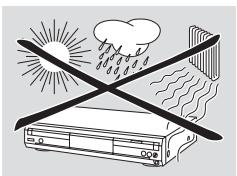
Do not expose the set, batteries or discs to humidity, rain, sand or excessive heat (caused by heating equipment or direct sunlight).
natural_image
Illustration of an air conditioner unit with sun and cloud symbols (no text or labels)Disc handling
If the CD player/recorder fails to read discs correctly use a commonly available cleaning CD to clean the lenses before submitting the set to repair. Other cleaning methods may destroy the lenses. Always keep the trays closed to avoid dust on the lenses.
The lenses may cloud over when the set is suddenly moved from cold to warm surroundings. Playing a disc is not possible then. Leave the set in a warm environment until the moisture evaporates.
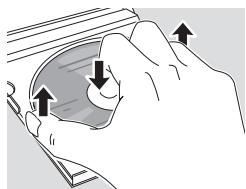
To take a disc out of its box easily, press the centre spindle while lifting the CD(RW). Always pick up a CD(RW) by the edge and put it back in its box after use.
natural_image
Illustration of a hand holding a circular object with arrows indicating direction (no text or symbols)Never write on a CD or attach a sticker to it. Write only on the printed side of a CDR or CDRW, and only with a soft felt-tipped pen.
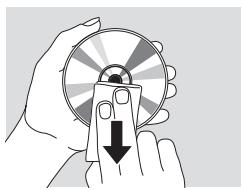
To clean a disc, wipe it in a straight line from the centre towards the edge using a soft, lint-free cloth. A cleaning agent may damage the disc!
natural_image
Illustration of a hand holding a circular object with a downward arrow, no text or symbols presentDiscs for recording
For recording, make sure to use special audio discs only. These discs are marked with “Digital Audio” and the logos shown below.
There are two different types of audio discs for the use on this CD recorder:
- CD-Audio Recordable (CDR) discs can be recorded on once and played on all standard CD players and CD recorders, when finalized.
- CD-Audio ReWritable (CDRW) discs can be recorded on, erased and re-recorded many times and played on CDRW compatible CD players and CD recorders, when finalized.
All Philips CD players and CD recorders with this sticker are CDRW compatible.

To ensure proper working of the set we recommend the use of Philips audio CDR and audio CDRW discs only.
Note: Do not use a computer CDR or CDRW as recording will not work!
Recording is permissible insofar as copyright or other rights of third parties are not infringed upon. In some countries the use of the CD player/recorder as shown or suggested in this user manual may require the authorisation of copyright holders.
Discs for playback
For playback on this CD player/recorder you can use following discs:
– All pre-recorded audio CDs
– All audio CDR and audio CDRW discs
- MP3-CDs (CD-ROMs with MP3 tracks)
Some words about MP3
The revolutionary new music compression technology MP3 (MPEG I Audio Layer-3) enables shrinking down of original digital audio sound data with a factor of up to 10 without losing significant sound quality. This allows you to record up to 10 hours of CD-like quality music on a single CD-ROM.
Making your own MP3-CD
Basically there are two sources for MP3 music on CD. You can either transfer music from your own digital audio CDs via CD-ROM drive onto your PC and encode it into MP3 format (“rip”) or download legal MP3 music from the Internet.
Record (“burn”) the music from your hard disc on CD-ROM with your home PC (make sure filename ends with .mp3). Once finished, you can play your MP3-CD on this CD player/recorder and enjoy the music.
Data rate
The data rate is of great importance with MP3. It indicates how fast bits are transferred.
Stereo music on a CD shows a data rate of about 1400 kilobits per second (kbps). To achieve a good MP3 quality a bit rate of 128 kbps is recommended. As the encoding rate is user-selectable, make sure to reach this data rate for MP3 as recordings less than 128 kbps will suffer from a degradation in sound quality.
Recording
Downloading MP3 files from the Internet or ripping songs from your own digital audio CDs is a delicate process, also influenced by the quality of the encoder program and speed of your PC. This may sometimes result in “drop-outs” or errors which you may experience while listening to your MP3-CD.
In any case make sure to use a recording speed not faster than indicated on the CD-ROM and avoid running other programs simultaneously on your PC during the recording process.
In compliance with the SDMI (Secure Digital Music Initiative) the digital outputs of this set will be deactivated when playing an MP3-CD.
It is not possible to "burn" an MP3-CD on this CD player/recorder.
It is not possible to record from an MP3-CD.
Supported formats
Following formats are supported on this CD player/recorder:
– Disc format: ISO 9660 or Joliet
- File format: MPEG I Audio Layer-3
- Filename: .mp3 (tracks), .m3u or .pls (playlists)
- Bit rate: 32–320 kbps (128 kbps advised) or variable bit rate
Use ISO 9660 disc format when burning the MP3-CD.
UDF disc format (e.g. "DirectCD" or "WinOnCD") is not supported.
Connections
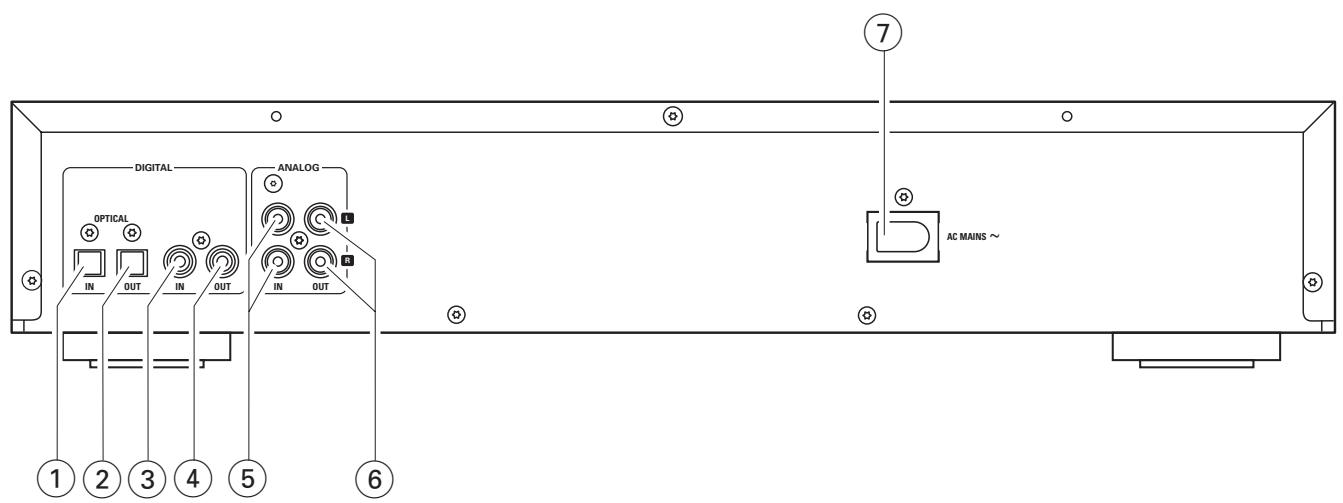
① OPTICAL IN
connect to the digital optical output of an external digital appliance
② OPTICAL OUT
connect to the digital optical input of an external digital appliance
③ DIGITAL IN
connect to the digital coaxial output of an external digital appliance
④ DIGITAL OUT
connect to the digital coaxial input of an external digital appliance
⑤ ANALOG IN L/R
connect to the analogue audio output of an external appliance
⑥ ANALOG OUT L/R
connect to the analogue audio input of an external appliance
⑦ AC MAINS \~
After all other connections have been made, connect the mains lead to the wall socket.
Setup information
Place the set on a flat, hard and stable surface. Do not position the set on top of other equipment that might heat it up (e.g. receiver or amplifier). If the set is placed in a cabinet, make sure to leave at least 3.5 cm free around the set to prevent overheating. Active mobile phones near the set may cause malfunctions.
Connections general
Never make or change connections with the mains supply switched on.
For playback the following outputs are present:
- Analogue output (ANALOG OUT L/R)
– Digital coaxial output (DIGITAL OUT)
– Digital optical output (OPTICAL OUT)
For external recording the following inputs are present:
– Analogue input (ANALOG IN L/R)
– Digital coaxial input (DIGITAL IN)
– Digital optical input (OPTICAL IN)
These inputs can be connected to the corresponding output(s) of your amplifier/receiver or directly to the corresponding output(s) of the external appliance.
It is not possible to connect a turntable directly to ANALOG IN L/R. If you wish to use a turntable with the set, you have to connect an amplifier/receiver to ANALOG IN L/R on the CD player/recorder. Then connect the turntable to the amplifier.
The connections you make will depend upon the possibilities your audio equipment offers and how you are going to use the set. Please refer to the user manuals for your audio equipment first.
We recommend doing analogue recording only if digital recording is not possible. Digital recording will result in better sound quality.
If possible, always make both digital and analogue connections. In this way you can always make analogue recordings when digital recording is not possible.
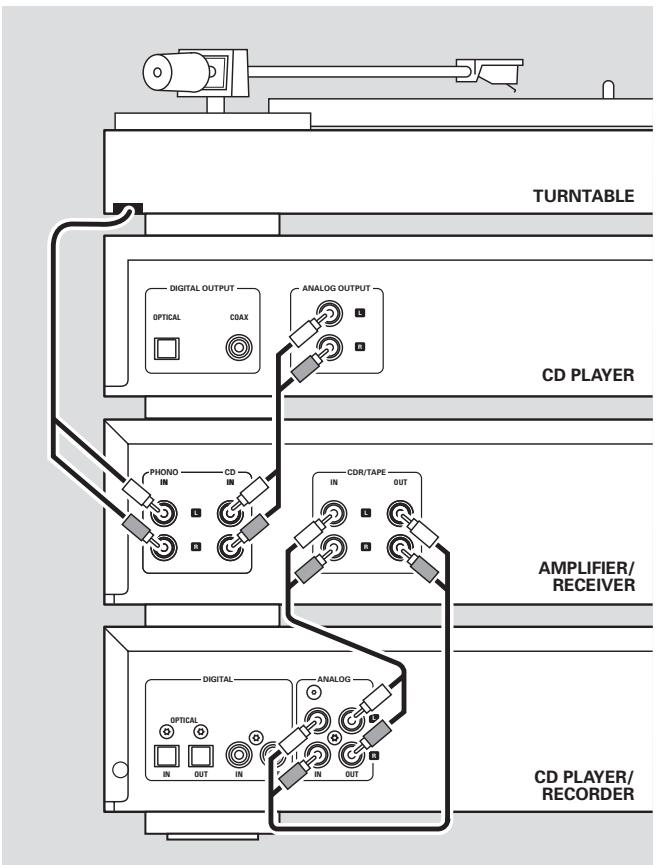
Analogue connections
These connections are required for playback and recording via an amplifier/receiver, equipped with analogue in- and outputs.
flowchart
graph TD
    A["CD PLAYER"] --> B["TURNTABLE"]
    B --> C["ANALOG OUTPUT"]
    C --> D["DIGITAL OUTPUT"]
    D --> E["OPTICAL COAX"]
    E --> F["PHONO IN CD IN"]
    F --> G["CDR/TAPE OUT IN"]
    G --> H["AMPLIFIER/RECEIVER"]
    H --> I["DIGITAL ANALOG OUT IN OUT"]
    I --> J["CD PLAYER/RECORDER"]
1 Connect the red plug of the supplied audio cable (cinch) to the red socket ANALOG IN R and the white plug to the white socket ANALOG IN L on the CD player/recorder.
2 Connect the other end of the audio cable to the analogue outputs of the amplifier/receiver (CDR OUT, TAPE OUT, AUX OUT, REC OUT, etc.).
3 Connect the red plug of the supplied audio cable (cinch) to the red socket ANALOG OUT R and the white plug to the white socket ANALOG OUT L on the CD player/recorder.
4 Connect the other end of the audio cable to the analogue inputs of the amplifier/receiver (CD-R, TAPE IN, AUX, PLAY IN, etc.).
5 Connect all other components of your system (tape deck, CD player, tuner, turntable, etc.) via their analogue outputs to the appropriate analogue inputs of the amplifier/receiver (CD IN, TUNER IN, AUX IN, PHONO IN, etc.).
- Recording can be done now with any appliance, connected to an analogue input of the amplifier/receiver. Press INPUT on the CD player/recorder repeatedly to select the analogue input.
→ ANALOG IN is displayed.
How to connect if the analogue output on the amplifier/receiver is already being used (occupied)
Most amplifiers/receivers have multiple analogue output connections (TAPE, VCR, ...), but some amplifiers/receivers have only 1 analogue output. In case you have already hooked up a tape deck (DAT recorder or MD recorder) to this output you will have to change the existing connections.
1 Disconnect the analogue connections from the tape deck to the amplifier/receiver.
2 Connect the CD player/recorder (see steps 1–4 in the previous chapter).
3 Connect the analogue outputs of the tape deck to any free analogue inputs (AUX, CD) on the amplifier/receiver. You can now playback your tape or record from your tape deck on CD. However, it is no longer possible to record on tape.
Digital connections
Direct digital coaxial connection
This connection is required for direct recording from any digital audio equipment with a digital coaxial output (e.g. CD player or DVD player).
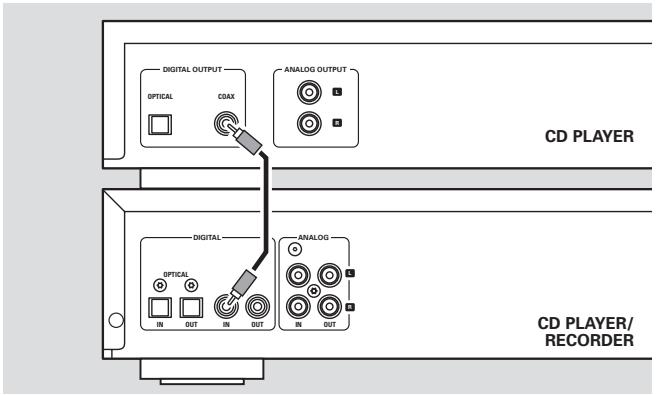
- Use a digital coaxial cable to connect the coaxial output of the external appliance with DIGITAL IN on the CD player/recorder.
- Recording can be done now via the digital coaxial input. Press INPUT on the CD player/recorder repeatedly to select the digital coaxial input.
→ DIGITAL IN is displayed.
Direct digital optical connection
This connection is required for direct recording from any digital audio equipment with a digital optical output (e.g. CD player or DVD player).
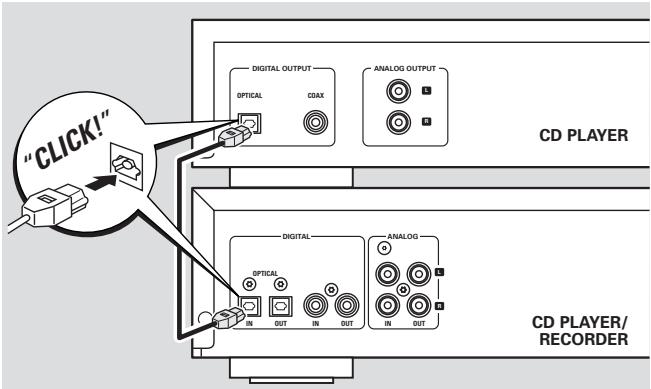
1 Remove the dust caps from the digital optical input of the CD player/recorder and from the digital optical output of the external appliance. Keep the caps in a safe place.
2 Use a digital optical cable to connect the optical output of the external appliance with OPTICAL IN on the CD player/recorder. Make sure you insert both plugs fully, until a click is heard.
- Recording can be done now via the digital optical input. Press INPUT repeatedly on the CD player/recorder to select the digital optical input.
→ OPTICAL IN is displayed.
Digital coaxial connections via a digital receiver
If you have a receiver with digital coaxial in- and outputs, these connections allow you to make digital recordings from various sources, connected to the receiver.
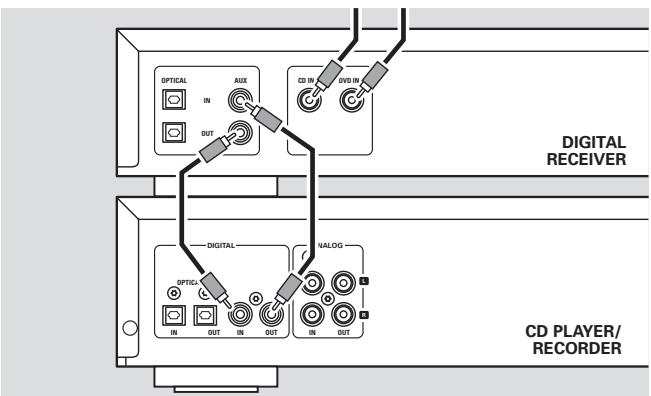
- Use a coaxial cable to connect the digital coaxial input of the receiver with DIGITAL OUT on the CD player/recorder. Use another coaxial cable to connect the digital coaxial output of the receiver with DIGITAL IN on the CD player/recorder.
- Recording can be done now with any digital appliance, connected to a digital input of the digital receiver (e.g. CD player or DVD player). Press INPUT on the CD player/recorder repeatedly to select the digital coaxial input.
→ DIGITAL IN is displayed.
Digital optical connections via a digital receiver
If you have a receiver with digital optical in- and outputs, these connections allow you to make digital recordings from various sources, connected to the receiver.
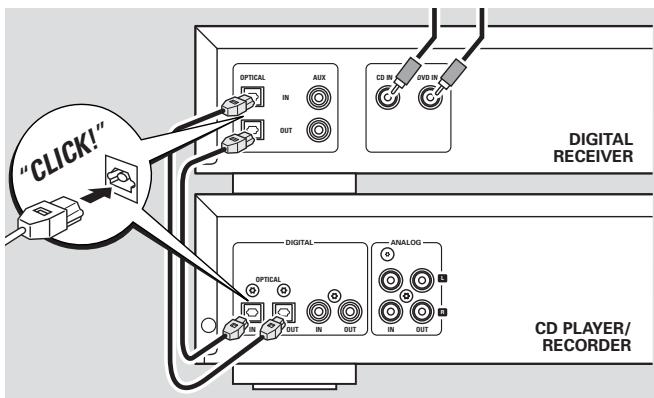
1 Remove the dust caps from the digital optical in- and outputs of the CD player/recorder and from the digital optical output of the receiver. Keep the caps in a safe place.
2 Use a digital optical cable to connect the optical input of the receiver with OPTICAL OUT on the CD player/recorder. Use another digital optical cable to connect the optical output of the receiver with OPTICAL IN on the CD player/recorder. Make sure you insert the plugs fully, until a click is heard.
- Recording can be done now with any digital appliance, connected to a digital input of the digital receiver (e.g. CD player or DVD player). Press INPUT on the CD player/recorder repeatedly to select the digital optical input.
→ OPTICAL IN is displayed.
Mains
The type plate is located on the rear of the set.
1 Check whether the mains voltage as shown on the type plate corresponds to your local mains voltage. If it does not, consult your dealer or service organisation.
2 Make sure all connections have been made before switching on the mains supply.
3 Connect the mains cable supplied to AC MAINS \~ and to the wall socket. This switches on the mains supply.
When the set is switched to standby, it is still consuming some power. To disconnect the set from the mains completely, remove the mains plug from the wall socket.
For users in the U.K.: please follow the instructions on page 2.
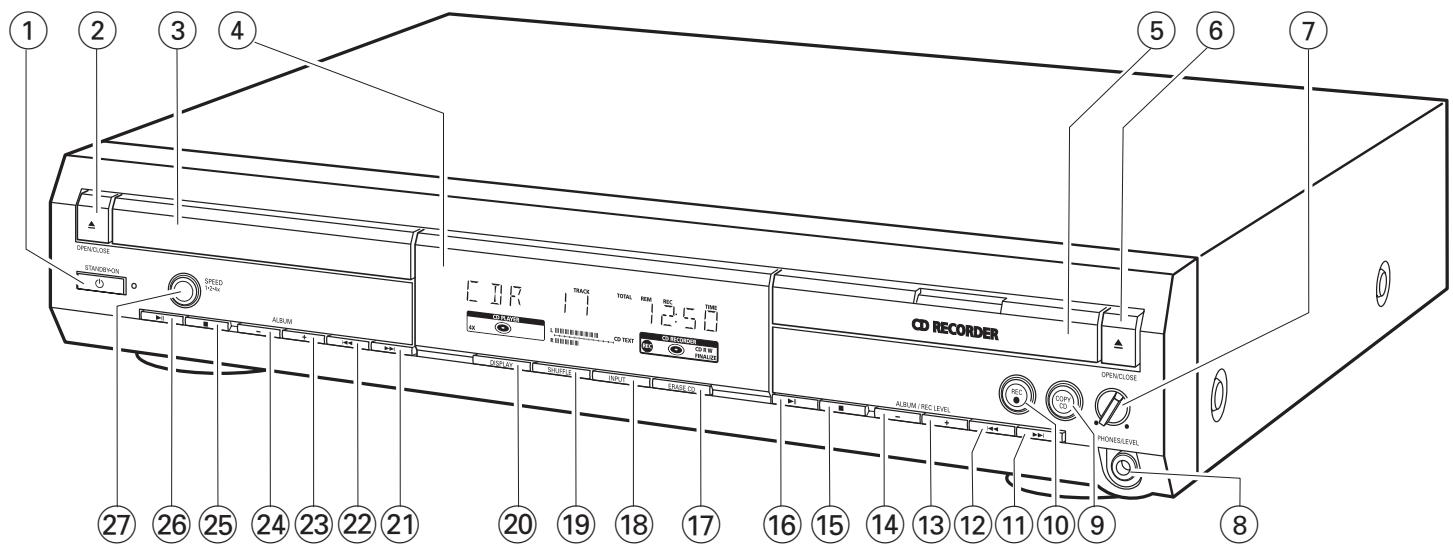
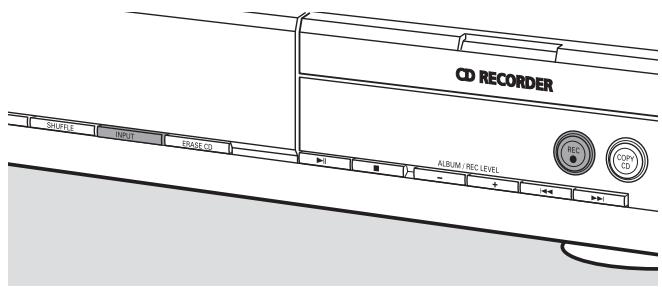
① STANDBY·ON
switches the set on/to standby
② ▲ OPEN/CLOSE
opens/closes the CD player drawer
③ CD player drawer
④ display
⑤ CD RECORDER
CD recorder drawer blue light on: CD recorder is selected red light on: recording in progress
⑥ ▲ OPEN/CLOSE
opens/closes the CD recorder drawer
⑦ PHONES/LEVEL
adjusts the headphone volume
⑧ PHONES/LEVEL
6.3 mm headphone socket
⑨ COPY CD
selects recording and automatic finalizing of current CD
⑩ REC ●
selects other recording modes
11
CD recorder: selects the next track, searches forwards
12
CD recorder: selects the previous track, searches backwards
⑬ ALBUM/REC LEVEL +
CD recorder: selects the next album on an MP3-CD, increases the recording level
⑭ ALBUM/REC LEVEL —
CD recorder: selects the previous album on an MP3-CD, decreases the recording level
15
CD recorder: stops playback/recording
16 ▶ II
CD recorder: starts/interrupts playback
⑰ ERASE CD
erases recordings on a CDRW
⑱ INPUT
selects the input for an external appliance
⑲ SHUFFLE
plays tracks in random order
⑳ DISPLAY
selects display information
21
CD player: selects the next track, searches forwards
22
CD player: selects the previous track, searches backwards
⑳ ALBUM +
CD player: selects the next album on an MP3-CD
⑳ ALBUM—
CD player: selects the previous album on an MP3-CD
25
CD player: stops playback
26 ▶II
CD player: starts/interrupts playback
⑳ SPEED 1·2·4x
selects the record speed for internal recording
Note: SPEED 1·2·4x, REC and COPY CD will be illuminated depending on the different modes you are in. This in order to facilitate finding the relevant keys for selection.
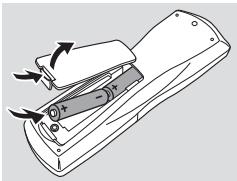
Remote control usage
Open the battery compartment of the remote control and insert 2 alkaline batteries, type AA (R06, UM-3).
Do not use old and new or different types of batteries in combination.
natural_image
Diagram of a remote control panel with arrows indicating rotation and battery polarity (no text or symbols)Remove batteries if they are empty or if the remote control will not be used for a long time.
Batteries contain chemical substances, so they should be disposed of properly.
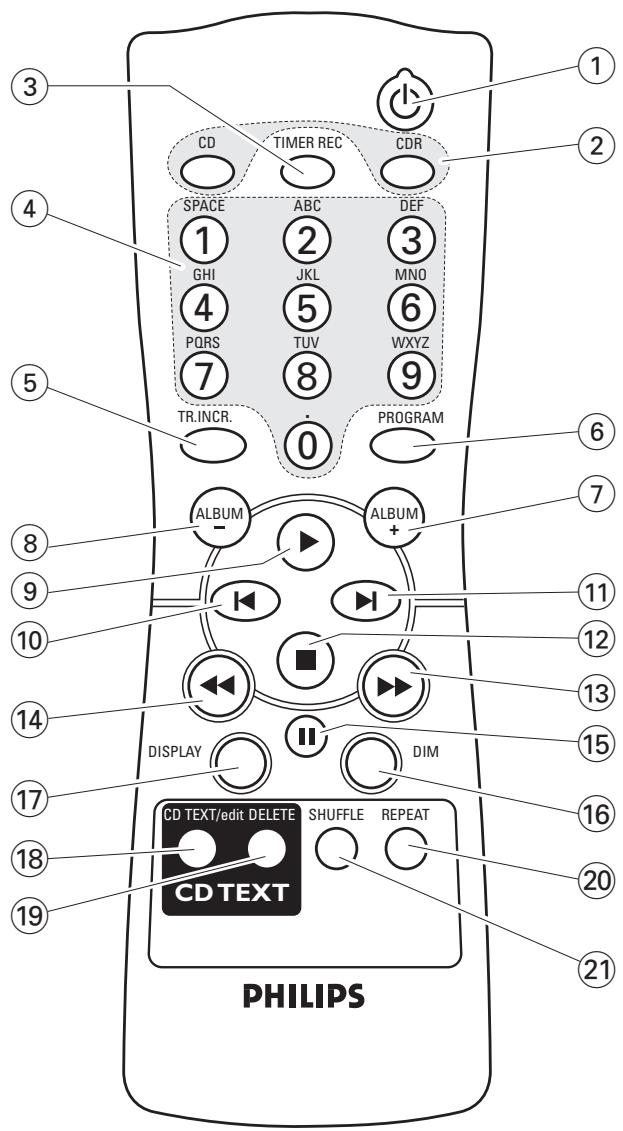
The buttons on the remote control work the same way as the corresponding ones on the set.
Remote control keys
① Ⓧ
switches the set on/to standby
② CD, CDR
selects the CD player deck or the CD recorder deck
③ TIMER REC
starts a time restricted recording
④ Number/alphabet keys
1-0: keys in numbers for tracks
ABC –WXYZ: keys in letters for CD text
SPACE: keys in a space for CD text
• : keys in a dot or symbol for CD text
⑤ TR. INCR.
selects automatic or manual increment of a track
⑥ PROGRAM
enters the program menu
⑦ ALBUM +
selects the next album on an MP3-CD
⑧ ALBUM—
selects the previous album on an MP3-CD
⑨ ▶
starts playback
10
selects the previous track
⑪
selects the next track
12
stops playback
13
searches forwards
14
searches backwards
15
interrupts playback
⑯ DIM
controls the brightness of the display
⑰ DISPLAY
selects display information
⑱ CD TEXT/edit
switches through CD text information, enters/exits the CD text edit menu
⑲ DELETE
deletes CD text
20 REPEAT
repeats a track, an entire CD(RW), or a program
⑳ SHUFFLE
plays tracks in random order
Switching on, switching to standby
● To switch the set on press ⏻ STANDBY·ON.
→ WELCOME TO PHILIPS AUDIO is displayed.
- To switch the set to standby press ⏻ STANDBY·ON again.
→ The set is switched to standby.
Demonstration mode
The demonstration mode displays various features of the set and will start automatically when no key has been pressed for several minutes or during standby.
- To cancel the demonstration mode keep ■ on the set pressed for at least 5 seconds.
→ The demo mode is cancelled permanently.
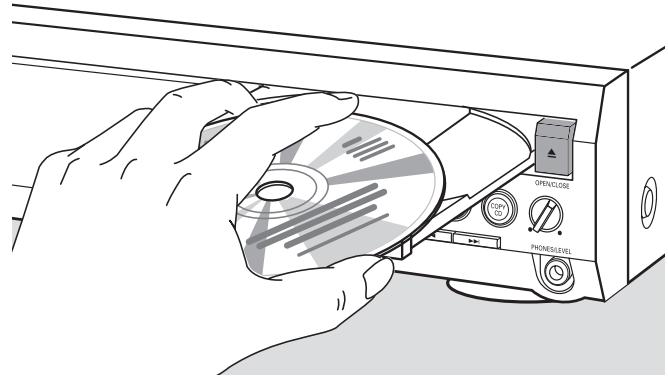
Loading discs
natural_image
Illustration of a hand holding a CD inside a microwave oven with open/close control panel (no text or symbols on main subject)1 CD player: Press ▲ OPEN/CLOSE to open the CD player drawer.
→ OPEN [O] is displayed and the drawer is opened.
CD recorder: Press ▲ OPEN/CLOSE to open the CD recorder drawer.
→ OPEN CDR is displayed and the drawer is opened.
Notes:
Opening the CD player clears any program containing tracks from a disc loaded in the CD player.
Opening the CD recorder clears any program containing tracks from a disc loaded in the CD recorder.
2 Insert a disc (printed side up) in the tray.
3 CD player: Press ▲ OPEN/CLOSE again to close the drawer.
→ The drawer is closed and READING is displayed.
→ [ ], the total number of tracks and the total playing time of the disc are displayed.
CD recorder: Press ▲ OPEN/CLOSE to close the drawer.
→ The drawer is closed and READING is displayed.
→ If an unfinalized disc is loaded, INITIALIZING will be displayed.
→ [DR], the total number of tracks and the total playing time of the disc are displayed.
MP3-CD only:
→ READING MP3 is displayed. MP3 is shown. Due to the large number of tracks this could take up to 2 minutes.
→ The first album name is displayed.
Playback
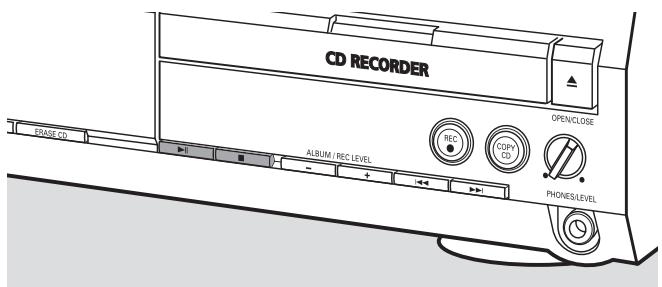
1 Press ▶II either on CD player side or CD recorder side to start playback.
→ [I] or [IR], the current track number and elapsed playing time are displayed.
MP3-CD only:
→ In addition, the track name will also be scrolled.
To switch through the following information press DISPLAY repeatedly:
→ track number, remaining playing time of current track
→ track number, remaining playing time of disc
→ track number, elapsed playing time of current track
MP3-CD only:
→ album number, track number and track name
→ track number, elapsed playing time of current track
2 Press ■ either on CD player side or CD recorder side to stop playback.
→ [ ] or [ ]R, the total number of tracks and the total playing time of the disc are displayed.
MP3-CD only:
→ The current album name is scrolled.
- You can interrupt playback by pressing ▶II.
→ The time where playback was interrupted will blink.
To resume playback press ▶II again.
Selecting and searching (on all discs except MP3-CDs)
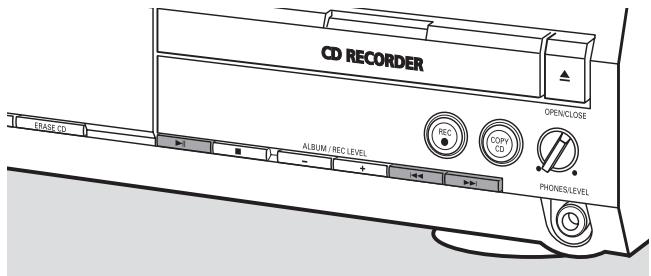
Selecting a track when playback is stopped
1 Press ▶▶▶ or ◀◀◀ as often as necessary either on CD player side or CD recorder side to skip to the desired track number.
2 Press ▶II to start playback.
→ Playback starts with the selected track.
Selecting a track during playback
- Press ▶▶▶ I or ◀◀◀ as often as necessary either on CD player side or CD recorder side to skip to the beginning of the previous or next track on the selected disc.
→ Playback continues with the selected track.
Searching for a passage during playback
1 Keep ▶▶▶ I or ◀◀◀ pressed either on CD player side or CD recorder side to find a particular passage in backwards or forwards direction.
→ Searching is started and playback continues at a low volume. After a few seconds the search speeds up with volume muted.
2 Release the key at the desired passage.
→ Normal playback continues.
Note: During SHUFFLE, while repeating a track or playing a program, searching is only possible within the current track.
Selecting and searching (on MP3-CDs only)
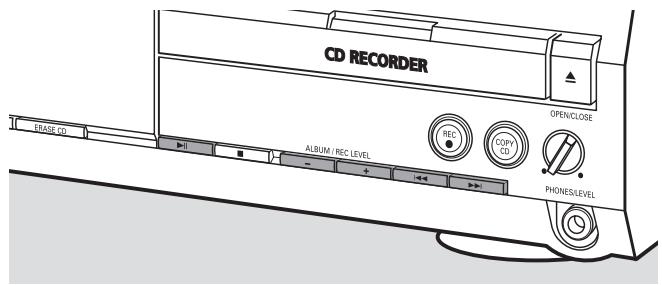
Selecting an album when playback is stopped
- Press ALBUM + or ALBUM — as often as necessary either on CD player side or CD recorder side to find the album number you wish to select.
→ ALBUM is shown, CIR or CIR and the album number are displayed.
→ The current album name is scrolled as soon as you do not press the key again.
To start playback of the entire album press ▶II.
→ Playback of the entire album starts.
Selecting an album during playback
- Press ALBUM + or ALBUM — as often as necessary either on CD player side or CD recorder side to skip to the beginning of the previous or next album on the selected disc.
→ Playback continues with the selected album as soon as you do not press the key again.
Selecting a track in the album
1 Press ▶▶▶ or ◀◀◀ as often as necessary either on CD player side or CD recorder side to skip to the desired track number.
→ [ ] or [ ]R, the album number and track number are displayed.
→ The track name is scrolled as soon as you do not press the key again.
2 Press ▶II to start playback.
→ Playback starts with the selected track.
Notes:
At the end of your album selection you will recognise an album called VARIOUS. This album contains all tracks which were not saved in an album when making the MP3-CD.
If you want to play a playlist which you created on your MP3-CD when making it, you have to select it directly by using ▶▶▶ or ◀◀◀ and pressing ▶▶▶ afterwards.
SHUFFLE and REPEAT
Repeating a track, a disc or a program
1 Press REPEAT repeatedly on the remote control during playback to select either:
→ REP TRACK: The current track is played repeatedly.
→ REP DISC: The entire selected disc is played repeatedly.
→ REP ALL: All discs in the set (or the program) are (is) played repeatedly.
Notes:
REP DISC is not possible during SHUFFLE or while playing a program.
REP TRACK is not possible during SHUFFLE.
2 Playback starts in the chosen mode.
To return to normal playback press REPEAT on the remote control until the display indication disappears.
Playing tracks in random order
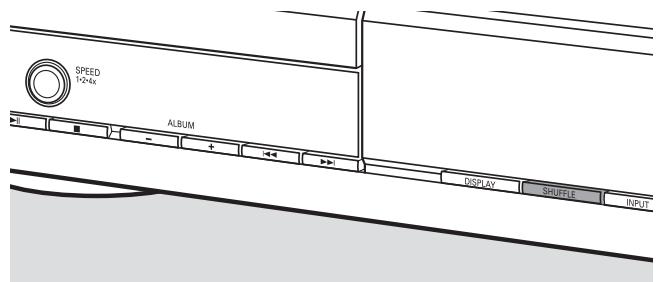
● Press SHUFFLE before or during playback.
→ SHUFF ALL is shown and either all tracks of the program or of all loaded disc(s) in the CD player and CD recorder are played in random order.
CD text display
This feature allows you to display information such as album title or track title contained on a specially encoded CD.
● Make sure to insert a CD with CD text.
→ CD TEXT is shown and the album artist's name and album title is scrolled once.
CD text when playback is stopped
- Press CD TEXT/edit on the remote control to see the following information, which will be scrolled once (if available):
→ Album artist's name
→ Album title
CD text during playback
- Press CD TEXT/edit on the remote control to see the following information, which will be scrolled once (if available):
→ Track artist's name
→ Track title
ID3-tag
This feature allows you to display information such as album title or track title contained in an MP3-track.
- If you created an ID3-tag for your MP3-track, press CD TEXT/edit on the remote control during playback to show the following ID3-tag information:
→ Album title
→ Track artist's name
→ Track title
Note: In case there is no ID3-tag available, NO TEXT will be displayed.
Programming track numbers
A program can be used for playback or for specifying the tracks which will be recorded. You can select up to 99 tracks (also MP3 tracks) and store them in the memory. It is possible to store any track more than once, in any order over CD player and CD recorder. However, it is not possible to combine MP3 tracks and audio tracks or MP3 tracks from more than one CD.
1 Load the desired disc(s) in the disc tray(s).
2 Press PROGRAM on the remote control to enter the program menu.
→ PROG starts blinking and PROGRAM is displayed.
→ The step number (STEP), the track number and playing time of the actual track on the current CD are displayed.
3 If you wish to choose a track from the CD player:
Press CD on the remote control and then ◀ or ▶I as often as necessary to skip to the desired track.
If you wish to choose a track from the CD recorder:
Press CDR on the remote control and then ◀ or ▶I as often as necessary to skip to the desired track.
Note: When selecting a track which has been stored already, will be displayed.
4 Press PROGRAM on the remote control to store your selection in the memory.
→ The total number of programmed tracks (STEP), PRG and the total program time are displayed.
5 Repeat steps 3–4 to select and store all desired tracks.
Note: If you try to store more than 99 tracks, PROGRAM FULL will be displayed.
6 Press ■ to end programming.
Clearing the program
1 If necessary press ■ to stop playback.
2 Keep ■ pressed to clear the program.
→ PROG [Cleared] is displayed and PROG goes off.
Basic information
The CD recorder deck offers you 3 main functions:
- Recording from the internal CD player or from a selected external source
- Finalizing your CDR(W) discs and unfinalizing your CDRW discs
- Erasing a CDRW disc
The recording procedure is the same for CDR and CDRW discs. Make sure the CDR(W) is absolutely free of scratches and dust particles.
For recordings, the minimum track length is 4 seconds. You can record up to a maximum of 99 tracks on a disc. If the recording time left on the disc is less than 7 seconds, DISC FULL is displayed and you cannot enter the recording mode.
Copyright protection
The Serial Copy Management System (SCMS) prevents the making of a digital copy from a digital copy. The system allows making a digital recording from the original, however, in some countries this may require the authorisation of copyright holders.
When you try to record copy protected material from an external source, COPY PROTECT will be displayed. No digital recording is possible then.
It is not possible to copy an MP3-CD.
Recording CD text
If the original CD has CD text, this text will be recorded automatically, provided that the CD text is not copy protected. In that case, recording of CD text will not be possible and TEXT PROTECT will be displayed.
What is finalizing?
Finalizing is a simple process that completes the recording of a CDR(W) necessary to:
– play a recorded CDR on a standard CD player,
- play a recorded CDRW on a CDRW compatible CD player and CD recorder;
– avoid unwanted recordings on a disc, or
– avoid accidental erasure of tracks on a CDRW.
CDRs are “locked” once they are finalized. No other tracks or CD text can be added.
CDRWs are also “locked” once they are finalized, but can be unfinalized to permit additional recording or erasure.
Direct Line Recording (DLR)
The CD recorder is equipped with the high-performance Direct Line Recording technique. It ensures a perfect recording of the source material, meaning a true “bit for bit” recording. DLR will not become active when the recording level is adjusted.
Adjusting the recording level
You can adjust the reference recording level for recordings from an additional appliance. This feature can be used for fading your recordings in or out.
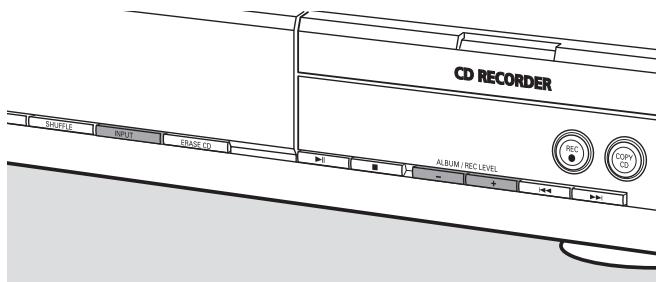
1 Press INPUT repeatedly to select the input of the additional appliance:
→ DIGITAL IN: the digital coaxial input is selected.
→ OPTICAL IN: the digital optical input is selected.
→ ANALOG IN: the analogue input is selected.
2 Keep ALBUM + or ALBUM — pressed on the CD recorder side to adjust the desired recording level. The loudest sounds in the material to be recorded should not reach the red levels of the level bar.
→ The actual recording level (in dB) will be displayed.
Note: The recording level can also be adjusted during recording from the internal CD player. Keep ALBUM + or ALBUM - pressed on the CD recorder side to adjust the desired recording level.
What is internal recording?
Recording from the CD player deck of this set is called “internal recording”.
Selecting the recording speed
It is possible to select the recording speed for internal recordings.
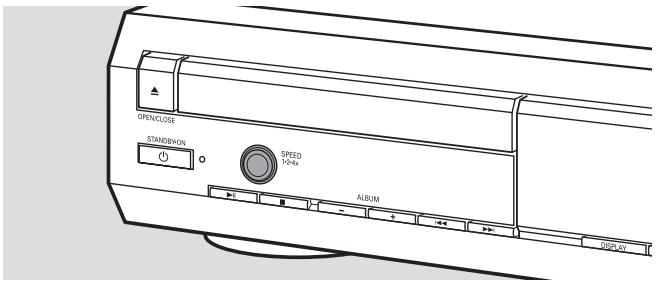
● Press SPEED 1·2·4x repeatedly to select either:
→ REC SPEED IX: for recording with normal speed
→ REC SPEED 2X: for recording with double speed while the sound is muted
→ REC SPEED 4X: for recording with 4 times the normal speed while the sound is muted
Notes:
Speed selection is not possible during recording.
On some brands of blank audio discs recording at higher speed is not possible and does not work. In that case select a lower speed.
Copying an entire CD
This is the easiest way to make a copy of an entire CD, ready to play on other CD players. However, no other tracks or CD text can be added.
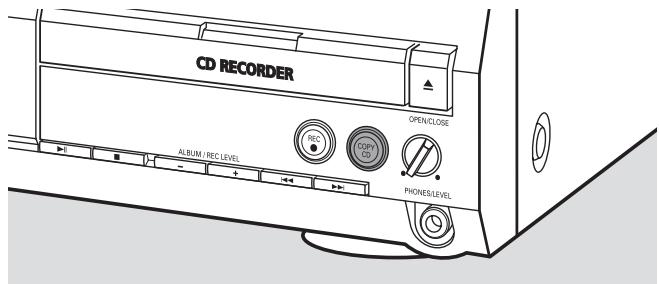
1 Insert a CDR(W) which is absolutely free of scratches and dust particles in the CD recorder tray.
2 Insert the disc you wish to copy in the CD player tray.
3 Press COPY CD to start copying of the entire CD.
→ REC is shown, copying starts and the actual recording time left starts to count down.
Note: If a program was already available before pressing COPY CD, this will be ignored. PROG goes off and the current disc will be recorded. After finishing the recording, PROG is shown and the program is available again.
Recording all tracks from a CD
You can copy all tracks from a CD and then decide either to finalize or not to finalize.
1 Insert a CDR(W) which is absolutely free of scratches and dust particles in the CD recorder tray.
2 Insert the disc from which you wish to record all tracks in the CD player tray.
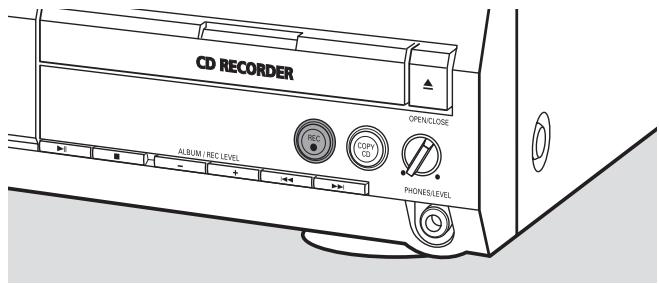
3 Press REC to enter the recording menu.
→ RECORD COP, followed by PRESS REC are displayed alternately.
4 Press REC again to start recording of all tracks.
→ REC is shown, recording starts and the actual recording time left starts to count down.
When you press ▲ OPEN/CLOSE on the CD recorder side,
→ CD NOT FINAL and PRESS RECT TO FINALIZE are displayed alternately.
Decide now, either
not to finalize: the CDR is not ready to play on other CD players, however, other tracks or CD text can still be added.
Press ▲ OPEN/CLOSE on the CD recorder side again or wait a few seconds.
→ The drawer is opened. The CDR(W) is not finalized.
or
to finalize: the CDR is ready to play on other CD players, however, no other tracks or CD text can be added.
Press REC to start finalizing.
→ FINAL is displayed and the actual finalizing time remaining will start to count down.
Recording a single track
You can copy various tracks from different CDs and then decide either to finalize or not to finalize.
1 Insert a CDR(W) which is absolutely free of scratches and dust particles in the CD recorder tray.
2 Play your desired track on the CD player.
3 Press REC to enter the recording menu.
→ REC TR with the tracknumber and PRESS REC are displayed alternately.
4 Press REC again to start recording of the track.
→ REC is shown, recording starts from the beginning of the selected track and the actual recording time left starts to count down.
5 To record further tracks repeat steps 2–4.
When you press ▲ OPEN/CLOSE on the CD recorder side,
→ CD NOT FINAL and PRESS RECT TO FINALIZE are displayed alternately.
Decide now, either
not to finalize: the CDR is not ready to play on other CD players, however, other tracks or CD text can still be added.
Press ▲ OPEN/CLOSE on the CD recorder side again or wait a few seconds.
→ The drawer is opened. The CDR(W) is not finalized.
or
to finalize: the CDR is ready to play on other CD players, however, no other tracks or CD text can be added.
Press REC to start finalizing.
→ FINAL is displayed and the actual finalizing time remaining will start to count down.
Making and recording a program
You can make your own program, record it and decide then either to finalize or not to finalize. However, please note, that you cannot record a program which contains tracks from the CD player and CD recorder. In that case 2 DISC PROG and NOT POSSIBLE will be displayed.
1 Load a CDR(W) which is absolutely free of scratches and dust particles in the CD recorder tray.
2 Load the CD from which you wish to record in the CD player tray.
3 Select and store all desired tracks from the CD (see "Programming track numbers").
☐ If the total time of the program is longer than the remaining recording time of the CDR(W):
→ DOES NOT FIT will be displayed briefly.
→ MISSING and the time that cannot be recorded are displayed.
If you nevertheless start recording, the recording goes on until the CDR(W) is full.
4 Press REC to enter the recording menu.
→ REC PROGRAM? and PRESS REC are displayed alternately.
5 Press REC again to start recording of the current program.
→ REC is shown, recording starts and the actual recording time left starts to count down.
When you press ▲ OPEN/CLOSE on the CD recorder side,
→ CD NOT FINAL and PRESS REC TO FINALIZE are displayed alternately.
Decide now, either
not to finalize: the CDR is not ready to play on other CD players, however, other tracks or CD text can still be added.
Press ▲ OPEN/CLOSE on the CD recorder side again or wait a few seconds.
→ The drawer is opened. The CDR(W) is not finalized.
or
to finalize: the CDR is ready to play on other CD players, however, no other tracks or CD text can be added.
Press REC to start finalizing.
→ FINAL is displayed and the actual finalizing time remaining will start to count down.
What is external recording?
Recording from an additional appliance is called “external recording”.
Analogue or digital recording?
When making recordings from an external source, we recommend doing analogue recording only if digital recording is not possible. Digital recording will result in better sound quality.
Automatic track increment
When the digital input for recording from a digital source (e.g. CD player) is used, tracks will be incremented automatically such that the track numbers are positioned on the same position as on the original. When the analogue input for recording from a digital or analogue source is used, track increment will not take place automatically unless one of the following settings is selected. Track increments may not always be positioned correctly, depending on the quality of the source material.
- Press TR. INCR. as often as necessary on the remote control during stop to switch through the following automatic track increment functions:
→ TURNTABLE: for optimal recording from noisy sources like turntables (It is not possible to connect a turntable directly to AUX/CDR IN L/R - see "Analogue connections".)
→ TAPE/TUNER: for optimal recording from a tape
→ [O/O']: for optimal recording from high quality sources like DAT, DCC or DVD
→ MANUAL: for switching the automatic track function off
Notes:
Track numbers can be incremented manually by pressing TR. INCR. on the remote control during recording. The minimum track length is 4 seconds.
Track numbers cannot be changed after recording.
Recording with automatic start
You can quickly and easily record an entire CD or a track. As soon as playback on the additional appliance is started, recording starts automatically.
1 Insert a CDR(W) which is absolutely free of scratches and dust particles in the CD recorder tray.
2 Press INPUT repeatedly on the CD player/recorder to select the input for the additional appliance you want to record from.
→ DIGITAL IN: the digital input is selected.
→ ANALOG IN: the analogue input is selected.
→ OPTICAL IN: the optical input is selected.
3 Make sure the desired track on the additional appliance is selected.
4 Make sure the additional appliance is in pause or stop mode.
5 Press REC on the CD player/recorder to enter the recording menu.
→ PREPARING is displayed.
→ RECORD EXT? and START EXTERN SOURCE! are displayed alternately.
6 Start playback on the additional appliance within 5 seconds.
→ Recording starts simultaneously and REC is shown. The remaining recording time on the CDR(W) is displayed.
Note: Recording can also be started manually by pressing REC on the CD player/recorder.
To stop recording manually press ■ on the CD recorder side.
- When you press ▲ OPEN/CLOSE on the CD recorder side,
→ [O] NOT FINAL and PRESS RECT TO FINALIZE are displayed alternately.
Decide now, either
not to finalize: the CDR is not ready to play on other CD players, however, other tracks or CD text can still be added.
Press ▲ OPEN/CLOSE on the CD recorder side again or wait a few seconds.
→ The drawer is opened. The CDR(W) is not finalized.
or
to finalize: the CDR is ready to play on other CD players, however, no other tracks or CD text can be added.
Press REC on the CD player/recorder to start finalizing.
→ FINAL is displayed and the actual finalizing time remaining will start to count down.
Manual recording
You can manually start and stop a recording from an additional appliance. You can use manual recording for recording live music, or for particular music like classic which cannot be recorded with automatic start.
1 Insert a CDR(W) which is absolutely free of scratches and dust particles in the CD recorder tray.
2 Press INPUT repeatedly on the CD player/recorder to select the input for the additional appliance from which you want to record.
→ DIGITAL IN: the digital input is selected.
→ ANALOG IN: the analogue input is selected.
→ OPTICAL IN: the optical input is selected.
3 Start playback on the additional appliance.
4 Press REC on the CD player/recorder to enter the recording menu.
→ PREPARING is displayed.
→ RECORD EXP and PRESS REC are displayed alternately.
5 Press REC on the CD player/recorder to start recording.
→ Recording starts and REC is shown. The remaining recording time on the CDR(W) is displayed.
6 Press ■ on the CD recorder side to stop recording.
- When you press ▲ OPEN/CLOSE on the CD recorder side,
→ CD NOT FINAL and PRESS RECTO FINALIZE are displayed alternately.
Decide now, either
not to finalize: the CDR is not ready to play on other CD players, however, other tracks or CD text can still be added.
Press ▲ OPEN/CLOSE on the CD recorder side again or wait a few seconds.
→ The drawer is opened. The CDR(W) is not finalized.
or
to finalize: the CDR is ready to play on other CD players, however, no other tracks or CD text can be added.
Press REC on the set to start finalizing.
→ FINAL is displayed and the actual finalizing time remaining will start to count down.
Timer recording
This feature allows you to start a time restricted recording via the analogue input (e.g. for recordings from a tuner). You can choose a recording of 15, 30, 45 or 60 minutes or to the end of the CDR(W).
1 Insert a CDR(W) which is absolutely free of scratches and dust particles in the CD recorder tray.
2 Make sure the additional appliance from which you want to record is connected properly.
3 Press TIMER REC on the remote control to start recording.
→ 15 MIN, followed by PREPARING, is displayed.
→ Recording starts and REC is shown. The actual recording time left is displayed.
To select another recording time press TIMER REC on the remote control repeatedly until the desired time is displayed:
→ 30 MIN, 45 MIN, 60 MIN, MAXIMUM is displayed.
4 After the chosen time has elapsed, recording stops automatically and the set switches to standby.
To stop recording manually press ■ on the CD recorder side.
Erasing from a CDRW disc
It is possible to erase one or more tracks (starting from the end of the last track) or the entire CDRW. It is not possible to erase from a CDR.
Erasing one or more tracks
1 Insert the CDRW from which you want to erase tracks in the CD recorder tray.
2 Press ERASE CD shortly to enter the erasing menu.
If an unfinalized CDRW is inserted:
→ ERASE LAST TRACK? and PRESS ERASE are displayed alternately.
If a finalized CDRW is inserted:
→ FINALIZED CD will be displayed briefly.
→ CRASE LAST TRACK?, followed by PRESS CRASE are displayed alternately.
To select a particular track you wish to erase press ▶▶▶ or
◀◀ as often as necessary on the CD recorder side to select the desired track number(s).
→ ERASE TR and the track number (e.g. 10+) are displayed. To select more tracks to be erased repeat this step.
Note: When erasing several tracks, the tracks to be erased must be selected in sequence, starting from the last recorded track. Example: The CDRW has 5 tracks recorded on it. Now, you can erase tracks 5 and 4. You can also erase tracks 5, 4 and 3, but you cannot erase tracks 5 and 3!
3 Press ERASE CD again to start erasing.
If an unfinalized CDRW is inserted:
→ ERASE is displayed, the operation time left starts to count down and erasing starts.
If a finalized CDRW is inserted:
→ UNFINAL is displayed, the operation time left starts to count down and unfinalizing starts.
→ Afterwards ERASE is displayed, the operation time left starts to count down and erasing starts.
Erasing an entire CDRW
1 Insert the CDRW you want to erase in the CD recorder tray.
2 Keep ERASE CD pressed for more than 1 second to enter the erasing menu.
If an unfinalized CDRW is inserted:
→ ERASE DISC? and PRESS ERASE are displayed alternately.
If a finalized CDRW is inserted:
→ FINALIZED CD will be displayed briefly.
→ FINALIZED CD will be displayed briefly.
→ ERASE DISC? and PRESS ERASE are displayed alternately.
3 Press ERASE CD again to erase the entire CDRW.
If an unfinalized CDRW is inserted:
→ ERASE is displayed, the operation time left starts to count down and erasing of the entire CDRW starts.
If a finalized CDRW is inserted:
→ UNFINAL is displayed, the operation time left starts to count down and unfinalizing starts.
→ ERASE is displayed, the operation time left starts to count down and erasing of the entire CDRW starts.
CD text editing
After you have recorded your CDR(W) you can enter a text, e.g. album title or track title. This text will be displayed during playback on this set, but also on other sets equipped with the CD text feature. Only use an unfinalized CDR or CDRW (a finalized CDRW must be unfinalized first).
1 If necessary press ■ to stop playback.
2 Press CDR on the remote control to select the CD recorder.
3 Press CD TEXT/edit repeatedly on the remote control to select either:
→ ALBUM TITLE: for editing the CD title
→ ALBUM ARTIST: for editing the CD artist's name
→ ARTIST TR 1 (or 2, 3,...): for editing the artist's name of track 1 (or 2, 3,...)
→ TITLE TR 1 (or 2,3,...): for editing the title of track 1 (or 2,3,...)
4 As soon as the cursor starts blinking, use the number/alphabet keys on the remote control to select a character:
→ After selecting a character the cursor automatically moves to the next character space.
5 Press CD TEXT/edit on the remote control to save the created text and to go back to the text editing menu.
6 To leave the text editing menu press ■.
Deleting and substituting a character
1 Press ◀◀ or ▶▶ on the remote control to move to the character to be deleted or substituted.
→ The character starts blinking.
2 If you want to delete the character:
Press DELETE on the remote control.
→ The character is deleted and the text is shifted one position to the left.
If you want to substitute the character:
Use the number/alphabet keys on the remote control to select a new character.
To change another character press ◀◀ or ▶▶ on the remote control.
Auto copied text
When an artist's name has been stored for a track, it will be copied automatically to the next track.
WARNING
Under no circumstances should you try to repair the set yourself as this will invalidate the guarantee. Do not open the set as there is a risk of electric shock.
If a fault occurs, first check the points listed, before taking the set for repair. If you are unable to solve a problem by following these hints, consult your dealer or service centre.
Laser safety
This unit employs a laser. Only a qualified service person should remove the cover or attempt to service this device, due to possible eye injury.
| Problem | Solution |
| No power | - Make sure the mains cable is connected properly.- Press ⏻ STANDBY·ON on the set to switch it on. |
| No sound | - Check if the audio connections have been installed properly.- Make sure MP3-tracks are recorded in the correct format. |
| No reaction to controls | - Disconnect the set from power supply, reconnect after a few seconds. |
| Automatic start of permanent feature display (demo mode) | - Keep ■ on the set pressed for at least 5 seconds to cancel the demonstration mode. |
| Remote control does not function properly | - Remove batteries and insert them correctly or insert new batteries.- Reduce distance to the set. |
| WRONG DISC,USE AUDIO CD and INSERT DISC indication | - Make sure the disc is not scratched or dirty. Replace or clean the disc.- Make sure disc is inserted, printed side up.- Make sure there is no DVD inserted.- Wait until steamed up laser lens has cleared. |
| WRONG DISC,USE CDR(W) WITH 'DIGITAL AUDIO' LOGO and INSERT DISC indication | - A computer CDR(W) is inserted. Make sure a digital audio disc is inserted marked with "Digital Audio" and the special logo. |
| NO SIGNAL indication or CHECK INPUT indication | - Check if the connection cable is properly connected.- Select the correct input.- Make sure the external appliance is switched on. |
| OVERHEATING indication | - Do not position the set on top of other equipment that might heat it up (e.g. receiver). |
| Does not record | - Make sure the CDR(W) is absolutely free of scratches and dust particles.- Check if a digital audio CDR(W) is inserted and make sure it is unfinalized. |
| Stops during recording | - Use Philips audio CDR(W)s.- In case recording process is interrupted (power loss, mechanical shock), start recording again with a new disc. |
| Recorded disc does not play in another standard CD player | - Make sure the CDR(W) is finalized.- Insert the CDRW in a CDRW compatible CD player. |
| Missing directories on MP3-CD | - Only albums with playable files will be shown. |
| Elapsed playing time of MP3-track counts up very fast or irregularly | - That is normal behaviour as this MP3-track has a variable bit rate. |
| Recorded tracks have been merged together or tracks do not start or stop at the correct time | - Use another track increment mode.- Insert track increments manually with the remote control. |
Direct Line Recording (DLR) 33
natural_image
Illustration of an air conditioner unit with a diagonal line crossing above it, no text or symbols present.natural_image
Illustration of a hand holding a circular object with arrows indicating motion or force (no text or symbols)natural_image
Illustration of a hand holding a circular object with a downward arrow, no text or symbols presentRaccordements
① OPTICAL IN
Raccordements – Général
natural_image
Diagram of a remote control panel with arrows indicating rotation and battery polarity (no text or symbols)natural_image
Illustration of a hand holding a CD inside a microwave oven with control knobs (no text or symbols visible)→ La lecture normale continue.
Direct Line Recording (DLR)
Direct Line Recording (DLR) 51
S/N (A-weighted) 120 dB
S/N 110 dB
S/N (A-weighted) 93 dB
natural_image
Illustration of a solar panel with sun and rain symbols (no text or labels)Manejo de disco
natural_image
Illustration of a hand pressing down on a circular component with directional arrows (no text or symbols)natural_image
Illustration of a hand holding a CD or DVD disc with a downward arrow indicating compression (no text or symbols)Discos para grabar
Conexiones
① OPTICAL IN
natural_image
Diagram of a remote control device with arrows indicating rotation and polarity (no text or symbols)natural_image
Illustration of a hand holding a CD into a microwave oven with open control knobs (no text or symbols on the device itself)Direct Line Recording (DLR)
Digitale Anschlüsse 62–63
Netzbetrieb 63
Bedienelemente 64
Fernbedienung
Direct Line Recording (DLR) 69
natural_image
Illustration of a solar panel with sun and rain symbols (no text or labels)Disk-Handhabung
natural_image
Illustration of a hand pressing down on a circular component with directional arrows (no text or symbols)natural_image
Illustration of a hand holding a CD or DVD disc with a downward arrow indicating compression (no text or symbols present)Disks zum Aufnehmen
Anschlüsse
natural_image
Diagram of a remote control panel with arrows indicating rotation and polarity (no text or symbols)natural_image
Illustration of hands holding a CD inside a microwave oven with open/close control panel (no text or symbols on main subject)Direct Line Recording (DLR)
Direct Line Recording (DLR) 87
natural_image
Illustration of an air conditioner unit with a diagonal line crossing above it, emitting exhaust smoke (no text or symbols)natural_image
Illustration of a hand pressing down on a curved mechanical component with directional arrows (no text or symbols)natural_image
Illustration of a hand holding a CD or DVD disc with a downward arrow indicating compression (no text or symbols present)Aansluitingen
① OPTICAL IN
natural_image
Diagram of a remote control device with arrows indicating rotation and polarity (no text or symbols)natural_image
Illustration of hands holding a CD into a microwave oven with open/close control buttons (no text or symbols on main subject)Direct Line Recording (DLR)
Direct Line Recording (DLR) 105
natural_image
Illustration of a solar panel with sun and rain symbols crossing over a device (no text or labels)natural_image
Illustration of a hand holding a circular object with arrows indicating direction (no text or symbols)natural_image
Illustration of a hand holding a CD or DVD disc with a downward arrow indicating compression (no text or symbols)Collegamenti
① OPTICAL IN
natural_image
Diagram of a remote control device with arrows indicating rotation and a button labeled '−3' (no text or symbols beyond basic labels)natural_image
Illustration of a hand holding a CD into a microwave oven with open status LEDs (no text or symbols on the device itself)Direct Line Recording (DLR)
Meet Philips at the Internet
http://www.philips.com
CDR795, CDR796
CLASS 1 LASER PRODUCT
3103 306 1875.1


- Important notes for users in the U.K.
- Mains plug
- How to connect a plug
- Copyright in the U.K.
- Italia
- Norge
- Connections
- Installations
- Remote control
- Basic functions
- About recording
- Internal recording
- External recording
- Erasing/CD text editing (on CD recorder only)
- Technical Data
- General
- Audio
- Laser (CD recorder)
- CAUTION
- Environmental information
- Supplied accessories
- Maintenance
- Disc handling
- Discs for recording
- Discs for playback
- Some words about MP3
- Making your own MP3-CD
- Data rate
- Recording
- Supported formats
- Setup information
- Connections general
- Analogue connections
- How to connect if the analogue output on the amplifier/receiver is already being used (occupied)
- Digital connections
- Direct digital coaxial connection
- Direct digital optical connection
- Digital coaxial connections via a digital receiver
- Digital optical connections via a digital receiver
- Mains
- The type plate is located on the rear of the set.
- Remote control usage
- Batteries contain chemical substances, so they should be disposed of properly.
- Remote control keys
- Switching on, switching to standby
- Demonstration mode
- MP3-CD only:
- Selecting a track when playback is stopped
- Selecting a track during playback
- Searching for a passage during playback
- Selecting an album when playback is stopped
- Selecting an album during playback
- Selecting a track in the album
- SHUFFLE and REPEAT
- Repeating a track, a disc or a program
- CD text display
- CD text when playback is stopped
- CD text during playback
- ID3-tag
- Programming track numbers
- If you wish to choose a track from the CD recorder:
- Clearing the program
- Basic information
- Copyright protection
- Recording CD text
- What is finalizing?
- Direct Line Recording (DLR)
- Adjusting the recording level
- What is internal recording?
- Selecting the recording speed
- Copying an entire CD
- Recording all tracks from a CD
- Recording a single track
- not to finalize: the CDR is not ready to play on other CD players, however, other tracks or CD text can still be added.
- to finalize: the CDR is ready to play on other CD players, however, no other tracks or CD text can be added.
- Making and recording a program
- What is external recording?
- Analogue or digital recording?
- Automatic track increment
- Recording with automatic start
- Manual recording
- Timer recording
- Erasing from a CDRW disc
- Erasing one or more tracks
- If an unfinalized CDRW is inserted:
- If a finalized CDRW is inserted:
- Erasing an entire CDRW
- CD text editing
- Deleting and substituting a character
- If you want to substitute the character:
- Auto copied text
- WARNING
- Laser safety
- Raccordements
- Raccordements – Général
- Manejo de disco
- Discos para grabar
- Conexiones
- ① OPTICAL IN
- Bedienelemente 64
- Fernbedienung
- Disk-Handhabung
- Disks zum Aufnehmen
- Anschlüsse
- Aansluitingen
- Collegamenti
- Meet Philips at the Internet
- http://www.philips.com
Brand : PHILIPS
Model : CDR795
Category : CD Player