
AZ1217 - CD Player PHILIPS - Free user manual and instructions
Find the device manual for free AZ1217 PHILIPS in PDF.


| Product Type | Portable CD/MP3 Soundmachine with Cassette Recorder and Radio |
| Model | AZ1217 |
| Brand | Philips |
| Disc Support | CD, CD-R, CD-RW, MP3-CD (ISO 9660, Joliet; max 400 tracks, 99 albums, 8 directory levels) |
| Radio Bands | FM (with telescopic aerial) and MW (built-in aerial) |
| Cassette Tape | Playback and recording (Normal IEC I tapes only) |
| Power Supply | AC mains (230V~, 50Hz) and 6x R14/UM2/C-cell batteries (alkaline recommended) for main unit; 2x AAA batteries for remote control |
| Audio Output | Built-in speakers, headphone jack (not specified in manual) |
| Controls | Source selector, volume, DBB (Dynamic Bass Boost), TUNING, CD controls (play, stop, skip, search), cassette controls, shuffle, repeat |
| Display | LCD showing track number, album number, status icons |
| Remote Control | Yes, with IR sensor on front panel; functions include shuffle, repeat, stop, play, skip, album selection, numeric track selection, programming |
| Dimensions (approx) | Not specified; typical portable design ~30 x 20 x 15 cm |
| Weight (approx) | Not specified; typical ~2 kg with batteries |
| Maintenance | Clean tape heads and pinch rollers after 50 hours; clean CD lens gently; avoid moisture and dust |
| Safety Notes | Do not open device (electric shock risk); avoid liquids; ensure 15 cm ventilation; dispose of batteries properly |
| Supplied Accessories | Remote control (1x), mains cord (1x) |
| Reparability | No user-serviceable parts; contact dealer or service center for repairs |
Frequently Asked Questions - AZ1217 PHILIPS
User questions about AZ1217 PHILIPS
0 question about this device. Answer the ones you know or ask your own.
Ask a new question about this device
Download the instructions for your CD Player in PDF format for free! Find your manual AZ1217 - PHILIPS and take your electronic device back in hand. On this page are published all the documents necessary for the use of your device. AZ1217 by PHILIPS.
USER MANUAL AZ1217 PHILIPS
MP3 CD Soundmachine AZ1217
Register your product and get support at www.philips.com/welcome
User Manual
natural_image
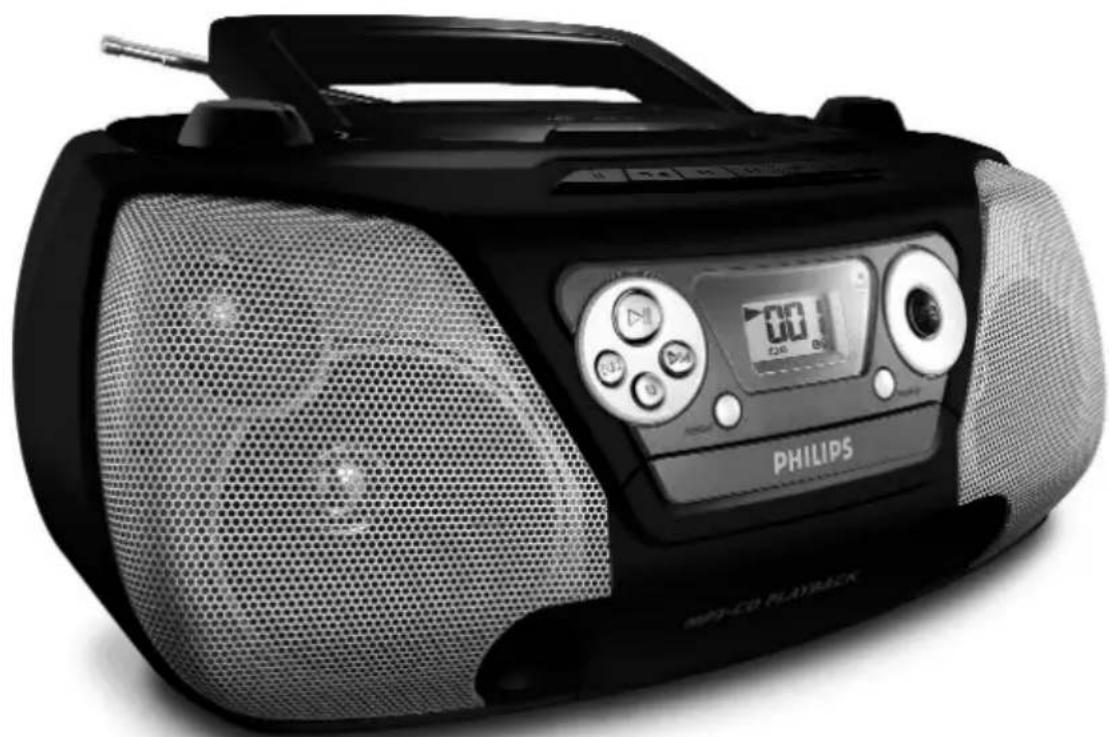
Black Philips Radio portable radio with mesh grille and digital display (no visible text or symbols on device body)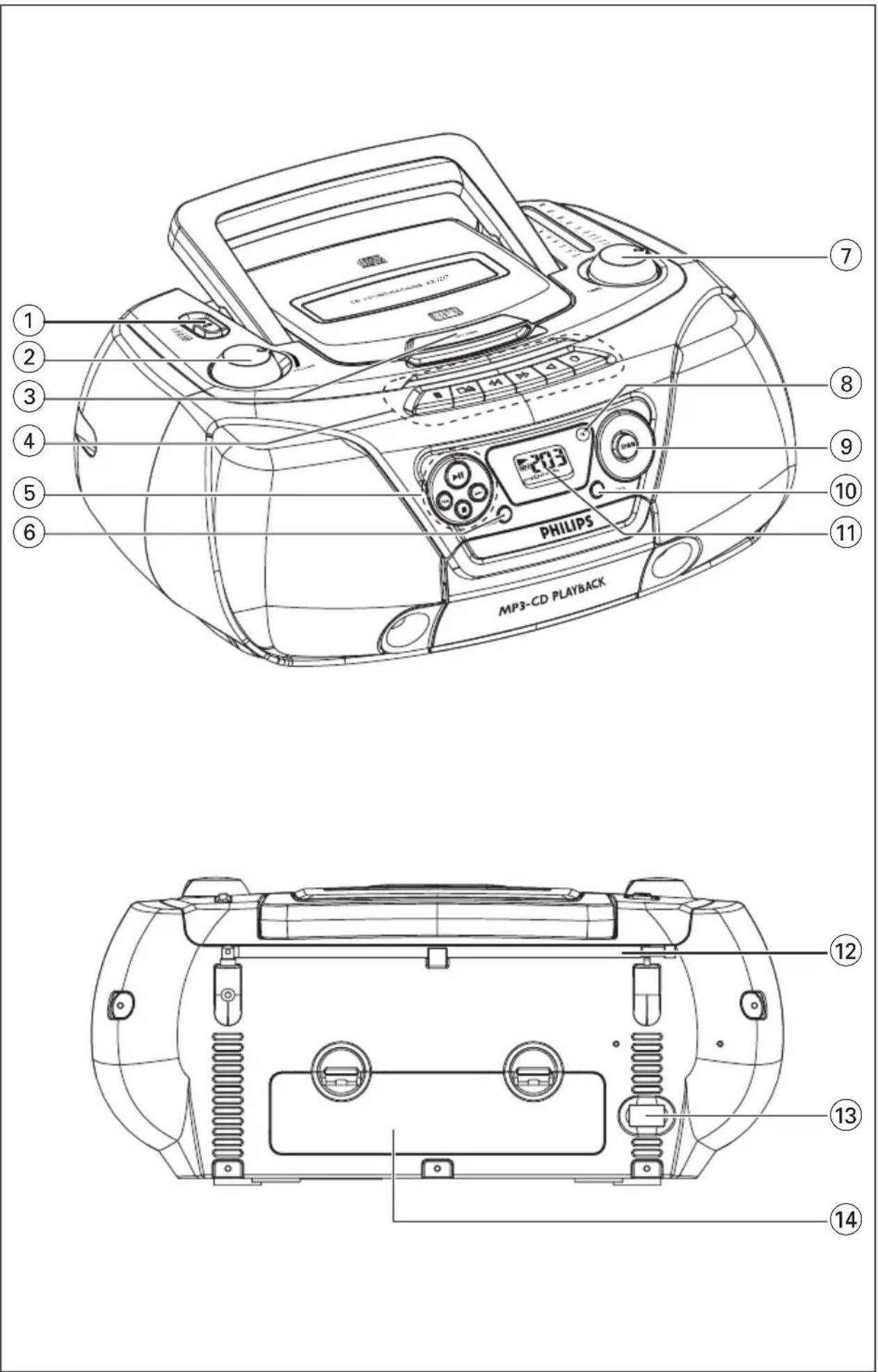
| MP3 General Information......6 | CD/MP3-CD |
| Controls......7 | ......11–17 |
| Remote Controls......7-8 | Cassette recorder......18–19 |
| Power Supply......9-10 | Maintenance......19-20 |
| General Operation / Radio......10 | Troubleshooting......21 |
Congratulations on your purchase and welcome to Philips!
Tofully benefit from the support that Philips offers, register your product at www.philips.com/welcome.
Dear Customer,
Thank you for buying the Philips MP3-CD Soundmachine. Your great new acquisition will allow you to listen to up to 10 hours of CD-like quality music, using the revolutionary new music compression technology MP3.
MP3 technology
MP3 is short for MPEG1 Layer-3 encoding and decoding technology, a very powerful encoding algorithm with which you can shrink down the original digital audio sound data with a factor of up to 10 without losing significant sound quality.
Recording and Playback
It is recommended to set your recording bit rate to 128kbps, sampling frequency at 44.1kHz to achieve CD-like music playback quality.
Since downloading MP3 files from the Internet, ripping songs from your own legal CD's and burning MP3 songs onto a CD-R, are a delicate process, the quality of a MP3 song may vary by these process. Subsequently, making a MP3-CD may not be entirely perfect.
As a result of the above imperfection, you may experience an occasional "skip" while listening, or an occasional delay in accessing "previous/next" title to MP3-CD's. This is considered to be normal.
A comparison chart is enclosed as below:
| Sound Quality Reduction Ratio MP3-CD time | total Comment | |||
| MW radio | 32 kbps 40 : 1 | 40 hrs Sound quality significantly | ||
| FM radio | 64 kbps 20 : 1 | 20 hrs affected-not recommended. | ||
| Near-CD | 96 kbps 15 : 1 | 15 hrs Balanced sound quality | ||
| CD-like | 128 kbps 10 : 1 | 10 hrs compression rate. | ||
| CD | 256 kbps | 5 : 1 | 5 hrs | Compression rate low suggest to play CDs instead. |
| CD | 320 kbps | 3 : 1 | 3 hrs | |
TOP AND FRONT PANEL
① Source selector - power on/off switch and to select source of sound source: CD/MW/FM/TAPE.
② VOLUME - to adjust volume level.
③ LIFT - OPEN - to open the CD door.
④ Cassette keys:
II - to interrupt recording or playback.
■ ▲ - to stop the tape and to open the cassette holder.
◀◀ / ▶▶ - to fast wind/rewind the tape.
◀ - to start playback.
● - to start recording.
⑤ ▶II - to start or interrupt CD playback.
■ - to stop playback
◀◀ / ▶▶ - to skip or search a passage or a track
⑥ REPEAT - to repeat a track/programme/entire CD playback
⑦ TUNING - to tune to radio stations
⑧ iR - infrared sensor for remote control
⑨ DBB (Dynamic Bass Boost) - for a more vivid bass response.
⑩ SHUFFLE - to play all tracks in random order
⑪ LCD Display - to show the MP3 functions and disc status.
BACK PANEL
⑫ Telescopic aerial - to improve FM radio reception
⑬ AC MAINS \~ - socket for mains lead
⑭ Battery door - to open the battery compartment
SUPPLIED ACCESSORIES
Remote Control ....1 pc
Mains Cord ....1 pc
REMOTE CONTROL
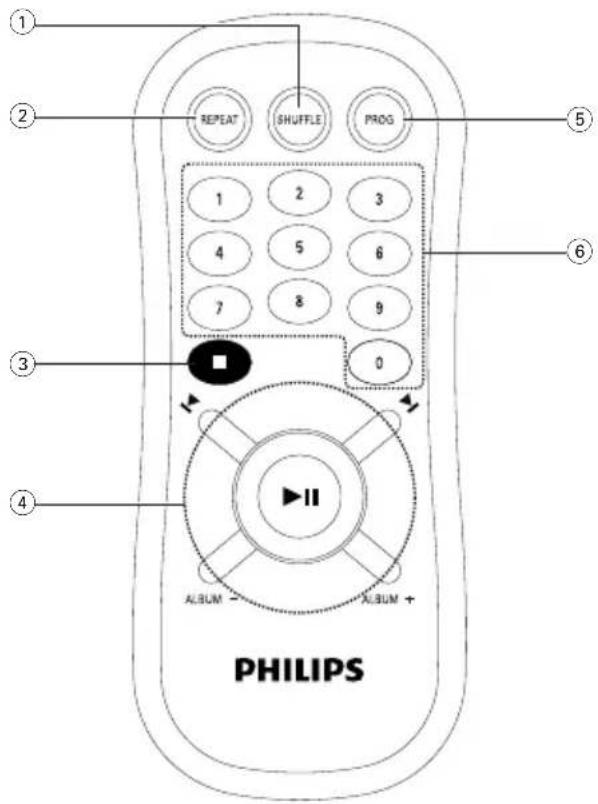
① SHUFFLE - When in CD mode, press to start or stop shuffle play mode.
② REPEAT
for MP3-CD to repeat a track, or whole disc.
for CD ....to repeat a disc track or the whole disc.
③ STOP ■
- to stop playback or to clear a programme.
④
- to start or interrupt playback.

for MP3-CD only .... to select previous/next title.
for CD .... to search backward/forward track.
ALBUM+/-
for MP3-CD only .... to select previous / next album
⑤ PROG
for CD/MP3-CD to programme disc tracks.
⑥ DIGITS 0 - 9
for CD/MP3-CD - to select a track number.
(numbers consisting more than 2 figures must be keyed in within 2 seconds)
IMPORTANT!
- For best CD/MP3-CD playback, please plug in your set to an AC power supply where convenient.
- If operated in DC mode, see below approximate playtime. (Playtime is also varied from different brand batteries):
| Battery type | Playtime |
| Alkaline | approximate 9 hrs |
| Zinc Cartonate | approximate 45 minutes |
BATTERIES (NOT SUPPLIED)
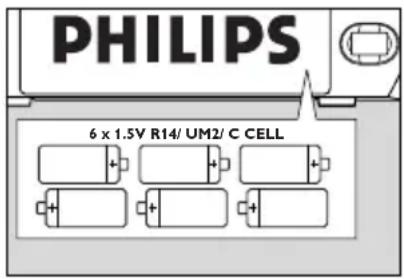
Whenever convenient, use the mains supply if you want to conserve battery life. The battery supply will be switched off when the set is connected to the mains. Make sure you remove the plug from the set and wall outlet before inserting batteries.
Batteries
- Open the battery compartment and insert six batteries, type R14, UM2 or C-cells, (preferably alkaline) with the correct polarity as indicated by the "+" and "-" symbols inside the compartment.
Remote control
- Open the battery door and insert two batteries, type AAA, R03 or UM4 (preferably alkaline).
- Replace the compartment door, making sure the batteries are firmly and correctly in place.
-
Remove the batteries if they are exhausted or if they will not be used for a long period.
-
The incorrect use of batteries can cause electrolyte leakage and will corrode the compartment or cause the batteries to burst. Therefore:
- Do not mix battery types, e.g. alkaline with zinc carbonate.
- When inserting new batteries, replace all at the same time.
- Remove the batteries if the set is not to be used for a long time.
Note :
- T he battery supply is switched off when the set is connected to the mains.
Batteries contain chemical substances, so they should be disposed of properly.
MAINS
- Check if the mains voltage as shown on the type plate (on the bottom of the set) corresponds to your local mains voltage. If it does not, consult your dealer or service organization.
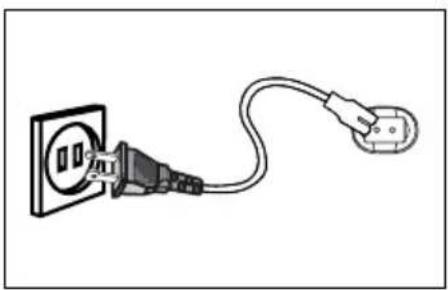
- Connect the mains lead to the AC MAINS \~ socket and the wall socket.
→ The set is now ready for use.
natural_image
Simple line drawing of an electrical outlet connected to a plug (no text or symbols)- To switch off the mains supply completely, pull the mains plug out of the wall socket. → Disconnect the mains lead when you change over to battery supply, or to protect the set during heavy thunderstorms.
The type plate is located on the bottom of the set.
GENERAL OPERATION
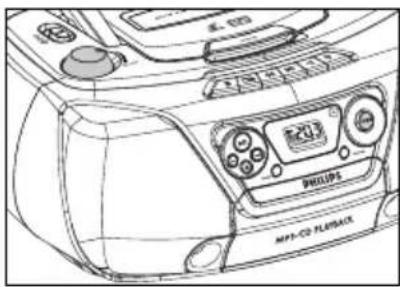
- To switch on the set, adjust the source selector.
- Adjust the sound using the VOLUME and DBB controls.
3 To switch off the set, adjust the source selector to the TAPE/OFF position, with the cassette keys released.
RADIO RECEPTION
1 Set the source selector to FM or MW.
2. Adjust the sound using the VOLUME controls and the DBB switch.
3. Tune to a radio station using the TUNING knob.
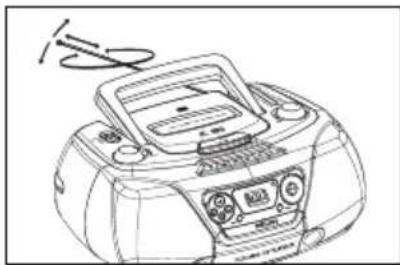
- For FM, pull out the telescopic aerial. To improve FM-reception, incline and turn the aerial. Reduce its length if the FM-signal is too strong (very close to a transmitter).
- For MW, the set is provided with a built-in aerial, so the telescopic aerial is not needed. Direct the aerial by turning the whole set.
4. To switch off, set the source selector to the TAPE/OFF position (with the cassette keys released).
natural_image
Line drawing of a portable electronic device with front panel and keypad (no text or symbols)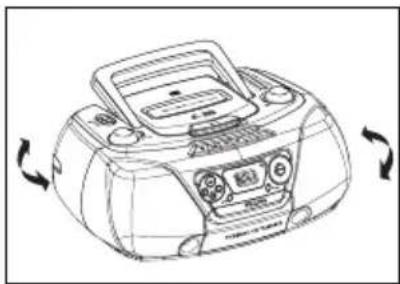
natural_image
Line drawing of a portable radio with buttons and dials, showing rotational arrows (no text or symbols)CAUTION
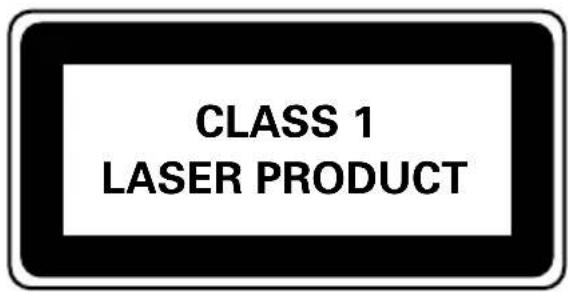
Use of controls or adjustments or performance of procedures other than herein may result in hazardous radiation exposure or other unsafe operation.
Environmental information
All unnecessary packaging material has been omitted. We have done our utmost to make the packaging easily separable into three mono materials: cardboard, polystyrene and plastic.
Your set consists of materials which can be recycled if disassembled by a specialized company. Please observe the local regulations regarding the disposal of packaging materials, exhausted batteries and old equipment.
DISCS FOR PLAYBACK
This set can play all digital audio CD, finalised digital audio CD-Recordable (CDR) discs and finalised digital audio CD-Rewritable (CDRW) discs.
Support following MP3-CD formats:
- ISO 9660 or ISO 9660 + Joliet format - Max. 30 characters
• Max. Track number is 400
• Max. nested directory is 8 levels
• The max. album number is 99 - The max. MP3 programme track number is 20
- The max. length of each track is 99 minutes 59 seconds
- The player can play mixed mode disc of CD / MP3-CD
- Supported VBR bit-rate
- Supported sampling frequencies for MP3 disc : 8 kHz to 48 kHz (44.1kHz preferably)
- Supported bit-rates of MP3 disc are: 32 - 320 kbps (128 kbps preferably)
Following formats are not supported
- The files like *.WMA, *AAC, *.DLF, *.M3U, *.PLS, MP3 PRO and JPEG CD
• The non-session closed discs
LOADING A DISC
- Set the source selector to CD.
- Lift to open the CD door.
→ "GP" will be displayed
- Insert a disc with the label side facing up.
- Close the CD door.
→ The total number of tracks of the disc appear on the display.
→ "n o" will be displayed if no disc is inserted or error in CD operation
For MP3-CD only
→The total track number "XXXX" and album number "XXXX" will be displayed interchangeably.



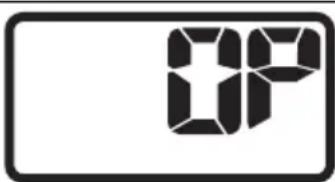
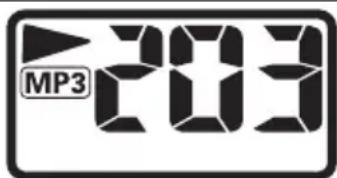
Notes: - To ensure good system performance, wait until the disc completely reads before proceeding.
- For MP3-CD, the disc reading time may exceed 1 minute due to the large number of songs compiled into one disc.
PLAYING A NORMAL DISC
- Press ▶ to start playback.
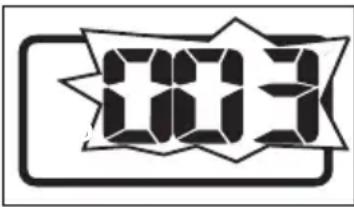
→ The track number of the current track and▶ appear on the display.
- To interrupt playback, press ▶
→▶ will disappear and the current track number will start flashing.
- To resume playback, press ▶ again.
- To stop playback, press ■.
SELECTING A DESIRED TRACK/PASSAGE
To select a desired track
- Press ◀◀ or ▶▶ on the set repeatedly (or use digits 0 - 9 buttons on the remote control) until the desired track appears on the display.
- If playback is stopped, press ▶II to start playback.
To search for a particular passage during playback
- Press and hold◀◀ or ▶▶ on the set.
→ During searching, the volume will be muted.
- When you recognize the passage you want, release the ◀◀ or ▶▶ button.
→ Normal playback resumes.
For MP3-CD only
To select a desired album
- On the remote control, press ALBUM+ or ALBUM- until the desired album number appears on the display.
→ "日××" will be displayed.
To select a desired track
- Press ◀◀ or ▶▶ on the set repeatedly (|◀ or ▶| on the remote control) to select a desired track from the current album.
→ "XXX" will be displayed.
- Use the digital keys on the remote control to select the track under current album directly.
To select and playback another track during playback mode
- Press ◀◀ or ▶▶ repeatedly to select another track.
→ The new selected track will show on the display screen and play back continuously.
PROGRAMMING TRACKS
Programming tracks of disc is possible only when playback is stopped. Up to 20 tracks can be stored in the memory in any order.
For CD only
- In stop mode, press PROG (on remote control) to enter programme setting.
→ PROG will flash on the display. - Press digits 0 - 9 on the remote control or ◀◀/▶▶ to select the desired track.
- Press PROG to store the selected track. The number "XXXX" represents the track no.
- Repeat steps 1 to 3 to store other tracks.
- Press ■ to end programme setting.
→ PROG will remain on the display. - Press PROG (on remote control) in stop mode to review the programme sequence.
- Press ▶ to play the programmed tracks.
-
If you press REPEAT during programme playback, the current track or all programmed tracks will be played repeatedly.
→ REPEAT/REPEAT ALL icon and PROG will appear on the display. -
Press ■ in stop mode to clear the programme.
→ PROG will disappear from the display.
Notes: -The programming is automatically cleared as soon as the CD compartment is opened.
- The function of programme setting is disabled in PLAY/PAUSE mode.
For MP3-CD only
- In stop mode, press PROG on the remote control to enter programme setting.
→ PROG will start flashing and "PO I" will be displayed. - Press digits 0 - 9 on the remote control or ALBUM+/- to select the desired album.
- Press PROG to store the selected album. The number "FXX" represents the album no.
- Press ◀◀/▶▶ repeatedly (or digits 0 - 9 on the remote control) to select the desired TRACK for programming.
- Press PROG to store the selected track.
→ PROG will remain flashing on the display. - Repeat steps 1 to 5 to store other desired album and track.
- Press ■ to end programme setting.
- Toreview programme, press PROG repeatedly in stop mode.
→ PXX indicates a programme sequence. PXX indicates an album number. XXX indicates a programme. - Press ▶ to start programme playback. You can press ◀◀/▶◀ to select the programmed track to play.
- Press ■ once to stop programme playback, or twice to clear the programme.
SHUFFLE
You can play all the tracks in random order.
- During playing, pause or stop mode, press SHUFFLE to enable SHUFFLE play mode.
→ SHUFFLE will appear on the display.
- To exit shuffle mode, press SHUFFLE again or ■.
→ SHUFFLE will disappear from the display.
Note : - If the Shuffle function is enabled, then the Repeat function is set on, it will disable the Shuffle play mode.
- The shuffle function is not available in the programme playback.
REPEAT
You can play the current track or the whole disc repeatedly.
- During CD/ MP3-CD playing or pause mode, press REPEAT on the remote control or on the set.
→ REPEAT icon 📋 - to repeat the current track.
→ REPEAT ALL icon all- to repeat the whole disc.
- To exit the repeat mode, press REPEAT until the REPEAT/REPEAT ALL icon disappears from the display.
Notes: - If the Repeat function is enabled, then the Shuffle function is set on, it will disable all the Repeat play modes.
- If the Repeat function is enabled, then the Stop button is pressed, it will disable all the Repeat play modes.
CASSETTE PLAYBACK
- Set the source selector to TAPE/OFF.
- Press ■▲ to open the cassette holder.
- Insert a recorded cassette.
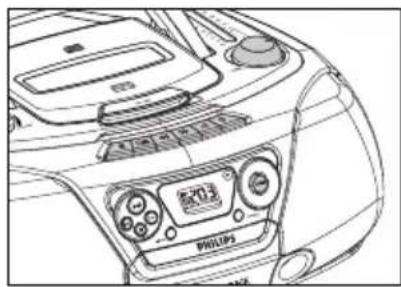
- Press ◀ and playback will start.
- Adjust the sound using the VOLUME and DBB controls.
- For brief interruptions, press II. Press II again to resume playback.
- By pressing ◀◀ or ▶▶, fast winding of the tape is possible in both directions.
- To stop playback, press ■▲
→ The keys are automatically released at the end of the tape. - Set the source selector to TAPE/OFF position (with the cassette keys are released) to switch off the set.
natural_image
Line drawing of a car dashboard with air conditioners and a digital display (no text or symbols)Note: - During playback, the keys are automatically released at the end of a tape and the set is switched off (unless PAUSE mode II has been activated.)
- During fast forwarding/rewinding, the keys will not be released at the end of a tape. To switch off the set, make sure the cassette keys are also released.
CASSETTE RECORDING
General information on cassette recording
- Recording is permissible insofar as copyright or other rights of third parties are not infringed.
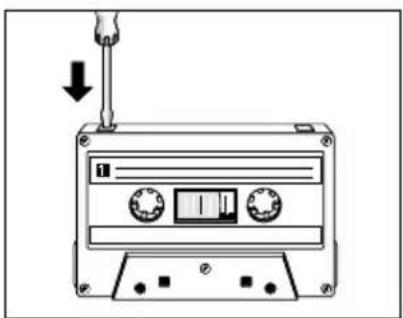
- This deck is not suitable for recording on CHROME (IEC II) or METAL (IEC IV) type cassettes. For recording you should use NORMAL type cassettes (IEC I) on which the tabs have not been broken.
- Check and tighten slack tape before use with a pencil to avoid jamming the deck mechanism.
- The recording level is set automatically.
natural_image
Line drawing of a cassette tape with a hand holding a screwdriver above it, showing no text or symbols.Note: - No recording will take place during the 7 seconds in the beginning of the tape.
- To prevent the accidental erasure of a recording, keep the cassette side to be safeguarded in front of you and break out the left tab. Recording on this side is no longer possible.
The making of unauthorized copies of copy-protected material, including computer programmes, files, broadcasts and sound recordings, may be an infringement of copyrights and constitute a criminal offence. This equipment should not be used for such purposes.

Be responsible Respect copyrights
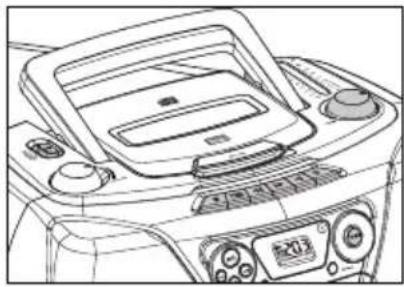
- Set the source selector to FM or MW.
- Tune to the desired radio station using the TUNING knob.
- Press ■ ▲ to open the cassette holder.
- Insert a blank tape.
- Press ● to start recording.
- For brief interruptions, press II. To resume recording, press III again.
- To stop recording, press ■▲.
natural_image
Line drawing of a car dashboard with control panel and air vent (no text or symbols)SYNCHRO START CD RECORDING
- Set the source selector to CD.
- Insert a CD and if desired, programme track numbers.
- Press ■▲ to open the cassette holder.
- Insert a blank cassette.
- Press ● to start recording.
→ Playing of the CD programme starts automatically from the beginning of the programme. - For brief interruptions, press II. To resume recording, press III again.
- To stop recording press ■▲
natural_image
Line drawing of a car's front dashboard and air conditioners (no text or symbols)To select and record a particular passage within a track
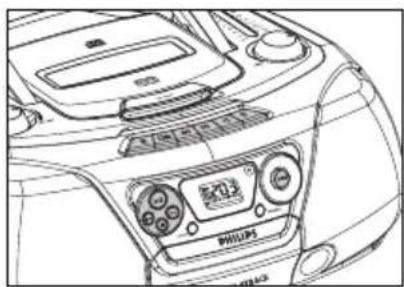
- Press and hold ◀◀ or ▶▶ on the set to select a passage.
- Put the CD player in Ⅱ position at the selected passage. → Recording will start from this exact point when you press ●.
- Press ▶II to start recording.
To ensure a good recording and playback of the tape deck, clean parts A, B and C show in the diagram below, after approx. 50 hours of operation, or on average once a month. Use a cotton bud slightly moistened with alcohol or a special head cleaning fluid to clean the deck.
- Open the cassette holder by pressing ■ ▲.
- Press ◀ and clean the rubber pressure rollers Ⓒ.
- Press II and clean the magnetic heads Ⓐ and also the capstans Ⓑ.
• After cleaning, press ■ ▲.
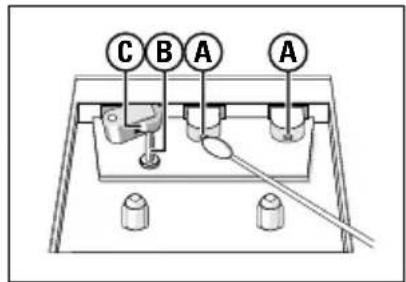
Cleaning of the heads can also be done by playing a cleaning cassette through once.
PRECAUTIONS & GENERAL MAINTENANCE
- Place the set on a hard, flat surface so that the system does not tilt.
- Where the MAINS plug or an appliance coupler is used as the disconnect device, the disconnect device shall remain readily operable.
- Always shut the CD door to keep the CD compartment dust-free. To clean the dusted compartment with a soft dry cloth.
- The mechanical parts of the set contain self-lubricating bearings and must not be oiled or lubricated.
- To clean the set, use a soft, slightly dampened chamois leather. Do not use any cleaning agents containing alcohol, ammonia, benzene or abrasives as these may harm the housing.
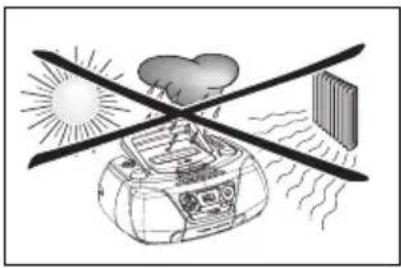
- Do not expose the system, batteries or discs to humidity, rain, sand or excessive heat (caused by heating equipment or direct sunlight). Always keep the disc tray closed to avoid dust on the lens.
- No objects filled with liquids, such as vases, shall be placed on the apparatus.
- The apparatus shall not be exposed to dripping or splashing.
- Adequate ventilation with a minimum gap of 15 cm between the ventilation holes and surrounding surfaces is necessary to prevent heat build-up.
- The ventilation should not be impeded by covering the ventilation openings with items, such as newspapers, table-cloths, curtains, etc.
- No naked flame sources, such as lighted candles, should be placed on the apparatus.
natural_image
Illustration of a sun-dryer system with wind lines crossing over a globe, no text or symbols present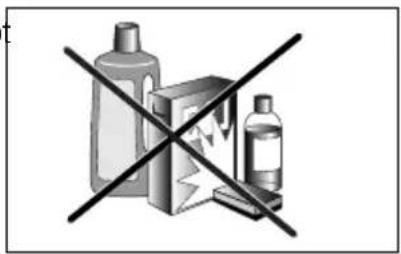
CD PLAYER AND CD HANDLING
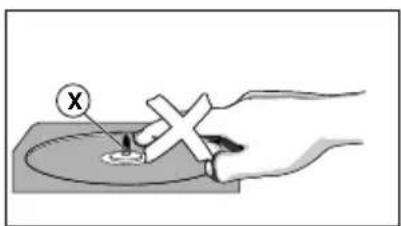
- The lens of the CD player should never be touched.
- Sudden changes in the surrounding temperature can cause condensation to form and the lens of your CD player to cloud over. Playing a CD is then not possible. Do not attempt to clean the lens but leave the set in a warm environment until the moisture evaporates.
- Use only Digital Audio CDs.
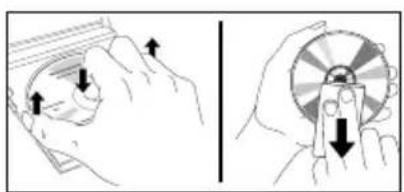
- To take a CD out of its box, press the centre spindle while lifting the CD. Always pick up the CD by the edge and replace the CD back in its box after use to avoid scratching and dust.
- To clean the CD, wipe in a straight line from the centre towards the edge using a soft, lint-free cloth. Do not use cleaning agents as they may damage the disc.
- Never write on a CD or attach stickers to it.
natural_image
Illustration showing two hand positions: one holding a circular object with arrows indicating direction, the other holding a circular object with arrows indicating force or motion (no text or symbols)If a fault occurs, first check the points listed below before taking the set for repair.
If you are unable to remedy a problem by following these hints, consult your dealer or service centre.
WARNING: Do not open the set as there is a risk of electric shock. Under no circumstances should you try to repair the set yourself, as this will invalidate the guarantee.
Problem Solution
CD OPERATION
"NO DISC" is displayed
- Insert a disc.
- Check if the disc is inserted upside down.
- Wait until the moisture condensation at the lens has cleared.
- Replace or clean the disc, see "Maintenance"
- Use a readable disc or correct recorded format MP3-CD.
RADIO RECEPTION
Radio reception is poor – If the signal is too weak, adjust the antenna for better reception.
– Increase the distance between the Receiver and your TV or VCR.
Recording or playback cannot be made
– Clean deck parts, see "Maintenance".
- Use only NORMAL (IEC I) tape.
- Apply a piece of adhesive tape over the missing tab space.
GENERAL
The system does not react when buttons — Slide the source sector to TAPE/OFF. Remove and pressed/set does not work/no display on reconnect the AC power plug for 30 seconds and LCD. switch on the set again.
Sound cannot be heard or is of poor – Adjust the volume.
quality – Make sure the MP3-CD was recorded within
32-320 kbps (128kbps preferably) with sampling frequencies at 8 - 48 kHz (44.1kHz preferably).
The remote control does not function - Reduce the distance between the remote control properly and the system.
- Insert the batteries with their polarities (+/- signs) aligned as indicated.
- Replace the batteries.
- Point the remote control in the direction of the system's IR sensor.
Meet Philips at the Internet
http://www.philips.com

natural_image
Recycling symbol composed of three interlocking arrows forming a triangle (no text or labels)AZ1217




- MP3 CD Soundmachine AZ1217
- Congratulations on your purchase and welcome to Philips!
- Dear Customer,
- MP3 technology
- Recording and Playback
- TOP AND FRONT PANEL
- BACK PANEL
- SUPPLIED ACCESSORIES
- REMOTE CONTROL
- ALBUM+/-
- IMPORTANT!
- BATTERIES (NOT SUPPLIED)
- Batteries
- Note :
- MAINS
- GENERAL OPERATION
- RADIO RECEPTION
- CAUTION
- Environmental information
- DISCS FOR PLAYBACK
- Support following MP3-CD formats:
- Following formats are not supported
- LOADING A DISC
- For MP3-CD only
- PLAYING A NORMAL DISC
- SELECTING A DESIRED TRACK/PASSAGE
- To select a desired track
- To search for a particular passage during playback
- To select a desired album
- To select and playback another track during playback mode
- PROGRAMMING TRACKS
- For CD only
- SHUFFLE
- REPEAT
- CASSETTE PLAYBACK
- CASSETTE RECORDING
- General information on cassette recording
- SYNCHRO START CD RECORDING
- To select and record a particular passage within a track
- PRECAUTIONS & GENERAL MAINTENANCE
- CD PLAYER AND CD HANDLING
- WARNING: Do not open the set as there is a risk of electric shock. Under no circumstances should you try to repair the set yourself, as this will invalidate the guarantee.
- Problem Solution
- CD OPERATION
- GENERAL
- Meet Philips at the Internet
- http://www.philips.com
Brand : PHILIPS
Model : AZ1217
Category : CD Player