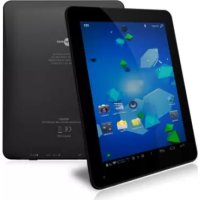
PDV 7008 - Tablette MPMAN - Notice d'utilisation et mode d'emploi gratuit
Retrouvez gratuitement la notice de l'appareil PDV 7008 MPMAN au format PDF.


| Type d'appareil | Lecteur DVD portable |
| Formats supportés | DVD, MPEG4, CD, MP3 |
| Écran | Écran LCD intégré |
| Taille de l'écran | Non précisé |
| Alimentation | Batterie rechargeable et alimentation secteur |
| Autonomie | Non précisé |
| Poids | Non précisé |
| Dimensions | Non précisé |
| Fonctions audio | Lecture MP3, haut-parleurs intégrés |
| Fonctions vidéo | Lecture DVD et MPEG4 |
| Connectivité | Non précisé |
| Contrôle | Boutons intégrés, télécommande possible |
| Langues du menu | Multilingue |
| Accessoires inclus | Non précisé |
| Poids | Non précisé |
FOIRE AUX QUESTIONS - PDV 7008 MPMAN
Questions des utilisateurs sur PDV 7008 MPMAN
0 question sur cet appareil. Repondez a celles que vous connaissez ou posez la votre.
Poser une nouvelle question sur cet appareil
Téléchargez la notice de votre Tablette au format PDF gratuitement ! Retrouvez votre notice PDV 7008 - MPMAN et reprennez votre appareil électronique en main. Sur cette page sont publiés tous les documents nécessaires à l'utilisation de votre appareil PDV 7008 de la marque MPMAN.
MODE D'EMPLOI PDV 7008 MPMAN

text_image
mp man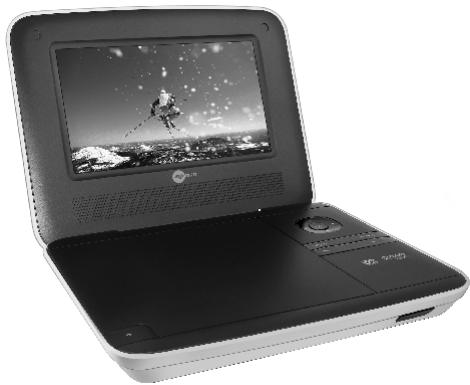
natural_image
Black-and-white photo of a compact laptop with a screen displaying a cartoon character in the sky (no visible text or symbols)PDV7007/PDV7008
USER MANUAL
DVD-MPEG4-CD-MP3-PLAYER
Please read this UserManual carefully to ensure proper use of this product and keep this manual for future reference.
Content
Important Safety Instructions ....1
Panel Illustration....2
Connecting to the USB....2
Remote Control.... 3
Connecting to a TV set....4
MP3/WMA/MPEG4 playing....4
PICTURE CD PLAYBACK 5
SYSTEM SETUP....6
Trouble-shooting....7
Specifications....8
Other....8
Important Safety Instructions
* Warning: To reduce the risk of electric shock, do not remove the cover or back. There are no user-serviceable parts inside. Refer servicing to qualified personnel.
* Warning: To preventfire or electric shockhazard, do not exposethe unit to rain or moisture.
* Do not expose the Adaptor and Digital PhotoFrame to water (drippingor splashing) and no objects filled with liquids, such as vases, should be placed on the unit.
* Keep the product away from direct sunlight and heat source such as radiators or stoves.
* Do not block the ventilation openings. Slots and openings on the unit are provided for ventilation. The openings should never be blocked by placing your product on a cushion, sofa or other similar surface.
* Do not place the product on unstable cart, stand, tripod, bracket or table. The unit may fall, resulting in possible damage or injury.
* Never place heavy or sharp objects on the LCD panel or frame.
* Only use the ACadapter included with product. Using any other adapter will void your warranty.
* Unplug the power from the outlet when the unit is not in use.
* Attention should be drawn to the environmental aspect of battery disposal.
* WARNING: The battery (battery orbatteries or battery pack) shall not be exposed to excessive heatsuch as sunshine, fireor the like.
* WARNING: Excessive sound pressure from earphones or headphones can cause hearing loss.
* ARNNING: Only use attachments/accessories specified provided by the manufacturer, the product is supplied by AC adapter, the AC adapter is used as disconnect device, the disconnect device shall remain readily operable.
Caution: Danger of explosion if battery is incorrectly replaced, replaced only with the same or equivalent type (Lithium battery).
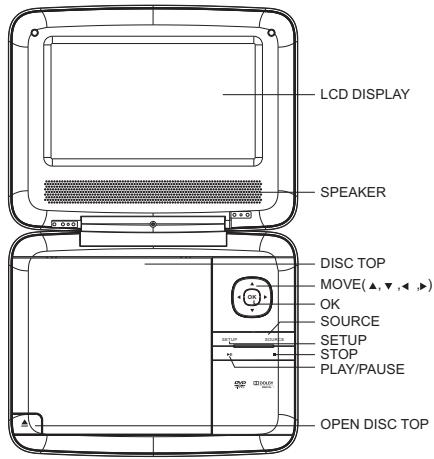
Panel Illustration
text_image
LCD DISPLAY SPEAKER DISC TOP MOVE(▲,▼,←,►) OK SOURCE SETUP STOP PLAY/PAUSE OPEN DISC TOP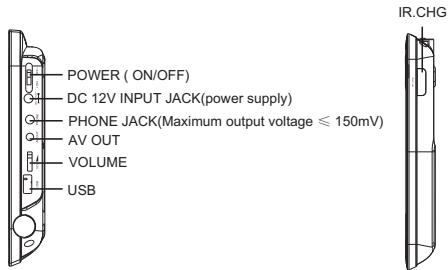
text_image
POWER ( ON/OFF ) DC 12V INPUT JACK(power supply) PHONE JACK(Maximum output voltage ≤ 150mV) AV OUT VOLUME USB IR.CHGConnect to the USB
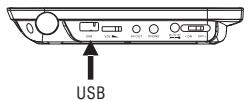
Press the SOURCEkey on the remotecontrol until you switched into USB work mode.
text_image
USBUSB interface
This unit have a USBIN jack to play the MP3music or and JPEG files or other files. Press the
Note: the USB IN port is compatible with flash memories, it is not warranted the compatibility with MP3 players using owner software.
NOTE:
When using USB function. Pleasedo not insert in the wrong direction, or it will be corrupted.
Remote Control
text_image
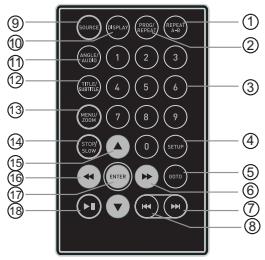
⑨ ⑩ ⑪ ⑫ ⑬ ⑬ ⑬ ⑭ ⑮ ⑯ ⑰ ⑱ ⑲ ⑳ ⑳ ⑰ ① ② ③ ④ ⑤ ⑥ ⑦ ⑧ ⑨ ⑩ ⑪ ⑫ ⑬ ⑭ ⑮ ⑯ ⑰ ⑱ ⑲ ⑳ ㉑ ㉒ ㉓ ㉔ ㉕ ㉖ ㉗ ㉘ ㉙ ㉚ ㉛ ㉜ ㉝ ㉞ ㉟ ㉟A ㉟B ㉟C ㉟D ㉟E ㉟F ㉟G ㉟H ㉟I ㉟J ㉟K ㉟L ㉟M ㉟N ㉟O ㉟P ㉟Q ㉟R ㉟S ㉟T ㉟U ㉟V ㉟W ㉟X ㉟Y ㉟Z ㉟A ㉟B ㉟C ㉟D ㉟E ㉟F ㉟G ㉟H ㉟I ㉟J ㉟K ㉟L ㉟M ㉟N ㉟O ㉟P ㉟Q ㉟R ㉟S ㉟T ㉟U ㉟V ㉟W ㉟X ㉟O ㉟P ㉟Q ㉟R ㉟S- Repeat A-B: Press 1x: setA, prss 2x: setB press3x: disable the function.
- Prog/Repeat: Short press: Repeat mode Longpress (2Sec.): DVD program mode.
- 0-9 Number Keys
- Setup: Open the setup menu.
- Goto: Goto a specific time index.
- Fast Forward:
- Next: Next chapter or file.
- Previous: Previous chapter orfile.
- SOURCE: Input mode selection.
- Display: Display detailed informations of the current file ordisc.
- Angle / Audio: Short press: Changes the audiomode (if different modes are available) Long press (2Sec.): Changesthe angle mark (if different modes are available)
- Title / Subtitle: Short press: Change subtitle mode (if subtitles are available) Long press (2Sec.): DVDTitle menu.
- MENU / ZOOM: Short press: Zoom in Longpress (2Sec.): Menu keyfor DVD Menu.
- STOP / SLOW: Short press: Stop Long press (2Sec.): Slow motion.
- Direction keys ( ▲▼ ◀▶ ):
- Fast Rewind:
- ENTER: To confirm and enter options orto play files.
- Play / Pause
Preparation of the RemoteControl
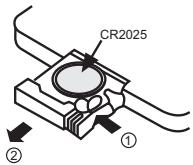
Place the remote control on an even surface and insert the supplied button cell into the remote control as follows.
- Push the button towards left.
- Pull the battery bader out.
- Insert the battery into thereceptacle make sure the polarity matches the marks inside the component.
- Insert the receptacle into the remote control.
text_image
CR2025 ① ②Cell data
Battery type: 1x CR2025, 3 V
Service life: approximately 1 year (for normal use and room temperature).
Using Of Remote Control
Point the remote control towards the main unit when operating.
The remote control worksbest at a distanceless than 5 mand at an angle of up to 30^ to the front of the unit. No obstacles may stand in the way between remote control and infrared sensor and donot place the remote control in direct sunlight. If the remote control unit fails to work even when it is operated near the player, replace the battery.
Notes on batteries
If the remote control is not used for a long period of time, please remove the battery from the compartment.
Do not heat batteries or dispose of them in fires.
Do not dismantle, deform ormodify batteries.
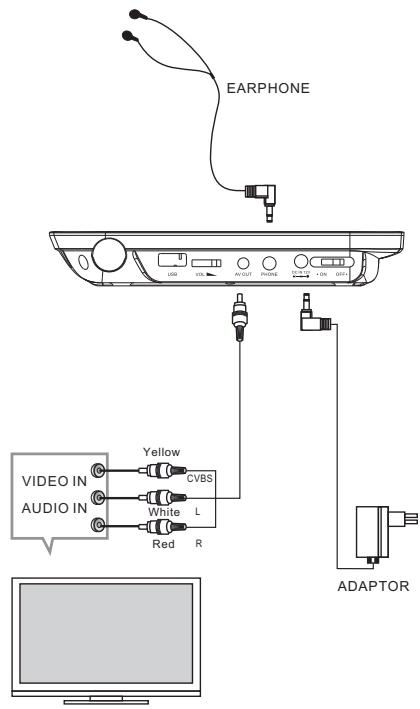
Connecting to a TV set
text_image
EARPHONE VIDEO IN AUDIO IN Yellow CVBS White L Red R ADAPTORMP3/WMA/MPEG4 PLAYING
text_image
AVI Mp3 Mp4 Photo WMA XVID Filter Repeat off Mode ▼ Normal JPEG Preview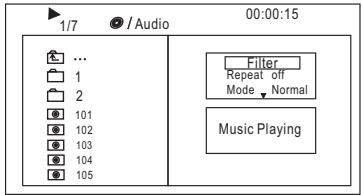
text_image
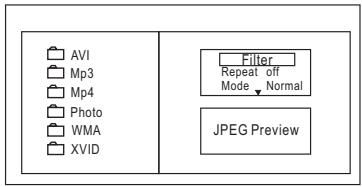
1/7 Audio 00:00:15 ... 1 2 101 102 103 104 105 Filler Repeat off Mode Normal Music PlayingThe MP3/WMA/MPEG4 disc hassuch a directory structure as shown picture above.
Press Direction key to choose the root directory and then press ENTER button to enter into the subdirectory.
Press Direction key to choose the desired track and then press ENTER or PLAY to enjoy the music or movie.
If you want to return to the uppermenu, press Direction key to choose the icon and press ENTER button.
Filter: Allows selecting the categories of files displayed in the browser list.
This selection is done among the 3 categories: Audio, Photo and Video.
Repeat: Toswitch different repeat playingmode.
Mode: Select different playingmode.
PICTURE CD PLAYBACK
Normal: Shuffle mode is cancelled.
Shuffle: Shuffle mode enabled. When playback reaches the end of the current chapter/track, playback jumps to a random chapter/track. Asthe end of each chapter/track is reached, another random chapter/track will be played until all tracks/chapters have been played or the Shuffle mode is cancelled by toggling to a different Mode Option.
Music Intro: In this mode, the media will play 10 seconds thenskip to next media
Edit Mode: To enable programmed playbackmode. When you select the mode, press LEFT Direction key to directory and press ENTER to choose the desired track and press Add to program to add in programmed playbac.
Program view: Display programtrack.
Brower view: Display trackdirectory.
Add to program: Choicethe track press Add to program to add the trackof the program play directory.
Clear program: In the complete stop state(press the STOP button twice), choose the track press Clear program to delete the track of the program play directory.
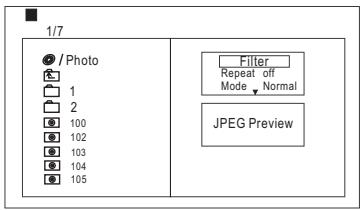
The PICTURE CD dischas such a directory structure structure as shown in the following picture.
text_image
1/7 ● / Photo 1 2 100 102 103 104 105 Filter Repeat off Mode▼ Normal JPEG PreviewPress Direction key to choose the root directory and then press ENTER button to enter into the sub directory.
Press Direction key to choose the desired picture and then press ENTER or PLAY to enjoy the picture.
If you want to return to the upper menu, press Direction key to choose ☐ the icon and press ENTER button.
Image rotation
In picture play state, press Direction key to rotation the picture, press ANGLE button to change the picture scan mode.
SYSTEM SETUP
MENU OPERATION
Press the SETUP button on the remotecontrol, the SETUP MENU(main) will be displayed.
After accessing the setup menu, press the direction buttons for up and down movement to select an item desired, then press the ENTER button to confirm.
Press LEFT direction button return to themenu of upper level.
To exit the setup, press the SETUP button again. In the SETUP MENU, you may choose any of the following options as you like.
LANGUAGE SETUP
Select Language in the setup menu, and display the Language submenu:
| Language | OSD Language SubtitleMPEG4 SubtitleAudioDVD Menu |
| Video | |
| Rating | |
| Misc |
OSD Language
Use this item to select the language of the setup menu and screen display.
Subtitle
This option provides the presetsubtitle language.
Follow the operating instructions stated in DVD MENU SETUP Incombination with the desired option.
MPEG4 Subtitle
Choice different MPEG4 subtitle encoding option.
Audio
Follow the operating instructions stated in DVD MENU SETUP In combination with the desired option.
This option provides the built-indisc dubbing language options.
DVD Menu
This option provides the film s menu language options.
Follow the operating instructions stated in DVD MENU SETUP
In combination with the desired option.
VIDEO SETUP
Select Video in the setup menu, and display the Video submenu:
| Language | Aspect RatioTV SystemSmart Picture |
| Video | |
| Rating | |
| Misc |
Aspect Ratio
The image display ratios related to therecorded disc format. Somedisc can not display images in theaspect ratio you choose.
If you play adisc recorded in 4:3 format on a widescreen TV, blackbars will appear on the left and right side of the screen. You must adjust the screensetting depending on the type of the television you have.
TV System
This product supports output of various system, including NTSC, PAL.
If your TV sethas only NTSC or PAL system, the screen willblink and become colorless when a wrongsystem is selected.
Note: For more information of output format, refer to the instructions or your TV set.
Smart picture
Adjust display effect for video output: Standard: defaulteffect.
Bright: internal setting for bright view effect.
Soft: internal setting for soft vieweffect.
Dynamic: user adjust brightness, contrast, color etc.
RATING SETUP
Select Rating in the setup menu, and display the Rating submenu: Note: Not all DVD support ratings.
| Language | Parental ControlSet Password |
| Video | |
| Rating | |
| Misc |
Parental Control
Selecting a Rating allowsthe user to setthe parental control featureof the player Select Parental Control, and pressENTER to change the differentmode.
Note: Unlock the password beforesetting Parental Control.
Set Password
Use the 0-9 keysto input four digits(password), then press ENTER to confirm. Note: If you forget your password, please use the universal password 6666 to unlock.
MISC SETUP
Select MISC in the setup menu, and display the submenu: * Use Default SettingsReset setup data tofactory default and re-load disc.
| Language | Use Default Settings |
| Video | |
| Rating | |
| Misc |
Trouble-shooting
Carry out the problem-solving measures described in the following section before contacting Customer Support.
Turn off the DVD player immediately as soon as you suspect a malfunction. Unplug the power plug and check whether the DVD player is unusually warm or whether smoke is rising from it.
| Problem | Possible cause | Remedy |
| The DVD player does not work | Disc cover not closed | Close disc cover |
| No disc inserted | Insert disc | |
| Disc inserted the wrongway | Insert disc with labelfacing up | |
| Disc dirty or deformed | Clean disc, or insertother disc | |
| Regional code of the player does not match the regional code of the DVD | Purchase DVD with corresponding regional code | |
| Moisture on lens | Remove disc and turnoff DVD player for at least two hours | |
| No audio | Device not properly connected | Check connexions and connect device in the correct way |
| Headphones connected (loudspeaker off) | Pull out the headphones | |
| DVD sound settings incorrect | Check sound settings and set sound correctly | |
| Disc dirty or deformed | Clean disc, or insertother disc | |
| No video | TV screen is off or in the incorrect video mode | Turn on LCD screen and/or set correct video mode |
| Device not properly connected | Check connexions and connect device in the correct way | |
| Poor video and/or audio quality | Disc dirty or deformed | Clean disc, or insertother disc |
| Repeated playback of a section | Loop mode is switched on | Exit the loop mode |
| Disc dirty or deformed | Clean disc, or insertother disc | |
| Remote control does not work | Obstacle between remote control and DVD player | Remove obstacle |
| Remote control not pointed at DVD player | Point remote control directly at DVD player | |
| Remote control battery inserted the wrong way | Check the battery's polarity and, if necessary, insert battery correctly | |
| Battery too low orcompletely discharged | Insert new battery |
Specifications
Other
Play mode NTSC/PAL
Disc mode DVD, VCD, CD, MP3, CD-R, CD-RW, JPEG, DVD+ -R/W, MPEG4,
Video S/N ratio ≥slant 65dB.
Resolution ≥slant 500 lines.
Frequency response fs 96KHz: 20Hz-20KHz:+/-1dBI
Audio S/N ratio ≥slant 90dB
Dynamic range ≥slant 80dB
Distortion < 0.01%
D/A Converter 96KHz/24bit
Display Device Color TFT-LCD
Screen Size 7 inches
Video output 1Vp-p(75)
Audio output 2CH
Power Voltage DC IN 12V
Power consumption ≤slant 12W
Specifications are subject to change without notice.
Other possible causes for problems:
Static discharges or other external interferences can cause the DVD player to malfunction. When this happens, disconnect the power plug from the mains socket and plug it backin.
If the problem persists, disconnect the device from the mains again and contact Customer Service or a repairshop.

This is to certify that the portable DVD palyer is conformity with council directive 2004/108/EC(EMC Directive)
Applicable standards:
EN55013:2001+A1+A2
EN61000-3-2:2006
EN61000-3-2:2008
EN55020:2007
For more information please visit our website www.mpmaneurope.com