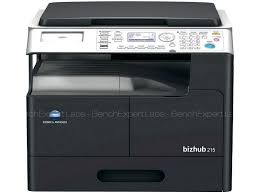
BIZHUB 215 - Imprimante multifonction KONICA MINOLTA - Notice d'utilisation et mode d'emploi gratuit
Retrouvez gratuitement la notice de l'appareil BIZHUB 215 KONICA MINOLTA au format PDF.


| Type de produit | Imprimante multifonction monochrome (MFP) de bureau |
| Marque | Konica Minolta |
| Modèle | BIZHUB 215 |
| Dimensions (L x P x H) | 570 x 570 x 458 mm (jusqu'à la vitre) / 570 x 570 x 488 mm (jusqu'au couvercle) |
| Poids | 26,5 kg (hors consommables et options) |
| Alimentation électrique | secteur standard, 1300 W max (1350 W pour 127 V) |
| Consommation d'énergie typique (TEC) | Réduite d'environ 80% par rapport au modèle précédent, certifié Energy Star |
| Fonctions principales | Copie, impression, numérisation (couleur), fax optionnel |
| Vitesse de copie/impression (A4) | 21 ppm (bizhub 215) |
| Temps de préchauffage | Moins de 15 secondes |
| Première copie | Moins de 6,5 secondes |
| Résolution d'impression/numérisation | 600 x 600 dpi (impression), 600 x 600 dpi (numérisation) |
| Capacité papier standard | 250 feuilles (bac universel) |
| Capacité papier maximale | 1350 feuilles (avec options) |
| Grammage papier pris en charge | 64 - 157 g/m² (bac principal), 64 - 90 g/m² (bac supplémentaire) |
| Format de papier maximal | A3 / Ledger (11" x 17") |
| Mémoire | 128 Mo |
| Interface | USB 2.0 (standard), Ethernet 10/100 Base-TX (option) |
| Fonctions de numérisation | Numérisation vers USB, FTP, PC (SMB), e-mail, TWAIN/WIA |
| Entretien et nettoyage | Nettoyer régulièrement la vitre et le couvercle avec un chiffon doux. Remplacer le toner et le tambour selon les instructions. |
| Sécurité | Utiliser uniquement une prise de courant appropriée et une tension correcte. Brancher le fil de terre conformément aux réglementations locales. |
| Pièces détachées et réparabilité | Options disponibles : bacs supplémentaires (PF-507, jusqu'à 4), kit fax (FK-510), contrôleur PCL (IC-209), kit interface réseau (NC-504), compteur mécanique (MC-504). |
| Informations générales | Toners Simitri HD à base de biomasse, à faible fusion, zéro déchet. Double face automatique. Certifié Energy Star. |
FOIRE AUX QUESTIONS - BIZHUB 215 KONICA MINOLTA
Questions des utilisateurs sur BIZHUB 215 KONICA MINOLTA
0 question sur cet appareil. Repondez a celles que vous connaissez ou posez la votre.
Poser une nouvelle question sur cet appareil
Téléchargez la notice de votre Imprimante multifonction au format PDF gratuitement ! Retrouvez votre notice BIZHUB 215 - KONICA MINOLTA et reprennez votre appareil électronique en main. Sur cette page sont publiés tous les documents nécessaires à l'utilisation de votre appareil BIZHUB 215 de la marque KONICA MINOLTA.
MODE D'EMPLOI BIZHUB 215 KONICA MINOLTA
MINIMISE ALL. MAXIMISE ALL.
bizhub 215/195
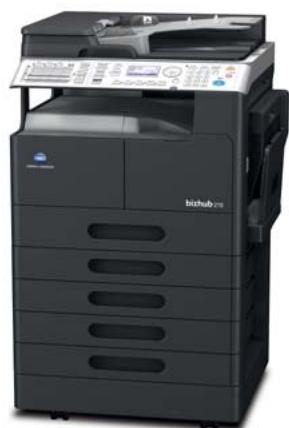
bizhub 215/195
Improve productivity and efficiency while reducing environmental impact and decreasing TCO.
Introducing an advanced new monochrome MFP for a diverse range of business needs.
The reliable monochrome bizhub 215/195 MFP delivers outstanding environmental performance and helps reduce office costs — ideal as a second device for printing monochrome documents, sharing colour data and keeping printing costs down. bizhub 215/195 is a truly excellent choice for optimising office workflow.
Maximise information usage while minimising output costs.
Save crisp, highly detailed documents in colour. Low-cost output in monochrome.
bizhub 215/195 is a monochrome MFP that minimises output costs while offering colour-scanning functionality. Use it to store documents as digital data and fully leverage its outstanding data control capability.
Share information faster than ever.
Scan and share without a PC or server.
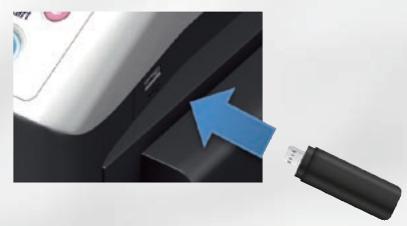
A wide range of functions let you move data rapidly: Scan to USB memory saves documents quickly on USB flash drives; Scan to FTP is great for sharing large volumes of data; Scan to PC allows you to send data directly to a shared folder on a client PC; and Scan to Email sends a document directly to e-mail addresses selected using the control panel.
Optimise document handling
Select colour or monochrome output according to your needs.
When colour output is required, simply scan and temporarily save a document on bizhub 215/195, then print it using a colour printer in the network.
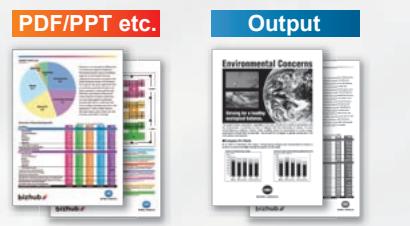
Enhance work efficiency by saving time and space.
Fast duplex scanning and duplex printing reduce waiting and save power.
Duplex scanning and printing increase scan and print speeds, vastly reducing workloads and costs.
- Maintain efficiency while saving power with warm-up times of 15 sec. or less.
- Eliminate waiting with copy times of 6.5 sec. or less.
Optimise document handling
Rationalise devices for a neater office and improved efficiency.
After carefully considering equipment requirements — printer, scanner, fax — install only the colour MFPs you actually need in optimal locations, then integrate them seamlessly with bizhub 215/195. This maximises work efficiency while minimising equipment.
The optimum working environment for every office.
Konica Minolta's Optimised Print Services rationalise document handling according to different working environments, resulting in more economical and productive operations. Take advantage of OPS to enhance office efficiency and significantly cut TCO.
http://www.biz.konicaminolta.com/services/ops

KONICA MINOLTA
OPTIMISED
PRINT SERVICES
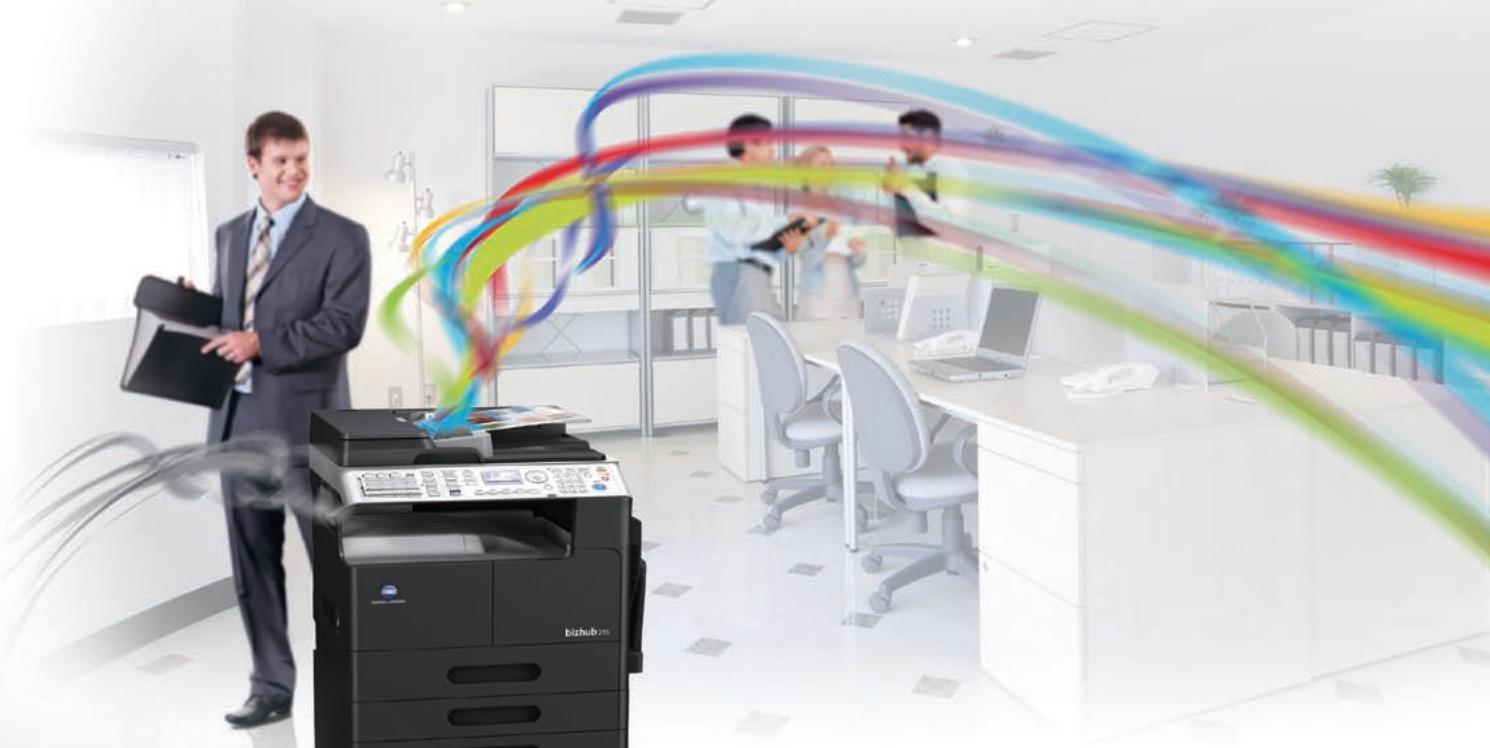
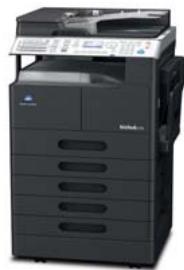
bizhub 215 with optional items
World-class, energy-saving design that is eco friendly and cost efficient.
Reduce CO_2 and TCO.
Plant-based toner with low-temperature fixing.
Simitri HD toner with biomass contains small, uniform toner particles that fix at low temperatures, thus saving power. This reduces both environmental impact and TCO.
Eliminate waste to reduce costs.
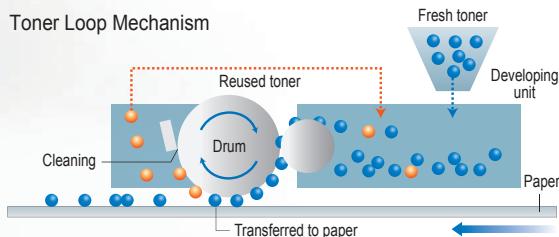
Designed for zero-waste as regards toner.
Other MFPs waste approximately 5 to 10% of toner from a new cartridge. bizhub 215/195's advanced toner loop mechanism eliminates waste by collecting and reusing toner that is not transferred to paper. This lowers wastage to essentially zero, helping to save resources.

with Biomass
Significantly less environmental impact and power fees.
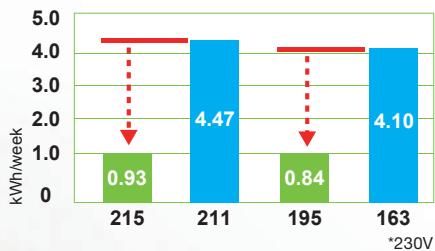
TEC* reduced by approximately 80% .
Compared to bizhub 211/163, this new bizhub reduces TEC by approximately 80% , significantly easing environmental impact and reducing TCO. bizhub 215/195 is also Energy Star certified.
- TEC (Typical Electricity Consumption) is a value based on a measurement method defined by the International ENERGY STAR program.

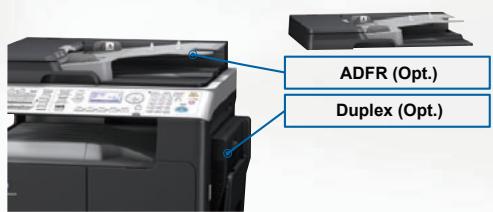
Comfortable, easy-to-view LCD monitor assures superb usability. Duplex copying provides two-in-one efficiency.
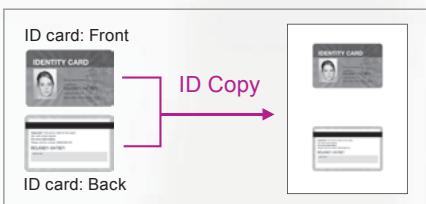
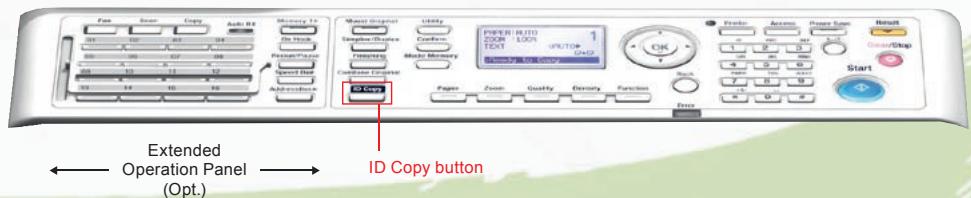
The backlit LCD monitor is easier than ever to view and displays simple illustrated guidance. In addition, the control panel has handy buttons like ID Copy: Press it to copy small card-type documents (business cards, IDs, driver's licenses, etc.). Scanned data of one side is temporarily stored while the other side is scanned, with both scans printed as one document.
bizhub 215/195 General Specifications
| Product Name | bizhub215/195 | |
| Type | Desktop | |
| Reading Resolution | 600dpi x 600dpi | |
| Writing Resolution | 600dpi x 600dpi | |
| Memory Capacity | 128MB | |
| Gradation | 256 gradations | |
| Original Type | Sheet, book, 3-dimensional object | |
| Max. Original Size | A3 or Ledger (11"x17") | |
| Copy Size | Metric: A3 - A5 Inch: Ledger (11"x17") - Invoice (5.5"x8.5") | |
| Image Loss | 4 mm at each edge (top/ bottom/ right/ left edge) | |
| Warm-Up Time1 | Less than 15 sec | |
| First Copy Out Time2 | Less than 6.5 sec | |
| Copy Speed (A4/Letter Crosswise) | bizhub 215: 21ppm3,bizhub 195: 19ppm | |
| Copy Magnification | Fixed Ratio | Metric: 0.25/0.50/0.70/0.81/1.00/1.15/1.41/2.00/4.00 Inch: 0.25/0.50/0.64/0.78/1.00/1.21/1.29/2.00/4.00 |
| Zoom Ratio set by Up/Down key | 25-400% | |
| Paper Capacity | Main Body | Standard:250 sheet Universal tray:1tray |
| Max: 6-way, 1350 sheets | Bypass Tray MB-505 | 100 sheet Bypass Tray *Depend on each distribution |
| Additional cassette PF-507 | 250 sheet Additional Cassette: Max.4 trays | |
| Paper Weight | Main Body/Bypass Tray MB-505 | 64 - 157g/m2 |
| Additional cassette PF-507 | 64 - 90 g/m2 | |
| Multi Copy Setting | 1 - 999 pages | |
| Max. Power Consumption | 1300W (127V only:1350W) | |
| Dimensions [W] x [D] x [H] | 570 x 570 x 458**mm * To the face of platen glass 570 x 570 x 488**mm ** To the top of original cover | |
| Weight | 26.5 kg (Excluding TC/Developer/Original Cover/Bypass unit) | |
| Space Requirements [W] x [D] | Standard configuration: 570 x 570 mm With Bypass tray: 928 x 570 mm Max required space incl. maintenance space: 999 x 971 mm* *When Bypass tray extended. When Paper Feed Tray pulled out. (Slide length: 397mm) | |
| Application Software | PageScope Net Care Device Manager & Plug-in LSU (Local Setting Utility) | |
a Warm-up time may vary depending on the operating environment and usage.
The time required to start printing when both the main power and sub-power switches are turned from OFF to ON. (23^, std. voltage) The time required to start printing when the main power switch is ON and the sub-power switch is turned from OFF to ON.
(23°C, std. voltage)
^2 A4/Letter crosswise,full size,using the first tray,scanning from the original glass surface.
a 23 ppm from 2nd Feed Cassette.
Some products are not available in some areas.
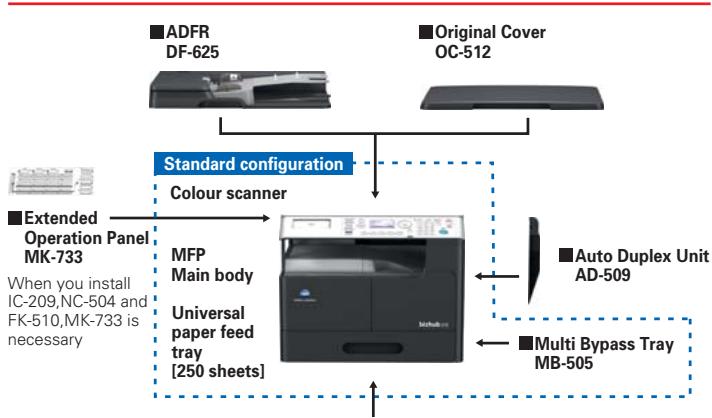
System Options
Additional Tray (250 sheets/max 4) PF-507


Mechanical Counter MC-504
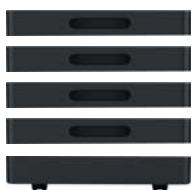
DK-706
Up to one tray can be attached to DK-706, or DK-706 can be attached to the main body.
DK-707
Up to three trays can be attached to DK-707.
DK-708
Up to four trays can be attached to DK-708.
Printer Specification
GDI Image Controller(Standard)
| Type | Embedded | |
| Print Speed | A4 | bizhub 215: 21ppm, bizhub 195: 19ppm |
| Letter | bizhub 215: 20ppm, bizhub 195: 19ppm | |
| Resolution | 600dpi x 600dpi | |
| Support OS | Server: Windows 2003Server / 2008Server / 2008ServerR2 Windows 2003Server x64 Edition / 2008Server x64 Edition Client: Windows XP / Vista / 7 Windows XP / Vista / 7 x64 Edition | |
| Interface | Standard: USB2.0 | |
| NC-504lOption card): Ethernet 10Base-T/100Base-TX | ||
PCL Controller IC-209 * Optional Video Interface Kit MK-733 is required.
| Type | PCL controller incl. network interface card | |
| Print Speed | A4 | bizhub 215: 21ppm, bizhub 195: 19ppm |
| Letter | bizhub 215: 20ppm, bizhub 195: 19ppm | |
| Resolution | 1200 or 600 x 600dpi | |
| Language | PCL6/5e | |
| Support OS | Server:Windows 2003Server / 2008Server / 2008ServerR2Windows 2003Server x64 Edition / 2008Server x64 EditionClient:Windows XP / Vista / 7Windows XP / Vista / 7 x64 Edition | |
| Interface | Ethernet 10Base-T/100Base-TX | |
Scanning Function Specification
| Type | Colour scanner |
| Supported Size | Standard: Max. A3 or Ledger (11"x17")DF-625 (Option ADFR): Max. A3 or Ledger (11"x17") |
| Interface | Ethernet 10Base-T/100Base-TX (Option card: IC-209 or NC-504)USB2.0 (Standard)USB Host (Standard: bizhub 215 only) |
| Scan Function | TWAIN / WIA: Real Time Mode(Pull)Scan to USB memory(Standard; bizhub 215 only) |
| Network Scan (Option card: IC-209 or NC-504) :Scan To FTP, Scan To PC (SMB), Scan To E-mailNetwork TWAIN | |
| Driver | TWAIN / WIA driver |
| Data format | TIFF, PDF, JPEG |
Fax Kit FK-510
| Transmission Standard/ Communication Mode | ECM/G3 |
| Transmission Speed | 2.4kbps - 33.6kbps |
| Data Compression | MH, MR, MMR, JBIG |
| Transmission Time | Approx. 3 sec (A4, V34, 33.6kbps, JBIG) |
| Transmission Size | Scanner: Max. A3 Option DF-625: Max. (W x L) 297 x 1000mm |
| Recording Size | Max. A3 (Max 1000mm, printed according page partition setting) |
| Resolution | 203 x 196dpi, 203 x 392 dpi, 406 x 392dpi |
| Abbreviated.Dial | 250 |
| One Touch.Dial | 32 |
| Program Dials | 4 |
| Sequential Multiple Station Transmission | Max. 255 |
| Driver | PC-FAX driver |
bizhub 215/195




For more information please visit the bizhub Web site at
http://www.biz.konicaminolta.com/bw/215_195/index.html
Product appearance, configuration and/or specifications are subject to change without notice.
KONICA MINOLTA, the KONICA MINOLTA logo and symbol mark, and "Giving Shape to Ideas" are registered trademarks or
trademarks of KONICA MINOLTA HOLDINGS, INC
bizhub,bizhub PRO,bizhub PRESS,Magicolor,PagePro
PageScope, Simitri, Simitri HD, Simitri HD + , Simitri with Biomass,
Emperor, S.E.A.D., S.E.A.D.II, Printgroove and Kicona Minolita Opticians and Print Surgeons and their operations: a case study
Optimised Print Services and their respective logos are regis tr trademarks or trademarks of KONICA MINOLTA BUSINESS
TECHNOLOGIES, INC.
All other brands and product names are registered trademarks or trademarks of their respective companies or organisations.


Ecology & Environment
KONICA MINOLTA products are designed with the environment in mind.
Energy Star
- Eco-friendly Toners


From consulting, system design, to operations, Kona Minolta offers total support to optimise your office output environment.
http://www.biz.konicaminolta.com/services/ops

Requirements for safe use
- Please read and follow the instruction manual to ensure safe operation.
- Only operate using appropriate power supply and voltage.
- Connecting the earth wire to an inappropriate place may cause explosion or electric shock. Please connect accordingly (Taiwan and the Philippines only).
KONICA MINOLTA
BUSINESS TECHNOLOGIES, INC.
1-6-1 Marunouchi Chiyoda-ku, Tokyo, Japan
http://www.biz.konicaminolta.com
