
5 TFT-BILDSCHIRM - Écran TFT BLAUPUNKT - Notice d'utilisation et mode d'emploi gratuit
Retrouvez gratuitement la notice de l'appareil 5 TFT-BILDSCHIRM BLAUPUNKT au format PDF.


| Type de produit | Autoradio avec écran TFT |
| Marque | BLAUPUNKT |
| Modèle | 5 TFT-BILDSCHIRM |
| Dimensions (approx.) | 178 x 50 x 160 mm (standard DIN) |
| Poids (approx.) | 1 kg |
| Alimentation | 12 V DC (véhicule) |
| Puissance de sortie | 4 x 23 W RMS (4 x 35 W max) |
| Gamme de fréquences FM | 87,5 – 108 MHz |
| Gamme de fréquences MW | 531 – 1602 kHz |
| Gamme de fréquences LW | 153 – 279 kHz |
| Réponse en fréquence FM | 35 – 16 000 Hz |
| Réponse en fréquence cassette | 35 – 16 000 Hz |
| Réponse en fréquence CD | 20 – 20 000 Hz |
| Fonctions RDS | AF, PTY, TA, EON |
| Lecteur cassette | Oui |
| Commande changeur CD | Oui (en option) |
| Panneau amovible | Oui (protection antivol) |
| Programmation DSC | Oui (réglages personnalisables) |
| Affichage | Écran TFT à trois zones |
| Entretien et nettoyage | Nettoyer avec un chiffon doux et sec. Ne pas utiliser de produits abrasifs. |
| Sécurité | Déconnecter l'alimentation avant nettoyage. Ne pas utiliser l'appareil si cela distrait la conduite. |
| Pièces détachées et réparabilité | Contacter le service après-vente Blaupunkt pour toute réparation ou remplacement. |
| Informations générales | Cet autoradio est conçu pour une installation dans un véhicule. Respecter les consignes de sécurité routière. |
FOIRE AUX QUESTIONS - 5 TFT-BILDSCHIRM BLAUPUNKT
Questions des utilisateurs sur 5 TFT-BILDSCHIRM BLAUPUNKT
0 question sur cet appareil. Repondez a celles que vous connaissez ou posez la votre.
Poser une nouvelle question sur cet appareil
Téléchargez la notice de votre Écran TFT au format PDF gratuitement ! Retrouvez votre notice 5 TFT-BILDSCHIRM - BLAUPUNKT et reprennez votre appareil électronique en main. Sur cette page sont publiés tous les documents nécessaires à l'utilisation de votre appareil 5 TFT-BILDSCHIRM de la marque BLAUPUNKT.
MODE D'EMPLOI 5 TFT-BILDSCHIRM BLAUPUNKT
Freiburg RCM 148
Siena RCM 148
Louisiana RCM 148
Kingston DJ
St. Louis DJ
Notice d'utilisation
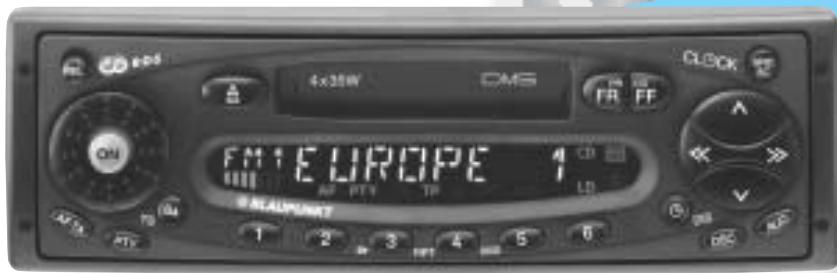
Affichage
L'affichage se compose de trois champs et change selon le mode de fonctionnement et la fonction.
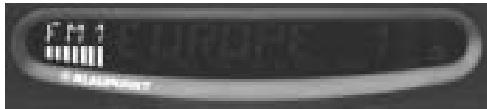
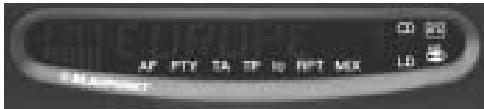
Champ d'affichage 1 :
Mode radio
Mémoires de stations et gammes d'ondes
Indication brève de la station mémorisée (par ex. P1)
Mode cassette
CAS - cassette insérée
Mode changeur
Piste en cours
Audio
Représentation numérique et graphique du volume et des réglages audio.
DSC
Affichage permanent pour la programmation DSC. Représentation graphique du niveau de volume réglé.
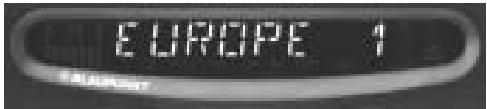
Champ d'affichage 2 :
Mode radio
Fréquence radio ou nom de la station
Type de programme PTY
Mode cassette
TAPE1/TAPE2 - face de la cassette en cours de lecture. Affiche la fonction active.
Mode changeur
Numéro du CD en cours de lecture par le changeur. Temps du CD (temps écoulé) Indication brève des changements de fonction
DSC
Sert de champ d'affichage et de saisie lors de la programmation DSC Affichage de l'horloge
Divers
Indique une nouvelle source (par exemple lors du passage de la radio à la cassette)
Champ d'affichage 3 :
Affiche les fonctions actives.
- Stéréo
Cassette insérée
- Changeur de CD connecté
LD - Loudness (contour)
Mode radio
AF - Fréquence alternative RDS
PTY - Type de programme RDS
TA - Priorité aux informations routières
TP - Station à programme de trafic
Io - Sensibilité de recherche
Mode changeur de CD
RPT - Fonction de répétition
MIX - Lecture aléatoire des titres
Sommaire
Affichage 23
Référence rapide 25
Remarques importantes 28
Ce qu'il faut savoir 28
Sécurité routière 28
Installation 28
Avertissement 28
Horloge 29
Réglage de l'horloge 29
Panneau amovible 29
Protection contre le vol 29
Fixation du panneau amovible 30
Sélection du mode audio 30
Fonctionnement radio avec RDS 31
AF - Fréquence alternative 31
REG - Programme régional 31
Sélection d'une bande de fréquences 31
Accord sur une station 31
Recherche automatique A/V 31
Accord manuel avec << >> 32
Défilement des réseaux de diffusion (FM uniquement) 32
Commutation entre les banques de mémoire (FM) 32
Mémorisation des stations 32
Mémorisation automatique des stations les plus puissantes avec Travelstore 32 Rappel des stations mémorisées 33 Balayage des stations avec Radio Scan.....33 Modification du temps de balayage 33 Sélection de la sensibilité de recherche automatique 33 PTY - Type de programme 33 Types de programme 33 Activation/désactivation PTY 34 Vérification du type de programme de la station 34 Affichage du type de programme sélectionné 34 Sélection d'un type de programme 34 Mémorisation des types de programme 35 Balayage des stations avec PTY SCAN ... 35 Priorité PTY 35
Réception des stations à messages de trafic avec RDS-EON 36
Priorité aux messages de trafic activée/désactivée .... 36
Bip d'avertissement 36
Désactivation du bip d'avertissement 36
Démarrage de la recherche automatique (fonctionnement du lecteur de cassettes et du changeur de CD). 36
Réglage du volume pour les annonces de trafic et le bip d'avertissement .. 37
Fonctionnement du lecteur de cassettes 37
Lecture de cassettes 37
Éjection de la cassette 37
Avance rapide. 37
Inversion de la bande 37
Informations sur le trafic pendant la lecture de cassettes 37
Fonctionnement du changeur de CD 38
Passage en mode changeur de CD..... 38
Insertion d'un CD 38
Éjection d'un CD 38
Lecture de CD 38
Sélection d'un CD 38
Sélection d'un titre 39
SCAN 39
RPT 39
MIX 39
Programmation DSC 40
Aperçu des réglages d'usine DSC 41
Annexe 42
Spécifications 42
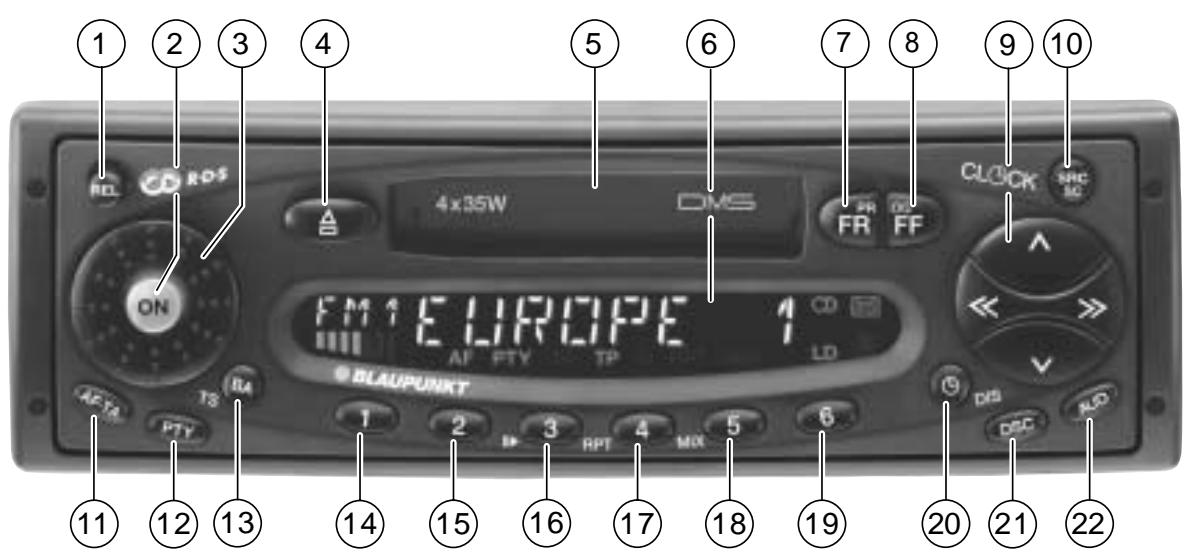
Référence rapide
① REL
Pour libérer le panneau amovible (protection contre le vol).
Appuyez sur ce bouton et retirez le panneau de libération.
② ON - Mise sous/hors tension
Appuyez sur ce bouton pour mettre l'appareil sous tension. Il jouera au volume préréglé. Si vous appuyez brièvement sur ce bouton pendant la réception radio, le volume baissera instantanément (MUTE).
Cette fonction est annulée en appuyant à nouveau sur le bouton ON. Vous pouvez programmer le volume de mise en sourdine (voir "Programmation DSC").
Appuyez sur le bouton pendant environ 2 secondes pour éteindre l'appareil.
Mise en marche/arrêt via le contact :
Si l'appareil a été connecté en conséquence, il peut également être allumé et éteint avec le contact du véhicule.
Appuyez sur le bouton ON pour continuer à faire fonctionner l'appareil lorsque le contact est coupé.
L'appareil s'allume. Pour éviter que la batterie ne se décharge, le système s'éteint automatiquement après une heure de lecture.
③ Bouton de volume
Tournez le bouton pour régler le volume.
④ Éjection
Appuyez sur ce bouton pour éjecter la cassette.
⑤ Fente de cassette
Insérez la cassette dans la fente, le côté ouvert vers la droite. La cassette sera lue dans le sens précédemment sélectionné.
⑥ Affichage
Affiche tous les réglages, modes de fonctionnement et fonctions.
⑦ Retour rapide (FR)
Pour rembobiner rapidement la cassette.
FF (Avance rapide)
Pour faire avancer rapidement la bande.
(7) + (8) Inversion de la bande (PROG)
Appuyez simultanément sur les deux boutons.
⑨ Interrupteur à bascule
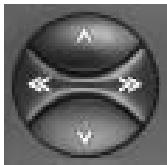
Mode radio
Recherche A/V
A Haut
Bas
<</>> Montée/descente par intervalles courts (sur FM uniquement si AF est désactivé)
Pour FM uniquement :
<</>> Parcourir les réseaux de diffusion, si AF est activé. Exemple : NDR 1, 2, 4, N-Joy, FFN ...
Mode changeur
En option :
Freiburg RCM 148, Siena RCM 148, Louisiana RCM 148
Inclus :
Kingston DJ, St. Louis DJ
Sélectionnez le CD
A Haut
Bas
Sélectionnez le titre
Haut : appuyez brièvement sur CUE - avance rapide (audible) : maintenez le bouton enfoncé. Bas : appuyez deux fois ou plus brièvement pour répéter le titre : appuyez brièvement. REVUE - retour rapide (audible) : maintenez le bouton enfoncé.
Fonction supplémentaire du commutateur à bascule :
Pour des réglages supplémentaires, utilisez
AUD ② DSC-MODE ② PTY ⑫
Exigence : la fonction respective est activée.
10 SRC/SC
(SRC = source audio, SC = scan) Appuyez brièvement sur le bouton pour sélectionner le mode de fonctionnement (tuner, cassette, changeur). Le mode actif apparaît à l'écran.
Appuyez plus longtemps sur SRC/SC pour sélectionner la fonction SCAN (échantillonne les stations de radio et les titres).
Utilisez la programmation DSC pour régler le temps de balayage.
Mode radio
Appuyez plus longtemps sur SRC/SC.
La radio recherchera toutes les stations FM recevables. "SCAN" et le nom de la station apparaissent successivement à l'écran.
Balayage PTY
Le balayage PTY peut être lancé si PTY est activé ("PTY" sera affiché).
La radio recherchera toutes les stations diffusant le type de programme sélectionné.
Mode changeur
Appuyez plus longtemps sur SRC/SC.
"SCAN" sera affiché.
Pour arrêter le balayage CD : appuyez à nouveau sur SRC/SC.
⑪ AF·TA
Fréquence alternative en mode RDS : TA (annonce de trafic = priorité aux programmes de trafic)
Si "AF" est affiché, la radio recherche automatiquement une fréquence radio offrant le même programme avec une meilleure qualité (en utilisant RDS).
TA activé/désactivé :
Appuyez brièvement sur AF·TA : "TA" sera affiché, la priorité aux programmes de trafic est activée.
Appuyez brièvement sur AF·TA : TA désactivé. « TP » s'affiche lorsqu'un programme à trafic est diffusé.
AF activé/désactivé :
Appuyez plus longtemps sur AF-TA : un bip est émis ; « AF » apparaît.
Appuyez plus longtemps sur AF-TA : un bip est émis ; « AF » disparaît.
12 PTY (type de programme)
Vous pouvez sélectionner parmi différents types de programmes. À l'aide de la bascule << >>, il est possible de rappeler tous les types de programmes PTY, si PTY est activé (« PTY » s'allume à l'écran).
13 BA/TS
Bascule entre les gammes d'ondes/mémoires FM1, FM2, FMT (Travelstore), MW et LW (Freiburg RCM 148, Kingston DJ sans MW, LW).
Fonction supplémentaire : Travelstore
Pour mémoriser les six stations les plus puissantes dans la banque Travelstore : appuyez sur BA/TS jusqu'à ce qu'un bip retentisse et que « T-STORE » apparaisse.
14...19 - Boutons de préréglage 1 à 6
Mode radio
Vous pouvez mémoriser six stations dans chaque banque de mémoire (1, 2 et « T »).
Sur MW et LW, vous pouvez mémoriser six stations chacun (sauf pour Freiburg RCM 148, Kingston DJ).
Mémoriser une station - maintenez enfoncé un bouton de préréglage en mode radio jusqu'à ce qu'un bip soit émis.
Rappel de station - sélectionnez une bande de fréquences ainsi que la banque de mémoire en FM ; appuyez brièvement sur la touche de préréglage correspondante. La touche de préréglage sélectionnée apparaîtra brièvement dans le champ d'affichage 1 (par exemple P1).
Changer de mode
3/II - Pause
Interrompt la lecture du CD. "PAUSE" s'affiche. Appuyez à nouveau sur la touche pour reprendre la lecture du CD.
4/RPT
Répéter le titre : appuyez sur 4/RPT. "REPEAT-T" s'affiche brièvement. Le titre sera répété jusqu'à ce que 4/RPT soit à nouveau enfoncé. Répéter le CD : sélectionnez "REPEAT-D". Activer REPEAT-D :
- Maintenez 4/RPT enfoncé jusqu'à ce qu'un bip soit émis.
5/MIX
"MIX CD" lit les titres d'un CD dans un ordre aléatoire.
"MIX ALL" lit les titres de tous les CD d'un magasin de changeur dans un ordre aléatoire.
Pour activer/désactiver MIX :
Appuyez brièvement sur 5/MIX.
Le réglage actuel est brièvement indiqué à l'écran : "MIX-CD".
Activer MIX-ALL :
- Maintenez 5/MIX enfoncé jusqu'à ce qu'un bip soit émis.
20 DIS - affichage de l'horloge
Mode radio
Appuyez brièvement sur cette touche et l'heure s'affichera pendant un moment.
Mode changeur
Appuyez sur cette touche pour basculer l'affichage entre le numéro de CD et l'indication du temps de lecture.
Mode cassette
Appuyez sur cette touche pour basculer l'affichage entre le sens de la cassette et l'indication de l'horloge.
2 DSC Direct Software Control
Règle les réglages de base programmables. Reportez-vous à "Programmation DSC".
② AUD
Réglages par défaut pour les aigus et les graves. Vous pouvez mémoriser différents réglages pour les modes FM, MW, LW, cassette et CD (Freiburg RCM 148, Kingston DJ sans MW, LW).
Réglage du son :
Sélectionnez le mode audio. Appuyez une fois sur AUD et réglez le son à l'aide de la bascule.
Aigus :
Aigus +
Aigus -
Basses :
Basses - Basses +
Appuyez deux fois sur AUD et réglez le fondu à l'aide de la bascule.
Fondu avant Fondu arrière Balance gauche
Balance droite
Les valeurs sélectionnées apparaissent à l'écran. Le dernier réglage est mémorisé automatiquement.
Remarques importantes
Désactivation de l'AUD
Appuyez brièvement sur la touche.
Si vous ne modifiez pas le son dans les 8 secondes, le mode AUD se ferme automatiquement.
Fonction supplémentaire : LD
La loudness renforce les basses fréquences à faible volume.
Appuyez sur AUD pendant plus de 2 secondes pour modifier le réglage de loudness. "LD" apparaît.
Ce qu'il faut savoir
Avant d'utiliser votre nouvelle autoradio, veuillez lire attentivement les informations suivantes.
Sécurité routière
En tant que conducteur d'un véhicule à moteur, il est de votre responsabilité de prêter attention à la situation de la circulation à tout moment.
N'utilisez jamais votre autoradio d'une manière qui pourrait vous distraire.
Gardez à l'esprit que vous parcourez une distance de 14 mètres par seconde à une vitesse de seulement 50 km/h.
Si la situation de la circulation devient particulièrement exigeante, nous vous conseillons de ne pas utiliser la radio.
Assurez-vous toujours de pouvoir entendre les signaux d'avertissement provenant de l'extérieur du véhicule, tels que les sirènes de police ou de pompiers, afin de pouvoir réagir en conséquence.
Par conséquent, vous devez toujours choisir un volume modéré pour écouter votre autoradio pendant la conduite.
Installation
Si vous souhaitez installer vous-même votre nouvelle autoradio ou ajouter d'autres composants audio à des installations existantes, veuillez lire attentivement les instructions d'installation et de connexion ci-jointes.
Pour garantir le bon fonctionnement de l'appareil, la ligne d'alimentation positive doit être connectée via le contact et la borne permanente +12 V.
Ne mettez pas les sorties des haut-parleurs à la masse !
Note d'avertissement
Risque d'endommager l'antenne électrique automatique dans un portique de lavage
Avant d'entrer dans un portique de lavage
- Éteignez la radio en appuyant sur le bouton ON. L'antenne électrique se rétractera ; si ce n'est pas le cas, appuyez à nouveau sur ON.
Ne passez pas au car wash tant que l'antenne électrique n'est pas rétractée !
Horloge
Cette autoradio est équipée d'une horloge intégrée.
Priorité d'affichage :
Pour changer la priorité d'affichage, appuyez sur le bouton jusqu'à entendre un bip. Appuyez plusieurs fois jusqu'à ce que le mode d'affichage souhaité soit actif (pas pendant la réception radio).
Mode radio
Appuyez brièvement sur le bouton pour afficher l'horloge.
Mode cassette
Appuyez sur ce bouton pour basculer l'affichage entre le sens de la cassette et l'indication de l'heure.
Mode changeur
Appuyez brièvement sur le bouton pour basculer l'affichage entre le numéro du CD, le temps de lecture et l'indication de l'heure.
Réglage de l'horloge
Appuyez brièvement sur DSC. - Appuyez sur / pour sélectionner la fonction "CLOCK-SET". - Appuyez sur << >> pour régler les heures ou les minutes. L'option réglable clignote à l'écran. - Appuyez sur / pour ajuster la valeur clignotante. Après avoir réglé l'horloge, appuyez brièvement sur DSC pour mémoriser le nouveau réglage.
Panneau amovible
Protection contre le vol
Cet appareil est équipé d'une façade amovible. Une autoradio sans façade n'a aucune valeur pour les voleurs.
Protégez votre autoradio et détachez la façade lorsque vous quittez votre véhicule. Il est très facile de fixer et de détacher la façade grâce à sa conception spécifique.
Remarque :
Ne tirez pas la façade directement vers l'extérieur du châssis, mais détachez-la comme illustré ci-dessous. Veillez à ne pas faire tomber la façade.
N'exposez pas la façade à la lumière directe du soleil ou à d'autres sources de chaleur.
Ne la laissez pas dans un endroit humide.
Détachement de la façade
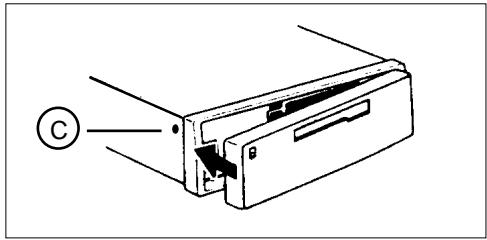
Appuyez sur le bouton REL pour libérer la façade. Puis retirez-la délicatement comme illustré.
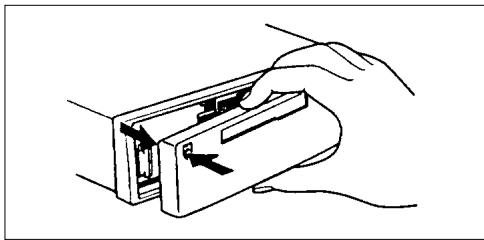
Si l'appareil était en marche, il s'éteindra maintenant. Tous les réglages actuels restent mémorisés. Si une cassette est insérée, elle restera dans l'appareil. La radio se mettra automatiquement en marche lorsque vous remettrez la façade.
Fixation de la façade
Faites glisser la façade (B) de gauche à droite sur le guide du châssis (A). Poussez doucement le côté gauche de la façade contre l'avant du châssis jusqu'à ce qu'elle s'enclenche.
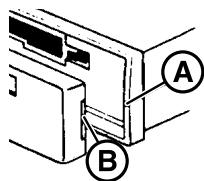
Sélection du mode audio
Fixation de la façade
Si vous souhaitez fixer définitivement la façade au châssis, vissez la vis fournie sur le côté gauche du châssis dans le trou (C), voir figure.
Utilisez la touche SRC/SC (source) pour sélectionner le mode radio, cassette ou CD.
Le mode CD n'est pas disponible à moins qu'un changeur de CD ne soit connecté.
Pour sélectionner le mode de fonctionnement :
Appuyez sur SRC/SC.
Fonctionnement radio avec RDS (Radio Data System)
Le système de données radio améliorera votre écoute lorsque vous écoutez des stations de radio FM.
De plus en plus de stations de radio diffusent des informations RDS en plus de leur programmation régulière.
Dès qu'un programme a été identifié, le nom de la station, y compris un identifiant régional, le cas échéant, apparaîtra à l'écran, par exemple, NDR1 NDS (programme régional en Basse-Saxe, Allemagne).
Lorsque RDS est activé, les touches de préréglage deviennent des touches de programme. Vous savez maintenant exactement quel programme vous avez syntonisé, ce qui facilite la recherche rapide de la station souhaitée.
Mais RDS vous offre d'autres avantages :
AF - Fréquence alternative
La fonction AF (fréquence alternative) garantit que la radio s'accorde automatiquement sur la fréquence la plus forte du programme actuellement sélectionné.
Cette fonction est activée lorsque « AF » apparaît à l'écran.
Pour activer ou désactiver cette fonction,
- appuyez sur la touche AF-TA jusqu'à ce qu'un bip soit émis.
Lors de la recherche du signal de réception le plus fort, la radio peut passer brièvement en mode muet.
Si « SEARCH » apparaît à l'écran lorsque la radio est allumée ou lors du rappel d'une fréquence mémorisée, l'appareil recherche déjà automatiquement une fréquence alternative.
« SEARCH » disparaît de l'écran lorsque la fréquence alternative a été trouvée ou après le balayage complet de la bande de fréquences.
Si la qualité de réception du programme sélectionné se dégrade au-delà d'un certain seuil :
Syntonisez une autre station.
REG - programme régional
Certains programmes radio sont parfois divisés en programmes régionaux diffusant des informations locales. Par exemple, le premier programme de la NDR propose, à certaines heures de la journée, des contenus différents dans les Länder du nord de l'Allemagne : Schleswig-Holstein, Hambourg et Basse-Saxe.
Si vous écoutez un programme régional particulier et souhaitez continuer à le faire, sélectionnez « REG ON » dans le mode DSC.
Si vous quittez la zone de diffusion du programme régional que vous écoutez, ou si vous souhaitez profiter du service RDS complet, passez à « REG OFF » dans le mode DSC.
Sélection d'une bande de fréquences
Avec cette autoradio, vous pouvez choisir parmi les bandes de fréquences suivantes :
FM 87,5 - 108 MHz
PO 531 - 1602 kHz
GO 153 - 279 kHz
(Freiburg RCM 148, Kingston DJ sans PO, GO).
- Sélectionnez la bande de fréquences souhaitée en appuyant sur la touche BA/TS.
Réglage des stations
Recherche automatique /
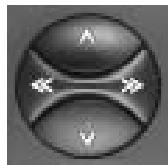
- Appuyez sur / ; l'autoradio recherche automatiquement la station suivante. Si vous maintenez / enfoncé vers le haut ou vers le bas sur la bascule, la recherche s'accélère dans la direction correspondante.
Recherche automatique
Haut
Bas
<< / >> Montée/descente par intervalles courts (sur FM uniquement si "AF" est désactivé)
Réglage manuel avec << >>
Vous pouvez également régler manuellement une station.
Condition :
AF et PTY doivent être désactivés (c'est-à-dire que les symboles ne s'allument pas à l'écran).
Si nécessaire, désactivez ces fonctions :
Appuyez sur AF-TA ou PTY.
Réglage manuel :
- Appuyez sur << >> ; la fréquence changera par intervalles courts vers le bas ou vers le haut.
Si vous maintenez << >> enfoncé vers la gauche ou la droite sur le commutateur à bascule, le balayage de fréquence s'accélérera.
Faire défiler les réseaux de diffusion (FM uniquement)
Vous pouvez utiliser les boutons << >> pour syntoniser les stations de votre zone de réception.
S'il est possible de recevoir plusieurs programmes dans le même réseau de diffusion, vous pouvez les faire défiler vers l'avant en appuyant sur >>, ou vers l'arrière à l'aide du bouton <<, par exemple NDR 1, 2, 3, 4, N-JOY, ...
Pour que cela fonctionne correctement, vous devez avoir déjà syntonisé les stations au moins une fois et "AF" doit être actif (allumé dans l'affichage).
Pour ce faire, vous pouvez lancer la recherche Travelstore :
- Appuyez sur BA/TS pendant 2 secondes ; le système commencera à parcourir la bande de fréquences.
Si "AF" n'est pas allumé,
- Maintenez AF-TA enfoncé. Un bip retentit et "AF" apparaît.
Cela remplit les conditions pour sélectionner des stations avec << >>.
Basculement entre les banques de mémoire (FM)
Vous pouvez basculer entre les banques de mémoire 1, 2 et T afin de stocker des stations et de les rappeler plus tard.
La banque de mémoire actuellement sélectionnée apparaît dans l'affichage.
- Appuyez sur le bouton BA/TS autant de fois que nécessaire jusqu'à ce que la banque de mémoire souhaitée s'allume dans l'affichage.
Mémorisation des stations
En FM, vous pouvez mémoriser six stations sur les touches de préréglage 1, 2, 3, 4, 5, 6 pour chacune des banques de mémoire (1, 2, T).
En PO/GO, vous pouvez également mémoriser six stations chacune (Freiburg RCM 148, Kingston DJ sans PO, GO).
- Sélectionnez la gamme d'ondes appropriée en appuyant sur BA/TS. Recherchez une station avec le commutateur à bascule (soit automatiquement /, soit manuellement << >>).
- Appuyez sur la touche de préréglage souhaitée jusqu'à ce que la radio reprenne la lecture après la coupure du son (cela prend environ 2 secondes, confirmé par un bip).
La station est maintenant mémorisée.
L'affichage indique quelle touche de préréglage est actuellement activée.
Mémorisation automatique des stations les plus puissantes avec Travelstore
Vous pouvez mémoriser automatiquement les six stations FM les plus puissantes de votre zone de réception actuelle, classées selon leur intensité de signal. Cette fonction est particulièrement pratique lors de longs trajets.
- Appuyez sur la touche BA/TS pendant 2 secondes. "T-STORE" apparaît à l'écran.
Les six stations FM les plus puissantes seront automatiquement mémorisées dans la banque de mémoire "T" (Travelstore). Une fois ce processus terminé, la radio diffusera la station la plus puissante.
Si vous le souhaitez, vous pouvez également mémoriser manuellement des stations dans la banque Travelstore (voir "Mémorisation des stations").
Rappel des stations mémorisées
Vous pouvez rappeler toute station mémorisée en appuyant sur une touche.
- Sélectionnez la gamme d'ondes en appuyant sur BA/TS. Pour la FM, choisissez également la banque de mémoire correspondante en appuyant sur la touche BA/TS autant de fois que nécessaire jusqu'à ce que la banque souhaitée apparaisse à l'écran.
- Appuyez brièvement sur la touche de présélection correspondante pour rappeler la station.
Balayage des stations avec Radio Scan
Vous pouvez balayer toutes les stations de votre zone de réception.
Pour démarrer la fonction Scan :
- Appuyez plus longtemps sur SRC/SC.
La fréquence balayée ou le nom de la station commence à clignoter à l'écran.
Pendant le processus de balayage, "SCAN" apparaît à l'écran.
Pour sélectionner une station trouvée et désactiver la fonction Scan :
- Appuyez brièvement sur SRC/SC.
Si aucune station n'est sélectionnée, le balayage recommence.
Modification de la durée de balayage
La durée de balayage peut être réglée entre 5 et 20 secondes maximum.
Si vous souhaitez modifier la durée de balayage, veuillez vous référer à la section "Programmation DSC - SCANTIME".
Sélection de la sensibilité de recherche automatique
Vous pouvez modifier la sensibilité de recherche automatique.
Si « lo » est affiché, la radio ne captera que les stations locales puissantes (sensibilité faible).
Si « lo » ne s'allume pas, la radio captera également les stations plus faibles et plus éloignées (sensibilité élevée).
Si vous souhaitez modifier le niveau de sensibilité, veuillez vous référer à la section « Programmation DSC - SENS ».
PTY - Type de programme
PTY est un service RDS proposé par un nombre croissant de stations de radiodiffusion. Cette fonction vous permet de sélectionner les stations FM en fonction de leur type de programme.
Après avoir choisi le PTY de votre préférence, les stations correspondantes peuvent être sélectionnées soit par recherche manuelle, soit en utilisant la fonction de balayage.
Types de programmes
Activez PTY.
Utilisez << >> pour afficher le dernier type de programme sélectionné et pour en choisir un nouveau.
Vous pouvez sélectionner l'un des types mémorisés à l'aide des touches de présélection 1 à 6.
La liste suivante indique quelques-uns des types de programmes disponibles.
MÉTÉO
FINANCES
VOYAGE
LOISIRS
JAZZ
COUNTRY
NEWS
INFO
SPORT
CULTURE
SCIENCE
VARIED
POP MUSIC
ROCK MUSIC
CLASSICS
Activation/désactivation du PTY
Appuyez sur PTY.
Lorsque la fonction est active, le type de programme sélectionné en dernier apparaît brièvement à l'écran. "PTY" s'affiche en permanence.
Vérification du type de programme de la station
- Appuyez sur PTY pendant environ 2 secondes.
Après le bip sonore, l'afficheur indiquera le type de programme proposé par la station syntonisée. Si "NONE" apparaît à l'écran, la station actuelle n'a pas de code PTY.
Affichage du type de programme sélectionné
- Appuyez sur << ou >>.
Le type de programme sélectionné en dernier s'affichera brièvement.
Sélection d'un type de programme
a) Utilisation des touches de préréglage
Lorsque PTY est activé, vous pouvez utiliser les touches de préréglage 1 à 6 pour sélectionner les types de programme mémorisés en usine.
- Appuyez sur l'une des touches de préréglage 1 à 6.
Le type de programme sélectionné s'affichera pendant 2 secondes.
Si vous souhaitez écouter une station avec ce PTY,
- appuyez sur / pour lancer la fonction de recherche.
Si la radio ne trouve pas de station offrant le type de programme sélectionné, l'afficheur indiquera "NO PTY" et un bip sonore sera émis. La radio sélectionnera la station qui était syntonisée avant l'activation de la recherche.
Vous pouvez attribuer différents types de programme à chaque position de préréglage. Veuillez vous référer à la section suivante sur "Mémorisation des types de programme".
b) Utilisation des touches << >> sur la bascule
Lorsque PTY est activé, vous pouvez sélectionner un type de programme à l'aide des boutons << >>.
- Appuyez sur << ou >> ; le type de programme sélectionné en dernier s'affiche pendant 3 secondes. Pendant cette période, appuyez sur >> (avant) ou << (arrière) pour sélectionner le type souhaité.
- Appuyez sur << ou >> autant de fois que nécessaire.
Si vous souhaitez écouter une station avec le PTY sélectionné, appuyez sur / pour lancer la fonction de recherche automatique.
Si la radio ne trouve pas de station offrant le type de programme sélectionné, l'écran affiche "NO PTY" et un signal sonore est émis. La radio sélectionnera la station qui était syntonisée avant l'activation de la recherche automatique.
Mémorisation des types de programme
Chacun des boutons de préréglage 1 à 6 a été assigné à un type de programme en usine.
Si vous le souhaitez, vous pouvez également les remplacer par d'autres types de programme disponibles.
Pour ce faire, assurez-vous que "PTY" s'allume à l'écran.
- Si nécessaire, appuyez sur le bouton PTY pour activer la fonction.
- Sélectionnez un type de programme à l'aide des boutons << >> et
- maintenez enfoncé le bouton de préréglage souhaité (1-6) jusqu'à ce que vous entendiez un bip.
Le type de programme sélectionné peut maintenant être rappelé en appuyant sur ce préréglage, si "PTY" s'allume à l'écran.
Balayage des stations avec PTY SCAN
Condition : "PTY" doit apparaître à l'écran.
- Appuyez sur la touche SRC/SC jusqu'à entendre un bip. Toutes les stations de votre zone de réception actuelle offrant le type de programme sélectionné seront scannées. Pour désactiver le PTY-SCAN :
- Appuyez à nouveau sur SRC/SC ou sur la bascule de recherche.
Priorité PTY
Situation :
PTY est activé et s'allume à l'écran.
Aucune station offrant le type de programme sélectionné n'est actuellement disponible dans votre zone de réception (avec la recherche ou le scan).
L'appareil reviendra à la station précédemment syntonisée.
Dès qu'il est possible de recevoir un programme dans le réseau de diffusion avec le PTY sélectionné, la radio basculera sur la station correspondante pendant la durée du programme.
Exemple :
Réseau de diffusion allemand NDR :
- Station en cours : NDR3.
- "PTY" s'allume à l'écran. Type de programme "POP" sélectionné.
- La recherche est lancée.
- Aucune station avec "PTY-POP" n'est trouvée.
- L'écran affiche "NO PTY" et
- revient automatiquement sur NDR3.
- NDR2 diffuse un programme « PTY-POP ». La radio basculera sur la station liée NDR2 pendant la durée du programme « POP ».
Pendant le fonctionnement en cassette ou en CD, l'appareil basculera également sur le programme offrant le PTY sélectionné au sein du réseau de diffusion.
Une fois le programme PTY terminé, le système reviendra au mode précédent (radio, cassette ou CD).
Remarque :
Comme déjà mentionné, ces fonctions ne sont actuellement prises en charge que par un nombre limité de stations RDS.
Réception de stations à programme de trafic avec RDS-EON
L'abréviation « EON » signifie Enhanced Other Networks, ce qui signifie que des informations sont échangées au sein d'un réseau de radio.
De nombreuses stations de radio FM diffusent des messages de trafic à intervalles réguliers dans leur zone de diffusion.
En plus de leurs programmes, toutes les stations à programme de trafic émettent un signal porteur spécial, qui est décodé par votre autoradio. Si ce signal est identifié, « TP » apparaît à l'écran (Traffic Programme).
En plus de celles-ci, il existe également des stations qui ne diffusent pas réellement d'informations de trafic elles-mêmes, mais qui, grâce au RDS-EON, peuvent transmettre les messages de trafic diffusés par une autre station
à programme de trafic du même réseau de radio.
Si vous souhaitez activer la priorité aux annonces de trafic tout en écoutant l'une de ces stations (par exemple NDR4), « TA » doit apparaître sur l'écran.
Si une annonce de trafic est diffusée, la radio basculera automatiquement sur la station à programme de trafic liée (dans ce cas, NDR2) pendant la durée du message, puis reviendra au programme d'origine (NDR4) ensuite.
Priorité aux annonces de trafic activée/désactivée
Si la priorité pour les programmes d'annonces de trafic est activée, "TA" s'allume à l'écran.
Pour activer ou désactiver la priorité :
- Appuyez sur le bouton AF-TA. "TA" apparaît. Si vous appuyez sur AF-TA pendant la diffusion d'un message, ce message sera interrompu. L'appareil reviendra alors au mode précédent. La priorité pour les autres messages de trafic reste active.
Veuillez noter que plusieurs boutons n'ont aucune fonction pendant la diffusion d'une annonce de trafic.
Bip d'avertissement
Si vous quittez la zone de réception de la station de programme de trafic actuellement syntonisée, vous entendrez un bip d'avertissement après environ 30 secondes.
Cette tonalité d'alarme sera également émise si vous appuyez sur un bouton de préréglage pour une station qui n'émet pas le signal de programme de trafic (TP).
Désactivation du bip d'avertissement
a) Syntonisez une autre station offrant des informations de trafic :
Appuyez sur l'interrupteur à bascule ou - appuyez sur un bouton de préréglage auquel une station de programme de trafic est attribuée.
Alternative :
b) Désactivez la priorité pour les annonces de trafic :
Appuyez sur TA.
"TA" disparaîtra de l'écran.
Démarrage de la recherche automatique (fonctionnement avec cassette et changeur de CD)
Si vous quittez la zone de réception de la station de radio qui diffuse des informations routières alors que vous écoutez une cassette ou un CD, le système recherche automatiquement une nouvelle station de ce type.
Si aucune station n'est trouvée dans un délai d'environ 30 secondes, un signal sonore d'avertissement retentit toutes les 30 secondes. Pour désactiver ce signal, procédez comme décrit ci-dessus.
Fonctionnement du lecteur de cassettes
Réglage du volume des informations routières et du signal sonore d'avertissement
Bien que ce volume ait été préréglé en usine, vous pouvez le modifier à l'aide de la fonction DSC (voir "Programmation DSC - TA VOL").
Lecture d'une cassette
Insérez la cassette dans la fente, le côté ouvert vers la droite.
Appuyez sur SRC/SC pour sélectionner le mode lecteur de cassettes. "TAPE 1" ou "TAPE 2" s'affiche. La cassette est lue dans le sens précédemment sélectionné.
Éjection de la cassette
Appuyez pour éjecter la cassette.
Avance et retour rapides
Appuyez sur les boutons FF ou FR pour faire avancer (FF) ou reculer (FR) rapidement la cassette pendant la lecture : "FORWARD" ou "REWIND" s'allume à l'écran.
Lorsque la fin de la cassette est atteinte en avance ou retour rapide, le sens de lecture s'inverse et l'autre face est lue. Avec "Radio Monitor ON" pendant l'avance ou le retour rapide, vous pouvez écouter la station de radio précédemment sélectionnée. Il est possible de modifier le réglage Radio Monitor en mode DSC (voir "Programmation DSC - RM").
Inversion du sens de lecture
Pour changer le sens de lecture pendant la lecture d'une cassette :
- Appuyez simultanément sur FR/FF.
L'afficheur indique "TAPE 1" ou "TAPE 2" pour la face de cassette sélectionnée.
Informations routières pendant la lecture de cassette
La fonction Annonce routière (priorité aux programmes de trafic) permet de recevoir des informations routières pendant la lecture de cassette. Si un message de trafic est diffusé, la lecture de la cassette s'arrête et le message est reproduit.
Cette fonction est active si "TA" s'allume à l'afficheur.
- Appuyez brièvement sur la touche AF-TA pour activer TA.
Fonctionnement du changeur de CD
En option :
Freiburg RCM 148, Siena RCM 148, Louisiana RCM 148
Inclus dans la livraison :
Kingston DJ, St. Louis DJ
Cet appareil vous offre une commande pratique du changeur de CD Blaupunkt CDC-A 08/CDC-A 072.
Si le changeur de CD est connecté, le symbole DISC s'allume à l'afficheur.
Le changeur est équipé d'un magasin pour 10 disques.
Remarque :
Utilisez uniquement des CD parfaitement circulaires d'un diamètre de 12 cm.
Les CD d'un diamètre de 8 cm ou les CD en forme de tasse, par exemple, ne conviennent pas à cet appareil.
L'utilisation de tels CD peut très probablement entraîner la destruction du CD et du lecteur de CD.
Nous déclinons toute responsabilité en cas de dommages causés par l'utilisation de CD inadaptés.
Après avoir inséré le magasin, gardez la porte du magasin fermée pour éviter toute contamination.
Passage en mode changeur de CD
Assurez-vous qu'au moins un CD a été inséré dans le magasin.
Appuyez sur SRC/SC pour changer la source audio :
- Appuyez plusieurs fois sur SRC/SC jusqu'à ce que les fonctions CD apparaissent à l'écran.
Insertion d'un CD
Insérez un ou plusieurs CD dans le magasin (face imprimée vers le haut).
Glissez le magasin dans le changeur de CD dans le sens de la flèche.
Les CD sont comptés de bas en haut.
Éjection d'un CD
Ouvrez la porte du changeur de CD et appuyez sur le bouton d'éjection.
Lecture de CD
Appuyez sur SRC/SC pour sélectionner le changeur de CD.
- Appuyez plusieurs fois sur SRC/SC jusqu'à ce que "CHANGER" apparaisse à l'écran.
La lecture du CD commence avec le premier CD identifié par le changeur.
Sélection d'un CD
Lorsque la lecture du CD commence, toutes les fonctions actives du CD et le numéro du CD s'allument à l'écran.
Pour changer l'affichage entre le numéro du CD et le temps écoulé, appuyez sur pendant la lecture du CD.
Sélection A/CD Haut Bas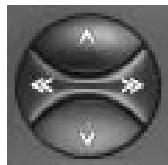
Le numéro du CD en cours de lecture apparaît à l'écran.
Sélection d'un titre
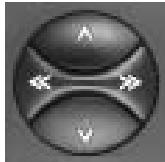

Haut : appuyez brièvement.
CUE - avance rapide (audible) :
Maintenez le bouton enfoncé.

Bas : appuyez brièvement deux fois ou plus.
Pour redémarrer un titre : appuyez brièvement.
REVUE - retour rapide (sonore) :
Maintenez le bouton enfoncé.
Appuyez plusieurs fois sur le bouton pour passer plusieurs titres.
Le numéro du titre sélectionné apparaît à côté de "T" (piste).
SCAN
Utilisez cette fonction pour parcourir toutes les pistes du CD.
Pour démarrer la fonction Scan :
Maintenez enfoncé SRC/SC jusqu'à ce que "SCAN" apparaisse.
Tous les titres du CD seront parcourus l'un après l'autre dans l'ordre croissant.
Pour arrêter la fonction Scan :
- Appuyez brièvement sur SRC/SC.
La piste en cours de lecture continuera à jouer.
La fonction SCAN sera également annulée en appuyant sur tout autre bouton, à l'exception des commandes de volume et des boutons AUD et ON.
RPT
Les titres du CD peuvent être lus en répétition.
Les options suivantes sont possibles :
- Répéter le titre en cours ("REPEAT-T") ou
- Répéter le CD, c'est-à-dire tous les titres du disque en cours ("REPEAT-D").
"RPT" apparaît dans le champ d'affichage 3 tant que RPT est actif.
"REPEAT-T" ou "REPEAT-D" s'allume brièvement dans le champ d'affichage 2 lorsque vous activez cette fonction et à chaque changement de titre.
Activer REPEAT-T :
Appuyez brièvement sur 4/RPT. Activer REPEAT-D : maintenez 4/RPT enfoncé jusqu'à ce qu'un bip soit émis.
MIX
Vous pouvez faire lire les titres du CD dans un ordre aléatoire.
Les options suivantes sont possibles :
- Mélanger tous les titres d'un CD ("MIX-CD") ou
- Mélanger tous les titres de tous les CD ("MIX-ALL").
"MIX" apparaît dans le champ d'affichage 3 tant que la fonction MIX est active.
"MIX-CD" ou "MIX-ALL" s'allume brièvement dans le champ d'affichage 2 lorsque vous activez cette fonction et à chaque changement de titre.
Activer MIX-CD :
Appuyez brièvement sur 5/MIX. Activez MIX-ALL : maintenez 5/MIX enfoncé jusqu'à ce qu'un bip soit émis.
Programmation DSC
L'autoradio a été équipé de la fonction DSC (Direct Software Control) pour vous permettre de personnaliser certains réglages de base programmables selon vos besoins et préférences, puis de les mémoriser.
Les réglages de base de cet équipement audio ont été effectués en usine.
Vous trouverez ci-dessous un aperçu de ces réglages, afin que vous puissiez toujours y revenir si vous le souhaitez.
Si vous souhaitez modifier la programmation,
- appuyez sur DSC.
« MENU / » s'affiche à l'écran.
Utilisez les boutons / de la bascule pour sélectionner la fonction à modifier. L'écran affiche le réglage sélectionné. Appuyez sur les boutons << >> de la bascule pour modifier les valeurs. Confirmez le réglage sélectionné en appuyant sur le bouton DSC.
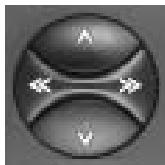
A/V
Sélectionner la fonction
<<>>
Ajuster/rappeler la valeur
LOUDNESS
La fonction Loudness amplifie les fréquences graves à faible volume. LOUD 1 - Amplification faible, LOUD 6 - Amplification maximale.
TA VOL
Le volume des annonces de trafic et des bips d'avertissement peut être réglé entre 0 et 66. Le message sera alors diffusé à ce volume, si le volume standard est plus bas. Si le volume standard est réglé plus haut que le niveau TA VOL, le bulletin de trafic sera diffusé au volume standard.
REG
Fonction régionale activée/désactivée.
SENS DX1
Pour régler la sensibilité de recherche.
"LO" signifie réception locale.
"DX" signifie réception lointaine.
Sélectionnez "LO 3" si vous souhaitez recevoir les stations fortes de la région, sélectionnez "DX 1" si vous voulez capter les stations plus faibles et plus éloignées.
CLOCK 24
Pour basculer entre l'affichage de l'horloge sur 12 h et 24 h.
CLOCKSET
Pour régler l'horloge manuellement. Appuyez sur << >> pour sélectionner les heures/minutes. Appuyez sur √ pour ajuster la valeur clignotante.
ON VOL
Pour régler le volume de mise sous tension. Appuyez sur << >> pour ajuster le volume de mise sous tension comme souhaité.
MUTE
Pour changer le volume du mode muet.
BIP X
Pour changer le volume du bip de confirmation entre 0 et 9. (0 = désactivé)
RM OFF
Radio Moniteur : si la fonction Radio Moniteur est active pendant l'avance rapide de la cassette, l'appareil passe en mode radio et diffuse la station précédemment reçue.
SCANTIME : utilisez cette fonction pour régler le temps de balayage de la radio ou du lecteur CD de 5 à 20 secondes.
AUX : sélectionnez AUX ON si vous souhaitez connecter un Discman ou un Walkman à la place du changeur de CD. Contactez votre revendeur pour plus d'informations.
AFFICHAGE ON/OFF : active ou désactive l'affichage lorsque la radio de la voiture est éteinte.
Aperçu des réglages d'usine du DSC
LOUDNESS 3
TA VOL 40
REG OFF
SENS DX1
TYPE D'HORLOGE CLOCK24
CLOCKSET
ON VOL 20
MUTE 10
BEEP 3
RM OFF
SCANTIME 10 sec.
AUX OFF
DIS OFF
Annexe
Spécifications
Amplificateur
Puissance de sortie : 4 × 23 W RMS
selon DIN 45324 à
14,4 V
4 × 35 W puissance max.
Tuner
Gammes d'ondes :
FM 87,5-108 MHz
PO 531-1602 kHz
GO 153-279 kHz
(Freiburg RCM 148, Kingston DJ sans
ML, GO).
Réponse en fréquence FM :
35 - 16000 Hz
Cassette
Réponse en fréquence :
35 - 16000 Hz
Lecteur CD
En option :
Freiburg RCM 148, Siena RCM 148
Louisiana RCM 148
Inclus :
Kingston DJ, St. Louis DJ
Réponse en fréquence : 20 - 20 000 Hz
Blaupunkt-Werke GmbH
Groupe Bosch
- FREIBURG RCM
- SIENA RCM
- LOUISIANA RCM
- KINGSTON DJ
- ST. LOUIS DJ
- AFFICHAGE
- CHAMP D'AFFICHAGE
- SOMMAIRE
- RÉFÉRENCE RAPIDE
- REMARQUES IMPORTANTES
- HORLOGE
- SÉLECTION DU MODE AUDIO
- FONCTIONNEMENT RADIO AVEC RDS
- RÉCEPTION DES STATIONS À MESSAGES DE TRAFIC AVEC RDS-EON
- FONCTIONNEMENT DU LECTEUR DE CASSETTES
- FONCTIONNEMENT DU CHANGEUR DE CD
- PROGRAMMATION DSC
- ANNEXE
- MODE RADIO
- SÉLECTIONNEZ LE CD
- SÉLECTIONNEZ LE TITRE
- FONCTION SUPPLÉMENTAIRE DU COMMUTATEUR À BASCULE
- SRC/SC
- APPUYEZ PLUS LONGTEMPS SUR SRC/SC
- BALAYAGE PTY
- MODE CHANGEUR
- ⑪ AF·TA
- PTY (TYPE DE PROGRAMME)
- BA/TS
- FONCTION SUPPLÉMENTAIRE : TRAVELSTORE
- BOUTONS DE PRÉRÉGLAGE 1 À
- CHANGER DE MODE
- II - PAUSE
- RPT
- MIX
- DIS - AFFICHAGE DE L'HORLOGE
- MODE CASSETTE
- DSC DIRECT SOFTWARE CONTROL
- ② AUD
- AIGUS
- BASSES
- DÉSACTIVATION DE L'AUD
- FONCTION SUPPLÉMENTAIRE : LD
- CE QU'IL FAUT SAVOIR
- SÉCURITÉ ROUTIÈRE
- INSTALLATION
- NOTE D'AVERTISSEMENT
- PRIORITÉ D'AFFICHAGE
- RÉGLAGE DE L'HORLOGE
- PANNEAU AMOVIBLE
- PROTECTION CONTRE LE VOL
- REMARQUE
- DÉTACHEMENT DE LA FAÇADE
- FIXATION DE LA FAÇADE
- FONCTIONNEMENT RADIO AVEC RDS (RADIO DATA SYSTEM)
- AF - FRÉQUENCE ALTERNATIVE
- REG - PROGRAMME RÉGIONAL
- SÉLECTION D'UNE BANDE DE FRÉQUENCES
- RÉGLAGE DES STATIONS
- RECHERCHE AUTOMATIQUE
- RÉGLAGE MANUEL AVEC
- FAIRE DÉFILER LES RÉSEAUX DE DIFFUSION (FM UNIQUEMENT)
- BASCULEMENT ENTRE LES BANQUES DE MÉMOIRE (FM)
- MÉMORISATION DES STATIONS
- MÉMORISATION AUTOMATIQUE DES STATIONS LES PLUS PUISSANTES AVEC TRAVELSTORE
- RAPPEL DES STATIONS MÉMORISÉES
- BALAYAGE DES STATIONS AVEC RADIO SCAN
- POUR SÉLECTIONNER UNE STATION TROUVÉE ET DÉSACTIVER LA FONCTION SCAN
- MODIFICATION DE LA DURÉE DE BALAYAGE
- SÉLECTION DE LA SENSIBILITÉ DE RECHERCHE AUTOMATIQUE
- PTY - TYPE DE PROGRAMME
- TYPES DE PROGRAMMES
- CULTURE
- SCIENCE
- VARIED
- POP MUSIC
- ROCK MUSIC
- CLASSICS
- ACTIVATION/DÉSACTIVATION DU PTY
- VÉRIFICATION DU TYPE DE PROGRAMME DE LA STATION
- AFFICHAGE DU TYPE DE PROGRAMME SÉLECTIONNÉ
- SÉLECTION D'UN TYPE DE PROGRAMME
- MÉMORISATION DES TYPES DE PROGRAMME
- BALAYAGE DES STATIONS AVEC PTY SCAN
- PRIORITÉ PTY
- RÉCEPTION DE STATIONS À PROGRAMME DE TRAFIC AVEC RDS-EON
- PRIORITÉ AUX ANNONCES DE TRAFIC ACTIVÉE/DÉSACTIVÉE
- BIP D'AVERTISSEMENT
- DÉSACTIVATION DU BIP D'AVERTISSEMENT
- DÉMARRAGE DE LA RECHERCHE AUTOMATIQUE (FONCTIONNEMENT AVEC CASSETTE ET CHANGEUR DE CD)
- RÉGLAGE DU VOLUME DES INFORMATIONS ROUTIÈRES ET DU SIGNAL SONORE D'AVERTISSEMENT
- LECTURE D'UNE CASSETTE
- ÉJECTION DE LA CASSETTE
- AVANCE ET RETOUR RAPIDES
- INVERSION DU SENS DE LECTURE
- INFORMATIONS ROUTIÈRES PENDANT LA LECTURE DE CASSETTE
- PASSAGE EN MODE CHANGEUR DE CD
- INSERTION D'UN CD
- ÉJECTION D'UN CD
- LECTURE DE CD
- SÉLECTION D'UN CD
- SÉLECTION D'UN TITRE
- SCAN
- POUR DÉMARRER LA FONCTION SCAN
- POUR ARRÊTER LA FONCTION SCAN
- LOUDNESS
- TA VOL
- REG
- SENS DX
- CLOCK
- CLOCKSET
- ON VOL
- MUTE
- BIP X
- RM OFF
- APERÇU DES RÉGLAGES D'USINE DU DSC
- SPÉCIFICATIONS
- AMPLIFICATEUR
- TUNER
- CASSETTE
- LECTEUR CD
Marque : BLAUPUNKT
Modèle : 5 TFT-BILDSCHIRM
Catégorie : Écran TFT