
DV-RW250S - Lecteur DVD SHARP - Notice d'utilisation et mode d'emploi gratuit
Retrouvez gratuitement la notice de l'appareil DV-RW250S SHARP au format PDF.
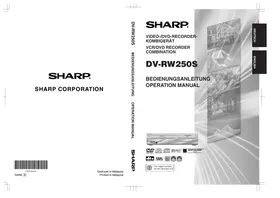


| Marque | SHARP |
| Modèle | DV-RW250S |
| Type de produit | Combinaison magnétoscope/graveur DVD |
| Dimensions (L × H × P) | 430 × 99 × 311,5 mm |
| Poids | 5,5 kg |
| Alimentation | 230 V CA, 50 Hz |
| Consommation électrique | Fonctionnement : 28 W ; Veille : 5,5 W |
| Système de signal | PAL (NTSC en lecture cassette avec PAL/60 Hz) |
| Têtes vidéo (magnétoscope) | 4 têtes rotatives |
| Formats d'enregistrement DVD | VR (DVD-Video Recording) et Video (DVD-VIDEO) |
| Disques d'enregistrement | DVD-RW, DVD-R |
| Durée d'enregistrement (disque 4,7 Go) | XP : ~60 min / SP : ~120 min / LP : ~240 min / SLP : ~360 min |
| Disques lisibles | DVD-Video, DVD-RW, DVD-R, CD audio, CD-R, CD-RW, Video CD, SVCD, MP3, WMA, JPEG |
| Zone DVD | 2 |
| Connectiques | SCART (AV1, AV2), audio analogique L/R, audio numérique coaxiale, RF, entrée AV avant (AV3) avec S-Vidéo |
| Fonctions principales | Enregistrement programmé (8 programmes), OTR (enregistrement minute), contrôle parental, finalisation, édition de titres, création de listes de lecture, dubbing cassette/DVD, lecture zoom, angles multiples, sous-titres, Spatializer N-2-2 (surround virtuel) |
| Entretien et nettoyage | Nettoyage manuel des têtes vidéo avec cassette nettoyante si image neigeuse ; nettoyage du disque avec chiffon doux du centre vers les bords |
| Sécurité | Protection contre la lecture de disques inappropriés (contrôle parental), protection de disque contre l'effacement (VR mode), arrêt automatique en cas de surcharge |
| Pièces détachées et réparabilité | Réparation uniquement par un technicien qualifié ; pas de pièces détachées fournies dans la notice |
| Informations générales | Appareil combiné VCR/DVD avec tuner TV intégré (80 canaux), compatible Hi-Fi stéréo NICAM |
FOIRE AUX QUESTIONS - DV-RW250S SHARP
Questions des utilisateurs sur DV-RW250S SHARP
0 question sur cet appareil. Repondez a celles que vous connaissez ou posez la votre.
Poser une nouvelle question sur cet appareil
Téléchargez la notice de votre Lecteur DVD au format PDF gratuitement ! Retrouvez votre notice DV-RW250S - SHARP et reprennez votre appareil électronique en main. Sur cette page sont publiés tous les documents nécessaires à l'utilisation de votre appareil DV-RW250S de la marque SHARP.
MODE D'EMPLOI DV-RW250S SHARP
SHARP®
MAGNÉTOSCOPE / LECTEUR ENREGISTREUR DVD COMBO
MAGNÉTOSCOPE / LECTEUR ENREGISTREUR DVD COMBO
DV-RW250S
MODE D'EMPLOI
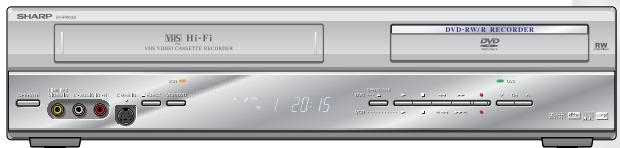
VIDEO/RW/R
VIDÉO NUMÉRIQUE
AUDIO NUMÉRIQUE
NUMÉRIQUE
SPATIALIZER® N-2-2TM
SORTIE NUMÉRIQUE
PAL


• Le numéro de zone pour cet enregistreur est 2
Cet appareil est conforme aux exigences des directives 89/336/CEE et 73/23/CEE modifiées par la directive 93/68/CEE.
MODE D'EMPLOI EN ANGLAIS
INFORMATIONS DE SÉCURITÉ
Remarque :
Ce magnétoscope/lecteur DVD ne peut être utilisé que là où l'alimentation électrique est de 230 V CA, 50 Hz. Il ne peut pas être utilisé ailleurs.
ATTENTION :
L'UTILISATION DE COMMANDES, DE RÉGLAGES OU L'EXÉCUTION DE PROCÉDURES AUTRES QUE CELLES SPÉCIFIÉES ICI PEUT ENTRAÎNER UNE EXPOSITION DANGEREUSE AUX RADIATIONS.
COMME LE FAISCEAU LASER UTILISÉ DANS CE MAGNÉTOSCOPE/LECTEUR DVD EST NOCIF POUR LES YEUX, N'ESSAYEZ PAS DE DÉMONTER LE BOÎTIER. CONFIEZ TOUTE RÉPARATION À UN PERSONNEL QUALIFIÉ UNIQUEMENT.
AVERTISSEMENT :
POUR RÉDUIRE LE RISQUE D'INCENDIE OU DE CHOC ÉLECTRIQUE, N'EXPOSEZ PAS CET ÉQUIPEMENT À LA PLUIE OU À L'HUMIDITÉ.
POUR RÉDUIRE LE RISQUE D'INCENDIE OU DE CHOC ÉLECTRIQUE ET LES INTERFÉRENCES GÊNANTES, UTILISEZ UNIQUEMENT LES ACCESSOIRES RECOMMANDÉS.
Propriétés de la diode laser
Matériau : DVD : GaAs
CD : GaAs
Longueur d'onde : DVD : 660 nm
CD : 780 nm
Durée d'émission : DVD : impulsion
CD : continu
Sortie laser : max. DVD : 120 mW
CD : 8,5 mW
Protection du cordon d'alimentation
Pour éviter tout dysfonctionnement du magnétoscope/lecteur DVD, et pour vous protéger contre les chocs électriques, les incendies ou les blessures, veuillez respecter les consignes suivantes.
- Tenez fermement la fiche lors du branchement ou du débranchement du cordon d'alimentation secteur.
- Éloignez le cordon d'alimentation secteur des appareils de chauffage.
- Ne posez jamais d'objet lourd sur le cordon d'alimentation secteur.
- N'essayez pas de réparer ou de reconstruire le cordon d'alimentation secteur de quelque manière que ce soit.
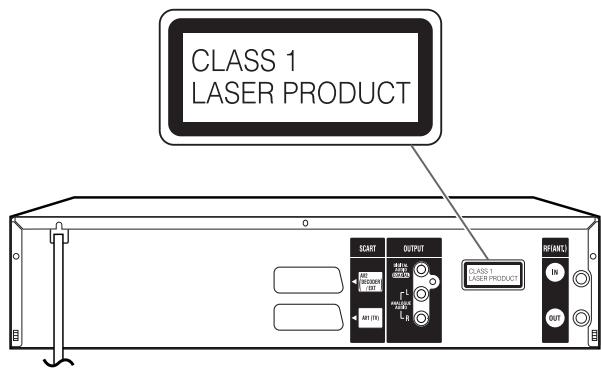
- Cet appareil est classé comme produit LASER de CLASSE 1.
- L'étiquette PRODUIT LASER DE CLASSE 1 se trouve sur le capot arrière.
- Ce produit contient un dispositif laser de faible puissance. Pour garantir une sécurité continue, ne retirez aucun capot et ne tentez pas d'accéder à l'intérieur du produit.
Confiez toute réparation à un personnel qualifié.
Avant d'utiliser votre appareil
INFORMATIONS DE SÉCURITÉ ....1
Précautions 4
Accessoires 5
Caractéristiques 6
Disque 7
Manipulation des disques 7
Disques pouvant être lus 7
Disques sur lesquels une vidéo peut être enregistrée 8
Format d'enregistrement 8
Lecture de disques sur d'autres lecteurs 9
Pièces et fonctions ...... 10
Face avant 10
Face arrière 10
Fenêtre d'affichage 11
Télécommande 12
Connexions de base 14
Connexion de lecture 15
Réglages divers
MENU DE CONFIGURATION....17
Utilisation du MENU DE CONFIGURATION 17
Réglage de la langue 18
LANGUE OSD 18
MENU DVD 18
AUDIO 18
SOUS-TITRES....18
Réglage du contrôle parental 19
Sélection du contrôle parental 19
Annulation temporaire du contrôle parental 19
Réglage de l'horloge 20
Réglage du disque 20
REFORMATAGE 20
NOUVEAU FORMAT DE DISQUE 21
FINALISATION 21
PROTECTION DU DISQUE 21
ANNULATION DE LA FINALISATION 21
Autres (RÉGLAGE SYSTÈME) 22
GRADATEUR (Luminosité de la fenêtre d'affichage) .....22
AFFICHAGE/APPEL (Activation ou désactivation de l'affichage à l'écran) 22
Réglage de l'écran 22
ÉCRAN TV 22
MODE IMAGE FIXE 23
FOND SANS BRUIT 23
LUMINOSITÉ 23
SORTIE DVD 23
AV2 23
ENTRÉE AV3 23
Réglage de l'audio 24
DRC 24
SON SURROUND VIRTUEL (Spatializer N-2-2TM) ...... 24
ENTRÉE AUDIO EXTERNE 24
NICAM 24
SORTIE DOLBY DIGITAL 24
Réglage de l'enregistrement 24
ENREGISTREMENT INITIAL VERS 24
MODE D'ENREGISTREMENT INITIAL 24
CHAPITRE AUTOMATIQUE 25
IMAGE D'INDEX 25
ENREGISTREMENT BILINGUE 25
Réglage de l'INTERVALLE JPEG 25
INTERVALLE JPEG 25
Réglage de la chaîne 26
Préréglage automatique des stations 26
Pour sauter une position de chaîne 26
DÉCODEUR MARCHE/ARRÊT 26
Remplacer les positions des chaînes TV 27
Préréglage manuel des stations TV 27
Lecture de disque
Procédure de lecture 28
Lecture en sélectionnant un titre 29
Vérification des informations du support 30
Lecture spéciale 31
Lecture en avance rapide 31
Lecture de revue 31
Lecture sur image fixe 31
Avance image par image 31
Lecture au ralenti 31
Localisation d'un chapitre ou d'une plage 31
Saut de publicité 32
Localisation d'une scène spécifique 32
Lecture répétée 33
Répétition en une touche 33
Lecture répétée A-B 33
Lecture répétée de titre, de chapitre 33
Sélection de titre 34
Menu DVD 34
Changement d'angle 35
Zoom 35
Changement de langue de la piste audio 36
Sous-titres 36
Opérations diverses sur CD 37
Lecture MP3/WMA/JPEG 39
Lecture de la cassette
Chargement et déchargement d'une cassette 42
Lecture de la cassette 43
Lecture spéciale 44
Recherche d'image 44
Image fixe 44
Ralenti 44
Image par image 44
Réglage de la condition de suivi 44
Lecture répétée 44
Saut de publicité 44
Affichage de l'état de fonctionnement du magnétoscope 44
Fonction RETOUR ZÉRO 45
Système de recherche d'index vidéo 45
Enregistrement
Lisez ceci avant d'enregistrer sur un disque 46
Types de disques 46
Modes d'enregistrement 46
Temps restant sur le disque 47
Images qui ne peuvent pas être enregistrées 47
Enregistrement d'un programme TV 48
Enregistrement minuté à une touche (OTR) 50
Enregistrement programmé 51
Enregistrement et lecture stéréo 54
Édition du disque
Édition du disque 55
Édition d'une liste de lecture 56
Création d'une liste de lecture 56
Changement du nom d'un titre 57
Suppression d'une scène (Modifier le titre) 58
Combiner les titres 60
Effacer une liste de lecture....61
Modifier un titre original 62
Ajouter un marqueur de chapitre 62
Combiner des chapitres 63
Changer le nom d'un titre original 64
Effacer une scène (Modifier le titre) 65
Effacer un titre original 66
Changer le nom du disque 67
Changer le nom du disque 67
Utiliser le clavier à l'écran 68
Doublage
Doubler une cassette sur un disque 70
Doubler un disque sur une cassette 71
Doubler avec d'autres équipements 72
Informations complémentaires
Glossaire 74
Liste des codes de langue 76
Liste des messages d'erreur/avertissement 77
Problèmes et dépannage 78
Nettoyage des têtes vidéo 79
Spécifications 80
Marquage des supports
Chaque support applicable est indiqué à l'aide du symbole illustré ci-dessous.
| DVD-VIDEO : DVD-Video | DVD-R : DVD-R |
| DVD-RW VR : DVD-RW in VR mode | CD : Audio/Video CD and CD-R/CD-RW |
| DVD-RW Video : DVD-RW in Video mode | VCR : Video tape |
Avertissement important
Veuillez lire attentivement cette page avant d'utiliser votre magnétoscope/lecteur DVD.
Suivez les instructions – Toutes les instructions d'utilisation et de maintenance doivent être suivies et les avertissements respectés.
Nettoyage – Débranchez ce produit de la prise murale avant de le nettoyer. N'utilisez pas de nettoyants liquides ou en aérosol.
Accessoires – N'utilisez pas d'accessoires non recommandés dans ce manuel d'utilisation car ils peuvent présenter un danger.
Eau et humidité – Risque de choc électrique – N'utilisez pas ce produit à proximité de l'eau ou dans des conditions de pluie ou d'humidité.
Placement ou déplacement – Ne placez pas l'appareil sur un chariot, un support, un trépied, une console ou une table instable. L'appareil pourrait tomber et causer des blessures graves à un enfant ou à un adulte, ainsi que des dommages sérieux à l'appareil. Déplacez avec précaution tout ensemble appareil-chariot. Les arrêts brusques, les forces excessives et les surfaces inégales peuvent provoquer le renversement de l'ensemble.
Protection du cordon d'alimentation – Acheminez les cordons d'alimentation de manière à ce qu'ils ne risquent pas d'être piétinés ou pincés par des objets placés dessus ou contre eux. Portez une attention particulière aux fiches et aux points de sortie des cordons de l'appareil.
Foudre – Pour une protection supplémentaire de cet appareil pendant un orage, ou lorsqu'il est laissé sans surveillance et inutilisé pendant de longues périodes, débranchez-le de la prise murale. Cela évitera d'endommager l'appareil en cas de foudre ou de surtension du secteur.
Surcharge – Ne surchargez pas les prises murales et les rallonges, car cela peut entraîner un risque d'incendie ou de choc électrique.
Objets et liquides – Ne laissez jamais des objets ou des liquides pénétrer dans l'appareil par les ouvertures, car ils pourraient entrer en contact avec des tensions dangereuses ou d'autres dangers. Ne placez pas d'objets tels que des vases ou des bougies allumées sur l'appareil.
Entretien – Ne tentez pas de réparer vous-même cet appareil, car l'ouverture ou le retrait des capots peut vous exposer à des tensions dangereuses ou à d'autres dangers. Confiez toute réparation à un personnel qualifié.
Dommages nécessitant une réparation – Débranchez cet appareil de la prise murale et de toutes les sources d'alimentation, y compris les piles, et confiez la réparation à un personnel qualifié dans les conditions suivantes :
a) Lorsque le cordon d'alimentation ou la fiche est endommagé. b) Si du liquide a été renversé sur l'appareil ou si des objets sont tombés à l'intérieur. c) Si l'appareil a été exposé à la pluie ou à l'eau. d) Si l'appareil ne fonctionne pas normalement même en suivant le manuel d'utilisation. Ne réglez que les commandes couvertes par le manuel d'utilisation. Un réglage incorrect d'autres commandes peut entraîner des dommages et nécessiter souvent un travail important de la part d'un technicien qualifié pour remettre l'appareil en état de fonctionnement normal. e) Si l'appareil est tombé ou si le boîtier a été endommagé. f) Lorsque l'appareil présente un changement net de performance. Cela indique un besoin de réparation.
Pièces de rechange – Lorsque des pièces de rechange sont nécessaires, assurez-vous que le technicien a utilisé des pièces spécifiées ou ayant les mêmes caractéristiques que la pièce d'origine. Des substitutions non autorisées peuvent entraîner un incendie, un choc électrique ou d'autres dangers.
Vérification de sécurité – Après toute réparation ou entretien de cet appareil, demandez au technicien d'effectuer des vérifications de sécurité pour s'assurer que l'appareil est en état de fonctionnement sûr.
CONDENSATION D'HUMIDITÉ - NE PAS UTILISER CE MAGNÉTOSCOPE/LECTEUR DVD PENDANT AU MOINS DEUX OU TROIS HEURES LORSQUE L'HUMIDITÉ DE L'AIR SE CONDENSE SUR L'APPAREIL.
QU'EST-CE QUE LA CONDENSATION D'HUMIDITÉ ?
Lorsqu'un liquide froid est versé dans un verre, par exemple, la vapeur d'eau contenue dans l'air se condense à la surface du verre. C'est ce qu'on appelle la condensation d'humidité.
L'HUMIDITÉ SE CONDENSERA SUR L'APPAREIL DANS LES CAS SUIVANTS ;
- Lorsque vous déplacez ce magnétoscope/lecteur DVD d'un endroit froid vers un endroit chaud. • Après avoir chauffé une pièce froide ou dans des conditions extrêmement humides.
LORSQUE VOUS RENCONTREZ LES CONDITIONS CI-DESSUS ;
Branchez le cordon d'alimentation sur la prise murale, allumez l'appareil et laissez-le à température ambiante jusqu'à ce que la condensation d'humidité disparaisse. Selon les conditions ambiantes, cela peut prendre de deux à trois heures.
Copyright
* Les documents audiovisuels peuvent contenir des œuvres protégées par le droit d'auteur qui ne doivent pas être enregistrées sans l'autorisation du titulaire du droit d'auteur. Veuillez vous référer aux lois en vigueur dans votre pays. * Ce produit intègre une technologie de protection des droits d'auteur protégée par des revendications de procédé de certains brevets américains et d'autres droits de propriété intellectuelle appartenant à Macrovision Corporation et à d'autres titulaires de droits. L'utilisation de cette technologie de protection des droits d'auteur doit être autorisée par Macrovision Corporation et est destinée à un usage domestique et à d'autres utilisations de visualisation limitées uniquement, sauf autorisation contraire de Macrovision Corporation. Le reverse engineering ou le démontage est interdit.
Revendications d'appareil des brevets américains n° 4 631 603, 4 577 216, 4 819 098 et 4 907 093 concédés sous licence pour des utilisations de visualisation limitées uniquement.
* Fabriqué sous licence de Dolby Laboratories. « Dolby » et le symbole double-D sont des marques de commerce de Dolby Laboratories. * « DTS » et « DTS Digital Out » sont des marques de commerce de Digital Theater Systems, Inc. * L'enregistrement non autorisé d'émissions de télévision, de films, de cassettes vidéo et d'autres matériels protégés par le droit d'auteur peut porter atteinte aux droits des titulaires du droit d'auteur et être contraire aux lois sur le droit d'auteur. * Certaines fonctions audio de ce produit sont fabriquées sous licence de Desper Products, Inc. Spatializer®, N-2-2™ et le dispositif cercle-dans-carré sont des marques de commerce de Desper Products, Inc.
Accessoires
Télécommande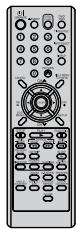

Deux piles de taille R-03 (format « AAA », UM/SUM-4, HP-16 ou similaire) pour la télécommande
Câble péritel à 21 broches
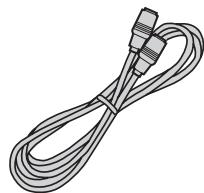
Câble coaxial de 75 ohms
Non seulement vous pouvez lire et enregistrer des cassettes vidéo, mais vous pouvez également lire des disques DVD ou effectuer des enregistrements sur des disques DVD-RW/DVD-R avec cet appareil. De plus, vous pouvez éditer les programmes que vous avez enregistrés.
Fonction de lecture
Un son réaliste et puissant, digne d'une salle de cinéma

Lorsqu'il est connecté à des appareils compatibles Dolby Digital et DTS, vous pouvez profiter d'un son surround réaliste et puissant.
Lisez immédiatement la scène que vous souhaitez voir

Comme les DVD ne nécessitent pas de rembobinage comme les cassettes vidéo, vous pouvez accéder immédiatement à la scène que vous souhaitez regarder. Une variété de fonctions de recherche vous permet de trouver la scène que vous souhaitez regarder.
Menu des titres

Comme des images miniatures sont affichées dans le menu des titres, vous pouvez trouver rapidement le titre que vous souhaitez lire.
- La liste des titres apparaît sur les disques DVD-RW finalisés (enregistrés en mode Vidéo) et les disques DVD-R.
Lecture de Video CD/SVCD et MP3/WMA/JPEG

Les fichiers Video CD/SVCD/MP3/WMA peuvent être lus. Vous pouvez également afficher des fichiers JPEG sur l'écran du téléviseur et les apprécier sous forme de diaporama.
Fonction d'enregistrement
Enregistrement programmé

Le système d'enregistrement programmé vous permet de sélectionner la date, l'heure et la chaîne et d'enregistrer les programmes souhaités. Jusqu'à 8 programmes programmés sur un mois peuvent être stockés dans cet appareil.
Enregistrement programmé en une touche (OTR)

La fonction d'enregistrement programmé en une touche offre un moyen simple et pratique d'effectuer un enregistrement programmé.
Fonction d'édition
Modification d'un enregistrement sans changer les titres d'origine

Vous pouvez créer une liste de lecture basée sur les titres d'origine. La liste de lecture n'affectera pas les titres d'origine. Si vous effacez la liste de lecture, les titres d'origine restent. Il est recommandé de créer et de modifier la liste de lecture pour éviter que des titres importants soient effacés accidentellement.
Marque de chapitre

Vous pouvez ajouter (ou supprimer) une marque de chapitre sur (ou d') un titre d'origine. Cette fonction est utile pour rechercher la scène que vous souhaitez regarder et que vous avez marquée avec la fonction Marque de chapitre.
Effacement de scènes

Vous pouvez effacer une scène inutile de la liste de lecture créée ou des titres d'origine.
Combinaison de titres

Vous pouvez combiner plusieurs titres d'origine ou listes de lecture en une liste de lecture distincte.
Fonction de doublage
Doubler une cassette sur un disque ou un disque sur une cassette

Avec cette seule unité, vous pouvez doubler comme vous le souhaitez, de la cassette vidéo au disque, ou du disque à la cassette vidéo.
- Le doublage ne peut pas être effectué lors de la tentative de copie d'une cassette vidéo ou d'un disque protégé contre la copie.
Manipulation des disques
Retrait du disque de son boîtier
Tenez le disque par ses bords. Ne touchez pas la surface du disque.
Sortez le disque de son boîtier avec précaution.
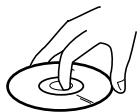
- Ne rayez pas le disque.
- Ne laissez pas de saleté sur la surface du disque.
- Ne collez pas d'étiquettes ou de rubans adhésifs sur le disque.
- Ne faites pas tomber le disque et ne le pliez pas.
Stockage des disques
- Rangez le disque dans son boîtier pour éviter tout risque de rayures, de saleté ou de dommages.
- N'exposez pas le disque à la lumière directe du soleil ni à des endroits chauds ou humides.
Nettoyage des disques
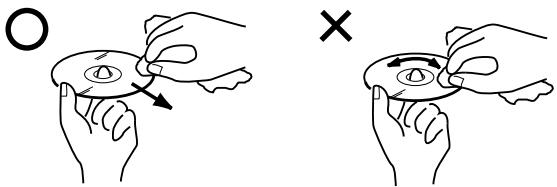
Essuyez le disque avec un chiffon propre et sec, du centre vers les bords.
- N'essuyez pas le disque en effectuant un mouvement circulaire autour du centre.
- N'utilisez pas de nettoyants liquides ou en aérosol.
Disques pouvant être lus
Sur cet appareil, utilisez uniquement des disques conformes à la norme, tels que ceux portant les logos ci-dessous sur l'étiquette du disque. Si vous utilisez un disque non standard, nous ne pouvons pas garantir la lecture. Même si un tel disque peut être lu, nous ne pouvons pas garantir la qualité de l'image ou du son. Le logo DVD est une marque déposée.
| Media type | Logo mark |
| DVD-Video |  |
| DVD-RW Ver.1.0 Ver.1.1Ver.1.1CPRM supportVer.1.2CPRM support |  |
| DVD-R Ver.2.0 |  |
| Video CD/SVCD |  |
| Audio CD* |  |
| CD-R/CD-RW |  |
Cet appareil est conçu pour lire les disques compacts (CD) conformes à la norme CD. Les CD contenant des signaux de protection contre la copie pour protéger les droits d'auteur ne peuvent pas être lus.
Informations de gestion de zone
Cet appareil est conçu et fabriqué pour prendre en charge les informations de gestion de zone enregistrées sur un disque DVD. Si le numéro de zone inscrit sur le disque DVD ne correspond pas au numéro de zone de cet appareil, celui-ci ne peut pas lire ce disque.
- Le numéro de zone de cet appareil est « 2 ».
- L'appareil lira les DVD-Vidéo portant des étiquettes contenant « 2 » ou « ALL ».
Exemple :

Lecture de DVD-Vidéo
- Certaines opérations de lecture de DVD-Vidéo peuvent être interdites par le fabricant, ou certaines méthodes de fonctionnement ou fonctions du DVD-Vidéo peuvent différer de la description de ce manuel.
- Si vous tentez une opération interdite par le disque ou l'appareil, un symbole « 💡 » apparaîtra sur l'écran du téléviseur. Pour les opérations interdites par le disque, consultez les informations fournies avec le disque.
- Lorsque le menu à l'écran ou le guide d'utilisation apparaît pendant la lecture du disque, suivez les informations affichées.
Disques qui ne peuvent pas être lus
Les disques énumérés ci-dessous ne peuvent généralement pas être lus. Même si l'un d'entre eux peut être lu, il se peut qu'il ne soit pas lu correctement. Si un disque est lu par erreur, des sons extrêmement forts peuvent endommager les enceintes ou l'audition des personnes à proximité. Ne lisez pas les disques énumérés ci-dessous.
CDG, Photo-CD, CD-ROM, CD-TEXT, CD-EXTRA, SACD, PD, DVD-ROM, DVD-RAM, DVD+R/RW, DVD audio, etc.
Les DVD-Vidéo suivants peuvent ne pas être lus sur cet appareil :
- DVD-Vidéo qui n'ont pas le numéro de zone « 2 » ou « ALL ».
- SECAM DVD-Vidéo. • DVD-Vidéo à usage professionnel ou interdit.
Les CD-R/CD-RW ne peuvent pas être lus pour les raisons suivantes.
- Compatibilité du disque et de cet appareil.
- Compatibilité du disque et de l'enregistreur utilisé.
- Disques non finalisés.
Ne lisez pas les disques suivants. La lecture de ces disques peut provoquer une panne.
• Disques sur lesquels du papier, des étiquettes ou des autocollants sont apposés. • Disques présentant des zones collantes laissées par du ruban adhésif. - Disques de forme spéciale.
Disques sur lesquels la vidéo peut être enregistrée
Pour enregistrer une vidéo avec cet appareil, utilisez les disques ci-dessous :
| Media type | Logo mark |
| DVD-RW Ver.1.0 Ver.1.1Ver.1.1CPRM supportVer.1.2CPRM support |  |
| DVD-R Ver.2.0 |  |
DVD-RW
- Le disque peut être effacé et réutilisé environ 1 000 fois.
- Seul le mode VR peut être utilisé pour les disques Ver.1.0.
- Avec les disques Ver.1.1 et ultérieurs, vous pouvez enregistrer en sélectionnant le mode VR ou le mode Vidéo.
- Lorsque vous enregistrez en mode VR, vous pouvez enregistrer et effacer à plusieurs reprises. En effaçant les titres inutiles, vous augmentez efficacement le temps restant.
- Lorsque vous enregistrez en mode Vidéo, vous pouvez enregistrer jusqu'à ce que le disque soit plein.
- Lorsque vous utilisez le mode Vidéo, vous pouvez enregistrer de nouveau sur le disque en le formatant. Cependant, si le disque est formaté, tout le contenu enregistré sera effacé.
DVD-R
- Vous ne pouvez enregistrer sur le disque qu'en mode Vidéo.
- Vous pouvez enregistrer jusqu'à ce que le disque soit plein.
- La finalisation des disques permet la lecture sur d'autres lecteurs DVD. Cependant, les disques finalisés ne peuvent plus être enregistrés.
- Les disques peuvent être enregistrés à plusieurs reprises jusqu'à leur finalisation.
REMARQUES :
- Certains lecteurs ne peuvent pas lire les disques enregistrés avec cet appareil. Nous ne pouvons pas garantir la lecture avec d'autres appareils.
- Cet appareil ne peut pas enregistrer sur des disques DVD-R et DVD-RW de 8 cm de diamètre.
- Cet appareil ne peut pas enregistrer sur des CD-R ou CD-RW.
Format d'enregistrement
Cet appareil dispose de deux modes pour formater les disques pour l'enregistrement : le mode VR et le mode Vidéo.
Lorsqu'un disque vierge est inséré dans cet appareil, la fonction de formatage automatique démarre le formatage du disque. (Pour le réglage du format du disque à cette étape, voir page 21.)
Mode VR
• Ce mode peut être utilisé pour les DVD-RW. - Dans ce mode, les disques peuvent être enregistrés et édités à plusieurs reprises. - Le disque enregistré dans ce mode peut être lu avec d'autres lecteurs compatibles DVD-RW. - Lorsqu'un disque CPRM Ver.1.1 ou ultérieur est utilisé, vous pouvez enregistrer un programme "Copie unique" (voir page 47).
Mode vidéo
- Ce mode peut être utilisé pour les DVD-R et DVD-RW (Ver.1.1 et ultérieur).
- Lorsque vous finalisez le disque après l'enregistrement, le disque enregistré avec cet appareil peut être lu sur d'autres lecteurs DVD.
- L'enregistrement, le montage ou la lecture d'un disque non finalisé ne peut être effectué qu'avec cet appareil. Cependant, certaines opérations de montage sont limitées.
- Dans ce mode, vous ne pouvez pas enregistrer un programme « Copy Once » (voir page 47).
- Lorsque vous enregistrez une émission de télévision en diffusion bilingue, un seul des modes audio peut être enregistré. Vous devez le sélectionner.
Modes de format utilisables avec chaque disque
Le format utilisable dépend du type de support, comme indiqué dans le tableau ci-dessous.
| Media type | Format | Available functions |
| DVD-RW(Ver.1.0) | VR mode | Playback, recording and editing (Original/playlist) |
| DVD-RW(Ver.1.1 and later) | VR mode | Playback, recording and editing (Original/playlist) |
| Video mode | Playback and recording Editing (with limitation) | |
| DVD-R(Ver.2.0 and later) | Video mode | Playback and recording Editing (with limitation) |
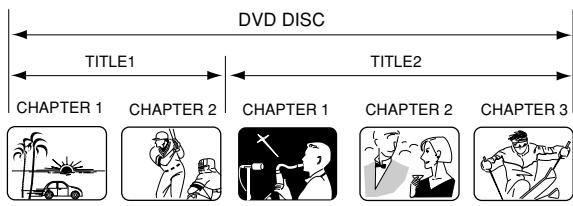
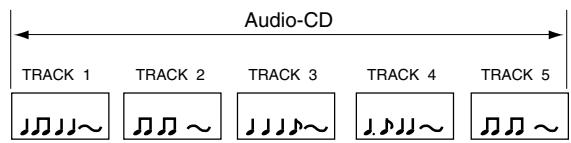
Titre/Chapitre/Piste
Un DVD-Vidéo comporte de grandes partitions appelées « Titres », et des partitions plus petites à l'intérieur appelées « Chapitres ».
Un CD audio comporte d'autres partitions appelées « Pistes ». Un numéro est attribué à chaque partition, et ces numéros sont appelés « numéros de titre », « numéros de chapitre » ou « numéros de piste ».
Lors de l'enregistrement en mode VR
Un enregistrement unique correspond à 1 titre (1 chapitre). Cependant, si vous arrêtez temporairement l'enregistrement ou supprimez des scènes par montage, le chapitre sera automatiquement partitionné. L'intervalle entre les chapitres peut être spécifié. (Voir page 25.)
Lors de l'enregistrement en mode Vidéo
Un enregistrement unique correspond à 1 titre. Lors de l'enregistrement, les chapitres sont définis automatiquement. L'intervalle entre les chapitres peut être spécifié. (Voir page 25.)
NOTES :
- Le titre, le chapitre et la piste sont numérotés, mais certains disques peuvent ne pas enregistrer les numéros.
- L'enregistrement sur DVD-R/RW en mode Vidéo est une nouvelle norme approuvée lors du forum DVD de 2000. La conformité à cette norme varie selon les fabricants de lecteurs DVD. Par conséquent, certains modèles de lecteurs DVD ou de lecteurs de DVD-ROM ne pourront pas lire les vidéos enregistrées.
Lecture du disque sur d'autres lecteurs
Un disque enregistré sur cet appareil peut être finalisé. Le disque peut ensuite être lu sur d'autres lecteurs compatibles DVD-RW et DVD-R.
Pour plus d'informations sur la finalisation, voir « FINALISER » dans « Réglage du disque » (page 21).
Lors de l'enregistrement en mode VR
Même si un disque enregistré en mode VR est finalisé, vous pouvez enregistrer ou éditer en annulant la finalisation. (Voir « ANNULER LA FINALISATION » à la page 21.)
Lorsque vous lisez le disque avec un autre lecteur, assurez-vous que le lecteur DVD prend en charge les DVD-RW et porte la marque suivante.

Lors de l'enregistrement en mode Vidéo
Lorsqu'un disque enregistré en mode Vidéo est finalisé, il ne peut plus être enregistré. Par conséquent, avant la finalisation, assurez-vous d'effectuer tous les enregistrements souhaités. Après la finalisation, une liste de titres utilisable par le lecteur DVD est automatiquement créée.
NOTES :
- Le processus de finalisation peut prendre de quelques minutes à 1 heure selon le type de disque et la quantité d'espace libre sur le disque.
- Un DVD-RW Ver.1.1 enregistré en mode Vidéo ne peut pas être enregistré ou édité après finalisation, mais si vous formatez le disque en effaçant tout le contenu, vous pouvez à nouveau enregistrer sur ce disque.
- Un disque finalisé peut ne pas être lu en raison de l'état du DVD ou de la compatibilité avec le lecteur utilisé pour la lecture.
- Certains lecteurs peuvent ne pas lire les disques enregistrés avec cet appareil. Nous ne pouvons pas garantir la lecture avec d'autres lecteurs.
Avant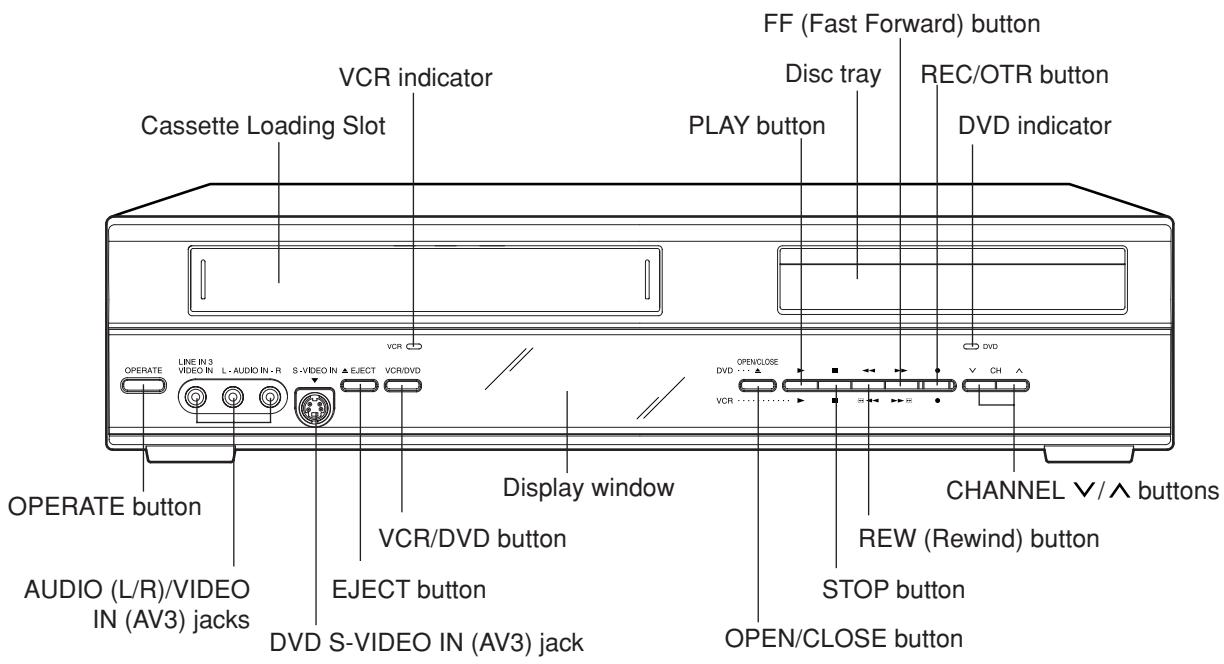
Arrière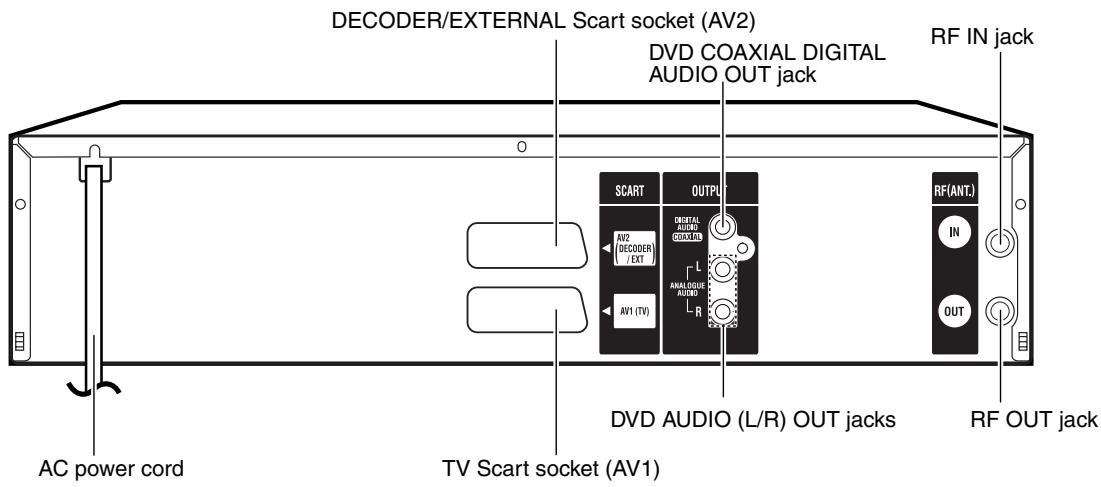
Fenêtre d'affichage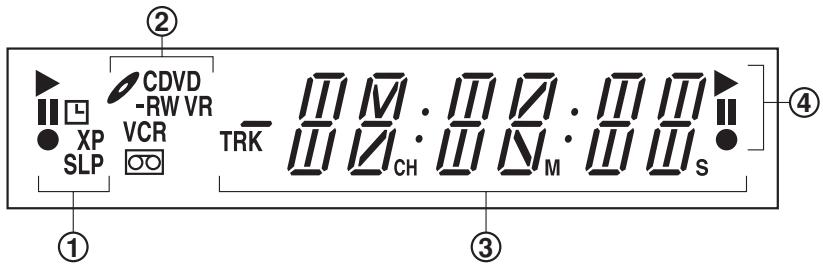
| No. | Display | Description |
| 1 | ▶ | Lights during video tape playback. |
| || | Video tape is temporarily stopped. | |
| ● | Lights during video tape recording. | |
| L | Timer recording display. | |
| XP/SP/LP/SLP | 4 DVD recording modes. XP, SP, LP or SLP can be selected in turn by pressing the REC MODE/SPEED repeatedly. | |
| SP/LP | 2 VCR recording modes. SP or LP can be selected in turn by pressing the REC MODE/SPEED repeatedly. | |
| 2 | CD | Appears when a CD is inserted. |
| CD-R | Appears when a CD-R is inserted. | |
| CD-RW | Appears when a CD-RW is inserted. | |
| DVD | Appears when a DVD-Video is inserted. | |
| DVD-R | Appears when a DVD-R is inserted. | |
| DVD-RW | Appears when a DVD-RW is inserted. | |
| VR | Appears when a DVD-RW in VR mode is inserted. When the disc is set to video mode, VR does not appear. | |
| VCR | Appears when the tuner built into this unit is selected. When you press TV/VCR, VCR disappears. | |
| ○○ | Video tape is in the unit. | |
| 3 | 10:00 | Clock display (Colon [ : ] flashes). |
| 01H00M00S | Counter display in hour/minute/second for VCR/DVD, minute/second for CD. | |
| 2CH | TV channel display. | |
| TRK 002 | Track number display for CD. | |
| A1/A2/A3 | The external input channel (A1, A2, or A3) display. | |
| 4 | ▶ | Lights during playback of DVD and CD. Flashes in auto resume. |
| || | DVD or CD is temporarily stopped. | |
| ● | Lights during DVD recording. |
REMARQUE :
Certains disques peuvent ne pas être lus correctement, ou le numéro de chapitre, le temps de lecture, etc. peuvent ne pas être affichés.
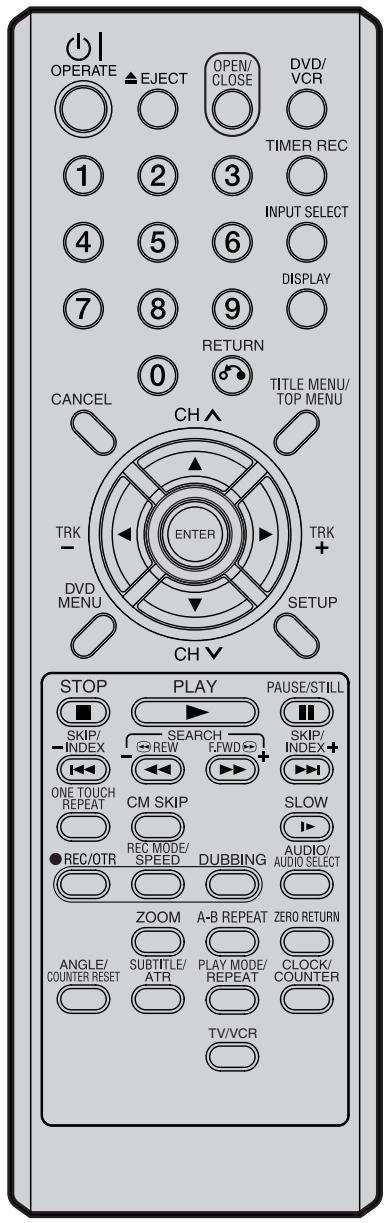
| Page | ||
| OPERATE | Turns power on/off. | 17 |
| EJECT | Ejects the cassette tapes. | 42 |
| OPEN/CLOSE | Opens or Closes the tray. | 28 |
| DVD/VCR | Switches to operation between VCR and DVD. 28, 43, 70, 71 | |
| 0-9 | Direct channel selection of TV. | 48, 50 |
| Setting input. | 18, 32, 68 | |
| Entering a password. | 19 | |
| TIMER REC | Sets the unit to start recording at a preset time. | 53 |
| INPUT SELECT | Scart input or AV-Front input. | 72, 73 |
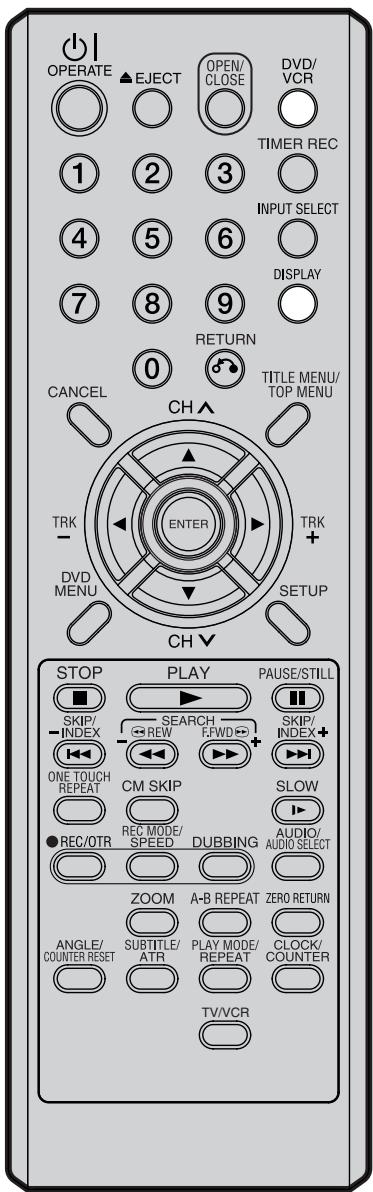
| DISPLAY | Displays VCR or DVD operation status. | 30, 44, 57 |
| RETURN | Close the menu window. | 17, 40 |
| CANCEL | Deletes the Timer recording program. | 53 |
| Cancels input data in the setting mode. | 18, 69 | |
| TITLE MENU/TOP MENU | Displays titles of a DVD disc. | 29, 34, 37, 56 |
| CH ∧ / √ | Channel selection for VCR. | 48, 50 |
| ▲ / ▼ | Cursor buttons. | |
| TRK (TRACKING) +/- | Manual tracking in the playback mode for VCR. | 44 |
| ◀ / ▶ | Cursor buttons. | |
| ENTER | Option selection in the menu. | |
| DVD MENU | Displays the menu of the DVD disc. | 29, 34 |
| SETUP | Displays the setup menu. | 17, 51 |
| STOP | Stop. | 28, 43, 49 |
| PLAY | Playback. | 28, 43 |
| PAUSE/STILL | Still picture/Recording pause on/off. | 31, 44, 49 |
| SKIP ◀/ ➞ | Skips chapters in the forward or reverse direction. | 31, 41, 64 |
| INDEX - ◀/+ ➞ | Searches for the INDEX mark of a tape. | 45 |
| REW/SEARCH - | Rewind/Review playback. | 31, 43, 44 |
| F.FWD/SEARCH + | Fast Forward/Forward search playback. | 31, 43, 44 |
| ONE TOUCH REPEAT | Skips the DVD playback back 10 seconds. | 33 |
| CM SKIP | Skips commercial breaks. | 32, 44 |
| SLOW | Slow motion playback. | 31, 44 |
| ● REC/OTR | Recording/OTR. | 48, 50, 72 |
| REC MODE/SPEED | Selects the recording mode. | 48, 50, 70 |
| DUBBING | Copies VCR to DVD or DVD to VCR. | 70, 71 |
| AUDIO | Changes the soundtrack language of the DVD. | 36 |
| AUDIO SELECT | Switches sound between mono and stereo. | 54 |
| ZOOM | Zoom (for DVD/VIDEO CD). | 35, 41 |
| A-B REPEAT | Repeats playback between A and B. (DVD/CD) | 33 |
| ZERO RETURN | Stops the tape when the counter reaches 00H00M00s . | 45 |
| ANGLE | Changes playback angle of a DVD disc. | 35, 41 |
| COUNTER RESET | Resets the counter to 00H00M00s . | 45 |
| SUBTITLE | Selects subtitles of the DVD disc. | 36 |
| ATR | Digital AUTO TRACKING. | 44 |
| PLAY MODE | Displays the playback mode. | 32 |
| REPEAT | Repeats playback. | 33, 44 |
| CLOCK/COUNTER | Changes the front panel display mode. | 45 |
| TV/VCR | Select to operate TV/VCR | 49 |
Comment installer les piles
Utilisez des piles micro de type R-03 (taille "AAA", UM/SUM-4, HP-16 ou similaires).
Ces piles sont proposées en type carbone/zinc ou alcalin. Vous pouvez utiliser les deux, mais ne mélangez pas les types. Le type alcalin dure plus longtemps que le type carbone/zinc mais est plus cher.
Remarque : Les piles plates et faibles fuiront. L'électrolyte corrosif endommagera la télécommande.
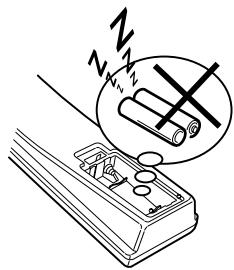
Les piles étanches ne fuiront pas immédiatement lorsqu'elles sont plates. Tant que la télécommande fonctionne encore, il n'y a pas de danger de fuite. Pour éviter tout dommage, retirez les piles si vous n'utilisez pas la télécommande pendant plusieurs mois.
Les dommages dus à une fuite ne sont pas couverts par la garantie.
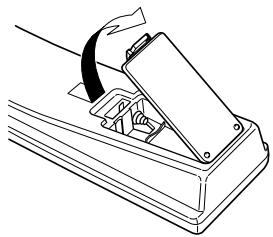
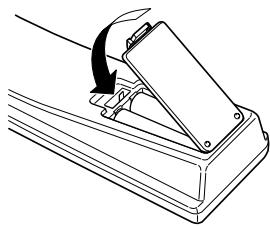
1 Ouvrez le couvercle du compartiment à piles dans le sens de la flèche.
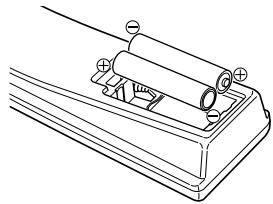
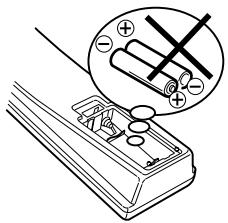
2 Installez deux piles R-03 (taille "AAA", UM/SUM-4, HP-16 ou similaires) (fournies), en respectant le schéma de polarité dans le compartiment à piles.
3 Replacez le couvercle du compartiment.
Distance de fonctionnement de la télécommande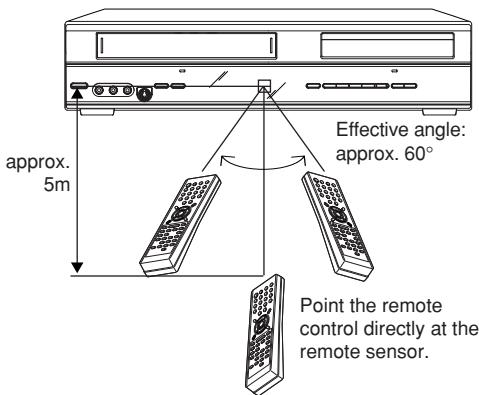
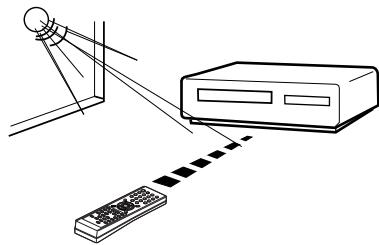
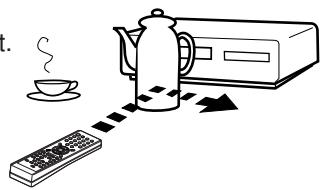
La télécommande ne fonctionnera pas correctement dans les cas suivants :
Si la lumière directe du soleil frappe l'avant de l'appareil.
Si un obstacle est placé entre l'appareil et la télécommande.
Si les piles ne sont pas installées en respectant leurs polarités.
Si les piles sont faibles.
Connectez votre magnétoscope/lecteur DVD à votre antenne principale et à votre téléviseur comme indiqué sur l'illustration. Une fois ces connexions terminées, branchez votre magnétoscope/lecteur DVD sur l'alimentation secteur (230 V / 50 Hz).
![graph TD A["Antenna"] -->|To Scart socket| B["TV"] B --> C["VCR/DVD"] C --> D["AC power cord 230V/50 Hz"] D --> E["Supplied Coaxial cable"] E --> F["RF-Output (to TV)"] F --> G["RF-Input (from house antenna)"] G --> H["SCART"] H --> I["OUTPUT"] I --> J["RF(ANCL)"] J --> K["IN"] K --> L["Output"] L -…](/content/2025/01/78588/images/5cb78293ac4911ea06890c1f519f7a7d9ffa8e6098fd42c9e575072e1ea1970b.jpg)
Connexion de cet appareil à votre téléviseur à l'aide des connexions Péritel
En plus de la connexion par câble coaxial, vous devez également connecter le câble Péritel fourni du magnétoscope/lecteur DVD à votre téléviseur comme indiqué. En plus de transmettre des images et un son de haute qualité à votre téléviseur, la connexion Péritel peut automatiquement commuter le téléviseur sur sa chaîne AV pour la lecture.
Certains téléviseurs peuvent ne pas permettre la commutation automatique sur la chaîne d'entrée AV. Dans ce cas, vous devez sélectionner manuellement le réglage d'entrée AV sur les commandes de votre téléviseur lors de la lecture via cet appareil.
Connexion pour la lecture
La disposition exacte que vous utilisez pour interconnecter divers composants vidéo et audio au magnétoscope/lecteur DVD dépend du modèle et des caractéristiques de chaque composant. Consultez le manuel d'utilisation fourni avec chaque composant pour connaître l'emplacement de la prise Péritel.
Connexion à un récepteur satellite
Si un récepteur satellite est utilisé, nous recommandons la configuration suivante :
![graph TD A["Satellite Antenna"] --> B["Satellite Receiver"] B --> C["SCART-cable (supplied)"] C --> D["VCR/DVD"] D --> E["TV"]](/content/2025/01/78588/images/21cc487d685eaed163aa1f115a7c2d048bfbab620c02503568d03093a04ef128.jpg)
Pour enregistrer à partir du récepteur satellite, appuyez sur INPUT SELECT sur la télécommande du magnétoscope/lecteur DVD. "A1" apparaîtra sur l'afficheur avant. Sélectionnez la chaîne satellite particulière sur le récepteur satellite.
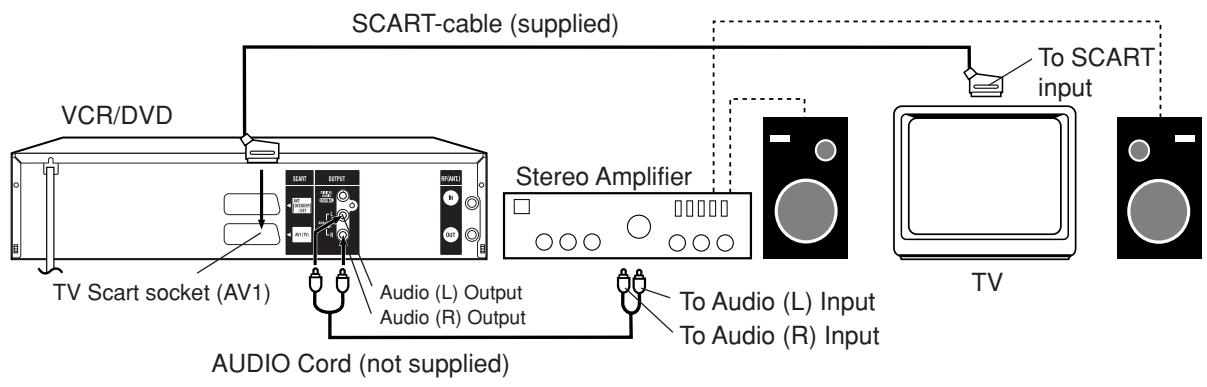
Connexion à un amplificateur stéréo avec sortie audio
Si votre magnétoscope/lecteur DVD est connecté à un amplificateur stéréo, la bande sonore de la vidéo peut être diffusée par les haut-parleurs du système stéréo.
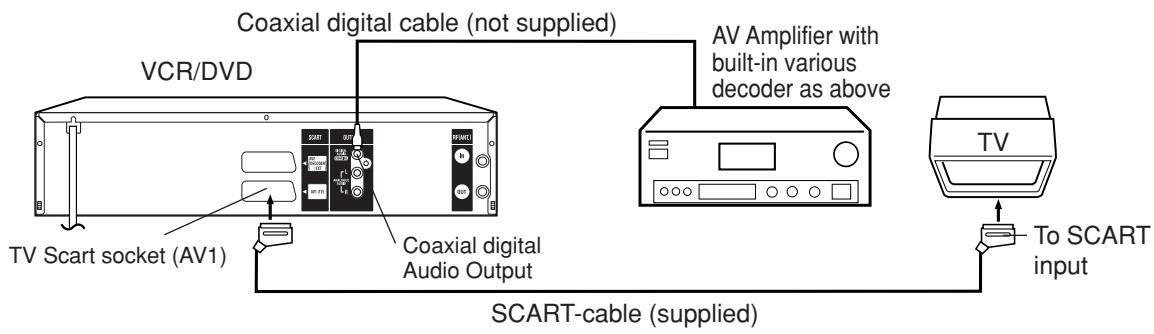
Connexion à un amplificateur AV avec son surround numérique intégré
Si vous utilisez un amplificateur avec un son surround numérique intégré comme suit, vous pouvez profiter de divers systèmes audio tels que Dolby Digital et DTS en utilisant la sortie numérique coaxiale.
Utilisez cette connexion pour connecter un :
- Amplificateur AV avec décodeur *Dolby Digital intégré
- Amplificateur AV avec décodeur *DTS intégré
REMARQUES :
- La prise COAXIAL ne sort que l'audio de la section DVD. Le signal VHS n'est sorti que par les prises SCART et les prises AUDIO L/R.
- Lorsque vous effectuez les connexions ci-dessus, ne réglez pas DOLBY DIGITAL sur DOLBY DIGITAL ou DTS sur ON sur l'amplificateur AV. Si vous le faites, un bruit fort sortira soudainement des haut-parleurs, affectant vos oreilles ou endommageant les haut-parleurs.
- L'audio DTS n'est sorti que par la prise de sortie COAXIAL. Vous devez donc connecter cet appareil à un décodeur DTS approprié pour entendre l'audio des disques DTS. Lors de la lecture de CD encodés en DTS, seul du bruit sera entendu à partir des haut-parleurs ou des sorties stéréo analogiques.
- Certains décodeurs DTS qui ne prennent pas en charge l'interface DVD-DTS peuvent ne pas fonctionner correctement avec l'appareil.
Le MENU DE CONFIGURATION se compose de plusieurs menus où vous pouvez effectuer divers réglages concernant la langue, les fonctions audio et les images. De plus, ce menu comprend une horloge, des chaînes et d'autres éléments qui nécessitent un réglage juste après l'achat.
Pour plus de détails sur chaque menu, reportez-vous à la section correspondante de ce chapitre.
Préparation :
- Allumez le téléviseur et sélectionnez sa chaîne AV (elle peut être étiquetée EXT / AUX, etc.).
- Appuyez sur le bouton ⏻|OPERATE pour allumer le magnétoscope/lecteur DVD.
Utilisation du MENU DE CONFIGURATION
L'exemple suivant montre la procédure de réglage de base du MENU DE CONFIGURATION. Les touches de la télécommande qui permettent de naviguer dans le MENU DE CONFIGURATION sont affichées en bas de l'écran.
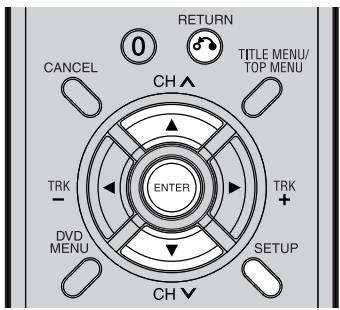
1 Appuyez sur SETUP lorsque le DVD et la cassette vidéo sont arrêtés. L'écran du MENU DE CONFIGURATION apparaît.
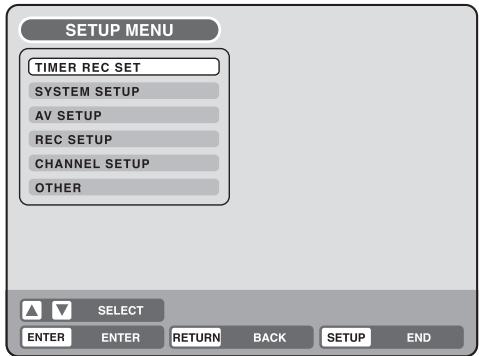
2 Appuyez sur ▲ ou ▼ pour sélectionner le menu souhaité, puis appuyez sur ENTER. L'écran du sous-menu du menu sélectionné apparaît.
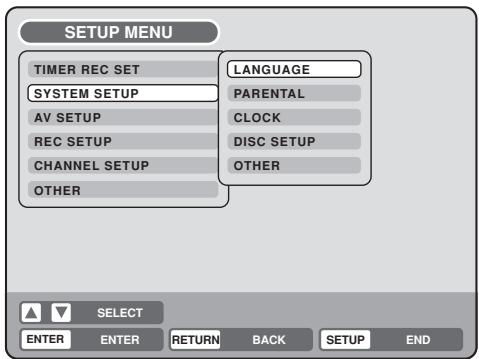
3 Appuyez sur ▲ ou ▼ pour sélectionner le sous-menu souhaité, puis appuyez sur ENTER. L'écran du sous-menu sélectionné apparaît.
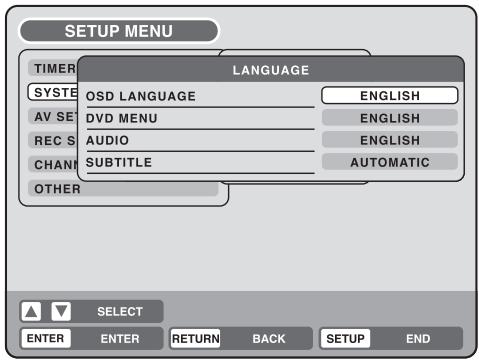
4 Appuyez sur ▲ ou ▼ pour sélectionner l'élément souhaité, puis appuyez sur ENTER. Les éléments sélectionnables sont répertoriés.
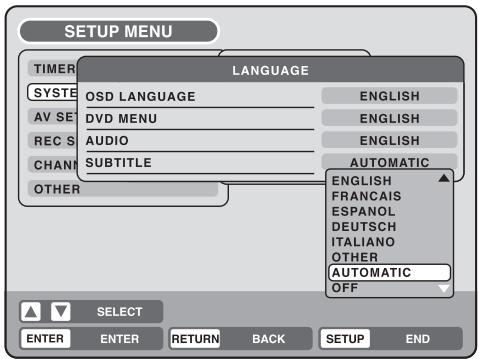
5 Appuyez sur ▲ ou ▼ pour sélectionner l'élément souhaité, puis appuyez sur ENTER.
La procédure de réglage est terminée.
- Pour revenir à l'écran précédent, appuyez sur RETURN.
- Pour fermer le MENU DE CONFIGURATION, appuyez sur SETUP.
REMARQUES :
- Pour les éléments qui nécessitent des opérations différentes de la procédure de réglage de base, la procédure de réglage est décrite dans chaque section correspondante.
- L'élément indiqué en rouge ne peut pas être sélectionné.
Vous pouvez choisir la langue de l'écran du menu, du menu DVD, de l'audio DVD et des sous-titres.
Préparation :
- Allumez le téléviseur et sélectionnez sa chaîne AV (elle peut être étiquetée EXT / AUX, etc.)
- Sélectionnez « LANGUE » dans « CONFIGURATION SYSTÈME ». Pour la procédure, reportez-vous aux étapes 1 à 3 de « Utilisation du MENU DE CONFIGURATION » à la page 17.
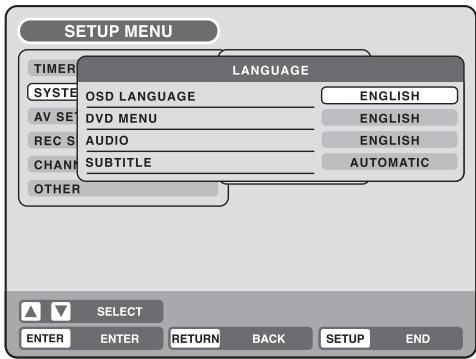
LANGUE DE L'AFFICHAGE À L'ÉCRAN
Vous pouvez définir la langue de l'affichage à l'écran.
Sélectionnez « LANGUE DE L'AFFICHAGE À L'ÉCRAN » et choisissez la langue dans la liste ci-dessous.
Langues sélectionnables :
ANGLAIS, FRANÇAIS, ESPAGNOL, ALLEMAND, ITALIEN
MENU DVD
Lorsque plusieurs langues de menu sont enregistrées sur un DVD, vous pouvez sélectionner la langue à utiliser pour le menu DVD.
Sélectionnez « MENU DVD » et choisissez la langue dans la liste ci-dessous.
Langues sélectionnables :
ANGLAIS, FRANÇAIS, ESPAGNOL, ALLEMAND, ITALIEN
La langue sélectionnée est la langue de menu prioritaire.
AUTRE
Si vous souhaitez sélectionner une autre langue, avant d'appuyer sur ENTER, saisissez le code de langue à l'aide des touches numériques. (Voir la liste des codes de langue à la page 76). Appuyez ensuite sur ENTER.
- Si vous avez saisi un mauvais numéro, appuyez sur CANCEL.
AUDIO
Lorsque plusieurs langues audio sont enregistrées sur un DVD, vous pouvez sélectionner la langue audio à lire. La langue sélectionnée reste en vigueur après la mise hors tension ou le remplacement du disque.
Sélectionnez "AUDIO" puis choisissez la langue audio dans la liste ci-dessous.
Langues sélectionnables :
ANGLAIS, FRANÇAIS, ESPAGNOL, ALLEMAND, ITALIEN
La langue que vous avez sélectionnée sera lue si elle est enregistrée sur le disque.
ORIGINAL
L'appareil sélectionnera la langue prioritaire de chaque disque.
AUTRE
Si vous souhaitez sélectionner une autre langue, avant d'appuyer sur ENTER, saisissez le code de langue à l'aide des touches numériques. (Voir la liste des codes de langue à la page 76). Appuyez ensuite sur ENTER.
- Si vous avez saisi un mauvais numéro, appuyez sur CANCEL.
REMARQUE :
Si la langue sélectionnée n'est pas enregistrée sur le disque, la langue prioritaire est sélectionnée.
SOUS-TITRES
Lorsque plusieurs langues de sous-titres sont enregistrées sur le DVD, vous pouvez sélectionner la langue à utiliser pour les sous-titres. La langue sélectionnée reste en vigueur après la mise hors tension ou le remplacement du disque.
Sélectionnez "SOUS-TITRES" et choisissez la langue du menu dans la liste ci-dessous.
Langues sélectionnables :
ANGLAIS, FRANÇAIS, ESPAGNOL, ALLEMAND, ITALIEN
Le sous-titre s'affiche dans la langue sélectionnée si elle est enregistrée sur le disque.
AUTRE
Si vous souhaitez sélectionner une autre langue, avant d'appuyer sur ENTER, saisissez le code de langue à l'aide des touches numériques. (Voir la liste des codes de langue à la page 76). Puis appuyez sur ENTER.
- Si vous avez saisi un mauvais numéro, appuyez sur CANCEL.
AUTOMATIQUE
- L'appareil sélectionnera automatiquement la même langue que celle du réglage AUDIO.
- Lorsque l'appareil sélectionne la même langue que celle du réglage AUDIO, les sous-titres n'apparaissent pas pendant la lecture.
- Lorsque vous n'utilisez pas la même langue que celle du réglage AUDIO, les sous-titres apparaissent pendant la lecture.
OFF
Les sous-titres n'apparaissent pas.
REMARQUE :
Si la langue sélectionnée n'est pas enregistrée sur le disque, la langue prioritaire est sélectionnée.
Certains disques sont spécifiés comme ne convenant pas aux enfants. Cet appareil peut empêcher la lecture de ces disques.
Préparation :
- Allumez le téléviseur et sélectionnez sa chaîne AV (elle peut être étiquetée EXT / AUX, etc.)
- Sélectionnez « PARENTAL » dans « SYSTEM SETUP ». Pour la procédure, reportez-vous aux étapes 1 à 3 de « Utilisation du menu SETUP » à la page 17.
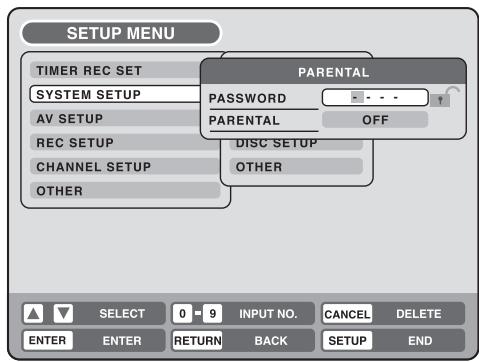
Sélection du contrôle parental
Sélectionnez « PARENTAL » et choisissez le niveau de contrôle parental dans la liste ci-dessous.
Niveau OFF : le contrôle parental est désactivé.
Niveau 1 : les disques pour adultes et les disques généraux (y compris les disques classés R) ne peuvent pas être lus.
Niveaux 2 à 3 : les disques pour adultes et les disques classés R ne peuvent pas être lus.
Niveaux 4 à 7 : les disques pour adultes ne peuvent pas être lus. (Les disques de niveaux 4 à 7 contiennent du contenu que les enfants de 15 ans et moins ne peuvent pas voir.)
Niveau 8 : tous les disques peuvent être lus sans restriction.
Sélectionnez un niveau de 1 à 8.
Sur une échelle de 1 à 8, « 1 » est le niveau le plus restrictif.
Pour verrouiller le niveau de contrôle parental sélectionné
1 Pour verrouiller le niveau de contrôle parental sélectionné, appuyez sur ▲ ou ▼ pour sélectionner « MOT DE PASSE ».
2 Utilisez les touches numériques pour saisir un mot de passe à 4 chiffres.
- Si vous saisissez un mauvais numéro, appuyez sur ANNULER.
- N'oubliez pas ce numéro !
3 Appuyez sur ENTRÉE.

Pour annuler le verrouillage du niveau de contrôle parental
1 Sélectionnez « MOT DE PASSE » comme indiqué à l'étape 1 de la section ci-dessus, puis utilisez les touches numériques pour saisir le mot de passe.
2 Appuyez sur ENTRÉE.
La marque de verrouillage « ☐ » se transformera en marque de déverrouillage « ☐ ».
Ensuite, vous pouvez modifier le niveau de contrôle parental ou saisir un nouveau mot de passe.
REMARQUES :
- Le niveau sélectionné s'appliquera aux opérations exécutées après cela.
- L'appareil ne peut pas restreindre la lecture de certains disques.
- Certains disques peuvent ne pas contenir d'informations sur le niveau de contrôle parental, même si la jaquette indique « adulte ». Le contrôle parental ne fonctionnera pas avec ces disques.
- Si vous oubliez votre mot de passe, ouvrez le plateau à disque ; s'il y a un disque à l'intérieur, retirez-le et fermez le plateau. Pour réinitialiser le code, maintenez enfoncée la touche 7 de la télécommande, puis maintenez enfoncée la touche STOP de la façade en même temps. L'affichage à l'écran indiquera « PARENTAL UNLOCK ». Vous pouvez alors définir un nouveau mot de passe.
Annulation temporaire du contrôle parental
Le contrôle parental peut être temporairement annulé avec certains DVD.
1 Lancez la lecture d'un DVD. (Voir page 28.)
2 Si le DVD a été conçu pour permettre l'annulation temporaire du niveau de contrôle, l'écran qui suit l'écran « READING » changera. Si vous sélectionnez « YES » avec ENTER, le message « YOUR DISC EXCEEDS THE PARENTAL CONTROL LEVEL 1. » apparaîtra.
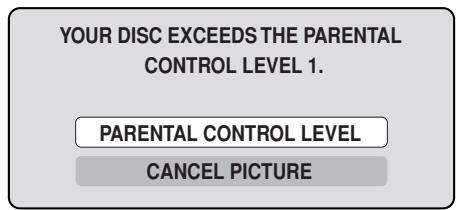
3 Si vous souhaitez annuler temporairement le niveau de contrôle défini, sélectionnez « PARENTAL CONTROL LEVEL » avec ▲ ou ▼, puis appuyez sur ENTER. Si le mot de passe a été sélectionné, l'écran de saisie du mot de passe apparaîtra. Sinon, si le mot de passe n'a pas été défini, la lecture commencera. Si vous ne connaissez pas (ou avez oublié) le mot de passe, sélectionnez « CANCEL PICTURE ». L'écran de réglage disparaîtra. Appuyez sur OPEN/CLOSE pour retirer le disque.
4 Utilisez les touches numériques pour saisir le mot de passe. • Pour interrompre la saisie, appuyez sur RETURN.
5 Appuyez sur ENTER.
6 La lecture commencera si le mot de passe saisi est correct.
REMARQUE :
Cette annulation temporaire du niveau de contrôle restera active jusqu'à l'éjection du disque.
Lorsque le disque est éjecté, le niveau de contrôle d'origine est automatiquement rétabli.
Réglage de l'horloge / Réglage du disque
Votre magnétoscope/DVD est équipé d'une horloge 24 heures.
Vous devez régler la date et l'heure pour les enregistrements programmés.
Préparation :
- Allumez le téléviseur et sélectionnez sa chaîne AV (elle peut être étiquetée EXT / AUX, etc.)
- Sélectionnez « HORLOGE » dans la section « RÉGLAGE SYSTÈME » du MENU DE RÉGLAGE et appuyez sur ENTER (pour la procédure complète, voir les étapes 1 à 3 dans « Utilisation du MENU DE RÉGLAGE » à la page 17).
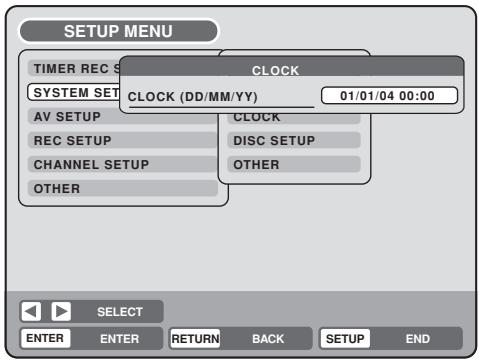
Ex. : Réglage de l'horloge à « 10:20 » le 27 septembre 2004.
1 Sélectionnez les éléments souhaités à l'aide de ◀ ou ▶ (date, mois, année, heure et minute), puis appuyez sur ENTER. 2 Appuyez sur ▲ ou ▼ pour régler la valeur de l'élément sélectionné.
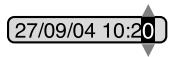
3 Répétez les étapes 1 et 2 pour régler la date, l'année et l'heure actuelle, puis appuyez sur ENTER. Le MENU DE RÉGLAGE se fermera.
Ceci termine le réglage de l'horloge.
REMARQUE :
En cas de panne de courant, l'horloge continuera de fonctionner pendant encore 30 minutes avec une précision à quartz. Pour indiquer que la panne de courant a duré trop longtemps, « 0:00 » apparaîtra à l'écran. Dans ce cas, réglez à nouveau l'heure et la date.
Vous pouvez formater, protéger ou finaliser un disque.
Préparation :
- Allumez le téléviseur et sélectionnez sa chaîne AV (elle peut être étiquetée EXT / AUX, etc.)
- Sélectionnez « RÉGLAGE DISQUE » dans « RÉGLAGE SYSTÈME ». Pour la procédure, voir les étapes 1 à 3 dans « Utilisation du MENU DE RÉGLAGE » à la page 17.
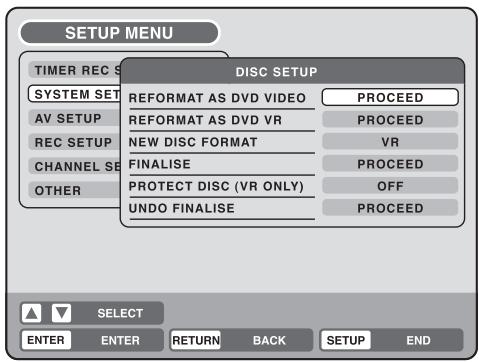
REFORMATER
Vous pouvez formater un DVD-RW enregistré.
Vérifiez le contenu du disque avant de le formater. Si vous formatez le disque, le contenu enregistré sera effacé.
Pour formater un DVD en mode Vidéo, sélectionnez « REFORMAT AS DVD VIDEO », et pour le formater en mode VR, sélectionnez « REFORMAT AS DVD VR ».
L'écran ci-dessous apparaîtra.
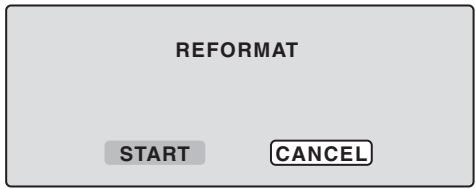
- Lorsque vous sélectionnez « START » et appuyez sur ENTER, le formatage commencera. L'écran ci-dessous apparaîtra.
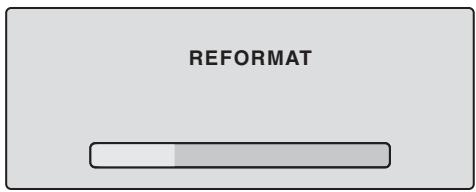
- Lorsque vous sélectionnez « CANCEL » et appuyez sur ENTER, l'écran DISC SETUP apparaîtra.
REMARQUES :
- Vous ne pouvez pas formater les DVD-RW Ver. 1.0 et les DVD-R.
- Vous ne pouvez pas formater un disque si la protection du disque est activée (« ON »). Dans ce cas, assurez-vous d'annuler la protection du disque (voir page 21) avant le formatage.
- Pendant le formatage, la finalisation et l'annulation de la finalisation, la progression sera indiquée par « — » dans la fenêtre d'affichage avant.
FORMAT NOUVEAU DISQUE
Si vous insérez un disque vierge, le disque est automatiquement formaté.
Si vous utilisez un DVD-RW (Ver.1.1 ou ultérieur), vous pouvez sélectionner le mode à utiliser pour le formatage automatique.
Sélectionnez « FORMAT NOUVEAU DISQUE » et choisissez le mode dans la liste ci-dessous.
VR : Formate le disque en mode VR.
VIDÉO : Formatez le disque en mode Vidéo.
Lorsque vous insérez un disque vierge, l'écran de message suivant apparaît.
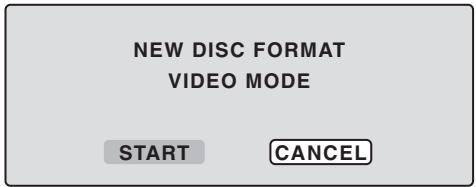
- Si vous sélectionnez "DÉMARRER" et appuyez sur ENTRÉE, le formatage commence. L'écran ci-dessous apparaît.
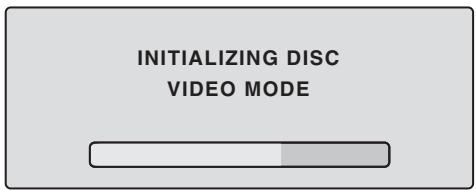
- Si vous sélectionnez "ANNULER" et appuyez sur ENTRÉE, l'écran TV normal apparaît.
REMARQUE :
Si un disque enregistré présente des rayures ou de la contamination, l'écran "FORMAT NOUVEAU DISQUE" peut apparaître. Si cela se produit, sélectionnez "ANNULER".
FINALISATION
Pour lire un disque DVD enregistré sur cet appareil, vous devez finaliser le disque afin de garantir la compatibilité avec d'autres lecteurs DVD. De plus, si vous utilisez un disque DVD-RW, vous devez enregistrer en mode Vidéo.
Lorsque "FINALISATION" est sélectionné, l'écran ci-dessous apparaît.
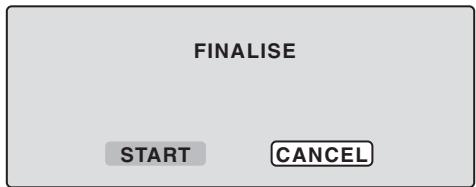
- Si vous sélectionnez "DÉMARRER" et appuyez sur ENTRÉE, la finalisation commence. L'écran ci-dessous apparaît.
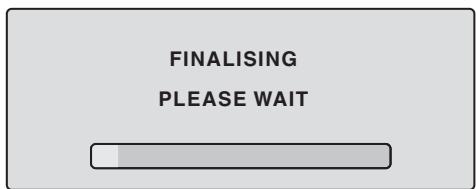
- Si vous sélectionnez "ANNULER" et appuyez sur ENTRÉE, l'écran CONFIGURATION DU DISQUE apparaît.
REMARQUES :
- Pendant la finalisation, le curseur se déplace de manière répétée. Lorsque la finalisation est terminée, "FINALISATION TERMINÉE APPUYEZ SUR ENTRÉE" apparaît. Appuyez sur ENTRÉE, l'écran TV normal apparaît.
- Le processus de finalisation peut prendre de quelques minutes à environ 1 heure selon le type de disque ou la quantité d'espace libre sur le disque.
- Vous pouvez enregistrer ou éditer un DVD-RW finalisé (en mode VR) en annulant la finalisation, mais vous ne pouvez pas effectuer ces opérations avec un DVD-RW (mode Vidéo) ou avec un DVD-R.
- Pour un DVD-RW (en mode VR) finalisé par un autre appareil, vous pouvez enregistrer ou éditer sur cet appareil en annulant la finalisation.
- Vous ne pouvez pas lire un disque enregistré en mode VR sur un appareil qui ne prend pas en charge le DVD-RW.
- Même si vous finalisez un disque en mode Vidéo, le disque peut ne pas être lisible sur certains lecteurs DVD.
PROTÉGER LE DISQUE
Vous pouvez protéger un disque pour empêcher que son contenu soit effacé, modifié ou réenregistré.
Seuls les DVD-RW (en mode VR) peuvent être protégés.
Sélectionnez « PROTÉGER LE DISQUE (VR UNIQUEMENT) » puis « ON » pour protéger le disque.
Pour annuler la protection du disque, sélectionnez « OFF ».
ANNULER LA FINALISATION
Vous pouvez annuler la finalisation d'un DVD-RW finalisé (en mode VR).
Vous ne pouvez pas annuler la finalisation pour d'autres types de disques. Vous pouvez enregistrer ou éditer sur un disque dont la finalisation a été annulée.
Sélectionnez « ANNULER LA FINALISATION » et l'écran ci-dessous apparaîtra.
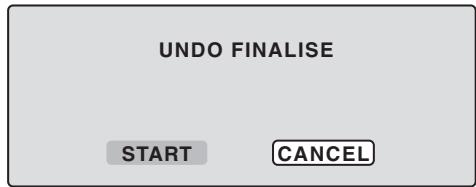
- Lorsque vous sélectionnez « DÉMARRER » et appuyez sur ENTER, l'annulation de la finalisation commencera. L'écran ci-dessous apparaîtra.
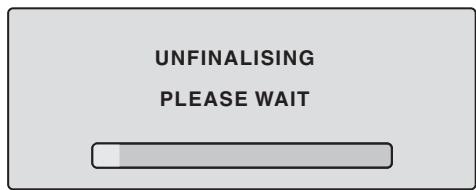
- Lorsque vous sélectionnez « ANNULER » et appuyez sur ENTER, l'écran RÉGLAGE DU DISQUE apparaîtra.
REMARQUES :
- Pendant l'annulation de la finalisation, le curseur se déplacera à plusieurs reprises. Lorsque l'annulation de la finalisation est terminée, le message "UNDO FINALISING COMPLETED PRESS ENTER" s'affiche. Appuyez sur ENTER, l'écran TV normal réapparaît.
- Le processus d'annulation de la finalisation peut prendre de quelques minutes à environ 1 heure selon le type de disque ou la quantité d'espace libre sur le disque.
- Lorsque la finalisation du disque ne peut pas être annulée, vous ne pouvez pas sélectionner "UNDO FINALISE".
Vous pouvez activer ou désactiver la fenêtre d'affichage et l'affichage à l'écran.
Préparation :
- Allumez le téléviseur et sélectionnez sa chaîne AV (elle peut être étiquetée EXT / AUX, etc.)
- Sélectionnez "OTHER" dans "SYSTEM SETUP". Pour la procédure, reportez-vous aux étapes 1 à 3 de la section "Using the SETUP MENU" à la page 17.
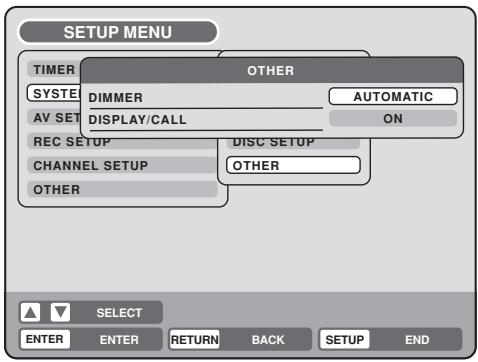
DIMMER (Luminosité de la fenêtre d'affichage)
Vous pouvez régler la luminosité ou éteindre l'affichage sur le panneau avant de l'appareil.
Sélectionnez "DIMMER" et choisissez l'état de la fenêtre d'affichage dans la liste ci-dessous.
AUTOMATIC : Lorsque l'appareil est sous tension, la fenêtre d'affichage est lumineuse. Lorsqu'il est hors tension, elle est sombre.
DIM : La fenêtre d'affichage est toujours sombre.
OFF : Lorsque l'appareil est sous tension, la fenêtre d'affichage est sombre. Lorsqu'il est hors tension, elle est éteinte.
DISPLAY/CALL (Activation ou désactivation de l'affichage à l'écran)
Vous pouvez désactiver l'affichage à l'écran qui est envoyé au téléviseur par cet appareil. Sélectionnez "DISPLAY/CALL", puis choisissez "ON" ou "OFF".
ON : l'affichage à l'écran apparaît.
OFF : seuls le MENU DE CONFIGURATION et les messages d'erreur apparaissent.
- En sélectionnant OFF, la touche DISPLAY de la télécommande sera disponible.
Cette section décrit les réglages concernant l'écran.
Préparation :
- Allumez le téléviseur et sélectionnez sa chaîne AV (elle peut être étiquetée EXT / AUX, etc.)
- Sélectionnez "VIDEO" dans "AV SETUP". Pour la procédure, reportez-vous aux étapes 1 à 3 de "Utilisation du MENU DE CONFIGURATION" à la page 17.
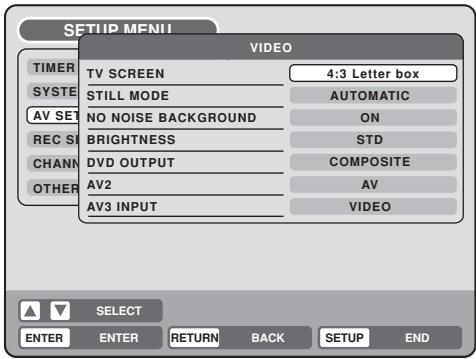
ÉCRAN TV
Vous pouvez sélectionner la taille de l'écran TV pour l'adapter à l'image.
Sélectionnez "ÉCRAN TV" et choisissez la taille d'écran dans la liste ci-dessous.
4:3 Panscan
Il affiche une image large sur tout l'écran, avec les bords gauche et droit automatiquement coupés.
4:3 Letterbox
Sélectionnez ce mode lors de la connexion à un téléviseur conventionnel. Lors de la lecture d'un DVD au format large, il affiche une image large avec des bandes noires en haut et en bas de l'écran.
16:9
Sélectionnez ce mode lors du raccordement à un téléviseur à écran large. Une image au format écran large s'affiche en pleine taille.
REMARQUE :
Si vous sélectionnez 4:3 Pan Scan mais que le disque DVD n'est pas formaté au format pan scan, le rapport hauteur/largeur sera affiché en 4:3 Letterbox.
MODE IMAGE FIXE
Vous pouvez définir le type d'image affichée à l'écran du téléviseur lorsque la lecture du DVD est en pause.
Sélectionnez « MODE IMAGE FIXE » et choisissez l'image à afficher dans la liste ci-dessous.
AUTOMATIQUE
L'image fixe de champ ou l'image fixe de trame est sélectionnée automatiquement. (Pour une utilisation normale.)
IMAGE FIXE PAR TRAME
L'image fixe de trame est définie.
Remarque concernant l'image fixe de champ et l'image fixe de trame :
(avec mode de balayage entrelacé 480i)
- Image fixe de champ* (240 lignes) Comme un seul champ (la moitié des informations vidéo) est affiché à l'écran du téléviseur, l'image semble grossière mais ne tremble pas. • Image fixe de trame* (480 lignes) Deux champs sont affichés alternativement à l'écran du téléviseur. L'image tremble mais la qualité d'image résultante est supérieure à celle des images fixes de champ.
Champ* : Un champ fait référence aux informations vidéo dans la moitié d'une trame. 1 trame (écran) se compose de 2 champs.
Trame* : Une trame fait référence à la zone totale occupée par chaque image à l'écran du téléviseur.
FOND SANS BRUIT
Lorsque vous sélectionnez une chaîne dont la diffusion est terminée ou pour laquelle aucune diffusion n'est programmée, l'écran du téléviseur devient automatiquement bleu.
La fonction ci-dessus fonctionne lorsque vous sélectionnez « FOND SANS BRUIT » et choisissez « ON » dans la liste. Si vous ne souhaitez pas utiliser cette fonction de fond bleu, sélectionnez « OFF ».
Le réglage par défaut est « ON ».
LUMINOSITÉ
Vous pouvez contrôler le niveau de luminosité de l'image.
Sélectionnez « LUMINOSITÉ » et choisissez le niveau dans la liste ci-dessous.
MAX : L'image devient plus lumineuse.
STD : L'image a une luminosité standard.
MIN : L'image devient plus sombre.
SORTIE DVD
Vous pouvez sélectionner le signal de sortie de l'image de lecture DVD vers l'écran du téléviseur comme signal RVB ou signal COMPOSITE.
COMPOSITE : signal vidéo composite
RVB : signal RVB
AV2
S'il y a un décodeur connecté à la prise péritel AV2, sélectionnez "AV2" puis choisissez "DECODER" dans la liste.
ENTRÉE AV3
Vous devez sélectionner le mode d'entrée de l'AV3 (entrée AV avant). (voir le schéma de connexion en haut de la page 73)
S-VIDEO :
Seul le signal S-Vidéo sera pris en compte. (Le signal vidéo composite sera coupé.)
VIDEO :
Seul le signal vidéo composite sera pris en compte. (Le signal d'entrée S-Vidéo sera coupé.)
Réglage de l'audio / Réglage de l'enregistrement
Cette section décrit les réglages audio.
Préparation :
- Allumez le téléviseur et sélectionnez sa chaîne AV (elle peut être étiquetée EXT / AUX, etc.)
- Sélectionnez "AUDIO" dans "AV SETUP". Pour la procédure, reportez-vous aux étapes 1 à 3 de la section "Utilisation du MENU DE CONFIGURATION" à la page 17.
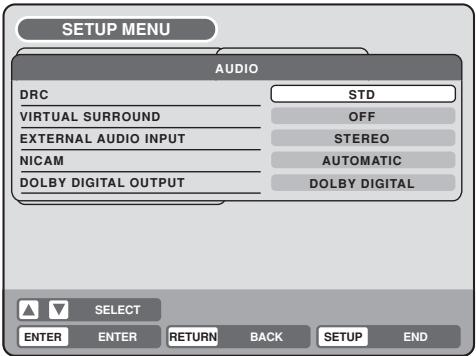
DRC
DRC (Dynamic Range Control) vous permet de contrôler la plage dynamique afin d'obtenir un son adapté à votre équipement.
Sélectionnez "DRC" et choisissez le niveau dans la liste ci-dessous.
MAX : la plage dynamique complète est conservée.
STD : la plage dynamique complète est réduite.
TV : la plage dynamique est réduite.
REMARQUES :
- Cette fonction ne fonctionne que pendant la lecture de disques enregistrés en Dolby Digital.
- Lorsque vous écoutez le son provenant du haut-parleur du téléviseur, nous vous recommandons de sélectionner « TV ».
- Le niveau de réduction de la plage dynamique peut varier selon le DVD.
SON SURROUND VIRTUEL (Spatializer N-2-2 TM )
Le son qui n'est pas enregistré en mode surround sera transformé en son surround artificiel et restitué.
Sélectionnez « VIRTUAL SURROUND » puis « ON » dans la liste pour activer la fonction de son surround virtuel. Pour ne pas utiliser le son surround virtuel, sélectionnez « OFF ».
REMARQUE :
Cette fonction ne fonctionne pas avec une cassette vidéo.
ENTRÉE AUDIO EXTERNE
Le mode audio pour la prise d'entrée audio peut être sélectionné, en choisissant entre stéréo ou monaural.
Sélectionnez « EXTERNAL AUDIO INPUT » et choisissez dans la liste ci-dessous.
STEREO : le son est traité comme un son stéréo.
L CH : le son est traité comme le son monophonique du canal gauche.
R CH : le son est traité comme le son monophonique du canal droit.
NICAM
Cet appareil est compatible avec le NICAM stéréo. Vous pouvez sélectionner le mode NICAM comme suit (voir page 54 pour l'enregistrement et la lecture NICAM).
AUTOMATIQUE : pour enregistrer les programmes NICAM
ARRÊT : pour désactiver le NICAM
SORTIE DOLBY DIGITAL
Vous pouvez sélectionner le son de sortie de la SORTIE AUDIO NUMÉRIQUE sur le panneau arrière.
DOLBY DIGITAL : pour sortir en DOLBY DIGITAL
PCM : pour sortir au format PCM
Cette section décrit les réglages d'enregistrement.
Préparation :
- Allumez le téléviseur et réglez-le sur le mode d'entrée vidéo.
- Sélectionnez "RÉGLAGE ENREGISTREMENT". Pour la procédure, reportez-vous aux étapes 1 à 3 de "Utilisation du MENU DE RÉGLAGE" à la page 17.
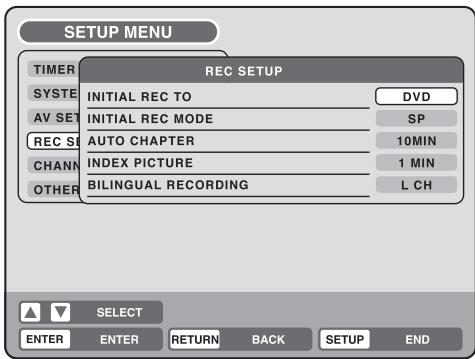
ENREGISTREMENT INITIAL VERS
Vous pouvez sélectionner le support d'enregistrement qui s'affiche en premier dans l'élément "ENREGISTRER VERS" sur l'écran de programmation de l'enregistrement.
Sélectionnez "ENREGISTREMENT INITIAL VERS" puis choisissez "DVD" ou "MAGNÉTOSCOPE".
MODE D'ENREGISTREMENT INITIAL
Vous pouvez sélectionner le mode d'enregistrement qui s'affiche en premier dans l'élément "MODE D'ENREGISTREMENT" sur l'écran de programmation de l'enregistrement. Sélectionnez "MODE D'ENREGISTREMENT INITIAL" puis choisissez XP, SP, LP ou SLP.
REMARQUE :
Pour le mode d'enregistrement DVD, voir page 46. Et pour le mode d'enregistrement magnétoscope, voir page 42.
CHAPITRE AUTOMATIQUE
Vous pouvez créer automatiquement des marques de chapitre sur le DVD à enregistrer.
Sélectionnez "CHAPITRE AUTOMATIQUE" puis choisissez l'intervalle entre les marques de chapitre dans la liste ci-dessous.
DÉSACTIVÉ : Le chapitre automatique n'est pas utilisé.
5 MIN : L'intervalle est réglé sur 5 minutes.
10 MIN : L'intervalle est réglé sur 10 minutes.
15 MIN : L'intervalle est réglé sur 15 minutes.
30 MIN : L'intervalle est réglé sur 30 minutes.
INDEX PICTURE
Vous pouvez régler le moment où l'image miniature est enregistrée dans le menu titre d'un DVD-RW (mode VR).
Sélectionnez "INDEX PICTURE" et choisissez dans la liste ci-dessous.
0 SEC : L'image 0 seconde après le début de l'enregistrement est enregistrée.
1 MIN : L'image 1 minute après le début de l'enregistrement est enregistrée.
3 MIN : L'image 3 minutes après le début de l'enregistrement est enregistrée.
5 MIN : L'image 5 minutes après le début de l'enregistrement est enregistrée.
REMARQUE :
Vous ne pouvez pas sélectionner l'image miniature pour le mode Vidéo.
ENREGISTREMENT BILINGUE
En cas d'enregistrement d'un programme bilingue sur un disque au format vidéo, vous pouvez sélectionner le son d'enregistrement.
L CH : pour enregistrer avec le canal gauche
R CH : pour enregistrer avec le canal droit
Vous pouvez régler l'intervalle de commutation entre les images lues en mode diaporama.
Préparation :
- Allumez le téléviseur et sélectionnez sa chaîne AV (elle peut être étiquetée EXT / AUX, etc.)
- Sélectionnez "AUTRE". Pour la procédure, reportez-vous aux étapes 1 à 3 de "Utilisation du MENU DE CONFIGURATION" à la page 17.
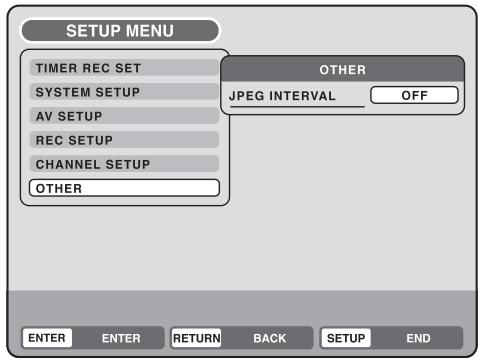
INTERVALLE JPEG
Vous pouvez sélectionner le temps d'intervalle pour le diaporama JPEG (page 41).
Sélectionnez "INTERVALLE JPEG" et choisissez l'intervalle de commutation entre les images dans la liste ci-dessous.
ARRÊT : Le mode diaporama n'est pas utilisé.
5 SEC : L'intervalle est réglé sur 5 secondes.
10 SEC : L'intervalle est réglé sur 10 secondes.
15 SEC : L'intervalle est réglé sur 15 secondes.
Ce magnétoscope/lecteur DVD possède un tuner intégré pour recevoir les émissions de télévision. Avant d'enregistrer une émission, vous devez régler et prérégler toutes les chaînes disponibles. Ce magnétoscope/lecteur DVD peut prérégler jusqu'à 80 chaînes.
Préparation :
- Allumez le téléviseur et sélectionnez sa chaîne AV (elle peut être étiquetée EXT / AUX, etc.)
- Sélectionnez "RÉGLAGE DES CHAÎNES". Pour la procédure, reportez-vous aux étapes 1 à 3 de "Utilisation du MENU DE CONFIGURATION" à la page 17.
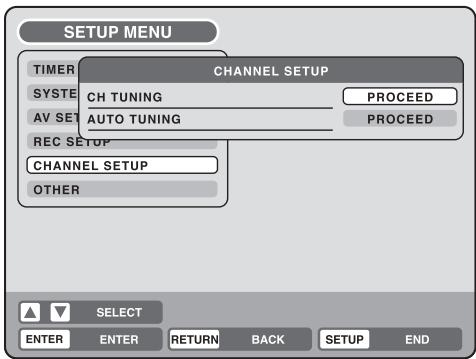
Préréglage automatique des stations
Sélectionnez "SYNTHONISATION AUTOMATIQUE" et appuyez sur ENTRÉE.
Le lecteur VCR/DVD commencera à rechercher et à mémoriser toutes les chaînes de diffusion disponibles dans votre région. Pendant cette opération, « SYNCHRO TUNING » s'affichera à l'écran. Une fois la syntonisation automatique terminée, l'écran reviendra à la normale.
REMARQUES :
- Des interférences de réception TV ou une coupure de courant peuvent entraîner des dysfonctionnements lors du préréglage automatique des stations. Dans ce cas, répétez la procédure de réglage depuis le début. Si la syntonisation automatique rencontre des problèmes pour recevoir certaines stations correctement, vous pouvez essayer de prérégler la station manuellement (voir page 27).
- Lorsque l'appareil est en mode d'entrée auxiliaire, vous ne pouvez pas prérégler les chaînes.
Pour sauter une position de chaîne
Les chaînes indésirables peuvent être sautées afin qu'elles ne puissent pas être rappelées en appuyant sur CH ∧/∨.
Exemple : Sauter la position de chaîne 29.
1 Sélectionnez « CH TUNING » et appuyez sur ENTER.
2 Sélectionnez « CH » et appuyez sur ENTER. Sélectionnez ensuite le numéro de la position de chaîne à sauter (29) et appuyez sur ENTER.
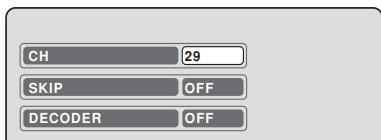
3 Sélectionnez « SKIP » et appuyez sur ENTER.
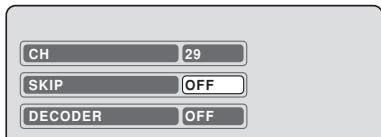
4 Sélectionnez « ON » et appuyez sur ENTER. Cette position de chaîne est maintenant sautée.
REMARQUE : Pour annuler le saut, sélectionnez « OFF » à l'étape 4 ci-dessus.
DÉCODEUR ACTIVÉ/DÉSACTIVÉ
Vous pouvez régler le paramètre DÉCODEUR pour chaque position de chaîne.
Exemple : Réglez la position de chaîne 5 sur décodeur activé.
1 Sélectionnez "CH TUNING" et appuyez sur ENTER. 2 Sélectionnez "CH" et appuyez sur ENTER. Sélectionnez ensuite le numéro de position de canal souhaité (5) et appuyez sur ENTER.
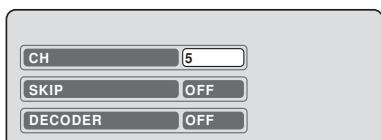
3 Sélectionnez "DECODER" et appuyez sur ENTER.
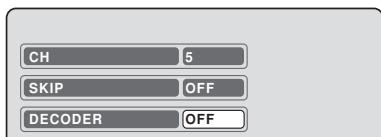
4 Sélectionnez "ON" et appuyez sur ENTER. Cette position de canal est maintenant définie comme décodeur activé.
REMARQUE : Pour désactiver le décodeur, sélectionnez "OFF" à l'étape 4 ci-dessus.
Remplacer les positions des chaînes TV
Vous pouvez remplacer les positions des chaînes comme vous le souhaitez.
Exemple : Remplacez la chaîne TV n° 6 par la position n° 2.
1 Sélectionnez "CH TUNING" et appuyez sur ENTER. 2 Sélectionnez "CH" et appuyez sur ENTER. Sélectionnez ensuite le numéro de position de canal à déplacer (6) et appuyez sur ENTER.
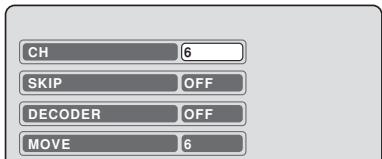
3 Sélectionnez "MOVE" et appuyez sur ENTER.
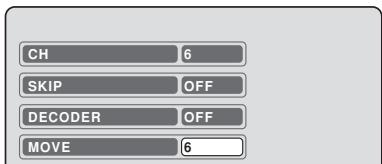
4 Sélectionnez le numéro de position de canal (2) vers lequel la position sélectionnée à l'étape 2 ci-dessus doit être déplacée et appuyez sur ENTER. Ces positions de canal sont maintenant échangées.
Préréglage manuel des chaînes TV
La fonction de préréglage automatique des chaînes (voir page 26) mémorise les émissions disponibles sur les positions CH appropriées.
Certaines émissions peuvent ne pas être préréglées correctement par le système d'accord automatique - dans ce cas, vous pouvez régler les chaînes manuellement comme suit.
Exemple : Préréglage d'une chaîne sur la position de programme 5.
1 Sélectionnez "CH TUNING" et appuyez sur ENTER. 2 Sélectionnez "CH" et appuyez sur ENTER. Sélectionnez ensuite le numéro de position de canal (5) et appuyez sur ENTER.
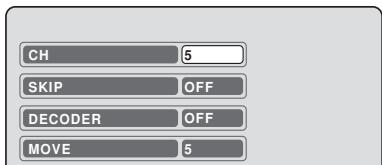
3 Sélectionnez « TUNING » (échelle d'accord) et appuyez sur ENTER.
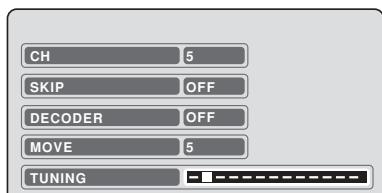
4 Appuyez une fois sur ▶ (fréquence croissante) ou ◀ (fréquence décroissante). La recherche démarre. Elle s'arrête automatiquement à chaque émission. (« ▶ » se transforme en « ■ ») Appuyez plusieurs fois sur ◀ ou ▶ jusqu'à ce que la station souhaitée apparaisse. Si l'émission est trop faible (par exemple avec une image qui dérive), la recherche ne s'arrêtera pas. Si vous voulez arrêter, appuyez sur ▲/▼ ou ◀/▶.
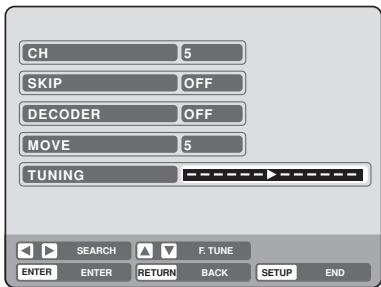
5 Si l'image accordée n'est pas satisfaisante, appuyez sur ▲ ou ▼ jusqu'à obtenir la meilleure image. Puis appuyez sur ENTER. 6 Répétez les étapes 2 et 5 pour prérégler d'autres stations TV.
REMARQUE :
Parfois, la recherche automatique peut capter un signal faible et s'arrêter. Si le signal de la station TV est faible, vous ne devez pas mémoriser cette station. Dans ce cas, relancez la recherche automatique en utilisant ◀ ou ▶.

Préparation :
- Allumez le téléviseur et sélectionnez sa chaîne AV (elle peut être étiquetée EXT / AUX, etc.)
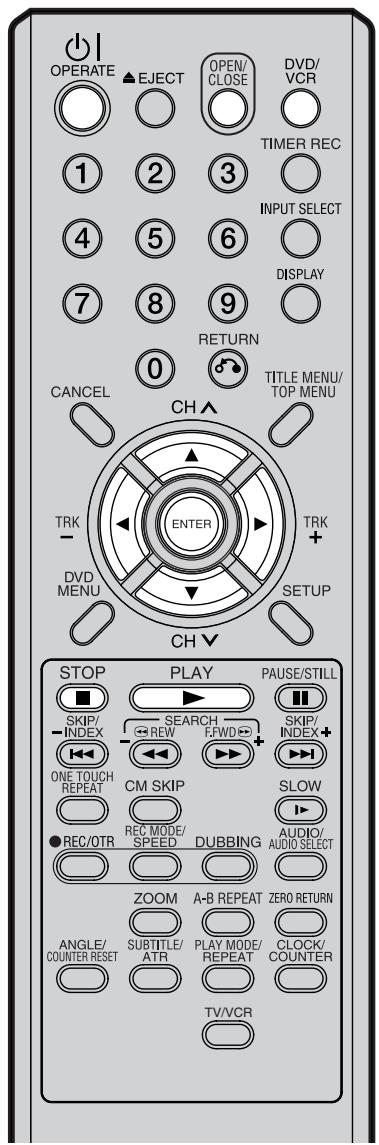
- Appuyez sur DVD/VCR pour sélectionner le mode DVD. (Le témoin DVD s'allume.)
1 Appuyez sur OPEN/CLOSE. Le plateau du disque s'ouvre.
2 Placez un disque sur le plateau. Tenez le disque, positionnez-le avec l'étiquette imprimée vers le haut, alignez-le avec les guides et placez-le dans sa position correcte.
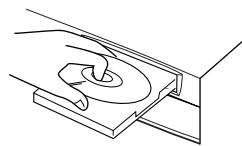
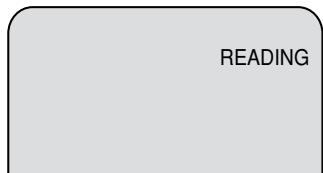
3 Appuyez sur OPEN/CLOSE pour fermer le plateau du disque. « READING » apparaît à l'écran et certains disques démarrent la lecture automatiquement.
- Un menu peut apparaître à l'écran du téléviseur, si le disque possède une fonction de menu. Dans ce cas, appuyez sur ▲, ▼, ◀, ▶ ou ENTER pour utiliser une fonction de menu.
4 Appuyez sur PLAY pour démarrer la lecture. 5 Appuyez sur STOP pour terminer la lecture.
- Le magnétoscope/lecteur DVD mémorise le point d'arrêt, selon le disque. « ▶ » apparaît à l'écran pendant environ 4 secondes. « ▶ » clignote dans l'affichage jusqu'à ce que la lecture soit complètement arrêtée. Appuyez sur PLAY pour reprendre la lecture (à partir du point de la scène).
- Si vous appuyez à nouveau sur STOP (« ■ » apparaît à l'écran), le magnétoscope/lecteur DVD effacera le point d'arrêt.
6. Appuyez ensuite sur OPEN/CLOSE.
Le plateau du disque s'ouvre.
Retirez le disque et appuyez sur ⏻ | OPERATE.
Le plateau se ferme automatiquement et le magnétoscope/lecteur DVD s'éteint.
REMARQUES :
- Si un disque incompatible est chargé, « DISQUE INCORRECT », « ERREUR DE CODE RÉGIONAL » ou « ERREUR PARENTALE » apparaîtra à l'écran du téléviseur selon le type de disque chargé. Dans ce cas, vérifiez à nouveau votre disque (voir pages 7 et 19).
- Certains disques peuvent mettre une minute ou plus à démarrer la lecture.
- Un symbole d'interdiction « √ » peut apparaître en haut à droite de l'écran. Ce symbole signifie que la fonction que vous avez essayée n'est pas disponible sur le disque, ou que le magnétoscope/lecteur DVD ne peut pas accéder à cette fonction à ce moment-là. Cela n'indique pas un problème avec le magnétoscope/lecteur DVD.
- Si vous placez un disque simple face avec l'étiquette vers le bas (c'est-à-dire à l'envers) et que vous appuyez sur PLAY ou OPEN/CLOSE, « READING » apparaîtra puis se changera en « NO DISC ».
- Certaines opérations de lecture des DVD peuvent être intentionnellement fixées par les producteurs de logiciels. Étant donné que ce magnétoscope/lecteur DVD lit les DVD conformément au contenu du disque conçu par les producteurs de logiciels, certaines fonctions de lecture peuvent ne pas être disponibles. Reportez-vous également au manuel d'utilisation fourni avec les DVD.
- Lors de la lecture de CD audio encodés en DTS, un bruit excessif sera émis par les sorties stéréo analogiques. Pour éviter d'endommager le système audio, l'utilisateur doit prendre des précautions appropriées lorsque les sorties stéréo analogiques du magnétoscope/lecteur DVD sont connectées à un système d'amplification.
- La plupart des disques étiquetés « Format CD non PC/MAC » ne seront pas lus sur ce magnétoscope/lecteur DVD.
Lecture en sélectionnant un titre
DVD-RW VR DVD-RW Video DVD-R
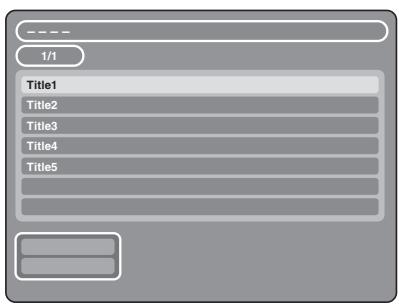
Lors de la lecture d'un disque enregistré, vous pouvez afficher le menu des titres et sélectionner le titre à lire.
NOTES :
- Pour un disque enregistré en mode vidéo, « REC DATE », « TIME », « CHANNEL » et « REC MODE » n'apparaîtront pas dans le menu des titres.
- Lorsqu'un disque enregistré en mode vidéo est finalisé, une liste de titres est automatiquement créée et peut être lue même sur d'autres lecteurs DVD. Par conséquent, le menu avant finalisation est différent de celui après finalisation.
Préparation :
- Allumez le téléviseur et sélectionnez sa chaîne AUX (cela peut être étiqueté EXT / AUX, etc.)
- Chargez un DVD enregistré.
- Appuyez sur DVD/VCR pour sélectionner le mode DVD. (L'indicateur DVD s'allumera.)
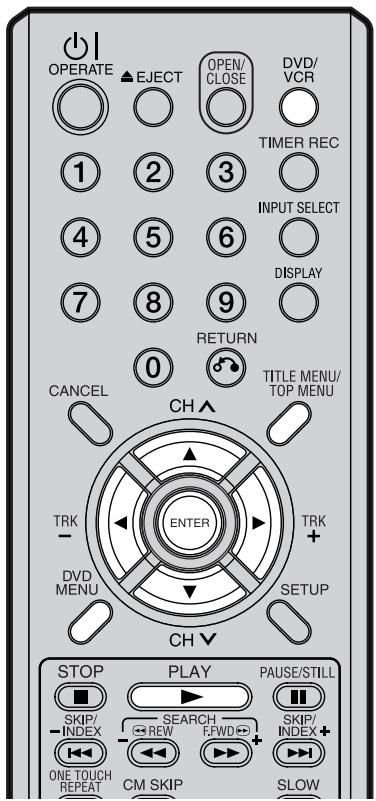
1 Appuyez sur TITLE MENU.
Le menu des titres apparaîtra.
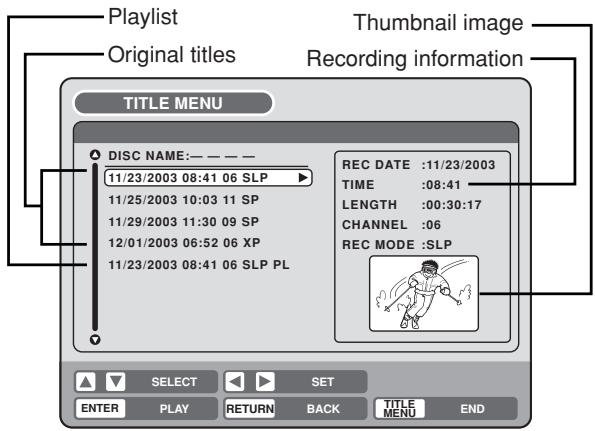
S'il y a de nombreux titres originaux et listes de lecture...
Avant d'appuyer sur TITLE MENU, appuyez sur DVD MENU jusqu'à ce que « VR ORG » ou « VR PL » apparaisse en haut à droite de l'écran du téléviseur, puis appuyez sur TITLE MENU.
Le premier titre original ou la première liste de lecture sera mis en surbrillance.
2 Appuyez sur ▲ ou ▼ pour sélectionner le titre que vous souhaitez lire.
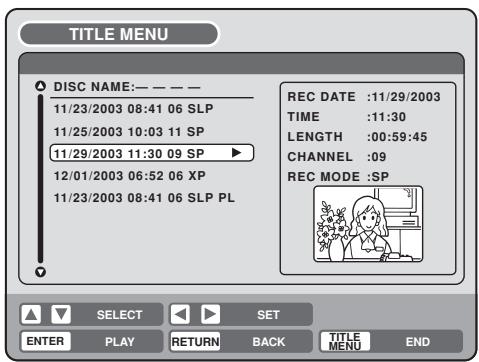
3 Appuyez sur ENTER.
Le titre sélectionné est lu.
NOTES :
- Si vous n'affichez pas le menu des titres et que vous appuyez sur LECTURE, le premier titre est lu.
- Le menu des titres sert non seulement à lire les titres, mais aussi à éditer divers disques et titres. Pour plus de détails sur les opérations d'édition, voir page 55.
- Si vous créez une liste de lecture, un titre original et une liste de lecture apparaissent dans le menu des titres. Pour créer une liste de lecture, voir page 56.
- Si le disque contient plus de 10 titres, vous pouvez passer à la page suivante ou précédente. Appuyez sur ◀, puis sur ▼ ou ▲ pour afficher la page suivante/précédente. Pour revenir à une utilisation normale, appuyez sur ▶.
- Vous ne pouvez pas passer en mode magnétoscope lorsque le menu des titres est affiché. Appuyez sur TITLE MENU pour effacer le menu des titres, puis appuyez sur DVD/VCR pour passer en mode magnétoscope.
Vérification des informations sur le support

Diverses informations sur le disque chargé peuvent être affichées à l'écran du téléviseur.
NOTES :
- Les informations affichées varient selon le type de support.
- Certaines informations peuvent ne pas apparaître en raison du type de support ou des conditions de fonctionnement.
Préparation :
- Allumez le téléviseur et sélectionnez sa chaîne AV (elle peut être étiquetée EXT / AUX, etc.)
- Chargez le disque.
- Appuyez sur DVD/VCR pour sélectionner le mode DVD. (Le témoin DVD s'allume.)
1 Appuyez sur DISPLAY. Les informations sur le support apparaissent.
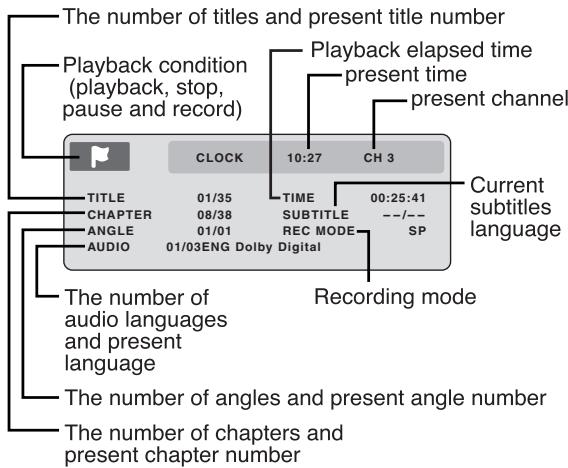
2 Appuyez sur DISPLAY pendant que les informations sur le support ci-dessus sont affichées. Les informations suivantes sur le support apparaissent.
![graph TD A["Title"] --> B["Media type"] B --> C["Disc name"] C --> D["DISC NAME ----"] C --> E["MEDIA TYPE DVD-RW VIDEO"] C --> F["TITLE ORIGINAL35"] C --> G["REMAINING TIME ----/SP"] C --> H["DISC PROTECT NO"] C --> I["FINALISED YES"] J["Finalise"] --> K["Disc protect"] L["Remaining time*"] --> M["…](/content/2025/01/78588/images/bd8e36bea60fb6ce18a47e4e216c4077e498912af69ca3dcfd9868787120fe6a.jpg)
*Le temps restant affiché pendant l'enregistrement peut différer du temps restant réel. Pour vérifier le temps restant correct, arrêtez l'enregistrement et affichez à nouveau les informations sur le support.
3 Appuyez à nouveau sur DISPLAY pendant que les informations sur le support ci-dessus sont affichées. Les informations sur le support disparaissent.
REMARQUE : Il peut y avoir un léger délai entre l'appui sur le bouton et l'activation de la fonction.
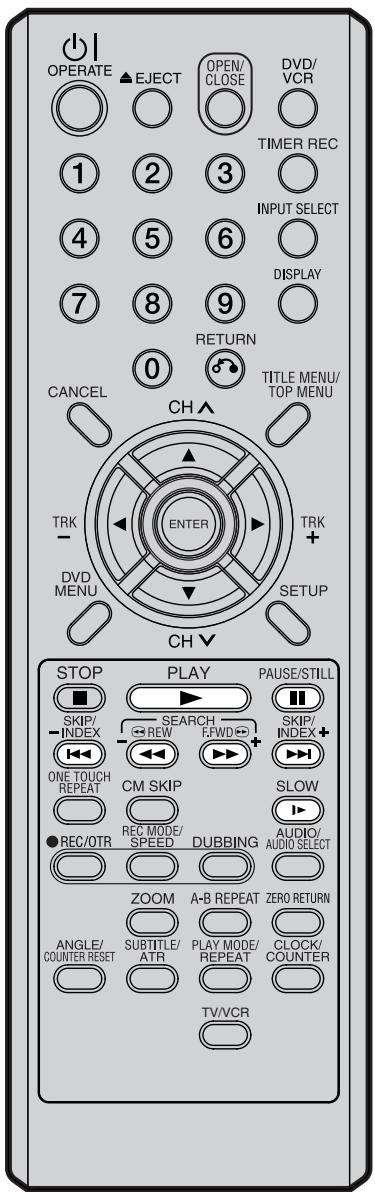
Lecture en avance rapide
Appuyez sur F.FWD pendant la lecture normale.
Chaque pression sur F.FWD augmente la vitesse de recherche ▶▶(x2), ▶▶▶(x12), ▶▶▶▶(x24), ▶▶▶▶▶(x60).
(La vitesse de recherche n'augmente que de 2 pas en CD.)
• Pour reprendre la lecture normale, appuyez sur PLAY.
Lecture en retour
Appuyez sur REW pendant la lecture normale.
Chaque pression sur REW augmente la vitesse de recherche ◀◀ (x2), ◀◀◀ (x12), ◀◀◀◀ (x24), ◀◀◀◀◀ (x60).
(La vitesse de recherche n'augmente que de 2 pas en CD.)
• Pour reprendre la lecture normale, appuyez sur PLAY.
Lecture sur image fixe
Appuyez sur PAUSE/STILL pendant la lecture normale.
Pour reprendre la lecture normale, appuyez sur PLAY.

Avance image par image
Appuyez sur PAUSE/STILL pendant la lecture sur image fixe.
Chaque pression sur PAUSE/STILL fait avancer d'une image.
Pour reprendre la lecture normale, appuyez sur PLAY.
Lecture au ralenti
Appuyez sur SLOW pendant la lecture normale ou sur image fixe.
Chaque pression sur SLOW change la vitesse du ralenti : « ▶1/2 », « ▶1/4 », « ▶1/8 ».
• Pour reprendre la lecture normale, appuyez sur PLAY.
- Pour reprendre la lecture sur image fixe, appuyez sur PAUSE/STILL.
Localisation d'un chapitre ou d'une plage
Appuyez sur SKIP (▶▶▶) avant ou SKIP (▶◀◀) arrière pendant la lecture pour localiser le chapitre que vous souhaitez regarder.
Chaque pression sur la touche permet de sauter un chapitre ou une plage.
NOTES :
- L'appareil peut afficher une image vidéo fixe ou une image à l'écran sur votre téléviseur indéfiniment. Si vous laissez l'image vidéo fixe ou l'image à l'écran affichée sur votre téléviseur pendant une période prolongée, vous risquez d'endommager définitivement l'écran de votre téléviseur. Les téléviseurs à projection sont très sensibles à ce phénomène.
- L'avance rapide et la lecture en revue ne fonctionnent pas avec un CD MP3/WMA/JPEG. • L'avance image par image et le ralenti ne fonctionnent pas avec un CD.
Saut de publicité / Localisation d'une scène spécifique
DVD-VIDEO DVD-RW VR DVD-RW Video DVD-R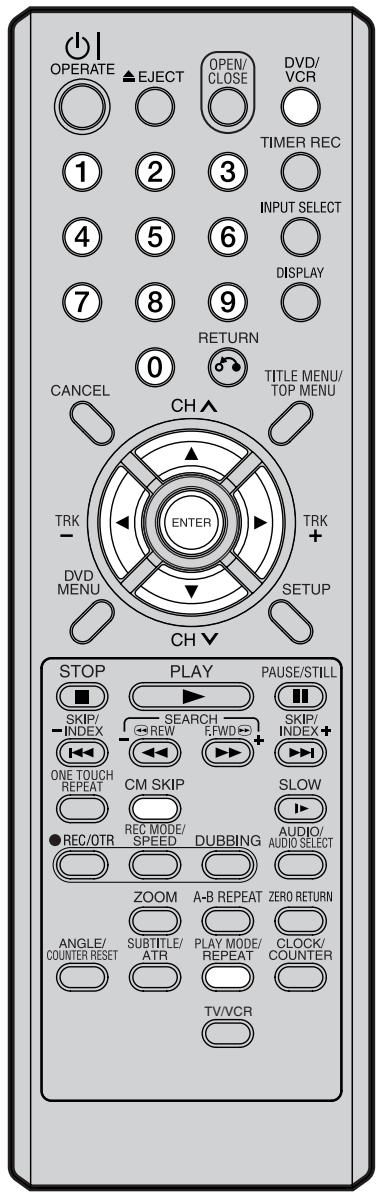
REMARQUE :
Vous ne pouvez pas passer en mode magnétoscope lorsque l'écran du mode de lecture est affiché. Appuyez sur PLAY MODE pour effacer l'écran du mode de lecture, puis appuyez sur DVD/VCR pour passer en mode magnétoscope.
Saut de publicité
Utilisez cette fonction pour sauter les publicités pendant la lecture.
Appuyez sur CM SKIP pendant la lecture.
Le temps avance jusqu'à un point environ 30 secondes plus tard et la lecture reprend.
REMARQUE :
Avec certains DVD-Vidéo, la fonction de saut de publicité peut ne pas fonctionner.
Localisation d'une scène spécifique
Spécifiez le temps enregistré sur le disque, le chapitre ou le titre pour la lecture.
1 Appuyez sur PLAY MODE.
L'écran du mode de lecture apparaît.
![graph LR A["TIME SEARCH"] --> B["CHAPTER SEARCH"] B --> C["TITLE SEARCH"] C --> D["REPEAT"]](/content/2025/01/78588/images/10835a1c17c8ffe1eaf493e1e004a13bec13574fa7bae114d6d3ec5aca5ade9a.jpg)
2 Appuyez sur ◀ ou ▶ pour sélectionner "RECHERCHE PAR TEMPS", "RECHERCHE PAR CHAPITRE" ou "RECHERCHE PAR TITRE", puis appuyez sur ENTER.
RECHERCHE PAR TEMPS : Saisissez le temps jusqu'à la reprise de la lecture. RECHERCHE PAR CHAPITRE : Sélectionnez le numéro de chapitre à lire. RECHERCHE PAR TITRE : Sélectionnez le numéro de titre à lire.
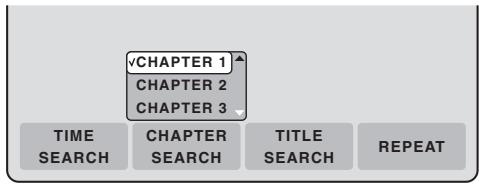
L'écran ci-dessus montre l'affichage lorsque "RECHERCHE PAR CHAPITRE" est sélectionné.
3 Lors de la sélection de "RECHERCHE PAR TEMPS", saisissez le temps jusqu'à la reprise de la lecture avec les touches numériques ou ▲/▼/◄/►. Lors de la sélection de "RECHERCHE PAR CHAPITRE" ou "RECHERCHE PAR TITRE", appuyez sur ▲ ou ▼ pour sélectionner le numéro de chapitre ou de titre.
4 Appuyez sur ENTER.
La lecture commence à l'endroit que vous avez sélectionné.
REMARQUE :
Pour "RÉPÉTITION", voir "Lecture répétée de titre, de chapitre" (page 33).

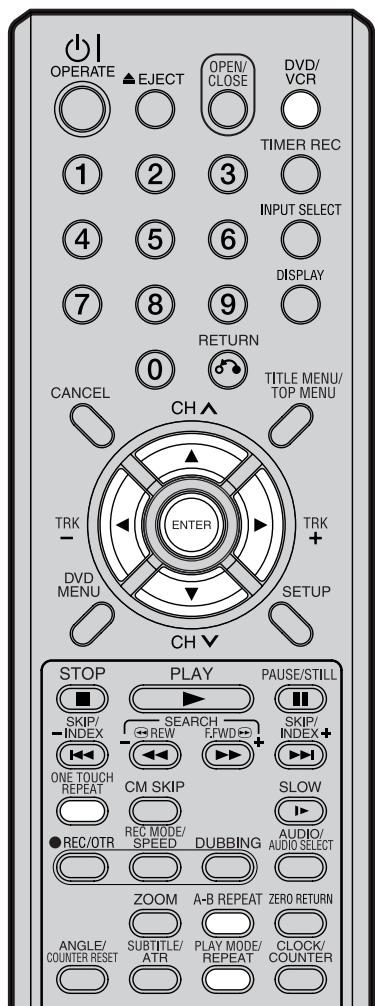
REMARQUES :
- Certains disques peuvent ne pas fonctionner avec l'opération de répétition.
- En mode de répétition A-B, les sous-titres près du point A ou B peuvent ne pas apparaître.
- La répétition A-B ne fonctionne pas pendant la lecture répétée du titre et du chapitre.
- Vous ne pourrez peut-être pas définir la répétition A-B, selon les scènes du DVD.
- La répétition A-B et la répétition de titre ou de chapitre ne fonctionnent pas avec un CD MP3/WMA/JPEG et un CD vidéo.
- Vous ne pouvez pas passer en mode magnétoscope lorsque l'écran du mode de lecture est affiché. Appuyez sur REPEAT pour effacer l'écran du mode de lecture, puis appuyez sur DVD/VCR pour passer en mode magnétoscope.
Répétition en une touche
Cette fonction permet de répéter les 10 dernières secondes de la séquence visionnée sur un DVD - puis la lecture normale reprend.
Appuyez sur ONE TOUCH REPEAT pendant la lecture.
La lecture revient à un point 10 secondes plus tôt, puis reprend.
REMARQUES :
- Si ONE TOUCH REPEAT est enfoncé moins de 10 secondes après le début du titre en cours, il reviendra simplement au début de ce titre.
Lecture en répétition A-B
La lecture en répétition A-B permet de répéter une séquence entre deux points sélectionnés.
1 Appuyez sur A-B REPEAT pendant la lecture.
Le point de départ est sélectionné.
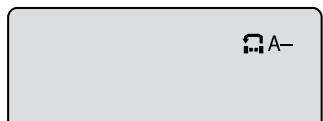
2 Appuyez à nouveau sur A-B REPEAT.
Le point de fin est sélectionné. La lecture commence au point que vous avez sélectionné. La lecture s'arrête au point de fin, revient automatiquement au point A, puis recommence.
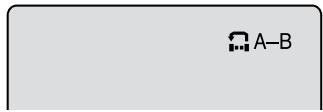
Pour reprendre la lecture normale, appuyez à nouveau sur A-B REPEAT.
"OFF" apparaît à l'écran.
Lecture répétée d'un titre ou d'un chapitre
1 Appuyez sur REPEAT.
L'écran du mode de lecture apparaît.
![graph LR A["TIME SEARCH"] --> B["CHAPTER SEARCH"] B --> C["TITLE SEARCH"] C --> D["REPEAT"]](/content/2025/01/78588/images/4060404b2a8b7181198c0f5239a6fb2767bea6d8272396816eb6f85db20cbd78.jpg)
2 Appuyez sur ◀ ou ▶ pour sélectionner "REPEAT" puis appuyez sur ENTER.
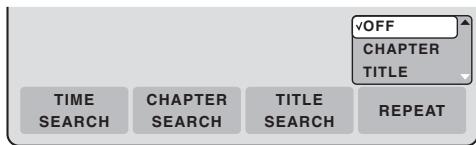
3 Appuyez sur ▲ ou ▼ pour sélectionner "OFF", "CHAPTER" ou "TITLE" dans la liste.
OFF : la lecture n'est pas répétée.
CHAPTER : le chapitre en cours de lecture est répété.
TITLE : le titre en cours de lecture est répété.
4 Appuyez sur ENTER.
- Pour annuler la lecture répétée, sélectionnez "OFF" à l'étape 3.
DVD-VIDEO
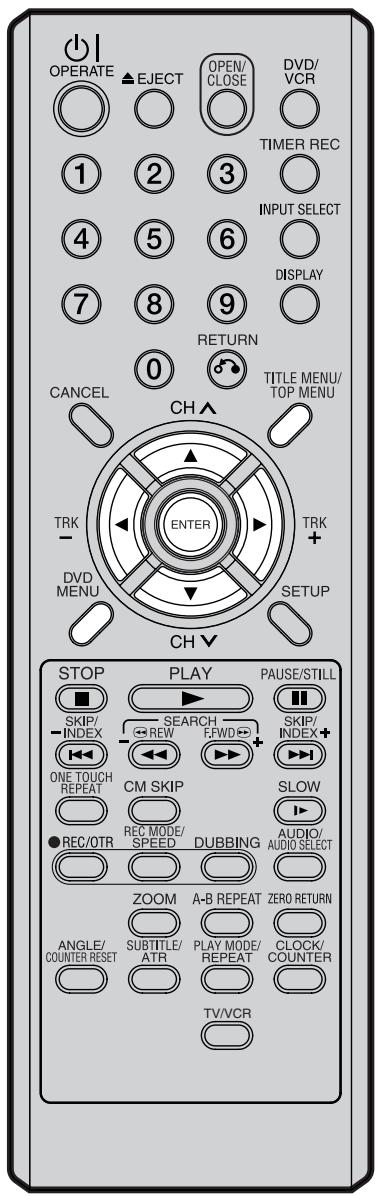
REMARQUE :
Selon le DVD, il se peut que vous ne puissiez pas sélectionner le titre, et qu'un "menu de titre" soit simplement appelé "menu" ou "titre" dans les instructions fournies avec le disque.
Sélection du titre
Certains disques contiennent plusieurs titres. Si le menu des titres est enregistré sur le disque, vous pouvez sélectionner le titre souhaité.
1 Appuyez sur TITLE MENU/TOP MENU pendant la lecture.
Le menu des titres apparaît à l'écran.
- Appuyez à nouveau sur TITLE MENU/TOP MENU pour reprendre la lecture à la scène où vous avez appuyé sur TITLE MENU/TOP MENU.
2 Appuyez sur ▲/▼ ou ◀/▶ pour sélectionner le titre souhaité.
3 Appuyez sur ENTER.
La lecture du titre sélectionné commence.
Menu DVD
Certains DVD vous permettent de sélectionner le contenu du disque à l'aide du menu. Lorsque vous lisez ces DVD, vous pouvez sélectionner la langue des sous-titres et la langue de la piste audio, etc., à l'aide du menu DVD.
1 Appuyez sur DVD MENU pendant la lecture.
Le menu DVD apparaît à l'écran.
- Appuyez à nouveau sur DVD MENU pour reprendre la lecture à la scène où vous avez appuyé sur DVD MENU.
2 Appuyez sur ▲/▼ ou ◀/▶ pour sélectionner l'élément souhaité.
3 Appuyez sur ENTER.
Le menu continue sur un autre écran. Répétez les étapes 2 et 3 pour configurer complètement l'élément.
DVD-VIDEO, DVD-RW (VR), DVD-RW (Video), DVD-R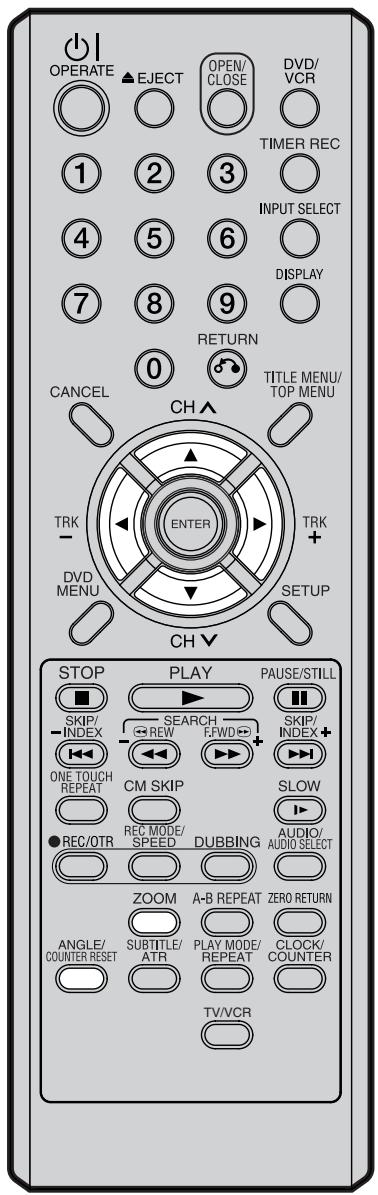
NOTES :
- Selon le DVD, il se peut que vous ne puissiez pas changer les angles même si plusieurs angles sont enregistrés sur le disque.
- Vous pouvez utiliser les fonctions Pause, Ralenti, Recherche ou Saut en mode zoom.
Changement d'angle
Lors de la lecture d'un disque enregistré avec la fonction multi-angle, vous pouvez changer l'angle sous lequel vous visualisez la scène.
1 Appuyez sur ANGLE pendant la lecture. L'angle actuel s'affiche.
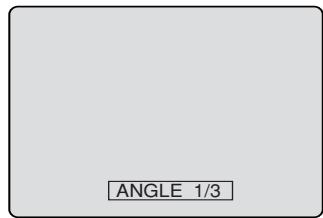
2 Appuyez plusieurs fois sur ANGLE jusqu'à ce que l'angle souhaité soit sélectionné.
Zoom
Cet appareil vous permet de zoomer sur l'image. Vous pouvez ensuite faire des sélections en déplaçant le cadre.
1 Appuyez sur ZOOM pendant la lecture. La partie centrale de l'image est agrandie. Chaque pression sur ZOOM change le zoom "x2", "x3" et "x4".
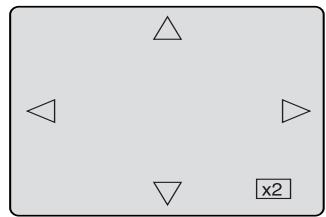
2 Appuyez sur ▲/▼ ou ◀/▶ pour visualiser une autre partie de l'image. Vous pouvez déplacer le cadre de la position centrale vers le haut, le bas, la gauche ou la droite. 3 En mode zoom, appuyez plusieurs fois sur ZOOM pour revenir à une vue 1:1 "x1".
Changement de la langue de la piste audio / Sous-titres
DVD-VIDEO
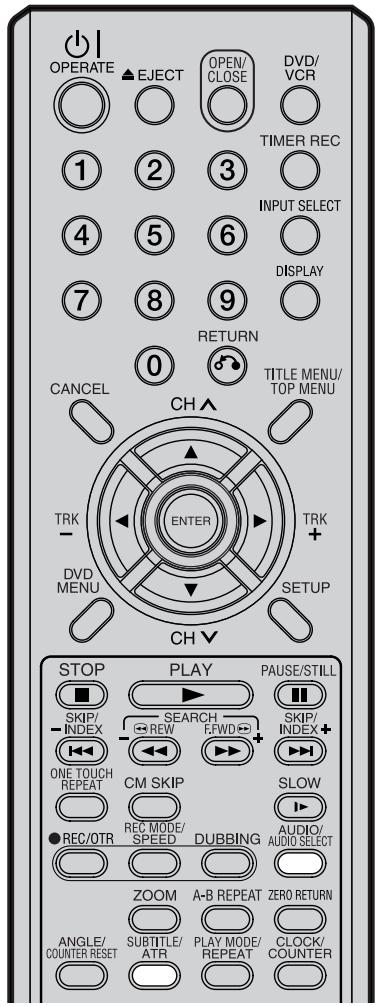
NOTES :
- Si la langue souhaitée n'est pas entendue après avoir appuyé plusieurs fois sur le bouton, c'est que la langue n'est pas enregistrée sur le disque.
- Le changement de langue de la piste sonore ou des sous-titres est annulé lorsque vous ouvrez le plateau du disque. La langue par défaut initiale ou la langue disponible sera entendue et vue si le disque est lu à nouveau.
- Selon le DVD, il se peut que vous ne puissiez pas activer, désactiver ou changer les sous-titres, même s'ils sont enregistrés sur le disque. Pendant la lecture du DVD, les sous-titres peuvent changer lors de l'ouverture ou de la fermeture du plateau du disque, ou lors du changement de titre.
- Dans certains cas, la langue des sous-titres n'est pas changée immédiatement pour celle sélectionnée.
Changement de la langue de la piste sonore
Vous pouvez sélectionner la langue lors de la lecture d'un disque multilingue.
1 Appuyez sur AUDIO pendant la lecture. La langue actuelle de la piste sonore apparaîtra.
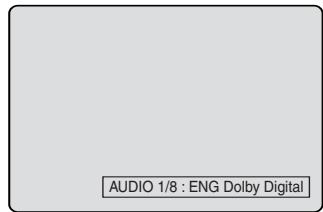
2 Appuyez plusieurs fois sur AUDIO jusqu'à ce que la langue souhaitée soit sélectionnée. L'affichage à l'écran disparaîtra après quelques secondes.
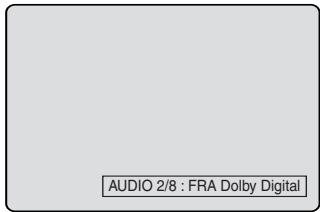
En cas de lecture de VIDEO CD
Le type audio changera comme suit à chaque pression sur AUDIO.
VIDEO CD![graph TD A["AUDIO LR"] --> B["AUDIO L"] B --> C["AUDIO R"] D["AUDIO 1/2 LR"] --> E["AUDIO 1/2 L"] E --> F["AUDIO 1/2 R"] G["AUDIO 2/2 LR"] --> H["AUDIO 2/2 L"] H --> I["AUDIO 2/2 LR"] J["S-VCD"] --> A K["S-VCD"] --> C L["S-VCD"] --> D M["S-VCD"] --> G N["S-VCD"] --> F O["S-VCD"] --> I](/content/2025/01/78588/images/7bdcfc516d56374534ae99dfe6752582f0c58aec793568f9c5a09f53ddc69e3e.jpg)
Activation et désactivation des sous-titres
Lors de la lecture d'un disque avec sous-titres, vous pouvez activer ou désactiver les sous-titres.
Appuyez sur SUBTITLE pendant la lecture jusqu'à ce que "SUBTITLE OFF" apparaisse.
Changement de la langue des sous-titres
Vous pouvez sélectionner la langue lors de la lecture d'un disque enregistré avec des sous-titres multilingues.
Appuyez plusieurs fois sur SUBTITLE pendant la lecture jusqu'à ce que la langue souhaitée apparaisse.
L'affichage à l'écran disparaîtra après quelques secondes.
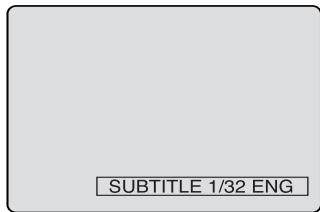

Cette section décrit l'écran TRACK INFO où les CD musicaux peuvent être lus à l'aide des différentes opérations.
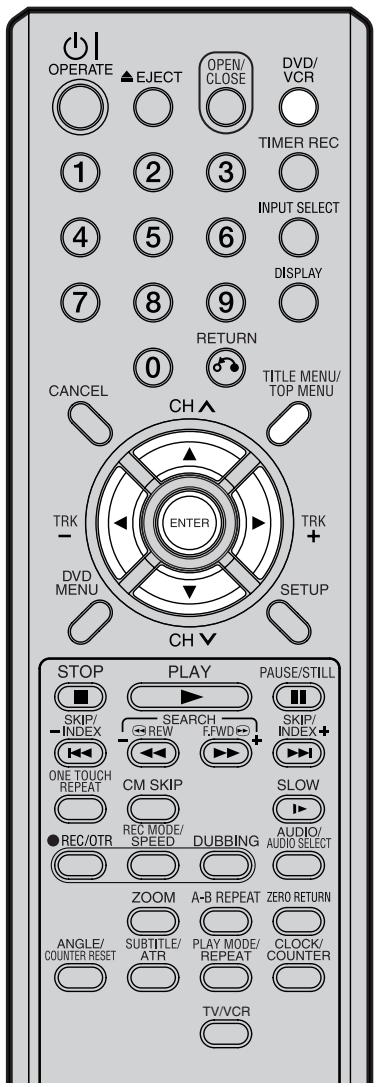
REMARQUES :
- Si le disque contient plus de 10 pistes, vous pouvez passer à la page suivante ou précédente. Appuyez sur ◀, puis sur ▼ ou ▲ pour afficher la page suivante/précédente. Pour revenir à une utilisation normale, appuyez sur ▶.
- Vous ne pouvez pas passer en mode VCR lorsque l'écran TRACK INFO est affiché. Appuyez sur TITLE MENU/TOP MENU pour effacer l'écran TRACK INFO, puis appuyez sur DVD/VCR pour passer en mode VCR.
Préparation :
- Allumez le téléviseur et sélectionnez sa chaîne AV (elle peut être étiquetée EXT / AUX, etc.)
- Chargez le CD musical.
- Appuyez sur DVD/VCR pour sélectionner le mode DVD. (Le témoin DVD s'allumera.)
Appuyez sur TITLE MENU/TOP MENU. L'écran TRACK INFO apparaîtra. Le temps écoulé et le temps total des données musicales (pendant la lecture)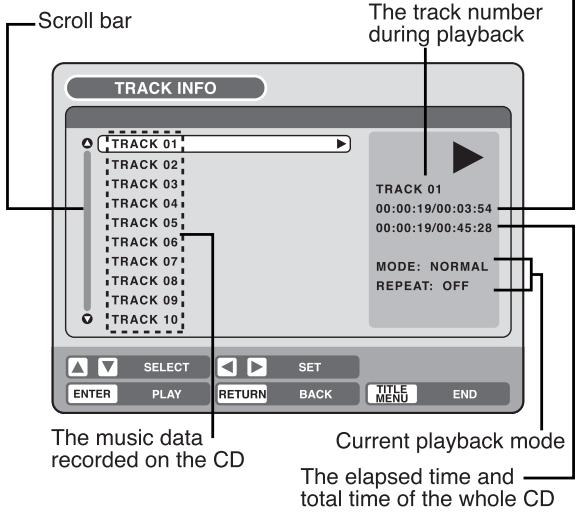
Appuyez sur ▶. La liste du menu apparaîtra.
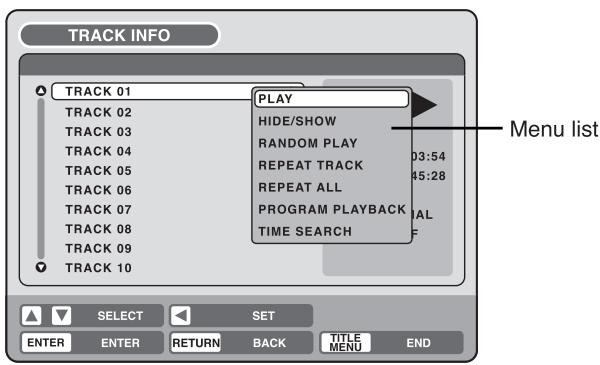
Lecture d'une piste sélectionnée
1 Appuyez sur ▲ ou ▼ pour sélectionner le numéro de piste que vous souhaitez lire, puis appuyez sur ▶. 2 Appuyez sur ▲ ou ▼ pour sélectionner "PLAY" dans la liste du menu, puis appuyez sur ENTER. La piste sélectionnée sera lue.
Exclusion d'une plage spécifiée
1 Pendant l'arrêt, appuyez sur ▲ ou ▼ pour sélectionner le numéro de plage que vous ne voulez pas lire, puis appuyez sur ▶. 2 Appuyez sur ▲ ou ▼ pour sélectionner "HIDE/SHOW" dans la liste du menu, puis appuyez sur ENTER. La plage sélectionnée ne sera pas lue. ("H" apparaît à côté du numéro de plage.)
Pour annuler l'exclusion, appuyez sur ▲ ou ▼ pour sélectionner le numéro de plage avec "H", puis appuyez sur ▶. Appuyez sur ▲ ou ▼ pour sélectionner "HIDE/SHOW" dans la liste du menu, puis appuyez sur ENTER ; "HIDE" sera annulé.
CD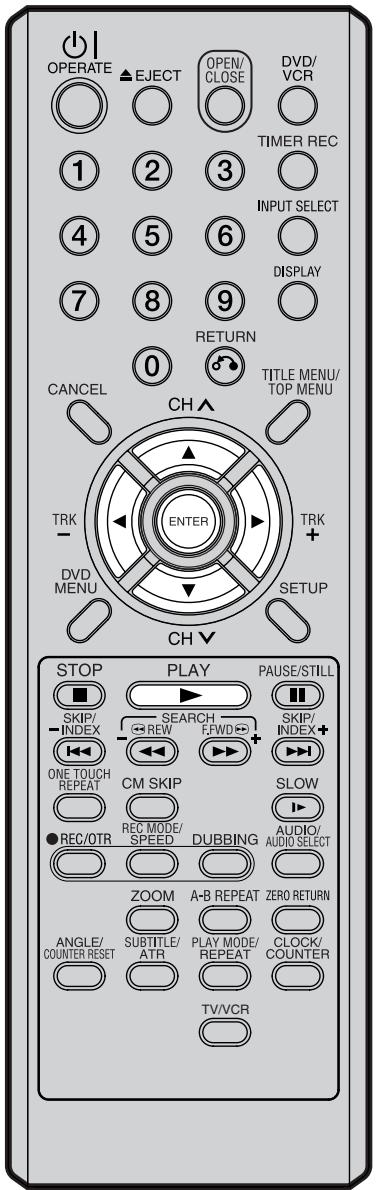
REMARQUE :
Lors de la lecture d'un CD-R/CD-RW enregistré au format MP3 ou WMA, "RANDOM PLAY" et "TIME SEARCH" n'apparaîtront pas dans la liste du menu.
Lecture aléatoire
1 Appuyez sur ▲ ou ▼ pour sélectionner "RANDOM PLAY" dans la liste du menu, puis appuyez sur ENTER. L'ordre des plages musicales est modifié aléatoirement. 2 Appuyez sur PLAY. La musique est lue dans un ordre aléatoire.
Pour annuler la lecture aléatoire, sélectionnez à nouveau "RANDOM PLAY" dans la liste du menu, puis appuyez sur ENTER.
Répétition de la plage sélectionnée
1 Appuyez sur ▲ ou ▼ pour sélectionner le numéro de plage que vous voulez répéter, puis appuyez sur ▶. 2 Appuyez sur ▲ ou ▼ pour sélectionner "REPEAT TRACK" dans la liste du menu, puis appuyez sur ENTER. 3 Appuyez sur PLAY. La plage sélectionnée sera lue en boucle.
Pour annuler la répétition de plage, sélectionnez à nouveau "REPEAT TRACK" dans la liste du menu, puis appuyez sur ENTER.
Répétition de toutes les plages
1 Appuyez sur ▲ ou ▼ pour sélectionner "REPEAT ALL" dans la liste du menu, puis appuyez sur ENTER. 2 Appuyez sur PLAY. Toutes les plages du CD seront lues en boucle.
Pour annuler la répétition de toutes les plages, sélectionnez à nouveau "REPEAT ALL" dans la liste du menu, puis appuyez sur ENTER.
Lecture de programmes
Vous pouvez spécifier vous-même l'ordre de lecture.
1 Appuyez sur ▲ ou ▼ pour sélectionner "LECTURE PROGRAMMÉE" dans la liste du menu, puis appuyez sur ENTER. 2 Appuyez sur ▲ ou ▼ pour sélectionner le numéro de piste dont vous voulez modifier l'ordre, puis appuyez sur ENTER. Le repère "▶" apparaîtra à droite du numéro de piste. 3 Appuyez sur ▲ ou ▼ pour sélectionner le numéro de piste que vous voulez spécifier, puis appuyez sur ENTER. Le numéro de piste sélectionné à l'étape 2 se déplace à la position précédant la piste spécifiée. 4 Répétez les étapes 2 et 3 pour modifier l'ordre de lecture. 5 Appuyez sur PLAY. Les pistes seront lues dans l'ordre modifié.
Pour annuler la lecture programmée, sélectionnez "QUITTER LE MODE PROGRAMME" dans la liste du menu, puis appuyez sur ENTER.
Lecture d'une piste en spécifiant le temps
1 Pendant la lecture, appuyez sur ▲ ou ▼ pour sélectionner "RECHERCHE TEMPORELLE" dans la liste du menu, puis appuyez sur ENTER. 2 Appuyez sur ▲/▼ ou ◀/▶ pour spécifier le temps écoulé de la piste (ce sera le point de départ de la lecture), puis appuyez sur ENTER. La lecture commencera à partir du temps écoulé spécifié.

Les fichiers MP3/WMA peuvent être lus. Vous pouvez également afficher des fichiers JPEG sur l'écran du téléviseur et les apprécier sous forme de diaporama.
Certains disques peuvent ne pas être lus en raison de l'état de l'enregistrement.
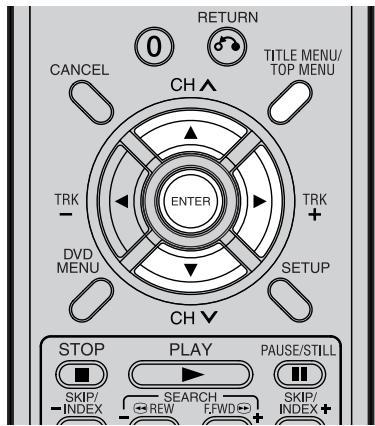
Limitations de lecture des CD MP3/WMA/JPEG :
- Un CD MP3/WMA/JPEG est un disque normalisé selon la norme ISO9660.
- Les noms de répertoires et de fichiers du CD MP3/WMA/JPEG doivent correspondre aux noms de fichiers normalisés ISO.
- Cet appareil peut lire 200 fichiers par disque. Si un répertoire contient plus de 200 fichiers, il lit jusqu'à 200 fichiers, les fichiers restants seront ignorés.
- L'appareil peut reconnaître jusqu'à un maximum de 50 répertoires par disque.
- Les CD MP3/WMA ne peuvent pas être utilisés pour la lecture à des fins de duplication.
- Les CD MP3/WMA/JPEG peuvent être utilisés pour la lecture, mais pas pour l'enregistrement.
- Si le CD contient à la fois des pistes audio et des fichiers MP3/WMA/JPEG, seules les pistes audio sont lues.
- Il peut falloir plus d'une minute pour que cet appareil lise les fichiers MP3/WMA/JPEG, selon leur structure.
- La musique enregistrée selon la « spécification d'enregistrement Joliet » peut être lue. Les noms de fichiers longs seront tronqués.
- Les fichiers musicaux enregistrés selon le « système de fichiers hiérarchique » (HFS) ne peuvent pas être lus.
Préparation :
- Allumez le téléviseur et sélectionnez sa chaîne AV (elle peut être étiquetée EXT / AUX, etc.).
- Chargez le disque contenant des fichiers MP3, WMA ou JPEG.
- Appuyez sur DVD/VCR pour sélectionner le mode DVD. (L'indicateur DVD s'allume.)
Utilisation de l'écran BROWSER
1 Appuyez sur TITLE MENU.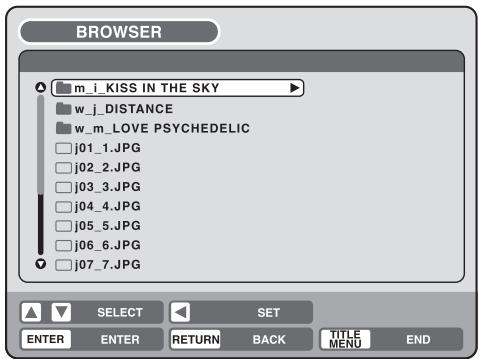
L'écran BROWSER apparaît.
2 Les fichiers et dossiers MP3, WMA et JPEG stockés sur le disque sont affichés à l'écran BROWSER.
- Sélectionnez un dossier et appuyez sur ENTER. Les fichiers du dossier apparaissent.
Lorsque le fichier à afficher est sélectionné
Vous pouvez sélectionner les types de fichiers à afficher sur l'écran BROWSER.
1 Appuyez sur ▶ puis sur ▲ ou ▼ pour sélectionner "SELECT FILES" et appuyez sur ENTER.
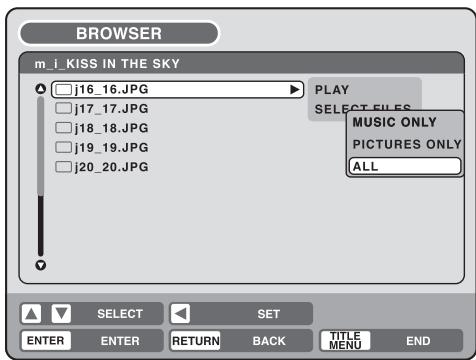
La liste suivante apparaîtra.
MUSIC ONLY : Seuls les fichiers MP3/WMA apparaissent.
PICTURES ONLY : Seuls les fichiers JPEG apparaissent.
ALL : Tous les fichiers et dossiers apparaissent.
2 Sélectionnez un élément dans la liste ci-dessus et appuyez sur ENTER. L'affichage changera pour le type d'affichage sélectionné.
CD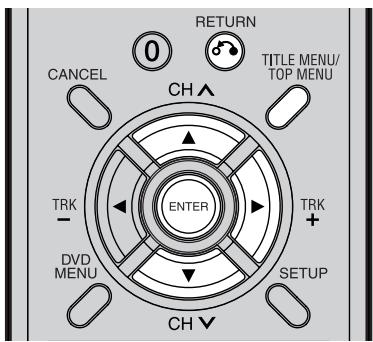
CD MP3
- Les fichiers MP3 doivent avoir l'extension ".mp3".
- Fréquence d'échantillonnage standard et débit binaire :
Audio MPEG-1
32 kHz, 44,1 kHz, 48 kHz
32 kbps à 320 kbps (débit binaire constant ou variable)
- Le réglage d'enregistrement recommandé pour un son de haute qualité est une fréquence d'échantillonnage de 44,1 kHz et un débit binaire constant de 128 kbps.
CD WMA
- Lors de la création d'un disque WMA, assurez-vous que la fonction de copyright est désactivée. Les fichiers DRM (Digital Rights Management) ne peuvent pas être lus.
- Les fichiers WMA doivent avoir l'extension ".wma".
- Standard, fréquence d'échantillonnage et débit binaire :
WMA version 7 et 8
32 kHz, 48 kbit/s
44,1 kHz, 48 kbit/s à 192 kbit/s
48 kHz, 128 kbit/s à 192 kbit/s
- Les fichiers musicaux enregistrés en mono, 48 kHz, 48 kbit/s ne peuvent pas être lus par cet appareil.
Lecture de fichiers MP3/WMA
1 Appuyez sur ▲ ou ▼ pour sélectionner le fichier MP3/WMA.
- Si le disque contient plus de 11 fichiers, vous pouvez passer à la page suivante ou précédente. (Voir page 37.)
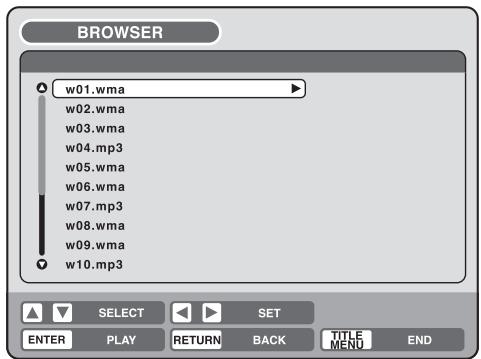
2 Effectuez l'une des opérations a ou b ci-dessous.
a : Appuyez sur ENTER.
b : Appuyez sur ▶ puis sur ▲ ou ▼ pour sélectionner "PLAY" et appuyez sur ENTER.
L'écran TRACK INFO apparaît pour lire le fichier sélectionné. Pour plus de détails sur l'écran TRACK INFO, voir "Diverses opérations sur CD" à la page 37.
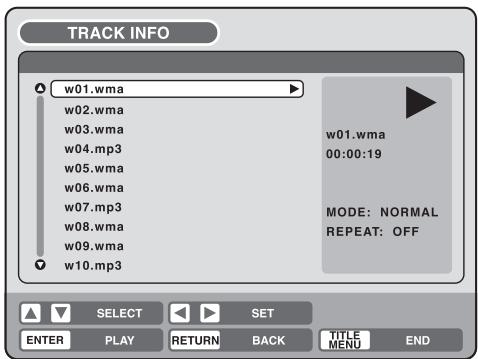
Pour revenir à l'écran BROWSER, appuyez sur RETURN.
- Pour arrêter la lecture des fichiers MP3/WMA, appuyez sur TITLE MENU.
CD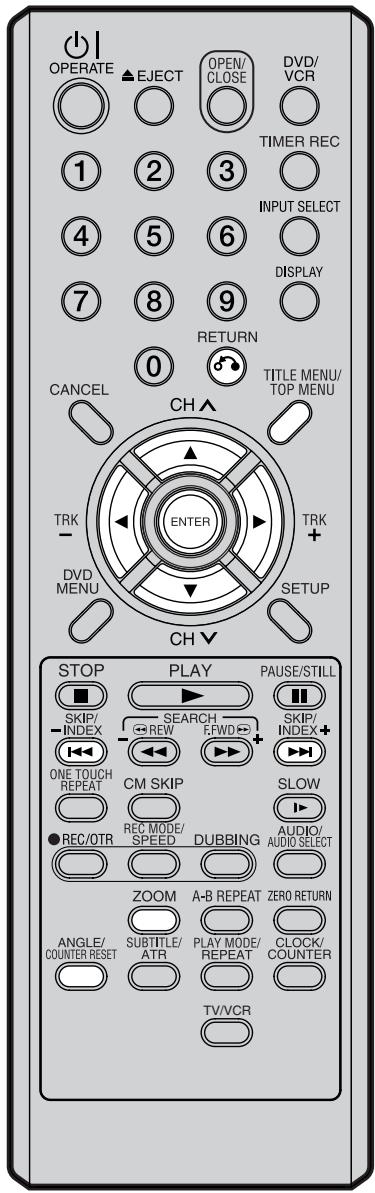
CD JPEG
Les fichiers JPEG doivent avoir l'extension ".jpe", ".jpeg" ou ".jpg".
Lecture de fichiers JPEG
1 Appuyez sur ▲ ou ▼ pour sélectionner un fichier JPEG.
- Si le disque contient plus de 11 fichiers, vous pouvez passer à la page suivante ou précédente. (Voir page 37.)
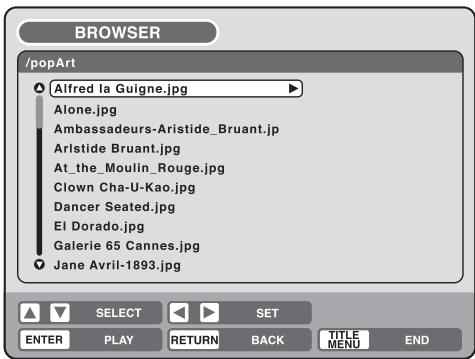
2 Sélectionnez a ou b comme ci-dessous :
a : Appuyez sur ENTER. b : Appuyez sur ▶ puis sur ▲ ou ▼ pour sélectionner "PLAY" et appuyez sur ENTER.
Les vignettes des fichiers JPEG stockés dans le répertoire racine ou le dossier apparaissent.
Appuyez sur ▲, ▼, ◀ ou ▶ pour sélectionner les pages des vignettes, ou sélectionnez le fichier JPEG à afficher en premier pour le diaporama.
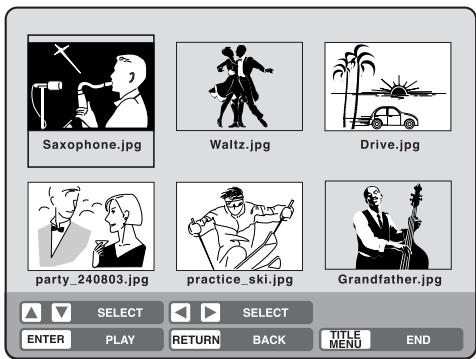
3 Appuyez sur ENTER pour lire l'image sélectionnée.
Si vous avez réglé l'intervalle de temps pour le diaporama JPEG, les images seront lues automatiquement les unes après les autres. (Voir page 25.)
- Appuyez sur ZOOM pour agrandir l'image affichée.
- Appuyez sur ANGLE pour faire pivoter l'image de 90 degrés à chaque pression.
- Pour afficher l'image suivante ou précédente, appuyez sur SKIP ▶▶▶ I ou ◀◀◀.
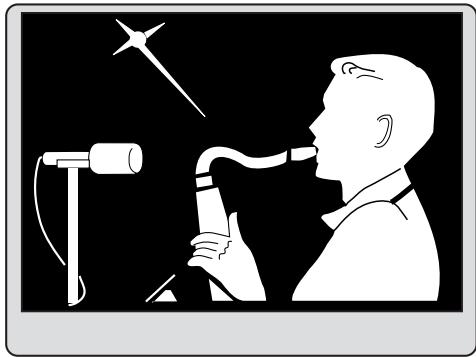
4 Pour revenir à l'écran des vignettes, appuyez sur RETURN.
- Pour arrêter le diaporama, appuyez sur TITLE MENU.
Chargement et déchargement d'une cassette
Magnétoscope
Utilisez uniquement des cassettes vidéo marquées VHS. PAL
Chargement
Poussez le centre de la cassette jusqu'à ce qu'elle soit insérée automatiquement.
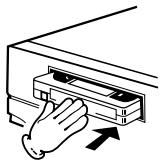
Insérez la cassette avec le côté étiquette vers le haut et la languette anti-effacement positionnée à votre gauche. Une cassette inversée ne peut pas être insérée.
Languette anti-effacement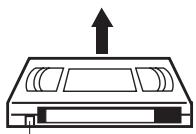
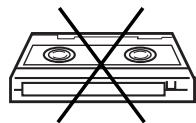
Mise sous tension automatique
Lorsque vous insérez une cassette, le magnétoscope se met automatiquement sous tension.
Lecture automatique
Lors du chargement d'une cassette sans languette anti-effacement, la lecture démarre automatiquement.
Déchargement
Vous pouvez éjecter la cassette vidéo alors que l'appareil est éteint.
1
Appuyez sur

(EJECT) sur l'appareil ou sur la télécommande.
2
Retirez la cassette.
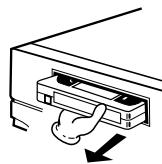
Éjection automatique de la cassette
Ce magnétoscope rembobine automatiquement la cassette lorsque celle-ci est terminée. Et lorsque la cassette est rembobinée jusqu'au début, elle est éjectée automatiquement.
Pour éviter tout effacement accidentel
Retirez la languette anti-effacement à l'aide d'un tournevis.
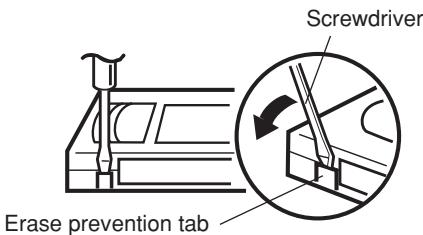
Pour réenregistrer
Couvrez le trou avec un morceau de ruban adhésif.
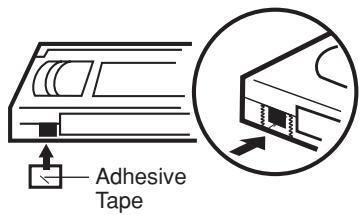
Vitesse de défilement et durée d'enregistrement maximale
| Tape speed | Video cassette tape | ||||
| E-240 | E-180 | E-90 | E-60 | E-30 | |
| Standard Play (SP) | 4 hours | 3 hours | 1 1/2 hou. | 1 hour | 30 min. |
| Long Play (LP) | 8 hours | 6 hours | 3 hours | 2 hours | 1 hour |
Magnétoscope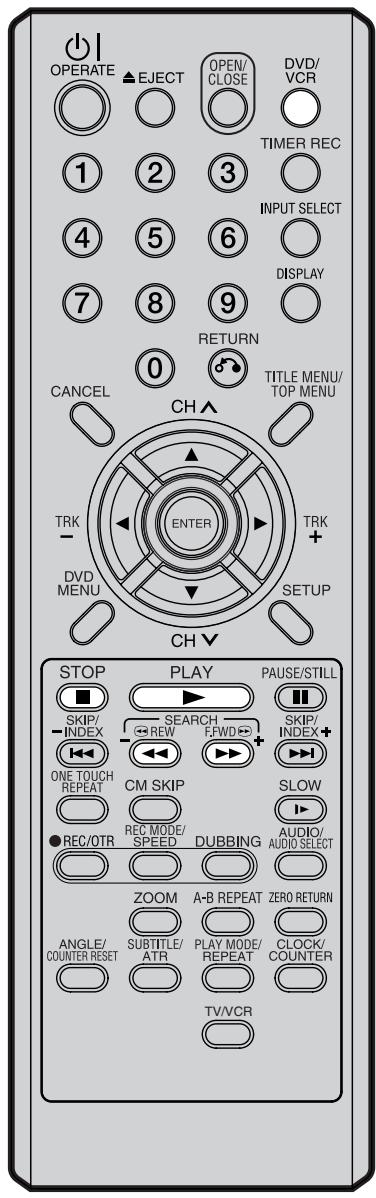
NOTES :
- Ce magnétoscope sélectionne automatiquement la vitesse de lecture SP ou LP de la cassette.
- Une cassette et un disque DVD peuvent être lus simultanément. Si vous appuyez sur DVD/VCR, la lecture de la cassette et celle du DVD alternent à l'écran.
Préparation :
- Allumez le téléviseur et sélectionnez sa chaîne AV (elle peut être étiquetée EXT / AUX, etc.).
- Appuyez sur DVD/VCR pour sélectionner le mode magnétoscope. (Le témoin VCR s'allume.)
1 Chargez une cassette préenregistrée (si vous insérez une cassette sans la languette anti-effacement, la lecture démarre automatiquement).
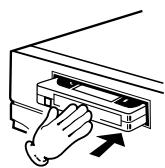
2 Pour démarrer la lecture
Appuyez sur PLAY.
La lecture démarre.
Si la cassette n'est pas encore chargée, le symbole clignotera pendant environ 4 secondes.
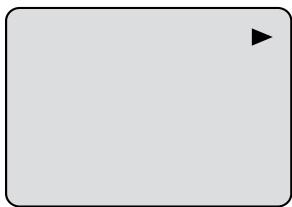
Pour arrêter la lecture
Appuyez une fois sur STOP.
La cassette s'arrête mais reste complètement chargée et prête à lire.

Pour rembobiner la cassette ou la faire avancer rapidement
Appuyez sur STOP.
Pour rembobiner la cassette :
Appuyez sur REW.
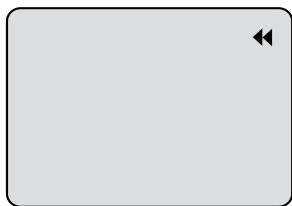
Pour avancer la cassette :
Appuyez sur F.FWD.
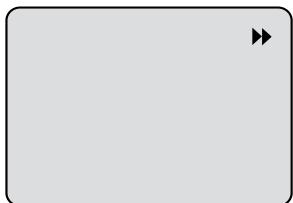
Pour arrêter le défilement de la cassette, appuyez sur STOP. Pour passer directement en lecture (sans appuyer sur STOP), appuyez sur PLAY.
Mode de recherche d'image avant/arrière
Lorsque la cassette est en cours de défilement, vous pouvez passer en mode de recherche d'image (voir page suivante). Pour ce faire, appuyez sur REW ou F.FWD et maintenez la touche enfoncée. L'appareil reprend le défilement de la cassette dès que la touche est relâchée.
Lecture de cassettes vidéo NTSC
Lors de l'utilisation d'une cassette vidéo NTSC préenregistrée, le téléviseur connecté doit être compatible avec une fréquence verticale de 60 Hz (parfois appelée fonction PAL 60 Hz). Sinon, l'image à l'écran sera affectée par un défilement vertical. Même si votre magnétoscope est capable de traiter les signaux vidéo NTSC, l'image peut être raccourcie verticalement (apparition de barres noires en haut et en bas de l'écran du téléviseur). Le doublage d'une cassette vidéo NTSC vers un magnétoscope PAL standard n'est pas possible.

Recherche d'image
Fonction de recherche d'image en arrière
Appuyez sur REW x 1 ou x 2 pendant la lecture.
Fonction de recherche d'image en avant
Appuyez sur F.FWD x 1 ou x 2 pendant la lecture.
Pour revenir à la lecture : appuyez sur LECTURE.
Image fixe
Appuyez sur PAUSE/ARRÊT SUR IMAGE pendant la lecture.
Pour reprendre la lecture normale : appuyez sur LECTURE.
Ralenti
Pendant la lecture, appuyez sur RALENTI.
Vous pouvez modifier la vitesse du ralenti en appuyant à nouveau sur RALENTI.
Pour revenir à la lecture : appuyez sur LECTURE.
Réglage du suivi lent et de la stabilisation verticale
Si des barres de bruit apparaissent dans l'image pendant le ralenti, appuyez sur TRK (SUIVI) + ou – pour réduire les barres de bruit.
Si l'image fixe tremble excessivement, appuyez sur
TRK (SUIVI) + ou – pour stabiliser l'image fixe.
Image image par image
Appuyez sur PAUSE/ARRÊT SUR IMAGE pendant la lecture.
Appuyez sur RALENTI une fois à la fois : l'image avance image par image.
Pour revenir à la lecture : appuyez sur PLAY ou PAUSE/STILL.
Réglage de la condition de suivi
Réglage automatique du suivi
Chaque fois que vous insérez une cassette et démarrez la lecture, le suivi automatique commence à fonctionner et analyse en continu le signal pour permettre une qualité d'image optimale pendant la lecture.
Réglage manuel du suivi
Si le suivi automatique ne parvient pas à éliminer correctement les parasites pendant la lecture, appuyez sur TRK (TRACKING) + / ▶ ou TRK
(TRACKING) – / ◀ pour éliminer les parasites. « MANUAL TR. » apparaît. Appuyez brièvement pour un ajustement fin, ou maintenez enfoncé pour des ajustements plus importants.
Pour revenir au suivi automatique, appuyez sur ATR.
« AUTO TR. » apparaît.
REMARQUES :
- La sortie audio est coupée pendant la RECHERCHE DE VITESSE, l'ARRÊT SUR IMAGE, l'AVANCE IMAGE PAR IMAGE et le RALENTI.
- Pendant le mode de recherche d'image, des barres de parasites apparaissent, causées par le système.
- La lecture spéciale revient automatiquement à la lecture normale après environ 5 minutes afin de protéger la cassette vidéo contre une usure excessive.
Lecture répétée
La cassette vidéo entière sera lue jusqu'à la fin. La cassette se rembobinera ensuite automatiquement au début et la lecture sera répétée.
1. Appuyez sur REPEAT.
2. En appuyant à plusieurs reprises sur REPEAT, "REPEAT ON" ou "REPEAT OFF" est sélectionné à tour de rôle.
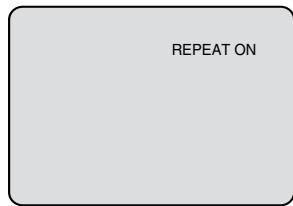
3. Lorsque "REPEAT ON" est sélectionné, la cassette est lue jusqu'à la fin, puis elle est automatiquement rembobinée au point de départ et lue à nouveau. Pour annuler la lecture répétée : appuyez sur REPEAT pour sélectionner "REPEAT OFF".
Saut de publicité
Appuyez sur CM SKIP pendant la lecture.
La vidéo avance rapidement pendant environ 30 secondes et la lecture reprend.
Vous pouvez appuyer sur le bouton jusqu'à six fois de suite pour avancer de 180 secondes.
Pour afficher l'état de fonctionnement du magnétoscope
Appuyez sur DISPLAY. L'horloge, le jour de la semaine et d'autres informations sont affichés.
Pendant le visionnage de la télévision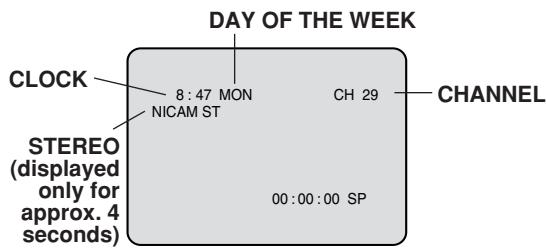
Pendant la lecture d'une cassette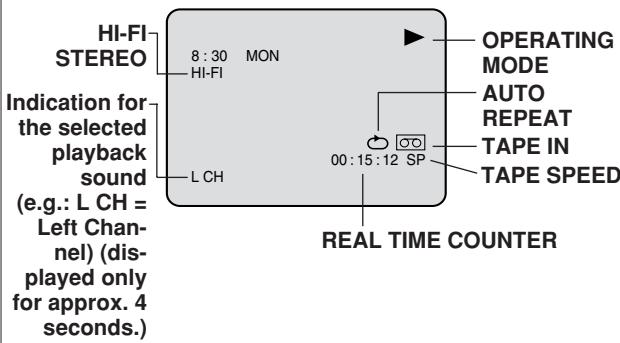
Pour annuler l'affichage : appuyez à nouveau sur DISPLAY.
Fonction ZERO RETURN / Système de recherche d'index vidéo

Fonction ZERO RETURN
Cette fonction arrête automatiquement le rembobinage (ou l'avance rapide) de la cassette à la position du compteur "00:00:00".
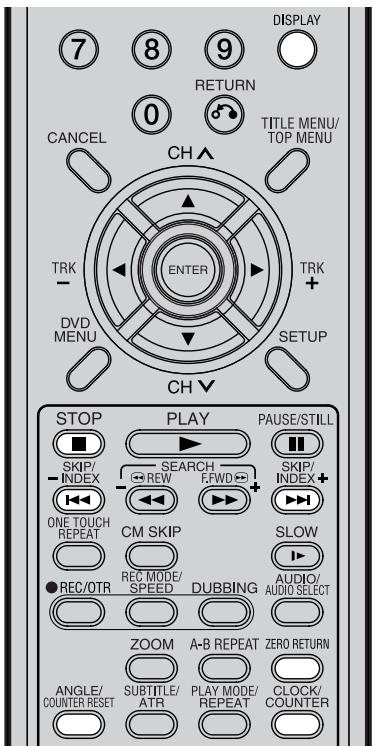
REMARQUES concernant l'affichage du compteur :
- Si vous rembobinez la cassette au-delà de "00:00:00", un signe moins ("−") s'affichera devant le temps.
- Lorsque vous chargez une cassette, le compteur se remettra à "00:00:00".
- Le compteur ne fonctionne pas sur les sections non enregistrées (vierges) de la cassette. Lorsque vous rembobinez, avancez rapidement ou lisez des sections vierges, le compteur s'arrête.
REMARQUES concernant le système de recherche d'index vidéo :
- Lorsque vous enregistrez une marque d'INDEX au tout début de la cassette, la marque peut ne pas être trouvée.
- Pendant la recherche INDEX, la cassette peut s'arrêter et commencer à lire à un endroit légèrement différent.
- La fonction INDEX peut ne pas fonctionner correctement avec des cassettes vidéo anciennes ou usées.
- Les marques INDEX peuvent ne pas être trouvées si elles sont extrêmement proches du point où la recherche a commencé.
- Lors de l'enregistrement, si vous arrêtez temporairement l'enregistrement, la marque INDEX n'est pas enregistrée sur la cassette.
1 Appuyez sur DISPLAY.
L'affichage du compteur indique le temps de lecture de la cassette pendant la lecture ou l'enregistrement.
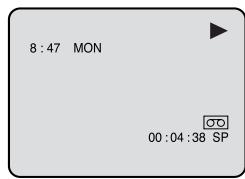
2 Appuyez sur COUNTER RESET à la position souhaitée de la cassette. L'affichage du compteur se remettra à la position "00:00:00" (par exemple, le début de l'enregistrement).
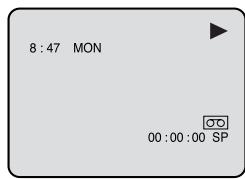
3 Appuyez sur STOP lorsque la lecture ou l'enregistrement est terminé.
Appuyez sur ZERO RETURN.
La bande sera rembobinée ou avancée rapidement et s'arrêtera automatiquement à la position "00:00:00".
Commutation de l'affichage entre l'horloge et le compteur
Appuyez sur CLOCK/COUNTER. L'horloge et le compteur de bande alternent dans l'affichage.
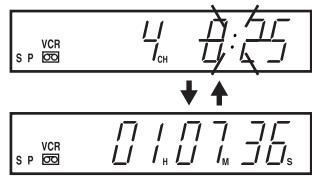
Système de recherche d'index vidéo
Cette fonction vous permet de localiser le début de tout enregistrement effectué sur le magnétoscope.
Enregistrement d'une marque d'index
La fonction de recherche d'index enregistre automatiquement une marque d'index sur la bande à chaque début d'enregistrement.
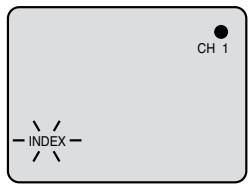
Recherche d'index
Appuyez sur INDEX ▶▶ ou ◀◀ en mode arrêt ou lecture.
Pour les programmes suivants : appuyez sur INDEX ▶▶.
Pour les programmes précédents : appuyez sur INDEX ◀◀. (Une pression supplémentaire augmente le numéro d'index jusqu'à 9.)
Lorsque vous appuyez sur INDEX ▶▶ ou ◀◀, l'appareil commence à rechercher le numéro d'index sélectionné et trouve la portion, puis la lecture démarre automatiquement.
Pour arrêter la recherche d'index, appuyez sur STOP.
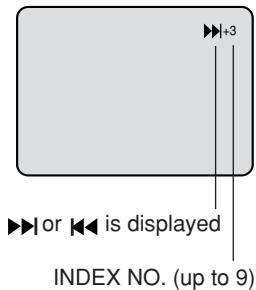
À lire avant d'enregistrer sur disque
Cette section explique ce que vous devez savoir pour enregistrer sur un disque. Lisez-la avant de tenter un enregistrement.
NOTE :
En cas de panne de courant ou si la fiche du cordon d'alimentation secteur est débranchée pendant l'enregistrement, l'édition, l'initialisation, la finalisation ou toute autre fonction, le programme en cours d'enregistrement sera perdu ou le disque risque de ne pas être lisible. Le fabricant ne peut pas garantir contre la perte du programme ou du disque si cela se produit. Pour recommencer l'enregistrement, reformatez le disque ou utilisez un nouveau disque et suivez les instructions d'enregistrement.
REMARQUES :
La durée d'enregistrement peut changer pour les raisons suivantes.
- Lorsque la qualité de l'image est mauvaise, comme lors d'une mauvaise réception TV.
- Lors de l'enregistrement sur un disque qui a déjà été édité.
- Lorsque la vidéo est suivie d'enregistrements d'images fixes ou uniquement audio.
Types de disques
Vous pouvez utiliser des disques DVD-RW et DVD-R pour enregistrer des vidéos.
Disques DVD-RW
- Les disques Ver 1.1 et ultérieurs peuvent être formatés pour l'enregistrement dans l'un des deux modes : le mode VR ou le mode Vidéo. Les disques Ver.1.0 ne peuvent être formatés que pour l'enregistrement en mode VR.
- Des images et un son de haute qualité peuvent être enregistrés de manière répétée environ 1 000 fois.
- Un disque formaté en mode VR peut contenir jusqu'à 99 titres originaux et 99 titres de liste de lecture chacun. Les disques formatés en mode Vidéo peuvent contenir jusqu'à 99 titres originaux.
Disques DVD-R
• Les disques ne peuvent être enregistrés qu'en mode Vidéo. • Les disques ne peuvent être enregistrés qu'une seule fois. - Jusqu'à 99 titres peuvent être créés.
Pour plus d'informations sur le format d'enregistrement, voir « Format d'enregistrement » (page 8).
Remarques sur l'enregistrement en mode Vidéo
- Le mode Vidéo ne peut pas être sélectionné pour les disques DVD-RW version 1.0.
- L'espace disponible restant sur le disque diminue au fur et à mesure de l'enregistrement. Des contenus supplémentaires peuvent être enregistrés dans l'espace de temps restant, mais ils ne peuvent pas être écrasés sur la zone déjà enregistrée.
- Pour formater un nouveau DVD-RW en mode Vidéo, réglez la fonction de formatage automatique sur le mode Vidéo. (Voir page 21.)
Modes d'enregistrement
Il existe 4 modes d'enregistrement sur disque. La durée d'enregistrement et la qualité varient selon le mode.
| Recording mode | Recording time | Quality |
| XP | Approx. 60 min | Can record high quality images. |
| SP | Approx. 120 min | Can record normal quality images. |
| LP | Approx. 240 min | Quality deteriorates slightly, but recording time is longer. |
| SLP | Approx. 360 min | Recording time is prioritised over quality. |
- La durée d'enregistrement ci-dessus est basée sur un disque de 4,7 Go.
Étant donné que l'enregistrement DVD est effectué en VBR (débit binaire variable), la durée d'enregistrement varie en fonction du contenu enregistré.
Pour connaître la durée d'enregistrement exacte, arrêtez l'enregistrement et vérifiez les informations du support. (Voir page 30.)
REMARQUES :
- Lors de l'utilisation de l'enregistrement par minuterie à une touche pour enregistrer sur un disque DVD, il faut un certain temps entre le moment où vous appuyez sur ● REC/OTR et le début réel de l'enregistrement. Appuyez sur ● REC/OTR un peu avant votre point de départ préféré.
- Même si STOP est enfoncé pendant l'enregistrement, l'enregistrement ne s'arrête pas instantanément. L'enregistrement peut continuer pendant 5 secondes maximum en mode VR ou 30 secondes maximum en mode Vidéo.
- En raison des caractéristiques propres à la technologie de compression vidéo numérique, les scènes avec des mouvements rapides peuvent apparaître comme une matrice de blocs plus grands.
- Pendant l'enregistrement, si le bruit de l'image continue pendant 1 minute, l'enregistrement s'arrête automatiquement.
Temps restant sur le disque
Mode VR
- L'enregistrement est possible tant qu'il y a de l'espace disponible sur le disque. (Les disques finalisés peuvent être enregistrés en annulant la finalisation, voir « ANNULER LA FINALISATION » à la page 21.)
- Effacer des titres inutiles libère de l'espace disponible sur le disque. (Les titres peuvent être effacés des disques finalisés en annulant d'abord la finalisation. Voir « ANNULER LA FINALISATION » à la page 21.)
Mode vidéo
- Jusqu'à la finalisation du disque, l'enregistrement est possible tant qu'il y a de l'espace disponible sur le disque. (Une fois le disque finalisé, tout enregistrement ou effacement supplémentaire est impossible.)
- Le temps restant ne peut pas être augmenté, et les titres enregistrés ne peuvent pas être écrasés.
- Les titres ne peuvent pas être effacés ni écrasés.
Images qui ne peuvent pas être enregistrées
Certains DVD-Vidéo et émissions contiennent des signaux de protection contre la copie pour protéger les droits d'auteur. Il existe trois types de signaux de protection contre la copie : « Copie libre », « Copie interdite » et « Copie unique ».
« Copie libre » (enregistrement sans restriction)
Les émissions de télévision terrestre et les images que vous enregistrez vous-même avec un caméscope permettent un enregistrement sans restriction. Il n'y a aucune restriction sur l'enregistrement.
« Copie interdite » (enregistrement interdit)
- Les images contenant le signal d'interdiction d'enregistrement ne peuvent pas être enregistrées.
- Si le signal d'interdiction d'enregistrement apparaît au milieu d'une image que vous enregistrez, l'enregistrement est interrompu à cet instant. Lorsque le signal d'interdiction d'enregistrement se termine, l'enregistrement reprend.
- Cet appareil intègre une protection contre la copie. Il ne peut pas enregistrer de logiciels ou de programmes diffusés qui contiennent des signaux de restriction de copie destinés à protéger les droits d'auteur, etc.
"Copie unique" (enregistrable une seule fois)
Les programmes (images) qui contiennent le signal de copie unique ne peuvent être enregistrés qu'en mode VR sur un disque DVD-RW compatible CPRM Ver. 1.1.
Enregistrement d'un programme TV

Vous pouvez enregistrer les programmes que vous regardez à la télévision sur des cassettes vidéo ou des DVD.
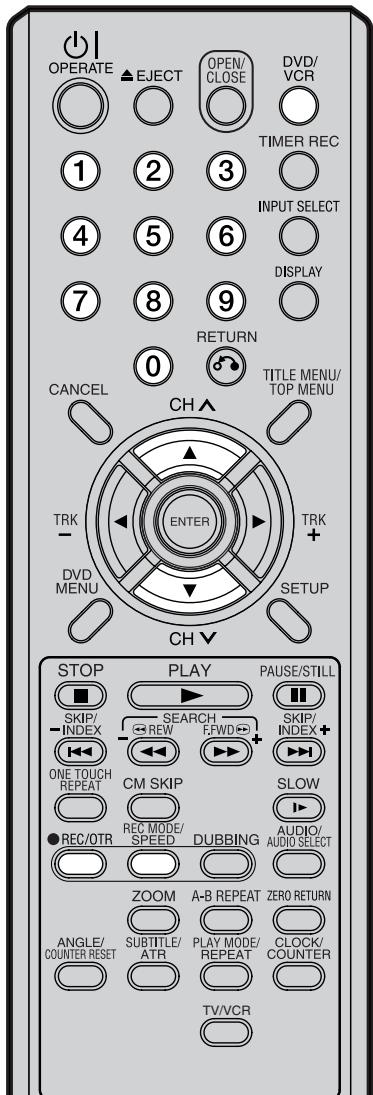
REMARQUES :
- Lors de l'enregistrement sur un DVD, il faut un certain temps entre le moment où vous appuyez sur ● REC/OTR et le début réel de l'enregistrement.
Appuyez sur ● REC/OTR un peu avant le point de départ souhaité.
Avec une cassette vidéo, l'enregistrement commence presque au moment où vous appuyez sur
- REC/OTR.
- Si la languette de protection contre l'effacement des cassettes vidéo est retirée, la cassette sera éjectée lorsque vous appuierez sur ● REC/OTR pour enregistrer.
Préparation :
- Allumez le téléviseur et sélectionnez sa chaîne AUX (elle peut être étiquetée EXT / AUX, etc.)
- Insérez un DVD enregistrable ou une cassette vidéo dans l'appareil.
- Appuyez sur DVD/VCR pour sélectionner le mode approprié.
1 Appuyez sur REC MODE/SPEED pour sélectionner le mode d'enregistrement.
Le mode d'enregistrement apparaîtra sur le moniteur TV et changera à chaque pression sur REC MODE/SPEED.
Modes d'enregistrement vidéo : SP/LP Modes d'enregistrement DVD : XP/SP/LP/SLP
SP est le mode d'enregistrement normal pour les cassettes vidéo. LP offre 2 fois le temps d'enregistrement de SP. Pour plus d'informations sur les modes d'enregistrement DVD, voir page 46.
Mode magnétoscope
Mode DVD
2 Appuyez sur les touches numériques ou sur CH ∧/∨ pour sélectionner la chaîne à enregistrer.
1\~9 : ex. 5 = appuyez sur "5" 10\~80 : ex. 29 = appuyez sur "2" puis "9" dans les 2 secondes.
3 Appuyez sur ● REC/OTR.
« ● » apparaît à l'écran pendant environ 4 secondes et l'enregistrement démarre.
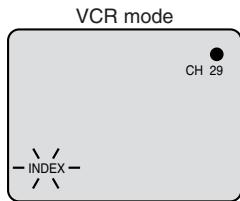
Mode DVD
DVD-RW VR DVD-RW Video DVD-R VCR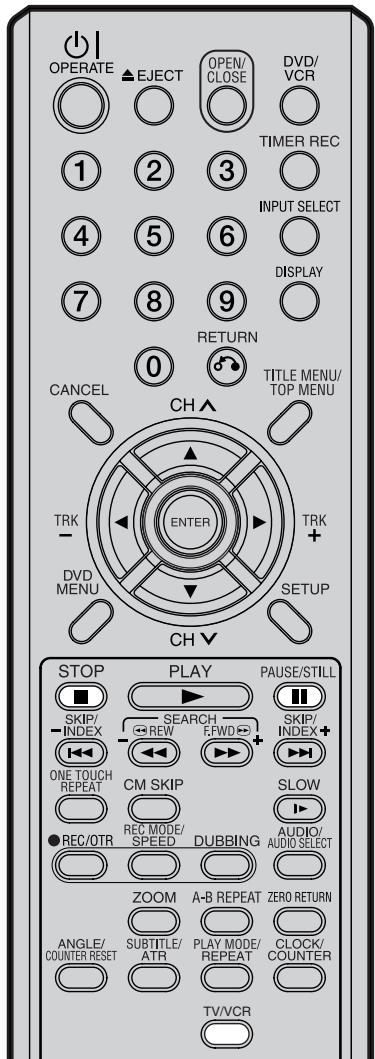
Fonction de rembobinage automatique
Ce magnétoscope rembobinera automatiquement la cassette lorsqu'elle est terminée (sauf pendant OTR et TIMER REC). Il éjectera également la cassette.
REMARQUES :
- Si l'espace disque devient plein, l'enregistrement est arrêté et « ENREGISTREMENT INTERROMPU » apparaît à l'écran.
- En cas de panne de courant pendant l'enregistrement sur DVD, y compris en mode OTR et MINUTERIE, le programme ne peut pas être enregistré sur le disque. Lorsque le courant revient, après la mise sous tension du magnétoscope/lecteur DVD, l'appareil vérifie le disque pour réparer l'erreur causée par la panne de courant. Ce processus de vérification peut prendre de quelques minutes à environ 1 heure selon l'état du disque. Pendant ce processus, « ERREUR SYSTÈME, VEUILLEZ ATTENDRE, VÉRIFICATION DU DISQUE » apparaîtra à l'écran.
Pour arrêter l'enregistrement
Appuyez sur STOP pour arrêter l'enregistrement.
REMARQUE :
Lors de l'enregistrement sur un DVD, même si STOP est enfoncé pendant l'enregistrement, l'enregistrement ne s'arrête pas instantanément. L'enregistrement peut continuer pendant environ 10 secondes maximum en mode VR ou 30 secondes maximum en mode Vidéo.
Pour arrêter temporairement l'enregistrement
Appuyez sur PAUSE/ARRÊT SUR IMAGE pour éviter d'enregistrer des éléments indésirables.
« I'll » apparaîtra à l'écran pendant environ 4 secondes.
Appuyez à nouveau pour reprendre l'enregistrement.

REMARQUES :
- Lors de l'enregistrement sur une cassette vidéo, la fonction pause sera libérée après 5 minutes pour éviter d'endommager la cassette vidéo. L'appareil passera en mode STOP.
- Lors de l'enregistrement sur une cassette vidéo, vous pouvez changer de chaîne d'enregistrement en mode pause d'enregistrement. (Vous ne pouvez pas changer de chaîne d'enregistrement en mode pause d'enregistrement DVD.)
Enregistrer un programme tout en regardant un autre
Pendant que l'appareil enregistre, appuyez sur TV/VCR pour sélectionner la position TV.
Le « VCR » dans la fenêtre d'affichage s'éteindra et l'enregistrement continuera.
Sélectionnez la chaîne TV que vous souhaitez regarder à l'aide du sélecteur de chaînes TV.
Enregistrement minuté à une touche (OTR)

La fonction d'enregistrement minuté à une touche offre un moyen simple et pratique de programmer un enregistrement.
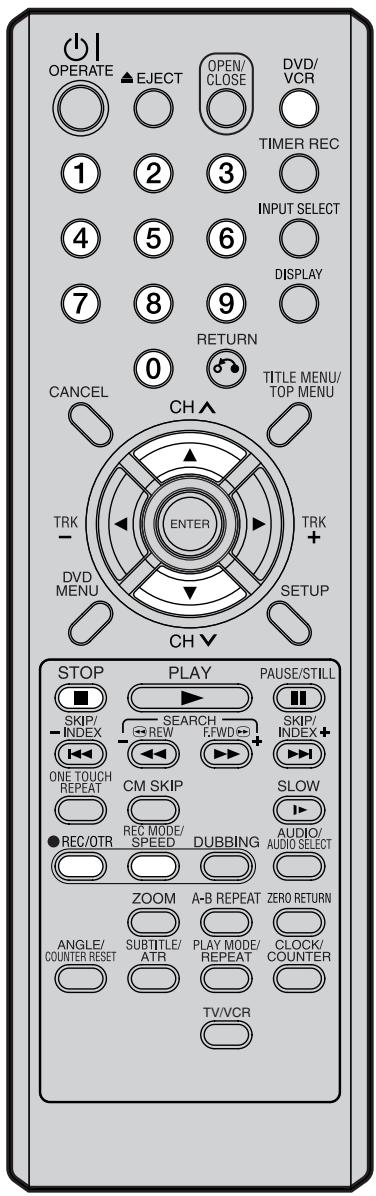
REMARQUE :
Si vous souhaitez regarder la lecture DVD pendant l'OTR du magnétoscope, appuyez sur DVD/VCR pour passer en mode DVD et effectuer la lecture DVD. Vous pouvez également lire le magnétoscope pendant l'OTR du DVD.
Préparation :
- Allumez le téléviseur et sélectionnez sa chaîne AV (elle peut être étiquetée EXT / AUX, etc.).
- Insérez un DVD enregistrable ou une cassette vidéo dans l'appareil.
- Appuyez sur DVD/VCR pour sélectionner le mode approprié.
Exemple : Enregistrement minuté à une touche pour 30 minutes.
1 Appuyez sur REC MODE/SPEED pour sélectionner le mode d'enregistrement. Pour le mode d'enregistrement, voir l'étape 1 à la page 48.
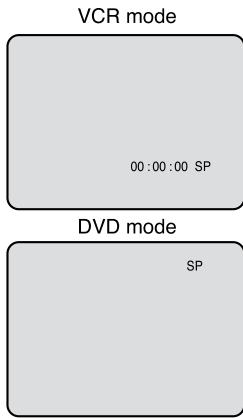
2 Appuyez sur les touches numériques ou sur CH ∧/∨ pour sélectionner la chaîne à enregistrer.
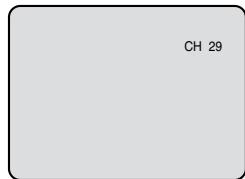
3 Appuyez sur ● REC/OTR. Chaque pression supplémentaire sur ● REC/OTR augmentera la durée d'enregistrement comme indiqué dans le tableau ci-dessous, jusqu'à un maximum de 6 heures. L'OTR et la durée d'enregistrement apparaîtront à l'écran pendant environ 4 secondes.
| Press | Recording time | Press | Recording time |
| once | NORMAL REC | 7 times | OTR 3:00 |
| twice | OTR - : - - | 8 times | OTR 4:00 |
| 3 times | OTR 0:30 | 9 times | OTR 5:00 |
| 4 times | OTR 1:00 | 10 times | OTR 6:00 |
| 5 times | OTR 1:30 | 11 times | NORMAL REC |
| 6 times | OTR 2:00 | ||
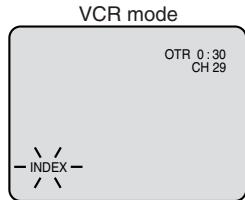
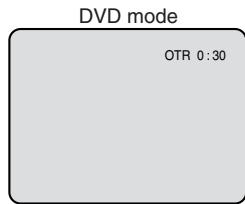
Pour annuler l'OTR
Appuyez sur STOP ou coupez l'alimentation.

Le système d'enregistrement programmé vous permet de sélectionner la date, l'heure et la chaîne et d'enregistrer les programmes souhaités. Jusqu'à 8 programmes programmés sur un mois peuvent être stockés dans cet appareil.
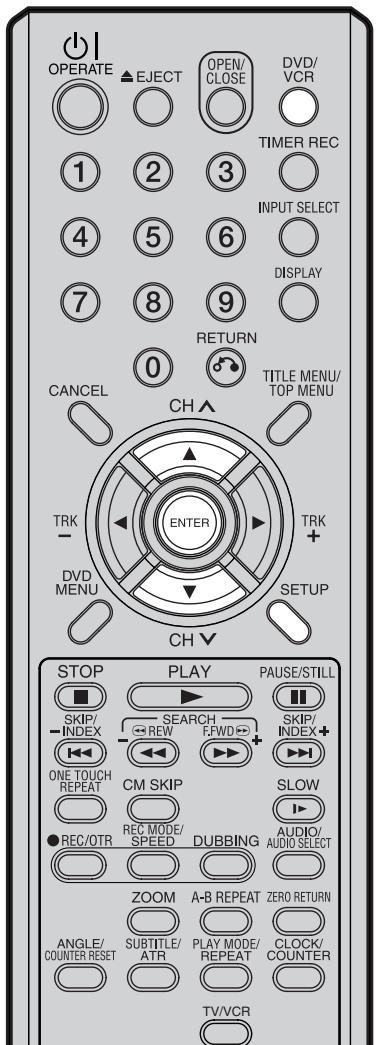
REMARQUE :
En cas de panne de courant, les données de l'enregistrement automatique seront conservées dans la mémoire intégrée pendant environ 30 minutes. De plus, l'horloge continuera de fonctionner pendant cette période. Ensuite, les données seront supprimées. Lorsque le courant revient, l'affichage de l'heure passe à "0:00" et le réglage de la minuterie devra être refait.
Réglage de l'enregistrement programmé
Préparation :
- Allumez le téléviseur et sélectionnez sa chaîne AV (elle peut être étiquetée EXT / AUX, etc.)
- Chargez un DVD enregistrable ou une cassette vidéo.
- Appuyez sur DVD/VCR pour sélectionner le mode approprié.
- Vérifiez que l'horloge indique l'heure correcte.
Exemple : Réglez le mode d'enregistrement sur LP et enregistrez sur DVD ; le programme TV est sur la chaîne 1, commence à 20:00 et se termine à 23:00 à la date du 20.
1 Appuyez sur SETUP. L'écran SETUP MENU apparaît.
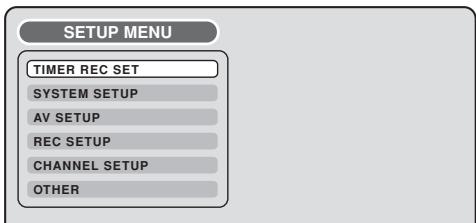
2 Appuyez sur ▲ ou ▼ pour sélectionner "TIMER REC SET" et appuyez sur ENTER. L'écran TIMER REC SET apparaît.
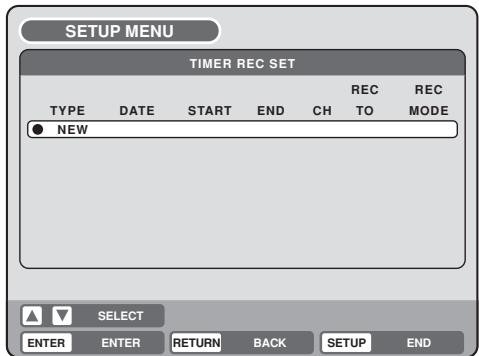
3 Appuyez sur ▲ ou ▼ pour sélectionner "NEW" et appuyez sur ENTER. L'écran du programme apparaît.
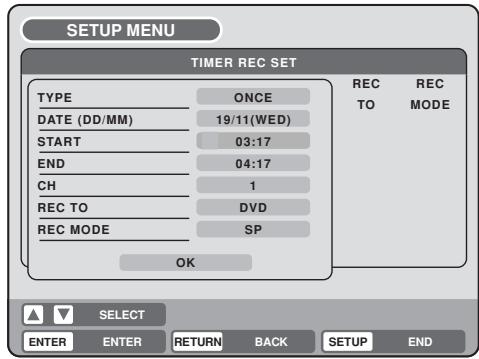
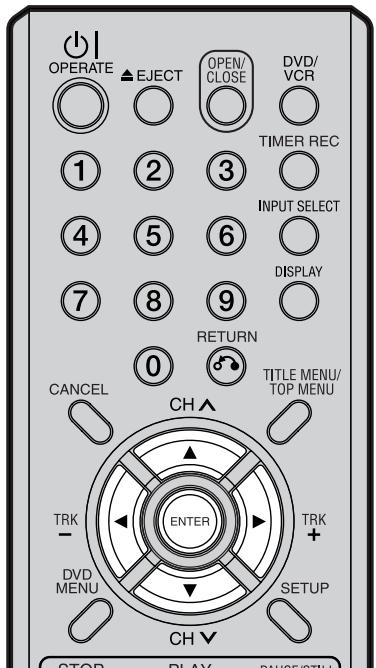
REMARQUES :
- Si vous sélectionnez un enregistrement programmé à une date spécifique, une seule fois, sélectionnez « ONCE » dans « TYPE » pour l'enregistrement. Vous pouvez enregistrer les mêmes jours de chaque semaine ou du lundi au vendredi en utilisant l'élément « TYPE ». Les éléments que vous pouvez sélectionner sont les suivants : ONCE : Enregistrement à la « DATE » sélectionnée. EVERY SUN : Enregistrement tous les dimanches. EVERY MON : Enregistrement tous les lundis. EVERY TUE : Enregistrement tous les mardis. EVERY WED : Enregistrement tous les mercredis. EVERY THU : Enregistrement tous les jeudis. EVERY FRI : Enregistrement tous les vendredis. EVERY SAT : Enregistrement tous les samedis. MON-FRI : Enregistrement du lundi au vendredi. MON-SAT : Enregistrement du lundi au samedi. EVERY DAY : Enregistrement tous les jours.
- Le réglage initial de « REC TO » et « REC MODE » peut être modifié en utilisant « Réglage de l'enregistrement ». (Voir page 24.)
4 Appuyez sur ▲ ou ▼ pour sélectionner « TYPE » et appuyez sur ENTER. Appuyez sur ▲ ou ▼ pour sélectionner « ONCE » dans la liste et appuyez sur ENTER.
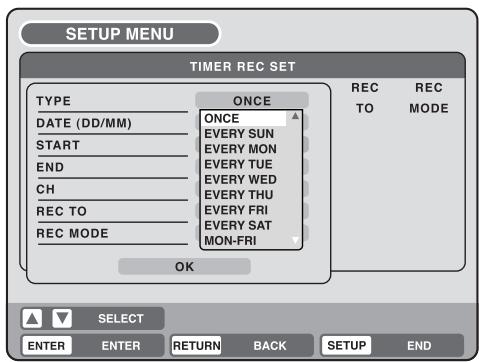
5 Appuyez sur ▲ ou ▼ pour sélectionner « DATE » et appuyez sur ENTER. Appuyez sur ▲ ou ▼ pour sélectionner la date à enregistrer et appuyez sur ENTER. 6 Appuyez sur ▲ ou ▼ pour sélectionner « START » et appuyez sur ENTER. Réglez l'heure de début de l'enregistrement.
- Pour changer l'élément de sélection (heure ou minute), appuyez sur ◀ ou ▶, puis appuyez sur ENTER.
- Appuyez sur ▲ ou ▼ pour régler l'heure.
• Après avoir réglé l'heure, appuyez sur ENTER.
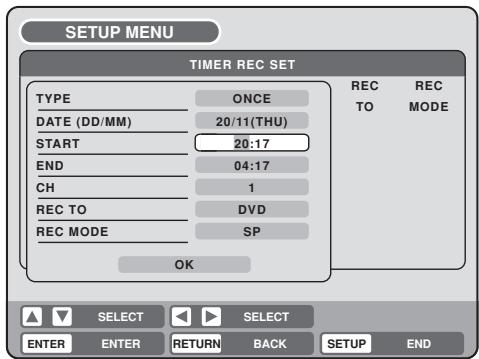
7 Appuyez sur ▲ ou ▼ pour sélectionner « END » et appuyez sur ENTER. Réglez l'heure de fin de la même manière que pour l'heure de début de l'enregistrement programmé. 8 Appuyez sur ▲ ou ▼ pour sélectionner « CH » et appuyez sur ENTER.
- Appuyez sur ▲ ou ▼ pour sélectionner la chaîne à enregistrer et appuyez sur ENTER.
- Vous pouvez sélectionner le mode de réglage d'entrée externe en appuyant sur ▶. Ensuite, appuyez sur ▲ ou ▼ pour sélectionner « AV1 », « AV2 » ou « AV3 » et appuyez sur ENTER.
9 Appuyez sur ▲ ou ▼ pour sélectionner « REC TO » et appuyez sur ENTER. Sélectionnez le support (DVD ou VCR) à enregistrer dans la liste et appuyez sur ENTER.
10 Appuyez sur ▲ ou ▼ pour sélectionner « REC MODE » et appuyez sur ENTER. Les modes d'enregistrement pour le support sélectionné dans l'élément « REC TO » sont listés. Sélectionnez le mode d'enregistrement et appuyez sur ENTER. Pour les modes d'enregistrement en VCR, voir page 42, et pour les modes d'enregistrement en DVD, voir page 46.
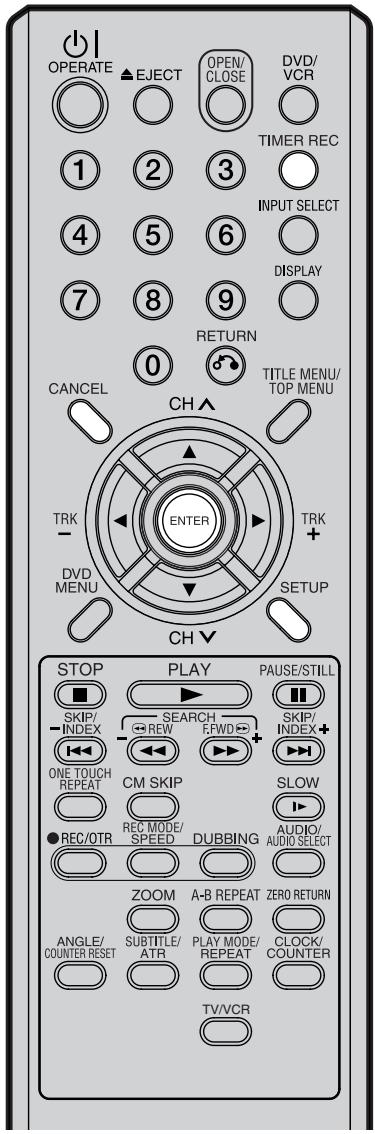
REMARQUES :
- L'enregistrement commence quelques secondes avant l'heure de début prédéfinie.
- Vous ne pouvez pas utiliser l'enregistrement programmé pour le DVD et le VCR en même temps.
- Vous pouvez lire le DVD pendant l'enregistrement programmé du magnétoscope, et vous pouvez lire le magnétoscope pendant l'enregistrement programmé du DVD.
- Si le symbole d'horloge (☐) clignote à la fin de l'enregistrement programmé, le programme TV n'a pas été entièrement enregistré en raison d'une capacité insuffisante du disque DVD ou de la cassette vidéo. Appuyez sur TIMER REC pour annuler le programme programmé.
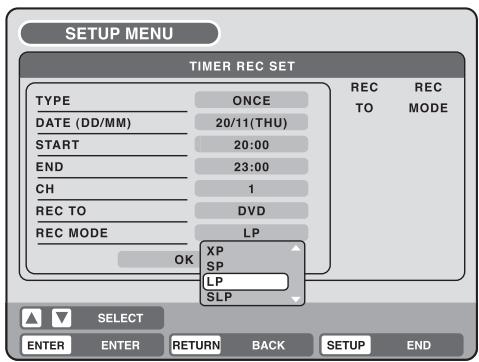
11 Sélectionnez "OK" et appuyez sur ENTER. Le programme programmé est déterminé et l'écran TIMER REC SET réapparaît. 12 Pour saisir un autre programme d'enregistrement programmé, répétez les étapes 3 à 11. 13 Appuyez sur SETUP. L'écran TIMER REC SET disparaît et l'affichage revient à l'écran normal. 14 Appuyez sur TIMER REC. L'indicateur de minuterie "☐" apparaît à l'écran et l'appareil se met en veille pour l'enregistrement.
- Si le programme est un enregistrement DVD uniquement, l'appareil passe automatiquement en mode VCR. (Le mode DVD ne peut pas être sélectionné.)
- Si le programme est un enregistrement VCR uniquement, l'appareil passe automatiquement en mode DVD. (Le mode VCR ne peut pas être sélectionné.)
- Si les programmes sont des enregistrements DVD et VCR, l'appareil s'éteint. Si vous souhaitez utiliser l'appareil, appuyez à nouveau sur TIMER REC pour désactiver la minuterie.
- Si le symbole d'horloge (☐) clignote à l'écran malgré l'appui sur TIMER REC, la cassette n'a peut-être pas encore été chargée. (voir page 42)
- Si la cassette est éjectée malgré l'appui sur TIMER REC, la languette anti-effacement de la cassette a peut-être été retirée. (voir page 42)
Vérification ou modification de l'enregistrement programmé
Lorsque vous souhaitez vérifier l'enregistrement programmé sélectionné, suivez les étapes 1 et 2 de "Réglage de l'enregistrement programmé" et affichez l'écran TIMER REC SET. Pour modifier l'enregistrement programmé, sélectionnez le programme à modifier et appuyez sur ENTER. La méthode de modification est la même que pour l'enregistrement d'un programme pour la première fois.
Annulation de l'enregistrement programmé
Affichez l'écran TIMER REC SET.
Sélectionnez le programme à annuler et appuyez sur CANCEL, puis le programme sélectionné sera effacé de la liste des enregistrements programmés.
En cas de chevauchement des programmes programmés
Ne chevauchez pas les programmes programmés car des parties des programmes en conflit seront perdues. Le premier temps d'enregistrement a priorité sur le temps d'enregistrement suivant, comme indiqué dans le diagramme ci-dessous.
Dans ce cas, le prochain enregistrement est retardé d'environ 1 minute au maximum.
![graph TD A["Program 1"] --> B["8:00"] C["Program 2"] --> D["9:00"] E["Program 3"] --> F["10:00"] G["Recording Control Settings"] --> H["Prog.1"] I["Deleted Parts"] --> J["Prog.2"] K["Non Recorded Portion Parts"] --> L["Prog.3"]](/content/2025/01/78588/images/836308bad9dd8982c583fb404031177668deb98ed6aa3ed880f629ccbceac1a5.jpg)

Ce magnétoscope/graveur DVD est capable d'enregistrer le son en système Hi-Fi. L'enregistrement s'effectue automatiquement. Les émissions NICAM STEREO sont enregistrées dans leur système sonore d'origine, quel que soit le réglage. Si vous souhaitez enregistrer des programmes NICAM, sélectionnez NICAM "AUTOMATIQUE" dans le réglage "NICAM" à la page 24.
De plus, ce magnétoscope/graveur DVD peut également recevoir et enregistrer les programmes stéréo allemands A2. L'enregistrement sur cassette se fait toujours en Hi-Fi et en MONO sur la piste longitudinale standard. En cas de programmes bilingues, les deux canaux audio sont toujours enregistrés (uniquement pour l'enregistrement sur cassette ou sur DVD-RW en mode VR).
Les programmes NICAM sont divisés en 4 types comme indiqué ci-dessous.
Émission NICAM STEREO
« NICAM ST » s'allume lorsqu'un signal d'émission NICAM STEREO est reçu.
NICAM ST
Émission NICAM MONO A
« NICAM M1 » s'allume lorsqu'un signal d'émission NICAM MONO A est reçu.
NICAM M1
Émission NICAM MONO A B
« NICAM M1/2 » s'allume lorsqu'un signal d'émission NICAM MONO A et MONO B est reçu.
NICAM M1/2
NICAM OFF
Ceci s'affiche si un signal NICAM est reçu alors que "NICAM OFF" est sélectionné dans le MENU DE RÉGLAGE AV.
NICAM OFF
Réception du son stéréo allemand A2 :
Indication de programme stéréo
Elle s'affiche pendant environ 4 secondes lors de la réception de programmes stéréo.
STÉRÉO
Indication de programme bilingue
Elle s'affiche pendant environ 4 secondes lors de la réception de programmes bilingues.
BILINGUE
Lecture
Utilisez AUDIO SELECT pour sélectionner la lecture stéréo/mono ou bilingue. Reportez-vous au tableau ci-dessous pour plus d'informations.
| On-screen indications (for 4 sec.) | Stereo playback performed in: | Bilingual playback performed as follows: |
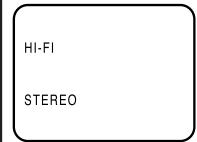 | Stereo | Simultaneously both languages from HiFi track (Mixed sounds) |
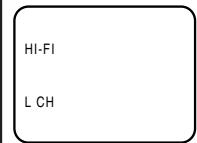 | Left channel signal output from both loudspeakers | One's mother tongue dubbing (Main sound) |
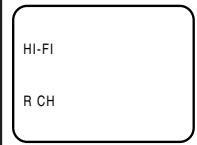 | Right channel signal output from both loudspeakers | Original sound track (Sub sound) |
 | Mono | One's mother tongue dubbing (Main sound) |
REMARQUE :
Lors de la lecture de cassettes HiFi enregistrées sur un autre magnétoscope, la sortie audio peut être déformée. Ce phénomène est normal et n'indique pas un dysfonctionnement de l'appareil. Essayez de minimiser les distorsions sonores en utilisant TRK (TRACKING) +/- ou en passant en MONO en appuyant sur AUDIO SELECT.
Cette section explique comment éditer le contenu enregistré sur des DVD-RW. Cependant, les éléments que vous pouvez éditer varient selon les formats d'enregistrement. En mode VR, vous pouvez éditer divers menus de titres, alors qu'en mode Vidéo, vous ne pouvez éditer que quelques éléments.
REMARQUES :
- Cet appareil ne peut pas enregistrer ou éditer un disque qui a été enregistré ou édité à l'aide d'un autre graveur de DVD.
- Vous ne pouvez pas modifier ou enregistrer sur un disque sur lequel la protection du disque est activée. Dans ce cas, assurez-vous d'annuler la protection du disque (voir page 21) avant de commencer l'opération.
- Lorsqu'une scène a été effacée, la position sélectionnée pour l'effacement peut varier légèrement par rapport à la position réelle effacée.
Menu des titres
Pour un disque en mode VR, lors de l'enregistrement, un nom de titre incluant la date, l'heure, le numéro de chaîne et d'autres informations est créé automatiquement.
Pour un disque en mode Video, lorsque vous enregistrez un contenu pour la première fois sur un disque vierge, le contenu enregistré est automatiquement défini comme Titre1. Ensuite, le deuxième contenu enregistré est défini comme Titre2, et ainsi de suite. Par conséquent, le titre est numéroté selon l'ordre d'enregistrement. Le nombre maximal de titres est de 99. Le menu des titres répertorie ces titres. Le menu des titres peut être utilisé lors de la lecture après confirmation du contenu (voir page 29), ou pour vérifier le contenu enregistré sur le disque.
Titre original
Les titres expliqués ci-dessus sont appelés titres originaux ; ils sont ajoutés à chaque enregistrement. En mode VR, vous pouvez effectuer diverses opérations d'édition, par exemple renommer les titres ou ajouter des marques de chapitre. De plus, vous pouvez effacer les titres inutiles pour augmenter l'espace disque.
Liste de lecture
Vous pouvez créer une liste de lecture à partir des titres originaux.
Vous pouvez combiner ou effacer des scènes indésirables.
Si vous créez une liste de lecture, elle deviendra la liste principale utilisée par le disque. Si vous créez une liste de lecture pour personnaliser vos préférences de visionnage et choisissez de la supprimer, les titres originaux ne seront pas affectés. Il est recommandé de créer et de modifier la liste de lecture pour éviter que des titres importants ne soient effacés accidentellement.
Si vous créez une liste de lecture, le titre original et la liste de lecture seront affichés dans le menu des titres.
Éléments modifiables
Les éléments pouvant être modifiés diffèrent entre le titre original et la liste de lecture. Pour un disque en mode Video, seul le nom du titre peut être modifié. Les éléments modifiables dans chaque cas sont les suivants :
| Editing items | VR mode | Video mode | |
| Original | Playlist | Original | |
| Playback | Y | Y | Y |
| Adding chapter mark | Y | N | N |
| Combining chapters | Y | N | N |
| Erasing scenes | Y | Y | N |
| Erasing titles | Y | Y | N |
| Renaming titles | Y | Y | Y |
| Creating playlist | Y | N | N |
| Combining titles | N | Y | N |
Si vous finalisez le disque en mode Video, la liste des titres sera créée et vous ne pourrez plus utiliser le menu des titres.

Vous pouvez créer et modifier la liste de lecture en vous basant sur le titre original.
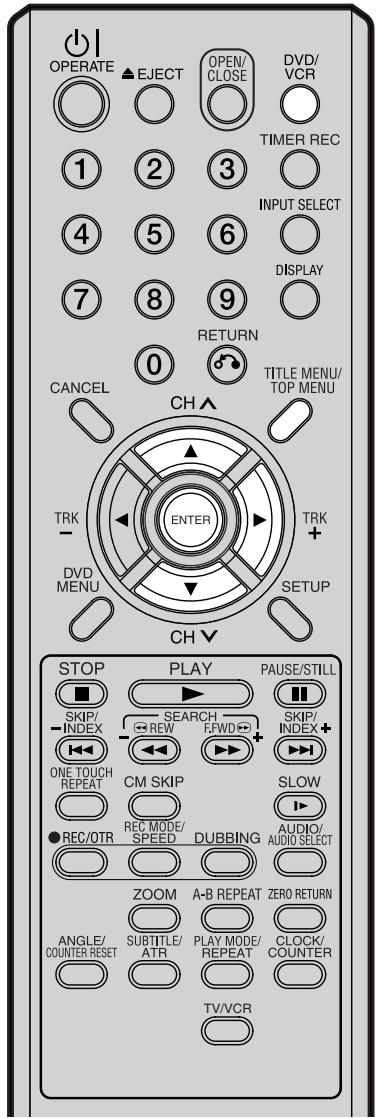
REMARQUES :
- Une liste de lecture ne peut être créée qu'avec un DVD-RW en mode VR. Vous ne pouvez pas créer de liste de lecture avec un DVD-RW en mode Vidéo, ni avec un DVD-R.
- Si le disque contient plus de 10 titres, vous pouvez passer à la page suivante ou précédente. (Voir page 29.)
- Vous ne pouvez pas passer en mode magnétoscope lorsque le menu des titres est affiché. Appuyez sur TITLE MENU pour effacer le menu des titres, puis appuyez sur DVD/VCR pour passer en mode magnétoscope.
Préparation :
- Allumez le téléviseur et sélectionnez sa chaîne AV (elle peut être étiquetée EXT / AUX, etc.).
- Chargez le DVD-RW enregistré (VR).
- Appuyez sur DVD/VCR pour sélectionner le mode DVD. (Le témoin DVD s'allume.)
Création d'une liste de lecture
1 Appuyez sur TITLE MENU.
Le menu des titres apparaît.
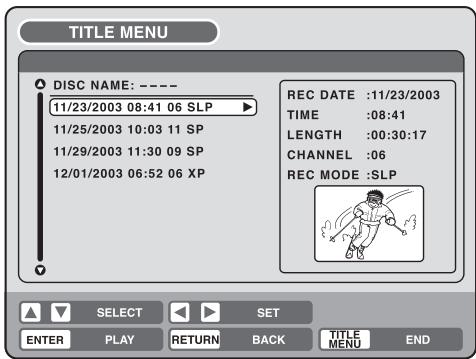
2 Appuyez sur ▲ ou ▼ pour sélectionner le titre original qui servira de base à une liste de lecture. 3 Appuyez sur ▶.
Le menu d'édition du titre original apparaît.
4 Appuyez sur ▲ ou ▼ pour sélectionner "NOUVELLE LISTE DE LECTURE".
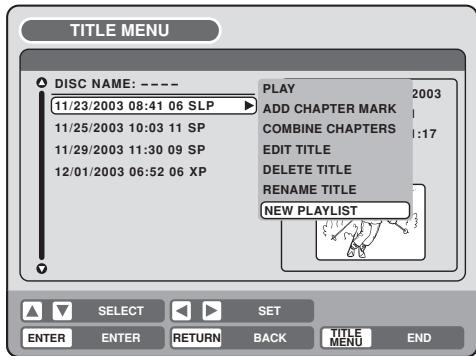
5 Appuyez sur ENTER.
Le menu d'édition se ferme et la liste de lecture créée apparaît en bas de la liste. Liste de lecture créée
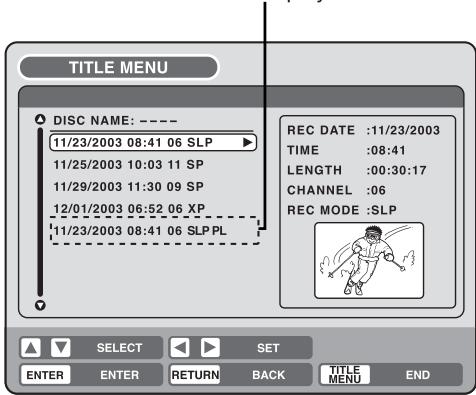
DVD-RW VR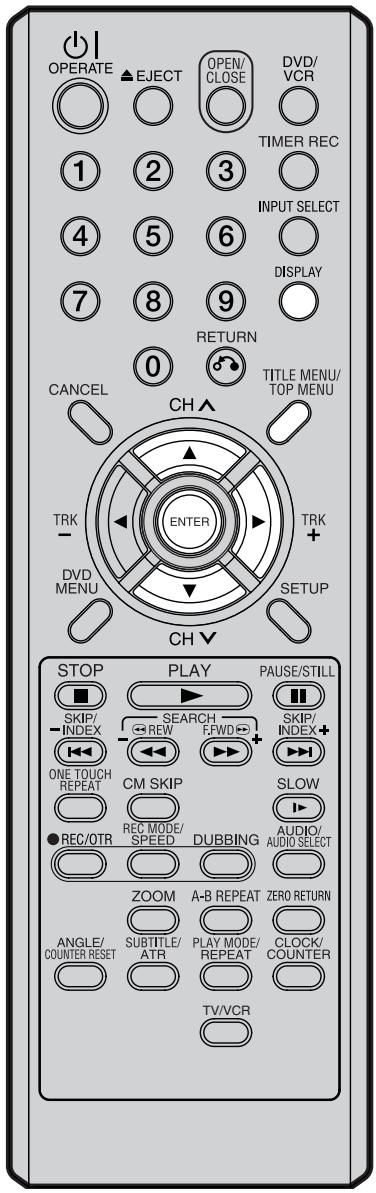
REMARQUES :
- Le nom du titre peut comporter au maximum 64 caractères. Les noms longs seront raccourcis dans le menu des titres.
- Pour utiliser l'écran du clavier, voir "Changement du nom d'un disque" (page 68).
Changement du nom d'un titre
1 Appuyez sur TITLE MENU pour afficher le menu des titres. 2 Sélectionnez la liste de lecture dont vous voulez changer le nom du titre.
- Appuyez sur ▲ ou ▼ pour sélectionner la liste de lecture.
- Appuyez sur ▶ pour afficher le menu d'édition de la liste de lecture.
- Appuyez sur ▲ ou ▼ pour sélectionner "RENAME TITLE".
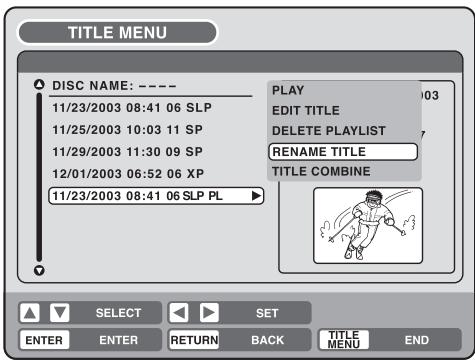
3 Appuyez sur ENTER. L'écran du clavier apparaît. 4 Utilisez l'écran du clavier pour saisir le nom du titre (voir P. 68).
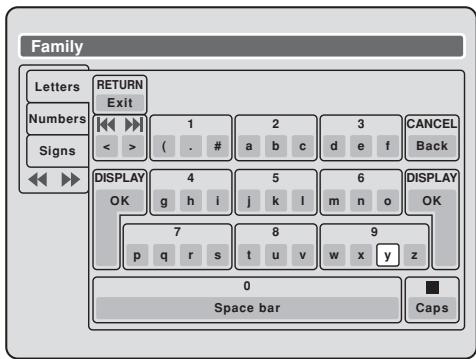
5 Appuyez sur DISPLAY pour revenir au menu des titres.
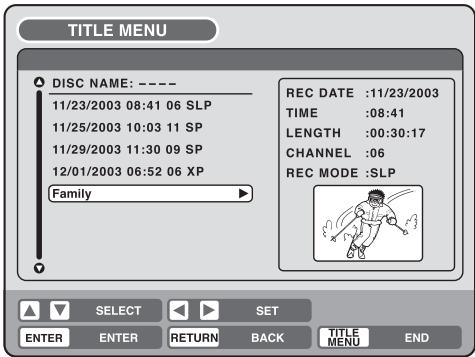

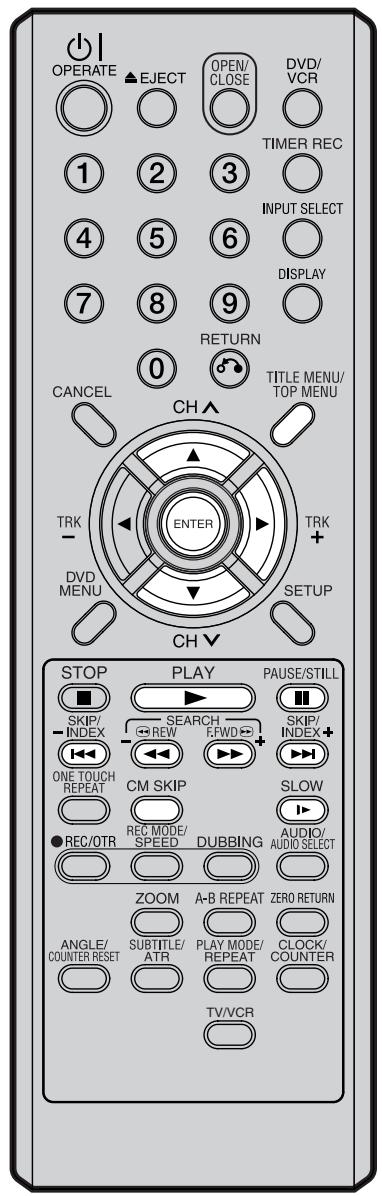
Effacement d'une scène (Modifier le titre)
Vous pouvez effacer une scène inutile de la liste de lecture créée.
Lorsque vous effacez une scène de la liste de lecture, la scène n'est pas effacée du titre d'origine.
1 Appuyez sur TITLE MENU pour afficher le menu des titres.
2 Sélectionnez la liste de lecture qui contient la scène à effacer.
- Appuyez sur ▲ ou ▼ pour sélectionner la liste de lecture.
- Appuyez sur ▶ pour afficher le menu d'édition de la liste de lecture.
- Appuyez sur ▲ ou ▼ pour sélectionner "EDIT TITLE".
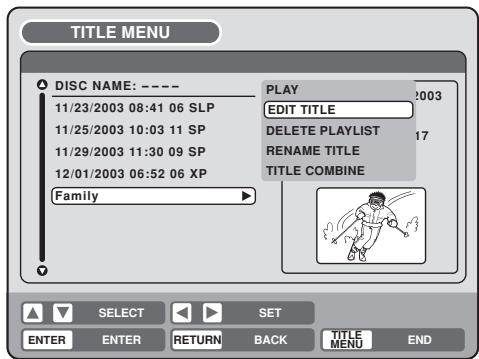
3 Appuyez sur ENTER. L'écran EDIT TITLE apparaît.
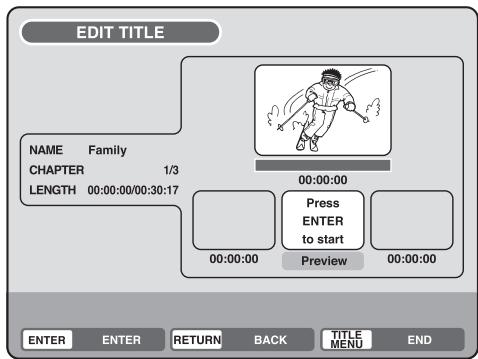
4 Appuyez sur ENTER pour lire la liste de lecture sur l'écran EDIT TITLE.
- Utilisez chaque bouton de lecture (F.FWD, REW, SKIP +, SKIP -, PLAY, PAUSE/STILL, SLOW, CM SKIP) pour rechercher le point de départ de la scène à effacer.
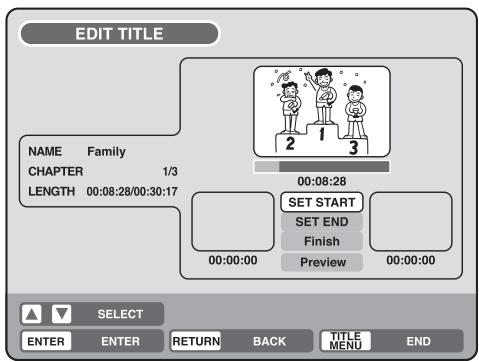
DVD-RW VR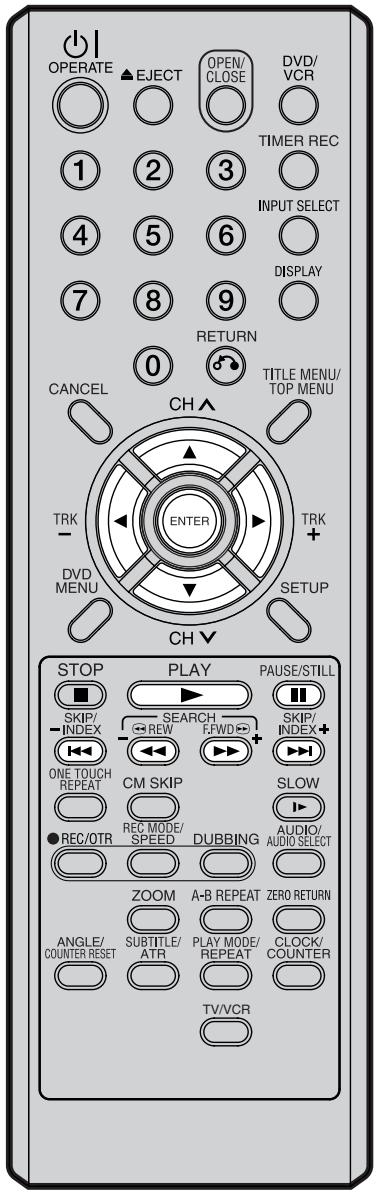
REMARQUE :
Il n'y a pas de problème à omettre les procédures de vérification de la scène ou de réglage des points de début et de fin.
5 Appuyez sur ▲ ou ▼ pour sélectionner "SET START" au point de départ de la scène à effacer, puis appuyez sur ENTER. (Pour régler facilement le point de départ, recherchez-le pendant que "SET START" est sélectionné.) L'image fixe du point de départ apparaît dans le petit écran de gauche.
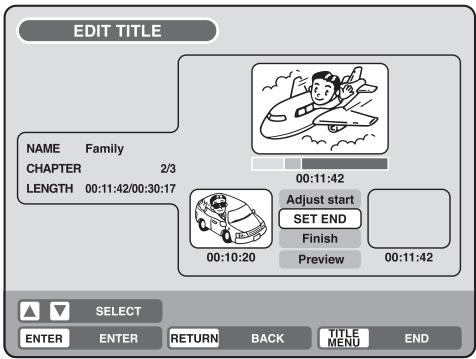
6 Appuyez sur ▲ ou ▼ pour sélectionner "SET END" au point de fin de la scène à effacer, puis appuyez sur ENTER. L'image fixe du point de fin apparaît dans le petit écran de droite.
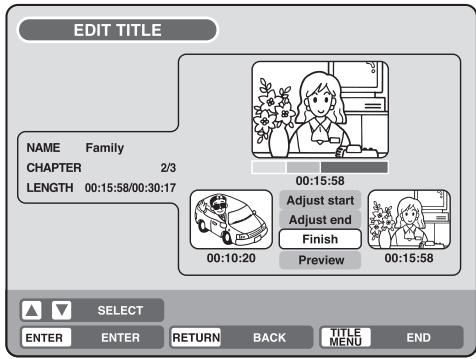
7 Vérifiez les scènes effacées.
- Sélectionnez « Aperçu » et appuyez sur ENTER. La vidéo où les scènes entre les points de début et de fin sont effacées est alors lue.
- Chaque bouton de lecture (F.FWD, REW, SKIP +, SKIP -, PLAY, PAUSE/STILL) peut également être utilisé.
8 Réglez les points de début et de fin.
- Pour régler le point de début, sélectionnez « Régler le début » et appuyez sur ENTER. Vous pouvez modifier le point de début image par image en appuyant sur ◀ ou ▶.
- Pour régler le point de fin, sélectionnez « Régler la fin » et appuyez sur ENTER. Vous pouvez modifier le point de fin de la même manière que le point de début.
9 Si vous déterminez la scène à effacer, appuyez sur ▲ ou ▼ pour sélectionner « Terminer » et appuyez sur ENTER.
- Un marqueur de chapitre est automatiquement ajouté à l'emplacement de la scène effacée.
DVD-RW VR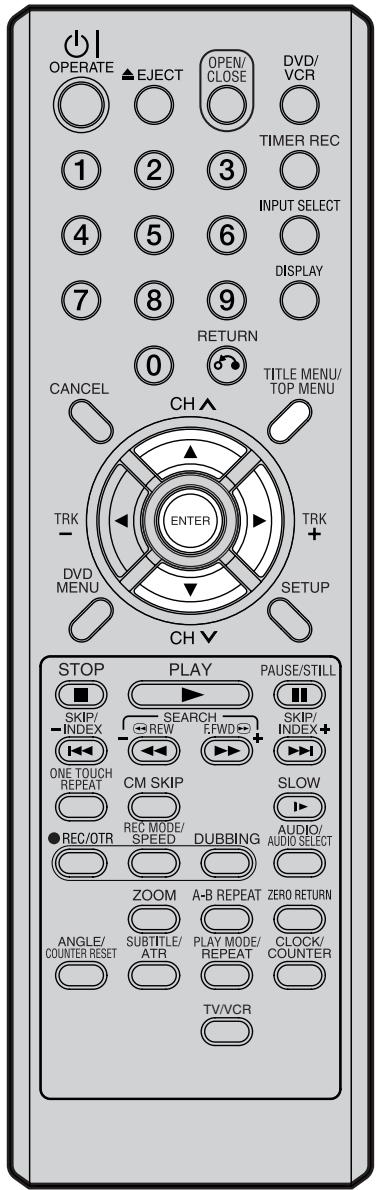
Combinaison de titres
Vous pouvez créer une liste de lecture en combinant plusieurs titres originaux ou listes de lecture. Pour combiner des titres, il est nécessaire de créer d'abord une liste de lecture. En combinant les titres dans la liste de lecture, une liste de lecture où plusieurs titres sont combinés est créée.
1 Appuyez sur TITLE MENU pour afficher le menu des titres.
2 Sélectionnez la liste de lecture dans laquelle vous souhaitez combiner les titres.
- Appuyez sur ▲ ou ▼ pour sélectionner la liste de lecture.
- Appuyez sur ▶ pour afficher le menu d'édition de la liste de lecture.
- Appuyez sur ▲ ou ▼ pour sélectionner « COMBINAISON DE TITRES ».
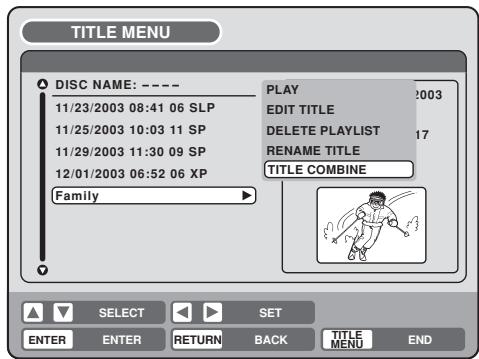
3 Appuyez sur ENTRÉE.
Sélectionnez le titre que vous souhaitez combiner dans le menu des titres.
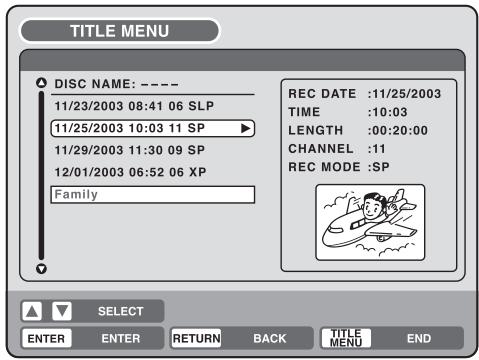
4 Appuyez sur ENTRÉE.
En suivant la liste de lecture, le titre sélectionné est combiné.
Les plusieurs titres ont été combinés de sorte que la durée totale d'enregistrement soit affichée.
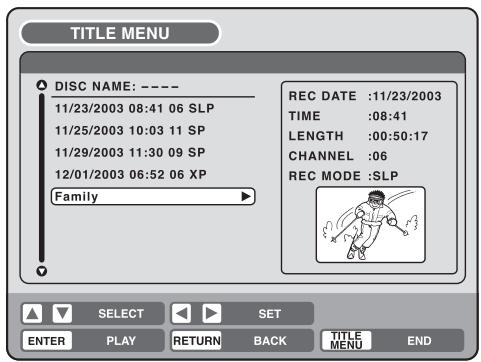
DVD-RW VR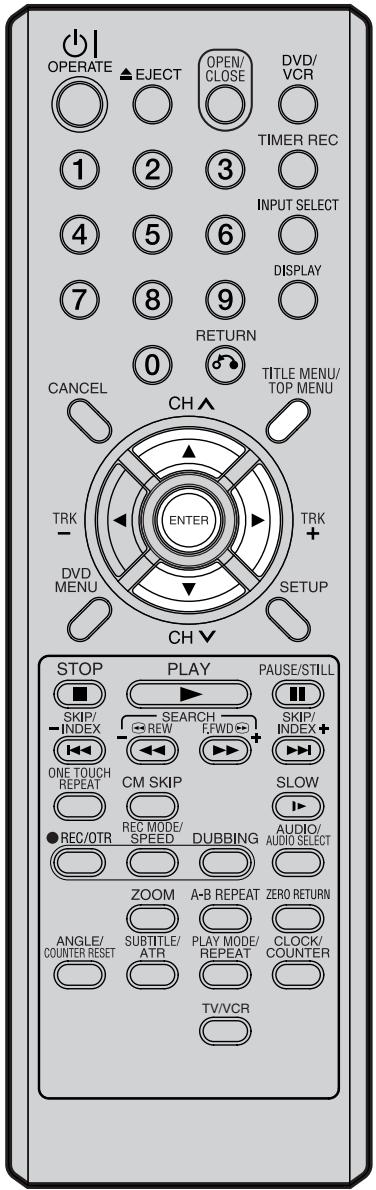
Effacement d'une liste de lecture
Vous pouvez effacer la liste de lecture créée. Même si vous effacez la liste de lecture, le titre original ne sera pas effacé.
1 Appuyez sur TITLE MENU pour afficher le menu des titres.
2 Sélectionnez la liste de lecture que vous souhaitez effacer.
- Appuyez sur ▲ ou ▼ pour sélectionner la liste de lecture.
- Appuyez sur ▶ pour afficher le menu d'édition de la liste de lecture.
- Appuyez sur ▲ ou ▼ pour sélectionner "SUPPRIMER LA LISTE DE LECTURE".
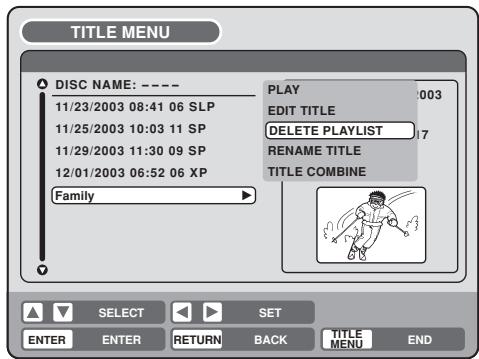
3 Appuyez sur ENTRÉE.
La liste de lecture sélectionnée sera effacée.
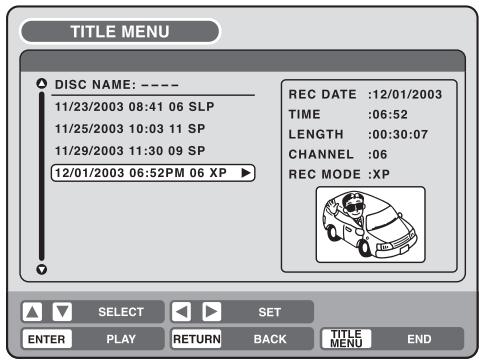

En mode VR, vous pouvez modifier divers éléments, alors qu'en mode Vidéo, vous ne pouvez modifier que les noms de titres.
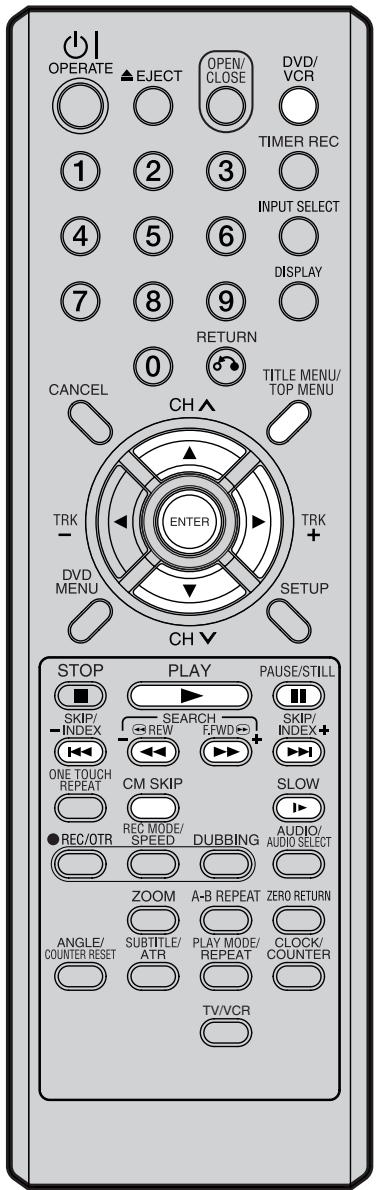
REMARQUES :
- Vous pouvez ajouter automatiquement un marqueur de chapitre lors de l'enregistrement. Pour plus d'informations, voir page 25.
- Si le disque contient plus de 10 titres, vous pouvez passer à la page suivante ou précédente. (Voir page 29.)
Préparation :
- Allumez le téléviseur et sélectionnez sa chaîne AV (elle peut être étiquetée EXT / AUX, etc.).
- Chargez le disque enregistré.
- Appuyez sur DVD/VCR pour sélectionner le mode DVD. (Le témoin DVD s'allume.)
Ajout d'un marqueur de chapitre
Vous pouvez ajouter un marqueur de chapitre au titre original. Vous pouvez ajouter jusqu'à 999 marqueurs de chapitre sur un disque.
1 Appuyez sur TITLE MENU pour afficher le menu des titres. 2 Sélectionnez le titre original auquel un marqueur de chapitre doit être ajouté.
- Appuyez sur ▲ ou ▼ pour sélectionner le titre original.
- Appuyez sur ▶ pour afficher le menu d'édition du titre original.
- Appuyez sur ▲ ou ▼ pour sélectionner "AJOUTER UN MARQUEUR DE CHAPITRE".
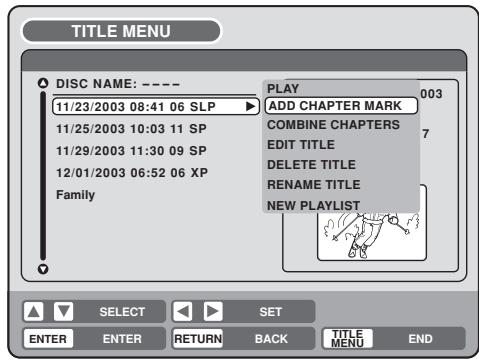
3 Appuyez sur ENTER. L'écran AJOUTER UN MARQUEUR DE CHAPITRE apparaît.
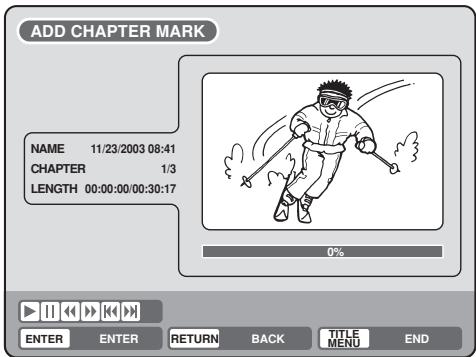
4 Appuyez sur PLAY pour rechercher une scène où vous souhaitez ajouter le marqueur de chapitre.
- Recherchez la scène à l'aide des boutons de lecture (F.FWD, REW, SKIP +, SKIP -, PAUSE/STILL, SLOW, CM SKIP).
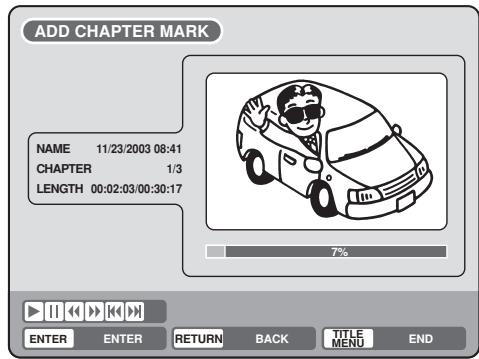
DVD-RW VR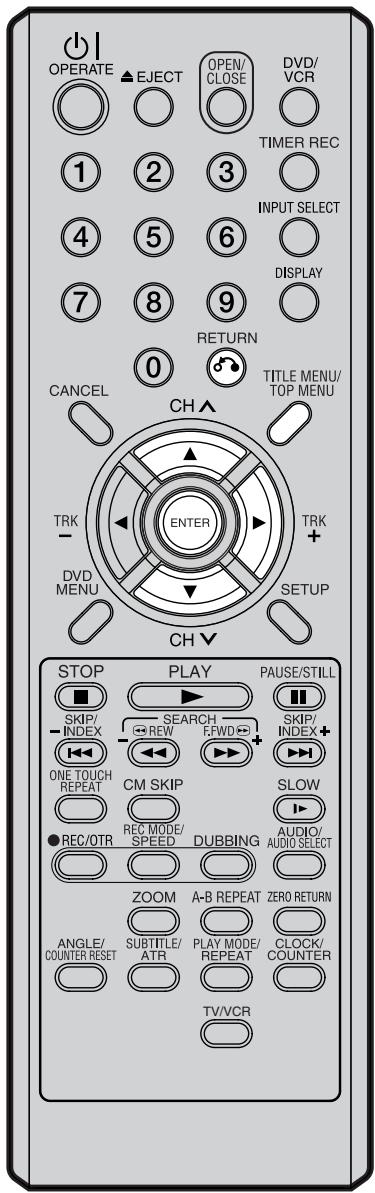
REMARQUE :
Les marqueurs de chapitre ajoutés automatiquement lors de la procédure d'effacement d'une scène (page 65) ne peuvent pas être effacés.
5 Lorsque la scène où vous souhaitez ajouter un marqueur de chapitre est trouvée, appuyez sur ENTER. La lecture est mise en pause et la position du marqueur de chapitre ajouté apparaît en vert.
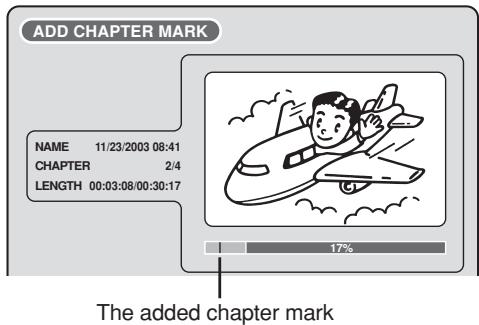
6 Si vous souhaitez continuer à ajouter des marqueurs de chapitre, répétez l'étape 5. 7 L'ajout de marqueurs de chapitre est terminé.
• Pour afficher le menu des titres, appuyez sur RETURN.
- Pour revenir à l'écran normal, appuyez sur TITLE MENU.
Combinaison de chapitres
En effaçant les marqueurs de chapitre ajoutés, les chapitres peuvent être combinés.
1 Appuyez sur TITLE MENU pour afficher le menu des titres. 2 Sélectionnez les titres d'origine où vous souhaitez combiner les chapitres.
- Appuyez sur ▲ ou ▼ pour sélectionner le titre d'origine.
- Appuyez sur ▶ pour afficher le menu d'édition du titre d'origine.
- Appuyez sur ▲ ou ▼ pour sélectionner "COMBINER LES CHAPITRES".
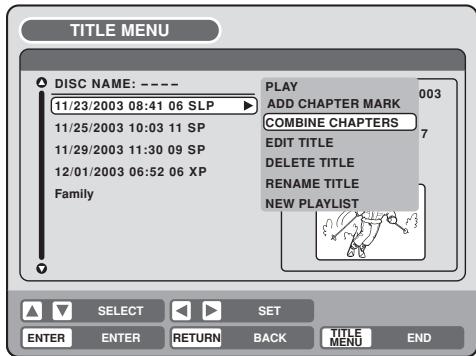
3 Appuyez sur ENTER.
L'écran COMBINE CHAPTERS apparaît. Au début, la première image fixe du chapitre 2 est affichée.

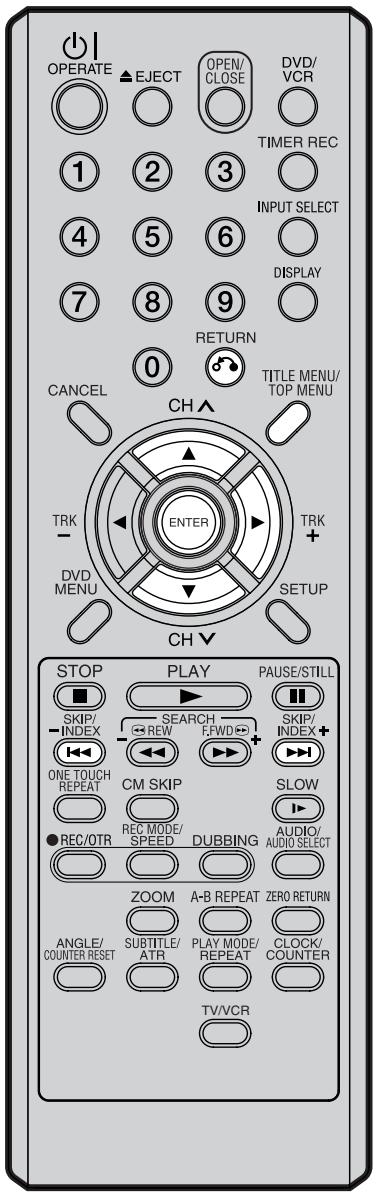
REMARQUE :
Le nom du titre peut comporter au maximum 64 caractères en mode VR et 30 caractères en mode Video. Les noms longs seront raccourcis dans le menu des titres.
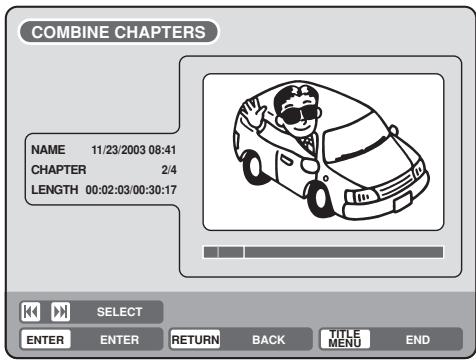
4 Appuyez sur SKIP + ou – pour sélectionner les marqueurs de chapitre à effacer. 5 Appuyez sur ENTER.
Les marqueurs de chapitre sont effacés et 2 chapitres sont combinés en 1 chapitre.
6 Pour continuer à effacer les marqueurs de chapitre, répétez les étapes 4 et 5. 7 La combinaison des chapitres sera terminée.
- Pour afficher le menu des titres, appuyez sur RETURN.
- Pour revenir à l'écran normal, appuyez sur TITLE MENU.
Changement du nom d'un titre original

1 Appuyez sur TITLE MENU pour afficher le menu des titres. 2 Sélectionnez le titre original que vous souhaitez renommer.
- Appuyez sur ▲ ou ▼ pour sélectionner le titre original.
- Appuyez sur ▶ pour afficher le menu d'édition du titre original.
- Appuyez sur ▲ ou ▼ pour sélectionner "RENAME TITLE".
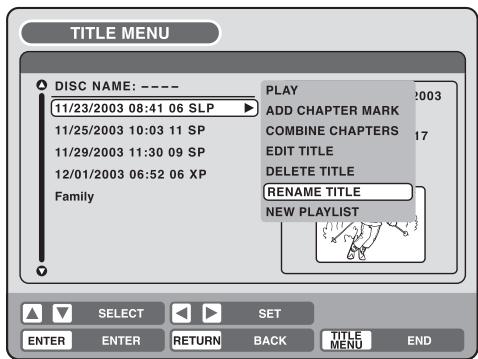
3 Appuyez sur ENTER.
L'écran du clavier apparaît.
La méthode de saisie du nom du titre est la même que pour la liste de lecture. Reportez-vous aux étapes 4 et 5 de « Modification d'un nom de titre » dans « Édition d'une liste de lecture » (page 57) et saisissez le nom du titre (voir aussi la page 68 pour plus d'informations sur l'écran du clavier).
DVD-RW VR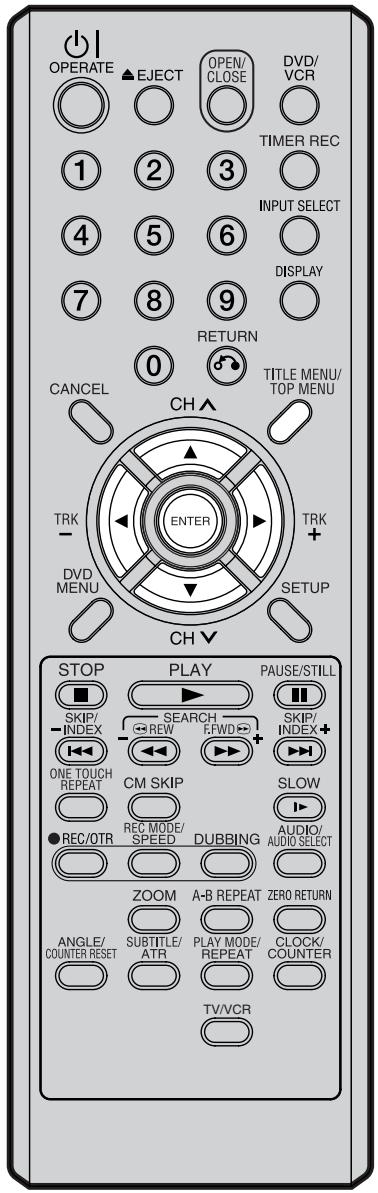
REMARQUES :
- Si la scène est effacée du titre original, la liste de lecture créée est effacée.
- L'espace disque n'est libéré que si des scènes de plusieurs minutes sont supprimées.
- Un marqueur de chapitre est automatiquement ajouté à l'emplacement de la scène effacée.
Effacement d'une scène (Modifier le titre)
Vous pouvez effacer une scène inutile du titre original.
Effacez la scène après avoir vérifié le titre. Vous ne pouvez pas restaurer la scène effacée.
Lorsque vous effacez la scène, vous pouvez augmenter l'espace disque.
1 Appuyez sur TITLE MENU pour afficher le menu des titres.
2 Sélectionnez le titre original contenant la scène à effacer.
- Appuyez sur ▲ ou ▼ pour sélectionner le titre original.
- Appuyez sur ▶ pour afficher le menu d'édition du titre original.
- Appuyez sur ▲ ou ▼ pour sélectionner « MODIFIER LE TITRE ».
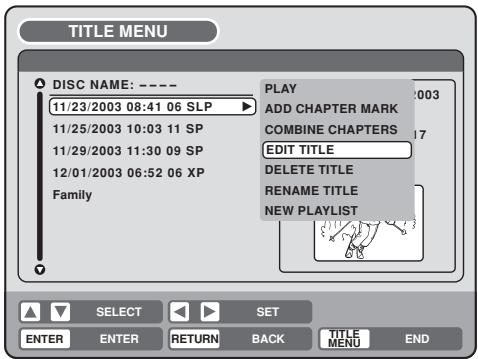
3 En appuyant sur ENTER, l'écran de message suivant apparaîtra.
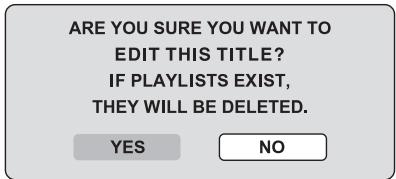
4 Appuyez sur ◀ ou ▶ pour sélectionner « OUI » et appuyez sur ENTER, puis l'écran MODIFIER LE TITRE apparaîtra.
- En sélectionnant « NON », le menu des titres apparaît.
5 La méthode pour effacer une scène est la même que pour la liste de lecture. Voir les étapes 4 à 9 de « Effacement de scènes (Modifier le titre) » dans « Modification d'une liste de lecture » (page 58).

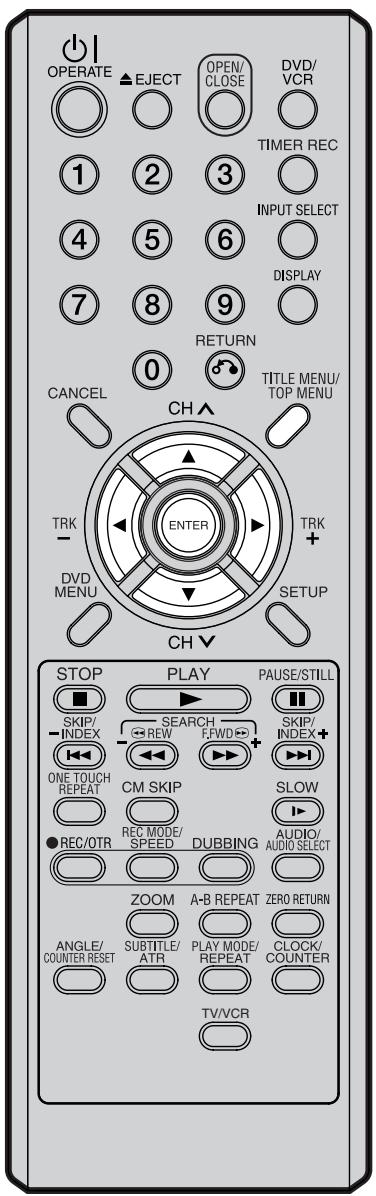
REMARQUE :
Si le titre original est effacé, la liste de lecture créée est également effacée.
Effacement d'un titre original
Vous pouvez effacer le titre original.
Effacez le titre original après avoir vérifié son titre. Le titre effacé ne peut pas être restauré.
Lorsque vous effacez les titres, vous pouvez augmenter l'espace disque.
1 Appuyez sur TITLE MENU pour afficher le menu des titres.
2 Sélectionnez le titre original que vous souhaitez effacer.
- Appuyez sur ▲ ou ▼ pour sélectionner le titre original.
- Appuyez sur ▶ pour afficher le menu de modification du titre original.
- Appuyez sur ▲ ou ▼ pour sélectionner « SUPPRIMER LE TITRE ».
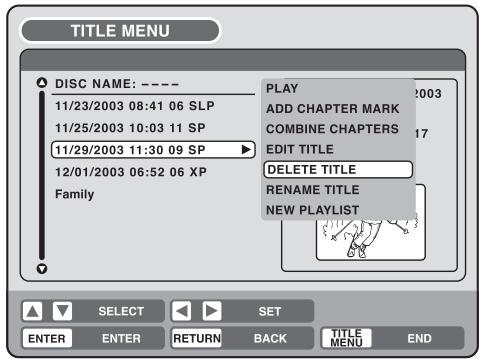
3 En appuyant sur ENTER, l'écran de message suivant apparaîtra.
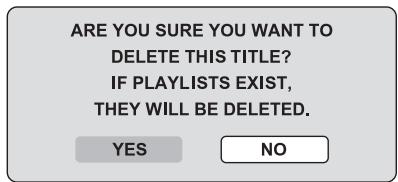
4 Appuyez sur ◀ ou ▶ pour sélectionner « OUI » et appuyez sur ENTER, puis le titre original sera effacé.
- La suppression du titre sera annulée en sélectionnant « NON ».


Vous pouvez changer le nom d'un disque à partir du menu des titres.
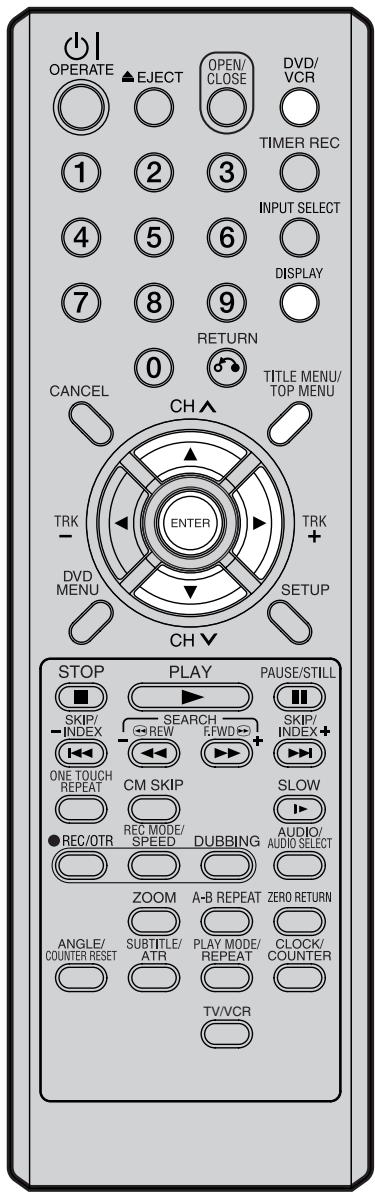
REMARQUES :
- Le nom du disque peut comporter au maximum 30 caractères. Les noms longs seront raccourcis dans le menu des titres.
- Pour utiliser l'écran du clavier, voir « Utilisation de l'écran du clavier » (page 68).
Préparation :
- Allumez le téléviseur et sélectionnez sa chaîne AV (celle-ci peut être étiquetée EXT / AUX, etc.).
- Chargez le DVD enregistré.
- Appuyez sur DVD/VCR pour sélectionner le mode DVD. (L'indicateur DVD s'allumera.)
Changement du nom du disque
1 Appuyez sur TITLE MENU pour afficher le menu des titres.
2 • Appuyez sur ▲ ou ▼ pour sélectionner « NOM DU DISQUE ». • Appuyez sur ▶ pour afficher le menu d'édition. • Appuyez sur ▲ ou ▼ pour sélectionner « RENOMMER LE DISQUE ».
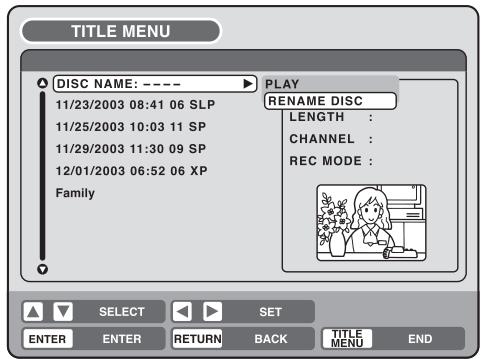
3 Appuyez sur ENTER. L'écran du clavier apparaît.
4 Utilisez l'écran du clavier pour saisir le nom du disque.
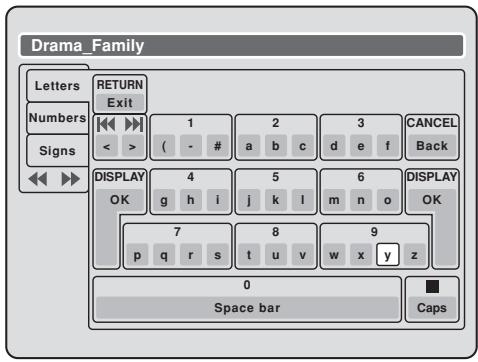
5 Appuyez sur DISPLAY pour revenir au menu des titres.
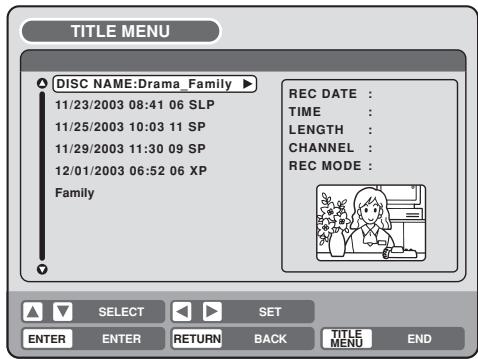


Utilisation de l'écran du clavier
Cette section explique la fonction de l'écran du clavier et comment saisir des caractères. Le nom du disque et le nom du titre peuvent être modifiés à l'aide de l'écran du clavier.
Types d'écran du clavier
L'écran du clavier comporte trois types : « Lettres », « Chiffres » et « Symboles ». Le type peut être commuté en appuyant sur REW ou F.FWD.
Lettres : Ceci est principalement utilisé pour saisir des lettres alphabétiques.
Pour l'écran du clavier des Lettres, voir la page précédente.
Chiffres : Ceci est utilisé pour saisir des chiffres.
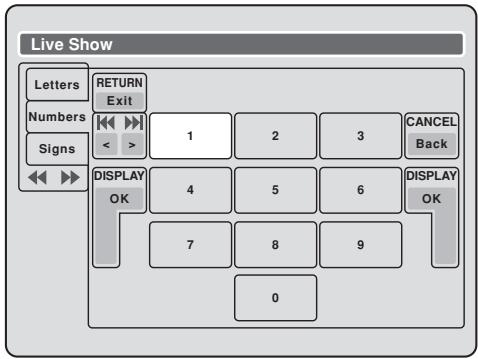
Symboles : Ceci est utilisé pour saisir des symboles.
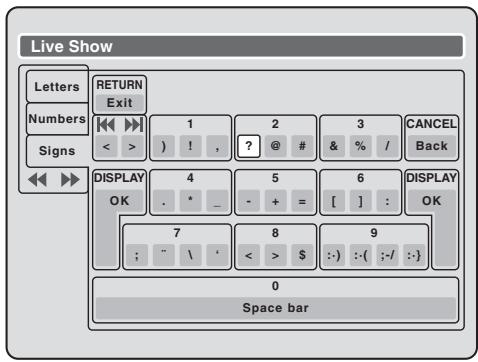
Saisie de caractères
Il existe deux méthodes pour saisir des caractères.
Saisie de caractères 1
1 Appuyez sur ▲, ▼, ◀ ou ▶ pour sélectionner le caractère à saisir. 2 Appuyez sur ENTER. Le caractère sélectionné sera saisi.
Saisie de caractères 2
Exemple : La procédure est expliquée ici lorsque vous saisissez « F » et « J ».
1 Appuyez sur les touches numériques où le caractère souhaité est affecté.
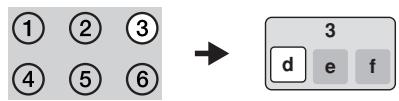
2 Appuyez plusieurs fois sur les touches numériques et sélectionnez le caractère à saisir.
Pour saisir F, appuyez trois fois sur la touche 3.
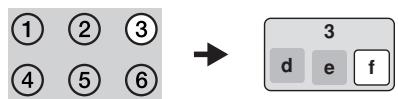
REMARQUE :
Si l'intervalle entre les pressions sur les touches numériques est de 2 secondes ou plus lors de la sélection du caractère à saisir, le caractère sélectionné sera automatiquement saisi.
3 Arrêtez d'appuyer sur les touches lorsque vous avez sélectionné le caractère à saisir. Le caractère sélectionné sera automatiquement saisi.

4 Appuyez sur les touches numériques où le caractère suivant est affecté.
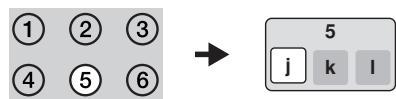
5 Lorsque le caractère à saisir est sélectionné, arrêtez d'appuyer sur les touches. Le caractère sélectionné est automatiquement saisi.

Effacement d'un caractère
Vous pouvez effacer le caractère saisi.
Méthode d'effacement 1
1 Appuyez sur ▲, ▼, ◀ ou ▶ pour sélectionner « Retour ».
2 Appuyez sur ENTRÉE. Le dernier caractère saisi sera effacé.
3 Pour effacer les caractères en continu, appuyez sur ENTER. Les caractères saisis seront effacés un par un, du dernier au premier.
Méthode d'effacement 2
1 Appuyez sur CANCEL sur la télécommande. Le dernier caractère saisi est effacé.
2 Pour effacer les caractères en continu, appuyez sur CANCEL. Les caractères saisis seront effacés un par un, du dernier au premier.
Méthode d'effacement 3
Utilisez le curseur pour sélectionner le caractère et l'effacer.
1 Appuyez sur SKIP - ou + pour déplacer le curseur après le caractère que vous voulez effacer.
2 Appuyez sur CANCEL. Efface le caractère avant la position du curseur.
Sélection entre majuscules et minuscules
Vous pouvez sélectionner les majuscules ou les minuscules lors de la modification de vos titres, en utilisant l'écran du clavier avec l'onglet « Lettres ».
1 Appuyez sur STOP. (Ou appuyez sur ▲, ▼, ◀ ou ▶ pour sélectionner « Caps », puis appuyez sur ENTER.)
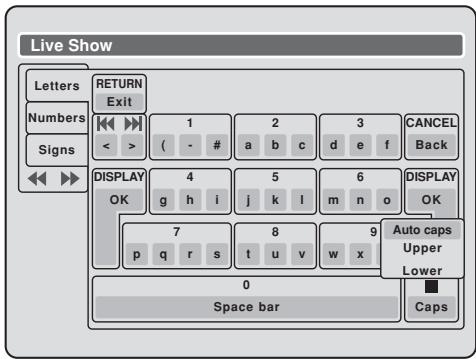
2 Appuyez sur ▲ ou ▼ pour sélectionner le type de lettres dans la liste ci-dessous, puis appuyez sur ENTER.
Auto caps : Détermine automatiquement les majuscules et les minuscules.
Upper : Saisit tout en majuscules.
Lower : Saisit tout en minuscules.
Détermination d'un nom
Pour déterminer le nom du disque et le nom du titre saisis, appuyez sur DISPLAY. Ou appuyez sur ▲, ▼, ◀ ou ▶ pour sélectionner "OK", puis appuyez sur ENTER.
L'écran du clavier disparaît et l'affichage revient au menu des titres.
Le nom du disque et le nom du titre saisis sont affichés dans le menu des titres.
Annulation de la saisie de caractères
Lorsque vous souhaitez annuler la saisie et les caractères modifiés, appuyez sur RETURN. Ou appuyez sur ▲, ▼, ◀ ou ▶ pour sélectionner "Exit", puis appuyez sur ENTER.
La saisie et les caractères modifiés sont annulés et le menu des titres apparaît.
Copie d'une cassette sur un disque
Vous pouvez enregistrer la vidéo ou l'audio d'une cassette vidéo sur un disque.
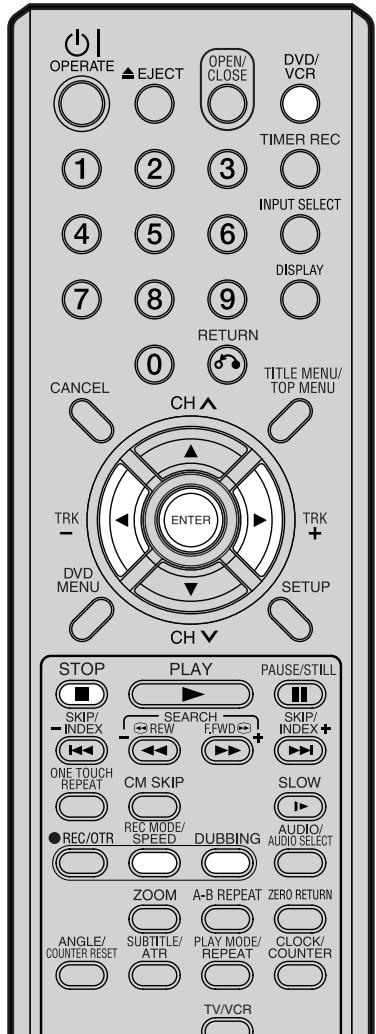
REMARQUES :
- La copie ne peut pas être effectuée lorsque
- une cassette protégée contre la copie est utilisée.
- un disque finalisé est utilisé.
- la protection du disque est activée.
- le disque n'a pas d'espace d'enregistrement.
L'enregistrement s'arrête lorsque
- la cassette vidéo est lue jusqu'à la fin et s'arrête.
- l'espace d'enregistrement devient plein.
- le bruit de l'image continue pendant 10 secondes.
- Les vidéos enregistrées à partir d'émissions de télévision ou de films ne peuvent être utilisées que pour votre plaisir personnel sans l'autorisation du détenteur des droits d'auteur.
Préparation :
- Allumez le téléviseur et sélectionnez sa chaîne AV (elle peut être étiquetée EXT / AUX, etc.)
- Chargez une cassette vidéo source et un disque pour l'enregistrement.
- Retirez la languette de protection contre l'effacement de la cassette vidéo source pour éviter que les données ne soient effacées accidentellement.
- Vérifiez l'espace disque avant l'opération.
1 Appuyez sur DVD/VCR pour mettre cet appareil en mode DVD. L'indicateur DVD s'allume.
2 Appuyez sur REC MODE/SPEED et sélectionnez le mode d'enregistrement SP, LP, SLP ou XP.
- Le mode d'enregistrement est indiqué à la fois sur l'écran du téléviseur et sur la fenêtre d'affichage.
- Pour plus de détails sur le mode d'enregistrement, voir page 46.
3 Appuyez sur DVD/VCR et réglez l'appareil en mode VCR.

REMARQUE :
Vérifiez que le témoin VCR s'allume.
4 Appuyez sur DUBBING.
- L'appareil passe automatiquement en mode DVD.
- Le magnétoscope est en attente de lecture et le DVD est en attente d'enregistrement. Le message suivant apparaît alors.
5 Appuyez sur ◀ ou ▶ pour sélectionner « OUI », puis appuyez sur ENTER.
La copie commence.
- Pour annuler la copie, sélectionnez « NON » et appuyez sur ENTER.
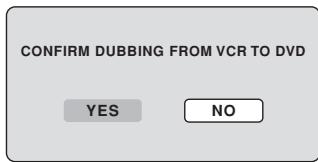
Pendant la copie, les indicateurs de lecture VCR, d'enregistrement DVD et « dub » (copie) apparaissent sur la fenêtre d'affichage.
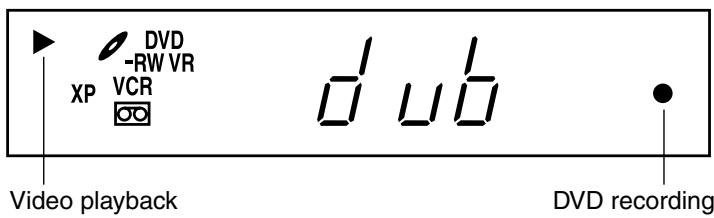
6 Pour arrêter la copie, appuyez sur STOP.

Vous pouvez enregistrer à la fois la vidéo et l'audio d'un disque sur une cassette vidéo. Si un disque avec protection contre la copie est utilisé, une image déformée est enregistrée sur la cassette vidéo.
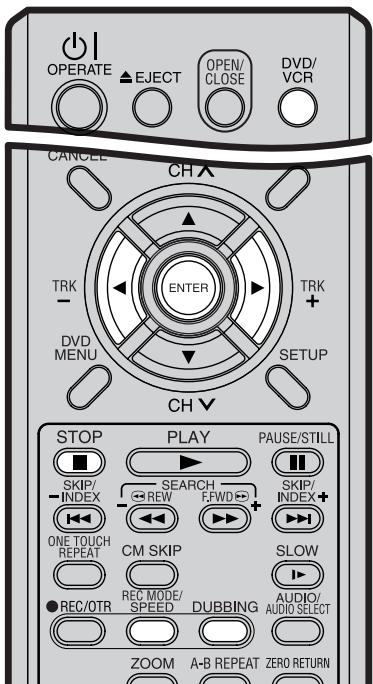
REMARQUES :
- La copie ne peut pas être effectuée lorsque
- un disque protégé contre la copie est utilisé.
- la languette de protection contre l'effacement de la cassette vidéo est retirée.
- L'enregistrement s'arrête lorsque
- le disque est lu jusqu'à la fin et s'arrête.
- plus d'espace d'enregistrement sur la cassette vidéo
- Si aucune autorisation spéciale n'est obtenue du détenteur des droits d'auteur, les vidéos enregistrées à partir d'émissions de télévision ou de films ne peuvent être utilisées que pour votre plaisir personnel.
Préparation :
- Allumez le téléviseur et sélectionnez sa chaîne AV (elle peut être étiquetée EXT / AUX, etc.)
- Chargez un disque source et une cassette vidéo pour l'enregistrement.
- Vérifiez la bande restante pour l'enregistrement avant l'opération.
1 Appuyez sur DVD/VCR pour mettre cet appareil en mode VCR. Le témoin VCR s'allume.
2 Appuyez sur REC MODE/SPEED et sélectionnez le mode d'enregistrement SP ou LP.
- Le mode d'enregistrement est indiqué à la fois sur l'écran du téléviseur et sur la fenêtre d'affichage.
- Pour plus de détails sur le mode d'enregistrement, voir page 42.
3 Appuyez sur DVD/VCR et réglez l'appareil en mode DVD.

REMARQUE :
Confirmez que le témoin DVD s'allume.
4 Appuyez sur DUBBING.
- Le DVD est en attente de lecture et le magnétoscope est en attente d'enregistrement. Le message suivant apparaît alors.
5 Appuyez sur ◀ ou ▶ pour sélectionner "OUI" puis appuyez sur ENTER.
La copie commence.
- Pour annuler la copie, sélectionnez "NON" puis appuyez sur ENTER.
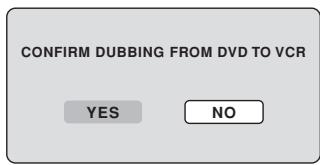
Pendant la copie, les indicateurs de lecture DVD, d'enregistrement VCR et "dub" (copie) apparaissent sur la fenêtre d'affichage.
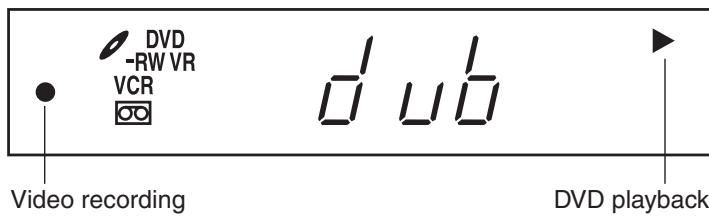
6 Pour arrêter la copie, appuyez sur STOP.
Copie uniquement des titres spécifiés ou de la liste de lecture
Lorsque vous souhaitez copier uniquement certains titres ou listes de lecture enregistrés sur le disque, démarrez la lecture du titre ou de la liste de lecture souhaité, puis appuyez immédiatement sur DUBBING, STOP ou PAUSE/STILL. Si vous appuyez sur DUBBING, passez à l'étape 5 ci-dessus. Si vous appuyez sur STOP ou PAUSE/STILL, passez à l'étape 4 ci-dessus. Les premières secondes du titre ou de la liste de lecture peuvent ne pas être enregistrées. Lorsque la lecture du titre ou de la liste de lecture est terminée, la copie s'arrête.

Vous pouvez connecter un autre magnétoscope ou caméscope pour la copie.
Connexion typique : lors de l'utilisation de cet appareil comme dispositif d'enregistrement Voir la page suivante pour les schémas de connexion.
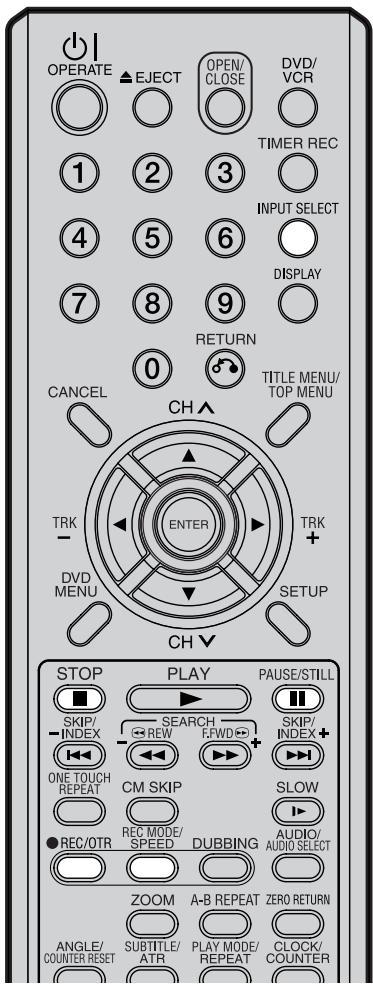
REMARQUES :
- Lorsque cet appareil est utilisé comme dispositif de lecture, tout affichage à l'écran qui apparaît apparaîtra également sur l'enregistrement. Cependant, il est possible de désactiver l'affichage à l'écran - voir la section "DISPLAY/CALL" à la page 22 pour plus d'informations.
- Si aucune autorisation spéciale n'est obtenue du propriétaire du droit d'auteur, les vidéos enregistrées à partir de programmes TV ou de films ne peuvent être utilisées que pour votre plaisir personnel.
- Vous ne pouvez pas copier une cassette vidéo ou un DVD protégé contre la copie.
Lorsqu'une vidéo est enregistrée à l'aide de cet appareil
Préparation :
- Allumez le téléviseur et sélectionnez sa chaîne AV (elle peut être étiquetée EXT / AUX, etc.)
- Chargez une cassette vidéo dont la languette de protection contre l'effacement n'est pas activée, ou un disque avec suffisamment d'espace d'enregistrement.
- Pour enregistrer sur une cassette vidéo, réglez l'appareil en mode VCR ; pour enregistrer sur un disque, réglez-le en mode DVD.
1 Appuyez sur INPUT SELECT et réglez le canal sur A3 (ou A2). A2 : prise péritel DECODER/EXTERNAL à l'arrière A3 : entrée AUDIO/VIDEO à l'avant Vérifiez que A3 (ou A2) apparaît sur la fenêtre d'affichage.
A3
2 Appuyez sur REC MODE/SPEED et sélectionnez le mode d'enregistrement. VCR : SP ou LP (voir page 42.) DVD : SP, LP, SLP ou XP (voir page 46.) 3 Appuyez sur ● REC/OTR sur cet appareil, puis sur PAUSE/STILL. 4 Appuyez sur le bouton PLAY du lecteur, puis sur le bouton PAUSE/STILL. 5 Relâchez simultanément la pause d'enregistrement et l'arrêt sur image de lecture pour commencer le processus de duplication. 6 Pour arrêter la copie, appuyez sur STOP.
Copie à l'aide d'un autre équipement
Connexion de l'appareil de lecture.
L'appareil de lecture peut être un caméscope ou un magnétoscope. Reportez-vous au manuel d'utilisation de chaque appareil pour les opérations de lecture. Les vidéos ou disques DVD protégés contre la copie ne peuvent pas être copiés.
Copie avec un câble A/V (ou un câble S-Vidéo) (non fourni)
Vers l'appareil de lecture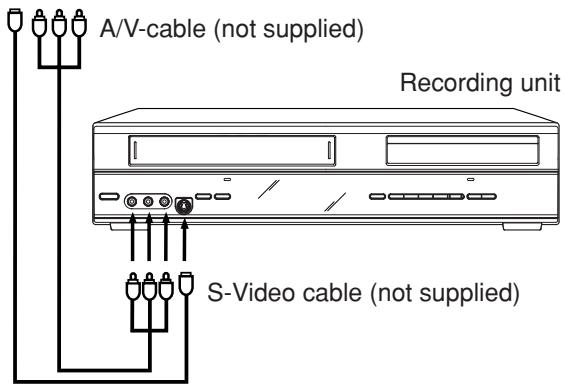
Appuyez plusieurs fois sur INPUT SELECT de la télécommande jusqu'à ce que A3 apparaisse sur l'affichage avant.
Si l'autre magnétoscope ou caméscope est équipé d'une sortie S-Vidéo, une image supérieure sera obtenue en utilisant un câble S-Vidéo connecté à l'entrée S-Vidéo (AV3) sur le panneau avant avec un câble S-Vidéo. Dans ce cas, vous devez sélectionner le mode "S-VIDEO" dans le réglage AV3 INPUT à la page 23.
Si vous sélectionnez « VIDEO », seul le signal vidéo composite sera entré. (Le signal d'entrée S-Video sera coupé.)
L'entrée S-Video ne peut être utilisée que pour l'enregistrement sur le disque. (L'entrée S-Video ne peut pas être utilisée pour l'enregistrement sur la cassette vidéo.)
Copie avec câble péritel (non fourni)
Vers l'appareil de lecture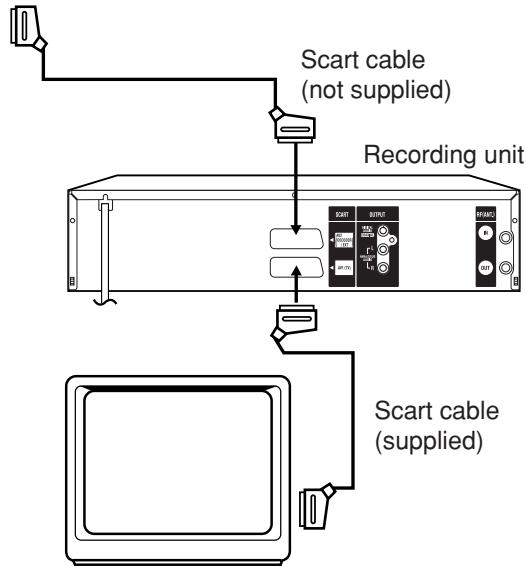
Téléviseur (non fourni)
Appuyez sur INPUT SELECT de la télécommande à plusieurs reprises jusqu'à ce que A2 apparaisse sur l'afficheur avant.
Sélectionnez le mode « AV » dans le réglage AV2 à la page 23.
Remarque :
La copie n'est pas possible si « DECODER » a été sélectionné.
Lecture répétée A-B
Lecture qui répète entre deux points définis, A et B.
angle
Certains disques DVD contiennent des scènes filmées simultanément sous différents angles (la même scène est filmée de face, du côté gauche, du côté droit, etc.). Avec de tels disques, vous pouvez sélectionner l'angle sous lequel vous souhaitez voir la scène.
chapitre automatique
Fonction qui crée automatiquement des marques de chapitre sur un disque DVD pendant l'enregistrement.
Fonction qui transforme automatiquement les images de bruit désagréables en écran bleu lorsqu'une chaîne sans émission ou une chaîne dont l'émission est terminée a été sélectionnée.
Écran BROWSER
Écran qui apparaît lorsque TITLE MENU est enfoncé pendant qu'un CD MP3/WMA ou JPEG est inséré.
chapitre
Une section à l'intérieur d'un titre est appelée un « chapitre ».
Saut de publicité
Lorsqu'il est enfoncé pendant la lecture, la lecture avance de 30 secondes et reprend.
protection contre la copie
Signal de protection des droits d'auteur. Les logiciels et les émissions qui contiennent ce signal ne peuvent pas être enregistrés.
Dolby Digital
Un système audio développé par Dolby Laboratories. Lorsque ce produit est connecté à un récepteur Dolby Digital 5.1, Dolby Digital peut fournir jusqu'à six canaux de son surround numérique cristallin. Les canaux gauche, central et droit devant vous offrent un positionnement précis et clair des dialogues. Les canaux surround gauche et droit séparés ou « discrets » sur les côtés et à l'arrière vous immergent dans le film avec des ambiances et des sons d'ambiance. Un canal d'effets de basses contribue à ajouter du punch aux séquences d'action et d'effets spéciaux.
DTS
Il s'agit d'un système audio numérique développé par Digital Theater Systems pour une utilisation dans les cinémas. Ce système utilise 6 canaux audio et fournit un positionnement précis du champ sonore et une acoustique réaliste. (En connectant un décodeur DTS Digital Surround, vous pouvez également écouter le son DTS Digital Surround.)
Menu DVD
Menu enregistré sur un DVD-Vidéo qui permet à l'utilisateur de sélectionner la langue des sous-titres, la langue de la piste sonore, etc.
finaliser
Opération qui permet aux disques enregistrés ou édités avec cet appareil d'être lus sur d'autres lecteurs DVD.
balayage entrelacé
Technologie qui affiche alternativement les lignes de balayage impaires et paires. Également appelée « 480i », « i » signifiant « entrelacé ».
letter box
Fonction qui affiche des bandes noires au-dessus et en dessous des images de lecture lors de la lecture d'un disque enregistré au format large (16:9) sur un téléviseur 4:3 connecté à cet appareil.
MP3
Un type de compression audio utilisant MPEG1. Ce format compresse le son pour utiliser environ 1/10 de l'espace du fichier d'origine, sans altérer la qualité sonore d'origine.
répétition une touche
Si ONE TOUCH REPEAT est enfoncé pendant la lecture, la lecture revient à un point 10 secondes plus tôt et reprend.
titre original
Le fichier créé par l'enregistrement de quelque chose est appelé « titre original ».
OTR
Enregistrement minuté à une touche. Démarrez un enregistrement programmé en appuyant sur un seul bouton (jusqu'à 6 heures).
Fonction qui coupe les bords gauche et droit des images de lecture pour les adapter au format 4:3 lors de la lecture d'un disque enregistré au format large (16:9) sur un téléviseur 4:3 connecté à cet appareil.
contrôle parental
Certains disques contrôlent la visualisation en fonction de l'âge du spectateur. Un niveau de contrôle peut être défini pour ces types de disques.
réglages du contrôle parental
Niveau 1 : les disques pour adultes et les disques grand public (y compris les disques classés R) ne peuvent pas être lus.
Niveaux 2 à 3 : les disques pour adultes et les disques classés R ne peuvent pas être lus.
Niveaux 4 à 7 : les disques pour adultes ne peuvent pas être lus. (Les disques de niveaux 4 à 7 contiennent du contenu que les enfants de 15 ans et moins ne peuvent pas voir.)
Niveau 8 : tous les disques peuvent être lus sans restriction.
liste de lecture
Titres créés par l'utilisateur à partir de chaque titre original.
numéro de région
Il existe des logiciels qui permettent la lecture de DVD dans différents pays. Le numéro de ce type de disque est appelé « numéro de région ».
MENU DE CONFIGURATION
Menu qui contient les réglages de diverses fonctions de cet appareil, telles que l'enregistrement et la lecture. L'enregistrement programmé est également défini à partir du MENU DE CONFIGURATION.
diaporama
Technique permettant de faire défiler et de visualiser de nombreuses images (fichiers JPEG).
langue des sous-titres
Langue utilisée pour les sous-titres de films, etc. Les spectateurs peuvent regarder dans la langue de leur choix.
titre
Un programme enregistré sur un disque est appelé un « titre ».
menu des titres
Menu qui répertorie les titres et les pistes enregistrés sur le disque. Il est utilisé pour la lecture et l'édition du disque.
menu principal
Menu d'un DVD-Vidéo permettant de sélectionner les chapitres pour la lecture, la langue des sous-titres, etc. Le menu principal peut être appelé menu des titres sur certains DVD.
piste
Une chanson sur un CD audio est appelée une « piste ».
écran INFO PISTE
L'écran qui apparaît lorsque l'on appuie sur MENU TITRE, si un disque audio est dans l'appareil.
mode vidéo
Ce format d'enregistrement est compatible avec les lecteurs DVD disponibles dans le commerce.
surround virtuel
Technologie qui convertit un audio non enregistré en son surround en un audio qui assimile le son surround.
Mode VR
Ce format d'enregistrement est le format d'enregistrement de base des DVD-RW et vous permet de profiter des diverses fonctions d'édition disponibles sur cet appareil.
Saisissez le code approprié pour les réglages initiaux "MENU DVD", "AUDIO" et/ou "SOUS-TITRES" (voir page 18).
| Code | Language | Code | Language | Code | Language | Code | Language |
| 1112 | Abkhazian | 1530 | Estonian | 2211 | Latin | 2914 | Sindhi |
| 1111 | Afar | 1531 | Basque | 2232 | Latvian, Lettish | 2919 | Singhalese |
| 1116 | Afrikaans | 1611 | Persian | 2224 | Lingala | 2921 | Slovak |
| 2927 | Albanian | 1625 | Faroese | 2230 | Lithuanian | 2922 | Slovenian |
| 1123 | Amharic | 1620 | Fiji | 2321 | Macedonian | 2925 | Somali |
| 1128 | Arabic | 1619 | Finnish | 2317 | Malagasy | 2931 | Sundanese |
| 1835 | Armenian | 1628 | French | 2329 | Malay | 2933 | Swahili |
| 1129 | Assamese | 1635 | Frisian | 2322 | Malayalam | 2932 | Swedish |
| 1135 | Aymara | 1722 | Galician | 2330 | Maltese | 3022 | Tagalog |
| 1136 | Azerbaijani | 2111 | Georgian | 2319 | Maori | 3017 | Tajik |
| 1211 | Bashkir | 2122 | Greenlandic | 2328 | Marathi | 3011 | Tamil |
| 1224 | Bengali; Bangla | 1724 | Guarani | 2325 | Moldavian | 3030 | Tatar |
| 1436 | Bhutani | 1731 | Gujarati | 2324 | Mongolian | 3015 | Telugu |
| 1218 | Bihari | 1811 | Hausa | 2411 | Nauru | 3018 | Thai |
| 1228 | Breton | 1933 | Hebrew | 2415 | Nepali | 1225 | Tibetan |
| 1217 | Bulgarian | 1819 | Hindi | 2425 | Norwegian | 3019 | Tigrinya |
| 2335 | Burmese | 1831 | Hungarian | 2528 | Oriya | 3025 | Tonga |
| 1215 | Byelorussian | 1929 | Icelandic | 2611 | Panjabi | 3028 | Turkish |
| 1311 | Catalan | 1924 | Indonesian | 2629 | Pashto, Pushto | 3021 | Turkmen |
| 2123 | Cambodian | 1911 | Interlingua | 2622 | Polish | 3033 | Twi |
| 3618 | Chinese | 1711 | Irish | 2630 | Portuguese | 3121 | Ukrainian |
| 1325 | Corsican | 1930 | Italian | 2731 | Quechua | 3128 | Urdu |
| 1828 | Croatian | 2011 | Japanese | 2823 | Rhaeto-Romance | 3136 | Uzbek |
| 1329 | Czech | 2033 | Javanese | 2825 | Romanian | 3219 | Vietnamese |
| 1411 | Danish | 2124 | Kannada | 2831 | Russian | 3225 | Volapük |
| 1415 | Deutsch | 2129 | Kashmiri | 2923 | Samoan | 1335 | Welsh |
| 2422 | Dutch | 2121 | Kazakh | 2911 | Sanskrit | 3325 | Wolof |
| 1522 | Greek | 2135 | Kirghiz | 1714 | Scots Gaelic | 3418 | Xhosa |
| 1524 | English | 2125 | Korean | 2928 | Serbian | 2019 | Yiddish |
| 1525 | Esperanto | 2131 | Kurdish | 2918 | Serbo-Croatian | 3525 | Yoruba |
| 1529 | Spanish | 2225 | Laothian | 2924 | Shona | 3631 | Zulu |
Liste des messages d'erreur et d'avertissement
| ERROR/WARNING MESSAGE | CAUSE | POSSIBLE SOLUTIONS | PAGE | |
| Power ON | SYSTEM ERROR PLEASE WAIT | The power was shut down without completing the termination process due to a power failure or disconnection of the AC cord plug. (Abnormal termination) | Wait until the message disappears. | -- |
| SYSTEM ERROR PLEASE WAIT DISC CHECKING | The power was abruptly turned off before writing to the disc was completed. | The data is now restoring. | -- | |
| SYSTEM ERROR DISC MIGHT BE FAILED PRESS ENTER | The data restoration was completed. | Press ENTER, then the screen returns to the normal display. The data may not be restored even if the restoration process is performed. | 46 | |
| Playback | NO DISC | PLAY was pressed when a disc was not loaded into the unit. | Load a disc. | 28 |
| REGION CODE ERROR | A disc specified other than “Region 2” or “Region ALL” was loaded. | A disc specified other than “Region 2” or “Region ALL” cannot be played back. | 7 | |
| INCORRECT DISC - C104, C105, C106, C107 | The disc cannot be identified. | Check to make sure that the disc is compatible with this unit. | 7 | |
| Recording | NO DISC | ● REC/OTR was pressed when a disc was not loaded into the unit. | Load a disc. | 48 |
| PROCESSING PLEASE WAIT | The recording termination is processing. | Wait until the process is completed. | -- | |
| RECORDING INTERRUPTED - C204 | Disc became full during recording. | Erase unnecessary titles or load another disc and restart recording. | 66 | |
| CANNOT RECORD - C203 | Recording was tried onto the disc having no space. | Check the disc space. | 30 | |
| CANNOT RECORD - C206 | Recording was tried onto the disc which does not support recording. | Load a recordable disc. | 8 | |
| CANNOT RECORD - C207 | Disc erase-protection is applied. | Set “Protect disc” to “OFF”. | 21 | |
| CANNOT RECORD - C208 | Recording was tried onto the finalised disc. | Undo finalisation or load another disc for recording. | 21 | |
| CANNOT RECORD - C209 | Adding data was tried onto the disc recorded in the other unit. | Load another disc for recording. | -- | |
| CANNOT RECORD - C210 | Adding data was tried to the disc where PC data was recorded. | Load another disc for recording. | -- | |
| DISC ERROR - C205, C211, C212, C213 | A scratch or contamination was found on the disc. | Check the disc and reload it, or use another disc for recording. | -- | |
| CANNOT RECORD EXCEEDS LIMITED NUMBER OF TITLES. | 99 titles were recorded on the disc. | Erase unnecessary titles or load another disc. | 66 | |
| CANNOT RECORD, EXCEEDS LIMITED NUMBER OF CHAPTER. | 999 chapters were existed on the disc. | Erase unnecessary chapters or load another disc. | 47 | |
| CANNOT RECORD PROTECTED IMAGE. | You tried to record a copy-guard video. | You cannot record the video containing copy-guard signal. | 47 | |
| RECORDING INTERRUPTED PROTECTED IMAGE. | The video was changed to a copy-guard format in recording. | You cannot record the video containing copy-guard signal. | 47 | |
| CANNOT RECORD IN VIDEO MODE. COPY IMAGE ONCE ONLY. | You tried to record the “Copy Once” program onto a disc (Video mode). | Load a DVD-RW Ver. 1.1 or later (VR mode) with CPRM. | 47 | |
| CANNOT RECORD ON DISC. THIS IS NOT CPRM DISC. | You tried to record the “Copy Once” program onto a disc without CPRM. | Load a DVD-RW Ver. 1.1 or later (VR mode) with CPRM. | 47 | |
| Dubbing | CANNOT COPY DATA - C251 | No video tape or disc is inserted as a source for the recording. | Load a video tape or disc into the source drive. | 70, 71 |
| CANNOT COPY DATA - C254, C255 | The source video or disc to be copied is copy-guarded. | You cannot dub a video containing copy-guarded material. | 47 | |
| COPYING INTERRUPTED | The video tape or disc became full during dubbing. | Load another video tape or disc for recording and restart. | 70, 71 | |
| Disc setup | DISC ERROR - C302, C303 | Cannot Format disc due to a scratch or contamination on the disc. | Check the disc and reload it, or use another disc for recording. | -- |
| DISC ERROR - C304, C305 | Cannot Finalise disc due to a scratch or contamination on the disc. | Check the disc and reload it, or use another disc for recording. | -- | |
| DISC ERROR - C306 | Cannot Undo Finalise disc due to a scratch or contamination on the disc. | Check the disc and reload it, or use another disc for recording. | -- | |
| DISC ERROR - C307, C308 | Cannot Protect disc ON/OFF due to a scratch or contamination on the disc. | Check the disc and reload it, or use another disc for recording. | -- | |
| Title Menu | CANNOT EDIT | Editing cannot be performed due to a scratch or contamination on the disc. | Check the disc and reload it, or use another disc for recording. | -- |
| CANNOT EDIT - C408 | Combining chapters cannot be performed. | Chapter marks that have been added automatically in the erasing of a scene procedure cannot be erased. | 69 | |
| PROCESSING PLEASE WAIT | A process requiring a longer time such as editing is being performed. | Wait until the process is complete. | -- |
REMARQUE : Il est possible que d'autres messages d'avertissement que ceux énumérés ci-dessus apparaissent. Si cela se produit, veuillez consulter les solutions possibles ci-dessus, car elles peuvent toujours fournir une explication.
Problèmes et dépannage
| SYMPTOMS | POSSIBLE SOLUTIONS | PAGE |
| VCR/DVD | ||
| VCR/DVD does not operate. | Make sure the power cord is plugged in.Try another AC outlet.Power is off, check fuse or circuit breaker.Unplug unit, then plug it back in.Select the DVD or VCR mode before operating. | ––28 |
| No picture. | Antenna connection is not correct or antenna cable is disconnected.Check the unit is connected correctly.The video input selector of the TV is not set to VIDEO. Set to VIDEO (or equivalent).Channel is set to the external mode. | 1414–– |
| No sound. | Check the unit is connected correctly.Check the input selector of the amplifier is set properly.The unit is in the Special playback mode. | 14~16–31, 44 |
| The remote control does not function. | Aim at the remote control at the remote sensor.Operate within Approx. 5 metres or reduce the light in the room.Clear the path of the beam.The batteries are weak. Replace the batteries.Check the batteries are inserted correctly. | 13 |
| No function in DVD mode. | Press OPERATE button on the unit approx. 10sec. to reset. | - |
| DVD | ||
| Display is not shown in your language. | Your preferred language may not be available on the disc. | 18 |
| Playback doesn't start. | No disc is inserted.The disc may be dirty. Clean up the disc.The unit cannot play DVD-ROMs, etc. | 2877 |
| Stopping playback, search, slow-motion play, repeat play, or program play, etc. cannot be performed. | Some discs may not do some of the functions. | - |
| Recording does not work. | Check the disc space, using the disc information.Check the disc for protection.Check if the video to be recorded is not “copy-guarded”.Check that the number of recorded titles is 99 or less, using the disc information.Check that the total number of chapters for the recorded titles does not exceed 999 in the disc information section.In a DVD-RW of Ver.1.0, recording in Video mode does not work. Check the disc type. | 30214730, 4630, 468 |
| A disc recorded using this recorder cannot be played back in other players. | Check that the disc is finalised.Some DVD players will not play even if the disc has been finalised.If the disc was recorded in VR mode, the other player must be RW compatible in order to play the disc. | 219, 219, 21 |
Problèmes et dépannage / Nettoyage des têtes vidéo
| SYMPTOMS | POSSIBLE SOLUTIONS | PAGE |
| VCR | ||
| TV recording does not work. | The erase prevention tab of the video cassette is broken off.The unit is in the external input mode. | 42, 48 |
| Timer recording does not work. | The time is not set correctly.The recording start/end time is not set correctly.TIMER REC has not been pressed (☐ is not lit). | 205253 |
| Noise bars on screen. | Tracking adjustment beyond range of automatic tracking circuit.Try Manual tracking adjustment.Video heads are dirty.The tape is worn or damaged. | 4479- |
| OTHER | ||
| No 4:3 (16:9) picture. | The setup does not match your TV. | 22 |
| No on-screen display. | Select Display “ON”. | 22 |
| Nothing appears in the display window. | Check the DIMMER setting for SETUP. | 22 |
| No surround sound. | The setup does not match your stereo system. | 16 |
| The unit or remote operation key is not functioning. | Turn off the unit and unplug the AC power cord for several minutes, then replug it. | - |
| Playback does not start when the title is selected. | Check the Parental setup. | 19 |
| Audio soundtrack and/or subtitle language is not changed when you playback a DVD. | Multilingual language is not recorded on the DVD disc. | 18 |
| No subtitles. | Some discs have no subtitles.Subtitles are cleared. Press SUBTITLE. | 18, 36 |
| Angle cannot be changed. | Multi-angles are not recorded on the DVD disc. | - |
| “” appears on the screen. | The function is prohibited with the unit or the disc. | - |
Nettoyage des têtes vidéo
Encrassement des têtes vidéo
Les têtes vidéo enregistrent et lisent les images et le son sur la bande vidéo. Si elles deviennent sales, vous ne pourrez pas faire un enregistrement parfait et l'image de lecture sera extrêmement neigeuse. Gardez également à l'esprit qu'une mauvaise qualité de bande et une cassette endommagée peuvent contribuer à l'accumulation rapide de saleté sur les têtes.

Bonne image

Image neigeuse
Système automatique de nettoyage des têtes
Le système automatique de nettoyage des têtes nettoie automatiquement les têtes vidéo lors de l'insertion et de l'éjection d'une cassette afin d'éviter l'accumulation de saletés sur les têtes. Cependant, un nettoyage manuel des têtes est nécessaire si l'image en lecture reste floue alors que l'image en enregistrement est normale. Ce défaut indique que la tête se salit et peut survenir lors de la lecture de cassettes de mauvaise qualité ou endommagées. Si les têtes nécessitent un nettoyage, utilisez une cassette de nettoyage de têtes de haute qualité ou faites-les nettoyer par un professionnel.
Attention :
Les têtes vidéo peuvent éventuellement s'user et doivent être remplacées lorsqu'elles ne produisent plus d'images nettes même après un nettoyage soigneux.
GÉNÉRALITÉS
| Power supply: | AC 230V 50Hz |
| Power consumption: | Operation: 28WStandby: 5.5W (if display window is off.) |
| Weight: | 5.5 kg |
| Dimensions: | Width : 430 mmHeight : 99 mmDepth : 311.5 mm |
| Operating temperature: | 5°C to 35°C |
| Operating humidity: | Less than 80% RH |
| Input Level: | SCART-socket: Video : 1 Vp-p, 75 ΩAudio : 500 mV, 50 k Ω |
| Audio IN jack: 500 mV, 50 k Ω | |
| Output Level: | SCART-socket: Video : 1 Vp-p, 75 ΩAudio : 500 mV, 1 k Ω |
| Audio OUT jack: 500 mV, 1 k Ω |
Section magnétoscope
| Signal system: | PALNTSC tape playback with PAL/60 Hz |
| Video head: | 4 Rotary Heads |
| Audio track: | Hi-Fi Sound - 2 Tracks / MONO Sound - 1 Track |
| Channel coverage: | 2-12,X,Y,Z,S1-S41,21-69 |
| F.FWD/REW Time: | Approx. 1minute and 12 seconds (with E-180 Cassette Tape)(at+25°C) |
| Hi-Fi Frequency Response: | 20Hz to 20,000Hz |
| Hi-Fi Dynamic Range: | More than 75dB |
Section DVD
| Signal system: | PAL |
| Applicable disc: | DVD (12cm, 8cm), CD (12cm, 8cm) |
| Recording format: | DVD-Video Recording (VR mode) DVD-VIDEO (Video mode) |
| Recording discs: | DVD-RW, DVD-R |
| Recording time: | XP: Approx. 60 min |
| (based on a 4.7GB disc) | SP: Approx. 120 min LP: Approx. 240 min SLP: Approx. 360 min |
Caractéristiques audio
| frequency response: | DVD: 4Hz - 22kHzCD: 4Hz - 20kHz |
| S/N Ratio: | 90dB |
| Harmonic distortion: | Less than 0.06% |
| Wow and flutter: | Less than 0.01% Wrms |
| Output: | Video : (RCA) 1 Vp-p/75 ohmAudio : (RCA) -12 dBm/1k ohmDigital Audio : 0.5Vp-p/75 ohm |
| Pickup: | CD : Wavelength: 780 nmMaximum output power: 8.5 mWDVD : Wavelength: 660 nmMaximum output power: 120 mW |
ACCESSOIRES :
| Remote control unit x 1 |
| 75 ohm Coaxial Cable x 1 |
| 21 pin Scart Cable x 1 |
| Battery R-03 (“AAA” size, UM/SUM-4, HP-16 or similar) x 2 |
| Operation Manual |
SHARP®
SHARP CORPORATION
- SHARP®
- DV-RW250S
- MODE D'EMPLOI
- MODE D'EMPLOI EN ANGLAIS
- INFORMATIONS DE SÉCURITÉ
- REMARQUE
- ATTENTION
- AVERTISSEMENT
- PROPRIÉTÉS DE LA DIODE LASER
- PROTECTION DU CORDON D'ALIMENTATION
- AVANT D'UTILISER VOTRE APPAREIL
- RÉGLAGES DIVERS
- LECTURE DE DISQUE
- LECTURE DE LA CASSETTE
- ENREGISTREMENT
- ÉDITION DU DISQUE
- DOUBLAGE
- INFORMATIONS COMPLÉMENTAIRES
- MARQUAGE DES SUPPORTS
- AVERTISSEMENT IMPORTANT
- COPYRIGHT
- ACCESSOIRES
- FONCTION DE LECTURE
- UN SON RÉALISTE ET PUISSANT, DIGNE D'UNE SALLE DE CINÉMA
- LISEZ IMMÉDIATEMENT LA SCÈNE QUE VOUS SOUHAITEZ VOIR
- MENU DES TITRES
- LECTURE DE VIDEO CD/SVCD ET MP3/WMA/JPEG
- FONCTION D'ENREGISTREMENT
- ENREGISTREMENT PROGRAMMÉ
- ENREGISTREMENT PROGRAMMÉ EN UNE TOUCHE (OTR)
- FONCTION D'ÉDITION
- MODIFICATION D'UN ENREGISTREMENT SANS CHANGER LES TITRES D'ORIGINE
- MARQUE DE CHAPITRE
- EFFACEMENT DE SCÈNES
- COMBINAISON DE TITRES
- FONCTION DE DOUBLAGE
- DOUBLER UNE CASSETTE SUR UN DISQUE OU UN DISQUE SUR UNE CASSETTE
- MANIPULATION DES DISQUES
- RETRAIT DU DISQUE DE SON BOÎTIER
- STOCKAGE DES DISQUES
- NETTOYAGE DES DISQUES
- DISQUES POUVANT ÊTRE LUS
- INFORMATIONS DE GESTION DE ZONE
- EXEMPLE
- LECTURE DE DVD-VIDÉO
- DISQUES QUI NE PEUVENT PAS ÊTRE LUS
- LES DVD-VIDÉO SUIVANTS PEUVENT NE PAS ÊTRE LUS SUR CET APPAREIL
- LES CD-R/CD-RW NE PEUVENT PAS ÊTRE LUS POUR LES RAISONS SUIVANTES
- NE LISEZ PAS LES DISQUES SUIVANTS. LA LECTURE DE CES DISQUES PEUT PROVOQUER UNE PANNE
- DISQUES SUR LESQUELS LA VIDÉO PEUT ÊTRE ENREGISTRÉE
- DVD-RW
- DVD-R
- REMARQUES
- FORMAT D'ENREGISTREMENT
- MODE VR
- MODE VIDÉO
- MODES DE FORMAT UTILISABLES AVEC CHAQUE DISQUE
- TITRE/CHAPITRE/PISTE
- LORS DE L'ENREGISTREMENT EN MODE VR
- LORS DE L'ENREGISTREMENT EN MODE VIDÉO
- NOTES
- LECTURE DU DISQUE SUR D'AUTRES LECTEURS
- COMMENT INSTALLER LES PILES
- CONNEXION DE CET APPAREIL À VOTRE TÉLÉVISEUR À L'AIDE DES CONNEXIONS PÉRITEL
- CONNEXION POUR LA LECTURE
- CONNEXION À UN RÉCEPTEUR SATELLITE
- CONNEXION À UN AMPLIFICATEUR STÉRÉO AVEC SORTIE AUDIO
- CONNEXION À UN AMPLIFICATEUR AV AVEC SON SURROUND NUMÉRIQUE INTÉGRÉ
- UTILISEZ CETTE CONNEXION POUR CONNECTER UN
- PRÉPARATION
- UTILISATION DU MENU DE CONFIGURATION
- LANGUE DE L'AFFICHAGE À L'ÉCRAN
- LANGUES SÉLECTIONNABLES
- MENU DVD
- AUTRE
- AUDIO
- ORIGINAL
- SOUS-TITRES
- AUTOMATIQUE
- OFF
- SÉLECTION DU CONTRÔLE PARENTAL
- POUR VERROUILLER LE NIVEAU DE CONTRÔLE PARENTAL SÉLECTIONNÉ
- POUR ANNULER LE VERROUILLAGE DU NIVEAU DE CONTRÔLE PARENTAL
- ANNULATION TEMPORAIRE DU CONTRÔLE PARENTAL
- RÉGLAGE DE L'HORLOGE / RÉGLAGE DU DISQUE
- REFORMATER
- FORMAT NOUVEAU DISQUE
- FINALISATION
- PROTÉGER LE DISQUE
- ANNULER LA FINALISATION
- DIMMER (LUMINOSITÉ DE LA FENÊTRE D'AFFICHAGE)
- DISPLAY/CALL (ACTIVATION OU DÉSACTIVATION DE L'AFFICHAGE À L'ÉCRAN)
- ÉCRAN TV
- PANSCAN
- LETTERBOX
- MODE IMAGE FIXE
- IMAGE FIXE PAR TRAME
- REMARQUE CONCERNANT L'IMAGE FIXE DE CHAMP ET L'IMAGE FIXE DE TRAME
- FOND SANS BRUIT
- LUMINOSITÉ
- SORTIE DVD
- AV
- ENTRÉE AV
- S-VIDEO
- VIDEO
- RÉGLAGE DE L'AUDIO / RÉGLAGE DE L'ENREGISTREMENT
- CETTE SECTION DÉCRIT LES RÉGLAGES AUDIO
- DRC
- SON SURROUND VIRTUEL (SPATIALIZER N-2-2 TM )
- ENTRÉE AUDIO EXTERNE
- NICAM
- SORTIE DOLBY DIGITAL
- CETTE SECTION DÉCRIT LES RÉGLAGES D'ENREGISTREMENT
- ENREGISTREMENT INITIAL VERS
- MODE D'ENREGISTREMENT INITIAL
- CHAPITRE AUTOMATIQUE
- INDEX PICTURE
- ENREGISTREMENT BILINGUE
- INTERVALLE JPEG
- PRÉRÉGLAGE AUTOMATIQUE DES STATIONS
- POUR SAUTER UNE POSITION DE CHAÎNE
- DÉCODEUR ACTIVÉ/DÉSACTIVÉ
- REMPLACER LES POSITIONS DES CHAÎNES TV
- PRÉRÉGLAGE MANUEL DES CHAÎNES TV
- LECTURE EN SÉLECTIONNANT UN TITRE
- DVD-RW VR DVD-RW VIDEO DVD-R
- APPUYEZ SUR TITLE MENU
- APPUYEZ SUR ▲ OU ▼ POUR SÉLECTIONNER LE TITRE QUE VOUS SOUHAITEZ LIRE
- APPUYEZ SUR ENTER
- VÉRIFICATION DES INFORMATIONS SUR LE SUPPORT
- LECTURE EN AVANCE RAPIDE
- LECTURE EN RETOUR
- LECTURE SUR IMAGE FIXE
- AVANCE IMAGE PAR IMAGE
- LECTURE AU RALENTI
- LOCALISATION D'UN CHAPITRE OU D'UNE PLAGE
- SAUT DE PUBLICITÉ / LOCALISATION D'UNE SCÈNE SPÉCIFIQUE
- SAUT DE PUBLICITÉ
- LOCALISATION D'UNE SCÈNE SPÉCIFIQUE
- APPUYEZ SUR PLAY MODE
- APPUYEZ SUR ◀ OU ▶ POUR SÉLECTIONNER "RECHERCHE PAR TEMPS", "RECHERCHE PAR CHAPITRE" OU "RECHERCHE PAR TITRE", PUIS APPUYEZ SUR ENTER
- LORS DE LA SÉLECTION DE "RECHERCHE PAR TEMPS", SAISISSEZ LE TEMPS JUSQU'À LA REPRISE DE LA LECTURE AVEC LES TOUCHES NUMÉRIQUES OU ▲/▼/◄/►. LORS DE LA SÉLECTION DE "RECHERCHE PAR CHAPITRE" OU "RECHERCHE PAR TITRE", APPUYEZ SUR ▲ OU ▼ POUR SÉLECTIONNER LE NUMÉRO DE CHAPITRE OU DE TITRE
- RÉPÉTITION EN UNE TOUCHE
- LECTURE EN RÉPÉTITION A-B
- LECTURE RÉPÉTÉE D'UN TITRE OU D'UN CHAPITRE
- DVD-VIDEO
- SÉLECTION DU TITRE
- CHANGEMENT D'ANGLE
- ZOOM
- CHANGEMENT DE LA LANGUE DE LA PISTE AUDIO / SOUS-TITRES
- CHANGEMENT DE LA LANGUE DE LA PISTE SONORE
- EN CAS DE LECTURE DE VIDEO CD
- ACTIVATION ET DÉSACTIVATION DES SOUS-TITRES
- CHANGEMENT DE LA LANGUE DES SOUS-TITRES
- LECTURE D'UNE PISTE SÉLECTIONNÉE
- EXCLUSION D'UNE PLAGE SPÉCIFIÉE
- LECTURE ALÉATOIRE
- RÉPÉTITION DE LA PLAGE SÉLECTIONNÉE
- RÉPÉTITION DE TOUTES LES PLAGES
- LECTURE DE PROGRAMMES
- LECTURE D'UNE PISTE EN SPÉCIFIANT LE TEMPS
- LIMITATIONS DE LECTURE DES CD MP3/WMA/JPEG
- UTILISATION DE L'ÉCRAN BROWSER
- LORSQUE LE FICHIER À AFFICHER EST SÉLECTIONNÉ
- CD MP
- CD WMA
- LECTURE DE FICHIERS MP3/WMA
- APPUYEZ SUR ▲ OU ▼ POUR SÉLECTIONNER LE FICHIER MP3/WMA
- EFFECTUEZ L'UNE DES OPÉRATIONS A OU B CI-DESSOUS
- POUR REVENIR À L'ÉCRAN BROWSER, APPUYEZ SUR RETURN
- CD JPEG
- LECTURE DE FICHIERS JPEG
- APPUYEZ SUR ▲ OU ▼ POUR SÉLECTIONNER UN FICHIER JPEG
- SÉLECTIONNEZ A OU B COMME CI-DESSOUS
- APPUYEZ SUR ENTER POUR LIRE L'IMAGE SÉLECTIONNÉE
- POUR REVENIR À L'ÉCRAN DES VIGNETTES, APPUYEZ SUR RETURN
- CHARGEMENT ET DÉCHARGEMENT D'UNE CASSETTE
- CHARGEMENT
- MISE SOUS TENSION AUTOMATIQUE
- LECTURE AUTOMATIQUE
- DÉCHARGEMENT
- ÉJECTION AUTOMATIQUE DE LA CASSETTE
- POUR ÉVITER TOUT EFFACEMENT ACCIDENTEL
- POUR RÉENREGISTRER
- POUR DÉMARRER LA LECTURE
- POUR ARRÊTER LA LECTURE
- POUR REMBOBINER LA CASSETTE OU LA FAIRE AVANCER RAPIDEMENT
- MODE DE RECHERCHE D'IMAGE AVANT/ARRIÈRE
- LECTURE DE CASSETTES VIDÉO NTSC
- RECHERCHE D'IMAGE
- IMAGE FIXE
- RALENTI
- IMAGE IMAGE PAR IMAGE
- RÉGLAGE DE LA CONDITION DE SUIVI
- RÉGLAGE MANUEL DU SUIVI
- LECTURE RÉPÉTÉE
- POUR AFFICHER L'ÉTAT DE FONCTIONNEMENT DU MAGNÉTOSCOPE
- FONCTION ZERO RETURN / SYSTÈME DE RECHERCHE D'INDEX VIDÉO
- FONCTION ZERO RETURN
- REMARQUES CONCERNANT L'AFFICHAGE DU COMPTEUR
- REMARQUES CONCERNANT LE SYSTÈME DE RECHERCHE D'INDEX VIDÉO
- APPUYEZ SUR DISPLAY
- APPUYEZ SUR STOP LORSQUE LA LECTURE OU L'ENREGISTREMENT EST TERMINÉ
- COMMUTATION DE L'AFFICHAGE ENTRE L'HORLOGE ET LE COMPTEUR
- SYSTÈME DE RECHERCHE D'INDEX VIDÉO
- ENREGISTREMENT D'UNE MARQUE D'INDEX
- RECHERCHE D'INDEX
- À LIRE AVANT D'ENREGISTRER SUR DISQUE
- NOTE
- TYPES DE DISQUES
- DISQUES DVD-RW
- DISQUES DVD-R
- REMARQUES SUR L'ENREGISTREMENT EN MODE VIDÉO
- MODES D'ENREGISTREMENT
- TEMPS RESTANT SUR LE DISQUE
- IMAGES QUI NE PEUVENT PAS ÊTRE ENREGISTRÉES
- COPIE LIBRE » (ENREGISTREMENT SANS RESTRICTION)
- COPIE INTERDITE » (ENREGISTREMENT INTERDIT)
- COPIE UNIQUE" (ENREGISTRABLE UNE SEULE FOIS)
- ENREGISTREMENT D'UN PROGRAMME TV
- REC/OTR
- APPUYEZ SUR REC MODE/SPEED POUR SÉLECTIONNER LE MODE D'ENREGISTREMENT
- APPUYEZ SUR LES TOUCHES NUMÉRIQUES OU SUR CH ∧/∨ POUR SÉLECTIONNER LA CHAÎNE À ENREGISTRER
- APPUYEZ SUR ● REC/OTR
- FONCTION DE REMBOBINAGE AUTOMATIQUE
- POUR ARRÊTER L'ENREGISTREMENT
- POUR ARRÊTER TEMPORAIREMENT L'ENREGISTREMENT
- ENREGISTRER UN PROGRAMME TOUT EN REGARDANT UN AUTRE
- ENREGISTREMENT MINUTÉ À UNE TOUCHE (OTR)
- POUR ANNULER L'OTR
- RÉGLAGE DE L'ENREGISTREMENT PROGRAMMÉ
- VÉRIFICATION OU MODIFICATION DE L'ENREGISTREMENT PROGRAMMÉ
- ANNULATION DE L'ENREGISTREMENT PROGRAMMÉ
- EN CAS DE CHEVAUCHEMENT DES PROGRAMMES PROGRAMMÉS
- LES PROGRAMMES NICAM SONT DIVISÉS EN 4 TYPES COMME INDIQUÉ CI-DESSOUS
- ÉMISSION NICAM STEREO
- ÉMISSION NICAM MONO A
- ÉMISSION NICAM MONO A B
- NICAM OFF
- RÉCEPTION DU SON STÉRÉO ALLEMAND A
- INDICATION DE PROGRAMME STÉRÉO
- INDICATION DE PROGRAMME BILINGUE
- LECTURE
- TITRE ORIGINAL
- LISTE DE LECTURE
- ÉLÉMENTS MODIFIABLES
- CRÉATION D'UNE LISTE DE LECTURE
- CHANGEMENT DU NOM D'UN TITRE
- EFFACEMENT D'UNE SCÈNE (MODIFIER LE TITRE)
- EFFACEMENT D'UNE LISTE DE LECTURE
- AJOUT D'UN MARQUEUR DE CHAPITRE
- COMBINAISON DE CHAPITRES
- CHANGEMENT DU NOM D'UN TITRE ORIGINAL
- EFFACEMENT D'UN TITRE ORIGINAL
- CHANGEMENT DU NOM DU DISQUE
- UTILISATION DE L'ÉCRAN DU CLAVIER
- TYPES D'ÉCRAN DU CLAVIER
- SAISIE DE CARACTÈRES
- EFFACEMENT D'UN CARACTÈRE
- MÉTHODE D'EFFACEMENT
- SÉLECTION ENTRE MAJUSCULES ET MINUSCULES
- DÉTERMINATION D'UN NOM
- ANNULATION DE LA SAISIE DE CARACTÈRES
- COPIE D'UNE CASSETTE SUR UN DISQUE
- COPIE UNIQUEMENT DES TITRES SPÉCIFIÉS OU DE LA LISTE DE LECTURE
- VOUS POUVEZ CONNECTER UN AUTRE MAGNÉTOSCOPE OU CAMÉSCOPE POUR LA COPIE
- LORSQU'UNE VIDÉO EST ENREGISTRÉE À L'AIDE DE CET APPAREIL
- COPIE À L'AIDE D'UN AUTRE ÉQUIPEMENT
- CONNEXION DE L'APPAREIL DE LECTURE
- COPIE AVEC UN CÂBLE A/V (OU UN CÂBLE S-VIDÉO) (NON FOURNI)
- COPIE AVEC CÂBLE PÉRITEL (NON FOURNI)
- LECTURE RÉPÉTÉE A-B
- ANGLE
- ÉCRAN BROWSER
- CHAPITRE
- PROTECTION CONTRE LA COPIE
- DOLBY DIGITAL
- DTS
- FINALISER
- BALAYAGE ENTRELACÉ
- LETTER BOX
- MP
- RÉPÉTITION UNE TOUCHE
- OTR
- CONTRÔLE PARENTAL
- RÉGLAGES DU CONTRÔLE PARENTAL
- NUMÉRO DE RÉGION
- MENU DE CONFIGURATION
- DIAPORAMA
- LANGUE DES SOUS-TITRES
- TITRE
- MENU PRINCIPAL
- PISTE
- ÉCRAN INFO PISTE
- SURROUND VIRTUEL
- PROBLÈMES ET DÉPANNAGE / NETTOYAGE DES TÊTES VIDÉO
- NETTOYAGE DES TÊTES VIDÉO
- ENCRASSEMENT DES TÊTES VIDÉO
- SYSTÈME AUTOMATIQUE DE NETTOYAGE DES TÊTES
- SHARP CORPORATION
Marque : SHARP
Modèle : DV-RW250S
Catégorie : Lecteur DVD