
KXTDA200E - Téléphone fixe PANASONIC - Notice d'utilisation et mode d'emploi gratuit
Retrouvez gratuitement la notice de l'appareil KXTDA200E PANASONIC au format PDF.


| Type de produit | Autocommutateur hybride IP (PBX) pour entreprise |
| Marque | Panasonic |
| Modèle | KX-TDA200E |
| Dimensions (approx.) | 430 x 320 x 90 mm |
| Poids (approx.) | 6 kg |
| Alimentation | 100-240 V CA, 50/60 Hz |
| Postes compatibles | Postes analogiques (SLT), postes propriétaires Panasonic (PT), postes sans fil (PS) |
| Fonctions principales | Appels internes/externes, transfert d'appel, conférence, messagerie vocale intégrée, centre d'appels (ICD Group), renvoi d'appel, numérotation abrégée, verrouillage de poste, etc. |
| Gestion des appels | Mise en attente, parking d'appel, interception, renvoi conditionnel, sonnerie différenciée |
| Fonctions de confort | Mains-libres, casque, musique d'attente, répondeur intégré (OGM), afficheur numérique |
| Sécurité | Verrouillage de poste par code PIN, restriction d'appels, anti-intrusion, interception malveillante (MCID) |
| Connectivité | Lignes analogiques (RTC), RNIS (accès de base et primaire), liaisons louées, réseau privé (TIE) |
| Programmation | Programmation utilisateur (personnalisation des touches) et programmation système (via logiciel) |
| Entretien et nettoyage | Nettoyer avec un chiffon doux et sec ; ne pas utiliser de solvants ou de produits abrasifs |
| Consignes de sécurité | Débrancher avant tout déplacement ; ne pas exposer à l’humidité ; installation par un technicien qualifié |
| Pièces détachées et réparabilité | Contacter votre revendeur agréé Panasonic pour toute pièce ou réparation |
| Informations générales | Notice d'utilisation disponible en PDF ; manuel de 202 pages ; conformité CE |
FOIRE AUX QUESTIONS - KXTDA200E PANASONIC
Questions des utilisateurs sur KXTDA200E PANASONIC
0 question sur cet appareil. Repondez a celles que vous connaissez ou posez la votre.
Poser une nouvelle question sur cet appareil
Téléchargez la notice de votre Téléphone fixe au format PDF gratuitement ! Retrouvez votre notice KXTDA200E - PANASONIC et reprennez votre appareil électronique en main. Sur cette page sont publiés tous les documents nécessaires à l'utilisation de votre appareil KXTDA200E de la marque PANASONIC.
MODE D'EMPLOI KXTDA200E PANASONIC
Modèle
KX-TDA30/KX-TDA100/KX-TDA200
Merci d'avoir acheté le Panasonic Hybrid IP-PBX, KX-TDA30/KX-TDA100/KX-TDA200. Veuillez lire attentivement ce manuel avant d'utiliser ce produit et conservez-le pour référence future.
Points forts
Centre d'appels
Ce PBX peut établir des groupes de distribution d'appels entrants (groupe ICD) permettant de recevoir un grand volume d'appels de clients externes. Une extension peut agir comme superviseur et surveiller les autres membres du groupe.
1.8 Utilisation du centre d'appels (page 109)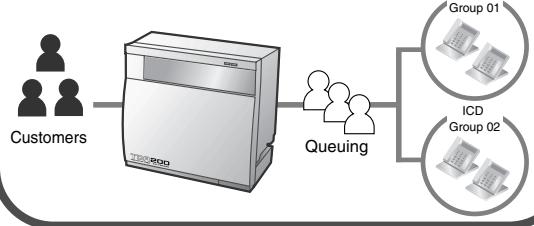
Intégration de la messagerie vocale
Vous pouvez transférer vos appels vers un système de traitement vocal et laisser les appelants déposer des messages dans votre boîte vocale lorsque vous ne pouvez pas recevoir d'appels.
1.9.3 Si un système de traitement vocal est connecté (page 119)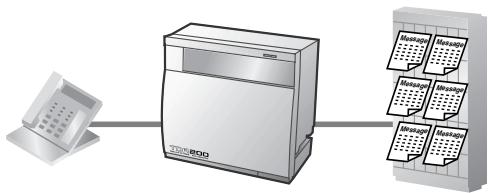
Système sans fil
Ce PBX prend en charge en option un système de postes portables (PS). Les PS peuvent être utilisés sur le PBX avec d'autres téléphones filaires.
Annexe (page 177)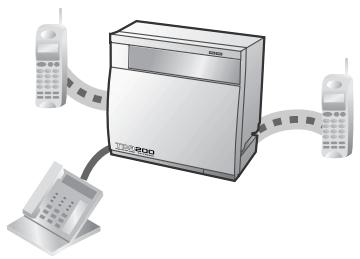
PC Phone/PC Console
Ce PBX prend en charge PC Phone/PC Console lorsque votre ordinateur est connecté à certains téléphones Panasonic via une interface USB. PC Phone/PC Console offre un contrôle et une surveillance avancés de votre PBX.
Consultez votre revendeur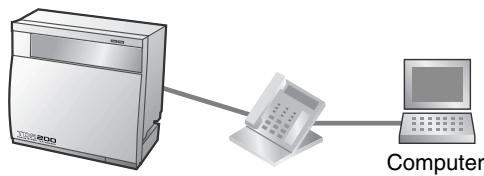
Fonctionnement facile
Si vous utilisez un téléphone Panasonic équipé d'une touche de navigation/molette et d'un afficheur, cela vous permet d'accéder facilement à la fonction souhaitée. De plus, vous serez informé de l'arrivée d'un appel entrant ou d'un message en attente par le voyant, si l'appareil en est équipé.
Touche de navigation
Molette
Voyant de message/sonnerie
1.1 Avant d'utiliser les téléphones (Page 12)
Enregistrement des appels
(Enregistrement des détails des messages de la station)
Ce PBX peut enregistrer ou imprimer les informations d'appel : date, heure, numéro de poste, numéro composé, durée, etc.
Consultez votre revendeur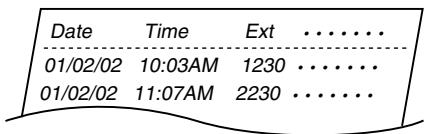
Dans ce manuel,
- Le téléphone propriétaire est abrégé en "PT".
Le téléphone à ligne simple est abrégé en "SLT".
La station portable est abrégée en "PS".
Le téléphone propriétaire avec afficheur est abrégé en "Display PT".
Le téléphone propriétaire numérique est abrégé en "DPT".
Le suffixe de chaque numéro de modèle est omis. Les illustrations du PBX sont basées sur le KX-TDA200. Les icônes suivantes sont utilisées fréquemment.

Conseils

Conditions
Informations importantes
AVERTISSEMENT
- CET APPAREIL NE PEUT ÊTRE INSTALLÉ ET RÉPARÉ QUE PAR UN PERSONNEL QUALIFIÉ.
- EN CAS DE PANNE EXPOSANT DES PIÈCES INTERNES, DÉBRANCHEZ IMMÉDIATEMENT LE CORDON D'ALIMENTATION ET RENVOYEZ CET APPAREIL À VOTRE REVENDEUR.
- DÉBRANCHEZ LA CONNEXION TÉLÉCOMMUNICATION AVANT DE DÉBRANCHER L'ALIMENTATION LORS DU DÉPLACEMENT DE L'ÉQUIPEMENT, ET REBRANCHEZ D'ABORD L'ALIMENTATION.
- CET APPAREIL EST ÉQUIPÉ D'UNE PRISE AVEC CONTACT DE TERRE. POUR DES RAISONS DE SÉCURITÉ, CETTE PRISE DOIT ÊTRE CONNECTÉE UNIQUEMENT À UNE PRISE DE COURANT AVEC CONTACT DE TERRE INSTALLÉE SELON LES RÈGLEMENTS.
- LE CORDON D'ALIMENTATION EST UTILISÉ COMME DISPOSITIF DE DÉCONNEXION PRINCIPAL. ASSUREZ-VOUS QUE LA PRISE DE COURANT EST SITUÉE/INSTALLÉE PRÈS DE L'ÉQUIPEMENT ET FACILEMENT ACCESSIBLE.
- POUR PRÉVENIR LES RISQUES D'INCENDIE OU DE CHOC ÉLECTRIQUE, N'EXPOSEZ PAS CET APPAREIL À LA PLUIE OU À L'HUMIDITÉ.
- POUR PROTÉGER CET APPAREIL DE L'ÉLECTRICITÉ STATIQUE, NE TOUCHEZ PAS LES CONNECTEURS DE L'APPAREIL.
Consignes de sécurité
Lors de l'utilisation de votre équipement téléphonique, des précautions de sécurité de base doivent toujours être suivies pour réduire les risques d'incendie, de choc électrique et de blessures, notamment les suivantes :
- N'utilisez pas ce produit près de l'eau, par exemple près d'une baignoire, d'un lavabo, d'un évier de cuisine ou d'un bac à lessive, dans un sous-sol humide ou près d'une piscine.
- Évitez d'utiliser un téléphone (autre qu'un téléphone sans fil) pendant un orage électrique. Il peut y avoir un risque à distance de choc électrique dû à la foudre.
- N'utilisez pas le téléphone pour signaler une fuite de gaz à proximité de la fuite.
- Utilisez uniquement le cordon d'alimentation et les piles indiqués dans ce manuel. Ne jetez pas les piles au feu. Elles peuvent exploser. Consultez les codes locaux pour d'éventuelles instructions spéciales d'élimination.
CONSERVEZ CES INSTRUCTIONS
CE
Les KX-TDA30E, KX-TDA30NE, KX-TDA30GR et KX-TDA30CE sont conçus pour fonctionner avec :
- Le réseau téléphonique public commuté (RTPC) analogique d'un pays européen
- Le réseau numérique à intégration de services (RNIS) paneuropéen utilisant l'accès de base RNIS
Les KX-TDA100E/KX-TDA200E, KX-TDA100NE/KX-TDA200NE, KX-TDA100GR/KX-TDA200GR et KX-TDA100CE/KX-TDA200CE sont conçus pour fonctionner avec :
- Le réseau téléphonique public commuté (RTPC) analogique d'un pays européen
- Le réseau numérique à intégration de services (RNIS) paneuropéen utilisant l'accès de base RNIS
- Le réseau numérique à intégration de services (RNIS) paneuropéen utilisant l'accès primaire RNIS, lignes louées numériques structurées ONP 2048 kbit/s (D2048S)
Nous, Panasonic Communications Co., Ltd. / Panasonic Communications Company (U.K.) Ltd., déclarons que cet équipement est conforme aux exigences essentielles et aux autres dispositions pertinentes de la directive 1999/5/CE.
Si vous souhaitez recevoir une copie de la déclaration de conformité originale de nos produits, relative à la directive R&TTE, veuillez consulter notre site Web :
http://doc.panasonic-tc.de
Attention
- En cas de problème, débranchez l'appareil de la ligne téléphonique. Branchez le téléphone directement sur la ligne téléphonique. Si le téléphone fonctionne correctement, ne rebranchez pas l'appareil à la ligne tant que le problème n'a pas été réparé par un revendeur Panasonic agréé. Si le téléphone ne fonctionne pas correctement, il est probable que le problème vienne du réseau téléphonique et non de l'appareil.
- Tenez l'appareil éloigné des appareils de chauffage et des sources de bruit électrique telles que les lampes fluorescentes, les moteurs et les téléviseurs. Ces sources de bruit peuvent interférer avec le fonctionnement de l'appareil.
- Cet appareil doit être tenu à l'abri de la poussière, de l'humidité, des températures élevées (plus de 40 °C) et des vibrations, et ne doit pas être exposé à la lumière directe du soleil.
- N'essayez jamais d'insérer des fils, des épingles, etc., dans les évents ou les trous de cet appareil.
- N'utilisez pas de benzène, de diluant ou de produit similaire, ni de poudre abrasive pour nettoyer le boîtier. Essuyez-le avec un chiffon doux.
- N'utilisez aucun combiné autre qu'un combiné Panasonic pour les modèles KX-TDA30/KX-TDA100/KX-TDA200.
Le numéro de série de ce produit se trouve sur l'étiquette apposée sur le côté de l'appareil. Vous devez noter le numéro de modèle et le numéro de série de cet appareil dans l'espace prévu à cet effet et conserver ce manuel comme enregistrement permanent de votre achat pour faciliter l'identification en cas de vol.
N° DE MODÈLE :
N° DE SÉRIE :
Pour référence future
DATE D'ACHAT
NOM DU REVENDEUR
ADRESSE DU REVENDEUR
NUMÉRO DE TÉLÉPHONE DU REVENDEUR
Table des matières
1 Fonctionnement 11
1.1 Avant d'utiliser les téléphones 12 1.1.1 Avant d'utiliser les téléphones 12 1.2 Passer des appels 23 1.2.1 Appels de base 23 1.2.2 Numérotation abrégée 27 1.2.3 Bis 30 1.2.4 Lorsque la ligne appelée est occupée ou ne répond pas 31 1.2.5 Accès au service RNIS (accès aux services RNIS) 39 1.2.6 Alterner la méthode d'appel (appel alterné — sonnerie/vocale) 40 1.2.7 Appeler sans restrictions 41 1.2.8 Accéder à un autre poste directement de l'extérieur (accès direct au système interne [DISA]) 42 1.2.9 Configurer votre téléphone depuis un autre poste ou via DISA (configuration à distance) ....45 1.3 Recevoir des appels 46 1.3.1 Répondre aux appels 46 1.3.2 Répondre en mode mains libres (réponse mains libres) 47 1.3.3 Répondre à un appel sonnant sur un autre téléphone (prise d'appel) 48 1.3.4 Répondre à un appel via un haut-parleur externe (réponse de ligne depuis tout poste [TAFAS])...49 1.3.5 Utilisation du bouton RÉPONDRE/RACCROCHER 50 1.3.6 Identification des appels malveillants (identification d'appel malveillant [MCID]) 52 1.4 Pendant une conversation 53 1.4.1 Transférer un appel (transfert d'appel) 53 1.4.2 Mettre un appel en attente 57 1.4.3 Parler à deux interlocuteurs en alternance (scission d'appel) 61 1.4.4 Répondre à un appel en attente 63 1.4.5 Conversation à plusieurs 67 1.4.6 Mise en sourdine 75 1.4.7 Laisser d'autres personnes écouter la conversation (moniteur décroché) 76 1.4.8 Utilisation du casque (utilisation du casque) 77 1.5 Avant de quitter votre bureau 79 1.5.1 Renvoi d'appels 79 1.5.2 Affichage d'un message sur l'écran du téléphone de l'appelant (message d'absence) 85 1.5.3 Empêcher d'autres personnes d'utiliser votre téléphone (verrouillage de poste) 87 1.6 Faire/répondre à une annonce 88 1.6.1 Messagerie vocale 88 1.6.2 Répondre/refuser une annonce de messagerie vocale 90 1.6.3 Faire une annonce et avoir une conversation à plusieurs (diffusion) ...91 1.7 Configurer le téléphone selon vos besoins 94 1.7.1 Régler l'alarme (rappel programmé) 94 1.7.2 Refuser les appels entrants (ne pas déranger [DND]) 96 1.7.3 Recevoir un appel en attente (appel en attente/annonce d'appel décroché [OHCA]/OHCA chuchoté) 98 1.7.4 Afficher votre numéro de téléphone sur le téléphone de l'appelé et de l'appelant (présentation du numéro de ligne appelante/appelée [CLIP/COLP]) 99 1.7.5 Empêcher l'affichage de votre numéro de téléphone sur le téléphone de l'appelant (restriction de présentation du numéro de ligne connectée [COLR]) 100
1.7.6 Empêcher l'affichage de votre numéro sur le téléphone de la personne appelée (Restriction d'identification de la ligne appelante [CLIR]) 101 1.7.7 Empêcher d'autres personnes de se joindre à votre conversation (Refus de dérivation prioritaire) 102 1.7.8 Activer la musique de fond (BGM) 103 1.7.9 Protéger votre ligne contre les tonalités de notification (Sécurité de la ligne de données) 104 1.7.10 Vérifier le statut du service horaire 105 1.7.11 Faire sonner le téléphone en parallèle (Téléphone en parallèle) 106 1.7.12 Utiliser votre PS en parallèle avec un téléphone filaire (Mode parallèle XDP sans fil) 107 1.7.13 Effacer les fonctions configurées sur votre poste (Effacement des fonctions du poste) 108 1.8 Utilisation du centre d'appels 109 1.8.1 Quitter un groupe de distribution d'appels entrants (Connexion/Déconnexion, Enveloppement) 109 1.8.2 Surveiller et contrôler l'état des appels d'un groupe de distribution d'appels entrants (Surveillance du groupe de distribution d'appels entrants) 112 1.8.3 Transférer un appel en attente (Redirection manuelle de file d'attente) 115 1.9 Utilisation d'équipements fournis par l'utilisateur 116 1.9.1 Si un interphone/ouvre-porte est connecté 116 1.9.2 Si un PBX hôte est connecté 118 1.9.3 Si un système de traitement vocal est connecté 119 1.10 Après un déménagement dans un nouvel emplacement au bureau 125 1.10.1 Utiliser les mêmes réglages que votre poste précédent (Poste itinérant) 125 1.11 Utilisation d'un téléphone propriétaire avec afficheur 126 1.11.1 Utilisation du journal des appels 126 1.11.2 Utilisation des répertoires 130 1.11.3 Accès aux fonctions du système (Accès aux fonctions du système) 137
2 Opérations du gestionnaire 139
2.1 Fonctions de contrôle 140 2.1.1 Contrôle des postes 140 2.1.2 Contrôle du mode de service horaire 141 2.1.3 Contrôle du niveau de restriction (Transfert de tonalité) 143 2.1.4 Activation de la musique de fond externe (BGM) 144 2.1.5 Enregistrement des messages sortants (OGM) 145
3 Personnalisation de votre téléphone et du système 149
3.1 Personnalisation de votre téléphone (Programmation personnelle) 150 3.1.1 Personnalisation de votre téléphone (Programmation personnelle) 150 3.1.2 Réglages en mode programmation 152 3.1.3 Personnalisation des touches 162 3.2 Programmation du gestionnaire 166 3.2.1 Informations de programmation 166 3.2.2 Programmation du gestionnaire 167 3.3 Personnalisation de votre système (Programmation système) 169 3.3.1 Informations de programmation 169 3.3.2 Programmation système 172
4 Annexe 177
4.1 Dépannage 178 4.1.1 Dépannage 178 4.2 Tableau des numéros de fonction 181 4.2.1 Tableau des numéros de fonction 181
4.3 Qu'est-ce que cette tonalité ? 190 4.3.1 Qu'est-ce que cette tonalité ? 190 4.4 Historique des révisions 194 4.4.1 KX-TDA100/KX-TDA200 Version 1.1 194 4.4.2 KX-TDA30 Version 1.1 195
Index 197
Section 1 Opérations
Ce chapitre vous montre, étape par étape, comment utiliser chaque fonction. Lisez ce chapitre pour vous familiariser avec les nombreuses fonctions utiles de ce PBX.
1.1 Avant d'utiliser les téléphones
1.1.1 Avant d'utiliser les téléphones
Quel type de téléphone peut être utilisé ?
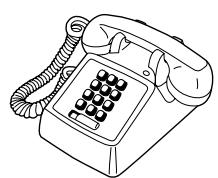
Vous pouvez utiliser un téléphone à ligne simple (SLT), tel qu'un téléphone à impulsions rotatives ou un téléphone propriétaire Panasonic (PT) tel que le KX-T7636. Vous pouvez également utiliser une station portable Panasonic (PS) telle que le KX-TD7590 ou le KX-TD7690. Utilisez la fonction en fonction du téléphone que vous
Si vous utilisez un téléphone propriétaire Panasonic avec une touche de fonction spéciale telle que ou un afficheur (Display PT) ou les deux, vous pouvez suivre l'opération à l'aide de la touche ou des messages affichés pour une programmation facile.
Si vous utilisez un téléphone à grand afficheur (par exemple, KX-T7636), vous pouvez suivre les messages affichés pour utiliser les fonctions. Si votre téléphone n'a pas de touches de fonction et/ou d'afficheur, vous pouvez utiliser le PBX en entrant un numéro de fonction. Suivez l'opération correspondant à votre type de téléphone.
Si vous utilisez une console, vous pouvez utiliser les touches de la console comme les touches du téléphone propriétaire connecté.
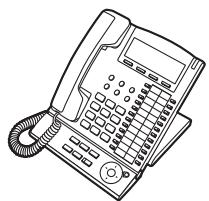

Si vous utilisez un téléphone propriétaire Panasonic sans touches de fonction, vous pouvez transformer une touche flexible inutilisée en touche de fonction. Reportez-vous à la section "3.1.3 Personnalisation des touches".
Enregistrement de votre poste portable (PS)
Vous devez enregistrer votre PS dans le PBX et déterminer son numéro de poste avant la première utilisation. Pour l'enregistrement du PS, consultez votre revendeur.
Numéros de fonction
Pour utiliser certaines fonctions, vous devez saisir des numéros de fonction spécifiques (et un paramètre supplémentaire, si nécessaire).
Il existe deux types de numéros de fonction :
- Numéro de fonction flexible
- Numéro de fonction fixe
Les numéros de fonction fixes ne peuvent pas être modifiés. Cependant, vous pouvez modifier les numéros flexibles pour une utilisation plus facile. Si vous souhaitez modifier les numéros, consultez votre revendeur. Dans ce manuel, les numéros par défaut (installés en usine) sont utilisés pour les opérations.
Un numéro flexible est indiqué par 0 (touche à moitié ombrée). Utilisez le nouveau numéro programmé si vous avez modifié le numéro de fonction. Notez le nouveau numéro dans le "Tableau des numéros de fonction" (Annexe).
Avis
La valeur par défaut d'un numéro de fonction flexible peut varier selon le pays/la région. Pour plus de détails, consultez votre revendeur.
Si vous utilisez un téléphone à ligne simple qui ne possède pas les touches "※" ou "#", il n'est pas possible d'accéder aux fonctions dont les numéros de fonction contiennent "※" ou "#".
Tonalités
Vous entendrez diverses tonalités, pendant ou après une opération, pour confirmation. Reportez-vous à "4.3.1 Qu'est-ce que cette tonalité ?" (Annexe).
Affichage
Dans ce manuel, vous verrez "l'affichage..." Cela fait référence à l'écran d'un téléphone propriétaire Panasonic. Si votre téléphone n'est pas un téléphone propriétaire Panasonic avec affichage, le message ne sera pas affiché.
Si vous utilisez un téléphone propriétaire Panasonic avec affichage, l'écran vous aide à confirmer les réglages. Certains téléphones propriétaires vous donnent également un accès facile aux fonctions. Un message s'affiche selon la fonction. En appuyant sur le bouton correspondant sur le côté ou en bas de l'écran, ou en appuyant sur la touche de navigation, vous pouvez accéder à la fonction souhaitée.
De plus, selon le téléphone propriétaire avec affichage, vous pouvez utiliser les fonctions ou passer des appels à l'aide du message affiché. Reportez-vous à "1.11 Utilisation d'un téléphone propriétaire avec affichage".
Avis
Dans ce manuel, les messages affichés sont décrits en anglais.
Votre numéro de poste
Si vous utilisez un téléphone propriétaire Panasonic avec affichage, vous pouvez vérifier votre propre numéro de poste sur l'écran. Appuyez sur le bouton TRANSFER ou sur le bouton logiciel (S1) lorsque le combiné est raccroché.
Utilisation de la touche de navigation / de la molette / de la touche de volume
La touche de navigation peut être utilisée pour le contraste de l'écran et le contrôle du volume, ou pour rechercher des éléments souhaités sur l'écran. Appuyez sur la touche de navigation / la touche de volume ou faites pivoter la molette dans la direction souhaitée. Le contraste ou le niveau de volume et les éléments changeront comme suit :
| Navigator Key | Jog Dial | Volume Key |
| Up (Level increases) | Left (anti-clockwise) | Right (clockwise) |
| Left ENTER Right | Level decreases | Level increases |
| Down (Level decreases) | Down (Level decreases) |

Exemples
Les écrans et les illustrations présentés comme exemples proviennent d'un téléphone connecté au KXTDA200.

Restrictions
Certaines fonctions peuvent être restreintes sur votre poste en fonction de la programmation du système. Consultez votre responsable ou votre revendeur.

Description des icônes
Les icônes suivantes vous indiquent la disponibilité des fonctions, les remarques et les actions à effectuer pour utiliser ces fonctions.
| This feature cannot be used with a single line telephone. | CO OR 0 / 9 OR 8 outside line group no. | Seize an outside line (One of the following). • Press the CO button. • Dial automatic line access number 0 or 9. • Dial outside line group access number and outside line group number. |
| See "Programming" for Related Programming if necessary. | ||
| Off-hook (One of the following). • Lift the handset. • Press the SP-PHONE button. • Press the MONITOR button. (To start talking, lift the handset.) • Press TALK button. | √m | Press the Call button on the Doorphone. |
| On-hook (One of the following). • Hang up. • Press the SP-PHONE button. • Press the MONITOR button. • Press CANCEL button. | qww ### | Press the hookswitch lightly. |
| Press the corresponding feature button on the proprietary telephone. | B## | Talk. |
| Enter the required number. <Example> account code Enter the account code. | You will hear a busy, confirmation, dial, ring or ringback tone. B. Tone: Busy Tone C. Tone: Confirmation Tone D. Tone: Dial Tone R. Tone: Ring Tone R. B. Tone: Ringback Tone | |
| Dial an extension number. | outside phone no. | Dial outside phone number. |
| Dial the telephone number. |

Lorsque vous utilisez un téléphone propriétaire Panasonic
Si vous utilisez un téléphone propriétaire Panasonic et la console, ils peuvent disposer de certains boutons de fonction utiles décrits ci-dessous. Pour un utilisateur de PS, reportez-vous aux "Instructions d'utilisation" du PS. Ces boutons simplifient les opérations. Les illustrations peuvent différer des boutons de votre téléphone.
Boutons fixes
| (CO) | CO: Used to make or receive an outside call. (Button assignment is required.) Also used as feature buttons. (Button assignment is required.) (Only the outside line "number" [e.g., 1, 2] may be shown on some telephones.) | SP-PHONE | SP-PHONE: Used for hands-free operation. |
| SP-P PHONE | |||
| SP-P PHONE | |||
| SP-P PHONE | |||
| SP-P PHONE | |||
| AUTO DIAL STORE | AUTO DIAL/STORE: Used for System/Personal Speed Dialling or storing programme changes. | PAUSE | PAUSE: Used to insert a pause when storing a telephone number. This button also functions as the PROGRAM button when there is no PROGRAM button on your telephone. |
| →/→ | |||
| AUTO DIAL STORE | |||
| →/→ | |||
| REDIAL | REDIAL: Used to radial the last dialled number. | MESSAGE | MESSAGE: Used to leave a message waiting indication or call back the party who left the message waiting indication. |
| INTERCOM INT INTERCOM ○ INT | INTERCOM: Used to make or receive intercom calls. | Soft Buttons: Used to select the item displayed on the bottom of the display. | |
| MONITOR MONITOR | MONITOR: Used for hands-free dialling. You can monitor the party's voice in hands-free mode. | AUTO ANS MUTE | AUTO ANS (Auto Answer)/MUTE: Used to receive an incoming call in hands-free mode or mute the microphone during a conversation. |
| TRANSFER TRANSFER | TRANSFER: Used to transfer a call to another party. | HOLD ○ ○ | HOLD: Used to place a call on hold. |
| FLASH/RECALL R | FLASH/RECALL: Used to disconnect the current call and make another call without hanging up. This button also functions as a CANCEL button while on-hook. | CONF △ | CONF (Conference): Used to establish a multiple party conversation. |
| VOICE CALL MUTE | VOICE CALL/MUTE: Used to monitor an intercom call automatically, but it cannot be used for hands-free conversations. It also mutes the handset microphone during a conversation. | FWD/DND ←/→← | Call Forwarding (FWD)/Do Not Disturb (DND): Used to perform Call Forwarding (FWD) or Do Not Disturb (DND). |
| PROGRAM PROG. PROGRAM PROG. | PROGRAM: Used to enter and exit the Programming mode. | ANSWER ↑ | ANSWER: Used to answer an incoming call. |
| RELEASE | RELEASE: Used to disconnect the line. | ENTER | Navigator Key/Jog Dial/Volume Key: Used to adjust the volume and the display contrast or select desired items. |
| VOLUME | Used to shift the display to access various features. | ||
| VOLUME | MODE: Used to shift the display to access various features. | ||
| (PF) | Programmable Feature (PF): Located on the upper part of the CO button array or on the DSS Console. Assigns the desired button and used to access the stored feature. Mostly used as a One-touch Dialling button. (Only the "F and number" may be shown on some telephones.) | MODE | MODE: Used to shift the display to access various features. |
| (PECT) | SELECT: Used to select the displayed item or to call the displayed phone number. | SHIFT | SHIFT: Used to access the second level of Soft button features. |
| (ENTER) | ENTER: Used to confirm the selected item. | CANCEL: Used to cancel the selected item. |
Boutons personnalisés
Si le terme est entre parenthèses comme (Compte) dans cette section, cela signifie qu'un bouton flexible a été configuré en bouton "Compte". Pour personnaliser, reportez-vous à "3.1.3 Personnalisation des boutons".
| Buttons | Feature |
| Loop-CO (L-CO) | Used to access an idle outside line for making outside calls. Incoming outside calls from any outside line arrive at this button. |
| Group-CO (G-CO) | Used to access an idle outside line in a specified outside line group for making outside calls. Incoming calls from outside lines in the assigned outside line group arrive at this button. |
| Single-CO (S-CO) | Used to access a specified outside line for making or receiving outside calls. |
| Direct Station Selection (DSS) | Used to access an extension with one-touch.It is also possible to be changed to the other feature button. |
| One-touch Dialling | Used to access a desired party or system feature with one-touch. |
| Incoming Call Distribution Group (ICD Group) | Used to access a specified incoming call distribution group for making or receiving calls. |
| Message | Used to leave a message waiting indication or call back the party who left the message waiting indication. |
| Message for another extension | Used to have a Message button for another extension. |
| Call Forwarding (FWD)/Do Not Disturb (DND)—Both calls | Used to forward all calls to a specified destination or refuse. |
| FWD/DND—Outside calls | Used to forward outside calls to a specified destination or refuse. |
| FWD/DND—Intercom calls | Used to forward intercom calls to a specified destination or refuse. |
| Group FWD—Both calls | Used to forward all the calls to your group to a specified destination. |
| Group FWD—Outside calls | Used to forward the outside calls to your group to a specified destination. |
| Group FWD—Intercom calls | Used to forward the intercom calls to your group to a specified destination. |
| Account | Used to enter an account code. |
| Conference | Used to establish a multiple party conversation. |
| Terminate | Used to disconnect the current call and make another call without hanging up. |
| External Feature Access (EFA) | Used to access special features offered by a host PBX or a telephone company. |
| Charge Reference | Used to check the total call charge for your own extension. |
| Call Park | Used to park or retrieve a call in a preset parking zone. |
| Call Park (Automatic Park Zone) | Used to park a call in an idle parking zone automatically. |
| Call Log | Used to show the incoming call information. |
| Call Log for ICD Group | Used to have a Call Log button for incoming call distribution group. |
| Log-in/Log-out | Used to switch between the log-in and log-out mode. |
| Log-in/Log-out of a specified group | Used to have a Log-in/Log-out button for another incoming call distribution group. |
| Log-in/Log-out for all groups | Used to have a Log-in/Log-out button for all groups. |
| Hurry-up | Used to transfer the longest waiting call in the queue of an incoming call distribution group to the overflow destination. |
| Wrap-up | Used to switch the wrap-up status, Ready and Not Ready mode. |
| System Alarm | Used to confirm a PBX error. For more details, consult your dealer. |
| Time Service (Day/Night/Lunch/Break) | Used to switch the time service mode. |
| Answer | Used to answer an incoming call. |
| Release | Used to disconnect the line during or after a conversation or to complete a Call Transfer. |
| Toll Restriction/Call Barring | Used to change the toll restriction/call barring level of other extension users temporarily. |
| ISDN Service | Used to access an ISDN service. |
| Calling Line Identification Restriction (CLIR) | Used to switch between the CLIP and CLIR services. |
| Connected Line Identification Restriction (COLR) | Used to switch between the COLP and COLR services. |
| ISDN-Hold | Used to transfer a call using telephone company. |
| Headset | Used to talk using the headset. |
| Time Service Switching Mode (Automatic/Manual) | Used to switch the time service mode, Automatic or Manual. |
| Two-way Record | Used to record a conversation into your own mailbox. |
| Two-way Transfer | Used to record a conversation into the mailbox of a specific extension. |
| One-touch Two-way Transfer | Used to record a conversation into the mailbox of a specific extension with one-touch. |
| Live Call Screening (LCS) | Used to monitor your own voice mailbox while an incoming caller is leaving a message and, if desired, intercept the call. |
| Voice Mail Transfer | Used to transfer a call to the mailbox of a specified extension. |

Comment suivre les étapes
Un exemple d'opération système est présenté ci-dessous.
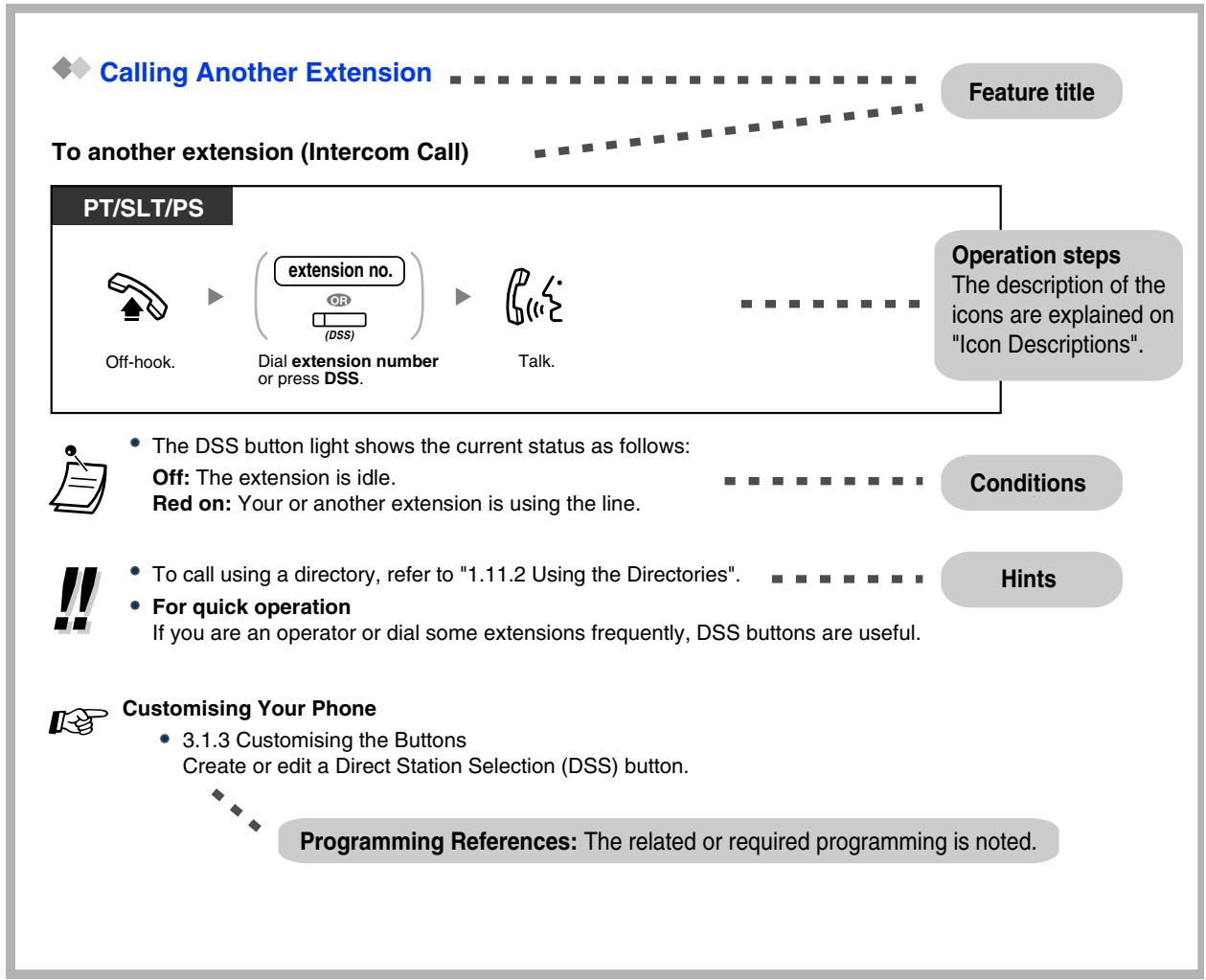

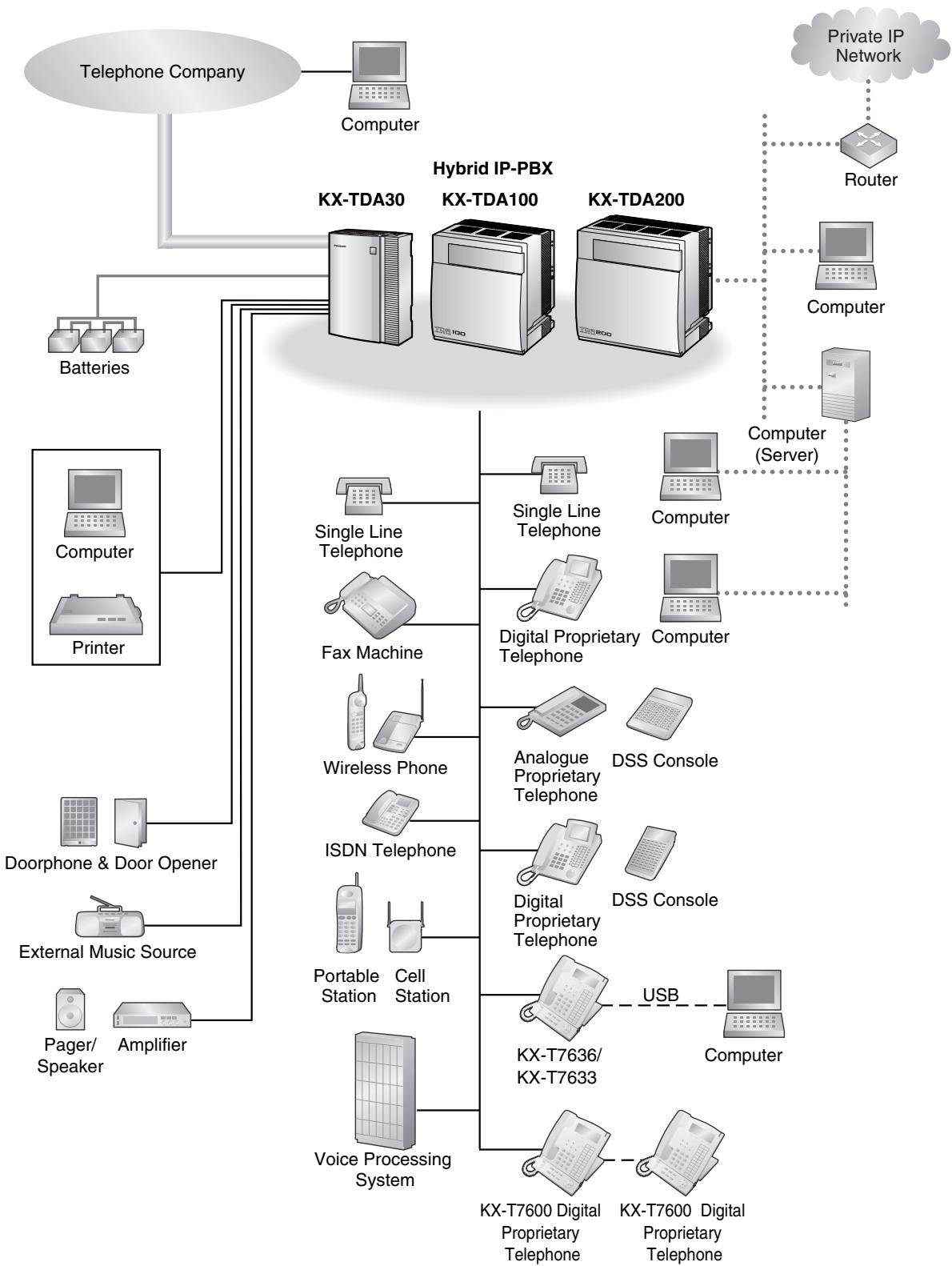
Exemple de connexion
Ce schéma vous montre un exemple de connexion.
1.2 Passer des appels
1.2.1 Appel de base
- Appel d'un autre poste
- Appel d'un correspondant externe, Appel vers un réseau privé (accès ligne TIE), Utilisation d'un code de facturation (saisie du code de facturation)
♦ Appel d'un autre poste
Vers un autre poste (appel intercom)
PT/SLT/PS
Décrochez.
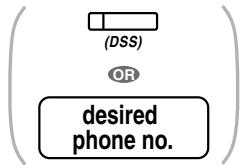
Composez le numéro du poste ou appuyez sur la touche DSS. Parlez.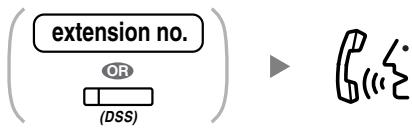

La voyant de la touche DSS indique l'état actuel comme suit :
Éteint : le poste est libre.
Rouge allumé : votre poste ou un autre poste utilise la ligne.

Pour appeler à l'aide d'un répertoire, reportez-vous à la section "1.11.2 Utilisation des répertoires". Pour une opération rapide,
Si vous êtes opérateur ou si vous composez fréquemment certains numéros de poste, les touches DSS sont utiles.

Personnalisation de votre téléphone
3.1.3 Personnalisation des touches
Créez ou modifiez une touche de sélection directe de poste (DSS).
Pour un opérateur (appel à l'opérateur)
Vous pouvez appeler une extension ou un groupe désigné comme opérateur.
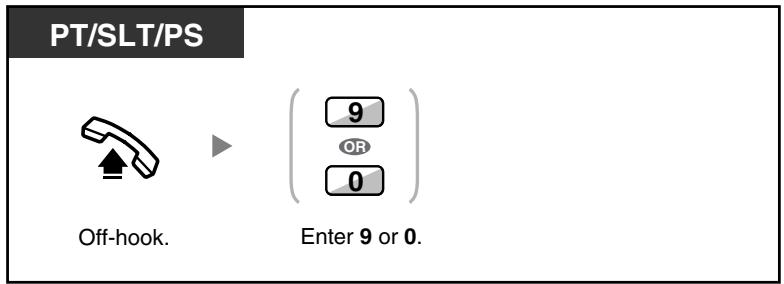

- Le numéro d'appel de l'opérateur (par défaut) varie selon le pays ou la région. Pour plus de détails, consultez votre revendeur.
◆ Appel d'un correspondant externe
Vous devez saisir une ligne extérieure avant de composer un numéro externe, car les appels externes passent par votre autocommutateur (PBX).
Sélectionnez l'une des méthodes suivantes :
Pour sélectionner automatiquement une ligne extérieure libre (accès automatique à une ligne)
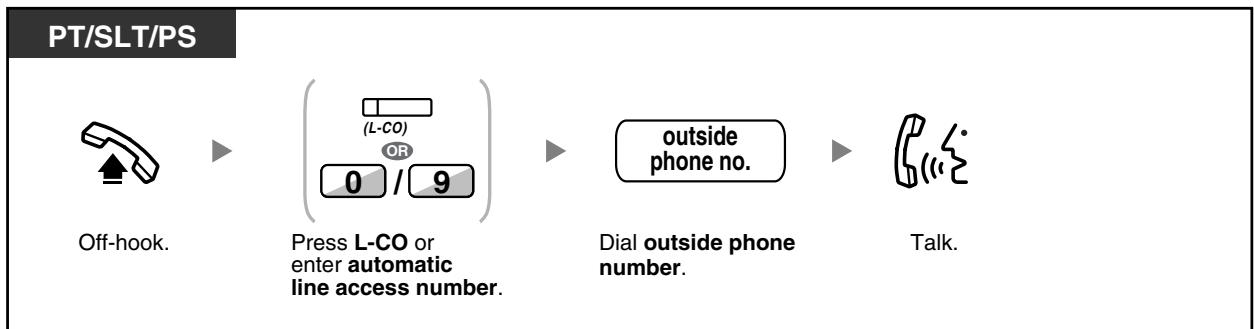

- Le numéro d'accès automatique à une ligne (par défaut) varie selon le pays ou la région. Pour plus de détails, consultez votre revendeur.
Pour sélectionner automatiquement une ligne extérieure libre dans le groupe de lignes extérieures spécifié (accès à un groupe de lignes extérieures)
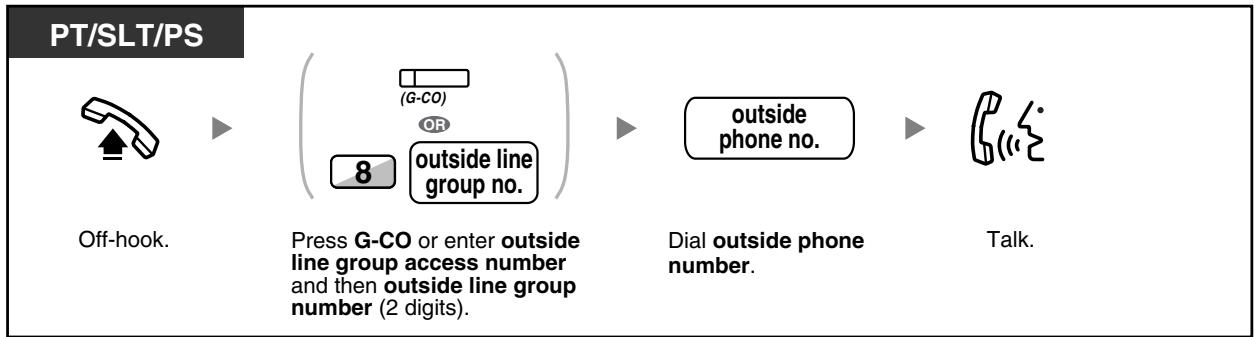
Pour sélectionner la ligne extérieure spécifiée
PT/PS
Décrochez.

Appuyez sur S-CO.

Composez le numéro externe.
Parlez.

Chaque bouton S-CO ou G-CO allumé indique l'état actuel comme suit :
Éteint : la ligne est libre.
Rouge allumé : la ligne est occupée.
- Vous pouvez être restreint d'appeler un correspondant extérieur spécifié. Pour passer un appel, reportez-vous à "1.2.7 Appeler sans restrictions".

Pour confirmer le numéro avant de composer, vous pouvez saisir un numéro de téléphone et le confirmer sur l'écran, puis décrocher. (Pré-numérotation) Référence de coût d'appel
Vous pouvez confirmer vos coûts d'appel totaux en appuyant sur le bouton Référence de coût.
- Pour appeler un autre correspondant sans raccrocher, appuyez sur le bouton FLASH/RAPPEL. Cela réaccédera à la ligne extérieure et fournira une tonalité extérieure. Appuyer sur le bouton Terminer fournira une tonalité d'interphone. Vous pouvez composer le nouveau numéro sans décrocher/raccrocher.

Personnalisation de votre téléphone
3.1.2 Réglages en mode programmation—Attribution de ligne préférée—Sortie Sélectionnez la ligne prise lors du décrochage. 3.1.3 Personnalisation des boutons Créez ou modifiez un bouton Boucle-CO (L-CO), un bouton Groupe-CO (G-CO), un bouton Simple-CO (S-CO), un bouton Terminer ou un bouton Référence de coût.

Passer un appel vers un réseau privé (accès ligne TIE)
Lorsque votre PABX est connecté à un réseau privé, vous pouvez y accéder.
Pour appeler
PT/SLT/PS
Décrochez.
Composez 7.
Numéro de téléphone privé. Composez le numéro de téléphone privé.
Parlez.

Utilisation d'un code de facturation (saisie du code de facturation)
Vous pouvez attribuer un code de facturation spécifique aux utilisateurs de postes et vérifier leur utilisation téléphonique. Vous pouvez spécifier un code de facturation pour chaque client et vérifier la durée des appels.
PT/SLT/PS

Décrochez. Appuyez sur Account ou saisissez 丰 4 9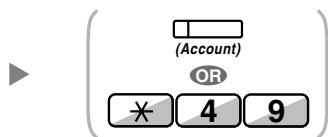
code de facturation
Saisissez le code de facturation (10 chiffres max.).

Tonalité D.

Composez le numéro de téléphone externe.
Saisissez la ligne externe avant de composer le numéro de téléphone externe.
Saisissez #.
- Un utilisateur de poste téléphonique propriétaire Panasonic peut saisir un code de facturation pendant une conversation et lorsqu'il entend la tonalité de rappel après que l'autre partie a raccroché.
- Les codes de facturation peuvent utiliser les chiffres "0" à "9". Si vous saisissez un mauvais code, appuyez sur la touche " × " et ressaisissez le code de facturation.

- Vous ne pourrez peut-être pas passer un appel externe sans code de facturation. Le mode de saisie est attribué à chaque utilisateur. Demandez à votre responsable votre mode.
- Pour votre commodité, vous pouvez mémoriser le code avec le numéro de téléphone (par exemple, numérotation abrégée).

Personnalisation de votre téléphone
3.1.3 Personnalisation des touches Créez ou modifiez une touche de compte.
1.2.2 Numérotation facile
Ceci est pratique pour les numéros de téléphone fréquemment composés.
Avec une touche à une pression (numérotation à une touche) En utilisant les numéros mémorisés à votre poste (numérotation abrégée personnelle) En utilisant les numéros mémorisés dans le PBX (numérotation abrégée système) Vers un numéro prédéfini en décrochant (ligne directe) En utilisant un numéro préprogrammé (numérotation rapide)
Avec une touche à une pression (numérotation à une touche)
Vous pouvez mémoriser un numéro de téléphone sur la touche programmable pour une opération en une seule pression.

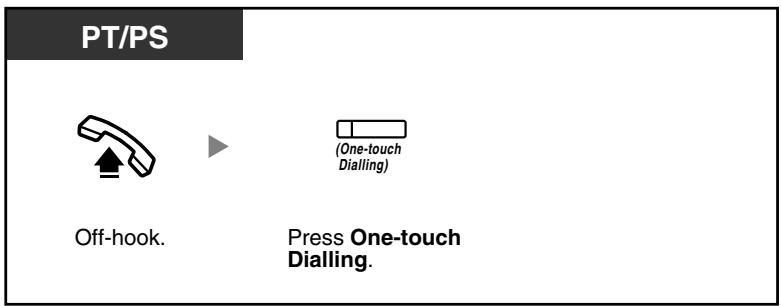

Personnalisation de votre téléphone
3.1.3 Personnalisation des touches
Créez ou modifiez une touche de numérotation à une touche, mémorisez le numéro de téléphone ou le numéro de fonction souhaité.
Utilisation des numéros mémorisés à votre poste (numérotation abrégée personnelle)
Vous pouvez mémoriser des numéros à votre poste pour votre usage personnel. (Par défaut : 10 numéros, 00-09)
Cette fonction est également connue sous le nom de numérotation abrégée de poste.
Pour mémoriser un numéro de téléphone
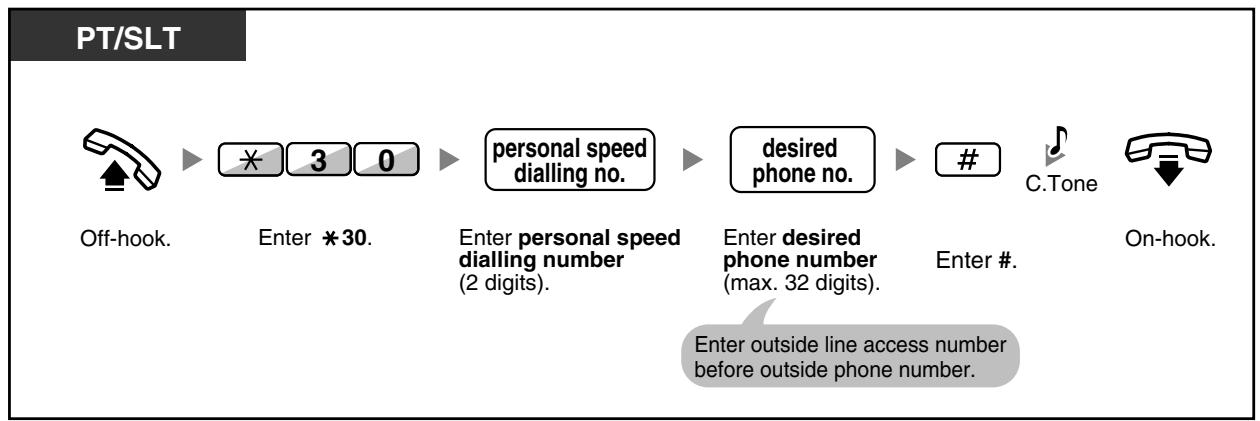
Pour composer
PT/SLT Décrocher.

Appuyez sur AUTO DIAL ou saisissez

Saisissez


numéro de numérotation abrégée personnelle.
Composez le numéro de numérotation abrégée personnelle (2 chiffres).

- Pour appeler à l'aide d'un répertoire, reportez-vous à la section « 1.11.2 Utilisation des répertoires ».

Utilisation des numéros mémorisés dans le PBX (numérotation abrégée système)
Vous pouvez passer des appels en utilisant les numéros de numérotation abrégée mémorisés dans le PBX.
PT/SLT/PS Décrocher.
Appuyez sur AUTO DIAL ou saisissez

numéro de numérotation abrégée système.
Composez le numéro de numérotation abrégée système (3 chiffres).

- Pour appeler à l'aide d'un répertoire, reportez-vous à la section « 1.11.2 Utilisation des répertoires ».

Vers un numéro prédéfini en décrochant (ligne directe)
Vous pouvez effectuer un appel externe simplement en décrochant le combiné si vous avez préprogrammé votre téléphone. Cette fonction est également connue sous le nom de numérotation par décrochage.
Pour mémoriser un numéro de téléphone
PT/SLT/PS Décrochez.
Composez 740.


Composez 2.
numéro de téléphone souhaité
Composez le numéro de téléphone souhaité (32 chiffres max.).


Composez #.
Raccrochez.
Composez le numéro d'accès à la ligne extérieure avant le numéro de téléphone externe.
Pour activer/annuler
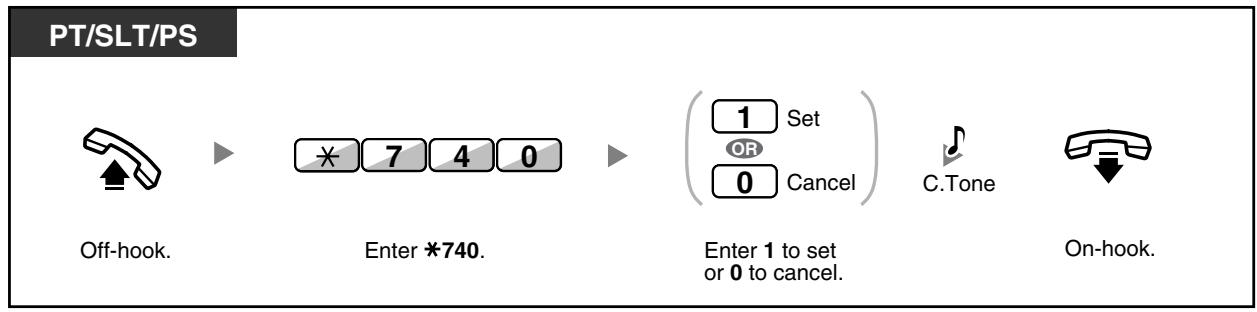
Pour composer
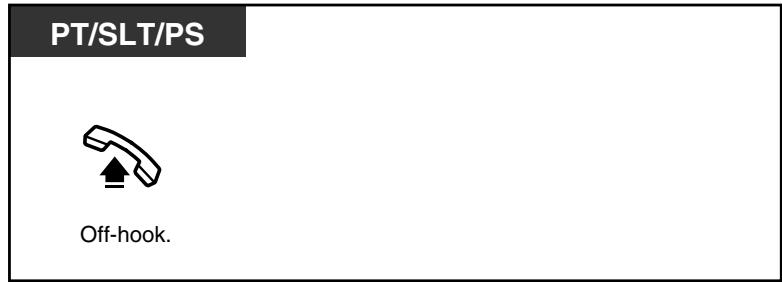

- Pour appeler un autre correspondant, composez le numéro de téléphone du correspondant souhaité avant que le numéro préprogrammé ne soit composé.
- Vous devez assigner la ligne interne comme ligne saisie lors du décrochage. (Affectation de ligne préférée—Sortante)
- Si l'annulation de la ligne directe est difficile car cette fonction est activée immédiatement après le décrochage, consultez votre revendeur.

Personnalisation de votre téléphone
3.1.2 Réglages en mode programmation — Attribution de ligne préférée — Sortie Sélectionnez la ligne prise lors du décrochage.

Utilisation d'un numéro préprogrammé (numérotation abrégée)
Vous pouvez passer un appel en appuyant simplement sur le numéro préprogrammé pour la numérotation abrégée. Pour plus de détails, consultez votre responsable ou votre revendeur.
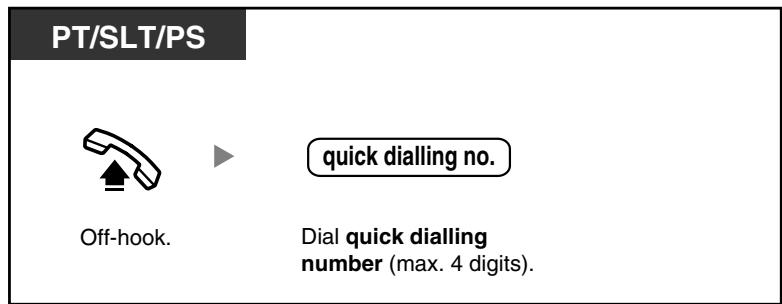

Cette fonction est utile pour un hôtel. Par exemple, pour appeler le service d'étage, composez le chiffre "3", et non le numéro de poste complet.
1.2.3 Rappel
Cette fonction est pratique pour rappeler le même correspondant externe.
- Rappel du dernier numéro composé (rappel du dernier numéro)

Rappel du dernier numéro composé (rappel du dernier numéro)
PT/SLT/PS


Décrochez.
Appuyez sur RAPPEL ou entrez #.

Jusqu'à 32 chiffres peuvent être mémorisés et rappelés. Après avoir appuyé sur RAPPEL, si vous entendez à nouveau la tonalité d'occupation, appuyez sur RAPPEL pour réessayer.

Rappel automatique
Pour rappeler automatiquement, appuyez sur la touche SP-PHONE puis sur la touche RAPPEL, ou appuyez directement sur la touche RAPPEL. L'appareil continuera d'essayer le numéro occupé jusqu'à ce que le correspondant réponde ou jusqu'à un délai spécifié.
Vous pouvez effectuer d'autres tâches pendant la numérotation. Pour annuler, appuyez sur la touche FLASH.
Certaines lignes extérieures peuvent ne pas prendre en charge cette fonction.
Cette fonction n'est pas disponible pour les KX-T7665 et PS.
1.2.4 Lorsque la ligne composée est occupée ou qu'il n'y a pas de réponse
- Réservation d'une ligne occupée (Rappel automatique sur occupation)
- Programmation d'un rappel sur une ligne RNIS (Achèvement d'appels vers un abonné occupé [CCBS])
- Envoi d'une tonalité d'appel en attente (Appel en attente)
- Laisser une indication de message en attente / Rappeler le correspondant qui a laissé une indication (Message en attente) Rejoindre un appel en cours (Intervention sur occupation) Surveiller un autre poste (Surveillance d'appel) Vers un poste Refuser l'appel (Dérivation de la non-réponse)

Réservation d'une ligne occupée (Rappel automatique sur occupation)
Vous pouvez configurer le téléphone pour recevoir une sonnerie de rappel :
- lorsqu'un poste composé devient libre.
- lorsque la ligne extérieure souhaitée, utilisée par un autre poste, devient libre.
Vous ne pouvez pas programmer un rappel automatique sur occupation pour un correspondant occupé à l'extérieur du PBX.
Lorsque vous répondez à la sonnerie de rappel :
Pour un appel extérieur : la ligne est saisie. Pour un appel interne : le poste appelé commence à sonner automatiquement.
Pour régler (pour le poste et la ligne extérieure)
PT/SLT/PS
En entendant la tonalité d'occupation


Composez le 6.
Raccrochez.
Pour répondre à la sonnerie de rappel provenant d'un poste libre
PT/SLT/PS
En entendant la sonnerie de rappel
Tonalité de rappel

Décrochez.
Parlez.
Pour répondre à la sonnerie de rappel provenant d'une ligne extérieure libre
PT/SLT/PS
En entendant la sonnerie de rappel


numéro de téléphone extérieur
Composer le numéro de téléphone externe.


Parler.
Décrocher.
Si vous ne répondez pas à la sonnerie de rappel dans les 10 secondes, cette fonction sera annulée.

Pour annuler la sonnerie de rappel (annulation du rappel automatique sur occupation)
PT/SLT/PS





Décrocher.
Composer 46.
Raccrocher.
Réglage du rappel sur une ligne RNIS (achèvement d'appel vers un abonné occupé [CCBS])
Vous pouvez régler le téléphone pour recevoir une sonnerie de rappel lorsqu'un correspondant appelé sur une ligne RNIS est occupé puis devient libre.
Lorsque vous répondez à la sonnerie de rappel, le numéro de téléphone du correspondant est composé automatiquement.
PT/SLT/PS
En entendant la tonalité d'occupation


Composer 6.
Décroché.
Pour répondre pendant qu'une sonnerie de rappel se fait entendre
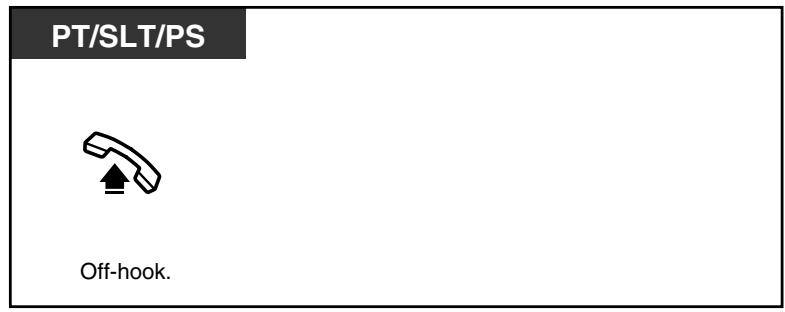
Pour annuler (Annulation du CCBS)
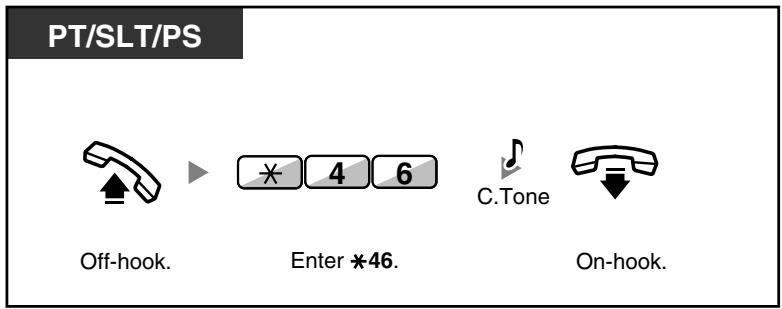
Si vous ne répondez pas dans un délai déterminé, cette fonction sera annulée. La disponibilité de cette fonction dépend du service RNIS offert par votre compagnie de téléphone.
Envoi d'une tonalité d'appel en attente (Appel en attente)
Vous pouvez informer le correspondant que votre appel est en attente. Cette fonction est également connue sous le nom de Signalisation de poste occupé (BSS).

Selon le téléphone de l'autre partie, les fonctions "Annonce d'appel en décroché (OHCA)" et "Annonce d'appel en chuchoté (Whisper OHCA)" peuvent être utilisées. Vous pouvez parler à l'autre partie via le haut-parleur et le microphone (OHCA) ou vous n'envoyez qu'une annonce d'appel via le combiné (Whisper OHCA), si l'autre partie est en conversation en utilisant le combiné. Reportez-vous à "1.7.3 Réception d'un appel en attente (Appel en attente/Annonce d'appel en décroché [OHCA]/Annonce d'appel en chuchoté [Whisper OHCA])".
Laisser une indication de message en attente / Rappeler le correspondant qui a laissé une indication (Message en attente)
Pour un appelant
Lorsque le poste appelé est occupé ou ne répond pas à votre appel, vous pouvez laisser une notification afin que le correspondant puisse vous rappeler.
Pour un poste appelé
En tant que destinataire du message, le voyant du bouton Message ou la lampe Message/Sonnerie vous informe qu'un appel a été reçu. Si vous recevez une notification, vous pouvez rappeler l'appelant par une opération simple.
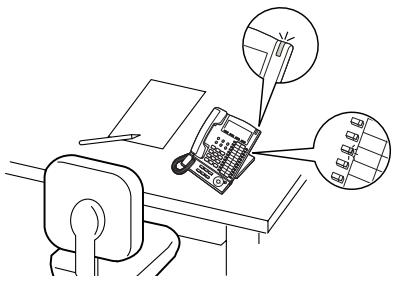
Pour un appelant
Pour laisser une indication de message en attente
PT/SLT/PS
Lorsque le poste appelé est occupé ou ne répond pas
Appuyez sur MESSAGE ou composez le 4.

Raccrochez.
Pour laisser/annuler une indication de message en attente
PT/SLT/PS

Composez le 7 0
Composez 1 pour laisser ou 0 pour annuler.
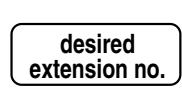

Composez le numéro du poste souhaité. Raccrochez.
Pour un poste appelé
Pour consulter le message laissé et rappeler
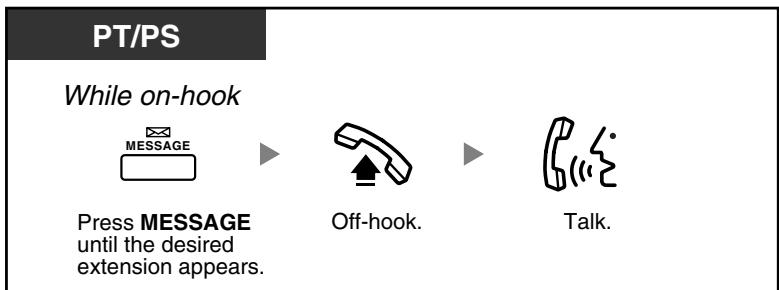
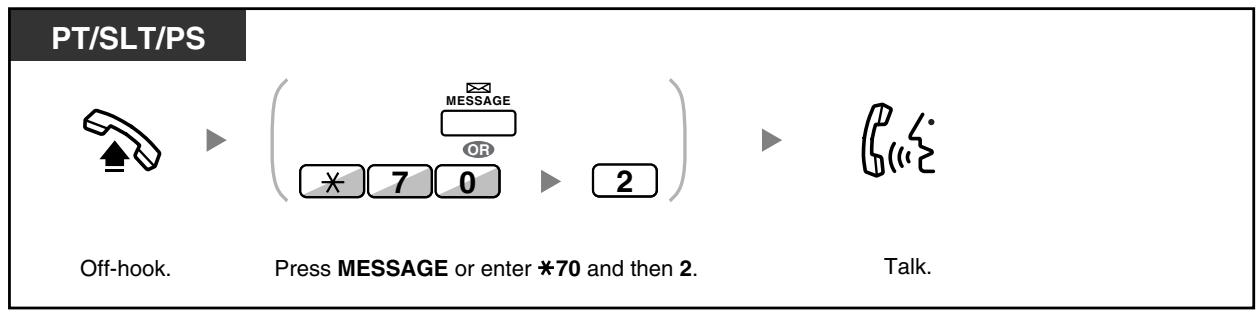
Pour rappeler
Pour effacer les indications de message en attente laissées sur votre poste
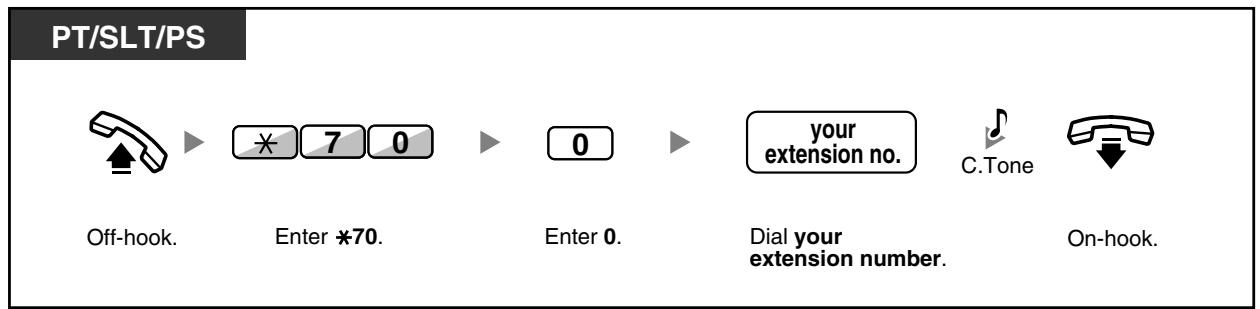

- Le voyant du bouton MESSAGE ou le voyant Message/Sonnerie indique l'état actuel comme suit : Éteint : aucun message
Rouge allumé : vous avez un message.
L'écran affiche les messages en commençant par l'appel le plus récent. - Sur un poste appelé, le bouton MESSAGE permet d'effacer les indications de message en attente si vous ne souhaitez pas rappeler les appelants. Pour effacer, appuyez sur le bouton MESSAGE puis sur le bouton programmable. - Sur votre PT, vous pouvez configurer un ou plusieurs boutons "Message pour un autre poste".
Ces boutons peuvent accepter la notification de message en attente d'autres postes ou de divers groupes de distribution d'appels entrants.
En d'autres termes, vous pouvez surveiller les notifications de message en attente d'autres téléphones.
- Un utilisateur de poste téléphonique à ligne unique recevra une tonalité spéciale comme notification de message en attente lorsqu'il décroche.
- KX-TDA100/KX-TDA200 uniquement
Le voyant de message en attente d'un téléphone à ligne unique peut également vous informer que vous avez un message, de la même manière que le bouton Message.

Personnalisation de votre téléphone
3.1.3 Personnalisation des boutons
Créez ou modifiez un bouton Message ou un bouton Message pour un autre poste.
Rejoindre un appel en cours (Dérivation prioritaire en cas d'occupation)
Le poste préprogrammé peut appeler une personne occupée au téléphone et établir une conversation à trois.
Pour rejoindre
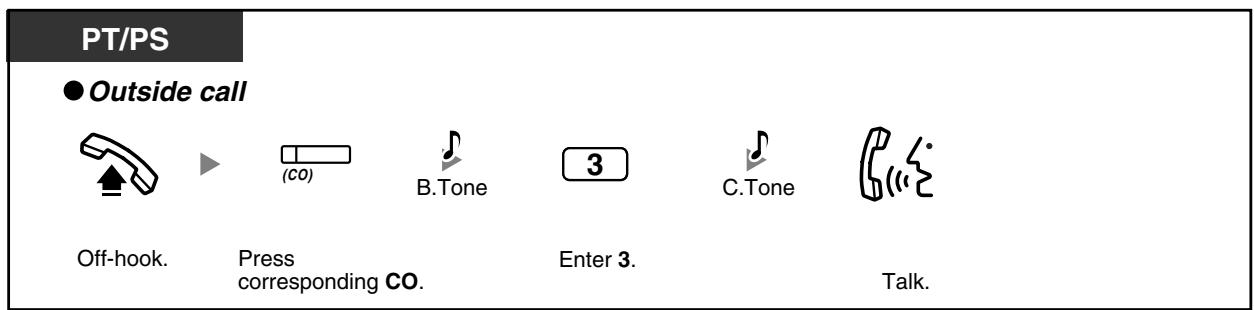
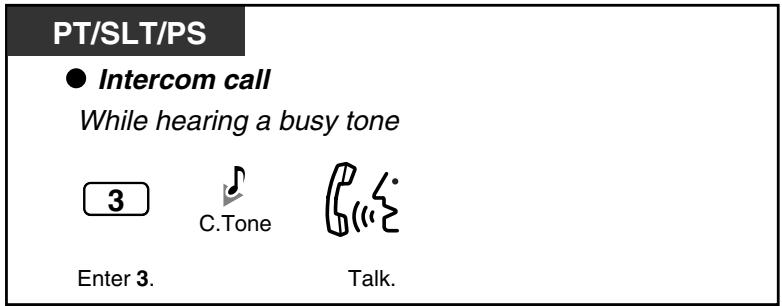
Pour le poste rejoint
Pour parler à chaque partie en alternance
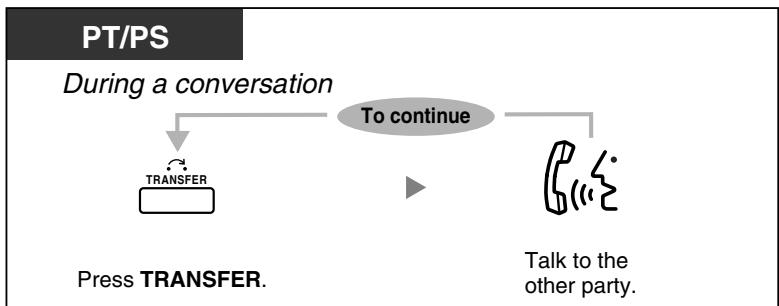

- Vous pouvez également refuser à d'autres la possibilité de rejoindre votre conversation (par défaut : Autoriser). Reportez-vous à la section "1.7 Réglage du téléphone selon vos besoins".

Surveillance d'un autre poste (Surveillance d'appel)
L'extension préprogrammée peut surveiller une autre extension.
Pour surveiller
PT/SLT/PS


n° d'extension

Tonalité B

5
Décrocher.
Composer le numéro de l'extension.
Composer 5.

Vers une extension refusant l'appel (DND Override)
L'extension préprogrammée peut appeler une personne qui a activé la fonction DND.
PT/SLT/PS
En entendant la tonalité DND



Composer 1.
Parler.
1.2.5 Accès au service RNIS (Accès au service RNIS)
Vous pouvez accéder aux services fournis par le RNIS.

Pour y accéder
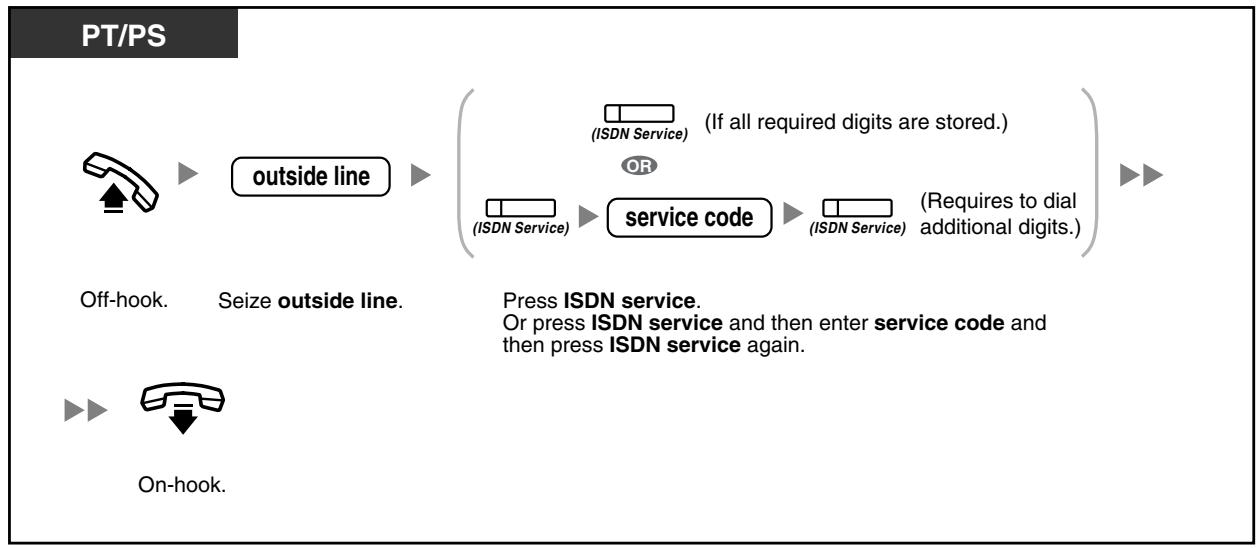

La disponibilité des fonctions dépend du service RNIS de votre compagnie de téléphone.

Personnalisation de votre téléphone
3.1.3 Personnalisation des touches Créez ou modifiez une touche de service RNIS.
1.2.6 Alternance de la méthode d'appel (Appel alterné — sonnerie/voix)
L'appelant peut alterner la méthode d'alerte, soit sonnerie, soit voix, lors d'un appel intercom. D'autre part, tout poste peut définir la méthode d'alerte, soit sonnerie, soit voix, lors de la réception d'un appel intercom.
Sonnerie (par défaut) : Vous pouvez appeler l'autre partie avec une tonalité de sonnerie.
Appel vocal : Vous pouvez parler à l'autre partie immédiatement après la tonalité de confirmation.
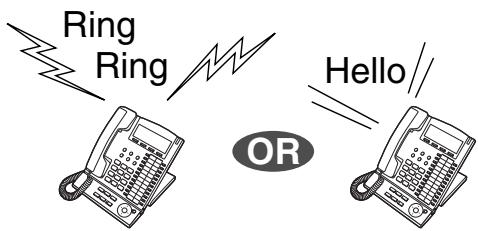
Pour changer la méthode
PT/SLT/PS
Après la numérotation

Composez


Parlez.

- Si le correspondant appelé utilise un téléphone à ligne unique ou une station portable, l'appel vocal n'est pas disponible.
- Cette fonction n'est pas disponible lorsque le téléphone du correspondant appelé est en mode Refus d'appel vocal.

Personnalisation de votre téléphone
3.1.2 Réglages en mode programmation—Réception alternative—Sonnerie/Voix Sélectionnez la méthode d'alerte, soit la sonnerie, soit la voix de l'autre partie.
1.2.7 Appeler sans restrictions
- Utiliser vos privilèges d'appel à un autre poste (Accès COS à distance)
Utiliser vos privilèges d'appel à un autre poste (Accès COS à distance)
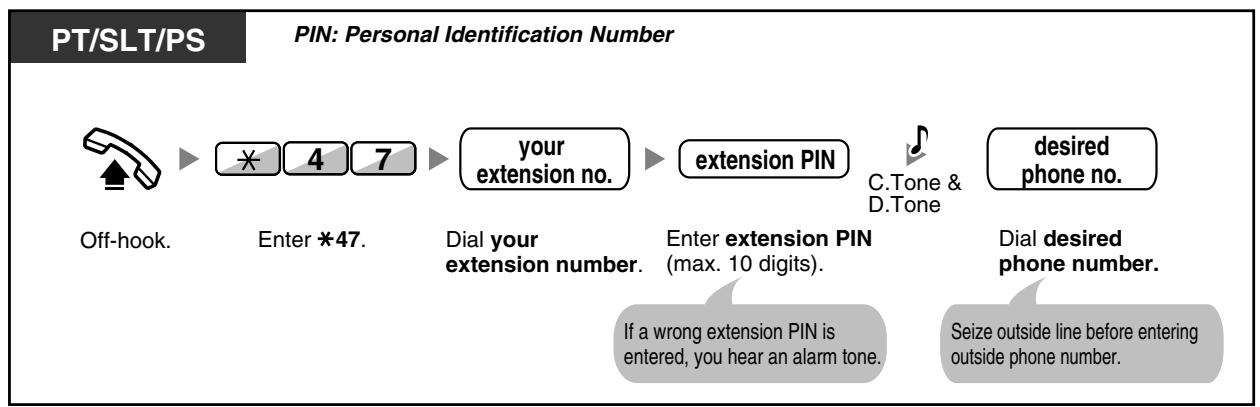
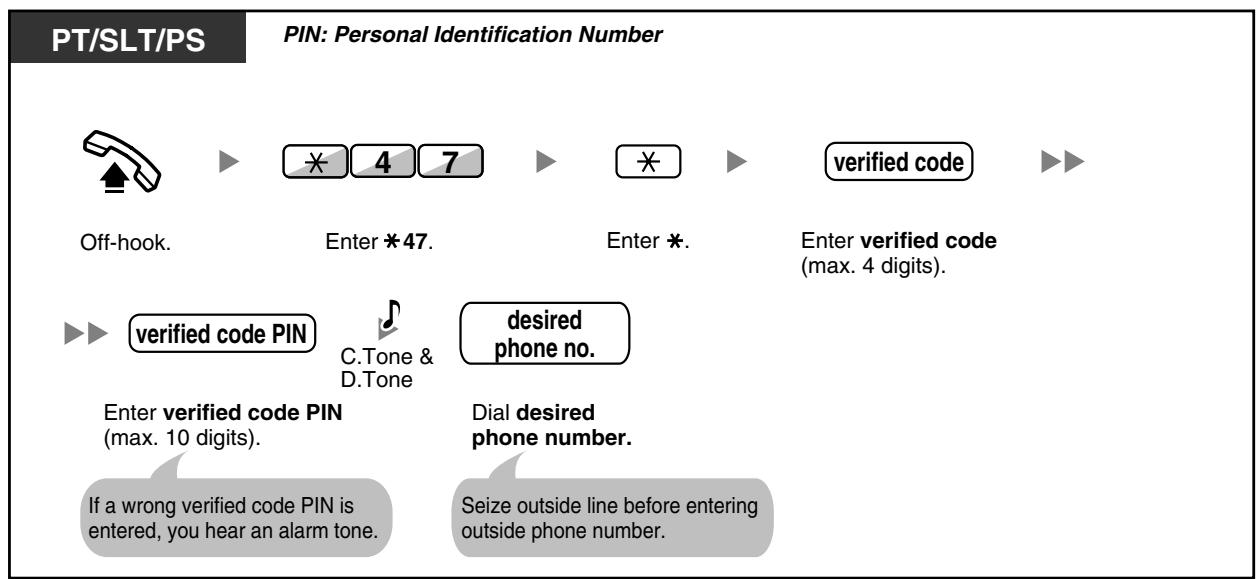
Vous pouvez utiliser vos privilèges d'appel (classe de service) à un autre poste. Vous pouvez outrepasser les restrictions qui ont été définies. Pour utiliser cette fonction, un numéro de poste d'origine et un code PIN de poste (numéro d'identification personnel) sont requis. Vous pouvez passer un appel en saisissant un code vérifié et un code PIN vérifié. Pour le code vérifié disponible, demandez à votre gestionnaire.
Pour appeler (COS itinérant)
Pour appeler avec un code vérifié (Saisie de code vérifié)
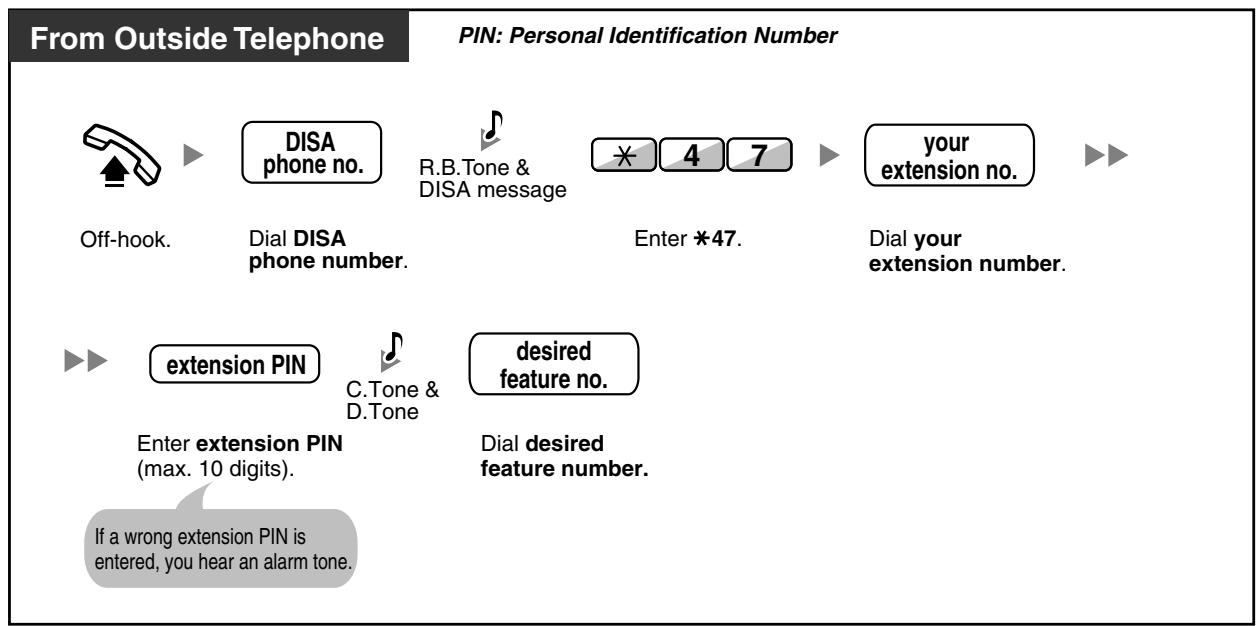
1.2.8 Accéder directement à une autre partie de l'extérieur (Accès direct au système interne [DISA])
- Appeler via DISA
![PANASONIC KXTDA200E - Accéder directement à une autre partie de l'extérieur (Accès direct au système interne [DISA]) - 1](/content/2019/10/56796/images/695bed8ca01c0eeeb3269841a400667439ec26900038c2e12f2a6826a25177db.jpg)
Appeler via DISA
Lorsque des appelants externes accèdent aux postes du PBX, un message préenregistré accueille l'appelant et donne des informations sur la façon d'accéder à un poste. Vous n'avez pas besoin de l'assistance de l'opérateur.
Vous pourrez peut-être accéder aux fonctions du système ou appeler une partie externe avec votre mot de passe selon le mode de sécurité. Demandez à votre gestionnaire le mode assigné à votre PBX.
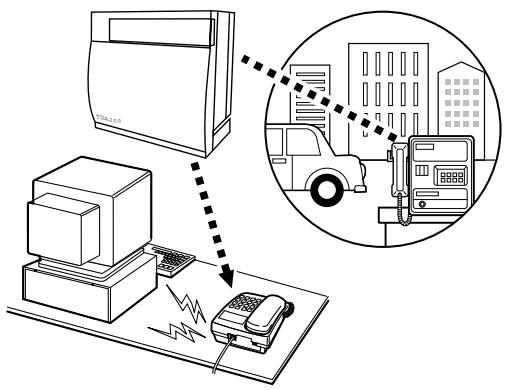
Pour appeler un poste
Depuis un téléphone externe
PIN : Numéro d'identification personnel
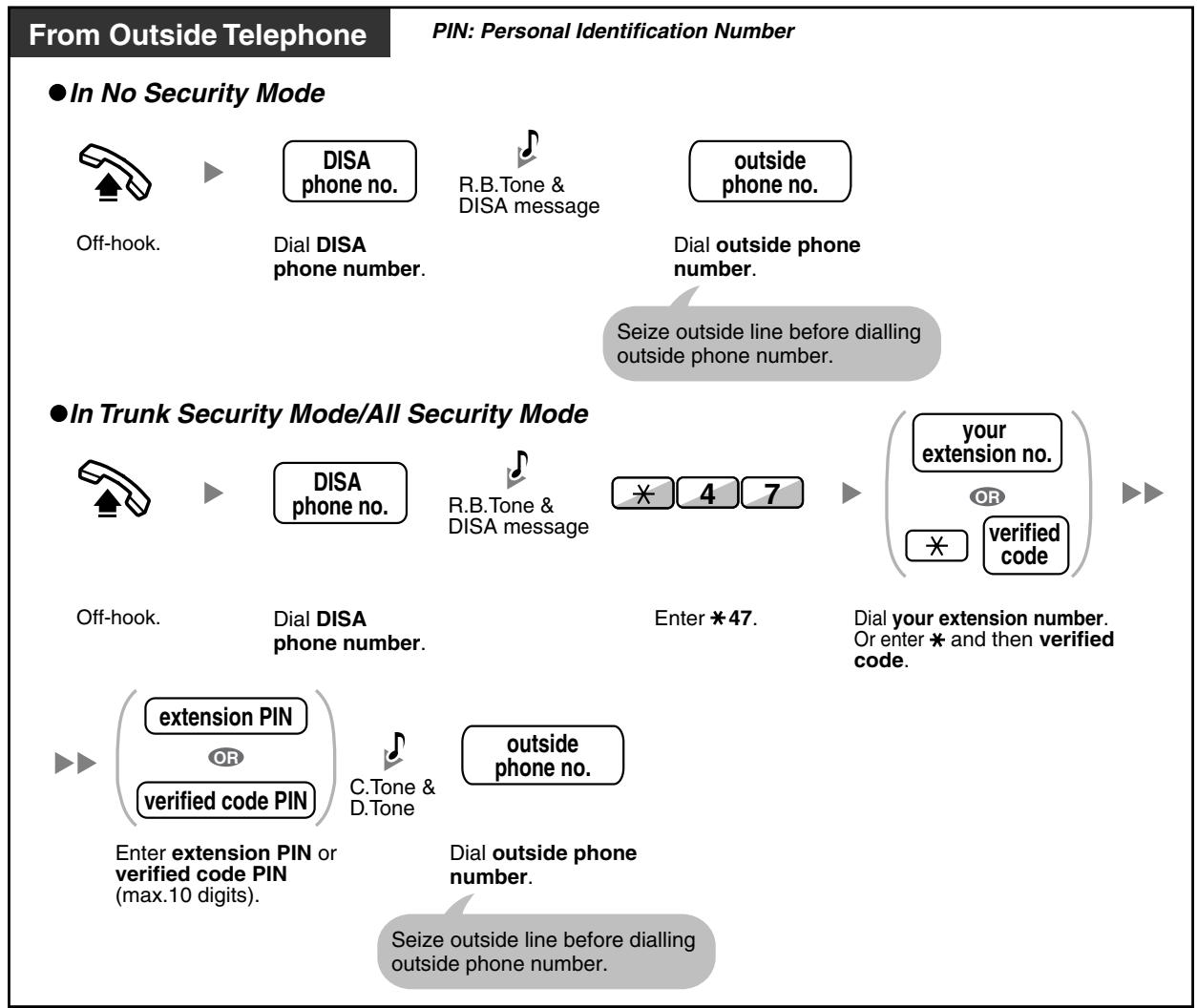
En mode sans sécurité / mode sécurité de tronc



Tonalité R.B. et message DISA

Décrochez.
Composez le numéro de téléphone DISA.
Composez le numéro de poste souhaité.
En mode sécurité totale



Tonalité R.B. et message DISA

Décrochez.
Composez le numéro de téléphone DISA.
Composez le code 47.
Composez votre numéro de poste. Ou entrez * puis le code vérifié.

Entrez le PIN du poste ou le PIN du code vérifié (10 chiffres max.).
extension PIN

verified code PIN

desired extension no.
Composez le numéro de poste souhaité.
Pour appeler un correspondant externe
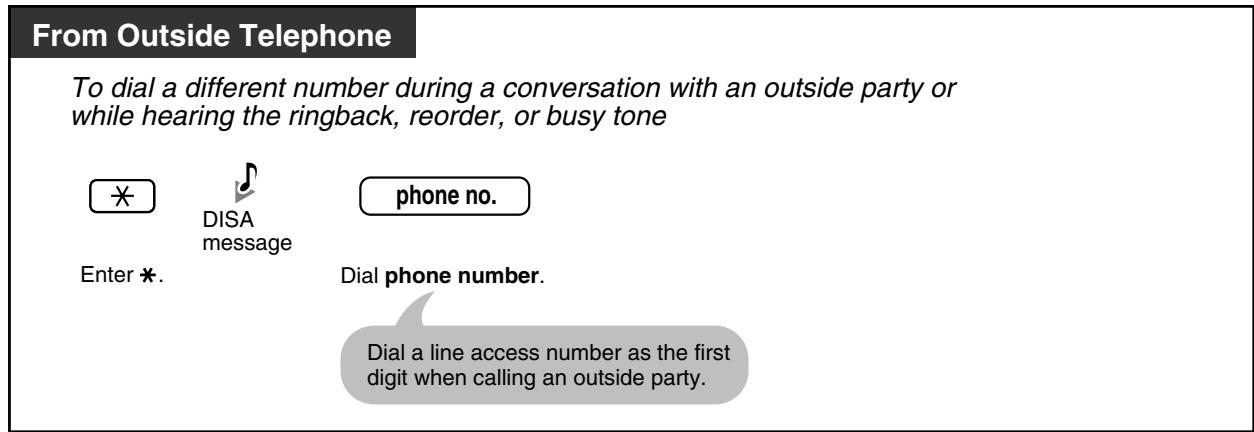
Pour réessayer

AVERTISSEMENT
Lorsque vous activez la fonction d'appel externe vers externe de la DISA, et qu'un tiers découvre le mot de passe (code PIN vérifié / PIN de poste) du PBX, il y a un risque qu'il effectue des appels frauduleux en utilisant la ligne téléphonique, et les frais seront facturés sur votre propre compte. Pour éviter ce problème, nous recommandons fortement les points suivants :
a) Gardez soigneusement le secret du PIN. b) Choisissez un PIN complexe, aussi long et aléatoire que possible. c) Changez le PIN fréquemment.
Limite de temps
Les deux parties entendront une tonalité d'alarme quinze secondes avant la limite de temps spécifiée. Pour prolonger, appuyez sur n'importe quelle touche de numérotation sauf ×.
- Si le service de standardiste automatique intégré est configuré, vous pouvez accéder au poste souhaité en appuyant simplement sur un seul chiffre (0-9) parmi les options données dans le message préenregistré.
1.2.9 Configuration de votre téléphone depuis un autre poste ou via la DISA (configuration à distance)
Vous pouvez configurer les fonctions suivantes sur votre téléphone depuis un autre poste ou via la DISA.
- Renvoi d'appel (FWD)/Ne pas déranger (DND) Changement du statut de connexion/déconnexion des postes Message d'absence
- Extension Lock Time Service—Changing the Time Mode (Day/Night/Lunch/Break)
Depuis un autre poste
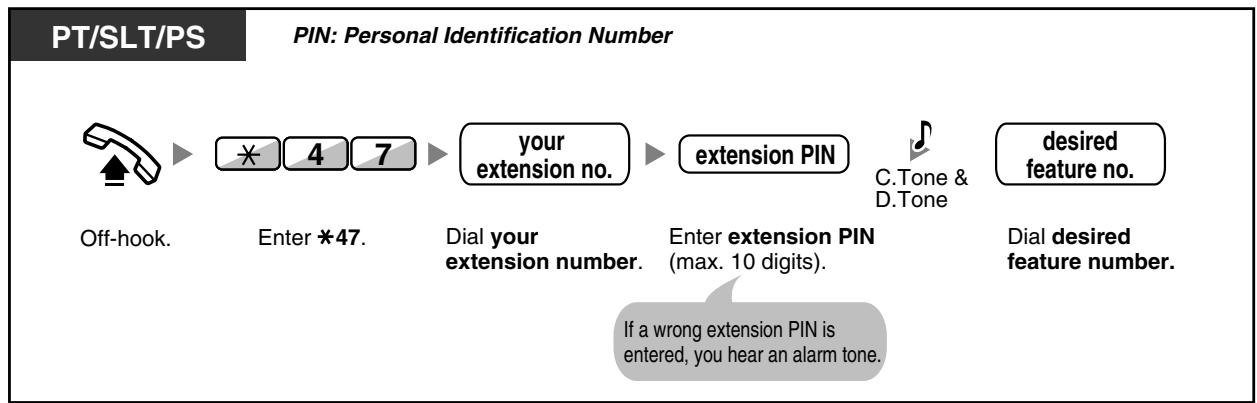
Via DISA
1.3 Réception d'appels
1.3.1 Répondre aux appels
PT/SLT/PS

Décrocher.

Parler.
Choisissez l'une des méthodes suivantes :
- Soulevez le combiné pour recevoir la ligne préférée. (Par défaut : la ligne qui sonne est sélectionnée.)
- Appuyez sur la touche SP-PHONE.
- Appuyez directement sur la touche CO, INTERCOM ou ICD Group qui clignote. Appuyez sur la touche ANSWER.

La lumière de la touche ICD Group indique l'état actuel comme suit :
Éteinte : libre
Vert fixe : la ligne est utilisée. (Vous utilisez la ligne.)
Rouge : Votre poste est en mode déconnexion du groupe de distribution des appels entrants.

Personnalisation de votre téléphone
3.1.2 Réglages en mode programmation
Affectation de ligne préférée — Entrant
Sélectionnez la ligne prise lorsque vous décrochez.
Réception alternative — Sonnerie/Voix
Sélectionnez la méthode d'appel, soit la sonnerie, soit la voix de l'autre partie.
3.1.3 Personnalisation des touches
Créez ou modifiez une touche de groupe de distribution des appels entrants (groupe ICD).
1.3.2 Réponse en mode mains libres (réponse en mode mains libres)
Vous pouvez répondre à un appel entrant sans décrocher dès que la ligne est connectée. Lorsqu'un appel interne arrive, vous entendez l'appelant parler sans que le téléphone sonne. Lorsqu'un appel externe arrive, vous entendez l'appelant parler après un nombre de sonneries préprogrammé. La réponse en mode mains libres pour les appels externes nécessite une programmation système. Consultez votre revendeur.

Pour activer/désactiver
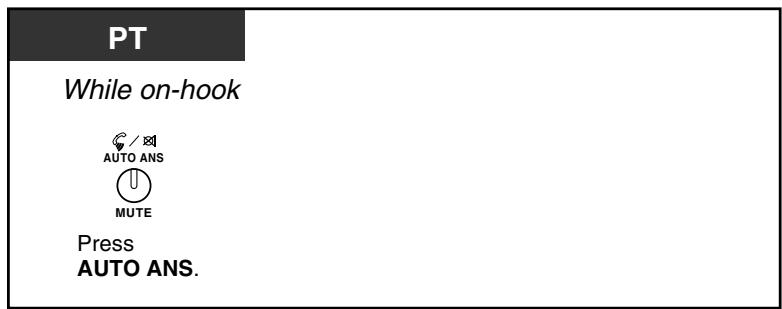

Le voyant de la touche AUTO ANS indique l'état actuel comme suit :
Éteint : Non activé
Allumé : Activé
Pour un utilisateur de PS, se référer aux "Instructions d'utilisation" du PS.
1.3.3 Répondre à un appel qui sonne sur un autre poste (prise d'appel)
— Répondre à un appel depuis un autre poste (prise d'appel) — Empêcher d'autres personnes de prendre vos appels (refus de prise d'appel)
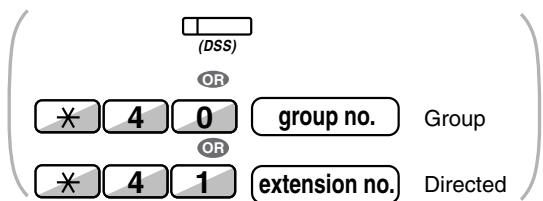
Répondre à un appel depuis un autre poste (prise d'appel)
Vous pouvez répondre à un appel entrant qui sonne sur un autre poste ou groupe depuis votre téléphone sans quitter votre bureau.
Les types de prise d'appel suivants sont disponibles :
Prise d'appel de groupe : prend un appel au sein de votre groupe.
Prise d'appel dirigée : prend un appel d'un poste spécifié.
PT/SLT/PS
Décrochez.

Tonalité.
Parlez.
Appuyez sur la touche DSS clignotante.
Composez 40 puis le numéro de groupe (2 chiffres).
Ou composez 41 puis le numéro de poste.

- Si vous recevez une tonalité d'appel en attente, vous pouvez demander à un tiers de prendre votre deuxième appel avec la prise d'appel dirigée. S'il y a plusieurs appels entrants pour le même groupe, l'appel qui attend le plus longtemps est reçu en premier.
Interdire à d'autres personnes la possibilité de prendre vos appels (Interdiction de prise d'appel)
Vous pouvez interdire ou autoriser d'autres personnes à prendre vos appels.
PT/SLT/PS
Décrochez.
Composez *720.

Composez 1 pour interdire ou 0 pour autoriser.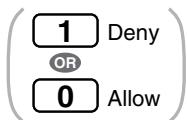
Tonalité de confirmation
Raccrochez.
1.3.4 Répondre à un appel via un haut-parleur externe (Réponse d'appel depuis n'importe quel poste [TAFAS])
Vous pouvez être notifié des appels externes entrants via un haut-parleur externe. Ces appels peuvent être répondus depuis n'importe quel poste.
Via un haut-parleur externe
<.KX-TDA100/KX-TDA200>
PT/SLT/PS
En entendant une tonalité
Décrochez.
Composez le 42.
numéro de haut-parleur.
Composez le numéro du haut-parleur (1 chiffre).
numéro (1 chiffre).
Tonalité de confirmation.
Parlez.
PT/SLT/PS
En entendant une tonalité
Décrochez.

Composez *42

Composez 1.
Tonalité de confirmation.
Parlez.

Vous pouvez également recevoir une annonce de recherche via un haut-parleur avec cette opération.
1.3.5 Utilisation des boutons RÉPONDRE / RACCROCHER
Les boutons RÉPONDRE et RACCROCHER sont pratiques pour les opérateurs utilisant un casque.
Avec le bouton RÉPONDRE, vous pouvez répondre à tous les appels entrants.
Avec le bouton RACCROCHER, vous pouvez déconnecter la ligne pendant ou après une
conversation, ou terminer le transfert d'un appel.

Pour répondre
PT

Appuyez sur RÉPONDRE.

Parlez.
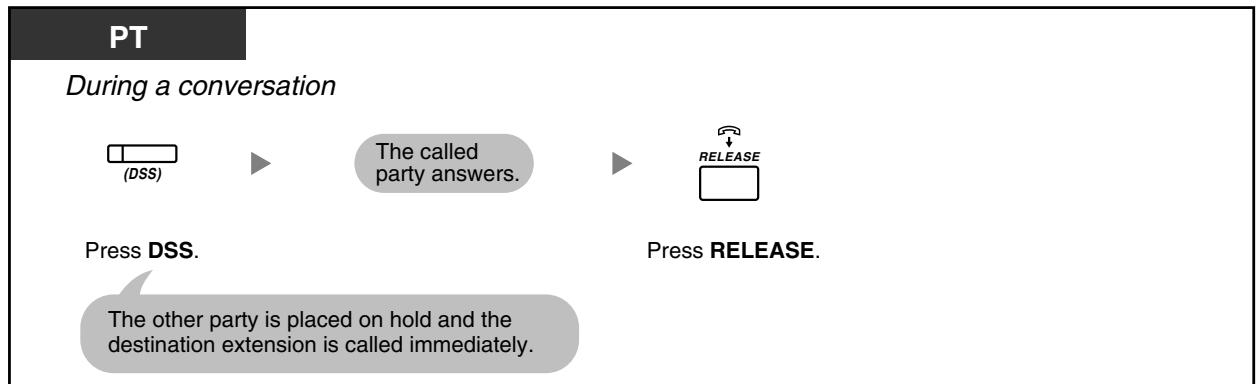
Pour transférer un appel
PT
Pendant une conversation



La personne appelée répond.


Appuyez sur TRANSFERT.
Appuyez sur DSS ou composez le numéro de téléphone souhaité.
Communiqué de presse.
Décrochez la ligne extérieure avant de composer le numéro de téléphone extérieur.
Pour parler à un appelant en attente
PT
En entendant la tonalité d'appel en attente


Appuyez sur RÉPONDRE.
Parlez.
Pour transférer un appel extérieur vers un poste avec une opération en une touche
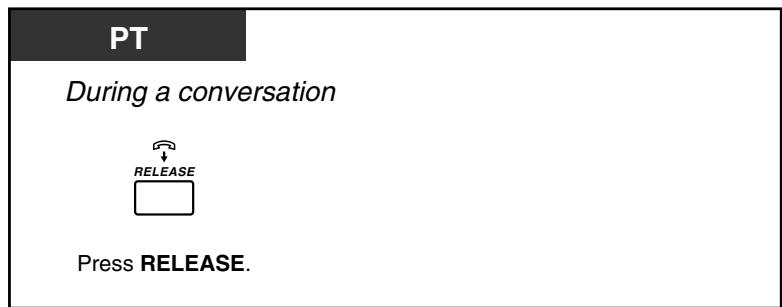
Pour terminer une conversation

Personnalisation de votre téléphone
3.1.3 Personnalisation des boutons
Créez ou modifiez un bouton Répondre ou un bouton Libérer.
1.3.6 Identification des appelants malveillants (Identification d'appel malveillant [MCID])
Vous pouvez demander à votre compagnie de téléphone de tracer un appelant malveillant pendant une conversation ou après que l'appelant a raccroché.
Vous recevrez les informations sur l'appel malveillant plus tard.
Pour demander le MCID
PT/SLT/PS
Pendant une conversation ou en entendant une tonalité de rappel après que l'appelant a raccroché.
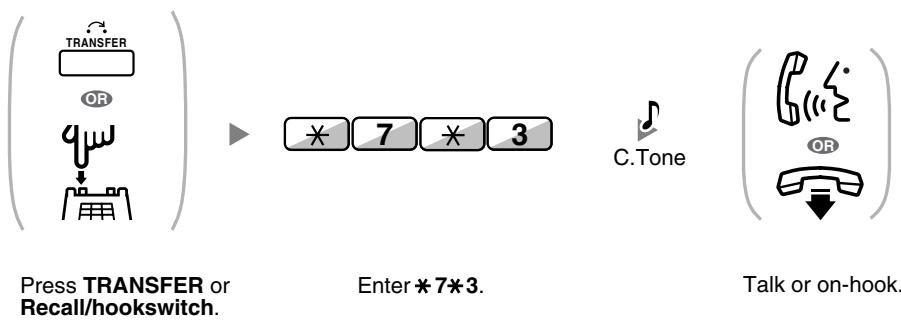

La disponibilité de cette fonction dépend du service RNIS de votre compagnie de téléphone.
1.4 Pendant une conversation
1.4.1 Transfert d'un appel (Transfert d'appel)
Transfert vers un poste du PABX, Transfert vers un correspondant externe en utilisant le service PABX, Transfert d'un appel en utilisant le service RNIS (Transfert d'appel [CT]—par RNIS)

- Vous pouvez transférer un appel en attente sans parler en raccrochant. Si un appel n'est pas pris dans un délai spécifié, vous entendrez une alarme comme rappel. Et, si un appel externe n'est pas répondu dans un délai spécifié, il est automatiquement déconnecté.
- Si vous entendez une tonalité d'alarme, le poste destinataire n'a pas répondu à l'appel. Répondez à l'appel.
Transfert vers un poste du PABX
Pour transférer
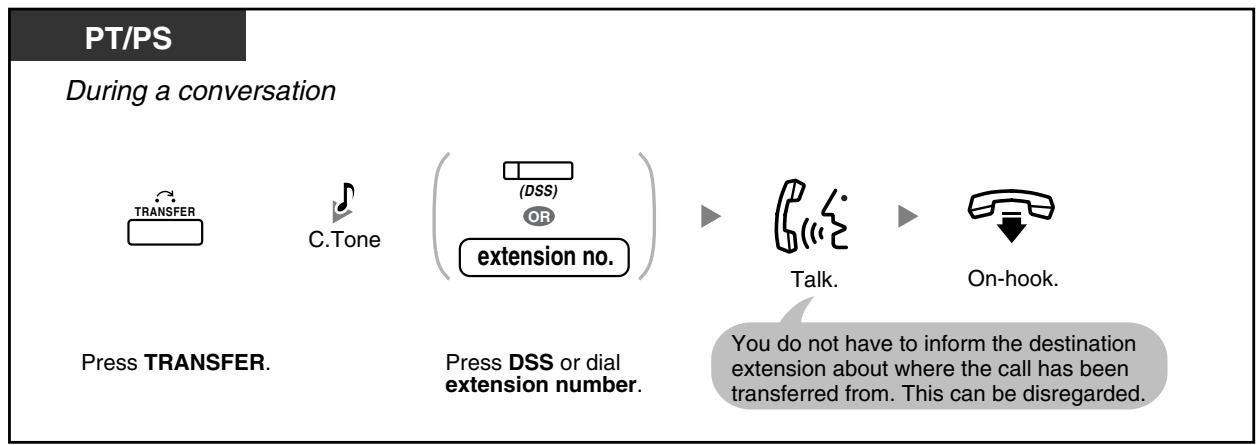
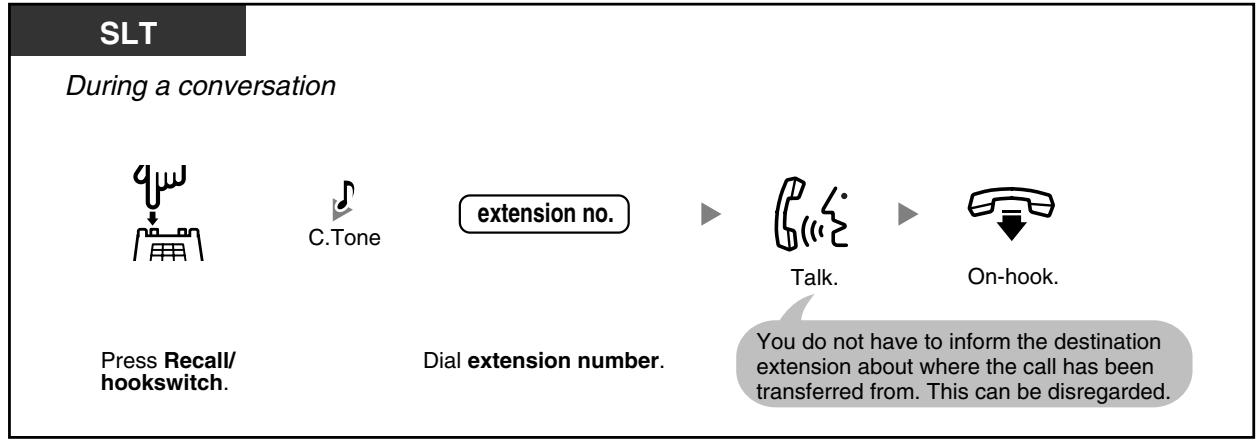
Pour transférer en une touche (Transfert en une touche)
PT/PS
Pendant une conversation

Appuyez sur DSS.


Parlez.

Raccrochez.
Vous n'avez pas besoin d'informer le poste de destination d'où provient le transfert d'appel. Cela peut être ignoré.

Même si la personne transférée ne répond pas, vous pouvez raccrocher.

Transfert vers un correspondant externe à l'aide du service PBX
Certains postes peuvent être restreints pour cette fonctionnalité.
PT/PS
Pendant une conversation

Appuyez sur TRANSFER.

ligne externe
Saisissez la ligne externe.

numéro externe
Composez le numéro externe.

Parlez.

Raccrochez.
L'appel est transféré.
SLT
Pendant une conversation


ligne extérieure
numéro de téléphone extérieur


Appuyez sur Recall/le commutateur de crochet.
Prenez la ligne extérieure.
Composez le numéro de téléphone extérieur.
Parlez.
Raccrochez.
L'appel est transféré.

Limite de temps
L'appelant et la personne transférée entendront une tonalité d'alarme quinze secondes avant la fin de la période spécifiée. - Pour revenir à l'appel en attente avant que le destinataire ne réponde, appuyez sur le bouton TRANSFER, le bouton CO, ICD Group ou INTERCOM correspondant, ou sur le commutateur de crochet.

Personnalisation de votre téléphone
3.1.3 Personnalisation des boutons
Créer ou modifier une touche de sélection directe de poste (DSS).
Transfert d'un appel à l'aide du service RNIS (Transfert d'appel [CT]—via RNIS)
PT/PS
Pendant une conversation
Appuyez sur la touche Maintien RNIS.

Composez le numéro de téléphone.

Parlez.

Raccrochez.
Il n'est pas nécessaire d'informer le poste destinataire de l'origine du transfert. Cette information peut être ignorée.
PT/PS
Pendant une conversation
Appuyez sur la touche TRANSFERT.

Composez *62.
Numéro de téléphone. Composez le numéro de téléphone.
Parlez.
Raccrocher.
Vous n'avez pas besoin d'informer le poste de destination d'où provient le transfert d'appel. Cela peut être ignoré.
SLT
Pendant une conversation
Appuyez sur la touche Recall/commutateur d'accrochage.

Composez le 62.
Numéro de téléphone. Composez le numéro de téléphone.
Parlez.
Raccrochez.
Vous n'avez pas besoin d'informer le poste de destination d'où provient le transfert d'appel. Cela peut être ignoré.

Pour reprendre l'appel en attente, appuyez sur la touche TRANSFER, Recall/commutateur d'accrochage. Même si vous raccrochez pendant le transfert d'un appel, celui-ci est transféré. Après le transfert, la ligne devient libre.

Personnalisation de votre téléphone
3.1.3 Personnalisation des touches
Créer ou modifier une touche de mise en attente ISDN.
1.4.2 Mise en attente d'un appel
— Mise en attente dans une zone de stationnement du système (Call Park)

- Si un appel n'est pas récupéré dans un délai spécifié, vous entendrez une alarme pour vous le rappeler. Et, si un appel externe n'est pas répondu dans un délai spécifié, il est automatiquement déconnecté.
Mise en attente
Il existe deux types de mise en attente. La différence entre eux est que d'autres personnes peuvent récupérer votre appel en attente (mise en attente normale) ou non (mise en attente exclusive). Comme ils peuvent être alternés, demandez à votre responsable quel est le mode actuel.
Pour mettre en attente (mise en attente d'appel)
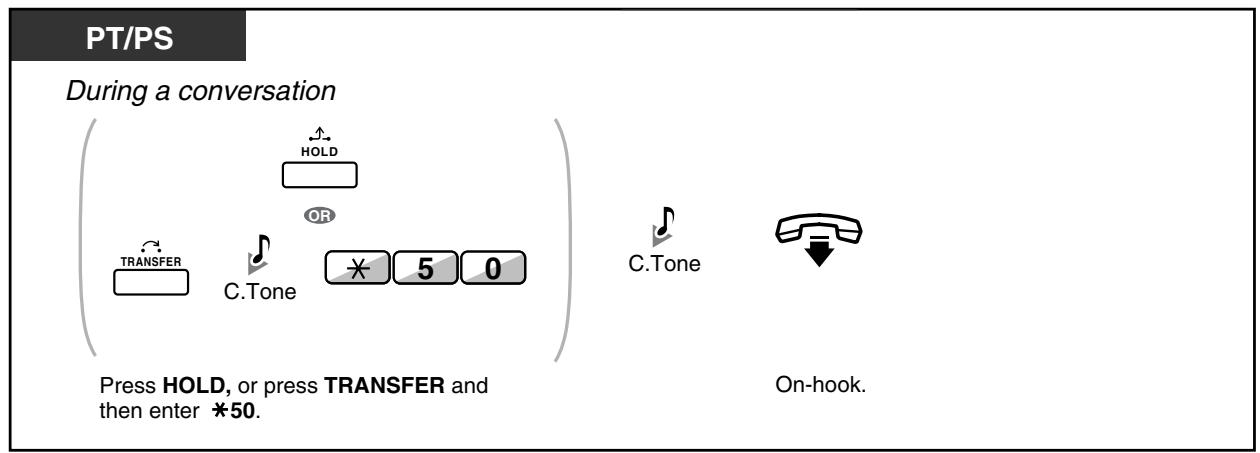
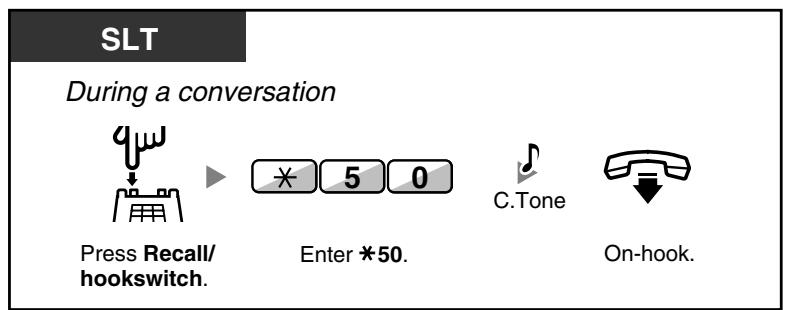
Pour récupérer un appel (récupération de mise en attente)
PT/SLT/PS
- Au poste en attente (récupération de mise en attente)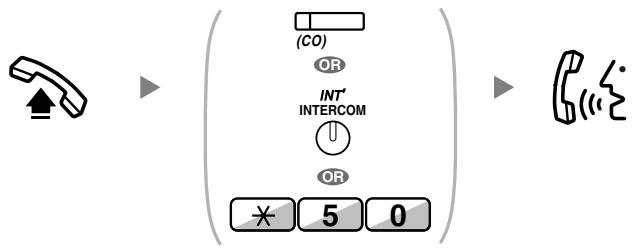
Décrochez.
Appuyez sur la touche CO clignotante
ou INTERCOM,
ou composez × 50
Parlez.
- Pour récupérer un appel externe depuis un autre poste—uniquement en mise en attente normale (récupération de mise en attente spécifiée avec un numéro de ligne en attente)
Décrochez.
Appuyez sur CO, ou composez le 53 puis maintenez la ligne.
Numéro (3 chiffres).
Parlez.
- Pour récupérer un appel interne ou externe depuis un autre poste—uniquement en attente normale (récupération d'appel en attente spécifiée avec le numéro du poste)
Décrochez.

Composez le 51.
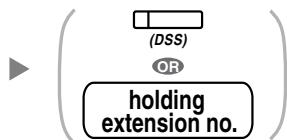
Appuyez sur DSS ou composez le numéro du poste.


Parlez.

Le voyant du bouton CO ou INTERCOM indique l'état actuel comme suit :
Mode attente normale
Vert clignotant lentement : votre appel en attente
Rouge clignotant : appel en attente d'un autre poste
— Mode attente exclusive
Vert clignotant rapidement : votre appel en attente
Rouge fixe : appel en attente d'un autre poste
- Changement de mode de mise en attente (PT uniquement)
Après avoir appuyé sur le bouton HOLD, si vous appuyez à nouveau sur le bouton HOLD, le statut passe du mode de mise en attente normale au mode de mise en attente d'appel exclusif, ou du mode de mise en attente d'appel exclusif au mode de mise en attente normale.

- Pour une utilisation simple, vous pouvez mettre automatiquement un appel en attente en appuyant sur un autre bouton CO, ICD Group ou INTERCOM, uniquement si cela a été préprogrammé. (Mise en attente automatique) Consultez votre revendeur.
Mise en attente dans une zone de stationnement du système (Parcage d'appel)
Vous pouvez mettre un appel en attente dans une zone de stationnement commune du PBX afin que n'importe quel poste puisse récupérer l'appel parqué. Vous pouvez utiliser cette fonction comme fonction de transfert.
Un appel peut être placé soit dans une zone de stationnement spécifiée (Spécifiée) soit dans n'importe quelle zone de stationnement libre (Automatique). Si un bouton Call Park et un bouton Call Park (Zone de parcage automatique) ont été établis, vous pouvez choisir l'une ou l'autre méthode de parcage en appuyant simplement sur le bouton correspondant.
Lorsqu'un appel est parqué automatiquement, ou que plusieurs appels ont été parqués en même temps, vous devez spécifier le numéro de zone de parcage pour récupérer l'appel souhaité.
Pour régler
PT/PS
Pendant une conversation

Appuyez sur Call Park.
PT/PS
Pendant une conversation




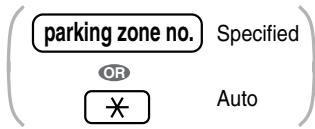

Appuyez sur TRANSFER.
Composez 52
Saisissez un numéro de zone de stationnement spécifié (2 chiffres) ou appuyez sur * pour vous garer automatiquement dans une zone de stationnement libre.
Si vous entendez une tonalité d'occupation, saisissez un autre numéro de zone de stationnement ou appuyez à nouveau sur *.
SLT
Pendant une conversation

Appuyez sur Recall / commutation.


Composez * 5 2




Saisissez un numéro de zone de stationnement spécifié (2 chiffres).
Raccrochez.
Si vous entendez une tonalité d'occupation, saisissez un autre numéro de zone de stationnement.
Pour récupérer (reprise d'appel en attente)
PT/PS

Appuyez sur la touche Call Park clignotante.
PT/SLT/PS
Décrochez.

Composez * 52.


Composez le numéro de zone de stationnement mémorisé (2 chiffres).
Parlez.

Si un appel est mis en attente automatiquement, confirmez le numéro de zone de stationnement sur l'écran.

- Si vous entendez une tonalité de réordonnancement lors de la reprise d'un appel en attente, il n'y a pas d'appel en attente. Confirmez le numéro de zone de stationnement mémorisé. Après avoir mis un appel en attente, vous pouvez effectuer d'autres opérations.

Personnalisation de votre téléphone
3.1.3 Personnalisation des touches Créez ou modifiez une touche de mise en attente (Call Park) ou une touche de mise en attente automatique (Call Park - Zone de stationnement automatique).
1.4.3 Parler à deux correspondants en alternance (scission d'appel)
Lorsque vous parlez à un correspondant pendant que l'autre est en attente, vous pouvez permuter les appels (en alternance).
Pour alterner entre les correspondants en laissant l'un temporairement en attente
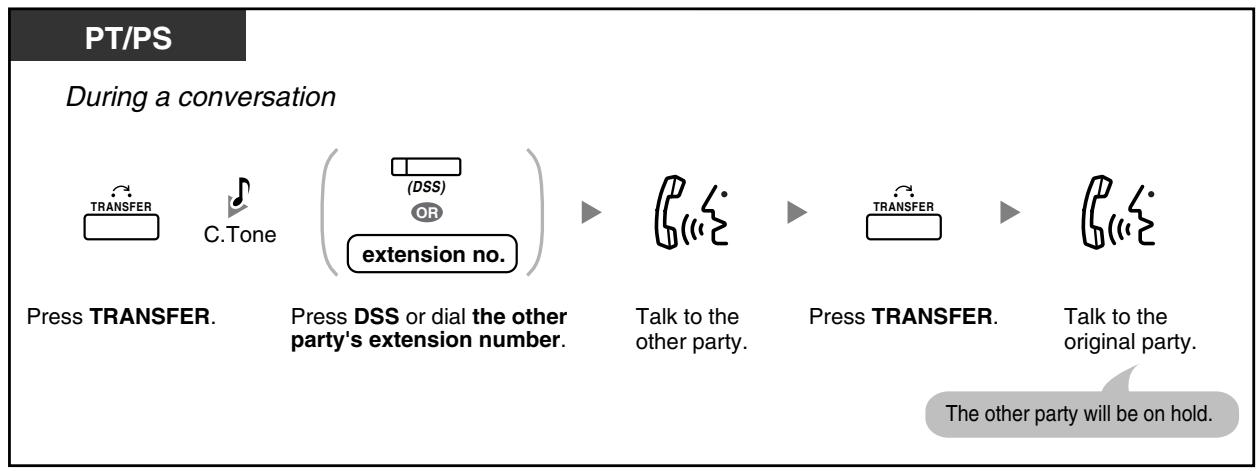
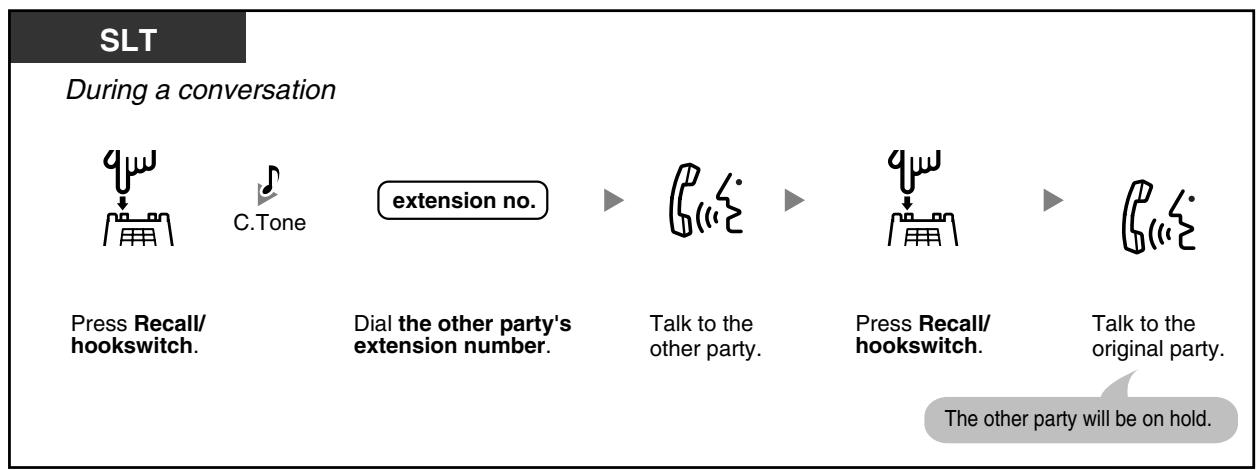
Pour quitter la conversation puis laisser les deux correspondants parler
PT/PS
Pendant une conversation




Appuyez sur TRANSFER.
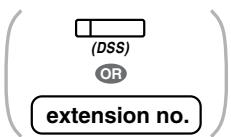
Appuyez sur DSS ou composez le numéro de poste de l'autre correspondant.
Parlez à l'autre correspondant.
Appuyez sur TRANSFER.
Raccrochez.
Poste téléphonique
Pendant une conversation







Appuyez sur Recall/commutateur à crochet.
Composez le numéro de poste de l'autre partie.
Parlez à l'autre partie.
Appuyez sur Recall/commutateur à crochet.
Raccrochez.
1.4.4 Répondre à un appel en attente
— Répondre à un appel en attente dans le PBX — Répondre à un appel en attente de la compagnie de téléphone

Répondre à un appel en attente dans le PBX
Pendant une conversation, une tonalité d'appel en attente ou une annonce vocale via le haut-parleur ou le combiné se produit lorsqu'un appel externe est reçu ou qu'un autre poste vous signale qu'un appel est en attente. Vous devez activer cette fonction pour l'utiliser. (Par défaut : Désactivé—Aucun appel [appels intercom]/Aucune tonalité [appels externes])
Vous pouvez répondre au deuxième appel en déconnectant (1) ou en mettant en attente (2) l'appel en cours.
1. Pour déconnecter l'appel en cours puis parler avec le nouveau correspondant
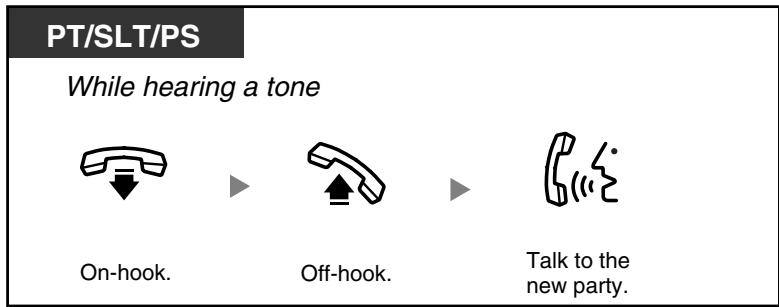
2. Pour maintenir l'appel en cours, puis parler au nouveau correspondant
Après avoir parlé au nouveau correspondant (deuxième appel), vous pouvez raccrocher (2.1) ou mettre en attente (2.2) cet appel, puis reprendre le premier appel.
2.1 Pour raccrocher le deuxième appel, puis parler au correspondant d'origine
Pendant une conversation
PT/PS
Raccrocher.

Décrocher.
Appuyer sur CO ou INTERCOM.

Parler au correspondant d'origine.
Pendant une conversation
PT/SLT/PS
Raccrocher.

Décrocher.

Composer le 50.


Parler au correspondant d'origine.
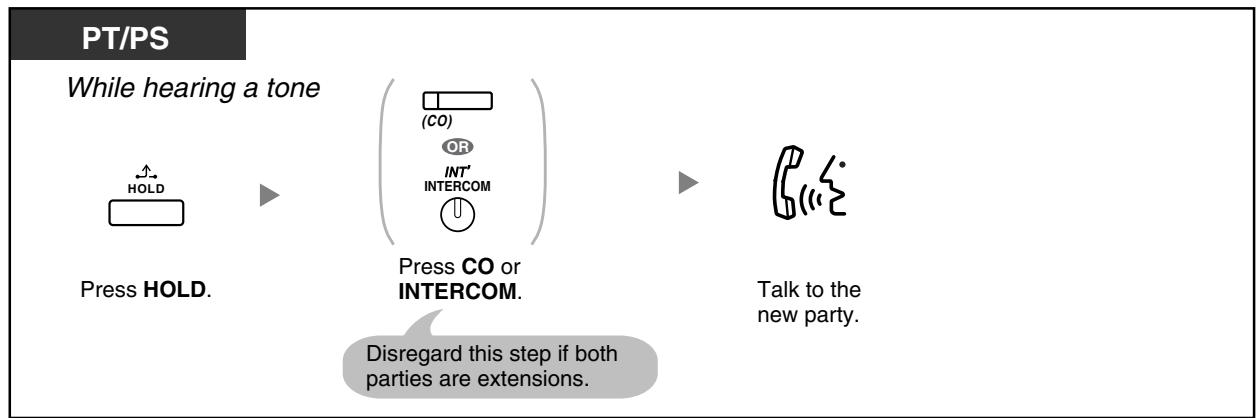
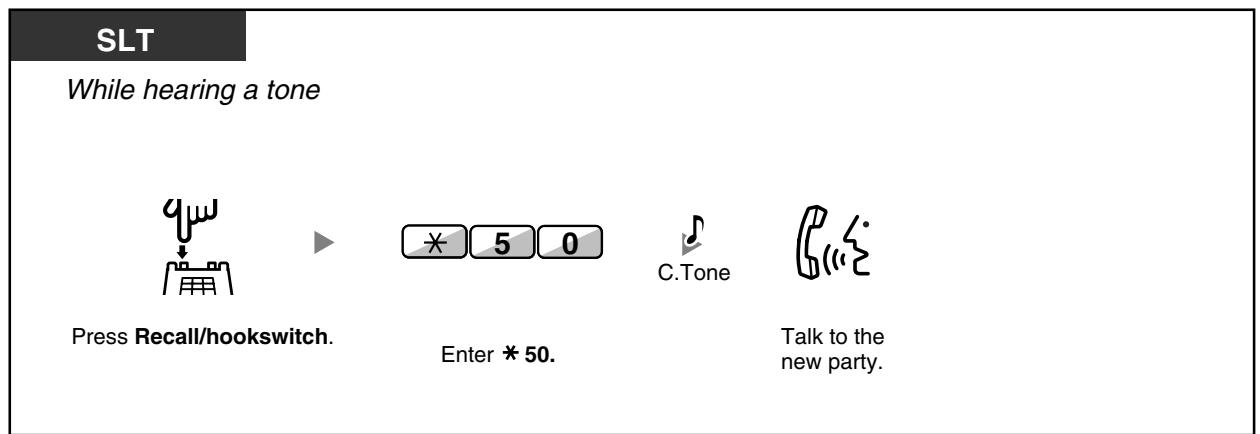
2.2 Pour mettre le deuxième appel en attente puis parler avec le correspondant initial
Après la mise en attente, vous pouvez parler avec le correspondant initial. Ensuite, vous pouvez raccrocher pour parler à nouveau avec le nouveau correspondant.
Pendant une conversation
PT/PS
Appuyez sur HOLD.
Appuyez sur CO ou INTERCOM.

Parlez avec le correspondant initial.


Raccrochez.
Ignorez cette étape si les deux correspondants sont des postes internes.

Décrochez.
Appuyez sur CO ou INTERCOM.

Parlez avec le nouveau correspondant.
SLT
Pendant une conversation

Appuyez sur Recall / commutation.

Composez le 50.


Parlez à la personne d'origine.


Raccrochez.

Décrochez.

Composez le *50.


Parlez à la nouvelle personne.

Selon votre téléphone, les fonctions "Annonce d'appel en attente avec haut-parleur (OHCA)" et "Annonce d'appel en attente en chuchotement (Whisper OHCA)" peuvent être utilisées. Vous pouvez parler à l'autre personne via le haut-parleur et le microphone (OHCA) ou recevoir une annonce via le combiné (Whisper OHCA), si vous êtes en conversation avec le combiné. Reportez-vous à la section "1.7.3 Réception d'un appel en attente (Appel en attente/Annonce d'appel en attente avec haut-parleur [OHCA]/Annonce d'appel en attente en chuchotement [Whisper OHCA])". - Le nom ou le numéro de l'appelant s'affiche pendant cinq secondes à intervalles de dix secondes pendant l'attente de réponse.

Personnalisation de votre téléphone
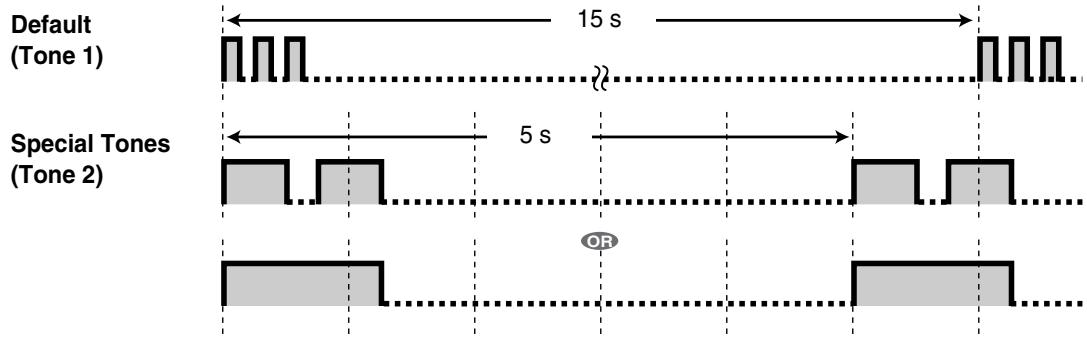
3.1.2 Réglages en mode de programmation—Sélection du type de tonalité d'appel en attente Si vous sélectionnez "Tonalité 1", vous entendrez la même tonalité pour un appel en attente provenant d'une ligne externe et d'un poste. Si vous sélectionnez "Tonalité 2", vous entendrez des tonalités différentes pour un appel en attente provenant d'une ligne externe et d'un poste.

Réponse à un appel en attente de la compagnie de téléphone
Il s'agit d'un service optionnel de la compagnie de téléphone. Vous pouvez recevoir une tonalité d'appel en attente et les informations de l'appelant. Pour plus de détails, consultez votre compagnie de téléphone.
Pendant que vous entendez une tonalité
PT/PS
Appuyez sur FLASH/RAPPEL ou EFA.
Pendant que vous entendez une tonalité
PT/SLT/PS
Appuyez sur TRANSFER ou sur RAPPEL/commutateur à crochet.


Composez le 60.

Pour revenir à l'interlocuteur d'origine, répétez l'opération. - Dans ce cas, la touche FLASH/RAPPEL des téléphones propriétaires est en mode Accès à une fonction externe (EFA).

Personnalisation de votre téléphone
3.1.3 Personnalisation des touches
Créez ou modifiez une touche d'Accès à une fonction externe (EFA).
1.4.5 Conversation à plusieurs
- Ajout d'autres interlocuteurs pendant une conversation (conférence) Quitter une conférence (conférence sans surveillance) Quitter une conférence (quitter une conférence à trois)
- Permettre à un tiers de se joindre à votre appel (libération de confidentialité)
- Ajout d'un tiers pendant une conversation à l'aide du service RNIS (conférence à trois [3PTY]—par RNIS)
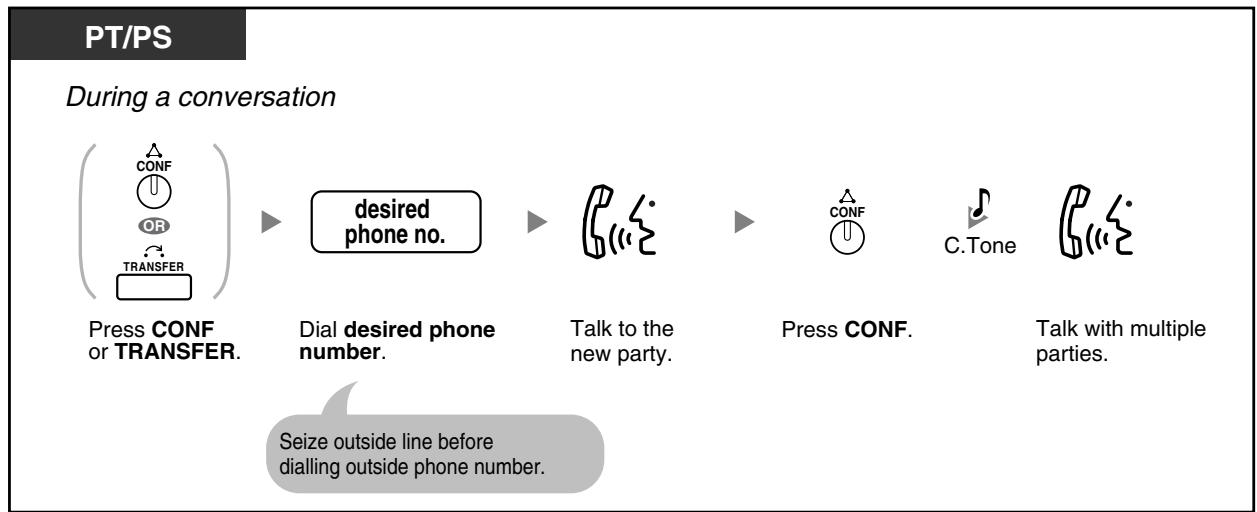
Ajout d'autres interlocuteurs pendant une conversation (conférence)
Vous pouvez ajouter un ou plusieurs interlocuteurs à votre conversation.
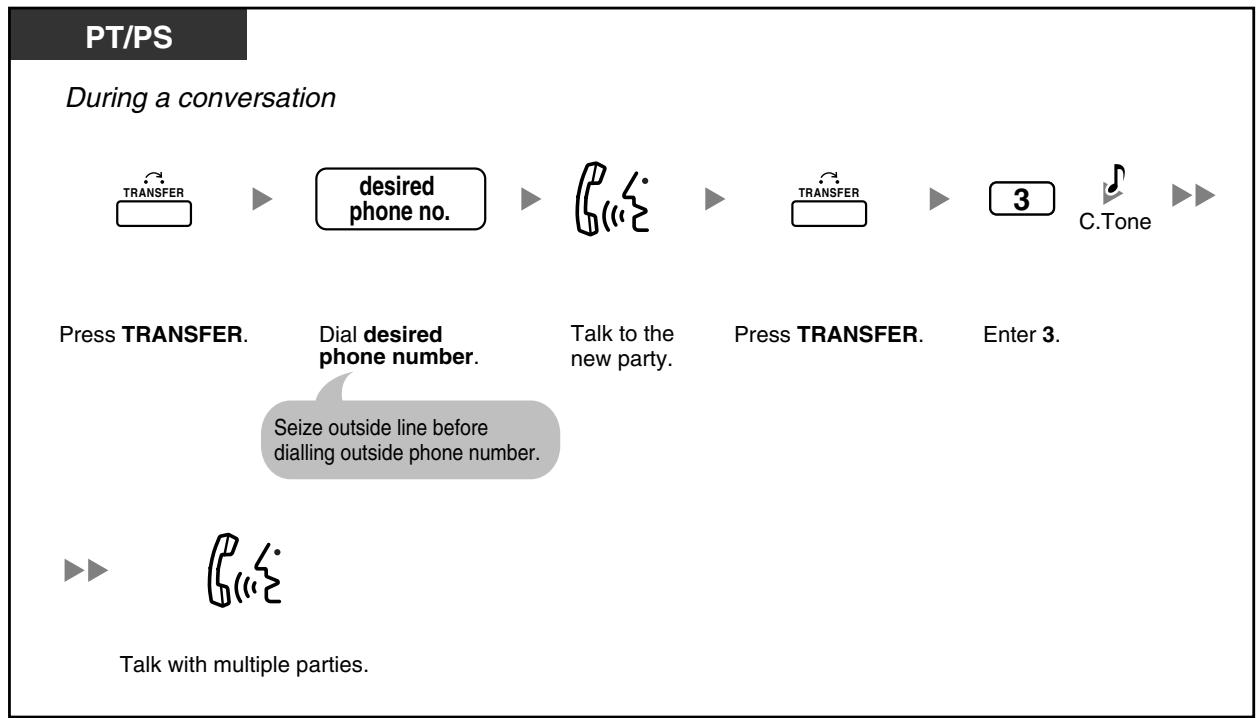
SLT
Pendant une conversation






Appuyez sur Recall / commutation.
Composez le numéro de téléphone souhaité.
Parlez avec le nouveau correspondant.
Appuyez sur Recall / commutation.
Composez le 3.


Parlez avec plusieurs correspondants.
Pour ajouter quatre correspondants ou plus à une conférence
PT/PS
Pendant une conversation




Appuyez sur CONF.
Composez le numéro de téléphone souhaité.
Parlez.
Appuyez sur CONF.
Parlez.
Prenez une ligne extérieure avant de composer le numéro de téléphone extérieur.
Pour parler alternativement à deux interlocuteurs lors d'une conversation à trois
PT/PS
Pendant une conversation

Appuyez sur TRANSFERT.
SLT
Pendant une conversation
Appuyez sur Rappel/commutateur à bascule.

- Lors d'une conversation à trois, appuyer sur le bouton TRANSFERT ou Rappel/commutateur à bascule permet d'alterner entre les autres interlocuteurs de la conversation.
- Vous pouvez organiser une conférence avec un maximum de huit participants (comprenant des lignes internes ou externes) simultanément.

Personnalisation de votre téléphone
3.1.3 Personnalisation des boutons Créez ou modifiez un bouton de conférence.
Quitter une conférence (conférence sans surveillance)
Les autres participants peuvent continuer leur conversation.
Pour quitter une conférence
PT/PS
Lors d'une conférence à 3 à 7 participants

Appuyez sur CONF.


Raccrochez.
Pour revenir pendant que d'autres parlent
PT

OU


Appuyez sur la touche clignotante verte CO ou INTERCOM.
Pour terminer une conversation
PT/SLT/PS
Pendant une conversation

Raccrochez.

Limite de temps
Les deux parties entendront une tonalité d'alarme avant un délai spécifié. Le poste d'origine entendra une tonalité d'alarme avant le délai. L'appel est déconnecté lorsque le temps est écoulé, sauf si le poste d'origine revient à la conférence.

Personnalisation de votre téléphone
3.1.3 Personnalisation des touches
Bouton Créer ou modifier une conférence.

Quitter une conférence (quitter une conférence à trois)
Les deux autres parties peuvent continuer leur conversation.
Pour quitter une conférence
PT/PS
Pendant une conférence à trois


Appuyez sur TRANSFER.
Raccrochez.
SLT
Pendant une conférence à trois



Appuyez sur Recall/commutateur de crochet.
Raccrochez.
Pour terminer une conversation
PT/SLT/PS
Pendant une conversation

Décroché.

Permettre à un tiers de se joindre à votre appel (libération de confidentialité)
Vous pouvez permettre à un tiers de se joindre à votre appel externe en cours.

Pour configurer
PT/PS
Pendant une conversation

Appuyez sur la touche S-CO verte.
Demandez au tiers d'effectuer l'étape ci-dessous.

Appuyez sur la touche S-CO verte clignotante dans les 5 secondes.
Pour prolonger, appuyez à nouveau sur S-CO.


Parlez.
Une conversation à trois est maintenant établie.

Seule une touche S-CO peut être utilisée pour cette opération.
Ajout d'un tiers pendant une conversation à l'aide du service RNIS (conférence à trois [3PTY]—par RNIS)
![PANASONIC KXTDA200E - Ajout d'un tiers pendant une conversation à l'aide du service RNIS (conférence à trois [3PTY]—par RNIS) - 1](/content/2019/10/56796/images/f1daca9081c17bfb9672893da53eb5d3ff017426886ccd95cdd2e2f4bb7acdad.jpg)
![PANASONIC KXTDA200E - Ajout d'un tiers pendant une conversation à l'aide du service RNIS (conférence à trois [3PTY]—par RNIS) - 2](/content/2019/10/56796/images/22ba1fc7983be47c4dfa5d09dd243ca438574dcf3c052d1bbddbdfd466e04554.jpg)
SLT
Pendant une conversation




numéro de téléphone souhaité




Appuyez sur Recall/raccrochage.
Composez *62
Composez le numéro de téléphone souhaité.
Parlez au nouveau correspondant.
Appuyez sur Recall/raccrochage.
Prenez la ligne extérieure avant de composer le numéro extérieur.


Composez 3. Parlez avec plusieurs correspondants.
Pour terminer une conversation
PT/SLT/PS
Pendant une conversation

Raccrochez.

Personnalisation de votre téléphone
3.1.3 Personnalisation des touches Créer ou modifier une touche de mise en attente RNIS.
1.4.6 Mute
Vous pouvez désactiver le microphone ou le combiné pour consulter en privé d'autres personnes dans la pièce tout en écoutant l'autre partie au téléphone via le haut-parleur ou le combiné.

Pour activer/désactiver
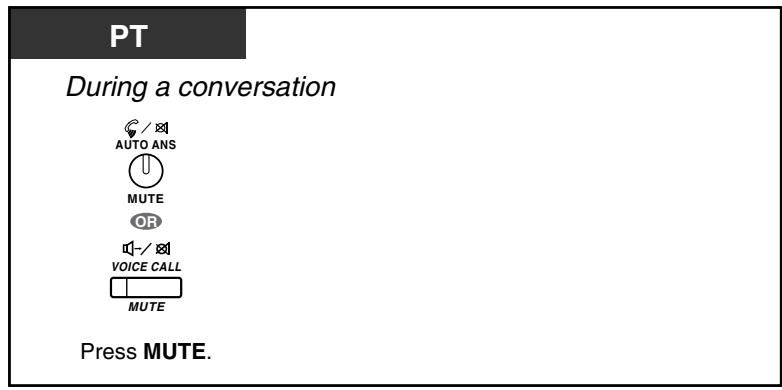

- Le voyant du bouton AUTO ANS/MUTE ou VOICE CALL/MUTE indique l'état actuel comme suit :
Éteint : Normal
Rouge clignotant : Mute
Si le mode Mute est utilisé pendant OHCA, il devient Mute du combiné.
1.4.7 Permettre à d'autres personnes d'écouter la conversation (moniteur décroché)
Vous pouvez permettre à d'autres personnes dans la pièce d'écouter la conversation via le haut-parleur tout en continuant la conversation avec le combiné.

Pour activer/désactiver
PT
Pendant une conversation avec le combiné

Appuyez sur SP-PHONE.

- Le voyant du bouton SP-PHONE indique l'état actuel comme suit :
Éteint : La voix est entendue via le combiné.
Le son est audible via le haut-parleur et le combiné.
Cette fonction est contrôlée par programmation. Demandez à votre responsable. Cette fonction peut ne pas être disponible avec certains téléphones propriétaires. Pour plus de détails, consultez votre revendeur.

- Fonctionnement en mode mains libres
Vous pouvez converser en mode mains libres à l'aide de la touche SP-PHONE. Vous pouvez effectuer d'autres tâches simultanément.
Conseils utiles pour le fonctionnement en mode mains libres :
S'il est difficile d'entendre la voix de l'autre partie ;
Augmentez le niveau sonore à l'aide de la commande de volume du haut-parleur.
Si l'autre partie a du mal à vous entendre ;
Baissez le niveau sonore.
- Absorption des échos ;
Utilisez cet appareil dans une pièce avec des rideaux ou une moquette, ou les deux.
- Pour éviter de manquer une partie des conversations ;
Si vous et l'autre partie parlez en même temps, des parties de votre conversation seront perdues. Pour éviter cela, parlez à tour de rôle.
1.4.8 Utilisation du casque (fonctionnement du casque)
Vous pouvez converser à l'aide d'un casque.
Dans ce cas, vous devez sélectionner « Casque activé » en mode programmation ou régler le
bouton Casque sur activé (rouge) à l'avance.
Cette fonction est également connue sous le nom de Sélection combiné/casque.

Pour parler avec le casque
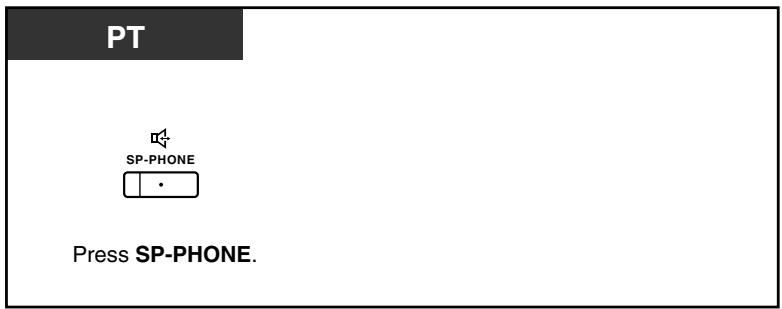
Pour utiliser le combiné pendant une conversation avec le casque
Pour parler en mode mains libres pendant une conversation avec le casque
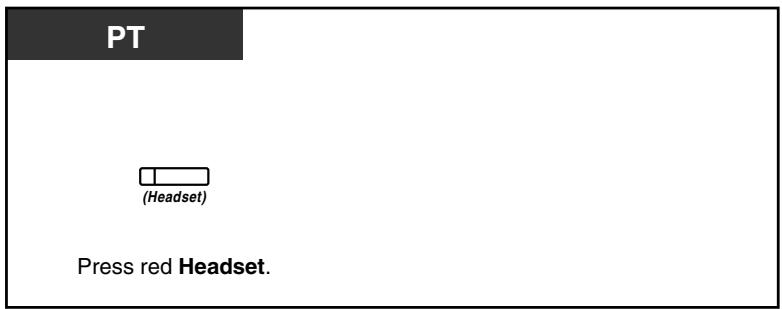

Le voyant du bouton Casque indique l'état actuel comme suit :
Éteint : mode casque désactivé
Rouge allumé : mode casque activé
Cette fonction n'est pas disponible pour le KX-T7665.

Personnalisation de votre téléphone
3.1.2 Réglages en mode programmation — Opération du casque Sélectionnez l'équipement à utiliser. 3.1.3 Personnalisation des boutons Créez ou modifiez un bouton Casque.
1.5 Avant de quitter votre bureau
1.5.1 Renvoi d'appels
- Renvoi de vos appels (Renvoi d'appel [FWD])
- Renvoi de vos appels à l'aide du service RNIS (Renvoi d'appel [CF]—par RNIS)

Renvoi de vos appels (Renvoi d'appel [FWD])
Vous pouvez faire suivre vos appels entrants vers une destination spécifiée.
Tous les appels :
Tous les appels sont renvoyés. Les postes prédéfinis peuvent également renvoyer depuis leur propre groupe de réception.
Occupé :
Tous les appels sont renvoyés lorsque votre poste est occupé.
Sans réponse :
Tous les appels sont renvoyés lorsque vous ne répondez pas à l'appel dans un délai spécifié.
Occupé/Sans réponse (BSY/NA) :
Tous les appels sont renvoyés lorsque vous ne répondez pas dans un délai spécifié ou lorsque votre poste est occupé.
Suivez-moi (Depuis) :
Si vous oubliez de configurer le renvoi "Tous les appels" avant de quitter votre bureau, vous pouvez configurer la même fonctionnalité depuis le poste de destination.
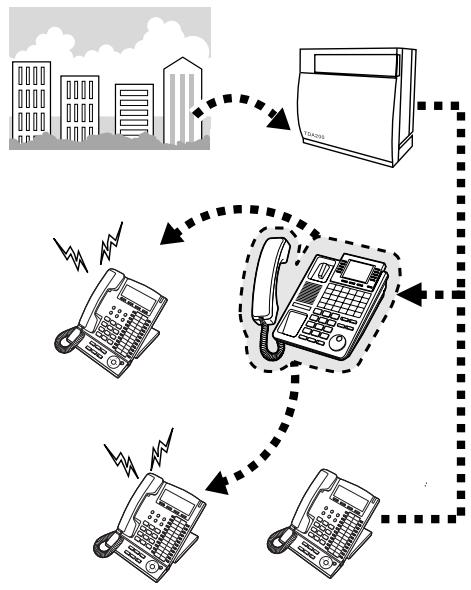

Fonctionnalité Patron & Secrétaire
- Vous pouvez définir le numéro flottant de la messagerie vocale comme destination de renvoi pour recevoir les appels dans votre boîte vocale.
- Vous pouvez configurer votre téléphone mobile comme destination de renvoi. La messagerie vocale peut être utilisée pour recevoir des appels si vous ne pouvez pas répondre.
- Les appels entrants peuvent être renvoyés jusqu'à quatre fois.
Le poste configuré comme destination peut appeler le poste qui renvoie.
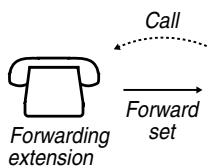

Pour configurer/annuler
PT/SLT/PS




Les deux types d'appels

1 Appels externes

Appels externes

Appels internes
Décrochez.
Composez le 71.
Entrez 0 à 2 selon
votre choix.

Annuler

Tous les appels

Occupé

Pas de réponse

Occupé/Pas de réponse

"Annuler", raccrocher, strictement après avoir composé 0.

numéro de poste de destination
numéro d'accès à la ligne extérieure
numéro de téléphone extérieur
(32 chiffres max.)


un

Composez le numéro de poste de destination. Ou composez le numéro d'accès à la ligne extérieure puis le numéro de téléphone extérieur.
Composez #.
Raccrochez.
Pour régler depuis un autre poste
PT/SLT/PS




Les deux appels

Appels externes

2 appels intercom
Décrochez.
Composez le 71.
Composez 0 à 2 selon votre choix.

Suivez-moi

Annulation du suivez-moi


votre numéro de poste.

tonalité de confirmation

Raccrochez.
Composez votre numéro de poste.
Composez 7 ou 8.

- Lorsque vous utilisez un téléphone propriétaire, vous pouvez activer ou annuler le renvoi d'appel en appuyant sur la touche FWD/DND (touche fixe) au lieu de "×710".
Pour régler la minuterie pour "Ne répond pas" et "Occupé/Ne répond pas"
PT/SLT/PS Décrochez.

Composez *713.
temps
temps de temporisation (2 chiffres). C.Tone
Raccrochez.
Pour activer/annuler le renvoi d'appel (FWD) pour votre groupe de distribution d'appels entrants
PT/SLT/PS Groupe ICD : Groupe de distribution d'appels entrants Décrochez.

Composez *71.

4 Les deux appels

Les deux appels

Appels externes

Appels internes
Composez 4 à 6 selon votre choix.
0 Annuler

N° de poste du groupe ICD
Composez le numéro de poste du groupe ICD.
Numéro de poste de destination
Numéro d'accès à la ligne extérieure
(max. 32 chiffres)
Numéro de téléphone extérieur



Saisissez le numéro de poste de destination.
Ou saisissez le numéro d'accès à la ligne extérieure puis le numéro de téléphone extérieur.
Appuyez sur #.
Raccrochez.

Le voyant de la touche FWD/DND indique l'état actuel comme suit :
Éteint : les deux fonctions ne sont pas activées.
Rouge fixe : mode FWD
Rouge clignotant lentement : mode DND
Le voyant de la touche Group FWD indique l'état actuel comme suit :
Éteint : aucun réglage
Rouge fixe : mode FWD
- Le système dispose de deux modes : (1) le mode de commutation cyclique FWD/DND et (2) le mode de réglage FWD/DND. Si vous n'êtes pas sûr du mode dans lequel se trouve votre système, demandez à votre responsable.
(1) En mode de commutation cyclique FWD/DND :
Appuyer sur la touche FWD/DND (touche fixe) en état d'attente fera défiler le réglage comme indiqué ci-dessous :

(2) En mode de réglage FWD/DND :
Appuyer sur la touche FWD/DND (touche fixe) en état d'attente vous mènera directement au mode de programmation pour le réglage FWD/DND.
(Reportez-vous à la section « 3.1.2 Réglages en mode de programmation ».)
Remarque
Une touche FWD/DND (touche personnalisée) est toujours en mode de commutation cyclique FWD/DND : ce mode ne peut pas être modifié.
- Les appels externes transférés sont également redirigés vers la destination assignée pour les appels externes.
- Lorsque les appels internes sont réglés pour être traités différemment des appels externes (type de transfert, destination de transfert), nous recommandons d'établir des touches pour FWD/DND—Appels externes et FWD/DND—Appels internes, et/ou Groupe FWD—Appels externes et Groupe FWD—Appels internes, car :
a) les motifs lumineux de la touche FWD/DND—Les deux appels (y compris la touche FWD/DND [touche fixe]) et de la touche Groupe FWD—Les deux appels indiqueront le réglage pour les appels externes ou internes, mais pas les deux.
Remarque
L'icône FWD sur l'écran du PS reflète le réglage pour les appels externes uniquement.
b) appuyer sur la touche FWD/DND—Les deux appels (y compris la touche FWD/DND [touche fixe]) ou la touche Groupe FWD—Les deux appels ne modifiera pas séparément le mode FWD ou DND pour les appels internes et externes.

Personnalisation de votre téléphone
3.1.3 Personnalisation des boutons
Créez ou modifiez les boutons FWD/DND (tous les appels, appels externes, appels internes), ou les boutons de renvoi de groupe (tous les appels, appels externes, appels internes).
Renvoi de vos appels à l'aide du service RNIS (Renvoi d'appel [CF]—par RNIS)
Tous les appels sont renvoyés à un correspondant externe via le RNIS. Les types de renvoi d'appel suivants sont fournis par le service RNIS.
Inconditionnel (Renvoi inconditionnel [CFU]) - Lorsque votre poste est occupé (Renvoi sur occupation [CFB]) - Lorsque vous ne répondez pas (Renvoi sur non-réponse [CFNR])
Pour configurer
PT/SLT/PS

Décrochez.


Composez 7 5






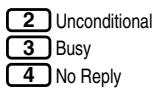

Composez le numéro de ligne externe.
Composez #.
Composez votre numéro d'abonné multiple (MSN).


Composez #.
Composez le numéro requis.
Composez le numéro de téléphone souhaité.
Entrez #.
Raccrochez.
Pour annuler
PT/SLT/PS

Décrochez.


Composez *7*5







Entrez #.
Composez 0.
Raccrochez.
Entrez #.
Entrez votre numéro d'abonné multiple (MSN).
Pour confirmer la condition
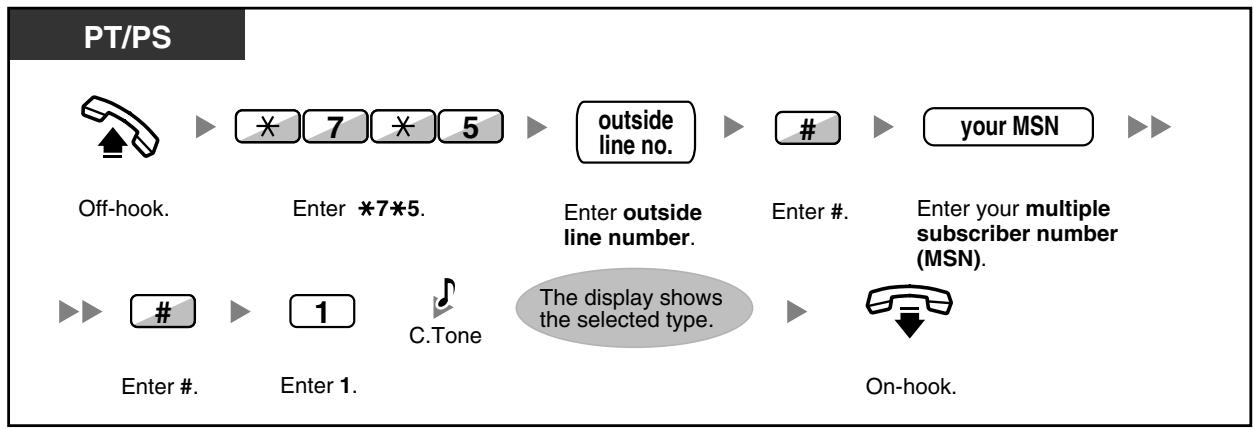
1.5.2 Affichage d'un message sur l'écran du téléphone de l'appelant (message d'absence)
Vous pouvez afficher la raison pour laquelle vous ne répondez pas, si l'appelant utilise un téléphone propriétaire avec afficheur Panasonic. Il y a huit messages préprogrammés et un pour votre message personnel (16 caractères). Le message sélectionné s'affiche sur l'écran de votre téléphone.
| Message no. | Message (Example) |
| 1 | Will Return Soon |
| 2 | Gone Home |
| 3 | At Ext %%% (Extension number) |
| 4 | Back at %:% (Hour:Minute) |
| 5 | Out until %/% (Month/Day) |
| 6 | In a Meeting |
| 7 | |
| 8 | |
| 9 | A message assigned for each extension. (Personal Absent Message) |
Pour régler
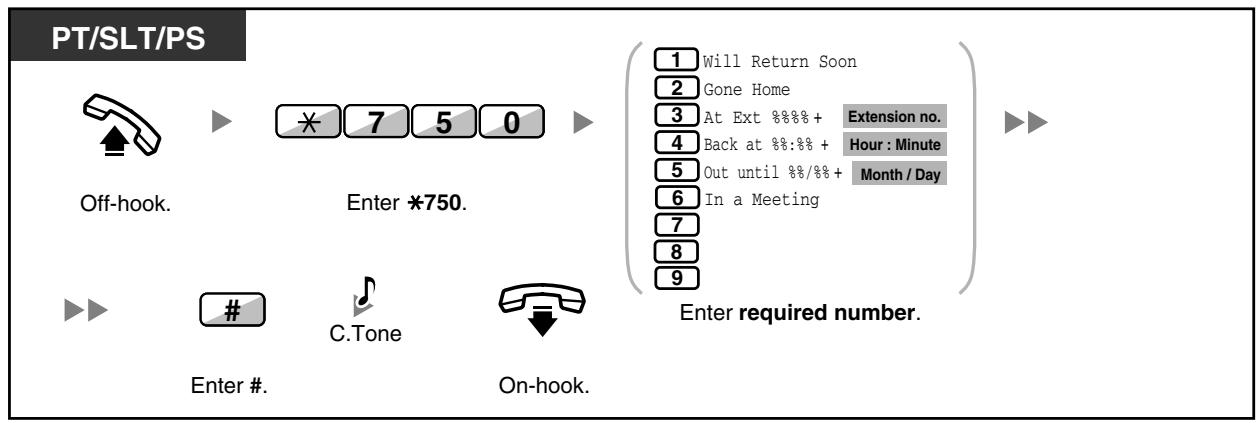
Pour annuler
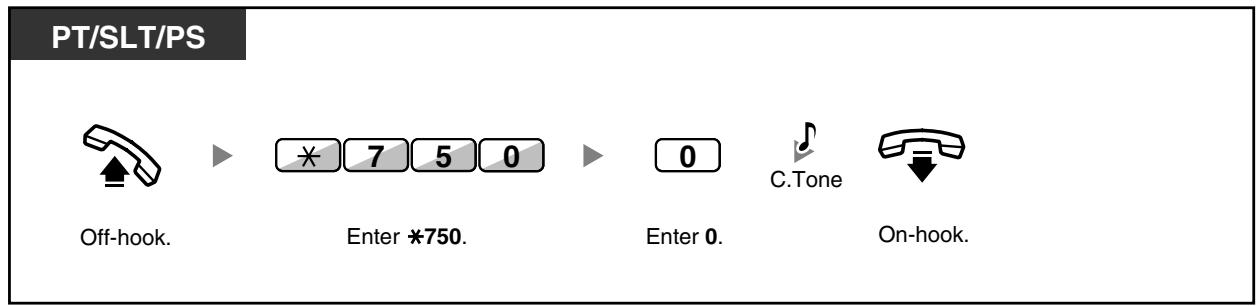

- Saisissez la valeur souhaitée dans les positions "%". Vous devez saisir le nombre correct de caractères représentés par "%" en utilisant les chiffres de 0 à 9 ou × . Les messages par défaut peuvent être modifiés. Consultez votre revendeur.
- Pour créer votre message personnel (message n° 9), reportez-vous à la section "3.1.2 Réglages en mode programmation".
1.5.3 Empêcher d'autres personnes d'utiliser votre téléphone (verrouillage du poste)
Vous pouvez verrouiller votre poste afin que d'autres utilisateurs ne puissent pas passer d'appels externes inappropriés.
Cette fonction est également appelée verrouillage électronique du poste.
Pour verrouiller
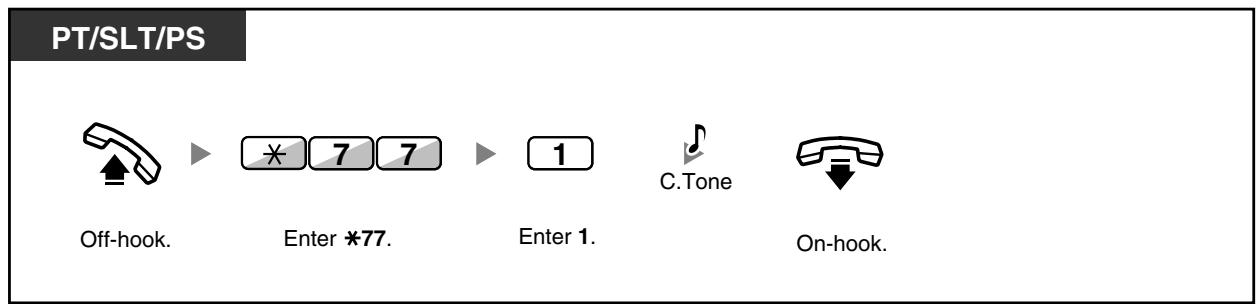
Pour déverrouiller
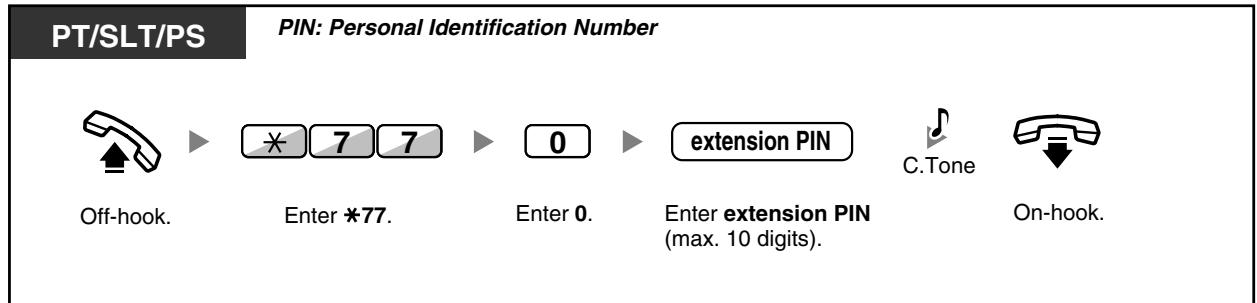

- Si vous oubliez le code PIN du poste ou si vous ne pouvez pas déverrouiller votre téléphone, consultez votre responsable. Il peut effacer votre code PIN de poste. Ensuite, vous pouvez définir un nouveau code PIN et déverrouiller votre poste en le saisissant. Si votre poste est verrouillé par cette fonction, il ne peut pas exécuter les fonctions suivantes : - Passer des appels externes
- Modifier la destination du renvoi d'appel Si vous ne définissez pas de code PIN de poste, vous ne pouvez pas verrouiller ni déverrouiller.
1.6 Émettre/répondre à une annonce
1.6.1 Diffusion
Diffusion de groupe — Diffusion puis transfert d'un appel
Diffusion de groupe
Vous pouvez faire une annonce vocale à des postes propriétaires ou à des haut-parleurs externes, ou aux deux, simultanément dans le groupe prédéfini.
PT/SLT/PS
Décrochez.
Composez le 33.
numéro de groupe de sonorisation.
Composez le numéro du groupe de sonorisation (2 chiffres).

Annoncez.
Attendez une réponse.
Parlez.

Si le groupe que vous avez appelé est déjà utilisé pour une sonorisation, vous entendez une tonalité d'occupation.
Sonorisation puis transfert d'un appel
PT/SLT/PS
Pendant une conversation
Appuyez sur TRANSFER ou sur Recall/raccrochage.

Composez le 33.

Composez le numéro du groupe de sonorisation (2 chiffres).

Annoncez.
L'autre partie est mise en attente.

Attendez une réponse.
Parlez.


La partie en attente et le poste appelé sont connectés et commencent une conversation.

Après avoir raccroché, l'appelant peut parler à la personne qui répond à la sonorisation.
1.6.2 Répondre à une annonce de sonorisation / La refuser
Pour répondre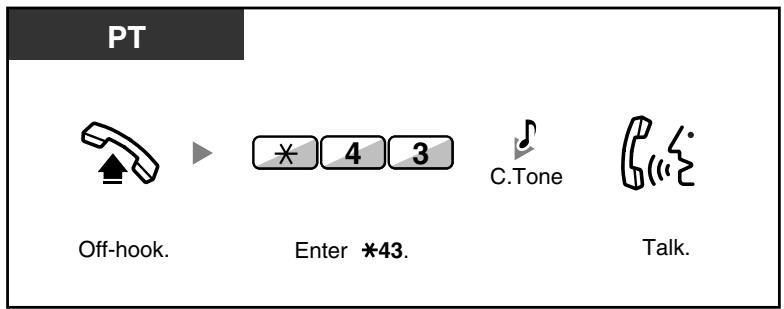
Pour autoriser/refuser une annonce de sonorisation (Refus de sonorisation)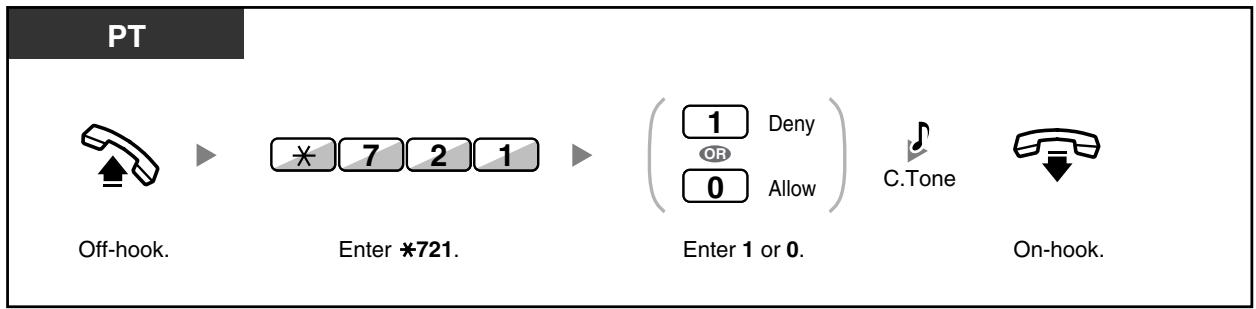

Les postes suivants ne peuvent pas recevoir une annonce de sonorisation :
- Poste portable — Téléphone à ligne unique — Poste propriétaire qui sonne ou qui est occupé — Poste propriétaire en mode Refus de sonorisation — Poste propriétaire en mode Ne pas déranger
- Même si l'annonce ne sonorise pas votre poste, vous pouvez y répondre si elle sonorise votre groupe.
1.6.3 Faire une annonce et avoir une conversation à plusieurs (diffusion)
Vous pouvez appeler plusieurs personnes assignées au groupe et faire une annonce vocale. Vous pouvez également établir une conversation à plusieurs avec les personnes appelées. Cette conversation sera entendue par les autres personnes appelées.
Les personnes appelées peuvent écouter l'annonce simplement en décrochant. Elles peuvent envoyer une tonalité de notification si elles veulent se joindre à la conversation.
Pour faire/répondre à un appel en diffusion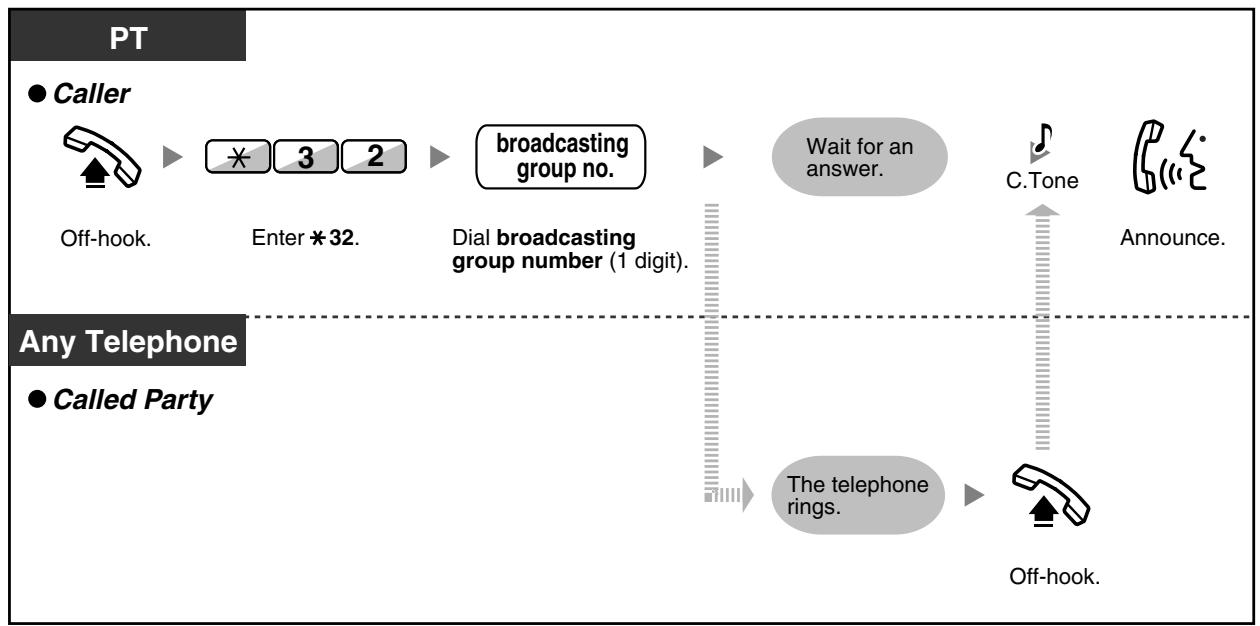
Pour un appelant
Pour avoir une conversation avec une personne spécifique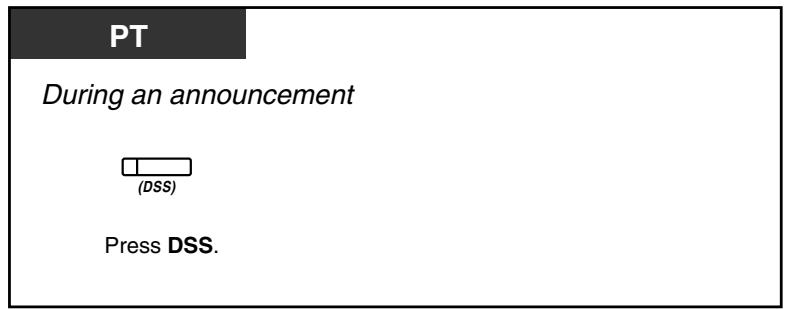
Pour avoir une conversation avec une personne dans l'ordre préassigné du groupe
PT
Pendant une annonce

Appuyez sur CONF.
Pour terminer une conversation avec une personne spécifique
PT
Pendant une conversation
Pour terminer une conversation avec une personne spécifique

Appuyez sur DSS.
- Pour terminer une conversation avec le correspondant qui s'est joint en dernier à la conversation

Appuyez sur TRANSFER.
- Pour déconnecter le correspondant qui s'est joint en dernier à la conversation de la diffusion

Appuyez sur FLASH/RAPPEL.

- Dans ce cas, le bouton FLASH/RAPPEL est en mode Flash/Rappel.
Pour un poste appelé
Pour envoyer une tonalité de notification à l'appelant et rejoindre une conversation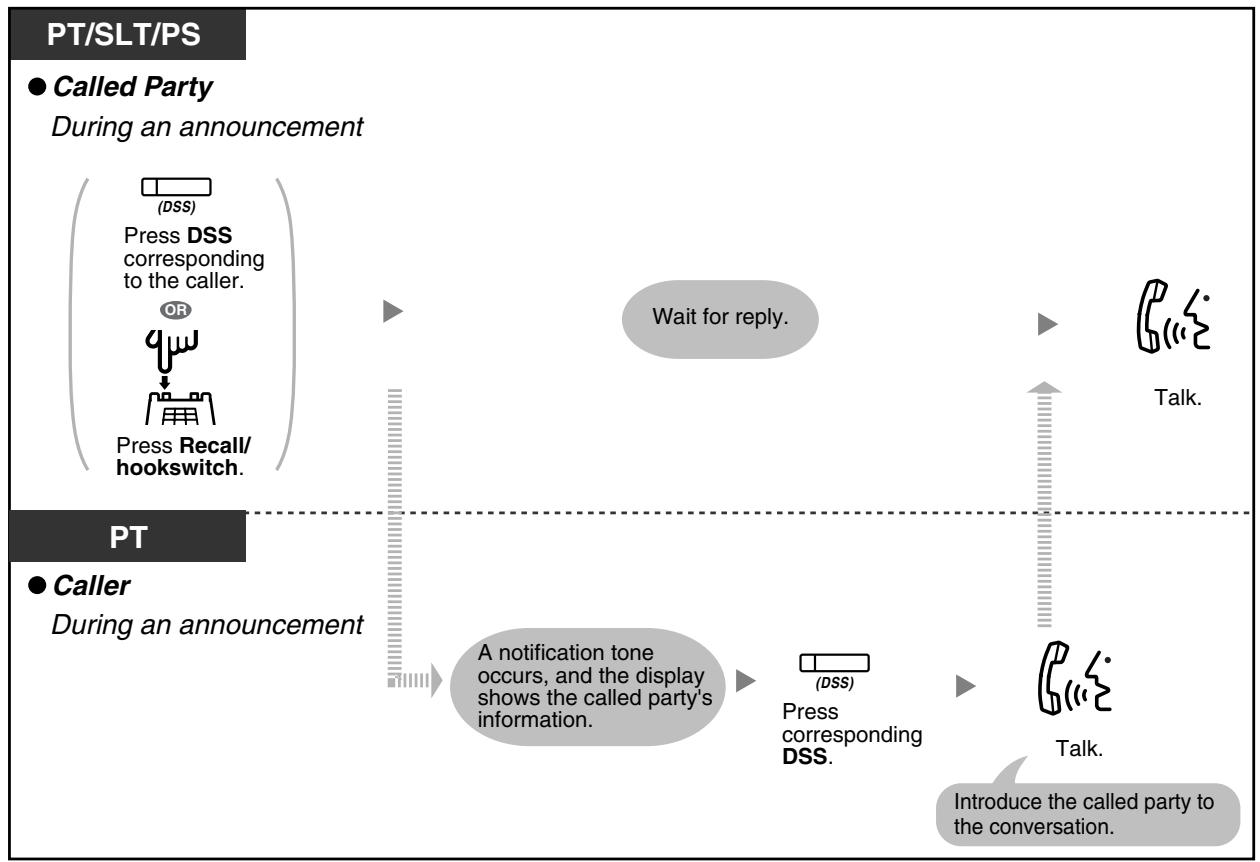

- Une conversation peut être établie avec un maximum de 4 correspondants (y compris l'appelant).
1.7 Réglage du téléphone selon vos besoins
1.7.1 Réglage de l'alarme (rappel programmé)
Vous pouvez recevoir une alarme sur votre téléphone pour vous rappeler une réunion, un rendez-vous ou comme réveil. L'alarme peut se produire une fois ou quotidiennement (tous les jours jusqu'à annulation) à une heure prédéfinie. Lorsque vous décrochez pour répondre, vous entendrez une tonalité spéciale ou un message préenregistré.
Pour régler
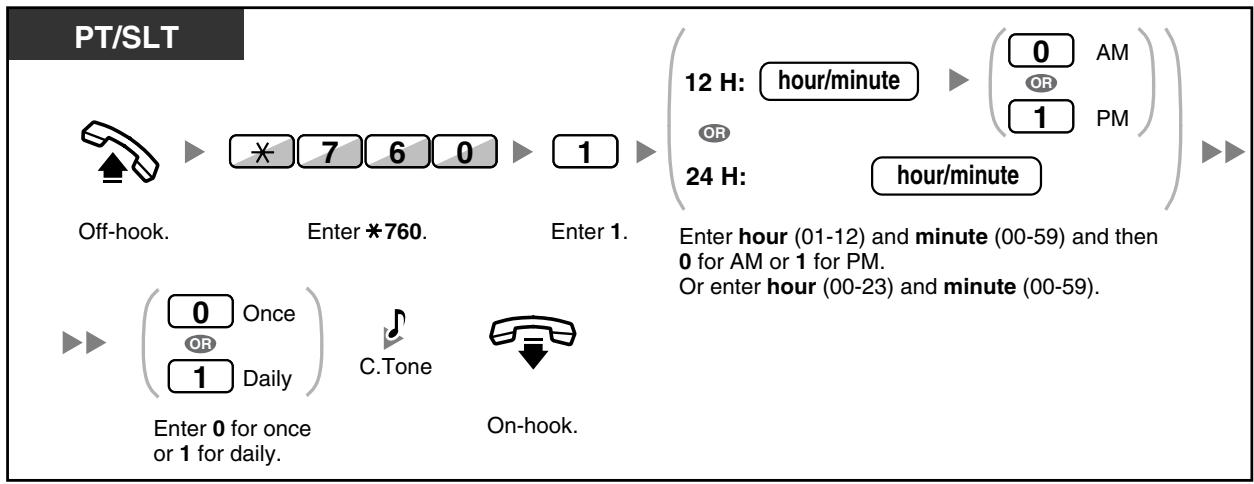
Pour annuler
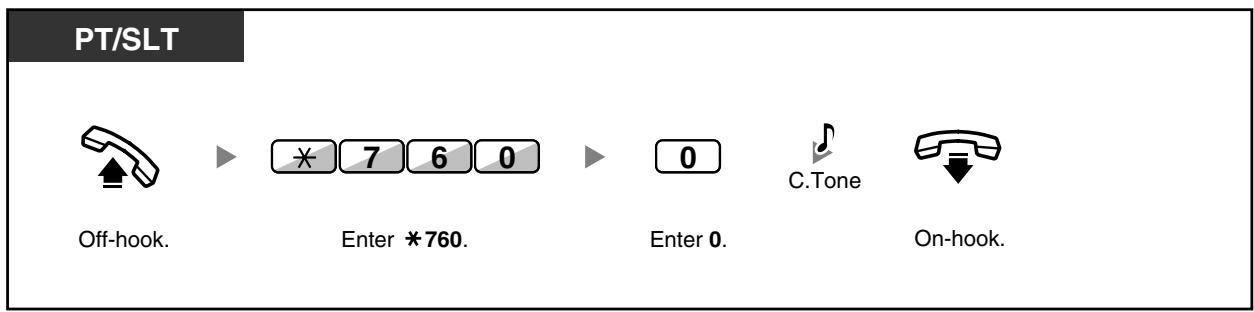
Pour arrêter ou répondre à la sonnerie de rappel
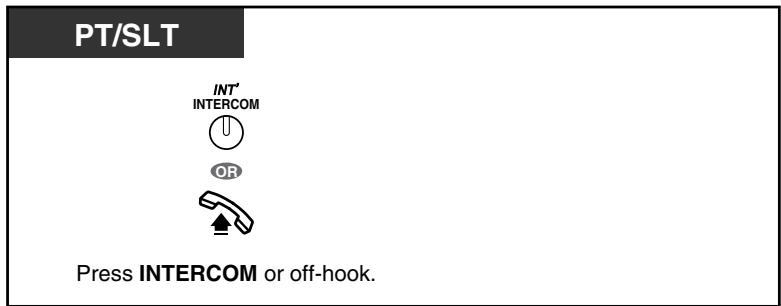
Pour confirmer
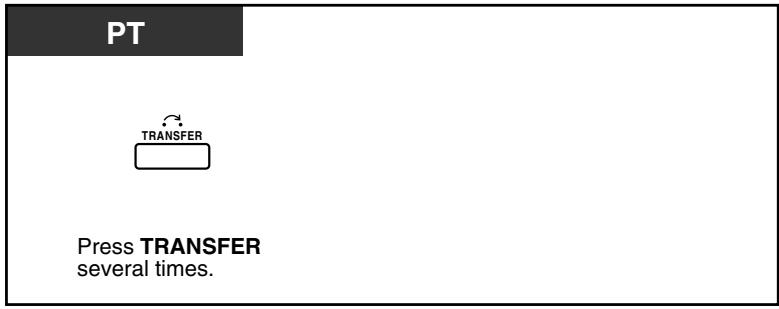

Vous pouvez également confirmer le rappel programmé à l'aide de la touche programmable. La sonnerie d'alarme retentit pendant un nombre de secondes préprogrammé. Si vous recevez un appel entrant pendant la sonnerie de rappel, la sonnerie commence après l'arrêt de la sonnerie de rappel. - Si vous êtes en conversation pendant une durée dépassant la période de sonnerie de l'alarme, la sonnerie de rappel commencera après votre conversation.
1.7.2 Refus des appels entrants (Ne pas déranger [NPD])
Vous pouvez activer cette fonction lorsque vous êtes en réunion ou occupé.
Pour activer/désactiver
PT/SLT/PS
Décrochez.

Composez le 71.
Entrez 0 à 2 selon votre choix.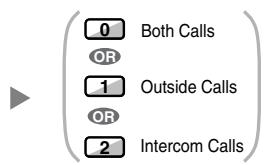
Entrez 1 pour activer ou 0 pour désactiver.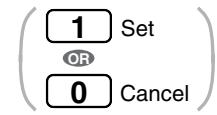

Raccrochez.

- Lorsque vous utilisez un téléphone propriétaire, vous pouvez activer ou désactiver le mode Ne pas déranger en appuyant sur la touche FWD/DND (touche fixe) au lieu de "×710".

Le voyant de la touche FWD/DND indique l'état actuel comme suit :
Éteint : Aucune des deux fonctions n'est activée.
Rouge fixe : Mode FWD
Rouge clignotant lentement : Mode NPD
- Le système a deux modes : (1) le mode de commutation cyclique FWD/DND et (2) le mode de réglage FWD/DND. Demandez à votre responsable dans quel mode se trouve votre système si vous n'en êtes pas sûr.
(1) En mode de commutation cyclique FWD/DND :
Appuyer sur la touche FWD/DND (touche fixe) en état d'attente fera défiler les réglages comme indiqué ci-dessous :

(2) En mode de réglage FWD/DND :
Appuyer sur la touche FWD/DND (touche fixe) en état d'attente vous mènera directement au mode de programmation pour le réglage FWD/DND.
(Reportez-vous à la section « 3.1.2 Réglages en mode de programmation ».)
Remarque
Une touche FWD/DND (touche personnalisée) est toujours en mode de commutation cyclique FWD/DND : ce mode ne peut pas être modifié.
Si cette fonction est activée sur votre poste, un poste appelant entendra la tonalité de ne pas déranger (DND). Si cette fonction est activée, la fonction de renvoi d'appel (FWD) ne fonctionne pas. - Certains postes spécifiés peuvent passer outre cette fonction et appeler des postes en mode DND (dérivation DND).
- Lorsque les appels internes sont configurés pour être traités différemment des appels externes (activation/désactivation du DND), nous recommandons de créer des touches pour FWD/DND—Appels externes et FWD/DND—Appels internes, car :
a) les voyants de la touche FWD/DND—Les deux appels (y compris la touche FWD/DND [touche fixe]) indiqueront le réglage pour les appels externes ou internes, mais pas les deux.
Remarque
L'icône DND sur l'écran du PS reflète le réglage pour les appels externes uniquement.
b) appuyer sur la touche FWD/DND—Les deux appels (y compris la touche FWD/DND [touche fixe]) ne modifiera pas séparément le mode FWD ou DND pour les appels internes et externes.

Personnalisation de votre téléphone
3.1.3 Personnalisation des boutons
Créez ou modifiez les boutons FWD/DND (appels internes, appels externes, interphone).
1.7.3 Réception d'un appel en attente (Appel en attente/Annonce d'appel décroché [OHCA]/OHCA chuchoté)
Pendant une conversation, vous pouvez être informé d'un appel en attente par une tonalité ou une annonce vocale via le haut-parleur intégré ou le combiné. (Par défaut : Désactivé—Aucun appel [appels internes]/Aucune tonalité [appels externes])
Tonalité d'appel en attente :
une tonalité d'attente via le haut-parleur intégré du PT/combiné du SLT. Pour modifier la tonalité depuis le PT, reportez-vous à la section « 3.1.2 Réglages en mode programmation ».
OHCA :
une annonce vocale via le haut-parleur intégré
OHCA chuchoté :
une annonce vocale via le combiné
Pour activer/désactiver pour les appels internes
PT/SLT/PS
Décrochez.
Composez 丰 7 3 1

Tonalité C.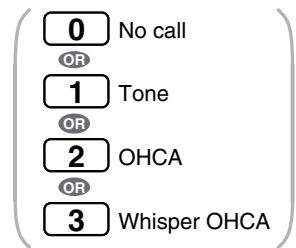
En repos. Saisissez 0 à 3 selon votre choix.
Pour activer/désactiver pour les appels externes
PT/SLT/PS
Décrochez.
Composez *732.

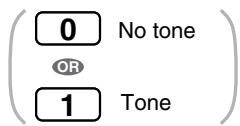

En repos. Saisissez 0 ou 1.

- L'OHCA et l'OHCA chuchoté ne peuvent être activés que sur certains téléphones propriétaires numériques. De plus, l'OHCA chuchoté nécessite que vous et l'autre partie utilisiez des téléphones pris en charge. Pour plus de détails, consultez votre revendeur.
1.7.4 Affichage de votre numéro de téléphone chez le correspondant et du numéro de l'appelant (Présentation du numéro appelant/appelé [CLIP/COLP])
CLIP :
Lors d'un appel externe, vous pouvez présenter votre numéro de téléphone préprogrammé au correspondant.
COLP :
Lors de la réception d'un appel externe, vous pouvez présenter votre numéro de téléphone préprogrammé à l'appelant.
Vous pouvez choisir le numéro de téléphone envoyé, soit le numéro de la ligne utilisée, soit le numéro attribué à votre poste.
Si vous sélectionnez "Public", l'appelant/appelé voit le numéro de la ligne utilisée (numéro d'abonné). Si vous sélectionnez "Votre poste", il voit le numéro de téléphone attribué à votre poste.
Pour afficher soit le numéro attribué à la ligne externe, soit votre poste
PT/SLT/PS
Décrochez.
Composez *7*2.
Composez 1 pour le public ou 2 pour votre poste.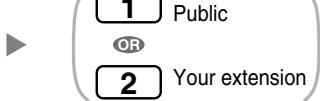

Raccrochez.

- Si vous utilisez la touche Groupe ICD pour appeler l'autre partie, le numéro de téléphone attribué au groupe ICD sera utilisé.
1.7.5 Empêcher l'affichage de votre numéro de téléphone sur le téléphone de l'appelant (Restriction d'identification de la ligne connectée [COLR])
Lors de la réception d'un appel externe, vous pouvez choisir si l'appelant peut voir votre numéro de téléphone ou non.
Pour afficher/empêcher
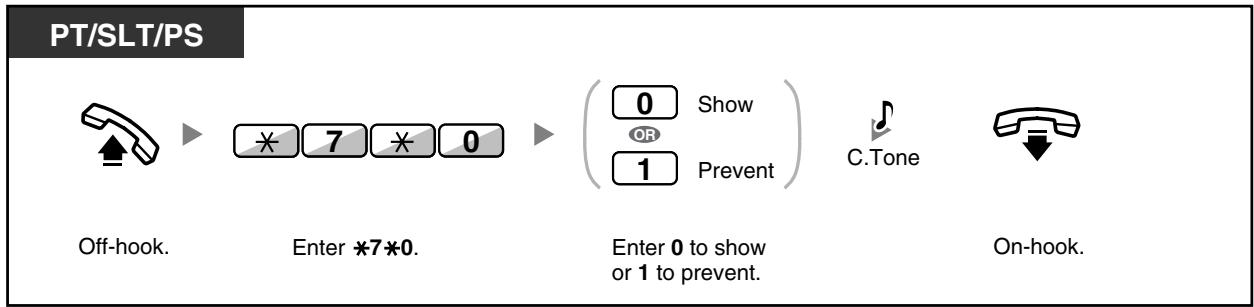

Vous pouvez changer le mode en appuyant sur une touche COLR préréglée lorsque le combiné est raccroché. Le voyant de la touche COLR indique l'état actuel comme suit : Éteint : affiche votre numéro de téléphone. Rouge allumé : empêche l'affichage de votre numéro de téléphone. La disponibilité de cette fonction dépend du service RNIS de votre compagnie de téléphone.

Personnalisation de votre téléphone
3.1.3 Personnalisation des touches
Créez ou modifiez une touche de restriction d'identification de la ligne connectée (COLR).
1.7.6 Empêcher l'affichage de votre numéro sur le téléphone de la partie appelée (Restriction d'identification de la ligne appelante [CLIR])
Lors d'un appel externe, vous pouvez choisir si la partie appelée peut voir votre numéro de téléphone ou non.
Pour afficher/masquer
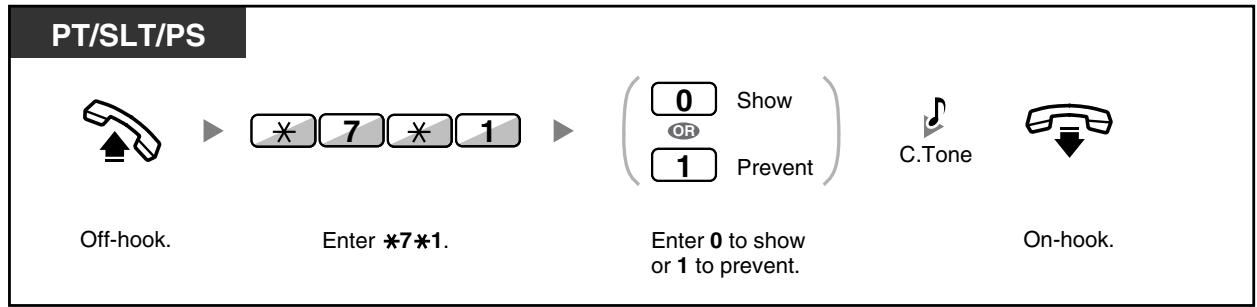

- Vous pouvez changer le mode en appuyant sur un bouton CLIR préréglé lorsque le combiné est raccroché.
Le voyant du bouton CLIR indique l'état actuel comme suit :
Éteint : affiche votre numéro de téléphone.
Rouge allumé : empêche l'affichage de votre numéro de téléphone.
La disponibilité de cette fonction dépend du service RNIS de votre compagnie de téléphone.

Personnalisation de votre téléphone
3.1.3 Personnalisation des boutons
Créer ou modifier un bouton de restriction d'identification de l'appelant (CLIR).
1.7.7 Empêcher d'autres personnes de se joindre à votre conversation (refus de dérivation prioritaire)
PT/SLT/PS

Décrochez.


Composez *733.

Composez 1 pour empêcher ou 0 pour autoriser.


Raccrochez.
Certaines extensions peuvent être interdites d'utiliser cette fonctionnalité.

1.7.8 Activation de la musique d'ambiance (BGM)
Vous pouvez écouter la musique d'ambiance via le haut-parleur de votre téléphone lorsque le combiné est raccroché. Une source de musique externe, telle qu'une radio, doit être connectée. Si votre extension devient occupée (décrochage, appel en cours, etc.), la musique s'arrête temporairement. Lorsque vous raccrochez, la musique reprend.

Pour sélectionner et régler/annuler
<.KX-TDA100/KX-TDA200>
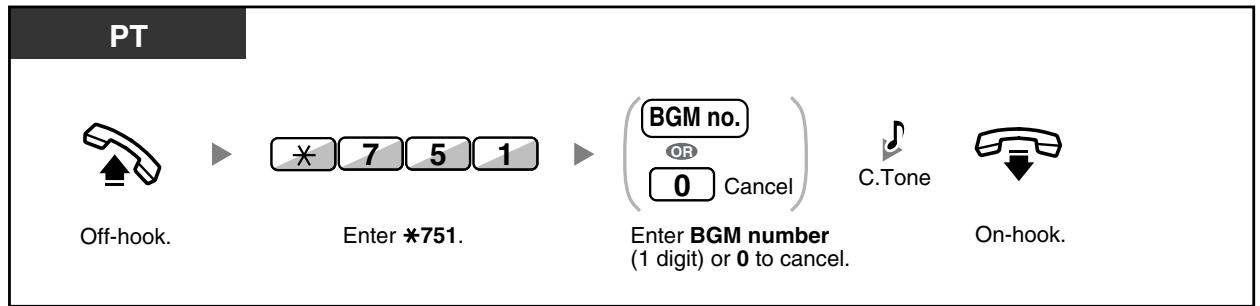
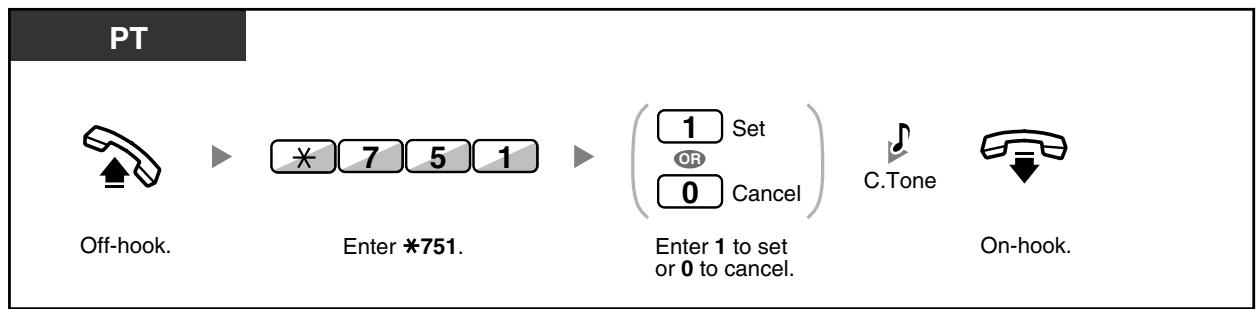
1.7.9 Protection de votre ligne contre les tonalités de notification (sécurité de ligne de données)
Vous pouvez protéger la ligne contre les tonalités de notification audibles, telles que la tonalité d'appel en attente pendant une conversation. Activez cette fonctionnalité si votre extension est équipée d'un dispositif de communication de données, tel qu'un ordinateur ou un télécopieur, pour garantir une transmission sécurisée des données.
Pour activer/annuler
PT/SLT/PS
Décrochez.
Composez 730.
Composez 1 pour activer ou 0 pour annuler.

Raccrochez.
1.7.10 Vérification du statut du service horaire
Vous pouvez vérifier le statut actuel du service horaire sur l'écran.

PT
En mode repos
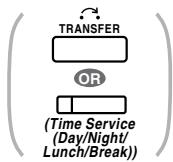
Appuyez sur la touche TRANSFER ou sur la touche de service horaire (Jour/Nuit/Déjeuner/Pause).

- Le voyant de la touche de service horaire (Jour/Nuit/Déjeuner/Pause) indique toujours l'état actuel comme suit :
Éteint : mode Jour
Vert fixe : mode Déjeuner
Vert clignotant : mode Pause
Rouge fixe : mode Nuit
Rouge clignotant : mode Vacances
- Tout utilisateur de poste, à l'exception des gestionnaires, peut vérifier l'état actuel en appuyant sur la touche de service horaire (Jour/Nuit/Déjeuner/Pause).

Personnalisation de votre téléphone
3.1.3 Personnalisation des touches
Créez ou modifiez une touche de service horaire (Jour/Nuit/Déjeuner/Pause).
1.7.11 Réglage de la sonnerie du téléphone parallèle (téléphone parallèle)
Dans le cas où un téléphone à ligne simple est connecté en parallèle à votre téléphone numérique propriétaire, vous pouvez choisir si le téléphone à ligne simple parallèle sonnera ou non pour un appel entrant.
(Par défaut : Sonnerie)

DPT

Décrochez.

Composez le 39.

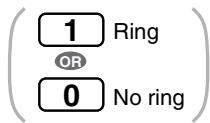
Composez 1 pour sonner ou 0 pour ne pas sonner.


Raccrochez.

- Même si « Pas de sonnerie » est sélectionné, vous pouvez passer et recevoir des appels sur le téléphone à ligne unique en décrochant le combiné.
- Si vous décrochez pendant que votre téléphone en parallèle est en usage, l'appel vous sera transféré. Cette fonction n'est pas disponible pour le KX-T7665.
1.7.12 Utilisation de votre PS en parallèle avec un téléphone filaire (mode parallèle XDP sans fil)
Votre PS peut être utilisé en parallèle avec un PT ou un SLT.
Dans ce mode, les appels entrants vers un téléphone filaire font également sonner le PS apparié.
Pour activer
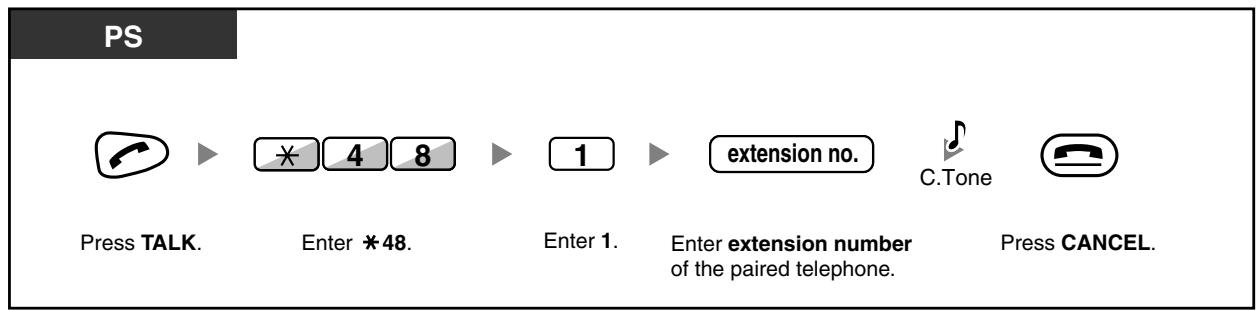
Pour annuler
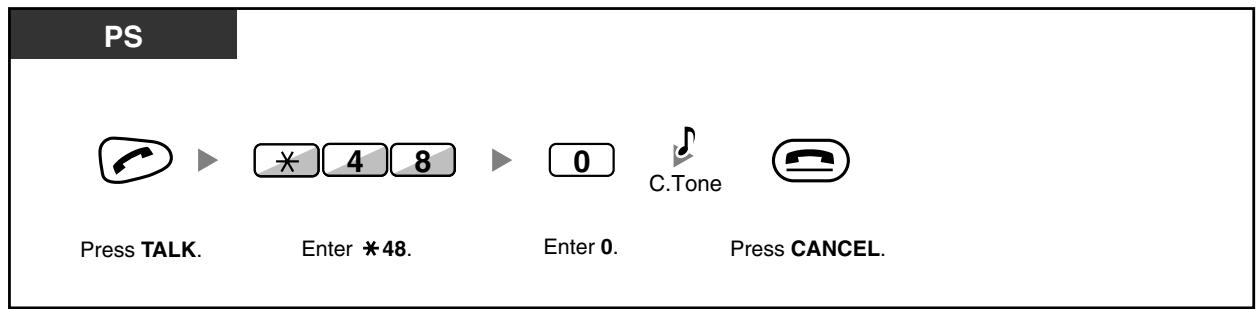

Certains téléphones filaires sont interdits d'utilisation avec cette fonction. Si vous décrochez pendant que votre téléphone en parallèle est en usage, l'appel vous sera transféré.
1.7.13 Effacement des fonctions programmées à votre poste (Effacement des fonctions du poste)
Vous pouvez réinitialiser les paramètres des fonctions suivantes de votre poste aux valeurs par défaut en une seule opération.
Cette fonction est également appelée Effacement des paramètres du poste.
| Features | Default Setting |
| Hot Line* | Off |
| Message Waiting—(All the messages that have been left by other extension users) | Off |
| Call Pickup Deny | Allow |
| Call Forwarding (FWD)* | Off |
| Absent Message | Off |
| Paging Deny | Allow |
| Timed Reminder | Cleared |
| Do Not Disturb (DND)* | Off |
| Call Waiting for intercom calls* | Disable (No call) |
| Call Waiting for outside calls* | Disable (No tone) |
| Executive Busy Override Deny | Allow |
| BGM | Off |
| Data Line Security | Off |
| Paralleled Telephone | The telephone in parallel rings. |
| Log-in/Log-out | Log-in |
- Ces fonctions peuvent ne pas être réinitialisées selon la programmation du système.
PT/SLT/PS
Décrochez.

Composez *790.

Raccrochez.

- Pour les utilisateurs au Canada uniquement : après avoir effectué l'effacement des paramètres du poste, le réglage de l'appel en attente devient "Activer (tonalité)". Dans ce cas, la tonalité 2 sera entendue lorsque vous décrochez.
1.8 Utilisation du centre d'appels
1.8.1 Quitter un groupe de distribution d'appels entrants (connexion/déconnexion, temps de pause)
Vous pouvez contrôler votre statut dans un groupe de distribution d'appels entrants. En mode déconnexion, les appels entrants vers le groupe ne sonneront pas à votre poste. Lorsque vous revenez, les appels sonneront à nouveau à votre poste. (Par défaut : connexion)
Même si votre poste est connecté, vous pouvez avoir une période de temps spécifiée (temps de pause) pendant laquelle vous ne recevrez pas d'appels après avoir terminé un appel précédent. Ce temps peut être utilisé pour rédiger un rapport, etc. Vous pouvez également sélectionner manuellement le mode "Non prêt" pour quitter temporairement un groupe de distribution.
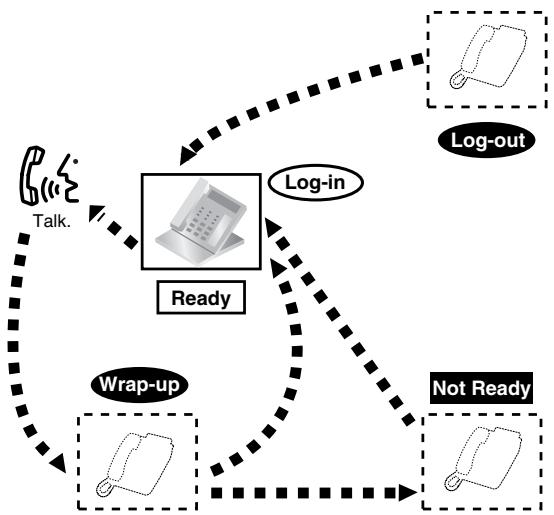
Pour régler la connexion/déconnexion
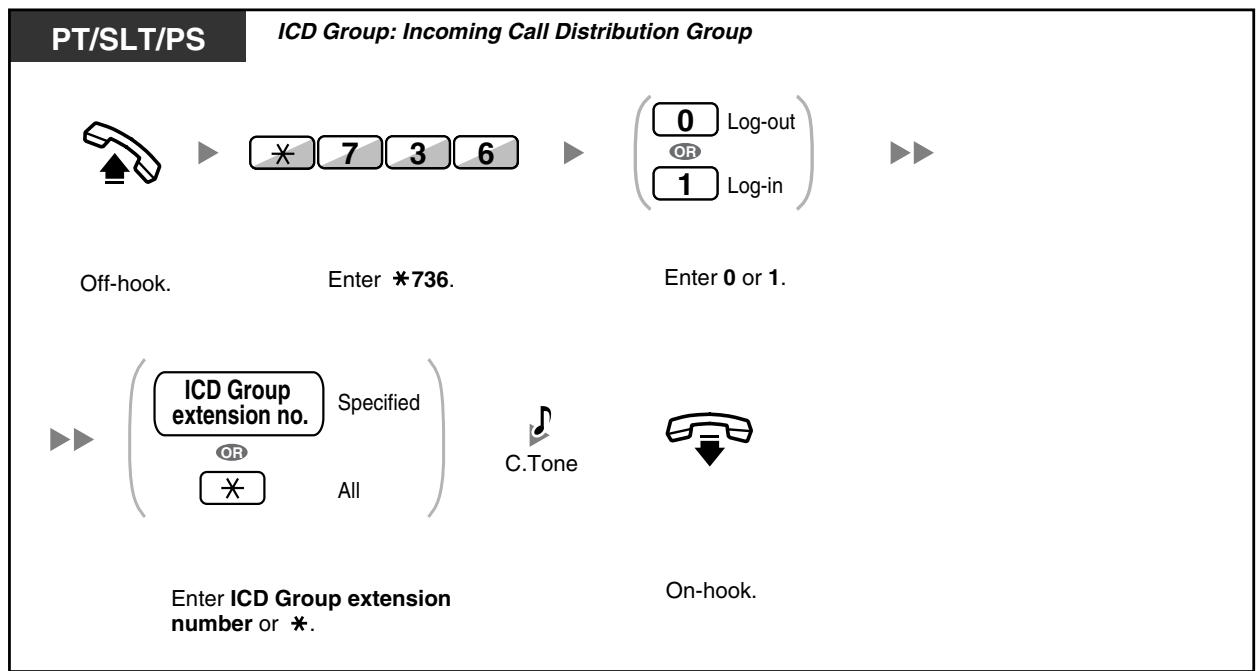
PT/PS
Groupe ICD : Groupe de distribution d'appels entrants
En repos

Appuyez sur Connexion/Déconnexion.
Composez le numéro de poste du groupe ICD ou *
PT/PS
En repos
Appuyez sur Connexion/Déconnexion d'un groupe spécifié.
Pour entrer/quitter le mode Non disponible
PT/SLT/PS




Décrochez.
Composez *735.
Composez 1 ou 0.

Tonalité de confirmation

Raccrochez.
Pour activer/désactiver le mode Non disponible ou quitter le mode Enveloppement (pour passer en mode Disponible)
PT/PS
En mode raccroché,

appuyez sur le bouton Wrap-up rouge ou rouge clignotant.*

- L'état sera le suivant :
Prêt → Non prêt
Non prêt → Prêt
Wrap-up → Non prêt
Le voyant du bouton Connexion/Déconnexion d'un groupe spécifié indique l'état actuel comme suit :
Éteint : mode Connexion
Rouge allumé : mode Déconnexion
- Le bouton Wrap-up alterne le réglage entre les modes Wrap-up, Non prêt ou Prêt.
Le voyant du bouton Wrap-up indique l'état actuel comme suit :
Éteint : mode Prêt
Rouge allumé : mode Non prêt
Rouge clignotant : mode Wrap-up
- En mode Wrap-up/Non prêt, votre poste ne reçoit pas d'appels via un groupe, même s'il appartient à plusieurs groupes.
- Il peut y avoir au moins un poste dans le groupe de distribution d'appels entrants qui est en mode Connexion. Le poste superviseur peut contrôler l'état de connexion/déconnexion des autres postes.
Pour plus d'informations, reportez-vous à "1.8.2 Surveillance et contrôle de l'état des appels d'un
groupe de distribution d'appels entrants (Moniteur de groupe de distribution d'appels entrants)".

Personnalisation de votre téléphone
3.1.3 Personnalisation des touches
Créez ou modifiez une touche Connexion/Déconnexion, une touche Connexion/Déconnexion d'un groupe spécifié ou
une touche Enveloppe.
1.8.2 Surveillance et contrôle de l'état des appels d'un groupe de distribution d'appels entrants (Moniteur de groupe de distribution d'appels entrants)
Surveillance de l'état des appels en attente Surveillance et modification de l'état de connexion/déconnexion des postes
Le poste désigné comme poste superviseur peut surveiller et contrôler l'état des autres postes dans un groupe de distribution d'appels entrants. Il doit être équipé d'un PT avec écran 6 lignes. L'affichage et les touches DSS se présentent comme suit :
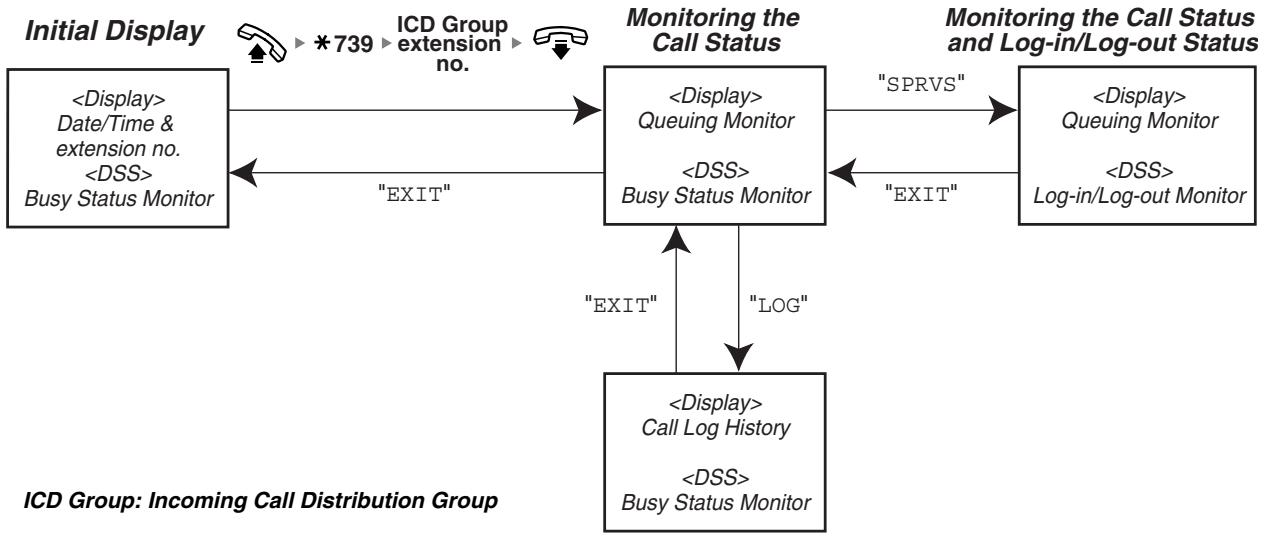
Surveillance de l'état des appels en attente
Le poste superviseur peut surveiller l'état des appels en attente de réponse dans la file d'attente. Si un groupe de distribution d'appels entrants a un appel débordé, l'écran affiche automatiquement l'état. Les informations suivantes sont affichées.
La date/heure actuelle Le numéro/nom du groupe ICD Le nombre d'appels en attente Le temps d'attente le plus long
La date/heure de la dernière libération Le nombre total d'appels reçus Le nombre d'appels débordés Le nombre d'appels sans réponse Le temps d'attente moyen des appels en file d'attente
Pour surveiller
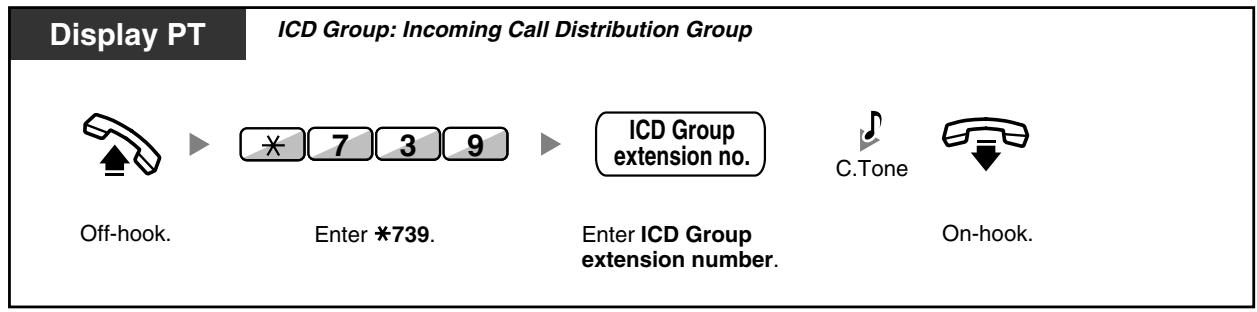
Pour effacer l'historique des appels
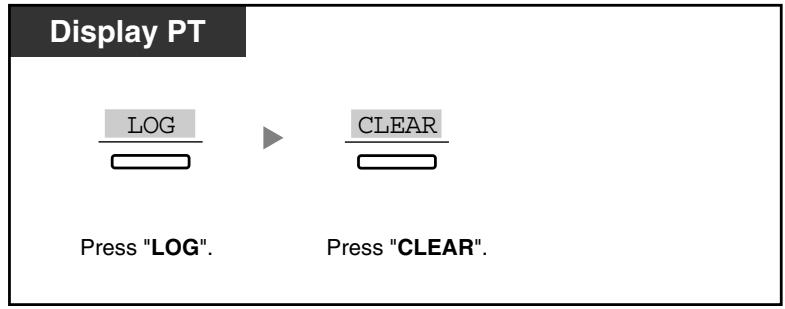

Les données accumulées sont effacées. "* *" s'affiche si le nombre à afficher dépasse le nombre maximal de chiffres affichables.
Surveillance et modification de l'état de connexion/déconnexion des postes
Le poste superviseur peut surveiller l'état de connexion/déconnexion des membres du groupe de distribution d'appels entrants à l'aide de la touche DSS. Il peut également modifier leur état de connexion/déconnexion si nécessaire.
Pour surveiller
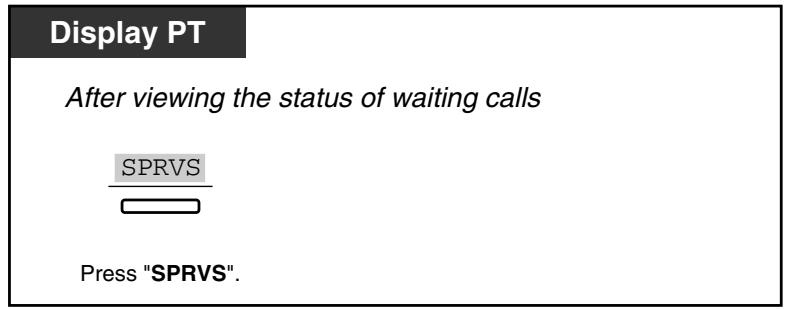
Pour modifier le mode de connexion/déconnexion
Afficher le PT

Appuyez sur la touche DSS souhaitée.

La lumière de la touche DSS indique l'état actuel comme suit :
Éteinte : le poste n'est pas dans le groupe.
Vert fixe : mode connexion (prêt)
Vert clignotant : mode connexion (non prêt)
Rouge fixe : mode déconnexion
1.8.3 Renvoi d'un appel en attente (redirection manuelle de file d'attente)
Lorsque votre groupe de distribution d'appels entrants est occupé et que d'autres appels externes arrivent, les appels arrivants sont mis en file d'attente.
Les postes peuvent vérifier l'état de la file d'attente grâce au voyant du bouton Hurry-up, et transférer manuellement l'appel en attente le plus ancien de la file vers une destination prédéfinie.
Cette fonction est également connue sous le nom de transfert Hurry-up.
Pour transférer l'appel en attente
PT/PS

Appuyez sur le bouton Hurry-up rouge ou rouge clignotant.

Le voyant du bouton Hurry-up indique l'état actuel comme suit :
Éteint : aucun appel en attente.
Rouge fixe : des appels sont en attente.
Rouge clignotant : le nombre d'appels dépasse le niveau de redirection manuelle de la file d'attente.

Personnalisation de votre téléphone
3.1.3 Personnalisation des boutons Créez ou modifiez un bouton Hurry-up.
1.9 Utilisation d'équipement fourni par l'utilisateur
1.9.1 Si un interphone/extérieur est connecté
Vous pouvez parler à une personne à la porte via l'interphone. Des postes préprogrammés ou un correspondant externe peuvent recevoir les appels de l'interphone. Vous pouvez ouvrir la porte.
Appel interphone - Ouverture de porte (ouverture de porte)

Appel depuis le portier
Pour appeler depuis le portier
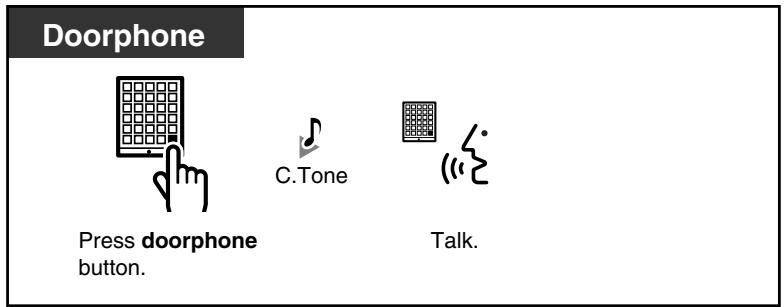
Pour répondre à un appel du portier
Pour appeler le portier
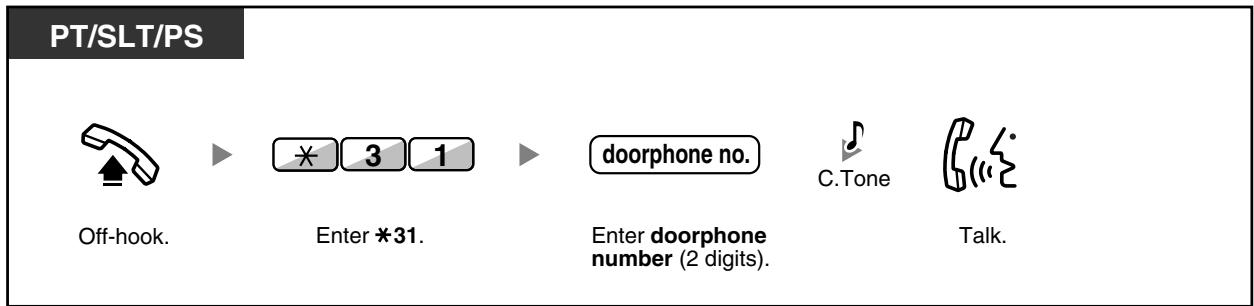
Si personne ne répond à un appel du portier dans un délai déterminé, l'appel est annulé.


Ouverture de porte (Ouverture de porte)
Certains postes peuvent être interdits d'utiliser cette fonction.
Depuis un poste spécifié
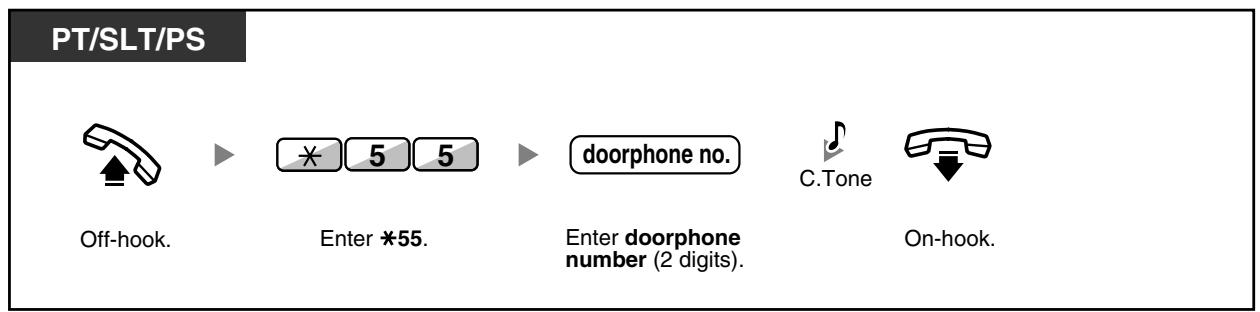
Depuis n'importe quel poste en conversation avec le portier
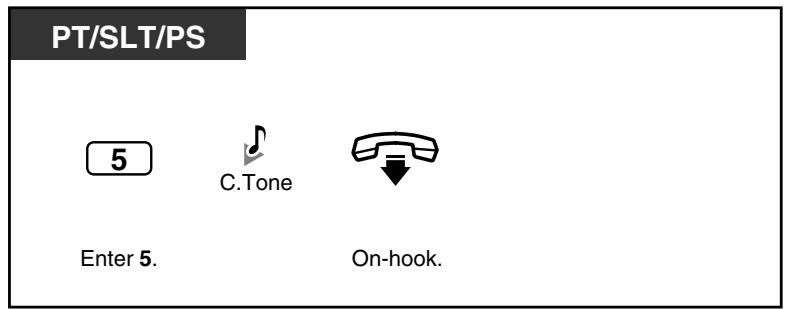

L'ouverture de porte sera déclenchée pendant une durée déterminée.
1.9.2 Si un PBX hôte est connecté
— Accès aux services externes (Accès aux fonctions externes [EFA])

Accès aux services externes (Accès aux fonctions externes [EFA])
Vous pouvez accéder à des fonctions spéciales (par exemple, mise en attente) offertes par un PBX hôte ou une compagnie de téléphone. Cette fonction n'est effective que pour un appel externe.
Pour mettre l'appel en cours en attente puis parler avec le nouveau correspondant
PT/PS
En entendant une tonalité
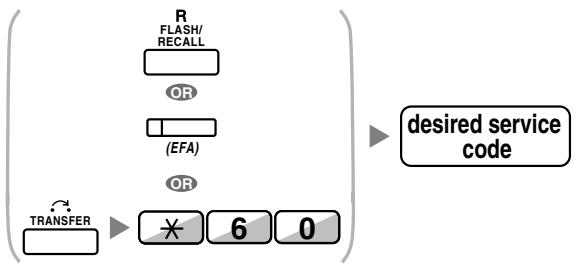
Appuyez sur FLASH/RAPPEL ou EFA. Ou appuyez sur TRANSFERT puis composez *60.
Composez le code de service souhaité.
SLT
En entendant une tonalité

Appuyez sur RAPPEL/combinaison.
Composez *60.
Composez le code de service souhaité.

- Dans ce cas, le bouton FLASH/RAPPEL d'un téléphone propriétaire est en mode Accès aux fonctions externes (EFA).
- Concernant le code de service, consultez votre revendeur.

Personnalisation de votre téléphone
3.1.3 Personnalisation des boutons Créez ou modifiez un bouton d'accès aux fonctions externes (EFA).
1.9.3 Si un système de traitement vocal est connecté
Vous ou un correspondant externe pouvez accéder au système de traitement vocal depuis un téléphone.
Renvoi d'appel vers la messagerie vocale (intégration de la messagerie vocale)
Si votre PABX est connecté à un système de traitement vocal Panasonic (par exemple, les séries KX-TVP/KX-TVS) utilisant l'intégration numérique, les fonctions suivantes sont également disponibles :
— Filtrage des appels (écoute en direct des appels [LCS]) - Enregistrement d'une conversation (enregistrement bidirectionnel)
Renvoi d'appel vers la messagerie vocale (intégration de la messagerie vocale)
- Pour renvoyer vos appels vers votre boîte vocale, pour transférer un appel vers une boîte vocale, pour écouter les messages
Si vous ne pouvez pas répondre aux appels, vous pouvez les renvoyer vers votre boîte vocale. Vous pouvez sélectionner le type d'appels entrants (appels internes/appels externes/les deux). Si votre téléphone est équipé d'un bouton Message, le témoin Message s'allume pour vous signaler que vous avez des messages. Même si un bouton Message n'est pas fourni, vous entendrez une tonalité d'indication* lorsque vous décrocherez.
Vous pouvez également transférer les appels externes reçus vers une boîte vocale afin que les appelants puissent laisser des messages. Si vous créez un bouton Transfert vers messagerie vocale sur votre téléphone, le transfert s'effectue sans connaître le numéro de boîte vocale (Transfert vers messagerie vocale).
La durée d'enregistrement dépend du système de traitement vocal.
Pour renvoyer vos appels vers votre boîte vocale
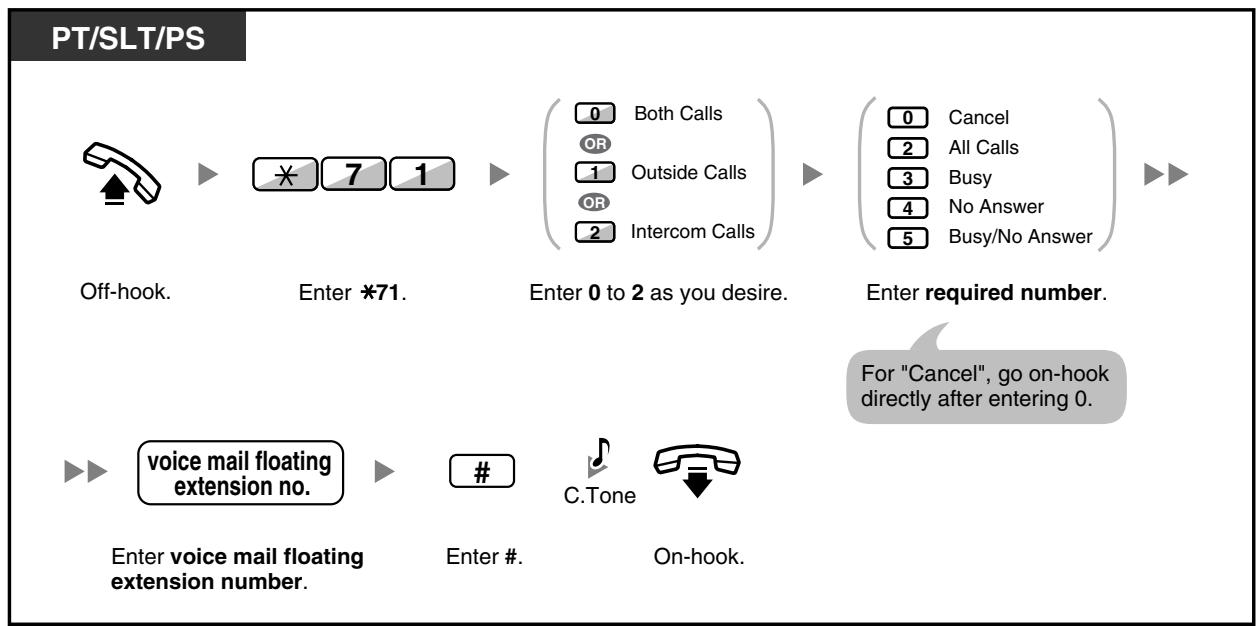
Pour transférer un appel vers une boîte vocale
PT/PS
Pendant une conversation

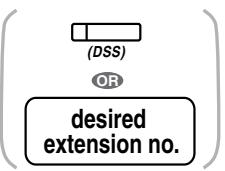
Appuyez sur Transfert vers messagerie vocale.
Appuyez sur DSS ou composez le numéro de poste souhaité.
Pour écouter les messages
PT/SLT/PS


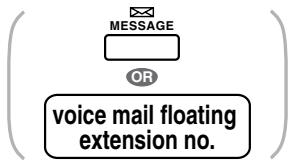
Décrochez.
Appuyez sur MESSAGE ou composez le numéro flottant de la messagerie vocale.

*Tonalité d'indication après décrochage
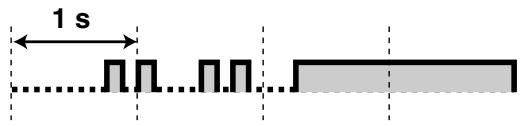
Vous pouvez accéder à la messagerie vocale en une touche.

Personnalisation de votre téléphone
3.1.3 Personnalisation des touches Créez ou modifiez une touche de transfert vers la messagerie vocale ou une touche MESSAGE.
Filtrage des appels (Écoute en direct des appels [LCS])
Pendant qu'un appelant laisse un message dans votre boîte vocale, vous pouvez écouter l'appel sans y répondre. Si vous le souhaitez, vous pouvez répondre à l'appel tout en écoutant. Deux méthodes sont disponibles (par défaut : mode mains libres).
Mode mains libres :
Vous pouvez écouter le message automatiquement, en direct via le haut-parleur du téléphone.
Mode privé :
Vous entendrez une tonalité d'alarme pendant que l'appelant laisse un message.
Avant d'opérer
- Créez une touche d'écoute en direct des appels (LCS) (programmation personnelle).
- Sélectionnez le mode, soit Mains libres, soit Privé (programmation personnelle).
- Définissez le code PIN de la extension (numéro d'identification personnel).
- Configurez la fonction Écoute d'appel en direct.
Pour configurer l'écoute d'appel en direct
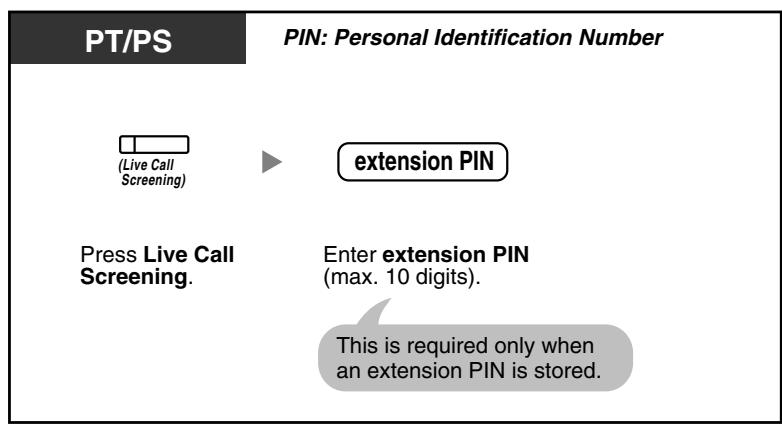
Pour annuler l'écoute d'appel en direct
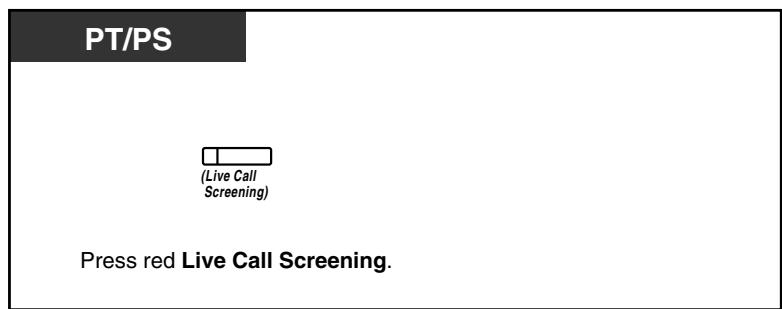
Organigramme des opérations
Les opérations dans les zones ombrées peuvent être effectuées en mode mains libres.
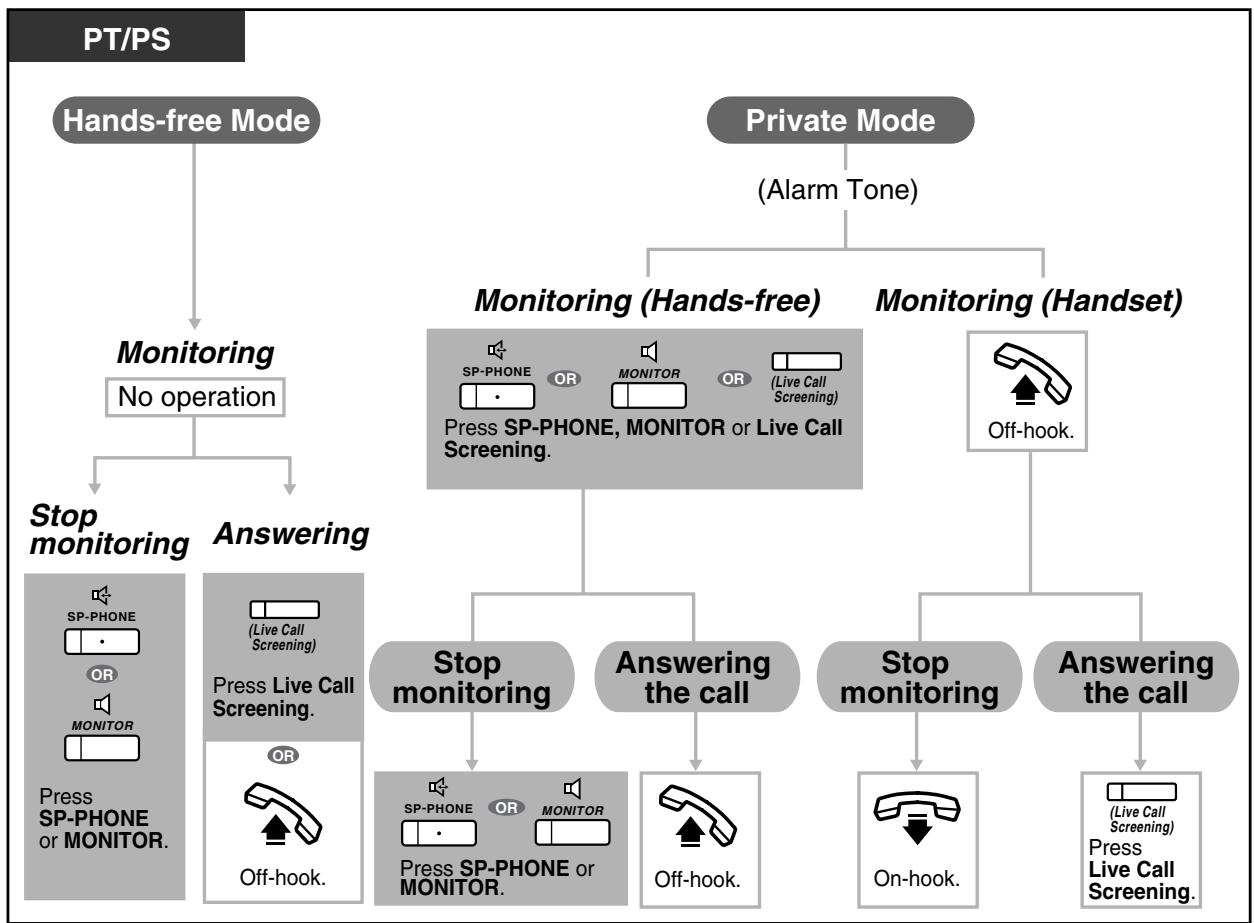

Le voyant du bouton Écoute d'appel en direct (LCS) indique l'état de la fonction comme suit :
Éteint : LCS est désactivé.
Vert clignotant rapidement : Alerte en mode privé.
Vert clignotant lentement : Surveillance.
Rouge allumé : LCS est activé.
La extension du gestionnaire peut effacer le code PIN d'une extension.
- Cette fonction est disponible pour un téléphone à ligne unique s'il est connecté en parallèle à un téléphone propriétaire. (Mode privé uniquement)
Pour répondre à l'appel pendant la surveillance, appuyez sur Rappel/commutateur de crochet.
- Seule la surveillance du combiné en mode privé est disponible pour les utilisateurs PS.

Personnalisation de votre téléphone
3.1.2 Réglages en mode programmation — Réglage du mode d'écoute directe des appels
Sélectionnez le mode : soit écouter le message automatiquement via le haut-parleur, soit le recevoir pendant que l'appelant laisse un message.
3.1.3 Personnalisation des touches
Créez ou modifiez une touche d'écoute directe des appels (LCS).

Enregistrement d'une conversation (enregistrement bidirectionnel)
Vous pouvez enregistrer une conversation dans une boîte vocale pendant que vous parlez au téléphone.
Vous pouvez sélectionner la boîte vocale à chaque enregistrement de conversation.

Pour enregistrer dans votre boîte vocale
PT/PS
Pendant une conversation

Pour arrêter l'enregistrement, appuyez à nouveau sur cette touche.
Appuyez sur Enregistrement bidirectionnel.
Pour enregistrer dans une autre boîte vocale (transfert bidirectionnel)
PT/PS
Pendant une conversation


(DSS)
un autre numéro de poste
Appuyez sur Transfert bidirectionnel.
Appuyez sur DSS ou saisissez un autre numéro de poste.
Pour arrêter l'enregistrement, appuyez à nouveau sur ce bouton.
Pour enregistrer dans une autre boîte vocale avec une touche (Transfert bidirectionnel à une touche)
PT/PS
Pendant une conversation

Appuyez sur Transfert bidirectionnel à une touche.

- Le voyant du bouton Enregistrement bidirectionnel, du bouton Transfert bidirectionnel ou du bouton Transfert bidirectionnel à une touche indique l'état actuel comme suit :
Éteint : pas d'enregistrement.
Allumé : enregistrement de la conversation.

Remarque :
Lorsque vous enregistrez vos conversations téléphoniques bilatérales, vous devez informer l'autre partie que la conversation est enregistrée.

Personnalisation de votre téléphone
3.1.3 Personnalisation des touches Créez ou modifiez une touche d'enregistrement bilatéral, une touche de transfert bilatéral et une touche de transfert bilatéral en une touche.
1.10 Après avoir déménagé vers un nouvel emplacement dans le bureau
1.10.1 Utilisation des mêmes paramètres que votre poste précédent (poste itinérant)
Vous pouvez utiliser les mêmes fonctions assignées à votre poste précédent même si vous vous déplacez vers un autre poste dans le bureau.
Vous pouvez conserver vos paramètres tels que le numéro de poste ou la mémoire de numérotation en une touche, etc. sur le nouveau poste.
Cette fonction est également connue sous le nom de poste itinérant.
Pour configurer
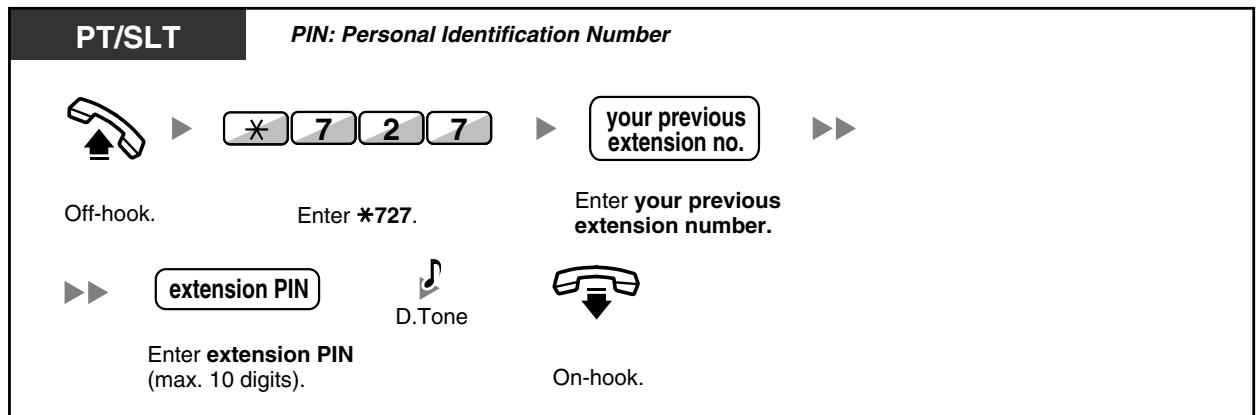

- Votre poste précédent recevra les anciens paramètres de votre nouveau poste. Cette fonction est disponible pour les déplacements entre SLT et SLT, PT et PT, ou SLT et PT. Pour plus d'informations, reportez-vous à "3.1.1 Personnalisation de votre téléphone (programmation personnelle)".
1.11 Utilisation d'un téléphone propriétaire à afficheur
1.11.1 Utilisation du journal des appels
Ceci est disponible pour les téléphones propriétaires à afficheur et les postes portables.
- Appel avec le journal des appels entrants
- Appel avec le journal des appels sortants
◆ Appel avec le journal des appels entrants
Lorsque vous recevez un appel externe, les informations de l'appelant sont enregistrées automatiquement dans le journal des appels entrants. Un nombre prédéfini d'appels peut être enregistré par poste.
Lorsque le journal est plein et qu'un autre appel arrive, l'appel le plus ancien est supprimé.
Vous pouvez modifier le numéro de téléphone enregistré.
Lorsque le voyant du bouton Journal des appels s'allume, cela signifie qu'il y a un appel auquel vous n'avez pas répondu.
Les informations suivantes sont enregistrées.
- Nom de l'appelant
- Numéro de téléphone de l'appelant
- Date/heure de l'appel, Répondu ou Non répondu, Confirmé ou Non confirmé
Pour confirmer les informations du journal avec le bouton Journal des appels
Afficher PT
En mode repos

Appuyez sur Journal des appels jusqu'à ce que la personne souhaitée apparaisse.
Pour confirmer les informations du journal avec la touche de navigation
T7600
En repos,

Appuyez deux fois sur la touche gauche.

Appuyez sur la touche haut ou bas jusqu'à ce que le correspondant souhaité apparaisse.
Pour effacer les informations du journal
Afficher PT
Tout en confirmant les informations du journal
Appuyez sur Journal d'appels, ou sur la touche haut ou bas jusqu'à ce que le correspondant souhaité apparaisse.


Appuyez sur TRANSFERT.
Pour appeler
Afficher PT
Tout en confirmant les informations du journal
Appuyez sur Journal d'appels, ou sur la touche haut ou bas jusqu'à ce que le correspondant souhaité apparaisse.


Décrochez.
Pour mémoriser les informations de l'appelant dans la numérotation abrégée personnelle
Afficher PT
Lors de la confirmation des informations du journal
Appuyez sur Journal d'appels, ou sur Haut ou Bas jusqu'à ce que le correspondant souhaité apparaisse.


Appuyez sur STORE.

Le voyant du bouton Journal d'appels indique l'état actuel comme suit :
Éteint : Aucun appel entrant. Ou vous avez déjà consulté le journal d'appels.
Rouge allumé : Vous avez des appels manqués à consulter.
Si votre appel est répondu par un autre poste, les informations de l'appelant sont enregistrées sur les écrans de votre poste et de celui qui a répondu. - Vous pouvez verrouiller votre journal d'appels à l'aide d'un code PIN de poste (numéro d'identification personnel), afin d'empêcher l'accès à vos informations enregistrées. Reportez-vous à "3.1.2 Paramètres en mode programmation". Vous pouvez également avoir un bouton Journal d'appels pour un groupe ICD (groupe de distribution d'appels entrants). - Si un appel arrive pendant que vous utilisez le journal d'appels, l'affichage du journal sera remplacé par les informations de l'appelant.

Personnalisation de votre téléphone
3.1.3 Personnalisation des boutons
Créez ou modifiez un bouton Journal d'appels ou un bouton Journal d'appels pour groupe ICD.

Appeler avec le journal des appels sortants
Vous pouvez recomposer un numéro à l'aide du journal des appels sortants.
Pour appeler
T7600
En mode décroché

Appuyez sur Gauche.

Appuyez sur Haut ou Bas jusqu'à ce que le numéro souhaité apparaisse.

Décrochez.
Pour appeler avec la touche BIS
Afficher PT
En position de repos

Appuyez sur BIS pour afficher le journal des appels sortants.*


Décrochez.
Appuyez sur BIS jusqu'à ce que le numéro souhaité apparaisse.

- Une programmation système est requise pour cette opération. Consultez votre revendeur. Cette opération n'est disponible que sur les postes téléphoniques numériques propriétaires avec afficheur.
Pour mémoriser les informations de l'appelant dans la numérotation abrégée personnelle
Afficher PT
Lorsque le correspondant souhaité est affiché

Appuyez sur STORE.

- Vous pouvez verrouiller votre journal d'appels à l'aide d'un code PIN de poste (numéro d'identification personnel), afin d'empêcher l'accès à vos informations enregistrées. Reportez-vous à la section « 3.1.2 Réglages en mode programmation ».
- Si un appel arrive pendant que vous utilisez le journal des appels, l'affichage du journal des appels sera remplacé par les informations de l'appelant.
1.11.2 Utilisation des répertoires
Vous pouvez appeler en utilisant les répertoires (répertoire de numérotation abrégée personnel, répertoire de numérotation abrégée système et répertoire des numéros de poste).
Seuls les répertoires personnels peuvent être stockés, modifiés ou supprimés sur votre poste.
Si un appel arrive pendant que vous utilisez un répertoire, l'affichage sera remplacé par les informations de l'appelant.
- Appel avec le répertoire — Mémorisation des noms et des numéros
- Saisie des caractères

Appel avec le répertoire
Pour sélectionner et appeler
T7600
En mode repos (combiné raccroché)

Appuyez sur la touche droite jusqu'à ce que le répertoire souhaité apparaisse.*

Appuyez sur la touche haut ou bas jusqu'à ce que la personne souhaitée apparaisse.

Décrochez le combiné.

- L'ordre d'affichage est le suivant :
Une fois : répertoire de numérotation abrégée personnel
Deux fois : répertoire de numérotation abrégée système
Trois fois : répertoire des numéros de poste
- Pour annuler ou quitter, appuyez sur la touche CANCEL ou FLASH.

- Les entrées du répertoire doivent généralement inclure le nom et le numéro. Si le nom n'est pas enregistré, une entrée ne peut pas être affichée.
- Le répertoire de numérotation abrégée système peut être affiché simplement en appuyant sur la touche AUTO DIAL/STORE lorsque le combiné est raccroché.

Enregistrement des noms et des numéros
Pour enregistrer un élément du répertoire de numérotation abrégée personnel
Afficher PT
Combiné raccroché
numéro de téléphone
Saisissez le numéro de téléphone (32 chiffres max.).

Appuyez sur ENTER ou STORE.

nom
Saisissez le nom (20 caractères max.).
Appuyez sur ENTER ou STORE.

Appuyez sur PROGRAM ou PAUSE.

- Les numéros de téléphone et les noms affichés sont mémorisés en utilisant la première mémoire libre de numérotation abrégée personnelle disponible. Pour un utilisateur PS, reportez-vous aux "Instructions d'utilisation" pour PS.

- Pour plus de détails, reportez-vous à "Pour mémoriser les noms et numéros en numérotation abrégée personnelle" dans "3.1.2 Réglages en mode programmation".
Saisie des caractères
Vous pouvez saisir les caractères suivants. Les tableaux montrent les caractères disponibles pour chaque touche. Le tableau 1 ou le tableau 2 peut être programmé.
Tableau 1 (mode standard)
| Times Buttons | 1 | 2 | 3 | 4 | 5 | 6 | 7 | 8 | 9 |
| 1 | ! | ? | " | 1 | |||||
| 2 | A | B | C | a | b | c | 2 | ||
| 3 | D | E | F | d | e | f | 3 | ||
| 4 | G | H | I | g | h | i | 4 | ||
| 5 | J | K | L | j | k | l | 5 | ||
| 6 | M | N | O | m | n | o | 6 | ||
| 7 | P | Q | R | S | p | q | r | s | 7 |
| 8 | T | U | V | t | u | v | 8 | ||
| 9 | W | X | Y | Z | w | x | y | z | 9 |
| 0 | (Space) | . | , | ' | : | ; | 0 | ||
| * | / | + | - | = | < | > | * | ||
| # | $ | % | & | @ | ( | ) | € | £ | # |
Tableau 2 (mode option)
| Times Buttons | 1 | 2 | 3 | 4 | 5 | 6 | 7 | 8 | 9 | 10 | 11 | 12 | 13 | 14 | 15 |
| 1 | ! | ? | " | ä | ö | ü | 1 | ||||||||
| 2 | A | B | C | a | b | c | Ä | Á | Â | Ä | Ä | Å | E | Ç | 2 |
| 3 | D | E | F | d | e | f | D | E | É | Ê | Ê | 3 | |||
| 4 | G | H | I | g | h | i | Î | Í | Î | Î | 4 | ||||
| 5 | J | K | L | j | k | l | 5 | ||||||||
| 6 | M | N | O | m | n | o | Ñ | Ó | Ó | Ó | Ó | Ö | Ø | E | 6 |
| 7 | P | Q | R | S | p | q | r | s | Š | β | 7 | ||||
| 8 | T | U | V | t | u | v | Û | Ü | Ü | Ü | 8 | ||||
| 9 | W | X | Y | Z | w | x | y | z | ý | Ž | 9 | ||||
| 0 | (Space) | . | , | ' | : | ; | 0 | ||||||||
| * | / | + | - | = | < | > | * | ||||||||
| # | $ | % | & | @ | ( | ) | € | £ | # |
Tableau 2 (mode option pour modèle CE)
| Times Buttons | 1 | 2 | 3 | 4 | 5 | 6 | 7 | 8 | 9 | 10 | 11 | 12 | 13 | 14 | 15 |
| 1 | ! | ? | " | ä | ö | ü | 1 | ||||||||
| 2 | A | B | C | a | b | c | Á | Â | Ä | Ä | A | Ç | Ç | Č | 2 |
| 3 | D | E | F | d | e | f | Č | D | É | E | E | ě | 3 | ||
| 4 | G | H | I | g | h | i | Í | Î | 4 | ||||||
| 5 | J | K | L | j | k | l | L' | L | 5 | ||||||
| 6 | M | N | O | m | n | o | Ñ | Ñ | Ó | Ö | ð | ö | 6 | ||
| 7 | P | Q | R | S | p | q | r | s | R | R | Š | Ś | S | β | 7 |
| 8 | T | U | V | t | u | v | Č | T | ú | ú | Ü | ü | 8 | ||
| 9 | W | X | Y | Z | w | x | y | z | Ž | Ž | Ž | ý | 9 | ||
| 0 | (Space) | . | , | ' | : | ; | 0 | ||||||||
| * | / | + | - | = | < | > | * | ||||||||
| # | $ | % | & | @ | ( | ) | € | £ | # |
Tableau 2 (mode option pour modèle GR)
| Times Buttons | 1 | 2 | 3 | 4 | 5 | 6 | 7 | 8 | 9 |
| 1 | ! | ? | " | 1 | |||||
| 2 | A | B | Γ | 2 | |||||
| 3 | Δ | E | Z | 3 | |||||
| 4 | H | Θ | I | 4 | |||||
| 5 | K | Λ | M | 5 | |||||
| 6 | N | Ξ | Ο | 6 | |||||
| 7 | Π | P | Σ | 7 | |||||
| 8 | T | Y | Φ | 8 | |||||
| 9 | X | Ψ | Ω | 9 | |||||
| 0 | (Space) | . | , | ' | : | ; | 0 | ||
| * | / | + | - | = | < | > | * | ||
| # | $ | % | & | @ | ( | ) | € | £ | # |
Tableau 2 (mode option pour modèle RU)
| Times Buttons | 1 | 2 | 3 | 4 | 5 | 6 | 7 | 8 | 9 | 10 | 11 |
| 1 | A | Б | В | ! | ? | " | 1 | ||||
| 2 | Γ | Д | Е | Ё | 2 | ||||||
| 3 | Ж | З | И | Й | 3 | ||||||
| 4 | К | Л | М | 4 | |||||||
| 5 | Н | О | П | 5 | |||||||
| 6 | Р | С | Т | 6 | |||||||
| 7 | У | Φ | X | 7 | |||||||
| 8 | ΙΙ | Ч | ΙΙΙ | 8 | |||||||
| 9 | ΙΙΙ | ΤΑ | БΙ | b | 9 | ||||||
| 0 | Э | Ю | Я | (Space) | . | , | ' | : | ; | 0 | |
| * | / | + | - | = | < | > | Γ' | € | I | Ι | * |
| # | $ | % | & | @ | ( ) | € | € | I | Š¥ | # |
1.11.3 Accès aux fonctions système (Accès aux fonctions système)
Vous pouvez accéder à une fonction avec le menu "Accès aux fonctions".
Pour accéder au menu "Accès aux fonctions" et sélectionner la fonction
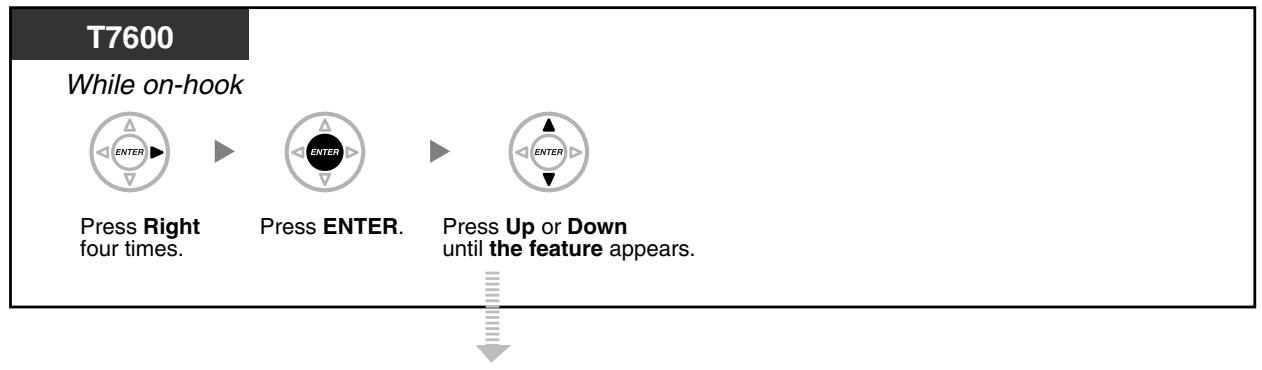
| Features | Refer to |
| Automatic Callback Busy Cancel | 1.2.4 When the Dialled Line is Busy or There is No Answer |
| Group Call Pickup | 1.3.3 Answering a Call Ringing at Another Telephone (Call Pickup) |
| Directed Call Pickup | 1.3.3 Answering a Call Ringing at Another Telephone (Call Pickup) |
| Doorphone Call | 1.9.1 If a Doorphone/Door Opener is Connected |
| Door Open | 1.9.1 If a Doorphone/Door Opener is Connected |
| External Background Music | 2.1.4 Turning on the External Background Music (BGM) |
| Paging | 1.6.1 Paging |
Section 2
Gestionnaire d'exploitation
Ce chapitre montre au gestionnaire comment contrôler les autres extensions ou le PBX.
2.1 Fonctions de contrôle
2.1.1 Contrôle des extensions
L'extension du gestionnaire peut contrôler les paramètres des autres extensions.
- Modification des paramètres des autres extensions

Modification des paramètres des autres extensions
Pour verrouiller/déverrouiller d'autres extensions (verrouillage d'extension à distance)
Cette fonction est également connue sous le nom de contrôle de verrouillage de poste à distance.
PT/SLT/PS
Décrochez.
Composez le 78.


Composez 2 pour déverrouiller ou 3 pour verrouiller.

Composez le numéro de l'extension.

Raccrochez.

- Si votre extension est déverrouillée par la fonction de verrouillage d'extension à distance, le verrou d'extension attribué par elle-même sera déverrouillé.
2.1.2 Contrôle du mode de service horaire
L'extension du gestionnaire ou l'extension préprogrammée peut changer le mode horaire (Jour, Déjeuner, Pause ou Nuit).
Il existe deux méthodes (automatique ou manuelle) pour changer les modes horaires.
Automatique : permet au mode horaire de changer automatiquement pour chaque jour de la semaine. Vous pouvez également le changer manuellement.
Manuel : permet de changer un mode manuellement comme suit.
Pour changer le mode horaire (Jour/Nuit/Déjeuner/Pause)
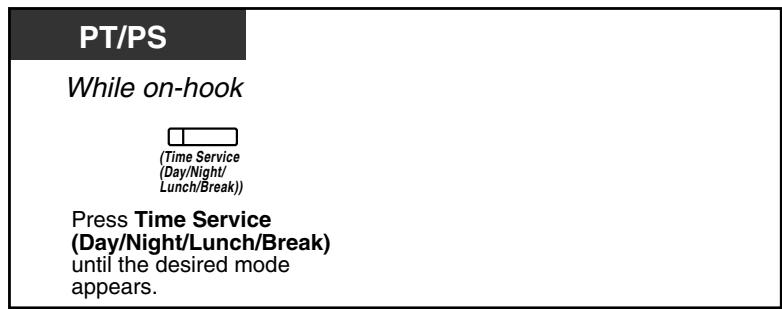
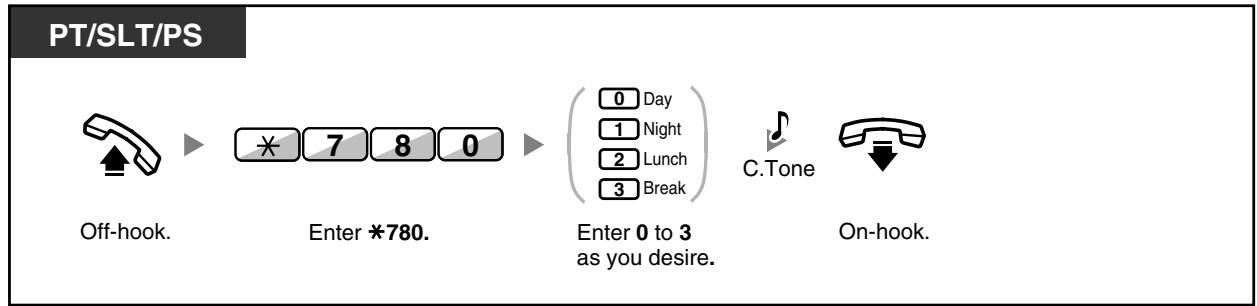
Pour sélectionner le mode de commutation du service horaire (Automatique/Manuel)
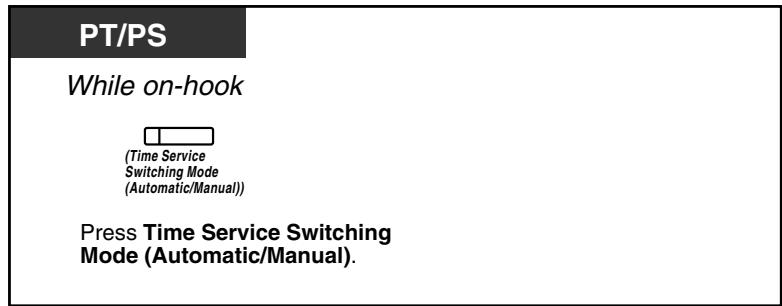

- En plus du mode horaire, il existe le mode Vacances. Il peut changer de mode une fois à une date spécifiée.
- Le voyant du bouton Service horaire (Jour/Nuit/Déjeuner/Pause) indique l'état actuel comme suit :
Éteint : mode Jour
Vert fixe : mode Déjeuner
Vert clignotant : mode Pause
Rouge fixe : mode Nuit
Rouge clignotant : mode Vacances
- Le voyant du bouton Mode de commutation du service horaire (Automatique/Manuel) indique l'état actuel comme suit :
Éteint : Automatique
Rouge allumé : Manuel

Personnalisation de votre téléphone
3.1.3 Personnalisation des boutons
Créez ou modifiez un bouton Service horaire (Jour/Nuit/Déjeuner/Pause) ou un bouton Mode de commutation du service horaire (Automatique/Manuel).
2.1.3 Contrôle du niveau de restriction (transfert de tonalité d'appel)
Le poste du gestionnaire peut modifier le niveau de restriction, permettant à un poste d'effectuer un appel.

PT/PS
Pendant une conversation avec un poste

(Restriction d'appels / Blocage d'appels)

Tonalité de confirmation

Appuyez sur Restriction d'appels/
Raccrochez.
Blocage d'appels.
L'extension peut entendre la tonalité
puis passer un appel.

- Le niveau de restriction est modifié au niveau préprogrammé du bouton de restriction d'appels / blocage d'appels.

Personnalisation de votre téléphone
3.1.3 Personnalisation des boutons
Créer ou modifier un bouton de restriction d'appels / blocage d'appels.
2.1.4 Activation de la musique d'ambiance externe (BGM)
L'extension du gestionnaire peut sélectionner et diffuser de la musique d'ambiance dans le bureau via des haut-parleurs externes.
Pour sélectionner et démarrer/arrêter la musique d'ambiance
PT/SLT/PS


Tonalité C.

Décrocher.
Composer 35.
Entrer le numéro du
pager externe
(1 chiffre) ou pour tous.
Saisir le numéro BGM
(1 chiffre) ou 0 pour arrêter.
Raccrocher.
PT/SLT/PS


Saisir 1.


Raccrocher.
Décrocher.
Saisir 丰 35.
Saisir 1.
Saisir 1 pour démarrer
ou 0 pour arrêter.
2.1.5 Enregistrement des messages d'accueil (OGM)
Le poste du gestionnaire peut enregistrer trois types de messages d'accueil (OGM) comme suit :
- Message DISA : utilisé pour accueillir et guider les appelants afin qu'ils accèdent à un groupe de postes ou à un correspondant externe sans l'aide d'un opérateur.

- Message de groupe de distribution d'appels entrants : utilisé pour accueillir et orienter les appelants vers un groupe de distribution d'appels entrants.
- Message de rappel minuté : utilisé pour un message de réveil lorsque le poste répond au rappel minuté.
Tous les messages ont leurs propres numéros de poste. Vous pouvez sélectionner le message souhaité. Il existe deux méthodes pour enregistrer un message : l'une utilise le combiné, l'autre utilise un port externe BGM (MOH).
Pour enregistrer
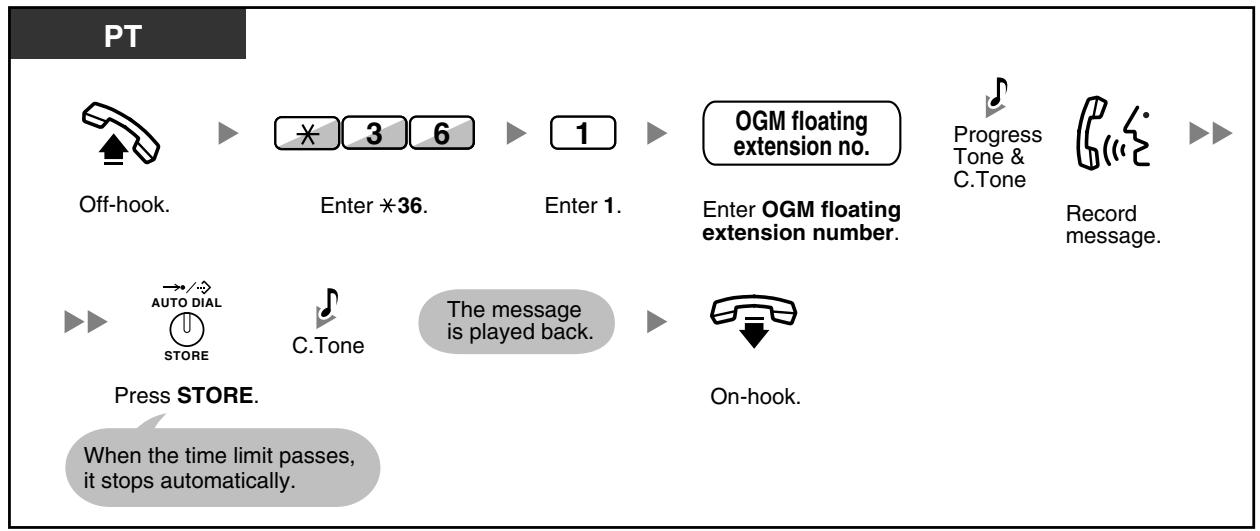
Pour lire
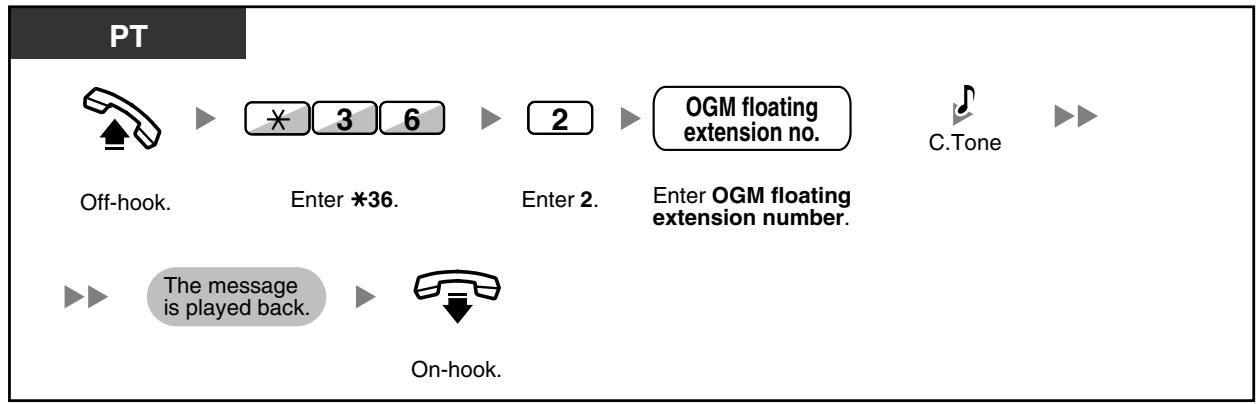
Pour enregistrer depuis un port externe BGM (MOH)
<.KX-TDA30>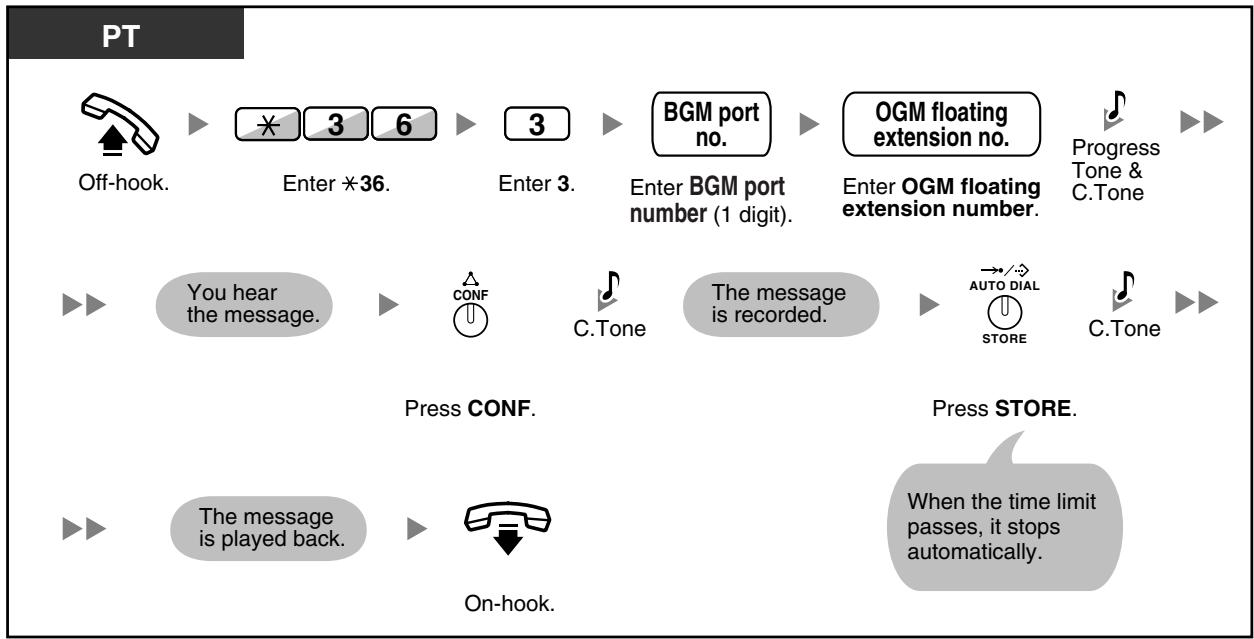
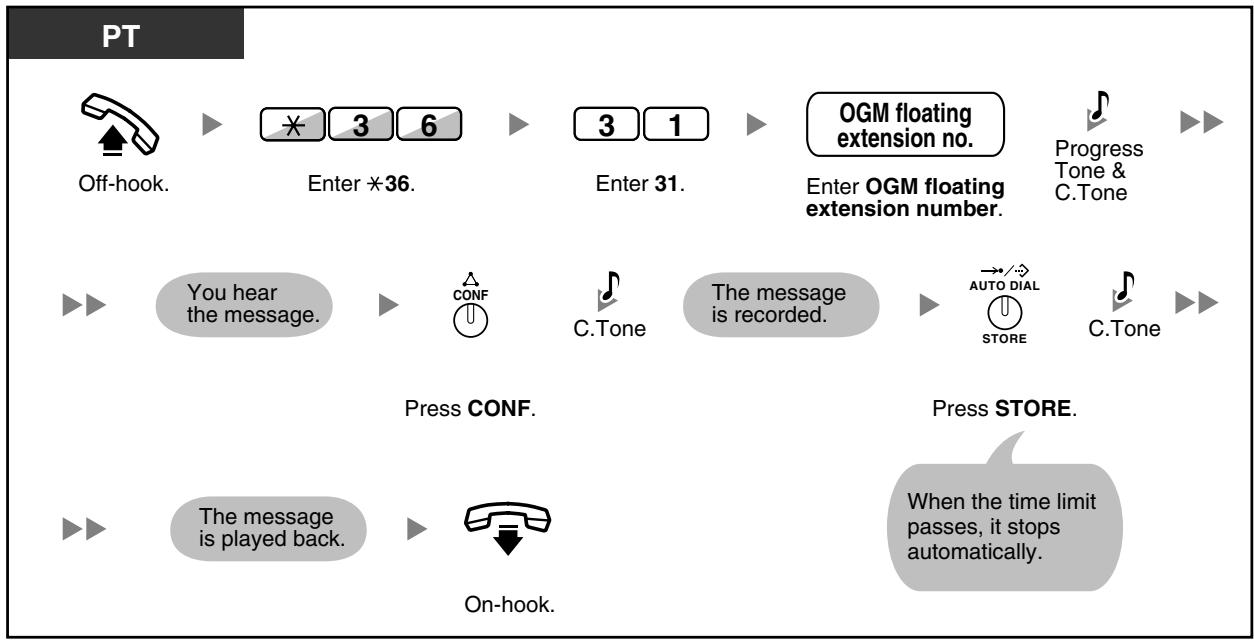
Pour effacer le message
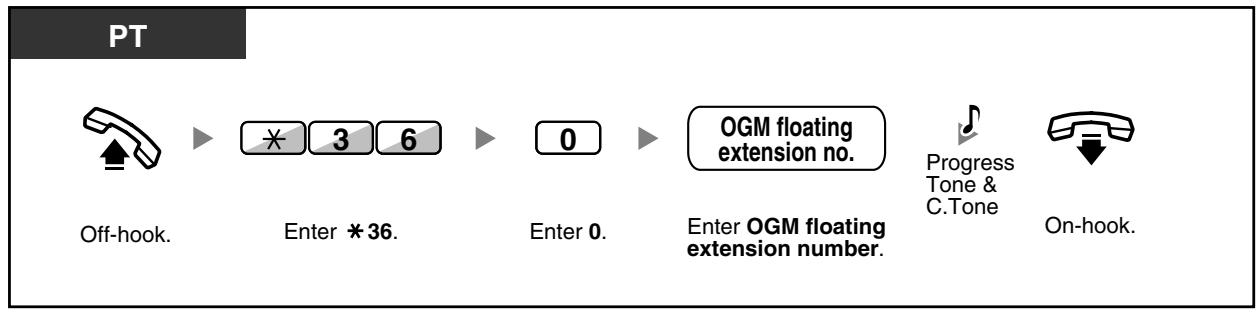
- Enregistrez uniquement des messages vocaux ; évitez d'enregistrer de la musique.

Section 3
Personnalisation de votre téléphone et du système
Ce chapitre vous montre comment personnaliser votre téléphone individuel ou le PBX selon vos besoins. Trouvez le réglage souhaité et programmez-le si nécessaire.
3.1 Personnalisation de votre téléphone (programmation personnelle)
3.1.1 Personnalisation de votre téléphone (programmation personnelle)
Vous pouvez personnaliser les fonctions de votre téléphone. Par exemple, vous pouvez modifier les réglages initiaux ou les fonctions des touches selon vos besoins.
- Attribution d'un code PIN à votre poste (code PIN [numéro d'identification personnel])

- Si vous changez de bureau et de poste, reportez-vous à la section « 1.10.1 Utilisation des mêmes paramètres que votre poste précédent (poste itinérant) ».
Attribution d'un code PIN à votre poste (code PIN [numéro d'identification personnel])
Vous pouvez attribuer un mot de passe à chaque poste.
Les fonctions suivantes nécessitent un code PIN de poste.
- Filtrage des appels (écoute en direct des appels [LCS])
- Interdiction à d'autres personnes de consulter votre répertoire personnel et votre journal d'appels (verrouillage du répertoire et du journal d'appels)
- Utilisation des mêmes paramètres que votre poste sur d'autres postes (poste itinérant)
- Opération de contrôle à distance (COS itinérant)
- Déverrouillage du poste
Pour configurer
PT/SLT/PS
PIN : numéro d'identification personnel
Décrochez.
Composez 青 799.
Saisissez 1.
Saisissez le code PIN du poste (10 chiffres max.).

Saisissez #.

Saisissez à nouveau le même code PIN du poste (10 chiffres max.).

Saisissez #.

Raccrochez.
Pour annuler
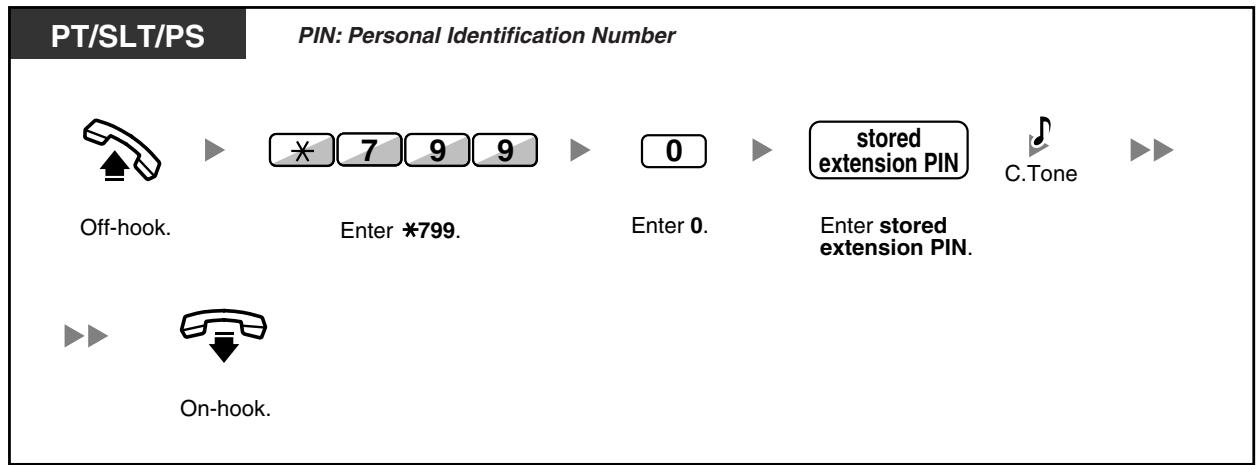

AVERTISSEMENT
Si un tiers découvre le mot de passe (code PIN du poste) du standard, il risque d'effectuer des appels frauduleux en utilisant la ligne téléphonique, et les frais seront facturés sur votre propre compte. Pour éviter ce problème, nous vous recommandons vivement les points suivants :
a) Gardez soigneusement le secret du code PIN. b) Choisissez un code PIN complexe, aussi long et aléatoire que possible. c) Changez fréquemment le code PIN.
- Les chiffres valides pour un code PIN de poste sont de "0" à "9".
- Si un mauvais code PIN de poste est saisi un nombre de fois prédéfini, le code PIN est verrouillé.
- Si vous oubliez votre code PIN de poste ou si votre code PIN est verrouillé, votre gestionnaire peut effacer le code PIN de poste et le verrouillage du code PIN.
3.1.2 Réglages en mode programmation
Vous pouvez programmer des fonctions à l'aide du mode programmation.
Réglage des fonctions / Effacement des fonctions

Pour sortir à tout moment, décrochez le combiné. Pour entrer en mode de programmation à partir d'un poste sans fil (PS), reportez-vous aux « Instructions d'utilisation » du PS.

Réglage des fonctions
Les réglages par défaut sont indiqués en gras. Pour référence ultérieure, cochez les cases ci-dessous pour indiquer vos réglages personnalisés.
Remarque
La valeur par défaut peut varier selon le pays ou la région. Pour plus de détails, consultez votre revendeur.
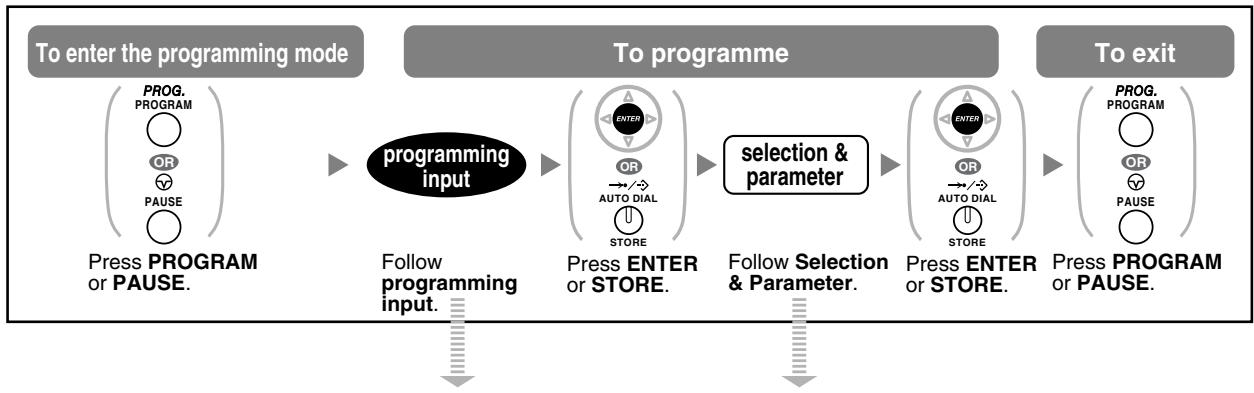
| Item | Programming Input | Selection & Parameter | ||
| Your extension information | 0 0 | PT: The display shows the PBX number, slot number and port number. <example> EXT1050:10308 PBX no. Slot no. PS: The display shows the PS number. <example> EXT3001:99001 PS no. | ||
| Preferred display contrast level from the 4 levels available. (Display Contrast Selection)*1 | 0 1 | 1 | Light | |
| 2 | Little Light | |||
| 3 | Little Dark | |||
| 4 | Dark | |||
| Item | Programming Input | Selection & Parameter | ||
| Which display language do you prefer?(Display Language Selection) | 0 2 | 1 | □ English | |
| 2 | □ 2nd Language | |||
| 3 | □ 3rd Language | |||
| 4 | □ 4th Language | |||
| 5 | □ 5th Language | |||
| Would you like the call duration to be shown automatically on the display when answering an outside call?(Display Switching Mode) | 0 3 | 0 | □ No—Manual (The display keeps showing all of the outside caller's information unless you change it to the call duration manually.) | |
| 1 | □ Yes—Automatic (The first line of the display will change to the call duration automatically when you answer an outside call.) | |||
| Would you like to turn on the display backlight of the KX-T7633/KX-T7636?(Display Backlight Selection)*1 | 0 4 | 0 | □ Yes—ON in use | |
| 1 | □ Yes—always ON | |||
| 2 | □ No—always OFF | |||
| Would you like to dial a preset number simply by going off-hook? | 1 1 | desired no. (max. 32 digits) | ||
| 1 2 | 0 | □ Do not use | ||
| 1 | □ Use | |||
| Should you prevent your number being displayed on the called party's telephone?(Calling Line Identification Restriction [CLIR]) | 1 3 | 0 | □ No—Allows your number to be displayed | |
| 1 | □ Yes—Prevent your number being displayed | |||
| Which number should be displayed on the called and calling party's telephone?(Calling/Connected Line Identification Presentation [CLIP/COLP]) | 1 4 | 0 | Caller ID assigned to your extension | |
| 1 | Caller ID assigned on the outside line being used | |||
| Which do you prefer to seize when you go off-hook to make calls? (Preferred Line Assignment—Outgoing) | 1 9 | 0 | No line | |
| 1 | An idle outside line | |||
| 2 + CO button no. (01-36)*2 or (co) | A CO/ICD Group button | |||
| 3 or INTERCOM | Intercom | |||
| Which line do you prefer to answer when you go off-hook? (Preferred Line Assignment—Incoming) | 2 0 | 0 | No line | |
| 1 | The longest ringing line (when multiple calls arrive) | |||
| 2 + CO button no. (01-36)*2 or (co) | An assigned outside button | |||
| How do you prefer to receive an intercom call? (Alternate Receiving—Ring/Voice)*1 | 2 1 | 0 | Ringing (Tone Call) | |
| 1 | Directly—The party's voice is heard without ringing. | |||
| 2 | Ring only—Prohibiting the caller switching to the voice mode. | |||
| Should the single line telephone in parallel ring? (Paralleled Telephone)*1*3 | 2 2 | 0 | No—The telephone will not ring. | |
| 1 | Yes—The telephone will ring. | |||
| Do you prefer to answer a call without going off-hook regardless of the AUTO ANS button status? (Forced Answerback Selection)*1 | 2 3 | 0 | No-Disable | |
| 1 | Yes-Enable | |||
| Which service do you prefer when a calling party is recording a message in your mailbox? (Live Call Screening Mode Set)*1 | 2 5 | 0 | You can monitor the message through the telephone speaker. (Hands-free mode) | |
| 1 | Only an alarm tone is heard. (Private mode) | |||
| Would you like to keep recording after answering the call in the LCS mode? (LCS Mode Set [After Answering]) | 2 6 | 0 | No-Stop recording | |
| 1 | Yes-Keep recording | |||
| Do you prefer to receive call waiting for outside calls? | 3 0 | 0 | No (No tone) | |
| 1 | Yes (Tone) | |||
| Which type of call waiting for intercom calls do you prefer? (Call Waiting Selection) | 3 1 | 0 | No call | |
| 1 | Tone | |||
| 2 | Voice announcement through the built-in speaker (OHCA)*4 | |||
| 3 | Voice announcement through the handset (Whisper OHCA)*4 | |||
| Which type of call waiting tone do you prefer? (Call Waiting Tone Type Selection) | 3 2 | 0 | Tone 1 | |
| 1 | Tone 2 | |||
| Would you like to show a message on the caller's telephone display? (Absent Message) | 4 0 | 0 | No-Off | |
| message no. (1-8) | Yes-Shows the selected message. | |||
| 9 | Yes-Shows your personal message. | |||
| Creating your personal message.(Personal Absent Message) | 4 1 | message (max. 16 characters) | ||
| Where are your incoming calls forwarded or refused?(Call Forwarding [FWD])/Do Not Disturb [DND]) | 50/ PWD/DND(for both calls)51(for outside calls)52(for intercom calls) | 0 | Off | |
| 1 | Do Not Disturb (DND) | |||
| 2 + desired no.(max. 32 digits) | All-Forward all calls | |||
| 3 + desired no.(max. 32 digits) | Busy-Forwarded when your extension is busy. | |||
| 4 + desired no.(max. 32 digits) | No Answer-Forwarded when you do not answer. | |||
| 5 + desired no.(max. 32 digits) | Busy/No Answer-Forwarded when you do not answer or when your extension is busy. | |||
| To set the timer for "No Answer" and "Busy/No Answer".(FWD N/A Timer) | 5 3 | (0-120) seconds(Default: 15 seconds) | ||
| Should you prohibit other people from picking up your calls?(Call Pickup Deny) | 6 0 | 0 | No-Allow | |
| 1 | Yes-Deny | |||
| Do you use the headset?(Headset Operation)*1*3 | 6 1 | 0 | No-Headset off | |
| 1 | Yes-Headset on | |||
| Do you prohibit other people from joining your conversation?(Executive Busy Override Deny) | 6 2 | 0 | No-Allow | |
| 1 | Yes-Deny | |||
| Would you like to prohibit paging announcements?(Paging Deny)*1 | 6 3 | 0 | No-Allow | |
| 1 | Yes-Deny | |||
| Do you prefer to hear the key pad tone?(Key Pad Tone Set)*1 | 6 4 | 0 | No-Off | |
| 1 | Yes-On | |||
| Do you want back ground music through your telephone speaker while on-hook? (Background Music [BGM])*1 | 6 5 | 0 | No-Off | |
| KX-TDA100/KX-TDA200: 1 + BGM no. (1digit) KX-TDA30: 1 1 | Yes-On | |||
| Would you like to set your extension PIN or change a stored extension PIN to new one? (Extension PIN [Personal Identification Number]) | 9 0 | extension PIN (max. 10 digits) + ENTER/STORE + same extension PIN | To set an extension PIN | |
| stored extension PIN + new extension PIN (max. 10 digits) + ENTER/STORE + same extension PIN | To change a stored extension PIN to new one | |||
| To prevent other people from using your telephone. (Extension Lock) | 9 1 | extension PIN (max. 10 digits) + 0 | To unlock | |
| extension PIN (max. 10 digits) + 1 | To lock | |||
| To prevent other people from seeing your personal directory and call log. (Directory and Call Log Lock)*1 | 9 2 | extension PIN (max. 10 digits) + 0 | To unlock | |
| extension PIN (max. 10 digits) + 1 | To lock | |||
| Do you prefer to set the One-touch dialling only? (One-touch Dialling Assignment Mode Selection) | # ¥ | 0 | No-Normal (Any Flexible CO buttons can be modified.) | |
| 1 | Yes-Only One-touch dialling buttons can be modified. However, to modify them, there is no need to enter "2" before the number. | |||
*1 : Non disponible pour un poste sans fil (PS)
*2 : Les numéros de boutons CO (25-36) ne sont disponibles que si le module de touches supplémentaires est installé sur votre téléphone. *3 : Non disponible pour le KX-T7665. *4 : Disponible uniquement pour certains téléphones propriétaires numériques. Consultez votre revendeur.

AVERTISSEMENT
Si un tiers découvre le mot de passe (code PIN du poste) du PBX, il risque de passer des appels frauduleux en utilisant la ligne téléphonique, et les frais seront facturés sur votre compte. Pour éviter ce problème, nous vous recommandons vivement les points suivants :
a) Gardez soigneusement le secret du code PIN. b) Choisissez un code PIN complexe, aussi long et aléatoire que possible. c) Changez le code PIN fréquemment.
Après la saisie du numéro de programme, le titre du programme s'affiche.
L'écran de programmation peut être modifié à l'aide de la touche de navigation (haut ou bas).

- Vous pouvez sélectionner le paramètre avec la touche de navigation (haut ou bas) au lieu de saisir un numéro.
Pour mémoriser les noms et numéros en numérotation abrégée personnelle
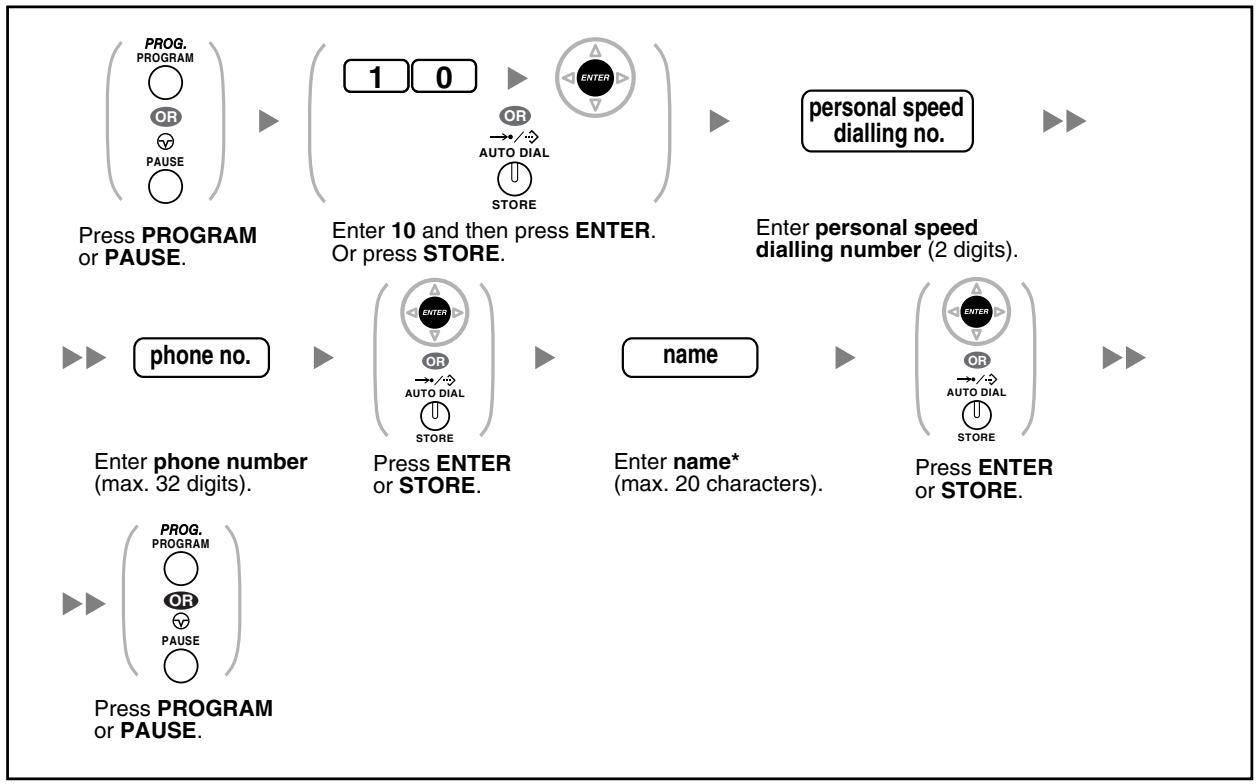
- Pour saisir des caractères, reportez-vous à la section « Saisie de caractères ».

Pour modifier les noms et numéros de numérotation abrégée personnelle
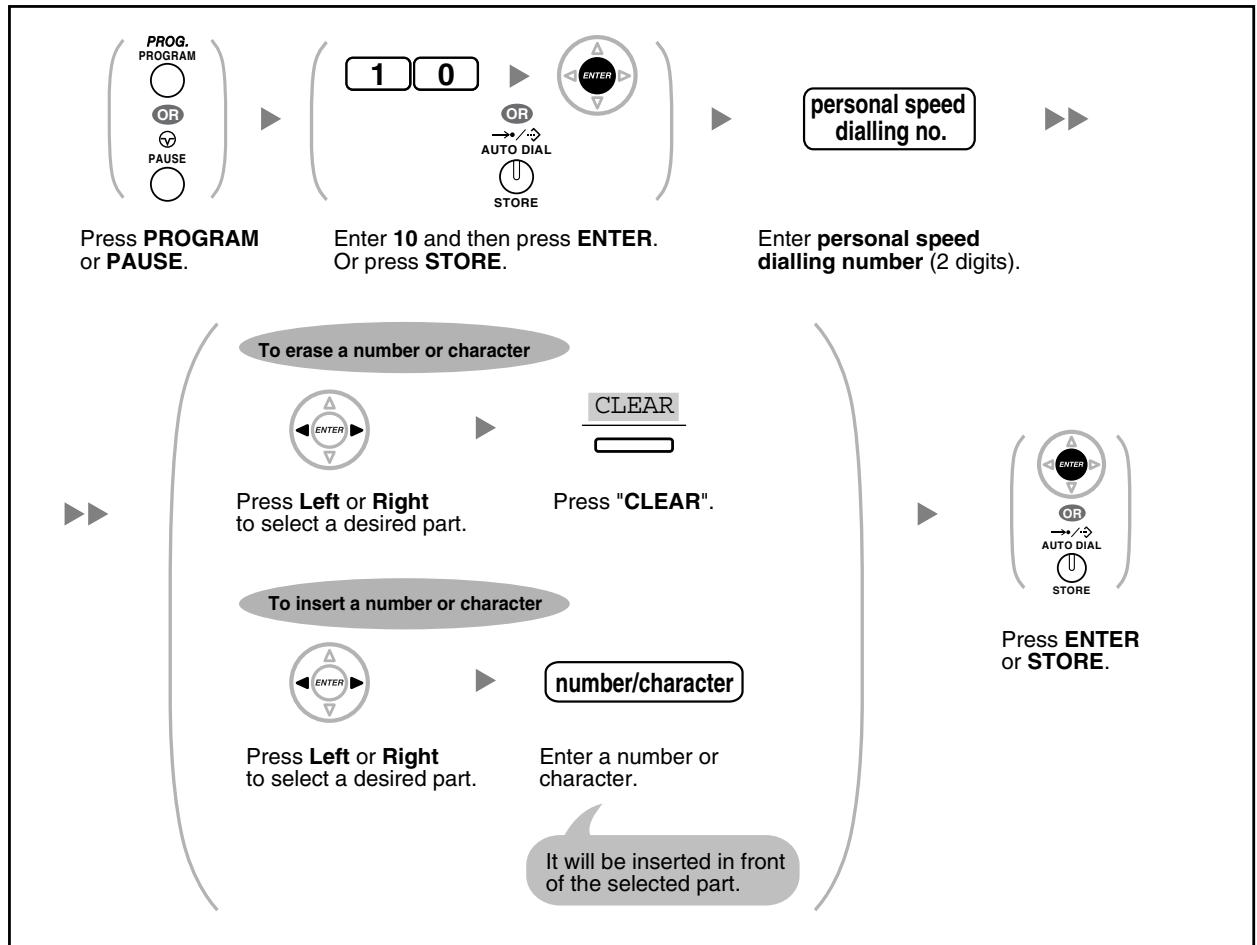

Effacement des fonctions
Vous pouvez effacer ou modifier les fonctions comme suit :
| Features | Default Setting |
| Display Switching Mode | Automatic |
| Hot Line | Off |
| Calling Line Identification Restriction [CLIR] | Allow |
| Calling/Connected Line Identification Presentation [CLIP/COLP] | Caller ID assigned on your extension |
| Preferred Line Assignment—Outgoing | Intercom |
| Preferred Line Assignment—Incoming | The longest ringing line |
| Alternate Receiving—Ring/Voice | Ringing (Tone Call) |
| Paralleled Telephone | Paired SLT will ring |
| Forced Answerback Selection | Disable |
| Live Call Screening Mode Set | Hands-free mode |
| LCS Mode Set [After Answering] | Stop recording |
| Call Waiting Selection—Intercom/Outside Calls | Disable (No call/No tone) |
| Call Waiting Tone Type Selection | Tone 1 |
| Absent Message | Off |
| Personal Absent Message | Cleared |
| Call Forwarding [FWD]/Do Not Disturb [DND]—Intercom/Outside Calls | Off |
| FWD N/A Timer | 15 seconds |
| Call Pickup Deny | Allow |
| Headset Operation | Headset off |
| Executive Busy Override Deny | Allow |
| Paging Deny | Allow |
| Key Pad Tone Set | On |
| Background Music [BGM] | Off |
| Data Line Security | Off |
| Connected Line Identification Restriction [COLR] | Allow |
| Log-in/Log-out | Log-in |
| Message Waiting | Off |
| Timed Reminder | Cleared |
Pour régler
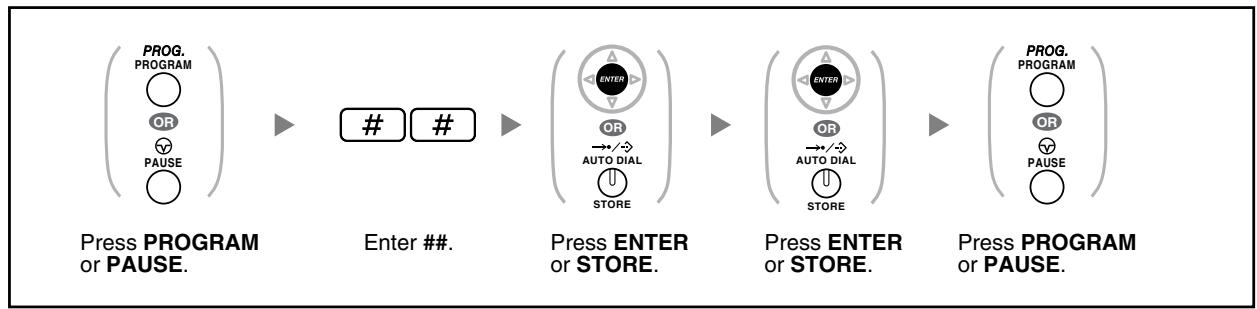

Si vous ne souhaitez pas que l'appel en attente, le renvoi d'appel/ne pas déranger ou la ligne directe soient effacés par cette fonction, veuillez consulter votre revendeur.
3.1.3 Personnalisation des touches
Vous pouvez changer les touches CO flexibles/touches DSS et les touches de fonction programmable (PF) sur les postes téléphoniques (PT), les consoles DSS, les modules de touches supplémentaires et les postes sans fil (PS) en touches de fonction suivantes. Par exemple, si votre téléphone a plus de touches CO que de lignes extérieures disponibles, vous pouvez changer les touches CO inutilisées en touches à une touche.

- Pour entrer en mode programmation lors de l'utilisation d'un PS, reportez-vous au « Mode d'emploi » du PS.
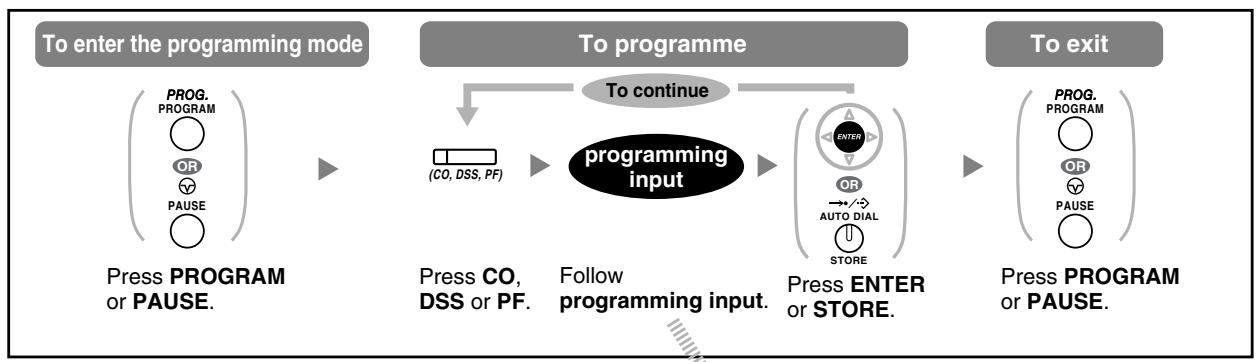
| Buttons | ProgrammableButton | Programming Input | ||
| CO | DSS | PF | ||
| Loop-CO (L-CO) | ✓ | ✓ | ✘ | |
| Group-CO (G-CO) | ✓ | ✓ | # + Outside line group no. (2 digits) | |
| Single-CO (S-CO) | ✓ | ✓ | 0 + Outside line no. (3 digits) | |
| Direct Station Selection (DSS) | ✓ | ✓ | 1 + Extension no. | |
| One-touch Dialling*1 | ✓ | ✓ | ✓ | \(2^{*2} + Desired\ {no.}\left( max. 32\right)\) |
| Incoming Call Distribution Group (ICD Group) | ✓ | ✓ | \(3 \quad 0 + Incoming call distribution group extension no.\) | |
| Message | ✓ | ✓ | 4 0 | |
| Message for another extension | ✓ | ✓ | \(4 \quad 0 + Extension\ {no./Incoming call}\) distribution group extension no. | |
| Call Forwarding (FWD)/Do Not Disturb (DND)—Both calls | ✓ | ✓ | 4 1 | |
| FWD/DND—Outside calls | ✓ | ✓ | 4 2 | |
| FWD/DND—Intercom calls | ✓ | ✓ | 4 3 | |
| Group FWD—Both calls | ✓ | ✓ | 4 4 + Incoming call distribution group extension no. | |
| Group FWD—Outside calls | ✓ | ✓ | 4 5 + Incoming call distribution group extension no. | |
| Group FWD—Intercom calls | ✓ | ✓ | 4 6 + Incoming call distribution group extension no. | |
| Account | ✓ | ✓ | 4 8 | |
| Conference | ✓ | ✓ | 4 9 | |
| Terminate | ✓ | ✓ | 5 0 | |
| External Feature Access (EFA) | ✓ | ✓ | 5 1 | |
| Charge Reference | ✓ | ✓ | 5 2 | |
| Call Park | ✓ | ✓ | 5 3 + Parking zone no. (2 digits) | |
| Call Park (Automatic Park Zone) | ✓ | ✓ | 5 3 ✗ | |
| Call Log*3 | ✓ | ✓ | 5 4 | |
| Call Log for ICD Group*3 | ✓ | ✓ | 5 4 + Incoming call distribution group extension no. | |
| Log-in/Log-out | ✓ | ✓ | 5 5 | |
| Log-in/Log-out of a specified group | ✓ | ✓ | 5 5 + Incoming call distribution group extension no. | |
| Log-in/Log-out for all groups | ✓ | ✓ | 5 5 ✗ | |
| Hurry-up | ✓ | ✓ | 5 6 + Incoming call distribution group extension no. | |
| Wrap-up | ✓ | ✓ | 5 7 | |
| System Alarm*3 | ✓ | ✓ | 5 8 | |
| Time Service (Day/Night/Lunch/Break) | ✓ | ✓ | 5 9 + 0/1/2/3*4 (+ # + Tenant no.) | |
| Answer*3 | ✓ | ✓ | 6 0 | |
| Release*3 | ✓ | ✓ | 6 1 | |
| Toll Restriction/Call Barring | ✓ | ✓ | 6 2 + Toll Restriction/Call Barring Level(1-7) | |
| ISDN Service*5 | ✓ | ✓ | 6 3 + Desired no. (max. 32 digits) | |
| Calling Line IdentificationRestriction (CLIR) | ✓ | ✓ | 6 4 | |
| Connected Line IdentificationRestriction (COLR) | ✓ | ✓ | 6 5 | |
| ISDN-Hold | ✓ | ✓ | 6 6 | |
| Headset*3*6 | ✓ | ✓ | 6 7 | |
| Time Service Switching Mode(Automatic/Manual) | ✓ | ✓ | 6 8 (+ Tenant no.) | |
| Two-way Record*7 | ✓ | ✓ | 9 0 + Voice mail floating extension no. | |
| Two-way Transfer*7 | ✓ | ✓ | 9 1 + Voice mail floating extension no. | |
| One-touch Two-way Transfer*7 | ✓ | ✓ | 9 1 + Voice mail floating extension no. + # + Extension no./Incoming call distribution group extension no. | |
| Live Call Screening (LCS)*7 | ✓ | ✓ | 9 2 | |
| Voice Mail Transfer*7 | ✓ | ✓ | 9 4 + Voice mail floating extension no. | |

- *1 « \ », « # », FLASH/RAPPEL, PAUSE, SECRET (INTERCOM) et T (Transfert) peuvent également être mémorisés.
Si vous ne souhaitez pas afficher le numéro mémorisé lors d'un appel, appuyez sur la touche SECRET (INTERCOM) avant et après les numéros que vous souhaitez masquer.
Si vous mémorisez le numéro d'un correspondant extérieur, vous devez d'abord mémoriser un numéro d'accès à une ligne extérieure.
Si vous devez saisir un code de facturation, vous pouvez saisir le code de facturation spécifié avant le numéro d'accès à la ligne extérieure.
× 49
1234
Numéro de fonction du code de compte
Code de compte
Séparateur de code de compte
Numéro d'accès à la ligne automatique
Numéro de téléphone
2 Pour un bouton PF, "2" n'est pas nécessaire avant le numéro souhaité. 3 Ce bouton n'est pas disponible pour un PS. 4 0 : Jour/Nuit/Déjeuner/Pause, 1 : Jour/Nuit/Pause, 2 : Jour/Nuit/Déjeuner, 3 : Jour/Nuit - 5 La disponibilité de ce bouton dépend du service RNIS de votre compagnie de téléphone. Reportez-vous à "1.2.5 Accès au service RNIS (Accès au service RNIS)". 6 Ce bouton n'est pas disponible pour le KX-T7665. - 7 Ce bouton est utilisé pour les fonctions de messagerie vocale intégrée. Pour quitter à tout moment, décrochez le combiné.

- Vous pouvez sélectionner le paramètre avec la touche de navigation (haut ou bas) au lieu d'entrer un numéro.
Pour distinguer les sonneries pour chaque bouton CO, INTERCOM ou ICD Group (uniquement pour les téléphones propriétaires numériques)
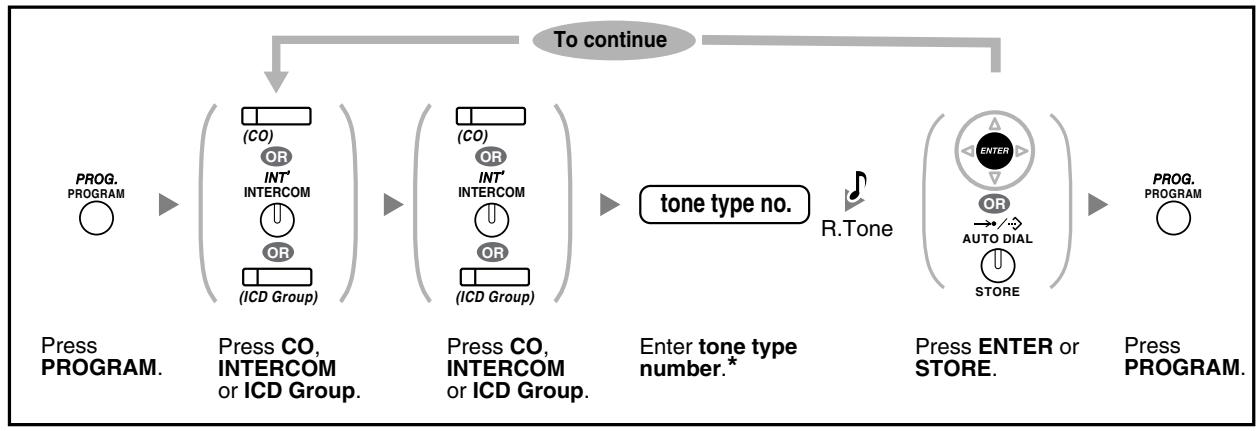

- Les types de tonalité disponibles varient selon le téléphone que vous utilisez :
- Série KX-T7600 (sauf KX-T7665) : les types de tonalité "01" à "30" sont disponibles.
- KX-T7665 : seuls les types de tonalité "01" à "08" sont disponibles.
Il est possible d'entrer un numéro de type de tonalité de "09" à "30", mais vous entendrez le type de tonalité "01".
- Autres téléphones : seuls les types de tonalité "01" à "08" sont disponibles.
Il est possible de saisir un numéro de type de tonalité de "09" à "30", mais vous entendrez le type de tonalité "02".
Pour effacer la touche
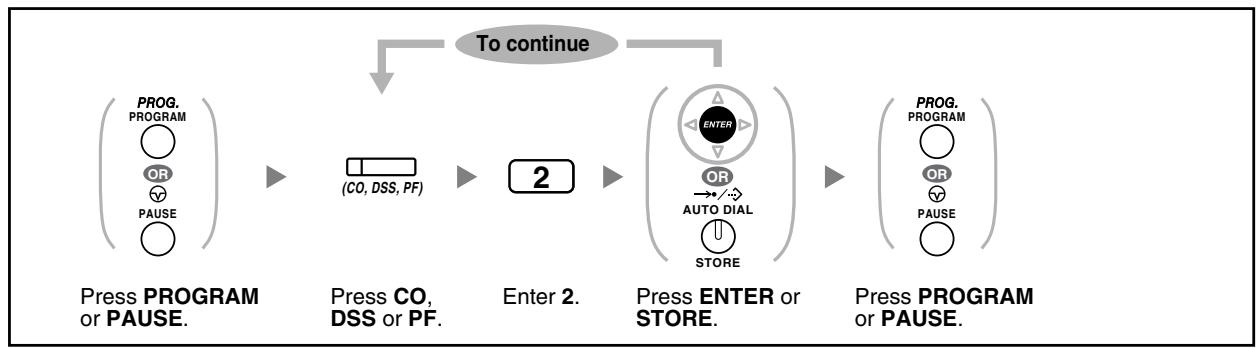
3.2 Programmation du gestionnaire
3.2.1 Informations de programmation
Le gestionnaire peut programmer les éléments suivants.
Frais d'appel Contrôle des autres postes
Poste disponible
Le poste assigné comme gestionnaire
Téléphone requis
Un téléphone propriétaire Panasonic avec afficheur (plus de 2 lignes)
(par exemple, KX-T7636)
Mot de passe du gestionnaire
Pour entrer en mode programmation, le mot de passe du gestionnaire (10 chiffres max.) est requis. (Défaut : 1234)
Conditions
L'extension de programmation doit être inactive, sur-hook et ne doit pas avoir d'appels en attente.
3.2.2 Programmation du gestionnaire
Modification des tarifs d'appel et du contrôle des extensions
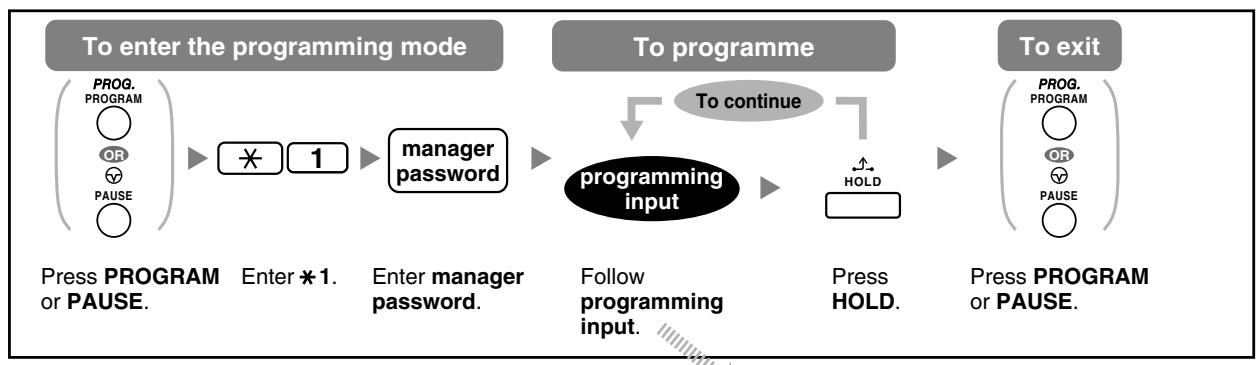
| Item | Programming Input |
| Changing the manager password. | 0 0 + Password (max. 10 digits) + |
| Viewing extension call charges. | 0 1 + Extension no. |
| Clearing extension call charges. | 0 1 + Extension no. + |
| Setting the budget for extension call charges. | 0 2 + Extension no. + Charge* + |
| Viewing call charges for each verified code. | 0 3 + Verified code |
| Clearing call charges for each verified code. | 0 3 + Verified code + |
| Setting the budget for each verified code. | 0 4 + Verified code + Charge* + |
| Viewing call charges for each outside line. | 0 5 + Outside line no. (3 digits) |
| Assigning a charge rate for each outside line group. | 0 6 + Outside line group no. (2 digits) + Charge rate* + |
| Clearing all charges. | 0 7 + + |
| Printing the total call charge. | 0 8 + + |
| Locking/unlocking other extensions. (Remote Extension Lock) | 9 0 + Extension no. + 1 (to lock)/0 (to unlock) + |
| Clearing the PIN and PIN lock for extensions. | 9 1 + Extension no. + |
| Clearing the PIN and PIN lock for verified codes. | 9 2 + Verified code + |
| Setting the verified code PIN. | 9 3 + Verified code + PIN (max. 10 digits) + |

AVERTISSEMENT
Si un tiers découvre le mot de passe (code PIN vérifié) du PBX, il y a un risque qu'il effectue des appels frauduleux en utilisant la ligne téléphonique, et le coût sera facturé sur votre propre compte. Pour éviter ce problème, nous recommandons fortement les points suivants :
a) Gardez soigneusement le secret du PIN. b) Choisissez un PIN complexe, aussi long et aléatoire que possible. c) Changez le PIN fréquemment.
*Pour saisir un point décimal, appuyez sur 喜
3.3 Personnalisation de votre système (Programmation système)
3.3.1 Informations de programmation
Vous pouvez personnaliser votre système selon vos besoins.
[Votre système dispose déjà de paramètres par défaut (installés en usine).]
La programmation est présentée ci-dessous. (Numéro de programme)
La date et l'heure [000] - Numéros et noms de numérotation abrégée système [001]/[002] - Numéro et nom d'extension [003]/[004]
Extension disponible
L'extension autorisée via la programmation COS
Téléphone requis
Un téléphone propriétaire Panasonic avec afficheur (plus de 2 lignes)
(par exemple, KX-T7636)
Mot de passe système
Pour entrer en mode programmation, le mot de passe système (10 chiffres max.) est requis. (Défaut : 1234)
Conditions
Le poste de programmation doit être libre, en repos et ne doit pas avoir de communication en cours.
Liste
Avant de programmer, décidez des réglages et notez-les. Vos notes constitueront un enregistrement utile de la programmation pour référence future. Votre revendeur dispose également de fiches de programmation contenant toute la programmation du système. Vous pouvez demander des photocopies de ces tableaux pour connaître les fonctions et caractéristiques disponibles.

Descriptions des icônes
| Fixed Buttons | Function | ||
| T7600 | T7200/T7400/T7500 | ||
| PREVIOUS (PREV) | |||
| NEXT | |||
| → | |||
| < / * < | |||
| FWD/DND | |||
| △ | |||
| CONF | |||
| →/→ AUTO DIAL STORE | |||
| STORE (ENTER) | |||
| None | Back to Previous Menu (CANCEL) | ||
| SHIFT | SHIFT | ||
| PROG. PROG. PAUSE | PROGRAM | ||
| HOLD | END | ||
| AUTO ANSMESSAGE | SELECT | ||
| FLASHRECALL | FLASH | ||
| TRANSFER | CLEAR | ||
| INT INTERCOM | SECRET | ||

Procédure
Les étapes de base sont indiquées ci-dessous.
- Entrée en mode programmation
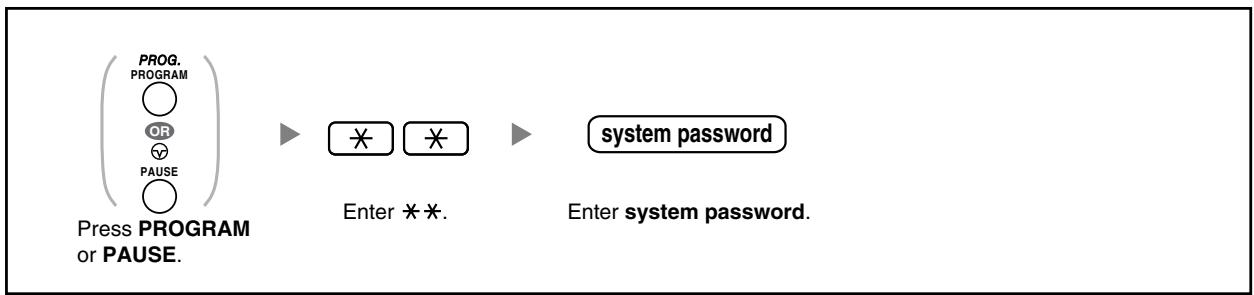
2. Programmation
Vous pouvez saisir chaque numéro de programme (3 chiffres).
- Pour quitter le mode de programmation à tout moment, décrochez le combiné.

- Sortie du mode
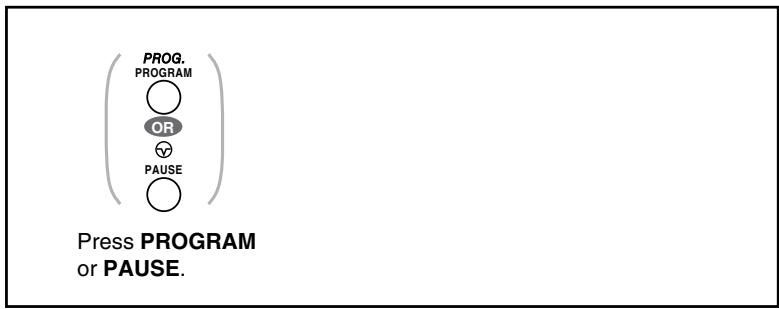

- Pour quitter le mode de programmation à tout moment, décrochez le combiné.
3.3.2 Programmation du système

Date et heure [000]
Les téléphones propriétaires affichent la date et l'heure actuelles lorsqu'ils sont au repos.
[Format 12 heures]
![PANASONIC KXTDA200E - Date et heure [000] - 1](/content/2019/10/56796/images/35133bcccc26caacb388e0df0711d3ffcbc5b89299d519a0eb6b012dbeaac810.jpg)
[Format 24 heures]
![PANASONIC KXTDA200E - Date et heure [000] - 2](/content/2019/10/56796/images/3546baf35ed1c66f0ff1da839e7a75f798a784a9b6478986000196225708da88.jpg)
![PANASONIC KXTDA200E - Date et heure [000] - 3](/content/2019/10/56796/images/50f8584f435412950c663579acebb456b495e6545bebebfe91fdbd02b71adffc.jpg)
- Après avoir modifié les valeurs souhaitées, vous pouvez appuyer sur la touche ENTER. Vous n'avez pas à effectuer le reste des étapes. L'horloge démarre immédiatement après avoir appuyé sur la touche ENTER. Vous ne pouvez pas laisser une valeur vide.
- Vous pouvez effacer la saisie en appuyant sur la touche CLEAR. Pour confirmer votre saisie après avoir stocké les données :
Voyant de la touche STORE : s'allume en rouge.
Tonalité de confirmation :
Un bip : votre saisie est acceptée.
Trois bips : votre saisie est rejetée.
![PANASONIC KXTDA200E - Date et heure [000] - 4](/content/2019/10/56796/images/d067d39b100f1c921075ffc828c656f93aa534e69e71430ecc08b040bf67282d.jpg)
Numérotation abrégée du système [001]
Vous pouvez mémoriser les numéros de téléphone des numéros fréquemment composés.
![PANASONIC KXTDA200E - Numérotation abrégée du système [001] - 1](/content/2019/10/56796/images/fe9940f27270e1be5738f3eb159814d0cf0502c069116cdb07a645c5cb06bd24.jpg)
![PANASONIC KXTDA200E - Numérotation abrégée du système [001] - 2](/content/2019/10/56796/images/90a7700e3dd3660a319ecd9e360066fa3036631f30bff7f231eee7986ef23bfe.jpg)
- Si le numéro souhaité comporte plus de 32 chiffres, divisez-le et mémorisez-le dans un numéro de numérotation abrégée.
- Vous pouvez également mémoriser "※", "#", FLASH/RAPPEL, PAUSE et SECRET (INTERCOM).
Si vous ne souhaitez pas afficher le numéro mémorisé lors d'un appel, appuyez sur la touche SECRET (INTERCOM) avant et après les chiffres que vous souhaitez masquer.
Si vous mémorisez le numéro d'un correspondant externe, vous devez d'abord mémoriser un numéro d'accès à la ligne.
Si vous devez saisir un code de facturation, vous pouvez saisir le code de facturation spécifié avant le numéro d'accès à la ligne.
¥49
Fonction de code de facturation n°
1234
Code de facturation
Séparateur de code de facturation
0/9
Numéro d'accès automatique à la ligne
SECRET
123 4567
![PANASONIC KXTDA200E - Numérotation abrégée du système [001] - 3](/content/2019/10/56796/images/6b155b1a17967c7c480890dc256a75f82b4690c7ea4205010fb098309e10cd9d.jpg)
Nom de numérotation abrégée système [002]
Vous pouvez stocker le nom associé au numéro de numérotation abrégée. Ces noms sont affichés lors des appels utilisant la fonction d'affichage. Pour saisir des caractères, reportez-vous à la section "Saisie de caractères".
![PANASONIC KXTDA200E - Nom de numérotation abrégée système [002] - 1](/content/2019/10/56796/images/d1dcd2835e3836e2495d4efafaad61bb6f81469458ee5f91c08c06d663653603.jpg)
![PANASONIC KXTDA200E - Nom de numérotation abrégée système [002] - 2](/content/2019/10/56796/images/5dde83c8bf6f28025218261551c1d06aa9f6494f30586b3e31f8eda16d3b0e80.jpg)
Numéro de poste [003]
Vous pouvez attribuer un numéro de poste à chaque poste.
![PANASONIC KXTDA200E - Numéro de poste [003] - 1](/content/2019/10/56796/images/2f80ef918deedf3e6dfc794b379a5b8d5caf6a460066afd9d5423ff6c79ae7b0.jpg)
![PANASONIC KXTDA200E - Numéro de poste [003] - 2](/content/2019/10/56796/images/8656deac1ae4a116aee51b4a15a63c31ba4a16a5a5ce1f9e7284af66c764e6bc.jpg)
- Le ou les premiers chiffres doivent être identiques aux numéros attribués pour la numérotation flexible. Consultez votre revendeur.
- Une entrée en double est invalide.
![PANASONIC KXTDA200E - Numéro de poste [003] - 3](/content/2019/10/56796/images/eccd2ce0419cf325726d0a06d365f3f893f7af67a1bbcf8eb7b3d13bf6e57f39.jpg)
Nom du poste [004]
Vous pouvez stocker le nom d'un utilisateur de poste. Cela est utile si vous voulez savoir qui appelle, ou qui vous appelez lors d'un appel interne en utilisant l'annuaire.
Pour saisir des caractères, reportez-vous à la section "Saisie de caractères".
![PANASONIC KXTDA200E - Nom du poste [004] - 1](/content/2019/10/56796/images/48c330c7b6ddd0900df4b4ad10b8eb47043b99f6ecb13baf0a94f19bf58ee3b0.jpg)
Section 4
Annexe
Ce chapitre fournit le dépannage, la table des numéros de fonctionnalités et la liste des tonalités. Consultez la section Dépannage avant de contacter votre revendeur.
4.1 Dépannage
4.1 Dépannage
4.1.1 Dépannage

Dépannage
| Problem | Remedy |
| The telephone does not work properly. | Consult your dealer. |
| I cannot use the telephone. | The telephone is locked. Unlock your telephone. (1.5.3 Preventing Other People from Using Your Telephone (Extension Lock), 2.1.1 Extension Control) Your telephone is connected to an eXtra Device Port. System programming is required. Consult your dealer. |
| Some features do not work. | System management may restrict certain features. Consult your manager. The feature numbers have changed. Confirm the revised number and try again. |
| Even though following the manual instructions, none of the operations work when using a proprietary telephone. | The Intercom line was not seized. The seized line, when going off-hook, was changed by personal setting. (3.1.2 Settings on the Programming Mode) In the manual, going off-hook means an Intercom line is seized. If the setting has been changed, press the INTERCOM button after going off-hook and follow the instructions. |
| The paralleled single line telephones do not ring. | "No ring" may be selected. Change the setting to ring. (1.7.11 Setting the Paralleled Telephone to Ring (Paralleled Telephone)) |
| The telephone does not work using the personal settings or with other settings. (One-touch dialling, forwarding destination, etc.) | The extension line has been changed. The previous telephone's settings have not been cleared. Clear the settings and then programme your desired settings again. (1.7.13 Clearing Features Set at Your Extension (Extension Feature Clear), 3.1.1 Customising Your Phone (Personal Programming), 3.1.3 Customising the Buttons) |
| My proprietary telephone does not have a feature button. | Some models do not have the feature button. → Change a flexible button to the desired button. (↓ 3.1.3 Customising the Buttons) → Enter the specified feature number instead of the feature button. (↓ 1.1.1 Before Operating the Telephones) |
| A reorder tone is audible or "Restricted" is displayed. | The telephone is locked. → Unlock your telephone. (↓ 1.5.3 Preventing Other People from Using Your Telephone (Extension Lock), 2.1.1 Extension Control) ·Toll restriction is activated. → Consult your manager or dealer. ·An account code is required. (↓ 1.2.7 Calling without Restrictions, Using an Account Code (Account Code Entry) in 1.2.1 Basic Calling) |
| I cannot make an outside call using the One-touch Dialling button or speed dialling. | A line access number was not stored. → A line access number is required for outside calls. (↓ 1.2.1 Basic Calling, 3.1.3 Customising the Buttons) |
| I cannot remember the feature numbers. | Ask your dealer to change the feature numbers for easier use. |
| While talking to an outside party, the line is disconnected. | The time limit has run out. (↓ 1.4.1 Transferring a Call (Call Transfer), 1.4.5 Multiple Party Conversation) → Consult your dealer to extend the time, if necessary. |
| Redialling does not function. | The stored number was more than 32 digits or an extension number. (↓ 1.2.3 Redial) |
| The personal computer and fax machine communication failed. | An indication tone may have interrupted communication. (↓ 1.7.9 Protecting Your Line against Notification Tones (Data Line Security)) |
| I do not want to show my telephone number to the calling or called party's telephone. | Consult your manager or dealer. |
| I want to show my telephone number to the calling or called party's telephone. | (↓ 1.7.4 Displaying Your Telephone Number on the Called Party and Caller's Telephone (Calling/Connected Line Identification Presentation [CLIP/COLP])) |
| I cannot send a call waiting tone to the dialled extension. | The other party has not set the Call Waiting feature. (Sending a Call Waiting Tone (Call Waiting), 1.4.4 Answering Call Waiting, 1.7.3 Receiving Call Waiting (Call Waiting/Off-hook Call Announcement [OHCA]/Whisper OHCA)) The other party has set Data Line Security. (1.7.9 Protecting Your Line against Notification Tones (Data Line Security)) |
| I forgot the password. | Ask the manager to assist you. (2.1.1 Extension Control) |
| The background music started suddenly. | Turn off the music. (1.7.8 Turning on the Background Music (BGM), 2.1.4 Turning on the External Background Music (BGM)) |
| I do not want to display a number which is stored in memory. | Conceal the number. (Storing Names and Numbers, 3.1.3 Customising the Buttons) |
| I want to confirm my extension number. | Your Extension Number in 1.1.1 Before Operating the Telephones) |
| The date and time are not correct. | Set the date and time by system programming. (Date & Time [000] in 3.3.2 System Programming) |
| The display is not shown well. | Change the Display contrast level. (3.1.2 Settings on the Programming Mode) |
| I want to distinguish the tones. | To distinguish the ringing tones for each CO, INTERCOM or ICD Group button (Digital proprietary telephone only), 3.1.3 Customising the Buttons) |
| TheMESSAGE button light lit. | Another extension left you a message waiting indication while you were on the phone or away from your desk. |
4.2 Tableau des numéros de fonctions
4.2.1 Tableau des numéros de fonctions
Les numéros indiqués ci-dessous correspondent aux réglages par défaut. Il existe des numéros de fonctions flexibles et des numéros de fonctions fixes. Si vous modifiez les numéros de fonctions flexibles, inscrivez vos nouveaux numéros attribués dans la liste pour référence future.
| Feature (While dial tone is heard) | Default(New) | Additional digits |
| 1.2.1 Basic Calling | ||
| To an operator (Operator Call) | 9/0( ) | |
| To select an idle outside line automatically(Automatic Line Access) | 0/9( ) | outside phone no. |
| To select an idle outside line in the specifiedoutside line group automatically (Outside LineGroup Access) | 8( ) | outside line group no. (2 digits) + outsidephone no. |
| Making a Call to a Private Network (TIE LineAccess) | 7( ) | private phone noaccount code + # + outside phone no. |
| Using an Account Code (Account Code Entry) | *49( ) | |
| 1.2.2 Easy Dialling | ||
| Using Numbers Stored at Your Extension(Personal Speed Dialling) | ||
| - To store | *30( ) | personal speed dialling no. (2 digits) +phone no. + # |
| - To dial | **( ) | * + personal speed dialling no. (2 digits) |
| Using Numbers Stored in the PBX (SystemSpeed Dialling) | ||
| - To dial | **( ) | system speed dialling no. (3 digits) |
| To a Preset Number by Going Off-hook (HotLine) | *740( ) | |
| - To store | 2 + phone no. + # | |
| - To set | 1 | |
| - To cancel | 0 | |
| 1.2.3 Redial | ||
| Redialling the Last Number You Dialled (LastNumber Redial) | #( ) | |
| 1.2.4 When the Dialled Line is Busy or There is No Answer | ||
| To cancel callback ringing (Automatic Callback Busy Cancel)/To cancel (CCBS Cancel) | ×46( ) | |
| Leaving a Message Waiting Indication/Calling Back the Caller Who Left an Indication (Message Waiting) | ×70( ) | |
| For a caller | 1/0 + extension no. | |
| - To leave/cancel | ||
| For a called extension | 2 | |
| - To call back | 0 + your extension no. | |
| - To clear | ||
| 1.2.7 Calling without Restrictions | ||
| Using Your Calling Privileges at Another Extension (Remote COS Access) | ×47( ) | extension no. + extension PIN + phone no. |
| To call with a verified code (Verified Code Entry) | × + verified code + verified code PIN + phone no. | |
| 1.2.8 To Access Another Party Directly from Outside (Direct Inward System Access [DISA]) | ||
| Calling through DISA | your extension no./(× + verified code) + extension PIN/verified code PIN + extension no. | |
| - To an extension(In All Security Mode only) | your extension no./(× + verified code) + extension PIN/verified code PIN + outside phone no. | |
| - To an outside party(In Trunk Security Mode/All Security Mode only) | ||
| 1.2.9 Setting Your Telephone from Another Extension or through DISA (Remote Setting) | your extension no. + extension PIN + feature no. | |
| - From another extension | ||
| - Through DISA | ||
| 1.3.3 Answering a Call Ringing at Another Telephone (Call Pickup)Answering a Call from Another Telephone (Call Pickup)- Group-DirectedDenying Other People the Possibility of Picking Up Your Calls (Call Pickup Deny)- To deny- To allow | ×40( )×41( )×720( ) | group no. (2 digits)extension no.10 |
| 1.3.4 Answering a Call via an External Speaker (Trunk Answer From Any Station [TAFAS])- Calls through an external speaker | ×42( ) | KX-TDA100/KX-TDA200: speaker no. (1 digit)KX-TDA30: 1 |
| 1.3.6 Identifying Malicious Calling Parties (Malicious Call Identification [MCID]) | ×7×3( ) | |
| 1.4.1 Transferring a Call (Call Transfer)Transferring a Call Using the ISDN Service (Call Transfer [CT]-by ISDN) | ×62( ) | phone no. |
| 1.4.2 Holding a CallTo hold (Call Hold)/To retrieve a call (Call Hold Retrieve)To retrieve a call (Call Hold Retrieve)- Specified with a held line number- Specified with a holding extension numberHolding in a System Parking Zone (Call Park)- To set- To retrieve | ×50( )×53( )×51( )×52( ) | outside line no. which is held (3 digits)extension no. which has a held callparking zone no. (2 digits)/*stored parking zone no. (2 digits) |
| 1.4.4 Answering Call WaitingAnswering Call Waiting in the PBXAnswering Call Waiting from the Telephone Company | ×50( )×60( ) | |
| 1.4.5 Multiple Party Conversation Adding a Third Party during a Conversation Using the ISDN Service (Three-party Conference [3PTY]-by ISDN) | *62 ( ) | phone no. + 3 |
| 1.5.1 Forwarding Calls Forwarding Your Calls (Call Forwarding [FWD])/1.7.2 Refusing Incoming Calls (Do Not Disturb [DND]) - Both Calls | *710 ( ) | 0 (Cancel)/ |
| - Outside Calls | *711 ( ) | 1 (Do Not Disturb [DND])/ |
| - Intercom Calls | *712 ( ) | 2 (All calls) + phone no. +#/3 (Busy) + phone no. +#/4 (No Answer) + phone no. +#/5 (Busy/No Answer) + phone no. +#/7 (Follow Me) + your extension no./8 (Follow Me Cancel) + your extension no. |
| - To set the timer for "No Answer" and "Busy/No Answer" | *713 ( ) | 00-99 (second) |
| To set/cancel (Call Forwarding [FWD] for your Incoming Call Distribution Group) - Both Calls | *714 ( ) | 1 (Set) + ICD Group extension no. + phone no. +#/0 (Cancel) + ICD Group extension no. |
| - Outside Calls | *715 ( ) | |
| - Intercom Calls | *716 ( ) | |
| Forwarding Your Calls Using ISDN Service (Call Forwarding [CF]-by ISDN) | *7*5 ( ) | |
| - To set | outside line no. + # + multiple subscriber no. + # + 2 (Unconditional)/3 (Busy)/4 (No Reply) + phone no. +# | |
| - To cancel | outside line no. + # + multiple subscriber no. + # + 0 | |
| - To confirm | outside line no. + # + multiple subscriber no. + # + 1 | |
| 1.5.2 Showing a Message on the Caller's Telephone Display (Absent Message) – To set – To cancel | *750( ) | 1-9 (+ parameter) + #0 |
| 1.5.3 Preventing Other People from Using Your Telephone (Extension Lock) – To lock – To unlock | *77( ) | 10 + extension PIN |
| 1.6.1 Paging Group Paging | *33( ) | paging group no. (2 digits) |
| 1.6.2 Answering/Denying a Paging Announcement – To answer – To deny – To allow | *43( ) | 10 |
| *721( ) | ||
| 0 | ||
| 1.6.3 Making an Announcement and Having a Multiple Party Conversation (Broadcasting) – To call and make an announcement | *32( ) | broadcasting group no. (1 digit) |
| 1.7.1 Setting the Alarm (Timed Reminder) – To set – To cancel | *760( ) | 12H: 1 + hour/minute + 0 (AM)/1 (PM) + 0 (once)/1 (daily)24H: 1 + hour/minute + 0 (once)/1 (daily)0 |
| 1.7.3 Receiving Call Waiting (Call Waiting/Off-hook Call Announcement [OHCA]/Whisper OHCA) – For intercom calls (No call/Tone/OHCA/Whisper OHCA) – For outside calls (No tone/Tone) | *731( ) | 0 (No call)/1 (Tone)/2 (OHCA)/3 (Whisper OHCA)0 (No tone)/1 (Tone) |
| 1.7.4 Displaying Your Telephone Number on the Called Party and Caller's Telephone (Calling/Connected Line Identification Presentation [CLIP/COLP]) - Public - Your extension | *7*2 ( ) | 1 2 |
| 1.7.5 Preventing Your Telephone Number Being Displayed on the Caller's Telephone (Connected Line Identification Restriction [COLR]) - To show - To prevent | *7*0 ( ) | 0 1 |
| 1.7.6 Preventing Your Number Being Displayed on the Called Party's Telephone (Calling Line Identification Restriction [CLIR]) - To show - To prevent | *7*1 ( ) | 0 1 |
| 1.7.7 Preventing Other People from Joining Your Conversation (Executive Busy Override Deny) - To prevent - To allow | *733 ( ) | 1 0 |
| 1.7.8 Turning on the Background Music (BGM) - To set - To cancel | *751 ( ) | KX-TDA100/KX-TDA200: BGM no. (1 digit) KX-TDA30: 1 0 |
| 1.7.9 Protecting Your Line against Notification Tones (Data Line Security) - To set - To cancel | *730 ( ) | 1 0 |
| 1.7.11 Setting the Paralleled Telephone to Ring (Paralleled Telephone) - Ring - No Ring | *39 ( ) | 1 0 |
| 1.7.12 Using Your PS in Parallel with a Wired Telephone (Wireless XDP Parallel Mode) - To set - To cancel | *48 ( ) | 1 + paired wired extension no. 0 |
| 1.7.13 Clearing Features Set at Your Extension(Extension Feature Clear) | *790( ) | |
| 1.8.1 Leaving an Incoming Call Distribution Group(Log-in/Log-out, Wrap-up)Log-inLog-outTo enter/leave the Not Ready mode | *736( )*735( ) | 1 + ICD Group extension no./*0 + ICD Group extension no./*1 (Not Ready)/0 (Ready) |
| *2 1.8.2 Monitoring and Controlling the Call Status of an Incoming Call Distribution Group(Incoming Call Distribution Group Monitor) | *739( ) | ICD Group extension no. |
| 1.9.1 If a Doorphone/Door Opener is ConnectedDoorphone CallOpening a Door (Door Open) | *31( )*55( ) | doorphone no. (2 digits)doorphone no. (2 digits) |
| 1.9.2 If a Host PBX is ConnectedAccessing External Services (External Feature Access [EFA]) | *60( ) | service code |
| 1.9.3 If a Voice Processing System is ConnectedCall Forwarding to Voice Mail (Voice Mail Integration)- Both Calls- Outside Calls- Intercom Calls | *710( )*711( )*712( ) | 0 (Cancel)/2 (All Calls)/3 (Busy)/4 (No Answer)/5 (Busy/No Answer)+ voice mail floating extension no. + # |
| 1.10.1 Using the Same Settings as Your Previous Extension (Walking Extension) | *727( ) | your previous extension no. + extension PIN |
| 2.1.1 Extension Control *1 To lock/unlock other extensions (Remote Extension Lock) - To unlock | *782 ( ) | extension no. |
| - To unlock | *783 ( ) | extension no. |
| *1 2.1.2 Time Service Mode Control - Day/Night/Lunch/Break | *780 ( ) | 0/1/2/3 |
| *1 2.1.4 Turning on the External Background Music (BGM) - To play | *35 ( ) | KX-TDA100/KX-TDA200: external pager no. (1 digit)/× + BGM no. (1 digit) KX-TDA30: 11 KX-TDA100/KX-TDA200: external pager no. (1 digit)/× + 0 KX-TDA30: 10 |
| - To stop | ||
| *1 2.1.5 Recording Outgoing Messages (OGM) - To record | *36 ( ) | 1 + OGM floating extension no. 2 + OGM floating extension no. KX-TDA100/KX-TDA200: 3 + BGM port no. (1 digit) + OGM floating extension no. KX-TDA30: 31 + OGM floating extension no. 0 + OGM floating extension no. |
| - To play back | ||
| - To record from an external BGM (MOH) port | ||
| - To clear | ||
| 3.1.1 Customising Your Phone (Personal Programming) Assigning an Extension PIN to Your Extension (Extension PIN [Personal Identification Number]) - To set | *799 ( ) | 1 + extension PIN + # + same extension PIN + # |
| - To cancel | 0 + stored extension PIN |
1 : Réservé au responsable 2 : Réservé au superviseur
| Feature (While busy, DND or call tone is heard) | Default |
| 1.2.4 When the Dialled Line is Busy or There is No Answer | |
| Sending a Call Waiting Tone (Call Waiting) | 1 |
| To an Extension Refusing the Call (DND Override) | |
| Joining an Existing Call (Executive Busy Override) | 3 |
| Leaving a Message Waiting Indication/Calling Back the Caller Who Left an Indication (Message Waiting) | |
| - To leave | 4 |
| Monitoring Another Extension (Call Monitor) | 5 |
| Reserving a Busy Line (Automatic Callback Busy)/Setting Callback on an ISDN Line (Completion of Calls to Busy Subscriber [CCBS]) | 6 |
| 1.2.6 Alternating the Calling Method (Alternate Calling—Ring/Voice) | × |
| Feature (While dialling or talking) | Fixed Number |
| 1.4.5 Multiple Party Conversation | |
| Adding Other Parties during a Conversation (Conference) | 3 |
| 1.9.1 If a Doorphone/Door Opener is Connected | |
| From any extension while talking to the doorphone | 5 |
4.3 Quelle est cette tonalité ?
4.3.1 Quelle est cette tonalité ?
En mode décroché
Sonneries
Les tonalités suivantes sont programmables pour permettre de reconnaître le type d'appel (externe, interne ou interphone).
Tonalité 1
Tonalité 2
Tonalité 3
Tonalité 4




Lors du décrochage
Tonalités de numérotation
Tonalité 1
Normale

Tonalité 2
L'une des fonctions suivantes est activée :
Message d'absence, musique d'attente, renvoi d'appel, refus de prise d'appel, appel en attente, ne pas déranger, verrouillage de poste, refus de dérivation de ligne occupée, ligne directe, rappel temporisé
Tonalité 3
Après avoir appuyé sur TRANSFER ou sur la touche de rappel/combinaison pour mettre un appel en attente temporairement (par exemple, pour un transfert avec consultation), pendant la recherche d'un combiné appelé, lors de la saisie d'un code de compte, lors de la réponse à un appel de rappel temporisé sans message
Tonalité 4
Un indicateur de message en attente a été reçu.



Lorsque vous passez des appels
Tonalité d'occupation
Tonalité de réordonnancement
La ligne extérieure que vous avez tenté de saisir n'est pas attribuée ou est refusée.
Sonnerie de rappel 1
Sonnerie de rappel normale
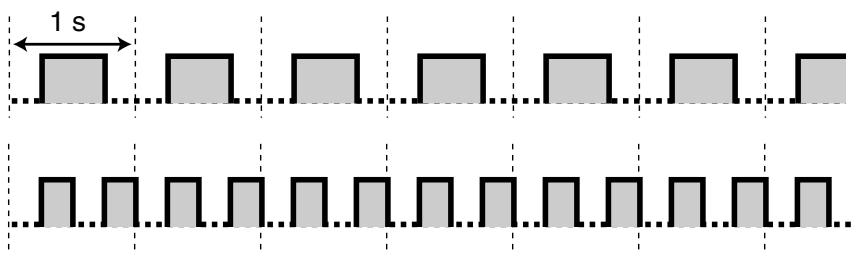

Sonnerie de rappel 2
Sonnerie de rappel spéciale pour appel DISA
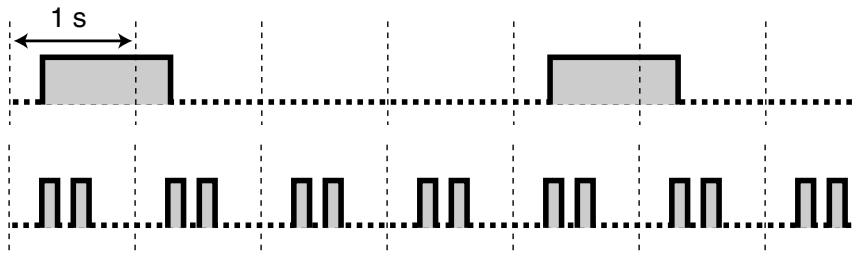
Tonalité Ne pas déranger (DND)
Le poste appelé refuse les appels entrants.
Pendant le décroché
Tonalités d'indication
Tonalité 1
Tonalité d'appel en attente

Tonalité 2
Un appel est en attente plus longtemps que le temps spécifié

Lors d'une conversation avec un correspondant externe
Tonalité d'avertissement
Cette tonalité est envoyée 15, 10 et 5 secondes avant le temps spécifié pour la déconnexion.

Lors du réglage des fonctions ou de la programmation
Tonalités de confirmation
Tonalité 1
Le réglage de la fonction a été effectué avec succès.
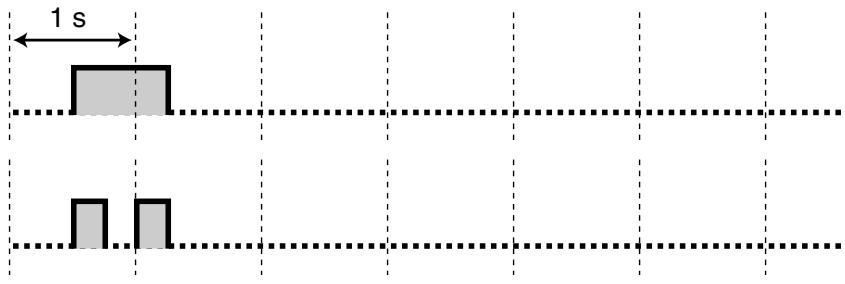
Tonalité 2
Avant de recevoir une page via un haut-parleur externe

Tonalité 3
Avant l'activation des fonctions suivantes :
- Récupération d'un appel en attente
- Prise d'un autre appel
- Page / Réponse à une annonce par haut-parleur
- Réponse à l'appel via un haut-parleur
Tonalité 4
Établissement ou sortie d'une conférence
Tonalité 5
Un appel a été mis en attente.
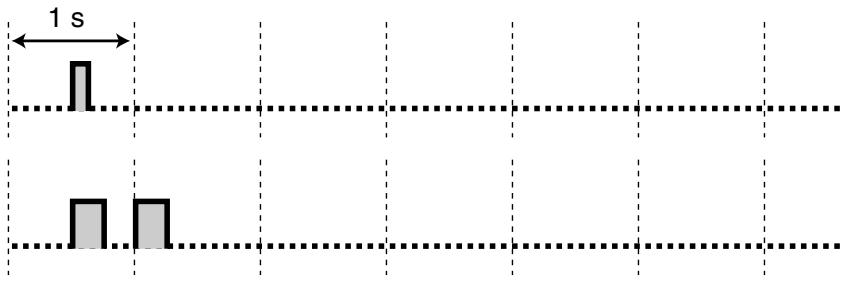
4.4 Historique des révisions
4.4.1 KX-TDA100/KX-TDA200 Version 1.1
Nouveaux contenus
1.4.5 Conversation à plusieurs
Ajout d'un tiers pendant une conversation à l'aide du service RNIS (Conférence à trois [3PTY]—par RNIS)
1.6.3 Faire une annonce et avoir une conversation à plusieurs (Diffusion)
Contenus modifiés
1.1.1 Avant d'utiliser les téléphones
Lorsque vous utilisez un téléphone propriétaire Panasonic
- FLASH/RAPPEL
1.2.4 Lorsque la ligne composée est occupée ou qu'il n'y a pas de réponse
Laisser une indication de message en attente / Rappeler le correspondant qui a laissé une indication (Message en attente)
- Pour effacer les indications de message en attente laissées sur votre poste
1.11.1 Utilisation du journal des appels
Appel à partir du journal des appels entrants
Appel à partir du journal des appels sortants
1.11.2 Utilisation des répertoires
Appel à partir du répertoire
Mémorisation des noms et des numéros
Saisie des caractères
4.4.2 KX-TDA30 Version 1.1
Nouveautés
1.4.5 Conversation à plusieurs
Ajout d'un tiers pendant une conversation à l'aide du service RNIS (Conférence à trois [3PTY]—par RNIS)
1.6.3 Faire une annonce et avoir une conversation à plusieurs (Diffusion)
Modifications
1.11.1 Utilisation du journal des appels
Appel à partir du journal des appels entrants
Appel à partir du journal des appels sortants
1.11.2 Utilisation des répertoires
Appel avec le répertoire
Mémorisation des noms et des numéros
Saisie de caractères
Index
A
Message d'absence 85,155,185
Accès aux services externes (External Feature Access [EFA]) 118
Accès aux fonctions du système (System Feature Access) 137
Accès au service RNIS (ISDN Service Access) 39
Compte 19, 163
Saisie du code de compte 26,181
Ajout d'un tiers pendant une conversation via le service RNIS (Conférence à trois [3PTY]—par RNIS) 73
Ajout d'autres parties pendant une conversation (Conférence) 67
Après un déménagement dans un nouveau bureau 125
Appel alterné — Sonnerie/Voix 40, 189
Réception alternée — Sonnerie/Voix 154
Alternance de la méthode d'appel (Appel alterné — Sonnerie/Voix) 40
Réponse 17, 20, 50, 163
Répondre à un appel depuis un autre poste (Prise d'appel) 48
Répondre à un appel sonnant sur un autre poste (Prise d'appel) 48
Répondre à un appel via un haut-parleur externe (Réponse de ligne externe depuis tout poste [TAFAS]) 49
Répondre à un appel en attente 63
Répondre à un appel en attente de la compagnie téléphonique 66
Répondre à un appel en attente dans le PBX 63
Répondre aux appels 46
Réponse en mode mains libres (Réponse en mode mains libres) 47
Répondre/Refuser une annonce par haut-parleur 90
Annexe 177
Attribution d'un code PIN à votre poste (Code PIN de poste [Numéro d'identification personnel]) 150
AUTOANS (AutoAnswer)/MUTE 16
AUTO DIAL/STORE 15
Automatic Call Hold 59
Automatic Callback Busy 31, 189
Automatic Callback Busy Cancel 32, 182
Automatic Line Access 24, 181
Automatic Redial 30
B
Background Music (BGM) 103, 157, 186
Basic Calling 23
Before Leaving Your Desk 79
Before Operating the Telephones 12
Boss & Secretary feature 79
Broadcasting 91, 185
Busy Station Signalling (BSS) → Call Waiting 33
Tonalité d'occupation 191
C
Renvoi d'appel (CF) — par RNIS 83, 184
Renvoi d'appel (FWD) 17, 79
Renvoi d'appel (FWD)/Ne pas déranger (DND) — les deux appels 19, 162
Renvoi d'appel [FWD] pour votre groupe de distribution d'appels entrants 81
Renvoi d'appel vers la messagerie vocale (intégration de la messagerie vocale) 119
Mise en attente d'appel 57, 183
Reprise d'appel en attente 58, 183
Journal des appels 19, 163
Journal des appels pour groupe ICD 19, 163
Supervision d'appel 38, 189
Parcage d'appel 19, 59, 163, 183
Parcage d'appel (zone de parcage automatique) 19, 59, 163, 183
Reprise d'appel parqué 60
Appel Groupe 48
Appel Groupe Refus 48,183
Scission d'appel 61
Transfert d'appel 53
Transfert d'appel (CT)—par RNIS 56, 183
Attente d'appel 33,63,98,185
Attente d'appel de la compagnie de téléphone 183
Attente d'appel dans le PBX 183
Sélection d'attente d'appel 155
Tonalité d'attente d'appel 189
Sélection du type de tonalité d'attente d'appel 155
Appel d'un correspondant externe 24
Appel d'un autre poste 23
Restriction d'identification de la ligne appelante (CLIR) 20, 101, 153, 164, 186
Appel via DISA 42
Appel avec le journal des appels entrants 126
Appel avec le journal des appels sortants 128
Appel sans restriction 41
Présentation de l'identification de la ligne appelante/appelée (CLIP/COLP) 99, 153, 186
CANCE 18
Annulation CCBS 33, 182
Modification des frais d'appel et contrôle des postes 167
Modification des paramètres d'autres postes 140
Référence de facturation 19, 163
Vérification du statut du service horaire 105
Effacement des fonctions 160
Effacement des fonctions définies sur votre poste (effacement des fonctions du poste) 108
CO 15
Completion d'appels vers un abonné occupé (CCBS) 32, 189
Conférence 17, 19, 67, 163
Confirmation Tones 192
Connected Line Identification Restriction (COLR) 20, 100, 164, 186
Connection Example 22
Control Features
Customised Buttons 18
Customising the Buttons 162
Customising Your Phone & System 149
Customising Your Phone (Personal Programming) 150
Customising Your System (System Programming) 169
D
Data Line Security 104, 186
Date & Time [000] 172
Denying Other People the Possibility of Picking Up Your Calls (Call Pickup Deny) 48
Dial Tone Transfer 143
Dial Tones 190
Accès direct au système interne (DISA) 42
Sélection directe de poste (DSS) 19, 162
Répertoire et verrouillage du journal des appels 157
Affichage 13
Sélection du rétroéclairage de l'écran 153
Sélection de la langue d'affichage 153
Mode de commutation de l'affichage 153
Affichage de votre numéro de téléphone sur le correspondant appelé et sur le téléphone de l'appelant (présentation de l'identification de l'appelant/du connecté [CLIP/COLP]) 99
Dérivation de la non-distribution (DND Override) 38, 189
Ne pas déranger (DND) 17, 96, 184
Tonalité de ne pas déranger (DND) 192
Ouverture de porte 117, 187
Appel de porte d'entrée 116, 187
Pendant une conversation 53
E
Numérotation abrégée 27
Verrouillage électronique du poste Verrouillage de poste 87,157,185
ENTRÉE 18
Saisie de caractères 131
Exemples 14
Mise en attente exclusive 57
Intervention prioritaire du cadre 37, 189
Interdiction d'intervention prioritaire du cadre 102, 156, 186
Commande de poste 140
Effacement des fonctions du poste 108, 187
Verrouillage de poste 157, 185
Nom du poste [004] 175
Numéro de poste [003] 174
Code PIN du poste (Numéro d'identification personnel) 150, 157, 188
Musique de fond externe (BGM) 144, 188
Accès aux fonctions externes (EFA) 19, 118, 163, 187
F
Points forts des fonctions 2
Tableau des numéros de fonction 181
Numéros de fonction 12
Touches fixes 15
FLASH/RAPPEL 17
Sélection de la réponse forcée 155
Transfert d'un appel en attente (redirection manuelle de file d'attente) 115
Transfert d'appels 79
Transfert de vos appels (transfert d'appel [FWD]) 79
Transfert de vos appels à l'aide du service RNIS (transfert d'appel [CF]—par RNIS) 83
Minuterie FWD N/A 156
Mode de cycle FWD/DND 82,96
Mode de réglage FWD/DND 82,96
FWD/DND—Intercom calls 19, 162
FWD/DND—Outside calls 19, 162
G
Group FWD-Both calls 19, 163
Group FWD-Intercom calls 19, 163
Group FWD—Outside calls 19, 163
Group Paging 88, 185
Group-CO (G-CO) 18, 162
H
Handset/Headset Selection → Headset Operation 77, 156
Hands-free Answerback 47
Hands-free operation 76
Headset 20, 164
Headset Operation 77, 156
HOLD 16
Maintien 57
Maintenir un appel 57
Maintien dans une zone de stationnement système (parcage d'appel) 59
Ligne directe 28, 181
Comment suivre les étapes 21
Rappel 19, 163
Transfert avec rappel → Redirection manuelle de file d'attente 115
1
Descriptions des icônes 14, 170
Identification des appelants malveillants (Identification d'appel malveillant [MCID]) 52
Si une platine de porte / un ouvre-porte est connecté 116
Si un PABX hôte est connecté 118
Si un système de traitement vocal est connecté 119
Groupe de distribution d'appels entrants (groupe ICD) 19, 162
Moniteur de groupe de distribution d'appels entrants 112, 187
Journal des appels entrants 126
Tonalités d'indication 192
INTERCOM 16
Appel intercom 23
Service RNIS 20,164
Accès au service RNIS 39
Mise en attente RNIS 20,164
J
Molette de défilement 18
Rejoindre un appel en cours (dérivation prioritaire) 37
K
Réglage de la tonalité du clavier 156
KX-TDA100/KX-TDA200 Version 1.1 194
KX-TDA30 Version 1.1 195
L
Dernier numéro recomposé 30,181
Réglage du mode LCS (après réponse) 155
Quitter une conférence (quitter une conférence à trois) 71
Quitter une conférence (conférence sans surveillance) 70
Laisser une indication d'appel en attente / rappeler l'appelant qui a laissé une indication (appel en attente) 34
Quitter un groupe de distribution d'appels entrants (connexion/déconnexion, enveloppement) 109
Quitter une conférence à trois 71
Laisser un tiers se joindre à votre appel (libération de confidentialité) 72
Laisser d'autres personnes écouter la conversation (moniteur décroché) 76
Filtrage d'appel en direct 20,121,164
Réglage du mode de filtrage d'appel en direct 155
Connexion/déconnexion 19, 109, 163, 187
Connexion/déconnexion pour tous les groupes 19, 163
Connexion/déconnexion d'un groupe spécifié 19, 163
Boucle locale (L-CO) 18, 162
M
Passer un appel vers un réseau privé (accès ligne dédiée) 25
Faire une annonce et avoir une conversation à plusieurs (diffusion) 91
Passer des appels 23
Faire/répondre à une annonce 88
Identification d'appel malveillant (MCID) 52, 183
Opération du gestionnaire 139
Mot de passe du gestionnaire 166
Programmation du gestionnaire 166, 167
Redirection manuelle de file d'attente 115
Message 15, 19, 162
Message pour une autre extension 19, 162
Message en attente 34, 182, 189
MODE 18
MONITOR 16
Surveillance et modification de l'état de connexion/déconnexion des postes 113
Surveillance et contrôle de l'état des appels d'un groupe de distribution d'appels entrants (Supervision de groupe de distribution d'appels entrants) 112
Surveillance d'un autre poste (Supervision d'appel) 38
Surveillance de l'état des appels en attente 112
Conversation à plusieurs 67
Mise en sourdine 75
N
Touche de navigation 18
0
Annonce d'appel en décroché (OHCA) 98
Supervision en décroché 76
Numérotation en une touche 19,27,162
Sélection du mode d'affectation de la numérotation en une touche 157
Transfert en une touche 54
Transfert bidirectionnel en une touche 20,123,164
Ouverture de porte (Door Open) 117
Opération 11
Appel opérateur 24, 181
Journal des appels sortants 128
Messages sortants (OGM) 145, 188
Accès au groupe de lignes externes 24, 181
P
Sonorisation 88
Sonorisation puis transfert d'appel 88
Refus de sonorisation 90, 156
Téléphone en parallèle 106, 154, 186
PAUSE 15
Message d'absence personnel 156
Programmation personnelle 150
Numérotation abrégée personnelle 27, 181
Décroché, numérotation vers ligne directe 28,181
Pré-numérotation 25
Affectation de ligne préférée—Entrant 154
Affectation de ligne préférée—Sortant 154
Empêcher d'autres personnes de se joindre à votre conversation (Refus de dérivation exécutif) 102
Empêcher d'autres personnes d'utiliser votre téléphone (Verrouillage de poste) 87
Empêcher l'affichage de votre numéro sur le téléphone du correspondant (Restriction d'identification de ligne appelante [CLIR]) 101
Empêcher l'affichage de votre numéro de téléphone sur le téléphone de l'appelant (Restriction d'identification de ligne connectée [COLR]) 100
Libération de confidentialité 72
PROGRAMME 17
Fonction programmable (PF) 18
Informations de programmation 166, 169
Protection de votre ligne contre les tonalités de notification (Sécurité de ligne de données) 104
Q
Numérotation rapide 29
B
Réception d'un appel en attente (Appel en attente / Annonce d'appel hors combiné [OHCA] / OHCA en chuchoté) 98
Réception d'appels 46
Enregistrement d'une conversation (Enregistrement bidirectionnel) 123
Enregistrement des messages sortants (OGM) 145
Recomposition 15, 30
Recomposition du dernier numéro composé (Recomposition du dernier numéro) 30
Refus d'appels entrants (Ne pas déranger [DND]) 96
Enregistrement de votre poste portable (PS) 12
Libération 18, 20, 50, 164
Accès COS à distance 41, 182
Verrouillage de poste à distance 140, 188
Réglage à distance 45, 182
Verrouillage de poste à distance → Verrouillage de poste à distance 140, 188
Tonalité de rappel 191
Téléphone requis 166, 169
Réservation d'une ligne occupée (Rappel automatique en cas d'occupation) 31
Contrôle du niveau de restriction (Transfert de tonalité) 143
Restrictions 14
Historique des révisions 194
Sonneries 190
Consignes de sécurité 4
Filtrage des appels (Écoute en direct [LCS]) 121
SELECT 18
Envoi d'une tonalité d'appel en attente (Appel en attente) 33
Configuration du rappel sur une ligne RNIS (Rappel automatique sur abonné occupé [CCBS]) 32
Configuration des fonctions 152
Réglage de l'alarme (Rappel programmé) 94
Faire sonner le téléphone en parallèle (Téléphone en parallèle) 106
Réglage du téléphone selon vos besoins 94
Réglage de votre téléphone depuis un autre poste ou via DISA (réglage à distance) 45
Paramètres en mode programmation 152
SHIFT 18
Affichage d'un message sur l'écran du téléphone de l'appelant (message d'absence) 85
CO unique (S-CO) 19, 162
Touches logicielles 16
SP-PHONE 15
Effacement de programme de poste Effacement de fonction de poste 108, 187
Numérotation abrégée de poste Numérotation abrégée personnelle 27, 181
Mémorisation des noms et numéros 130
Alarme système 19, 163
Accès aux fonctions système 137
Mot de passe système 169
Programmation système 169, 172
Numérotation abrégée système 28, 181
Nom de numérotation abrégée système [002] 174
Numéro de numérotation abrégée système [001] 173
T
Parler à deux correspondants en alternance (scission d'appel) 61
Terminer 19, 163
Conférence à trois [3PTY]—par RNIS 73, 184
Accès ligne louée 25, 181
Service horaire (jour/nuit/déjeuner/pause) 20, 105, 141, 163, 188
Contrôle du mode de service horaire 141
Mode de commutation du service horaire (automatique/manuel) 20, 141, 164
Rappel programmé 94, 185
Accéder directement à un autre correspondant depuis l'extérieur (accès direct au système [DISA]) 42
Pour sélectionner le mode de commutation du service horaire (automatique/manuel) 141
Pour stocker les informations de l'appelant dans la numérotation abrégée personnelle 127, 129
Restriction d'appels / Blocage d'appels 20,164
Tonalité 13
TRANSFERT 16
Transfert d'un appel (Transfert d'appel) 53
Transfert d'un appel à l'aide du service RNIS (Transfert d'appel [CT]—par RNIS) 56
Transfert vers un poste sur le PBX 53
Transfert vers un correspondant externe à l'aide du service PBX 54
Dépannage 178
Réponse de sonnerie de groupe (TAFAS) 49, 183
Activation de la musique d'ambiance (BGM) 103
Activation de la musique d'ambiance externe (BGM) 144
Enregistrement bidirectionnel 20,123,164
Transfert bidirectionnel 20,123,164
U
Conférence sans surveillance 70
Utilisation d'un téléphone propriétaire à afficheur 126
Utilisation de la touche de navigation / molette / touche de volume 13
Utilisation d'un numéro préprogrammé (numérotation abrégée) 29
Utilisation d'un code client (saisie du code client) 26
Utilisation des numéros mémorisés à votre poste (numérotation abrégée personnelle) 27
Utilisation des numéros mémorisés dans le PBX (numérotation abrégée système) 28
Utilisation de la touche RÉPONSE/FIN 50
Utilisation des répertoires 130
Utilisation du casque (fonctionnement avec casque) 77
Utilisation des mêmes réglages que votre ancien poste (poste nomade) 125
Utilisation d'équipements fournis par l'utilisateur 116
Utilisation de vos privilèges d'appel à un autre poste (accès COS à distance) 41
Utilisation de votre PS en parallèle avec un téléphone filaire (mode XDP sans fil) 107
Utilisation du centre d'appels 109
V
Entrée de code vérifiée 41, 182
APPEL VOCAL/MUET 17
Intégration de la messagerie vocale 119, 187
Transfert de messagerie vocale 20, 119, 164
Touche de volume 18
W
COS itinérant 41
Extension itinérante 125, 187
Poste itinérant → Extension itinérante 125, 187
Tonalité d'avertissement 192
Qu'est-ce que cette tonalité ? 190
Quel type de téléphone peut être utilisé ? 12
Lorsque la ligne composée est occupée ou qu'il n'y a pas de réponse 31
Lorsque vous utilisez un téléphone propriétaire Panasonic 15
Whisper OHCA 98
Mode parallèle sans fil XDP 107, 186
Avec une touche unique (numérotation en une touche) 27
Conclusion 19, 109, 163
Y
Votre numéro de poste 13
Panasonic Communications Co., Ltd.
1-62, 4-chome, Minoshima, Hakata-ku, Fukuoka 812-8531, Japon
Droits d'auteur :
Ce manuel est protégé par les droits d'auteur de Panasonic Communications Co., Ltd. (PCC).
Vous pouvez imprimer ce manuel uniquement pour un usage interne avec ce modèle. Sauf dans le cas ci-dessus, vous ne pouvez pas reproduire ce manuel sous quelque forme que ce soit, en tout ou en partie, sans le consentement écrit préalable de PCC.
© 2003 Panasonic Communications Co., Ltd. Tous droits réservés.
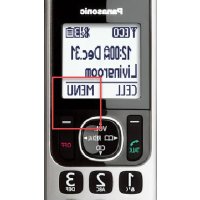
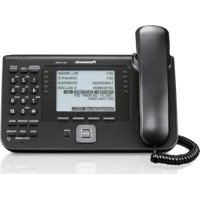
- KX-TDA30/KX-TDA100/KX-TDA
- POINTS FORTS
- CENTRE D'APPELS
- INTÉGRATION DE LA MESSAGERIE VOCALE
- SYSTÈME SANS FIL
- PC PHONE/PC CONSOLE
- FONCTIONNEMENT FACILE
- ENREGISTREMENT DES APPELS
- (ENREGISTREMENT DES DÉTAILS DES MESSAGES DE LA STATION)
- DANS CE MANUEL
- INFORMATIONS IMPORTANTES
- AVERTISSEMENT
- CONSIGNES DE SÉCURITÉ
- CONSERVEZ CES INSTRUCTIONS
- CE
- ATTENTION
- POUR RÉFÉRENCE FUTURE
- TABLE DES MATIÈRES
- FONCTIONNEMENT
- OPÉRATIONS DU GESTIONNAIRE
- PERSONNALISATION DE VOTRE TÉLÉPHONE ET DU SYSTÈME
- ANNEXE
- SECTION 1 OPÉRATIONS
- AVANT D'UTILISER LES TÉLÉPHONES
- QUEL TYPE DE TÉLÉPHONE PEUT ÊTRE UTILISÉ
- ENREGISTREMENT DE VOTRE POSTE PORTABLE (PS)
- NUMÉROS DE FONCTION
- AVIS
- TONALITÉS
- AFFICHAGE
- VOTRE NUMÉRO DE POSTE
- UTILISATION DE LA TOUCHE DE NAVIGATION / DE LA MOLETTE / DE LA TOUCHE DE VOLUME
- EXEMPLES
- RESTRICTIONS
- DESCRIPTION DES ICÔNES
- LORSQUE VOUS UTILISEZ UN TÉLÉPHONE PROPRIÉTAIRE PANASONIC
- BOUTONS FIXES
- BOUTONS PERSONNALISÉS
- COMMENT SUIVRE LES ÉTAPES
- EXEMPLE DE CONNEXION
- PASSER DES APPELS
- APPEL DE BASE
- ♦ APPEL D'UN AUTRE POSTE
- VERS UN AUTRE POSTE (APPEL INTERCOM)
- PT/SLT/PS
- PERSONNALISATION DE VOTRE TÉLÉPHONE
- POUR UN OPÉRATEUR (APPEL À L'OPÉRATEUR)
- ◆ APPEL D'UN CORRESPONDANT EXTERNE
- POUR SÉLECTIONNER AUTOMATIQUEMENT UNE LIGNE EXTÉRIEURE LIBRE (ACCÈS AUTOMATIQUE À UNE LIGNE)
- POUR SÉLECTIONNER AUTOMATIQUEMENT UNE LIGNE EXTÉRIEURE LIBRE DANS LE GROUPE DE LIGNES EXTÉRIEURES SPÉCIFIÉ (ACCÈS À UN GROUPE DE LIGNES EXTÉRIEURES)
- POUR SÉLECTIONNER LA LIGNE EXTÉRIEURE SPÉCIFIÉE
- PT/PS
- PASSER UN APPEL VERS UN RÉSEAU PRIVÉ (ACCÈS LIGNE TIE)
- POUR APPELER
- UTILISATION D'UN CODE DE FACTURATION (SAISIE DU CODE DE FACTURATION)
- NUMÉROTATION FACILE
- AVEC UNE TOUCHE À UNE PRESSION (NUMÉROTATION À UNE TOUCHE)
- UTILISATION DES NUMÉROS MÉMORISÉS À VOTRE POSTE (NUMÉROTATION ABRÉGÉE PERSONNELLE)
- POUR MÉMORISER UN NUMÉRO DE TÉLÉPHONE
- POUR COMPOSER
- UTILISATION DES NUMÉROS MÉMORISÉS DANS LE PBX (NUMÉROTATION ABRÉGÉE SYSTÈME)
- VERS UN NUMÉRO PRÉDÉFINI EN DÉCROCHANT (LIGNE DIRECTE)
- POUR ACTIVER/ANNULER
- UTILISATION D'UN NUMÉRO PRÉPROGRAMMÉ (NUMÉROTATION ABRÉGÉE)
- RAPPEL
- RAPPEL DU DERNIER NUMÉRO COMPOSÉ (RAPPEL DU DERNIER NUMÉRO)
- RAPPEL AUTOMATIQUE
- LORSQUE LA LIGNE COMPOSÉE EST OCCUPÉE OU QU'IL N'Y A PAS DE RÉPONSE
- RÉSERVATION D'UNE LIGNE OCCUPÉE (RAPPEL AUTOMATIQUE SUR OCCUPATION)
- POUR RÉGLER (POUR LE POSTE ET LA LIGNE EXTÉRIEURE)
- POUR RÉPONDRE À LA SONNERIE DE RAPPEL PROVENANT D'UN POSTE LIBRE
- POUR RÉPONDRE À LA SONNERIE DE RAPPEL PROVENANT D'UNE LIGNE EXTÉRIEURE LIBRE
- POUR ANNULER LA SONNERIE DE RAPPEL (ANNULATION DU RAPPEL AUTOMATIQUE SUR OCCUPATION)
- RÉGLAGE DU RAPPEL SUR UNE LIGNE RNIS (ACHÈVEMENT D'APPEL VERS UN ABONNÉ OCCUPÉ [CCBS])
- POUR RÉPONDRE PENDANT QU'UNE SONNERIE DE RAPPEL SE FAIT ENTENDRE
- POUR ANNULER (ANNULATION DU CCBS)
- ENVOI D'UNE TONALITÉ D'APPEL EN ATTENTE (APPEL EN ATTENTE)
- LAISSER UNE INDICATION DE MESSAGE EN ATTENTE / RAPPELER LE CORRESPONDANT QUI A LAISSÉ UNE INDICATION (MESSAGE EN ATTENTE)
- POUR UN APPELANT
- POUR UN POSTE APPELÉ
- POUR LAISSER UNE INDICATION DE MESSAGE EN ATTENTE
- POUR LAISSER/ANNULER UNE INDICATION DE MESSAGE EN ATTENTE
- POUR CONSULTER LE MESSAGE LAISSÉ ET RAPPELER
- POUR RAPPELER
- POUR EFFACER LES INDICATIONS DE MESSAGE EN ATTENTE LAISSÉES SUR VOTRE POSTE
- REJOINDRE UN APPEL EN COURS (DÉRIVATION PRIORITAIRE EN CAS D'OCCUPATION)
- POUR REJOINDRE
- POUR LE POSTE REJOINT
- POUR PARLER À CHAQUE PARTIE EN ALTERNANCE
- SURVEILLANCE D'UN AUTRE POSTE (SURVEILLANCE D'APPEL)
- POUR SURVEILLER
- VERS UNE EXTENSION REFUSANT L'APPEL (DND OVERRIDE)
- ACCÈS AU SERVICE RNIS (ACCÈS AU SERVICE RNIS)
- POUR Y ACCÉDER
- ALTERNANCE DE LA MÉTHODE D'APPEL (APPEL ALTERNÉ — SONNERIE/VOIX)
- POUR CHANGER LA MÉTHODE
- APPELER SANS RESTRICTIONS
- UTILISER VOS PRIVILÈGES D'APPEL À UN AUTRE POSTE (ACCÈS COS À DISTANCE)
- POUR APPELER (COS ITINÉRANT)
- POUR APPELER AVEC UN CODE VÉRIFIÉ (SAISIE DE CODE VÉRIFIÉ)
- ACCÉDER DIRECTEMENT À UNE AUTRE PARTIE DE L'EXTÉRIEUR (ACCÈS DIRECT AU SYSTÈME INTERNE [DISA])
- APPELER VIA DISA
- POUR APPELER UN POSTE
- DEPUIS UN TÉLÉPHONE EXTERNE
- EN MODE SANS SÉCURITÉ / MODE SÉCURITÉ DE TRONC
- EN MODE SÉCURITÉ TOTALE
- POUR APPELER UN CORRESPONDANT EXTERNE
- POUR RÉESSAYER
- LIMITE DE TEMPS
- CONFIGURATION DE VOTRE TÉLÉPHONE DEPUIS UN AUTRE POSTE OU VIA LA DISA (CONFIGURATION À DISTANCE)
- DEPUIS UN AUTRE POSTE
- VIA DISA
- RÉCEPTION D'APPELS
- RÉPONDRE AUX APPELS
- RÉPONSE EN MODE MAINS LIBRES (RÉPONSE EN MODE MAINS LIBRES)
- POUR ACTIVER/DÉSACTIVER
- RÉPONDRE À UN APPEL QUI SONNE SUR UN AUTRE POSTE (PRISE D'APPEL)
- RÉPONDRE À UN APPEL DEPUIS UN AUTRE POSTE (PRISE D'APPEL)
- INTERDIRE À D'AUTRES PERSONNES LA POSSIBILITÉ DE PRENDRE VOS APPELS (INTERDICTION DE PRISE D'APPEL)
- RÉPONDRE À UN APPEL VIA UN HAUT-PARLEUR EXTERNE (RÉPONSE D'APPEL DEPUIS N'IMPORTE QUEL POSTE [TAFAS])
- VIA UN HAUT-PARLEUR EXTERNE
- UTILISATION DES BOUTONS RÉPONDRE / RACCROCHER
- POUR RÉPONDRE
- PT
- POUR TRANSFÉRER UN APPEL
- POUR PARLER À UN APPELANT EN ATTENTE
- POUR TRANSFÉRER UN APPEL EXTÉRIEUR VERS UN POSTE AVEC UNE OPÉRATION EN UNE TOUCHE
- POUR TERMINER UNE CONVERSATION
- IDENTIFICATION DES APPELANTS MALVEILLANTS (IDENTIFICATION D'APPEL MALVEILLANT [MCID])
- POUR DEMANDER LE MCID
- PENDANT UNE CONVERSATION
- TRANSFERT D'UN APPEL (TRANSFERT D'APPEL)
- TRANSFERT VERS UN POSTE DU PABX
- POUR TRANSFÉRER
- POUR TRANSFÉRER EN UNE TOUCHE (TRANSFERT EN UNE TOUCHE)
- TRANSFERT VERS UN CORRESPONDANT EXTERNE À L'AIDE DU SERVICE PBX
- SLT
- TRANSFERT D'UN APPEL À L'AIDE DU SERVICE RNIS (TRANSFERT D'APPEL [CT]—VIA RNIS)
- MISE EN ATTENTE D'UN APPEL
- MISE EN ATTENTE
- POUR METTRE EN ATTENTE (MISE EN ATTENTE D'APPEL)
- POUR RÉCUPÉRER UN APPEL (RÉCUPÉRATION DE MISE EN ATTENTE)
- MISE EN ATTENTE DANS UNE ZONE DE STATIONNEMENT DU SYSTÈME (PARCAGE D'APPEL)
- POUR RÉGLER
- POUR RÉCUPÉRER (REPRISE D'APPEL EN ATTENTE)
- PARLER À DEUX CORRESPONDANTS EN ALTERNANCE (SCISSION D'APPEL)
- POUR ALTERNER ENTRE LES CORRESPONDANTS EN LAISSANT L'UN TEMPORAIREMENT EN ATTENTE
- POUR QUITTER LA CONVERSATION PUIS LAISSER LES DEUX CORRESPONDANTS PARLER
- POSTE TÉLÉPHONIQUE
- RÉPONDRE À UN APPEL EN ATTENTE
- RÉPONDRE À UN APPEL EN ATTENTE DANS LE PBX
- POUR DÉCONNECTER L'APPEL EN COURS PUIS PARLER AVEC LE NOUVEAU CORRESPONDANT
- POUR MAINTENIR L'APPEL EN COURS, PUIS PARLER AU NOUVEAU CORRESPONDANT
- POUR RACCROCHER LE DEUXIÈME APPEL, PUIS PARLER AU CORRESPONDANT D'ORIGINE
- POUR METTRE LE DEUXIÈME APPEL EN ATTENTE PUIS PARLER AVEC LE CORRESPONDANT INITIAL
- RÉPONSE À UN APPEL EN ATTENTE DE LA COMPAGNIE DE TÉLÉPHONE
- CONVERSATION À PLUSIEURS
- AJOUT D'AUTRES INTERLOCUTEURS PENDANT UNE CONVERSATION (CONFÉRENCE)
- POUR AJOUTER QUATRE CORRESPONDANTS OU PLUS À UNE CONFÉRENCE
- POUR PARLER ALTERNATIVEMENT À DEUX INTERLOCUTEURS LORS D'UNE CONVERSATION À TROIS
- QUITTER UNE CONFÉRENCE (CONFÉRENCE SANS SURVEILLANCE)
- POUR QUITTER UNE CONFÉRENCE
- POUR REVENIR PENDANT QUE D'AUTRES PARLENT
- QUITTER UNE CONFÉRENCE (QUITTER UNE CONFÉRENCE À TROIS)
- PERMETTRE À UN TIERS DE SE JOINDRE À VOTRE APPEL (LIBÉRATION DE CONFIDENTIALITÉ)
- POUR CONFIGURER
- AJOUT D'UN TIERS PENDANT UNE CONVERSATION À L'AIDE DU SERVICE RNIS (CONFÉRENCE À TROIS [3PTY]—PAR RNIS)
- MUTE
- PERMETTRE À D'AUTRES PERSONNES D'ÉCOUTER LA CONVERSATION (MONITEUR DÉCROCHÉ)
- UTILISATION DU CASQUE (FONCTIONNEMENT DU CASQUE)
- POUR PARLER AVEC LE CASQUE
- POUR UTILISER LE COMBINÉ PENDANT UNE CONVERSATION AVEC LE CASQUE
- POUR PARLER EN MODE MAINS LIBRES PENDANT UNE CONVERSATION AVEC LE CASQUE
- AVANT DE QUITTER VOTRE BUREAU
- RENVOI D'APPELS
- RENVOI DE VOS APPELS (RENVOI D'APPEL [FWD])
- TOUS LES APPELS
- OCCUPÉ
- SANS RÉPONSE
- OCCUPÉ/SANS RÉPONSE (BSY/NA)
- SUIVEZ-MOI (DEPUIS)
- FONCTIONNALITÉ PATRON & SECRÉTAIRE
- POUR CONFIGURER/ANNULER
- POUR RÉGLER DEPUIS UN AUTRE POSTE
- POUR RÉGLER LA MINUTERIE POUR "NE RÉPOND PAS" ET "OCCUPÉ/NE RÉPOND PAS
- POUR ACTIVER/ANNULER LE RENVOI D'APPEL (FWD) POUR VOTRE GROUPE DE DISTRIBUTION D'APPELS ENTRANTS
- NUMÉRO DE POSTE DE DESTINATION
- EN MODE DE COMMUTATION CYCLIQUE FWD/DND
- EN MODE DE RÉGLAGE FWD/DND
- REMARQUE
- RENVOI DE VOS APPELS À L'AIDE DU SERVICE RNIS (RENVOI D'APPEL [CF]—PAR RNIS)
- POUR ANNULER
- POUR CONFIRMER LA CONDITION
- AFFICHAGE D'UN MESSAGE SUR L'ÉCRAN DU TÉLÉPHONE DE L'APPELANT (MESSAGE D'ABSENCE)
- EMPÊCHER D'AUTRES PERSONNES D'UTILISER VOTRE TÉLÉPHONE (VERROUILLAGE DU POSTE)
- POUR VERROUILLER
- POUR DÉVERROUILLER
- ÉMETTRE/RÉPONDRE À UNE ANNONCE
- DIFFUSION
- DIFFUSION DE GROUPE
- SONORISATION PUIS TRANSFERT D'UN APPEL
- RÉPONDRE À UNE ANNONCE DE SONORISATION / LA REFUSER
- FAIRE UNE ANNONCE ET AVOIR UNE CONVERSATION À PLUSIEURS (DIFFUSION)
- POUR AVOIR UNE CONVERSATION AVEC UNE PERSONNE DANS L'ORDRE PRÉASSIGNÉ DU GROUPE
- POUR TERMINER UNE CONVERSATION AVEC UNE PERSONNE SPÉCIFIQUE
- RÉGLAGE DU TÉLÉPHONE SELON VOS BESOINS
- RÉGLAGE DE L'ALARME (RAPPEL PROGRAMMÉ)
- POUR ARRÊTER OU RÉPONDRE À LA SONNERIE DE RAPPEL
- POUR CONFIRMER
- REFUS DES APPELS ENTRANTS (NE PAS DÉRANGER [NPD])
- RÉCEPTION D'UN APPEL EN ATTENTE (APPEL EN ATTENTE/ANNONCE D'APPEL DÉCROCHÉ [OHCA]/OHCA CHUCHOTÉ)
- TONALITÉ D'APPEL EN ATTENTE
- OHCA
- OHCA CHUCHOTÉ
- POUR ACTIVER/DÉSACTIVER POUR LES APPELS INTERNES
- POUR ACTIVER/DÉSACTIVER POUR LES APPELS EXTERNES
- AFFICHAGE DE VOTRE NUMÉRO DE TÉLÉPHONE CHEZ LE CORRESPONDANT ET DU NUMÉRO DE L'APPELANT (PRÉSENTATION DU NUMÉRO APPELANT/APPELÉ [CLIP/COLP])
- POUR AFFICHER SOIT LE NUMÉRO ATTRIBUÉ À LA LIGNE EXTERNE, SOIT VOTRE POSTE
- EMPÊCHER L'AFFICHAGE DE VOTRE NUMÉRO DE TÉLÉPHONE SUR LE TÉLÉPHONE DE L'APPELANT (RESTRICTION D'IDENTIFICATION DE LA LIGNE CONNECTÉE [COLR])
- POUR AFFICHER/EMPÊCHER
- EMPÊCHER L'AFFICHAGE DE VOTRE NUMÉRO SUR LE TÉLÉPHONE DE LA PARTIE APPELÉE (RESTRICTION D'IDENTIFICATION DE LA LIGNE APPELANTE [CLIR])
- POUR AFFICHER/MASQUER
- EMPÊCHER D'AUTRES PERSONNES DE SE JOINDRE À VOTRE CONVERSATION (REFUS DE DÉRIVATION PRIORITAIRE)
- ACTIVATION DE LA MUSIQUE D'AMBIANCE (BGM)
- POUR SÉLECTIONNER ET RÉGLER/ANNULER
- PROTECTION DE VOTRE LIGNE CONTRE LES TONALITÉS DE NOTIFICATION (SÉCURITÉ DE LIGNE DE DONNÉES)
- VÉRIFICATION DU STATUT DU SERVICE HORAIRE
- RÉGLAGE DE LA SONNERIE DU TÉLÉPHONE PARALLÈLE (TÉLÉPHONE PARALLÈLE)
- DPT
- UTILISATION DE VOTRE PS EN PARALLÈLE AVEC UN TÉLÉPHONE FILAIRE (MODE PARALLÈLE XDP SANS FIL)
- POUR ACTIVER
- EFFACEMENT DES FONCTIONS PROGRAMMÉES À VOTRE POSTE (EFFACEMENT DES FONCTIONS DU POSTE)
- UTILISATION DU CENTRE D'APPELS
- QUITTER UN GROUPE DE DISTRIBUTION D'APPELS ENTRANTS (CONNEXION/DÉCONNEXION, TEMPS DE PAUSE)
- POUR RÉGLER LA CONNEXION/DÉCONNEXION
- POUR ENTRER/QUITTER LE MODE NON DISPONIBLE
- POUR ACTIVER/DÉSACTIVER LE MODE NON DISPONIBLE OU QUITTER LE MODE ENVELOPPEMENT (POUR PASSER EN MODE DISPONIBLE)
- SURVEILLANCE ET CONTRÔLE DE L'ÉTAT DES APPELS D'UN GROUPE DE DISTRIBUTION D'APPELS ENTRANTS (MONITEUR DE GROUPE DE DISTRIBUTION D'APPELS ENTRANTS)
- SURVEILLANCE DE L'ÉTAT DES APPELS EN ATTENTE
- POUR EFFACER L'HISTORIQUE DES APPELS
- SURVEILLANCE ET MODIFICATION DE L'ÉTAT DE CONNEXION/DÉCONNEXION DES POSTES
- POUR MODIFIER LE MODE DE CONNEXION/DÉCONNEXION
- AFFICHER LE PT
- RENVOI D'UN APPEL EN ATTENTE (REDIRECTION MANUELLE DE FILE D'ATTENTE)
- POUR TRANSFÉRER L'APPEL EN ATTENTE
- UTILISATION D'ÉQUIPEMENT FOURNI PAR L'UTILISATEUR
- SI UN INTERPHONE/EXTÉRIEUR EST CONNECTÉ
- APPEL DEPUIS LE PORTIER
- POUR APPELER DEPUIS LE PORTIER
- POUR RÉPONDRE À UN APPEL DU PORTIER
- POUR APPELER LE PORTIER
- OUVERTURE DE PORTE (OUVERTURE DE PORTE)
- DEPUIS UN POSTE SPÉCIFIÉ
- DEPUIS N'IMPORTE QUEL POSTE EN CONVERSATION AVEC LE PORTIER
- SI UN PBX HÔTE EST CONNECTÉ
- ACCÈS AUX SERVICES EXTERNES (ACCÈS AUX FONCTIONS EXTERNES [EFA])
- POUR METTRE L'APPEL EN COURS EN ATTENTE PUIS PARLER AVEC LE NOUVEAU CORRESPONDANT
- SI UN SYSTÈME DE TRAITEMENT VOCAL EST CONNECTÉ
- RENVOI D'APPEL VERS LA MESSAGERIE VOCALE (INTÉGRATION DE LA MESSAGERIE VOCALE)
- POUR RENVOYER VOS APPELS VERS VOTRE BOÎTE VOCALE
- POUR TRANSFÉRER UN APPEL VERS UNE BOÎTE VOCALE
- POUR ÉCOUTER LES MESSAGES
- FILTRAGE DES APPELS (ÉCOUTE EN DIRECT DES APPELS [LCS])
- MODE MAINS LIBRES
- MODE PRIVÉ
- AVANT D'OPÉRER
- POUR CONFIGURER L'ÉCOUTE D'APPEL EN DIRECT
- POUR ANNULER L'ÉCOUTE D'APPEL EN DIRECT
- ORGANIGRAMME DES OPÉRATIONS
- ENREGISTREMENT D'UNE CONVERSATION (ENREGISTREMENT BIDIRECTIONNEL)
- POUR ENREGISTRER DANS VOTRE BOÎTE VOCALE
- POUR ENREGISTRER DANS UNE AUTRE BOÎTE VOCALE (TRANSFERT BIDIRECTIONNEL)
- POUR ENREGISTRER DANS UNE AUTRE BOÎTE VOCALE AVEC UNE TOUCHE (TRANSFERT BIDIRECTIONNEL À UNE TOUCHE)
- APRÈS AVOIR DÉMÉNAGÉ VERS UN NOUVEL EMPLACEMENT DANS LE BUREAU
- UTILISATION DES MÊMES PARAMÈTRES QUE VOTRE POSTE PRÉCÉDENT (POSTE ITINÉRANT)
- UTILISATION D'UN TÉLÉPHONE PROPRIÉTAIRE À AFFICHEUR
- UTILISATION DU JOURNAL DES APPELS
- ◆ APPEL AVEC LE JOURNAL DES APPELS ENTRANTS
- POUR CONFIRMER LES INFORMATIONS DU JOURNAL AVEC LE BOUTON JOURNAL DES APPELS
- AFFICHER PT
- POUR CONFIRMER LES INFORMATIONS DU JOURNAL AVEC LA TOUCHE DE NAVIGATION
- T
- POUR EFFACER LES INFORMATIONS DU JOURNAL
- POUR MÉMORISER LES INFORMATIONS DE L'APPELANT DANS LA NUMÉROTATION ABRÉGÉE PERSONNELLE
- APPELER AVEC LE JOURNAL DES APPELS SORTANTS
- POUR APPELER AVEC LA TOUCHE BIS
- UTILISATION DES RÉPERTOIRES
- APPEL AVEC LE RÉPERTOIRE
- POUR SÉLECTIONNER ET APPELER
- ENREGISTREMENT DES NOMS ET DES NUMÉROS
- POUR ENREGISTRER UN ÉLÉMENT DU RÉPERTOIRE DE NUMÉROTATION ABRÉGÉE PERSONNEL
- SAISIE DES CARACTÈRES
- ACCÈS AUX FONCTIONS SYSTÈME (ACCÈS AUX FONCTIONS SYSTÈME)
- SECTION
- GESTIONNAIRE D'EXPLOITATION
- FONCTIONS DE CONTRÔLE
- CONTRÔLE DES EXTENSIONS
- MODIFICATION DES PARAMÈTRES DES AUTRES EXTENSIONS
- POUR VERROUILLER/DÉVERROUILLER D'AUTRES EXTENSIONS (VERROUILLAGE D'EXTENSION À DISTANCE)
- CONTRÔLE DU MODE DE SERVICE HORAIRE
- POUR CHANGER LE MODE HORAIRE (JOUR/NUIT/DÉJEUNER/PAUSE)
- POUR SÉLECTIONNER LE MODE DE COMMUTATION DU SERVICE HORAIRE (AUTOMATIQUE/MANUEL)
- CONTRÔLE DU NIVEAU DE RESTRICTION (TRANSFERT DE TONALITÉ D'APPEL)
- ACTIVATION DE LA MUSIQUE D'AMBIANCE EXTERNE (BGM)
- ENREGISTREMENT DES MESSAGES D'ACCUEIL (OGM)
- POUR ENREGISTRER
- POUR LIRE
- POUR ENREGISTRER DEPUIS UN PORT EXTERNE BGM (MOH)
- POUR EFFACER LE MESSAGE
- PERSONNALISATION DE VOTRE TÉLÉPHONE (PROGRAMMATION PERSONNELLE)
- ATTRIBUTION D'UN CODE PIN À VOTRE POSTE (CODE PIN [NUMÉRO D'IDENTIFICATION PERSONNEL])
- RÉGLAGES EN MODE PROGRAMMATION
- RÉGLAGE DES FONCTIONS
- POUR MÉMORISER LES NOMS ET NUMÉROS EN NUMÉROTATION ABRÉGÉE PERSONNELLE
- POUR MODIFIER LES NOMS ET NUMÉROS DE NUMÉROTATION ABRÉGÉE PERSONNELLE
- EFFACEMENT DES FONCTIONS
- PERSONNALISATION DES TOUCHES
- POUR DISTINGUER LES SONNERIES POUR CHAQUE BOUTON CO, INTERCOM OU ICD GROUP (UNIQUEMENT POUR LES TÉLÉPHONES PROPRIÉTAIRES NUMÉRIQUES)
- POUR EFFACER LA TOUCHE
- PROGRAMMATION DU GESTIONNAIRE
- INFORMATIONS DE PROGRAMMATION
- POSTE DISPONIBLE
- TÉLÉPHONE REQUIS
- MOT DE PASSE DU GESTIONNAIRE
- CONDITIONS
- MODIFICATION DES TARIFS D'APPEL ET DU CONTRÔLE DES EXTENSIONS
- PERSONNALISATION DE VOTRE SYSTÈME (PROGRAMMATION SYSTÈME)
- EXTENSION DISPONIBLE
- MOT DE PASSE SYSTÈME
- LISTE
- PROCÉDURE
- PROGRAMMATION
- PROGRAMMATION DU SYSTÈME
- DATE ET HEURE [000]
- NUMÉROTATION ABRÉGÉE DU SYSTÈME [001]
- NOM DE NUMÉROTATION ABRÉGÉE SYSTÈME [002]
- NUMÉRO DE POSTE [003]
- NOM DU POSTE [004]
- DÉPANNAGE
- TABLEAU DES NUMÉROS DE FONCTIONS
- QUELLE EST CETTE TONALITÉ
- EN MODE DÉCROCHÉ
- SONNERIES
- LORS DU DÉCROCHAGE
- TONALITÉS DE NUMÉROTATION
- TONALITÉ
- LORSQUE VOUS PASSEZ DES APPELS
- TONALITÉ D'OCCUPATION
- TONALITÉ DE RÉORDONNANCEMENT
- SONNERIE DE RAPPEL
- TONALITÉ NE PAS DÉRANGER (DND)
- PENDANT LE DÉCROCHÉ
- TONALITÉS D'INDICATION
- LORS D'UNE CONVERSATION AVEC UN CORRESPONDANT EXTERNE
- TONALITÉ D'AVERTISSEMENT
- LORS DU RÉGLAGE DES FONCTIONS OU DE LA PROGRAMMATION
- TONALITÉS DE CONFIRMATION
- HISTORIQUE DES RÉVISIONS
- KX-TDA100/KX-TDA200 VERSION
- NOUVEAUX CONTENUS
- CONTENUS MODIFIÉS
- KX-TDA30 VERSION
- NOUVEAUTÉS
- MODIFICATIONS
- A
- B
- C
- D
- E
- F
- G
- H
- J
- K
- L
- M
- N
- P
- Q
- U
- V
- W
- Y
- PANASONIC COMMUNICATIONS CO., LTD
- DROITS D'AUTEUR
Marque : PANASONIC
Modèle : KXTDA200E
Catégorie : Téléphone fixe