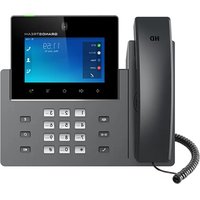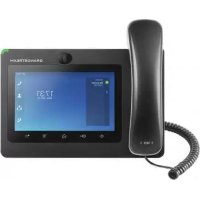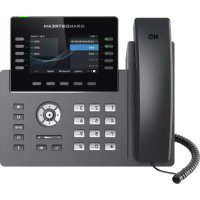
GVC3210 - Téléphone IP GRANDSTREAM - Notice d'utilisation et mode d'emploi gratuit
Retrouvez gratuitement la notice de l'appareil GVC3210 GRANDSTREAM au format PDF.


| Type de produit | Téléphone IP vidéo |
| Marque | Grandstream |
| Modèle | GVC3210 |
| Écran | 7 pouces tactile couleur |
| Résolution d'écran | 1024 × 600 pixels |
| Système d'exploitation | Android |
| Connectivité réseau | Ethernet 10/100/1000, Wi-Fi 802.11 b/g/n, Bluetooth |
| Ports | 1 × USB 2.0, 1 × HDMI, 1 × RJ45 |
| Alimentation | PoE (802.3af) ou adaptateur secteur 5V/2A |
| Dimensions (L × H × P) | 200 × 130 × 30 mm |
| Poids | 500 g |
| Fonctions principales | Appels vidéo HD, messagerie unifiée, répertoire, conférence |
| Entretien et nettoyage | Débrancher l'appareil, nettoyer avec un chiffon doux et sec |
| Sécurité | Mise à jour régulière du firmware, activation du chiffrement TLS/SRTP |
| Pièces détachées et réparabilité | Télécommande infrarouge, adaptateur secteur, câble Ethernet |
| Informations générales | Garantie 2 ans, compatible SIP et Android |
FOIRE AUX QUESTIONS - GVC3210 GRANDSTREAM
Questions des utilisateurs sur GVC3210 GRANDSTREAM
0 question sur cet appareil. Repondez a celles que vous connaissez ou posez la votre.
Poser une nouvelle question sur cet appareil
Téléchargez la notice de votre Téléphone IP au format PDF gratuitement ! Retrouvez votre notice GVC3210 - GRANDSTREAM et reprennez votre appareil électronique en main. Sur cette page sont publiés tous les documents nécessaires à l'utilisation de votre appareil GVC3210 de la marque GRANDSTREAM.
MODE D'EMPLOI GVC3210 GRANDSTREAM
Grandstream Networks, Inc.
GVC32XX
Remote Control Upgrading Instructions Guide
Table of Contents
SUPPORTED DEVICES 4
DOCUMENT PURPOSE 5
PREREQUISITES 6
UPGRADE REMOTE CONTROL 7
Install Remote Control App 7
Table of Figures
Figure 1: Application. 7
Figure 2: File Manager 7
Figure 3: Settings. 8
Figure 4:Unknown Source. 8
Figure 5: Install Remote Control 9
Figure 6: Open App 9
Table of Tables
Table 1: List of Supported Products 4
SUPPORTED DEVICES
Following table shows Grandstream products supporting remote control upgrade..
Table 1: List of Supported Products
| Model | Firmware |
| GVC3200/3202 | 1.0.1.74 or higher |
| GVC3210 | 1.0.1.69 or higher |
| GVC3220 | 1.0.1.24 or higher |
DOCUMENT PURPOSE
This document describes the detailed steps to upgrade the GVC32xx remote control software version. Upgrading remote control makes sure the remote control has the latest software which contains new fixes. For issues such as touchpad on remote control is not working, please follow below operations to upgrade and restore it.
PREREQUISITES
Please make sure GVC32xx is using the latest official or Beta firmware in Grandstream website: https://www.grandstream.com/support/firmware
- Please make sure your remote control is paired with GVC32xx device.
It is recommended to replace a new battery on your remote control to ensure sufficient battery supply for upgrading process.
UPGRADE REMOTE CONTROL
Install Remote Control App
Step 1: On your PC, download remote control firmware from the following link:
https://www.grandstream.com/hubfs/Product_Documentation/GVC320x_RemoteControl_Firmware.zip
Step 2: Unzip the package. Open the folder and find file "upgrade_rmt.apk". Copy file "upgrade_rmt.apk" to a USB flash drive plugged in the PC.
Step 3: Plug in USB flash drive into GVC32xx USB port.
Step 4: On GVC32xx, proceed from File Manager USB Disk, click on "upgrade_rmt.apk" to install it.
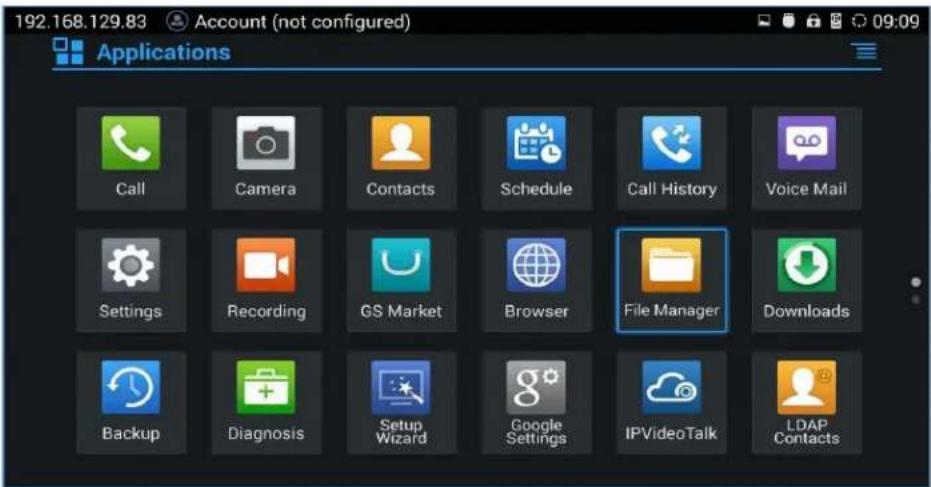
Figure 1: Application
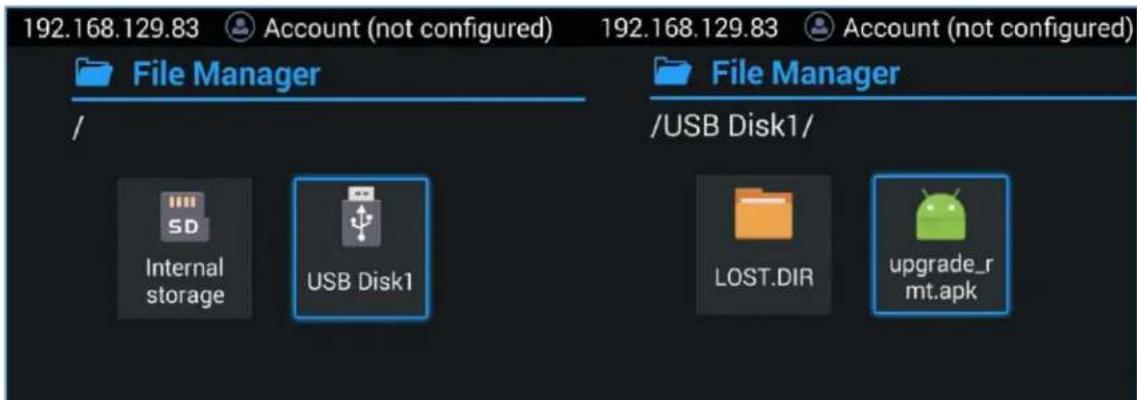
Figure 2: File Manager
Step 5: If you see "Install blocked" prompt, please proceed from the Menu: Settings System Security, enable "Unknown Sources" option.
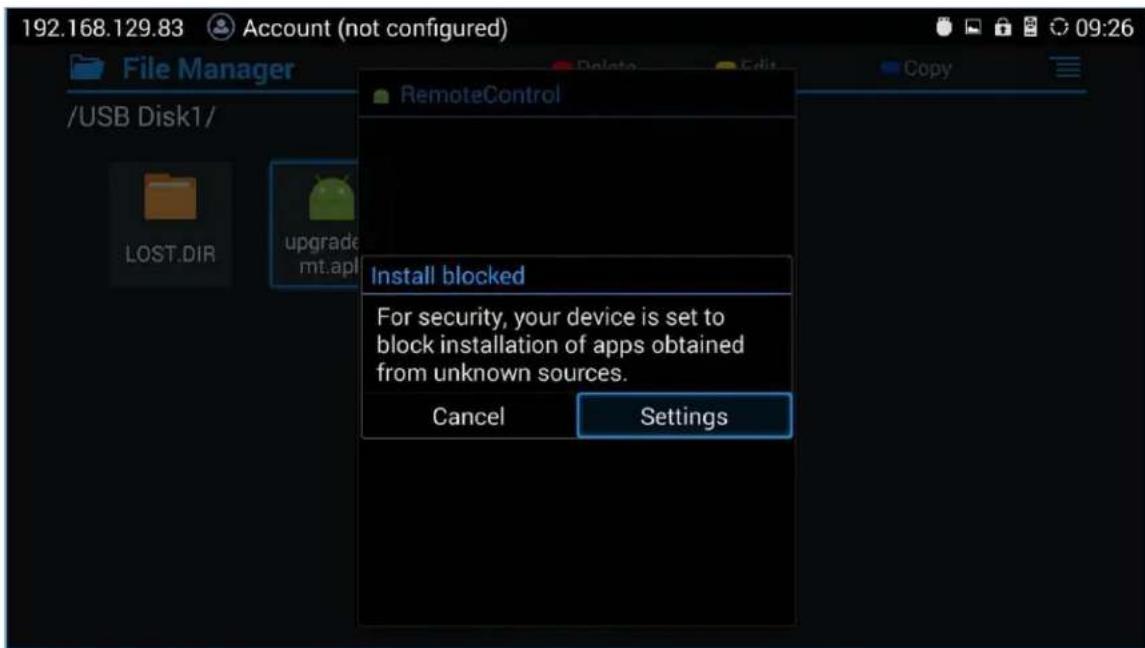
Figure 3: Settings
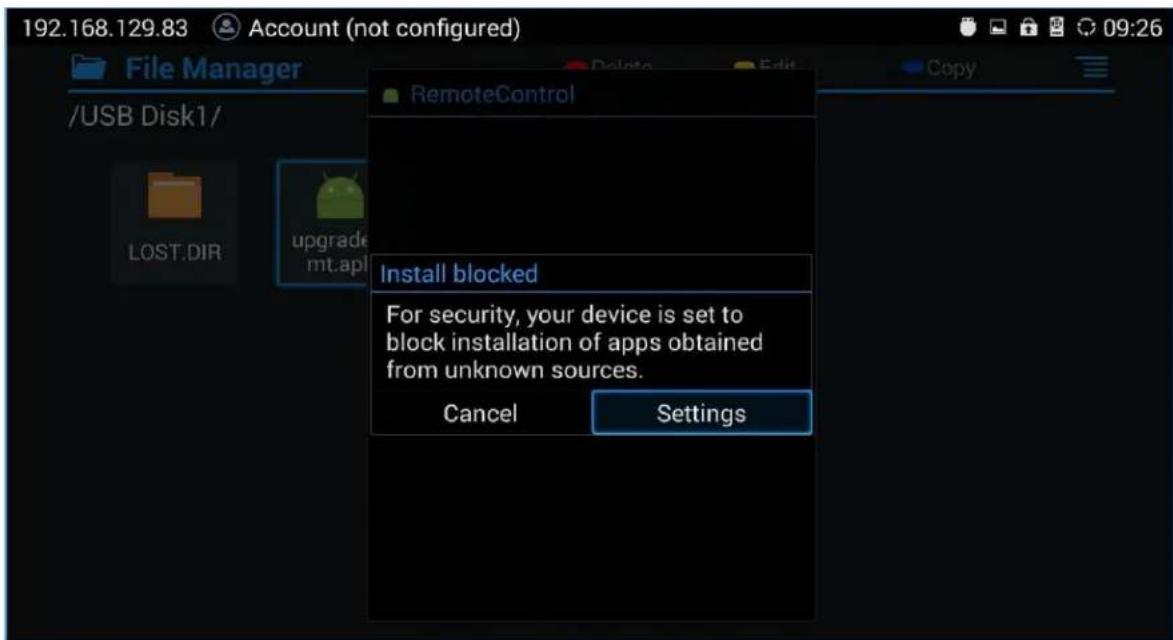
Figure 4:Unknown Source
Step 6: After allowing Unknown Sources Installation, please go back to File Manager->USB Disk, click on "upgrade_rmt.apk" to install it.
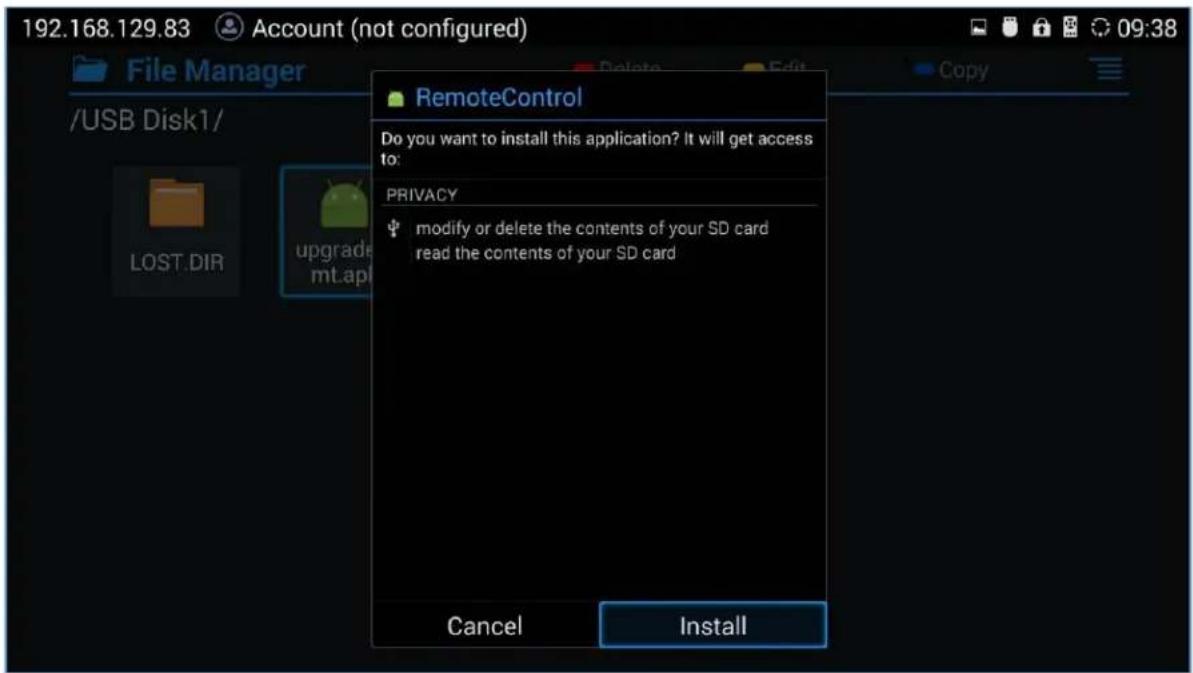
Figure 5: Install Remote Control
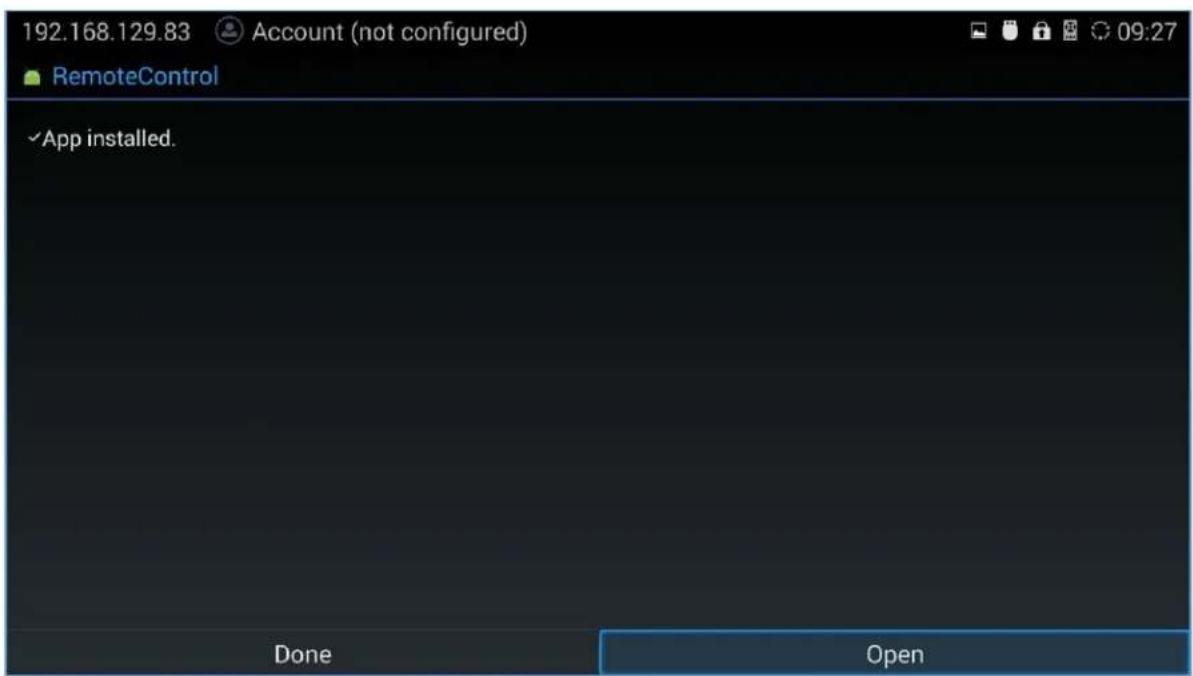
Figure 6: Open App