DVP-S745D - Lecteur dvd SONY - Notice d'utilisation et mode d'emploi gratuit
Retrouvez gratuitement la notice de l'appareil DVP-S745D SONY au format PDF.


| Type de produit | Lecteur DVD |
| Formats de lecture | DVD, CD, VCD, MP3, JPEG |
| Résolution vidéo | 480p (SD) |
| Connectivité | Sortie vidéo composite, S-Video, sortie audio stéréo, sortie numérique optique |
| Alimentation électrique | AC 100-240V, 50/60Hz |
| Dimensions approximatives | 360 x 230 x 45 mm |
| Poids | 1.5 kg |
| Fonctions principales | Lecture de disques, fonction de répétition, lecture aléatoire, zoom vidéo |
| Entretien et nettoyage | Nettoyer avec un chiffon doux, ne pas utiliser de produits chimiques agressifs |
| Pièces détachées et réparabilité | Réparabilité limitée, pièces disponibles auprès de revendeurs agréés |
| Sécurité | Ne pas exposer à l'humidité, ne pas ouvrir le boîtier |
| Compatibilités | Compatible avec la plupart des téléviseurs équipés de sorties vidéo |
FOIRE AUX QUESTIONS - DVP-S745D SONY
Questions des utilisateurs sur DVP-S745D SONY
0 question sur cet appareil. Repondez a celles que vous connaissez ou posez la votre.
Poser une nouvelle question sur cet appareil
Téléchargez la notice de votre Lecteur dvd au format PDF gratuitement ! Retrouvez votre notice DVP-S745D - SONY et reprennez votre appareil électronique en main. Sur cette page sont publiés tous les documents nécessaires à l'utilisation de votre appareil DVP-S745D de la marque SONY.
MODE D'EMPLOI DVP-S745D SONY
CD/DVD Player
Operating Instructions


DVP-S745D
DVP-S735D
WARNING
To prevent fire or shock hazard, do not expose the unit to rain or moisture. To avoid electrical shock, do not open the cabinet. Refer servicing to qualified personnel only.
Mains cord must only be changed at a qualified service shop.
CAUTION
The use of optical instruments with this product will increase eye hazard. As the laser beam used in this CD/DVD player is harmful to eyes, do not attempt to disassemble the cabinet.
Refer servicing to qualified personnel only.
Precautions
Safety
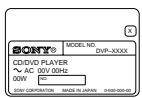
- The power requirements and power consumption of this unit are indicated on the back of the unit. Check that the unit's operating voltage is identical with your local power supply.
Power requirements and power consumption →
- If anything falls into the cabinet, unplug the unit and have it checked by qualified personnel before operating it any further.
- The unit is not disconnected from the mains as long as it is connected to the mains outlet, even if the unit itself has been turned off.
- Unplug the unit from the wall outlet if you do not intend to use it for an extended period of time. To disconnect the cord, pull it out by the plug, never by the cord.
Installing
- Allow adequate air circulation to prevent internal heat buildup.
- Do not place the unit on surfaces (rugs, blankets, etc.) or near materials (curtains, draperies) that may block the ventilation slots.
- Do not install the unit near heat sources such as radiators or air dusts, or in a place subject to direct sunlight, excessive dust, mechanical vibration or shock.
- Do not install the unit in an inclined position. It is designed to be operated in a horizontal position only.
- Keep the unit and discs away from equipment with strong magnets, such as microwave ovens or large loudspeakers.
- Do not place heavy objects on the unit.
- If the unit is brought directly from a cold to a warm location, moisture may condense inside the CD/DVD player and cause damage to the lenses. When you first install the unit, or when you move it from a cold to a warm location, wait for about 30 minutes before operating the unit.
For the model supplied with the AC plug adaptor
If the AC plug of your unit does not fit into the wall outlet, attach the supplied AC plug adaptor.
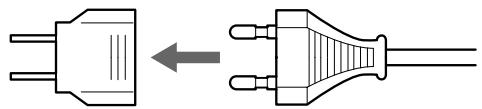
natural_image
Diagram showing two types of electrical plug connectors, one with a left-pointing arrow and the other with a right-angle section (no text or symbols)Welcome!
Thank you for purchasing this Sony CD/DVD Player. Before operating this unit, please read this manual thoroughly and retain it for future reference.
TABLE OF CONTENTS
About This Manual 4
This Player Can Play the Following Discs 4
Precautions 6
Notes About the Discs 6
Getting Started 7
Unpacking 7
TV Hookups 8
Receiver (Amplifier) Hookups 10
5.1 Channel Surround Hookups 12
Selecting the Language for the On-Screen Display 14
Operation Sound Effects (Sound Feedback) 15
Playing Discs 16
Playing Discs 16
Playing at Various Speeds/Frame by Frame 18
Resuming Playback from the Point Where You Stopped the Disc (Resume Play) 20
Using the DVD's Menu 21
Playing VIDEO CDs with PBC Functions (PBC Playback) 22
Using the Front Panel Display 23
Using Various Functions with the Control Menu 25
Using the Control Menu Display 25
Control Menu Item List 27
Searching for a Title/Chapter/Track/Index/Scene 28
Checking the Playing Time and Remaining Time 29
Selecting a Starting Point Using the Time Code 30
Labeling the Disc 31
Changing the Sound 32
Displaying the Subtitles 35
Changing the Angles 35
Digital Cinema Sound Settings 36
Checking the Play Information 39
Locking Discs (Custom Parental Control) 40
Creating Your Own Program (Program Play) 42
Playing in Random Order (Shuffle Play) 44
Playing Repeatedly (Repeat Play) 45
Repeating a Specific Portion (A-B Repeat) 46
Adjusting the Playback Picture (Video Equalizer) 47
Enhancing the Playback Picture (Digital Video Enhancer) 49
Using the Quick Reference Screen (VIEWER) 49
Settings and Adjustments 52
Using the Setup Display 52
Setup Display Item List 54
Setting the Display Language or Sound Track (LANGUAGE SETUP) 55
Settings for the Display (SCREEN SETUP) 57
Custom Settings (CUSTOM SETUP) 59
Settings for the Sound (AUDIO SETUP) 63
Settings for the Speakers (SPEAKER SETUP) 65
Controlling Your TV or AV Receiver (Amplifier) with the Supplied Remote 68
Additional Information 71
Troubleshooting 71
Self-diagnosis function 74
Specifications 75
Glossary 76
Language Code List 78
Index to Parts and Controls 79
Index 83
About This Manual
Conventions
- Instructions in this manual describe the controls on the player. You can also use the controls on the remote if they have the same or similar names as those on the player.
- Displays on the screen are slightly different depending on the player model. Illustrations of the on-screen display in this manual are for one of the player models.
- The supplied remote commander is different depending on the player model. RMT-D120O is used for the illustrations in this manual, unless otherwise mentioned.
- The icons on the right are used in this manual:
| Icon | Meaning |
 | Indicates that you can use only the remote to do the task. |
 | Indicates tips and hints for making the task easier. |
 | Indicates that the function is for DVD VIDEOs. |
 | Indicates that the function is for VIDEO CDs. |
 | Indicates that the function is for Audio CDs. |
This Player Can Play the Following Discs
| DVD VIDEOs | VIDEO CDs | Audio CDs | ||||
| Disc logo |  |  |  | |||
| Contents | Audio + Video | Audio + Video | Audio | |||
| Disc size | 12 cm | 8 cm | 12 cm | 8 cm | 12 cm | 8 cm(CD single) |
| Play time | About 4 h (for single-sided DVD)/about 8 h (for double-sided DVD) | About 80 min.(for single-sided DVD)/about 160 min.(for double-sided DVD) | 74 min. | 20 min. | 74 min. | 20 min. |
The “DVD VIDEO” logo is a trademark.
The player switches the color system, PAL or NTSC, according to the connected TV. (For details, see page 9.)
Region code of DVDs you can play on this unit
Your DVD player has a region code printed on the back of the unit and will only play DVDs that are labeled with identical region codes.
DVDs labeled 📂 will also play on this unit.
If you try to play any other DVD, the message “Playback prohibited by area limitations.” will appear on the TV screen.
Depending on the DVD, no region code indication may be labeled even though playing the DVD is prohibited by area restrictions.
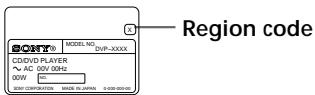
Note on playback operations of DVDs and VIDEO CDs
Some playback operations of DVDs and VIDEO CDs may be intentionally fixed by software producers. Since this player plays DVDs and VIDEO CDs according to the disc contents the software producers designed, some playback features may not be available. Also refer to the instructions supplied with the DVDs or VIDEO CDs.
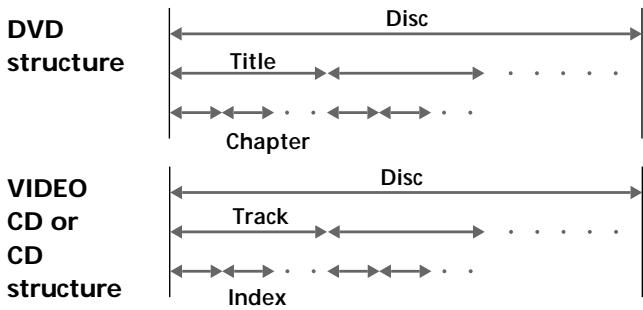
Terms for discs
- Title
The longest section of a picture or music feature on a DVD, the movie, etc. in video software, or the name of an album in audio software.
- Chapter
Sections of a picture or a music feature that are smaller than titles. A title is composed of several chapters. Each chapter is assigned a chapter number enabling you to locate the chapter you want. Depending on the disc, no chapters may be recorded.
- Track
Sections of a picture or a music feature on a VIDEO CD or a CD. Each track is assigned a track number enabling you to locate the track you want.
flowchart
graph LR
    subgraph Video Structure
        A["CD or CD structure"] --> B["Track"]
        B --> C["Index"]
    end
    subgraph DVD Structure
        D["Title"] --> E["Chapter"]
        E --> F["Disc"]
    end
• Index (CD) / Video Index (VIDEO CD)
A number that divides a track into sections to easily locate the point you want on a VIDEO CD or a CD. Depending on the disc, no indexes may be recorded.
- Scene
On a VIDEO CD with PBC ( playback control) functions, the menu screens, moving pictures and still pictures are divided into sections called “scenes.” Each scene is assigned a scene number enabling you to locate the scene you want.
Note on PBC (Playback Control) (VIDEO CDs)
This player conforms to Ver. 1.1 and Ver. 2.0 of VIDEO CD standards. You can enjoy two kinds of playback according to the disc type.
| Disc type | You can |
| VIDEO CDs without PBC functions (Ver. 1.1 discs) | Enjoy video playback (moving pictures) as well as music. |
| VIDEO CDs with PBC functions (Ver. 2.0 discs) | Play interactive software using menu screens displayed on the TV screen (PBC Playback), in addition to the video playback functions of Ver. 1.1 discs. Moreover, you can play high-resolution still pictures if they are included on the disc. |
Discs that the player cannot play
The player cannot play discs other than the ones listed in the table on page 4. CD-Rs, CD-ROMs including PHOTO CDs, data sections in CD-EXTRAs, DVD-ROMs, DVD-audio, HD (high density) layer of Super Audio CD etc., cannot be played.
When playing DTS*-encoded CDs, excessive noise will be heard from the analog stereo outputs. To avoid possible damage to the audio system, the consumer should take proper precautions when the analog stereo outputs of the DVD player are connected to an amplification system. To enjoy DTS Digital Surround™ playback, an external 5.1-channel DTS Digital Surround™ decoder system must be connected to the digital output of the DVD player.
This product incorporates copyright protection technology that is protected by method claims of certain U.S. patents and other intellectual property rights owned by Macrovision Corporation and other rights owners. Use of this copyright protection technology must be authorized by Macrovision Corporation, and is intended for home and other limited viewing uses only unless otherwise authorized by Macrovision Corporation. Reverse engineering or disassembly is prohibited.
* “DTS,” “DTS Digital Surround” and “DTS Digital Out “are trademarks of Digital Theater Systems, Inc.
Precautions
On safety
- Caution – The use of optical instruments with this product will increase eye hazard.
- Should any solid object or liquid fall into the cabinet, unplug the player and have it checked by qualified personnel before operating it any further.
On power sources
- The player is not disconnected from the AC power source (mains) as long as it is connected to the wall outlet, even if the player itself has been turned off.
- If you are not going to use the player for a long time, be sure to disconnect the player from the wall outlet. To disconnect the AC power cord (mains lead), grasp the plug itself; never pull the cord.
- Should the AC power cord (mains lead) need to be changed, have it done at a qualified service shop only.
On placement
- Place the player in a location with adequate ventilation to prevent heat build-up in the player.
- Do not place the player on a soft surface such as a rug that might block the ventilation holes on the bottom.
- Do not place the player in a location near heat sources, or in a place subject to direct sunlight, excessive dust or mechanical shock.
On operation
- If the player is brought directly from a cold to a warm location, or is placed in a very damp room, moisture may condense on the lenses inside the player. Should this occur, the player may not operate properly. In this case, remove the disc and leave the player turned on for about half an hour until the moisture evaporates.
- When you move the player, take out any discs. If you don't, the disc may be damaged.
On adjusting volume
- Do not turn up the volume while listening to a section with very low level inputs or no audio signals. If you do, the speakers may be damaged when a peak level section is played.
On cleaning
- Clean the cabinet, panel and controls with a soft cloth slightly moistened with a mild detergent solution. Do not use any type of abrasive pad, scouring powder or solvent such as alcohol or benzine.
If you have any questions or problems concerning your player, please consult your nearest Sony dealer.
IMPORTANT NOTICE
Caution: The enclosed DVD player is capable of holding a still video image or on-screen display image on your television screen indefinitely. If you leave the still video image or on-screen display image displayed on your TV for an extended period of time you risk permanent damage to your television screen. Projection televisions are especially susceptible to this.
Notes About the Discs
On handling discs
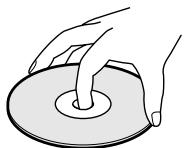
- To keep the disc clean, handle the disc by its edge. Do not touch the surface.
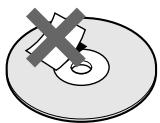
- Do not stick paper or tape on the disc. If there is glue (or a similar substance) on the disc, remove the glue completely before using the disc.
- Do not expose the disc to direct sunlight or heat sources such as hot air ducts, or leave it in a car parked in direct sunlight as the temperature may rise considerably inside the car.
• After playing, store the disc in its case.
On cleaning
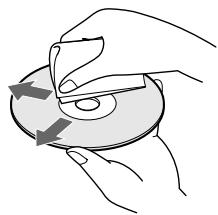
- Before playing, clean the disc with a cleaning cloth. Wipe the disc from the center out.
natural_image
Illustration of hands using a tool to cut or mark a circular object with arrows indicating direction (no text or symbols)- Do not use solvents such as benzine, thinner, commercially available cleaners or anti-static spray intended for vinyl LPs.
On novelty discs
- Do not use irregularly shaped CDs such as heart- or star-shaped CDs as they may cause the player to malfunction.
Getting Started
This section describes how to hook up the CD/DVD player to a TV (with audio/video input jacks) and/or an AV receiver (amplifier). You cannot connect this player to a TV which does not have a video input connector. Be sure to turn off the power of each component before making the connections.
Unpacking
Check that you have the following items:
• Audio/video connecting cord (1)
- S video cord (1)
- Remote commander (remote) RMT-D120E, RMT-D120A (for DVP-S745D) or RMT-D120O (for DVP-S735D) (1)
• R6 (size AA) batteries (2)
- A plug adaptor is included with some models.
Inserting batteries into the remote
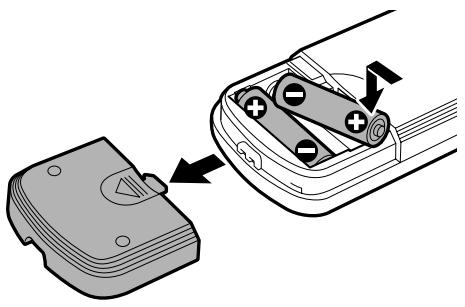
You can control the player using the supplied remote. Insert two R6 (size AA) batteries by matching the + and - ends on the batteries to the markings inside the compartment. When using the remote, point it at the remote sensor on the player.
natural_image
Diagram showing a device with battery and plug, connected to a car interior (no text or symbols)You can control TVs and AV receivers (amplifiers) using the supplied remote See page 68.
Notes
- Do not leave the remote in an extremely hot or humid place.
- Do not drop any foreign object into the remote casing, particularly when replacing the batteries.
- Do not expose the remote sensor to direct sunlight or lighting apparatuses. Doing so may cause a malfunction.
- If you do not use the remote for an extended period of time, remove the batteries to avoid possible damage from battery leakage and corrosion.
TV Hookups
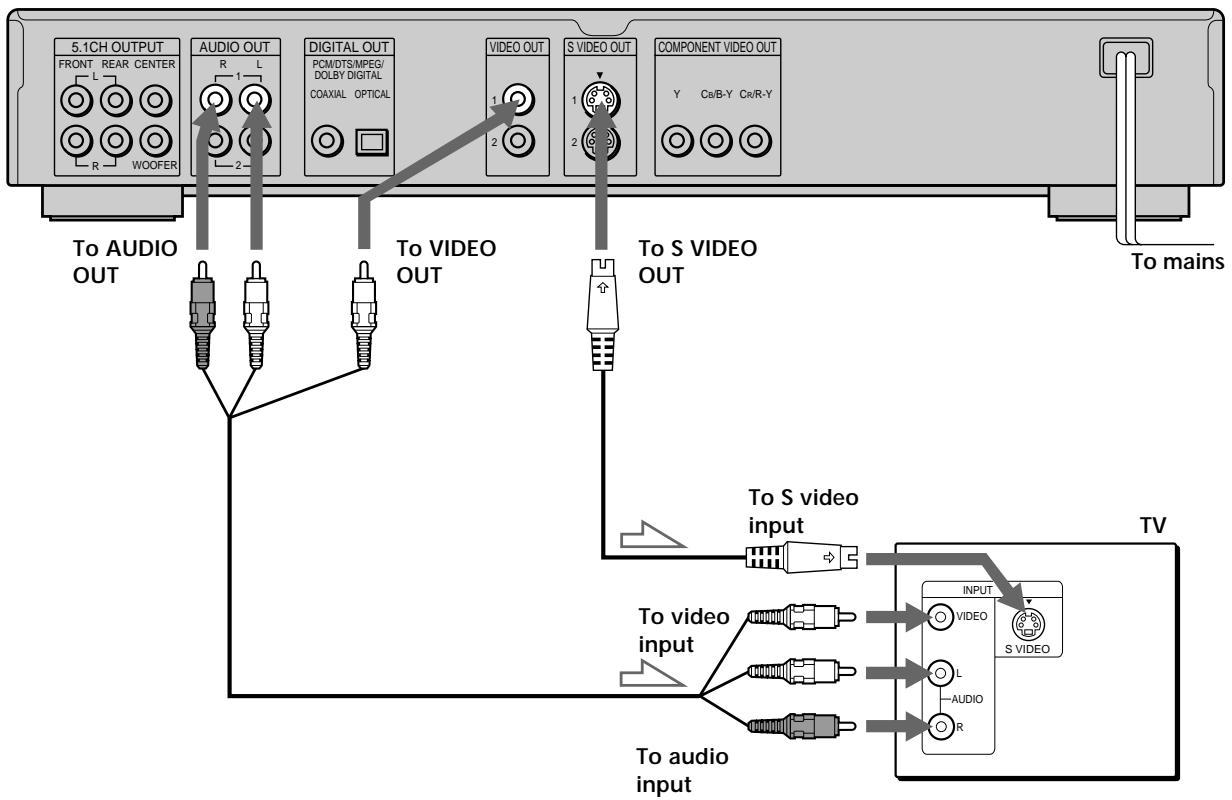
This connection is for listening to the sound through TV speakers (L: left, R: right). Refer to the instructions supplied with the component to be connected.

You can enjoy surround sound using your TV's built-in makers
You can use 3D sound imaging to create virtual rear speakers from the sound of built-in TV speakers without using actual rear speakers (VES TV: Virtual Enhanced Surround TV). For details, see page 37.
Required cords
Audio/Video connecting cord (supplied) (1)

flowchart
graph LR
    A["Yellow"] --> B["White (L)"]
    C["Red (R)"] --> D["White (L)"]
    E["Red (R)"] --> F["White (L)"]
    B --> G["Yellow"]
    D --> H["Red"]
S video cord (supplied) (1)

When connecting the cords, be sure to match the color-coded cord to the appropriate jacks on the components: Yellow (video) to Yellow, Red (right) to Red and White (left) to White. Be sure to make connections firmly to avoid hum and noise.
If your TV has an S video input connector, connect the component via the S VIDEO OUT connector using the supplied S video cord. You will get a better picture.
Refer to the instructions supplied with the TV to be connected.
CD/DVD player
flowchart
graph TD
    A["5.1CH OUTPUT"] -->|R L| B["AUDIO OUT"]
    A -->|L| C["Digital OUT"]
    A -->|R WOOFER| D["PCM/DTS/MPEG/DOLBY DIGITAL COAXIAL OPTICAL"]
    A -->|2| E["VIDEO OUT"]
    A -->|1| F["S VIDEO OUT"]
    A -->|2| G["COMPONENT VIDEO OUT"]
    H["To MAINS"] --> I["TV"]
    J["To S VIDEO OUT"] --> K["To S video input"]
    L["To audio input"] --> M["To video input"]
    N["TO AUDIO OUT"] --> O["To audio input"]
    P["TO S VIDEO OUT"] --> Q["TO S video input"]
    R["TO VIDEO OUT"] --> S["TO S video input"]
    T["TO S VIDEO OUT"] --> U["TO S video input"]
    V["TO S VIDEO OUT"] --> W["TO S video input"]

: Signal flow
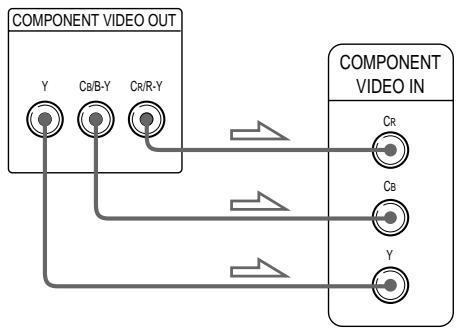
If you connect the player to a monitor or projector having component video input connectors that conform to the output signals from the COMPONENT VIDEO OUT (Y, CB/B-Y, CR/R-Y) connectors on the player
Connect the component via the COMPONENT VIDEO OUT connectors using three video connecting cords (not supplied) of the same kind. You will get a better picture.
flowchart
graph TD
    A["COMPONENT VIDEO OUT"] --> B["Y"]
    A --> C["Cb/B-Y"]
    A --> D["Cr/R-Y"]
    E["COMPONENT VIDEO IN"] --> F["CR"]
    E --> G["Cb"]
    E --> H["Y"]
    B --> I
    C --> I
    D --> I
    F --> I
    G --> I
    H --> I
Notes
- Refer to the instructions supplied with the component to be connected.
- Do not connect this player to a video deck. If you do, noise may appear in the picture.
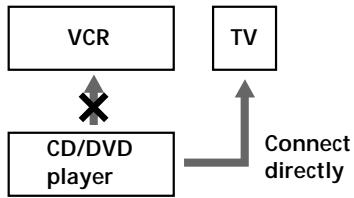
flowchart
graph TD
    A["VCR"] --> B["CD/DVD player"]
    C["TV"] --> D["Connect directly"]
    B --> D
- Depending on the TV or receiver (amplifier), sound distortion may occur because the audio output level is high. In this case, set “AUDIO ATT” in “AUDIO SETUP” to “ON” in the setup display. For details, see page 63.
Setups for the player
Some setup adjustments are necessary for the player depending on the TV or other components to be connected.
Use the setup display to change the various settings. For details on using the setup display, see page 52.
- To connect the player to a wide-screen TV In the setup display, set “TV TYPE” in “SCREEN SETUP” to “16:9” (default setting). For details, see page 57.
- To connect the player to a normal TV In the setup display, set “TV TYPE” in “SCREEN SETUP” to “4:3 LETTER BOX” or “4:3 PAN SCAN.” For details, see page 57.
- If the color system of the TV is NTSC or PAL The color system of the player is set to NTSC or PAL. If the playback picture of the player does not appear on the TV, change the color system of the player to the same color system (PAL or NTSC) of your TV. To change the color system, hold ① down while pressing Ⅱ on the player. The power indicator lights up in green and changes to red. Then release Ⅲ.
You can check the color system of the player
Press ① on the player and then press I/⏻ on the remote. The power indicator lights up in green. When “NTSC” appears on the front panel display, the color system of the player is set to NTSC. When “NTSC” does not appear, the color system is set to PAL.
Receiver (Amplifier) Hookups
Connect your receiver (amplifier) as follows.
Refer as well to the instructions supplied with the component to be connected.

You can enjoy surround sounds even if you only connect at speakers
You can use 3D sound imaging to create virtual rear speakers from the sound of the front speakers (L, R) without using actual rear speakers (VES: Virtual Enhanced Surround and VIRTUAL SEMI MULTI DIMENSION). For details, see page 37.
Required cords
Audio connecting cord (not supplied) (1)

S video cord (supplied) (1)

When connecting the cords, be sure to match the color-coded cord to the appropriate jacks on the components: Red (right) to Red and White (left) to White. Be sure to make connections firmly to avoid hum and noise.
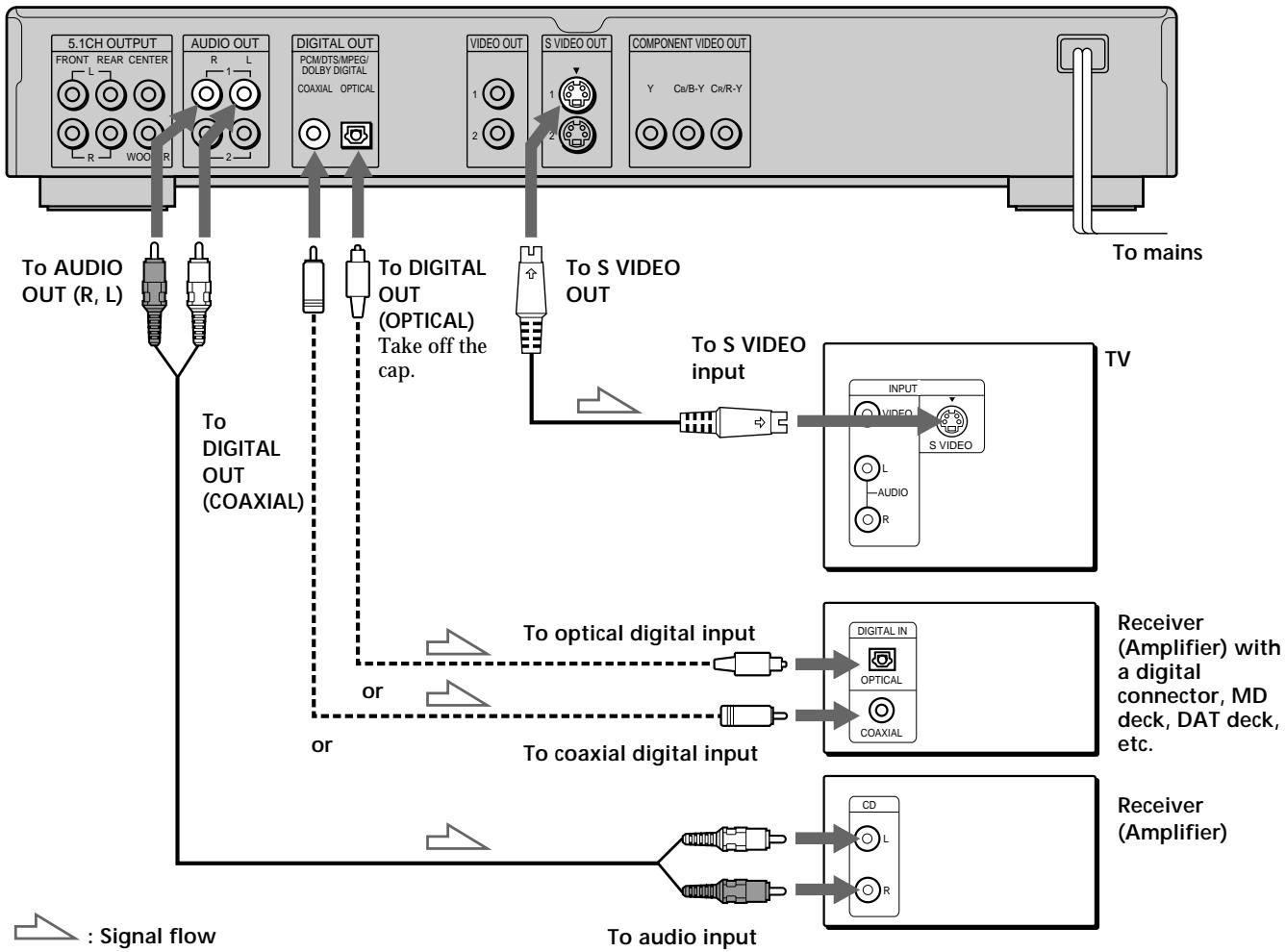
If you have a digital component such as a receiver (amplifier) with a digital connector, DAT or MD, connect the component via the DIGITAL OUT OPTICAL or COAXIAL connector using an optical or coaxial digital connecting cord (not supplied).
Optical digital connecting cord (not supplied) (1)

Coaxial digital connecting cord (not supplied) (1)

Do not connect the mains lead to a switched mains such as the mains on a receiver (amplifier). Doing so may cause the Playback Memory, Bookmark, Disc Memo and menu settings to be cancelled when you turn off the receiver.
Note
You cannot enjoy a picture with an S video signal if your TV does not conform to the S video signal. When your TV does not have an S VIDEO input, connect the component via the VIDEO INPUT connector using the video connecting cord (not supplied) instead of the S video cord. For details, see page 9.
Refer to the instructions supplied with your TV.
CD/DVD player
flowchart
graph TD
    A["5.1CH OUTPUT"] -->|To AUDIO OUT (R, L)| B["To digital OUT (COAXIAL)"]
    A -->|To S VIDEO OUT| C["To optical digital input"]
    A -->|To audio input| D["Receiver (Amplifier)"]
    B -->|To digital OUT (OPTICAL) Take off the cap.| E["Digital OUT PCM/CTS/MPEG/DOLBY DIGITAL COAXIAL OPTICAL"]
    C --> F["TV: INPUT, VIDEO, S VIDEO, L AUDIO R"]
    D --> G["CD: Signal flow"]
    style A fill:#f9f,stroke:#333
    style B fill:#ccf,stroke:#333
    style C fill:#cfc,stroke:#333
    style D fill:#fcc,stroke:#333
Setups for the player when using the digital connecting cords
Connect the component via the DIGITAL OUT OPTICAL or COAXIAL connector using an optical or coaxial digital connecting cord (not supplied). You do not need to use the audio connecting cord.
Some setup adjustments are necessary for the player depending on the components to be connected.
Use the setup display to change the various settings.
For details on using the setup display, see page 52.
If your receiver (amplifier) does not have a built-in Dolby\* Digital decoder, MPEG decoder or DTS decoder
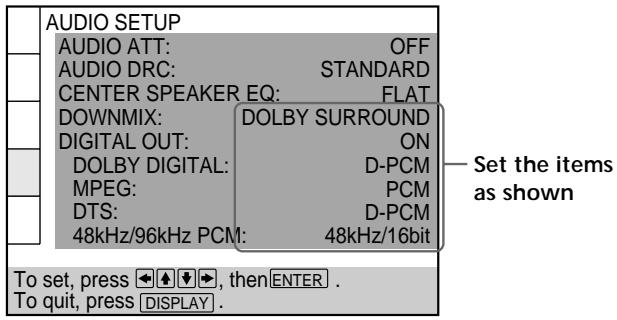
- To listen to the sound through speakers connected to a receiver (amplifier) which has a digital connector, or to output the sound to a digital component such as a DAT or MD deck Set the “AUDIO SETUP” items in the setup display (page 63) as shown in the illustration below. These are the default settings.
text_image
AUDIO SETUP AUDIO ATT: OFF AUDIO DRC: STANDARD CENTER SPEAKER EQ: FLAT DOWNMIX: DOLBY SURROUND DIGITAL OUT: ON DOLBY DIGITAL: D-PCM MPEG: PCM DTS: D-PCM 48kHz/96kHz PCM: 48kHz/16bit To set, press ←↑↓→, then ENTER . To quit, press DISPLAY .When you have made the connections using an optical or coaxial digital connecting cord, do not set "DOLBY DIGITAL" to "DOLBY DIGITAL," "MPEG" to "MPEG," "DTS" to "DTS" and "48kHz/96kHz PCM" to "96kHz/24bit." If you do, a loud noise will suddenly come out from the speakers, affecting your ears or causing the speakers to be damaged.
Note
You cannot make direct digital audio recordings of discs recorded in multichannel surround format using an MD deck or DAT deck.
If you have an audio component with a built-in Dolby Digital decoder, MPEG decoder or DTS decoder
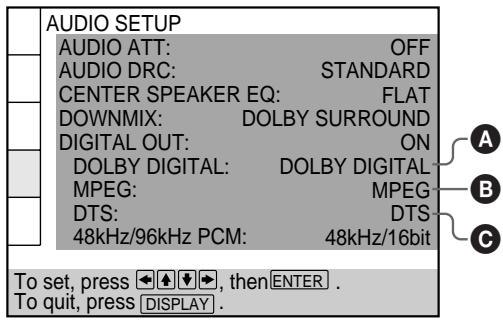
- When you connect an audio component with a built-in Dolby Digital decoder Ⓐ
Set “DIGITAL OUT” in “AUDIO SETUP” to “ON” and then set “DOLBY DIGITAL” to “DOLBY DIGITAL” in the setup display (page 64). - When you connect an audio component with a built-in MPEG decoder Ⓑ
Set “DIGITAL OUT” in “AUDIO SETUP” to “ON” and then set “MPEG” to “MPEG” in the setup display (page 64). - When you connect an audio component with a built-in DTS decoder Ⓒ
Set “DIGITAL OUT” in “AUDIO SETUP” to “ON” and then set “DTS” to “DTS” in the setup display (page 64).
text_image
AUDIO SETUP AUDIO ATT: OFF AUDIO DRC: STANDARD CENTER SPEAKER EQ: FLAT DOWNMIX: DOLBY SURROUND DIGITAL OUT: ON DOLBY DIGITAL: DOLBY DIGITAL MPEG: MPEG DTS: DTS 48kHz/96kHz PCM: 48kHz/16bit To set, press →, then ENTER . To quit, press DISPLAY .Notes
- When you do not connect an audio component with a built-in Dolby Digital decoder, do not set "DOLBY DIGITAL" to "DOLBY DIGITAL."
- When you do not connect an audio component with a built-in MPEG decoder, do not set "MPEG" to "MPEG."
- When you do not connect an audio component with a built-in DTS decoder, do not set "DTS" to "DTS."
- When you connect the component via the DIGITAL OUT OPTICAL or COAXIAL connector, the Virtual 3D Surround effect cannot be heard.
* Manufactured under license from Dolby Laboratories.
“Dolby,” “Pro Logic” and the double-D symbol are trademarks of Dolby Laboratories.
Confidential unpublished works. ©1992-1997 Dolby
Laboratories. All rights reserved.
5.1 Channel Surround Hookups
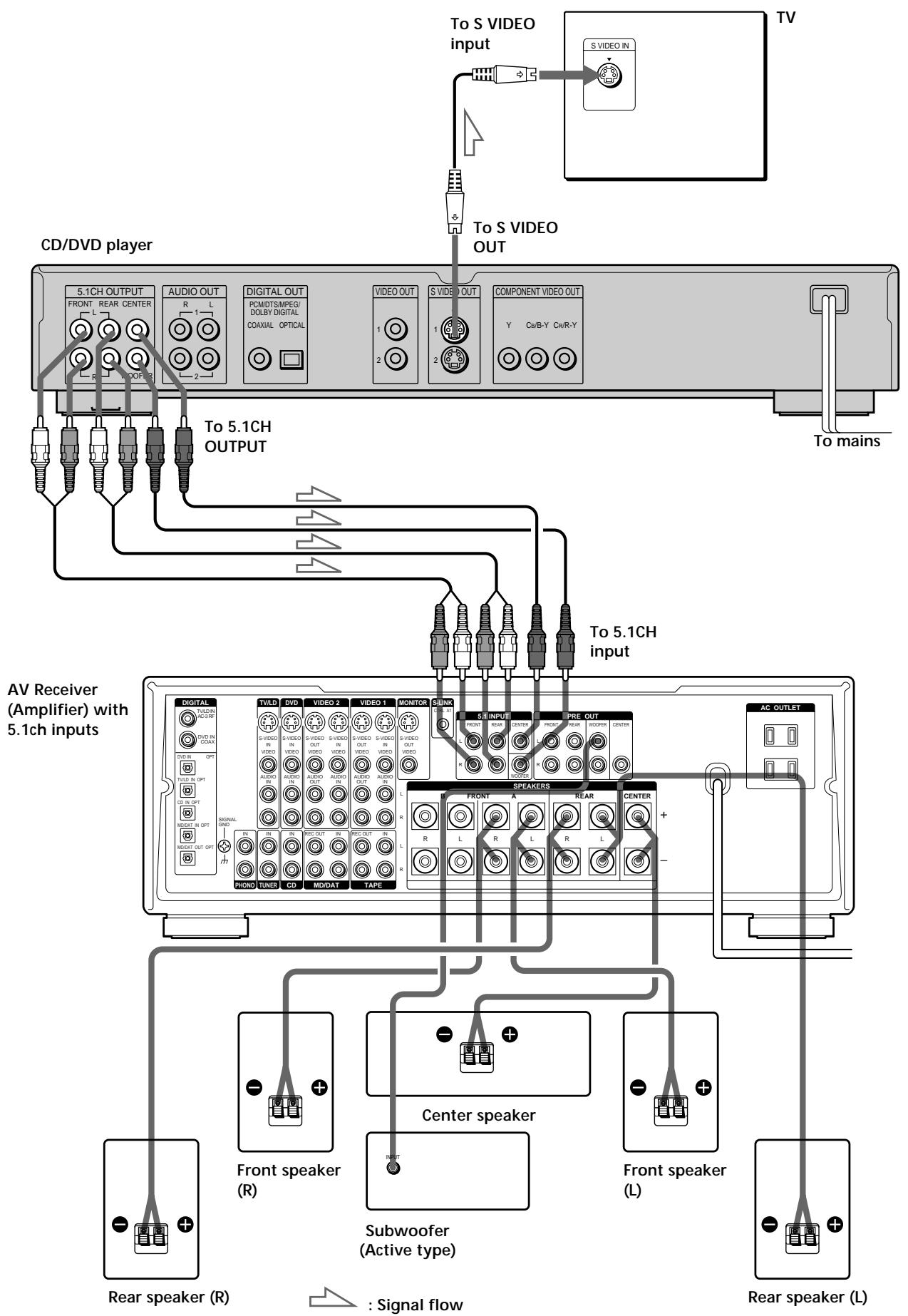
Some DVDs have a sound track with up to 5.1 channels recorded in Dolby Digital, MPEG audio or DTS format. Using a receiver (amplifier) having 5.1 channel inputs and 6 speakers, you can enjoy a more realistic audio presence in the comfort of your own home.
“5.1 channel” stands for the 2 front speakers (Left and Right), 2 rear speakers (Left and Right), 1 center speaker, and a subwoofer.
Even if you have fewer than 6 speakers, the player appropriately distributes the output signal to the speakers.
This player also has a VIRTUAL 3D SURROUND mode. You can use 3D sound imaging to shift the sound of the rear speakers away from the actual speaker position (VIRTUAL REAR SHIFT) or to create 3 sets of virtual rear speakers from 1 set of actual rear speakers (VIRTUAL MULTI REAR, etc.). For details on the VIRTUAL 3D SURROUND mode, see page 36.
Note
When a DVD has a sound track with 7.1 channels recorded in MPEG audio format, the output audio signals are mixed down to 5.1 channels.
Speaker placement
For the best possible surround sound, we recommend the following conditions.
- Use higher performance speakers.
- Use rear and center speakers that match your front speakers in size and performance.
- Place the subwoofer between the front (L, R) speakers if possible.
Note
Do not place the rear speakers farther away from the listening position than the front speakers.
Required cords
Audio cords (not supplied) (2)
For the 5.1CH OUTPUT FRONT and REAR jacks

text_image
White (L) Red (R) White (L) Red (R)Monaural audio cords (not supplied) (2)
For 5.1CH OUTPUT CENTER and WOOFER jacks.

S video cord (supplied) (1)
For the S VIDEO OUT jack

When connecting the cords, be sure to match the color-coded cord to the appropriate jacks on the components: Red (right) to Red and White (left) to White. Be sure to make connections firmly to avoid hum and noise.
Do not connect the power cord to a switched mains such as the mains on a receiver (amplifier). Doing so may cause the Playback Memory, Bookmark, Disc Memo and menu settings to be cancelled when you turn off the receiver.
Notes
- Do not connect the mains lead to the mains or press the POWER switch before completing all connections.
- Refer to the instructions supplied with the component to be connected.
- The cord connectors should be fully inserted into the jacks. A loose connection may cause hum and noise.
- If you want to connect the component via the DIGITAL OUT OPTICAL or COAXIAL connector using an optical or coaxial digital connecting cord (not supplied), see page 10.
Setups for the player
Some setup adjustments are necessary for the player depending on the components to be connected.
Use the setup display to change the various settings. For details on using the setup display, see page 52.
- To enjoy surround sounds by connecting the player to a receiver (amplifier) with 5.1 channel inputs Correctly adjust each speaker to your listening position (page 65).
flowchart
graph TD
    A["CD/DVD player"] --> B["5.1CH OUTPUT"]
    A --> C["AUDIO OUT"]
    A --> D["DIGITAL OUT"]
    A --> E["VIDEO OUT"]
    A --> F["S VIDEO OUT"]
    A --> G["COMPONENT VIDEO OUT"]
    B --> H["To S VIDEO INPUT"]
    C --> I["To S VIDEO OUT"]
    D --> J["To 5.1CH OUTPUT"]
    E --> K["To 5.1CH OUTPUT"]
    F --> L["To mains"]
    G --> M["To 5.1CH INPUT"]
    N["AV Receiver (Amplifier) with 5.1ch inputs"] --> O["Digital"]
    N --> P["TVLD"]
    N --> Q["VIDEO 2"]
    N --> R["VIDEO 1"]
    N --> S["MONITOR"]
    N --> T["6/8N"]
    N --> U["5.8 INPUT"]
    N --> V["PRE OUT"]
    N --> W["AC OUTLET"]
    O --> X["Front speaker (R)"]
    P --> Y["Front speaker (L)"]
    Q --> Z["Subwoofer (Active type)"]
    R --> AA["Speaker 3"]
    S --> AB["Speaker 4"]
    T --> AC["Speaker 5"]
    U --> AD["Speaker 6"]
    V --> AE["Speaker 7"]
    W --> AF["Speaker 8"]
    X --> AG["Rear speaker (R)"]
    Y --> AH["Rear speaker (L)"]
    Z --> AI["Rear speaker (R)"]
    AA --> AJ["Rear speaker (R)"]
    AB --> AK["Rear speaker (R)"]
    AC --> AL["Rear speaker (R)"]
    AD --> AM["Rear speaker (R)"]
    AE --> AN["Rear speaker (R)"]
    AF --> AO["Rear speaker (R)"]
    AG --> AP["Rear speaker (R)"]
    AH --> AQ["Rear speaker (R)"]
    AI --> AR["Rear speaker (R)"]
    AJ --> AS["Rear speaker (R)"]
    AK --> AT["Rear speaker (R)"]
    AL --> AU["Rear speaker (R)"]
    AM --> AV["Rear speaker (R)"]
    AN --> AW["Rear speaker (R)"]
    AO --> AX["Rear speaker (R)"]
    AP --> AY["Rear speaker (R)"]
    AQ --> AZ["Rear speaker (R)"]
    AR --> BA["Rear speaker (R)"]
    AS --> BB["Rear speaker (R)"]
    AT --> BC["Rear speaker (R)"]
    AU --> BD["Rear speaker (R)"]
    AV --> BE["Rear speaker (R)"]
    AW --> BF["Rear speaker (R)"]
    AX --> BG["Rear speaker (R)"]
    AY --> BH["Rear speaker (R)"]
    AZ --> BI["Rear speaker (R)"]
    BA --> BJ["Rear speaker (R)"]
Selecting the Language for the On-Screen Display
You can select the language for the setup display, the Control Menu display or the messages displayed on the screen. The default setting is “ENGLISH.”
text_image
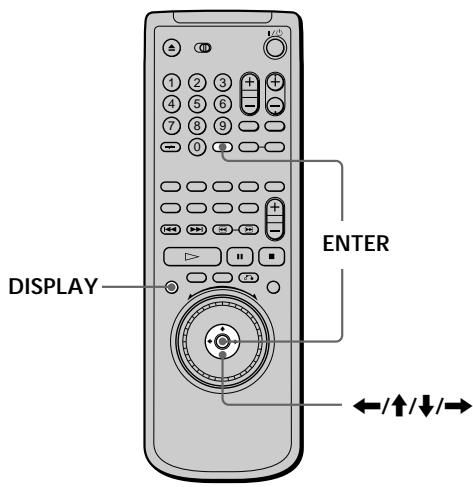
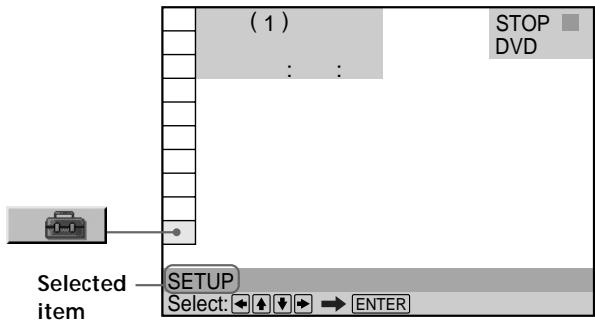
DISPLAY ENTER ←/↑/↓/→1 When the player is in stop mode, press DISPLAY and select "SETUP" using ↑/↓.
The on-screen menu items are different depending on whether there is a disc in the player or not.
text_image
(1) STOP DVD Selected item SETUP Select: ← ↑ ↓ → ENTER2 Press ENTER.
The setup display appears on the TV screen.
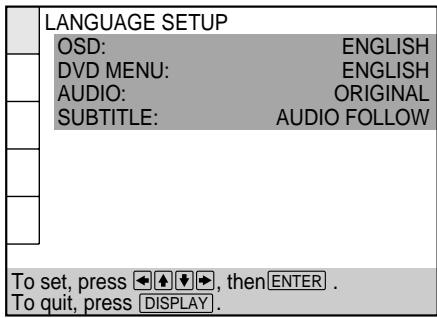
text_image
LANGUAGE SETUP OSD: ENGLISH DVD MENU: ENGLISH AUDIO: ORIGINAL SUBTITLE: AUDIO FOLLOW To set, press ↩ ↙ ↖, then ENTER . To quit, press DISPLAY .3 Select "LANGUAGE SETUP" using ↑/↓, and then press ENTER.
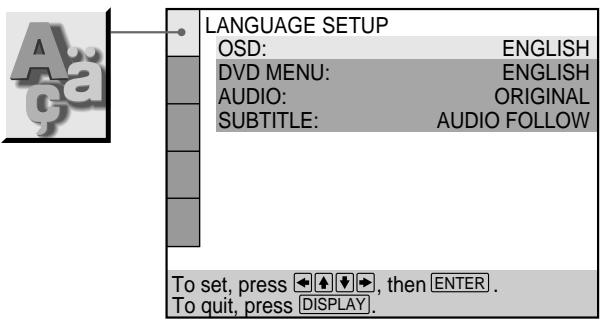
text_image
LANGUAGE SETUP OSD: ENGLISH DVD MENU: ENGLISH AUDIO: ORIGINAL SUBTITLE: AUDIO FOLLOW To set, press →, then ENTER . To quit, press DISPLAY.4 Select "OSD" using ↑/↓, then press → or ENTER. The languages you can select are displayed. These languages are different depending on the player model.
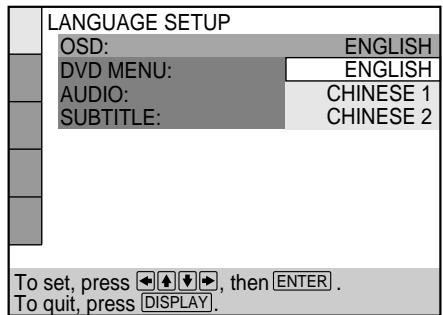
text_image
LANGUAGE SETUP OSD: ENGLISH DVD MENU: ENGLISH AUDIO: CHINESE 1 SUBTITLE: CHINESE 2 To set, press ↓ ↓ ↓, then ENTER . To quit, press DISPLAY.5 Select the desired language using ↑/↓, then press ENTER.
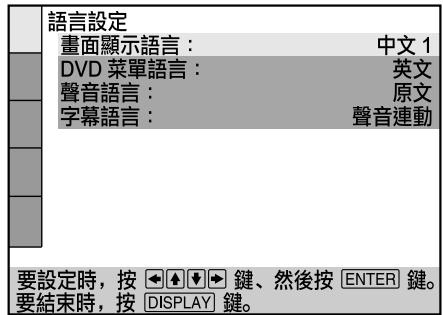
text_image
語言設定 畫面顯示語言: 中文 1 DVD 菜單語言: 英文 聲音語言: 原文 字幕語言: 聲音連動 要設定時,按 ◀◀◀◀▶鍵、然後按 ENTER 鍵。 要結束時,按 DISPLAY 鍵。6 Press DISPLAY.
The setup display disappears.
7 Press DISPLAY repeatedly to turn off the on-screen menu.
To return to the previous screen
Press RETURN.
To quit while making a selection
Press DISPLAY.
Note
The languages you can select are the ones displayed in step 4.
For details, see page 55.
Operation Sound Effects (Sound Feedback)
The player beeps when the following operations are performed.
The default setting of the Sound Feedback function is set to off.
| Operation | Operation sound |
| Power is turned on | One beep |
| Power is turned off | Two beeps |
| ▷ is pressed | One beep |
| ■ is pressed | Two beeps |
| Playback is stopped | One long beep |
| Operation is not possible | Three beeps |
text_image
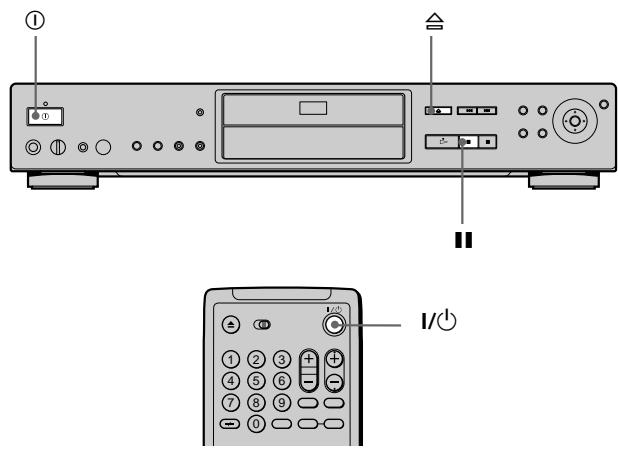
Diagram of a CD-ROM front panel with labeled buttons and an I/O button, showing front and back views.1 Press Ⓐ on the player, then press I/⏻ on the remote.
The power indicator lights up in green.
When there is a disc in the player, press and remove the disc. Then press again to close the disc tray.
2 Press and hold II on the player for more than two seconds.
You will hear one beep and the Sound Feedback function is turned on.
To turn off the Sound Feedback Function
When there is no disc in the player, press and hold ▪ on the player for more than two seconds. You will hear two beeps and the Sound Feedback function is turned off.
Playing Discs
This chapter describes how to play a DVD/CD/VIDEO CD.
Playing Discs


Depending on the DVD or VIDEO CD, some operations may be different or restricted. Refer to the instructions supplied with your disc.
text_image
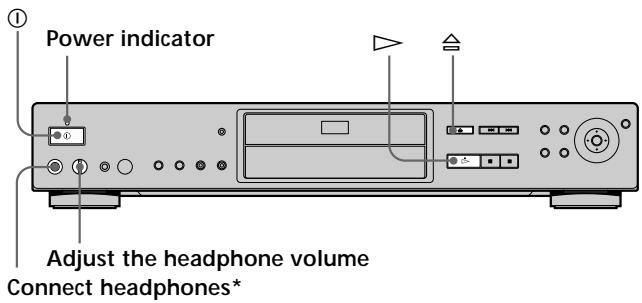
Power indicator Adjust the headphone volume Connect headphones*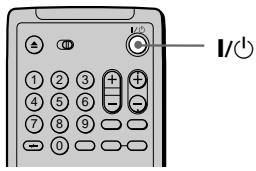
text_image
I/O* For details on using the VIRTUAL SURROUND HEADPHONES function, see “Digital Cinema Sound Settings” on page 39.
1 Turn on your TV.
Turn on the TV and select the video input so that you can view the pictures from this player.
When using a receiver (amplifier)
Turn on the receiver (amplifier) and select the appropriate position so that you can listen to the sound from this player.
2 Press ① to turn on the player.
The player enters standby mode and the power indicator lights up in red.
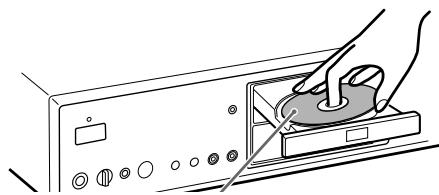
3 Press ≅ on the player, and place a disc on the disc tray.
The player automatically turns on and the power indicator lights up in green.
natural_image
Illustration of hands operating a CD or DVD drive with a circular component on the screen (no text or symbols visible)With the playback side facing down
4 Press ▷.
The disc tray closes and the player starts playback (continuous play). Adjust the volume on the TV or the receiver (amplifier).
After following Step 4
■When playing a DVD
A DVD menu or title menu may appear on the TV screen (see page 21).
■When playing a VIDEO CD
Depending on the VIDEO CD, a menu may appear on the TV screen. You can play the disc interactively by following the instructions on the menu. (PBC Playback, see page 22.)
To turn on the player
Press ① on the player. The player enters standby mode and the power indicator lights up in red.
Then press I/ ↓ on the remote. The player turns on and the power indicator lights up in green. In standby mode, the player also turns on by pressing on the player or by pressing .
To turn off the player
Press I/⏻ on the remote. The player enters standby mode and the power indicator lights up in red.
To disconnect the power of the player, press ① on the player.
Notes on playing DTS sound tracks on a CD
- Do not play DTS sound tracks without first connecting the player to an audio component having a built-in DTS decoder. The player outputs the DTS signal via the DIGITAL OUT OPTICAL and COAXIAL connectors even if “DTS” in “AUDIO SETUP” is set to “D-PCM” in the setup display, and may affect your ears or cause your speakers to be damaged.
- Set the sound to “STEREO” when you play DTS sound tracks on a CD. (See “Changing the Sound” on page 32.) If you set the sound to “1/L” or “2/R”, no sound will come from the DIGITAL OUT OPTICAL and COAXIAL connectors.
- If you play a CD with a DTS sound track, a loud noise may come out from the AUDIO OUT connectors, affecting your ears or causing the speakers to be damaged.
Notes
- If you leave the player or the remote in pause or stop mode for 15 minutes, the screen saver image appears automatically. It will also appear if you play back a CD for more than 15 minutes. To make the screen saver image go away, press ▷. (If you want to set the screen saver function to off, see page 58.)
- If you do not operate the player or the remote for more than 30 minutes when a disc is not being played, the player automatically enters the standby mode. (Auto Power Off function)
- While playing a disc, do not turn off the player by pressing ①. Doing so may cancel the settings of the menu. When you turn off the player, press ■ first to stop playback and then press I/⏻ on the remote. After the power indicator lights up in red and the player enters standby mode, press ① on the player.
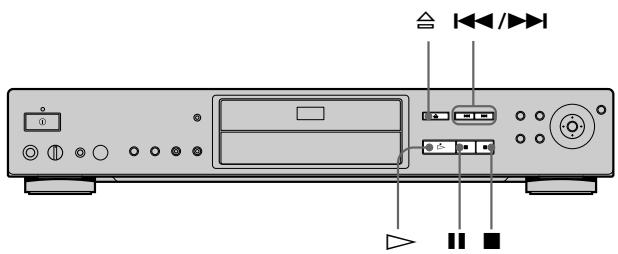
Additional operations
text_image
Diagram of a CD-ROM rear panel with labeled ports and indicators for audio playback controls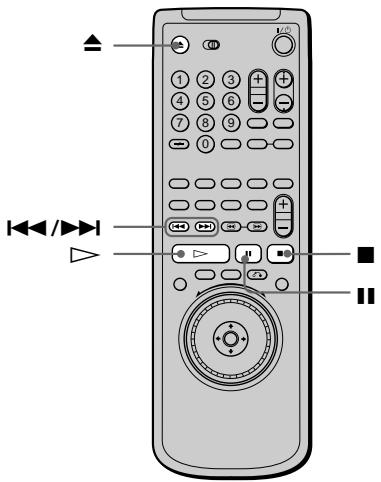
text_image
Diagram of a remote control with labeled buttons and navigation icons| To | Operation |
| Stop | Press ■ |
| Pause | Press || |
| Resume play after pause | Press || or ▷ |
| Go to the next chapter, track or scene in continuous play mode | Press ►►I |
| Go back to the preceding chapter, track or scene in continuous play mode | Press ◀◀ |
| Stop play and remove the disc | Press ▲ |
You can play discs in various modes such as Program Play using the on-screen menu (Control Menu). For Control Menu operations, see page 25.
Playing at Various Speeds/Frame by Frame


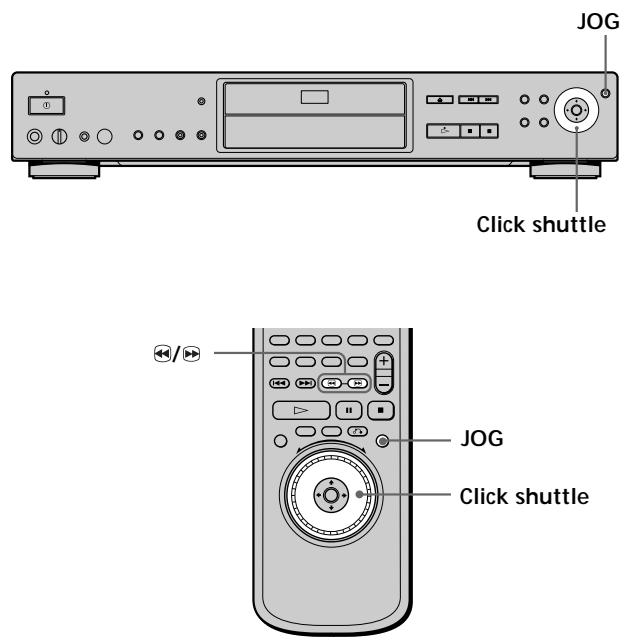
Using the click shuttle and the JOG button/indicator, you can play back a DVD/CD/VIDEO CD at various speeds or frame by frame. Each time you press JOG, it changes between shuttle mode and jog mode.
text_image
JOG Click shuttle JOG Click shuttleTo change the playback speed (Shuttle mode)
Turn the click shuttle. The playback speed changes depending on the turning direction and angle as follows:
When you play back a DVD
During playback
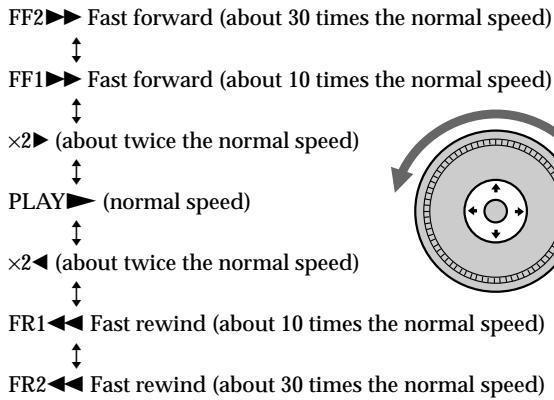
flowchart
graph TD
    A["FF2"] --> B["Fast forward (about 30 times the normal speed)"]
    C["FF1"] --> D["Fast forward (about 10 times the normal speed)"]
    E["×2"] --> F["(about twice the normal speed)"]
    G["PLAY"] --> H["normal speed"]
    I["×2"] --> J["(about twice the normal speed)"]
    K["FR1"] --> L["Fast rewind (about 10 times the normal speed)"]
    M["FR2"] --> N["Fast rewind (about 30 times the normal speed)"]
If you turn the click shuttle quickly, the playback speed goes to FF2▶▶ or FR2◀◀ at once.
During pause
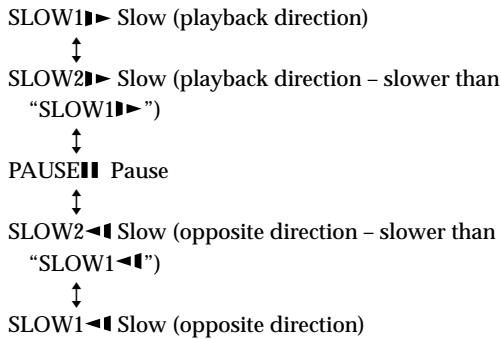
flowchart
graph TD
    A["SLOW1"] --> B["Slow (playback direction)"]
    B --> C["SLOW2"]
    C --> D["Slow (playback direction – slower than "SLOW1")"]
    D --> E["PAUSE"]
    E --> F["Pause"]
    F --> G["SLOW2"]
    G --> H["Slow (opposite direction – slower than "SLOW1")"]
    H --> I["SLOW1"]
    I --> J["Slow (opposite direction)"]
When you play back a CD/VIDEO CD
During playback
FF2▶▶ Fast forward (faster than “FF1▶▶”)
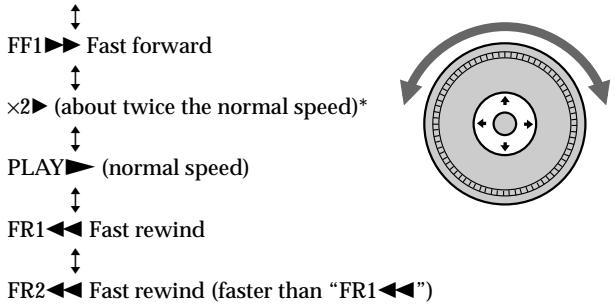
flowchart
graph TD
    A["FF1"] --> B["Fast forward"]
    C["×2"] --> D["(about twice the normal speed)*"]
    E["PLAY"] --> F["normal speed"]
    G["FR1"] --> H["Fast rewind"]
    I["FR2"] --> J["Fast rewind (faster than "FR1")"]
* CD only
If you turn the click shuttle quickly, the playback speed goes to FF2▶▶ or FR2◀◀ at once.
During pause (VIDEO CD only)
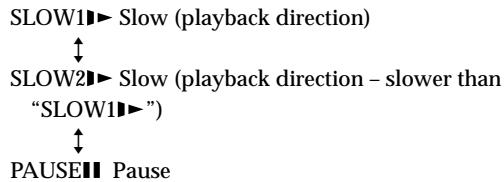
flowchart
graph TD
    A["SLOW1"] --> B["Slow (playback direction)"]
    C["SLOW2"] --> D["Slow (playback direction – slower than "SLOW1")"]
    E["PAUSE"] --> F["Pause"]
    B --> G["↑"]
    D --> H["↑"]
To return to continuous play
Press ▷.

To search for a picture using the remote
Keep pressing ◀ or ▶ on the remote. The playback speed is the same as FR1◀◀ or FF1▶▶ when using the click shuttle.
Notes
- Depending on the DVD/VIDEO CD, you may not be able to do some of the operations described.
- Depending on the player, the playback speed may appear differently (for example, “FF1▶▶” or “1▶▶”).
To play the disc frame by frame
(Jog mode)


1 Press JOG.
JOG lights up during jog mode. When you press JOG on the player, it pauses.
2 Turn the click shuttle.
Depending on the turning speed, playback goes to frame-by-frame playback in the direction that the click shuttle is turned. If you turn the click shuttle at a constant speed for a while, the playback speed goes to slow or normal.
To return to Continuous Play
Press ▷.
Notes
- The JOG indicator shows the mode of the corresponding click shuttle. For example, when the JOG indicator on the remote is not lit, the remote click shuttle will remain in the shuttle mode even if the indicator on the player is lit.
- If you don't operate the click shuttle for about 20 seconds after pressing JOG, it returns to shuttle mode on the remote. On the player, it stays in jog mode.
Resuming Playback from the Point Where You Stopped the Disc (Resume Play) DVD VIDEO CD
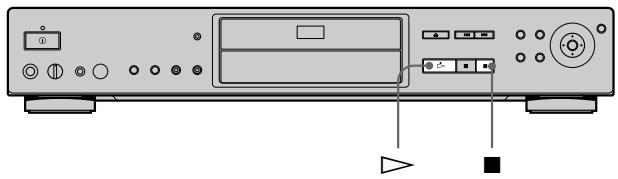
The player remembers the point where you stopped the disc, and when “RESUME” appears on the front panel display, you can resume playback from that point. As long as you do not open the disc tray, Resume Play will work even if the player enters standby mode by pressing ⚠/⏻ on the remote.
natural_image
Front view of a CD-ROM computer chassis with indicator lights and ports (no text or symbols visible)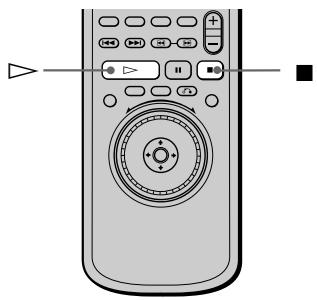
natural_image
Illustration of a remote control device with buttons and a play button (no text or symbols)1 While playing a disc, press ■ to stop playback. "RESUME" appears on the front panel display and "Disc will restart from current point. To start from beginning, press STOP again." appears on the TV screen. If "RESUME" does not appear, Resume Play is not available.
2 Press ▷. The player starts playback from the point where you stopped the disc in Step 1.
To play from the beginning of the disc When the playing time appears on the front panel display before you start playing, press ■ to reset the playing time, then press ▷.
Notes
- Resume Play may not be available on some DVDs.
- Resume Play is not available in Shuffle or Program Play mode.
- Depending on where you stopped the disc, the player may resume playback from a different point.
- The point where you stopped playing is cleared when:
- you open or close the disc tray
- you turn the power off by pressing ① on the player
- you change the play mode
- you start playback after selecting a title, chapter or track
- you change the settings in the setup display
Using the DVD's Menu DVD
Some DVDs have a title menu or a DVD menu that is provided with DVDs only.
Using the title menu
A DVD is divided into long sections of a picture or a music feature called “titles.” When you play a DVD which contains several titles, you can select the title you want using the title menu.
text_image
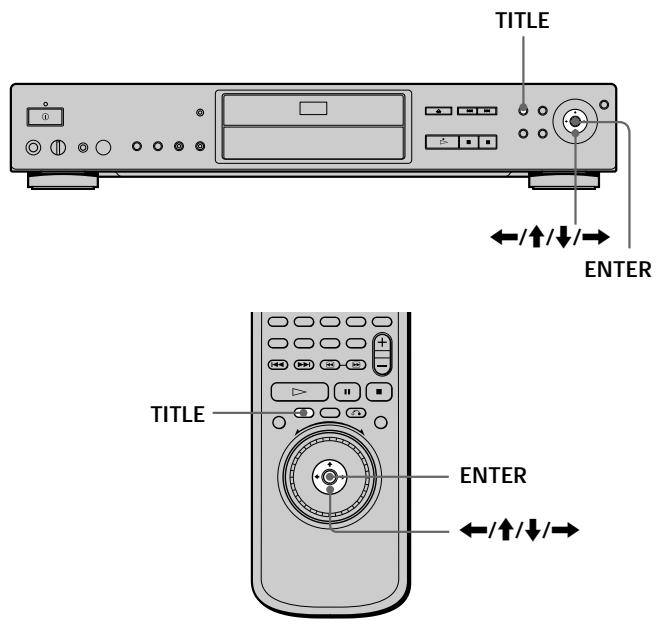
TITLE ←/↑/↓/→ ENTER TITLE ENTER ←/↑/↓/→1 Press TITLE.
The title menu appears on the TV screen. The contents of the menu vary from disc to disc.
2 Press ←/↑/↓/→ to select the title you want to play.
Depending on the disc, you can use the number buttons to select the title.
3 Press ENTER.
The player starts playing the selected title.
Notes
- On some DVDs, you may not be able to select the title.
- On some DVDs, a “title menu” may simply be called a “menu” or “title” in the instructions supplied with the disc. “Press ENTER.” may also be expressed as “Press SELECT.”
Using the DVD menu
Some DVDs allow you to select the disc contents using a menu. When you play these DVDs, you can select the language for the subtitles, the language for the sound, etc., using the DVD menu.
text_image
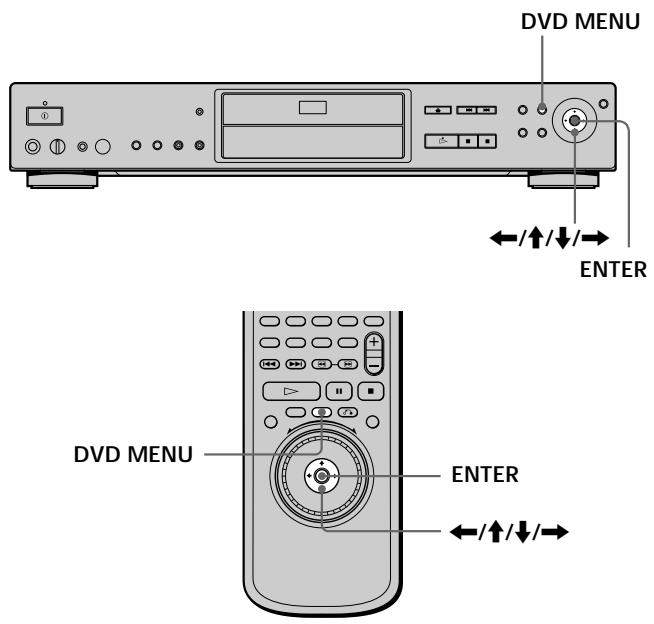
DVD MENU ←/↑/↓/→ ENTER DVD MENU ENTER ←/↑/↓/→1 Press DVD MENU.
The DVD menu appears on the TV screen. The contents of the menu vary from disc to disc.
2 Press ←/↑/↓/→ to select the item you want to change.
Depending on the disc, you can use the number buttons to select the item.
3 To change other items, repeat Step 2.
4 Press ENTER.
If you want to select the language for the DVD menu Change the setting using “DVD MENU” in “LANGUAGE SETUP” in the setup display. For details, see page 56.
Note
Depending on the DVD, a “DVD menu” may simply be called a “menu” in the instructions supplied with the disc.
Playing VIDEO CDs with PBC Functions (PBC Playback)
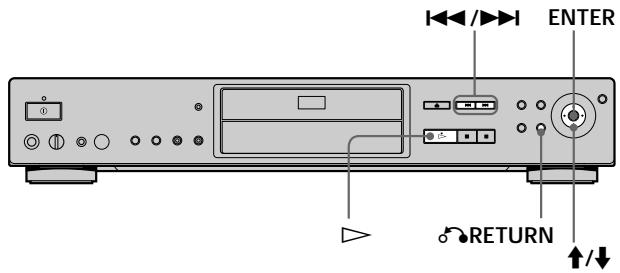
When playing VIDEO CDs with PBC (Play Back Control) functions (Ver. 2.0 discs), you can enjoy simple interactive operations, search functions, and other such operations. PBC Playback allows you to play VIDEO CDs interactively by following the menu on the TV screen. On this player, you can use the number buttons, ENTER, ◀◀◀, ▶▶▶, ↑/↓ and ⚙RETURN during PBC Playback.
text_image
ENTER RETURN ↑/↓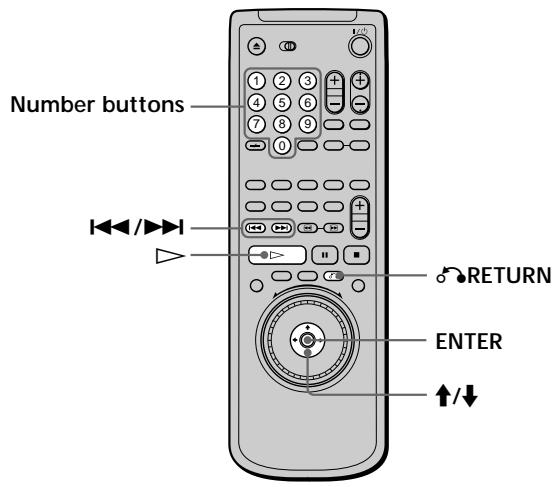
text_image
Number buttons RETURN ENTER ↑/↓1 Start playing a VIDEO CD with PBC functions by following Steps 1 to 4 in "Playing Discs" on page 16.
2 Select the item number you want.
Press / to select the item number.
You can also select the item number with the number buttons on the remote.
3 Press ENTER.
4 Follow the instructions in the menu for interactive operations.
Refer to the instructions supplied with the disc, as the operating procedure may differ according to the VIDEO CD.
To go back to the menu
Press ⬇RETURN, ◀◀◀, or ▶▶▶.

To cancel PBC playback of a VIDEO CD with PBC functions play the disc in continuous play mode
There are two ways.
- Before you start playing, select the track you want using ◀◀◀ or ▶▶◀, then press ENTER or ▷.
- Before you start playing, select the track number using the number buttons on the remote, then press ENTER or ▷. "Play without PBC" appears on the TV screen and the player starts continuous play. You cannot play still pictures such as a menu.
To return to PBC playback, press ■ twice then press ▷.
Notes
- Depending on the VIDEO CD, “Press ENTER” in Step 3 may be expressed as “Press SELECT” in the instructions supplied with the disc. In this case, press ▷.
- The PBC functions of Super VCDs do not work with this player. Super VCDs are played in continuous play mode only.
Using the Front Panel Display



You can check information about the disc, such as the total number of titles or tracks or remaining time, using the front panel display.
text_image
TIME/TEXTWhen playing back a DVD DVD
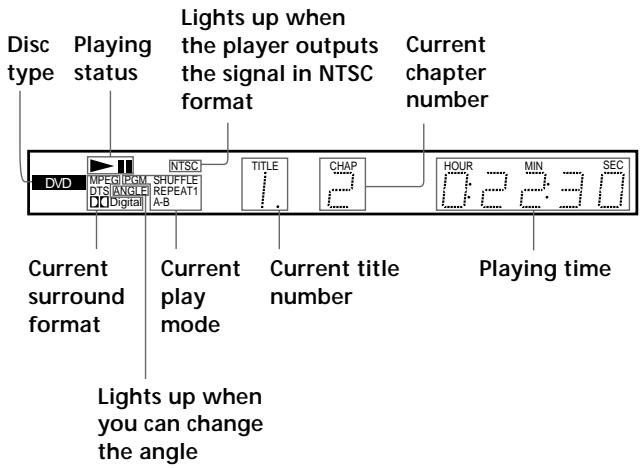
Displaying information while playing the disc
text_image
Disc type Playing status Lights up when the player outputs the signal in NTSC format Current chapter number DVD MPED/PGM DTS/ANGLE Digital INTSC SHUFFLE REPEAT1 A-B TITLE . CHAP 2 HOUR 0.2 2:30 MIN SEC Playing time Current surround format Current play mode Current title number Lights up when you can change the angleChecking the remaining time
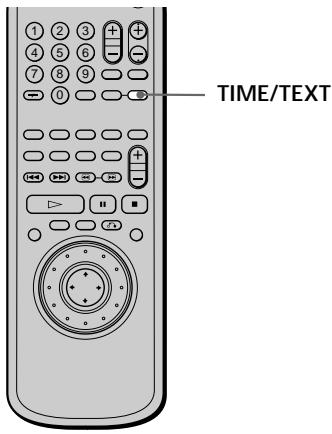
Press TIME/TEXT.
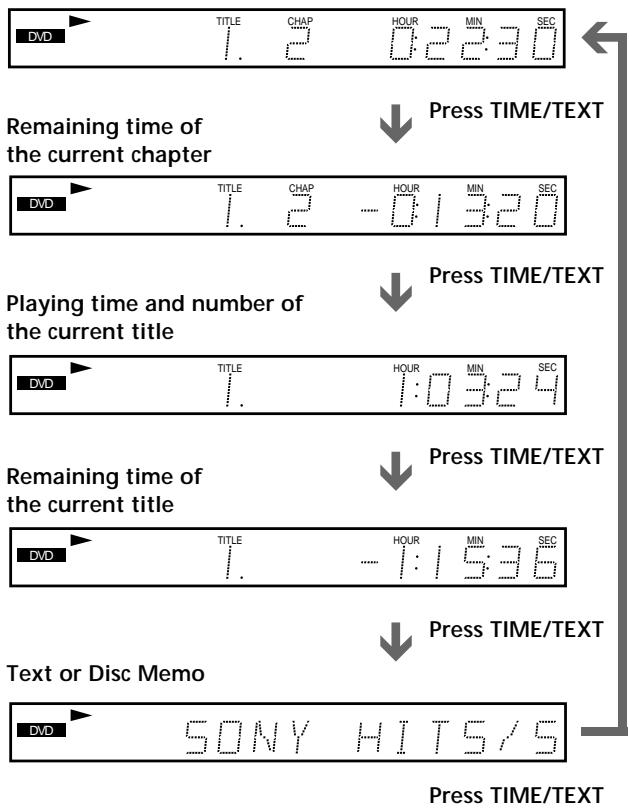
Each time you press TIME/TEXT while playing the disc, the display changes as shown in the following chart.
Playing time and number of the current chapter
text_image
DVD TITLE CHAP HOUR MIN SEC 1.2 0:23:0 Remaining time of the current chapter DVD TITLE CHAP HOUR MIN SEC 1.2 -0:3:20 Playing time and number of the current title DVD TITLE HOUR MIN SEC 1.03:24 Remaining time of the current title DVD TITLE HOUR MIN SEC 1. -1:5:36 Text or Disc Memo DVD SONY HITS/5 Press TIME/TEXT Press TIME/TEXT Press TIME/TEXT Press TIME/TEXTNotes
- On some DVDs, the chapter number or time may not appear or you may not be able to change the front panel display.
- While you are doing Shuffle Play or Program Play, the playing time of the title and the remaining time of the title are not displayed.
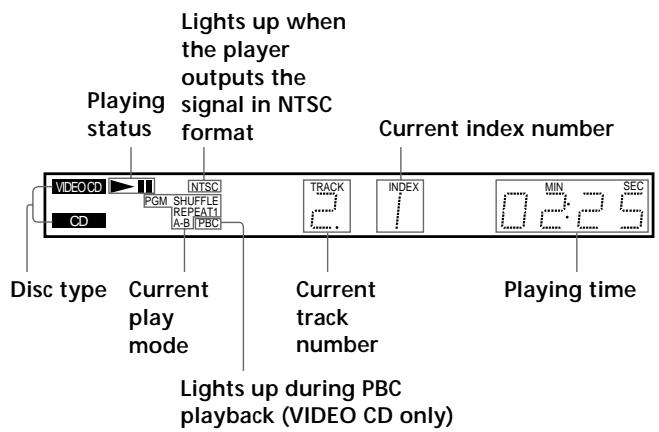
When playing back a CD/VIDEO CD
VIDEO CD
CD
Displaying information while playing a disc
text_image
Lights up when the player outputs the signal in NTSC format Playing status Current index number -VIDEO CD INTSC PGM SHUFFLE REPEAT1 A-B [PBC] CD Track INDEX MIN SEC Disc type Current play mode Current track number Playing time Lights up during PBC playback (VIDEO CD only)
When playing VIDEO CDs with PBC functions
The current scene number is displayed instead of the current track number and the current index number. In this case, the front panel display does not change when you press TIME/TEXT. If TEXT is recorded on the disc, the front panel display changes to the Text display when you press TIME/TEXT (see page 31).
Checking the remaining time
Press TIME/TEXT.
Each time you press TIME/TEXT while playing a disc, the display changes as shown in the following chart.
Playing time and current track number
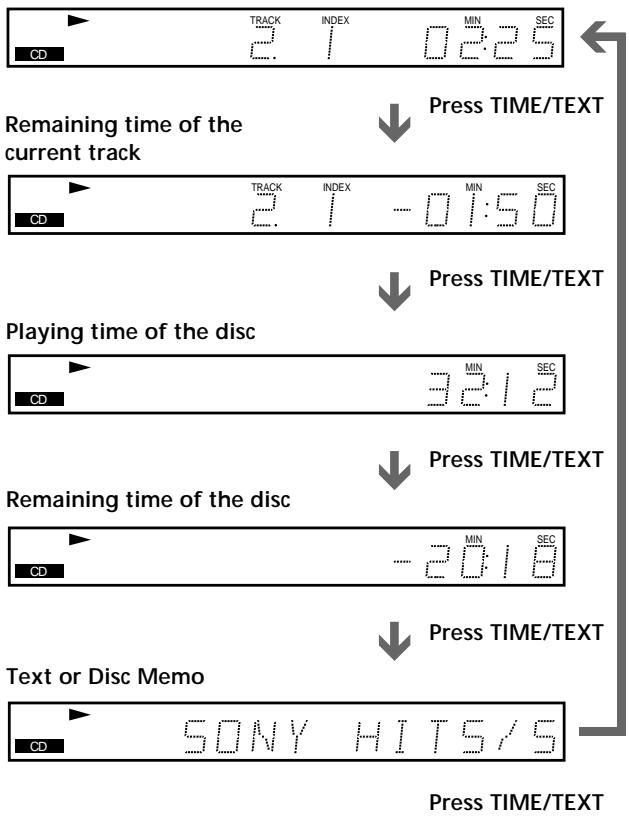
flowchart
graph TD
    A["CD"] --> B["TRACK 2.1"]
    B --> C["INDEX 0:3:25"]
    C --> D["Remaining time of the current track"]
    D --> E["Track 2.1 -0:1:50"]
    E --> F["Playing time of the disc"]
    F --> G["MIN 3:2:12"]
    G --> H["Remaining time of the disc"]
    H --> I["-2:0:18"]
    I --> J["Text or Disc Memo"]
    J --> K["SONY HIT5/5"]
    K --> L["Press TIME/TEXT"]
    L --> M["Press TIME/TEXT"]
Note
While you are doing Shuffle Play, or Program Play, the playing time of the disc and the remaining time of the disc are not displayed.
Using Various Functions with the Control Menu
This chapter describes how to play discs in various modes and how to use the convenient features of the on-screen menu (Control Menu).
Using the Control Menu Display DVD VIDEO CD
Using the Control Menu display, you can select the starting point, play scenes in any order you like, change the viewing angles, make Digital Cinema Sound settings, and other such operations.
The possible operations are different depending on the kind of disc.
For details on each Control Menu display item, see pages 28 to 51.
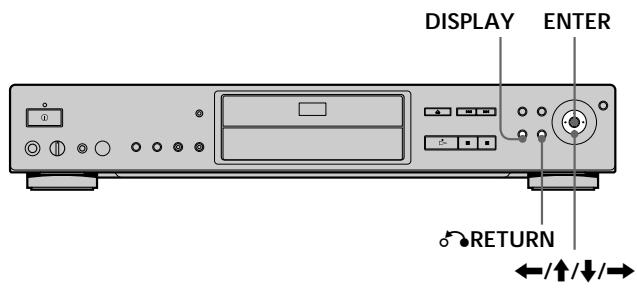
text_image
DISPLAY ENTER RETURN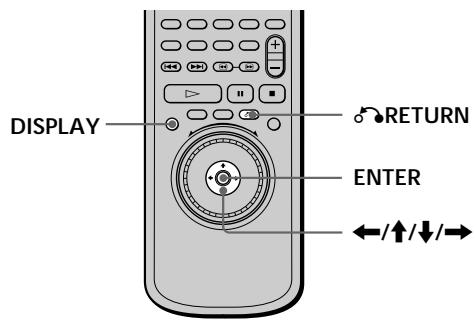
text_image
DISPLAY RETURN ENTER +/↑/↓/→1 Press DISPLAY to show the Control Menu display on the TV screen.
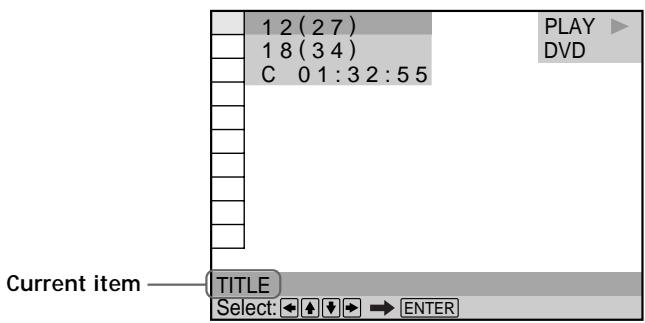
text_image
1 2 (2 7) 1 8 (3 4) C 0 1:3 2:5 5 PLAY DVD Current item TITLE Select: ← + ↓ → ENTERUsing the Control Menu Display
2 Select the item you want using ↑/↓.
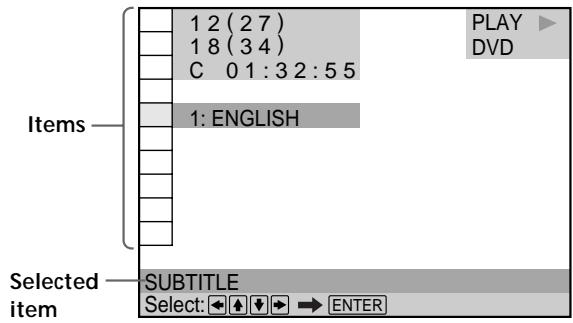
text_image
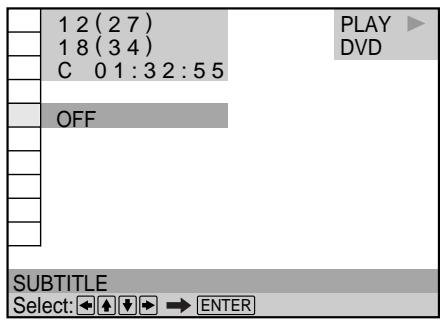
1 2 (2 7) 1 8 (3 4) C 0 1 : 3 2 : 5 5 1: ENGLISH Selected item SUBTITLE Select: → ENTER3 Press ENTER.
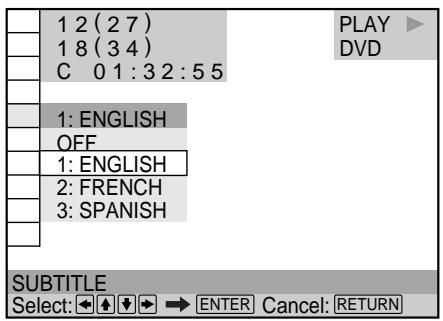
text_image
1 2 (2 7) 1 8 (3 4) C 0 1:3 2:5 5 1: ENGLISH OFF 1: ENGLISH 2: FRENCH 3: SPANISH SUBTITLE Select: → ENTER Cancel: RETURN4 Select the item you want using ↑/↓.
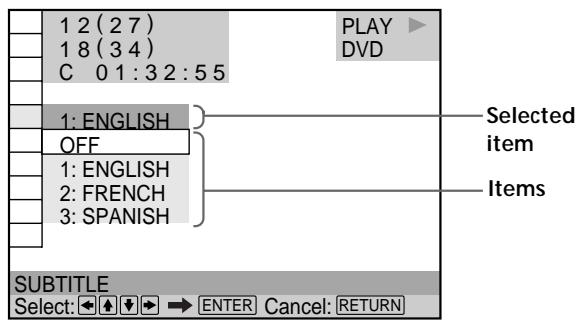
text_image
1 2 (2 7) 1 8 (3 4) C 0 1 : 3 2 : 5 5 PLAY DVD 1: ENGLISH OFF 1: ENGLISH 2: FRENCH 3: SPANISH Selected item Items SUBTITLE Select: → ENTER Cancel: RETURN5 Press ENTER.
text_image
1 2 (2 7) 1 8 (3 4) C 0 1:3 2:5 5 OFF PLAY DVD SUBTITLE Select: ↕ ↕ ↕ → ENTERTo cancel while making a selection
Press 📌 RETURN.
To display other items
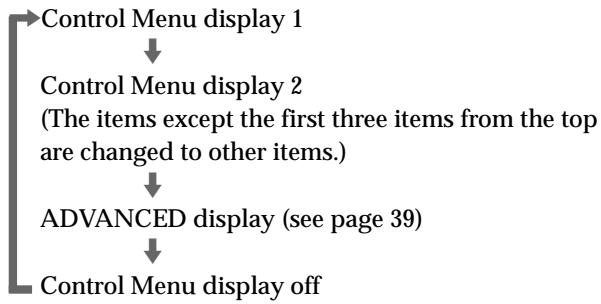
Each time you press DISPLAY, the Control Menu display changes as follows:
flowchart
graph TD
    A["Control Menu display 1"] --> B["Control Menu display 2\n(The items except the first three items from the top are changed to other items.)"]
    B --> C["ADVANCED display (see page 39)"]
    C --> D["Control Menu display off"]
The Control Menu display items are different depending on the disc.
You can select some items directly
Some items can be selected by pressing the corresponding button on the remote. In this case, only the item you selected is displayed. For instructions on using the remote, see the pages of each relevant item.
Notes
- Some Control Menu display items require operations other than selecting the setting. For details on these items, see the relevant pages.
- Depending on the player, the play or stop indicator on the TV screen may appear differently (for example, “PLAY▶” or “▶”).
Control Menu Item List
TITLE (DVD only) (page 28)/
SCENE (VIDEO CD during PBC playback only) (page 28)/
TRACK (VIDEO CD only) (page 28)
CHAPTER (DVD only) (page 28)/
INDEX (VIDEO CD only) (page 28)
TRACK (CD only) (page 28)

INDEX (CD only) (page 28)
You can search for a point on the DVD by selecting the title, chapter, track, index or scene.

TIME/MEMO (pages 29, 30, 31)

TIME/TEXT (pages 29, 30, 31)
You can check the playing time and remaining time of the current title, chapter, track and the total playing time or remaining time of the disc.
You can also search for a scene by inputting the time code. You can check the DVD TEXT or CD TEXT of the disc on the TV screen and the front panel display. When the disc is a VIDEO CD or the DVD TEXT/CD TEXT is not recorded on the disc, you can label the disc using the Disc Memo function.

AUDIO (page 32)
If the DVD is recorded with multilingual tracks, you can select the language you want while playing the DVD. If the DVD is recorded in multiple audio formats (PCM, Dolby Digital, MPEG or DTS), you can select the audio format you want while playing the DVD.
With CDs or VIDEO CDs, you can select the sound from the right or left channel and listen to the sound of the selected channel through both the right and left speakers.

SUBTITLE (DVD only) (page 35)
With DVDs on which multilingual subtitles are recorded, you can change the subtitle language whenever you want while playing the DVD, and turn it on or off whenever you want.
ANGLE (DVD only) (page 35)
With DVDs on which various angles (multi-angles) are recorded, you can change the angle of the scene.

VIRTUAL 3D SURROUND (page 36)
Select one of the surround modes to enjoy multichannel Dolby Digital and MPEG audio DVDs with only 2 or 4 speakers.
When you connect only 2 front speakers, Virtual Enhanced Surround (VES) and VIRTUAL SEMI MULTI DIMENSION let you enjoy 3D sound by using 3D sound imaging to create virtual rear speakers from the sound of the front speakers (L, R) without using actual rear speakers.
When you connect 2 front speakers and 2 rear speakers, you can use this function's 3D sound imaging to shift the sound of the rear speakers away from the actual speaker position (VIRTUAL REAR SHIFT) or create 3 sets of virtual rear speakers from 1 set of actual rear speakers (VIRTUAL MULTI REAR, etc.).

ADVANCED (DVD only) (page 39)
You can check play information about the bit rate or the position where the disc is being played (layer).

CUSTOM PARENTAL CONTROL (page 40)
Using a registered password, you can set playback restrictions for a desired disc.
The same password is used for both Parental Control (page 60) and Custom Parental Control.

SETUP (page 52)
Using the setup display, you can do the initial setup, adjust the picture and sound and set the various outputs. You can also set a language for the subtitles and the setup display, limit playback by children, and so on. For details about the setup display, see page 52.

PROGRAM (page 42)
You can play the contents of the disc in the order you want by arranging the order of the titles, chapters or tracks on the disc to create your own program.
Control Menu Item List
SHUFFLE (page 44)
You can have the player “shuffle” titles, chapters or tracks and play them in a random order. Subsequent “shuffling” may produce a different playing order.
REPEAT (page 45)
You can play all the titles/tracks on a disc or a single title/chapter/track repeatedly.
A-B REPEAT (page 46)
You can play a specific portion of a title, chapter, or track repeatedly.
VIDEO EQUALIZER (DVD, VIDEO CD only)
(page 47)
You can adjust the video output of the DVD or VIDEO CD from the player, not from the TV, to obtain the picture quality you want.

DIGITAL VIDEO ENHANCER (DVD, VIDEO
CD only) (page 49)
You can make the picture clearer by emphasizing the outlines of images on your TV screen.
VIEWER (DVD, VIDEO CD only) (page 49)
You can divide the screen into 9 sections (quick reference screen) and quickly search for a scene or a bookmark.
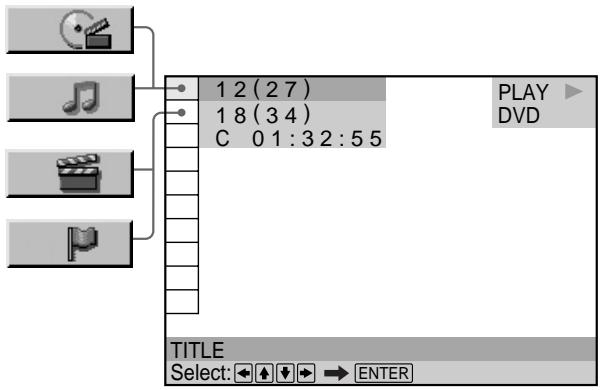
Searching for a Title/ Chapter/Track/Index/Scene




You can search the disc by title, chapter, track, index or scene.
Select “TITLE,” “CHAPTER,” “TRACK,” “INDEX” or “SCENE” after pressing DISPLAY.
When you play back a DVD, “TITLE” and “CHAPTER” are displayed.
When you play back a VIDEO CD/CD, “TRACK” and “INDEX” are displayed. When you play back a VIDEO CD with PBC functions, “SCENE” is displayed.
text_image
1 2 (27) 1 8 (34) C 0 1:3 2:5 5 PLAY DVD TITLE Select: → ENTER1 Select "TITLE," "CHAPTER," "TRACK," "INDEX" or "SCENE" using ↑/↓.
“* * ( * * )” is highlighted (** refers to a number). The number in parentheses indicates the total number of titles, chapters, tracks, indexes or scenes.
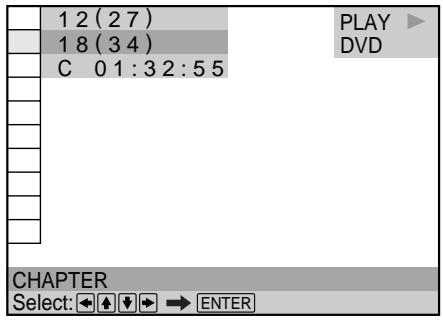
text_image
1 2 (27) 1 8 (34) C 0 1:3 2:5 5 PLAY DVD CHAPTER Select: → ENTER2 Press → or ENTER.
“ ( ) ” changes to “— — ( )”.
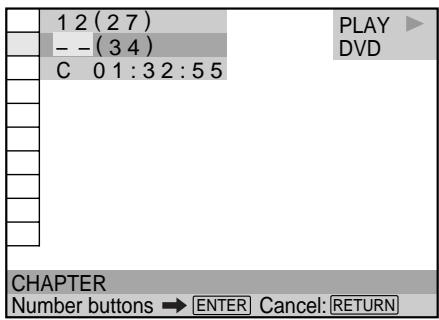
text_image
1 2 (2 7) -- (3 4) C 0 1 : 3 2 : 5 5 CHAPTER Number buttons → ENTER Cancel: RETURN3 Select the number of the title, chapter, track, index or scene you want to search for using the number buttons, then press ENTER.
The player starts playback at the selected number. To cancel the number, press CLEAR before pressing ENTER.
To cancel while making a selection
Press ⬇RETURN.
Notes
- The title, chapter or track number displayed is the same number recorded on the disc.
- The index numbers are not displayed during PBC playback of VIDEO CDs.
Checking the Playing Time and Remaining Time

DVD
VIDEO CD
CD
You can check the playing time and remaining time of the current title, chapter or track and the total playing time or remaining time of the disc.
Press DISPLAY. Then press TIME/TEXT on the remote to change the time information.
You can also check the DVD TEXT, CD TEXT or Disc Memo, and label the disc. See page 31.
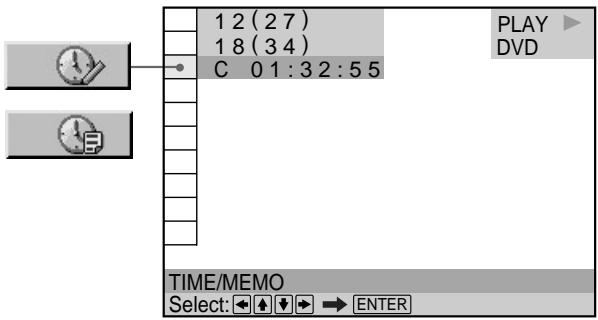
text_image
1 2 (2 7) 1 8 (3 4) C 0 1:3 2:5 5 PLAY DVD TIME/MEMO Select: → ENTERWhen playing a DVD
■ TIME/MEMO or TIME/TEXT
• C **:**:**: Playing time of the current chapter
- C -**:***:***: Remaining time of the current chapter
• T **:**:**: Playing time of the current title
- T -**:**:**: Remaining time of the current title
When playing a VIDEO CD (during PBC playback)
TIME/MEMO
- **:**: Playing time of the current scene
When playing a VIDEO CD (in continuous play) or CD
■ TIME/MEMO or TIME/TEXT
• T * * : * * : Playing time of the current track
- T -**:**: Remaining time of the current track
• D * * : * * : Playing time of the current disc
- D -**:**: Remaining time of the current disc
When playing a Super VCD
The remaining time cannot be displayed.
TIME/MEMO
• T * * : * * : Playing time of the current track

You can select "TIME/MEMO" or "TIME/TEXT" directly
Press TIME/TEXT on the remote. Each time you press the button, the time information changes.
Selecting a Starting Point Using the Time Code

DVD
You can search for a starting point by inputting the time code.
Select “TIME/MEMO” or “TIME/TEXT” after pressing DISPLAY.
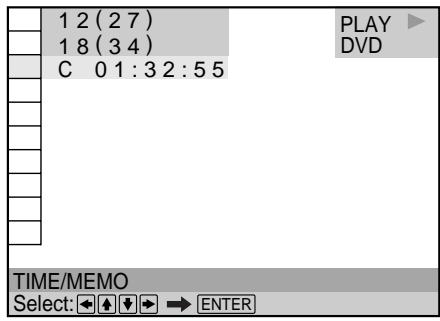
The time code corresponds to the approximate actual playing time. For example, to search for a scene 2 hours 10 minutes 20 seconds past the beginning, input 2:10:20.
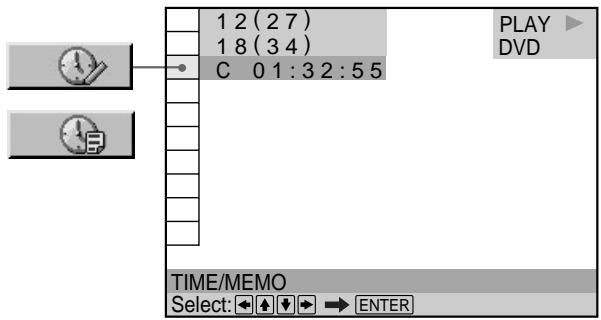
text_image
1 2 (2 7) 1 8 (3 4) C 0 1:3 2:5 5 PLAY DVD TIME/MEMO Select: → ENTER1 Select "C * * : * * : * * " (playing time of the current chapter) when playing a DVD.
text_image
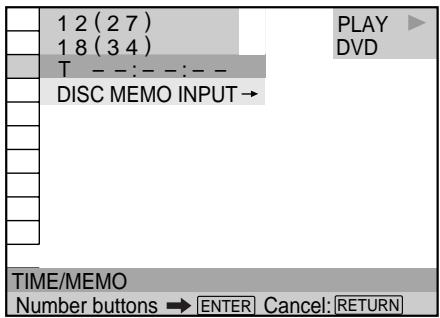
1 2 (2 7) 1 8 (3 4) C 0 1:3 2:5 5 PLAY DVD TIME/MEMO Select: → ENTER2 Press → or ENTER.
Time code changes to “T--:--:--”.
text_image
1 2 (2 7) 1 8 (3 4) T - - : - - : - DISC MEMO INPUT → PLAY DVD TIME/MEMO Number buttons → ENTER Cancel: RETURN3 Input the time code using the number buttons, then press ENTER.
The player starts playback at the selected time code. To cancel the number, press CLEAR before pressing ENTER.
To cancel while making a selection
Press 📌RETURN.
Note
When you input the time code, input the playing time of the title, not the chapter or track time.
Labeling the Disc

DVD
VIDEO CD
CD
You can label discs so that the label appears on your TV screen and the front panel display when you play the disc. If the disc already has DVD TEXT or CD TEXT recorded on it, then this information will appear instead.
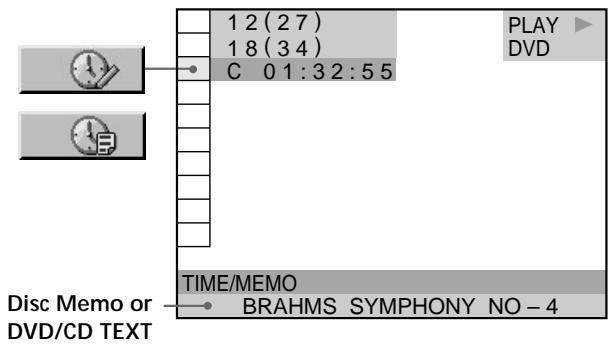
Press DISPLAY. “TIME/MEMO” appears. Press TIME/TEXT on the remote until the Disc Memo appears at the bottom of the display. If the disc does not contain a label, “NO TEXT” is displayed. Follow the steps below to label a disc.
If the disc has DVD TEXT or CD TEXT already recorded on it, “TIME/TEXT” appears instead. Press TIME/TEXT on the remote until the information is displayed at the bottom of the display. You cannot change this information.
text_image
12 (27) 18 (34) C 01:32:55 PLAY DVD TIME/MEMO Disc Memo or DVD/CD TEXT BRAHMS SYMPHONY NO - 4You can select "TIME/MEMO" or "TIME/TEXT" directly Press TIME/TEXT on the remote. To display DVD/CD TEXT or Disc Memo, press TIME/TEXT until DVD/CD TEXT or Disc Memo is displayed.
You can view the entire DVD/CD TEXT or Disc Memo recorded on the disc DVD/CD TEXT or Disc Memo is scrolled on the front panel display.
Note
This player can only display the first level of DVD/CD TEXT information.
Labeling discs (Disc Memo)
When DVD TEXT or CD TEXT is not recorded on the disc, you can put a personal title on the disc by labeling it on the on-screen display. You can input up to 20 characters per disc.
You can also have the player display the Disc Memo each time you select the disc. The Disc Memo can be anything you like, such as a title, musician's name, category or date of purchase.
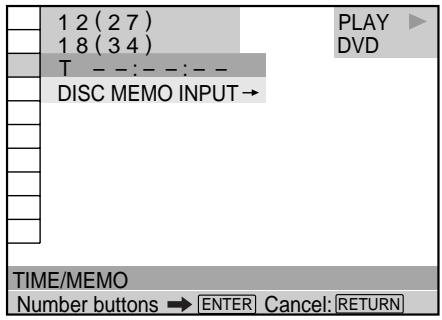
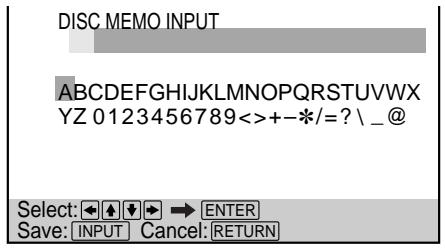
1 Select "TIME/MEMO" and press ENTER. "DISC MEMO INPUT→" appears.
text_image
1 2 (2 7) 1 8 (3 4) T - - : - - : - DISC MEMO INPUT → PLAY DVD TIME/MEMO Number buttons → ENTER Cancel: RETURN2 Select "DISC MEMO INPUT→" and press ENTER. The DISC MEMO INPUT display appears.
text_image
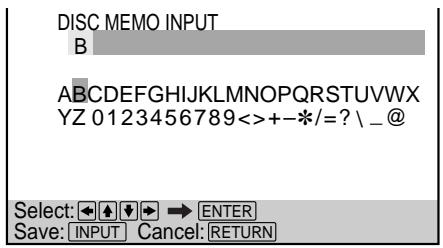
DISC MEMO INPUT ABCDEFGHIJKLMNOPQRSTUVWXYZ 0123456789<>>+-*/=? \ _ @ Select: ←→ ENTER Save: INPUT Cancel: RETURN3 Select a character by pressing /// or by turning the click shuttle. The selected character changes color.
text_image
DISC MEMO INPUT B ABCDEFGHIJKLMNOPQRSTUVWXYZ 0123456789<>>+-*/=? \_@ Select: ←♠ → ENTER Save: [INPUT] Cancel: [RETURN]4 Press ENTER.
text_image
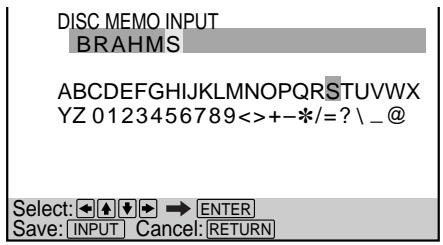
DISC MEMO INPUT BRAHMS ABCDEFGHIJKLMNOPQRSTUVWXYZ YZ 0123456789<>>+-*/=? \_@ Select: ←♠ → ENTER Save: [INPUT] Cancel: [RETURN]Labeling the Disc
5 Repeat steps 3 and 4 to input other characters.
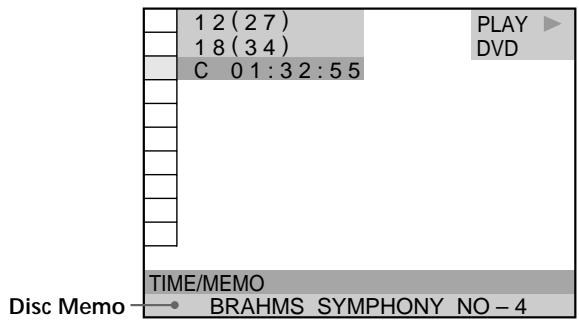
6 When you have entered all the characters for the Disc Memo, press INPUT on the remote.
The Disc Memo is stored.
text_image
1 2 (2 7) 1 8 (3 4) C 0 1:3 2:5 5 PLAY DVD TIME/MEMO Disc Memo BRAHMS SYMPHONY NO - 4To correct the characters
• To erase the characters:
1 Move the cursor to the character you want to erase by pressing ◀◀◀ or ▶▶◀.
2 Press CLEAR.
- To insert or overwrite the characters:
1 Move the cursor to the character you want to correct by pressing ◀◀◀ or ▶▶◀.
2 Select the correct character by pressing ←/↑/↓/→ or by turning the click shuttle.
3 To insert the character, press ENTER.
To overwrite, do not press ENTER but move the cursor by pressing ◀◀◀ or ▶▶◀.
You can display the Disc Memo input display using the remote
Press INPUT on the remote.
Notes
- Do not turn off the player by pressing ①. Doing so may cancel the settings. When you turn off the player, press ■ first to stop playback and then press I/⏻ on the remote. After the power indicator lights up in red and the player enters standby mode, press ① on the player.
- You can label up to 200 discs. When you have the player store over 200 discs in memory, each new Disc Memo erases the oldest Disc Memo from those first stored.
Changing the Sound

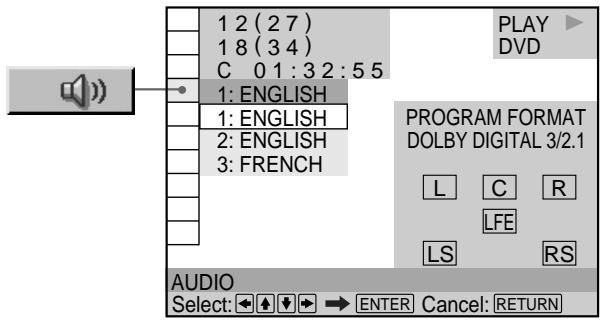
If the DVD is recorded with multilingual tracks, you can select the language you want while playing the DVD. If the DVD is recorded in multiple audio formats (PCM, Dolby Digital, MPEG or DTS), you can select the audio format you want while playing the DVD.
With multiplex CDs or VIDEO CDs, you can select the sound from the right or left channel and listen to the sound of the selected channel through both the right and left speakers. In this case, the sound loses its stereo effect. For example, with a disc containing a song, the right channel may output the vocals and the left channel may output the instrumental. If you only want to hear the instrumental, you can select the left channel and hear it from both speakers.
Select "AUDIO" after pressing DISPLAY.
text_image
1 2 (2 7) 1 8 (3 4) C 0 1:3 2:5 5 1: ENGLISH 1: ENGLISH 2: ENGLISH 3: FRENCH PROGRAM FORMAT DOLBY DIGITAL 3/2.1 L C R LFE LS RS AUDIO Select: → ENTER Cancel: RETURNAUDIO
When playing a DVD
Select the language. The languages you can select are different depending on the DVD. When 4 digits are displayed, they represent the language code. Select the language code from the list on page 78.
When the same language is displayed two or more times, the DVD is recorded in multiple audio formats. The current audio format is shown on the “PROGRAM FORMAT” display.
When playing a VIDEO CD or a CD
The default setting is underlined.
• STEREO : The standard stereo sound
• 1/L : The sound of the left channel (monaural)
- 2/R : The sound of the right channel (monaural)
When playing a Super VCD
The default setting is underlined.
• 1:STEREO : The stereo sound of the audio track 1
- 1:1/L : The sound of the left channel of the audio track 1 (monaural)
- 1:2/R : The sound of the right channel of the audio track 1 (monaural)
• 2:STEREO : The stereo sound of the audio track 2
- 2:1/L : The sound of the left channel of the audio track 2 (monaural)
- 2:2/R : The sound of the right channel of the audio track 2 (monaural)

You can select "AUDIO" directly
Press AUDIO on the remote. Each time you press the button, the item changes.
Notes
- Depending on the DVD, you may not be able to change the languages even if multilingual tracks are recorded on the DVD.
-
While playing the CD/VIDEO CD, standard stereo playback will be resumed when:
-
you open or close the disc tray
- the player enters standby mode by pressing I/⏻ on the remote
- you turn the power off by pressing ① on the player
- While playing the DVD, the sound may be changed when:
- you open or close the disc tray
- you change the title
- While playing a Super VCD which has no audio in track 2, no sound will come out when you select “2:STEREO,” “2:1/L” or “2:2/R.”
Displaying the audio information of the disc DVD
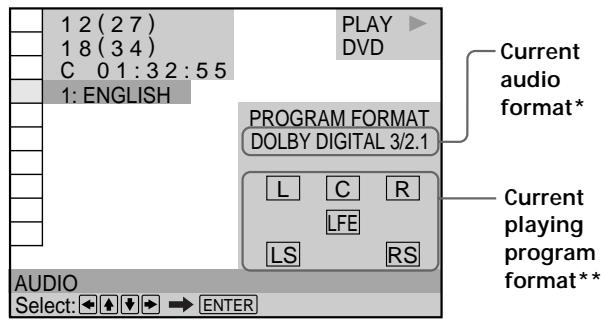
When you select “AUDIO,” the channels being played are displayed on the screen.
For example, in Dolby Digital format, multiple signals ranging from monaural to 5.1 channel signals can be recorded on a DVD. Depending on the DVD, the number of the recorded channels may be different.
text_image
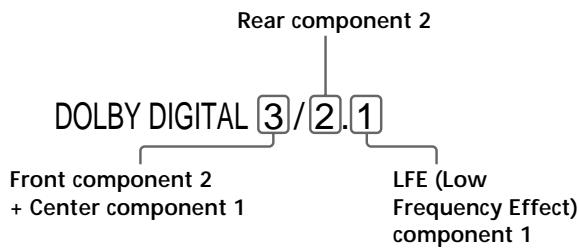
1 2 (2 7) 1 8 (3 4) C 0 1:3 2:5 5 1: ENGLISH PLAY DVD PROGRAM FORMAT DOLBY DIGITAL 3/2.1 L C R LFE LS RS Current audio format* Current playing program format** AUDIO Select: ← ↑ ↓ → ENTER* “PCM,” “DTS,” “DOLBY DIGITAL” or “MPEG” is displayed. In case of “DOLBY DIGITAL,” the channels in the playing track are displayed by numbers as follows:
For Dolby Digital 5.1 ch:
flowchart
graph TD
    A["Rear component 2"] --> B["DOLBY DIGITAL 3/2.1"]
    B --> C["Front component 2 + Center component 1"]
    B --> D["LFE (Low Frequency Effect) component 1"]
** The letters in the program format display mean the following:
L: Front (left)
R: Front (right)
C: Center (monaural)
LS: Rear (left)
RS: Rear (right)
S: Rear (monaural) – the rear component of the Dolby Surround processed stereo signal and the Dolby Digital signal.
LFE: LFE (Low Frequency Effect)
Changing the Sound
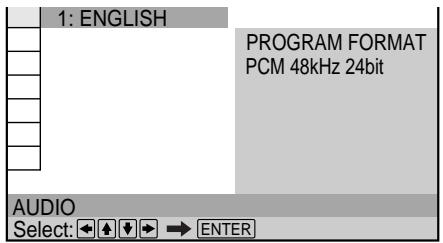
The display examples are as follows:
- PCM (stereo)
text_image
1: ENGLISH PROGRAM FORMAT PCM 48kHz 24bit AUDIO Select: → ENTER• Dolby Surround
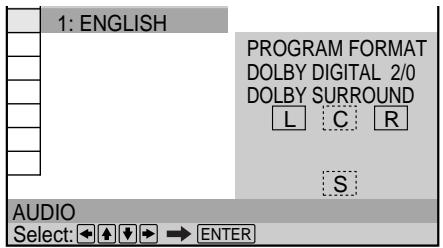
text_image
1: ENGLISH PROGRAM FORMAT DOLBY DIGITAL 2/0 DOLBY SURROUND L C R S AUDIO Select: → ENTER• Dolby Digital 5.1ch
When an LFE signal component is output, “LFE” is enclosed in a solid line. When an LFE signal component is not output, “LFE” is enclosed in a broken line.
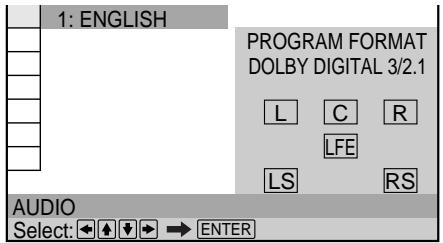
text_image
1: ENGLISH PROGRAM FORMAT DOLBY DIGITAL 3/2.1 L C R LFE LS RS AUDIO Select: → ENTER•MPEG
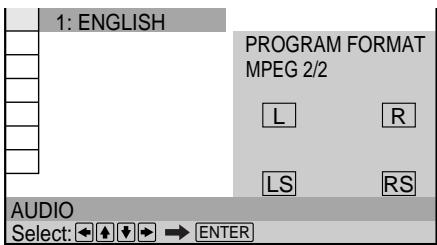
text_image
1: ENGLISH PROGRAM FORMAT MPEG 2/2 L R LS RS AUDIO Select: →→ ENTER• DTS
When an LFE signal component is output, “LFE” is enclosed in a solid line. When an LFE signal component is not output, “LFE” is enclosed in a broken line.
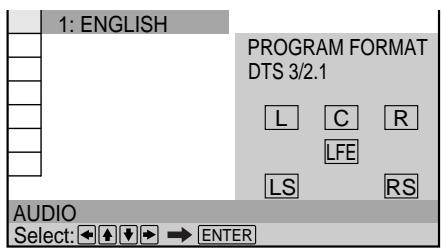
text_image
1: ENGLISH PROGRAM FORMAT DTS 3/2.1 L C R LFE LS RS AUDIO Select: → ← → → ENTERNote
When the signal contains rear signal components such as LS, RS or S, the Virtual 3D Surround effect is enhanced (page 38).
Displaying the Subtitles
DVD
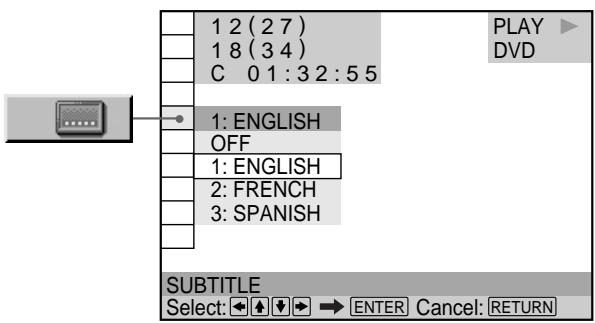
With DVDs on which subtitles are recorded, you can turn the subtitles on and off whenever you want while playing the DVD.
With DVDs on which multilingual subtitles are recorded, you can change the subtitle language whenever you want while playing the DVD, and turn it on or off whenever you want. For example, you can select the language you want to practice and turn the subtitles on for better understanding.
Select "SUBTITLE" after pressing DISPLAY.
text_image
1 2 (2 7) 1 8 (3 4) C 0 1 : 3 2 : 5 5 1: ENGLISH OFF 1: ENGLISH 2: FRENCH 3: SPANISH PLAY DVD SUBTITLE Select: ↕ ↕ ↕ → ENTER Cancel: RETURNSUBTITLE
Select the language. The languages you can select are different depending on the DVD. When 4 digits are displayed, they indicate the language code. Select the language code from the list on page 78.

You can select "SUBTITLE" directly
Press SUBTITLE on the remote. Each time you press the button, the item changes.
Notes
- When playing a DVD on which no subtitles are recorded, no subtitles appear.
- Depending on the DVD, you may not be able to turn the subtitles on even if they are recorded on the DVD.
- Depending on the DVD, you may not be able to turn the subtitles off.
- The type and number of languages for subtitles vary from disc to disc.
- Depending on the DVD, you may not be able to change the subtitles even if multilingual subtitles are recorded on it.
- While playing the DVD, the subtitle may change when:
- you open or close the disc tray
- you change the title
Changing the Angles


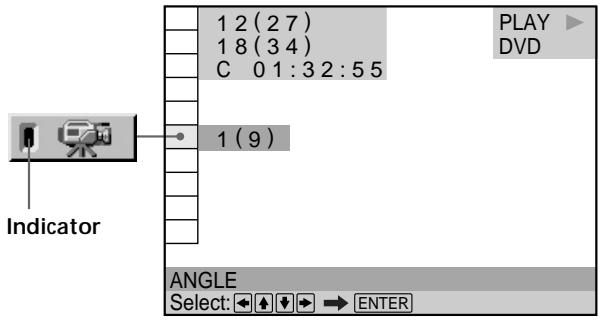
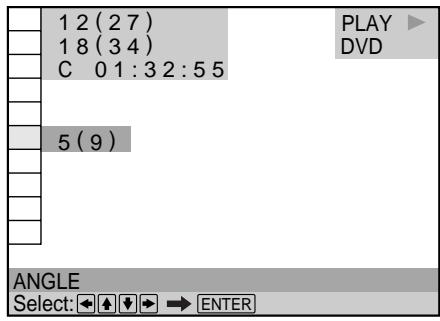
With DVDs on which various angles (multi-angles) for a scene are recorded, you can change the angles. For example, while playing a scene of a train in motion, you can display the view from either the front of the train, the left window of the train or from the right window without having the train's movement interrupted.
Select “ANGLE” after pressing DISPLAY. When the angles can be changed, the “ANGLE” indicator lights up in green.
text_image
1 2 (2 7) 1 8 (3 4) C 0 1:3 2:5 5 1 (9) Indicator PLAY DVD ANGLE Select: ← ↑ ↓ → ENTER1 Select "ANGLE."
text_image
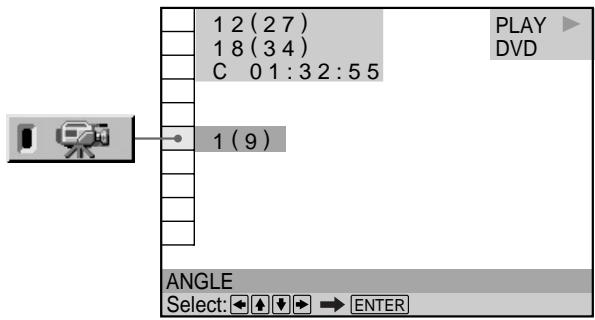
1 2 (2 7) 1 8 (3 4) C 0 1:3 2:5 5 1 (9) ANGLE Select: → ENTER2 Press →.
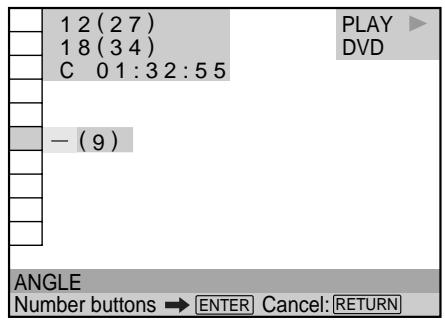
The number of the angle changes to “-”. The number in parentheses indicates the total number of angles.
text_image
1 2 (2 7) 1 8 (3 4) C 0 1 : 3 2 : 5 5 - (9) ANGLE Number buttons → ENTER Cancel: [RETURN] PLAY DVDChanging the Angles
3 Select the angle number using the number buttons or / , then press ENTER.
The angle is changed to the selected angle.
text_image
1 2 (27) 1 8 (34) C 0 1:3 2:5 5 5 (9) ANGLE Select: → ENTER
You can select the angle directly
Press ANGLE on the remote. Each time you press the button, the angle changes.

You can display different angles simultaneously (ANGLE MER)
You can display all the angles recorded on the disc on the same screen, and start playback in continuous mode from the chosen angle directly. The angles are displayed on a screen divided in 9 sections. For details, see page 50.
Notes
- The number of angles varies from disc to disc or from scene to scene. The number of angles that can be changed on a scene is equal to the number of angles recorded for that scene.
- Depending on the DVD, you may not be able to change the angles even if multi-angles are recorded on the DVD.
Digital Cinema Sound
Settings DVD VIDEO CD CD
You can enjoy 3D surround sounds while playing discs including Dolby Digital, MPEG audio and DTS DVDs even if you only have 2 or 4 speakers. Select the surround mode that best suits your speaker setup.
You can also experience virtual 3D surround sound effects through your headphones.
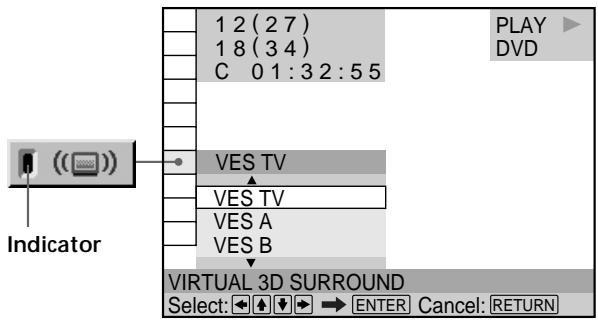
Select “VIRTUAL 3D SURROUND” after pressing DISPLAY. When you select any item except “OFF,” the “VIRTUAL 3D SURROUND” indicator lights up in green.
text_image
1 2 (2 7) 1 8 (3 4) C 0 1:3 2:5 5 VES TV VES TV VES A VES B VIRTUAL 3D SURROUND Select: ↕ ↕ → ENTER Cancel: RETURN■ VIRTUAL 3D SURROUND
The default setting is underlined.
• OFF
For 2 speaker setups
• VES TV
• VES A
• VES B
• VIRTUAL SEMI MULTI DIMENSION
For 4 (or more) speaker setups
• NORMAL SURROUND
• ENHANCED SURROUND
• VIRTUAL REAR SHIFT
• VIRTUAL MULTI REAR
• VIRTUAL MULTI DIMENSION
When using headphones
• VIRTUAL SURROUND HEADPHONES
Select the desired item. For details on each item, see the following explanation.
Notes
- If you connect only 2 front speakers, you can only use “VES TV,” “VES A,” “VES B” or “VIRTUAL SEMI MULTI DIMENSION.” If you connect more speakers, we recommend that you select an item other than those above.
- To enjoy the original Dolby Digital sound through the 5.1CH OUTPUT connectors, correctly set each speaker position and distance. For details on setting each speaker, see page 65.
For 2 speaker setups
When you connect only 2 front speakers, Virtual Enhanced Surround lets you enjoy surround sound effects by using 3D sound imaging to create virtual rear speakers from the sound of the front speakers (L: left, R: right) without using actual rear speakers. Select one of the following modes:
VES TV, VES A, VES B, VIRTUAL SEMI MULTI DIMENSION.
If the player is set up to output the signal from the DIGITAL OUT (OPTICAL or COAXIAL) connector, the surround effect will be heard only when you set “DOLBY DIGITAL” to “D-PCM,” “MPEG” to “PCM” and “DTS” to “D-PCM” in “AUDIO SETUP.”
OFF
Outputs all channel signals recorded on the disc. For example, outputs 2-channel signals for the stereo sound of a CD or the Dolby Digital, MPEG audio and DTS sounds of the DVD. When you connect fewer than 6 speakers, the player appropriately distributes the output signal for the missing speaker to other speakers.
VES (Virtual Enhanced Surround) TV
Uses 3D sound imaging to create virtual rear speakers from the sound of the front speakers (L, R) without using actual rear speakers. This mode is effective when the distance between the front L and R speakers is short, such as built-in speakers on a stereo TV.


VES (Virtual Enhanced Surround) A
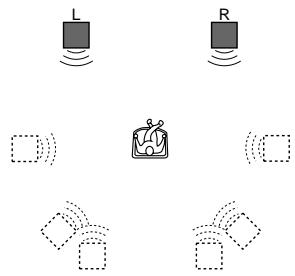
Uses 3D sound imaging to create virtual rear speakers from the sound of the front speakers (L, R) without using actual rear speakers. The virtual speakers are reproduced as shown in the illustration below.
text_image
L R (□) (□)VES (Virtual Enhanced Surround) B
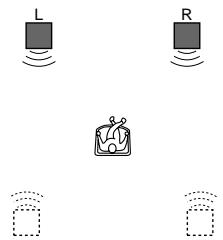
Uses 3D sound imaging to create virtual rear speakers from the sound of the front speakers (L, R) without using actual rear speakers. The virtual speakers are reproduced as shown in the illustration below.
text_image
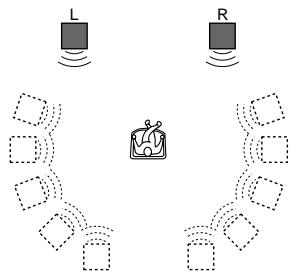
L RVIRTUAL SEMI MULTI DIMENSION
Uses 3D sound imaging to create virtual rear speakers from the sound of the front speakers (L, R) without using actual rear speakers. This mode creates 5 sets of virtual speakers surrounding the listener at a 30^ angle of elevation.
flowchart
graph TD
    L["Sensor L"] -->|Signal| Device["Device"]
    R["Sensor R"] -->|Signal| Device
    Device -->|Output| Sensor1["Sensor"]
    Device -->|Output| Sensor2["Sensor"]
    Device -->|Output| Sensor3["Sensor"]
    Device -->|Output| Sensor4["Sensor"]
    Device -->|Output| Sensor5["Sensor"]
    Device -->|Output| Sensor6["Sensor"]
    Device -->|Output| Sensor7["Sensor"]
    Device -->|Output| Sensor8["Sensor"]
    Device -->|Output| Sensor9["Sensor"]
    Device -->|Output| Sensor10["Sensor"]
L: Front speaker (left) R: Front speaker (right) □: Virtual speaker
For 4 (or more) speaker setups
When you connect 2 front speakers and 2 rear speakers, you can enjoy Dolby Surround (Pro Logic) sounds, or use 3D sound imaging to shift the sound of the rear speakers away from the actual speaker position or create entire sets of virtual rear speakers from 1 set of actual rear speakers. Select one of the following modes:
NORMAL SURROUND, ENHANCED SURROUND, VIRTUAL REAR SHIFT, VIRTUAL MULTI REAR, VIRTUAL MULTI DIMENSION.
OFF
Outputs all channel signals recorded on the disc. For example, outputs 2-channel signals for the stereo sound of a CD or the Dolby Digital, MPEG audio and DTS sounds of the DVD. When you connect fewer than 6 speakers, the player appropriately distributes the output signal for the missing speaker to other speakers.
NORMAL SURROUND
Software with 2 channel audio signals is decoded with Dolby Surround (Pro Logic) to create surround effects. The rear speakers will emit identical monaural sounds. If you are using a center speaker, Dolby Surround (Pro Logic) will also create the appropriate sounds for the center speaker.
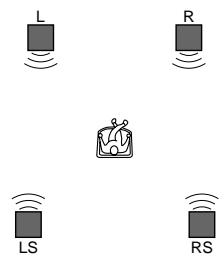
text_image
L R LS RSENHANCED SURROUND
Provides a greater sense of presence from a Dolby Surround (Pro Logic) source with a monaural rear channel signal. Produces a stereo like effect in the rear channels.
VIRTUAL REAR SHIFT
Uses 3D sound imaging to shift the sound of the rear speakers away from the actual speaker position. The virtual speakers are reproduced as shown in the illustration below. The shift position differs according to the setting of the rear speaker position (page 66).
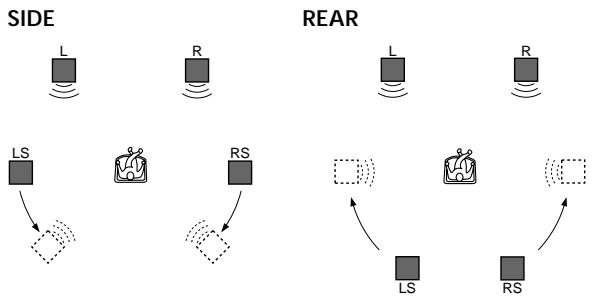
flowchart
graph TD
    subgraph SIDE
        L1["L"] -->|Signal| LS1["LS"]
        R1["R"] -->|Signal| LS2["LS"]
        LS1 -->|Signal| RS1["RS"]
        RS1 -->|Signal| LS3["LS"]
    end
    subgraph REAR
        L2["L"] -->|Signal| LS4["LS"]
        R2["R"] -->|Signal| LS5["LS"]
        LS4 -->|Signal| RS2["RS"]
        RS2 -->|Signal| LS6["LS"]
        RS2 -->|Signal| RS3["RS"]
    end
    style SIDE fill:#f9f,stroke:#333
    style REAR fill:#bbf,stroke:#333
VIRTUAL MULTI REAR
Uses 3D sound imaging to create an array of virtual rear speakers from a single pair of actual rear speakers. The virtual speakers are reproduced as shown in the illustration below. The position of the virtual rear speakers differs according to the setting of the rear speaker position (page 66).
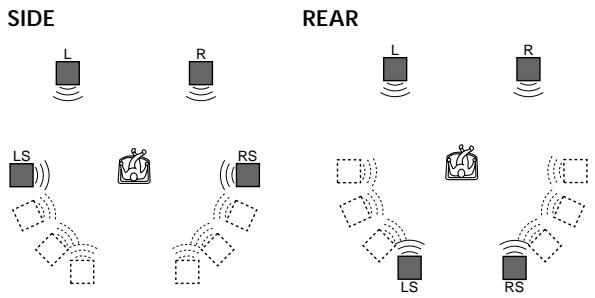
text_image
SIDE REAR L R LS RS L R LS RSVIRTUAL MULTI DIMENSION
Uses 3D sound imaging to create an array of virtual rear speaker positions higher than the listener from a single pair of actual rear speakers. This mode creates 5 sets of virtual speakers surrounding the listener at approximately a 30^ angle of elevation. The effect differs according to the setting of the rear speaker position (page 66).
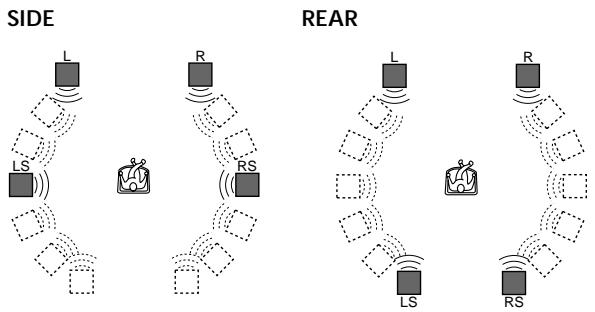
flowchart
graph TD
    subgraph SIDE
        L1["L"] --> LS1["LS"]
        R1["R"] --> RS1["RS"]
        LS1 --> L2[" "]
        R2["R"] --> RS2["RS"]
        LS2 --> L3[" "]
        R3["R"] --> RS3["RS"]
    end
    subgraph REAR
        L4["L"] --> LS4["LS"]
        R4["R"] --> RS4["RS"]
        LS4 --> L5[" "]
        R5["R"] --> RS5["RS"]
        LS5 --> L6[" "]
        R6["R"] --> RS6["RS"]
    end
    style SIDE fill:#f9f,stroke:#333
    style REAR fill:#bbf,stroke:#333
L: Front speaker (left)
R: Front speaker (right)
LS: Rear speaker (left)
RS: Rear speaker (right)
□: Virtual speaker
You can select "VIRTUAL 3D SURROUND" directly
Press VIRTUAL 3D SURROUND on the player. Each time you press the button, the mode changes.
Notes
- When you select an item, the sound cuts off for a moment.
- When the playing signal does not contain a signal for the rear speakers, the 3D surround effects may be difficult to hear.
- When you connect a center speaker and a subwoofer, you can also hear the sound from the center speaker and the subwoofer. However, when you select “VES TV,” “VES A,” “VES B” or “VIRTUAL SEMI MULTI DIMENSION,” the player does not output the sound from the center speaker.
- When you select one of the VIRTUAL 3D SURROUND modes, set the surround setting of the connected units, such as the amplifier, to OFF.
- The sampling frequency is converted to 48 kHz when a VIRTUAL 3D SURROUND mode is selected.
- If the player is set up to output the signal from the DIGITAL OUT (OPTICAL or COAXIAL) connectors, the surround effect will not be heard when you play a CD.
- Set the front speakers to form an equilateral triangle with the listening position at the top. Otherwise, the effects may be difficult to hear even if you select “VES A,” “VES B” or “VIRTUAL SEMI MULTI DIMENSION.”
- When you connect 4 speakers, the surround effect will not be heard if you use the DIGITAL OUT (OPTICAL or COAXIAL) connectors.
When using headphones
Select VIRTUAL SURROUND HEADPHONES when you want to experience virtual 3D surround effects through your headphones.
VIRTUAL SURROUND HEADPHONES
Uses 3D sound imaging to place the listener in an acoustically sophisticated movie studio by giving greater definition to the sound. Adjust the volume using the PHONES LEVEL control to the right of the PHONES connector. You can also enjoy the surround effect through your receiver's headphones connector when your receiver is connected to this player.

You can select "VIRTUAL SURROUND HEADPHONES" directly
Press VIRTUAL SURROUND HEADPHONES on the player.
To turn it off, press the button again.
Notes
- When you press VIRTUAL SURROUND HEADPHONES on the player, the VIRTUAL 3D SURROUND mode turns off and vice versa.
- If the player is set up to output the signal from DIGITAL OUT (OPTICAL or COAXIAL) and you are using your receiver's headphones, the surround effect will be heard only when you set "DOLBY DIGITAL" to "D-PCM," "MPEG" to "PCM" and "DTS" to "D-PCM" in "AUDIO SETUP."
Checking the Play
Information

You can check information such as the bit rate or the disc layer that is being played.
While playing a disc, the approximate bit rate of the playback picture is always displayed as Mbps (Mega bit per second) and the audio as kbps (kilo bit per second).
Select “ADVANCED” after pressing DISPLAY.
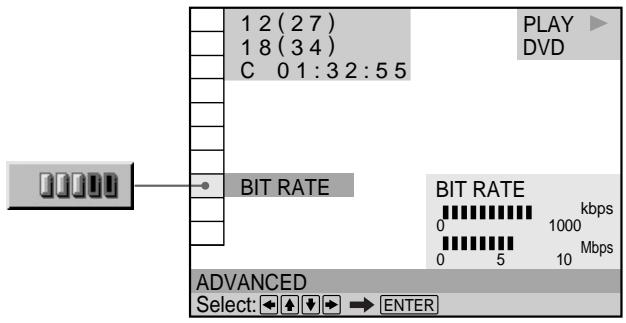
text_image
1 2 (2 7) 1 8 (3 4) C 0 1:3 2:5 5 BIT RATE PLAY DVD BIT RATE kbps 0 1000 0 5 10 Mbps ADVANCED Select: ← → ENTERADVANCED
The default setting is underlined.
• BIT RATE: displays the bit rate.
- LAYER: displays the layer and the pick-up point.
• OFF: turns off ADVANCED display.
Checking the Play Information
Displays of each item
By pressing DISPLAY repeatedly, you can display either "BIT RATE" or "LAYER," whichever was selected in "ADVANCED."
BIT RATE
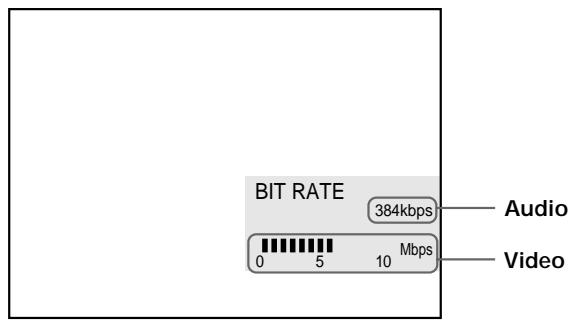
text_image
BIT RATE 384kbps 0 5 Mbps 10 Audio VideoWhen you play MPEG audio sound tracks
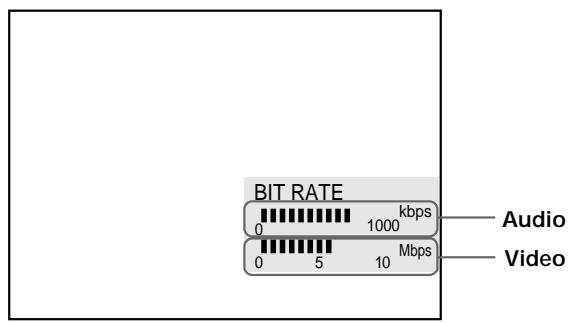
text_image
BIT RATE 0 1000 kbps 0 5 Mbps Audio VideoBit rate refers to the amount of video/audio data per second in a disc. The higher the bit rate, the larger the amount of data. When the bit rate level is high, there is a large amount of data. However, this does not always mean that you can get higher quality pictures or sounds.
LAYER
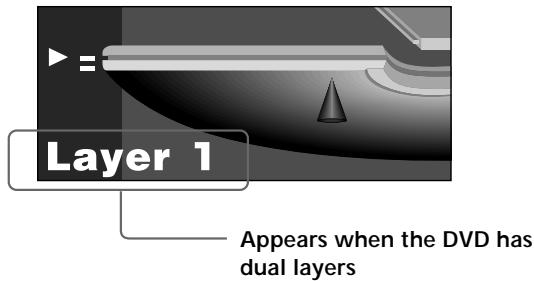
text_image
Layer 1 Appears when the DVD has dual layersIndicates the approximate point where the disc is playing. If it is a dual-layer DVD, the player indicates which layer is being read (“Layer 0” or “Layer 1”).
For details on the layers, see page 76 (DVD).
Locking Discs (Custom Parental Control)

DVD
VIDEO CD
CD
Using a registered password, you can set playback restrictions for the desired disc.
You can set the same Custom Parental Control password for up to 200 discs. When you set the 201 disc, the first disc is canceled.
The same password is used for both Parental Control (page 60) and Custom Parental Control.
Select "CUSTOM PARENTAL CONTROL" after pressing DISPLAY.
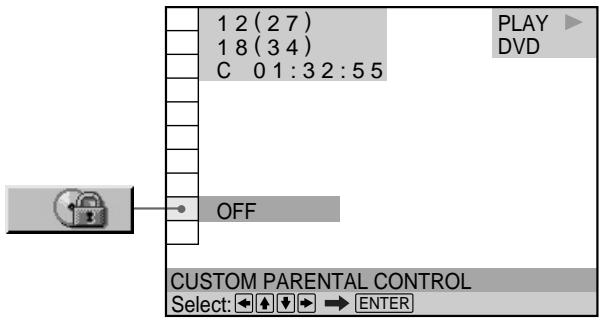
text_image
1 2 (2 7) 1 8 (3 4) C 0 1:3 2:5 5 OFF PLAY DVD CUSTOM PARENTAL CONTROL Select: ←→ ENTERSetting the Custom Parental Control for a disc
1 Insert the disc you want to lock.
If a disc is playing, press ■ to stop playback.
2 Select "CUSTOM PARENTAL CONTROL" using ↑/↓, then press ENTER.
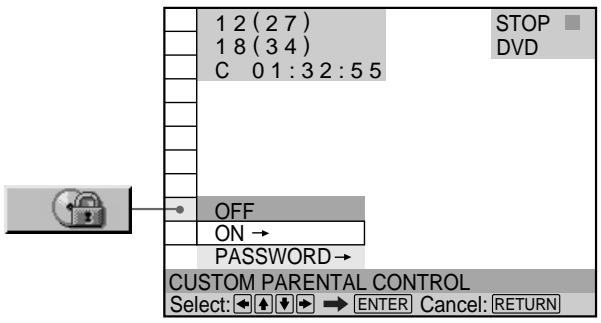
text_image
1 2 (2 7) 1 8 (3 4) C 0 1:3 2:5 5 OFF ON → PASSWORD→ CUSTOM PARENTAL CONTROL Select: ←▲ ↓→ → ENTER Cancel: RETURN3 Select "ON→" using ↑/↓, then press ENTER.
■ If you have not entered a password The display for entering a password appears.
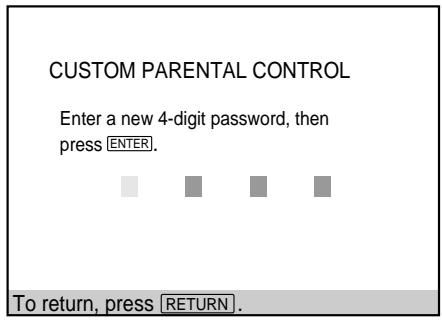
text_image
CUSTOM PARENTAL CONTROL Enter a new 4-digit password, then press ENTER. To return, press RETURN.■ When you have already registered a password The display for confirming the password appears. Skip Step 4.
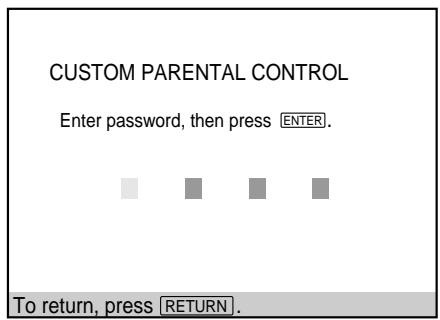
text_image
CUSTOM PARENTAL CONTROL Enter password, then press ENTER. To return, press RETURN.4 Enter a 4-digit password using the number buttons, then press ENTER.
The digits change to asterisks (*) , and the display for confirming the password appears.
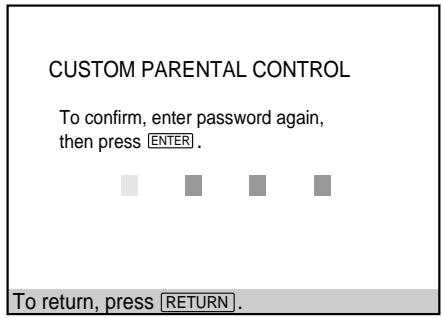
text_image
CUSTOM PARENTAL CONTROL To confirm, enter password again, then press ENTER . To return, press RETURN .5 Enter the same 4-digit password using the number buttons, then press ENTER.
“Custom parental control is set.” appears and then the screen returns to the Control Menu display.
To return to the normal screen
Press RETURN.
To turn off the Custom Parental Control function
1 Select “CUSTOM PARENTAL CONTROL” using ↑/↓, then press ENTER.
2 Select "OFF→" using ↑/↓, then press ENTER.
3 Enter your 4-digit password using the number buttons, then press ENTER.
To change the password
1 Select "CUSTOM PARENTAL CONTROL" using ↑/↓, then press ENTER.
2 Select "PASSWORD→" using ↑/↓, then press ENTER.
3 Enter your 4-digit password using the number buttons, then press ENTER.
The display for changing the password appears.
4 Enter a new 4-digit password using the number buttons, then press ENTER.
5 To confirm your password, re-enter it using the number buttons, then press ENTER.
Playing the disc for which the Custom Parental Control is set
1 Insert the disc.
The CUSTOM PARENTAL CONTROL display appears.
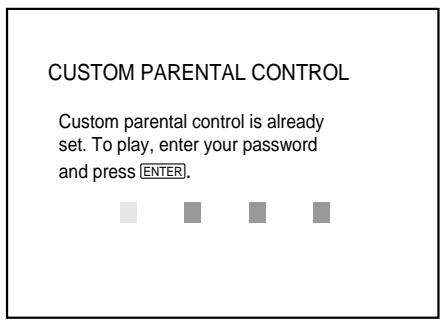
text_image
CUSTOM PARENTAL CONTROL Custom parental control is already set. To play, enter your password and press ENTER.2 Enter your 4-digit password using the number buttons, then press ENTER.
The player starts playback.
If you forget your password
Enter the 6-digit number “199703” whenever the CUSTOM PARENTAL CONTROL display asks you for your password, then press ENTER. The display will ask you to enter a new 4-digit password.
Note
Unless you enter the password, the player cannot play the disc for which the Custom Parental Control is set. When you do not know the password, press and remove the disc.
Creating Your Own Program (Program Play)



You can play the contents of the disc in the order you want by arranging the order of the titles, chapters or tracks on the disc and create your own program. One program can be stored in the player and contain up to 99 titles, chapters and tracks.
Select “PROGRAM” after pressing DISPLAY. When you select “ON,” the “PROGRAM” indicator lights up in green.
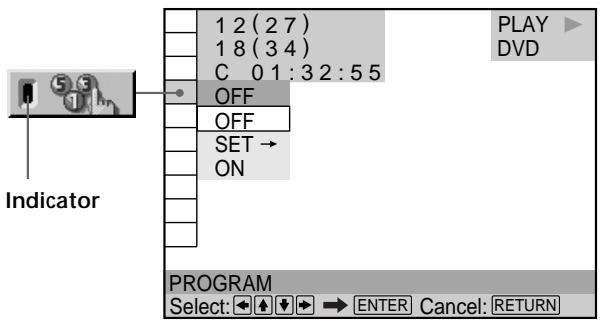
text_image
1 2 (2 7) 1 8 (3 4) C 0 1:3 2:5 5 OFF OFF SET → ON Indicator PLAY DVD PROGRAM Select: ↕ ↕ ↗ ENTER Cancel: RETURNPROGRAM
The default setting is underlined.
- OFF: plays normally.
- SET→: allows you to create your own program.
• ON: plays Program Play.
Creating the program
1 Select "SET→" in "PROGRAM."
The programming display appears.
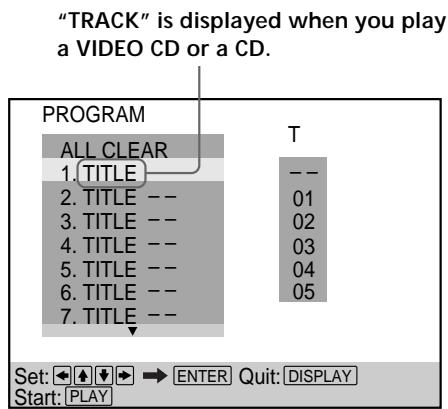
text_image
"TRACK" is displayed when you play a VIDEO CD or a CD. PROGRAM ALL CLEAR 1. TITLE 2. TITLE -- 3. TITLE -- 4. TITLE -- 5. TITLE -- 6. TITLE -- 7. TITLE -- T -- 01 02 03 04 05 Set: ← ↓ → ENTER Quit: DISPLAY Start: PLAY2 Press →.
“01” is highlighted. It is ready to set the first title or track for Program Play.
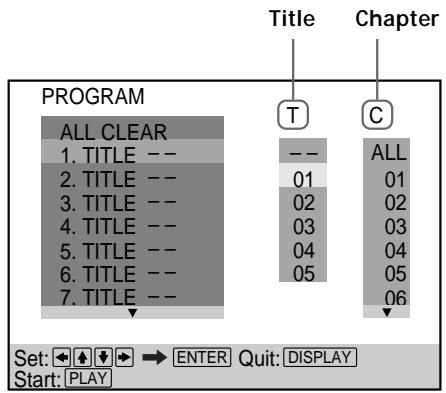
text_image
PROGRAM ALL CLEAR 1. TITLE -- 2. TITLE -- 3. TITLE -- 4. TITLE -- 5. TITLE -- 6. TITLE -- 7. TITLE -- Title Chapter T C -- ALL 01 01 02 02 03 03 04 04 05 05 06 Set: ←→ ENTER Quit: DISPLAY Start: PLAY3 Select the title, chapter or track you want to program using ↑/↓, then press ENTER.
For example, select title or track 2.
(You can also use the number buttons and ENTER button to make a selection. In this case, the selected number is displayed on the screen.)
■ When playing a DVD
When both titles and chapters are recorded on the disc, select the title, then the chapter.
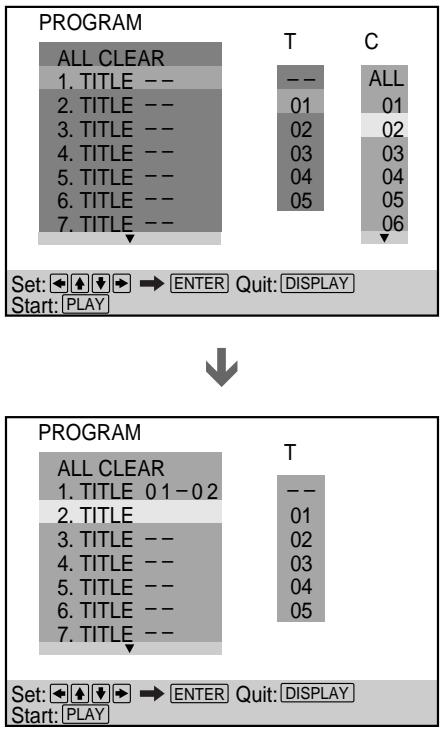
text_image
PROGRAM ALL CLEAR 1. TITLE -- 2. TITLE -- 3. TITLE -- 4. TITLE -- 5. TITLE -- 6. TITLE -- 7. TITLE -- T --- 01 02 03 04 05 C ALL 01 02 03 04 05 06 Set: ← + ↓ → ENTER Quit: DISPLAY Start: PLAY ↓ PROGRAM ALL CLEAR 1. TITLE 0 1 - 0 2 2. TITLE -- 3. TITLE -- 4. TITLE -- 5. TITLE -- 6. TITLE -- 7. TITLE -- T --- 01 02 03 04 05 Set: ← + ↓ → ENTER Quit: DISPLAY Start: PLAY■ When playing a VIDEO CD or CD Select the track you want to program.
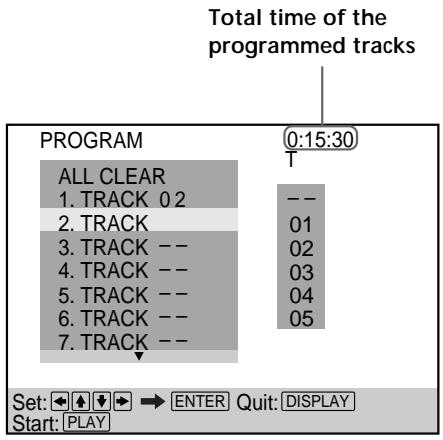
text_image
Total time of the programmed tracks PROGRAM ALL CLEAR 1. TRACK 02 2. TRACK 3. TRACK -- 4. TRACK -- 5. TRACK -- 6. TRACK -- 7. TRACK -- 0:15:30 T -- 01 02 03 04 05 Set: ← ↑ ↓ → ENTER Quit: DISPLAY Start: PLAY4 To program other titles, chapters or tracks, repeat Step 3.
The programmed titles, chapters or tracks are displayed in the selected order.
5 Press ▷ to start Program Play.
To stop Program Play
Press CLEAR on the remote.
To cancel programming
Press PROGRAM on the remote.
To change the program
1 In Step 2, select the program number of the title, chapter or track you want to change using ↑/↓.
2 Follow Step 3 for new programming.
To cancel the programmed order
To cancel all the titles, chapters or tracks in the programmed order, select “ALL CLEAR” in Step 2.
To cancel the selected program, select the program using
↑/↓ in Step 2 then press CLEAR, or select “- -” in Step 3 then press ENTER.
The program remains even after Program Play ends When you press ▷, you can play the same program again.
You can do Repeat Play or Shuffle Play of the programmed titles, chapters or tracks
During Program Play, press REPEAT or SHUFFLE on the remote. Or set “REPEAT” or “SHUFFLE” to “ON” in the Control Menu display.
You can select "PROGRAM" directly Press PROGRAM on the remote.
You can select discs, titles, chapters and tracks for the program by looking at the front panel display
You can program by looking at the front panel display instead of using the programming display on the TV screen.
When you select Track 3 in a VIDEO CD for program 1, the front panel display will appear as follows:
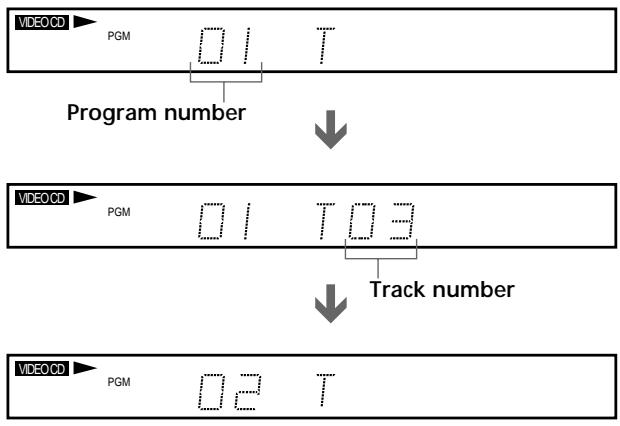
flowchart
graph TD
    A["VIDEO CD"] --> B["PGM"]
    B --> C["Program number"]
    C --> D["VIDEO CD"]
    D --> E["PGM"]
    E --> F["Track number"]
    F --> G["VIDEO CD"]
    G --> H["PGM"]
    H --> I["02 T"]
Notes
- The number of titles, chapters or tracks displayed are the same number of titles, chapters or tracks recorded on a disc.
• The program is canceled when: - you open or close the disc tray
- the player enters standby mode by pressing I/⏻ on the remote
- you turn the power off by pressing ① on the player
- Depending on the DVD, you may not be able to perform Program Play.
- If you are using the PBC playback function, you must first stop the disc before you can set a program.
- When playing Super VCDs, the total time of the programmed tracks does not appear on the screen.
Playing in Random Order (Shuffle Play) DVD VIDEO CD
You can have the player “shuffle” titles or tracks and play them in a random order. Subsequent “shuffling” may produce a different playing order.
Select “SHUFFLE” after pressing DISPLAY. When you select a shuffle mode other than “OFF,” the “SHUFFLE” indicator lights up in green.
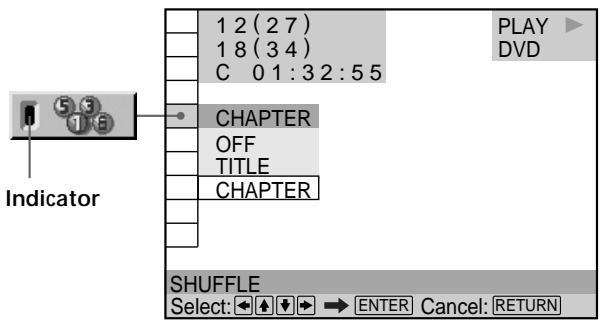
text_image
1 2 (2 7) 1 8 (3 4) C 0 1:3 2:5 5 CHAPTER OFF TITLE CHAPTER SHUFFLE Select: ← → ENTER Cancel: RETURN Indicator PLAY DVDSHUFFLE
Selects the Shuffle Play setting.
The default settings are underlined.
When playing a DVD and when Program Play is set to OFF
- OFF: does not play a disc in random order.
- TITLE: has the player “shuffle” titles and play them in a random order.
- CHAPTER: has the player “shuffle” chapters and play them in a random order.
When playing a VIDEO CD or CD (when Program Play is set to OFF)
- OFF: does not play a disc in random order.
- TRACK: has the player “shuffle” tracks and play them in a random order.
When playing a VIDEO CD, CD or DVD (when Program Play is set to ON)
- OFF: does not play a disc in random order.
- ON: has the player “shuffle” titles or tracks selected in Program Play and play them in a random order.
To stop Shuffle Play
Press CLEAR on the remote.
You can set Shuffle Play while the disc is stopped After selecting the "SHUFFLE" option, press ▷. The player starts Shuffle Play.
You can select "SHUFFLE" directly
Press SHUFFLE on the player or the remote. Each time you press the button, the item changes.
Notes
- Shuffle Play is canceled when:
- you open or close the disc tray
- the player enters standby mode by pressing I/⏻ on the remote
- you turn the power off by pressing ① on the player
- Depending on the DVD, you may not be able to perform Shuffle Play.
- Up to 200 chapters in a disc can be played in random order when “CHAPTER” is selected.
- You cannot perform Shuffle Play during PBC playback of VIDEO CDs (page 22).
Playing Repeatedly (Repeat Play)


You can play all of the titles or tracks on a disc or a single title, chapter or track repeatedly.
In Shuffle or Program Play mode, the player repeats the titles or tracks in the shuffled or programmed order.
You cannot perform Repeat Play during PBC playback of VIDEO CDs (page 22).
Select “REPEAT” after pressing DISPLAY. When you select a repeat mode other than “OFF,” the “REPEAT” indicator lights up in green.
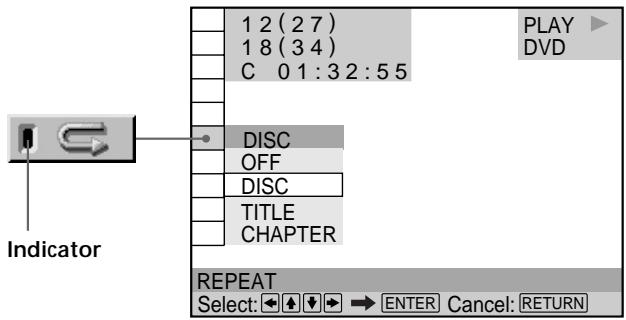
text_image
1 2 (2 7) 1 8 (3 4) C 0 1:3 2:5 5 PLAY DVD DISC OFF DISC TITLE CHAPTER REPEAT Select: → ENTER Cancel: RETURN IndicatorREPEAT
Selects the Repeat Play setting.
The default settings are underlined.
When playing a DVD and when Program Play and Shuffle Play are set to OFF
• OFF: does not play repeatedly.
• DISC: repeats all of the titles.
• TITLE: repeats the current title on a disc.
• CHAPTER: repeats the current chapter.
When playing a VIDEO CD/CD and when Program Play and Shuffle Play are set to OFF
• OFF: does not play repeatedly.
• DISC: repeats all of the tracks on a disc.
- TRACK: repeats the current track.
When Program Play or Shuffle Play is on
• OFF: does not play repeatedly.
• ON: repeats Program Play or Shuffle Play.
To stop Repeat Play
Press CLEAR on the remote.
You can set Repeat Play while the disc is stopped After selecting the “REPEAT” option, press ▷. The player starts Repeat Play.
You can select "REPEAT" directly
Press REPEAT on the player or the remote. Each time you press the button, the item changes.
Notes
- Repeat play is canceled when:
- you open or close the disc tray
- the player enters standby mode by pressing I/⏻ on the remote
- you turn the power off by pressing ① on the player
- Depending on the DVD, you may not be able to perform Repeat Play.
Repeating a Specific Portion (A-B Repeat) DVD VIDEO CD CD
You can play a specific portion of a title, chapter or track repeatedly. This function is useful when you want to do such things as memorize lyrics.
During PBC Playback of VIDEO CDs (page 22), this function is available only while playing moving pictures.
Select “A-B REPEAT” after pressing DISPLAY. During A-B Repeat Play, the “A-B REPEAT” indicator lights up in green.
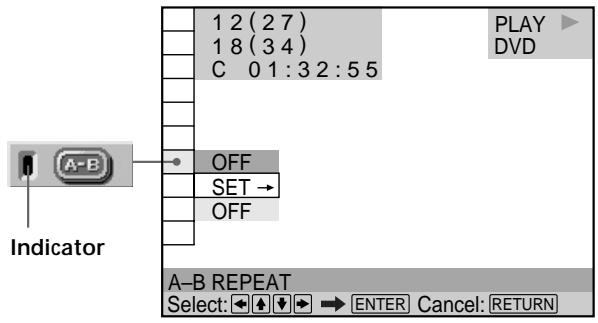
text_image
12 (27) 18 (34) C 01:32:55 OFF SET → OFF A-B REPEAT Select: ←→ ENTER Cancel: RETURN Indicator PLAY DVDA-B REPEAT
The default setting is underlined.
- SET\\: sets the A and B points.
- OFF: does not play a specific portion of a title/chapter/track repeatedly.
Setting a portion for A-B repeat
1 Select "A-B REPEAT" and press ENTER.
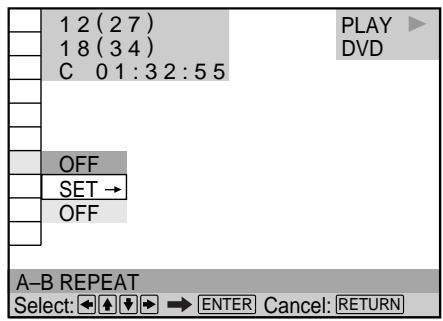
text_image
12 (27) 18 (34) C 01:32:55 OFF SET → OFF A-B REPEAT Select: ↕ ↕ ↕ → ENTER Cancel: RETURN2 Select "SET→" and press ENTER.
The A-B REPEAT setting display appears.
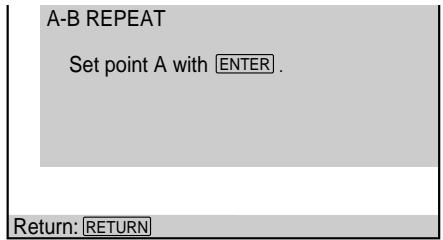
text_image
A-B REPEAT Set point A with ENTER . Return: RETURN3 During playback, when you find the starting point (point A) of the portion to be played repeatedly, press ENTER.
The starting point (point A) is set.
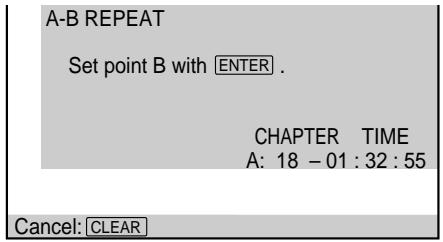
text_image
A-B REPEAT Set point B with ENTER . CHAPTER TIME A: 18 - 01 : 32 : 55 Cancel: CLEAR4 When you reach the ending point (point B), press ENTER again.
The set points are displayed and the player starts repeating this specific portion.
“A-B” appears on the front panel display during A-B repeat play.
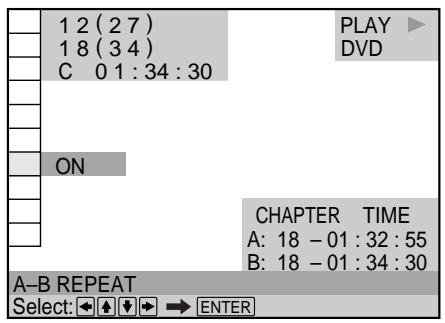
text_image
1 2 (2 7) 1 8 (3 4) C 0 1 : 34 : 30 ON PLAY DVD CHAPTER TIME A: 18 - 01 : 32 : 55 B: 18 - 01 : 34 : 30 A-B REPEAT Select: → ← → → ENTERTo stop A-B Repeat Play
Press CLEAR on the remote.
Notes
- You can set A-B Repeat for only one specific portion.
• A–B Repeat is canceled when:
- you open or close the disc tray
- the player enters standby mode by pressing I/⏻ on the remote
- you turn the power off by pressing ① on the player
- When you set A-B Repeat, the settings for Shuffle Play, Repeat Play and Program Play are canceled.
- You may not be able to set A-B Repeat for some DVD or VIDEO CD scenes.
Adjusting the Playback Picture (Video Equalizer)


You can adjust the video output of the DVD or VIDEO CD from the player, not from the TV, to obtain the picture quality you want. Choose the video mode that suits the program you are watching.
When you select “MEMORY→,” you can make further adjustments to each element of the picture (color, brightness, etc.).
Select “VIDEO EQUALIZER” after pressing DISPLAY. When you select a setting other than “STANDARD,” the “VIDEO EQUALIZER” indicator lights up in green.
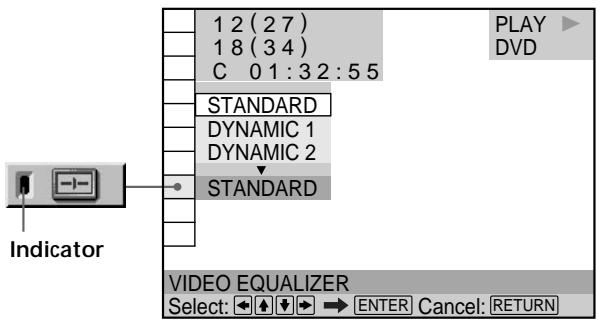
text_image
12 (27) 18 (34) C 01:32:55 STANDARD DYNAMIC 1 DYNAMIC 2 STANDARD VIDEO EQUALIZER Select: → ENTER Cancel: RETURN Indicator PLAY DVD■ VIDEO EQUALIZER
Selects the video control setting.
The default setting is underlined.
• STANDARD: displays a standard picture.
- DYNAMIC 1: produces a bold dynamic picture by increasing the picture contrast and the color intensity.
- DYNAMIC 2: produces a more dynamic picture than DYNAMIC 1 by further increasing the picture contrast and the color intensity.
- CINEMA 1: enhances details in dark areas by increasing the black level.
• CINEMA 2: white colors become brighter and black colors become richer, and the color contrast is increased.
- MEMORY→: adjusts the picture in greater detail.
When you watch a movie
CINEMA 1 or CINEMA 2 is recommended.
To adjust the picture items in MEMORY
You can adjust each element of the picture individually.
• PICTURE: changes the contrast
• BRIGHTNESS: changes the overall brightness
• COLOR: makes the colors deeper or lighter
• HUE: changes the color balance
1 Select "VIDEO EQUALIZER" and press ENTER.
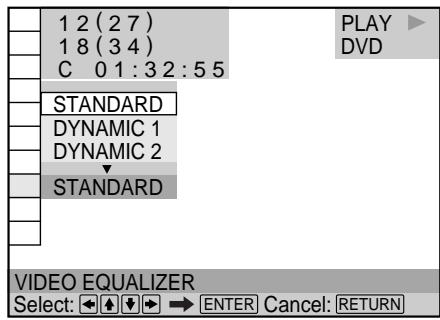
text_image
1 2 (2 7) 1 8 (3 4) C 01:32:55 STANDARD DYNAMIC 1 DYNAMIC 2 STANDARD VIDEO EQUALIZER Select: ← + ↓ → ENTER Cancel: RETURN PLAY DVD2 Select "MEMORY→" and press ENTER.
The video equalizer display appears.
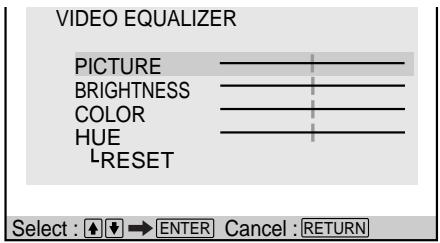
text_image
VIDEO EQUALIZER PICTURE BRIGHTNESS COLOR HUE LRESET Select : ↑ ↓ → ENTER Cancel : RETURN3 Select the picture item you want to adjust using
↑/↓, then press ENTER.
The adjustment bar of the selected item appears.
To cancel adjusting the picture, press ⬇RETURN.
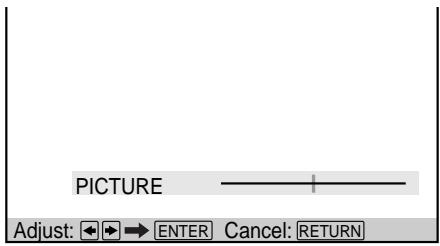
text_image
PICTURE Adjust: ←→ ENTER Cancel: RETURN4 Adjust the selected picture item using / , then press ENTER.
The setting is stored in memory.
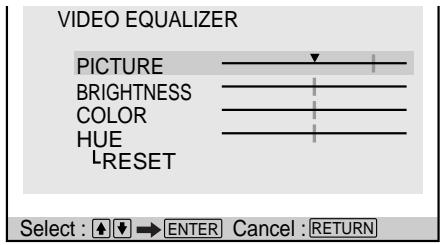
text_image
VIDEO EQUALIZER PICTURE BRIGHTNESS COLOR HUE L-RESET Select : ↕ ↕ ENTER Cancel : RETURN5 To adjust other items, repeat Steps 3 and 4.
To exit the video equalizer display
Press RETURN.

To reset the picture items
Select "RESET" in "MEMORY→."
Note
Only one set of “MEMORY→” adjustments can be stored. When you adjust the items again, the new setting erases the previous setting.
Enhancing the Playback Picture (Digital Video Enhancer) DVD VIDEO CD
The Digital Video Enhancer function makes the picture appear clear and crisp by enhancing the outlines of images on your TV screen.
Select “DIGITAL VIDEO ENHANCER” after pressing DISPLAY. When you select a level other than “OFF,” the “DIGITAL VIDEO ENHANCER” indicator lights up in green.
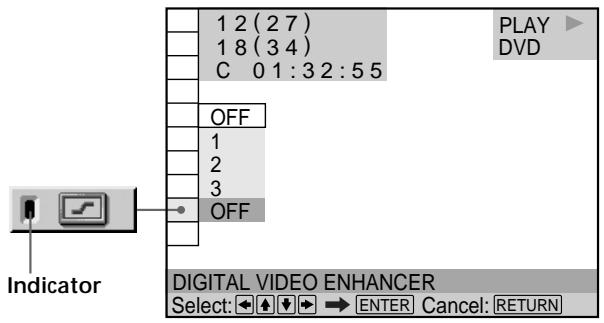
text_image
1 2 (2 7) 1 8 (3 4) C 0 1:3 2:5 5 OFF 1 2 3 OFF PLAYER DVD DIGITAL VIDEO ENHANCER Select: → ENTER Cancel: RETURN■ DIGITAL VIDEO ENHANCER
Selects the level of enhancement. As the value increases, the outlines of images on your TV screen will become crisper.
Select the level that best suits the image on your TV screen.
The default setting is underlined.
- OFF: turns off the Digital Video Enhancer function.
• 1: enhances the outline.
• 2: enhances the outline more than 1.
• 3: enhances the outline more than 2.

You can select "DIGITAL VIDEO ENHANCER" directly
Press DVE on the player or the remote. Each time you press the button, the level changes.
Note
Depending on the DVD disc or the scene being played, noise found in the disc may become more apparent. If this happens, reduce the Digital Video Enhancer level.
Using the Quick Reference Screen (VIEWER) DVD VIDEO CD
You can divide the screen into 9 sections (quick reference screen) and enjoy the following functions.
• STROBE PLAYBACK
• TITLE VIEWER (DVD only)
• CHAPTER VIEWER (DVD only)
- TRACK VIEWER (VIDEO CD only)
• ANGLE VIEWER (DVD only)
- BOOKMARK
Select "VIEWER" after pressing DISPLAY.
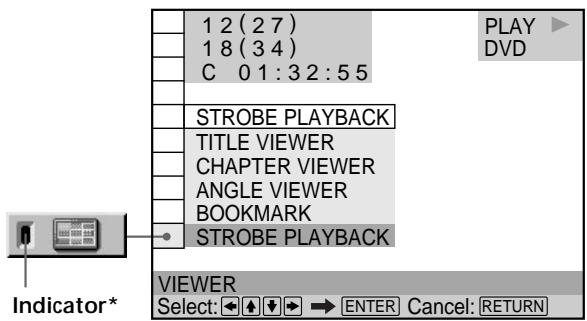
text_image
1 2 (2 7) 1 8 (3 4) C 0 1 : 3 2 : 5 5 STROBE PLAYBACK TITLE VIEWER CHAPTER VIEWER ANGLE VIEWER BOOKMARK STROBE PLAYBACK VIEWER Select: ←→ ENTER Cancel: RETURN Indicator** The indicator lights up when a bookmark is in memory.
Note
The VIEWER is not available when playing Super VCDs.
Dividing a track into 9 sections
(STROBE PLAYBACK)


You can display 9 consecutive sections of the disc on the screen. If you are playing a disc, you can change the speed of the images on the screen by turning the click shuttle. When you press ■, 9 still images around the pause position are displayed.
Select “STROBE PLAYBACK” in “VIEWER” and press ENTER. Nine consecutive scenes appear on the screen.
To cancel watching the strobe play
Press ⬇RETURN.
Notes
- Depending on the disc, there are some scenes you may not be able to watch with the strobe play function.
- The sound is muted when using this function.
Scanning the title and chapter


You can check the first picture of titles, chapters or tracks of the disc, and start playback from the chosen title, chapter or track.
When playing a DVD, select “TITLE VIEWER” or “CHAPTER VIEWER” in “VIEWER” and press ENTER.
When playing a VIDEO CD, select “TRACK VIEWER” in “VIEWER” and press ENTER.
The screen will divide into 9 sections and show the first picture of each title, chapter or track.
To start playback from the selected picture
Select the picture using /// , then press ENTER. Playback starts from the selected picture.

When there are over 9 titles, chapters or tracks
▼ appears at the right bottom of the screen. Select the right bottom scene (the position 9) and use ↓ to display the next titles, tracks or chapters. To return to the previous scene, select the left top scene (the position 1) and press ↑.
| 1 | 2 | 3 |
| 4 | 5 | 6 |
| 7 | 8 | 9 |

You can check the number on the front panel display
The number of the title, chapter or track you selected is displayed on the front panel display.
To cancel scanning the title, chapter or track
Press 📌RETURN.
Notes
- Depending on the disc, you may not be able to scan the title, chapter or track.
- The sound is muted when using this function.
Displaying different angles
simultaneously

With DVDs on which various angles (multi-angles) for a scene are recorded, you can display all of the angles recorded on the disc on the same screen, and start playback in continuous mode at the chosen angle. The angles are displayed on a screen divided in 9 sections.
Select “ANGLE VIEWER” in “VIEWER.” The available angles appear on the screen.
To select one angle
Select the angle using /// , then press ENTER. The selected angle is displayed.
To cancel displaying multi-angles
Press 📌RETURN.

You can check the angle number on the front panel display
The number of the angle you selected is displayed on the front panel display.
Notes
- If only one angle is recorded on the disc, then you will not be able to use this function.
- Depending on the DVD, you may not be able to change the angles even if multi-angles are recorded on the DVD.
- When a scene for which various angles (multi-angles) are not recorded appears when using this function, the player returns to normal playback.
- The sound is muted when using this function.
Setting and selecting favorite scene
(Bookmark)



You can have the player store specific portions of the disc in memory and play them immediately whenever you want (Bookmark). Up to 9 bookmarks per disc for up to 200 discs can be stored in memory.
Select “BOOKMARK” in “VIEWER.” The bookmarks appear on the screen.
To start playback from the selected picture
Select the picture using /// , then press ENTER. Playback starts from the selected picture.
To cancel scanning the bookmark pictures
Press ⬇RETURN.
To reset the bookmark
Select the bookmark you want to reset using ←/↑/↓/→, then press CLEAR.
To reset the all of the bookmarks for the player
Select “BOOKMARK RESET→” under “CUSTOM SETUP” in the setup display. For details on resetting all of the bookmarks for the player, see page 59.
Setting a bookmark
During playback, when you find a scene to be bookmarked, press BOOKMARK on the remote.
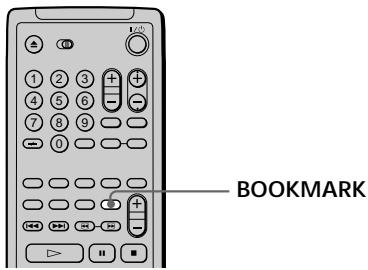
text_image
1st ① ② ③ ④ ⑤ ⑥ ⑦ ⑧ ⑨ ⑩ BOOKMARKYou can check the bookmark number on the front panel display
The number of the bookmark you selected is displayed on the front panel display.
Notes
- The player can store in memory the bookmarks of up to 200 discs. When you have the player store over 200 discs in memory, each new bookmark erases the oldest bookmark.
- Depending on the DVD, you may not be able to set the bookmark.
- Do not turn off the player by pressing ①. Doing so may cancel the settings. When you turn off the player, press ■ first to stop playback and then press I/⏻ on the remote. After the power indicator lights up in red and the player enters standby mode, press ① on the player.
- The sound is muted when using this function.
Settings and Adjustments
This chapter describes how to set and adjust the player using the on-screen setup menu. Most settings and adjustments are required to be set when you first use the player. This chapter also describes how to control the TV using the supplied remote.
Using the Setup Display

Using the setup display, you can do the initial setup, adjust the picture and sound and set the various outputs. You can also set a language for the subtitles and the setup display, limit playback by children, and so on. For details on each setup display item, see pages 55 to 67.
Note
You can display the setup display only when the player is in stop mode.
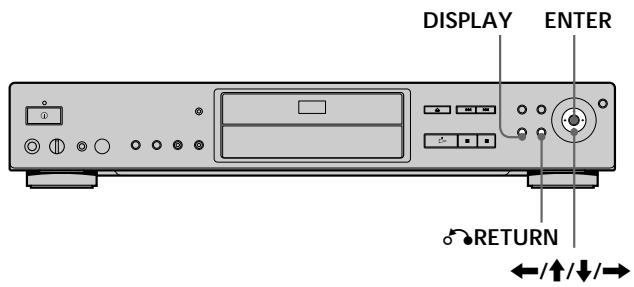
text_image
DISPLAY ENTER RETURN ←/↑/↓/→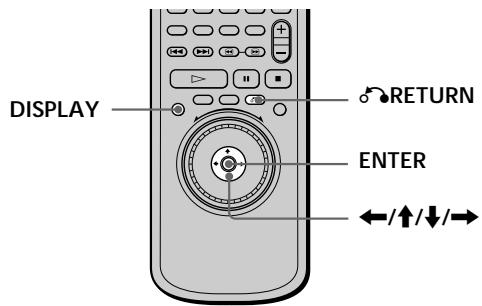
text_image
DISPLAY RETURN ENTER ←/↑/↓/→1 Press DISPLAY and select "SETUP" using ↑/↓.
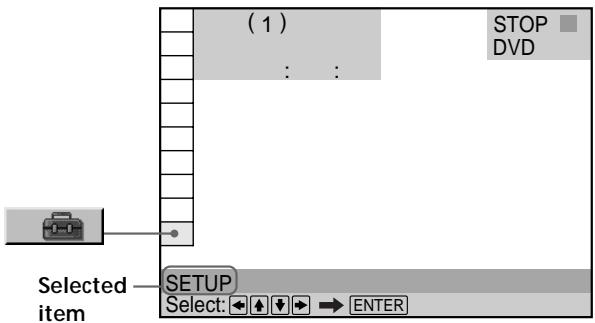
text_image
(1) STOP DVD Selected item SETUP Select: ← → ENTER2 Press ENTER.
The setup display appears.
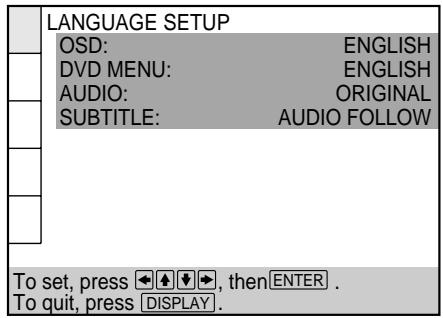
text_image
LANGUAGE SETUP OSD: ENGLISH DVD MENU: ENGLISH AUDIO: ORIGINAL SUBTITLE: AUDIO FOLLOW To set, press ↕ ↕ ↕, then ENTER . To quit, press DISPLAY.3 Select the main item you want using ↑/↓.
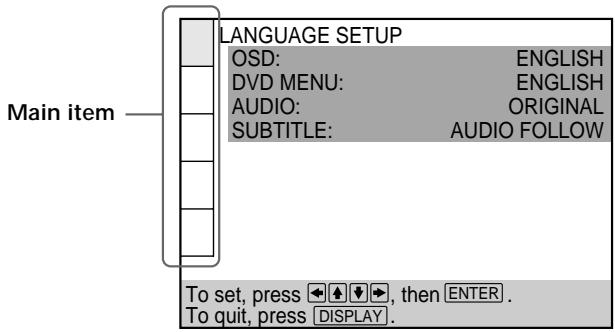
text_image
LANGUAGE SETUP OSD: ENGLISH DVD MENU: ENGLISH AUDIO: ORIGINAL SUBTITLE: AUDIO FOLLOW To set, press ← →, then ENTER . To quit, press DISPLAY .4 Press ENTER.
The selected main item is highlighted.
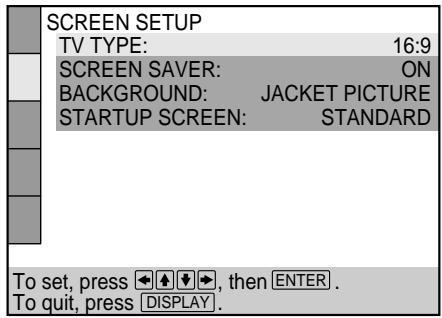
text_image
SCREEN SETUP TV TYPE: 16:9 SCREEN SAVER: ON BACKGROUND: JACKET PICTURE STARTUP SCREEN: STANDARD To set, press ↓ ↓ ↓ ↓, then ENTER . To quit, press DISPLAY .5 Select the item you want using ↑/↓.
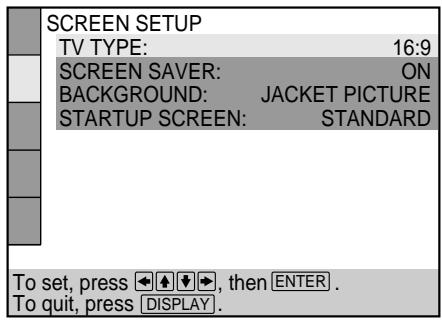
text_image
SCREEN SETUP TV TYPE: 16:9 SCREEN SAVER: ON BACKGROUND: JACKET PICTURE STARTUP SCREEN: STANDARD To set, press ↓ ↑ ↓ ↓, then ENTER . To quit, press DISPLAY .6 Press ENTER.
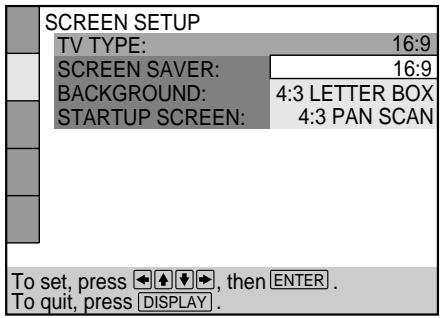
text_image
SCREEN SETUP TV TYPE: 16:9 SCREEN SAVER: 16:9 BACKGROUND: 4:3 LETTER BOX STARTUP SCREEN: 4:3 PAN SCAN To set, press ↓, then ENTER . To quit, press DISPLAY .7 Select the setting you want using ←/↑/↓/→.
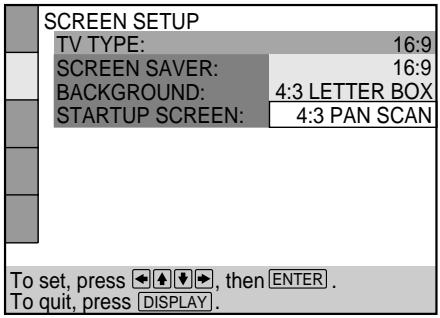
text_image
SCREEN SETUP TV TYPE: 16:9 SCREEN SAVER: 16:9 BACKGROUND: 4:3 LETTER BOX STARTUP SCREEN: 4:3 PAN SCAN To set, press ↓ ↑ ↓ ↓, then ENTER . To quit, press DISPLAY .8 Press ENTER.
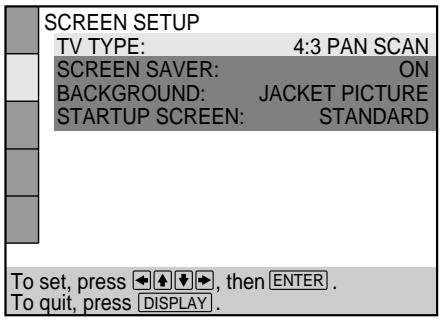
text_image
SCREEN SETUP TV TYPE: 4:3 PAN SCAN SCREEN SAVER: ON BACKGROUND: JACKET PICTURE STARTUP SCREEN: STANDARD To set, press ↓ ↑ ↓ ↓, then ENTER . To quit, press DISPLAY .9 Press DISPLAY.
The setup display disappears.
10 Press DISPLAY repeatedly to turn off the on-screen menu.
To return to the previous screen
Press ⬇RETURN.
To quit while making a selection
Press DISPLAY.
Note
Some setup display items require operations other than selecting the setting. For details on these items, see the relevant pages.
Setup Display Item List
The default settings are underlined.
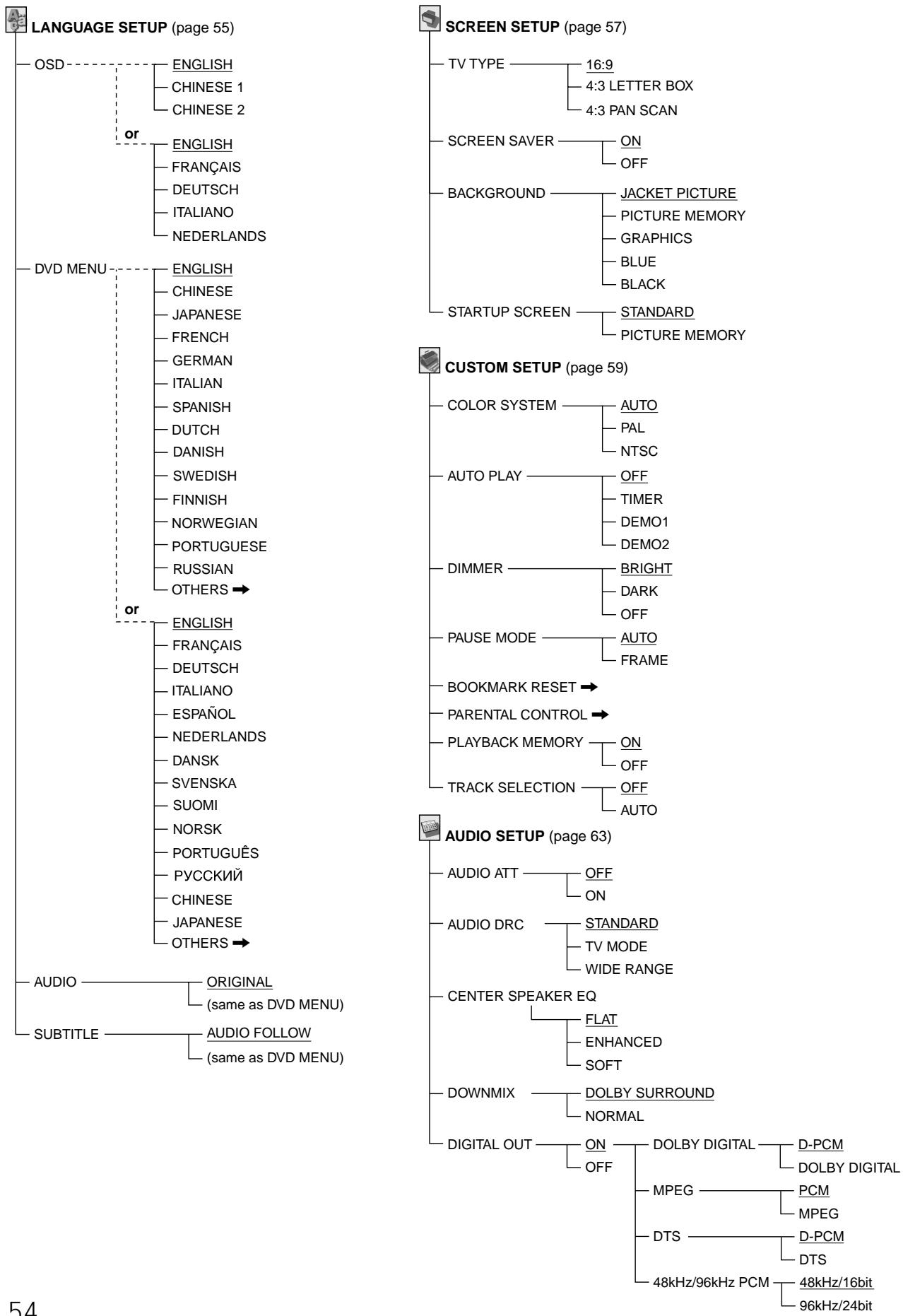
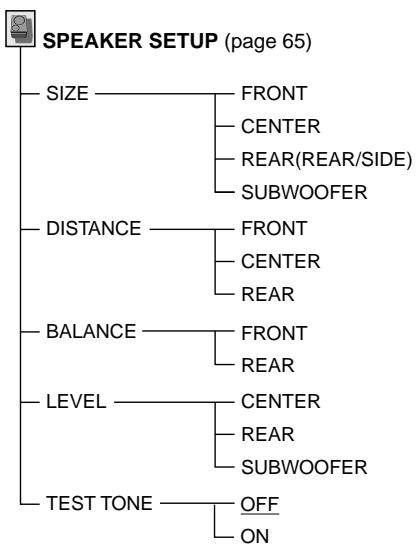
flowchart
graph TD
    A["Speaker Setup (page 65)"] --> B["SIZE"]
    A --> C["DISTANCE"]
    A --> D["BALANCE"]
    A --> E["LEVEL"]
    A --> F["TEST TONE"]
    B --> G["FRONT"]
    B --> H["CENTER"]
    B --> I["REAR(REAR/SIDE)"]
    B --> J["SUBWOOFER"]
    C --> K["FRONT"]
    C --> L["CENTER"]
    C --> M["REAR"]
    D --> N["FRONT"]
    D --> O["REAR"]
    E --> P["CENTER"]
    E --> Q["REAR"]
    E --> R["SUBWOOFER"]
    F --> S["OFF"]
    F --> T["ON"]
Setting the Display Language or Sound Track (LANGUAGE SETUP)

"LANGUAGE SETUP" allows you to set various languages for the on-screen display or sound track. The default settings are underlined.
Select "LANGUAGE SETUP" in the setup display.
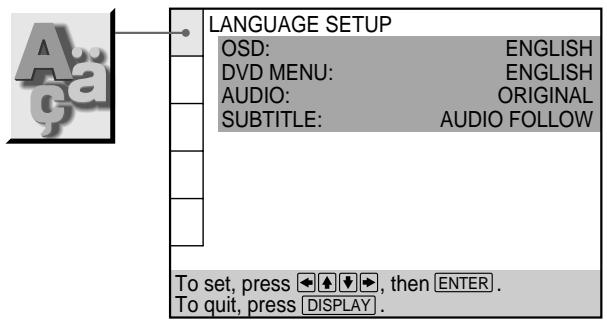
text_image
LANGUAGE SETUP OSD: ENGLISH DVD MENU: ENGLISH AUDIO: ORIGINAL SUBTITLE: AUDIO FOLLOW To set, press ← →, then ENTER . To quit, press DISPLAY .Notes
- When you select a language that is not recorded on the DVD, one of the recorded languages is automatically selected for the “DVD MENU,” “AUDIO” and “SUBTITLE” settings.
- Depending on the DVD, the player may not start playing with the selected language even when you select a language in “DVD MENU,” “AUDIO” or “SUBTITLE.”
■ OSD (On-Screen Display)
Selects the language for the on-screen display. The languages you can select are different depending on the player model.
DVP-S745D
• ENGLISH
- CHINESE 1
- CHINESE 2
DVP-S735D
• ENGLISH (English)
• FRANÇAIS (French)
• DEUTSCH (German)
- ITALIANO (Italian)
• NEDERLANDS (Dutch)
Setting the Display Language or Sound Track (LANGUAGE SETUP)
DVD MENU
Selects the language for the DVD menu.
The language order is different depending on the player model.
DVP-S745D
• ENGLISH
- CHINESE
• JAPANESE
- FRENCH
• GERMAN
• ITALIAN
- SPANISH
• DUTCH
• DANISH
- SWEDISH
• FINNISH
- RUSSIAN
- OTHERS→
• NORWEGIAN
- PORTUGUESE
DVP-S735D
- ENGLISH (English)
• FRANÇAIS (French)
• DEUTSCH (German) - ITALIANO (Italian)
- ESPAÑOL (Spanish)
• NEDERLANDS (Dutch)
• DANSK (Danish) - SVENSKA (Swedish)
- SUOMI (Finnish)
• NORSK (Norwegian)
• PORTUGUÊS (Portuguese)
• РУССКИЙ (Russian) - CHINESE (Chinese)
• JAPANESE (Japanese) - OTHERS→
When you select "OTHERS\\," select and enter the language code from the list using the number buttons (page 78).
After you have made a selection, the language code (4 digits) is displayed.
AUDIO
Selects the language for the sound track.
The language order is different depending on the player model.
DVP-S745D
• ORIGINAL: the language given priority in the disc
- ENGLISH
- CHINESE
• JAPANESE
- FRENCH
• GERMAN
• ITALIAN
- SPANISH
• DUTCH
• DANISH
- SWEDISH
• FINNISH
• NORWEGIAN
- PORTUGUESE
- RUSSIAN
- OTHERS→
DVP-S735D
• ORIGINAL: the language given priority in the disc
- ENGLISH (English)
• FRANÇAIS (French)
• DEUTSCH (German)
• ITALIANO (Italian)
- ESPAÑOL (Spanish)
• NEDERLANDS (Dutch)
• DANSK (Danish)
• SVENSKA (Swedish)
• SUOMI (Finnish)
• NORSK (Norwegian)
- PORTUGUÊS (Portuguese)
• РУССКИЙ (Russian)
- CHINESE (Chinese)
• JAPANESE (Japanese)
- OTHERS→
When you select “OTHERS→,” select and enter the language code from the list using the number buttons (page 78). After you have made a selection, the language code (4 digits) is displayed.
SUBTITLE
Selects the language for the subtitles.
The language order is different depending on the player model.
DVP-S745D
• AUDIO FOLLOW*
- ENGLISH
- CHINESE
• JAPANESE
- FRENCH
• GERMAN
• ITALIAN
- SPANISH
• DUTCH
• DANISH
- SWEDISH
• FINNISH
• NORWEGIAN
- PORTUGUESE
- RUSSIAN
- OTHERS→
DVP-S735D
• AUDIO FOLLOW*
- ENGLISH (English)
• FRANÇAIS (French)
• DEUTSCH (German)
• ITALIANO (Italian)
- ESPAÑOL (Spanish)
• NEDERLANDS (Dutch)
• DANSK (Danish)
• SVENSKA (Swedish)
- SUOMI (Finnish)
• NORSK (Norwegian)
- PORTUGUÊS (Portuguese)
• РУССКИЙ (Russian)
- CHINESE (Chinese)
• JAPANESE (Japanese)
- OTHERS→
When you select “OTHERS→,” select and enter the language code from the list using the number buttons (page 78).
After you have made a selection, the language code (4 digits) is displayed.
* When you select “AUDIO FOLLOW,” the language for the subtitles changes according to the language you selected for the sound track.
Settings for the Display (SCREEN SETUP)



“SCREEN SETUP” allows you to set the display according to the playback conditions.
The default settings are underlined.
Select "SCREEN SETUP" in the setup display.
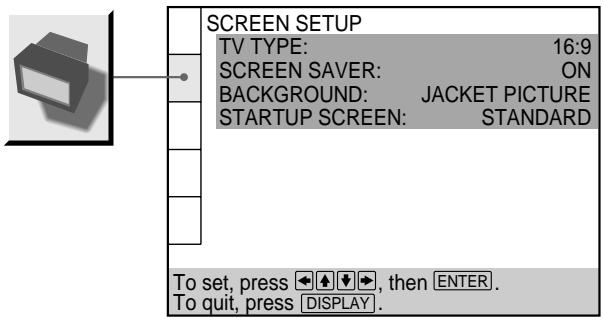
text_image
SCREEN SETUP TV TYPE: 16:9 SCREEN SAVER: ON BACKGROUND: JACKET PICTURE STARTUP SCREEN: STANDARD To set, press ↕ ↙ ↗, then ENTER. To quit, press DISPLAY.TV TYPE
Selects the aspect ratio of the TV to be connected.
- 16:9: select this when you connect a wide-screen TV to the player.
- 4:3 LETTER BOX: select this when you connect a normal TV to the player. Displays a wide picture with bands on the upper and lower portions of the screen.
- 4:3 PAN SCAN: select this when you connect a normal TV to the player. Displays the wide picture on the whole screen automatically and cuts off the portions that do not fit.
16:9
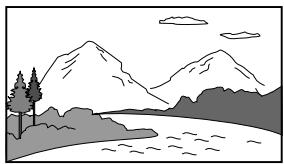
natural_image
Black-and-white landscape illustration of a mountain range with trees and water (no text or symbols)4:3 LETTER BOX
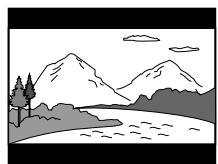
4:3 PAN SCAN
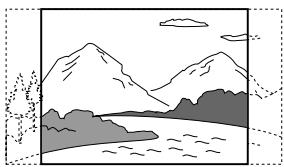
natural_image
Black-and-white landscape illustration featuring mountains, a river, and trees under a cloudy sky (no text or symbols)Note
Depending on the DVD, "4:3 LETTER BOX" may be selected automatically instead of "4:3 PAN SCAN" and vice versa.
■ SCREEN SAVER
Turns on and off the screen saver. If you turn on the screen saver, the screen saver image appears when you leave the player or the remote in pause or stop mode for 15 minutes, or when you play back a CD for more than 15 minutes. The screen saver will help prevent your display device from becoming damaged.
• ON: turns on the screen saver.
• OFF: turns off the screen saver.
■ BACKGROUND
Selects the background color or picture on the TV screen in stop mode or while playing a CD.
- JACKET PICTURE: The jacket picture appears in the background, but only when the jacket picture is already recorded on the disc.
- PICTURE MEMORY: Your favorite picture appears in the background. For an explanation of how to store your favorite scene recorded on the disc for the background picture, see the following section “Storing a picture in memory.”
• GRAPHICS: A preset picture stored in the player appears in the background.
- BLUE: The background color is blue.
- BLACK: The background color is black.
Note
If a disc which does not contain the jacket picture is played while “BACKGROUND” is set to “JACKET PICTURE,” the picture stored in the player will automatically appear in the background.
■ STARTUP SCREEN
Selects the startup screen. The startup screen image you selected appears when you turn on the player.
- STANDARD: The standard startup screen in the player's memory appears.
- PICTURE MEMORY: Your favorite picture appears in the startup screen. For an explanation of how to store your favorite scene recorded on the disc for the startup screen, see the following section “Storing a picture in memory.”
If you select PICTURE MEMORY before setting a picture in memory, the standard startup screen will appear.
Storing a picture in memory
During playback, when you find the scene to be stored in memory, press PICTURE MEMORY on the remote.
The picture is stored in memory.
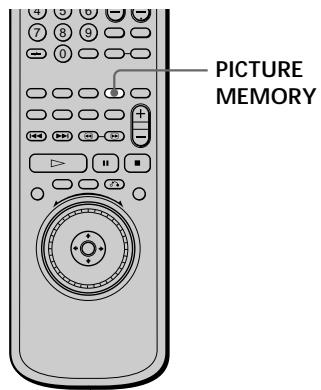
text_image
PICTURE MEMORYNotes
- The player can store only one scene in memory. The stored picture appears in both the background and the startup screen.
- When the picture is stored in memory by pressing PICTURE MEMORY, the picture stored before is erased.
- If you operate this player while the picture is being stored in memory, the player will fail to store the picture.
Custom Settings (CUSTOM SETUP)



“CUSTOM SETUP” allows you to set the playback conditions.
The default settings are underlined.
Select “CUSTOM SETUP” in the setup display.
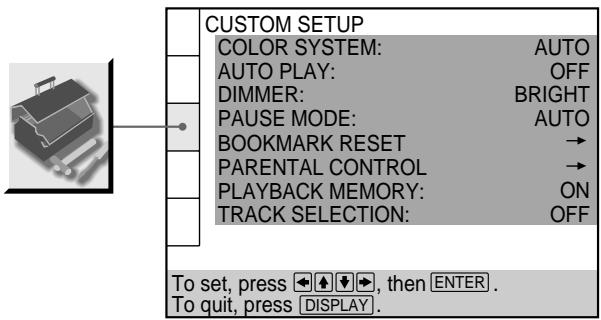
text_image
CUSTOM SETUP COLOR SYSTEM: AUTO AUTO PLAY: OFF DIMMER: BRIGHT PAUSE MODE: AUTO BOOKMARK RESET → PARENTAL CONTROL → PLAYBACK MEMORY: ON TRACK SELECTION: OFF To set, press ↕ ↕ ↕, then ENTER . To quit, press DISPLAY.COLOR SYSTEM
Selects the color system when you play a VIDEO CD.
- AUTO: outputs the video signal in the system of the VIDEO CD, either PAL or NTSC. If your TV is the DUAL system, select AUTO.
- PAL: changes the video signal of an NTSC VIDEO CD and outputs it in the PAL system.
- NTSC: changes the video signal of a PAL VIDEO CD and outputs it in the NTSC system.
Notes
- You cannot change the color system of the DVD itself.
- You can change the color system of this unit according to the connected TV. See page 9.
AUTO PLAY
Selects the Auto Play setting when you connect the mains lead to the mains.
- OFF: does not use “TIMER,” “DEMO1” or “DEMO2” to start playback.
- TIMER: starts playing when the player is turned on, or at any time you want when connected to a timer (not supplied). Set the timer when the player is in standby mode (the power indicator lights up in red).
- DEMO1: starts playing the first demonstration automatically.
- DEMO2: starts playing the second demonstration automatically.
DIMMER
Adjusts the lighting of the front panel display.
- BRIGHT: makes the front panel display bright.
• DARK: makes the front panel display dark.
• OFF: turns off the lighting of the front panel display.
■ PAUSE MODE (DVD only)
Selects the picture in pause mode.
- AUTO: A picture, including subjects that move dynamically, is output with no jitter. Normally select this position.
- FRAME: A picture including subjects that do not move dynamically is output with high resolution.
■ BOOKMARK RESET→
Select “BOOKMARK RESET.” The BOOKMARK reset display appears. And then press ENTER to reset all bookmarks.
■ PARENTAL CONTROL→
Sets a password and playback limitation level for DVDs with playback limitation for children.
The same password is used for both Parental Control and Custom Parental Control (page 40).
For details, see “Limiting Playback by Children (Parental Control).”
Limiting Playback by Children (Parental
Control) DVD
Playback of some DVDs can be limited depending on the age of the users. The “Parental Control” function allows you to set a playback limitation level.
Select "CUSTOM SETUP" in the setup display.
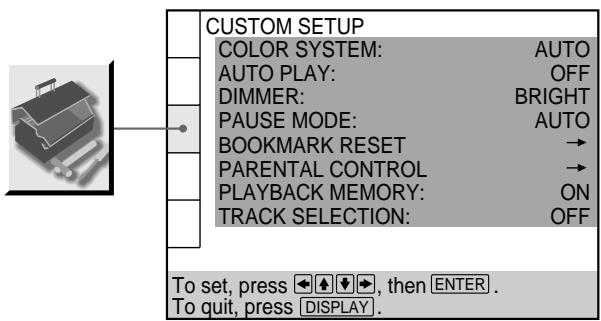
text_image
CUSTOM SETUP COLOR SYSTEM: AUTO AUTO PLAY: OFF DIMMER: BRIGHT PAUSE MODE: AUTO BOOKMARK RESET → PARENTAL CONTROL → PLAYBACK MEMORY: ON TRACK SELECTION: OFF To set, press ↕ ↕ ↕, then ENTER . To quit, press DISPLAY.1 Select "PARENTAL CONTROL" using ↑/↓, then press ENTER.
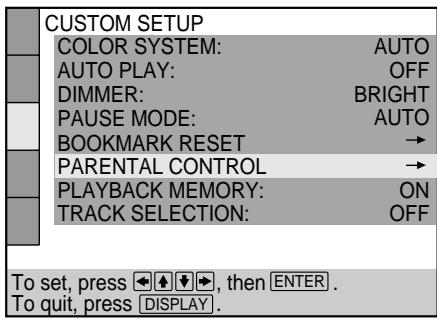
text_image
CUSTOM SETUP COLOR SYSTEM: AUTO AUTO PLAY: OFF DIMMER: BRIGHT PAUSE MODE: AUTO BOOKMARK RESET → PARENTAL CONTROL → PLAYBACK MEMORY: ON TRACK SELECTION: OFF To set, press ↩ ↙ ↖, then ENTER . To quit, press DISPLAY.■ When you have not entered a password
The display for entering a password appears.
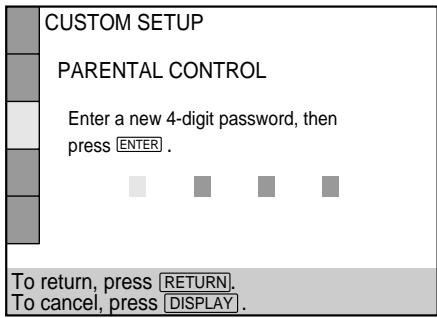
text_image
CUSTOM SETUP PARENTAL CONTROL Enter a new 4-digit password, then press ENTER . To return, press RETURN, To cancel, press DISPLAY.■ When you have already registered a password
The display for confirming the password appears. Skip Step 2.
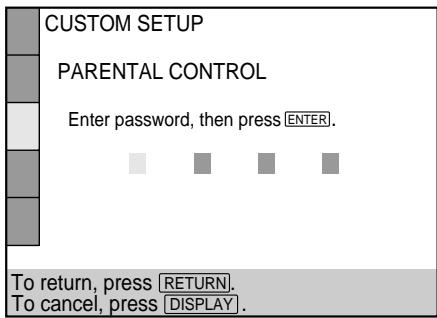
text_image
CUSTOM SETUP PARENTAL CONTROL Enter password, then press ENTER. To return, press RETURN. To cancel, press DISPLAY.2 Enter a password in 4 digits using the number buttons, then press ENTER.
The digits change to asterisks (*) , and the display for confirming the password appears.
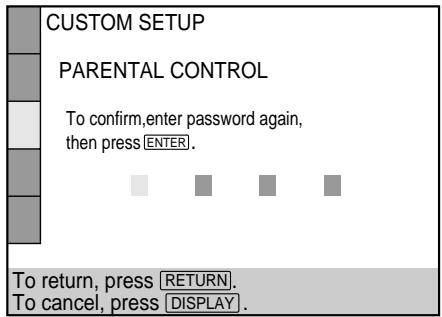
text_image
CUSTOM SETUP PARENTAL CONTROL To confirm,enter password again, then press ENTER. To return, press RETURN. To cancel, press DISPLAY.3 To confirm your password, enter it again using the number buttons, then press ENTER.
The display for setting the playback limitation level and changing the password appears.
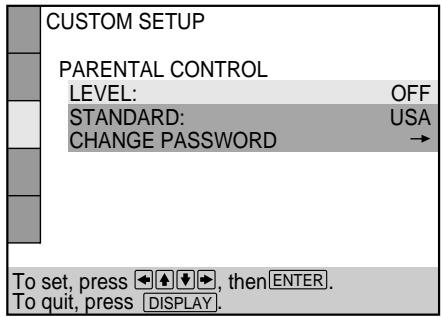
text_image
CUSTOM SETUP PARENTAL CONTROL LEVEL: OFF STANDARD: USA CHANGE PASSWORD → To set, press ↕ ↙ ↖, then ENTER. To quit, press DISPLAY.4 Select "STANDARD" using ↑/↓, then press →.
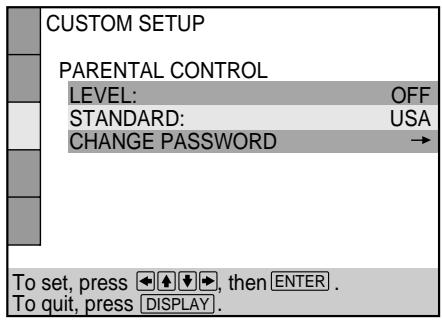
text_image
CUSTOM SETUP PARENTAL CONTROL LEVEL: OFF STANDARD: USA CHANGE PASSWORD → To set, press ↩ ↙ ↖, then ENTER . To quit, press DISPLAY.5 Select a geographic area as the playback limitation level standard using / , then press .
When you select “OTHERS→,” select and enter the standard code in the table on the next page using the number buttons.
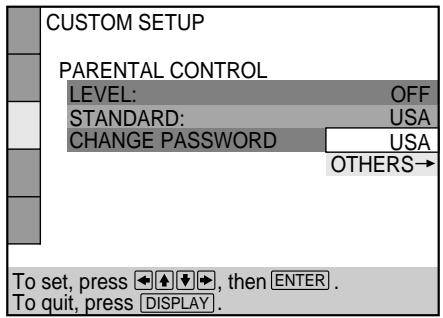
text_image
CUSTOM SETUP PARENTAL CONTROL LEVEL: OFF STANDARD: USA CHANGE PASSWORD USA OTHERS→ To set, press ↕ ↙ ↖, then ENTER . To quit, press DISPLAY.6 Select "LEVEL" using ↑/↓, then press →.
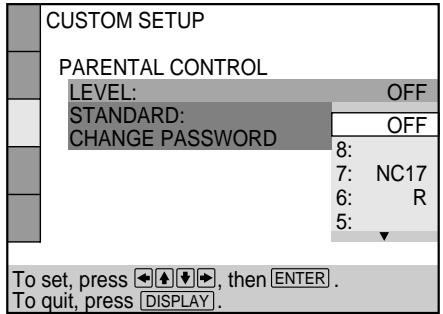
text_image
CUSTOM SETUP PARENTAL CONTROL LEVEL: OFF STANDARD: OFF CHANGE PASSWORD 8: 7: NC17 6: R 5: To set, press ↓, then ENTER . To quit, press DISPLAY .7 Select the level you want using ↑/↓, then press ENTER.
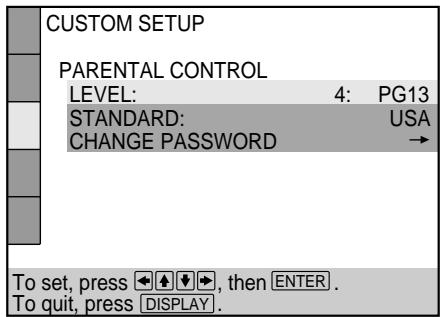
text_image
CUSTOM SETUP PARENTAL CONTROL LEVEL: 4: PG13 STANDARD: USA CHANGE PASSWORD → To set, press ↓ ↓ ↓, then ENTER . To quit, press DISPLAY .The lower the value, the more strict the limitation.
To return to the normal screen
Press DISPLAY.
To turn off the Parental Control function and play the DVD after entering your password
Set “LEVEL” to “OFF” in Step 7, then press ▷.
To change the password
1 After Step 3, select "CHANGE PASSWORD" using
↑/↓, then press → or ENTER.
The display for changing the password appears.
2 Follow Steps 2 and 3 to enter a new password.
Playing a disc which is blocked by the playback limitation level
1 Insert the disc and press ▷.
The PARENTAL CONTROL display appears.
2 Enter your 4-digit password using the number buttons, then press ENTER.
The player starts playback.
When you stop playing the DVD, the level returns to the original level.
If you forget your password
Enter the 6-digit number "199703" whenever the PARENTAL
CONTROL display asks you for your password, then press
ENTER. The display will ask you to enter a new 4-digit password.
Notes
- When you play DVDs which do not have the Parental Control function, playback cannot be limited on this player.
- If you do not set a password, you cannot change the settings for playback limitation.
- Depending on the DVD, you may be asked to change the parental control level while playing the disc. In this case, enter your password, then change the level.
When you stop playing the DVD, the level returns to the original level.
- The same password is used for both Parental Control and Custom Parental Control (page 40).
| Standard | Code number |
| Argentina | 2044 |
| Australia | 2047 |
| Austria | 2046 |
| Belgium | 2057 |
| Brazil | 2070 |
| Canada | 2079 |
| Chile | 2090 |
| China | 2092 |
| Denmark | 2115 |
| Finland | 2165 |
| France | 2174 |
| Germany | 2109 |
| Hong Kong | 2219 |
| India | 2248 |
| Indonesia | 2238 |
| Italy | 2254 |
| Japan | 2276 |
| Korea | 2304 |
| Malaysia | 2363 |
| Mexico | 2362 |
| Netherlands | 2376 |
| New Zealand | 2390 |
| Norway | 2379 |
| Pakistan | 2427 |
| Philippines | 2424 |
| Portugal | 2436 |
| Russia | 2489 |
| Singapore | 2501 |
| Spain | 2149 |
| Sweden | 2499 |
| Switzerland | 2086 |
| Taiwan | 2543 |
| Thailand | 2528 |
| United Kingdom | 2184 |
■ PLAYBACK MEMORY
The player can store the SUBTITLE, VIDEO EQUALIZER, and other settings of each disc for up to 200 discs (Playback Memory).
Set the Playback Memory function on or off.
- ON: stores the settings in memory when you eject the disc.
- OFF: does not store the settings in memory.
The following settings are stored in memory by the Playback Memory function.
- AUDIO (page 32)*
- SUBTITLE (page 35)*
- ANGLE (page 35)*
- VIRTUAL 3D SURROUND (page 36)
- VIDEO EQUALIZER (page 47)
- DIGITAL VIDEO ENHANCER (page 49)
* DVD only
Notes
- The player can store the settings of up to 200 discs. When you store the setting of disc number 201, the first disc setting is canceled.
- Depending on the DVD, the information stored in the disc takes priority over the Playback Memory settings and the function does not work.
- Do not turn off the player by pressing ①. Doing so may cancel the settings. When you turn off the player, press ■ first to stop playback and then press I/⏻ on the remote. After the power indicator lights up in red and the player enters standby mode, press ① on the player.
■ TRACK SELECTION
Gives the sound track which contains the highest number of channels priority when you play a DVD on which multiple audio formats (PCM, DTS, MPEG audio or Dolby Digital format) are recorded.
- OFF: No priority given.
- AUTO : Priority given.
Notes
- When you set this item to “AUTO,” the language may change depending on the “AUDIO” settings in “LANGUAGE SETUP.” The “TRACK SELECTION” setting has higher priority than the “AUDIO” settings in “LANGUAGE SETUP” (page 55).
- If you set “DTS” in “AUDIO SETUP” to “D-PCM”, the DTS sound track is not played even if you set this item to “AUTO” and the highest-numbered audio channel is recorded in DTS format.
- If PCM, DTS, MPEG audio and Dolby Digital sound tracks have the same number of channels, the player selects PCM, DTS, Dolby Digital and MPEG audio sound tracks in this order.
- Depending on the DVD, the audio channel with priority may be predetermined. In this case, you cannot give priority to the DTS, MPEG audio or Dolby Digital format by selecting "AUTO."
Settings for the Sound (AUDIO SETUP)
"AUDIO SETUP" allows you to set the sound according to the playback conditions.
The default settings are underlined.
Select “AUDIO SETUP” in the setup display.
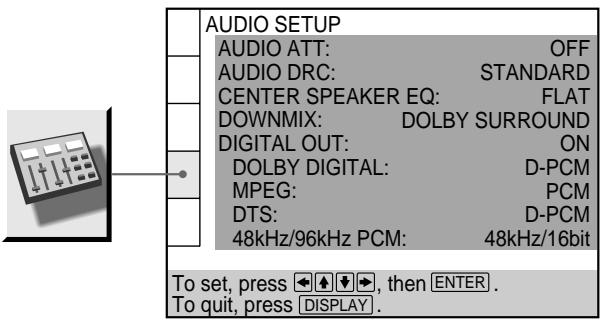
text_image
AUDIO SETUP AUDIO ATT: OFF AUDIO DRC: STANDARD CENTER SPEAKER EQ: FLAT DOWNMIX: DOLBY SURROUND DIGITAL OUT: ON DOLBY DIGITAL: D-PCM MPEG: PCM DTS: D-PCM 48kHz/96kHz PCM: 48kHz/16bit To set, press ↓, then ENTER . To quit, press DISPLAY .■ AUDIO ATT (attenuation)
If the playback sound is distorted, set this item to "ON."
The player reduces the audio output level.
Selects the setting of the output from the AUDIO OUT connectors according to the audio equipment to be connected.
- OFF: turns off the audio attenuation. Normally select this position.
- ON: reduces the audio output level so that no sound distortion occurs. Select this when the playback sound from the built-in TV speakers is distorted.
Note
The setting does not affect the output from the DIGITAL OUT OPTICAL and COAXIAL connectors.
■ AUDIO DRC (Dynamic Range Control) (DVD only)
Makes the sound clear when the volume is turned down when playing a DVD. This function works only when you play a DVD which has the AUDIO DRC function.
This affects the output from the DIGITAL OUT connectors only when “DOLBY DIGITAL” is set to “D-PCM,”
“MPEG” is set to “PCM” and “DTS” is set to “D-PCM” in “DIGITAL OUT.”
• STANDARD: Normally select this position.
- TV MODE: makes the low sounds clear even if you turn the volume down. It is especially recommended when you listen to the sound using the speakers of the TV.
- WIDE RANGE: It gives you the feeling of being at a live performance. This function only works when you are playing a Dolby Digital disc and is more effective when you connect 6 speakers using the 5.1 channel connectors. When you use high quality speakers, it is even more effective.
Note
When you play DVDs without the AUDIO DRC function, there may be no effect on the sound.
■ CENTER SPEAKER EQ (equalizer)
Makes the spoken track clear by changing the sound frequency response when speech is difficult to hear. A center speaker must be connected to the CENTER connector of 5.1CH OUTPUT for this function to work.
- FLAT: outputs the spoken track as it was recorded.
- ENHANCED: enhances the spoken track only.
- SOFT: makes the sound softer by rounding out the sound frequency above 8 kHz. Select this when the spoken track sounds shrill.
DOWNMIX
Switches the mixing down methods when you play a DVD on which rear signal components such as LS, RS, or S are recorded in Dolby Digital or DTS format. For details on the rear signal components, see “Displaying the audio information of the disc” (page 33).
This affects the output from the DIGITAL OUT connectors only when “DOLBY DIGITAL” is set to “D-PCM” and “DTS” is set to “D-PCM” in “DIGITAL OUT.”
- DOLBY SURROUND: when the player is connected to an audio component that conforms to Dolby Surround (Pro Logic). The output signals which reproduce the Dolby Surround (Pro Logic) effect are mixed down to 2 channels.
- NORMAL: when the player is connected to an audio component that does not conform to Dolby Surround (Pro Logic). The signals without the Dolby Surround (Pro Logic) effect are output.
DIGITAL OUT
Selects output signals via the DIGITAL OUT OPTICAL and COAXIAL connectors.
- ON: Normally select this position. When you select “ON,” set “DOLBY DIGITAL,” “MPEG,” “DTS” and “48kHz/96kHz PCM.” For details on setting these items, see “Setting the Digital Output Signal.”
- OFF: when the player does not output the sound signals via the DIGITAL OUT OPTICAL and COAXIAL connectors, the influence of the digital circuit upon the analog circuit is at a minimum.
Note
When you select “OFF,” you cannot set “DOLBY DIGITAL,” “MPEG,” “DTS” and “48kHz/96kHz PCM.”
Setting the Digital Output Signal
Switches the methods of outputting audio signals when you, connect 1. a digital component such as a receiver (amplifier) having a digital connector, 2. an audio component having a built-in decoder (Dolby Digital, MPEG or DTS), 3. a DAT or MD via the DIGITAL OUT OPTICAL or COAXIAL connector using an optical or coaxial digital connecting cord. For connection details, see page 10.
You cannot adjust “DOLBY DIGITAL,” “MPEG,” “DTS” and “48kHz/96kHz PCM” if you set “DIGITAL OUT” to “OFF.”
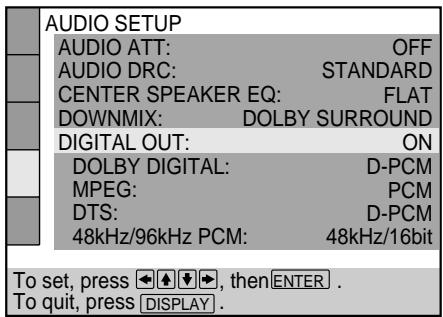
text_image
AUDIO SETUP AUDIO ATT: OFF AUDIO DRC: STANDARD CENTER SPEAKER EQ: FLAT DOWNMIX: DOLBY SURROUND DIGITAL OUT: ON DOLBY DIGITAL: D-PCM MPEG: PCM DTS: D-PCM 48kHz/96kHz PCM: 48kHz/16bit To set, press ⏻, then ENTER . To quit, press DISPLAY .■ DOLBY DIGITAL
Selects the Dolby Digital signals to be output via the DIGITAL OUT OPTICAL and COAXIAL connectors.
- D-PCM (Downmix PCM): when the player is connected to an audio component lacking a built-in Dolby Digital decoder. If you play Dolby Digital sound tracks, the output audio signals are mixed down to 2 channels. You can select whether the signals conform to Dolby Surround (Pro Logic) or not by making adjustments to the “DOWNMIX” item in “AUDIO SETUP.”
- DOLBY DIGITAL: when the player is connected to an audio component with a built-in Dolby Digital decoder. If the player is connected to an audio component lacking a built-in Dolby Digital decoder, do not set this. Otherwise, when you play the Dolby Digital sound track, a loud noise or no sound will come out from the speakers, affecting your ears or causing the speakers to be damaged.
MPEG
Selects the MPEG audio signals to be output via the DIGITAL OUT OPTICAL and COAXIAL connectors.
- PCM: when the player is connected to an audio component lacking a built-in MPEG decoder. If you play MPEG audio sound tracks, the player outputs stereo signals via the DIGITAL OUT OPTICAL and COAXIAL connectors.
- MPEG: when the player is connected to an audio component having a built-in MPEG decoder. If the player is connected to an audio component lacking a built-in MPEG decoder, do not set this. Otherwise, when you play the MPEG audio sound track, a loud noise (or no sound) will come out from the speakers, affecting your ears or causing the speakers to be damaged.
■ DTS
Selects the DTS signals to be output via the DIGITAL OUT OPTICAL and COAXIAL connectors.
- D-PCM: when the player is connected to an audio component lacking a built-in DTS decoder. If you play DTS sound tracks, the player outputs stereo signals via the DIGITAL OUT OPTICAL and COAXIAL connectors.
- DTS: when the player is connected to an audio component having a built-in DTS decoder. If the player is connected to an audio component lacking a built-in DTS decoder, do not set this. Otherwise, when you play the DTS sound track, a loud noise (or no sound) will come out from the speakers, affecting your ears or causing the speakers to be damaged.
■ 48kHz/96kHz PCM (DVD only)
Selects the sampling frequency of the audio signal to be output via the DIGITAL OUT OPTICAL and COAXIAL connectors.
- 48kHz/16bit: The audio signals of DVDs are always converted to 48 kHz/16 bit.
- 96kHz/24bit: All types of signals including 96 kHz/24 bit are output in their original format. However, if the signal is encrypted for copyright protection purposes, the signal is only output as 48 kHz/16 bit.
Notes
- If you select “96kHz/24bit” when a receiver (amplifier) which cannot accept 96 kHz is connected to the player, no sound or a loud noise will come out from the speakers.
- Even if you set “48kHz/96kHz PCM” in “AUDIO SETUP” to “96kHz/24bit,” the sampling frequency is converted to 48 kHz/16 bit when a VIRTUAL 3D SURROUND mode is selected.
- The analog audio signals from the AUDIO OUT connectors are not affected by this setting and keep their original sampling frequency level.
Settings for the Speakers (SPEAKER SETUP)
To obtain the best possible surround sound when you use the 5.1 CH OUTPUT connectors, use the SPEAKER SETUP display to first specify the size of the speakers you have connected and their distance from your listening position. Then set the balance and level. Use the test tone to adjust the volume of the speakers to the same level. For speaker hookup instructions, see page 13. The default settings are underlined.
Select "SPEAKER SETUP" in the setup display.
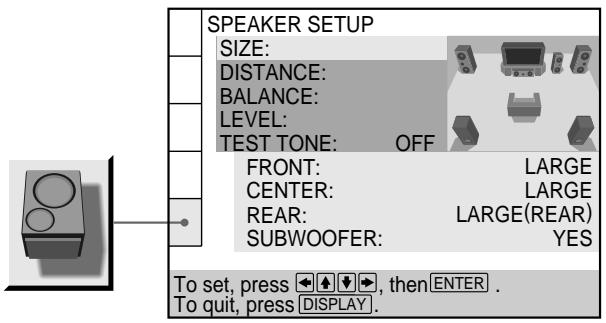
text_image
SPEAKER SETUP SIZE: DISTANCE: BALANCE: LEVEL: TEST TONE: OFF FRONT: LARGE CENTER: LARGE REAR: LARGE(REAR) SUBWOOFER: YES To set, press ← ↑ ↓ →, then ENTER . To quit, press DISPLAY .SIZE
Selects the size of the speakers to be connected.
- FRONT
— LARGE: Normally select this.
— SMALL: When the sound cracks or the surround sound effects are difficult to hear, select this. This activates the Dolby Digital bass redirection circuitry and outputs the bass frequencies of the speaker from the subwoofer.
- CENTER
— NONE: If you do not connect a center speaker, select this.
— LARGE: Normally select this.
— SMALL: When the sound cracks, select this. This activates the Dolby Digital bass redirection circuitry and outputs the bass frequencies of the center speaker from other speakers.
- REAR
— NONE: If you do not connect rear speakers, select this.
— LARGE (REAR/SIDE): Normally select either of these according to the rear speaker's position*.
— SMALL (REAR/SIDE): When the sound cracks or the surround sound effects are difficult to hear, select either of these according to the rear speaker's position*. This activates the Dolby Digital bass redirection circuitry and outputs the bass frequencies of the rear speaker from other speakers.
- SUBWOOFER
— NONE: If you do not connect a subwoofer, select this. This activates the Dolby Digital bass redirection circuitry and outputs the LFE signals from the front speakers as long as the front speaker size is set to “LARGE.”
— YES: If you connect a subwoofer, select this to output the LFE (low frequency effect) channel from the subwoofer.
\* Rear speaker position
Specify the location of the rear speakers for correct “VIRTUAL REAR SHIFT,” “VIRTUAL MULTI REAR” and “VIRTUAL MULTI DIMENSION” effects. These effects can be found in “VIRTUAL 3D SURROUND” of the Control Menu display.
- SIDE: If the location of the rear speakers corresponds to section A in the illustration below.
- REAR: If the location of the rear speakers corresponds to section B in the illustration below.
This setting affects only the “VIRTUAL REAR SHIFT,” “VIRTUAL MULTI REAR” and “VIRTUAL MULTI DIMENSION” mode.
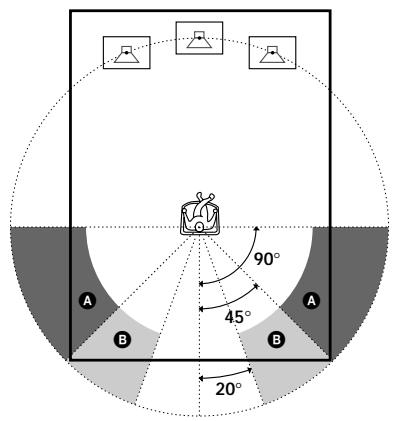
text_image
A B 90° 45° 20° A BNotes
- The cut off frequency for the subwoofer is fixed at 120 Hz.
- If your speakers are too small to reproduce low bass frequencies, please set all speaker settings to “SMALL” and utilize a subwoofer for low frequency sound.
DISTANCE
The default distance setting for the speakers in relation to the listening position is shown below.
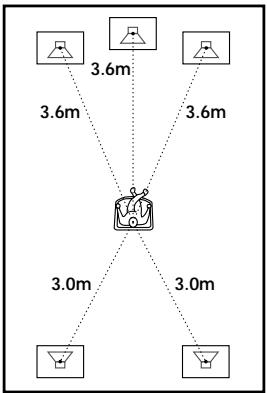
flowchart
graph TD
    A["Object"] -->|3.6m| B["Top Left"]
    A -->|3.6m| C["Top Right"]
    A -->|3.0m| D["Bottom Left"]
    A -->|3.0m| E["Bottom Right"]
    A -->|3.0m| F["Bottom Left"]
You can vary the distance of each speaker as follows. The default adjustments are in parentheses. Be sure to change the value in the setup display when you move the speakers.
- FRONT (3.6m)
Front speaker distance can be set in 0.2 meter increments from 1 to 15 meters. Distance is measured from the front speaker to the listening position.
- CENTER (3.6m)
Center speaker distance can be set in 0.2 meter increments. Place the center speaker directly between the front speakers. You can move it up to 0.6 meters backwards or 1.6 meters forwards if necessary.
- REAR (3.0m)
Rear speaker distance can be set in 0.2 meter increments. Place the speakers behind the listening position at a distance equal to the front speaker distance. If necessary you can move the rear speakers up to 5 meters closer to your listening position.
To return to the default setting
Select the item, then press CLEAR.
Notes
- If each of the front or rear speakers are not placed at an equal distance from your listening position, set the distance according to the closest speaker.
- Do not place the rear speakers farther away from your listening position than the front speakers.
BALANCE
You can vary the balance of the left and right speakers as follows. Be sure to set “TEST TONE” to “ON” for easy adjustment (see ■ TEST TONE below). The default adjustments are in parentheses.
- FRONT (0dB)
Adjust the balance between the front left and right speakers (-6dB [L] to +6dB [R], 0.5dB increments).
- REAR (0dB)
Adjust the balance between the rear left and right speakers (-6dB [L] to +6dB [R], 0.5dB increments).
To return to the default setting
Select the item, then press CLEAR.
LEVEL
You can vary the level of each speaker as follows. The front speaker level becomes the criterion for adjusting the other speakers. Be sure to set “TEST TONE” to “ON” for easy adjustment (see ■ TEST TONE below). The default adjustments are in parentheses.
- CENTER (0dB)
Adjust the level of the center speaker (-6dB to +6dB, 0.5dB increments).
- REAR (0dB)
Adjust the level of the rear speakers (-6dB to +6dB, 0.5dB increments).
- SUBWOOFER (0dB)
Adjust the level of the subwoofer (-10dB to +10dB, 0.5dB increments).
To return to the default setting
Select the item, then press CLEAR.
TEST TONE
The speakers will emit a test tone. Use this when you use the 5.1CH OUTPUT connectors and adjust the BALANCE and LEVEL.
- OFF: The test tone is not emitted from the speakers.
- ON: The test tone is emitted from each speaker in sequence. When you select one of the “SPEAKER SETUP” items, the test tone is emitted from both left and right speakers simultaneously.
Note
When you adjust the speaker settings, the sound cuts off for a moment.
Adjusting the speaker volume
1 After you stop playback, select "SPEAKER SETUP" in the setup display.
2 Select "TEST TONE" and set "TEST TONE" to "ON." You will hear the test tone from each speaker in sequence.
3 From your listening position, select "BALANCE" or "LEVEL" and adjust the value of "BALANCE" using / and "LEVEL" using / .
The test tone is emitted from both left and right speakers simultaneously.
4 Select "TEST TONE" and set "TEST TONE" to "OFF" to turn off the test tone.
To adjust the volume of all the speakers at one time
Use the receiver's (amplifier's) volume control.
Controlling Your TV or AV Receiver (Amplifier) with the Supplied Remote
By adjusting the remote signal, you can control your TV or AV receiver (amplifier) with the supplied remote.
Check the model name of your remote
The supplied remote commander is different depending on the player model. Check the model name of your remote (RMT-D120E, RMT-D120A or RMT-D120O) and follow the instructions that correspond to your remote's model name. Note that the buttons you can use for operating your TV will differ according to the model of your remote.
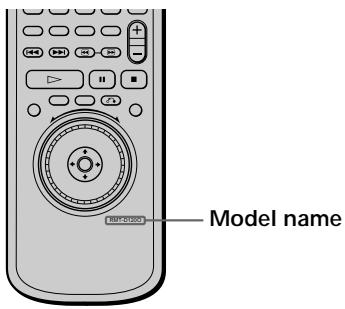
text_image
Model nameControlling TVs with the remote
(RMT-D120E)
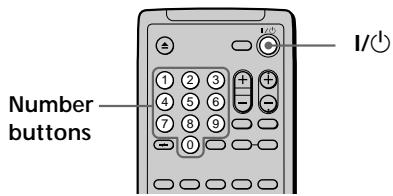
text_image
Number buttons I/OHold down I/⏻, and enter your TV's manufacturer's code (see the table) using the number buttons. Then release I/⏻.
(RMT-D120A/D120O)
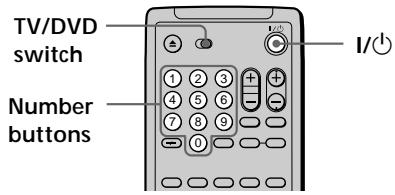
text_image
TV/DVD switch Number buttons I/○1 Slide the TV/DVD switch to TV.
2 Hold down I/⏻, and enter your TV's manufacturer's code (see the table) using the number buttons. Then release I/⏻.
Code numbers of controllable TVs
If more than one code number is listed, try entering them one at a time until you find the one that works with your TV.
RMT-D120E
| Manufacturer | Code number |
| Sony (default) | 01 |
| Aiwa | 32 |
| Akai | 68 |
| Blaupunkt | 10, 21 |
| Ferguson | 52 |
| Gold Star | 03, 04 |
| Grundig | 11 |
| Hitachi | 24 |
| JVC | 33 |
| Loewe | 45 |
| Mitsubishi | 27, 28, 50 |
| Miver | 09 |
| NEC | 66 |
| Nokia | 69 |
| Orion | 47, 48 |
| Panasonic | 17, 49 |
| Philips | 06, 08 |
| Pioneer | 26 |
| Saba | 12, 13 |
| Samsung | 23 |
| Sanyo | 25 |
| Sharp | 29 |
| Siemens | 39 |
| TEAC | 67 |
| Thomson | 43 |
| Toshiba | 38 |
RMT-D120A
| Manufacturer | Code number | Manufacturer | Code number |
| Sony (default) | 01 | Panasonic | 06,19 |
| Akai | 04 | Philco | 03,04 |
| AOC | 04 | Philips | 08 |
| Centurion | 12 | Pioneer | 16 |
| Coronado | 03 | Portland | 03 |
| Curis-Mathes | 12 | Quasar | 06,18 |
| Daytron | 12 | Radio Shack | 05,14 |
| Emerson | 03,04,14 | RCA | 04,10 |
| Fisher | 11 | Sampo | 12 |
| General Electric | 06, 10 | Sanyo | 11 |
| Gold Star | 03,04,17 | Scott | 12 |
| Hitachi | 02,03 | Sears | 07,10,11 |
| J.C.Penney | 04,12 | Sharp | 03,05,18 |
| JVC | 09 | Sylvania | 08,12 |
| KMC | 03 | Teknika | 03,08,14 |
| Magnavox | 03,08,12 | Toshiba | 07 |
| Marantz | 04,13 | Wards | 03,04,12 |
| MGA/Mitsubishi | 04,12,13,17 | Yorx | 12 |
| NEC | 04, 12 | Zenith | 15 |
RMT-D120O
| Manufacturer | Code number |
| Sony (default) | 01 |
| Grundig | 11 |
| Hitachi | 24 |
| Loewe | 45 |
| Nokia | 15, 16, 69 |
| Panasonic | 17, 49 |
| Philips | 06, 07, 08 |
| Saba | 12, 13 |
| Samsung | 22, 23 |
| Sanyo | 25 |
| Sharp | 29 |
| Telefunken | 36 |
| Thomson | 43 |
| Toshiba | 38 |
Notes
- If you enter a new code number, the code number previously entered will be erased.
- When you replace the batteries of the remote, the code number may be reset to the default setting. Reset the appropriate code number.
Controlling the TV
(RMT-D120E)
You can control your TV using the buttons below.
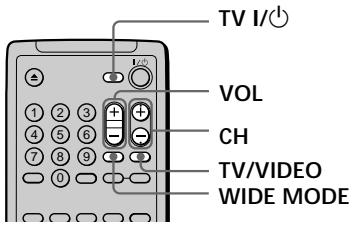
text_image
TV I/ VOL CH TV/VIDEO WIDE MODE| By pressing | You can |
| TV 1/⏻ | Turn the TV on or off |
| TV/VIDEO | Switch the TV’s input source between the TV and other input sources |
| VOL | Adjust the volume of the TV |
| CH | Select the channel of the TV |
| WIDE MODE | Switch to or from the wide mode of a Sony Wide TV |
(RMT-D120A/D120O)
You can control your TV using the buttons below. When you set the TV/DVD switch to TV, you can also control the number, -/--*, I/⏻ and ENTER buttons.
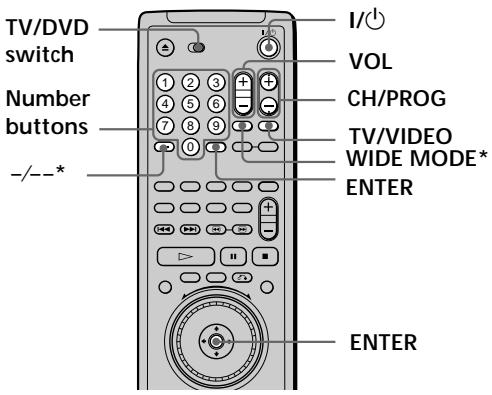
text_image
TV/DVD switch Number buttons -/--* I/ VOL CH/PROG TV/VIDEO WIDE MODE* ENTER ENTER| By pressing | You can |
| I/⏻ | Turn the TV on or off |
| TV/VIDEO | Switch the TV's input source between the TV and other input sources |
| VOL | Adjust the volume of the TV |
| CH (RMT-D120A)/PROG (RMT-D120O) | Select the channel (program position) of the TV |
| WIDE MODE* | Switch to or from the wide mode of a Sony Wide TV |
| Number buttons and ENTER | Select the channel (program position) of the TV |
* RMT-D120O only
Controlling Your TV or AV Receiver (Amplifier) with the Supplied Remote
Notes
- Depending on the TV, you may not be able to control your TV or to use some of the buttons above.
- If you use number buttons to select the TV's program position, press -- followed by the number buttons for two-digit numbers. (RMT-D120O only)
Controlling AV receivers (amplifiers) with the remote
(RMT-D120E)
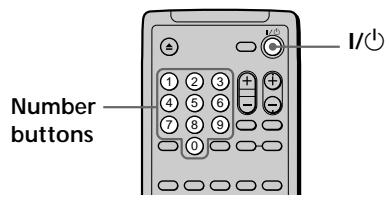
text_image
Number buttons I/OHold down I/⏻, and enter your AV receiver's manufacturer's code (see the table) using the number buttons. Then release I/⏻.
(RMT-D120A/D120O)
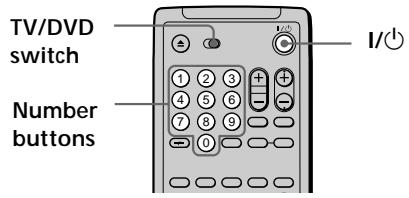
text_image
TV/DVD switch Number buttons1 Slide the TV/DVD switch to DVD.
2 Hold down I/☑, and enter your AV receiver's manufacturer's code (see the table) using the number buttons. Then release I/☑.
Code numbers of controllable AV receivers (amplifier)
If more than one code number is listed, try entering them one at a time until you find the one that works with your AV receiver (amplifier).
| Manufacturer | Code number |
| Sony | 91, 89 |
| Denon | 84, 85, 86 |
| Kenwood | 92, 93 |
| Onkyo | 81, 82, 83 |
| Pioneer | 99 |
| Sansui | 87 |
| Technics | 97, 98 |
| Yamaha | 94, 95, 96 |
Notes
- If you enter a new code number, the code number previously entered will be erased.
- When you replace the batteries of the remote, the code number may be reset to the default setting. Reset the appropriate code number.
Controlling the AV receiver (amplifier)
You can change the volume of the AV receiver (amplifier) using AV VOL.
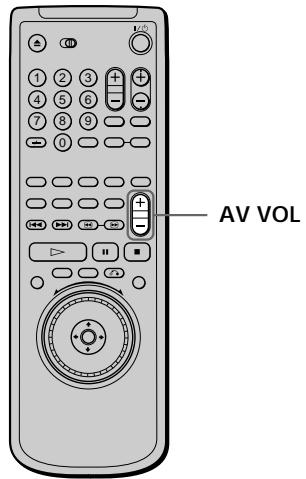
text_image
AV VOLNotes
- Depending on the AV receiver (amplifier), you may not be able to control your AV receiver (amplifier).
- You can control the AV receiver (amplifier) regardless of the position of the TV/DVD switch(except for RMT-D120E).
Additional Information
Troubleshooting
If you experience any of the following difficulties while using the player, use this troubleshooting guide to help remedy the problem. Should any problem persist, consult your nearest Sony dealer.
Power
The power is not turned on.
→ Check that the mains lead is connected securely.
Picture
There is no picture.
→ Check that the player is connected securely.
→ The video connecting cord is damaged. Replace it with a new one.
→ Make sure you connect the player to the video input connector on the TV. (page 8)
→ Make sure you turn on the TV.
→ Make sure you select the video input on the TV so that you can view the pictures from the player.
Picture noise appears.
→ Clean the disc.
→ If the video signal from your DVD player has to go through your VCR to get to your TV, the copy-protection applied to some DVD programs could affect picture quality. If you still experience problems after checking your connections, please try connecting your DVD player directly to your TV's S video input, if your TV is equipped with this input. (page 8)
→ If the color system of your DVD player does not match with that of your TV, change the color system of the player. For details, see page 9. (You cannot change the color system of the DVD disc itself.)
Even though you set the aspect ratio in "TV TYPE" in "SCREEN SETUP" of the setup display, the picture does not fill the screen.
→ The aspect ratio is fixed on your DVD.
Sound
There is no sound.
→ Check that the player is connected securely.
→ The audio connecting cord is damaged. Replace it with a new one.
→ Make sure you connect the player to the audio input connectors on the receiver (amplifier). (page 10)
→ Make sure you turn on the TV and the receiver (amplifier).
→ Make sure you select the appropriate input on the receiver (amplifier) so that you can listen to the sound from the player.
→ The player is in pause mode or in Slow-motion Play mode. Press ▷ to return to normal play mode.
→ The player is in fast forward or fast reverse mode.
Press ▷ to return to normal play mode.
→ Check the speaker connections and setting (page 13, 65). Refer to the operating manual of your receiver (amplifier).
→ If you use the DIGITAL OUT connectors, set "DIGITAL OUT" to "ON" in the setup display. Otherwise no sound will come from the DIGITAL OUT connectors. (page 63)
→ While playing a Super VCD which has no audio in track 2, no sound will come out when you select “2:STEREO,” “2:1/L” or “2:2/R.”
Sound is noisy.
→ Clean the disc.
→ When you play a CD with DTS sound tracks, noise will come from any connector other than the DIGITAL OUT OPTICAL or COAXIAL connector. (page 17)
→ In the setup display, set “AUDIO ATT” in “AUDIO SETUP” to “ON.” (page 63)
Sound distortion occurs.
The sound loses its stereo effect when you play a VIDEO CD or a CD.
→ Set “AUDIO” to “STEREO” in the Control Menu display. (page 32)
→ Make sure you connect the player correctly. (pages 8, 10, 13)
The surround effect is difficult to hear when you are playing a Dolby Digital, MPEG or DTS sound track.
→ Check the speaker connections and setting (pages 13, 65). Refer to the operating manual of your receiver (amplifier).
→ Depending on the DVD, the output signal may not be the entire 5.1 channels. It may be monaural or stereo even if the sound track is recorded in Dolby Digital, MPEG or DTS format.
The sound comes from the center speaker only.
→ Depending on the disc, the sound may come from the center speaker only.
→ Set “VIRTUAL 3D SURROUND” to “OFF” in the Control Menu display. (page 36)
Operation
The remote does not function.
→ Remove any obstacles between the remote and the player.
→ Use the remote near the player.
→ Point the remote at the remote sensor R on the player.
→ Replace all of the batteries in the remote with new ones if they are weak.
The disc does not play.
→ There is no disc inside (“Insert disc.” appears on the TV screen).
Insert a disc.
→ Insert the disc correctly with the playback side facing down on the disc tray.
→ Clean the disc.
→ The player cannot play CD-ROMs, etc. (page 5)
Insert a DVD, a VIDEO CD, or CD.
→ Check the region code of the DVD. (page 4)
→ Moisture has condensed inside the player. Remove the disc and leave the player turned on for about half an hour. (page 6)
The player does not play from the beginning when playing a disc.
→ Program Play, Shuffle Play, Repeat Play or A-B Repeat Play has been selected. Press CLEAR. (pages 42 through 47)
→ Resume Play has been selected.
Press ■ on the front panel or on the remote before you start playing. (page 20)
→ A title menu or a DVD menu automatically appears on the TV screen when you play your DVD, or a setup display automatically appears on the TV screen when you play your VIDEO CD with PBC functions.
The player starts playing the disc automatically.
→ The DVD features the auto playback function.
→ “AUTO PLAY” in “CUSTOM SETUP” is set to “TIMER.” (page 59)
Playback stops automatically.
→ The disc may contain an auto pause signal. While playing such a disc, the player stops playback at the signal.
You cannot perform some functions such as Stop, Search, Slow-motion Play, Repeat Play, Shuffle Play or Program Play.
→ Depending on the disc, you may not be able to do some of the operations above.
Messages do not appear on the TV screen in the language you want.
→ In the setup display, select the desired language for the on-screen display in “OSD” under “LANGUAGE SETUP.” (page 55)
The language for the sound track cannot be changed when you play a DVD.
→ Multilingual tracks are not recorded on the DVD.
→ Changing the language for the track is prohibited on the DVD.
The subtitle language cannot be changed when you play a DVD.
→ Multilingual subtitles are not recorded on the DVD.
→ Changing the language for the subtitles is prohibited on the DVD.
The subtitles cannot be turned off when you play a DVD.
→ Depending on the DVD, you may not be able to turn the subtitles off.
The angles cannot be changed when you play a DVD.
→ Multi-angles are not recorded on the DVD.
→ Change the angles when “ANGLE” appears on the front panel display. (page 35)
→ Changing the angles is prohibited on the DVD.
The player does not operate properly.
→ Static electricity, etc., may affect the player's operation.
Press ① on the player to turn the player off and
then on again.
Nothing is displayed on the front panel display.
→ In the set up display, “DIMMER” in “CUSTOM SETUP” is set to “OFF.”
Set “DIMMER” to “BRIGHT” or “DARK.” (page 59)
5 numbers or letters are displayed on the screen and on the front panel display.
→ The self-diagnosis function was activated. See the table on page 74.
The disc tray does not open and "LOCKED" is displayed on the front panel display.
→ Contact your Sony dealer or local authorized Sony service facility.
Self-diagnosis function
When the self-diagnosis function activates to prevent the player from malfunctioning, a five-character service number (combination of a letter and digits) flashes on the screen and on the front panel display. In this case, check the following table.
| First three characters | Cause and/or Corrective Action |
| C13 | The disc is dirty. Clean the disc with a cleaning cloth. (page 6) |
| C31 | The disc is not inserted correctly. Open the disc tray and insert the disc correctly. |
| Exx (xx is any number) | To prevent a malfunction, the player has performed the self-diagnosis function. When you contact your Sony dealer or local authorized Sony service facility, give the 5-character service number. (example: E:61:10) |
Specifications
CD/DVD player
Laser Semiconductor laser
Signal format system
NTSC/PAL (See page 9 to switch.)
Audio characteristics
Frequency response
DVD (PCM 96 kHz): 2 Hz to 44 kHz ( ± 0.5 dB)
DVD (PCM 48 kHz): 2 Hz to 22 kHz ( ± 0.5 dB)
CD: 2 Hz to 20 kHz (±0.5 dB)
Signal-to-noise ratio
More than 115 dB (AUDIO OUT connectors only)
Harmonic distortion
Less than 0.0025%
Dynamic range
More than 100 dB (DVD)
More than 98 dB (CD)
Wow and flutter
Less than detected value (±0.001% W PEAK)
Outputs
| Jack type | Output level | Load impedance | |
| AUDIO OUT (1, 2) (R, L) | Phono jacks | 2 Vrms (at 50 kilohms) | Over 10 kilohms |
| DIGITAL OUT (OPTICAL) | Optical output connector | -18 dBm | Wave length: 660 nm |
| DIGITAL OUT (COAXIAL) | Phono jack | 0.5 Vp-p | 75 ohms terminated |
| VIDEO OUT (1, 2) | Phono jack | 1.0 Vp-p | 75 ohms, sync negative |
| S VIDEO OUT (1, 2) | 4-pin mini DIN | Y: 1.0 Vp-pC: 0.3 Vp-p (PAL)0.286 Vp-p (NTSC) | 75 ohms, sync negative75 ohms terminated |
| COMPONENT VIDEO OUT (Y, CB/B-Y, CR/R-Y) | Phono jacks | Y: 1.0 Vp-pCB/B-Y, CR/R-Y: 0.7 Vp-p | 75 ohms, sync negative75 ohms |
| 5.1CH OUTPUT | Phono jack | 2 Vrms (at 50 kilohms) | Over 10 kilohms |
| PHONES | Phone jack | 12 mW | 32 ohms |
General
Power requirements
220V, 60Hz
220 - 240V AC, 50/60 Hz
110 V AC, 50/60 Hz
See page 2 for further information.
Power consumption
13 W
16 W
See page 2 for further information.
Dimensions (approx.)
430 × 74 × 260 ~mm (17 × 3 × 10^1/4 in.)
(w/h/d) incl. projecting parts
Mass (approx.)
3.1 kg (6 lb 13 oz)
Operating temperature
5^ C to 35^ C
Operating humidity
25 % to 80 %
Supplied accessories
See page 7.
Design and specifications are subject to change without notice.
Glossary
Bit rate (page 40)
Value indicating the amount of video data compressed in a DVD per second. The unit is Mbps (Mega bit per second). 1 Mbps indicates that the data per second is 1,000,000 bits. The higher the bit rate, the larger the amount of data. However, this does not always mean that you can get higher quality pictures.
Chapter (page 28)
Sections of a picture or a music piece on a DVD that are smaller than titles. A title is composed of several chapters. Each chapter is assigned a chapter number enabling you to locate the chapter you want.
Digital Cinema Sound (DCS) (page 36)
The general name of technology that Sony developed to enjoy surround sound in a home. It simulates the sound of a movie editing studio instead of the usual concert hall so that you can enjoy the surround sound of a movie theater in the comfort of your own home. The VES (Virtual Enhanced Surround) system contained in DCS programs can create the sound image of virtual rear speakers from the sound of the front speakers (L, R) without using actual rear speakers.
Dolby Digital (pages 11, 64)
Digital audio compression technology developed by Dolby Laboratories. This technology conforms to 5.1-channel surround sound. The rear channel is stereo and there is a discrete subwoofer channel in this format. Dolby Digital provides the same 5.1 discrete channels of high quality digital audio found in Dolby Digital cinema audio systems. Good channel separation is realized because all of the channel data is recorded discretely and processed in digital.
Dolby Pro Logic (pages 11, 64)
Audio signal processing technology that Dolby Laboratories developed for surround sound. When the input signal contains a surround component, the Pro Logic process outputs the front, center and rear signals. The rear channel is monaural.
DTS (pages 11, 64)
Digital audio compression technology that Digital Theater Systems, Inc. developed. This technology conforms to 5.1-channel surround. The rear channel is stereo and there is a discrete subwoofer channel in this format. DTS provides the same 5.1 discrete channels of high quality digital audio. Good channel separation is realized because all of the channel data is recorded discretely and processed in digital.
DVD (page 4)
A disc that contains up to 8 hours of moving pictures even though its diameter is the same as a CD.
The data capacity of a single-layer and single-sided DVD is 4.7 GB (Giga Byte) which is 7 times that of a CD. The data capacity of a dual-layer and single-sided DVD is 8.5 GB, a single-layer and double-sided DVD is 9.4 GB, and a dual-layer and double-sided DVD is 17 GB.
The picture data uses the MPEG 2 format, one of the worldwide standards of digital compression technology. The picture data is compressed to about 1/40 of its original size. The DVD also uses a variable rate coding technology that changes the data to be allocated according to the status of the picture.
Audio data is recorded in Dolby Digital as well as in PCM, allowing you to enjoy a more real audio presence. Furthermore, various advanced functions such as the multi-angle, multilingual, and Parental Control functions are provided with the DVD.
MPEG audio (page 64)
International standard coding system used to compress audio digital signals authorized by ISO/IEC. MPEG 1 conforms to up to 2-channel stereo. MPEG 2 used on DVDs conforms to up to 7.1-channel surround.
Multi-angle function (page 35)
Various angles for the scene (viewpoints of the video camera) are recorded on some DVDs.
Multilingual function (pages 14, 32, 35, 55)
Several languages for the audio track or subtitles in a picture are recorded on some DVDs.
Parental Control (page 60)
A function of the DVD used to limit playback of the disc according to the age of the user and the limitation level in each country. The limitation varies from disc to disc; when it is activated, playback is completely prohibited, violent scenes are skipped or replaced with other scenes, and so on.
Playback Control (PBC) (page 22)
Signals encoded on VIDEO CDs (Version 2.0) to control playback.
By using menus recorded on VIDEO CDs with PBC functions, you can enjoy playing simple interactive programs, programs with search functions, and so on.
Title (page 28)
The longest section of a picture or a music piece on a DVD; a movie, etc., for a picture piece on video software; or an album, etc., for a music piece on audio software. Each title is assigned a title number enabling you to locate the title you want.
Track (page 28)
Sections of a picture or a music piece on a CD or VIDEO CD. Each track is assigned a track number enabling you to locate the track you want.
VIDEO CD (page 4)
A compact disc that contains moving pictures.
The picture data uses the MPEG 1 format, one of the worldwide standards of digital compression technology.
The picture data is compressed to about 1/140 of its original size. Consequently, a 12 cm VIDEO CD can contain up to 74 minutes of moving pictures.
VIDEO CDs also contain compact audio data. Sounds outside the range of human hearing are compressed while the sounds we can hear are not compressed. VIDEO CDs can hold 6 times the audio information of conventional audio CDs.
There are 2 versions of VIDEO CDs.
- Version 1.1: You can play only moving pictures and sounds.
- Version 2.0: You can play high-resolution still pictures and enjoy PBC functions.
This player conforms to both versions.
Language Code List
For details, see pages 32, 35, 56.
The language spellings conform to the ISO 639: 1988 (E/F) standard.
| Code | Language | Code | Language | Code | Language | Code | Language |
| 1027 | Afar | 1186 | Scots Gaelic | 1350 | Malayalam | 1513 | Siswati |
| 1028 | Abkhazian | 1194 | Galician | 1352 | Mongolian | 1514 | Sesotho |
| 1032 | Afrikaans | 1196 | Guarani | 1353 | Moldavian | 1515 | Sundanese |
| 1039 | Amharic | 1203 | Gujarati | 1356 | Marathi | 1516 | Swedish |
| 1044 | Arabic | 1209 | Hausa | 1357 | Malay | 1517 | Swahili |
| 1045 | Assamese | 1217 | Hindi | 1358 | Maltese | 1521 | Tamil |
| 1051 | Aymara | 1226 | Croatian | 1363 | Burmese | 1525 | Telugu |
| 1052 | Azerbaijani | 1229 | Hungarian | 1365 | Nauru | 1527 | Tajik |
| 1053 | Bashkir | 1233 | Armenian | 1369 | Nepali | 1528 | Thai |
| 1057 | Byelorussian | 1235 | Interlingua | 1376 | Dutch | 1529 | Tigrinya |
| 1059 | Bulgarian | 1239 | Interlingue | 1379 | Norwegian | 1531 | Turkmen |
| 1060 | Bihari | 1245 | Inupiak | 1393 | Occitan | 1532 | Tagalog |
| 1061 | Bislama | 1248 | Indonesian | 1403 | (Afan) Oromo | 1534 | Setswana |
| 1066 | Bengali; Bangla | 1253 | Icelandic | 1408 | Oriya | 1535 | Tonga |
| 1067 | Tibetan | 1254 | Italian | 1417 | Punjabi | 1538 | Turkish |
| 1070 | Breton | 1257 | Hebrew | 1428 | Polish | 1539 | Tsonga |
| 1079 | Catalan | 1261 | Japanese | 1435 | Pashto; Pushto | 1540 | Tatar |
| 1093 | Corsican | 1269 | Yiddish | 1436 | Portuguese | 1543 | Twi |
| 1097 | Czech | 1283 | Javanese | 1463 | Quechua | 1557 | Ukrainian |
| 1103 | Welsh | 1287 | Georgian | 1481 | Rhaeto-Romance | 1564 | Urdu |
| 1105 | Danish | 1297 | Kazakh | 1482 | Kirundi | 1572 | Uzbek |
| 1109 | German | 1298 | Greenlandic | 1483 | Romanian | 1581 | Vietnamese |
| 1130 | Bhutani | 1299 | Cambodian | 1489 | Russian | 1587 | Volapük |
| 1142 | Greek | 1300 | Kannada | 1491 | Kinyarwanda | 1613 | Wolof |
| 1144 | English | 1301 | Korean | 1495 | Sanskrit | 1632 | Xhosa |
| 1145 | Esperanto | 1305 | Kashmiri | 1498 | Sindhi | 1665 | Yoruba |
| 1149 | Spanish | 1307 | Kurdish | 1501 | Sangho | 1684 | Chinese |
| 1150 | Estonian | 1311 | Kirghiz | 1502 | Serbo-Croatian | 1697 | Zulu |
| 1151 | Basque | 1313 | Latin | 1503 | Singhalese | 1703 | Not specified |
| 1157 | Persian | 1326 | Lingala | 1505 | Slovak | ||
| 1165 | Finnish | 1327 | Laothian | 1506 | Slovenian | ||
| 1166 | Fiji | 1332 | Lithuanian | 1507 | Samoan | ||
| 1171 | Faroese | 1334 | Latvian; Lettish | 1508 | Shona | ||
| 1174 | French | 1345 | Malagasy | 1509 | Somali | ||
| 1181 | Frisian | 1347 | Maori | 1511 | Albanian | ||
| 1183 | Irish | 1349 | Macedonian | 1512 | Serbian |
Index to Parts and Controls
Refer to the pages indicated in parentheses for details.
Front Panel
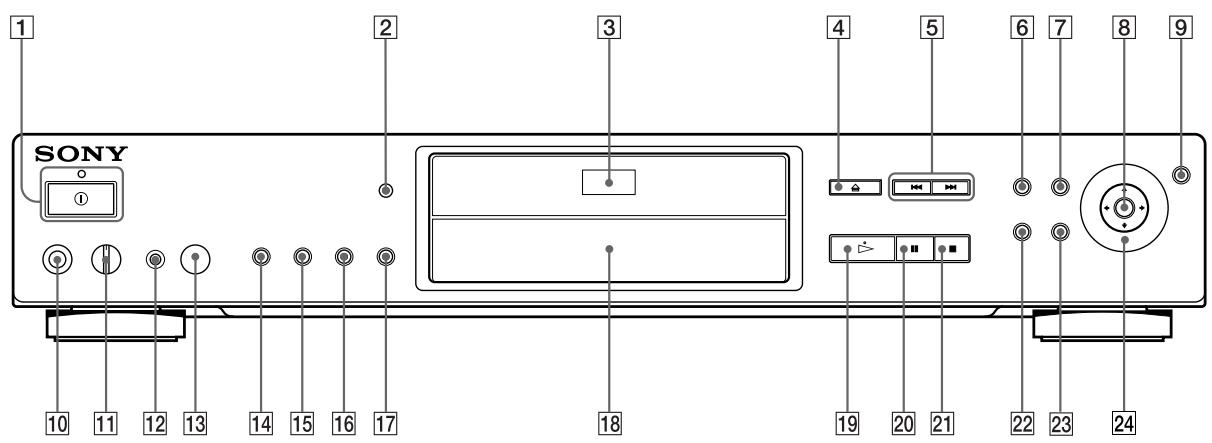
text_image
1 SONY ① 2 3 4 5 6 7 8 9 10 11 12 13 14 15 16 17 18 19 20 21 22 23 24① (power) button and indicator (15)
Disconnects the power of the player or places the player in standby mode.
2 MULTICHANNEL indicator
Lights up when:
- playing back a Dolby Digital soundtrack on the DVD
- playing back an MPEG audio soundtrack on the DVD
- playing back a DTS soundtrack on the DVD
- the disc is not inserted
3 Disc tray (16)
Place a disc on the tray.
4 △OPEN/CLOSE button (15)
Opens or closes the disc tray.
⑤ I◀◀/▶▶IPREV/NEXT (previous/next) buttons (17) Press to go to the next chapter or track, or to go back to the previous chapter or track.
6 TITLE button (21) Displays the title menu on the TV screen.
7 DVD MENU button (21) Displays the DVD menu on the TV screen.
8 ←/↑/↓/→/ENTER button (21) Selects and executes the items or settings.
⑨ JOG button / indicator (18) Press to play a disc frame by frame.
10 PHONES connector (16) Connect the headphones to this connector.
11 PHONES LEVEL control (16) Adjusts the headphone volume.
12 VIRTUAL SURROUND HEADPHONES button and indicator (39) Press to turn on the VIRTUAL SURROUND HEADPHONES function. The indicator lights up when it is on.
13 R (remote sensor) (7)
Accepts the remote control signals.
14 SHUFFLE button (44)
Displays the “SHUFFLE” display on the TV screen.
15 REPEAT button (45)
Displays the “REPEAT” display on the TV screen.
16 DVE (Digital Video Enhancer) button and indicator (49)
Press to select a Digital Video Enhancer level.
The indicator lights up for every selected item except “OFF.”
17 VIRTUAL 3D SURROUND button and indicator (36)
Press to select the desired “VIRTUAL 3D SURROUND” item.
The indicator lights up for every selected item except “OFF.”
18 Front Panel Display (23)
Indicates the playing time, etc.
19 ▷ (play) button (16)
Plays a disc.
20 II (pause) button (15)
Pauses playing a disc.
21 ■ (stop) button (17)
Stops playing a disc.
22 DISPLAY button (25)
Displays the Control Menu display on the TV screen to set or adjust the Control Menu items.
23 RETURN button (22)
Press to return to the previously selected screen, etc.
24 Click shuttle (18)
Changes the playback speed.
Rear Panel
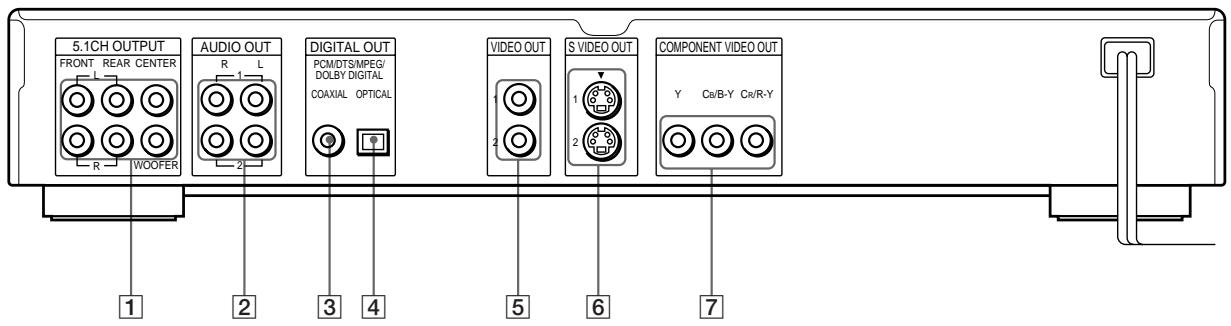
text_image
5.1CH OUTPUT FRONT REAR CENTER R L WOOFER AUDIO OUT R L 2 DIGITAL OUT PCM/CTS/MPEG/ DOLBY DIGITAL COAXIAL OPTICAL VIDEO OUT 1 2 S VIDEO OUT 1 2 COMPONENT VIDEO OUT Y Ca/B-Y Cr/R-Y 7 1 2 3 4 5 61 5.1CH OUTPUT connectors (13)
Connect to a receiver (amplifier) having 5.1 channel input connectors.
② AUDIO OUT R (right)/L (left), 1/2 connectors (8, 10)
Connect to the audio input connector on your TV or receiver (amplifier).
3 DIGITAL OUT COAXIAL connector (10)
Connect to an audio component using a coaxial digital connecting cord.
4 DIGITAL OUT OPTICAL connector (10)
Connect to an audio component using an optical digital connecting cord. Take off the cap.
5 VIDEO OUT 1/2 connector (8)
Connect to the video input connector on your TV or monitor.
6 S VIDEO OUT 1/2 connectors (8, 10)
Connect to the S video input connector on your TV or monitor.
7 COMPONENT VIDEO OUT connectors (9)
Connect to a monitor or projector having component video input connectors (Y, C_B/B-Y , C_R/R-Y ) that conform to output signals from the player.
Remote
RMT-D120E/D120A
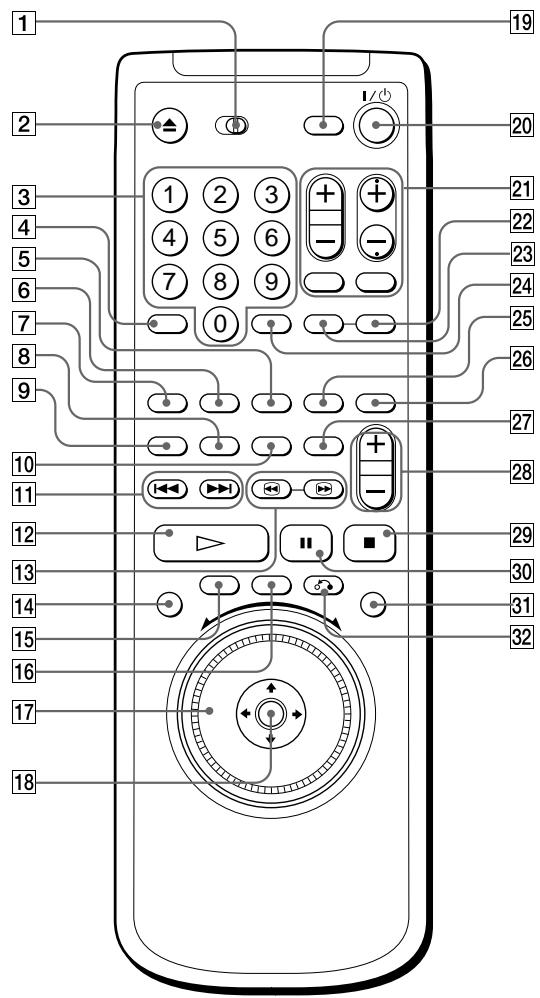
text_image
1 2 3 4 5 6 7 8 9 10 11 12 13 14 15 16 17 18 19 20 21 22 23 24 25 26 27 28 29 30 31 321 TV/DVD switch (68) (RMT-D120A only)
Selects to control the player or the TV with the remote.
2 ▲OPEN/CLOSE button (17)
Opens or closes the disc tray.
3 Number buttons (22) Selects and executes the items or settings.
4 CLEAR button (43)
Press to return to continuous play, etc.
⑤ REPEAT button (45)
Displays the “REPEAT” display on the TV screen.
6 PROGRAM button (43)
Displays the “PROGRAM” display on the TV screen.
7 SHUFFLE button (44)
Displays the “SHUFFLE” display on the TV screen.
8 ANGLE button (36)
Changes the angles when playing a DVD.
⑨ AUDIO button (33)
Changes the sound while playing a DVD or VIDEO CD.
10 SUBTITLE button (35)
Changes the subtitles when playing a DVD.
11 I◀◀/▶▶IPREV/NEXT (previous/next) buttons (17)
Press to go to the next chapter or track, or to go back to the previous chapter or track.
12 ▷PLAY button (17)
Plays a disc.
13 📋/SEARCH buttons (18)
While monitoring the picture, keep pressing to locate a point quickly.
14 DISPLAY button (14)
Displays the Control Menu display on the TV screen to set or adjust the items.
15 TITLE button (21)
Displays the title menu on the TV screen.
16 DVD MENU button (21)
Displays the DVD menu on the TV screen.
17 Click shuttle (18)
Changes the playback speed.
18 ←/↑/↓/→/ENTER buttons (14)
Selects and executes the items or settings.
19 TV I/ (television on/standby) button (RMT-D120E only) (69)
Turns on and off the power of the TV.
20 I/ ① (on/standby) button (15) Press to turn on the player or place it in standby mode after power is connected by pressing ① on the player.
21 TV (television) operation buttons (69)
Controls TVs. (WIDE MODE button available on RMT-D120E only)
22 TIME/TEXT button (23)
Displays the playing time of the disc, etc., on the front panel display.
23 INPUT button (32)
Press when labeling a disc.
24 ENTER button (14)
Executes the items or settings.
25 PICTURE MEMORY button (58)
Press to store a picture in memory.
26 DVE (Digital Video Enhancer) button (49)
Press to select the Digital Video Enhancer level.
27 BOOKMARK button (51)
Press to set a bookmark.
28 AV VOL button (70)
Change the sound volume of the AV receivers (amplifiers).
29 ■ STOP button (17)
Stops playing a disc.
30 IIPAUSE button (17)
Pauses playing a disc.
31 JOG button / indicator (18)
Press to play a disc frame by frame.
32 ⬇RETURN button (22)
Press to return to the previously selected screen, etc.
RMT-D1200
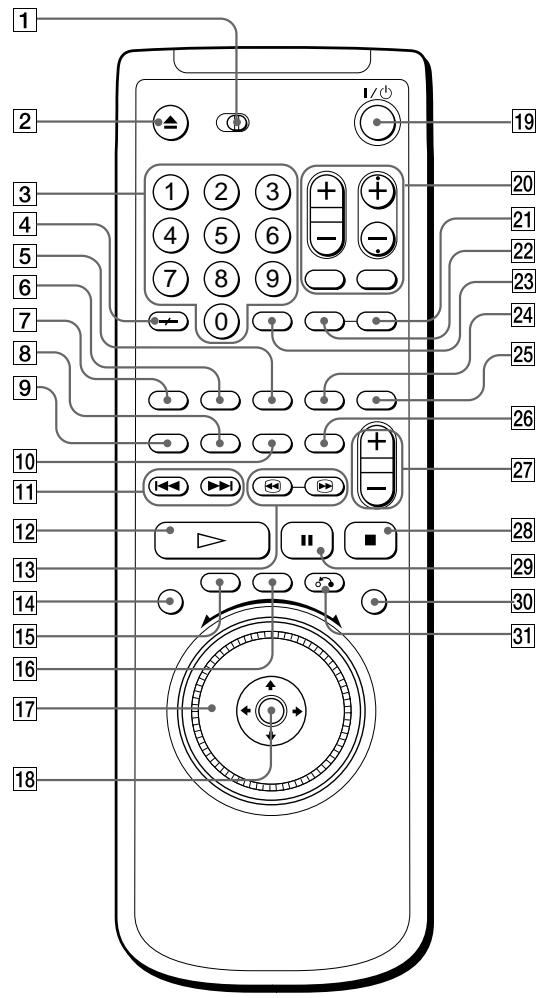
text_image
1 2 3 4 5 6 7 8 9 10 11 12 13 14 15 16 17 18 19 20 21 22 23 24 25 26 27 28 29 30 311 TV/DVD switch (68)
Selects to control the player or the TV with the remote.
2 ▲OPEN/CLOSE button (17)
Opens or closes the disc tray.
③ Number buttons (22)
Selects and executes the items or settings.
4 CLEAR / -- (ten's digit) button (43)
Press to return to continuous play, etc.
⑤ REPEAT button (45)
Displays the “REPEAT” display on the TV screen.
6 PROGRAM button (43)
Displays the “PROGRAM” display on the TV screen.
7 SHUFFLE button (44)
Displays the “SHUFFLE” display on the TV screen.
8 ANGLE button (36)
Changes the angles when playing a DVD.
⑨ AUDIO button (33)
Changes the sound while playing a DVD or VIDEO CD.
10 SUBTITLE button (35)
Changes the subtitles when playing a DVD.
11 I◀◀/▶▶IPREV/NEXT (previous/next) buttons (17)
Press to go to the next chapter or track, or to go back to the previous chapter or track.
12 ▷ PLAY button (17)
Plays a disc.
13 📋/SEARCH buttons (18)
While monitoring the picture, keep pressing to locate a point quickly.
14 DISPLAY button (14)
Displays the Control Menu display on the TV screen to set or adjust the items.
15 TITLE button (21)
Displays the title menu on the TV screen.
16 DVD MENU button (21)
Displays the DVD menu on the TV screen.
17 Click shuttle (18)
Changes the playback speed.
18 ←/↑/↓/→/ENTER buttons (14)
Selects and executes the items or settings.
19 I/ (on/standby) button (15)
Press to turn on the player or place it in standby mode after power is connected by pressing ① on the player.
20 TV (television) operation buttons (69) Controls TVs.
21 TIME/TEXT button (23)
Displays the playing time of the disc, etc., on the front panel display.
22 INPUT button (32)
Press when labeling a disc.
23 ENTER button (14)
Executes the items or settings.
24 PICTURE MEMORY button (58)
Press to store a picture in memor
25 DVE (Digital Video Enhancer) button (49)
Press to select the Digital Video Enhancer level.
26 BOOKMARK button (51)
Press to set a bookmark.
27 AV VOL button (70)
Change the sound volume of the AV receivers (amplifiers).
28 ■ STOP button (17)
Stops playing a disc.
29 IIPAUSE button (17)
Pauses playing a disc.
30 JOG button / indicator (18)
Press to play a disc frame by frame.
31 🎨RETURN button (22)
Press to return to the previously selected screen, etc.
Index
Numerics
4:3 LETTER BOX 57
4:3 PAN SCAN 57
5.1 Channel Surround 12
16:9 57
48kHz/96kHz PCM 65
A
A-B REPEAT 46
ADVANCED 39
Angle 35,76
ANGLE 35
ANGLE VIEWER 50
AUDIO 32,56
AUDIO ATT 63
AUDIO DRC 63
AUDIO SETUP 63
AUTO PLAY 59
B
BACKGROUND 58
BALANCE 67
Batteries 7
BOOKMARK 51
BOOKMARK RESET 59
C
CD 4,17
CENTER SPEAKER EQ
(Equalizer) 63
Chapter 5, 28, 76
CHAPTER 28
CHAPTER VIEWER 50
COLOR SYSTEM 9,59
COMPONENT OUT 9
Connecting 8, 10, 13
Continuous play 19
Control Menu display 25
CUSTOM PARENTAL
CONTROL 40
CUSTOM SETUP 59
D, E
DIGITAL OUT 63
Digital output 10,63
DIGITAL VIDEO ENHANCER
(DVE) 49
DIMMER 59
DISC MEMO 31
Display
Control Menu display 25
Front panel display 23
Setup display 52
DISTANCE 66
DOLBY DIGITAL 11, 64
DOWNMIX 63
DTS 5,64,76
DVD 4,76
DVD menu 21
F, G
Fast Forward 18
Fast Rewind 18
Front panel display 23
H
Handling discs 6
Hooking up 8, 10, 13
I, J, K
Index 5,28
INDEX 28
L
LANGUAGE SETUP 55
LETTER BOX 57
LEVEL 67
M, N
MPEG 64,76
0
On-screen display
Control Menu display 25
Setup display 52
OSD 55
P, Q
PAN SCAN 57
PARENTAL CONTROL 59, 60
PAUSE MODE 59
PBC functions 22
PBC Playback 22,76
PICTURE MEMORY 58
PLAYBACK MEMORY 62
Pro Logic 11, 64, 76
PROGRAM 42
Program Play 42
R
Remote 7,68
REPEAT 45
Resume Play 20
S
S video output 8, 10
Scene 5, 28
SCENE 28
SCREEN SAVER 58
SCREEN SETUP 57
Setup display 52
SHUFFLE 44
Shuffle Play 44
SIZE 65
SPEAKER SETUP 65
Speakers
lookup 12
set up 65
STARTUP SCREEN 58
STROBE PLAYBACK 49
SUBTITLE 35, 57
T
TEST TONE 67
TIME/MEMO 29, 30, 31
TIME/TEXT 29, 30, 31
Title 5, 28, 77
TITLE 28
Title menu 21
TITLE VIEWER 50
Track 5,28,77
TRACK 28
TRACK VIEWER 49
TRACK SELECTION 62
Troubleshooting 71
TV TYPE 57
U
Usable discs 4
V, W, X, Y, Z
VIDEO CD 4,77
VIDEO EQUALIZER 47
VIEWER 49
VIRTUAL 3D SURROUND 36