
RM-AV2100T - Télécommande universelle SONY - Notice d'utilisation et mode d'emploi gratuit
Retrouvez gratuitement la notice de l'appareil RM-AV2100T SONY au format PDF.


| Type de produit | Télécommande universelle |
| Marque | Sony |
| Modèle | RM-AV2100T |
| Dimensions (L × H × P) | 120 × 175 × 45 mm |
| Poids (sans piles) | 290 g |
| Alimentation | 4 piles R6 (AA) |
| Autonomie des piles | Environ 5 mois (selon usage) |
| Portée infrarouge | Environ 10 m |
| Type d'écran | LCD tactile avec rétroéclairage bleu |
| Nombre de touches programmables | Jusqu'à 16 commandes par bouton System Control |
| Fonction d'apprentissage | Oui, pour signaux infrarouges |
| Codes préprogrammés | Oui, pour la plupart des marques (Sony et autres) |
| Fonction System Control | Exécute jusqu'à 16 commandes en une seule pression |
| Transfert de données entre télécommandes | Oui, compatible avec RM-VL900T et autre RM-AV2100T |
| Verrouillage des touches (Hold) | Oui |
| Verrouillage des réglages (Preset Lock) | Oui |
| Réglage du temps d'extinction auto | De 10 à 90 minutes ou désactivé |
| Réglage du rétroéclairage | Luminosité et durée d'extinction réglables |
| Entretien et nettoyage | Chiffon doux légèrement humide, pas de solvants |
| Sécurité | Garder hors de portée des enfants – les signaux infrarouges peuvent commander des appareils dangereux |
FOIRE AUX QUESTIONS - RM-AV2100T SONY
Questions des utilisateurs sur RM-AV2100T SONY
0 question sur cet appareil. Repondez a celles que vous connaissez ou posez la votre.
Poser une nouvelle question sur cet appareil
Téléchargez la notice de votre Télécommande universelle au format PDF gratuitement ! Retrouvez votre notice RM-AV2100T - SONY et reprennez votre appareil électronique en main. Sur cette page sont publiés tous les documents nécessaires à l'utilisation de votre appareil RM-AV2100T de la marque SONY.
MODE D'EMPLOI RM-AV2100T SONY
Integrated Remote Commander
Operating Instructions ____ GB
Gebruiksaanwijzing ____ NL
RM-AV2100T
Features
The RM-AV2100T Remote Commander provides centralised control of all your AV components from a single remote commander and saves the trouble of operating different AV components with different remote control devices. The following are its main features.
Centralised control of Sony AV components with this one remote commander This Commander is preset at the factory to operate Sony brand components, so you can use it out of the box as a control centre for your Sony AV components.
Remote control signals for non-Sony components are also preset
This Commander is preset for most major brands components including Sony. You can remote control your components by setting their code numbers (page 8).
Learning function for programming other remote control signals you need
This Commander has a learning function, to learn remote control signals to operate non-preset components or functions (page 16).
In addition, the Commander can learn remote control signals (infrared signals only) of non-Audio Visual components such as air-conditioners, lights, etc. (some specific appliances or functions may not be available) (page 38).
Reassigning new components
You can assign other Component Select Buttons to freely operate other components. This is useful when you have more than two of the same kind of AV components (page 35).
System Control function allows one-touch operation to execute a series of commands
You can programme up to 16 consecutive operation steps to execute a series of operations by pressing a single button (page 23).
Data can be transferred between remote commanders
You can transfer data such as learned signals, series of commands assigned to SYSTEM CONTROL buttons and other settings between this commander and another Sony RM-VL900T* or RM-AV2100T remote commanders.
Easy-to-operate touch key LCD with blue back light
This Commander has a touch key LCD that changes the key display according to the selected component. The Commander is easy to operate as only the keys necessary to operate the selected component are displayed. The display backlight allows operation even in the dark.
* When transferring data between this commander and another Sony RM-VL900T remote commander, some functions may not be able to be transferred (e.g. system control function).
Table of Contents
Getting Started
Installing the Batteries 6
When to replace the batteries.... 6
Location and Function of Controls 7
Basic Operations
Setting the Code for Preset Audio and Visual Components 8
Setting a component code 8
Checking if the code number works 10
Finding a component code with the Search function.... 11
Operating Your Components with the Remote Commander 13
To control the volume 14
Notes on operating your components 15
Using Non-Preset Remote Control Operations — Learning Function 16
For accurate learning 20
Changing or erasing the function of a taught key or button 20
Advanced Features
Controlling the Volume of Visual Components Connected to an Audio System 22
Executing a Series of Commands — System Control Functions 23
Programming a series of commands to the SYSTEM CONTROL buttons ...... 24
Notes on System Control Operations 27
Programming a series of commands to the Component Select buttons.... 28
Changing the interval between operation steps 30
Adding an Extra Function to the Component Select Buttons 31
Programming the Power-On command of the selected component (for Sony components only) 31
Adding a command that is required when selecting a component .... 32
Turning Off the Power of All Components with the Touch of a Single Button — System Power-Off Function (for Sony Components only) 34
Assigning Other Components to the Component Select Buttons 35
Copying the settings of a Component Select button to another button 37
Programming a Frequently Used Key Operation for SYSTEM CONTROL Buttons ...... 38
Notes on learning the signals of an air-conditioner 40
Transferring Data between Remote Commanders 41
Transferring data 41
Receiving the data 43
Using Other Functions
Locking the Controls — Hold Function 45
Protecting your settings — Preset Lock Function 46
Changing the Auto Power-Off Time of the Commander 47
Adjusting the Backlight of the Display Window 48
Setting the Key-Touch Beep 49
Changing the Touch-Key Display 50
Additional Information
Precautions 52
Maintenance 52
Specifications 52
Troubleshooting 53
Appendix
Table of Preset Functions.... 56
TV....56
VCR 1, 2, 3....57
DVD 57
VD (Video disc player).... 58
CBL (Cable box) 58
SAT (Satellite tuner) 59
AMP (Amplifier) 59
CD 60
MD 61
DAT 61
DECK B/A (Tape deck) 62
FM/AM (TUNER) (FM/AM tuner) 62
DSP (Digital Surround Processor) 63
Quick Reference of Operations 64
Index 66
Installing the Batteries
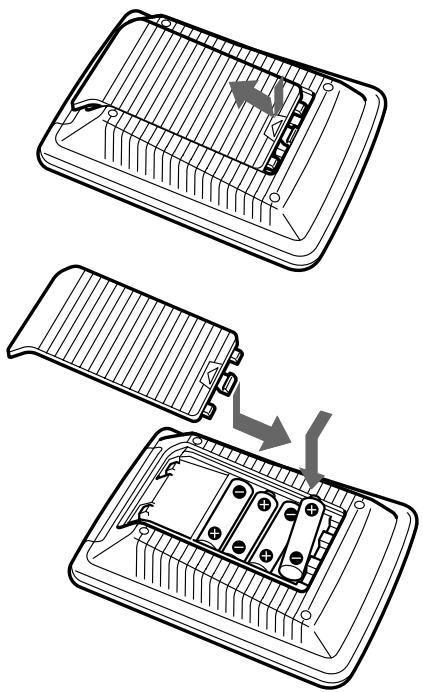
Slide open the battery compartment lid and insert four R6 (size AA) batteries (not supplied). Be sure to line up the + and - on the batteries with the + and - on the battery compartment.
natural_image
Diagram showing three steps of a battery pack installation, with arrows indicating the process (no text or symbols present)When to replace the batteries
Batteries for remote control operation and backlight (four R6 (size AA) batteries)
Under normal conditions, batteries will last up to 5 months. If the Commander does not operate properly, batteries might be worn out and is displayed on the LCD touch panel. When the display dims or the backlight for the touch keys grows dim, replace the batteries with new ones.
Note
Do not take more than one day to replace the batteries; otherwise, your setting of the code numbers (page 8) and learned remote control signals (page 16) will be erased.
Notes on batteries
- Do not mix old batteries with new ones or mix different types of batteries together.
- If the electrolyte inside the battery should leak, wipe the contaminated area of the battery compartment with a cloth and replace the old batteries with new ones. To prevent the electrolyte from leaking, remove the batteries when you plan not to use the Commander for a long period of time.
Location and Function of Controls
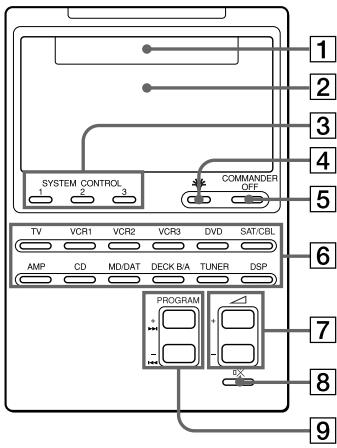
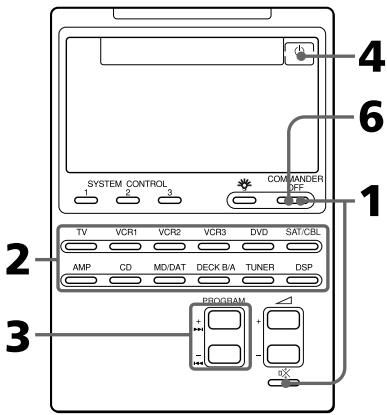
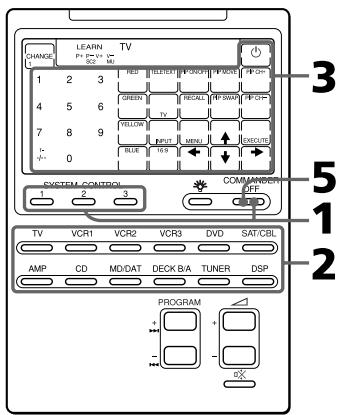
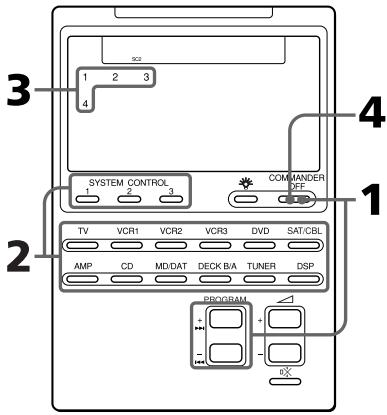
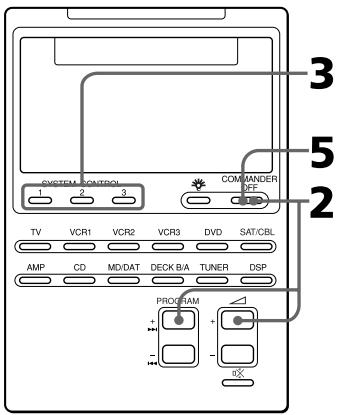
1 Component display area
Displays the name of the component selected.
② LCD touch key display (page 11)
The keys used for operating each component are displayed.
Note
Do not press the touch keys using sharp objects such as pins or ball-point pens.
3 SYSTEM CONTROL buttons (page 23)
You can programme up to 16 consecutive key operations to each of the three SYSTEM CONTROL buttons. You can automatically carry out the entire programme by pressing one button.
4 button (page 48)
Used to light up the LCD display in the dark. Press the button once to turn on the light, and once again to turn it off. You can also set the backlight to go off automatically after a certain period of time.
⑤ COMMANDER OFF button
Turns the power of the Commander off.
⑥ Component Select buttons
Selects the component to control.
7 △ +/- buttons* (page 14, 22)
Adjust the volume.
8 ☑ button* (page 14, 22)
Mutes the audio. Press the button once again to resume at the previous volume.
9 PROGRAM +/- buttons
Select the programme.
* Note on the △ +/- and ☑️ buttons
The Commander controls or mutes the TV's volume when you select a visual component. The Commander controls or mutes the amplifier's volume when you select an audio component.
You can change this setting also (page 22).
Note on the power on and off of the Remote Commander
To turn on the power, press any button except the COMMANDER OFF button.
To turn off, press COMMANDER OFF, or if you don't use the Commander, it automatically turns off after 10 minutes. This interval can also be changed (page 47).
Setting the Code for Preset Audio and Visual Components
The Commander is preset at the factory to operate Sony brand AV components (see the table below). If you are using the Commander with a factory-set Sony components, skip the following procedures.
You can use the Commander with other preset AV components also. To use with other AV components, you need to follow the procedures to set the correct codes for each component.
| Component Select Button | Preset component(s) | Factory setting |
| TV | TV TV/VCR Combo | Sony TV |
| VCR1 | VCR | Sony VHS VCR (VTR3) |
| VCR2 | VCR | Sony 8mm VCR (VTR2) |
| VCR3 | VCR | Sony Beta VCR (VTR1) |
| DVD | DVD player (DVD)/LD player (VD) | Sony DVD player |
| SAT/CBL | Satellite tuner (SAT)/Cable box (CBL) | Sony satellite tuner (SAT) |
| AMP | Amplifier | Sony amplifier |
| CD | CD player | Sony CD player |
| MD/DAT | MD deck/DAT deck | Sony MD deck |
| DECK B/A | Cassette deck* | Sony cassette deck |
| TUNER | FM/AM tuner | Sony FM/AM tuner |
| DSP | Surround processor | Sony digital surround processor |
* Analog audio compact cassette deck
See “Table of Preset Functions” (page 56) for the functions of keys and buttons as for each component.
Setting a component code
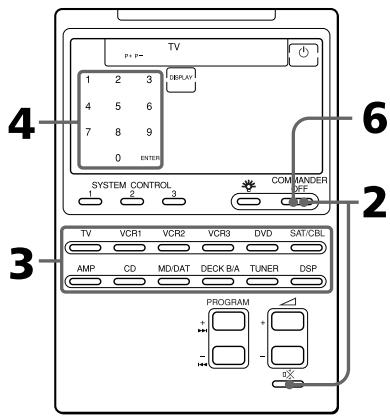
Example: To set up a Philips' TV
1 See the tables in the supplied "Component Code Numbers", and find the three-digit code number for the desired component.
If more than one code number is listed, use the number that is listed first.
For example, to set up a Philips' TV, you would use the code number 011.
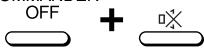
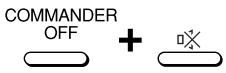
2 While pressing COMMANDER OFF, press ☐.
COMMANDER
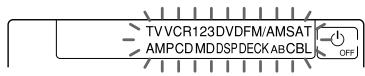
All the component names in the display flash.

3 Press the Component Select button for the desired component.

The selected component remains displayed, and the 0 - 9, ENTER and DISPLAY keys flash.
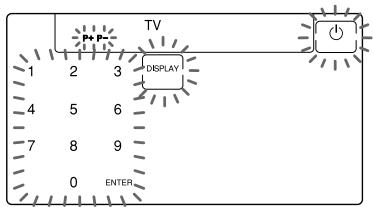
Note on the DVD and SAT/CBL buttons
When you set the component code of the DVD or SAT/CBL button, press repeatedly until the desired component is displayed (“DVD” or “VD”, “CBL” or “SAT”).
Note on the DECK B/A button
You have to set one component code each for DECK A and DECK B. Press the DECK B/A button repeatedly until the desired deck is displayed (“DECK A” or “DECK B”), and set a component code for it.
4 Press the three-digit component code number followed by the ENTER key on the touch-key display.
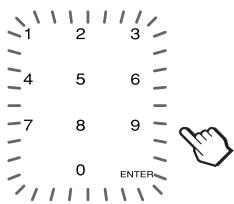
A beep sounds, and the code number and “ENTER” appear twice.
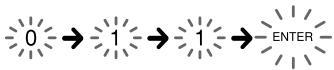
flowchart
graph LR
    A["0"] --> B["1"]
    B --> C["1"]
    C --> D["ENTER"]
5 If you want to set a code for another component, repeat Steps 3 and 4.
6 Press COMMANDER OFF.
Setting the Code for Preset Audio and Visual Components (continued)
Notes
- If you press a component code number that is not on the table in the supplied “Component Code Numbers”, the Commander beeps and “NG” flashes after you press the ENTER key. If this happens, check the component code number, and try setting again.
- If you don't input anything into the Commander for over two minutes between each step, the setup procedure will be canceled. To set the code, you must again press ☐ while pressing COMMANDER OFF.
To check which code number is set
Press the DISPLAY key in Step 3 to 5. The code number and “ENTER” appear twice.
Checking if the code number works
1 Press the corresponding Component Select button for the component you have set up.
TV

The Commander turns on and the touch-keys appear on the display.
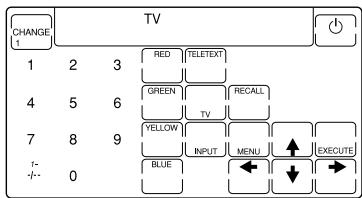
2 Power on the component with its power switch.
3 Aim the Commander at the component and press the ⏻ key in the touch-key display.

When the remote control signal is sent, is displayed on the display.

The component should power off.
4 If you have succeeded, check that the Commander is operating the other functions of your component, such as programme and volume control. See page 13 for details.
5 Press COMMANDER OFF.
COMMANDER
OFF

If the Commander does not seem to be working
Try repeating these setup procedures using the other codes listed for your components (page 8).
Notes on keys which have "learned" a remote control signal already
If another signal has already been programmed on that key or button by the learning function (page 16), that “learned” signal will work even after you set the component code number. To use it as a preset component key or button, first erase its learned signal (page 20).
Note on the touch-key display
When you set a component code number, only the keys that have been preset with the signals for the desired component will be displayed. Preset signal of each key varies according to the brand. By using the learning function, you can programme remote control signals to both the displayed keys and keys that are not displayed (page 16).
You can also choose either the full-function display or the basic-function display (page 50).
Finding a component code with the Search function
You can find a code number available for a component that doesn't have one in the supplied "Component Code Numbers".
Before starting the Search function
Set each component to the following status to enable the Search function.
TV: Power-on
VCR, DVD, SAT, CBL, AMP: Power-off VD, CD, MD, TAPE: Power-on with a playback source (disc, cassette tape, etc.)
Setting the Code for Preset Audio and Visual Components (continued)
1 While pressing COMMANDER OFF, press ☐.
All the component names on the display flash.
2 Press the Component Select button for the desired component.
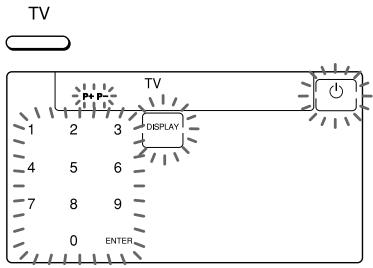
3 Press PROGRAM + or PROGRAM -.
Press PROGRAM + to go to the next code number.
Press PROGRAM – to go back to the previous code number.
PROGRAM
4 Aim the Commander at the component and press the ⏻ key.

When the remote control signal is sent, is displayed on the display.

If it successfully works (power-off for TV, power-on for VCR, DVD, SAT, CBL, AMP, and playback for VD, CD, MD, TAPE), go to Step 5.
If it doesn't, repeat Steps 3 and 4.
5 Press the ENTER key.
A beep sounds, and the code number and “ENTER” appear twice.

flowchart
graph LR
    A["0"] --> B["1"]
    B --> C["8"]
    C --> D["ENTER"]
Note
It is recommended to write down the code number.
6 Press COMMANDER OFF.
COMMANDER OFF

To check which code number is set
Press the DISPLAY key in Step 2 and 5. The code number and “ENTER” appear twice.
Be sure to press the DISPLAY key after you have pressed the ENTER key to set the code number. If you press the DISPLAY key before the code number is set, it returns back to the first number at which you started searching.
Operating Your Components with the Remote Commander
When you operate a non-Sony component, make sure you set the component code first (page 8).
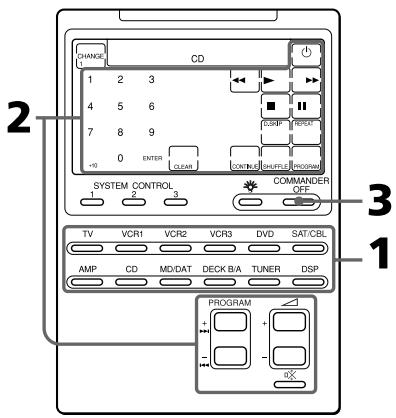
Example: To play a CD player
1 Press the desired Component Select button.

The Commander comes on and the keys for operating the selected component are displayed.
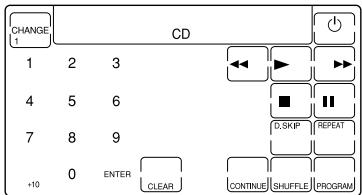
Operating Your Components with the Remote Commander (continued)
2 Press the desired key in the touch-key display.
When the remote control signal is sent, is displayed on the display.

You may also use the + / - buttons, the ☑ button and the PROGRAM + / - buttons if necessary.
See “Table of Preset Functions” (page 56) for the functions of keys and buttons for each component.
3 When you are done using the Commander, press
COMMANDER OFF to power off the Commander.
Note
The remote control signals may be different for some components or functions. In this case, programme the remote control signals with the learning function (page 16). Note, however, that components and functions that do not support the remote control of infrared signals will not work with this Commander.
To control the volume
Press the + / - buttons to control the volume, and the ☑ button to mute.
When you select a visual component, the TV's volume will be controlled, and when you select an audio component, the amplifier's volume will be controlled.
You can change this setting also (page 22).
Notes
- If you have programmed any signal for the or × button for any component using the learning function (page 16), that signal will be transmitted instead of controlling the volume of the TV or amplifier once you select that component.
- If you have programmed any signal for the △ or ⚙ button of TV or AMP using the learning function, that signal will be transmitted only after you select TV or AMP. When you select another components, the preset volume control signals for TV or AMP will be transmitted at that time.
- If you have assigned another component to the TV or AMP button (page 35), the volume of the TV or amplifier cannot be controlled even when you select other components.
Notes on operating your components
When you use a double cassette deck
You need to select deck A or B before operating. To select the deck, press DECK B/A to switch the display between “DECK A” and “DECK B”.
Be sure that you have set a component code each for DECK A and DECK B (page 8).
However, if you have assigned a cassette deck to another Component Select button (page 35), you can only select either DECK A or DECK B.
About the input select of a TV
Each time the INPUT key is pressed, the input is changed in order. It is also possible to select directly as follows when you are connecting more than two VCRs.
"INPUT" + "0": TV tuner
"INPUT" + "1": VIDEO1
"INPUT" + "2": VIDEO2
"INPUT" + "3": VIDEO3
"INPUT" + "4": VIDEO4
"INPUT" + "5": VIDEO5
"INPUT" + "6": VIDEO6
If the above operations do not work, programme the remote control signals of your component on the Commander using the learning function (page 16).
About the input select of a VCR
Each time the INPUT key is pressed, the input is changed in order. It is also possible to select directly as follows.
"INPUT" + "0": Tuner
"INPUT" + "1": LINE1
"INPUT" + "2": LINE2
"INPUT" + "3": LINE3
"INPUT" + "4": LINE4
"INPUT" + "5": DV
When you use a Sony VCR, the above commands are preset. For other brands, it is possible to “teach” the above double-key operations using the learning function (page 16).
Using Non-Preset Remote Control Operations
— Learning Function
To operate non-preset components or functions, use the following “learning” procedure to “teach” any of the programmable buttons and keys to operate the functions of another remote control. You can also use the learning function to change the signal of individual keys and buttons after setting the component code number (page 8). It is useful if you make a memo of the learned key functions in the LCD touch key display table (Refer to the separate volume of “Component code numbers.”).
Note
Some specific remote control signals may not be learned.
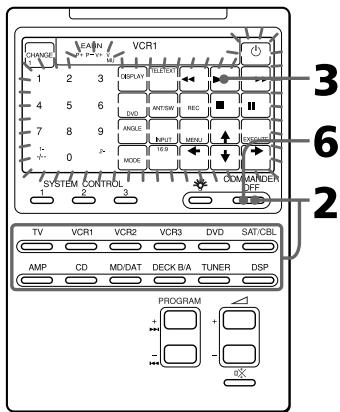
Example: To programme the ▶ (Play) signal of your component to the VCR1 ▶ (Play) key of the Commander
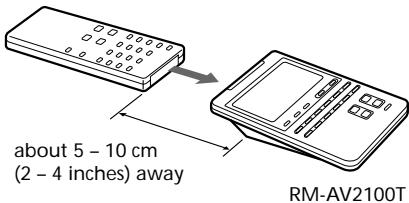
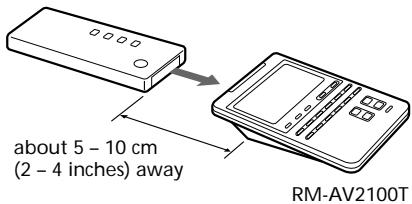
1 Place the RM-AV2100T head to head with your component's remote control.
Remote control for your component
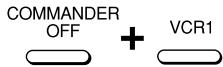
2 While pressing COMMANDER OFF, press the Component Select button for the component whose signals are to be learned.
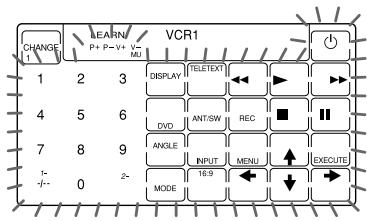
“LEARN” appears and all the learnable keys flash.
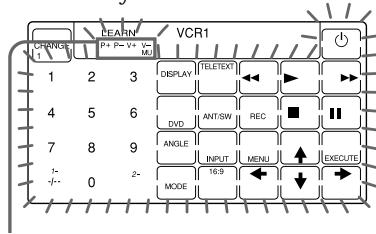
Display for PROGRAM, △ and ☑️ buttons
The “P+ P- V+ V- MU” display indicates if PROGRAM +/-, △+/- and ☐× buttons are learnable or not.
Note on the flashing display
The keys or buttons that are already preset for that component flash twice while those that are not preset flash once.
3 Press the key or button on the Commander you want to "teach".

“LEARN” flashes and the only pressed key remains on the display.
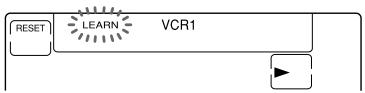
flowchart
graph LR
    A["RESET"] --> B["LEARN"]
    B --> C["VCR1"]
To teach on the PROGRAM +/-, △ +/- or ✗ buttons
Press the corresponding button. “LEARN” flashes, and only the pressed button remains indicated on the display (“P+,” “P−,” “V+,” “V−,” or “MU”).
Example: When pressing the △ + button

To change the function display of the key
Follow the procedure on page 19.
4 Press and hold down the button on the other remote control until you hear a beep.
(If you release the button before you hear a beep, the signal may not be learned correctly.)

“LEARN” stops flashing and stays lit. When the command has been learned successfully, the learned keys stay lit and the other learnable keys flash.
If "NG" flashes on the display
Learning did not succeed. Try Steps 3 and 4 again.
5 Repeat Steps 3 and 4 to teach functions to other kyes or buttons.
To learn another component's remote control signal
After positioning the two remote commanders as in Step 1 on page 16, press the corresponding Component Select button, and then follow Steps 3 and 4 on the left to perform learning.
6 Press COMMANDER OFF.
COMMANDER OFF

Using Non-Preset Remote Control Operations
— Learning Function(continued)
Notes
- If you do not perform learning steps within two minutes, learning mode ends.
- If you do not perform Step 4 within 10 seconds after Step 3, the display turns back to the display in Step 2. (All the learnable keys flash.) In this case, perform Step 3 again while the display is flashing,
- If “NG” appears while learning, the memory is full. To free memory, clear learned functions from keys that you do not use often (page 20). Then continue the learning steps.
- If you touch a key by mistake in step 4, while pressing the RESET key, press the mistaken key. Then repeat from Step 3 to continue learning.
If the Commander does not seem to be working
If the learned key or button does not operate properly, teach once again. (For example, if the volume becomes very loud after pressing the + button only once, noise may have interfered during the learning procedure.)
If you set a component code after learning a signal
If you have programmed any signal for a key or button using the learning function, that signal will remain assigned to that key or button even after you set a component code.
When you teach the signals for a double cassette deck
Press DECK B/A to select deck A or B.
When you teach the REC (record) signal
If you have to press two buttons at the same time (for example, REC and ▶) to start recording on your cassette deck or VCR, teach the REC signal in one of the following ways.
To operate with two keys on the Commander
In Step 3 (page 17), while pressing the REC key, press the ▶key to display both keys. Then press the two buttons on your component's remote control in Step 4.
To operate with one key on the Commander
In Step 3 (page 17), press only the REC key. Then press the two buttons on your component's remote control in Step 4.
When you teach signals to the △ or ☑ buttons
- If you have programmed any signal on the or or button for components other than TV and AMP using the learning function, that signal will be transmitted only when you select that component.
- If you have programmed any signal on the △ or ☑ button for TV or AMP using the learning function, that signal will be transmitted only when you select TV or AMP. When you select other components, the preset volume control signals for TV or AMP will be transmitted (for the difference between visual components and audio components, see page 22). To use the learned signal, you need to programme the △ or ☑ button for each component using the learning function.
When you teach the signals of an air-conditioner
See the notes on page 39.
To display only the frequently used keys
You can hide keys you do not use. This makes operations even easier to understand, when the components have many keys.
After Step 2 on page 16, while pressing the RESET key, press the key you want to hide (flashing). The pressed key changes to slower flashing and will no longer be displayed during remote control operations.
To display it again, perform the same procedure again.
Note
You can not hide a key which has “learned” any signal.
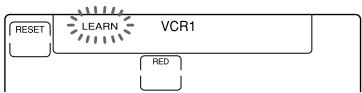
To change the function display of a key
When you programme a signal for a key, you can select the most suitable function display among all the displays the key has, and set it to the key.
1 After Step 2 (page 16), while pressing the Component Select button (VCR1), press the key you want to teach repeatedly.
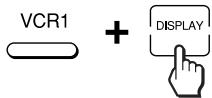
Each time the key is pressed, the display is changed in order.
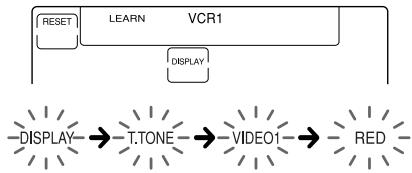
flowchart
graph LR
    A["RESET"] --> B["LEARN"]
    B --> C["VCR1"]
    C --> D["DISPLAY"]
    D --> E["DISPLAY"]
    E --> F["T.TONE"]
    F --> G["VIDEO1"]
    G --> H["RED"]
2 When the desired display appears, release the Component Select button.
flowchart
graph TD
    A["RESET"] --> B["LEARN"]
    B --> C["VCR1"]
    C --> D["RED"]
3 Then follow Steps 4 to 6 (page 17).
Notes
- You can change the display of a key only when you programme it using the learning function. If you want to change the display of the key that has learned a signal, clear the signal first (page 20). Then teach the key again using the above procedure to change its display.
- If you don't change the display of a key, the default display is used.
- You cannot change the display of the keys that are not framed with □ (the numeric keys 0 to 9, +10 and ENTER).
For accurate learning
- Do not move the remote units during the learning procedure.
- Be sure to keep holding down the button of the other remote control until you hear the confirmation beep.
- Use fresh batteries in both remote control units.
- Avoid learning in places under direct sunlight or a strong fluorescent light.
- The remote control detector area may differ depending on each remote unit. If learning does not work, try changing the positions of the two remote control units.
- When you teach signals of an interactive signal exchange system remote control unit (supplied with some of Sony's receivers and amplifiers) to the Commander, the response signal of the main unit may interfere with the learning of the Commander. In such a case, move to a place where the signals will not reach the main unit (e.g. other rooms, etc.).
IMPORTANT
Be sure to place the Commander out of the reach of small children or pets. Also set the Hold function to lock the all buttons on the Commander (page 45) when it is not used. Components such as air conditioners, heaters, electric appliances, and electric shutters or curtains receiving an infrared signal can be dangerous if misused.
Note
For details on the learnable remote control signals, see “Specifications” on page 52.
Changing or erasing the function of a taught key or button
To change the learned function, clear it first and perform learning again.
To clear the learned function of a single key or button
1 After Step 2 (page 16), while pressing the RESET key, press the key or button you want to erase.
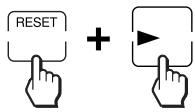
The cleared key flashes together with other learnable keys.
2 Press COMMANDER OFF.
COMMANDER OFF

To clear all signals learned for a specific component
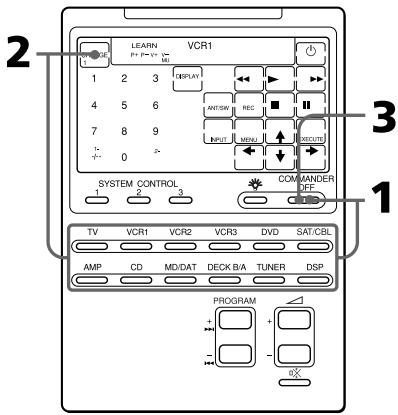
1 While pressing COMMANDER OFF, press the corresponding Component Select button.
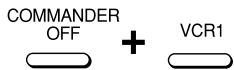
When you want to clear signals learned for DECK B/A
Press DECK B/A to display “DECK A” or “DECK B”. You can not clear both decks at the same time.
2 While pressing the RESET key, press that Component Select button again.
The learned contents are cleared. The keys for the component return to their original states before learning.
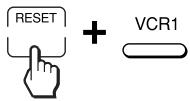
3 Press COMMANDER OFF.
Note
For DECK B/A, be sure to display the deck that has a learned signal (“DECK A” or “DECK B”) before you perform the steps above. If you reset the wrong deck, the component codes for both A and B will be reset to the factory settings (page 8).
Controlling the Volume of Visual Components Connected to an Audio System
The Commander is factory preset based on the assumption that you hear the sound of your visual components from your TV speakers, and that you hear sound of your audio components from the loudspeakers connected to your amplifier.
This feature enables you to control the volume of your TV or amplifier without having to select TV or AMP each time you want to control the volume. For example, to control the volume while using a VCR, you don't need to press the TV button to control the TV volume.
The following table shows the factory setting of which volume would be controlled for each component.
| Component Select button | Controls the volume of |
| TV | TV |
| VCR1,2,3 | TV |
| SAT/CBL | TV |
| DVD | TV |
| AMP | amplifier |
| CD | amplifier |
| MD/DAT | amplifier |
| DECK B/A | amplifier |
| TUNER | amplifier |
| DSP | amplifier |
However, if your visual components are connected to an audio system, you probably hear TV or VCR sound from the loudspeakers via your amplifier, not from your TV speakers. In this case, you need to change the factory preset so that you can control the volume of your visual components without first having to switch to the amplifier.
To change the Factory Preset of the Volume Control
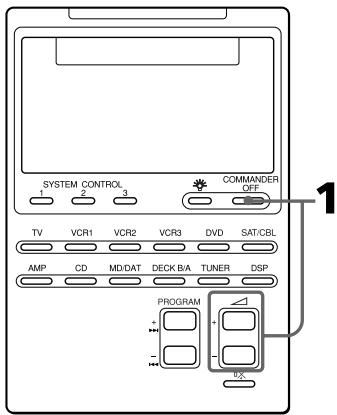
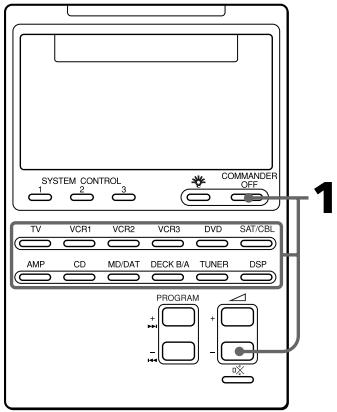
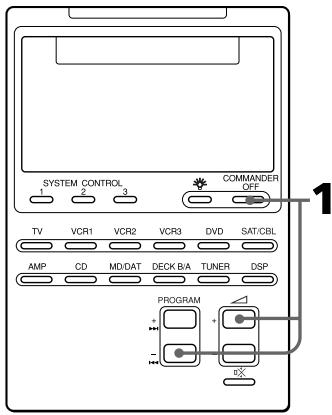
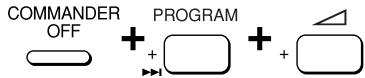
1 While pressing COMMANDER OFF, press + and - .
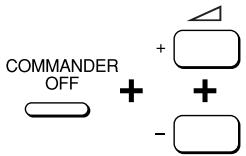
The volume control setting of visual components (TV, VCR1,2 and 3, SAT/CBL, and DVD) changes to the displayed component.
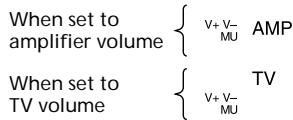
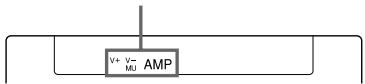
Notes
- If you have already programmed the or ※ button of each component any signals by "learning", the procedure above will not change the function of the and ※ buttons.
- If you have programmed volume control signals on or ☒ buttons of TV or AMP, you can only use that signal when you select TV or AMP. For other component, the preset volume control signals for TV or AMP (depending on the above setting procedure) will be transmitted. To use the new signals, you need to programme each button for each component by the learning procedure (page 16).
Executing a Series of Commands
— System Control Functions
With the System Control function, you can programme a series of operating commands, and execute them by pressing just one button.
For example, when you watch a video, a series of operations like the ones below are necessary.
Example:
1 Power on the TV.
2 Power on the video (VCR 1).
3 Power on the amplifier.
4 Set the input selector of the amplifier to VIDEO 1.
5 Set the input mode of the TV to VIDEO.
6 Start video playback
You can programme up to 16 consecutive operation steps to each of the SYSTEM CONTROL 1, 2 or 3 buttons.
If you have set the System Control function for a Component Select button (page 28), the execution of the programmed commands begins when you press the Component Select button for more than 2 seconds.
While executing the programmed commands, at the same time that each remote control signal is transmitted, the corresponding key is displayed.
Executing a Series of Commands — System Control Functions (continued)
Programming a series of commands to the SYSTEM CONTROL buttons
Example: To programme the procedure above to the SYSTEM CONTROL 2 button
1 While pressing COMMANDER OFF, press one of the SYSTEM CONTROL buttons (in this case, SYSTEM CONTROL 2).
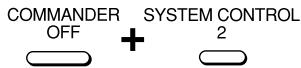
All the component names flash.
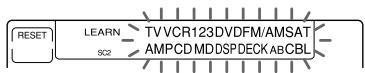
If a series of commands is already programmed for that button That programme will be displayed. (At the factory, the SYSTEM CONTROL 1 button is preset with the System Power-Off function for Sony components (the same function as explained in page 34), and the SYSTEM CONTROL 3 button is factory preset with standard power-on command for nearly all Sony components.)
To programme a new series of operations, clear the programme first (page 26).
2 Press the Component Select button for the component to operate.

The keys for the selected component flash.
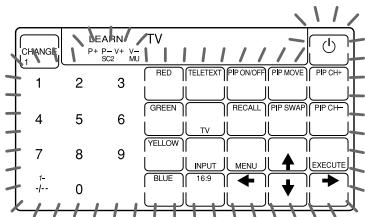
If the component has the power-on and power-off signals
Both the OFF and ON keys are displayed and you can select either of them to programme.

It is useful to set the exact command for power-on or power-off and operate the component regardless of its status (on/off).
3 Press key(s) or button(s) for the desired operation.

If you want to power on the TV, press the ⏻ key.
4 Repeat Steps 2 and 3 and programme the buttons and keys for the series of operations.
In this example, press the following buttons and keys.
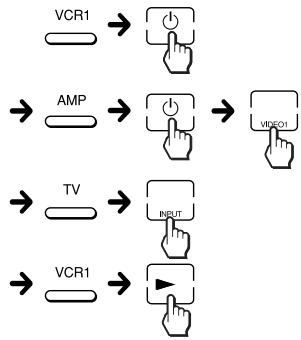
flowchart
graph LR
    A["VCR1"] --> B["Switch"]
    C["AMP"] --> D["Switch"]
    E["TV"] --> F["Switch"]
    G["VCR1"] --> H["Switch"]
    I["Input"] --> J["Switch"]
    K["Video1"] --> L["Switch"]
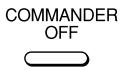
5 When you have programmed all the keys, press COMMANDER OFF.
Notes
- If you interrupt the procedure at any point for over two minutes, the setting mode ends and the series of commands will be programmed to that point. In this case, clear the programme (page 26) and start again from Step 1 to set the entire programme from the beginning. You cannot continue from where you let off.
- If a SYSTEM CONTROL button has already “learned” a remote control signal (page 38), “NG” flashes and you cannot programme on this button. Clear the learned contents first (page 40).
- If you change the component code number (page 8) or programme a new signal by learning (page 16) on a key or button that has been programmed in the series of commands of the System Control function, the new signal will be transmitted when you press the corresponding SYSTEM CONTROL button.
- During Setting mode, the RESET key is not displayed and you cannot clear any operation step you have programmed. If you have programmed an incorrect operation by mistake, start again from Step 1.
Tips for programming the System Control functions
The following information helps you to programme a consecutive operation steps.
About the interval between operation steps
You can change the interval between operation steps (page 30).
Executing a Series of Commands — System Control Functions (continued)
About the order of operation steps
- Some of the components may not accept consecutive remote control signals. For example, a TV generally does not react to next signal right after the Power-on signal. So, a series of commands such as TV Power-on and input select may not work properly. In this case, insert other signals like the example below;
TV Power-on → VCR Power-on → VCR play back → TV input select
- After the series of input commands is executed, the Commander displays the touch-keys of the component of the final step. By programming an often-used component's command as the final step, you can save the step of pressing a Component Select button when you start operating that component. (In the example on page 24, the touch-keys of VCR1 are displayed.)
To clear programmed commands
1 While pressing COMMANDER OFF, press one of the SYSTEM CONTROL 1, 2, or 3 button.
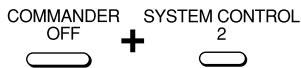
The key operations programmed for that button are displayed in order.
2 While pressing the RESET key, press the same SYSTEM CONTROL button (1, 2, or 3) again.
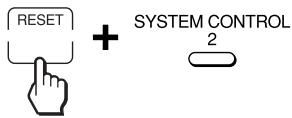
When the contents of its programme are cleared, all the component names flash.

When you want to set a new programme to this SYSTEM CONTROL button, follow Steps 2 to 5 on pages 24 and 25.
To set the SYSTEM CONTROL 1 or 3 button back to the factory setting
At the factory, the SYSTEM CONTROL 1 button is preset with a series of power-off commands for Sony components and the SYSTEM CONTROL 3 button with a series of power-on commands for Sony components. To reset them to the factory settings, follow the steps below.
1 While pressing COMMANDER OFF, press the SYSTEM CONTROL button (1 or 3).
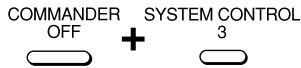
The programmed key operations are displayed in order.
2 While pressing the RESET key, press the SYSTEM CONTROL button (1 or 3).
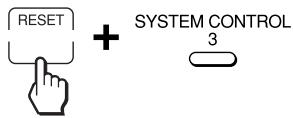
When the contents of its programme are cleared, all the components names flash.
3 While pressing the RESET key, press the SYSTEM CONTROL button (1 or 3) again.
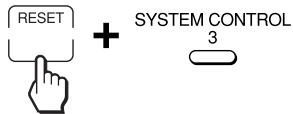
When it is reset to the factory setting, the programmed operations are displayed in order.
Note
The interval setting (page 30) is not reset to the factory setting, even if you perform these steps.
Notes on System Control Operations
- If the remote control detectors of the components are too far apart, or if something is blocking them, some of the components may not operate consecutively even after you press the SYSTEM CONTROL button.
- If some of the components did not operate correctly because of the above or for any other reason, always set all the components back to the states they were in before you pressed the SYSTEM CONTROL button. Failure to do this can result in incorrect operation when you press the SYSTEM CONTROL button again.
- Some components may not always be powered on by the System Control function. This is because the power of the component gets on and off alternatively when receiving the power on/off signal. In this case, check the operating component's power on/off state before using the system control function.
- If the system control function does not work correctly, see also “Tips for programming the System Control functions” on page 25.
Executing a Series of Commands — System Control Functions (continued)
Programming a series of commands to the Component Select buttons
As with the SYSTEM CONTROL buttons, you can also programme a series of operating commands for the Component Select buttons (up to 16 steps).
To execute the commands programmed on a Component Select button by the System Control function, press the button for more than 2 seconds.
Notes
- The programmed commands are executed when you press a Component Select button for more than 2 seconds. When you press the button for less than 2 seconds, it works as the normal Component Select button, and the corresponding touch-keys are displayed.
- See also “Tips for programming the System Control functions” on page 25 and “Notes on System Control Operations” on page 27.
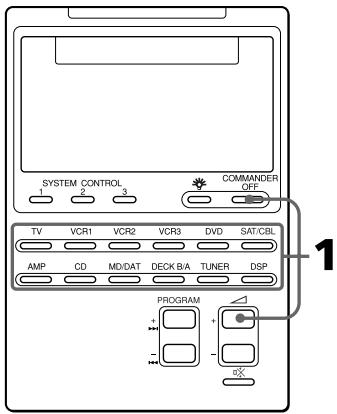
Example: To programme the procedure on page 23 for the VCR3 button
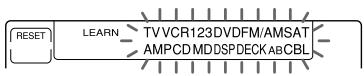
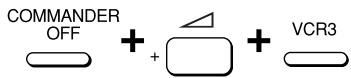
1 While pressing COMMANDER OFF, press + and VCR3.
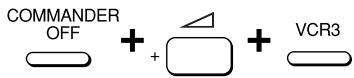
“VCR3” stays lit, and the other component names flash.
If a series of commands is already programmed for that button
The programmed operations are displayed in order. To programme a new series of operations, clear the programme first (page 29).
2 Follow Steps 2 to 5 on pages 24 and 25.
Notes
- You can programme the System Control functions for a Component Select button on which the Power-On function (page 31) has been programmed. In this case, the Power-On function is overwritten and cannot be used. If you clear the System Control functions for the button, the Power-On function is resumed, and you can use it again.
- You cannot programme the System Control functions for a Component Select button for which a signal has been programmed by “learning” (page 32). (“NG” flashes on the display.)
- You can programme a signal for a Component Select button by “learning” (page 32) for which the System Control functions have been programmed. In this case, the System Control function is overwritten and cannot be used. If you clear the “learned” signal on the button, the System Control function is resumed and you can use it again.
- You can programme the Power-On function (page 31) for a Component Select button for which a System Control function has been programmed, but the Power-On function cannot be used. If you clear the System Control function from the button, you can use the Power-On function.
- If you interrupt the procedure at any point for over two minutes, the setting mode ends and the series of commands will be programmed to that point. In this case, clear the programme and start again from Step 1 to set the entire programme from the beginning. You can not continue from where you let off.
- If you change the component code number (page 8) or programme a new signal by learning (page 16) for a key or button that has been programmed with the series of commands of a System Control function, the new signal will be transmitted when you press the corresponding Component Select button.
To clear a System Control function programmed for a Components Select buttons
Example: To clear the programmed commands on the VCR3 button
1 While pressing COMMANDER OFF, press + and VCR3.
2 While pressing the RESET key, press VCR3.
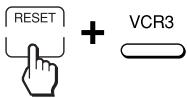
When the contents of its programme are cleared, “VCR3” stays lit, and the other component names flash.
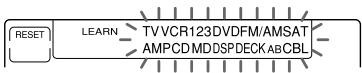
When you want to set a new programme to this Component Select button, follow Steps 1 to 2 on page 28.
Executing a Series of Commands — System Control Functions (continued)
Changing the interval between operation steps
You can control the interval in 4 steps (approx. 127 ms, 408 ms, 708 ms, 974 ms).
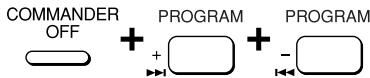
1 While pressing COMMANDER OFF, press PROGRAM + and PROGRAM -.
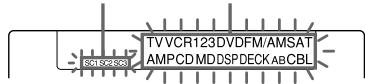
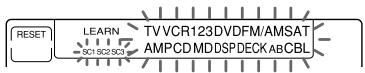
“SC1,” “SC2,” “SC3” and all the component names flash.
Display for the
SYSTEM CONTROL Component
1, 2, 3 buttons names
2 Press one of the SYSTEM CONTROL buttons (1, 2, or 3) or the Component Select button whose interval you want to change.
SYSTEM CONTROL
2

The number of the current setting stays lit and other numbers flash.
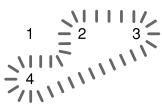
flowchart
graph TD
    A["1"] --> B["2"]
    B --> C["3"]
    C --> D["4"]
    D --> A
3 Press one of the numeric keys (1 - 4) to select the interval.
1: approx. 127 ms (factory setting)
2: approx. 408 ms
3: approx. 708 ms
4: approx. 974 ms
(1 ms: 1/1000 second)

The selected number stays lit and other numbers flash.
4 Press COMMANDER OFF.
COMMANDER
OFF

Adding an Extra Function to the Component Select Buttons
Programming the Power-On command of the selected component (for Sony components only)
When using Sony components, you can programme the Power-on signal for each component on a Component Select button. You can select the desired component and power it on by just pressing that Component Select button.
Example: To programme the TV button
1 While pressing COMMANDER OFF, press △ - and the desired Component Select button.

When the Power-on command is programmed, you will hear a beep and “ON” appears on the display. (The display goes off when you release the buttons.)

To clear the Power-on command
Repeat the procedure above. The following display appears.

Adding an Extra Function to the Component Select Buttons (continued)
Notes
- If the component code of a non-Sony product has been set for a Component Select button, you cannot programme the Power-On function for it.
- Even if you have programmed a signal by “learning” (See “Adding a command that is required when selecting a component.”) or a System Control function (page 28) for a Component Select button, you can programme the Power-On function for that button, but it cannot be used. If you clear a “learned” signal or the System Control function from the button, you can use the Power-On function.
- You can programme a signal by “learning” (page 32) or a System Control function (page 28) for a Component Select button for which the Power-On function has been programmed. In this case, the Power-On function is overwritten and cannot be used. If you clear the “learned” signal or the System Control function from the button, the Power-On function is resumed, and you can use it again. If you have programmed both a signal by “learning” and a System Control function for the button, the “learned” signal will have overwritten the System Control function.
Adding a command that is required when selecting a component
In addition to the original function of selecting the operating keys and buttons of the desired component, the Component Select button can have another remote control signal by “learning.”
For example, if you always have to change input select of the amplifier to CD when listening to the CD player, programme the signal of “changing the amplifier’s input select” to the CD button of this Commander. Then whenever you press the CD button, it automatically works as the original CD Component Select button and changes also the amplifier input select to CD. (In this case, the amplifier should be turned on first.)
Note
Some specific remote control signals may not be learned.
Example: To programme the input select signal of your amplifier to the CD button
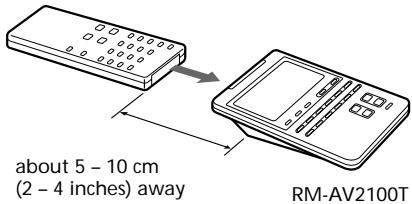
1 Place the RM-AV2100T head to head with your component's remote control.
Remote control of your component
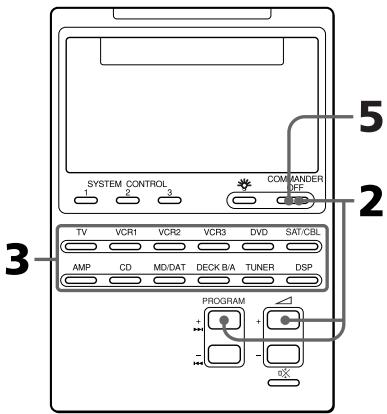
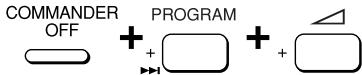
2 While pressing COMMANDER OFF, press PROGRAMME + and
△ +.
“LEARN” appears and all the component names flash.

Note
The name of a Component Select button for which a signal has already been learned stays lit. If you want to programme a new signal for that button by learning, clear the learned signal first (page 34).
3 Press the desired Component Select button.

The selected component name stays lit and “LEARN” flashes.

flowchart
graph LR
    A["RESET"] --> B["LEARN"]
    B --> C["CD"]
4 Press and hold down the button on the component's remote control (amplifier in this example) until you hear a beep. (If you release the button before you hear a beep, the signal may not be learned correctly.)
“LEARN” stops flashing and stays lit.
If "NG" flashes on the display
Learning did not succeed. Try Steps 3 and 4 again.
5 Press COMMANDER OFF.
Adding an Extra Function to the Component Select Buttons (continued)
To clear the learned function of the Component Select button
1 While pressing COMMANDER OFF, press PROGRAM + and + .
2 While pressing the RESET key, press the Component Select button which you want to clear.
Notes
- You can programme a signal by “learning” for a Component Select button for which a System Control function (page 28) or the Power-On function (page 31) has been programmed. In this case, the System Control function or the Power-On function is overwritten and cannot be used. If you clear the “learned” signal from the button, the System Control function or the Power-On function is resumed, and you can use it again.
- You cannot programme a System Control function (page 28) for a Component Select button for which a signal has been programmed by “learning.”
- You can programme the Power-On function for a Component Select button for which a signal has been programmed by “learning,” but then the Power-On function cannot be used. If you clear a “learned” signal from the button, you can use the Power-On function.
Turning Off the Power of All Components with the Touch of a Single Button
— System Power-Off Function (for Sony Components only)
When the System Power-Off function is active, you can turn off all Sony components just by pressing the COMMANDER OFF button for three seconds.
Notes
- Some Sony components may not be turned off with this function.
- The power-off signals are transmitted at intervals that are set for the System Control function set for the SYSTEM CONTROL 1 button (page 30). If you change the interval for the SYSTEM CONTROL 1 button, the interval of the System Power-Off function is also changed.
To set the System Power-Off function
1 While pressing COMMANDER OFF, press PROGRAM - and △ +.
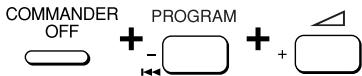
When the System Power-Off function is set, “OFF” appears on the display. (The display goes off when you release the buttons.)

To cancel the System Power-Off function
Repeat the procedure above. The following display appears when the System Power-Off function is disabled.

Assigning Other Components to the Component Select Buttons
You can assign another component to any Component Select button. For example, if you have two VCRs and two CD players, you can use the VCR3 button as the Component Select button for your second CD player.
Notes
- Once you assign another component to a Component Select button, the setting of the component code number will be erased. The component code number will not return even if you reset the newly assigned component and turn back to the original component.
- If you have assigned another components to the TV or AMP button, the volume of the TV or amplifier cannot be controlled (page 14, 22) even when you select another component.
- If you use the DECK B/A button, deck B is always selected.
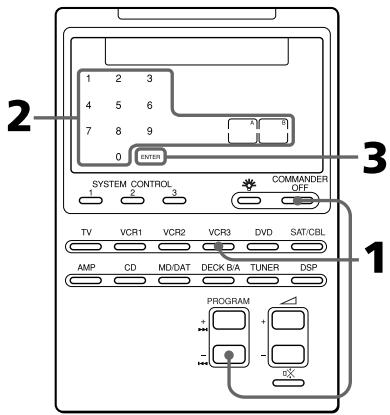
Assigning Other Components to the Component Select Buttons (continued)
Example: To assign a CD player to the VCR3 button
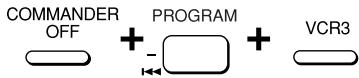
1 While pressing COMMANDER OFF, press PROGRAM – and VCR3.
The number 0 - 9, “A”, “B” and “ENTER” flash.
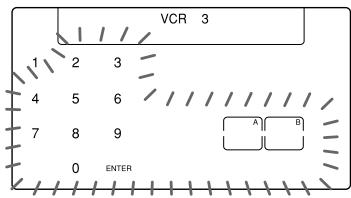
2 Press one of the following keys to select a new component to assign. In this example, press the 5 key to select CD.
1: VCR 7: MD
2: VD 8: TV
3: SAT 9: CBL
4: AMP 0: DVD
5: CD A: FM/AM
6: DECK B: DSP

3 Press the ENTER key.

“VCR3” (the original component), “CD” (the new component) and “ENTER” appear twice.
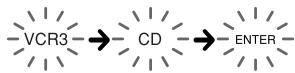
flowchart
graph LR
    A["VCR3"] --> B["CD"]
    B --> C["ENTER"]
4 • If the newly assigned component is a Sony component, press COMMANDER OFF to finish this procedure.
- If you need to set the component code, follow the steps on pages 8 and 9.
- If you need to programme some signals by the “learning” function, follow the Steps 1 to 6 on pages 16 and 17.
Note
If "NG" flashes on the display when you press the Component Select button at Step 1, you can not assign another component because some of the keys or buttons are already programmed with the learning function (page 32). Try the above procedure again after clearing the learned signals for that component.
To use the Commander after assigning other components
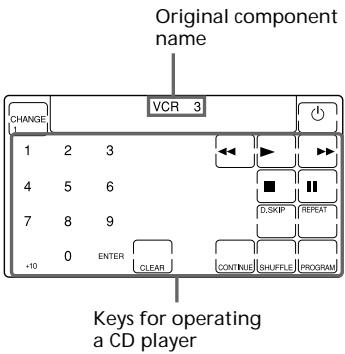
Press the reassigned Component Select button. The keys of the new component are displayed and you can use the desired component. Note however that only the original component name is displayed.
(In this example, the display would be like the one below.)
To reset a Component Select button to its original setting
1 While pressing COMMANDER OFF, press the Component Select button which you want to reset.
2 While pressing the CHANGE key, press that Component Select button again.
The setting for that Component Select button returns to the factory setting.
3 Press COMMANDER OFF.
Note
If you have programmed some signals on any of the keys or buttons with the learning function (page 16) after you reassigned your component, the two steps above only clears the “learned” signals. In this case, perform Step 2 again to reset to the original Component Select button.
Copying the settings of a Component Select button to another button
You can copy the entire settings of a Component Select button to another Component Select button. The settings of the component code (page 8) and the learned functions (page 16) are copied to a new button.
Note
You cannot copy the settings to a Component Select button for which any learning function has been programmed. ("NG" flashes.)
Assigning Other Components to the Component Select Buttons (continued)
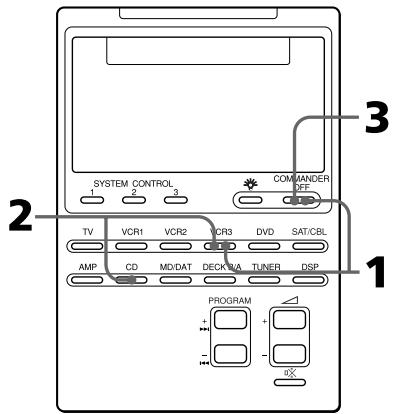
Example: To copy the settings of the CD button to the VCR3 button
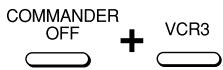
1 While pressing COMMANDER OFF, press VCR3.
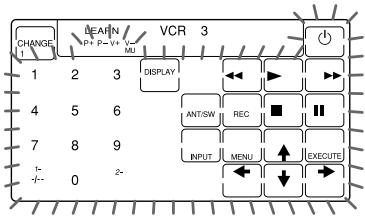
The keys for that component (VCR3) flash.
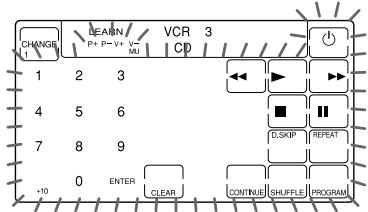
2 While pressing VCR3, press CD.
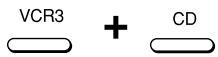
The keys for CD flash.
3 Press COMMANDER OFF.
Programming a Frequently Used Key Operation for SYSTEM CONTROL Buttons
In addition to their original System Control functions (page 23), SYSTEM CONTROL 1, 2 or 3 buttons can be programmed to “learn” any remote control signal.
As they operate independently from other buttons, SYSTEM CONTROL 1, 2 or 3 buttons can work as one-touch buttons without any preceding operation such as pressing a Component Select button to select a component.
This is useful if you prefer having the SYSTEM CONTROL button as a “one-touch” button for a single operation rather than executing a series of commands.
Note
Some specific remote control signals may not be learned. Refer to the operating instructions supplied to the specific remote control as well.
Example: To store the On/Off signal of an air-conditioner to the SYSTEM CONTROL 2 button
1 Place the Commander head to head with the remote control of the air-conditioner.
Remote control of your air-conditioner
2 While pressing COMMANDER OFF, press PROGRAM + and △+.
“LEARN” appears and the display that stands for the learnable SYSTEM CONTROL buttons flashes in the display panel.
If a signal has been learned on that button, the display stays lit. If you want to programme on that button, clear the signal first (page 40).
3 Press the SYSTEM CONTROL button you want to teach.
“LEARN” flashes and the display for the pressed SYSTEM CONTROL button stays lit.

flowchart
graph LR
    A["RESET"] --> B["LEARN SC2"]
4 Press and hold down the button of the remote control until you hear a beep.
(If you release the button before you hear a beep, the signal may not be learned correctly.)
AIR CONDITIONER

“LEARN” display stops flashing and stays lit.
If "NG" flashes on the display Learning did not succeed. Try Steps 3 and 4 again.
5 Press COMMANDER OFF.
Programming a Frequently Used Key Operation for SYSTEM CONTROL Buttons (continued)
Note
You can programme a remote control signal for a SYSTEM CONTROL button by “learning” for which the System Control functions have been programmed. In this case, the System Control functions are overwritten and cannot be used. If you clear the “learned” signal from the button, the System Control function, are restored, and you can use them again.
To clear the learned remote control signal
1 While pressing COMMANDER OFF, press PROGRAM + and + .
2 While pressing the RESET key, press the SYSTEM CONTROL button (1, 2, or 3).
3 Press COMMANDER OFF.
The display for that button flashes.
If you want to programme a new signal for that button, follow Steps 3 to 5.
Notes on learning the signals of an air-conditioner
About seasonal adjustments
If you change the settings of the air-conditioner for the season, you have to programme the remote control signals of the new settings on the Commander.
If the power-on/off operation does not work correctly
The air-conditioner may not be turned on or off properly with the button of this Commander, for which you have programmed its power-on/off signal. If the Commander can operate only “ON” with one button and “OFF” with another, while your air-conditioner’s remote control can operate “ON/OFF” with a single button, programme the signal on two buttons of the Commander as follows.
1 Clear the learned power-on/off signal. (In the example on page 39, clear the learned signal from the SYSTEM CONTROL 2 button.)
2 Programme the signal (transmitted from the power-on/off button of the air-conditioner's remote control) for the SYSTEM CONTROL 2 button again.
3 Programme the signal from the same button of the remote control for another button (for example, the SYSTEM CONTROL 3 button).
The two buttons of the Commander have been programmed with the power-on signal and the power-off signal of the air-conditioner, respectively so that you can operate the air-conditioner with the Commander.
Transferring Data between Remote Commanders
You can transfer data, such as learned signals and component code settings, between this Commander and another Sony RM-AV2100T or a Sony RM-VL900T remote commander.
Note on remote commanders
Data can be transferred between this commander and another Sony RM-AV2100T or RM-VL900T remote commander. You cannot transfer data between this commander and the commander other than Sony RM-AV2100T and RM-VL900T.
Transferring data
You can transfer the all data of this Commander or the data of a Component Select button on this Commander to another Sony RM-AV2100T or RM-VL900T.
To transfer the all data of the Commander
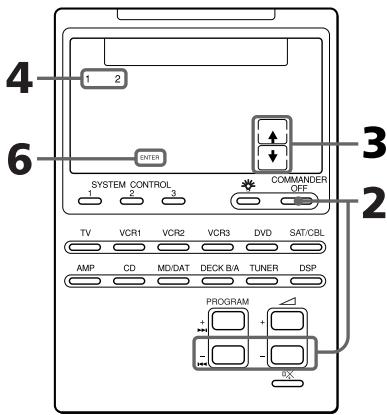
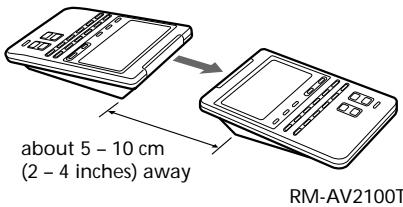
1 Place the RM-AV2100T head to head with another remote commander.
Another remote commander
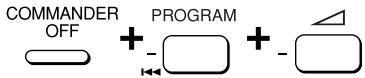
2 While pressing COMMANDER OFF, press PROGRAM – and
∠ - .
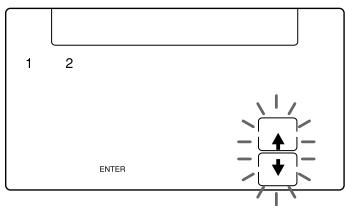
3 Press the key.

↑: Transfer data
↓: Receive data
Transferring Data between Remote Commanders (continued)
4 Press the 1 key.

1: All data of the Commander
2: Data of a Component Select button
5 Confirm that the receiving remote commander is ready for data.
(To set the receiving commander, follow the procedure on page 43.)
6 Press the "ENTER" key.

As the data is transferred, the corresponding component name goes off. If the all data has been successfully transferred, the backlight of the display turns off.
Note
If “NG” appears while sending the data, go back to Step 5 and continue the operation or press COMMANDER OFF to stop the operation.
Note
Be sure that the receiving remote commander is ready to receive data.
To transfer the data of a Component Select button
The data of a Component Select button on this Commander (the settings and learned signals programmed on the keys and buttons) can be transferred to a Component Select button on another Sony RM-AV2100T or RM-VL900T.
1-3 Perform Steps 1 to 3 on page 41.
4 Press the 2 key.

5 Press the Component Select button whose data you want to send.

6 Confirm that the receiving remote commander is ready to accept data.
(To set the receiving commander, follow the procedure on page 43.)
7 Press the "ENTER" key.

When the data has been transferred, "TV" and "↑" go off. If the data have been successfully transferred, the backlight of the display turns off.
Note
If “NG” appears while sending the data, go back to Step 6 and continue the operation or press COMMANDER OFF to stop the operation.
Notes
- The data of the “learned” signal and the System Control function programmed for a Component Select button cannot be transferred.
You can use the learning function (page 32) to programme the “learned” signal and the System Control functions programmed for a Component Select button on another remote commander. - Be sure that the receiving remote commander is ready to receive data.
Receiving the data
This Commander can receive the data of another Sony RM-AV2100T or RM-VL900T.
To receive the all data from another remote commander
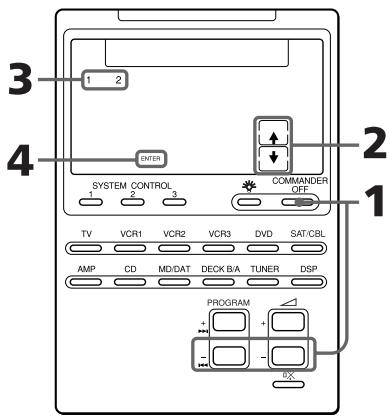
1 While pressing COMMANDER OFF, press PROGRAM – and
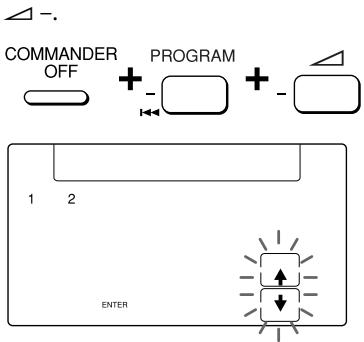
Transferring Data between Remote Commanders (continued)
2 Press the ↓ key.

↑: Transfer data
↓: Receive data
3 Press the 1 key.

1: All data of the Commander
2: Data of a Component Select button
4 Press the ENTER key.

As the data is received, the corresponding component name stays lit. If the all data have been successfully received, the backlight of the display turns off.
Notes
- If the Commander is not ready for receiving the data, press CLEAR key, then EXECUTE key to clear the learned signal on all or one of the Component Select buttons.
- If “NG” appears during data transfer, go back to Step 3 and continue the operation or press COMMANDER OFF to stop the operation. If you continue the operation, you have to set the sending remote commander again to send data.
To receive the data of a Component Select button from another remote commander
1-2 Perform Steps 1 and 2 on pages 43 and 44.
3 Press the 2 key.

4 Press the Component Select button to which want to assign the data.

5 Press the ENTER key.

When the data have been received, "TV" and "↓" go off. If the data have been successfully received, the backlight of the display turns off.
Notes
- If the Commander is not ready for receiving the data, press CLEAR key, then EXECUTE key to clear the learned signal on all or one of the Component Select buttons.
- If “NG” appears during data transfer, go back to Step 3 and continue the operation or press COMMANDER OFF to stop the operation. If you continue the operation, you have to set the sending remote commander again to send data.
Locking the Controls
— Hold Function
To prevent accidental operation, you can lock all the buttons with the Hold function.
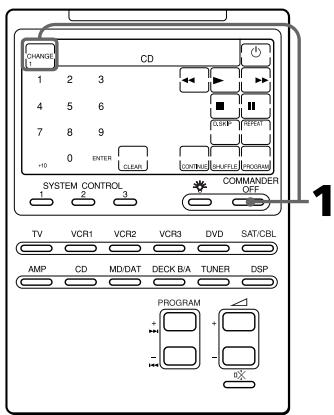
If the CHANGE key is not displayed, press any button (except the SYSTEM CONTROL or COMMANDER OFF buttons) before you start.
1 While pressing the CHANGE key, press COMMANDER OFF.
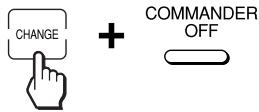
"OFF" is displayed.

flowchart
graph TD
    A["OFF"] --> B[" "]
To unlock the control
While pressing the OFF key, press COMMANDER OFF.
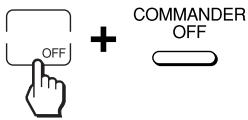
“OFF” disappears from the display.
Protecting your settings
— Preset Lock Function
You can lock the Commander so that you can not change, add, or clear any of your component code settings (page 8).
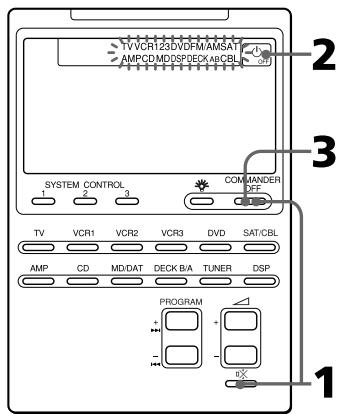
1 While pressing COMMANDER OFF, press ☐.
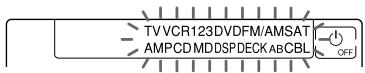
COMMANDER
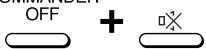
All the component names flash and “OFF” appears.
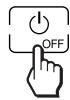
2 Press the ⏻ OFF key.
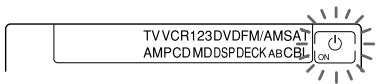
All the component names stop flashing and stay lit, and “ON” flashes.
3 Press COMMANDER OFF.
COMMANDER
OFF

When the preset lock is on
If you try to set a component code number (page 8) or perform learning for the Component Select buttons (page 32), "NG" will flash on the display.
To unlock the preset lock
To unlock the preset lock, follow the same procedure as the above and press the ⏻ ON key in Step 2. “◀ OFF” appears on the display.
Changing the Auto Power-Off Time of the Commander
The Commander is preset at the factory to switch the power off automatically after 10 minutes if left unused (Auto Power-Off). To change this time, perform the following procedure.
You can set the Auto Power-Off time up to 90 minutes, in units of 10 minutes, or disable the Auto Power-Off function.
Note
The Auto Power-Off function only turns off the power of the Commander, but not of the component.
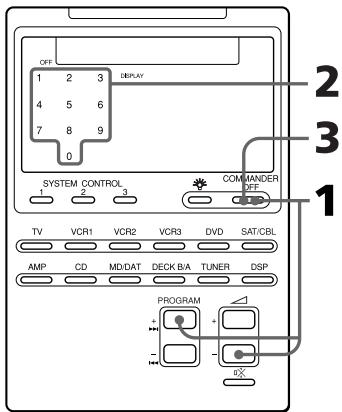
1 While pressing COMMANDER OFF, press PROGRAM + and -.
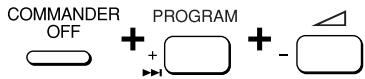
The number which shows the current Power-Off time of the Commander stays lit, and other numbers flash.
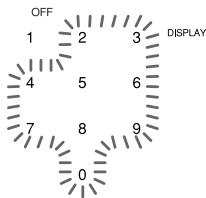
2 Press one of the 1 - 9 keys to select the Auto Power-Off time, or press the 0 key to disable the Auto Power-off function.
For example, to set the Auto Power-Off time to 20 minutes, press the 2 key.

“2” stops flashing and stays lit.
3 Press COMMANDER OFF.
Adjusting the Backlight of the Display Window
The Commander is preset at the factory to bright backlight, and to switch off the backlight automatically after 10 seconds. To change this setting, perform the following procedure.
You can adjust the backlight Automatic-Off time (from 10 seconds to 90 seconds in the units of 10 seconds) and the brightness (bright or dim).
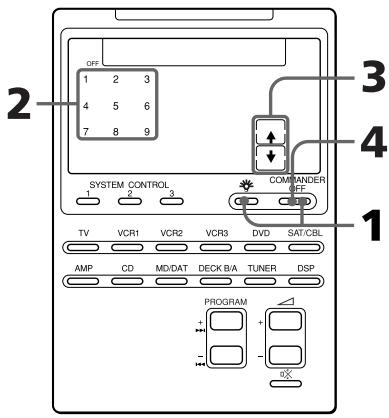
1 While pressing COMMANDER OFF, press 🔊.
The number which shows current Automatic-Off time and the arrow indicating the current brightness of the backlight stay lit. Other numbers and the opposite arrow will flash.
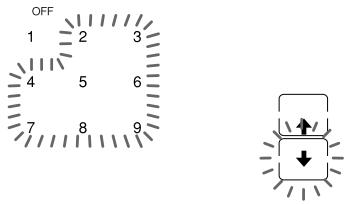
2 Press one of the 1 - 9 keys to select the Off time.
For example, to set the Automatic-Off time to 20 seconds, press the 2 key.

“2” stops flashing and stays lit.
3 Press the or key, to select the brightness.
To brighten, press , to dim, press .

The chosen arrow stays lit.
4 Press COMMANDER OFF.
Setting the Key-Touch Beep
You can turn on or off the key-touch confirmation beep.
To turn on the key-touch beep
1 While pressing COMMANDER OFF, press ☐.
COMMANDER
OFF


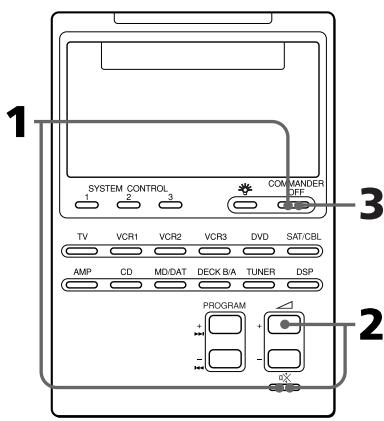
2 While pressing ☐, press ∠ +.
“ON” appears on the display.
natural_image
Simple line drawing of a rectangular shape with an internal rectangle and 'ON' label (no text or symbols beyond the label)3 Press COMMANDER OFF.
COMMANDER
OFF

To turn off the key-touch beep
In Step 2, while pressing ☐, press ∠ -.
“OFF” appears on the display.
natural_image
Simple line drawing of a rectangular shape with an 'OFF' label on the right side (no other text or symbols)Changing the Touch-Key Display
Each Component Select button has two types of touch-key displays: the full-function display and the basic-function display. On the basic-function display, only the keys that are used for basic operations are displayed.
You can modify the basic-function display by setting only the desired keys on it (See “To display only the desired keys.”).
To change the display type
1 Press the CHANGE key for any Component Select key.
Each time you press the CHANGE key, the display type changes.
“CHANGE 1” appears when the full-function display is selected.

flowchart
graph LR
    A["CHANGE 1"] --> B["TV"]
“CHANGE 2” appears when the basic-function display is selected.

flowchart
graph LR
    A["CHANGE 2"] --> B["TV"]
Notes
- You can select only one of the display types for all Component Select buttons. If you change the display type to the basic-function ("CHANGE 2") display for a Component Select button, the displays for all other Component Select buttons are also changed to the same type ("CHANGE 2").
- The number of keys displayed on the full-function display varies according to the component codes preset for the Component Select buttons. For components that have few keys in the full-function display, the basic-function display can be the same as the full one. In this case, you cannot modify the basic-function display (See “To display only the desired keys.”).
- A key that has learned any signal is always displayed both in the full- and basic-function displays.
To display only the desired keys
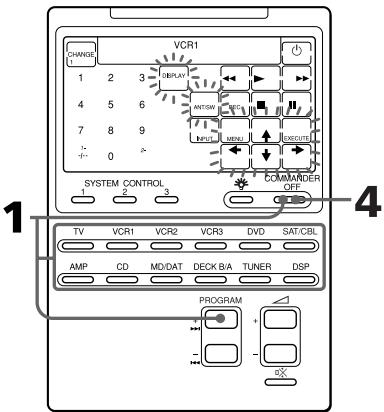
You can set only the desired keys on the basic-function display. It makes operations easier, because only the keys you will use are displayed.
1 While pressing COMMANDER OFF, press PROGRAM + and the Component Select button whose display you want to modify.
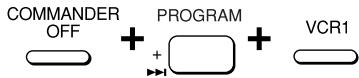
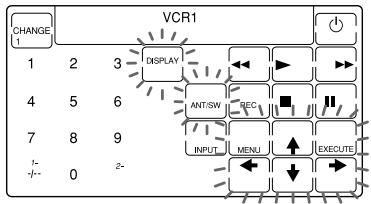
2 Press the key you want to display.

Each time the key is pressed, it is selected and deleted alternately. A selected key stops flashing and stays lit.
3 Repeat Step 2 until all necessary keys are set.
4 Press COMMANDER OFF.
Note
For components that have few keys on the full-function display, the basic-function display can be the same as the full one. In this case, you cannot modify the basic-function display.
To clear the settings on the basic-function display
1 While pressing COMMANDER OFF, press PROGRAM + and a Component Select button.
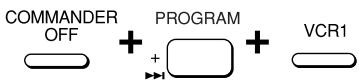
2 While pressing the CHANGE key, press the Component Select button again.
3 Press COMMANDER OFF.
Note
If you clear the settings on the basic-function display using the procedure above, the display returns to its original key settings. It doesn't clear the learned signals from keys.
Precautions
- Do not drop the unit or give a shock to the unit, or it may cause a malfunction.
- Do not leave the unit in a location hear heat sources, or in a place subject to direct sunlight, excessive dust or sand, moisture, rain or mechanical shock.
- Do not put foreign objects into the unit. Should any liquid or solid object fall into the unit, have it checked by qualified personnel before operating the unit any further.
- Do not expose the remote control detectors of your components to direct sunlight or other strong illumination. Too much light there can interfere with remote control operations.
- Be sure to place the Commander out of the reach of small children or pets. Components such as air conditioners, heaters, electric appliances, and electric shutters or curtains receiving an infrared signal can be dangerous if misused.
Maintenance
Clean the surface with a soft cloth slightly moistened with water or a mild detergent solution. Do not use any type of solvent such as alcohol, benzine or thinner as they may damage the finish of the surface.
Specifications
Operating distance
Approx. 10 meters (32.8 ft.) (varies depending on components of different manufacturers)
Power requirements
Remote control and backlight: Four R6 (size AA) batteries
Battery life
Approx. 5 months (varies depending on frequency of use)
Dimensions
Approx. 120 × 175 × 45 mm (w × h × d) (4^3/4 × 7 × 1^13/16 in.)
Mass
290 g (10.22 oz.) (not including batteries)
Learnable signals\*
Capacity per signal: up to 250 bit Signal frequency range: up to 500 kHz Signal interval: up to 1 second.
* Some signals cannot be learned by the Commander, even though the signals comply with these specifications.
Design and specifications are subject to change without notice.
CE
The CE mark on the unit is valid only for products marketed in the European Union.
Troubleshooting
If you have problems setting up or using the Remote Commander, first check the batteries (page 6), then check the items below.
| Symptom | Remedy |
| You cannot operate the components. | Go closer to the component. The maximum operating distance is approximately 10 m (32.8 ft.).Check that you are aiming the Commander directly at the component, and that there are no obstructions between the Commander and the component.Power on the components first, if necessary.Make sure you have pressed the correct Component Select button. In case of SAT/CBL, DVD or DECK B/A, make sure the desired component is displayed.Check that the component has infrared remote capability. For example, if your component didn’t come with a remote commander, it probably isn’t capable of being controlled by a remote commander.You have assigned a different component to the Component Select button. Check the component assigned to that button and the component code. |
| You cannot control the volume. | If your visual components are connected to an audio system, make sure you’ve set up the Commander as described in “Controlling the Volume of Visual Components Connected to an Audio System” (page 22).You have assigned another component to the TV or AMP button (page 35). In this case, the volume cannot be controlled when you select a component other than TV or AMP. |
| You cannot operate the components even after setting the component code numbers. | Set the component code correctly. If the code that is listed first for your component doesn’t work, try all the codes for your component in the order in which they are listed in the supplied “Component Code Numbers”.Some features may not be preset. If some or all of the keys do not function correctly even after you have set the component codes, then use the learning function to programme the remote control signals for the component (page 16).The component may be operated with a code number that is not listed in the “Component Code Numbers”. See “Finding a component code with the Search function” (page 11) and try setting a code number again. |
| The Commander fails to learn the remote control signals. | When you teach signals of an interactive signal exchange system remote control unit (supplied with some of Sony’s receivers and amplifiers) to the Commander, the response signal of the main unit may interfere with the learning of the Commander. In such a case, move to a place where the signals will not reach the main unit (e.g. other rooms, etc.). |
| You cannot operate a component even after you programmed the remote control signals with the “learning” function. | Make sure that the Remote Commander has learned the correct signals. If not, see “For accurate learning” (page 20) and try the learning procedure again (page 16). |
| You hear beeps (“pip, pip, pip, pip, pip”) and “NG” flashes. | Learning has not succeeded. See “For accurate learning” (page 20) and try the learning procedure again (page 16).The component codes cannot be set. See the supplied “Component Code Numbers” and try setting the component codes again (page 8).The data have not been transferred. See “Transferring data” (page 41) and try transferring the data again.The data have not been received. See “Receiving the data” (page 43) and try receiving the data again. |
| You hear beeps (“pip, pip”) and “NG” flashes. | The Preset Lock function is on. Unlock the Preset Lock function (page 48), and try the component code setting or the learning function.Signals have been programmed for that Component Select or SYSTEM CONTROL button using the learning function. Clear the learned signals (page 34, 40) and try programming the System Control function again.Signal has been programmed for that key using the learning function. Clear the signal(s) (pages 20 and 21) and try programming the function or the display for the same key again, or try with another Component Select button.There are some keys, on which signals have been programmed, on the display for the Component Select button of the Commander when the commander receives the data from another Commander. Clear the signals (pages 20, 21 and “Notes” on page 44) and try receiving the data again. |
| “NG” appears during learning. | Clear infrequently used learned keys (page 20), then carry out learning operations. |
| A system control programme does not function correctly. | Make sure that you have programmed the commands in the correct order (page 23).Try changing the orientation of the Commander. If that does not help, try placing the components as close to each other as possible.Check the status of the components and make sure that you have set the components properly to receive commands (page 27).The component codes are changed or a new signals have been learned for a key or button that has been programmed with a series of commands. In this case, the new signals are transmitted when the series of commands is executed.The interval may be too short. See “Changing the interval between operation steps” (page 30) and set a longer interval. |
| The power of the Commander turns off by itself. | This Commander is preset at the factory to switch the power off automatically after 10 minutes if left unused. (Auto Power-Off, page 47) You can change the power-off time from 10 to 90 minutes, or set the Commander not to power off automatically. |
| The power of the Commander does not turn on when you press a button. | The Hold function is on (“OFF” appears on the display). Unlock the Hold function (page 45). |
| Your Commander does not work as expected after data transfer. | Data transfer to/from a single button cannot transfer System Control functions that are learned by Component Select buttons. Either set up the learned Commander from the start, or perform whole data transfer. |
Note on the data transmission with Sony RM-AV2100T
When transferring data between this commander and another Sony RM-AV2100T remote commander, some functions may not be able to be transferred (e.g. system control function).
Table of Preset Functions
Note
There may be some components or functions that cannot be operated with this Commander.
TV
| KEY DISPLAY | FUNCTION |
| To turn the power on/off | |
| 1 - 9, 0 | To change the programme Also to turn on |
| 1-, -/ - - | To select doble-digit numbers. Works in the same way as the TV's commander. |
| 2- | To select a number between 20 and 29 |
| RED, GREEN, YELLOW, BLUE | Fastext buttons |
| TELETEXT | To switch to teletext |
| TV | To turn on. To return from teletext to TV. |
| INPUT | To change the input mode |
| 16:9 | To switch to WIDE |
| MENU | To call up the MENU display |
| To move the cursor upward | |
| To move the cursor downward | |
| To move the cursor to the right | |
| To move the cursor to the left | |
| EXECUTE | To enter the selection of the MENU display |
| PIP ON/OFF | To turn on/off the “window” picture |
| PIP CH +/- | To change the TV programme in the “window” picture |
| PIP MOVE | To move the location of the “window” picture |
| PIP SWAP | To swap the “main” picture and the “window” picture |
| KEY DISPLAY | FUNCTION |
| PROGRAM +/- | Programme up: + |
| Programme down: - | |
| RECALL | To operate JUMP function on the TV depending on the setting of the TV's manufacturer |
| Δ+/- | Volume up: + |
| Volume down: - | |
| ※ | To mute the volume on the TV. Press again to turn muting off. |
Using Fastext
With Fastext you can access pages with one key stroke. When a Fastext page is broadcast, a colour-coded menu will appear at the bottom of the screen. The colours of this menu correspond to the red, green, yellow and blue keys on the Remote Commander.
Press the key which corresponds to the colour-coded menu. The page will be displayed after some seconds.
VCR 1, 2, 3
| KEY DISPLAY | FUNCTION |
| To turn the power on/off | |
| 1 - 9, 0 | To change the programme Also to turn on |
| 1-, -/ - - | To select doble-digit numbers. Works in the same way as the TV's commander. |
| 2- | To select a number between 20 and 29 |
| INPUT | To change the input mode |
| DISPLAY | To activate the on-screen display |
| ANT/SW | To switch the aerial output |
| MENU | To call the MENU display |
| To move the cursor upward | |
| To move the cursor downward | |
| To move the cursor to the right | |
| To move the cursor to the left | |
| EXECUTE | To enter the selection of the MENU display |
| To rewind | |
| To play | |
| To fast-forward | |
| REC | To record, press while pressing REC.* First release , then release REC. |
| To stop | |
| To pause | |
| PROGRAM +/- | Programme up: + |
| Programme down: - |
* In order to avoid recording by mistake, the REC key does not work by itself. You can assign this operation (record) to a single key using the learning function (page 16).
DVD
| KEY DISPLAY | FUNCTION |
| To turn to the power on and off | |
| 1 – 9, 0 | Number buttons: To set items selected from the screen |
| +10 | To select numbers 10 and above |
| ENTER | To enter a setting or to set items selected from the screen |
| AUDIO | To change the sound |
| DISPLAY | To show the current play status on the screen |
| ANGLE | To switch angle |
| CLEAR | To clear the selected characters from the screen |
| RETURN | To return to the last previous screen |
| TITLE | To display the title menu |
| SUB TITLE | To switch the subtitle |
| DVD MENU | To display the DVD menu |
| To move the cursor upward | |
| To move the cursor downward | |
| To move the cursor to the right | |
| To move the cursor to the left | |
| EXECUTE | To execute items selected from the screen |
| To rewind | |
| To play | |
| To fast-forward | |
| To stop | |
| To pause | |
| To proceed to the next location or song | |
| To proceed to the previous location or song | |
| VD (Video disc player) | |
| KEY DISPLAY | FUNCTION |
| + | To turn the power on/off |
| 1 - 9, 0 | To select the track number (0 selects track 10)To select track numbers above 10, see the descriptions on the +10 button below |
| +10 | To select numbers 10 and above |
| ENTER | To enter the setting |
| DISPLAY | To show the current play status on the screen |
| CLEAR | To clear the selected characters from the screen |
| A | To select disc side A |
| B | To select disc side B |
| ◀◀ | To rewind |
| ▶ | To play |
| ▶▶ | To fast-forward |
| ■ | To stop |
| || | To pause |
| ▶▶| | To proceed to the next location or song |
| |◀◀ | To proceed to the previous location or song |
| CBL (Cable box) | |
| KEY DISPLAY | FUNCTION |
| To turn the power on/off | |
| 1 - 9, 0, ENTER | To change the programme For example, to change to programme 5, press 0 and 5 (or , press 5 and ENTER) |
| PROGRAM +/- | Programme up:+ |
| Programme down: - | |
| RECALL | To operate JUMP, FLASHBACK or CHANNEL RETURN function |
SAT (Satellite tuner)
| KEY DISPLAY | FUNCTION |
| To turn the power on/off | |
| 1 - 9, 0 | To change the programme Also to turn on |
| 1-, -/ - - | To select double-digit numbers. |
| RED, GREEN, YELLOW, BLUE | Fastext buttons |
| TELETEXT | To switch to teletext |
| INPUT | To switch the output of the SAT receiver to the TV (When you connect a TV cable or anntenna to the receiver, the output switches between a TV and SAT programme) |
| EPG | To show or hide the EPG display |
| GUIDE | To bring up Master Guide |
| EXIT | To exit the mode |
| MENU | To call up the MENU display |
| To move the cursor upward | |
| To move the cursor downward | |
| To move the cursor to the right | |
| To move the cursor to the left | |
| EXECUTE | To bring up the Station Index when a programme guide is not displayedTo select the programme that is highlighted |
| PROGRAM +/- | Programme up: + |
| Programme down: - | |
| RECALL | To return to the last tuned station |
AMP (Amplifier)
| KEY DISPLAY | FUNCTION |
| To turn the power on/off | |
| 1 - 9, 0 | To use the key directly |
| ENTER | To enter the setting |
| VIDEO 1 | To select the input source:VIDEO 1 |
| VIDEO 2 | To select the input source:VIDEO 2 |
| VIDEO 3 | To select the input source:VIDEO 3 |
| AUX/VDP | To select the input source:VDP (LD) |
| DVD | To select the input source: DVD |
| TV | To select the input source: TV |
| CD | To select the input source: CD |
| MD/DAT | To select the input source: MD |
| FM/AM | To select the input source: FM/AM |
| TAPE | To select the input source: TAPE |
| PHONO | To select the input source: PHONO |
| MENU | To call up the MENU display |
| To move the cursor upward | |
| To move the cursor to the left | |
| To move the cursor to the right | |
| To move the cursor downward | |
| EXECUTE | To enter the selection of the MENU display |
| SHIFT | To shift band or preset select |
| PROGRAM +/- | Presetting or tuning frequency to a higher: + |
| Presetting or tuning frequency to a lower: - | |
| Δ+/- | Volume up: + |
| Volume down: - | |
| ※ | To mute the volume on the AMPPress again to turn muting off. |
CD
| KEY DISPLAY | FUNCTION |
| To turn the power on/off | |
| 1 – 9, 0 | To select the track number (0 selects track 10)To select track numbers above 10, see the descriptions on the +10 button below. |
| +10 | To select numbers 10 and above |
| ENTER | To enter the setting |
| D.SKIP | To select next disk |
| REPEAT | To select repeat play mode |
| CONTINUE | To select continuous play mode |
| SHUFFLE | To play in random order |
| PROGRAM | To use for programme play |
| CLEAR | To clear the setting |
| ◀◀ | To rewind |
| ▶ | To play |
| ▶▶ | To fast-forward |
| ■ | To stop |
| || | To pause |
| ▶▶| | To select the next track |
| |◀◀ | To select the previous track |
MD
| KEY DISPLAY | FUNCTION |
| To turn the power on/off | |
| 1 – 9, 0 | To select the track number (0 selects track 10)To select track numbers above 10, see the descriptions on the +10 button below. |
| +10 | To select numbers 10 and above |
| ENTER | To enter the setting. |
| D.SKIP | To select the next disc |
| DISPLAY | To switch the display mode |
| CONTINUE | To select continuous play mode |
| SHUFFLE | To play in random order |
| PROGRAM | To use for programme play |
| CLEAR | To clear the setting |
| ◀◀ | To rewind |
| ▶ | To play |
| ▶▶ | To fast-forward |
| REC | To record, press ▶ while pressing REC.*First release ▶, then release REC. |
| ■ | To stop |
| ■ | To pause |
| ▶▶ | To select the next track |
| ◀◀ | To select the previous track |
* In order to avoid recording by mistake, the REC key does not work by itself. You can assign this operation (record) to a single key using the learning function (page 16).
* In order to avoid recording by mistake, the REC key does not work by itself. You can assign this operation (record) to a single key using the learning function (page 16).
DAT
| KEY DISPLAY | FUNCTION |
| To turn the power on/off | |
| 1 - 9, 0 | To select a programme number |
| ENTER | To enter the setting |
| DISPLAY | To switch the display mode |
| ◀◀ | To rewind |
| ▶ | To play |
| ▶▶ | To fast-forward |
| REC | To record, press ▶ while pressing REC.*First release ▶, then release REC. |
| ■ | To stop |
| ■■ | To pause |
| ○ | Record muting |
| ▶▶■ | To proceed to the next song |
| ■◀◀ | To proceed to the previous song |
| DECK B/A (Tape deck) | |
| KEY DISPLAY | FUNCTION |
| ⏻ | To turn the power on/off |
| ◀◀ | To rewind |
| ◀◀ | To reverse |
| ▶ | To play |
| ▶▶ | To fast-forward |
| REC | To record, press ▶ while pressing REC.*First release ▶ , then release REC. |
| To stop | |
| To pause | |
| Record muting | |
| A/B | To select the tape deck: Deck A or B (dual cassette deck only) |
FM/AM (TUNER) (FM/AM tuner)
| KEY DISPLAY | FUNCTION |
| ⏻ | To turn the power on/off |
| 1 – 9, 0 | Number buttons |
| +10 | To select numbers 10 and above |
| ENTER | To enter the setting |
| BAND | To select FM/AM |
| ▶ | Tuning up |
| ◀ | Tuning down |
| SHIFT | To shift bands or preset select |
| A | To select the page group A of preset |
| B | To select the page group B of preset |
| C | To select the page group C of preset |
| PROGRAM +/- | Presetting or tuning to a higher frequency: + |
| Presetting or tuning to a lower frequency: - |
DSP (Digital Surround Processor)
| KEY DISPLAY | FUNCTION |
| To turn the power on/off | |
| T.TONE | To make a test tone |
| SOUND FIELD | To turn on/off the sound fields |
| GENRE | To select a sound field genre |
| MODE | To select a sound field mode |
| Input select > | |
| Input select < | |
| MENU | To call up the MENU display |
| Digital processing control | |
| Digital processing control | |
| Digital processing control > | |
| Digital processing control < | |
| CENTER | To adjust the centre speaker level |
| REAR | To adjust the rear speaker level |
| SUB WOOFER | To adjust the subwoofer level |
| EFFECT | To control the effect |
| FRONT BAL | To control the front speaker balance |
| REAR BAL | To control the rear speaker balance |
Quick Reference of Operations
| To | Press | For details,see | ||
| Set a component code | COMMANDER OFF | + | × | page 8 |
| Program to the keysor buttons on acomponent (learningfunction) | COMMANDER OFF | + | Component Select | page 16 |
| Assign othercomponents to theComponent Selectbuttons | COMMANDER OFF | + | PROGRAM - + Component Select | page 35 |
| Change the volumecontrol setting | COMMANDER OFF | + | + + - | page 22 |
| Assign the SystemControl function tothe SYSTEMCONTROL buttons | COMMANDER OFF | + | SYSTEM CONTROL (1, 2, 3) | page 24 |
| Set the SystemPower-Off function | COMMANDER OFF | + | PROGRAM - + + | page 34 |
| Program the Power-on command to theComponent Selectbuttons | COMMANDER OFF | + | - + Component Select | page 31 |
| Program a commandto the SYSTEMCONTROL buttonsor Component Selectbuttons | COMMANDER OFF | + | PROGRAM + + + | page 32, 38 |
| Copy the settings ofone ComponentSelect button toanother | COMMANDER OFF↓(copy to) Component Select | + (copy to) Component Select | page 37 | |
| To | Press | For details, see |
| Program a System Control functions for Component Select buttons |  | page 28 |
| Set the desired keys on the display |  | page 50 |
| Set the interval of the System Control functions |  | page 30 |
| Transfer data |  | page 41 |
| Turn the key-touch beep on/off |    | page 49 |
| Set the Auto Power-Off time |  | page 47 |
| Set the Auto-Off time/ brightness of the Backlight |  | page 48 |
| Lock the Remote Commander |  | page 45 |
Index
A
Auto Power-Off of the Commander 47 of the backlight 48
B
Backlight adjusting 48 Auto Power-Off 47 batteries 6 Batteries 6
C, D
Changing function display of keys 19 interval of the System Control function 30 time of Auto Power-off 47 touch-key display 50 Clearing/Changing learned signal 20, 34, 40 System Control function 26, 29
Code number 8 Component Select buttons assigning other components 35 copying settings 37 programming a signal 31 programming System Control function 28 receiving data 43 setting Power-On function 31 transferring data 41 COMMANDER OFF button 7 Copying data to another commander 41 settings of Component Select buttons 37
E
Erasing See “Clearing/Changing”
F, G
Factory setting 8, 22, 26
H
Hold Function 45
I, J
Input select 15
K
Key touch beep 49
L
LCD Auto-Off time 47 brightness 48 display type 50 Learning Function 16, 33, 38 button 7, 48 Locking control of Commander 45 settings on Commander 46
M, N, O
※ button 7, 14, 17, 22
P, Q
Power-On function setting 31 SYSTEM CONTROL3 button 26 Power-Off function See “System Power-Off function” See “Auto Power-off” Preset components 8 Preset Lock Function 46 PROGRAM button 7
R
Receiving data 43
S
SYSTEM CONTROL buttons programming a signal 38 programming System control function 23 System Control function changing interval 30 clearing 26, 29 programming 23, 28 System Power-Off function setting 34 SYSTEM CONTROL 1 button 26
T, U
Transferring data 41 Troubleshooting 53
V, W, X, Y, Z
△ buttons 7, 14, 17, 22 Volume Control 14, 22
Kenmerken
Met de veelzijdige RM-AV2100T afstandsbediening kunt u al uw audio/video-apparatuur vanuit één punt bedienen; geen gedoe met voor elk toestel een aparte afstandsbediening, allemaal anders en lastig uiteen te houden. Hieronder de overwegende voordelen van deze universele afstandsbediening.
Gereed voor de centrale bediening van Sony audio/video-componenten
Deze afstandsbediening is reeds in de fabriek gereed gemaakt voor de bediening van Sony apparatuur, dus na uitpakken hebt u onmiddellijk een geïntegreerd regelcentrum voor al uw Sony audio/video-componenten.
Bedieningssignalen voor andere merken ook al vooringesteld
Bij aflevering is de afstandsbediening geschikt voor alle grote merken, ook andere dan Sony. Voor het bedienen van audio/video-apparatuur hoeft u slechts het codenummer ervan in te voeren (zie blz. 8).
Aanleerfunctie voor het programmeren van nieuw vereiste bedieningssignalen Met de aanleerfunctie kunt u de signalen die nog niet vast zijn ingebouwd eenvoudig overnemen van elke andere afstandsbediening (zie blz. 16).
Dit geldt ook voor de bediening van andere apparatuur dan audio/video: verlichting, airconditioning enz. (maar alleen infrarode signalen en niet altijd voor alle functies) (zie blz. 38).
Veelzijdige extra toetsen voor nieuwe componenten
De component-keuzetoetsen zijn omschakelbaar voor de bediening van elke gewenste component. Dit komt goed van pas als u er van bepaalde apparatuur twee of meer heeft (zie blz. 35).
Programmeergeheugen voor automatische System Control bedieningsreeksen Voor optimaal bedieningsgemak kunt u tot 16 afzonderlijke stappen onder een enkele toets vastleggen, om ingewikkelde functies geheel te automatiseren (zie blz. 23).
Geschikt voor gegevensuitwisseling met een andere afstandsbediening
U kunt allerlei gegevens zoals nieuw aangeleerde signalen, bedieningsreeksen van de SYSTEM CONTROL toetsen e.d. uitwisselen tussen deze afstandsbediening en een andere Sony RM-VL900T* of RM-AV2100T afstandsbediening.
Handige tiptoetsen op LCD scherm met blauwe achtergrond-verlichting
Nadat u een component hebt gekozen, toont het LCD scherm van de afstandsbediening alleen de toetsen die u daarvoor nodig hebt. Dit maakt de bediening overzichtelijk en intuïtief. Het LCD scherm heeft een achtergrondverlichting voor prettige bediening, ook in het donker of bij gedempt licht.
* Bij de uitwisseling van gegevens tussen deze afstandsbediening en een andere Sony RM-VL900T afstandsbediening kunnen niet altijd alle functies compleet worden overgebracht (zoals bijv. de System Control bedieningsreeksen).
Inhoudsopgave
Voorbereidingen
Batterij-inleg 6
Wanneer de batterijen te vervangen 6
Plaats en functie van de bedieningsorganen 7
Basisbediening
Instellen van de code voor vaste audio/video-apparatuur 8
Kiezen van de code voor een component 8
Controleren of het codenummer werkt 10
Opzoeken van een componentcode met de zoekfunctie 11
Op afstand bedienen van uw apparatuur 13
Instellen van de geluidssterkte 14
Opmerkingen over de afstandsbediening van componenten.... 15
Overnemen van nieuwe bedieningssignalen — Aanleerfunctie 16
Voor zorgvuldig aanleren van nieuwe functies 20
Wijzigen of wissen van een aangeleerde functie 20
Geavanceerde functies
Volumeregeling voor video-apparatuur aangesloten op een stereo-installatie 22
Uitvoeren van een reeks bedieningsfuncties — System Control functies .... 23
Programmeren van een reeks bedieningsfuncties voor de SYSTEM CONTROL toetsen 24
Opmerkingen over de System Control bedieningsreeksen 27
Programmeren van een reeks bedieningscommando's voor de component-keuzetoetsen 28
Aanpassen van de tijdsduur tussen de commando's in een bedieningsreeks ...... 30
Toevoegen van een extra functie aan de component-keuzetoetsen 31
Programmeren van de inschakelcode voor de gekozen component (alleen voor Sony apparatuur) 31
Toevoegen van een extra code bij de keuze van een component 32
Uitschakelen van alle componenten met een enkele toets — systeem-uitschakelfunctie (alleen voor Sony apparatuur) 34
Toewijzen van andere apparatuur aan de component-keuzetoetsen 35
De instellingen van een component-keuzetoets overnemen onder een andere toets 37
Programmeren van een vaak gebruikte functie voor de SYSTEM CONTROL toetsen ...... 38
Opmerkingen over het aanleren van de bedieningssignalen voor een airconditioning 40
Gegevensuitwisseling tussen afstandsbedieningseenheden 41
Verzenden van gegevens 41
Ontvangst van gegevens 43
Andere nuttige functies
Blokkeren van de toetsen — Hold toetsbeveiliging 45
Beveiligen van uw instellingen — Componentcode-beveiliging 46
Wijzigen van de automatische uitschakeltijd van de afstandsbediening 47
Regelen van de verlichting van het uitleesvenster 48
Instellen van de bedieningspieptoon 49
Wijzigen van het tiptoetsen-bedieningsscherm 50
Aanvullende informatie
Voorzorgsmaatregelen 52
Onderhoud 52
Technische gegevens 52
Verhelpen van storingen 53
Aanhangsels
Overzicht van vooringestelde functies 56
TV-toestel 56
Videorecorders 1, 2, 3 .... 57
DVD videospeler 57
VD (videodisc-speler) 58
CBL (kabel-TV ontvanger) 58
SAT (satelliet-ontvanger) 59
AMP (versterker) 59
CD (compact disc speler) 60
MD (minidisc-recorder) 61
DAT (digitaal cassettedeck) 61
DECK B/A (dubbel cassettedeck) 62
FM/AM (radio-ontvangst) 62
DSP (Digitale Surround Processor) 63
Beknopt bedieningsoverzicht 64
Index ...... Omslag
Batterij-inleg
Schuif het batterijdeksel achterop de afstandsbediening open en plaats hierin vier stuks R6 (AA-formaat) batterijen (niet bijgeleverd). Zorg dat alle batterijen met de + en - polen in de juiste richting ligen, zoals aangegeven met de + en - in het batterijvak.
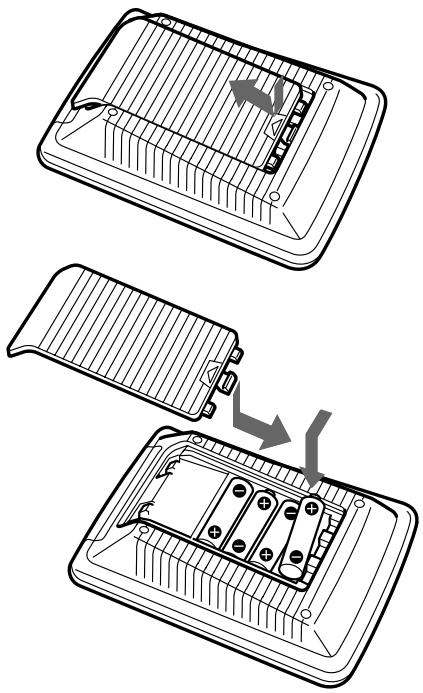
natural_image
Diagram showing three steps of a device's internal structure, including a grid panel and battery pack assembly (no text or symbols)Wanneer de batterijen te vervangen
Batterijen van de afstandsbediening en de schermverlichting (vier stuks R6 (AA-formaat) batterijen)
Onder normale omstandigheden zullen de batterijen ongeveer vijf maanden meegaan. Als uw apparatuur niet meer zo vlot op de afstandsbediening reageert, kunnen de batterijen bijna leeg zijn, hetgeen wordt aangegeven door de aanduiding op het LCD scherm. Als het scherm of deze aanduiding minder helder oplicht, dient u de batterijen door nieuwe te vervangen.
Opmerking
Wacht niet meer dan een dag met het vervangen van de batterijen, anders kunnen de vastgelegde codenummers (zie blz. 8) en de aangeleerde functies (zie blz. 16) uit het geheugen verdwijnen.
Omtrent de batterijen
- Gebruik geen oude en nieuwe batterijen door elkaar en vooral geen verschillende typen batterijen tegelijk.
- Mocht de elektrolyt uit een batterij lekken, veeg de vervuilde delen van het batterijvak dan grondig schoon met een doekje en vervang de oude batterijen door nieuwe. Om batterijlekkage te voorkomen, kunt u beter de batterijen uit de afstandsbediening verwijderen wanneer u denkt het apparaat geruime tijd niet te gebruiken.
Plaats en functie van de bedieningsorganen
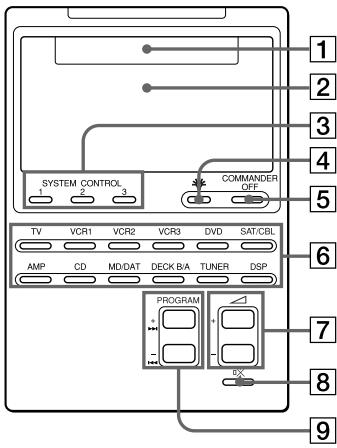
1 Component-aanduiding
Hier wordt de naam van de te bedienen component aangegeven.
2 LCD scherm en toetsenpaneel (zie blz. 11)
Hier verschijnen de tiptoetsen voor de bediening van elke gekozen component.
Opmerking
Tracht nooit de tiptoetsen te bedienen met een spits voorwerp zoals een balpen of potlood.
③ SYSTEM CONTROL bedieningsreeks-toetsen (zie blz. 23)
Voor elk van de deze drie SYSTEM CONTROL toetsen kunt u 16 achtereenvolgende bedieningsfuncties programmeren. Dit biedt u de mogelijkheid om ingewikkelde functies volautomatisch te starten met een enkele toets.
4 📋- schermverlichtingstoets (zie blz. 48)
Druk hierop om de verlichting van het LCD scherm in te schakelen. Bij nogmaals drukken gaat het licht weer uit. U kunt de schermverlichting ook zo instellen dat deze na een bepaald aantal seconden automatisch dooft.
5 COMMANDER OFF afstandsbediening-uitschakeltoets Om de afstandsbediening uit te schakelen als u deze niet meer gebruikt.
6 Component-keuzetoetsen (TV, VCR1, enz.)
Voor het kiezen van het apparaat dat u wilt bedienen.
7 ∠ +/- volumetoetsen* (zie blz. 14, 22)
Voor het instellen van de geluidssterkte.
8 ☐ geluiddempingstoets* (zie blz. 14, 22)
Voor het afzetten van het geluid. Bij nogmaals drukken klinkt het geluid weer op de oorspronkelijke sterkte.
9 PROGRAM +/- zenderkeuzetoetsen Voor het kiezen van een TV- of radiozender.
* Betreffende de ∠/ +/- volumetoetsen en de ✉ dempingtoets
Na het kiezen van een video-component kunt u met de afstandsbediening het TV-geluid instellen of desgewenst afzetten. Na het kiezen van een audio-component kunt u met de afstandsbediening de geluidsweergave via de versterker instellen of desgewenst afzetten. U kunt echter deze instellingen ook wijzigen (zie blz. 22).
In- en uitschakelen van de afstandsbediening
Om de afstandsbediening in te schakelen, drukt u op elke gewenste toets behalve de COMMANDER OFF toets.
Voor uitschakelen drukt u op de COMMANDER OFF toets; als u dit nalaat en de afstandsbediening niet meer gebruikt, zal deze na 10 minuten automatisch worden uitgeschakeld. Deze tijdsduur kunt u desgewenst ook anders instellen (zie blz. 47).
Instellen van de code voor vaste audio/ video-apparatuur
De afstandsbediening is in de fabriek gereed gemaakt voor de bediening van Sony audio/video-apparatuur (zie de onderstaande tabel). Als u de afstandsbediening wilt gebruiken voor deze Sony componenten, kunt u de hierna volgende paragrafen overslaan. U kunt de afstandsbediening echter ook gebruiken voor de audio/video-apparatuur van andere merken. Voor de bediening van andere componenten dient u wel eerst de onderstaande aanwijzingen te volgen om de juiste code(s) voor de apparatuur vast te leggen.
| Component-keuzetoets | Voor de bediening van | Fabrieksinstelling |
| TV | TV-toestel TV/ videorecorder combinatie | Sony TV-toestel |
| VCR1 | Videorecorder | Sony VHS videorecorder (VTR3) |
| VCR2 | Videorecorder | Sony 8-mm videorecorder (VTR2) |
| VCR3 | Videorecorder | Sony Beta videorecorder (VTR1) |
| DVD | DVD Videodisc-speler (DVD of VD voor LaserDisc) | Sony DVD-speler |
| SAT/CBL | Satelliet-ontvanger/Kabel-TV ontvanger | Sony satelliet-ontvanger |
| AMP | Versterker | Sony versterker |
| CD | Compact disc speler | Sony CD-speler |
| Component-keuzetoets | Voor de bediening van | Fabrieksinstelling |
| MD/DAT | Minidisc-recorder/DAT cassettedeck | Sony minidisc-recorder |
| DECK B/A | Cassettedeck* | Sony cassettedeck |
| TUNER | FM/AM radio- ontvangst | Sony FM/AM tuner |
| DSP | Akoestiek-processor | Sony Digital Surround Processor |
* Gewone analoge audio-cassette decks
Zie het "Overzicht van vooringestelde functies" (op blz. 56) voor de functies van de diverse toetsen voor de afzonderlijke componenten.
Kiezen van de code voor een component
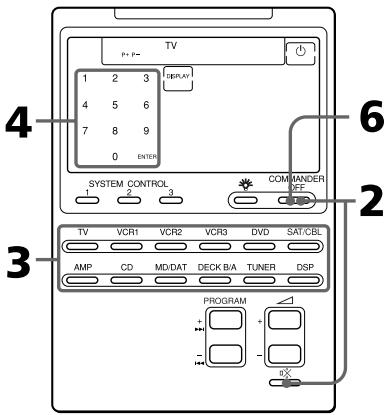
Voorbeeld: voor bediening van een Philips TV-toestel
1 Zie de tabellen in de bijgeleverde lijst met "Component-codenummers" om de juiste drie-cijfer code voor het te bedienen apparaat te vinden.
Als er meer dan een codenummer vermeld staat, kiest u het eerste daarvan.
Om de afstandsbediening bijvoorbeeld in te stellen op bediening van een Philips TV kiest u codenummer 011.
2 Houd nu de COMMANDER OFF toets ingedrukt en druk daarbij op de ✉ dempingstoets.
COMMANDER
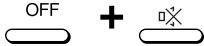
Op het scherm gaan nu de afkortingen voor alle typen componenten knipperen.
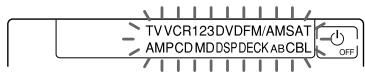
3 Druk op de component-keuzetoets voor het gewenste type apparaat.

De naam van het gekozen apparaat blijft branden en nu gaan de cijfertoetsen 0 - 9, de ENTER toets en de DISPLAY toets knipperen.
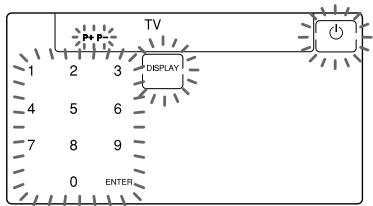
Betreffende de DVD en SAT/CBL toetsen
Voor het kiezen van een component-code voor de DVD of SAT/CBL toets drukt u net zovaak op de toets tot de gewenste component wordt aangegeven ("DVD" of "VD" voor videodisc, "CBL" of "SAT").
Betreffende de DECK B/A toets
U zult voor DECK A en DECK B elke een afzonderlijke component-code moeten instellen. Druk net zovaak op de DECK B/A toets totdat het gewenste deck wordt aangegeven ("DECK A" of "DECK B"), dan kunt u daarvoor de component-code instellen.
4 Voer de drie-cijfer code voor het betreffende apparaat in en druk op de ENTER toets, in het tiptoetsenpaneel op het scherm.
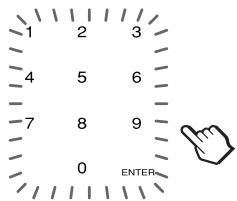
Er klinkt een pieptoon en de codecijfers en “ENTER” verschijnen tweemaal achtereen.
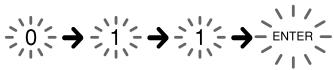
flowchart
graph LR
    A["0"] --> B["1"]
    B --> C["1"]
    C --> D["ENTER"]
5 Als u nog een code voor een ander apparaat wilt invoeren, herhaalt u de stappen 3 en 4.
6 Druk op de COMMANDER OFF toets.
Instellen van de code voor vaste audio/video-apparatuur (vervolg)
Opmerkingen
- Als u een codenummer invoert dat niet voorkomt in de bijgeleverde lijst met "Component-codenummers", laat de afstandsbediening na indrukken van de ENTER toets een pieptoon horen en gaat de aanduiding "NG" knipperen. In dit geval controleert u het codenummer en probeert u het opnieuw.
- Als het invoeren wordt onderbroken en er verstrijken meer dan 2 minuten tussen twee stappen, dan vervalt de instelprocedure. Dan zult u voor het invoeren van de code opnieuw op de × dempingstoets moeten drukken terwijl u de COMMANDER OFF toets ingedrukt houdt.
Controleren welk codenummer er is ingevoerd
Druk op de DISPLAY toets in de stappen 3 t/m 5. Het codenummer en de aanduiding "ENTER" verschijnen dan tweemaal achtereen.
Controleren of het codenummer werkt
1 Druk op de component-keuzetoets voor het apparaat dat u hebt ingesteld.
TV
De afstandsbediening wordt ingeschakeld en de tiptoetsen voor het apparaat verschijnen op het scherm.
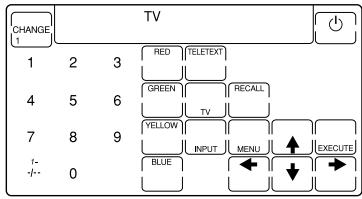
2 Schakel het te bedienen apparaat in met de aan/uit-schakelaar op het apparaat zelf.
3 Richt de afstandsbediening op het voorpaneel van het apparaat en druk op de ⏻ aan/uit-toets in het tiptoetsenscherm.

Tijdens het verzenden van het bedieningssignaal verschijnt het symbol op het scherm.

Nu hoort het apparaat te worden uitgeschakeld.
4 Als het tot zover goed verloopt, kunt u controleren of de andere functies van het apparaat ook goed reageren op de afstandsbediening, zoals de zenderkeuze en de volumeregeling.
Zie voor nadere bijzonderheden blz. 13.
5 Druk op de COMMANDER OFF toets.
COMMANDER
OFF

Als de afstandsbediening niet goed lijkt te werken
Probeer of het beter lukt na instellen van een andere code uit de tabel voor dezelfde component (zie blz. 8).
Toetsen waarvoor al een afstandsbedienings-signaal is "aangeleerd"
Als er voor een bepaalde toets al eerder een signaal is geprogrammeerd met de aanleerfunctie (zie blz. 16), zal de "aangeleerde" functie blijven werken, ook al stelt u een ander component-codenummer in. Voor gebruik als een vaste component-bedieningstoets zult u dan eerst de "aangeleerde" functie moeten wissen (zie blz. 20).
Betreffende het toetsenpaneel op het scherm
Na instellen van een component-codenummer zullen op het scherm alleen de toetsen verschijnen die in de fabriek vast voor het betreffende apparaat zijn geprogrammeerd. De signalen van de toetsen verschillen van merk tot merk. Met de aanleerfunctie kunt u signalen van een andere afstandsbediening overnemen voor zowel de aangegeven toetsen als de toetsen die nog niet worden aangegeven (zie blz. 16). Tevens kunt u kiezen voor de volledige functie-aanduidingen of alleen de basisbedieningfuncties (zie blz. 50).
Opzoeken van een componentcode met de zoekfunctie
U kunt een beschikbaar codenummer opzoeken voor een component die er nog geen heeft, in de bijgeleverde lijst met "Component-codenummers".
Alvorens de zoekfunctie in te schakelen
Zet de componenten in de volgende stand om de zoekfunctie naar behoren te laten werken.
TV-toestel: ingeschakeld Videorecorder, DVD-speler, satelliet- ontvanger, kabel-TV ontvanger, versterker: uitgeschakeld VD laserdisc-speler, CD-speler, minidisc- recorder, TAPE cassettedeck: ingeschakeld met een geluidsbron klaar voor weergave (disc, cassette, enz.)
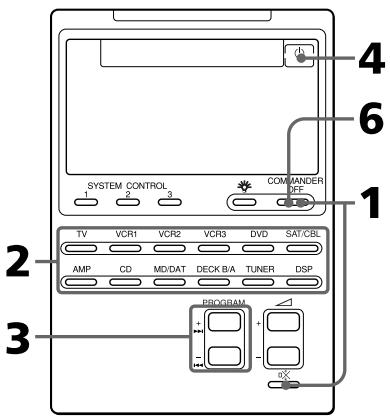
Instellen van de code voor vaste audio/video-apparatuur (vervolg)
1 Houd de COMMANDER OFF toets ingedrukt en druk daarbij op de ☐ dempingstoets.
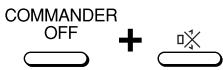
Op het scherm gaan nu de afkortingen voor alle typen componenten knipperen.

2 Druk op de component-keuzetoets voor het gewenste type apparaat.
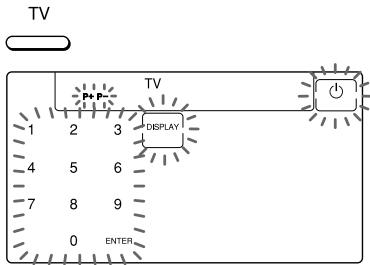
3 Druk op de PROGRAM + of PROGRAM - toets.
Druk op de PROGRAM + toets om door te gaan naar het volgende codenummer.
Druk op de PROGRAM – toets om terug te gaan naar het vorige codenummer.
PROGRAM
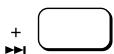
4 Richt de afstandsbediening op de component en druk op de ⏻ aan/uit-toets.

Tijdens het verzenden van het bedieningssignaal verschijnt het symbol op het scherm.

Als dit goed werkt (de TV wordt uitgeschakeld, videorecorder, DVD-speler, satelliet-ontvanger, kabel-TV ontvanger of versterker wordt ingeschakeld, of de weergave begint op de VD videodisc-speler, CD-speler, minidisc-recorder of het TAPE cassettedeck), ga dan door met stap 5. Heeft het niet het gewenste effect, herhaal dan de stappen 3 en 4.
5 Druk op de ENTER toets.
Er klinkt een pieptoon en de codecijfers en “ENTER” verschijnen tweemaal achtereen.

flowchart
graph LR
    A["0"] --> B["1"]
    B --> C["8"]
    C --> D["ENTER"]
Opmerking
Noteer het gevonden codenummer waar u het gemakkelijk kunt vinden.
6 Druk op de COMMANDER OFF toets.
Controleren welk codenummer er is ingesteld
Druk op de DISPLAY toets in stap 2 en 5. Het codenummer en de aanduiding "ENTER" verschijnen tweemaal achtereen.
Pas op dat u de DISPLAY toets pas indrukt nadat u het codenummer hebt vastgelegd met de ENTER toets. Als u de DISPLAY indrukt voordat het codenummer is vastgelegd, keert het apparaat terug naar het eerste nummer waar u bent begonnen met zoeken.
Op afstand bedienen van uw apparatuur
Om een apparaat van een ander merk dan Sony te bedienen, zult u eerst de betreffende component-code moeten instellen (zie blz. 8)
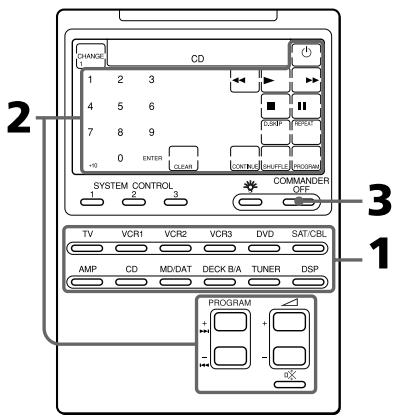
Voorbeeld: Afspelen van een compact disc in uw CD-speler
1 Druk op de betreffende component-keuzetoets.

De afstandsbediening wordt ingeschakeld en de tiptoetsen voor het gekozen apparaat verschijnen op het scherm.
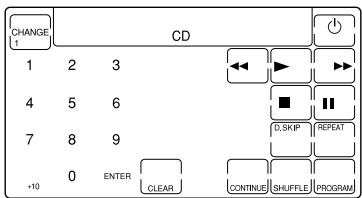
2 Druk op de gewenste toets in het toetsenpaneel.
Tijdens het verzenden van het bedieningssignaal verschijnt het symbool op het scherm.

Vervolgens kunt u de geluidsweergave naar wens instellen met de ∆+/- volumetoetsen en de ☑ dempingstoets en kunt u bijvoorbeeld bij radio-ontvangst een zender kiezen met de PROGRAM +/- toetsen. Zie het “Overzicht van vooringestelde functies” (vanaf blz. 56) voor de functies van de toetsen voor elke component.
3 Wanneer u naderhand de afstandsbediening niet meer gebruikt, drukt u COMMANDER OFF toets om de afstandsbediening uit te schakelen.
COMMANDER OFF
Opmerking
De afstandsbedieningssignalen kunnen voor bepaalde componenten en functies wel eens ietwat afwijken. Dan kunt u het juiste bedieningssignaal beter zelf programmeren met de aanleerfunctie (zie blz. 16). Het is echter alleen mogelijk functies te programmeren die net als deze afstandsbediening werken met infrarode stralen.
Instellen van de geluidssterkte
Druk op de + / - volumetoetsen om de geluidssterkte te regelen en op de ※ dempingstoets om het geluid te dempen. Als u instelt op een video-component kunt u met de afstandsbediening het TV-geluid instellen of afzetten, en als u kiest voor een audio-component kunt u met de afstandsbediening de geluidsweergave via de versterker instellen of afzetten. U kunt deze instellingen ook wijzigen (zie blz. 22).
Opmerkingen
- Als u voor de + / - volumetoetsen en dempingstoets voor bepaalde componenten een nieuw signaal hebt overgenomen ("aangeleerd", zie blz. 16), zal bij de bediening van een dergelijk apparaat het nieuwe signaal worden doorgegeven, in plaats van de geluidsregeling van de TV of de versterker.
- Als u voor de + / - volumetoetsen en ※ dempingstoets voor de TV of AMP stand een nieuw signaal hebt overgenomen of “aangeleerd”, zal dat nieuwe signaal alleen worden doorgegeven wanneer u voor de bediening van de TV of de versterker (AMP) hebt gekozen. Bij de bediening van andere componenten zult u zonder probleem wel het geluid van de TV of de versterker kunnen regelen.
- Als u aan de TV of de AMP toets een andere component hebt toegewezen (zie blz. 35), dan zult u de geluidssterkte van de TV of de versterker niet kunnen regelen, ook niet wanneer u instelt op een andere component.
Opmerkingen over de afstandsbediening van componenten
Voor bediening van een dubbel cassettedeck
Van tevoren zult u eerst moeten kiezen voor deck A of deck B. Hiervoor drukt u op de DECK B/A toets, om over te schakelen tussen “DECK A” en “DECK B”.
Zorg eerst dat u voor DECK A en DECK B elke een afzonderlijke component-code hebt ingesteld (zie blz. 8).
Als u echter een cassettedeck aan een van de andere component-keuzetoetsen hebt toegewezen (zie blz. 35), dan kunt u alleen DECK A of DECK B kiezen.
Kiezen van het ingangssignaal voor een TV-toestel
Telkens wanneer u op de INPUT toets drukt, verspringt de ingangskeuze. En als er op uw TV meer dan twee videorecorders zijn aangesloten, kunt u deze met de cijfertoetsen als volgt direct kiezen.
"INPUT" + "0": TV-afstemming
"INPUT" + "1":VIDEO 1
"INPUT" + "2":VIDEO 2
"INPUT" + "3":VIDEO 3
"INPUT" + "4":VIDEO 4
"INPUT" + "5":VIDEO 5
"INPUT" + "6":VIDEO 6
Als de bovenstaande combinaties echter niet werken, kunt u de betreffende signalen in de afstandsbediening overnemen van de TV-afstandsbediening met de aanleerfunctie (zie blz. 16).
Kiezen van het ingangssignaal voor een videorecorder
Telkens wanneer u op de INPUT toets drukt, verspringt de ingangskeuze. En u kunt het ingangssignaal ook direct met de cijfertoetsen kiezen, als volgt.
"INPUT" + "0": TV-afstemming
"INPUT" + "1": LINE 1
"INPUT" + "2": LINE 2
"INPUT" + "3": LINE 3
"INPUT" + "4": LINE 4
"INPUT" + "5": DVD
Voor een Sony videorecorder zijn de bovenstaande functies vast ingesteld. Voor een ander merk kunt u deze functies, waarvoor twee toetsen nodig zijn, overnemen van de andere afstandsbediening met de aanleerfunctie (zie blz. 16).
Overnemen van nieuwe bedieningssignalen
— Aanleerfunctie
Voor het bedienen van componenten of functies die niet vast zijn ingesteld, kunt u de volgende “aanleer” procedure volgen om de afstandsbediening een nieuwe functie te laten overnemen van een andere afstandsbediening. U kunt deze aanleerfunctie bijvoorbeeld ook gebruiken om de functie van afzonderlijke toetsen te wijzigen na instellen van een component-codenummer (zie blz. 8).
Na het overnemen van een functie is het aanbevolen deze bij wijze van geheugensteuntje te noteren in het overzicht van de LCD tiptoetsen (Zie het afzonderlijke boekje met de "Component-codenummers".).
Opmerking
Er kunnen wel eens signalen zijn die de afstandsbediening niet kan overnemen of "aanleren".
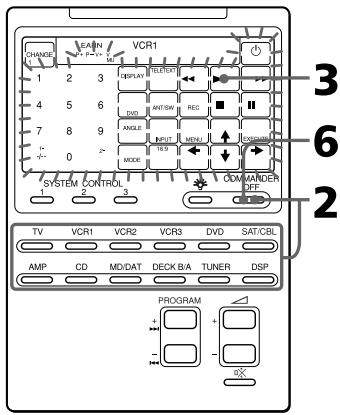
Voorbeeld: Programmeren van het ▶ (weergave) bedieningssignaal van uw component onder de VCR1 ▶ (weergave) toets van de afstandsbediening
1 Leg de RM-AV2100T recht tegenover de afstandsbediening van het apparaat dat u wilt bedienen.
Afstandsbediening van uw component
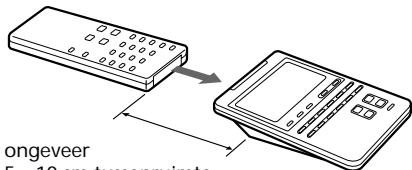
RM-AV2100T
2 Houd de COMMANDER OFF toets ingedrukt en druk daarbij op de component-keuzetoets voor het apparaat waarvan u een functie wilt overnemen.
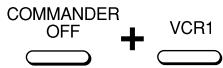
Op het scherm verschijnt de aanduiding "LEARN" en gaan alle toetsen die u kunt programmeren knipperen.

Aanduiding voor de PROGRAM +/- toetsen, de △ +/- volumetoetsen en de ☐ dempingstoets
De aanduiding “P+ P- V+ V- MU” bovenin het scherm geeft aan of de PROGRAM +/- toetsen, de ∠+/- volumetoetsen en de ☑× dempingstoets ook geschikt zijn voor het aanleren van andere functies of niet.
Betreffende de knipperende toetsen
De toetsen waarvoor al een functie voor de gekozen component is ingesteld knipperen tweemaal en de toetsen die nog niet zijn ingesteld knipperen eenmaal.
3 Druk op de toets van de afstandsbediening waaronder u een functie wilt overnemen of "aanleren".

De aanduiding "LEARN" knippert en alleen de ingedrukte toets blijft in het scherm zichtbaar.
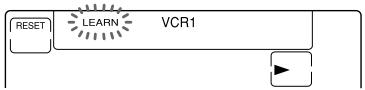
flowchart
graph LR
    A["RESET"] --> B["LEARN"]
    B --> C["VCR1"]
    C --> D["->"]
Overnemen van functies voor de PROGRAM +/- toetsen, de △ +/- volumetoetsen en de ☒ dempingstoets
Druk op de betreffende toets. De aanduiding “LEARN” knippert en de “P+, P-”, “V+, V-” of “MU” aanduiding bovenin het scherm blijft verlicht..
Bijvoorbeeld: Bij indrukken van de ∆ + toets

Wijzigen van de functie-aanduiding van de toets Volg de aanwijzingen op blz. 19.
4 Druk op de toets van de andere afstandsbediening en houd deze ingedrukt tot u een pieptoon hoort.
(Als u de toets loslaat voordat de pieptoon klinkt, kan het signaal niet goed worden aangeleerd.)

De aanduiding “LEARN” stopt met knipperen en blijft branden. Als het bedieningssignaal succesvol is overgenomen, blijft de toets met de nieuwe functie verlicht en gaan de andere beschikbare toetsen weer knipperen.
Als de aanduiding "NG" op het scherm knippert
Dan is er bij het aanleren iets misgegaan. Probeer de stappen 3 en 4 nogmaals.
5 Herhaal de stappen 3 en 4 voor elke functie die u onder een toets wilt overnemen.
Overnemen van signalen van nog een andere afstandsbediening
Plaats deze en de andere afstandsbediening weer tegenover elkaar zoals in stap 1 op blz. 16, druk op de betreffende component-keuzetoets en volg weer de stappen 3 en 4 hierboven voor het aanleren van de toetsfunctie.
6 Druk op de COMMANDER OFF toets.
Overnemen van nieuwe bedieningssignalen — Aanleerfunctie (vervolg)
Opmerkingen
- Als u de stappen voor het aanleren niet binnen twee minuten uitvoert, vervalt de aanleerfunctie.
- Als u stap 4 niet binnen 10 seconden na stap 3 uitvoert, keert het scherm terug naar de aanduidingen van stap 2. (Dan knipperen weer alle voor aanleren beschikbare toetsen.) In dit geval voert u stap 3 opnieuw uit terwijl de scherm-aanduidingen knipperen.
- Als er tijdens het aanleren “NG” wordt aangegeven, is het geheugen van de afstandsbediening vol. Om dan plaats te maken voor een nieuwe functie, zult u de aangeleerde toetsfuncties die u zelden gebruikt moeten wissen (zie blz. 20). Daarna kunt u het overnemen van de nieuwe functie opnieuw proberen.
- Als u per ongeluk de verkeerde toets indrukt bij stap 4, houdt u ter correctie de RESET toets ingedrukt en drukt u daarbij weer op die verkeerde toets. Vervolgens herhaalt u de procedure voor het aanleren vanaf stap 3, nu met de juiste toets.
Als de afstandsbediening niet goed lijkt te werken
Als de apparatuur niet goed reageert op de toets met de nieuwe functie, doe het overnemen van de functie dan opnieuw. (Als bijvoorbeeld de geluidssterkte plotseling veel luider wordt na slechts eenmaal kort indrukken van de ∆ + volumetoets, dan kan het aanleren zijn verstoord door ruis of andere externe effecten.)
Als u een componentcode voor een toets instelt na het aanleren van een nieuw bedieningssignaal
Als u voor een toets een nieuwe bedieningsfunctie hebt geprogrammeerd met de aanleerfunctie, zal de toets die functie behouden, ook al kiest u een nieuwe componentcode voor die toets.
Bij het aanleren van signalen voor een dubbel cassettedeck
Druk eerst op de DECK B/A toets om te kiezen voor cassettedeck A of B.
Overnemen van het REC (opname) signaal voor een opname-apparaat
Als u voor het opnemen twee toetsen tegelijk moet indrukken (zoals bijvoorbeeld REC en ▶) op uw cassettedeck of videorecorder, neem het signaal voor de opnamestart dan over op een van de volgende manieren.
Voor bediening met twee toetsen op de afstandsbediening
Houd bij stap 3 (op blz. 17) de REC toets ingedrukt en druk daarbij de ▶ weergavetoets in zodat beide toetsen oplichten. Vervolgens drukt u in stap 4 de beide toetsen op de afstandsbediening van het opname-apparaat tegelijk in.
Voor bediening met een enkele toets op de afstandsbediening
Druk bij stap 3 (op blz. 17) alleen de REC toets in. Vervolgens drukt u in stap 4 de beide toetsen op de afstandsbediening van het opname-apparaat tegelijk in.
Bij overnemen van signalen voor de △ volumetoetsen of de ≡ dempingstoets
- Als u voor de △ volumetoetsen of de ☒ dempingstoets voor een andere component dan de TV of de versterker een nieuw signaal hebt overgenomen met de aanleerfunctie, zal dat signaal alleen worden verzonden als u hebt ingesteld op die component.
- Als u voor de △ volumetoetsen of de ☒ dempingstoets voor de TV of AMP stand een nieuw signaal hebt overgenomen of aangeleerd, zal dat nieuwe signaal alleen worden doorgegeven wanneer u voor de bediening van de TV of de versterker (AMP) hebt gekozen. Als u hebt ingesteld op een andere component, zal alleen het vooringestelde volumeregelsignaal voor de TV of de versterker worden doorgegeven (zie voor het verschil tussen video-apparatuur en audio-apparatuur de uitleg op blz. 22). Voor gebruik van het aangeleerde signaal zult u de △ volumetoetsen of de ☒ dempingstoets afzonderlijk moeten programmeren voor elke te bedienen component, met behulp van de aanleerfunctie.
Voor aanleren van bedieningssignalen voor een airconditioning
Zie de opmerkingen op blz. 39.
Aangeven van alleen de regelmatig gebruikte toetsen
U kunt zorgen dat de toetsen die u niet gebruikt niet op het scherm verschijnen. Dit vereenvoudigt de bediening van apparatuur met een groot aantal toetsen die u niet gebruikt.
Houd na stap 2 op blz. 16 de RESET toets ingedrukt en druk op de toets die u wilt weglaten (die knippert). De ingedrukte toets gaat dan langzamer knipperen en wordt daarna voor die component niet meer aangegeven.
Om de toets weer te zien, herhaalt u deze handeling.
Opmerking
Een toets waarvoor al een signaal is "aangeleerd", kunt u niet in één keer onzichtbaar maken.
Wijzigen van de functie-aanduiding van de toets
Als u een nieuw signaal voor een toets hebt geprogrammeerd, kunt u uit alle beschikbare aanduidingen voor die toets de best passende nieuwe functie-aanduiding kiezen, om die vast aan de toets toe te wijzen.
1 Houd na stap 2 (op blz. 16) de component-keuzetoets (hier VCR1 voor de videorecorder) ingedrukt en druk nu de toets die de nieuwe functie aanleert meermalen in.
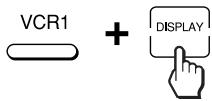
Telkens wanneer u op deze toets drukt, verandert de aanduiding in het uitleesvenster als volgt.
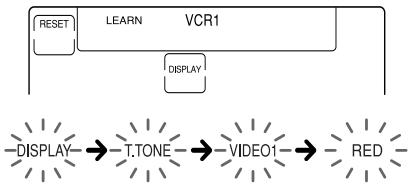
flowchart
graph LR
    A["RESET"] --> B["LEARN"]
    B --> C["VCR1"]
    C --> D["DISPLAY"]
    D --> E["DISPLAY"]
    E --> F["T.TONE"]
    F --> G["VIDEO1"]
    G --> H["RED"]
2 Wanneer de gewenste aanduiding verschijnt, laat u de component-keuzetoets los.
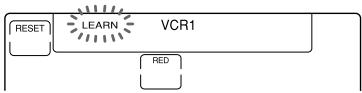
flowchart
graph LR
    A["RESET"] --> B["LEARN"]
    B --> C["VCR1"]
    C --> D["RED"]
3 Hierna volgt u de stappen 4 t/m 6 (op blz. 17).
Opmerkingen
- U kunt de aanduiding voor een toets alleen aanpassen wanneer u een nieuwe functie voor die toets overneemt met de aanleerfunctie. Als u de aanduiding wilt wijzigen voor een toets waaronder al eerder een nieuwe functie is aangeleerd, zult u dat signaal eerst moeten wissen (zie blz. 20). Vervolgens neemt u hetzelfde signaal opnieuw over volgens de bovenstaande aanwijzingen om hierbij ook de aanduiding te wijzigen.
- Zolang u de aanduiding voor een toets niet wijzigt, wordt steeds de oorspronkelijke aanduiding getoond.
- U kunt de aanduidingen niet wijzigen voor de toetsen die niet binnen een □ kadertje staan aangegeven (de cijfertoetsen 0 t/m 9, +10 en de ENTER toets).
Voor zorgvuldig aanleren van nieuwe functies
- Zorg dat de afstandsbedieningseenheden tijdens het aanleren niet bewegen.
- Blijf voor het overnemen de toets van de andere afstandsbediening ingedrukt houden tot u een pieptoon hoort.
- Zorg dat beide afstandsbedieningseenheden zijn voorzien van verse batterijen.
- Verricht het overnemen niet in de volle zon en niet onder felle tl-buizen of andere fluorescerende lampen.
- De plaats waar het signaal uit de afstandsbediening komt kan wel eens verschillen. Als het aanleren niet lukt, verschuif dan de beide afstandsbedieningseenheden tegenover elkaar ietwat en probeer het opnieuw.
- Wanneer u deze afstandsbediening signalen aanleert van een afstandsbediening met interactief signaaluitwisselsysteem (wordt bij sommige Sony receivers en versterkers geleverd), kan het responsignaal van het hoofdapparaat het aanleren van de signalen hinderen. In dat geval moet u naar een plaats gaan waar de signalen het hoofdapparaat niet kunnen bereiken (bijv. een andere kamer).
BELANGRIJK
Houd de afstandsbediening buiten het bereik van kleine kinderen en huisdieren. Gebruik bovendien de Hold toetsvergrendeling om alle toetsen van de afstandsbediening te blokkeren (zie blz. 45) wanneer u de afstandsbediening niet gebruikt. Bepaalde elektrische apparatuur zoals voor airconditioning, verwarming of het openen en sluiten van gordijnen of rolluiken kan gevaarlijk zijn wanneer er per ongeluk op een toets van de afstandsbediening wordt gedrukt.
Opmerking
Zie “Technische gegevens” op blz. 52 voor nadere bijzonderheden betreffende de afstandsbedieningssignalen die aangeleerd kunnen worden.
Wijzigen of wissen van een aangeleerde functie
Om een aangeleerde functie door een andere te vervangen, zult u die functie eerst moeten wissen, om dan een nieuwe functie over te nemen.
Wissen van een aangeleerde functie van een enkele toets
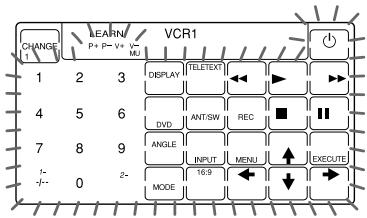
1 Houd na stap 2 (op blz. 16) de RESET toets ingedrukt en druk op de toets waarvan u de functie wilt wissen.
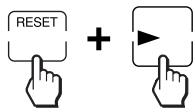
De toets waarvan de functie is gewist gaat nu weer knipperen, samen met de andere beschikbare toetsen.
2 Druk op de COMMANDER OFF toets.
Wissen van alle aangeleerde signalen voor een bepaalde component
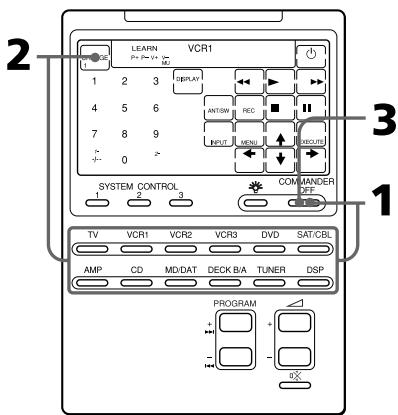
1 Houd de COMMANDER OFF toets ingedrukt en druk daarbij op de betreffende component-keuzetoets.
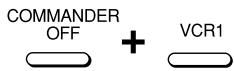
Wissen van aangeleerde signalen voor DECK B/A
Druk op de DECK B/A toets om te kiezen voor "DECK A" of "DECK B". U kunt geen signalen wissen voor beide cassettedecks tegelijk.
2 Houd nu de RESET toets ingedrukt en druk daarbij nogmaals op de betreffende component-keuzetoets.
De aangeleerde functies worden dan gewist. De toetsen voor dat apparaat krijgen dan weer hun oorspronkelijke functies die zij vóór het aanleren hadden.
3 Druk op de COMMANDER OFF toets.
Opmerking
Als u dit voor DECK B/A doet, dient u eerst te zorgen dat het deck waarvoor een nieuw signaal is aangeleerd ("DECK A" of "DECK B") wordt aangegeven, voor u de bovenstaande aanwijzingen volgt. Als u de instellingen voor het verkeerde deck zou wissen, zullen de componentcode-instellingen voor beide cassettedecks terugkeren naar de fabrieksinstellingen (zie blz. 8).
Volumeregeling voor video-apparatuur aangesloten op een stereo-installatie
De afstandsbediening is in de fabriek vooringesteld volgens het principe, dat u het geluid van uw video-apparatuur hoort via de luidsprekers van uw TV-toestel, en de geluidsweergave van alle stereo-apparatuur via de luidsprekers aangesloten op uw versterker.
Zo kunt u steeds gemakkelijk de geluidssterkte van de TV of de versterker regelen, zonder dat u hiervoor altijd eerst hoeft over te schakelen van de geluidsbron naar de TV of AMP, enkel voor de volumeregeling.
Om bijvoorbeeld de geluidssterkte bij video-weergave (met VCR bediening) in te stellen, hoeft u niet op de TV toets te drukken, maar dienen de volumetoetsen automatisch al voor het TV-geluid.
De volgende tabel toont de fabrieksinstellingen voor de volumeregeling bij de verschillende componenten.
| Component-keuzetoets | Regelt de geluidssterkte van de |
| TV | TV |
| VCR1,2,3 | TV |
| SAT/CBL | TV |
| DVD | TV |
| AMP | versterker |
| CD | versterker |
| MD/DAT | versterker |
| DECK B/A | versterker |
| TUNER | versterker |
| DSP | versterker |
Als uw video-apparatuur echter is aangesloten op een stereo-installatie, zult u waarschijnlijk ook het geluid van uw TV en uw videorecorder willen horen via de luidsprekers aangesloten op uw versterker, in plaats van alleen via de TV-luidsprekers. In dat geval dient u de fabrieksinstelling om te schakelen, zodat u de geluidssterkte van uw video-apparatuur kunt regelen zonder eerst de afstandsbediening te hoeven omschakelen naar de versterker.
Wijzigen van de fabrieksinstelling voor de volumeregeling
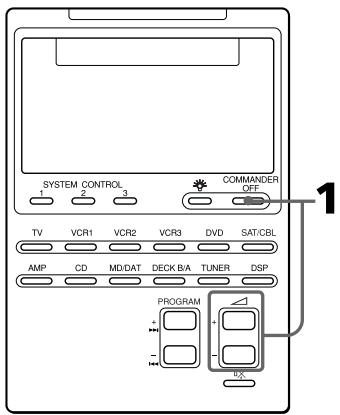
1 Houd de COMMANDER OFF toets ingedrukt en druk daarbij de △ + en de △ - volumetoetsen allebei in.
De volumeregeling voor de video-apparatuur (TV, VCR1, 2 en 3, SAT/CBL en DVD) wordt overgeschakeld naar het aangegeven toestel (AMP of TV).
Bij instellen op de versterker-volumeregeling +V- . AMP Bij instellen op de TV-volumeregeling +V- . TV
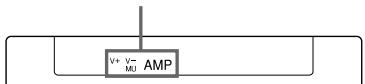
Opmerkingen
- Als u voor de △ volumetoetsen en de ☑ dempingstoets voor bepaalde componenten een nieuw signaal hebt overgenomen of “aangeleerd”, zal de bovenstaande procedure de functie van de △ volumetoetsen en de ☑ dempingstoets niet veranderen.
- Als u voor de △ volumetoetsen en de ⚫dempingstoets voor de TV of AMP stand een nieuw signaal hebt overgenomen, zal dat nieuwe signaal alleen worden doorgegeven wanneer u voor de bediening van de TV of de versterker (AMP) hebt gekozen. Bij de bediening van andere componenten zult u zonder probleem wel het geluid van de TV of de versterker (afhankelijk van de bovenstaande instellingen) kunnen regelen. Voor gebruik van het nieuw aangeleerde signaal zult u elke toets afzonderlijk moeten programmeren voor elke te bedienen component, met behulp van de aanleerfunctie (zie blz. 16).
Uitvoeren van een reeks bedieningsfuncties
— System Control functies
Voor de SYSTEM CONTROL toetsen kunt u een hele reeks bedieningsfuncties achtereen programmeren, om ingewikkelde functies volautomatisch te starten met een enkele toets.
Ook voor de meest algemene dingen, zoals het afspelen van een videoband, kan al een reeks handelingen nodig zijn.
Bijvoorbeeld:
1 TV inschakelen.
2 Videorecorder inschakelen (VCR1)
3 Versterker inschakelen.
4 Ingangskeuzeschakelaar van de versterker instellen op VIDEO 1.
5 Ingangskeuzeschakelaar van het TV-toestel instellen op VIDEO.
6 Afspelen van de videoband.
Voor elk van de SYSTEM CONTROL toetsen, 1, 2 en 3, kunt u 16 achtereenvolgende bedieningsfuncties programmeren.
Als u een bedieningsreeks programmeert voor een component-keuzetoets (zie blz. 28), dan zal de uitvoering van de geprogrammeerde functies pas beginnen wanneer u de component-keuzetoets langer dan 2 seconden ingedrukt houdt.
Tijdens het uitvoeren van een bedieningsreeks zal telkens bij het doorgeven van het volgende commando de bijbehorende toets worden aangegeven.
Uitvoeren van een reeks bedieningsfuncties — System Control functies (vervolg)
Programmeren van een reeks bedieningsfuncties voor de SYSTEM CONTROL toetsen
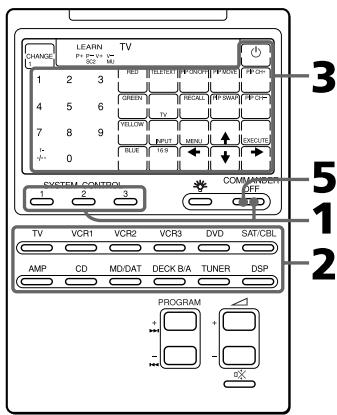
Bijvoorbeeld: programmeren van de hierboven aangegeven reeks stappen voor de SYSTEM CONTROL 2 toets
1 Houd de COMMANDER OFF toets ingedrukt en druk daarbij op een van de SYSTEM CONTROL toetsen (in dit geval SYSTEM CONTROL 2).
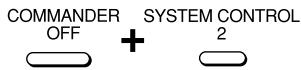
Op het scherm gaan nu de afkortingen voor alle typen componenten knipperen.
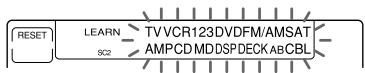
Als er al een reeks bedieningsfuncties voor de gekozen toets is geprogrammeerd Dan worden die bedieningsfuncties nu aangegeven. (Overigens is SYSTEM CONTROL toets nummer 1 al in de fabriek geprogrammeerd met uitschakel-commando's voor allerlei Sony apparatuur (dezelfde functie staat beschreven op blz. 34) en SYSTEM CONTROL toets nummer 3 is in de fabriek geprogrammeerd met inschakel-commando's voor vrijwel alle soorten Sony apparatuur.) Om een nieuwe bedieningsreeks te programmeren, zult u eerst een bestaande reeks moeten wissen (zie blz. 26).
2 Druk op de component-keuzetoets voor het te bedienen apparaat.

De tiptoetsen voor de gekozen component gaan knipperen.
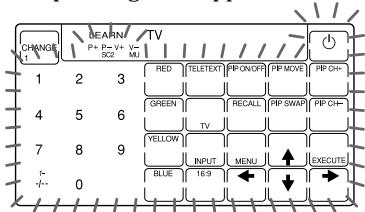
Als de component inschakel- en uitschakel-commando's heeft
Dan worden de OFF en ON toetsen aangegeven en kunt u deze functies ook programmeren.

Het is aanbevolen steeds het preciese commando voor in- of uitschakelen te programmeren, zodat elk apparaat altijd naar wens zal reageren, ongeacht of het al is ingeschakeld of nog uit staat.
3 Druk op de toets(en) voor de gewenste bedieningsfunctie.

Als u het TV-toestel wilt inschakelen, drukt u op de ⏻ toets.
4 Herhaal de stappen 2 en 3 voor elk van de toetsfuncties in de gewenste bedieningreeks.
In dit voorbeeld drukt u op de volgende toetsen.
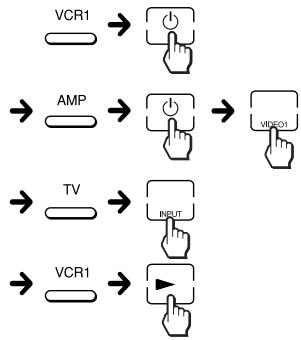
flowchart
graph LR
    A["VCR1"] --> B["↓"]
    C["AMP"] --> D["↓"]
    E["TV"] --> F["↓"]
    G["VCR1"] --> H["↓"]
    I["↓"] --> J["↑"]
    K["↓"] --> L["↑"]
    M["↓"] --> N["↑"]
    O["↓"] --> P["↑"]
    Q["↓"] --> R["↑"]
    S["↓"] --> T["↑"]
    U["↓"] --> V["↑"]
    W["↓"] --> X["↑"]
    Y["↓"] --> Z["↑"]
    AA["↓"] --> AB["↑"]
    AC["↓"] --> AD["↑"]
    AE["↓"] --> AF["↑"]
    AG["↓"] --> AH["↑"]
    AI["↓"] --> AJ["↑"]
    AK["↓"] --> AL["↑"]
    AM["↓"] --> AN["↑"]
    AO["↓"] --> AP["↑"]
    AQ["↓"] --> AR["↑"]
    AS["↓"] --> AT["↑"]
    AU["↓"] --> AV["↑"]
    AW["↓"] --> AX["↑"]
    AY["↓"] --> AZ["↓"]
    BA["↓"] --> BB["↓"]
    BC["↓"] --> BD["↓"]
    BE["↓"] --> BF["↓"]
    BG["↓"] --> BH["↓"]
    BI["↓"] --> BJ["↓"]
    BK["↓"] --> BL["↓"]
    BM["↓"] --> BN["↓"]
    BO["↓"] --> BP["↓"]
    BP --> BQ["↓"]
    BR["↓"] --> BS["↓"]
    BT["↓"] --> BU["↓"]
    BV["↓"] --> BW["↓"]
    BX["↓"] --> BY["↓"]
    BZ["↓"] --> CA["↓"]
    CB["↓"] --> CD["↓"]
    CE["↓"] --> CF["↓"]
    CG["↓"] --> CH["↓"]
    CI["↓"] --> CJ["↓"]
    CK["↓"] --> CL["↓"]
5 Wanneer u alle functies hebt geprogrammeerd, drukt u op de COMMANDER OFF toets.
Opmerkingen
- Als het programmeren langer dan twee minuten wordt onderbroken, vervalt de invoerstand en zal de bedieningsreeks slechts tot op dat punt gelden. Om dan de gehele reeks in te voeren zult u de gedeeltelijke reeks moeten wissen (zie blz. 26), om dan opnieuw vanaf stap 1 te gaan programmeren. Het is niet mogelijk om door te gaan waar u gestopt bent.
- Als u voor een SYSTEM CONTROL toets al een afstandsbedieningssignaal hebt overgenomen of “aangeleerd” (zie blz. 38), gaat de aanduiding “NG” knipperen om u te waarschuwen dat deze toets niet voor programmeren beschikbaar is. Dan zult u de aangeleerde functie eerst moeten wissen (zie blz. 40).
- Als u het component-codenummer wijzigt (zie blz. 8) of een nieuwe functie van een andere afstandsbediening overneemt met de aanleerfunctie (zie blz. 16) voor een toets waaraan eerder een reeks System Control functies was toegewezen, dan vervalt die reeks en zal bij indrukken van de SYSTEM CONTROL toets alleen het nieuwe signaal worden verzonden.
- In de programmeerstand wordt de RESET toets niet aangegeven en dan kunt u een geprogrammeerde stap ook niet annuleren. Na een vergissing zult u opnieuw vanaf stap 1 moeten beginnen.
Tips voor het programmeren van de System Control functies
De volgende tips kunnen nuttig zijn bij het programmeren van een reeks bedieningscommando's.
Betreffende de tijd tussen de opeenvolgende bedieningscommando's
U kunt de tijdsduur tussen de bedieningsstappen naar vereist aanpassen (zie blz. 30).
Uitvoeren van een reeks bedieningsfuncties — System Control functies (vervolg)
Betreffende de volgorde van de bedieningsfuncties
- Bepaalde componenten kunnen niet onmiddellijk reageren op twee opeenvolgende signalen. Zo zal een TV-toestel na inschakelen meestal wat tijd nodig hebben alvorens het kan reageren op het volgende signaal. Dat kan de juiste werking van opeenvolgende commando's zoals voor inschakelen van de TV en keuze van het ingangssignaal wel eens belemmeren. Houd hier rekening mee en programmeer de signalen bijvoorbeeld om en om, als volgt:
TV inschakelen → Videorecorder inschakelen → Afspelen videoband starten → TV instellen op video-weergave
- Na het uitvoeren van een reeks bedieningsfuncties geeft het scherm van de afstandsbediening de tiptoetsen voor de component van de laatst uitgevoerde functie aan. Door als laatste een functie voor de geluidsbron of een vaak gebruikte component te kiezen, bespaart u zich de stap om voor verdere bediening eerst op de betreffende component-keuzetoets te drukken. (In het voorbeeld op blz. 24 worden de tiptoetsen voor de VCR1 videorecorder aangegeven.)
Wissen van geprogrammeerde signalen
1 Houd de COMMANDER OFF toets ingedrukt en druk daarbij op een van de SYSTEM CONTROL toetsen 1, 2 of 3.
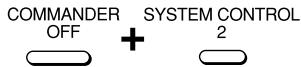
De bedieningsfuncties die zijn geprogrammeerd voor die toets worden in volgorde aangegeven.
2 Houd nu de RESET toets ingedrukt en druk daarbij nogmaals op dezelfde SYSTEM CONTROL toets (1, 2 of 3).
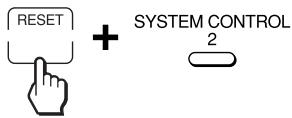
De gehele bedieningsreeks wordt dan gewist en op het scherm gaan de afkortingen voor alle typen componenten knipperen.

Voor het vastleggen van een nieuwe reeks functies onder deze SYSTEM CONTROL toets volgt u de aanwijzingen 2 t/m 5 op blz. 24 en 25.
Terugstellen van SYSTEM CONTROL toets 1 of 3 op de fabrieksinstelling (voor Sony componenten)
In de fabriek is de SYSTEM CONTROL toets nummer 1 al voorgeprogrammeerd met uitschakelcommando's voor allerlei Sony apparatuur en SYSTEM CONTROL toets nummer 3 is in de fabriek geprogrammeerd met inschakelcommando's voor Sony apparatuur. Om deze toetsen terug te stellen op de oorspronkelijke fabrieksinstellingen, volgt u de onderstaande aanwijzingen.
1 Houd de COMMANDER OFF toets ingedrukt en druk daarbij op de SYSTEM CONTROL toets (1 of 3).
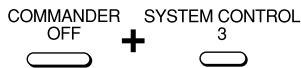
De bedieningsfuncties die zijn geprogrammeerd worden in volgorde aangegeven.
2 Houd nu de RESET toets ingedrukt en druk daarbij nogmaals op de SYSTEM CONTROL toets (1 of 3).
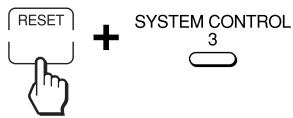
De gehele bedieningsreeks wordt dan gewist en op het scherm gaan de afkortingen voor alle typen componenten knipperen.
3 Doe dit nogmaals: houd de RESET toets ingedrukt en druk daarbij weer op de SYSTEM CONTROL toets (1 of 3).
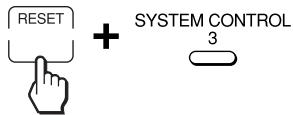
De fabrieksinstelling met de reeks inschakelcommando's voor Sony apparatuur is weer geldig en wordt in volgorde op het scherm aangegeven.
Opmerking
De interval-instelling (zie blz. 30) wordt niet teruggesteld op de fabrieksinstelling, ook niet met de bovenstaande stappen.
Opmerkingen over de System Control bedieningsreeksen
- Als de te bedienen componenten te ver uiteen staan of als er een obstakel voor staat, kunnen niet alle componenten naar behoren werken wanneer u op de SYSTEM CONTROL toets drukt.
- Als er om de bovenstaande of een andere reden iets mis gaat met de bedieningsreeks, dan zult u daarna alle componenten terug moeten stellen in de oorspronkelijke stand voor u de SYSTEM CONTROL bedieningsreeks verzond. Anders loopt u de kans dat de bediening bij het opnieuw indrukken van de SYSTEM CONTROL toets weer mis gaat.
- Het inschakelen van componenten kan bij een System Control bedieningsreeks wel eens problemen geven. Het signaal voor inschakelen is vaak hetzelfde als voor uitschakelen. Om moeilijkheden te voorkomen is het aanbevolen eerst te controleren of de betreffende componenten voor de bedieningsreeks al naar behoren ingeschakeld zijn of juist nog uit staan.
- Als de System Control functies niet goed werken, kunt u proberen of de "Tips voor het programmeren van de System Control functies" op blz. 25 uitkomst brengen.
Programmeren van een reeks bedieningscommando's voor de component-keuzetoetsen
Net als bij de SYSTEM CONTROL toetsen kunt u ook een reeks bedieningscommando's vastleggen onder de component-keuzetoetsen (tot 16 stappen per toets).
Om een System Control bedieningsreeks die is geprogrammeerd voor een component-keuzetoets uit te voeren, moet u de component-keuzetoets langer dan 2 seconden ingedrukt houden.
Opmerkingen
- De geprogrammeerde commando's van een bedieningsreeks worden pas uitgevoerd wanneer u de component-keuzetoets langer dan 2 seconden ingedrukt houdt. Als u de toets minder dan 2 seconden indrukt, werkt deze als gewone component-keuzetoets en dan verschijnen de bijbehorende tiptoetsen op het aanraakscherm.
- Zie tevens “Tips voor het programmeren van de System Control functies” op blz. 25 en “Opmerkingen over de System Control bedieningsreeksen” op blz. 27.
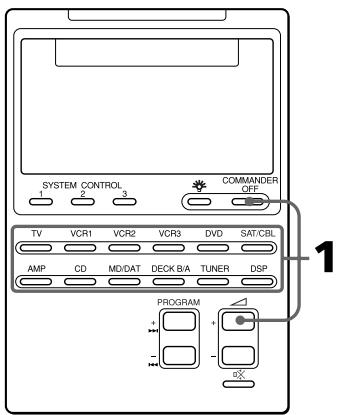
Voorbeeld: Programmeren van de procedure op blz. 23 onder de VCR3 component-keuzetoets
1 Houd de COMMANDER OFF toets ingedrukt en druk daarbij de ∆ + toets en de VCR3 toets in.
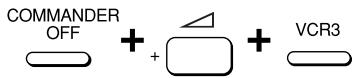
“VCR3” blijft branden en de namen van de andere componenten knipperen.
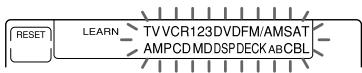
Als er al een bedieningsreeks onder de gekozen toets is geprogrammeerd
Dan worden de geprogrammeerde commando's in volgorde aangegeven. Om dan een nieuwe bedieningsreeks te programmeren, zult u de bestaande reeks eerst moeten wissen (zie blz. 29).
2 Volg de aanwijzingen 2 t/m 5 op blz. 24 en 25.
Opmerkingen
- U kunt een reeks System Control bedieningsfuncties programmeren voor een component-keuzetoets waarvoor al een inschakelfunctie (zie blz. 31) is geprogrammeerd. In dat geval wordt echter de inschakelfunctie overschreven en kunt u die niet meer gebruiken. Maar wanneer u de System Control bedieningsreeks voor de betreffende toets uitwist, zal de inschakelfunctie weer gelden en kunt u die weer als voorheen gebruiken.
- U kunt geen System Control bedieningsreeks programmeren voor een component-keuzetoets waaraan al een nieuw signaal is toegewezen door “aanleren” (zie blz. 32). (Als u dat probeert, gaat de aanduiding “NG” knipperen om u te waarschuwen.)
- Andersom kunt u wel door “aanleren” (zie blz. 32) een nieuwe functie vastleggen onder een component-keuzetoets waarvoor al een System Control bedieningsreeks is geprogrammeerd. Dan wordt de System Control bedieningsreeks overschreven en kunt u die niet meer gebruiken. Maar wanneer u de nieuw “aangeleerde” functie voor de betreffende toets uitwist, zal de System Control bedieningsreeks weer gelden en kunt u die weer als voorheen gebruiken.
- U kunt een inschakelfunctie (zie blz. 31) programmeren voor een component-keuzetoets waarvoor al een System Control bedieningsreeks is geprogrammeerd, maar dan zult u die inschakelfunctie nog niet kunnen gebruiken. Pas wanneer u de System Control bedieningsreeks voor de betreffende toets uitwist, zult u de inschakelfunctie kunnen gebruiken.
- Als het programmeren langer dan twee minuten wordt onderbroken, vervalt de invoerstand en zal de bedieningsreeks slechts tot op dat punt gelden. Om dan de gehele reeks in te voeren zult u de gedeeltelijke reeks moeten wissen, om dan opnieuw vanaf stap 1 te gaan programmeren. Het is niet mogelijk om door te gaan waar u gestopt bent.
- Als u het component-codenummer wijzigt (zie blz. 8) of een nieuwe functie van een andere afstandsbediening overneemt met de aanleerfunctie (zie blz. 16) voor een toets waaraan eerder een reeks System Control functies was toegewezen, dan vervalt die reeks en zal bij indrukken van de component-keuzetoets alleen het nieuwe signaal worden verzonden.
Wissen van een System Control bedieningsreeks die is geprogrammeerd voor een component-keuzetoets
Bijvoorbeeld: Wissen van de geprogrammeerde reeks voor de VCR3 toets
1 Houd de COMMANDER OFF toets ingedrukt en druk daarbij de ∆ + toets en de VCR3 toets in.
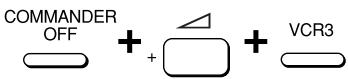
2 Houd de RESET toets ingedrukt en druk daarbij op de VCR3 toets.
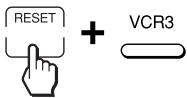
Wanneer de inhoud van het programma is gewist, blijft “VCR3” branden en zullen de namen van de andere componenten knipperen.
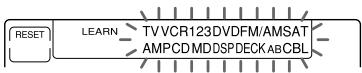
Als u nu een nieuwe bedieningsreeks voor deze component-keuzetoets wilt programmeren, volgt u de aanwijzingen 1 en 2 op blz. 28.
Uitvoeren van een reeks bedieningsfuncties — System Control functies (vervolg)
Aanpassen van de tijdsduur tussen de commando's in een bedieningsreeks
Voor het tijdsinterval tussen de stappen kunt u kiezen uit vier waarden (ongeveer 127 milliseconden, 408 ms, 708 ms of 974 ms).
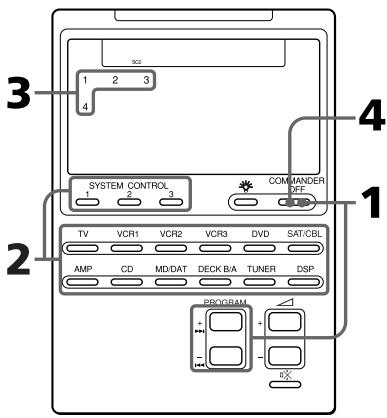
1 Houd de COMMANDER OFF toets ingedrukt en druk daarbij de PROGRAM + en de PROGRAM - toets in.
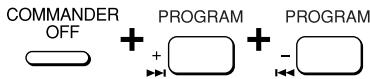
Nu gaan de aanduidingen "SC1", "SC2", "SC3" en de afkortingen voor alle typen componenten knipperen.
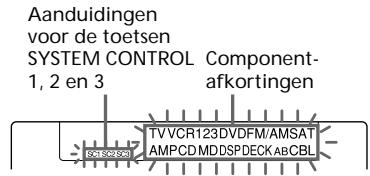
2 Druk op een van de SYSTEM CONTROL toetsen (1, 2 of 3) of op de component-keuzetoets waarvoor u de tijdsduur wilt aanpassen.
Het nummer van het geldende interval blijft branden en de andere nummers knipperen.
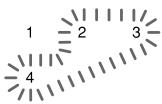
flowchart
graph TD
    A["1"] --> B["2"]
    B --> C["3"]
    C --> D["4"]
    D --> A
3 Druk op een van de cijfertoetsen (1 - 4) om te gewenste tijdsinterval te kiezen.
1: ongeveer 127 ms (fabrieksinstelling)
2: ongeveer 408 ms
3: ongeveer 708 ms
4: ongeveer 974 ms
(1 ms = 1/1000 seconde)

Het nummer van het gekozen interval blijft branden en de andere nummers knipperen.
4 Druk op de COMMANDER OFF toets.
Toevoegen van een extra functie aan de component-keuzetoetsen
Programmeren van de inschakelcode voor de gekozen component (alleen voor Sony apparatuur)
Bij gebruik van Sony componenten kunt u de inschakelcode voor elk apparaat programmeren onder een component-keuzetoets. Zo kunt u met één druk op de component-keuzetoets een bepaald apparaat inschakelen en tegelijk instellen op de bediening ervan.
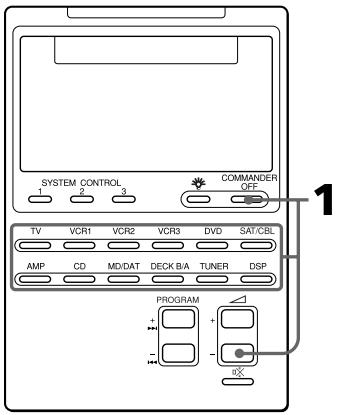
Voorbeeld: Programmeren van de TV toets
1 Houd de COMMANDER OFF toets ingedrukt en druk daarbij de △ - volumetoets en de gewenste component-keuzetoets in.

Wanneer het inschakelcommando is geprogrammeerd, klinkt er een pieptoon en verschijnt de aanduiding “ ^① ON” op het scherm. (De schermaanduiding verdwijnt wanneer u de toetsen loslaat.)

Wissen van het inschakelcommando
Herhaal de bovenstaande handeling. Dan verschijnt alleen de volgende aanduiding.

Toevoegen van een extra functie aan de component-keuzetoetsen (vervolg)
Opmerkingen
- Als er al een signaal voor een ander merk dan Sony is overgenomen, dan kan er geen inschakelcommando voor die toets worden geprogrammeerd.
- Ook als u met “aanleren” al een nieuwe functie van een andere afstandsbediening hebt overgenomen (zie “Toevoegen van een extra code bij de keuze van een component”) of een System Control bedieningsreeks hebt geprogrammeerd (zie blz. 28) voor een component-keuzetoets, dan nog kunt u wel een inschakelcommando voor die toets programmeren, maar dan kunt u de inschakelfunctie nog niet gebruiken. Pas wanneer u de “aangeleerde” functie of de System Control bedieningsreeks voor de betreffende toets uitwist, zult u de inschakelfunctie kunnen gebruiken.
- U kunt door “aanleren” (zie blz. 32) een nieuwe functie vastleggen of een System Control bedieningsreeks programmeren (zie blz. 28) voor een component-keuzetoets waarvoor al een inschakelcommando is geprogrammeerd. Dan wordt de inschakelfunctie overschreven en kunt u die niet meer gebruiken. Pas wanneer u de nieuw “aangeleerde” functie of de System Control bedieningsreeks voor de betreffende toets uitwist, zal de inschakelfunctie weer gelden en kunt u die weer gebruiken. Als u zowel met “aanleren” een nieuwe functie hebt overgenomen en een System Control bedieningsreeks hebt geprogrammeerd voor dezelfde toets, dan zal bovendien het “aangeleerde” signaal de System Control bedieningsreeks hebben overschreven.
Toevoegen van een extra code bij de keuze van een component
Naast de oorspronkelijke functie van het instellen op een component en het laten verschijnen van de bedieningstoetsen daarvoor, kunt u voor een component-keuzetoets nog een extra afstandsbedieningssignaal overnemen met de "aanleerfunctie".
Als u bijvoorbeeld voor het luisteren naar een compact disc altijd de versterker moet instellen op CD-weergave, dan kunt u het signaal voor “versterker instellen op CD-weergave” toewijzen aan de CD toets van deze afstandsbediening. Dan kunt u met één druk op de CD component-keuzetoets de tiptoetsen voor de CD-speler laten verschijnen en tegelijk de versterker instellen op weergave van een CD. (Daarvoor moet natuurlijk wel eerst de versterker zijn ingeschakeld.)
Opmerking
Bepaalde afstandsbedieningssignalen kunnen niet goed worden overgenomen of aangeleerd.
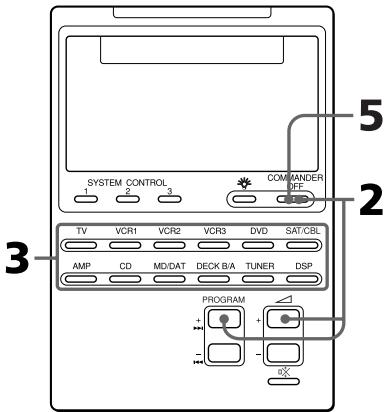
Voorbeeld: Programmeren van het CD-ingangskeuzesignaal voor uw versterker onder de CD toets van de afstandsbediening
1 Leg de RM-AV2100T recht tegenover de afstandsbediening van het apparaat dat u wilt bedienen.
Afstandsbediening van uw component
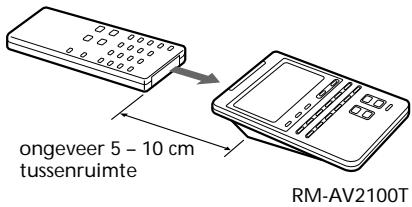
2 Houd de COMMANDER OFF toets ingedrukt en druk daarbij de PROGRAM + toets en de ∠ + volumetoets tegelijk in.
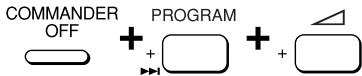
De aanduiding “LEARN” verschijnt en de afkortingen voor alle typen componenten gaan knipperen.
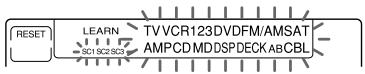
Opmerking
De naam van elke component-keuzetoets waarvoor al een signaal is aangeleerd, blijft branden. Als u dan een nieuw signaal voor een dergelijke toets wilt overnemen met de aanleerfunctie, zult u het eerder aangeleerde signaal eerst moeten wissen (zie blz. 34).
3 Druk op de betreffende component-keuzetoets.

De naam van de gekozen component blijft branden en "LEARN" gaat knipperen.

flowchart
graph LR
    A["RESET"] --> B["LEARN"]
    B --> C["CD"]
4 Houd de over te nemen toets op de afstandsbediening van de betreffende component (in dit geval de versterker) ingedrukt tot u een pieptoon hoort.
(Als u de toets loslaat voordat de pieptoon klinkt, kan het signaal niet goed worden aangeleerd.)
De aanduiding "LEARN" stopt met knipperen en blijft branden.
Als de aanduiding "NG" op het scherm knippert
Dan is er bij het aanleren iets misgegaan. Probeer de stappen 3 en 4 nogmaals.
5 Druk op de COMMANDER OFF toets.
Toevoegen van een extra functie aan de component-keuzetoetsen (vervolg)
Wissen van de aangeleerde functie van een component-keuzetoets
1 Houd de COMMANDER OFF toets ingedrukt en druk daarbij de PROGRAM + toets en de ∆ + volumetoets tegelijk in.
2 Houd nu de RESET toets ingedrukt en druk daarbij op de component-keuzetoets waarvan u de extra functie wilt wissen.
Opmerkingen
- U kunt door “aanleren” (zie blz. 32) een nieuwe functie vastleggen voor een component-keuzetoets waarvoor al een System Control bedieningsreeks is geprogrammeerd (zie blz. 28) of een inschakelcommando (zie blz. 31) is vastgelegd. Dan wordt de System Control bedieningsreeks of de inschakelfunctie overschreven en kunt u die niet meer gebruiken. Pas wanneer u de nieuw “aangeleerde” functie voor de betreffende toets uitwist, zal de System Control bedieningsreeks of de inschakelfunctie weer gelden en kunt u die weer gebruiken.
- U kunt geen System Control bedieningsreeks programmeren (zie blz. 28) voor een component-keuzetoets waaraan al een nieuw signaal is toegewezen door “aanleren”.
- U kunt wel een inschakelfunctie programmeren voor een component-keuzetoets waarvoor al een nieuw signaal is overgenomen door “aanleren”, maar dan zult u die inschakelfunctie nog niet kunnen gebruiken. Pas wanneer u de “aangeleerde” functie voor de betreffende toets uitwist, zult u de inschakelfunctie kunnen gebruiken.
Uitschakelen van alle componenten met een enkele toets
— systeem-uitschakelfunctie (alleen voor Sony apparatuur)
Door het instellen van de systeem- uitschakelfunctie kunt u alle componenten van Sony in één keer uitschakelen, door de COMMANDER OFF toets drie seconden lang in te drukken.
Opmerkingen
- Sommige Sony componenten kunnen met deze functie niet worden uitgeschakeld.
- De uitschakelcommando's worden doorgegeven met de tijdsintervallen die gelden voor de System Control functie onder de SYSTEM CONTROL 1 toets (zie blz. 30). Als u het tijdsinterval voor de SYSTEM CONTROL 1 toets wijzigt, zal ook het tijdsinterval voor de systeemuitschakelfunctie veranderen.
Instellen van de systeem- uitschakelfunctie
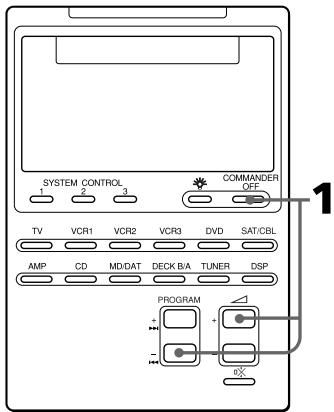
1 Houd de COMMANDER OFF toets ingedrukt en druk daarbij de PROGRAM – toets en de ∠ + volumetoets tegelijk in.
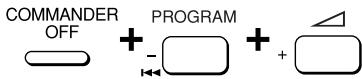
Wanneer de systeem-uitschakelfunctie geactiveerd is, verschijnt de aanduiding “ + OFF” op het scherm. (De scherm-aanduiding verdwijnt wanneer u de toetsen loslaat.)

Annuleren van de systeem- uitschakelfunctie
Herhaal de bovenstaande handeling. Na het annuleren van de systeem-uitschakelfunctie verschijnt alleen de volgende aanduiding.

Toewijzen van andere apparatuur aan de component-keuzetoetsen
Als u een extra component afzonderlijk wilt bedienen, kunt u die component toewijzen aan een andere component-keuzetoets die u niet gebruikt. Als u bijvoorbeeld beschikt over twee videorecorders en twee compact disc spelers, kunt u de VCR3 toets gebruiken als de component-keuzetoets voor uw tweede CD-speler.
Opmerkingen
- Als u een andere component toewijst aan een component-keuzetoets, komt de instelling van het component-codenummer (voor een ander merk) te vervallen. Dit component-codenummer zal niet terugkomen, ook al verwijdert u de nieuw gekozen component en stelt u de toets terug op de oorspronkelijke component.
- Als u een andere component toewijst aan de TV of AMP keuzetoets, zult u de geluidssterkte voor het TV-toestel of de versterker niet meer kunnen regelen (zie blz. 14, 22) wanneer u instelt op een andere component.
- Bij gebruik van de DECK B/A toets zal altijd deck B worden gekozen.
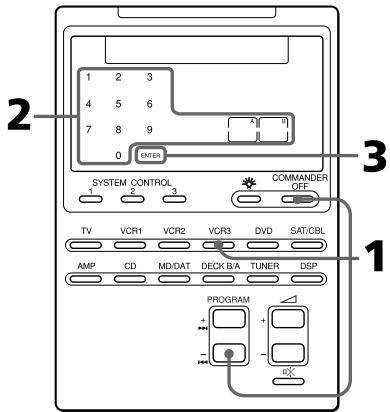
Toewijzen van andere apparatuur aan de component-keuzetoetsen (vervolg)
Voorbeeld: Toewijzen van een CD-speler aan de VCR3 component-keuzetoets
1 Houd de COMMANDER OFF toets ingedrukt en druk daarbij de PROGRAM + toets en de VCR3 toets tegelijk in.
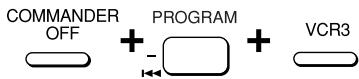
De cijfers 0 – 9, de “A” en “B” en “ENTER” gaan knipperen.
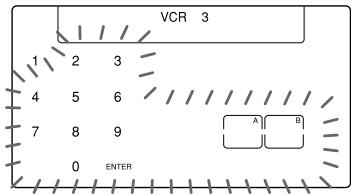
2 Druk op een van de volgende toetsen om in te stellen op de nieuwe component die u aan de toets wilt toewijzen.
In dit voorbeeld drukt u op toets 5 om in te stellen op de CD-speler.
1: VCR (videorecorder)
2: VD (videodisc- speler)
3: SAT (satelliet- ontvanger)
4: AMP (versterker)
5: CD (CD-speler)
6: DECK (cassettedeck)
7: MD (minidisc-recorder)
8: TV (TV-toestel)
9: CBL (kabel-TV ontvanger)
0: DVD (videospeler)
A: FM/AM (radio)
B: DSP (Digitale Surround Processor)
3 Druk op de ENTER toets.

De aanduidingen “VCR3” (het oorspronkelijk te bedienen apparaat), “CD” (de nieuw gekozen component) en “ENTER” lichten tweemaal op.
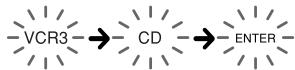
flowchart
graph LR
    A["VCR3"] --> B["CD"]
    B --> C["ENTER"]
4 • Als de nieuw gekozen component een Sony apparaat is, drukt u op de COMMANDER OFF toets om de procedure af te ronden.
- Als u voor een ander merk het component-codenummer moet invoeren, volgt u de aanwijzingen op blz. 8 en 9.
- Als u extra afstandsbedieningssignalen wilt overnemen met de "aanleerfunctie", volgt u hiervoor de stappen 1 t/m 6 op blz. 16 en 17.
Opmerking
Als de aanduiding “NG” op het scherm gaat knipperen bij indrukken van de component-keuzetoets in stap 1, dan kunt u er geen andere component aan toewijzen, omdat voor bepaalde toetsen al een andere functie is overgenomen met de “aanleerfunctie” (zie blz. 32).
Wis dan eerst de aangeleerde signalen en probeer het toewijzen opnieuw.
Gebruik van de afstandsbediening na het toewijzen van andere componenten
Druk op de nieuw toegewezen component-keuzetoets. De tiptoetsen voor de nieuwe component verschijnen en u kunt dat apparaat nu gaan bedienen. Overigens wordt hierbij nog steeds de oorspronkelijke componentnaam aangegeven. (In ons voorbeeld zou het scherm nu het volgende te zien geven.)
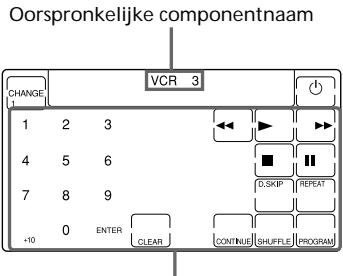
Bedieningstoetsen voor een CD-speler
Terugstellen van een component- keuzetoets op de oorspronkelijke instelling
1 Houd de COMMANDER OFF toets ingedrukt en druk daarbij de component-keuzetoets in die u wilt terugstellen.
2 Houd nu de CHANGE toets ingedrukt en druk daarbij opnieuw op dezelfde component-keuzetoets.
Die component-keuzetoets keert dan terug naar de oorspronkelijke fabrieksinstelling.
3 Druk op de COMMANDER OFF toets.
Opmerking
Als u extra bedieningssignalen voor een of meer toetsen hebt overgenomen met de "aanleerfunctie" (zie blz. 16) na het toewijzen van een andere component aan de component-keuzetoets, dan zult u met de twee stappen hierboven slechts de "aangeleerde" functies wissen. In dat geval herhaalt u daarna stap 2 om de component-keuzetoets terug te stellen op de oorspronkelijke instelling.
De instellingen van een component-keuzetoets overnemen onder een andere toets
U kunt alle instellingen van een component-keuzetoets volledig overbrengen naar een andere component-keuzetoets. De instellingen voor de componentcode (zie blz. 8) en de aangeleerde functies (zie blz. 16) worden daarbij volledig overgekopieerd naar de nieuw gekozen toets.
Opmerking
U kunt de instellingen niet overbrengen naar een component-keuzetoets waarvoor al een nieuw commando is vastgelegd met de aanleerfunctie. (Als u dat probeert, gaat de aanduiding "NG" knipperen.)
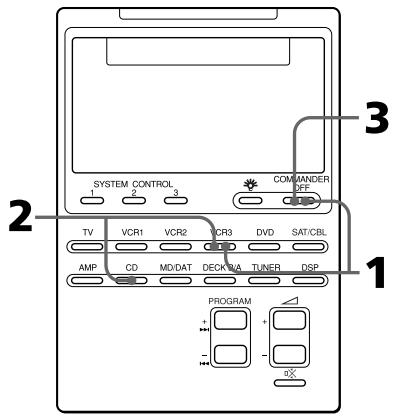
Toewijzen van andere apparatuur aan de component-keuzetoetsen (vervolg)
Voorbeeld: De instellingen van de CD toets overnemen onder de VCR3 component-keuzetoets
1 Houd de COMMANDER OFF toets ingedrukt en druk daarbij de VCR3 toets in.
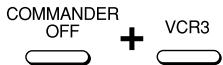
De tiptoetsen voor de ongebruikte component (VCR3) gaan knipperen.
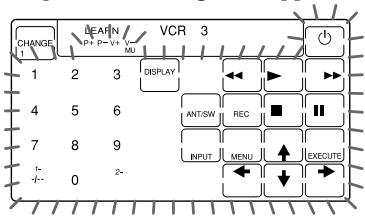
2 Houd nu de VCR3 toets ingedrukt en druk daarbij de CD toets in.
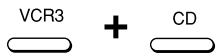
De tiptoetsen voor de nieuw gekozen component (CD) gaan knipperen.
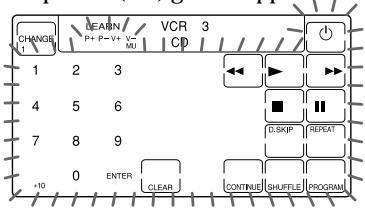
3 Druk op de COMMANDER OFF toets.
Programmeren van een vaak gebruikte functie voor de SYSTEM CONTROL toetsen
Naast de oorspronkelijke functie voor System Control bedieningsreeksen (zie blz. 23) kunt u voor de SYSTEM CONTROL toetsen 1, 2 en 3 ook extra bedieningssignalen overnemen met de "aanleerfunctie".
Aangezien de SYSTEM CONTROL toetsen 1, 2 en 3 geheel afzonderlijk van de andere toetsen werken, kunt u ze ook gebruiken voor directe één-toets bediening, zonder bijvoorbeeld eerst de betreffende component te hoeven kiezen met een component-keuzetoets.
Deze één-toets bediening kan een handig alternatief zijn voor het gewone gebruik van de SYSTEM CONTROL toetsen voor bedieningsreeksen.
Opmerking
Bepaalde afstandsbedieningssignalen kunnen niet goed worden overgenomen of aangeleerd. Zie tevens de gebruiksaanwijzing van de oorspronkelijke afstandsbediening.
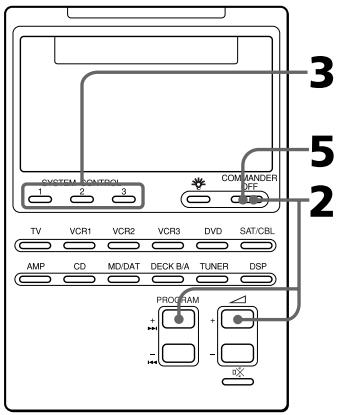
Voorbeeld: Overnemen van het aan/uit-signaal voor een airconditioning voor de SYSTEM CONTROL 2 toets
1 Leg de RM-AV2100T recht tegenover de afstandsbediening van de airconditioning.
Afstandsbediening van uw airconditioning
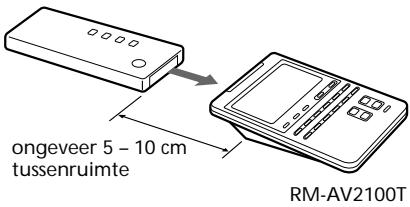
2 Houd de COMMANDER OFF toets ingedrukt en druk daarbij de PROGRAM + toets en de ∠ + volumetoets tegelijk in.
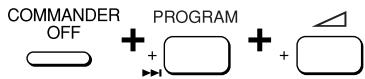
De aanduiding “LEARN” verschijnt en de afkortingen voor de SYSTEM CONTROL toetsen en voor alle typen componenten gaan knipperen.
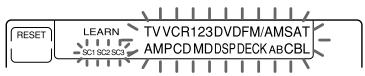
Als er voor de betreffende toets al een signaal is geprogrammeerd, blijft de aanduiding daarvoor branden. Als u die toets toch wilt gebruiken, zult u eerst het geprogrammeerde signaal moeten wissen (zie blz. 40).
3 Druk op de SYSTEM CONTROL toets waarvoor u een signaal wilt overnemen.
De aanduiding “LEARN” gaat knipperen en alleen de ingedrukte SYSTEM CONTROL toets blijft in het scherm zichtbaar.

flowchart
graph LR
    A["RESET"] --> B["LEARN SC2"]
4 Houd de over te nemen toets op de afstandsbediening van het betreffende apparaat (in dit geval de airconditioning) ingedrukt tot u een pieptoon hoort.
(Als u de toets loslaat voordat de pieptoon klinkt, kan het signaal niet goed worden aangeleerd.)
AIR CONDITIONER

De aanduiding "LEARN" stopt met knipperen en blijft branden.
Als de aanduiding "NG" op het scherm knippert
Dan is er bij het aanleren iets misgegaan. Probeer de stappen 3 en 4 nogmaals.
5 Druk op de COMMANDER OFF toets.
Programmeren van een vaak gebruikte functie voor de SYSTEM CONTROL toetsen (vervolg)
Opmerking
U kunt door “aanleren” een nieuwe functie vastleggen voor een SYSTEM CONTROL toets waarvoor al een System Control bedieningsreeks is geprogrammeerd. Dan wordt de System Control bedieningsreeks overschreven en kunt u die niet meer gebruiken. Pas wanneer u de nieuw “aangeleerde” functie voor de betreffende toets uitwist, zal de System Control bedieningsreeks weer gelden en kunt u die weer gebruiken.
Wissen van de aangeleerde functie van een toets
1 Houd de COMMANDER OFF toets ingedrukt en druk daarbij de PROGRAM + toets en de ∆ + volumetoets tegelijk in.
2 Houd nu de RESET toets ingedrukt en druk daarbij op de SYSTEM CONTROL toets (1, 2 of 3) waarvan u de functie wilt wissen.
3 Druk op de COMMANDER OFF toets.
De aanduiding voor die toets gaat knipperen.
Als u nu een nieuw afstandsbedieningssignaal voor die toets wilt programmeren, volgt u de aanwijzingen 3 t/m 5.
Opmerkingen over het aanleren van de bedieningssignalen voor een airconditioning
Betreffende seizoensinstellingen
Als u de instellingen voor uw airconditioning per seizoen wijzigt, zult u de bedieningssignalen voor de nieuwe instellingen ook in deze afstandsbediening moeten programmeren.
Als het aan/uit schakelen van de airconditioning niet lukt
De kans bestaat dat de airconditioning niet goed reageert op het aan/uit commando dat u hebt overgenomen onder een toets van deze afstandsbediening.
Als deze afstandsbediening met één toets een goed "ON" signaal voor inschakelen aan de airconditioning doorgeeft en met een andere toets een "OFF" signaal voor uitschakelen, terwijl de afstandsbediening van uw airconditioning wel met een enkele "ON/OFF" toets werkt, dan kunt u de signalen het best onder twee toetsen van deze afstandsbediening vastleggen, als volgt.
1 Wis het aangeleerde aan/uit signaal. (In het voorbeeld van blz. 39 annuleert u het signaal dat is overgenomen onder de SYSTEM CONTROL 2 toets.)
2 Programmeer opnieuw het signaal (verzonden door de aan/uit-toets van de afstandsbediening van uw airconditioning) onder de SYSTEM CONTROL 2 toets.
3 Programmeer vervolgens het signaal van dezelfde aan/uit-toets van de afstandsbediening onder een andere toets (bijvoorbeeld de SYSTEM CONTROL 3 toets).
De twee toetsen van de afstandsbediening zijn nu geprogrammeerd voor het inschakelsignaal, resp. het uitschakelsignaal van de airconditioning en nu zult u de airconditioning probleemloos kunnen in- en uitschakelen.
Gegevensuitwisseling tussen afstandsbedieningseenheden
Gegevens zoals aangeleerde signalen en componentcode-instellingen kunt u overbrengen of uitwisselen tussen deze afstandsbediening en een andere RM-AV2100T of Sony RM-VL900T afstandsbediening.
Geschikte typen afstandsbediening Er kunnen gegevens worden overgebracht tussen deze afstandsbediening en een andere Sony RM-AV2100T of RM-VL900T afstandsbediening. Gegevensoverdracht tussen deze afstandsbediening en een andere afstandsbediening dan de Sony RM-AV2100T of RM-VL900T is niet mogelijk.
Verzenden van gegevens
U kunt alle gegevens van deze afstandsbediening of de gegevens van een component-keuzetoets als volgt overbrengen naar een andere RM-AV2100T of Sony RM-VL900T afstandsbediening.
Alle gegevens van deze
afstandsbediening overzenden
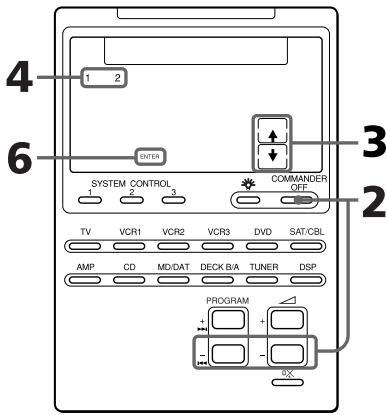
1 Leg de RM-AV2100T recht tegenover de andere afstandsbediening.
Andere afstandsbediening
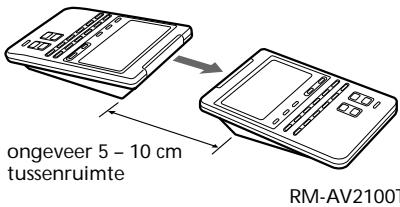
2 Houd de COMMANDER OFF toets ingedrukt en druk daarbij de PROGRAM - toets en de ∠ - volumetoets tegelijk in.
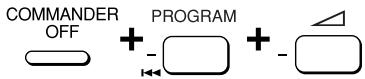
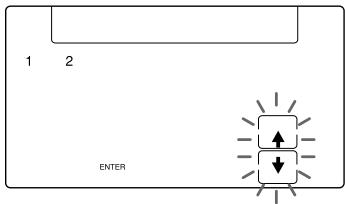
3 Druk op de ↑ toets.

↑: Gegevens verzenden
↓: Gegevens ontvangen
Gegevensuitwisseling tussen afstandsbedieningseenheden (vervolg)
4 Druk op cijfertoets 1.

1: Alle gegevens van de afstandsbediening
2: Gegevens van een component-
keuzetoets
5 Controleer of de andere afstandsbediening gereed is voor ontvangst.
(Zie voor het instellen van de afstandsbediening voor ontvangst de aanwijzingen op blz. 43.)
6 Druk op de "ENTER" toets.

Bij het overzenden van de gegevens dooft nu telkens de naam van de betreffende component. Als alle gegevens naar behoren zijn verzonden, dooft de verlichting van het scherm.
Opmerking
Als de aanduiding “NG” op het scherm verschijnt tijdens het verzenden van de gegevens, ga dan terug naar stap 5 en probeer het nog eens, of druk op de COMMANDER OFF toets om het verzenden te annuleren.
Opmerking
Controleer zorgvuldig of de andere afstandsbediening gereed is voor de ontvangst van gegevens.
De gegevens van een component-keuzetoets overzenden
De gegevens van een component-keuzetoets van deze afstandsbediening (de instellingen en aangeleerde signalen voor de knoppen en tittoetsen) kunnen worden overgebracht naar de component-keuzetoets van een andere RM-AV2100T of Sony RM-VL900T afstandsbediening.
1-3 Volg de aanwijzingen 1 t/m 3 op blz. 41.
4 Druk op cijfertoets 2.

5 Druk op de component-keuzetoets waarvan u de gegevens wilt overzenden.

6 Controleer of de andere afstandsbediening gereed is voor ontvangst.
(Zie voor het instellen van de afstandsbediening voor ontvangst de aanwijzingen op blz. 43.)
7 Druk op de "ENTER" toets.

Nadat de gegevens zijn verzonden, doven de aanduidingen “TV” en “↑”. Als alle gegevens naar behoren zijn verzonden, dooft de verlichting van het scherm.
Opmerking
Als de aanduiding "NG" op het scherm verschijnt tijdens het verzenden van de gegevens, ga dan terug naar stap 6 en probeer het nog eens, of druk op de COMMANDER OFF toets om het verzenden te annuleren.
Opmerkingen
- De gegevens voor een "aangeleerd" signaal of een System Control bedieningsreeks die is geprogrammeerd voor een componentkeuzetoets kunnen niet worden overgezonden.
U kunt de aanleerfunctie (zie blz. 32) gebruiken om het "aangeleerde" signaal of een geprogrammeerde System Control bedieningsreeks weer te programmeren voor een component-keuzetoets van de andere afstandsbediening. - Controleer zorgvuldig of de andere afstandsbediening gereed is voor de ontvangst van gegevens.
Ontvangst van gegevens
Deze afstandsbediening kan gegevens ontvangen van een andere RM-AV2100T of Sony RM-VL900T afstandsbediening.
Ontvangst van alle gegevens van een andere afstandsbediening
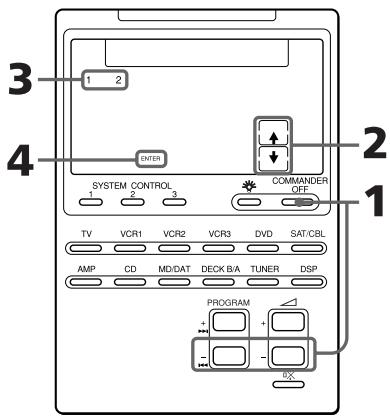
1 Houd de COMMANDER OFF toets ingedrukt en druk daarbij de PROGRAM + en de ∠ - toets in.
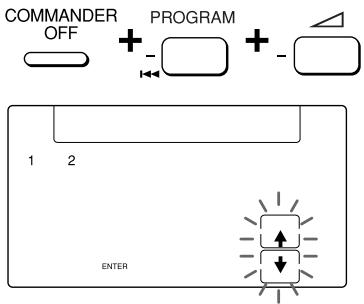
Gegevensuitwisseling tussen afstandsbedieningseenheden (vervolg)
2 Druk op de ↓ toets.

↑: Gegevens verzenden
↓: Gegevens ontvangen
3 Druk op cijfertoets 1.

1: Alle gegevens van de afstandsbediening
2: Gegevens van een component-
keuzetoets
4 Druk op de ENTER toets.

Bij de ontvangst van de gegevens blijft nu telkens de naam van de betreffende component branden. Als alle gegevens naar behoren zijn ontvangen, dooft de verlichting van het scherm.
Opmerkingen
- Als de afstandsbediening niet gereed is voor de ontvangst van gegevens, drukt u op de CLEAR toets en dan op de EXECUTE toets om het aangeleerde signaal voor alle of een van de component-keuzetoetsen te wissen.
- Als de aanduiding “NG” op het scherm verschijnt tijdens het verzenden van de gegevens, ga dan terug naar stap 3 en probeer het nog eens, of druk op de COMMANDER OFF toets om het verzenden te annuleren. Als u ondanks deze aanduiding doorgaat, zult u de andere afstandsbediening opnieuw moeten instellen op het zenden van de gegevens.
Ontvangst van de gegevens voor een component-keuzetoets van een andere afstandsbediening
1-2 Volg de aanwijzingen 1 en 2 op blz. 43 en 44.
3 Druk op cijfertoets 2.

4 Druk op de component-keuzetoets waaronder u de gegevens wilt vastleggen.

5 Druk op de ENTER toets.

Nadat de gegevens zijn ontvangen, doven de aanduidingen "TV" en "↓". Als alle gegevens naar behoren zijn ontvangen, dooft de verlichting van het scherm.
Opmerkingen
- Als de afstandsbediening niet gereed is voor de ontvangst van gegevens, drukt u op de CLEAR toets en dan op de EXECUTE toets om het aangeleerde signaal voor alle of een van de component-keuzetoetsen te wissen.
- Als de aanduiding “NG” op het scherm verschijnt tijdens het verzenden van de gegevens, ga dan terug naar stap 3 en probeer het nog eens, of druk op de COMMANDER OFF toets om het verzenden te annuleren. Als u ondanks deze aanduiding doorgaat, zult u de andere afstandsbediening opnieuw moeten instellen op het zenden van de gegevens.
Blokkeren van de toetsen
— Hold toetsbeveiliging
Om vergissingen te voorkomen, kunt u alle toetsen blokkeren met de Hold beveiliging.
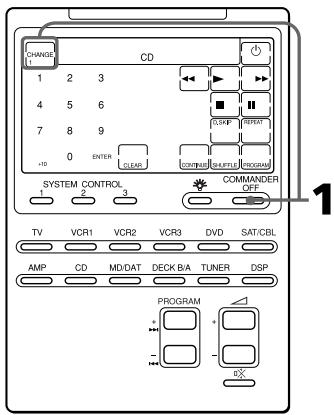
Als de CHANGE toets niet wordt aangegeven, drukt u eerst op een willekeurige toets (behalve een SYSTEM CONTROL toets of de COMMANDER OFF toets) voordat u begint.
1 Houd de CHANGE toets ingedrukt en druk daarbij de COMMANDER OFF toets in.
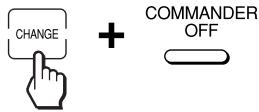
De aanduiding "OFF" verschijnt.

flowchart
graph TD
    A["OFF"] --> B[" "]
Opheffen van de toetsbeveiliging
Houd de “OFF” toets ingedrukt en druk daarbij de COMMANDER OFF toets in.
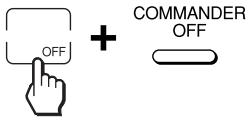
De aanduiding "OFF" verdwijnt van het scherm.
Beveiligen van uw instellingen
— Componentcode-beveiliging
U kunt de afstandsbediening beveiligen tegen het wijzigen, toevoegen of wissen van de gemaakte componentcode-instellingen (zie blz. 8).
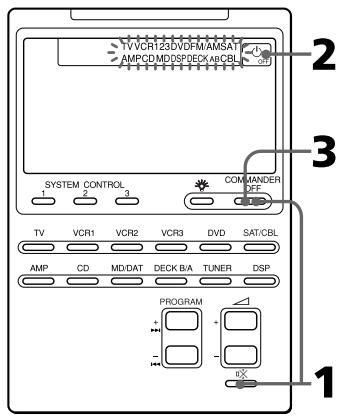
1 Houd de COMMANDER OFF toets ingedrukt en druk daarbij de ✉ dempingstoets in.
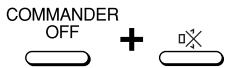
De afkortingen voor alle typen componenten gaan knipperen en de "OFF" toets verschijnt.

2 Druk op de ⏻ OFF toets.
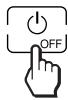
De namen van de componenten stoppen met knipperen en blijven branden en nu knippert de “ON” toets.
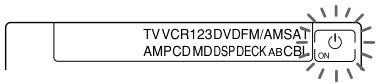
3 Druk op de COMMANDER OFF toets.
Met de Componentcode- beveiliging ingeschakeld
Als u tracht een componentcodenummer in te stellen (zie blz. 8) of een nieuwe functie over te nemen voor een component-keuzetoets (zie blz. 32), gaat de aanduiding "NG" op het scherm knipperen.
De Componentcode-beveiliging uitschakelen
Om de Componentcode-beveiliging uit te schakelen volgt u opnieuw de bovenstaande aanwijzingen, maar drukt u in stap 2 op de ⏻ ON toets. Dan verschijnt er “ ⏻ OFF” op het scherm.
Wijzigen van de automatische uitschakeltijd van de afstandsbediening
De afstandsbediening is in de fabriek ingesteld om 10 minuten na het laatste gebruik automatisch uit te schakelen (automatische uitschakelfunctie). Om de tijd voor het uitschakelen te wijzigen, gaat u als volgt te werk.
U kunt de automatische uitschakeltijd verlengen in stappen van 10 minuten tot maximaal 90 minuten, of u kunt u deze functie desgewenst ook geheel annuleren, zodat de afstandsbediening niet vanzelf uitschakelt.
Opmerking
De automatische uitschakelfunctie zorgt alleen voor uitschakelen van de afstandsbediening en heeft geen invloed op enig ander apparaat.
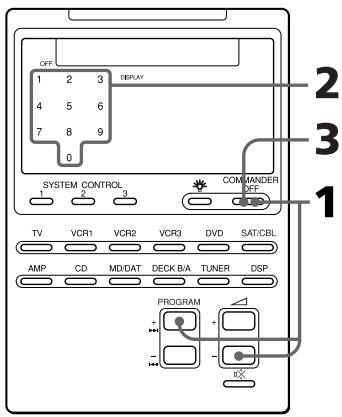
1 Houd de COMMANDER OFF toets ingedrukt en druk daarbij de PROGRAM + en △ - toets allebei in.
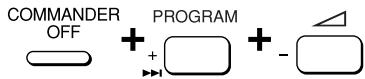
Op het scherm blijft nu het cijfer dat de geldende uitschakeltijd van de afstandsbediening aangeeft branden, terwijl de andere cijfers knipperen.
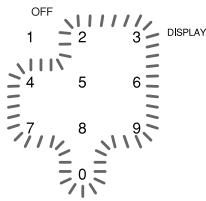
2 Druk op een van de cijfertoetsen 1 - 9 om het veelvoud van 10 minuten voor de automatische uitschakeltijd te kiezen, of druk op cijfertoets 0 om de automatische uitschakelfunctie te annuleren.
Om bijvoorbeeld de automatische uitschakeltijd in te stellen op 20 minuten, drukt u op cijfertoets 2.

Het cijfer "2" stopt met knipperen en blijft branden.
3 Druk op de COMMANDER OFF toets.
Regelen van de verlichting van het uitleesvenster
De afstandsbediening wordt vanaf de fabriek geleverd met een uitleesvenster dat bij inschakelen helder oplicht, om automatisch 10 seconden na het laatste gebruik automatisch uit te schakelen. Om deze instelling te wijzigen, gaat u als volgt te werk.
U kunt de automatische uitschakeltijd van de schermverlichting verlengen (in stapjes van 10 seconden tot maximaal 90 seconden) en u kunt bovendien de helderheid kiezen (fel of minder fel).
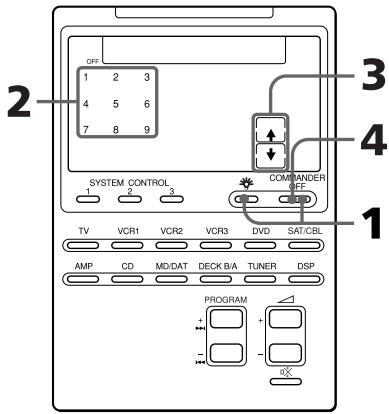
1 Houd de COMMANDER OFF toets ingedrukt en druk daarbij de verlichtingstoets in.
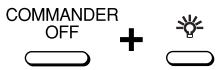
Op het scherm blijft nu het cijfer dat de geldende uitschakeltijd van de achtergrondverlichting aangeeft branden, samen met de pijl die de gekozen helderheid aangeeft. De andere cijfers en de andere pijl knipperen.
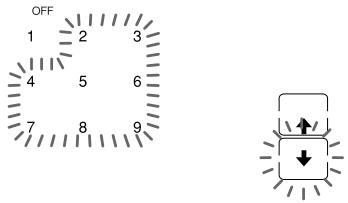
2 Druk op een van de cijfertoetsen 1 - 9 om het veelvoud van 10 seconden voor de automatische uitschakeltijd te kiezen.
Om bijvoorbeeld de automatische uitschakeltijd in te stellen op 20 seconden, drukt u op cijfertoets 2.

Het cijfer "2" stopt met knipperen en blijft branden.
3 Druk op de ↑ of ↓ toets om de helderheid van het scherm te kiezen.
Voor een feller verlicht scherm drukt u op de ↑ toets en voor een minder fel scherm op de ↓ toets.

De gekozen pijl blijft branden.
4 Druk op de COMMANDER OFF toets.
COMMANDER OFF

Instellen van de bedieningspieptoon
U kunt de pieptoon, die klinkt bij het indrukken van een toets, naar keuze in- of uitschakelen.
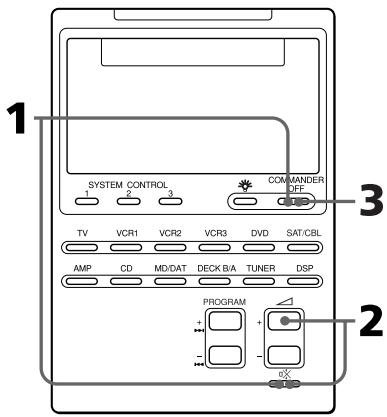
Inschakelen van de bedieningspieptoon
1 Houd de COMMANDER OFF toets ingedrukt en druk daarbij de ✉ dempingstoets in.
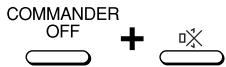
2 Houd nu de ✉ dempingstoets ingedrukt en druk daarbij de △ + volumetoets in.
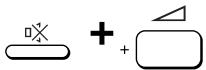
De aanduiding "ON" verschijnt in het uitleesvenster.
natural_image
Simple line drawing of a rectangular shape with an internal rectangle and 'ON' label (no text or symbols beyond the label)3 Druk op de COMMANDER OFF toets.
Uitschakelen van de bedieningspieptoon
Houd in stap 2 de ☐× dempingstoets ingedrukt en druk daarbij de △ - volumetoets in.
Dan verschijnt er "OFF" in het uitleesvenster.
Wijzigen van het tiptoetsen- bedieningsscherm
Elke component-keuzetoets kan twee soorten tiptoets-schermaanduidingen laten verschijnen: de volledige functie-aanduidingen of alleen de basisbedieningfuncties. Het scherm met de basisbedieningfuncties toont alleen de tiptoetsen die regelmatig worden gebruikt voor de fundamentele afspeelfuncties.
U kunt dit scherm met de basisbedieningfuncties zelf aanpassen, om overbodige toetsen weg te laten en alleen de gewenste toetsen te laten verschijnen (zie “Aangeven van alleen de gewenste toetsen”).
Omschakelen van het tiptoetsen- bedieningsscherm
1 Druk op de CHANGE toets voor een van de component-keuzetoetsen.
Telkens wanneer u op de CHANGE toets drukt, veranderen de schermaanduidingen.
"CHANGE 1" verschijnt wanneer het scherm de volledige functie-aanduidingen toont.

flowchart
graph LR
    A["CHANGE 1"] --> B["TV"]
“CHANGE 2” verschijnt wanneer het scherm alleen de essentiële bedieningsfuncties toont.

flowchart
graph LR
    A["CHANGE 2"] --> B["TV"]
Opmerkingen
- De keuze die u maakt voor de schermaanduidingen geldt voor alle component-keuzetoetsen. Als u voor de huidige component-keuzetoets het scherm met alleen de essentiële bedieningsfuncties ("CHANGE 2") kiest, zal voor alle andere component-keuzetoetsen ook ditzelfde vereenvoudigde scherm ("CHANGE 2") verschijnen.
- Hoeveel toetsen er verschijnen op het scherm met de volledige functie-aanduidingen, hangt af van de componentcodes die zijn vooringesteld voor de componentkeuzetoetsen. Bij componenten die maar een beperkt aantal toetsen hebben bij de volledige functie-aanduidingen, kan het scherm met de basisbedieningsfuncties wel eens gelijk zijn aan het volledige bedieningsscherm. In dat geval kunt u het basisbedieningsscherm ook niet verder vereenvoudigen (zie "Aangeven van alleen de gewenste toetsen").
- Een toets waarvoor een nieuw bedieningssignaal is aangeleerd, zal altijd worden aangegeven, zowel in het volledige als in het basisbedieningsscherm.
Aangeven van alleen de gewenste toetsen
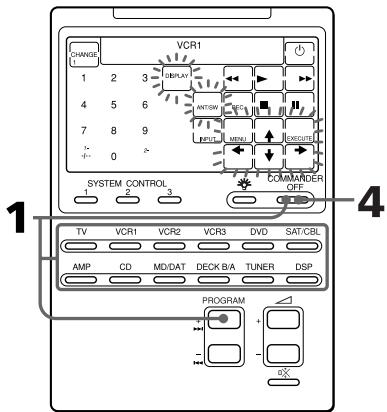
In het basisbedieningsscherm kunt u overbodige toetsen weglaten, om alleen de gewenste toetsen te tonen. Dit vereenvoudigt de bediening, omdat u alleen de meest praktische toetsen voor de hand hebt.
1 Houd de COMMANDER OFF toets ingedrukt en druk daarbij op de PROGRAM + toets en de component-keuzetoets waarvoor u de aanduidingen wilt aanpassen.
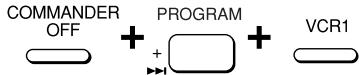
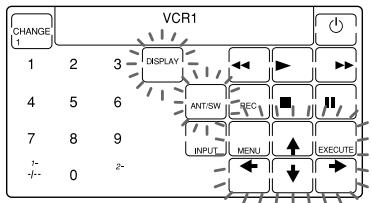
2 Druk op een toets die u wilt blijven zien.

Bij elke volgende druk op de toets wordt deze beurtelings geselecteerd en geannuleerd. Een toets die u selecteert, stopt met knipperen en blijft branden.
3 Herhaal stap 2 totdat alle gewenste toetsen zijn geselecteerd.
4 Druk op de COMMANDER OFF toets.
COMMANDER OFF

Opmerking
Bij componenten die maar een beperkt aantal toetsen hebben bij de volledige functie-aanduidingen, kan het scherm met de basisbedieningsfuncties wel eens gelijk zijn aan het volledige bedieningsscherm. In dat geval kunt u het basisbedieningsscherm ook niet verder vereenvoudigen.
Wissen van de instellingen voor het basisbedieningsscherm
1 Houd de COMMANDER OFF toets ingedrukt en druk daarbij op de PROGRAM + toets en een van de component-keuzetoetsen.
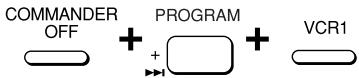
2 Houd de CHANGE toets ingedrukt en druk daarbij nogmaals op dezelfde component-keuzetoets.
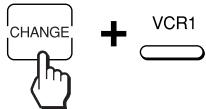
3 Druk op de COMMANDER OFF toets.
Opmerking
Bij het annuleren van de instellingen voor het basisbedieningsscherm op de hierboven beschreven wijze keren alleen de schermaanduidingen terug naar de oorspronkelijk getoonde tiptoetsen. Hierbij blijven de nieuw aangeleerde signalen voor de toetsen intact en worden er geen instellingen gewist.
Voorzorgsmaatregelen
- Laat de afstandsbediening niet vallen en behoed het apparaat tegen heftige schokken, om storingen in de werking te vermijden.
- Leg het apparaat niet te dicht bij een warmtebron en stel het niet bloot aan direct zonlicht, veel stof of zand, vocht, regen of mechanische schokken.
- Pas op dat er geen vloeistof of kleine voorwerpen in de afstandsbediening terechtkomen. Als er vloeistof of een voorwerp in het apparaat terechtkomt, dient u het eerst door een deskundige te laten nakijken, alvorens het weer in gebruik te nemen.
- Zorg dat er geen direct zonlicht of fel lamplicht op de afstandsbedienings-sensors van uw apparatuur valt. Bij te fel licht kan de afstandsbediening niet naar behoren werken.
- Houd de afstandsbediening buiten het bereik van kleine kinderen en huisdieren. Bepaalde elektrische apparatuur zoals voor airconditioning, verwarming of het openen en sluiten van gordijnen of rolluiken kan gevaarlijk zijn wanneer er per ongeluk op een toets van de afstandsbediening wordt gedrukt.
Onderhoud
Veeg de buitenkant van het apparaat schoon met een zacht doekje, licht bevochtigd met water en zonodig wat milde vloeibare zeep. Gebruik voor het reinigen geen vluchtige stoffen als alcohol, benzine of thinner, aangezien dergelijke middelen de afwerking van het apparaat kunnen aantasten.
Technische gegevens
Reikwijdte
Ongeveer 10 meter (dit kan verschillen voor apparatuur van andere merken)
Stroomvoorziening
Afstandsbediening en schermverlichting: vier stuks R6 (AA-formaat) batterijen
Gebruiksduur batterijen
Ongeveer 5 maanden (afhankelijk van hoe intensief de afstandsbediening wordt gebruikt)
Afmetingen
Ongeveer 120 × 175 × 45 mm (b/h/d)
Gewicht
290 gram (zonder batterijen)
Aanleerbare signalen\*
Capaciteit per signaal: tot 250 bit Signaalfrequentiebereik: tot 500 kHz Signaalinterval: tot 1 seconde
* Sommige signalen kunnen niet door de afstandsbediening worden aangeleerd, ook al voldoen ze aan de bovenstaande specificaties.
Wijzigingen in ontwerp en technische gegevens voorbehouden, zonder kennisgeving..
CE
Het CE merk op dit apparaat geldt alleen voor producten die worden verkocht in de Europese Unie.
Verhelpen van storingen
Mocht u problemen hebben met het instellen of gebruik van de afstandsbediening, controleer dan eerst de batterijen (zie blz. 6) en neem vervolgens de onderstaande lijst met controlepunten even door.
| Probleem | Oplossing |
| De apparatuur reageert niet op de afstandsbediening. | Probeer de bediening van wat dichterbij. De maximale reikwijdte van de afstandsbediening is ongeveer 10 meter.Richt de afstandsbediening recht op het te bedienen apparaat en zorg dat er geen obstakels tussen u en het apparaat staan.Schakel de apparatuur eerst in en probeer het dan opnieuw.Controler of u de juiste component-keuzetoets hebt ingedrukt. In het geval van SAT/CBL, DVD of DECK B/A zorgt u dat de gewenste component wordt aangegeven.Controler of het te bedienen apparaat wel geschikt is voor infrarood-afstandsbediening. Als er bij het apparaat geen afstandsbediening geleverd werd, is het wellicht niet geschikt voor bediening op afstand.Wellicht hebt u een andere component toegewezen aan de component-keuzetoets. Controleer de component die aan de betreffende toets is toegewezen en de componentcode. |
| De geluidssterkte is niet goed te regelen. | Als uw video-apparatuur is aangesloten op een stereo-installatie, controleert u dan of de afstandsbediening wel is ingesteld zoals beschreven onder “Volumeregeling voor video-apparatuur aangesloten op een stereo-installatie” (zie blz. 22).Wellicht hebt u een andere component toegewezen aan de TV of AMP toets (zie blz. 35). In dit geval kunt u de geluidssterkte niet regelen wanneer u een andere component dan het TV-toestel of de versterker kiest. |
| Bepaalde apparatuur reageert niet, ook na instellen van een component-codenummer. | Zorg dat het juiste component-codenummer is gekozen. Als het eerste codenummer voor uw component niet werkt, probeer dan alle volgende codenummers uit, in de volgorde zoals vermeld in de bijgeleverde lijst met “Component-codenummers”.Bepaalde functies kunnen niet vooringesteld zijn. Als sommige of zelfs alle toetsen niet goed werken na het instellen van het component-codenummer, gebruik dan de aanleerfunctie om de afstandsbedieningssignalen voor het apparaat over te nemen in deze afstandsbediening (zie blz. 16).Het betreffende apparaat kan werken met een component-codenummer dat niet staat vermeld in de lijst met “Component-codenummers”. Zie “Opzoeken van een componentcode met de zoekfunctie” (op blz. 11) en probeer het opnieuw met het gevonden codenummer. |
| De afstandsbediening kan de afstandsbedieningssignalen niet aanleren. | Wanneer u deze afstandsbediening signalen aanleert van een afstandsbediening met interactief signaaluitwisselsysteem (wordt bij sommige Sony receivers en versterkers geleverd), kan het responsignaal van het hoofdapparaat het aanleren van de signalen hinderen. In dat geval moet u naar een plaats gaan waar de signalen het hoofdapparaat niet kunnen bereiken (bijv. een andere kamer). |
| Bepaalde apparatuur reageert niet, ook na overnemen van de afstandsbedieningssignalen met de “aanleerfunctie”. | Controleer of de afstandsbediening de juiste signalen heeft overgenomen. Zo niet, lees dan “Voor zorgvuldig aanleren van nieuwe functies” (op blz. 20) en verricht het aanleren van de gewenste functie(s) dan opnieuw (zie blz. 16). |
| Er klinkt een reeks pieptonen (piep, piep, piep, piep, piep) en de aanduiding “NG” knippert. | Het aanleren van een functie is mislukt. Lees “Voor zorgvuldig aanleren van nieuwe functies” (op blz. 20) en verricht het aanleren van de gewenste functie dan opnieuw (zie blz. 16).De componentcodes zijn niet goed ingesteld. Zie de bijgeleverde lijst met “Component-codenummers” en probeer het instellen van de component-codenummers opnieuw (zie blz. 8).De gegevens zijn niet juist overgebracht. Zie “Verzenden van gegevens” (op blz 41) en probeer de gegevens opnieuw over te zenden.De gegevens zijn niet juist ontvangen. Zie “Ontvangst van gegevens” (op blz. 43) en probeer de gegevens opnieuw te ontvangen. |
| Er klink twee pieptonen (piep, piep) en de aanduiding “NG” knippert. | De componentcode-beveiliging is ingeschakeld. Hef de componentcode-beveiliging op (zie blz. 48) en probeer het instellen van een componentcode of het aanleren van een functie opnieuw.Er zijn signalen geprogrammeerd voor de betreffende component-keuzetoets of SYSTEM CONTROL toets met de aanleerfunctie. Wis de geprogrammeerde signalen (zie blz. 34, 40) en probeer het vastleggen van de System Control bedieningsreeks opnieuw.Er zijn signalen geprogrammeerd voor de betreffende toets met de aanleerfunctie. Wis de signalen (zie blz. 20 en 21) en probeer dan het vastleggen van de functie of de aanduiding voor deze toets opnieuw, of probeer het met een andere component-keuzetoets.Er zijn signalen geprogrammeerd voor bepaalde toetsen die op het scherm worden aangegeven voor de component-keuzetoets van deze afstandsbediening, tijdens de ontvangst van gegevens van een andere afstandsbediening. Wis de signalen (zie blz. 20, 21 en de “Opmerkingen” op blz. 44) en probeer dan de gegevens opnieuw te ontvangen. |
| Tijdens het “aanleren” van een nieuwe functie licht de aanduiding “NG” op. | Wis de functies die u zelden gebruikt uit het geheugen (zie blz. 20) en probeer het “aanleren” van de gewenste functie opnieuw. |
| Een System Control bedieningsreeks werkt niet naar behoren. | Controleer of de bedieningsfuncties in de juiste volgorde zijn geprogrammeerd (zie blz. 23).Houd de afstandsbediening op een ander punt gericht. Als dat niet helpt, zet dan de verschillende componenten iets dichter bijeen.Controleer de uitgangsstand (aan of uit, enz.) van de betreffende componenten en zorg dat ze alle in gereedheid zijn voor de ontvangst van de System Control bedieningssignalen (zie blz. 27).De componentcodes zijn veranderd of of er zijn nieuwe signalen aangeleerd voor een toets die al was geprogrammeerd voor een reeks bedieningssignalen. In dat geval worden de nieuw aangeleerde signalen verzonden wanneer u probeert de bedieningsreeks uit te voeren.Wellicht is de tijdsduur tussen de achtereenvolgende commando’s te kort. Zie “Aanpassen van de tijdsduur tussen de commando’s in een bedieningsreeks” (op blz. 30) en kies een langer tijdsinterval. |
| De afstandsbediening wordt vanzelf uitgeschakeld. | • De afstandsbediening is in de fabriek ingesteld om 10 minuten na het laatste gebruik automatisch uit te schakelen (Automatische uitschakelfunctie, zie blz. 47). U kunt de automatische uitschakeltijd verlengen in stappen van 10 minuten tot maximaal 90 minuten, of u kunt u deze functie ook geheel annuleren, zodat de afstandsbediening niet vanzelf uitschakelt. |
| De afstandsbediening wordt bij het indrukken van een toets niet ingeschakeld. | • De Hold toetsbeveiliging is ingeschakeld (er wordt “OFF” in het uitleesvenster aangegeven). Hef de beveiliging op (zie blz. 45). |
| Na het uitwisselen van gegevens werkt de afstandsbediening niet naar verwachting. | • De gegevensoverdracht van/naar een enkele toets kan geen System Control bedieningsreeksen overbrengen die zijn vastgelegd onder component-keuzetoetsen. U kunt zulke bedieningsreeksen opnieuw programmeren of alle gegevens van de afstandsbediening tegelijk overbrengen. |
Omtrent de gegevensuitwisseling met de Sony RM-AV2100T
Bij de uitwisseling van gegevens tussen deze afstandsbediening en een andere Sony RM-AV2100T kunnen niet altijd alle functies compleet worden overgebracht (zoals bijv. System Control bedieningsreeksen).
Overzicht van vooringestelde functies
Opmerking
Bepaalde componenten of functies kunnen niet op deze afstandsbediening reageren.
TV-toestel
| SCHERMAANDUIDING | FUNCTIE |
| Aan/uitschakelen | |
| 1 - 9, 0 | ZenderkeuzeOok voor inschakelen |
| 1-, -/ - - | Keuze van twee-cijfer zendernummers.Werkt net als de afstandsbediening van het TV-toestel zelf. |
| 2- | Keuze van een zendernummer van 20 tot 29 |
| RED (ROOD), GREEN (GROEN), YELLOW (GEEL), BLUE (BLAUW) | Fastext toetsen |
| TELETEXT | Overschakelen naar teletekst |
| TV | TV inschakelen. Ook om terug te keren van teletekst naar de gewone TV. |
| INPUT | Keuze van het ingangssignaal |
| 16:9 | Overschakelen naar breedbeeld |
| MENU | Oproepen van het MENU scherm |
| Cursor omhoog verplaatsen | |
| Cursor omlaag verplaatsen | |
| Cursor naar rechts verplaatsen | |
| Cursor naar links verplaatsen | |
| EXECUTE | Uitvoeren van een op het MENU scherm gekozen punt |
| PIP ON/OFF | Aan/uitschakelen van het inzetbeeld |
| PIP CH +/- | Zenderkeuze voor het inzetbeeld |
| SCHERMAANDUIDING | FUNCTIE |
| PIP MOVE | Inzetbeeld over het scherm verplaatsen |
| PIP SWAP | Verwisselen van het hoofdbeeld en het inzetbeeld |
| PROGRAM +/- | Zender met hoger nummer: + |
| Zender met lager nummer: - | |
| RECALL | Voor de JUMP functie van de TV, al naar gelang het merk TV |
| + / - | Geluid harder zetten: + |
| Geluid zachter zetten: - | |
| Geluid van de TV dempen. Nog eens drukken om weer geluid te horen. |
Gebruik van de Fastext functies
Fastext biedt de mogelijkheid met één druk op een toets pagina's op te roepen. Als er Fastext pagina's worden uitgezonden, verschijnt er onder in beeld een kleurrijk menu. De kleurencode van dit menu verwijst naar de rode, groene, gele en blauwe toetsen op deze afstandsbediening. Druk op de toets waarvan de kleur overeenkomt met het gewenste menu-onderdeel. Na enkele seconden zal de pagina op het scherm verschijnen.
Videorecorders 1, 2, 3
| SCHERMAANDUIDING | FUNCTIE |
| Aan/uitschakelen | |
| 1-9,0 | ZenderkeuzeOok voor inschakelen |
| 1-, -/ - | Keuze van twee-cijfer zendernummers.Werkt net als de afstandsbediening van het TV-toestel zelf. |
| 2- | Keuze van een zendernummer van 20 tot 29 |
| INPUT | Keuze van het ingangssignaal |
| DISPLAY | Inschakelen van de beeldscherm-aanduidingen |
| ANT/SW | Overschakelen op een andere antenne |
| MENU | Oproepen van het MENU scherm |
| Cursor omhoog verplaatsen | |
| Cursor omlaag verplaatsen | |
| Cursor naar rechts verplaatsen | |
| Cursor naar links verplaatsen | |
| EXECUTE | Uitvoeren van een op het MENU scherm gekozen punt |
| Band terugspoelen | |
| Video afspelen | |
| Band snel vooruitspoelen | |
| REC | Voor opnemen: druk op de toets terwijl u de REC toets ingedrukt houdt.* Laat eerst de toets los en dan de REC toets. |
| Stoppen | |
| Pauzeren | |
| PROGRAM +/- | Zender met hoger nummer: +Zender met lager nummer: - |
* Om vergissingen te voorkomen, werkt de REC toets niet alleen. Wel kunt u deze functie (opnemen) toewijzen aan een enkele toets met de aanleerfunctie (zie blz. 16).
DVD videospeler
| SCHERMAANDUIDING | FUNCTIE |
| Aan/uitschakelen | |
| 1 – 9, 0 | Cijfertoetsen: Voor keuze van bepaalde punten op het scherm. |
| +10 | Keuze van nummer 10 en hoger |
| ENTER | Invoeren van uw keuze of vastleggen van een op het scherm gekozen punt. |
| AUDIO | Omschakelen van het geluid |
| DISPLAY | Aangeven van de ingeschakelde afspeelfunctie op het scherm. |
| ANGLE | Verstellen van de beeldhoek |
| CLEAR | Gekozen letters van het scherm wissen |
| RETURN | Terugkeren naar het vorige scherm |
| TITLE | Aangeven van het titelmenu |
| SUB TITLE | Omschakelen van de ondertiteling |
| DVD MENU | Aangeven van het DVD menu |
| Cursor omhoog verplaatsen | |
| Cursor omlaag verplaatsen | |
| Cursor naar rechts verplaatsen | |
| Cursor naar links verplaatsen | |
| EXECUTE | Uitvoeren van een op het MENU scherm gekozen punt |
| Terugzoeken | |
| Afspelen | |
| Vooruit zoeken | |
| Stoppen | |
| Pauzeren | |
| Doorgaan naar het volgende beeld/muziekstuk | |
| Terugkeren naar het vorige beeld/muziekstuk |
Overzicht van vooringestelde functies (vervolg)
| VD (videodisc-speler) | |
| SCHERMAANDUIDING | FUNCTIE |
| + | Aan/uitschakelen |
| 1 – 9, 0 | Keuze van een scènenummer (gebruik de 0 toets voor scène 10).Zie voor keuze van scènenummers boven de 10 de beschrijving van de +10 toets hieronder. |
| +10 | Keuze van scènenummers boven de 10 |
| ENTER | Invoeren van uw keuze |
| DISPLAY | Aangeven van de ingeschakelde afspeelfunctie op het scherm. |
| CLEAR | Gekozen letters van het scherm wissen |
| A | Keuze van disczijde A |
| B | Keuze van disczijde B |
| ◀◀ | Terugzoeken |
| ▶ | Afspelen |
| ▶▶ | Vooruit zoeken |
| ■ | Stoppen |
| || | Pauzeren |
| ▶▶| | Doorgaan naar het volgende beeld/muziekstuk |
| |◀◀ | Terugkeren naar het vorige beeld/muziekstuk |
| CBL (kabel-TV ontvanger) | |
| SCHERMAANDUIDING | FUNCTIE |
| Aan/uitschakelen | |
| 1 - 9, 0, ENTER | Zenderkeuze. Voor keuze van zender 5 bijvoorbeeld drukt u op 0 en 5 (of op 5 en ENTER) |
| PROGRAM +/- | Zender met hoger nummer:+ |
| Zender met lager nummer: - | |
| RECALL | Voor de JUMP, FLASHBACK of CHANNEL RETURN functie van de TV, al naar gelang het merk. |
SAT (satelliet-ontvanger)
| SCHERMAANDUIDING | FUNCTIE |
| Aan/uitschakelen | |
| 1 - 9, 0 | ZenderkeuzeOok voor inschakelen |
| 1-, -/ - | Keuze van twee-cijfer zendernummers. |
| RED (ROOD), GREEN (GROEN), YELLOW (GEEL), BLUE (BLAUW) | Fastext toetsen |
| TELETEXT | Overschakelen naar teletekst |
| INPUT | Uitgangssignaal van de satelliet-ontvanger doorgeven aan het TV-toestel. (Als er ook een kabel-TV ontvanger of een antenne is aangesloten, schakelt u hiermee over tussen gewone TV en satelliet-TV.) |
| EPG | Aangeven of laten verdwijnen van de EPG aanduidingen |
| GUIDE | Master Guide zendergids laten verschijnen |
| EXIT | Gekozen functie verlaten |
| MENU | Oproepen van het MENU scherm |
| Cursor omhoog verplaatsen | |
| Cursor omlaag verplaatsen | |
| Cursor naar rechts verplaatsen | |
| Cursor naar links verplaatsen | |
| EXECUTE | Oproepen van de Station Index als er geen zendergids wordt aangegeven. Keuze van de zender die verlicht wordt aangegeven. |
| PROGRAM +/- | Zender met hoger nummer: + |
| Zender met lager nummer: - | |
| RECALL | Terugkeren naar de laatst ontvangen zender |
AMP (versterker)
| SCHERMAANDUIDING | FUNCTIE |
| Aan/uitschakelen | |
| 1 - 9, 0 | Directe numerieke invoer |
| ENTER | Invoeren van uw keuze |
| VIDEO 1 | Keuze van de ingangsbron:VIDEO 1 |
| VIDEO 2 | Keuze van de ingangsbron:VIDEO 2 |
| VIDEO 3 | Keuze van de ingangsbron:VIDEO 3 |
| AUX/VDP | Keuze van de ingangsbron:videoplatenspeler (LaserDisc-speler) |
| DVD | Keuze van de ingangsbron:DVD (videospeler) |
| TV | Keuze van de ingangsbron:TV |
| CD | Keuze van de ingangsbron:CD (compact disc) |
| MD/DAT | Keuze van de ingangsbron:MD minidisc-speler/DATcassettedeck |
| FM/AM | Keuze van de ingangsbron:FM/AM radio-ontvangst |
| TAPE | Keuze van de ingangsbron:TAPE cassette-weergave |
| PHONO | Keuze van de ingangsbron:PHONO analoge platenspeler |
| MENU | Oproepen van het MENU scherm |
| Cursor omhoog verplaatsen | |
| Cursor omlaag verplaatsen | |
| Cursor naar rechtsverplaatsen | |
| Cursor naar links verplaatsen | |
| EXECUTE | Uitvoeren van een op hetMENU scherm gekozen punt. |
Overzicht van vooringestelde functies (vervolg)
| SCHERMAANDUIDING | FUNCTIE |
| SHIFT | Omschakelen van afstemband of voorkeurzendergroep |
| PROGRAM +/- | Voorinstelnummer of afstemfrequentie hoger: + |
| Voorinstelnummer of afstemfrequentie lager: - | |
| Δ+/- | Geluid harder zetten: + |
| Geluid zachter zetten: - | |
| Geluid van de versterker dempen.Nogmaals drukken om weer geluid te horen. |
CD (compact disc speler)
| SCHERMAANDUIDING | FUNCTIE |
| Aan/uitschakelen | |
| 1 – 9, 0 | Keuze van een muziekstuknummer (gebruik de 0 toets voor muziekstuk 10).Zie voor keuze van muziekstuknummers boven de 10 de beschrijving van de +10 toets hieronder. |
| +10 | Keuze van muziekstuknummers boven de 10 |
| ENTER | Invoeren van uw keuze |
| D.SKIP | Doorgaan naar de volgende disc |
| REPEAT | Keuze van de herhaalfunctie |
| CONTINUE | Afspelen in normale doorlopende volgorde |
| SHUFFLE | Afspelen in willekeurige volgorde |
| PROGRAM | Afspelen in zelf gekozen volgorde |
| CLEAR | Wissen van een gemaakte instelling |
| ◀◀ | Terugzoeken |
| ▶ | Afspelen |
| ▶▶ | Vooruit zoeken |
| ■ | Stoppen |
| || | Pauzeren |
| ▶▶| | Doorgaan naar het volgende muziekstuk |
| |◀◀ | Terugkeren naar het vorige muziekstuk |
MD (minidisc-recorder)
| SCHERMAANDUIDING | FUNCTIE |
| Aan/uitschakelen | |
| 1 – 9, 0 | Keuze van een muziekstuknummer (gebruik de 0 toets voor muziekstuk 10).Zie voor keuze van muziekstuknummers boven de 10 de beschrijving van de +10 toets hieronder. |
| +10 | Keuze van muziekstuknummers boven de 10 |
| ENTER | Invoeren van uw keuze |
| D.SKIP | Doorgaan naar de volgende disc |
| DISPLAY | Omschakelen van de aanduidingen in het uitleesvenster |
| CONTINUE | Afspelen in normale doorlopende volgorde |
| SHUFFLE | Afspelen in willekeurige volgorde |
| PROGRAM | Afspelen in zelf gekozen volgorde |
| CLEAR | Wissen van een gemaakte instelling |
| ◀◀ | Terugzoeken |
| ▶ | Afspelen |
| ▶▶ | Vooruit zoeken |
| REC | Voor opnemen: druk op de ▶ toets terwijl u de REC toets ingedrukt houdt.* Laat eerst de ▶ toets los en dan de REC toets. |
| ■ | Stoppen |
| ■ | Pauzeren |
| ▶▶I | Doorgaan naar het volgende muziekstuk |
| I◀◀ | Terugkeren naar het vorige muziekstuk |
* Om vergissingen te voorkomen, werkt de REC toets niet alleen. Wel kunt u deze functie (opnemen) toewijzen aan een enkele toets met de aanleerfunctie (zie blz. 16).
DAT (digitaal cassettedeck)
| SCHERMAANDUIDING | FUNCTIE |
| Aan/uitschakelen | |
| 1 – 9, 0 | Keuze van een muziekstuknummer |
| ENTER | Invoeren van uw keuze |
| DISPLAY | Omschakelen van de aanduidingen in het uitleesvenster |
| ◀◀ | Band terugspoelen |
| ▶ | Band afspelen |
| ▶▶ | Band snel vooruitspoelen |
| REC | Voor opnemen: druk op de ▶ toets terwijl u de REC toets ingedrukt houdt.* Laat eerst de ▶ toets los en dan de REC toets. |
| ■ | Stoppen |
| ■ | Pauzeren |
| ○ | Opnamedemping |
| ▶▶ | Doorgaan naar het volgende muziekstuk |
| ◀◀ | Terugkeren naar het vorige muziekstuk |
* Om vergissingen te voorkomen, werkt de REC toets niet alleen. Wel kunt u deze functie (opnemen) toewijzen aan een enkele toets met de aanleerfunctie (zie blz. 16).
Overzicht van vooringestelde functies (vervolg)
| DECK B/A (dubbel cassettedeck) | |
| SCHERMAANDUIDING | FUNCTIE |
| + | Aan/uitschakelen |
| < | Band terugspoelen |
| < | Bandlooprichting omkeren |
| > | Band afspelen |
| > | Band snel vooruitspoelen |
| REC | Voor opnemen: druk op de > toets terwijl u de REC toets ingedrukt houdt.* Laat eerst de > toets los en dan de REC toets. |
| ■ | Stoppen |
| Pauzeren | |
| Opnamedemping | |
| A/B | Keuze van het cassettedeck: A of B (alleen voor dubbel cassettedeck) |
* Om vergissingen te voorkomen, werkt de REC toets niet alleen. Wel kunt u deze functie (opnemen) toewijzen aan een enkele toets met de aanleerfunctie (zie blz. 16).
| FM/AM (radio-ontvangst) | |
| SCHERMAANDUIDING | FUNCTIE |
| ⏻ | Aan/uitschakelen |
| 1 – 9, 0 | Cijfertoetsen: voor keuze van zendernummers |
| +10 | Keuze van zendernummer 10 en hoger |
| ENTER | Invoeren van uw keuze |
| BAND | Keuze van de FM/AM afstemband |
| ▶ | Afstemmen op een zender met lagere frequentie |
| ◀ | Afstemmen op een zender met hogere frequentie |
| SHIFT | Omschakelen van afstemband of voorkeurzendergroep |
| A | Keuze van voorkeurzendergroep A |
| B | Keuze van voorkeurzendergroepB |
| C | Keuze van voorkeurzendergroep C |
| PROGRAM +/- | Voorinstelnummer of afstemfrequentie hoger: + |
| Voorinstelnummer of afstemfrequentie lager: - | |
DSP (Digitale Surround Processor)
| SCHERMAANDUIDING | FUNCTIE |
| Aan/uitschakelen | |
| T.TONE | Weergeven van een testtoon |
| SOUND FIELD | Aan/uitschakelen van de klankbeelden |
| GENRE | Keuze van een klankbeeldgenre |
| MODE | Keuze van een specifiek klankbeeld |
| Ingangskeuze > | |
| Ingangskeuze < | |
| MENU | Oproepen van het MENU scherm |
| Digitale signaalverwerking | |
| Digitale signaalverwerking | |
| Digitale signaalverwerking > | |
| Digitale signaalverwerking < | |
| CENTER | Middenluidspreker harder/ zachter zetten |
| REAR | Achterluidsprekers harder/ zachter zetten |
| SUB WOOFER | Lagetonen-luidspreker harder/zachter zetten |
| EFFECT | Effect harder/zachter zetten |
| FRONT BAL | Links/rechts balans van de voorluidsprekers |
| REAR BAL | Links/rechts balans van de achterluidsprekers |
Beknopt bedieningsoverzicht
| Voor het | Drukt u op | Zie voor details blz. | |||
| Kiezen van een componentcode | COMMANDER OFF | + | × | blz. 8 | |
| Overnemen van de toetsfunctie(s) van een andere afstandsbediening (aanleerfunctie) | COMMANDER OFF | + | Component-keuzetoets | blz. 16 | |
| Toewijzen van andere apparatuur aan de component-keuzetoetsen | COMMANDER OFF | + | PROGRAM - | + Component-keuzetoets | blz. 35 |
| Omschakelen van de volumeregeling | COMMANDER OFF | + | + | + - | blz. 22 |
| Programmeren van een System Control bedieningsreeks voor een SYSTEM CONTROL toets | COMMANDER OFF | + | SYSTEM CONTROL (1, 2, 3) | blz. 24 | |
| Instellen van de systeem-uitschakelfunctie | COMMANDER OFF | + | PROGRAM - | + + | blz. 34 |
| Toewijzen van een inschakelcommando aan de component-keuzetoetsen | COMMANDER OFF | + | - | + Component-keuzetoets | blz. 31 |
| Programmeren van een commando voor een SYSTEM CONTROL toets of component-keuzetoets | COMMANDER OFF | + | PROGRAM + | + + | blz. 32, 38 |
| Overnemen van de instellingen van de ene component-keuzetoets onder een andere | COMMANDER OFF | + | (bestemming) component-keuzetoets | blz. 37 | |
| (bestemming)component-keuzetoets | + | (oorsprong)component-keuzetoets | |||
| Programmeren van een System Control bedieningsreeks voor een component-keuzetoets | COMMANDER OFF + ∠+ + Component-keuzetoets | blz. 28 | |||
| Kiezen van de gewenste tiptoetsen op het scherm | COMMANDER OFF + PROGRAM + + Component-keuzetoets | blz. 50 | |||
| Instellen van de tijdsduur tussen de bedieningsreeks-commando's | COMMANDER OFF + PROGRAM + + PROGRAM - | blz. 30 | |||
| Overbrengen van gegevens | COMMANDER OFF + ∠- + PROGRAM - | blz. 41 | |||
| Aan/uitschakelen van de bedieningspieptoon | COMMANDER OFF + ☐☒(ON) ☐☒ + ∠+(OFF) ☐☒ + ∠- | blz. 49 | |||
| Instellen van de automatische uitschakeltijd | COMMANDER OFF + PROGRAM + + ∠- | blz. 47 | |||
| Instellen van de uitschakeltijd/ helderheid van de schermverlichting | COMMANDER OFF + [IMAGE] | blz. 48 | |||
| Blokkeren van de afstandsbedieningstoetsen | CHANGE + COMMANDER OFF | blz. 45 | |||
Index
A
Aanleerfunctie 16, 33, 38
Aanpassen
tijd tot automatisch uitschakelen 47
tijdsduur tussen System Control commando's 30
tiptoets-aanduidingen 50
toetsfunctie-aanduidingen 19
Automatisch uitschakelen van de afstandsbediening 47
van de schermverlichting 48
B
Batterijen 6
Bedieningspieptoon 49
Bedieningsreeksen interval tussen System Control commando's 30
programmeren 23, 28
wissen 26, 29
Beveiligen
functies met toetsblokkering 45
gegevens met componentcode- beveiliging 46
Blokkeren met de Hold toetsbeveiliging 45
C
Codenummers 8
COMMANDER OFF uitschakeltoets 7
Componentcode-beveiliging 46
Component-keuzetoetsen andere componenten toewijzen 35
instellen van de uitschakelfunctie 31
kopiëren van instellingen 37
ontvangen van gegevens 43
programmeren van een signaal 31
programmeren van een System Control bedieningsreeks 28
verzenden van gegevens 41
D, E
dempingstoets 7, 14, 17, 22
F
Fabrieksinstelling 8, 22, 26
G, H
Gegevens overbrengen 41
Geluidssterkte regelen 14, 22
I, J
Ingangskeuze 15
Inschakelcommando instellen 31
SYSTEM CONTROL 3 toets 26
K
Kopiëren
gegevens naar een andere afstandsbediening 41
instellingen van de component-keuzetoetsen 37
L, M, N
LCD scherm
aanduidingen meer/ minder 50
automatische uitschakeltijd 47
helderheid 48
O
Ontvangst van gegevens 43
P, Q, R
PROGRAM
zenderkeuzetoets 7
S, T
Schermverlichting automatisch uitschakelen 47
batterijen voor 6 bijregelen 48
Systeem-uitschakelfunctie instellen 34
SYSTEM CONTROL 1 toets 26
SYSTEM CONTROL toetsen bedieningsreeksen 23
programmeren van een signaal 38
U
Uitschakelfunctie
Zie "Automatisch uitschakelen"
Zie "Systeem- uitschakelfunctie"
V
verlichtingstoets 7, 48
volumetoetsen 7, 14, 17, 22
Vooringestelde componenten 8
W, X, Y, Z
Wijzigen/wissen aangeleerde signalen 20, 34, 40
System Control bedieningsreeks 26, 29
Wissen
Zie "Wijzigen/wissen".