DNX3160BT - Système de navigation GPS KENWOOD - Notice d'utilisation et mode d'emploi gratuit
Retrouvez gratuitement la notice de l'appareil DNX3160BT KENWOOD au format PDF.


| Type de produit | Système de navigation GPS avec récepteur audio |
| Marque | Kenwood |
| Modèle | DNX3160BT |
| Dimensions (approx.) | 178 x 100 x 160 mm (double DIN) |
| Poids (approx.) | 1,5 kg |
| Alimentation | 12 V CC (batterie véhicule) |
| Écran | Écran tactile couleur |
| Fonctions principales | Navigation GPS avec cartes préchargées, guidage vocal, calcul d'itinéraire, points d'intérêt, recherche d'adresse, trafic en direct (option), Bluetooth pour appels mains-libres, compatibilité avec applications |
| Cartes | Cartes routières détaillées (mises à jour disponibles) |
| Récepteur GPS | Intégré, haute sensibilité |
| Bluetooth | Oui, pour appels et streaming audio |
| Entretien et nettoyage | Nettoyer avec un chiffon doux et sec. Ne pas utiliser de produits chimiques. |
| Sécurité | Utiliser uniquement lorsque le véhicule est à l'arrêt. Ne pas se laisser distraire pendant la conduite. |
| Pièces détachées et réparabilité | Contacter le service client Kenwood ou un revendeur agréé pour les pièces détachées et réparations. |
| Informations générales | Notice d'utilisation téléchargeable gratuitement au format PDF. Compatible avec les mises à jour logicielles et cartographiques via Garmin. |
FOIRE AUX QUESTIONS - DNX3160BT KENWOOD
Questions des utilisateurs sur DNX3160BT KENWOOD
0 question sur cet appareil. Repondez a celles que vous connaissez ou posez la votre.
Poser une nouvelle question sur cet appareil
Téléchargez la notice de votre Système de navigation GPS au format PDF gratuitement ! Retrouvez votre notice DNX3160BT - KENWOOD et reprennez votre appareil électronique en main. Sur cette page sont publiés tous les documents nécessaires à l'utilisation de votre appareil DNX3160BT de la marque KENWOOD.
MODE D'EMPLOI DNX3160BT KENWOOD
DNX716WDABS DNX8160DABS DNX5160DABS DNX5160BTS DNX3160BT DNX516DABS
GPS NAVIGATION SYSTEM
INSTRUCTION MANUAL
JVCKENWOOD Corporation
All rights reserved. Under the copyright laws, this manual may not be copied, in whole or in part, without the written consent of Garmin. Garmin reserves the right to change or improve its products and to make changes in the content of this manual without obligation to notify any person or organization of such changes or improvements. Go to www.garmin.com for current updates and supplemental information concerning the use of this product.
Software License Agreement
BY USING THE DNX716WDABS / DNX8160DABS / DNX5160DABS / DNX5160BTS / DNX3160BT / DNX516DABS, YOU AGREE TO BE BOUND BY THE TERMS AND CONDITIONS OF THE FOLLOWING SOFTWARE LICENSE AGREEMENT. PLEASE READ THIS AGREEMENT CAREFULLY.
Garmin Ltd. and its subsidiaries (“Garmin”) grant you a limited license to use the software embedded in this device (the “Software”) in binary executable form in the normal operation of the product. Title, ownership rights, and intellectual property rights in and to the Software remain in Garmin and/or its third-party providers.
You acknowledge that the Software is the property of Garmin and/or its third-party providers and is protected under the United States of America copyright laws and international copyright treaties. You further acknowledge that the structure, organization, and code of the Software, for which source code is not provided, are valuable trade secrets of Garmin and/or its third-party providers and that the Software in source code form remains a valuable trade secret of Garmin and/or its third-party providers. You agree not to decompile, disassemble, modify, reverse assemble, reverse engineer, or reduce to human readable form the Software or any part thereof or create any derivative works based on the Software. You agree not to export or re-export the Software to any country in violation of the export control laws of the United States of America or the export control laws of any other applicable country.
End User License Agreement
The Garmin device you have purchased ("Device"), or the download that you are making (the "Download"), may contain an application, content, or both. If a Device, the software embedded in it (the "Software"), or if a Download, the application, including its embedded software (collectively, the "Application") is owned by Garmin Ltd. or its subsidiaries (collectively, "Garmin"). The map data that may be embedded in your Device, the Application or downloaded separately (the "Map Data") is either owned by Garmin, or by HERE North America LLC and/or its affiliates ("HERE") or another third party and licensed to Garmin. Garmin also owns, or licenses from third party providers, information, traffic data, text, images, graphics, photographs, audio, video, images and other applications and data that may be embedded in the Device or Application, or downloaded separately ("Other Content"). The Map Data and Other Content are collectively the "Content". The Software, Application and Content (collectively, the "Garmin Products") are protected under copyright laws and international copyright treaties. The Garmin Products are licensed, not sold. The structure, organization and code of the Software and Application are valuable trade secrets of Garmin and/or its third-party providers. The Garmin Products are each provided under this License Agreement and are subject to the following terms and conditions which are agreed to by End User ("you" or "your"), on the one hand, and Garmin and its licensors and affiliated companies of Garmin and its licensors, on the other hand. Garmin's licensors, including the licensors, service providers, channel partners, suppliers and affiliated companies of Garmin and its licensors, are each a direct and intended third party beneficiary of this Agreement and may enforce their rights directly against you in the event of your breach of this Agreement.
IMPORTANT: CAREFULLY READ THIS ENTIRE LICENSE AGREEMENT BEFORE PURCHASING OR USING YOUR DEVICE OR DOWNLOADED APPLICATION OR CONTENT. PURCHASING, INSTALLING, COPYING, OR OTHERWISE USING YOUR DEVICE OR DOWNLOADED APPLICATION OR CONTENT INDICATES YOUR ACKNOWLEDGMENT THAT YOU HAVE READ THIS LICENSE AGREEMENT AND AGREE TO ITS TERMS AND CONDITIONS. IF YOU DO NOT AGREE TO THESE TERMS AND CONDITIONS FOR YOUR PRODUCT, RETURN THE COMPLETE DEVICE WITHIN 7 DAYS OF THE DATE YOU ACQUIRED IT (IF PURCHASED NEW) FOR A FULL REFUND TO THE DEALER FROM WHICH YOU PURCHASED THIS DEVICE. IF YOU DO NOT AGREE TO THESE TERMS AND CONDITIONS FOR YOUR DOWNLOAD, DO NOT PURCHASE, INSTALL OR USE THE DOWNLOAD.
License Terms and Conditions
Garmin ("we" or "us") provides you with the storage media containing the Software and the Content embedded therein, including any "online" or electronic documentation and printed materials in the case of a Device, or in the case of a Download, the Application and the embedded or accompanying Content, including any "online" or electronic documentation and printed materials. Garmin grants you a limited, non-exclusive license to use the applicable Garmin Product in accordance with the terms of this Agreement. You agree to use the applicable Garmin Product for solely personal use, or if applicable, for use in your business' internal operations, and not for service bureau, time-sharing, resale or other similar purposes. Accordingly, but subject to the restrictions set forth in the following paragraphs, you may copy the applicable Garmin Product only as necessary for your use to (i) view it, and (ii) save it, provided that you do not remove any copyright notices that appear and do not modify the Garmin Product in any way. Your use of the Application must not violate any usage rules of the Application Vendor or any other third party service provider you use to enable the Application. You
agree not to otherwise reproduce, archive, copy, modify, decompile, disassemble, reverse engineer or create derivative works of any portion of the Garmin Products, and may not transfer or distribute it in any form, for any purpose, except to the extent permitted by mandatory laws. Garmin also reserves the right to discontinue offering any Content supplied by any third party supplier if such supplier ceases to supply such content or Garmin's contract with such supplier terminates for any reason.
Restrictions. Except where you have been specifically licensed to do so by Garmin, and without limiting the preceding paragraphs, you may not use the Garmin Products with any products, systems, or applications installed or otherwise connected to or in communication with vehicles, and which are capable of dispatch, fleet management or similar applications where the Content is used by a central control center in dispatching a fleet of vehicles. In addition, you are prohibited from renting or leasing the Garmin Products to any other person or third party. Only those rental car companies that are specifically authorized by Garmin in writing to rent Garmin products containing the Content to their rental customers are permitted to rent out such products.
You agree to be fully responsible for your own conduct and content while using the Software and for any consequences thereof. You agree to use the Software only for purposes that are legal, proper and in accordance with this Agreement and any applicable policies or guidelines. By way of example, and not as a limitation, you agree that when using the Software, You will not:
- upload, post, email or transmit or otherwise make available content that infringes any patent, trademark, copyright, trade secret or other proprietary right of any party, unless you are the owner of the rights or have the permission of the owner to post such Content;
- use the Software or other content for any illegal or unauthorized purpose; or
• transmit any viruses, worms, defects, Trojan horses, or any items of a destructive nature.
In the event that you are located outside of the United States, you agree to comply with any laws, rules or regulations in your locale or in the location of your web server regarding online conduct and acceptable content, including laws regulating the export of data to the United States or your country of residence.
Data Transfer. Certain services in connection with the Application may result in a transfer of data from your device. In that case, additional charges for data transfer may arise, depending on your device data plan. Please contact your data provider for details about any additional charges.
No Warranty. The Garmin Products are provided to you "as is," and you agree to use them at your own risk. Garmin and its licensors including the licensors, service providers, channel partners and suppliers, and affiliated companies of Garmin and its licensors, make no guarantees, representations or warranties of any kind, express or implied, arising by law or otherwise, including but not limited to, content, quality, accuracy, completeness, effectiveness, reliability, merchantability, fitness for a particular purpose, usefulness, use or results to be obtained from the Garmin Products, or that the Content or server will be uninterrupted or error-free. The Garmin Products are intended to be used only as supplementary travel aids and must not be used for any purpose requiring precise measurement of direction, distance, location or topography. GARMIN MAKES NO WARRANTY AS TO THE ACCURACY OR COMPLETENESS OF THE MAP DATA OR OTHER CONTENT.
Disclaimer of Warranty. GARMIN AND ITS LICENSORS, including the licensors, service providers, channel partners, suppliers and affiliated companies of Garmin and its licensors, DISCLAIM ANY WARRANTIES, EXPRESS OR IMPLIED, OF QUALITY, PERFORMANCE, MERCHANTABILITY, FITNESS FOR A PARTICULAR PURPOSE OR NONINFRINGEMENT OF THE GARMIN PRODUCTS. NO ORAL OR WRITTEN ADVICE OR INFORMATION PROVIDED BY GARMIN OR ITS SUPPLIERS AND LICENSORS SHALL CREATE A WARRANTY, AND YOU ARE NOT ENTITLED TO RELY ON ANY SUCH ADVICE OR INFORMATION. THIS DISCLAIMER OF WARRANTIES IS AN ESSENTIAL CONDITION OF THIS AGREEMENT. Some States, Territories and Countries do not allow certain warranty exclusions, so to that extent the above exclusion may not apply to you.
Disclaimer of Liability. GARMIN AND ITS LICENSORS, including the licensors, service providers, channel partners, suppliers and affiliated companies of Garmin and its licensors, SHALL NOT BE LIABLE TO YOU: IN RESPECT OF ANY CLAIM, DEMAND OR ACTION, IRRESPECTIVE OF THE NATURE OF THE CAUSE OF THE CLAIM, DEMAND OR ACTION ALLEGING ANY LOSS, INJURY OR DAMAGES, DIRECT OR INDIRECT, WHICH MAY RESULT FROM THE USE OR POSSESSION OF THE GARMIN PRODUCTS; OR FOR ANY LOSS OF PROFIT, REVENUE, CONTRACTS OR SAVINGS, OR ANY OTHER DIRECT, INDIRECT, INCIDENTAL, SPECIAL OR CONSEQUENTIAL DAMAGES ARISING OUT OF YOUR USE OF OR INABILITY TO USE THE GARMIN PRODUCTS, ANY DEFECT IN THE CONTENT OR INFORMATION, OR THE BREACH OF THESE TERMS OR CONDITIONS, WHETHER IN AN ACTION IN CONTRACT OR TORT OR BASED ON A WARRANTY AND WHETHER RESULTING FROM THE USE, MISUSE, OR INABILITY TO USE THE GARMIN PRODUCTS OR FROM DEFECTS OR ERRORS IN THE APPLICATION, EVEN IF GARMIN OR ITS LICENSORS HAVE BEEN ADVISED OF THE POSSIBILITY OF SUCH DAMAGES. GARMIN'S AND ITS LICENSORS' TOTAL AGGREGATE LIABILITY WITH RESPECT TO ITS OBLIGATIONS UNDER THIS LICENSE AGREEMENT OR OTHERWISE WITH RESPECT TO THE
APPLICATION OR THE CONTENT SHALL NOT EXCEED \$1.00. Some States, Territories and Countries do not allow certain liability exclusions or damages limitations, so to that extent the above may not apply to you. If you purchased your Application from a third party application vendor, THE SOLE AND MAXIMUM RESPONSIBILITY OF THE APPLICATION VENDOR IN THE EVENT OF A WARRANTY FAILURE IS A REFUND OF THE APPLICATION PURCHASE PRICE.
ANY CONTENT OR MATERIAL DOWNLOADED OR UPLOADED OR OTHERWISE OBTAINED THROUGH THE SOFTWARE IS DONE AT YOUR OWN DISCRETION AND RISK. YOU WILL BE SOLELY RESPONSIBLE FOR ANY DAMAGE TO YOUR ELECTRONIC COMMUNICATION DEVICE OR ANY LOSS OF DATA THAT MAY RESULT FROM THE DOWNLOAD OR UPLOAD OF ANY SUCH CONTENT OR MATERIAL OR THE USE OF THE SOFTWARE.
Predictive Routing. Your device may have a "predictive routing" feature called myTrends that identifies your driving routines. If it does have this feature, when your device predicts a route, it will display your estimated time to destination and relevant traffic information regarding the predicted route. Information related to your driving routines would be accessible to any other person who uses your device. If you do not want your device to predict your routes or display information related to predicted routes, you may turn off myTrends by accessing your device's Settings menu.
Collection of Information. We may collect information relating to how often you use the Garmin Product or the frequency with which certain applications and features of the Garmin Product are used. This information would be collected anonymously, in a way that does not personally identify you. We may use this information to detect broad user trends and to otherwise enhance our products or applications. The use of location-based services on the Garmin Product, which may include weather, movie times, traffic information, fuel prices, or information regarding local events, will cause the physical location of your device to be collected in order to provide you with such location-based services. This location data is collected anonymously in a form that does not personally identify you. If you provide your consent then Garmin will collect and upload information such as your location, speed, and direction (known as "traffic probe data" or "floating car data") in order to enhance the quality of the traffic data and other content provided by Garmin or other Content providers. If you provide your consent, then Garmin may also share this data with or sell this data to third parties. This data is shared and sold anonymously in a form that does not personally identify you. The collection and use of this location information are described in more detail in the privacy statement for the Garmin Product.
Disclaimer of Endorsement; Change of Content Providers. Reference to any products, services, processes, hypertext links to third parties or other Content by trade name, trademark, manufacturer, supplier or otherwise does not necessarily constitute or imply its endorsement, sponsorship or recommendation by Garmin or its licensors. Product and service information are the sole responsibility of each individual vendor. The HERE name and logo, the HERE and HERE ON BOARD trademarks and logos, and other trademarks and trade names owned by HERE North America LLC may not be used in any commercial manner without the prior written consent of HERE. Content providers may be changed by Garmin during the term of this Agreement, and your experience with the Content provided by a new provider may not duplicate your experience with the previous Content supplier.
Export Control. You agree not to export from anywhere any part of the Content or any direct product thereof except in compliance with and with all licenses and approvals required under, applicable export laws, rules and regulations.
Legal Compliance. You represent and warrant that (i) you are not located in a country that is subject to a U.S. Government embargo, or has been designated by the U.S. Government as a "terrorist supporting" country, and (ii) you are not listed on any U.S. Government list of prohibited or restricted parties.
Indemnity. You agree to indemnify, defend and hold Garmin and its licensors, including the respective licensors, service providers, channel partners, suppliers, assignees, subsidiaries, affiliated companies, and the respective officers, directors, employees, shareholders, agents and representatives of Garmin and its licensors, free and harmless from and against any liability, loss, injury (including injuries resulting in death), demand, action, cost, expense, or claim of any kind or character, including but not limited to attorney's fees, arising out of or in connection with any use or possession by you of the Garmin Products.
Map Data. Use of the Map Data is subject to certain restrictions and/or requirements imposed by third party suppliers and/or governmental or regulatory authorities, and in the case of HERE Data, as further set forth at http://corporate.navteq.com/supplier_terms.html.
Term. This Agreement is effective until such time as (i) if applicable, your subscription term is either terminated (by you or by Garmin) or expires, or (ii) Garmin terminates this Agreement for any reason, including, but not limited to, if Garmin finds that you have violated any of the terms of this Agreement. In addition, this Agreement shall terminate immediately upon the termination of an agreement between Garmin and any third party from whom Garmin (a) obtains services or distribution necessary to support the Garmin Products, or (b) licenses Content. You agree, upon termination, to destroy all copies of the Content. The Disclaimers of Warranty and Liability set out above shall continue in force even after any termination.
Entire Agreement. These terms and conditions constitute the entire agreement between Garmin and
its licensors, including the licensors, service providers, channel partners, suppliers and affiliated companies of Garmin and its licensors, and you pertaining to the subject matter hereof, and supersedes in their entirety any and all written or oral agreements previously existing between us with respect to such subject matter.
Governing Law.
(a) For European Union HERE Data
The above terms and conditions shall be governed by the laws of the Netherlands, without giving effect to (i) its conflict of laws provisions, or (ii) the United Nations Convention for Contracts for the International Sale of Goods, which is explicitly excluded. You agree to submit to the jurisdiction of the Netherlands for any and all disputes, claims and actions arising from or in connection with the HERE Data provided to you hereunder.
(b) For North American HERE Data and other non-European Union HERE Data
The above terms and conditions shall be governed by the laws of Illinois, without giving effect to (i) its conflict of laws provisions, or (ii) the United Nations Convention for Contracts for the International Sale of Goods, which is explicitly excluded. You agree to submit to the jurisdiction of Illinois for any and all disputes, claims and actions arising from or in connection with the HERE Data provided to you hereunder.
(c) For disputes, claims and actions not related to the HERE Data
The above terms and conditions shall be governed by the laws of Kansas, without giving effect to (i) its conflict of laws provisions, or (ii) the United Nations Convention for Contracts for the International Sale of Goods, which is explicitly excluded. You agree to submit to the jurisdiction of Kansas for any and all disputes, claims and actions arising from or in connection with the Application or Content. Any translation of this Agreement from English is provided as a convenience only. If this Agreement is translated into a language other than English and there is a conflict of terms between the English version and the other language version, the English version will control.
Government End Users.
If End User is an agency, department, or other entity of the United States Government, or funded in whole or in part by the U.S. Government, then use, duplication, reproduction, release, modification, disclosure or transfer of the Application and accompanying documentation is subject to restrictions as set forth in DFARS 252.227-7014(a)(1) (JUN 1995) (DOD commercial computer software definition), DFARS 27.7202-1 (DOD policy on commercial computer software), FAR 52.227-19 (JUN 1987) (commercial computer software clause for civilian agencies), DFARS 252.227-7015 (NOV 1995) (DOD technical data - commercial items clause); FAR 52.227-14 Alternates I, II, and III (JUN 1987) (civilian agency technical data and noncommercial computer software clause); and/or
FAR 12.211 and FAR 12.212 (commercial item acquisitions), as applicable. In case of conflict between any of the FAR and DFARS provisions listed herein and this License Agreement, the construction that provides greater limitations on the Government's rights shall control. The contractor/manufacturer is Garmin International, Inc., 1200 East 151st Street, Olathe, Kansas 66062, USA and HERE North America LLC, 425 West Randolph Street, Chicago, Illinois 60606 USA.
Garmin® is a trademark of Garmin Ltd. or its subsidiaries, registered in the USA and other countries. These trademarks may not be used without the express permission of Garmin.
HERE is a trademark in the U.S. and other countries. All other company names and trademarks mentioned or referenced in this documentation are the properties of their respective owners. All rights reserved.
Trademark Notices
Garmin ® and the Garmin logo are trademarks of Garmin Ltd. or its subsidiaries, registered in the USA and other countries. ecoRoute ™ , myTrends ™ , and trafficTrends ™ are trademarks of Garmin Ltd. or its subsidiaries. These trademarks may not be used without the express permission of Garmin.
The Bluetooth® word mark and logos are owned by the Bluetooth SIG, Inc., and any use of such name by Garmin is under license. All other company names and trademarks mentioned or referenced in this documentation are the properties of their respective owners. All rights reserved.
Table of Contents
Getting Started.... 1
Navigation System.... 1
Status Bar Icons.... 1
Using the On-Screen Buttons.... 1
Removing a Shortcut.... 1
Adding a Shortcut.... 1
Updating the Software.... 1
Updating Map Data....1
Finding Locations.... 1
Locations.... 1
Finding a Location by Category...... 1
Finding a Location Using the Search
Bar.... 2
Changing the Search Area.... 2
Search Tools.... 2
Finding an Address.... 2
Finding an Intersection.... 2
Finding a City 2
Finding a Location Using
Coordinates.... 3
Starting a Route by Using the Map..... 3
Finding a Location Using Quick
Search.... 3
Saving a Home Location.... 3
Going Home.... 3
Editing Your Home Location
Information....3
Finding Recently Found Places.... 3
Clearing the List of Recently Found
Places.... 3
Finding Parking....3
Setting a Simulated Location.... 3
Saving Locations.... 4
Saving a Location.... 4
Starting a Route to a Saved
Location.... 4
Editing a Saved Location.... 4
Assigning Categories to a Saved
Location.... 4
Navigation...... 4
Starting a Route......4
Previewing Multiple Routes...... 4
Your Route on the Map.... 4
Using the Map.... 4
Adding a Point to a Route.... 5
Taking a Detour.... 5
Stopping the Route.... 5
Using Suggested Routes...... 5
About Exit Services.... 5
Finding Exit Services.... 5
Navigating to an Exit.... 5
Avoiding Road Features.... 5
About Custom Avoidances.... 5
Avoiding an Area.... 5
Avoiding a Road.... 6
Disabling a Custom Avoidance...... 6
Deleting Custom Avoidances...... 6
Enabling Advanced Detours.... 6
Taking a Detour.... 6
Custom Points of Interest.... 6
Installing POI Loader Software...... 6
Using the POI Loader Help Files...... 6
Finding Extras.... 6
Map Pages...... 6
Customizing the Map.... 6
Customizing the Map Layers...... 6
Viewing the Trip Log.... 6
Changing the Map Data Field...... 7
Customizing Map Buttons.... 7
Changing the Map Perspective...... 7
Viewing Route Activity.... 7
Viewing a List of Turns.... 7
Viewing the Next Turn.... 7
Viewing Traffic Alerts.... 7
Viewing Junctions.... 7
Viewing the Trip Information Page..... 7
Getting Directions to Your Current
Location.... 8
Viewing Current Location Information..... 8
Finding Nearby Services.... 8
Using the Apps.... 8
Searching Help Topics...... 8
About ecoRoute.... 8
Setting Up the Vehicle.... 8
Calibrating the Fuel Economy.... 8
Changing the Fuel Price.... 8
About ecoChallenge 8
Viewing Fuel Economy
Information.... 9
Mileage Reports.... 9
Resetting ecoRoute Information...... 9
Planning a Trip.... 9
Scheduling a Trip.... 9
Navigating to a Saved Trip.... 9
Editing a Saved Trip.... 9
Viewing Previous Routes and
Destinations.... 10
Viewing the Weather Forecast...... 10
Viewing Weather Near a Different City....10
Viewing the Weather Radar.... 10
Viewing Weather Alerts.... 10
Checking Road Conditions.... 10
Viewing Road Weather.... 10
Finding Fuel Stations and Prices...... 10
Dynamic Parking.... 10
About Traffic.... 10
Traffic Data Using INRIX Traffic Service....11
FM TMC Traffic.... 11
About the Traffic Icon.... 11
Traffic on Your Route.... 11 Viewing Traffic on Your Route.... 11
Manually Avoiding Traffic on Your Route.... 11
Taking an Alternate Route.... 11
Viewing Traffic on the Map.... 11
Traffic in Your Area....11 Searching for Traffic Delays.... 11
Viewing a Traffic Incident on the Map.... 12
Understanding Traffic Data.... 12
Customizing the Device.... 12
Map and Vehicle Settings.... 12 Enabling Maps.... 12
Navigation Settings....12 Changing the Route Calculation Mode.... 12
Display Settings.... 12 Changing the Color Mode.... 12
Traffic Settings....13 trafficTrends.... 13 Disabling trafficTrends.... 13
Units and Time Settings.... 13
Language and Keyboard Settings...... 13
Device and Privacy Settings.... 13
Proximity Alerts Settings.... 13
Restoring Settings.... 13
Getting Started

WARNING
See the Safety Precautions and Important Information in the Quick Start Guide for product warnings and other important information.
NOTE: The screenshots shown in this manual may not exactly match the screens on your navigation system. The images used in this manual are intended for reference only.
Navigation System
For complete audio system information, see the other KENWOOD system manuals.
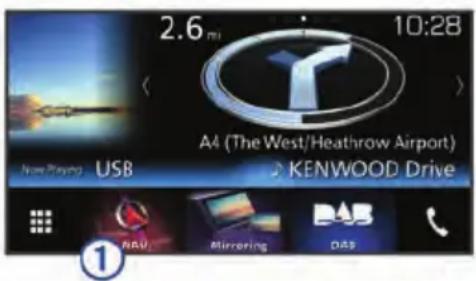

Opens the navigation system when selected.
Status Bar Icons
The status bar is at the top of the main menu. The status bar icons display information about features on the device. You can select some icons to change settings or view additional information.
| GPS signal status | |
| 9:10A | Current time |
| * | INRIX Traffic Service status |
Using the On-Screen Buttons
- Select ➤ to return to the previous menu screen.
- Hold → to quickly return to the main menu.
- Select ↑ or ↓ to see more choices.
- Hold ↑ or ↓ to scroll faster.
- Select ≡ to see a menu of options for the current screen.
Removing a Shortcut
1 Select Where To? > ≡ > Remove Shortcut(s).
2 Select a shortcut to remove.
3 Select the shortcut again to confirm.
4 Select Save.
Adding a Shortcut
You can add shortcuts to the Where To? menu. A shortcut can point to a location, a category, or a search tool.
The Where To? menu can contain up to 36 shortcut icons.
1 Select Where To? > Add Shortcut.
2 Select an item.
Updating the Software
Before you can update the navigation system software, you must have an SD card and a USB mass storage device, and an Internet connection.
1 Go to www.garmin.com/kenwood.
2 Select Update.
3 Follow the on-screen instructions.
Updating Map Data
You can purchase updated map data from Garmin ® or ask your JVC KENWOOD dealer or JVC KENWOOD service center for details.
1 Go to www.garmin.com/kenwood.
2 Select Update.
3 Follow the on-screen instructions.
Finding Locations
Locations
The detailed maps loaded in your device contain locations, such as restaurants, hotels, auto services, and detailed street information. You can use categories to browse for nearby businesses and attractions. You can also search for addresses, coordinates, cities, and intersections.
Finding a Location by Category
1 Select Where To?
2 Select a category, or select Categories.
3 If necessary, select a subcategory.
4 Select a location.
Searching Within a Category
To narrow your search results, you can search within some categories.
1 Select Where To?.
2 Select a category, or select Categories.
3 If necessary, select a subcategory.
4 If necessary, enter all or part of the name in the search bar.
Finding a Location Using the Search Bar
You can use the search bar to search for locations by entering a category, brand name, address, or city name.
1 Select Where To?.
2 Select Enter Search in the search bar.
3 Enter all or part of the search term.
Suggested search terms appear below the search bar.
4 Select an option:
- To search for a type of business, enter a category name (for example, "movie theaters").
- To search for a business name, enter all or part of the name.
- To search for an address near you, enter the house number and street name.
- To search for an address in another city, enter the house number, street name, city, and state.
- To search for a city, enter the city and state.
• To search for coordinates, enter latitude and longitude coordinates.
5 Select an option:
- To search using a suggested search term, select the term.
- To search using the text you entered, select Q.
6 If necessary, select a location.
Changing the Search Area
1 From the main menu, select Where To?
2 Select Searching near:.
3 Select an option.
Search Tools
Search tools allow you to search for specific types of locations by responding to on-screen prompts.
Finding an Address
NOTE: The order of the steps may change depending on the map data loaded on your device.
1 Select Where To? > Address.
2 If necessary, select State or Country to change the search area.
3 Select an option:
- To narrow your search to a city in the search area, select Spell City.
- To narrow your search to a postal code in the search area, select Enter Postal Code.
- To search for an address in all cities and postal codes in the search area, select Search All.
4 Follow the on-screen instructions to enter address information.
5 Select the address.
Finding an Intersection
You can search for an intersection or junction between two streets, highways, or other roads.
1 Select Where To? > Categories > Intersections.
2 Follow the on-screen instructions to enter street information.
3 Select the intersection.
Finding a City
1 Select Where To? > Categories > Cities.
2 Select an option:
- Select a city from the list of nearby cities.
- To search near another location, select Searching near: (Changing the Search Area).
- To search for a city by name, select Enter Search, enter a city name, and select Q.
Finding a Location Using Coordinates
You can find a location using latitude and longitude coordinates.
1 Select Where To? > Categories > Coordinates.
2 If necessary, select > Format, select the correct coordinate format for the type of map you are using, and select Save.
3 Select the latitude coordinate.
4 Enter the new coordinate, and select Done.
5 Select the longitude coordinate.
6 Enter the new coordinate, and select Done.
7 Select View on Map.
Starting a Route by Using the Map
You can start route by selecting a location from the map.
1 Select View Map.
2 Drag and zoom the map to display the area to search.
3 If necessary, select Q to filter the displayed points of interest by category. Location markers (H or a blue dot) appear on the map.
4 Select an option:
- Select a location marker.
- Select a point, such as a street, intersection, or address location.
5 Select Go!.
Finding a Location Using Quick Search
After you have performed a search for a point of interest, certain categories may display a Quick Search list that displays the last four destinations you selected.
1 Select Where To?.
2 Select a category, or select Categories.
3 If applicable, select a destination from the Quick Search list.
4 If necessary, select the appropriate destination.
Saving a Home Location
You can set your home location for the location you return to most often.
1 Select Where To? > ≡> Set Home Location.
2 Select Enter My Address, Use Current Location, or Recently Found.
The location is saved as "Home" in the Saved menu.
Going Home
Select Where To? > Go Home.
Editing Your Home Location Information
1 Select Where To? > Saved > Home.
2 Select i.
3 Select > Edit.
4 Enter your changes.
5 Select Done.
Finding Recently Found Places
Your device stores the last 50 locations you have found.
1 Select Where To? > Recent.
2 Select a location.
Clearing the List of Recently Found Places
Select Where To? > Recent > ≡ > Clear > Yes.
Finding Parking
1 Select Where To? > Categories > Parking.
2 Select a parking location.
Setting a Simulated Location
If you are indoors or not receiving satellite signals, you can use the GPS to set a simulated location.
1 Select Settings > Navigation > GPS Simulator.
2 From the main menu, select View Map.
3 Tap the map twice to select an area. The address of the location appears at the bottom of the screen.
4 Select the location description.
5 Select Set Location.
Saving Locations
Saving a Location
1 Search for a location (Finding a Location by Category).
2 From the search results, select a location.
3 Select i.
4 Select > Save.
Starting a Route to a Saved Location
1 Select Where To? > Saved.
2 If necessary, select a category, or select All Saved Places.
3 Select a location.
4 Select Go!.
Editing a Saved Location
1 Select Where To? > Saved.
2 If necessary, select a category.
3 Select a location.
4 Select i.
5 Select > Edit.
6 Select an option:
- Select Name.
- Select Phone Number.
- Select Categories to assign categories to the saved location.
- Select Change Map Symbol to change the symbol used to mark the saved location on a map.
7 Edit the information.
8 Select Done.
Assigning Categories to a Saved Location
You can add custom categories to organize your saved locations.
NOTE: Categories appear in the saved locations menu after you have saved at least 12 locations.
1 Select Where To? > Saved.
2 Select a location.
3 Select i.
4 Select > Edit > Categories.
5 Enter one or more category names, separated by commas.
6 If necessary, select a suggested category.
7 Select Done.
Navigation
Starting a Route
1 Search for a location (Locations).
2 Select a location.
3 Select Go!.
4 If necessary, select a route.
Previewing Multiple Routes
1 Search for a location (Finding a Location by Category).
2 From the search results, select a location.
3 Select Routes.
4 Select a route.
5 Select Go!.
Your Route on the Map
NOTICE
The speed limit feature is for information only and does not replace your responsibility to abide by all posted speed limit signs and to use safe driving judgment at all times. Garmin and JVC KENWOOD will not be responsible for any traffic fines or citations you receive for failing to follow all applicable traffic laws and signs.
The route is marked with a magenta line. A checkered flag marks your destination.
As you travel, the device guides you to the destination with voice prompts, arrows on the map, and directions at the top of the map. If you depart from the original route, the device recalculates the route and provides new directions.
Using the Map
1 From the main menu, select View Map.
2 If the zoom controls are hidden, select the map to display the zoom controls.
3 Select the map.
4 Select an option:
• To zoom in or out, select + or - .
• To rotate the map view, select 🔒.
- To switch between North Up and 3-D views, select ▲.
- To add or remove map layers, select
• To view specific categories, select Q.
- To center the map on your current location, select ↗.
• To view shortcuts for map and navigation features, select ≡
Adding a Point to a Route
Before you can add a point, you must be navigating a route.
1 From the map, select > Where To?
2 Search for a location.
3 Select a location.
4 Select Go!.
5 Select Add to Active Route.
Taking a Detour
While navigating a route, you can use detours to avoid obstacles ahead of you, such as construction zones.
While navigating, select > Detour.
Stopping the Route
From the map, select ≡ > Stop.
Using Suggested Routes
Before you can use this feature, you must save at least one location and enable the travel history feature (Device and Privacy Settings).
Using the myTrends™ feature, your device predicts your destination based on your travel history, the day of the week, and the time of day. After you have driven to a saved location several times, the location may appear in the navigation bar on the map, along with the estimated time of travel, and traffic information.
Select the navigation bar to view a suggested route to the location.
About Exit Services
NOTE: You must be on a major highway or road to view exit services.
While navigating a route, you can find businesses and services near upcoming exits. Services are listed by category.
| Gas | |
| Food | |
| Lodging | |
| Restrooms |
Finding Exit Services
1 From the map, select ≡ > Exit Services.
2 Use the arrows to select an upcoming exit.
3 Select an exit service tab.
4 Select a point of interest.
Navigating to an Exit
1 From the map, select > Exit Services > 76.
2 Select Go!.
Avoiding Road Features
1 Select Settings > Navigation > Avoidances.
2 Select the road features to avoid on your routes, and select Save.
About Custom Avoidances
Custom avoidances allow you to avoid specific areas and sections of road. You can enable and disable custom avoidances as needed.
Avoiding an Area
1 Select Settings > Navigation > Custom Avoidances.
2 If necessary, select Add Avoidance.
3 Select Add Avoid Area.
4 Select the upper-left corner of the area to avoid, and select Next.
5 Select the lower-right corner of the area to avoid, and select Next.
The selected area is shaded on the map.
6 Select Done.
Avoiding a Road
1 Select Settings > Navigation > Custom Avoidances.
2 Select Add Avoid Road.
3 Select the starting point of the section of road to avoid, and select Next.
4 Select the ending point of the road section, and select Next.
5 Select Done.
Disabling a Custom Avoidance
You can disable a custom avoidance without deleting it.
1 Select Settings > Navigation > Custom Avoidances.
2 Select an avoidance.
3 Select ≡ > Disable.
Deleting Custom Avoidances
1 Select Settings > Navigation > Custom Avoidances.
2 Select an option:
- To delete all custom avoidances, select 📄.
- To delete one custom avoidance, select the avoidance, and select > Delete.
Enabling Advanced Detours
Select Settings > Navigation > Advanced Detours.
Taking a Detour
Before you can take a detour, you must be navigating a route.
You can take a detour for a specified distance along your route or detour around specific roads. This is useful if you encounter construction zones, closed roads, or poor road conditions.
1 From the map, select > Detour.
2 Select an option.
- To detour your route for a specific distance, select a distance.
- To detour around a specific road on the route, select Detour by Road(s) on Route, and select a road around which to detour.
Custom Points of Interest
Custom POIs are customized points on the map. They can contain alerts that let you know if you are near a designated point or if you are traveling faster than a specified speed.
Installing POI Loader Software
You can create or download custom POI lists on your computer and install them on your device using POI Loader software. You must use a USB mass storage device to load POIs.
1 Go to www.garmin.com/extras.
2 Click Services & Utilities > POI Loader.
3 Install the POI Loader onto your computer.
Using the POI Loader Help Files
For more information on the POI loader, refer to the Help file.
With the POI loader open, click Help.
Finding Extras
1 Select Where To? > Categories > Custom POIs.
2 Select a category.
Map Pages
Customizing the Map
Customizing the Map Layers
You can customize which data appear on the map, such as icons for points of interest and road conditions.
1 From the map, select ≡
2 Select Map Layers.
3 Select which layers you want to include on the map, and select Save.
Viewing the Trip Log
Your device keeps a trip log, which is a record of the path you have traveled.
1 Select Settings > Map & Vehicle > Map Layers.
2 Select the Trip Log check box.
3 Select Save.
Changing the Map Data Field
1 From the map, select the data field in the lower left-hand corner.
2 Select a type of data to display.
3 Select Save.
Customizing Map Buttons
You can include up to three icons on the right side of the main map.
1 Select Settings > Map & Vehicle > Map Buttons.
2 Select an icon, and select OK.
3 Select +.
4 Select a different icon.
5 Select Save.
Removing Buttons from the Map
You can remove all buttons from the right side of the map.
1 Select Settings > Map & Vehicle > Map Buttons.
2 Select an icon, and select OK.
3 Select Save.
Changing the Map Perspective
1 Select Settings > Map & Vehicle > Driving Map View.
2 Select an option:
- Select Track Up to display the map in two dimensions (2-D), with your direction of travel at the top.
- Select North Up to display the map in 2-D with north at the top.
- Select 3-D to display the map in three dimensions.
3 Select Save.
Viewing Route Activity
Viewing a List of Turns
While navigating a route, you can view all of the turns and maneuvers for your entire route and the distance between turns.
1 While navigating a route, select the text bar on the top of the map.
2 Select a turn.
The details for the turn appear. If available, an image of the junction appears for junctions on major roadways.
Viewing the Entire Route on the Map
1 While navigating a route, select the navigation bar at the top of the map.
2 Select ≡ > Map.
Viewing the Next Turn
While navigating a route, a preview of the next turn, lane change, or other maneuver appears in the upper-left corner of the map.
The preview includes the distance to the turn or maneuver and the lane in which you should be traveling, if available.
From the map, select 2.21 to view the next turn on the map.
Viewing Traffic Alerts
While navigating a route, a traffic alert may appear in the navigation bar.
Select the alert to view more information.
Viewing Junctions
While navigating a route, you can view the junctions on major roadways. When you approach a junction in a route, the image of that junction appears briefly, if available.
NOTE: This feature is not available on all models.
From the map, select 2.21 to view the junction, if available.
Viewing the Trip Information Page
The trip information page displays your speed and provides statistics about your trip.
NOTE: If you make frequent stops, leave the device turned on, so it can accurately measure elapsed time during the trip.
From the map, select Speed.
Resetting Trip Information
1 From the map, select Speed.
2 Select > Reset All.
3 Select an option:
- When not navigating a route, select Select All to reset every data field except the speedometer, on the first page.
- Select Reset Trip Data to reset the information on the trip computer.
- Select Reset Trip B to reset the odometer.
- Select Reset Max. Speed to reset the maximum speed.
4 Select Reset.
Getting Directions to Your Current Location
If you need to tell another person how to get to your current location, your device can give you a list of directions.
1 From the map, select the vehicle.
2 Select > Directions to Me.
Viewing Current Location Information
You can use the Where Am I? page to view information about your current location. This feature is helpful if you need to tell emergency personnel your location.
From the map, select > Where Am I?.
Finding Nearby Services
You can use the Where Am I? page to find nearby services, such as hospitals or police stations.
1 From the map, select > Where Am I?.
2 Select a category.
Using the Apps
Searching Help Topics
Select Apps > Help > Q.
About ecoRoute
The ecoRoute ™ feature calculates the fuel economy and the fuel price of navigating to a destination, and offers tools for improving fuel efficiency.
The data provided by the ecoRoute feature is an estimate only.
To receive more-accurate fuel reports for your specific vehicle and driving habits, calibrate the fuel economy (Calibrating the Fuel Economy).
Setting Up the Vehicle
The first time you use the ecoRoute features, you must enter vehicle information.
1 Select Apps > ecoRoute TM .
2 Follow the on-screen instructions.
Calibrating the Fuel Economy
You can calibrate the fuel economy to receive more-accurate fuel reports for your specific vehicle and driving habits. You should calibrate when you fill up your fuel tank.
1 Select Apps > ecoRoute™ > At the Pump.
2 Enter the current fuel price.
3 Enter the amount of fuel the vehicle has used since the last time the fuel tank was filled.
4 Enter the distance you have traveled since the last time the fuel tank was filled.
5 Select Next.
The device calculates the average vehicle fuel economy.
6 Select Save.
Changing the Fuel Price
1 Select Apps > ecoRoute™ > At the Pump.
2 Enter the current price of fuel, and select Next.
3 Select Yes.
About ecoChallenge
ecoChallenge helps you maximize the vehicle fuel economy by scoring your driving habits. The higher your ecoChallenge scores, the more fuel you have saved. ecoChallenge collects data and calculates a score whenever your vehicle is moving.
Viewing ecoChallenge Scores Select Apps > ecoRoute™ > ecoChallenge.
About the ecoChallenge Score
The leaf color on the ecoChallenge icon changes depending on your performance in the challenge.
Overall: Displays an average of the speed, acceleration, and braking score.
Speed: Displays your score for driving your vehicle at the optimal speed for conserving fuel.
Acceleration: Displays your score for smooth and gradual acceleration. You lose points for rapid acceleration.
Braking: Displays your score for smooth and gradual braking. You lose points for hard braking.
Resetting the ecoChallenge Scores
1 Select Apps > ecoRoute™ > ecoChallenge.
2 Select > Reset.
3 Select Yes.
Viewing Fuel Economy Information
1 Select Apps > ecoRoute™ > Fuel Economy.
2 Select a section of the graph to zoom in.
Mileage Reports
Mileage reports provide the distance, the time, the average fuel economy, and the fuel cost of navigating to a destination.
A mileage report is created for every route that you drive. If you stop a route on your device, a mileage report is created for the distance you traveled.
Exporting a Mileage Report
1 Connect a USB mass storage device to your KENWOOD unit.
2 Select Apps > ecoRoute™ > Mileage Report.
3 Select Export to export and save a report to the USB mass storage device.
Resetting ecoRoute Information
1 Select Apps > ecoRoute™ > Vehicle Profile.
2 Select Reset.
3 Select Yes.
Planning a Trip
You can use the trip planner to create and save a trip with multiple destinations.
1 Select Apps > Trip Planner.
2 Select New Trip.
3 Select Select Start Location.
4 Search for a location (Finding a Location by Category).
5 Select Select.
6 To add additional locations, select +.
7 Search for a location.
8 Select Select.
9 Select Next.
10 Enter a name, and select Done.
Scheduling a Trip
You can add scheduling information to each location in your trip, including the desired arrival time and layover duration at each location. This can help you plan your departure to reach locations in your trip on time.
1 Select Apps > Trip Planner.
2 Select a trip.
3 Select a location.
4 Select Departure Time or Arrival Time.
5 Select a date and time, and select Save.
6 Select Duration.
7 Select the amount of time you intend to spend at the location, and select Save.
8 If necessary, repeat steps 3 through 7 for each location.
Navigating to a Saved Trip
1 Select Apps > Trip Planner.
2 Select a saved trip.
3 Select Go!.
4 Select your next destination.
5 If prompted, select a route.
Editing a Saved Trip
1 Select Apps > Trip Planner.
2 Select a saved trip.
3 Select
4 Select an option:
- Select Edit Destinations to add and delete a location, or to change the order of locations.
- Select Delete Trip.
- Select Rename Trip.
- Select Optimize Order to arrange the stops on your trip in the most-efficient order.
- Select Route Preference to change the route calculation mode for your trip.
Viewing Previous Routes and Destinations
Before you can use this feature, you must enable the travel history feature (Device and Privacy Settings).
You can view your previous routes and places you have stopped on the map.
Select Apps > Where I've Been.
Viewing the Weather Forecast
Before you can use this feature, your device must be connected using Bluetooth to access connected services. This feature is not available in all areas.
1 Select Apps > Weather.
2 Select a day.
The detailed forecast for that day appears.
Viewing Weather Near a Different City
1 Select Apps > Weather > Current Location.
2 Select an option:
- To view weather for a favorite city, select a city in the list.
- To add a favorite city, select Add City, and enter a city name.
Viewing the Weather Radar
You can view an animated, color-coded radar map of current weather conditions, as well as a weather icon on the map. The weather icon changes to show weather in the vicinity, such as rain, snow, and thunderstorms.
1 Select Apps > Weather.
2 If necessary, select a city.
3 Select > Weather Radar.
Viewing Weather Alerts
While you are traveling with your device, weather alerts may appear on the map. You can also view a map of weather alerts near your current location or near a selected city.
1 Select Apps > Weather.
2 If necessary, select a city.
3 Select > Weather Alerts.
Checking Road Conditions
1 Select Apps > Weather.
2 If necessary, select a city.
3 Select > Road Conditions.
Viewing Road Weather
Before you can use this feature, your device must be connected using Bluetooth ® wireless technology to access connected services. This feature is not available in all areas.
1 Select Apps > Road Weather.
Weather events that affect road conditions appear on the map.
2 Select a weather event to view details about the event.
Finding Fuel Stations and Prices
Before you can use this feature, your device must be connected using Bluetooth to access connected services.
You can find nearby fuel stations and compare fuel prices.
1 Select Apps > Fuel Prices.
2 If necessary, select > Fuel Type, select a fuel type, and select Save.
3 Select a fuel station.
Dynamic Parking
Before you can use this feature, your device must be connected using Bluetooth to access connected services. This feature is not available in all areas.
You can find detailed parking information, including parking availability in nearby garages and pricing information.
1 Select Apps > Dynamic Parking.
2 Select a parking location.
About Traffic
NOTICE
Garmin and JVC KENWOOD are not responsible for the accuracy or timeliness of traffic information.
Your navigation system can receive traffic information using the built-in traffic receiver or a subscription to INRIX® Traffic Service. The traffic receiver must be in data range of a station transmitting traffic data to receive traffic information. The traffic subscription activates automatically after your navigation system acquires satellite signals while receiving traffic signals from the service provider. When receiving INRIX traffic information, FM TMC information is not displayed. You can add other subscriptions at any time. For information about traffic receivers and coverage areas, go to www.garmin.com/kenwood.
NOTE: INRIX Traffic Service and FM TMC Traffic are not available on all models or in all areas.
Traffic Data Using INRIX Traffic Service
You can purchase a traffic subscription to receive traffic data using INRIX traffic service. When your navigation system is connected to INRIX and within a traffic coverage area, your system begins displaying traffic information. Traffic data is not available in all areas or regions.
See the KENWOOD Traffic Powered By INRIX ™ application for INRIX traffic subscription information.
FM TMC Traffic
FM Traffic Message Channel (TMC) traffic receivers receive traffic information broadcast over the FM Radio Data System. The FM TMC subscription activates automatically after your navigation system acquires satellite signals while receiving traffic signals from the service provider. You can add other FM TMC subscriptions at any time.
NOTE: The availability of FM TMC depends on your region and may require the purchase of a subscription.
For information about traffic receivers and coverage areas, go to www.garmin.com/kenwood.
About the Traffic Icon
When you are receiving traffic information, a traffic icon appears on the map. The traffic icon changes color to indicate the severity of traffic conditions.
Green: Traffic is flowing freely.
Yellow: Traffic is moving, but there is a delay. There is moderate traffic congestion.
Red: Traffic is not moving or moving very slowly. There is a severe delay.
Gray: Traffic information is not available.
Traffic on Your Route
Viewing Traffic on Your Route
1 While navigating a route, select 📄.
2 Select Traffic On Route.
A list of traffic events appears, organized by their location on the route.
3 Select an event.
Manually Avoiding Traffic on Your Route
1 From the map, select
2 Select Traffic On Route.
3 If necessary, use the arrows to view other traffic delays on your route.
4 Select ≡ > Avoid.
Taking an Alternate Route
1 While navigating an automobile route, select 🔒.
2 Select Alternate Route.
3 Select a route.
Viewing Traffic on the Map
The traffic map shows color-coded traffic flow and delays on nearby roads.
1 From the map, select
2 Select Traffic Conditions.
Traffic in Your Area
Searching for Traffic Delays
1 From the map page, select 📄.
2 Select Traffic Conditions > Q.
3 Select an item in the list.
4 If there is more than one delay, use the arrows to view additional delays.
Viewing a Traffic Incident on the Map
1 From the map, select 📄.
2 Select Traffic Conditions.
3 Select a traffic icon.
Understanding Traffic Data
The traffic legend explains the icons and colors used on the traffic map.
1 From the map, select > Traffic.
2 Select Traffic Legend.
Customizing the Device
Map and Vehicle Settings
To open the Map and Vehicle settings, from the main menu, select Settings >Map & Vehicle.
Vehicle: Sets the icon that represents your position on the map.
Driving Map View: Sets the perspective on the map.
Map Detail: Sets the level of detail on the map. More detail may cause the map to draw slower.
Map Theme: Changes the color of the map data.
Map Buttons: Sets which icons are included on the map. Up to three icons can be included on the map.
Map Layers: Sets the data that appears on the map page (Customizing the Map Layers).
Dashboards: Sets the map dashboard layout.
Auto Zoom: Automatically selects the zoom level for optimal use of your map. When disabled, you must zoom in or out manually.
Audible Speed Alerts: Alerts you when your vehicle is exceeding the speed limit.
NOTE: This feature is not available in all areas.
myMaps: Sets which installed maps the device uses.
Enabling Maps
You can enable map products installed on your device.
1 Select Settings > Map & Vehicle > myMaps.
2 Select a map.
Navigation Settings
To open the Navigation settings page, from the main menu, select Settings >Navigation.
Calculation Mode: Sets the route calculation method.
Avoidances: Sets road features to avoid on a route.
Custom Avoidances: Allows you to avoid specific roads or areas.
Advanced Detours: Sets the length of the detour.
Safe Mode: Disables all functions that require significant operator attention and could become a distraction while driving.
Voice Prompts: Enables voice prompts.
GPS Simulator: Stops the device from receiving a GPS signal.
Changing the Route Calculation Mode
1 Select Settings > Navigation > Calculation Mode.
2 Select an option:
- Select Faster Time to calculate routes that are faster to drive but can be longer in distance.
- Select Shorter Distance to calculate routes that are shorter in distance but can take more time to drive.
- Select Less Fuel to calculate routes that are more fuel-efficient.
3 Select Save.
Display Settings
Select Settings > Display.
Color Mode: Allows the device to display day or night colors.
Changing the Color Mode
1 Select Settings > Display > Color Mode.
2 Select an option:
• To use a light background, select Day.
- To use a dark background, select Night.
- To allow the device to display day or night colors automatically, based on the time of day, select Auto.
Traffic Settings
From the main menu, select Settings > Traffic.
Traffic: Enables traffic.
Subscriptions: Lists the current traffic subscriptions.
trafficTrends™: Enables the trafficTrends™ feature (trafficTrends).
Traffic Voice Prompts: Enables voice prompts for traffic events.
trafficTrends
When the trafficTrends feature is enabled, your device uses historic traffic data to calculate more-efficient routes.
NOTE: Different routes may be calculated based on traffic trends for the day of the week or the time of day.
Disabling trafficTrends
To prevent your device from recording traffic data, you must disable trafficTrends.
Select Settings > Traffic > trafficTrends™.
Units and Time Settings
To open the Units and Time settings page, from the main menu, select Settings > Units & Time.
Current: Sets the device time.
Time Format: Allows you to select a 12-hour, 24-hour, or UTC display time.
Units: Sets the unit of measure used for distances.
Language and Keyboard Settings
To open the Language and Keyboard settings, from the main menu, select Settings > Language & Keyboard.
NOTE: For text language settings, see the other KENWOOD system manuals.
Voice Language: Sets the language for voice prompts.
Keyboard Language: Sets the language for your keyboard.
Keyboard Layout: Sets the keyboard layout.
Device and Privacy Settings
To open the Device settings page, from the main menu, select Settings > Device.
About: Displays the software version number, the unit ID number, and information on several other software features.
Travel History: Allows the device to record information for the myTrends (Using Suggested Routes), Where I've Been (Viewing Previous Routes and Destinations), and Trip Log (Viewing the Trip Log) features.
Clear Travel History: Clears your travel history from the navigation system.
Update Maps: Exports data from the navigation unit for map and software updates and traffic subscriptions (Updating Map Data).
Proximity Alerts Settings
NOTE: You must have custom points of interest (POIs) loaded for proximity points alerts to display.
NOTE: This feature is not available in all areas.
Select Settings > Proximity Alerts.
Audio: Sets the style of alert that plays when you approach proximity points.
Alerts: Sets the type of proximity points for which alerts are played.
Restoring Settings
You can restore a category of settings or all settings to the factory default values.
1 Select Settings.
2 If necessary, select a settings category.
3 Select > Restore.
4 Select Yes.
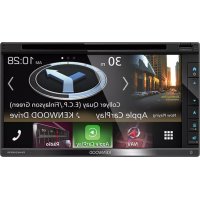
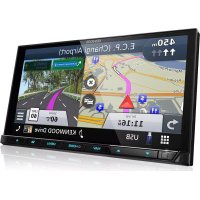
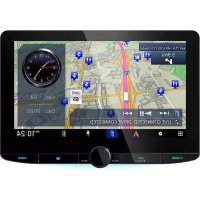
- DNX716WDABS DNX8160DABS DNX5160DABS DNX5160BTS DNX3160BT DNX516DABS
- SOFTWARE LICENSE AGREEMENT
- END USER LICENSE AGREEMENT
- LICENSE TERMS AND CONDITIONS
- GOVERNING LAW
- GOVERNMENT END USERS
- TRADEMARK NOTICES
- TABLE OF CONTENTS
- GETTING STARTED.... 1
- FINDING LOCATIONS.... 1
- NAVIGATION...... 4
- MAP PAGES...... 6
- USING THE APPS.... 8
- GETTING STARTED
- WARNING
- NAVIGATION SYSTEM
- STATUS BAR ICONS
- USING THE ON-SCREEN BUTTONS
- REMOVING A SHORTCUT
- ADDING A SHORTCUT
- UPDATING THE SOFTWARE
- UPDATING MAP DATA
- FINDING LOCATIONS
- LOCATIONS
- FINDING A LOCATION BY CATEGORY
- SEARCHING WITHIN A CATEGORY
- FINDING A LOCATION USING THE SEARCH BAR
- CHANGING THE SEARCH AREA
- SEARCH TOOLS
- FINDING AN ADDRESS
- FINDING AN INTERSECTION
- FINDING A CITY
- FINDING A LOCATION USING COORDINATES
- STARTING A ROUTE BY USING THE MAP
- FINDING A LOCATION USING QUICK SEARCH
- SAVING A HOME LOCATION
- GOING HOME
- EDITING YOUR HOME LOCATION INFORMATION
- FINDING RECENTLY FOUND PLACES
- CLEARING THE LIST OF RECENTLY FOUND PLACES
- FINDING PARKING
- SETTING A SIMULATED LOCATION
- SAVING LOCATIONS
- SAVING A LOCATION
- STARTING A ROUTE TO A SAVED LOCATION
- EDITING A SAVED LOCATION
- ASSIGNING CATEGORIES TO A SAVED LOCATION
- NAVIGATION
- STARTING A ROUTE
- PREVIEWING MULTIPLE ROUTES
- YOUR ROUTE ON THE MAP
- NOTICE
- USING THE MAP
- ADDING A POINT TO A ROUTE
- TAKING A DETOUR
- STOPPING THE ROUTE
- USING SUGGESTED ROUTES
- ABOUT EXIT SERVICES
- FINDING EXIT SERVICES
- NAVIGATING TO AN EXIT
- AVOIDING ROAD FEATURES
- ABOUT CUSTOM AVOIDANCES
- AVOIDING AN AREA
- AVOIDING A ROAD
- DISABLING A CUSTOM AVOIDANCE
- DELETING CUSTOM AVOIDANCES
- ENABLING ADVANCED DETOURS
- CUSTOM POINTS OF INTEREST
- INSTALLING POI LOADER SOFTWARE
- USING THE POI LOADER HELP FILES
- FINDING EXTRAS
- MAP PAGES
- CUSTOMIZING THE MAP
- CUSTOMIZING THE MAP LAYERS
- VIEWING THE TRIP LOG
- CHANGING THE MAP DATA FIELD
- CUSTOMIZING MAP BUTTONS
- REMOVING BUTTONS FROM THE MAP
- CHANGING THE MAP PERSPECTIVE
- VIEWING ROUTE ACTIVITY
- VIEWING A LIST OF TURNS
- VIEWING THE ENTIRE ROUTE ON THE MAP
- VIEWING THE NEXT TURN
- VIEWING TRAFFIC ALERTS
- VIEWING JUNCTIONS
- VIEWING THE TRIP INFORMATION PAGE
- RESETTING TRIP INFORMATION
- 4 SELECT RESET
- GETTING DIRECTIONS TO YOUR CURRENT LOCATION
- VIEWING CURRENT LOCATION INFORMATION
- FINDING NEARBY SERVICES
- USING THE APPS
- SEARCHING HELP TOPICS
- ABOUT ECOROUTE
- SETTING UP THE VEHICLE
- CALIBRATING THE FUEL ECONOMY
- CHANGING THE FUEL PRICE
- ABOUT ECOCHALLENGE
- VIEWING ECOCHALLENGE SCORES SELECT APPS > ECOROUTE™ > ECOCHALLENGE
- ABOUT THE ECOCHALLENGE SCORE
- RESETTING THE ECOCHALLENGE SCORES
- VIEWING FUEL ECONOMY INFORMATION
- MILEAGE REPORTS
- EXPORTING A MILEAGE REPORT
- RESETTING ECOROUTE INFORMATION
- PLANNING A TRIP
- SCHEDULING A TRIP
- NAVIGATING TO A SAVED TRIP
- EDITING A SAVED TRIP
- VIEWING PREVIOUS ROUTES AND DESTINATIONS
- VIEWING THE WEATHER FORECAST
- VIEWING WEATHER NEAR A DIFFERENT CITY
- VIEWING THE WEATHER RADAR
- VIEWING WEATHER ALERTS
- CHECKING ROAD CONDITIONS
- VIEWING ROAD WEATHER
- FINDING FUEL STATIONS AND PRICES
- DYNAMIC PARKING
- ABOUT TRAFFIC
- TRAFFIC DATA USING INRIX TRAFFIC SERVICE
- FM TMC TRAFFIC
- ABOUT THE TRAFFIC ICON
- TRAFFIC ON YOUR ROUTE
- VIEWING TRAFFIC ON YOUR ROUTE
- MANUALLY AVOIDING TRAFFIC ON YOUR ROUTE
- TAKING AN ALTERNATE ROUTE
- VIEWING TRAFFIC ON THE MAP
- TRAFFIC IN YOUR AREA
- SEARCHING FOR TRAFFIC DELAYS
- VIEWING A TRAFFIC INCIDENT ON THE MAP
- UNDERSTANDING TRAFFIC DATA
- CUSTOMIZING THE DEVICE
- MAP AND VEHICLE SETTINGS
- ENABLING MAPS
- NAVIGATION SETTINGS
- CHANGING THE ROUTE CALCULATION MODE
- DISPLAY SETTINGS
- CHANGING THE COLOR MODE
- TRAFFIC SETTINGS
- TRAFFICTRENDS
- DISABLING TRAFFICTRENDS
- UNITS AND TIME SETTINGS
- LANGUAGE AND KEYBOARD SETTINGS
- DEVICE AND PRIVACY SETTINGS
- PROXIMITY ALERTS SETTINGS
- RESTORING SETTINGS
Marque : KENWOOD
Modèle : DNX3160BT
Catégorie : Système de navigation GPS