SLV-XA145PS - Magnétoscope SONY - Notice d'utilisation et mode d'emploi gratuit
Retrouvez gratuitement la notice de l'appareil SLV-XA145PS SONY au format PDF.


| Type d'appareil | Lecteur vidéo |
| Alimentation | 110 - 240 V AC, 50/60 Hz |
| Sécurité | Ne pas exposer à la pluie ou à l'humidité |
| Protection électrique | Ne pas ouvrir le boîtier, entretien par personnel qualifié uniquement |
| Installation | Ventilation adéquate requise, éviter surfaces molles et sources de chaleur |
| Positionnement | Ne pas installer en position inclinée, uniquement en position horizontale |
| Compatibilité couleurs | PAL, MESECAM, NTSC 3.58, NTSC 4.43 |
| Enregistrement | Enregistre sur bandes avec systèmes de couleurs compatibles |
| Précautions d'usage | Débrancher avant nettoyage ou maintenance |
| Température d'utilisation | Non précisé |
| Humidité | Éviter condensation et humidité interne |
| Matériaux à éviter | Ne pas placer sur tapis, couvertures ou matériaux bloquant ventilation |
| Protection contre chocs | Éviter vibrations et chocs mécaniques |
| Durée d'utilisation continue | Non précisé |
| Maintenance | Réservée à un personnel qualifié |
FOIRE AUX QUESTIONS - SLV-XA145PS SONY
Questions des utilisateurs sur SLV-XA145PS SONY
0 question sur cet appareil. Repondez a celles que vous connaissez ou posez la votre.
Poser une nouvelle question sur cet appareil
Téléchargez la notice de votre Magnétoscope au format PDF gratuitement ! Retrouvez votre notice SLV-XA145PS - SONY et reprennez votre appareil électronique en main. Sur cette page sont publiés tous les documents nécessaires à l'utilisation de votre appareil SLV-XA145PS de la marque SONY.
MODE D'EMPLOI SLV-XA145PS SONY
WARNING
To prevent fire or shock hazard, do not expose the unit to rain or moisture.
To avoid electrical shock, do not open the cabinet. Refer servicing to qualified personnel only.
Precautions
Safety
This unit operates on 110 - 240VAC 50 / 60Hz . Check that the unit's operating voltage is identical with your local power supply.
- If anything falls into the cabinet, unplug the unit and have it checked by qualified personnel before operating it any further.
- The unit is not disconnected from the mains as long as it is connected to the mains, even if the unit itself has been turned off.
- Unplug the unit from the mains if you do not intend to use it for an extended period of time. To disconnect the cord, pull it out by the plug, never by the cord.
Installing
- Allow adequate air circulation to prevent internal heat buildup.
- Do not place the unit on surfaces (rugs, blankets, etc.) or near materials (curtains, draperies) that may block the ventilation slots.
- Do not install the unit near heat sources such as radiators or air ducts, or in a place subject to direct sunlight, excessive dust, mechanical vibration or shock.
- Do not install the unit in an inclined position. It is designed to be operated in a horizontal position only.
- Keep the unit and cassettes away from equipment with strong magnets, such as microwave ovens or large loudspeakers.
- Do not place heavy objects on the unit.
- If the unit is brought directly from a cold to a warm location, moisture may condense inside the unit and cause damage to the video head and tape. When you first install the unit, or when you move it from a cold to a warm location, wait for about one hour before operating the unit.
Caution
Television programmes, films, video tapes, and other materials may be copyrighted. Unauthorized recording of such material may be contrary to the provisions of the copyright laws. Also, use of this recorder with cable television transmission may require authorization from the cable television transmitter and/or programme owner.
Compatible colour systems
- This unit is designed to record and play back using the PAL, MESECAM, NTSC 3.58, and NTSC 4.43 colour systems. Recording of video sources based on other colour systems cannot be guaranteed.
- Tapes recorded with the NTSC colour system can be played back on this unit using a TV or a colour monitor for the PAL colour system.
Table of contents
Getting Started
4 Step 1: Unpacking
5 Step 2: Setting up the remote commander
6 Step 3: Connecting the unit
8 Step 4: Tuning your TV to the unit
Basic Operations
10 Playing a tape
Additional Operations
14 Playing/searching at various speeds
16 Adjusting the picture
17 Editing with another VCR
Additional Information
19 Troubleshooting
21 Specifications
22 Index to parts and controls
25 Index
Step 1
Unpacking
Check that you have received the following items with the unit:
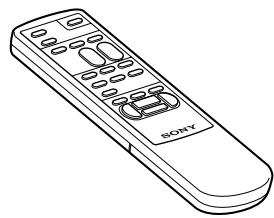
Remote commander
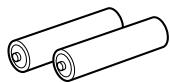
R6 (Size AA) batteries
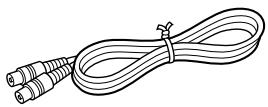
Aerial cable
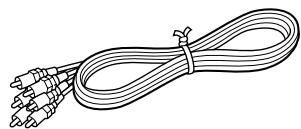
Audio/video cable (3-phono to 3-phono) (SLV-XF245 only)
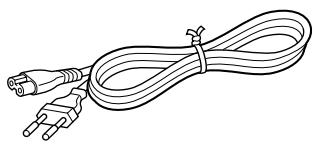
- Mains lead
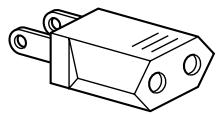
- Plug adaptor (SLV-XA145ME/MJ/XF245ME only)
Checking your model name
The instructions in this manual are for the 5 models: SLV-XA145ME, XA145MJ, XA145PS, XF245ME and XF245PS. Check your model number by looking at the rear panel of your unit. The SLV-XA145ME is the model used for illustration purposes. Any difference in operation is clearly indicated in the text, for example, "SLV-XF245ME only."
Step 2
Setting up the remote commander
Inserting the batteries
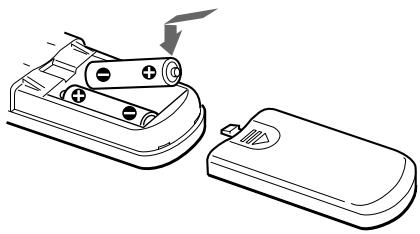
Insert two R6 (size AA) batteries by matching the + and - on the batteries to the diagram inside the battery compartment.
Using the remote commander
You can use this remote commander to operate the unit and a Sony TV. To operate this unit, point at the remote sensor on the unit. To operate the TV, point at the remote sensor on the TV.
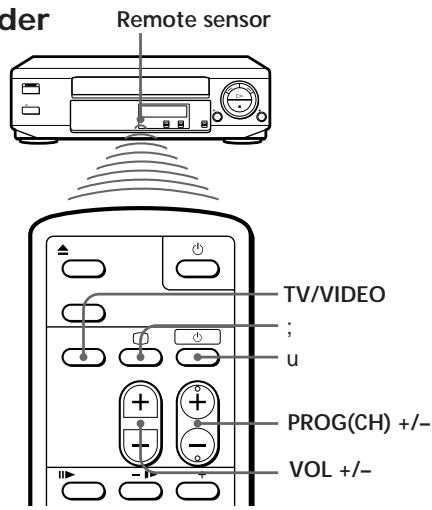
| To | Press |
| Turn the TV to standby or active mode | u |
| Turn on the TV power | ; |
| Increase (+) or decrease (−) the TV volume | VOL +/- |
| Change the TV programme position | PROG(CH) +/- |
| Select an input source of the TV either from aerial in or from line in | TV/VIDEO |
Notes
- With normal use, the batteries should last about three to six months.
- If you do not use the remote commander for an extended period of time, remove the batteries to avoid possible damage from battery leakage.
- Do not use a new battery with an old one.
- Do not mix different types of batteries.
Step 3
Connecting the unit
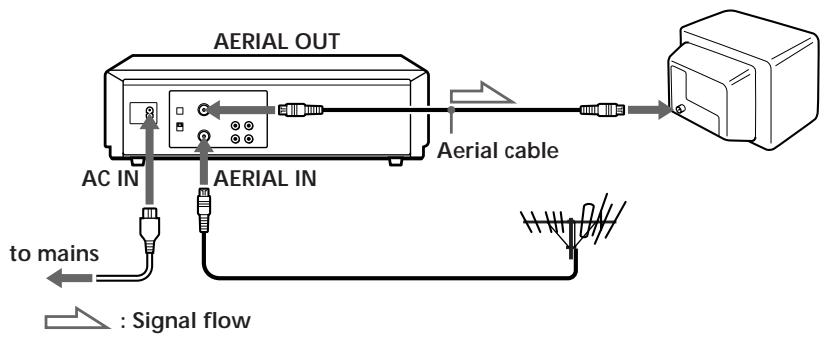
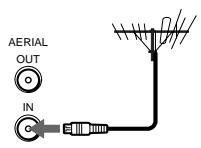
1
Disconnect the aerial cable from your TV and connect it to AERIALIN on the rear panel of the unit.
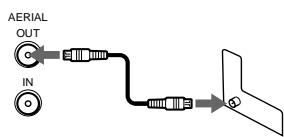
2
Connect AERIAL OUT of the unit and the aerial input of your TV using the supplied aerial cable.
3
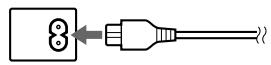
Connect AC IN of the unit to the mains using the supplied mains lead.
If the mains plug does not fit in the wall outlet, use the supplied plug adaptor (SLV-XA145ME/MJ/XF245ME only).
Additional connections
To a TV that has phono type audio/video input jacks
This additional connection improves picture and sound quality. Connect the TV as shown on the right.
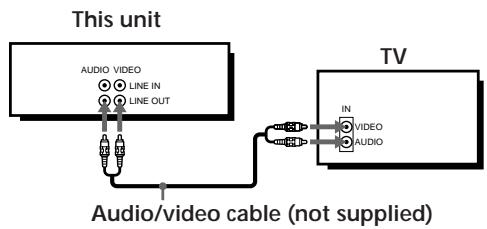
For SLV-XA145
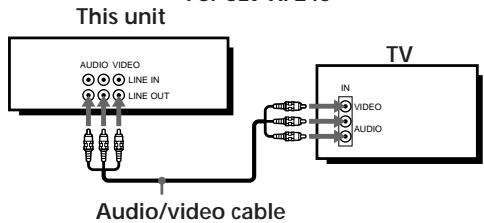
For SLV-XF245
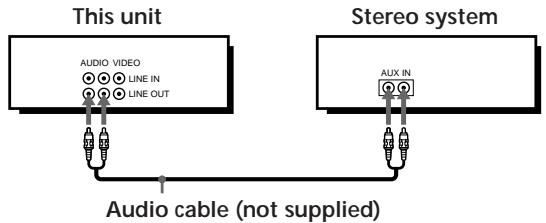
To a stereo system (SLV-XF245 only)
You can improve sound quality by connecting a stereo system as shown on the right.
Step 4
Tuning your TV to the unit
If you have connected your unit to the TV using the audio/video cable, skip this step.
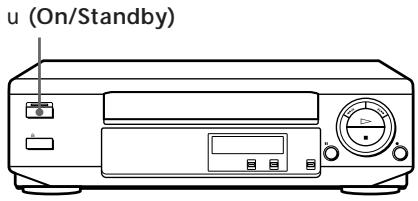
1

Press u (On/Standby) to turn on the unit.
2
Turn on your TV and select a programme position for video playback.
Choose a channel between UHF 30 and 39 on the TV where there is no picture and no sound or only a steady rustling sound.
This channel will now be referred to as the video channel.
3
Insert a tape recorded in the colour system matching your TV into the cassette compartment.
The unit starts playing automatically if you insert a tape with its safety tab removed.
4
Press · PLAY on the unit.
5
Tune the TV until the video playback picture is clearly displayed on the TV screen.
Refer to your TV manual for tuning instructions.
You have now tuned your TV to the unit. From now on, whenever you want to play a tape, set the TV to the video channel.
If the playback picture does not appear clearly, see "To obtain a clear playback picture" on page 9.
To obtain a clear playback picture
If the playback picture does not appear clearly in step 5 above, turn the RF CHANNEL screw on the rear panel of the unit with a screwdriver to a position where the TV clearly displays the playba
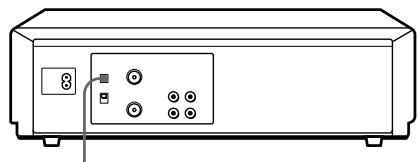
RF CHANNEL
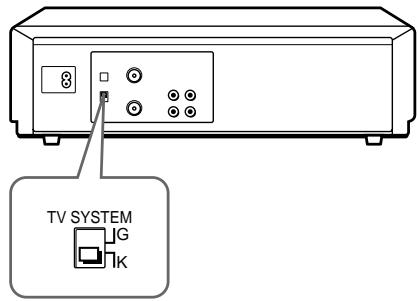
Selecting the TV system
For your TV to receive the correct signal from your unit, you must set the TV SYSTEM switch on the rear panel of the unit to either G (for system B/G) or K (for system D/K). If this switch is set to the wrong position, the sound will be distorted.
Playing a tape
1
Turn on your TV and set it to the video channel.
2
Insert a tape.
The unit turns on, and starts playing automatically if you insert a tape with its safety tab removed.


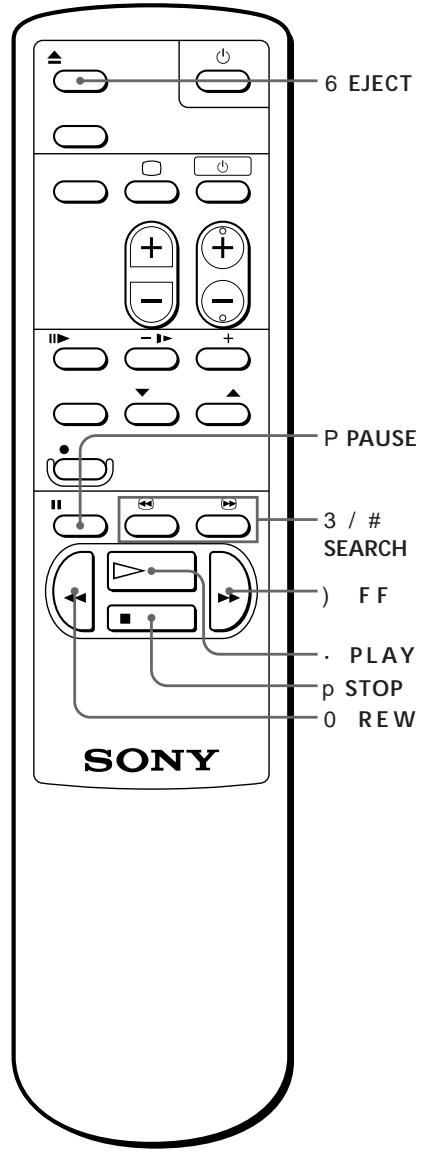
Press · PLAY.
When the tape reaches the end, it will rewind automatically.
Additional tasks
| To | Press |
| Stop play | p STOP |
| Pause play | P PAUSE |
| Resume play after pause | P PAUSE or · PLAY |
| Search forward | ) FF or # SEARCH during playback |
| Search backward | 0 REW or 3 SEARCH during playback |
| Fast-forward the tape | ) FF during stop |
| Rewind the tape | 0 REW during stop |
| Eject the tape | 6 EJECT |
To set the colour system
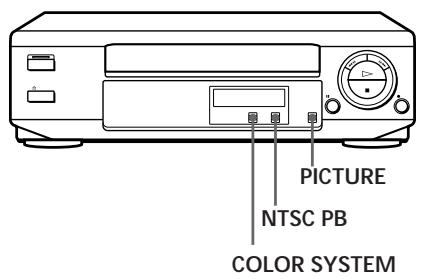
If streaks appear during playback, set COLOR SYSTEM on the unit to conform to the system that the tape was recorded in. (Normally set the switch to AUTO.)
| If your tape was recorded in | Set COLOR SYSTEM to |
| PAL | PAL/MESECAM |
| NTSC | NTSC |
| MESECAM | PAL/MESECAM |
continued
Basic Operations
11EN
Playing a tape (continued)
To play an NTSC-recorded tape
Set NTSC PB on the unit according to the colour system of your TV.
| If your TV is | Set NTSC PB to |
| PAL | ON PAL TV |
| NTSC 4.43 | NTSC 4.43 |
| NTSC 3.58 | NTSC 3.58 |
Watching a rental tape
Set PICTURE on the unit to RENTAL PICTURE. Noise will be reduced on the playback picture. After watching the rental tape, set the switch back to NORMAL.
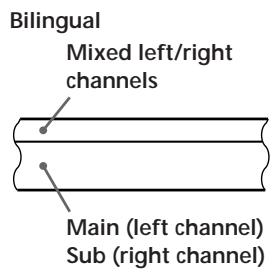
Selecting the sound during playback (SLV-XF245 only)
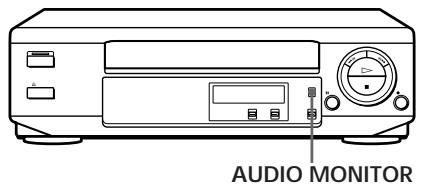
Press AUDIO MONITOR to select the desired sound. Each press of the button changes the display on the unit. When you play a tape recorded in stereo or with a bilingual sound track, the HiFi indicator on the unit lights up.
| To listen to a | Press AUDIO MONITOR until the display window indicator shows | |
| Stereo tape's | Bilingual tape's | |
| Stereo sound | Main and sub sounds | “L/R” |
| Left channel | Main sound | “L” |
| Right channel | Sub sound | “R” |
| Standard sound* | Standard sound* | No indication |
- The mixed sound of left and right channels (monaural)
How sound is recorded on a video tape (SLV-XF245 only)
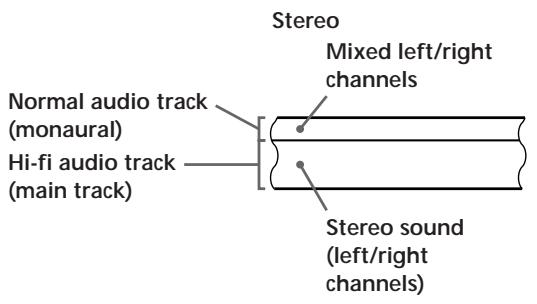
The unit records sound onto two separate tracks. Hi-fi audio is recorded onto the main track along with the picture. Monaural sound is recorded onto the normal audio track along the edge of the tape.
Notes
- Depending on your TV, the following may occur while playing an NTSC-recorded tape:
- the picture is black and white,
the picture shakes, - no picture appears on the TV screen,
- black streaks appear horizontally on the TV screen, and
- the colour density increases or decreases.
- To listen to playback sounds in stereo, you must use the AUDIO OUT connections (SLV-XF245 only).
- When you play a tape recorded in monaural, the sound is heard in monaural regardless of the AUDIO MONITOR setting.
- You cannot select the sound to listen to while recording.
- You can playback tapes recorded in the SP mode only.
- You can eject a tape even when the power is off. When you press 6 EJECT, the unit turns on automatically. After ejecting the tape, the unit turns off again.
- When the pause mode lasts for more than approximately five minutes, the unit will automatically enter the playback mode.
Basic Operations
Playing/searching at various speeds
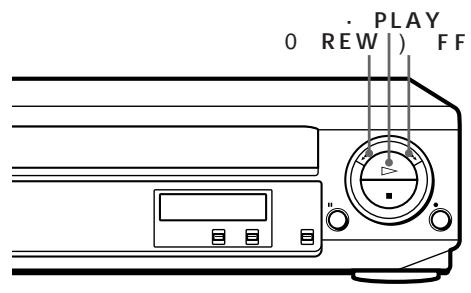
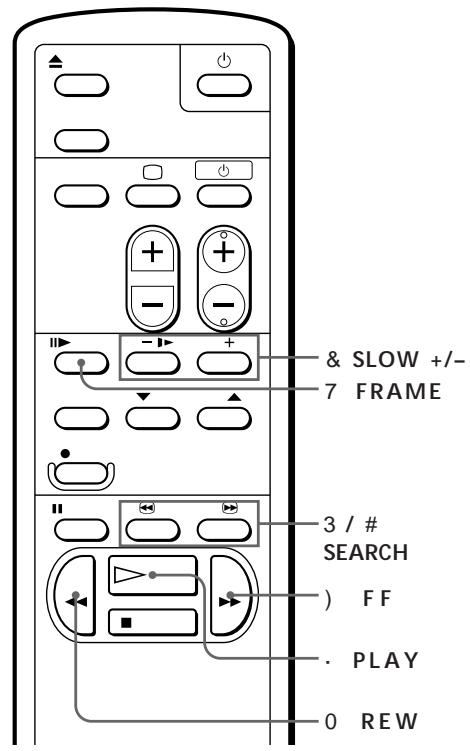
| Playback options | Operation |
| Fast-forward/rewind | During stop, press) FF or 0 REW. |
| View the picture during fast-forward or rewind | During fast-forward, hold) FF down. During rewind, hold 0 REW down. |
| Play at high speed | During playback or pause, press # SEARCH or 3 SEARCH. |
| Play in slow motion | During playback or pause, press & SLOW+/-. Press the +/- buttons to change the speed. |
| Play frame by frame | During pause, press 7 FRAME to advance the picture one frame. Hold the button down to play one frame each second. |
| Rewind and start play | During stop, hold 0 REW on the unit down and press · PLAY on the unit. |
To resume normal playback
Press · PLAY.
Tip
• If the picture shakes while in the still mode, adjust the picture using $/4 TRACKING NORMAL/SLOW STILL ADJUST on the unit.
Notes
- Streaks or snow cannot be eliminated completely in the various playback operations.
- The sound is muted during these operations.
Adjusting the picture
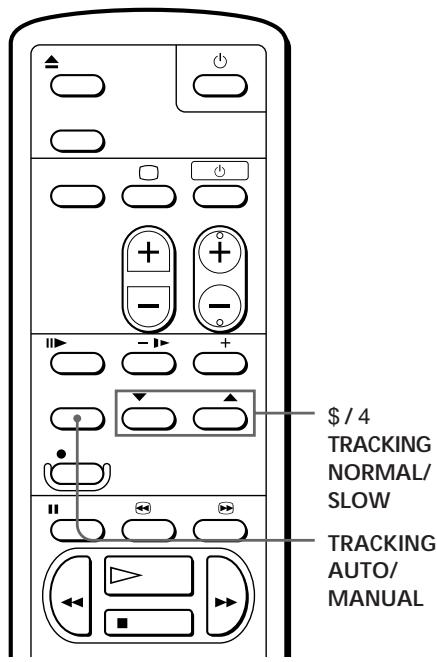
Adjusting the tracking
Although the unit automatically adjusts the tracking when playing a tape, distortion may occur if the tape was recorded in poor condition. If so, manually adjust the tracking.
Press /4 TRACKING NORMAL/SLOW to obtain the best possible picture. The distortion should disappear as you press one of the two buttons. If you cannot get a clear picture with manual adjustment, press TRACKING AUTO/MANUAL to return to automatic adjustment.
About OPC
OPC (Optimum Picture Control) automatically improves playback quality by adjusting the unit to the condition of the video heads and tape.
The OPC function automatically works on all types of tapes, including rental tapes. You can play a tape using the OPC function even if the tape was not recorded with it.
Notes
- The auto tracking function works automatically when you play back a tape just after inserting it.
- Sufficient picture quality may not be obtained when playing back tapes recorded on another VCR or tapes in poor condition.
- When a tape recorded with the copyguard system is played back, intermittent distortion may appear in the upper portion of the picture. However, this is not a malfunction of the unit.
Editing with another VCR
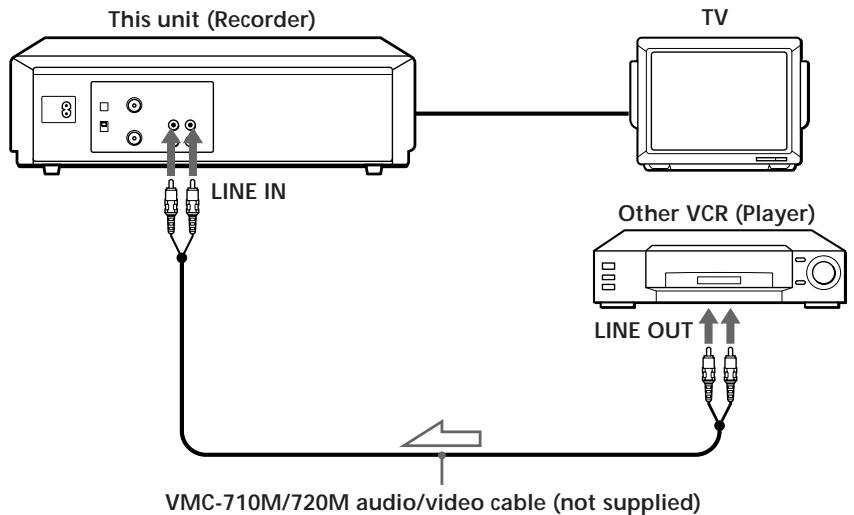
How to connect to record on this unit

: Signal flow
Tips
SLV-XA145 only)
If the other VCR has the AUDIO L and R jacks, use a commercially available connecting cable like the Sony VMC-910MS.
SLV-XF245 only)
Use a commercially available connecting cable like the Sony VMC-810. If the other VCR is a monaural type, use a connecting cable like the Sony VMC-910MS.
Notes
- Make sure you connect the plugs to jacks of the same colour.
- When connecting the units, do not simultaneously connect the LINE IN and LINE OUT jacks on your unit with the other VCR. A humming noise may occur if you do this.
continued
Editing with another VCR (continued)
Operation (when recording on this unit)
You can make a copy of a tape using this unit for recording or playback. The unit cannot record TV programmes directly since it does not have a TV tuner.
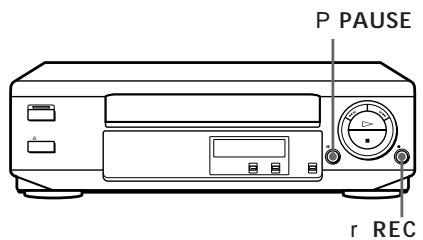
Before you start editing
- Turn on your TV and set it to the video channel.
1 Insert a source tape with its safety tab removed into the other (playback) VCR. Search for the point to start playback and set it to playback pause.
2 Insert a tape with its safety tab in place into this (recording) unit. Search for the point to start recording and press P PAUSE.
3 Press r REC on this unit to set it to recording pause.
4 To start editing, press the P PAUSE buttons on both units at the same time.
To stop editing
Press the p STOP buttons on both units.
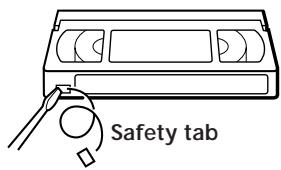
To save a recording
To prevent accidental erasure, break off the safety tab as illustrated. To record on a tape again, cover the tab hole with adhesive tape.
Auto head cleaner
The unit incorporates an auto head cleaner which cleans the video heads when a tape is loaded or unloaded. When the heads are not sufficiently clean, even after a tape has been loaded/unloaded several times, use the Sony V-25CL video head cleaning cassette.
Tips
- To edit more precisely, press the P PAUSE buttons on the units to release pause.
- To cut out unwanted scenes while editing, press P PAUSE on this unit when an unwanted scene begins. When that scene ends, press P PAUSE again to resume recording.
Note
- You can record tapes only in SP mode.
Troubleshooting
If you have any questions or problems not covered below, please consult your nearest Sony service facility.
| Symptom | Remedy | |
| Power | The u (On/Standby) switch does not function. | Connect the mains lead securely. |
| The power is turned on but the unit does not operate. | Moisture condensation occurs. Turn the power off, unplug the mains lead and leave the unit to dry for over an hour. | |
| The VCR enters standby mode or turns off automatically. | The auto safety system is triggered to protect your tape and the unit's mechanism when there is something wrong with the tape or when the mechanism is overloaded. Press u to restart the unit. If the unit does not work after pressing u again, disconnect the mains lead from the mains. Wait for at least 15 seconds. Then reconnect mains, and press u again. If the unit still does not work, please consult your nearest Sony service facility. | |
| Playback | The playback picture does not appear on the TV screen. | Make sure the TV is set to the video channel. If you are using a monitor, set it to video input. |
| The picture is not clear. | Adjust the tracking with the $/4 TRACKING NORMAL/SLOW buttons. Make sure the COLOR SYSTEM switch is set to the position corresponding to the colour system which the tape was recorded with. The video heads are dirty (see below). Clean the video heads using the Sony V-25CL video head cleaning cassette. If this cleaning cassette is not available in your area, have the heads cleaned at your nearest Sony service facility (a standard service charge will be required). Do not use a commercially available wet-type cleaning cassette, as it may damage the video heads. The video heads may have to be replaced. Consult your local Sony service facility for more information. | |
| The picture rolls vertically during picture search. | Adjust the vertical hold control on the TV or monitor. | |
| The picture has no sound. | The tape is defective. Use a new tape. |
Symptoms caused by contaminated video heads
Normal picture
- Rough picture
Unclear picture
- No picture (or black & white screen appears)
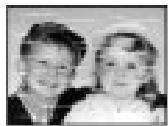
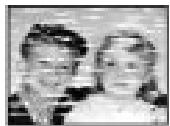
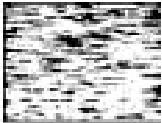
initial
terminal continued
Additional Information
Troubleshooting (continued)
| Symptom | Remedy | |
| Recording | The tape starts playing as soon as it is inserted. | ·The safety tab has been removed. To record on this tape, cover the tab hole. |
| The tape is ejected when you press r REC. | ·Check that the safety tab has not been removed. | |
| Others | No tape can be inserted. | ·Check that a tape isn't already in the tape compartment. |
| The remote commander does not function. | ·Make sure you are pointing the remote commander at the remote sensor on the unit. ·Replace all the batteries in the remote commander with new ones if they are weak. | |
| The unit needs to be cleaned. | ·Clean the cabinet, panel, and controls with a dry soft cloth, or a soft cloth slightly moistened with a mild detergent solution. Do not use any type of solvent, such as alcohol or benzine. |
Specifications
System
RF output signal
UHF channels 30 to 39
Aerial out
75-ohm asymmetrical aerial socket
Inputs and outputs
LINE IN
VIDEO IN, phono jack (1)
Input signal: 1 Vp-p, 75 ohms,
unbalanced, sync negative
AUDIO IN,
phono jack (1) (SLV-XA145)
phono jack (2) (SLV-XF245)
Input level: 327mVrms
Input impedance: more than 47 kilohms
LINE OUT
VIDEO OUT, phono jack (1)
Output signal: 1 Vp-p, 75 ohms,
unbalanced, sync negative
AUDIO OUT,
phono jack (1) (SLV-XA145)
phono jack (2) (SLV-XF245)
Standard output: 327mVrms
Load impedance: 47 kilohms
Output impedance: less than 10 kilohms
General
Power requirements
110-240VAC,50/60Hz
Power consumption
10 W
Operating temperature
5^ to 40^
Storage temperature
-20^ to 60^
Dimensions
Approx. 355 × 102 × 283.5 ~mm(w / h / d)
including projecting parts and controls
Mass
Approx. 3.8kg
Supplied accessories
Remote commander (1)
R6 (Size AA) batteries (2)
Aerial cable (1)
Mains lead (1)
Audio/video cable (3-phon to 3-phon)
(SLV-XF245 only) (1)
Plug adaptor
(SLV-XA145ME/MJ/ SLV-XF245ME only) (1)
Design and specifications are subject to change without notice.
Index to parts and controls
Refer to the pages indicated in parentheses ( ) for details.
Front panel (SLV-XA145)
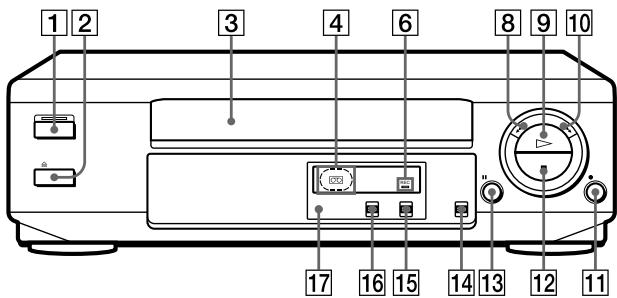
Front panel (SLV-XF245)
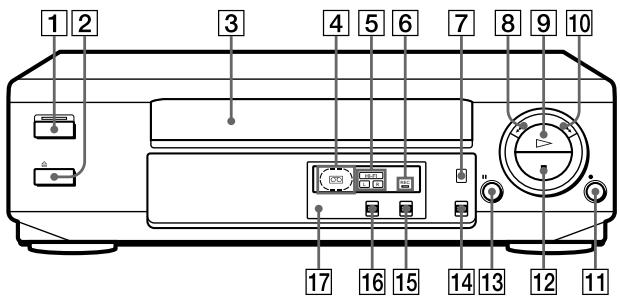
1 u (On/Standby) switch/indicator (8) 9 · PLAY button (11)
2 § EJECT button (11) !^ )# FF button (11, 14)
3 Tape compartment ! r REC button (18)
4 Tape operation indicators!T M p STOP button (11)
5 HiFi L/R indicators (SLV-XF245 only) ! £ P PAUSE button (11) (12)
6REC (recording) indicator NTSC PB switch (12)
7 AUDIO MONITOR button (SLV-XF245 only) (12) ! § COLOR SYSTEM switch (11)
8 03REW button (11,14)
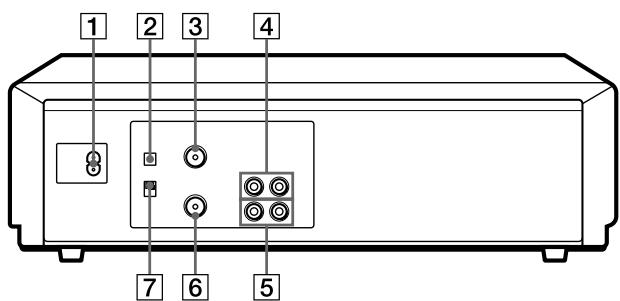
Rear panel (SLV-XA145)
Rear panel (SLV-XF245)
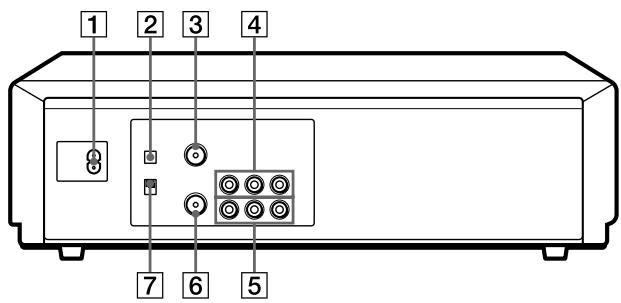
1 AC IN connector (6)
5 LINE OUT VIDEO/AUDIO jacks (SLV-XA145 only) (7)
2 RF CHANNEL screw (9)
LINE OUTVIDEO/AUDIO L/R jacks (SLV-XF245 only) (7)
3 AERIAL OUT connector (6)
6 AERIAL IN connector (6)
4 LINE IN VIDEO/AUDIO jacks (SLV-XA145 only) (17)
7 TV SYSTEM switch (9)
LINE IN VIDEO/AUDIO L/R
jacks (SLV-XF245 only) (17)
continued
Index to parts and controls (continued)
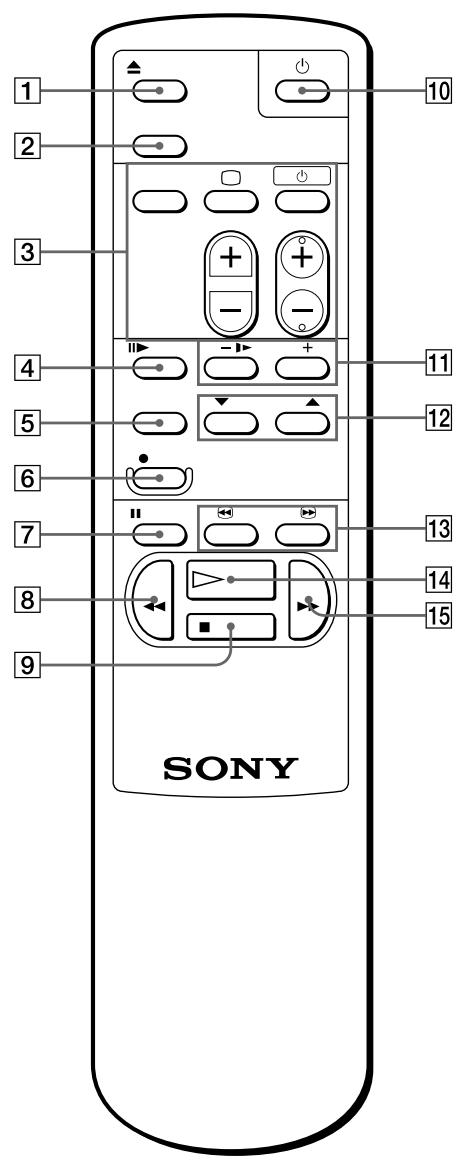
Remote commander
1 6 EJECT button (11)
2 TV/VTR button (This button doesn't work for this unit)
3 TV buttons (Only for TV) (5) TV/VIDEO
; (TV power)
u (Power standby)
VOL + / -
PROG (CH) + / -
4 7 FRAME button (14)
5 TRACKING AUTO/MANUAL button (16)
6 rREC button (18)
7 P PAUSE button (11)
8 0REW button (11, 14)
9 p STOP button (11)
! u (On/Standby) switch (8)
! & SLOW + / - buttons (14)
!TM $/4TRACKING NORMAL/SLOW STILL ADJUST buttons (16)
! £ 3/# SEARCH buttons (11, 14)
! · PLAY button (11)
!)FF button (11, 14)
Index
A, B
Accessories supplied 4
Adjusting
picture 16
tracking 16
Aerial hookup 6
Audio track 13
Auto head cleaner 18
AV connection 7
C
Cleaning the video
heads 19
Colour system
compatible colour
systems 2
setting 11
Connecting
the VCR and your TV 6
to a TV with audio/
video jacks 7
D
Dubbing. See Editing
E,F,G
Editing 17
H, I, J, K, L
Hi-fi audio track 13
M
Monitoring
during playback 12
N
Normal audio track 13
NTSC-recorded tapes 12
0
OPC (Optimum Picture
Control) 16
P, Q
Picture adjustment. See
Adjusting
Playback 10
at various speeds 11, 14
frame-by-frame 14
slow motion 14
R
Recording 18
Remote commander 5
Rental tape 12
RF CHANNEL screw 9
S
Safety tab 18
Searching at various
speeds 14
SP mode 13
T, U, V, W, X, Y, Z
Tracking adjustment. See
Adjusting
Tuning your TV to the
unit 8
TV system 9