MODE D'EMPLOI IMAGERUNNER 2206N CANON
imageRUNNER
2206iF / 2206N
Guide de l'utilisateur
Sommaire
Opérations de base 2
Pièces et leurs fonctions 4
Vue externe 5 Vue interne 7 Panneau de commande 9 Écran 12 Personnalisation de l'écran 16
Connexion à la machine 18
Utilisation de l'écran 21
Saisie de texte 24
Placement des documents 26
Chargement du papier 30
Chargement du papier dans le bac à papier 32 Chargement du papier dans le bac multifonction 36 Chargement des enveloppes dans le bac multifonction 39 Chargement de papier préimprimé 42 45 Enregistrement d'un format de papier personnalisé 47
Enregistrement dans le carnet d'adresses 49
Enregistrement des destinations dans le carnet d'adresses 50 Enregistrement des destinations pour la numérotation en une touche 55 Enregistrement de plusieurs destinations pour la numérotation de groupe 60
Réglage du volume 63
Réglage de l'heure d'arrêt automatique 65
66
Copie 69
Opérations de copie de base 71
Sélection du papier de copie 73
Annulation des copies 74
Divers réglages de copie 76
Agrandissement ou réduction 78 Sélection du type de document 79 Réglage de la densité 80 Copie recto-verso 81 Copie de plusieurs documents sur une seule feuille (2 en 1/4 en 1) 84 Copie des deux côtés d'une carte d'identité sur une page 86 Effacement des bordures sombres et des lignes de cadre (Effacer le cadre) 87 Assemblage des copies par page 89 Division des documents en vis-à-vis en pages séparées pour la copie 91 Copie de documents de tailles différentes ensemble (Originaux de tailles différentes) 92
Configuration des réglages de copie selon vos besoins 94
Modification des réglages par défaut 95
Enregistrement des réglages de copie fréquemment utilisés 96
Télécopie (imageRUNNER 2206iF) 98
Envoi de télécopies 101
Annulation de l'envoi de télécopies 107
Envoi depuis des destinations enregistrées 109
Spécification depuis le carnet d'adresses 110
Sélection directe des destinations en saisissant les numéros de numérotation abrégée 113
Spécification des destinations avec les touches de numérotation abrégée 116
Spécification des destinations précédemment utilisées 118
Spécification des destinations dans un serveur LDAP 121
Divers réglages de télécopie 124
Réglage de la résolution 125
Réglage de la densité 126
Numérisation de documents recto verso 127
Modification des paramètres par défaut 128
Réception de télécopies 129
Envoi et réception de télécopies selon vos besoins 133
Passer un appel avant d'envoyer des télécopies (envoi manuel) 134
Envoi de télécopies à plusieurs destinataires simultanément (diffusion séquentielle) 135
Réception de télécopies en mémoire (réception en mémoire) 137
Transfert des télécopies reçues 140
Sélection d'un document à transférer 141
Transfert automatique de tous les documents reçus 143
Réception de services d'information par télécopie 147
Vérification de l'état et du journal des documents envoyés et reçus 149
Envoi de télécopies depuis votre ordinateur (télécopie PC) 151
Envoi de télécopies PC 152
Utilisation de la machine comme imprimante 155
Impression à partir d'un ordinateur 156
Annulation d'impressions 158
Vérification de l'état d'impression 161
Impression d'un document sécurisé par un code PIN (impression sécurisée) 163
Impression via l'impression sécurisée 164
Configuration des paramètres d'impression selon vos besoins 167
Enregistrement de combinaisons de paramètres d'impression fréquemment utilisés 168
Modification des paramètres par défaut 170
Utilisation de la machine comme scanner 173
Préparation à l'utilisation de la machine comme scanner 174
Numérisation à partir de la machine 175
Numérisation à partir d'un ordinateur 178
Numérisation à l'aide d'une application 179 Configuration des paramètres de numérisation dans ScanGear MF 181 Utilisation de WSD 182
Numérisation pratique avec une opération basée sur la machine 186
Envoi de documents par e-mail directement depuis la machine 187 Enregistrement de documents directement dans un dossier partagé 194 Annulation de l'envoi de documents (e-mail/dossier partagé) 197
Spécification des paramètres détaillés 199
Spécification d'une taille de numérisation 200 Réglage du mode couleur 201 Sélection d'un format de fichier 202 Ajustement de la densité 203 Spécification de l'orientation de votre document 204 Sélection du type de document 205 Numérisation de documents recto verso 206 Ajustement de l'équilibre entre la taille du fichier et la qualité d'image 207 Réglage des valeurs gamma 208
Envoi à l'aide de destinations enregistrées (e-mail/dossier partagé) 209
Spécification à partir du carnet d'adresses 210 Sélection de destinations directement en saisissant des numéros de numérotation abrégée 213 Spécification de destinations avec les boutons de numérotation abrégée 216 Spécification de destinations précédemment utilisées 218 Spécification de destinations dans un serveur LDAP (e-mail) 221
Modification des paramètres par défaut 225 Vérification de l'état et du journal des documents envoyés (e-mail/dossier partagé) 227
Connexion avec des appareils mobiles 230
Connexion avec les appareils mobiles 231
Connexion via un routeur LAN sans fil (connexion LAN) 232 Connexion directe (mode point d'accès) 233
Utilisation de la machine via des applications 235
Utilisation d'AirPrint 236
Impression avec AirPrint 241 Numérisation avec AirPrint 244 Envoi de télécopies avec AirPrint (imageRUNNER 2206iF) 246 Si AirPrint ne peut pas être utilisé 248
Utilisation de Google Cloud Print 249
Gestion de la machine par télécommande 251
Réseau 253
Connexion à un réseau 255
Choix entre LAN filaire ou LAN sans fil 257 Connexion à un LAN filaire 258 Connexion à un LAN sans fil 259 Configuration de la connexion à l'aide du mode bouton poussoir WPS 261 Configuration de la connexion à l'aide du mode code PIN WPS 263
Configuration de la connexion en sélectionnant un routeur sans fil 266 Configuration de la connexion en spécifiant les paramètres détaillés 269 Vérification du SSID et de la clé réseau 273
Configuration des adresses IP 274
Configuration de l'adresse IPv4 275 Configuration des adresses IPv6 278
Affichage des paramètres réseau 282
Configuration de la machine pour l'impression ou l'envoi de télécopies depuis un ordinateur 286
Configuration des protocoles d'impression et des fonctions WSD 287 Configuration des ports d'imprimante 290 Configuration du serveur d'impression 293
Configuration des paramètres de numérisation (e-mail/dossiers partagés) 296
Configuration des paramètres de numérisation (envoi d'e-mail) 297
Configuration des paramètres de base de l'e-mail 298 Configuration des paramètres de communication e-mail 302
Configuration de la machine pour la numérisation vers des dossiers partagés 306 Définition d'un dossier partagé comme emplacement d'enregistrement 307
Configuration de la machine pour votre environnement réseau 311
Configuration des paramètres Ethernet 312 Modification de l'unité de transmission maximale 314 Définition d'un temps d'attente pour la connexion à un réseau 315 Configuration du DNS 316 Configuration de SMB 321 Enregistrement de serveurs LDAP 323 Configuration de SNTP 329 Surveillance et contrôle de la machine avec SNMP 332
Sécurité 338
Protection de la machine contre les accès non autorisés 339
Prévention des accès non autorisés 340 Définition des privilèges d'accès 342
Définition de l'ID du gestionnaire système 343 Définition de la gestion des ID de service 345 Définition d'un code PIN pour l'interface utilisateur distante 352
Authentification par serveur LDAP 354 Restriction des communications à l'aide de pare-feu 359
Spécification des adresses IP pour les règles de pare-feu 360 Spécification des adresses MAC pour les règles de pare-feu 364
Modification des numéros de port 367 Configuration d'un proxy 369
Restriction des fonctions de la machine 371
Restriction de l'accès au carnet d'adresses et aux fonctions d'envoi 372
Définition d'un code PIN pour le carnet d'adresses 373
Limitation des destinations disponibles 374
Interdiction de la télécopie depuis un PC (imageRUNNER 2206iF) 375
Désactivation de l'utilisation des destinations précédemment utilisées 376
Vérification des destinations avant l'envoi de documents (imageRUNNER 2206iF) 377
Interdiction de la diffusion séquentielle (imageRUNNER 2206iF) 379
Restriction de l'impression depuis un ordinateur 380
Restriction des fonctions USB 381
Désactivation de la communication HTTP 382
Désactivation de l'interface utilisateur à distance 383
Implémentation de fonctions de sécurité robustes 384
Activation de la communication chiffrée TLS pour l'interface utilisateur à distance 385
Configuration de l'authentification IEEE 802.1X 389
Configuration des paramètres pour les paires de clés et les certificats numériques 394
Génération de paires de clés 395
Utilisation de paires de clés et de certificats numériques émis par une autorité de certification 402
Vérification des paires de clés et des certificats numériques 405
Utilisation de l'interface utilisateur à distance 408
Démarrage de l'interface utilisateur à distance 409
Écrans de l'interface utilisateur à distance 411
Gestion des documents et vérification de l'état de la machine 415
Configuration des options de menu à partir de l'interface utilisateur à distance 420
Enregistrement/chargement du carnet d'adresses à partir de l'interface utilisateur à distance 422
Enregistrement du carnet d'adresses à partir de l'interface utilisateur à distance 426
Paramètres réseau 432
Préférences 443
Paramètres de minuterie 449
Paramètres communs 454
Paramètres de copie 458
Paramètres de télécopie (imageRUNNER 2206iF) 461
Paramètres de numérisation 473
Paramètres d'impression 477
Réglage/Maintenance 487
Paramètres de gestion du système 492
Dépannage 502
Dégagement des bourrages papier 504
Mesures pour chaque message 519
Mesures pour chaque code d'erreur 530
Problèmes courants 537
Problèmes d'installation/configuration 539
Problèmes de copie/impression 543
Problèmes de télécopie/téléphone 546
Problèmes divers 548
Lorsque vous ne pouvez pas imprimer correctement 549
Les résultats d'impression ne sont pas satisfaisants 551
Papier froissé ou gondolé 555
Le papier n'est pas chargé correctement 557
Lorsqu'un problème ne peut pas être résolu 559
Entretien 561
Nettoyage de la machine 562
Extérieur 563
Vitre d'exposition 564
Chargeur 566
Rouleau de transfert 570
Tambour 571
Ensemble de fixation 572
Remplacement des cartouches de toner 574
Configuration des informations d'achat pour les consommables 576
Comment remplacer les cartouches de toner 578
Comment remplacer l'unité de tambour 581
Impression des rapports et des listes 585
Rapport de résultat d'envoi de télécopie (imageRUNNER 2206iF) 586
Rapport de résultat d'envoi e-mail/fichier 588
Rapport de gestion des communications 590
Rapport de résultat de réception (imageRUNNER 2206iF) 592
Liste du carnet d'adresses 593
Liste des données utilisateur / Liste des données du gestionnaire système 595
Rapport de gestion des identifiants de service 596
Liste des polices PCL 597
Rapport de journal des frais de copie/impression 598
Affichage du compteur 599
Initialisation des paramètres 601
Initialisation du carnet d'adresses 602
Initialisation du menu 603
Initialisation des paramètres de gestion du système 604
Initialisation de toutes les données/paramètres 605
Pièces de rechange 606
Annexe 608
Logiciels tiers 609
Points forts des fonctions 610
Écologie et économies 611
Amélioration de l'efficacité 614
Passage au numérique 616
Et bien plus encore 619
Spécifications 622
Unité principale 623
Chargeur (DADF-AY) 626 Papier disponible 627 Module d'alimentation par cassette-AD 630 Unité duplex-C 631 Fonction fax (imageRUNNER 2206iF) 632 Fonction numérisation 633 Fonctions d'impression 634 Fonctions de gestion 636 Environnement système 637 Environnement réseau 639
Options 640
Équipement en option 641 Options système 644
Manuels et leur contenu 646
Utilisation du guide de l'utilisateur 647
Disposition de l'écran du guide de l'utilisateur 648 Affichage du guide de l'utilisateur 651
Opérations de base sous Windows 652
Avis 660
Opérations de base
Opérations de base 2
Pièces et leurs fonctions 4 Vue externe 5 Vue interne 7 Panneau de commande 9 Écran 12 Personnalisation de l'écran 16
Connexion à la machine 18 Utilisation de l'écran 21 Saisie de texte 24 Placement des documents 26 Chargement du papier 30 Chargement du papier dans le tiroir à papier 32 Chargement du papier dans le bac multifonction 36 Chargement des enveloppes dans le bac multifonction 39 Chargement de papier préimprimé 42 45 Enregistrement d'un format de papier personnalisé 47 Enregistrement dans le carnet d'adresses 49 Enregistrement de destinations dans le carnet d'adresses 50 Enregistrement de destinations pour la numérotation abrégée 55 Enregistrement de plusieurs destinations pour la numérotation de groupe 60 Réglage du volume 63 Réglage du temps d'arrêt automatique 65 Passage en mode veille 66
Opérations de base
36WC-000
Ce chapitre décrit les opérations de base, telles que l'utilisation du panneau de commande ou le chargement du papier et des documents, qui sont fréquemment effectuées pour utiliser les fonctions de la machine.
Pièces et leurs fonctions
Cette section décrit les pièces extérieures et intérieures de la machine et leurs fonctions, ainsi que l'utilisation des touches du panneau de commande et l'affichage de l'écran. Pièces et leurs fonctions (P. 4)
Utilisation de l'écran
Cette section décrit comment basculer l'affichage et sélectionner des éléments. Utilisation de l'écran (P. 21)
■ Saisie de texte
Cette section décrit comment saisir des caractères et des chiffres pour enregistrer des destinations dans le répertoire, envoyer des télécopies, etc. Saisie de texte (P. 24)
Placement des documents
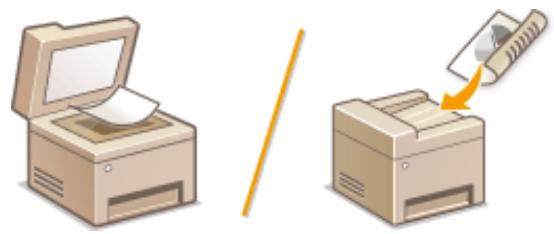
Cette section décrit comment placer des documents sur la vitre d'exposition et dans le chargeur. Placement des documents (P. 26)
Chargement du papier
Cette section décrit comment charger le papier dans le tiroir à papier et le bac multifonction. Chargement du papier (P. 30)
Enregistrement dans le répertoire
Cette section décrit comment enregistrer des destinations pour l'envoi de télécopies ou de documents numérisés. Enregistrement dans le répertoire (P. 49)
Réglage du volume
Cette section décrit comment régler le volume des divers sons de la machine, tels que ceux émis lorsque l'envoi d'une télécopie est terminé ou lorsqu'une erreur se produit. Réglage du volume (P. 63)
■ Activation du mode veille
Cette section décrit comment activer le mode veille. Activation du mode veille (P. 66)
Pièces et leurs fonctions
36WC-001
Cette section décrit les pièces de la machine (extérieur, côtés avant et arrière, et intérieur) et leurs fonctions. En plus de décrire les pièces de la machine utilisées pour les opérations de base telles que le placement des documents, le chargement du papier et le remplacement des cartouches de toner, cette section décrit également les touches du panneau de commande et l'écran. Lisez cette section pour obtenir des conseils sur la façon d'utiliser correctement la machine.
Vue externe (P. 5) Vue interne (P. 7) Panneau de commande (P. 9)
36WC-002
Lorsque le chargeur de documents DADF-AY et le module d'alimentation cassette-AD sont installés :
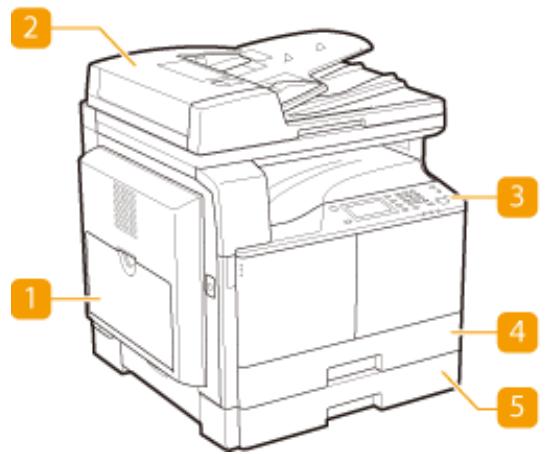
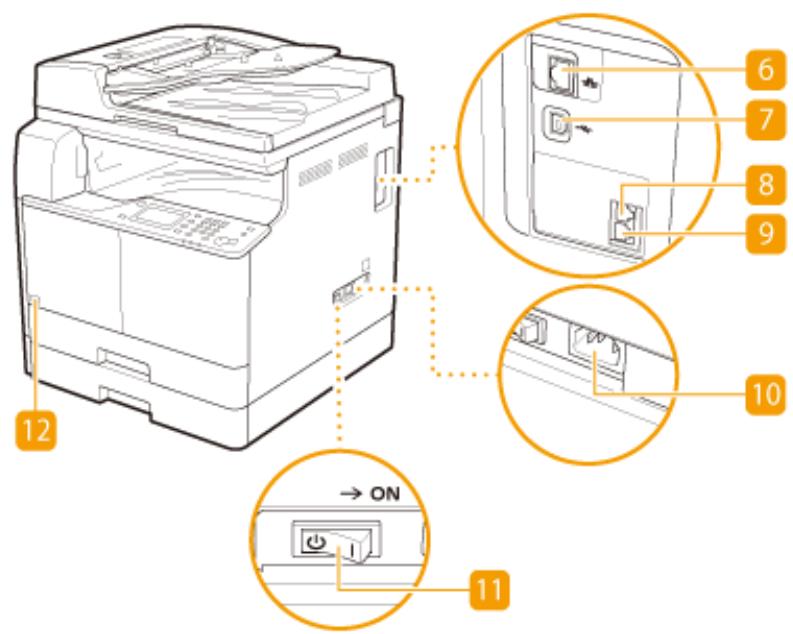
REMARQUE
- Les pièces marquées d'un « *1 » sont en option pour l'imageRUNNER 2206N.
- Les pièces marquées d'un « *2 » sont en option pour tous les modèles.
- Les pièces marquées d'un « *3 » sont disponibles uniquement pour l'imageRUNNER 2206iF.
1 Bac multi-usage
Chargez le papier dans le bac multi-usage lorsque vous souhaitez utiliser temporairement un type de papier différent de celui chargé dans le tiroir à papier. Chargement du papier dans le bac multi-usage (P. 36)
2 Chargeur *1
Alimente automatiquement les documents dans la machine pour les numériser. Lorsque deux feuilles ou plus sont chargées dans le chargeur, les documents peuvent être numérisés en continu. Placement des documents (P. 26)
3 Panneau de commande
Le panneau de commande comprend des touches telles que les touches numériques et la touche [Démarrer], un écran et des voyants d'état. Vous pouvez effectuer toutes les opérations et spécifier les réglages à partir du panneau de commande. Panneau de commande (P. 9) Écran (P. 12)
4 Tiroir à papier 1
Chargez le type de papier que vous utilisez fréquemment dans le tiroir à papier. Chargement du papier dans le tiroir à papier (P. 32)
5 Bac à papier *2*
Chargez le type de papier que vous utilisez fréquemment dans le bac à papier. Chargement du papier dans l'imprimante (P. 32)
6 Port LAN
Connectez un câble LAN lorsque vous connectez la machine à un routeur LAN filaire, etc. Connexion à un LAN filaire (P. 258)
7 Port USB
Connectez un câble USB lorsque vous connectez la machine à un ordinateur.
Prise pour téléphone externe *3
Connectez un téléphone externe ou le combiné en option.
9 Prise de ligne téléphonique *3
Connectez un câble téléphonique lorsque vous connectez la machine à une ligne téléphonique.
10 Prise d'alimentation
Branchez le cordon d'alimentation.
Interrupteur d'alimentation
Met la machine sous ou hors tension. Pour redémarrer la machine, éteignez-la, attendez au moins 10 secondes, puis rallumez-la.
Code toner
Ce code indique le type de toner authentique pouvant être utilisé avec la machine. Utilisez un toner dont le code contient les mêmes lettres que le code figurant sur la face avant de la machine.
36WC-003
Lorsque le DADF-AY et le module d'alimentation des cassettes-AD sont installés :
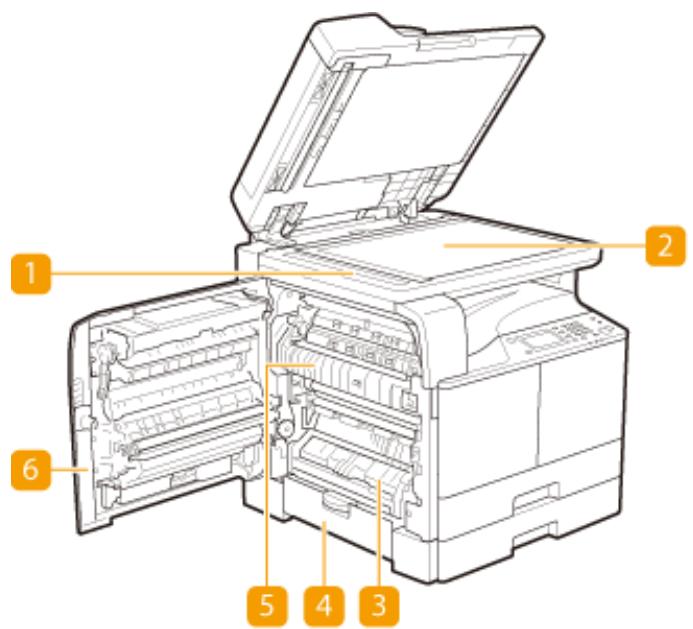
1 Zone de numérisation du chargeur de documents
Les documents chargés dans le chargeur sont automatiquement acheminés vers la zone de numérisation pour être numérisés.
2 Vitre d'exposition
Placez les documents à numériser sur la vitre d'exposition. Utilisez également la vitre d'exposition pour placer des documents épais ou reliés, tels que des livres, lorsqu'ils ne peuvent pas être chargés dans le chargeur. Placement des documents (P. 26)
3 Capot gauche du tiroir 1
Ouvrez ce capot pour éliminer un bourrage papier dans le tiroir 1. Élimination des bourrages (P. 504)
4 Capot gauche du tiroir 2 (capot du module d'alimentation des cassettes-AD en option)
Ouvrez ce capot pour éliminer un bourrage papier dans le tiroir 2. Élimination des bourrages (P. 504)
5 Ensemble de fixation
En cas de bourrage papier autour de l'ensemble de fixation, éliminez le bourrage à partir de cet endroit. ▸ Élimination des bourrages (P. 504)
6 Capot gauche
Ouvrez ce capot pour éliminer un bourrage papier à l'intérieur de l'unité principale. Élimination des bourrages (P. 504)
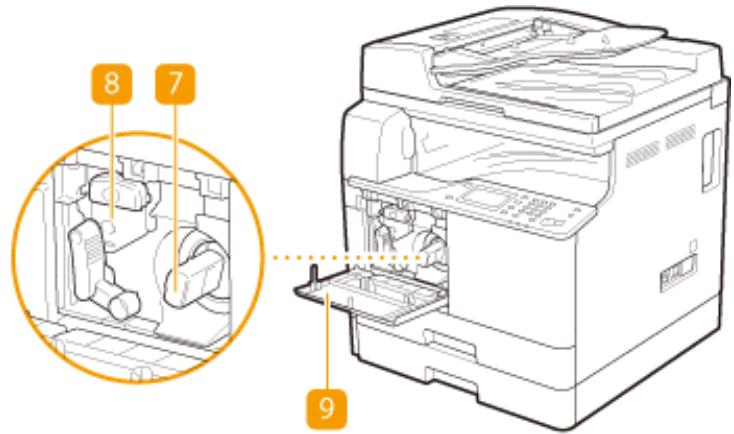
7 Cartouche de toner
Remplacez la cartouche de toner lorsque le toner est épuisé. Voir « Remplacement des cartouches de toner » (P. 578).
8 Tambour
Remplacez le tambour avant l'expiration de sa durée de vie. Voir « Remplacement du tambour » (P. 581).
9 Capot avant
Ouvrez ce capot pour remplacer la cartouche de toner ou le tambour. Voir « Remplacement des cartouches de toner » (P. 578).
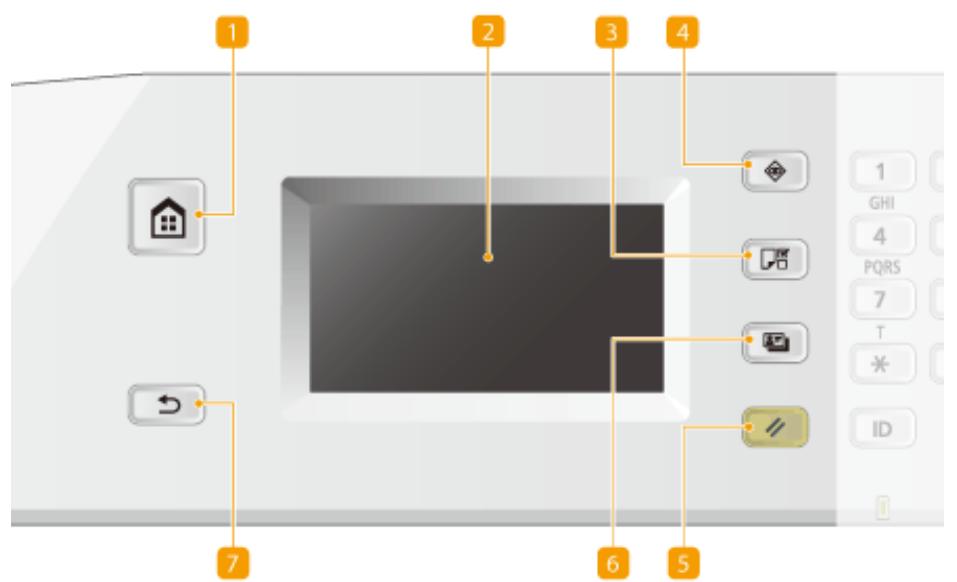
1 Touche [Accueil]
Appuyez sur cette touche pour afficher l'écran. Voir « Personnalisation de l'écran » (P. 16).
2 Écran
Vous pouvez visualiser la progression des travaux de copie et autres, ainsi que les états d'erreur. L'écran est un panneau tactile qui vous permet de le toucher pour spécifier les réglages. Voir « Écran » (P. 12) et « Utilisation de l'écran » (P. 21).
3 Touche [Réglages papier]
Appuyez sur cette touche pour sélectionner une source de papier, comme un tiroir à papier ou le bac multifonction, et pour enregistrer le format et le type de papier.
4 Touche [Moniteur d'état]
Appuyez sur cette touche pour vérifier l'état de l'impression, consulter l'historique d'utilisation ou afficher les paramètres réseau tels que l'adresse IP de l'appareil. Vous pouvez également vérifier l'état de l'appareil, comme les quantités restantes de papier et de toner, ou si des erreurs se sont produites. Voir « Écran » (P. 12).
5 Touche [Reset]
Appuyez pour réinitialiser les paramètres.
6 Touche [Copie carte d'identité]
Appuyez pour copier un original de format carte, tel qu'une carte d'identité ou un permis de conduire. Copie des deux côtés d'une carte d'identité sur une seule page (P. 86)
7 Touche [Retour]
Appuyez pour revenir à l'écran précédent. Si vous appuyez sur cette touche lors de la spécification de paramètres, par exemple, les paramètres ne sont pas appliqués et l'affichage revient à l'écran précédent.
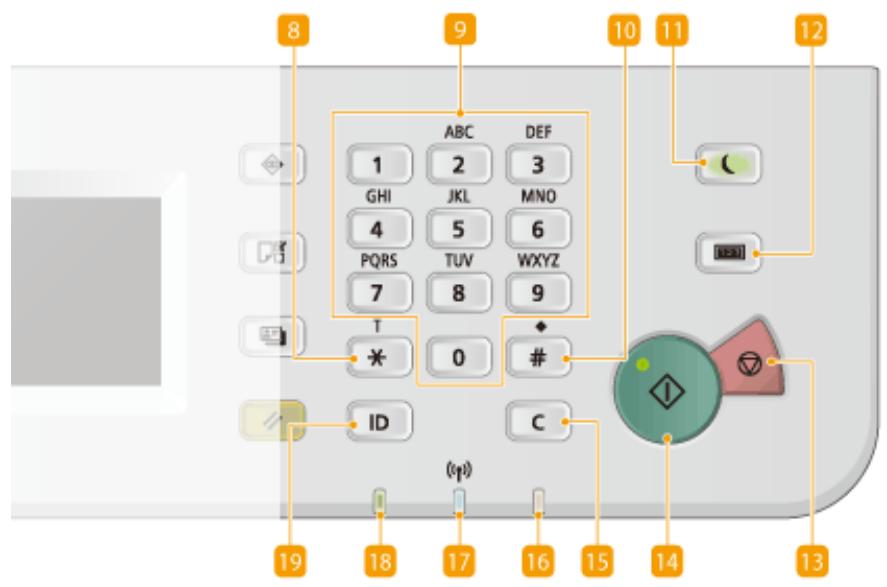
8 Touche [*]
Appuyez pour changer le type de texte saisi. - Appuyez pour utiliser la numérotation par tonalité, par exemple lors de la réception de services d'informations par fax. Réception de services d'informations par fax (P. 147)
9 Touches numériques (touches [0] à [9])
Appuyez pour saisir des chiffres et du texte. Saisie de texte (P. 24)
10 Touche [#]
Appuyez pour saisir des symboles tels que "@" ou "/".
Touche [Économie d'énergie]
Appuyez pour mettre la machine en mode veille. La touche s'allume en vert lorsque la machine est en mode veille. Appuyez à nouveau sur la touche pour quitter le mode veille. Entrée en mode veille (P. 66)
Touche [Compteur]
Appuyez pour afficher le nombre total de pages utilisées pour des opérations telles que la copie ou l'impression sur l'écran du panneau tactile. Vous pouvez également vérifier le numéro de série de la machine (trois lettres et cinq chiffres).
Touche [Arrêt]
Appuyez pour annuler la copie, la télécopie et d'autres opérations.
14 Touche [Départ]
Appuyez pour numériser ou copier des documents.
15 Touche [Effacer]
Appuyez pour supprimer les nombres et textes saisis.
16 Voyant [Erreur]
Clignote ou s'allume lorsqu'une erreur telle qu'un bourrage papier se produit.
Voyant Wi-Fi
S'allume lorsque la machine est connectée à un réseau local sans fil.
Voyant [Traitement/Données]
Clignote pendant que des opérations telles que l'envoi ou l'impression sont en cours. S'allume lorsqu'il y a des documents en attente de traitement.
19 Touche [Connexion/Déconnexion]
Appuyez pour vous connecter/déconnecter lorsque la gestion des codes départementaux a été définie.
LIENS
Utilisation de l'écran (P. 21)
L'écran d'initialisation des opérations et les écrans de spécification des paramètres apparaissent sur l'affichage. Vous pouvez également consulter la progression des travaux et les messages ici. Touchez l'écran pour le faire fonctionner.
Écran
L'écran s'affiche lorsque l'appareil est mis sous tension ou lorsque vous appuyez sur le panneau de commande. Utilisez cet écran pour spécifier les paramètres et enregistrer les fonctions.
REMARQUE
- Pour imageRUNNER 2206N, les fonctions marquées de ** ne peuvent être utilisées que lorsque le kit d'envoi couleur en option est installé.
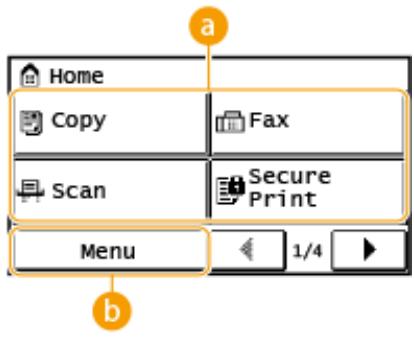
Fonctions de bascule
Basculez entre les fonctions copie, fax, impression sécurisée ou numérisation. Copie (P. 69) Envoi de télécopies (imageRUNNER 2206iF) (P. 98) Impression d'un document sécurisé par un code PIN (impression sécurisée) (P. 163) Utilisation de l'appareil comme scanner (P. 173)
, , et de nombreux autres paramètres de l'appareil démarrent à partir de ce bouton. Liste des menus de paramètres (P. 431)
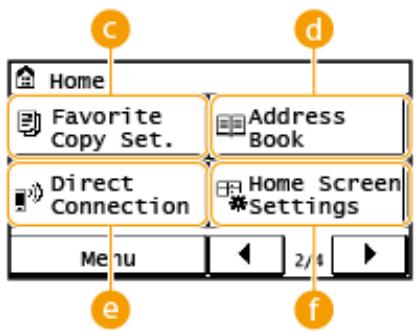
Vous pouvez enregistrer des combinaisons de paramètres de copie fréquemment utilisées et les rappeler facilement en cas de besoin. Enregistrement des paramètres de copie fréquemment utilisés (P. 96)
Carnet d'adresses*
Affiche les destinations enregistrées dans le carnet d'adresses. Utilisez également cette fonction pour enregistrer/modifier des destinations dans le carnet d'adresses. Enregistrement dans le carnet d'adresses (P. 49)
e
Utilisez cette fonction pour établir une connexion sans fil directe à un appareil mobile. Connexion directe (mode point d'accès) (P. 233)
Écran d'accueil > Paramètres
Permet de modifier l'ordre d'affichage des boutons à l'écran. Personnalisation de l'écran (P. 16)
9 à
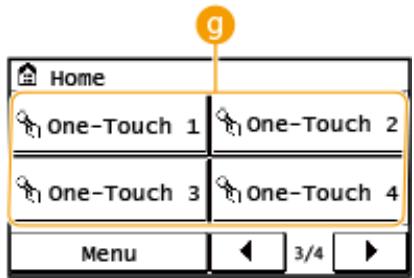
Si vous enregistrez des destinations à l'avance comme numéros de numérotation abrégée, elles peuvent être affichées rapidement. Spécification des destinations avec les boutons de numérotation abrégée (P. 116)
Numérotation par code*
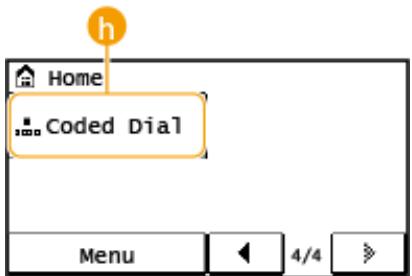
Si vous enregistrez des destinations à l'avance comme numéros de numérotation par code, elles peuvent être affichées rapidement en saisissant simplement un numéro à trois chiffres. Enregistrement dans le carnet d'adresses (P. 49)
Écran
Lorsque vous appuyez sur , un écran s'affiche qui vous permet de vérifier l'état des documents en cours d'impression, d'envoi ou de réception, ainsi que l'état de la machine comme le niveau de toner ou les informations de configuration réseau telles que l'adresse IP de la machine.
REMARQUE
- Pour imageRUNNER 2206N, les fonctions marquées d'un « *1 » ne peuvent être utilisées que si le kit d'envoi couleur en option est installé.
- Les fonctions marquées d'un « *2 » ne sont disponibles que pour l'imageRUNNER 2206iF.
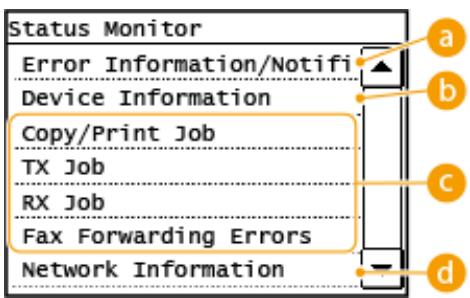
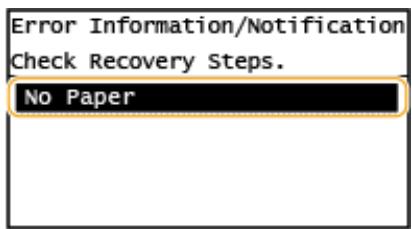
Affiche les détails de toute erreur survenue. Contremesures pour chaque message (P. 519)
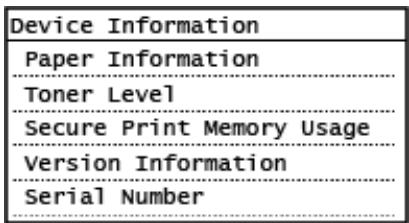
Affiche l'état de la machine, comme la quantité de papier ou de toner restant.
Indique si le papier est chargé dans chaque source de papier.
Affiche la quantité de toner restante. Selon l'environnement dans lequel se trouve votre appareil, d'autres pièces internes peuvent atteindre la fin de leur durée de vie avant que le toner ne soit épuisé.
< Utilisation de la mémoire d'impression sécurisée >
Affiche la quantité de mémoire actuellement utilisée pour stocker les données de documents sécurisés. Impression d'un document sécurisé par un code PIN (Impression sécurisée) (P. 163)
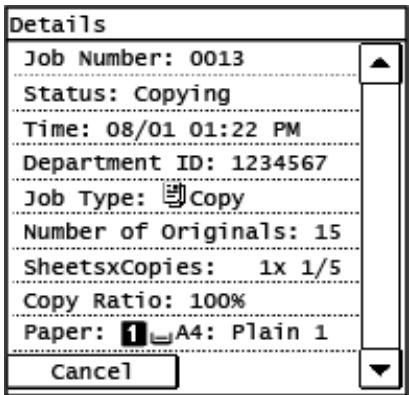
État des travaux de copie, d'impression, d'envoi*1 et de réception*2
Affiche l'état actuel de l'élément sélectionné. L'écran est présenté ci-dessous à titre d'exemple.
Affiche les paramètres réseau tels que l'adresse IP de l'appareil et l'état de la communication sans fil.
Consultation des paramètres réseau (P. 282)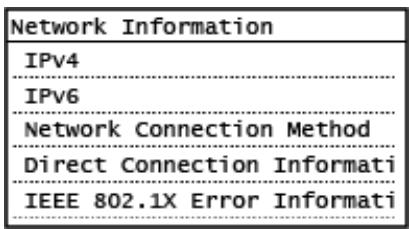
Lorsqu'un message s'affiche
Des messages s'affichent en haut de l'écran dans des situations telles que le niveau de toner faible ou un capot laissé ouvert. L'affichage alterne entre l'écran normal et le message.
Mesures à prendre pour chaque message (P. 519)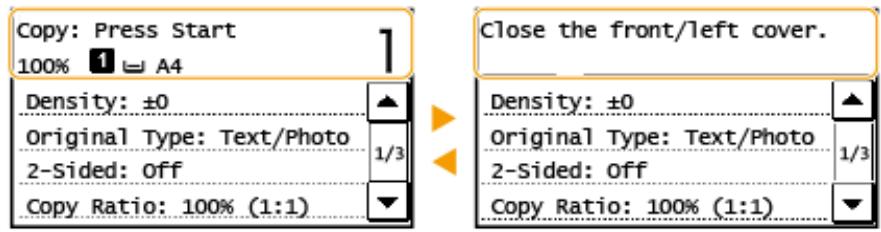
REMARQUE
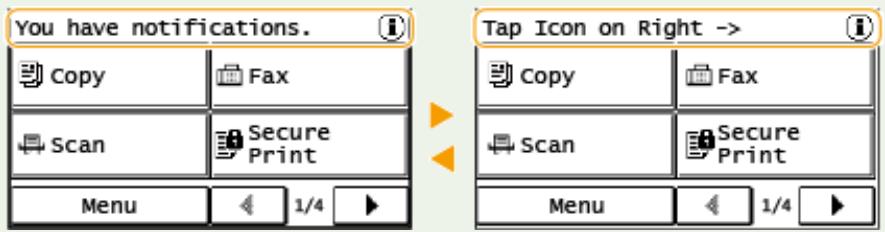
Lorsque ou s'affiche, appuyez pour voir la notification.
Lorsqu'une erreur se produit
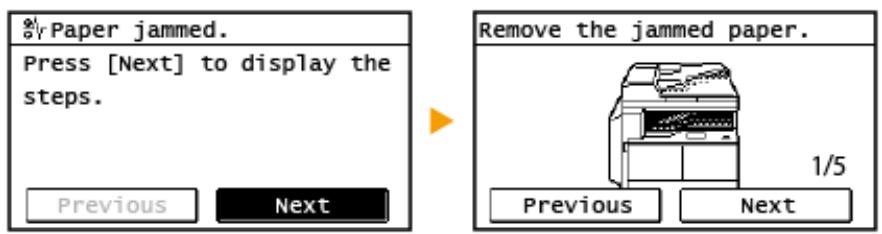
Dans certains cas, lorsqu'une erreur se produit, des instructions sur la façon de répondre à l'erreur s'affichent. Suivez les instructions à l'écran pour résoudre le problème. L'écran affiché en cas de bourrage papier est présenté ci-dessous à titre d'exemple ( Mesures à prendre pour chaque message (P. 519)).
LIENS
Personnalisation de l'écran (P. 16) Utilisation de l'écran (P. 21)
Personnalisation de l'écran
36WC-006
Vous pouvez modifier l'ordre d'affichage des boutons à l'écran en fonction de votre application ou de la disposition préférée.
1 Appuyez sur et touchez .
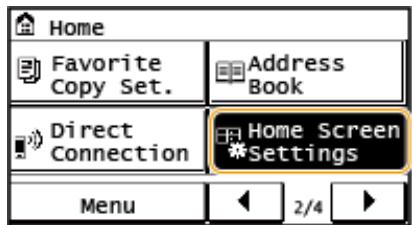
- Si un écran de saisie de l'ID et du PIN du gestionnaire système s'affiche, saisissez l'ID et le PIN du gestionnaire système, touchez , puis appuyez sur (ID). Réglage de l'ID du gestionnaire système (P. 343)
2 Touchez .
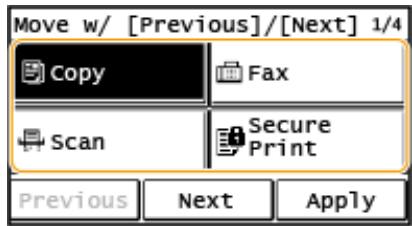
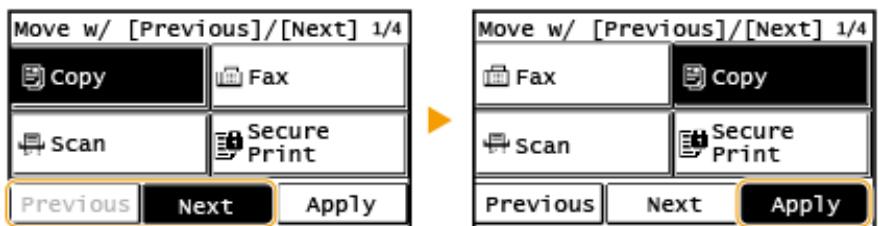
6 Touchez .
Pour insérer des espaces vides à l'écran
1 Appuyez sur et touchez .
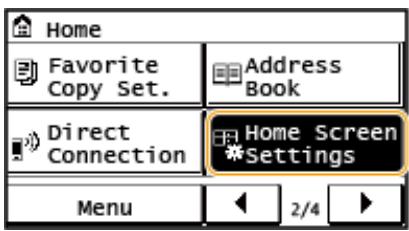
- Si un écran de saisie de l'ID et du PIN du gestionnaire système s'affiche, saisissez l'ID et le PIN du gestionnaire système, appuyez sur , puis sur (ID). Réglage de l'ID du gestionnaire système (P. 343)
2 Appuyez sur .
Pour supprimer un espace vide inséré, sélectionnez-le, appuyez sur , puis passez à l'étape 5.
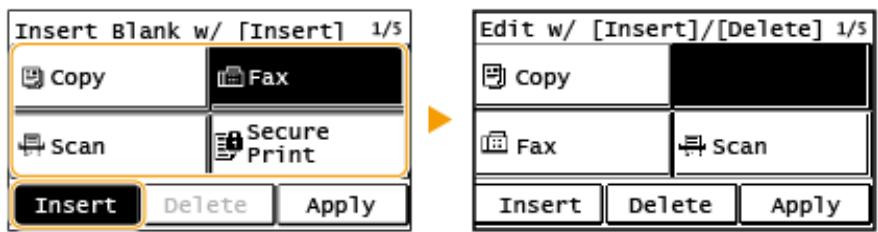
4 Appuyez sur .
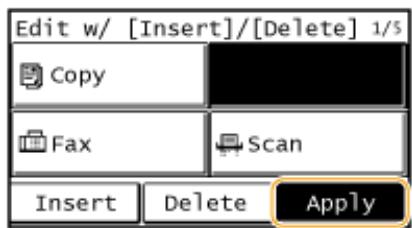
5 Appuyez sur .
LIENS
Affichage (P. 12)
Connexion à la machine
36WC-007
Si la gestion des ID de service est activée ou si les ID du gestionnaire système sont activés, vous devez vous connecter avant d'utiliser la machine. Vous devez également vous connecter si l'utilisation des fonctions de télécopie et de numérisation est restreinte.
REMARQUE
L'ID et le PIN du gestionnaire système sont définis sur "7654321" en usine. Il est recommandé de modifier ce réglage pour une sécurité accrue.
Connexion à la gestion des ID de service (P. 18) Connexion à Envoi autorisé (P. 19)
Connexion à la gestion des ID de service
Lorsque l'écran de connexion apparaît, utilisez la procédure ci-dessous pour saisir l'ID du département et le code PIN.
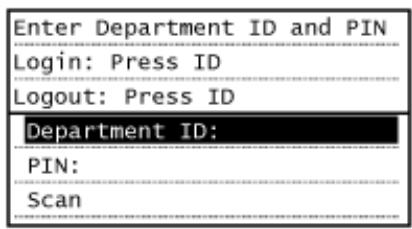
1 Appuyez sur (ou ). 2 Saisissez un numéro de sept chiffres maximum à l'aide des touches numériques, puis appuyez sur .
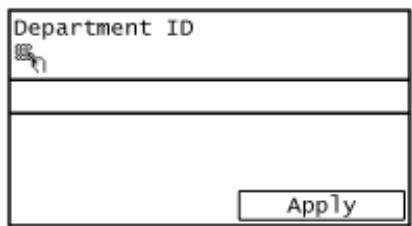
Si aucun code PIN n'est enregistré, passez à l'étape 5.
3 Sélectionnez . 4 Saisissez un numéro de sept chiffres maximum à l'aide des touches numériques, puis appuyez sur .
- Lorsque < PIN(Confirm)> s'affiche, saisissez à nouveau le code PIN pour confirmer.
5 Appuyez sur ID. L'écran de connexion se transforme en écran principal.
- Après avoir utilisé la machine, appuyez à nouveau sur ID pour afficher l'écran de connexion.
Connexion à Envoi autorisé
Si le paramètre d'autorisation de la fonction Envoi ( Authentification du serveur LDAP (P. 354) est activé, l'écran de connexion Envoi autorisé apparaît lors de l'utilisation de la fonction fax ou numérisation.
| Enter User Name, Password, and Server Name
Login/Logout: Press ID |
| User Name:
Password:
Server Name: |
REMARQUE
- Pour imageRUNNER 2206N, ces fonctions ne peuvent être utilisées que si le kit d'envoi couleur en option est installé.
1 Appuyez sur . 2 Saisissez votre nom d'utilisateur à l'aide des touches numériques, puis appuyez sur .
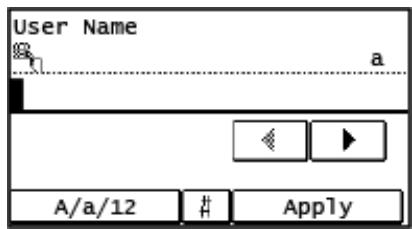
3 Appuyez sur . 4 Saisissez le mot de passe à l'aide des touches numériques, puis appuyez sur . 5 Appuyez sur et sélectionnez le serveur pour votre authentification.
6 Appuyez sur ID
L'écran de connexion se transforme en écran principal.
Après avoir fini d'utiliser la machine, appuyez à nouveau sur ID pour afficher l'écran de connexion.
REMARQUE :
Si l'écran apparaît
- Si vous êtes connecté à la fois à Envoi autorisé et à Gestion des codes départementaux, une boîte de dialogue apparaît dans laquelle vous pouvez sélectionner les éléments dont vous souhaitez vous déconnecter. Si vous souhaitez vous déconnecter d'Envoi
autorisé (fonction fax ou scan) tout en restant connecté à Gestion des codes départementaux, sélectionnez . Dans tous les autres cas, sélectionnez .
LIENS
Configuration de la gestion des codes départementaux (P. 345) Configuration de l'ID administrateur système (P. 343) Authentification du serveur LDAP (P. 354)
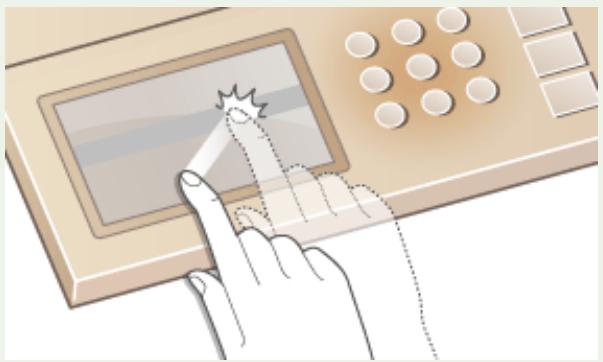
L'écran est un panneau tactile, vous permettant d'opérer directement sur l'écran.
IMPORTANT
Évitez les actions suivantes.
L'écran peut mal fonctionner ou être endommagé.
Appuyer avec force - Appuyer avec des objets pointus (ongles, stylo à bille, crayon, etc.) - Opérer avec les mains mouillées ou sales - Opérer l'écran alors qu'un objet est posé dessus
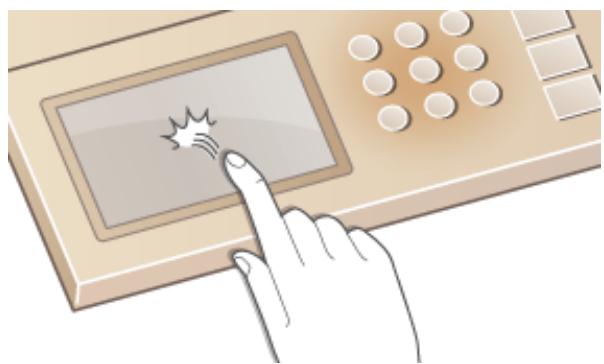
Toucher
Touchez l'écran légèrement et rapidement. Utilisez pour sélectionner ou valider des éléments.
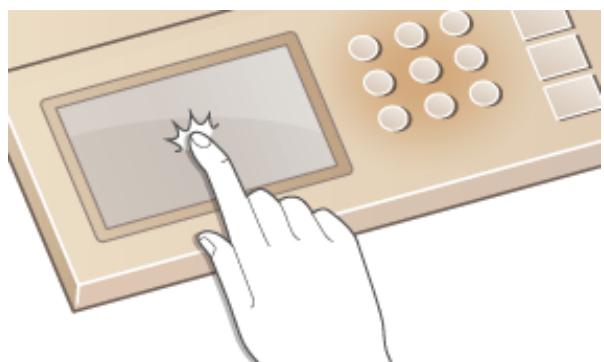
Toucher longuement
Maintenez le doigt sur l'écran. Lorsque le texte ne peut pas être entièrement affiché sur une seule ligne ("..." apparaît), touchez et maintenez la ligne pour faire défiler tout le texte. Cela augmente ou diminue également en continu le taux de zoom de la copie.
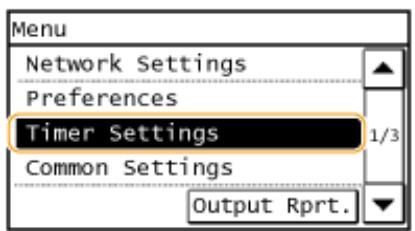
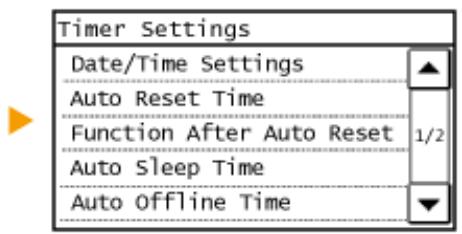
Sélection d'éléments
Touchez un nom d'élément ou un bouton pour effectuer une sélection.
REMARQUE
Si un élément est touché par erreur
Faites glisser votre doigt loin de l'élément puis relâchez-le pour annuler la sélection.
Pour revenir à l'écran précédent
Appuyez sur pour revenir à l'écran précédent.
La barre de défilement est affichée à l'écran lorsqu'il reste des informations non affichées. Si la barre de défilement est affichée, touchez / pour faire défiler l'écran. L'écran change page par page, et le numéro de page est affiché dans la barre de défilement.
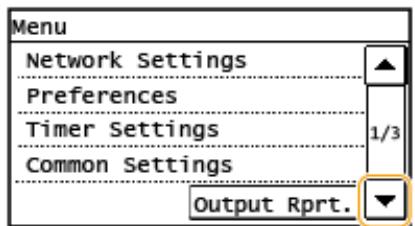

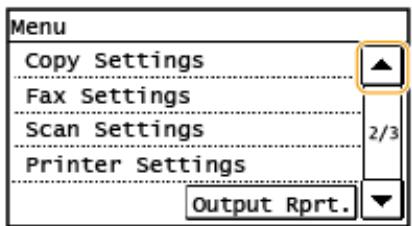
Modification des valeurs et des réglages
Modification des valeurs
Touchez / pour saisir des valeurs. Si une icône telle que celle ci-dessous est affichée en haut à gauche de l'écran, vous pouvez saisir les valeurs directement à l'aide des touches numériques.
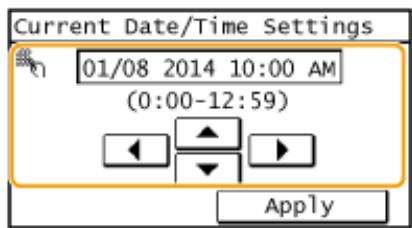
REMARQUE
Pour déplacer le curseur
Lorsque / s'affiche, touchez pour déplacer le curseur.
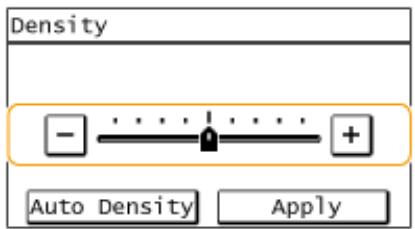
Modification des valeurs des réglages
Pour ajuster une valeur sur une échelle, touchez <-> / <+.
CONSEILS
- Vous pouvez modifier divers réglages liés à l'affichage, tels que la vitesse de défilement ou la langue d'affichage : Paramètres d'affichage (P. 445)
- Pour modifier l'écran affiché automatiquement lorsque la machine reste inactive pendant une durée déterminée : Fonction après réinitialisation automatique (P. 451)
Utilisez l'écran et les touches numériques pour saisir du texte et des valeurs.
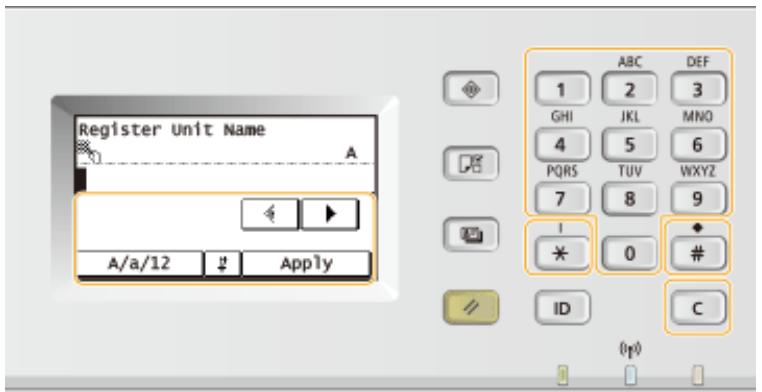
Changement du type de texte
Touchez <A / a / 12> pour changer le type de texte saisi. Le type de texte actuellement sélectionné est indiqué par "A", "a" ou "12" affiché en haut à droite du champ de saisie de texte.
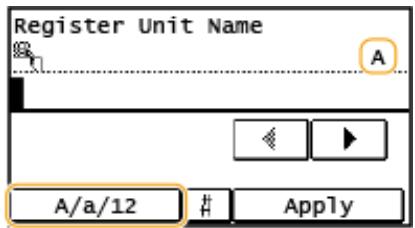
REMARQUE
Vous pouvez également appuyer sur * pour changer le type de texte.
Types de texte pouvant être saisis
Saisissez du texte avec les touches numériques et l'écran. Les textes pouvant être saisis sont énumérés ci-dessous.
| Key | A | a | 12 |
| 1 | @ . - _/ | 1 |
| 2 | ABC | abc | 2 |
| 3 | DEF | def | 3 |
| 4 | GHI | ghi | 4 |
| 5 | JKL | jkl | 5 |
| 6 | MNO | mno | 6 |
| 7 | PQRS | pqrs | 7 |
| 8 | TUV | tuv | 8 |
| 9 | WXYZ | wxyz | 9 |
| 0 | (Not available) | 0 |
| # | (space) -. * # !",;;^ ` _ = / | '? $ @ % & +\~() [ ] { }<> | (Not available) |
REMARQUE
Appuyez sur # ou touchez <#> lorsque le type de texte saisi est ou pour afficher les symboles saisissables à l'écran. Touchez les symboles pour les saisir.
Suppression de texte
Chaque pression sur supprime un caractère. Maintenez enfoncé pour supprimer tout le texte saisi.
Déplacement du curseur (saisie d'un espace)
Appuyez sur ou pour déplacer le curseur. Pour saisir un espace, déplacez le curseur à la fin du texte, puis appuyez sur ▷
Exemple de saisie de texte et de nombres
Exemple : "Canon-1"
1 Appuyez à plusieurs reprises sur (ou sur ) jusqu'à ce que soit sélectionné. 2 Appuyez à plusieurs reprises sur 2 jusqu'à ce que la lettre "C" soit sélectionnée. 3 Appuyez à plusieurs reprises sur < A / a / 12> (ou sur 掌) jusqu'à ce que < a> soit sélectionné. 4 Appuyez à plusieurs reprises sur 2 jusqu'à ce que la lettre "a" soit sélectionnée. 5 Appuyez à plusieurs reprises sur 6 jusqu'à ce que la lettre "n" soit sélectionnée. 6 Appuyez à plusieurs reprises sur 6 jusqu'à ce que la lettre "o" soit sélectionnée. 7 Appuyez à plusieurs reprises sur 6 jusqu'à ce que la lettre "n" soit sélectionnée. 8 Appuyez à plusieurs reprises sur 1 jusqu'à ce que le symbole "-" soit sélectionné. 9 Appuyez à plusieurs reprises sur < A / a / 12> (ou sur *) jusqu'à ce que < 12> soit sélectionné. 10 Appuyez sur 1. 11 Appuyez sur .
Placez les documents sur la vitre d'exposition ou dans le chargeur. Utilisez la vitre d'exposition pour numériser des documents épais ou reliés, comme des livres. Vous pouvez charger deux feuilles ou plus dans le chargeur pour une numérisation continue. Pour plus d'informations sur les types de documents pouvant être placés sur la vitre ou dans le chargeur, et sur la zone numérisable, voir Unité principale (P. 623) ou Chargeur (DADF-AY) (P. 626).
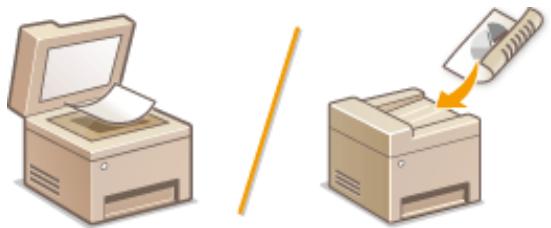
Placement des documents sur la vitre d'exposition (P. 26)
Placement des documents dans le chargeur (P. 27)
IMPORTANT
Utilisez des documents complètement secs
Lors du placement des documents, assurez-vous que toute colle, encre ou correcteur liquide sur les documents a complètement séché.
Pour éviter les bourrages papier
Ne placez pas les types de documents suivants dans le chargeur, car cela pourrait provoquer des bourrages papier :
- Papier froissé ou plié, papier carbone ou à dos carbone, papier enroulé ou roulé, papier couché, papier déchiré
- Papier pelure ou papier fin, documents agrafés ou attachés
- Papier imprimé par une imprimante à transfert thermique, transparents


REMARQUE
Pour numériser les documents avec plus de précision
Les documents placés dans le chargeur sont numérisés pendant qu'ils sont introduits dans la machine. En revanche, les documents placés sur la vitre d'exposition restent dans une position fixe pendant leur numérisation. Pour garantir des résultats de numérisation plus précis, il est recommandé de placer les documents sur la vitre d'exposition.
Pour numériser du papier calque ou des transparents
Pour numériser des documents transparents (par exemple, du papier calque ou des transparents), placez-les sur la vitre d'exposition.
Placement des documents sur la vitre d'exposition
1 Ouvrez le capot du chargeur/la vitre.
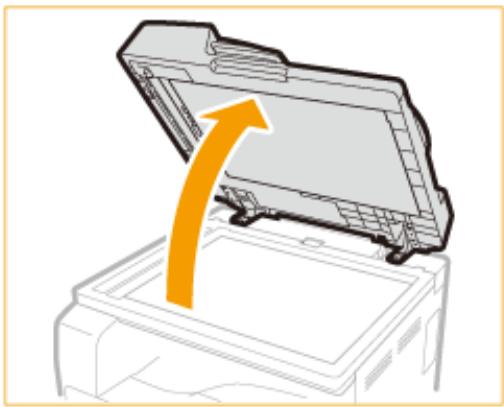
2 Placez le document face vers le bas sur la vitre d'exposition.
- Alignez le coin du document avec le coin supérieur gauche de la vitre d'exposition.
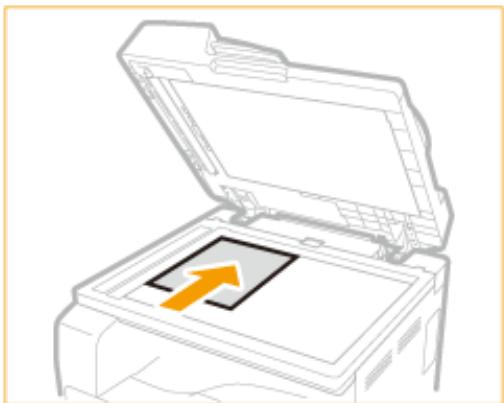
REMARQUE :
Pour numériser des documents transparents (par exemple, du papier calque ou des transparents), couvrez-les avec une feuille de papier blanc ordinaire.
3 Fermez délicatement le capot du chargeur/la vitre.
La machine est prête à numériser le document. - Lorsque la numérisation est terminée, retirez le document de la vitre d'exposition.
Placement des documents dans le chargeur
REMARQUE
- Pour imageRUNNER 2206N, ces fonctions ne peuvent être utilisées que si le DADF-AY en option est installé.
1 Écartez les guides de documents.
- Faites glisser les guides de documents vers l'extérieur jusqu'à ce qu'ils soient légèrement plus écartés que la largeur réelle du document.
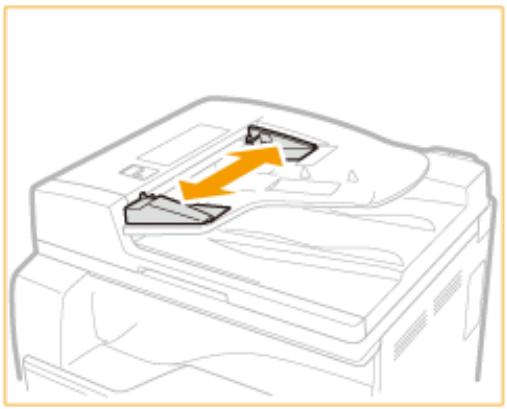
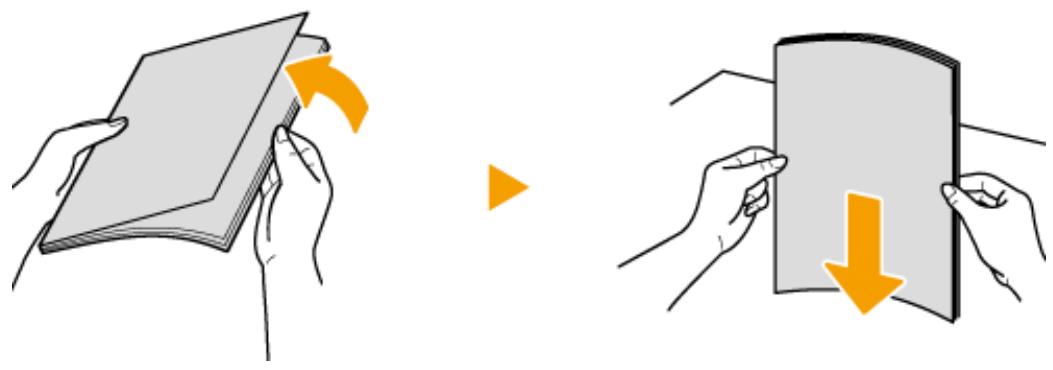
2 Éventez la pile de documents et alignez les bords.
- Éventez la pile de documents en petites quantités, puis alignez les bords en tapotant légèrement la pile sur une surface plane à quelques reprises.
3 Placez le(s) document(s) face vers le haut dans le chargeur.
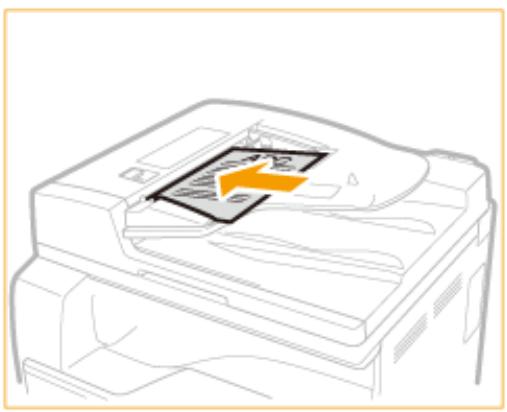
IMPORTANT :
- Jusqu'à 50 feuilles peuvent être chargées à la fois. Si 50 feuilles ou plus sont chargées, la numérisation peut s'arrêter ou un bourrage papier peut se produire.
4 Alignez les guides de documents contre les bords du document.
- Faites glisser les guides de documents vers l'intérieur jusqu'à ce qu'ils soient alignés fermement contre les bords du document.
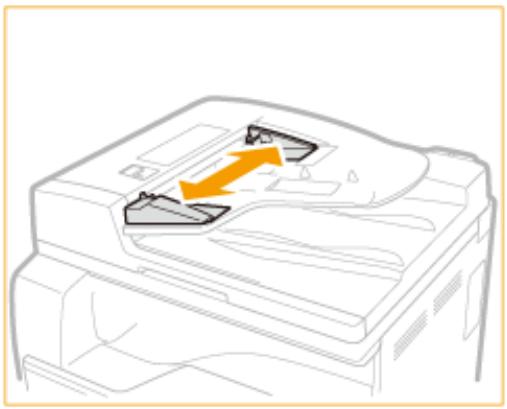
La machine est prête à numériser le document.
IMPORTANT :
Alignez les guides de document fermement contre les bords du document.
Des guides de document trop lâches ou trop serrés peuvent provoquer des bourrages papier ou des erreurs d'alimentation.
Pendant la numérisation des documents
N'ajoutez pas et ne retirez pas de documents.
Lorsque la numérisation est terminée
Retirez les documents numérisés sous le chargeur pour éviter les bourrages papier.
Chargement du papier
36WC-00C
Vous pouvez charger le papier dans le tiroir à papier ou dans le bac multifonction. Chargez le papier que vous utilisez habituellement dans le tiroir à papier. Le tiroir à papier est pratique lorsque vous utilisez de grandes quantités de papier. Utilisez le bac multifonction lorsque vous utilisez temporairement un format ou un type de papier qui n'est pas chargé dans le tiroir à papier. Voir Papier disponible (P. 627) pour les formats de papier disponibles.
Type de papier et réglage pour la machine
Reportez-vous au tableau ci-dessous pour spécifier les réglages du papier en fonction du type et du grammage du papier à charger dans la source de papier. Pour plus d'informations sur la façon de spécifier les réglages du papier sur la machine, voir ▸ Spécification du format et du type de papier (P. 45). Pour la quantité de papier pouvant être chargée dans chaque source de papier, voir ▸ Papier disponible (P. 627).
| Paper Type | Paper Weight | Paper Setting on the Machine |
| Plain paper | 64 to 75 g/m2 | <Plain 1 (64-75 g/m2)> |
| 76 to 90 g/m2 | <Plain 2 (76-90 g/m2)> |
| Recycled paper | 64 to 80 g/m2 | <Recycled (64-80 g/m2)> |
| Color paper | 64 to 80 g/m2 | <Color (64-80 g/m2)> |
| Heavy paper | 91 to 105 g/m2 | <Heavy 1 (91-105 g/m2)> |
| 106 to 128 g/m2 | <Heavy 2 (106-128 g/m2)> |
| Bond paper | 75 to 90 g/m2 | <Bond> |
| Envelope | — | <Envelope> |
| Pre-punched | 75 to 80 g/m2 | <Pre-Punched> |
| Transparency | — | <Transparency> |
| Label | — | <Labels> |
IMPORTANT
N'utilisez pas les types de papier suivants :
- Papier froissé ou plissé, papier gondolé ou enroulé, papier déchiré, papier humide, papier très fin
- Papier imprimé par une imprimante à transfert thermique
Papier très texturé Papier brillant
Manipulation et stockage du papier
- Stockez le papier sur une surface plane.
- Conservez le papier dans son emballage d'origine pour le protéger de l'humidité ou de la sécheresse.
- Ne stockez pas le papier de manière à ce qu'il se déforme ou se plie.
- Ne stockez pas le papier verticalement et n'empilez pas trop de papier.
- Ne stockez pas le papier à la lumière directe du soleil, ni dans un endroit soumis à une humidité élevée, à la sécheresse ou à des variations brusques de température ou d'humidité.
REMARQUE
Lors de l'impression sur du papier ayant absorbé de l'humidité
De la vapeur peut s'échapper de la zone de sortie du papier, ou des gouttelettes d'eau peuvent se former sur le dos du panneau de commande ou autour de la zone de sortie du papier. Ces phénomènes sont tout à fait normaux et se produisent lorsque la chaleur générée par la fixation du toner sur le papier provoque l'évaporation de l'humidité contenue dans le papier (ce phénomène est plus susceptible de se produire à basse température ambiante).
LIENS
Enregistrement d'un format de papier personnalisé (P. 47)
Chargement du papier dans le bac à papier
36WC-00E
Chargez le papier que vous utilisez habituellement dans le bac à papier. Lorsque vous souhaitez imprimer sur un papier qui n'est pas chargé dans le bac à papier, chargez le papier dans le bac multifonction. Chargement du papier dans le bac multifonction (P. 36)
Tenez la poignée du tiroir à papier et tirez-le jusqu'à ce qu'il s'arrête.
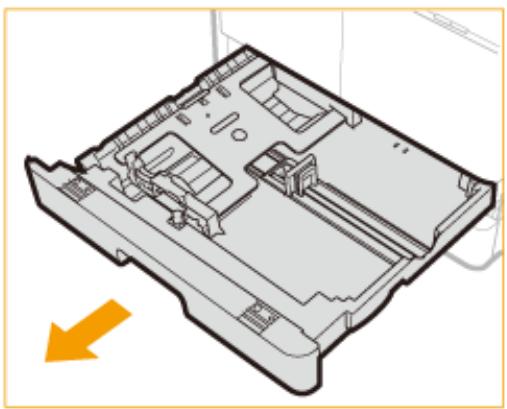
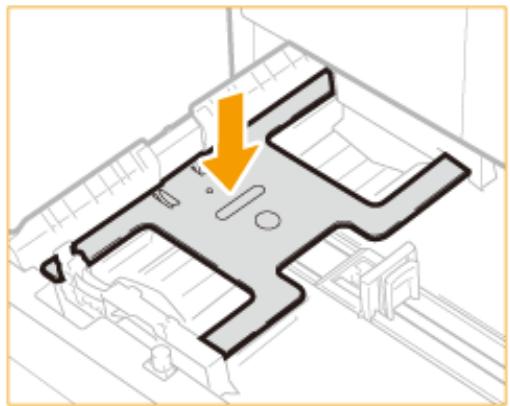
3 Ajustez la position des guides papier.
Lors du chargement du papier dans le tiroir à papier 1
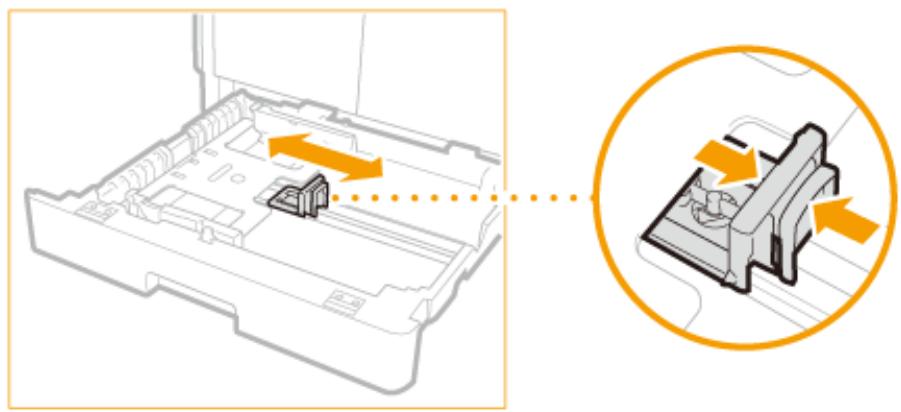
1 Tout en pressant la partie supérieure du guide droit, faites-le glisser pour l'aligner sur l'indicateur de format du papier à charger.
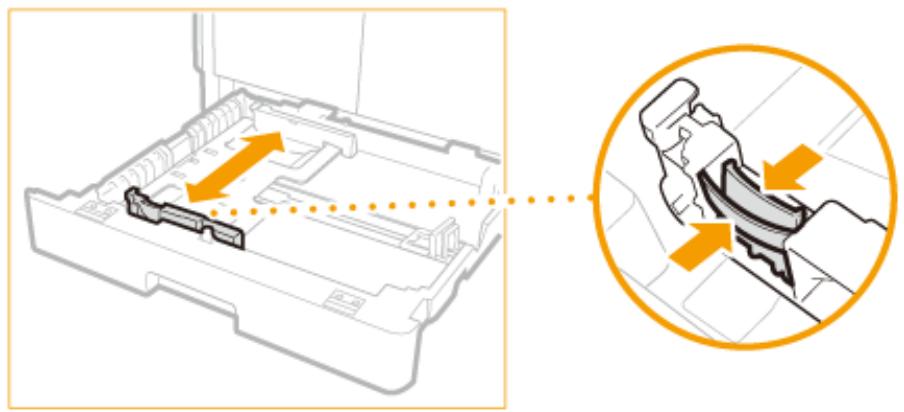
2 Tout en pressant la partie supérieure du guide avant, faites-le glisser pour l'aligner sur l'indicateur de format du papier à charger.
Lors du chargement du papier dans le tiroir à papier 2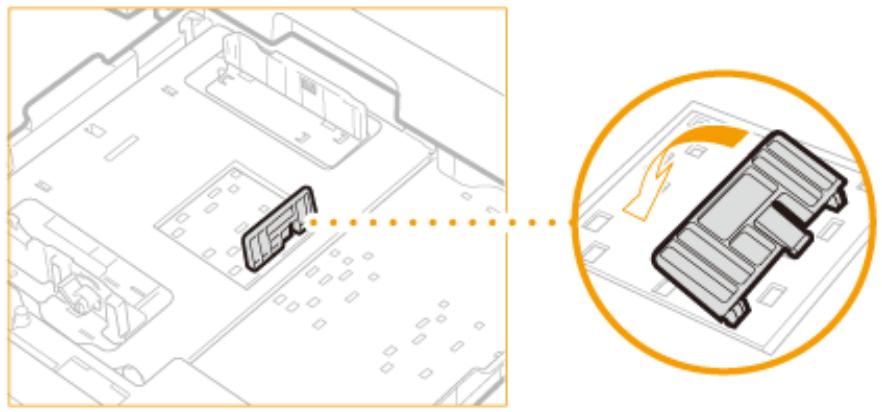
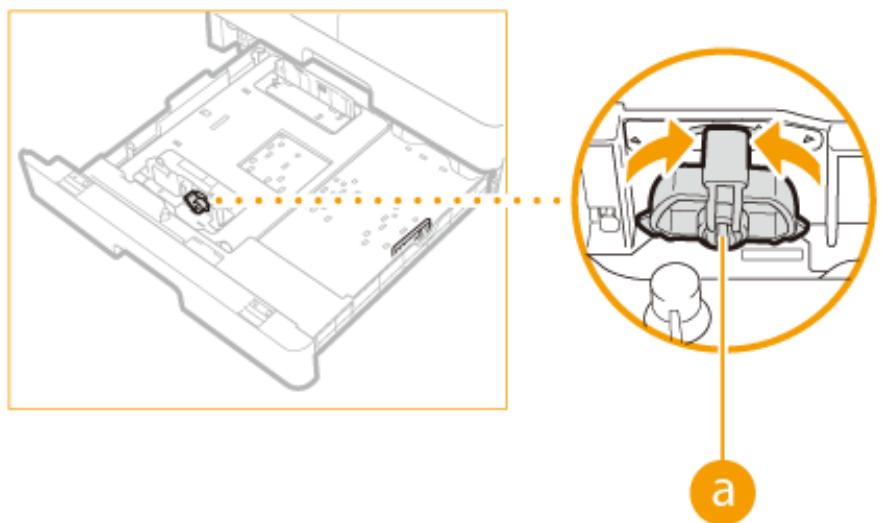
1 Détachez le guide de fin et rattachez-le aux fentes alignées avec la marque indiquant le format de papier souhaité.
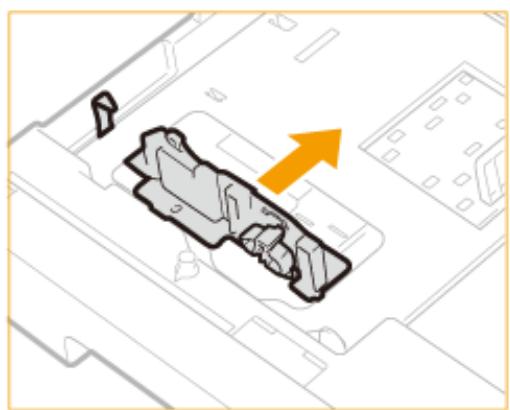
2 Soulevez le levier de verrouillage sur le guide coulissant avant, et faites-le glisser vers l'arrière ou l'avant pour l'aligner sur la rainure marquée du format de papier souhaité.
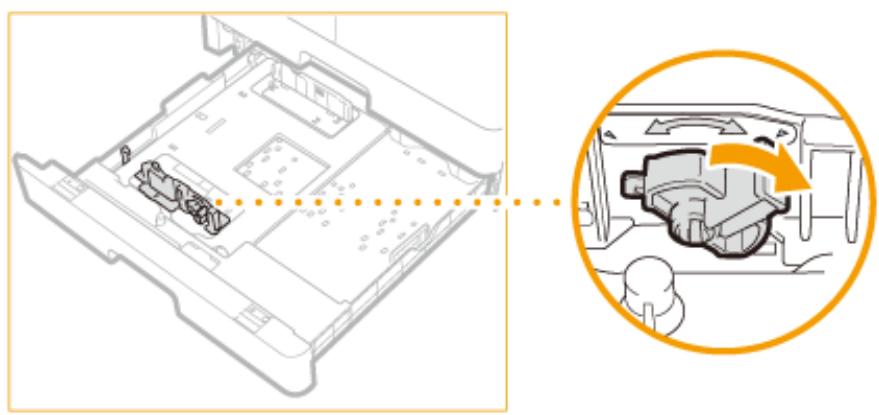
3 Abaissez le levier de verrouillage pour verrouiller le guide coulissant avant en place.
4 Préparez le papier.
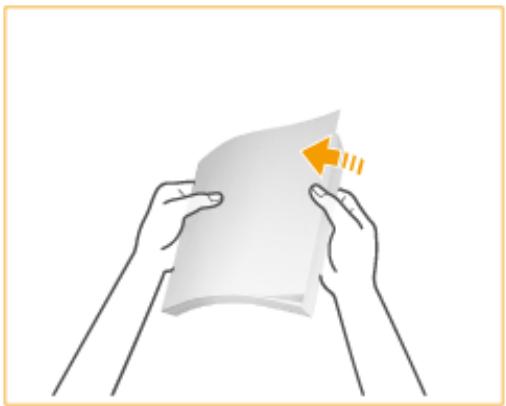
- Éventez bien la pile de papier et tapez-la sur une surface plane pour aligner les bords.
REMARQUE :
Abréviations de formats sur les guides papier
Les abréviations sur les guides papier dans le tiroir à papier indiquent les formats de papier comme suit :
LGL : Legal, LTR : Letter, STMT : Statement
5 Insérez le papier dans le bac à papier.
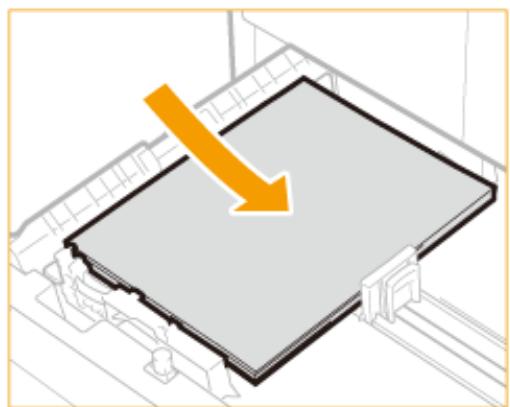
1 Vérifiez que le réglage du format de papier du bac correspond au format du papier à charger. 2 Chargez la pile de papier face imprimable vers le haut, contre le guide gauche du bac.
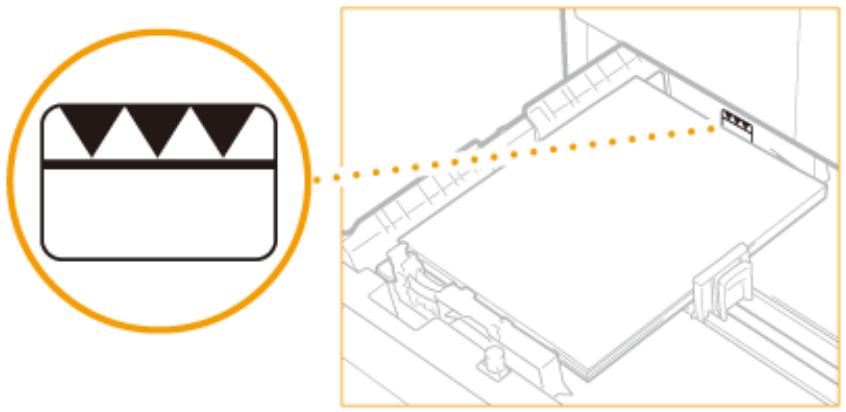
IMPORTANT :
Ne dépassez pas la limite de chargement lors du chargement du papier.
Assurez-vous que la pile de papier ne dépasse pas la limite de chargement. Charger trop de papier peut provoquer des bourrages.
REMARQUE :
Lors du chargement d'enveloppes ou de papier préimprimé, voir Chargement des enveloppes dans le bac multifonction (P. 39) ou Chargement de papier préimprimé (P. 42).
Insérez doucement le bac à papier dans la machine.
Continuez vers Spécification du format et du type de papier (P. 45).
IMPORTANT :
Lors du changement de format ou de type de papier
Si vous chargez un papier de format ou de type différent, assurez-vous de modifier les réglages. Si vous ne modifiez pas les réglages, la machine ne peut pas imprimer correctement.
LIENS
Papier disponible (P. 627)
Chargement du papier dans le bac multifonction
Lorsque vous souhaitez imprimer sur un papier qui n'est pas chargé dans le bac à papier, chargez le papier dans le bac multifonction. Chargez le papier que vous utilisez habituellement dans le bac à papier. Chargement du papier dans le bac à papier (P. 32)
1 Ouvrez le bac multifonction.
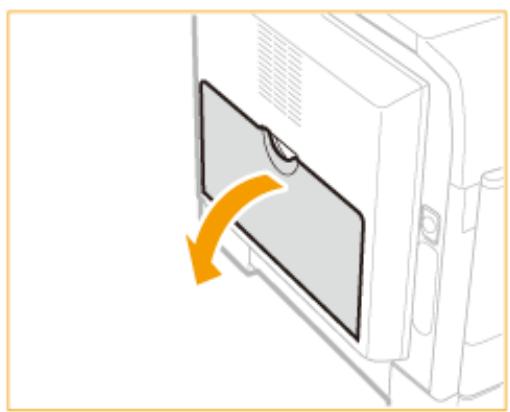
- Sortez le bac auxiliaire (a) et dépliez le prolongateur de bac (b) lors du chargement de papier grand format.
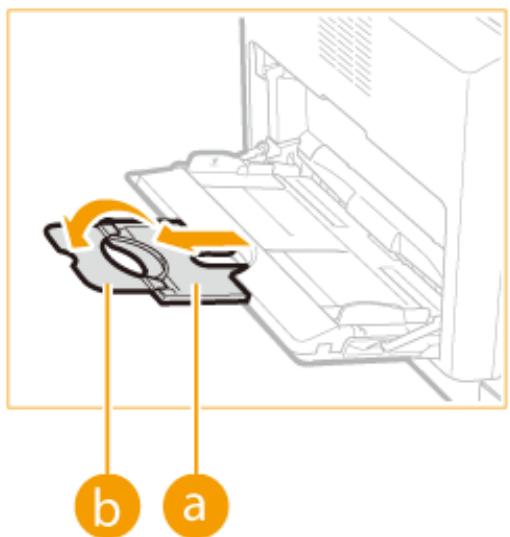
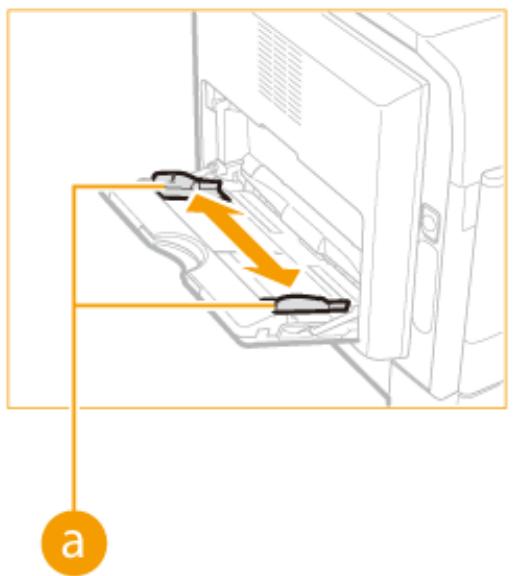
2 Ajustez les guides coulissants ( ) à la taille du papier.
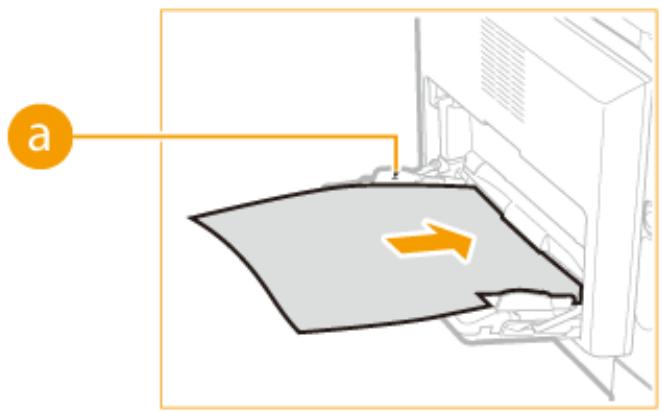
3 Insérez le papier dans le bac multifonction jusqu'à ce qu'il s'arrête.
- Chargez le papier face imprimable vers le bas.
- Éventez bien la pile de papier et tapez-la sur une surface plane pour aligner les bords.
IMPORTANT :
Ne dépassez pas la marque de limite de chargement lors du chargement du papier.
Assurez-vous que la pile de papier ne dépasse pas la marque de limite de chargement (a). Charger trop de papier peut provoquer des bourrages papier.
REMARQUE :
Lors du chargement d'enveloppes ou de papier avec logo, voir Chargement des enveloppes dans le bac multifonction (P. 39) ou Chargement de papier préimprimé (P. 42).
Continuez vers Spécification du format et du type de papier (P. 45)
Impression au verso de papier déjà imprimé (impression recto verso manuelle)
Vous pouvez imprimer au verso de papier déjà imprimé. Aplatissez les éventuelles courbures du papier imprimé et insérez-le dans le bac multifonction dans l'orientation indiquée ci-dessous (a), face à imprimer vers le bas (face précédemment imprimée vers le haut).
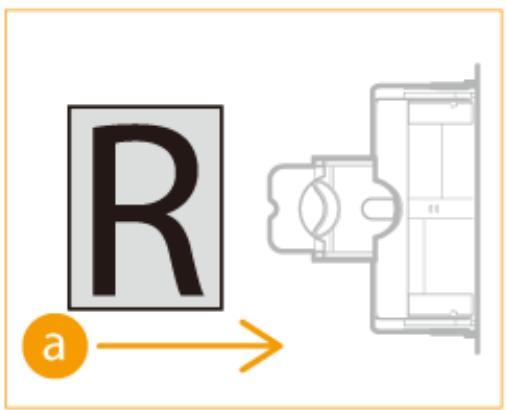
- Vous ne pouvez utiliser que le papier imprimé avec cette machine.
Chargement des enveloppes dans le bac multifonction
36WC-00H
Assurez-vous d'aplatir les éventuelles courbures des enveloppes avant de les charger. Faites également attention à l'orientation des enveloppes et au côté qui doit être vers le haut.
Avant de charger les enveloppes (P. 39)
Orientation de chargement (P. 40)
REMARQUE
Cette section décrit comment charger les enveloppes dans l'orientation souhaitée, ainsi que les procédures à effectuer avant le chargement. Pour une description de la procédure générale de chargement du papier dans le tiroir à papier ou le bac multifonction, voir Chargement du papier dans le tiroir à papier (P. 32) ou Chargement du papier dans le bac multifonction (P. 36).
Avant de charger les enveloppes
Suivez la procédure ci-dessous pour préparer les enveloppes avant le chargement.
REMARQUE
10 enveloppes à la fois peuvent être chargées dans le bac multifonction. Suivez les étapes 1 à 4 de la procédure ci-dessous pour préparer l'enveloppe au chargement.
1 Fermez le rabat de chaque enveloppe.
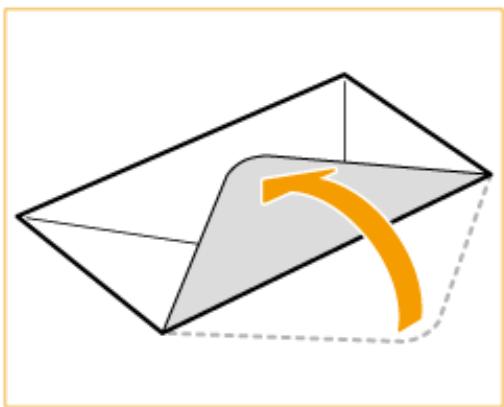
2 Aplatissez-les pour libérer l'air restant et assurez-vous que les bords sont bien pressés.
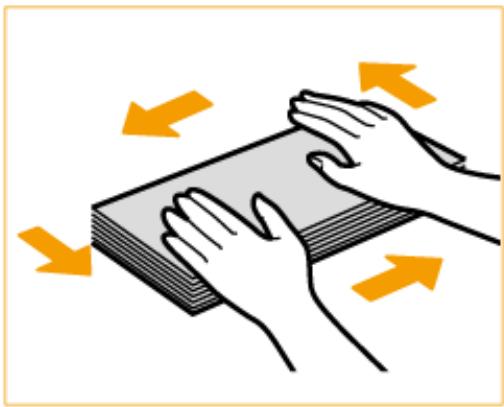
3 Détendez les coins rigides des enveloppes et aplatissez les éventuelles courbures.
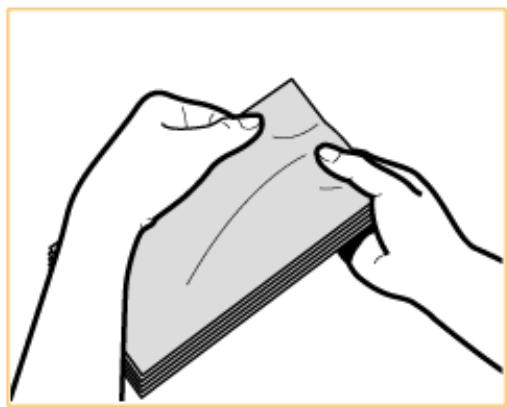
4 Alignez les bords des enveloppes sur une surface plane.
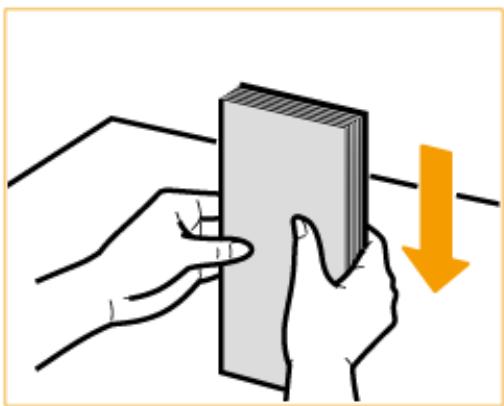
Orientation de chargement
Chargez les enveloppes en orientation portrait, bord court en premier, avec le côté non collé (côté avant) vers le haut.
Chargez les enveloppes comme indiqué dans l'illustration ci-dessous (a : sens d'alimentation).
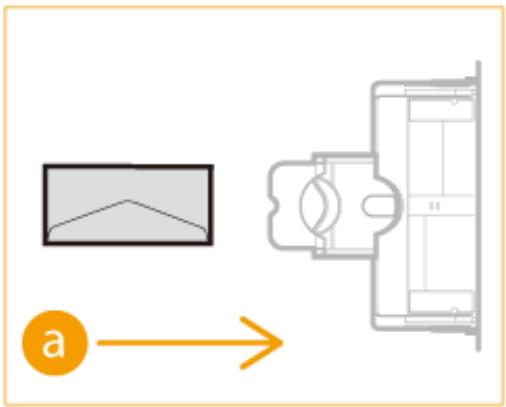
Chargement de papier préimprimé
Lorsque vous utilisez du papier préimprimé avec un logo, faites attention à l'orientation du papier lors du chargement dans la source de papier. Chargez le papier correctement afin que l'impression soit effectuée sur le même côté que le logo.
Chargement de papier avec logos en orientation portrait (P. 42)
Chargement de papier avec logos en orientation paysage (P. 43)
REMARQUE
- Cette section décrit comment charger du papier préimprimé avec la bonne orientation. Pour une description de la procédure générale de chargement du papier dans le tiroir à papier ou le bac multifonction, voir Chargement du papier dans le tiroir à papier (P. 32) ou Chargement du papier dans le bac multifonction (P. 36).
- L'orientation du papier peut varier en fonction des réglages dans .
Chargement de papier avec logos en orientation portrait
La méthode de chargement varie selon la taille du papier avec logo et la source de papier utilisée.

Chargement de papier A4 avec logos
Chargez le papier de sorte que le logo soit face vers le haut dans le tiroir à papier et face vers le bas dans le bac multifonction, comme illustré ci-dessous.
Tiroir à papier Bac multifonction
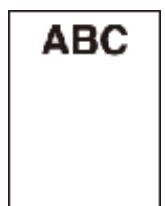

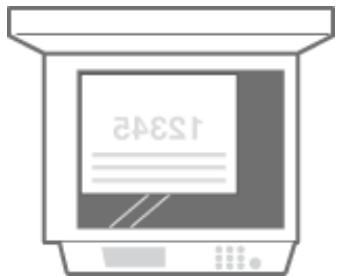
Faites attention à l'orientation lors du placement d'un document. Placez-le comme suit : le document face vers le haut dans le chargeur et face vers le bas sur la vitre d'exposition.
Chargeur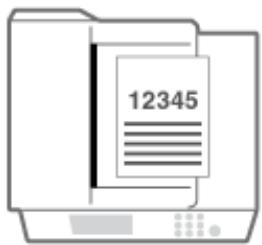
Vitre d'exposition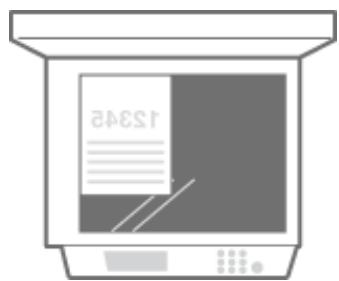
Chargement de papier A3 avec logos
Chargez le papier de sorte que le logo soit face vers le haut dans le tiroir à papier et face vers le bas dans le bac multifonction, comme illustré ci-dessous.
Tiroir à papier Bac multifonction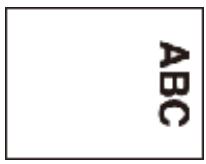
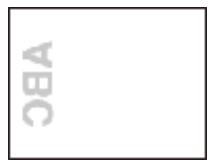
Faites attention à l'orientation lors du placement d'un document. Placez-le comme suit : le document face vers le haut dans le chargeur et face vers le bas sur la vitre d'exposition.
Chargeur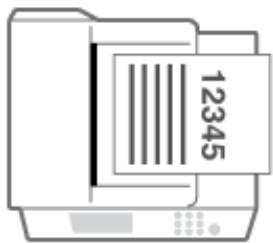
Vitre d'exposition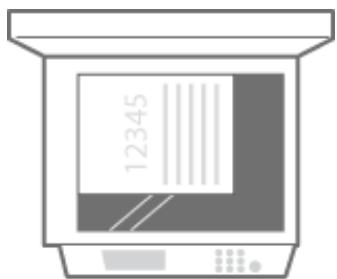
Chargement de papier avec logos en orientation paysage
La méthode de chargement varie selon la taille du papier avec logo et la source de papier utilisée.

Chargement du papier A4 avec logos
Chargez le papier de sorte que le logo soit orienté vers le haut dans le tiroir à papier et vers le bas dans le bac multifonction, comme illustré ci-dessous.
Tiroir à papier Bac multifonction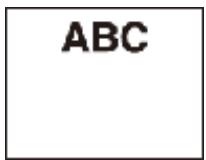
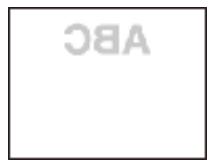
Faites attention à l'orientation lors du placement d'un document. Placez-le comme suit : le document face vers le haut dans le chargeur et face vers le bas sur la vitre d'exposition.
Chargeur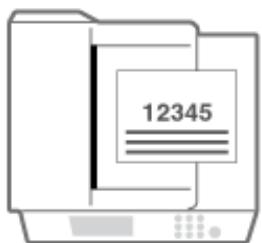
Vitre d'exposition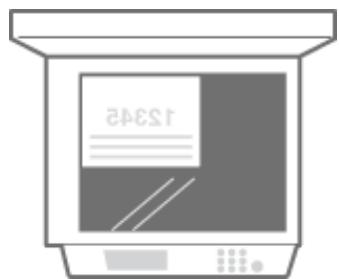
Chargement du papier A3 avec logos
Chargez le papier de sorte que le logo soit orienté vers le haut dans le tiroir à papier et vers le bas dans le bac multifonction, comme illustré ci-dessous.
Tiroir à papier
Bac multifonction
ABC
38A
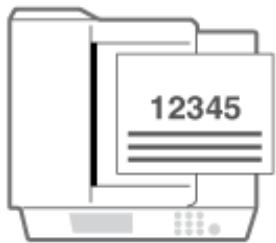
Faites attention à l'orientation lors du placement d'un document. Placez-le comme suit : le document face vers le haut dans le chargeur et face vers le bas sur la vitre d'exposition.
Chargeur
Vitre d'exposition
Spécification du format et du type de papier
36WC-00K
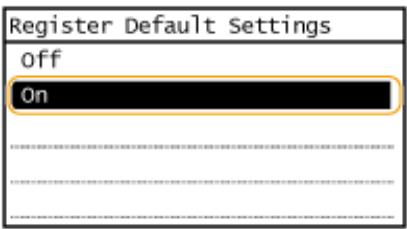
Vous devez spécifier les paramètres de format et de type de papier en fonction du papier chargé. Assurez-vous de modifier les paramètres papier lorsque vous chargez un papier différent de celui chargé précédemment. Vous pouvez également enregistrer un format et un type de papier par défaut pour le bac multifonction, ce qui est pratique si vous chargez toujours du papier de même format et de même type.
IMPORTANT
Si le réglage ne correspond pas au format et au type du papier chargé, un bourrage papier ou une erreur d'impression peut se produire.
1 Appuyez sur
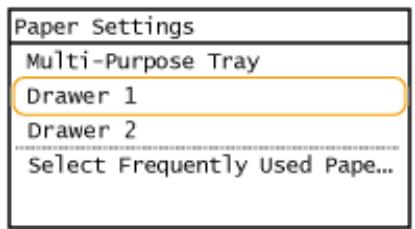
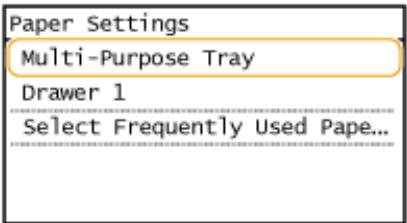
2 Sélectionnez la source de papier.
Si le même format/type de papier est toujours défini dans le bac multifonction, touchez .
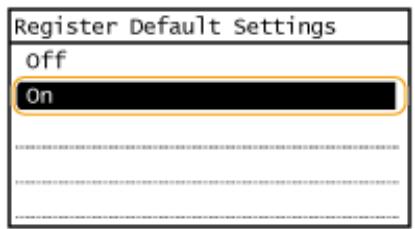
Si vous souhaitez enregistrer le papier dans le tiroir 1 ou le tiroir 2, touchez ou .
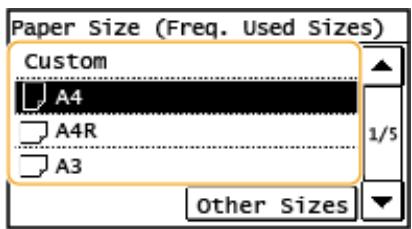
3 Sélectionnez le format du papier chargé.
- Si le format du papier chargé n'est pas affiché, touchez .
4 Sélectionnez le type de papier chargé.
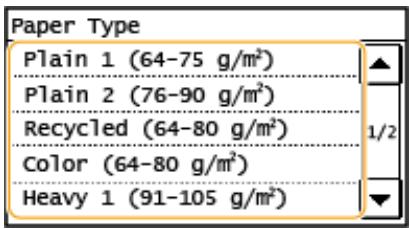
ASTUCE
Lorsque le format de papier fréquemment utilisé est connu
Vous pouvez configurer la machine pour afficher uniquement les formats de papier fréquemment utilisés dans l'écran de sélection.
1 Appuyez sur . 2 Touchez . 3 Sélectionnez la source de papier. 4 Sélectionnez les formats de papier fréquemment utilisés.
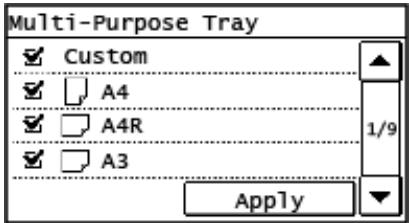
REMARQUE :
Les formats de papier sans coche sont affichés à l'écran.
5 Touchez .
LIENS
Chargement du papier dans le tiroir à papier (P. 32)
Papier disponible (P. 627)
Enregistrement d'un format de papier personnalisé
36WC-00L
Vous pouvez enregistrer un format et un type de papier personnalisés à charger dans le bac multifonction.
1 Appuyez sur
2 Touchez .
3 Touchez .
4 Touchez .
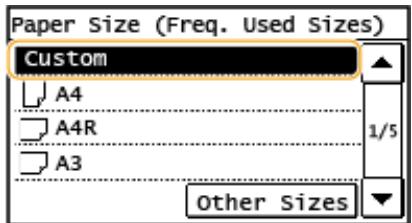
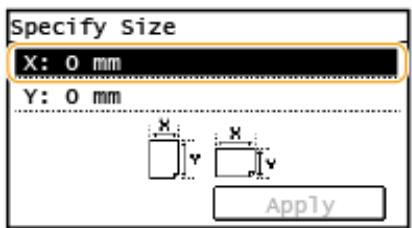
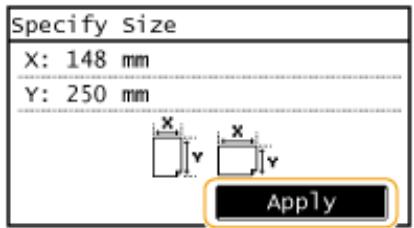
5 Spécifiez le format de papier.
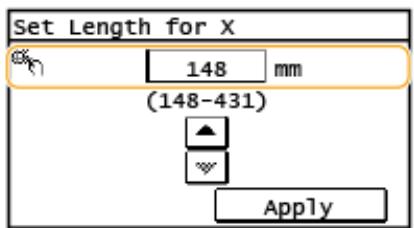
1 Spécifiez la longueur du côté <X>.
- Touchez <X>.
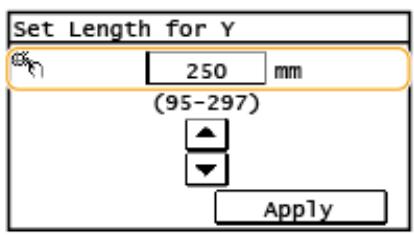
- Saisissez la longueur du côté à l'aide de / , avec / pour déplacer le curseur entre les chiffres pour saisir les nombres entiers et les fractions, puis touchez .

2 Spécifiez la longueur du côté .
- Touchez .
- Saisissez la longueur du côté , puis touchez .
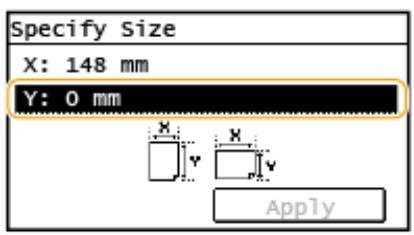

3 Touchez .
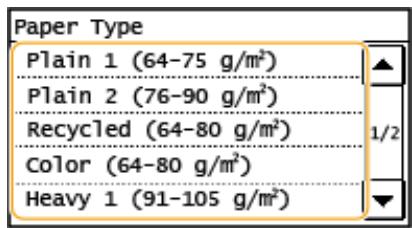
6 Sélectionnez le type de papier.
LIENS
Chargement du papier dans l'imprimante papier (P. 32) Chargement du papier dans le bac multifonction (P. 36)
Enregistrement dans le carnet d'adresses
36WC-00R
Vous pouvez enregistrer des destinations dans le carnet d'adresses ou en numérotation abrégée. Vous pouvez enregistrer des destinations de fax/scan fréquemment utilisées dans le carnet d'adresses et les sélectionner facilement en cas de besoin. Vous pouvez enregistrer jusqu'à 104 destinations dans le carnet d'adresses. Les destinations peuvent être recherchées par ordre alphabétique, à partir des listes du carnet d'adresses, ou en saisissant des numéros à trois chiffres (numéros de numérotation codée) ( Enregistrement de destinations dans le carnet d'adresses (P. 50)). Vous pouvez également spécifier des destinations plus rapidement en utilisant les fonctions suivantes.
REMARQUE
- Pour imageRUNNER 2206N, cette fonction ne peut être utilisée que si le kit d'envoi couleur en option est installé.
- Les numéros de fax peuvent être enregistrés comme destinations uniquement sur l'imageRUNNER 2206iF.
Numérotation en une touche
L'enregistrement de nombreuses adresses dans le répertoire peut rendre difficile la recherche de la destination souhaitée. Pour éviter cela, enregistrez les destinations fréquemment utilisées comme numéros de numérotation en une touche. Cela permet de les afficher via les boutons en une touche à l'écran. Vous pouvez enregistrer jusqu'à 4 destinations en numérotation en une touche. Enregistrement des destinations pour la numérotation en une touche (P. 55)
Numérotation de groupe
Vous pouvez sélectionner plusieurs destinations déjà enregistrées et les regrouper. Vous pouvez ainsi envoyer des fax ou des e-mails à plusieurs destinations en même temps. Vous pouvez enregistrer jusqu'à 50 destinations dans un groupe. Les groupes peuvent également être enregistrés en numérotation en une touche. Enregistrement de plusieurs destinations pour la numérotation de groupe (P. 60)
REMARQUE
- Utilisez l'ordinateur pour enregistrer un dossier partagé comme destination de numérisation. ● Définition d'un dossier partagé comme emplacement d'enregistrement (P. 307) ● Enregistrement du répertoire depuis l'interface utilisateur distante (P. 426)
- Vous pouvez enregistrer le répertoire sous forme de fichier sur votre ordinateur (bien que vous ne puissiez pas modifier le répertoire à partir de l'ordinateur). Vous pouvez également importer un répertoire enregistré depuis l'ordinateur vers la machine. Enregistrement/Chargement du répertoire depuis l'interface utilisateur distante (P. 422)
- Vous pouvez imprimer une liste des destinations enregistrées dans le répertoire. □ Liste du répertoire (P. 593)
- Si votre bureau dispose d'un serveur LDAP, vous pouvez effectuer une recherche pour trouver des informations utilisateur sur le serveur et les enregistrer dans le répertoire. Vous devez au préalable spécifier les paramètres de connexion au serveur LDAP. Enregistrement des serveurs LDAP (P. 323)
LIENS
● Spécification à partir du répertoire (P. 110)
Enregistrement des destinations dans le répertoire
36WC-00S
Vous pouvez enregistrer jusqu'à 100 destinations pour la numérotation par code dans le répertoire. Vous pouvez modifier ou supprimer les destinations que vous avez enregistrées.
1 Appuyez sur et touchez .
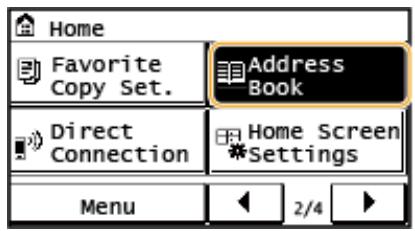
2 Touchez .
- Si un écran vous demande de saisir un code PIN, saisissez le code PIN correct à l'aide des touches numériques, puis touchez . Définition d'un code PIN pour le répertoire (P. 373)
3 Sélectionnez Sélectionner le type d'adresse à enregistrer.
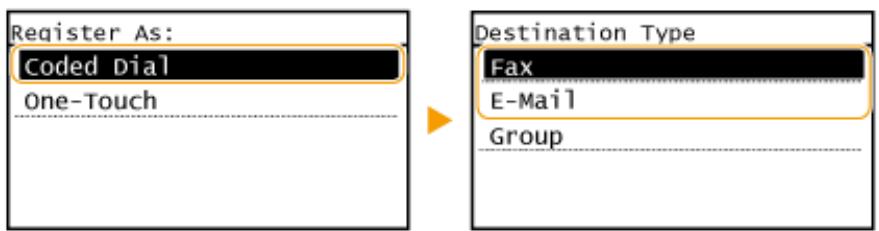
Selon l'adresse à enregistrer, touchez <Fax> / <E-Mail> .
■Enregistrement de destinations avec le serveur LDAP
Si votre bureau dispose d'un serveur LDAP, vous pouvez effectuer une recherche pour trouver les informations utilisateur sur le serveur et les enregistrer dans le répertoire.
REMARQUE :
Pour effectuer un enregistrement à partir du serveur LDAP, vous devez au préalable spécifier les paramètres de connexion au serveur LDAP. Enregistrement des serveurs LDAP (P. 323)
1 Touchez . 2 Sélectionnez le serveur LDAP que vous utilisez. 3 Sélectionnez les conditions de recherche des informations utilisateur.
- Le nom, les numéros de fax, les adresses e-mail, les noms d'organisation et les unités d'organisation sont des critères disponibles pour rechercher des destinations.
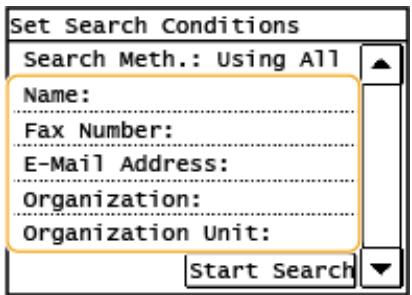
4 Saisissez la chaîne de caractères cible de la recherche, puis sélectionnez .
Pour savoir comment saisir du texte, voir Saisie de texte (P. 24). Pour spécifier plusieurs critères de recherche, répétez les étapes 3 et 4.
5 Touchez . 6 Sélectionnez les conditions d'affichage du résultat de la recherche.
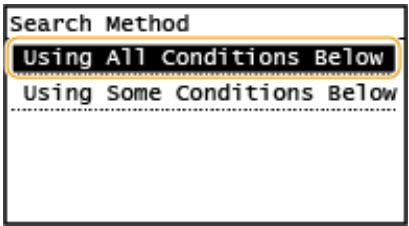
Recherche et affiche les utilisateurs qui répondent à tous les critères de recherche spécifiés aux étapes 3 et 4.
Si des utilisateurs correspondant à au moins un des critères spécifiés aux étapes 3 et 4 sont trouvés, tous ces utilisateurs sont affichés.
7 Touchez .
Les utilisateurs correspondant à vos critères de recherche sont affichés.
REMARQUE :
- Si l'écran d'authentification apparaît lorsque vous touchez , saisissez le nom d'utilisateur de la machine et le mot de passe enregistré dans le serveur LDAP, puis touchez . Enregistrement des serveurs LDAP (P. 323)
8 Sélectionnez un utilisateur à enregistrer dans le carnet d'adresses.
9 Touchez .
Le nom d'utilisateur et le numéro de fax ou l'adresse e-mail enregistrés sur le serveur LDAP de l'utilisateur sélectionné sont enregistrés dans le carnet d'adresses.
Touchez .
- L'enregistrement est facultatif. Si vous enregistrez , la destination peut être recherchée par ordre alphabétique.
5 Saisissez le nom à l'aide des touches numériques, puis touchez . 6 Touchez ou .
7 Saisissez la destination à l'aide des touches numériques, puis touchez .
■ Réglages détaillés (uniquement lors de l'enregistrement pour la télécopie)
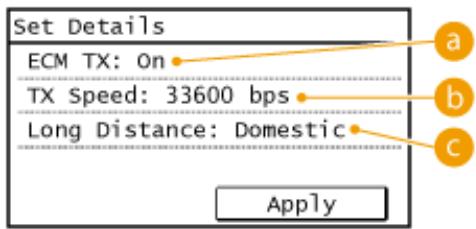
Après avoir touché , un écran similaire à celui-ci s'affiche.
a
Si une erreur se produit dans une image en cours d'envoi, l'erreur est vérifiée et corrigée pour éviter l'envoi d'une image incorrecte lorsque la valeur <On> est définie.
b
Si le démarrage des transmissions prend du temps, par exemple en cas de mauvaise connexion téléphonique, vous pouvez réduire progressivement la vitesse de démarrage de la transmission à partir de "33600 bps".
Spécifiez selon les conditions de transmission lors de l'enregistrement de numéros de fax à l'étranger.
REMARQUE
Vous pouvez également effectuer des réglages détaillés pour les destinations à partir de ▷. Cependant, les réglages effectués à partir de sont activés pour les réglages détaillés des destinations enregistrées dans le répertoire.
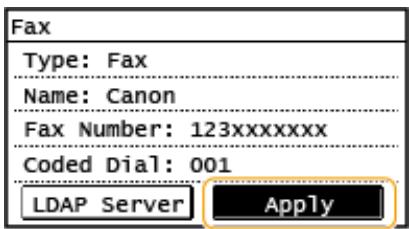
8 Touchez .
- Un numéro à trois chiffres est automatiquement attribué aux destinations. Le numéro peut être modifié après son enregistrement.
■ Modification du contenu des destinations enregistrées
Après l'enregistrement des destinations, vous pouvez modifier le contenu des informations enregistrées. Par exemple, vous pouvez changer le numéro de fax ou le nom d'une destination enregistrée, changer le type de numéro de fax en e-mail, changer le numéro de numérotation codée, etc.
1 Appuyez sur et touchez .
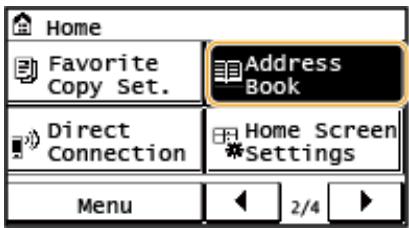
2 Touchez . 3 Utilisez / pour sélectionner l'onglet contenant la destination à modifier, puis touchez la destination. 4 Touchez . - Si un écran vous demande de saisir un code PIN, saisissez le code PIN correct à l'aide des touches numériques, puis touchez . Réglage d'un code PIN pour le répertoire (P. 373) 5 Sélectionnez l'élément à modifier, effectuez la modification, puis touchez . 6 Touchez .

- Suppression d'une destination enregistrée
1 Appuyez sur et touchez .
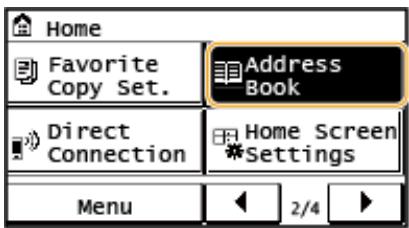
2 Touchez .
3 Utilisez / pour sélectionner l'onglet contenant la destination que vous souhaitez supprimer, puis touchez la destination. 4 Touchez . - Si un écran vous demande de saisir un code PIN, saisissez le code PIN correct à l'aide des touches numériques, puis touchez . Réglage d'un code PIN pour le répertoire (P. 373) 5 Touchez .
Enregistrement de destinations pour la numérotation abrégée
Vous pouvez enregistrer facilement des destinations fréquemment utilisées pour la numérotation abrégée. Les destinations peuvent être affichées rapidement en touchant les boutons de numérotation abrégée à l'écran. Vous pouvez modifier ou supprimer les destinations que vous avez enregistrées. Vous pouvez enregistrer jusqu'à 4 destinations pour la numérotation abrégée.
1 Appuyez sur et touchez .
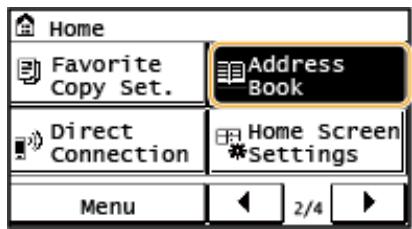
2 Touchez .
- Si un écran vous demande de saisir un code PIN, saisissez le code PIN correct à l'aide des touches numériques, puis touchez . Réglage d'un code PIN pour le répertoire (P. 373)
3 Sélectionnez le type d'adresse à enregistrer.
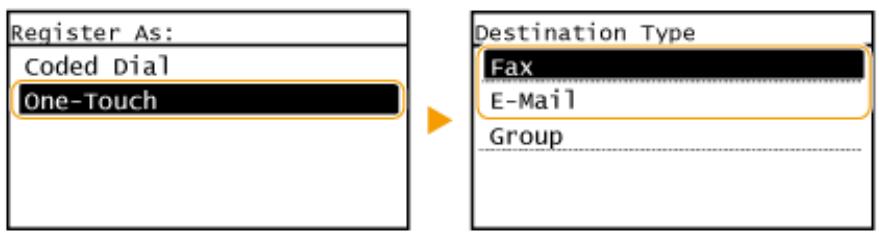
- Selon l'adresse à enregistrer, touchez <Fax>/ E-Mail .
4 Touchez le numéro à enregistrer.
- Vous pouvez modifier ce numéro plus tard.
■Enregistrement de destinations avec le serveur LDAP
Si votre bureau dispose d'un serveur LDAP, vous pouvez effectuer une recherche pour trouver des informations sur les utilisateurs sur le serveur et les enregistrer dans le répertoire.
REMARQUE :
Pour effectuer un enregistrement à partir du serveur LDAP, vous devez spécifier au préalable les paramètres de connexion au serveur LDAP. Enregistrement de serveurs LDAP (P. 323)
1 Appuyez sur . 2 Sélectionnez le serveur LDAP que vous utilisez. 3 Sélectionnez les conditions de recherche des informations utilisateur.
- Le nom, les numéros de fax, les adresses e-mail, les noms d'organisation et l'unité d'organisation sont des critères disponibles pour rechercher des destinations.
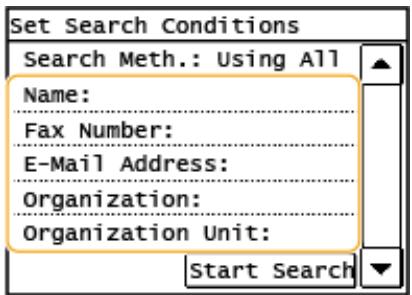
4 Saisissez la chaîne de caractères cible de la recherche, puis appuyez sur .
Pour savoir comment saisir du texte, voir 口 Saisie de texte (P. 24). Pour spécifier plusieurs critères de recherche, répétez les étapes 3 et 4.
5 Appuyez sur . 6 Sélectionnez les conditions d'affichage du résultat de la recherche.
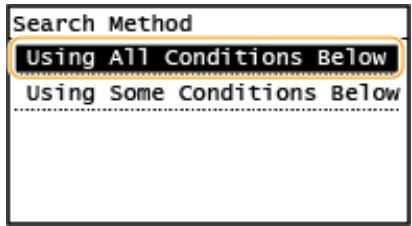
Recherche et affiche les utilisateurs qui répondent à tous les critères de recherche spécifiés aux étapes 3 et 4.
Si des utilisateurs répondant à au moins un des critères spécifiés aux étapes 3 et 4 sont trouvés, affiche tous ces utilisateurs.
7 Appuyez sur .
Les utilisateurs répondant à vos critères de recherche sont affichés.
REMARQUE :
- Si l'écran d'authentification apparaît lorsque vous appuyez sur , saisissez le nom d'utilisateur de la machine et le mot de passe enregistré dans le serveur LDAP, puis appuyez sur . Enregistrement des serveurs LDAP (P. 323)
8 Sélectionnez un utilisateur que vous souhaitez enregistrer dans le carnet d'adresses.
9 Appuyez sur .
Le nom d'utilisateur et le numéro de fax ou l'adresse e-mail enregistrés sur le serveur LDAP de l'utilisateur sélectionné sont enregistrés dans le carnet d'adresses.
5 Appuyez sur .
- L'enregistrement est facultatif. Si vous enregistrez, la destination peut être recherchée par ordre alphabétique.
6 Saisissez le nom à l'aide des touches numériques, puis touchez .
7 Touchez ou .
8 Saisissez la destination à l'aide des touches numériques, puis touchez .
■ Réglages détaillés (uniquement pour les numéros de fax enregistrés)
Après avoir touché , un écran similaire à celui-ci s'affiche.
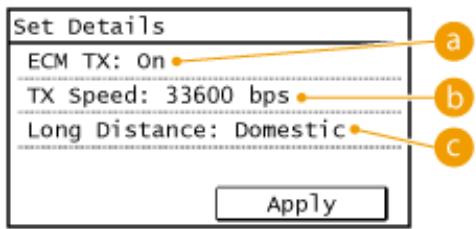
a
Si une erreur se produit dans une image en cours d'envoi, elle est vérifiée et corrigée pour éviter l'envoi d'une image incorrecte lorsque le réglage < On > est activé.
b
Si le démarrage de la transmission prend du temps, par exemple en cas de mauvaise connexion téléphonique, vous pouvez réduire progressivement la vitesse de démarrage de la transmission à partir de "33600 bps".
Spécifiez selon les conditions de transmission lors de l'enregistrement de numéros de fax à l'étranger.
REMARQUE
Vous pouvez également effectuer des réglages détaillés pour les destinations à partir de ▷ . Cependant, les réglages effectués à partir de sont appliqués aux réglages détaillés des destinations enregistrées dans le répertoire.
9 Touchez .
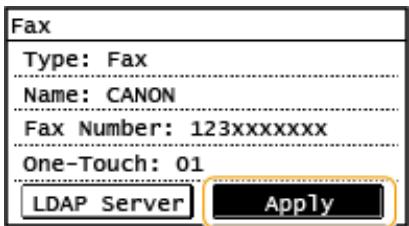
■ Modification du contenu des destinations enregistrées en numérotation abrégée
Vous pouvez modifier les informations d'un destinataire, par exemple changer les numéros ou les noms enregistrés, ou modifier les numéros attribués à la numérotation abrégée.
1 Appuyez sur et touchez .
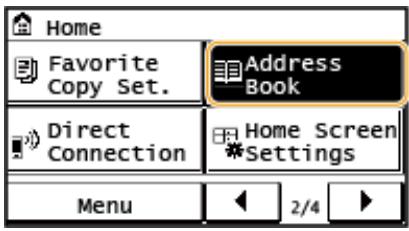
2 Touchez . 3 Sélectionnez < à l'aide de /, puis touchez le destinataire à modifier. 4 Touchez .
- Si un écran vous demande de saisir un code PIN, saisissez le code PIN correct à l'aide des touches numériques, puis touchez . Définition d'un code PIN pour le répertoire (P. 373) 5 Touchez l'élément à modifier, effectuez la modification, puis touchez . 6 Touchez .
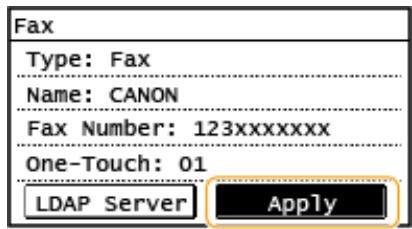
- Suppression d'un destinataire enregistré
1 Appuyez sur et touchez .
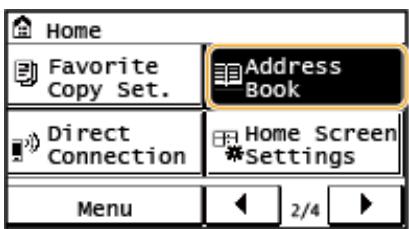
2 Touchez . 3 Sélectionnez < à l'aide de / ▶, puis touchez le destinataire à supprimer. 4 Touchez .
- Si un écran vous demande de saisir un code PIN, saisissez le code PIN correct à l'aide des touches numériques, puis touchez . Définition d'un code PIN pour le répertoire (P. 373)
5 Touchez .
Enregistrement de plusieurs destinataires pour la numérotation de groupe
Plusieurs destinataires peuvent être combinés en groupes. Une fois un groupe enregistré, vous pouvez ajouter ou supprimer des destinataires.
REMARQUE
- Seuls les destinataires du même type d'adresse peuvent être enregistrés dans le même groupe.
- Les dossiers partagés ne peuvent pas être enregistrés dans un groupe en tant que destinataires.
1 Appuyez sur et touchez .
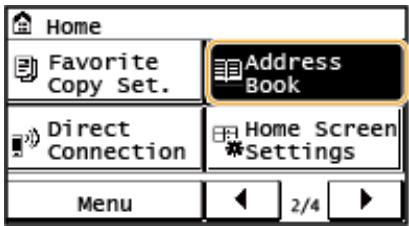
2 Touchez .
- Si un écran vous invite à saisir un code PIN, saisissez le code PIN correct à l'aide des touches numériques, puis touchez . Définition d'un code PIN pour le répertoire (P. 373)
3 Touchez .
- Les groupes peuvent également être enregistrés en numérotation abrégée. Sélectionnez pour enregistrer le groupe comme numéro de numérotation abrégée.
4 Touchez .
5 Touchez .
- L'enregistrement est facultatif. Si vous enregistrez , la destination peut être recherchée par ordre alphabétique.
6 Saisissez le nom à l'aide des touches numériques, puis touchez .
7 Touchez .
8 Touchez .
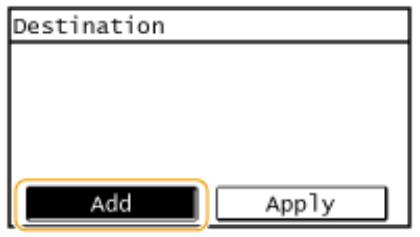
9 Utilisez / pour sélectionner l'onglet et touchez une destination à enregistrer.
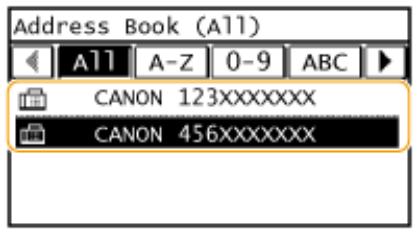
10 Touchez .
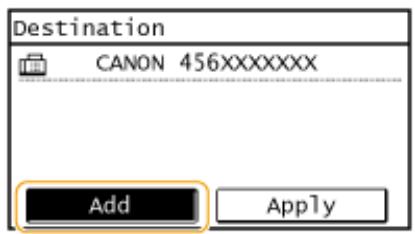
11 Répétez les étapes 8 et 9 jusqu'à ce que vous ayez enregistré toutes les destinations souhaitées, puis touchez . 12 Touchez .
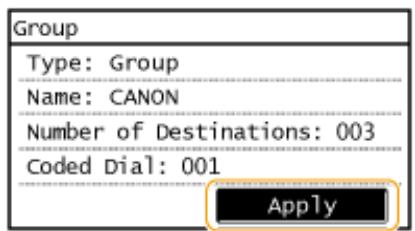
■ Modification du contenu des groupes enregistrés
Après avoir enregistré des destinations, vous pouvez modifier le contenu des groupes, comme les noms, les destinations et les numéros de numérotation abrégée.
1 Appuyez sur et touchez .
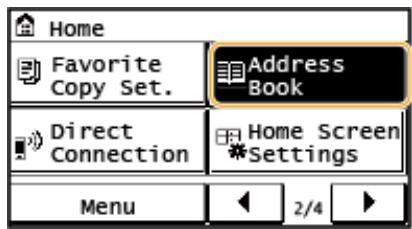
2 Touchez . 3 Sélectionnez < à l'aide de /, puis touchez la destination que vous souhaitez modifier. 4 Touchez .
- Si un écran vous demande de saisir un code PIN, saisissez le code PIN correct à l'aide des touches numériques, puis touchez . Définition d'un code PIN pour le répertoire (P. 373) 5 Sélectionnez l'élément à modifier, effectuez la modification, puis touchez . 6 Touchez .
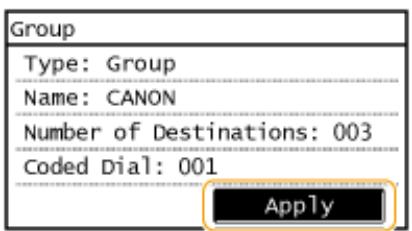
- Suppression d'un groupe
1 Appuyez sur et touchez .
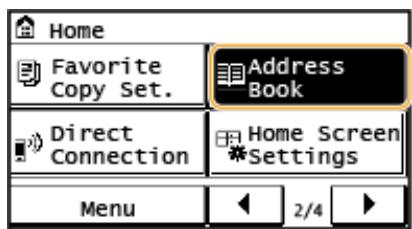
2 Touchez . 3 Sélectionnez < à l'aide de / ▶, puis touchez le groupe à supprimer. 4 Touchez .
- Si un écran vous demande de saisir un code PIN, saisissez le code PIN correct à l'aide des touches numériques, puis touchez . Définition d'un code PIN pour le répertoire (P. 373)
5 Touchez .
Réglage du volume
La machine produit des sons dans diverses situations, par exemple lorsque l'envoi d'un fax est terminé ou lorsqu'un bourrage papier ou une erreur se produit. Vous pouvez régler le volume de chacun de ces sons individuellement.
1 Appuyez sur et touchez .
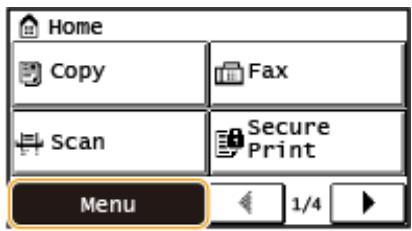
2 Touchez .
3 Touchez .
4 Sélectionnez un paramètre.
| Setting | Description | Procedure |
| Fax Tone* | Sound produced during a fax transmission | Go to step 5. |
| Ring Tone* | Sound produced when an incoming fax is received |
| TX Done Tone* | Sound produced when fax sending is complete | Go to step 5. |
| RX Done Tone* | Sound produced when fax receiving is complete |
| Scanning Done Tone* | Sound produced when fax document scanning is complete |
| Entry Tone | Confirmation sound each time a key on the control panel or button on the display is pressed | Select (produce a tone) or (not produce a tone). |
| Invalid Entry Tone | Sound produced when an invalid key operation is performed, such as when you enter a number outside the valid setting range |
| Warning Tone | Sound produced when a paper jam or other error occurs |
| Job Done Tone | Sound produced when an operation such as copying or scanning is complete |
| <Energy Saver Alert> | Sound produced when the machine enters or exits sleep mode |
| <Original in Feeder Detection Tone>* | Sound produced when an original is loaded in the feeder |
REMARQUE :
Les paramètres marqués d'un « * » peuvent ne pas être affichés selon le modèle que vous utilisez ou les options.
5 Utilisez / pour régler le volume, puis appuyez sur .
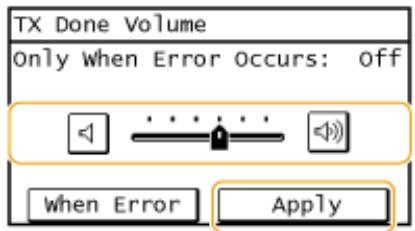
- Appuyez sur et déplacez le curseur complètement vers la gauche pour couper le son.

Son de fin uniquement pour les erreurs
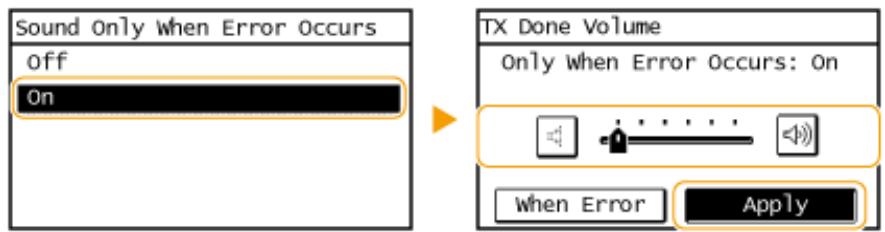
Réglage de la durée avant extinction automatique
En activant ce paramètre, vous pouvez configurer la machine pour qu'elle s'éteigne automatiquement. La machine s'éteint automatiquement après la période d'inactivité spécifiée écoulée depuis l'entrée en mode veille. Vous pouvez réduire la consommation d'électricité la nuit et les jours fériés si vous oubliez d'éteindre la machine.
Ce paramètre est disponible lorsqu'un câble de ligne téléphonique n'est pas connecté à la machine.