SYSTEMTWEAKER - Logiciel d'optimisation système UNIBLUE - Notice d'utilisation et mode d'emploi gratuit
Retrouvez gratuitement la notice de l'appareil SYSTEMTWEAKER UNIBLUE au format PDF.


| Type de produit | Logiciel d'optimisation système |
| Marque | Uniblue |
| Modèle | SystemTweaker |
| Compatibilité | Windows XP, Vista et 7 |
| Langues disponibles | Anglais (notice), autres langues sur demande |
| Type de licence | Gratuit avec l'achat d'un autre logiciel Uniblue |
| Fonctions principales | Personnalisation du menu Démarrer, du Panneau de configuration, des médias, du démarrage/arrêt, du menu contextuel, des paramètres avancés et administratifs de Windows |
| Installation | Par téléchargement et assistant d'installation ; activation avec un numéro de série |
| Interface | Panneau de navigation, boîte LiveUpdate, aperçu système |
| Mises à jour | Via LiveUpdate pour les utilisateurs enregistrés avec ActiveProtection |
| Redémarrage nécessaire | Certains réglages nécessitent un redémarrage, notification par pop-up |
| Entretien | Mises à jour régulières via LiveUpdate |
| Sécurité | Permet de désactiver l'accès à distance, masquer l'ordinateur sur le réseau, etc. |
| Pièces détachées | Sans objet (logiciel) |
| Réparabilité | Support en ligne sur le site Uniblue |
FOIRE AUX QUESTIONS - SYSTEMTWEAKER UNIBLUE
Questions des utilisateurs sur SYSTEMTWEAKER UNIBLUE
0 question sur cet appareil. Repondez a celles que vous connaissez ou posez la votre.
Poser une nouvelle question sur cet appareil
Téléchargez la notice de votre Logiciel d'optimisation système au format PDF gratuitement ! Retrouvez votre notice SYSTEMTWEAKER - UNIBLUE et reprennez votre appareil électronique en main. Sur cette page sont publiés tous les documents nécessaires à l'utilisation de votre appareil SYSTEMTWEAKER de la marque UNIBLUE.
MODE D'EMPLOI SYSTEMTWEAKER UNIBLUE
SystemTweaker Quick Start Guide
SystemTweaker is a safe and easy-to-use tool to customize Windows to your taste. This quick start guide will help you to install the product and start using it.
Downloading and installing
SystemTweaker is offered exclusively as a free product with the purchase of other Uniblue software.
After purchasing your software you will receive an email with your order details, a link to download your product and a serial number for activation.
- To download, click on the SystemTweaker download link and, if prompted, select Save. Then locate the .exe file and double click on its icon to start the installation wizard.
- Follow the wizard by clicking on the Next button.
- The wizard will prompt you to enter your serial number to activate your product. The serial number can be found in the order details email sent to you after purchasing the product.
Interface overview
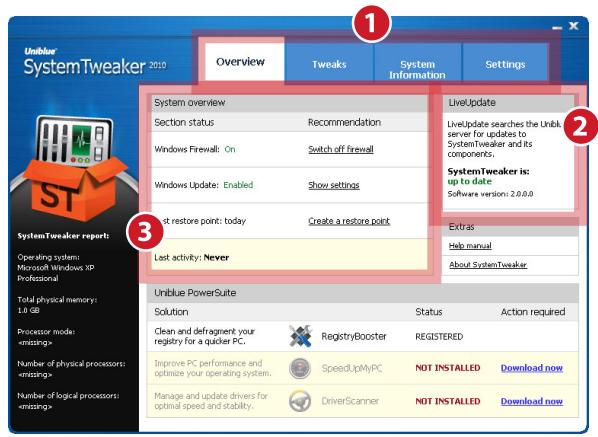
- Navigation panel: click to navigate across major interface categories.
- LiveUpdate box: provides registered users covered by ActiveProtection access to product updates as they become available.
- System overview box: provides shortcuts to critical system controls.
Applying Tweaks
To apply a tweak, select Tweak from the navigation panel. A menu on the left-hand side allows you to select from different tweak categories. Tick or untick the boxes of the tweaks you would like to change and click Apply.
Note: Some tweaks will only be implemented after you restart your system. A pop-up will inform you whenever this is the case.
Tweakst outlined
This is a brief outline of the tweaks you can apply through SystemTweaker. As some tweaks are only available for particular operating systems, each tweak is listed together with the version of Windows it applies to.
Start menu
Show Start menu icon tweaks (XP, Vista, 7): These tweaks allow you to show or omit icons from the Start menu.
Enable Start menu scrolling (XP, Vista, 7): Windows can use multiple columns to display Start menu icons. With Start menu scrolling, Windows keeps the single column format but adds scrolling functionality.
Control panel
Disable remote administration access to floppy drives/CD ROM (XP, Vista, 7): When remote access is allowed, other users on your network can access your data. Access can be disabled for security.
Load balance multiple network adapters (XP, VISTA, 7): Balances the network load equally between multiple network cards if available.
Enable print server notification messages (XP, Vista, 7): When enabled, any server notifications are displayed automatically as a taskbar popup.
Broadcast new shared printer availability over network (XP, Vista, 7): If switched off, shared printers will not be available for use by other networked computers.
Hide Network File Share passwords with asterisks (XP, Vista, 7): When enabled, passwords used to access shared files are displayed as asterisks.
Disable printer sharing (XP): Disabling ensures that no one on your network can make use of printers connected to your PC.
Disable file sharing (XP): When disabled, other network computers cannot access shared files.
Hide my computer from Network Browser list (XP, Vista, 7): Hides your computer from others on your network.
Enable remote access to the registry for all user types (XP): When enabled, all users can access your registry.
Show network error statistics (XP, Vista, 7): Adds an extra statistics tab to the network connection status menu.
Media
Enable DVD features in Windows Media player (XP): Enables Media Player to open and play DVDs.
Automatically start data CDROMS/audio CDs when they are inserted (XP): When enabled, CDs launch automatically once inserted.
Enable faster access to AVI media files (XP): Accelerates folder access to AVI movies by blocking the loading of unnecessary data.
Windows startup and shutdown
Allow Windows password caching (XP, Vista, 7): When disabled, a user needs to enter his Windows password every time he accesses a password protected resource.
Allow Desktop to load while login script is running (XP, Vista, 7): When enabled Windows Desktop loads before login script stops running.
Clear page file each time Windows is shutdown (XP, Vista, 7): When enabled, the file used for virtual memory is deleted upon shutdown.
Right-click menu
Suppress the Windows Explorer default right-click menu (XP, Vista, 7): By default, shortcut menus appear when you right-click on the Desktop or on a Windows explorer window. If you enable this tweak, menus are suppressed.
Add open with option to Windows Explorer (XP, Vista, 7): The 'open with' function allows you to select a program of choice with which to open a particular file.
Suppress the right-click context menus for the Windows Taskbar (XP, Vista, 7): Hides the menus that appear when you right-click on the taskbar.
Add Open Command Prompt option to Windows Explorer (XP, Vista, 7): This tweak adds to a right-click menu the option to open a command prompt set on the same directory where you right-clicked to open the menu.
Advanced Windows settings
Automatically reboot Windows when a blue screen of death occurs (XP, Vista, 7): Sets Windows to automatically reboot when a critical system error is encountered.
Suppress PC speaker beep when system errors occur (XP, Vista, 7): When the system encounters an error, the PC speaker is programmed to beep to provide a warning. This tweak removes error beeps.
Show more detailed information in Windows Device Manager (XP): Sets Device Manager to display extra information within the Details section of the Properties tab.
Launch Windows Desktop as a separate process (XP): Windows normally launches a single process for the Windows Desktop, Taskbar and all other explorer tasks. This means that if the process fails, all the aforementioned tasks would fail in conjunction. Launching Windows Desktop as a separate process increases the Desktop's resilience.
Preserve program performance during print jobs (XP, Vista, 7): This tweak ensures that print jobs do not slow down your program by taking too large a share of system resources.
Administrative
Automatically focus windows when mouse passes over them (XP, Vista, 7): With this tweak enabled, the operating system will activate any window the mouse hovers over.
Show toolkit for Minimize, Maximize and Close buttons (XP, Vista, 7): By default, whenever the mouse hovers over the minimize, maximize or close button on the upper right of each window, a tip box appears to explain the button's purpose. This tweak disables this tip mechanism.
Use connected web files and folders (XP, Vista, 7): HTML documents saved to hard drive often include a number of associated files linking to the primary HTML document. This tweak connects the primary HTML file to the associated files so that when you move the primary document to a new location, the associated files are copied simultaneously.
Use Explorer when opening my computer (XP, Vista, 7): Opening my computer using Explorer provides a useful folder navigation pane. This tweak ensures that you get the navigation pane whenever you open my computer.
Please visit www.unibblue.com/support for frequently asked questions and more help.
Marque : UNIBLUE
Modèle : SYSTEMTWEAKER
Catégorie : Logiciel d'optimisation système