
WRM42 - Routeur Wi-Fi COMET LABS - Notice d'utilisation et mode d'emploi gratuit
Retrouvez gratuitement la notice de l'appareil WRM42 COMET LABS au format PDF.


| Type d'appareil | Modem routeur ADSL2+ sans fil |
| Norme ADSL | ADSL2+ |
| Connexion sans fil | Oui |
| Ports Ethernet | Non précisé |
| Vitesse Wi-Fi | Non précisé |
| Fréquence Wi-Fi | Non précisé |
| Protocoles supportés | Non précisé |
| Alimentation | Non précisé |
| Dimensions | Non précisé |
| Poids | Non précisé |
| Fonctionnalités supplémentaires | Partage multimédia |
| Interface utilisateur | Non précisé |
| Compatibilité OS | Non précisé |
| Sécurité | Non précisé |
| Type d'antennes | Non précisé |
| Garantie | Non précisé |
FOIRE AUX QUESTIONS - WRM42 COMET LABS
Questions des utilisateurs sur WRM42 COMET LABS
0 question sur cet appareil. Repondez a celles que vous connaissez ou posez la votre.
Poser une nouvelle question sur cet appareil
Téléchargez la notice de votre Routeur Wi-Fi au format PDF gratuitement ! Retrouvez votre notice WRM42 - COMET LABS et reprennez votre appareil électronique en main. Sur cette page sont publiés tous les documents nécessaires à l'utilisation de votre appareil WRM42 de la marque COMET LABS.
MODE D'EMPLOI WRM42 COMET LABS

comet Labs
ALL-MEDIA SHARING SYSTEM
Wireless ADSL2+ Modem/Router Model-nr. WRM42
User's Manual
English version
INDEX
Chapter 1
1.1 Introducing the Wireless ADSL2+ modem/rodter 1
1.2 Features of the Wireless ADSL2+ modem/router 3
Chapter 2 6
2.1 Important note for using the Wireless ADSL2+ modem/rodter6
2.2 Package Contents 6
2.3 The Front LEDs 7
2.4 The Rear Ports 8
2.5 Cabling 9
Chapter 3 10
3.1 Before Configuration 10
3.2 Factory Default Settings 15
3.3 LAN and WAN Port Addresses 16
3.4 Information from your ISP 16
3.5 Configuring with your Web Browser 17
Chapter 4 18
4.1 Quick Start 19
4.2 Interface Setup 24
4.3 Advanced Setup 33
4.4 Access Management 42
4.5 Maintenance 48
4.6 Status 53
Chapter 5 58
Introduction the Wireless ADSL2+ modem/rodter
1.1 Introducing the Wireless ADSL2+ modem/rodter
Welcome to the Wireless ADSL2+ modem/rodter. Your router is an "all-in-one" unit, combining an ADSL modem, ADSL router and Ethernet network switch, providing everything you need to get the machines on your network connected to the Internet over your ADSL broadband connection.
The router complies with ADSL2+ standards for worldwide deployment and supports downstream rates of up to 24 Mbps and upstream rates of up to 1 Mbps. It is designed for small office, home office and residential users, enabling even faster speed Internet connections. User can enjoy ADSL services and broadband multimedia applications such as interactive gaming, video streaming and real-time audio much easier and faster than ever before.
The product supports PPPoA (RFC 2364 - PPP (Point-to-Point Protocol) over ATM Adaptation Layer 5), RFC 1483 encapsulation over ATM (bridged or routed), PPP over Ethernet (RFC 2516), and IPOA (RFC1577) to establish a connection with ISP. The product also supports VC-based and LLC-based multiplexing.
It is the perfect solution to connect a small group of PCs to a high-speed broadband Internet connection. Multi-users can have high-speed Internet access simultaneously.
This product also serves as an Internet firewall, protecting your network from being accessed by outside users. Not only provide the natural firewall function (Network Address Translation, NAT), it also provides rich firewall features to secure user's network. All incoming data packets are monitored and filtered. Besides, it can also be configured to block internal users from accessing to the Internet.
The product provides two levels of security support. First, it masks LAN users' IP addresses which are invisible to outside users on the Internet, making it much more difficult for a hacker
to target a machine on your network. Secondly, it can block and redirect certain ports to limit the services that outside users can access. For example, to ensure that games and other Internet applications will run properly, user can open some specific ports for outside users to access internal services in network.
DHCP services (Dynamic Host Control Protocol), client and server, allow multiple users to get their IP addresses automatically on boot up from the product. Simply set local machines as a DHCP client to accept a dynamically assigned IP address from DHCP server and reboot. Each time local machine is powered up; the router will recognize it and assign an IP address to instantly connect it to the LAN.
For advanced users, Virtual Service function allows the product to provide limited visibility to local machines with specific services for outside users. An ISP (Internet Service Providers) provided IP address can be set to the product and then specific services can be rerouted to specific computers on the local network. For instance, a dedicated web server can be connected to the Internet via the product and then incoming requests for HTML that are received by the product can be rerouted to the dedicated local web server, even though the server now has a different IP address. In this example, the product is on the Internet and vulnerable to attacks, but the server is protected.
Virtual Server can also be used to re-task services to multiple servers. For instance, the product can be set to allow separated FTP, Web, and Multiplayer game servers to share the same Internet-visible IP address while still protecting the servers and LAN users from hackers.
1.2 Features of the Wireless ADSL2+ modem/rodter
ADSL Multi-Mode Standard
supports downstream rates of up to 24 Mbps and upstream rates of up to 1 Mbps. It also supports rate management that allows ADSL subscribers to select an Internet access speed suited their needs and budgets. It is compliant with Multi-Mode standard (ANSI T1.413, Issue 2; G.dmt(G.992.1); G.lite(G992.2)), G.hs (G994.1), G.dmt.bis (G.992.3), G.dmt.bisplus (G.992.5)). The Annex A and B are supported in different H/W platforms.
Wireless Ethernet 802.11g (Option with wireless router model)
With built-in 802.11g access point for extending the communication media to WLAN while providing the WEP, WPA and WPA2 for securing your wireless networks.
Fast Ethernet Switch
A 10/100Mbps fast Ethernet switch is built in with automatic switching between MDI and MDI-X for 10Base-T and 100Base-TX ports. An Ethernet straight or cross-over cable can be used directly for auto detection.
Multi-Protocol to Establish a Connection
Supports PPPoA (RFC 2364 - PPP over ATM Adaptation Layer 5), RFC 1483 encapsulation over ATM (bridged or routed), PPP over Ethernet (RFC 2516) and IPOA (RFC1577) to establish a connection with the ISP. The product also supports VC-based and LLC-based multiplexing.
Quick Installation Wizard
Supports a WEB GUI page to install this device quickly. With this wizard, end users can enter the information easily which they get from their ISP, then surf the Internet immediately.
Universal Plug and Play (UPnP) and UPnP NAT Traversal
This protocol is used to enable simple and robust connectivity among stand-alone devices and PCs from many different vendors. It makes network simple and affordable for users. UPnP architecture leverages TCP/IP and the Web to enable seamless proximity networking in addition to control and data transfer among networked devices. With this feature enabled, users can now connect to Net meeting or MSN Messenger seamlessly.
Network Address Translation (NAT)
Allows multi-users to access outside resources such as the Internet simultaneously with one IP address/one Internet access account. Many application layer gateways
(ALG) are supported such as web browser, ICQ, FTP, Telnet, E-mail, News, Net2phone, Ping, NetMeeting, IP phone and others.
Firewall
Supports simple firewall with NAT technology and provides option for blocking access from Internet, like Telnet, FTP, TFTP, WEB, SNMP and IGMP.
- Domain Name System (DNS) relay
Provides an easy way to map the domain name (a friendly name for users such as www.yahoo.com) and IP address. When a local machine sets its DNS server with this router's IP address, every DNS conversion request packet from the PC to this router will be forwarded to the real DNS in the outside network.
Dynamic Domain Name System (DDNS)
The Dynamic DNS service allows you to alias a dynamic IP address to a static hostname. This dynamic IP address is the WAN IP address. For example, to use the service, you must first apply for an account from a DDNS service like http://www.dyndns.org/.
- PPP over Ethernet (PPPoE): Provides embedded PPPoE client function to establish a connection. Users can get greater access speed without changing the operation concept, sharing the same ISP account and paying for one access account. No PPPoE client software is required for local computer. The Automatic Reconnect and Disconnect Timeout (Idle Timer) functions are provided, too.
Virtual Server: User can specify some services to be visible from outside users. The router can detect incoming service request and forward it to the specific local computer to handle it. For example, user can assign a PC in LAN acting as WEB server inside and expose it to the outside network. Outside user can browse inside web server directly while it is protected by NAT. A DMZ host setting is also provided to a local computer exposed to the outside network, Internet.
Users can specify some services to be visible from outside users. The router can detect incoming service requests and forward either a single port or a range of ports to the specific local computer to handle it. For example, a user can assign a PC in the LAN acting as a WEB server inside and expose it to the outside network. Outside users can browse inside web servers directly while it is protected by NAT. A DMZ host setting is also provided to a local computer exposed to the outside network, Internet.
Dynamic Host Configuration Protocol (DHCP) client and server
In the WAN site, the DHCP client can get an IP address from the Internet Service Provider (ISP) automatically. In the LAN site, the DHCP server can allocate a range of
client IP addresses and distribute them including IP address, subnet mask as well as DNS IP address to local computers. It provides an easy way to manage the local IP network.
RIP1/2 Routing
Supports RIP1/2 routing protocol for routing capability.
Simple Network Management Protocol (SNMP)
It is an easy way to remotely manage the router via SNMP.
Web based GUI
Supports web based GUI for configuration and management. It is user-friendly and comes with on-line help. It also supports remote management capability for remote users to configure and manage this product.
Firmware Upgradeable
Device can be upgraded to the latest firmware through the WEB based GUI.
Rich management interfaces
Supports flexible management interfaces with local console port, LAN port, and WAN port. Users can use terminal applications through the console port to configure and manage the device, or Telnet, WEB GUI, and SNMP through LAN or WAN ports to configure and manage the device.
2.1 Important note for using the Wireless ADSL2+ modem/router

Warning
✓ Do not use the router in high humidity or high temperatures.
- Do not use the same power source for the router as other equipment.
- Do not open or repair the case yourself. If the router is too hot, turn off the power immediately and have it repaired at a qualified service center.
Avoid using this product and all accessories outdoors.

Attention
Place the router on a stable surface.
- Only use the power adapter that comes with the package. Using a different voltage rating power adaptor may damage the router.
2.2 Package Contents
Wireless ADSL2+ modem/router
CD-ROM containing the online manual
RJ-11 ADSL/telephone Cable (1.8M)
Ethernet (CAT-5 LAN) Cable (2M Straight)
AC-AC power adapter (9V AC, 1A) : for ADSL2+ Modem/Router
Quick Start Guide (105150mm)
2.3 The Front LEDs
Wireless ADSL2+ modem/router with 4-port Switch
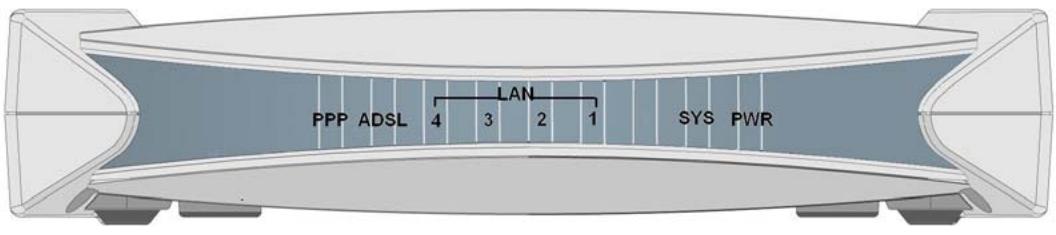
802.11g Wireless ADSL2+ modem/router model
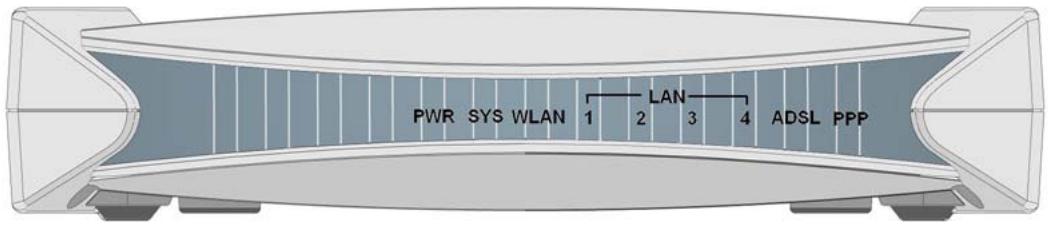
| LED | Meaning | |
| 1 | PPP: | Lit steady when there is a PPPoA / PPPoE connection. |
| 2 | ADSL: | Lit when successfully connected to an ADSL DSLAM ("linesync"). |
| 3 | LAN Port 1-4: | Lit when connected to an Ethernet device. Green for 100Mbps; Orange for 10Mbps. Blinking when data is Transmitted / Received. |
| 4 | WLAN: (Wireless model only) | Lit green when the wireless connection is established. Flashes when sending/receiving data. |
| 5 | SYS: | Lit when the system is ready. |
| 6 | PWR: | Lit when power is ON. |
2.4 The Rear Ports
Wireless ADSL2+ modem/router with 4-port Switch
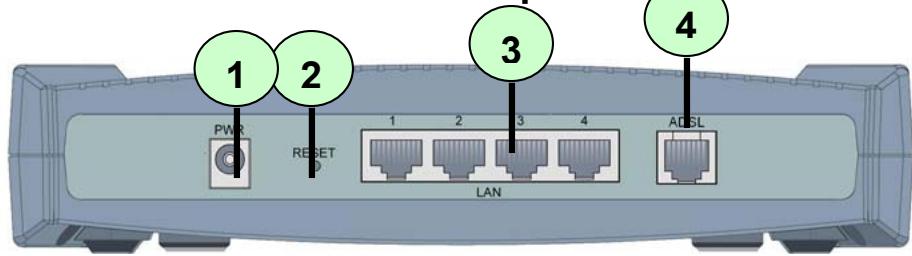
802.11g Wireless ADSL2+ modem/router model
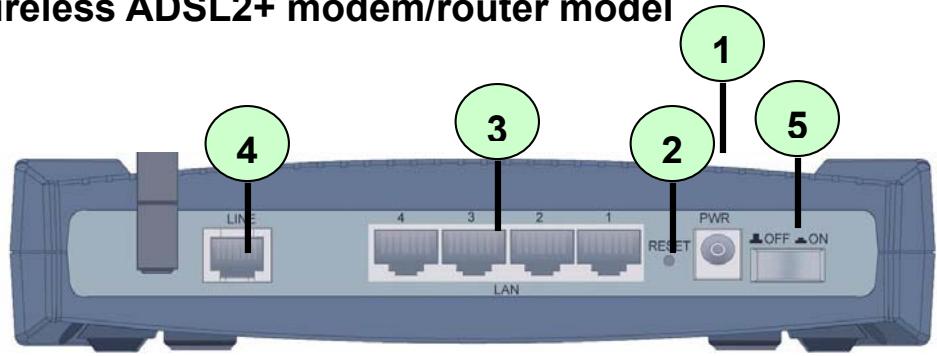
| Port | Meaning | |
| 1 | PWR | Connect the supplied power adapter to this jack. |
| 2 | RESET | After the device is powered on, press it to reset the device or restore to factory default settings. 0-3 seconds: reset the device 6 seconds above: restore to factory default settings (this is used when you can not login to the router, e.g. forgot the password) |
| 3 | LAN | Connect a UTP Ethernet cable (Cat-5 or Cat-5e) to one of the four LAN ports when connecting to a PC or an office/home network of 10Mbps or 100Mbps. |
| 4 | ADSL (LINE) | Connect the supplied RJ-11 (“telephone”) cable to this port when connecting to the ADSL/telephone network. |
| 5 | Power Switch | Power ON/OFF switch |
2.5 Cabling
One of the most common causes of problems is bad cabling or ADSL line(s). Make sure that all connected devices are turned on. On the front of the product is a bank of LEDs. Verify that the LAN Link and ADSL line LEDs are lit. If they are not, verify that you are using the proper cables.
Ensure that all other devices connected to the same telephone line as your router (e.g. telephones, fax machines, analogue modems) have a line filter connected between them and the wall socket (unless you are using a Central Splitter or Central Filter installed by a qualified and licensed electrician), and ensure that all line filters are correctly installed and the right way around. Missing line filters or line filters installed the wrong way around can cause problems with your ADSL connection, including causing frequent disconnections
The router can be configured with your web browser. A web browser is included as a standard application in the following operating systems: Windows 98/NT/2000/XP/Me, MAC, Linux, etc. The product provides a very easy and user-friendly interface for configuration.
3.1 Before Configuration
PCs must have an Ethernet interface installed properly and connected to the router either directly or through an external repeater hub, PCs must have TCP/IP installed and configured to obtain an IP address through a DHCP server or a fixed IP address that must be in the same subnet as the router. The default IP address of the router is 192.168.0.1 and the subnet mask is 255.255.255.0 (i.e. any attached PC must be in the same subnet, and have an IP address in the range of 192.168.0.2 to 192.168.0.254). The best and easiest way is to configure the PC to get an IP address automatically from the router using DHCP. If you encounter any problems accessing the router's web interface it may also be advisable to uninstall any kind of software firewall on your PCs, as they can cause problems accessing the 192.168.0.1 IP address of the router. Users should make their own decisions on how to best protect their network.
Please follow the steps below for your PC's network environment installation. First of all, please check your PC's network components. The TCP/IP protocol stack and Ethernet network adapter must be installed. If not, please refer to your Windows-related or other operating system manuals.

Any TCP/IP capable workstation can be used to communicate with or through the NRM42 model. To configure other types of workstations, please consult the manufacturer's documentation.
Configuring PC in Windows XP
- Go to Start / Control Panel (in Classic View). In the Control Panel, double-click on Network Connections
-
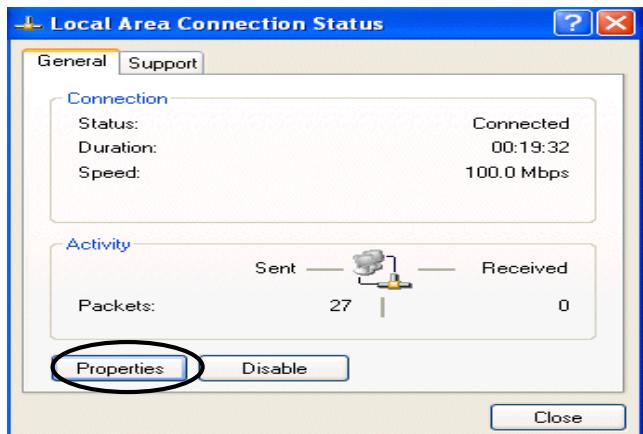
Double-click Local Area Connection.
-
In the Local Area Connection Status window, click Properties.
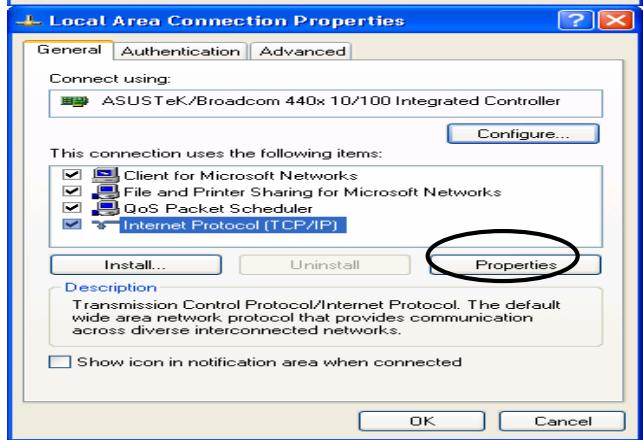
- Select Internet Protocol (TCP/IP) and click Properties.
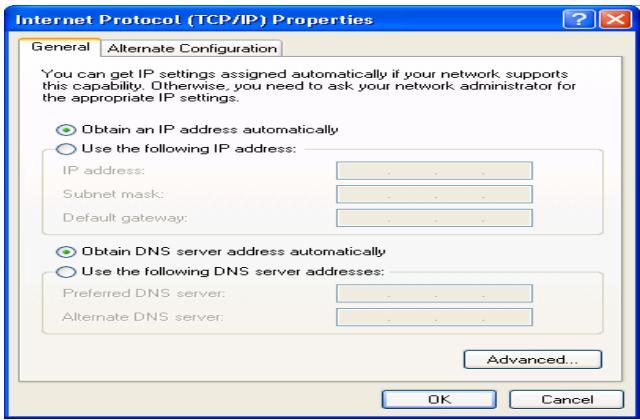
- Select the Obtain an IP address automatically and the Obtain DNS server address automatically radio buttons.
- Click OK to finish the configuration.

Configuring PC in Windows 2000
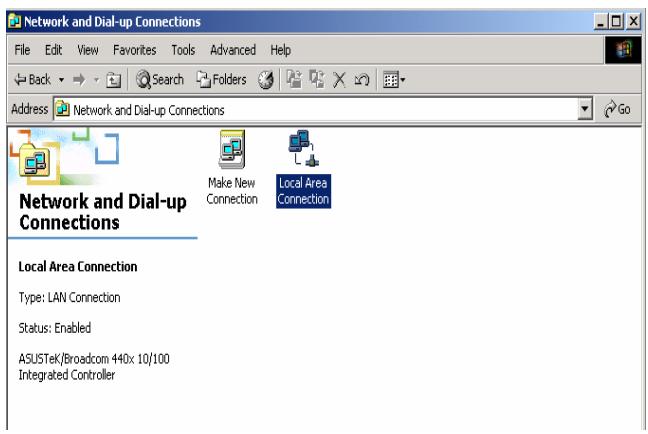
- Go to Start / Settings / Control Panel. In the Control Panel, double-click on Network and Dial-up Connections.
-
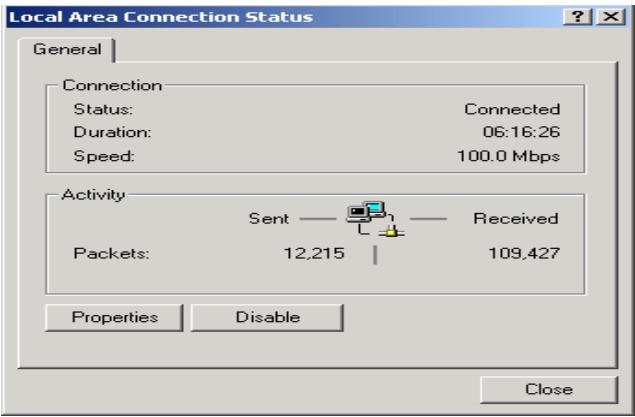
Double-click Local Area Connection.
-
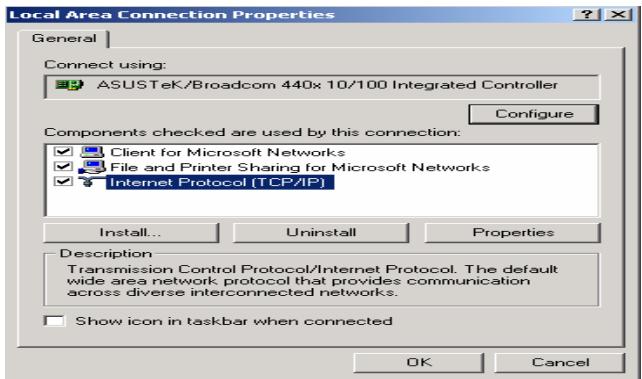
In the Local Area Connection Status window click Properties.
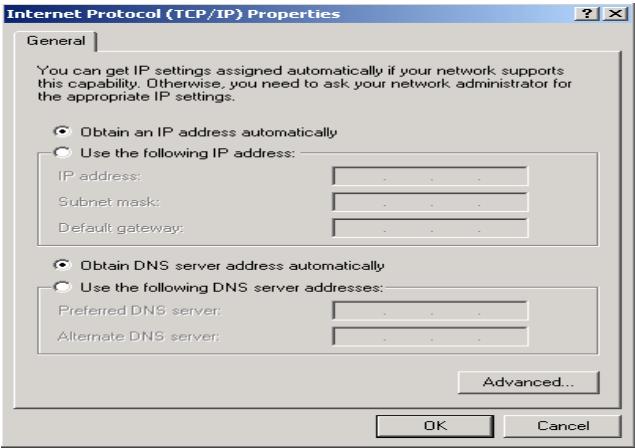
- Select Internet Protocol (TCP/IP) and click Properties.
- Select the Obtain an IP address automatically and the Obtain DNS server address automatically radio buttons.
- Click OK to finish the configuration.
Configuring PC in Windows 98/Me
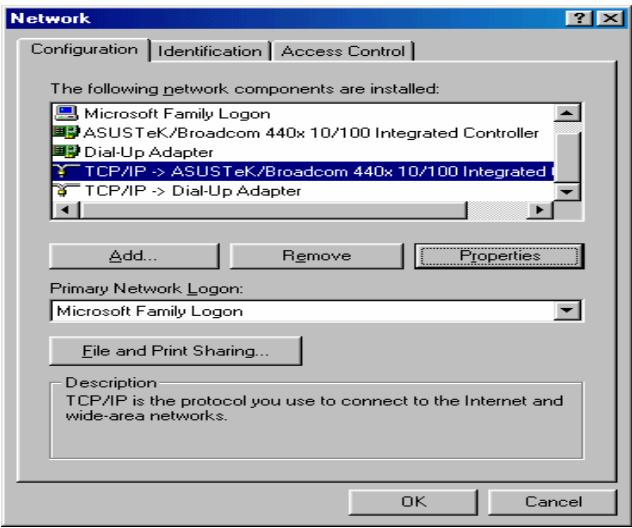
- Go to Start / Settings / Control Panel. In the Control Panel, double-click on Network and choose the Configuration tab.
-
Select TCP/IP ->NE2000 Compatible, or the name of your Network Interface Card (NIC) in your PC.
-
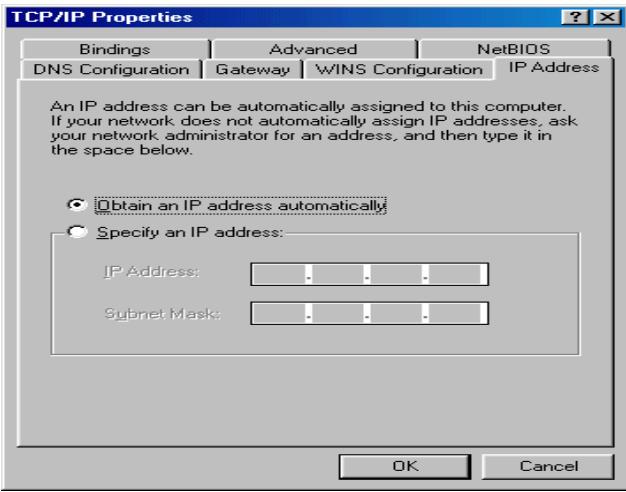
Select the Obtain an IP address automatically radio button.
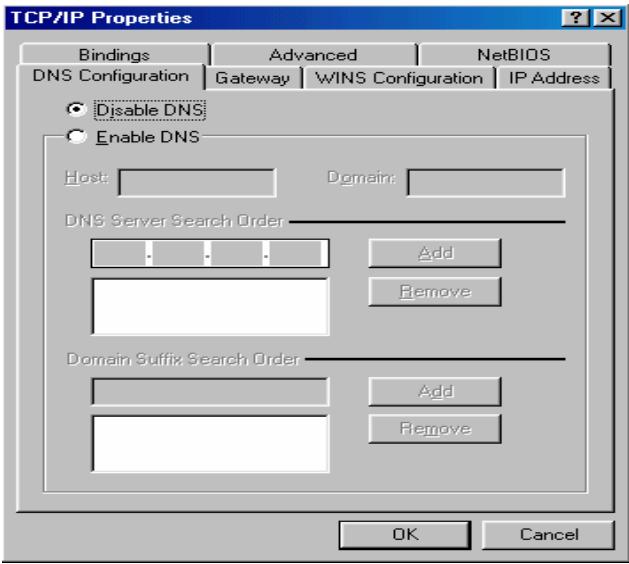
- Then select the DNS Configuration tab.
- Select the Disable DNS radio button and click OK to finish the configuration.
Configuring PC in Windows NT4.0
- Go to Start / Settings / Control Panel. In the Control Panel, double-click on Network and choose the Protocols tab.
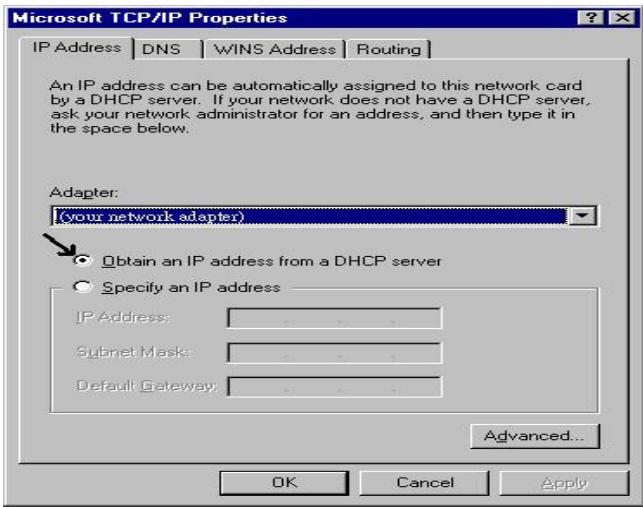
- Select TCP/IP Protocol and click Properties.
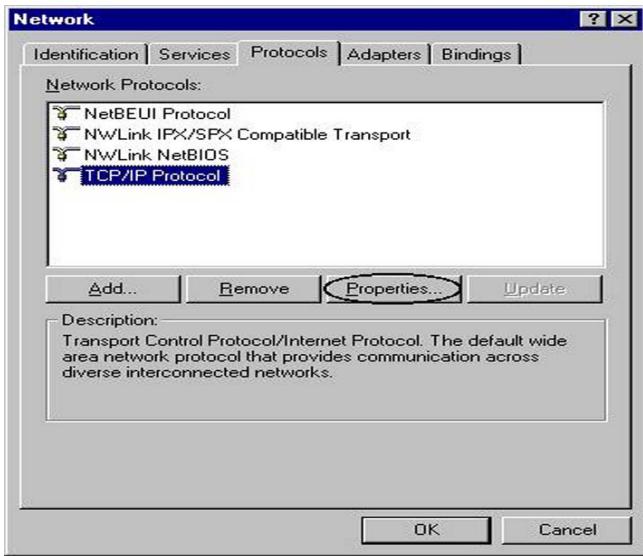
- Select the Obtain an IP address from a DHCP server radio button and click OK.
3.2 Factory Default Settings
Before configuring your, you need to know the following default settings.
Web Interface:
±bx Username:admin
× Password: password
LAN Device IP Settings:
IP Address: 192.168.0.1
× Subnet Mask: 255.255.255.0
ISP setting in WAN site:
X PPPoE
DHCP server:
DHCP server is enabled.
X Start IP Address: 192.168.0.100
IP pool counts: 100
3.2.1Username and Password
The default username and password are "admin" and "password" respectively.

Attention
If you ever forget the password to log in, you may press the RESET button up to 6 seconds to restore the factory default settings.
3.3 LAN and WAN Port Addresses
The parameters of LAN and WAN ports are pre-set in the factory. The default values are shown below.
| LAN Port | WAN Port | |
| IP address | 192.168.0.1 | The PPPoE function is enabled to automatically get the WAN port configuration from the ISP, but you have to set the username and password first. |
| Subnet Mask | 255.255.255.0 | |
| DHCP server function | Enabled | |
| IP addresses for distribution to PCs | 100 IP addresses continuing from 192.168.0.100 through 192.168.0.199 | |
3.4 Information from your ISP
Before configuring this device, you have to check with your ISP (Internet Service Provider) what kind of service is provided such as PPPoE, PPPoA, RFC1483, or IPoA.
Gather the information as illustrated in the following table and keep it for reference.
| PPPoE | VPI/VC1, VC-based/LLC-based multiplexing,Username, Password, Service Name,and Domain Name System (DNS) IP address (it can be automatically assigned by your ISP when you connect or be set manually). |
| PPPoA | VPI/VC1, VC-based/LLC-based multiplexing,Username, Password, and Domain Name System (DNS) IP address (it can be automatically assigned by your ISP when you connect or be set manually). |
| RFC1483 Bridged | VPI/VC1, VC-based/LLC-based multiplexing to use Bridged Mode. |
| RFC1483 Routed | VPI/VC1, VC-based/LLC-based multiplexing, IP address, Subnet mask, Gateway address, and Domain Name System (DNS) IP address (it is fixed IP address). |
3.5 Configuring with your Web Browser
Open your web browser, enter the IP address of your router, which by default is 192.168.0.1, and click “Go”, a user name and password window prompt will appear. The default username and password are “admin” and “password”.
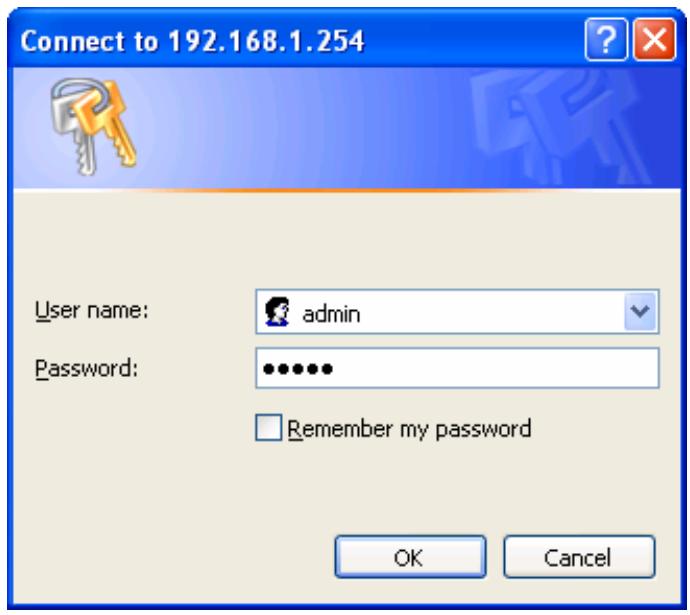
Congratulations! You are now successfully logon to the Wireless ADSL2+ modem/rodter!
At the configuration homepage, the left navigation pane where bookmarks are provided links you directly to the desired setup page, including:
Quick Start (wizard setup)
Interface Setup (Internet, LAN, Wireless)
Advanced Setup (Routing, NAT, ADSL)
Access Management (ACL, IP Filter, SNMP, UPnP, DDNS)
Maintenance (Administration, Time Zone, Firmware, SysRestart, Diagnostics)
Status
Please see the relevant sections of this manual for detailed instructions on how to configure your router.
4.1 Quick Start
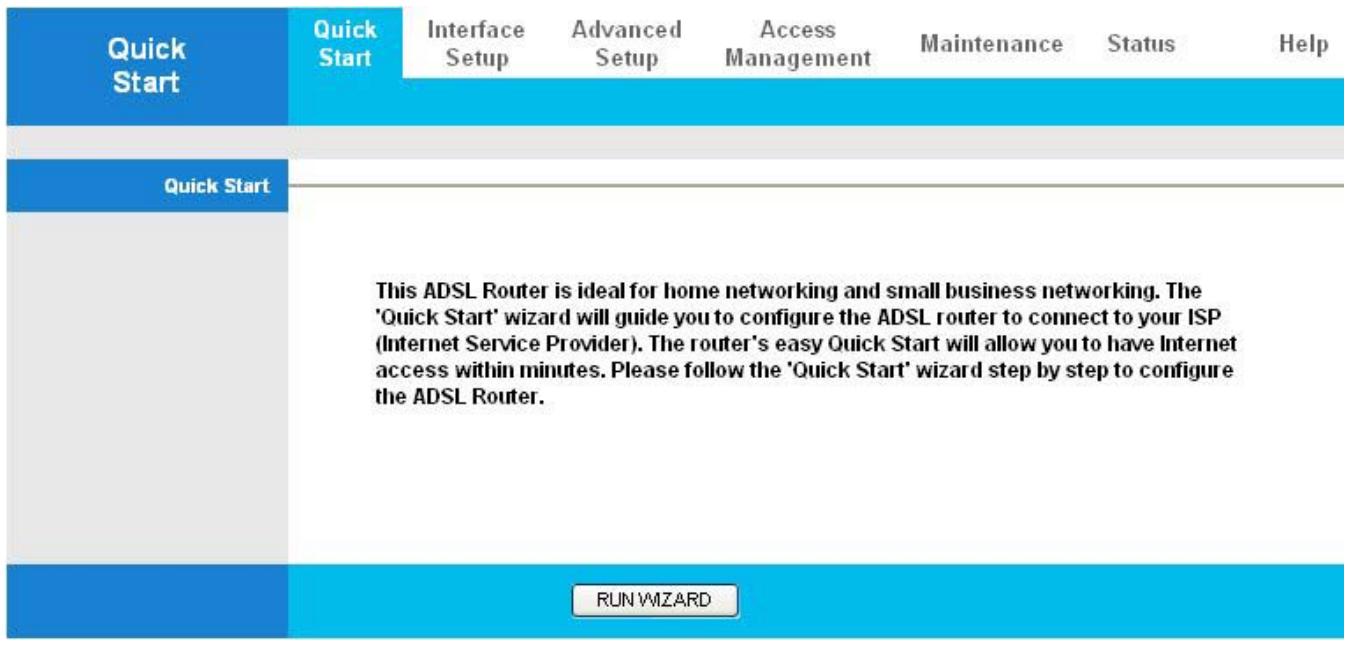
For detailed instructions on configuring WAN settings, see the Interface Setup section of this manual.
The information you need for the Quick Start to get you online are your login (often in the form of username@ispname), your password, and the encapsulation type.
Your ISP can supply all the details you need.
The following is the Quick Start step; please follow according to the instruction step by step.
Quick Start
The Wizard will guide you through these four quick steps. Begin by clicking on NEXT.
Step 1. Set your new password
Step 2. Choose your time zone
Step 3. Set your Internet connection
Step 4. Re-start your ADSL router
NEXT EXIT
Step1. Set your new password.
Quick Start - Password
You may change the admin account password by entering in a new password. Click NEXT to continue.
New Password:
Confirmed Password :
BACK
NEXT
EXIT
Step2: Choose your time zone
Quick Start - Time Zone
Select the appropriate time zone for your location and click NEXT to continue.
(GMT) Greenwich Mean Time: Dublin, Edinburgh, Lisbon, London

BACK
NEXT
EXIT

Step3: Set your Internet connection
Quick Start - ISP Connection Type
Select the internet connection type to connect to your ISP. Click NEXT to continue.

Dynamic IP Address
Choose this option to obtain a IP address automatically from your ISP.

Static IP Address
Choose this option to set static IP information provided to you by your ISP.

PPPoE/PPPoA
Choose this option if your ISP uses PPPoE/PPPoA. (For most DSL users)

Bridge Mode
Choose this option if your ISP uses Bridge Mode.
BACK
NEXT
EXIT
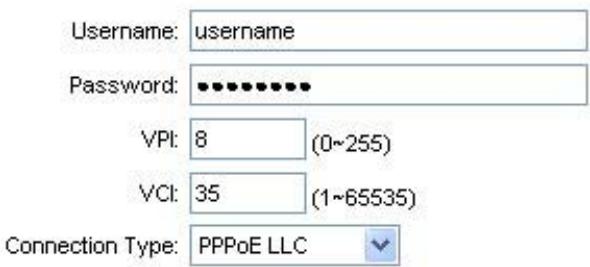
Quick Start - PPPoE/PPPDo
Enter the PPPoE/PPPtoA information provided to you by your ISP. Click NEXT to continue.
BACK
NEXT
EXIT
Quick Start Complete !!
The Setup Wizard has completed. Click on BACK to modify changes or mistakes. Click NEXT to save the current settings.
BACK
NEXT
EXIT
Quick Start Completed !!
Saved Changes.
CLOSE
Step4: Restart your ADSL Router
4.2 Interface Setup
Click this item to access the following sub-items that configure the ADSL router: Internet, LAN, and Wireless
These functions are described in the following sections.
4.2.1 Internet
comet Labs
ADSL ModemRouter
ATM VC
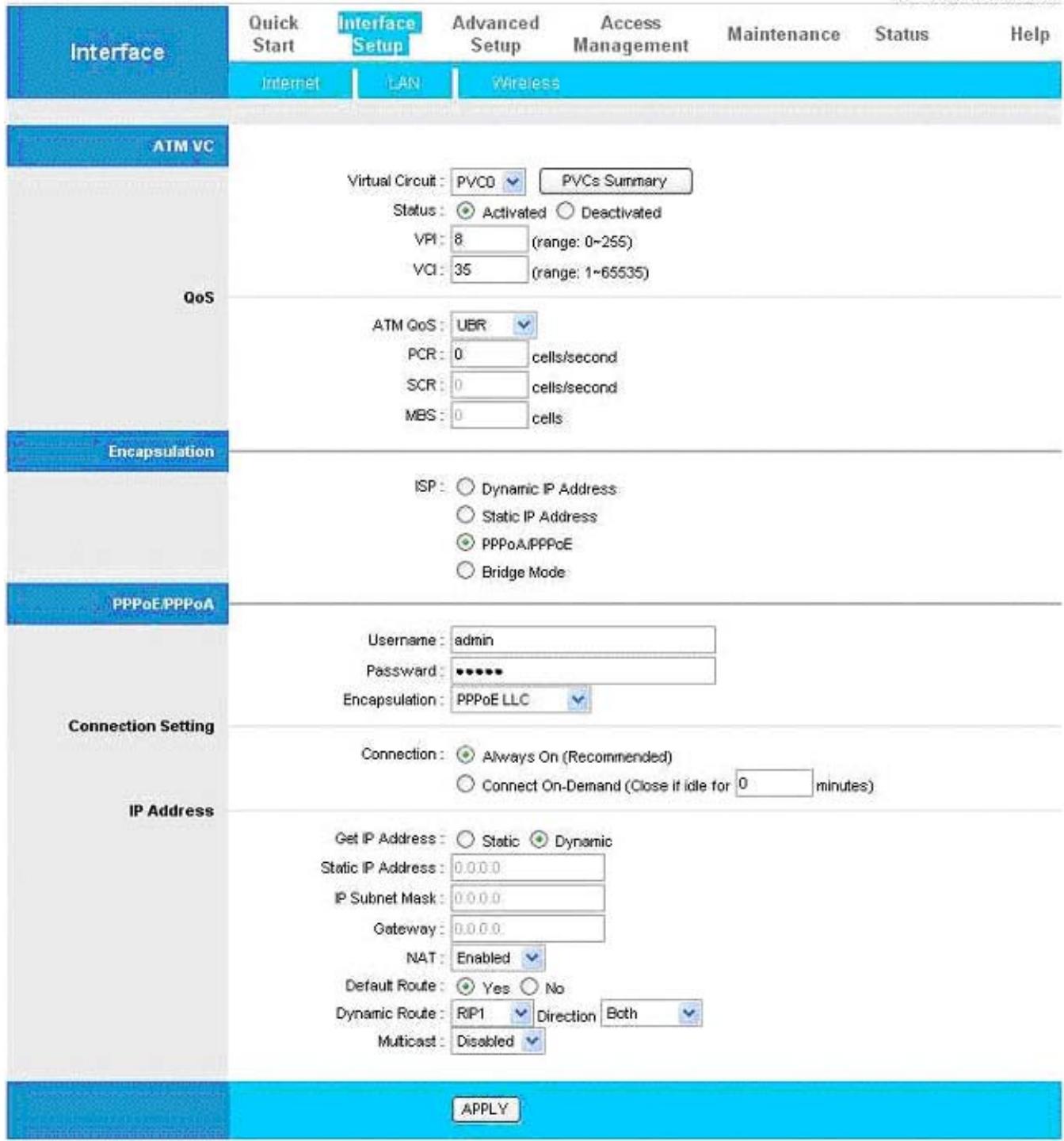
Virtual Circuit: VPI (Virtual Path Identifier) and VCI (Virtual Channel Identifier) define a virtual circuit.
VPI: The valid range for the VPI is 0 to 255. Enter the VPI assigned to you. This field may already be configured.
VCI: The valid range for the VCI is 32 to 65535. Enter the VCI assigned to you. This field may already be configured.
- ATM QoS: Select CBR to specify fixed (always-on) bandwidth for voice or data traffic. Select UBR for applications that are non-time sensitive, such as e-mail. Select VBR for burst traffic and bandwidth sharing with other applications.
PCR: Divide the DSL line rate (bps) by 424 (the size of an ATM cell) to find the Peak Cell Rate (PCR). This is the maximum rate at which the sender can send cells.
- SCR: The Sustain Cell Rate (SCR) sets the average cell rate (long-term) that can be transmitted.
MBS: Maximum Burst Size (MBS) refers to the maximum number of cells that can be sent at the peak rate. Type the MBS, which is less than 65535
Encapsulation:
ISP: Select the encapsulation type your ISP uses from the Encapsulation list.
Choices vary depending on what you select in the Mode field.
If you select Bridge in the Mode field, select 1483 Bridged IP.
If you select Routing in the Mode field, select PPPoA, 1483 Bridged IP, 1483 Router IP or PPPoE.
PPPoE/PPPoA
User Name: Enter the user name exactly as your ISP assigned.
Password: Enter the password associated with the user name above.
Encapsulation: select Bridge in the Mode field; select either PPPoA or RFC 1483.
select Routing in the Mode field, select PPPoA, RFC 1483, ENET ENCAP or PPPoE.
Multiplex: Select the method of multiplexing used by your ISP. Choices are VC or LLC.
Connection: The schedule rule(s) have priority over your Connection settings.
Always on: Select Always on Connection when you want your connection up all the time.
Connect on Demand: Select Connect on Demand when you don't want the connection up all the time and specify an idle time-out in the Max Idle Timeout field
Get IP Address: Choose Static or Dynamic
Static IP Address: Enter the IP address of ADSL Router in dotted decimal notation, for example, 192.168.1.254 (factory default).
IP Subnet Mask: The default is 255.0.0.0. User can change it to other such as 255.255.255.0.Type the subnet mask assigned to you by your ISP (if given).
Gateway: You must specify a gateway IP address (supplied by your ISP) when you use 1483 Bridged IP in the Encapsulation field in the previous screen.
Network Address Translation: Select None, Many to One or Many to Many from the drop-sown list box. Refer to the NAT chapter for more details.
Dynamic Route:
RIP Version: Select the RIP version from RIP-1, RIP-2B and RIP-2M.
RIP Direction: Select the RIP direction from None, Both, In Only and Out Only.
- Multicast: IGMP (Internet Group Multicast Protocol) is a network-layer protocol used to establish membership in a Multicast group - it is not used to carry user data. The router supports both IGMP version 1 (IGMP-v1) and IGMP-v2. Select None to disable it
4.2.2 LAN
A Local Area Network (LAN) is a shared communication system to which many computers are attached and is limited to the immediate area, usually the same building or floor of a building.
Router Local IP
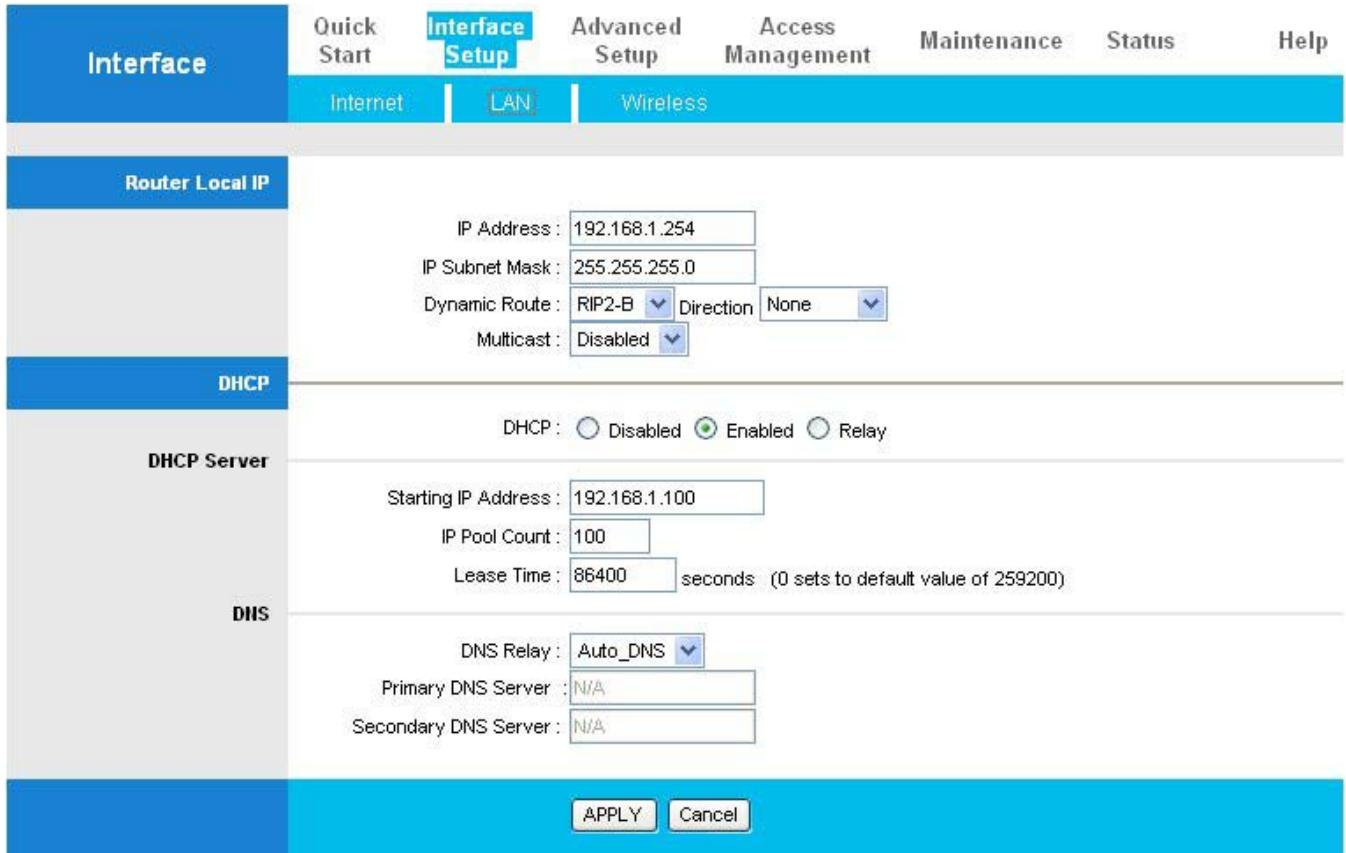
IP Address: Enter the IP address of ADSL Router in dotted decimal notation, for example, 192.168.0.1 (factory default).
IP Subnet Mask: The default is 255.255.255.0. User can change it to other such as 255.0.0.0.Type the subnet mask assigned to you by your ISP (if given).
Dynamic Route: Select the RIP version from RIP-1, RIP-2B and RIP-2M.
RIP Direction: Select the RIP direction from None, Both, In Only and Out Only.
- Multicast: IGMP (Internet Group Multicast Protocol) is a network-layer protocol used to establish membership in a Multicast group - it is not used to carry user data. The router supports both IGMP version 1 (IGMP-v1) and IGMP-v2. Select None to disable it

DHCP
DHCP (Dynamic Host Configuration Protocol, RFC 2131 and RFC 2132) allows individual clients to obtain TCP/IP configuration at start-up from a server.

DHCP:
If set to Enable, your router can assign IP addresses, an IP default gateway and DNS servers to Windows 95, Windows NT and other systems that support the DHCP client. If set to disabled, the DHCP server will be disabled.
If set to Relay, the router acts as a surrogate DHCP server and relays DHCP requests and responses between the remote server and the clients. Enter the IP address of the actual, remote DHCP server in the Remote DHCP Server field in this case.
When DHCP is used, the following items need to be set.
Starting IP Address: This field specifies the first of the contiguous addresses in the IP address pool.
IP Pool Count: This field specifies the size or count of the IP address pool.
Lease Time: The current lease time of client.
Primary DNS Server: Enter the IP addresses of the DNS servers. The DNS servers are passed to the DHCP clients along with the IP address and the subnet mask.
Secondary DNS Server: Enter the IP addresses of the DNS servers. The DNS servers are passed to the DHCP clients along with the IP address and the subnet mask.
4.2.3 for Wireless ADSL2+ Modem/rodter model only.
This section introduces the wireless LAN and some basic configurations. Wireless LANs can be as simple as two computers with wireless LAN cards communicating in a peer-to-peer network or as complex as a number of computers with wireless LAN cards communicating through access points which bridge network traffic to the wired LAN.
Wireless LAN
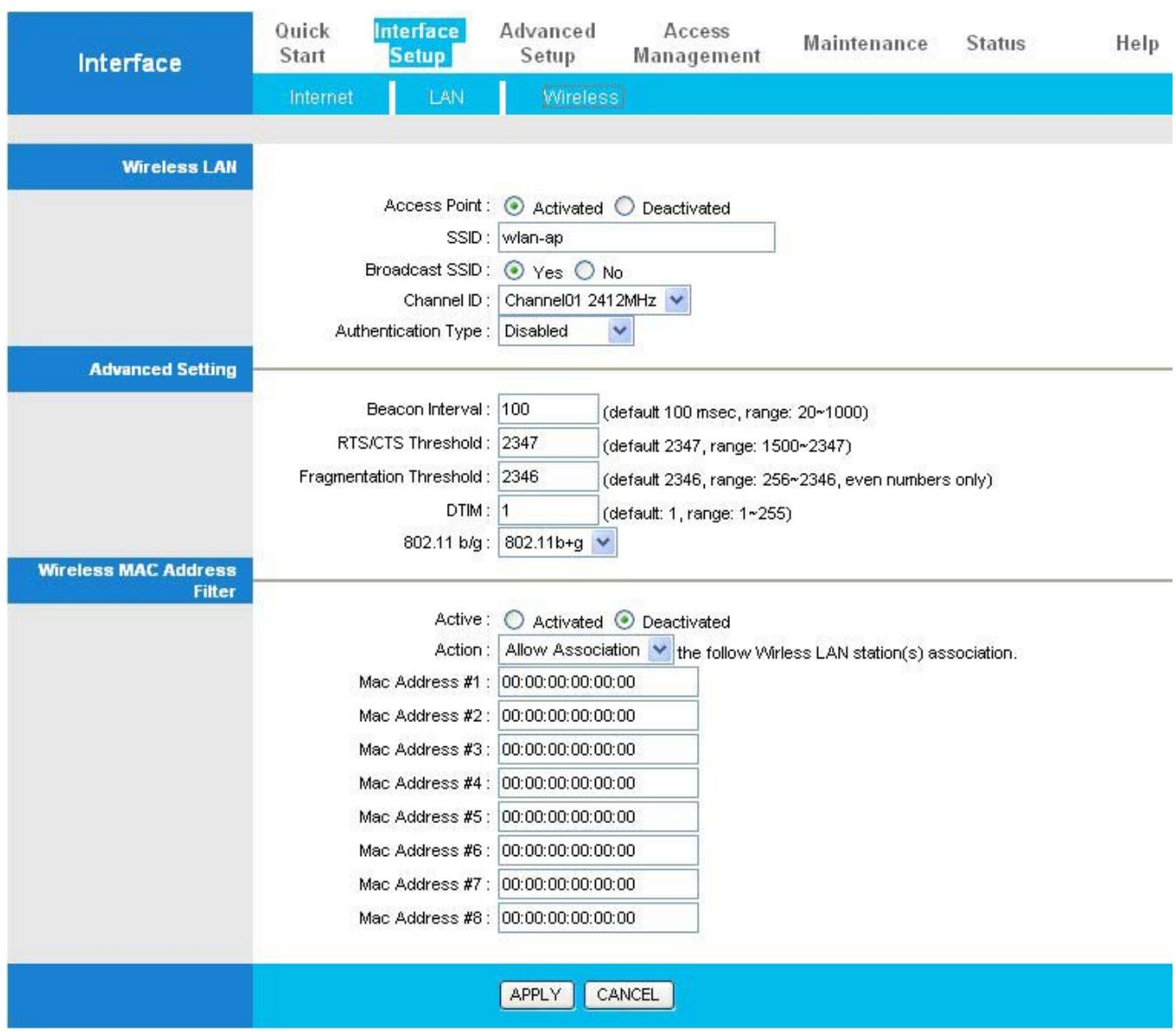
Access Point: Default setting is set to Activated. If you do not have any wireless, both 802.11g and 802.11b, device in your network, select De-activated.
SSID: The SSID is the unique name of a wireless access point (AP) to be distinguished from another. For security propose, change the value Default to a unique ID name to the AP
which is already built-in to the router's wireless interface. It is case sensitive and must not excess 32 characters. Make sure your wireless clients have exactly the SSID as the device, in order to get connected to your network.
- Broadcast SSID: Select No to hide the SSID in so a station cannot obtain the SSID through passive scanning. Select Yes to make the SSID visible so a station can obtain the SSID through passive scanning.
Channel ID: The range of radio frequencies used by IEEE 802.11b/g wireless devices is called a channel. Select a channel from the drop-down list box.
Authentication Type: To prevent unauthorized wireless stations from accessing data transmitted over the network, the router offers highly secure data encryption, known as WEP or WPA. If you require high security for transmissions, there are two alternatives to select from: 64-bit WEP and 128-bit WEP. WEP 128 will offer increased security over WEP 64. You can disable or enable with WPA or WEP for protecting wireless network. The default type of wireless is disabled and to allow all wireless computers to communicate with the access points without any data encryption
Advanced Setting
- Beacon interval: The Beacon Interval value indicates the frequency interval of the beacon. Enter a value between 20 and 1000. A beacon is a packet broadcast by the Router to synchronize the wireless network.
RTS/CTS Threshold: The RTS (Request To Send) threshold (number of bytes) for enabling RTS/CTS handshake. Data with its frame size larger than this value will perform the RTS/CTS handshake. Entering a value above the maximum MSDU (MAC service data unit) size will turn off the RTS/CTS handshake. Setting this attribute to zero turns on the RTS/CTS handshake Enter a value between 1500 and 2347..
Fragmentation Threshold: The threshold (number of bytes) for the fragmentation boundary for directed messages. It is the maximum data fragment size that can be sent. Enter a value between 256 and 2346.
DMIT: This value, between 1 and 255, indicates the interval of the Delivery Traffic Indication Message (DTIM).
802.11b/g: The default setting is 802.11b+g (Mixed mode). If you do not know or have both 11g and 11b devices in your network, then keep the default in mixed mode. From the drop-down manual, you can select 802.11g if you have only 11g card. If you have only 11b card, then select 802.11b.
Wireless MAC Address Filter
The MAC filter screen allows you to configure the router to give exclusive access to up to 32 devices (Allow Association) or exclude up to 32 devices from accessing the router (Deny
Association). Every Ethernet device has a unique MAC (Media Access Control) address. The MAC address is assigned at the factory and consists of six pairs of hexadecimal characters, for example, 00:AA:BB:00:00:02. You need to know the MAC address of the devices to configure this screen.
To change your router's MAC filter settings, click Wireless LAN, MAC Filter to open the MAC Filter screen. The screen appears as shown.
Active: Select Actived to enable MAC address filtering.
Action: Define the filter action for the list of MAC addresses in the MAC address filter table.
Select Deny Association to block access to the router, MAC addresses not listed will be allowed to access the router. Select Allow Association to permit access to the router, MAC addresses not listed will be denied access to the router.
MAC Address: Enter the MAC addresses (in XX:XX:XX:XX:XX format) of the wireless station that are allowed or denied access to the router in these address fields.

WEP
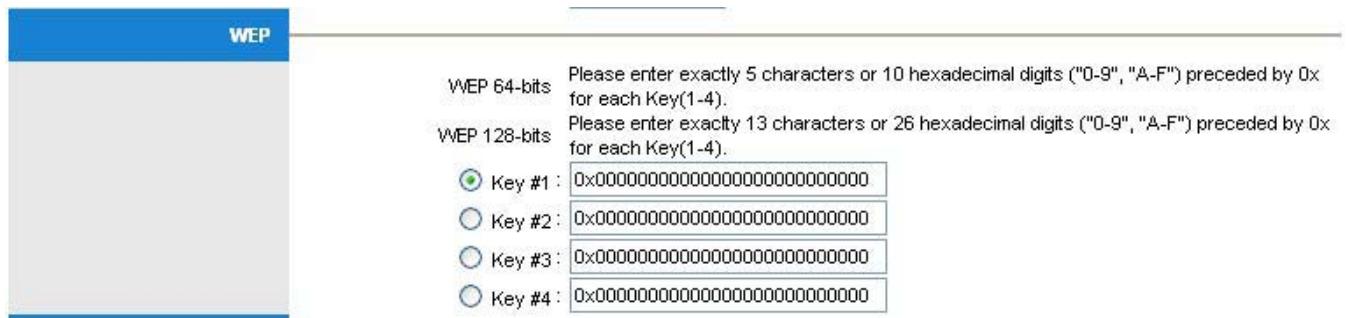
Key 1 to Key 4: Enter the key to encrypt wireless data. To allow encrypted data
transmission, the WEP Encryption Key values on all wireless stations must be the same as the router. There are four keys for your selection. The input format is in HEX style, 5 and 13 HEX codes are required for 64-bitWEP and 128-bitWEP respectively.
If you chose WEP 64-bits, then enter any 5 ASCII characters or 10 hexadecimal characters ("0-9", "A-F").
If you chose WEP 128-bits, then enter 13 ASCII characters or 26 hexadecimal characters ("0-9", "A-F").
You must configure all four keys, but only one key can be activated at any one time. The default key is key 1.

WPA-PSK
WPA-PSK

- Encryption: TKIP (Temporal Key Integrity Protocol) utilizes a stronger encryption method and incorporates Message Integrity Code (MIC) to provide protection against hackers.
Pre-Shared key: The key for network authentication. The input format is in character style and key size should be in the range between 8 and 64 characters.
4.3 Advanced Setup
4.3.1 Routing
If you have another router with a LAN-to-LAN connection, you may create a static routing on
the router that is the gateway to Internet.
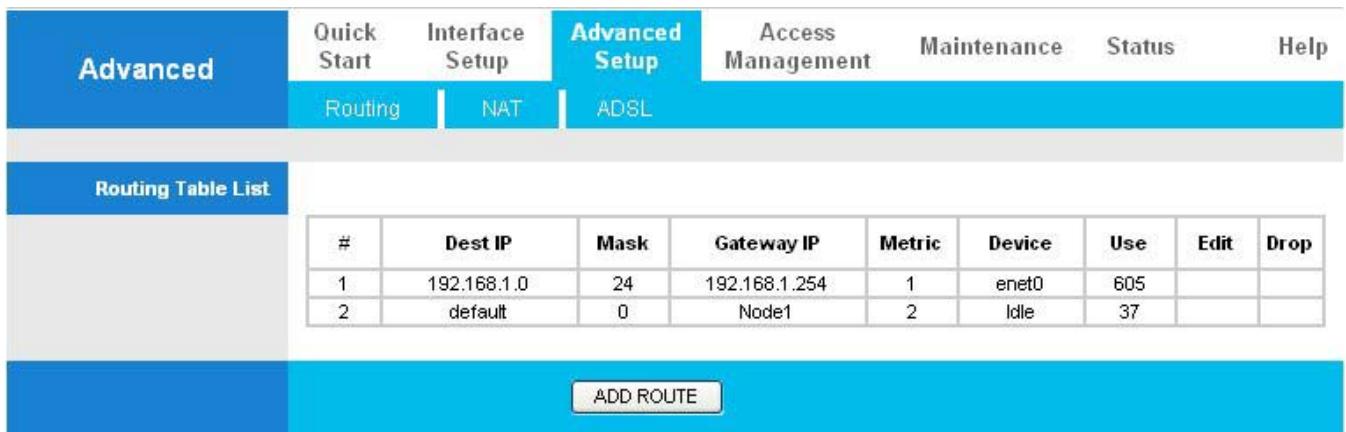
: Item number
Dest IP: IP address of the destination network
Mask: The destination mask address.
Gateway IP: IP address of the gateway or existing interface that this route uses.
Metric: It represents the cost of transmission for routing purposes. The number need not be precise, but it must be between 1 and 15.
Device: Media/channel selected to append the route.
Use: Counter for access times.
Edit: Edit the route; this icon is not shown for system default route.
- Drop: Drop the route; this icon is not shown for system default route.
ADD Route
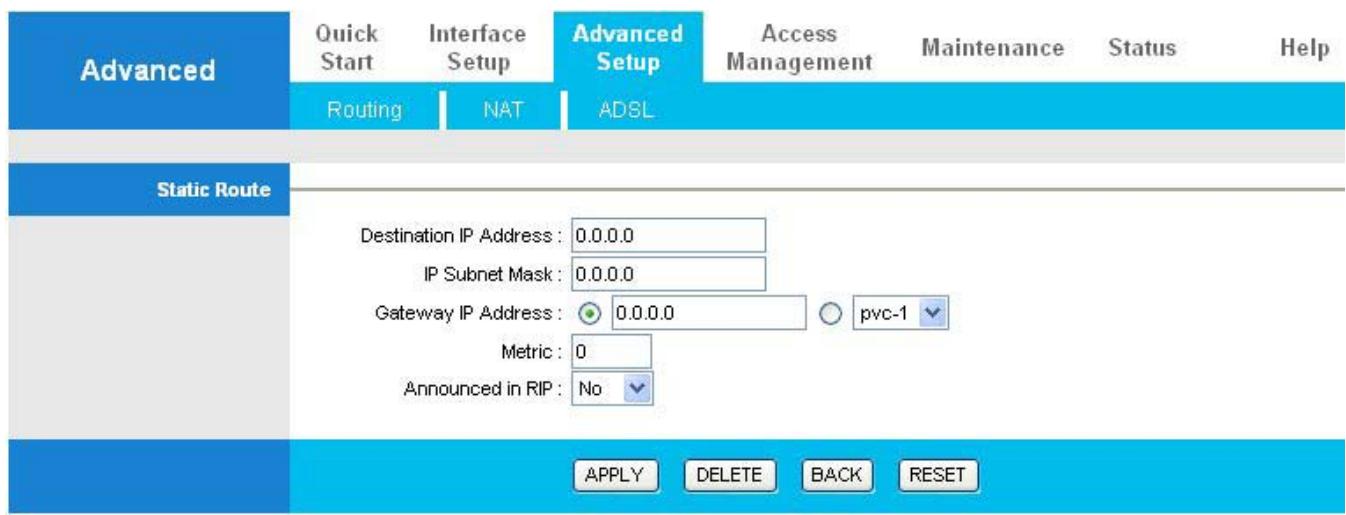
Destination IP Address : This is the destination subnet IP address.
IP Subnet Mask : It is the destination IP addresses based on above destination subnet IP
Gateway IP Address : This is the gateway IP address to which packets are to be forwarded.
Metric : It represents the cost of transmission for routing purposes. The number need not be precise, but it must be between 1 and 15.
- Announced in RIP: This parameter determines if the Prestige will include the route to the remote node in its RIP broadcasts. Set “Yes”, it is kept private and is not included in RIP broadcasts. Set “No”, the remote node will be propagated to other hosts through RIP broadcasts.
4.3.2 NAT
The NAT (Network Address Translation - NAT, RFC 1631) is the translation of the IP address of a host in a packet. The default setting is Dynamic NAPT. It provides dynamic Network Address Translation capability between LAN and multiple WAN connections, and the LAN
traffic is routed to appropriate WAN connections based on the destination IP addresses and Route Table. This eliminates the need for the static NAT session configuration between multiple LAN clients and multiple WAN connections.
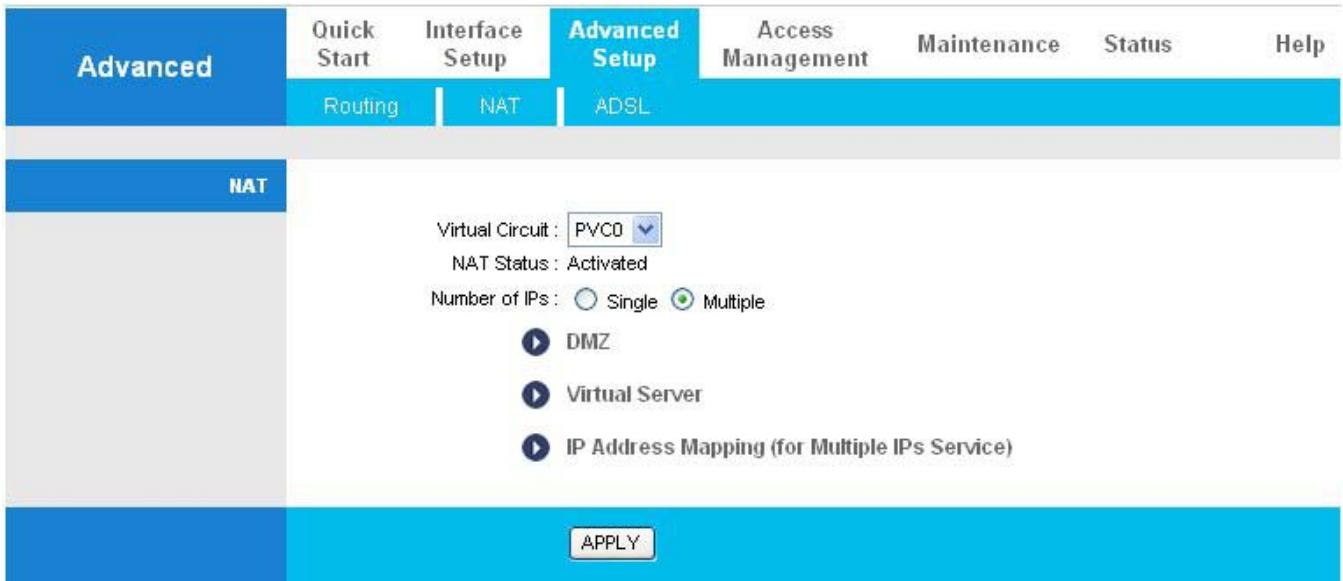
Virtual Circuit: VPI (Virtual Path Identifier) and VCI (Virtual Channel Identifier) define a virtual circuit. There are eight groups of PVC can be defined and used.
Number of IPs: User can select Single or Multiple.

DMZ
The DMZ Host is a local computer exposed to the Internet. When setting a particular internal IP address as the DMZ Host, all incoming packets will be checked by the Firewall and NAT algorithms then passed to the DMZ host, when a packet received does not use a port number used by any other Virtual Server entries.
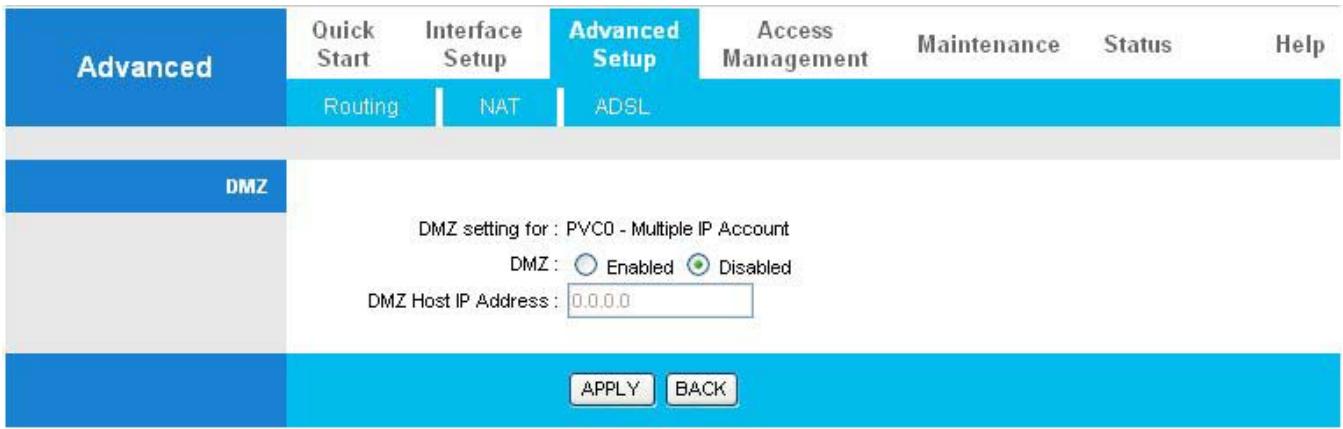
DMZ: Disabled: As set in default setting, it disables the DMZ function.
- Enabled: It activates your DMZ function.
DMZ Host Address: Give a static IP address to the DMZ Host when Enabled radio
button is checked. Be aware that this IP will be exposed to the WAN/Internet. Select the Apply button to apply your changes.
Virtual Server
In TCP/IP and UDP networks a port is a 16-bit number used to identify which application program (usually a server) incoming connections should be delivered to. Some ports have numbers that are pre-assigned to them by the IANA (the Internet Assigned Numbers Authority), and these are referred to as "well-known ports". Servers follow the well-known port assignments so clients can locate them.
If you wish to run a server on your network that can be accessed from the WAN (i.e. from other machines on the Internet that are outside your local network), or any application that can accept incoming connections (e.g. Peer-to-peer/P2P software such as instant messaging applications and P2P file-sharing applications) and are using NAT (Network Address Translation), then you will usually need to configure your router to forward these incoming connection attempts using specific ports to the PC on your network running the application. You will also need to use port forwarding if you want to host an online game server.
The reason for this is that when using NAT, your publicly accessible IP address will be used by and point to your router, which then needs to deliver all traffic to the private IP addresses used by your PCs. Please see the WAN configuration section of this manual for more information on NAT.
The device can be configured as a virtual server so that remote users accessing services such as Web or FTP services via the public (WAN) IP address can be automatically redirected to local servers in the LAN network. Depending on the requested service (TCP/UDP port number), the device redirects the external service request to the appropriate server within the LAN network.
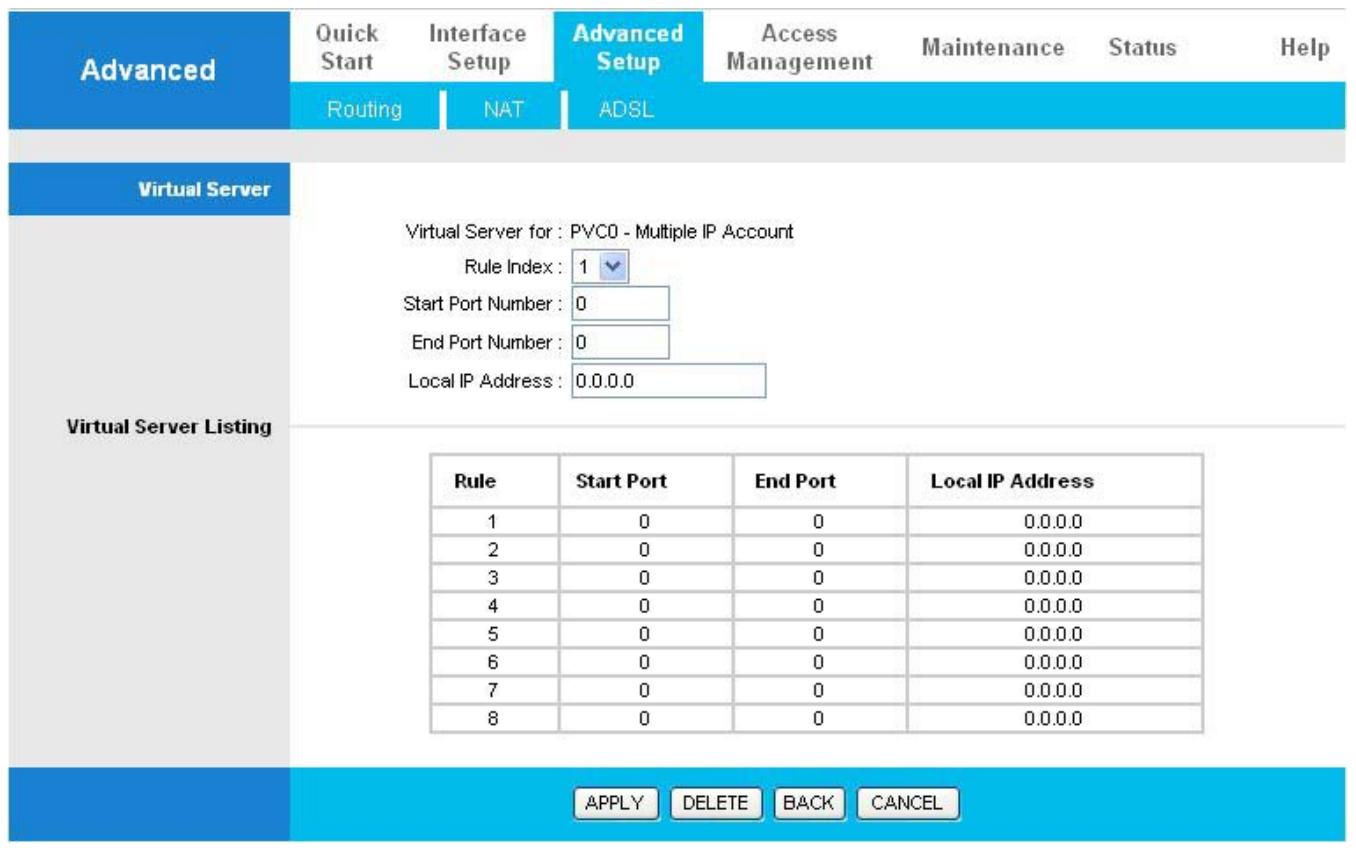
Rule Index: Choose the rule number.
Start Port Number: Enter a port number in this field.
End Port Number: Enter a port number in this field.
Local IP Address: Enter your server IP address in this field.
IP Address Mapping
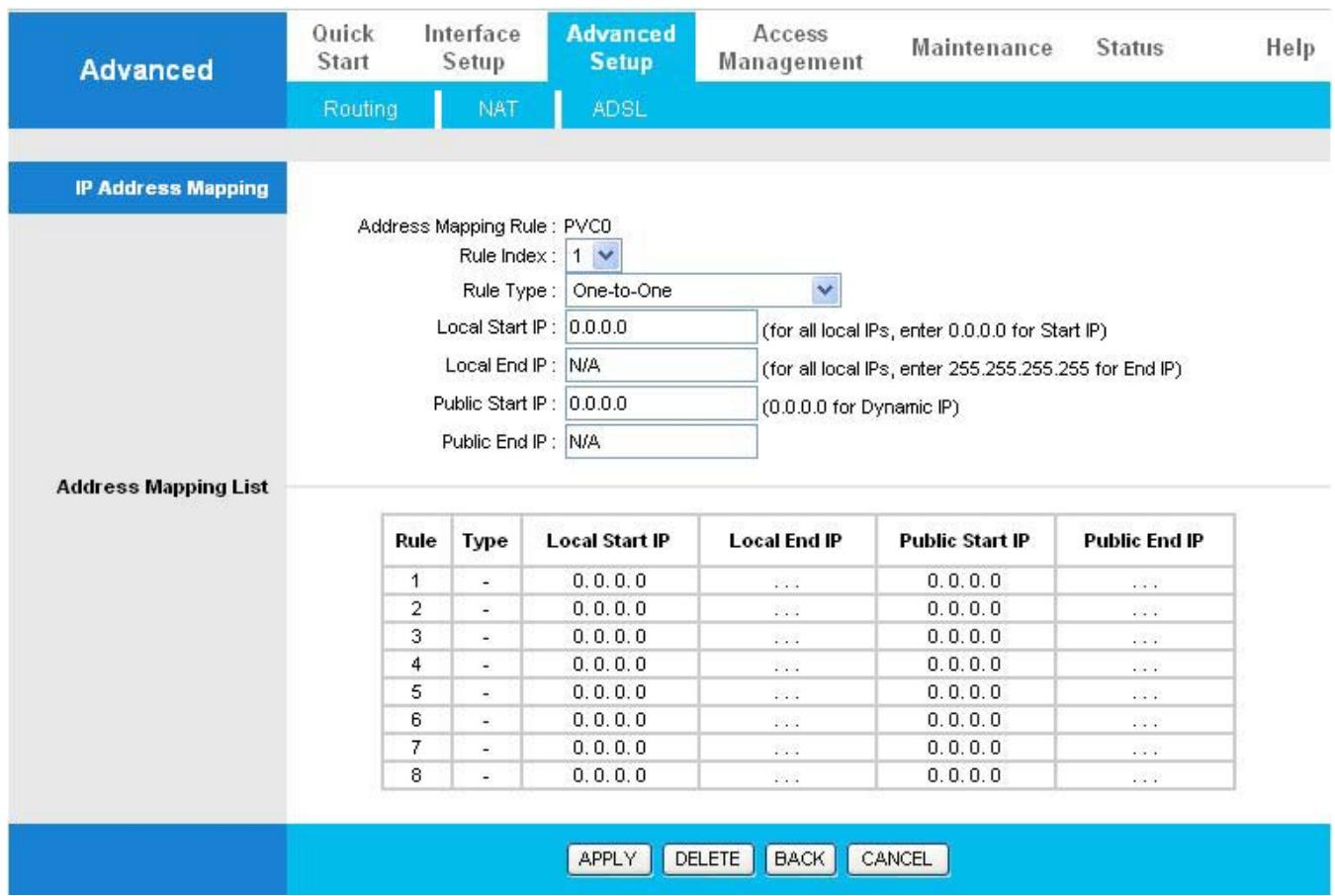
Rule Index: Choose the rule number.
Rule Type:
One-to-one: This is the mode maps one local IP address to one global IP address. Note that port numbers do not change for the One-to-one NAT mapping type.
Many-to-One: This is the mode maps multiple local IP addresses to one global IP address. This is equivalent to Many to One (i.e., PAT, port address translation).
Many-to-Many Overload: This is mode maps multiple local IP addresses to shared global IP addresses.
Many-to-Many No Overload: This is the mode maps each local IP address to unique global IP addresses.
Server: This type allows you to specify inside servers of different services behind the NAT to be accessible to the outside world.
Local Start IP: This is the starting Inside Local IP Address (ILA). Local IP addresses are N/A for Server port mapping.
Local End IP: This is the end inside Local IP Address (ILA). If your rule is for all local IP addresses, then enter 0.0.0.0 as the Local Start IP address and 255.255.255.255 as the Local End IP address. This field is N/A for One-to-one and Server mapping types.
Public Start IP: This is the starting Inside Public IP Address. Enter 0.0.0.0 here if you have a dynamic IP address from your ISP.
Public End IP: This is the ending Inside Public IP Address. This field is N/A for

Using port forwarding does have security implications, as outside users will be able to connect to PCs on your network. For this reason you are advised to use specific Virtual Server entries just for the ports your application requires, instead of using DMZ. As doing so will result in all connections from the WAN attempt to access to your public IP of the DMZ PC specified.

Attention
If you have disabled the NAT option in the WAN-ISP section, the Virtual Server function will hence be invalid.
If the DHCP server option is enabled, you have to be very careful in assigning the IP addresses of the virtual servers in order to avoid conflicts. The easiest way of configuring Virtual Servers is to manually assign static IP address to each virtual server PC, with an address that does not fall into the range of IP addresses that are to be issued by the DHCP server. You can configure the virtual server IP address manually, but it must still be in the same subnet as the router.
4.3.3 ADSL
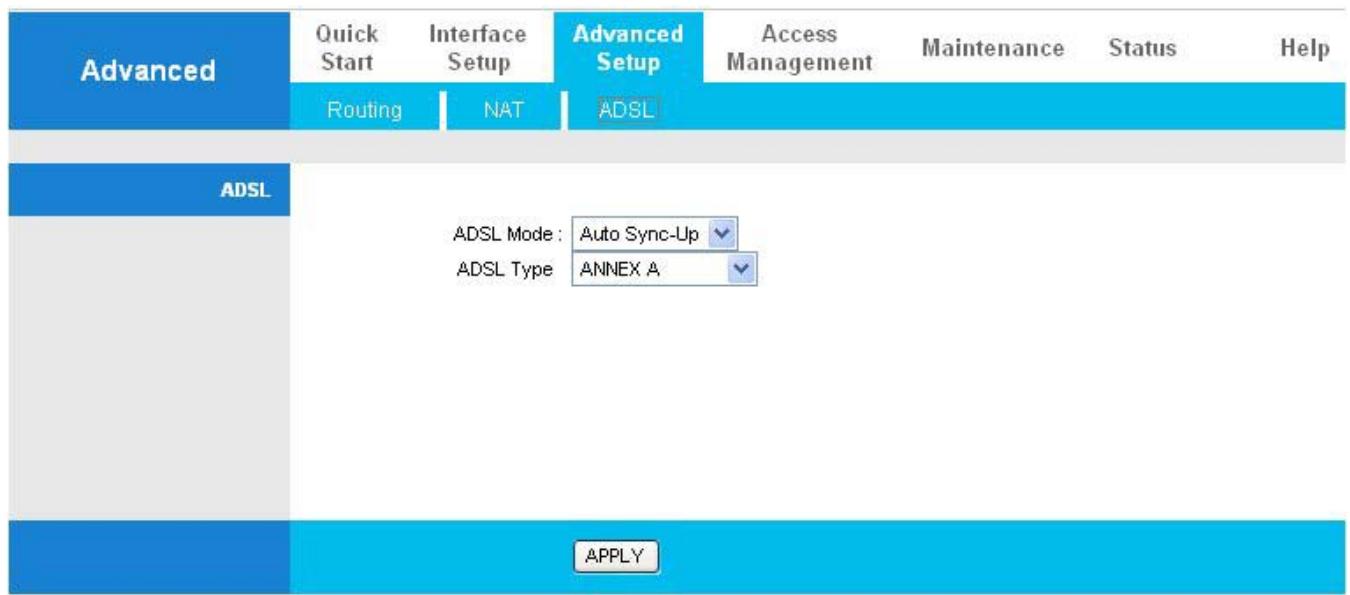
ADSL Mode: The default setting is Auto Sync-UP. This mode will automatically detect your ADSL, ADSL2+, ADSL2, G.dmt, G.lite, and T1.413. But in some area, multimode cannot detect the ADSL line code well. If it is the case, please adjust the ADSL line code to G.dmt or T1.413 first. If it still fails, please try the other values such as ALCTL, ADI, etc.
ADSL Type: There are five modes "Open Annex Type and Follow DSLAM's Setting", "Annex A", "Annex I", "Annex A/L", "Annex M" and "Annex A/I/L/M" that user can select for this connection.
4.4 Access Management
4.4.1 ACL
Access Control Listing allows you to determine which services/protocols can access which router interface from which computers.
You can configure the router for remote Telnet access or upload and download router firmware and configuration files using FTP. To use this feature, your computer must have an FTP client. And can use the router's embedded web configurator for configuration and file management.
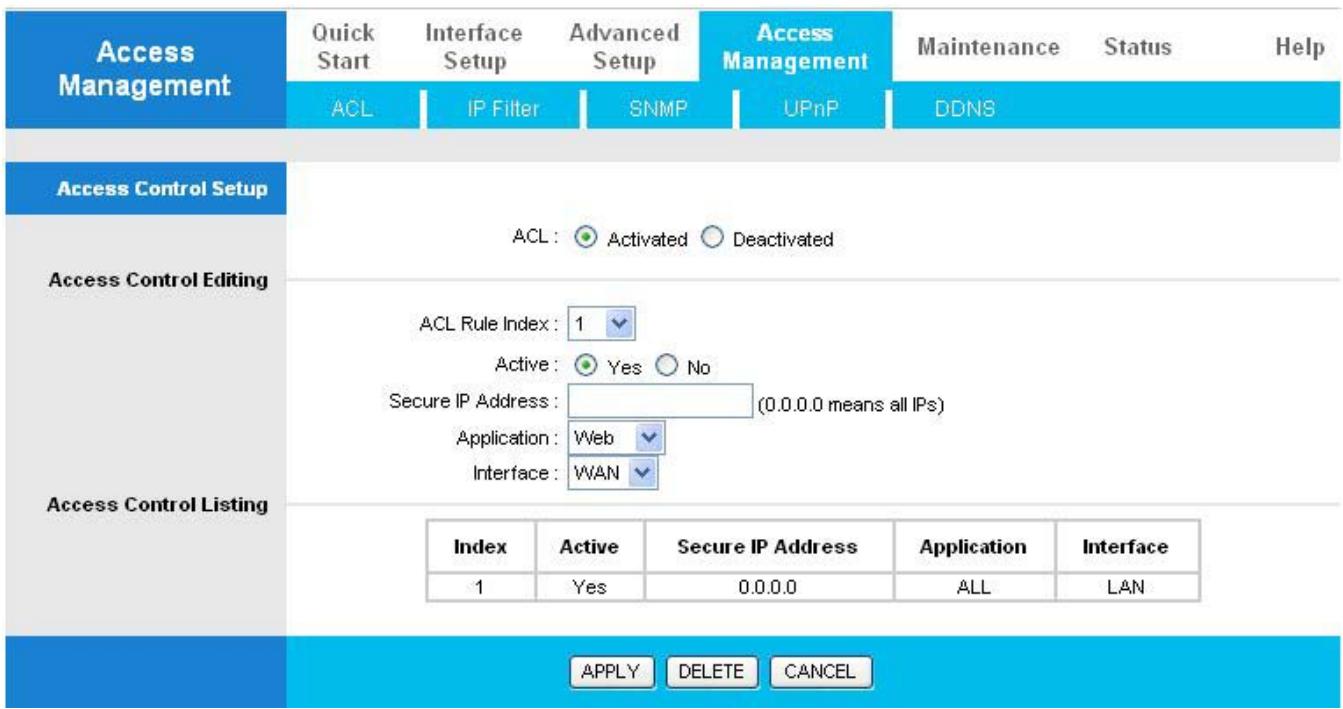
ACL Rule Index: This is item number
- Secure IP Address: The default 0.0.0.0 allows any client to use this service to remotely manage the router. Type an IP address to restrict access to a client with a matching IP address.
Application: Choose a service that you may use to remotely manage the router.
Interface: Select the access interface. Choices are LAN, WAN and Both.
4.4.2 IP Filter
You may use telnet or Web to remotely manage the ADSL Router. User just needs to enable Telnet or Web and give it an IP address that wants to access the ADSL Router. The default IP 0.0.0.0 allows any client to use this service to remotely manage the ADSL Router.
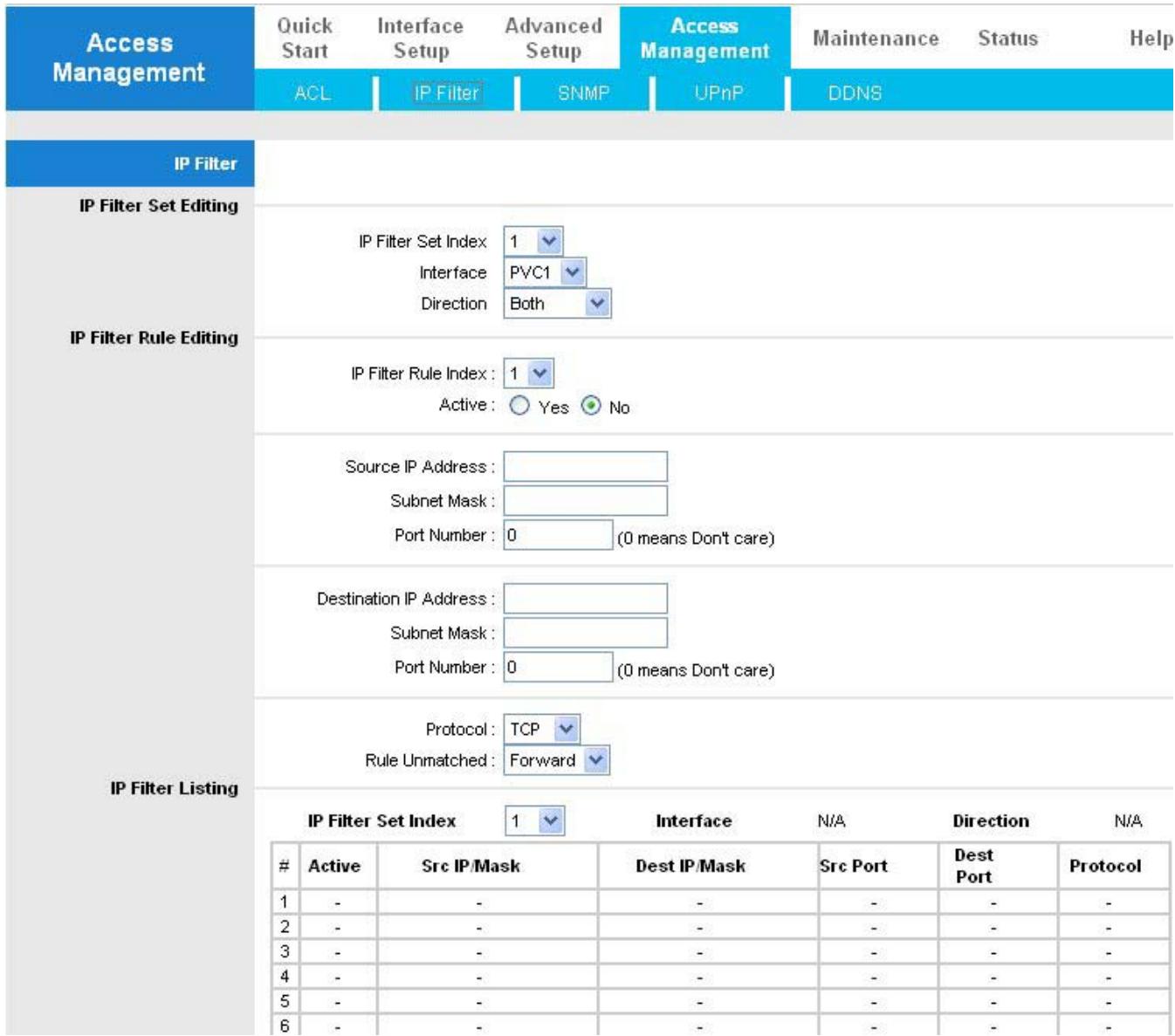
IP Filter Set Editing
IP filter Set Index: This is item number
Interface: Select which channel (PVC) to configure.
Direction: Select the access to the Internet ("Outgoing") or from the Internet ("Incoming").or Both.
IP Filter Rule Editing
IP Filter Rule Index: This is item number
Active: Select Yes from the drop down list box to enable IP filter rule.
Source IP Address: The source IP address or range of packets to be monitored.
Subnet Mask: It is the destination IP addresses based on above destination subnet IP
Source Port Number: This Port or Port Ranges defines the port allowed to be used by the Remote/WAN to connect to the application. Default is set from range 0 ~ 65535. It is recommended that this option be configured by an advanced user.
Destination IP Address: This is the destination subnet IP address.
Subnet Mask: It is the destination IP addresses based on above destination subnet IP
Destination Port Number: This is the Port or Port Ranges that defines the application.
Protocol: It is the packet protocol type used by the application; select either TCP or UDP or ICMP
Rule Unmatched: Select action for the traffic un-matching current rule; Forward to leave it pass through, and NEXT to check it by the next rule.
IP Filter Listing
: Item number.
Active: Whether the connection is currently active.
Src IP Mask: The source IP address or range of packets to be monitored.
Dest IP Mask: This is the destination subnet IP address.
Src port: This Port or Port Ranges defines the port allowed to be used by the Remote/WAN to connect to the application. Default is set from range 0 ~ 65535. It is recommended that this option be configured by an advanced user.
Dest Port: This is the Port or Port Ranges that defines the application.
Protocol: It is the packet protocol type used by the application, select either TCP or UDP or ICMP
4.4.3 SNMP
Simple Network Management Protocol (SNMP) is a protocol used for exchanging management information between network devices. SNMP is a member of the TCP/IP protocol suite. router supports SNMP agent functionality which allows a manager station to manage and monitor the router through the network.
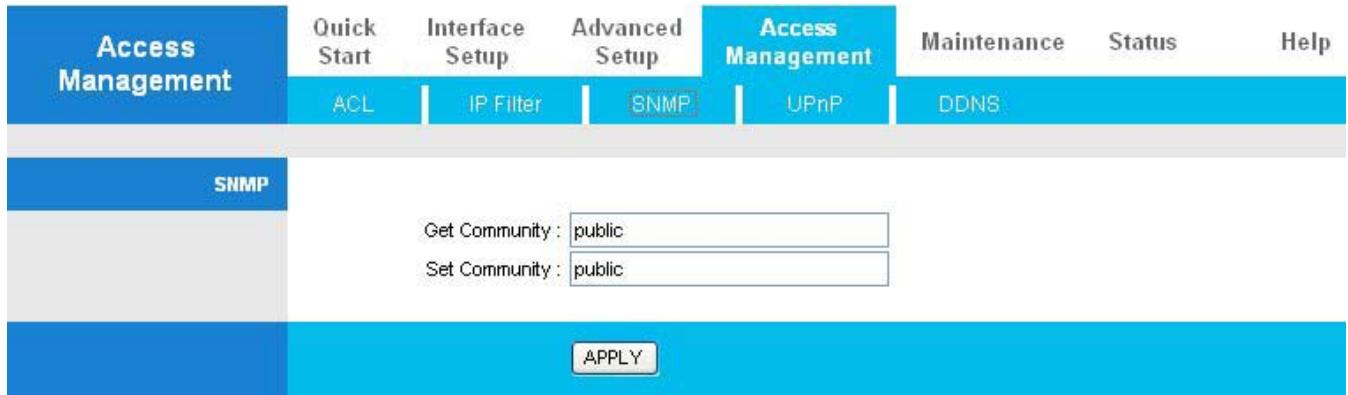
Get Community: Type the Get Community, which is the password for the incoming Get-and GetNext requests from the management station.
Set Community: Type the Set Community, which is the password for incoming Set requests from the management station.
4.4.4 UPnP
UPnP offers peer-to-peer network connectivity for PCs and other network devices, along with control and data transfer between devices. UPnP offers many advantages for users running NAT routers through UPnP NAT Traversal, and on supported systems makes tasks such as port forwarding much easier by letting the application control the required settings, removing the need for the user to control advanced configuration of their device. Both the user's Operating System and the relevant application must support UPnP in addition to the router. Windows XP and Windows Me natively support UPnP (when the component is installed), and Windows 98 users may install the Internet Connection Sharing client from Windows XP in order to support UPnP. Windows 2000 does not support UPnP.
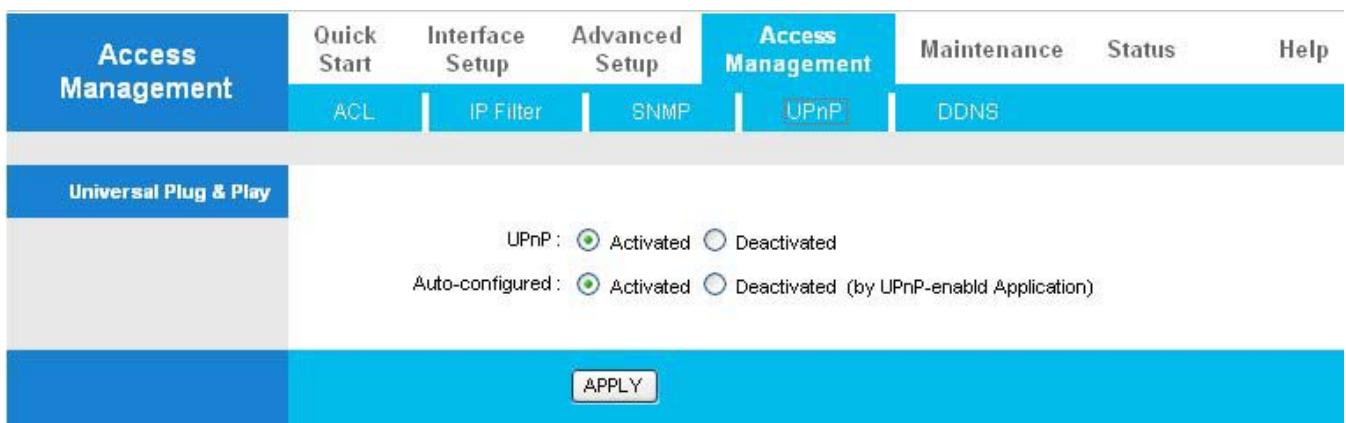
- UPnP: Select this checkbox to activate UPnP. Be aware that anyone could use an UPnP application to open the web configurator's login screen without entering the router's IP address
Auto-configured: Select this check box to allow UPnP-enabled applications to automatically configure the router so that they can communicate through the router, for example by using NAT traversal, UPnP applications automatically reserve a NAT forwarding port in order to communicate with another UPnP enabled device; this eliminates the need to manually configure port forwarding for the UPnP enabled application.
4.4.5 DDNS
The Dynamic DNS function allows you to alias a dynamic IP address to a static hostname, allowing users whose ISP does not assign them a static IP address to use a domain name. This is especially useful for hosting servers via your ADSL connection, so that anyone wishing to connect to you may use your domain name, rather than having to use your dynamic IP address, which changes from time to time. This dynamic IP address is the WAN IP address of the router, which is assigned to you by your ISP.
You will first need to register and establish an account with the Dynamic DNS provider using their website, for example http://www.dyndns.org/
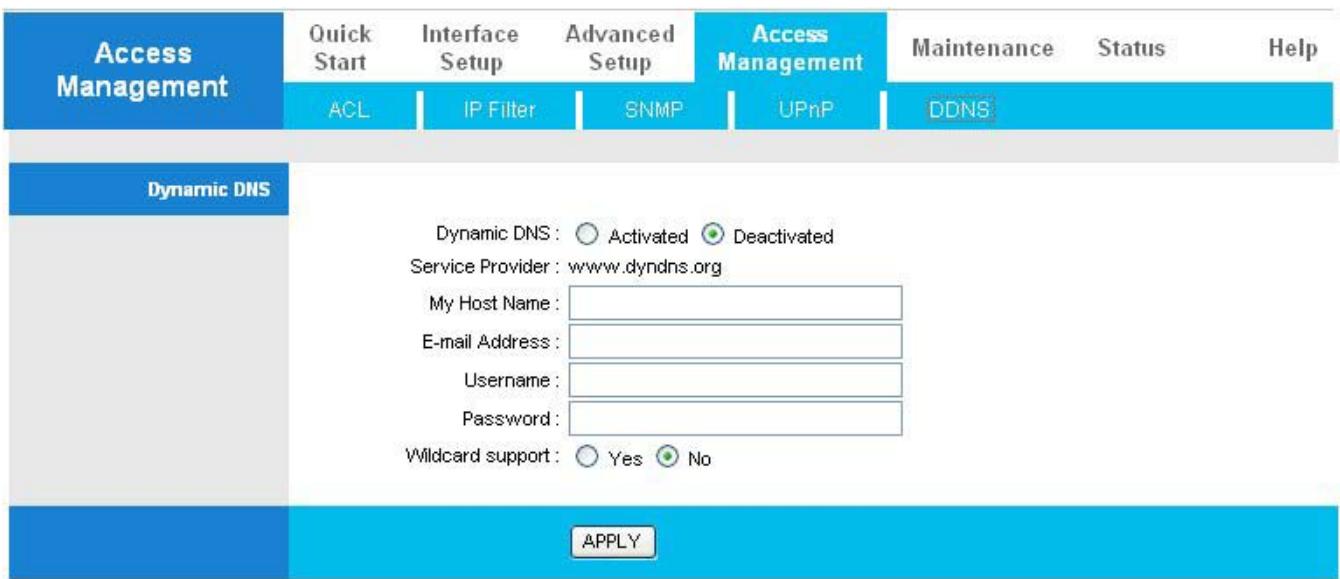
Dynamic DNS: Select this check box to use dynamic DNS.
Service Provider: Select the name of your Dynamic DNS service provider.
My Host Name: Type the domain name assigned to your router by your Dynamic DNS provider.
E-mail Address: Type your e-mail address.
Username:Type your user name.
Password: Type the password assigned to you.
- Wildcard support: Select this check box to enable DYNDNS Wildcard.
4.5 Maintenance
4.5.1 Administrator
In factory setting, the default password is password, and that for user is also password. You can change the default password to ensure that someone cannot adjust your settings without your permission. Every time you change your password, please record the password and keep it at a safe place.
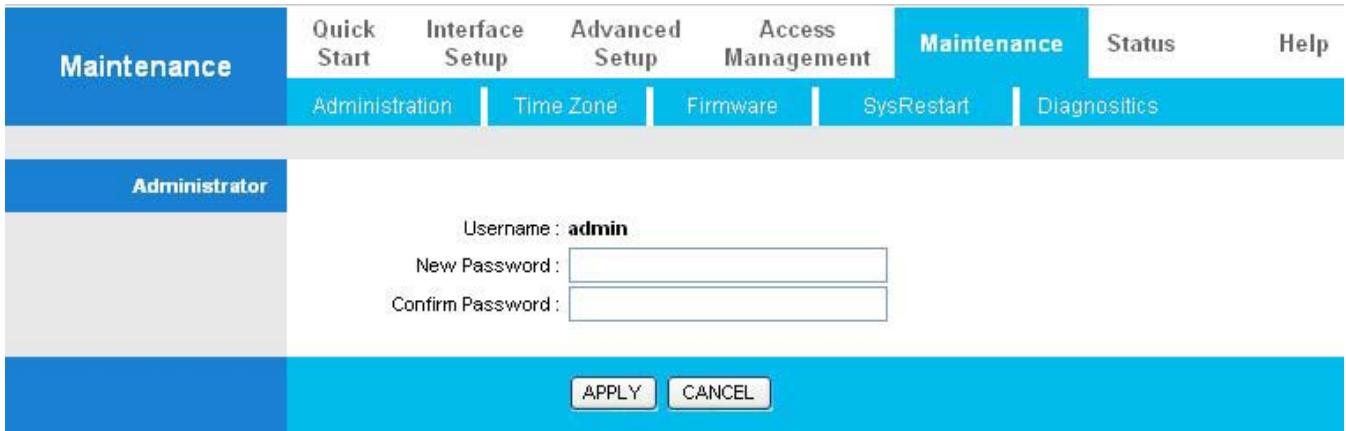
New Password: Type the new password in this field
Confirm Password: Type the new password again in this field.
4.5.2 Time Zone
The router does not have a real time clock on board; instead, it uses the Simple Network Time Protocol (SNTP) to get the current time from an SNMP server outside your network. Choose your local time zone. After a successful connection to the Internet, the router will retrieve the correct local time from the SNMP server you have specified. If you prefer to specify an SNMP server other than those in the drop-down list, simply enter its IP address as shown above. Your ISP may provide an SNMP server for you to use.
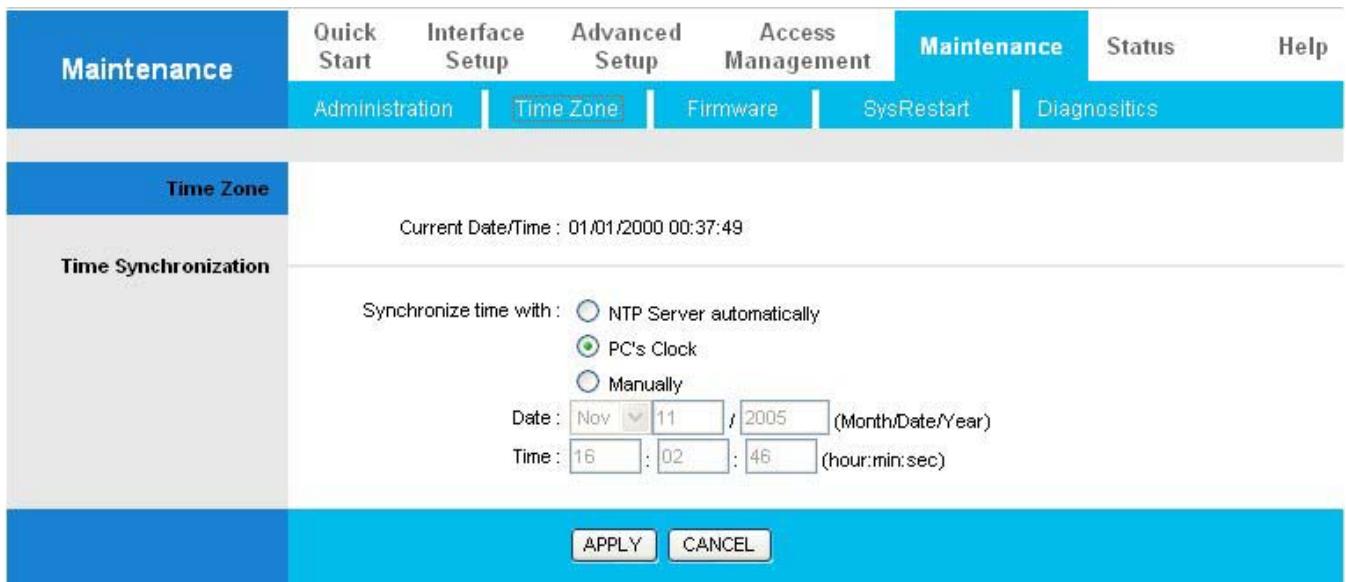
Synchronize time with: Select the time service protocol that your time server sends when you turn on the Router.
Time Zone: Choose the time zone of your location. This will set the time difference between your time zone and Greenwich Mean Time (GMT).
Daylight Saving: Select this option if you use daylight savings time
NTP Server Address: Enter the IP address of your time server. Check with your ISP/network administrator if you are unsure of this information.
4.5.3 Firmware
Your router's "firmware" is the software that allows it to operate and provides all its functionality. Think of your router as a dedicated computer, and the firmware as the software it runs. Over time this software may be improved and modified, and your router allows you to upgrade the software it runs to take advantage of these changes.
To upgrade the firmware of router, you should download or copy the firmware to your local environment first. Press the "Browse..." button to specify the path of the firmware file. Then, click "Upgrade" to start upgrading. When the procedure is completed, router will reset automatically to make the new firmware work.
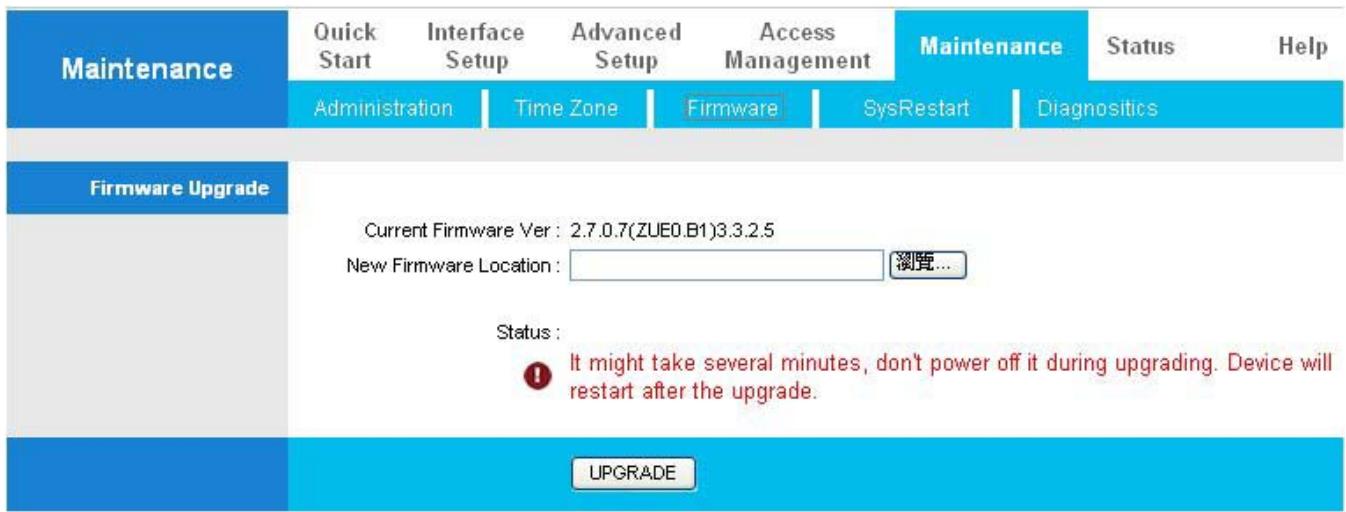
New Firmware Location: Type in the location of the file you want to upload in this field or click Browse to find it.
Browse: Click Browse... to find the .ras file you want to upload. Remember that you must decompress compressed (.zip) files before you can upload them.
UPGRADE: Click UPGRADE to begin the upload process. This process may take up two minutes.
After two minutes, log in again and check your new firmware version in the System Status screen.
If the upload was not successful, the following screen will appear. Click Back to go back to the Firmware screen.

Warning
DO NOT power down the router or interrupt the firmware upgrading while it is still in process. Improper operation could damage the router.
4.5.4 SysRestart
Click SysRestart with option Current Settings to reboot your router (and restore your last saved configuration).
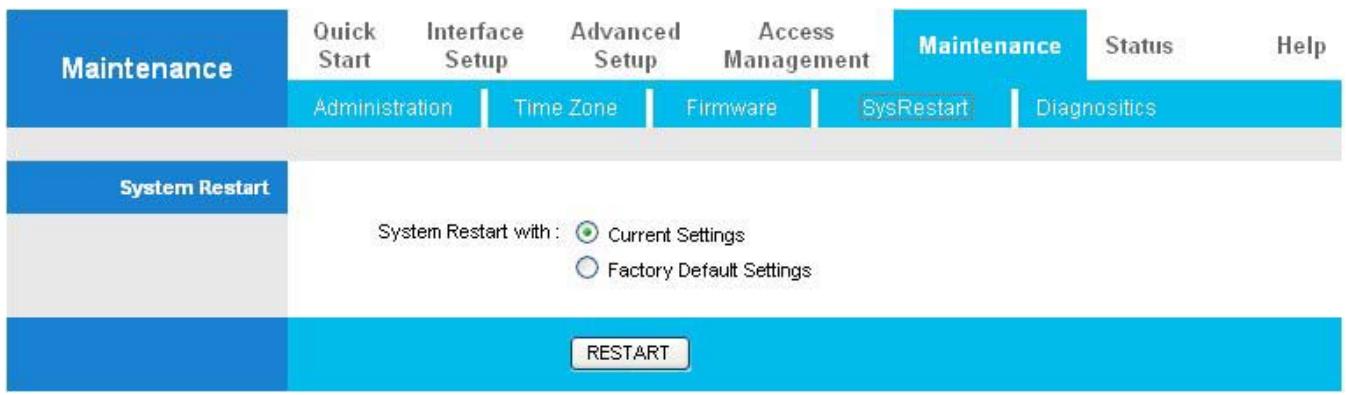
If you wish to restart the router using the factory default settings (for example, after a firmware upgrade or if you have saved an incorrect configuration), select Factory Default Settings to reset to factory default settings.
You may also reset your router to factory settings by holding the small Reset pinhole button on the back of your router in for 10-12 seconds whilst the router is turned on.
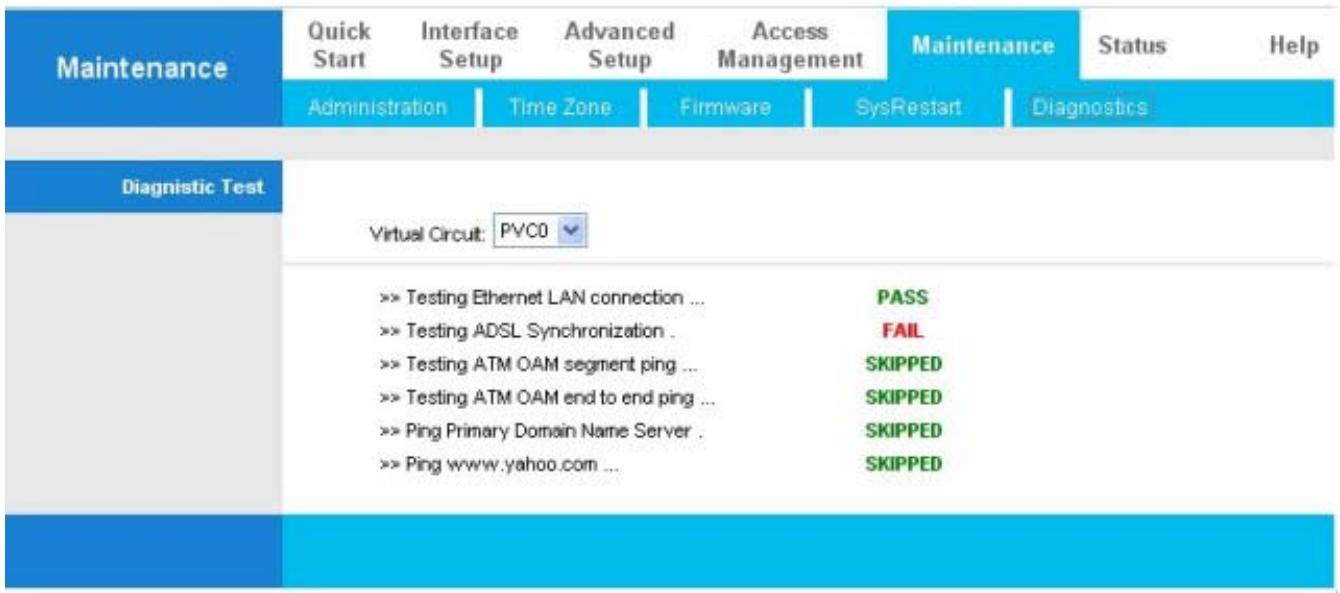
4.5.6 Diagnostics
The Diagnostic Test page shows the test results for the connectivity of the physical layer and protocol layer for both LAN and WAN sides
4.6 Status
4.6.1 Device Info
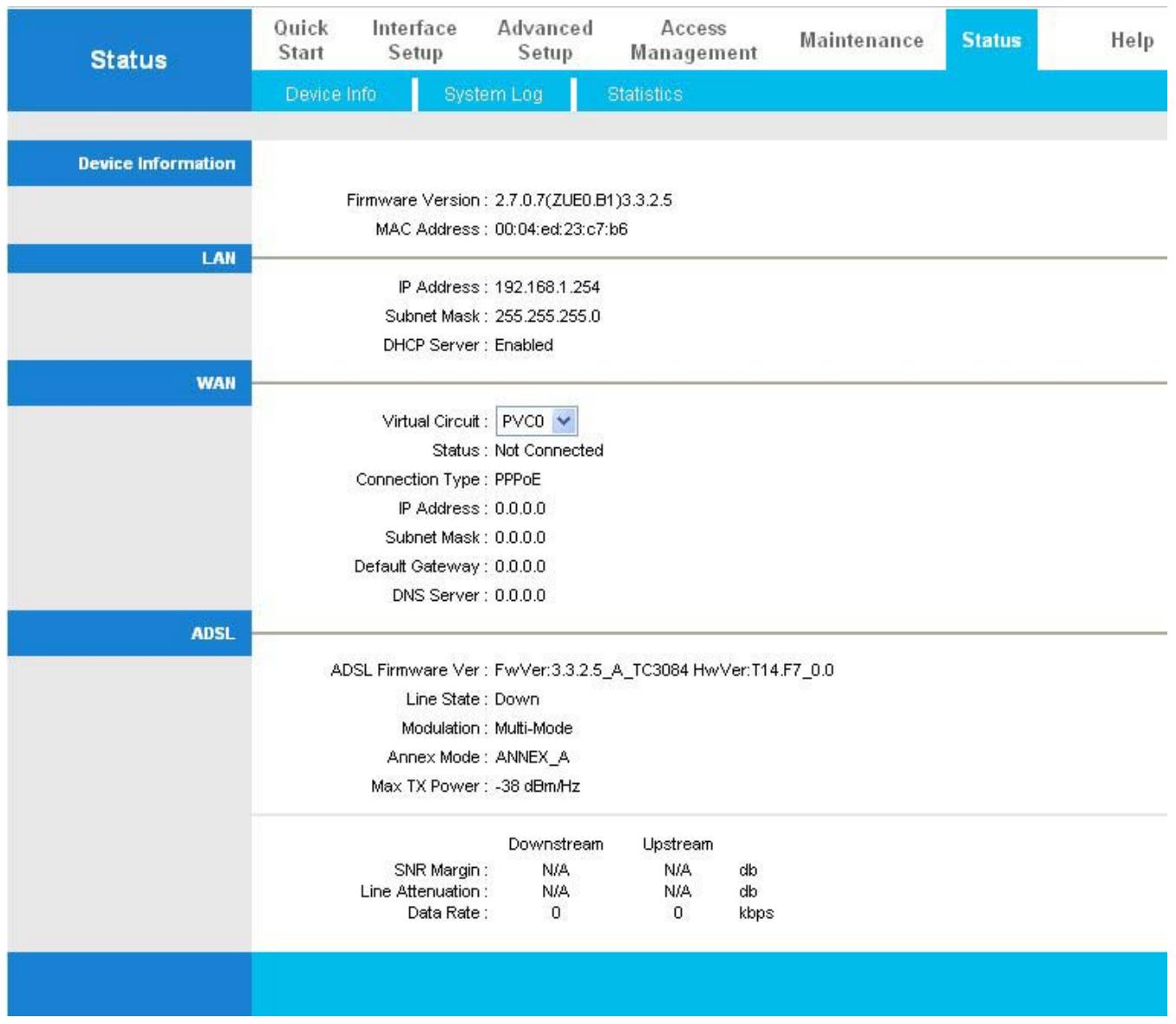
Device Information
Firmware version: This is the Firmware version
MAC Address: This is the MAC Address
LAN
IP Address: LAN port IP address.
Sub Net Mask: LAN port IP subnet mask.
DHCP Server: LAN port DHCP role - Enabled, Relay or disabled
WAN
Status: "Not connected" or "Connected"
Virtual Circuit: There are eight groups of PVC can be defined.
VPI: The valid range for the VPI is 0 to 255
VCI: The valid range for the VCI is 32 to 65535
Connection Type: Name of the WAN connection.
VPI/VCI: Virtual Path Identifier and Virtual Channel Identifier
IP Address: WAN port IP address.
Subnet mask: WAN port IP subnet mask.
Default Gateway: The IP address of the default gateway.
DNS Server: WAN port DHCP role - Enabled, Relay or disabled
ADSL
ADSL firmware ver: This is the DSL firmware version associated with your router
Line State: This is the status of your ADSL link.
Annex Mode: To show the router's type, e.g. Annex A (France, Italy, Spain, ...), Annex B (Germany).
Max TX Power: This field displays the transmit output power level of the ADSL Router.
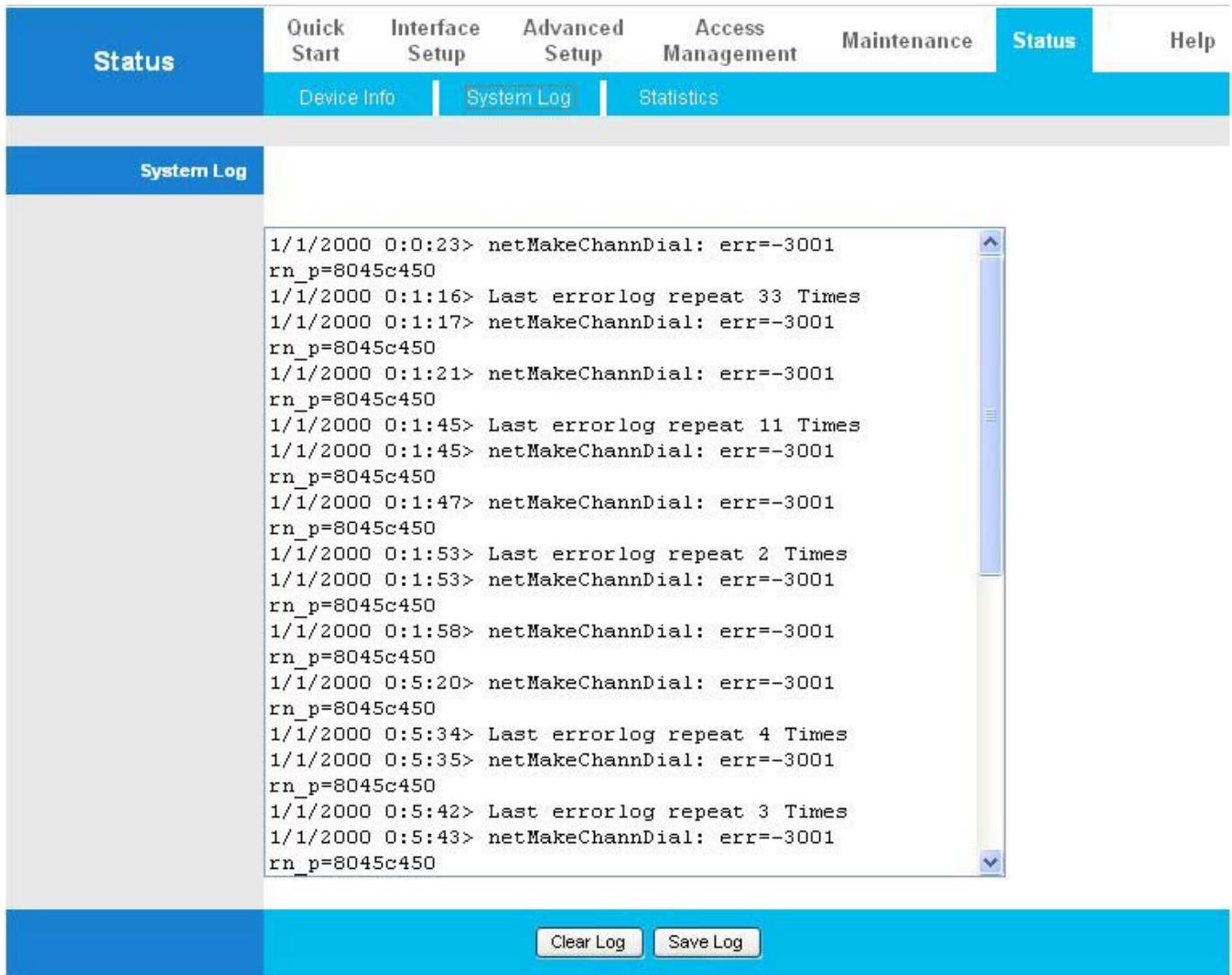
4.6.2 System Log
Display system logs accumulated up to the present time. You can trace historical information with this function.
4.6.3 Statistics
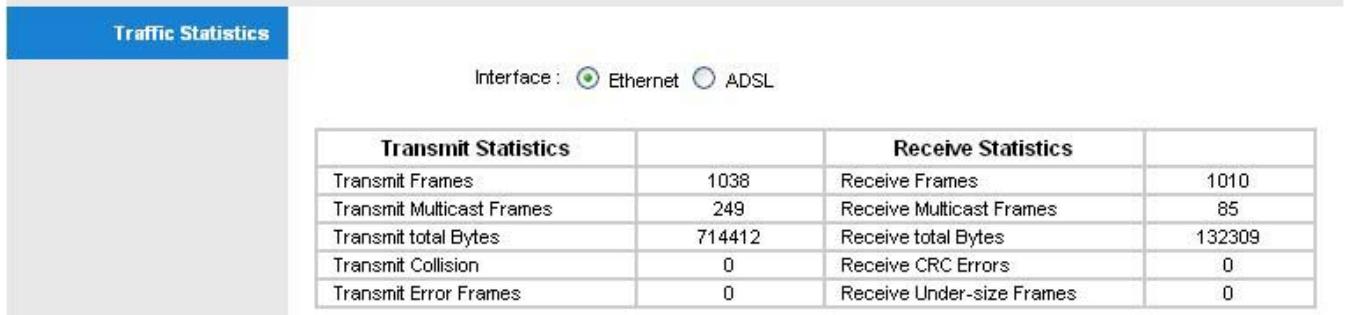
Read-only information here includes port status and packet specific statistics. Also provided are "Transmit Statistics" and "Receive Statistics".
Ethernet

REFRESH
Interface: This field displays the type of port
- Transmit Frames: This field displays the number of frames transmitted in the last second.
Transmit Multicast Frames: This field displays the number of multicast frames transmitted in the last second.
- Transmit total Bytes: This field displays the number of bytes transmitted in the last second.
Transmit Collision: This is the number of collisions on this port.
Transmit Error Frames: This field displays the number of error packets on this port.
Receive Frames: This field displays the number of frames received in the last second.
Receive Multicast Frames: This field displays the number of multicast frames received in the last second.
Receive total Bytes: This field displays the number of bytes received in the last second.
Receive CRC Errors: This field displays the number of error packets on this port.
Receive Under-size Frames: This field displays the number of under-size frames received in the last second.
ADSL
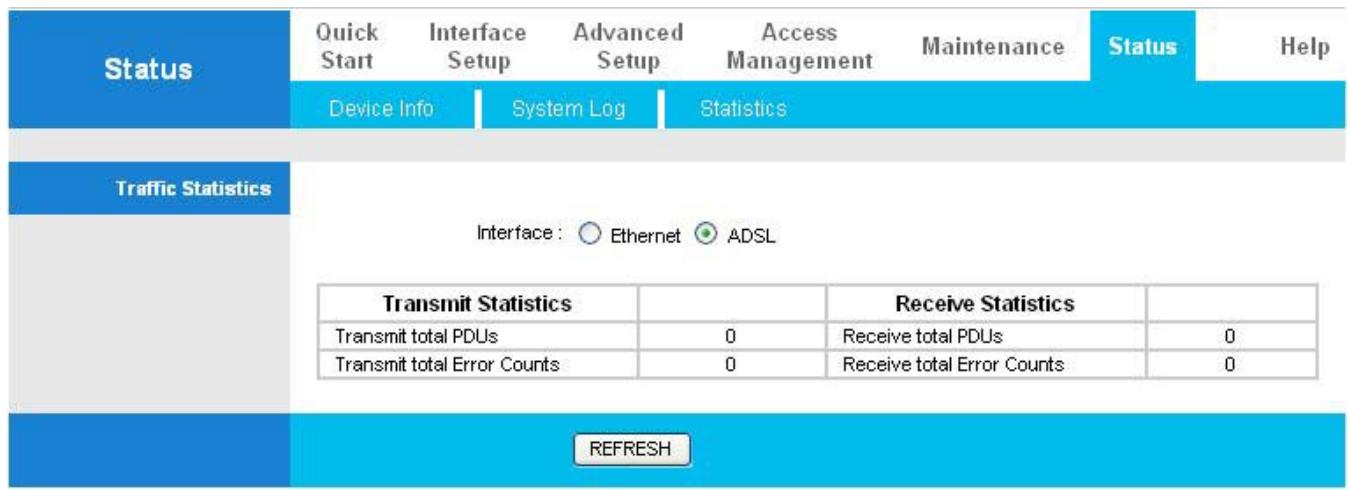
Transmit total PDUs: This field displays the number of total PDU transmitted in the last second.
- Transmit total Error Counts: This field displays the number of total error transmitted in the last second.
Receive total PDUs: This field displays the number of total PDU received in the last second.
Receive total Error Counts: This field displays the number of total error received in the last second.
If the Wireless ADSL2+ modem/rodter is not functioning properly, you can refer first to this chapter for simple troubleshooting before contacting your service provider. This could save your time and effort but if the symptoms persist, then consult your service provider.
Problems starting up the router
| Problem | Corrective Action |
| None of the LEDs are on when you turn on the router. | Check the connection between the adapter and the router. If the error persists, you may have a hardware problem. In this case you should contact technical support. |
| You have forgotten your router login and/or password. | Try the default login and password, please refers to Chapter 3. If this fails, you can restore your router to its factory settings by holding the Reset button on the back of your router for 6 seconds above. |
Problems with the WAN Interface
| Problem | Corrective Action |
| Initialization of the PVC connection (“linesync”) failed. | Ensure that the telephone cable is connected properly from the ADSL port to the wall jack. The ADSL LED on the front panel of the router should be on. Check that your VPI, VCI, encapsulation type and type of multiplexing settings are the same as those provided by your ISP. Reboot the router GE. If you still have problems, you may need to verify these settings with your ISP. |
| Frequent loss of ADSL linesync (disconnections). | Ensure that all other devices connected to the same telephone line as your router (e.g. telephones, fax machines, analogue modems) have a line filter connected between them and the wall socket (unless you are using a Central Splitter or Central Filter installed by a qualified and licensed electrician), and ensure that all line filters are correctly installed and the right way around. Missing line filters or line filters installed the wrong way around can cause problems with your ADSL connection, including causing frequent disconnections. |
Problems with the LAN Interface
| Problem | Corrective Action |
| Can’t ping any PCs on the LAN. | Check the Ethernet LEDs on the front panel. The LED should be on for a port that has a PC connected. If it is off, check the cables between your router and the PC. Make sure you have uninstalled any software firewall for troubleshooting. |
| Verify that the IP address and the subnet mask are consistent between the router and the workstations. |