
BR14VPN - Routeur réseau SMC - Notice d'utilisation et mode d'emploi gratuit
Retrouvez gratuitement la notice de l'appareil BR14VPN SMC au format PDF.


| Type d'appareil | Routeur réseau |
| Ports LAN | 4 ports Ethernet RJ45 |
| Port WAN | 1 port Ethernet RJ45 |
| Alimentation | Adaptateur externe |
| Indicateurs LED | Power, LAN, WAN, Charge |
| Vitesse réseau | Non précisé (généralement 10/100 Mbps) |
| Protocole réseau | Non précisé |
| Dimensions | Non précisé |
| Poids | Non précisé |
| Fonctionnalités | Routage, gestion des connexions LAN/WAN |
| Compatibilité | Non précisé |
| Installation | Montage sur bureau ou surface plane |
| Gestion | Interface web (supposée) |
| Sécurité | Non précisé |
| Normes | Non précisé |
| Température de fonctionnement | Non précisé |
FOIRE AUX QUESTIONS - BR14VPN SMC
Questions des utilisateurs sur BR14VPN SMC
0 question sur cet appareil. Repondez a celles que vous connaissez ou posez la votre.
Poser une nouvelle question sur cet appareil
Téléchargez la notice de votre Routeur réseau au format PDF gratuitement ! Retrouvez votre notice BR14VPN - SMC et reprennez votre appareil électronique en main. Sur cette page sont publiés tous les documents nécessaires à l'utilisation de votre appareil BR14VPN de la marque SMC.
MODE D'EMPLOI BR14VPN SMC
Package contents
After unpacking the SMCBR14VPN, please check the contents of the box to be sure you have received the following components:
- 1 Barricade™ VPN 4-Port Broadband Router (SMCBR14VPN).
- SMC EZ Installation and Documentation CD.
Quick Installation Guide.
1 Ethernet Cable.
1 Power Supply.
Immediately inform your dealer in the event of any incorrect, missing or damaged parts. If possible, please retain the carton and original packing materials in case there is a need to return the product.
Please register this product and upgrade the product warranty at the SMCs Web site: www.smc.com or www.smc-europe.com.
System requirements
To install and connect to the SMCBR14VPN, you must have:
- A PC running Windows 9x/Me/2000/XP, MAC OS 8.X or above, or Linux/Unix.
Each PC should have a wired network adapter correctly installed. - Internet Explorer/Netscape Navigator 5.0 or higher.
- An external Cable, xDSL, ISDN, or Dial-Up modem.
- A CD-ROM drive*
Note: A CD-ROM drive is only required if you want to use the EZ 3-Click Installation Wizard application to configure your Barricade™ Router. The process can be completed manually through the web interface.
FOR TECHNICAL SUPPORT, CALL:
From U.S.A. and Canada
(24 hours a day, 7 days a week)
(800)SMC-4-YOU;
Phn: (949) 679-8000
Fax: (949) 679-1481
From Europe: Contact details can be found on www.smc-europe.com or www.smc.com.
INTERNET
E-mail addresses:
techsupport@smc.com
european.techsupport@smc-europe.com
Driver updates:
http://www.smc.com/index.cfm?action tech_support_drivers_downloads
World Wide Web:
http://www.smc.com/
http://www.smc-europe.com/
If you are looking for further contact
information, please visit www.smc.com
or www.smc-europe.com
Model Number: SMCBR14VPN
support Drivers downloads
Hardware description
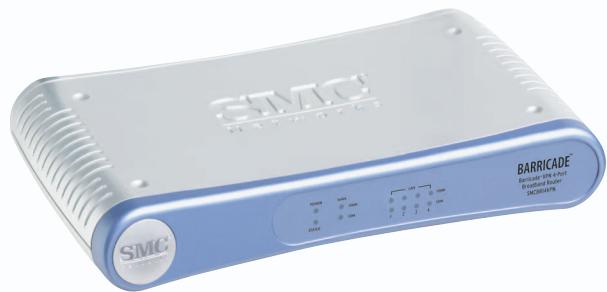
The Barricade™ VPN 4-Port Broadband Router router is equipped with:
1 Auto-Sensing 10/100 Mbps RJ-45 WAN connection.
4 Auto-Sensing 10/100 Mbps RJ-45 LAN connections.
1 Power connection.
1 Reset button
1 COM connection for ISDN or external dial-up modem.
There are 6 Front Panel LED Indicators:
| LED (Label) | Color | Activity |
| Power (Power) | Green | Solid LED indicates that the unit is powered on. No light indicates the unit is powered off. |
| Status (Status) | Orange | Solid LED indicates the device is in process of boot up or firmware upgrade. Blinking LED indicates device is working correctly. |
| WAN (100M) | Green | Solid LED indicates a LAN connection was detected at 100Mbps. Blinking LED indicates traffic is being transmitted through the WAN connection. No light indicates a WAN connection was not detected or was detected at 10Mbps. |
| WAN (10M) | Orange | Solid LED indicates a LAN connection was detected. Blinking LED indicates traffic is being transmitted through the WAN connection. No light indicates a WAN connection was not detected or detected at 100Mbps. |
| LAN (100M) | Green | Solid LED indicates a LAN connection is detected at 100Mbps. Blinking LED indicates traffic is being transmitted through the WAN connection. No light indicates a LAN connection was not detected or detected at 10Mbps. |
| LAN (10M) | Orange | Solid LED indicates a LAN connection is detected at 10Mbps. Blinking LED indicates traffic is being transmitted through the WAN connection. No light indicates a LAN connection was not detected or detected at 100Mbps. |

Barricade™ VPN
4-Port Broadband Router
Quick Installation Guide

SMCBR14VPN
SMC
Networks
When you have completed the network setup outlined in the previous section, put the SMC EZ Installation and Documentation CD into your CD-ROM drive.
For initial setup, it is recommended that you use the EZ 3-Click Install Wizard on the computer that was originally connected to your Broadband Internet connection.
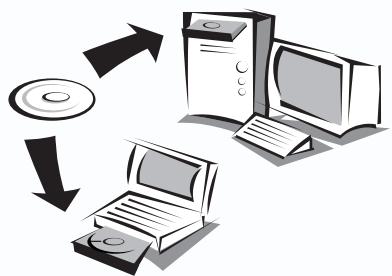
Note: The EZ 3-Click Installation wizard only works on a Windows-based computer. If you are using any other operating system, please configure the Barricade™ through the web-based interface.

Hardware installation
Grt t i to get your new BarricadeTM Router online in 3 mouse clicks. For additional information and advanced settings configurations please refer to the User Guide included on the CD-ROM.
Before you can use the EZ 3-Click Wizard you need to connect your new Barricade™ Router to your Broadband Modem and to at least one computer. To setup your initial network, follow the steps below:
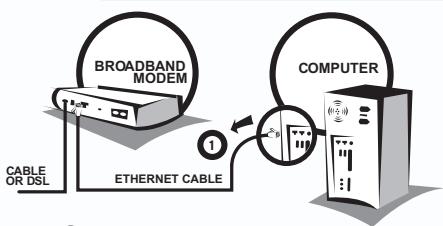
Current Setup

Unplug your existing Broadband Modem s Ethernet cable from the back of your computer.
Barricade™ Setup
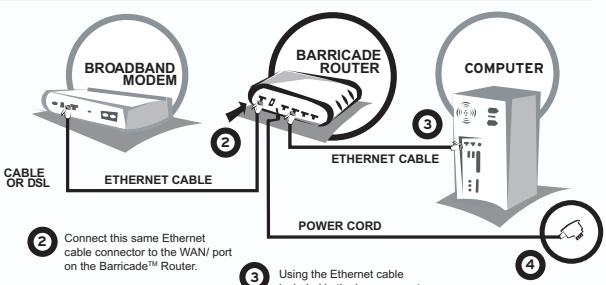
Connect this same Ethernet cable connector to the WAN port on the BarricadeTM Router.

Using the Ethernet cable included in the box, connect one end to LAN Port-1 on the BarracideTM Router and then use the other end to the Ethernet port connection on your computer.

Finally, when you have connected both your Broadband modem and computer to the Router, you can connect the Barricade™'s power port into an available electrical outlet.

g The EZ 3-Click Wizard
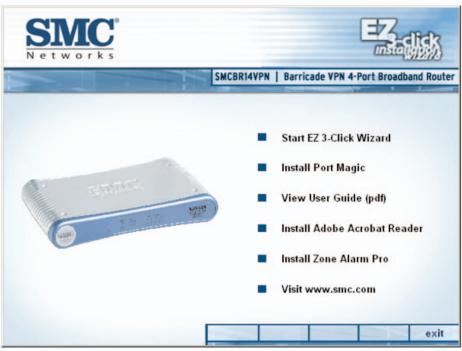
The EZ 3-Click Wizard should auto-run to display the splash screen below. If it does not browse the contents of your CD-ROM drive and double-click on the Router icon.
To begin the installation of your new Barricade™ Router, click the [Start EZ 3-Click Wizard] button.
Macintosh / Linux Users!
If you are setting up this Router in a non-Windows network environment, please refer to the User Guide located in the manual folder on the CD-ROM. The EZ 3-Click Installation Wizard is not compatible with the Mac or Linux OS.
Barricade™ Web Management:
You can access the web-based management tools using a java-enabled web browser by typing http://192.168.2.1 in the Browser Address bar.

http://192.168.2.1

If you are unable to access the web-based management, please refer to the User Guide to confirm your web-browser is configured correctly.
Default Settings:
Router IP Address: 192.168.2.1 Default Password: smcadmin
Information furnished by SMC Networks, Inc. (SMC) is believed to be accurate and reliable. However, no responsibility is assumed by SMC for its use, nor for any infringements of patents or other rights of third parties, which may result from its use. No license is granted by implication or otherwise under any patent or patent rights of SMC. SMC reserves the right to change specifications at any time without notice.
Copyright® SMC Networks, Inc., 2004. All rights reserved.
SMC is a registered trademark; and Barricade® is a trademark of SMC Networks, Inc.
Other product and company names are trademarks or registered trademarks of their respective holders.