
S9 - Lecteur multimédia COWON - Notice d'utilisation et mode d'emploi gratuit
Retrouvez gratuitement la notice de l'appareil S9 COWON au format PDF.


| Type de produit | Lecteur multimédia portable |
| Marque | COWON |
| Modèle | S9 |
| Dimensions (L × H × P) | 57,0 × 105,8 × 12,7 mm |
| Poids | 77 g (avec batterie) |
| Écran | 3,3 pouces 16:9 AMOLED (480 × 272 pixels), 16 millions de couleurs, écran capacitif |
| Stockage interne | 4 Go / 8 Go / 16 Go (selon version) - mémoire flash, système de fichiers FAT32 |
| Alimentation | Batterie lithium-polymère rechargeable intégrée |
| Autonomie batterie (musique) | Environ 55 heures (MP3 128 kbps, volume 15, écran éteint, Bluetooth off) |
| Autonomie batterie (vidéo) | Environ 11 heures (Xvid 480×272, 24 ips, luminosité 4) |
| Temps de charge (USB) | Environ 5 heures (5V / 500 mA ou plus) |
| Temps de charge (adaptateur secteur) | Environ 3 heures (5V / 1,0 A ou plus) |
| Formats audio pris en charge | MP3, WMA, FLAC, OGG, WAV, APE (jusqu'à 320 kbps, 48 kHz) |
| Formats vidéo pris en charge | AVI, WMV (Xvid SP/ASP, WMV9 SP/MP, résolution max. 480×272, 30 ips) |
| Radio FM | Oui, 87,5-108 MHz (KR/US/EU) / 76-108 MHz (JP), RDS non mentionné |
| Bluetooth | Version 2.0 + EDR, profils A2DP et AVRCP (casque uniquement) |
| Sortie audio | Stéréo, 29 mW + 29 mW (sur 16 Ω), rapport signal/bruit 95 dB |
| Égaliseur | JetEffect 2.0 : 30 préréglages (26 préréglages + 4 utilisateur), égaliseur 5 bandes, BBE+, Mach3Bass, MP Enhance, 3D Surround, Stereo Enhance |
| Enregistrement | Microphone intégré et entrée ligne (qualité réglable) |
| Fonctions supplémentaires | Visionneuse de texte (TXT), visionneuse d'images (JPG), lecteur Flash (ActionScript 2.0 / Flash Player 7.0), calculatrice, alarme, minuterie de sommeil, pivot automatique via G-Sensor |
| Connectique | USB 2.0 High Speed (connecteur propriétaire), sortie TV (câble vendu séparément), prise casque 3,5 mm |
| Entretien et nettoyage | Nettoyer avec un chiffon doux et sec. Ne pas utiliser de détergent ni de produits chimiques. Éviter l'humidité, les températures extrêmes (0-40°C) et les champs magnétiques. |
| Sécurité | Ne pas démonter l'appareil. Utiliser les accessoires approuvés. Ne pas exposer à l'eau. Écouter à volume modéré (sous 85 dB) pour protéger l'audition. Débrancher en cas d'orage. |
| Pièces détachées et réparabilité | Câble USB fourni. Adaptateur secteur et câble TV-Out vendus séparément. La batterie est intégrée et non amovible par l'utilisateur. Le service après-vente COWON peut effectuer des réparations. |
FOIRE AUX QUESTIONS - S9 COWON
Questions des utilisateurs sur S9 COWON
0 question sur cet appareil. Repondez a celles que vous connaissez ou posez la votre.
Poser une nouvelle question sur cet appareil
Téléchargez la notice de votre Lecteur multimédia au format PDF gratuitement ! Retrouvez votre notice S9 - COWON et reprennez votre appareil électronique en main. Sur cette page sont publiés tous les documents nécessaires à l'utilisation de votre appareil S9 de la marque COWON.
MODE D'EMPLOI S9 COWON
User's Guide ver.1.2EN
Various useful files, such as COWON MediaCenter - JetAudio software and user's guide are included on the device. Please back these files up to your PC for future reference before using the device.
S9
©©WON
S9
©WON
+COPYRIGHT NOTICE
Thank you for choosing a COWON product.
Welcome to the concept of "Digital Pride"
This manual will help you get to know your player and provide helpful safety tips.
To maximize your digital entertainment experience, please read this manual carefully before using the product.
COWON Website
- Further details about S9 and other COWON products are at http://www.COWON.com
- You can get the company's latest news and download the latest firmware for free at our website.
- For first time users, we provide a FAQ section and online user guide.
- Please join us as a registered member by providing the serial number on the rear of the product at our website.
- As a registered member, you can get one-to-one online consultation as well as the latest news and events by e-mail.
+COPYRIGHT NOTICE
General
- COWON is a registered trademark of COWON SYSTEMS, Inc.
- Information in this document is copyrighted by COWON SYSTEMS, Inc. and unauthorized distribution of any part of this manual is prohibited by law.
- COWON SYSTEMS, Inc. complies with the laws and regulations related to records, videos and games. It is recommended that customers comply with the related laws and regulations.
- Visit our website at http://www.COWON.com and join us as a registered member. You can receive and enjoy various benefits provided only to the registered members.
- The illustrations, charts, photos, and product specifications contained in this manual are subject to change and may be updated without prior notification.
About BBE
- This product is produced under the license of BBE Sound, Inc (USP4638258, 5510752 and 5736897).
- BBE and the BBE symbol are the registered trademarks of BBE Sound, Inc.
+CONTENTS
Before you start! 8
Safety Instructions
Package Contents
Name of Parts
Power Connection / Charging
Connecting to / Disconnecting from the PC
Upgrading Firmware
Basic Use 16
Buttons
Display
Browser
Music Mode
Video Mode
Radio (FM Radio) Mode
Recorder Mode
Documents (Text Viewer) Mode
Pictures (Image Viewer) Mode
Flash Mode
Utilities Mode
+CONTENTS
Settings Mode 28
JetEffect 2.0
Display
Time
Music
Video
Recording
Bluetooth
System
Additional 34
Product Specification
Converting Video Files Using COWON MediaCenter - JetAudio
Troubleshooting 40
Before you start!
+ Safety Instructions
COWON is not responsible for any damages or failures to products that are caused by a user's misuse of products and by not following the set of rules/guidelines that are described in this manual.
- Do not use this product for other purposes than those described in this manual.
- Handle manual, product package materials, accessories, etc with care to prevent cuts and injuries to your body.
- Do not view videos, pictures and texts stored in your player while driving a vehicle for your safety. Operating other features of the player is also dangerous and may cause fatal accidents while driving.
- The wearing of earphones while operating a vehicle, exercising, or walking may impair driving, mask or prevent recognition of emergency signals, alarms, announcements, the approach of vehicles and human speech. Doing so may also be unlawful depending on the region.
- Do not use detergent or other chemicals on the product surface as it may cause fading. In this case, wipe the polluted area carefully with a soft cloth.
- Do not expose the player in either cold weather of under 0^ or hot temperature over 40^ such as inside automobiles. This may cause fatal damages to your player.
- Do not expose the player to water or keep it in a damp or humid location for an extended period of time. If the player is damaged from moisture as described above, product failure is then classified as a user's misuse.
- Do not attempt to disassemble the player. Disassembly will void the warranty and the unit will be permanently disqualified from any warranty services.
- Do not mix directions when connecting cables to your player or PC. Connecting cables incorrectly may damage your player or PC. Do not bend or press connection cables with heavy objects.
Before you start!
+ Safety Instructions
- If you smell something burning or feel excessive heat while using the product, press the RESET button to stop operation and contact the place of purchase.
- Touching the player with wet hands may cause damages and malfunctions. Handle the power plug only with dry hands (otherwise an electric shock may occur).
- Listening at high volume(85 dB and above) for an extended period of time may harm your hearing.
- For your protection, use the player in a well lit area where LCD screen will not overly strain your eyes.
- Using the player in places with high occurrences of static electricity may cause malfunctions.
- In case of using this device primarily for a storage device, it is recommended to back up all data before use. COWON SYSTEMS Inc. is not responsible for any data loss due to hardware loss.
- All data stored in the player may become deleted when being serviced. Our Service Center does not back up files while repairing players. Please note that COWON SYSTEMS, Inc. is not responsible for any data loss from products entrusted to us for service.
- Keep the player in cool and ventilated places, away from direct sunlight as it may cause deformation and damages to internal circuitry or LCD screen.
- For your own safety, it is recommended that customers use the USB power adaptor and USB cable approved by COWON SYSTEMS, Inc.
- When connecting to a PC, use only USB ports on the mother board or a USB Host card. Using an external USB hub may not guar tee proper operation(e.g. USB ports on a keyboard or an external USB hub).
- When formatting the built-in memory, select FAT32 as the file system.
Be sure to disconnect the power supply to the PC and USB power adaptor during lightening or thunder storm, to prevent danger to the user or the risk of fire hazards.
Before you start!
+ Safety Instructions
- Keep the player away from magnets and direct magnetic fields, as they can cause malfunctions.
- Do not drop or expose the product to hard impact. This may result in malfunctions and/or unit failure, voiding the warranty.
- If you find any abnormalities with the battery such as swelling, press the RESET button immediately to stop the operation and contact the place of purchase.
- The price of the product may fluctuate due to unexpected commercial conditions. COWON SYSTEMS, Inc. accepts no liability to compensate for any price fluctuation.
Before you start!
+Package Contents
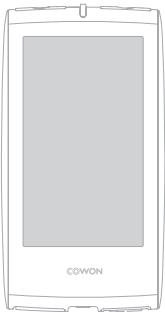
COWON S9
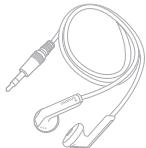
Earphones
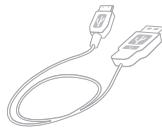
USB 2.0 Cable

Manual CD, Quick Start Guide
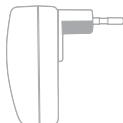
USB Power Adaptor (sold separately)
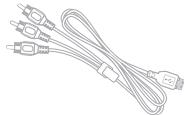
TV-Out Cable (sold separately)
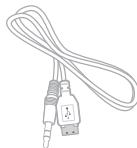
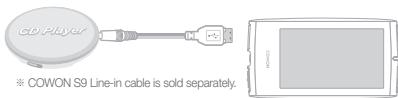
Line-in Cable
(sold separately)
Before you start!
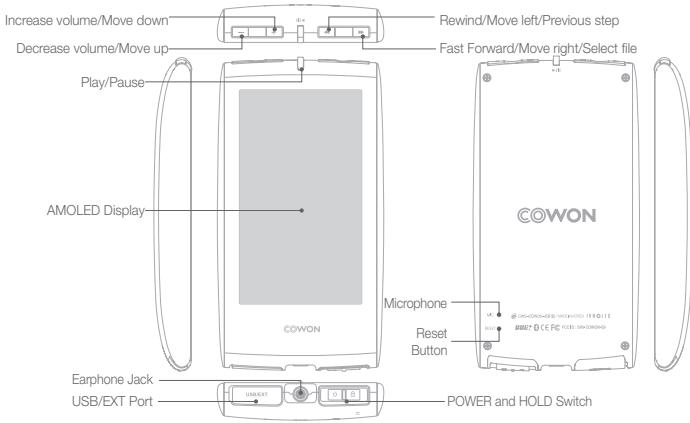
+Name of Parts
Before you start!
+Power Connection / Charging
For charging COWON S9, you should use the USB cable to connect the player to a PC or a charger.
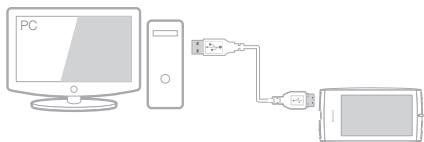
- Connect between PC and USB/EXT port using the USB cable: The battery will be fully charged in about 5 hours.
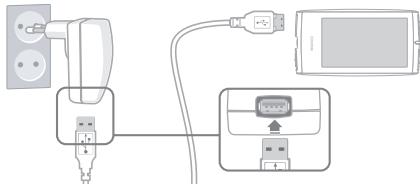
-
To charge via the USB Power Adapter (optional accessory), attach the USB cable to the power adapter and the other end to the USB/EXT port on the player. The battery will be charged in approximately 3 hours.
-
When charging the player for the first time or the player has not been charged for an extended time, fully charge the battery before use.
- COWON S9 has a built-in Lithium Polymer battery. To prolong the life of the battery, it is recommended that you charge the device frequently, as opposed to fully discharging and then charging the device.
- When connected to a USB hub, the player may not charge. Please try connecting the player directly to a USB port on the PC.
Before you start!
+Connecting to / Disconnecting from the PC
1

2

4
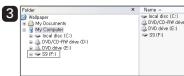
- Use the USB cable to connect COWON S9 to the PC.
- COWON S9 displays the following image if properly connected to the PC (Picture 2).
- Also make sure to check My Computer or Windows Explorer to see if COWON S9 is properly connected to the PC (Picture 3).
-
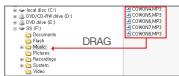
Copy video, music or other files to COWON S9 (Picture 4).
-
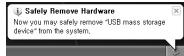
When done, click the icon on the system tray to safely remove COWON S9 from the PC.
- Click the popup message.

- Safely remove the hardware and disconnect the USB cable.
- The player can recognize up to 12,000 folders, and up to 12,000 files (music file: 8,000 + others: 4,000).
- Disconnect the product after performing "Safely remove hardware" function.
- The following message may appear randomly, but it does not indicate that the product is malfunctioning. Please simply try again.

- If your operating system does not display the 'Safe To Remove Hardware' window, disconnect the player after all transfer operations are completed.
- Only simple file transfer operation is available for Linux and Mac OS.
Before you start!
+Upgrading Firmware
Firmware is software that is embedded within the hardware. Upgrading it can enhance system stability and provide additional features. Please be advised that Beta (unofficial) firmware versions may cause system malfunction.
How to upgrade the firmware
- Download the latest firmware from the SUPPORT section of the website (http://www.COWON.com).
- Use the USB cable to connect COWON S9 to the PC.
- Unzip the downloaded firmware and copy it to the root folder of COWON S9.
- Perform "Safely remove the hardware" function on your PC and disconnect the USB cable.
- When you turn on the product, the firmware upgrade process will start.
-
The current firmware version can be checked in Settings - System - Information.
-
Fully charge the player before upgrading the firmware.
- Do not turn off the player before firmware upgrade is complete. It may damage the product, and will void any warranty.
- Back up any important data before the firmware upgrade as any data stored on the device may be deleted during the process. COWON accepts no liability for any loss of data.
Basic Use
+ Buttons
1
2
- Turn the display on/off when the product is turned on.
- Slide to left and hold the power switch to turn on/off.
Hold
Sets the product in hold state.
Play/Pause
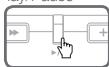
Play the selected file or pause the file being currently played.
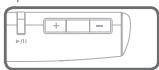
Top buttons
Control the volume.
Move the cursor up or down in selecting or setting mode.
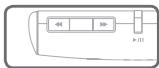
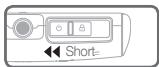
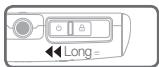
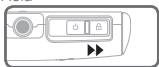
Skip/Scan(rewind/fast forward) Move the cursor to left or right in selecting or setting mode.
+Display
COWON S9 supports auto pivot function with G-Sensor (Music, Video, Pictures mode).
*The main user interface screen will not be supported with auto pivot.
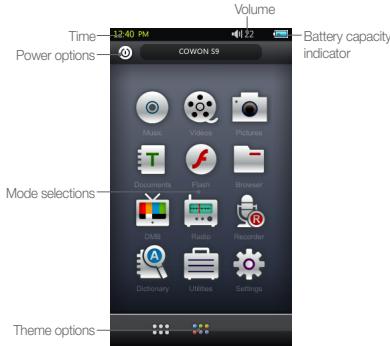
Basic Use
+Browser
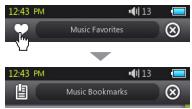
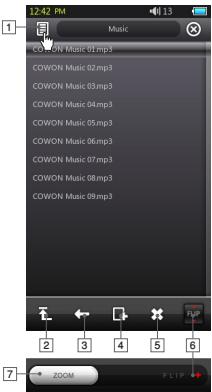
Tap the desired mode from the main user interface screen to enter the mode.
Tap the list icon on the top left hand corner to show the browser. Move back to the previous mode by selecting ⑧ button on the top right hand corner.
Switches to Favorites, Bookmarks, or Library screen.

- The main Browser accessible from the main user interface screen does not support this option.
2 Moves up to the highest level of file selection.
3 Moves one level up from the current file selection mode.
4)Adds the selected file to Favorites.
5 deletes the selected file.
6 Flips the control bar.
7Zoomsin/outthedisplay.
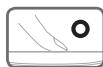
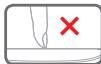
- COWON S9's touchscreen is capacitive, and will respond only to finger touch.
Basic Use
+ Music Mode
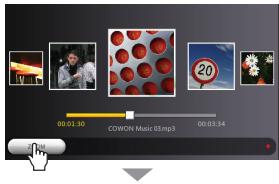
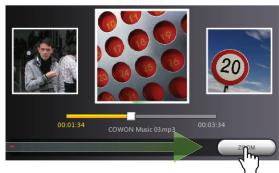
Basic Use
+Music Mode
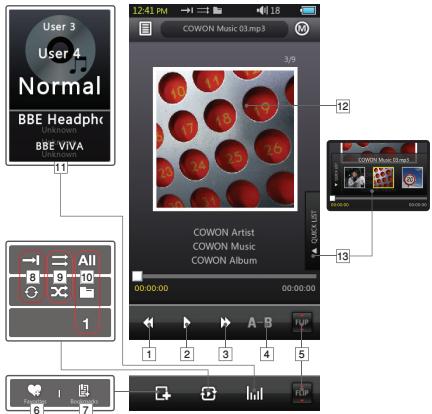
1 Returns to the previous music track or rewrites the current track.
2) Plays the selected file or pauses the file being currently played. Play/Pause button on top center of the product can be used for the same operation(Please refer to page 16).
3 Skips to the next music track or fast forwards the current track.
4 Sets the sectional repeat for the minimum length of 1 second.
Flips the control bar.
6 Addsthe selected file to Favorites(up to 256 files).
7 Inserts bookmarks into the currently playing file(up to 256 files). It enables playback of the file from the bookmarked point.
8 Sets the repeat play mode.
9 Sets the random play mode.
10 Sets the playback boundary.
All: Sets the playback to the files in all folders.
: Sets the playback to the files in the current music folder.
1: Sets the playback only to the currently selected file.
- All or Folder option will not be applied to playlists made of tag.
11 Sets JetEffect 2.0 settings.
12 Toggles album art and file information.
*If a file has an image in the ID3 tag, the image will be displayed during the playback.
13 Displays Quick List(For quick file selection within the list).
Basic Use
+Video Mode
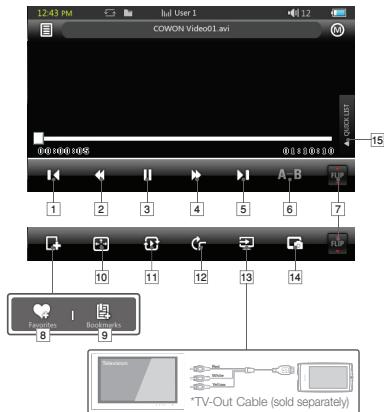
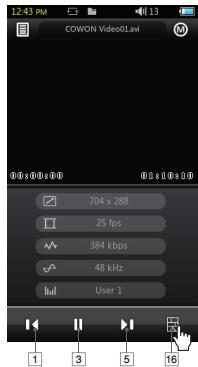
Basic Use
+Video Mode
1 Returns to the previous file.
Rewinds the current file.
3) Plays the selected file or pauses the file being currently played. Play/Pause button on top center of the product can be used for the same operation(Please refer to page 16).
Fast forwards the current file.
[5] Skips to the next file.
6 Sets the sectional repeat for the minimum length of 30 seconds.
7 Flips the control bar.
8 Addsthe selected file to Favorites(upto 256 files).
Inserts bookmarks into the currently playing file(up to 256 files). It enables playback of the file from the bookmarked point.
Changes the video screen size.
11 Sets the playback boundary.
All : Sets the playback to the files in all folders.
: Sets the playback to the files in the current video folder.
1: Sets the playback only to the currently selected file.
12 Sets auto pivot options.
18 Sets to TV-Out mode.
-
Only available during a file playback.
-
Volume will be fixed during TV-Out mode, and use of earphones is not possible.
14 Captures the current screen.
15 Displays Quick List(For quick file selection within the list).
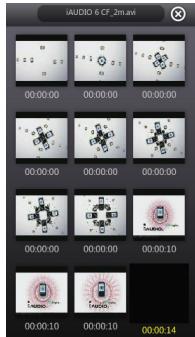
16 Displays preview thumbnails.
Basic Use
+ Radio (FM Radio) Mode
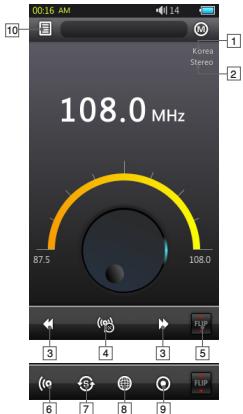
Stereo/Mono status
2 FM Frequency region(changeable under Settings mode).
3 Short tap for frequency tuning in 0.1MHz, and long tap for next available radio frequency. In preset mode, channels will move to either previous or next preset channel.
Turns on/off the preset mode. Only the preset channels will be in use in this mode.
Flips the control bar
6 Selects stereo/mono.
Auto scans the channels with strong FM frequency and register to preset channels.
8 Sets the FM frequency region.
9 Records the current channel.
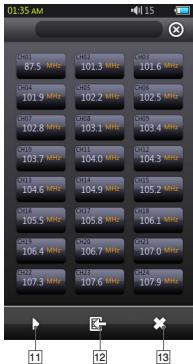
Enters psets list. Register the current channel or delete preset channels.
11 Selects the preset channel to listen.
12 Registers the current channel to presets.
13 deletes the selected preset.
COWON S9's earphones work as the FM Radio antenna. Straightening the telephone cable will result in better radio reception. Using the earphones is also recommended when recording in radio mode. COWON S9 does not support AM Radio.
Basic Use
+Recorder Mode
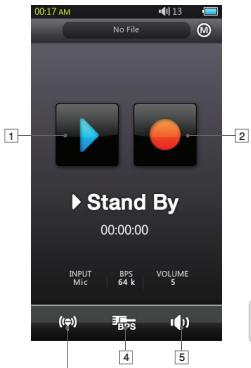
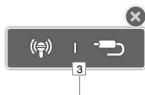
Plays the recorded file.
2 Starts recording.
3 Selects voice recording / line-in recording.
4 Selects recording quality. Higher BPS provides better recording quality but requires larger file size.
Sets the recording volume.
Basic Use
+ Documents (Text Viewer) Mode
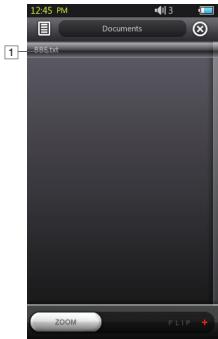

Tap to view the text file. (.TXT)
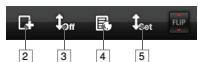
2 Inserts a bookmark at the current position.
3 Starts autoScroll.
4 Changes the background colors.
5 Sets autoScroll interval.
- It is recommended that all text files are saved under Documents folder of COWON S9.
Basic Use
+ Pictures (Image Viewer) Mode
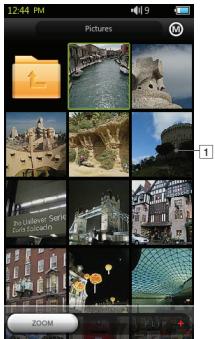
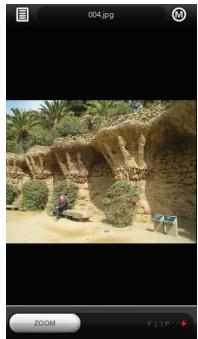
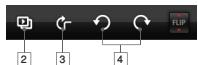
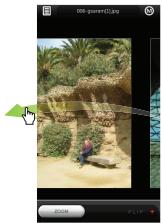
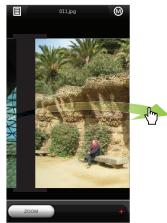
1 Tap to view the image.
2 Starts slide shows for the images.
Turns on/off the auto pivot feature.
4 Rotates the image.
- It is recommended that all images are saved under Pictures folder of COWON S9.
- Refer to the product specification for compatible image formats.
Basic Use
+Flash Mode
Plays flash files saved in COWON S9(in .swf format). Simple flash-based games or animations can be played.
Supports up to ActionScript 2.0 / Flash Player 7.0.
+Utilities Mode
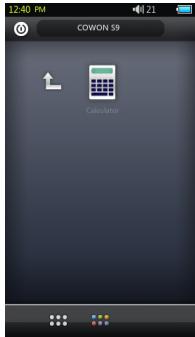
Select a simple utility included in COWON S9 such as touch-based calculator.
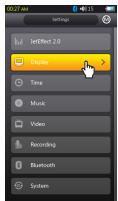
+JetEffect 2.0
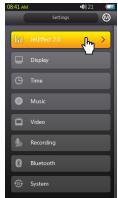
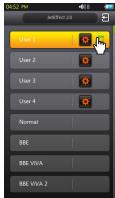
Select your sound effect from 30 JetEffect presets.
(Normal, BBE, BBE VIVA, BBE VIVA 2, BBE Mash3Bass, BBE MP, BBE Headphone, BBE Headphone 2, BBE Headphone 3, Rock, Jazz, Classic, Ballad, Pop, Club, Funk Hip Hop, Techno, Blues, Metal, Dance, Rap, Wide X-Bass, Hall, Vocal)
4 user-defined resets with equalizer, BBE+, and stereo enhance adjustments.
BBE + is the most sophisticated and powerful sound technology available for MP3 and PMP devices.
Optimized for headache playback of compressed audio material, BBE+ brings listeners closer to the natural presence and impact of a "live performance" than ever before.
EQ Filter : Each band of the equalizer can be adjusted in detail.
BBE : Sound effect that refines the sound quality.
Mach3Bass: Provides deeper, tighter, and more musically accurate bass frequency.
3D Surround: Provides the three-dimensional surround sound effect.
MP Enhance: Restores and enhances the harmonics lost through compression.
Stereo Enhance: Enriches the stereo sound.
Settings Mode
+JetEffect 2.0
You may hear distortion or noise when using extreme settings of JetEffect 2. For more information about JetEffect 2.0, visit us at www.COWON.com
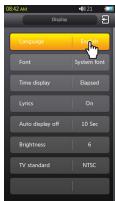
+Display
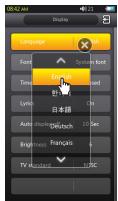
Language
Select a preferred language for COWON S9.
- Font
Set the COWON S9 font type to your preferred font. Rename your True Type font file(.TTF) into USER.TTF, and copy to the SYSTEM folder. Select USER FONT from the menu to apply to the device.
- Certain types of USER FONT may not be properly shown. It also may delay the device operation. Certain USER FONT types may not work properly in multi languages.
Time display
Set the time format for the currently playing file.
'Elapsed' displays the time the file has been played for.
'Remaining time' indicates the time left on the file being played.
- Lyrics
- Turn on/off lyrics(if the lyrics are applied to the files).
- If turned on, lyrics will be displayed during the playback.
- For more information on lyrics application, check the LDB manager section at www.cowon.com.
- Auto display off Set the time which the display stays on. The display will automatically turn off if no action is taken during the set time.
- Brightness
- Set the display brightness.
- TV standard Set the TV-Out standard. NTSC: Korea / North America PAL: Europe
Settings Mode
+Time
Time
Set the current time.
Please set the correct time to enable you to make the best use of the alarm and scheduled recording functions.
- Alarm
Automatically turn on the device at the scheduled time.
Music Alarm will play music, and FM Radio alarm will start radio broadcast at the last tuned frequency.
Scheduled recording for FM Radio will record the last tuned frequency during the set time. Scheduled recording for FM Radio requires more battery power than usual. Check the battery status before performing this function.
- Sleep timer
Automatically turn off the device after the specified time even if a file is being played at that time.
- Auto off
Automatically turn off the device after the specified time if no action is taken.
This feature does not operate during a file playback.
+Music
- Skip interval
Set the skip interval.
- Scan interval
Set the scan interval(rewind / fast forward).
- Resume
Set to play the file from the previously played location.
- Play speed
Set the playback speed.
- Fade in
Set the fade-in feature( gradually increase the volume when resuming to play a file).
+ Video
- Skip interval
Set the skip interval.
Settings Mode
+ Video
- Resume
- Set to play the file from the previously played location.
- Play speed Set the playback speed.
- Subtitle
- Turn on/off the subtitle display.
+ Recording
Line-in quality Set the quality of line-in recording. Higher BPS provides better recording quality but requires larger file size.
- Mic quality
- Set the quality of built-in microphone recording.
- Default sound for microphone recording is mono.
- Higher BPS provides better recording quality but requires larger file size.
- FM Radio quality
- Set the FM Radio recording & scheduled FM Radio recording quality. Higher BPS provides better recording quality but requires larger file size.
Line-in volume Set the volume level for Line-in recording. - Mic volume Set the volume level for Microphone recording.
- Auto sync
- Detect sound input from line-in port and creates a file.
- New files will be created if there is no sound for a certain period of time.
Settings Mode
+Bluetooth
Configure settings and connection for COWON S9's Bluetooth function.
Search
Search for Bluetooth headsets in COWON S9's proximity. Be sure to have the Bluetooth headset in pairing mode. Pair the COWON S9 with the discovered Bluetooth headset to use. Please refer to headset's manual for its pairing instructions.
Use
Turn on/off the Bluetooth mode. Enabling Bluetooth feature may reduce the battery capacity at a faster rate than usual.
× Delete
Delete the selected Bluetooth headset. Deleted headset must be re-searched and re-paired in order to use it again with COWON S9.
This feature is only compatible with Bluetooth headset. Once paired, Bluetooth function will remain in operation even when the Setting mode is closed.
There may be a delay in synch between video and sound when playing certain kinds of high resolution movies.
Volume control, beep sound, fade-in, and audio L/R control will not work.
+ System
- Hold mode
Set to select hold state(hold all / hold touchscreen only).
Audio L/R Adjust the audio volume balance of left/right. - USB Mode
- Set the USB connection method.
- MSC will recognize the device as mass storage device.
- Set as MTP if using MSDRM.
- Load defaults
- Restore all settings to the factory default, except for the language setting.
Settings Mode
+System
- Clear MSDRM licenses
MSDRM licenses can be deleted manually if the device cannot save the licenses due to capacity limit.
- Sleep mode
State of reduced activity that requires only minimal power consumption.
Sleep mode also eliminates the time consumed for initial booting.
Maximum standby time for sleep mode is approximately 350 hours.
However, the battery capacity may reduce slightly as the sleep mode does consume power. Turn the device off if you do not use it for extended period of time.
- Beep
Set the button sound when tapping the display.
Information
Version : Current firmware version.
Total space : Total capacity of internal memory.
Free space : Remaining capacity of internal memory.
Additional
- Product Specification
| Hardware | ||
| Video (Touchscreen) | Display | 16 million colors, 3.3" 16:9 Wide AMOLED (480x272) |
| Feature | Capacitive touchscreen interface | |
| Audio | Channel | Stereo |
| Frequency range | 20Hz - 20KHz | |
| Max output | Stereo, Left 29mW + Right 29mW (16 Ohm earphones) | |
| S/N ratio | 95dB | |
| Power | Battery | Built-in rechargeable lithium polymer battery |
| Battery charging | USB : About 5 Hours (under condition of 5V/500mA or higher) | |
| USB Power Adaptor* : About 3 Hours (under condition of 5V/1.0 A or higher) | ||
| Capacity | Flash memory | 4GB/8GB/16GB, FAT32 file system** |
| USB interface | USB device | USB 2.0 High Speed |
| Bluetooth | Version | Bluetooth Ver 2.0 + EDR |
| Profile | A2DP, AVRCP Profile | |
| FM Radio | Frequency range | 87.5-108 MHz (KR,US,EU), 76-108 MHz (JP) |
| AV OUT | Video | Composite |
| Audio | Stereo | |
| TV system | NTSC / PAL | |
| Button | POWER & HOLD Switch, FF, REW, VOL+, VOL-, PLAY | |
Additional
+Product Specification
| General | Size | 57.0(W) x 105.8(H) x 12.7(T) mm |
| Weight | 77g(battery included) | |
| Operating temperature | 0°C ~ 40°C | |
| G-Sensor | Auto pivot support | |
| System requirements | CPU | Pentium III 500MHz or higher |
| OS | Windows Vista/ XP / 2000 / ME | |
| MAC OS 10.X/Linux v2.4 or higher (support only for data transfer) | ||
| USB Port | USB 2.0 High Speed recommended |
- USB Power Adaptor is sold separately.
** Part of the disk space is used to store Operating System and system files.
| Specifications & Applications are subject to change without notice by firmware upgrades | ||
| Movie player | File format | AVI, WMV |
| Video codec* | Xvid SP/ASP, WMV9 SP/MP | |
| Video resolution | 480x272, 30 fps (recommended) | |
| Audio codec | MPEG1 Layer 1/2/3, WMA | |
| Subtitle | SMI | |
| Playback time** | Approx. 11 hours | |
| Music player | File format | MP3/2/1, WMA, FLAC, OGG, WAV, APE |
+Product Specification
| Music player | Audio codec | MP3 : MPEG 1/2/2.5 Layer 3, -320Kbps, -48KHz, Mono/Stereo WMA : -320Kbps, -48KHz, Mono/Stereo OGG : -Q10, -44.1KHz, Mono/Stereo FLAC : Compression Level 0 ~ 8, -44.1KHz, Mono/Stereo WAV : -48KHz, 16bit, Mono/Stereo APE : Fast, Normal, High 16Bit, Version 3.97-3.99 |
| META TAG | ID3 V1, ID3 V2.2/V2.3/V2.4,Vorbis Comment, MP4 Tag | |
| JetEffect 2.0 | 30 Presets (26 Presets + 4 User Presets) | |
| EQ | 5 Band, EQ Filter | |
| BEE+ | BBE, Mach3Bass, MP Enhance, 3D Surround | |
| STE | Stereo Enhance | |
| Lyrics | LDB 1.0, 2.0 | |
| Playback time*** | Approx. 55 hours | |
| Recording | Support built-in microphone recording and line-in recording | |
| Photo | File format | JPG |
| Resolution | Unlimited (Progressive JPEG format excluded) | |
| Document | File format | TXT |
| File size | Unlimited | |
| ETC | Flash player, Calculator | |
Additional
+Product Specification
-
Some files may not be played according to video resolution, frame, bit rate and option.
** Test Conditions: -
Video : Xvid, 480x272, 24fps, CBR, LCD Brightness (Level : 4)
- Audio: MP3, 128kbps CBR, Volume 15
*** Test Conditions: - MP3, 128kbps, EQ Normal, Volume 15, Display Always Off, Bluetooth Off, Switch Hold, Bundle earphones
- Battery performance test was conducted based on the manufacturer's standard. Actual performance may differ.
Additional
+Converting Video Files Using COWON MediaCenter - JetAudio
- Install and run the COWON MediaCenter - JetAudio.
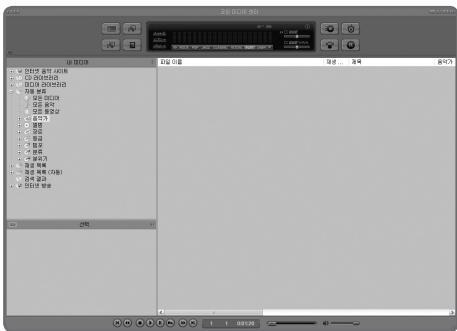
- Click "Convert" button on the top right hand side. From drop-down menu, select "Convert Video".
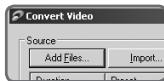
- From the Convert Video window, click "Add File" to select the files to convert.
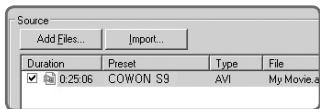
- Check the selected video files in the list.
Additional
+Converting Video Files Using COWON MediaCenter - JetAudio
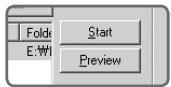
- After checking the target folder location to save the converted files and other settings, click on "Start" to start the video conversion process.
- Movie files that do not play properly on the product may need to be converted by COWON MediaCenter - JetAudio. Before doing so, please make sure that the movie files play properly on the PC first.
- Files already damaged before conversion may not work on COWON S9 even if the conversion process is successful.
- Conversion time may vary depending on PC performance, source file size and codec types.
- "Preview" allows checking the converted video before starting conversion.
- To convert a file with subtitles or to change settings on subtitles, click on "Convert Options".
- SMI files for subtitles must have the same file name as its video file.
+Troubleshooting
- I am still confused even after reading the manual. COWON website(www.COWON.com) provides support for users of COWON products with FAQ (Frequently Asked Questions) and beginner's guide for products. Users are strongly encouraged to check out the website for further information regarding product usages and firmware upgrades. For individual inquiries, please contact us on-line as we will try to help you as best as we can.
-
I would like to set the device as factory default. There are two choices when setting the device as factory default.
-
Connect the device to PC and format as FAT32 file system. Note that this procedure will erase the data in the device.
-
Delete the PARAM.CFG file in the System folder.
-
The player does not turn on.
If the battery is completely discharged, charge the battery before you start the player. The charging time may vary depending on the battery's discharge status. If the player does not work at all, press the RESET button on the rear side. For your information,
RESET will just disconnect the power and does not damage the product or delete any files stored on the device.
- The touchscreen and buttons do not work properly. Check if the power switch is positioned to HOLD.
- I can't hear any sound.
Check if the volume is set to "0".
Check if there is any file available in the player. If there is no file in the player, you will not hear any sound. Please note that corrupted files will result in a noise or discontinued playback. Make sure the earphones are connected properly. Impurities in the earphone jack can cause a noise.
- Files that I have stored do not appear in the list. Each mode shows you a list of playable files only. To view all files that you have stored, select the Browser mode. Please note that System folder will not appear in the Browser.
+ Troubleshooting
+ Album image is not displayed in Music Mode
In order to display album image, the image has to be stored in the ID3 tag of the music file. You can edit the ID3 tags using COWON MediaCenter - JetAudio. A JPG image file with the same name as the relevant music file should be stored in the player. Alternatively, a JPG image file named "cover.jpg" can be stored in the relevant folder.
+ Video won't play.
Movie files that do not play properly on the product may need to be converted by COWON MediaCenter - JetAudio.
+ FM Radio does not work.
COWON S9's earphones work as the FM Radio antenna. Straightening the telephone cable will result in better radio reception. FM Radio reception may be poor at locations where FM Radio transmissions are shielded. If FM Radio does not work where reception should be possible, please contact our service center.
+ There is too much noise in my recordings.
COWON S9 uses ultra-small internal microphone, so it may be more susceptible to noise during recordings. The internal microphone of COWON S9 is located on the rear side. The microphone should not be covered with anything during recording.
+ Characters on the display are corrupted.
Set your preferred language again in Settings > Display > Language. If the problem persists, set the current font to the system font. COWON products are developed based on the Korean Windows OS, and this may cause corruption of some special fonts or languages on the display.
+ Computer cannot recognize the player when connected.
Try the RESET button in the back.
If you experience a frequent disconnection or unstable connectivity, connect the player directly to the USB port of the PC, rather than a separate USB hub. As COWON products use the USB connection for the main power system, unstable power supply can cause a connection failure.
+ Troubleshooting
+Memory capacity of the player is different or smaller than specified.
The memory capacity indicated by Windows may be different from that indicated by the memory manufacturer. The actual capacity will be reduced from the original size because some space of the memory should be used as the system area for normal operation.
- COWON S9 does not play properly when memory is full.
For COWON S9 to function properly, it requires at least 5 MB of space for saving settings and other system files.
COWON SYSTEMS, Inc.
www.COWON.com