
MWD640 - Dictionnaire électronique FRANKLIN - Notice d'utilisation et mode d'emploi gratuit
Retrouvez gratuitement la notice de l'appareil MWD640 FRANKLIN au format PDF.


| Type de produit | Dictionnaire électronique |
| Marque | Franklin |
| Modèle | MWD640 |
| Dimensions | 14 × 2,5 × 10,3 cm |
| Poids | 170 g (sans piles) |
| Alimentation | 4 piles AAA (1,5 V) |
| Écran | Écran LCD |
| Contenu du dictionnaire | Plus de 83 000 entrées |
| Contenu du thésaurus | Plus de 41 000 entrées, 496 000 synonymes |
| Fonctions principales | Dictionnaire, thésaurus, correction d'orthographe, confusibles (homonymes), recherche dans les définitions, liste utilisateur (40 mots), liste de chemin (15 derniers mots), jeux de mots (Pendu, Anagrammes, Train de mots) |
| Correction d'orthographe | Automatique en cas de faute |
| Recherche de mots | Par lettre manquante (?) ou série de lettres (*) |
| Envoi de mots entre livres | Oui, via la touche CARD (avec cartes compatibles) |
| Compatibilité cartes | Cartes BOOKMAN (expansible) |
| Réglages | Taille de police, délai d'extinction, contraste |
| Mémoire | Les données sont conservées tant que les piles sont en place |
| Entretien et nettoyage | Garder les contacts métalliques des cartes propres et sans poussière. Nettoyer avec un chiffon sec. |
| Sécurité | Éviter les décharges électrostatiques ; réinitialiser avec un trombone si nécessaire. Ne pas installer ou retirer une carte sous tension. |
| Pièces détachées et réparabilité | Piles AAA uniquement. Pas de pièces réparables par l'utilisateur. Garantie d'un an. |
| Informations générales | Marque : Franklin Electronic Publishers. Modèle : MWD-640. Fabriqué aux États-Unis. Conforme à la norme FCC Classe B. |
FOIRE AUX QUESTIONS - MWD640 FRANKLIN
Questions des utilisateurs sur MWD640 FRANKLIN
0 question sur cet appareil. Repondez a celles que vous connaissez ou posez la votre.
Poser une nouvelle question sur cet appareil
Téléchargez la notice de votre Dictionnaire électronique au format PDF gratuitement ! Retrouvez votre notice MWD640 - FRANKLIN et reprennez votre appareil électronique en main. Sur cette page sont publiés tous les documents nécessaires à l'utilisation de votre appareil MWD640 de la marque FRANKLIN.
MODE D'EMPLOI MWD640 FRANKLIN
BOOKMAN
EXPANDABLE ELECTRONIC BOOK
Dictionary & Thesaurus
USER'S GUIDE
MWD-640
READ THIS LICENSE AGREEMENT BEFORE USING ANY BOOKMAN PRODUCT.
YOUR USE OF THE BOOKMAN PRODUCT DEEMS THAT YOU ACCEPT THE TERMS OF THIS LICENSE. IF YOU DO NOT AGREE WITH THESE TERMS, YOU MAY RETURN THIS PACKAGE WITH PURCHASE RECEIPT TO THE DEALER FROM WHICH YOU PURCHASED THE BOOKMAN PRODUCT AND YOUR PURCHASE PRICE WILL BE REFUNDED. BOOKMAN PRODUCT means the software product and documentation found in this package and FRANKLIN means Franklin Electronic Publishers, Inc.
LIMITED USE LICENSE
All rights in the BOOKMAN PRODUCT remain the property of FRANKLIN. Through your purchase, FRANKLIN grants you a personal and nonexclusive license to use the BOOKMAN PRODUCT on a single FRANKLIN BOOKMAN at a time. You may not make any copies of the BOOKMAN PRODUCT or of the data stored therein, whether in electronic or print format. Such copying would be in violation of applicable copyright laws. Further, you may not modify, adapt, disassemble, decompile, translate, create derivative works of, or in any way reverse engineer the BOOKMAN PRODUCT. You may not export or reexport, directly or indirectly, the BOOKMAN PRODUCT without compliance with appropriate governmental regulations. The BOOKMAN PRODUCT contains Franklin's confidential and proprietary information which you agree to take adequate steps to protect from unauthorized disclosure or use. This license is effective until terminated. This license terminates immediately without notice from FRANKLIN if you fail to comply with any provision of this license.
Contents
Welcome to the world of BOOKMAN! BOOKMAN is a powerful, portable electronic reference with a built-in book and a slot in the back for more books. With this BOOKMAN Dictionary & Thesaurus you can find over 83,000 dic
tionary entries, 41,000 thesaurus entries with 496,000 synonyms, correct misspellings, save words to your User list, and play three fun, educational word games. To learn how to use other book cards, read their User's Guides.
Installing Batteries and Installing a Book Card 3
Selecting Books and Using the Color Keys 4
Changing Settings 5
Viewing a Demonstration 5
Finding Definitions 6
Finding Words in Definitions 6
Finding Synonyms 7
Finding a Letter 8
Finding a Series of Letters 8
Correcting Misspellings 9
Finding Confusibles 9
Highlighting Words 10
Reviewing Words 10
Using the User List 11
Sending Words 12
Changing Game Settings 13
Playing the Games 13
Function Keys
CLEAR Clears to Enter your word.
Menu Shows the main menus.
THEs (red) Shows a thesaurus entry.
CONF (green) Shows ConfusablesTM.
(GAMES) (yellow) Shows the games list.
LIST (blue) Shows the User list menu.
CARD Exits the book you are reading.
ON/OFF Turns your BOOKMAN on or off.
> Understanding the Color Keys
The color keys (red, green, yellow, and blue) perform the functions listed above only for the BOOKMAN book described in this User's Guide.
Other books have their own color key functions, which are labelled on their book cards and listed in their User's Guides. For more information, read "Using the Color Keys."
Other Keys
Backs up, erases letters, or stops a highlight.
CAP Shifts keys to type punctuation.
ENTER Enters a search, selects a menu item, or starts a highlight.
Help Shows help messages.
Types a question mark to stand for an unknown letter in a word. Shfted, types an asterisk to stand for a series of letters.
Direction Keys
Move in indicated direction.
SPACE Types a space or pages down.
Star Key Combinations*
CARD Sends a word between books.
+ DN Shows the next match.
+UP Shows the previous match.
+T Shows a thesaurus entry.
+P Shows the Path list.
*Hold☆ while pressing the other key.
Installing Batteries
BOOKMAN model 640 uses four AAA batteries. Here is how to install or replace them.
Warning: When the batteries lose power or are removed from your BOOKMAN, information that you have entered in its built-in book as well as in any installed book card will be erased.
- Turn BOOKMAN over.
- Slide off its battery cover in the direction of the triangle.
- Install the batteries following the diagram in the case.
- Replace the battery cover.
Resuming Where You Left Off
You can turn off BOOKMAN at any screen. When you turn BOOKMAN on again, the screen that you last viewed appears.
Installing a Book Card
Warning: Never install or remove a book card while your BOOKMAN is turned on. If you do, information that you entered in its built-in book as well as in any other installed book cards, will be erased.
- Turn your BOOKMAN off.
- Turn your BOOKMAN over.
- Align the tabs on the book card with the notches in the slot.
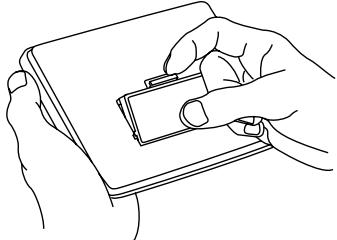
- Press the book card down until it snaps into place.
Removing Book Cards
Warning: When you remove a book card to install another, information that you entered in the removed book card will be erased.
Selecting Books
Once you have installed a book card in your BOOKMAN, you can select which book you want to use. Follow these steps.
- Turn BOOKMAN on.
- Press CARD.
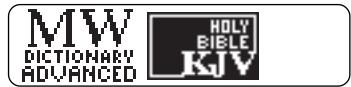
These are sample books.
- Press or to highlight the book you want to use.

- Press ENTER to select it.
> About Screen Illustrations
Some screen illustrations in this User's Guide may differ from what you see on screen. This does not mean that your BOOKMAN is malfunctioning.
Using the Color Keys
The red, green, yellow, and blue keys on the top row of your BOOKMAN change their functions according to which book you have selected.
If you have selected the built-in book, the color keys function as labeled on the BOOKMAN keyboard. If you have selected a book card, the color keys function as labeled on that card.

Remember, when you've selected a book card, the color keys function as labeled on that card, not as on the keyboard.
Changing Settings
You can adjust the font size, shutoff time, and screen contrast. Font size changes the number of lines of text that appear on screen. The shutoff time is how long BOOKMAN stays on if you forget to turn it off.
- Press CLEAR.
- Press MENU.
- Press the arrow keys to highlight the Setup menu.
- Highlight Set Font, Set Shutoff, or Set Contrast.
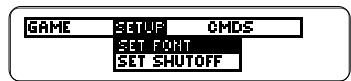
- Press ENTER.
- Highlight a setting.
Or press or if you selected Set Contrast.
To exit without changing settings, press BACK.
- Press ENTER to select it.
Viewing a Demonstration
Before you start using your BOOK-MAN, you can view a brief demonstration of what it can do.
When no book card is installed in your BOOKMAN, a demonstration automatically appears once you turn it on. To stop the demonstration, press CLEAR. To disable it, press MENU and then select Disable Demo from the CMDS menu. To re-enable it, select Enable Demo.
When a book card is installed in your BOOKMAN, select View Demo from the CMDS menu to view the demo.
>Help is Always at Hand
You can view a help message at virtually any screen by pressing
HELP. Press the Direction keys to read it. To exit help, press BACK.
To read a tutorial and key guide describing the functions of this book, select Tutorial from the CMDS menu.
Follow the Arrows
The flashing arrows on the right of the screen show which arrow keys you can press to move around the menus or to view more text.
Finding Definitions
It's easy to look up a word in the dictionary. Simply type it at the Entry screen and press ENTER. Try this example.
- Press CLEAR.
- Type a word (e.g., knowledge).
ENTER your word:
knowledge
- Press ENTER.
knowledge (noun)
1: understanding gained by experience
This is a dictionary entry.
- Press or SPACE to move down.
2: range of information --know=edge=able
- Hold ☆ and press DN to view the next dictionary entry alphabetically listed.
- Press CLEAR when done.
Finding Words in Definitions
Search for a Word lets you find all of the definitions in which a specific word appears.
- Press CLEAR.
- Press MENU.
- Select Search for a word from the CMDS menu.
- Type a word (e.g., legal).
- Press ENTER.
action (noun)
plays/ actions
1: legal proceeding
- Hold 空 and press DN to view the next definition with your word in it.
apepelelant (noun)
plorsi appepelantsi
: person who appeals a legal
To see the previous one, hold and press UP.
- Press or SPACE to read.
- Press CLEAR when done.
Finding Synonyms
When you see THES flash once in the upper right of the screen, that word has a thesaurus entry.
- Press CLEAR.
- Type a word (e.g., splendid).
- Press THES.
Or hold 空 and press T.
splendid adj, marked by great magnificence, display, and usually ceremony or
This is the first thesaurus entry.
- Press to view synonyms.
formality. SYNONYMS grand gorgeous impressive lavish luxuri
- Hold and press DN to view more thesaurus entries.
splendid, extraordinally or transcendently impressive.
To return to the previous thesaurus entry, hold and press UP.
- Press CLEAR when done.
Finding Synonyms
Understanding Thesaurus Entries
Thesaurus entries consist of thesaurus meanings and a synonym list. A thesaurus meaning is a definition shared by a list of synonyms.
Two Ways to Back Up
Pressing BACK takes you back to the previous screen you viewed. You can continue to back up until you get to Enter your word.
Holding and pressing UP takes you to the previous screen of similar information. For example, if you were viewing a dictionary definition, you would go to the previous definition.
Finding a Letter
If you are uncertain about a letter in a word, type a question mark in place of each unknown letter.
1. Type a word with ?s.
ENTER your word:
con??ve
2. Press ENTER.
CONCUE
connive
3. Highlight a match.
4. Press ENTER to define it.
concave (adjunctive)
: curved like the inside of a sphere
5. Press CLEAR when done.
Spelling Finding Tips
You can also use ?s to help solve crossword puzzles. For example, if the second letter of a five-letter word is h and its last letter is w. Enter ?h??w to see possible answers.
Finding a Series of Letters
To find prefixes, suffixes, and other parts of words, type an asterisk in a word. Asterisks stand for a series of letters. Note: If you type an asterisk at the beginning of a word, it may take a while to find the matching words.
1. Type a word with an
ENTER your word:
PHK
To type an asterisk, hold CAP and press ? * .
2. Press ENTER.
phreumatic
pneumatically
Pheumonia
3. Highlight a match.
4. Press ENTER to define it.
pneumonia (noun)
inflammatory lung disease
5. Press CLEAR when done.
Correcting Misspellings
If you misspell a word, don't worry. It will be corrected automatically.
- Type a misspelled word.
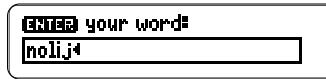
To erase a letter, press BACK.
- Press ENTER.
1 smult插页
2 noots
3 hulls
- Press to highlight a correction.
- Press ENTER to view its dictionary entry.
To go back to the correction list, press BACK.
- Press CLEAR when done.
Finding Confusibles
Confusibles are homonyms and spelling variants that are easy to confuse. If a word has Confusibles, CONF will flash once in the upper right of the screen.
- Type a word (e.g., rein).
- Press CONF.
rein harness rain precipitation reign rule
Confusibles come with identifying words.
- Press ENTER and then highlight a word.
reinhermness
ramprecipitation
reignrule
- Press ENTER to define it, or press THES to view its thesaurus meaning.
harness (noun)
fur/harnesses:
= gear of a draft animal
- Press CLEAR when done.
Highlighting Words
Another way to look up words is by highlighting them in dictionary definitions, thesaurus entries, or word lists. Then you can find their definitions, thesaurus entries, Confusibles, or add them to your User list.
1. At any text, press ENTER to start the highlight.
now*edge (noun)
1: understanding gained by experience
To turn the highlight off, press BACK.
2. Press the arrow keys to highlight a word.
know·edge (noun)
1: understanding gained by
3. Do one of the following:
| To... | Press... |
| define the word | ENTER |
| view athesaurus | THES |
| entry | |
| view Confusibles | CONF |
| add word to User list | LIST |
Reviewing Words
The Path list lets you review the last 15 words you looked up. Your Path list is automatically saved between sessions until the batteries lose power.
1. Select Path list from the CMDS menu.
Or hold and press P .
selenid
experience knowledge
This is a sample Path list. If you haven't looked up any words, you see: Path is empty.
2. Highlight a word.
3. Press ENTER to define it.
expeereience (noun)
plural expeereiencoes;
1: a participating in or living
4. Press THES to view a thesaurus entry or CONF to view its Confusables, if any.
experience now, knowledge of something based on personal exposure.
Using the User List
You can create a User list of up to 40 words. You can even add words to your User list that are not in this dictionary. Here's how to add and to view a word.
- Press LIST to view the User list menu.
View list: Empty
Add word
Delete word
If you haven't added words to your User list, View list: **Empty** appears.
- Highlight Add word. Then press ENTER.
- Type a word (e.g., restive).
ENTER list word:
restive
- Press ENTER to add the word.
- Select View list: 1 word.
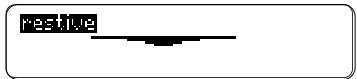
This is a User list of one word.
Using the User List
Adding Highlighted Words
At any text, you can highlight a word and add it to your User list.
- At text, press ENTER to start the highlight.
- Highlight a word.
- Press LIST.
- Select Add "your word".
Adding Words Not Found in This Dictionary
When you add a word not in this dictionary, you're given three options: Cancel, Add anyway, or Correction list. Select an option. Caution: Adding words not in this dictionary uses considerably more memory than adding words that are. If you add only words that are not in the dictionary, your User list may hold as few as 10 words.
Using the User List
You can delete one or all the words in your User list. Here's how.
Deleting One Word
- Press LIST.
- Select Delete word.
- Highlight a word on the list.
- Press ENTER to delete it.
Deleting Your User List
- Press LIST.
- Select Erase list.
- Press Y to erase the entire list. Or press N to cancel.
Sending Words
This BOOKMAN dictionary can send words to and receive words from certain other BOOKMAN books.
To send a word, you must first install a book card in your BOOKMAN, and that book card must be able to send or receive words. To learn if a book card can send or receive words, read its User's Guide.
1. Highlight a word in this book.
knowledged (noun) 1' understanding gained by experience
To highlight a word in a list, press the arrow keys. To highlight a word in text, press ENTER and then press the arrow keys.
- Hold and press CARD.
- Highlight the other book.
- Press ENTER.
The word that you highlighted appears in the other book.
- Press ENTER to look up the word.
Changing Game Settings
You can change the game settings at any time. Each setting applies to all the games.
Word List lets you pick which words you'll play the games with. If you select Type Them in, you'll need to type in words after you select a game.
Word Length lets you pick how many letters will be in the words (3-13).
Skill Level lets you select the level of difficulty.
- Press MENU.
- Press to highlight the Game menu.
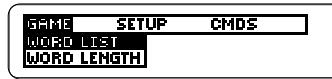
- Highlight a setting.
- Press ENTER to select it.
Playing the Games
Now that you have the games set, let's play.
- Press GAMES.
- Press or to highlight a game.
- Press ENTER to start it.
commune 15
EITER word: 4
>Keeping Score
Your score appears after each round of a game.
Won 1 Lost 0
Playing the Games
Playing the Games
Hangman
Hangman challenges you to guess a mystery word, indicated by ?'s, one letter at a time. The number of guesses you can make appears to right of the #'s. For a hint hold CAP and press? Or press ?* to end the round. Note: If you ask for a hint, you will lose the round. Press SPACE to start a new round. Press ENTER to view the definition of the word. Press BACK to exit a game and view the games list.
Anagrams
Anagrams challenges you to find all of the words that can occur within a selected word. Each letter can only be used as many times as it appears in the selected word. Each anagram must be a specified minimum length. This will flash on the screen before each game. The number of possible anagrams is shown on the right side of the screen.
Type an anagram and then press ENTER. Use the arrows to view anagrams you've already entered. Hold CAP and press ? to shuffle the letters in the selected word. Press ? to end a round and reveal the remaining anagrams. Highlight a word, and then press ENTER to see its dictionary definition. Press BACK to exit Anagrams.
Word Train
All aboard the Word Train spelling game! You and the train take turns typing letters to form a word. Whoever types the last letter wins. To view the letters you can type at your turn, hold CAP and press ?^ . Or press ?^ to end a round and reveal the word. Press ENTER to view the dictionary definition of the word.
FRANKLIN warrants to you that the BOOKMAN PRODUCT will be free from defects in materials and workmanship for one year from purchase. In the case of such a defect in your BOOKMAN PRODUCT, FRANKLIN will repair or replace it without charge on return, with purchase receipt, to the dealer from which you made your purchase or Franklin Electronic Publishers, Inc., One Franklin Plaza, Burlington, NJ 08016-4907, within one year of purchase. Alternatively, FRANKLIN may, at its option, refund your purchase price.
Data contained in the BOOKMAN PRODUCT may be provided under license to FRANKLIN. FRANKLIN makes no warranty with respect to the accuracy of data in the BOOKMAN PRODUCT. No warranty is made that the BOOKMAN PRODUCT will run uninterrupted or error free. You assume all risk of any damage or loss from your use of the BOOKMAN PRODUCT.
This warranty does not apply if, in the sole discretion of FRANKLIN, the BOOKMAN PRODUCT has been tampered with, damaged by accident, abused, misused, or misapplication, or as a result of service or modification by any party, including any dealer, other than FRANKLIN. This warranty applies only to products manufactured by or for FRANKLIN. Batteries, corrosion, or battery contacts and any damage caused by batteries are not covered by this warranty. NO FRANKLIN DEALER, AGENT, OR EMPLOYEE IS AUTHORIZED TO MAKE ANY ADDITIONAL WARRANTY IN THIS REGARD OR TO MAKE ANY MODIFICATION OR EXTENSION OF THIS EXPRESS WARRANTY.
THE FOREGOING WARRANTY IS EXCLUSIVE AND IS IN LIEU OF ALL OTHER EXPRESS OR IMPLIED WARRANTYES, WRITTEN OR ORAL, INCLUDING, BUT NOT LIMITED TO, WARRANTYES OF MERCHANTABILITY OR FITNESS FOR A PARTICULAR PURPOSE. YOUR SOLE AND EXCLUSIVE REMEDY SHALL BE FRANKLINS OBLIGATION TO REPLACE OR REFUND AS SET FORTH ABOVE IN THIS WARRANTY. Some States do not allow the exclusion of implied warranties, or limitations on how long a warranty lasts. This warranty gives you specific rights; you may also have additional rights which vary from State to State. This warranty shall not be applicable to the extent that enforcement of any provision may be prohibited by applicable law.
FRANKLIN SHALL IN NO EVENT BE LIABLE TO YOU OR TO ANY OTHER PERSON FOR ANY SPECIAL, INCIDENTAL, OR CONSEQUENTIAL DAMAGES, OR ANY OTHER INDIRECT LOSS OR DAMAGE, ARISING OUT OF YOUR PURCHASE, THE MANUFACTURE OR SALE OF THE BOOKMAN PRODUCT, THIS LICENSE, OR ANY OBLIGATION RESULTING THEREFROM OR THE USE OR PERFORMANCE OF THE BOOKMAN PRODUCT UNDER ANY LEGAL THEORY, WHETHER BREACH OF CONTRACT, TORT, STRICT LIABILITY OR ANY OTHER CAUSE OF ACTION OR PROCEEDING, WHICH DAMAGES SHALL INCLUDE, BUT NOT BE LIMITED TO, LOST PROFITS, DAMAGES TO PROPERTY, OR PERSONAL INJURY (BUT ONLY TO THE EXTENT PERMITTED BY LAW). FRANKLIN'S ENTIRE LIABILITY FOR ANY CLAIM OR LOSS, DAMAGE, OR EXPENSE FROM ANY SUCH CAUSE SHALL IN NO EVENT EXCEED THE PRICE PAID FOR THE BOOKMAN PRODUCT. THIS CLAUSE SHALL SURVIVE FAILURE OF AN EXCLUSIVE REMEDY. This license and warranty is governed by the laws of the United States and the State of New Jersey.
Resetting BOOKMAN
If the BOOKMAN keyboard fails to respond, or if its screen performs erratically, first press CLEAR and then press ON/OFF twice. If nothing happens, follow the steps below to reset it.
Warning: Pressing the reset button with more than very light pressure may permanently disable your BOOKMAN. In addition, resetting your BOOKMAN unit erases settings and information entered into its built-in book, and in any installed books.
- Hold CLEAR and press ON/OFF. If nothing happens, try Step 2.
- Use a paper clip to gently press BOOKMAN's reset button.
The reset button is recessed in a pinsized hole on the back of your BOOKMAN. Look for it on the battery cover or near the book card slot.
Troubleshooting BOOKMAN
- Make sure your book card, if any, is installed correctly.
- Check that the book card's metal contacts are dirt-and dust-free.
Copyrights and Patents
Model MWD-640
- batteries: 4-AAA, 1.5 volt
size: 14 × 2.5 × 10.3 cm - weight: 6 oz. (without batteries)
© 1987-1996 Franklin Electronic
Publishers, Inc., Burlington, NJ
08016-4907 USA. All rights reserved.
© 1989 Merriam-Webster, Inc.
All rights reserved.
FCC Notice: Complies with the limits for a Class B computing device pursuant to Subpart B of part 15 of FCC Rules. Operation is subject to the following two conditions: (1) This device may not cause harmful interference; and (2) This device must accept any interference received, including interference that may cause undesired operation.
U.S. Patents 4,490,811; 4,830,618; 4,891,775; 5,007,019; 5,113,340; 5,203,705; 5,218,536; 5,249,965; 5,333,313; European Patent 0 136 379. Pat. Pend.
ISBN 1-56712-133-0
This unit may change operating modes due to Electro-static Discharge. Normal operation of this unit can be re-established by pressing the reset key, ON/OFF, or by removing/replacing batteries.
?key8,14
*key 8,14
Anagrams game 14
Arrow keys 5
Asterisk key 8, 14
BACK key 7
Backing up 7
Changing Bookman's settings 5
CONF message 9
Confusibles, finding 9
Correcting misspellings 9
Disable demo 5
DN key 2, 6, 7
Games
changing settings 13
playing 13
Hangman game 14
Help, finding 5
Highlighting words 10
Installing a book card 3
Messages
add anyway 11
cancel 11
correction list 11
path is empty 10
type them in 13
view list: empty 11
Misspellings, correcting 9
Path list 10
Reviewing words 10
Searching for words 6
Shutoff
changing 5
setting 5
Spelling finding tips 8
STAR key
combinations 2
with CARD 12
with DN 6
with P 10
THES message 7
Thesaurus entries 7
Tutorial 5
UP key 2, 7
User List
adding words not in dictionary 11
viewing list 11
Word Train game 14
- BOOKMAN
- Dictionary & Thesaurus
- LIMITED USE LICENSE
- Contents
- Installing Batteries and Installing a Book Card 3
- Function Keys
- > Understanding the Color Keys
- Other Keys
- Direction Keys
- Star Key Combinations*
- Installing Batteries
- Resuming Where You Left Off
- Installing a Book Card
- Removing Book Cards
- Selecting Books
- > About Screen Illustrations
- Using the Color Keys
- Changing Settings
- Viewing a Demonstration
- >Help is Always at Hand
- Follow the Arrows
- Finding Definitions
- Finding Words in Definitions
- Finding Synonyms
- Understanding Thesaurus Entries
- Two Ways to Back Up
- Finding a Letter
- Type a word with ?s.
- Press ENTER.
- Highlight a match.
- Press ENTER to define it.
- Press CLEAR when done.
- Spelling Finding Tips
- Finding a Series of Letters
- Type a word with an
- Correcting Misspellings
- Finding Confusibles
- Highlighting Words
- At any text, press ENTER to start the highlight.
- Press the arrow keys to highlight a word.
- Do one of the following:
- Reviewing Words
- Select Path list from the CMDS menu.
- Highlight a word.
- Press ENTER to define it.
- Press THES to view a thesaurus entry or CONF to view its Confusables, if any.
- Using the User List
- Deleting One Word
- Deleting Your User List
- Sending Words
- Highlight a word in this book.
- Changing Game Settings
- Playing the Games
- >Keeping Score
- Hangman
- Anagrams
- Word Train
- Resetting BOOKMAN
- Troubleshooting BOOKMAN
- Copyrights and Patents
- Model MWD-640
Marque : FRANKLIN
Modèle : MWD640
Catégorie : Dictionnaire électronique