
DP-004 - Enregistreur numérique TASCAM - Notice d'utilisation et mode d'emploi gratuit
Retrouvez gratuitement la notice de l'appareil DP-004 TASCAM au format PDF.


| Type de produit | Enregistreur numérique multiportable 4 pistes |
| Marque | TASCAM |
| Modèle | DP-004 |
| Catégorie | Enregistreur numérique |
| Dimensions (L x H x P) | 155,0 x 33,5 x 107,0 mm |
| Poids | 360 g (sans piles) |
| Alimentation | 4 piles AA (alcalines ou NiMH) ou adaptateur secteur PS-P520 (vendu séparément) |
| Autonomie des piles | Environ 8 heures (mode enregistrement) |
| Support d'enregistrement | Carte SD/SDHC (512 Mo - 32 Go) |
| Nombre de pistes | 4 (enregistrement simultané de 2 pistes) |
| Résolution audio | 16 bits |
| Fréquence d'échantillonnage | 44,1 kHz |
| Réponse en fréquence | 20 Hz - 20 kHz |
| Rapport signal/bruit | 81 dB min (entrée ligne vers sortie ligne) |
| Distorsion | 0,05 % max (entrée ligne vers sortie ligne) |
| Entrées audio | 2 x jack 6,35 mm (INPUT A et INPUT B) avec sélecteur micro/ligne/guitare |
| Sortie audio | Jack stéréo 3,5 mm (casque/ligne) |
| Micros intégrés | 2 micros omnidirectionnels (MIC A et MIC B) |
| Fonctions principales | Enregistrement multipiste, overdub, mixage, mastering, bounce, édition de pistes (cloner, effacer, silencer, couper, insérer), métronome, accordeur, répétition, undo/redo |
| Connectivité | USB 2.0 (transfert de fichiers) |
| Affichage | LCD rétroéclairé |
| Nettoyage | Chiffon doux et sec uniquement |
| Sécurité | Ne pas exposer à l'eau, ne pas obstruer les aérations, utiliser uniquement les accessoires spécifiés, éteindre en cas d'orage |
| Pièces détachées | Adaptateur secteur PS-P520 (vendu séparément), piles AA |
| Température de fonctionnement | 5 °C - 35 °C |
| Consommation électrique | 1 W |
FOIRE AUX QUESTIONS - DP-004 TASCAM
Questions des utilisateurs sur DP-004 TASCAM
0 question sur cet appareil. Repondez a celles que vous connaissez ou posez la votre.
Poser une nouvelle question sur cet appareil
Téléchargez la notice de votre Enregistreur numérique au format PDF gratuitement ! Retrouvez votre notice DP-004 - TASCAM et reprennez votre appareil électronique en main. Sur cette page sont publiés tous les documents nécessaires à l'utilisation de votre appareil DP-004 de la marque TASCAM.
MODE D'EMPLOI DP-004 TASCAM
TASCAM®
TEAC PROFESSIONAL
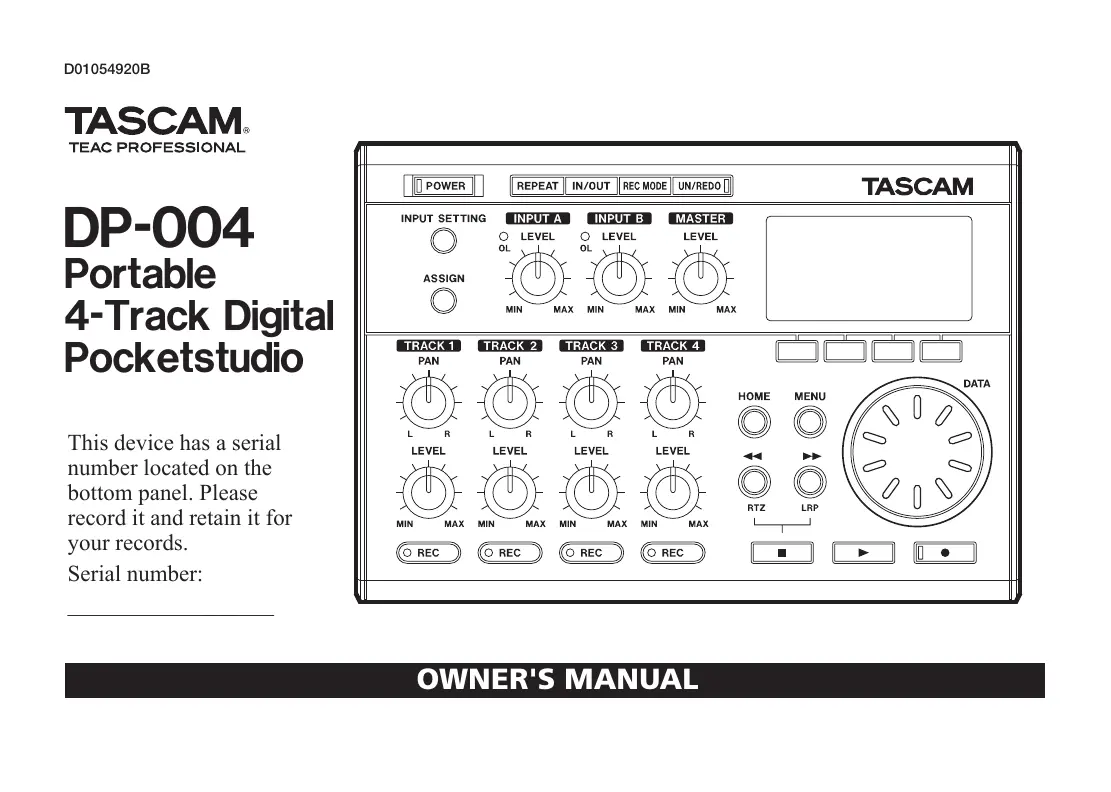
DP-004 Portable 4-Track Digital Pocketstudio
This device has a serial number located on the bottom panel. Please record it and retain it for your records.
Serial number:
IMPORTANT SAFETY PRECAUTIONS
1 Read these instructions.
2 Keep these instructions.
3 Heed all warnings.
4 Follow all instructions.
5 Do not use this apparatus near water.
6 Clean only with dry cloth.
7 Do not block any ventilation openings. Install in accordance with the manufacturer's instructions.
8 Do not install near any heat sources such as radiators, heat registers, stoves, or other apparatus (including amplifiers) that produce heat.
9 Do not defeat the safety purpose of the polarized or grounding-type plug. A polarized plug has two blades with one wider than the other. A grounding type plug has two blades and a third grounding prong. The wide blade or the third prong are provided for your safety. If the provided plug does not fit into your outlet, consult an electrician for replacement of the obsolete outlet.
10 Protect the power cord from being walked on or pinched particularly at plugs, convenience receptacles, and the point where they exit from the apparatus.
11 Only use attachments/accessories specified by the manufacturer.
12 Use only with the cart, stand, tripod, bracket, or table specified by the manufacturer, or sold with the apparatus. When a cart is used, use caution when moving the cart/apparatus combination to avoid injury from tip-over.
natural_image
Symbolic icon of a person using a scale inside a circle (no text or numbers present)13 Unplug this apparatus during lightning storms or when unused for long periods of time.
14 Refer all servicing to qualified service personnel. Servicing is required when the apparatus has been damaged in any way, such as power-supply cord or plug is damaged, liquid has been spilled or objects have fallen into the apparatus, the apparatus has been exposed to rain or moisture, does not operate normally, or has been dropped. Do not expose this apparatus to drips or splashes.
- Do not place any objects filled with liquids, such as vases, on the apparatus.
- Do not install this apparatus in a confined space such as a book case or similar unit.
- The apparatus should be located close enough to the AC outlet so that you can easily grasp the power cord plug at any time.
- The main plug is used as the disconnect device; the disconnect device should remain readily operable.
- An apparatus with Class I construction shall be connected to an AC outlet with a protective grounding connection.
- Batteries (battery pack or batteries installed) should not be exposed to excessive heat such as sunshine, fire or the like.
- Excessive sound pressure from earphones and headphones can cause hearing loss.
- This product uses batteries. Misuse of batteries could cause a leak, rupture or other trouble. Always abide by the following precautions when using batteries.
- Never recharge non-rechargeable batteries. The batteries could rupture or leak, causing fire or injury.
- When installing batteries, pay attention to the polarity indications (plus/minus (+/-) orientation), and install them correctly in the battery case as indicated. Putting them in backward could make the batteries rupture or leak, causing fire, injury or stains around them.
- When throwing used batteries away, follow the disposal instructions indicated on the batteries and the local disposal laws.
- Do not use batteries other than those specified. Do not mix and use new and old batteries or different types of batteries together. The batteries could rupture or leak, causing fire, injury or stains around them.
- Do not carry or store batteries together with small metal objects. The batteries could short, causing leak, rupture or other trouble.
- Do not heat or disassemble batteries. Do not put them in fire or water. Batteries could rupture or leak, causing fire, injury or stains around them.
- If the battery fluid leaks, wipe away any fluid on the battery case before inserting new batteries. If the battery fluid gets in an eye, it could cause loss of eyesight. If fluid does enter an eye, wash it out thoroughly with clean water without rubbing the eye and then consult a doctor immediately. If the fluid gets on a person's body or clothing, it could cause skin injuries or burns. If this should happen, wash it off with clean water and then consult a doctor immediately.
IMPORTANT SAFETY INSTRUCTIONS
- The unit power should be off when you install and replace batteries.
- Remove the batteries if you do not plan to use the unit for a long time. Batteries could rupture or leak, causing fire, injury or stains around them. If the battery fluid leaks, wipe away any fluid on the battery case before inserting new batteries.
FOR U.S.A.
TO THE USER
This equipment has been tested and found to comply with the limits for a Class B digital device, pursuant to Part 15 of the FCC Rules. These limits are designed to provide reasonable protection against harmful interference in a residential installation. This equipment generates, uses, and can radiate radio frequency energy and, if not installed and used in accordance with the instruction manual, may cause harmful interference to radio communications. However, there is no guarantee that interference will not occur in a particular installation. If this equipment does cause harmful interference to radio or television reception, which can be determined by turning the equipment off and on, the user is encouraged to try to correct the interference by one or more of the following measures.
a) Reorient or relocate the receiving antenna.
b) Increase the separation between the equipment and receiver.
c) Connect the equipment into an outlet on a circuit different from that to which the receiver is connected.
d) Consult the dealer or an experienced radio/TV technician for help.
CAUTION
Changes or modifications to this equipment not expressly approved by TEAC CORPORATION for compliance could void the user's authority to operate this equipment.
Declaration of Conformity
Model Number : DP-004
Trade Name: TASCAM
Responsible party : TEAC AMERICA, INC.
Address : 7733 Telegraph Road, Montebello, California, U.S. A.
Telephone number : 1-323-726-0303
This device complies with Part 15 of the FCC Rules. Operation is subject to the following two conditions: (1) this device may not cause harmful interference, and (2) this device must accept any interference recieved, including interference that may cause undesired operation.
Information for Users on Collection and Disposal of Old Equipment and used Batteries
These symbols on the products, packaging, and/or accompanying documents mean that used electrical and electronic products and batteries should not be mixed with general household waste. For proper treatment, recovery and recycling of old products and used batteries, please take them to applicable collection points, in accordance with your national legislation and the Directives 2002/96/EC and 2006/66/EC.
By disposing of these products and batteries correctly, you will help to save valuable resources and prevent any potential negative effects on human health and the environment which could otherwise arise from inappropriate waste handling.
For more information about collection and recycling of old products and batteries, please contact your local municipality, your waste disposal service or the point of sale where you purchased the items.
Information on Disposal in other Countries outside the European Union
These symbols are only valid in the European Union. If you wish to discard these items, please contact your local authorities or dealer and ask for the correct method of disposal.
Note for the battery symbol (bottom right two symbol examples)
This symbol might be used in combination with a chemical symbol. In this case it complies with the requirement set by the Directive for the chemical involved.


Pb
产品有毒有害物质或元素的名称及含量
| 机种:DP-004 | 有毒有害物质或元素 | ||||||
| 品名 | 铅(Pb) | 汞(Hg) | 镉(Cd) | 六价铬(Cr(VI)) | 多溴联苯(PBB) | 多溴二苯醚(PBDE) | |
| 1 | CHASSIS部份 | ○ | ○ | ○ | ○ | ○ | ○ |
| 2 | PCB Assy部份 | × | ○ | ○ | ○ | ○ | ○ |
| 3 | 线材部份 | ○ | ○ | ○ | ○ | ○ | ○ |
| 4 | 附属品部份 | × | ○ | ○ | ○ | ○ | ○ |
| 7 | SEAL部份 | ○ | ○ | ○ | ○ | ○ | ○ |
| 8 | 包装部份 | ○ | ○ | ○ | ○ | ○ | ○ |
O:表示该有毒有害物质在该部件所有均质材料中的含有量均在 SJ/T11363-2006 标准规定的限量要求以下。
X:表示该有毒有害物质至少在该部件的某一均质材料中的含量超出 SJ/T11363-2006 标准规定的限量要求。
(针对现在代替技术困难的电子部品及合金中的铅)
Table of Contents
1-Introduction 8
Overview of this unit 8
About this manual 8
Manual conventions....8
Product parts 9
Trademarks....9
About SD cards....10
Precautions for use 10
Beware of condensation 10
Cleaning the unit.... 10
2-Quick Start Guides 11
QSG 1-Playback and mixing 11
Preparing to listen to the demo song 11
Playing and mixing the demo song.... 13
Shutting down the unit....15
QSG 2—Recording and mastering 15
Connecting and setting the input sources 15
Loading a song file 17
Setting the guitar as track 1 recording source 18
Adjusting the input level and monitoring.... 18
Recording guitar to track 1 19
Listening to your recording.... 20
Adding another recording (1)—record guitar to track 2...... 21
Adding another recording (2)—record vocals on track 3..... 22
Mixing the tracks.... 24
Mastering the mix.... 25
Shutting down the unit 27
3-Names and Functions of Parts....28
Top panel 28
Front panel 31
Rear panel 31
Right side panel....32
Left side panel 32
Bottom 33
4-Preparations 34
Preparing the power and SD card.... 34
Installing an SD card 34
Preparing the power 35
Installing batteries 35
Connecting an AC adapter (sold separately).... 36
Start-up & shutdown 36
Starting up the unit.... 36
Shutting down 37
Formatting SD cards 38
Display screens 39
Home Screen 39
Screen Organization....40
Using the screens.... 41
Editing names 43
Recorder modes 44
Connecting with other equipment 45
Rear panel connections.... 45
Right side panel connections 45
Left side panel connections.... 46
Setting the contrast 46
Table of Contents
5-Song Management 47
Partitions and songs 47
Selecting the active partition 47
Loading a saved song....48
Creating a new song....49
Saving a song 49
Viewing song information 50
Copying songs 51
Erasing songs....52
Protecting songs....53
6-Basic Recording 54
Selecting the input source 54
Monitoring the input signal 55
Setting the monitoring mode 55
About the OL indicators and meters 56
Assigning input channels 57
Making the first recording....58
Overdubbing 60
Setting up to overdub 61
Rehearsal 61
Recording an overdub 62
Mixdown 62
Level and balance 62
Stereo position (panning)....62
Mastering 62
Setting the end point 63
Recording the master track 64
Undoing operations (undo) 66
Undoing the last operation (single undo) 66
Undoing a previous operation (multi-undo).... 66
Erasing the operation history 68
7-Recorder Functions 69
Punching in and out....69
Bouncing tracks....69
Using the bounce function 70
Confirming the result 71
Locate and search functions....71
Direct locate function 71
RTZ and LRP 72
Fast forward/rewind search 73
Repeat playback....73
Setting IN and OUT points 73
Editing IN/OUT points.... 74
Using repeat playback.... 75
Setting the interval between repetitions.... 75
8-Miscellaneous Functions....76
Metronome 76
Tuner 77
Turning the power off automatically....78
Restoring the initial preference settings....78
Viewing information 79
9-SD Card Management 81
Overview of partitions....81
Write-protected cards 81
Formatting cards and setting partition sizes 82
Reformatting MTR partitions 83
Reformatting the FAT partition 84
Initializing SD cards 85
Table of Contents
10-Editing Tracks....86
Overview of track editing 86
Edit points 86
Basic editing procedures 86
CLONE TRACK (track duplication) 87
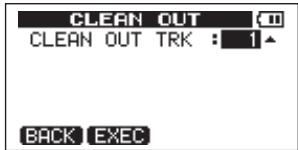
CLEAN OUT (track erase) 88
SILENCE (part erase)......88
CUT (remove part) 89
OPEN (insert silence) 90
11-Exchanging Data with a Computer 91
Supported operating systems....92
Connecting with a computer....92
Disconnecting....93
Song backup and restoration 94
Backing-up songs 94
Restoring songs 96
Track import and export 97
Importing tracks 97
Exporting tracks 99
Exporting a stereo master 100
12-Troubleshooting 102
13-Specifications & Messages 103
Audio input/output ratings.... 103
Audio performance 103
General 103
Optional accessories....104
Computer requirements 104
Dimensions....104
Block diagram.... 105
Messages....106
14-Commonly-used Functions.... 109
1-Introduction
Thank you for your purchase of TASCAM's 4-track digital Pocketstudio, the DP-004.
The DP-004 is designed to provide you with great sound in an easy-to-use compact package, allowing you to concentrate on the music, and not on the recording process.
Overview of this unit
Using an SD card this unit can record two tracks simultaneously and work with up to four tracks in a multitrack project. Moreover, using its mixer functions, you can mix down a multitrack to create a stereo master.
This stereo master can then be transferred to a computer connected by USB. In addition to copying stereo masters from this unit to the computer, various other data, including track and song data can be transferred to a computer as back-ups.
About this manual
Please read chapter 2, “Quick Start Guides,” first and follow the instructions in it to learn about and practice using this unit’s functions.
Chapter 3 explains the functions of the keys, knobs, connectors and other features. Chapters 4 and 5 explain other things you should know before you use this unit. Chapters 6 to 11 explains the uses and functions of this unit in detail. Chapters 12 and 14 provide troubleshooting information and a list of functions that you might want to use and where you can find them in the manual. Chapter 13 includes the unit's specifications and a list of error messages.
Manual conventions
This manual often refers to the DP-004 as “the unit” and the SD card as the “card.”
When we refer to DP-004 features such as keys and connections, we display them like this: MENU.
When we show messages, for example, that appear on the screen, we show them like this: SONG LOAD.
The four keys beneath the LCD display are called function keys, and are referred to as F1, F2, F3 and F4 from left to right. The functions displayed at the bottom of the screen above the keys are sometimes shown after the key name in parentheses (e.g. F4 (▶) key, F2 (EXEC) key).
TIP We give hints and tips on using the DP-004 when you see this icon.
NOTE A note provides additional explanations for special situations.
CAUTION A caution shows that you may lose data (recordings) if you do not follow the instructions.
WARNING Warnings should be taken seriously. They describe situations which can cause injury or damage to the equipment if you do not follow the instructions.
This manual cannot begin to be a full guide to multitrack recording techniques. However, if you search the Internet or visit a library you should find various documents on recording.
Product parts
You should find these items in the box:
- Main unit.... 1
- SD Card (in the unit) .... 1
- USB Cable .... 1
- AA alkaline batteries .... 4
- Owner's Manual (this document).... 1
- Warranty card.... 1
If any of these items is missing, contact your TASCAM supplier.
Trademarks
The SD Logo is a trademark.

natural_image
Abstract black logo design with stylized 'S' and 'TM' text (no readable text or symbols)Microsoft, Windows, Windows 2000, Windows XP, and Windows Vista are either registered trademarks or trademarks of Microsoft Corporation in the United States and/or other countries.
1-Introduction
Macintosh, Mac OS and Mac OS X are trademarks of Apple Inc.
Other company names and product names in this document are the trademarks or registered trademarks of their respective owners.
About SD cards
This unit uses SD cards for recording and playback. SD and SDHC cards that are at least 512 MB in size can be used. A list of SD cards that have been tested with this unit can be found on the TASCAM web site (www.tascam.com).
Precautions for use
SD cards are delicate media. In order to avoid damaging a card or the card slot, please take the following precautions when handling them.
- Do not leave them in extremely hot or cold places.
- Do not leave them in extremely humid places.
-
Do not let them get wet.
-
Do not put things on top of them or twist them.
- Do not hit them.
Beware of condensation
If the unit is moved from a cold to a warm place, or used after a sudden temperature change, there is a danger of condensation; vapor in the air could condense on the internal mechanism, making correct operation impossible. To prevent this, or if this occurs, let the Pocketstudio sit for one or two hours at the new room temperature before using.
Cleaning the unit
To clean the unit, wipe gently with a soft dry cloth. Do not use any benzene, paint thinner, ethyl alcohol or other chemical agents to clean the unit as they could damage the surface.
QSG 1-Playback and mixing
First, we will play the demo song on the included SD card. The SD card with the demo song is shipped already installed in the battery compartment on the bottom of the unit, but we will start by explaining how to insert an SD card here.
Preparing to listen to the demo song
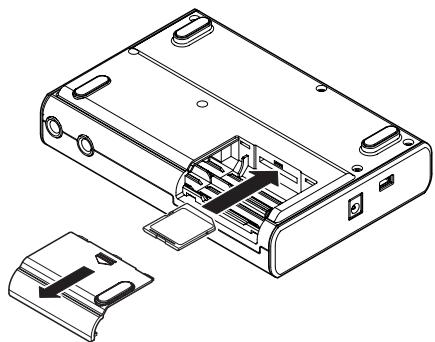
1 Open the battery compartment and insert the SD Card into the slot.
natural_image
Technical line drawing of an electronic device showing internal components and a separate housing (no text or symbols)CAUTION
- Do not insert the card backwards or apply unnecessary force. This could damage the slot or card.
- Do not remove the SD card when the unit's power is ON. Make sure the unit power is OFF before you remove the card. If you remove the SD card while the power is ON, all recordings and settings since the last time the unit was shutdown or a song was saved will be lost. Lost data cannot be recovered.
NOTE
To use a new SD card or card that has been used with another device with this unit, it is necessary to format it first. A screen prompting you to format it appears if you insert such an SD card.
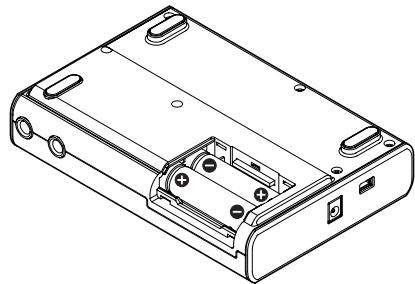
2 Insert four AA batteries into the compartment, paying attention to the plus/minus (+/-) orientation. This unit can use alkaline or NiMH batteries.
natural_image
Isometric line drawing of a device casing with internal components and mounting holes (no text or symbols)2-Quick Start Guides
TIP
This unit can also be powered by a PS-P520 power adapter (sold separately) (see "Connecting an AC adapter" on page 36).
CAUTION
- Do not remove the batteries or disconnect the power cable while the unit power is ON. If you do so, the unit cannot shut down properly and all unsaved settings and recorded data will be lost. Lost data cannot be restored.
- The included alkaline batteries are for confirming operation of the unit and might not last very long.
3 Close the battery compartment cover after installing the SD card and batteries.
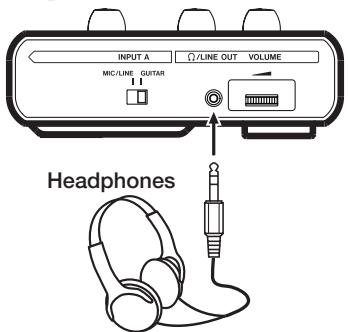
4 Connect headphones to the Ω/LINE OUT connector.
CAUTION
The volume adjustment dial is small and does not have any indications. Before turning the power ON, always turn it in the direction of the arrow until it stops to minimize the volume. Sudden bursts of loud sounds can cause hearing damage and speaker damage, for example.
TIP
You can also attach an amplifier or speakers with built-in amplification to monitor through speakers.
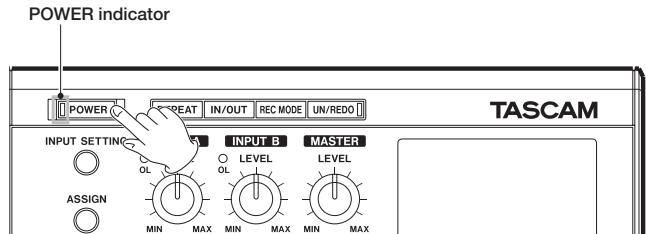
5 Press and hold the POWER key on the top panel until TASCAM appears on screen (or the POWER key indicator lights green).
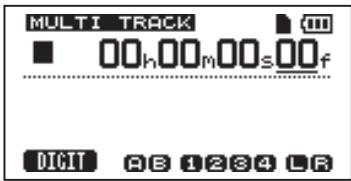
After starting up the Home Screen appears on the display.
Playing and mixing the demo song
Before the unit is shipped, a demo song is stored on its SD card. We are now going to use basic playback and mixing features with this demo song.
1 Press the MENU key when the Home Screen is open. The MENU screen is displayed.
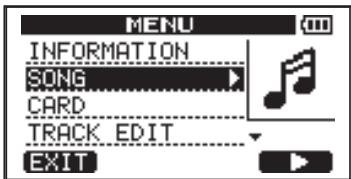
2 Rotate the DATA wheel to select SONG, and press the F4 (▶) key to open the SONG screen.
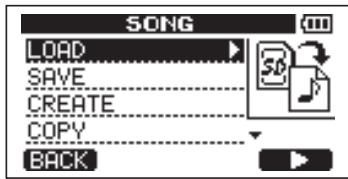
3 Rotate the DATA wheel to select LOAD, and press the F4 (▶) key to open the SONG LOAD screen that shows a list of songs.
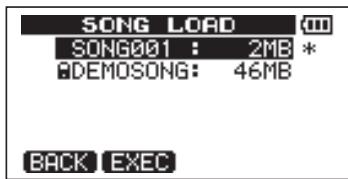
4 Rotate the DATA wheel to select DEMOSONG, and press the F2 (EXEC) key.
The demo song loads and the SONG screen reopens.
5 Press the HOME key to reopen the Home Screen.
2-Quick Start Guides
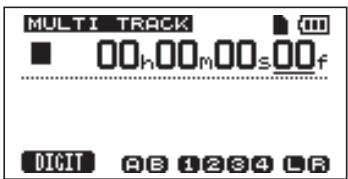
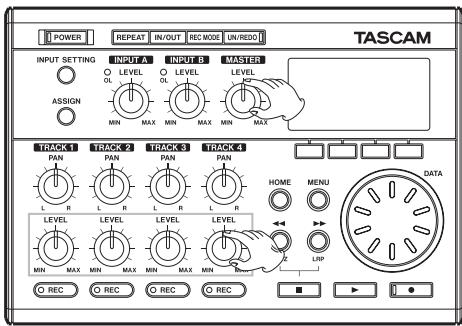
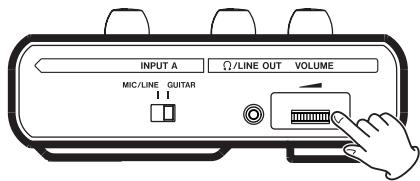
6 To hear the demo song, press the ▶ key and use the LEVEL knobs for tracks 1–4, the MASTER LEVEL knob and the VOLUME dial.
The MASTER LEVEL knob adjusts the volume of all four tracks at the same time. The standard position is around 2–3 o'clock.
Use the LEVEL knobs to adjust the balance between tracks 1–4.
Use the VOLUME dial to adjust the final monitoring level.
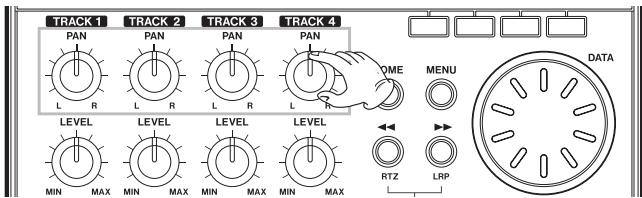
7 Use the PAN knobs to adjust the stereo position of tracks 1–4.
Shutting down the unit
If you are finished, shut the unit down unless you want to try the features in QSG 2 on the following page now.
Press and hold the POWER key until “POCKETSTUDIO” appears on the screen. The unit shuts down automatically after completing a shutdown procedure that saves various information.
CAUTION
Do not remove the batteries or disconnect the power cable accidentally while the unit is operating. If you do so, the unit cannot shut down properly and all unsaved data will be lost. Lost data cannot be restored. We recommend that you also save the data manually often.
QSG 2—Recording and mastering
Here, we will try multitrack recording. In the following example, we will use an electric guitar to record a rhythm guitar part on track 1 and a lead guitar part on track 2. Then, we will use the built-in mic to record a voice on track 3. Finally, we will
mix the tracks down.
In this section, we assume that you have already followed the instructions in “QSG 1–Playback and mixing” to connect monitoring equipment and install the SD card.
TIP
This example uses the built-in mic for recording vocals, but you could also connect an external mic to the INPUT A or INPUT B connector on the rear panel and record it.
Connecting and setting the input sources
1 Connect an electric guitar to the INPUT A connector on the rear panel.
2 Set the MIC/LINE-GUITAR switch on the left side panel to GUITAR.
TIP
When connecting an electric-acoustic guitar with a built-in preamp or an active electric guitar, as well as when connecting an electric guitar with effect boxes between it and this unit, set the MIC/LINE-GUITAR switch to MIC/LINE.
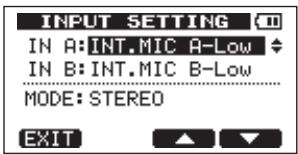
3 Press the INPUT SETTING key to open the INPUT SETTING screen.
2-Quick Start Guides
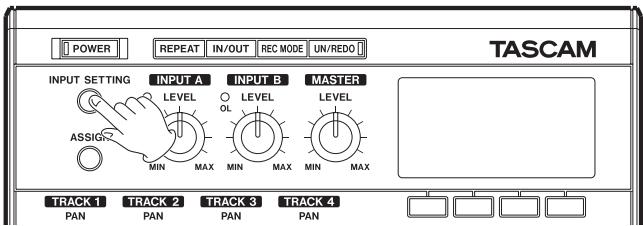
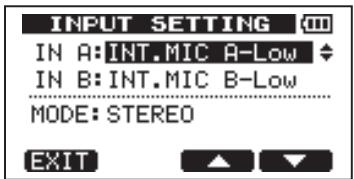
The IN A and IN B items are used to set the input sources for the INPUT A and INPUT B channels.
At first, the input source for IN A (INPUT A channel) is already selected.
4 Use the DATA wheel to change the IN A input source to GUITAR/LINE.
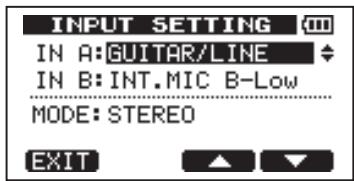
5 Press the F4 (▼) key to select the current input for IN B (INPUT B channel).
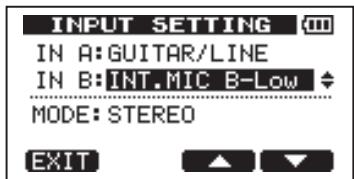
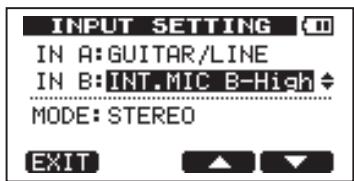
- Use the DATA wheel to set the IN B input source to INT.MIC B-Low, INT.MIC B-Mid or INT.MIC B-High.
This sets MIC B, which is the built-in mic on the right side of the front panel as the input source for INPUT B.
NOTE
INT.MIC B-Low, INT.MIC B-Mid, INT.MIC B-High change the sensitivity of the built-in mics. Set it according to the loudness of the subject being recorded.
If you are not sure which setting to use, choose INT. MIC B-Low. If the input level is too low after adjusting it later, return to this screen and change the setting to INT. MIC B-Mid. If the input level is still too low, change this setting to INT.MIC B-High.
7 After changing the setting, press the HOME key to return to the Home Screen.
NOTE
The MODE item on the INPUT SETTING screen is used to set the input monitoring mode. Set to STEREO, input signals from INPUT A and INPUT B channels are output separately on the L and R channels, respectively. Set to MONOx2, input signals from both INPUT A and INPUT B channels are output as a combined mono signal from both the left and right channels.
Loading a song file
After listening to the demo song, follow these procedures to load SONG001 to record your song.
1 With the transport stopped and the Home Screen
open, press the MENU key to open the MENU screen.
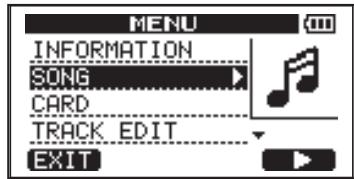
2 Use the DATA wheel to select SONG and press F4 (▶) to open the SONG menu screen.
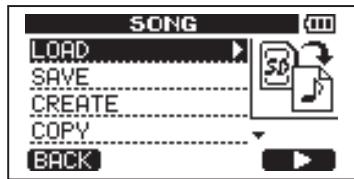
3 Use the DATA wheel to select LOAD and press F4 (▶) to open the SONG LOAD screen. A list of the songs appears.
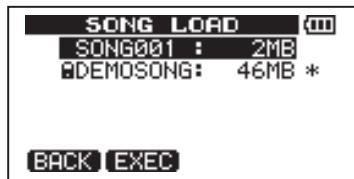
2-Quick Start Guides
4 Use the DATA wheel keys to select SONG001 and press F2 (EXEC) to load this song that does not have any recordings in it yet.
The SONG menu screen reopens.
5 Press the HOME key to return to the Home Screen.
Setting the guitar as track 1 recording source
The default settings are for the INPUT A channel to be the recording source for tracks 1 and 3 and for the INPUT B channel to be the recording source for tracks 2 and 4.
In “Connecting and setting the input sources” above, we made a guitar the input source for the INPUT A channel and a built-in mic (MIC B) the input source for the INPUT B channel. Therefore, the guitar is already set to record to tracks 1 and 3 and MIC B is ready to record to tracks 2 and 4.
As a result, there is no need to change the input channel assignments to record the guitar to track 1 in this example. See “Adding another recording (1)” on page 21 and “Adding another recording (2)” on page 22 for how to change track recording sources.
Adjusting the input level and monitoring
Use the INPUT A channel LEVEL knob to adjust the guitar input level.
Set the LEVEL knob so that the INPUT A channel OL indicator does not light even when the loudest sound to be recorded is input. If the indicator continues to light even when the LEVEL knob is turned down, the guitar signal itself is too loud. In this case, lower the output level on the guitar.
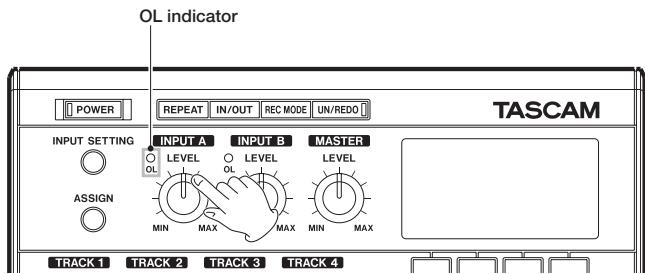
When you play the guitar, its input level is shown by the meter on the screen.
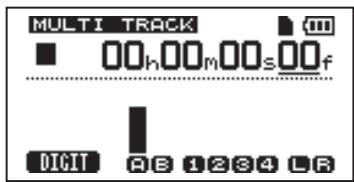
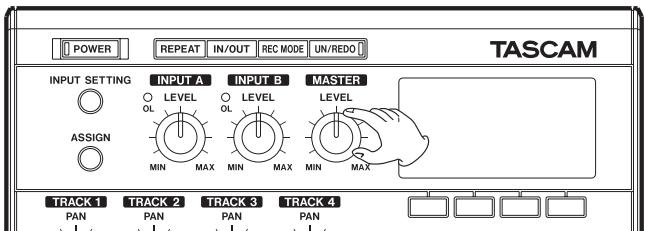
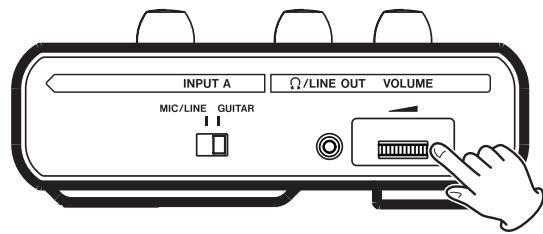
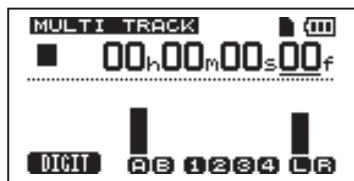
If you turn up the MASTER LEVEL knob and the VOLUME dial, you can hear the guitar on the left channel of your headphones, and the L meter on the screen moves.
NOTE
If you change the MODE item on the INPUT SETTING screen to mono mode (MONO×2), you will be able to hear the guitar sound on both left and right channels and both the L and R meters on the screen will move (see "Monitoring the input signal" on page 55).
NOTE
When the input source is a built-in mic, the signal from the built-in mic cannot be monitored if the REC indicator of the track that it is assigned to is not lit.
Recording guitar to track 1
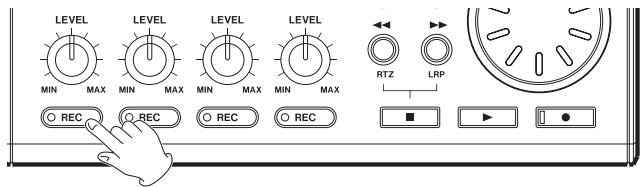
1 Press the TRACK 1 REC key. The key blinks showing that the track is in record standby.
2-Quick Start Guides
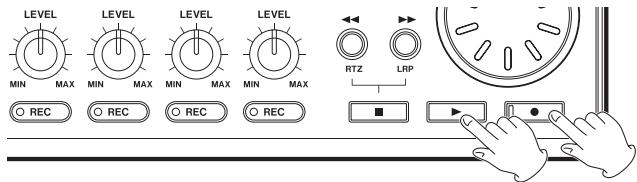
2 Press the playback (▶) key while pressing and holding the record (●) key to start recording. The track 1 REC key stops blinking and stays lit constantly.
You are recording. Play your guitar!
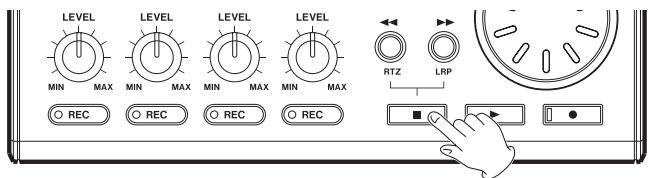
3 When you are finished, press the stop (■) key to stop recording.
4 Press the TRACK 1 REC key again. Its light turns off.
Listening to your recording
1 To go to the beginning of the song, press the ◀◀◀ key while pressing and holding the stop (■) key. (This is the Return To Zero (RTZ) function)
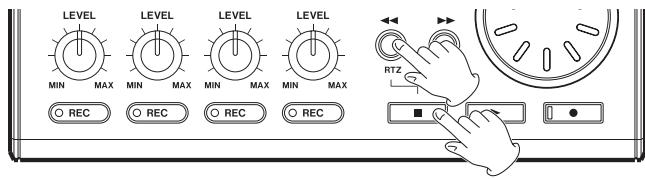
2 Press the playback (▶) key to play the recorded track.
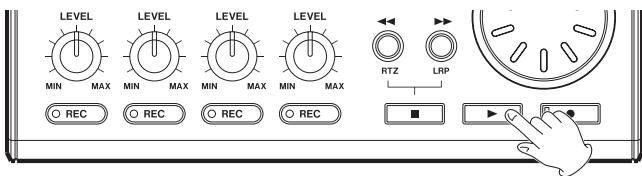
3 Use the track 1 LEVEL knob and the MASTER LEVEL knob to adjust the playback level. Use the VOLUME dial to adjust the final monitoring volume.
TIP
- Use the track 1 PAN knob to set the stereo position of the track signal.
- If you are not satisfied with the recorded sound, follow the procedures above again from the beginning. If you are satisfied with this recording continue to the next section.
Adding another recording (1)—record guitar to track 2
Now, you will record lead guitar on track 2 while listening to the rhythm guitar on track 1. This time, you will need to change the track 2 record source.
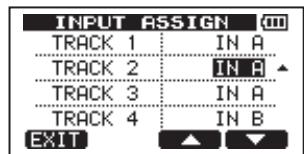
1 Press the ASSIGN key to open the INPUT ASSIGN screen.
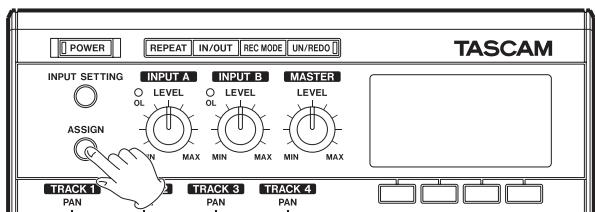
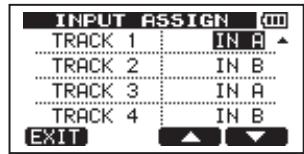
The input channels (INPUT A or INPUT B) that are the recording sources for each track are shown. In the initial setting, INPUT A is assigned as the recording source for tracks 1 and 3, and INPUT B is assigned as the recording source for tracks 2 and 4.
2 Press the F4 (▼) key to select TRACK 2 to change its current input channel from the default of IN B.
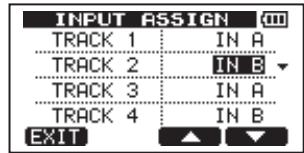
3 Turn the DATA wheel to set the input to IN A.
2-Quick Start Guides
NOTE
You do not need to change the input if you want to record the lead guitar on track 3.
4 Press the HOME key to return to the Home Screen.
5 Press the TRACK 2 REC key. The key blinks showing that the track is in record standby.
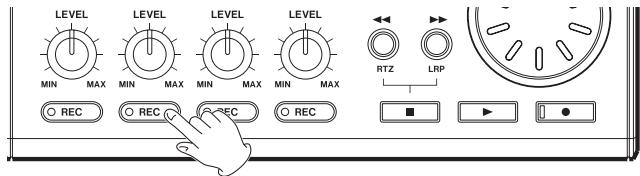
6 Press the ◀◀ key while pressing and holding the stop (■) key to return to the beginning of the song. Press the playback (▶) key to listen to the rhythm guitar track while you practice the lead part. Both guitar parts can be heard through the headphones.
7 Use the track LEVEL knobs, MASTER LEVEL knob and VOLUME dial to adjust the output volume and the balance between the tracks.
8 Return to the start of the track again and press the playback (▶) key while pressing and holding the record (●) key to start recording. The TRACK 2 REC key stops blinking and stays lit constantly.
You are recording again. Play your guitar!
9 When you are finished, press the stop (■) key to stop recording.
10 Press the TRACK 2 REC key again. Its light turns off.
Adding another recording (2)—record vocals on track 3
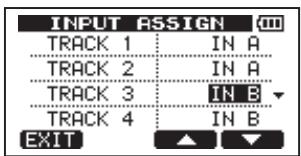
1 Press ASSIGN to open the INPUT ASSIGN screen.
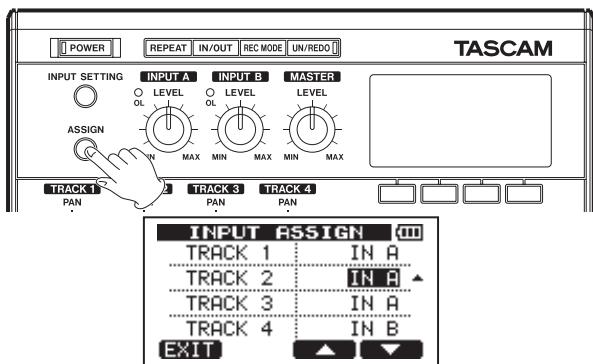
2 Press the F4 (▼) key to select TRACK 3 to change its current input channel from the default of IN A.
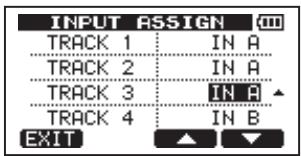
3 Turn the DATA wheel to set the input to IN B.
NOTE
By default, INPUT B is set as the recording source for tracks 2 and 4, so you do not need to change the input if you want to record the vocal on track 4.
4 Press the HOME key to return to the Home Screen.
5 Press the TRACK 3 REC key. The key blinks showing that the track is in record standby.
6 Use the INPUT B channel LEVEL knob to adjust the mic input level. Set the LEVEL knob so that the INPUT B channel OL indicator does not light even when the loudest sound to be recorded is input.
NOTE
If the OL indicator continues to light even when the LEVEL knob is turned down, the mic signal itself is too loud. In this case, if the input setting is INT.MIC B-High, change it to INT.MIC B-Mid or INT.MIC B-Low. If the input setting is INT.MIC B-Mid, change it to INT.MIC B-Low. If the OL indicator continues to light even when set to INT.MIC B-Low, move the sound source away from the mic or lower the volume at the sound source.
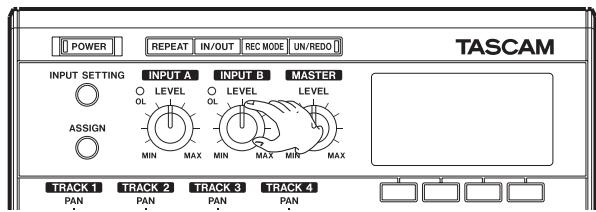
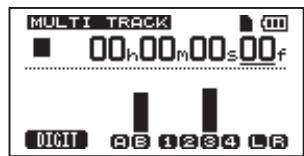
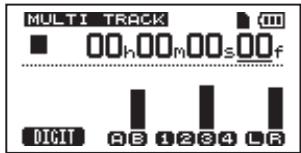
The input level of built-in MIC B is shown by the B meter on the screen.
2-Quick Start Guides
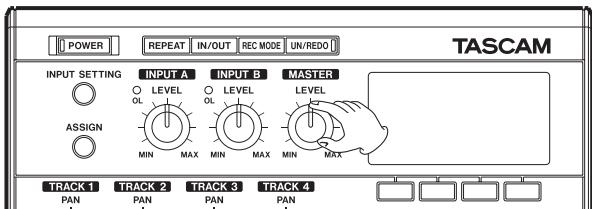
Raise the MASTER LEVEL knob and VOLUME dial as necessary to hear the mic input through the vocals.
CAUTION
Always monitor through headphones when using a mic. If you monitor through speakers, feedback could occur and the recorded sound might not be right.
NOTE
When the input source is one of the built-in mics, the input cannot be heard when the REC indicator is not lit.
7 Press the ◀◀ key while pressing and holding the stop (■) key to return to the beginning of the song. Press the playback (▶) key to play the recorded guitar tracks while you practice the vocal part.
Both guitar parts and your singing can be heard through the headphones.
8 Use the track LEVEL knobs, MASTER LEVEL knob and VOLUME dial to adjust the output volume and the balance between the tracks.
9 Return to the start of the track again and press the playback (▶) key while pressing and holding the record (●) key to start recording. The TRACK 3 REC key stops blinking and stays lit constantly.
You are recording again. Sing!
10 When you are finished, press the stop (■) key to stop recording.
11 Press the TRACK 3 REC key again. Its light turns off.
Mixing the tracks
After you finish recording, the next step is to make a stereo mix. This unit allows you to make a stereo mix for every song.
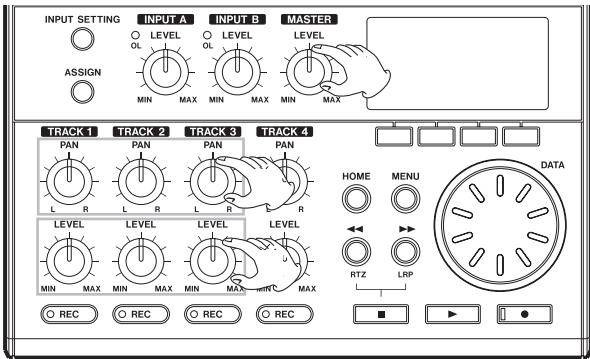
1 Use the LEVEL knobs for tracks 1, 2 and 3, to adjust the levels of the tracks and the balance between them. Use the MASTER LEVEL knob to adjust the overall level.
2 Use the track PAN knobs to adjust the stereo positioning of the tracks.
Watch the L and R meters at the right side of the display as you adjust levels and panning.
Mastering the mix
Now we will record your stereo mix. We call this process mastering.
The time between the song's beginning (00:00:00:00) and the OUT point will be recorded as the stereo master. So, first we must set the OUT (end) point.
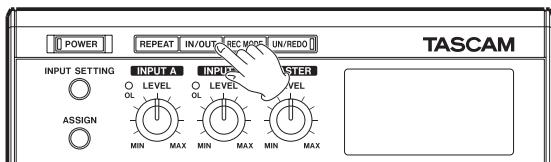
1 Press the IN/OUT key to open the I/O SETTING screen.
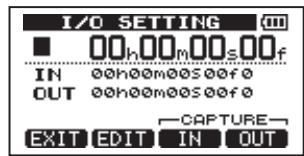
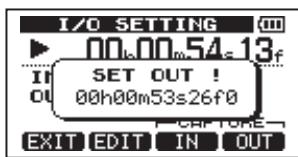
2 Play the song back, and press the F4 (OUT) key at the position where you want the stereo master end point. "SET OUT!" appears and this position is set
as the OUT point, which will be the end point of the master.
2-Quick Start Guides
TIP
You can also set the OUT point when playback is stopped by pressing the F4 (OUT) key.
3 Press the IN/OUT key (or HOME key) to return to the Home Screen.
4 Press the REC MODE key to open the RECORDER MODE screen.
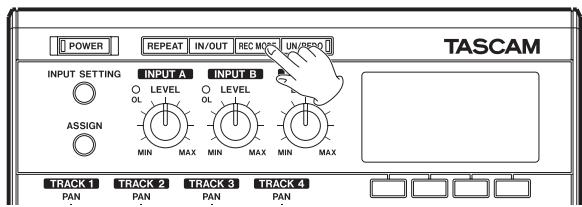
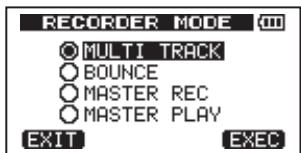
5 Turn the DATA wheel to select MASTER REC.
6 Press the F4 (EXEC) key to put the unit into master recording mode and return to the Home Screen.
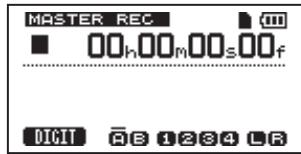
7 Press the playback (▶) key while pressing and holding the record (●) key to start master recording. Recording automatically ends when the recorder position reaches the OUT point.
NOTE
You can use the LEVEL knobs to adjust the track and overall levels as you record.
8 Press the REC MODE key to open the RECORDER MODE screen.
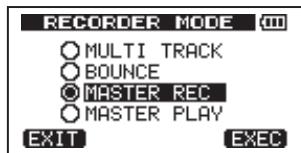
9 Turn the DATA wheel to select MASTER PLAY.
10 Press the F4 (EXEC) key to put this unit into master playback mode and return to the Home Screen.
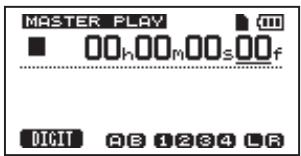
11 Press the playback (▶) key to play the stereo master that you created.
Shutting down the unit
Shutdown the unit when you are finished.
1 Press and hold the POWER key until POCKETSTUDIO appears on the screen.
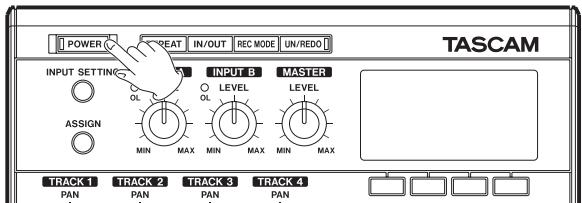
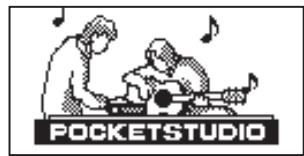
2 The power turns off after the unit completes its shutdown process, including saving various information from your session.
CAUTION
Always follow the above procedures to shut the unit down. Do not remove the card or batteries when the unit is turned on. Failure to power off properly first will cause any recordings and settings made since the last power off and song save to be lost. This data cannot be recovered.
3-Names and Functions of Parts
Top panel
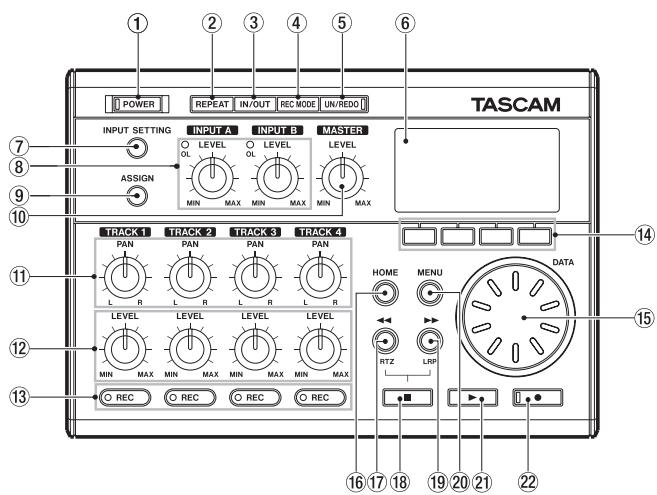
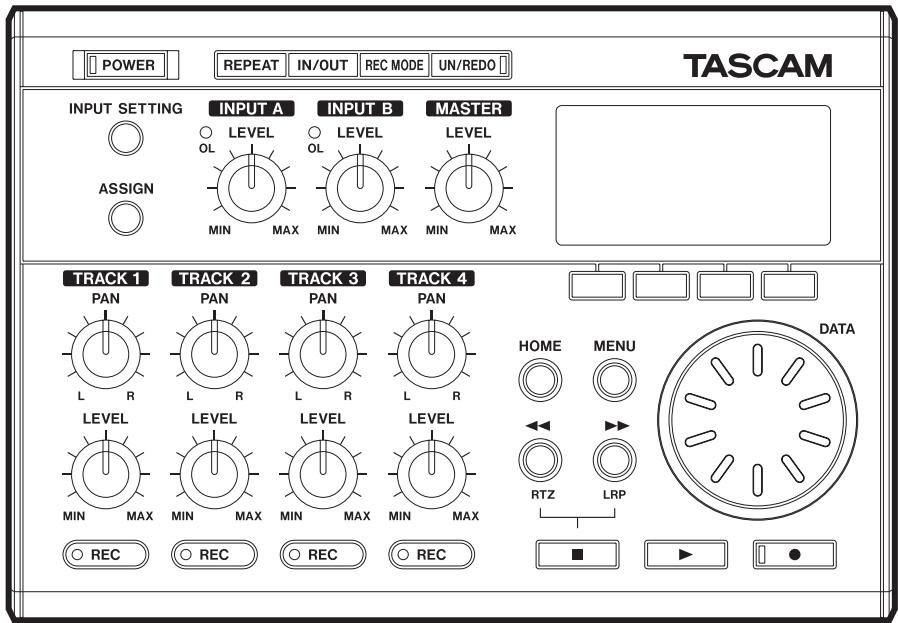
① POWER key and indicator
Press and hold this key to turn the unit ON and OFF. (See “Start-up & shutdown” on page 36.)
The indicator lights when the power is on.
② REPEAT key
Turns the repeat playback mode on and off. (See “Repeat playback” on page 73.)
③ IN/OUT key
Press this key to open the I/O SETTING screen to set IN and OUT points for repeat playback and track editing functions. (See “Setting IN and OUT points” on page 73.) The OUT point also determines the end point when mastering.
④ REC MODE key
Use this key to open the RECORD MODE screen to set the record mode. Select between MULTI TRACK, BOUNCE, MASTER REC and MASTER PLAY. (See “Recorder modes” on page 44.)
NOTE
Multitrack is the standard mode and the unit defaults to this mode every time it is turned on. Various functions do not work in other modes.
3-Names and Functions of Parts
⑤ UN/REDO key and indicator
Press this to undo the last action. Press again to redo it. (See “Undoing operations (undo)” on page 66.) Press this key while pressing and holding the STOP (■) key to open the HISTORY screen where you can undo multiple steps.
This indicator lights when one or more operations that have been undone can still be redone.
⑥ LCD Display
This shows the Home Screen and various other screens. (See “Display screens” on page 39.) The display contrast can be changed using the PREFERENCE screen. (See “Setting the contrast” on page 46.)
⑦ INPUT SETTING key
Press this key to open the INPUT SETTING screen where you can select the input source. (See “Selecting the input source” on page 54.)
⑧ INPUT A and INPUT B LEVEL knobs and OL indicators Use these knobs to adjust the input levels for INPUT A and INPUT B. (See “Making the first recording” on page 58.)
If the input source level is too high its OL (overload) indicator lights. Moreover, even if the input level is suitable, the OL indicator might light if the LEVEL knob is turned past 2 or 3 o'clock.
⑨ ASSIGN key
Press this key to open the INPUT ASSIGN screen where you can assign the A and B input channels to tracks. An assigned channel becomes the recording signal source for its track. (See “Assigning input channels” on page 57.)
⑩ MASTER LEVEL knob
Adjusts the monitoring level of the stereo output signal.
This knob also adjusts the recording level when performing a bounce or mix down.
⑪ Track PAN knobs
Use these knobs to adjust the panning of each track in the stereo mix. (See “Stereo position (panning)” on page 62.)
⑫ Track LEVEL knobs
Use these knobs to adjust the playback levels of each track. (See “Level and balance” on page 62.)
⑬ Track REC keys and indicators
Press a REC key to put a track in recording standby mode (the key flashes). Pressing the key again cancels recording standby mode. If you press the PLAY (▶) key while holding down the RECORD (●) key, recording will begin on every track in recording standby mode (the REC indicator lights).
3-Names and Functions of Parts
⑭ Function keys
The functions of these keys are shown at the bottom of the screen and depend on the current screen.
NOTE
In this manual, the four function keys are referred to as F1, F2, F3 and F4 in order from left and right. Sometimes, the name of the function is also shown in parentheses (e.g. F4 (▶) key, F2 (EXEC) key).
⑮ DATA wheel
Use this to change parameter values when using menus. When the unit is stopped and the Home Screen is open, turn to change the record/playback position. (See “Direct locate function” on page 71.)
⑯ HOME key
Press this key to open the Home Screen.
⑰ ◀◀/RTZ key
Press this key when the transport is stopped or playing to fast rewind. Press it again to change the speed from 10x to 50x, again for 100x and 1000x. If you press this key while holding down the STOP (■) key, the transport will locate to the head of the song (RTZ). (See “RTZ and LRP” on page 72.)
⑱ STOP (■) key
Press this key alone to stop recording, playback, fast forward and fast rewind. If you press the ◀◀◀
or ▶▶ key at the same time, the transport will also locate to the head of the song (RTZ) or the last recording start position (LRP). (See “RTZ and LRP” on page 72.)
⑲ ▶▶/LRP key
Press this key when the transport is stopped or playing to fast forward. Press it again to change the speed from 10x to 50x, again for 100x and 1000x.
If you press this key while holding down the STOP (■) key, the transport will locate to the last recording start position (LRP). (See “RTZ and LRP” on page 72.)
⑳ MENU key
Press this key to open the MENU screen.
②1 PLAY (▶) key
Press this key to start playback. While pressing the RECORD (●) key, press this key to start recording. Press this key again when recording to stop recording and start playback (punch out).
②2 RECORD (●) key and indicator
Press the PLAY (▶) key while pressing this key to start recording. The indicator lights when recording. If you press this key when any of the track REC indicators is lit, or during playback, recording will begin (punch in). (See “Punching in and out” on page 69.)
3-Names and Functions of Parts
Front panel
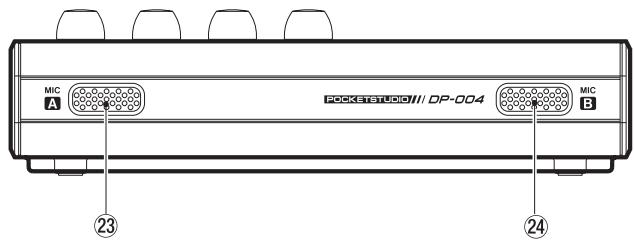
⑳ MIC A
This is a built-in omnidirectional mic that can be selected as the INPUT A channel input (INT.MIC A-Low, INT.MIC A-Mid, INT.MIC A-High).
⑳ MIC B
This is a built-in omnidirectional mic that can be selected as the INPUT B channel input (INT.MIC B-Low, INT.MIC B-Mid, INT.MIC B-High).
Rear panel
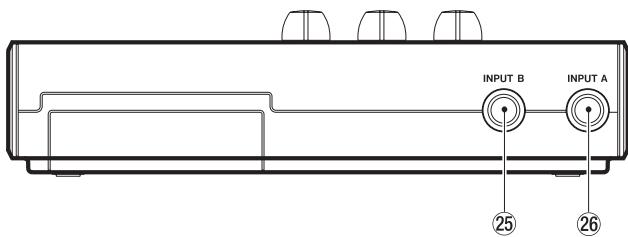
⑲ INPUT B connector
This becomes an input source for the INPUT B channel when LINE or MIC (external mic) is chosen on the INPUT SETTING screen. Unbalanced line and mic signals can be input.
②6 INPUT A connector
This becomes an input source for the INPUT A channel when GUITAR/LINE or MIC (external mic) is chosen on the INPUT SETTING screen. Unbalanced guitar, line and mic signals can be input.
Set the MIC/LINE-GUITAR switch on the left side panel to match the input.
3-Names and Functions of Parts
Right side panel
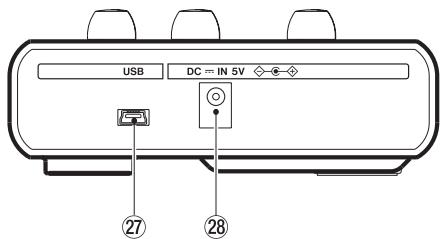
⑳ USB connector
Connect the unit to a computer using the included USB cable. This allows to sharing, importing and exporting files between the unit and the computer, including backup of the song data. (See “Connecting with a computer” on page 92.)
⑳ DC IN 5V connector
Connect a dedicated power adaptor (PS-P520, sold separately).
Left side panel
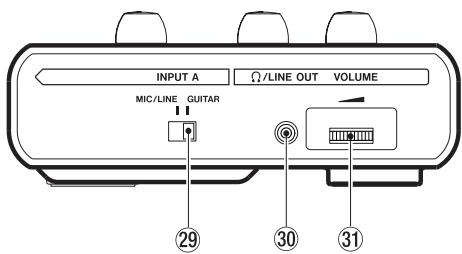
⑲ MIC/LINE-GUITAR switch
Set this switch to match the input signal to the INPUT A jack on the rear panel. For mic or line signals, set it to MIC/LINE. For electric guitars and basses that are connected directly, set it to GUITAR.
③0 Ω /LINE OUT connector
This stereo minijack connector can be used to connect headphones or an amplification and monitoring system to allow the stereo bus signal to be monitored. When the metronome is on, the metronome can also be heard.
③1 VOLUME dial
Use this to adjust the volume output from the /LINE OUT connector.
3-Names and Functions of Parts
CAUTION
The volume adjustment dial is small and does not have any indications. Before turning the power ON, always turn it in the direction of the arrow until it stops to minimize the volume. Sudden bursts of loud sounds can cause hearing damage and speaker damage, for example.
Bottom
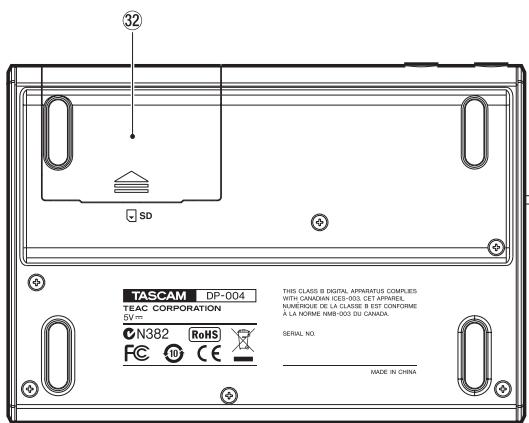
③2 Battery cover
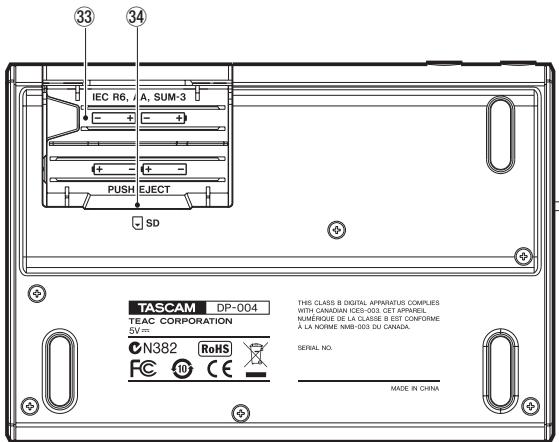
③3 Battery compartment
The batteries (four AA) that power the unit are inserted here.
The SD card slot is in the back of the compartment.
③4 SD card slot
Insert the SD card into the slot.
4-Preparations
Preparing the power and SD card
Installing an SD card
An SD card is used as recording media for recording and playback.
- Cards that comply with SD and SDHC standards can be used.
- Cards should be at least 512 MB in size.
- A list of SD cards that have been tested with this unit can be found on the TASCAM web site (www.tascam.com).
Insert the SD card into the SD card slot inside the battery compartment on the bottom of the unit.
1 Make sure the unit power is OFF. Open the battery compartment and remove the batteries if they are inside.
2 Insert the SD Card into the slot as shown in the following illustration until it clicks into place.
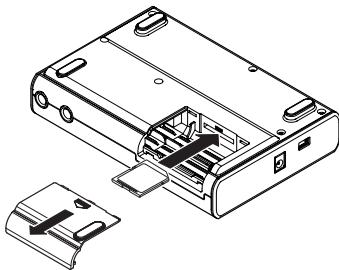
natural_image
Technical line drawing of a device housing with internal components and a separate close-up view (no text or symbols)3 Replace the batteries if you are using them and close the cover.
Ejecting the card
Push an inserted card in further to eject it.
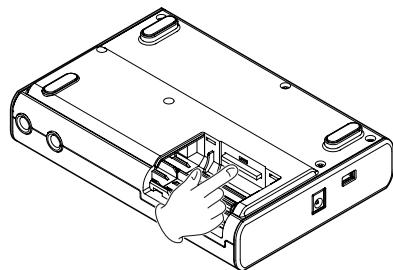
natural_image
Technical line drawing of a device casing with internal components and a hand inserting a component (no text or symbols)CAUTION
Do not remove the card or batteries when the unit is turned on. Failure to power off properly first will cause and recordings and settings made since the last power off and song save to be lost. This data cannot be recovered.
NOTE
If a protected SD card is inserted, playback is possible, but you will not be able to record or edit files.
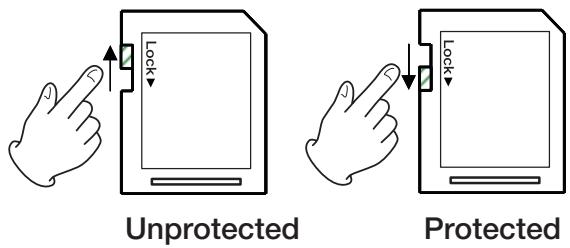
Preparing the power
This unit can be powered either by AA batteries or a power adapter (sold separately). Alkaline or NiMH batteries can be used with this unit.
Installing batteries
Open the battery compartment on the bottom of the unit as described in the previous “Installing an SD card” section. Insert 4 AA batteries in the box according to the + and - indications.
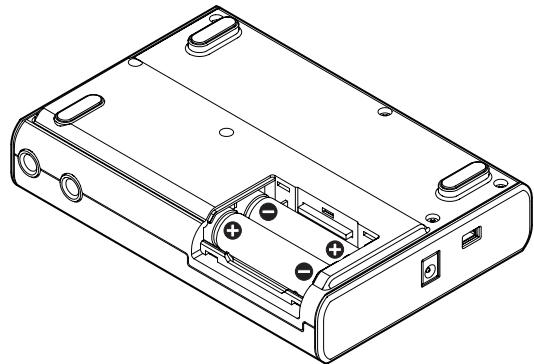
natural_image
Technical line drawing of a device casing with internal components and mounting holes (no text or symbols)CAUTION
The included alkaline batteries are for confirming the operation of the unit and might not last very long.
4-Preparations
Connecting an AC adapter (sold separately)
To use the PS-P520 AC adapter (sold separately), connect the adapter to the unit and the adapter to the power cord before plugging it into an outlet.
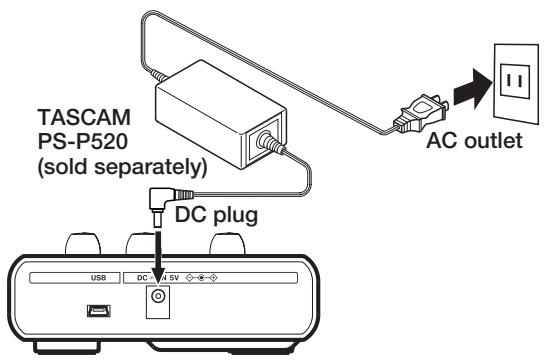
NOTE
The adapter powers the unit if the adapter is connected even if batteries are installed.
Start-up & shutdown
Starting up the unit
Press and hold the POWER key on the top panel until “TASCAM” appears (or the POWER key indicator lights green). After the start-up screen, the Home Screen appears.
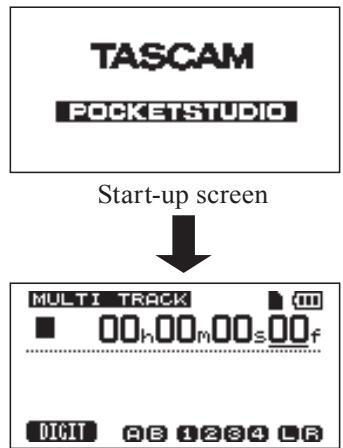
Home Screen
When the unit starts up it defaults to the multitrack recorder mode regardless of the mode used last before shutting down. (See “Recorder modes” on page 44.)
WARNING
When switching the unit on and off, we suggest that you turn down the volume of any speakers or amplifiers connected to the unit. Also, do not wear headphones connected to the unit when switching power on or off. This will avoid damage to speakers and possible harm to your hearing.
Shutting down
Make the following preparations before shutting down the unit.
- Stop the recorder. (The unit cannot be shut down during recording, playback, fast forward, etc.)
- Return to the Home Screen.
- If the unit is connected to computer, disconnect the USB cable after conducting the necessary procedures on the computer to unmount the unit.
After making these preparations, press and hold the POWER key until the following screen appears (or the key indicator light begins to blink).
The power turns off after the unit completes its shutdown process, including saving various information from your session.
NOTE
You can shut down the unit regardless of the recorder mode, but when the unit starts up it always starts up in the MULTI TRACK recorder mode. (See "Recorder modes" on page 44.)
CAUTION
- Do not remove the batteries or disconnect the power cable accidentally while the unit is operating. If you do so, the unit cannot shut down properly and all unsaved data will be lost. Lost data cannot be restored. We recommend that you also save the data manually often.
- When the power is turned off, the operation history of the currently loaded song will be erased (cleared). You will not be able to undo or redo operations on the song when you turn the power back on.
4-Preparations
Formatting SD cards
To use a new SD card with this unit, it is necessary to format it first. SD cards formatted by the unit are divided into MTR partitions and FAT partitions. SD cards with high capacities can be formatted with multiple partitions.
For more information about partitions see “9–SD Card Management” on page 81.
NOTE
The included SD card is already formatted so formatting is not necessary. If you format this card the demo song on it will be erased.
The first time you put a new SD card in this unit, a screen prompting you to format it appears.
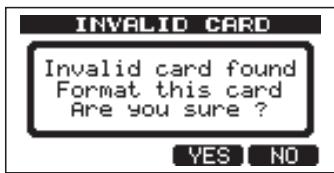
NOTE
The screen prompting you to format it also appears if you put in an SD card that has been formatted by any device other than this unit.
CAUTION
If you format it, all data saved by the other device will be erased and you will not be able to recover it.
1 Press the F3 (YES) key to format the card including creating the standard number of partitions for the card capacity.
2 The Home Screen appears after the format completes correctly.
NOTE
- To cancel formatting press the F4 (NO) key.
- Depending on the card capacity, the partition setting can be changed in some cases. To do so, set the partition size in the FORMAT item in the CARD menu before formatting (see "9–SD Card Management" on page 81).
Display screens
This display shows various screens for making settings and using functions and the Home Screen, which shows the status of the recorder.
Home Screen
The Home Screen is the basic screen that appears on the display. This is the screen that is used for recording and playback.
When you turn the power ON, the Home Screen appears when it finishes starting up.
The unit always starts up in the multitrack recorder mode. (See “Recorder modes” on page 44.)
Press the HOME key when any other screen is open to return to the Home Screen.
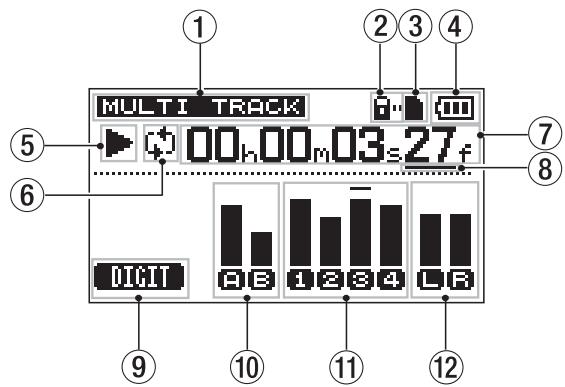
① Recorder mode
Shows the current recorder mode.
② SD card protected indication
This appears when the inserted SD card is protected.
③ SD card insertion status
If an SD card is inserted ▪ appears. If not, □ appears.
④ Battery status
When a battery is being used, a battery icon shows the amount of power remaining in bars (☐☐, ☐☐, ☐☐).
The battery is almost dead and the power will soon turn off if the icon has no bars □. When using the AC adapter (sold separately) appears.
4-Preparations
⑤ Recorder transport state
When playing ▶ appears. When stopped ■ appears. When recording ● appears.
⑥ Repeat playback mode indicator
When repeat playback is active ↗ appears.
⑦ Recorder time counter
Shows the elapsed time from the start of the song.
⑧ Cursor key that shows the time increment being edited Turning the DATA wheel changes the value of the selected time increment.
⑨ Shows the F1 key function
When the Home Screen is open, press the F1 key to move the increment affected by the DATA wheel.
⑩ Level meter for input channels A and B
Shows the signal level for input sources A and B.
⑪ Level meters for tracks 1–4
Shows the input level when recording and the playback signal level when playing back.
⑫ Level meter for stereo outputs (L, R)
Shows the output signal level from the / LINE OUT connector.
Screen Organization
The display provides information and allows various settings to be made and functions to be used.
Most operation screens are accessed by pressing the MENU key to open the MENU screen from the Home Screen, but some have dedicated keys.
Screens accessed from the MENU screen
• INFORMATION
- SONG menu
- CARD menu
- TRACK EDIT menu
- WAVE menu
• DATA BACKUP menu
• TUNER
• METRONOME
- PREFERENCE
Screens accessed using dedicated keys
- INPUT SETTING (use INPUT SETTING key)
- INPUT ASSIGN (use ASSIGN key)
• I/O SETTING (use IN/OUT key)
• RECORDER MODE (use REC MODE key)
• HISTORY screen (use STOP + UN/REDO keys)
Using the screens
When the Home Screen is open, use the MENU key or a dedicated key to open a screen. Then, use the DATA wheel or the four function keys below the display to make changes on the screen.
Note that during playback and while recording, screens that might access the SD card cannot be opened. If you try to open such a screen, a “Not Stopped” pop-up warning appears.
At the bottom of the screen the current functions of the function keys are shown. For the sake of convenience, the function keys are referred to as the F1, F2, F3 and F4 keys in this Owner's Manual.
- On the MENU screen and other screens where values are not set, use the DATA wheel to select items (selected items appear as light letters on a dark background).
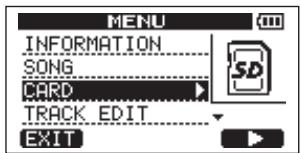
- A ▶ appears to the right side of items with sub-menu screens. To open the sub-menu screen, press the function key that corresponds to the ▶ displayed at the bottom of the screen. (In the MENU screen above, F4 opens the sub-menu screen.)
- If the currently displayed list has more items above and/or below, ▲ and/or ▼ appear at the bottom right of the screen.
(In the MENU screen above, ▼ appears to show that there are more items below TRACK EDIT.)
- On screens where values are set, turn the DATA wheel to set values.
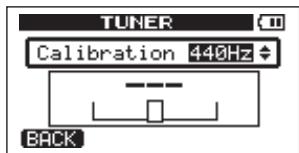
- To return to the previous screen, press the function key that corresponds to BACK at the bottom of the screen. (In the TUNER screen above, press the F1 key to return to the previous screen.) - On screens where there are multiple items with values that can be set, use the function keys that correspond to ▲ and ▼ at the bottom of the screen
4-Preparations
to select items and turn the DATA wheel to set values.
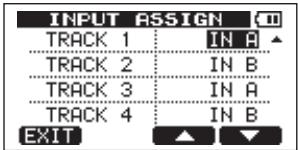
- To continue to the next operation, press the function key that corresponds to NEXT at the bottom of the screen.
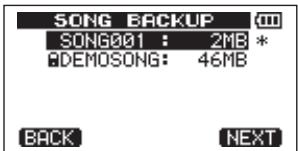
- To leave a screen accessed by a dedicated key press the function key that corresponds to EXIT.
- To execute the function, press the function key that corresponds to EXEC.
- To return to the Home Screen from a menu screen immediately, press the HOME key. Always return to the Home Screen after you are finished using a menu.
The example below is the SONG menu screen.
To open the SONG menu select SONG from the main menu shown above and press the F4 (▶) key.
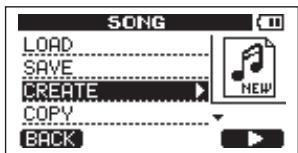
- Turn the DATA wheel to select the item that you want from the menu.
In the example below, LOAD is selected. The ▼ that appears at the bottom right of the screen shows that
there are other items below the COPY item.
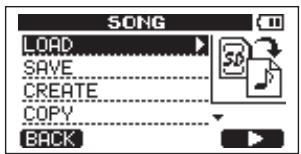
- Press the F4 (▶) key to open the LOAD screen. In the LOAD screen example below, the songs saved on the SD card appear in a list.
NOTE
To return to the previous screen, press the F1 (BACK) key.
- To load a song, turn the DATA wheel to select the desired song and press the F2 (EXEC) key.
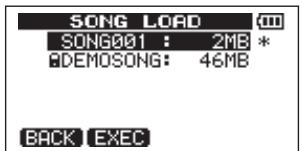
NOTE
The position where "EXEC" appears on the display depends on the screen.
Editing names
The names (titles) of song and files for export, for example, can be edited. In the following cases, screens where names can be edited appear.
When saving, creating or editing the name of a song
From the SONG menu, select SAVE, CREATE or NAME EDIT item and press the F4 (▶) key (See “5-Song Management” on page 47).
When exporting a master track as a WAV file
Select EXPORT MASTER item from the WAVE menu and press the F4 (▶) key (see “Exporting a stereo master” on page 100).
When backing up a song
Select the SONG BACKUP item from the DATA BACKUP menu and press the F4 (▶) key to open the SONG BACKUP screen. On this screen, select a song and press the F4 (NEXT) key (see “Backing-up songs” on page 94).
4-Preparations
You can edit the name as follows.
- Use the ◀◀/▶▶ keys to move the cursor (underline) position. The cursor position is where editing occurs.
- Turn the DATA wheel to change the characters at the cursor (underline) position. Ordinary symbols, numerals and English upper and lower case letters can be selected.
- To insert a blank at the cursor position while editing a song name, press the F3 (INS) key. Press it to insert an “A” while editing a file name.
- Press the F4 (DEL) key to delete the character at the cursor position.
- When finished editing, press the F2 (EXEC) key to save the new name.
Recorder modes
This unit has four recorder modes.
The ordinary mode is Multitrack mode. In this mode, this unit functions as a multitrack recorder. The other modes are Bounce, Master Rec and Master Play. These modes are for bouncing tracks, recording master tracks and playing master tracks, respectively. For more information, see “Bouncing tracks” on page 69 and “Mastering” on page 62.
When the power is turned ON, the unit always starts in Multitrack mode.
When in modes other than Multitrack mode, some screen operations do not function.
In this Owner's Manual, unless otherwise noted, the recorder mode explained is assumed to be the Multitrack mode.
Connecting with other equipment
Rear panel connections
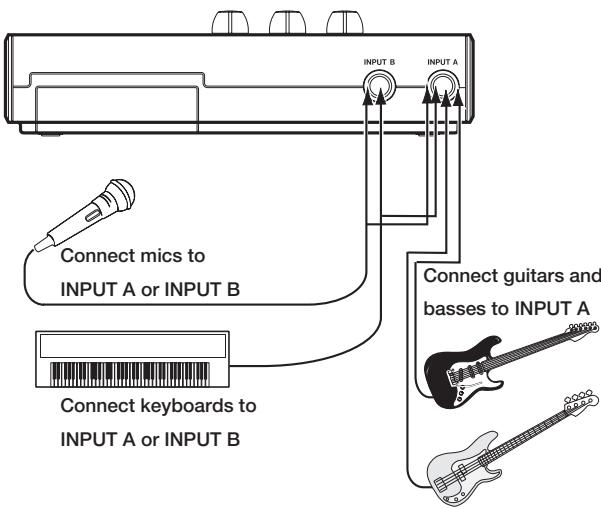
Right side panel connections
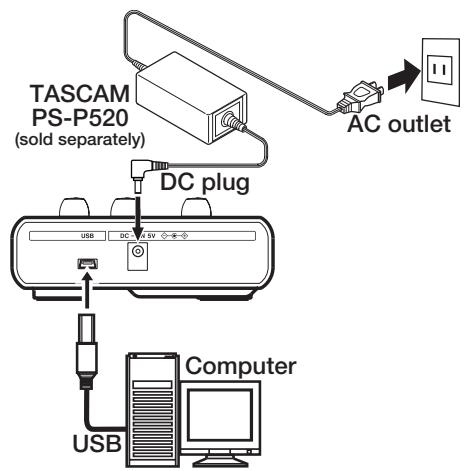
flowchart
graph TD
    A["TASCAM PS-P520 (sold separately)"] --> B["AC outlet"]
    B --> C["Computer"]
    D["DC plug"] --> E["USB"]
    E --> F["Computer"]
    G["USB"] --> H["Computer"]
NOTE
Recorder functions cannot be used when connected to a computer by USB
Left side panel connections
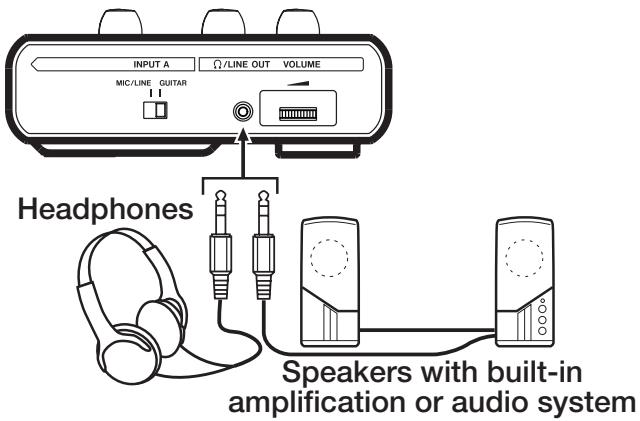
Setting the contrast
The LCD display contrast can be adjusted.
Use the following procedures to adjust the contrast.
1 When the Home Screen is open, press the MENU key to open the MENU screen.
2 Turn the DATA wheel to select PREFERENCE and press the F4 (▶) key to open the PREFERENCE screen.
3 Use the F3 (▲) and F4 (▼) keys to select the CONTRAST value, and turn the DATA wheel to adjust the display contrast.
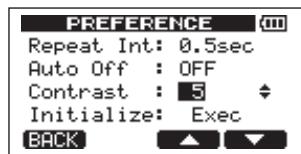
The selection range is from 1–10. Lower values make the display lighter while higher values make it darker. The display appears different depending on the angle from which you view it, so adjust it while the unit is in the actual position that you plan to use it in. Adjusting the contrast might make it easier to read.
5-Song Management
This unit manages data in song files. Ordinarily, every song is given its own file. The first step is to load the song that you want to manage (load an existing song or create a new song).
In a song, in addition to saving the audio data for the recorded multitrack (tracks 1–4), stereo master mixes that have been created are also saved.
This chapter, starts with an explanation of SD card partitions, and then covers basic operations, including procedures for loading songs and creating new song, as well as various song management functions.
For more about SD card management, see “9–SD card Management” on page 81.
Partitions and songs
This unit uses SD cards to record songs. SD cards formatted by the unit are divided into partitions. “MTR partitions” are for the recording of data and “FAT partitions” can be read by a personal computer. SD cards with high capacities are formatted with multiple MTR partitions.
When you want to record, playback or edit a song, select an MTR partition to make it the active partition and load a song on it or create a new song.
Selecting the active partition
If you want to use a file that is on a partition other than the currently active partition in order to load an existing song or create a new song on it, you must change the partition.
Follow these steps to select a partition on an SD card that has multiple MTR partitions.
1 With the transport stopped and the Home Screen open, press the MENU key to open the MENU screen.
2 Use the DATA wheel to select CARD and press the F4 (▶) key to open the CARD menu screen.
3 Use the DATA wheel to select PARTITION and press the F4 (▶) key to open the PARTITION screen. The display shows the MTR partition list.
5-Song Management
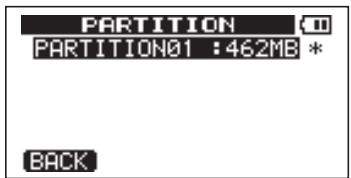
SD card with one partition
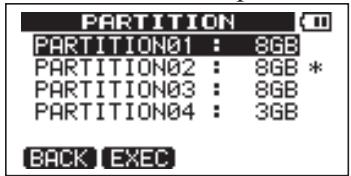
SD card with multiple partitions
An asterisk (*) shows the active partition. The sizes of the partitions are shown (not available space).
4 Rotate the DATA wheel to select the partition and press F2 (EXEC). A confirmation message appears.
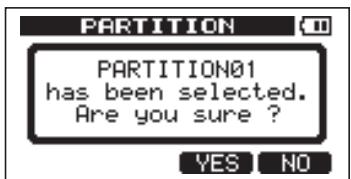
5 Press F3 (YES) to select. The unit saves the current
song before changing partitions. It then loads the last used song on that partition.
Loading a saved song
Follow these procedures to load a song from the active partition.
1 With the transport stopped and the Home Screen open, press the MENU key to open the MENU screen.
2 Use the DATA wheel to select SONG and press F4 (▶) to open the SONG menu screen.
3 Use the DATA wheel to select LOAD and press F4 (▶) to open the SONG LOAD screen. A list of the songs on the active partition appears with an asterisk (*) next to the current song.
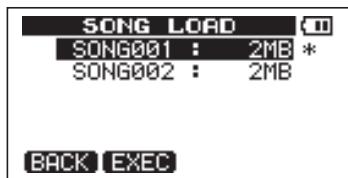
4 Use the DATA wheel keys to select the song to load and press F2 (EXEC). The current song is saved, and the selected song is loaded.
Creating a new song
Follow these procedures to create a new song in the active partition
1 With the transport stopped and the Home Screen open, press the MENU key to open the MENU screen.
2 Use the DATA wheel to select SONG and press F4 (▶) to open the SONG menu screen.
3 Use the DATA wheel to select CREATE and press F4 (▶) to open the SONG CREATE screen.
![SONG CREATE SONG NAME [SONG002] BACK EXEC INS DEL](/content/2025/01/168517/images/eca7e31262845aad5d74cdfcd2ed960dda9ab284ce275fb461e318fa134cfbb0.jpg)
A default song name like SONG*** is given to the new song. The asterisks indicate a number. In the example above the name is SONG002.
4 Change the song name as necessary (see “Editing names” on page 43).
TIP
You can rename a song later by selecting NAME EDIT from the SONG menu. You can also edit the song name when saving it.
5 Press F2 (EXEC) to save the currently loaded song and create the new song.
Saving a song
This unit automatically saves the current song during shutdown and when loading another song, for example. You can also save a song at any time using the following procedures.
1 When the transport is stopped and the Home Screen is open, press the MENU key to open the MENU screen.
2 Turn the DATA wheel to select SONG, and press the F4 (▶) key to open the SONG menu screen.
3 Turn the DATA wheel to select SAVE, and press the F4 (▶) key.
5-Song Management
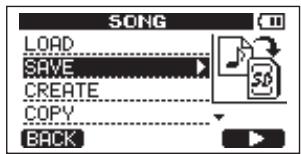
The SONG SAVE screen appears.
![SONG SAVE SONG NAME [SONG001] BACK EXEC INS DEL](/content/2025/01/168517/images/d2429ada5c3849ebe920940954cc41ebef782560a54a4a71d04ad064504998d3.jpg)
4 Change the song name if you want and then press the F2 (EXEC) key (see "Editing names" on page 43).
“Storing Song” appears while the song is being saved and “Save Complete” appears when it is done. Then the SONG menu screen reopens.
Viewing song information
You can check the name, partition and remaining recording time of the currently loaded song.
- When the Home Screen is open, press the MENU key to open the MENU screen.
- Turn the DATA wheel to select INFORMATION and press the F4 (▶) key.
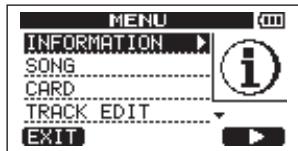
This opens the SONG page of the INFORMATION screen, which shows the name and remaining recording time of the current song.
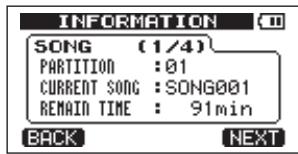
NOTE
The INFORMATION screen has four pages, including SONG, CARD, SYSTEM and F/W. Use the F3 (PREV) and F4 (NEXT) keys to change the page (see "Viewing information" on page 79).
Copying songs
Songs in the currently active partition can be copied to the same and different MTR partitions. Multiple songs can also be copied at once.
1 When the transport is stopped and the Home Screen is open, press MENU to open the MENU screen.
2 Turn the DATA wheel to select SONG, and press the F4 (▶) key to open the SONG menu screen.
3 Turn the DATA wheel to select COPY, and press the F4 (▶) key.
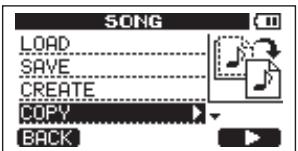
This opens the SONG COPY screen, which shows a list of songs in the active partition.
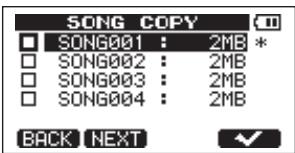
4 Turn the DATA wheel to select a song that you want to copy, and press the F4 (√) key.
The song is selected as a copy source and a check appears in the checkbox.
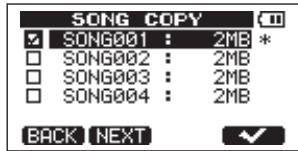
NOTE
To remove the check from the checkbox (deselect the song), press the F4 (√) key while the song is selected.
5 To copy multiple songs, repeat step 4.
6 After selecting all the songs that you want to copy, press the F2 (NEXT) key to open a screen where you can select the partition that you want to be the copy destination.
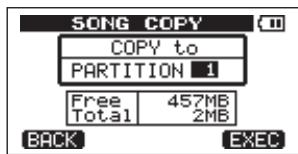
7 Turn the DATA wheel to select the copy destination partition and press the F4 (EXEC) key.
5-Song Management
When copying completes, the SONG menu screen reopens.
- To cancel copying a song, press the F1 (BACK) key instead of the F4 (EXEC) key.
Erasing songs
Songs can be erased. You can also erase multiple songs at once. You might want to erase unneeded songs if the SD card starts to run out of open space.
1 When the transport is stopped and the Home Screen is open, press MENU to open the MENU screen.
2 Turn the DATA wheel to select SONG, and press the F4 (▶) key to open the SONG menu screen.
3 Turn the DATA wheel to select ERASE and press the F4 (▶) key.
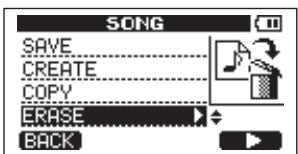
This opens the SONG ERASE screen, which shows a list of songs in the active partition.
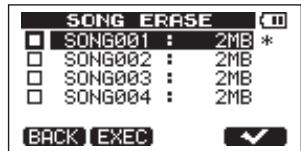
4 Turn the DATA wheel to select a song that you want to erase and press the F4 (√) key.
A check appears in the checkbox.
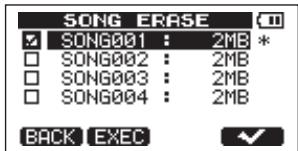
NOTE
To remove the check from the checkbox (deselect the song), press the F4 (√) key while the song is selected.
5 To erase multiple songs, repeat step 4.
6 After selecting all songs that you want to erase, press the F2 (EXEC) key.
A confirmation screen opens.
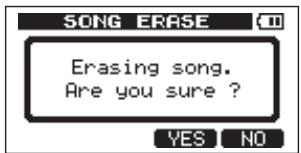
7 Press the F3 (YES) key. After the songs are erased, the SONG menu screen reopens.
- To cancel erasing a song, press the F4 (NO) key instead of the F3 (YES) key.
- Every MTR partition must always have at least one song, so if you erase all the songs on a partition, a new song is created automatically.
Protecting songs
If you protect a song, editing, recording, and erasing of that song is prohibited.
1 When the transport is stopped and the Home Screen is open, press the MENU key to open the MENU screen.
2 Turn the DATA wheel to select SONG, and press the F4 (▶) key to open the SONG menu screen.
3 Turn the DATA wheel to select PROTECT, and press the F4 (▶) key.
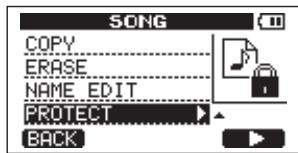
The SONG PROTECT screen that allows you to turn protection of a song ON and OFF appears.
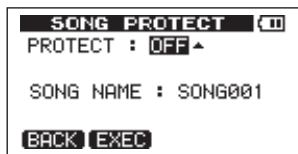
4 Turn the DATA wheel to turn PROTECT "ON," and press the F2 (EXEC) key.
After protection is turned ON, the SONG menu screen reopens.
- When the song list used to copy, erase and conduct other functions is open, a lock icon appears next to protected songs.
- If you try to execute a prohibited operation (edit, record, erase) on a protected song, “Song Protected” appears and the operation is prevented.
- To remove protection from a song, follow the above procedures but set PROTECT to “OFF” in step 4.
Selecting the input source
This unit has two input channels (INPUT A and INPUT B) that can be selected separately as input sources. The built-in microphones (front panel MIC A and MIC B) and external input signals (input through the rear panel INPUT A and INPUT B connectors) can be selected as input sources. Mic, line and guitar signals can be input through the INPUT A channel. The MIC/LINE-GUITAR switch on the left side panel must be set accordingly. Moreover, the sensitivity can be set when using the built-in mics.
1 When the transport is stopped and the Home Screen is open, press the INPUT SETTING key to open the INPUT SETTING screen.
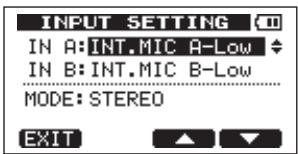
Use the IN A and IN B items to set the input sources for the INPUT A and INPUT B channels.
2 Use the F3 (▲) and F4 (▼) keys to select the IN A or IN B setting, and turn the DATA wheel to select the input source.
IN A selection choices
OFF: input OFF
INT.MIC A-Low: built-in MIC A (low sensitivity)
INT.MIC A-Mid built-in MIC A (middle sensitivity)
INT.MIC A-High: built-in MIC A (high sensitivity)
GUITAR/LINE: guitar or line signal (through INPUT A connector)
MIC: external mic (through INPUT A connector)
IN B selection choices
OFF: input OFF
INT.MIC B-Low: built-in MIC B (low sensitivity)
INT.MIC B-Mid built-in MIC B (middle sensitivity)
INT.MIC B-High: built-in MIC B (high sensitivity)
LINE: line (through INPUT B connector)
MIC: external mic (through INPUT B connector)
3 After changing the setting, press the HOME key to return to the Home Screen.
4 If a source that uses the INPUT A connector is
selected as the INPUT A input source in step 2 above, set the MIC/LINE-GUITAR switch on the left side panel appropriately. Set it to GUITAR when connecting an electric guitar or electric bass directly. Set it to MIC/LINE when inputting a mic or line signal.
TIP
When connecting an electric-acoustic guitar with a built-in preamp or an active electric guitar, as well as when connecting an electric guitar with effect boxes between it and this unit, set the MIC/LINE-GUITAR switch to MIC/LINE.
Monitoring the input signal
When an input source is set as the INPUT A or INPUT B connector on the rear panel, regardless of the REC key setting, the input signal is always sent to the stereo bus, so you can always monitor the input signal.
When an input source is set to a front panel built-in mic, the input signal is sent to the stereo bus and can be monitored only when the REC indicator light for the track that is set to record the built-in mic is blinking (during record standby) or lit (while recording). You cannot monitor the built-in mic input when the REC indicator is not lit.
NOTE
When an input source is set as the INPUT A or INPUT B connector, during playback, the sounds of the playback signal and the input source are mixed and can be heard through headphones or a monitoring system connected to the /LINE OUT connector.
Setting the monitoring mode
The monitoring mode can be set for the signals input on the INPUT A and INPUT B channels.
1 When the transport is stopped and the Home Screen is open, press the INPUT SETTING key to open the INPUT SETTING screen.
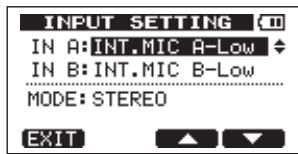
2 Use the F3 (▲) and F4 (▼) keys to select the MODE item value, and turn the DATA wheel to select the
6-Basic Recording
input monitor mode.
MONOx2: input signals from both INPUT A and INPUT B channels are output as a combined mono signal from both the left and right channels.
STEREO: input signals from INPUT A and INPUT B channels are output separately on the left and right channels, respectively.
3 After making the setting, press the HOME key to return to the Home Screen.
About the OL indicators and meters
The audio levels of this unit can be checked using the OL indicators in the input section and the meters on the Home Screen.
The meters allow the signal levels to be checked, and they can also be used to confirm whether signals are being input into the unit. For example, if the input meters are moving a signal is being input into the unit even if you cannot hear anything when you are monitoring.
As shown below, if a “-” appears at the top of a
meter, the level is too high (when a “−” appears, it will stay on screen for a while before automatically disappearing). If the level is too high and a “−” appears, the sound might be distorted, so lower the level until a “−” stops appearing.
If an OL indicator lights, the signal from the input source could be too loud or the LEVEL knob too high. If the OL indicator lights even if the LEVEL knob is set at 2–3 o'clock or less, the input signal is too high, so turn down the volume on the input source.
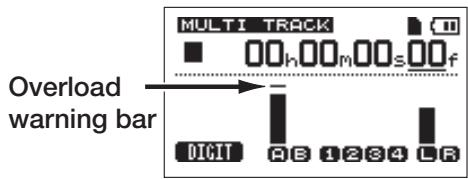
Input meters (A, B)
The two meters on the left side of this unit show the input levels of the INPUT A and INPUT B channels.
Adjust these levels using the INPUT A and INPUT B LEVEL knobs, or the output volume controls on the sound sources.
NOTE
If an OL indicator in the input section is lighting even though the input meter is showing a suitable level, the input signal is too strong and the sound is distorted. Lower the volume output on the input source.
Track meters (1–4)
These meters show either the playback signal level or the input signal level for each track. The signal levels shown by the track meters depend on the operating conditions as shown below.
- REC indicator not lit during playback: track playback signal
- REC indicator blinking (record standby) during playback: track playback signal
- REC indicator blinking (record standby) when the transport is stopped: track input signal
- REC indicator lit (during recording): track input signal
NOTE
When the playback signal is shown, the level of the recorded signal of the track is shown, so the level shown by the meters cannot be changed. When the input signal is being shown, the input levels, and thus the meters,
can be changed using the LEVEL knobs for INPUT A and INPUT B.
Stereo meters (L, R)
These show the stereo bus output level of this unit. Adjust the output level with the MASTER LEVEL knob.
NOTE
When an input source is a built-in mic, if the REC indicator is not lit on the track that is set to record the built-in mic, no signal is sent to the stereo bus, so the meters do not move.
Assigning input channels
In this unit, assigning an input channels allows you to assign the signal input from INPUT A or INPUT B as the source for recording on a track.
This unit can simultaneously record a maximum of two tracks. You can also record one input channel to two tracks simultaneously (in this case, you cannot use the other input channel). You cannot assign two input channels to the same track.
6-Basic Recording
1 Press ASSIGN to open the INPUT ASSIGN screen.
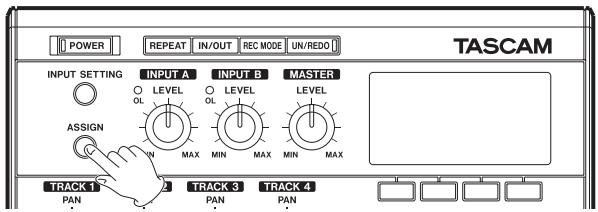
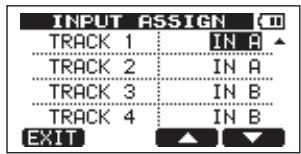
As shown above, the input channel that is the recording source for each track (1–4) is shown. In the initial setting, INPUT A is assigned as the recording source for tracks 1 and 3, and INPUT B is assigned as the recording source for tracks 2 and 4.
2 Use the F3 (▲) and F4 (▼) keys to select a track to change its current input channel.
3 Turn the DATA wheel to set the input to IN A or IN B.
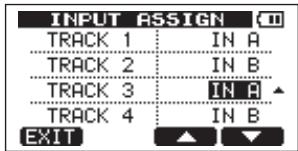
4 When finished making settings, press the HOME key to return to the Home Screen.
Making the first recording
Before following recording procedures below, confirm that the source that you want to record is connected, and that the input channel is assigned a recording source for a track. Monitoring headphones should also be connected.
1 Press the REC key of the track to record on. The REC indicator blinks red (that status is called “record standby”). A maximum of two tracks can be recorded simultaneously. If you press a different REC key when the REC indicators of two tracks are already blinking, the track that was put into record standby first will become inactive and the REC indicator will turn off.
For example, if you press the REC keys for track 1, track 2 and track 3 in that order, track 1, which was pressed first, will no longer be in record standby, but track 2 and track 3, which were pressed afterwards, will be in record standby.
2 Set the recording level. Turn the (INPUT A or INPUT B) LEVEL knob to adjust the input level of the input channel. Watch the display meters and the OL indicator above and to the left of the LEVEL knob while setting the level suitably. At the same time, confirm that sound heard from the headphones is not distorted.
NOTE
The meter for the track that the input signal is assigned to moves simultaneously with the corresponding input meter (A or B).
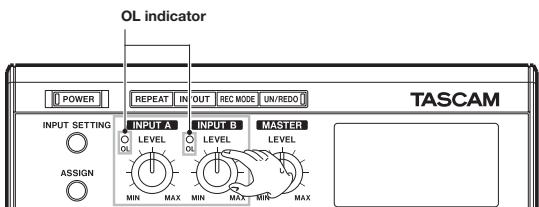
The OL indicator lights if the input is too loud. If
the OL indicator stays lit even when you lower the LEVEL knob, lower the output level on the signal source connected to the input.
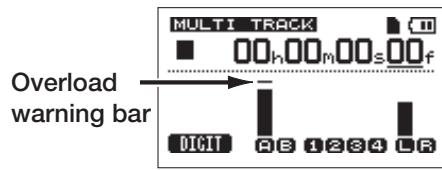
3 Press the playback (▶) key while pressing and holding the record (●) key. Recording starts and the record (●) key indicator lights red. The track REC indicator changes from blinking to lit.
4 Press the stop (■) key to stop recording.
5 To return to the starting point of the recording, press the ▶▶ key while pressing and holding the stop (■) key. (This is the Last Recording Point (LRP) function.)
To go to the beginning of the song (00:00:00:00), press the ◀◀◀ key while pressing and holding the stop (■) key. (This is the Return To Zero (RTZ) function)
6 Press the playback (▶) key to play the recorded
6-Basic Recording
track. Use the track LEVEL knob and the MASTER LEVEL knob to adjust the playback level. Use the VOLUME dial or the volume on your monitoring system to adjust the final monitoring volume.
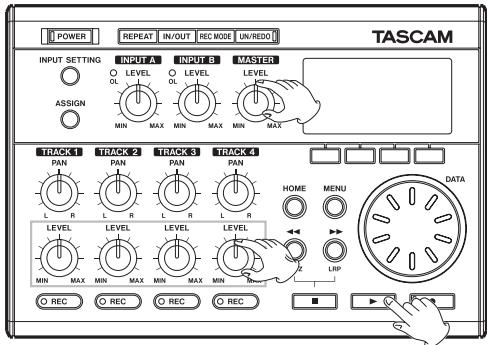
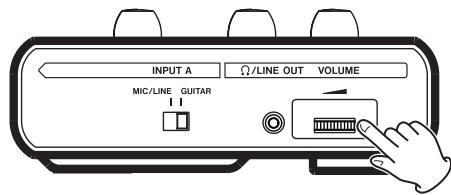
NOTE
- Track PAN and LEVEL knobs control the playback output signal on already recorded tracks. They do not control the input signals.
- Use the PAN knobs, to set the positions of each track signal between the left and right speakers. There is an indent at the center positions of the PAN knobs.
- If you are not satisfied with the recorded sound, follow the procedures above again from the beginning.
- Press the ◀◀/▶▶ keys to rewind/fast forward (like a tape recorder). Press and hold these keys to increase the rewind/fast forward speed. Press the stop (■) key to stop (like a tape recorder).
Overdubbing
Recording a new sound on a different track in time with the playback signal of the already recorded track is called overdubbing. In other words, recording after the first recording is overdubbing. This is a basic function of multitrack recording.
Setting up to overdub
To prepare for overdubbing, set the unit according to the following guidelines.
REC indicator settings
- Turn OFF the REC indicators of already recorded tracks.
- Press the REC key on the track that you want to overdub to put it into record standby (REC indicator blinking).
With these settings, if you put the unit into record mode, the already recorded track begins playing back as recording starts on the overdub track.
Track pan and level settings
Use the LEVEL and PAN knobs of already recorded tracks to adjust their level and stereo positions for monitoring during overdubbing.
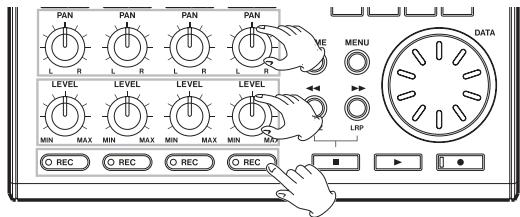
Input settings
Use the procedures described earlier in this chapter to assign input sources to tracks for recording.
Rehearsal
When finished making settings, press the playback (▶) key to start playback.
Just as though you were recording, you can monitor the sound of already recorded tracks playing back and the input source on the track for recording, allowing you to check the monitor balance and volume.
6-Basic Recording
Recording an overdub
Press the playback (▶) key while pressing and holding the record (●) key to start recording on the record track. You can listen to the playback sound while overdubbing.
Mixdown
Adjusting the volumes and stereo positions of the recorded tracks to create a well-balance stereo mix is called mixdown.
Level and balance
Use the track 1–4 LEVEL knobs to adjust the relative balance between tracks. Use the MASTER LEVEL knob to adjust the overall level. Watching the L/R meters at the right of the display, adjust the level until it is suitable. If the volume is too loud, the sound will be distorted.
NOTE
The track meters on the Home Screen show the recorded signal levels on the tracks. Therefore, these meters do not change even when the LEVEL knobs are adjusted.
TIP
You do not need to keep the entire song at the same volume. For example, you could gradually increase the volume during a guitar solo.
Stereo position (panning)
Using the PAN knob for a track, you can adjust the track signal's left-right position in the stereo mix.
Mastering
When you are satisfied with your mix, this unit can record and create a stereo master internally. We call this process mastering. A stereo master recorded by this unit is saved as part of the song, and can be recorded by an external stereo recorder. It can also be converted by the unit into a WAV file and exported to a computer where the sound can be
processed further or combined with other recordings (see “Exporting a stereo master” on page 100).
NOTE
Only one stereo master can be made in a song at a time.
Setting the end point
Before you start mastering, set the mastering end point. The time between the song's zero point (00:00:00:00) and the OUT point will be recorded as the stereo master. Ordinarily, the end point of the song is set as the OUT point. In this case, the time at the OUT point is the length of the song. Use the following procedures to set the OUT (end) point.
1 Press the IN/OUT key to open the I/O SETTING screen.
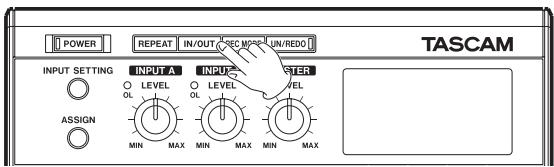
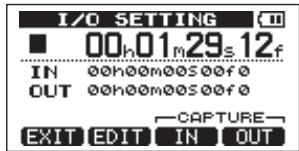
2 Play the song back, and press the F4 (OUT) key at the position where you want the stereo master end point. "SET OUT!" appears and this position is set as the OUT point.
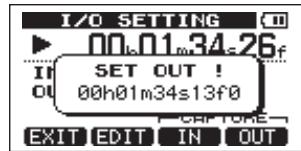
TIP
You can also set the OUT point when playback is stopped by pressing the F4 (OUT) key.
3 Press the HOME key to return to the Home Screen.
NOTE
For how to adjust the OUT point and for other functions, see "Setting IN and OUT points" on page 73.
Recording the master track
Set the OUT point before you start mastering.
1 Press the REC MODE key to open the RECORDER MODE screen.
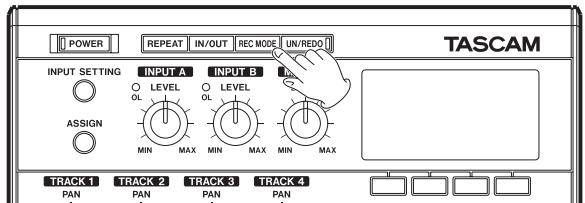
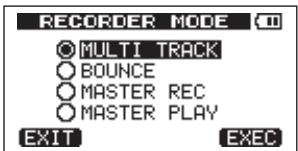
2 Turn the DATA wheel to select MASTER REC.
3 Press the F4 (EXEC) key to put the unit into master recording mode and return to the Home Screen. In this mode, the track mix signal (which will be recorded) is heard through headphones or a monitoring system during playback and recording.
NOTE
When this unit is in master recording mode, some playback functions and other functions do not work. If you try to use these functions, the "In Master Mode" pop-up message appears.
4 Press the playback (▶) key while pressing and holding the record (●) key to start master recording.
The record (●) key indicator lights. Regardless of the prior recorder position, recording starts from the 00:00:00:00 point (start of song).
Use the LEVEL and PAN knobs as necessary to control the mix. These adjustments do affect the sound of the recorded stereo master.
Recording automatically ends when the recorder position reaches the OUT point.
After it ends, do the following to listen to the master track that you created.
5 Press the REC MODE key to open the RECORDER MODE screen.
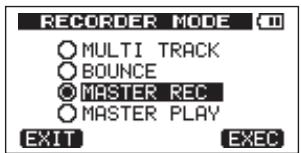
6 Turn the DATA wheel to select MASTER PLAY.
7 Press the F4 (EXEC) key to put this unit into master playback mode and return to the Home Screen.
8 Press the playback (▶) key to play the stereo master that you created. The stereo master sound is output through the Ω/LINE OUT connector, so it can also be dubbed to an external stereo recorder.
9 If you are satisfied with this stereo master, press the REC MODE key to open the RECORDER MODE screen. Turn the DATA wheel to select MULTI TRACK and press the F4 (EXEC) key to put the unit into multitrack mode (ordinary mode) again and return to the Home Screen.
If you do not like the stereo master you made, follow the above procedures to make a master recording again. The new stereo master replaces the previous stereo master.
NOTE
To listen to the recorded stereo master in a saved song, load the song, set the recorder mode to MASTER PLAY and press the playback (▶) key to start playback.
TIP
- When making a master recording, you can play along, for example, with the mixdown signal and input that sound through INPUT A or B to mix it with prerecorded tracks when creating a stereo master.
- If you want to turn the unit OFF after mastering, you do not need to return to MULTI TRACK mode in procedure 9 above. Regardless of the mode when shutdown, the next time the power is turned ON, it will start in MULTI TRACK mode.
- You can transfer the master mix created on this unit as a file that can be played back on a computer (see "Exporting a stereo master" on page 100).
- A stereo master can be copied to any track pair among tracks 1–4 by creating a "clone" track (see "CLONE TRACK (track duplication)" on page 87).
6-Basic Recording
Undoing operations (undo)
This unit allows you to undo an operation or recording that did not work as planned or was otherwise unsatisfactory. Undo can be used on many ordinary operations, including editing and recording operations. This unit has two types of undo functions. Single undo can be used with a simple key press, while multi-undo allows you to return to and undo a specific past operation.
Undoing the last operation (single undo)
Press the UN/REDO key to return to the state before the last operation was conducted. After doing this, the UN/REDO indicator lights, showing that redo (see below) is possible.
NOTE
The UN/REDO indicator lights when the unit state is not the last editing or recording operation conducted (when undo has been used).
Cancelling an undo operation (redo)
Press the UN/REDO key when it is lit to return to the state of the last operation. The UN/REDO indicator turns OFF.
NOTE
If single undo is used when multi-undo (described below) has already been used to return the unit to a previous state, it will go one more step backward. If you press the UN/REDO key again to redo the step, the single undo operation is cancelled, and the previous multi-undo state is restored. In this case, the unit is not restored to the most recently conducted operation, so the UN/REDO indicator remains lit because further redo operations are possible.
Undoing a previous operation (multi-undo)
1 Press the UN/REDO key while pressing and holding the stop (■) key to open the HISTORY screen.
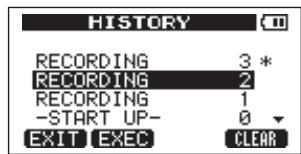
This screen shows the operation history as a list.
Each operation in the list is called an “event.” The
event list starts at the bottom with event number “∅” (-START UP-). The top event is the most recent and has “*” next to it.
All events that occurred after a selected event can be undone at once. This operation is called “multi-undo” because it allows you to undo multiple events and return to an earlier state.
2 Turn the DATA wheel to select the event that you want to return to (all events after the selected event will be undone).
3 Press the F2 (EXEC) key to execute the multi-undo and restore the song state to just after the selected event was conducted. In this state, the UN/REDO indicator lights.
The unit has been returned to a previous state, but the event information undone through the above operation is not erased. On the HISTORY screen, a * appears next to the current event after undoing. If you make a new recording or new edits after using multi-undo (UN/REDO indicator lit), the event history after the current event is cleared and the last operation conducted becomes the most recent event.
NOTE
When the HISTORY screen is open, the UN/REDO key does not function, so single undo and redo cannot be used.
CAUTION
- When undo has been used and there are one or more undone operations, the UN/REDO indicator lights. If there are no undone operations, the UN/REDO indicator does not light. When the UN/REDO indicator is lit (because there are undone events) if you make a new recording or conduct new editing, the last operation conducted becomes the most recent event, and you will no longer be able to redo previously undone operations.
- When saving a song, a maximum of 500 items can be saved in the operation history as song data. If the operation history exceeds 500 items, the oldest events in the history are erased when the song is saved. Erased events cannot be restored.
- When the power is turned OFF the operation history is completely erased. The operation history is not restored when the power is turned ON again.
6-Basic Recording
Erasing the operation history
When the power is turned OFF, the operation history of the currently loaded song is erased (cleared). The operation history is not restored, so past operations cannot be undone or redone when the power is turned ON again.
NOTE
The operation histories of songs that are not loaded are not erased when the power is turned OFF.
You can also erase (clear) the operation history of the currently loaded song without turning the power OFF.
1 Press the UN/REDO key while pressing and holding the stop (■) key to open the HISTORY screen.
2 Press the F4 (CLEAR) key. A confirmation message appears.
3 Press the F3 (YES) key. A confirmation message appears again.
4 Press the F3 (YES) key to clear the operation history and erase unused data. The Home Screen reopens when this operation completes.
- To cancel erasing the operation history, press the F4 (NO) key instead of the F3 (YES) key.
TIP
- If you open the HISTORY screen immediately after erasing the operation history, the event (operation) that appears is "0" (START UP), showing that the operation history has been cleared.
- If you want to keep the operation history even when you power OFF, turn song protect ON before turning the power OFF (see "Protecting songs" on page 53).
CAUTION
You cannot undo erasing the operation history! Only do it if you are certain about it.
Punching in and out
Punching in/out is a technique to replace a part of an already recorded track.
Start playback and when you reach the part that you want to replace, switch to record (punch in), then switch back to playback (or stop) when you finish the part that you want to replace (punch out).
1 Decide what part of the track you plan to replace and choose a point to begin where the new recording can sit well with the existing recording.
2 Press the REC key of the track that you plan to replace part of to start record standby (REC indicator blinks).
3 Start playback before the part of the track that you want to replace.
4 Press the record (●) key to start recording (punch in) when you reach the part. Play or sing what you want to record.
5 Press the playback (▶) key to switch to playback (punch out) when you finish the replacement recording.
TIP
You can also press the stop (■) key to punch out at the end of the replacement recording.
Bouncing tracks
Use this unit's bounce function to mix already recorded tracks (1–4) down to one or two tracks.
Multitrack tape recorders can only bounce to an open track (in other words, they can not record to a track that is also a source of the mix). For example, tracks 1–3 could be bounced to track 4, but tracks 1–4 could not be bounced to track 1. This unit, however, does not have this limitation. You can bounce tracks 1–4 as a stereo mix to tracks 1 and 2 (stereo bounce), or bounce tracks 1–4 as a mono mix to track 1 (mono bounce).
NOTE
Inside this unit, a mixdown is made to create a mix master that is recorded to the designated tracks.
7-Recorder Functions
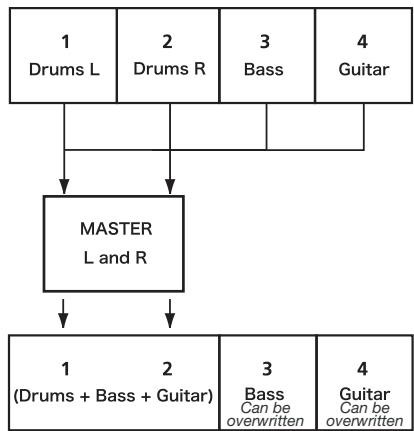
flowchart
graph TD
    A["1 Drums L"] --> D["MASTER L and R"]
    B["2 Drums R"] --> D
    C["3 Bass"] --> D
    E["4 Guitar"] --> D
    D --> F["1 (Drums + Bass + Guitar)"]
    D --> G["2 Bass Can be overwritten"]
    D --> H["3 Guitar Can be overwritten"]
Source tracks are erased when they are bounce destinations. (In the illustration above the drum parts are overwritten by the stereo mix). However, you can use the unit's (undo) function to return to the previous state if you make a mistake (see “Undoing the last operation (single undo)” on page 66).
Using the bounce function
1 Press REC MODE to open the RECORDER MODE screen.
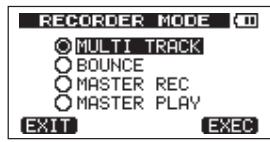
2 Turn the DATA wheel to select BOUNCE.
3 Press the F4 (EXEC) key to put the unit in bounce mode and return to the Home Screen.
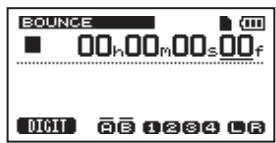
4 Press the REC keys for the bounce destination tracks (the indicators light).
For a stereo bounce, press the REC keys for tracks 1 and 2 or tracks 3 and 4. For a mono bounce (bouncing the mix to a single track) press the REC key for any one track.
5 Adjust the LEVEL and PAN knobs for the bounce source tracks.
For mono bounces all sounds will be panned all
the way left (bounced to track 1 or 3) or all the way right (track 2 or 4). Use the MASTER LEVEL knob to adjust the overall level.
6 After returning to the start of the song, press the playback (▶) key while pressing and holding the record (●) key to start the bounce.
Confirming the result
Raise the bounce destination track LEVEL knob (turn other track LEVEL knobs all the way down) and the MASTER LEVEL knob, and start playback from the beginning of the song. If you are not satisfied with the result because, for example, the balance between instruments is poor, or the pan settings are wrong, use the undo function (see “Undoing the last operation (single undo)” on page 66).
If you are satisfied with the result, press the REC MODE key to open the RECORDER MODE screen and select MULTI TRACK, then press the HOME key to return to the Home Screen.
After bouncing tracks, you can make new recordings over the other tracks.
TIP
If it is possible that you might need the original tracks at some later time, back-up the track data to a computer or copy the song before bouncing (see "Backing-up songs" on page 94 and "Connecting with a computer" on page 92).
Locate and search functions
Direct locate function
This is the way to locate a specific position in a song. The current recorder position is shown at the top of the display as “hours: minutes: seconds: frames” (there are 30 frames per second). You can move the transport location to a specific time by inputting it here.
1 Use the F1 (DIGIT) key to move the cursor (underline) between the time divisions. You can edit the value at the cursor positions. The seconds are selected in the following figure.
7-Recorder Functions
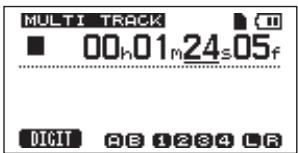
2 Turn the DATA wheel to change the value above the cursor. When adjusting, the value will carry over automatically when it reaches the highest or lowest value in a field. For example, when turning the DATA wheel to increase the value in the seconds field, the number will change from 59 to 8 and the minutes value will increase by one. The time display blinks when using the DATA wheel. The blinking stops about two seconds after moving to the new position.
3 Press the F1 (DIGIT) key to move to a different time division and turn the DATA wheel to change the value.
4 After setting the desired time value, press the playback (▶) key to start playback from that position.
RTZ and LRP
Use simple key operations to return to the top of a song or to the position where recording last started.
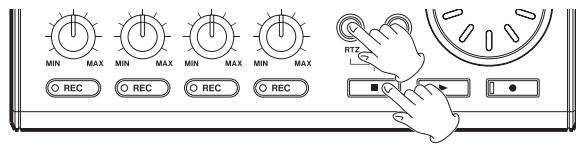
Return To Zero (song beginning at 00:00:00:00)
Press the ◀◀ key while pressing and holding the stop (■) key.
Last Recording Position (the position recording last started)
Press the ▶▶ key while pressing and holding the stop (■) key.
This function is useful when you want to record the same passage again.
TIP
RTZ and LRP below the ◀◀◀ and ▶▶ keys are abbreviations for Return To Zero and Last Recording Position, respectively.
Fast forward/rewind search
Press the ◀◀ or ▶▶ key when stopped or during playback to rewind or fast forward, respectively.
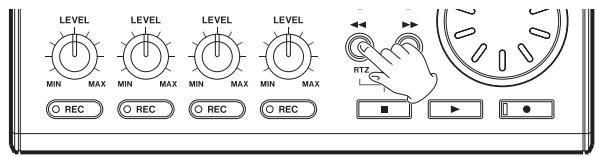
Each time you press one of these keys, the speed increases from 10x to 50x, 100x and 1000x.
Repeat playback
Use the repeat playback function to play the same part again and again. The repeated passage is time between the IN and OUT points.
Setting IN and OUT points
In addition to using them for setting the repeat playback passage, the IN and OUT points are also used for interval setting for track editing. Moreover,
the OUT point is used as the end point of the master track when mastering.
Capturing IN and OUT points
IN and OUT points can be captured when stopped, during playback or while recording.
1 Press the IN/OUT key to open the I/O SETTING screen.
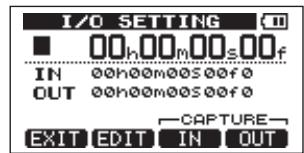
2 Press the F3 (IN) key or F4 (OUT) key at desired position (regardless of whether the unit is stopped, playing or recording). "SET IN!" or "SET OUT!" and the captured time appear.
TIP
You can also use the F3 and F4 keys to capture IN and OUT points when the Home Screen is open.
7-Recorder Functions
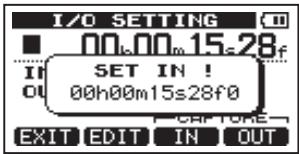
SET IN
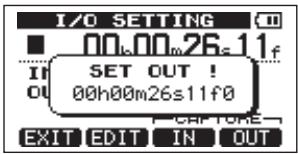
SET OUT
Editing IN/OUT points
1 When the I/O SETTING screen is open (see the first screen figure in the previous section), press the F2 (EDIT) key to open the edit screen.
![I/O SETTING 00h00m26s11f IN [00h00m15S28f0] OUT 00h00m26S11f0 CURSOR BACK](/content/2025/01/168517/images/efb025afccf5a94f74557d82851872424400fd6921924544346d71aada268fdd.jpg)
2 Edit the values of IN and OUT points using the following guidelines.
- Use the F3 (▲) and F4 (▼) keys to move the cursor (underline) between the IN and OUT points.
- Use the ◀◀/▶▶ keys to move the cursor (underline) between time fields.
- Turn the DATA wheel to change the value at the cursor (underline) position.
3 When finished editing, press the HOME key to return to the Home Screen.
NOTE
In the following cases, IN and OUT points cannot be captured or edited.
• During repeat playback
- When the recorder mode is MASTER REC or MASTER PLAY
Using repeat playback
1 Set the starting (IN) and ending (OUT) points for the time that you want to repeat, and then return to the Home Screen.
2 Press the REPEAT key to start repeat playback.
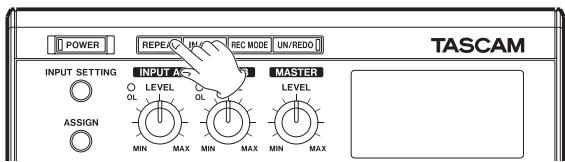
The repeat icon on the Home Screen appears.
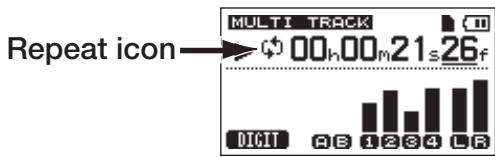
Playback starts from the IN point. When the OUT point is reached, after the repeat interval elapses, playback starts again from the IN point. Playback continues to repeat between the IN and OUT points.
3 Press the REPEAT key again to stop repeat playback. The repeat icon on the Home Screen disappears.
The next section explains how to set the repeat interval that determines the amount of time until playback starts again after the OUT point is reached.
Setting the interval between repetitions
The interval can be set from 0.5 to 9.9 seconds.
1 Press the MENU key to open the MENU screen.
2 Turn the DATA wheel to select PREFERENCE, and press the F4 (▶) key to open the PREFERENCE screen.
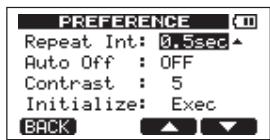
3 Use the F3 (▲) and F4 (▼) keys to select the setting value for the Repeat Int item. Turn the DATA wheel to set the value from 0.5 to 9.9 sec. in 0.1-sec. units.
4 When finished making settings, press the HOME key to return to the Home Screen.
8-Miscellaneous Functions
Metronome
This unit has a built-in metronome function that can be used when the recorder is operating. You can set it to function during both playback and recording or only during recording.
1 When the Home Screen is open, press the MENU key to open the MENU screen.
2 Turn the DATA wheel to select METRONOME and press the F4 (▶) key to open the METRONOME screen.
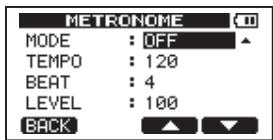
3 Set the following items. Use the F3 (▲) and F4 (▼) keys to select each item, and turn the DATA wheel to change the value.
MODE
Select OFF (metronome OFF), REC&PLAY (functions both during recording and playback) or REC ONLY (functions only during recording).
TEMPO
Set speed from 20 to 250 beats per minute (BPM).
BEAT
Set the frequency of the accent from 1 to 12 for different time signatures.
LEVEL
Set the metronome volume from 0 to 127.
4 When finished making settings, press the HOME key to return to the Home Screen. The metronome should now function according to the MODE setting set in step 3. Set to REC&PLAY, it will function both during playback and recording. Set to REC ONLY, it will function only during recording. Set to OFF, the metronome does not function. Note that even if the metronome is on during recording, the metronome signal is not recorded, but can only be heard when monitoring.
NOTE
- The metronome volume is not affected by the MASTER LEVEL knob. Use the LEVEL item on the METRONOME screen to adjust it.
8-Miscellaneous Functions
- When the metronome is operating, you can adjust the LEVEL, but other items on the METRONOME screen cannot be changed.
TIP
- You can use the metronome like a click track to help keep time when recording the first tracks (rhythm guitar, bass, etc.) in a song.
- If you want to use the metronome when practicing, you can either turn the MASTER LEVEL knob all the way down during playback or play a song that does not have any recordings.
Tuner
Use the built-in guitar/bass tuner to tune your instruments.
1 Connect a guitar or bass to INPUT A.
INPUT B cannot be used for tuning.
2 On the INPUT SETTING screen, set the INPUT A input source to GUITAR/LINE (see "Selecting the input source" on page 54).
3 When the transport is stopped and the Home Screen is open, press MENU to open the MENU screen.
4 Turn the DATA wheel to select TUNER and press the F4 (▶) key to open the TUNER screen.
The value of the Calibration item (standard frequency) is selected.
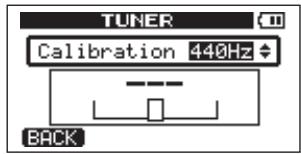
5 Turn the DATA wheel to set the standard frequency of the A note between 435 and 445 Hz. The default setting is 440 Hz.
6 Play a guitar or bass string. The pitch name closest to the string appears above the meters. Tune the string roughly until the sound name that you want appears. Then, fine tune the string until the rectangle at the middle of the meter darkens, showing that the string is in tune. If the pitch is too low, a bar extends to the left of the middle and if it is too high it extends to the right. The longer the bar is the more out of tune the string is. For example, in the following screen, the desired tuning is D but the string pitch is too low.
8-Miscellaneous Functions
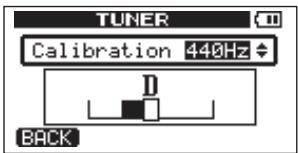
The rectangle at the middle of the meter darkens when the string is in tune.
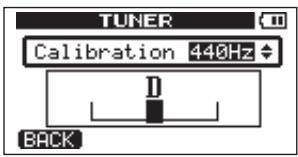
7 When finished tuning, press the HOME key to return to the Home Screen.
Turning the power off automatically
You can set the time until the power automatically turns OFF after the last use when using the batteries.
1 When the Home Screen is open, press the MENU key to open the MENU screen.
2 Select PREFERENCE and press the F4 (▶) key to open the PREFERENCE screen.
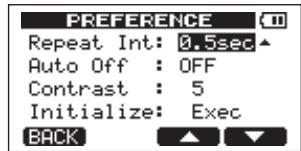
3 Use the F3 (▲) and F4 (▼) keys to select the Auto Off setting value, and turn the DATA wheel to choose from these options: OFF (initial setting, Auto Off does not occur), 3min, 5min, 10min, 30min
4 When finished making settings, press the HOME key to return to the Home Screen.
Restoring the initial preference settings
You can restore the PREFERENCE screen settings to their initial values (the values that they had when the unit was shipped from the factory). This operation is called initialization.
8-Miscellaneous Functions
1 When the Home Screen is open, press the MENU key to open the MENU screen.
2 Turn the DATA wheel to select PREFERENCE, and press the F4 (▶) key to open the PREFERENCE screen.
3 Use the F3 (▲) and F4 (▼) keys to select Exec next to the Initialize item.
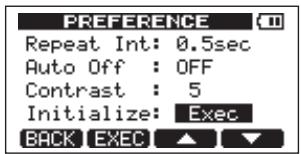
4 Press F2 (EXEC) to open a confirmation screen.
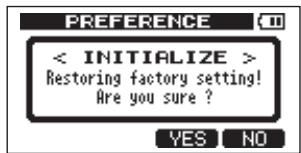
Press F3 (YES) to initialize the unit. The PREFERENCE screen reopens when the process finishes.
NOTE
Press the F4 (NO) key to cancel initialization.
5 When finished, press the HOME key to return to the Home Screen.
Viewing information
You can view information about the current song, the SD card, the system and the firmware.
1 When the Home Screen is open, press the MENU key to open the MENU screen.
2 Turn the DATA wheel to select INFORMATION and press the F4 (▶) key.
8-Miscellaneous Functions
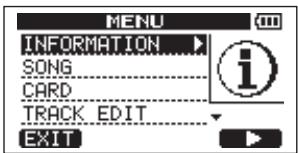
The INFORMATION screen SONG page appears.
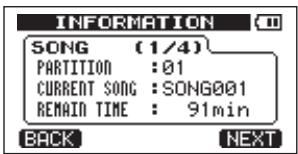
The INFORMATION screen has four pages including this one.
3 Use the F3 (PREU) and F4 (NEXT) keys to change the page. The pages contain the following information.
SONG page: name and partition of currently loaded song, remaining recording time on partition
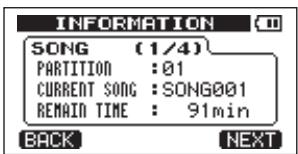
CARD page: MTR partitions and capacities, FAT partition capacity
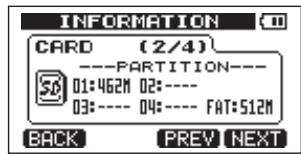
SYSTEM page: Repeat Interval, Auto Off and Contrast settings
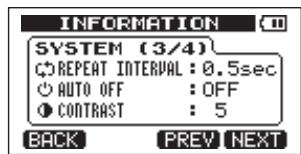
F/W page: system firmware version
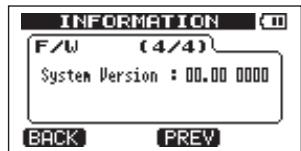
Overview of partitions
As described in “Partitions and songs” (page 47), SD cards formatted by this unit are divided into partitions. MTR partitions are for recording data while the FAT partition can be accessed with a personal computer. High-capacity cards can have multiple MTR partitions. In this case, you can use the MTR partitions for different songs, for example, or copy songs to a different MTR partitions to save their information. The FAT partition is FAT32 format and can be accessed by a computer connected to this unit by USB. This FAT partition is used to save songs and export stereo masters to computers, as well as to allow this unit to import audio files into songs, for example. For this reason, two steps are necessary to copy from a MTR partition and a computer. You can also format an entire card or individual partition as well as change the divisions between partitions (repartition) as necessary.
CAUTION
Formatting and repartition operations cannot be undone!
NOTE
- The FAT (File Allocation Table) format is a disk format that can be read by a computer.
- This unit can use both SD (512 MB – 2 GB) and SDHC (4–32 GB) cards.
- See "Selecting the active partition" on page 47 for how to change the active partition.
Write-protected cards
SD cards have write-protect (lock) switches.
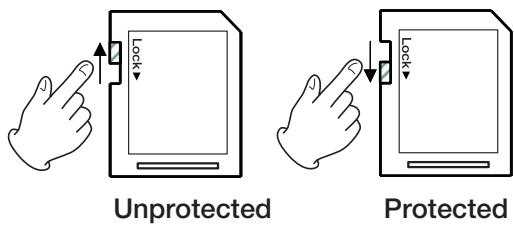
Files cannot be recorded or edited on a card if you slide its switch down.
Slide the switch down if you want to prevent the contents of the card from being changed or erased.
9-SD Card Management
Formatting cards and setting partition sizes
This operation formats the entire card and allows you set MTR partition sizes for high-capacity cards.
CAUTION
This operation erases all the data on the card and cannot be undone! Confirm that you will not lose important data before formatting a card.
1 When the transport is stopped and the Home Screen is open, press MENU to open the MENU screen.
2 Turn the DATA wheel to select CARD, and press the F4 (▶) key to open the CARD menu screen.
3 Turn the DATA wheel to select FORMAT and press the F4 (▶) key.
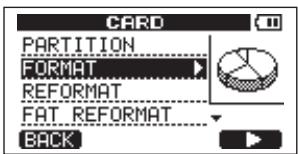
The FORMAT screen opens.
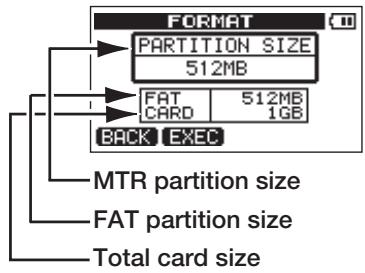
The following table shows the FAT and MTR partition sizes for different SD card capacities. The FAT partition size is set automatically according to card capacity. The size of the MTR partition on cards 4 GB or smaller is also fixed, but cards that are 8 GB or larger have multiple MTR partitions and their sizes can be chosen. However, the last MTR partition is set to fill the remaining space on the card automatically, so its size cannot be chosen.
9-SD Card Management
Card capacity and partition size
| Card capacity | FAT partition size | MTR partition size |
| 32 GB | 4 GB | 2 GB, 4 GB, 8 GB or 16 GB |
| 16 GB | 4 GB | 2 GB, 4 GB or 8 GB |
| 8 GB | 2 GB | 2 GB or 4 GB |
| 4 GB | 2 GB | 2 GB fixed |
| 2 GB | 1 GB | 1 GB fixed |
| 1 GB | 512 MB | 512MB fixed |
| 512 MB | 256 MB | 256MB fixed |
4 If the card capacity is 8 GB or more, turn the DATA wheel to select the MTR partition size, and press the F2 (EXEC) key. A message warning that all songs will be erased appears.
5 Press the F3 (YES) key to format the card.
For example, if you format a 16 GB card with 4GB MTR partitions, 12 GB are left for MTR partitions after 4 GB is used for the FAT partition. Three partitions are created. Two are 4 GB and the last one is 3 GB. (Since 1GB is actually 1024 MB, the total size of the partitions does not always match the card size.)
- When formatting finishes the CARD menu screen reopens.
- After formatting, one song is automatically created in each MTR partition.
- To cancel formatting, press the F4 (NO) key instead of the F3 (YES) key.
Reformatting MTR partitions
You can reformat an MTR partition if you want. Use this function when you just want to format a specific partition without changing its size.
CAUTION
You cannot undo this operation! All the data on the selected partition will be erased, so be certain that you will not lose anything important when reformatting.
1 When the transport is stopped and the Home Screen is open, press the MENU key to open the MENU screen.
2 Use the DATA wheel to select CARD, and press the F4 (▶) key to open the CARD menu screen.
3 Turn the DATA wheel to select REFORMAT.
9-SD Card Management
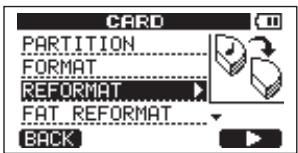
Press the F4 (▶) key to open the REFORMAT screen.
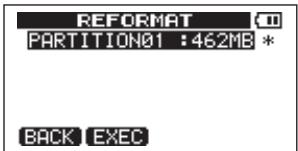
A list of the MTR partitions and their sizes (not open capacities) appear.
A * marks the active partition.
4 Turn the DATA wheel to select the partition that you want to reformat and press the F2 (EXEC) key.
A pop-up message warning that all data on the partition will be erased appears.
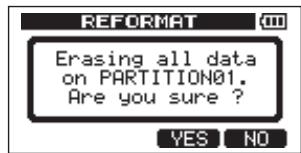
5 Press the F3 (YES) key to reformat the partition.
- When reformatting finishes the CARD menu reopens.
- After reformatting, one song is automatically created in the MTR partition.
- To cancel reformatting, press the F4 (NO) key instead of the F3 (YES) key.
Reformatting the FAT partition
You can also reformat just the FAT partition. The size of the FAT partition cannot be changed.
CAUTION
You cannot undo this operation! All data on the FAT partition will be erased, so be certain that you will not lose anything important when reformatting.
1 With the transport stopped and the Home Screen open, press the MENU key to open the MENU screen.
2 Turn the DATA wheel to select CARD, and press the F4
9-SD Card Management
(▶) key to open the CARD menu screen.
3 Turn the DATA wheel to select FAT REFORMAT, and press the F4 (▶) key.
A pop-up message warning that all data on the FAT partition will be erased appears.
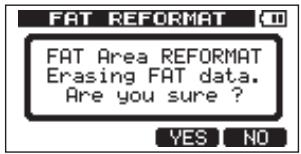
4 Press the F3 (YES) key to reformat the FAT partition.
- When reformatting finishes the CARD menu screen reopens.
- To cancel reformatting, press the F4 (NO) key instead of the F3 (YES) key.
Initializing SD cards
If you want to use an SD card that was used with this unit, we recommend that you initialize it. When you initialize an SD card, the entire card is
formatted as FAT32.
1 With the transport stopped and the Home Screen open, press the MENU key to open the MENU screen.
2 Turn the DATA wheel to select CARD, and press the F4 (▶) key to open the CARD menu screen.
3 Turn the DATA wheel to select the SD INITIALIZE item and press the F4 (▶) key.
A pop-up message warning that all data on the card will be erased appears.
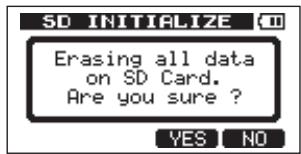
4 Press the F3 (YES) key to initialize the entire card and format it as FAT32.
- To cancel initialization, press the F4 (NO) key instead of the F3 (YES) key.
CAUTION
If you want to use the card with a DP-004 again you will need to format it (see "Formatting SD cards" on page 38).
10-Editing Tracks
Editing on a conventional tape recorder in the past required advanced techniques, but with this unit editing tracks is easy and accurate. Moreover, with a tape recorder, an editing error could not be undone, but this unit uses nondestructive editing, allowing you to edit without altering the original data. This means that the undo function can be used to correct an edit easily (see “Undoing the last operation (single undo)” on page 66).
Overview of track editing
This unit has the following track editing functions.
- CLONE TRACK (duplicate a track)
- CLEAN OUT (erase a track)
• SILENCE (erase part of a track)
• CUT (remove part of a track)
• OPEN (insert a silent section)
Edit points
Among track editing functions, SILENT, CUT and OPEN use the IN and OUT points for editing. These
are the same IN and OUT points used for repeat playback. See “Setting IN and OUT points” (on page 73) for instructions about how to do this.
- The IN point marks the beginning of the section that is subject to the track editing function.
- The OUT point marks the end of the section that is subject to the track editing function.
Basic editing procedures
1 When the transport is stopped and the Home Screen is open, press the MENU key to open the MENU screen.
2 Turn the DATA wheel to select TRACK EDIT, and press the F4 (▶) key to open the TRACK EDIT menu.
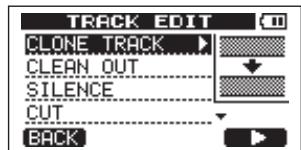
3 Turn the DATA wheel to select the desired track editing function, and press the F4 (▶) key to open that editing function's screen.
4 Select the setting item value. If there are multiple setting items, use the F3 (▲) and F4 (▼) keys to select an item. Turn the DATA wheel to select a value.
The different settings are explained in the following sections for each function.
5 Press the F2 (EXEC) key to execute the function.
- Press the F1 (BACK) key to return to the TRACKEDIT menu screen without executing the function.
CLONE TRACK (track duplication)
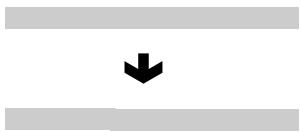
natural_image
Simple black downward arrow inside a gray rectangular frame (no text or symbols)Using CLONE TRACK you can create copies of single tracks, a track pair or a master track on different tracks. This copies the entire track, so the IN and OUT points have no effect.
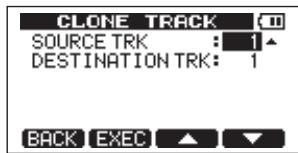
The two parameters are as follows.
SOURCE TRK
Select the track or tracks to duplicate. The choices are 1 to 4 (single track), 1/2, 3/4 (track pairs) and MST (master stereo track).
DESTINATION TRK
Select the track or tracks that you want to put the clone tracks on. The choices depend on the SOURCE TRK item setting.
If you chose a single track as the SOURCE TRK, the DESTINATION TRK choices are 1 to 4 (single track). If you chose a track pair (for example, 1/2) or MASTER as the SOURCE TRK, the DESTINATION TRK choices are 1/2 or 3/4 (pair track).
After setting the parameters, press the F2 (EXEC) key to execute the edit. Press the F1 (BACK) key to return to the TRACK EDIT menu screen without editing.
10-Editing Tracks
NOTE
If you choose the same track for both the SOURCE TRK and the DESTINATION TRK and press the F2 (EXEC) key, the "Same Track" message appears and the operation is cancelled.
CLEAN OUT (track erase)

This completely erases the selected track. This erases the entire track, so the IN and OUT points have no effect.
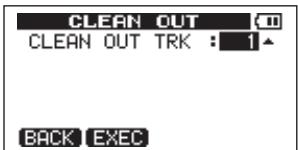
There is only one parameter.
CLEAN OUT TRK
Select the track or tracks to erase. The choices are 1 to 4 (single track), 1/2, 3/4 (track pairs) and 1-4 (all tracks).
After setting the parameter, press the F2 (EXEC) key to execute the edit. Press the F1 (BACK) key to return to the TRACK EDIT menu screen without editing.
SILENCE (part erase)
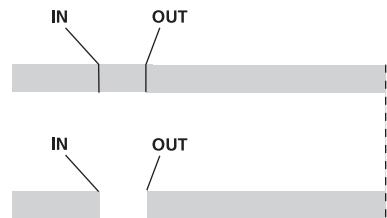
This erases the selected track between the IN and OUT points. This has the same effect as recording a silent signal between the IN and OUT points. This operation does not change the track length.
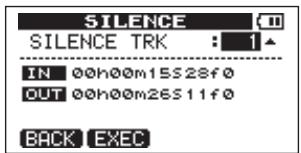
There is only one parameter. The IN and OUT points appear on the screen, but they cannot be changed here.
SILENCE TRK
Select the track or tracks that you want to silence parts of. The choices are 1 to 4 (single track), 1/2, 3/4 (track pairs) and 1-4 (all tracks).
After setting the parameter, press the F2 (EXEC) key to execute the edit. Press the F1 (BACK) key to return to the TRACK EDIT menu screen without editing.
TIP
This function can be used to remove short noises, for example.
CUT (remove part)
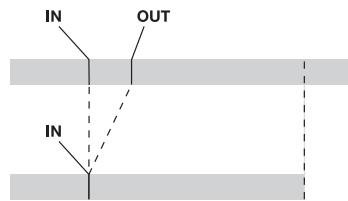
The segment between the IN and OUT points on a selected track is CUT (erased), and the rest of the track after the OUT point is moved forward to the IN point. As a result, the length of the track becomes shorter.
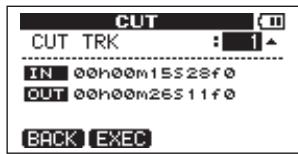
There is only one parameter. The IN and OUT points appear on the screen, but they cannot be changed here.
10-Editing Tracks
CUT TRK
Select the track or tracks that you want to silence parts of. The choices are 1 to 4 (single track), 1/2, 3/4 (track pairs), 1–4 (all tracks) and ALL (tracks 1 to 4 and the master track).
After setting the parameter, press the F2 (EXEC) key to execute the edit. Press the F1 (BACK) key to return to the TRACK EDIT menu screen without editing.
OPEN (insert silence)
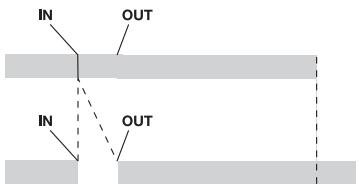
A silent passage is inserted between the IN and OUT points on a selected track.
This operation splits a track at the IN point and the beginning of the part after the IN point is shifted to the OUT point. As a result, the length of the track becomes longer.
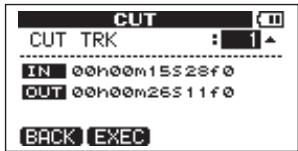
There is only one parameter. The IN and OUT points appear on the screen, but they cannot be changed here.
OPEN TRK
Select the track or tracks that you want to silence parts of. The choices are 1 to 4 (single track), 1/2, 3/4 (track pairs), 1-4 (all tracks) and ALL (tracks 1 to 4 and the master track).
After setting the parameter, press the F2 (EXEC) key to execute the edit. Press the F1 (BACK) key to return to the TRACK EDIT menu screen without editing.
11-Exchanging Data with a Computer
You can backup song data on this unit to a computer and restore backed-up song data later. Moreover, you can export track files and master files from a song to a computer and import audio files on the computer to the unit.
Data transfer always occurs between the unit's FAT partition and a computer connected by USB to this unit, so a two-step process is necessary.
NOTE
- The MTR partitions where song files are stored cannot be directly accessed from a computer.
- In this chapter, "computer" refers to a Windows or Macintosh computer connected to this unit (see "Supported operating systems" on page 92).
- In this Owner's Manual, we sometimes refer to the SD card installed in this unit simply as "this unit" (for example, "this unit's FAT partition").
In the same way, we refer to the hard disks and other devices that a computer is equipped with collectively just as a "computer" (for example, "transfer to the computer").
The FAT partition has three directories (folders): BACKUP, WAVE and UTILITY.
NOTE
- Do not erase or change the names of these directories. The functions explained in this chapter will not work if you do so.
- The UTILITY directory is used to, for example, update the system software used by the unit. Please see the instructions included with the software update for how to update.
The following types of data can be transferred from this unit to a computer.
Entire songs
You can transfer the data for an entire song from the unit's BACKUP directory on the FAT partition to a computer. This operation is called “backup.” In addition, data backed-up on a computer can be transferred to the BACKUP directory on the FAT partition, and then restored as song data. This operation is called “restore.”
WAV format tracks
One or more tracks can be converted to WAV files and exported to a computer, and WAV files (one at a time) on a computer can be imported to this unit. These WAV files are stored on the WAVE directory of this unit's FAT partition.
11-Exchanging Data with a Computer
Stereo master mix
A stereo master mix made on this unit can be transferred to a computer as a stereo WAV file from the WAVE directory on the FAT partition. Only export is possible.
Supported operating systems
You can connect this unit to computers with the following operating systems.
Microsoft OS
Windows 2000 (SP4 or later), Windows XP, Windows Vista
Apple Computer OS
Mac OS X 10.2 or later
When this unit is connected to a computer, the computer recognizes it as a removable disk. There is no need for a special driver.
CAUTION
When disconnecting this unit from the computer, follow the correct procedures for your computer OS. If
these procedures are not followed correctly, data on the FAT partition could be damaged (see "Connecting with a computer" below).
NOTE
Data transfer between this unit and a computer occurs at USB 2.0 speed (maximum). Data can still be transferred if the computer connection is USB1.1, but it will be slower.
In addition, to assure USB 2.0 speed, use the included cable or a cable that meets USB 2.0 standards.
Connecting with a computer
To use the FAT partition of this unit, the unit must be connected to a computer by USB. When connected by USB, this unit's record, playback and other recorder operations cannot be used.
To connect with a computer, connect the USB port on the right side panel of the unit with a USB port on the computer using the included USB cable. It does not matter whether you turn the unit's power ON before or after the USB connection is made.
If the USB connection is made while the unit's power is ON, the currently loaded song is saved
11-Exchanging Data with a Computer
before the USB connection becomes effective. When connected, the following screen appears on the display.
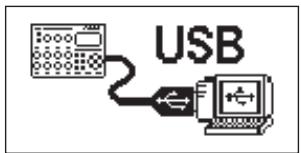
If you turn the unit's power ON after making the USB connection, the screen above appears right away.
The unit appears as an external drive named “DP-004” on the computer’s display.
CAUTION
- Do not make a USB connection when the remaining battery level is low.
- If the power turns OFF during data transfer, all the data will be lost. This lost data cannot be restored.
NOTE
Confirm that you have copied all the files that you want to transfer to a computer to the FAT partition before connecting the unit and the computer by USB.
Disconnecting
Use the following procedures to disconnect the USB connection correctly.
NOTE
When disconnecting from a computer, the procedure on the computer might be called "eject" or "unmount."
CAUTION
When transferring data, do not disconnect the unit or remove the USB cable. Doing so could cause data on the computer or this unit to be damaged.
Disconnecting from Windows 2000 (SP4 or later)/Windows XP/Windows Vista systems
Follow the procedures below to disconnect computers that use Windows 2000 (SP4 or later), Windows XP or Windows Vista operating systems. A PC card icon and arrow appear in the taskbar (usually at the bottom right of the screen).
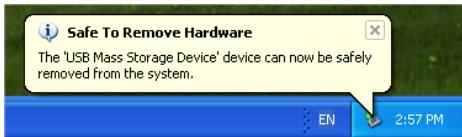
11-Exchanging Data with a Computer
1 Left-click on this icon to open a pop-up bar. Click this pop-up bar to disconnect this unit from the computer.
2 After a message appears on the computer screen saying that this unit can be disconnected, remove the USB cable.
This unit restarts and the Home Screen appears on the display.
- If a message appears on the computer screen saying that this unit cannot be disconnected safely, do not disconnect the USB cable. Close all the computer programs and windows that are accessing files on this unit, and then try the operation again.
Disconnecting from Macintosh systems
1 Drag the "DP-004" icon that represents this unit to the Trash, or type Command-E to eject the DP-004.
TIP
Depending on the OS version or OS settings you might also be able to eject the "DP-004" icon by clicking an eject button next to it in the Finder window or by using a control key.
2 After the icon disappears from the desktop, remove the USB cable.
This unit restarts and the Home Screen appears on the display.
Song backup and restoration
Song backup saves not only audio tracks, but also backs up editing data and other song data. Song restoration is the reverse of this process. In short, song data is transferred from the computer to the FAT partition of the unit and then used to restore the song.
Backing-up songs
Before starting a backup, check that the MTR partition that has the song that you want to backup is selected (see “Selecting the active partition” on page 47).
1 With the transport stopped and the Home Screen open, press the MENU key to open the MENU screen, and turn the DATA wheel to select DATA BACKUP. Press the F4 (▶) key to open the DATA BACKUP menu.
11-Exchanging Data with a Computer
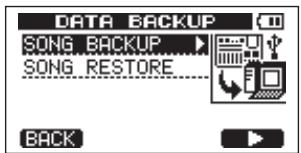
2 Use the DATA wheel to select SONG BACKUP, and press the F4 (▶) key to open a song list.
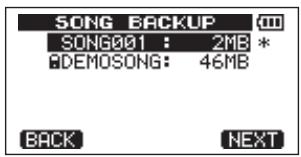
3 Turn the DATA wheel to select the song that you want to backup, and press the F4 (NEXT) key.
A screen appears that allows you to set the file name for the song being backed up.
![SONG BACKUP FILE NAME [SONG0001] BACK EXEC INS DEL](/content/2025/01/168517/images/fc7a94efe5f9637a0ac6c93040cf0e00ca6850120e8cdc4e039109043eff8c9b.jpg)
4 Use the ◀◀/▶▶ keys, the DATA wheel and the F3 and F4 keys, to name the song (maximum of 8 characters) (see “Editing names” on page 43).
5 After setting the name, press the F2 (EXEC) key.
A backup copy of the song on the active partition is made on the FAT partition (“.001” is added as an extension).
"Writing File" and an icon appear on the display.
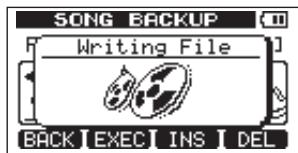
When the backup copy is complete, the DATA BACKUP menu reopens.
NOTE
If the open space necessary to back-up a songs is not available in the FAT partition, an error message appears. In this case, connect this unit and a computer, and erase unnecessary files on the partition using the computer to make enough open space.
11-Exchanging Data with a Computer
6 Connect this unit to a computer using the USB cable (see “Connecting with a computer” on page 92).
7 Use the computer to copy backup files from the BACKUP directory on the FAT partition of the unit to the computer.
8 After copying finishes, disconnect the unit from the computer using the proper procedures and then remove the USB cable (see “Disconnecting” on page 93).
CAUTION
- If you change the song file name on the computer, you might have trouble when you restore the file to this unit later.
- If you do change the file name of the backed-up song file, do not use more than eight characters in the new name.
TIP
- You can make further backup copies of the song file by copying it from the computer to a CD-R, for example.
- You can also restore a backed-up song file to a different DP-004 unit. Since files can be shared freely between DP-004 units, you can easily conduct overdubbing or mixdown at different locations.
Restoring songs
Basically, restoring is the reverse of backing up. In short, transfer a backup file on a computer to this unit to restore a song.
1 Connect this unit to a computer using the USB cable (see “Connecting with a computer” on page 92).
2 Use the computer to copy backup files from the computer to the BACKUP directory on the FAT partition of the unit.
3. When copying finishes, disconnect the unit from the computer using the proper procedures and then remove the USB cable (see “Disconnecting” on page 93).
4 After this unit restarts automatically, press MENU to open the MENU screen. Turn the DATA wheel to select DATA BACKUP and press the F4 (▶) key.
5 Turn the DATA wheel to select SONG RESTORE, and press the F4 (▶) key.
The screen shows the backup files on the FAT partition.
11-Exchanging Data with a Computer
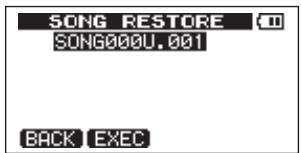
NOTE
An error message appears if there are no files on the FAT partition.
6 Turn the DATA wheel to select the file that you want to restore, and press the F2 (EXEC) key.
The actual song name and a confirmation message (“Are you sure?”) appear.
NOTE
If the file name is short, spaces appear after the file name on the FAT partition, but those spaces are not included in the actual file name.
7 Press the F3 (YES) key.
After the currently loaded song is saved, the song selected in step 6 is restored and loaded.
NOTE
If the open space on the card is insufficient, an error message appears.
Track import and export
You can import and export individual tracks between a computer and this unit's FAT partition. Files that can be imported and exported as tracks must be 16-bit, 44.1-kHz, mono WAV files (with the “.wav” extension). If you want to import audio into this unit that is of a different format, you must convert it to a 16-bit, 44.1-kHz mono WAV file first.
Importing tracks
Before importing a track, first select the partition with the song that you want to import it into as the active partition. Then, load the song that you want to import tracks into.
1 Connect this unit to a computer using the USB cable (see “Connecting with a computer” on page 92).
2 Use the computer to copy WAV files on its drive to the WAVE directory in this unit's FAT partition.
3 Disconnect the unit from the computer using the proper procedures and then remove the USB cable (see “Disconnecting” on page 93).
11-Exchanging Data with a Computer
4 After this unit restarts automatically, press the MENU key to open the MENU screen. Turn the DATA wheel to select WAVE, and press the F4 (▶) key to open the WAVE menu.
5 Turn the DATA wheel to select IMPORT TRACK, and press the F4 (▶) key.
WAV files on the FAT partition are shown.
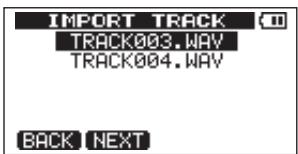
NOTE
- This unit cannot use stereo WAV files or those that are a sampling frequency other than 44.1 kHz. Such files are not displayed even if they have been imported. If no files that can be imported are on the FAT partition, a pop-up saying "Import File Not Found" appears.
- If the file name is short, spaces appear after the file name on the FAT partition, but those spaces are not included in the actual file name.
6 Turn the DATA wheel to select the WAV file that you
want to import, and press the F2 (NEXT) key.
The amount of open space on the currently active partition and the size of the selected WAV file appear on the display.
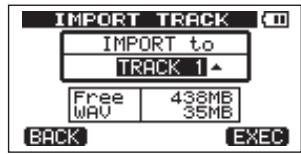
7 Turn the DATA wheel to select the track that you want to import the WAV file to, and press the F4 (EXEC) key.
NOTE
- If there is not enough open space or the file format is wrong, an error message appears.
- The track that is the destination for the import must be empty.
This unit reads the file from the FAT partition, and imports it to the designated track. The beginning of the file is set at the start of the song (00:00:00:00).
In the same way as other recording tracks, you can edit the track that has received the imported file (see "10-Editing tracks" on page 86).
Exporting tracks
You can export tracks as 16-bit, 44.1-kHz mono WAV files.
1 With the transport stopped and the Home Screen open, press the MENU key to open the MENU screen. Turn the DATA wheel to select WAVE, and press the F4 (▶) key to open the WAVE menu.
2 Turn the DATA wheel to select the EXPORT TRACK item, and press the F4 (▶) key. Song tracks that have audio recordings are displayed in a list. The file name makes the source track number clear.
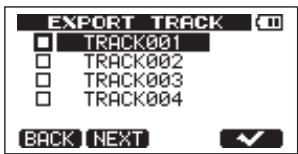
NOTE
Song tracks that do have audio recordings are not displayed in the file list.
3 Turn the DATA wheel, to select a track for export, and press the F4 (√) key to put a check in the checkbox.
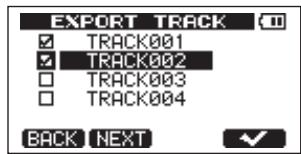
By checking multiple checkboxes, you can export more than one track at once. Select a track and press the F4 (√) key again to remove the check from its checkbox.
4 When you finish putting checks next to the tracks that you want to export, press the F2 (NEXT) key. The amount or open space on the FAT partition (which is the destination for the exported tracks) and the total number of tracks to be exported is shown.
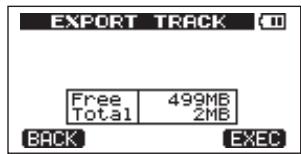
TIP
In step 3 above, if you press the F2 (NEXT) key after selecting a track but before putting a checkmark next to any track, the selected track is exported alone.
11-Exchanging Data with a Computer
5 Press the F4 (EXEC) key. The selected track is exported to the FAT partition with the edited file name with the “.WAV” extension added as the track file name. If you have previously exported a track file with the same name, a confirmation message (“Duplicate name – Are you sure?”) appears. Press the F3 (YES) key to overwrite the older track.
6 Connect this unit to a computer (see “Connecting with a computer” on page 92).
7 Use the computer to copy track files from the WAVE directory on the FAT partition to the computer.
8 After exporting track files to the computer, disconnect the unit from the computer using the proper procedures and then remove the USB cable (see "Disconnecting" on page 93).
- You can make further backup copies of an exported track file by copying it from the computer to a CD-R, for example.
- You can change the name of an exported track file on the computer. If you do so, use no more than eight characters and always follow them with the “WAV” extension. Furthermore, do not use special
symbols, for example.
- You can import the tracks that you exported to the computer to this unit or another DP-004.
Exporting a stereo master
You can export a stereo master that you have made on the unit (see “Mastering” on page 62) to a computer. When you create a new stereo master for a song, the existing stereo master is overwritten, so if you want to keep multiple different stereo masters, you might want to save them to a computer.
Before starting the following export procedures, make sure that the song that you want to export a stereo master for is currently loaded and that you have already created a stereo master for it.
1 When the transport is stopped and the Home Screen is open, press the MENU key to open the MENU screen. Turn the DATA wheel to select WAVE, and press the F4 (▶) key to open the WAVE menu.
2 Turn the DATA wheel to select EXPORT MASTER, and press the F4 (▶) key. The default file name is displayed and can be edited.
11-Exchanging Data with a Computer
![EXPORT MASTER FILE NAME [MIXST001] BACK EXEC INS DEL](/content/2025/01/168517/images/d8ea8b92557710fb52a7c3d02582a964c402dd8149837766a5ff4ea310fd8db8.jpg)
NOTE
If there is no stereo master, an error message appears.
3 Use the ◀◀/▶▶ keys, the DATA wheel and the F3 and F4 keys to edit the name of the stereo master file being exported (See “Editing names” on page 43).
4 After setting the name, press the F2 (EXEC) key. A stereo master file is exported as a 16-bit, 44.1-kHz, stereo WAV file to the FAT partition. The file name of the exported file is the name set in step 3 above plus the “.WAV” extension.
NOTE
To cancel exporting, press the F1 (BACK) key.
5 Connect this unit to a computer using the USB cable (see “Connecting with a computer” on page 92).
6 Use the computer to copy the stereo master file from the WAVE directory on the FAT partition of the unit to the computer.
7 After copying finishes, disconnect the unit from the computer using the proper procedures and then remove the USB cable (see “Disconnecting” on page 93).
12-Troubleshooting
When working with any new piece of equipment like the unit, it's sometimes difficult to work out whey something isn't happening the way you expect. The main thing is to take your time—after all, you're not paying hourly studio rates! Stop and think. Ask yourself questions, like the ones below, and you can usually find the answer.
Also, see the “Messages” section on page 106 for the meaning of messages that may pop up on the display. Consult this table when a message appears when an operation cannot be completed by the unit.
Why can't I hear any sound when I play back?
- Are the LEVEL knobs of the tracks set to high enough?
- Is the MASTER LEVEL knob set to high enough?
- Have you connected the / LINE OUT jack to your monitoring system properly, and is your monitoring system set up correctly?
• Is the VOLUME control set to high enough?
Why does the sound I'm recording sound distorted?
- Are the LEVEL knobs of the INPUT A or INPUT B on the top panel of the unit set too high? Is the input source too loud?
- Isn't the monitor system distorted as the monitor level is too high?
Why can't I record?
- You must have at least one track armed (REC indicator flashing) before you start recording by pressing the PLAY (▶) key while pressing the RECORD (●)key.
- Are inputs assigned to tracks (see “Assigning input channels” on page 57)?
Why can't my computer "see" the unit files?
- Is the unit connected to the computer via the USB terminal (see “Connecting with a computer” on page 92)?
- Before making the USB connection, songs, tracks, or stereo masters are backed up or exported to the FAT partition? (Files on the MTR partition cannot directly be read.)
13-Specifications & Messages
Audio input/output ratings
INPUT A
Terminal: Standard phone jack, Unbalanced
Input impedance:
10kΩ min. (with INPUT A selectable switch set to MIC/LINE)
1MΩ (with INPUT A selectable switch set to GUITAR)
Standard input level: -10 dBV
Maximum input level: +6 dBV
Headroom: 16 dB
INPUT B
Terminal: Standard phone jack, Unbalanced
Input impedance: 10kΩ min.
Standard input level: -10 dBV
Maximum input level: +6 dBV
Headroom: 16dB

/LINE OUT output
Terminal: 3.5 mm mini-phone jack (stereo)
- When line is connected
Standard output level: -16 dBV
Maximum output level: 0 dBV
- When headphone is connected
Maximum output level: 15 mW + 15 mW (when 32Ω headphone is connected)
Audio performance
Frequency response
INPUT (MIC/LINE) → LINE OUT: 20 Hz to 20 kHz
Distortion
INPUT (LINE) → LINE OUT: 0.05% max.
S/N ratio
INPUT (MIC/LINE) → LINE OUT: 81 dB min.
General
Recording media
SD card (512 MB - 2 GB) or SDHC card (4 GB - 32 GB)
File system
MTR partition: TASCAM original
FAT partition: FAT32
Battery life
About 8 hours (Record mode)
About 8.5 hours (Music playback mode)
(when measured with alkaline batteries. Battery life may vary
depending on the operating conditions)
13-Specifications & Messages
Operating temperature range
5 - 35°C
Power consumption
1 W
Dimensions
155.0 (W) × 33.5 (H) × 107.0 (D) mm (w/o projections)
Weight
360 g (w/o batteries)
Optional accessories
AC adapter
PS-P520
Computer requirements
Windows
Pentium 300 MHz or faster
128 MB or more memory
USB (USB 2.0 recommended)
Macintosh
Power PC, iMac, G3, G4 266 MHz or faster
64 MB or more memory
USB port (USB 2.0 recommended)
Recommended USB host controller
Intel chipset
Supported OS
Windows
Windows 2000 SP4 or later, Windows XP and Windows Vista
Macintosh
Mac OS X 10.2 or later
Dimensions
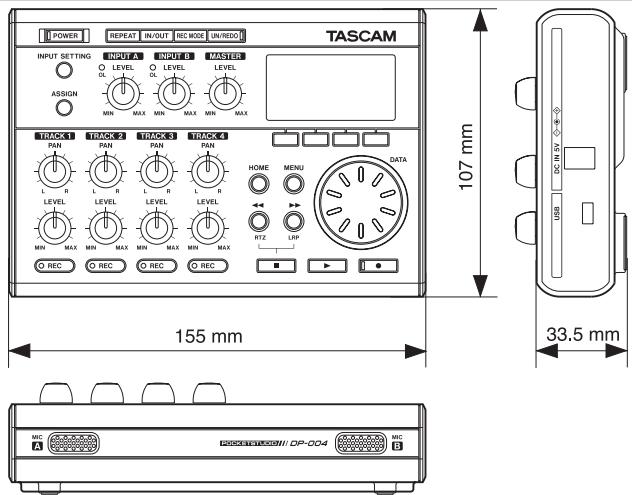
Block diagram
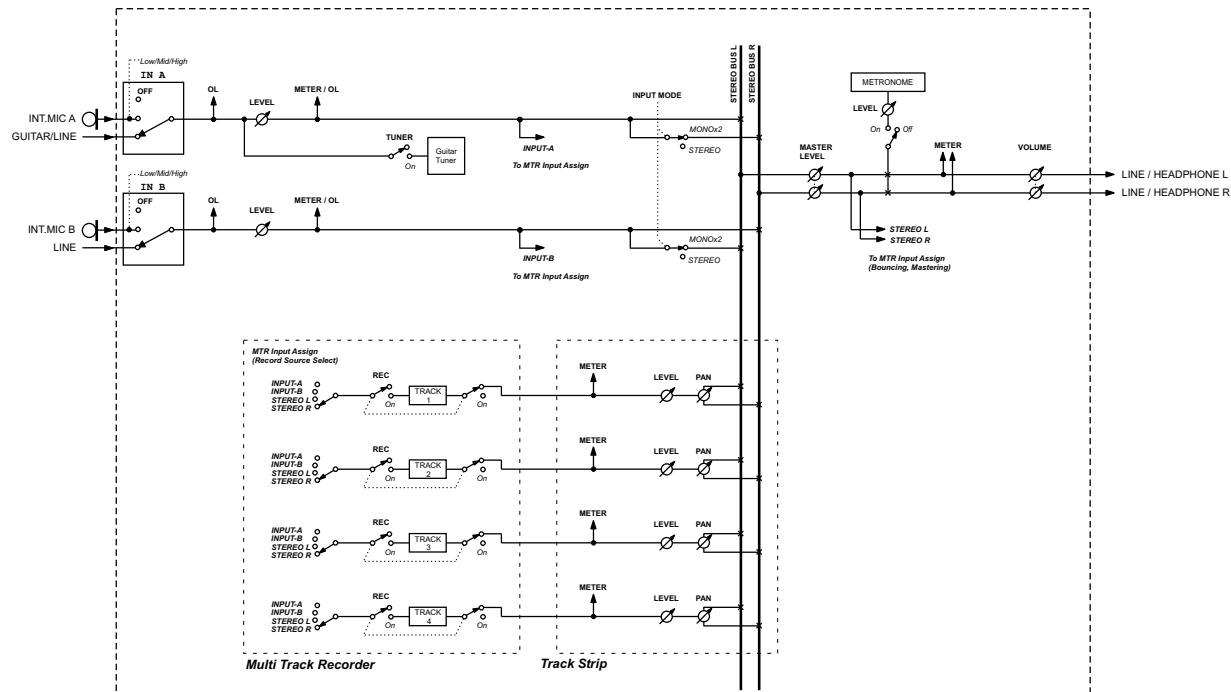
flowchart
graph TD
    subgraph Inputs
        A["INT.MIC A GUITAR/LINE"] --> B["OFF"]
        C["INT.MIC B LINE"] --> D["OFF"]
    end

    subgraph Outputs
        E["METER / OL"] --> F["LEVEL"]
        F --> G["TUNER"]
        G --> H["Guitar Tuner"]
        H --> I["INPUT-A To MTR Input Assign"]
        I --> J["MONOx2 STEREO"]
        J --> K["INPUT-B To MTR Input Assign"]
        K --> L["MONOx2 STEREO"]
    end

    subgraph Record Sources
        M["INPUT-A INPUT-B STEREO L STEREO R"] --> N["REC On TRACK 1 On"]
        O["INPUT-A INPUT-B STEREO L STEREO R"] --> P["REC On TRACK 2 On"]
        Q["INPUT-A INPUT-B STEREO L STEREO R"] --> R["REC On TRACK 3 On"]
        S["INPUT-A INPUT-B STEREO L STEREO R"] --> T["REC On TRACK 4 On"]
    end

    subgraph Track Strips
        U["METER"] --> V["LEVEL PAN"]
        W["METER"] --> X["LEVEL PAN"]
        Y["METER"] --> Z["LEVEL PAN"]
        AA["METER"] --> AB["LEVEL PAN"]
    end

    subgraph Outputs
        AC["METER BUS L STEREO BUS R"] --> AD["LEVEL ON"]
        AE["METER"] --> AF["LEVEL ON"]
        AG["VOLUME"] --> AH["STEREO L STEREO R"]
        AI["LINE / HEADPHONE L LINE / HEADPHONE R"] --> AJ["Master LEVEL"]
        AK["METRONOME"] --> AL["LEVEL ON Off"]
    end

    B --> F
    D --> H
    D --> I
    D --> K
    D --> L
    D --> K
    F --> G
    G --> I
    I --> K
    K --> L
    L --> M
    M --> N
    N --> O
    O --> P
    P --> Q
    Q --> T
    T --> U
    U --> V
    V --> X
    X --> Y
    Y --> Z
    Z --> AA
13-Specifications & Messages
Messages
The following popup messages alert you to conditions that may arise while you are using the unit. Consult this table if you see something you do not understand.
| Messages | Meaning and remedy |
| Empty Export Track | You are trying to export a track ("Track import and export" on page 97) which does not have anything recorded on it. Pick another tarck to eport. |
| File Not Found | You are trying to restore a song when there are no backed-up songs on the FAT partition ("Song backup and restoration" on page 94). |
| I/O Too Short | You are trying to enter repeat mode, but the time between the IN and OUT points is too short. Make the time longer. |
| Import File Not Found | You are trying to import a WAV file from the FAT partition when there are no WAV files there ("Importing tracks" on page 97). Connect the unit to a PC and transfer some files to the FAT partition for import. |
| Import File Too Large | You are trying to import a WAV file from the FAT partition that is too large for the remaining space on the partition. Free up some space on the (native) partion and try again. |
| In Bounce Mode | You tried to perform an action that cannot be done while in Bounce mode. |
| In Master Mode | You tried to perform an action that cannot be done while in Master mode. |
| In Repeat Mode | You tried to perform an action that cannot be done while in Repeat mode. |
| Master Track Not Found | You have tried to export a mastered mix track ("Exporting a stereo master" on page 100) when the song does not have one. Master the song and then export the mix. |
| Master Track Too Large | You tried to export a master track which was too large for the remaining space on fthe FAT partition ("Exporting a stereo master" on page 100). Connect the unit to a computer and free up some space on the FAT partition. |
13-Specifications & Messages
| Messages | Meaning and remedy |
| No Disk Space | You tried to create a song, but there is not enough space on the partition to create a song ("Creating a new song" on page 49). Free up some space and try again. |
| No Master Trk | You have tried to use a non-existent master track as the source in a track cloning operation ("CLONE TRACK" on page 87). Select another source or master the song and try again. |
| No Song | You are trying to load a song from a partition that has no songs on it ("Loading a saved song" on page 48). Change partitions ("Selecting the active partition" on page 47). |
| No Undo History | There are no actions to be undone. See "Undoing operations" on page 66. |
| Not Stopped | The transport is moving (not stopped, but playing back, recording, etc.) and you have pressed a key such as the UN/REDO key which cannot be used until you press STOP. |
| Now Recording | You are trying to perform an action which cannot be done while recording. |
| Same Track | You cannot clone a track to itself. ("CLONE TRACK" on page 87.) |
| Song Protected | The song is protected ("Protecting songs" on page 53) and you are trying to change it (record or edit, etc.). Unprotect the song. |
| Too Many songs | You have 250 songs on one partition. You must delete some before you can create another song. |
| Track Full | You are trying to import a file from the FAT partition to a track that has already been recorded to ("Importing tracks" on page 97). You can only import to a blank track. |
| Trk Too Short | You are trying to master with the OUT point at the zero position ("Mixdown" and "Mastering" on page 62). Set the OUT point ("Setting IN and OUT points" on page 73) and try again. |
| No SD Card | Insert an SD card after turning off the unit. |
| Invalid Card | Insert another SD card after turning off the unit, or format the card by MENU ➔ CARD ➔ FORMAT. |
| Protected Card | To record or edit, turn off the unit and un-protect the SD card. |
| Card Full | The SD card is full during recording. |
| Trk Edit Fail | Save the song and turn the unit off and then on, and perform track edit again. |
| Battery Empty | Replace the batteries with new ones or use a PS-P520 AC adapter (sold separately). |
13-Specifications & Messages
| Messages | Meaning and remedy |
| Battery Low | Replace the batteries with new ones or use a PS-P520 AC adapter (sold separately). |
| SD Size Error | Use an SD card larger than 512 MB. |
| Work Memory Full | Even if the card has enough remaining memory space, this error may occur when you record a long song or edit a lot.You may be able to continue the work if you clear the history ("Erasing the operation history" on page 68.) which may increase the open work memory.You may also be able to continue work by turning the unit off and then on again,which may increase the open work memory. |
| SD Not Found | If any of these errors occur, turn the the unit power OFF and restart it.If these error message continue to appear, please contact a TEAC Repair Center. |
| SD Read Busy | |
| SD Write Busy | |
| I/F Error | |
| FileErr | |
| Audio Rst Fail | |
| SaveParam Fail | |
| Mount Error | |
| SD-Card Error! |
14-Commonly-used Functions
This section is a brief guide to some operations on the DP-004 which may not be immediately obvious from looking at the panel controls.
Key sequences are written like this: STOP + ◀◀ means “press and hold the STOP key and press ◀◀.”
Menu items are written like this: MENU → CARD → FORMAT, meaning “press the MENU key, select the CARD menu, and then the FORMAT action.
The list of popup messages and their meaning (“Messages” on page 106) may also be useful to you.
| How to | Keys, etc. TO press | Description |
| Format the FAT partition | MENU ➔ CARD ➔ FAT REFORMAT | See "Reformat the FAT partition" on page 84. |
| Set the IN and OUT points | "IN/OUT, F3, F4" | See "Setting IN and OUT points" on page 73. |
| Edit or trim the IN and OUT points | "IN/OUT, F2" | See "Setting IN and OUT points" on page 73. |
| Use the USB connection | Connect the unit and a PC with the USB cable. | See "Connecting with a computer" on page 92. |
| Remove the USB connection | Disconnect the unit from a PC | See "Disconnecting" on page 93. |
| Import a WAVfile to a track | MENU ➔ WAVE ➔ IMPORT TRACK | See "Importing tracks" on page 97. |
| Choose another partition as the active partition | MENU ➔ CARD ➔ PARTITION | See "Selecting active partition" on page 47. |
| Tune a guitar or bass | MENU ➔ TUNER | See "Tuner" on page 77. |
| Find out the current partition | MENU ➔ INFORMATION | See "Viewing information" on page 79. |
| Make all of an SD card usable by a PC | MENU ➔ CARD ➔ SD INITIALIZE | See "Initializing SD cards" on page 85. |
| Format an SD card | MENU ➔ CARD ➔ FORMAT | See "Formatting cards and setting partition sizes" on page 82. |
| Create a new song | MENU ➔ SONG ➔ CREATE | See "Creating a new song" on page 49. |
14-Commonly-used Functions
| How to | Keys, etc. TO press | Description |
| Create a stereo master track | REC MODE ➔ MASTER | See "Mastering" on page 62. |
| Export a stereo master to a PC | MENU ➔ WAVE ➔ EXPORT MASTER | See "Exporting a stereo master" on page 100. |
| Redo one operation | UNDO/REDO | See "Undoing operations" on page 66. |
| Undo one operation | UNDO/REDO | See "Undoing operations" on page 66. |
| Name a song | MENU ➔ SONG ➔ NAME EDIT | See "Editing names" on page 43. |
| Un-protect a song | MENU ➔ SONG ➔ PROTECT | See "Protecting songs" on page 53. |
| Display the song name | MENU ➔ INFORMATION | See "Viewing information" on page 50. |
| Copy a song | MENU ➔ SONG ➔ COPY | See "Copying songs" on page 51. |
| Delete a song | MENU ➔ SONG ➔ ERASE | See "Erasing songs" on page 52. |
| Back up a song to a PC | MENU ➔ BACKUP ➔ SONG BACKUP | See "Backing-up songs" on page 94. |
| Protect a song | MENU ➔ SONG ➔ PROTECT | See "Protecting songs" on page 53. |
| Save a song | MENU ➔ SONG ➔ SAVE | See "Saving a song" on page 49. |
| Load a song | MENU ➔ SONG ➔ LOAD | See "Loading a saved song" on page 48. |
| Delete the whole of a track | TRACK EDIT ➔ CLEAN OUT | See "CLEAN OUT" on page 88. |
| Insert silence at a point in a track | TRACK EDIT ➔ OPEN | See "OPEN" on page 90. |
| Cut and close up part a track | TRACK EDIT ➔ CUT | See "CUT" on page 89. |
| Remove a section of a track and replace it with silence | TRACK EDIT ➔ SILENCE | See "SILENCE" on page 88. |
| Make an exact copy of (clone) a track | TRACK EDIT ➔ CLONE TRACK | See "CLONE TRACK" on page 87. |
14-Commonly-used Functions
| How to | Keys, etc. TO press | Description |
| Export a track's contents to PC | MENU → WAVE → EXPORT TRACK | See "Exporting tracks" on page 99. |
| Bounce tracks | REC MODE → BOUNCE | See "Bouncing tracks" on page 69. |
| Format one partition | MENU → CARD → REFORMAT | See "Reformatting MTR partitions" on page 83. |
| Restore a song from a PC | MENU → DATA BACKUP → SONG RESTORE | See "Restoring songs" on page 96. |
| Ping-pong (bounce) to ohter tracks | REC MODE → BOUNCE | See "Bouncing tracks" on page 69. |
| Metronome settings | MENU → METRONOME | See "Metronome" on page 76. |
| Use the metronome | MENU → METRONOME | See "Metronome" on page 76. |
| Find out how much time is left for recording | MENU → INFORMATION | See "Viewing song information" on page 50. |
| Playback a created stereo master track | REC MODE → MASTER PLAY | See "Mastering" on page 62. |
| Use the built-in mic | INPUT SETTING | See "Selecting the input source" on page 54. |
| Record a guitar | INPUT SETTING | See "Selecting the input source" on page 54. |
| Monitor the input signal in mono (or stereo) | INPUT SETTING | See "Setting the monitoring mode" on page 55. |
| Change the track to which INPUT A/B is assigned | ASSIGN | See "Assigning input channels" on page 57. |
| Change the interval time during repeat | MENU → PREFERENCE | See "Setting interval between repetitions" on page 75. |
| Use the auto off function | MENU → PREFERENCE | See "Turning the power off automatically" on page 78. |
| Change the screen contrast | MENU → PREFERENCE | See "Setting the contrast" on page 46. |
TASCAM®
TEAC PROFESSIONAL
DP-004
TEAC CORPORATION
| Phone: +81-42-356-91431-47 Ochiai, Tama-shi, Tokyo 206-8530 Japan | www.tascam.jp |
| TEAC AMERICA, INC.Phone: +1-323-726-03037733 Telegraph Road, Montebello, California 90640, USA | www.tascam.com |
| TEAC CANADA LTD.Phone: +1905-890-8008 Facsimile: +1905-890-98885939 Wallace Street, Mississauga, Ontario L4Z 1Z8, Canada | www.tascam.com |
| TEAC MEXICO, S.A. de C.V.Phone: +52-55-5010-6000Río Churubusco 364, Colonia Del Carmen, Delegación Coyoacán, CP 04100, México DF, México | www.teacmexico.net |
| TEAC UK LIMITEDPhone: +44-8451-302511Suites 19 & 20, Building 6, Croxley Green Business Park, Hatters Lane, Watford, Hertfordshire. WD18 8TE, U.K. | www.tascam.co.uk |
| TEAC EUROPE GmbHPhone: +49-611-71580Bahnstrasse 12, 65205 Wiesbaden-Erbenheim, Germany | www.tascam.de |
- TASCAM®
- TEAC PROFESSIONAL
- DP-004 Portable 4-Track Digital Pocketstudio
- IMPORTANT SAFETY PRECAUTIONS
- IMPORTANT SAFETY INSTRUCTIONS
- FOR U.S.A.
- TO THE USER
- CAUTION
- Declaration of Conformity
- Information for Users on Collection and Disposal of Old Equipment and used Batteries
- Information on Disposal in other Countries outside the European Union
- Note for the battery symbol (bottom right two symbol examples)
- Table of Contents
- 1-Introduction 8
- 2-Quick Start Guides 11
- 3-Names and Functions of Parts....28
- 4-Preparations 34
- 5-Song Management 47
- 6-Basic Recording 54
- 7-Recorder Functions 69
- 8-Miscellaneous Functions....76
- 9-SD Card Management 81
- 10-Editing Tracks....86
- 11-Exchanging Data with a Computer 91
- 12-Troubleshooting 102
- 13-Specifications & Messages 103
- 14-Commonly-used Functions.... 109
- 1-Introduction
- Overview of this unit
- About this manual
- Manual conventions
- Product parts
- Trademarks
- About SD cards
- Precautions for use
- Beware of condensation
- Cleaning the unit
- QSG 1-Playback and mixing
- Preparing to listen to the demo song
- NOTE
- 2-Quick Start Guides
- TIP
- Playing and mixing the demo song
- Shutting down the unit
- QSG 2—Recording and mastering
- Connecting and setting the input sources
- Loading a song file
- Setting the guitar as track 1 recording source
- Adjusting the input level and monitoring
- Recording guitar to track 1
- Listening to your recording
- Adding another recording (1)—record guitar to track 2
- Adding another recording (2)—record vocals on track 3
- Mixing the tracks
- Mastering the mix
- 3-Names and Functions of Parts
- Top panel
- Front panel
- ⑳ MIC A
- ⑳ MIC B
- Rear panel
- ⑲ INPUT B connector
- ②6 INPUT A connector
- Right side panel
- Left side panel
- Bottom
- ③3 Battery compartment
- ③4 SD card slot
- 4-Preparations
- Preparing the power and SD card
- Installing an SD card
- Ejecting the card
- Preparing the power
- Installing batteries
- Connecting an AC adapter (sold separately)
- Start-up & shutdown
- Starting up the unit
- WARNING
- Shutting down
- Formatting SD cards
- Display screens
- Home Screen
- Screen Organization
- Screens accessed from the MENU screen
- Screens accessed using dedicated keys
- Using the screens
- Editing names
- When saving, creating or editing the name of a song
- When exporting a master track as a WAV file
- When backing up a song
- Recorder modes
- Connecting with other equipment
- Left side panel connections
- Setting the contrast
- 5-Song Management
- Partitions and songs
- Selecting the active partition
- Loading a saved song
- Creating a new song
- Saving a song
- Viewing song information
- Copying songs
- Erasing songs
- Protecting songs
- Selecting the input source
- Monitoring the input signal
- Setting the monitoring mode
- 6-Basic Recording
- About the OL indicators and meters
- Input meters (A, B)
- Track meters (1–4)
- Stereo meters (L, R)
- Assigning input channels
- Making the first recording
- Overdubbing
- Setting up to overdub
- REC indicator settings
- Track pan and level settings
- Input settings
- Rehearsal
- Recording an overdub
- Mixdown
- Level and balance
- Stereo position (panning)
- Mastering
- Setting the end point
- Recording the master track
- Undoing operations (undo)
- Undoing the last operation (single undo)
- Cancelling an undo operation (redo)
- Undoing a previous operation (multi-undo)
- Erasing the operation history
- Punching in and out
- Bouncing tracks
- 7-Recorder Functions
- Using the bounce function
- Confirming the result
- Locate and search functions
- Direct locate function
- RTZ and LRP
- Return To Zero (song beginning at 00:00:00:00)
- Last Recording Position (the position recording last started)
- Fast forward/rewind search
- Repeat playback
- Setting IN and OUT points
- Capturing IN and OUT points
- Editing IN/OUT points
- Using repeat playback
- Setting the interval between repetitions
- 8-Miscellaneous Functions
- Metronome
- MODE
- TEMPO
- BEAT
- LEVEL
- Tuner
- Turning the power off automatically
- Restoring the initial preference settings
- Viewing information
- Overview of partitions
- Write-protected cards
- 9-SD Card Management
- Formatting cards and setting partition sizes
- Reformatting MTR partitions
- Reformatting the FAT partition
- Initializing SD cards
- 10-Editing Tracks
- Overview of track editing
- Edit points
- Basic editing procedures
- CLONE TRACK (track duplication)
- SOURCE TRK
- DESTINATION TRK
- CLEAN OUT (track erase)
- CLEAN OUT TRK
- SILENCE TRK
- CUT (remove part)
- CUT TRK
- OPEN TRK
- 11-Exchanging Data with a Computer
- Entire songs
- WAV format tracks
- Stereo master mix
- Supported operating systems
- Microsoft OS
- Apple Computer OS
- Connecting with a computer
- Disconnecting
- Disconnecting from Windows 2000 (SP4 or later)/Windows XP/Windows Vista systems
- Disconnecting from Macintosh systems
- Song backup and restoration
- Backing-up songs
- Restoring songs
- Track import and export
- Importing tracks
- Exporting tracks
- Exporting a stereo master
- 12-Troubleshooting
- Why can't I hear any sound when I play back?
- Why does the sound I'm recording sound distorted?
- Why can't I record?
- Why can't my computer "see" the unit files?
- 13-Specifications & Messages
- Audio input/output ratings
- INPUT A
- INPUT B
- /LINE OUT output
- Audio performance
- Frequency response
- Distortion
- S/N ratio
- General
- Recording media
- File system
- Battery life
- Operating temperature range
- Power consumption
- Dimensions
- Weight
- Optional accessories
- AC adapter
- Computer requirements
- Windows
- Macintosh
- Recommended USB host controller
- Supported OS
- Block diagram
- Messages
- 14-Commonly-used Functions
- DP-004
Marque : TASCAM
Modèle : DP-004
Catégorie : Enregistreur numérique