K7VT6-C - Carte mère ASROCK - Notice d'utilisation et mode d'emploi gratuit
Retrouvez gratuitement la notice de l'appareil K7VT6-C ASROCK au format PDF.


| Type de produit | Carte mère |
| Format | ATX |
| Socket processeur | Socket A (462) |
| Chipset | Non précisé |
| Support mémoire | DDR SDRAM |
| Nombre de slots mémoire | 4 |
| Slots d'extension | AGP, PCI |
| Connecteurs IDE | 2 |
| Connecteurs SATA | Non précisé |
| Audio intégré | Oui |
| Réseau intégré | Oui |
| Ports USB | 4 |
| Support RAID | Non précisé |
| Alimentation | ATX 20 broches |
| Version BIOS | Non précisé |
| Année de sortie | 2004 |
FOIRE AUX QUESTIONS - K7VT6-C ASROCK
Questions des utilisateurs sur K7VT6-C ASROCK
0 question sur cet appareil. Repondez a celles que vous connaissez ou posez la votre.
Poser une nouvelle question sur cet appareil
Téléchargez la notice de votre Carte mère au format PDF gratuitement ! Retrouvez votre notice K7VT6-C - ASROCK et reprennez votre appareil électronique en main. Sur cette page sont publiés tous les documents nécessaires à l'utilisation de votre appareil K7VT6-C de la marque ASROCK.
MODE D'EMPLOI K7VT6-C ASROCK
ASRock
K7VT6-C
User Manual
Version 1.0
Published December 2004
Copyright©2004 ASRock INC. All rights reserved.
Copyright Notice:
No part of this manual may be reproduced, transcribed, transmitted, or translated in any language, in any form or by any means, except duplication of documentation by the purchaser for backup purpose, without written consent of ASRock Inc.
Products and corporate names appearing in this manual may or may not be registered trademarks or copyrights of their respective companies, and are used only for identification or explanation and to the owners' benefit, without intent to infringe.
Disclaimer:
Specifications and information contained in this manual are furnished for informational use only and subject to change without notice, and should not be constructed as a commitment by ASRock. ASRock assumes no responsibility for any errors or omissions that may appear in this manual.
With respect to the contents of this manual, ASRock does not provide warranty of any kind, either expressed or implied, including but not limited to the implied warranties or conditions of merchantability or fitness for a particular purpose.
In no event shall ASRock, its directors, officers, employees, or agents be liable for any indirect, special, incidental, or consequential damages (including damages for loss of profits, loss of business, loss of data, interruption of business and the like), even if ASRock has been advised of the possibility of such damages arising from any defect or error in the manual or product.

This device complies with Part 15 of the FCC Rules. Operation is subject to the following two conditions:
(1) this device may not cause harmful interference, and
(2) this device must accept any interference received, including interference that may cause undesired operation.
ASRock Website: http://www.asrock.com
Contents
1. Introduction 4
1.1 Package Contents 4
1.2 Specifications 5
1.3 Motherboard Layout 7
1.4 ASRock I/O PlusTM 8
2. Installation 9
Pre-installation Precautions 9
2.1 CPU Installation 10
2.2 Installation of CPU Fan and Heatsink 10
2.3 Installation of Memory Modules (DIMM) 11
2.4 Expansion Slots (PCI and AGP Slots) 12
2.5 Jumpers Setup 13
2.6 Onboard Headers and Connectors 15
3.BIOS Setup 17
3.1 BIOS Setup Utility 17
3.1.1 BIOS Menu Bar 17
3.1.2Legend Bar 17
3.2 Main Menu 18
3.3 Advanced, Security, Power, Boot, and Exit Menus 20
4.Software Support 21
4.1 Install Operating System 21
4.2 Support CD Information 21
4.2.1 Running Support CD 21
4.2.2 Drivers Menu 21
4.2.3 Utilities Menu 21
4.2.4 Contact Information 21
Appendix 22
- Advanced BIOS Setup Menu 22
- Security Setup Menu 27
- Power Setup Menu 28
- Boot Setup Menu 29
- Exit Menu 30
1. Introduction
Thank you for purchasing ASRock K7VT6-C motherboard, a reliable motherboard produced under ASRock's consistently stringent quality control. It delivers excellent performance with robust design conforming to ASRock's commitment to quality and endurance.
Chapter 1 and 2 of this manual contain introduction of the motherboard and step-by-step installation guide. Chapter 3 and 4 contain basic BIOS setup and support CD information. More information of advanced BIOS setup can be found in Appendix on page 22 for advanced users' reference.

Because the motherboard specifications and the BIOS software might be updated, the content of this manual will be subject to change without notice. In case any modifications of this manual occur, the updated version will be available on ASRock website without further notice. You may find the latest memory and CPU support lists on ASRock website as well. ASRock website http://www.asrock.com
1.1 Package Contents
1 x ASRock K7VT6-C Motherboard
(ATX Form Factor: 12.0-in x 7.0-in, 30.5 cm x 17.8 cm)
1 x ASRock K7VT6-C Quick Installation Guide
1 x ASRock K7VT6-C Support CD
1 x Ultra ATA 66/100/133 IDE Ribbon Cable (80-conductor)
1 x 3.5-in Floppy Drive Ribbon Cable
1 x ASRock I/O Plus™ Shield
1.2 Specifications
Platform: ATX Form Factor: 12.0-in x 7.0-in, 30.5 cm x 17.8 cm
CPU: Supports Socket A (462 pins) for
AMD Athlon™/ Athlon™ XP / Duron™/ Sempron™ processor
Chipsets: North Bridge:
VIAKT600,FSB@200/266/333/400MHz
South Bridge:
VIA VT8235CE, Supports USB 2.0, ATA 133
Memory: 2 DDR DIMM Slots: DDR1 and DDR2
PC3200 (DDR400) for 1 DDR DIMM slot, Max. 1GB
PC2700 (DDR333) / PC2100 (DDR266) for 2 DDR DIMM slots,
Max. 2GB
IDE: IDE1: ATA 133 / Ultra DMA Mode 6
IDE2: ATA 133 / Ultra DMA Mode 6
Supports up to 4 IDE Devices
Floppy Port: Supports up to 2 Floppy Disk Drives
Audio: 5.1 Channels AC'97 Audio
LAN: Speed: 802.3u (10/100 Ethernet), Supports Wake-On-LAN
Hardware Monitor: CPU Temperature Sensing
Motherboard Temperature Sensing
CPU Overheat Shutdown to Protect CPU Life
(ASRock U-COP)(see CAUTION 1)
CPU Fan Tachometer
Chassis Fan Tachometer
Voltage Monitoring: +12V, +5V, +3.3V, Vcore
PCI slots: 5 Slots with PCI Specification 2.2
AGP slot: 1 AGP Slot, Supports 1.5V, 8X/4X AGP Card (see CAUTION 2)
USB 2.0: 6 USB 2.0 ports:
include 6 ready-to-use USB 2.0 ports on the rear panel, (see CAUTION 3)
ASRock I/O PlusTM: 1 PS/2 Mouse Port, 1 PS/2 Keyboard Port,
1 Serial Port: COM1,
1 Parallel Port (ECP/EPP Support)
6 ready-to-use USB 2.0 Ports,
1 RJ-45 Port,
Audio Jack: Line In / Line Out / Microphone
BIOS:
AMI legal BIOS, Supports "Plug and Play",
ACPI 1.1 Compliance Wake-Up Events,
SMBIOS 2.3.1 Support,
CPU Frequency Stepless Control
(only for advanced users' reference, see CAUTION 4)
OS:
Microsoft®Windows®98 SE / ME / 2000 / XP Compliant
CAUTION!
- While CPU overheat is detected, the system will automatically shutdown. Before you resume the system, please check if the CPU fan on the motherboard functions properly and unplug the power cord, then plug it back again. To improve heat dissipation, remember to spray thermal grease between the CPU and the heatsink when you install the PC system.
- Do NOT use a 3.3V AGP card on the AGP slot of this motherboard! It may cause permanent damage!
- Power Management for USB 2.0 works fine under Microsoft® Windows® XP SP1/2000 SP4. It may not work properly under Microsoft® Windows® 98/ME.
- Although this motherboard offers stepless control, it is not recommended to perform over clocking. Frequencies other than the recommended CPU bus frequencies may cause the instability of the system or damage the CPU. The CPU host frequency of this motherboard is determined by jumper-setting. You must adjust "FSB Select Jumpers" according to the FSB of your AMD CPU before you set the "CPU Host Frequency" configuration as "Manual" in BIOS. See page 13 for the details of "FSB Select Jumpers" adjustment, and page 22 of "User Manual" in the Support CD for "CPU Host Frequency" configuration.
1.3 Motherboard Layout
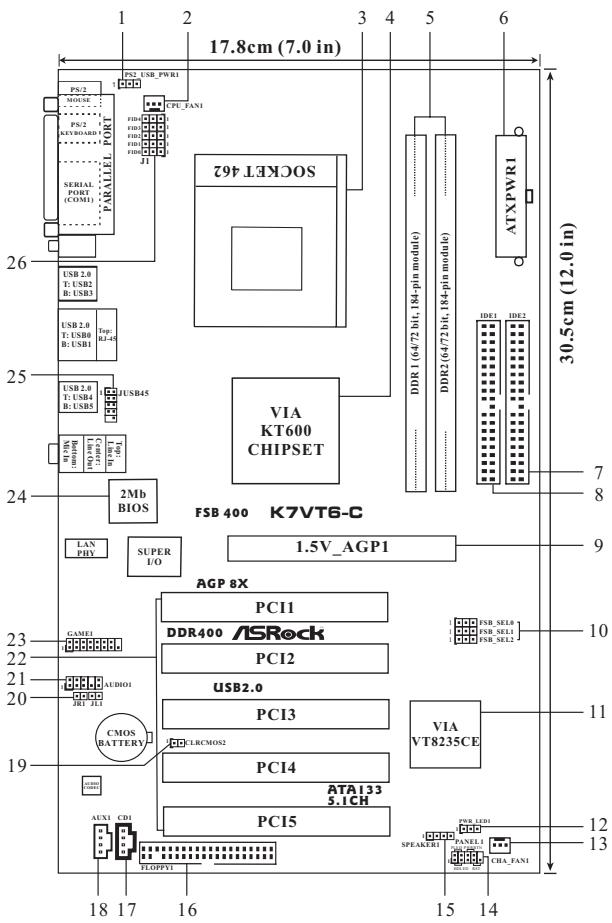
1 PS2_USB_PWR1 Jumper
2 CPU Fan Connector (CPU_FAN1)
3 CPU Socket
4 North Bridge Controller
5 184-pin DDR DIMM Slots (DDR1-2)
6 ATX Power Connector (ATXPWR1)
7 Secondary IDE Connector (IDE2, Black)
8 Primary IDE Connector (IDE1, Blue)
9 AGP Slot (1.5V_AGP1)
10 FSB Select Jumpers
(FSB_SEL0,FSB_SEL1,FSB_SEL2)
11 South Bridge Controller
12 Power LED Connector (PWR_LED1)
13 Chassis Fan Connector (CHA_FAN1)
System Panel Connector (PANEL1)
Chassis Speaker Connector (SPEAKER 1)
Floppy Connector (FLOPPY1)
Internal Audio Connector: CD1 (Black)
Internal Audio Connector: AUX1 (White)
Clear CMOS Jumper (CLRCMOS2)
JR1/JL1 Jumpers
Front Panel Audio Connector (AUDIO1)
PCI Slots (PCI1-5)
Game Port Connector (GAME1)
Flash Memory
Shared USB 2.0 Header (JUSB45, Blue)
J1 Jumper (FID0, FID1, FID2, FID3, FID4)
1.4 ASRock I/O PlusTM
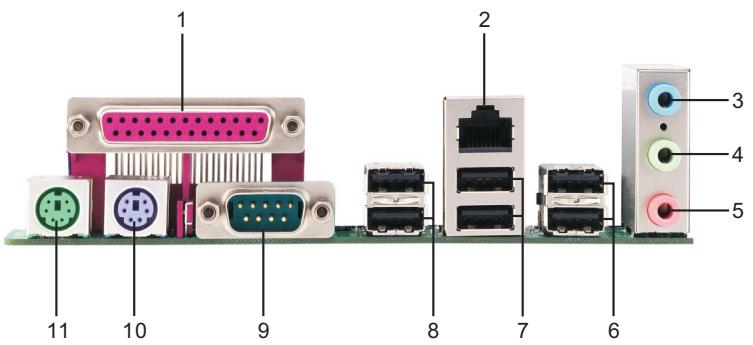
1 Parallel Port
2 RJ-45 Port
3 Line In (Light Blue)
4 Line Out (Lime)
5 Microphone (Pink)
6 2xSharedUSB2.0Port(USB4,USB5)
7 2xUSB2.0 Port (USB0, USB1)
8 2xUSB2.0 Port (USB2, USB3)
9 Serial Port: COM1
10 PS/2 Keyboard Port (Purple)
11 PS/2 Mouse Port (Green)
2. Installation
K7VT6-C is an ATX form factor (12.0-in x 7.0-in, 30.5 cm x 17.8 cm) motherboard. Before you install the motherboard, study the configuration of your chassis to ensure that the motherboard fits into it.
Pre-installation Precautions
Take note of the following precautions before you install motherboard components or change any motherboard settings.

Before you install or remove any component, ensure that the power is switched off or the power cord is detached from the power supply. Failure to do so may cause severe damage to the motherboard, peripherals, and/or components.
- Unplug the power cord from the wall socket before touching any component.
- To avoid damaging the motherboard components due to static electricity, NEVER place your motherboard directly on the carpet or the like. Also remember to use a grounded wrist strap or touch a safety grounded object before you handle components.
- Hold components by the edges and do not touch the ICs.
- Whenever you uninstall any component, place it on a grounded anti-static pad or in the bag that comes with the component.
- When placing screws into the screw holes to secure the motherboard to the chassis, please do not over-tighten the screws! Doing so may damage the motherboard.
2.1 CPU Installation
Step 1. Unlock the socket by lifting the lever up to a 90^ angle.
Step 2. Position the CPU directly above the socket such that its marked corner matches the base of the socket lever.
Step 3. Carefully insert the CPU into the socket until it fits in place.

The CPU fits only in one correct orientation. DO NOT force the CPU into the socket to avoid bending of the pins.
Step 4. When the CPU is in place, press it firmly on the socket while you push down the socket lever to secure the CPU. The lever clicks on the side tab to indicate that it is locked.
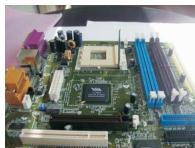
Step 1
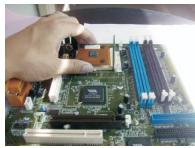
Step 2,3
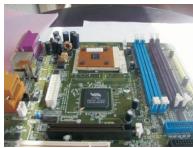
Step 4
2.2 Installation of CPU Fan and Heatsink
AMD Athlon™/Athlon™ XP/ Duron™ family CPUs with a speed of 600 MHz and higher require larger heatsink and cooling fan. Thermal grease between the CPU and the heatsink is also needed to improve heat transfer. Make sure that the CPU and the heatsink are securely fastened and in good contact with each other. Then connect the CPU fan to the CPU FAN connector (CPU_FAN1, see page 7, No. 2). For proper installation, please kindly refer to the instruction manuals of the CPU fan and heatsink vendors.
2.3 Installation of Memory Modules (DIMM)
K7VT6-C motherboard provides two 184-pin DDR (Double Data Rate) DIMM slots.

Please make sure to disconnect power supply before adding or removing DIMMs or the system components.
Step 1. Unlock a DIMM slot by pressing the retaining clips outward.
Step 2. Align a DIMM on the slot such that the notch on the DIMM matches the break on the slot.

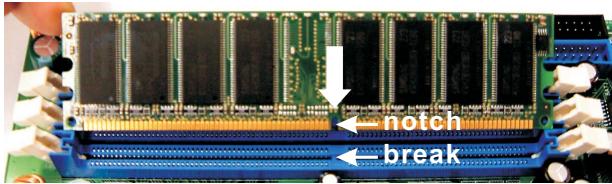

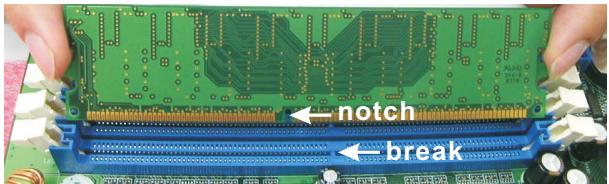

The DIMM only fits in one correct orientation. It will cause permanent damage to the motherboard and the DIMM if you force the DIMM into the slot at incorrect orientation.
Step 3. Firmly insert the DIMM into the slot until the retaining clips at both ends fully snap back in place and the DIMM is properly seated.
2.4 Expansion Slots (PCI and AGP Slots)
There are 5 PCI slots and 1 AGP slot on K7VT6-C motherboard.
PCI slots: PCI slots are used to install expansion cards that have the 32-bit PCI interface.
AGP slot: The AGP slot is used to install a graphics card. The ASRock AGP slot has a special design of clasp that can securely fasten the inserted graphics card.

Please do NOT use a 3.3V AGP card on the AGP slot of this motherboard! It may cause permanent damage! For the voltage information of your graphics card, please check with the graphics card vendors.
Installing an expansion card
Step 1. Before installing the expansion card, please make sure that the power supply is switched off or the power cord is unplugged. Please read the documentation of the expansion card and make necessary hardware settings for the card before you start the installation.
Step 2. Remove the system unit cover (if your motherboard is already installed in a chassis).
Step 3. Remove the bracket facing the slot that you intend to use. Keep the screws for later use.
Step 4. Align the card connector with the slot and press firmly until the card is completely seated on the slot.
Step 5. Fasten the card to the chassis with screws.
Step 6. Replace the system cover.
2.5 Jumpers Setup
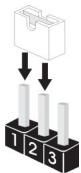
The illustration shows how jumpers are setup. When the jumper cap is placed on pins, the jumper is "Short". If no jumper cap is placed on the pins, the jumper is "Open". The illustration shows a 3-pin jumper whose pin1 and pin2 are "Short" when jumper cap is placed on these 2 pins.
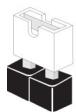
Short
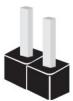
Open
Jumper
Setting
| FSB Select Jumpers | 1.2 | OPEN | 2.3 | OPEN | ||
| (FSB_SEL0, | FSB_SEL0 | FSB_SEL0 | FSB_SEL0 | FSB_SEL0 | FSB_SEL0 | 1.2 |
| FSB_SEL1, | OPEN | 2.3 | OPEN | 1.2 | ||
| FSB_SEL1 | FSB_SEL1 | FSB_SEL1 | FSB_SEL1 | FSB_SEL1 | 2.3 | |
| (FSB_SEL2) | 1.2 | 1.2 | 1.2 | |||
| (see p.7 item 10) | FSB_SEL2 | FSB_SEL2 | FSB_SEL2 | FSB_SEL2 | FSB_SEL2 | 2.3 |
| FSB 200MHz | FSB 266MHz | FSB 333MHz | FSB 400MHz | |||
Note: The CPU FSB frequency of this motherboard is determined by jumper-setting. You must adjust "FSB Select Jumpers" according to the FSB of your AMD CPU. Please follow the figures above to set the CPU FSB frequency.
PS2_USB_PWR1
(see p.7 item 1)


Short pin2, pin3 to enable +5VSB (standby) for PS/2 or USB wake up events.
Note: To select +5VSB, it requires 2 Amp and higher standby current provided by power supply.
JR1 / JL1 Jumpers
(see p.7 item 20)

Note: If JR1 and JL1 Jumpers are short, both the front panel and the rear panel audio connectors can work.
Clear CMOS Jumper
(CLRCMOS2)
(see p.7 item 19)

2-pin jumper
Note: CLRCMOS2 allows you to clear the data in CMOS. The data in CMOS includes system setup information such as system password, date, time, and system setup parameters. To clear and reset the system parameters to default setup, please turn off the computer and unplug the power cord from the power supply. After waiting for 15 seconds, use a jumper cap to short the Clear CMOS jumper for 5 seconds. After shorting the Clear CMOS jumper, please remove the jumper cap. However, please do not clear the CMOS right after you update the BIOS. If you need to clear the CMOS when you just finish updating the BIOS, you must boot up the system first, and then shut it down before you do the clear-CMOS action.
J1 Jumper
(FID0, FID1, FID2, FID3, FID4)
(see p.7 item 26)
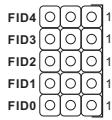
Note: The set of J1 jumper is only for advanced users to adjust the multiplier of CPU. Please follow the table below to adjust the multiplier of CPU. However, the system will work well without the adjustment of multiplier. You do not have to adjust the multiplier for normal usage.
| Multiplier | FID0 | FID1 | FID2 | FID3 | FID4 |
| 5x | 2-3 | 2-3 | 1-2 | 2-3 | 2-3 |
| 5.5x | 1-2 | 2-3 | 1-2 | 2-3 | 2-3 |
| 6x | 2-3 | 1-2 | 1-2 | 2-3 | 2-3 |
| 6.5x | 1-2 | 1-2 | 1-2 | 2-3 | 2-3 |
| 7x | 2-3 | 2-3 | 2-3 | 1-2 | 2-3 |
| 7.5x | 1-2 | 2-3 | 2-3 | 1-2 | 2-3 |
| 8x | 2-3 | 1-2 | 2-3 | 1-2 | 2-3 |
| 8.5x | 1-2 | 1-2 | 2-3 | 1-2 | 2-3 |
| 9x | 2-3 | 2-3 | 1-2 | 1-2 | 2-3 |
| 9.5x | 1-2 | 2-3 | 1-2 | 1-2 | 2-3 |
| 10x | 2-3 | 1-2 | 1-2 | 1-2 | 2-3 |
| 10.5x | 1-2 | 1-2 | 1-2 | 1-2 | 2-3 |
| 11x | 2-3 | 2-3 | 2-3 | 2-3 | 2-3 |
| 11.5x | 1-2 | 2-3 | 2-3 | 2-3 | 2-3 |
| 12x | 2-3 | 1-2 | 2-3 | 2-3 | 2-3 |
| 12.5x | 1-2 | 1-2 | 2-3 | 2-3 | 2-3 |
| 13x | 2-3 | 2-3 | 1-2 | 2-3 | 1-2 |
| 13.5x | 1-2 | 2-3 | 1-2 | 2-3 | 1-2 |
| 14x | 2-3 | 1-2 | 1-2 | 2-3 | 1-2 |
| 15x | 2-3 | 2-3 | 2-3 | 1-2 | 1-2 |
| 16x | 2-3 | 1-2 | 2-3 | 1-2 | 1-2 |
| 16.5x | 1-2 | 1-2 | 2-3 | 1-2 | 1-2 |
| 17x | 2-3 | 2-3 | 1-2 | 1-2 | 1-2 |
| 18x | 1-2 | 2-3 | 1-2 | 1-2 | 1-2 |
| 19x | 1-2 | 2-3 | 2-3 | 2-3 | 1-2 |
| 20x | 1-2 | 1-2 | 2-3 | 2-3 | 1-2 |
| 21x | 1-2 | 1-2 | 1-2 | 2-3 | 1-2 |
| 22x | 1-2 | 2-3 | 2-3 | 1-2 | 1-2 |
| 23x | 2-3 | 1-2 | 1-2 | 1-2 | 1-2 |
| 24x | 1-2 | 1-2 | 1-2 | 1-2 | 1-2 |
For example, "Athlon XP 2000+ is an 1666MHz CPU: 12.5 (Multiplier) X 133MHz (External frequency) = 1666MHz
J1 jumper setting:
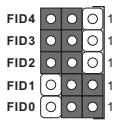

The jumper caps are not provided by ASRock. Please understand that ASRock does not guarantee and support the adjustment of multiplier. These jumpers setting may not apply to all multiplier-locked or even some unlocked AMD CPU. Frequencies other than the recommended CPU bus frequencies may cause the instability of the system or damage the CPU.
2.6 Connectors

Connectors are NOT jumpers. DO NOT place jumper caps over these connectors. Placing jumper caps over the connectors will cause permanent damage of the motherboard!
FDD Connector
(33-pin FLOPPY1)
(see p.7 item 16)
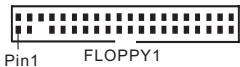
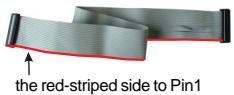
Note: Make sure the red-striped side of the cable is plugged into Pin1 side of the connector.
Primary IDE Connector (Blue)
(39-pin IDE1, see p.7 item 8)
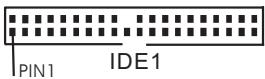
connect the blue end to the motherboard

Secondary IDE Connector (Black)
(39-pin IDE2, see p.7 item 7)
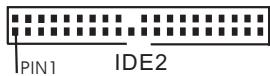
connect the black end to the IDE devices
80-conductor, ATA 66/100/133 cable
Note: If you use only one IDE device on this motherboard, please set the IDE device as "Master". Please refer to the instruction of your IDE device vendor for the details. Besides, to optimize compatibility and performance, please connect your hard disk drive to the primary IDE connector (IDE1, blue) and CD-ROM to the secondary IDE connector (IDE2, black).
Shared USB 2.0 Header
(9-pin JUSB45)
(see p.7 item 25)
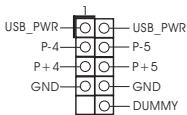
This USB45 connector is shared with the USB 2.0 ports 4,5 on ASRock I/O PlusTM. When using the front panel USB ports by attaching the front panel USB cable to this connector (JUSB45), the USB ports 4,5 on ASRock I/O PlusTM will not be able to function.
Internal Audio Connectors
(4-pin CD1, 4-pin AUX1)
(CD1: see p.7 item 17)
(AUX1: see p.7 item 18)
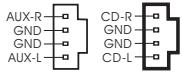
AUX1
CD1
These connectors allow you to receive stereo audio input from sound sources such as a CD-ROM, DVD-ROM, TV tuner card, or MPEG card.
Front Panel Audio Connector
(9-pin AUDIO1)
(see p.7 item 21)
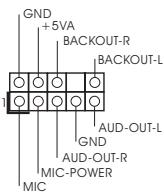
This is an interface for front panel audio cable that allows convenient connection and control of audio devices.
System Panel Connector
(9-pin PANEL1)
(see p.7 item 14)
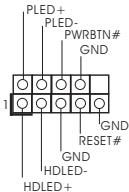
This connector accommodates several system front panel functions.
Chassis Speaker Connector
(4-pin SPEAKER 1)
(see p.7 item 15)
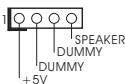
Please connect the chassis speaker to this connector.
Chassis Fan Connector
(3-pin CHA_FAN1)
(see p.7 item 13)
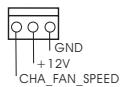
Please connect a chassis fan cable to this connector and match the black wire to the ground pin.
CPU Fan Connector
(3-pinCPU_FAN1)
(see p.7 item 2)
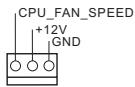
Please connect a CPU fan cable to this connector and match the black wire to the ground pin.
ATX Power Connector
(20-pinATXPWR1)
(see p.7 item 6)
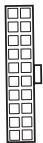
Please connect an ATX power supply to this connector.
Power LED Connector
(3-pin PWR_LED1)
(see p.7 item 12)
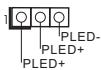
Please connect a 3-pin power LED cable to this connector.
Game Connector
(15-pin GAME1)
(see p.7 item 23)
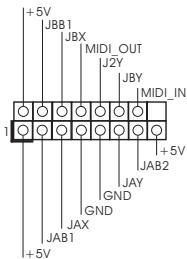
Connect a Game cable to this connector if the Game port bracket is installed.
3. BIOS Setup
3.1 BIOS Setup Utility
This section explains how to use the BIOS Setup Utility to configure your system. The Flash Memory on the motherboard stores the BIOS Setup Utility. You may run the BIOS Setup when you start up the computer. Please press <F2> during the Power-On-Self-Test (POST) to enter the BIOS Setup Utility, otherwise, POST will continue with its test routines.
If you wish to enter the BIOS Setup after POST, restart the system by pressing
The BIOS Setup Utility is designed to be user-friendly. It is a menu-driven program, which allows you to scroll through its various sub-menus and select among the predetermined choices.

Because the BIOS software is constantly being updated, the following BIOS setup screens and descriptions are for reference purpose only, and may not exactly match what you see on your screen.
3.1.1 BIOS Menu Bar
The top of the screen has a menu bar with the following selections:
MAIN Sets up the basic system configuration
ADVANCED Sets up the advanced features
SECURITY Sets up the security features
POWER Configures Power Management features
BOOT Configures the default system device that is used
to locate and load the Operating System
EXIT Exits the current menu or the BIOS Setup
To access the menu bar items, press the right or left arrow key on the keyboard until the desired item is highlighted.
3.1.2 Legend Bar
At the bottom of the Setup Screen is a legend bar. The following table lists the keys in the legend bar with their corresponding functions.
| Navigation Key(s) | Function Description |
| <F1> | Displays the General Help Screen |
| <ESC> | Jumps to the Exit menu or returns to the upper menu from the current menu |
| ↑ / ↓ | Moves cursor up or down between fields |
| ← / → | Selects menu to the left or right |
| + / - | Increases or decreases values |
| <Enter> | Brings up a selected menu for a highlighted field |
| <F9> | Loads all the setup items to default value |
| <F10> | Saves changes and exits Setup |
3.2 Main Menu
When you enter the BIOS Setup Utility, the following screen appears.
| AMIBIOS SETUP UTILITY - VERSION 3.31a | |||
| Main | Advanced | Security | Power Boot Exit |
| System Date | Dec 20 2004 Mon | ||
| System Time | 20:07:40 | ||
| Floppy Drives | |||
| IDE Devices | |||
| BIOS Version | K7VT6-C BIOS P1.00 | ||
| Processor Type | AMD Athlon(tm) XP 2600+ | ||
| Processor Speed | 2133 MHz | ||
| L1 Cache Size | 128 KB | ||
| L2 Cache Size | 256 KB | ||
| Total Memory | 512 MB | ||
| DDR1 | 512 MB/200 MHz (DDR400) | ||
| DDR2 | None | ||
| F1:Help | ↑↓:Select Item | +/:-Change Values | F9:Setup Defaults |
| Esc:Exit | --:Select Menu | Enter:Select Sub-Menu | F10:Save & Exit |
System Date [Month/Day/Year]
Set the system date that you specify. Valid values for month, day, and year are Month: (Jan to Dec), Day: (1 to 31), Year: (up to 2099). Use ↑ keys to move between the Month, Day, and Year fields.
System Time [Hour:Minute:Second]
Set the system to the time that you specify. Use keys to move between the Hour, Minute, and Second fields.
Floppy Drives
Use this to set the type of floppy drives installed.
IDE Devices
Use this to configure IDE devices.
TYPE
To set the type of the IDE device, first, please select "IDE Devices" on Main menu and press
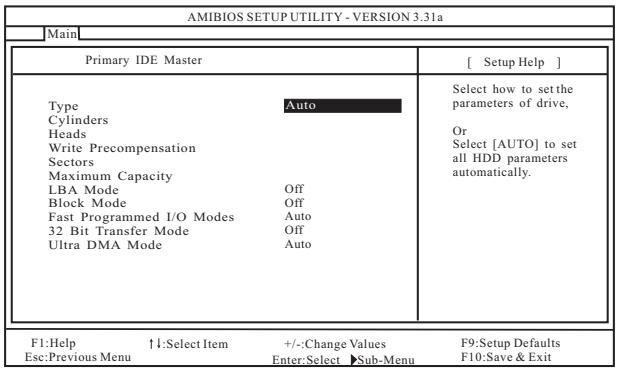
[USER]: It allows user to manually enter the number of cylinders, heads, and sectors per track for the drive.

Before attempting to configure a hard disk drive, make sure you have the correct configuration information supplied by the drive manufacturer. Incorrect settings may cause the system to fail to recognize the installed hard disk.
[Auto]: Select [Auto] to automatically detect hard disk drive. If auto-detection is successful, the BIOS Setup automatically fills in the correct values for the remaining fields on this sub-menu. If the auto-detection fails, it may due to that the hard disk is too old or too new. If the hard disk was already formatted on an older system, the BIOS Setup may detect incorrect parameters. In these cases, select [User] to manually enter the IDE hard disk drive parameters.

After entering the hard disk information into BIOS, use a disk utility, such as FDISK, to partition and format the new IDE hard disk drives. This is necessary so that you can write the data into or read the data from the installed hard disk. Please make sure to set the partition of the Primary IDE hard disk drives to make them active.
[CD/DVD]: This is used for IDE CD/DVD drives.
[ARMD]: This is used for IDE ARMD (ATAPI Removable Media Device), such as MO.
Cylinders
This is used to configure the number of cylinders. Refer to the drive documentation to determine the correct value.
Heads
This is used to configure the number of read/write heads. Refer to the drive documentation to determine the correct values.
Write Pre-compensation
Enter Write Pre-compensation sector. Refer to the drive documentation to determine the correct value.
Sectors
This is used to configure the number of sectors per track. Refer to the drive documentation to determine the correct value.
Maximum Capacity
This field shows the drive's maximum capacity as calculated by the BIOS based on the drive information you entered.
LBA Mode
This allows user to select the LBA mode for a hard disk >512 MB under DOS and Windows; for Netware and UNIX user, select [Off] to disable the LBA mode.
Block Mode
Set the block mode to [On] will enhance hard disk performance by reading or writing more data during each transfer.
Fast Programmed I/O Modes
This allows user to set the PIO mode to enhance hard disk performance by optimizing the hard disk timing.
32 Bit Transfer Mode
It allows user to enable 32-bit access to maximize the IDE hard disk data transfer rate.
Ultra DMA Mode
Ultra DMA capability allows improved transfer speeds and data integrity for compatible IDE devices. Set to [Disabled] to suppress Ultra DMA capability.
3.3 Advanced, Security, Power, Boot, and Exit Menus
Detailed descriptions of these menus are listed in the Appendix. See page 25.
4. Software Support
4.1 Install Operating System
This motherboard supports various Microsoft® Windows® operating systems: 98 SE / ME / 2000 / XP. Because motherboard settings and hardware options vary, use the setup procedures in this chapter for general reference only. Refer to your OS documentation for more information.
4.2 Support CD Information
The Support CD that came with the motherboard contains necessary drivers and useful utilities that will enhance the motherboard features.
4.2.1 Running The Support CD
To begin using the support CD, insert the CD into your CD-ROM drive. The CD automatically displays the Main Menu if "AUTORUN" is enabled in your computer. If the Main Menu did not appear automatically, locate and double click on the file ASSETUP.EXE from the BIN folder in the Support CD to display the menus.
4.2.2 Drivers Menu
The Drivers Menu shows the available devices drivers if the system detects installed devices. Install the necessary drivers to activate the devices.
4.2.3 Utilities Menu
The Utilities Menu shows the applications software that the motherboard supports. Click on a specific item then follow the installation wizard to install it.
4.2.4 Contact Information
If you need to contact ASRock or want to know more about ASRock, welcome to visit ASRock's website at http://www.asrock.com; or you may contact your dealer for further information.
Appendix: Advanced BIOS Setup
This section will introduce you the following BIOS Setup menus: "Advanced," "Security," "Power," "Boot," and "Exit."
1. Advanced BIOS Setup Menu
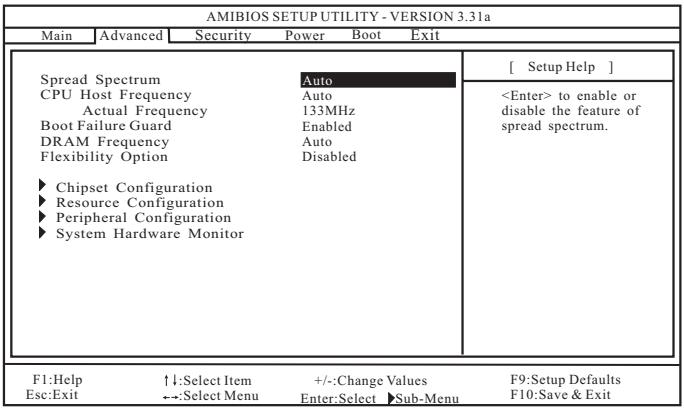
Spread Spectrum
This feature will be set to [Auto] as default.
CPU Host Frequency
[Auto]
It is recommended to select this option, which will let the CPU host frequency of this motherboard determined by the jumper-setting.
[Manual]
This allows user to set CPU host frequency manually. However, because the CPU host frequency of this motherboard is determined by the jumper-setting, you must set the FSB jumper adjustment according to your AMD CPU before you use this "Manual" option as the FSB setting in BIOS setup to perform over clocking. This is not recommended unless you thoroughly know the feature. Wrong setup may cause problems during operation.
Boot Failure Guard
Enable or disable the feature of Boot Failure Guard.
DRAM Frequency
If set to [Auto], the motherboard will detect the inserted memory module(s) and automatically assign appropriate frequency. You may select other value as operating frequency: [133MHz (DDR266)], [166MHz (DDR333)], [200MHz (DDR400)].
Flexibility Option
The default value of this option is [Disabled]. It will allow better tolerance for memory compatibility when it is set to [Enabled].
Chipset Configuration
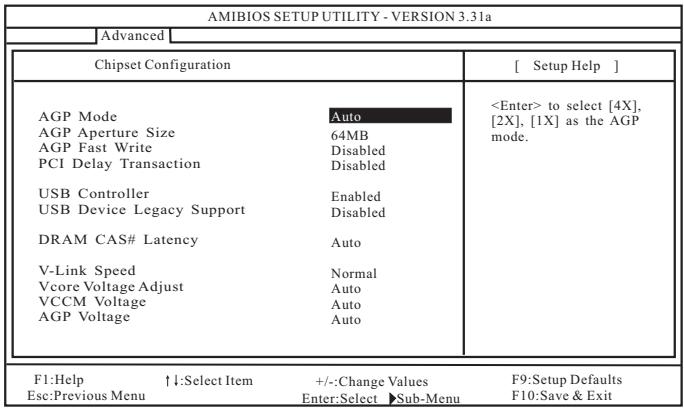
AGP Mode
This feature will be set to [Auto] as default.
AGP Aperture Size
It refers to a section of the PCI memory address range used for graphics memory. It is recommended to leave this field at the default value unless the installed AGP card's specification requires other sizes.
AGP Fast Write
This allows you to enable or disable the feature of AGP fast write protocol support.
PCI Delay Transaction
Enable PCI Delay Transaction feature will free the PCI Bus when the CPU is accessing 8-bit ISA cards. Disable this feature when using ISA cards that are not PCI 2.1 compliant.
USB Controller
Use this to enable or disable the use of USB controller.
USB Device Legacy Support
Use this to enable or disable the support to emulate legacy I/O devices such as mouse, keyboard,... etc.
DRAM CAS# Latency
This is used to adjust the means of memory accessing. Configuration options: [Auto], [2T], [2.5T], [3T]. It is recommended to leave this field as [Auto] unless the installed DRAM's specification requires other value.
V-Link Speed
This feature allows you to speed up the V-Link speed. The default value is [Normal].
Vcore Voltage Adjust
This feature allows you to adjust the CPU Vcore voltage with two levels. The default value is [Auto].
VCCM Voltage
This item allows you to adjust DRAM voltage. Configuration options: [Auto], [High], and [Low]. The default value is [Auto].
AGP Voltage
This item allows you to adjust AGP voltage. Configuration options: [Auto], [High], and [Low]. The default value is [Auto].
Resource Configuration
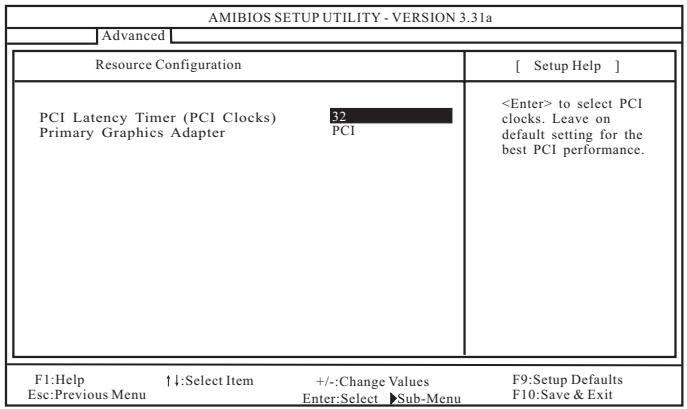
PCI Latency Timer (PCI Clocks)
The default is 32. It is recommended to keep the default value unless the installed PCI expansion cards' specifications require other settings.
Primary Graphics Adapter
Select PCI or AGP as the primary graphics adapter if both PCI VGA and AGP card are installed.
Peripheral Configuration
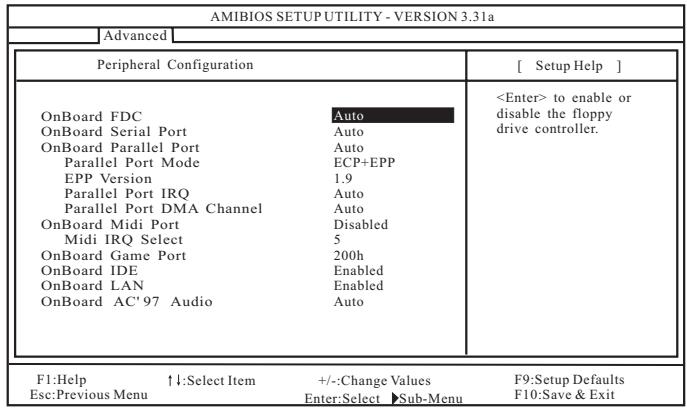
OnBoard FDC
Use this to enable or disable floppy drive controller.
OnBoard Serial Port
Use this to set addresses for the onboard serial ports or disable serial ports. Configuration options: [Auto], [Disabled], [3F8 / IRQ4 / COM1], [2F8 / IRQ3 / COM2], [3E8 / IRQ4 / COM3], [2E8 / IRQ3 / COM4].
OnBoard Parallel Port
Select Parallel Port address or disable Parallel Port. Configuration options: [Auto], [Disabled], [378], [278].
Parallel Port Mode
Set the operation mode of the parallel port. The default value is [ECP+EPP]. If this option is set to [ECP+EPP], it will show the EPP version in the following item, "EPP Version".
OnBoard Midi Port
Select address for Midi Port or disable Midi Port. Configuration options: [Disabled], [330], [300], [290], [292].
Midi IRQ Select
Use this to select Midi IRQ. Configuration options: [3], [4], [5], [7], [10], [11].
OnBoard Game Port
Select address for Game Port or disable Game Port. Configuration options: [Disabled], [200h], [208h].
OnBoard IDE
This allows you to enable or disable the onboard IDE controller.
OnBoard LAN
This allows you to enable or disable the onboard LAN feature.
OnBoard AC'97 Audio
Select [Disabled], [Auto] or [Enabled] for the onboard AC'97 Audio feature.
System Hardware Monitor
You may check the status of the hardware on your system. It allows you to monitor the parameters for CPU temperature, Motherboard temperature, CPU fan speed, and critical voltage.
| AMIBIOS SETUP UTILITY - VERSION 3.31a | |||
| Advanced | |||
| System Hardware Monitor | [ Setup Help ] | ||
| CPU Temperature | 35°C/95°F | ||
| M/B Temperature | 27°C/82°F | ||
| CPU FAN Speed | 3110 RPM | ||
| Chassis FAN Speed | 0 RPM | ||
| Vcore | 1.72 V | ||
| +3.30V | 3.31 V | ||
| +5.00V | 4.97 V | ||
| +12.00V | 12.16 V | ||
| F1:Help ↑:Select Item | +/:-Change Values Enter:Select Sub-Menu | F9:Setup Defaults F10:Save & Exit | |
| Esc:Previous Menu | |||
2. Security Setup Menu
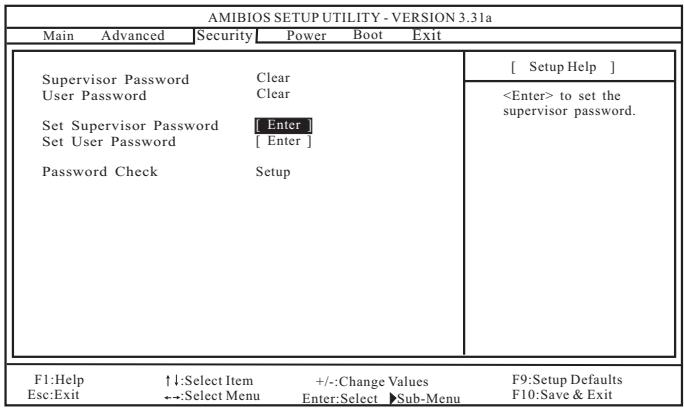
Supervisor Password: This field shows the status of the Supervisor Password.
[Clear]: No password has been set.
[Set]: Supervisor password has been set.
User Password: This field shows the status of the User Password.
[Clear]: No password has been set.
[Set]:User password has been set.
Set Supervisor Password: Press
Set User Password: Press
Password Check: Select the check point for "Password Check". Configuration options: [Setup], [Always]. If [Setup] option is selected, the "Password Check" is performed before BIOS setup. If [Always] option is selected, the "Password Check" is performed before both boot-up and BIOS setup.
3. Power Setup Menu
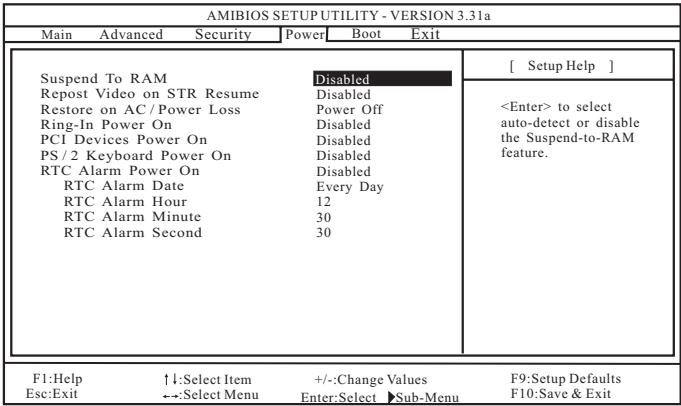
Suspend to RAM
This field allows you to select whether to auto-detect or disable the Suspend-to-RAM feature. Select [Auto] will enable this feature if the system supports it.
Repost Video on STR Resume
This feature allows you to repost video on STR resume. It is recommended to enable this feature under Microsoft® Windows® 98 / ME.
Restore on AC/Power Loss
This allows you to set the power state after an unexpected AC/power loss. If [Power Off] is selected, the AC/power remains off when the power recovers. If [Power On] is selected, the AC/power resumes and the system starts to boot up when the power recovers.
Ring-In Power On
Use this to enable or disable Ring-in signals to turn on the system from the power-soft-off mode.
PCI Devices Power On
Use this to enable or disable PCI devices to turn on the system from the power-soft-off mode.
PS/2 Keyboard Power On
Use this to enable or disable PS/2 keyboard to turn on the system from the power-soft-off mode.
RTC Alarm Power On
Use this to enable or disable RTC (Real Time Clock) to power on the system. If [Enable] is selected, you must fill the RTC Alarm Date / Hour / Minute / Second sub-fields with the actual wake up time you desire.
4. Boot Setup Menu
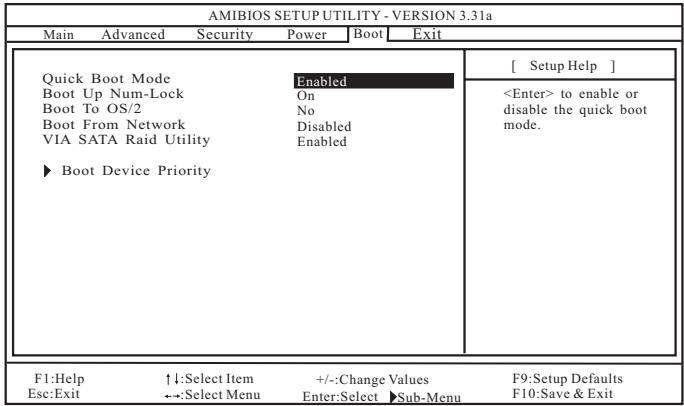
Quick Boot Mode
Enable this mode will speed up the boot-up routine by skipping memory retestings.
Boot Up Num-Lock
If this is enabled, it will automatically activate the Numeric Lock function after boot-up.
Boot To OS/2
This enables boot-up to OS/2 operating system.
Boot From Network
Use this to enable or disable "boot from network" feature.
VIA SATA Raid Utility
Use this to enable or disable VIA VT8237 SATA Raid BIOS Utility during POST.
Boot Device Priority
This allows you to set the boot device priority.
5.Exit Menu
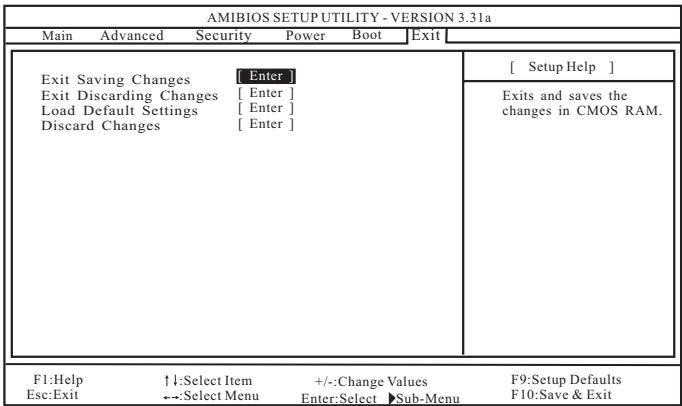
Exit Saving Changes
After you enter the sub-menu, the message "Save current settings and exit" will appear. If you press
Exit Discarding Changes
After you enter the submenu, the message "Quit without saving changes" will appear. If you press
Load Default Settings
After you enter the submenu, the message "Load default settings" will appear. If you press
Discard Changes
After you enter the sub-menu, the message "Load setup original values" will appear. If you press