
A330 - Accessoires audio JABRA - Notice d'utilisation et mode d'emploi gratuit
Retrouvez gratuitement la notice de l'appareil A330 JABRA au format PDF.


| Type de produit | Adaptateur Bluetooth USB |
| Marque | Jabra |
| Modèle | A330 |
| Dimensions (approx.) | 6,5 x 2,5 x 0,8 cm |
| Poids | 8 g |
| Alimentation | USB (5V, 100 mA max) |
| Connectivité | Bluetooth 2.0 (portée 10 m) |
| Indicateurs LED | Bleu, vert, rouge pour les états de connexion et d'appel |
| Bouton multifonction | Mise en appariement, réponse/fin d'appel |
| Fonctions principales | Téléphonie IP (Skype, etc.), écoute musicale, appariement avec casque Bluetooth |
| Compatibilité logicielle | Jabra PC Suite (Windows), Plug & Play sur Mac |
| Mise à jour firmware | Oui, via Jabra Device Firmware Updater |
| Entretien et nettoyage | Essuyer avec un chiffon sec, ne pas utiliser de liquides |
| Sécurité | Conforme CE, FCC, IC; exposition RF limitée à 20 cm du corps |
| Pièces détachées et réparabilité | Non disponible (produit scellé, aucune pièce remplaçable par l'utilisateur) |
| Garantie | Standard constructeur, contacter le support Jabra |
| Informations générales | Notice disponible en PDF sur notice-facile.com; support client via www.jabra.com |
FOIRE AUX QUESTIONS - A330 JABRA
Questions des utilisateurs sur A330 JABRA
0 question sur cet appareil. Repondez a celles que vous connaissez ou posez la votre.
Poser une nouvelle question sur cet appareil
Téléchargez la notice de votre Accessoires audio au format PDF gratuitement ! Retrouvez votre notice A330 - JABRA et reprennez votre appareil électronique en main. Sur cette page sont publiés tous les documents nécessaires à l'utilisation de votre appareil A330 de la marque JABRA.
MODE D'EMPLOI A330 JABRA
Jabra A330
- Thank you 2
- About your Jabra A330 2
- What your new Jabra A330 can do 3
- What the LED indicators mean 3
- How to get started 4
- How to pair the dongle with a headset 5
- How to use the dongle for PC based IP telephony 6
- How to install Jabra PC Suite 7
- How to update firmware. 8
- Troubleshooting & FAQs 9
- Need more help? 10
- Certification and safety approvals 11
- Glossary 13
1 Thank you
Thank you for purchasing the Jabra A330 USB dongle. We hope you will enjoy it! This user manual will get you started and ready to make the most of your new dongle.
NOTE: The installation procedure described in this manual may be a little different from the actual installation procedure on your computer. This depends on which version of Windows and which settings you are using.
If you are using a Macintosh computer, the dongle is fully operational, but you will not be able to download and use the Jabra PC Suite.
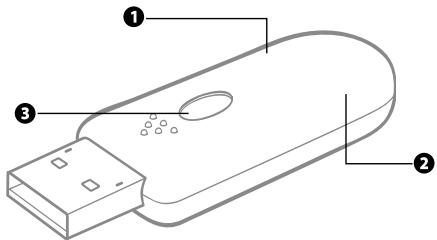
2 About your Jabra A330
LED indicator blue/green/red
LED indicator blue
Multifunction button
3
What your new Jabra A330 can do
The Jabra A330 is a Bluetooth audio card that enables you to use IP telephony on your computer via a Bluetooth headset. It is really easy to use – it is Plug & Play!
4
What the LED indicators mean
| What you see | What it tells you about your headset |
| Blue solid light | In pairing mode |
| Blue fast flash | Pairing successful |
| Blue solid light off | Pairing failed or cancelled |
| Green solid light | Connected to a headset and ready for use |
| Green flashing light | Active, but no connection to headset |
| One blue flashing light | Active call |
| Two blue flashing lights | Incoming call or active call |
| Red/Green flashing lights | Goes into Device Firmware Update (DFU) mode |
5 How to get started
The Jabra A330 is easy to use - just insert your dongle into a computer, pair it with a headset - and it is ready to use!
Inserting the dongle into a USB port
If possible, choose a USB port where you are able to see and handle the dongle. When you have inserted the dongle, the computer automatically detects it. On Windows Vista™, Driver Software Installation is shown on your screen. On Windows XP, Found New Hardware is shown. The dongle uses standard drivers on your computer and is ready to use right away.
NOTE: Normally when inserted, the dongle is automatically selected as the default audio device on your computer. Once you remove the dongle the prior default audio device is automatically re-selected.
When you use the dongle for the first time, it automatically goes into pairing mode, indicated by the solid blue LED indicator.
Putting the headset in pairing mode
If you use a Jabra headset, you usually put it in pairing mode by:
- making sure that the headset is turned off.
- pressing and holding the on/off/pairing button until the LED indicator is solid blue.
If you use another headset, follow the instructions in the user manual of that particular headset.
Pairing the dongle and headset
Place the headset close to the dongle and wait a few seconds. When the pairing is completed, the LED indicator on the dongle turns solid green. The dongle and the headset are now connected and ready for use.
If the dongle goes out of pairing mode – indicated by a flashing green LED indicator – press and hold the Multifunction button until a blue solid light
indicates that the device is in pairing mode again.
See chapter 6.
Establishing audio streaming
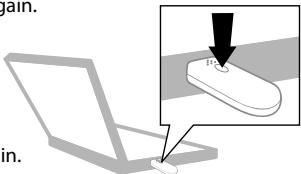
Press the Multifunction button on the dongle as illustrated to accept an incoming call. To end a call, press the Multifunction button again.
6
How to pair the dongle with a headset
You pair your dongle with a headset to enable audio streaming (sound) between the two. When you have paired your dongle and a headset, they will stay connected. You can pair your dongle with other headsets though, but only with one headset at a time.
Putting the dongle in pairing mode
Your put the dongle in paring mode by:
- inserting the dongle.
- pressing and holding the Multifunction button until the LED indicator is solid blue.
Putting the headset in pairing mode
If you use a Jabra headset, you usually put it in pairing mode by:
- making sure that the headset is turned off.
- pressing and holding the on/off/pairing button until the LED indicator is solid blue.
If you use another headset, follow the instructions in the user manual of that particular headset.
Pairing the dongle and headset
Place the headset close to the dongle and wait a few seconds. When the LED indicator on the dongle turns solid green, the pairing is completed. The dongle and the headset are now ready for use.
In case the two devices are not successfully paired, the solid blue LED indicator turns off. Repeat the steps above until the pairing is completed.
TIP: If you have installed the Jabra PC Suite, you can also use it to enter pairing mode or clear the pairing list. See chapter 8.
7 How to use the dongle for PC based IP telephony
How to use the dongle for PC based IP telephony
Insert the Jabra A330 dongle into a computer and pair it with a headset. See chapter 5 on how to do this.
When you receive/make a call, press the Multifunction button on the dongle to turn on audio streaming to the headset and wait a few seconds. To turn audio streaming off, press the Multifunction button again.
TIP: You can install different drivers to support advanced features on your Jabra headset when using the Jabra A330 dongle for IP telephony. See below.
How to install IP telephony drivers e.g. Skype
Go to www.jabra.com/A330 to download and install the Jabra PC Suite. See chapter 8. The Jabra PC Suite contains IP telephony drivers, e.g. for Skype.
How to listen to music
Insert the Jabra A330 dongle into a computer and pair it with a headset. See chapter 5 on how to do this.
Press the Multifunction button on the dongle to turn on audio streaming to the headset and wait a few seconds. To turn audio streaming off, press the Multifunction button again.
8
How to install Jabra PC Suite
The Jabra PC Suite enables you to control your Jabra A330, download drivers, e.g. for IP telephony, or update the firmware on the dongle. The use of the Jabra PC Suite is an extra feature that you can use to get the most out of your Jabra A330 dongle.
For basic features as IP telephony, you do not have to use the Jabra PC Suite.
To benefit from the Jabra PC Suite, you have to install it on your computer from www.jabra.com/A330.
Installing Jabra PC Suite
- Download and save the Jabra PC Suite from www.jabra.com/A330.
- Open the setup.exe file and complete the Installation Wizard.
If you use Windows Vista, you may get a User Account Control message. Just click Allow.
During the installation you may be asked to run a Microsoft update. Please do so. This may take a few minutes.
When the Installation Wizard is finished, you will get a Windows Security message. Please ignore the message and continue.
The Jabra PC Suite is now ready for use.
Using the Jabra PC Suite
Go to Start on your computer to launch the Jabra PC Suite.
9
How to update firmware
You can update the firmware on your Jabra A330 to benefit from the latest editions. Before you can update the firmware, you need to install the Jabra PC Suite. See chapter 8 on how to do this. You update by downloading a new firmware file in the following way:
Insert the Jabra A330 dongle
To update your dongle, you must insert it into your computer.
WARNING: Do not remove the dongle while the firmware is being updated.
WARNING: Make sure your computer will not shut down, or enter sleep or standby mode, while the firmware is being updated.
Download the firmware file
To download the firmware file, go to www.jabra.com/A330 and save the firmware file on your computer.
Run the Jabra Device Firmware Updater wizard
To run the updater wizard, go to Start on your computer to launch the Jabra Device Firmware Updater wizard:
- when asked to select which device to update, select the Jabra A330.
- when asked to find the firmware file, locate it where you have just saved it on your computer, and select it.
During the installation
- You may get a notice that your dongle is already equipped with the latest edition of the firmware. In that case, cancel the update.
- Your computer runs the Found New Hardware wizard. If you use Windows Vista, the wizard will run automatically. If you use Windows XP, please, complete the wizard. You may get a Windows Security message. Please, ignore the message and continue.
When the update is complete, press Finish – the latest edition of the firmware is now installed on your dongle.
If the firmware is not successfully installed, you will get a notice. If this is the case, just repeat the Jabra Device Firmware Updater procedure as described above.
10 Troubleshooting & FAQs
I have pairing problems?
- Make sure that the dongle is in paring mode, indicated by a solid blue light.
- Make sure that the headset you are trying to pair with the dongle is charged and in pairing mode. See the instructions in the user manual of that particular headset.
- If the above solutions do not solve the problem, you can install the Jabra PC Suite. This will give you access to advanced features, e.g. clearing of the sparing list.
I cannot hear anything in my headset?
- Make sure that the Jabra A330 is selected as audio device on both your computer in the Control Panel and in the application you are using.
- Press the Multifunction button on either the dongle or the headset to accept an incoming call or to start audio streaming.
My computer does not detect the dongle?
- Try to insert the dongle in another USB port.
The computer does not automatically toggle between my dongle and another default audio device when I insert/remove my dongle?
You can always select the dongle as your default audio device manually.
- Go to the Control panel on your computer
- Open the menu Sound and Audio devices. When inserted you can select the Jabra A330 as your default device for Sound playback and Recording.
- Press Apply and then press OK.
If you are using Macintosh - Go to System preferences on your computer. When inserted you can select the Jabra A330 in the Sound menu under Output and Input.
11 Need more help?
European customer service information
- Web: www.jabra.com (for the latest support info and online User Manuals)
Phone: Belgique/Belgium 0800722 52272
Danmark 70252272
Deutschland 08001826756
Die Schweiz 00800 722 52272
Espana 900 984572
France 0800 900325
Israel 00800 722 52272
Italia 800 786532
Luxembourg 00800 722 52272
Nederland 0800 0223039
Norge 800 61272
Österreich 00800 722 52272
Portugal 00800 722 52272
Suomi 00800 722 52272
Sverige 020792522
United Kingdom 0800 0327026
USA and Canada warranty
Web: www.jabra.com (for the latest support info and online User Manuals)
E-mail: Technical support: techsupp@jabra.com
Information: info@jabra.com
Phone: 1 (800) 327-2230 (toll-free in USA and Canada)
Asia Pacific customer contact information
Web: www.jabra.com (for the latest support info and online User Manuals)
Toll Free Australia: 1-800-083-140 (Monday to Friday 10:00 - 19:00)
China: 800-858-0789 (Monday to Friday 08:00 - 17:00)
Hong Kong: 800-968-265 (Monday to Friday 08:00 - 17:00)
Indonesia: 001-803-852-7664 (Monday to Friday 08:00 - 17:00)
Japan: 0034-800-400-594 (Monday to Friday 09:00 - 18:00)
Malaysia: 1800-812-160 (Monday to Friday 08:00 - 17:00)
New Zealand: 0800-447-982 (Monday to Friday 12:00 - 21:00)
Singapore: 800-860-0019 (Monday to Friday 08:00 - 17:00)
Taiwan: 0080-186-3013 (Monday to Friday 08:00 - 17:00)

Certification and safety approvals
CE
This product is CE marked according to the provisions of the R & TTE Directive (99/5/EC). Hereby, GN, declares that this product is in compliance with the essential requirements and other relevant provisions of Directive 1999/5/EC. For further information please consult http://www.jabra.com
Within the EU this device is intended to be used in Austria, Belgium, Cyprus, Czech Republic, Denmark, Estonia, Finland, France, Germany, Greece, Hungary, Ireland, Italy, Latvia, Lithuania, Luxembourg, Malta, Poland, Portugal, Slovakia, Slovenia, Spain, Sweden, The Netherlands, United Kingdom, and within EFTA in Iceland, Norway and Switzerland.
FCC
This device complies with part 15 of the FCC Rules. Operation is subject to the following two conditions: (1) This device may not cause harmful interference, and (2) this device must accept any interference received, including interference that may cause undesired operation.
Users are not permitted to make changes or modify the device in any way. Changes or modifications not expressly approved by Jabra will void the user's authority to operate the equipment.
This equipment has been tested and found to comply with the limits for a Class B digital device, pursuant to part 15 of the FCC Rules. These limits are designed to provide reasonable protection against harmful interference in a residential installation. This equipment generates, uses and can radiate radio frequency energy and, if not installed and used in accordance with the instructions, may cause harmful interference to radio communications. However, there is no guarantee that interference will not occur in a particular installation. If this equipment does cause harmful interference to radio or television reception, which can be determined by turning the equipment off and on, the user is encouraged to try to correct the interference by one or more of the following measures:
Reorient or relocate the receiving antenna.
- Increase the separation between the equipment and receiver.
- Connect the equipment into an outlet on a circuit different from that to which the receiver is connected.
- Consult the dealer or an experienced radio/TV technician for help.
The user must place the base 8'' (20cm) or more from any personnel in order to comply with FCC RF exposure requirements.
Industry Canada
Operation is subject to the following two conditions: (1) This device may not cause interference and (2) This device must accept any interference, including interference that may cause undesired operation of the device.
The term "IC:" before the certification/registration number only signifies that registration was performed based on a Declaration of Conformity indicating that Industry Canada technical specifications were met. It does not imply that Industry Canada approved the equipment.
Bluetooth
The Bluetooth® word mark and logos are owned by the Bluetooth SIG, Inc. and any use of such marks by Jabra is under license. Other trademarks and trade names are those of their respective owners.
13 Glossary
1 Bluetooth is a radio technology that connects devices, such as mobile phones and headsets, without wires or cords over a short distance (approximately 33 feet). Learn more at www/bluetooth.com.
2 Pairing creates a unique and encrypted link between two Bluetooth devices and enables them to communicate with each other. Bluetooth devices will not communicate if they have not been paired.
3 Jabra PC Suite - see chapter 8.
4 Device Firmware Update (DFU) - see chapter 9.
5 Firmware is the software that is embedded in a hardware device, for example the Jabra A330. Like software, firmware is a computer program, which is executed by a computer.
6 IP telephony (Voice over Internet Protocol) is the routing of internet voice conversations or through other IP-based networks.
© 2008 Jabra, GN Mobile A/S (GN Netcom A/S). All rights reserved. Jabra® is a registered trademark of GN Mobile A/S (GN Netcom A/S). All other trademarks included herein are the property of their respective owners. The Bluetooth® word mark and logos are owned by the Bluetooth SIG, Inc. and any use of such marks by GN Mobile A/S (GN Netcom A/S) is under license.
(Design and specifications subject to change without notice).
www.jabra.com