
IA5882 - Téléphone sans fil VTECH - Notice d'utilisation et mode d'emploi gratuit
Retrouvez gratuitement la notice de l'appareil IA5882 VTECH au format PDF.


| Type de produit | Téléphone sans fil |
| Marque | VTECH |
| Modèle | IA5882 |
| Technologie | Enhanced 5.8 GHz (double bande 5.8 GHz et 900 MHz) |
| Nombre de combinés | 4 combinés inclus |
| Dimensions de la base | 160 x 144 x 104 mm (avec support mural) |
| Dimensions du combiné | 184 x 52 x 41 mm |
| Dimensions du chargeur | 85 x 78 x 50 mm |
| Poids du combiné | 130 g |
| Poids de la base | 347 g (avec support mural) |
| Poids du chargeur | 61 g |
| Alimentation de la base | 9 V CC, 300 mA |
| Alimentation du chargeur | 9 V CC, 150 mA |
| Type de batterie du combiné | Ni-Cd 400 mAh |
| Autonomie en communication | Jusqu'à 5 heures |
| Autonomie en veille | Jusqu'à 7 jours |
| Portée nominale | Variable selon l'environnement (maximale autorisée par la FCC/IC) |
| Répertoire | 20 entrées (dont 9 en composition rapide) |
| Mémoire d'identification de l'appelant | 45 entrées |
| Répondeur numérique | Jusqu'à 11 minutes / 95 messages |
| Fonctions principales | Transfert d'appel, haut-parleur, prise casque 2.5 mm, messagerie vocale, blocage d'appels, composition rapide, identification de l'appelant avec appel en attente |
| Entretien et nettoyage | Chiffon doux légèrement humide, sans solvants |
| Sécurité | Ne pas utiliser près de l'eau, débrancher avant nettoyage, ne pas ouvrir |
| Pièces détachées et réparabilité | Batteries de rechange disponibles auprès du fabricant (voir site internet) |
| Informations générales | Garantie limitée d'un an. Assistance téléphonique : 1-800-595-9511 (États-Unis), 1-800-267-7377 (Canada) |
FOIRE AUX QUESTIONS - IA5882 VTECH
Pour une durée de vie optimale, déchargez complètement la batterie avant de la recharger.
Questions des utilisateurs sur IA5882 VTECH
0 question sur cet appareil. Repondez a celles que vous connaissez ou posez la votre.
Poser une nouvelle question sur cet appareil
Téléchargez la notice de votre Téléphone sans fil au format PDF gratuitement ! Retrouvez votre notice IA5882 - VTECH et reprennez votre appareil électronique en main. Sur cette page sont publiés tous les documents nécessaires à l'utilisation de votre appareil IA5882 de la marque VTECH.
MODE D'EMPLOI IA5882 VTECH
Table of contents
Parts checklist 1
Parts checklist for ia5865/ia5870 1
Parts checklist for ia5878/ia5884 2
Parts checklist for ia5882/ia5890 3
Installation 4
Choose location. 4
Connect power and telephone line cords 4
Install handset battery. 5
Wall mounting bracket installation 6
Desk/table bracket installation 6
If you subscribe to DSL service . 7
Belt clip 7
Check for dial tone 8
Charge the handset battery. 8
Language 8
Set the dial mode 8
Set handset date and time 9
Handset ringer style. 9
Setringer volume 9
Telephone operation 10
Handset layout 10
Telephone base layout 11
Handset operation. 12
Telephone base operation 14
Temporary tone dialing 15
Call transfer 15
Headset jack 17
Operating range. 17
Directory 18
Store a directory entry. 18
Chart of characters 19
Edit a directory entry 20
Delete a directory entry 20
Move a directory entry into speed dial 21
Dial a number from the directory 21
Speed dial. 22
Store a speed dial entry. 22
Edit a speed dial entry 23
Delete a speed dial entry 24
Dial a speed dial number 24
Reassign locations in speed dial .24
Caller ID. 25
About call history ( caller ID). 26
Review call history 26
Delete records from call history 27
Dial a displayed number 27
Store a call history record in the directory. 27
Display screen messages. 28
Answering system operation 29
Audible indicators 29
Setting the clock. 29
Record your announcement. 30
Review your announcement 30
Delete your announcement 31
Setup the answering system 31
Listen to, save & delete messages 33
Call screening/intercept 33
Record a memo. 33
Answering system operation - remote access 35
Accessing the answering system remotely . . . . . .35
Voice menu .35
Remote access commands. 35
Display screen messages. 37
Battery information 38
Battery care and performance 38
Replacing the handset battery 38
Troubleshooting. 39
Maintenance 49
Limited Warranty 49
Important safety instructions 51
FCC, ACTA and IC regulations. 52
The RBRC seal 53
Technical specifications. 54
Index 55
NEED HELP?
This user's manual has all the feature operation and troubleshooting you will need to install and operate your new VTech phone. Please take the time to review thoroughly to ensure proper installation of this VTech innovative and feature rich product. You can also visit our website at www.vtechphones.com for support, shopping, and everything new at VTech.
In Canada, please visit www.vtechcanada.com
Parts checklist
Parts checklist for ia5865/ia5870
Telephone base with wall mounting/desktop bracket
- Handsets (2)
- Charger
Telephone line cord
- Base power adapter
- Charger power adapter
- Belt clips (2)
- Batteries (2)
- User's manual
To purchase replacement batteries, visit us on the web at www.vtechphones.com or call us at 1-800-595-9511. In Canada, go to www.vtechcanada.com or call us at 1-800-267-7377.
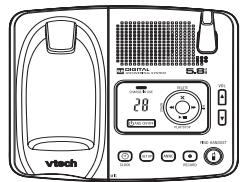
Telephone base with wall mounting/desktop bracket
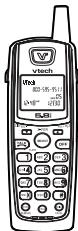
Handsets (2)

Charger
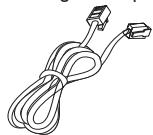
Telephone line cord
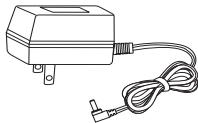
Base power adapter
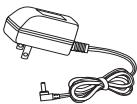
Charger power adapter
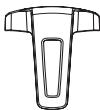
Belt clips (2)
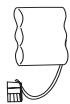
Batteries (2)
User's manual

Battery compartment covers (2)
note
- Important! Please read the Important safety instructions on page 51 before using this telephone.
Parts checklist
Parts checklist for ia5878/ia5884
Telephone base with wall mounting/desktop bracket
- Handsets (3)
- Chargers (2)
- Telephone line cord
- Base power adapter
- Charger power adapters (2)
- Belt clips (3)
- Batteries (3)
- User's manual
To purchase replacement batteries, visit us on the web at www.vtechphones.com or call us at 1-800-595-9511. In Canada, go to www.vtechcanada.com or call us at 1-800-267-7377.
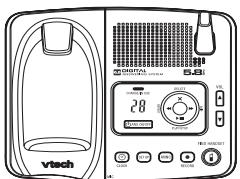
Telephone base with wall mounting/desktop bracket
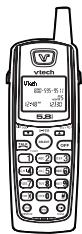
Handsets (3)

Chargers (2)
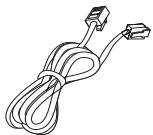
Telephone line cord
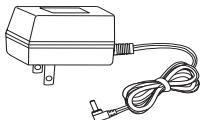
Base power adapter (2)
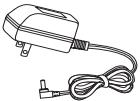
Charger power adapters (2)
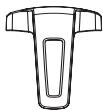
Belt clips (3)
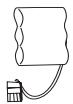
Batteries (3)
User's manual

Battery compartment covers (3)
Parts checklist
Parts checklist for ia5882/ia5890
- Telephone base with wall mounting/desktop bracket
- Handsets (4)
- Chargers (3)
Telephone line cord - Base power adapter
- Charger power adapters (3)
- Belt clips (4)
- Batteries (4)
- User's manual
To purchase replacement batteries, visit us on the web at www.vtechphones.com or call us at 1-800-595-9511. In Canada, go to www.vtechcanada.com or call us at 1-800-267-7377.
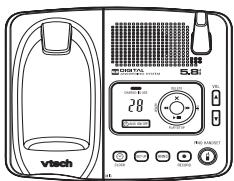
Telephone base with wall mounting/desktop bracket
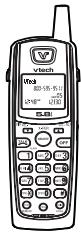
Handsets (4)

Chargers (3)
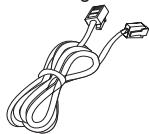
Telephone line cord
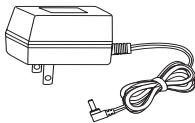
Base power adapter
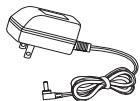
Charger power adapters (3)

Belt clips (4)

Batteries (4)

User's manual

Battery compartment covers (4)
note
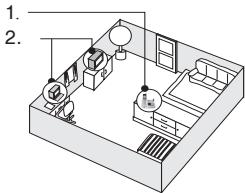
Install the telephone base away from electronic equipment such as personal computers, television sets or microwave ovens. Avoid excessive heat, cold, dust or moisture.
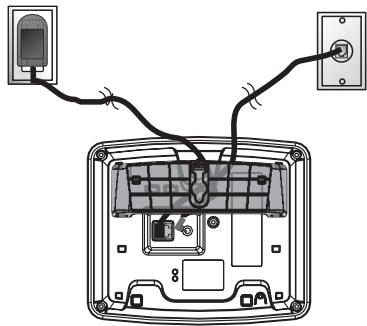
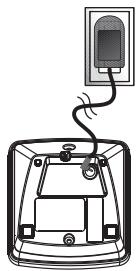
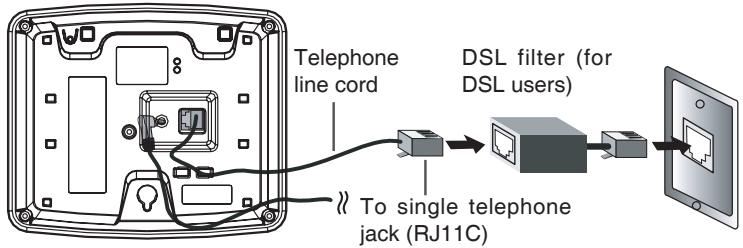
- Connect the power and telephone line cords to the underside of the base as illustrated.
- Plug the base power adapter into an electrical outlet.
- Connect the telephone line cord to the wall jack.
- This power unit is intended to be correctly orientated in a vertical or floor mount position. The prongs are not designed to hold the plug in place if it is plugged into a ceiling or an under the table /cabinet outlet.
Installation
Choose location
For maximum performance of your cordless telephone system:
- Choose a central location for your telephone base.
- Install your telephone base and extension handset away from electronic equipment, such as personal computers, television sets and microwave ovens.
- In locations where there are multiple cordless telephones, separate telephone bases as much as possible.
- Install your telephone equipment away from heat sources and sunlight.
- Avoid excessive moisture, dust or extreme cold.
Connect power and telephone line cords
Standard electrical outlet
Modular telephone jack
Installation
Install handset battery
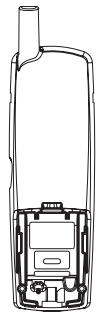
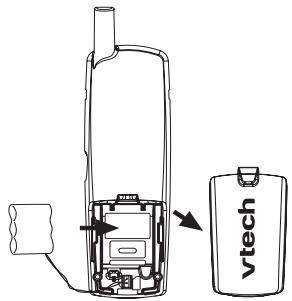
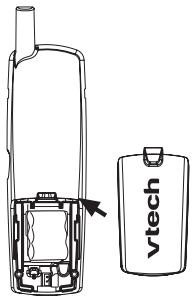
a) Align the two holes in the plug with the socket pins in the handset battery compartment, matching the red and black wires to the color-coded label. Snap the plug into place. Put the battery into the compartment.
b) Place the battery in the compartment with the wires tucked inside.
c) Place battery compartment cover by sliding it upward until it clicks into place.
d) The battery may have enough power for short calls. For best performance, put the handset in the telephone base and charge the battery for at least 16 hours.
note
Use only the provided VTech battery, or equivalent. To purchase replacement batteries, visit us on the web at www.vtechphones.com or call us at 1-800-595-9511. In Canada, go to www.vtech canada.com or call us at 1-800-267-7377.
Installation
Wall mounting bracket installation (optional)
Your telephone base comes with the wall mounting/desktop bracket installed, ready for desktop use. If you prefer to mount your telephone on the wall (optional), it is designed to mount on a standard telephone wall plate. For wall mounting, follow these instructions:
- First, insert the lower portion tabs of the wall mounting/desktop bracket into the lower grooves in the telephone base, then snap the upper portion tabs of the bracket into place.
- Mount the telephone base on the wall by positioning it so the mounting studs will fit into the holes on the telephone base and wall mounting/desktop bracket. Slide the telephone base down on the mounting studs until it locks into place.
- To remove the bracket, press both upper portion tabs firmly inward and pull the bracket downward until it release from the grooves.
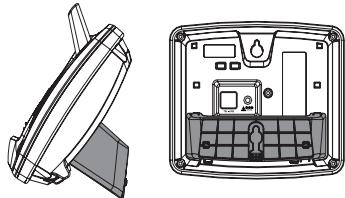
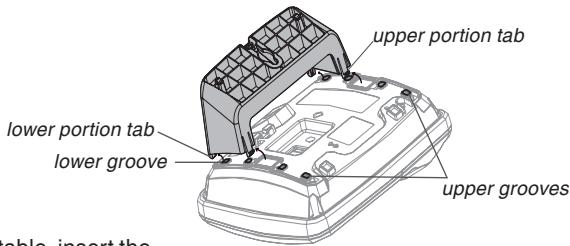
Desk/table bracket installation
To place your telephone base on a desk or table, insert the wall mounting/desktop bracket.
- Insert the lower portion tabs of the bracket into the upper grooves of the telephone base.
- Snap the upper portion tabs of the bracket into place.
- To remove the bracket, press both upper portion tabs firmly inward and pull the bracket upward until it is released from the grooves.
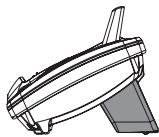
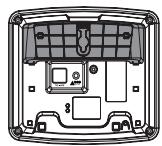
Installation
If you subscribe to DSL service
If you receive high speed internet service through your telephone line (commonly referred to as DSL) and you are experiencing interference during conversations and/or your caller ID features aren't functioning properly, install a DSL filter to the telephone line between the telephone base and the telephone line jack. Contact your DSL provider to obtain a DSL filter.
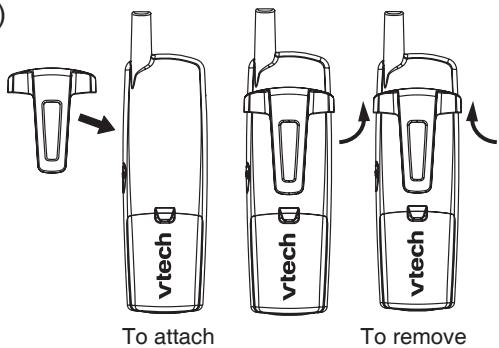
Belt clip (optional)
note
- If the phone will not be used for a long period of time, remove the battery to prevent battery damage.
Installation
Check for dial tone
After the batteries are charged, pick up the handset and press TALK/FLASH; you should hear a dial tone. If you do not, refer to the Troubleshooting section in the back of this user's manual.
Charge the handset battery
The battery may have enough power to allow for short calls. If the battery power is low, NEEDS RECHARGING will appear on the handset screen. For best performance charge the battery for at least 16 hours the first time.
Language
- Press PROG, then press or until LANGUAGE is displayed. Press SELECT.
- The current setting blinks. Press or until the screen displays the correct language (English, Espanol or Frangais).
- Press SELECT to save your selection.
Set the dial mode
If you have touch tone service, the phone is ready to use as soon as the battery is charged. If you have pulse (rotary) service, you'll need to change the dial mode.
- Press PROG.
- Press or until the screen displays DIAL MODE: and the current setting.
- Press SELECT. The current setting blinks.
- Press or to select TONE or PULSE.
- Press SELECT to save.
Installation
Set handset date and time
If you subscribe to caller ID service, the date and time will be set automatically with the first incoming call. If you do not have caller ID service, you can set the date and time manually:
- Press PROG, then press or until DATE/TIME is displayed. Press SELECT.
- The month is flashing. Press or until the screen displays the correct month. Press SELECT.
- The day is flashing. Press or until the screen displays the correct day. Press SELECT.
The hour is flashing. Press or until the screen displays the correct hour. Press SELECT. - The minute is flashing. Press or until the screen displays the correct minute. Press SELECT.
- AM or PM is flashing. Press or to choose between AM or PM. Press SELECT.
Handset ringer style
You can select from four different handset ringer styles, or turn the ringer off.
- With the handset in idle (off) mode, press PROG.
- Press or until the screen displays RINGER: and current setting.
- Press SELECT. The current setting blinks, and you will hear a sample of the ring.
- Press or to select RINGER: 1, 2, 3, 4 or OFF. You will hear a sample of each ring tone.
- Press SELECT to choose the displayed ringer setting.
Set ringer volume
You can select from two different handset ringer volume, or turn the ringer off.
- Begin with the handset in idle (off) mode.
- Press and hold or until the screen displays OFF LOW HIGH.
- The current setting blinks, and you will hear a sample of the ring volume.
- Press or to select ringer volume: OFF LOW HIGH. You will hear a sample of each ring tone.
- Press SELECT to choose the displayed ringer setting.
note
- In the event the battery loses all of its power or is removed, the time setting will be lost.
Telephone operation
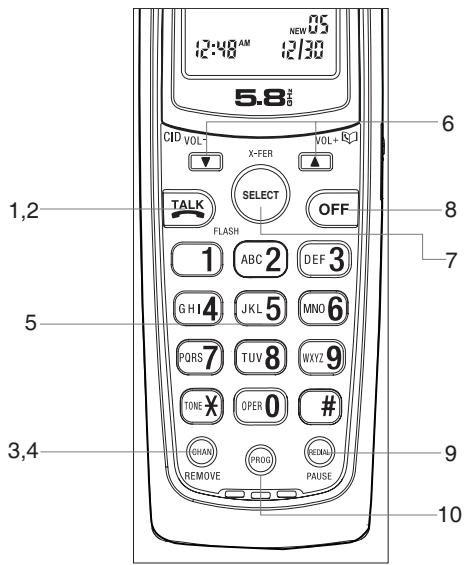
Handset layout
- TALK
- FLASH
- CHAN (channel)
- REMOVE
- Answer a call
- /CIDVOL
▲VOL+
- SELECT
- OFF
- REDIAL/PAUSE
10.PROG (program)
Telephone operation
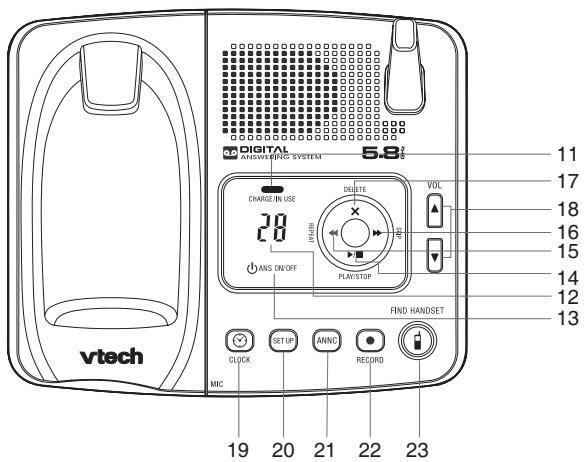
Telephone base layout
- CHARGE/IN USE
- Message window
- ANS ON/OFF
- PLAY/STOP
- REPEAT/
- SKIP/
- DELETE/ X
- VOL ▲/▼
- CLOCK
- SETUP
- ANNC (announcement)
- RECORD
- FIND HANDSET
note
- Whenever the phone is in use, call timer will be shown at the top right corner.
Telephone operation
Handset operation
Making calls
- Press TALK/FLASH, then dial the number.
-OR-
Dial the number (press to backspace), then press TALK/FLASH.
Ending calls
- Press OFF to end your call.
-OR-
Put the handset on the telephone base or charger to end your call.
Answering Calls
- Press any key to answer a call (except OFF, ▲ or ▼).
FLASH
During a call, press TALK/FLASH to receive an incoming call, if call waiting is activated.
CHAN
Press CHAN/REMOVE to switch to a clear channel while on a call.
REMOVE
When viewing the call log, press to delete the current record displayed. While handset is in idle mode, press and hold to delete all records in the call log.
/CID VOL- and /VOL+
/CID VOL-
- While on a call, press to decrease the volume. A double beep will sound when you reach the lowest setting.
Telephone operation
While phone is not in use, press to display caller ID information.
- While entering names or numbers into memory, press then press CHAN/REMOVE to delete the last character entered.
▲VOL+
- While on a call, press to increase the volume. A double beep will sound when you reach the highest setting.
While phone is not in use, press to display directory entries.
While entering names, press twice to add a space.
SELECT
Press to confirm an entry of operation, or to select highlighted item from menu.
OFF
During a call, press to hang up. While using menu, press to cancel an operation or exit the menu display.
REDIAL/PAUSE
Press to view radial number. Press it again to delete the radial number. Press to insert a dialing pause while entering a number.
PROG (program)
With the handset in idle (on-hook), press to enter programming mode.
VOL (volume)
During a call, press or to adjust the listening volume to a comfortable level.
note
- Only one handset can be on a call at a time. For example, if HS1 is on a call and HS2 presses the TALK/FLASH button, OTHER HANDSET ON OR OUT OF RANGE will display.
Telephone operation
Telephone base operation
CHARGE/IN USE
- Flashes in unison with an incoming call's ringing.
- Flashes slowly when the handset is in use or answering machine picks up a call or extension is off hook.
- Glows steadily when the handset is charging.
Message window
Indicate the status of answering machine. (e.g. show the number of message recorded in the mailbox.)
ANS ON/OFF
Set the answering machine to answer an incoming call.
PLAY/STOP
- Play back recorded messages in mailbox.
- Stop the playback of message.
REPEAT/
Repeat or playback the previous message during playback or as a parameters setting in the SETUP mode.
SKIP/
Skip forward a message during playback or move to the next setting in SETUP mode.
DELETE
Delete individual or all the messages.
VOL ▲/▼
Increase/decrease speaker volume.
CLOCK
Press to announce the current time. Press again to enter clock set mode.
SETUP
To set various answering machine features. For details, please refer to the Answering system operation section.
ANNC (announcement)
Enter announcement mode and press again to quit.
FIND HANDSET
To page handset(s).
Telephone operation
Temporary tone dialing
If you have pulse (rotary) dialing, you can change from pulse dialing to touch tone dialing during a call by pressing *TONE. This is useful if you need to send touch tone signals for access to telephone banking or long distance services.
- Press *TONE when handset is off hook or on a call.
- Dial the number.
- After you hang up, the phone automatically returns to pulse dialing.
Call transfer
To transfer an external call from one handset (HS1) to the other handset (HS2):
For the ia5865/ia5870
- While on a call, press SELECT on HS1 to forward the call to HS2.
HS1 will show:
HS2 will ring and show:
CALL TRANSFERRED
TRANSFERRED CALL
- Press TALK/FLASH on HS2 to answer the transferred call. HS1 will return to the idle mode.
note
- Only one handset can be on a call at a time. For example, if HS1 is on a call and HS2 presses the TALK/FLASH button, OTHER HANDSET ON OR OUT OF RANGE will display.
- The phone will automatically return to pulse service after you hang up.
note
- If HS2 cannot be found, HS1 will generate an error tone and continue the call automatically. Before HS2 answers, HS1 can press TALK/FLASH to cancel the forward function and continue the external call.
- If HS2 doesn't respond within 30 seconds, HS1 will start ringing until TALK/FLASH is pressed to pick up the returned call. If it is not answered within another 30 seconds, the external call will end automatically.
Telephone operation
For the ia5878/ia5884
- While on a call, press SELECT on HS1 to forward the call to the destination handset.
HS1 will show:
Destination handset will ring and show:
ENTER 1-3
TRANSPFERRED CALL
- Enter the destination handset number you want to transfer.
- Press TALK/FLASH on the destination handset to answer the transferred call. HS1 will return to the idle mode.
For the ia5882/ia5890
- While on a call, press SELECT on HS1 to forward the call to the destination handset.
HS1 will show:
Destination handset will ring and show:
ENTER 1-4
TRANSPFERREDCALL
- Enter the destination handset number you want to transfer.
- Press TALK/FLASH on the destination handset to answer the transferred call. HS1 will return to the idle mode.
Telephone operation
Headset jack
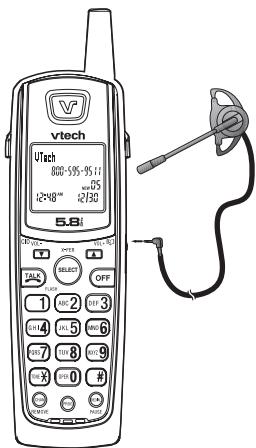
You can use this telephone handsfree when you install any VTech 2.5 mm headset, purchased separately.
Plug the headset into the jack located on the right side of the handset (under the small rubber flap). Do not force the connection, but make sure the plug fits securely.
Operating range
This cordless telephone operates within the maximum power allowed by the Federal Communications Commission (FCC). Even so, this handset and base can communicate over only a certain distance - which can vary with the locations of the base and handset, the weather, and the construction of your home or office.
If you move out of range during a phone conversation, you might hear noise or interference. To improve reception, move closer to the base.
If you move out of range without pressing OFF, your phone will be left off the hook. To hang up properly, walk back into range, periodically pressing OFF.
note
To purchase a headset, visit us on the web at www. vtechphones. com or call us at 1-800-595-9511. In Canada, go to www.vtechcanada. com or call us at 1-800-267-7377.
note
- Press OFF at any time to exit the directory.
- When the memory is full the screen will display MEMORY FULL, an error tone sounds and you will not be able to store a new number until you delete a stored number to make room for another entry.
- If the directory is empty and you try to access the directory, Directory EMPTY will show on the screen.
Directory
Your phone can store 20 (including nine speed dial entries) telephone numbers with names (up to 15 characters for the name and 24 digits for the number in each location) in the handset.
Store a directory entry
- Press PROG. The screen displays Directory.
- Press SELECT. The screen displays ENTER NAME.
- Using the chart on the next page, enter up to 15 characters for the name you're storing with the number. Press then press CHAN/REMOVE to backspace and make corrections; press to advance or press it twice to add a space.
- When you finish entering the name, press SELECT or PROG. The screen displays ENTER NUMBER.
- Enter the telephone number. Press then press CHAN/REMOVE to backspace and make corrections. Press REDIAL/PAUSE to store a pause (for example a P will be shown) if necessary.
-
OR
Press REDIAL/PAUSE to display the last number (up to 24 digits) dialed from this handset. -
Press SELECT or PROG. The screen displays DISTINCT RING? and the current setting.
- Press or to choose Y (yes) if you wish the phone to alert you to calls from this number by changing to a distinctive ringer after the first ring. Choose N for a normal ringer.
- Press SELECT or PROG to confirm. If you chose Y in step 7, a will be displayed with the directory entry.
Directory
Chart of characters
Using the chart below, enter up to 15 characters for the name you're storing. An error tone will sound if you try to enter more than 15 characters. Press then press CHAN/REMOVE to backspace and make corrections; press to advance or press it twice to add a space.
| Dial key | Characters by number of key presses | |||||
| Once | Twice | 3 times | 4 times | 5 times | 6 times | |
| 1 | 1 | |||||
| 2 | A | B | C | 2 | ||
| 3 | D | E | F | 3 | ||
| 4 | G | H | I | 4 | ||
| 5 | J | K | L | 5 | ||
| 6 | M | N | O | 6 | ||
| 7 | P | Q | R | S | 7 | |
| 8 | T | U | V | 8 | ||
| 9 | W | X | Y | Z | 9 | |
| 0 | 0 | |||||
| * | * | |||||
| # | & | ' | , | - | . | # |
note
- When you reach the end of the list in the directory, END OF LIST will be shown on the screen.
- If you press a dial pad key for alphabetical look up while in the directory and there are no entries starting with the letters on that key, NO DATA will be displayed on the screen.
Each handset directory is independent of the other handsets. If you make entries or changes to the directory of one handset it will not be reflected in the other handsets.
Directory
Edit a directory entry
- Press . The screen displays Directory.
- Press or to scroll alphabetically through entries stored in directory.
-OR-
Press the dial pad key for the first letter of the entry you want to edit.
- When the screen displays the entry you want to edit, press SELECT. Then press or until
EDIT flashes.
SPEED EDIT ERASE 8005959511
- Press SELECT. The screen displays the name and number. The cursor appears at the beginning of the name. Press CHAN/REMOVE to backspace or press and the dial pad keys to edit the name. Press SELECT to confirm and move on to edit the number. Press CHAN/REMOVE to backspace and make corrections. Press SELECT to confirm and move to edit the distinctive ring setting.
- Press SELECT to save the edited information.
Delete a directory entry
- Press . The screen displays Directory.
- Press or to scroll alphabetically through entries stored in directory.
-OR-
Press the dial pad key for the first letter of the entry you want to delete.
- When the screen displays the entry you want to delete, press SELECT. Then press or until ERASE flashes.
SPEED EDIT 8005959511
ERASE
Directory
- Press SELECT. The screen displays ERASE NO YES and the number. The current choice flashes.
- Press until YES flashes.
- Press SELECT. You'll hear a confirmation beep.
Move a directory entry into speed dial
- Press . The screen displays Directory.
- Press or to scroll alphabetically through entries stored in directory.
-OR-
Press the dial pad key for the first letter of the entry you want to move.
- When the screen displays the entry you want to move, press SELECT. Then press or until
SPEED flashes.
SPEED EDIT ERASE 8005959511
- Press SELECT. The screen displays ENTER 1-9.
- Press the key (1-9) to move this entry from the normal directory to the speed dial memory and assign the memory location. You'll hear a confirmation beep. A memory location number (1 through 9) will be displayed with this entry.
Dial a number from the directory
- Press . The screen displays Directory.
- Press or to scroll alphabetically through entries stored in directory.
-OR-
Press the dial pad key for the first letter of the entry you want to dial.
- When the screen displays the entry you want to dial, press TALK/FLASH.
note
- The entries you store in speed dial memory will be marked with 01 through 09 and also display in the directory.
- Press OFF at any time to exit speed dial mode.
- If the location is not empty, your new entry will be stored in place of the old and the entry will be moved to a directory location.
Speed dial
Your phone can store up to nine telephone numbers with names (up to 15 characters and 24 digits in each location) in the speed dial memory locations you assign (numbered 1 through 9) in each handset. These numbers can be dialed with two button presses. You can also store telephone numbers with names alphabetically in the directory. See Telephone directory for instructions.
Store a speed dial entry
- Press PROG. Then press or until the screen displays SPEED DIAL.
- Press SELECT. The screen displays ENTER 1-9.
- Press the key (1 through 9) to assign the speed dial location this number will be stored. The screen displays ENTER NAME.
- Using the chart below, enter up to 15 characters for the name you are storing. An error tone will sound if you try to enter more than 15 characters. Press then press CHAN/REMOVE to backspace and make corrections; press to advance or press it twice to add a space.
- After you enter the name, press SELECT or PROG. The screen displays ENTER NUMBER.
| Characters by number of key presses | ||||||
| Dial key | Once | Twice | 3 times | 4 times | 5 times | 6 times |
| 1 | 1 | |||||
| 2 | A | B | C | 2 | ||
| 3 | D | E | F | 3 | ||
| 4 | G | H | I | 4 | ||
| 5 | J | K | L | 5 | ||
| 6 | M | N | O | 6 | ||
| 7 | P | Q | R | S | 7 | |
| 8 | T | U | V | 8 | ||
| 9 | W | X | Y | Z | 9 | |
| 0 | 0 | |||||
| * | * | |||||
| # | & | ' | , | - | . | # |
Speed dial
- Enter the telephone number. Press then press CHAN/REMOVE to backspace and make corrections.
Press REDIAL/PAUSE to enter a pause (for example a P will be shown) if necessary.
-OR-
Press REDIAL/PAUSE to display the last number (up to 24 digits long) dialed from this phone.
- Press SELECT or PROG to store your entry. The screen displays DISTINCT RING? and the current setting.
- Press or to choose Y (for yes) if you wish the phone to alert you to calls from this number by assigning a distinctive ringer after the first ring. Choose N for a normal ringer.
- Press SELECT or PROG to confirm. If you chose Y in step 8, a will be displayed with the entry.
Edit a speed dial entry
- Press and hold the speed dial location key (1-9) of the entry you wish to edit.
- When the screen displays the entry you want to edit, press SELECT. Then press or until EDIT flashes.
SPEED EDIT ERASE
8405959511
81
- Press SELECT. The screen displays the name and number. The cursor appears at the beginning of the name. Press CHAN/REMOVE to backspace or press and the dial pad keys to edit the name. Press SELECT to move on to edit the number. Press CHAN/REMOVE to backspace and make corrections. Press SELECT to move on to edit the distinctive ring setting. Press or to choose Y (for yes) if you wish the phone to alert you to calls from this number by assigning a distinctive ringer after the first ring. Choose N for a normal ringer.
- Press SELECT to save the edited information.
Speed dial
Delete a speed dial entry
- Press and hold the speed dial location key (1-9) of the entry you wish to delete.
- When the screen displays the entry you want to delete, press SELECT. Then press or until ERASE flashes.
SPEED EDIT 8005959511
ERASE
81
- Press SELECT. The screen displays ERASE NO YES and the number. The current choice flashes.
- Press until YES flashes.
- Press SELECT. You'll hear a confirmation beep.
Dial a speed dial number
- Press and hold the speed dial location key (1-9) of the entry you wish to dial.
- Press TALK/FLASH to dial the displayed memory number.
Reassign locations in speed dial
- Press and hold the speed dial location key (1-9) of the entry you wish to reassign.
- When the screen displays the entry you want to reassign, press SELECT. Press or until SPEED flashes.
SPEED EDIT ERASE
8065959511
B1
- Press SELECT. The screen displays ENTER 1-9.
- Press the keys (1-9) to reassign this entry into another memory location. You'll hear a confirmation beep.
Caller ID
Your phone has a caller ID (CID) with call waiting feature that works with service from your local phone service provider. Caller ID with call waiting lets you see who's calling before you answer the phone, even when you're on another call.
You may need to change your phone service to use this feature. Contact your phone service provider if:
- You have both caller ID and call waiting, but as separate services (you may need combined service)
- You have only caller ID service, or only call waiting service.
- You don't subscribe to any caller ID or call waiting services.
You can use this product with regular caller ID service, and you can use this product's other features without subscribing to either caller ID or combined caller ID with call waiting service.
There are fees for caller ID services, and they may not be available in all areas.
This product can provide information only if both you and the caller are in areas offering caller ID service, and if both telephone companies use compatible equipment.
note
- If you answer a call before the information appears on the screen, it will not be in the call history.
- Press OFF at any time to exit call history.
Each handset's call log is independent from the other handset. For example, when you delete one or all call log entries from one handset, they will not be deleted from the other handset.
Caller ID
About call history ( caller ID)
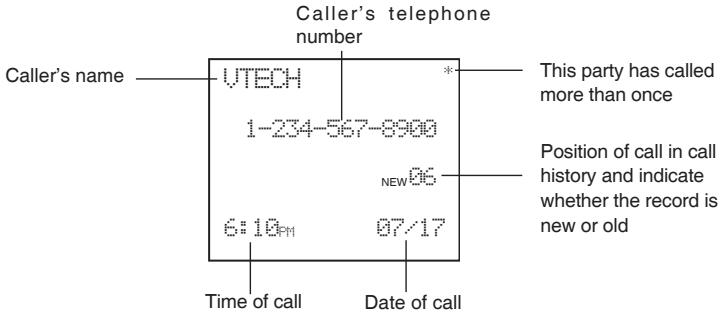
Your phone can store up to 45 calls in its caller ID (CID) memory. When the memory is full, the oldest call will automatically be deleted to make room for new incoming call information.
For each call that comes in, the screen displays the following information between the first and second ring:
- Your caller's name (15 letters are sent by your telephone company).
The caller's area code and telephone number.
The time and date of the call. - The repeat tag () in the upper right corner, indicating the party has called more than once.
Review call history
- Press (CID) to view call history.
- Press or to scroll through records in call history.
Caller ID
Delete records from call history
Delete a specific call:
- Locate the record you want to delete from call history.
- Press the CHAN/REMOVE key to delete. You'll hear a confirmation beep.
Delete all calls:
- With the handset in idle (off) mode, press and hold the CHAN/REMOVE key to delete. The screen displays ERASE ALL NO YES. The current choice flashes.
- Press until YES flashes.
- Press SELECT. You'll hear a confirmation beep.
Dial a displayed number
- Locate the record in call history that you want to dial.
-
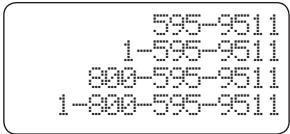
Although the call log entries you receive are 10 digits, (the area plus the 7-digit number,) in some areas, you may need to dial only the seven digits, or a 1 plus the seven digits, or a 1 plus the area code plus the seven digits. You can change the number of digits that you dial or store from the call log. While reviewing the call log, press # repeatedly to display these dialing options for local and long distance numbers before dialing or saving the telephone number. See an example below.
-
Press SELECT. Press or until DIAL flashes.
- Press SELECT. The number is automatically dialed.
-OR-
When the number is correctly displayed for dialing, press TALK/FLASH.
Store a call history record in the directory
- Locate the record in the call history you want to store in the directory.
note
- Caller ID numbers may appear with an area code that may not be required for local calls, or without a 1 that may be needed for long distance calls. If the number displayed is not in the right format, press # repeatedly to see the different dialing options. You can choose to dial with or without the area code, or with or without the 1.
note
- Caller ID numbers may appear with an area code that may not be required for local calls, or without a 1 that may be needed for long distance calls. If the number displayed is not in the right format, press # repeatedly to see the different dialing options. You can choose to dial with or without the area code, or with or without the 1.
Caller ID
- If you wish to change how the number is stored, press#. The screen displays any alternate dialing sequences available for this call (area code + number; 1 + area code + number; number only; 1+ number). See the note in the side margin for more information on changing the dialing sequence.
- Press SELECT, then press or until PROGRAM flashes.
- Press SELECT again.
- You will be given the option to edit the name. Make any changes to the name and press SELECT.
- Edit the number if necessary and press SELECT.
- Press or to select Y or N for distinctive ringer.
- Press SELECT. You'll hear a confirmation beep. If you choose Y in step 7, a will be displayed with the directory entry.
Display screen messages
| 800-595-9511 5:40PM | NEW20 12/30 |
| DIAL PROGRAM 800-595-9511 5:40PM | NEW20 12/30 |
| DISTINCT RING? N 800-595-9511 |
| Screen displays: | When: |
| PRIVATE CALLER | The other party is blocking name and/or number information. |
| UNKNOWN CALLER | Your phone company is unable to receive information about this caller's name and/or number. |
| ( after name) | This caller has called you more than once. |
Answering system operation
Audible indicators
Your telephone system gives you voice prompts for feature operations and voice confirmations when you press a button or complete an operation.
Setting the clock
- Make sure the answering system is on.
- Press CLOCK. The system announces the clock setting (e.g. day, time and year), then announces: "To set the clock, press CLOCK."
- Press CLOCK. The system announces the current day.
- Press SKIP or REPEAT until the system announces the correct day, then press CLOCK. The system announces the current hour.
- Press SKIP or REPEAT until the system announces the correct hour, then press CLOCK. The system announces the current minute.
- Press SKIP or REPEAT until the system announces the correct minute, then press CLOCK. The system announces the current year.
- Press SKIP or REPEAT until the system announces the correct year, press CLOCK. The system announces the current clock setting and exits the clock menu.
note
- If you have caller ID service the clock will be set automatically with incoming calls, but you will need to make sure the year is correct. You can also set the clock manually.
- To advance or recede the minutes or year by increments or decrements of ten, press and hold SKIP or REPEAT.
- Press and hold CLOCK for about two seconds to exit clock setting at any stage and the new setting will be saved and announced.
note
- Announcements less than two seconds in length will not be recorded.
- If the answering system is turned off and you receive calls the phone will ring 10 times, then answer and announce "Please enter your remote access code."
Answering system operation
If you choose not to record a personalized announcement, the pre-recorded announcement will say "Hello, please leave a message after the tone."
Record your announcement
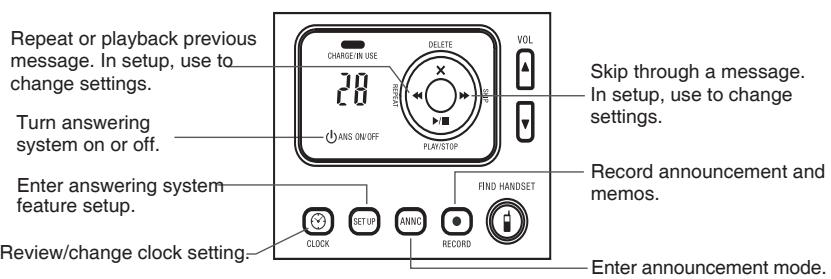
- Press ANNCC until you hear "Announcement. Press PLAY or press RECORD."
- Press RECORD. After you hear "Record after the tone. Press STOP when you are done," followed by a beep, speak toward the base to record an announcement up to 90 seconds long.
- Press PLAY/STOP. The system plays back your recorded message.
- Press ANNC to exit the menu.
Review your announcement
- Press ANNc until you hear "Announcement. Press PLAY or press RECORD."
- Press PLAY/STOP, the system plays the current announcement.
Answering system operation
Delete your announcement
Press DELETE during announcement playback. The system will use the pre-recorded announcement until you record a new one.
Setup the answering system
- Press SETUP until the system announces the feature you want to set. Refer to the feature summary below for a description of the features and your choices.
- Press SKIP or REPEAT until the system announces the desired setting.
- Press SETUP to confirm your selection and move on to the next feature, or press PLAY/STOP to exit feature setup.
Default settings indicated by *.
| System announces: | Description: |
| “Number of rings <current setting>, to change the setting, press SKIP OR REPEAT, to continue setup, press SETUP.” | To set the number of rings before the answering machine picks up the incoming call. Two rings, four rings*, six rings and toll saver. When set to the toll saver setting, the answering system will answer after two rings if there are new messages/memos, otherwise, answers call after four rings. |
| “Base ringer <current setting>, to change the setting, press SKIP OR RE-PEAT, to continue setup, press SETUP.” | Changes the volume of the ringer. Choose between HI, LO* or OF. |
| Remote access code <current setting>, to change the setting, press SKIP or REPEAT, to continue setup, press SETUP | Allows you to call your answering machine and access messages and the answering system menu. The default access code is 19. |
note
- To increase or decrease the remote access code by increments of 10, press and hold the SKIP or REPEAT key.
note
- You can exit feature setup at any time by pressing PLAY/STOP.
Answering system operation
Message alert tone
To notify the user by beeping when new message(s) has been received. You may turn it on or off (^*)
Delete messages
To delete a message, press DELETE while the message is playing.
- Press and hold DELETE in idle to delete all old messages in idle mode.
- You cannot delete a message until it's been reviewed; deleted messages cannot be recovered.
Message window
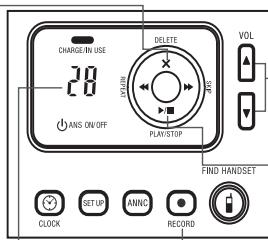
To increase/decrease speaker volume.
Play messages
Press to play messages.
- Press again to stop playback.
Record announcement and memos.
Answering system operation
Listen to, save & delete messages
The system automatically saves your messages until you delete them, and can store approximately 11 minutes of messages, memos, and announcements (up to a maximum of 95 messages). A message or memo can be up to four minutes long.
The message window will flash to alert you to new, unplayed messages. If all messages have been reviewed, the number displayed in the message window will glow steadily. If the system contains both old and new messages, it will play only the new messages. After all new messages are played, press PLAY/STOP to hear all messages.
Before playing a message, the system announces the day and time it was received. While the message plays, the message window displays the number of the message. After playing the last message, the system announces "End of messages." If the system has less than five minutes of recording time left, it announces the remaining time.
Call screening/intercept
- Make sure the answering system is on, and set the message playback volume control above level 1 so you can hear the caller's message.
- If you decide to answer the call, press TALK/FLASH on the handset.
Record a memo
You can record a memo up to four minutes long, which is stored as an incoming message.
- Press and release RECORD.
- The system announces "Record after the tone. Press STOP when you are done." After the beep, speak toward the microphone. The message window displays the length of your memo up to 99 seconds, if you record a memo longer than 99 seconds, 99 continues to flash until you finish.
- To stop recording, press PLAY/STOP.
Answering system operation
| Window display: | When: |
| 0 | There are no messages. |
| 1-95 | Total number of old message(s). |
| 8-95 (flashing) | Total number of new message(s) or clock has not been set. |
| 1-95 & F (alternating) | Memory is full with total number of new or new and old message(s) recorded. (Maximum number of messages is 95.) |
| 1-99 (counting) | Elapsed time while recording a memo or announcement up to 90 seconds. |
| 99 (flashing) | Recording time exceeds 99 seconds. |
| 1-95 | Current message number during old message playing back. |
| 1-95 (flashing) | Current message number during new message playing back. |
| 1-8 (steady for two seconds) | Indicates volume level selected when pressing the volume up/down key. |
| 10-99 (steady for two seconds) | Shows the current remote access code. |
| ON or OFF (steady for two seconds) | Display when any setting is changed from on or off. |
| ---- (steady) | System is in programming mode, initializing or a handset is off hook or on a call. |
| ---- (flashing) | System is in programming mode. |
Answering system operation - remote access
Accessing the answering system remotely
You can access many features of this system remotely from a touch tone phone.
- Dial your telephone number.
- When the system answers, enter your remote access code. If the memory is full, it announces "Memory is full" before asking you to enter your remote access code.
- Enter a remote command, see Remote access commands below.
- To end remote access, simply hang up the phone.
Voice menu
The system has voice prompts to help you with remote operations. Press *5 to hear the menu while connected remotely to the answering system.
Remote access commands
| Function: | Command: |
| Play messages | Press 1 to play all messages. Press 2 to play new messages. If there are no new messages, the system plays old messages. |
| Repeat a message | Press 4 while message is playing. Press 4 to repeat the current playing message from its beginning or press 4 during the beginning of the day and time announcement to back up previous message. |
| Skip a message | Press 6 while message is playing; each press advances to the next message. |
| Stop | Press 5. |
| Help | Press *5. |
| Save messages | Hang up. |
note
- If no key is pressed within five seconds of entering remote access, the voice menu will be announced. After the voice menu announcement, if no key is pressed within 20 seconds, the remote access call will automatically end.
- If accessing from a touch tone telephone, press #5 to stop recording.
- Press 8 to hang up the line after you finish remote access to the answering system, so that your phone can ring and receive calls normally.
Answering system operation - remote access
| Function: | Command: |
| Review previous message | Press 4 during the beginning of the day and time announcement. |
| Delete message | Press 3 while message is playing. Press 33 during or after HELP menu announcement to delete all old messages. |
| Record announcement | Press *7; after the beep record announcement. Press 5 to stop. System plays back announcement. |
| Turn system off | Press 0; the system announces, “Calls will not be answered.” Press 0 again to turn the system back on. |
| Turn system on | When system is off, it answers after 10 rings and announces, Please enter your remote access code, then press 0 to turn the answering system on. |
| End call | Press 8. |
Display screen messages
| Screen displays: | When: |
| ** RINGING ** | There is a call coming in. |
| CONNECTING... | The handset is waiting for dial tone. |
| PHONE ON | The handset is in use. |
| ** PAGING ** | The telephone base is paging the handset. |
| BATTERY LOW | The battery needs to be recharged. |
| SCANNING... | The handset is changing to another of the 30 channels available. |
| OTHER HANDSET ON OR OUT OF RANGE | 1. Displays when one handset is on a call and the other handset presses TALK/FLASH. 2. Displays when base power is off and TALK/FLASH is pressed. You'll also hear an error tone. 3. Displays when an out-of-range dial fails to connect. |
| RINGER OFF | The handset ringer is turned off. |
note
If you repeatedly get a low battery indicator, even after charging overnight, the battery should be replaced.
- To reduce the risk of fire or injury to persons or damage to the telephone, read and follow these instructions carefully: Charge the battery provided with or identified for use with this product only in accordance with the instructions and limitations specified in the user's manual.
Battery information
Battery care and performance:
After your battery is fully charged, you can expect the following performance:
| Operation | Operating time |
| While in use (talking) | up to 5 hours |
| While not in use (standby*) | up to 7 days |
- Handset is off the telephone base or charger but not in use.
The battery needs charging when:
— A new battery is installed in the handset.
The phone beeps twice every five seconds.
The screen displays BATTERY LOW and the low battery icon.
- Place the handset in the base so the charge light turns on. The battery is typically fully charged in 16 hours.
- You can keep the battery fully charged by returning the handset to the base after each use.
Replacing the handset battery
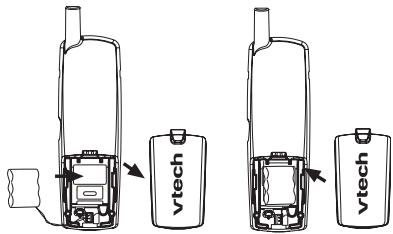
- Remove the battery compartment cover on the handset by pressing on the indentation and sliding the cover downward.
- Lift out the old battery and disconnect.
- Align the two holes in the new battery's plug with the socket pins, and snap the plug into place. Snap the battery in the compartment, as described in Installation, on page 5.
- Replace the cover by sliding it up into place.
- For optimum performance, the new battery should be charged before using the phone. Place the handset in the telephone base or charger and allow it to charge for at least 16 hours the first use. The telephone might operate before that, but for best performance, let the battery charge fully.
Troubleshooting
If you have difficulty operating your phone, the suggestions below should solve the problem. If you still have difficulty after trying these suggestions, call VTech Communications at 1-800-595-9511. In Canada, call VTech Telecommunications Canada Ltd. at 1-800-267-7377.
| Problem | Suggestion |
| My telephone does not work at all. | Make sure the battery is installed and charged correctly (see page 5 and 38). For optimum daily performance, return the cordless handset to the telephone base after use. Make sure the power adapter is securely plugged into an outlet not controlled by a wall switch. Make sure the telephone line cord is plugged firmly into the telephone base and the modular wall jack. Unplug the unit's electrical power and remove the battery from the handset. Wait for 15 seconds then plug in the battery and plug in the power. Allow up to one minute for the cordless handset and base to synchronize. Charge the battery in the cordless handset for at least 16 hours. Remove and re-insert the battery. If that still does not work, it may be necessary to purchase a new battery pack. Disconnect the telephone base from the modular jack and plug in a working telephone. If this telephone does not work, the problem is probably in the wiring or the local service. Call the local telephone company. |
| BATTERY LOW is displayed on screen. | Place the handset in the telephone base or charger for recharging. Remove and re-install the battery and use it normally until fully discharged, then recharge the handset on the telephone base or charger for 16 hours. If the above measures do not correct the problem, the battery may need to be replaced. |
Troubleshooting
| Problem | Suggestion |
| The battery does not charge in the handset or the handset battery does not accept charge. | Make sure the handset is placed in the charger correctly. The CHARGE light on the telephone base or charger should be on. If the cordless handset is in the charger or in the telephone base but the CHARGE light is not on, refer to The charge light is off in this section. It may be necessary to purchase a new battery. Please refer to the Batteries section of this user's manual. The telephone might be malfunctioning. Please refer to the Warranty section of this user's manual for further instruction. |
| The CHARGE light is off. | Clean the charging contacts on the cordless handset(s) and telephone base each month using a pencil eraser or a dry non-abrasive fabric. Make sure the power adapter and telephone line cords are plugged in correctly and securely. Unplug the power adapter. Wait for 15 seconds before plugging it back in. Allow up to one minute for the cordless handset and telephone base to reset. The telephone might be malfunctioning. Please refer to the Warranty section of this user's manual for further instruction. |
Troubleshooting
| Problem | Suggestion |
| The CHARGE/IN USE Indicator on the telephone base is flashing. | This is a signal that the battery is very low, completely depleted, when there is no electrical contact between the battery and the telephone base or when the telephone line is in use. Ensure the connector of the battery is securely plugged into the handset and place the handset in the telephone base for charging. Answering machine has picked up a call. Handset is on a call. Another phone extension is in use. |
| There is no dial tone. | First, try all the above suggestions. Move the cordless handset closer to the telephone base. It might be out of range. The telephone line cord might be malfunctioning. Try installing a new telephone line cord. Disconnect the telephone base from the telephone jack and connect a different telephone. If there is no dial tone on the telephone either, the problem is in your wiring or local service. Contact your local telephone company. |
Troubleshooting
| Problem | Suggestion |
| The telephone does not ring when there is an incoming call. | ·Make sure the ringer is on. (See page 9). ·Make sure the telephone line cord and power adapter are plugged in properly (see page 4). ·The cordless handset may be too far from the telephone base. Move it closer to the telephone base. ·There may be too many extension phones on the telephone line to allow all of them to ring simultaneously. Try unplugging some of them. ·If the other telephones in your home are having the same problem, the problem is in the wiring or local service. Contact the local telephone company (charges may apply). ·Other electronic products can cause interference to your cordless telephone. Try installing your telephone as far away as possible from the following electronic devices: wireless routers, radios, radio towers, pager towers, cellular telephones, digital telephones, intercoms, room monitors, televisions, VCRs, personal computers, kitchen appliances, and other cordless telephones. ·Test a working telephone at the telephone jack. If another telephone has the same problem, the problem is in the telephone jack. Contact your local telephone company (charges may apply). ·The telephone line cord might be malfunctioning. Try installing a new telephone line cord. ·Re-install the battery pack and place the cordless handset in the telephone base. ·Wait for the cordless handset to synchronize with the telephone base. To be safe, allow up to one minute for this to take place. |
Troubleshooting
| Problem | Suggestion |
| I cannot dial out. | First, try all the above suggestions. Make sure there is a dial tone before dialing. It is normal if the cordless handset takes a second or two to synchronize with the telephone before producing a dial tone. Wait an extra second before dialing. Make sure the telephone is set to the correct dial mode (pulse dial or tone dial) for the service in your area. Refer to the Setup the dial mode section of this user's manual (page 8) to set the dial mode. If the other telephones in your home are having the same problem, the problem is in the wiring or local service. Contact your local telephone company (charges may apply). Eliminate any background noise. Noise from a television, radio, or other appliances may cause the telephone to not dial out properly. If you cannot eliminate the background noise, first try muting the cordless handset before dialing, or dialing from another room in your home with less background noise. |
| I hear other calls when using the telephone. | Disconnect the telephone base from the telephone jack. Plug in a different telephone. If you still hear other calls, the problem is probably in the wiring or local service. Call your local telephone company. Press the CHAN/REMOVE key to switch to a clear channel when on a call. |
| I hear noise in the cordless handset, and none of the keys or buttons work. | Make sure the telephone line cord is plugged in securely. |
Troubleshooting
| Problem | Suggestion |
| There is noise or interference during a telephone conversation.My calls fade out or cut in and out when I am using the cordless handset. | The handset may be out of range. Move it closer to the telephone base.Appliances or other cordless telephones plugged into the same circuit as the telephone base can cause interference. Try moving the appliance or telephone base to another outlet.Other electronic products can cause interference to your cordless telephone. Try installing your telephone as far away as possible from the following electronic devices: wireless routers, radios, radio towers, pager towers, cellular telephones, digital telephones, intercoms, room monitors, televisions, VCRs, personal computers, kitchen appliances, and other cordless telephones.Microwave ovens operate on the same frequency as your telephone. It is normal to experience static on your telephone while the microwave oven is operating. Do not install this telephone in the same outlet or near a microwave oven.If your telephone is plugged in with a modem or a surge protector, plug the telephone (or modem/ surge protector) into a different location. If this solves the problem, re-locate your telephone or modem farther apart from each other, or use a different surge protector.The layout of your home or office might be limiting the operating range. Try moving the base to another location, preferably a higher location for better reception.Disconnect the telephone base from the modular jack and plug in a corded telephone. If calls are still not clear, the problem is probably in the wiring or local service. Contact your local service company (charges may apply).Select channels four through 10 for your router (refer to the user's manual of your router for more information).If you still have problems with the telephone or the router, make sure the handset is ON and press CHAN/REMOVE until the performance improves.Press the CHAN/REMOVE button while on a call until the interference has been eliminated.If the other telephones in your home are having the same problem, the problem is in the wiring or local service. Contact the local telephone company (charges may apply).Do you have DSL service? If yes, you need to have a DSL filter installed at every telephone jack that has a telephone connected to it. Contact your DSL service provider for filter information. |
Troubleshooting
| Problem | Suggestion |
| My caller ID features are not working properly. | • Caller ID is a subscription service. You must subscribe to this service from your local telephone company for this feature to work on your telephone. • The caller may not be calling from an area which supports caller ID. • Both you and the caller's telephone companies must use equipment which are compatible with caller ID service. • If you subscribe to DSL service, install a DSL filter to the telephone line between the telephone base and the telephone line jack. Contact your DSL service provider for filter information. |
| The system does not receive caller ID or the system does not display caller ID during call waiting. | • Make sure you subscribe to caller ID with call waiting features services provided by the local telephone company. • The caller may not be calling from an area which supports caller ID. • Both you and the caller's telephone companies must use equipment which are compatible with caller ID service. • If you subscribe to DSL service, install a DSL filter to the telephone line between the telephone base and the telephone line jack. Contact your DSL service provider for filter information. |
Troubleshooting
| Problem | Suggestion |
| The answering system does not answer after the correct number of rings. | ·Make sure the answering system is on. When the answering system is on, the red light on the ANSWER ON/OFF key should be lit. ·If Toll Saver is activated, the number of rings changes to two when there are new messages waiting (see page 31). ·If the memory is full or if the answering system is off, the system will answer after ten rings. ·In some cases, the answering system may be affected by the ringing system used by the local telephone company. |
| The announcement message is not clear. | ·When recording the announcement, make sure you speak in a normal tone of voice about nine inches from the telephone base. ·Make sure there is no background noise (television, music, traffic, etc.) when recording. |
| The answering system does not record message. | ·Make sure the answering system is on. |
| The messages on the answering system are incomplete. | ·If a caller leaves a very long message, part of it may be lost when the system disconnects the call after four minutes. ·If the caller pauses for more than seven seconds, the system stops recording and disconnects the call. ·If the memory on the system becomes full during a message, the system stops recording and disconnects the call. ·If the caller's voice is very soft, the system may stop recording and disconnect the call. |
Troubleshooting
| Problem | Suggestion |
| The messages on the system are very difficult to hear. | Press ▼ or ▲ on the telephone base to increase or decrease the speaker volume. |
| The answering system does not respond to remote commands. | Make sure your “Remote Access Code” is correct (see page 35 and 36).Make sure you are calling from a touch-tone telephone. When dialing a number, you should hear tones. If you hear clicks, then it is not a touch-tone telephone and cannot activate the answering system.The answering system may not detect the “Remote Access Code” when your announcement is playing. Wait until the announcement is over before entering the code.There may be interference on the telephone line you are using. Press the dial pad keys firmly when dialing. |
| My cordless handset beeps five times and is not performing normally. | Make sure the power cord is securely plugged into the telephone base. Plug the unit into a different working electrical outlet not controlled by a wall switch.Move the cordless handset closer to the telephone base. It may be out of range.Rest reset the telephone base by unplugging and removing the battery from the handset. Wait for 15 seconds then plug in the battery and plug in the power. Allow up to one minute for the cordless handset and the telephone base to synchronize.Other electronic products can cause interference to your cordless telephone. Try installing your telephone as far away from these electronic devices as possible: wireless routers, radios, radio towers, pager towers, cellular telephones, intercoms, room monitors, televisions, personal computers, kitchen appliances and other cordless telephones. |
Troubleshooting
| Problem | Suggestion |
| Common cure for electronic equipment. | ·If the unit is not responding normally, try putting the cordless handset in the telephone base or the charger. If it does not seem to respond, try the following (in the order listed): 1. Disconnect the power to the telephone base. 2. Disconnect the battery on the cordless handset and the spare battery in the telephone base. 3. Wait a few minutes before connecting power to the telephone base. 4. Re-install the battery and place the cordless handset into the telephone base or charger. 5. Wait for the cordless handset to synchronize its connection with the telephone base. Allow up to one minute for this to take place. |
| Caller ID entries do not match the numbers I need to dial | ·Although the call log entries you receive are 10 digits, (the area plus the 7-digit number,) in some areas, you may need to dial only the seven digits, or a 1 plus the seven digits, or a 1 plus the area code plus the seven digits. You can change the number of digits that you dial or store from the call log. ·While reviewing the call log, press # repeatedly to display these dialing options for local and long distance numbers before dialing or saving the telephone number. |
Maintenance
Taking care of your telephone
Your cordless telephone contains sophisticated electronic parts, so it must be treated with care.
Avoid rough treatment
Place the handset down gently. Save the original packing materials to protect your telephone if you ever need to ship it.
Avoid water
Your telephone can be damaged if it gets wet. Do not use the handset outdoors in the rain, or handle it with wet hands. Do not install your telephone base near a sink, bathtub or shower.
Electrical storms
Electrical storms can sometimes cause power surges harmful to electronic equipment. For your own safety, use caution when using electric appliances during storms.
Cleaning your telephone
Your telephone has a durable plastic casing that should retain its luster for many years. Clean it only with a soft cloth slightly dampened with water or a mild soap. Do not use excess water or cleaning solvents of any kind.
Limited Warranty
What does this limited warranty cover?
The manufacturer of this VTech Product warrants to the holder of a valid proof of purchase ("Consumer" or "you") that the Product and all accessories provided in the sales package ("Product") are free from defects in material and workmanship, pursuant to the following terms and conditions, when installed and used normally and in accordance with the Product operating instructions. This limited warranty extends only to the Consumer for Products purchased and used in the United States of America and Canada.
What will VTech do if the Product is not free from defects in materials and workmanship during the limited warranty period ("Materially Defective Product")?
- During the limited warranty period, VTech's authorized service representative will repair or replace at VTech's option, without charge, a Materially Defective Product. If we repair the Product, we may use new or refurbished replacement parts. If we choose to replace the Product, we may replace it with a new or refurbished Product of the same or similar design. We will retain defective parts, modules, or equipment. Repair or replacement of the Product, at VTech's option, is your exclusive remedy. VTech will return repaired or replacement Products to you in working condition. You should expect the repair or replacement to take approximately 30 days.
How long is the limited warranty period?
- The limited warranty period for the Product extends for ONE (1) YEAR from the date of purchase. If VTech repairs or replaces a materially Defective Product under the terms of this limited warranty, this limited warranty also applies to repaired or replacement Product for a period of either (a) 90 days from the date the repaired or replacement Product is shipped to you or (b) the time remaining on the original one-year warranty; whichever is longer.
What is not covered by this limited warranty?
This limited warranty does not cover:
- Product that has been subjected to misuse, accident, shipping or other physical damage, improper installation, abnormal operation or handling, neglect, inundation, fire, water or other liquid intrusion; or
- Product that has been damaged due to repair, alteration or modification by anyone other than an authorized service representative of VTech; or
- Product to the extent that the problem experienced is caused by signal conditions, network reliability, or cable or antenna systems; or
- Product to the extent that the problem is caused by use with non-VTech accessories; or
- Product whose warranty/quality stickers, Product serial numbers plates or electronic serial numbers have been removed, altered or rendered illegible; or
Limited Warranty
- Product purchased, used, serviced, or shipped for repair from outside the United States of America or Canada, or used for commercial or institutional purposes (including but not limited to Products used for rental purposes); or
- Product returned without valid proof of purchase (see item 2 below); or
- Charges for installation or set up, adjustment of customer controls, and installation or repair of systems outside the unit.
How do you get warranty service?
To obtain warranty service in the United States of America, call 1-800-595-9511 for instructions regarding where to return the Product. Before calling for service, please check the user's manual. A check of the Product controls and features may save you a service call.
Except as provided by applicable law, you assume the risk of loss or damage during transit and transportation and are responsible for delivery or handling charges incurred in the transport of Product (s) to the service location. VTech will return repaired or replaced product under this limited warranty to you, transportation, delivery or handling charges prepaid. VTech assumes no risk for damage or loss of the Product in transit.
- If the Product failure is not covered by this limited warranty, or proof of purchase does not meet the terms of this limited warranty, VTech will notify you and will request that you authorize the cost of repair prior to any further repair activity. You must pay for the cost of repair and return shipping costs for the repair of Products that are not covered by this limited warranty.
What must you return with the Product to get warranty service?
- Return the entire original package and contents including the Product to the VTech service location along with a description of the malfunction or difficulty: and
- Include "valid proof of purchase" (sales receipt) identifying the Product purchased (Product model) and the date of purchase or receipt: and
- Provide your name, complete and correct mailing address, and telephone number.
Other Limitations
This warranty is the complete and exclusive agreement between you and VTech. It supersedes all other written or oral communications related to this Product. VTech provides no other warranties for this Product. The warranty exclusively describes all of VTech's responsibilities regarding the Product. There are no other express warranties. No one is authorized to make modifications to this limited warranty and you should not rely on any such modification.
- State/Provincial Law Rights: This warranty gives you specific legal rights, and you may also have other rights, which vary from state to state or province to province.
- Limitations: Implied warranties, including those of fitness for a particular purpose and merchantability (an unwritten warranty that the Product is fit for ordinary use) are limited to one year from date of purchase. Some states/provinces do not allow limitations on how long an implied warranty lasts, so the above limitation may not apply to you. In no event shall VTech be liable for any indirect, special, incidental, consequential, or similar damages (including, but not limited to lost profits or revenue, inability to use the Product or other associated equipment the cost of substitute equipment, and claims by third parties) resulting from the use of this Product. Some states/provinces do not allow the exclusion or limitation of incidental or consequential damages, so the above limitation or exclusion may not apply to you.
Please retain your original sales receipt as proof of purchase.
Important safety instructions
When using your telephone equipment, basic safety precautions should always be followed to reduce the risk of fire, electric shock and injury, including the following:
- Read and understand all instructions.
- Follow all warnings and instructions marked on the product.
- Unplug this product from the wall outlet before cleaning. Do not use liquid or aerosol cleaners. Use a damp cloth for cleaning.
- Do not use this product near water (for example, near a bath tub, kitchen sink or swimming pool).
- Do not place this product on an unstable surface, such as a table, shelf or stand. The product may fall, causing serious damage.
- Slots and openings in the back or bottom of the telephone base and handset are provided for ventilation. To protect them from overheating, these openings must not be blocked by placing the product on a soft surface such as a bed, sofa or rug. This product should never be placed near or over a radiator or heat register. This product should not be placed in any area where proper ventilation is not provided.
- This product should be operated only from the type of power source indicated on the marking label. If you are not sure of the type of power supply in your home, consult your dealer or local power company.
- Do not allow anything to rest on the power cord. Do not install this product where the cord may have anyone walking on it.
- Never push objects of any kind into this product through slots in the base or handset as they may touch dangerous voltage points or short out parts that could result in a risk of fire or electric shock. Never spill liquid of any kind on the product.
- To reduce the risk of electric shock, do not disassemble this product, but take it to an authorized service facility. Opening or removing parts of the base or handset other than specified access doors may expose you to dangerous voltages or other risks. Incorrect reassembling can cause electric shock when the product is subsequently used.
- Do not overload wall outlets and extension cords as this can result in the risk of fire or electric shock.
- Unplug this product from the wall outlet and refer servicing to an authorized service facility under the following conditions:
A. When the power supply cord or plug is damaged or frayed.
B. If liquid has been spilled onto the product.
C. If the product has been exposed to rain or water.
D. If the product does not operate normally by following the operating instructions. Adjust only those controls that are covered by the operating instructions, as improper adjustment of other controls may result in damage and often requires extensive work by an authorized technician to restore the product to normal operation.
E. If the product has been dropped and the base and/or handset has been damaged.
F. If the product exhibits a distinct change in performance.
- Avoid using a telephone (other than cordless) during an electrical storm. There is a remote risk of electric shock from lightning.
- Do not use the telephone to report a gas leak in the vicinity of the leak.
- Only put the handset of your telephone next to your ear when it is in normal talk.
- This power unit is intended to be correctly orientated in a vertical or floor mount position. The prongs are not designed to hold the plug in place if it is plugged into a ceiling or an under the table/cabinet outlet.
SAVE THESE INSTRUCTIONS
FCC, ACTA and IC regulations
FCC Part 15
This equipment has been tested and found to comply with the requirements for a Class B digital device under Part 15 of the Federal Communications Commission (FCC) rules. These requirements are intended to provide reasonable protection against harmful interference in a residential installation. This equipment generates, uses and can radiate radio frequency energy and, if not installed and used in accordance with the instructions, may cause harmful interference to radio communications. However, there is no guarantee that interference will not occur in a particular installation. If this equipment does cause harmful interference to radio or television reception, which can be determined by turning the equipment off and on, the user is encouraged to try to correct the interference by one or more of the following measures:
- Reorient or relocate the receiving antenna.
- Increase the separation between the equipment and receiver.
- Connect the equipment into an outlet on a circuit different from that to which the receiver is connected.
- Consult the dealer or an experienced radio/TV technician for help.
Changes or modifications to this equipment not expressly approved by the party responsible for compliance could void the user's authority to operate the equipment.
To ensure safety of users, the FCC has established criteria for the amount of radio frequency energy that can be safely absorbed by a user or bystander according to the intended usage of the product. This product has been tested and found to comply with the FCC criteria. The handset may be safely held against the ear of the user. The telephone base shall be installed and used such that parts of the user's body other than the hands are maintained at a distance of approximately 20cm (8 inches) or more. If you choose to use a clipping device, please make sure to only use the supplied VTech belt clip.
FCC Part 68 and ACTA
This equipment complies with Part 68 of the FCC rules and with technical requirements adopted by the Administrative Council for Terminal Attachments (ACTA). The label on the back or bottom of this equipment contains, among other things, a product identifier in the format US:AAAEQ#TXXXX. This identifier must be provided to your local telephone company upon request.
The plug and jack used to connect this equipment to premises wiring and the telephone network must comply with applicable Part 68 rules and technical requirements adopted by ACTA. A compliant telephone cord and modular plug is provided with this product. It is designed to be connected to a compatible modular jack that is also compliant. An RJ11 jack should normally be used for connecting to a single line and an RJ14 jack for two lines. See Installation Instructions in the user's manual.
The Ringer Equivalence Number (REN) is used to determine how many devices you may connect to your telephone line and still have them ring when you are called. The REN for this product is encoded as the 6th and 7th characters following the US: in the product identifier (e.g., if ## is 03, the REN is 0.3). In most, but not all areas, the sum of all RENs should be five (5.0) or less. For more information, please contact your local telephone company.
This equipment may not be used with Party Lines. If you have specially wired alarm dialing equipment connected to your telephone line, ensure the connection of this equipment does not disable your alarm equipment. If you have questions about what will disable alarm equipment, consult your telephone company or a qualified installer.
If this equipment is malfunctioning, it must be unplugged from the modular jack until the problem has been corrected. Repairs to this telephone equipment can only be made by the manufacturer or its authorized agents. For repair procedures, follow the instructions outlined under the Limited Warranty.
If this equipment is causing harm to the telephone network, the telephone company may temporarily discontinue your telephone service. The telephone company is required to notify you before interrupting service. If advance notice is not practical, you will be notified as soon as possible. You will be given the opportunity to correct the problem and the telephone company is required to inform you of your right to file a complaint with the FCC. Your telephone company may make changes in its facilities, equipment, operation, or procedures that could affect the proper functioning of this product. The telephone company is required to notify you if such changes are planned.
If this product is equipped with a corded or cordless handset, it is hearing aid compatible.
If this product has memory dialing locations, you may choose to store emergency telephone numbers (e.g., police, fire, medical) in these locations. If you do store or test emergency numbers, please:
FCC, ACTA and IC regulations
- Remain on the line and briefly explain the reason for the call before hanging up.
- Perform such activities in off-peak hours, such as early morning or late evening.
Industry Canada
This equipment complies with regulations RSS210 and CS-03 of Industry Canada. Operation is subject to the following two conditions: (1) this device may not cause interference, and (2) this device must accept any interference, including interference that may cause undesired operation of the device.
The term "IC: before the certification/registration number only signifies that the Industry Canada technical specifications were met.
The Ringer Equivalence Number (REN) for this terminal equipment is 0.1. The REN is an indication of the maximum number of devices allowed to be connected to a telephone interface. The termination on an interface may consist of any combination of devices subject only to the requirement that the sum of the RENs of all the devices does not exceed five.
The RBRC® seal

The end of their useful lives, when taken out of service within the United States and Canada.
The RBRC® program provides a convenient alternative to placing used nickel-cadmium batteries into the trash or municipal waste, which may be illegal in your area.
VTech's participation in RBRC® makes it easy for you to drop off the spent battery at local retailers participating in the RBRC® program or at authorized VTech product service centers. Please call 1-800-8-BATTERY™ for information on Ni-Cd battery recycling and disposal bans/restrictions in your area. VTech's involvement in this program is part of its commitment to protecting our environment and conserving natural resources.
RBRC® is a registered trademark of Rechargeable Battery Recycling Corporation.
Technical specifications
Enhanced 5.8GHz Technology - Dual band transmission combines the best of 5.8GHz and 900MHz technologies, providing enhanced performance over standard cordless telephones.
| Frequency control | Crystal controlled PLL synthesizer | |
| Transmit frequency | Base: 912.75 - 917.10 MHz Handset: 5863.80 - 5872.5 MHz | |
| Receive frequency | Base: 5863.80 - 5872.5 MHz Handset: 912.75 - 917.10 MHz | |
| Channels | 30 | |
| Nominal effective range | Maximum power allowed by FCC and IC. Actual operating range may vary according to environmental conditions at the time of use. | |
| Size | Handset: 184mm X 52mm X 41mm Base: 160mm X 144mm X 104mm (with wall mount) Charger: 85mm X 78mm X 50mm | |
| Weight | Handset: 130 grams Base: 347 grams (with wall mount) Charger: 61grams | |
| Power requirements | Handset: 400mAh Ni-Cd battery Base: 9V DC @ 300mA Charger: 9V DC @ 150mA | |
| Memory | Nine speed dial locations; up to 24 digits, 15 characters per location Directory: 20 memory locations (including the nine speed dial entries); up to 24 digits, 15 characters per location Caller ID: 45 memory locations | |
Index
A
About call history ( caller ID) 26
Answering system operation 29-36
Audible indicators 29
B
Battery information 38
Belt clip 7
C
Caller ID 25
Call screening/intercept 33
Call transfer 15
Charge the handset battery 8
Check for dial tone 8
Choose location 4
Connect power and telephone line
cords 4
D
Delete a directory entry 20
Delete a speed dial entry 24
Delete your announcement 31
Dial a displayed number 27
Dial a number from the directory 21
Dial a speed dial number 24
Directory 18
Display screen messages 28,37
E
Edit a directory entry 20
Edit a speed dial entry 23
F
FCC, ACTA and IC regulations 52-53
H
Handset layout 10
Handset operation 12-13
Handset ringer style 9
Headset jack 17
1
If you subscribe to DSL service 7
Important safety instructions 51
Index 55
Installation 4
Install handset battery 5
Internet 7
L
Language 8
Limited Warranty 49
M
Maintenance
49
0
Operating range 17
P
Parts checklist 1-3
Parts checklist for ia5865/ia5870 1
Parts checklist for ia5878/ia5884 2
Parts checklist for ia5882/ia5890 3
R
Reassign locations in speed dial 24
Record a memo 33
Record your announcement 30
Remote access commands 35
Replacing the handset battery 38
Review call history 26
Review your announcement 30
s
Set handset date and time 9
Set ringer volume 9
Set the dial mode 8
Setting the clock 29
Setup the answering system 31
Speed dial 22
Store a call history record in the directory 27
Store a directory entry 18
Store a speed dial entry 22
T
Technical specifications 54
Telephone base layout 11
Telephone base operation 14
Telephone operation 10
Temporary tone dialing 15
The RBRC seal 53
Troubleshooting 39
V
Voice menu 35
Volume 9,12
VTECH TELECOMMUNICATIONS LTD.
A member of THE VTECH GROUP OF COMPANIES.
Distributed in the U.S.A. by VTech Communications, Inc. Beaverton, Oregon Distributed in Canada by VTech Telecommunications Canada Ltd., Richmond, B.C.
Copyright ©2007 for VTECH TELECOMMUNICATIONS LTD.
Printed in China.
vtech
Innovation Beyond Technology
User's manual
www.vtechphones.com
Models: ia5865/ia5870/
ia5878/ia5882/ia5884/
ia5890
- Table of contents
- NEED HELP?
- Parts checklist
- Parts checklist for ia5865/ia5870
- note
- Parts checklist for ia5878/ia5884
- Parts checklist for ia5882/ia5890
- Installation
- Choose location
- Connect power and telephone line cords
- Install handset battery
- Wall mounting bracket installation (optional)
- Desk/table bracket installation
- If you subscribe to DSL service
- Check for dial tone
- Charge the handset battery
- Language
- Set the dial mode
- Set handset date and time
- Handset ringer style
- Set ringer volume
- Telephone operation
- Handset layout
- Telephone base layout
- Handset operation
- Making calls
- Ending calls
- Answering Calls
- FLASH
- CHAN
- REMOVE
- /CID VOL-
- ▲VOL+
- SELECT
- OFF
- REDIAL/PAUSE
- PROG (program)
- VOL (volume)
- Telephone base operation
- CHARGE/IN USE
- Message window
- ANS ON/OFF
- PLAY/STOP
- REPEAT/
- SKIP/
- DELETE
- VOL ▲/▼
- CLOCK
- SETUP
- ANNC (announcement)
- FIND HANDSET
- Temporary tone dialing
- Call transfer
- For the ia5865/ia5870
- For the ia5878/ia5884
- For the ia5882/ia5890
- Headset jack
- Operating range
- Directory
- Store a directory entry
- Chart of characters
- Edit a directory entry
- Delete a directory entry
- Move a directory entry into speed dial
- Dial a number from the directory
- Speed dial
- Store a speed dial entry
- Edit a speed dial entry
- Delete a speed dial entry
- Dial a speed dial number
- Reassign locations in speed dial
- Caller ID
- About call history ( caller ID)
- Review call history
- Delete records from call history
- Delete a specific call:
- Delete all calls:
- Dial a displayed number
- Store a call history record in the directory
- Answering system operation
- Audible indicators
- Setting the clock
- Record your announcement
- Review your announcement
- Delete your announcement
- Setup the answering system
- Delete messages
- Play messages
- Listen to, save & delete messages
- Call screening/intercept
- Record a memo
- Answering system operation - remote access
- Accessing the answering system remotely
- Voice menu
- Remote access commands
- Display screen messages
- Battery information
- Battery care and performance:
- Replacing the handset battery
- Troubleshooting
- Maintenance
- Limited Warranty
- How do you get warranty service?
- What must you return with the Product to get warranty service?
- Other Limitations
- Important safety instructions
- SAVE THESE INSTRUCTIONS
- FCC, ACTA and IC regulations
- FCC Part 15
- FCC Part 68 and ACTA
- Industry Canada
- The RBRC® seal
- Technical specifications
- Index
- A
- B
- C
- D
- E
- F
- H
- 1
- L
- M
- 0
- P
- R
- s
- T
- V
- vtech
Marque : VTECH
Modèle : IA5882
Catégorie : Téléphone sans fil