
KL-8100 - Étiqueteuse CASIO - Notice d'utilisation et mode d'emploi gratuit
Retrouvez gratuitement la notice de l'appareil KL-8100 CASIO au format PDF.


| Type de produit | Étiqueteuse thermique portable |
| Marque | CASIO |
| Modèle | KL-8100 |
| Dimensions (L × P × H) | 196 × 195 × 63.5 mm |
| Poids (sans piles) | 580 g |
| Alimentation | Adaptateur secteur AD-A12070 (en option) ou 8 piles alcalines AA |
| Consommation électrique | 12 W |
| Type d'impression | Transfert thermique |
| Vitesse d'impression | Environ 12 mm/s |
| Largeurs de ruban compatibles | 6 mm, 9 mm, 12 mm, 18 mm, 24 mm |
| Nombre de lignes max. | 8 lignes (ruban 24 mm) |
| Nombre de polices | 10 polices |
| Styles de caractères | Normal, gras, contour, ombre, relief |
| Effets de texte | Tramage, soulignement, encadrement |
| Tailles de caractères | De 1×1 à 5×8 (standard) et 1×1S à 4×8S (petit) |
| Mémoire texte | Jusqu'à 2500 caractères |
| Fonctions spéciales | Codes-barres, numérotation automatique, 74 modèles prédéfinis, 50 illustrations, création de tampons |
| Affichage | Écran LCD 12 colonnes × 2 lignes |
| Entretien | Nettoyer la tête d'impression et le rouleau avec un coton-tige imbibé d'alcool |
| Alimentation de secours | Pile de sauvegarde interne (date de remplacement indiquée sur l'étiquette) |
| Sécurité | Extinction automatique après 6 min, arrêt d'urgence, indicateur de batterie faible |
| Température de fonctionnement | 10°C à 35°C |
| Accessoires inclus | Ruban de démonstration, adaptateur secteur non fourni |
FOIRE AUX QUESTIONS - KL-8100 CASIO
Questions des utilisateurs sur KL-8100 CASIO
0 question sur cet appareil. Repondez a celles que vous connaissez ou posez la votre.
Poser une nouvelle question sur cet appareil
Téléchargez la notice de votre Étiqueteuse au format PDF gratuitement ! Retrouvez votre notice KL-8100 - CASIO et reprennez votre appareil électronique en main. Sur cette page sont publiés tous les documents nécessaires à l'utilisation de votre appareil KL-8100 de la marque CASIO.
MODE D'EMPLOI KL-8100 CASIO
KL-8100
Guide de l'utilisateur
CASIO®
DIRECTIVES ÉTABLIES PAR LES RÈGLES DE LA FCC POUR L'UTILISATION DE L'APPAREIL AUX ÉTATS-UNIS (non applicables aux autres régions).
AVIS
Cet équipement a été testé et déclaré conforme aux limites d'un appareil numérique de classe B, conformément à la partie 15 des règles de la FCC. Ces limites sont conçues pour fournir une protection raisonnable contre les interférences nuisibles dans une installation résidentielle. Cet équipement génère, utilise et peut émettre de l'énergie radiofréquence et, s'il n'est pas installé et utilisé conformément aux instructions, peut provoquer des interférences nuisibles aux communications radio. Cependant, il n'y a aucune garantie que des interférences ne se produiront pas dans une installation particulière. Si cet équipement provoque des interférences nuisibles à la réception radio ou télévision, ce qui peut être déterminé en éteignant et en allumant l'équipement, l'utilisateur est encouragé à essayer de corriger les interférences par une ou plusieurs des mesures suivantes :
• Réorienter ou déplacer l'antenne de réception. - Augmenter la distance entre l'équipement et le récepteur. - Connecter l'équipement à une prise sur un circuit différent de celui auquel le récepteur est connecté. - Consulter le revendeur ou un technicien radio/TV expérimenté pour obtenir de l'aide.
AVERTISSEMENT FCC
Des modifications non expressément approuvées par la partie responsable de la conformité pourraient annuler le droit de l'utilisateur à utiliser l'équipement.
Des connecteurs appropriés doivent être utilisés pour la connexion à l'ordinateur hôte et/ou aux périphériques afin de respecter les limites d'émission de la FCC.
Câble spécifié pour PC ..... PC compatible Windows® vers l'imprimante EZ-LABEL
Windows® est une marque déposée de Microsoft Corporation.
Déclaration de conformité
Numéro de modèle : KL-8100
Nom commercial : CASIO COMPUTER CO., LTD.
Responsable : CASIO, INC.
Adresse : 570 MT.PLEASANT AVENUE, DOVER, NEW JERSEY 07801
Numéro de téléphone : 973-361-5400
Cet appareil est conforme à la partie 15 des règles de la FCC. Son fonctionnement est soumis aux deux conditions suivantes : (1) cet appareil ne doit pas causer d'interférences nuisibles, et (2) cet appareil doit accepter toute interférence reçue, y compris les interférences susceptibles de provoquer un fonctionnement indésirable.
CASIO COMPUTER CO., LTD.
6-2, Hon-machi 1-chome
Shibuya-ku, Tokyo 151-8543, Japon
MO9712-B Imprimé en Malaisie
XX1-A313705-37B
Précautions de sécurité importantes
Veuillez noter les précautions de sécurité suivantes avant d'utiliser l'imprimante d'étiquettes pour la première fois. Conservez ces précautions de sécurité et ces instructions d'utilisation à portée de main pour référence future.
À propos des symboles de précautions de sécurité
Les symboles suivants sont utilisés dans ce manuel et sur le produit lui-même pour vous alerter, vous et les autres, des risques de blessures corporelles et de dommages matériels.

Avertissement
Ce symbole indique un élément qui peut entraîner la mort ou des blessures graves s'il est ignoré.

Avertissement
Ce symbole indique un élément pouvant entraîner des blessures graves ou des dommages matériels s'il est ignoré.
Exemples
Un triangle indique quelque chose dont vous devez être prudent. Ce symbole avertit d'un risque de choc électrique.

Un cercle indique quelque chose que vous ne devez pas faire. Ce symbole indique que vous ne devez pas essayer de démonter quelque chose.

Un cercle noir indique quelque chose que vous devez faire. Ce symbole indique que vous devez débrancher quelque chose.

Avertissement
Alimentation et tension
- Utilisez uniquement une source d'alimentation dont la sortie correspond à la puissance nominale indiquée sur la plaque située sous l'imprimante d'étiquettes. Évitez également de brancher trop d'appareils sur la même prise multiple. Une tension incorrecte ou une surcharge d'une prise de courant présente un risque d'incendie et de choc électrique.
Dysfonctionnement grave
- L'utilisation continue de l'appareil lorsqu'il émet de la fumée ou une odeur étrange présente un risque de choc électrique. Mettez immédiatement l'appareil hors tension et débranchez le cordon d'alimentation de la prise murale. Demandez une réparation auprès de votre revendeur d'origine.
Adaptateur secteur
- Ne laissez pas le cordon d'alimentation être endommagé ou cassé, et ne le modifiez jamais, ne le pliez pas excessivement, ne le tordez pas et ne le tirez pas. Ne placez jamais d'objets lourds sur le cordon d'alimentation et ne l'exposez jamais à une chaleur directe. Un cordon d'alimentation endommagé présente un risque d'incendie et de choc électrique.
- Utilisez uniquement l'adaptateur secteur spécifié pour cet appareil. L'utilisation d'un autre adaptateur secteur présente un risque d'incendie et de choc électrique.
- Si le cordon d'alimentation est gravement endommagé (les fils internes sont exposés ou coupés), demandez une réparation auprès de votre revendeur d'origine. L'utilisation d'un cordon d'alimentation gravement endommagé présente un risque d'incendie et de choc électrique.
- Ne touchez jamais à l'adaptateur secteur lorsque vos mains sont mouillées. Cela crée un risque de choc électrique.
Ne tentez jamais de démonter l'appareil
- Ne tentez jamais de démonter l'appareil ou de le modifier de quelque manière que ce soit. Cela crée un risque de choc électrique, de brûlure ou d'autres blessures corporelles.
Emballage
- Gardez le sac en plastique dans lequel l'appareil est livré hors de portée des jeunes enfants. Les sacs en plastique présentent un risque de suffocation pour les jeunes enfants.
Éviter les chutes
- Si l'appareil est endommagé suite à une chute, coupez immédiatement l'alimentation et débranchez le cordon d'alimentation de la prise murale. Demandez une réparation à votre revendeur d'origine. L'utilisation d'un appareil endommagé présente un risque d'incendie et de choc électrique.
Piles
- Ne chargez jamais les piles, ne tentez pas de les démonter et ne les court-circuitez pas. N'exposez jamais les piles à une chaleur directe et ne les éliminez pas par incinération.

Attention
Adaptateur secteur
- Ne laissez pas le cordon d'alimentation près de cuisinières ou d'autres sources de chaleur intense. Cela pourrait faire fondre l'isolation du cordon et créer un risque d'incendie et de choc électrique.
- Lorsque vous débranchez le cordon d'alimentation de la prise murale, saisissez la fiche. Ne tirez jamais sur le cordon lui-même. Cela pourrait endommager le cordon et créer un risque d'incendie et de choc électrique.
- Lorsque vous laissez l'appareil sans surveillance pendant de longues périodes, assurez-vous de le débrancher de la prise murale.
- Lorsque vous déplacez l'appareil, assurez-vous de le débrancher de la prise murale. Laisser l'appareil branché lors de son déplacement peut endommager le cordon d'alimentation et créer un risque d'incendie et de choc électrique.
- Lors du nettoyage de l'appareil, assurez-vous de le débrancher de la prise murale.
- Après utilisation, éteignez l'appareil à l'aide de son interrupteur d'alimentation, puis débranchez-le de la prise murale.
Évitez les zones instables
- Ne placez jamais l'appareil sur une table bancale ou une étagère haute. Cela pourrait le faire tomber et provoquer des blessures.
Eau et autres corps étrangers
- Ne renversez jamais de café, de jus ou d'autres boissons, ni de vases à fleurs sur l'appareil. Un liquide renversé sur l'appareil présente un risque d'incendie et de choc électrique. Si un liquide se renverse sur l'appareil, éteignez immédiatement l'alimentation et débranchez le cordon d'alimentation de la prise murale. Demandez une réparation à votre revendeur d'origine.
Emplacement
- Évitez de laisser l'appareil dans des zones soumises à une humidité élevée et à de grandes quantités de poussière. Ces conditions présentent un risque d'incendie et de choc électrique.
- Évitez de laisser l'appareil sur une table de cuisine, à côté d'un humidificateur ou dans tout autre endroit où il pourrait entrer en contact avec des vapeurs d'huile ou de la vapeur. Ces conditions présentent un risque d'incendie et de choc électrique.
- Ne placez jamais d'objets lourds sur l'appareil. Cela pourrait le faire tomber et provoquer des blessures.
Piles
- Une mauvaise utilisation des piles peut provoquer une fuite d'acide qui peut endommager les objets à proximité et présenter un risque de blessure.
- Assurez-vous que les côtés plus (+) et moins (−) de chaque pile sont orientés correctement. • Ne mélangez jamais des piles de types différents. • Ne laissez jamais de piles usagées dans le KL-8100.
- Retirez les piles si vous ne prévoyez pas d'utiliser le KL-8100 pendant une longue période.
- Utilisez uniquement le type de pile spécifié pour cette imprimante d'étiquettes dans ce manuel.
Mémoire
- Conservez toujours des copies écrites séparées de toute information que vous stockez dans la mémoire de cette imprimante d'étiquettes. Les données stockées en mémoire peuvent être perdues de manière inattendue en raison d'un dysfonctionnement, d'une réparation, d'une pile déchargée, etc.
Introduction
Félicitations pour le choix de ce produit. Cette imprimante d'étiquettes vous permet d'imprimer des étiquettes adhésives pour une grande variété d'applications, telles que : badges nominatifs, étiquettes de cassettes, disquettes, classeurs et autres applications.
Vous pouvez créer des étiquettes attrayantes et originales grâce à des fonctionnalités telles que :
- Tailles de ruban variables (6 mm, 9 mm, 12 mm, 18 mm, 24 mm)
- 10 polices de caractères
- 5 styles de caractères (normal, gras, contour, ombré, relief)
- Divers effets de police
- Impression de codes-barres
- Numérotation automatique
- Mémoire de texte
- Formats prédéfinis et mises en page prédéfinies
Vous pouvez même stocker des données en mémoire pour les rappeler instantanément lorsque vous en avez besoin.
Important !
- Contactez un revendeur proche chaque fois que vous avez besoin d'une intervention.
- Veuillez noter que le fabricant ne pourra être tenu responsable de toute perte ou réclamation de tiers pouvant découler de l'utilisation de ce produit.
- Veuillez noter que le fabricant ne pourra être tenu responsable des dommages subis en raison d'une perte de données causée par des dysfonctionnements, des réparations ou une interruption de l'alimentation électrique.
- Il incombe à l'utilisateur de conserver des copies de sauvegarde des données importantes.
- Conservez ce manuel à portée de main pour référence future.
Référence rapide
Bien que votre imprimante d'étiquettes soit dotée de fonctions et de caractéristiques puissantes, elle est également conçue pour être facile à configurer et à utiliser. Les procédures suivantes vous indiquent comment configurer l'imprimante d'étiquettes et commencer à imprimer des étiquettes immédiatement en utilisant des mises en page prédéfinies (automatiques). Au fur et à mesure que vous gagnez en expérience, vous pouvez utiliser les réglages et opérations plus sophistiqués décrits en détail dans les autres sections de ce manuel pour ajouter encore plus de créativité et d'originalité à vos étiquettes.
Préparation
- Branchez l'adaptateur secteur à l'imprimante d'étiquettes (page E-8).
- Insérez une cartouche de ruban (page E-10).
- Mettez l'appareil sous tension (page E-9).
- Réinitialisez la mémoire si nécessaire (page E-9).
- Utilisez le menu RÉGLAGES (page E-11) pour effectuer les réglages de base et pour produire un tirage d'essai si vous le souhaitez.
Création d'une étiquette à l'aide d'une mise en page prédéfinie (automatique) (page E-29)
Exemple : Pour créer une étiquette de cassette vidéo VHS pour le titre "Label Printer" afin qu'il apparaisse comme suit.
- Allumez l'imprimante d'étiquettes et effacez tout texte de son écran.
- Appuyez sur PRESETS pour afficher le menu PRESETS.
- Utilisez ∧ et ∨ pour déplacer la surbrillance sur "LAYOUT", puis appuyez sur SET.
- Utilisez ∧ et ∨ pour déplacer la surbrillance sur "NEW", puis appuyez sur SET.
- Utilisez ∧ et ∨ pour déplacer la surbrillance sur "VIDEO", puis appuyez sur SET.
- Utilisez ∧ et ∨ pour déplacer la surbrillance sur "VHS", puis appuyez sur SET.
- Utilisez < et > pour déplacer la surbrillance sur l'option souhaitée, puis appuyez sur SET.
- Saisissez le texte que vous souhaitez inclure dans chaque bloc, puis appuyez sur SET pour passer au bloc suivant.
- Spécifiez le sens d'impression (page E-25) et le mode miroir ou normal (page E-26).
- Après avoir effectué les réglages souhaités, appuyez sur SET.
- Utilisez ∧ et ∨ pour déplacer la surbrillance sur "PRINT", puis appuyez sur SET pour exécuter l'impression.
- Après l'impression, vous pouvez mémoriser votre nouvelle étiquette.
Sommaire
Précautions de sécurité importantes ...... E-1
Référence rapide E-3
Partie 1 : Prise en main....E-6
Précautions importantes ...... E-6
Guide général ...... E-7
Menus de l'imprimante d'étiquettes E-8
Partie 2 : Préparation E-8
Alimentation E-8
Adaptateur secteur E-8
Pour connecter l'adaptateur secteur ...... E-8
Chargement/Remplacement des piles E-9
Chargement/Remplacement des piles principales ..... E-9
Mise sous/hors tension E-9
Fonction de rappel à la mise sous tension ...... E-9
Réinitialisation de la mémoire ...... E-9
Pour réinitialiser la mémoire .... E-10
Fonction d'extinction automatique....E-10
Cartouches de bande E-10
Chargement d'une cartouche de bande ....E-10
Retrait de la cartouche de bande E-11
À propos du menu SET UP E-11
Langue des messages ...... E-11
Pour changer la langue des messages ...... E-11
Contraste de l'affichage E-11
Pour changer le contraste de l'affichage .... E-11
Son E-11
Pour activer et désactiver le son ....E-11
Unité de mesure E-11
Pour régler l'unité de mesure ...... E-11
Impression de démonstration E-11
Pour produire une impression de démonstration .... E-12
Partie 3 Saisie de caractères et de symboles E-12
Symboles et indicateurs d'affichage....E-12
Saisie alpha-numérique de base E-13
Pour saisir des caractères alphanumériques....E-14
À propos de la touche CODE... E-14
Saisie de symboles, dingbats, numéros spéciaux, caractères grecs,
et caractères russes ...... F-14
Pour utiliser le menu SYMBOLE ...... F-14
Saisie d'illustrations ...... F-15
Pour saisir des illustrations ...... F-15
Caractères utilisateur ...... F-15
Techniques de dessin de caractères utilisateur ...... F-15
Pour créer un caractère utilisateur à partir d'un caractère existant ...... F-15
Pour créer un caractère utilisateur à partir du caractère utilisateur que vous avez créé ..... F-16
Pour rappeler un caractère utilisateur ...... F-16
Pour supprimer un caractère utilisateur ...... F-16
Partie 4 Suppression et insertion de caractères ...... E-16
Déplacement du curseur ...... E-16
Pour déplacer le curseur .... E-16
Suppression de caractères individuels ...... E-16
Pour supprimer des caractères à l'aide de la touche BS ...... F-16
Pour supprimer des caractères à l'aide de la touche DEL ...... F-17
Effacement de l'affichage ...... F-17
Pour effacer tout le texte ...... E-17
Pour effacer une partie du texte ...... E-17
Édition de texte ...... E-17
Pour basculer entre le mode refrappe et le mode insertion ...... E-17
Partie 5 Attributs de caractères et effets de texte .... E-18
Polices ...... E-18
Pour modifier le réglage de police par défaut .... E-18
Pour modifier la police du texte affiché ...... E-18
Pour changer la police de tout le texte E-18
Pour changer la police de blocs de texte ...... E-18
Pour changer la police de lignes de texte E-18.
Pour changer la police de caractères spécifiques ...... F-19
Pour connaître les paramètres de police actuels E-19
Styles de caractères ...... E-19
Pour modifier les styles de caractères E-19
Pour connaître les paramètres de style de caractères actuels E-19
Effets de texte E-19
À propos des plages d'effets de texte....E-19
Pour attribuer des effets de texte ...... E-20
Pour modifier les effets de texte pour des blocs de texte....E-20
Pour modifier l'effet de texte pour des lignes de texte ...... E-20
Pour modifier l'effet de texte pour des caractères spécifiques....E-20
Pour modifier l'effet de texte pour une plage de texte ...... E-20
Partie 6 Tailles des caractères E-21
Spécification directe des tailles de caractères E-21
Police standard E-21
Petite police E-21
Pour changer la taille des caractères à l'aide de la spécification directe....E-22
Spécification des tailles de caractères pour des lignes de texte à l'aide de formats prédéfinis ..... E-22
À propos du menu format E-22
Pour spécifier les tailles de caractères pour des lignes de texte à l'aide de formats prédéfinis ...... E-23
Pour connaître les tailles de caractères des formats prédéfinis ...... E-23
À propos du dimensionnement automatique E-23
Partie 7 Fonctions du menu FORM ...... E-24
Principes fondamentaux de la mise en page des étiquettes E-24
Utilisation de l'affichage de mise en page E-24
Pour afficher l'affichage de mise en page....E-24
Création et suppression de blocs E-24
Pour créer un bloc ...... E-24
Pour supprimer un bloc marqué....E-24
Opérations sur les blocs ...... E-25
Pour afficher le menu BLOCK FORM ...... E-25
Pour afficher le menu ALL FORM E-26
Partie 8 Impression E-27
Précautions d'impression ...... E-27
Impression d'une bande E-27
Pour imprimer une bande....E-27
Pour régler la densité d'impression E-28
Utilisation de l'affichage d'image ....E-28
Pour afficher l'image E-28
Partie 9 Cadres E-28
Pour spécifier un cadre autour de la zone d'impression ...... E-28
Pour spécifier des cadres autour de chaque caractère ....E-28
Partie 10 Fonctions du menu PRESETS ...... E-29
Pour afficher le menu PRESETS E-29
DISPOSITION E-29
Pour utiliser une disposition prédéfinie pour créer une étiquette et l'imprimer ....E-29
Pour stocker une étiquette créée à l'aide d'une disposition prédéfinie ...... E-30
Pour rappeler une étiquette de disposition prédéfinie de la mémoire ...... E-30
Pour supprimer une étiquette de disposition prédéfinie de la mémoire ....E-30
AGRANDISSEMENT E-31
Pour imprimer une étiquette de grande taille....E-31
CODE À BARRES E-31
Ruban pour code à barres E-31
EAN-13, EAN-8, UPC-A, UPC-E......E-31
Pour imprimer un code à barres ...... E-31
ITF, CODE39, CODABAR E-32
Pour imprimer un code à barres E-32
Opérations générales sur les codes à barres E-32
Pour mémoriser un code à barres E-32
Pour rappeler un code à barres de la mémoire E-32
Pour supprimer un code à barres de la mémoire E-32
NUMÉROTATION E-32
Pour imprimer des étiquettes numérotées séquentiellement ...... E-32
Pour mémoriser un format de numérotation .... E-33
Pour rappeler un format de numérotation de la mémoire ...... E-33
Pour supprimer un format de numérotation de la mémoire ...... E-33
PHRASES E-33
Pour imprimer une phrase prédéfinie ...... E-33
Partie 11 Impression de tampons E-34
Pour créer une nouvelle étiquette de tampon ...... E-34
Pour mémoriser une étiquette de tampon ...... E-34
Pour rappeler une étiquette de tampon de la mémoire E-34
Pour supprimer une étiquette de tampon de la mémoire....E-35
Partie 12 Mémoire E-35
Pour stocker des données....E-35
Rappel du texte depuis la mémoire E-35
Pour rappeler un texte mémoire en utilisant la recherche séquentielle ...... E-35
Pour rappeler un texte mémoire en utilisant la recherche par caractère ...... E-36
Pour supprimer un texte mémoire ...... E-36
Partie 13 Communication de données....E-36
Partie 14 Référence ...... E-37
Nettoyage de la tête d'impression et du rouleau E-37
Pour nettoyer la tête d'impression et le rouleau ...... F-37
Paramètres initiaux ...... E-37
Initialisation de l'imprimante d'étiquettes E-37
Pour initialiser l'imprimante d'étiquettes ....E-38
Indicateur de format E-38
Indicateur de longueur de ruban E-38
Illustrations ...... E-38
Symboles, dingbats et caractères spéciaux ...... E-38
Cadres E-39
Polices E-39
Mesures des étiquettes AGRANDIES ...... E-39
Phrases E-40
Spécifications des codes-barres ...... E-40
Dépannage E-41
Messages d'erreur ...... E-42
Spécifications ...... E-44
Partie 1 Prise en main
Cette partie du manuel vous fournit des informations importantes que vous devez connaître pour utiliser l'imprimante d'étiquettes à son plein potentiel. Assurez-vous de la lire attentivement avant d'utiliser l'imprimante d'étiquettes pour la première fois.
Précautions importantes
- Gardez votre imprimante d'étiquettes à l'abri des zones soumises à des températures extrêmes, à l'humidité et à la lumière directe du soleil. La plage de température recommandée est de 10° à 35°C (50° à 95°F).
- Ne laissez pas de café, de jus ou d'autres liquides éclabousser l'imprimante d'étiquettes.
- Ne laissez jamais de trombones, d'épingles ou d'autres objets étrangers pénétrer dans la fente de sortie du ruban ou dans l'imprimante d'étiquettes.
- Ne posez pas d'objets lourds sur l'imprimante d'étiquettes.
- N'essayez jamais de démonter l'imprimante d'étiquettes ou d'effectuer votre propre entretien.
- Ne faites pas tomber votre imprimante d'étiquettes et évitez les chocs violents.
- Ne tirez pas sur le ruban et n'essayez pas de le forcer à revenir dans l'imprimante d'étiquettes.
- N'actionnez jamais le levier de coupe du ruban lorsqu'une cartouche de ruban n'est pas chargée dans l'imprimante d'étiquettes. Cela pourrait endommager la lame de coupe.
- Ne touchez jamais la tête d'impression avec vos doigts.
- Veillez à ne pas exercer une pression excessive sur le levier de coupe du ruban. Cela pourrait l'endommager.
- N'utilisez pas de benzine, de diluant ou d'autres produits chimiques volatils pour nettoyer l'extérieur de l'imprimante d'étiquettes. Utilisez un chiffon doux et sec ou un chiffon imbibé d'une solution faible de détergent neutre et d'eau. Essorez le chiffon jusqu'à ce que tout excès d'humidité soit éliminé.
- Une tête d'impression sale peut rendre l'impression baveuse. Lorsque cela se produit, nettoyez la tête d'impression en l'essuyant avec un coton-tige imbibé d'alcool (page E-37).
- L'utilisation de l'imprimante d'étiquettes à côté d'un téléviseur ou d'une radio peut interférer avec la réception.
Guide général
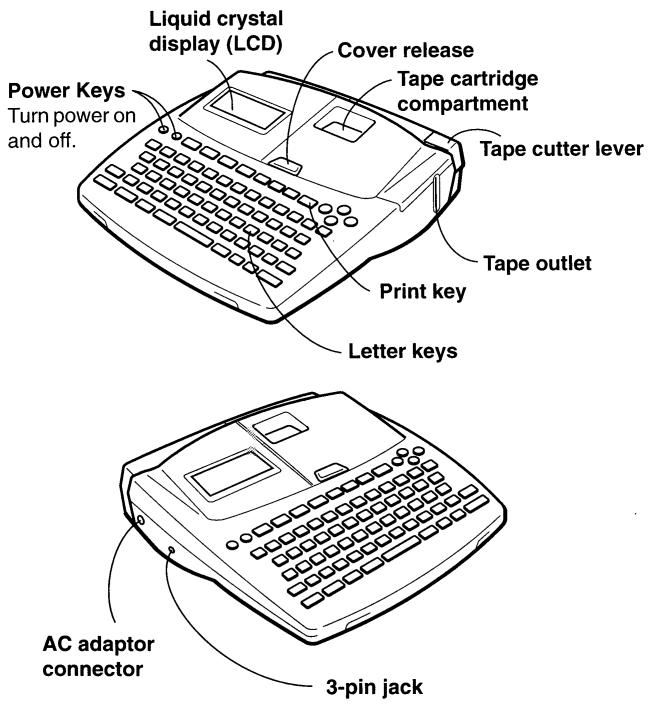
Face avant
Dessous
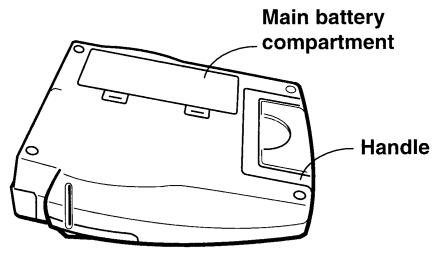
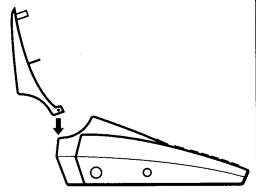
Remplacement du capot s'il se détache
Si le capot se détache, remettez-le en place comme indiqué sur l'illustration ci-contre. Veillez à ne pas endommager les languettes et les charnières lors de l'installation du capot.
Menus de l'imprimante d'étiquettes
Le fonctionnement de l'imprimante d'étiquettes est conçu pour être aussi simple que possible, grâce à des menus à l'écran qui vous permettent de sélectionner les paramètres dont vous avez besoin. Chaque menu est décrit en détail dans les sections suivantes de ce manuel, mais notez les points généraux suivants lors de leur utilisation.
- L'élément surligné dans un menu est celui qui est actuellement sélectionné.
Élément actuellement sélectionné
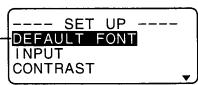
- Utilisez et pour déplacer la surbrillance vers le haut ou vers le bas et changer l'élément sélectionné.
- Appuyez sur SET pour exécuter l'élément surligné, ou sur ESC pour quitter le menu affiché (et revenir au menu ou à l'écran précédent) sans rien sélectionner.
- Lorsque vous appuyez sur SET pour exécuter un élément de menu, l'imprimante d'étiquettes passe au menu suivant ou exécute la fonction sélectionnée et revient à l'écran de saisie de texte à partir duquel vous avez commencé.
Partie 2 Préparation
Cette partie du manuel vous explique comment installer et remplacer les piles, charger la cartouche de ruban et effectuer d'autres réglages de base pour l'imprimante d'étiquettes.
Important ! Assurez-vous de lire cette section avant d'essayer d'utiliser l'imprimante d'étiquettes.
Alimentation électrique
L'imprimante d'étiquettes peut être alimentée par un adaptateur secteur spécifié (AD-A12070) ou par huit piles alcalines de taille AA.
Adaptateur secteur
Notez les précautions importantes suivantes lorsque vous utilisez un adaptateur secteur pour alimenter votre imprimante d'étiquettes.
- Utilisez uniquement l'adaptateur secteur CASIO AD-A12070 spécifié et assurez-vous que l'adaptateur a la même tension nominale que le courant domestique de votre région. L'utilisation d'un mauvais adaptateur peut endommager votre imprimante d'étiquettes.
- Assurez-vous d'éteindre l'imprimante d'étiquettes avant de brancher l'adaptateur. Ne mettez pas sous tension tant que l'adaptateur n'est pas connecté à l'imprimante et branché sur une prise secteur.
Pour connecter l'adaptateur secteur
Retirez le capot du connecteur de l'adaptateur secteur et connectez l'adaptateur à l'imprimante d'étiquettes comme illustré à proximité. Branchez l'autre extrémité dans une prise secteur domestique standard.
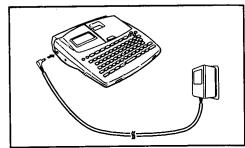
Après avoir utilisé l'imprimante d'étiquettes, éteignez-la et débranchez l'adaptateur secteur.
- Assurez-vous de saisir la fiche du cordon de l'adaptateur secteur lors de la déconnexion. Ne tirez jamais sur le cordon.
Chargement/Remplacement des piles
Un indicateur pratique de niveau de batterie faible vous permet de savoir quand la charge de la batterie devient trop faible pour un fonctionnement correct. Le message LOW BATTERY ou REPLACE BATTERIES apparaît à l'écran si la batterie est faible lorsque vous effectuez l'une des opérations suivantes.
- Mise sous tension
- Exécution d'une opération d'impression
- Exécution d'une opération d'alimentation en ruban
Vous devriez toujours pouvoir effectuer certaines opérations de l'imprimante d'étiquettes, mais certaines opérations gourmandes en énergie (comme l'impression ou l'alimentation en ruban) peuvent devenir impossibles si la batterie est trop faible. Dans tous les cas, vous devez remplacer les piles dès que possible ou passer à l'adaptateur secteur dès que possible après l'apparition du message LOW BATTERY.
Important !
Les piles peuvent éclater ou fuir et endommager votre appareil si vous les utilisez de manière incorrecte. Notez les points importants suivants.
- Assurez-vous que les côtés plus (+) et moins (−) de chaque pile sont orientés correctement.
- Ne mélangez jamais des piles de types différents.
- Ne laissez jamais de piles usagées dans le compartiment à piles.
- Retirez les piles si vous ne prévoyez pas d'utiliser l'appareil pendant une longue période.
- Remplacez la pile principale conformément à la durée de vie indiquée sur le côté de la pile.
- Faites remplacer la pile de secours avant la date indiquée sur l'étiquette au dos de l'imprimante d'étiquettes.
Avertissement !
- Ne rechargez jamais les piles utilisées avec cet appareil.
- N'exposez pas les piles à la chaleur directe, ne les court-circuitez pas et n'essayez pas de les démonter.
- Gardez les piles hors de portée des jeunes enfants. En cas d'ingestion, consultez immédiatement un médecin.
- Une faible charge des piles se manifeste par une mauvaise qualité d'impression ou une mise hors tension pendant l'impression.
Chargement/remplacement des piles principales
- Éteignez l'appareil.
- Si vous utilisez l'adaptateur secteur pour alimenter l'appareil, débranchez également l'adaptateur de l'imprimante d'étiquettes.
- Ouvrez le couvercle du compartiment à piles à l'arrière de l'imprimante d'étiquettes en le faisant glisser dans le sens indiqué par la flèche.
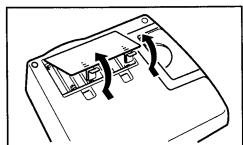
- Si vous remplacez les piles, retirez les huit anciennes piles.
- Insérez un jeu de huit piles neuves dans le compartiment à piles, en vous assurant que leurs extrémités positives (+) et négatives (−) sont orientées dans les bons sens.
- Replacez le couvercle du compartiment à piles.
Mise sous et hors tension
Appuyez sur ON pour mettre sous tension, et sur OFF pour mettre hors tension.
Important ! Si vous utilisez l'imprimante d'étiquettes pour la première fois, vous devez d'abord la réinitialiser.
Fonction de rappel à la mise sous tension
Chaque fois que vous mettez l'appareil hors tension, toute saisie affichée à l'écran est automatiquement stockée en mémoire. Ensuite, à la prochaine mise sous tension, le message « [SET] TO RECALL » apparaît à l'écran. Appuyer sur SET lorsque ce message est affiché rappelle le texte qui était à l'écran lors de la dernière mise hors tension.
- Appuyer sur toute touche autre que SET, FUNC, SHIFT ou CODE efface le texte de la mémoire.
Réinitialisation de la mémoire
Vous devez réinitialiser la mémoire de l'imprimante d'étiquettes avant de l'utiliser pour la première fois, après une longue période de non-utilisation, ou si rien ne se produit lorsque vous mettez l'appareil sous tension.
Important ! La réinitialisation de la mémoire de l'imprimante d'étiquettes efface toutes les données saisies.
Pour réinitialiser la mémoire
- Assurez-vous que l'imprimante d'étiquettes est éteinte.
- Tout en maintenant enfoncées les touches PRINT et ESC, appuyez sur ON pour mettre sous tension.
INITIAL ?
SET/ESC
- Appuyez sur SET pour initialiser l'imprimante d'étiquettes ou sur ESC pour annuler l'opération de réinitialisation sans rien initialiser.
- Reportez-vous à la section « Paramètres initiaux » à la page E-37 pour plus d'informations sur les paramètres par défaut initiaux de l'imprimante d'étiquettes après l'opération de réinitialisation.
- Vous devez réinitialiser l'imprimante d'étiquettes si vous souhaitez changer la langue des messages à l'écran. Appuyez sur RESET puis effectuez la procédure décrite dans la section « Langue des messages ».
Fonction d'arrêt automatique
Si vous n'effectuez aucune opération sur les touches pendant environ six minutes, l'imprimante d'étiquettes s'éteint automatiquement. Pour rétablir l'alimentation, appuyez sur ON.
Cartouches de ruban
Utilisez les procédures décrites ci-dessous pour charger une cartouche de ruban dans l'imprimante d'étiquettes. L'imprimante d'étiquettes détecte automatiquement la taille du ruban chargé.
Important ! N'essayez jamais de repousser le ruban dans la cartouche. Une fois le ruban sorti de la cartouche, il n'y a aucun moyen de le réenrouler. Essayer de le faire peut entraîner des problèmes de fonctionnement de l'imprimante d'étiquettes.
Pour charger une cartouche de ruban
- Assurez-vous que l'imprimante d'étiquettes est éteinte.
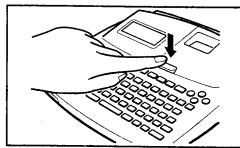
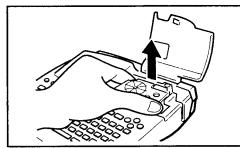
- Appuyez sur le bouton de déverrouillage du capot et ouvrez le capot.
- S'il y a déjà une cartouche dans l'imprimante d'étiquettes, retirez-la en la saisissant des deux côtés avec le pouce et l'index, puis soulevez-la verticalement.
- Retirez le bouchon d'une nouvelle cartouche de ruban et vérifiez que le ruban est prêt à l'emploi.
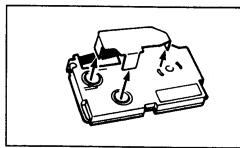
- Vérifiez que l'extrémité du ruban n'est pas pliée.
- Si l'extrémité du ruban est pliée, utilisez des ciseaux pour couper la partie pliée.
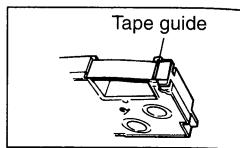
- Assurez-vous que le ruban est sous le guide-ruban et qu'il n'est ni plié ni tordu.
- Assurez-vous que l'extrémité du ruban passe à travers le guide-ruban. Si ce n'est pas le cas, faites passer l'extrémité du ruban à travers le guide-ruban comme indiqué sur l'illustration.
- Tirez environ 3 cm (1 1/8 po) de ruban.
- Ne tentez jamais de forcer le ruban à revenir dans la cartouche une fois qu'il a été tiré.
- Ne tirez pas trop fort sur le ruban. Cela pourrait casser le ruban encreur et entraîner un dysfonctionnement.
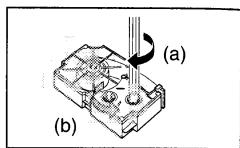
- Utilisez un crayon ou un autre objet fin pour reprendre le mou du ruban encreur comme indiqué sur l'illustration. Notez que le ruban ne bouge pas à ce moment-là.
- Si le ruban encreur est détendu lorsque vous l'installez dans l'imprimante d'étiquettes, il peut se casser ou causer un autre problème.
- Veillez à ne tourner la bobine réceptrice du ruban encreur que dans le sens indiqué par la flèche (a).
- Tournez la bobine jusqu'à ce que l'autre bobine (b) commence à tourner dans le sens indiqué par la flèche. Cela indique qu'il n'y a pas de mou dans le ruban.
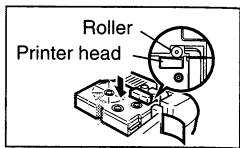
- Insérez la cartouche de ruban dans l'imprimante d'étiquettes, en vous assurant que le ruban et le ruban encreur passent entre la tête et le rouleau.
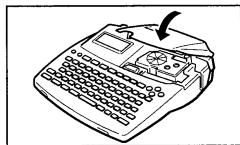
- Veillez à abaisser la cartouche de ruban verticalement dans l'imprimante d'étiquettes, et appuyez dessus jusqu'à ce qu'elle s'enclenche en position.
- Fermez le couvercle et actionnez le levier de coupe pour couper le ruban.
- Allumez l'imprimante d'étiquettes et appuyez sur FUNC puis sur PRINT (FEED) deux ou trois fois pour vous assurer que le ruban sort sans problème.
- Si le ruban ne sort pas normalement, éteignez l'appareil et recommencez à partir de l'étape 1 ci-dessus.


Retrait de la cartouche de ruban
- Saisissez la cartouche de ruban avec vos doigts comme indiqué sur l'illustration, et soulevez-la verticalement hors de l'imprimante d'étiquettes.
- Pour faciliter le retrait d'une cartouche étroite (6 mm, 9 mm), insérez un crayon ou un autre objet fin et pointu sous le côté droit du ruban et soulevez, comme indiqué sur l'illustration.
À propos du menu SET UP
Le menu SET UP permet de modifier rapidement et facilement divers réglages de base. Pour afficher le menu SET UP, appuyez sur FUNC puis sur FORM.
Utilisez et pour déplacer la surbrillance sur l'élément que vous souhaitez sélectionner, puis appuyez sur SET. Appuyez sur ESC pour fermer le menu SET UP sans rien sélectionner. Les sections suivantes expliquent comment utiliser la plupart des éléments du menu SET UP. Voir la page E-18 pour plus de détails sur l'utilisation de DEFAULT FONT, la page E-17 pour savoir comment utiliser INPUT, et la page E-28 pour DENSITY.
Langue des messages
Vous pouvez utiliser la procédure suivante pour sélectionner l'une des cinq langues disponibles (anglais, allemand, français, italien, espagnol) pour l'affichage des textes des messages. - Tous les exemples d'affichage de ce manuel utilisent l'anglais comme langue d'affichage.
Pour changer la langue des messages
- Dans le menu SET UP, utilisez ∧ et ∨ pour mettre en surbrillance "LANGUAGE" puis appuyez sur SET.
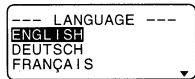
- Utilisez ∧ et ∨ pour mettre en surbrillance la langue souhaitée puis appuyez sur SET.
Contraste de l'affichage
Utilisez la procédure suivante pour assombrir ou éclaircir les caractères à l'écran.
Pour modifier le contraste de l'affichage
- Dans le menu SET UP, mettez en surbrillance "CONTRAST" puis appuyez sur SET.
- Utilisez < et > pour éclaircir ou assombrir le contraste de l'affichage.
- Après avoir réglé le contraste, appuyez sur SET
Son
L'imprimante d'étiquettes est équipée de fonctions sonores qui signalent la mise sous tension et toute opération illégale. Normalement, les sons sont activés à chaque mise sous tension, mais vous pouvez utiliser la procédure suivante pour activer ou désactiver le son.
Pour activer ou désactiver le son
- Dans le menu SET UP, mettez en surbrillance "SOUND" puis appuyez sur SET.
- Utilisez ∧ et ∨ pour mettre en surbrillance le réglage souhaité (ON ou OFF) puis appuyez sur SET.
Unité de mesure
Cette imprimante d'étiquettes peut utiliser les centimètres (cm) ou les pouces (inch) comme unité de mesure.
Pour régler l'unité de mesure
- Dans le menu SET UP, mettez en surbrillance "cm/inch" puis appuyez sur SET.
- Utilisez ∧ et ∨ pour mettre en surbrillance le réglage souhaité (cm ou inch) puis appuyez sur SET.
Impression de démonstration
Après avoir configuré l'imprimante d'étiquettes, vous pouvez effectuer une impression de démonstration pour vous assurer que tout fonctionne correctement.
Pour effectuer une impression de démonstration
- Appuyez sur ON pour allumer l'appareil.
- Appuyez sur PRINT puis sur SET.
Voici des exemples de l'impression de démonstration produite par la procédure ci-dessus. Notez que le contenu de l'impression de démonstration dépend de la largeur du ruban chargé dans l'imprimante d'étiquettes.
Ruban de 6 mm

Ruban de 9 mm

Ruban de 12 mm

Rubans de 18 mm et 24 mm

Important !
- Vous pouvez produire un tirage de démonstration lorsque l'affichage de la saisie de texte est clair, uniquement immédiatement après la mise sous tension. Même si vous saisissez du texte puis le supprimez, appuyer sur IMPRIMER ne produira pas de tirage de démonstration.
- Si vous rencontrez des problèmes d'impression, vérifiez votre cartouche de ruban et l'alimentation électrique, puis réessayez.
Partie 3 : Saisie de caractères et de symboles
Cette partie du manuel explique comment saisir des caractères. Pour faciliter la compréhension, nous appelons tout ce que vous saisissez un caractère, qu'il s'agisse d'une lettre, d'un chiffre ou d'un symbole. Les explications utilisent toutes les paramètres par défaut en vigueur à partir de l'écran initial de mise sous tension. Pour plus d'informations sur l'utilisation d'autres polices, styles, effets et tailles de caractères, voir les pages E-18 à E-23.
Important ! Vous pouvez saisir jusqu'à 255 caractères par étiquette. Toute saisie supplémentaire devient impossible après la saisie du 255e caractère.
Symboles et indicateurs de l'écran
Avant de passer à la saisie proprement dite, vous devez d'abord vous familiariser avec les symboles et indicateurs utilisés sur l'écran de l'imprimante d'étiquettes.
![Voyant CAPS (majuscules) Voyant Fonction/Maj/Code Voyant d'affichage de la taille des caractères F a SANS A 1 x 1 F 3 [9.9 . 9 cm] CASIO B Numéro de bloc Longueur du ruban Format Voyant d'impression verticale Voyant d'impression en miroir Curseur Voyant d'alimentation manuelle Marque de position des…](/content/2025/01/129524/images/5ca11a323554ca2d530c6b6acbff622a49b3936f1875d4c4bb8eb96ff489910f.jpg)
Indicateur de verrouillage des majuscules (CAPS)
« A » indique une saisie en majuscules, tandis que « a » indique une saisie en minuscules.
Indicateur de police
Cet indicateur affiche le réglage de police (page E-18) pour le caractère où se trouve le curseur.
Indicateur de fonction
Cet indicateur apparaît lorsque vous appuyez sur la touche FUNC. Appuyer sur une touche pendant que cet indicateur est affiché à l'écran exécute la fonction marquée au-dessus de cette touche.
Indicateur de majuscules
Cet indicateur apparaît lorsque vous appuyez sur la touche SHIFT. Pendant que cet indicateur est affiché à l'écran, le clavier est en mode majuscules, donc les touches de lettres saisissent l'opposé de leur réglage actuel majuscule/minuscule. Les touches de chiffres saisissent les symboles de ponctuation marqués dans les coins supérieurs droits des touches. Le clavier revient automatiquement en mode normal (et l'indicateur de majuscules disparaît) dès que vous saisissez un caractère.
Indicateur de code
Cet indicateur apparaît lorsque vous appuyez sur la touche CODE. Pendant que cet indicateur est affiché à l'écran, les touches de chiffres saisissent les accents marqués au-dessus d'elles et les touches U, O, P, A, S, J, K, L, Z, C et N saisissent les caractères spéciaux marqués dans leurs coins inférieurs droits. Le clavier revient automatiquement en mode normal (et l'indicateur de code disparaît) dès que vous saisissez un accent.
Indicateur de taille de caractère
Cet indicateur montre la taille du caractère où se trouve actuellement le curseur. La lettre « F » à droite de la taille du caractère indique qu'un format prédéfini est utilisé.
La lettre « S » indique que la petite police de caractères de l'imprimante d'étiquettes est sélectionnée.
Numéro de bloc
Cette valeur apparaît lorsqu'il y a plusieurs blocs dans le texte. Elle montre le numéro séquentiel du bloc où se trouve actuellement le curseur (page E-24).
Format
Cet indicateur montre combien de lignes de texte ont été saisies. Voir page E-38 pour des informations importantes sur la façon dont diverses conditions de format sont indiquées.
Longueur de ruban
Cette valeur montre la longueur que le ruban sera imprimé. Voir page E-38 pour des informations importantes sur la façon dont diverses conditions de longueur de ruban sont indiquées.
Indicateurs de position des caractères
Ces indicateurs montrent où les caractères apparaîtront lorsque vous les saisirez.
Curseur
Le curseur indique la prochaine position de saisie. Tout caractère que vous saisissez apparaît à l'endroit où se trouve le curseur.
Marque de bloc
Cette marque sépare deux blocs à l'écran.
Symbole de retour (☐)
Le symbole de retour indique une opération de nouvelle ligne.
Indicateurs de style de caractère
Ces indicateurs pointent vers l'effet de caractère attribué au caractère où se trouve actuellement le curseur. Vous pouvez choisir entre normal, gras, contour, ombre et relief.
Indicateur d'impression verticale
Cet indicateur apparaît lorsque l'imprimante d'étiquettes est configurée pour l'impression verticale. L'impression normale (horizontale) est effectuée lorsque cet indicateur n'est pas affiché.
Indicateur d'impression en miroir
Cet indicateur apparaît lorsque l'imprimante d'étiquettes est configurée pour l'impression en miroir. L'impression normale (non miroir) est effectuée lorsque cet indicateur n'est pas affiché.
Indicateur d'alimentation manuelle
Cet indicateur apparaît lorsque vous utilisez l'alimentation manuelle au lieu de l'alimentation automatique. L'alimentation automatique est en vigueur lorsque cet indicateur n'est pas affiché à l'écran.
Important ! Après avoir fini d'imprimer en utilisant l'alimentation manuelle, assurez-vous de toujours appuyer sur FUNC puis sur PRINT (FEED) pour faire avancer le ruban avant de le couper. Sinon, vous couperez une partie du texte imprimé.
Saisie alphanumérique de base
L'opération suivante montre les procédures de base pour saisir des lettres et des chiffres. Nous expliquerons la procédure en saisissant les caractères suivants à l'aide de l'écran initial par défaut.
ABXYZ Computer Company
1234567890
Remarque : Si vous maintenez une touche enfoncée, elle répète son opération ou sa saisie à grande vitesse jusqu'à ce que vous la relâchiez.
Pour saisir des caractères alphanumériques
- Allumez l'appareil.
- Saisissez la première ligne de caractères.
- Pour saisir des lettres majuscules, vous pouvez utiliser SHIFT ou CAPS. Avec SHIFT, vous devez activer la majuscule pour chaque caractère. Avec CAPS, le clavier conserve son réglage majuscule/minuscule jusqu'à ce que vous appuyiez à nouveau sur CAPS.
- Appuyez sur ESPACE pour saisir des espaces.
- Si vous saisissez un caractère erroné, appuyez sur BS pour le supprimer et saisissez à nouveau. Voir page F-16 pour plus de détails sur l'édition du texte.
- Lorsque vous atteignez la fin d'une ligne de texte, appuyez sur ← pour saisir un marqueur de nouvelle ligne.
- Une opération de nouvelle ligne est indiquée à l'écran par le symbole ☐. Cela montre où vous avez changé de ligne.
- Saisissez les caractères de la deuxième ligne.
- Pour imprimer le texte que vous avez saisi, appuyez sur PRINT. Pour plus de détails sur l'impression, voir page E-27.
À propos de la touche CODE...
La touche CODE permet de saisir la ponctuation nécessaire pour plusieurs langues différentes. Voici les opérations de touches à utiliser pour chacun des caractères formés à l'aide de la touche CODE.
■ Verrouillage majuscules activé
| Key Operation | Input | Key Operation | Input | Key Operation | Input |
| CODE U | Ü | CODE Z | Z | CODE 5 | ^ |
| CODE O | CE | CODE C | Ç | CODE 6 | " |
| CODE P | Ä | CODE N | Ñ | CODE 7 | ° |
| CODE A | Æ | CODE 1 | ' | CODE 8 | / |
| CODE J | Ö | CODE 2 | ` | CODE 9 | " |
| CODE K | Ä | CODE 3 | .. | CODE 0 | « |
| CODE L | ∅ | CODE 4 | ~ |
■ Verrouillage majuscules désactivé
| Key Operation | Input | Key Operation | Input | Key Operation | Input |
| CODE U | ü | CODE L | ø | CODE 4 | ~ |
| CODE O | œ | CODE Z | ż | CODE 5 | ^ |
| CODE P | å | CODE C | ç | CODE 6 | ~ |
| CODE A | æ | CODE N | ñ | CODE 7 | ° |
| CODE S | ß | CODE 1 | ` | CODE 8 | / |
| CODE J | ö | CODE 2 | ` | CODE 9 | ~ |
| CODE K | ä | CODE 3 | ` | CODE 0 | ` |
Exemple : Pour saisir á, appuyez sur CODE, puis 1 ('), puis A.
Saisie de symboles, dingbats, chiffres spéciaux, caractères grecs et russes
Le menu SYMBOL vous propose un choix de symboles, dingbats et formats de chiffres spéciaux, ainsi que des lettres grecques et russes.
Pour utiliser le menu SYMBOL
- Placez le curseur à l'endroit où vous voulez insérer un symbole, un dingbat, un chiffre ou un caractère, puis appuyez sur la touche SYMBOL pour afficher le menu SYMBOL.
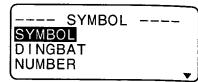
- Utilisez ∧ et ∨ pour déplacer la surbrillance sur l'élément souhaité, puis appuyez sur SET.
- Appuyer sur SET affiche un menu de symboles, dingbats, formats de chiffres ou caractères.
- Pour fermer le menu SYMBOL sans rien sélectionner, appuyez sur ESC.
- Utilisez ∧, ∨, < et > pour déplacer la surbrillance sur le caractère souhaité, puis appuyez sur SET.
- Appuyer sur SET permet de revenir à l'écran de saisie, avec le symbole, le dessin ou le caractère sélectionné inséré à l'endroit où se trouvait le curseur lorsque vous avez affiché le menu SYMBOLE.
Voir la page E-38 pour une liste complète des symboles, dessins et caractères disponibles dans chaque menu.
Saisie d'illustrations
Votre imprimante d'étiquettes vous offre un choix de 50 illustrations que vous pouvez utiliser dans vos étiquettes.
Pour saisir des illustrations
- Placez le curseur à l'endroit où vous souhaitez insérer une illustration, puis appuyez sur la touche ILLUST pour afficher le menu ILLUST.
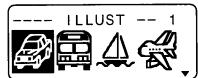
- Utilisez ∧, ∨, < et > pour déplacer la surbrillance sur l'illustration de votre choix, puis appuyez sur SET.
- Appuyer sur SET permet de revenir à l'écran de saisie avec l'illustration sélectionnée insérée à l'endroit où se trouvait le curseur lorsque vous avez affiché le menu ILLUST.
Voir la page E-38 pour une liste complète des illustrations disponibles.
Caractères utilisateur
Vous pouvez créer jusqu'à quatre caractères utilisateur et les stocker en mémoire. Vous pouvez créer un caractère à partir de zéro, ou utiliser un caractère ou un symbole existant comme base pour créer un nouveau caractère.
Techniques de dessin des caractères utilisateur
Ce qui suit décrit les techniques de base pour dessiner sur l'écran des caractères utilisateur.
• Pour déplacer le curseur
Utilisez ∧, ∨, < et > pour déplacer le curseur sur l'écran.
FUNC < et FUNC > font sauter le curseur à l'extrême gauche ou à l'extrême droite de l'écran (lorsque "CON" n'est pas surligné).
FUNC ∧ et FUNC ∨ font sauter le curseur en haut ou en bas de l'écran (lorsque "CON" n'est pas surligné).
- Pour tracer un point
Appuyez sur 1 pour tracer un point noir à la position du curseur ou sur 2 pour tracer un point blanc.
• Pour tracer une série de points noirs
Appuyez sur 1 pour surligner "BLK", puis sur 3 pour surligner "CON". Dans ces conditions, une série continue de points noirs sera tracée lorsque vous déplacerez le curseur.
• Pour tracer une série de points blancs
Appuyez sur 2 pour surligner "WHT", puis sur 3 pour surligner "CON". Dans ces conditions, une série continue de points blancs sera tracée lorsque vous déplacerez le curseur.
Pour créer un caractère utilisateur à partir d'un caractère existant
- Saisissez le caractère ou le symbole que vous voulez utiliser comme base pour votre nouveau caractère et placez le curseur sous le caractère.
- Appuyez sur FUNC puis sur ILLUST (USER CHR).
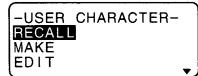
- Utilisez ∧ et ∨ pour déplacer la surbrillance sur "MAKE" puis appuyez sur SET.

- Utilisez ∧ et ∨ pour déplacer la surbrillance sur "USE INPUT CHAR" puis appuyez sur SET.
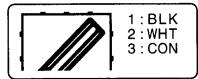
- L'écran contient une image du caractère que vous avez saisi à l'étape 1.
- Si vous avez sélectionné "NEW", un écran apparaît pour créer un caractère à partir de zéro.
- Utilisez les techniques de dessin de caractères utilisateur pour modifier l'image à l'écran.
- Après avoir fini de modifier le caractère, appuyez sur SET.
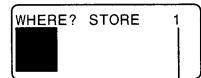
Numéro de zone de caractère utilisateur
- Utilisez < et > pour sélectionner la zone de caractère utilisateur où vous souhaitez stocker le caractère, puis appuyez sur SET.
- Si la zone de caractère utilisateur que vous sélectionnez contient déjà un caractère, l'ancien caractère sera remplacé par le nouveau.
- Appuyez sur SET pour stocker le caractère.
- Si aucun caractère n'a été saisi à l'emplacement du curseur lorsque vous avez appuyé sur FUNC puis sur ILLUST (USER CHR) à l'étape 2, l'écran de création d'un nouveau caractère à partir de zéro apparaît lorsque vous appuyez sur SET à l'étape 3.
Pour créer un caractère utilisateur à partir du caractère utilisateur que vous avez créé
- Appuyez sur FUNC puis sur ILLUST (USER CHR).
- Utilisez et pour déplacer la surbrillance sur "EDIT" puis appuyez sur SET.
- Utilisez < et > pour sélectionner le caractère utilisateur que vous souhaitez modifier, puis appuyez sur SET.
- Utilisez les techniques de dessin de caractères utilisateur décrites pour modifier le caractère souhaité, puis appuyez sur SET.
- Continuez à partir de l'étape 7 sous "Pour créer un caractère utilisateur à l'aide d'un caractère existant".
Pour rappeler un caractère utilisateur
- Avec le curseur situé dans l'écran de saisie où vous souhaitez saisir le caractère utilisateur, appuyez sur FUNC puis sur ILLUST (USER CHR).
- Utilisez ▲ et ▼ pour déplacer la surbrillance sur "RAPPEL" puis appuyez sur SET.
- Utilisez < et > pour sélectionner le caractère utilisateur souhaité, puis appuyez sur SET.
Pour supprimer un caractère utilisateur
- Appuyez sur FUNC puis sur ILLUST (CAR. UTIL.).
- Utilisez ▲ et ▼ pour déplacer la surbrillance sur "SUPPRIMER" puis appuyez sur SET.
- Utilisez < et > pour sélectionner le caractère utilisateur souhaité, puis appuyez sur SET.
- Appuyez sur SET pour supprimer le caractère sélectionné ou sur ESC pour annuler sans rien supprimer.
Partie 4 : Suppression et insertion de caractères
Cette section décrit tout ce que vous devez savoir sur la suppression et la modification de caractères déjà saisis.
Déplacement du curseur
Utilisez les touches de curseur pour déplacer le curseur sur l'écran et le positionner pour supprimer ou modifier des caractères.
Pour déplacer le curseur
- Appuyez sur < pour déplacer le curseur vers la gauche, et sur > pour le déplacer vers la droite.
- Appuyez sur SHIFT puis sur < pour faire sauter le curseur au prochain repère de bloc (P) à gauche. (Voir page F-24 pour plus de détails sur les blocs).
- Appuyez sur SHIFT puis sur > pour faire sauter le curseur au prochain repère de bloc (☐) à droite.
- Appuyez sur FUNC puis sur < pour faire passer le curseur au début (extrême gauche) de la ligne en cours.
- Appuyez sur FUNC puis sur > pour faire passer le curseur à la fin (extrême droite) de la ligne en cours.
- Appuyez sur FUNC puis sur pour faire passer le curseur au premier caractère du texte.
- Appuyez sur FUNC puis sur V pour faire passer le curseur à la fin du texte.
- Maintenir enfoncée la touche curseur < ou > fait défiler le curseur à grande vitesse.
Suppression de caractères individuels
Vous pouvez supprimer des caractères individuels avec la touche BS ou la touche DEL. La seule différence entre le fonctionnement de ces deux touches est la position du curseur.
Pour supprimer des caractères à l'aide de la touche BS
Exemple : Pour changer le mot "commputer" en "computer".
- Utilisez < et > pour placer le curseur sous le "p".
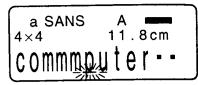
- Appuyez deux fois sur BS pour supprimer les deux "m" à gauche du curseur, en décalant "puter" vers la gauche au fur et à mesure.
Pour supprimer des caractères à l'aide de la touche DEL
Exemple : Pour changer le mot "commputer" en "computer".
- Utilisez < et > pour placer le curseur sous le premier "m" (extrême gauche).
- Appuyez deux fois sur DEL pour supprimer les deux "m" à la position du curseur, en décalant "mputer" vers la gauche au fur et à mesure.
Effacement de l'affichage
L'imprimante d'étiquettes vous permet de choisir entre effacer tout l'affichage ou seulement un bloc de texte spécifique.
Pour effacer tout le texte
- Appuyez sur FUNC puis sur BS (CLS).
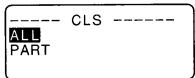
- Utilisez ∧ et ∨ pour mettre en surbrillance "TOUT" (s'il n'est pas déjà en surbrillance).
- Appuyez sur SET.

- Appuyez sur SET pour effacer tout le texte de l'affichage ou sur ESC pour annuler sans rien effacer.
Pour effacer une partie du texte
- Appuyez sur FUNC puis sur BS (CLS).
- Utilisez ∧ et ∨ pour mettre en surbrillance "PARTIE" (si ce n'est pas déjà le cas).
- Appuyez sur SET.
- Utilisez < et > pour déplacer le curseur au point de départ du texte à supprimer, puis appuyez sur SET.
- Utilisez < et > pour déplacer le curseur au point de fin du texte à supprimer.
- Le texte entre le curseur et le point de départ est mis en surbrillance lorsque vous déplacez le curseur.

- Appuyez sur SET pour effacer le texte en surbrillance ou sur ESC pour annuler sans rien effacer.
Édition de texte
Vous pouvez configurer l'imprimante d'étiquettes pour qu'elle remplace les caractères existants par de nouvelles saisies, ou qu'elle insère de nouvelles saisies entre les caractères existants. Notez l'exemple suivant.
Exemple
Texte existant : ABCDEFGHI
Position du curseur : E
Nouvelle saisie : XXX
Remplacer
Résultat : ABCDXXXHI
Insérer
Résultat : ABCDXXXEFGHI
Pour basculer entre remplacer et insérer
- Appuyez sur FUNC puis sur FORM (SET UP) pour afficher le menu SET UP.
- Utilisez ∧ et ∨ pour mettre en surbrillance "INPUT" puis appuyez sur SET.
- Utilisez et pour mettre en surbrillance le réglage souhaité ("INSERT" ou "OVERWRITE"), puis appuyez sur SET.
- L'indicateur CAPS à l'écran est mis en surbrillance lorsque le mode remplacement est activé. L'indicateur CAPS apparaît normalement (non surligné) lorsque le mode insertion est activé.
Partie 5 : Attributs de caractères et effets de texte
Les opérations décrites dans cette partie du manuel expliquent comment changer les polices et les styles de caractères. Ces caractéristiques sont appelées "attributs de caractères". Il explique également comment attribuer des effets de texte tels que le soulignement, l'ombrage et l'impression en encadré au texte.
Important !
- Les attributs de caractères que vous spécifiez n'affectent que le texte imprimé. Les caractères à l'écran ne changent pas.
- N'oubliez pas que les attributs de caractères sont assignés à des caractères spécifiques. Chaque fois que vous remplacez un caractère par un autre, le nouveau caractère reprend également les attributs du caractère d'origine.
- Les effets de texte sont appliqués à la fois au texte affiché et au texte imprimé.
Polices
Cette imprimante d'étiquettes vous offre le choix entre 10 polices différentes. Voir la page E-39 pour des exemples de chaque type de police.
Les sections suivantes décrivent comment modifier le réglage de police par défaut (la police utilisée automatiquement lors de la saisie de texte), comment changer la police du texte affiché, et comment connaître le réglage de police pour le texte à l'écran.
Important !
- Notez que vous ne pouvez pas modifier les polices pour les illustrations.
- Notez que les caractères non anglais (Ç, B, Á, etc.) ne peuvent être utilisés qu'avec les polices sans-serif, sans-serif italique, romain, romain italique et gras script.
Pour modifier le réglage de police par défaut
- Appuyez sur FUNC puis sur FORM (SET UP) pour afficher le menu SET UP.
- Mettez en surbrillance "DEFAULT FONT" puis appuyez sur SET.

- Utilisez et pour mettre en surbrillance la police que vous souhaitez définir par défaut, puis appuyez sur SET.
- Veillez à effectuer les procédures suivantes après avoir modifié le réglage de la police par défaut. Notez que les modifications de la police par défaut ne seront pas reconnues tant que la procédure suivante n'est pas effectuée.
- Appuyez sur FUNC puis sur BS.
- Sélectionnez ALL pour effacer tout le texte de l'écran.
- Éteignez l'appareil, puis redémarrez l'imprimante d'étiquettes.
- Notez que le réglage par défaut reste en vigueur jusqu'à ce que vous le modifiiez, même lorsque l'appareil est éteint.
Pour changer la police du texte affiché
- Lorsqu'il y a du texte à l'écran, appuyez sur FONT.
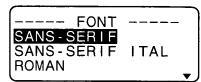
- Utilisez ∧ et ∨ pour mettre en surbrillance la police vers laquelle vous souhaitez changer, puis appuyez sur SET.
- Ce que vous devez faire ensuite dépend de la plage que vous souhaitez utiliser.

Pour changer la police de tout le texte
- Après avoir effectué les deux étapes décrites dans « Pour changer la police du texte affiché », utilisez ∧ et ∨ pour mettre en surbrillance « ALL », puis appuyez sur SET.
- Appuyez sur SET pour changer la police de tout le texte affiché.
- À ce stade, l'imprimante d'étiquettes revient à l'écran de saisie de texte.
- Appuyer sur ESC permet de revenir au menu RANGE sans rien modifier.
Pour changer la police de blocs de texte
- Après avoir effectué les deux étapes décrites dans « Pour changer la police du texte affiché », utilisez ∧ et ∨ pour mettre en surbrillance « BLOCK », puis appuyez sur SET.
• Voir la page E-24 pour plus de détails sur l'utilisation des blocs.
- Déplacez le curseur sur le bloc de départ à partir duquel vous souhaitez changer la police, puis appuyez sur SET pour valider votre sélection.
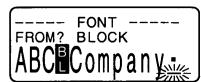
- Déplacez le curseur sur le bloc de fin jusqu'auquel vous souhaitez changer la police, puis appuyez sur SET pour valider votre sélection et changer la police.
- À ce stade, l'imprimante d'étiquettes revient à l'écran de saisie de texte.
Pour changer la police de lignes de texte
- Après avoir effectué les deux étapes décrites dans « Pour changer la police du texte affiché », utilisez ∧ et ∨ pour mettre en surbrillance « LINE », puis appuyez sur SET.
- Déplacez le curseur sur la ligne de départ à partir de laquelle vous souhaitez changer la police, puis appuyez sur SET pour valider votre sélection.
- Déplacez le curseur jusqu'à la fin de la ligne jusqu'à laquelle vous voulez changer la police, puis appuyez sur SET pour enregistrer votre sélection et changer la police.
- À ce stade, l'imprimante d'étiquettes revient à l'écran de saisie de texte.
Pour changer la police de caractères spécifiques
- Après avoir effectué les deux étapes décrites dans « Pour changer la police du texte affiché », utilisez ∧ et ∨ pour mettre en surbrillance « CARACTÈRE », puis appuyez sur SET.
- Déplacez le curseur sur le premier caractère à partir duquel vous voulez changer la police, puis appuyez sur SET pour enregistrer votre sélection.
- Déplacez le curseur sur le dernier caractère jusqu'auquel vous voulez changer la police, puis appuyez sur SET pour enregistrer votre sélection et changer la police.
- À ce stade, l'imprimante d'étiquettes revient à l'écran de saisie de texte.
Pour connaître les réglages de police actuels
Utilisez les touches de curseur < et > pour déplacer le curseur sur l'écran. L'indicateur de police affiche le réglage de police actuel pour le caractère où se trouve le curseur.
Styles de caractères
Il existe cinq styles de caractères : normal, gras, contour, ombre et relief. Les sections suivantes décrivent comment modifier le style de caractères pour le texte affiché et comment connaître le style de caractères du texte à l'écran.
Pour modifier les styles de caractères
- Lorsqu'il y a du texte à l'écran, appuyez sur STYLE.
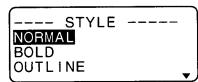
- Utilisez ∧ et ∨ pour mettre en surbrillance le style que vous voulez, puis appuyez sur SET.
- Ce que vous devez faire ensuite dépend de la plage que vous voulez utiliser.
- Les procédures de réglage de la plage sont les mêmes que celles pour les réglages de police. TOUT : Voir « Pour changer la police pour tout le texte ».
BLOC : Voir « Pour changer la police pour des blocs de texte ».
LIGNE : Voir « Pour changer la police pour des lignes de texte ».
CARACTÈRE : Voir « Pour changer la police pour des caractères spécifiques ».

Pour connaître les réglages actuels du style de caractère
Utilisez les touches de curseur < et > pour déplacer le curseur sur l'écran. L'indicateur de style de caractère affiche le réglage actuel du style de caractère pour le caractère où se trouve le curseur.
| Indicator | Meaning | Indicator | Meaning |
| A | Normal | A | Shadow |
| A | Bold | A | Raised |
| A | Outline |
Effets de texte
Vous avez le choix entre trois effets de texte : ombrage, soulignement et encadrement. Les effets peuvent être utilisés en combinaison les uns avec les autres.
Important ! Les effets de texte sont appliqués au texte à l'écran, en plus du texte imprimé.
À propos des plages d'effets de texte
Comme pour les polices et les styles de caractère, vous pouvez spécifier une plage pour vos spécifications d'effets de texte. Voici un exemple pour chacune des plages disponibles pour les effets de texte.
BLOC
Cette plage spécifie l'application d'un effet de texte à tout le texte d'un bloc spécifique.
- Voir la page E-24 pour plus de détails sur l'utilisation des blocs.
| A | B | C | D | |
| 1 | 2 | 3 | 4 | 5 |
| a | b | c |
LIGNE
Cette plage spécifie l'application d'un effet de texte à tout le texte d'une ligne spécifique.
| A | B | C | D | |
| 1 | 2 | 3 | 4 | 5 |
| a | b | c |
CARACTÈRE
Cette plage spécifie l'application d'un effet de texte à un caractère spécifique.
TEXTE
Cette plage est utilisée pour spécifier du texte sur plusieurs lignes, etc.
- Une spécification de plage TEXTE doit commencer et se terminer dans le même bloc.
Pour attribuer des effets de texte
- Lorsqu'il y a du texte à l'écran, appuyez sur EFFECT.
- Utilisez ∧ et ∨ pour mettre en surbrillance l'effet souhaité, puis appuyez sur SET.
- Ce que vous devez faire ensuite dépend de la plage que vous souhaitez utiliser.
Pour modifier les effets de texte pour des blocs de texte
- Après avoir effectué les deux étapes sous "Pour attribuer des effets de texte", utilisez ∧ et ∨ pour mettre en surbrillance "BLOC" puis appuyez sur SET.
• Voir la page E-24 pour plus de détails sur l'utilisation des blocs.
- Déplacez le curseur sur le bloc de départ à partir duquel vous souhaitez modifier l'effet de texte, puis appuyez sur SET pour valider votre sélection.
- Déplacez le curseur sur le bloc de fin jusqu'auquel vous souhaitez modifier l'effet de texte, puis appuyez sur SET pour valider votre sélection et modifier l'effet.
- À ce stade, l'imprimante d'étiquettes revient à l'écran de saisie de texte.
Pour modifier l'effet de texte pour des lignes de texte
- Après avoir effectué les deux étapes de la section « Pour attribuer des effets de texte », utilisez ∧ et ∨ pour mettre en surbrillance « LIGNE », puis appuyez sur SET.
- Déplacez le curseur sur la ligne de départ à partir de laquelle vous souhaitez modifier l'effet de texte, puis appuyez sur SET pour valider votre sélection.
| A | B | C | D | |
| 1 | 2 | 3 | 4 | 5 |
| a | b | c | ||
| A | B | C | D | |
| 1 | 2 | 3 | 4 | 5 |
| a | b | c |
| ---- EFFECT ---- |
| SHADING |
| UNDER LINE |
| BOX |
| ---- EFFECT ---- |
| BLOCK |
| LINE |
| CHARACTER |
| ---- EFFECT ----FROM? BLOCKDB12345abc· |
| ---- EFFECT ----TO? BLOCKDB12345Labc· |
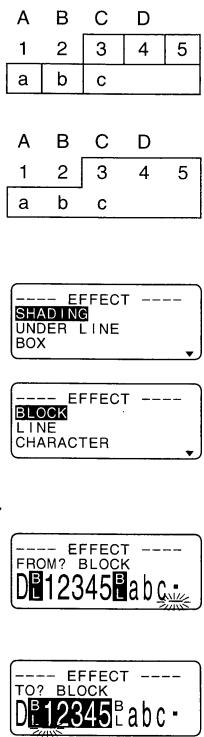
- Déplacez le curseur sur la ligne de fin jusqu'à laquelle vous souhaitez modifier l'effet de texte, puis appuyez sur SET pour valider votre sélection et modifier l'effet de texte.
- À ce stade, l'imprimante d'étiquettes revient à l'écran de saisie de texte.
Pour modifier l'effet de texte pour des caractères spécifiques
- Après avoir effectué les deux étapes de la section « Pour attribuer des effets de texte », utilisez ∧ et ∨ pour mettre en surbrillance « CARACTÈRE », puis appuyez sur SET.
- Déplacez le curseur sur le caractère de départ à partir duquel vous souhaitez modifier l'effet de texte, puis appuyez sur SET pour valider votre sélection.
- Déplacez le curseur jusqu'au dernier caractère jusqu'auquel vous souhaitez modifier l'effet de texte, puis appuyez sur SET pour valider votre sélection et modifier l'effet de texte.
- À ce stade, l'imprimante d'étiquettes revient à l'écran de saisie de texte.
Pour modifier l'effet de texte sur une plage de texte
- Après avoir effectué les deux étapes décrites dans « Pour attribuer des effets de texte », utilisez ∧ et ∨ pour mettre en surbrillance « TEXTE », puis appuyez sur SET.
- Déplacez le curseur jusqu'au premier caractère à partir duquel vous souhaitez modifier l'effet de texte, puis appuyez sur SET pour valider votre sélection.
- Déplacez le curseur jusqu'au dernier caractère jusqu'auquel vous souhaitez modifier l'effet de texte, puis appuyez sur SET pour valider votre sélection et modifier l'effet de texte.
- À ce stade, l'imprimante d'étiquettes revient à l'écran de saisie de texte.
Partie 6 Tailles des caractères
Votre imprimante d'étiquettes est livrée avec deux polices de base : standard et petite. Vous pouvez ajuster la taille des caractères soit en la spécifiant directement pour chaque caractère, soit en spécifiant la taille des caractères pour des lignes entières de texte à l'aide de formats prédéfinis.
Les opérations décrites dans cette partie du manuel expliquent comment modifier les tailles de caractères à l'aide de chacune de ces techniques.
Spécification directe des tailles de caractères
Vous pouvez spécifier la taille des caractères à l'aide des facteurs numériques indiqués dans les tableaux ci-dessous. Un changement de taille de caractère est indiqué à l'écran par un indicateur de taille de caractère.
Police standard
- La taille normale pour la police standard est de 1 × 1 (24 × 24 points ; 3 mm × 3 mm).
- La taille des caractères peut être modifiée en spécifiant un facteur vertical (1,2,3,4,5) et un facteur horizontal (1,2,3,4,5,6,7).
- Le tableau ci-dessous indique les valeurs de l'indicateur de taille de caractère qui apparaissent pour chaque taille de caractère.
■ Police standard
| Horizontal | |||||||||
| Factor | 1 | 2 | 3 | 4 | 5 | 6 | 7 | 8 | |
| Vertical | 1 | 1 × 1 | 1 × 2 | 1 × 3 | 1 × 4 | 1 × 5 | 1 × 6 | 1 × 7 | 1 × 8 |
| 2 | 2 × 1 | 2 × 2 | 2 × 3 | 2 × 4 | 2 × 5 | 2 × 6 | 2 × 7 | 2 × 8 | |
| 3 | 3 × 1 | 3 × 2 | 3 × 3 | 3 × 4 | 3 × 5 | 3 × 6 | 3 × 7 | 3 × 8 | |
| 4 | 4 × 1 | 4 × 2 | 4 × 3 | 4 × 4 | 4 × 5 | 4 × 6 | 4 × 7 | 4 × 8 | |
| 5 | 5 × 1 | 5 × 2 | 5 × 3 | 5 × 4 | 5 × 5 | 5 × 6 | 5 × 7 | 5 × 8 | |
Important ! Les tailles de caractères verticales que vous pouvez utiliser sont automatiquement limitées par la largeur de la bande chargée dans l'imprimante d'étiquettes.
| Tape Width | Vertical Character Sizes |
| 6mm | 1 |
| 9mm | 1, 2 |
| 12mm | 1, 2, 3 |
| 18mm | 1, 2, 3, 4, 5 |
| 24mm | 1, 2, 3, 4, 5 |
- La plage (réglages De - À) pour une spécification de taille de caractère ne peut pas s'étendre d'un bloc à un autre.
Petite police
- La taille normale pour la petite police est de 1 × 1 (16 × 16 points ; 2 mm × 2 mm). Une matrice de 8 × 16 points est utilisée pour former les caractères alphanumériques et les symboles.
- La taille de caractère peut être modifiée en spécifiant un facteur vertical (1, 2, 3, 4) et un facteur horizontal (1, 2, 3, 4, 5, 6, 7, 8).
- Le tableau ci-dessous indique les valeurs de l'indicateur de taille de caractère qui apparaissent pour chaque taille de caractère.
- L'indicateur de taille de caractère 1 × 1 est affiché à l'écran lorsque la petite police est utilisée.
■ Petite police
| Horizontal | |||||||||
| Factor | 1 | 2 | 3 | 4 | 5 | 6 | 7 | 8 | |
| Vertical | 1 | 1 × 1 | 1 × 2 | 1 × 3 | 1 × 4 | 1 × 5 | 1 × 6 | 1 × 7 | 1 × 8 |
| 2 | 2 × 1 | 2 × 2 | 2 × 3 | 2 × 4 | 2 × 5 | 2 × 6 | 2 × 7 | 2 × 8 | |
| 3 | 3 × 1 | 3 × 2 | 3 × 3 | 3 × 4 | 3 × 5 | 3 × 6 | 3 × 7 | 3 × 8 | |
| 4 | 4 × 1 | 4 × 2 | 4 × 3 | 4 × 4 | 4 × 5 | 4 × 6 | 4 × 7 | 4 × 8 | |
| Tape Width | Vertical Character Sizes |
| 6mm | 1 |
| 9mm | 1, 2 |
| 12mm | 1, 2, 3 |
| 18mm | 1, 2, 3, 4 |
| 24mm | 1, 2, 3, 4 |
- La plage (réglages De - À) pour une spécification de taille de caractère ne peut pas s'étendre d'un bloc à un autre.
Remarques
- L'espacement proportionnel ne peut pas être utilisé avec la petite police. • La police disponible est unique.
- Les réglages de style et d'effet de texte peuvent ne pas s'imprimer correctement lorsqu'ils sont utilisés avec la petite police.
- Les dingbats et les caractères utilisateur peuvent ne pas s'imprimer correctement lorsqu'ils sont utilisés avec la petite police.
Pour changer la taille des caractères par spécification directe
- Lorsqu'il y a du texte à l'écran, appuyez sur TAILLE.

- Utilisez ∧ et ∨ pour mettre en surbrillance "TAILLE", puis appuyez sur RÉGLER.
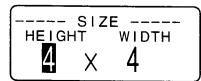
- Spécifiez la taille de caractères souhaitée.
- Utilisez < et > pour déplacer la surbrillance entre les deux dimensions.
- Pour modifier une dimension, appuyez sur ∨ pour l'augmenter ou sur ∧ pour la diminuer. Vous pouvez aussi saisir une valeur directement sur le clavier de l'imprimante d'étiquettes.
- N'oubliez pas que les dimensions que vous pouvez spécifier dépendent de la largeur de la bande chargée dans l'imprimante d'étiquettes (voir le tableau ci-dessus).
- Après avoir fini de régler la taille de caractères souhaitée, appuyez sur RÉGLER pour l'enregistrer.
- Déplacez le curseur sur le premier caractère à partir duquel vous voulez changer la taille, puis appuyez sur RÉGLER pour valider votre sélection.
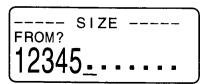
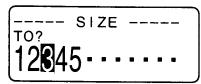
- Déplacez le curseur sur le dernier caractère jusqu'auquel vous voulez changer la taille, puis appuyez sur RÉGLER pour valider votre sélection et modifier la taille.
- À ce stade, l'imprimante d'étiquettes revient à l'écran de saisie de texte.
Voici un exemple de marque de taille de caractères.
Marque de taille de caractères

Spécification des tailles de caractères pour des lignes de texte à l'aide de formats prédéfinis
Avec cette méthode, vous saisissez le texte souhaité, puis utilisez des formats prédéfinis pour spécifier la taille de caractères de chaque ligne. Notez que les marques de taille de caractères n'apparaissent pas dans le texte lorsque vous spécifiez les tailles de cette manière. À la place, la marque d'affichage de taille de caractères indique la taille des caractères à l'endroit où se trouve le curseur.
À propos du menu Format
Le format qui apparaît dans la procédure suivante utilise des symboles pour indiquer les tailles de caractères dans chaque ligne de texte. Les formats affichés dépendent de la largeur de la bande chargée dans l'imprimante d'étiquettes et du nombre de lignes dans le bloc de texte où se trouve le curseur lorsque vous appuyez sur la touche SIZE. Ce qui suit montre tous les formats disponibles pour chaque largeur de bande et le nombre de lignes de texte. - Notez qu'avec les formats prédéfinis, toutes les tailles de caractères ont les mêmes mesures verticales et horizontales.
Bande de 24 mm et 18 mm, 1 ligne de texte

Bande de 24 mm et 18 mm, 2 lignes de texte

Bande de 24 mm et 18 mm, 3 lignes de texte

Bande de 12 mm, 1 ligne de texte

Important ! Vous ne pouvez utiliser les formats prédéfinis pour spécifier les tailles de caractères des lignes de texte que si aucune spécification de taille de caractères n'a déjà été faite dans le texte. Si vous appuyez sur la touche SIZE alors que le curseur se trouve dans un bloc contenant déjà un indicateur de taille de caractères, l'élément FORMAT sera grisé dans le menu SIZE, ce qui signifie qu'il ne peut pas être sélectionné.
Pour spécifier les tailles de caractères des lignes de texte à l'aide des formats prédéfinis
- Pendant que le curseur se trouve dans le bloc de texte où vous souhaitez utiliser les formats prédéfinis, appuyez sur SIZE. • Voir la page E-24 pour plus de détails sur les blocs.
- Utilisez ∧ et ∨ pour mettre en surbrillance "FORMAT", puis appuyez sur SET.
- Le menu FORMAT apparaît avec tous les formats prédéfinis disponibles en fonction du nombre de lignes de texte dans le bloc où se trouve le curseur et de la largeur de la bande chargée dans l'imprimante d'étiquettes.
- Utilisez ∧, ∨, < et > pour déplacer la surbrillance sur le format souhaité, puis appuyez sur SET pour le sélectionner.
- À ce stade, l'imprimante d'étiquettes revient à l'écran de saisie de texte.
Pour connaître les tailles de caractères prédéfinies
Utilisez les touches de curseur < et > pour déplacer le curseur sur l'écran. L'indicateur de taille de caractère affiche le réglage de taille actuel pour le caractère où se trouve le curseur.
À propos du dimensionnement automatique
Si vous ne spécifiez pas de taille de caractère, l'imprimante d'étiquettes sélectionne automatiquement la taille optimale en fonction de la largeur de la bande que vous utilisez. Si vous utilisez des cadres (page E-28), les caractères sont automatiquement équilibrés avec le type de cadre utilisé.
Voici des exemples de fonctionnement du dimensionnement automatique.
| Tape Width | 1 × 1(Manual Setting) | Auto Fit |
| 6mm | ||
| 9mm12mm |
Important ! N'oubliez pas que changer la cartouche de ruban peut rendre l'impression du texte impossible s'il y a trop de lignes. Notez les relations suivantes entre la largeur de la bande et le nombre de lignes de texte.
| Tape Width | 24mm | 18mm | 12mm | 9mm | 6mm |
| Plain Text | 8 lines max. | 8 lines max. | 5 lines max. | 4 lines max. | 2 lines max. |
| Print Area Frame | 6 lines max. | 6 lines max. | 3 lines max. | 3 lines max. | 1 line max. |
| Character Frame | 1 line | 1 line | 1 line | 1 line | - |
(Voir page E-28)
Partie 7 Fonctions du menu FORM
Cette partie du manuel décrit comment utiliser le menu FORM pour disposer votre texte exactement comme vous le souhaitez sur l'étiquette. Avec le menu FORM, vous pouvez contrôler l'espacement des caractères, les blocs de texte, l'alignement du texte et une large gamme d'autres fonctionnalités.
Principes de base de la mise en page d'étiquettes
Avant de commencer notre discussion sur la façon de disposer une bande, nous devons d'abord définir quelques termes. Notez ce qui suit.
Blocs
Un bloc est un texte enfermé entre deux marques de bloc (E). Notez que le premier bloc (le plus à gauche) ne nécessite pas de marque de bloc au début, et le dernier bloc (le plus à droite) ne nécessite pas de marque de bloc à la fin. S'il n'y a pas de marques de bloc, tout le texte est traité comme un seul bloc. Vous pouvez spécifier individuellement la longueur de chaque bloc, ainsi que l'espacement et le nombre de lignes à l'intérieur de chaque bloc.
Zone d'impression
La zone d'impression est la zone réelle d'une étiquette qui contient le texte imprimé. Elle commence au côté gauche du premier caractère imprimé et se termine au côté droit du dernier caractère imprimé.
Espaces latéraux
Les espaces latéraux sont des zones vierges que l'imprimante d'étiquettes ajoute automatiquement à chaque extrémité de la zone d'impression. Notez que les espaces latéraux ne sont ajoutés que lorsque vous utilisez l'alimentation automatique, et ils ne sont pas ajoutés lors de l'utilisation de l'alimentation manuelle.
Alimentation automatique (avec espaces latéraux)
Alimentation manuelle (sans espaces latéraux)


Longueur de l'étiquette
La longueur de l'étiquette correspond à la zone d'impression plus les espaces latéraux.
Les réglages que vous effectuez pour les espaces latéraux, l'espacement des blocs et l'impression en miroir affectent toute la longueur de l'étiquette.
Utilisation de l'affichage de mise en page
Vous pouvez vérifier la mise en page de votre étiquette à tout moment à l'aide de l'affichage de mise en page. L'affichage de mise en page montre tous les éléments graphiques et textuels qui composent votre étiquette pour vous donner une idée générale de la disposition de l'étiquette.
Pour afficher la mise en page
- Après avoir disposé l'étiquette que vous prévoyez d'imprimer, appuyez sur LAYOUT. Réglage d'alimentation (E-27)

- Si la mise en page de l'étiquette est trop grande pour tenir sur un seul écran, utilisez < et > pour la faire défiler.
- Appuyer sur < revient au début de la mise en page.
- Appuyez sur ESC pour quitter l'affichage de mise en page.
- Vous pouvez visualiser l'apparence réelle de l'étiquette à l'aide de l'affichage d'image, décrit à la page E-28.
Création et suppression de blocs
Les procédures suivantes décrivent comment créer et supprimer des blocs. Vous apprendrez plus tard comment modifier certains paramètres bloc par bloc.
Pour créer un bloc
Exemple : Pour saisir le texte « ABC Computer Company » et créer deux blocs : « ABC » et « Computer Company ».
- Saisissez le texte.
- Déplacez le curseur à l'espace entre « ABC » et « Computer Company ».
- Appuyez sur BLOC.
- Si vous souhaitez diviser le texte en trois blocs, vous saisiriez une autre marque de bloc.
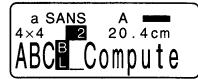
Pour supprimer une marque de bloc
Pour supprimer une marque de bloc, utilisez les procédures BS et DEL comme décrit dans « Suppression de caractères individuels » (page E-16).
Opérations sur les blocs
Les procédures de cette section permettent de contrôler les paramètres suivants pour chaque bloc.
• Direction (verticale, horizontale) - Alignement (gauche, centre, droite, espacement uniforme) - Justification (justifiée, non justifiée) • Pas de caractère (aucun, étroit, moyen, large) • Longueur de bloc (automatique, fixe)
Utilisez le menu FORME DE BLOC pour effectuer les opérations sur les blocs.
Pour afficher le menu FORME DE BLOC
- Lorsqu'un texte est affiché à l'écran, appuyez sur FORM.

- Utilisez et pour déplacer la surbrillance sur "BLOCK FORM", puis appuyez sur SET.
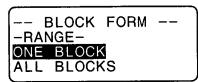
- Spécifiez si vos réglages doivent s'appliquer à un bloc ou à tous les blocs, puis appuyez sur SET.
- Si vous spécifiez un bloc, les réglages que vous effectuez seront appliqués au bloc où se trouvait le curseur lorsque vous avez appuyé sur FORM.

- Utilisez et pour déplacer la surbrillance entre les éléments du menu.
- Le menu BLOCK FORM comporte deux pages. Appuyez sur SET lorsque la première page est affichée pour passer à la deuxième page. Appuyer sur SET lorsque la deuxième page est affichée enregistre les réglages du menu et revient à l'écran de saisie de texte.
- Utilisez < et > pour changer les réglages de l'élément actuellement sélectionné (surligné).
- Les explications suivantes décrivent en détail chaque élément du menu BLOCK FORM.
DIRECTION
HORIZONTAL
VERTICAL
123
1 2 3
ALIGNEMENT
GAUCHE
Anne Green ABC Co., Lt B Team

CENTER
Anne Green
ABC Co., Ltd.
B Team

RIGHT
Anne Green ABC Co., Ltd. B Team

EQUAL (Uniform Spacing)
Anne, Green ABC Co., Ltd. B Team

JUSTIFICATION
Cet élément permet de spécifier une justification (uniforme) ou irrégulière (inégale). Les exemples suivants montrent comment la justification affecte le texte.
- La justification n'est appliquée que lorsque ÉGAL est sélectionné pour ALIGNEMENT.
Exemples
- Justifié
Anne Green ABC Co., Ltd. B Team

Aligné à gauche
Anne Green ABC Co., Ltd. Équipe B

PAS DES CARACTÈRES
Il s'agit de l'espacement relatif entre les caractères. Vous pouvez spécifier le pas des caractères comme NONE, NARROW, MEDIUM ou WIDE. Voici des exemples de chaque réglage de pas des caractères.
AUCUN
Société ABC
ÉTROIT
Société ABC
MOYEN
Société ABC
LARGE
Société ABC
LONGUEUR DE BLOC
Sélectionnez "FIX" si vous souhaitez spécifier une longueur de bloc fixe comprise entre 0,0 cm et 99,9 cm. Spécifiez "AUTO" pour cette option si vous souhaitez que l'imprimante d'étiquettes ajuste automatiquement la longueur du bloc.
Toutes les opérations de texte
Les procédures de cette section contrôlent les paramètres suivants pour tout le texte affiché.
• Impression miroir (miroir, normal)
• Espacement proportionnel des caractères (activé, désactivé)
- Lissage (activé, désactivé)
• Espace de bloc (aucun, étroit, large)
- Alimentation (longue, courte, manuelle)
- Longueur de ruban (automatique, fixe)
- Alignement de bloc (gauche, centre, droite, espacement uniforme)
Utilisez le menu BLOC FORM pour effectuer des opérations sur les blocs.
Pour afficher le menu ALL FORM
- Lorsqu'il y a du texte à l'écran, appuyez sur FORM.
- Utilisez ∧ et ∨ pour déplacer la surbrillance sur "ALL FORM", puis appuyez sur SET.
- Utilisez ∧ et ∨ pour vous déplacer entre les éléments du menu. PROPORTIONNEL ACTIVÉ LISSAGE ACTIVÉ [Non-texte]
- Le menu ALL FORM comporte trois pages. Appuyez sur SET lorsque la première page est affichée pour passer à la deuxième page. Appuyez sur SET lorsque la deuxième page est affichée pour passer à la troisième page. Appuyer sur SET lorsque la troisième page est affichée enregistre les paramètres avec le menu et revient à l'écran de saisie de texte.
- Utilisez < et > pour changer les paramètres de l'élément actuellement sélectionné (surligné).
Les explications suivantes décrivent en détail chacun des éléments du menu ALL FORM.
MIROIR/NORMAL
MIROIR
NORMAL
ABC Compuls
ABC Company
PROPORTIONNEL
ACTIVÉ
DÉSACTIVÉ
ABC Company
A B C Company
LISSAGE
ACTIVÉ
DÉSACTIVÉ

ABC
BLOCK SPACE
NONE
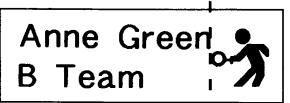
WIDE
Anne Green
B Team

NARROW

FEED
You can also choose one of two different feed settings that provides either long or short side spaces (“Fundamentals of Label Layout” page E-24). You can also specify manual feed.
LONG
This setting causes the tape to feed 16mm at the beginning and end of each printing.
SHORT
This setting causes the tape to feed 3mm at the beginning and end of each printing.
MANUAL
This setting provides side spaces of only 1mm of the printed text. If you perform two consecutive print operations (without manually feeding between prints), the last character of the first print operation is followed by the first character of the second print operation, with no space provided between them. It is a good way to save tape when you print a series of tapes.
Important! After you finish printing when using manual feed, be sure to always press FUNC and then FEED to feed the tape before cutting it. If you don't you will cut off part of the printed text.
LONGUEUR DE BANDE
Sélectionnez "FIX" si vous souhaitez spécifier une longueur de bande fixe comprise entre 0,0 cm et 99,9 cm. Sélectionnez "AUTO" pour cette option si vous souhaitez que l'imprimante d'étiquettes ajuste automatiquement la longueur de la bande.
ALIGNEMENT DES BLOCS
GAUCHE

Anne Green
B Team

DROITE

Anne Green
B Team

CENTRE

Anne Green
B Team
ÉGAL

Anne Green
B Team

Partie 8 : Impression
Cette partie du manuel contient toutes les informations nécessaires pour imprimer des étiquettes.
Remarque : Les informations suivantes ne couvrent que les procédures d'impression de base. D'autres informations relatives à l'impression se trouvent dans les sections de ce manuel décrivant les préréglages (page E-29), l'impression de tampons (page E-34), les cadres (page E-28) et les opérations de mémoire (page E-35).
Précautions d'impression
- Ne coupez jamais l'alimentation pendant une impression.
- Assurez-vous que la sortie de l'étiquette n'est pas obstruée avant de commencer l'impression.
- N'actionnez jamais le coupe-étiquette pendant une impression (indiquée par le message "IMPRESSION EN COURS" sur l'écran).
- Lors d'une impression à très haute densité, d'une impression de texte très long ou d'une impression répétée du même texte plusieurs fois, l'imprimante d'étiquettes peut s'arrêter d'imprimer pendant environ cinq secondes. Ce n'est pas un dysfonctionnement, et l'impression normale devrait reprendre peu de temps après.
Impression d'une étiquette
Imprimer une étiquette est aussi simple que d'appuyer sur la touche IMPRIMER.
Pour imprimer une étiquette
- Appuyez sur la touche IMPRIMER pour imprimer une étiquette du texte que vous avez saisi et mis en page.
- Pour arrêter une opération d'impression en cours, appuyez sur ÉCHAP.
- Vous pouvez ajouter une marge supplémentaire au début de l'étiquette en appuyant sur FONC puis sur AVANCE avant de commencer l'opération d'impression.
- Une fois l'opération d'impression terminée, appuyez sur le levier du coupe-étiquette pour couper l'étiquette.
- Assurez-vous d'appuyer sur le levier de coupe du ruban jusqu'au bout, mais sans exercer une force excessive.
- Utilisez des ciseaux pour couper le ruban à la taille souhaitée, si nécessaire.
- Après avoir imprimé un ruban, vous pouvez retirer son support en papier et coller le ruban sur l'objet souhaité. Notez que le ruban n'adhérera pas sur les surfaces rugueuses, humides, grasses ou sales. Ne l'utilisez pas non plus en exposition directe au soleil ou à la pluie. Ne collez pas le ruban sur la peau humaine.
- Un moyen facile de retirer le support d'un ruban et d'exposer la surface adhésive est de plier le ruban près de l'une de ses extrémités. Cela devrait séparer le ruban de son support, vous permettant de les tirer séparément.
Pour régler la densité d'impression
- Mettez l'appareil sous tension.
- Appuyez sur FUNC puis sur FORM (SET UP) pour afficher le menu SET UP.
- Utilisez ∧ et ∨ pour mettre en surbrillance « DENSITY », puis appuyez sur SET.
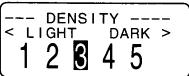
- Utilisez < et > pour mettre en surbrillance la densité souhaitée, puis appuyez sur SET pour appliquer le réglage et revenir à l'écran de saisie de texte.
- Plus le nombre sélectionné est élevé, plus les caractères imprimés sont foncés.
Utilisation de l'affichage d'image
L'affichage d'image vous permet de visualiser une image réaliste de ce à quoi ressemblera votre ruban avant de l'imprimer.
Pour afficher l'aperçu de l'image
- Après avoir composé l'étiquette que vous prévoyez d'imprimer, appuyez sur IMAGE.
- L'image sur l'écran défile de droite à gauche.
- Pour arrêter le défilement de l'image et figer le contenu actuel à l'écran, appuyez sur SET.
- Appuyez à nouveau sur SET pour reprendre le défilement.
- Appuyez sur ESC pour quitter l'affichage de l'image.
- Les étiquettes contenant des lignes très fines ou un grand nombre de caractères peuvent ne pas s'afficher correctement sur l'aperçu.
L'apparition du message « REMPLACEZ LES PILES ! » ou « PILES FAIBLES ! » indique que la batterie est faible. Dès que l'un de ces messages apparaît, remplacez toutes les piles par un jeu complet de piles neuves dès que possible. Une utilisation continue de l'imprimante d'étiquettes alors que la batterie est faible peut entraîner une panne soudaine pendant le fonctionnement ou l'impression.
Partie 9 Cadres
La fonction de cadre permet d'ajouter facilement des cadres décoratifs à votre texte. Vous avez le choix entre deux types de cadres.
Cadre autour de la zone d'impression
Cadres autour de chaque caractère

Pour spécifier un cadre autour de la zone d'impression
- Saisissez le texte que vous souhaitez encadrer.
- Appuyez sur FRAME.

- Utilisez ∧ et ∨ pour déplacer la surbrillance sur "TOUT LE TEXTE" et appuyez sur SET.
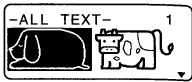
- Utilisez ∧, ∨, < et > pour déplacer la surbrillance sur le cadre que vous souhaitez utiliser et appuyez sur SET.
- Voir la page E-39 pour une liste complète des cadres TOUT LE TEXTE disponibles.
- Appuyez sur SET pour imprimer votre texte avec le cadre sélectionné ou sur ESC pour annuler l'impression sans rien imprimer.
Pour spécifier des cadres autour de chaque caractère
Remarque
- Cinq types de cadres sont disponibles lorsque du ruban de 6 mm est chargé dans l'imprimante d'étiquettes.
- Saisissez le texte que vous souhaitez encadrer.
- Appuyez sur FRAME.
- Utilisez ∧ et ∨ pour déplacer la surbrillance sur "CHAQUE CARACTÈRE" et appuyez sur SET.
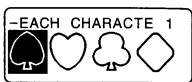
- Utilisez ∧, ∨, < et > pour déplacer la surbrillance sur le cadre que vous souhaitez utiliser et appuyez sur SET.
- Voir la page E-39 pour une liste complète des cadres CHAQUE CARACTÈRE disponibles.
- Appuyez sur SET pour imprimer votre texte avec le cadre sélectionné ou sur ESC pour annuler l'impression sans rien imprimer.
Important ! L'impression ne peut pas être effectuée sur du ruban de 6 mm lorsque les cadres CHAQUE CARACTÈRE sont utilisés.


Partie 10 Fonctions du menu PRESETS
Cette partie du manuel décrit comment utiliser le menu PRESETS pour accéder à une variété de fonctions intégrées qui rendent la création d'étiquettes plus rapide et plus facile.
Pour afficher le menu PRESETS
- Appuyez sur PRESETS.
- Notez que les fonctions du menu PRESETS sont normalement utilisées lorsqu'il n'y a pas de texte sur l'écran de saisie. S'il y a du texte à l'écran lorsque vous appuyez sur PRESETS, le message "CLEARS INPUT TEXT!" apparaît à l'écran. Vous pouvez continuer l'opération (et effacer le texte) en appuyant sur SET, ou appuyer sur ESC pour annuler sans rien effacer.
- Utilisez ∧ et ∨ pour déplacer la surbrillance sur le préréglage que vous souhaitez sélectionner, puis appuyez sur SET.
DISPOSITION
Les dispositions prédéfinies fournissent un total de 74 modèles d'étiquettes que vous pouvez utiliser pour créer rapidement et facilement des étiquettes attrayantes. Chaque modèle est composé d'"éléments" dont vous pouvez utiliser le contenu tel quel ou le modifier. Vous pouvez même stocker les étiquettes terminées en mémoire pour les rappeler instantanément lorsque vous en avez besoin. - Notez que la bande de 6 mm de large ne peut pas être utilisée pour imprimer une disposition prédéfinie.
Pour utiliser une disposition prédéfinie pour créer une étiquette et l'imprimer
- Pendant que le menu PRESETS est affiché, utilisez ∧ et ∨ pour déplacer la surbrillance sur "LAYOUT" puis appuyez sur SET.
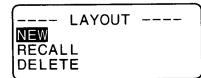
- Utilisez ∧ et ∨ pour déplacer la surbrillance sur "NEW" puis appuyez sur SET.

- Utilisez ∧ et ∨ pour déplacer la surbrillance sur "VIDEO" puis appuyez sur SET.

- Notez que vous pouvez également rappeler une étiquette existante (page E-30).
- Utilisez ∧ et ∨ pour déplacer la surbrillance sur "VHS" puis appuyez sur SET.
- Utilisez < et > pour déplacer la surbrillance sur le numéro de la disposition que vous souhaitez utiliser (1, 2, 3, 4) puis appuyez sur SET.
- Notez que certains blocs contiennent déjà des caractères. Vous pouvez utiliser les caractères tels quels ou les remplacer par de nouveaux.
- Saisissez le texte que vous souhaitez inclure dans chaque élément, puis appuyez sur SET pour passer à l'élément suivant.
- Pour utiliser un caractère déjà présent dans un élément sans le modifier, appuyez sur SET pour passer à l'élément suivant. Pour laisser un élément vide, appuyez sur SET sans rien saisir.
- Lorsque vous appuyez sur SET après avoir saisi le texte du dernier élément, le menu affiché ici apparaît.
- Spécifiez l'activation du cadre, le sens d'impression (page E-25), et l'impression miroir ou normale (page E-26).
- Utilisez et pour déplacer la surbrillance entre les éléments, et < et > pour modifier chaque réglage.
- L'activation de "BOX" fait que la disposition est encadrée lors de l'impression.
- Après avoir effectué les réglages souhaités, appuyez sur SET.
- Utilisez et pour déplacer la surbrillance sur "PRINT", puis appuyez sur SET pour exécuter.
- Le message "CUT THEN [SET]!" s'affiche à l'écran. Actionnez le levier de coupe du ruban pour couper tout excédent de ruban.
- Appuyez sur SET.
• Une fois l'impression terminée, actionnez le levier de coupe du ruban pour couper le ruban.
- Utilisez ∧ et ∨ pour déplacer la surbrillance sur "EXIT", puis appuyez sur SET.
- Appuyez sur SET pour terminer l'opération.
E-30
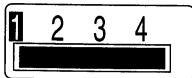
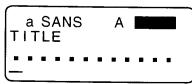
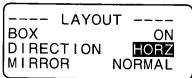

Pour stocker une étiquette créée avec une mise en page prédéfinie
- Effectuez les étapes 1 à 8 de la section "Pour utiliser une mise en page prédéfinie pour créer une étiquette et l'imprimer" afin de créer l'étiquette.
- Utilisez ∧ et ∨ pour déplacer la surbrillance sur "STORE", puis appuyez sur SET.
- Saisissez jusqu'à cinq caractères pour le nom de l'étiquette, puis appuyez sur SET.
- Appuyez sur SET pour stocker l'étiquette ou sur ESC pour annuler l'opération sans rien stocker.
- Utilisez ∧ et ∨ pour déplacer la surbrillance sur "EXIT", puis appuyez sur SET.
- Appuyez sur SET pour terminer l'opération.
Pour rappeler une étiquette de mise en page prédéfinie depuis la mémoire
- Pendant que le menu LAYOUT est affiché, utilisez ∧ et ∨ pour déplacer la surbrillance sur "RECALL", puis appuyez sur SET.
- Utilisez ∧ et ∨ pour afficher le nom de l'étiquette souhaitée, puis appuyez sur SET pour la rappeler.
- Vous pouvez maintenant apporter des modifications au contenu de l'étiquette puis l'imprimer, ou simplement imprimer l'étiquette sans aucune modification.
- Pour modifier le contenu de l'étiquette, suivez les procédures à partir de l'étape 6 sous "Pour utiliser une mise en page prédéfinie pour créer une étiquette et l'imprimer".
- Pour imprimer l'étiquette sans aucune modification, effectuez la procédure à partir de l'étape 6 sous "Pour utiliser une mise en page prédéfinie pour créer une étiquette et l'imprimer".
Pour supprimer une étiquette de mise en page prédéfinie de la mémoire
- Pendant que le menu LAYOUT est affiché, utilisez ∧ et ∨ pour déplacer la surbrillance sur "DELETE", puis appuyez sur SET.
- Utilisez et pour afficher le nom de l'étiquette souhaitée, puis appuyez sur SET pour la supprimer.
- Appuyez sur SET pour supprimer l'étiquette.
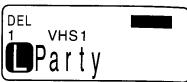
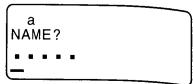
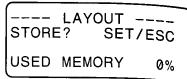
puis appuyez sur SET.
•
puis appuyez sur SET.
puis appuyez sur SET.
puis appuyez sur SET.
puis appuyez sur SET.
puis appuyez sur SET.
puis appuyez sur SET.
puis appuyez sur SET.
puis appuyez sur SET.
puis appuyez sur SET.
puis appuyez sur SET.
puis appuyez sur SET.
puis appuyez sur SET.
puis appuyez sur SET.
puis appuyez sur SET.
puis appuyez sur SET.
puis appuyez sur SET.
puis appuyez sur SET.
puis appuyez sur SET.
puis appuyez sur SET.
puis appuyez sur SET.
puis appuyez sur SET.
- Appuyez sur SET pour terminer l'opération.
ITF, CODE39, CODABAR
Ce qui suit s'applique aux codes à barres ITF, CODE39 et CODABAR.
Pour imprimer un code-barres
- Lorsque le menu PRESETS est affiché, utilisez ∧ et ∨ pour déplacer la surbrillance sur "BAR CODE", puis appuyez sur SET.
- Utilisez ∧ et ∨ pour déplacer la surbrillance sur "NEW", puis appuyez sur SET.
- Utilisez ∧ et ∨ pour déplacer la surbrillance sur le type de code-barres que vous souhaitez imprimer, puis appuyez sur SET.
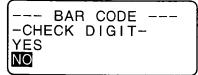
- Utilisez ∧ et ∨ pour sélectionner "YES" (utiliser le chiffre de contrôle) ou "NO" (ne pas utiliser le chiffre de contrôle), puis appuyez sur SET.
- Cet écran n'apparaît que si vous utilisez un ruban de 18 mm/24 mm. Si vous utilisez un ruban différent, passez à l'étape 6.
- Saisissez jusqu'à 60 caractères de texte de commentaire si vous le souhaitez, puis appuyez sur SET.
- Saisissez les données du code-barres, puis appuyez sur SET.
- Effectuez les étapes 6 à 9 sous "Pour imprimer un code-barres" de "EAN-13, EAN-8, UPC-A, UPC-E".
Opérations générales sur les codes-barres
Les procédures suivantes s'appliquent à tous les types de codes-barres.
Pour stocker un code-barres
- Effectuez les étapes nécessaires pour créer le code-barres afin que l'écran suivant soit affiché.
- Utilisez ∧ et ∨ pour déplacer la surbrillance sur "STORE", puis appuyez sur SET.
- Saisissez jusqu'à cinq caractères pour le nom du code-barres, puis appuyez sur SET.
- Appuyez sur SET pour mémoriser le code à barres ou sur ESC pour annuler l'opération sans rien mémoriser.
- Utilisez ∧ et ∨ pour déplacer la surbrillance sur "EXIT", puis appuyez sur SET.
- Appuyez sur SET pour terminer l'opération.
Pour rappeler un code à barres de la mémoire
- Lorsque le menu BAR CODE est affiché, utilisez ∧ et ∨ pour déplacer la surbrillance sur "RECALL", puis appuyez sur SET.
- Utilisez ∧ et ∨ pour afficher le nom du code à barres souhaité, puis appuyez sur SET pour le rappeler.
- Vous pouvez maintenant modifier le code à barres et l'imprimer ou le mémoriser comme nouveau code à barres.
Pour supprimer un code à barres de la mémoire
- Lorsque le menu BAR CODE est affiché, utilisez ∧ et ∨ pour déplacer la surbrillance sur "DELETE", puis appuyez sur SET.
- Utilisez ∧ et ∨ pour afficher le nom du code à barres souhaité, puis appuyez sur SET pour le supprimer.
- Appuyez sur SET pour supprimer le code à barres.
NUMÉROTATION
Cette imprimante d'étiquettes vous offre le choix entre quatre formats de numérotation différents pour imprimer des étiquettes numérotées séquentiellement de 0 à 999.
Formats
1 : Nombre suivi de jusqu'à 220 caractères de texte. 2 : Nombre précédé de jusqu'à 220 caractères de texte. 3 : Nombre avec jusqu'à 110 caractères de texte de chaque côté. 4 : Nombre uniquement.
Pour imprimer des étiquettes numérotées séquentiellement
- Pendant que le menu PRESETS est affiché, utilisez ∧ et ∨ pour déplacer la surbrillance sur "NUMBERING" puis appuyez sur SET.
- Utilisez ∧ et ∨ pour déplacer la surbrillance sur "NEW" et appuyez sur SET.
- Utilisez < et > pour déplacer la surbrillance sur le numéro du format souhaité, puis appuyez sur SET.
- Saisissez le numéro de départ de la séquence de numérotation, puis appuyez sur SET.

- Saisissez le texte de commentaire souhaité, puis appuyez sur SET.
- Vous pouvez également spécifier la police, le style de caractère et les effets de texte si vous le souhaitez.
- Spécifiez la direction d'impression (page E-25) et l'impression miroir ou normale (page E-26).
- Utilisez ∧ et ∨ pour déplacer la surbrillance entre les éléments, et < et > pour modifier chaque paramètre.
- Après avoir effectué les réglages souhaités, appuyez sur SET.
- Utilisez ∧ et ∨ pour déplacer la surbrillance sur "PRINT" puis appuyez sur SET pour exécuter.
L'imprimante d'étiquettes imprime une étiquette avec le numéro et le texte du commentaire, puis affiche l'écran illustré à l'étape 3, avec le numéro incrémenté de un.
- Répétez les étapes 4 à 7 pour imprimer autant d'étiquettes numérotées séquentiellement que vous le souhaitez.
- Pour quitter l'opération d'étiquettes numérotées, appuyez sur ESC puis sur SET.
Pour mémoriser un format de numérotation
- Effectuez les étapes 1 à 7 pour créer le format de numérotation afin que l'écran affiche ce qui suit.
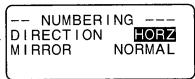

- Utilisez ∧ et ∨ pour déplacer la surbrillance sur "STORE" puis appuyez sur SET.
- Saisissez jusqu'à cinq caractères pour le nom du format de numérotation, puis appuyez sur SET.
- Appuyez sur SET pour mémoriser le format de numérotation ou sur ESC pour annuler l'opération sans rien mémoriser.
- Utilisez ∧ et ∨ pour déplacer la surbrillance sur "EXIT" puis appuyez sur SET.
- Appuyez sur SET pour terminer l'opération.
Pour rappeler un format de numérotation depuis la mémoire
- Pendant que le menu NUMBERING est affiché, utilisez ∧ et ∨ pour déplacer la surbrillance sur "RECALL" puis appuyez sur SET.
- Utilisez ∧ et ∨ pour afficher le nom du format de numérotation souhaité, puis appuyez sur SET pour le rappeler.
- Vous pouvez maintenant modifier le format de numérotation et l'imprimer ou le stocker comme nouveau format.
Pour supprimer un format de numérotation de la mémoire
- Lorsque le menu NUMÉROTATION est affiché, utilisez ∧ et ∨ pour déplacer la surbrillance sur "SUPPRIMER", puis appuyez sur SET.
- Utilisez ∧ et ∨ pour afficher le nom du format de numérotation que vous souhaitez supprimer, puis appuyez sur SET pour le supprimer.
- Appuyez sur SET pour supprimer le format de numérotation.
PHRASES
Une collection de phrases anglaises prédéfinies peut être rappelée rapidement et facilement lorsque vous en avez besoin. Voir page E-40 pour une liste complète des phrases prédéfinies disponibles.
Pour imprimer une phrase prédéfinie
- Lorsque le menu PRÉRÉGLAGES est affiché, utilisez ∧ et ∨ pour déplacer la surbrillance sur "PHRASES", puis appuyez sur SET.
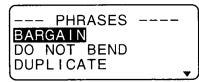
- Utilisez ∧ et ∨ pour faire défiler les phrases prédéfinies jusqu'à ce que celle que vous voulez soit en surbrillance, puis appuyez sur SET.
- Utilisez ∧ et ∨ pour mettre en surbrillance "IMPRIMER", puis appuyez sur SET pour imprimer la phrase.
- Utilisez ∧ et ∨ pour déplacer la surbrillance sur "QUITTER", puis appuyez sur SET pour terminer l'opération.
Partie 11 Impression de tampons
La fonction d'impression de tampons vous permet de créer vos propres tampons en utilisant une sélection de divers formats. Vous pouvez ensuite imprimer sur du ruban spécial pour tampons et fixer le ruban fini sur un support de tampon disponible en option.
Lorsque vous utilisez le support de tampon ST-15, sélectionnez NL (10 × 55 mm) comme type de support de tampon à l'étape 3 de la procédure décrite ci-dessous.
Important ! Notez qu'une cartouche de ruban spéciale pour tampon et un support de ruban pour tampon en option sont nécessaires pour créer un tampon pré-encré. Contactez votre revendeur pour acheter le ruban et le support nécessaires. Chargez le ruban spécial avant d'effectuer la procédure suivante.
Pour créer une nouvelle étiquette de tampon
- Appuyez sur STAMP.

- Utilisez ∧ et ∨ pour déplacer la surbrillance sur "NOUVEAU", puis appuyez sur SET. Ruban 18 mm —
Ruban 18 mm - Ruban 24 mm -
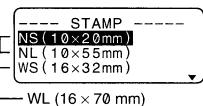
- Utilisez ∧ et ∨ pour déplacer la surbrillance sur le modèle de support de tampon que vous utiliserez avec votre ruban de tampon, puis appuyez sur SET.
- Sélectionnez le type de cadre que vous souhaitez utiliser, puis appuyez sur SET.
- Le nombre de mises en page affichées sur l'écran de droite dépend du type de support de tampon que vous utilisez.
- Utilisez < et > pour sélectionner la mise en page que vous souhaitez utiliser, puis appuyez sur SET.

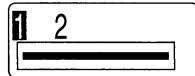
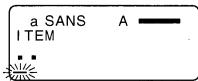
- Saisissez le texte que vous souhaitez inclure dans chaque bloc, puis appuyez sur SET pour passer au bloc suivant.
- Pour laisser un bloc vide, appuyez sur SET sans rien saisir.
- Lorsque vous appuyez sur SET après avoir saisi le texte du dernier bloc, le menu suivant apparaît.
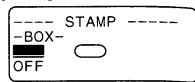
- Utilisez ∧, ∨, < et > pour sélectionner un type de boîte, puis appuyez sur SET.
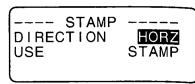
- Si vous sélectionnez « ROND », passez immédiatement à l'étape 8.
- Si vous sélectionnez « CADRE LONG », vous devrez ensuite sélectionner un type de cadre spécifique avant de passer à l'étape 8.
- Utilisez ∧ et ∨ pour déplacer la surbrillance et utilisez et > pour spécifier le réglage, puis appuyez sur SET.
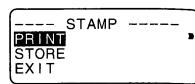
- Utilisez ∧ et ∨ pour déplacer la surbrillance sur « IMPRIMER », puis appuyez sur SET pour exécuter.
- Une fois l'impression terminée, actionnez le levier de coupe du ruban pour couper le ruban.
- Utilisez ∧ et ∨ pour déplacer la surbrillance sur « QUITTER », puis appuyez sur SET.
- Appuyez sur SET pour terminer l'opération.
Pour stocker une étiquette de tampon
- Effectuez les étapes 1 à 9 sous « Pour créer une nouvelle étiquette de tampon » pour créer l'étiquette.
- Utilisez ∧ et ∨ pour déplacer la surbrillance sur « STOCKER », puis appuyez sur SET.
- Saisissez jusqu'à cinq caractères pour le nom de l'étiquette, puis appuyez sur SET.
- Appuyez sur SET pour mémoriser l'étiquette ou sur ESC pour annuler l'opération sans rien mémoriser.
- Utilisez ∧ et ∨ pour déplacer la surbrillance sur "EXIT", puis appuyez sur SET.
- Appuyez sur SET pour terminer l'opération.
Pour rappeler une étiquette de tampon mémorisée
- Pendant que le menu STAMP est affiché, utilisez ∧ et ∨ pour déplacer la surbrillance sur "RECALL", puis appuyez sur SET.
- Utilisez ∧ et ∨ pour afficher le nom de l'étiquette souhaitée, puis appuyez sur SET pour la rappeler.
- Appuyez sur SET. Vous pouvez maintenant modifier le contenu de l'étiquette puis l'imprimer, ou simplement imprimer l'étiquette sans aucune modification.
- Pour modifier le contenu de l'étiquette, suivez les procédures à partir de l'étape 6 de la section "Pour créer une nouvelle étiquette de tampon".
- Pour imprimer l'étiquette sans apporter de modifications, suivez les procédures à partir de l'étape 6 sans saisir de caractères.
Pour supprimer une étiquette de tampon de la mémoire
- Lorsque le menu STAMP est affiché, utilisez ∧ et ∨ pour déplacer la surbrillance sur "DELETE", puis appuyez sur SET.
- Utilisez ∧ et ∨ pour afficher le nom de l'étiquette souhaitée, puis appuyez sur SET pour la supprimer.
- Appuyez sur SET pour supprimer l'étiquette.
- Il existe deux tailles de ruban pour tampon : 18 mm et 24 mm. Il existe également quatre types de supports de tampon : grand et petit pour ruban de 24 mm, et grand et petit pour ruban de 18 mm. Notez que certains rubans et supports de tampon peuvent ne pas être disponibles dans certaines régions.
Partie 12 Mémoire
Cette partie du manuel vous explique comment stocker des données texte en mémoire pour les rappeler instantanément lorsque vous en avez besoin. Vous pouvez stocker jusqu'à 2 500 caractères en mémoire.
Pour stocker des données
- Saisissez le texte que vous souhaitez stocker, puis appuyez sur MEMORY.
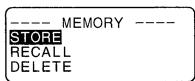
- Utilisez ∧ et ∨ pour déplacer la surbrillance sur "STORE", puis appuyez sur SET.
- Appuyez sur SET pour stocker le texte en mémoire ou sur ESC pour annuler la procédure de stockage sans rien enregistrer.
Rappel du texte depuis la mémoire
Il existe deux méthodes pour rappeler le texte : la recherche séquentielle et la recherche par caractères. Avec la recherche séquentielle, vous parcourez le contenu de la mémoire jusqu'à trouver ce que vous cherchez. Avec la recherche par caractères, vous saisissez jusqu'à huit caractères et l'imprimante d'étiquettes recherche dans sa mémoire pour les trouver.
Pour rappeler le texte de la mémoire par recherche séquentielle
- Appuyez sur MEMOIRE
- Utilisez et pour déplacer la surbrillance sur "RAPPEL" puis appuyez sur SET.
- Appuyez sur SET sans rien saisir et le premier élément stocké en mémoire s'affiche.
- Utilisez et pour faire défiler les éléments en mémoire jusqu'à ce que celui que vous voulez soit affiché.
- Appuyez sur SET.
- Ce que vous faites ensuite dépend de si vous voulez supprimer le texte existant à l'écran ou combiner le texte rappelé avec le texte existant.

NOUVEAU
- Utilisez ∧ et ∨ pour déplacer la surbrillance sur "NOUVEAU".
- Appuyez sur SET pour supprimer tout texte qui était précédemment sur l'écran de saisie et le remplacer par le texte rappelé.
COMBINER
- Utilisez et pour déplacer la surbrillance sur "COMBINER" puis appuyez sur SET.
- Utilisez < et > pour déplacer le curseur à l'endroit où vous voulez insérer le texte rappelé puis appuyez sur SET.
Pour rappeler le texte de la mémoire en utilisant la recherche de caractères
- Appuyez sur MEMORY.
- Utilisez ∧ et ∨ pour déplacer la surbrillance sur "RECALL", puis appuyez sur SET.
- Saisissez les caractères souhaités, puis appuyez sur SET pour lancer la recherche.
- Le premier élément commençant par les caractères saisis apparaît à l'écran.
- Les caractères doivent se trouver au tout début de l'élément. L'imprimante d'étiquettes ne trouve pas les caractères s'ils se trouvent au début d'un bloc ou d'une ligne à l'intérieur de l'élément.
- Continuez à partir de l'étape 4 sous "Pour rappeler le texte mémorisé à l'aide de la recherche séquentielle."
Pour supprimer le texte mémorisé
- Appuyez sur MEMORY.
- Utilisez ∧ et ∨ pour déplacer la surbrillance sur "DELETE", puis appuyez sur SET.
- Utilisez la recherche séquentielle ou la recherche par caractères pour afficher le texte mémorisé que vous souhaitez supprimer, puis appuyez sur SET.
- Appuyez sur SET pour supprimer les données.
Partie 13 Communication de données
La FA-920 vous permet d'utiliser l'imprimante d'étiquettes pour imprimer des données créées sur votre ordinateur personnel.
Important !
- La communication de données avec un ordinateur personnel nécessite un logiciel Computer Link et un câble de communication de données.
- Voir la documentation fournie avec le logiciel Computer Link pour plus de détails sur son utilisation.
- La communication de données avec votre imprimante d'étiquettes nécessite une configuration système spécifique, comme décrit dans la documentation fournie avec le logiciel Computer Link. Vous ne pourrez peut-être pas échanger des données avec un ordinateur personnel qui ne respecte pas la configuration système requise.
- Après avoir terminé une opération de communication de données (y compris l'impression), appuyez sur ESC pour quitter le mode de communication de données. Toutes les autres fonctions sont désactivées pendant la communication de données.
Partie 14 Référence
Cette section contient des informations sur l'imprimante d'étiquettes que vous pouvez utiliser comme référence lorsque vous en avez besoin.
Nettoyage de la tête d'impression et du rouleau
Une tête d'impression et un rouleau sales peuvent entraîner une mauvaise qualité d'impression. Si vous rencontrez des problèmes de qualité d'impression, utilisez la procédure suivante pour nettoyer la tête d'impression et le rouleau.
Pour nettoyer la tête d'impression et le rouleau
- Assurez-vous que l'imprimante d'étiquettes est éteinte.
- Appuyez sur le loquet de déverrouillage du compartiment de la cartouche de ruban et ouvrez le couvercle du compartiment.
- Retirez la cartouche de ruban.
- Utilisez un coton-tige imbibé d'alcool pour nettoyer la tête d'impression et le rouleau comme indiqué sur l'illustration.

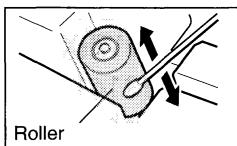
- Replacez la cartouche de ruban et fermez le couvercle du compartiment.
Paramètres initiaux
Voici les paramètres initiaux de l'imprimante d'étiquettes à chaque mise sous tension ou réinitialisation de l'appareil.
| Item | Power On | Reset |
| Display | Cleared | Cleared |
| Memory | Retained | Cleared |
| User Characters | Retained | Cleared |
| Item | Power On | Reset |
| Horz/Vert | Horizontal | Horizontal |
| Text Alignment | Left | Left |
| Justification | Justified | Justified |
| Character Spacing | Narrow | Narrow |
| Block Length | Auto | Auto |
| Mirror Printing | Normal | Normal |
| Proportional Spacing | On | On |
| Smoothing | On | On |
| Block Spacing | Narrow | Narrow |
| Auto Feed | Long | Long |
| Tape Length | Auto | Auto |
| Block Alignment | ****(Left) | ****(Left) |
| Default Font | Retained | Sans-Serif |
| Insert/Overwrite | Retained | Insert |
| Contrast (32 levels) | Retained | Level 17 |
| Density (5 levels) | Retained | Level 3 |
| Sound | Retained | On |
| Language | Retained | English |
| cm/inch | Retained | cm |
Initialisation de l'imprimante d'étiquettes
Si vous rencontrez un dysfonctionnement grave de l'imprimante d'étiquettes ou si son fonctionnement échoue complètement, essayez d'effectuer l'opération suivante pour initialiser l'imprimante.
Important ! L'initialisation de l'imprimante d'étiquettes efface tout le contenu de la mémoire. Assurez-vous de disposer d'une copie de sauvegarde du texte stocké en mémoire si vous en avez besoin.
Pour initialiser l'imprimante d'étiquettes
- Mettez l'appareil hors tension.
- Tout en maintenant enfoncées les touches PRINT, ESC et ON, remettez l'appareil sous tension.
- Cette invite confirme si vous souhaitez ou non initialiser l'imprimante d'étiquettes.
- Appuyez sur SET pour initialiser l'imprimante d'étiquettes ou sur ESC pour annuler l'opération de réinitialisation.
Indicateur de format
Ce qui suit montre comment les crochets de part et d'autre de l'indicateur de format changent pour indiquer diverses conditions.
[■] : longueur de bloc fixe (spécifiée par l'utilisateur) (■) : texte du bloc trop long pour la longueur de bloc fixe, mais l'impression sera effectuée en compressant le texte. ■] : le ruban imprimé sera plus long que la longueur de ruban fixe spécifiée car le texte ne tiendra pas dans la longueur de ruban fixe même si sa taille est réduite de 50 %.
Indicateur de longueur de ruban
Ce qui suit montre comment les crochets de part et d'autre de l'indicateur de longueur de ruban changent pour indiquer diverses conditions.
[5,1 cm] : longueur de ruban fixe spécifiée par l'utilisateur.
5,1 cm] : l'opération d'impression ne peut pas être effectuée.
Illustrations

Symboles, pictogrammes et caractères spéciaux
● SYMBOLE
![, . : ; · ? ! “ ” ” , «» ¿ i () [ ] {} ⟨⟩ 《》 / \ $ ¢ £ Fr ¥ # & * @ S % ‰ + - × = ≠ ÷ ± < > ≤ ≧ - _ ~ ¶ →← ↑↓ ∨ ↙ →← ↑↓ ™ ® © = ∅ ↓ ./ oz lb. in. ft. °F °C ° f ℓ a o](/content/2025/01/129524/images/9061a2e305d611337677059f35a29bd94c02e0671c9e071f33c413173ec7d343.jpg)
● PICTOGRAMME

● NUMÉRO

● GREC, RUSSE

Cadres
● TOUT LE TEXTE
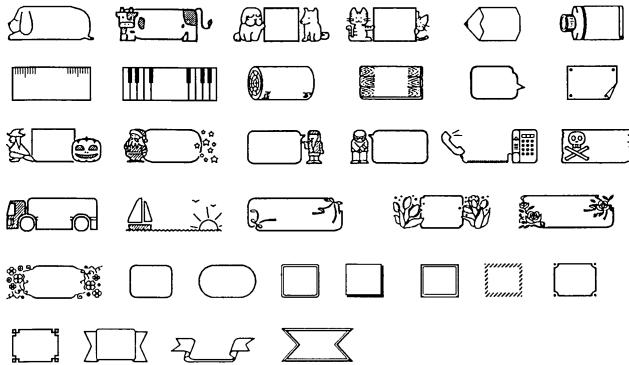
*Lorsqu'une cassette de 6 mm est chargée

● CHAQUE CARACTÈRE

Polices
| New Sans-serif | 123ABC |
| New Sans-serif Italic | 123ABC |
| New Roman | 123ABC |
| New Roman Italic | 123ABC |
| Courier | 123ABC |
| Logo Style | 123ABC |
| Rich Stroke | 123ABC |
| Stencil | 123ABC |
| Bold Script | 123ABC |
| Black Letter | 123ABC |
Mesures d'étiquettes agrandies
| Tape Width | Item | 2 Pieces | 3 Pieces | 4 Pieces | 4 Pieces Large |
| 12mm | Size Increase | 8 × 8 times | 12 × 12 times | 16 × 16 times | - |
| Character Size | 24 × 24mm | 36 × 36mm | 48 × 48mm | ||
| Resulting Tape Width | 24mm | 36mm | 48mm | ||
| 18mm | Size Increase | 8 × 8 times | 12 × 12 times | 16 × 16 times | 20 × 20 times |
| Character Size | 24 × 24mm | 36 × 36mm | 48 × 48mm | 60 × 60mm | |
| Resulting Tape Width | 30mm | 42mm | 54mm | 63mm | |
| 24mm | Size Increase | 8 × 8 times | 12 × 12 times | 16 × 16 times | 20 × 20 times |
| Character Size | 24 × 24mm | 36 × 36mm | 48 × 48mm | 60 × 60mm | |
| Resulting Tape Width | 36mm | 48mm | 60mm | 69mm |
Phrases
BARGAIN
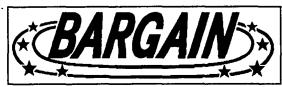
DUPLICATE
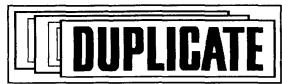
NO SMOKING
SECRET

DO NOT BEND

FRAGILE

SALE
SPECIMEN
Spécifications du code-barres
| Bar Code Type | Check Digit *1 | Print Digits *3 | Input Digits *4 | Automatically Assigned Number of Digits | Input Characters *8 | |
| Check Digit *1 | ||||||
| EAN-13 | Yes | 13 | 12 | — | 1 | Numerals |
| EAN-8 | Yes | 8 | 7 | — | 1 | Numerals |
| UPC-A | Yes | 12 | 11 | — | 1 | Numerals |
| UPC-E | (Yes) *2 | 6 | 6 | — | — | Numerals |
| ITF | No | 4 to 22 | 4 to 22 (even only) *5 | — | — | Numerals |
| Yes | 4 to 22 | 3 to 21 (odd only) *6 | — | 1 | ||
| CODE39 | No | 4 to 22 | 2 to 20 | 2 *7 | — | Alpha-numeric characters; hyphen; period; space; dollar sign; slash; plus sign; percent sign |
| Yes | 4 to 22 | 1 to 19 | 2 *7 | 1 | ||
| CODABAR | No | 4 to 22 | 4 to 22 | — | — | Numerals; hyphen; period; dollar sign; colon; slash; plus sign; letters A through D (first and final digits only) *9 |
| Yes | 4 to 22 | 3 to 21 | — | 1 | ||
*1 Le chiffre de contrôle est calculé automatiquement en fonction des données saisies. Pour EAN-13, EAN-8, UPC-A et ITF, le chiffre de contrôle est ajouté à la fin des chiffres imprimés. Pour CODE39 et CODABAR, le chiffre de contrôle est ajouté un chiffre avant le dernier chiffre (lorsqu'un chiffre de contrôle est utilisé).
*2 UPC-E comprend un chiffre de contrôle, mais il n'est pas imprimé sous forme de chiffre sous le code-barres.
*3 Le nombre de chiffres imprimés sous un code-barres est égal aux caractères saisis plus les caractères ajoutés automatiquement.
*4 Un message d'erreur s'affiche chaque fois qu'il y a un nombre insuffisant de chiffres. L'appareil ne permettra pas la saisie d'un trop grand nombre de chiffres.
*5 Un message d'erreur apparaît et l'impression est impossible si un nombre impair de chiffres est saisi lorsque le chiffre de contrôle ITF n'est pas utilisé. Ajoutez un zéro au début des chiffres et ressaisissez.
*6 Un message d'erreur apparaît et l'impression est impossible si un nombre pair de chiffres est saisi lorsque le chiffre de contrôle ITF est utilisé. Ajoutez un zéro au début des chiffres et ressaisissez.
*7 Le code de début et le code d'arrêt de CODE39 doivent être des astérisques.
*8 Un message d'erreur apparaît et l'impression est impossible si des caractères autres que ceux spécifiés ici sont utilisés.
*9 Avec CODABAR, A, B, C ou D peuvent être utilisés comme code de début et code de fin. Un message d'erreur apparaît et l'impression est impossible si un autre caractère est utilisé.
Dépannage
- Alimentation
| Nothing appears on the display. | |
| Possible Cause | Action |
| Improper display contrast setting | Adjust display contrast. |
| Low batteries | Replace batteries. |
| Batteries loaded incorrectly | Remove batteries and reload them correctly. |
| AC adaptor is not connected correctly. | Make sure the AC adaptor is connected correctly. |
- Saisie de texte
| Cannot input text. | |
| Possible Cause | Action |
| FUNC key has been pressed. | Press ESC to clear FUNC key operation. |
| Tape does not come out when PRINT is pressed. | |
| Possible Causes | Action |
| Tape cartridge compartment cover is not closed completely. | Securely close the tape cartridge cover. |
| No more tape left in the cartridge. | Replace the tape cartridge with a new one. |
| Tape jam | Remove the tape cartridge and pull out the jammed tape by hand. Cut off excess tape with scissors, and carefully replace the cartridge into the label printer.Important!Never allow the tape outlet to become blocked and never touch tape as it is being fed during printing. |
| Tape comes out when PRINT is pressed, but nothing is printed on it. | |
| Possible Cause | Action |
| Only blank spaces were input. | Input the text you want to print. |
| Printing is blurred, blotched, broken, etc. | |
| Possible Causes | Action |
| Improper print density setting | Adjust the print density setting. |
| Improper loading of the cartridge | Remove the tape cartridge and reload it correctly. |
| Dirty print head or rubber roller | Clean the printer head and roller. |
| Ink ribbon is being fed from the tape outlet along with the tape. | |
| Possible Cause | Action |
| Ink ribbon cassette loaded while the ink ribbon is slack. | Remove the ink ribbon cassette and check to make sure the ink ribbon is not broken. Next, take up any slack in the ink ribbon and then reload the tape cartridge.Important!Before loading an ink ribbon cassette into the label printer, always make sure you take up any slack in the ink ribbon first.If the ink ribbon is broken, you must change to another ink ribbon cassette. |
- Coupe du ruban
| Cannot cut tape. | |
| Possible Cause | Action |
| Tape cutter blade is dull. | Take the label printer to the dealer from whom you purchased it to have the tape cutter blade replaced. |
| Printed text is cut off by tape cut operation. | |
| Possible Causes | Action |
| The printer is set up for manual tape feed. | Be sure to press the FEED key before performing the tape cut operation.Important!When the printer is set up for manual tape feed, the tape is not fed automatically after printing is complete. |
| Out of tape | Replace the tape cartridge with a new one. |
- Utilisation des étiquettes
| Label will not adhere to a surface. | |
| Possible Causes | Action |
| The backing paper is still on the back of the tape. | Peel the backing paper from the back of the tape to expose the adhesive. |
| Surface is unsuitable for affixing a tape. | Labels do not adhere well to surfaces that are rough, wet, oily, or dirty. |
• Communication de données
| Cannot transfer data. | |
| Possible Causes | Action |
| Poor data communication cable connection | Make sure the data communication cable jacks are connected securely. |
| Passage of too much time after setting up for data communication | Be sure to start actual data transfer within about 20 seconds after pressing SET to start a data communication operation. |
Messages d'erreur
| Message | Cause and Recommended Action |
| SAME NAME ALREADY USED! | Name being assigned to a preset format is already used. Use a different name. |
| DATA ITEM NOT FOUND! | No match for characters specified for a search operation. Change to other characters or use sequential search. |
| TOO MANY LINES! | Too many lines to be printed. Reduce the number of lines or use a wider tape. |
| TOO MANY LINES TO FRAME! | Too many lines for printing with a frame. Reduce the number of lines or use a wider tape. |
| Message | Cause and Recommended Action |
| ODD NUMBER OF DIGITS!CANNOT PRINT | Odd number of digits input for ITF bar code when a check digit is not being used. Add a 0 (zero) as the first digit and re-input.Even number of digits input for ITF bar code when a check digit is being used. Add a 0 (zero) as the first digit and re-input. |
| NOT ENOUGH DIGITS!CANNOT PRINT | Bar code print printed does not have enough digits. Re-input with the proper number of digits. |
| RESET! | Memory has not been initialized yet. Perform the reset operation. |
| COMMUNICATION ERROR! | Label printer was unable to receive data being sent from an external source. Check cable connections and parameter settings. |
| POWER OFF THEN LOAD A TAPE CAR-TRIDGE | Printing operation performed while the tape cartridge compartment is empty. Load a tape cartridge and try again. |
| TEXT TOO LONG | Text being printed does not fit within a fixed-length tape. Shorten the text or change the tape length. |
| TEXT TOO LONG | Text being printed with a frame does not fit within a fixed-length tape. Shorten the text or change the tape length. |
| DATA ERROR! RESET! | Print operation attempted when memory is not initialized. Perform the reset operation and try again. |
| DATA ERROR! RESET! | Memory data has been deleted or corrupted because battery went dead. |
| DATA ERROR! RESET! | Text storage attempted when memory is not initialized. Perform the reset operation and try again. |
| NO DATA! | Recall or delete operation attempted while there is no more data in memory. Press ESC to clear the error message. |
| Message | Cause and Recommended Action |
| TOO MANY BL! | Attempt to input a 16th block mark (only 15 are allowed). Delete block marks you don't need. |
| ILLEGAL CHARACTERS!CANNOT PRINT | Invalid characters used in a bar code. Change to allowed characters.Letter other than A, B, C, or D input for CODABAR bar code start code or end code. Use only the allowable characters. |
| MEMORY FULL! | Memory used for storage is full. Delete data in memory that you no longer need. |
| NOT ENOUGH MEMORY! | Operation being attempted would cause memory used for storage to become full. To store more, delete data in memory that you no longer need. If you don't want to store more, press SET to clear the message and then continue with the operation. |
| CANNOT COMBINE! | Recalling text into existing text results in more than 255 characters. Reduce the number of characters in existing text.Recall operation incorporating recalled text into existing text would result in more than 15 block marks. Reduce the number of block marks in the existing text and try again. |
| INPUT TEXT! | Attempt to register characters when no characters are input. Input characters and try again. |
| REPLACE BATTERIES | Replace batteries. |
Spécifications
Modèle : KL-8100
Entrée
Disposition du clavier : machine à écrire (QWERTY)
Types de caractères
Alphabétiques (anglais et autres langues) : 52 (A\~Z, a\~z), 99 (Á, β, ζ, Ž, etc.)
Chiffres : 10
Symboles/Caractères grecs et russes : 306
Illustrations : 50
Affichage
Type : Affichage à cristaux liquides
Colonnes : 12
Lignes : 2
Impression
Type : Transfert thermique
Vitesse : Environ 12 mm/seconde
Largeur : 4 mm (ruban 6 mm) ; 8 mm (ruban 9 mm) ; 10 mm (ruban 12 mm) ; 16 mm (ruban 18/24 mm)
Matrice de caractères : 48 × 48 points
Polices de caractères : New Sans-serif, New Sans-serif Italique, New Roman, New Roman Italique, Courier, Logo Style, Rich Stroke, Stencil, Bold Script, Black Letter
Espacement des caractères : AUCUN, ÉTROIT, MOYEN, LARGE
Longueur de ruban : 0,0 cm à 99,9 cm (FIXE) ; longueurs plus longues possibles avec AUTO
Longueur de bloc : 0,0 cm à 99,9 cm (FIXE) ; longueurs plus longues possibles avec AUTO
Effets de caractères : ombrage, soulignement, encadrement
Styles de caractères : normal, gras, contour, ombre, relief
Tailles de caractères : 72 tailles, de 1 × 1 à 5 × 8 et de 1 × 1S à 4 × 8S
Nombre de lignes :
Ruban de 6 mm : 2 lignes
Ruban de 9 mm : 4 lignes
Ruban de 12 mm : 5 lignes
Ruban de 18 mm ou 24 mm : 8 lignes
Cadres : 55 types
Formats prédéfinis : 74 types
Phrases prédéfinies : 8 types
Mémoire
Texte : jusqu'à 2 500 caractères
Généralités
Alimentation principale : adaptateur secteur AD-A12070 spécifié ou huit piles alcalines de taille AA
Autonomie de la batterie : environ 3 cartouches de ruban (impression continue)
Batterie de secours mémoire : intégrée
Autonomie de la batterie : indiquée sur l'étiquette au dos de l'imprimante d'étiquettes. Veillez à faire remplacer la batterie avant la date indiquée sur l'étiquette au dos de l'imprimante. Faites remplacer la batterie par le revendeur où vous avez acheté l'imprimante ou par un prestataire de services CASIO agréé. Notez que le remplacement de la batterie est payant.
Consommation électrique : 12 W
Extinction automatique : environ six minutes après la dernière pression de touche
Température ambiante : 10° à 35°C (50° à 95°F)
Dimensions : 63,5 (H) × 196 (L) × 195 (P) mm (2 1/2 po (H) × 7 11/16 po (L) × 7 11/16 po (P))
Poids : 580 g (20,5 oz) (hors piles principales)
- KL
- AVIS
- AVERTISSEMENT FCC
- DÉCLARATION DE CONFORMITÉ
- CASIO COMPUTER CO., LTD
- PRÉCAUTIONS DE SÉCURITÉ IMPORTANTES
- À PROPOS DES SYMBOLES DE PRÉCAUTIONS DE SÉCURITÉ
- AVERTISSEMENT
- EXEMPLES
- ALIMENTATION ET TENSION
- DYSFONCTIONNEMENT GRAVE
- ADAPTATEUR SECTEUR
- NE TENTEZ JAMAIS DE DÉMONTER L'APPAREIL
- EMBALLAGE
- ÉVITER LES CHUTES
- PILES
- ATTENTION
- ÉVITEZ LES ZONES INSTABLES
- EAU ET AUTRES CORPS ÉTRANGERS
- EMPLACEMENT
- MÉMOIRE
- INTRODUCTION
- IMPORTANT
- RÉFÉRENCE RAPIDE
- PRÉPARATION
- CRÉATION D'UNE ÉTIQUETTE À L'AIDE D'UNE MISE EN PAGE PRÉDÉFINIE (AUTOMATIQUE) (PAGE E-29)
- SOMMAIRE
- PARTIE 1 PRISE EN MAIN
- PRÉCAUTIONS IMPORTANTES
- GUIDE GÉNÉRAL
- MENUS DE L'IMPRIMANTE D'ÉTIQUETTES
- PARTIE 2 PRÉPARATION
- ALIMENTATION ÉLECTRIQUE
- POUR CONNECTER L'ADAPTATEUR SECTEUR
- CHARGEMENT/REMPLACEMENT DES PILES
- CHARGEMENT/REMPLACEMENT DES PILES PRINCIPALES
- MISE SOUS ET HORS TENSION
- FONCTION DE RAPPEL À LA MISE SOUS TENSION
- RÉINITIALISATION DE LA MÉMOIRE
- POUR RÉINITIALISER LA MÉMOIRE
- FONCTION D'ARRÊT AUTOMATIQUE
- CARTOUCHES DE RUBAN
- POUR CHARGER UNE CARTOUCHE DE RUBAN
- RETRAIT DE LA CARTOUCHE DE RUBAN
- À PROPOS DU MENU SET UP
- LANGUE DES MESSAGES
- POUR CHANGER LA LANGUE DES MESSAGES
- CONTRASTE DE L'AFFICHAGE
- POUR MODIFIER LE CONTRASTE DE L'AFFICHAGE
- SON
- POUR ACTIVER OU DÉSACTIVER LE SON
- UNITÉ DE MESURE
- POUR RÉGLER L'UNITÉ DE MESURE
- IMPRESSION DE DÉMONSTRATION
- POUR EFFECTUER UNE IMPRESSION DE DÉMONSTRATION
- PARTIE 3 : SAISIE DE CARACTÈRES ET DE SYMBOLES
- SYMBOLES ET INDICATEURS DE L'ÉCRAN
- INDICATEUR DE VERROUILLAGE DES MAJUSCULES (CAPS)
- INDICATEUR DE POLICE
- INDICATEUR DE FONCTION
- INDICATEUR DE MAJUSCULES
- INDICATEUR DE CODE
- INDICATEUR DE TAILLE DE CARACTÈRE
- NUMÉRO DE BLOC
- FORMAT
- LONGUEUR DE RUBAN
- INDICATEURS DE POSITION DES CARACTÈRES
- CURSEUR
- MARQUE DE BLOC
- SYMBOLE DE RETOUR (☐)
- INDICATEURS DE STYLE DE CARACTÈRE
- INDICATEUR D'IMPRESSION VERTICALE
- INDICATEUR D'IMPRESSION EN MIROIR
- INDICATEUR D'ALIMENTATION MANUELLE
- SAISIE ALPHANUMÉRIQUE DE BASE
- POUR SAISIR DES CARACTÈRES ALPHANUMÉRIQUES
- À PROPOS DE LA TOUCHE CODE
- SAISIE DE SYMBOLES, DINGBATS, CHIFFRES SPÉCIAUX, CARACTÈRES GRECS ET RUSSES
- POUR UTILISER LE MENU SYMBOL
- SAISIE D'ILLUSTRATIONS
- POUR SAISIR DES ILLUSTRATIONS
- CARACTÈRES UTILISATEUR
- TECHNIQUES DE DESSIN DES CARACTÈRES UTILISATEUR
- POUR DÉPLACER LE CURSEUR
- POUR TRACER UN POINT
- POUR TRACER UNE SÉRIE DE POINTS NOIRS
- POUR TRACER UNE SÉRIE DE POINTS BLANCS
- POUR CRÉER UN CARACTÈRE UTILISATEUR À PARTIR D'UN CARACTÈRE EXISTANT
- POUR CRÉER UN CARACTÈRE UTILISATEUR À PARTIR DU CARACTÈRE UTILISATEUR QUE VOUS AVEZ CRÉÉ
- POUR RAPPELER UN CARACTÈRE UTILISATEUR
- POUR SUPPRIMER UN CARACTÈRE UTILISATEUR
- PARTIE 4 : SUPPRESSION ET INSERTION DE CARACTÈRES
- DÉPLACEMENT DU CURSEUR
- SUPPRESSION DE CARACTÈRES INDIVIDUELS
- POUR SUPPRIMER DES CARACTÈRES À L'AIDE DE LA TOUCHE BS
- POUR SUPPRIMER DES CARACTÈRES À L'AIDE DE LA TOUCHE DEL
- EFFACEMENT DE L'AFFICHAGE
- POUR EFFACER TOUT LE TEXTE
- POUR EFFACER UNE PARTIE DU TEXTE
- ÉDITION DE TEXTE
- POUR BASCULER ENTRE REMPLACER ET INSÉRER
- PARTIE 5 : ATTRIBUTS DE CARACTÈRES ET EFFETS DE TEXTE
- POLICES
- POUR MODIFIER LE RÉGLAGE DE POLICE PAR DÉFAUT
- POUR CHANGER LA POLICE DU TEXTE AFFICHÉ
- POUR CHANGER LA POLICE DE TOUT LE TEXTE
- POUR CHANGER LA POLICE DE BLOCS DE TEXTE
- POUR CHANGER LA POLICE DE LIGNES DE TEXTE
- POUR CHANGER LA POLICE DE CARACTÈRES SPÉCIFIQUES
- POUR CONNAÎTRE LES RÉGLAGES DE POLICE ACTUELS
- STYLES DE CARACTÈRES
- POUR MODIFIER LES STYLES DE CARACTÈRES
- POUR CONNAÎTRE LES RÉGLAGES ACTUELS DU STYLE DE CARACTÈRE
- EFFETS DE TEXTE
- À PROPOS DES PLAGES D'EFFETS DE TEXTE
- BLOC
- LIGNE
- CARACTÈRE
- TEXTE
- POUR ATTRIBUER DES EFFETS DE TEXTE
- POUR MODIFIER LES EFFETS DE TEXTE POUR DES BLOCS DE TEXTE
- POUR MODIFIER L'EFFET DE TEXTE POUR DES LIGNES DE TEXTE
- POUR MODIFIER L'EFFET DE TEXTE POUR DES CARACTÈRES SPÉCIFIQUES
- POUR MODIFIER L'EFFET DE TEXTE SUR UNE PLAGE DE TEXTE
- PARTIE 6 TAILLES DES CARACTÈRES
- SPÉCIFICATION DIRECTE DES TAILLES DE CARACTÈRES
- POLICE STANDARD
- PETITE POLICE
- REMARQUES
- POUR CHANGER LA TAILLE DES CARACTÈRES PAR SPÉCIFICATION DIRECTE
- SPÉCIFICATION DES TAILLES DE CARACTÈRES POUR DES LIGNES DE TEXTE À L'AIDE DE FORMATS PRÉDÉFINIS
- À PROPOS DU MENU FORMAT
- POUR SPÉCIFIER LES TAILLES DE CARACTÈRES DES LIGNES DE TEXTE À L'AIDE DES FORMATS PRÉDÉFINIS
- POUR CONNAÎTRE LES TAILLES DE CARACTÈRES PRÉDÉFINIES
- À PROPOS DU DIMENSIONNEMENT AUTOMATIQUE
- PARTIE 7 FONCTIONS DU MENU FORM
- PRINCIPES DE BASE DE LA MISE EN PAGE D'ÉTIQUETTES
- BLOCS
- ZONE D'IMPRESSION
- ESPACES LATÉRAUX
- LONGUEUR DE L'ÉTIQUETTE
- UTILISATION DE L'AFFICHAGE DE MISE EN PAGE
- POUR AFFICHER LA MISE EN PAGE
- CRÉATION ET SUPPRESSION DE BLOCS
- POUR CRÉER UN BLOC
- POUR SUPPRIMER UNE MARQUE DE BLOC
- OPÉRATIONS SUR LES BLOCS
- POUR AFFICHER LE MENU FORME DE BLOC
- DIRECTION
- ALIGNEMENT
- JUSTIFICATION
- PAS DES CARACTÈRES
- LONGUEUR DE BLOC
- TOUTES LES OPÉRATIONS DE TEXTE
- POUR AFFICHER LE MENU ALL FORM
- MIROIR/NORMAL
- PROPORTIONNEL
- LISSAGE
- BLOCK SPACE
- FEED
- LONGUEUR DE BANDE
- ALIGNEMENT DES BLOCS
- PARTIE 8 : IMPRESSION
- PRÉCAUTIONS D'IMPRESSION
- IMPRESSION D'UNE ÉTIQUETTE
- POUR IMPRIMER UNE ÉTIQUETTE
- POUR RÉGLER LA DENSITÉ D'IMPRESSION
- UTILISATION DE L'AFFICHAGE D'IMAGE
- POUR AFFICHER L'APERÇU DE L'IMAGE
- PARTIE 9 CADRES
- POUR SPÉCIFIER UN CADRE AUTOUR DE LA ZONE D'IMPRESSION
- POUR SPÉCIFIER DES CADRES AUTOUR DE CHAQUE CARACTÈRE
- REMARQUE
- PARTIE 10 FONCTIONS DU MENU PRESETS
- POUR AFFICHER LE MENU PRESETS
- DISPOSITION
- POUR UTILISER UNE DISPOSITION PRÉDÉFINIE POUR CRÉER UNE ÉTIQUETTE ET L'IMPRIMER
- POUR STOCKER UNE ÉTIQUETTE CRÉÉE AVEC UNE MISE EN PAGE PRÉDÉFINIE
- POUR RAPPELER UNE ÉTIQUETTE DE MISE EN PAGE PRÉDÉFINIE DEPUIS LA MÉMOIRE
- POUR SUPPRIMER UNE ÉTIQUETTE DE MISE EN PAGE PRÉDÉFINIE DE LA MÉMOIRE
- ITF, CODE39, CODABAR
- POUR IMPRIMER UN CODE-BARRES
- OPÉRATIONS GÉNÉRALES SUR LES CODES-BARRES
- POUR STOCKER UN CODE-BARRES
- POUR RAPPELER UN CODE À BARRES DE LA MÉMOIRE
- POUR SUPPRIMER UN CODE À BARRES DE LA MÉMOIRE
- NUMÉROTATION
- FORMATS
- POUR IMPRIMER DES ÉTIQUETTES NUMÉROTÉES SÉQUENTIELLEMENT
- POUR MÉMORISER UN FORMAT DE NUMÉROTATION
- POUR RAPPELER UN FORMAT DE NUMÉROTATION DEPUIS LA MÉMOIRE
- POUR SUPPRIMER UN FORMAT DE NUMÉROTATION DE LA MÉMOIRE
- PHRASES
- POUR IMPRIMER UNE PHRASE PRÉDÉFINIE
- PARTIE 11 IMPRESSION DE TAMPONS
- POUR CRÉER UNE NOUVELLE ÉTIQUETTE DE TAMPON
- POUR STOCKER UNE ÉTIQUETTE DE TAMPON
- POUR RAPPELER UNE ÉTIQUETTE DE TAMPON MÉMORISÉE
- POUR SUPPRIMER UNE ÉTIQUETTE DE TAMPON DE LA MÉMOIRE
- PARTIE 12 MÉMOIRE
- POUR STOCKER DES DONNÉES
- RAPPEL DU TEXTE DEPUIS LA MÉMOIRE
- POUR RAPPELER LE TEXTE DE LA MÉMOIRE PAR RECHERCHE SÉQUENTIELLE
- NOUVEAU
- COMBINER
- POUR RAPPELER LE TEXTE DE LA MÉMOIRE EN UTILISANT LA RECHERCHE DE CARACTÈRES
- POUR SUPPRIMER LE TEXTE MÉMORISÉ
- PARTIE 13 COMMUNICATION DE DONNÉES
- PARTIE 14 RÉFÉRENCE
- NETTOYAGE DE LA TÊTE D'IMPRESSION ET DU ROULEAU
- POUR NETTOYER LA TÊTE D'IMPRESSION ET LE ROULEAU
- PARAMÈTRES INITIAUX
- INITIALISATION DE L'IMPRIMANTE D'ÉTIQUETTES
- POUR INITIALISER L'IMPRIMANTE D'ÉTIQUETTES
- INDICATEUR DE FORMAT
- INDICATEUR DE LONGUEUR DE RUBAN
- ILLUSTRATIONS
- SYMBOLES, PICTOGRAMMES ET CARACTÈRES SPÉCIAUX
- CADRES
- DÉPANNAGE
- SPÉCIFICATIONS
- ENTRÉE
- TYPES DE CARACTÈRES
- AFFICHAGE
- IMPRESSION
- NOMBRE DE LIGNES
- GÉNÉRALITÉS
Marque : CASIO
Modèle : KL-8100
Catégorie : Étiqueteuse