
PX-310 - Piano numérique CASIO - Notice d'utilisation et mode d'emploi gratuit
Retrouvez gratuitement la notice de l'appareil PX-310 CASIO au format PDF.


| Type de produit | Piano numérique |
| Marque | CASIO |
| Modèle | PX-310 |
| Dimensions | 132,3 x 27,8 x 13,2 cm |
| Poids | Environ 11,9 kg |
| Alimentation | Adaptateur secteur CASIO AD-12 (12V DC, 18W) |
| Clavier | 88 touches piano avec réponse au toucher |
| Polyphonie | 32 notes maximum |
| Sonorités | 12 sonorités principales + 12 variations + 40 avancées + 128 GM + 10 batteries |
| Effets | Réverbération (4 types), Chorus (4 types), DSP, Brillance |
| Rythmes | 120 rythmes intégrés |
| Accompagnement automatique | Modes Normal, CASIO CHORD, FINGERED, FULL RANGE CHORD |
| Mémoire de morceaux | 10 morceaux utilisateur (environ 145 Ko), partie gauche/droite |
| Mémoire d'enregistrement | 2 pistes, environ 10 000 notes au total |
| Mémoire de configuration | 32 emplacements (4 zones × 8 banques) |
| Pédales | Damper, Soft/Sostenuto (sélectionnable), connecteur pour pédalier optionnel SP-30 |
| MIDI | 16 canaux multi-timbres, prises IN/OUT/THRU |
| Entrées/Sorties | Casque (2 × mini jack stéréo), Pédale (2 × jack standard), LINE OUT (R, L/MONO), LINE IN (R, L/MONO) |
| Haut-parleurs | 2 × (12 cm × 6 cm) ovales + 2 × 5 cm, puissance 8 W + 8 W |
| Entretien et nettoyage | Chiffon doux légèrement humide (eau et détergent doux), éviter solvants |
| Sécurité | Utiliser uniquement l'adaptateur AD-12, ne pas exposer à l'eau, débrancher en cas d'orage |
| Pièces détachées et réparabilité | Pédale SP-3/SP-30 en option, batterie lithium interne (durée 5 ans), remplacement par un service agréé |
FOIRE AUX QUESTIONS - PX-310 CASIO
Questions des utilisateurs sur PX-310 CASIO
0 question sur cet appareil. Repondez a celles que vous connaissez ou posez la votre.
Poser une nouvelle question sur cet appareil
Téléchargez la notice de votre Piano numérique au format PDF gratuitement ! Retrouvez votre notice PX-310 - CASIO et reprennez votre appareil électronique en main. Sur cette page sont publiés tous les documents nécessaires à l'utilisation de votre appareil PX-310 de la marque CASIO.
MODE D'EMPLOI PX-310 CASIO
PX-310
GUIDE DE L'UTILISATEUR
Veuillez conserver toutes les informations pour référence future.
Conservez toutes les informations pour référence future.
Précautions de sécurité
Avant d'essayer d'utiliser le piano, assurez-vous de lire les « Précautions de sécurité » séparées.
Précautions de sécurité
Avant d'essayer d'utiliser le piano, assurez-vous de lire les « Précautions de sécurité » séparées.
INSTRUCTIONS DE SÉCURITÉ IMPORTANTES
- Lisez ces instructions.
- Conservez ces instructions.
- Tenez compte de tous les avertissements.
- Suivez toutes les instructions.
- N'utilisez pas cet appareil près de l'eau.
- Nettoyez uniquement avec un chiffon sec.
- Ne bloquez aucune ouverture de ventilation. Installez conformément aux instructions du fabricant.
- N'installez pas à proximité de sources de chaleur telles que radiateurs, bouches de chaleur, poêles ou autres appareils (y compris les amplificateurs) produisant de la chaleur.
- Ne neutralisez pas la fonction de sécurité de la prise polarisée ou de la prise de terre. Une prise polarisée a deux lames, l'une plus large que l'autre. Une prise de terre a deux lames et une troisième broche de mise à la terre. La lame large ou la troisième broche sont fournies pour votre sécurité. Si la prise fournie ne correspond pas à votre prise murale, consultez un électricien pour remplacer la prise obsolète.
- Protégez le cordon d'alimentation afin qu'il ne soit pas piétiné ou pincé, en particulier au niveau des fiches, des prises de courant et de l'endroit où il sort de l'appareil.
- Utilisez uniquement les accessoires spécifiés par le fabricant.
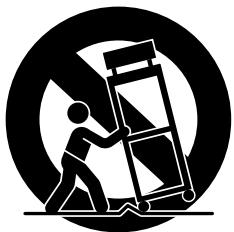
- Utilisez uniquement avec le chariot, le support, le trépied, la fixation ou la table spécifiés par le fabricant ou vendus avec l'appareil. Lorsqu'un chariot est utilisé, soyez prudent lors du déplacement de l'ensemble chariot/appareil pour éviter les blessures dues au basculement.
- Débranchez cet appareil pendant les orages ou lorsqu'il reste inutilisé pendant de longues périodes.
- Confiez toute réparation à un personnel qualifié. Une réparation est nécessaire lorsque l'appareil a été endommagé de quelque manière que ce soit, par exemple si le cordon d'alimentation ou la fiche est endommagé, si du liquide a été renversé ou si des objets sont tombés dans l'appareil, si l'appareil a été exposé à la pluie ou à l'humidité, s'il ne fonctionne pas normalement ou s'il est tombé.
L'appareil ne doit pas être exposé à des égouttements ou des éclaboussures et aucun objet rempli de liquide, tel qu'un vase, ne doit être placé sur l'appareil.
Le fait que le voyant d'alimentation soit éteint ne signifie pas que l'appareil est complètement déconnecté du secteur. Lorsque vous devez déconnecter complètement l'appareil du secteur, vous devez débrancher le cordon d'alimentation. À cette fin, placez l'appareil de manière à garantir un accès facile au cordon d'alimentation.
AVIS
Cet équipement a été testé et déclaré conforme aux limites d'un appareil numérique de classe B, conformément à la partie 15 des règles de la FCC. Ces limites sont conçues pour fournir une protection raisonnable contre les interférences nuisibles dans une installation résidentielle. Cet équipement génère, utilise et peut émettre de l'énergie radiofréquence et, s'il n'est pas installé et utilisé conformément aux instructions, peut provoquer des interférences nuisibles aux communications radio. Cependant, il n'y a aucune garantie que des interférences ne se produiront pas dans une installation particulière. Si cet équipement provoque des interférences nuisibles à la réception radio ou télévision, ce qui peut être déterminé en éteignant et en allumant l'équipement, l'utilisateur est encouragé à essayer de corriger les interférences par une ou plusieurs des mesures suivantes :
- Réorienter ou déplacer l'antenne de réception.
- Augmenter la distance entre l'équipement et le récepteur.
- Brancher l'équipement sur une prise située sur un circuit différent de celui auquel le récepteur est connecté.
- Consultez le revendeur ou un technicien radio/TV expérimenté pour obtenir de l'aide.
AVERTISSEMENT FCC
Des modifications non expressément approuvées par la partie responsable de la conformité pourraient annuler le droit de l'utilisateur à utiliser l'équipement.
Important !
Veuillez noter les informations importantes suivantes avant d'utiliser ce produit.
- Avant d'utiliser l'adaptateur AD-12 pour alimenter l'appareil, assurez-vous de vérifier d'abord l'adaptateur secteur pour tout dommage. Vérifiez soigneusement le cordon d'alimentation pour détecter toute rupture, coupure, fil exposé et autres dommages graves. Ne laissez jamais les enfants utiliser un adaptateur secteur gravement endommagé.
- Le produit n'est pas destiné aux enfants de moins de 3 ans.
- Utilisez uniquement l'adaptateur CASIO AD-12. L'adaptateur secteur n'est pas un jouet.
- Assurez-vous de débrancher l'adaptateur secteur avant de nettoyer le produit.
Cette marque s'applique uniquement aux pays de l'UE.

CASIO Europe GmbH Bornbarch 10, 22848 Norderstedt, Allemagne
Guide général E-2
Fixation du pupitre E-2
À propos du bouton FUNCTION. E-3
Touches de saisie numérique et touches + / - E-4
Lecture de tous les morceaux de démonstration E-4
Alimentation électrique E-4
Utilisation de l'adaptateur secteur E-4
Connexions E-5
Connexion d'un casque E-5
Connexion à un amplificateur audio ou d'instrument de musique E-5
Connexion à une prise PEDAL E-6
Jouer avec différents sons E-7
Sélection et lecture d'un son E-7
Sélection des sons principaux et des sons de variation E-7
Sélection d'un son avancé, d'un son GM ou d'un kit de batterie E-7
Réglage de la brillance d'un son E-8
Superposition de deux sons E-8
Attribution de différents sons aux côtés gauche et droit du clavier E-9
Utilisation des effets sonores E-10
Utilisation des pédales du piano. E-11
Jouer des rythmes......E-12
Utilisation de l'accompagnement automatique. E-13
Jouer des morceaux téléchargés depuis Internet .... E-16
S'entraîner sur un morceau E-17
Utilisation de la mémoire de registration .... E-18
Qu'est-ce que la mémoire de registration ? E-18
Enregistrement et lecture depuis la mémoire de morceaux .E-20
Enregistrement de votre jeu au clavier. E-21
Lecture depuis la mémoire de morceaux .E-22
Suppression des données de la mémoire de morceaux E-23
Autres réglages E-24
Réglage du volume de l'accompagnement .E-24
Changement de la sensibilité du clavier E-24
Changement de la tonalité du piano. E-25
Changer la hauteur du piano pour l'accorder avec un autre instrument E-25
Utilisation de la mémoire de configuration du piano numérique E-25
Utilisation du MIDI E-25
Enregistrement des données de chanson téléchargées depuis Internet E-26
Dépannage E-28
Spécifications E-29
Précautions d'utilisation ......E-30
Emplacement de l'appareil E-30
Entretien de l'appareil E-30
Pile au lithium E-30
Tableau des touches de réglage ....E-31
Annexe A-1
Liste des tonalités A-1
Liste des rythmes A-2
Liste d'affectation des percussions A-3
Tableau des accords avec doigtés. A-4
Tableau de mise en œuvre MIDI
Les noms de sociétés et de produits utilisés dans ce manuel peuvent être des marques déposées d'autres sociétés.
REMARQUE
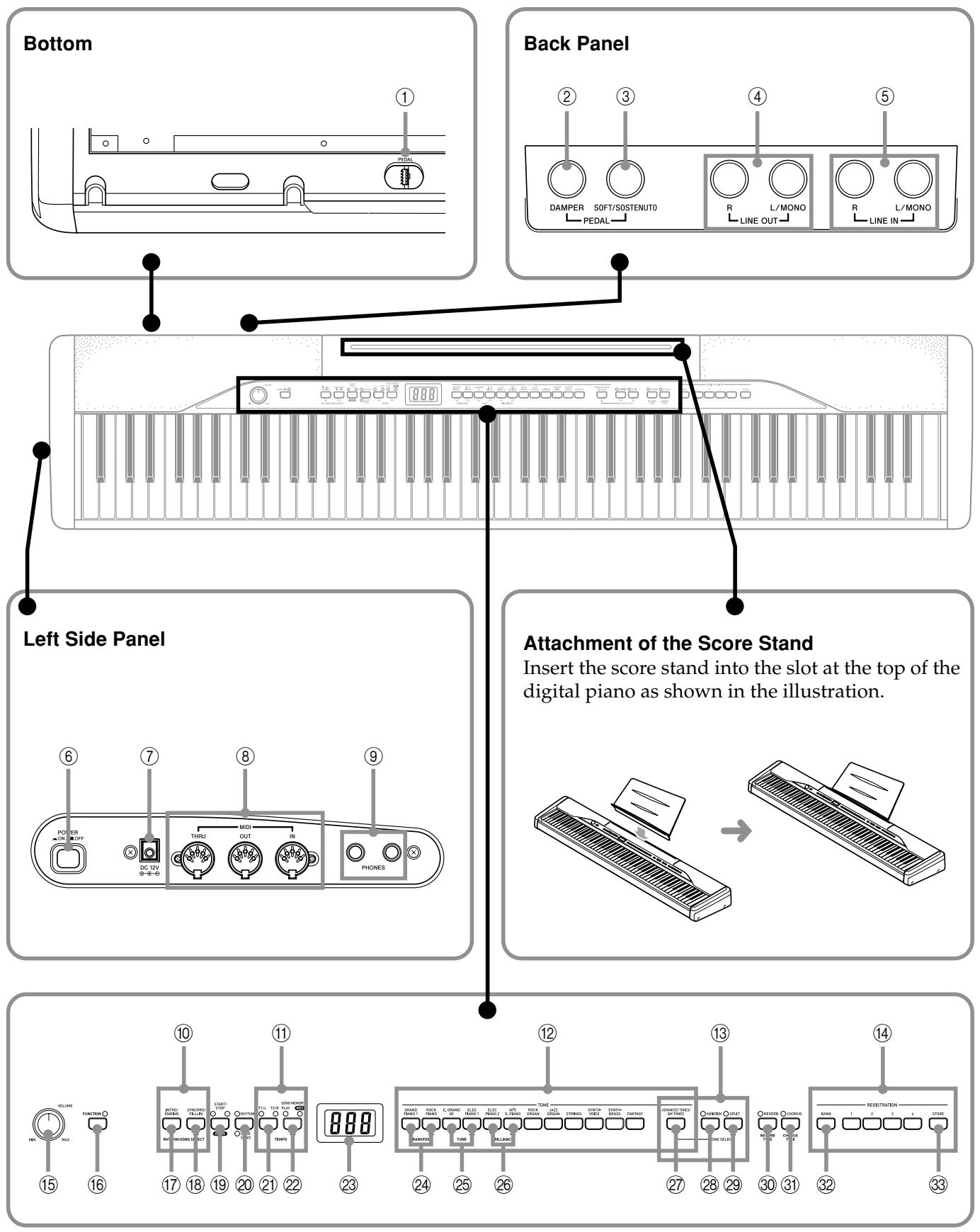
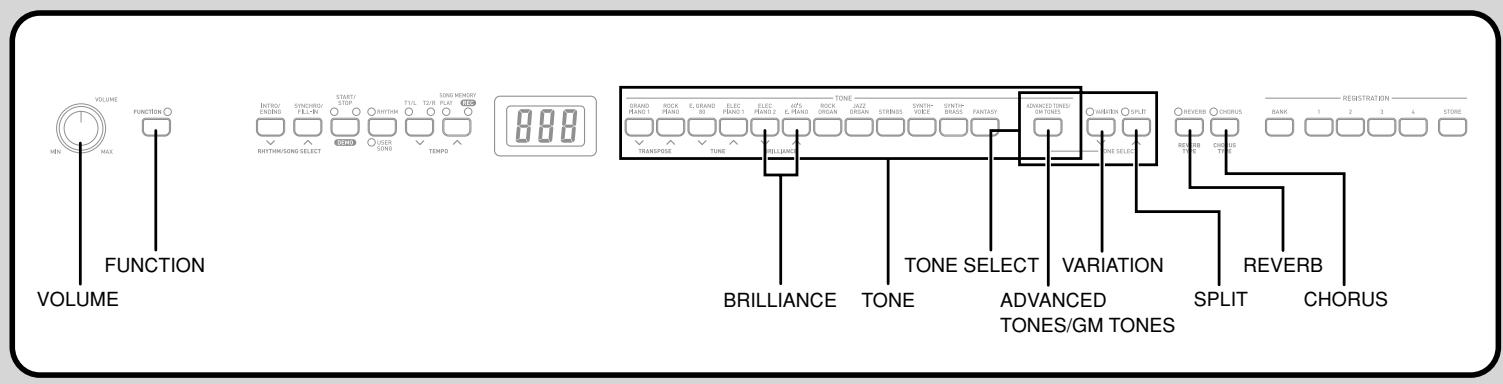
Chaque chapitre de ce manuel commence par une illustration de la console du piano, qui montre les boutons et autres commandes nécessaires.
① Connecteur PEDAL ② Prise DAMPER PEDAL ③ Prise SOFT/SOSTENUTO PEDAL Prises LINE OUT R, L/MONO Prises LINE IN R, L/MONO ⑥ Bouton POWER ⑦ Prise DC 12V ⑧ Bornes MIDI THRU/OUT/IN 9 Prises PHONES 10 Boutons RHYTHM/SONG SELECT ⑪ Boutons TEMPO Boutons TONE 13 Boutons TONE SELECT ⑭ Boutons REGISTRATION 15 Bouton VOLUME 16 Bouton FUNCTION Bouton INTRO/ENDING
18 Bouton SYNCHRO/FILL-IN 19 Bouton START/STOP, DEMO Bouton RHYTHM, USER SONG ② Bouton T1/L T2/R ② Bouton SONG MEMORY 23 Écran d'affichage ②4 Boutons TRANSPOSE 25 Boutons TUNE 26 Boutons BRILLIANCE 27 Bouton ADVANCED TONES/GM TONES 28 Bouton VARIATION 29 Bouton SPLIT 30 Bouton REVERB, REVERB TYPE ③ Bouton CHORUS, CHORUS TYPE Bouton BANK Bouton STORE
REMARQUE
- Les noms de touches, boutons et autres sont indiqués en gras dans le texte de ce manuel.
À propos du bouton FUNCTION
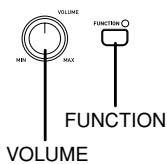
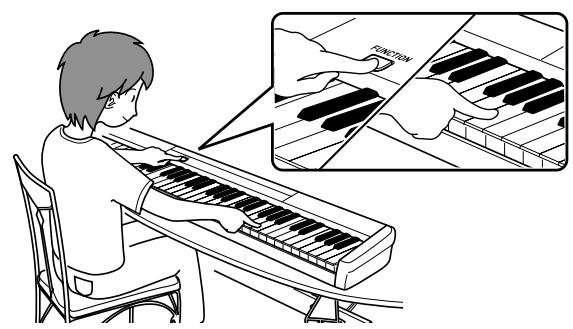
Le bouton FUNCTION permet d'effectuer diverses fonctions utiles. Notez les informations générales suivantes concernant l'utilisation du bouton FUNCTION.
- Un voyant au-dessus du bouton FUNCTION clignote lorsqu'il est enfoncé. Le voyant s'éteint lorsque vous relâchez le bouton FUNCTION.
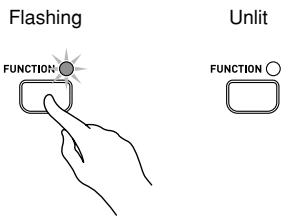
- Le bouton FUNCTION est toujours utilisé en combinaison avec un autre bouton ou une touche du clavier. Vous maintenez le bouton FUNCTION enfoncé tout en appuyant sur un autre bouton ou une touche.
- Le voyant au-dessus du bouton clignote rapidement pendant quelques secondes pour vous indiquer que le réglage est terminé. Exemple : "Réglage de la brillance d'une tonalité" à la page E-8
- Pour plus de détails sur toutes les fonctions des touches du clavier que vous pouvez exécuter avec le bouton FUNCTION, voir "Tableau des touches de contrôle" à la page E-31.
Touches de saisie numérique et touches +/-
- Pendant un moment après avoir maintenu le bouton FUNCTION enfoncé puis appuyé sur un autre bouton pour activer une fonction, vous pouvez utiliser certaines touches du clavier pour saisir des nombres ou pour augmenter (+) et diminuer (-) les valeurs de réglage.
- Comme les touches du clavier fonctionnent comme des interrupteurs à ce moment-là, les notes ne sonnent pas lorsque vous appuyez sur les touches du clavier.
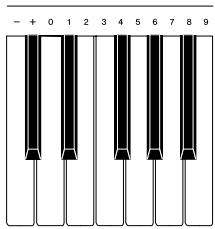
Voir "Pour régler le tempo" à la page E-12 pour un exemple concret.
Alimentation électrique
Vous pouvez alimenter ce piano numérique en le branchant sur une prise de courant domestique standard.
Assurez-vous d'éteindre l'appareil et de débrancher le cordon d'alimentation de la prise électrique lorsque le piano numérique n'est pas utilisé.
Utilisation de l'adaptateur secteur
Assurez-vous d'utiliser uniquement l'adaptateur secteur spécifié pour ce piano numérique.
Adaptateur secteur spécifié : AD-12
[Panneau latéral gauche]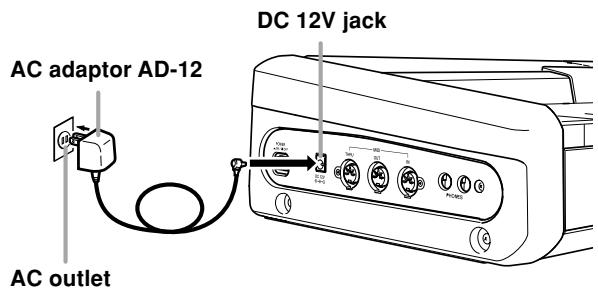
Lecture de tous les morceaux de démonstration
La procédure suivante permet de lire les morceaux de démonstration en séquence.
Tout en maintenant enfoncé le bouton FUNCTION, appuyez en même temps sur le bouton DEMO.
- La lecture séquentielle des morceaux de démonstration démarre.
- Vous pouvez jouer sur le clavier en même temps que les morceaux de démonstration, si vous le souhaitez. La tonalité assignée au clavier est celle qui est prédéfinie pour le morceau de démonstration en cours de lecture.
Appuyez à nouveau sur le bouton DEMO pour arrêter la lecture des morceaux de démonstration.
Respectez les précautions importantes suivantes pour éviter d'endommager le cordon d'alimentation.
- Pendant l'utilisation
- Ne tirez jamais sur le cordon avec une force excessive.
- Ne tirez jamais sur le cordon de manière répétée.
- Ne tordez jamais le cordon à la base de la prise ou du connecteur.
- Le cordon d'alimentation ne doit pas être tendu pendant son utilisation.
- Pendant le déplacement
- Avant de déplacer le clavier, assurez-vous de débrancher l'adaptateur secteur de la prise de courant.
- Pendant le stockage
- Enroulez et regroupez le cordon d'alimentation, mais ne l'enroulez jamais autour de l'adaptateur secteur.
IMPORTANT !
- Assurez-vous que le produit est éteint avant de brancher ou de débrancher l'adaptateur secteur.
- L'utilisation prolongée de l'adaptateur secteur peut le faire chauffer au toucher. Ce phénomène est normal et n'indique pas un dysfonctionnement.
IMPORTANT !
- Lorsque vous connectez un équipement externe, réglez d'abord le bouton VOLUME du piano numérique et le contrôle de volume de l'équipement externe sur des niveaux relativement bas. Vous pourrez ajuster le volume au niveau souhaité une fois les connexions terminées.
- Consultez également la documentation fournie avec l'équipement externe pour connaître les procédures de connexion appropriées.
Connexion du casque
Connectez un casque disponible dans le commerce aux prises PHONES du piano numérique. Cela coupe les haut-parleurs intégrés, ce qui vous permet de vous entraîner même tard le soir sans déranger les autres. Pour protéger votre audition, veillez à ne pas régler le volume trop haut lorsque vous utilisez un casque.
[Panneau latéral gauche]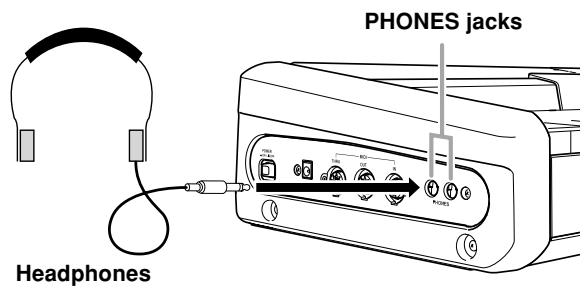
Connexion d'un amplificateur audio ou d'instrument de musique
La connexion à un amplificateur audio ou d'instrument de musique offre un son plus clair et plus puissant via des haut-parleurs externes.
3 Amplificateur de guitare, amplificateur de clavier, etc.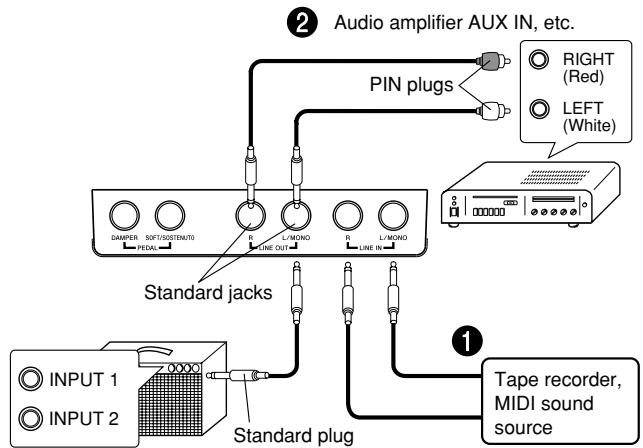
Lecture de la sortie d'un équipement externe via les haut-parleurs du piano ①
L'entrée LINE IN R est diffusée par le haut-parleur droit du piano, tandis que l'entrée LINE IN L/MONO est diffusée par le haut-parleur gauche. Si vous ne connectez que la prise LINE IN L/MONO, le même son est produit par les deux haut-parleurs. Il vous appartient d'acheter des câbles de connexion compatibles avec l'équipement que vous connectez.
Connexion à un équipement audio ②
Utilisez des câbles disponibles dans le commerce pour connecter l'équipement audio externe aux prises LINE OUT du piano, comme illustré sur la figure ②. La prise LINE OUT R émet le son du canal droit, tandis que la prise LINE OUT L/MONO émet le son du canal gauche. Il vous appartient d'acheter les câbles de connexion comme ceux montrés dans l'illustration pour la connexion de l'équipement audio. Normalement, dans cette configuration, vous devez régler le sélecteur d'entrée de l'équipement audio sur la borne (telle que AUX IN) à laquelle le piano est connecté. Utilisez le bouton VOLUME du piano pour régler le niveau sonore.
Connexion à un amplificateur d'instrument de musique ③
Utilisez des câbles disponibles dans le commerce pour connecter l'amplificateur aux prises LINE OUT du piano, comme illustré sur la figure ⑧. La prise LINE OUT R émet le son du canal droit, tandis que la prise LINE OUT L/MONO émet le son du canal gauche. La connexion à la prise LINE OUT L/MONO ne produit qu'un mélange des deux canaux. Il vous appartient d'acheter le câble de connexion comme celui montré dans l'illustration pour la connexion de l'amplificateur. Utilisez le bouton VOLUME du piano pour régler le niveau sonore.
Connexion à une prise PEDAL
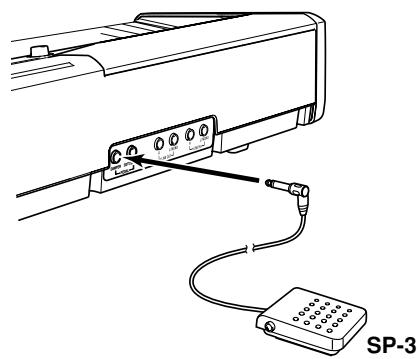
Selon le type de fonctionnement que vous souhaitez pour la pédale (SP-3), connectez le câble de la pédale à la prise PEDAL DAMPER ou à la prise PEDAL SOFT/SOSTENUTO du piano numérique. Si vous souhaitez utiliser les deux prises en même temps, vous devez acheter une autre pédale en option.
Voir « Utilisation des pédales du piano » à la page E-11 pour des informations sur l'utilisation d'une pédale.
[Panneau arrière]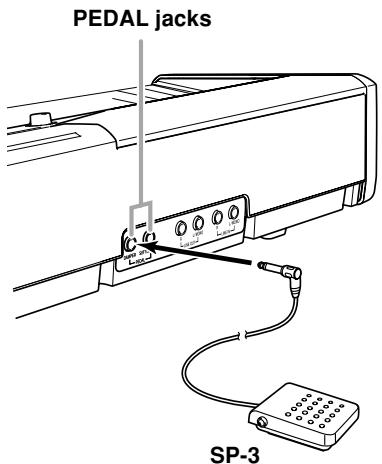
Connecteur PEDAL
Vous pouvez connecter l'unité de pédales en option (SP-30) au connecteur PEDAL. Vous pouvez alors utiliser les pédales pour une expression similaire à celle disponible sur un piano acoustique.
[Dessous]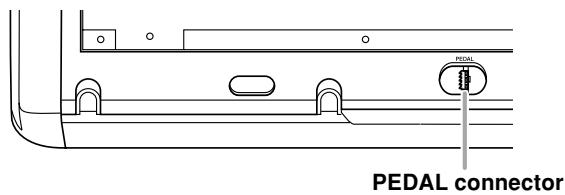
Accessoires et options
Utilisez uniquement les accessoires et options spécifiés pour ce piano numérique. L'utilisation d'articles non autorisés présente un risque d'incendie, de choc électrique et de blessure corporelle.
Sélection et lecture d'une sonorité
Votre piano dispose des types de sonorités intégrés suivants.
| Main Tones | 12 |
| Variation Tones | 12 |
| Advanced Tones | 40 |
| GM Tones | 128 |
| Drum Sets | 10 |
Sélection des sonorités principales et des sonorités de variation
Appuyez sur le bouton POWER.
Bouton POWER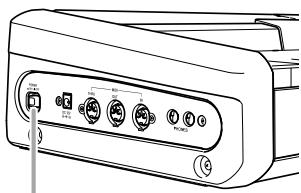
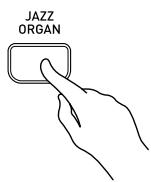
Utilisez le bouton VOLUME pour régler le niveau de volume. Appuyez sur l'un des 12 boutons TONE pour sélectionner le son souhaité.
- Les noms des sons principaux sont indiqués au-dessus des boutons TONE.
Exemple : Pour sélectionner JAZZ ORGAN
4 Appuyez sur le bouton VARIATION pour que le voyant au-dessus soit allumé.
- Ceci sélectionne le son de variation assigné à chaque bouton TONE. Exemple : CLAVI
- Pour plus d'informations sur la variation de tonalité assignée à chaque bouton, consultez la liste des tonalités à la page A-1.
5 Pour basculer entre la tonalité principale (voyant VARIATION éteint) et la tonalité de variation (voyant VARIATION allumé), appuyez sur le bouton VARIATION ou sur le bouton TONE.
REMARQUE
- Le changement de la tonalité principale, de la tonalité de variation ou de la sélection de tonalité avancée fait basculer automatiquement le DSP vers le réglage par défaut de la tonalité nouvellement sélectionnée. Cela peut interrompre momentanément toute note en cours de lecture. Le DSP sera réglé sur le réglage par défaut de la tonalité nouvellement sélectionnée lorsque la note reprendra. (*Voir page E-10)
Sélection d'une tonalité avancée, d'une tonalité GM ou d'un kit de batterie
Vous pouvez utiliser la procédure suivante pour assigner l'une des 40 tonalités avancées, 128 tonalités GM ou 10 kits de batterie du piano au bouton ADVANCED TONES/GM TONES.
Appuyez sur le bouton ADVANCED TONES/GM TONES.
- Cela sélectionne la tonalité actuellement assignée au bouton ADVANCED TONES/GM TONES.
- L'écran continue d'afficher le numéro de l'air ou du rythme.
Utilisez la liste des sons à la page A-1 pour trouver le numéro du son avancé, du son GM ou du kit de batterie souhaité.
Exemple : 008 (MARIMBA)
3 Tout en maintenant enfoncé le bouton FUNCTION, appuyez sur le bouton ADVANCED TONES/GM TONES. N'oubliez pas de maintenir le bouton FUNCTION enfoncé.
- Cela fait apparaître sur l'écran le numéro du son actuellement assigné au bouton ADVANCED TONES/GM TONES.
Exemple : 080 (GM VIOLON) /
4 Tout en maintenant enfoncé le bouton FUNCTION, utilisez les touches du clavier indiquées ci-dessous pour saisir le numéro du son que vous souhaitez assigner au bouton ADVANCED TONES/GM TONES.
Exemple : 008 (MARIMBA)
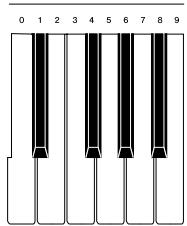
- Cela affiche le numéro du son assigné.
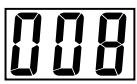
Après avoir saisi le numéro du son souhaité, relâchez le bouton FUNCTION pour quitter l'écran de réglage des sons GM.
REMARQUE
- Vous pouvez également sélectionner un son en maintenant enfoncé le bouton ADVANCED TONES/GM TONES tout en utilisant les boutons TONE SELECT [√] et [▲] pour faire défiler les numéros de sons sur l'écran.
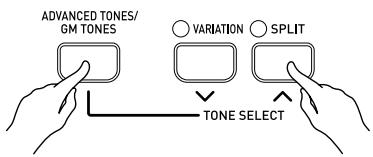
- Le son que vous assignez au bouton ADVANCED TONES/GM TONES est conservé jusqu'à ce que vous éteigniez le clavier.
- Si un kit de batterie est assigné au bouton ADVANCED TONES/GM TONES, les touches du clavier produisent des sons de batterie lorsque vous les enfoncez. Voir la page A-3 pour des informations sur les sons de batterie assignés à chacune des touches du clavier.
Sélection du son de variation du bouton ADVANCED TONES/GM TONES
Pour assigner une tonalité de variation au bouton ADVANCED TONES/GM TONES, effectuez les étapes décrites dans « Sélection d'une tonalité avancée, d'une tonalité GM ou d'un kit de batterie » à la page E-7. Après l'étape 1, appuyez toutefois sur le bouton VARIATION afin que le témoin au-dessus de ce bouton soit allumé.
- Après avoir assigné une tonalité comme tonalité de variation, vous pouvez la sélectionner en appuyant sur le bouton ADVANCED TONES/GM TONES.
Réglage de la brillance d'une tonalité
Vous pouvez régler la clarté et la netteté d'une tonalité pour l'adapter à votre musique et à vos préférences personnelles.
1. Tout en maintenant enfoncé le bouton FUNCTION, appuyez sur les boutons BRILLIANCE pour régler la brillance de la tonalité au niveau souhaité.
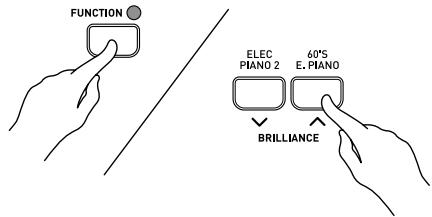
[V] : produit un son plus doux [Λ] : produit un son plus brillant
- Pour rétablir le réglage de brillance par défaut, maintenez enfoncé le bouton FUNCTION et appuyez simultanément sur les deux boutons BRILLIANCE.
Superposition de deux tonalités
Utilisez la procédure suivante pour superposer deux tonalités afin qu'elles sonnent en même temps.
Parmi les deux boutons TONE que vous enfoncez pour superposer deux tonalités, celui de gauche est la tonalité principale, tandis que celui de droite est la tonalité superposée.
PRÉPARATION
- Si vous prévoyez d'utiliser une tonalité de variation, effectuez la procédure de la page E-7 pour sélectionner la tonalité de variation pour le(s) bouton(s) TONE concerné(s) avant de commencer cette procédure.
Appuyez simultanément sur les boutons TONE des deux tonalités que vous souhaitez superposer.
Exemple : appuyez en même temps sur le bouton GRAND PIANO 1 et sur le bouton STRINGS.
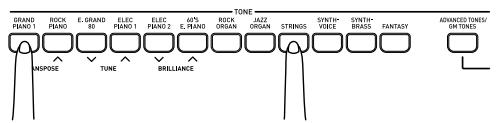
- Si la tonalité superposée est une tonalité de variation, le témoin au-dessus du bouton VARIATION s'allume.
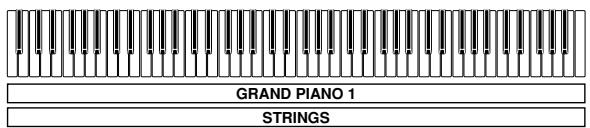
- Les tonalités sont maintenant superposées.
2 Après avoir fini d'utiliser les tonalités superposées, appuyez à nouveau sur l'un des boutons TONE pour les désuperposer.
REMARQUE
- Notez que vous ne pouvez pas superposer la tonalité principale et la tonalité de variation assignées au même bouton TONE.
Réglage de l'équilibre de volume entre deux tonalités superposées
Tout en maintenant enfoncé le bouton FUNCTION, utilisez les touches du clavier indiquées ci-dessous pour régler le volume des tonalités superposées.
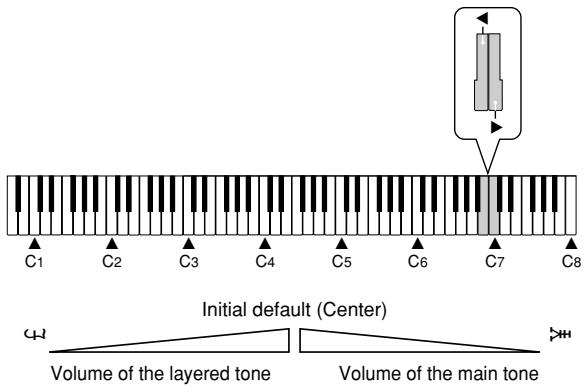
- Pour rétablir le réglage de volume par défaut, maintenez enfoncé le bouton FUNCTION et appuyez simultanément sur les deux touches.
Assignation de différentes tonalités aux côtés gauche et droit du clavier
Vous pouvez assigner différentes tonalités aux touches du côté gauche et du côté droit du clavier.

Appuyez sur le bouton TONE de la tonalité que vous souhaitez sélectionner pour la plage aiguë (droite). Exemple : GRAND PIANO 1. Appuyez sur le bouton SPLIT. - Cela allume le témoin SPLIT. Appuyez sur le bouton TONE de la tonalité que vous souhaitez sélectionner pour la plage grave (gauche). - Le clavier est maintenant divisé entre les deux tonalités. Exemple : STRING 4. Après avoir fini d'utiliser le clavier divisé, appuyez à nouveau sur le bouton SPLIT pour le réunifier. - Cela éteint le témoin SPLIT.
Spécification du point de partage du clavier pour les tonalités
Tout en maintenant enfoncé le bouton SPLIT, appuyez sur la touche du clavier où vous voulez que se trouve la limite gauche de la tonalité de la plage aiguë (droite).
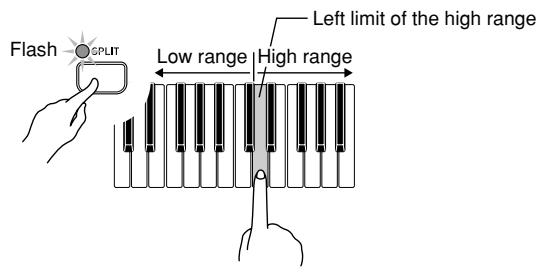
REMARQUE
- Le réglage du point de partage contrôle également le point où le clavier se divise entre le clavier d'accompagnement (pages E-14, 15) et le clavier de mélodie. Déplacer le point de partage affecte également la taille du clavier d'accompagnement et du clavier de mélodie.
Utilisation des effets de tonalité
Réverbération : fait résonner vos notes
Chœur : ajoute plus d'ampleur à vos notes
Activation et désactivation des effets
Chaque pression sur le bouton RÉVERB ou CHŒUR active ou désactive le réglage comme indiqué ci-dessous.
- Vous pouvez déterminer l'état des effets en vérifiant les voyants RÉVERB et CHŒUR.
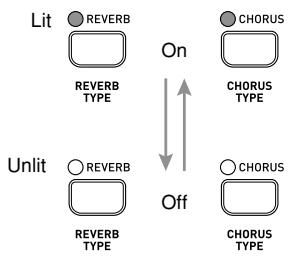
Changement du type d'effet
Il existe quatre types de réverbération et quatre types de chœur.
1 Activez l'effet que vous souhaitez modifier. 2 Tout en maintenant enfoncé le bouton FUNCTION, appuyez sur le bouton RÉVERB ou CHŒUR pour parcourir les réglages de type d'effet comme indiqué ci-dessous.
[Réverbération]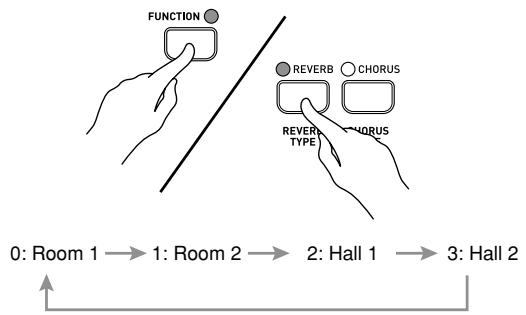
[Chœur]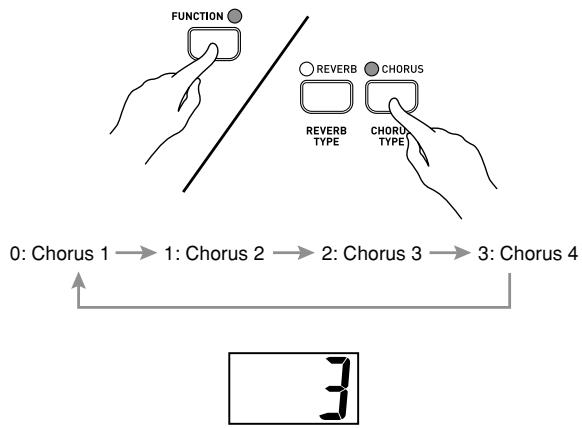
À propos du DSP
Le DSP permet de produire numériquement des effets acoustiques complexes.
Le DSP est assigné à chaque sonorité lorsque vous allumez le piano numérique.
Activation et désactivation du DSP
Tout en maintenant enfoncé le bouton FUNCTION, appuyez sur l'une des touches du clavier indiquées ci-dessous pour activer ou désactiver le DSP.
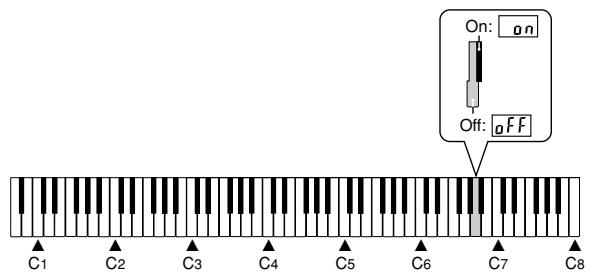
NOTE
- Avec les réglages par défaut, le DSP est activé pour le son principal, et les fonctions layer et split sont désactivées. Le DSP ne peut être appliqué qu'à une seule partie, comme indiqué ci-dessous.
| Main Tone | Layer Tone | Split Tone | |
| Initial Defaults | On | Off | Off |
| Layer Tone DSP On | Off | On | Off |
| Split Tone DSP On | Off | Off | On |
- Vous pouvez activer ou désactiver le chorus pour chaque partie : son principal, son de layer et son de split.
- Vous ne pouvez pas activer ou désactiver la réverbération pour chaque partie : son principal, son de layer et son de split.
Utilisation des pédales du piano
Le piano numérique est équipé de deux prises pour pédales : une pour la pédale de sustain et une pour la pédale douce ou sostenuto.
Fonctions des pédales
- Pédale de sustain
Appuyer sur la pédale de sustain pendant le jeu prolonge la résonance des notes jouées. Lorsque le son GRAND PIANO 1 est sélectionné, cette pédale produit une résonance similaire à celle d'un piano à queue acoustique.
- Pédale douce
Appuyer sur cette pédale pendant le jeu atténue les notes jouées après l'enfoncement de la pédale, produisant un son plus doux.
Pédale sostenuto
Seules les notes des touches enfoncées au moment où la pédale est pressée sont maintenues jusqu'à ce que la pédale soit relâchée.
Sélection de la fonction de la pédale
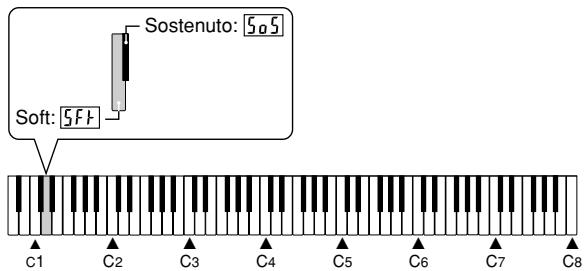
Une pédale connectée à la prise PEDAL du piano peut fonctionner comme pédale douce ou comme pédale sostenuto. Lorsque vous allumez le clavier, la pédale est configurée par défaut pour fonctionner comme pédale douce. Vous pouvez effectuer l'opération suivante pour choisir entre les fonctions douce et sostenuto.

Tout en maintenant enfoncé le bouton FUNCTION, utilisez les touches du clavier indiquées ci-dessous pour sélectionner soit doux, soit sustainuto.
Réglage de l'effet appliqué lorsque la pédale de sustain est enfoncée à mi-course (avec l'option SP-30 uniquement)
Vous pouvez spécifier dans quelle mesure l'effet de sustain doit être appliqué lorsque vous enfoncez la pédale de sustain à mi-course. Vous pouvez spécifier un réglage de 0 (aucun effet) à 42 (même effet qu'une pression complète).

Tout en maintenant enfoncé le bouton FUNCTION, appuyez sur l'une des touches du clavier indiquées ci-dessous pour spécifier le réglage souhaité.
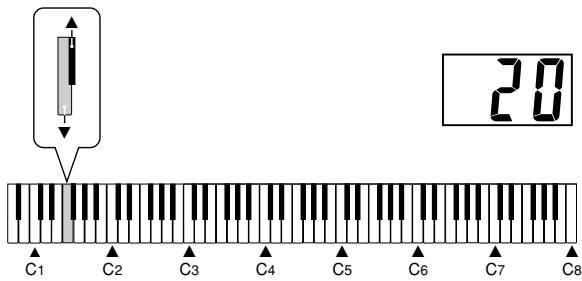
: Diminue l'effet : Augmente l'effet
- Pour ramener le réglage du volume à sa valeur par défaut, maintenez enfoncé le bouton FUNCTION et appuyez simultanément sur les deux touches.
Vous pouvez choisir parmi 120 rythmes intégrés. Les rythmes 0 à 109 incluent des sons de percussions, mais les rythmes 110 à 119 n'en incluent pas. Voir la page suivante pour des informations sur l'utilisation des rythmes 110 à 119.
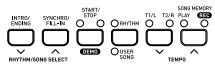
Appuyez sur le bouton RHYTHM pour que le témoin RHYTHM (au-dessus du bouton) soit allumé.
Chaque pression sur le bouton fait basculer entre le témoin supérieur et le témoin inférieur.
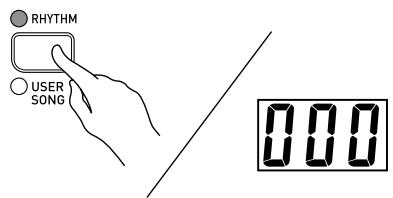
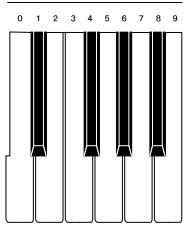
2 Tout en maintenant enfoncé le bouton FUNCTION, utilisez les touches du clavier indiquées ci-dessous pour saisir un numéro de rythme.
- Si vous souhaitez que votre rythme d'accompagnement inclue des sons de percussions, sélectionnez un rythme dans la plage de 0 à 109.
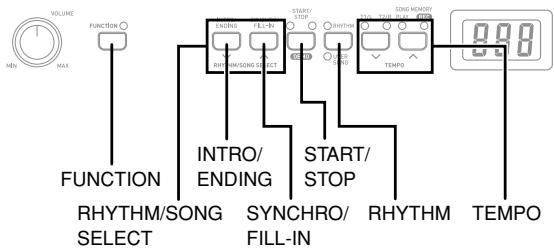
Appuyez sur le bouton START/STOP.
- Cela démarre le rythme.
4 Appuyez à nouveau sur le bouton START/STOP pour arrêter le rythme.
REMARQUE
- Vous pouvez également faire défiler les rythmes disponibles à l'étape 2 en maintenant enfoncé le bouton FUNCTION et en appuyant sur le bouton RHYTHM/SONG SELECT [√] ou [▲].
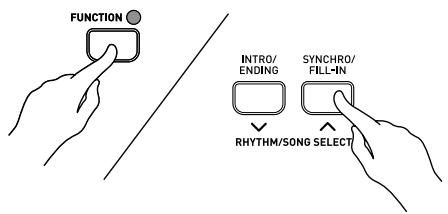
- Appuyer simultanément sur les deux boutons RHYTHM/SONG SELECT sélectionne le rythme 0.
Pour régler le tempo
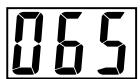
Tout en maintenant enfoncé le bouton FUNCTION, utilisez les boutons TEMPO [√] et [A] pour modifier le tempo (vitesse).
- Pour revenir au réglage de tempo standard, appuyez simultanément sur les boutons TEMPO [√] et [▲].
REMARQUE
- Vous pouvez également utiliser les touches du clavier pour modifier le réglage du tempo.
(1) Tout en maintenant enfoncé le bouton FUNCTION, appuyez sur le bouton TEMPO. (2) Tout en maintenant le bouton FUNCTION enfoncé, utilisez les touches du clavier indiquées ci-dessous pour saisir un nombre.
* Plage de tempo : 30 à 255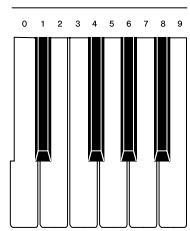

Utilisation de l'accompagnement automatique
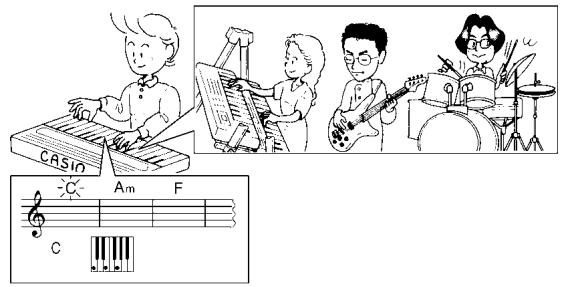
Avec l'accompagnement automatique, le clavier joue automatiquement les parties de rythme, de basse et d'accords en fonction des accords que vous sélectionnez à l'aide de doigtés simplifiés ou que vous jouez. L'accompagnement automatique donne l'impression d'avoir votre propre groupe d'accompagnement privé avec vous en permanence.
REMARQUE
- Les rythmes 110 à 119 sont constitués uniquement d'accompagnements d'accords, sans batterie ni autres instruments de percussion. Ces rythmes ne sonnent pas à moins que CASIO CHORD, FINGERED ou FULL RANGE CHORD ne soit sélectionné comme mode d'accompagnement. Avec de tels rythmes, assurez-vous que CASIO CHORD, FINGERED ou FULL RANGE CHORD est sélectionné avant d'essayer de jouer des accords.
Pour jouer avec l'accompagnement automatique
PRÉPARATION
- Sélectionnez le rythme que vous souhaitez utiliser et réglez le tempo.

Sélectionnez l'un des trois modes d'accords (MODE).
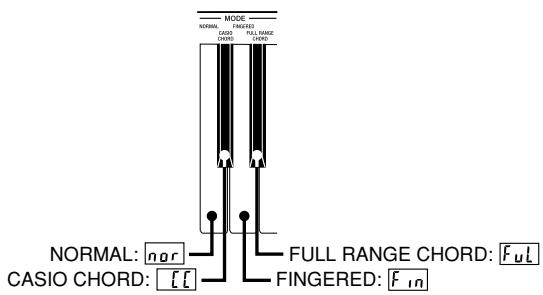
Ici, nous allons sélectionner le mode CASIO CHORD. Voir page E-14 pour des informations sur la façon d'utiliser les modes d'accords.

Appuyez sur le bouton SYNCHRO/FILL-IN.
- Ceci configure le piano pour que le rythme et l'accompagnement d'accords démarrent automatiquement lorsque vous appuyez sur n'importe quelle touche dans la plage du clavier d'accompagnement.

Appuyez sur le bouton INTRO/ENDING.
- Ceci configure le piano pour que l'accompagnement commence par un motif d'introduction.
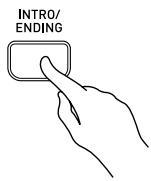

Utilisez un doigté CASIO CHORD pour jouer le premier accord dans la plage du clavier d'accompagnement.
- Cela déclenchera la lecture du motif d'introduction du rythme sélectionné, suivi du rythme d'accompagnement automatique et du motif d'accords.

Utilisez des doigtés CASIO CHORD pour jouer d'autres accords.
- Voir "Comment jouer des accords" à la page E-14 pour des informations sur la façon de doigter les accords avec les différents modes d'accords.
- Vous pouvez insérer un motif de remplissage pendant que l'accompagnement automatique joue en appuyant sur le bouton SYNCHRO/FILL-IN. Un remplissage aide à changer l'ambiance du motif d'accompagnement automatique.

Pour arrêter la lecture de l'accompagnement automatique, appuyez sur le bouton INTRO/ENDING.
- Cela jouera un motif de fin pour le rythme sélectionné avant d'arrêter la lecture de l'accompagnement automatique.
REMARQUE
- Vous pouvez démarrer ou arrêter la lecture de l'accompagnement automatique sans introduction ni finale en appuyant sur le bouton START/STOP aux étapes 3 et 6.
- Vous pouvez régler le volume de l'accompagnement automatique. Pour plus d'informations, voir "Réglage du volume de l'accompagnement" à la page E-24.
Comment jouer des accords
La manière de doigter les accords dépend du mode d'accords actuel.
■ Normal
Dans ce mode, il n'y a pas d'accompagnement automatique, vous pouvez donc jouer toutes les touches du piano pour des accords à doigté standard ou des notes de mélodie.
CASIO CHORD
Cette méthode de jeu d'accords permet à tout le monde de jouer facilement des accords, quelle que soit sa connaissance ou son expérience musicale. Ce qui suit décrit le "clavier d'accompagnement" et le "clavier de mélodie" CASIO CHORD, et explique comment jouer des accords CASIO CHORD.
Clavier d'accompagnement et clavier de mélodie CASIO CHORD
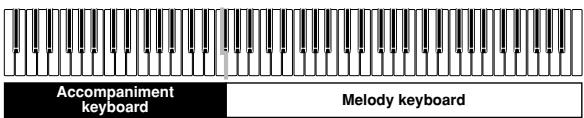
IMPORTANT !
- Le clavier d'accompagnement ne peut être utilisé que pour jouer des accords. Aucun son ne sera produit si vous essayez de jouer des notes de mélodie simples sur le clavier d'accompagnement.
- Le point de partage (page E-9) est le point qui sépare la zone d'accompagnement automatique et la zone de mélodie du clavier. Vous pouvez modifier l'emplacement du point de partage, ce qui modifie également la taille des zones du clavier.
Types d'accords
L'accompagnement CASIO CHORD vous permet de jouer quatre types d'accords avec un doigté minimal.
| Chord Types | Example |
| Major chords Press one accompaniment key. Note that the chord produced when you press an accompaniment keyboard key does not change octave, regardless of which key you use to play it. | C Major (C) JOYCE FERMAAB BCCODE E |
| Minor chords (m) To play a minor chord, keep the major chord key depressed and press any other accompaniment keyboard key located to the right of the major chord key. | C minor (Cm) JOYCE FERMAAB BCCODE E |
| Seventh chords (7) To play a seventh chord, keep the major chord key depressed and press any other two accompaniment keyboard keys located to the right of the major chord key. | C seventh (C7) JOYCE FERMAAB BCCODE E |
| Minor seventh chords (m7) To play a minor seventh chord, keep the major chord key depressed and press any other three accompaniment keyboard keys located to the right of the major chord key. | C minor seventh (Cm7) JOYCE FERMAAB BCCODE E |
REMARQUE
- Peu importe que vous appuyiez sur des touches blanches ou noires à droite d'une touche d'accord majeur lorsque vous jouez des accords mineurs et de septième.
DOIGTÉ
Dans ce mode, vous spécifiez les accords en les jouant comme sur un piano, dans la plage du clavier d'accompagnement. Pour spécifier un accord de do, vous joueriez do-mi-sol.
Clavier d'accompagnement DOIGTÉ et clavier de mélodie
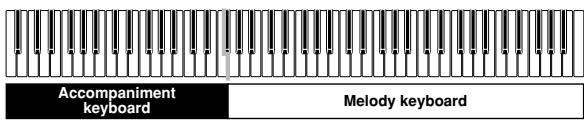
IMPORTANT !
- Le clavier d'accompagnement ne peut être utilisé que pour jouer des accords. Aucun son ne sera produit si vous essayez de jouer des notes de mélodie simples sur le clavier d'accompagnement.
- Le point de partage (page E-9) est le point qui sépare la zone d'accompagnement automatique et la zone de mélodie du clavier. Vous pouvez modifier l'emplacement du point de partage, ce qui modifie également la taille des zones du clavier.
Do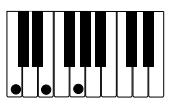
Do mineur
Do diminué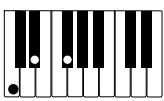
Do augmenté *1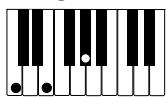
Do suspendu 4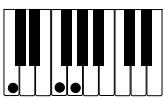
Do septième *2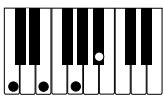
Do mineur septième *2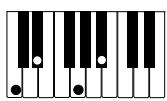
Do majeur septième *2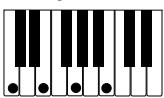
Cm7b5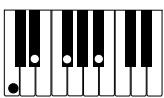
C75*1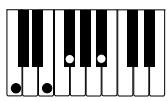
C7sus4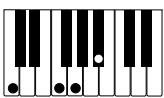
Cadd9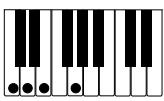
Cmadd9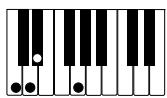
CmM7*2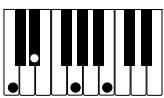
Cdim7*1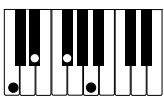
NOTE
- Voir le "Tableau des accords avec doigtés" à la page A-4 pour plus de détails sur la façon de jouer des accords avec d'autres fondamentales.
1 : Les doigtés inversés ne peuvent pas être utilisés. La note la plus basse est la fondamentale. 2 : Le même accord peut être joué sans appuyer sur la 5e (sol).
NOTE
Sauf pour les accords spécifiés dans la note *1 ci-dessus, les doigtés inversés (c'est-à-dire jouer mi-sol-do ou sol-do-mi au lieu de do-mi-sol) produiront les mêmes accords que le doigté standard. Sauf pour l'exception spécifiée dans la note *2 ci-dessus, toutes les touches qui composent un accord doivent être enfoncées. Si vous n'appuyez pas sur une seule touche, l'accord FINGERED souhaité ne sera pas joué.
■ ACCORD PLEINE PORTÉE
Cette méthode d'accompagnement permet de jouer un total de 38 variations d'accords : les 15 disponibles avec FINGERED plus 23 variations supplémentaires. Le clavier interprète toute saisie de trois touches ou plus qui correspond à un motif d'accord PLEINE PORTÉE comme étant un accord. Toute saisie multi-touches qui n'est pas un motif d'accord PLEINE PORTÉE est interprétée comme un jeu de mélodie. De ce fait, il n'y a pas besoin d'un clavier d'accompagnement séparé, et tout le clavier, d'un bout à l'autre, peut être utilisé à la fois pour la mélodie et les accords.
Clavier d'accompagnement et clavier de mélodie pour accord PLEINE PORTÉE

Accords reconnus par ce piano
Le tableau suivant identifie les motifs reconnus comme accords par FULL RANGE CHORD.
| Pattern Type | Number of Chord Variations |
| FINGERED | The 15 chord patterns shown under "FINGERED" on page E-14. |
| Standard Fingerings | 23 standard chord fingerings. The following are examples of the 23 chords available with C as the bass note. C6·Cm6·C69 Db/C DcE F G A b C B B C Dbm C Dm Fm Gm Am B m Ddim C Ab7 F7 Fm7 Gm7 A badd9 C C C C C C |
Exemple : Pour jouer l'accord de do majeur et C/E .
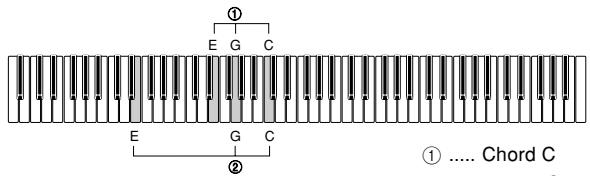
① ....Accord C ②....Accord C
REMARQUE
- S'il y a plus de six demi-tons entre la note la plus basse et la note suivante à droite, la note la plus basse est interprétée comme une note de basse.
Lecture de morceaux téléchargés depuis Internet
Vous pouvez enregistrer les données musicales de jusqu'à 10 morceaux téléchargés depuis Internet dans la zone de chansons utilisateur du piano numérique (n° 0 à 9). Une fois que vous avez stocké un morceau dans la mémoire du piano numérique, vous pouvez le lire en suivant la procédure ci-dessous.

Appuyez sur le bouton USER SONG pour que le témoin USER SONG (sous le bouton) soit allumé.
Chaque pression sur le bouton alterne entre le témoin supérieur et le témoin inférieur.

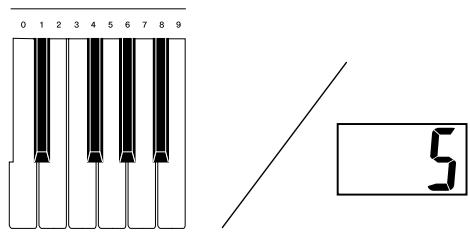
Tout en maintenant enfoncé le bouton FUNCTION, appuyez sur les touches du clavier indiquées ci-dessous pour saisir un numéro de morceau.

Appuyez sur le bouton START/STOP.
- Cela démarre la lecture du morceau.

Appuyez à nouveau sur le bouton START/STOP pour arrêter la lecture du morceau.
REMARQUE
- Vous pouvez également parcourir les morceaux disponibles à l'étape 2 en maintenant enfoncé le bouton FUNCTION et en appuyant sur le bouton RHYTHM/SONG SELECT [√] ou [▲].
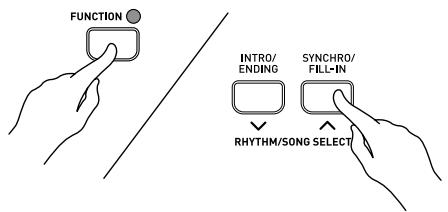
- Appuyer simultanément sur les deux boutons RHYTHM/SONG SELECT sélectionne le morceau 0.
- Vous ne pouvez pas utiliser le layer ou le split pendant la lecture d'un morceau.
SONG SELECT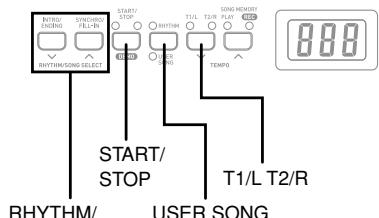

Pratiquer un morceau
Vous pouvez désactiver la partie de main gauche ou la partie de main droite du morceau utilisateur et jouer vous-même cette partie sur le piano numérique. Avec les données de morceau, la partie de main gauche est assignée au canal MIDI 3, tandis que la partie de main droite est assignée au canal MIDI 4.
PRÉPARATION
- Sélectionnez le morceau que vous voulez pratiquer et ajustez le tempo (voir « Pour ajuster le tempo » à la page E-12).
- Le réglage de tempo maximal pour chaque morceau est le double du tempo par défaut initial du morceau.
- Un certain nombre de morceaux comportent des changements de tempo en cours de route afin de produire des effets musicaux spécifiques.
1 Utilisez le bouton T1/L T2/R pour activer ou désactiver les parties. - Les voyants au-dessus du bouton indiquent l'état actif/inactif actuel des parties.
Appuyez sur le bouton START/STOP. - Cela démarre la lecture du morceau, sans la partie que vous avez sélectionnée à l'étape 1.
3 Jouez la partie manquante sur le clavier du piano. 4 Appuyez à nouveau sur le bouton START/STOP pour arrêter la lecture du morceau.
Qu'est-ce que la mémoire de registration ?
La mémoire de registration vous permet de sauvegarder jusqu'à 32 configurations du piano numérique (sonorité, rythme, tempo, etc.) pour les rappeler instantanément quand vous en avez besoin.
Données de configuration de la mémoire d'enregistrement
Voici les réglages qui peuvent être enregistrés pour chaque configuration de mémoire d'enregistrement.
- Tonalité Rythme
- Tempo
- Réglage de calque
- Réglage de partage
- Point de partage Réglage d'effet Réglage DSP
- Réglage de brillance
- Volume d'accompagnement
- Réglage de transposition
- Réglage de fonction de pédale
- Réglage de pédale de sustain
- Réglage du bouton SYNCHRO/FILL-IN
- Réglage MODE
NOTE
- Tous les bancs de mémoire d'enregistrement sont préréglés avec des données par défaut.
- Les fonctions de mémoire d'enregistrement sont désactivées lorsque vous utilisez la chanson utilisateur, la mémoire de chanson ou la fonction de démonstration.
Comment la mémoire d'enregistrement organise ses données
La mémoire d'enregistrement comporte quatre banques, et chaque banque contient quatre zones. Utilisez le bouton BANK pour sélectionner une banque, et les boutons REGISTRATION pour sélectionner une zone.
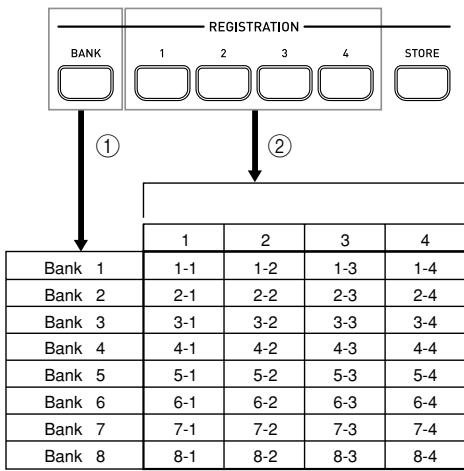
① Chaque pression sur le bouton BANK fait défiler les numéros de banque, de 1 à 8. (2) Appuyer sur un bouton REGISTRATION (1 à 4) sélectionne la zone correspondante dans la banque actuellement sélectionnée.
REMARQUE
- Le stockage d'une nouvelle configuration dans une zone de mémoire d'enregistrement remplace la configuration qui y était précédemment stockée.
Pour stocker une configuration dans la mémoire d'enregistrement
Sur le piano numérique, configurez le son, le rythme et les autres réglages que vous souhaitez enregistrer comme configuration.
- Voir "Données de configuration de la mémoire d'enregistrement" (page E-18) pour plus d'informations.
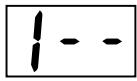
Utilisez le bouton BANK pour sélectionner la banque de mémoire d'enregistrement où vous souhaitez enregistrer la configuration.
- Cela fait apparaître le numéro de la banque sélectionnée sur l'écran pendant environ deux secondes. Si vous n'effectuez pas l'étape suivante dans ce délai, l'écran de sélection de banque disparaîtra.
Exemple : Banque 1 sélectionnée
AVERTISSEMENT
- L'étape suivante remplacera la configuration actuellement dans la zone que vous sélectionnez par la nouvelle configuration. Assurez-vous de ne pas avoir besoin de la configuration actuelle avant d'effectuer l'étape suivante.
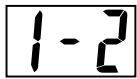
3 Tout en maintenant enfoncé le bouton STORE, appuyez sur le bouton REGISTRATION (1 à 4) correspondant à la zone où vous souhaitez stocker la configuration.
- Vous pouvez également changer la sélection de banque à ce moment en appuyant sur le bouton BANK tout en maintenant enfoncé le bouton STORE.
Exemple : après avoir appuyé sur le bouton 2
4 Relâchez les boutons REGISTRATION et STORE.
Pour rappeler une configuration depuis la mémoire d'enregistrement
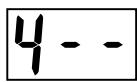
1 Utilisez le bouton BANK pour sélectionner la banque de mémoire d'enregistrement qui contient la configuration que vous souhaitez rappeler.
- Cela fait apparaître le numéro de la banque sélectionnée sur l'écran pendant environ deux secondes. Si vous n'effectuez pas l'étape suivante dans ce délai, l'écran de sélection de banque disparaîtra.
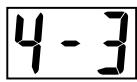
Appuyez sur le bouton REGISTRATION (1 à 4) pour la zone qui contient la configuration que vous souhaitez rappeler.
REMARQUE
- Si vous appuyez sur un bouton REGISTRATION sans avoir sélectionné de banque au préalable, le piano numérique rappellera la configuration de la zone correspondante dans la banque que vous avez sélectionnée précédemment.
Le contenu de la mémoire d'enregistrement est conservé même lorsque vous éteignez le piano numérique (page F-25).
Enregistrement et lecture depuis la mémoire de morceaux
Vous pouvez stocker les notes que vous jouez dans la mémoire de morceaux pour les lire plus tard.
REMARQUE
- Vous ne pouvez pas utiliser le layer ou le split avec l'opération d'enregistrement en mémoire de morceaux.
Pistes
La mémoire de morceaux de ce piano enregistre et rejoue les notes comme un magnétophone standard. Il y a deux pistes, chacune pouvant être enregistrée séparément. Outre les notes, chaque piste peut se voir attribuer son propre numéro de sonorité. Pendant la lecture, vous pouvez ajuster le tempo pour modifier la vitesse de lecture.
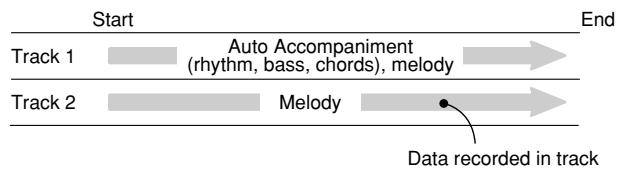
Capacité de la mémoire de morceaux
- Vous pouvez stocker un total d'environ 10 000 notes (piste 1 + piste 2) dans la mémoire de morceaux.
- L'enregistrement s'arrête automatiquement si le nombre de notes dans la mémoire de morceaux dépasse le maximum pendant l'enregistrement. Ceci est indiqué par l'extinction du témoin REC.
Autres données de la mémoire de morceaux
Les données suivantes sont incluses lors de l'enregistrement dans la mémoire de morceaux : jeu au clavier, sonorité sélectionnée, réglage du tempo (piste 1 uniquement), opérations de pédale, réglages de réverbération et de chorus, réglage d'activation/désactivation du DSP, réglage de brillance, réglage du volume d'accompagnement, rythme sélectionné (piste 1 uniquement), mode d'accords (piste 1 uniquement), et contrôle d'intro/remplissage/fin (piste 1 uniquement).
Stockage des données enregistrées
Ce piano numérique est équipé d'une batterie au lithium pour alimenter la mémoire et conserver son contenu même lorsque l'appareil est éteint.* La durée de vie de la batterie au lithium est de cinq ans à compter de la date de fabrication du piano numérique. Assurez-vous de contacter votre prestataire de services CASIO pour faire remplacer la batterie au lithium tous les cinq ans.
- Ne coupez jamais l'alimentation du piano pendant qu'une opération d'enregistrement est en cours.
IMPORTANT !
- Si les données enregistrées sur une seule piste utilisent toute la capacité disponible de la mémoire de morceaux, vous ne pourrez rien enregistrer sur l'autre piste.
- L'enregistrement de nouvelles données sur une piste supprime automatiquement toutes les données précédemment stockées sur cette piste.
- Couper l'alimentation pendant une opération d'enregistrement supprime tout ce qui a été enregistré jusqu'à ce point.
- CASIO COMPUTER CO., LTD. ne pourra être tenu responsable des pertes subies par vous ou par un tiers en raison de la perte de données causée par un dysfonctionnement ou une réparation de ce piano numérique, ou par le remplacement de la batterie.
Fonctionnement du bouton SONG MEMORY
Chaque pression sur le bouton SONG MEMORY fait défiler les fonctions indiquées ci-dessous.
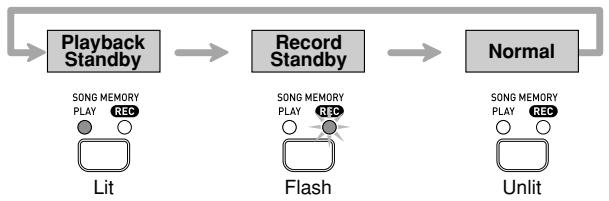

Enregistrement de votre jeu au clavier
Vous pouvez enregistrer sur l'une ou l'autre piste, avec ou sans lecture de l'autre piste.
Pour enregistrer sur une piste sans lire l'autre
Lorsque vous enregistrez un morceau différent sur la piste 2 après avoir enregistré sur la piste 1, assurez-vous de lire attentivement les notes sous les étapes 1 et 2 avant d'exécuter réellement les étapes.

Appuyez sur le bouton SONG MEMORY pour que le témoin PLAY soit allumé.
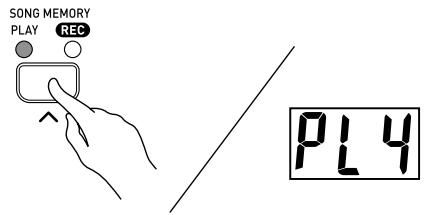
- Sélectionnez la tonalité et les effets que vous souhaitez utiliser pour votre enregistrement, puis configurez les réglages de tempo.
REMARQUE
- Si vous enregistrez un morceau différent sur la piste 2 après avoir enregistré sur la piste 1, appuyez sur le bouton T1/L T2/R pour éteindre le témoin TRACK 1/LEFT.
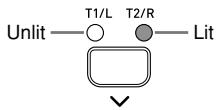

Appuyez sur le bouton SONG MEMORY pour que le témoin REC clignote.
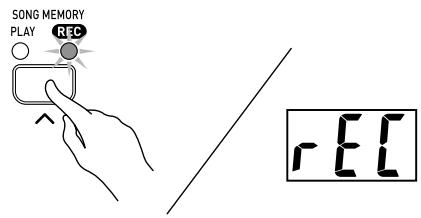
- À ce moment, le témoin TRACK 1/LEFT doit également clignoter. Cela indique que le piano est en attente d'enregistrement sur la piste 1.
REMARQUE
- Si vous souhaitez enregistrer sur la piste 2, appuyez ici sur le bouton T1/L T2/R. Cela fera clignoter le témoin TRACK2/RIGHT, indiquant que le piano est en attente d'enregistrement sur la piste 2.
- Si vous souhaitez utiliser un rythme et/ou un accompagnement automatique pendant l'enregistrement (sur la piste 1 uniquement), sélectionnez le rythme et le mode d'accords.

Commencez à jouer quelque chose sur le clavier.
- Cela démarrera automatiquement l'enregistrement.
- En fait, il existe différentes façons de démarrer l'opération d'enregistrement. Voir "Démarrage de l'opération d'enregistrement" ci-dessous pour plus d'informations.

Lorsque vous avez terminé, appuyez sur le bouton START/STOP pour arrêter l'enregistrement.
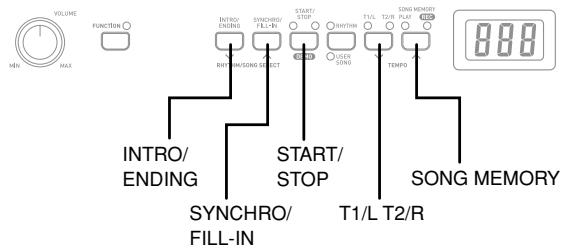
- Si vous utilisez un rythme, vous pouvez arrêter l'enregistrement avec un motif de fin en appuyant sur le bouton INTRO/ENDING.
- L'arrêt de l'enregistrement éteint le témoin REC, et le témoin au-dessus du bouton de la piste sur laquelle vous avez enregistré s'allume.
- Pour lire la piste que vous venez d'enregistrer, appuyez à nouveau sur le bouton START/STOP.

Après avoir terminé l'enregistrement ou la lecture, appuyez sur le bouton SONG MEMORY pour que le témoin PLAY ou REC s'éteigne.
Démarrage de l'opération d'enregistrement
Vous pouvez utiliser l'une des méthodes suivantes pour démarrer une opération d'enregistrement à l'étape 2 de la procédure ci-dessus.
■ Lors de l'enregistrement sur la piste 1 avec rythme ou accompagnement automatique
- Appuyez sur le bouton START/STOP pour démarrer l'enregistrement.
- Appuyez sur le bouton SYNCHRO/FILL-IN pour mettre le piano en mode d'attente de démarrage synchronisé. L'enregistrement démarrera lorsque vous jouerez un accord dans la plage d'accompagnement du clavier.
- Appuyez sur le bouton INTRO/ENDING pour mettre le piano en mode d'attente de démarrage synchronisé. L'enregistrement commencera et un motif d'introduction sera joué lorsque vous jouerez un accord dans la plage d'accompagnement du clavier.
■ Lors de l'enregistrement sur la piste 1 sans rythme ni accompagnement automatique - L'enregistrement commencera dès que vous jouerez quelque chose sur le clavier. Lors de l'enregistrement sur la piste 2 - Appuyez sur le bouton START/STOP ou jouez quelque chose sur le clavier pour démarrer l'enregistrement.
Pour enregistrer sur une piste tout en lisant l'autre
Après avoir terminé l'enregistrement, vous pouvez lire les pistes 1 et 2 en même temps.
Exemple : Pour enregistrer sur la piste 2 tout en lisant le contenu de la piste 1
Appuyez sur le bouton SONG MEMORY pour que le témoin PLAY soit allumé.
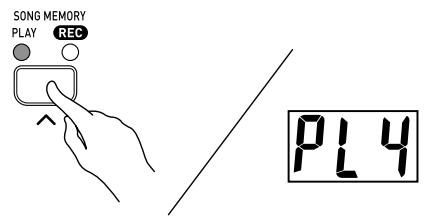
- Sélectionnez le son et les effets que vous souhaitez utiliser pendant l'enregistrement.
Appuyez sur le bouton T1/L T2/R pour que le témoin TRACK 1/LEFT soit allumé.
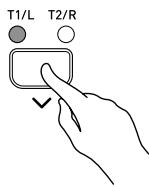
Appuyez à nouveau sur le bouton SONG MEMORY.
- Cela fait clignoter le témoin TRACK 1/LEFT. Appuyez sur le bouton T1/L T2/R pour faire clignoter le témoin TRACK 2/RIGHT, ce qui indique que le piano est en attente d'enregistrement sur la piste 2. 4 Appuyez sur le bouton START/STOP ou jouez quelque chose sur le clavier pour démarrer la lecture simultanée de la piste 1 et l'enregistrement sur la piste 2. Lorsque vous avez terminé, appuyez à nouveau sur le bouton START/STOP pour arrêter l'enregistrement.
Lecture depuis la mémoire de chansons
Appuyez sur le bouton SONG MEMORY pour que le témoin PLAY soit allumé.

Utilisez le bouton T1/L T2/R pour sélectionner la piste que vous souhaitez lire.
- Les témoins au-dessus du bouton indiquent la piste actuellement sélectionnée.
- Pour lire la piste 1, le témoin TRACK 1/LEFT doit être allumé.
- Pour lire la piste 2, le témoin TRACK 2/RIGHT doit être allumé.
- Pour lire les pistes 1 et 2, les deux témoins doivent être allumés.
Appuyez sur le bouton START/STOP.
- La lecture de la piste sélectionnée démarre.
- Vous pouvez modifier le réglage du tempo pendant la lecture d'une piste.
- Vous ne pouvez pas modifier le réglage du son pendant la lecture.
- Appuyez à nouveau sur le bouton START/STOP pour arrêter la lecture.
Suppression des données de la mémoire de chansons
IMPORTANT !
- La procédure ci-dessous supprime toutes les données de la piste sélectionnée. Notez que l'opération de suppression ne peut pas être annulée. Vérifiez que vous n'avez vraiment pas besoin des données en mémoire de chansons avant d'effectuer les étapes suivantes.
Appuyez sur le bouton SONG MEMORY pour que le témoin REC clignote.
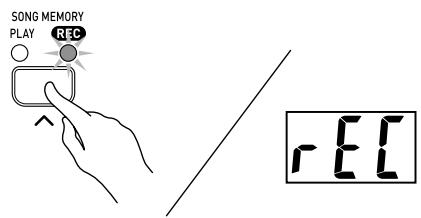
Utilisez le bouton T1/L T2/R pour sélectionner la piste à supprimer.
- Les témoins au-dessus du bouton indiquent la piste actuellement sélectionnée.
- Pour supprimer la piste 1, le témoin TRACK 1/LEFT doit clignoter.
- Pour supprimer la piste 2, le témoin TRACK 2/RIGHT doit clignoter.
Maintenez enfoncé le bouton SONG MEMORY jusqu'à ce que le témoin REC cesse de clignoter et reste allumé.
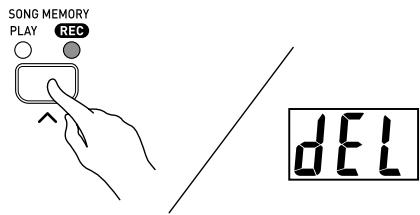
4 Appuyez sur le bouton T1/L T2/R.
- Cela supprime la piste sélectionnée et passe en mode d'attente.
Réglage du volume d'accompagnement
Effectuez l'opération suivante pour modifier le niveau de volume du rythme et de l'accompagnement d'accords.

Tout en maintenant enfoncé le bouton FUNCTION, utilisez les touches du clavier indiquées ci-dessous pour augmenter (▲) ou diminuer (▼) le volume d'accompagnement.
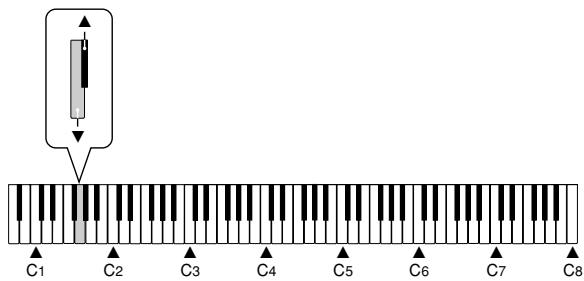
▲ : Augmente le volume d'accompagnement ▼ : Diminue le volume d'accompagnement
Changement de la sensibilité du clavier
Ce réglage modifie la sensibilité relative des touches du clavier.

Tout en maintenant enfoncé le bouton FUNCTION, appuyez sur l'une des touches du clavier indiquées ci-dessous.
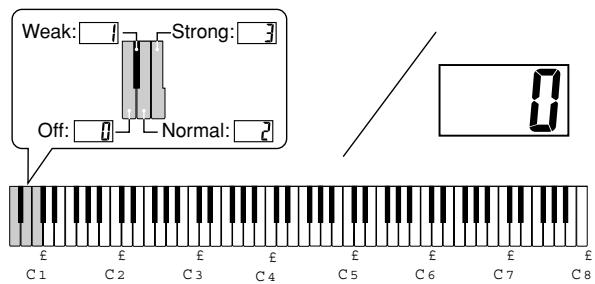
Désactivé
Faible (un son fort est produit même avec une pression relativement légère.)
Normal
Forte (un son normal est produit même avec une pression relativement forte.)
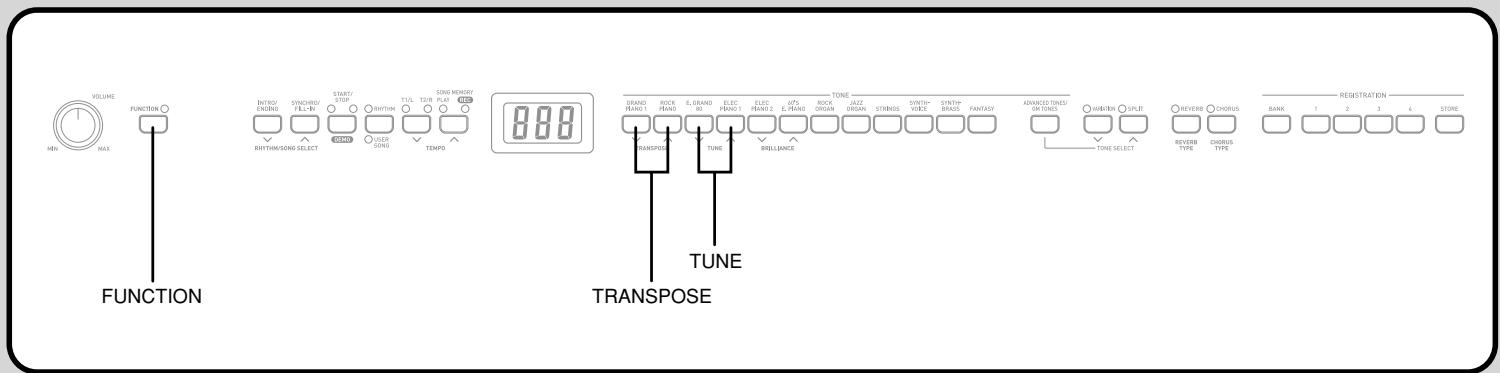
Changement de la touche de piano
Utilisez ce réglage pour monter ou descendre la tonalité générale du clavier par pas de demi-ton.

En maintenant enfoncé le bouton FUNCTION, appuyez sur les boutons TRANSPOSE pour monter ou descendre la tonalité générale du clavier.
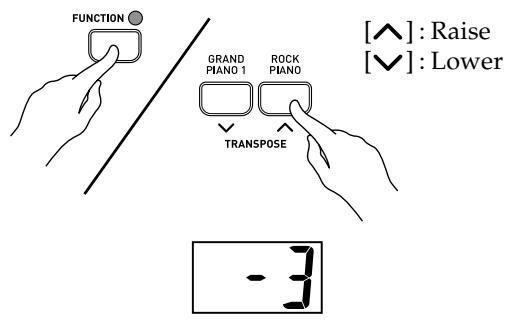
REMARQUE
- Pour ramener la tonalité du piano à Do, maintenez enfoncé le bouton FUNCTION et appuyez simultanément sur les boutons TRANSPOSE [√] et [▲]. Après avoir utilisé Transpose pour monter le clavier vers une tonalité élevée, les notes jouées dans la gamme la plus haute du clavier peuvent ne pas sonner correctement pour certains timbres.
Changer la hauteur du piano pour l'accorder avec un autre instrument
Utilisez ce réglage pour monter ou descendre la hauteur générale du piano. La plage de réglage est de plus ou moins 50 cents (100 cents = 1 demi-ton) par rapport à la hauteur standard de La4 = 440,0 Hz.

En maintenant enfoncé le bouton FUNCTION, appuyez sur les boutons TUNE pour monter ou descendre la hauteur générale du piano.
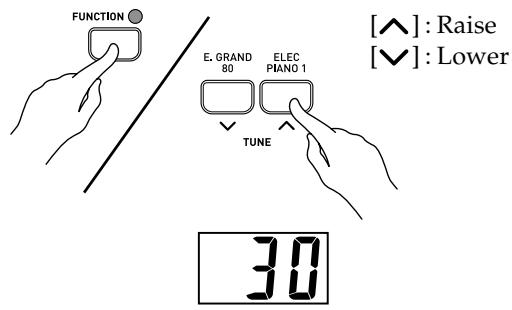
- Chaque pression sur le bouton modifie le réglage actuel d'environ 1 cent (1/100 de demi-ton).
REMARQUE
- En maintenant enfoncé le bouton FUNCTION et en appuyant simultanément sur les boutons TUNE [√] et [▲], l'accord revient à la hauteur standard La4 = 440,0 Hz.
Utilisation de la mémoire de configuration du piano numérique
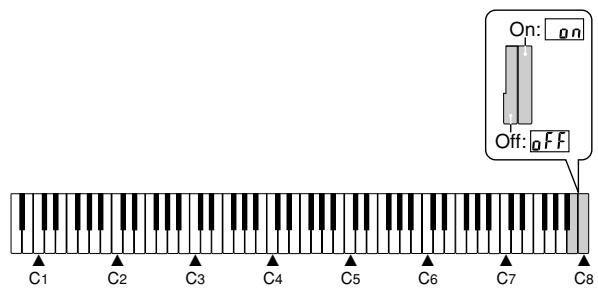
Lorsque la mémoire de configuration est activée, le piano numérique mémorisera sa configuration* chaque fois que vous l'éteignez. Si vous désactivez la mémoire de configuration, les réglages seront effacés lorsque vous éteignez le piano numérique.
■Éteindre le piano numérique en mode rythme
La prochaine fois que vous allumerez le piano numérique, le réglage de contrôle local (voir "Utilisation de MIDI" ci-dessous) sera configuré conformément à la mémoire de configuration.
- Éteindre le piano numérique en mode morceau utilisateur
La prochaine fois que vous allumerez le piano numérique, les réglages suivants seront configurés conformément à la mémoire de configuration.
Sélection du rythme, volume d'accompagnement, toucher du clavier, type de pédale, réglage de la pédale forte, équilibre de volume des tons superposés, point de partage, canal d'envoi, sortie MIDI d'accompagnement

Tout en maintenant enfoncé le bouton FUNCTION, appuyez sur l'un des boutons du clavier indiqués ci-dessous pour activer ou désactiver la mémoire de configuration.
Utilisation du MIDI
Qu'est-ce que le MIDI ?
Les lettres MIDI signifient Musical Instrument Digital Interface, qui est le nom d'une norme mondiale pour les signaux numériques et les connecteurs qui permet d'échanger des données musicales entre des instruments de musique et des ordinateurs (machines) de différents fabricants.
REMARQUE
- Pour des informations détaillées sur l'implémentation MIDI, visitez le site Web de CASIO à l'adresse : http://world.casio.com/.
Connexions MIDI
Pour utiliser un ordinateur ou un autre périphérique MIDI afin d'enregistrer et de lire les données MIDI produites par ce clavier, vous devez connecter les bornes MIDI IN et MIDI OUT des deux appareils afin d'envoyer et de recevoir des données.
Il existe une troisième borne MIDI nommée MIDI THRU, qui transmet tous les messages MIDI reçus par la borne MIDI IN à un autre appareil.
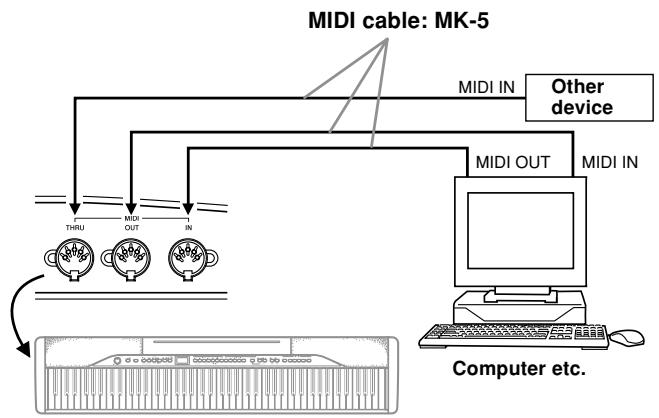
Réglages MIDI
1 Canal d'envoi
Utilisez ce réglage pour spécifier l'un des canaux MIDI (1 à 16) comme canal d'envoi pour transmettre des messages MIDI à un périphérique externe.
2 Sortie MIDI d'accompagnement/chanson
Utilisez ce réglage pour spécifier si les messages MIDI pour l'accompagnement automatique du piano et la lecture de la mémoire de chansons doivent être envoyés.
MIDI IN Chord Judge
Spécifie si le juge d'accords doit être effectué sur les messages MIDI Note On de la plage d'accompagnement reçus d'un périphérique externe.
Contrôle local
Ce réglage contrôle si l'alimentation est coupée en interne du clavier du piano et de la source sonore. Désactiver le contrôle local coupe l'alimentation du clavier et de la source, ce qui signifie que le piano ne produit aucun son lorsqu'on joue. Cela est utile lorsque vous souhaitez désactiver le clavier du piano et utiliser sa fonction d'accompagnement automatique pour accompagner un séquenceur externe ou un autre périphérique.
Tout en maintenant le bouton FUNCTION enfoncé, appuyez sur l'une des touches du clavier indiquées ci-dessous pour configurer le réglage souhaité.
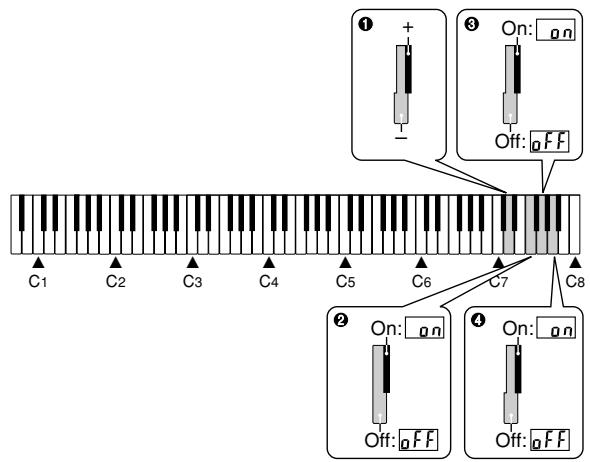
1 Canal d'envoi
- : Diminue la valeur +: Augmente la valeur
Accomp/Song MIDI Out
Désactivé
Activé
MIDI IN Chord Judge
Désactivé
Activé
Contrôle local
Arrêt
Marche
Enregistrement des données de morceaux téléchargées depuis Internet
Vous pouvez transférer des données de morceaux depuis votre ordinateur vers le piano numérique. Vous pouvez stocker jusqu'à 10 morceaux en tant que morceaux utilisateur 0 à 9. Pour les données SMF que vous achetez ou créez, vous devez utiliser un convertisseur SMF pour les convertir au format SMF 0 avant de les transférer vers le piano numérique.
Pour installer le convertisseur SMF

Sur l'ordinateur que vous prévoyez d'utiliser, installez le convertisseur SMF fourni sur le CD-ROM inclus avec le piano numérique.
- Sur le CD-ROM, double-cliquez sur "SMFConv-e.exe", puis suivez les instructions qui apparaissent à l'écran pour installer le convertisseur SMF.
- Avant d'installer le convertisseur SMF, assurez-vous de lire le contenu du fichier "smfreadme.txt" dans chaque dossier de langue sur le CD-ROM. Pour des informations sur l'utilisation du convertisseur SMF, double-cliquez sur "index.html" dans le dossier [help], créé lors de l'installation du convertisseur SMF. Vous pouvez également accéder à la documentation utilisateur depuis le menu Démarrer de Windows en cliquant sur [Programmes] - [CASIO] - [SMF Converter] - [manuel].
- Un navigateur prenant en charge les cadres (comme Internet Explorer 4 ou Netscape Navigator 4.04 ou supérieur) est requis pour consulter le manuel du convertisseur SMF.
Configuration système minimale requise
- Système d'exploitation :
Windows 98SE
Windows Me
Windows XP
- Stockage : au moins 10 Mo d'espace libre sur le disque dur
- Interface MIDI
- Vous pouvez également obtenir une copie du convertisseur SMF en le téléchargeant depuis la page Web indiquée ci-dessous. Après le téléchargement, installez le logiciel sur votre ordinateur.
SITE MUSICAL CASIO
http://music.casio.com/
- En plus du logiciel lui-même, le SITE MUSICAL CASIO vous fournira également des informations sur son installation et son utilisation. Vous pouvez également découvrir les dernières nouvelles concernant votre piano numérique et d'autres instruments de musique CASIO, et bien plus encore.
Pour se connecter à un ordinateur
Assurez-vous d'éteindre le piano numérique et votre ordinateur avant de les connecter. Vous devez également régler le contrôleur de volume du piano numérique sur un volume relativement bas.

Connectez l'interface MIDI du piano numérique à l'interface MIDI de votre ordinateur.
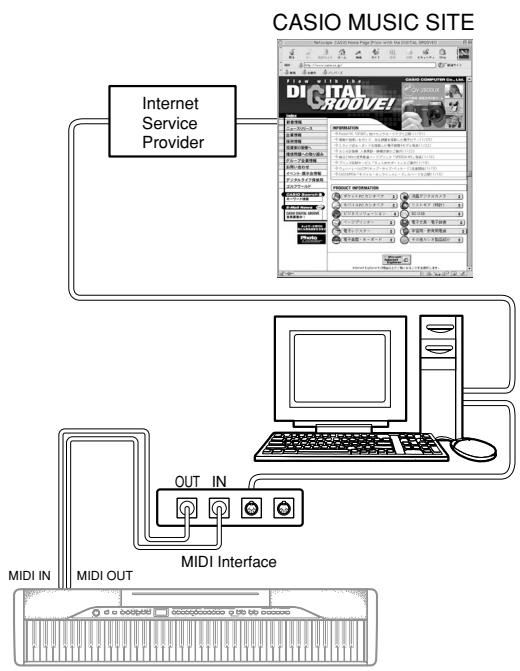

Allumez le piano numérique, puis allumez votre ordinateur ou autre appareil connecté.

Démarrez le logiciel que vous souhaitez utiliser sur votre ordinateur.
REMARQUE
- Effectuer une opération sur le piano numérique pendant le transfert de données entre celui-ci et un ordinateur peut interrompre le transfert. N'effectuez aucune opération sur le piano numérique pendant que le transfert de données est en cours.
| Symptom | Possible Cause | Action | Reference |
| No sound produced when keyboard keys are pressed. | 1. VOLUME knob set to MIN.2. Headphones connected to the digital piano.3. Local Control turned off.4. Check the current accompaniment mode setting. Normally, the accompaniment keyboard will not produce any note while CASIO CHORD or FINGERED is selected as the accompaniment mode. | 1. Move the VOLUME knob more towards MAX.2. Disconnect the headphones from the digital piano.3. Turn on Local control.4. Change the accompaniment mode to NORMAL. | Page E-7Page E-5Page E-26Page E-14 |
| Keyboard out of tune. | 1. The piano key is set to a value other than C.2. Incorrect pitch setting of the piano. | 1. Change the piano key setting to C, or turn the digital piano power off and then back on again.2. Correct the pitch setting, or turn the digital piano power off and then back on again. | Page E-25Page E-25 |
| No sound produced by demo tune play. | 1. VOLUME knob set to MIN.2. Headphones connected to the digital piano. | 1. Move the VOLUME knob more towards MAX.2. Disconnect the headphones from the digital piano. | Page E-7Page E-5 |
| Memory contents deleted. | Lithium battery is dead. | Contact your CASIO Service Provider for replacement of the lithium battery. | Page E-30 |
| No sound produced by connected external MIDI sound source when the digital piano keys are pressed. | 1. The digital piano Send Channel does not match the Send Channel of the MIDI sound source.2. Volume or expression setting of the external sound source is set to 0. | 1. Change the Send Channel settings so they are identical.2. Change the volume or expression setting of the external sound source to an appropriate value. | Page E-26See the documentation that comes with the external sound source. |
| A tone's quality and volume sounds slightly different depending where it is played on the keyboard. | This is an unavoidable result of the digital sampling process,* and does not indicate malfunction.* Multiple digital samples are taken for the low range, middle range, and high range of the original musical instrument. Because of this, there may be a very slight difference in tonal quality and volume between sample ranges. | ||
| Model: | PX-310 | ||
| Keyboard: | 88 piano keys (with touch response) | ||
| Polyphony: | 32 notes, maximum | ||
| Tones: | 12 panel tones + 12 variation tones + 40 advanced tones + 128 GM tones + 10 drum sets; with layer, split | ||
| Digital Effects: | Reverb (4 types), Chorus (4 types), DSP, Brilliance | ||
| Demo Tunes: | Sequential looping of all 3 tunes (Original) | ||
| Auto Accompaniment: | Number of Rhythms: 120 Tempo Range: 30 to 255 Controllers: START/STOP, INTRO/ENDING, SYNCHRO/FILL-IN Modes: Normal, CASIO CHORD, FINGERED, FULL RANGE CHORD Accompaniment Volume: Adjustable | ||
| User Songs: | Number of Tunes: 10 tunes maximum (Approximately 145 KB*) * Based on 1 KB = 1024 bytes Part On/Off: Left hand, right hand | ||
| Song Memory: | Operations: Real-time recording, playback Capacity: Approximately 10,000 notes (2 tracks total) Memory Backup: Built-in lithium battery (Battery Life: 5 years) | ||
| Registration Memory: | Number of Memory Areas: 32 (4 sets × 8 banks) | ||
| Pedals: | Damper, Soft/Sostenuto (Selectable) | ||
| Other Functions: | Touch: 3 types, off Transpose: 1 octave (F# to C to F) Tuning: A4 = 440.0Hz ±50 cents (adjustable) | ||
| MIDI: | 16 multi-timbre receive | ||
| Input/Output: | Headphones: Stereo mini jacks × 2 Pedal: Standard jacks × 2 LINE OUT (R)(L/MONO): Standard jacks × 2 Output impedance: 2.3kΩ Output voltage: 1.0V (RMS) MAX LINE IN (R)(L/MONO): Standard jacks × 2 Input impedance: 9.0kΩ Input voltage: 200mV Power: 12V DC MIDI (THRU) (OUT) (IN) Pedal connector (for optional SP-30 only) | ||
| Speakers: | (12cm × 6cm OVAL) × 2 + φ5cm × 2 (Output: 8.0W + 8.0W) | ||
| Power Supply: | AC Adaptor: AD-12 | ||
| Power Consumption: | 12V --- 18W | ||
| Dimensions: | 132.3 × 27.8 × 13.2cm (52 1/16 × 10 15/16 × 5 3/16 inch) | ||
| Weight: | Approximately 11.9 kg (26.2 lbs) | ||
- La conception et les spécifications sont sujettes à modification sans préavis.
Emplacement de l'appareil
Évitez les endroits suivants.
- Zones exposées à la lumière directe du soleil et à une humidité élevée
- Zones soumises à des températures très basses
- Près d'une radio, d'un téléviseur, d'un magnétoscope ou d'un tuner (l'appareil peut provoquer des interférences avec les signaux audio ou vidéo)
Entretien de l'appareil
- N'utilisez jamais de benzène, d'alcool, de diluant ou d'autres produits chimiques de ce type pour nettoyer l'extérieur de l'appareil.
- Pour nettoyer le clavier, utilisez un chiffon doux imbibé d'une solution faible d'un détergent neutre doux et d'eau. Essorez tout excès d'humidité du chiffon avant d'essuyer.
Pile au lithium
Cet appareil est équipé d'une pile au lithium pour fournir l'énergie nécessaire à la conservation du contenu de la mémoire lorsque l'appareil est éteint. Si la pile au lithium est déchargée, tout le contenu de la mémoire sera perdu chaque fois que vous éteignez l'appareil. La durée de vie normale de la pile au lithium est de cinq ans à compter de son installation. Assurez-vous de contacter périodiquement votre revendeur ou un prestataire de services agréé pour faire remplacer la pile au lithium. Notez que le remplacement de la pile au lithium vous sera facturé séparément.
- Notez que CASIO COMPUTER CO., LTD. ne pourra être tenu responsable de tout dommage ou perte, ou de toute réclamation de tiers découlant de la corruption ou de la perte de données causée par un dysfonctionnement ou une réparation de l'appareil, ou par le remplacement de la pile.
Vous pouvez remarquer des lignes sur la finition du boîtier de ce produit. Ces lignes résultent du processus de moulage utilisé pour façonner le plastique du boîtier. Ce ne sont pas des fissures ou des cassures dans le plastique, et elles ne sont pas une source d'inquiétude.
REMARQUE
- La reproduction non autorisée de ce manuel, en tout ou en partie, est expressément interdite. Tous droits réservés.
- CASIO COMPUTER CO., LTD. ne pourra être tenu responsable de tout dommage ou perte, ou de toute réclamation de tiers découlant de l'utilisation de ce produit ou de ce manuel.
- Le contenu de ce manuel est sujet à modification sans préavis.
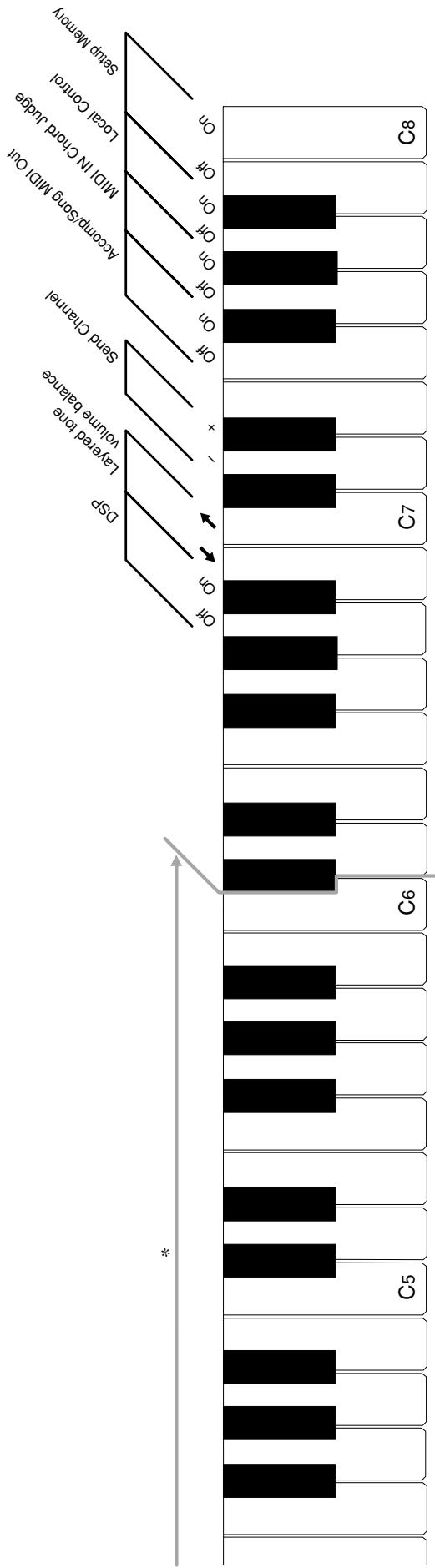
Lorsque le bouton FUNCTION est enfoncé, les touches du clavier peuvent être utilisées pour effectuer diverses fonctions de réglage. - Une valeur à côté d'un nom de note indique la position relative de la note sur le clavier, comme indiqué ci-dessous. * Les notes des touches sonnent lorsqu'elles sont enfoncées, même si le bouton FUNCTION est enfoncé.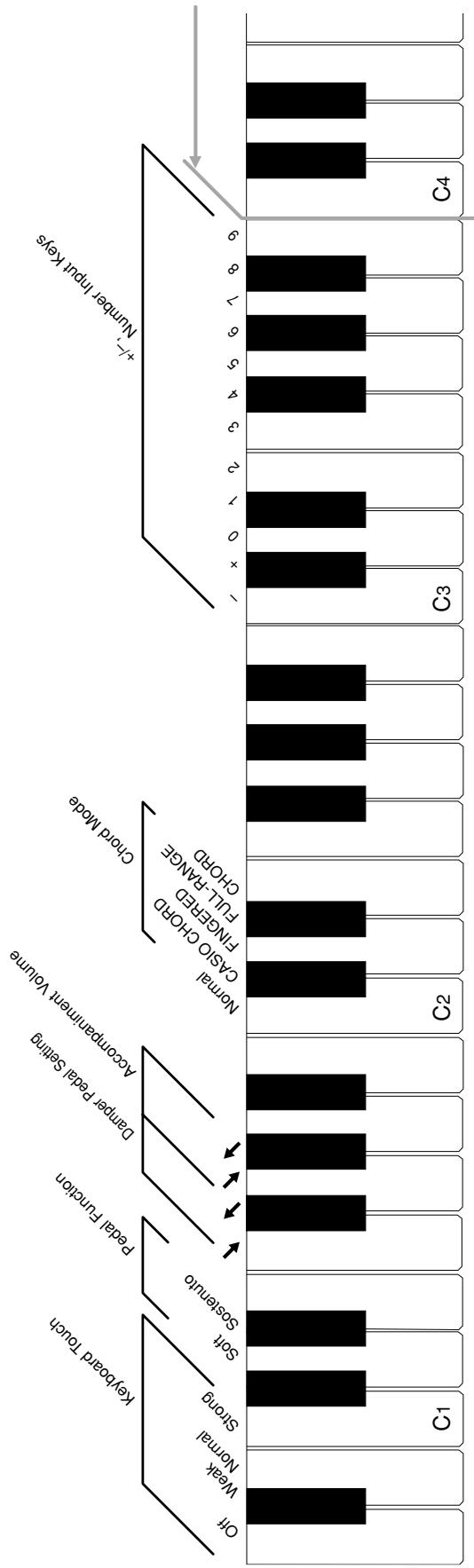
Liste des sonorités
Sonorités du panneau
| ② | ③ | ④ | ⑤ | ⑥ | ③ | ④ | ⑤ |
| GRAND PIANO 1 | 16 | 0 | 100 | GRAND PIANO 2 | 32 | 1 | 100 |
| ROCK PIANO | 16 | 4 | 100 | DANCE PIANO | 16 | 6 | 100 |
| E.GRAND 80 | 32 | 2 | 48 | PIANO PAD | 16 | 7 | 100 |
| ELEC.PIANO 1 | 32 | 4 | 48 | DYNO ELEC.PIANO | 32 | 4 | 49 |
| ELEC.PIANO 2 | 16 | 5 | 49 | FM ELEC.PIANO | 16 | 5 | 48 |
| 60'S ELEC.PIANO | 32 | 4 | 52 | VIBRAPHONE | 32 | 11 | 49 |
| ROCK ORGAN | 32 | 16 | 51 | DRAWBAR ORGAN | 16 | 16 | 49 |
| JAZZ ORGAN | 16 | 17 | 50 | CLAVI | 32 | 7 | 48 |
| STRINGS | 32 | 49 | 48 | SYNTH-STRINGS | 32 | 50 | 48 |
| SYNTH-VOID | 32 | 54 | 48 | CHOIR | 16 | 52 | 49 |
| SYNTH-BRASS | 16 | 62 | 49 | SYNTH-PAD | 16 | 90 | 48 |
| FANTASY | 16 | 88 | 48 | NEW AGE | 16 | 88 | 49 |
① N° ② Nom de la sonorité ③ Polyphonie maximale ④ Changement de programme ⑤ MSB de sélection de banque ⑥ Sonorités de variation
Sonorités avancées
| ① | ② | ③ | ④ | ⑤ |
| 0 | LA PIANO | 32 | 3 | 100 |
| 1 | MELLOW PIANO | 16 | 2 | 100 |
| 2 | MODERN PIANO | 16 | 5 | 100 |
| 3 | HONKY-TONK | 16 | 8 | 100 |
| 4 | OCTAVE PIANO | 16 | 9 | 100 |
| 5 | POP ELEC.PIANO | 16 | 4 | 50 |
| 6 | SYNTH-STR E.PIANO | 16 | 4 | 53 |
| 7 | HARPSICHORD | 32 | 6 | 49 |
| 8 | MARIMBA | 32 | 12 | 48 |
| 9 | ROTARY DRAWBAR | 32 | 16 | 50 |
| 10 | ROTARY PERC.ORGAN | 16 | 17 | 49 |
| 11 | OVD ROTARY ORGAN | 32 | 16 | 52 |
| 12 | CHURCH ORGAN | 16 | 19 | 49 |
| 13 | CHAPEL ORGAN | 32 | 19 | 50 |
| 1 | 2 | 3 | 4 | 5 |
| 14 | NYLON STR.GUITAR | 32 | 24 | 48 |
| 15 | STEEL STR.GUITAR | 32 | 25 | 48 |
| 16 | JAZZ GUITAR | 32 | 26 | 48 |
| 17 | CHORUS CLEAN GUITAR | 32 | 27 | 48 |
| 18 | OVERDRIVE GUITAR | 32 | 27 | 51 |
| 19 | ACOUSTIC BASS | 32 | 32 | 49 |
| 20 | RIDE BASS | 16 | 32 | 50 |
| 21 | FINGERED BASS | 32 | 33 | 48 |
| 22 | ANALOG SYNTH-BASS | 32 | 38 | 52 |
| 23 | VIOLIN | 32 | 40 | 48 |
| 24 | HARP | 32 | 46 | 48 |
| 25 | STRING ENSEMBLE | 16 | 48 | 49 |
| 26 | 80'S SYNTH-STR | 16 | 50 | 50 |
| 27 | TRUMPET | 32 | 56 | 48 |
| ① | ② | ③ | ④ | ⑤ |
| 28 | TROMBONE | 16 | 57 | 49 |
| 29 | STEREO BRASS | 16 | 61 | 49 |
| 30 | BREATHY ALTO SAX | 16 | 65 | 50 |
| 31 | ALTO SAX | 32 | 65 | 49 |
| 32 | TENOR SAX | 16 | 66 | 49 |
| 33 | CLARINET | 16 | 71 | 49 |
| 34 | FLUTE | 32 | 73 | 48 |
| 35 | SAWTOOTH LEAD | 16 | 81 | 48 |
| 36 | SQUARE LEAD | 16 | 80 | 48 |
| 37 | WARM PAD | 32 | 89 | 48 |
| 38 | SPACE VOICE | 16 | 91 | 48 |
| 39 | STAR VOICE | 16 | 91 | 49 |
Sonorités GM
| 1 | 2 | 3 | 4 | 5 |
| 40 | GM PIANO 1 | 32 | 0 | 0 |
| 41 | GM PIANO 2 | 32 | 1 | 0 |
| 42 | GM PIANO 3 | 32 | 2 | 0 |
| 43 | GM HONKY-TONK | 16 | 3 | 0 |
| 44 | GM E.PIANO 1 | 32 | 4 | 0 |
| 45 | GM E.PIANO 2 | 16 | 5 | 0 |
| 46 | GM HARPSICHORD | 32 | 6 | 0 |
| 47 | GM CLAVI | 32 | 7 | 0 |
| 48 | GM CELESTA | 32 | 8 | 0 |
| 49 | GM GLOCKENSPIEL | 32 | 9 | 0 |
| 50 | GM MUSIC BOX | 16 | 10 | 0 |
| 51 | GM VIBRAPHONE | 32 | 11 | 0 |
| 52 | GM MARIMBA | 32 | 12 | 0 |
| 53 | GM XYLOPHONE | 32 | 13 | 0 |
| 54 | GM TUBULAR BELL | 32 | 14 | 0 |
| 55 | GM DULCMER | 16 | 15 | 0 |
| 56 | GM ORGAN 1 | 32 | 16 | 0 |
| 57 | GM ORGAN 2 | 16 | 17 | 0 |
| 58 | GM ORGAN 3 | 16 | 18 | 0 |
| 59 | GM PIPE ORGAN | 16 | 19 | 0 |
| 60 | GM REED ORGAN | 32 | 20 | 0 |
| 61 | GM ACCORDION | 16 | 21 | 0 |
| 62 | GM HARMONICA | 32 | 22 | 0 |
| 63 | GM BANDONEON | 16 | 23 | 0 |
| 64 | GM NYLON STR.GUITAR | 32 | 24 | 0 |
| 65 | GM STEEL STR.GUITAR | 32 | 25 | 0 |
| 66 | GM JAZZ GUITAR | 32 | 26 | 0 |
| 67 | GM CLEAN GUITAR | 32 | 27 | 0 |
| 68 | GM MUTE GUITAR | 32 | 28 | 0 |
| 69 | GM OVERDRIVE GT | 16 | 29 | 0 |
| 70 | GM DISTORTION GT | 16 | 30 | 0 |
| 71 | GM GT HARMONICS | 32 | 31 | 0 |
| 72 | GM ACOUSTIC BASS | 32 | 32 | 0 |
| 73 | GM FINGERED BASS | 32 | 33 | 0 |
| 74 | GM PICKED BASS | 32 | 34 | 0 |
| 75 | GM FRETLESS BASS | 32 | 35 | 0 |
| 76 | GM SLAP BASS 1 | 32 | 36 | 0 |
| 77 | GM SLAP BASS 2 | 32 | 37 | 0 |
| 78 | GM SYNTH-BASS 1 | 16 | 38 | 0 |
| 79 | GM SYNTH-BASS 2 | 32 | 39 | 0 |
| 80 | GM VIOLIN | 32 | 40 | 0 |
| 81 | GM VIOLA | 32 | 41 | 0 |
| 82 | GM CELLO | 32 | 42 | 0 |
| 83 | GM CONTRABASS | 32 | 43 | 0 |
| 84 | GM TREMOLO STRINGS | 32 | 44 | 0 |
| 85 | GM PIZZICATO | 32 | 45 | 0 |
| 86 | GM HARP | 32 | 46 | 0 |
| 87 | GM TIMPANI | 32 | 47 | 0 |
| 1 | 2 | 3 | 4 | 5 |
| 88 | GM STRINGS 1 | 32 | 48 | 0 |
| 89 | GM STRINGS 2 | 32 | 49 | 0 |
| 90 | GM SYNTH-STRINGS 1 | 32 | 50 | 0 |
| 91 | GM SYNTH-STRINGS 2 | 32 | 51 | 0 |
| 92 | GM CHOIR AAHS | 32 | 52 | 0 |
| 93 | GM VOICE DOO | 32 | 53 | 0 |
| 94 | GM SYNTH-VOICE | 32 | 54 | 0 |
| 95 | GM ORCHESTRA HIT | 16 | 55 | 0 |
| 96 | GM TRUMPET | 32 | 56 | 0 |
| 97 | GM TROMBONE | 32 | 57 | 0 |
| 98 | GM TUBA | 32 | 58 | 0 |
| 99 | GM MUTE TRUMPET | 32 | 59 | 0 |
| 100 | GM FRENCH HORN | 16 | 60 | 0 |
| 101 | GM BRASS | 32 | 61 | 0 |
| 102 | GM SYNTH-BRASS 1 | 32 | 62 | 0 |
| 103 | GM SYNTH-BRASS 2 | 16 | 63 | 0 |
| 104 | GM SOPRANO SAX | 32 | 64 | 0 |
| 105 | GM ALTO SAX | 32 | 65 | 0 |
| 106 | GM TENOR SAX | 32 | 66 | 0 |
| 107 | GM BARITONE SAX | 32 | 67 | 0 |
| 108 | GM OBOE | 32 | 68 | 0 |
| 109 | GM ENGLISH HORN | 32 | 69 | 0 |
| 110 | GM BASSOON | 32 | 70 | 0 |
| 111 | GM CLARINET | 32 | 71 | 0 |
| 112 | GM PICCOLO | 32 | 72 | 0 |
| 113 | GM FLUTE | 32 | 73 | 0 |
| 114 | GM RECORDER | 32 | 74 | 0 |
| 115 | GM PAN FLUTE | 32 | 75 | 0 |
| 116 | GM BOTTLE BLOW | 32 | 76 | 0 |
| 117 | GM SHAKUHACHI | 16 | 77 | 0 |
| 118 | GM WHISTLE | 32 | 78 | 0 |
| 119 | GM OCARINA | 32 | 79 | 0 |
| 120 | GM SQUARE LEAD | 16 | 80 | 0 |
| 121 | GM SAWTOOTH LEAD | 16 | 81 | 0 |
| 122 | GM CALLIOPE | 16 | 82 | 0 |
| 123 | GM CHIFF LEAD | 16 | 83 | 0 |
| 124 | GM CHARANG | 16 | 84 | 0 |
| 125 | GM VOICE LEAD | 16 | 85 | 0 |
| 126 | GM FIFTH LEAD | 16 | 86 | 0 |
| 127 | GM BASS+LEAD | 16 | 87 | 0 |
| 128 | GM FANTASY | 16 | 88 | 0 |
| 129 | GM WARM PAD | 32 | 89 | 0 |
| 130 | GM POLYSYNTH | 16 | 90 | 0 |
| 131 | GM SPACE CHOIR | 16 | 91 | 0 |
| 132 | GM BOWED GLASS | 16 | 92 | 0 |
| 133 | GM METAL PAD | 16 | 93 | 0 |
| 134 | GM HALO PAD | 16 | 94 | 0 |
| 135 | GM SWEEP PAD | 32 | 95 | 0 |
| 1 | 2 | 3 | 4 | 5 |
| 136 | GM RAIN DROP | 16 | 96 | 0 |
| 137 | GM SOUND TRACK | 16 | 97 | 0 |
| 138 | GM CRYSTAL | 16 | 98 | 0 |
| 139 | GM ATMOSPHERE | 16 | 99 | 0 |
| 140 | GM BRIGHTNESS | 16 | 100 | 0 |
| 141 | GM GOBLINS | 16 | 101 | 0 |
| 142 | GM ECHOES | 32 | 102 | 0 |
| 143 | GM SF | 16 | 103 | 0 |
| 144 | GM SITAR | 16 | 104 | 0 |
| 145 | GM BANJO | 32 | 105 | 0 |
| 146 | GM SHAMISEN | 32 | 106 | 0 |
| 147 | GM KOTO | 32 | 107 | 0 |
| 148 | GM THUMB PIANO | 32 | 108 | 0 |
| 149 | GM BAGPIPE | 16 | 109 | 0 |
| 150 | GM FIDDLE | 32 | 110 | 0 |
| 151 | GM SHANAI | 32 | 111 | 0 |
| 152 | GM TINKLE BELL | 32 | 112 | 0 |
| 153 | GM AGOGO | 32 | 113 | 0 |
| 154 | GM STEEL DRUMS | 16 | 114 | 0 |
| 155 | GM WOOD BLOCK | 32 | 115 | 0 |
| 156 | GM TAIKO | 32 | 116 | 0 |
| 157 | GM MELODIC TOM | 32 | 117 | 0 |
| 158 | GM SYNTH-DRUM | 32 | 118 | 0 |
| 159 | GM REVERSE CYMBAL | 32 | 119 | 0 |
| 160 | GM GT FRET NOISE | 32 | 120 | 0 |
| 161 | GM BREATH NOISE | 32 | 121 | 0 |
| 162 | GM SEASHORE | 16 | 122 | 0 |
| 163 | GM BIRD | 16 | 123 | 0 |
| 164 | GM TELEPHONE | 32 | 124 | 0 |
| 165 | GM HELICOPTER | 32 | 125 | 0 |
| 166 | GM APPLAUSE | 16 | 126 | 0 |
| 167 | GM GUNSHOT | 32 | 127 | 0 |
Batteries
| ① | ② | ③ | ④ | ⑤ |
| 168 | STANDARD SET 1 | - | 0 | 120 |
| 169 | STANDARD SET 2 | - | 1 | 120 |
| 170 | ROOM SET | - | 8 | 120 |
| 171 | POWER SET | - | 16 | 120 |
| 172 | ELECTRONIC SET | - | 24 | 120 |
| 173 | SYNTH SET 1 | - | 25 | 120 |
| 174 | SYNTH SET 2 | - | 30 | 120 |
| 175 | JAZZ SET | - | 32 | 120 |
| 176 | BRUSH SET | - | 40 | 120 |
| 177 | ORCHESTRA SET | - | 48 | 120 |
Liste des rythmes
① N° ② Nom du rythme
| 1 | 2 |
| 8 BEAT | |
| 000 | 8 BEAT 1 |
| 001 | 8 BEAT 2 |
| 002 | 8 BEAT 3 |
| 003 | 8 BEAT POP 1 |
| 004 | 8 BEAT POP 2 |
| 005 | 60'S SOUL |
| 006 | 8 BEAT DANCE |
| 007 | POP ROCK |
| 16 BEAT | |
| 008 | 16 BEAT 1 |
| 009 | 16 BEAT 2 |
| 010 | 16 BEAT 3 |
| 011 | SLOW 16 BEAT |
| 012 | 16 BEAT SHUFFLE 1 |
| 013 | 16 BEAT SHUFFLE 2 |
| 014 | FUNK |
| 015 | LATIN FUSION |
| POPS | |
| 016 | POP 1 |
| 017 | POP 2 |
| 018 | GUITAR POP |
| 019 | SOUL |
| 020 | POP SHUFFLE |
| 021 | SOUL POP |
| 022 | WORLD POP |
| 023 | MELLOW R&B |
| 024 | 60'S POP |
| 025 | OLDIES POP |
| 026 | POP WALTZ |
| BALLAD | |
| 027 | 8 BEAT BALLAD 1 |
| 028 | 8 BEAT BALLAD 2 |
| 029 | 16 BEAT BALLAD 1 |
| 030 | 16 BEAT BALLAD 2 |
| 031 | 16 BEAT BALLAD 3 |
| 032 | 6/8 BALLAD |
| 033 | ROCK BALLAD |
| 034 | POP BALLAD |
| 035 | OLDIES BALLAD |
| 036 | SERENADE |
| ROCK | |
| 037 | ROCK 1 |
| 038 | ROCK 2 |
| 039 | R&B |
| 040 | SHUFFLE ROCK |
| 041 | 60'S ROCK |
| 042 | SHUFFLE BOOGIE |
| 043 | BLUES |
| 044 | TWIST |
| DANCE | |
| 045 | TRANCE |
| 046 | RAVE |
| 047 | TECHNO |
| 048 | HOUSE |
| 049 | LATIN HOUSE |
| 050 | DANCE |
| 051 | MODERN R&B |
| 052 | HIP-HOP |
| 053 | DANCE POP 1 |
| 054 | DANCE POP 2 |
| 055 | DISCO SOUL |
| JAZZ | |
| 056 | FAST BIG BAND |
| 057 | MIDDLE BIG BAND |
| 058 | JAZZ COMBO 1 |
| 059 | SWING |
| 060 | SLOW SWING |
| 061 | MODERN JAZZ |
| 062 | FOX TROT |
| 063 | QUICKSTEP |
| 064 | JAZZ WALTZ |
| EUROPIAN | |
| 065 | POLKA |
| 066 | POLKA FOX |
| 067 | POP POLKA |
| 068 | MARCH 1 |
| 069 | GERMAN MARCH |
| 070 | WALTZ 1 |
| 071 | WALTZ 2 |
| 072 | VIENNESE WALTZ |
| 073 | FRENCH WALTZ |
| ① | ② |
| LATIN/VARIOUS | |
| 074 | BOSSA NOVA |
| 075 | SAMBA |
| 076 | MERENGUE |
| 077 | CUMBIA |
| 078 | CHA-CHA-CHA |
| 079 | BEGUIDE |
| 080 | BOLERO |
| 081 | MAMBO |
| 082 | RHUMBA |
| 083 | TANGO |
| 084 | REGGAE |
| 085 | SKA |
| 086 | LATIN DISCO |
| 087 | BLUEGRASS |
| 088 | COUNTRY |
| 089 | COUNTRY SHUFFLE |
| 090 | COUNTRY WALTZ |
| 091 | FAST GOSPEL |
| 092 | SLOW GOSPEL |
| 093 | BROADWAY |
| 094 | DIXIE |
| 095 | PASODOBLE |
| 096 | HAWAIIAN |
| 097 | ADANI |
| 098 | BALADI |
| 099 | SYMPHONY |
| FOR PIANO | |
| 100 | PIANO BALLAD 1 |
| 101 | PIANO BALLAD 2 |
| 102 | PIANO BALLAD 3 |
| 103 | EP BALLAD 1 |
| 104 | EP BALLAD 2 |
| 105 | BLUES BALLAD |
| 106 | MELLOW JAZZ |
| 107 | JAZZ COMBO 2 |
| 108 | RAGTIME |
| 109 | BOOGIE-WOOGIE |
| 110 | ARPEGGIO 1 |
| 111 | ARPEGGIO 2 |
| 112 | ARPEGGIO 3 |
| 113 | PIANO BALLAD 4 |
| 114 | 6/8 MARCH |
| 115 | MARCH 2 |
| 116 | 2 BEAT |
| 117 | WALTZ 3 |
| 118 | WALTZ 4 |
| 119 | WALTZ 5 |
REMARQUE
- Les rythmes 110 à 119 sont constitués uniquement d'accompagnements d'accords, sans batterie ni autres instruments de percussion. Ces rythmes ne sonnent que si CASIO CHORD, FINGERED ou FULL RANGE CHORD est sélectionné comme mode d'accompagnement. Avec de tels rythmes, assurez-vous que CASIO CHORD, FINGERED ou FULL RANGE CHORD est sélectionné avant d'essayer de jouer des accords.
REMARQUE
- Les rythmes 110 à 119 sont constitués uniquement d'accompagnements d'accords, sans batterie ni autres instruments de percussion. Ces rythmes ne sonnent que si CASIO CHORD, FINGERED ou FULL RANGE CHORD est sélectionné comme mode d'accompagnement. Avec de tels rythmes, assurez-vous que CASIO CHORD, FINGERED ou FULL RANGE CHORD est sélectionné avant d'essayer de jouer des accords.
Liste d'affectation de la batterie
"←" Indique le même son que STANDARD SET 1.
| Key/Note number | DRUMS SET LIST | |||||||||
| STANDARD SET 1 | STANDARD SET 2 | ROOM SET | POWER SET | ELEC. SET | SYNTH SET 1 | SYNTH SET 2 | JAZZ SET | BRUSH SET | ORCHESTRA SET | |
| C-10 | METRONECK CLICK | |||||||||
| C-11 | METRONECK BELL | |||||||||
| D-12 | METRONECK | |||||||||
| E-14 | EL-13 | |||||||||
| F-15 | F-16 | |||||||||
| G-17 | LOW TOM 2b | |||||||||
| H-18 | LOW TOM 1b | |||||||||
| I-19 | MID TOM 2b | |||||||||
| J-19 | MID TOM 1b | |||||||||
| K-11 | HIGH TOM 2b | |||||||||
| L-11 | HIGH TOM 1b | |||||||||
| C0-12 | CRASH CYMBAL 1a | |||||||||
| C0-13 | CRASH CYMBAL 1b | |||||||||
| D0-14 | CRASH CYMBAL 1c | |||||||||
| E0-15 | CRASH CYMBAL 2a | |||||||||
| F0-16 | CRASH CYMBAL 2b | |||||||||
| F0-17 | CRASH CYMBAL 2c | |||||||||
| G0-18 | RIDE CYMBAL 1a | |||||||||
| H0-19 | RIDE CYMBAL 1b | |||||||||
| I0-20 | RIDE CYMBAL 1c | |||||||||
| A0-21 | RIDE CYMBAL 2a | |||||||||
| B0-22 | RIDE CYMBAL 2b | |||||||||
| B0-23 | RIDE CYMBAL 2c | |||||||||
| C1-24 | ||||||||||
| D1-25 | ||||||||||
| E1-26 | ||||||||||
| F1-27 | HIGH Q | |||||||||
| SLAP | ||||||||||
| F1-29 | SCRATCH PUSH | |||||||||
| F1-30 | SCRATCH PULL | |||||||||
| STICKS | ||||||||||
| AC-33 | SCARCE BUTTON | |||||||||
| METRONECK BUTTON | ||||||||||
| E0-34 | METRONECK ELL | |||||||||
| B1-35 | STANDARD1 KICK 2 | STANDARD2 KICK 2 | ROOM KICK 2 | POWER KICK 2 | ELEEG KICK 2 | SYNTH 1 KICK 2 | SYNTH 2 KICK 2 | JAZZ KICK 2 | BRUSH KICK 2 | JAZZ KICK 1 |
| C2-36 | STANDARD1 KICK 2 | STANDARD2 KICK 1 | ROOM KICK 1 | POWER KICK 1 | ELEEG KICK 1 | SYNTH 1 KICK 1 | SYNTH 2 KICK 1 | JAZZ KICK 1 | BRUSH KICK 1 | CONCERT BASS DRUM |
| D2-38 | STANDARD1 SNARE 1 | STANDARD2 SNARE 1 | ROOM SNARE 1 | POWER SNARE 1 | ELEEG SNARE 1 | SYNTH 1 SNARE 1 | SYNTH 2 SNARE 1 | JAZZ SNARE 1 | BRUSH TAP | CONCERT SNARE |
| E2-39 | HAND CLAP 1 | SYNTH HAND CLAP | SYNTH 1 OHH | HAND CLAP 2 | BRUSH SLAP | CASTANETS | ||||
| F2-40 | STANDARD1 SNARE 2 | STANDARD2 SNARE 2 | ROOM SNARE 2 | POWER SNARE 2 | ELEEG SNARE 2 | SYNTH 1 SNARE 2 | SYNTH 2 SNARE 2 | JAZZ SNARE 2 | BRUSH SWIRL | CONCERT SNARE |
| L0-41 | LOW TOM 2 | ROOM LOW TOM 2 | POWER LOW TOM 2 | ELEEG LOW TOM 2 | SYNTH LOW TOM 2 | SYNTH 2 LOW TOM 2 | SYNTH 2 LOW TOM 2 | TIMPANI F | ||
| G2-43 | CLOSED HAT | SYNTH CHI | SYNTH 2 CHI | TIMPANI F | ||||||
| A2-44 | LOW TOM 1 | ROOM LOW TOM 1 | POWER LOW TOM 1 | ELEEG LOW TOM 1 | SYNTH 1 LOW TOM 1 | SYNTH 2 LOW TOM 1 | TIMPANI F | |||
| A2-45 | PEDAL HI-HAT | SYNTH PHH | SYNTH 2 PHH | TIMPANI F | ||||||
| E2-46 | MID TOM 2 | ROOM MID TOM 2 | ROOM MID TOM 2 | ELEEG MID TOM 2 | SYNTH MID TOM 2 | SYNTH 2 MID TOM 2 | SYNTH 2 MID TOM 2 | TIMPANI F | ||
| F2-47 | OPEN HI-HAT | SYNTH OHH | SYNTH 2 OHH | TIMPANI F | ||||||
| G2-48 | MID TOM 1 | ROOM MID TOM 1 | POWER MID TOM 1 | ELEEG MID TOM 1 | SYNTH MID TOM 1 | SYNTH 2 MID TOM 1 | SYNTH 2 MID TOM 1 | TIMPANI F | ||
| C3-49 | HIGH TOM 2 | ROOM HI-TOM 2 | POWER HI-TOM 2 | ELEEG HI-TOM 2 | SYNTH HI-TOM 2 | SYNTH 2 HI-TOM 2 | SYNTH 2 HI-TOM 2 | TIMPANI F | ||
| D3-50 | CRASH CYMBAL 1 | ROOM HI-TOM 1 | POWER HI-TOM 1 | ELEEG HI-TOM 1 | SYNTH 1 CYMBAL | SYNTH 2 CYMBAL 1 | TIMPANI F | |||
| E3-51 | RIDE CYMBAL 1 | ROOM HI-TOM 1 | POWER HI-TOM 1 | ELEEG HI-TOM 1 | SYNTH 1 HI-TOM 1 | SYNTH 2 HI-TOM 1 | TIMPANI F | |||
| E3-52 | CHINESE CYMBAL 1 | SYNTH RIDE | SYNTH 2 RIDE | TIMPANI F | ||||||
| F3-53 | TAMBOURINE | |||||||||
| F3-54 | TAMBOURINE | |||||||||
| G3-55 | SPLASH CYMBAL | SYNTH TAMBOURINE | ||||||||
| A3-56 | COWBELL | SYNTH COWBELL | SYNTH CYMBAL 2 | CONCERT CYMBAL 2 | ||||||
| B3-57 | CRASH CYMBAL 2 | SYNTH MID TOM 2 | SYNTH 2 MID TOM 2 | CONCERT CYMBAL 2 | ||||||
| B3-59 | VIBRA-SLAP 2 | SYNTH OHH | SYNTH 2 OHH | CONCERT CYMBAL 1 | ||||||
| C4-60 | HIGH BONGO | SYNTH 2 MARAS 2 | SYNTH 2 RIDE 2 | |||||||
| C4-61 | LOW BONGO | SYNTH 2 MARAS 2 | SYNTH 2 RIDE 2 | |||||||
| D4-62 | MUTE HIGH CONGA | SYNTH HIGH CONGA | SYNTH 2 CONGA 2 | |||||||
| E4-64 | OPEN HIGH CONGA | SYNTH 2 CONGA 2 | SYNTH 2 CONGA 2 | |||||||
| F4-65 | LOW CONGA | SYNTH 2 CONGA 2 | SYNTH 2 CONGA 2 | |||||||
| F4-66 | HIGH TIMBALE | SYNTH 2 CONGA 2 | SYNTH 2 CONGA 2 | |||||||
| G4-67 | HIGH AGOGO | SYNTH 2 CONGA 2 | SYNTH 2 CONGA 2 | |||||||
| A4-68 | LOW AGOGO | SYNTH 2 CONGA 2 | SYNTH 2 CONGA 2 | |||||||
| A4-69 | CABASA | SYNTH 2 CONGA 2 | SYNTH 2 CONGA 2 | |||||||
| B4-71 | MARAS | SYNTH 1 MARAS 2 | SYNTH 1 CONGA 2 | |||||||
| C4-72 | SHORT LI WHISTLE | SYNTH 1 CONGA 2 | SYNTH 1 CONGA 2 | |||||||
| C5-73 | SHORT GUROO | SYNTH 1 CONGA 2 | SYNTH 1 CONGA 2 | |||||||
| D5-74 | LONG GURLOO | SYNTH 1 CONGA 2 | SYNTH 1 CONGA 2 | |||||||
| E5-75 | CLAVES | SYNTH 1 CONGA 2 | SYNTH 1 CONGA 2 | |||||||
| F5-76 | HIGH WOOD BLOCK | SYNTH 1 CLAVES | SYNTH 1 CLAVES | |||||||
| F5-77 | LOW WOOD BLOCK | SYNTH 1 CONGA 2 | SYNTH 1 CONGA 2 | |||||||
| G5-78 | MUTE CUCA | SYNTH 1 CONGA 2 | SYNTH 1 CONGA 2 | |||||||
| A5-80 | OPEN TRIANGLE | SYNTH 1 CONGA 2 | SYNTH 1 CONGA 2 | |||||||
| A5-81 | OPEN TRIANGLE | SYNTH 1 CONGA 2 | SYNTH 1 CONGA 2 | |||||||
| B5-82 | SHAKER | SYNTH 1 CONGA 2 | SYNTH 1 CONGA 2 | |||||||
| B5-83 | JINGLE BELL | SYNTH 1 CONGA 2 | SYNTH 1 CONGA 2 | |||||||
| C6-84 | BELL TREELS 2d | SYNTH 1 CONGA 2 | SYNTH 1 CONGA 2 | |||||||
| C7-85 | CASTANETS | SYNTH 1 CONGA 2 | SYNTH 1 CONGA 2 | |||||||
| D6-86 | MUTE SURDO | SYNTH 1 CONGA 2 | SYNTH 1 CONGA 2 | |||||||
| E6-87 | OPEN SURDO | SYNTH 1 CONGA 2 | SYNTH 1 CONGA 2 | |||||||
| E6-88 | APPLAUSE | SYNTH 1 CONGA 2 | SYNTH 1 CONGA 2 | |||||||
| F6-89 | APPLAUSE2 | SYNTH 1 CONGA 2 | SYNTH 1 CONGA 2 | |||||||
| G6-90 | — | — | — | — | — | — | — | — | — | |
| A6-91 | — | — | — | — | — | — | — | — | — | |
| B6-92 | — | — | — | — | — | — | — | — | — | |
| A6-93 | — | — | — | — | — | — | — | — | — | |
| B6-94 | — | — | — | — | — | — | — | — | — | |
| C7-95 | — | — | — | — | — | — | — | — | — | |
| D7-96 | — | — | — | — | — | — | — | — | — | |
| A5-97 | — | — | — | — | — | — | — | — | — | |
| A5-98 | — | — | — | — | — | — | — | — | — | |
| A5-99 | — | — | — | — | — | — | — | — | — | |
| A5-100 | — | — | — | — | — | — | — | — | — | |
| A5-101 | — | — | — | — | — | — | — | — | — | |
| A5-102 | — | — | — | — | — | — | — | — | — | |
| A5-103 | — | — | — | — | — | — | — | — | — | |
| A5-104 | — | — | — | — | — | — | — | — | — | |
| A5-105 | — | — | — | — | — | — | — | — | — | |
| A5-106 | — | — | — | — | — | — | — | — | — | |
Tableau des accords doigtés (Fingered)
| Chord Type Root | aug | sus4 | 7sus4 | m add9 | mM7 | 7#5 | add9 |
| C | |||||||
| C#/D# | |||||||
| D | |||||||
| (D#)/E# | |||||||
| E | |||||||
| F | |||||||
| F#/G# | |||||||
| G | |||||||
| (G#)/A# | |||||||
| A | |||||||
| (A#)/B# | |||||||
| B |
| Chord Type Root | M | m | 7 | m7 | dim7 | M7 | dim | m7b5 |
| C | ||||||||
| C#/ (D)b | ||||||||
| D | ||||||||
| (D#)/Eb | ||||||||
| E | ||||||||
| F | ||||||||
| F#/ (Gb) | ||||||||
| G | ||||||||
| (G#)/Ab | ||||||||
| A | ||||||||
| (A#)/Bb | ||||||||
| B |
| Function ... | Transmitted | Recognized | Remarks | ||
| Basic Channel | Default Changed | 1-16 1-16 | 1-16 1-16 | ||
| Mode | Default Messages Altered | Mode 3 X *** **** | Mode 3 X *** **** | *Depends on tone *Depende del tono. | |
| Note Number | True voice | 21-108 **** **** | 0-127 0-127 *1 | *1:Depends on tone *1:Depende del tono. | |
| Velocity | Note ON Note OFF | O 9nV = 1-127 X 9nV = 0 | O 9nV = 1-127 X 9nV = 0, 8nV = ** | **: no relation **: sin relacion | |
| After Touch | Key's Ch's | X X | X O | ||
| Pitch Bender | X | O | |||
| Control Change | 0,32 1 6,38 7 10 11 16 17 18 19 64 66 67 71 72 73 74 75 76 77 78 80 81 82 83 84 85 86,99 100,101 110 121 | O X O X X X X X X X X X X X X X X X X X X X X X X X X X X X X X X X X X X X X X X X X X X X X X X X X X X X X X X X X X X X X X X X X X X X X X X X X X X X X X X X X X X X X X X X X X X X X X X X X X X X X | O O O O O O O O O O O O O O O O O O O O O O O O O O O O O O O O O O O O O O O O O O O O O O O O O O O O O O O O O O O O O O O O O O O O O O O O O O O O O O O O O O O O O O O O O O O O O O O O O O O O O | Bank select Modulation Data entry Volume Pan Expression DSP Parameter0 DSP Parameter1 DSP Parameter2 DSP Parameter3 Damper Sotlenuto Soft pedal Resonance Release Time Attack Time Brightness Vibrato rate Vibrato delay DSP Parameter4 DSP Parameter5 DSP Parameter6 DSP Parameter7 Reverb send Chorus send NRPN LSB, MSB RPN LSB, MSB All sound off Reset all controller | |
| Program Change | :True # | O 0-127 *** **** | O 0-127 *** **** | * | |
| System Exclusive | O | O | |||
| System Common | X X X X X X X X X X X X X X X X X X X X X X X X X X X X X X X X X X X X X X X X X X X X X X X X X X X X X X X X X X X X X X X X X X X X X X X X X X X X X X X X X X X X X X X X X X X X X X X X X X X X Y Y Y Y Y Y Y Y Y Y Y Y Y Y Y Y Y Y Y Y Y Y Y Y Y Y Y Y Y Y Y Y Y Y Y Y Y Y Y Y Y Y Y Y Y Y Y Y Y Y Y Y Y Y Y Y Y Y Y Y Y Y Y Y Y Y Y Y Y Y Y Y Y Y Y Y Y Y Y Y Y Y Y Y Y Y Y Y Y Y Y Y Y Y Y Y Y Y Y YY Y Y Y Y Y Y Y Y Y Y Y Y Y Y Y Y Y Y Y Y Y Y Y Y Y Y Y Y Y Y Y Y Y Y Y Y Y Y Y Y Y Y Y Y Y Y Y Y Y Y Y Y Y Y Y Y Y Y Y Y Y Y Y Y Y Y Y Y Y Y Y Y Y Y Y Y Y Y Y Y Y Y Y Y Y Y Y Y Y Y Y Y Y Y Y Y Y Y Y.Y Y Y Y Y Y Y Y Y Y Y Y Y Y Y Y Y Y Y Y Y Y Y Y Y Y Y Y Y Y Y Y Y Y Y Y Y Y Y Y Y Y Y Y Y Y Y Y Y Y Y Y Y Y Y Y Y Y Y Y Y Y Y Y Y Y Y Y Y Y Y Y Y Y Y Y Y Y Y Y Y Y Y Y Y Y Y Y Y Y Y Y Y Y Y Y Y Y Y Y YYYYYYYYYYYYYYYYYYYYYYYYYYYYYYYYYYYYYYYYYYYYYYYYYYYYYYYYYYYYYYYYYYYYYYYYYYYYYYYYYYYYYYYYYYYYYYYYYYYYYYYYYYYYYYYYYYYYYYYYYYYYYYYYYYYYYYYYYYYYYYYYYYYYYYYYYYYYYYYYYYYYYYYYYYYYYYYYYYYYYYYYYYYYYYYYYYYYYYYYYY YYYYYYYYYYYYYYYYYYYYYYYYYYYYYYYYYYYYYYYYYYYYYYYYYYYYYYYYYYYYYYYYYYYYYYYYYYYYYYYYYYYYYYYYYYYYYYYYYYYYYYYYYYYYYYYYYYYYYYYYYYYYYYYYYYYYYYYYYYYYYYYYYYYYYYYYYYYYYYYYYYYYYYYYYYYYYYYYYYYYYYYYYYYYYYYYYYYYYY YY YY YY YY YY YY YY YY YY YY YY YY YY YY YY YY YY YY YY YY YY YY YY YY YY YY YY YY YY YY YY YY YY YY YY YY YY YY YY YY YY YY YY YY YY YY YY YY YY YY YY YY YY YY YY YY YY YY YY YY YY YY YY YY YY YY YY YY YY YY YY YY YY YY YY YY YY YY YY YY YY YY YY YY YY YY YY YY YY YY YY YY YY YY YY YY YY YY YY YYYYYYYYYYYYYYYYYYYYYYYYYYYYYYYYYYYYYYYYYYYYYYYYYYYYYYYYYYYYYYYYYYYYYYYYYYYYYYYYYYYYYYYYYYYYYYYYYYYYYYYYYYYYYYYYYYYYYYYYYYYYYYYYYYYYYYYYYYYYYYYYYYYYYYYYYYYYYYYYYYYYYYYYYYYYYYYYYYYYYYYYYYYYYYYYYYYYYYyyYYYYYYYYYYYYYYYYYYYYYYYYYYYYYYYYYYYYYYYYYYYYYYYYYYYYYYYYYYYYYYYYYYYYYYYYYYYYYYYYYYYYYYYYYYYYYYYYYYYYYYYYYYYYYYYYYYYYYYYYYYYYYYYYYYYYYYYYYYYYYYYYYYYYYYYYYYYYYYYYYYYYYYYYYYYYYYYYYYYYYYYYYYYYYYYYYYYYYYyyyyYYYYYYYYYYYYYYYYYYYYYYYYYYYYYYYYYYYYYYYYYYYYYYYYYYYYYYYYYYYYYYYYYYYYYYYYYYYYYYYYYYYYYYYYYYYYYYYYYYYYYYYYYYYYYYYYYYYYYYYYYYYYYYYYYYYYYYYYYYYYYYYYYYYYYYYYYYYYYYYYYYYYYYYYYYYYYYYYYYYYYYYYYYYYYYYYYYYY YY yy yy yy yy yy yy yy yy yy yy yy yy yy yy yy yy yy yy yy yy yy yy yy yy yy yy yy yy yy yy yy yy yy yy yy yy yy yy yy yy yy yy yy yy yy yy yy yy yy yy yy yy yy yy yy yy yy yy yy yy yy yy yy yy yy yy yy yy yy yy yy yy yy yy yy yy yy yy yy yy yy yy yy yy yy yy yy yy yy yy yy yy yy yy yy yy yy yy yy yy YY YY YY YY YY YY YY YY YY YY YY YY YY YY YY YY YY YY YY YY YY YY YY YY YY YY YY YY YY YY YY YY YY YY YY YY YY YY YY YY YY YY YY YY YY YY YY YY YY YY YY YY YY YY YY YY YY YY YY YY YY YY YY YY YY YY YY YY YY YY YY YY YY YY YY YY YY YY YY YY YY YY YY YY YY YY YY YY YY YY YY YY YY YY YY YY YY YY YY BB BB BB BB BB BB BB BB BB BB BB BB BB BB BB BB BB BB BB BB BB BB BB BB BB BB BB BB BB BB BB BB BB BB BB BB BB BB BB BB BB BB BB BB BB BB BB BB BB BB BB BB BB BB BB BB BB BB BB BB BB BB BB BB BB BB BB BB BB BB BB BB BB BB BB BB BB BB BB BB BB BB BB BB BB BB BB BB BB BB BB BB BB BB BB BB BB BB BB BBBB BB BB BB BB BB BB BB BB BB BB BB BB BB BB BB BB BB BB BB BB BB BB BB BB BB BB BB BB BB BB BB BB BB BB BB BB BB BB BB BB BB BB BB BB BB BB BB BB BB BB BB BB BB BB BB BB BB BB BB BB BB BB BB BB BB BB BB BB BB BB BB BB BB BB BB BB BB BB BB BB BB BB BB BB BB BB BB BB BB BB BB BB BB BB BB BB BB BB BB bb BB BB BB BB BB BB BB BB BB BB BB BB BB BB BB BB BB BB BB BB BB BB BB BB BB BB BB BB BB BB BB BB BB BB BB BB BB BB BB BB BB BB BB BB BB BB BB BB BB BB BB BB BB BB BB BB BB BB BB BB BB BB BB BB BB BB BB BB BB BB BB BB BB BB BB BB BB BB BB BB BB BB BB BB BB BB BB BB BB BB BB BB BB BB BB BB BB BB BBbb BB BB BB BB BB BB BB BB BB BB BB BB BB BB BB BB BB BB BB BB BB BB BB BB BB BB BB BB BB BB BB BB BB BB BB BB BB BB BB BB BB BB BB BB BB BB BB BB BB BB BB BB BB BB BB BB BB BB BB BB BB BB BB BB BB BB BB BB BB BB BB BB BB BB BB BB BB BB BB BB BB BB BB BB BB BB BB BB BB BB BB BB BB BB BB BB BB BB BB(bb) | O 9nV V = 1-127 X 9nV V = 1-127 X 9nV V = 1-127 X 9nV V = 1-127 X 9nV V = 1-127 X 9nV V = 1-127 X 9nV V = 1-127 X 9nV V = 1-127 X 9nV V = 1 -127 X 9nV V = 1-127 X 9nV V = 1-127 X 9nV V = 1-127 X 9nV V = 1-127 X 9nV V = 1-127 X 9nV V = 1-127 X 9nV V = 1-127 X 9nV W = 0 (0-127) | O 9nV V = 1-127 X 9nV V = 1-127 X 9nV V = 1-127 X 9nV W = 0 (0-127) | *Depends on tone *Depends on tone | |
| *Depends on tone *Depends on tone | |||||
| *Depends on tone *Depends on tone | |||||
| *Depends on tone *Depends on tone | |||||
| *Depends on tone *Depends on tone | |||||
| *Depends on tone *Depends on tone | |||||
| *Depends on tone *Depends | |||||
| *Depends on tone *Depends on | |||||
| *Depends on tone *Depends on | |||||
| *Depends on tone *Depends on | |||||
| *Depends on tone *Depends on | |||||
| *Depends on tone *Depends on | |||||
| *Depends on tone *Depends on | |||||
| *Depends on tone * Depends on | |||||
| *Depends on tone *Depends on | |||||
| *Depends on tone *Depends on | |||||
| *Depends on tone *Depends on | |||||
| *Depends on tone *Depends on | |||||
| *Depends on tone *Depends on | |||||
| *Depends on Tone *Depends on | |||||
| *Depends on Tone *Depends on | |||||
| *Depends on Tone *Depends on | |||||
| *Depends on Tone *Depends on | |||||
| *Depends on Tone *Depends on | |||||
| *Depends on Tone *Depends on | |||||
| *Depnds on Tone *Depnds on | |||||
| *Depnds on Tone *Depnds on | |||||
| *Depnds on Tone *Depnds on | |||||
| *Depnds on Tone *Depnds on | |||||
| *Depnds on Tone *Depnds on | |||||
| *Depnds on Tone *Depnds on | |||||
| *Depnds on Tone*Depnds on | |||||
| *Depnds on Tone *Depnds on | |||||
| *Depnds on Tone *Depnds on | |||||
| *Depnds on Tone *Depnds on | |||||
| *Depnds on Tone *Depnds on | |||||
| *Depnds on Tone *Depnds on | |||||
| *Depnds in accordance with pedal *In accordance with pedal | |||||
Mode 1 : OMNI ON, POLY
Mode 2 : OMNI ON, MONO
O : Oui
Mode 3 : OMNI OFF, POLY
Mode 4 : OMNI OFF, MONO
X : Non

Cette marque de recyclage indique que l'emballage est conforme à la législation sur la protection de l'environnement en Allemagne.
Cette marque de recyclage indique que l'emballage est conforme à la législation sur la protection de l'environnement en Allemagne.
CASIO
- PX
- GUIDE DE L'UTILISATEUR
- INSTRUCTIONS DE SÉCURITÉ IMPORTANTES
- AVIS
- AVERTISSEMENT FCC
- IMPORTANT
- GUIDE GÉNÉRAL E
- ALIMENTATION ÉLECTRIQUE E
- CONNEXIONS E
- JOUER AVEC DIFFÉRENTS SONS E
- JOUER DES RYTHMES......E
- JOUER DES MORCEAUX TÉLÉCHARGÉS DEPUIS INTERNET .... E
- UTILISATION DE LA MÉMOIRE DE REGISTRATION .... E
- ENREGISTREMENT ET LECTURE DEPUIS LA MÉMOIRE DE MORCEAUX .E
- AUTRES RÉGLAGES E
- DÉPANNAGE E
- SPÉCIFICATIONS E
- PRÉCAUTIONS D'UTILISATION ......E
- TABLEAU DES TOUCHES DE RÉGLAGE ....E
- ANNEXE A
- TABLEAU DE MISE EN ŒUVRE MIDI
- REMARQUE
- À PROPOS DU BOUTON FUNCTION
- TOUCHES DE SAISIE NUMÉRIQUE ET TOUCHES
- ALIMENTATION ÉLECTRIQUE
- UTILISATION DE L'ADAPTATEUR SECTEUR
- ADAPTATEUR SECTEUR SPÉCIFIÉ : AD
- LECTURE DE TOUS LES MORCEAUX DE DÉMONSTRATION
- PENDANT L'UTILISATION
- PENDANT LE DÉPLACEMENT
- PENDANT LE STOCKAGE
- CONNEXION DU CASQUE
- CONNEXION D'UN AMPLIFICATEUR AUDIO OU D'INSTRUMENT DE MUSIQUE
- LECTURE DE LA SORTIE D'UN ÉQUIPEMENT EXTERNE VIA LES HAUT-PARLEURS DU PIANO ①
- CONNEXION À UN ÉQUIPEMENT AUDIO ②
- CONNEXION À UN AMPLIFICATEUR D'INSTRUMENT DE MUSIQUE ③
- CONNEXION À UNE PRISE PEDAL
- CONNECTEUR PEDAL
- ACCESSOIRES ET OPTIONS
- SÉLECTION ET LECTURE D'UNE SONORITÉ
- SÉLECTION DES SONORITÉS PRINCIPALES ET DES SONORITÉS DE VARIATION
- SÉLECTION D'UNE TONALITÉ AVANCÉE, D'UNE TONALITÉ GM OU D'UN KIT DE BATTERIE
- SÉLECTION DU SON DE VARIATION DU BOUTON ADVANCED TONES/GM TONES
- RÉGLAGE DE LA BRILLANCE D'UNE TONALITÉ
- SUPERPOSITION DE DEUX TONALITÉS
- PRÉPARATION
- RÉGLAGE DE L'ÉQUILIBRE DE VOLUME ENTRE DEUX TONALITÉS SUPERPOSÉES
- ASSIGNATION DE DIFFÉRENTES TONALITÉS AUX CÔTÉS GAUCHE ET DROIT DU CLAVIER
- SPÉCIFICATION DU POINT DE PARTAGE DU CLAVIER POUR LES TONALITÉS
- UTILISATION DES EFFETS DE TONALITÉ
- ACTIVATION ET DÉSACTIVATION DES EFFETS
- CHANGEMENT DU TYPE D'EFFET
- À PROPOS DU DSP
- ACTIVATION ET DÉSACTIVATION DU DSP
- NOTE
- UTILISATION DES PÉDALES DU PIANO
- FONCTIONS DES PÉDALES
- PÉDALE DE SUSTAIN
- PÉDALE DOUCE
- PÉDALE SOSTENUTO
- SÉLECTION DE LA FONCTION DE LA PÉDALE
- RÉGLAGE DE L'EFFET APPLIQUÉ LORSQUE LA PÉDALE DE SUSTAIN EST ENFONCÉE À MI-COURSE (AVEC L'OPTION SP-30 UNIQUEMENT)
- POUR RÉGLER LE TEMPO
- UTILISATION DE L'ACCOMPAGNEMENT AUTOMATIQUE
- POUR JOUER AVEC L'ACCOMPAGNEMENT AUTOMATIQUE
- APPUYEZ SUR LE BOUTON SYNCHRO/FILL-IN
- APPUYEZ SUR LE BOUTON INTRO/ENDING
- COMMENT JOUER DES ACCORDS
- NORMAL
- CASIO CHORD
- CLAVIER D'ACCOMPAGNEMENT ET CLAVIER DE MÉLODIE CASIO CHORD
- TYPES D'ACCORDS
- DOIGTÉ
- CLAVIER D'ACCOMPAGNEMENT DOIGTÉ ET CLAVIER DE MÉLODIE
- ACCORD PLEINE PORTÉE
- CLAVIER D'ACCOMPAGNEMENT ET CLAVIER DE MÉLODIE POUR ACCORD PLEINE PORTÉE
- ACCORDS RECONNUS PAR CE PIANO
- LECTURE DE MORCEAUX TÉLÉCHARGÉS DEPUIS INTERNET
- PRATIQUER UN MORCEAU
- QU'EST-CE QUE LA MÉMOIRE DE REGISTRATION
- DONNÉES DE CONFIGURATION DE LA MÉMOIRE D'ENREGISTREMENT
- COMMENT LA MÉMOIRE D'ENREGISTREMENT ORGANISE SES DONNÉES
- POUR STOCKER UNE CONFIGURATION DANS LA MÉMOIRE D'ENREGISTREMENT
- AVERTISSEMENT
- POUR RAPPELER UNE CONFIGURATION DEPUIS LA MÉMOIRE D'ENREGISTREMENT
- ENREGISTREMENT ET LECTURE DEPUIS LA MÉMOIRE DE MORCEAUX
- PISTES
- CAPACITÉ DE LA MÉMOIRE DE MORCEAUX
- AUTRES DONNÉES DE LA MÉMOIRE DE MORCEAUX
- STOCKAGE DES DONNÉES ENREGISTRÉES
- FONCTIONNEMENT DU BOUTON SONG MEMORY
- ENREGISTREMENT DE VOTRE JEU AU CLAVIER
- POUR ENREGISTRER SUR UNE PISTE SANS LIRE L'AUTRE
- DÉMARRAGE DE L'OPÉRATION D'ENREGISTREMENT
- LORS DE L'ENREGISTREMENT SUR LA PISTE 1 AVEC RYTHME OU ACCOMPAGNEMENT AUTOMATIQUE
- POUR ENREGISTRER SUR UNE PISTE TOUT EN LISANT L'AUTRE
- LECTURE DEPUIS LA MÉMOIRE DE CHANSONS
- SUPPRESSION DES DONNÉES DE LA MÉMOIRE DE CHANSONS
- RÉGLAGE DU VOLUME D'ACCOMPAGNEMENT
- CHANGEMENT DE LA SENSIBILITÉ DU CLAVIER
- DÉSACTIVÉ
- CHANGEMENT DE LA TOUCHE DE PIANO
- CHANGER LA HAUTEUR DU PIANO POUR L'ACCORDER AVEC UN AUTRE INSTRUMENT
- UTILISATION DE LA MÉMOIRE DE CONFIGURATION DU PIANO NUMÉRIQUE
- UTILISATION DU MIDI
- QU'EST-CE QUE LE MIDI
- CONNEXIONS MIDI
- RÉGLAGES MIDI
- CANAL D'ENVOI
- SORTIE MIDI D'ACCOMPAGNEMENT/CHANSON
- MIDI IN CHORD JUDGE
- CONTRÔLE LOCAL
- ACCOMP/SONG MIDI OUT
- ENREGISTREMENT DES DONNÉES DE MORCEAUX TÉLÉCHARGÉES DEPUIS INTERNET
- POUR INSTALLER LE CONVERTISSEUR SMF
- CONFIGURATION SYSTÈME MINIMALE REQUISE
- SITE MUSICAL CASIO
- POUR SE CONNECTER À UN ORDINATEUR
- EMPLACEMENT DE L'APPAREIL
- ENTRETIEN DE L'APPAREIL
- PILE AU LITHIUM
- LISTE DES SONORITÉS
- LISTE DES RYTHMES
- LISTE D'AFFECTATION DE LA BATTERIE
Marque : CASIO
Modèle : PX-310
Catégorie : Piano numérique