
PHILIPS MF-JET 495 - Imprimante SAGEM - Notice d'utilisation et mode d'emploi gratuit
Retrouvez gratuitement la notice de l'appareil PHILIPS MF-JET 495 SAGEM au format PDF.

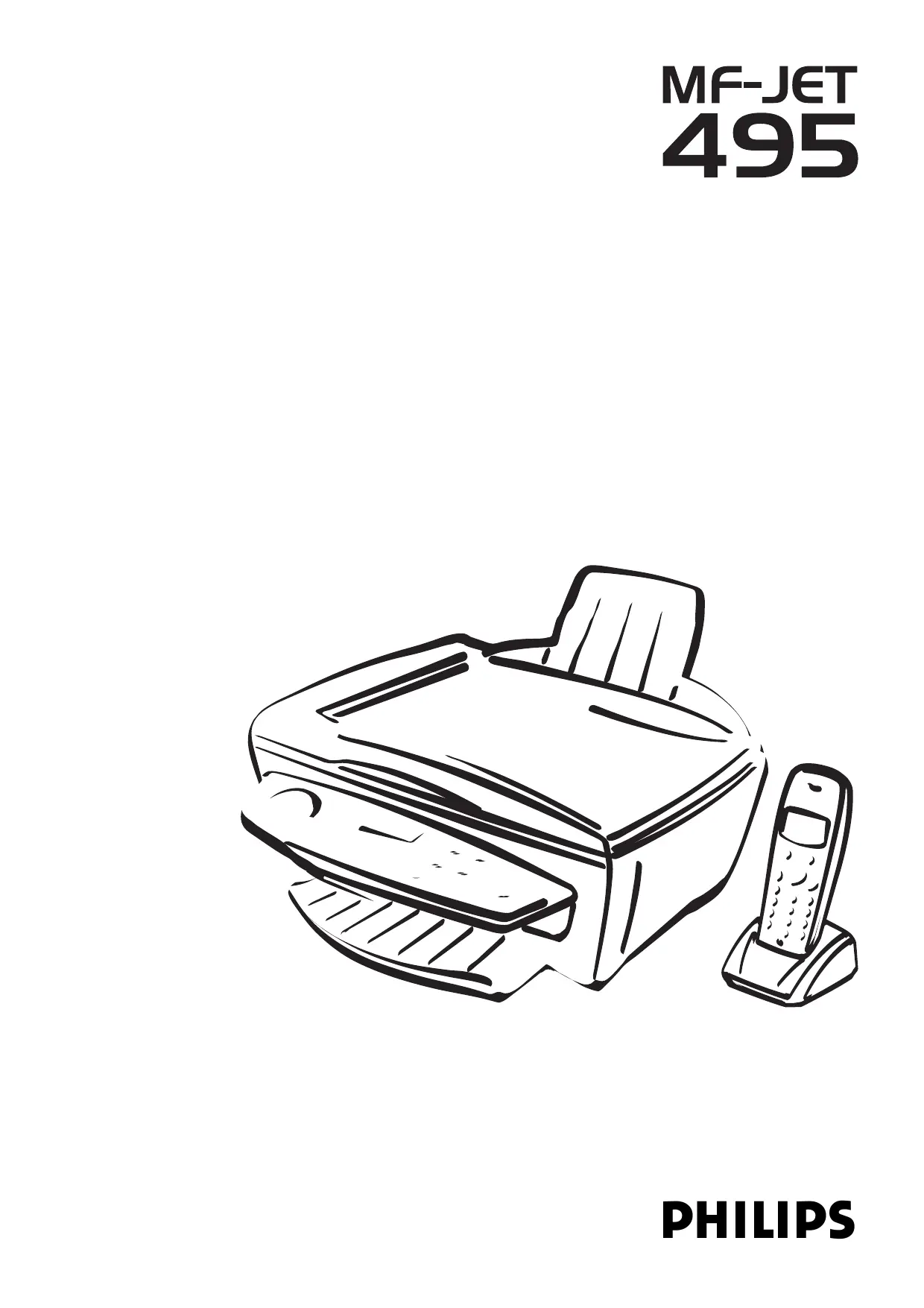

| Type de produit | Imprimante multifonction (fax, copie, scan, impression, téléphone sans fil) |
| Marque et modèle | SAGEM / PHILIPS MF-JET 495 |
| Dimensions (L x P x H) | 460 x 397 x 185 mm |
| Poids | Environ 6,5 kg |
| Alimentation | 220–240 V / 50–60 Hz |
| Consommation électrique (veille) | Environ 10 W |
| Mémoire | 50 pages pour fax, 30 messages SMS |
| Répertoire | 200 entrées |
| Technologie d'impression | Jet d'encre couleur, résolution jusqu'à 2400 x 1200 dpi |
| Vitesse d'impression (N/B) | Jusqu'à 13 pages/min |
| Vitesse d'impression (couleur) | Jusqu'à 7 pages/min |
| Scanner | CCD couleur, résolution 600 x 600 dpi, zone de numérisation 210 x 297 mm |
| Fax | Groupe 3, modem 33,6 kbps, résolution jusqu'à 200 x 400 dpi (super fin) |
| Copie | Couleur et N/B, zoom de 25 % à 400 %, résolution jusqu'à 1200 x 1200 dpi |
| Combiné sans fil | Portée intérieure 50 m, extérieure 300 m, autonomie en communication 10 h, veille 120 h |
| Connectivité PC | USB 1.1, compatible Windows 98 SE/2000/ME/XP |
| Fonctions SMS | Envoi et réception de SMS, capacité 30 messages en mémoire |
| Papier supporté | A4, A5, format personnalisé (largeur 88,9–203,2 mm, longueur 127–283,3 mm), grammage 80 g/m² (A4) |
| Capacité du bac papier | Jusqu'à 100 feuilles |
| Cartouches d'encre | Noire et couleur (type original PHILIPS), avec carte Plug'n'Print pour initialisation |
| Entretien et nettoyage | Nettoyer le scanner avec un chiffon doux ; nettoyer et aligner les cartouches via le menu (fonction 72) |
| Sécurité | Utiliser uniquement l'alimentation fournie ; ne pas exposer à l'humidité ; débrancher avant nettoyage ; garder une distance de 10 cm des autres appareils |
| Pièces détachées et réparabilité | Cartouches d'encre et accessoires de nettoyage disponibles chez le revendeur ou via hotline (0800 358 08 07 au Royaume-Uni) ; garantie 12 mois |
| Informations générales | Notice disponible en français ; assistance technique par téléphone ; appareil destiné à un usage domestique ou professionnel |
FOIRE AUX QUESTIONS - PHILIPS MF-JET 495 SAGEM
Questions des utilisateurs sur PHILIPS MF-JET 495 SAGEM
0 question sur cet appareil. Repondez a celles que vous connaissez ou posez la votre.
Poser une nouvelle question sur cet appareil
Téléchargez la notice de votre Imprimante au format PDF gratuitement ! Retrouvez votre notice PHILIPS MF-JET 495 - SAGEM et reprennez votre appareil électronique en main. Sur cette page sont publiés tous les documents nécessaires à l'utilisation de votre appareil PHILIPS MF-JET 495 de la marque SAGEM.
MODE D'EMPLOI PHILIPS MF-JET 495 SAGEM
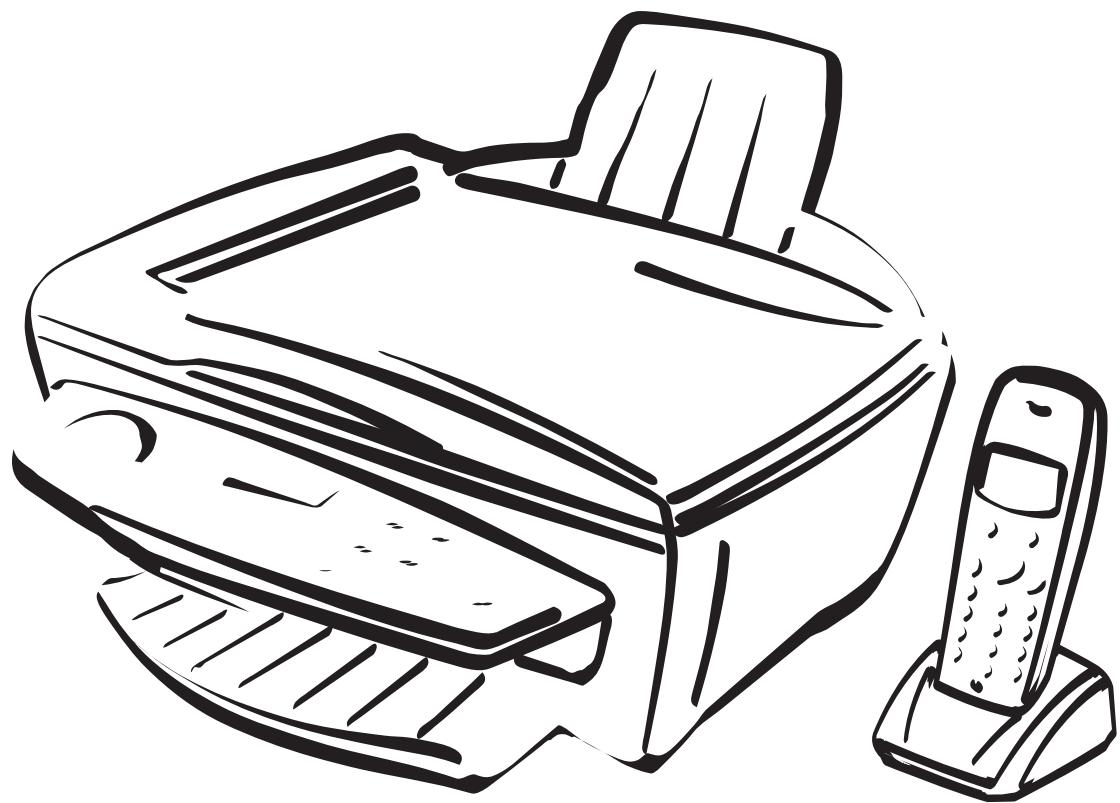
Description of the multifunctional machine
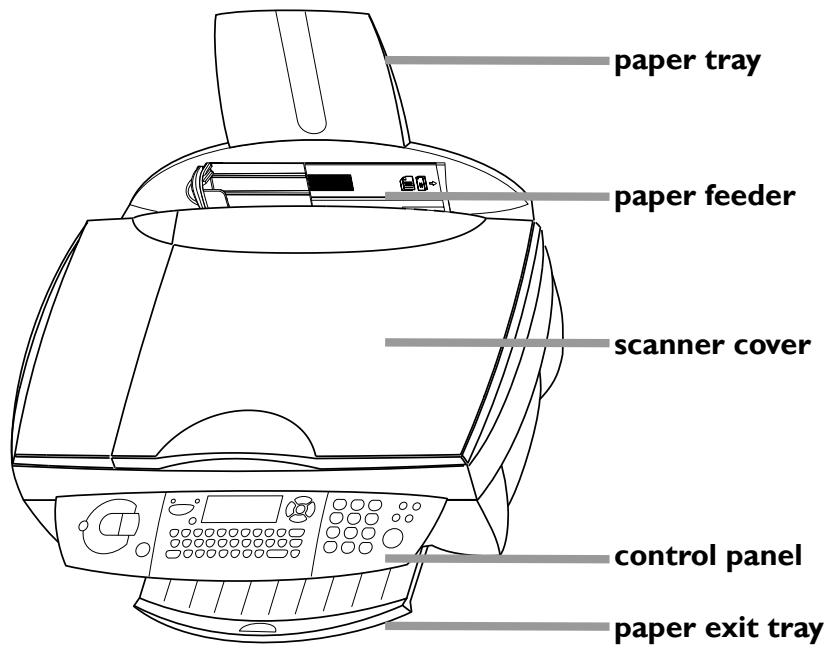
Base station
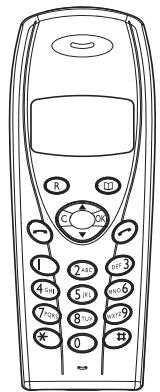
Cordless handset
Display symbols on the base station
21 DATE/TIME 22*NUMBER/NAME

FF SF
Selected options will be highlighted with an arrow ()
Resolution:
F for text and graphics
SF for very small print and graphics
for photographs
If none of the three arrow symbols () in the left-hand part of the display is marked with a ■ the machine is in standard mode
transmission of faxes or SMS
The square () above the four arrows () in the middle of the display shows how full the memory is
on: faxes will be received automatically flashing: faxes are stored in the memory off: memory is full or you have disabled automatic fax reception
Display symbols on the cordless handset


if the symbol lights up the rechargeable battery is charged. If the symbol appears on the display the rechargeable battery is almost flat
silent ringing
C lights up when you make a call and flashes when you receive a call
an SMS has been received and can be read on the display of the base station
lights up when the cordless handset is registered to the base station and is within its range. If the symbol flashes the cordless handset is not registered to the base station. The symbol does not appear if the cordless handset is out of range of the base station or the base station has been disconnected from the power supply
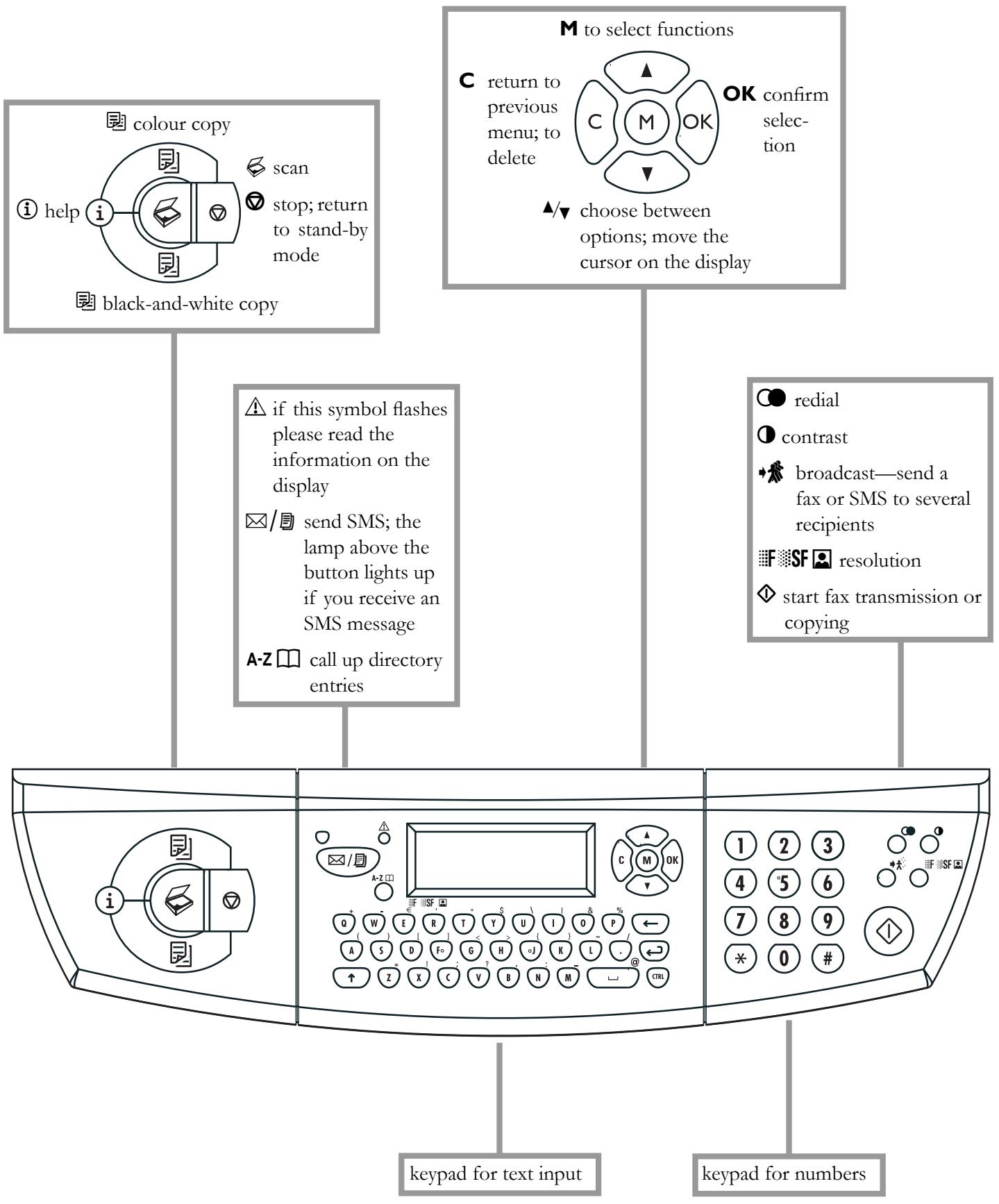
Key assignment on the base station
Key assignment on the cordless handset
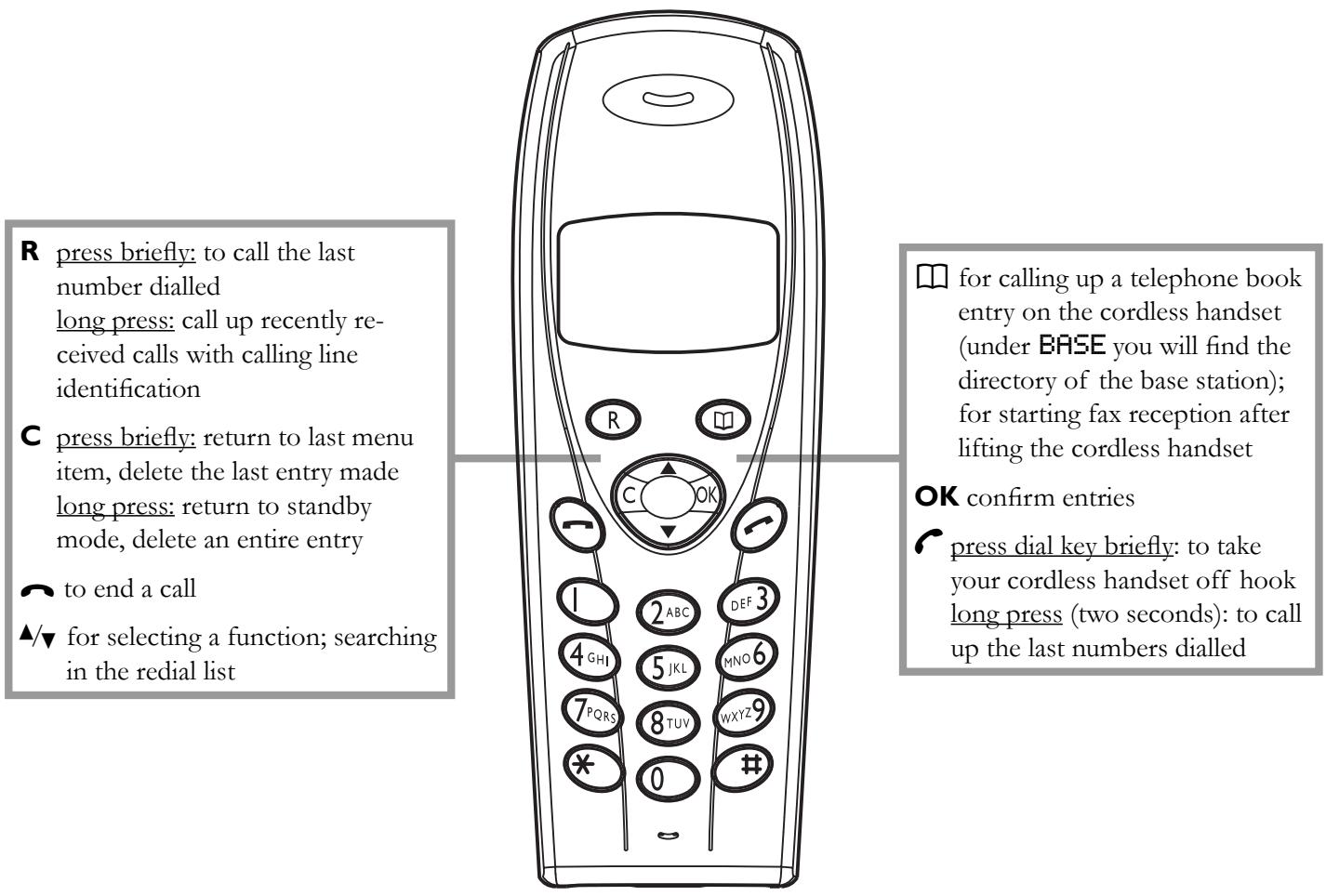
Menu functions on the cordless handset
Your cordless handset is equipped with the following menu functions, which you can access with the / button:
Telephone book
1 PHONE BK
You can create new entries, edit existing entries and access the directory on your base station (see chapter Cordless handset / Telephone book).
2 Calls / Logs
2 CALLS
The logs list contains the last 30 transmissions (faxes sent and received, SMS messages and telephone calls). On your cordless handset you can delete the radial list or check the duration of the last fax transmission or last telephone call (see chapter Hints & tips / Logs).
3 Ring tone
3 RING
On your cordless handset you can select a ring tone and adjust the ring volume (see chapter Cordless handset / Ringer volume). You can switch to silent mode with the function 33 (see chapter Cordless handset / Silent call reception). Function 34 lets you switch the key tones on the cordless handset on or off (see chapter Cordless handset / Audible signals).
4 Settings
4 SET
If function 41 is disabled, you must press to end a telephone call. If function 41 is enabled you can end a telephone call by replacing the cordless handset on the charging station.
5 Base
5BASE
Use function 51 to register an additional cordless handset of the original type on the base station (see chapter Hints & tips / Registering and deregistering an additional cordless handset of the original type). If you use one cordless handset for more than one base station you can set which base station has highest priority with function 52.
The menu functions for the base station are listed in the Appendix / Functions list. You can print out this list with function 51 (on the base station).
Contents
Safety instructions. 6
Installation 7
Unpacking 7
Operating the base station. 7
Loading paper. 7
Operating the cordless handset. 8
Connections 9
Additional devices. 9
Power supply. 10
Country selection 10
Inserting cartridges 10
Cartridge alignment 11
Your number and name 11
Date and time 12
PC connection. 12
Software installation. 12
Settings. 17
Date and time 17
Your number and name 17
Country and language. 17
HELP function ① 17
ISDN connection. 17
Network type (PABX) 17
Set fax reception. 18
Special settings. 18
External answering machine 18
Cordless handset. 20
Making a call 20
Redial. 20
Telephone book 20
Calling line identification 20
Ring signal type 20
Ringer volume 20
Adjusting the call volume 21
Silent call reception 21
Audible signals. 21
Muting. 21
Internal phone calls 21
Additional telephone 21
Locate the cordless handset. 22
Switching on and off 22
Fax 23
Sending a fax 23
Directory A-Z 23
Redial 24
Broadcast 25
Resolution F SF 25
Contrast ① 25
Receivingfaxes 25
Memory lock. 25
Send report. 26
Delayed transmission. 26
Polling 26
Copy. 27
Inserting a document 27
Standardcopy 27
Optional copy 27
Scan to PC 29
Inserting a document. 29
Scanning a document 29
Print. 31
SMS 33
Sending an SMS / 33
Receiving an SMS 33
Advanced settings. 35
Settings list 35
Fax settings. 35
SMS settings 35
Scan settings 35
Printer settings. 36
Hints & tips 37
Ordering information. 37
Change cartridges. 37
Cartridge capacity. 38
Logs. 38
Commands 39
Lock. 39
Registering and deregistering an additional cordless handset of the original type. 39
Care and maintenance. 40
Appendix 42
Functions list. 42
Technical settings 43
Technical data 43
Guarantee 44
Index 46
Safety instructions
Please read and follow all warning notices and instructions.
Your multifunctional device should be installed on a level and stable surface. The surface should be smooth and horizontal. The machine may be damaged if it falls and may cause serious injury, especially to small children. Place the MF-JET 495 at least 10cm away from other electrical devices and objects.
Do not place the machine in direct sunlight. Do not place it near to a radiator, heater, radio, television or air conditioning unit. Do not allow it to come into contact with dust, water or chemicals.
Make sure that air can circulate freely around the MF-JET 495. Do not operate your multifunctional device in enclosed spaces such as boxes, cupboards, cabinets etc. Do not cover the machine. Do not place the MF-JET 495 on soft surfaces such as beds, duvets, cushions, sofas or carpets as there is a risk of overheating and fire.
Only use the power supply included with the product. Using an unauthorised power supply may damage the device.
Do not touch telephone wires or mains cables where the insulation is missing or damaged unless they are already disconnected.
If the housing of your multifunctional device or the power supply—in particular the power or telephone cables—, are damaged, please unplug the MF-JET 495. The housing of the device may only be opened by authorised service personnel.
Unplug the MF-JET 495 from the mains and telephone line before cleaning. Do not use liquid or aerosol cleaning agents such as sprays, alcohol or polishes.
Do not expose the machine to rain or any other form of moisture. There is a risk of electric shock or fire. If any liquid is accidentally spilled into the MF-JET 495, immediately remove the power plug and have the device professionally inspected.
If you want to use another cordless phone, ensure that the machine and the base station of the other cordless phone are at least 15cm apart otherwise you may get acoustic interference in the handset.
Your MF-JET 495 has been tested to EN 60950 or IEC 60950 and may only be operated on telephone networks and power supplies that conform to these standards.
In a thunderstorm, disconnect the multifunctional device from both the mains and the telephone line. If you are unable to disconnect the MF-JET 495, avoid using the machine or the telephone during the storm. There is a risk of electric shock from lightning and risk of damage to the machine.
Your MF-JET 495 is only intended for use in the country in which it was purchased. It may only be operated with telephone systems and power equipment which meet these standards.
For safety reasons, the cordless handset should never be placed on the charger without its rechargeable batteries or battery cover.
Explanation of the safety instructions on the cordless handset:
General warning
Do not touch contacts
Further information in the user guide
Installation
Unpacking
Unpack the box and check that it includes the following:

telephone cable with plug (country-specific)
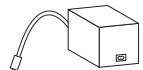
power supply
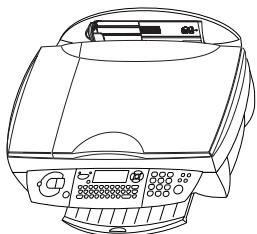
base station

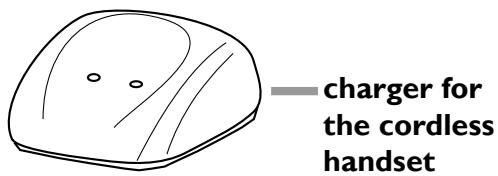
charger for the cordless handset
installation CD

user guide
mains cable with plug


ink cartridges and starter card "Plug'n'Print"

paper tray
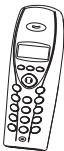
cordless handset

three rechargeable batteries AAA/NiMH
installation guide
Operating the base station
Please read all warning notices and instructions and follow them precisely!
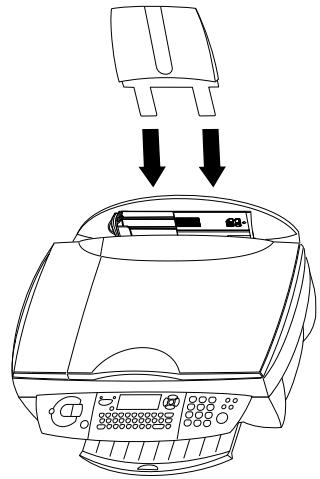
Insert the paper tray in the slots provided behind the paper feed mechanism.
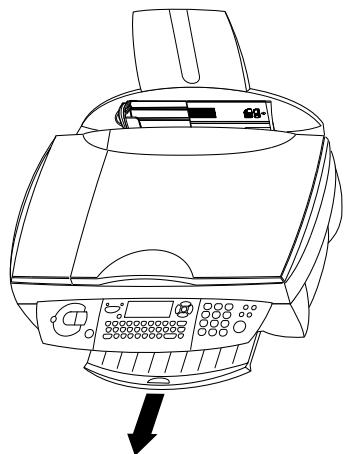
2 Pull out the paper exit tray.
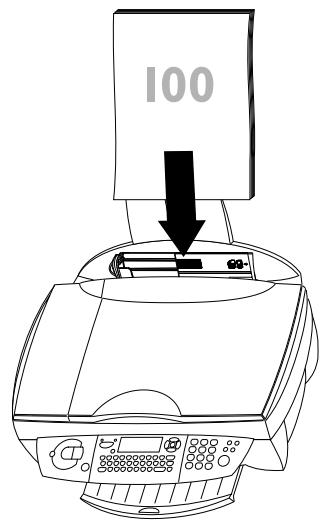
Loading paper
Please use only paper which is specifically intended for use with ink cartridge printers (standard format is A4 210 × 297 ~mm , 80 ~g / m^2 ). Follow the instructions of the manufacturer.
Do not load paper while the MF-JET 495 is printing!
In the event of a paper jam see chapter Hints and tips / Paper feed.
To prevent several sheets being drawn into the machine at once, first fan out the paper to separate the sheets and then straighten the stack on a flat surface before inserting it into the paper feed.
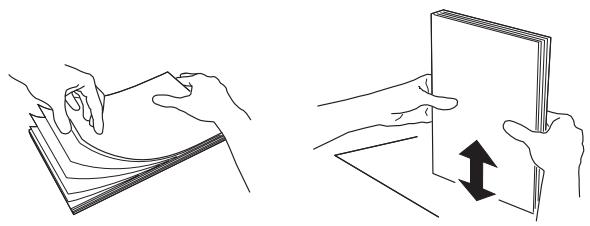
2 Insert up to 100 sheets of paper up to the end-stop in the paper feed mechanism.
Operating the cordless handset
Your cordless handset is fitted with three AAA/NiMH rechargeable batteries at the factory. If you need to replace the rechargeable batteries you should replace them with original rechargeable batteries of this type.
Remove the battery compartment cover at the back of the handset by pressing in the small round opening with a tool. Push the cover back. Insert the three rechargeable batteries as indicated in the battery compartment.
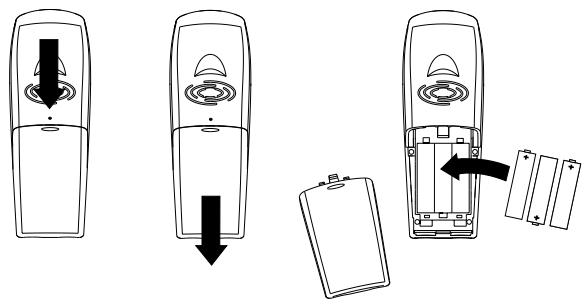
2 Close the battery compartment.
The base station and cordless handset are matched to one another at the factory. You do not have to make any adjustments.
Before you use the handset for the first time the rechargeable batteries need to recharge for at least 12 hours.
Do not use the cordless handset any further than 50m (indoors) and 300m (outdoors) from the base station.
The cordless handset should never be placed in the charging station without its batteries. This could permanently damage the cordless handset.
3 Connect the cordless handset to the charger and connect the charger to the power supply.
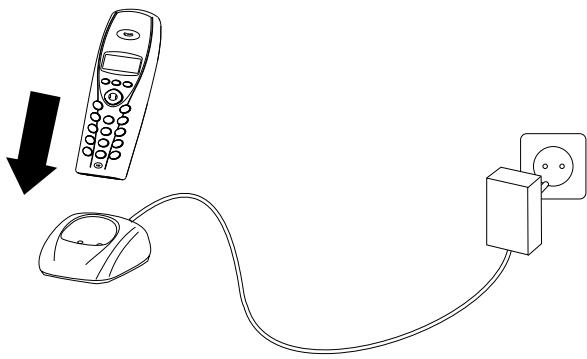
Fully draining the rechargeable batteries about once a week will prolong their life.
Do not use non-rechargeable batteries under any circumstances.
Dispose of old rechargeable batteries in accordance with the rules and regulations in your country.
The manufacturer accepts no liability for failure to comply with these instructions.
Connections
First connect the telephone cable plug socket labelled LINE on the back of the machine.
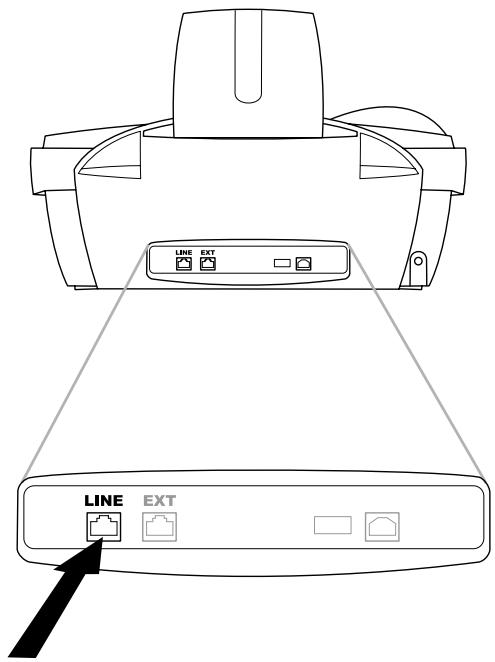
Next connect the telephone plug to the line socket on the wall.
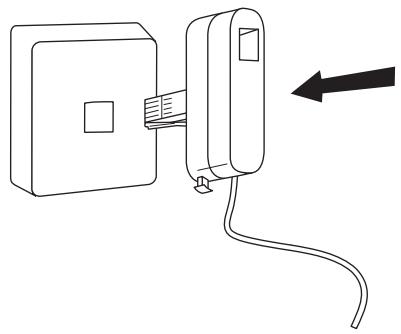
In the UK
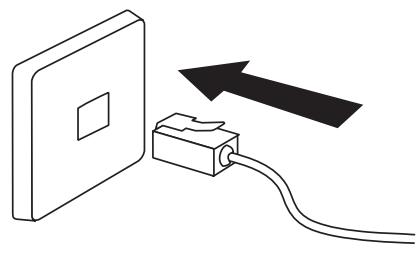
For all other countries
Additional devices
In addition to your multifunctional machine, you can also connect other devices such as additional cordless telephones, call-fee indicators answering machines or modems to a single telephone line.
If you operate another SMS-compatible cordless phone on the same line there is no guarantee that a particular SMS will be received on your multifunctional machine or on the other handset. However, you can only receive SMS messages on one device at any one time. Try to disable SMS reception on the additional cordless phone.
If you intend using special auxiliary devices with your multifunctional machine, please contact your dealer.
Same socket
You can connect additional devices to the same telephone socket. Make sure the multifunctional machine is the first device connected to the line.
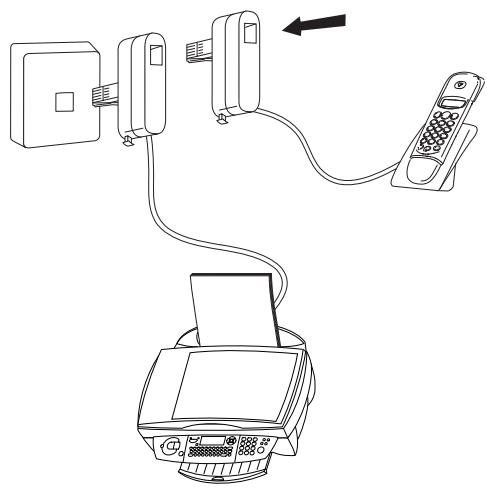
In the UK
For all other countries
You can connect additional devices to the same telephone socket by using the socket labelled EXT on your machine.
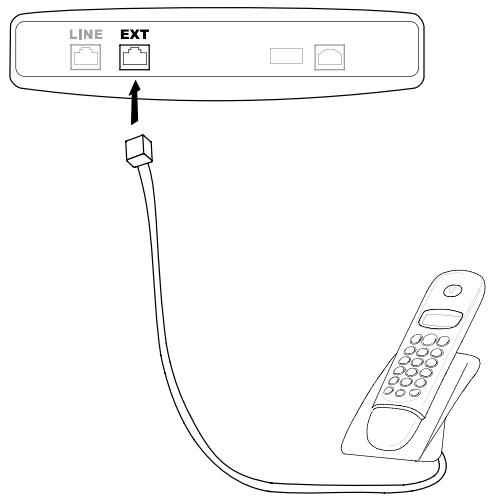
Separate sockets
You can connect additional devices to separate sockets on the same line even if they are in different rooms.
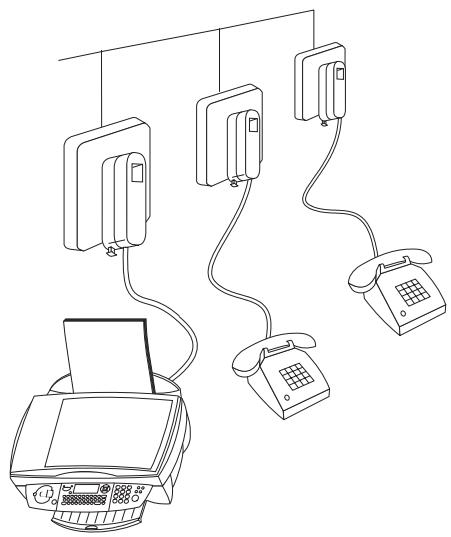
In the UK
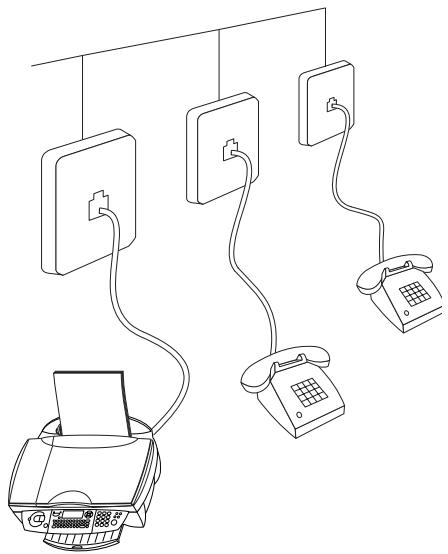
For all other countries
If you connect additional devices to separate sockets (e.g. in separate rooms) your fax switch cannot control them (which means that your multifunctional machine behaves like any ordinary machine). For this reason e. g. call transfer is not possible. Therefore we recommend you to connect your additional devices to the same socket.
For optimum performance of all the functions you should only register cordless handsets of the original type.
Original cordless handsets can be ordered using the enclosed order form or contacting the call center (see chapter Hints & tips / Ordering information).
Power supply
Connect the power supply unit to the back of your MF-JET 495 (at the side). Then use the mains cable to connect the power supply unit to the mains.
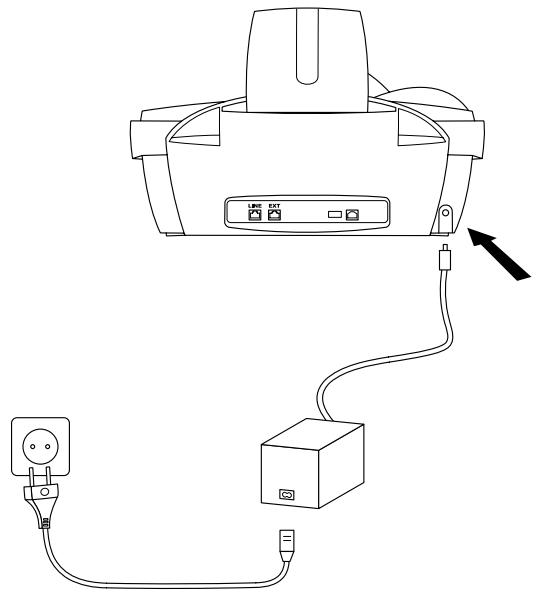
After you have connected the multifunctional device to the mains, it will prompt you to make some basic settings as follows:
Country selection
Press OK.
2 Use / to choose your country.
3 Press OK twice.
Inserting cartridges
Before you can receive or copy documents there must be ink cartridges in your MF-JET 495. Two starter cartridges (black and colour) have therefore been included to cover a few test pages.
Open the machine by pulling the lever under the control panel.
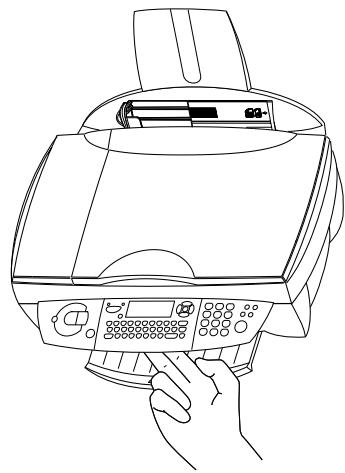
2 Press the lever in the middle of the cartridge holder to open the holder.
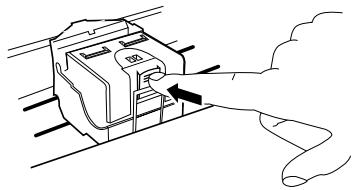
3 Take the ink cartridges out of their packaging and remove the protective strip.
Please make sure that the protective strip was removed completely.
Be careful not to touch the nozzle or the contacts!
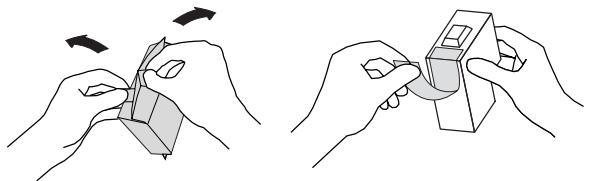
4 Insert the black cartridge "nose" down in the right-hand compartment of the cartridge holder.
5 Insert the colour cartridge in the same way in the left-hand compartment.
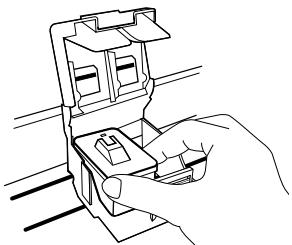
6 Close the cartridge holder. You'll hear a click when it snaps shut.
7 Close the machine.

8 Push the supplied "Plug'n'Print" starter card with the contacts at the top into the slot under the control panel. This "Plug'n'Print" card is used for initialising the black cartridge and the colour cartridge.
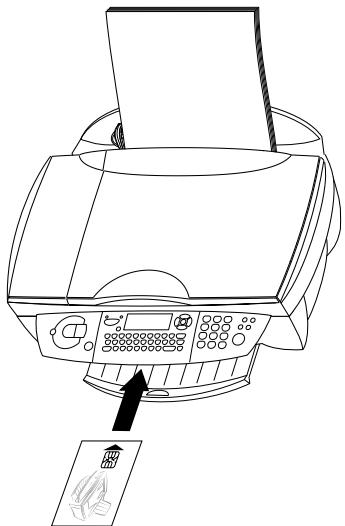
9 The cartridge is loaded when the following appears on the display: ACTION COMPLETED
REMOVE CARD
Repeat the process with the same card for the second cartridge.
Cartridge alignment
After the ink cartridges have been inserted your multifunctional machine will print a test page that will help you align the print heads of the two cartridges correctly. This is necessary to achieve the best possible print quality.
Use the number keypad to enter the number of the field in which the arrow appears clearest. ENTER VALUE A
2 Confirm with OK and repeat these steps for values B, C and D. ENTER VALUE B
Your number and name
Enter your fax number (max. 20 digits) and press OK (to enter a plus sign hold down the CTRL key and press Q; to enter a blank space, press the key).
2 Enter your name by using the keyboard for text input (max. 20 characters). The available special characters are shown above the letter keys on the right and can be entered by holding down CTRL and pressing the relevant key. To type capital letters, hold down and press the desired key. If you have entered a wrong digit or character, you can correct it with and C. Press OK.
Date and time
Enter the date and time and confirm with OK, e.g. ①⑤ ①⑤ ①④ ①⑥ ③⑩ OK for May 15^th 2004, 4:30 p. m.
PC connection
First install the software. Connect the MF-JET 495 to the PC with a USB cable only when instructed to do so by the installation program.
Minimum configuration
Your PC must have the following minimum configuration:
- Pentium processor, 200 MHz or higher
- Windows® 98 SE/2000/ME/XP and 128 MB RAM
- 300 MB free disk space for the complete installation
USB port
You can connect your multifunctional machine to a Microsoft® PC (running the Windows® operating system). The machine is not compatible with Linux or Apple Macintosh®.
Software installation
The Software-Package contains:
“MF-Inkjet”: installs your printer and scanner.
2 "Photo Impression": for creative processing and improved print quality for your digital photos.
3 "Paper Port": for quicker management of your scanned documents.
4 "Acrobat Reader": for display and printing of PDF data.
First install the software. Connect the MF-JET 495 to the PC with a USB cable only when instructed to do so by the installation program.
Before starting the installation program, close all open programs and applications. Installation starts automatically. (If the installation program does not start, find your CD-ROM drive in Windows Explorer and double-click on Launch.exe.)
Installing all products
In the start window, click on "Install products".
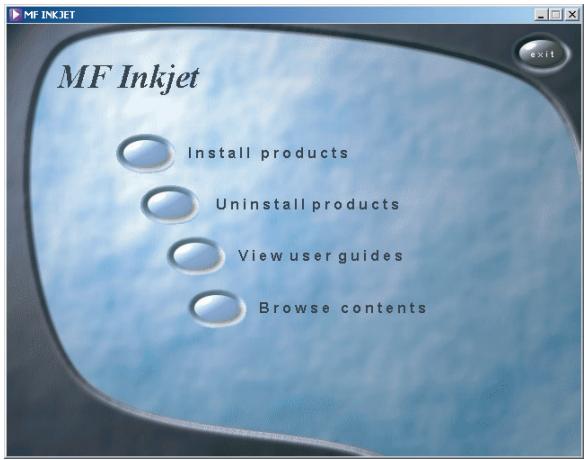
2 If you want to install all the products offered (scatterer, printer, "Photo Impression", "Paper Port"), click on "All products".
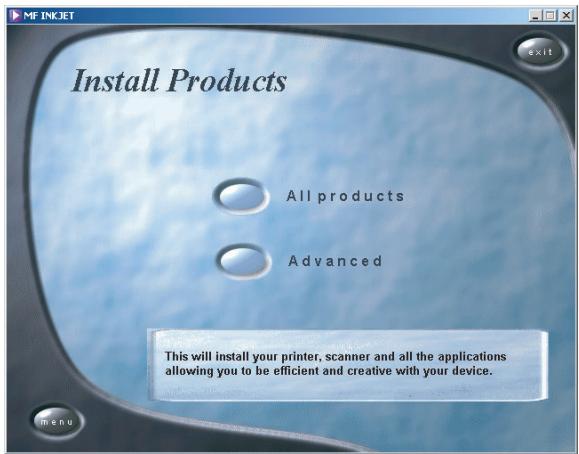
In this setting, "Acrobat Reader" must also be installed separately.
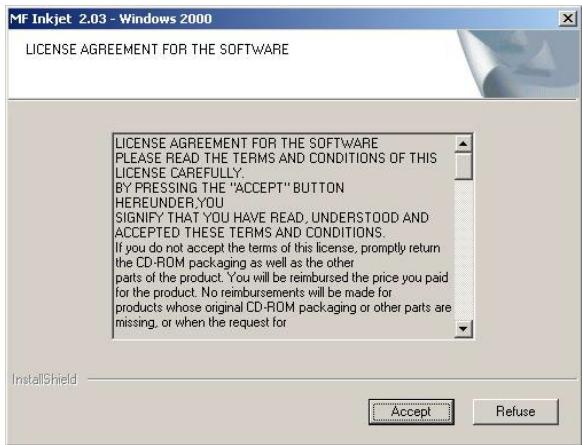
3 After "Photo Impression" has automatically installed you will be asked to accept the terms and conditions of the licence.
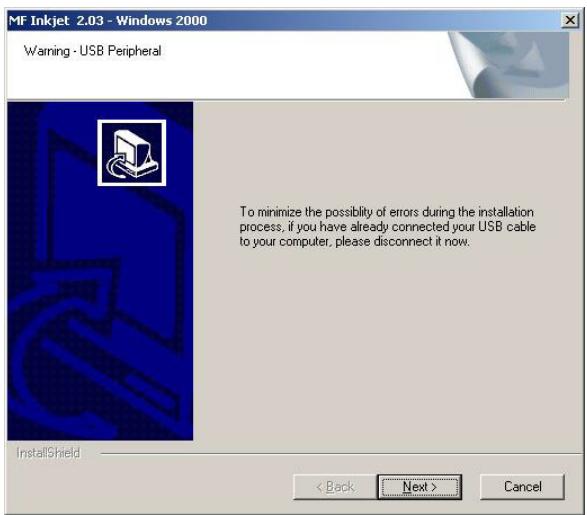
4 If you have already connected the USB cable to the PC, remove it and click on "Next".
5 Windows® XP: If you receive a warning message that the peripheral hasn't passed Windows® Logo testing, choose "Yes".
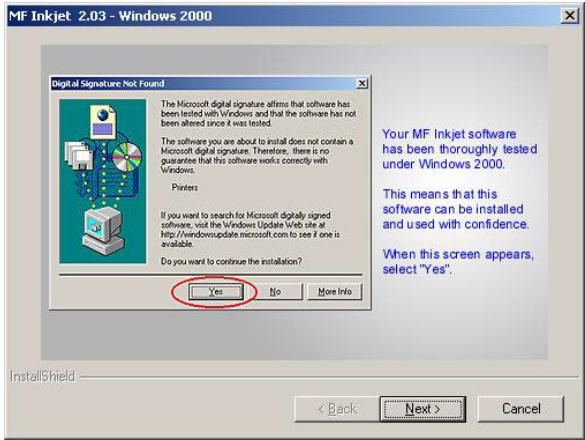
A Your multifunctional device has been tested for PHILIPS and is fully compatible with Windows® XP.
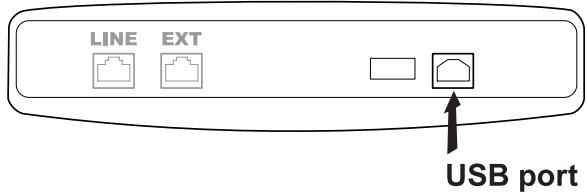
6 Follow the instructions on the screen, and connect the machine to the PC with a USB cable. Click on "Next" to confirm (high-speed systems will open the window described in 7 without confirmation).
The USB port is at the back of the machine.
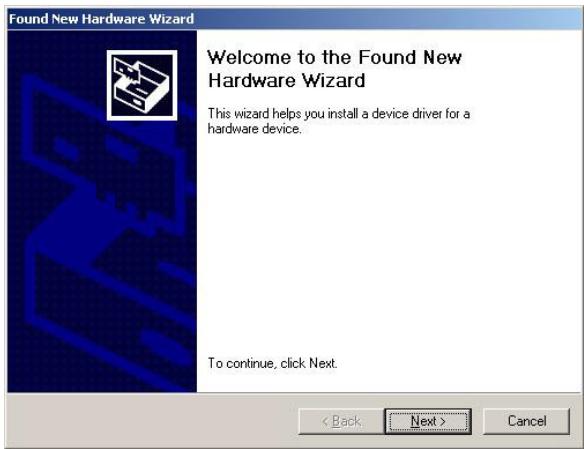
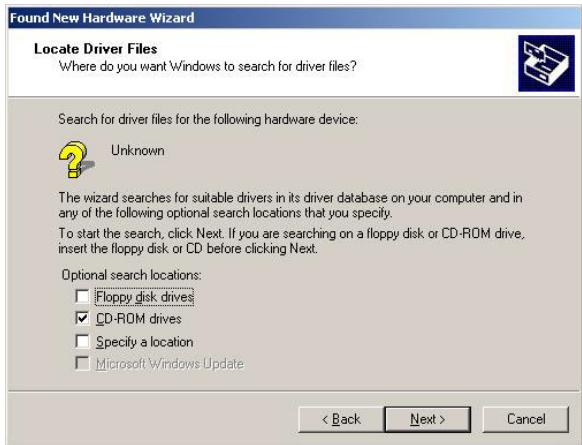
7 Click on "Next" to confirm. The installation program will automatically search for a suitable driver for your MF-JET 495.
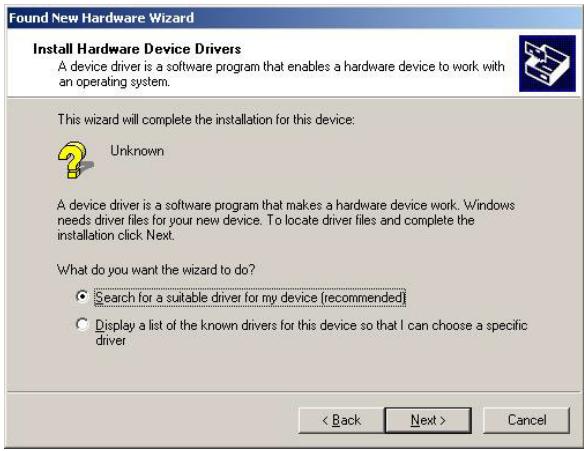
8 Make sure the "CD-ROM drives" button is highlighted, and click on "Next" to confirm.
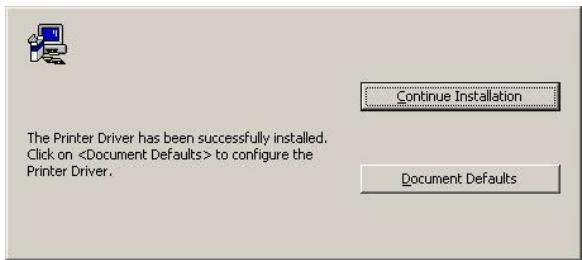
9 You can make special printer settings under "Document Defaults". Click on "Continue Installation" to install the printer driver.
10 You will be asked to restart your PC. Leave the installation CD in the drive. After the PC has restarted, installation is completed with "Paper Port".
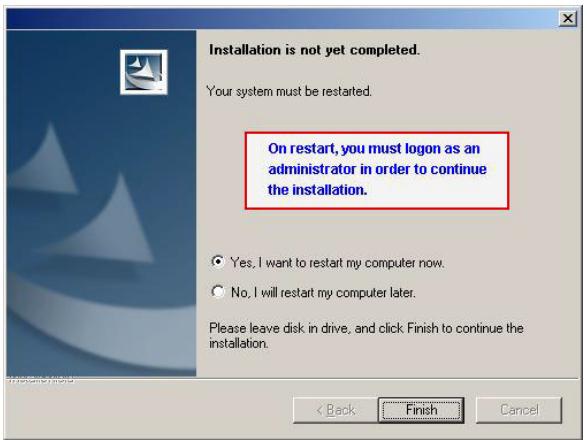
You can restart your PC at a later date so you can finish working in any programs that are still running.
Installing individual products
In the start window, click on "Install products".
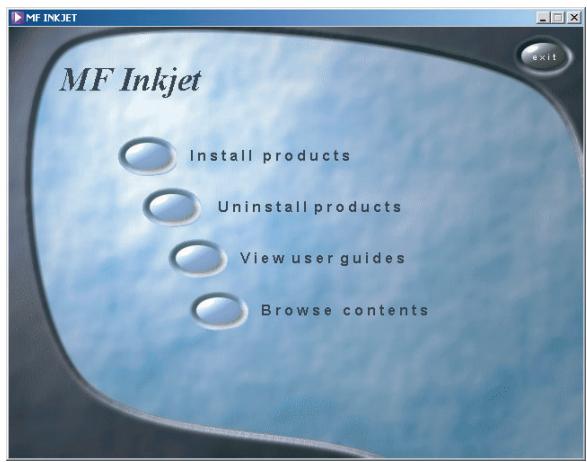
2 If you want to install specific products, click on "Advanced".
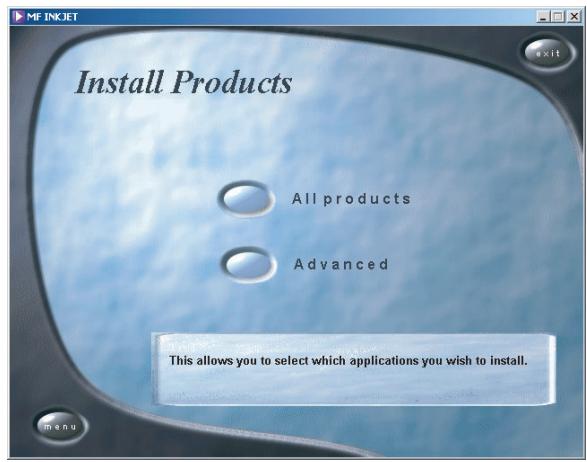
3 Select a product by clicking on relevant button.
Example: Installing "Photo Impression":
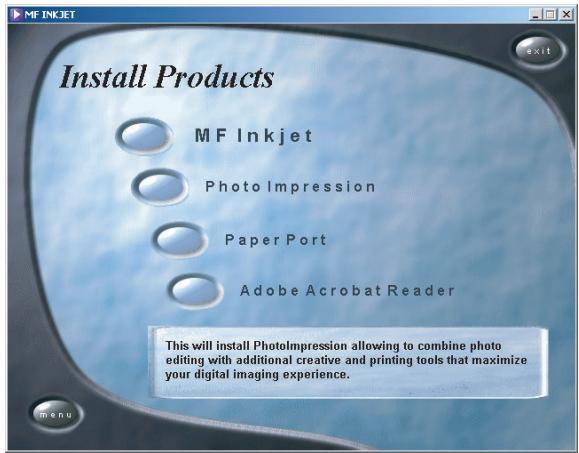
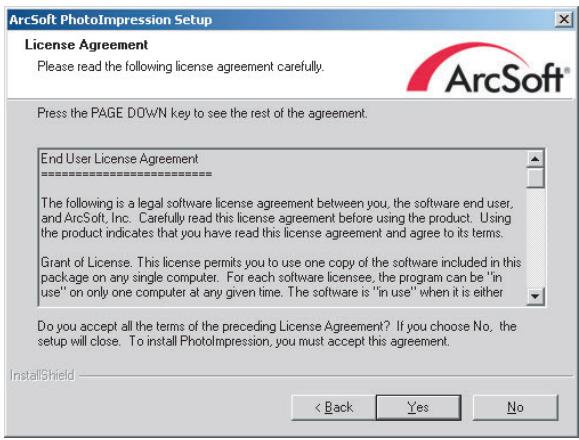
Click "Next" and follow the instructions on the screen. You will be prompted to accept a license agreement.
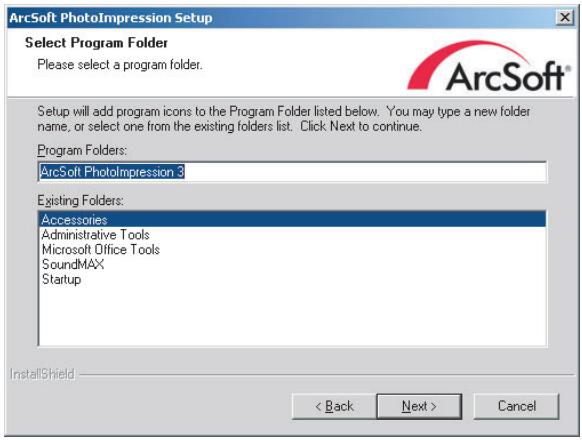
The program offers you a default directory where "Photo Impression" will be installed. You can choose a different directory.
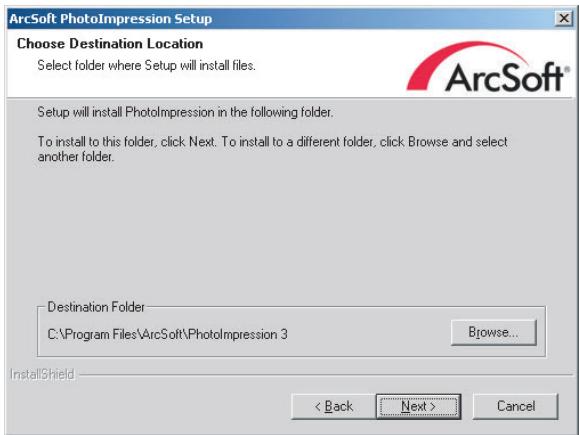
If you agree with the suggested directory name, click on "Next".
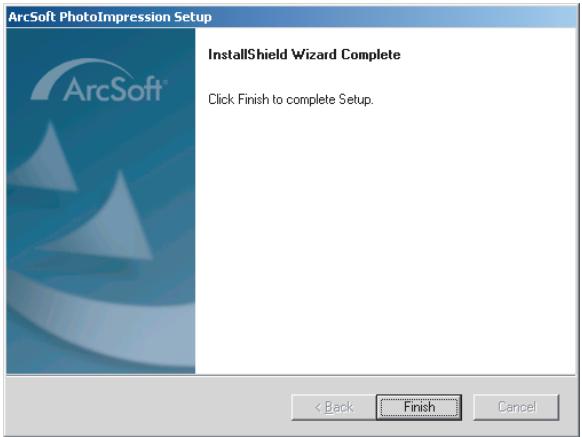
To complete the installation process for "Photo Impression", click on "Finish".
The installation CD will also guide you through the installation of "Paper Port", "MF-Inkjet" and "Acrobat Reader".
When you have finished installing "MF-Inkjet" you will be asked to restart your computer.
Operating instructions
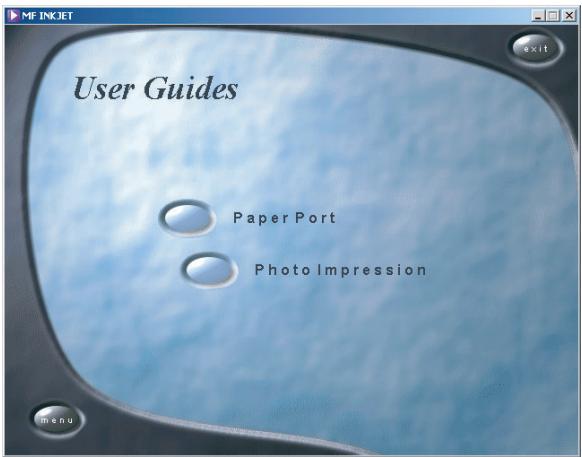
To find out more about "Paper Port" and "Photo Impression", click on the "View user guides" button in the start window and select the relevant product. A PDF file gives you information on the selected product.
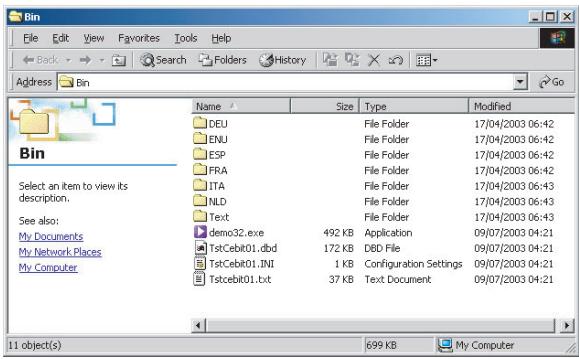
Contents of the installation CD
To find out what's on the installation CD, click on the "Browse contents" button in the start window.
Uninstalling the products
To delete a product once it has been installed, click on the "Uninstall products" button in the start window. If you want to uninstall all the products, click on "All".
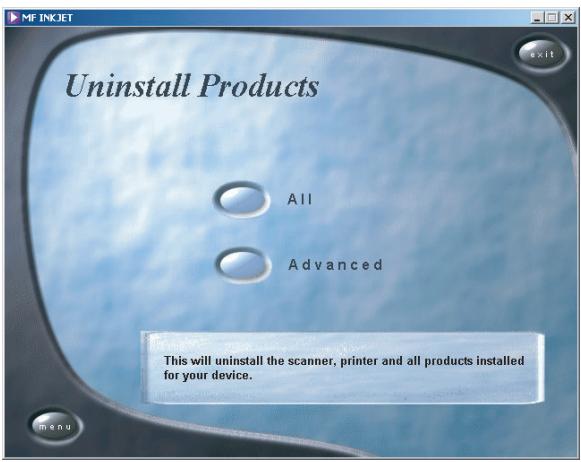
After "Photo Impression" has been uninstalled your "MF-Inkjet" device driver will be removed. Click on "Finish" to confirm. You will be asked to restart your PC and disconnect the USB link. Leave the CD ROM in the drive.
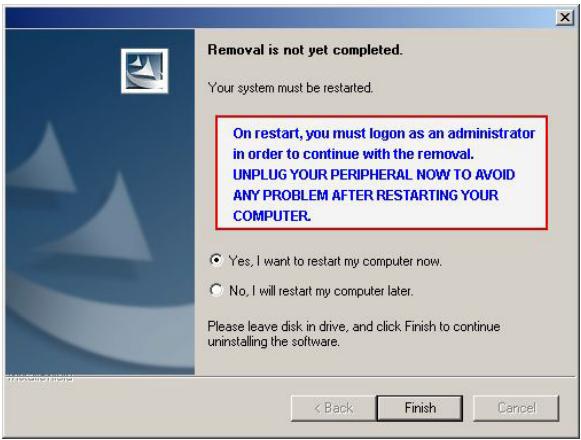
You can restart your PC at a later date so you can finish working in any programs that are still running.
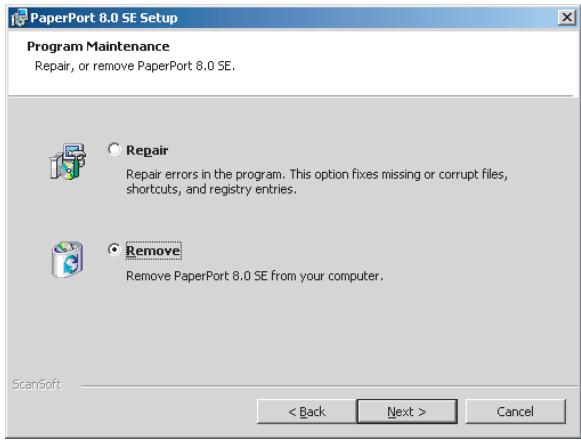
After the PC has restarted, the uninstall operation is completed with "Paper Port". You can choose "Repair" or "Remove". Follow the instructions on the screen.
2 If you want to delete specific products, click on "Advanced". The CD ROM will take you through the uninstall process for the selected product.
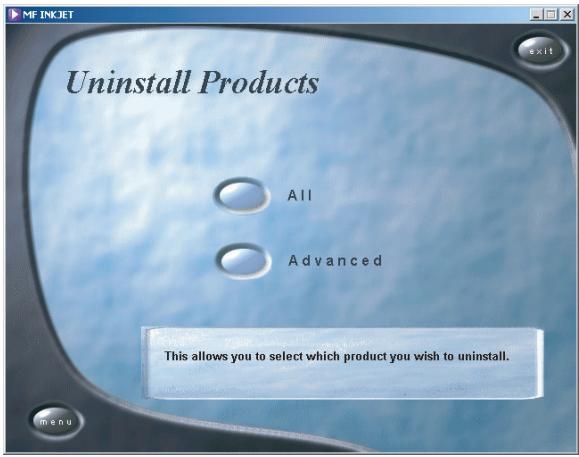
Click on "Menu" at any time to return to the start window.
Settings
You can print out a list of the current parameter settings by pressing M, ⑤ 4 and OK. To return to stand-by mode, press as often as necessary.
If you want to delete or modify your individual settings, you can do so in the following functions.
Date and time
Press M, ②① and OK.
2 Enter the date and time and confirm with OK, e.g. ①⑤ ①⑤ ①④ ①⑥ ③① OK for May 15^th 2004, 4:30 p.m.
Your number and name
Press M, ②② and OK.
2 Enter your fax number (max. 20 digits) and press OK. (To enter a plus sign hold down the CTRL key and press Q; to enter a blank space, press the key.)
3 Enter your name by using the keyboard for text input (max. 20 characters). The available special characters are shown above the letter keys on the right and can be entered by holding down CTRL and pressing the relevant key. To type capital letters, hold down and press the desired key. If you have entered a wrong digit or character, you can correct it with and C. Press OK.
“Your name” and “your number” are transmitted at the top of each page together with the date, time and page number, if you store this data with function 21 and 22.
Country and language
These settings will determine the language of the display and the local telephone network settings.
Press M, ②① and OK. Use ▲/▼ to select your country. Press OK twice. It is important that you choose the country where you are using the machine as the machine has to adapt to local conditions!
2 To set the language, use to select function 202*LANGUAGE and press OK. Choose with and press OK.
The cordless handset automatically takes over the setting you have made on the base station.
HELP function ①
Press ① twice. You will receive a printout explaining how to use the most important functions. It also specifies how to obtain further HELP pages concerning other features of your machine.
ISDN connection
Your multifunctional device is not an ISDN device (group 4), but an analogue machine (group 3). Therefore it cannot be used directly on an ISDN connection. You will need an (analogue) adapter or an ISDN connection for analogue devices. For further information please refer to your ISDN instructions.
For devices with SMS function: Analog terminals must be SMS-compatible.
Network type (PABX)
Private branch exchange systems are very common in large companies. To get a connection from a private branch exchange to the public network you have to dial a key to obtain the outside line.
An additional telephone connected to a normal telephone line together with your MF-JET 495 must not be confused with a private branch exchange.
If you connect the MF-JET 495 to a PABX, you can set the prefix for an outside line.
Press M, ②⑤① and OK. Use ▲/▼ to select PABX and confirm with OK.
2 Select function 252*PREFIX using and press OK. Enter the number of digits and press OK.
Take the longest internal number and add a further digit (e.g. if internal numbers are four digits long, enter 5).
3 Press the digit you need to reach an outside line. This is usually ①. Confirm with OK.
If the number of digits for an internal call is exceeded, the prefix for an outside line will be automatically added.
Set fax reception
The built-in fax switch separates fax transmissions from telephone calls. This means for example that the machine can receive faxes silently (without ringing signals) so you are not disturbed. The fax switch also monitors other connected devices.
Press M, ⑧⑤ and OK.
2 Enter the number of ringing signals with / after which the faxswitch should accept the call and separate faxes from telephone calls. Although the caller will continue to hear slightly different ringing tones after this time, charges will already have been accrued. FAX RINGS 3
3 Confirm with OK.
4 Press M, ⑧④ and OK.
5 Select number of total rings with / . This is the number of ring tones before "silent" faxes can be received or a call can be accepted. TOTAL RINGS 5
6 Confirm with OK.
| Display | Possible settings |
| TOTAL RINGS | 0, 1, 2, 3, 4, 5, 6, 7 |
| FAX RINGS | 0, 1, 2, 3, 4, 5, MANUAL RECEPTION |
If you cannot receive any faxes, you may have set both ringing signal numbers too high (see points 2 and 5). Set both ringing signal numbers to values lower than five.
If you are using other devices apart from the multifunctional machine (telephones, answering machines), which are not connected by serial links, the ringing pattern may change as follows: Other devices ring as often as set under FAX RINGS. Your cordless handset will ring as often as set under TOTAL RINGS.
Special settings
Silent fax reception
To receive faxes immediately, set the number of FAX RINGS to 0 (zero). Your cordless handset will ring with a short delay because the fax switch has to check whether a fax is to be received.
Completely silent operation
If, for example, you do not wish to be disturbed by calls or faxes arriving at night, you may set the number of both ringing signals (TOTAL RINGS and FAX RINGS) to 0. In this setting your machine will switch immediately to fax reception and the cordless handset will not ring for incoming calls (the caller hears a whistling tone).
In this setting you cannot be reached by phone. You can only receive faxes. No messages will be recorded on your external answering machine.
Manual fax reception
If you select MANUAL RECEPTION then the fax will not be received automatically by your multifunctional machine, except you activate the fax reception by pressing (on the cordless handset: ( 5) ). This may be sensible for example, if you wish to receive your faxes by modem at your computer.
External answering machine
Connect your answering machine as described in chapter Installation / Additional devices.
To provide for the optimum performance of an external answering machine, set this device to ring once or twice. To avoid the automatic acceptance of calls by the faxswitch, you must set FAX RINGS and TOTAL RINGS to a value at least two ringing signals higher than the setting of the external answering machine.
If you switch off the external answering machine, calls are accepted by the faxswitch (see Set fax reception).
Settings example:
Answering machine rings 2
FAX RINGS 4
TOTAL RINGS 4
Tips:
The answering message of your answering machine should be shorter than ten seconds.
Please avoid music in your outgoing message.
If the automatic fax reception is impossible, press to manually begin receiving the fax.
If your answering machine provides an "economy function" (e.g. a function which changes the number of ringing signals as soon as a message was recorded), you should preferably switch this function off.
It is possible that the answering machine not only counts the messages received, but also the number of fax calls.
If your answering machine records fax signals but your multifunctional machine cannot receive faxes, you should check the connection of your external answering machine. Connect the external answering machine to the same telephone socket or to the EXT socket of your machine (see chapter Installation / Additional devices).
Cordless handset
Making a call
To make a call, enter the phone number and press the dial key.
2 To accept a call, again press the dial key ±b .
3 To end a call, press
If you have entered an incorrect digit, you can cancel it with C before dialling commences.
Redial
Your cordless handset stores the last ten numbers dialled.
Press R briefly.
2 You can now use to select the number you want from the radial list on your cordless handset.
3 Press the dial key on your cordless handset to establish the connection.
Telephone book
You can store telephone numbers in the phone book on your cordless handset (max. 20 entries).
Storing numbers
Select function 11 by pressing / , ①①.
2 Use the digit keys to enter a name. Press and hold the key as long as necessary until the character you want appears on the display. If you have made a mistake, press C briefly, then OK.
3 Enter the telephone number you want to store and press OK.
Using the telephone book
Press and use / to select the entry you want on your cordless handset.
To establish a connection to the other party, press the dial key ±b
2 Select BASE to access the base unit list, and confirm with OK. You can now make your selection from the entries on the base station.
To establish a connection to the other party, press the dial key ±b
Correcting entries
On your cordless handset, press / , ①② and select with / the desired entry.
2 Press OK to edit the entry.
3 Delete the number or name using C and confirm the new entry with OK.
Deleting entries
On your cordless handset, press / , ①③ and select with / the desired entry.
2 Press OK to delete the entry.
Calling line identification
(not available in all countries)
Your base station as well as your cordless handset are capable of showing the caller's telephone number. To have this feature at your disposal you must subscribe to it via your telephone service provider.
If a call had been received during your absence, the display on your cordless handset will show CALL. The telephone numbers of the last ten received calls are stored.
Hold down R on your cordless handset for two seconds. On the display appears: CALLS
2 Using you can now step through the entries.
3 To call back the displayed number just press the dial key on the cordless handset.
Ring signal type
You have a choice of six ring tones on your cordless handset:
1 Select function 31 by pressing , ③① and OK on the cordless handset.
2 Now use to select one of the ringing tones.
3 Confirm with OK.
Ringer volume
Select function 32 by pressing / , ③②.
2 You can now use to set the volume you want.
3 Confirm with OK.
Adjusting the call volume
During a telephone call press / and select the volume you want. Press OK.
Silent call reception
If, for example, you do not wish to be disturbed by calls you can disable the ring tones on your cordless handset with function 33.
Press , ③③ and select the option ON.
Audible signals
If you press any key on the cordless handset you will hear a short beep. You can disable the key tones in function 34 on your cordless handset.
Press / , ③④ and select the option OFF with / and confirm with OK.
Muting
If you are making a phone call and want to talk to someone in the room without the person on the other end hearing, you can mute the cordless handset. Press C during the phone call. This switches off the microphone on the cordless handset, and the person on the other end will no longer be able to hear you. The loudspeaker on the cordless handset remains on, however, so you can still hear the other person. The total call duration is shown on the display. Press C again to carry on the call.
You can also mute your cordless handset entirely. If you press OK during a call, both the microphone and the loudspeaker on the cordless handset will be switched off. The ±b symbol on the display will start to flash. Press OK again to carry on the call.
Internal phone calls
If you have registered more than one cordless handset on your base station you can make internal calls between two handsets.
Press the number of the cordless handset you wish to call (for example ②) and the dial key. Press the button to end the call.
Press and to call all the handsets registered on your base station.
Additional telephone
Your multifunctional machine is equipped with a cordless handset. You can also connect further telephones to the same telephone line (see chapter Installation / Additional devices). However, the additional phone must be set to dual-tone multi-frequency method. If your telephone connection requires the pulse dialling method, then you would need to briefly reset your additional device to use it. For more information about this, please see the user manual for your device.
There are two ways in which you can forward a call from your cordless handset to an additional cordless phone, depending on the type of call (see following table).
For optimum performance of all the functions you should only register cordless handsets of the original type.
Original cordless handsets can be ordered using the enclosed order form or contacting the call center (see chapter Hints & tips / Ordering information).
| Incoming call | Cordless handset | Base station | Other telephone |
| You want to accept a call. | Press the dial key both for an external call and for a call that is forwarded by your base station or another cordless handset. | Not possible! | Depending on the type of telephone. |
| You lift the handset and it's an incoming fax (you hear a beep or nothing at all). | Press ☐ or combination ➀. | Press Ⓞ. | Press ➁ ➂ and hang up. |
| You want to forward a call. | To an additional cord-less handset that is also registered to the base station: For an external call press OK, the number of the handset you want (e.g. ➃) and the dial key Ⓞ, then hang up with Ⓞ. For an internal press OK, the number of the handset you want (e.g. ➆) and the dial key Ⓞ. | Not possible! | Not possible! |
Locate the cordless handset
If you have misplaced your cordless handset or additional cordless phones you can use function 83 to find them.
On the base station press M, ⑧③ and OK twice. All the cordless handsets registered on the base station will then ring for about one minute.
When you have found your handset press on the base station or on the cordless handset to stop it ringing.
Switching on and off
You can switch the cordless handset off to save power. To switch the handset off hold down the button for at least three seconds. To switch the handset back on again hold down the button for at least three seconds.
Fax
Sending a fax ①
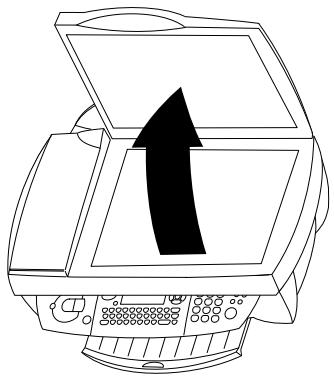
1 Open the scanner cover. Please make sure that the scanner glass is clean before placing the original document (see chapter Hints & tips / Care and maintenance).
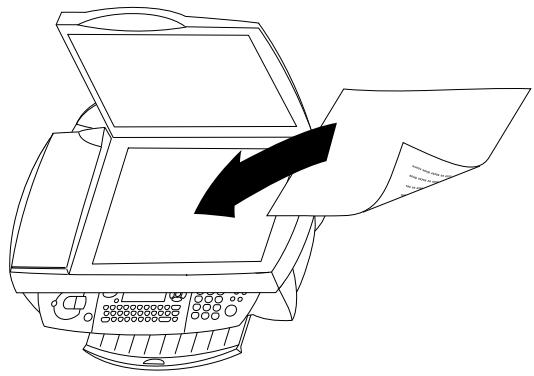
2 Place the document face down onto the scanner glass.
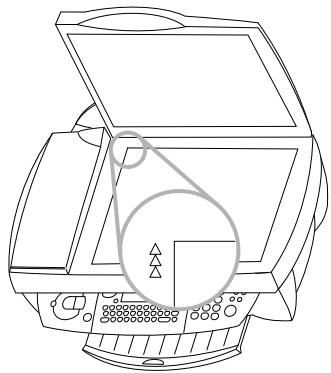
3 Align it with back left corner of the scanner glass (marked with arrows).
If you want to scan small three-dimensional objects (such as coins or flowers), use transparent film to protect the scanner glass.
If your machine produces horizontal strips, the scanner may be blocked (see chapter Hints & tips / Horizontal stripes).
4 Choose a fax number and press . Wait until the warm-up phase has come to an end and the document has been scanned into the memory.
5 If you want to send just one page, use to choose DONE and press OK. If you want to fax more than one page, insert another page and select NEXT PAGE. Then press OK.
If the number called is busy, it will be redialled automatically after a certain time.
After transmission, the MF-JET 495 will automatically print a send report. This function can be deactivated (see Send report).
If you want to cancel the transmission, press twice.
Directory A-Z
The memory in your MF-JET 495 can store about 200 names and number. The precise number depends on the length of the entries.
In the list you can store individual entries (names and numbers) and groups (comprising several entries).
The available special characters are shown above the letter keys on the right and can be entered by holding down CTRL and pressing the relevant key (e.g. hold down CTRL and press W to type a hyphen).
When entering a name, you can use to type capital letters (press and hold the key and type the desired key).
With you can move the cursor within an entry and with you can delete a character.
Add name
Follow the instructions on the display to store an entry in the list:
Press M, ①① and OK. Enter a name and press OK. Enter a fax number and press OK.
2 The MF-JET 495 automatically assigns a number to the record. To modify this number enter the digit required and press OK.
3 Use to choose W.ASSOC. KEY if you want to assign a shortcut key (letter) for quick access to the record. Press OK.
4 If necessary, you can set a different transmission speed for sending faxes. If the line quality is good, confirm the default maximum speed. Press OK.
The entry is saved. To call up a saved entry, press A-Z and use , a number key or letter key to select the desired list entry. The list of your stored contacts will be printed out.
Add group
You can group several directory entries together e.g. to send a fax to several persons.
Press M, ①② and OK. Enter a name for this group and press OK.
2 Press a shortcut number, a letter or use and OK to select entries to add them to the group. Press OK.
3 The group ID number will automatically appear on the display. If you wish to modify this number, you may do so. Confirm with OK.
Modify
Press M, ①③ and OK.
2 The directory appears in alphabetic order. Use to select the entry or group you wish to modify. Press OK.
3 Modify the entry and confirm each step with OK.
Cancel
Press M, ①④ and OK.
2 The directory appears in alphabetical order. Use to select the entry or group you wish to delete.
3 Press OK.
4 Confirm with OK.
Press M, ①⑤ and OK. The directory is printed in alphabetical order.
Transfer to a PC
If you have connected your MF-JET 495 to a PC, you can transfer the directory to the PC to edit it.
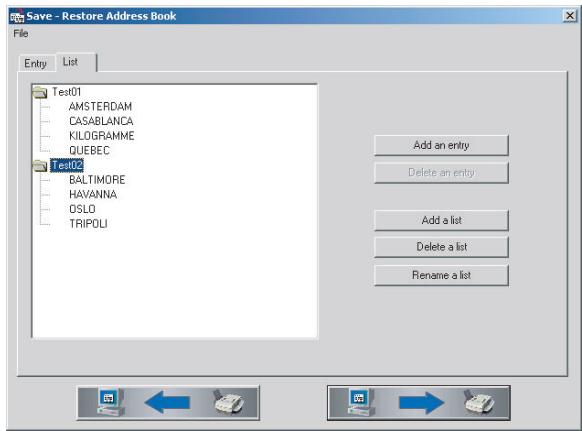
On your PC, click on Start > Programs > MF Inkjet > Restore Address Book.
You can transfer the directory from the PC to the MF-JET 495 (and vice versa) by clicking on the icons on the bottom of the window.
You can add and edit specific entries in the register window named "Entry".
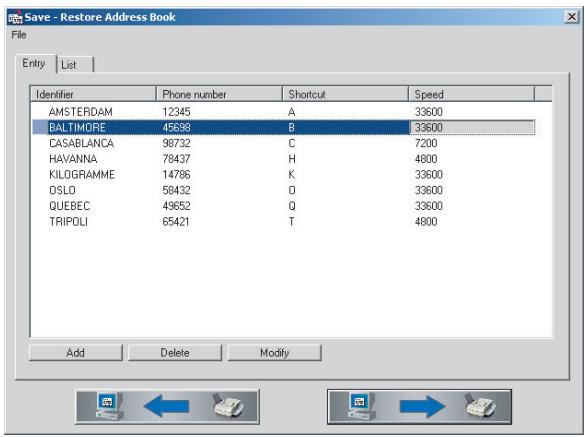
You can edit groups in the register window named "List".
Use directory
Insert a document.
2 Press A-Z and use , on the base station to select name and number or use the keyboard to enter a name and then select the record.
3 Press to start the transmission.
Redial
The last ten numbers dialled on the MF-JET 495 will be stored in the radial memory.
Insert a document.
2 Press as often as necessary. When the desired number appears on the display, press to start the transmission.
Broadcast
You may choose to send a document to several recipients.
Insert a document.
2 You now have the following options for entering numbers in the recipient list: Enter them via the numeric keypad or select a number/group from the list A-Z [□] or use C. Press , and enter further numbers (maximum of ten). Press .
3 If you want to cancel the transmission, press twice.
Resolution SF
To change the resolution, keep pressing F SF until the desired arrow symbol () is highlighted on the display with. If none of the three arrow symbols is highlighted on the display, the machine is in standard resolution.
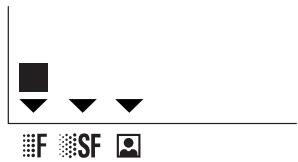
standard-for good quality documents, without drawings or small details
F for documents with drawings or small characters
SF-for documents with very fine or small drawings
for photos
Contrast ①
If the document is too light or too dark, you may change the contrast. Press 0 as many times as necessary to choose the desired contrast. The current setting is shown on the display.
Receiving taxes
If you have not changed the settings for fax reception, faxes will be automatically received. (For instructions on how to change the settings for fax reception see chapter Advanced settings / Fax settings.)
If there is no more paper in the feeder or if the cartridge is empty, incoming faxes will be stored in memory (storage capacity approx. 50 pages). If the memory is full, no further pages can be stored and certain functions can no longer be performed. To empty the memory insert paper or a cartridge and start printout of the faxes by pressing .
When a fax message is completely printed out, it will be deleted from the memory. If the printing process was interrupted, all fax messages that have not been completely printed out will remain stored.
Memory lock
The memory lock stores the documents that cannot be printed out immediately (see Receiving faxes) or that are not to be printed out. They need not be printed as soon as you receive them. The symbol on the display lets you know the state of the memory lock:
on-memory lock feature enabled
4 flashing—documents are in the memory or are being received
off—memory is full or you have disabled automatic fax reception
To prevent faxes from being printed out by the wrong person, you can protect access with a four-digit answer code. Once stored, this code is required to print fax messages and to activate/deactivate the memory lock.
Storing an answer code
Press M, ③④③ and OK. Enter a four-digit code and press OK.
Activate/deactivate
Press M, ③④② and OK. If you have stored an answer code, enter it and press OK. Use ▲▼ to select WITH or WITHOUT and press OK.
Printing messages
Press M, ③④① and OK. If you have stored an answer code, enter it and press OK. Documents received and stored in the memory are printed and then deleted from the memory.
Send report
The MF-JET 495 can print a send report every time you have sent a document. This way you are given confirmation that your document has been received.
Press M, ②③① and OK. Select one of the following options:
WITH-a report is printed out after every successful transmission (even if the called number was busy).
WITHOUT—no send report; however, your MFJET 495 notes all transmissions that took place in its log (see chapter Hints & tips / Logs).
ALWAYS—a report is printed out after every transmission (even if the transmission was unsuccessful because of a fault).
ON ERROR—a report is only printed if the transmission fails or is abandoned.
2 Confirm with OK.
Delayed transmission
If you wish to make use of cheaper telephone rates, or if your fax correspondent is only available at particular times, you can program automatic transmission of a fax at a later time (within 24 hours).
Press M, ③① and OK.
2 Enter the fax number and press OK.
3 Enter the time you want the fax to be sent (within 24 hours), e.g. ①⑦ ③⑩ for 5:30 p.m. Press OK.
4 Set the contrast and other settings and confirm each entry with OK.
Polling
By means of this function documents which have been prepared for collection from another machine can be retrieved. You can also allow a document to be polled from your multifunctional machine.
Polling reception
Press M, ③② and OK.
2 Enter the polling number and press
Delayed polling
Press M, ③② and OK.
2 Enter the polling number and press OK.
3 Enter the time you wish to poll the document (e.g. ①⑦ ③⑩ for 5:30 p.m.) and press Ⓞ.
Polling transmission
You may place a document in your MF-JET 495 and make it available to one or more recipients who can obtain a fax of this document by calling your MF-JET 495 with the polling function.
Insert the document on the scanner glass.
2 Press M, ③③ and OK.
3 Use / to choose between the two options:
SIMPLE—the document may be transmitted only once (from the memory). Press OK.
MULTIPLE—the document may be polled as many times as necessary (from the memory). Press OK.
4 If necessary, adjust the contrast and press OK.
5 Enter the number of pages and press OK.
6 Wait until the warm-up phase has come to an end and the document has been scanned into the memory. Press OK. The document is ready for polling.
Copy
Inserting a document
1 Open the scanner cover. Please make sure that the scanner glass is clean before placing the original document (see chapter Hints & tips / Care and maintenance).
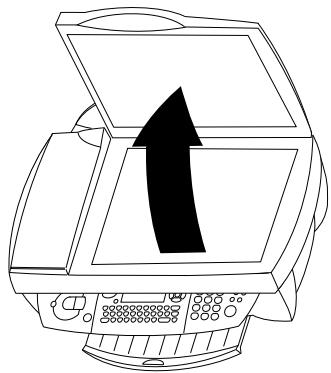
2 Place the document face down onto the scanner glass.
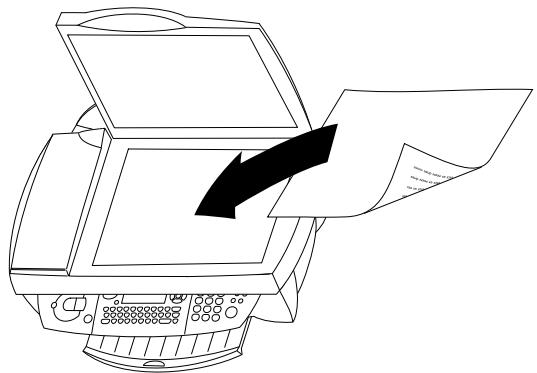
3 Align it with back left corner of the scanner glass (marked with arrows).
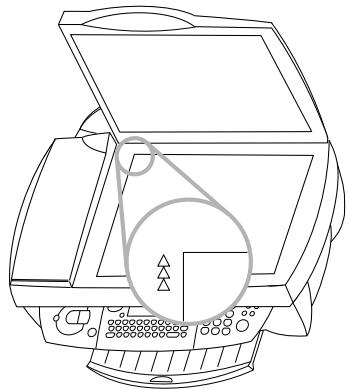
If you want to scan small three-dimensional objects (such as coins or flowers), use transparent film to protect the scanner glass.
If your machine produces horizontal strips, the scanner may be blocked (see chapter Hints & tips / Horizontal stripes).
Standard copy
Insert a document (see Inserting a document).
2 Press one of the two keys (copy in colour or black and white) twice.
Optional copy
Insert a document (see Inserting a document).
2 Press one of the two keys (copy in colour or black and white) once. You can now make the following settings:
3 Enter the desired number of copies and press OK. NUMBER OF COPIES
4 The copying quality of the MF-JET 495 is higher than the resolution used for fax transmission. If necessary, change the default setting with or RESOL: NORMAL
FAST-for good quality documents, without drawings or details
NORMAL-for documents with drawings or small characters
QUALITY-for maximum resolution
Press OK.
5 Your MF-JET 495 can reduce or magnify a specific part of a document from 25 % to 400 % . Set the desired zoom value with the key pad and press OK. ZOOMING
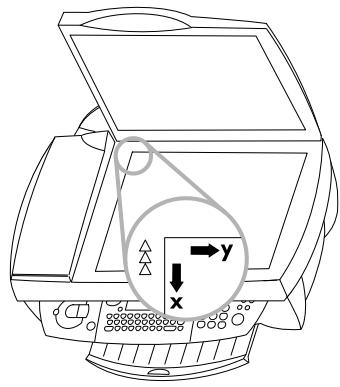
6 You can change the origin of the scanner. (The origin is set at the factory in the back left-hand corner, marked with arrows.)
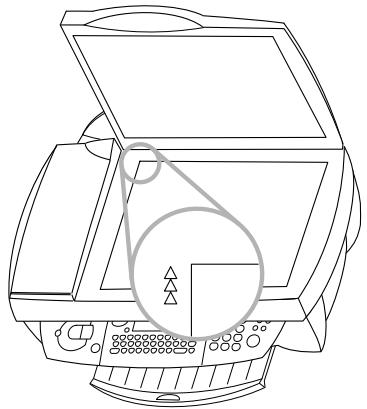
By entering new values of x and y given in millimetres, you will move the scanning zone as shown on the figure below. Confirm the entries with OK.
7 If the document is too light or too dark, you may change the scanning contrast. Press or as many times as necessary to choose the desired contrast, as shown by the position of the cursor. Press OK. CONTRAST
8 For colour copying: You can adjust the saturation. Colour saturation is judged in proportion to brightness. Use to change the setting: - is more grey, + is more saturated. Confirm with OK. SATURATION
9 For colour copying: If you have chosen colour copy, you can adjust the RGB values. All colours can be defined as combinations of red (R), green (G) and blue (E). You can change the values for each of these basic colours with Press OK. RGB
10 You can adjust the luminosity (brightness) of the printer. Use / to change the setting: - is darker, + is lighter. Press OK. LUMINOSITY
Use to set whether you use plain, coated, or photo paper, or transparent film and press OK.
Scan to PC
You can use the MF-JET 495 to scan documents and edit the document with a PC (see Installation / PC connection).
Inserting a document
1 Open the scanner cover. Please make sure that the scanner glass is clean before placing the original document (see chapter Hints & tips / Care and maintenance).
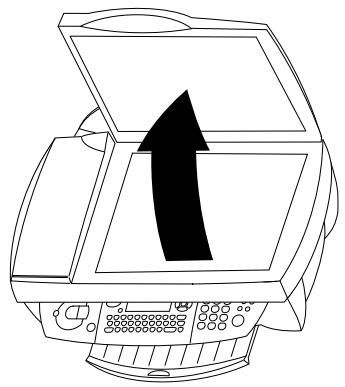
2 Place the document face down onto the scanner glass.
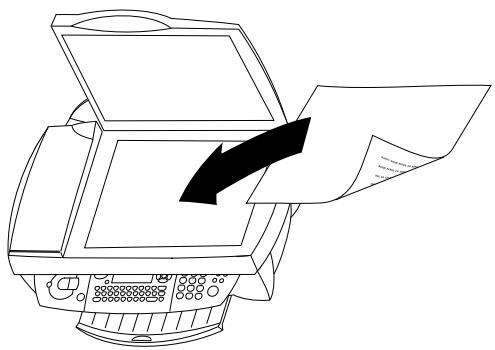
3 Align it with back left corner of the scanner glass (marked with arrows).
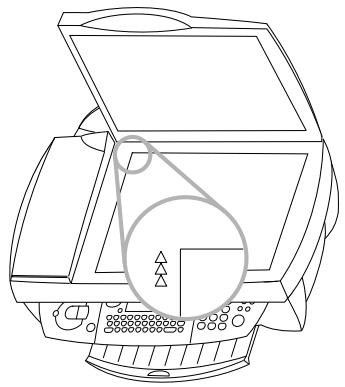
If you want to scan small three-dimensional objects (such as coins or flowers), use transparent film to protect the scanner glass.
If your machine produces horizontal strips, the scanner may be blocked (see chapter Hints & tips / Horizontal stripes).
Scanning a document

There are three ways to scan a document via PC:
Variant I
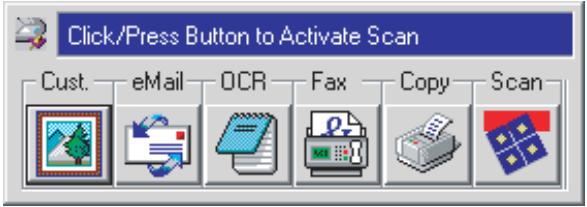
Press (on the multifunctional device) to open the scan window on the PC.
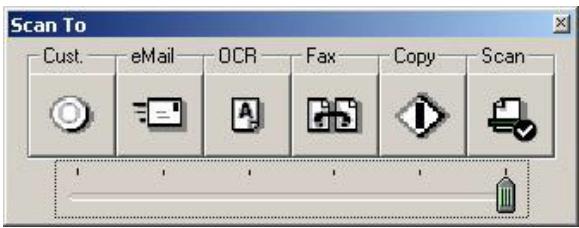
This window enables you to choose between a number of different ways of processing documents. You do this by clicking on the required symbol:
Cust: The scanned document can be edited in "Paint".
eMail: The scanned document can be sent as an e-mail attachment.
OCR: Using the OCR (Optical Character Recognition) software supplied on your installation CD, you can change or correct the scanned document and convert it for use in other programs.
Fax: The scanned document can be faxed.
Copy: The scanned document can be copied and printed.
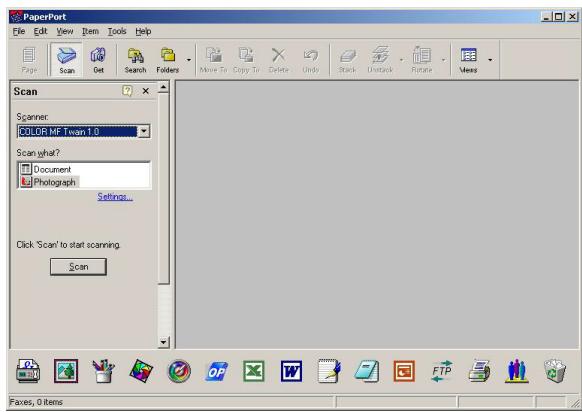
Scan: If you have installed the "Paper Port" program, your document will be scanned and input directly into the "Paper Port" application (see chapter Installation / Software installation).
Variant 2
Clicking on the "One Touch" symbol in the menu bar on the bottom right of your PC screen (next to the time) opens the following window:
As for the Variant I, a number of different ways of processing documents are available to you. In addition, you can select special settings for the application in question (select the required symbol and click the right mouse button).
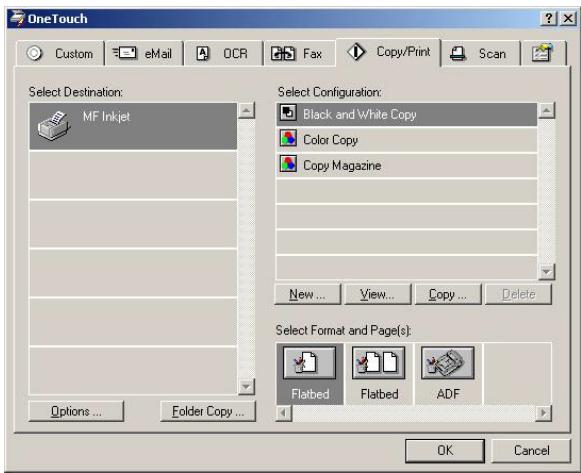
You can combine multiple pages into one document or save in different documents. Change the factory default under "Select Format and Page(s):" by clicking on the appropriate symbol.
Variant 3
To scan a document, open a graphic application ("Paper Port" or "Photo Impression") and choose the scan function. Choose the MF-TWAIN driver to start scanning.
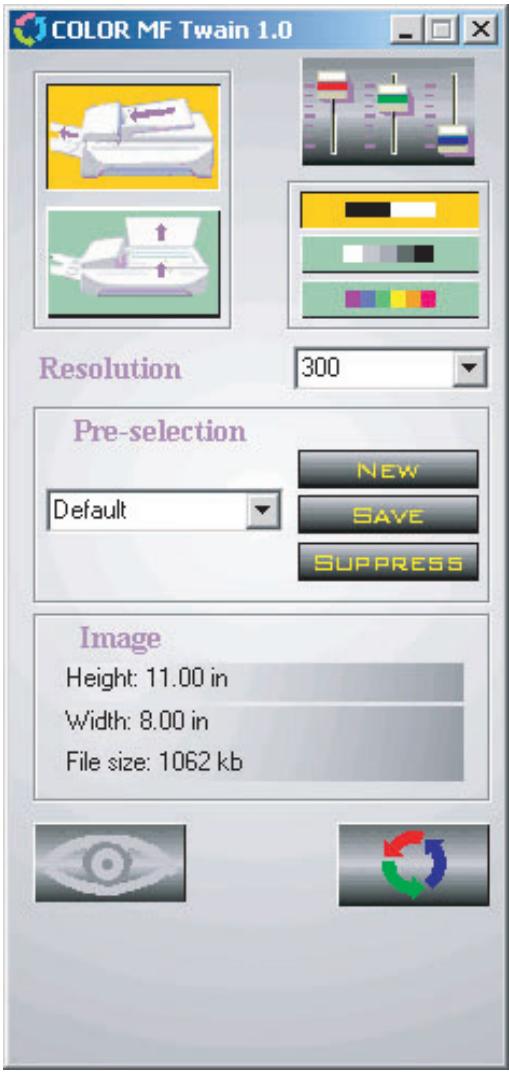
A To view and edit the document you have scanned, first close the MF-TWAIN driver.
Click on the lower left icon to create a preview, click on the lower right icon to start scanning.
Click on "Pre-selection" to create different profile for different document types you want to scan. A profile contains all important settings for a certain type of document. To create a profile, first make all settings and then choose "New" profile. Enter a profile name and click "Save".
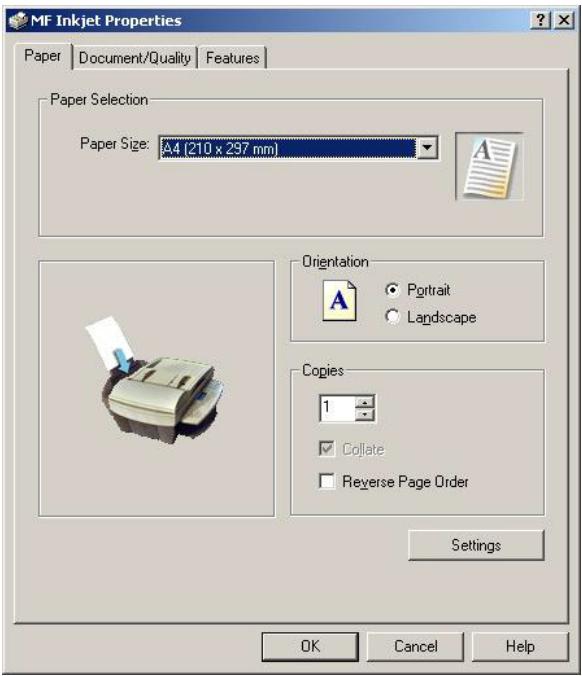
Select "Print" and choose the "MF-Inkjet" as your printer if it is not already set as the default device. Click on "Properties" to change the existing settings.
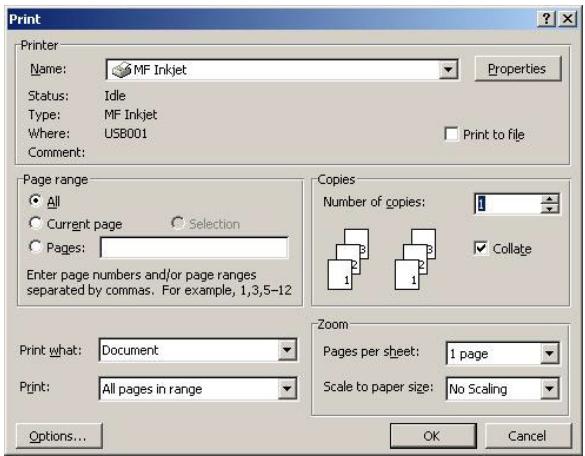
Select the paper size, orientation and number of copies.
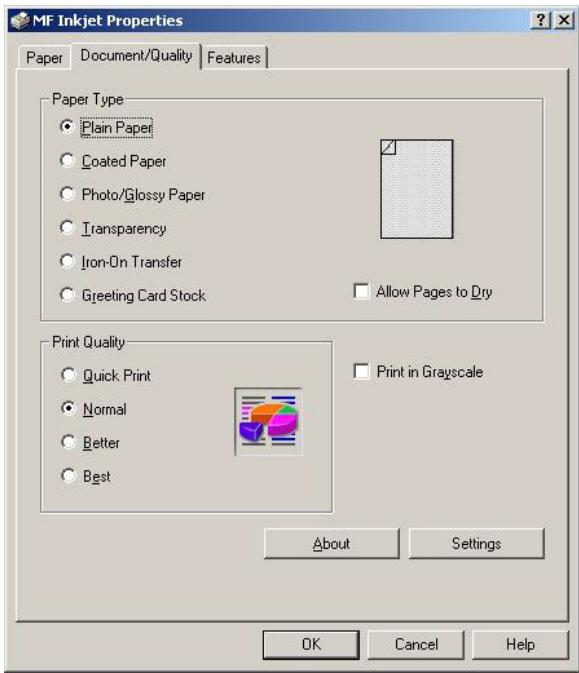
Select the paper type and the print quality.
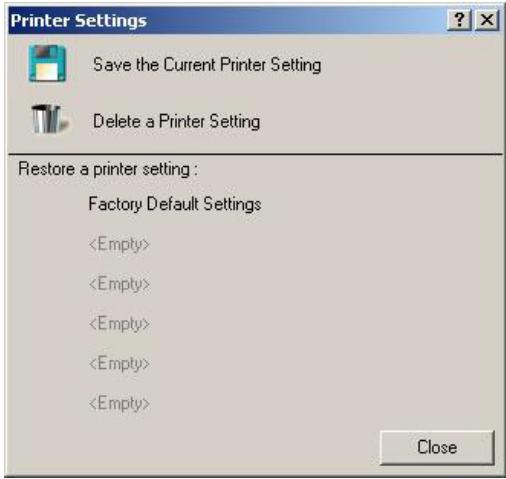
Click on "Settings" to create or select a profile.
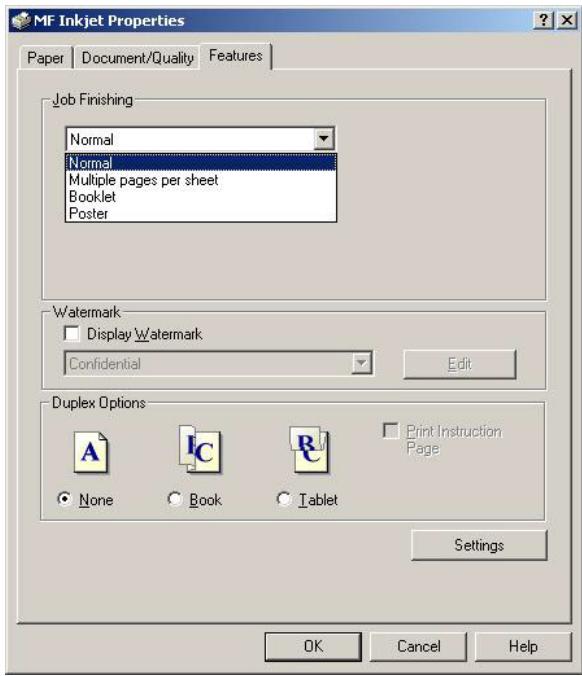
Select the document layout, i.e. how the pages are to be arranged on the sheet.
During printing, the "Printer monitor" window is displayed showing the status of the printer.
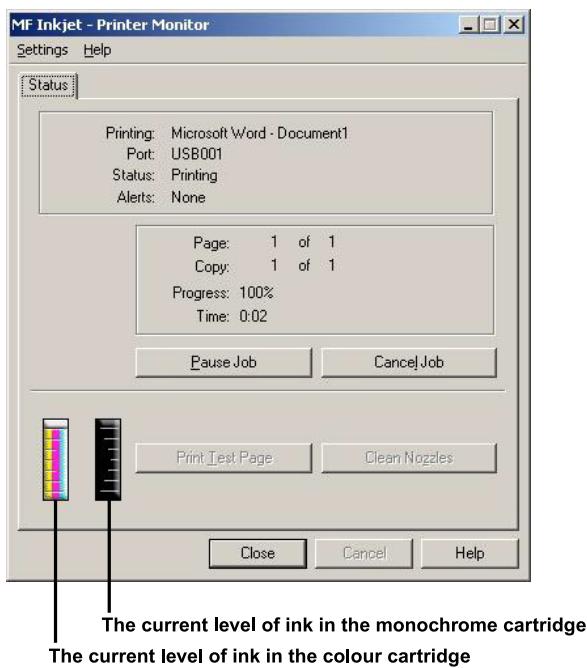
The layout of the printed documents also depends on the layout settings in the software you are using. For more details, refer to the documentation or help for that software.
SMS
(not available in all countries)
You can send and receive SMS (Short Message Service) messages with your multifunctional machine. Your MF-JET 495 has been pre-set to use the SMS service in your country. If it does not work correctly, please contact your SMS service provider and change these settings (see Advanced settings / SMS settings).
You cannot send or receive SMS messages on your cordless handset.
- Before you can send and receive SMS messages the CLIP feature (Caller Line Identification Presentation) must be enabled for your telephone line.
- Make sure that this feature is activated on your line.
- To send an SMS the call number of an SMS provider must be entered in your base station (SMS centre).
Check the following with your service provider:
- what costs are billed for sending and possibly receiving an SMS message,
- which mobile networks can you send SMS messages to and which mobile networks can you receive SMS messages from,
which functions are offered by your SMS service.
Sending an SMS
One recipient
Press twice (or M, ④① and OK).
2 Type the message you want to send.
The available special characters are shown above the letter keys on the right and can be entered by holding down CTRL and pressing the relevant key. To type capital letters, hold down and press the desired key. You can move the cursor with / and delete characters with .
3 Press l /圆.
4 Enter the recipient's telephone number.
5 Press × / to send the message. The MFJET 495 will print a send report.
This function can be deactivated (see chapter Fax / Send report).
Directory A-Z
Press l twice (or M, ④① and OK).
2 Type your message and press l
3 To select a number from the directory, press A-Z and use / to select an entry.
4 Press l to send your message.
Redial C
The last ten numbers dialled on the MF-JET 495 will be stored in the radial memory.
Press twice (or M, ④① and OK) and type your message.
2 Press l /圆.
3 Press C0 as often as necessary, until the desired number appears.
4 Press l to send your message.
Several recipients
Press twice (or M, ④① and OK) and type your message.
2 Press l and enter the first telephone number.
3 Press and enter another telephone number (max. ten).
4 Press 2 to send your message.
Receiving an SMS
Received SMS messages will be printed automatically. (You can change this setting—see chapter Advanced settings / SMS settings.) If you switch off automatic printing, messages will be stored in the memory. If you have received an SMS message the lamp above the × button lights up on the base station and the × symbol flashes on the cordless handset.
Reading an SMS
Press l and OK (or M, ④② and OK).
2 Use to choose a message and press OK.
3 You can scroll up and down within the message with / .
Printing an SMS
Press l and (or M, ④④ and OK).
2 Use to select which SMS messages you want to print:
SELECTED—Press OK, and use / to select the SMS message to be printed out. Confirm with OK.
NEW—Press OK. The newly arrived SMS messages will be printed.
ALL—Press OK. All SMS messages will be printed.
Deleting an SMS
Press M, ④③ and OK.
2 You can now choose which messages to delete using / :
SELECTED—Press OK and choose the messages to delete using . Confirm with OK.
ALREADY READ—Press OK to delete the messages that you have already read.
ALL—Press OK. All messages will be deleted.
Advanced settings
Settings list
You may print a list of your MF-JET 495's parameter settings to monitor any changes made to the default parameters!
Press M, ⑤④ and OK.
Fax settings
Number of copies
You may print incoming documents more than once.
Press M, ②④② and OK. Enter a number (1 to 99) and press OK.
Sorted printing
When you receive documents of several pages, they will be received in the memory and then printed out in the correct order. You can avoid this by de-activating sorted printing:
Press M, ②④③ and OK. Use ▲/▼ to choose WITH (sort function) or WITHOUT (sort function) and press OK.
SMS settings
When you select your country when setting up the MF-JET 495, the parameters for SMS emission and reception will be pre-set. If these settings do not work or if you want to use another provider, you will need to change these settings. Your SMS service provider will provide the numbers you need.
SMS emission
Press M, ④⑥①① and OK.
2 Enter the provider number your machine has to dial to send SMS messages. Press OK.
SMS reception
Press M, ④⑥①② and OK.
2 Enter the provider number to receive SMS messages. Press OK.
SMS alternative reception
You might wish to receive SMS from a second provider. In that case you will have to enter a second provider number to receive SMS messages.
Press M, ④⑥②① and OK.
2 Enter the second provider number for SMS reception and press OK.
Automatic printing
Press M, ④⑤① and OK. Use to choose whether SMS messages should be printed out automatically or not and press OK.
Beep
Press M, ④⑤②, OK. Use to choose whether the MF-JET 495 should emit a beep to notify you when an SMS message is received and press OK.
Sender name
Press M, 453 and OK. Use to choose whether SMS messages that you send should include your name. Confirm with OK.
“Your name” and “your number” are transmitted at the top of each page together with the date, time and page number, if you store this data with function 21 and 22.
Scan settings
With the following functions you can change the factory defaults:
M, ②⑦①, OK—Resolution
M, ②⑦②, OK—Zooming
M, ②⑦③, OK—Origin
M, ②⑦④, OK—Contrast
M, ②⑦⑤, OK—Saturation
Saturation is the colour judged in proportion to its brightness: closer to - is greyer, + has greater saturation.
M, ②⑦⑥, OK—RGB
All colours can be defined as combinations of red (R), green (G) and blue (B). You can determine the proportion of each basic colour separately.
M, ②⑦⑦, OK—Luminosity
Luminosity is brightness: - is darker, + is lighter
M, ②⑦⑧, OK—Left/right margins
Printer settings
M, ②⑥①, OK—Paper size
M, ②⑥②, OK—Paper type
M, ②⑥③, OK—Reduction
M, ②⑥④, OK—Left/right margins
Hints & tips
Paper jam
In case of a paper jam, try to pull out the paper. If this is not possible, press M, ⑦④ and OK to eject the paper.
Vertical stripes
If your MF-JET 495 makes vertical stripes when copying, scanning or faxing, the scanner glass might be dirty (see Care and maintenance).
Horizontal stripes
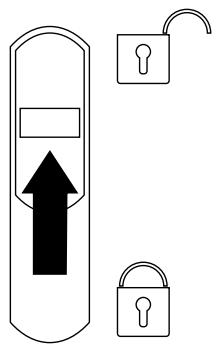
When your MF-JET 495 makes horizontal stripes and/or rattling noises when copying, scanning or faxing, the scanner might be locked.
Open the machine. Unlock the scanner with the lever on the underside of the printer cover and close the machine.
The machine doesn't print
If your MF-JET 495 doesn't print correctly, the reason might be that the protective strips were not removed completely from the printing cartridge.
Open the machine and remove the cartridges. Remove film residue, replace the cartridges and close the machine.
4 Every time you open and close the machine you will see the question NEW CARTRIDGE? Press to return to the initial mode.
Speaker
If a fax transmission fails you can use this function to check the line (you will hear a connection being set up).
Press M, ③⑤ and OK. The built-in loud-speaker is switched on and you will hear the dial tone. Insert the document. Dial the number and press Fax transmission is started.
2 Press M, ③⑤ , then OK twice. Fax reception is started.
Before you call the technical service
If you can't solve your problem with the proposals above, please unplug your MF-JET 495 from the mains and reconnect it after a few minutes.
Ordering information
You can order original cartridges and cleaning accessories at your local dealer or directly by calling 0800 358 08 07 (in the UK).
Change cartridges
The display tells you when a cartridge (black or colour) is coming to the end or is finally empty. When changing a cartridge, check that you are inserting the correct "Plug'n'Print" card. The relevant information is on the back of the "Plug'n'Print" card.
Please use only original PHILIPS ink cartridges!
Open the machine by pulling the lever under the control panel.
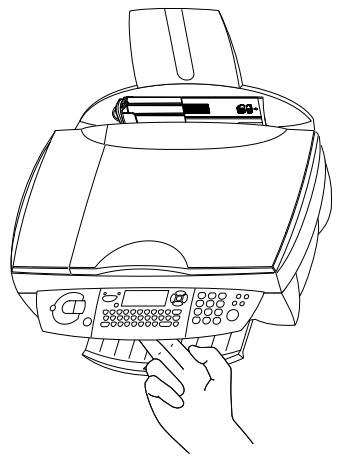
2 The position of the cartridge holder will show you which cartridge needs to be replaced. The arrows point to the cartridge that is empty.
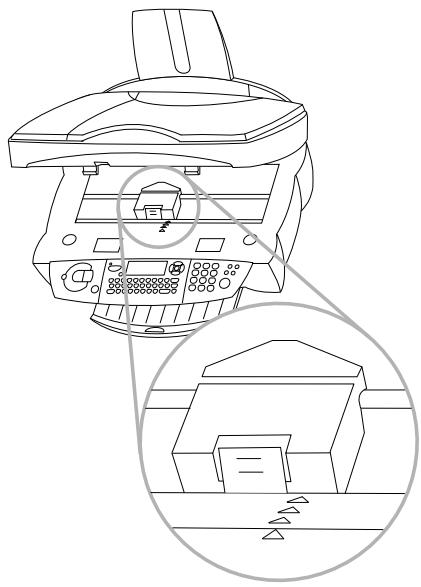
3 Open the cartridge holder.
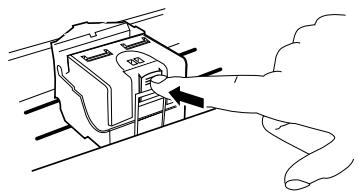
4 Remove the empty cartridge.
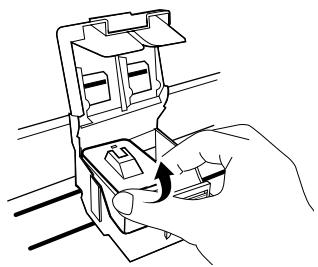
5 Take the ink cartridge out of its packaging and remove the protective strip. Be careful not to touch the nozzles and the contacts.
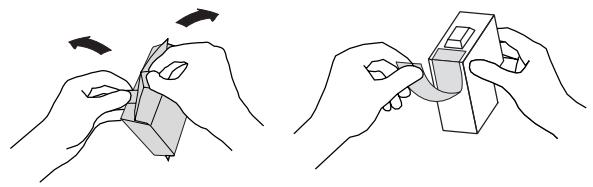
6 Insert the cartridge with the "nose" down into the cartridge holder—the black cartridge right and the colour cartridge left.
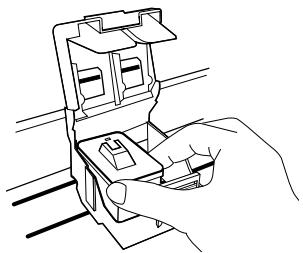
7 Close the cartridge holder. You will hear a click when it snaps shut.
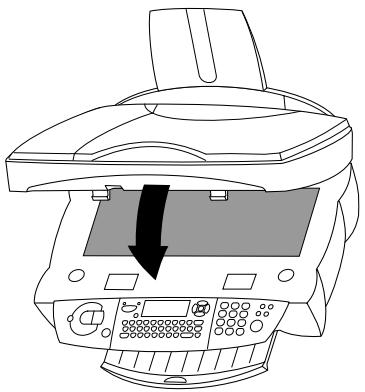
8 Close the machine.
9 Insert the chip card "Plug'n'Print" with the contacts facing up into the slot below the control panel to update the cartridge information.
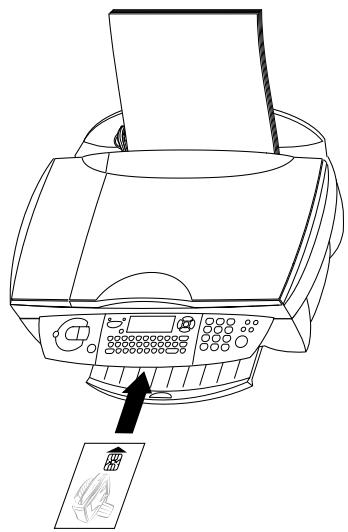
10 The cartridge is loaded when the following appears on the display: ACTION COMPLETED
REMOVE CARD.
Cartridge capacity
The machine records ink consumption and from this calculates the amount left.
The amount left is only valid if you load each new cartridge with the chip card supplied.
Press M, ⑦③ and OK. Press / to see the current capacity of the black and the colour cartridges.
Logs
The logs list contains the last 30 transmissions (faxes sent and received and SMS messages). A report will be automatically printed after every 30 transmissions. However, you may request a printout at any time.
Press M, ⑤② and OK. The logs are printed.
Commands
Your device will file all transmission commands (including faxes ready for polling or for delayed sending) in a list known as the waiting queue.
Consulting or modifying list
Documents in the waiting queue may have the following status:
TX—polling transmission
DOC—in deposit
POL—polling
IN PROGRESS—ongoing commands
SMS—SMS transmission
Press M, ⑥② and OK. Use ▲/▼ to select a document from the waiting queue and confirm with OK. Modify the parameters and confirm with OK.
Immediate transmission
Press M, ⑥① and OK. Use ▲/▼ to select the document in the waiting queue and confirm with ◆ or OK to immediately perform the selected fax or SMS transmission.
Cancelling a transmission
Press M, ⑥③ and OK. Use to select the document in the waiting queue and confirm with OK.
Printing a document
Press M, ⑥④ and OK. Use to select the document in the waiting queue and confirm with OK.
Print the waiting queue
Press M, ⑥⑤ and OK. A list of the documents queuing for transmission will be printed.
Lock
You can block access to the keypad for numbers or to the whole keyboard of your MF-JET 495.
Entering the code
Enter a four-digit code. This code is also used to cancel the keyboard lock.
Press M, ⑦①① and OK.
2 Enter the four-digit interlock code and press OK.
3 Enter the code one more time and press OK.
When a code is already registered, the machine asks you first to give the old code before allowing you to modify it.
Locking the keyboard
Press M, ⑦①② and OK.
2 Enter the four-digit interlock code (see Entering the code) and press OK.
3 Use to select WITH and press OK.
The access code must be entered each time the machine is used.
After each operation, the machine locks automatically. To unlock the keyboard, enter WITHOUT in step 3.
Locking numbers
You can also just lock the keypad for numbers with a code. Transmissions are only possible from numbers included in the directory.
Press M, ⑦①③ and OK.
2 Enter the four-digit interlock code (see Entering the code) and press OK.
3 Use / to select ONLY DIRECT, and press OK.
After each operation, the machine locks automatically. To unlock the keyboard, enter FREE in point 3.
Registering and deregistering an additional cordless handset of the original type
Registering
Your cordless handset is set up at the factory for your base station and does not have to be registered. You can register up to five additional cordless handsets to your base station. For optimum performance of all the functions you should only register cordless handsets of the original type. Original cordless handsets can be ordered using the enclosed order form or contacting the call center (see Ordering information).
4 Please note that each additional cordless handset must be GAP-compatible. Check with your dealer.
1 On your base station, press M, ⑧① and OK.
2 Use the numerical keypad to enter a four-digit pin code, or press OK to accept the default code OK. Press OK.
3 On the additional cordless handset press / ⑤①. Confirm AUTO with OK. The cordless handset is now automatically registered on the base station and accepts the pin code from the base station.
After the registration process the display shows the number under which the cordless handset is registered on the base station (for example 2).
Deregistering
If you would like to deregister an additional cordless handset from your base station, the procedure is as follows:
1 On your base station, press M, ⑧② and OK.
2 On the numeric keypad, enter the cordless handset you want to deregister. Press OK. HANDSET 2
Your base station will now release the connection to the additional cordless handset.
Registering a cordless handset on more than one base station
You can register a cordless handset on up to four base stations.
Register your cordless handset automatically on the first base station, as described above.
2 On the second base station, press M, ⑧① and OK.
3 Use the numerical keypad to enter a four-digit pin code, or press OK to accept the default code 0000. The pin code may be identical to the pin code on the first base station. Confirm with OK.
4 On the cordless handset press / , ⑤① and select CUSTOM. Confirm with OK.
5 Use / to select a free storage location and confirm with OK.
6 Enter the same pin code that you set on the second base station and confirm with OK. The cordless handset is establishing a connection to the base station; this may take a few moments.
7 Use to select the number you want to use to register the cordless handset on the second base station. This number appears on the display of the cordless handset when it is set to the second base station. Confirm with OK.
8 Repeat steps 2 to 7 to register your cordless handset to further base stations (maximum of four base stations).
Priority
With function 52 you can define the base station via which you make phone calls if you have registered your cordless handset to more than one base station. If you select the NONE option, the cordless handset will automatically set itself to the base station in range.
On the cordless handset, press / and ⑤②.
2 From the list of base stations, select the one to which you want to assign priority, or select NONE.
3 Confirm with OK. Press C twice.
If the required language does not appear on the display of your cordless handset, check whether the cordless handset is registered to the base station. Use function 202 to set the display language on the base station (see chapter Settings / Country and language).
Care and maintenance
Cleaning the machine
Use a soft, fluff-free cloth. You can also use a special cloth for cleaning machines (see Ordering Service). Never use liquid or gaseous cleaning agents (sprays, scouring agents, polishes, alcohol etc.). Do not allow any moisture to penetrate inside the device.
Cleaning the scanner glass
Open the scanner cover.
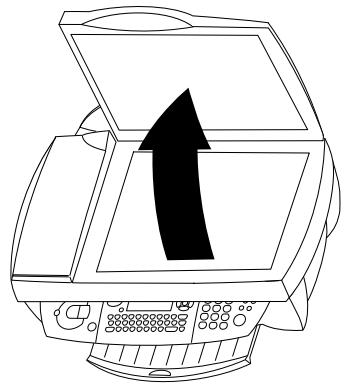
2 Use a cloth to lightly wipe the scanner glass (A).
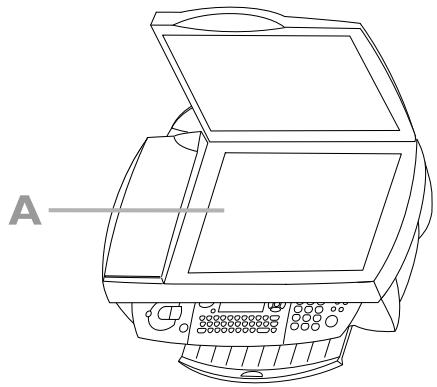
3 Close the scanner cover.
Cleaning and aligning the cartridges
If the quality of printed documents deteriorates, the cartridges should be cleaned and aligned.
Press M, ⑦②①①① and OK. The cartridge will be cleaned automatically.
2 Press M, ⑦②①②① and OK. The machine prints out a test page that helps you position the print heads of the two cartridges correctly. This is necessary to achieve the best possible print quality.
3 Use the number keypad to enter the number of the field in which the arrow appears clearest. ENTER VALUE A
4 Confirm with OK and repeat these steps for values B, C and D. ENTER VALUE B
If the printing quality is still not satisfactory, you need to clean the cartridges manually:
Open the machine, release the cartridges from their holder (see Change cartridges) and clean the contacts (A) with a dry, fluff-free cloth.
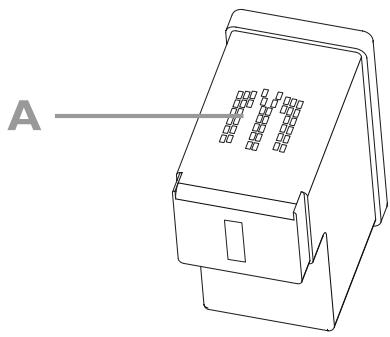
Never touch the nozzles and contacts with your fingers and avoid shaking the cartridge!
Every time you open and close the machine you will see the question NEW CARTRIDGE? Press to return to the initial mode.
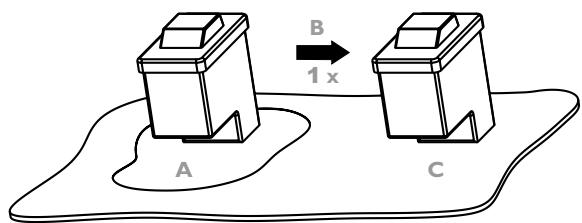
2 Place a lint-free cloth on a smooth surface. Moisten half of the cloth (A). Hold the cloth firmly to prevent creasing. Place the nozzle end of the cartridge on the moistened half (A) and move the cartridge in the direction of the arrow (B) into the dry half (C). Do this once only.
3 Clean the golden contacts of the holder before re-inserting the cartridge.
4 Use / to choose BLACK=OLD? and press twice OK.
5 Use / to choose COLOUR=OLD? and press twice OK.
Appendix
Functions list
Press M, ⑤① and OK to print a function list.
Directory
11 ADD NAME 23 Add a name with a number to the directory
12 ADD LIST 24
Join several directory entries to form a list
13 MODIFY 24 Modify directory entries or lists
14 CANCEL 24
Delete directory entries or lists
15 PRINT 24
Print the directory
Setup
21 DATE/TIME 17 Set the current date and time
22 NUMBER/NAME. 17 Set your telephone number and your name
23SEND 26 Set parameters for sending faxes
24 RECEPTION 35
Set parameters for receiving taxes
25 TEL. NETWORK 17 Settings for a private branch exchange system
26 PRINTER 36 Settings for the printer
27 FLAT BED SCAN 35
Settings for scanning
29 TECHNICALS 43 Advanced technical settings
20 GEOGRAPHICAL 17
Set country and language
Fax
31 TRANSMISSION 26
Send a fax
32 POLLING RX 26
Retrieve a fax from a polling provider
33 POLLING TX 26 Provide a fax for polling
34 FAX ANSW. 25 Set fax memory reception
35 MANUAL CALL 37
Manual fax transmission
SMS-Service
41SEND SMS 33
Send an SMS message
42 READ SMS 33 Read SMS messages
43 DELETE SMS 34
Delete SMS messages from the memory
44 PRINT SMS 34
Print-out SMS messages
45 PARAMETERS 35 Settings for sending SMS
46 SMS CENTERS 35 Set access numbers for SMS
51 FUNCTIONS LIST 42
Print a list of functions
52 LOGS.. 38 Print a log of the last 30 transmissions
53 DIRECTION 24
Print the directory (is also function 15)
54SETUP. 17,35 Print the settings
55 COMMANDS 39
Print a list of the commands in the waiting queue (is also function 65)
Commands
61 PERFORM 39 Immediately perform a command in the waiting queue
62 MODIFY 39 Modify a command in the waiting queue
63 CANCEL 39
Delete a command from the waiting queue
64 PRINT 39 Print details of a command in the waiting queue
65 PRINT LIST.. 39 Print a list of the commands in the waiting queue
Others
71 LOCK 39 Limit the access to the machine
72 PRINT. CARTR. 41 Clean, align and exchange cartridges
73 CART CAPACITY 38 Check the capacity of the ink cartridges
74 PAPER FEED. 37
Feed paper through the mechanism
Cordless handset
81 REGISTER. 40
Register additional telephones
82 DEREGISTER 40
Deregister additional telephones
83 SEARCH HANDS. 22
Search for cordless handset
84 TOTAL RINGS. 18
Set the total number of rings
85 FAX RINGS 18
Set the number of rings for the fax switch
Technical settings
Your MF-JET 495 is delivered with factory-default settings.
Only change the technical settings if prompted to do so by authorised service personnel!
Press M, ②⑨ and OK.Use / to select and modify the desired parameter and press OK.
Technical data
General
| Dimensions (W×D×H) | 460×397×185 mm |
| Weight | approx. 6,5 kg |
| Power supply | 220–240 V / 50–60 Hz |
| Power consumption in stand-by mode | approx. 10 W |
| Memory | 50 pages |
| Directory capacity | 200 entries |
| Telephone connection type | PSTN/PABX |
| Chip card | ISO 7816-4 |
PC connection
| Connection type | USB slave 1.1 |
| Operating systems | Windows® 98 SE/2000/ ME/XP |
| Scanner driver | TWAIN/WIA |
SMS
| Gateway | V23 |
| Memory | 30 messages |
Scanner
| Type | CCD colour |
| Resolution | 600×600 dpi |
| Scanning area | 210×297 mm |
| Scanning width | 206 mm |
| Flatbed scanning speed | b/w: 10.5 seconds/page colour: 17.5 seconds/page |
| Resolution | 256 grey tones |
Printer
| Type | colour bubble ink-jet |
| Resolution | 2400×1200 dpi |
| Printing speed | b/w: up to 13 pages/minutecolour: up to 7 pages/minute |
| Printing width | 203.2 mm |
| Printing length | b/w: 284.3 mm,colour: 279.1 mm |
| Paper dimensions | width: 88.9–203.2 mmlength: 127–283.3 mm |
| Paper weight | A4 80 g/m2A5 min. 120 g/m2 |
Copier
| Fax type | stand-alone coloured |
| Resolution | fast: 300×300 dpi normal: 600×600 dpi quality: 1200×1200 dpi |
Fax
| Fax type | ITU T30, G3 |
| Connection type | PSTN/PABX |
| Dialling type | DTMF |
| Modulation | V17/V21/V29/V27ter/V34 |
| Coding scheme | MH, MR, MMR |
| Modem speed | 33k6 bps |
| Resolution | normal mode: 200×100 dpi fine/photo mode: 200×200 dpi super fine mode: 200×400 dpi |
Cordless handset
| Max. range | outdoors: 300 m indoors: 50 m |
| Max. talk time | 10 hours |
| Max. standby time | 120 hours |
Guarantee
(UK Terms and Conditions)
SAGEM SA is the European Number 1 in fax and offers a complete range of fax terminals with Internet access and SMS function, multifunctional terminals and servers covering the needs of all its customers—from home-users to multinational organisations.
In order to apply the guarantee, you should contact your dealer. Proof of purchase will be required. Should malfunctioning arise, the dealer will advise you what to do.
If you bought your equipment from SAGEM directly, the following shall apply:
A SAGEM undertakes to remedy by repair, free of charge for labour and replacement parts, any defects in the equipment during a period of twelve (12) months from the date of original delivery of the equipment, where those defects are a result of faulty workmanship.
During this twelve month guarantee period, the defective equipment will be repaired free of charge; the customer must however return the defective equipment at his/her own expense, to the address given by SAGEM After Sales Department, the phone number of which can be found on the delivery slip.
Unless the customer has concluded with SA-GEM a maintenance contract in respect of the equipment which specifically provides for repairs to be carried out at the customer's premises, the repairs will not be carried out on the equipment at the customer's premises.
The following sentence applies to purchases of equipment for the customer's trade, business or profession. Except as otherwise expressly provided in this document and to the extent permitted by law, SAGEM makes no representations or warranties, express or implied, statutory or otherwise, and to such extent, all terms and conditions implied by law are hereby excluded. This guarantee does not affect the customer's statutory rights.
B Exclusions from guarantee
SAGEM shall have no liability under the guarantee in respect of:
- damage, defects breakdown or malfunction due to:
- failure to properly follow the installation process and instructions for use; or
- an external cause to the equipment (including but not limited to, lightening, fire, shock or water damage of any nature); or
- modifications made without the written approval of SAGEM; or
- a failure or neglect to maintain the equipment or inappropriate maintenance; or
unsuitable operating conditions, particularly of temperature and humidity; or - repair or maintenance of the equipment by persons not authorised by SAGEM; or
- wear and tear from normal daily use of the equipment and its accessories
- damage due to insufficient or bad packaging of equipment when returned to SAGEM
supply of new versions of software - work on any equipment or software modified or added without the prior written consent of SAGEM
- malfunctions not resulting from the equipment or from software installed in user workstations for the purpose of use of the equipment
- communication problems related to an unsuitable environment, including:
problems related to access and/or connection to the Internet such as interruptions by access networks or malfunction of the line used by the subscriber or his correspondent
transmission faults (for example poor geographical coverage by radio transmitters, interference or poor line quality) - the local network fault (wiring, servers, workstations) or the failure of the transmission network
- the normal servicing (as defined in the user guide supplied with the equipment) as well as malfunctioning due to servicing not being carried out, servicing costs are in any event always borne by the customer.
C In the cases set forth in B as well as after expiry of the twelve month guarantee period, the customer must ask SAGEM for an estimate, and he/she must accept the estimate and agree to pay the charges mentioned in it before returning the equipment to SAGEM. The repair and delivery costs will be invoiced to the customer.
The foregoing shall apply unless otherwise agreed in writing with the customer and only for the UK. If any provision of this guarantee shall be held to be in whole or in part invalid or illegal due to an obligatory rule applicable to consumers pursuant to their national legislation, such invalidity or illegality shall not impair or affect the remaining provisions or parts of this guarantee.
Index
A
Acrobat Reader 12
additional devices 9
additional telephone 21
adjusting the call volume 21
advanced settings 35
fax settings 35
prinert settings 36
scan settings 35
settings list 35
SMS settings 35
aligning the cartridges 41
answering machine.
see external answering
machine
appendix 42
audible signals 21
B
black-and-white copy key 3
broadcast 25
key 3
C
C-key
on the cordless handset 4
caire and maintenance cleaning the machi 40
cleaning the scanner glass 40
call
forward 22
making a call 20
calling line identification (CLIP) 20
cartridge 10
alignment 11
black 11
capacity 38
change 37
charge 11
colour 11
charger for the cordless handset 7
code
unlock keyboard 39
colour copy key 3
commands 39
cancelling a transmission 39
consulting or modifying list 39
immediate transmission 39
printing a document 39
confirm
key 3
connections 9
contents of the installation CD 15
contrast 3,25,28 key 3
copy 27
black-and-white 3
black-and-white copy 27
colour 3
inserting a document 27
key 3
optional 27
standard 27
copying quality 27
cordless handset 20
additional telephone 21
adjusting the call volume 21
audible signals 21
calling line identification (CLIP) 20
deregistering a handset 40
display language 40
functions on cordless handset 4
internal phone calls 21
locate the cordless handset 22
making a call 20
muting 21
priority 40
redial 20
register 39
registering a cordless
handset on more than
one base station 40
ringervolume 20
ring signal type 20
silent call reception 21
switching on and off 22
telephone book 20
correcting
entries (base station) 24
entries (cordless handset) 20
country selection 17
creativecopy27
cursor
key 3
D
delayed transmission 26
delete
entries (base station) 24
entries (cordless handset) 20
key 3
SMS-messages 34
deregistering a handset 40
description of the machine 2
dial-key (cordless hand-set) 4
directory -Z (base station) 3,23
add group 24
add name 23
cancel 24
modify 24
print 24
transfer to a PC 24
Use 24
display language
base station 17
cordless handset 17, 40
display symbols
on the base station 2
on the cordless handset 2
document
insert 27
scan 29
E
e-mail 29
enter
own name and number 11
external answering machine 18
F
fax 23
answering device 25
broadcast 25
contrast 25
delayed transmission 26
fax reception 18
memory lock 25
polling 26
receivingfaxes25
redial 24
resolution 25
sending a fax 23
send report 26
settings 35
fax answering device.
see memory lock
fax reception 25
completely silent
operation 18
manual fax recep
tion 18
silent fax reception 18
fax settings
number of copies 35
sorted printing 35
functions list (base station) 42
function list
cordless handset 4
H
HELP function 17
hints & tips 37
care and maintenance 40
commands 39
horizontal stripes 37
ordering information 37
paper feed 37
registering and dereg
istering an additional
cordless handset of the original type 39
technical service 37
vertical stripes 37
1
ink cartridge. see cartridge
insert
cartridge 10
dokument 27
installation 7
additional devices 9
cartridge alignment 11
connections 9
country selection 10
date and time 12
inserting cartridges 10
loading paper 7
name and number 11
operatingsbaskstation7
operatingscondless handset8
PC connection 12
power supply 10
unpacking 7
ISDN connection 17
K
keypad
base station 3
cordless handset 4
L
language 17
Linux 12
locate the cordless handset 22
lock 39
locking numbers 39
locking the keyboard 39
loudspeaker (on the base station) 37
loudspeaker (on the
cordless handset) 21
M
Macintosh 12
making a call 20
memory lock 25
menu functions
base station 42
cordless handset 4
MF-Inkjet 12
MF-TWAIN driver 30
N
network type (PABX) 17
nozzles 41
0
OCR 29
OK-key
base station 3
cordless handset 4
operating
the base station 7
the cordless hand
set 8
optional copy 27
P
"Plug'n'Print"
chip card 38
starter card 7, 11
paper
feed (jam) 37
loading 7
set paper size 36
set paper type 36
Paper Port 12
PC
connection 12
scan 29
transfer directory
from the base station
24
Photo Impression 12
polling 26
delayed 26
reception 26
transmission 26
power supply 10
directory (base sta
tion) 24
functions list 42
Help page 17
multiple printing 35
number of copies 31
paper size 31
paper type 31
print a document
command) 39
print quality 31
settings list 35
SMS automatically 35
sorted printing 35
status of the printer 32
prinertessettings 36
R
R-key
cordless handset 4
reception
offaxes18
of silent calls on
cordless handset 21
of SMS 33
redial 3
key (base station) 3
key (cordless hand
set) 4
on base station 24
on the cordless hand
set 20
registering
cordless handset of
original type 39
resolution 25
fine/photo mode 25
key 3
normal mode 25
standard mode 25
super fine mode 25
RGB 28
ringervolume20
ring signal type 20
s
safety instructions 6
saturation 28
scan 29
inserting a document 29
key 3
scan settings
contrast 35
origin 35
resolution 35
saturation 35
zooming 35
scan window 29
select
country (base station)
10, 18
country (cordless
handset) 18
send
an SMS 33
a fax 23
send report 23, 26
settings 17
country and language
18
date and time 17
fax reception 18
network type (PABX) 17
silent call reception 21
SMS 31
provider 33
receiving 33
sending 33
SMS settings
alternative reception
35
automatic printing
35
emission 35
reception 35
receptionbeep35
sender name 35
software installation 12
Acrobat Reader 12
MF-Inkjet 12
Paper Port 12
Photo Impression 12
special settings
completely silent
operation 18
manual fax recep
tion 18
silent fax reception
18
stand-by mode 3
standard copy 27
start
key (base station) 3
stop
key (base station) 3
storing
numbers (base sta
tion) 23
numbers (cordless
handset) 20
T
technical data 43
technical settings 43
telephone book (cordless
handset) 20
correcting entries 20
deleting entries 20
storing numbers 20
using 20
telephone socket 9
U
unpacking 7
USB cable 12
USB port 12, 13
V
volume
call volume (cordless
handset) 21
ringervolume (cord
lesshandset)21
W
Windows® 12, 13




The CE mark confirms that the machine corresponds to the relevant European Union guidelines.
DECLARATION OF CONFORMITY (DoC)
Hereby, SAGEM Communication
Austria GmbH, declares that this PHILIPS
MFP 495 is in compliance with the essential requirements and other relevant provisions of Directive 1999/5/EC.
Should you require a copy of the original DoC, please visit our web site.
This product is intended for use on an analogue public switched network (PSTN) and for use in the country indicated on the label of the box. The machine may not work in other countries.
For further information please contact your national technical support centre. Initially contact your dealer if problems occur during operation.
This operating manual has been printed on chlorine-free recycled paper to meet the highest environmental standards.
The cardboard box and the protective cardboard can be recycled as waste paper; corresponding to your country's demands dispose the plastic foils either for recycling or with your rubbish.
This electronic facility contains recyclable material. At the end of use of this facility please inform yourself about the corresponding recycling demands of your country.
www.sagem.com
E-mail: dti.faxinfoline@sagem.com
United Kingdom:
Tel.: 0870 124 37 37
Fax: 08701240202
SAGEM SA
Le Ponant de Paris
27, rue Leblanc
75512 PARIS CEDEX 15
Technical changes and errors excepted.
non-contractual document
Copyright © 2004 SAGEM Communication
Austria GmbH
- Description of the multifunctional machine
- Display symbols on the base station
- Display symbols on the cordless handset
- Key assignment on the base station
- Key assignment on the cordless handset
- Menu functions on the cordless handset
- Telephone book
- Calls / Logs
- Ring tone
- Settings
- Base
- Contents
- Safety instructions. 6
- Installation 7
- Settings. 17
- Cordless handset. 20
- Fax 23
- Copy. 27
- Scan to PC 29
- Print. 31
- SMS 33
- Advanced settings. 35
- Hints & tips 37
- Appendix 42
- Safety instructions
- Installation
- Unpacking
- Operating the base station
- Loading paper
- Operating the cordless handset
- Connections
- Additional devices
- Same socket
- For all other countries
- Separate sockets
- Power supply
- Country selection
- Inserting cartridges
- Cartridge alignment
- Your number and name
- Date and time
- PC connection
- Minimum configuration
- Software installation
- The Software-Package contains:
- Installing all products
- Installing individual products
- Operating instructions
- Contents of the installation CD
- Uninstalling the products
- Settings
- Country and language
- HELP function ①
- ISDN connection
- Network type (PABX)
- Set fax reception
- Special settings
- Silent fax reception
- Completely silent operation
- Manual fax reception
- External answering machine
- Settings example:
- Tips:
- Cordless handset
- Making a call
- Redial
- Storing numbers
- Using the telephone book
- Correcting entries
- Deleting entries
- Calling line identification
- (not available in all countries)
- Ring signal type
- Ringer volume
- Adjusting the call volume
- Silent call reception
- Audible signals
- Muting
- Internal phone calls
- Additional telephone
- Locate the cordless handset
- Switching on and off
- Fax
- Sending a fax ①
- Directory A-Z
- Add name
- Add group
- Modify
- Cancel
- Transfer to a PC
- Use directory
- Broadcast
- Resolution SF
- Contrast ①
- Receiving taxes
- Memory lock
- Storing an answer code
- Activate/deactivate
- Printing messages
- Send report
- Delayed transmission
- Polling
- Polling reception
- Delayed polling
- Polling transmission
- Copy
- Inserting a document
- Standard copy
- Optional copy
- Scan to PC
- Scanning a document
- Variant I
- Variant 2
- Variant 3
- SMS
- Sending an SMS
- One recipient
- Redial C
- Several recipients
- Receiving an SMS
- Reading an SMS
- Printing an SMS
- Deleting an SMS
- Advanced settings
- Settings list
- Fax settings
- Number of copies
- Sorted printing
- SMS settings
- SMS emission
- SMS reception
- SMS alternative reception
- Automatic printing
- Beep
- Sender name
- Scan settings
- Printer settings
- Hints & tips
- Paper jam
- Vertical stripes
- Horizontal stripes
- The machine doesn't print
- Speaker
- Before you call the technical service
- Ordering information
- Change cartridges
- Cartridge capacity
- Logs
- Commands
- Consulting or modifying list
- Immediate transmission
- Cancelling a transmission
- Printing a document
- Print the waiting queue
- Lock
- Entering the code
- Locking the keyboard
- Locking numbers
- Registering and deregistering an additional cordless handset of the original type
- Registering
- Deregistering
- Registering a cordless handset on more than one base station
- Priority
- Care and maintenance
- Cleaning the machine
- Cleaning the scanner glass
- Cleaning and aligning the cartridges
- Appendix
- Functions list
- Directory
- Setup
- SMS-Service
- Others
- Technical settings
- Technical data
- Scanner
- Printer
- Copier
- Guarantee
- (UK Terms and Conditions)
- Index
- A
- B
- C
- D
- E
- F
- H
- 1
- K
- L
- M
- N
- 0
- P
- R
- s
- T
- U
- V
- W
- DECLARATION OF CONFORMITY (DoC)
Marque : SAGEM
Modèle : PHILIPS MF-JET 495
Catégorie : Imprimante