
AIC128-D DRIVER - Interface audio YAMAHA - Notice d'utilisation et mode d'emploi gratuit
Retrouvez gratuitement la notice de l'appareil AIC128-D DRIVER YAMAHA au format PDF.


| Type de produit | Carte d'interface audio Dante |
| Marque | YAMAHA |
| Modèle | AIC128-D DRIVER |
| Catégorie | Interface audio |
| Utilisation | Permet de connecter la carte Dante Accelerator AIC128-D à un ordinateur |
| Plateformes compatibles | Windows (7, 8, 10, 11) et macOS (10.12 et ultérieur) |
| Fonction principale | Pilote ASIO pour faible latence |
| ASIO Buffer Size | 32 à 2048 échantillons |
| DMA Transaction Size | 16 ou 32 échantillons |
| Type d'installation | Exécutable (Windows) ou package .pkg (macOS) |
| Désinstallation | Via Panneau de configuration (Windows) ou outil dédié (macOS) |
| Compatibilité DAW | Nuendo, Cubase et autres logiciels supportant ASIO ou Core Audio |
| Logiciel fourni | Pilote Dante Accelerator (téléchargement) |
| Configuration requise | Ordinateur avec slot PCIe ou Thunderbolt (selon modèle) |
| Entretien et nettoyage | Aucun entretien particulier ; maintenir les connecteurs propres |
| Sécurité | Respecter les précautions d'installation matérielle (décharge électrostatique) |
| Pièces détachées et réparabilité | Non applicable (produit logiciel et matériel intégré) |
| Informations générales | Ce pilote est nécessaire pour utiliser la carte AIC128-D avec un ordinateur |
FOIRE AUX QUESTIONS - AIC128-D DRIVER YAMAHA
Questions des utilisateurs sur AIC128-D DRIVER YAMAHA
0 question sur cet appareil. Repondez a celles que vous connaissez ou posez la votre.
Poser une nouvelle question sur cet appareil
Téléchargez la notice de votre Interface audio au format PDF gratuitement ! Retrouvez votre notice AIC128-D DRIVER - YAMAHA et reprennez votre appareil électronique en main. Sur cette page sont publiés tous les documents nécessaires à l'utilisation de votre appareil AIC128-D DRIVER de la marque YAMAHA.
MODE D'EMPLOI AIC128-D DRIVER YAMAHA
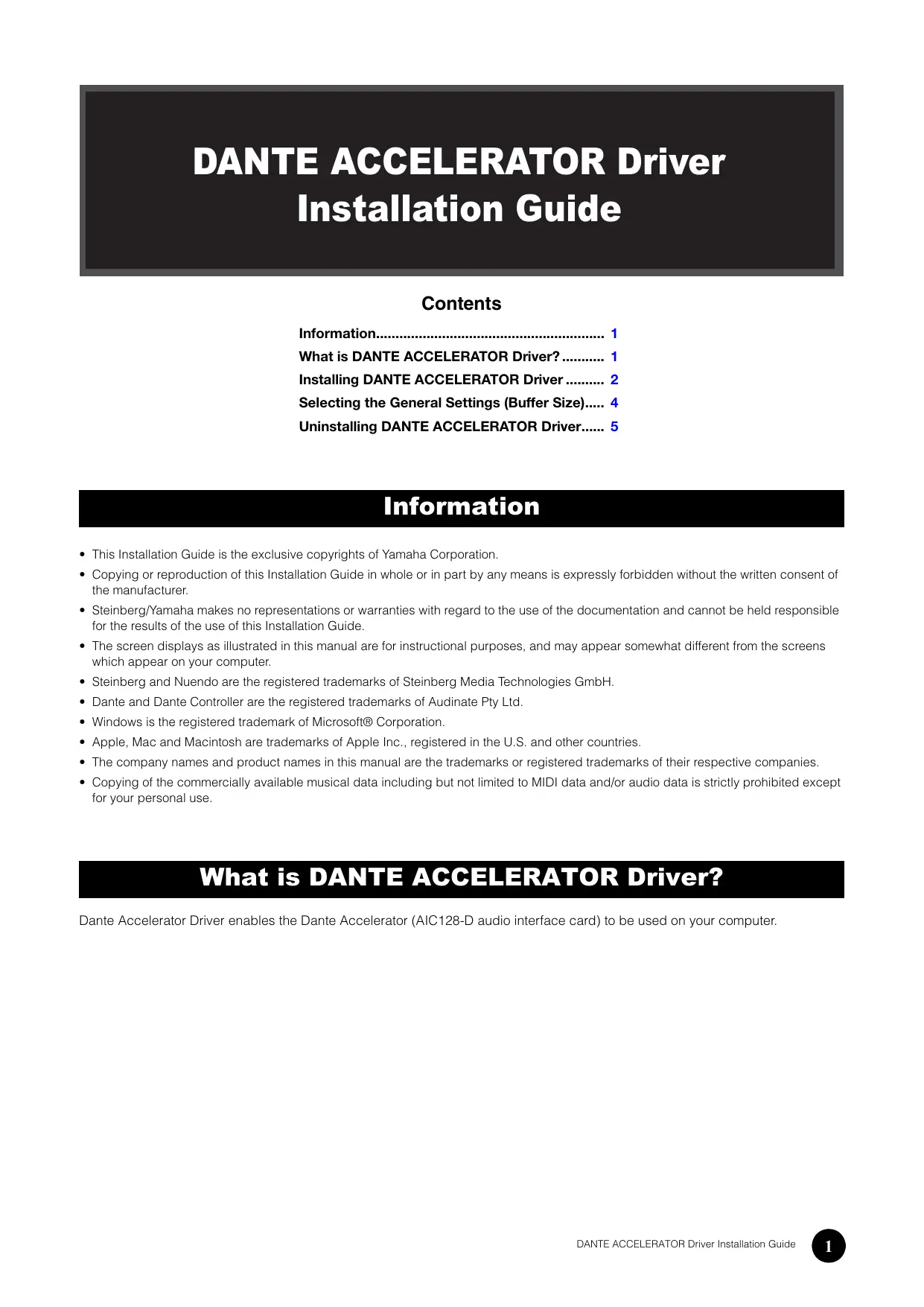
Guide d'installation du pilote DANTE ACCELERATOR
Sommaire
Informations 1
Qu'est-ce que le pilote DANTE ACCELERATOR ? 1
Installation du pilote DANTE ACCELERATOR 2
Sélection des paramètres généraux (taille du tampon).... 4
Désinstallation du pilote DANTE ACCELERATOR..... 5
Informations
- Ce guide d'installation est la propriété exclusive de Yamaha Corporation.
- Toute copie ou reproduction de ce guide d'installation, en tout ou en partie, par quelque moyen que ce soit, est expressément interdite sans le consentement écrit du fabricant.
- Steinberg/Yamaha ne fait aucune déclaration ni ne donne aucune garantie concernant l'utilisation de la documentation et ne peut être tenu responsable des résultats de l'utilisation de ce guide d'installation.
- Les écrans illustrés dans ce manuel sont fournis à titre indicatif et peuvent différer légèrement de ceux affichés sur votre ordinateur.
- Steinberg et Nuendo sont des marques déposées de Steinberg Media Technologies GmbH. Dante et Dante Controller sont des marques déposées d'Audinate Pty Ltd.
- Windows est une marque déposée de Microsoft® Corporation.
- Apple, Mac et Macintosh sont des marques d'Apple Inc., déposées aux États-Unis et dans d'autres pays. Les noms de sociétés et de produits mentionnés dans ce manuel sont des marques ou des marques déposées de leurs sociétés respectives.
- La copie des données musicales disponibles dans le commerce, y compris mais sans s'y limiter, les données MIDI et/ou les données audio, est strictement interdite, sauf pour votre usage personnel.
Qu'est-ce que le pilote DANTE ACCELERATOR ?
Le pilote Dante Accelerator permet à la carte d'interface audio Dante Accelerator (AIC128-D) d'être utilisée sur votre ordinateur.
Installation du pilote DANTE ACCELERATOR
REMARQUE
- Vous n'êtes autorisé à utiliser ce logiciel que conformément aux termes et conditions du « Contrat de licence » affiché lors de l'installation.
- Si les mêmes composants logiciels sont déjà installés sur votre ordinateur, vous pouvez utiliser la même procédure que celle décrite dans les instructions d'installation pour mettre à jour le logiciel.
Windows
Préparation
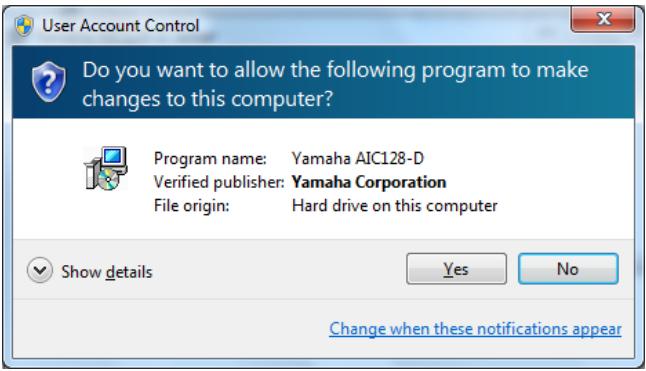
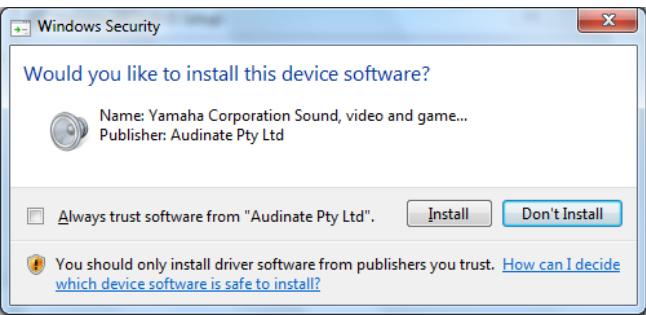
Si les messages d'avertissement suivants apparaissent pendant l'installation, suivez les instructions à l'écran pour continuer l'installation.
Exemples de message d'avertissement
Installation
1 Confirmez que la carte Dante Accelerator est installée sur l'ordinateur. 2 Démarrez l'ordinateur et connectez-vous avec le compte Administrateur. 3 Fermez toutes les applications en cours d'exécution et les fenêtres inutiles. 4 Double-cliquez sur « yaic128-d_**.exe » dans le fichier compressé que vous avez téléchargé. *** représente le numéro de version. 5 Suivez les instructions à l'écran pour installer le logiciel. 6 Lorsque l'installation est terminée, cliquez sur [Fermer].
Confirmation de l'installation
7 Ouvrez la fenêtre « Gestionnaire de périphériques » comme suit. Cliquez sur [Panneau de configuration] → ([Matériel et audio]) → [Gestionnaire de périphériques] 8 Cliquez sur le signe [+] ou [>] à côté de « Contrôleurs audio, vidéo et jeu ». 9 Confirmez que « Yamaha AIC128-D Card » apparaît dans la liste.
L'installation du pilote Dante Accelerator est maintenant terminée.
Installation
1 Confirmez que Dante Accelerator est installé sur l'ordinateur. 2 Démarrez l'ordinateur et connectez-vous au compte Administrateur. 3 Fermez toutes les applications en cours d'exécution et les fenêtres inutiles. 4 Double-cliquez sur "yaic128-d_***.pkg" dans le fichier compressé que vous avez téléchargé. *** représente le numéro de version. 5 Suivez les instructions à l'écran pour installer le logiciel. 6 Lorsque l'installation est terminée, cliquez sur [Redémarrer] pour redémarrer l'ordinateur.
Confirmation de l'installation
7 Ouvrez la fenêtre "Configuration audio MIDI" comme suit. Double-cliquez sur [Applications] → [Utilitaires] → [Configuration audio MIDI] 8 Confirmez que "Yamaha AIC128-D Card" apparaît dans la colonne de gauche.
L'installation du pilote Dante Accelerator est maintenant terminée.
Windows
Sélectionnez la taille du tampon dans le panneau de configuration du pilote.
Comment ouvrir le panneau de configuration
Dans le menu Nuendo, sélectionnez [Périphériques] → [Configuration des périphériques...]
→ [Yamaha AIC128-D] → [Panneau de configuration]
Commandes du panneau
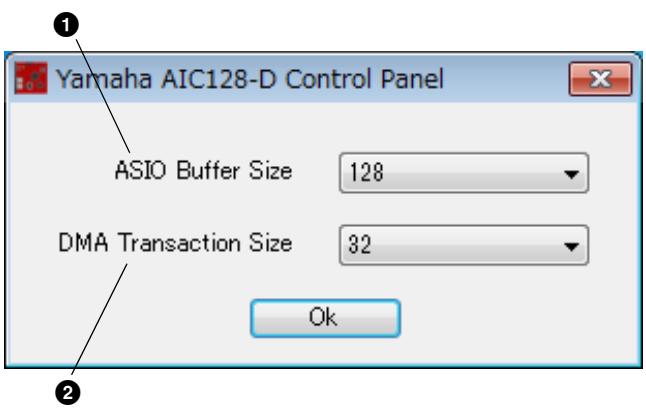
Taille du tampon ASIO
Sélectionnez la taille du tampon pour le pilote ASIO.
Valeur de réglage : 32 à 2048 échantillons
2 Taille de transaction DMA
Sélectionnez la taille du tampon pour la carte.
Valeur de réglage : 16, 32 échantillons
Mac
Sélectionnez la taille du tampon dans la fenêtre de sélection de la taille du tampon, qui est ouverte à partir d'une application telle qu'un logiciel DAW.
Comment ouvrir le panneau de configuration
Dans le menu Nuendo, sélectionnez [Périphériques] → [Configuration des périphériques...]
→ [Yamaha AIC128-D] → [Panneau de configuration]
ASTUCE
Réglage de la taille du tampon du pilote audio
Le bruit produit lors de l'utilisation d'applications audio telles que les logiciels DAW peut affecter l'enregistrement et/ou la lecture audio. Dans la plupart des cas, vous pouvez résoudre ces problèmes en ajustant la taille du tampon du pilote audio (la taille de la mémoire utilisée pour stocker temporairement les données afin d'éviter les interruptions de lecture).
Alors qu'une taille de tampon plus élevée réduit la charge sur le processeur de l'ordinateur mais produit une latence (délai) pendant l'enregistrement/la lecture, une taille de tampon plus petite peut entraîner du bruit ou une coupure du son. Assurez-vous de définir la taille du tampon sur une valeur appropriée en fonction des performances de votre ordinateur, du nombre de pistes audio/MIDI enregistrées/lues sur le logiciel DAW, du nombre de logiciels de plug-in, etc.
Désinstallation du pilote DANTE ACCELERATOR
Windows
1 Démarrez l'ordinateur et connectez-vous au compte Administrateur. 2 Fermez toutes les applications en cours d'exécution et les fenêtres inutiles. 3 Sélectionnez [Panneau de configuration] → [Désinstaller un programme] pour ouvrir le panneau "Désinstaller ou modifier un programme".
4 Sélectionnez "Yamaha AIC128-D" dans la liste. 5 Cliquez sur [Désinstaller] / [Désinstaller / Modifier]. Si la fenêtre "Contrôle de compte d'utilisateur" apparaît, cliquez sur [Continuer] ou [Oui].
Suivez les instructions à l'écran pour supprimer le logiciel.
La désinstallation du pilote Dante Accelerator est maintenant terminée.
Mac
1 Démarrez l'ordinateur et connectez-vous au compte administrateur. 2 Fermez toutes les applications en cours d'exécution et les fenêtres inutiles. 3 Double-cliquez sur "Uninstall_yaic128-d.app" dans le fichier compressé que vous avez téléchargé.
4 Cliquez sur [Continuer] lorsque la fenêtre "Désinstaller Yamaha AIC128-D" apparaît. Ensuite, suivez les instructions à l'écran pour désinstaller le logiciel. 5 Après avoir terminé la désinstallation, un message "Terminé." apparaît. Cliquez sur [OK].
La désinstallation du pilote Dante Accelerator est maintenant terminée.

- GUIDE D'INSTALLATION DU PILOTE DANTE ACCELERATOR
- SOMMAIRE
- INFORMATIONS
- QU'EST-CE QUE LE PILOTE DANTE ACCELERATOR
- INSTALLATION DU PILOTE DANTE ACCELERATOR
- REMARQUE
- WINDOWS
- PRÉPARATION
- INSTALLATION
- CONFIRMATION DE L'INSTALLATION
- COMMENT OUVRIR LE PANNEAU DE CONFIGURATION
- COMMANDES DU PANNEAU
- TAILLE DU TAMPON ASIO
- TAILLE DE TRANSACTION DMA
- MAC
- ASTUCE
- RÉGLAGE DE LA TAILLE DU TAMPON DU PILOTE AUDIO
- DÉSINSTALLATION DU PILOTE DANTE ACCELERATOR
Marque : YAMAHA
Modèle : AIC128-D DRIVER
Catégorie : Interface audio