
AIC128-D DRIVER - Audio Interface YAMAHA - Free user manual and instructions
Find the device manual for free AIC128-D DRIVER YAMAHA in PDF.


| Product type | Dante audio interface card |
| Brand | YAMAHA |
| Model | AIC128-D DRIVER |
| Category | Audio interface |
| Usage | Allows connecting the Dante Accelerator AIC128-D card to a computer |
| Compatible platforms | Windows (7, 8, 10, 11) and macOS (10.12 and later) |
| Main function | ASIO driver for low latency |
| ASIO Buffer Size | 32 to 2048 samples |
| DMA Transaction Size | 16 or 32 samples |
| Installation type | Executable (Windows) or .pkg package (macOS) |
| Uninstallation | Via Control Panel (Windows) or dedicated tool (macOS) |
| DAW compatibility | Nuendo, Cubase and other software supporting ASIO or Core Audio |
| Provided software | Dante Accelerator driver (download) |
| System requirements | Computer with PCIe slot or Thunderbolt (depending on model) |
| Maintenance and cleaning | No special maintenance; keep connectors clean |
| Safety | Follow hardware installation precautions (electrostatic discharge) |
| Spare parts and repairability | Not applicable (software and integrated hardware product) |
| General information | This driver is necessary to use the AIC128-D card with a computer |
Frequently Asked Questions - AIC128-D DRIVER YAMAHA
User questions about AIC128-D DRIVER YAMAHA
0 question about this device. Answer the ones you know or ask your own.
Ask a new question about this device
Download the instructions for your Audio Interface in PDF format for free! Find your manual AIC128-D DRIVER - YAMAHA and take your electronic device back in hand. On this page are published all the documents necessary for the use of your device. AIC128-D DRIVER by YAMAHA.
USER MANUAL AIC128-D DRIVER YAMAHA
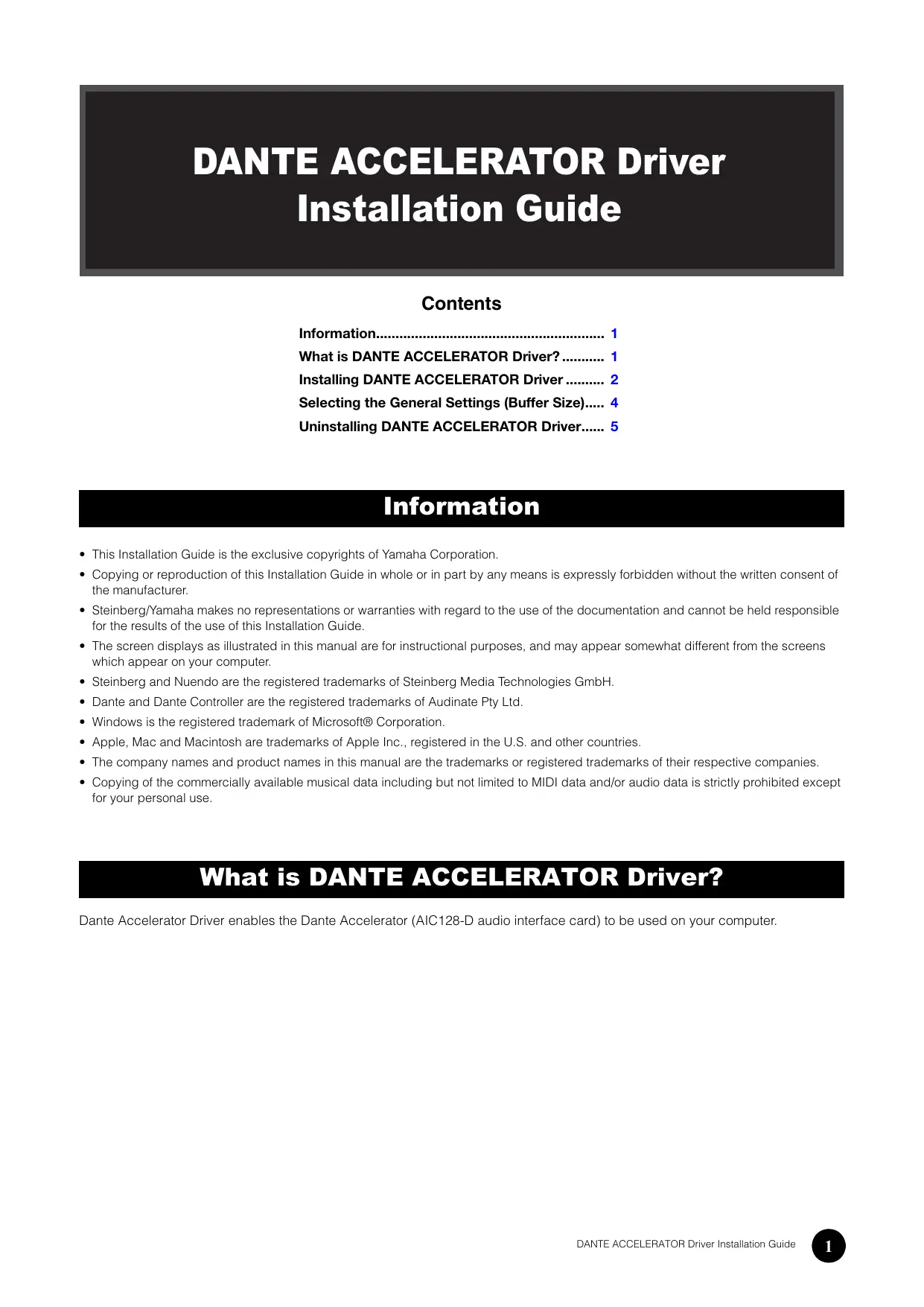
DANTE ACCELERATOR Driver Installation Guide
Contents
Information 1
What is DANTE ACCELERATOR Driver? 1
Installing DANTE ACCELERATOR Driver 2
Selecting the General Settings (Buffer Size).... 4
Uninstalling DANTE ACCELERATOR Driver..... 5
Information
- This Installation Guide is the exclusive copyright of Yamaha Corporation.
- Copying or reproduction of this Installation Guide in whole or in part by any means is expressly forbidden without the written consent of the manufacturer.
- Steinberg/Yamaha makes no representations or warranties with regard to the use of the documentation and cannot be held responsible for the results of the use of this Installation Guide.
- The screen displays as illustrated in this manual are for instructional purposes, and may appear somewhat different from the screens which appear on your computer.
- Steinberg and Nuendo are the registered trademarks of Steinberg Media Technologies GmbH. Dante and Dante Controller are the registered trademarks of Audinate Pty Ltd.
- Windows is the registered trademark of Microsoft® Corporation.
- Apple, Mac and Macintosh are trademarks of Apple Inc., registered in the U.S. and other countries. The company names and product names in this manual are the trademarks or registered trademarks of their respective companies.
- Copying of the commercially available musical data including but not limited to MIDI data and/or audio data is strictly prohibited except for your personal use.
What is DANTE ACCELERATOR Driver?
Dante Accelerator Driver enables the Dante Accelerator (AIC128-D audio interface card) to be used on your computer.
Installing DANTE ACCELERATOR Driver
NOTE
- You are only permitted to use this software pursuant to the terms and conditions of the "License Agreement" shown during the installation.
- If the same software components have already been installed in your computer, you can use the same procedure as described in the installation instructions here to update the software.
Windows
Preparation
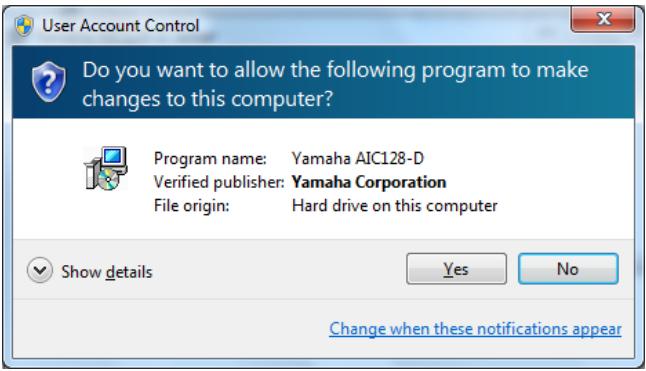
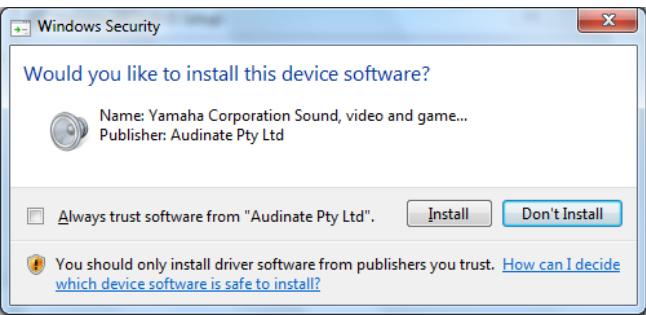
If the following warning messages appear during the installation, follow the on-screen instructions to continue with installation.
Examples of warning message
Installation
1. Confirm that the Dante Accelerator is installed on the computer. 2. Start the computer and log on to the Administrator account. 3. Close all running applications and unnecessary windows. 4. Double-click "yaic128-d_**.exe" in the compressed file you have downloaded. *** represents the version number. 5. Follow the on-screen instructions to install the software. 6. When installation has been completed, click [Close].
Confirmation of Installation
7. Open the "Device Manager" window as follows: Click [Control Panel] -> ([Hardware and Sound]) -> [Device Manager]. 8. Click on the [+] or [>] mark next to "Sound, video and game controllers." 9. Confirm that the "Yamaha AIC128-D Card" appears in the list.
Installation of the Dante Accelerator Driver is now complete.
Installation
1. Confirm that Dante Accelerator is installed on the computer. 2. Start the computer and log in to the Administrator account. 3. Close all running applications and unnecessary windows. 4. Double-click "yaic128-d_***.pkg" in the compressed file you have downloaded. *** represents the version number. 5. Follow the on-screen instructions to install the software. 6. When installation has been completed, click [Restart] to restart the computer.
Confirmation of Installation
7. Open the "Audio MIDI Setup" window as follows: Double-click [Applications] -> [Utilities] -> [Audio MIDI Setup]. 8. Confirm that the "Yamaha AIC128-D Card" appears in the left column.
Installation of the Dante Accelerator Driver is now complete.
Windows
Select the buffer size in the control panel of the driver.
How to Open the Control Panel
From the Nuendo menu, select [Devices] -> [Device Setup...]
-> [Yamaha AIC128-D] -> [Control Panel]
Panel Controls
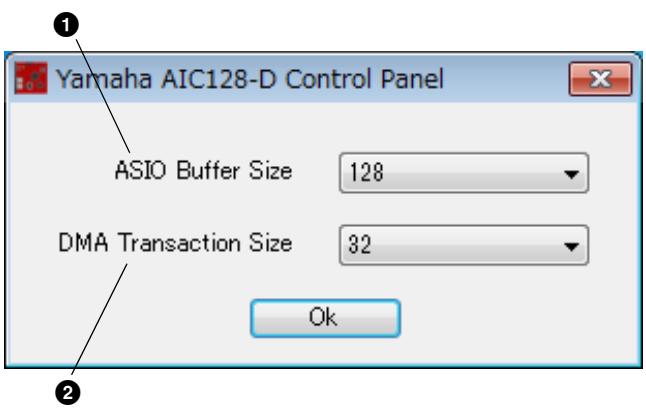
ASIO Buffer Size
Select the buffer size for the ASIO driver.
Setting value: 32 to 2048 samples
2 DMA Transaction Size
Select the buffer size for the card.
Setting value: 16, 32 samples
Mac
Select the buffer size in the buffer size selecting window, which is opened from an application such as DAW software.
How to Open the Control Panel
From the Nuendo menu, select [Devices] → [Device Setup...]
→ [Yamaha AIC128-D] → [Control Panel]
TIP
Setting the audio driver buffer size
Noise produced when using audio applications such as DAW software may affect audio recording and/or playback. In most cases, you can solve these problems by adjusting the audio driver buffer size (the size of memory used to temporarily hold data to avoid intermittent playback).
While the higher buffer size reduces load to the computer CPU but produces latency (time lag) during recording/playback, the smaller buffer size may result in noise or the sound cutting off. Make sure to set the buffer size to an appropriate value depending on the performance of your computer, the number of audio/MIDI tracks being recorded/played back on the DAW software, the number of plug-in software, and so on.
Uninstalling DANTE ACCELERATOR Driver
Windows
1 Start the computer and log on to the Administrator account. 2 Close all running applications and unnecessary windows. 3 Select [Control Panel] → [Uninstall a Program] to call up the "Uninstall or change a program" panel.
4 Select "Yamaha AIC128-D" from the list. 5 Click [Uninstall] / [Uninstall / Change]. If the "User Account Control" window appears, click [Continue] or [Yes].
Follow the on-screen instructions to remove the software.
Uninstallation of the Dante Accelerator Driver is now complete.
Mac
1 Start the computer and log in to the Administrator account. 2 Close all running applications and unnecessary windows. 3 Double-click "Uninstall_yaic128-d.app" in the compressed file you have downloaded.
4 Click [Continue] when the "Uninstall Yamaha AIC128-D" window appears. After that, follow the on-screen instructions to uninstall the software. 5 After completing the uninstallation, a message "Done." appears. Click [OK].
Uninstallation of the Dante Accelerator Driver is now complete.
- DANTE ACCELERATOR DRIVER INSTALLATION GUIDE
- CONTENTS
- INFORMATION
- WHAT IS DANTE ACCELERATOR DRIVER
- INSTALLING DANTE ACCELERATOR DRIVER
- NOTE
- WINDOWS
- PREPARATION
- INSTALLATION
- CONFIRMATION OF INSTALLATION
- HOW TO OPEN THE CONTROL PANEL
- PANEL CONTROLS
- ASIO BUFFER SIZE
- DMA TRANSACTION SIZE
- MAC
- TIP
- SETTING THE AUDIO DRIVER BUFFER SIZE
- UNINSTALLING DANTE ACCELERATOR DRIVER
Brand : YAMAHA
Model : AIC128-D DRIVER
Category : Audio Interface