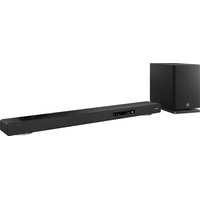
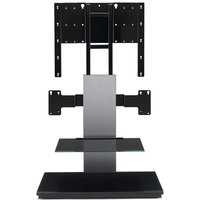
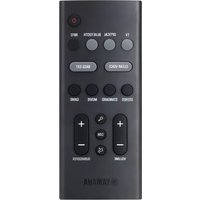
YSP-4100 - Barre de son YAMAHA - Notice d'utilisation et mode d'emploi gratuit
Retrouvez gratuitement la notice de l'appareil YSP-4100 YAMAHA au format PDF.



| Type de produit | Barre de son YSP-4100 |
| Caractéristiques techniques principales | Technologie de son surround 7.1, DSP avancé, connectivité Bluetooth, HDMI ARC |
| Alimentation électrique | 100-240V, 50/60Hz |
| Dimensions approximatives | Dimensions : 1100 mm (largeur) x 130 mm (hauteur) x 120 mm (profondeur) |
| Poids | Poids : environ 5,5 kg |
| Compatibilités | Compatible avec les téléviseurs équipés de HDMI ARC, appareils Bluetooth |
| Fonctions principales | Lecture audio sans fil, réglage automatique du son, modes de son prédéfinis |
| Entretien et nettoyage | Nettoyer avec un chiffon doux, éviter les produits chimiques agressifs |
| Pièces détachées et réparabilité | Disponibilité de pièces détachées limitée, consulter le service après-vente Yamaha |
| Sécurité | Ne pas exposer à l'humidité, respecter les consignes d'utilisation fournies dans le manuel |
| Informations générales utiles | Vérifier la compatibilité avec les autres équipements audio, lire le manuel d'utilisation avant installation |
FOIRE AUX QUESTIONS - YSP-4100 YAMAHA
Questions des utilisateurs sur YSP-4100 YAMAHA
0 question sur cet appareil. Repondez a celles que vous connaissez ou posez la votre.
Poser une nouvelle question sur cet appareil
Téléchargez la notice de votre Barre de son au format PDF gratuitement ! Retrouvez votre notice YSP-4100 - YAMAHA et reprennez votre appareil électronique en main. Sur cette page sont publiés tous les documents nécessaires à l'utilisation de votre appareil YSP-4100 de la marque YAMAHA.
MODE D'EMPLOI YSP-4100 YAMAHA
YSP-5100 / YSP-4100
Digital Sound Projector™
Owner's Manual
Intel/Beam
The "IntelliBeam" logo and "IntelliBeam" are trademarks of Yamaha Corporation.
CINEMADSP
The "CINEMA DSP" logo and "Cinema DSP" are registered trademarks of Yamaha Corporation.
Univolume
The "UniVolume" and "UniVolume" are trademarks of Yamaha Corporation.
Wired
The “ prWired” and “AirWired” are trademarks of Yamaha Corporation.
DOLBY
Manufactured under license from Dolby Laboratories. Dolby, Pro Logic and the double-D symbol are trademarks of Dolby Laboratories
dts-hD
Master Audio
Manufactured under license under U.S. Patent No's: 5,451,942;5,956,674;5,974,380;5,978,762;6,226,616;6,487,535 & other U.S. and worldwide patents issued & pending. DTS is a registered trademark and the DTS logos, Symbol, DTS-HD and DTS-HD Master Audio are trademark of DTS, Inc. © 1996-2007 DTS, Inc. All Rights Reserved.

Manufactured under license from Cambridge Mechatronics Ltd. Worldwide patents applied for.
The “ ” logo and “Digital Sound ProjectorTM” are trademarks of Cambridge Mechatronics Ltd.
HOMI
"HDMI", the "HDMI" logo and "High-Definition Multimedia Interface" are trademarks or registered trademarks of HDMI Licensing LLC.
x.v.Color
"x.v.Color" is a trademark.
iPodTM, iPhoneTM
iPod is a trademark of Apple Inc., registered in the U.S. and other countries. iPhone is a trademark of Apple Inc.


"Made for iPod" means that an electronic accessory has been designed to connect specifically to iPod and has been certified by the developer to meet Apple performance standards.
"Works with iPhone" means that an electronic accessory has been designed to connect specifically to iPhone and has been certified by the developer to meet Apple performance standards.
Apple is not responsible for the operation of this device or its compliance with safety and regulatory standards.
About this manual
- Make sure you read precautions in "Safety and Accessory Information" (separate booklet) carefully before using this unit.
This manual describes how to connect and operate this unit. For details regarding the operation of external components, refer to the supplied owner's manual for each component. - Operations in this manual use keys on the supplied remote control of this unit unless otherwise specified.
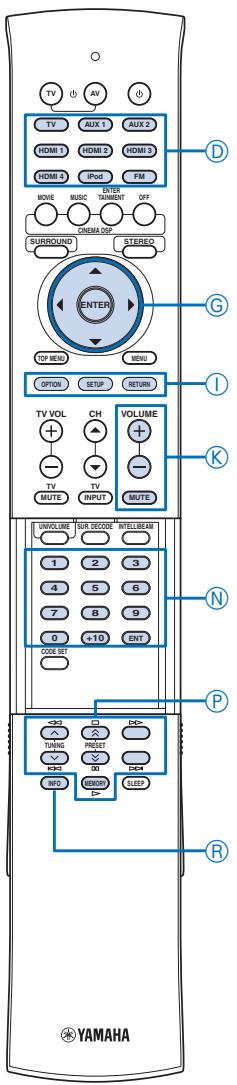
indicates a tip for your operation. - An illustration of the remote control in the left pages of this manual indicates the keys to be used in two facing (left and right) pages.
- This manual is produced prior to production. Designs and specifications are subject to change in part as a result of improvements, etc. In case of differences between the manual and the product, the product has priority.
CONTENTS
INTRODUCTION
Features 4
General operation flow 5
Controls and functions. 6
Front panel 6
Front panel display. 7
Rear panel. 8
Remote control. 9
PREPARATION
Installation 10
Connections. 12
Before connecting components. 12
Connecting external components 12
Connecting a subwoofer. 13
Connecting the FM antenna 14
Preparing the remote control. 14
Installing batteries in the remote control. 14
Operation range of the remote control 14
Changing OSD language. 15
AUTO SETUP(IntelliBeam). 15
Installing the IntelliBeam microphone. 15
Using AUTO SETUP (IntelliBeam) 16
Using the system memory 19
Saving settings 19
Loading settings 19
PLAYBACK FEATURES
Playback 21
Playing back sources 21
Playing back TV sounds. 21
Playing back a player 21
Muting audio output. 21
Decoder and input channel indicators 21
Playback mode. 22
Selecting surround or stereo playback 22
Enjoying CINEMA DSP programs 22
Changing the audio output method for surround playback. 23
Enjoying 2-channel sources in surround sound 24
Playing back 5.1-channel sources in 7.1-channel surround 24
FM tuning 25
Tuning into the desired FM station (Frequency tuning) 25
Registering FM stations and tuning in (Preset tuning)....25
Displaying the Radio Data System information (Europe model only). 26
Playing back iPodTM/iPhoneTM 27
Useful features 28
Adjusting volume level automatically (UniVolume).....28
Using the HDMITM control function 28
Using the sleep timer. 28
Configuring settings for each input source (Option menu) 28
Displaying the input signal information. 29
SETTINGS
Customizing this unit (SET MENU) 30
SET MENU items. 30
Basic SET MENU operation. 31
MANUAL SETUP. 31
SOUND SET MENU 33
SOUND OUT MENU 34
INPUT MENU 35
DISPLAY MENU 36
System configurations (ADVANCED SETUP) 37
Using an external amplifier 38
Controlling external components 39
APPENDIX
Troubleshooting 40
Glossary. 43
Specifications 44
List of remote control codes 45
Index 52
Features
Digital Sound Projector
The Digital Sound Projector technology allows one slim unit to control and steer multiple channels of sound to generate multi-channel surround sound, thus eliminates the need for satellite loudspeakers and cabling normally associated with conventional surround sound systems. This unit also employs the beam modes that let you enjoy the surround sound (5 Beam, Stereo+3 Beam, 3 Beam for 5.1-channel audio, 5 Beam plus 2, Stereo + 3 Beam plus 2, 3 Beam for 7.1-channel audio) and 2-channel stereo playback.
HDMI (High-Definition Multimedia Interface)
HDMI input x 4, HDMI output x 1
HDMI interface for standard, enhanced, or high-definition video (including 1080p video signal transmission) as well as multi-channel digital audio based on HDCP
- Automatic audio and video synchronization (lip sync) information capability
- Deep Color video signal transmission capability
- "x.v.Color" video signal transmission capability
- High definition digital audio format signals capability
- Multi-channel Linear PCM signal capability
Simple and easy connections with HDMI supported external components
Functional link which enables the remote control of your TV to control this unit (with an HDMI control-compatible TV)
- Power mode switch capability (on/standby)
Volume adjustment capability - TV sounds reproduce device selection capability (this unit/TV)
AUTO SETUP (IntelliBeam)
This unit employs the automatic sound beam and acoustic optimization technology with the aid of the supplied IntelliBeam microphone. You can avoid troublesome listening-based speaker setup and achieve highly accurate sound beam adjustments that best match your listening environment.
Cinema DSP
This unit employs the Cinema DSP technology developed by Yamaha Electronics Corp. that lets you experience movies at home with all the original dramatic sound impact.
UniVolume
This unit employs the automatic volume adjustment function. You can limit the volume level of the TV so that it will not increase suddenly when whenever the contents being broadcast change (due to commercials, etc.).
Various digital audio decoders include newly added HD audio decoder, and sound technologies
Dolby TrueHD, Dolby Digital Plus, Dolby digital Surround EX, Dolby Digital, Dolby Pro Logic, Pro Logic II, Pro Logic IIx
DTS-HD Master Audio, DTS-HD High Resolution Audio, DTS 96/24, DTS-ES, DTS, DTS-ES (discrete and matrix), DTS Neo: 6
Music Enhancer to improve the sound quality of compression artifacts such as the MP3 format
Bass Extension to produce powerful bass sounds
Sophisticated FM tuner
40-station random and direct preset tuning
Automatic preset tuning
Radio Data System (Europe model only)
This unit employs the Radio Data System that is a data transmission system used by FM stations.
Wireless connection (AirWired)
Wireless connection with iPod/iPhone, using Yamaha wireless transmitter for iPod (PDX-50TX/PDX-50BC)
Wireless connection with subwoofer, using Yamaha wireless subwoofer kit (SWK-W10) (not available in some countries)
iPod/iPhone interlock feature to turn on/off this unit or switch the input source in conjunction with iPod/iPhone operations
Versatile Remote Control
The supplied remote control comes with preset remote control codes used to control external components connected to this unit.
General operation flow
1 Install this unit and connect to other components.
"Installation" (page 10), "Connections" (page 12).

2 Run AUTO SETUP to optimize the beam and sound settings.
"AUTO SETUP (IntelliBeam)" (page 15).

3 Play back a source.
"Playback" (page 21).

4 Change the playback method (surround/stereo), CINEMA DSP and/or beam modes settings.
"Playback mode" (page 22).

5 Configure this unit's settings and/or set remote control codes.
"Customizing this unit (SET MENU)" (page 30), "Controlling external components" (page 39).
Controls and functions
Front panel
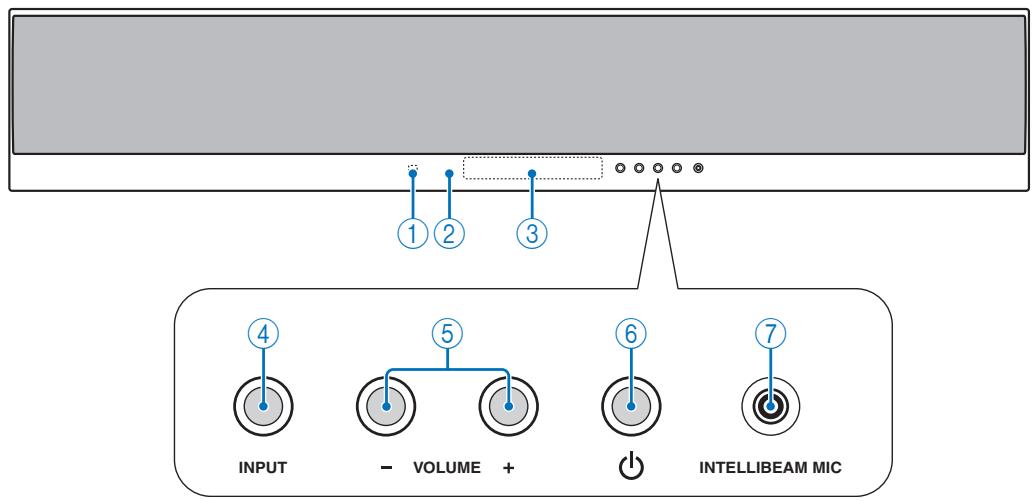
① Remote control sensor
Receives infrared signals from the remote control (page 14).
② Power LED
Lights up when the power is turned on (page 21).
③ Front panel display
Shows information about the operational status of this unit (page 7).
④ INPUT
Press repeatedly to switch between input sources.
⑤ VOLUME +/-
Controls the volume level of all audio channels.
Control range: MIN (minimum), 01 to 99, MAX (maximum)
⑥ Power (B) key
Turns on the power of this unit or sets it to the standby mode (page 21).
Note
- In the standby mode, this unit consumes a small amount of power in order to receive infrared signals from the remote control or to search for HDMI signals.
⑦ INTELLIBEAM MIC jack
Connect the supplied IntelliBeam microphone for AUTO SETUP (page 15).
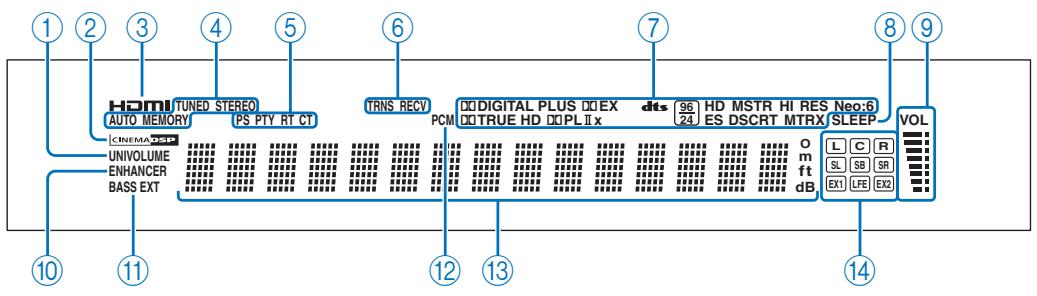
① UNIVOLUME indicator
Lights up when the UniVolume function is turned on (page 28).
② CINEMA DSP indicator
Lights up when a sound field program is selected (page 22).
③ HDMI indicator
Lights up when the signal of the selected input source is input from the HDMI IN jack(s).
④ Tuner indicators
Light up when this unit is tuned into an FM station (page 25).
⑤ Radio Data System indicators (Europe model only)
Show the current Radio Data System status (page 26).
⑥ Wireless indicators
TRNS Lights up when a wireless connection is established between the Yamaha wireless subwoofer kit (SWK-W10) and this unit (page 13).
RECV Lights up when a wireless connection is established between the Yamaha wireless transmitter for iPod (PDX-50TX) and this unit (page 27).
⑦ Decoder indicators
Light up when the corresponding decoder operates (page 21).
⑧ SLEEP indicator
Lights up when the sleep timer is set (page 28).
⑨ Volume level indicator
Displays the current volume level.
10 ENHANCER indicator
Lights up when the Music Enhancer is selected (page 34).
BASSEXTindicator
Lights up when the bass extension mode is turned on (page 34).
⑫ PCM indicator
Lights up when this unit is reproducing PCM (Pulse Code Modulation) digital audio signals.
13 Multi-information display
Shows information with alphanumeric characters when you adjust the parameters of this unit. Current input source and audio output method are displayed when this unit is turned on.
14 Input channel indicators
The channel component of the current input signal is displayed (page 21).
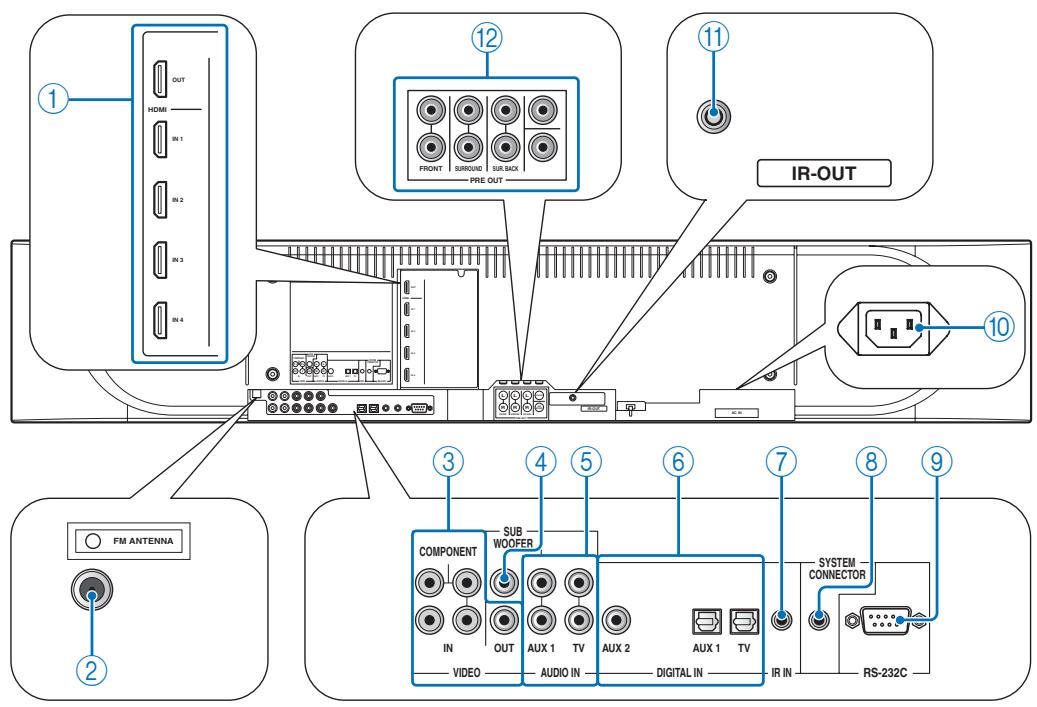
Note
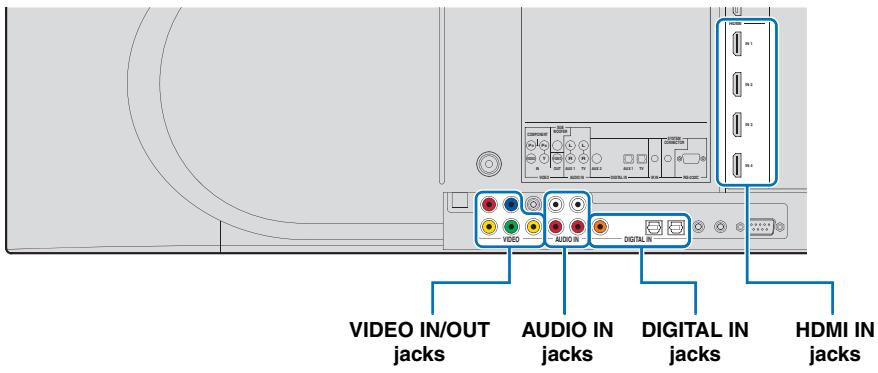
- The rear panel illustration shows jacks and their names to help you find them easily. They are not exactly the same as the ones on the actual rear panel of this unit.
① HDMI jacks
Connect your HDMI components (page 12).
② FM ANTENNA jack
Connect the FM antenna (page 14).
③VIDEOjacks
Connect to the video jacks of your external components (page 12).
④ SUBWOOFER jack
Connect your subwoofer (page 13).
⑤ AUDIO IN jacks
Connect to the analog audio output jacks of your external components (page 12).
⑥ DIGITAL IN jacks
Connect to the digital audio output jacks of your external components (page 12).
⑦ IR IN terminal
This is a control expansion terminal for commercial use only.
⑧ SYSTEM CONNECTOR terminal
Use to connect a Yamaha subwoofer equipped with a SYSTEM CONNECTOR terminal to this unit (page 13).
⑨ RS-232C terminal
This is a control expansion terminal for commercial use only.
10 AC IN
Connect the supplied power cable (page 12).
① IR-OUT terminal
This is a control expansion terminal for commercial use only.
PRE OUT jacks
Connect your external amplifier (page 38).
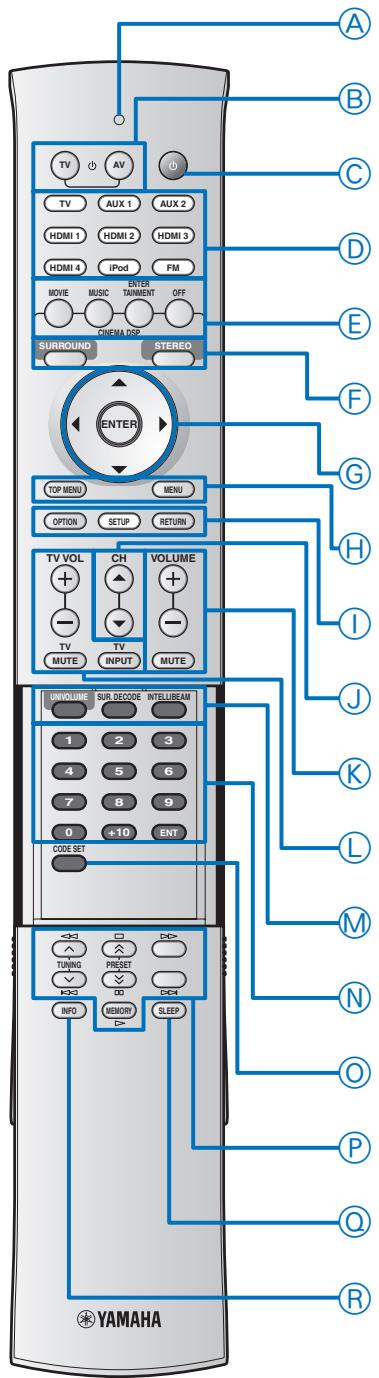
Note
- When operating the keys located on the slide cover (INFO, SLEEP, etc.), close the slide cover completely before operation.
A Transmission indicator
Lights up when infrared control signals are being output.
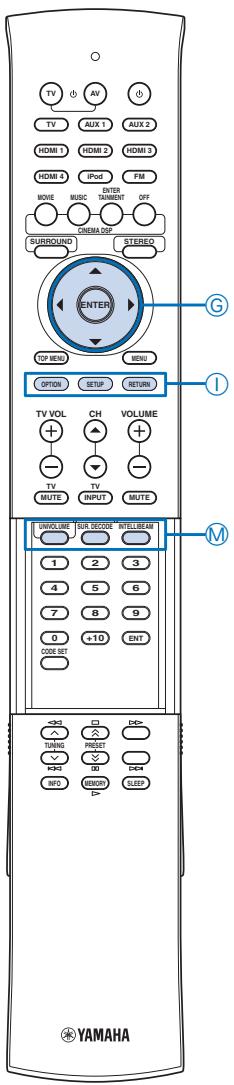
⑧ TV (B)
Turns on the power of your TV or set it to the standby mode (page 39).
⑧ AV(
Turns on the power of the selected component or set it to the standby mode (page 39).
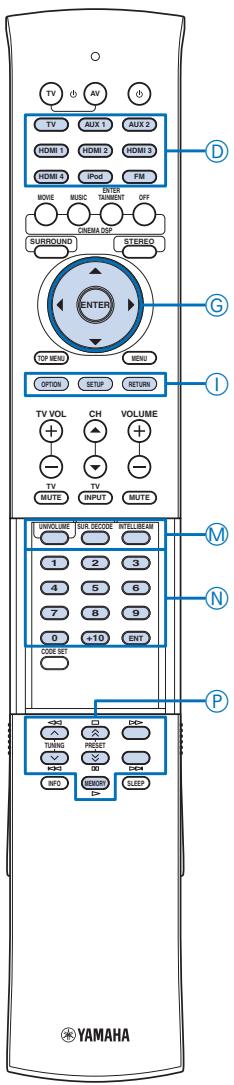
Power (B) key
Turns on the power of this unit or set it to the standby mode (page 21).
Input selector keys
Use to select an input source (page 21). An input source key currently selected lights up when the remote control is operated.
CINEMA DSP program keys
Select the CINEMA DSP programs (page 22).
SURROUND/STEREO
Switches between surround and stereo playback (page 22).
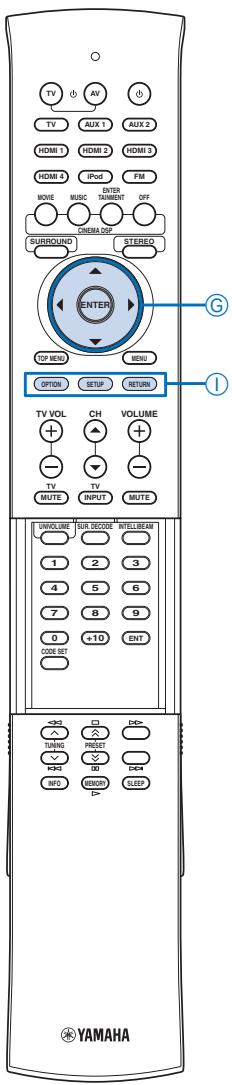
Cursor ( / / / ) keys, ENTER
Select and adjust menu items.
TOP MENU
Displays the top menu of a Blu-ray disc or DVD (page 39).
H MENU
Displays the menu of a Blu-ray disc or DVD (page 39).
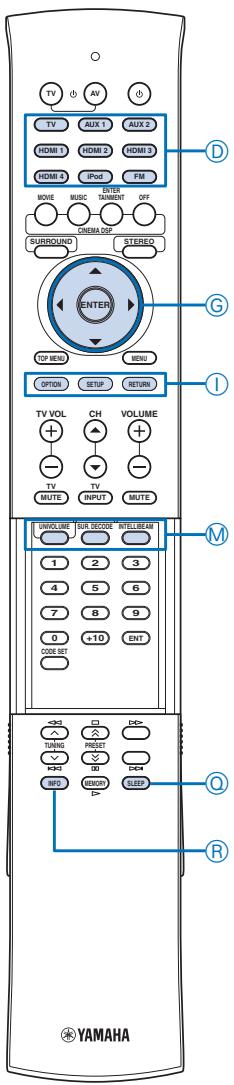
① OPTION
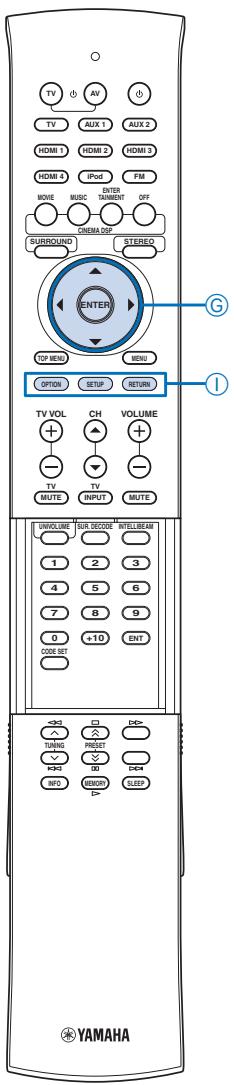
Displays the option menu (page 28). The remote control turns to setting mode (①SETUP lights up).
① SETUP
Displays the SETUP menu (page 30). Press and hold to directly enter the LANGUAGE SETUP menu (page 15). Lights up when the remote control is turned into the setting mode of the main unit.
① RETURN
Returns to the previous menu screen (page 31).
CH△I
Changes the channels of your TV/recorder (page 39).
VOLUME +/-
Increases or decreases the volume level of this unit (page 21).
MUTE
Mutes the sound. (page 21).
TV operation keys
Use to control your TV (page 39).
UNIVOLUME
Turns on or off the UniVolume function (page 28).
M SUR.DECODE
Selects a decoder for surround playback (page 24). The remote control turns to setting mode (①SETUP lights up).
M INTELLIBEAM
Enters the AUTO SETUP menu (page 16). The remote control turns to setting mode (①SETUP lights up).
Numeric keys
Use to enter numbers.
CODE SET
Sets remote control codes for external component operations (page 39).
Tuner / external component operation keys
Use to select or preset an FM station or control playback of your external components (pages 25 and 39).
SLEEP
Sets the sleep timer (page 28).
INFO
Displays information about signals currently input to this unit (page 29). Select the desired Radio Data System display mode (Europe model only) (page 26).
Installation
This section describes a suitable installation location to install this unit using a wall mount bracket, a rack, a table top stand or a floor stand. To achieve desired surround sound effects, install this unit where there are no objects such as furniture obstructing the path of sound beams (page 11). Depending on your installation environment, connections with external components (page 12) should be done before installation.
Notes
- Make sure you leave an adequate amount of ventilation space so that heat can escape. We recommend installing this unit using a wall mount bracket, a rack, a table top stand or a floor stand.
- Be sure to install this unit where it will not fall subject to vibrations, such as from an earthquake, and where it is out of the reach of children.
- When using a cathode-ray tube (CRT) TV, do not install this unit directly above your TV.
- If the picture on your TV screen becomes blurred or distorted, we recommend moving this unit away from your TV.
Attach the stands
Attach the supplied stands to this unit as shown below. Make sure that you attach the left and right stands correctly. These stands are unnecessary if you use the optional wall mount bracket.
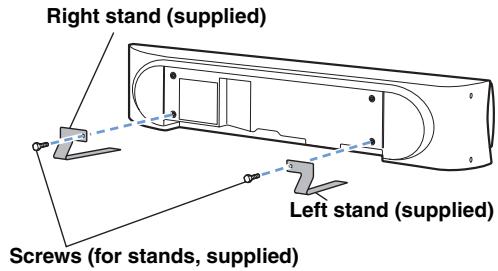
Note
- Depending on a rack, table top stand, or floor stand, the stands may not be necessary.
Using a rack
You can install this unit either above or under your TV in a commercially available rack.
It should be large enough to allow adequate ventilation space around this unit and strong enough to support the weight of both this unit and your TV.
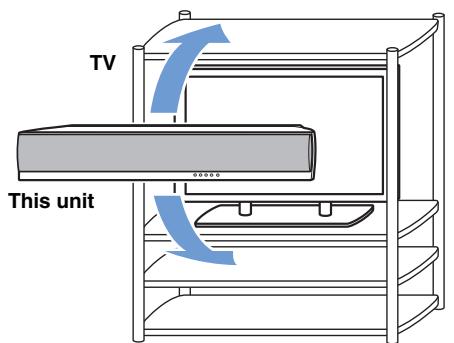
When this unit is installed above your TV
When this unit is installed under your TV
Using a wall mount bracket
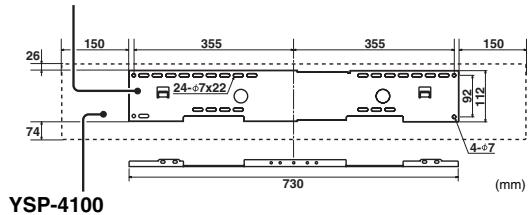
You can use the optional wall mount bracket (such as SPM-K30) to mount this unit on the wall in your listening room.
Attachment of the wall mount bracket: refer to the owner's manual supplied with the wall mount bracket.
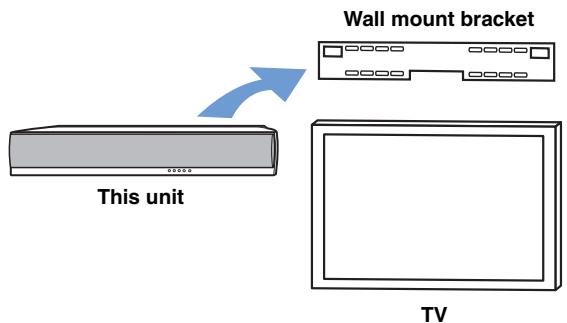
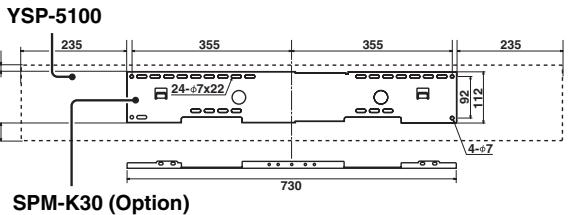
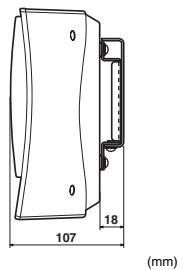
Dimensions when using SPM-K30
Using a table top stand or a floor stand
You can mount both your TV and this unit on a commercially available table top stand or floor stand.
Ideal installation condition

: Object such as furniture
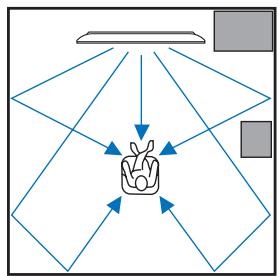
Parallel installation (with 5 Beam)
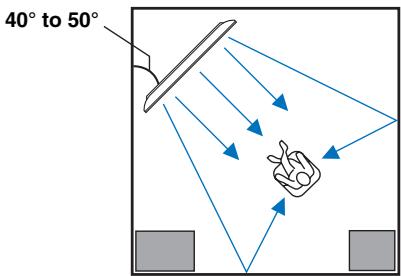
Corner installation (with Stereo+3Beam)
For better listening environment
Example 1
Install this unit as close to the exact center of the wall as possible.
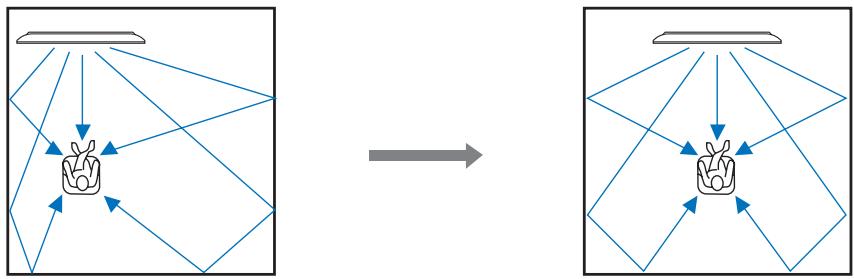
Example 2
Install this unit so that the sound beams can be reflected off the walls.
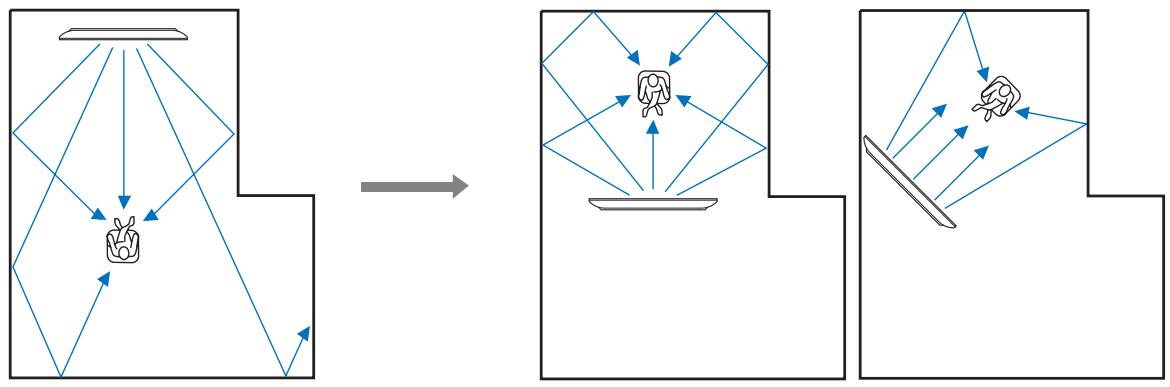
Example 3
Install this unit as close to the exact front of your normal listening position as possible.
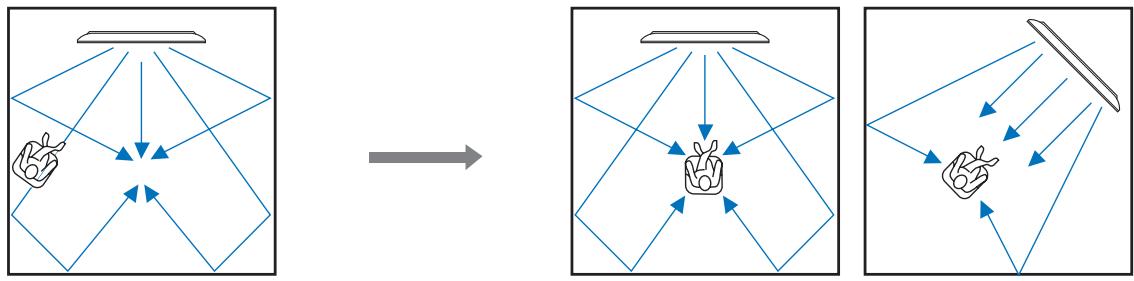
Connections
Before connecting components
Cables used for connections
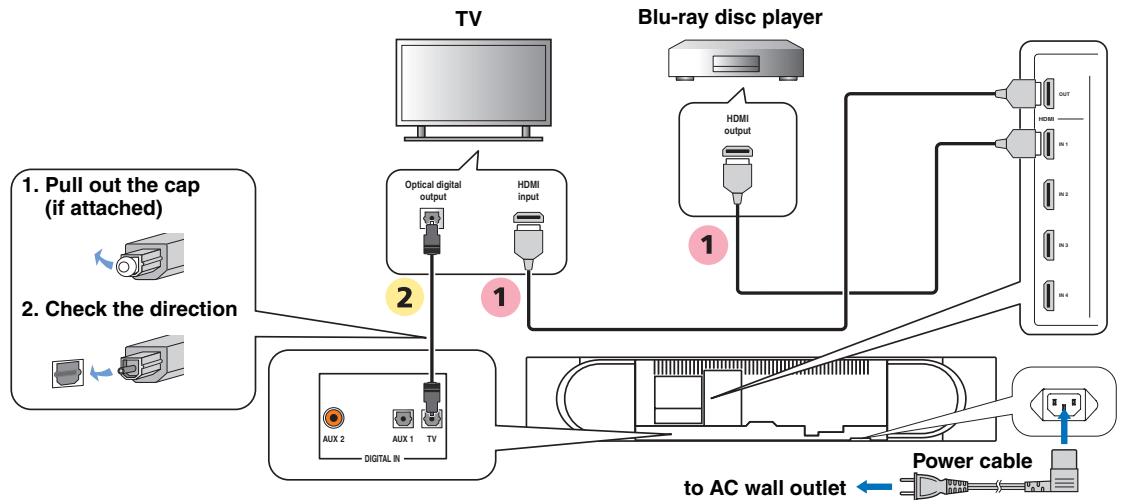
The symbols on the left of cable names (such as 1, 1, and 1) correspond with the symbols described in "Connecting your TV and Blu-ray disc player" (page 12) and "Connecting audio video components" (page 13).
For audio and video
1 HDMI cable

For audio
1 Audio pin cable (supplied)
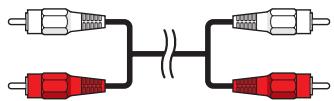
2 Optical cable (supplied)

3 Digital audio pin cable (supplied)

For video
1 Video pin cable (supplied)

2 Component video pin cable
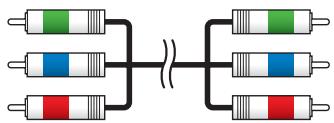
Information on HDMI
An HDMI cable can transmit both audio and video signals at the same time. If your TV and other components have HDMI jacks, use HDMI cables for simpler and easier connections.
See also: "Using the HDMI control function" (page 28), "INPUT MENU" (page 35)
| Input source | Audio signal type |
| Blu-ray disc HD DVD | Dolby Digital, Dolby Digital Plus, Dolby TrueHD, DTS, DTS-HD High Resolution Audio, DTS-HD Master Audio, 2-channel PCM, multi-channel PCM |
| DVD video | Dolby Digital, DTS, 2-channel PCM, multi-channel PCM |
| DVD audio | 2-channel PCM, multi-channel PCM |

- This unit automatically converts input video signals and outputs the signals from the HDMI OUT jack.
- The HDMI of this unit supports High-Bandwidth Digital Content Protection (HDCP),
- We recommend that you use an HDMI cable shorter than 5m (16 ft) with the HDMI logo printed on it.
Priority order for audio input signals
When digital and analog audio signals are simultaneously input from a single source component, this unit plays back digital audio signals by priority. For example, if audio signals are input to the DIGITAL IN (AUX 1) and AUDIO IN (AUX 1) jacks simultaneously, this unit plays back audio signals input to the DIGITAL IN (AUX 1) jack when "AUX1" is selected as the input source.
Connecting external components
Connect external components (TV, Blu-ray disc player, etc.) to this unit. Do not plug the power supply cable into an AC wall outlet until all connections are complete.
Connecting your TV and Blu-ray disc player
The following connection example shows a way to connect your TV and Blu-ray disc player by using the HDMI jacks. When you connect them by using the other jacks, refer to "Connecting audio and video components" (page 13). The symbols beside the cables correspond with the symbols described in "Cables used for connections" (page 12).
Connecting audio and video components
Determine the connection types depending on the jacks available on this unit and your external components. The symbols in the following table correspond with the symbols described in "Cables used for connections" (page 12).
| External component | Signal type | Jacks to use | Cable to use | Input selection key | |
| On external component | On this unit | ||||
| TV | Video | Composite video input | VIDEO OUT | 1 | TV |
| Audio | Analog audio output | AUDIO IN (TV) | 1 | ||
| External component with HDMI output | Audio/video | HDMI output | HDMI IN 1-4 | 1 | HDMI1-4 |
| External component with component video output | Audio | Coaxial digital output | DIGITAL IN (AUX 2) | 3 | AUX2 |
| Video | Component video output | VIDEO IN (COMPONENT) | 2 | ||
| External component with composite video output | Audio | Optical digital output | DIGITAL IN (AUX 1) | 2 | AUX1 |
| Analog audio output | AUDIO IN (AUX 1) | 1 | |||
| Video | Composite video output | VIDEO IN (VIDEO) | 1 | ||
- Video signals input from the VIDEO IN (VIDEO) jack can be output not only to theVIDEO OUT jack but also the HDMI OUT jack. Video signals input from theVIDEO IN (COMPONENT) jacks are output to the HDMI OUT jack.
Connecting a subwoofer
Wireline connection
Connect the monaural input jack on your subwoofer to the SUBWOOFER jack on this unit.
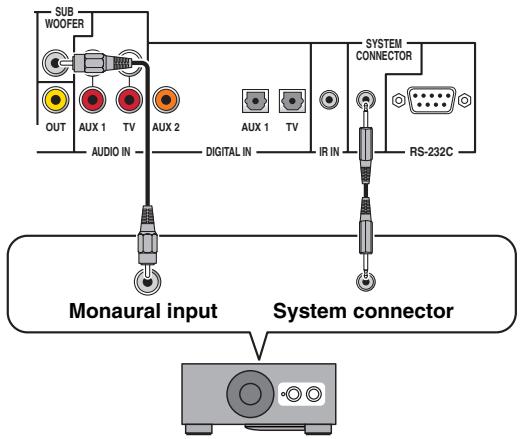
- If the subwoofer is connected by using a system type connection, changing the power mode of this unit controls the power mode of the subwoofer (Yamaha subwoofer).
Wireless connection
You can make a wireless connection of your subwoofer by using the Yamaha wireless subwoofer kit (SWK-W10). About SWK-W10, refer to "Safety and Accessory Information" (separate booklet). See also: "WIRELESS SETUP" (page 36)
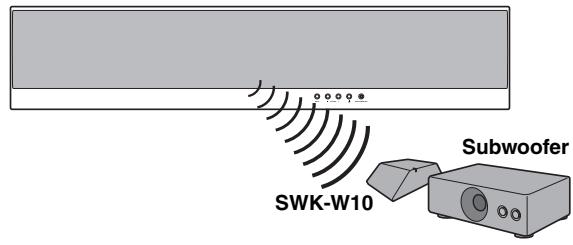
- For proper transmission, you need to set the group IDs of this unit and SWK-W10 to the same value. For the Group ID settings, refer to "Group ID" (page 36) and "Safety and Accessory Information (separate booklet)".
Note
- Be sure to use the product only in the country in where it was purchased.
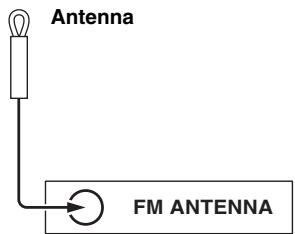
Connecting the FM antenna
Connect the supplied FM antenna or your antenna to the FM ANTENNA jack on this unit.
Preparing the remote control
Note
- Before installing batteries or using the remote control, make sure that you read precautions on the remote control and batteries in "Safety and Accessory Information" (separate booklet).
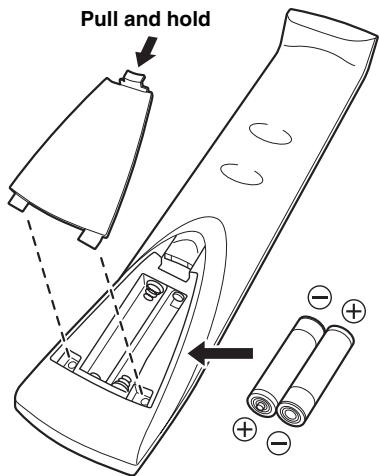
Installing batteries in the remote control
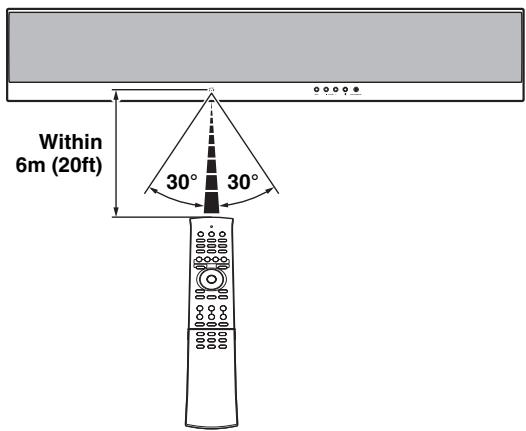
Operation range of the remote control
The remote control transmits a directional infrared beam. Use the remote control within 6m (20 ft) of this unit and point it toward the remote control sensor of this unit during operation.
1 Pull and hold the tab on the battery cover and then open the cover.
2 Insert the two supplied batteries (R03P, UM4, AAA) into the battery compartment.
Make sure you insert the batteries according to the polarity markings (+ / -)
3 Close the battery cover.
⑥ENTER
⑥ /
①SETUP
Changing OSD language
You can select an OSD language among English, German, French, Spanish, Italian, Dutch and Russian. Before operating the following steps, select this unit as the video input on your TV.
1 Press and hold ① SETUP until the “LANGUAGE SETUP” menu appears on your TV.
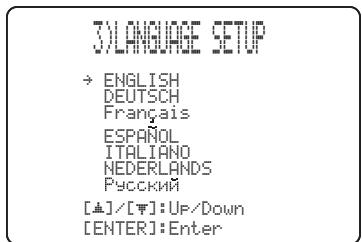
2 Press / to select the desired language and then press ENTER.
Choices: ENGLISH (English), DEUTSCH (German), Français (French), ESPANOL (Spanish), ITALIANO (Italian), NEDERLANDS (Dutch), Ручим (Russian)
Initial setting: ENGLISH (English)
3 To exit from the menu, press ①SETUP.
AUTO SETUP (IntelliBeam)
This unit creates a sound field by reflecting sound beams off the walls of your listening room and by broadening the cohesion of all the channels. Just as you would arrange the speaker position of other audio systems, you need to set the beam angle to enjoy the best possible sound from this unit.
Notes
- After you have completed the AUTO SETUP procedure, be sure to disconnect the IntelliBeam microphone.
- The IntelliBeam microphone is sensitive to heat.
- Keep the IntelliBeam microphone away from direct sunlight.
- Do not place the IntelliBeam microphone on top of this unit.
- You cannot use the AUTO SETUP when "PREOUT" is selected in "SOUND OUT" (page 35).
- You cannot run the AUTO SETUP while playing back the iPod/iPhone by using PDX-50TX. To run the AUTO SETUP, stop playback and then disconnect the iPod/iPhone from PDX-50TX. About PDX-50TX, refer to "Safety and Accessory Information" (separate booklet).
Installing the IntelliBeam microphone
Follow the procedure below to connect the IntelliBeam microphone to this unit and place it in a proper location.
1 Connect the supplied IntelliBeam microphone to the INTELLIBEAM MIC jack on the front panel.
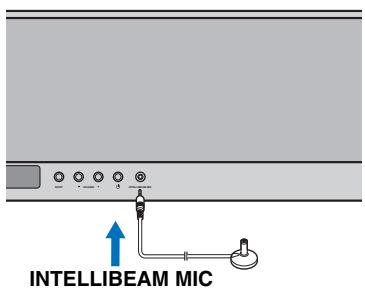
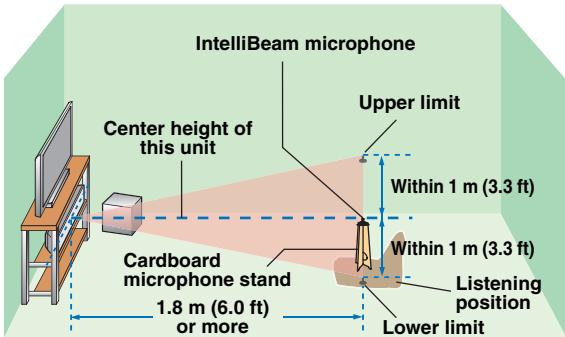
2 Place the IntelliBeam microphone on a flat level surface at your normal listening position.
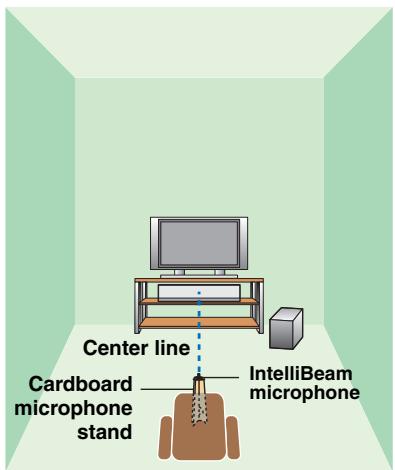
Place the IntelliBeam microphone on the extended center line of this unit and 1.8m (6.0 ft) or more away from it. Also, make sure place the IntelliBeam microphone within 1m (3.3 ft) upper or lower from the center height of this unit.

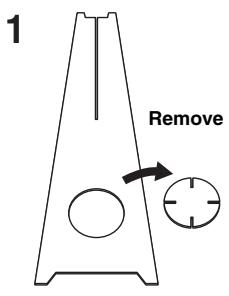
- Use the supplied cardboard microphone stand or a tripod to place the IntelliBeam microphone at the same height as your ears would be when you are seated.
Changing OSD language
AUTO SETUP (IntelliBeam)
Using the system memory
■ Assembling the supplied cardboard microphone stand
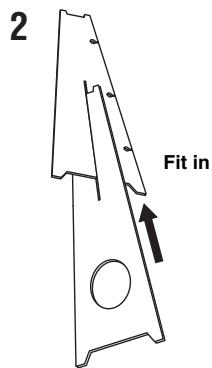
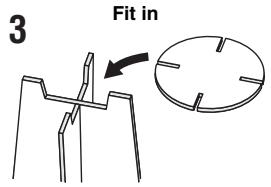
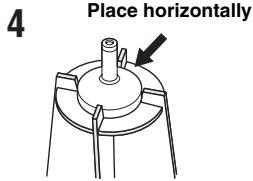
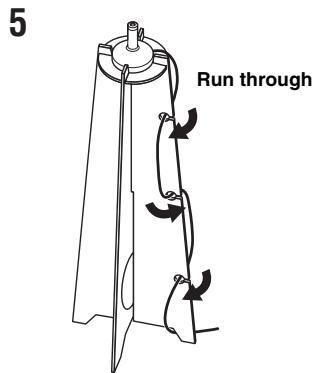
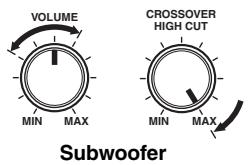
- If a subwoofer with adjustable volume and crossover frequency controls is connected to this unit, turn it on, set the volume to about half way and then set the crossover frequency to the maximum as shown below.
- To return to the previous screen while using SET MENU, press ①RETURN.
Using AUTO SETUP (IntelliBeam)
You can select one of the following AUTO SETUP types depending on your purpose.
"BEAM+SOUND OPTIMZ"
(Beam optimization and sound optimization)
Use to optimize the beam angle, delay, volume, and quality so that the parameters best match your listening environment. It is recommended that you should select this optimization feature in the following cases:
- If you make settings for the first time
- If the unit has been relocated
- If your listening room has been restructured
- If the objects in your listening room (furniture, etc.) have been rearranged
This menu takes about three minutes.
"BEAM OPTIMZ ONLY"
(Beam optimization only)
Use to optimize the beam angle so that the parameter best matches your listening environment.
This menu takes about one minute.
"SOUND OPTIMZ ONLY"
(Sound optimization only)
Use to optimize the beam delay, volume, and quality so that the parameters best match your listening environment. You must optimize the beam angle with "BEAM OPTIMZ ONLY" before starting "SOUND OPTIMZ ONLY". It is recommended that you should select this optimization feature in the following cases:
- If you have opened or closed the curtains in your listening room before using this unit
- If you have manually set the beam angle. This menu takes about three minutes.
Notes
- It is normal for loud test tones to be output during the AUTO SETUP procedure. Make sure that there are no children around in the listening room while the AUTO SETUP procedure is in progress.
- Make sure that your listening room is as quiet as possible. For accurate measurement, turn off air conditioner or other devices that make noises.
- To achieve the best results possible, vacate your listening room until the AUTO SETUP procedure is completed so that you may not obstruct the path of sound beams.
-
If there are curtains in your listening room, we recommend following the procedure below.
-
Open the curtains to improve sound reflection.
- Run "BEAM OPTIMZ ONLY".
- Close the curtains.
- Run "SOUND OPTIMZ ONLY".
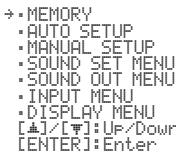
1 Press ①SETUP.
The remote control keys to be used and available operations in each step are displayed at the bottom of the screen.
SET
- You can also start the "BEAM+SOUND OPTIMZ" procedure simply by holding down MINTELLIBEAM for more than two seconds. In this case, proceed to step 4.
ENTER
6△/
①RETURN
①SETUP
MINTELLIBEAM
2 Press / to select "AUTO SETUP" and then press ENTER.
B) AUTO SETUP
1)BERM+SOUND OPTIMZ
2)BERM OPTIMZ ONLY
3)SOUND OPTIMZ ONLY
[点] [下] UP/Down
ENTER Enter
3 Press ⑥ / to select "BEAM+SOUND OPTIMZ", "BEAM OPTIMZ ONLY" or "SOUND OPTIMZ ONLY" and then press ⑥ ENTER.
AUTO SETUP
PREPARATION & CHECK
Please connect the MIC.
Please place the MIC at least 1.8m/6ft away from the unit.
The MIC should be set at ear level when seated.
Measurement takes about 1min.
After ENTER is pressed, please leave the room.
ENTER1Start [RETURN]:Cancel
4 Prepare to leave the room.
The best setting may not be done if you are in the room. Prepare to leave the room in 10 seconds after pressing ENTER in step 5.
- Wait outside the room during the AUTO SETUP procedure.
- The AUTO SETUP procedure takes about 3 minutes.
- To cancel the AUTO SETUP procedure after it is started, press ① RETURN.
5 Press ENTER to start the AUTO SETUP procedure and then leave the room within 10 seconds.
AUTOSETUPSTART
Will begin in 10sec Please leave the roo
*---[RETURN]:Cancel]
The setup screen automatically changes during the AUTO SETUP procedure.
If an error occurs, an error buzzer sounds and an error message is displayed. For details on error messages, see "Error messages for AUTO SETUP" (page 18).
If the AUTO SETUP procedure is complete, this unit rings the chimes.
1
MEASUREMENT COMPLETE
BEAM MODE :5Beam/Plus2 SUBWOOFER : YES
[CENTER]: Save set-up.
[RETURN]: Do not save set-up.
- If "ENVIRONMENT CHECK [FAILED]" is displayed, refer to "Error messages for AUTO SETUP" (page 18), press ① RETURN, and then run the AUTO SETUP procedure again.
- If "SUBWOOFER :NOT APPLICABLE" is displayed even though a subwoofer is connected to this unit and turned on, check the connection and then increase the volume level of the subwoofer and run the AUTO SETUP procedure again.
- Depending on the environment of your listening room, the beam angles of front right and left and surround left and right may be set to the same value even if "BEAM MODE :5 BEAM" is displayed as a result.
6 Press ENTER to confirm the results.
The menu screen disappears in two seconds.
AUTO SETUP COMPLETE
Please remove the MIC from the unit and the listening Position.
- If you do not want to reflect the results, press ①RETURN.
7 Disconnect the IntelliBeam microphone.
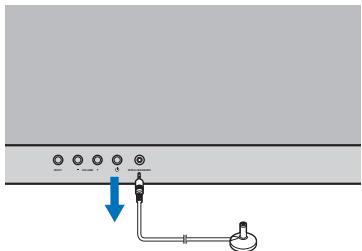
The measurement results are stored in the internal memory of this unit until you run the AUTO SETUP procedure again or configure the settings manually.
Changing OSD language
AUTO SETUP (IntelliBeam)
Using the system memory
Error messages for AUTO SETUP
If an error message is displayed on your TV, check the error message list to solve the problem and then follow the procedure below.
[ERROR E-1]: Press ENTER to run the AUTO SETUP procedure again or RETURN to cancel the operation. Other errors: Press RETURN to cancel the operation and then run the AUTO SETUP procedure again.
Note
If the problem is difficult to be solved, configure the settings manually in "MANUAL SETUP" (page 31).
| Error message | Cause | Remedy | See page |
| ERROR E-1Please test in quieter environment. | There is too much unwanted noise in your listening room. | Make sure that your listening room is as quiet as possible. You may want to choose certain hours during the day when there is not much noise coming from outside. | — |
| ERROR E-2No MIC detected. Please check MIC connection and re-try. | The IntelliBeam microphone is not connected to this unit or disconnected during the AUTO SETUP procedure. | Connect the IntelliBeam microphone to this unit firmly. | 15 |
| ERROR E-3Unexpected control is detected. Please re-try. | Some other operations were performed on this unit while the AUTO SETUP procedure was in progress. | Do not perform any other operations while the AUTO SETUP procedure is in progress. | — |
| ERROR E-4Please check MIC position. MIC should be set in front of the unit and re-try. | The IntelliBeam microphone is not placed in front of this unit. | Make sure that the IntelliBeam microphone is installed in front of this unit. | 15 |
| ERROR E-5Please check MIC position. MIC should be set above 1.8m/6.0ft and re-try. | The IntelliBeam microphone is not placed in the right distance from this unit. | Make sure that the IntelliBeam microphone is installed more than 1.8 m (6.0 ft) from the front of this unit and within 1 m (3.3 ft) from the center height of this unit. | 15 |
| ERROR E-6Volume level is lower than expected. Please check MIC position/connection and re-try. | The IntelliBeam microphone cannot collect the sound produced by this unit because the sound output level is too low. | Make sure that the IntelliBeam microphone is firmly connected to this unit and placed in a proper location. If the problem persists, contact the nearest authorized Yamaha service center for assistance. | 15 |
| ERROR E-7Unexpected error happened. Please re-try. | An internal system error occurred. | Repeat the AUTO SETUP procedure. | — |
ENTER
⑥ /
①RETURN
①SETUP
Using the system memory
You can save the current beam and sound settings in the system memory of this unit. It is handy to save certain settings according to the varying conditions of your listening environment. For example, if there are curtains in the path of sound beams, the effectiveness of the sound beams will vary depending on whether the curtains are open or closed.
#
-
If there are curtains in your listening room, we recommend following the procedure below.
-
While the curtains are open, run "BEAM+SOUND OPTIMZ" (page 16) and then save the settings to "MEMORY1".
- While the curtains are closed, run "SOUND OPTIMZ ONLY" (page 16) and then save the settings to "MEMORY2".
Saving settings
1 Press ①SETUP.
SET
MEMORY AUTO SETUP MANUAL SETUP SOUND SET MENU SOUND OUT MENU INPUT MENU DISPLAY MENU
[4] [7] :Up/Down
ENTER :Enter
2 Press ENTER.
1LOAD 2SAVE
[+] [?] UP/Down ENTEREnter
3 Press / to select "SAVE" and then press ENTER.
2)
a)MEMORV1
b)MEMORV2
c)MEMORY3
[ ]/ [ ]:Up/Down ENTER:Enter
4 Press / to select the desired memory number and then press ENTER.
2)精制:59E
MEMORY1 Save Now?
#
- If system settings are already stored in the selected memory number, this unit overwrites the old settings.
5 Press ENTER.
The current beam and sound settings are saved to the selected memory number.
2)糟
MEMORY1 Saving...
Loading settings
1 Press ①SETUP.
SET
MEMORY AUTO SETUP MANUAL SETUP SOUND SET MENU SOUND OUT MENU INPUT MENU DISPLAY MENU
[A]//[T]:Up/Down
2 Press ENTER.
1)LOAD 2)SAUE
[+] [?] UP/Down
ENTER Enter
3 Press ENTER again.
1) MEMORY LOAD
a)MEMORV1
b)MEMORV2
c)MEMORY3
[ ]/ [ ]: Up/Down ENTER: Enter
Changing OSD language
AUTO SETUP (IntelliBeam)
Using the system memory
4 Press / to select the memory number to be loaded and then press ENTER.
1XREMOYLO
MEMORY1 Load Now?
Push ENTER to Load
5 Press © ENTER.
The beam and sound settings saved in the selected memory number are loaded.
1
MEMORY1 Loading...
Power
DAX1/2
HDMI1
D)HDMI1-4
Input selector keys
⑤ TV
ENTER
⑥
MUTE
VOLUME + / -
Playback
Playing back sources
This section describes how to playback source input from your external components. For details on your external components, refer to the owner's manual supplied with each component.
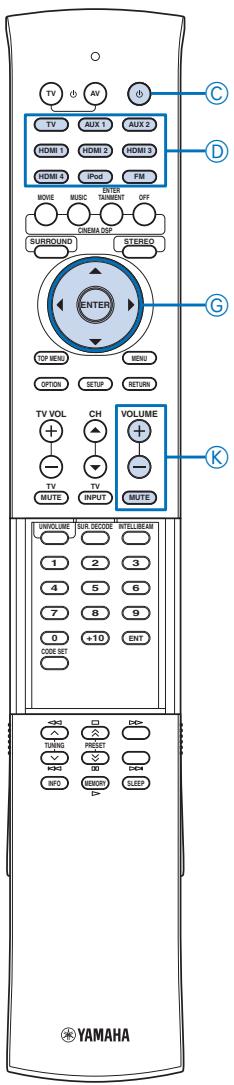
1 Press Power (O) key to turn on this unit.
2 Turn on external components (TV, Blu-ray disc player, etc.) connected to this unit.
3 Press one of the Input selector keys to select an external component as an input source.
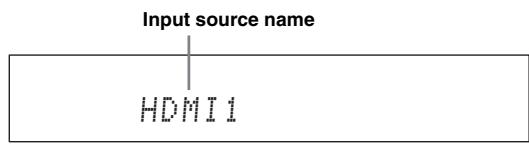
- You can change the input source name displayed on the front panel display (page 35).
4 Start playback of the external component that you have selected as the input source, or select a radio station on the tuner.
FM tuning (page 25)
- Playing back iPod/iPhone (page 27)
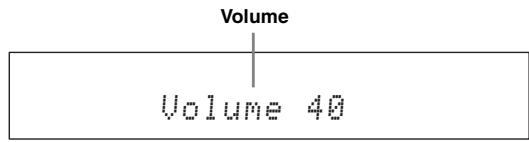
5 Press VOLUME + / - to adjust the volume.
6 Press ©Power (B) key to turn this unit to the standby mode.
Playing back TV sounds
1 Select the desired TV channel.
2 Press ① TV to select the TV as the input source.
3 Mute the sound output on the TV.
Playing back a player
1 Select the player as the video input on the TV.
2 Press ① HDMI1-4 or ⑥ AUX1/2 to select the player as the input source.
For example, if the player is connected to the HDMI IN 1 jack of this unit, press ① HDMI1.
3 Start playback of the player.
4 Mute the sound output on the TV.
- If your player supports the HD audio, check whether the audio output setting on the player is set to the value which supports HD audio output ("Auto", "Bitstream", etc.).
- If your player does not support the HD audio, check whether the audio output setting on the player is set to multi-channel linear PCM.
- If your player is connected to this unit through the digital connection, check whether the audio output setting on the player is set to digital output ("Bitstream", "Dolby Digital", "DTS", etc.).
- To enhance the surround sound effect, set the audio setting of your player to the multi-channel audio mode.
- You can use the supplied demonstration DVD to check the digital signals being input from the player through the digital connection (HDMI, optical or coaxial). The D/D DIGITAL indicator lights up when this unit detects the digital audio signal input.
Muting audio output
1 Press KMUTE to mute the audio output.
2 Press KMUTE again to resume audio output.
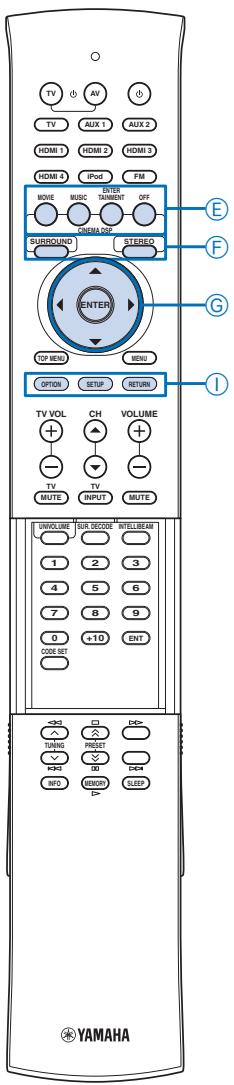
Decoder and input channel indicators
Decoder indicators
Depending on the input source and the selected decoder, the indicators in the front panel display light up as follows:
Changing OSD language
AUTO SETUP (IntelliBeam)
Using the system memory
Playback
Playback mode
FM tuning
Playing back iPodTM
Useful features
| Status | Indicator |
| When PCM signals are being input | PCM |
| When Dolby TrueHD signals are being input | ☐☐ TRUE HD |
| When Dolby Digital Plus signals are being input | ☐☐ DIGITAL PLUS |
| When Dolby Digital signals are being input | ☐☐ DIGITAL |
| When Dolby Pro Logic is selected as the surround decoder | ☐☐ PL |
| When Dolby Pro Logic II is selected as the surround decoder | ☐☐ PL II |
| When Dolby Pro Logic IIx is selected as the surround decoder | ☐☐ PL II x |
| When DTS HD Master Audio signals are being input | dts + HD + MSTR |
| When DTS HD High Resolution signals are being input | dts + HD + HI RES |
| When DTS digital signals are being input | dts |
| When DTS 96/24 signals are being input | dts + 96/24 |
| When DTS ES discrete is selected as the surround decoder | dts + ES + DSCRT |
| When DTS ES matrix is selected as the surround decoder | dts + ES + MTRX |
| When DTS Neo:6 is selected as the surround decoder | dts + Neo:6 |

- You can select an audio signal to be played back (Auto or DTS) In "Decoder Mode" (page 29).
Input channel indicators
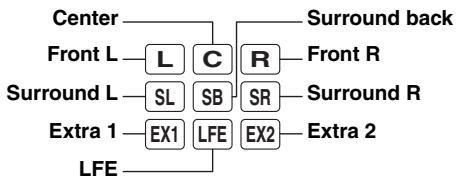
Depending on the channel component of the current digital input signal, the input channel indicators in the front panel display light up as follows:
| Input signal | Indicator |
| 2-channel stereo | L R |
| 5.1-channel | L C R SL SR LFE |
| 6.1-channel | L C R SL SB SR LFE |
| 7.1-channel | L C R SL SR EX1 LFE EX2 |

- Extra (EX1/EX2) indicators light up when 7.1-channel signals recorded in a Blu-lay disc (etc.) are being input. Normally, surround back channel signals are recorded in the extra channels. This may vary depending on the disc.
Playback mode
You can select the playback method (surround or stereo), desired CINEMA DSP program and decoder to enjoy playback of the input source.
Selecting surround or stereo playback
Use to select the playback method (surround or stereo). See also: "Enjoying CINEMA DSP programs" (page 22), "Changing the audio output method for surround playback" (page 23).
Press FSURROUND or FSTEREO.
You can enjoy high realistic sensation with surround playback and hi-fi sound with stereo playback.

- Normal sounds (not sound beams) are output from the front right and front left channels. When you play back multi-channel sources, all signals except those from the front right and left channels are mixed down and output from the front right and left channels.
- When the stereo playback is selected, CINEMA DSP (page 22) and the decoder (page 24) become ineffective.
Enjoying CINEMA DSP programs
This unit is equipped with a Yamaha CINEMA DSP (digital sound field processing) chip containing several sound field programs used to enhance your playback experience. Most of the CINEMA DSP programs are precise digital recreations of actual acoustic environments of famous concert halls, music venues, and movie theaters.

- When you enjoy the CINEMA DSP programs, press ⑤ SURROUND to select the surround playback, and then follow the steps below.
-
The CINEMA DSP programs are not available in the following conditions.
-
Stereo playback is selected.
-HD audio signals are being played back. - Audio signals with sampling frequency of higher than 96kHz are being played back.
- Audio signals are output from the PRE OUT jacks.
E CINEMA DSP
⑥OFF
FSTEREO
SURROUND
ENTER
⑥ △/
G
G
①SETUP
1 Press the desired ⑥ CINEMA DSP key.
The CINEMA DSP category name appears in the front panel display and the CINEMA DSP indicator (page 7) lights up.
2 While the category name is displayed, press the ⑥ CINEMA DSP key repeatedly.
Each time you press the key, program switches.
中
To turn off the CINEMA DSP program, press OFF.
Movie (MOVIE)
Sci-Fi
This program clearly reproduces dialogs and special sound effects of the latest science fiction films and lets you feel a broad and expansive cinematic space.
Adventure
This program reproduces the thrilling environment of the latest action films and lets you feel the dynamic and excitement of fast-moving scenes.
Spectacle
This program reproduces the wide and grand environment and lets you have added impressions on spectacular scenes with strong visual impacts.
Music (MUSIC)
Music Video
This program produces a vibrant environment and lets you feel as if you are at an actual jazz or rock concert.
Concert Hall
This program creates a rich surround effect of a large round concert hall with a great deal of presence, emphasizing the extension of sounds, and lets you feel as if you are seated close to the center of the stage.
Jazz Club
This program recreates the acoustic environment of "The Bottom Line", a famous jazz club in New York once and lets you feel as if you are seated right in front of the stage.
Entertainment (ENTERTAINMENT)
Sports
This program reproduces the energetic environment of live sports broadcasting, converging a commentator's voice on the center and broadening the overall atmosphere of the stadium, and lets you feel as if you are seated at an actual stadium or a ball park.
Talk Show
This program reproduces excitement of live talk shows. It enhances the ambience of gaiety while keeping the conversations at a comfortable volume.
Drama
This program stables reverberations that match a wide range of movie genres from serious dramas to musicals and comedies, and offers an optimum 3D feeling, reproducing effects tones and background music softly but cubically around clear words.
Game
This program is suitable for role-playing and adventure games. It utilizes the sound field effects for movies to represent the depth and spatial feeling of the field during play, while offering movie-like surround effects in the movie scenes in the game.
Mch Stereo
This program downmixes multi-channel source to 2 channels and then outputs the sound from all speakers and produces stereo sounds in wide range. It is ideal for background music at parties, etc.
Changing the audio output method for surround playback
You can set the number of beam output channels and audio output method.
1 Press ①SETUP.
The "SET MENU" screen appears on the TV.
2 Use ⑥ / and ENTER to select "SOUND OUT MENU"- "SOUND BEAM OUT CONFIG" - "CHANNEL OUT".
3 Press / to select the number of output channels.
Choices: 5.1ch, 7.1ch
Initial setting: 7.1ch
4 Press ⑥ to select "BEAM MODE".
5 Press ⑥ to select the desired audio output method.
6 To exit from the menu, press ①SETUP.
■ Beam modes for "5.1ch"
5 Beam
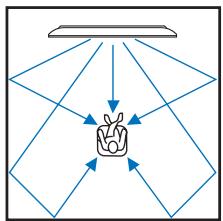
Outputs sound beams from the front right and left, center, and surround right and left channels. This mode is ideal for enjoying surround sound effects to the fullest when you watch 5.1-channel audio discs.
Stereo+3Beam
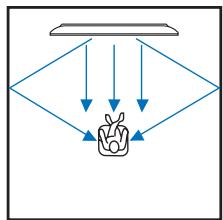
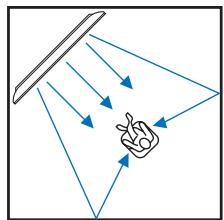
Outputs normal sound from the front right and left channels and sound beams from the center and surround right and left channels. This mode is ideal for watching live recordings on a DVD.
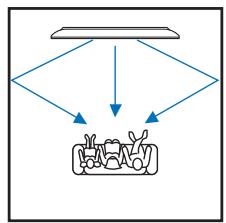
3 Beam
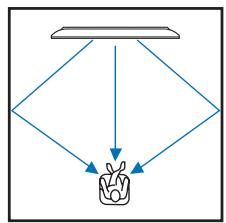
Outputs sound beams from the front right and left and center channels. For playback of multi-channel sources, surround right and left channel sources are mixed into the front right and left channels. This mode is ideal for enjoying movies with the whole family. In addition, you can use this mode when the listening position is close to the backside of the wall.
■ Beam modes for "7.1ch"
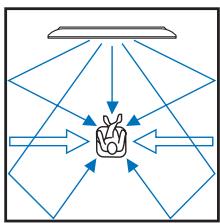
5Beam Plus2
Outputs sound beams from the front right and left, center, and surround back right and left channels. Surround right and left channel sources are mixed into the front right and left and surround back right and left channels. This mode is ideal for enjoying surround sound effects to the fullest when you watch 7.1-channel audio discs.
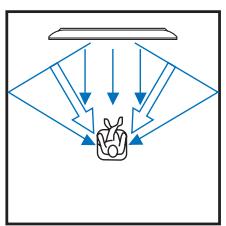
ST+3BeamPlus2
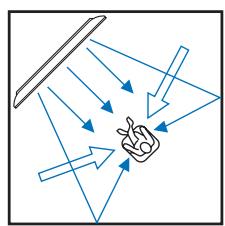
Outputs normal sound from the front right and left channels and sound beams from the center and surround back right and left channels. Surround right and left channel sounds are output by using front right and left channel sound and surround back right and left sound beams. This mode is ideal for watching live recordings on a DVD.
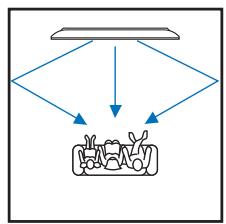
3 Beam
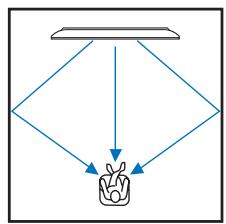
Outputs sound beams from the front right and left and center channels. For playback of multi-channel sources, surround right and left and surround back right and left channel sources are mixed into the front right and left channels. This mode is ideal for enjoying movies with the whole family. In addition, you can use this mode when the listening position is close to the backside of the wall.
Enjoying 2-channel sources in surround sound
This unit can decode 2-channel sources for 7.1-channel or 5.1-channel playback so that you can enjoy a variety of surround sound effects by switching the decoder.

- The decoders are available only when surround playback (page 22) is selected.
- Available decoders vary depending on the "CHANNEL OUT" setting (page 23).
Press MSUR.DECODE repeatedly to switch between decoders.
2ch 5ch
| Decoder | Recommended source | |
| Pro Logic (Dolby Pro Logic) | — | All sources |
| PLII (Dolby Pro Logic II) | Movie | Movies |
| Music | Music | |
| Game | Games | |
| Neo:6 (DTS Neo:6) | Cinema | Movies |
| Music | Music | |
2ch 7ch
| Decoder | Recommended source | |
| PLIIx (Dolby Pro Logic IIx) | Movie | Movies |
| Music | Music | |
| Game | Games | |
| Neo:6 (DTS Neo:6) | Cinema | Movies |
| Music | Music | |
Playing back 5.1-channel sources in 7.1-channel surround
This unit decodes 5.1-channel sources and then playback them in up to 7.1-channel surround. One of the following decoders is automatically selected depending on the input signals. Set "CHANNEL OUT" to "7.1ch" (page 23).
| 5.1ch input source | Decoder |
| PCM, Dolby Digital, Dolby Digital EX, Dolby TrueHD, Dolby Digital Plus | Dolby Pro Logic IIx Movie/Music |
| DTS Digital, DTS ES matrix, DTS HD Master Audio, DTS HD High Resolution Audio | DTS ES matrix |
| DTS ES discrete | DTS ES discrete |

- Press MSUR.DECODE to switch between Dolby Pro Logic Movie and Music. To switch to the Dolby Pro Logic IIx Music decoder, select "PLIIxMusic". To switch to the Dolby Pro Logic IIx Movie decoder, select one of the decoders other than "PLIIxMusic".
⑥ RADIO
ENTER
⑥ △/
① OPTION
①RETURN
MSUR.DECODE
NNumeric keys
P TUNING A / V
MEMORY
FM tuning
The FM tuner of this unit provides the following two modes for tuning.
Frequency tuning mode
You can tune into a desired FM station by searching or specifying its frequency.
- Preset tuning mode
You can preset the frequencies of FM stations by registering them to specific numbers, and later just select those numbers to tune into.
Note
Adjust the FM antenna connected to this unit for the best reception.
Tuning into the desired FM station (Frequency tuning)
1 Press ① FM to select the FM station as the input source.
Note
- If you select "FM" with INPUT on the front panel, press ① FM on the remote control prior to step 2 so that you can operate the procedures from step 2.
2 Press P TUNING / to specify the frequency.
The TUNED indicator on the front panel display lights up when the tuner is tuned into a station. The STEREO indicator also lights up if the program being broadcasted is in stereo.
See also: "FM Mode" (page 29)
Lights up
FM 88.90MHz
The frequency changes in the following manner according to how you press ① TUNING / .
When you press the key more than 1 second
The tuner searches the frequency of a station that is detectable around the current frequency. This is effective when the tuner can receive strong signals without any interference. Once the search starts, release the key. When you keep holding the key, the search continues even when a station is detected. This is useful when you want to tune in to a specific station.
When you press and release the key
The tuner increases or decreases the frequency in steps. Use this method when the tuner cannot receive strong signals and stations are skipped during the search.
3 To directly specify the frequency, use NNumeric keys to enter the frequency of the station.
Note
- When you press Numeric keys during preset tuning, a preset number is selected. Set the tuner to the frequency tuning mode using P TUNING / prior to the operation.
- You do not need to enter zero if it comes at the end of a decimal number. For example, enter "889" for "88.90 MHz" or "94" for "94.00 MHz".

- The reception is noisy and the sound is hard to listen, switch to monaural mode to get better reception. In the option menu, select "Mono" in "FM Mode" (page 29).
Registering FM stations and tuning in (Preset tuning)
You can register up to 40 FM stations automatically or manually.
Registering stations automatically
The tuner automatically detects FM stations with strong signals and registers up to 40 stations.
Note
- Only Radio Data System broadcasting stations are stored automatically by automatic station registration.
1 Press ① FM to select the FM station as the input source.
2 Press ① OPTION.
The option menu (page 28) appears on the front panel display.
3 Press I to select "Auto Preset" and then press ENTER.
3. Auto Preset
This unit starts to preset FM radio stations in 5 seconds.
AUTO MEMORY
P01:FM87.50MHz
Preset number
Frequency

- You can select the preset number at which the preset starts by pressing / after pressing ENTER.
- To cancel the operation, press ①RETURN.
If auto preset is complete, "Preset Complete" appears.
4 To exit from the menu, press ① OPTION.
Registering stations manually
You can manually register FM stations with weak signals.
1 Tune into the desired FM station.
2 Press MEMORY.
"Manual Preset" appears on the front panel display, followed soon by the preset number to which the station will be registered.

- By holding down ① MEMORY for more than 2 seconds, you can skip the following steps and automatically register the selected station to an empty preset number (next to the lastly-registered preset number).
3 Press PRESET / to select the preset number to which the station will be registered.
When you select a preset number to which no station is registered, "Empty" appears. When you select a preset number to which any station has been already registered, the frequency of the station is displayed.
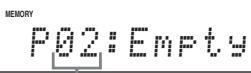
Preset number

- You can also specify a preset number using the Numeric keys.

Press MEMORY.
When registration is complete, the front panel display returns to the original state.

- To cancel registration, press ① RETURN or leave this unit without any operations for about 30 seconds.

Calling a preset station (Preset tuning)
You can call preset stations registered automatically or manually.
Press PRESET / to select the desired preset number.

eset numbers to which no stations are registered are skipped.
- "No Presets" is displayed if no stations are registered.
- You can directly select a preset number by pressing the Numeric keys while calling a preset station.
- When you press Numeric keys during normal frequency tuning, a frequency is entered. Set the tuner to the preset tuning mode using TUNING / prior to the operation.

Clearing preset stations
Use to clear the preset FM stations.
1 Press ① FM to select the FM station as the input source.

Press ①OPTION.
The option menu (page 28) appears on the front panel display.

Press I to select "Clear Preset" and then press ENTER.
A preset station is displayed.
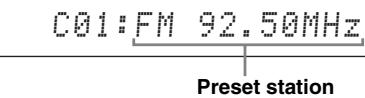

- To cancel the clearing operation, press ①RETURN.
4 Press ⑥ / to select a preset station to be cleared, and then press ⑥ ENTER.
The selected preset station is cleared. If the operation is completed, "Cleared" appears. To clear the multiple preset stations, repeat step 4.

To exit from the menu, press ① OPTION.
Displaying the Radio Data System information (Europe model only)
Radio Data System is a data transmission system used by FM stations. You can display the four types of the Radio Data System information: PS (program service), PTY (program type), RT (radio text), and CT (clock time). The corresponding indicators light up in the front panel display.
Notes
- You can select the Radio Data System display modes only when the corresponding Radio Data System indicators are lit in the front panel display. It may take a while for this unit to receive all of the Radio Data System data from the station.
- If the signals being received are not strong enough, this unit may not be able to utilize the Radio Data System data. In particular, the "RT" mode requires a large amount of data and may not be available even when the other Radio Data System display modes are available.
- In case of poor reception conditions, tune into the desired station manually (page 25).
- In case the signal strength is weakened by external interference while this unit is receiving the Radio Data System data, the reception may be cut off unexpectedly and "...WAIT" appears in the front panel display.
- If the reception is cut off when the "CT" mode is selected, "CT WAIT" appears in the front panel display.
1 Tune into the desired Radio Data System broadcasting station.
We recommend automatic preset tuning to tune into the Radio Data System broadcasting stations (page 25).
Note
The AUTO PS feature of this unit changes the frequency display to the "PS" mode if the Radio Data System station broadcasts the PS data.

Press INFO repeatedly to select the desired Radio Data System display mode.
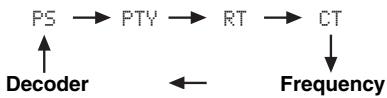
- Select "PS" to display the name of the Radio Data System program.
- Select "PTY" to display the type of Radio Data System program.
- Select "RT" to display the information on the Radio Data System program.
- Select "CT" to display the current time.
Note
In the "RT" mode, this unit can scroll the display with a maximum of 64 alphanumeric characters, including the umlaut symbol. Unavailable characters are displayed with the "_" (underscore).
| Program type | Descriptions |
| News | News |
| Current Affairs | Current Affairs |
| Information | Information |
| Sport | Sport |
| Education | Education |
| Drama | Drama |
| Cultures | Cultures |
| Science | Science |
| Varied Speech | Varied Speech |
| Pop Music | Pop Music |
| Rock Music | Rock Music |
| Easy Listening | Easy Listening Music |
| Light Classics | Light Classical Music |
| Serious Classic | Serious Classical Music |
| Other Music | Other Music |
Playing back iPod™/iPhone™
By using the Yamaha wireless transmitter for iPod (PDX-50TX/PDX-50BC), you can use the iPod/iPhone as a remote control and enjoy playback of your iPod/iPhone on this unit. About PDX-50TX/PDX-50BC, refer to "Safety and Accessory Information" (separate booklet). See also: "iPod Interlock" (page 36)
#
- This unit supports the following iPod/iPhone models.
-iPod 5th generation
-iPod classic
-iPod touch
- iPod nano
- iPhone
iPhone 3G
Notes
- Be sure to use the product only in the country in where it was purchased.
- This unit does not support iPod (4th generation or before), iPod without Dock connector, iPod photo and iPod mini.
- You cannot run the AUTO SETUP while playing back the iPod/ iPhone by using PDX-50TX. To run the AUTO SETUP, stop playback and then disconnect the iPod/iPhone from PDX-50TX.
Connect your iPod/iPhone and PDX-50TX, and then start playback.
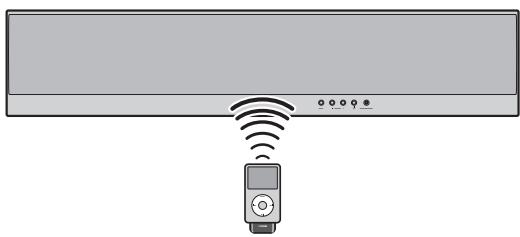
#
- When you start playback of your iPod/iPhone, this unit automatically operates as follows.
- When this unit is on, this unit selects "iPod" as the input source.
- When this unit is in the standby mode, this unit turns on and selects "iPod" as the input source.
- You can also select the input source with ① iPod.
- To adjust the volume level, use the volume control on the iPod/iPhone or VOLUME + / - on this unit.
- This unit automatically turns to the standby mode in the following conditions.
- The iPod/iPhone is disconnected from PDX-50TX.
- The iPod/iPhone is turned into sleep mode.
Useful features
Adjusting volume level automatically (UniVolume)
This function adjusts the volume level of the TV so that it will not increase suddenly when whenever the contents being broadcast change (due to commercials, etc.).
Press UNIVOLUME.
The UNIVOLUME indicator lights up on the front panel display.

To turn off the UniVolume function, press UNIVOLUME again.
- We recommend turning off the UniVolume function during playback of music.
Using the HDMI™ control function
You can operate the following functions of this unit with the remote control of your TV when the TV (HDMI control function supported) is connected to the HDMI
OUT jack of this unit.
- Turning on this unit or to the standby (conjunction with TV)
- Adjusting the volume
- Selecting a device to reproduce TV sounds (this unit or TV)

- Even if your TV supports the HDMI control function, some functions may not be available. For details, refer to the manual supplied with your TV.
- If you connect this unit and Blu-ray disc player or DVD player (HDMI control function supported) with HDMI, you can also control those devices with the HDMI control function. For details, refer to the manual supplied with each device.
- We suggest that you use products (TV, Blu-ray disc/DVD player, etc.) from the same manufacturer.
- The HDMI control-compatible components include Panasonic VIERA Link compatible TV, DVD player/recorder and Blu-ray disc player.
To use this function, you need to set HDMI control function and register the HDMI components to the TV.

- For some HDMI components, you only need to set the HDMI control function. Registering HDMI components to TV is not required in this case.
Setting the HDMI control function

Turn on all devices connected to this unit with HDMI.

Enable the HDMI control function on each device.
For this unit, set "HDMI CONTROL" to "ON" (page 36).
For external devices, refer to the manual supplied with each device.

Turn off the TV and then turn on it again.
Registering HDMI components to TV

Select this unit as the input source of the TV.
2 Turn on the HDMI control device (Blu-ray disc or DVD player) connected to this unit.
3 Select the HDMI control device (Blu-ray disc or DVD player) as the input source of this unit to check the video input.
Note
- In case the HDMI control function does not work, check the followings. Also, turning off (unplug) and turning on (plug) the TV may be effective.
-HDMI CONTROL" is set to "ON" on this unit (page 36). - The HDMI control function is enables on the TV.
- If you changed the connection method or connected components, repeat steps 1-3.
Using the sleep timer
Use this feature to automatically set this unit to the standby mode after a specified period of time.
1 Press SLEEP repeatedly to set the interval for the sleep timer.
The SLEEP indicator (page 7) flashes in the front panel display while switching the interval for the sleep timer.
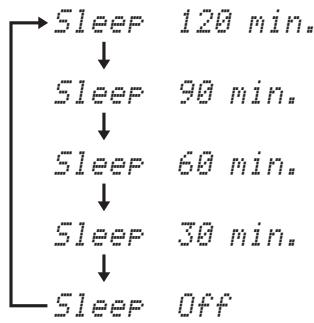
2 Wait for a few seconds without operating this unit to confirm the setting for the sleep timer.
The SLEEP indicator lights up in the front panel display, indicating that the sleep timer is activated.

- If this unit is set to the standby mode, the sleep timer setting is canceled.
Configuring settings for each input source (Option menu)
You can configure various settings for each input source (TV, AUX1/2, HDMI1-4, iPod, and FM). Available menu items vary depending on the selected input source.

Press Input selector keys to select the desired input source.

Press ①OPTION.
The first item of the option menu for the selected input source appears on the front panel display.
1.Volume Trim
Input selector keys
ENTER
⑥ △/
G
① OPTION
UNIVOLUME
SLEEP
@INFO
3 Press / to select the desired menu item and then press ENTER.
4 Press / to select the desired setting and then press ENTER.
5 To exit from the menu, press ① OPTION.
Option menu items
The following menu items are provided for each input source.
| Input source | Menu items | |||
| HDMI1~4 | Volume Trim | Decoder Mode | ||
| TV | Volume Trim | Decoder Mode | ||
| AUX1~2 | Volume Trim | Decoder Mode | ||
| FM | Volume Trim | FM Mode | Auto Preset | Clear Preset |
| iPod | Volume Trim | |||
Details of the menu items are as follows. The configuration will be reflected to the input source currently selected.
- The initial settings are marked with “*”.
Volume Trim (Volume trim)
Use to reduce any change in volume when switching input sources by correcting volume differences between input sources.
Adjustable range: -6.0dB to +6.0dB (in 0.5 dB steps)
Initial setting: 0.0dB
Decoder Mode (Decoder mode)
Use to select DTS digital audio signals for reproduction.
Choices: Auto*, DTS
- Select Auto to automatically select audio input signals.
- Select DTS to selects DTS signals only. Other input signals are not reproduced.
FM Mode (FM receiving mode)
Use to set the FM broadcasting receiving mode.
Choices: Stereo*, Mono
- Select Stereo to receive in stereo mode by priority.
- Select Mono to receive in monaural mode.
Auto Preset (Automatic preset)
Use to automatically detect FM radio stations and registers them as preset stations (page 25).
Clear Preset (Clear preset station)
Use to clear the preset FM stations (page 26).
Displaying the input signal information
Use to display information of the sampling frequency, video signal type, and resolution for each input source on the front panel display.
1 Select an input source (TV, AUX1/2, and HDMI1-4) and then press INFO.
Audio Sampling
2 Press INFO repeatedly to change items to be displayed.
Sampling frequency (Audio Sampling)
The sampling frequency per second in analog-to-digital conversion.
Video signal (Video Signal In)
Signal type and resolution of video input signal.
Playback
Playback mode
FM tuning
Playing back iPodTM
Useful features
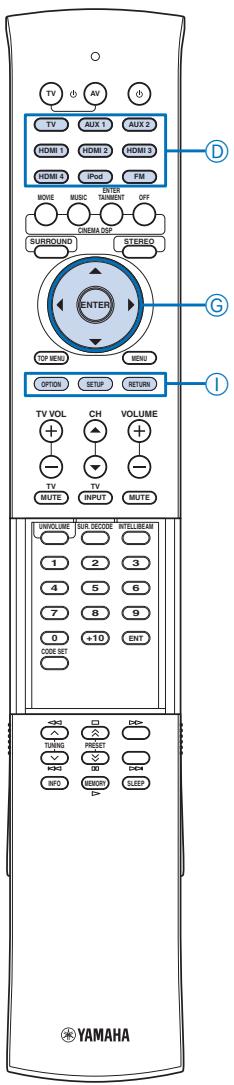
SETTINGS
Customizing this unit (SET MENU)
You can manually configure various settings for this unit in "SET MENU".
SET MENU items
| Menu | Sub menu | Features | Page |
| MEMORY | LOAD | Loads the beam and sound settings saved in the memory. | 19 |
| SAVE | Saves the current beam and sound settings to the memory. | 19 | |
| AUTO SETUP | BEAM+SOUND OPTIMZ | Optimizes the beam and sound settings automatically. | 16 |
| BEAM OPTIMZ ONLY | Optimizes the beam settings automatically. | 16 | |
| SOUND OPTIMZ ONLY | Optimizes the sound settings automatically. | 16 | |
| MANUAL SETUP | SETTING PARAMETERS | Adjusts the listening room and listening position settings. | 31 |
| BEAM ADJUSTMENT | Adjusts the various sound beam settings. | 32 | |
| IMAGE LOCATION | Adjusts the sound position of the front right and left channels. | 32 | |
| SOUND SET MENU | TONE CONTROL | Adjusts the output level of high-frequency or low-frequency sound. | 33 |
| SUBWOOFER SET | Configs the subwoofer settings. | 33 | |
| AUDIO DELAY | Adjusts delay in output timing between video signals and audio signals. | 33 | |
| DRC:Dynamic Range Control | Adjusts the dynamic range. | 34 | |
| BASS EXTENSION | Selects the bass sound extension. | 34 | |
| MUSIC ENHANCER | Selects the compressed audio enhancer. | 34 | |
| CHANNEL LEVEL | Adjusts the volume of each channel. | 34 | |
| SOUND OUT MENU | SOUND BEAM OUT CONFIG | Configs the sound beam output settings. | 34 |
| SOUND OUT | Configs the audio signal output settings. | 34 | |
| INPUT MENU | INPUT ASSIGNMENT | Assigns jacks according to the component to be used. | 35 |
| INPUT RENAME | Renames the displayed input source. | 35 | |
| HDMI SETUP | Configs the HDMI settings. | 36 | |
| WIRELESS SETUP | Configs the wireless settings. | 36 | |
| DISPLAY MENU | F. DISPLAY SETUP | Configs the front panel display settings. | 36 |
| OSD SETUP | Configs the OSD settings. | 37 | |
| LANGUAGE SETUP | Changes the language used in the OSD. | 37 | |
| UNIT SETUP | Changes the display unit of measurement. | 37 |
Input selector keys
ENTER
⑥ / / /
⑥ △/
G
①SETUP
Basic SET MENU operation
1 Press ①SETUP.
SET 模型
-MEMORY
-AUTO SETUP
-
MANUAL SETUP
-
SOUND SET MENU
-
SOUND OUT MENU
·INPUT MENU
DISPLAY MENU
[ ]/ [ ]: UP/Down
2 Press I to select the desired menu and then press ENTER.
)MANUALSETUP
1 SETTING PARAMETERS
2)BEAM ADJUSTMENT
3)IMAGE LOCATION
[#]//[#]://E//Down
ENTER:Ent er
- To return to the previous menu, press ①RETURN.
3 Press / / / and ENTER to configure each parameter.
- The initial settings are marked with “*”.
Note
- The menu screen disappears if one of the Input selector keys is pressed while the SET MENU is being configured.
4 To exit from the menu, press ①SETUP.
MANUAL SETUP
Use this menu to manually adjust the parameters related to the sound beam output. To fine-adjust parameters configured by AUTO SETUP, use "BEAM ADJUSTMENT" and "IMAGE LOCATION".
SETTING PARAMETERS (Setting parameters)
SET MENU MANUAL SETUP SETTING PARAMETERS
Use to set the position of this unit in your listening room and the distance of this unit from the listening position.
- If you make adjustments in "SETTING PARAMETERS", the "BEAM ADJUSTMENT" parameters are automatically adjusted.
Note
- If you make adjustments in "SETTING PARAMETERS", the beam optimization settings made in the AUTO SETUP procedure will be lost.
1 In "SETTING PARAMETERS 1/3", configure "INSTALLED POSITION".
Select the installed position of this unit.
Choices: FLAT TO WALL* (parallel to wall),
ANGLE TO WALL OR CORNER (angle to wall or corner)
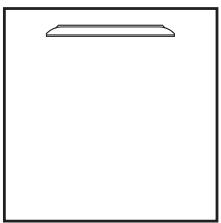
FLAT TO WALL

ANGLE TO WALL OR CORNER
Note
- If you change this setting, "BEAM MODE" setting changes automatically (page 23).
2 Configure "INSTALLEDHEIGHT".
Specify the installed height of this unit.
Control range: 0.0m to 3.0m (0.0 ft to 10.0 ft)
Initial setting: 1.0m (3.5 ft)
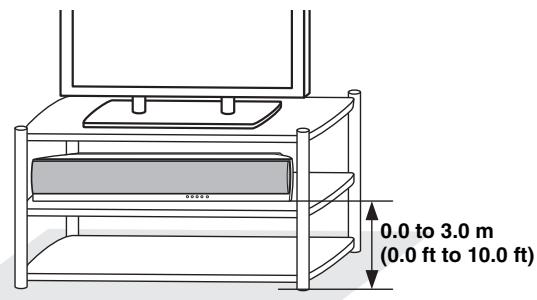
- Press ⑥ to proceed to the next page.
3 In "SETTING PARAMETERS 2/3", configure the listening room settings.
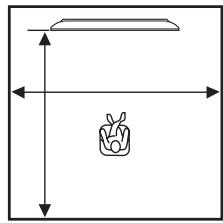
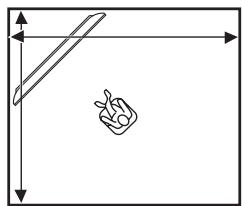
Specify the length and width of the listening room.
Control range: 2.0m to 12.0m (6.5 ft to 40.0 ft)
When this unit is installed parallel to wall, specify the width of the listening room and the distance between this unit and rear wall.
When this unit is installed at the corner of the room, specify the width of length of the listening room.
4 In "SETTING PARAMETERS 3/3", configure the distance settings.
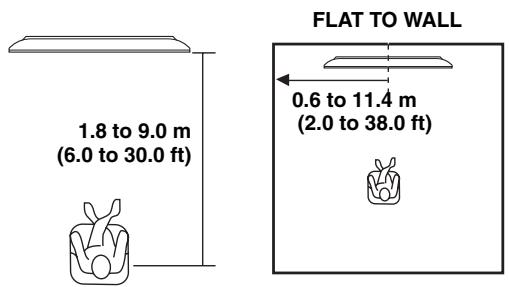
Specify the distance between the listening position and this unit. When this unit is installed parallel to wall, you also need to specify the distance between the listening position and left wall.
Control range (from this unit): 1.8m to 9.0m (6.0 ft to 30.0 ft)
Control range (from left wall): 0.6m to 11.4m (2.0 ft to 38.0 ft)
BEAM ADJUSTMENT (Beam adjustment)
SET MENU MANUAL SETUP BEAM ADJUSTMENT
Use to manually adjust the various sound beam settings.
Notes
- The "BEAM ADJUSTMENT" parameters are automatically adjusted (except "Center" in "FOCAL LENGTH") if you run the AUTO SETUP (page 15) or if you configure "SETTING PARAMETERS" (page 31).
- Depending on the beam mode settings (page 23), some channel positions may not be available for selection. In this case, “- -” is displayed.
- If you change "BEAM ADJUSTMENT" settings while playing back your iPod/iPhone connected to PDX-50TX, the subwoofer connected to SWK-W10 outputs the iPod/iPhone audio. We recommend stopping the iPod/iPhone playback during the beam adjustment.
1 Configure "HORIZONTAL ANGLE".
Adjust the horizontal angle of sound beams for each channel using test tones.
Adjust toward L (left) to move the direction of the output to the left and adjust toward R (right) to move it to the right.
Control range: L90^ to R90^
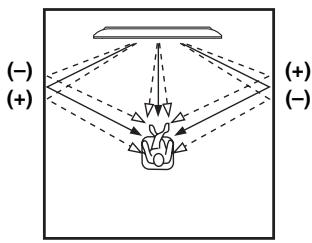

- Press ⑥ to switch the channels.
2 Configure "VERTICAL ANGLE".
Adjust the vertical angle of sound beams for each channel using test tones.
Adjust toward - (minus) to move the angle downward and adjust toward + (plus) to move the angle upward.
Control range: -45^ to +45^
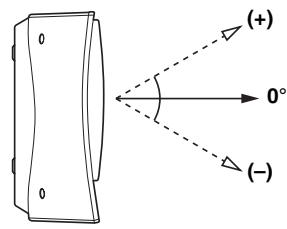

3 Configure "BEAM TRAVEL LENGTH".
Adjust the distance that sound beams travel after being output and reflected off the wall until they arrive at the listening position so that all sounds can arrive at the listening position at the same time.
Note
- Configure this setting only when you have adjusted "HORIZONTAL ANGLE".
Control range: 0.3m to 24.0m (1.0 ft to 80.0 ft)
The length of each arrow indicates the beam travel length.
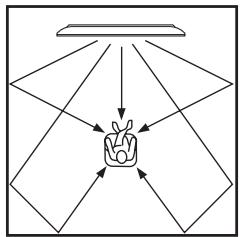
4 Configure "FOCAL LENGTH".
Adjust the distance from the front of this unit to the focal point of output for each channel to achieve an expansive feeling for each channel. Adjust toward - (minus) to move the focus outward (widen the sweet spot) and adjust toward + (plus) to move the focus toward the normal position (narrow the sweet spot).
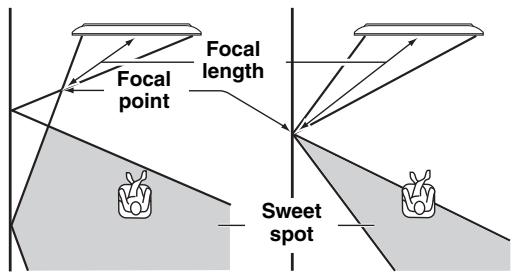
Control range: -1.0m to +13.0m (-3.5 ft to +43.5 ft)

- We recommend that you use the initial setting (-0.5m or -1.5ft) for "Center".
- The width of the sweet spot becomes slightly wider than the width of this unit if you run the AUTO SETUP (page 15) or if you configure "SETTING PARAMETERS" (page 31).
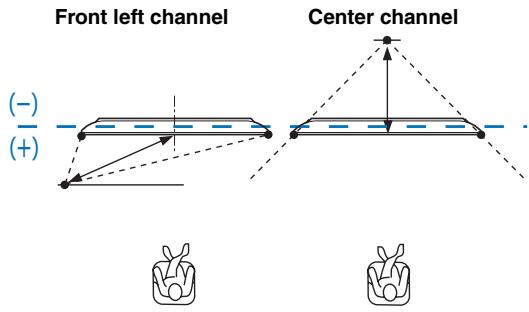
Example
■ IMAGE LOCATION (Image location)
SET MENU MANUAL SETUP IMAGE LOCATION
Use to adjust the direction from which the front left and right channel sound is heard so that each sound can be heard closer to the center channel.
Use this feature to redirect audio signals if the sound coming from the front left and right channels seems unnatural.
You can adjust this parameter only when "5Beam Plus2", "5 Beam" or "3 Beam" is selected in "BEAM MODE" (page 23).
中
- To adjust the volume of each channel, see "CHANNEL LEVEL" (page 34)
Choices: OFF*, ON
- Select "ON" to configure the sound direction.
1 Adjust the image location for the front left channel (LEFT).
The higher the percentage, the louder the output from the center
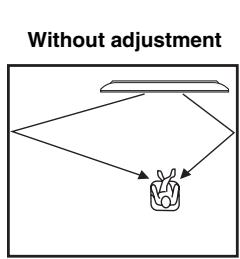
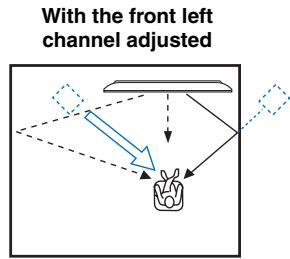
2 Adjust the image location for the front right channel (RIGHT).
The higher the percentage, the louder the output from the center
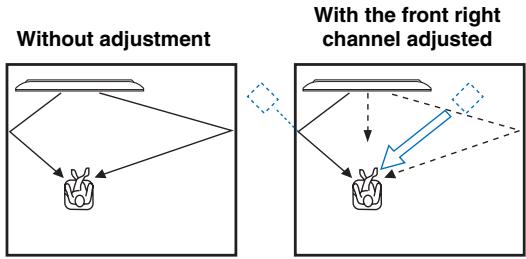
SOUND SET MENU
TONE CONTROL (Tone control)
SET MENU SOUND SET MENU TONE CONTROL
Use to adjust the tonal quality of sound beams.
TREBLE (Treble)
Use to adjust the high-frequency response.
Choices: -10.0dB to +10.0dB
Initial setting: 0.0dB
BASS (Bass)
Use to adjust the low-frequency response.
Choices: -10.0dB to +10.0dB
Initial setting: 0.0dB
SUBWOOFER SET (Subwoofer settings)
SET MENU SOUND SET MENU SUBWOOFER SET
Use to configure the subwoofer settings.
BASS OUT (Bass out)
Select where to output low-frequency effect (LFE) and low-frequency (bass) signals.
Choices: SUBWOOFER, FRONT OR AUTO*
- Select SUBWOOFER if you connect a subwoofer with a subwoofer cable. LFE and low-frequency signals from other channels are directed to the subwoofer.
- Select FRONT OR AUTO if you do not use a subwoofer or connect a subwoofer by wireless. LFE and low-frequency signals from other channels are directed to the front right and left channels when you do not use a subwoofer. They are directed to the subwoofer automatically when a wireless connection between a subwoofer and this unit is established properly. If the wireless connection is cut off, they are directed to the front channels automatically.
CROSS OVER (Crossover)
When "BASS OUT" is set to "SUBWOOFER", you can use this feature to select a crossover (cutoff) frequency for all low-frequency signals. All frequencies below the selected frequency will be sent to the subwoofer position. Choices: 80Hz , 100Hz , 120Hz^*
LFE LEVEL (Low-frequency effect level)
Adjust the output level of the low-frequency effect (LFE) channel according to the capacity of your subwoofer. This setting is effective only when this unit decodes Dolby Digital or DTS signals.
Choices: -20dB to 0dB^*
DISTANCE (Distance)
Adjust the distance of the subwoofer from the listening position.
Choices: 0.3m to 15.0m (1.0 ft to 50.0 ft)
Initial setting: 3.0m (10.0 ft)
AUDIO DELAY (Audio delay)
SET MENU SOUND SET MENU AUDIO DELAY
Use to adjust delay in output timing between video signals and audio signals.
AUTO LIP SYNC (Automatic lipsync)
Select whether to automatically adjust the audio output delay when a TV that supports the automatic lipsync is connected to the HDMI OUT jack of this unit.
Choices: ON*, OFF
- Select ON if the TV connected to the HDMI OUT jack of this unit supports the automatic lipsync. The audio output delay is automatically adjusted.
- Select OFF if the TV connected to the HDMI OUT jack of this unit does not support the automatic lipsync or you want to disable the automatic lipsync. You can manually adjust the audio output delay in "HDMI".
TV
Adjust the audio output delay applied to signals input from the TV jacks.
Control range: 0 msec* to 400 msec
HDMI
Manually adjust the audio output delay applied to signals input from the HDMI IN jacks. This setting is effective only when "AUTO LIP SYNC" is set to "OFF"
Control range: 0 msec to 400 msec
Initial setting: 30msec
AUX1/2
Adjust the audio output delay applied to signals input from the AUX1/2 jacks.
Control range: 0 msec to 400 msec
Initial setting: 30msec
Customizing this unit (SET MENU)
System configurations (ADVANCED SETUP)
Using an external amplifier
Controlling external components
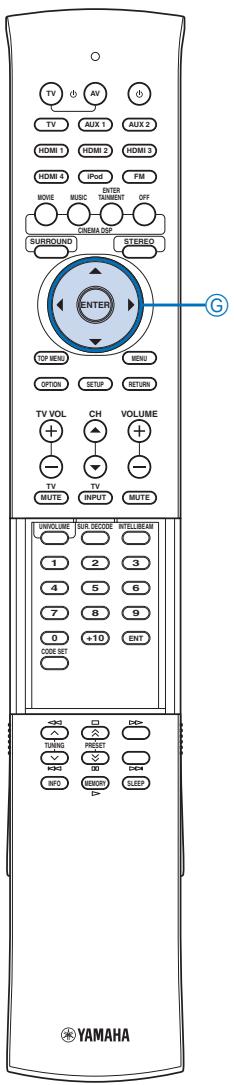
DRC:Dynamic Range Control (Dynamic range control)
SET MENU SOUND SET MENU DRC:Dynamic Range Control
Use to adjust the dynamic range compression. Dynamic range is the difference between the smallest sound that can be heard above the noise of the equipment and the biggest sound that can be heard without distortion.
Adaptive DRC (Adaptive dynamic range control)
Select whether to automatically adjust the dynamic range in conjunction with the volume level. When this function is enabled, the dynamic range is adjusted as follows.
When the volume level is low: Narrow the dynamic range. Loud sound is played back softer, and soft sound which is hard to be listened to is played back louder.
When the volume level is high: Widen the dynamic range.
From soft sound to loud sound, source sound is played back without adjusting volume.
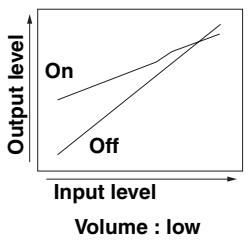
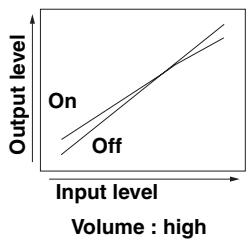
Choices: On*, Off
- Select On to enable the adaptive dynamic range control.
- Select Off to disable the adaptive dynamic range control.

- "Dolby/DTS DRC" is automatically set to "Max" when "Off" is selected.
- This setting is automatically set to "Off" when the UniVolume function is turned on while this setting is automatically set to "On" when the UniVolume function is turned off.
Dolby/DTS DRC (Dynamic range of Dolby Digital and DTS signals)
Select the amount of dynamic range applied when this unit is decoding Dolby Digital and DTS signals
Choices: Max* (Maximum), Standard, Min/Auto (Minimum/Auto)
- Select Max to output sound without adjusting the
dynamic range of the input signals. - Select Standard to set the standard dynamic range
- recommended for regular home use.
- Select Min/Auto to set the dynamic range suitable for low volume or a quiet environment, such as at night, for bitstream signals except for Dolby TrueHD signals (Min) or adjust the dynamic range for Dolby TrueHD signals based on input signal information (Auto).

- "Adaptive DRC" is automatically set to "Off" when the settings other than "Max" is selected.
BASS EXTENSION (Bass extension)
SET MENU SOUND SET MENU BASS EXTENSION
Use to turn on or off the bass sound extension. When this function is enabled, the BASS EXT indicator lights up on the front panel display (page 7).
Choices: OFF, MID*, DEEP
- Select OFF to output bass sounds without change.
- Select MID to output moderately-enhanced bass sounds.
- Select DEEP to output deep bass sounds.
■ MUSIC ENHANCER (Music Enhancer)
SET MENU SOUND SET MENU MUSIC ENHANCER
Use to turn on or off the compressed audio enhancer. When this function is enabled, the ENHANCER indicator lights up on the front panel display (page 7).
AUX1/2
Select whether to apply the compressed audio enhancer for playback of AUX1/2 input sources.
Choices: ON, OFF*
- Select ON to enable the compressed audio enhancer for playback of AUX1/2 input sources.
- Select OFF to disable the compressed audio enhancer for playback of AUX1/2 input sources.
iPod
Select whether to apply the compressed audio enhancer to iPod/iPhone playback.
Choices: ON*, OFF
- Select ON to enable the compressed audio enhancer for iPod/iPhone playback.
- Select OFF to disable the compressed audio enhancer for iPod/iPhone playback.
CHANNEL LEVEL (Channel level)
SET MENU SOUND SET MENU CHANNEL LEVEL
Use to adjust the volume of each channel with test tones.
Control range: -10.0dB to +10.0dB
Note
- Adjustable channels vary depending on the "CHANNEL OUT" setting.
- "Surround Back R" and "Surround Back L" are not adjustable when "SOUND OUT" is set to "SPEAKER".
SOUND OUT MENU
■ SOUND BEAM OUT CONFIG (Sound beam output configuration)
SET MENU SOUND OUT MENU SOUND BEAM OUT CONFIG
Use to configure the number of output channels or audio output method. For details, see "Changing the audio output method for surround playback" (page 23).
■ SOUND OUT (Sound output)
SET MENU SOUND OUT MENU SOUND OUT
Use to configure the audio signal output settings.
SOUND OUT (Sound output redirection)
Use to redirect the output of audio signals. Audio output of all the channels switches simultaneously.
Choices: SPEAKER*, PRE OUT
- Select SPEAKER to output sounds from this unit.
- Select PRE OUT to output audio signals from the PRE OUT jacks of this unit. You also need to configure the parameters from "BASS OUT" to "LFE Level" described below.
- The parameters from "BASS OUT" to "LFE Level" are settings for the PRE OUT jacks when they are selected as audio output jacks.
BASS OUT (Bass sound output redirection)
Use to redirect the output of bass sounds. The settings under "BASS OUT" are for the PRE OUT jacks.
Choices: SUBWOOFER, FRONT*
- Select SUBWOOFER to output bass sounds from the subwoofer.
- Select FRONT to output bass sounds from the external front right and left speakers.
Front SP Size (Front speaker size for PRE OUT)
Select the size of external front speakers.
Choices: Small, Large*
- Select Small if the diameter of the front speaker's woofer is smaller than 16cm . Low-frequency parts of front right and left channel signals are output from the subwoofer.
Center SP Size (Center speaker size for PRE OUT)
Select the size of external center speakers.
Choices: None, Small*
- Select None if no center speaker is used. Center channel signals are mixed into the front right and left speakers.
- Select Small if a center speaker is used. Low-frequency parts of center channel signals are output from the subwoofer (or mixed into the front right and left channel signals if subwoofer is not available).
PRE OUT Volume (PRE OUT volume)
Adjust the output level of the PRE OUT jacks.
Control range: -30.0dB to 0.0dB
Initial setting: -18.0dB
LFE Level (Low-frequency effect level for PRE OUT)
Adjust the low-frequency effect output level of the PRE OUT jacks. This setting is effective only when this unit decodes Dolby Digital or DTS signals.
Control range: -20dB to +0dB^*
INPUT MENU
INPUT ASSIGNMENT (Input assignment)
SET MENU INPUT MENU INPUT ASSIGNMENT
Use to change the key assignments of input jacks on this unit. The parenthetic references displayed in the menu screen indicate the initial settings.
See also: "AUDIO SELECT" (page 36)

- Press ⑥ to proceed to the next page.
AUDIO1
Select the key to which the AUDIO IN (TV) jacks are assigned.
Choices: TV*, AUX1, AUX2, HDMI1, HDMI2, HDMI3, HDMI4
Note
- The input already selected in "AUDIO2" is not displayed. To set the input selected in "AUDIO2", change "AUDIO2" parameter, and then reconfigure.
AUDIO2
Select the key to which the AUDIO IN (AUX 1) jacks are assigned.
Choices: AUX1*, AUX2, HDMI1, HDMI2, HDMI3, HDMI4, TV
Note
- The input already selected in "AUDIO1" is not displayed. To set the input selected in "AUDIO1", change "AUDIO1" parameter, and then reconfigure.
OPTICAL1
Select the key to which the DIGITAL IN (TV) jack is assigned.
Choices: TV*, AUX1, AUX2, HDMI1, HDMI2, HDMI3, HDMI4
Note
- The input already selected in "OPTICAL2" or "COAX" is not displayed. To set the input selected in one of these parameters, change the corresponding parameter, and then reconfigure.
OPTICAL2
Select the key to which the DIGITAL IN (AUX 1) jack is assigned.
Choices: AUX1*, AUX2, HDMI1, HDMI2, HDMI3, HDMI4, TV
Note
- The input already selected in "OPTICAL1" or "COAX" is not displayed. To set the input selected in one of these parameters, change the corresponding parameter, and then reconfigure.
COAX
Select the key to which the DIGITAL IN (AUX 2) jack is assigned.
Choices: AUX2*, HDMI1, HDMI2, HDMI3, HDMI4, TV, AUX1
Note
- The input already selected in "OPTICAL1" or "OPTICAL2" is not displayed. To set the input selected in one of these parameters, change the corresponding parameter, and then reconfigure.
INPUT RENAME (Input rename)
SET MENU INPUT MENU INPUT RENAME
Use to change the name of the input source displayed when the input source is selected. Select a name from templates, or enter an original name.
Selecting a name from templates
1 Press / to select the input source to be renamed.
Customizing this unit (SET MENU)
System configurations (ADVANCED SETUP)
Using an external amplifier
Controlling external components
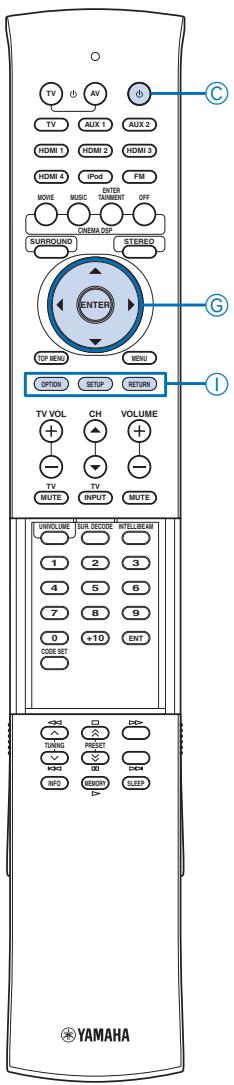
2 Press / to select a input source name.
Choices: TV, Blu-ray, DVD, HDDVD, STB, Satelite, Game
3 To exit from the menu, press ①RETURN.
Entering an original name
1 Press / to select the input source to be renamed.
2 Press ENTER.
“” appears above the new name display to indicate the position to be entered.
3 Press ⑥ / to place the _ (underscore) under the space or the character you want to edit.
4 Press / to select the desired character.
5 Repeat steps 3 and 4 to edit other characters.
6 To complete the setting, press ENTER.
7 To exit from the menu, press ①RETURN.
- A to Z, 0 to 9, a to z, and symbols (!, ?, <, >, etc.) are available for input.
HDMI SETUP (HDMI setup)
SET MENU INPUT MENU HDMI SETUP
Use to configure the settings related to HDMI signals and HDMI control function.
SUPPORT AUDIO (Support audio)
Use to select a component to play back HDMI audio signals. This setting is effective only when "HDMI CONTROL" is set to "OFF".
- HDMI video signals input to one of the HDMI IN jacks of this unit are always output from the HDMI OUT jack.
Choices: (Model name of this unit)*, OTHER
- Select this unit to play back HDMI audio signals on this unit.
- Select OTHER to play back HDMI audio signals on the component connected to the HDMI OUT jack.
AUDIO SELECT (Audio select)
Select whether or not to output HDMI audio signals input to each HDMI IN jacks. This function is useful when you want to enjoy another audio input source while watching HDMI video sources. For example, if you set "HDMI1" of "AUDIO SELECT" to "OFF" and "OPTICAL1" of "INPUT ASSIGNMENT" to "HDMI1" (page 35), you can enjoy the audio source input to the DIGITAL IN (AUX 1) jack while watching the HDMI video source input to HDMI IN 1 jack.
Choices: OFF, ON*
HDMI CONTROL (HDMI control)
Use this function to link this unit and an HDMI control-compatible TV via HDMI. For details, see "Using the HDMI control function" (page 28).
Choices: OFF*, ON
- Select OFF to turn off the HDMI control function. The standby consumption power of this unit decreases.
- Select ON to turn off the HDMI control function.
■ WIRELESS SETUP (Wireless setup)
SET MENU INPUT MENU WIRELESS SETUP
Use to configure the wireless connection between this unit and PDX-50TX or SWK-W10.
Wireless Function (Wireless function)
Select whether or not to use the wireless function of this unit.
Choices: No, Yes*
- Select No to disable the wireless function of this unit.
- Select Yes to enable the wireless function of this unit.
iPod Interlock (iPod interlock)
Select whether or not to use the iPod/iPhone interlock function. When the iPod/iPhone interlock function is on, this unit automatically turns on if you turn on the iPod/ iPhone when this unit is in the standby mode. In addition, this unit is set to the standby mode if the iPod/iPhone is set to the standby mode.
Choices: OFF, ON*
- Select OFF to disable the iPod/iPhone interlock function. The standby consumption power of this unit decreases.
- Select ON to enable the iPod/iPhone interlock function.
Group ID (Group ID)
The group ID is used for wirelessly connecting Yamaha products that support AirWired. To establish a connection among this unit, PDX-50TX and SWK-W10, set the group ID of these products to the same group.
Choices: A1*, A2, A3, B1, B2, B3
- PDX-50TX supports "1" (A1), "2" (A2), and "3" (A3) only.
DISPLAY MENU
F.DISPLAY SETUP (Front panel display setup)
SET MENU DISPLAY MENU F.DISPLAY SETUP
Use to adjust the brightness and display settings of the front panel display.
STANDARD DIMMER (Standard dimmer)
Use to adjust the brightness of the front panel display when you operate this unit.
Choices: -2, -1 , OFF*
AUTO DIMMER (Auto dimmer)
Use to adjust the brightness of the front panel display when you do not operate this unit. The front panel display automatically dims or turns off according to this setting if no operation is performed for a specified period of time. Choices: DISPLAY OFF, -3 to -1, OFF*
- Select OFF for the same brightness as "STANDARD DIMMER".
- Select -3 to -1 to get dimmer (based on "STANDARD DIMMER").
- Select DISPLAY OFF to turn off the front panel display.
©Power
ENTER
⑥ △/
(6)
①RETURN
①SETUP
OSD SETUP (OSD setup)
SET MENU DISPLAY MENU OSD SETUP
Use to adjust the display position and select the background color of the OSD.
OSD SHIFT (OSD shift)
Use to adjust the vertical position of the OSD. Adjust toward the - (minus) direction to raise the position of the OSD, and adjust toward the + (plus) direction to lower it. Choices: -5 to +5 Initial setting: ± 0
OSD BACK COLOR (OSD background color)
Use to select the background color of the OSD.
Choices: Blue*, Gray, Black, Purple, Red
LANGUAGE SETUP (Language setup)
SET MENU DISPLAY MENU LANGUAGE SETUP
Use to select the language used in the OSD.
Choices: ENGLISH (English), DEUTSCH (German), Français (French), ESPÁÑOL (Spanish), ITALIANO (Italian), NEDERLANDS (Dutch), Ручник (Russian)
Initial setting: ENGLISH (English)
UNIT SETUP (Unit setup)
SET MENU DISPLAY MENU UNIT SETUP
Use this to change the display unit of measurement.
Choices: METERS*, FEET
- Select METERS to enter distances in meters.
- Select FEET to enter distances in feet.
Note
- If you change this setting, the adjusted sound beam settings may change.
System configurations (ADVANCED SETUP)
This unit has additional menus that are displayed in the front panel display. These menus offer additional operations to adjust and customize the way this unit operates.
1 Press Power key to set this unit to the standby mode.
2 While holding down INPUT on the front panel, press ©Power key on the remote control.
Keep holding down INPUT until "ADVANCED SETUP" appears on the front panel display.
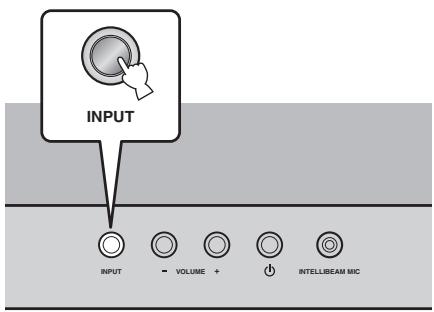
3 Press ①SETUP.
4 Press ⑥ / to select the desired menu and then press ⑥ ENTER.
Example (when "DEMO MODE" is selected)
DEMO MODE

- To return to the previous screen, press ①RETURN.
5 Press to select the desired parameter.
6 Press Power key to set this unit to the standby mode.
The new setting will be reflected when you turn on this unit next time.
中
- The initial settings are marked with “*”.
TURN ON VOLUME (Volume level at power-on)
Set the initial volume level when the power of this unit is turned on.
Control range: OFF*, 01 to 99, MAX (Maximum)
MAX VOLUME SET (Maximum volume setting)
Set the maximum volume level so that this unit will not output sound beyond the limited volume level. Control range: 01 to 99, MAX* (Maximum)
PANEL INP KEY (Front panel input key)
Select whether or not to enable the INPUT key on front panel key. To disable the operations, select "P(INPUT: OFF".
Choices: P(INPUT: ON*, P(INPUT: OFF
F.PANEL KEY (Front panel key)
Select whether or not to enable front panel key operations (except ADVANCED SETUP operations). To disable the operations, select "F.PANEL: OFF".
Choices: F.PANEL: ON*, F.PANEL: OFF
Customizing this unit (SET MENU)
System configurations (ADVANCED SETUP)
Using an external amplifier
Controlling external components
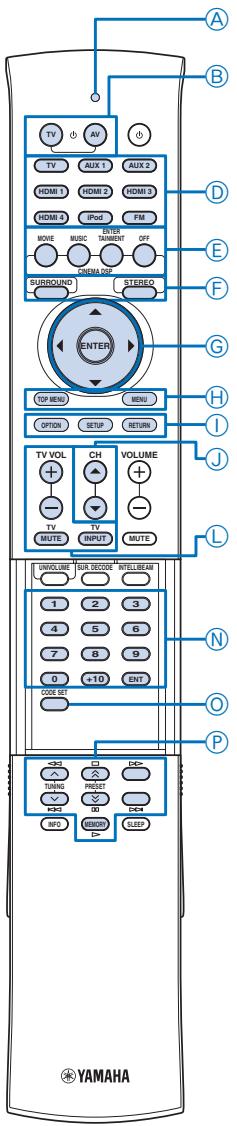
R.INSUETPower (Power-on by remote control input keys)
Select whether or not to automatically turn on this unit when you select an input source on the remote control. To enable the function, select "R(INPUT PW: ON".
Choices: R.INSUTPW:OFF*,R.INSUTPW:ON
AC ON STANDBY (Standby after AC on)
Set this unit to the standby mode when the AC power is recovered after the power to this unit was lost temporally (disconnect the AC power plug from the wall outlet, power outage, etc.). To enable the function, select "AC STANDBY: ON".
Choices: AC STANDBY: OFF*, AC STANDBY: ON
MEMORY PROTECT (Memory protect)
Protect the settings you have saved in the system memory.
To protect the settings, select "PROTECT: ON".
Choices: PROTECT: OFF*, PROTECT: ON
DEMO MODE (Demo mode)
Test the sound beam output from this unit to experience the sound beam. To set this unit to the demo mode, select "BEAM DEMO: ON".
Choices: BEAM DEMO: OFF*, BEAM DEMO: ON
- To move the beam horizontally, turn off this unit and then turn on it again ("DEMO" appears on the front panel display). Playback an input source and then press OFF.
- To stop the beam movement, press OFF again.
- To adjust the beam angle manually, press ⑤ SURROUND or ⑤ STEREO when the beam is not moving.

- After you checked the sound beam output, set this setting to "BEAM DEMO: OFF".
- If you set "SOUND OUT" to "PRE OUT", "DEMO MODE" does not function.
FACTORY PRESET (Factory preset)
Reset all of the parameters of this unit to the factory presets.
Choices: CANCEL*, RESET
Using an external amplifier
You can connect an external amplifier to the PRE OUT jacks. Set "SOUND OUT" (page 34) to "PRE OUT" and then configure "PRE OUT BASS Management" parameters.
See also: "Changing the audio output method for surround playback" (page 23)
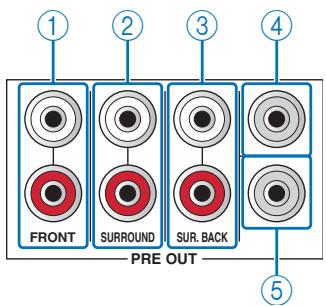
Transmission indicator
⑧ AV
⑧ TV
Input selector keys
⑥OFF
FSTEREO
⑤SURROUND
⑥ Cursor ( / / /)
)keys
ENTER
MENU
TOP MENU
①RETURN
①SETUP
CH△/
TV operation keys
NNumeric keys
©CODE SET
External component operation keys
① FRONT PRE OUT jacks
Output front right and left channel signals.
② SURROUND PRE OUT jacks
Output surround right and left channel signals.
③ SUR. BACK PRE OUT jacks
Output surround back right and left channel signals.
(4) CENTER PRE OUT jack
Outputs center channel signals.
⑤ SUBWOOFER PRE OUT jack
Connect a subwoofer with a built-in amplifier.
Note
- The following functions are disabled when an external amplifier is used.
- AUTO SETUP (page 15)
-CINEMA DSP programs (page 22) - UniVolume (page 28)
-MUSIC ENHANCER (page 34)
BASS EXTENSION (page 34)
-Adaptive DRC (page 34)
Controlling external components
Note
Depending on the external AV component you are using, you may not be able to operate the component with the remote control, even if a remote control code is set. In this case, operate the component using the supplied remote control.
You can control external components using the following keys on the remote control of this unit by setting the appropriate remote control codes (page 45). Before operating the control keys, press one of the Input selector keys to select an external component to be controlled.
電 TV
Turns on the power of your TV or set it to the standby mode.
⑧ AV
Turns on the power of the selected component or set it to the standby mode.
Cursor ( / / / ) keys, ENTER
Use to select menu items.
TOP MENU
Displays the top menu of a Blu-ray disc or DVD.
MENU
Displays the menu of a Blu-ray disc or DVD.
① RETURN
Returns to the previous menu screen.
CH△/
Switches between available channels for your external component.
TV operation keys
TV VOL +/-
Adjusts the audio output level of your TV. TV MUTE
Temporarily mutes audio output from your TV. TV INPUT
Switched the input source for your TV.
N Numeric keys
Use to enter numeric digits or specify a channel number.
CODE SET
Sets remote control codes for external component operations (page 39).
External component operation keys
Use to control playback of your external component.
#
- The BTV and LTV operation keys always work regardless of the selected input source.
Notes
- Depending on external components, some or all operations may not work. In this case, operate the component using the supplied remote control.
- If you operate your TV with the remote control of this unit when the HDMI control function is activated, this unit or external component connected to this unit with HDMI works improperly in some cases.
Setting remote control codes
1 While holding down CODE SET, press Input selector key to which the remote control code is assigned. Transmission indicator flashes twice.
2 Release CODE SET.
3 Press Numeric keys to enter the remote control code (page 45) for your external component.
Each time you press you press the key,
Transmission indicator flashes once. Once the 5-digit remote control code is entered properly,
Transmission indicator lights up for approximately 2 seconds.
#
- To clear remote control code set to a selected input source, enter "00010".
Note
- If any key other than Numeric keys is pressed, Transmission indicator flashes 5 times and the setting mode is canceled.
4 Perform a test operation using the remote control of this unit.
If the external component functions correctly, the remote control code setup is successful. If it does not function correctly, the remote control code may be incorrect. Check the remote control code for your external component (page 45) and try again.
Note
- If no operation is performed after step 1 or in the middle of step 2 within 30 seconds, ④ Transmission indicator flashes 5 times and the setting mode is canceled.
Resetting all remote control codes
1 While holding down CODE SET, press ①SETUP.
Transmission indicator flashes twice.
2 Release CODE SET.
3 Press Numeric keys to enter "99999".
Each time you press the Numeric keys
Transmission indicator flashes once. Once the remote control code is entered properly,
Transmission indicator lights up for approximately 2 seconds and then the initialization is completed.
Note
- If one of the other keys is pressed, Transmission indicator flashes 5 times and the initialization is canceled.
Troubleshooting
Refer to the chart below when this unit does not function properly. If the problem you are experiencing is not listed below or if the instruction below does not help, set this unit to the standby mode, disconnect the AC power supply cable, and contact the nearest authorized Yamaha dealer or service center.
General
| Problem | Cause | Remedy | See page |
| This unit does not operate properly. | The internal microcomputer has been frozen by an external electric shock (such as lightning or excessive static electricity) or by a power supply with low voltage. | Disconnect the AC power supply cable from the outlet and plug it in again after about 30 seconds. | 12 |
| This unit fails to turn on when©Power (◎) key is pressed, or enters the standby mode soon after the power has been turned on. | The AC power supply cable is not firmly connected to the AC wall outlet. | Connect the AC power supply cable firmly to the AC wall outlet. | 12 |
| This unit has been exposed to a strong external electric shock (such as lightning and strong static electricity). | Set this unit to the standby mode, disconnect the AC power supply cable, plug it back in after 30 seconds, and use it normally. | 12 | |
| This unit suddenly enters the standby mode. | The internal temperature becomes too high and the overheat protection circuitry has been activated. | Wait for about one hour for this unit to cool down and turn it back on. | — |
| The sleep timer has turned the unit off. | Turn on the power and play back the source again. | 21 | |
| No sound. | Incorrect input or output cable connections. | Connect the cables properly. If the problem persists, the cables may be defective. | 12 |
| No appropriate input source has been selected. | Select an appropriate input source with INPUT or◎Input selector keys. | 21 | |
| The volume is turned down. | Turn up the volume. | 21 | |
| The sound is muted. | Press◎MUTE or◎VOLUME +/- to resume audio output and adjust the volume level. | 21 | |
| The signals this unit cannot reproduce (such as PCM signals with more than 96 kHz of sampling frequency) are being received from the source component. | Play a source whose signals can be reproduced by this unit. | — | |
| Change the system settings of the source component. | — | ||
| The HDMI components connected to this unit do not support the HDCP copy protection standards. | Connect the HDMI components that support the HDCP copy protection standards. | 12 | |
| “SUPPORT AUDIO” is set to “OTHER” and HDMI audio signals are not being played back on this unit. | Set “SUPPORT AUDIO” to this unit in “SET MENU”. | 36 | |
| No sound or too small sound from a specific channel | The output level of the channel is muted. | Raise the output level of the channel. | 34 |
| The beam setting is inappropriate. | Adjust the beam setting. | 32 | |
| You play back the source in the stereo mode. | Start surround playback. | 22 | |
| Some audio output methods do not output sound beams for certain channels. | Select another beam mode. | 23 | |
| No sound from the subwoofer. | “BASS OUT” is set to “FRONT OR AUTO” in “SUBWOOFER SET”. | Set “BASS OUT” to “SUBWOOFER” in “SUBWOOFER SET”. | 33 |
| The source does not contain low bass signals. | |||
| No sound from the subwoofer connected by wireless. | The group IDs of this unit and SWK-W10 are not set to the same value. | Check whether the group IDs of this unit and SWK-W10 are set to the same value. | 36 |
| “Wireless Function” is set to “No”. | Set “Wireless Function” to “Yes”. | 36 | |
| Distorted or too little bass sound. | “CROSS OVER” is set incorrectly in “SUBWOOFER SET”. | Set “CROSS OVER” correctly in “SUBWOOFER SET”. | 33 |
| Surround sound effects are insubstantial. | The listening room is not a regular shape. | Install this unit in a square or rectangular shaped room. | — |
| There is no wall in the path of the sound beam. | Try placing a flat object, such as a board, in the path of the sound beam. | — | |
| Digital audio signals cannot be played back. (D/D DIGITAL indicator does not light up in the front panel display.) | The playback component is connected to this unit with an analog connection. | Connect them with an HDMI connection or a digital connection. | 12 |
| The external component is not set to output digital audio signals. | Refer to the owner's manual supplied with your component and check the setting. | — | |
| Bit streaming is disabled on the external component. | Refer to the owner's manual supplied with your component and check the setting. | — | |
| There is noise interference when a subwoofer is not connected to this unit. | The protection circuitry was in operation because a source with strong bass elements was played back. | Turn down the volume level. | 21 |
| Set “BASS OUT” to “SUBWOOFER” in “SUBWOOFER SET”. | 33 | ||
| Connect a subwoofer and adjust settings for “SUBWOOFER SET”. | 33 | ||
| On-screen display does not appear. | The cable is not connected to the TV or this unit properly. | Connect the cable properly. | 12 |
| The HDMI control function does not work properly. | “HDMI CONTROL” is set to “OFF” in “SET MENU”. | Set “HDMI CONTROL” to “ON” in “SET MENU”. | 36 |
| The HDMI control function is disabled on your TV. | Refer to the owner's manual supplied with your TV and check the setting. | — | |
| The number of the connected HDMI components is over the limit. | Disconnect some of the HDMI components. | — | |
| The automatic lipsync is not effective even “AUTO LIP SYNC” is set to “ON”. | The TV does not support the automatic lipsync. | Set “AUTO LIP SYNC” to “OFF” and then manually adjust the audio output delay. | 33 |
| "Not Available" appears on the front panel display after key operation. | The key is unable to function in the current condition. | — | |
FM tuner
| Problem | Cause | Remedy | See page |
| FM stereo reception is noisy. | The characteristics of FM stereo broadcasts may cause this problem when the transmitter is too far away or the antenna input is poor. | Check the antenna connections. | 14 |
| Try using a high-quality directional FM antenna. | — | ||
| Use the manual tuning method. | 25 | ||
| There is distortion, and clear reception cannot be obtained even with a good FM antenna. | There is multi-path interference. | Adjust the antenna position to eliminate multi-path interference. | — |
| The desired station cannot be tuned into with the automatic tuning method. | The signal is too weak. | Use a high-quality directional FM antenna. | — |
| Use the manual tuning method. | 25 | ||
| Previously preset stations can no longer be tuned into. | This unit has been disconnected for a long period. | Preset the stations again. | 25 |
Remote control
| Problem | Cause | Remedy | See page |
| The remote control does not work and/or function properly. | Wrong distance or angle. | The remote control functions within a maximum range of 6 m (20 ft) and no more than 30 degrees off-axis from the front panel. | 14 |
| Direct sunlight or lighting (from an inverter type of fluorescent lamp, etc.) is striking the remote control sensor of this unit. | Reposition this unit. | — | |
| The batteries are weak. | Replace all batteries. | 14 | |
| Cannot operate external components with the remote control of this unit. | The external component you want to operate is not selected as the input source. | Press the desired ⑥Input selector key to select the external component you want to operate. | 39 |
| The remote control code was not correctly set. | Set the remote control code correctly or try another code for the same manufacturer using the “List of remote control codes”. | 39 | |
| Even if the remote control code is correctly set, there are some models that do not respond to the remote control. | Use the remote control supplied with the external component. | — |
iPod
| Problem | Cause | Remedy | See page |
| No sound. | PDX-50TX is connected to another device. | Select the same group ID as selected on this unit. | — |
| PDX-50TX and this unit are not connected since they are set to different groups. | Set both PDX-50TX and this unit to the same group. | 36 | |
| “Wireless Function” is set to “No”. | Set “Wireless Function” to “Yes”. | 36 | |
| Distance is too far. | Move PDX-50TX closer to this unit. | — | |
| There is a device (microwave oven, wireless LAN, etc.) outputting signals in 2.4 GHz frequency band nearby. | Move this unit away from the device. If the device is IEEE802.11n-compliant, change the channel setting of the device so as not to affect the unit. | — | |
| The iPod or iPhone is not connected to PDX-50TX firmly. | Connect the iPod or iPhone firmly. | — | |
| The firmware of the iPod or iPhone is not updated. | Download the latest iTunes software to update the firmware of the iPod or iPhone. | — | |
| The signal from PDX-50TX is blocked by your body or metallic objects, etc. | Change the way of holding, orientation, or position of PDX-50TX to avoid the object blocking the signal. | — | |
| The battery of iPod or iPhone is low. | Charge the iPod or iPhone. | — | |
| The iPod or iPhone is in the process of connecting with this unit. | Please wait for a while. | — | |
| The protection circuitry has been activated by excessive volume. | Turn down the volume. | 21 | |
| Controlling volume on the iPod or iPhone does not work. | The iPod or iPhone being used is not supported by this unit. | Use an iPod or iPhone supported by this unit. | 27 |
| The iPod or iPhone is not connected to PDX-50TX firmly. | Connect the iPod or iPhone firmly. | — | |
| Suddenly this unit produces sounds even though an iPod or iPhone is not connected. | This unit is connected to another device. | Change the group ID of this unit. | 36 |
| The iPod/Phone interlock function does not work. | “iPod Interlock” is set to “OFF”. | Set “iPod Interlock” to “ON”. | 36 |
Glossary
Dolby Digital
Dolby Digital is a digital surround sound system that gives you completely independent multi-channel audio. With 3 front channels (left, center, and right) and 2 surround stereo channels, Dolby Digital provides 5 full-range audio channels. With an additional channel especially for bass effects, called LFE (low-frequency effect), the system has a total of 5.1-channels (LFE is counted as 0.1-channel). By using 2-channel stereo for the surround channels, more accurate moving sound effects and surround sound environment are possible than with Dolby Surround. The wide dynamic range (from maximum to minimum volume) reproduced by the 5 full-range channels and the precise sound orientation generated using digital sound processing provide listeners with excitement and realism previously unheard of. With this unit, any sound environment from monaural up to a 5.1-channel configuration can be freely selected for your enjoyment.
Dolby Digital Surround EX
Dolby Digital EX creates 6 full-bandwidth output channels from 5.1-channel sources.
For the best results, Dolby Digital EX should be used with movie sound tracks recorded with Dolby Digital Surround EX. With this additional channel, you can experience more dynamic and realistic moving sound especially with scenes with "fly-over" and "fly-around" effects.
Dolby Digital Plus
Dolby Digital Plus is an advanced audio technology developed for high-definition programming and media including HD broadcasts, and Blu-ray Disc. Selected as an optional audio standard for Blu-ray Disc, this technology delivers multichannel sound with discrete channel output. Supporting bitrates up to 6.0 Mbps, Dolby Digital Plus can carry up to 7.1 discreet audio channels simultaneously. Supported by HDMI version 1.3 and designed for the optical disc players and AV receivers/amplifiers of the future, Dolby Digital Plus also remains fully compatible with the existing multichannel audio systems that incorporate Dolby Digital.
Dolby Pro Logic II
Dolby Pro Logic II is an improved technique used to decode vast numbers of existing Dolby Surround software. This new technology enables a discrete 5-channel playback with 2 front left and right channels, 1 center channel, and 2 surround left and right channels (instead of only 1 surround channel for conventional Pro Logic technology). Music and Game modes are also available for 2-channel sources in addition to the Movie mode.
Dolby Pro Logic IIx
Dolby Pro Logic IIx is a new technology enabling discrete multichannel playback from 2-channel or multi-channel sources. There are three modes available: "Music mode" for music sources, "Movie mode" for movie sources (for 2-channel sources only) and "Game mode" for game sources.
Dolby Surround
Dolby Surround uses a 4-channel analog recording system to reproduce realistic and dynamic sound effects: 2 front left and right channels (stereo), a center channel for dialog (monaural), and a surround channel for special sound effects (monaural). The surround channel reproduces sound within a narrow frequency range. Dolby Surround is widely used with nearly all video tapes and laser discs, and in many TV and cable broadcasts as well. The Dolby Pro Logic decoder built into this unit employs a digital signal processing system that automatically stabilizes the volume on each channel to enhance moving sound effects and directionality.
Dolby TrueHD
Dolby TrueHD is an advanced lossless audio technology developed for high-definition disc-based media including Blu-ray Disc. Selected as an optional audio standard for Blu-ray Disc, this technology delivers sound that is bit-for-bit identical to the studio master, offering a high-definition home theater experience.
Supporting bitrates up to 18.0 Mbps, Dolby TrueHD can carry up to 8 discrete channels of 24-bit/96 kHz audio simultaneously.
Dolby TrueHD also remains fully compatible with the existing multichannel audio systems and retains the metadata capability of Dolby Digital, allowing dialog normalization and dynamic range control.
DTS 96/24
DTS 96/24 offers an unprecedented level of audio quality for multichannel sound on DVD video, and is fully backward-compatible with all DTS decoders. "96" refers to a 96kHz sampling rate compared to the typical 48kHz sampling rate. "24" refers to 24-bit word length.
DTS 96/24 offers sound quality transparent to the original 96/24 master, and 96/24 5.1-channel sound with full-quality full-motion video for music programs and motion picture soundtracks on DVD video.
DTS Digital Surround
DTS digital surround was developed to replace the analog soundtracks of movies with a 6-channel digital sound track, and is now rapidly gaining popularity in movie theaters around the world. DTS, Inc. has developed a home theater system so that you can enjoy the depth of sound and natural spatial representation of DTS digital surround in your home. This system produces practically distortion-free 6-channel sound (technically, left, right, and center channels, 2 surround channels, plus an LFE 0.1-channel as a subwoofer, for a total of 5.1 channels). The unit incorporates a DTS-ES decoder that enables 6.1-channel reproduction by adding the surround back channel to existing 5.1-channel format.
DTS Neo:6
Neo:6 decodes the conventional 2-channel sources for 6-channel playback by the specific decoder. It enables playback with the full-range channels with higher separation just like digital discrete signal playback. Two modes are available: Music mode for playing music sources and Cinema mode for movies.
DTS-HD High Resolution Audio
DTS-HD High Resolution Audio is a high resolution audio technology developed for high-definition disc-based media including Blu-ray Disc. Selected as an optional audio standard for Blu-ray Disc, this technology delivers sound that is virtually indistinguishable from the original, offering a high-definition home theater experience.
Supporting bitrates up to 6.0 Mbps for Blu-ray Disc, DTS-HD High Resolution Audio can carry up to 7.1 discrete channels of 24-bit/96 kHz audio simultaneously.
DTS-HD High Resolution Audio also remains fully compatible with the existing multichannel audio systems that incorporate DTS Digital Surround.
DTS-HD Master Audio
DTS-HD Master Audio is an advanced lossless audio technology developed for high-definition disc-based media including Blu-ray Disc. Selected as an optional audio standard for Blu-ray Disc, this technology delivers sound that is bit-for-bit identical to the studio master, offering a high-definition home theater experience.
Supporting bitrates up to 24.5 Mbps for Blu-ray Disc, DTS-HD Master Audio can carry up to 7.1 discrete channels of 24-bit/96 kHz audio simultaneously. Supported by HDMI version 1.3 and designed
for the optical disc players and AV receivers/amplifiers of the future, DTS-HD Master Audio also remains fully compatible with the existing multichannel audio systems that incorporate DTS Digital Surround.
HDMI
HDMI (High-Definition Multimedia Interface) is the first industry-supported, uncompressed, all-digital audio/video interface. Providing an interface between any source (such as a set-top box or AV receiver) and an audio/video monitor (such as a digital television), HDMI supports standard, enhanced, or high-definition video as well as multi-channel digital audio using a single cable. HDMI transmits all ATSC HDTV standards and supports 8-channel digital audio, with bandwidth to spare to accommodate future enhancements and requirements.
When used in combination with HDCP (High-bandwidth Digital Content Protection), HDMI provides a secure audio/video interface that meets the security requirements of content providers and system operators. For further information on HDMI, visit the HDMI website at
"http://www.hdmi.org/".
LFE 0.1-channel
This channel is for the reproduction of low bass signals. The frequency range for this channel is 20Hz to 120Hz . This channel is counted as 0.1 because it only enforces a low-frequency range compared to the full-range reproduction by the other 5/6 channels in Dolby Digital or DTS 5.1/6.1-channel systems.
PCM (Linear PCM)
Linear PCM is a signal format under which an analog audio signal is digitized, recorded, and transmitted without using any compression. This is used as a method of recording CDs and DVD audio. The PCM system uses a technique for sampling the size of the analog signal per very small unit of time. Standing for pulse code modulation, the analog signal is encoded as pulses and then modulated for recording.
“x.v.Color”
A color space standard supported by HDMI version 1.3. It is a more extensive color space than sRGB, and allows the expression of colors that could not be expressed before. While remaining compatible with the color gamut of sRGB standards, "x.v.Color" expands the color space and can thus produce more vivid, natural images. It is particularly effective for still pictures and computer graphics.
Specifications
AMP SECTION
Maximum Output Power
Woofer. 20 W/ch (4 Ω, 100 Hz, 10% THD)
Small dia. speaker .2 W/ch (4 1 kHz, 10% THD)
SPEAKER SECTION
-
Speaker type. 2-way acoustic suspension magnetic
-
Driver
Small dia. speakers. 4 cm (1-1/2 in) cone magnetic shielding type × 40
Woofers 11 cm (4-1/2 in) cone × 2
Tweeters (YSP-5100 only). 2.5 cm (1 in) balanced dome x 2
Frequency response
YSP-5100. 70 Hz to 20 kHz (-10dB, Stereo mode)
YSP-4100. 80Hz to 20kHz (-10dB, Stereo mode)
CONNECTIONS
- Input Jacks
TV, AUX 1 AUDIO IN. 2 pairs (Analog)
TV, AUX 1 DIGITAL IN
(FS = 32kHz,44.1kHz,48kHz,64kHz,88.2kHz,96kHz)
2 (Optical digital)
AUX 2 DIGITAL IN
(FS = 32kHz,44.1kHz,48kHz,64kHz,88.2kHz,96kHz)
1 (Coaxial digital)
AUX 1VIDEO IN. 1 (Composite)
[U.S.A., Canada, Korea, and General models] NTSC
[Other models] PAL
AUX 2VIDEO IN. 1 (Component)
HDMI IN. 4
Output Jacks
SUBWOOFER 1
VIDEO OUT (composite input or menu screen) 1 (Composite)
[U.S.A., Canada, Korea, and General models] NTSC
[Other models] PAL
HDMI OUT 1
- System Connector Jack
INTELLIBEAM MIC 1 (Microphone input)
RS-232C 1 (System control)
SYSTEM CONNECTOR 1 (for subwoofer power interlock)
IR IN 1 (System control)
IR-OUT 1 (System control)
FM SECTION
- Tuning Range
[U.S.A. and Canada models] 87.5 to 107.9 MHz
[Other models] 87.50 to 108.00 MHz
Wireless
Frequency 2.4 GHz
GENERAL
- Power Supply
[U.S.A. and Canada models] AC 120 V, 60 Hz
[Australia model] AC 220-240 V, 50/60 Hz
[Europe and Russia models] AC 220-240 V, 50/60 Hz
[Korea model] AC 220-240 V, 50/60 Hz
[General model] AC 110-120 V, 50/60 Hz
[China and Asia models] AC 220-240 V, 50/60 Hz
Power Consumption 55 W
- Standby Power Consumption
HDMI Control OFF/Wireless Power OFF 0.5 W or less
HDMI Control ON/AirWired ON (factory preset). 1.0 W or less
- Dimensions (W x H x D)
YSP-5100
Maximum dimension. 1200 x 212 x 90 mm (47-1/4 x 8-3/8 x 3-1/2 in)
With stands. 1200x214x110.7mm (47-1/4 x 8-3/8 x 4-3/8 in)
YSP-4100
Maximum dimension.1030 x 212 x 90 mm (40-1/2 x 8-3/8 x 3-1/2 in)
With stands. 1030 x 214 x 110.7mm (40-1/2 x 8-3/8 x 4-3/8 in)
Weight
YSP-5100 11.0 kg (24.2 lbs)
YSP-4100 10.0 kg (22.0 lbs)
- Specifications are subject to change without notice.
HDMI interface of this unit is based on the following standard:
- HDCP (High-bandwidth Digital Content Protection System) licensed by
Digital Content Protection, LLC.
List of remote control codes
TV
ACCENT 14801, 16201
ACCUPHASE 16201
ACTION 14701, 14801, 15401
ACURA 00101
ADDISON 01201, 01601, 08401
ADMIRAL 01301,02201,05801
14701, 14801, 15001,
15201, 18601
ADVENT 09601
ADYSON 14701, 15401
AEA 15701, 16201
AGB 06801
AIKO 01201,14801,15701.
16201
AIM 15701, 16201
AIWA 16901, 17101, 17701,
18301
AKAI 00101,00301,02901
04601, 06801, 08901,
10501, 14701, 14801.
15401, 15701, 16201.
16701
AKIBA 15701, 16201
AKITO 15701, 16201
AKURA 03701, 14701, 14801,
15701, 16201
ALBA 00101,00401,04801,
08501, 14701, 14801.
15701, 16201
ALFA 14701
ALLSTAR 14701, 15701, 16201
AMERICA ACTION
02701
AMPRO 09401
AMSTRAD 00101,00401,02501
04801, 05101, 05301,
06801, 14801, 15001.
15701, 16201
ANAM 00101,02701,03401
15701, 16201
ANAM NATIONAL
03401, 08301, 15701,
16201
ANGLO 14801
ANITECH 00101,14701,14801
15401, 15701, 16201
ANSONIC 14801, 15701, 15901,
16201
AOC 00101,00301,00901,
01201, 01301, 01601,
02601, 02701, 05601,
14701, 15401, 16301,
16501, 17901
APEX DIGITAL
09301, 09701, 09901
AR SYSTEM 15701, 16201
ARC EN CIEL 16001
ARCAM 16001
ARDEM 15701, 16201
ARISTONA 14701, 15701, 16201
ARTTECH 14701
ASA 01401
ASBERG 14701, 15701, 16201
ASORA 14801
ASTRA 14801, 15701, 16201
ATLANTIC 14701, 15701, 16201
ATORI 14801
ATORO 14801
AUDIOSONIC 00401, 01701, 14701
14801, 15701, 15901.
16201
AUDIOTON 14801
AUDIOVOX 14701
AUTOVOX 15501, 16101
AWA 00101,14801,15701,
- 16201
BAIRD 15801
BANG & OLUFSEN
07201
BASIC 00101
BASIC LINE 14701, 14801, 15701,
15901, 16201
BAUR 00401,04601,06701,
14701, 14801, 15701,
16101, 16201
BAYSONIC 02701
BEAUMARK 02601
BEC 14701
BECRESE 14701, 15401
BEKO 04701,06201,09001
09101, 14701, 15701,
16201
BELCOR 16301
BELL & HOWELL
02001, 14701, 18401,
18601, 18701
BENCHMARK-BE
14701, 14801, 15401
BEON 00401,14701,15701.
16201
BESTAR 14701,14801,15701,
15901, 16201
BESTAR-DAEWOO
15901
BIGSTON
OND
16201
BLAUPUNKT 02801
BLUE SKY 08501, 11401, 14701,
15701, 16201
BONDSTEC 03301,15501
15701, 16201
BRADFORD 02701
BRANDT 01701,04201,15801
16001
BRENDSTAR 14801
BRINKMANN 15701, 16201
BRIONVEGA 14701, 15001, 15701,
16201
BRIORRYEGA 14701
BROCKWOOD 15401
BROKSONIC 03101,05801,15401
16801
BROKWOOD 16301
BUSH 00101,00101,00401,
04801, 04901, 08501,
11401, 14701, 15701,
15901, 16101, 16201
BYDESIGN 14301, 14401, 14501,
14601
CAMPLE 15401
CANDLE 00301,15401,16301
17801, 17901
CAPEHART 14701,
CARAD 15701, 16201
CARENA 15701,
CARNIVALE 00301
CARREFOUR 14701, 15701, 16201
CARVER 00801, 02401, 14701
CASCADE 00101, 15701, 16201
CASIO 15701, 16101, 16201
CATHAY 00401,14701,15701
16201
CCE 00401
CELEBRITY 00001
CELERA 09701
CENTURION 00401, 14701, 15701,
16201, 17901
CGE 03301,14801,16001
CGM 14801
CHANGHONG 09701
CHING TAI 00101, 01201
CHUN YUN 00001, 00101, 01201,
02701
CHUNG HSIN 00701, 01601, 02701
CIE 14801
CIMLINE 00101,14801
CINERAL 01201,05601
CIRCUIT CITY 15401
CITIZEN 00301,00901,01201
14701, 15401, 16301,
16701, 16801, 17801,
17901, 18101, 18201,
18601
14801
02701
00401, 15701, 16201
03301,04701,14801
15701, 16201
16301
14701, 16301, 17901
14801
16301, 17901
14801
04101, 04701, 14701,
14801, 15701, 16201
14701, 15401
10301
15701, 16201
00101, 02701, 14801,
15701, 16201, 18901
L EDISON
16001
15401
14801, 15701, 16201
02701.14701
0080114701
00101, 00401, 02701.
04701, 05201, 14701,
14801, 15401, 15701,
16201
14701
03301
ES
00301, 00501, 00801,
00901, 01301, 01801,
02001, 02301, 05601,
08901, 11801, 12201,
14701, 15401, 16301,
16601, 16701, 17901,
18101, 18401, 18601,
18701
02701
00101, 00301, 00401,
01201, 01601, 02001,
02401, 02601, 02701,
04901, 05601, 07901,
08201, 13101, 14701,
14801, 15401, 15701,
15901, 16201, 16301,
16501, 17901
14801
00401, 15401, 15701,
16201
14701, 15701, 16201
00101
14801, 15401, 15701,
15901, 16201, 16301,
17901
02901,06901
00401, 06801, 14701,
15701, 16201
15701, 15901, 16201
01801
14801, 15701, 16201
14701, 14801, 15701,
16201
15701, 16201
14801
00401
15701, 16201
17001, 17501
15701, 16201
15701, 16201
18401, 18701
00101, 00401, 14701,
14801, 15701, 16201
16101
14801
14701, 14801, 15001,
15301, 15601, 15701,
15801, 16001, 16101,
16201
DUMONT 00201,15401,16301
DURABRAND 16801, 17601, 18201
DUX 15701, 16201
D-VISION 15701, 16201
DWIN 09201, 10101
DYNAMIC 14801
DYNATECH 15401
DYNATRON 15701, 16201
DYNEX 15701
ECE 00401
ELBE 03501, 15001, 15701,
16201
ELBIT 14701
ELECS 14701
ELECTRATUNE
15401
ELECTRO TECH
14801
ELECTROBAND
00001
ELECTROHOME
15401, 16301, 17901,
19001
ELECTRONIKA
14701
ELEKTA 14801, 15701, 16201
ELEKTRA 18601
ELEKTRONIKA
14701
ELG 15701, 16201
ELIN 00401,06901,14701
14801, 15701, 16101,
16201
ELITE 04101, 14701, 15401,
15701, 16201
ELTA 00101, 14801, 14901
EMERSON 02001, 02601, 02701,
03101,04601,05801
07901, 15401, 15701,
16201, 16301, 16801,
17201, 17701, 17901,
18201, 18501, 19301
ENVISION 00301, 10601, 16301,
17901
EPSON 11001
ERRES 00401,14701,15701
16201
ESC 15701, 16201
ETHER 00101,00301
00101, 14801, 15701,
16201
EUROMAN 15701, 16201
EUROMANN 14701
EUROPA 15701, 16201
EUROPHON 06801, 14701, 15701,
16201
EXCEL 15701,16201
EXQUISIT 15701, 16201
FAMILY LIFE 15701, 16201
FENNER 14801, 15901
FERGUSON 00401,01001,01701
03201, 03801, 04201,
07101, 15701, 15801,
16201
FIDELIS 14801
FIDELITY 04601, 15701, 16201
FILSAI 14801
FINLANDIA 02901,04401,15801
FINLUX 00401,01401,01501
04401, 06801, 14701,
14801, 15101, 15701,
16201
FIRST LINE 14701, 14801, 15701,
15901, 16101, 16201
FIRSTAR 00101,03101
FIRSTLINE 00101,03301,08501
FISHER 01401, 02001, 02901
04701, 16101, 18901
FLINT 05701,14701,15701,
16201
FORMENTI 00401, 04101, 14701,
15701, 16201
| FORTRESS | 01301, 15401 | HARRAD | 15401 | 18701, 18901, 19001, LUMA | 14701, 14801, 15001, | |
| FRABA | 15701, 16201 | HARVARD | 02701, 15401 | 19101, 19101, LUMATRON | 15701, 15901, 16201 | |
| FRIAC | 15701, 16201 | HARWOOD | 15701, 16201 | JCB | 00001 | 15701, 16201 |
| FRONTECH | 02201, 03301, 03701, 14801, 16101 | HAUPPAUGE | 15701, 16201 | JEAN | 00101, 00601, 01201, LUX MAY | 14701, 15701, 16201 |
| HAVERMY | 01301 | 02101, 03101 | 16301, 17901 | |||
| FUJITSU | 08701, 10401, 15401, 15701, 16201 | HCM | 00101, 05101, 14801, 15701, 16201 | JENSEN | 09601, 16301, 17901, LUXOR | 04501, 04601, 15201, 16101 |
| FUJITSU GENERAL | HEATHKIT | 14701 | JETPOINT | 14701 | 00501, 00801, 02001, | |
| 15001 | HEDZON | 15701, 16201 | JINLIPU | 14801 | 02101, 02601, 14701, | |
| FUNAI | 02501, 02701, 03701, 14801, 15401, 17201, 17701, 18201 | HELLO KITTY | 05601 | JMB | 15701, 15901, 16201 | 16301, 16601, 17401, 17701, 17901, 18101, |
| HEMMERMAN | 01301 | 02101, 03101 | 16301, 17901, 18101, | |||
| FUTURE | 15701, 16201 | HIFIVOX | 16001 | 14701 | M ELECTRONIC00101, 00401, 01401, | |
| FUTURETECH | 02701 | HIGLINE | 15701, 16201 | JVC | 00701, 04801, 05801, 08401, 08701, 14701, | 01501, 01701, 02201, 03801, 04401, 04901, |
| GALAXI | 15701, 16201 | HINARI | 00101, 00401, 14701, | 18901 | 06001, 14801 | |
| GALAXIS | 15701, 16201 | 14801, 15701, 16201 | KAIZER | 14701 | M ELECTRONICS14701, 14801 | |
| GALERIA | 14801 | HISAWA | 05701 | KAISUI | 00101, 14701, 14801, | 15401 |
| GATEWAY | 13301, 13401 | HISENSE | 19201 | 15701, 16201 | MADISON 15701, 16201 | |
| GBC | 14801, 15901 | HITACHI | 00101, 00301, 01201, | KAPSCH | MAGNADYNE 03301, 06801, 14701, | |
| GE | 00301, 00501, 00601, 01201, 02601, 02701, 05601, 07101, 11801, 12201, 12601, 15801, 16301, 16401, 16601, 17301, 17401, 17901, 18401, 18701, 19001, 19101 | 01501, 01701, 01801, 02201, 02601, 03001, 04501, 06101, 06901, 07301, 11701, 12101, 14701, 15401, 15701, 16201, 15801, 16101, 16201, 16301, 17901, 18401, 18701, 19001, 19101 | 07701, 14701, 14801, 15401, 15701, 16201, 15801, 16301, 17901, 18401, 18701, 19001, 19101, 16201, 16301, 17901, 18401, 18701, 19001, 19101, 16201, 16301, 17901, 18401, 18701, 19001, 19101, 16202, 16301, 17901, 18401, 18701, 19001, 19101, 16202, 16301, 17901, 18401, 18701, 19001, 19101, 16202, KNEISSEL | 03701, 04101, 14701, 15701, 16201 | ||
| GENEXXA | 02201, 14701, 15701, 16201 | IBERIA | 15701, 16201 | KOLIN | 00701, 01601, 02701 | MANHATTAN 15701, 16201 |
| GIBRALTER | 02201, 03301, 16301 | ICE | 03701, 04801, 14701, 14801, 15701, 16201 | KOLSTER | 14701, 15701, 16101, 16201 | MATSUI 00101, 00401, 02901, 04801, 06301, 06801, |
| GIM | 14701 | ICT | 15701, 16201 | KONICHI | 14801 | 14701, 14801, 15701, 16201, 18001, |
| GM | 14801 | IMA | 15401 | KONKA | 16101, 16201 | |
| GMG | 14801 | IMPERIAL | 03301, 04701, 05201, 14701, 15701, 16101, 16201 | KENNDY | 15701, 16201, 18001, 19401 | MASTUMSHTA 03401, 08301 |
| GOLDHAND | 14801 | 14701, 15701, 16201 | KORPEL | 00401, 14701, 15701, 17901 | MAVA 03401, 04801, 15701, 16201 | |
| GOLDSTAR | 00301, 00401, 01701, 02201, 02601, 05001, 14701, 15401, 15501, 15701, 16201 | INDIANA | 00401, 14701, 15701, 16201 | KOSMOS | 15701, 16201 | MAXAM 14801 |
| 16201 | KOYODA | 00101 | MAXAM 14801 | |||
| 16201 | KTV | 00301, 02701, 15401 | MAXAM 14801 | |||
| 16201 | KUAUSHO | 14701, 15401 | MAXAM 14801 | |||
| GOODMANS | 00401, 04801, 04901, 08201, 14701, 14801, 15701, 15801, 15901, 16201 | INNOHIT | 06801, 14701, 14801, 15201 | KUBA ELECTRONIC | 16101 | MEGATRON 01801, 02601, 16301, 17901 |
| INNOVA | 00401 | L&S ELECTRONIC | MELECTRONIC15701, 15801, 15901 | |||
| GOREMIJE | 04701 | INNOVA | 15701, 16201 | 10301 | 16101, 16201 | |
| GPM | 14801 | INSIGNIA | 16801, 17001, 17201, | LEADER | 14801 | MEMOREX 00101, 01901, 02001, |
| GRADIENTE | 00701, 02401, 15701, 16201 | INTRAVISION | 17501, 17601, 18001, 18201, 19401, 19501 | LEGEND | 15701, 16201 | 02601, 03401, 05801, 15401, 15701, 16201 |
| GRADIN | 14701, 14801 | INTEQ | 00201 | 14701, 14801, 15701, 16201 | 16801, 17901, 18401, | |
| GRAETZ | 02201, 04601, 15701, 16201 | 15701, 16201 | LENOIR | 15901, 16201 | 18601, 18701 | |
| GRANADA | 00401, 02901, 04301, 06801, 14701, 15701, 16201 | INTERBUY | 14801, 15701, 16201 | LEVIS AUSTRIA | 15701, 16201 | MEMPHIS 14801 |
| INTERDISCOUNT | LEYCO | 00401, 03701, 14701, 15701, 16201 | MAXIMUM 05501, 15701, 16201 | |||
| INTERFUNK | 00401, 02201, 03301, 04601, 06701, 14701, 15701, 16201 | LG | 00301, 04401, 00901, 03301, 04601, 06701, 14701, 15701, 16201 | MAXIMUM 03301, 03301, 15701, 16201 | ||
| GRANDIN | 07701, 15701, 15901, 16201 | 15701, 16101, 16201 | 01601, 02601, 09001, | 16501, 17901, 18901 | ||
| GRUNDIG | 00401, 02801, 06301, 07701, 07401, 15701, 16201 | 15701, 15901, 16201 | 15701, 16201, 16301, MICROMAXX 10301, 15701, 16201 | |||
| 15701, 16201 | 16501, 17701, 17901, MICROMAXX 10301 | MICROMAXX 10301 | ||||
| GRUNPY | 02701 | 14701, 14801, 15101, | LOGIK & TTER | MIDLAND 00201, 05001, 06601, | ||
| GTT | 14801 | 15201, 15501, 15701, | 00401, 15701, 16201 | MIDLAND 05401, 16401, 16601, | ||
| HAIER | 17601, 18801 | 16201 | LIESENK?TTER | MINATO 15701, 16201 | ||
| HALLMARK | 02601, 15401, 16301, 17901 | IST | 14701 | MINERVA 06301 | ||
| ISUKAI | 14701, 15701, 16201 | LIESENKOTTER | MINOKA 05101, 14701, 15701, 16201 | |||
| HANKOOK | 03301, 02601, 02701 | ITL | 14701, 15701, 16201 | MINUTZ 09301, 01301, 02601 | ||
| HANSEATIC | 05201, 07701, 14701 | ITS | LIFE | MINUTZ 09301, 03301, 06301 | ||
| ITT | 02201, 04601, 06901, | LIFETEC | MITSUBISHI 09301, 02601 | |||
| ITT | LINITRON | LLOYD | MOMGOMERY WARD18401, 18601 | |||
| HANTAREX | 06801, 14701, 14801, | LTKV | LLOYD | MOMGOMERY WARD18401, 18601 | ||
| ITV | LLOYD | LLOYD | MOMGOMERY WARD18401, 18601 | |||
| HANTOR | 05201, 07701, 14701 | LTKV | LLOYD | MOMGOMERY WARD18401, 18601 | ||
| JBL | LLOYD | LLOYD | MOMGOMERY WARD18401, 18601 | |||
| HARLEY DAVIDSON | 05201, 07701, 14701 | LTKV | LLOYD | MOMGOMERY WARD18401, 18601 | ||
| JC PENNEY | LLOYD | LLOYD | MOMGOMERY WARD18401, 18601 | |||
| LLOYD | LLOYD | LLOYD | MOMGOMERY WARD18401, 18601 | |||
| HARMAN/KARDON | 08301 | LLOYD | LLOYD | MOMGOMERY WARD18401, 18601 |
| 18701 | 16201 | ||
| MORGAN'S | 15701, 16201 | OTTO-VERSAND14701, 14801, 14901 | |
| MOTOROLA | 01301, 14701 | PACIFIC | 15701, 16201 |
| MTC | 00301, 00901, 06701, | PAEL | 15101 |
| 15401, 16101, 16301, | PALLADIUM | 04701, 05201, 14701, | |
| 16501, 16701, 17901, | 15701, 16101, 16201 | ||
| 18101 | PALSONIC | 15701, 16201 | |
| MULTITEC | 15701, 16201 | PANAMA | 03701, 14801, 15701, |
| MULTITECH | 00101, 02701, 14701, | 16201 | |
| 14801, 15401, 15701, | PANASHIBA | 14801 | |
| 16101, 16201 | PANASONIC | 00401, 00601, 00801, | |
| 02201, 03401, 08301, | |||
| MUSIKLAND | 15701, 16201 | 12401, 14701, 15701, | |
| MYRYAD | 07001, 15701, 16201 | 16201, 16401 | |
| NAD | 02101, 02601, 04601, | PANAVISION | 15701, 16201 |
| 11301, 16301, 17901, | PANAVOX | 14801 | |
| 18101 | |||
| NAIKO | 15701, 16201 | PANORAMA | 14801 |
| NAKIMURA | 15701, 15901, 16201 | PATHE CINEMA03201, 04101, 15301, | |
| NAMSUNC | 14801 | 16101 | |
| NATIONAL | 14701 | PATHE MARCON116001 | |
| NEC | 00101, 00301, 00601, | PAUSA | 00101, 14801 |
| 02001, 02101, 02401, | PCE/PEC | 15401 | |
| 02601, 05701, 06501, | PENNEY | 00301, 00501, 00601, | |
| 13201, 14801, 15701, | 00901, 02101, 02601, | ||
| 15901, 16201, 16301, | 12201, 15401 | ||
| 16501, 17901 | PERDIO | 04101, 15701, 16201 | |
| NECKERMANN | 000401, 07001, 14701, | PERFEKT | 14701, 15701, 16201 |
| 14801, 15001, 15701, | PHILCO | 00301, 00401, 00801, | |
| 16101, 16201 | 01801, 02601, 02701, | ||
| NEI | 00401, 14701, 15701, | PHILIPS | 03301, 05801, 13101, |
| 16201 | 14701, 14801, 15701, | ||
| NETSAT | 00401, 15701, 16201 | 16201, 16301, 16501, | |
| NEUFUNK | 15701, 16201 | 17801, 17901 | |
| NEWAVE | 00101, 01201, 01301, | PHILIPS | 00001, 00301, 00401, |
| 02601 | 00601, 00801, 01201, | ||
| 15801, 16201 | 01601, 02601, 04901, | ||
| 07001, 08801, 12601, | |||
| NEWTECH | 14701, 14801, 15701, | 15701, 15801, 15901, | |
| 15801, 16201 | 16201, 16301 | ||
| NEXXTECH | 17501 | 17201, 17301, 17801, | |
| NIKKAI | 00401, 03701, 14701, | 18201 | |
| 15401, 15701, 16201 | 18201 | ||
| NIKKO | 00301, 01201, 02601, | 14701 | |
| 16301, 17901 | PHILIPS (F) | 14701 | |
| NOBLEX | 14801 | PHOENIX | 14701, 15701, 16201 |
| NOBLIKO | 15101 | PHONOLA | 00401, 14701, 15701, |
| NOGAMATIC | 16001 | 16201 | |
| NOKIA | 04601, 05901, 06001, | PILOT | 00301, 15701, 16201, |
| 06901, 08101, 14801, | 16301 | ||
| 15901, 16101 | PIONEER | 01701, 02201, 02301, | |
| 03801, 08601, 09501, | |||
| NONAME | 14701 | 11301, 14701, 15701, | |
| NORCENT | 09301, 10801 | 15801, 16201, 16301, | |
| NORDMENDE | 01701, 03801, 07101, | 17901 | |
| 15701, 15801, 16001, | |||
| 16201 | PLANTRON | 14701, 14801, 15701, | |
| 16201 | |||
| NORMEREL | 15701, 16201 | 16201 | |
| NOVABEAM | 14701 | POLAROID | 19201, 19501, 19601 |
| NOVATRONIC | 14701, 14801, 15701, | POPPY | 14801 |
| 15901, 16201 | PORTLAND | 01201, 15401, 15901, | |
| NTC | 01201 | 16301, 16501, 17901 | |
| O GENERAL | 14801 | PRANDONI PRINCE15101 | |
| OCEANIC | 02201, 04601 | PRANDONI-PRINCE06801 | |
| OKANO | 14801, 15701, 16201 | PRICE CLUB | 16701 |
| OLEVIA | 19701, 19801, 19901, | PRIMA | 09601, 14801, 15401, |
| 20001 | 17001, 17501 | ||
| OLYMPIC | 14801 | PRINCESS | 14801 |
| ONCEAS | 14801 | PRINZ | 16101 |
| ONWA | 02701, 05301 | PRISM | 00601, 16401 |
| OPERA | 14701, 15701, 16201 | PROELCO | 14701 |
| OPTIMUS | 02001, 02301, 03401, | 00101, 04601, 14801, | |
| 08301 | 14901 | ||
| OPTONICA | 01301 | PROFITRONIC | 14701, 15701, 16201 |
| ORBIT | 14701, 15701, 16201 | PROLINE | 15701, 16201 |
| ORIENT | 14801 | PROSCAN | 00501, 16601, 17401, |
| ORION | 00401, 03101, 04101, | 18401, 18701 | |
| 05801, 06801, 14701, | 15701, 15901, 16201 | ||
| 14801, 15401, 15701, | 14701, 14801 | ||
| 16201, 16801 | PROTECH | 00101, 00401, 03301, | |
| 03701, 05201, 08501, | |||
| ORLINE | 15701, 16201 | 15701, 16101 | |
| ORMOND | 15701, 16201 | PROVISION | 00201, 16301 |
| OSAKI | 03701, 05101, 15701, | 16201 | |
| 15901, 16201 | PROTECT | 00101, 00301, 02601, | |
| PROTON | 14801, 15401, 16301, | ||
| OSIO | 15701, 16201 | 17901, 18901 | |
| OSUME | 15701, 16201 | 17901, 18901 | |
| OTF | 14801 | 15701, 16201 | |
| OTTO VERSAND | 00401, 04101, 06701, | PULSAR | |
| 07001, 14701, 14801, | PULSER | ||
| 14901, 15501, 15601, | PYE | ||
| 15701, 15801, 16101, | 16101, 16201 | ||
| PYMI | 14801 | SAMSUX | 15401, 17901 | |
| QUASAR | 00601, 03401, 08301, 16401 | SAMTRON | 16701 | |
| SANKY | 15401 | |||
| QUELLE | 00401, 01401, 04601, 06701, 14701, 14801, 15001, 15101, 15201, 15401, 15501, 15701, 16101, 16201 | SANSEI | 05601 | |
| SANSUI | 05801, 14701, 14801, 15401, 15701, 16201, 16801 | |||
| SANYO | 01401, 02001, 02701, 02901, 04301, 10201, 14801, 15301, 15701, 16201, 16301, 17901, 15701, 16201, SABR | |||
| R LINE | 14701, 15701, 16201 | 02901, 04301, 10201, 14801, 15301, 15701, 16201, 16301, 17901, 15701, 16201, SBCR | ||
| RADIALVA | 15701, 16201 | |||
| RADIO SHACK | 15401, 15701, 16201, 16301, 17701, 17901, 18401, 18701, 18901 | |||
| RADIOLA | 00401, 14701, 15701, 16201 | 16201 | ||
| SCEPTRE | 20201 | |||
| RADIOMARELLI | 016801, 15701, 16201 | SCHAUB LORENZ | ||
| RADIOSHACK | 00301, 00501, 02001, 02601, 02701 | SCHNEIDER | 04601, 15901, 16101 | |
| 00401, 03301, 04801, 08501, 14701, 14801, 15001, 15301, 15501, 15601, 15701, 15801, 16101, 16201 | ||||
| RADIOSTONE | 16201 | |||
| RADIOTONE | 14701, 14801, 15701 | SCOTCH | 02601, 16301, 17901 | |
| SCOTT | 02601, 02701, 03101, 15401, 16301, 17901 | |||
| RCA | 00001, 00301, 00501, 01101, 01201, 02601, 08601, 11501, 11801, 12201, 12501, 12601, 12801, 15801, 16301, 16401, 16501, 16601, 17401, 17901, 18401, 18701, 19001 | |||
| REALISTIC | 00301, 02001, 02601, 02701, 16301, 17701, 17901, 18401, 18701, 18901 | SEARS | 00501, 00801, 02001, 02101, 02501, 02601, 16301, 16601, 16701, 17201, 17401, 17901, 18101, 18201, 18401, 18701, 18901 | |
| SEG | 03701, 08501, 14801, 15401, 15701, 16101, 16201 | |||
| RECOR | 15701, 16201 | |||
| RECORD | 14701 | SEI | 06801, 15701, 16101, 16201 | |
| RECTILIGNE | 15701, 16201 | |||
| REDIFFUSION | 04601 | SEI-SINUDYNE | ||
| REDSTAR | 15701, 16201 | 14701, 15701, 16201 | ||
| REFLEX | 15701, 16201 | SELECO | 02201, 03501, 15001, 15301 | |
| REGENTE | 14801 | |||
| REOC | 09001 | SEMIVOX | 02701 | |
| REVOX | 00401, 14701, 15701, 16201 | SEMP | 02101 | |
| SEMUA | 15401 | |||
| REVOX/STUDER | 14701 | SENCORA | 14801 | |
| REX | 02201, 03501, 03701, 15001, 15301 | SENTRA | 16101 | |
| SHARP | 00301, 01301, 08301, 15401, 16301, 17901 | |||
| RFT | 05201, 15301, 15701, 16201 | SHEN YING | 00101, 01201 | |
| SHENG CHIA | 00101, 01301, 03101 | |||
| RICOH | 15701, 16201 | SHINTOSHI | 15701, 16201 | |
| R-LINE | 00401 | SHIVAKI | 14701, 15701, 15901, 16201 | |
| RMB | 15401 | |||
| ROADSTAR | 00101, 03701, 05201, 14801, 15701, 16201 | SHOGUN | 16301 | |
| RODEX | 15701, 16201 | SHOW | 14801 | |
| ROSITA | 14801 | SIAREM | 06801 | |
| ROWA | 14801 | SIEMENS | 00401, 02801, 14701, 15401, 15701, 16201 | |
| ROYAL | 14801 | |||
| RUKOPIR | 15701, 16201 | SIERA | 15701, 16201 | |
| RUNCO | 00201, 00301, 06501, 07501 | SIERRA | 14701 | |
| SIGNATURE | 18401, 18601, 18701, 19301 | |||
| SABA | 01701, 02201, 03801, 04201, 15801, 16001 | SILMA | 14701 | |
| SACCS | 03201 | SILVA | 14801, 15701, 16201 | |
| SAGEM | 07701 | SILVER | 15701, 16201 | |
| SAISHO | 00101, 03701, 06801, 14701 | SIMPSON | 17801 | |
| SINGER | 14701, 14801, 15701, 16201 | |||
| SAIVOD | 15701, 16201 | |||
| SAKURA | 14801 | SINUDYNE | 06801, 14701, 15001, 15701, 16101, 16201 | |
| SALORA | 02201, 04601, 06901, 15201, 16101 | SKANTIC | 04501 | |
| SAMBERS | 06801, 15101, 15201 | SKY | 00401, 15701, 16201 | |
| SAMPO | 00101, 00301, 01201, 01301, 02001, 02501, 02601, 08301, 13301, 15401, 16301, 17901, 18901 | SKYGIANT | 02701 | |
| SKYWORTH | 00401 | |||
| SNYDER | 14701 | |||
| SOLAVOX | 02201, 15701, 16201 | |||
| SONIKO | 15701, 16201 | |||
| SAMSGUNG | 00101, 00301, 00401, 09001, 01101, 01201, 02001, 02601, 03701, 04701, 07001, 07401, 07801, 08901, 09801, 10501, 10701 | SONITRON | 02901 | |
| SONNECLAIR | 15701, 16201 | |||
| SONOKO | 00101, 00401, 14701, 14801, 15701, 16201 | |||
| SONOLOR | 02201, 02901 | |||
| SONTEC | 00401, 14701, 15701, 16201 | |||
| SONDAY & VISION | 02901 | |||
| SOUND & VISION | 02901 |
| 15701, 15901, 16201 | 08001, 08901, 15701, | ||
| SOUNDESIGN | 02601, 02701, 15401, | 15801, 16001, 16201 | |
| 16301, 17801, 17901 | TELEFUSION | 15701, 16201 | |
| SOUNDMASTER | TELEGAZI | 15701, 16201 | |
| 14801 | TELEMEISTER | ||
| SOUNDWAVE | 00401, 05201, 15701, | 04101, 15701, 16201 | |
| 16201 | TELEOPTA | 14801 | |
| SOWA | 00601, 00901, 01201, | TELERENT | 18401, 18601, 18701 |
| 02101, 02601 | TELESONIC | 15701, 16201 | |
| SPECTRICIAN | 14701, 15401 | TELESTAR | 14801, 15701, 16201 |
| SQUAREVIEW | 02501, 18201 | TELETECH | 00101, 14801, 15701, |
| SSS | 02701, 16301 | 16201 | |
| STANDARD | 00101, 14801, 15701, | TELETON | 16101 |
| 15901, 16201 | TELEVIEW | 15701, 16201 | |
| STARLITE | 02701, 14801, 15701, | TEMPEST | 14801, 15701, 16201 |
| 16201 | TENNESSEE | 15701, 16201 | |
| STARLUX | 14801 | TENSAI | 04101, 14701, 14801, |
| STERN | 02201, 03501, 15001, | 15701, 15901, 16201 | |
| 15301 | TENSION | 14801 | |
| STRATO | 15701, 16201 | TERA | 00301, 16301 |
| SUNIC LINE | 15701, 16201 | TESLA | 14701 |
| SUNKAI | 15701, 16201 | TESLA ORAVA | 14701 |
| SUNSTAR | 14801, 15701, 16201 | TEVION | 15701, 16201 |
| SUNWOOD | 14701, 14801, 15701, | TEXET | 15901 |
| 16201 | THOMAS | 14701, 14801, 15401 | |
| SUPERSCAN | 17201 | THOMSON | 01701, 03801, 07101, |
| SUPERTEC | 14801 | 08001, 12501, 15701, | |
| SUPERTECH | 14801, 15701, 16201 | 15801, 16001, 16101, | |
| SUPRA | 14801, 15901, 16301 | 16201 | |
| SUPREMACY | 15401 | THORN | 00401, 01401, 04601, |
| SUPREME | 00001 | 06701, 14701, 15101, | |
| SUTRON | 14801 | 15701, 15801, 15901, | |
| SYC LINE | 14801 | 16201 | |
| SYLVANIA | 00301, 00801, 02501, | THORN-FERGUSON | |
| 14701, 16301, 16801, | 14701, 15001 | ||
| 17201, 17701, 17801, | TMK | 02601, 16301, 17901 | |
| 17901, 18201 | TNCI | 00201 | |
| SYMPHONIC | 02501, 02701, 15401, | TOBO | 14801 |
| 17201, 17701, 18201 | TOKAI | 14701, 15701, 15901, | |
| SYNCO | 00001, 00901, 01201, | 16201 | |
| 01301, 02601, 05601 | TOSHIBA | 00901, 02001, 02101, | |
| 06601, 07801, 08301, | |||
| SYNTAX | 19701 | 10901, 12101, 12301, | |
| SYSLINE | 00401, 15701, 16201 | 13001, 13201, 16701, | |
| T+A | 05501 | 18101, 18901 | |
| TACICO | 00101, 01201, 02601 | ||
| TAI YI | 00101 | TOSONIC | 15401 |
| TANDBERG | 15001 | TOTEVISION | 15401 |
| TANDY | 01301, 02201 | TOWADA | 16101 |
| TASHIKO | 01201, 08301 | TRANS CONTINENS | |
| TATUNG | 00101, 00401, 00601, | 15701, 16201 | |
| 00801, 00901, 02001, | TRANSONIC | 15701, 16201 | |
| 02101, 06801, 14701, | TREVI | 14801 | |
| 15701, 16201, 18801 | TRIAD | 14701, 15701, 16201 | |
| TCM | 10301 | TRILUX | 14701 |
| TEAC | 00101, 00401, 03701, | TRIUMPH | 06801, 15701, 16201 |
| 05101, 05201, 05701, | TRIVISION | 14801 | |
| 08501, 11401, 15701, | TUNTEX | 00101, 00301, 01201 | |
| 16101, 16201 | TVS | 05801 | |
| TEAK | 14801 | TVTEXT 95 | 16201 |
| TEC | 03301, 14801, 15001, | UHER | 04101, 14701, 15701, |
| 15701, 16201 | 15901, 16201 | ||
| TECH LINE | 15701, 16201 | ULTRAVOX | 15701, 15901, 16201 |
| TECHNEMA | 04101 | UMA | 14701 |
| TECHNICS | 00601, 03401, 08301, | UNIC LINE | 15701, 16101, 16201 |
| 14701, 16401 | UNIMOR | 14701 | |
| TECHNILAND | 14701 | UNITED | 15701, 16201 |
| TECHNISAT | 15701, 16201 | UNIVERSAL | 17301, 19101 |
| TECHNOL | 14801 | UNIVERSUM | 00401, 01401, 01501, |
| TECHWOOD | 00601, 16301, 16401, | 03701, 04401, 04701, | |
| 17901 | 06401, 14701, 14801, | ||
| TECNISON | 14801 | 15701, 16101, 16201 | |
| TECO | 00101, 00601, 01201, | UNIVOX | 15701, 16201 |
| 01301, 02601, 03701, | URANYA | 14801 | |
| 08401 | VANGUARD | 14801 | |
| TEDELEX | 14801, 15701, 16201 | VECO | 14801 |
| TEKNANT | 14701, 14801 | VECTOR RESEARCH | |
| TEKNIKA | 00801, 00901, 01201, | 00301 | |
| 01901, 02701, 15401, | VESTEL | 00401, 14701, 15701, | |
| 16301, 16501, 16701, | 16201 | ||
| 17801, 17901, 18101, | VEXA | 14701, 14801, 15701, | |
| 18401, 18601, 18701, | 16201 | ||
| 18901, | VICTOR | 00701, 03401, 08301, | |
| 08401 | |||
| TELEAVIA | 15801, 16001 | VIDEO SYSTEM | |
| TELECOR | 15701, 16201 | 14701, 15701, 16201 | |
| TELEFAC | 14801 | VIDEOSAT | 03301 |
| TELEFUNKEN | 01701, 03601, 04201, | VIDEOTECHNIC |
| VIDIKRON | 15901 | 08005, 08105, 08305, | |
| 00801 | 08505 | ||
| VIDION | 14801 | CONCEPT | 08705 |
| VIDTECH | 02601, 16301, 16501, | CONIA | 05805 |
| 17901 | CROWN | 06005 | |
| VIEWSONIC | 13301 | CURTIS INTERNATIONAL | |
| 04101, 14801, 15701, | 08505 | ||
| 16201 | CYBERHOME | 02405 | |
| VISION | 14701 | CYTRON | 06005 |
| VIZIO | 18801 | DAEWOO | 03205, 03305 |
| VORTEC | 14701, 15701, 16201 | DANSAI | 03205 |
| VOXSON | 02201, 14701, 15701, | DECCA | 03205 |
| 16201 | DENON | 00005 | |
| WALTHAM | 04501, 15701, 16201 | DIAMOND | 03105, 06005 |
| WARD$ | 00301, 00801, 02601, | DIGITREX | 02105, 07605 |
| 11301, 14701, 16301, | Digitrex | 05805 | |
| 16501, 17301, 17801, | DISNEY | 08405 | |
| 17901, 18401, 18601, | DUAL | 05605, 06005 | |
| 18701, 19101 | DURABRAND | 07405 | |
| WATSON | 00401, 04101, 14701, | DVD2000 | 00205 |
| 14801, 15701, 16201 | ELTA | 05905, 07205, 07505 | |
| WATT RADIO | 16101 | EMERSON | 01205, 07405, 07805, |
| WAYCON | 02101 | 08405, 08605 | |
| WEGA | 15701, 16201 | ENTERPRISE | 01205 |
| WEGAVOX | 14701, 14801, 15701, | FERGUSON | 06005 |
| 16201 | FISHER | 02005 | |
| WELTBlick | 14701, 15701, 16201 | FUNAI | 07805, 08405 |
| WESTON | 15701, 16201 | GE | 00305, 02605, 08705 |
| WHARFEDALE | 15701, 16201 | GO VIDEO | 02505 |
| 14701, 14801 | GOLDSTAR | 02905, 07405 | |
| WHITE WESTINGHOUSE | 00401, 04101, 05801, | GOODMANS | 05905, 06005 |
| 07901, 14701, 15701, | GRADIENTE | 01805 | |
| 16201, 17701 | GREENHILL | 02605, 08705 | |
| 14001, 14101, 14201, | GRUNDIG | 00705, 06005 | |
| 16301, 16501, 17901 | HARMAN KARDON | 08205 | |
| WINSTON | 03609 | HARMAN/KARDON | |
| WINTERNITZ | 14701, 14801 | 05505 | |
| WORLDVIEW | 15701, 16201 | 09205 | |
| XRAYPTON | 00301, 01801, 08301, | HELLOS | 01105, 01905 |
| 10001, 11001, 13501, | HITACHI | 02105, 05805, 07605 | |
| 13601, 13701, 13801, | HITEKER | 02105, 05805, 07605 | |
| 14001, 14101, 14201, | INITIAL | 08705 | |
| 16301, 16501, 17901 | INSIGNIA | 07405, 07705, 07805, | |
| 08205 | 08705, 08805 | ||
| YAMAJI | 03609 | 08205 | |
| YAMISHI | 15701, 16201 | 08205 | |
| YAPSHE | 03401 | 09095, 01305 | |
| YOKAN | 15701, 16201 | KENWOOD | 00005, 00605 |
| YOKO | 00401, 03701, 14701, | KLH | 02605, 08705 |
| 14801, 15701, 16201 | KONKA | 07705 | |
| YORK | 14701 | 01805 | |
| ZENITH | 00201, 01201, 02601, | KXD | 07305 |
| 05801, 14701, 16301, | LENCO | 06005 | |
| 16801, 17701, 17901, | LENOXX | 05905, 07505 | |
| 18601, 19301 | LG | 02905, 07405 | |
| LIFETEC | 06005 | ||
| LIMIT | 03105 | ||
| LIQUIDVIDEO | 08805 | ||
| DVD PLAYER | |||
| ACOUSTIC SOLUTIONS | |||
| 02805, 05605 | 00105, 02205, 07805 | ||
| AIWA | 05605, 05705, 07105 | 00705, 07405 | |
| AKAI | 07505 | 06005 | |
| ALBA | 02605 | 05905 | |
| AMSTRAD | 02305 | 06805 | |
| APEX | 07605, 08705 | 02705 | |
| APEX DIGITAL | |||
| 02105, 02605, 03005, | 02605, 08705 | ||
| 03505, 03605, 03705, | 06005 | ||
| 04105, 05805 | 05905 | ||
| AUDIOVOX | 08805 | 06805 | |
| AXION | 08805 | 07405 | |
| BBK | 06105, 06205, 06305, | 02605, 08705 | |
| 06405, 06505, 06605, | 08005, 08505 | ||
| 06705, 06805, 06905, | 00105 | ||
| 07005 | 08905, 09005, 09105 | ||
| BLAUPINKT | 02605 | 01805, 06005 | |
| BLAUPUNKT | 08705 | 02105, 05805 | |
| BLUE PARADE | |||
| 01005 | 00105, 00705, 01705, | ||
| BLUE SKY | 05805 | 03905, 07805, 08405 | |
| BRANDT | 06005 | 00405, 01005, 01505, | |
| BUSH | 02305, 05905 | 01605 | |
| CENTREX | 02105 | 00705 | |
| CENTRIOS | 08805 | PORTLAND | |
| CINEVISION | 07405 | 06005 | |
| CLASSIC | 05605 | 00305 | |
| CLATRONIC | 03405 | 08005 | |
| COBY | 07305, 07605, 07905, | QWESTAR | |
RCA 00305,01005,02605, 08705
RIO 07405
ROADSTAR 05905
ROTEL 01305
SABA 06005
SAMSUNG 01105,04505
SANYO 02005
SCHNEIDER 06005
SCOTT 05805, 06005
SEARS 07805
SHANGHAI 05805
SHARP 01405
SHERWOOD 03205
SHINCO 08705
SHINSONIC 00505,08705
SINGER 05905
SKYMASTER 05605
SLIM ART 03305
SM ELECTRONIC
02805
SM ELECTRONICS
05605,05905
SONY 00505,04005
STANDARD 06005
SUPERSCAN 07805
SV2000 07805
SVA 05805
SYLVANIA 02205,07805,08405
SYMPHONIC 07805, 08405, 08605
TATUNG 03205
TEAC 01005,02605
TECHNICS 00005
TENSAI 05905,06005
TEVION 06005
THETA DIGITAL
01005
THOMSON 00305
TOSHIBA 00105,04605
URBAN CONCEPTS
00105
VOXSON 05605
WHITE WESTINGHOUSE
08405
XBOX 00305
YAMAHA 00005,00705,00805
04305, 04405
YUKAI 05605
ZENITH 00105,01205,02905
07405
ZEUS 03305
BD PLAYER
DENON 01307
LG 00907
LOEWE 00307
MARANTZ 00707
ONKYO 00207
PANASONIC 00807
PHILIPS 00607
PIONEER 01007,01107
SAMSUMG 00507
SHARP 01207
SONY 00407
YAMAHA 00007,00107
DVD REORDER
PHILIPS 00806
VICTOR 01406
YAMAHA 00706
VCR
ADMIRAL 01102
ADVENTURA 00002
AIKO 02102
AIWA 00002,00402,02202, 02602,02702
AKAI 00602,02302,04902
05902, 06602
AKIBA 01402
ALBA 01402,02102,02302 02702
AMERICA ACTION
02102
AMERICAN HIGH
00302, 06402
AMSTRAD 06
2,04702
ANAM
00402, 01902, 02002,
02102,02902
ANAM NATIONAL
01902,04502
ANITECH
01402
ASA
00402, 01502
ASHA
02002, 05502
ASUKA 00402
AUDIO DYNAMICS
05402, 05802, 06002
AUDIOVOX 00402,02102,05702
BAIRD 00002,00602,01602
04902
BASIC LINE 01402, 02102
BEAUMARK 02002,05502
BELL & HOWELL
01602, 06102
BLAUPUNKT 01902, 04602, 04802,
05102, 05302
BRANDT 02402
BRANDT ELECTRONIC
00602
BROKSONIC 01702, 02602, 04402
BUSH 01402,02102,02702
CALIX 00402,05702
CANDLE 05402,05502,05702
CANNON 05602, 06402
CANON 00302
CARVER 01502
CCE 01402,02102
CGE 00002,04702
CIMLINE 01402
CINERAL 02102
CINEVISION 05702
CITIZEN 00402, 02102, 04302,
05402, 05502, 05702
COHORTyme 05402
COLT 01402
COMBITECH 02702
CRAIG 00402,01002,01402
02002, 05502, 05702
CROWN 01402,02102
CURTIS MATHES
00302, 00602, 01202,
03702, 05402, 05502,
05602, 05902, 06402
CYBERNEX 02002,05502
CYRUS 01502
DAEWOO 00902
03402.04302.06302
DANSAI 01402
DBX 05402,05802,06002
DE GRAAF 00702
DECCA 00002, 01502, 04702
DEGRAF 04702
DENON 00702
DIMENSIA 05602
DUAL 00602
DUMONT 00002, 01502, 01602,
04702
DURABRAND 05702
DYNATECH 00002, 04702, 05902,
06302
ELCATECH 01402
ELECTROHOME
00402, 05702
ELECTROPHONIC
00402, 05702
EMEREX 00102
EMERSON 00002,00302,00402
00802, 00902, 01702
02002, 02102, 04302,
04402, 04702, 05002,
05502, 05702, 05902,
06102, 06302, 06402
ESC
02002, 02102
FERGUSON 00
00602, 02402
FIDELITY 00002,
01502, 01602
FINLUX 00002,00702,01502
01602, 04702, 04802,
04902
FIRSTLINE 00402,00802,00902
01402
FISHER 01002, 01602, 05402,
06102
FUJI 00202,00302,06402
FUJITSU 00002,00902
FUNAI 00002,04702,05902
06302
GARRARD 00002,06302
00302, 01202, 02002,
03502, 03702, 03802,
05502, 05602, 06402
GEC 01502
GENERAL 00902
GOVIDEO 02802
GOLDHAND 01402
GOLDSTAR 00402,01802,02902
04202, 05402, 05702,
05902
GOODMANS 00002,00402,01402
02102, 04702
GO-VIDEO 05502
GRADIENTE 00002, 06302
GRAETZ 00602,01602,02002
GRANADA 01502,01602
GRANADA (UK)
04602, 04802
GRANDIN 00002,00402,01402
GRUNDIG 01402,01502,01902
02502, 04602
HANSEATIC 00402
HARLEY DAVIDSON
00002, 06302
HARMAN KARDON
05402
HARMAN/KARDON
01502
HARWOOD 01402
HCM 01402
HEADQUARTER
05902, 06102, 06502,
06602
HINARI 01402, 02002, 02702,
05002
HI-Q 01002
HITACHI 00002, 00402, 00602,
00702, 02002, 04702,
06202
HUGHES NETWORK SYSTEMS
00702
HYPSON 01402
IMPERIAL 00002,04702
INSIGNIA 05702
INSTANT REPLAY
05902, 06402
INTEQ 05702
INTERFUNK 01502
ITT 00602, 01602, 02002,
04902
ITT-NOKIA 04902
ITV 00402, 02102
JC PENNEY 05402, 05502, 05602,
05702, 05802, 06002,
06102, 06202, 06402,
06502,06602,06702
JCL 06402
JENSEN 00602,06202,06602
JVC 00602,00902,01302
05402, 05802, 06002,
06102, 06602
KAISUI 01402
KEC 00402,02102
KENDO 04902
KENWOOD 00602, 01302, 05402,
05802, 06002, 06102,
06602
KLH 01402
KODAK 00302,00402,05702
06402
KOLIN 00602,00802
KORPEL 01402
LENCO 02102
LEYCO 01402
LG 00402,00702,00902
02902, 05902
LLOYD 04702,05902,06302
LLOYD'S 00002
LOEWE 00402,01502,04502
LOEWE OPTA 04602
LOGIK 01402,02002
LUXOR 00802,01102,01602
04902
LXI 00402,05702,05902
M ELECTRONIC
2,04702
MAGNASONIC
04302
MAGNAVOX 00002, 00302, 00502,
01502, 05602, 05902,
06402
MAGNIN 02002,05502
MANESTH 00902,01402
MARANTZ 00302,01502,04602
05402, 05802, 06002,
06102, 06402
MARTA 00402,05702
MATSUI 02602,02702,05002
MATSUSHITA 00302, 06402
MEDION 02602
MEI 00302,06402
MEMOREX 00002,00302,00402
00502, 01002, 01102
01602, 02002, 02202,
02602, 04202, 04702,
05502, 05702, 05902,
06102, 06302
06402
MEMPHIS 01402
METZ 00402,02502,04502
04602, 05202
MGA 00802, 02002
MGN TECHNOLOGY
02002, 05502
MINERVA 04602
MINOLTA 00702,06202,06502
MITSUBISHI 00602, 00802, 01302
01502, 03502, 05802,
06002, 06202
MOTOROLA 00302,01102,06402
MTC 00002,02002,04702
05502, 05902, 06302
MULTITECH 00002, 01402, 04702,
05502,05902,06302
MURPHY 00002,04702
MYRYAD 01502
NAD 01602
NATIONAL 01902,04802
NEC 00302,00402,00602
01102, 01302, 01602,
05402, 05802, 06002,
06102, 06602
NECKERMANN
01502, 04602, 05002
NESCO 01402
NEWAVE 00402
NIKKO 00402,05702
NOBLEX 02002,05502
NOBLIKO 04602
NOKIA 00602,01602,02002
04902
NORDMENDE
00602, 02402
OCEANIC 00002,00602
OKANO 02302,02602
OLYMPUS 00302, 01902, 04802,
06402
OPTIMUS 00402,01102,01602
02802, 05502, 05702
OPTONICA 05502
ORION 01702,02602,02702
04402, 05002
04702
OSAKI 00002,00402,01402
04702
OTTO VERSANI
01502
PALLADIUM 00402, 00602, 01402
PANASONIC 00302, 01802, 01902,
03102, 03702, 04502,
04802, 05102, 05302,
05602, 06402
PATHE MARCONI
00602
PENNEY 00302,00402,00702
02002, 03702, 04202
| PENTAX | 00702, 05402, 06202, 06502 | SONIC BLUE | 03002, 03102 | ADELPHIA | 04503 | TS | 00103 |
| PERDIO | 00002, 04702 | SONTEC | 00402 | ALLEGRO | 02903, 03403 | TV86 | 03603 |
| PHILCO | 00302, 05602, 06402 | 00002, 00102, 00202, | AMERICAST | 02003 | UNIKA | 03703, 03803, 04303 | |
| PHILIPS | 00302, 01502, 03202, 03902, 04002, 04602, 06402 | STS | 00302, 03302, 04102, 04702 | ANTRONIX | 03703, 03803 | UNITED CABLE | 00103 |
| ARCHER | 03703, 03803, 04003, | UNIVERSAL | 02903, 03703, 03803, 04003, 04603 | ||||
| PHONOLA | 01502 | SUNKAI | 02602 | BELL SOUTH | 02003 | VIEWSTAR | 03103, 03203, 03603, 04103 |
| PILOT | 00402, 05702 | SUNSTAR | 00002, 04702 | BIRMINGHAM CABLE COMMUNICATIONS | VERIZON FIOS | 05003, 05103 | |
| PIONEER | 00702, 01302, 01502, 05802, 06002, 06202, 06702 | SUNTRONIC | 00002 | BRITISH TELECOM | ZENITH | 00003, 01503, 02003, 03403, 04303 | |
| POLK AUDIO | 01502 | SYMPHONIC | 05902, 06302, 06402 | CABLETENNA 03703 | 03403, 04303 | 03403, 04303 | |
| PROFITRONIC | 02002 | SYNCHRONIC | 00002, 04702, 05902, 06302 | CENTURY | 04303 | SATELLITE TUNER | |
| PROLINE | 00002, 04702 | TANDBERG | 05002, 05202 | CITIZEN | 04303 | @SAT | 06404 |
| PROTEC | 01402 | TANDY | 00002, 01602, 05902, 06102 | CGEICO | 04503 | ABSAT | 00104 |
| PULSAR | 00502 | TASHIKO | 00002, 00402, 04702, 05702 | COMCAST | 04503 | ALBA | 01404 |
| PYE | 01502 | TASHIKO | 00002, 00602, 00902, 01302 | COMTRONICS | 03103 | ALPHASTAR | 02504 |
| QUARTZ | 06102 | TATUNG | 00002, 00602, 00902, 01302, 01502, 04702, 06602 | DAERYUNG | 00203, 01403, 01903 | AMSTRAD | 03004 |
| QUASAR | 00302, 03702, 05602, 06402 | TEAC | 00002, 00602, 02102, 02202, 03402, 04702, 05902, 06302, 06602 | DIRECTOR | 01303 | ASTON | 00304, 05004 |
| QUEILLE | 01502, 04602, 04802, 05002 | TEAC | 00002, 00602, 02102, 02202, 03402, 04702, 05902, 06302, 06602 | GARRARD | 04303 | ATSAT | 06404 |
| RADIO SHACK | 05502, 05602, 05702, 05902, 06102, 06302, 06402 | TECHNICS | 00302, 01902, 04802, 06402 | GC ELECTRONICS | AVALON | 01304 | |
| RADIOLA | 01502 | TECO | 00302, 00402, 00602, 01102 | GENERAL INSTRUMENT | BLAUPUNKT | 0604 | |
| RADIOSHACK | 00002 | TEKNIKA | 00002, 00302, 00402, 04702, 05702, 05902, 06302, 06402 | 00103, 00803, 01303, 01703 | BRITISH SKY BROADCASTING | ||
| RADIEX | 00402, 05702 | TEKNIKA | 00002, 00302, 00402, 04702, 05702, 05902, 06302, 06402 | GENERAL INSTRUMENT (GI) | CANAL DIGITAL | ||
| RANDEX | 00402, 05702 | TEKNIKA | 00002, 00302, 00402, 04702, 05702, 05902, 06302, 06402 | 02803, 04503, 04703 | CANAL SATELLITE | ||
| RCA | 00302, 00702, 01202, 02002, 03502, 03702, 03802, 05502, 05602, 05702, 06202, 06402, 06502 | TELEAVIA | 00602 | GOLDSTAR | 00503 | CANAL+ | 03104 |
| TELEFUNKEN | 00602, 02402 | HAMILIN | 00303, 00703 | CHAPARRAL | 00804 | ||
| TENOSAL | 01402 | JASCO | 04303 | CYTICOM | 05304 | ||
| TENSAI | 00002 | JERROLD | 00103, 00803, 01303, 01703, 02803, 04203, 04703 | 11704, 11804, 12004 | |||
| REALISTIC | 00002, 00302, 00402, 01002, 11704, 11804, 12004 | THOMAS | LG | 05053 | CONNECTIONS | ||
| THOMSON | MAGNAVOX | 03203 | CROSSDIGITAL | ||||
| THORN | MEMOREX | 00003 | CYRUS | 00704 | |||
| THIVO | MNET | 01203 | DAERYUNG | 01304 | |||
| REOC | 02602 | TMK | 02002, 05002, 05502 | MOTOROLA | 00803, 01303, 01703, 02303, 02803, 04503, 04703, 04803 | DAEWOO | |
| REPLAYTV | 03002, 03102 | TOSHIBA | 00602, 00802, 00902, 01302, 01502, 03602, 06202 | D-BOX | 04703, 04803 | DIGENIUS | 01104 |
| RIO | 05702 | 66202 | MOVIE TIME | DIRECTV | 00904, 01204, 01504, 01704, 02204, 02304, 02804, 04104, 04604, 05104, 06904 | ||
| ROADSTAR | 00402, 01402, 02002, 02102 | TOTEVISION | 00402, 02002, 05502, 05702 | NOKIA | 04903 | DREAM MULTIMEDIA | |
| RUNCO | 00502 | UHER | 02002 | NSC | 03603 | DREAMBOX | |
| SABA | 00602, 02402 | UNITECH | 02002, 05502 | OAK | 03503, 03903 | DISH NETWORK SYSTEM | |
| SAISHO | 05002 | UNIVERSUM | 00002, 00402, 01502, 02002 | PACE | 00603, 02203 | 02604, 03704 | |
| SALORA | 08082 | VECTOR | 09902 | PANASONIC | 00003, 00203, 00403, 02703 | DISTRATEL | |
| SAMPO | 00402, 01102 | VECTOR RESEARCH | 05402, 05802, 06002 | PARAGON | 00003 | DMT | 04004 |
| PHILIPS | 01003, 01103, 03203, 04703 | DNT | |||||
| PHILIPS-MAGNAVOX | 04303 | DREAM MULTIMEDIA | |||||
| PHILIPS-MAGNAVOX | 03003, 03303 | DREAMBOX | |||||
| PIONEER | 05053, 01603, 01903 | D8084, 09904, 10004 | |||||
| PULSAR | 00003 | FUBA | 01304 | ||||
| SANYO | 01002, 01602, 02002, 05502, 05502, 06102 | VIDEO CONCEPTS | PVP STEREO VISUAL MATRIX | ECHOSTAR | 05054, 01304, 01604, 02604, 03104, 03604, 03704, 04304 | ||
| QUSAR | 00003 | GE | 01304 | ||||
| SAVILLE | 02702 | VIDEOCONCEPTS | RADIO SHOCK | ENGEL | 03804 | ||
| SBR | 01502 | VILLAIN | 00002, 05302, 0702, 05702, 06402 | SIGNATURE | EXPRESSVU | ||
| COLLISION | FINLUX | ||||||
| REALISTIC | FOXTEL | ||||||
| REGAL | 7374 | ||||||
| REMBRANDT | FRACARRO | ||||||
| PUNCO | FTE | ||||||
| SAGEM | FUBA | ||||||
| SAMSONG | GALAXIS | ||||||
| SCIENTIFICATLANTA | GE | ||||||
| TOCOM | GENERAL INSTRUMENT | ||||||
| SHAW | GENLAB | ||||||
| SIGNATURE | GOI | ||||||
| SONY | GOLDBOX | ||||||
| STARCOM | GRUNDIG | ||||||
| SUPERCABLE | HIRSHMANN | ||||||
| TANDY | 9661 | ||||||
| TOCOM | HOTUSON | ||||||
| TELE+1 | HITACHI | ||||||
| TOCOM | HUGUSTON | ||||||
| TOCOM | 11144, 11144, 11144, 11144, 11144, 11144, 11144, 11144, 11144, 11144, 11144, 11144, 11144, 11144, 11144, 12144, 11144, 11144, 11144, 11144, 11144, 11144, 11144, 11144, 11144, 11144, 11144, 11144, 11144, 11114, 11114, 11114, 11114, 11114, 11114, 11114, 11114, 11114, 11114, 11114, 11114, 11114, 11114, 11114 | ||||||
| SEGA | 02002 | YAMAHA | 066262 | SHAW | GENERAL INSTRUMENT | ||
| SIGNATURE | GOI | ||||||
| SONY | GOLDBOX | ||||||
| STARCOM | GRUNDIG | ||||||
| SUPERCABLE | HIRSHMANN | ||||||
| TANDY | 9661 | ||||||
| TOCOM | HUGUSTON | ||||||
| TOCOM | 11144, 11144, 11144, 11144, 11144, 11144, 11144, 11144, 11144, 11144, 12144, 11144, 11144, 11144, 12144, 11144, 11144, 11144, 11144, 11144, 11144, 11144, 11144, 11144, 11114, 11114, 11114, 11114, 11144, 11144, 11144, 11144, 11144, 11144, 11144, 11144, 11144, 11144, 11144, 11144, 11144, 11144 | ||||||
| 02304, 05104, 06904 | WISI | 00604, 01304, 01404 | |
| HUMAX | 03404, 05304 | XSAT | 00104 |
| INVIDEO | 03604 | ZEHNDER | 04004 |
| JVC | 02604 | ZENITH | 03304 |
| KATHREIN | 00104, 00604, 00704, 01004, 01804, 05604 | ||
| KREISELMEYER | |||
| 00604 | |||
| LABGEAR | 06304 | ||
| LOGIX | 03804 | ||
| LORENZEN | 01104 | ||
| MAGNAVOX | 02004, 02204 | ||
| MANHATTAN | 01404, 03804, 04204 | ||
| MARANTZ | 00704 | ||
| MEDIASAT | 03104 | ||
| MEMOREX | 02204 | ||
| METRONIC | 00004 | ||
| MITSUBISHI | 02304 | ||
| MOTOROLA | 03504 | ||
| MYRYAD | 00704 | ||
| NEXT LEVEL | 03504 | ||
| NOKIA | 01404, 02104, 02404, 04904, 05704, 06804 | ||
| OCTALTV | 03704 | ||
| ORBITECH | 04504 | ||
| PACE | 01404, 03004, 05204, 06604 | ||
| PANASONIC | 00904, 01904, 03004, 06504 | ||
| PANDA | 01404 | ||
| PAYSAT | 02204 | ||
| PHILIPS | 00204, 00704, 01404, 02004, 02204, 02304, 03104, 04104, 05104, 06904 | ||
| PIONEER | 03104 | ||
| PRIMESTAR | 08204, 08304 | ||
| PROMAX | 01404 | ||
| PROSCAN | 01204, 01504 | ||
| RADIOLA | 00704 | ||
| RADIOSHACK | |||
| 03504 | |||
| RADIX | 01304 | ||
| RCA | 00404, 01204, 01504, 03204 | ||
| RFT | 00704 | ||
| SABRE | 01404 | ||
| SAGEM | 02904, 04804, 05904 | ||
| SAMSUNG | 03804, 04604, 06004, 06204 | ||
| SAT CONTROL | |||
| 06404 | |||
| SATSTATION | 04204 | ||
| SCHWAIGER | 04704 | ||
| SEEMANN | 01304 | ||
| SIEMENS | 00604 | ||
| SKY | 03004, 03304, 05204, 12104, 12204, 12304 | ||
| SKY HD | 12404 | ||
| SKY MASTER | 07504, 07604, 07704, 07804, 07904, 08004 | ||
| SKY+ (SKY Digital +) | |||
| 08104 | |||
| STARCHOICE | 08204, 08304 | ||
| SM ELECTRONIC | |||
| 05404 | |||
| SMART | 08804, 08904, 09204, 09304, 09404, 09504, 10204, 10304, 10504, 10904, 11204, 11404, 11504 | ||
| SONY | 01704, 03004, 06704 | ||
| STAR CHOICE | 03504 | ||
| STRONG | 06404 | ||
| TANTEC | 01404 | ||
| TECHNISAT | 04404, 04504 | ||
| TELESTAR | 04504 | ||
| THOMSON | 01404, 03104, 03904, 06104 | ||
| Tivo | 08404 | ||
| TOPFIELD | 05504 | ||
| TOSHIBA | 02304, 02704, 06904 | ||
| TPS | 02904, 05904 | ||
| ULTIMATETV | 01204, 01704 | ||
| UNIDEN | 02004, 02204 | ||
| UNIVERSUM | 00604 | ||
| VENTANA | 00704 |
Index
Numerics
2-channel source surround decode 24
3Beam, beam mode 24
5.1ch beam mode 23
5.1-channel source 7.1-channel decode 24
5Beam, beam mode 23
5BeamPlus2, beam mode 24
7.1ch beam mode 24
A
AC IN jack 8
AC ON STANDBY, ADVANCED SETUP 38
Adaptive DRC, Dynamic range control 34
Adaptive dynamic range control, Dynamic range control 34
Adjusting volume level automatically UniVolume .... 28
ADVANCED SETUP 37
Adventure.CINEMA DSP program 23
Attaching stands, installation 10
Audio / video component connection 13
AUDIO DELAY, SOUND SET MENU 33
Audio delay, SOUND SET MENU 33
AUDIO IN jacks 8
Audio Sampling, input signal information 29
AUDIO SELECT, HDMI setup 36
Audio select, HDMI setup 36
AUTO DIMMER, Front panel display setup 36
Auto dimmer, Front panel display setup 36
AUTO LIP SYNC, Audio delay 33
Auto Preset, option menu 29
AUTO SETUP 15
AUTO SETUP, Error messages 18
Automatic lipsync, Audio delay 33
Automatic preset, option menu 29
AUX1/2, Audio delay 33
AV button, Remote control 9
AV key, controlling external component 39
B
BASSEXTindicator 7
BASS EXTENSION, SOUND SET MENU 34
Bass extension, SOUND SET MENU 34
BASS OUT, Subwoofer settings 33
Bass out, Subwoofer settings 33
Bass sound output redirection, Sound output 35
BEAM ADJUSTMENT, MANUAL SETUP 32
Beam adjustment, MANUAL SETUP 32
Beam mode, 5.1ch 23
Beam mode, 7.1ch 24
Blu-ray disc player connection 12
C
cardboard microphone stand assemble 16
CENTER PRE OUT jack 38
Center SP Size,Sound output 35
Center speaker size for PRE OUT, Sound output 35
CH key, controlling external component 39
CH keys, Remote control 9
CHANNEL LEVEL, SOUND SET MENU 34
Channel level, SOUND SET MENU 34
CINEMA DSP indicator 7
CINEMA DSP program keys, Remote control 9
CINEMA DSP programs 22
Clear preset station, option menu 29
Clear Preset, option menu 29
CODE SET key, controlling external component 39
CODE SET key, Remote control 9
Concert Hall. CINEMA DSP program 23
Configuring input source settings 28
Connecting audio / video components 13
Connecting Blu-ray disc player 12
Connecting external components 12
Connecting FM antenna 13
Connecting subwoofer 14
Connecting TV 12
Connections 12
Controlling external component 39
Corner installation, placement 11
CROSS OVER, Subwoofer settings 33
Crossover, Subwoofer settings 33
Cursor keys, controlling external component 39
Cursor keys, Remote control 9
Customizing this unit 30
D
Decoder indicators 7, 21
Decoder Mode, option menu 29
Decoder mode, option menu 29
DEMO MODE, ADVANCED SETUP 38
Demo mode, ADVANCED SETUP 38
DIGITAL IN jacks 8
Display language change 15
DISPLAY MENU 36
Displaying input signal information 29
Displaying the Radio Data System information 26
DISTANCE, Subwoofer settings 33
Distance, Subwoofer settings 33
Dolby Digital Plus, glossary 43
Dolby Digital Surround EX, glossary 43
Dolby Digital, glossary 43
Dolby Pro Logic II, glossary 43
Dolby Pro Logic IIx, glossary 43
Dolby Surround, glossary 43
Dolby TrueHD, glossary 43
Dolby/DTSDRC,Dynamic range control 34
Drama.CINEMADSPprogram 23
DRC:Dynamic Range CTRL, SOUND SET MENU .. 34
DTS 96/24, glossary 43
DTS Digital Surround, glossary 43
DTS Neo:6, glossary 43
DTS-HD High Resolution Audio, glossary 43
DTS-HD Master Audio, glossary 43
Dynamic range control, SOUND SET MENU 34
Dynamic range of Dolby Digitaland DTS signals, Dynamic range control 34
E
ENHANCER indicator 7
ENTER key, controlling external component 39
ENTER key, Remote control 9
ENTERTAINMENT.CINEMA DSP program 23
Entertainment.CINEMADSPprogram 23
Error messages, AUTO SETUP 18
External amplifier using 38
External component connection 12
External component control 39
External component operation keys, controlling external component 39
External component operation keys, Remote control .... 9
F
F.DISPLAY SETUP, DISPLAY MENU 36
F.PANEL KEY, ADVANCED SETUP 37
FACTORY PRESET, ADVANCED SETUP 38
Factory preset, ADVANCED SETUP 38
FM antenna connection 13
FM ANTENNA jack 8
FM Mode, option menu 29
FM receiving mode, option menu 29
FMtuner,troubleshooting 41
FM tuning 25
Frequency tuning, FM tuning 25
Front panel 6
Front panel display 6, 7
Front panel display setup, DISPLAY MENU 36
Front panel input key, ADVANCED SETUP 37
Front panel key, ADVANCED SETUP 37
FRONT PRE OUT jacks 38
Front SP Size,Sound output 35
Front speaker size for PRE OUT, Sound output 35
G
Game.CINEMA DSP program 23
General, troubleshooting 40
Group ID, Wireless setup 36
H
HDMI control function 28
HDMI CONTROL, INPUT MENU 36
HDMI control, INPUT MENU 36
HDMI indicator 7
HDMI jacks 8
HDMI SETUP, INPUT MENU 36
HDMI setup, INPUT MENU 36
HDMI, Audio delay 33
HDMI, glossary 44
#
IMAGE LOCATION, MANUAL SETUP 32
Image location, MANUAL SETUP 32
INFO key, Remote control 9
INPUT ASSIGNMENT, INPUT MENU 35
Input assignment, INPUT MENU 35
Input channel indicators 7, 22
INPUT key, Front panel 6
INPUT MENU 35
INPUT RENAME, INPUT MENU 35
Input rename,INPUT MENU 35
Input selector keys, Remote control 9
Input signal information display 29
Input source setting configuration 28
Installing batteries, remote control 14
IntelliBeam 15
INTELLIBEAM key, Remote control 9
INTELLIBEAM MIC jack 6
iPod Interlock, Wireless setup 36
iPod interlock, Wireless setup 36
iPod, troubleshooting 42
iPod/iPhone playback 27
IR IN terminal 8
IR-OUT terminal 8
J
Jazz Club. CINEMA DSP program 23
#
LANGUAGE SETUP, DISPLAY MENU 37
Language setup, DISPLAY MENU 37
LFE 0.1-channel, glossary 44
LFE Level,Sound output 35
LFE LEVEL, Subwoofer settings 33
Linear PCM, glossary 44
Loading settings 19
Low-frequency effect level for PRE OUT, Sound output. 35
Low-frequency effect level, Subwoofer settings 33
M
MANUAL SETUP 31
MAX VOLUME SET, ADVANCED SETUP 37
Maximum volume setting, ADVANCED SETUP 37
Mch Stereo. CINEMA DSP program 23
MEMORY PROTECT, ADVANCED SETUP 38
Memory protect, ADVANCED SETUP 38
MENU key, controlling external component 39
MENU key, Remote control 9
MOVIE.CINEMADSPprogram 23
Movie.CINEMADSPprogram 23
Multi-information display 7
MUSIC ENHANCER, SOUND SET MENU 34
Music Video. CINEMA DSP program 23
MUSIC.CINEMA DSP program 23
Music.CINEMA DSP program 23
MUTE key, Remote control 9
Muting audio output 21
N
Numeric keys, controlling external component 39
Numeric keys, Remote control 9
0
Operation range, remote control 14
OPTION key, Remote control 9
OSD BACK COLOR, OSD setup 37
OSD background color, OSD setup 37
OSD language change 15
OSD SETUP, DISPLAY MENU 37
OSD setup, DISPLAY MENU 37
OSD SHIFT, OSD setup 37
OSD shift, OSD setup 37
P
PANEL INP. Key, ADVANCED SETUP 37
Parallel installation, placement 11
PCM indicator 7
PCM, glossary 44
Playback 21
Playing back iPod/iPhone 27
Power key, Ffront panel 6
Power key, Remote control 9
Power LED 6
Power-on by remote control input keys, ADVANCED SETUP 38
PRE OUT jacks 8
PRE OUT Volume,Sound output 35
PRE OUT volume,Sound output 35
Preset tuning, FM tuning 25
R
R.INSPUT POWER, ADVANCED SETUP 38
Rack using, installation 10
Radio Data System tuning 26
Rear panel 8
RECV, Wireless indicators 7
Remote control 9
Remote control code list 45
Remote control code resetting all 39
Remote control code setting 39
Remote control preparation 14
Remote control sensor 6
Remote control, troubleshooting 41
Resetting all remote control code 39
Resolution, input signal information 29
RETURN key, controlling external component 39
RETURN key, Remote control 9
RS-232C terminal 8
S
Sampling frequency, input signal information 29
Saving settings 19
Sci-Fi. CINEMA DSP program 23
SET MENU 30
SET MENU operation 31
Setting Loading 19
SETTING PARAMETERS, MANUAL SETUP 31
Setting parameters, MANUAL SETUP 31
Setting remote control code 39
Setting saving 19
SETUP key, Remote control 9
SLEEP indicator 7
SLEEP key, Remote control 9
Sleep timer 28
SOUND BEAM OUT CONFIG, SOUND OUT MENU. 34
Sound beam output configuration, SOUND OUT MENU 34
SOUND OUT MENU 34
SOUND OUT, SOUND OUT MENU 34
Sound output redirection, Sound output 35
Sound output, SOUND OUT MENU 34
SOUND SET MENU 33
Specifications 44
Spectacle.CINEMADSPprogram 23
Sports.CINEMA DSP program 23
ST + 3 BeamPlus2,beam mode 24
Stand attachment, installation 10
STANDARD DIMMER, Front panel display setup ... 36
Standard dimmer, Front panel display setup 36
Standby after AC on, ADVANCED SETUP 38
STEREO key, Remote control 9
Stereo+3Beam, beam mode 23
Subwoofer connection 14
SUBWOOFER jack 8
SUBWOOFER PRE OUT jack 38
SUBWOOFER SET, SOUND SET MENU 33
Subwoofer settings, SOUND SET MENU 33
SUPPORT AUDIO, HDMI setup 36
Supportaudio,HDMI setup 36
SUR. BACK PRE OUT jacks 38
SUR.DECODE key, Remote control 9
SURROUND key, Remote control 9
SURROUND PRE OUT jacks 38
System configurations 37
SYSTEM CONNECTOR terminal 8
System memory using 19
T
Table top stand/floor stand using, installation 10
Talk Show. CINEMA DSP program 23
TONE CONTROL, SOUND SET MENU 33
Tone control, SOUND SET MENU 33
TOP MENU key, controlling external component .... 39
TOP MENU key, Remote control 9
Transmission indicator, Remote control 9
TREBLE, Tone control 33
Treble, Tone control 33
TRNS, Wireless indicators 7
Troubleshooting 40
Tuner indicators 7
Tuner operation keys, Remote control 9
TURN ON VOLUME, ADVANCED SETUP 37
TV 33
TV button, Remote control 9
TV connection 12
TV INPUT key, controlling external component 39
TV key, controlling external component 39
TV MUTE key, controlling external component 39
TV operation keys, Remote control 9
TV VOL + / - key, controlling external component..... 39
TV, Audio delay 33
U
UNIT SETUP, DISPLAY MENU 37
Unit setup, DISPLAY MENU 37
UNIVOLUME indicator 7
UNIVOLUME key, Remote control 9
V
VIDEO jacks 8
Video Signal In, input signal information 29
VOLUME + / - keys, Front panel 6
VOLUME + / - keys, Remote control 9
Volume level at power-on, ADVANCED SETUP .... 37
Volume level indicator 7
Volume Trim, option menu 29
Volume trim, option menu 29
W
wall mount bracket using, installation 10
Wireless Function, Wireless setup 36
Wireless function, Wireless setup 36
Wireless indicators 7
WIRELESS SETUP, INPUT MENU 36
Wireless setup, INPUT MENU 36
X
x.v.Color, glossary 44