DX200EDITOR - Synthétiseur YAMAHA - Notice d'utilisation et mode d'emploi gratuit
Retrouvez gratuitement la notice de l'appareil DX200EDITOR YAMAHA au format PDF.


| Type d'instrument | Synthétiseur / Éditeur logiciel |
| Fonction principale | Édition de patterns pour synthétiseur |
| Compatibilité | Synthétiseur de bureau DX200 |
| Interface utilisateur | Logiciel sur ordinateur |
| Connectivité | Non précisé |
| Alimentation | Non précisé |
| Format | Logiciel |
| Langues disponibles | Anglais (manuel) |
| Fonctions avancées | Création et édition de séquences musicales |
| Support de fichiers | Fichiers audio et séquences numériques |
| Utilisation recommandée | Usage personnel et création musicale |
| Restrictions | Ne pas utiliser les contrôles du synthétiseur pendant l'édition |
| Garantie | Non précisé |
| Marque | Non précisé |
| Modèle | Non précisé |
FOIRE AUX QUESTIONS - DX200EDITOR YAMAHA
Questions des utilisateurs sur DX200EDITOR YAMAHA
0 question sur cet appareil. Repondez a celles que vous connaissez ou posez la votre.
Poser une nouvelle question sur cet appareil
Téléchargez la notice de votre Synthétiseur au format PDF gratuitement ! Retrouvez votre notice DX200EDITOR - YAMAHA et reprennez votre appareil électronique en main. Sur cette page sont publiés tous les documents nécessaires à l'utilisation de votre appareil DX200EDITOR de la marque YAMAHA.
MODE D'EMPLOI DX200EDITOR YAMAHA

YAMAHA
DX200 Editor
Manual
Important Notices
The DX200 Editor is a comprehensive editing software program specially designed for the DX200 Desktop Control Synthesizer - providing an easy, intuitive way to edit and create your own original DX200 patterns for the DX200 Desktop Control Synthesizer.
IMPORTANT:
- Do not use any of the panel controls on an external synthesizer while editing the Patterns with the DX200 Editor, since this may inadvertently change the settings of the DX200.
Copyright Notices
- The software and this owner's manual are the exclusive copyrights of Yamaha Corporation.
- Copying of the software or reproduction of this manual in whole or in part by any means is expressly forbidden without the written consent of the manufacturer.
- Copying of the commercially available music sequence data and/or digital audio files is strictly prohibited except for your personal use.
Trade Marks and Registered Trade Marks
- OMS® and (OMS)™ are trademarks of Opcode Systems, Inc.
- The company names and product names in this Owner's Manual are the trademarks or registered trademarks of their respective companies.
Notices
- Yamaha makes no representations or warranties with regard to the use of the software and documentation and cannot be held responsible for the results of the use of this manual and the software.
- The windows and illustrations in this manual are for instructional purposes only, and may be slightly different from the ones shown on your software.
Copyright (c) 2001 Yamaha Corporation. All rights reserved.
January, 2001
YAMAHA CORPORATION
The DX200 Editor is a full-featured editing software program for the DX200 Desktop Control Synthesizer, providing an exceptionally simple and convenient way to edit and control all of the parameters on the DX200 Desktop Control Synthesizer --- even providing the same control format as used on the original DX7.
DX200 Editor lets you store your edits as an original pattern and save up to 64 patterns directly to the DX200. Naturally, you can save additional sets of 128 patterns to floppy disks or your hard disk drive as DX200 Files. The DX200 Editor also features a convenient, easy-to-use DX Librarian that lets you organize your patterns.
Generally, editing on the DX200 Editor is done from the Main window (the window that automatically appears when you call up the Editor). However, you can also use a second window (the DX7 Edit Panel) to edit the Patterns. This lets you perform all edits just as if you were using an actual DX7 synthesizer.
For general instructions and explanations on how to use the DX200 Editor, see Setting and Changing Parameter Values and Toolbar. For information on specific, commonly used operations, see Operations.
Selecting a DX200 Pattern
Selecting a DX200 pattern is the important first step in editing. Once you've edited a pattern you can store it to the DX200 or save it to a floppy disk/hard disk drive with other patterns as a DX200 File.
NOTE
- Make sure to store your edits to a pattern before selecting another pattern. If you've edited the DX200 Editor parameters and then select a different pattern, all your edited parameters will be replaced by those of the newly selected pattern.
1 Select "DX200 Pattern List."
Click "Edit" on the menu bar, then select "DX200 Pattern List."
You can also quickly call up this dialog box by clicking any inactive part of the window pressing control key and clicking "DX200 Pattern List" in the pop-up menu. Or, you can click "Edit" on the menu bar, then select "DX200 Pattern List."
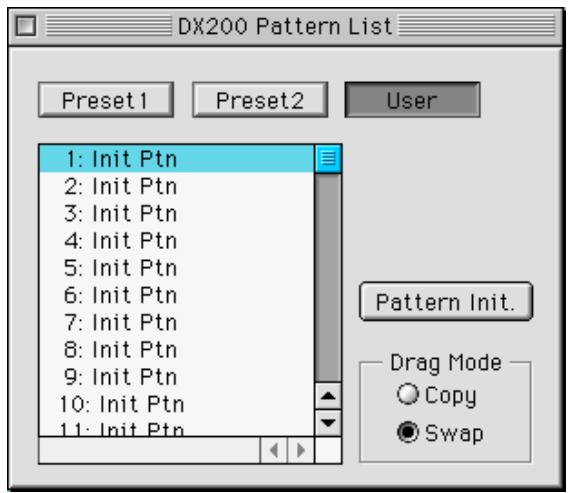
2 Select the desired pattern.
Click on the desired pattern, then close the dialog box (click the close button) to return to the DX200 Editor window.
HINT
- You can play the currently selected pattern by clicking on the keys of the keyboard in the DX7 Simulator window.
Opening the Various Windows
DX200 Editor Main Window
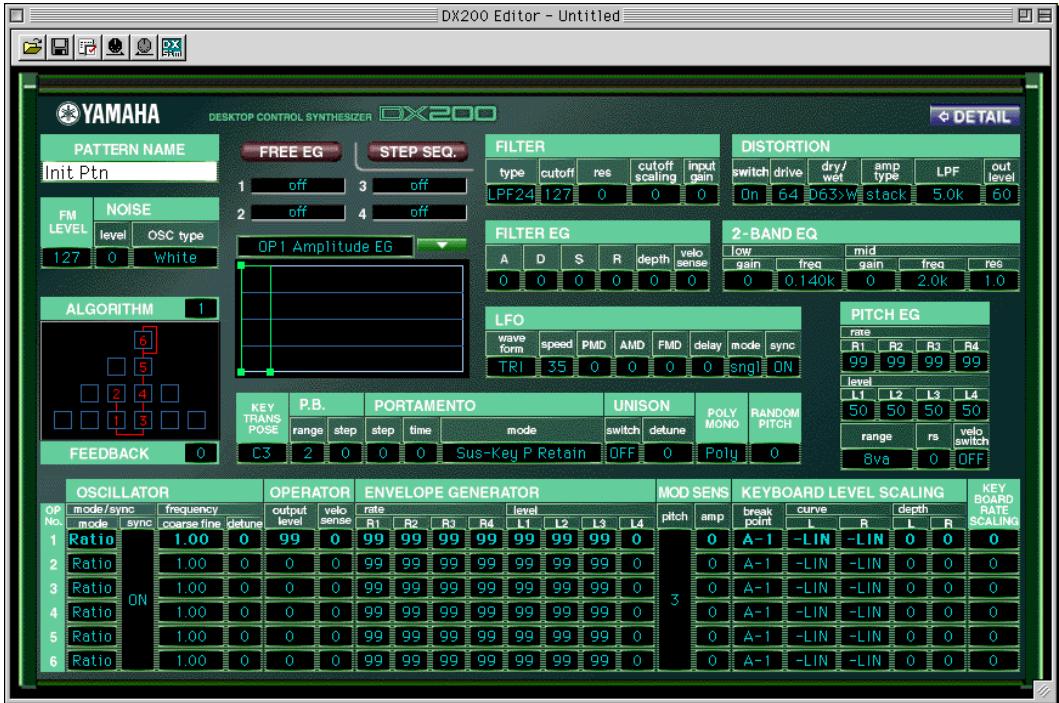
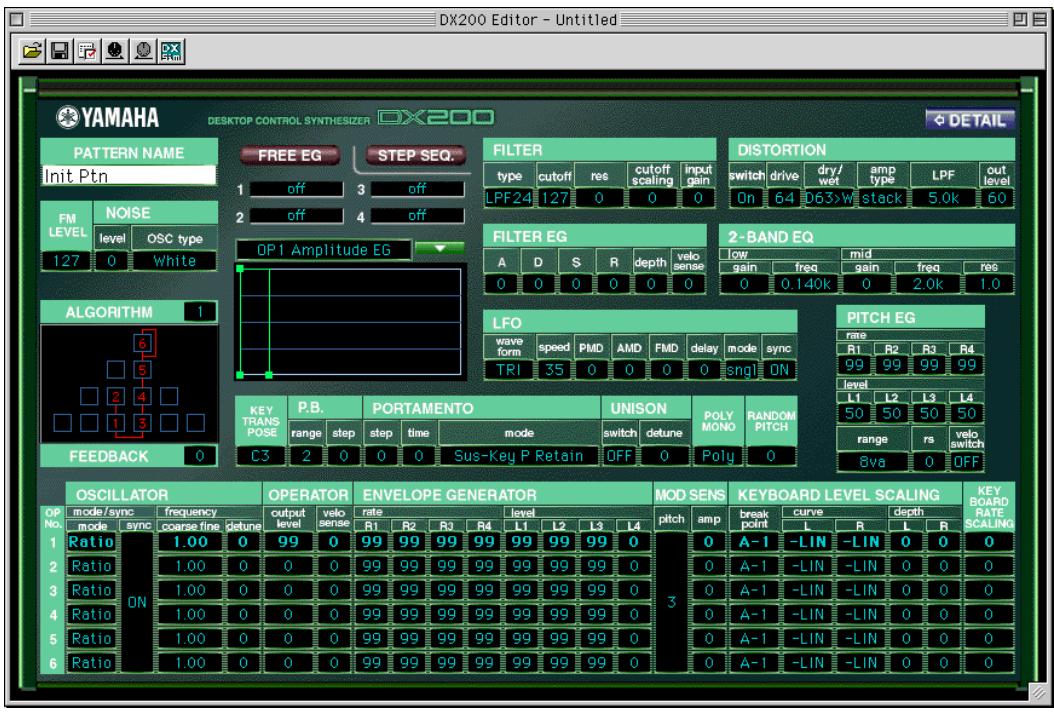
This window provides a comprehensive, at-a-glance display of all DX200 pattern parameters, and allows you to easily change any desired parameter. (For more information, see Editing a DX Pattern.)
Alternatively, click "Edit" on the menu bar, then select "DX7 Simulator." You can also call it up from the toolbar.
- About the [ DETAIL] button
Clicking this button lets you toggle between the full editing display (with all parameters shown) and a smaller editing display (with a limited parameter set). The smaller display leaves out many of the more detailed parameters, making the editing display less cluttered and easier to handle.
![YAMAHA DX200EDITOR - - About the [ DETAIL] button - 1](/content/2025/01/114587/images/43ef1e35fb56653f3c1860c16d291e7e28257411b493ce7530a3ab864e88c051.jpg)
Free EG Window
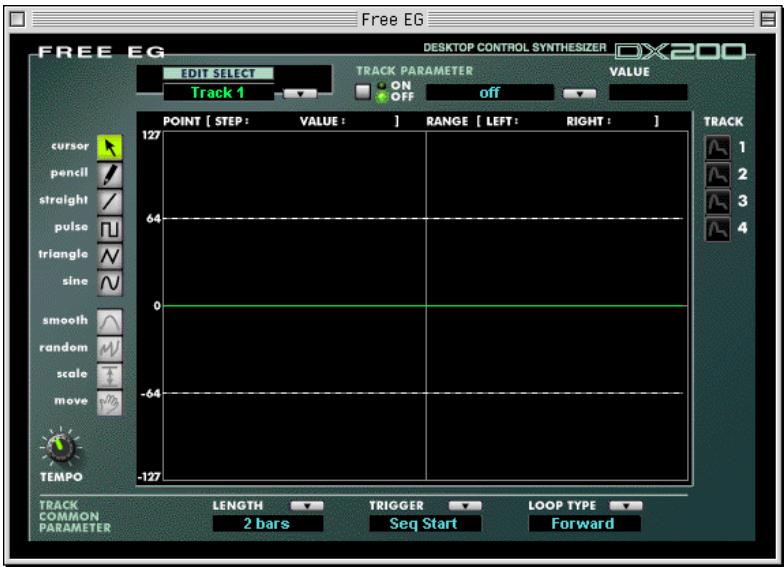
This window contains the versatile Free EG function, which gives you four tracks for recording complex real-time parameter changes. To call up the window, click the "FREE EG" button at the top of the Main window.
Step Sequencer Window
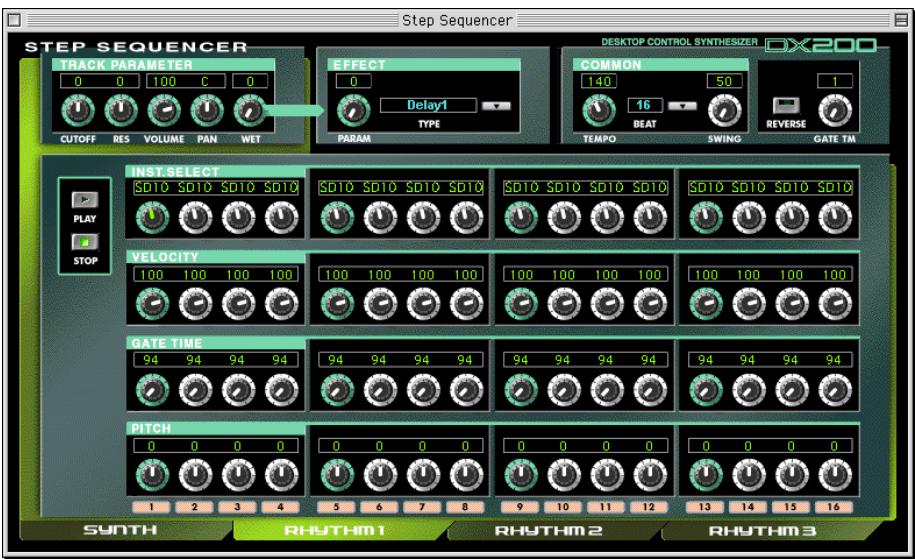
This window contains the convenient Step Sequencer function, which allows you to quickly and easily create sophisticated looped Sequences. To call up the window, click the "STEP SEQ." button at the top of the Main window.
DX7 Simulator Panel Window
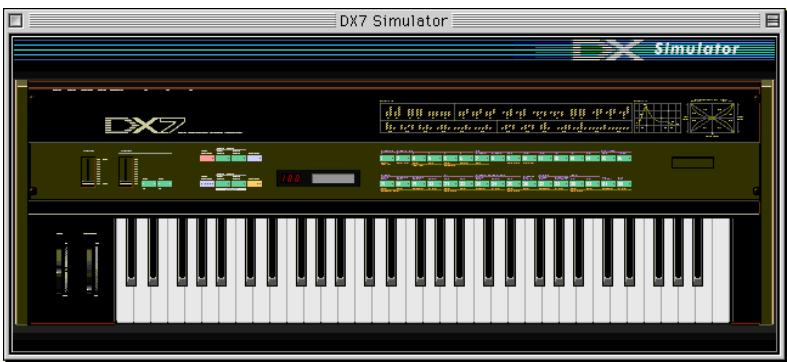
Select this window by clicking "Edit" on the menu bar, then selecting "DX7 Simulator." You can also call it up from the toolbar.
No editing functions are directly available from the DX7 Simulator window. However, from this window you can:
- Audition the currently selected pattern by clicking on the keys of the keyboard.
- Open a DX200 File by clicking on the cartridge or cartridge slot.
- Open the Edit Panel windows (below).
DX7 Edit Panel Window
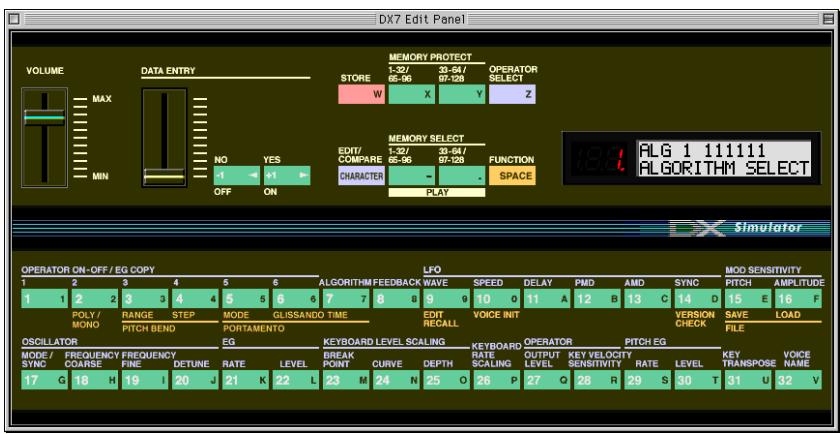
This window provides a "virtual" DX7 panel, and lets you edit the patterns much as you would if you were operating the panel controls of an actual DX7 keyboard. (For more information, DX7 Edit Panel Window.)
To call up this window, click anywhere on the panel control area of the DX7 Simulator Panel window.

Selecting a Mode - Play, Edit or Function
In the Edit Panel window, you can select from among the three main modes: Play, Edit and Function.
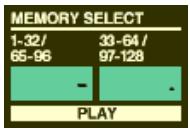
- Play Mode
In the play mode, you can:
- Select one of the 128 patterns.
- Play the selected pattern (from the DX200's keyboard or from the keys in the DX7 Simulator window).
To select the Play mode:
Click one of the [MEMORY SELECT] buttons: [1-32] or [33-64].
- Edit Mode
In the Edit mode, you can:
- Edit the pattern, using the Edit parameters (printed in lavender above each button).
To select the Edit mode:
Click the [EDIT] button.
- Function Mode
In the Function mode, you can:
- Edit the Function (global) parameters of the pattern (printed in yellow below the appropriate buttons). These include other miscellaneous Function parameters as well, such as Edit Recall and Pattern Initialize.
To select the Function mode:
Click the [FUNCTION] button.
Editing a DX200 Pattern
1 Select the desired pattern.
Refer to Selecting a DX200 Pattern.
2 Edit the pattern parameters as desired.
Store the edited settings as a pattern, then save it with other edited patterns as a DX200 File.
Use the Store operation to store your newly edited pattern. Then use the Save operation to save that edited pattern with other User Patterns to a DX200 File.
Both the Store and Save operations are necessary to ensure that your pattern is saved properly. Failing to do so would be roughly similar to writing a letter but not putting it in an envelope. Make sure to execute both operations when you wish to keep a pattern you've edited.
Compare
This function lets you switch back and forth between the current edited condition of the pattern and its original un-edited condition. This allows you to easily hear and compare the changes you make to a pattern with its original condition.
1 Edit the pattern as desired.
2 Select "DX200 Compare."
Click "Edit" on the menu bar, then select "DX200 Compare."
You can also quickly use Compare by clicking any inactive part of the window pressing control key and clicking "DX Compare" in the pop-up menu.
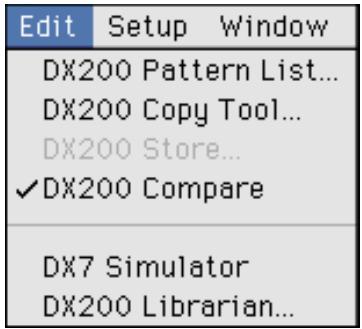
In the Compare condition, a check appears beside "DX200 Compare" in the menu. All parameter values are ghosted (in gray) and cannot be edited. Play the connected MIDI keyboard (or click the keys in the DX7 Simulator window) to hear the original un-edited pattern.
3 Select "DX200 Compare" again to return to the edited condition.
Do this as often as you wish to go back and forth between the two conditions.
NOTE
- "DX200 Compare" is ghosted (gray) and cannot be selected if the pattern has not yet been edited.
- The Compare function can be used with the parameter in the Main Window and with Tempo and Swing in the Step Sequencer window.
Initializing a DX200 Pattern to the Default Settings
This function allows you to reset all the parameters of the selected pattern to the factory "initial pattern default values". This gives you a "blank slate" from which you can create your own pattern.
Keep in mind that this operation automatically erases all the settings of the selected pattern. If you wish to save the pattern for future recall, use the Store and Save functions.
1 Select "DX200 Pattern List."
Click "Edit" on the menu bar, then select "DX200 Pattern List."
You can also quickly call up this dialog box by clicking any inactive part of the window pressing control key and clicking "DX200 Pattern List" in the pop-up menu.
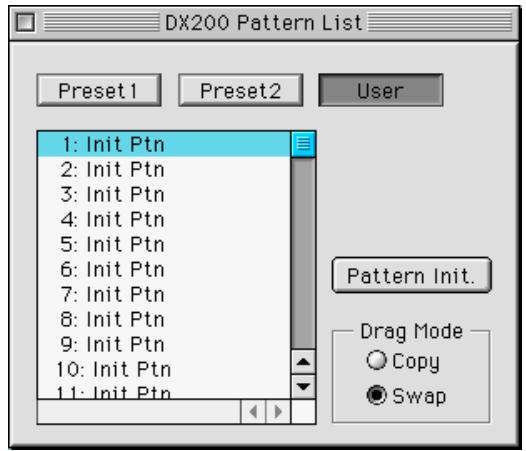
2 Select the desired pattern to be initialized.
Click on the desired pattern.
3 Initialize the pattern.
Click the "Pattern Init." button in the dialog box. The specified pattern is initialized and automatically selected for editing.
To return to the DX200 Editor window, close the dialog box (click the close button).
Storing a DX200 Pattern
This operation lets you store your pattern edits as a User pattern.
NOTE
- To ensure that your new pattern is available for future recall, make sure to also save the pattern (with other patterns) to a DX200 File.
1 Select "DX200 Store."
Click "Edit" on the menu bar, then select "DX200 Store."
You can also quickly call up this dialog box by clicking any inactive part of the window pressing control key and clicking "DX200 Store" in the pop-up menu.
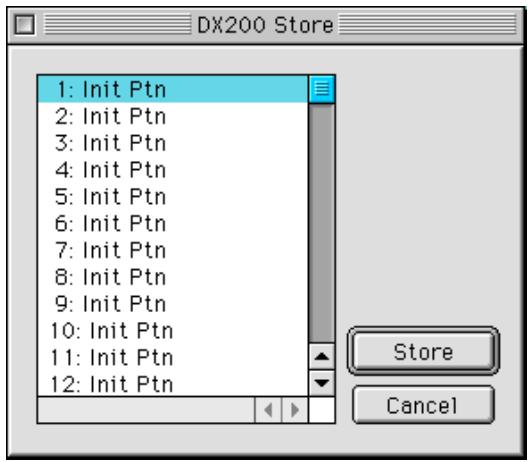
2 Select the destination pattern.
Click on the desired pattern in the dialog box.
Store the pattern.
Click the "Store" button in the dialog box. The specified pattern is replaced with the newly edited pattern.
NOTE
- This operation deletes the original pattern data at the destination.
Saving Patterns to a DX200 File
Once you've edited a DX200 pattern to your satisfaction you can save it to a DX200 File. Each DX200 File can contain up to 64 patterns, and these can be called up at any time with the Open command. (Also see Calling Up Patterns from a DX200 File.)
Additional DX200 Files of 128 patterns each can be saved to floppy disks or your hard disk drive as DX200 Files --- giving you unlimited storage for your original patterns. For organizing the patterns in the DX200 Files, use the convenient DX200 Librarian function.
1 Select "Save DX200 File."
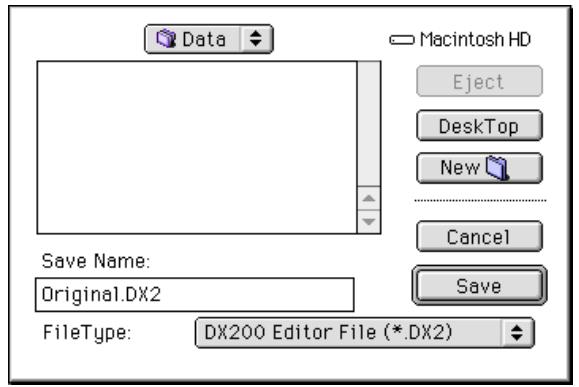
Click "File" on the menu bar, then select "Save DX200 File."
NOTE
"Save DX200 File" can also be selected from the toolbar.
2 Select the desired folder, type in the file name, and click "Save."
Calling Up Patterns from a DX200 File (Open)
Once you've saved a set of User patterns to one or more DX200 Files (see Saving Patterns), you can instantly call up the desired patterns with this command.
To create a new DX200 File, use the New DX200 File command.
1 Select "Open DX200 File."
Click "File" on the menu bar, then select "Open DX200 File."
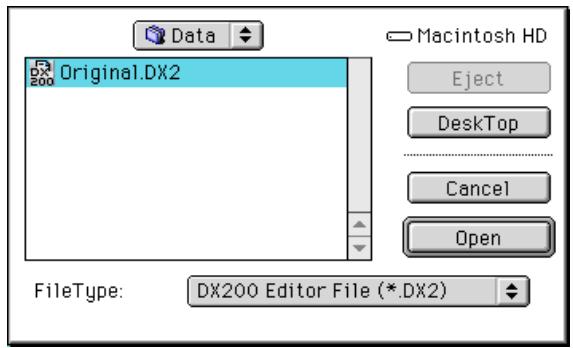
2 Select the desired folder and file name, then click "Open."
NOTE
- "Open DX200 File" can also be selected by clicking on the cartridge slot in the DX7 Simulator window. (When a DX200 File has been opened, a cartridge is shown in the slot.)
Receiving Pattern/Voice Data from a DX200/DX7 Series Instrument
This operation lets you transfer pattern data from an instrument of the DX7 Series. A single pattern or 128 patterns can be received. (See Receive DX200 Bulk Dump Data).
1 Select "Receive DX200 Bulk Dump Data" from the Setup menu.
2 Select the desired Receive Method ("1 Voice/Pattern" or "All Patterns/Voices") and Machine (DX200 or DX7 Series).
3 Click "Start." The "Start" button changes to "Stop" and the operation is set to standby (waiting for incoming data).
4 Transmit the data from the DX200 or other instrument. (See the owner's manual of the instrument for instructions.)
NOTE
- Make sure that the MIDI connections and settings are appropriate. (This includes the "DX200 Editor Setup.")
As soon as the DX200 Editor starts receiving data, the progress bar moves, indicating the amount of data received. When the bar is completely filled, the operation is complete. To cancel the operation, click "Stop."
6 Click "OK" to exit the operation.
Virtually all of the DX200 Editor parameters for editing the DX200 patterns are contained in the Main control panel window. From this main panel, you can also jump to other windows for controlling additional DX200 functions (such as the Free EG, Step Sequencer, and DX7 Simulator).
DX200 Editor Main Window
This is the primary editing window for the DX200 Editor. Virtually all editing functions and operations are done from this window.
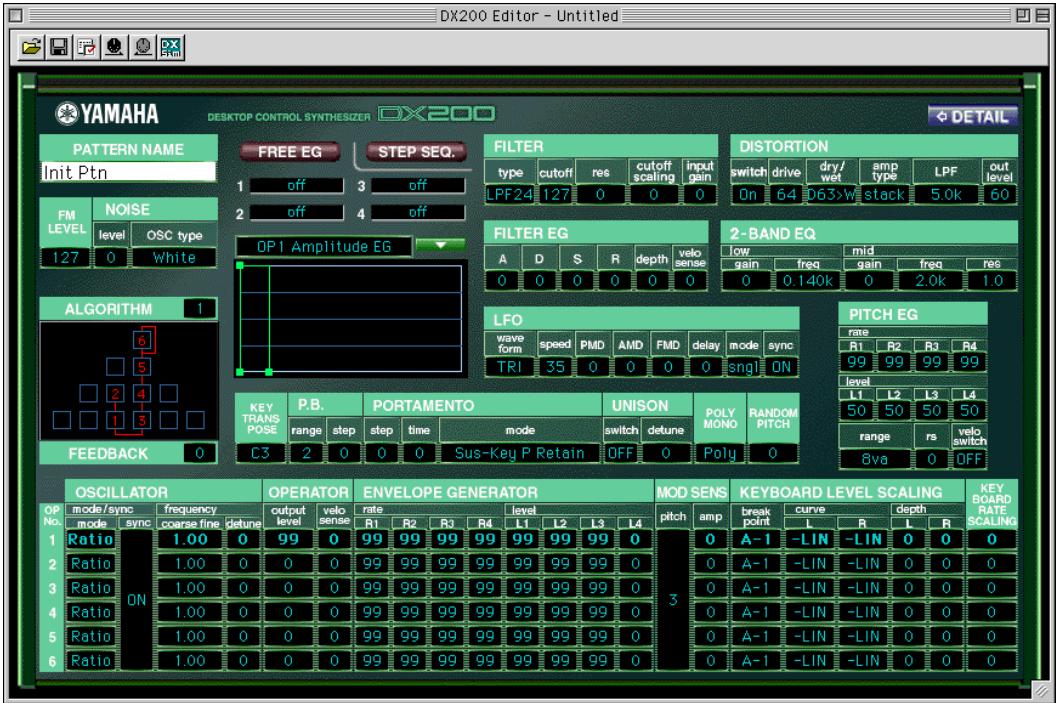
To change any of the parameter values, click on the desired parameter so it is highlighted, then type in the value from the keyboard and press [ENTER].
You can also use the mouse to change the values or settings. Click on the desired parameter, move the cursor to the top or bottom of the box (to select the "up" arrow or the "down" arrow, respectively), then click the mouse button to increase or decrease the value. (Clicking with the "up" arrow increases the value; clicking with the "down" arrow decreases it.)
Alternatively, drag the mouse to continuously change values. Click on the parameter and drag horizontally or vertically as desired. Dragging to the left or down decreases the value, and dragging right or up increases it. The parameter value changes accordingly. Any parameter changes are output as MIDI data, to the DX200.
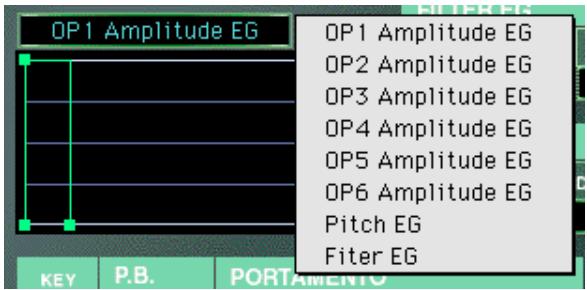
- About the EG combo box and EG window
Also contained in the Main window is a special EG window, from which you can use the mouse to "draw" envelopes for each Operator's EG, as well as the Pitch EG and Filter EG.
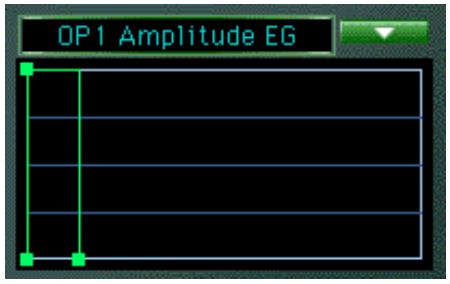
To use this, click on the down arrow above the window, and select the EG you wish to edit. Then, click on one of the box "joints" and drag it to change the EG settings. The current relevant EG values appear at the cursor as you drag it.
- About the DX200 Copy Tool
This convenient function lets you copy the various settings (including EG) from one Operator to another Operator. Click on any inactive part of the panel in the Main window pressing control key and select "DX Copy Tool" from the pop-up menu. Then, from the Copy Tool window, click and drag the Operator or EG you want to copy to the destination Operator or EG. (For more information, see [DX200 Copy Tool] dialog.)
NOTE
- The Pitch EG is displayed in the DX200 Copy Tool window only for viewing the EG shape. It cannot be copied to an Operator, nor can an Operator EG be copied to it.
- About the [= DETAIL] button
Clicking this button lets you toggle between the full editing display (with all parameters shown) and a smaller editing display (with a limited parameter set). The smaller display leaves out many of the more detailed parameters, making the editing display less cluttered and easier to handle.
- Toolbar
The toolbar gives you quick access to some important functions and controls. These buttons let you easily execute the desired function without having to select a menu.
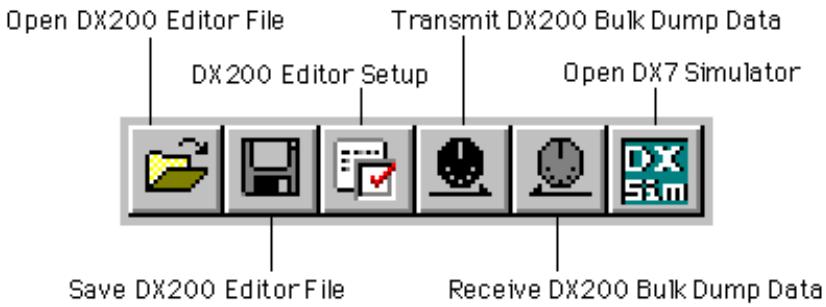
Open DX200 Editor File
This is the same as the corresponding command in the File menu. It lets you select and open an existing DX200 File. (See File Menus, Open DX200 File.)
Save DX200 Editor File
This is the same as the corresponding command in the File menu. It lets you save the current set of User patterns as a DX200 Editor File for future recall. (See File Menus, Save DX200 File.)
DX200 Editor Setup
This is the same as the corresponding command in the Setup menu. It lets you make various important settings for configuring the DX200 Editor with the DX200. (See Setup Menus, DX200 Editor Setup.)
Transmit DX200 Bulk Dump Data
This is the same as the corresponding command in the Setup menu. It lets you transmit the current DX200 Editor settings as MIDI data to the DX200. (See Setup Menu, Transmit DX200 Bulk Dump Data.)
Receive DX200 Bulk Dump Data
This is the same as the corresponding command in the Setup menu. It lets you receive the current DX200 Editor settings as MIDI data from a DX7, DX7II or other DX-compatible instrument. (See Setup Menus, Receive DX200 Bulk Dump Data. Also see Receiving Pattern/Voice Data from a DX200/DX7 Series Instrument)
Open DX7 Simulator
This is the same as the corresponding command in the Edit menu. It lets you open the DX7 Simulator. (See Edit Menus, Open DX7 Simulator.)
Setting and Changing Parameter Values
NOTE
- The conventions described here pertain primarily to the DX200 Editor Main Window. For information on the controls in the Edit Panel window, see Edit Panel Window / Play and Edit Modes.
- Combo boxes
For combo boxes (such as the EG select box in Main, or Track Parameter in Free EG), click the down arrow to expand the box, then highlight the desired setting.
Parameter sliders
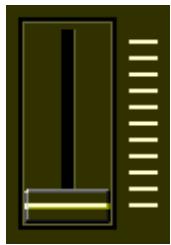
For parameter sliders, click and hold the slider, then drag as desired. Alternately, click and hold any position along the slider path; the slider automatically snaps to the new position.
- Incrementing/decrementing values
Values and settings in the Main window can be changed by clicking on the value box, and then dragging the cursor up or down (or right/left), in the direction of the desired change. To increment or decrement a value, click on the desired parameter, move the cursor to the top or bottom of the box (to select the "up" arrow or the "down" arrow, respectively), then click the mouse button to increase or decrease the value. (Clicking with the "up" arrow increases the value; clicking with the "down" arrow decreases it.) The cursor keys on the keyboard can be used to move around the parameter grid of the DX200 Editor window.
- Typing values directly
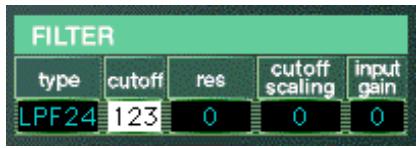
Most parameters in the Main Window can also be set by typing the value directly in the value box. Click on the box, then type the desired value and press [enter]. Once a value box has been selected, you can also use the mouse to change the value (as described above).
NOTE
- The [enter] key have no effect in the Pattern Name parameter.
DX200 Parameters
Pattern Name
Settings: 1 ... 0, A ... Z, -,., space, (ASCII 20H ... 7FH)
This determines the name of the pattern being edited. Up to ten characters can be entered. (In the DX200 Editor window, both uppercase and lowercase letters can be entered.)
1) Click on the PATTERN NAME box.
2) At the cursor position, type the desired name. Up to ten characters (upercase or lowercase) can be entered.
3) Store the pattern, if desired.
FM Level
Range: 0 ... 127
This determines the level of FM signal.
Noise Parameter
- Noise level
Range: 0 ... 127
This determines the level of the Noise. The higher the value, the greater the Noise Level. When not using Noise, set the value to "0."
- Noise OSC Type
Settings: White, Pink, UpSlow, UpMid, UpHigh, DownSlow, DownMid, DownHigh, PitchScale1...4, Variation1...4
This is used to select the type of Noise signal.
For detail of types, refer to the DX200 Editor Owner's Manual.
Algorithm
Range: 1 ... 32
This determines the algorithm used for the pattern. The algorithm determines how the operators are configured for the pattern. The FM synthesis system of the DX200 has 32 of these configurations, called "algorithms." (Refer to the Algorithm List.)
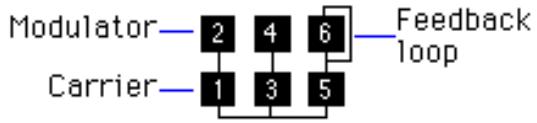
This section displays the signal path, showing which operators are "carriers" and which are "modulators." The carriers are in the bottom row of the algorithm and are the actual sound producers for the pattern. Modulators are stacked above the carriers and alter the timbre or tonal quality of the carriers. A modulator stacked on top of another modulator alters the timbre even further. Simply put, the carriers produce the sound, and the modulators change the character of the sound.
NOTE
- Changing the algorithm may result in drastic changes to the pattern, and could produce unexpectedly loud and noisy sounds.
Feedback
Range: 0 ... 7
This determines the level of feedback. Each algorithm provides a feedback operator, in which the output signal of the operator is looped back to its input. As its name implies, Feedback produces harsh noise-like harmonics in the pattern. The degree of harshness or amount of noise depends not only on this setting, but also on the level of the feedback operator and its position in the algorithm.
Free EG button
Open [Free EG] window.
Step Sequencer button
Open [Step Sequencer] window.
Filter Parameters
The Filter parameters are a special addition to the DX200, not found on the original DX-series synthesizers. The Filter lets you control the tone in various ways, using the same filter types, functions and parameters as found on analog synthesizers.
The DX200 also features a Filter EG, letting you control the filter operation over time. (See Filter EG Parameters.)
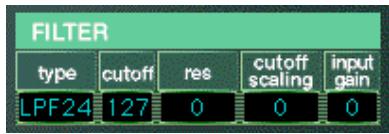
Filter Type
Determines the filter type used for the VCF section. The filter passes only a specified range of frequencies while cutting off the rest. There are several completely different types, as well as a variety of filter slopes (see below).
Settings: LPF24 (Low Pass Filter 24dB/octave), LPF18 (LPF 18dB/octave), LPF12 (LPF 12dB/octave), BPF (Band Pass Filter), HPF12 (High Pass Filter 12dB/octave), BEF (Band Eliminate Filter)
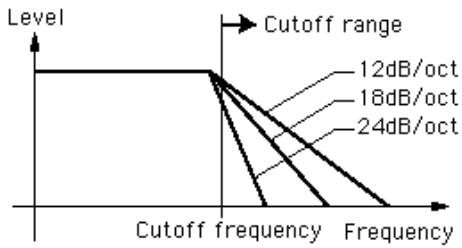
LPF24, LPF18, LPF12
The Low Pass Filter passes only those frequencies below the specified cutoff point. Cutoff curves of 24dB/octave, 18dB/octave and 12dB/octave can be selected.
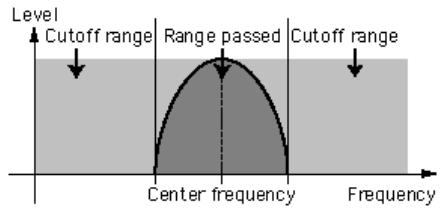
BPF
The Band Pass Filter passes only those frequencies in the specified range, with a cutoff curve of 12dB/octave.
HPF12
The High Pass Filter passes only those frequencies above the specified cutoff point, with a cutoff curve of 12dB/octave.
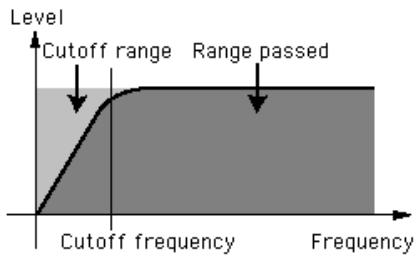
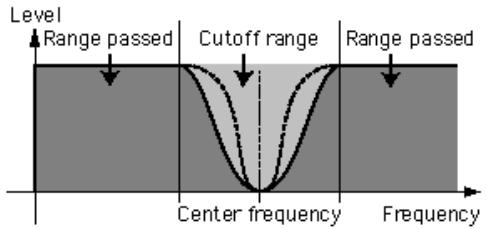
BEF
The Band Eliminate Filter passes only those frequencies outside the specified frequency range. The Resonance setting (below) determines the eliminate range.
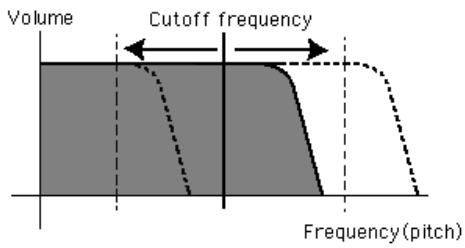
- Filter Cutoff
Range: 0 ... 127
Determines the frequency at which the Filter effect starts. The higher the value, the higher the frequency.
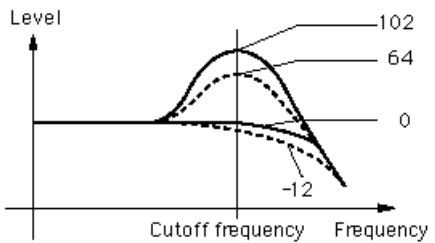
- Filter Resonance (res)
Range: -16 ... 100
Determines the emphasis of the resonant peak of the Filter (at the Cutoff frequency).
- Filter Cutoff Scailing
Range: -64 ... 63
This determines how the Filter Cutoff Frequency follows the keyboard. For a setting of "0," the particular notes played on the keyboard have no effect on the Filter.
- Filter Input Gain
Range: -12 ... 12 (dB)
Determines the level of the signal sent to the Filter. If the Filter doesn't seem to have much effect on the sound, try increasing this parameter. If the Filter effect seems too boomy, loud or harsh, try decreasing this.
Distortion Parameters
Distortion lets you apply a wide variety of distortion and overdrive effects to the sound, and simulate the effect of various guitar amplifiers and speakers.
Distortion Switch
Range: On, Off
This turns the Distortion effect on or off.
Distortion Drive
Range: 0 ... 100
This determines the amount of distortion "drive" for the guitar amplifier simulation effect block. The higher the value, the greater the degree of distortion in the sound.
Distortion Dry/Wet
Range: D63>W ... D=W ... D<W63
This determines the level balance of the unprocessed (dry) original sound of the pattern, and the distortion processed (wet) sound. A setting of D = W results in an equal balance of dry and wet sound. (In the display, "D" indicates "dry," and "W" indicates "wet.")
Distortion Guitar Amp.Type
Settings: Off, Stack, Combo, Tube
This determines the type of guitar amplifier simulated by the Distortion effect. Each produces a slightly different distortion sound, recreating the characteristics of an actual amplifier. "Stack" simulates a separate amp and speaker setup, "Combo" simulates a single cabinet transistor amp and speaker, and "Tube" simulates a single cabinet tube amp and speaker. When this is set to "Off," some of the guitar amplifier simulation effect is cancelled (however, Distortion Drive and LPF are still applied to the sound).
Distortion Low Pass Filter
Range: 1.0 kHz ... 18.0 kHz, Thru
This determines the frequency of the low pass filter that is applied to the distortion sound. Depending on the Guitar Amp. Type setting, this parameter can be used to "fatten" the sound or make it piercing and brittle. When this is set to "Thru," no filtering is applied to the distortion sound.
Distortion Output Level
Range: 0 ... 100
This determines the output volume of the distortion sound. Keep in mind that this may not have any effect unless the Distortion Dry/Wet is set to an appropriate value.
Filter EG Parameters
The Filter EG parameters determine how the timbre of the pattern changes over time. This lets you produce subtle or pronounced filter effects (such as wah, for example).
You can also conveniently edit the Filter EG parameters from the EG window. To make changes to this, click on the down arrow above the EG window, and select the Filter EG. Then, click on one of the box "joints" and drag it to change the EG settings. The current relevant Filter EG values appear at the cursor as you drag it.
Filter EG Attack Time
Range: 0 ... 127
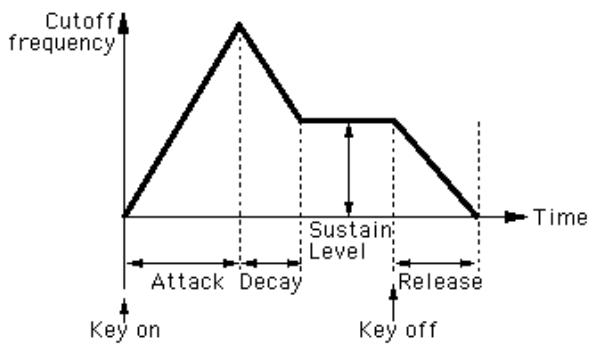
This determines the attack time of the Filter EG, which is the time it takes for the signal to reach its maximum cutoff frequency level after a key is pressed (key on). Higher values produce a longer Attack time. (See illustration below.)
Filter EG Decay Time
Range: 0 ... 127
This determines the decay time of the Filter EG, which is the time it takes for the signal to reach its sustain level from the maximum level while a key is held. Higher values produce a longer Decay time. (See illustration below.)
Filter EG Sustain Level
Range: 0 ... 127
This determines the level of sustain of the Filter EG, which is the fixed level of the cutoff frequency maintained as long as the key is held. Higher values increase the Sustain level. (See illustration below.)
- Filter EG Release Time
Range: 0 ... 127
This determines the release time of the Filter EG, which is the time it takes for the filter to reach its initial level after a key is released (key off). Higher values increase the Release time. (See illustration below.)
Filter EG Depth
Range: -64 ... 0 ... +63
This determines the range of movement of the cutoff frequency. This must be set to a proper level for the Filter EG parameters (Attack, Decay, Sustain, and Release) to have an effect on the sound. Positive values increase the Filter EG Depth. Negative values reverse the shape of the envelope.
- Filter EG Velocity Sense
Range: -64 ... 0 ... +63
This determines how the Filter responds to keyboard velocity. The higher the value (positive), the more sensitive the Filter is to your keyboard playing strength. Negative values produce the opposite effect; in other words, the Filter effect gets stronger the lighter you play.
2-Band EQ Parameters
This flexible 2-Band EQ gives you comprehensive control over the sound, with both Gain and Frequency parameters --- plus a Resonance control on the Mid Frequency band.
2-Band EQ Low Gain
Range: -12 ... 0 ... +12 (dB)
This determines the gain or level of the low frequency band. Positive values boost the level of the frequency and negative values attenuate it.
2-Band EQ Low Frequency
Range: 32Hz ... 2.0kHz
This determines the specific frequency that is controlled by the Low Gain parameter (above).
2-Band EQ Mid Gain
Range: -12 ... 0 ... +12 (dB)
This determines the gain or level of the mid frequency band. Positive values boost the level of the frequency and negative values attenuate it.
2-Band EQ Mid Frequency
Range: 100Hz ... 10.0kHz
This determines the specific frequency that is controlled by the Mid Gain parameter (above).
2-Band EQ Mid Resonance
Range: 1.0 ... 12.0
This determines the resonant boost applied to the Mid Frequency.
LFO Parameters
The LFO (Low Frequency Oscillator) parameters are used to regularly modulate the pitch or volume of a pattern, letting you create vibrato, tremolo, or "wah" effects. These are also related to the Modulation Sensitivity parameters.
LFO Waveform
Settings:
TRI (triangle)
SAW- (sawtooth down)
SAW+ (sawtooth up)
SQU (square)
SIN (sine)
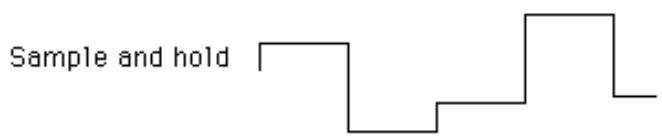
S/Hold (sample and hold)
This determines the waveform of the LFO: triangle, sawtooth down, sawtooth up, square, sine, or sample and hold.





LFO Speed
Range: 0 ... 99
This determines the speed or frequency of the LFO, with higher values resulting in higher frequencies (greater speed).
LFO PMD (Pitch Modulation Depth)
Range: 0 ... 99
This determines the amount of Pitch Modulation Depth. This sets the degree to which LFO modulation affects the pitch of the pattern, or how widely pitch is modulated by the LFO. This produces a vibrato effect for the pattern. This has no effect if Pitch Modulation Sensitivity is set to zero.
LFO AMD (Amplitude Modulation Depth)
Range: 0 ... 99
This determines the amount of Amplitude Modulation Depth. This sets the degree to which LFO modulation affects the volume of the pattern, or how widely volume is modulated by the LFO. When applied to a carrier operator, this produces a tremolo effect; when applied to a modulator, it produces a "wah" effect. This has no effect if Amplitude Modulation Sensitivity is set to zero.
LFO FMD (Filter Modulation Depth)
Range: 0 ... 99
This determines the amount of Filter Modulation Depth. This sets the degree to which LFO modulation affects the filter of the pattern, or how widely filter is modulated by the LFO.
LFO Delay
Range: 0 ... 99
This determines the delay time for the LFO, or the amount of time that elapses between the press of a key and onset of the LFO effect. This is useful in producing delayed vibrato or tremolo effects (often used by singers or instrumentalists). Higher values result in a longer delay time.
NOTE
- Both Pitch and Amplitude are modulated together by the LFO; LFO cannot be set to modulate these independently. However, by using the Sensitivity and Depth controls, you can set different degrees of the LFO effect for each.
LFO Mode
Settings: sngl (single), multi (multi)
This determines the operating mode of the LFO; in effect, it determines how many LFOs are used to modulate the pattern (when several notes are played simultaneously).
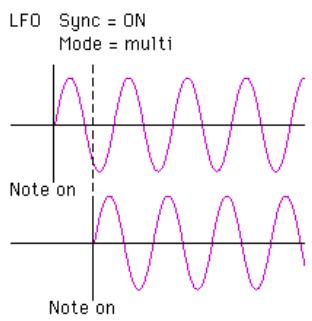
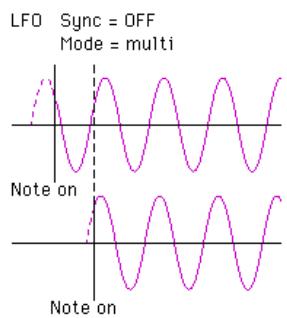
When set to "sndl," a single LFO affects all notes played. In other words, the LFO effect begins when the first key is played, and continues in the same way at the same phase for all subsequent notes. (This is true when LFO Sync is off; when LFO Sync is on, the waveform is interrupted and begins anew for each note played.)
When set to "mult," there are sixteen independent LFOs, one for each of the sixteen polyphonic notes of the DX200. This means that when you play several notes in succession, the LFO will affect each note individually, depending on when each note is played. This creates an exceptionally rich and natural modulation effect for sustained notes in strings and pad patterns, especially when LFO Delay is set to an appropriate value.
NOTE
- These illustrations show the various LFO conditions for different Sync and Mode settings.
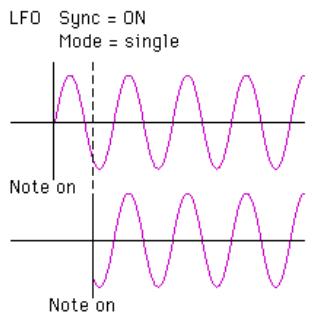
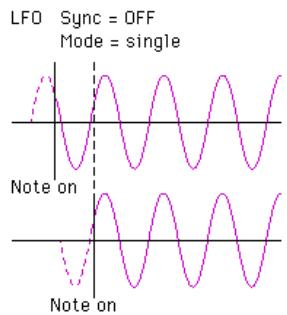
LFO Sync (Key Synchronization)
Settings: ON, OFF
This determines whether LFO Key Synchronization is on or off. When Sync is ON, the LFO is automatically reset to the beginning of the selected waveform each time you play a note. When sync is OFF, the LFO waveform continues in a "free running" condition; when you play a note, the result will vary depending on where the LFO is in the cycle. The effect can be easily detected at low LFO frequencies (i.e., LFO Speed settings below 10).
Key Transpose
Range: C1 - C5 (MIDI notes 36 - 84)
This determines the overall pitch (key) transposition setting for the pattern. The default value is C3 (60). Use this control to change the octave setting of a pattern, or change it to a key for ease in playing. For example, to play the pattern in the key of C but have it sound in the key of F#, enter a value of F#3 or F#2 (depending on whether you want to transpose up or down).
In the DX200 Editor window:
Click KEY TRANSPOSE, then type in the value MIDI note value (36 - 84; note names cannot be typed) and press [enter] on the computer keyboard. Or use the mouse buttons to increment/decrement the values.
In the Edit Panel window:
1) Click on Pattern Select button [31] (KEY TRANSPOSE).
2) Select the DX200 Editor window.
3) Click the desired key on the "virtual" keyboard. (The DATA ENTRY controls in the Edit Panel window cannot be used to change the value.)
4) Return to the Edit Panel window to continue editing or save the pattern.
Pitch Bend Parameters
These parameters determine how the Pitch Bend wheel (on the connected MIDI keyboard) affects the pitch of the pattern.
NOTE
- The Pitch Bend parameters are Function mode parameters in the Edit Panel window.
- Pitch Bend Range
Range: 0 ... 12 semitones
This determines the maximum amount of pitch change with the Pitch Bend wheel, up or down. When set to "0," there is no pitch change. When set to the default of "2," pitch can be raised or lowered by a maximum of 2 semitones (1 whole step). The maximum setting of "12" gives you a full two-octave range (one octave down, one up).
NOTE
- This parameter is automatically set to "12" and cannot be changed unless Pitch Bend Step (below) is set to "0."
- Pitch Bend Step
Range: 0 ... 12 (semitones)
This determines the size of the increments by which the Pitch Bend wheel (on a connected MIDI keyboard) changes the pitch. A setting of "0" results in perfectly smooth pitch bending. Values other than "0" represent the number of semitones by which the pitch will "jump" as you move the wheel. For example, the maximum setting of "12" will cause the wheel to change the pitch in a single, one-octave jump.
NOTE
- When this parameter is set to a value other than "0," Pitch Bend Range (above) is automatically set to "12." (In order to change Pitch Bend Range, this parameter must be set to "0.")
Portamento
These three parameters are used to set portamento (glide) and glissando (stepped glide) effects, and to control certain sustain characteristics of the keyboard. The particular effects available will change, depending on the Poly/Mono setting of the pattern.
NOTE
- The Portamento parameters are Function mode parameters in the Edit Panel window.
Step
Settings: 0 ... 12 (semitones)
When Glissando is set to 1...12, the glide in pitch occurs in discrete semitone steps. This effect is best heard with a slower rate and when two widely separated notes are played one after the other. When Glissando is set to "OFF," normal (continuous) Portamento is available.
Time
Range: 0 ... 99
This determines the time of the Portamento or Glissando effects. A setting of "0" produces no effect, while a setting of "99" produces the longest (slowest) pitch changes. This is contrary to the operation of most DX200 rate controls for which higher values result in faster (shorter) times. In order to turn Portamento or Glissando off, make sure to set this to "0."
Mode
Settings:
In Mono mode:
Fingered Porta
Full Time Porta
In Poly mode:
Sus-Key P Follow
Sus-Key P Retain
When the keyboard is in Mono mode, the available settings are "Fingered Porta" and "Full Time Porta." Fingered Portamento is glide that occurs only when you play legato --- in other words, playing successive notes smoothly, not releasing a previously played note until after the next note is played. Full Time Portamento produces glide from one note to the next even when you play staccato (releasing one note before playing the next).
When the keyboard is in Poly mode, the available settings are "Sus-Key P Follow" and "Sus-Key P Retain." In Sustain-Key Pitch Follow mode, if you play a note or chord and then play another note or chord, the sustain from the original note/chord glides to the pitch of the most recently played note/chord. In Sustain-Key Pitch Retain mode, the pitch of the new note or chord glides from that original pitch(es) without interrupting the sustain of the original note or chord.
Unison Parameters
These parameters let you "fatten" up sound of a pattern, by grouping together four detuned "copies" of the pattern for every note played.
The DX200 features sixteen-note polyphony, meaning that sixteen notes can be played simultaneously. In effect, a pattern is made up of sixteen sound generating "elements," one for each note of polyphony.
The Unison parameters let you reconfigure the element assignment of the DX200 such that four elements sound together in unison when you play a single note. The elements can be detuned from each other by a variable amount, adding warmth and richness to the sound of the pattern.
NOTE
- The overall polyphony of the DX200 is reduced when Unison is on. Normally, polyphony is sixteen; when Unison is on, it is four. (Naturally, when Poly/Mono is set to "Mono," polyphony is fixed at one, no matter what the Unison setting is.)
- These parameters are not available in the Edit Panel window.
- Unison Switch
Settings: ON, OFF
This determines whether the Unison function is on or not. When set to "ON," four of the DX200's sixteen sound generating "elements" are sounded in unison for each note played. Keep in mind that this reduces the overall polyphony of the instrument.
- Unison Detune
Range: 0 ... 7
This determines the amount of detuning applied for the Unison function. This setting has no effect unless Unison Switch is set to "ON." A value of "0" results in no detuning; higher values shift the tuning of the four sound generating "elements" further away from each other, creating a warm, fat sound.
Poly/Mono
Settings: Poly, Mono
This determines how notes of the pattern are allocated. The "Mono" (monophonic) setting allows only one note to be sounded at a time. This is useful for reproducing "classic" synthesizer lead and bass sounds, and is also ideal for playing parts in which you deliberately want the end of one note to be cut off by the next. The "Poly" setting allows you to play up to sixteen notes simultaneously.
NOTE
- Poly/Mono is a Function mode parameter in the Edit Panel window.
Random Pitch
Range: 0 ... 7
This function lets you randomize the overall pitch of the pattern for each note you play. When this is set to "0," Random Pitch is turned off. Higher values produce greater amounts of random pitch change for successively played notes.
Pitch Envelope Generator (Pitch EG) Parameters
These parameters (eleven altogether) determine how the pitch of the pattern changes over time. The Pitch EG parameters affect all operators equally.
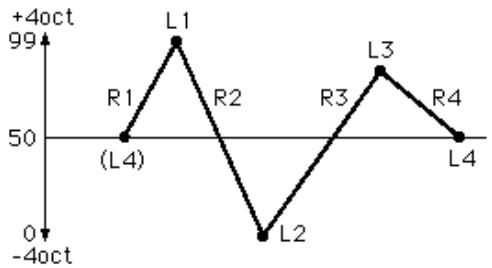
The four Level parameters determine the pitch of the operator at five different points, and the four Rate parameters determine the amount of time that elapses between changes of pitch. Range, Rate Scaling, and Velocity Switch parameters give you further detailed control over the Pitch EG effect.
Pitch EG can be used to reproduce the subtle pitch changes of acoustic instruments (for example, at the beginning and/or end of a note). At extreme settings, it also can be used to create unusual special effects.
You can also conveniently edit the Pitch EG parameters from the EG window. To make changes to this, click on the down arrow above the EG window, and select the Pitch EG. Then, click on one of the box "joints" and drag it to change the EG settings. The current relevant Pitch EG values appear at the cursor as you drag it.
NOTE
- A real-time pitch controller, such as the Pitch Bend wheel on a connected MIDI keyboard, can be used to augment (or cancel) the "automatic" pitch changes made in the Pitch EG parameters.
Pitch EG Rate 1 - 4
Range: 0 ... 99
These determine the amount of time that elapses between changes in the pitch (as set in Level 1 - 4 below).
- Pitch EG Level 1 - 4
Range: 0 ... 99
These determine the overall pitch of the pattern at five points in time. A value of "50" corresponds to normal pitch, or no pitch change. Values under "50" lower the pitch, and values above "50" raise it. The actual pitch range here depends on the Pitch EG Range parameter setting. (Higher Pitch EG Range settings result in greater pitch variation.) The amount of time that elapses between these pitch change points is set in Rate 1 - 4 above.
In the Edit Panel window:
Click button [29] (PITCH EG RATE) repeatedly to call up Rate 1, 2, 3, and 4 in succession. (This includes the Pitch EG Rate Scaling parameter.) Likewise, click button [30] (PITCH EG LEVEL) repeatedly to call up Level 1, 2, 3, and 4 in succession. (This includes the Pitch EG Level Range parameter.) Use the DATA ENTRY controls to set the value for each parameter.
- Pitch EG Range
Settings:
1/2v (six semitones)
1va (one octave)
2va (two octaves)
8va (eight octaves)
This determines the maximum range of pitch change with the Pitch EG. For example, when this is set to "1va," the full range of the Pitch EG Level 1 - 4 parameters is one octave (six semitones above and below the normal pitch value of "50"). The minimum setting of "1/2v" lets you create subtle pitch changes, whereas the maximum setting of "8va" is for extreme pitch variations.
- Pitch EG Rate Scaling
Range: 0 ... 7
This determines how the Rate times of the Pitch EG respond to keyboard position. In other words, this lets you automatically speed up or slow down the overall Pitch EG time (Rate 1 - 4) of the pattern depending on which range of the keyboard you play. This parameter controls the degree of scaling; a value of "0" produces no scaling, and higher values produce a more pronounced scaling effect. For values other than "0," the higher the note played, the shorter its overall Pitch EG time.
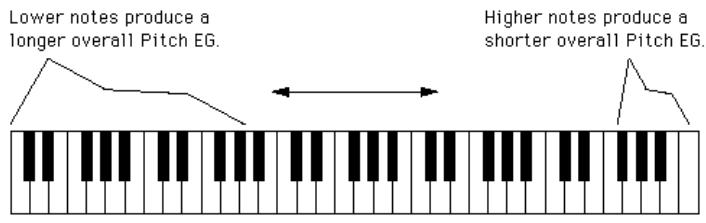
Pitch EG Rate Scaling is useful for simulating the natural pitch scaling found on many acoustic instruments --- for example, as on a cello or double bass, for which the beginnings of lower notes may have a slower rise in pitch. It's also useful for producing unusual pitch change effects depending on key position.
- Pitch EG Velocity Switch
Settings: ON, OFF
This determines whether Pitch EG intensity is touch sensitive or not. When set to "ON," the range of pitch change of the Pitch EG is affected by key velocity. This gives you exceptionally realistic and expressive control over Pitch EG changes.
Oscillator Parameters
The Oscillator parameters give you detailed control over the pitch or frequency of the individual operators of a pattern.
- Oscillator Mode
Settings: Ratio, Fixed
This determines whether each operator changes pitch according to the notes plays. When set to "Ratio" (Frequency Ratio Mode), the corresponding operator tracks the keyboard pitch normally. In other words, playing higher notes on the keyboard results in correspondingly higher frequencies on the operator. When set to "Fixed" (Fixed Pitch Mode), the keyboard does not affect the operator's frequency; the operator plays at the same pitch no matter what key is played.
NOTE
- The term "oscillator" refers to the frequency or waveform generating element of the operator.
- Oscillator Sync (Key Synchronization)
Settings: ON, OFF
This determines whether Oscillator Key Synchronization is on or off --- whether or not the waveforms of all operators start at the beginning of the wave cycle when a key is pressed. Note that this affects all operators together.
When Sync is ON, the oscillators are automatically reset to the beginning of their waveforms each time you play a note. When sync is OFF, the waveforms continue in a "free running" condition; when you play a note, the result will vary depending on where the waveform is in the cycle. This creates subtle differences in the sound, even when you play the same note repeatedly. Keep in mind that for certain patterns, there may be little or no audible effect.
Frequency Coarse/Fine
Range (in Ratio mode): 0.500 ... 61.69
Range (in Fixed mode): 1.000 Hz ... 9772 Hz
This determines the frequency for each individual operator.
Type in the desired value in the appropriate value box or use the mouse to change the value.
Detune
Range: -7 ... +7
Detune is a "super fine" frequency adjustment for each operator. Mild detuning between carrier operators can make the overall sound of the pattern more full, rich and natural, and reproduce the subtle pitch differences found in actual acoustic instruments. Maximum detuning between carriers can be used to produce chorusing effects or simulate an ensemble of multiple instruments.
Operator Parameters
These parameters let you set the Output Level and Velocity Sensitivity for each operator.
Operator Output Level
Range: 0 ... 99
This determines the level of each operator. The setting made here affects the workings of many other parameters. For example, Feedback, EG Level 1 - 4, and Velocity Sensitivity may have little or no audible effect if Output Level is set too low. On the other hand, Keyboard Level Scaling settings may have little or no effect if Output Level is set too high.
When applied to a carrier operator, this affects the volume of the pattern; when applied to a modulator, it affects the timbre.
About Operator On/Off Controls
Each operator can be independently turned on and off during editing --- an important tool in hearing the effects of your edits. For example, you may want to temporarily mute one carrier operator to better hear the edits you are making on another carrier. Or you may want to turn an operator alternately on and off to hear how its presence and absence affects the overall sound.
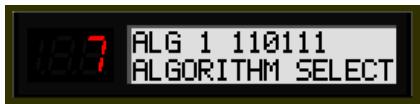
The numbers in the top row indicate the operators' on/off status: "1" for on, "0" for off. In this example, operator 3 is off.
Click the appropriate "OP No." (Operator Number) button (1 - 6). When an operator is off, all its parameters are ghosted.
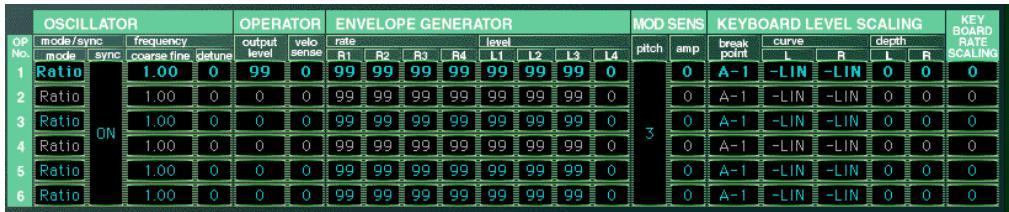
Keep in mind that Operator On/Off is used only temporarily in editing and the on/off status is not saved with the pattern. To actually turn an operator off, set its Output Level to "0."
Operator Key Velocity Sensitivity
Range: 0 ... 7
This determines the touch sensitivity of an operator, or how its level responds to your playing strength. When Velocity Sensitivity is set to a value other than "0," the harder you play a key, the greater the level of the corresponding operator. The softer you play a key, the lower the level. When this is set to "0," the operator level remains the same, no matter how softly or strongly you play the key. Higher values give you greater dynamic range between low and high levels. Setting this to an appropriate value for a carrier operator gives you touch control over volume; setting it for a modulator gives you touch control over timbre.
Envelope Generator (EG) Parameters
These parameters (eight for each operator) determine how the level of the operator changes over time. EG applied to a carrier operator changes the volume of the sound over time, while EG applied to a modulator changes the timbre or the tonal characteristics.
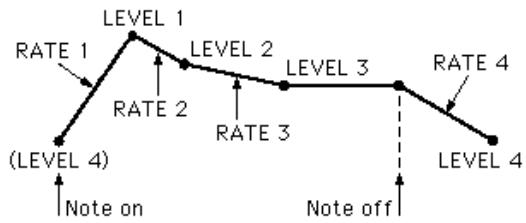
The four Level parameters determine the levels of the operator at five different points, and the four Rate parameters determine the amount of time that elapses between changes of levels. Together, these eight settings give you detailed control over the shape (attack, decay, sustain and release) of the sound, both in volume and timbre.
You can also conveniently edit the Operator EG parameters from the EG window. To make changes to this, click on the down arrow above the EG window, and select the desired Operator's EG (1 - 6). Then, click on one of the box "joints" and drag it to change the EG settings. The current relevant EG values appear at the cursor as you drag it.
The EG Copy function (in the Edit Panel window) and DX Copy Tool (in the DX200 Editor window) let you easily copy all EG Rate and Level values of one operator to another operator.
- Rate 1 - 4
Range: 0 ... 99
These determine the amount of time that elapses between changes in the operator level (as set in Level 1 - 4 below).
- Level 1 - 4
Range: 0 ... 99
These determine the levels of the operator at five points in time. The amount of time that elapses between these points is set in Rate 1 - 4 above.
NOTE
- For most normal applications --- and especially for carrier operators --- the Level 4 parameter (which determines both the starting and ending level of the operator) should be set to "0."
- Otherwise, the pattern will continue to sound indefinitely. Also, Level 1 should be set to an appropriate value, such as "50" or greater, for proper EG operation.
Type in the desired value in the appropriate value box or use the mouse to change the value.
Modulation Sensitivity Parameters
The Modulation Sensitivity parameters (Pitch and Amplitude) determine the degree to which LFO modulation affects the pattern --- in other words, the intensity of the LFO effect. Modulation Sensitivity is effectively a master control for all modulation --- whether it is automatically applied when the notes are played, or whether it is applied only by using the "real time" modulation controls on the MIDI keyboard, such as the Modulation Wheel, Foot Control, Breath Control or After Touch. If the Pitch or Amplitude Modulation sensitivity is set at zero, then none of the external controllers can affect the patterns.
Pitch Modulation Sensitivity
Range: 0 ... 7
This determines sensitivity of the pattern (all operators) to LFO pitch modulation. Higher values result in greater sensitivity, or greater intensity of pitch modulation. This parameter setting affects all operators of the pattern equally.
- Amplitude Modulation Sensitivity
Range: 0 ... 7
This determines sensitivity of each operator to LFO amplitude (volume) modulation. Higher values result in greater sensitivity, or greater intensity of volume modulation. When applied to carrier operators, this produces a tremolo effect. When applied to a modulator operator, this varies the timbre, producing a "wah" effect.
NOTE
- These settings may have little or no effect on the sound if the Operator Level is set to a low value.
Keyboard Level Scaling Parameters
The Keyboard Level Scaling parameters determine how the Output Level settings of the operators track the keyboard. In other words, these let you automatically change the level of individual operators depending on which range of the keyboard you play. Each operator can be programmed to respond according to any of four curves on either side of an adjustable break point.
Keyboard Level Scaling can be used to make the tone and/or volume change as you play in different octaves, for more realistic acoustic instrument simulations. Extreme settings can also be used for "split keyboard" effects.
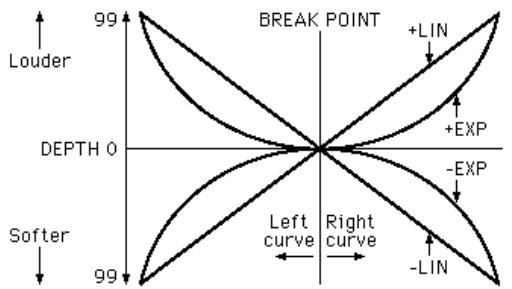
LIN:Linear curve
EXP: Exponential curve
The Depth of each curve can also be adjusted.
- Keyboard Level Scaling Break Point
Range: A-1 ... C8
This determines the middle point for the curve. The level is scaled up or down independently on either side of the Break Point in the curve. For most applications and best results, this should be set somewhere near the middle range of your connected MIDI keyboard (for example, C3).
In the DX200 Editor window:
Type in the desired value in the appropriate value box (MIDI note numbers only; for example, to select C3, type "60") or use the mouse to change the value.