TH-98LQ70LW - Monitor PANASONIC - Besplatni korisnički priručnik
Pronađite besplatno priručnik za uređaj TH-98LQ70LW PANASONIC u PDF formatu.


Pitanja korisnika o TH-98LQ70LW PANASONIC
0 pitanje o ovom uređaju. Odgovorite na one koje znate ili postavite svoje.
Postavi novo pitanje o ovom uređaju
Preuzmite upute za vaš Monitor u PDF formatu besplatno! Pronađite svoj priručnik TH-98LQ70LW - PANASONIC i uzmite svoju elektroničku napravu natrag u ruke. Na ovoj stranici objavljeni su svi dokumenti potrebni za korištenje vaše naprave. TH-98LQ70LW marke PANASONIC.
KORISNIČKI PRIRUČNIK TH-98LQ70LW PANASONIC
Operating Instructions
UHD LCD Display
For business use
Model No. TH-84LQ70U
84-inch model
TH-98LQ70U
98-inch model
TH-84LQ70LU
84-inch model
TH-98LQ70LU
98-inch model
TH-84LQ70W
84-inch model
TH-98LQ70W
98-inch model
TH-84LQ70LW
84-inch model
TH-98LQ70LW
98-inch model

natural_image
Empty white rectangle with black border, no text or symbols presentDear Panasonic Customer
Welcome to the Panasonic family of customers. We hope that you will have many years of enjoyment from your new LCD Display. To obtain maximum benefit from your set, please read these Instructions before making any adjustments, and retain them for future reference.
Retain your purchase receipt also, and note down the model number and serial number of your set in the space provided on the rear cover of these instructions.
Visit our Panasonic Web Site http://panasonic.com
Table of Contents
Before use
- Illustrations and screens in this Operating Instructions are images for illustration purposes, and may be different from the actual ones.
- Descriptive illustrations in this Operating Instructions are created mainly based on the 84-inch model.
Important Safety Instructions....4
FCC STATEMENT....5
Important Safety Notice 6
Safety Precautions 7
Precautions for use....9
Accessories 11
Accessories Supply 11
Remote Control Batteries 12
Important notice when attaching the fixing brackets …… 12
About Eyebolt 12
Vertical Installation 13
Connections....14
AC cord connection and fixing 14
Cable fixing 14
Video equipment connection 15
HDMI 1 to 4 terminals connection....16
DVI-D IN terminal connection 17
PC IN terminal connection 18
DisplayPort terminal connection....19
SERIAL terminal connection 20
DIGITAL LINK terminal connection 22
AUDIO OUT terminal connection 23
Identifying Controls....24
Main Unit 24
Remote Control Transmitter 25
Basic Controls 26
Selecting the input signal 28
RECALL 28
Volume Adjustment 29
Sound mute On / Off 29
OFF TIMER 29
ASPECT Controls 30
4 Input multi display....31
4-screen display 31
Changing "4-screen display" to "1-screen display" …… 31
Switching the input of "4-screen display" 32
On-Screen Menu Displays 33
Adjusting Position.... 34
Auto setup 34
Sound Adjustment.... 36
Picture Adjustments.... 37
Picture Profiles 39
Saving profiles 40
Loading profiles 41
Editing profiles 41
Setup menu 43
4 Input multi display settings 43
Signal 43
Screensaver (For preventing image retention) 46
ECO mode settings 47
Input label 49
Function button settings 49
On/Off timer settings 51
Day/Time settings 51
HDMI 4K Interface 52
Display orientation 52
High altitude mode 52
No activity power off 52
Menu display duration / OSD brightness / OSD position …52
OSD language 53
Network settings 53
Options Adjustments 56
Using Network Function 64
Necessary environment for computers to be connected……64
Example of network connection 64
Command control 66
PJLink protocol 66
Early Warning Software 67
Connecting with LAN 68
Computer operation 68
Using Web Browser Control....68
Before Using Web Browser Control 68
Access from Web Browser 69
Operating with Web Browser 69
Crestron Connected™ page 71
ID Remote Control Function....73
Setting the remote control's ID number 73
Cancelling the setting of remote control's ID number (ID [0])…73
Entering characters....74
Command list of Weekly Command Timer....75
Preset Signals....77
Shipping condition....78
Troubleshooting 79
Specifications 82
Software License 84

CAUTION
RISK OF ELECTRIC SHOCK DO NOT OPEN

WARNING: To reduce the risk of electric shock, do not remove cover or back.
No user-serviceable parts inside. Refer servicing to qualified service personnel.

The lightning flash with arrow-head within a triangle is intended to tell the user that parts inside the product are a risk of electric shock to persons.

The exclamation point within a triangle is intended to tell the user that important operating and servicing instructions are in the papers with the appliance.
WARNING:
To prevent damage which may result in fire or shock hazard, do not expose this apparatus to rain or moisture.
Do not place containers with water (flower vase, cups, cosmetics, etc.) above the set.
(including on shelves above, etc.)
WARNING:
1) To prevent electric shock, do not remove cover. No user serviceable parts inside. Refer servicing to qualified service personnel.
2) Do not remove the grounding pin on the power plug. This apparatus is equipped with a three pin grounding-type power plug. This plug will only fit a grounding-type power outlet. This is a safety feature. If you are unable to insert the plug into the outlet, contact an electrician.
Do not defeat the purpose of the grounding plug.
Important Safety Instructions
1) Read these instructions.
2) Keep these instructions.
3) Heed all warnings.
4) Follow all instructions.
5) Do not use this apparatus near water.
6) Clean only with dry cloth.
7) Do not block any ventilation openings. Install in accordance with the manufacturer's instructions.
8) Do not install near any heat sources such as radiators, heat registers, stoves, or other apparatus (including amplifiers) that produce heat.
9) Do not defeat the safety purpose of the polarized or grounding-type plug. A polarized plug has two blades with one wider than the other. A grounding type plug has two blades and a third grounding prong. The wide blade or the third prong are provided for your safety. If the provided plug does not fit into your outlet, consult an electrician for replacement of the obsolete outlet.
10) Protect the power cord from being walked on or pinched particularly at plugs, convenience receptacles, and the point where they exit from the apparatus.
11) Only use attachments / accessories specified by the manufacturer.
12) Use only with the cart, stand, tripod, bracket, or table specified by the manufacturer, or sold with the apparatus. When a cart is used, use caution when moving the cart / apparatus combination to avoid injury from tip-over.
13) Unplug this apparatus during lightning storms or when unused for long periods of time.
14) Refer all servicing to qualified service personnel. Servicing is required when the apparatus has been damaged in any way, such as power-supply cord or plug is damaged, liquid has been spilled or objects have fallen into the apparatus, the apparatus has been exposed to rain or moisture, does not operate normally, or has been dropped.
15) To prevent electric shock, ensure the grounding pin on the AC cord power plug is securely connected.

FCC STATEMENT
This equipment has been tested and found to comply with the limits for a Class B digital device, pursuant to Part 15 of the FCC Rules. These limits are designed to provide reasonable protection against harmful interference in a residential installation. This equipment generates, uses and can radiate radio frequency energy and, if not installed and used in accordance with the instructions, may cause harmful interference to radio communications. However, there is no guarantee that interference will not occur in a particular installation. If this equipment does cause harmful interference to radio or television reception, which can be determined by turning the equipment off and on, the user is encouraged to try to correct the interference by one or more of the following measures:
• Reorient or relocate the receiving antenna.
- Increase the separation between the equipment and receiver.
- Connect the equipment into an outlet on a circuit different from that to which the receiver is connected.
- Consult the dealer or an experienced technician for help.
This device complies with Part15 of the FCC Rules. Operation is subject to the following two conditions: (1) This device may not cause harmful interference, and (2) this device must accept any interference received, including interference that may cause undesired operation.
FCC CAUTION:
To assure continued compliance, follow the attached installation instructions and use only shielded interface cables when connecting to computer or peripheral devices. Any changes or modifications not expressly approved by Panasonic Corp. of North America could void the user's authority to operate this device.
FCC Declaration of Conformity
Model No.
TH-84LQ70U, TH-98LQ70U, TH-84LQ70LU, TH-98LQ70LU
Responsible Party:
Panasonic Corporation of North America Two Riverfront Plaza, Newark, New Jersey 07102-5490
Contact Source:
Panasonic System Communications Company of North America 1-877-655-2357
CANADIAN NOTICE:
This Class B digital apparatus complies with Canadian ICES-003.
Note:
Image retention may occur. If you display a still picture for an extended period, the image might remain on the screen. However, it will disappear when a general moving picture is displayed for a while.
Trademark Credits
- Microsoft®, Windows®, Windows Vista®, Windows®7, Windows®8 and Internet Explorer® are the registered trademarks or trademarks of Microsoft Corporation in the United States and/or other countries.
• Macintosh, Mac, Mac OS, OS X and Safari are the trademarks of Apple Inc. registered in the United States and other countries. - PJLink is a registered or pending trademark in Japan, the United States, and other countries and regions.
- HDMI, the HDMI Logo, and High-Definition Multimedia Interface are trademarks or registered trademarks of HDMI Licensing LLC in the United States and other countries.
- DisplayPort is a trademark owned by the Video Electronics Standards Association in the United States and other countries.
- JavaScript is a registered trademark or a trademark of Oracle Corporation and its subsidiary and associated companies in the United States and/or other countries.
- RoomView, Crestron RoomView and Fusion RV are registered trademarks of Crestron Electronics, Inc. Crestron Connected is the trademark of Crestron Electronics, Inc.
Even if no special notation has been made of company or product trademarks, these trademarks have been fully respected.
Important Safety Notice
WARNING
1) To prevent damage which may result in fire or shock hazard, do not expose this appliance to dripping or splashing.
Do not place containers with water (flower vase, cups, cosmetics, etc.) above the set. (including on shelves above, etc.)
No naked flame sources, such as lighted candles, should be placed on / above the set.
2) To prevent electric shock, do not remove cover. No user serviceable parts inside. Refer servicing to qualified service personnel.
3) Do not remove the earthing pin on the power plug. This apparatus is equipped with a three pin earthing-type power plug. This plug will only fit an earthing-type power outlet. This is a safety feature. If you are unable to insert the plug into the outlet, contact an electrician.
Do not defeat the purpose of the earthing plug.
4) To prevent electric shock, ensure the earthing pin on the AC cord power plug is securely connected.
CAUTION
This appliance is intended for use in environments which are relatively free of electromagnetic fields.
Using this appliance near sources of strong electromagnetic fields or where electrical noise may overlap with the input signals could cause the picture and sound to wobble or cause interference such as noise to appear.
To avoid the possibility of harm to this appliance, keep it away from sources of strong electromagnetic fields.
IMPORTANT INFORMATION
If a display is not positioned in a sufficiently stable location, it can be potentially hazardous due to falling. Many injuries, particularly to children, can be avoided by taking simple precautions such as:
• Using cabinets or stands recommended by the manufacturer of the display.
- Only using furniture that can safely support the display.
- Ensuring the display is not overhanging the edge of the supporting furniture.
- Not placing the display on tall furniture (for example, cupboards or bookcases) without anchoring both the furniture and the display to a suitable support.
- Not standing the displays on cloth or other materials placed between the display and supporting furniture.
• Educating children about the dangers of climbing on furniture to reach the display or its controls.
IMPORTANT: THE MOULDED PLUG FOR YOUR SAFETY, PLEASE READ THE FOLLOWING TEXT CAREFULLY.
This display is supplied with a moulded three pin mains plug for your safety and convenience. A 13 amp fuse is fitted in this plug. Shall the fuse need to be replaced, please ensure that the replacement fuse has a rating of 13 amps and that it is approved by ASTA or BSI to BS1362.
Check for the ASTA mark 🎨 or the BSI mark ♥ on the body of the fuse.
If the plug contains a removable fuse cover, you must ensure that it is refitted when the fuse is replaced.
If you lose the fuse cover the plug must not be used until a replacement cover is obtained.
A replacement fuse cover can be purchased from your local Panasonic dealer.
Do not cut off the mains plug.
Do not use any other type of mains lead except the one supplied with this display.
The supplied mains lead and moulded plug are designed to be used with this display to avoid interference and for your safety.
If the socket outlet in your home is not suitable, get it changed by a qualified electrician.
If the plug or mains lead becomes damaged, purchase a replacement from an authorized dealer.
WARNING : — THIS DISPLAY MUST BE EARTHED.
How to replace the fuse.
Open the fuse compartment with a screwdriver and replace the fuse.

natural_image
Line drawing of a plug with a screwdriver inserted, showing a downward arrow (no text or symbols)Safety Precautions
WARNING
Setup
This LCD Display is for use only with the following optional accessories.
Use with any other type of optional accessories may cause instability which could result in the possibility of injury.
(All of the following accessories are manufactured by Panasonic Corporation.)
- Pedestal*
TY-ST85P12 84-inch model
TY-ST103PF9 98-inch model - Mobile stand for Display
TY-ST85PB1 84-inch model
• Wall-hanging bracket (vertical)*
TY-WK85PV12 84-inch model
TY-WK103PV9 98-inch model
• Ceiling-hanging bracket*
TY-CE85PS12 84-inch model
TY-CE103PS10 98-inch model
• 3G-SDI Terminal Board with Audio TY-TBN03G
• Digital Interface Box ET-YFB100G
*: The diameter of the screws for attaching these fixing brackets is M16.
When using 3G-SDI Terminal Board with Audio (TY-TBN03G), please read the manual included with it and follow the instruction.
We are not responsible for any product damage, etc. caused by use of the pedestal, wall-hanging bracket or ceiling-hanging bracket made by other companies, or by failures in the installation environment for the pedestal, wall-hanging bracket or ceiling-hanging bracket even during the warranty period.
Always be sure to ask a qualified technician to carry out set-up.
The optional fixing brackets and pedestals are made to be used for both LCD and Plasma displays.
When using with this unit, visit the web site below, check the instructions on your fixing brackets and pedestals to be used with LCD Displays, and then install.
http://panasonic.net/prodisplays/download/options02.html
Small parts can present choking hazard if accidentally swallowed. Keep small parts away from young children. Discard unneeded small parts and other objects, including packaging materials and plastic bags/sheets to prevent them from being played with by young children, creating the potential risk of suffocation.
Do not place the Display on sloped or unstable surfaces, and ensure that the Display does not hang over the edge of the base.
• The Display may fall off or tip over.
Install this unit at a location with minimal vibration and which can support the weight of the unit.
- Dropping or falling of the unit may cause injury or malfunction.
Do not place any objects on top of the Display.
- If foreign objects or water get inside the Display, a short-circuit may occur which could result in fire or electric shock. If any foreign objects get inside the Display, please consult your local Panasonic dealer.
Transport only in upright position!
- Transporting the unit with its display panel facing upright or downward may cause damage to the internal circuitry.
Ventilation should not be impeded by covering the ventilation openings with items such as newspapers, table cloths and curtains.
For sufficient ventilation, see page 9.
When installing the Display vertically;
When installing the Display vertically, be sure that the Power Indicator comes to the downside. Heat is generated and it may cause fire or damage to the Display.
- Set [Display orientation] in the [Setup] menu to [Portrait]. (see page 52)
Cautions for Wall, Ceiling or Pedestal Installation
- Wall, Ceiling or Pedestal installation should be performed by an installation professional. Installing the Display incorrectly may lead to an accident that results in death or serious injury. Use the optional Pedestal or Wall-hanging bracket.
- If you terminate the use of the Display on the Wall, Ceiling or Pedestal, ask a professional to remove the Display as soon as possible.
- When mounting the Display on the wall, prevent the mounting screws and power cable from contacting metal objects inside the wall. An electric shock may occur if they contact metal objects inside the wall.
Do not install the product to a place where the product is exposed to direct sunlight.
- If the screen is exposed to direct sunlight, the liquid crystal panel may have adverse effect.
■ When using the LCD Display
The Display is designed to operate on 110 - 127 or 220 - 240 V AC, 50/60 Hz.
Do not cover the ventilation holes.
- Doing so may cause the Display to overheat, which can cause fire or damage to the Display.
Do not stick any foreign objects into the Display.
- Do not insert any metal or flammable objects into the ventilations holes or drop them onto the Display, as doing so can cause fire or electric shock.
Do not remove the cover or modify it in any way.
- High voltages which can cause severe electric shocks are present inside the Display. For any inspection, adjustment and repair work, please contact your local Panasonic dealer.
Ensure that the mains plug is easily accessible.
The mains plug shall be connected to a mains socket outlet with a protective earthing connection.
Do not use any power supply cord other than that provided with this unit.
- Doing so may cause short-circuit, generates heat, etc., which could cause electric shock or fire.
Do not use the supplied power supply cord with any other devices.
- Doing so could cause electric shock or fire.
Securely insert the power supply plug as far as it will go.
- If the plug is not fully inserted, heat may be generated which could cause fire. If the plug is damaged or the wall socket is loose, they shall not be used.
Do not handle the power supply plug with wet hands.
- Doing so may cause electric shocks.
Do not do anything that may damage the power cable. When disconnecting the power cable, pull on the plug body, not the cable.
- Do not damage the cable, make any modifications to it, place heavy objects on top of it, heat it, place it near any hot objects, twist it, bend it excessively or pull it. To do so may cause fire and electric shock. If the power cable is damaged, have it repaired at your local Panasonic dealer.
Do not remove covers and NEVER modify the Display yourself
- Do not remove the rear cover as live parts are accessible when it is removed. There are no user serviceable parts inside. (High-voltage components may cause serious electrical shock.)
- Have the Display checked, adjusted, or repaired at your local Panasonic dealer.
Keep the supplied AAA/R03/UM4 batteries out of reach of children. If accidentally swallowed, it will be harmful to the body.
- Please contact a doctor immediately in case you doubt that the child may have swallowed it.
If the Display is not going to be used for any prolonged length of time, unplug the power supply plug from the wall outlet.
Picture noise may occur if you connect / disconnect the connection cables of the input terminals you are currently not watching, or if you turn the power of the video equipment on / off, but it is not a malfunction.
To prevent the spread of fire, keep candles or other open flames away from this product at all times.


CAUTION
If problems or malfunction occur, stop using immediately.
■ If problems occur, unplug the power supply plug.
- Smoke or an abnormal odour come out from the unit.
- No picture appears or no sound is heard, occasionally.
- Liquid such as water or foreign objects got inside the unit.
• The unit has deformed or broken parts.
If you continue to use the unit in this condition, it could result in fire or electric shock.
- Turn the power off immediately, unplug the power supply plug from the wall outlet, and then contact the dealer for repairs.
- To cut off the power supply to this Display completely, you need to unplug the power supply plug from the wall outlet.
• Repairing the unit yourself is dangerous, and shall never be done. - To enable to unplug the power supply plug immediately, use the wall outlet which you can reach easily.
■ When using the LCD Display
Do not bring your hands, face or objects close to the ventilation holes of the Display.
- Heated air comes out from the ventilation holes at the top of Display will be hot. Do not bring your hands or face, or objects which cannot withstand heat, close to this port, otherwise burns or deformation could result.
To carry, move and to unpack the unit, use the supplied Eyebolt, and carry out using suitable hanging equipment and tools.
• Operation with only human power could result in injury by dropping or falling the unit.
Be sure to disconnect all cables before moving the Display.
- If the Display is moved while some of the cables are still connected, the cables may become damaged, and fire or electric shock could result.
Disconnect the power supply plug from the wall socket as a safety precaution before carrying out any cleaning.
• Electric shocks can result if this is not done.
Clean the power cable regularly to prevent it becoming dusty.
- If dust built up on the power cord plug, the resultant humidity can damage the insulation, which could result in fire. Pull the power cord plug out from the wall outlet and wipe the mains lead with a dry cloth.
Do not step on, or hang from the display or the Pedestal.
• They might tip over, or might be broken and it may result in injury. Pay special attention to the children.
Do not reverse the polarity (+ and -) of the battery when inserting.
- Mishandling the battery may cause its explosion or leakage, resulting in fire, injury or damage to surrounding properties.
- Insert the battery correctly as instructed. (see page 12)
Remove the batteries from the remote control transmitter when not using for a long period of time.
- The battery may leak, heat, ignite or burst, resulting in fire or damage to surrounding properties.
Do not burn or breakup batteries.
- Batteries must not be exposed to excessive heat such as sunshine, fire or the like.
Precautions for use
Cautions when installing
Do not set up the Display outdoors.
• The Display is designed for indoor use.
Environmental temperature to use this unit
- When using the unit where it is below 1 400 m (4 593 ft) above sea level: 0 °C to 40 °C (32 °F to 104 °F)
- When using the unit at high altitudes (1 400 m (4 593 ft) and higher and below 2 400 m (7 874 ft) above sea level): 0 °C to 35 °C (32 °F to 95 °F)
When using the unit where it is 1 400 m (4 593 ft) and higher and below 2 400 m (7 874 ft) above sea level, make sure [High altitude mode] is set to [On]. (see page 52)
- Failure to do so may shorten the life of the internal parts and result in malfunctions.
Do not install the unit where it is 2 400 m (7 874 ft) and higher above sea level. - Failure to do so may shorten the life of the internal parts and result in malfunctions.
About space when installing
84-inch model
When using the pedestal (optional accessory), leave a space of 10 cm (3 15/16") or more at the top, left and right, and 15 cm (5 29/32") or more at the rear, and also keep the space between the bottom of the display and the floor surface.
If using some other setting-up method, follow the manual of it. (If there is no specific indication of installation dimension in the installation manual, leave a space of 10 cm (3 15/16") or more at the top, bottom, left and right, and 15 cm (5 29/32") or more at the rear.)
Minimum distance:

text_image
a a a
a: 10 cm
(3 15/16")
b: 15 cm
(5 29/32")
98-inch model
When using the pedestal (optional accessory), leave a space of 10 cm (3 15/16") or more at the top, left and right, and 20 cm (7 29/32") or more at the rear, and also keep the space between the bottom of the display and the floor surface.
If using some other setting-up method, follow the manual of it. (If there is no specific indication of installation dimension in the installation manual, leave a space of 10 cm (3 15/16") or more at the top, bottom, left and right, and 20 cm (7 29/32") or more at the rear.)
Minimum distance:
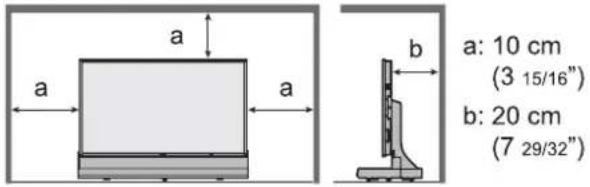
text_image
a: 10 cm (3 15/16") b: 20 cm (7 29/32)Cleaning and maintenance
The front of the display panel has been specially treated. Wipe the panel surface gently using only a cleaning cloth or a soft, lint-free cloth.
- If the surface is particularly dirty, wipe with a soft, lint-free cloth which has been soaked in pure water or water in which neutral detergent has been diluted 100 times, and then wipe it evenly with a dry cloth of the same type until the surface is dry.
- Do not scratch or hit the surface of the panel with fingernails or other hard objects, otherwise the surface may become damaged. Furthermore, avoid contact with volatile substances such as insect sprays, solvents and thinner, otherwise the quality of the surface may be adversely affected.
If the cabinet becomes dirty, wipe it with a soft, dry cloth.
- If the cabinet is particularly dirty, soak the cloth in water to which a small amount of neutral detergent has been added and then wring the cloth dry. Use this cloth to wipe the cabinet, and then wipe it dry with a dry cloth.
- Do not allow any detergent to come into direct contact with the surface of the Display. If water droplets get inside the unit, operating problems may result.
- Avoid contact with volatile substances such as insect sprays, solvents and thinner, otherwise the quality of the cabinet surface may be adversely affected or the coating may peel off. Furthermore, do not leave it for long periods in contact with articles made from rubber or PVC.
Usage of a chemical cloth
- Do not use a chemical cloth for the panel surface.
- Follow the instructions for the chemical cloth to use it for the cabinet.
Wired LAN
When setting up the Display at a place, where electric statistic occurs often, take a sufficient anti-static measure before start using.
- When the Display is used at a location, where static electricity occurs often, such as on a carpet, communications of the DIGITAL LINK and the wired LAN are disconnected more often. In that case, remove static electricity and the noise source that may cause problems with an antistatic mat, and reconnect the DIGITAL LINK and the wired LAN.
- In rare cases, the LAN connection is disabled due to static electricity or noise. In that case, turn off the power of the Display and the connected devices once and then re-turn on the power. Connect the DIGITAL LINK and the LAN.
The Display may not work properly due to strong radio wave from the broadcast station or the radio.
- If there is any facility or equipment, which outputs strong radio wave, near the installation location, set up the Display at a location sufficiently far from the source of the radio wave. Or, wrap the LAN cable connected to the DIGITAL LINK terminal by using a piece of metal foil or a metal pipe, of which is grounded at both ends.
Disposal
When disposing the product, ask your local authority or dealer about the correct methods of disposal.
Accessories
Accessories Supply
Check that you have the accessories and items shown
Operating Instructions (Book)

text_image
PanasonicOperating Instructions (CD-ROM)

text_image
PanasonicRemote Control Transmitter
N2QAYA000093

Batteries for the Remote Control Transmitter
(AAA/R03/UM4 type × 2)

Clamper × 1
- TMME289

Power supply cord
(Approx. 3 m (118"))
TH-84LQ70U
TH-98LQ70U
TH-84LQ70LU
TH-98LQ70LU
• TXFMX011UJJ
TH-84LQ70W
TH-98LQ70W
TH-84LQ70LW
TH-98LQ70LW
- TXFMX031SHW
• TXFMX011SHW
• TXFMX021SHW


These accessories will be used by professional installers when they install the unit.
Eyebolt cap × 1
- TMME375-1
Eyebolt × 1
(M12)
Panasonic badge × 1
Panasonic badge attachment plate × 1
Allen wrench × 1
(M16)





Attention
- Store small parts in an appropriate manner, and keep them away from young children.
- The part numbers of accessories are subject to change without notice. (The actual part number may differ from the ones shown above.)
- In case you lost accessories, please purchase them from your dealer indicating the part numbers above. (Available from the customer service)
- Dispose the Power supply cord cap and packaging materials appropriately after taking out the items.
Remote Control Batteries
- Pull and hold the hook, then open the battery cover.

natural_image
Illustration of a remote control device with an arrow indicating the pad or scroll (no text or symbols present)- Insert batteries - note correct polarity (+ and -).

text_image
AAA/R03/UM4 type- Replace the cover.
Helpful Hint
- For frequent remote control users, replace old batteries with Alkaline batteries for longer life.

Precaution on battery use
Incorrect installation can cause battery leakage and corrosion that will damage the remote control transmitter.
Disposal of batteries should be in an environment-friendly manner.
Observe the following precaution:
- Batteries shall always be replaced as a pair. Always use new batteries when replacing the old set.
- Do not combine a used battery with a new one.
- Do not mix battery types (example: "Zinc Carbon" with "Alkaline").
- Do not attempt to charge, short-circuit, disassemble, heat or burn used batteries.
- Battery replacement is necessary when remote control acts sporadically or stops operating the Display set.
- Do not burn or breakup batteries.
- Batteries must not be exposed to excessive heat such as sunshine, fire or the like.
Important notice when attaching the fixing brackets 98-inch model
When attaching the optional fixing brackets to 98-inch model, attach the stand hooks to the positions as shown in the picture below, in accordance with the types of fixing brackets.
Position to attach stand hook

text_image
A B CA: Ceiling-hanging bracket (Stand hooks are not needed as supplied bolt is used for installation.)
B: Wall-hanging bracket
C: Pedestal
About Eyebolt
This unit has one Eyebolt (M12) attached to the middle of the upper part at the time of shipment. When installing, use this to pull up the unit. Also, if needed, use the Eyebolt holes as shown in the picture below.
Eyebolt mounting positions
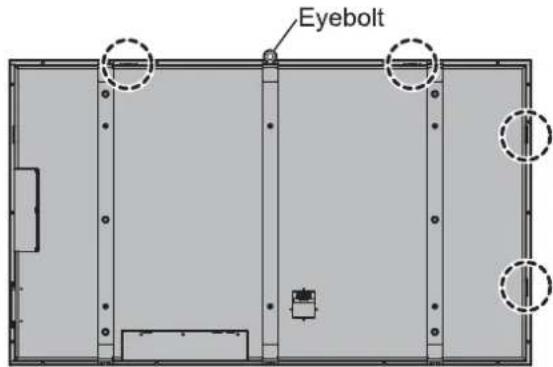
text_image
EyeboltNote
- Ask a qualified technician to carry out installation.
- Do not use Eyebolts or screws other than the ones supplied with the unit.
• After installing, remove the Eyebolt, and then close the hole with the supplied Eyebolt cap.
Vertical Installation
When installing the Display vertically, be sure that the Power Indicator comes to the downside.
Also, set [Display orientation] in [Setup] to [Portrait]. (see page 52)

text_image
Landscape Power Indicator PortraitPosition to attach Panasonic badge for vertical installation
Attaching Panasonic badge
Remove the Panasonic badge attached at the time of shipment, and then attach the supplied Panasonic badge to the position as shown in the picture above.
When removing the badge, remove with care using resinous scraper, etc. When adhesive remained, wipe off with soft cloth.
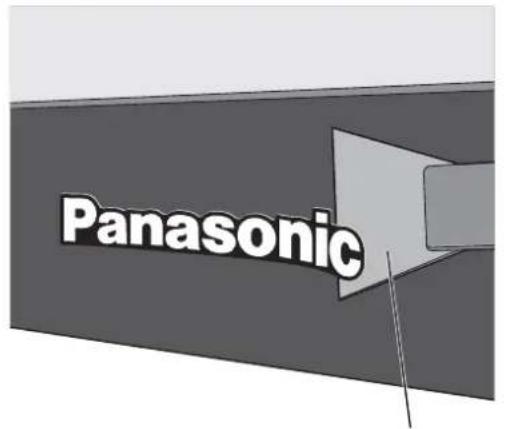
text_image
PanasonicResinous scraper
To attach the Panasonic badge, use the supplied Panasonic badge attachment plate.
As shown in the picture below, temporarily tack the Panasonic badge attachment plate by adjusting its notches to fit the 2 screws, and then attach the Panasonic badge.
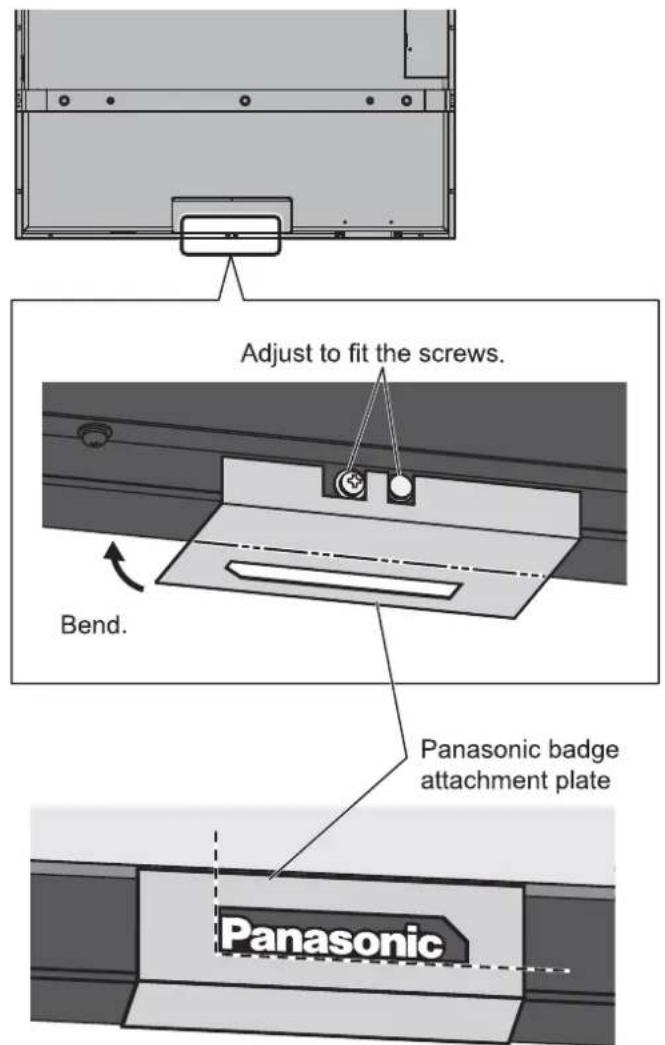
text_image
Adjust to fit the screws. Bend. Panasonic badge attachment plate PanasonicConnections
AC cord connection and fixing
Back of the unit

natural_image
Pure architectural or mechanical diagram showing a rectangular frame with vertical supports and a small inset panel (no text or symbols)AC cord fixing
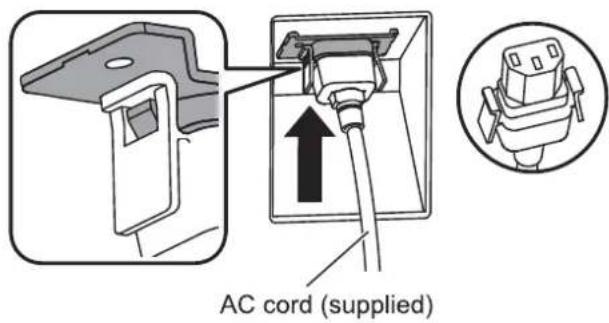
text_image
AC cord (supplied)Plug the connector into the display unit.
Plug the AC cord until it clicks.
Note
- Make sure that the AC cord is locked on both the left and right sides.
Unplug the AC cord
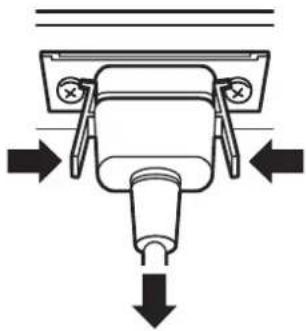
natural_image
Pure mechanical diagram showing a piston-like component with arrows indicating downward force or direction (no text or symbols)Unplug the connector pressing the two knobs.
Note
- When disconnecting the AC cord, be absolutely sure to disconnect the AC cord plug at the socket outlet first.
Cable fixing
Note
- One clamper is supplied with this unit. In case of securing cables at five positions, please purchase it separately.
If you need more clampers, purchase them from your dealer. (Available from the customer service)
84-inch model
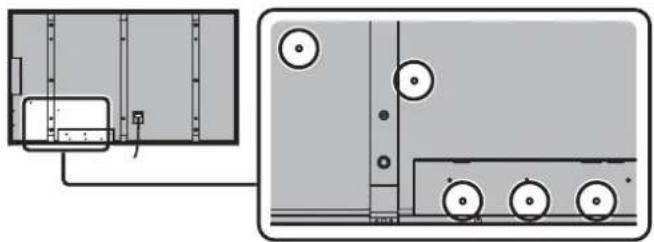
natural_image
Diagram showing a device with labeled components and wiring connections (no text or symbols present)98-inch model

natural_image
Diagram showing two views of a device with labeled components and circular elements (no text or symbols present)- Attach the clamper

text_image
Insert the clamper in a hole. hole To remove from the unit: ① ② snaps ① Keep pushing both side snaps- Bundle the cables

text_image
To loosen: hooks knob Keep pushing the knobVideo equipment connection
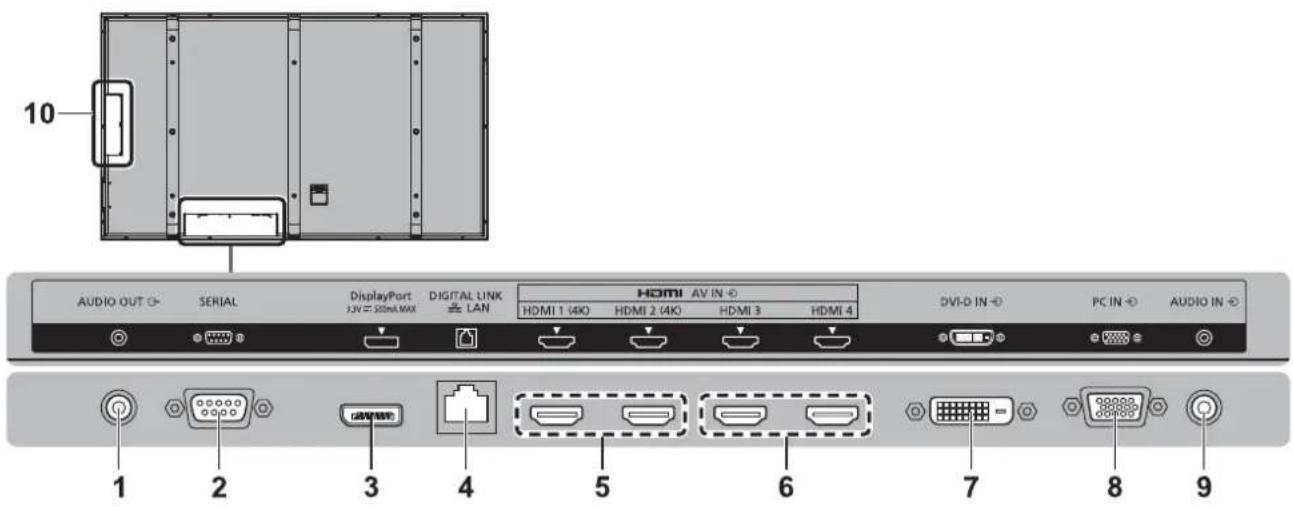
text_image
10 AUDIO OUT > SERIAL DisplayPort DIGITAL LINK HDMI AV IN HDMI 1 4KO HDMI 2 4KO HDMI 3 HDMI 4 DVI-D IN PC IN AUDIO IN 1 2 3 4 5 6 7 8 9| 1 | AUDIO OUT: | Analogue Audio Output TerminalConnect to audio equipment with analogue audio input terminal.(see page 23) |
| 2 | SERIAL: | Serial Control TerminalControl the Display by connecting to PC.(see page 20) |
| 3 | DisplayPort: | DisplayPort Input Terminal(Supports 4K picture)Connect to PC or video equipment with DisplayPort output terminal.(see page 19) |
| 4 | DIGITAL LINK / LAN*: | DIGITAL LINK Input Terminal(Supports 4K picture)Control the Display by connecting to Network.Alternatively, connect to a device that sends video and audio signals via the DIGITAL LINK terminal.(see page 22)*: DIGITAL LINK is technology that enables signals such as audio and video to be transmitted using twisted pair cables.For details, see page 64. |
| 5 | AV IN(HDMI 1,HDMI 2): | HDMI Input Terminal (Supports 4K picture)Connect to video equipment with 4K signal output or video equipment such as VCR or DVD player, etc.(see page 16) |
| 6 | AV IN(HDMI 3,HDMI 4): | HDMI Input TerminalConnect to video equipment such as VCR or DVD player, etc.(see page 16) |
| 7 | DVI-D IN: | DVI-D Input TerminalConnect to video equipment with DVI-D output.(see page 17) |
| 8 | PC IN: | PC Input TerminalConnect to video terminal of PC, video equipment with “Y, P_B(C_B) , P_R(C_R) ” or “R, G, B” output.(see page 18) |
| 9 | AUDIO IN: | Audio input terminal shared with DVI-D IN and PC IN(see page 17, 18) |
| 10 | SLOT 1,SLOT 2: | Expansion slotConnect to optional Terminal Board.(see page 7) |
HDMI 1 to 4 terminals connection
HDMI 1 and HDMI 2 terminals support 4K picture. Patterns of 4K picture input are as follows.
Note
- Set [HDMI 4K Interface] in [Setup] according to the combination of the inputs. (see page 52)
• Additional equipment and HDMI cable shown are not supplied with this set. - Some HDMI equipment may not be able to display picture.
■ Examples of 4K video device connection
4K input with one terminal
Connect one 4K video device with 1-terminal output to HDMI 1 and another to HDMI 2 terminal.
- 4K video device with 1-terminal output cannot be connected to HDMI 3 and HDMI 4 terminals.

text_image
HDMI AV IN HDMI 1 (4K) HDMI 2 (4K) HDMI 3 HDMI 4 2 3 4① Support 4K picture
② HDMI cable (not supplied)
③ 4K video device with 1-terminal output (BD Recorder, etc.)
④ DVD Player, etc. (4K picture is not supported.)
4K input with 2 terminals (Dual Link)
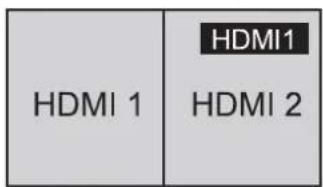
Connect one 4K video device with 2-terminal output both to HDMI 1 and to HDMI 2 terminals.
- 4K video device with 2-terminal output cannot be connected to HDMI 3 and HDMI 4 terminals.
After connecting, check that the output signal from the video device is displayed in the correct position as shown in the picture.
Displayed image
text_image
HDMI 1 HDMI 1 HDMI 2
text_image
HDMI AV IN HDMI 1 (4K) HDMI 2 (4K) HDMI 3 HDMI 4 1 2① HDMI cable (not supplied)
② 4K video device with 2-terminal output (BD Recorder, etc.)
Pin assignments and signal names for HDMI Terminal

text_image
⑲ ③① ④② ⑱| Pin No. | Signal name |
| 1 | T.M.D.S Data2+ |
| 2 | T.M.D.S Data2 Shield |
| 3 | T.M.D.S Data2- |
| 4 | T.M.D.S Data1+ |
| 5 | T.M.D.S Data1 Shield |
| 6 | T.M.D.S Data1- |
| 7 | T.M.D.S Data0+ |
| 8 | T.M.D.S Data0 Shield |
| 9 | T.M.D.S Data0- |
| 10 | T.M.D.S Clock+ |
| 11 | T.M.D.S Clock Shield |
| 12 | T.M.D.S Clock- |
| 13 | CEC |
| 14 | —— |
| 15 | SCL |
| 16 | SDA |
| 17 | DDC/CEC Ground |
| 18 | +5V DC |
| 19 | Hot Plug Detect |
DVI-D IN terminal connection
Note
• Additional equipment and cables shown are not supplied with this set.
- Use the DVI-D cable complying with the DVI standard. Image deterioration may occur depending on the length or the quality of the cable.
Shared with PC IN.

text_image
DVI-D IN PC IN AUDIO IN 1 2 3① DVI-D video cable (Within 5 m) (not supplied)
② Stereo mini plug (M3)
③ PC with DVI-D video out
Pin assignments and signal names for DVI-D Input Connector

text_image
Diagram of a device rear panel with numbered labels pointing to specific components| Pin No. | Signal Name |
| 1 | T.M.D.S. data 2- |
| 2 | T.M.D.S. data 2+ |
| 3 | T.M.D.S. data 2 shield |
| 4 | ____ |
| 5 | ____ |
| 6 | DDC clock |
| 7 | DDC data |
| 8 | ____ |
| 9 | T.M.D.S. data 1- |
| 10 | T.M.D.S. data 1+ |
| 11 | T.M.D.S. data 1 shield |
| 12 | ____ |
| 13 | ____ |
| 14 | +5 V DC |
| 15 | GND (Ground) |
| 16 | Hot plug detect |
| 17 | T.M.D.S. data 0- |
| 18 | T.M.D.S. data 0+ |
| 19 | T.M.D.S. data 0 shield |
| 20 | ____ |
| 21 | ____ |
| 22 | T.M.D.S. clock shield |
| 23 | T.M.D.S. clock+ |
| 24 | T.M.D.S. clock- |
PC IN terminal connection

text_image
Shared with DVI-D IN. DVI-D IN ⊖ PC IN ⊖ AUDIO IN ⊖ (Female) (Male) 1 2 3 Connect a cable which matches the audio output terminal on the computer. (not supplied)
natural_image
Line drawing of a laptop with a screen and a small circular object on the front panel (no text or symbols)① Mini D-sub 15p (not supplied)
② Conversion adapter (if necessary) (not supplied)
③ Stereo mini plug (M3)
4 COMPUTER
The type of computer signal that can be connected
- With regard to the typical PC input signals that are described in "Preset Signals" (see page 77), adjustment values such as for the standard picture positions and sizes have already been stored in this unit. You can add up to eight PC input signal types that are not included in the list.
- Computer signals which can be input are those with a horizontal scanning frequency of 15 to 110 kHz and vertical scanning frequency of 48 to 120 Hz.
- The display resolution is a maximum of 1 440 × 1 080 dots when the aspect mode is set to [4:3], and 1 920 × 1 080 dots when the aspect mode is set to [16:9]. If the display resolution exceeds these maximums, it may not be possible to show fine detail with sufficient clarity.
- In [ENGLISH(US)] OSD language, [16:9] is displayed as [FULL].
Note
- The PC IN terminal is DDC2B-compatible. If the computer being connected is not DDC2B-compatible, you will need to make setting changes to the computer at the time of connection.
• Some PC models cannot be connected to the set. -
There is no need to use an adapter for computers with DOS/V compatible Mini D-sub 15P terminal.
-
The computer shown in the illustration is for example purposes only.
• Additional equipment and cables shown are not supplied with this set. - Do not set the horizontal and vertical scanning frequencies for PC signals which are above or below the specified frequency range.
- Component Input is possible with the pin 1, 2, 3 of the Mini D-sub 15P Connector.
- Change the [Component/RGB-in select] setting in the [Signal] menu to [Component] (when Component signal connection) or [RGB] (when RGB signal connection). (see page 44)
Pin assignments and signal names for PC Input Terminal (Mini D-sub 15P)

| Pin No. | Signal Name |
| 1 | R (PR/CR) |
| 2 | G (Y) |
| 3 | B (PB/CB) |
| 4 | NC (not connected) |
| 5 | GND (Ground) |
| 6 | GND (Ground) |
| 7 | GND (Ground) |
| 8 | GND (Ground) |
| 9 | +5 V DC |
| 10 | GND (Ground) |
| 11 | NC (not connected) |
| 12 | SDA |
| 13 | HD/SYNC |
| 14 | VD |
| 15 | SCL |
DisplayPort terminal connection

flowchart
graph TD
    A["DisplayPort 3.3V 500mA MAX"] --> B["Digital Link LAN"]
    B --> C["HDMI 1 (4K)"]
    D["Device 1"] --> E["Device 2"]
① DisplayPort cable (not supplied)
② PC with DisplayPort output
Note
- Please use DisplayPort 1.2 compliant cable.
Depending on the types of cable or mini connector adaptor used, 4K picture may not be displayed. - In connecting with PC which uses early chipsets or graphic cards compatible with DisplayPort, if the DisplayPort output of the PC is connected to this unit, malfunction of this unit or the PC may occur. In that case, turn the power of the unit or the PC off, and then turn it on again.
When inputting DisplayPort output to this unit, it is recommended to use the PC which the newest Chipset and Graphics Cards are used.
Pin assignments and signal names for DisplayPort

text_image
⑲ ③① ④② ⑳| Pin No. | Signal Name |
| 1 | ML_Lane 3 (n) |
| 2 | GND (Ground) |
| 3 | ML_Lane 3 (p) |
| 4 | ML_Lane 2 (n) |
| 5 | GND (Ground) |
| 6 | ML_Lane 2 (p) |
| 7 | ML_Lane 1 (n) |
| 8 | GND (Ground) |
| 9 | ML_Lane 1 (p) |
| 10 | ML_Lane 0 (n) |
| 11 | GND (Ground) |
| 12 | ML_Lane 0 (p) |
| 13 | CONFIG1 |
| 14 | CONFIG2 |
| 15 | AUX_CH (p) |
| 16 | GND (Ground) |
| 17 | AUX_CH (n) |
| 18 | Hot Plug Detect |
| 19 | GND (Ground) |
| 20 | + 3.3 V DC output |
SERIAL terminal connection
The SERIAL terminal conforms to the RS-232C interface specification, so that the Display can be controlled by a computer which is connected to this terminal.

text_image
AUDIO OUT ⬤ SERIAL DisplayPort 3.3V ≈ 500mA MAX (Male) (Female) 1 D-sub 9p 2① RS-232C Straight cable (not supplied)
② COMPUTER, etc.
Note
- Use the RS-232C straight cable to connect the computer to the Display.
• The computer shown is for example purposes only.
• Additional equipment and cables shown are not supplied with this set.
The computer will require software which allows the sending and receiving of control data which satisfies the conditions given below. Use a computer application such as programming language software. Refer to the documentation for the computer application for details.
Pin assignments and signal names for SERIAL Terminal

text_image
⑨ ⑧ ⑦ ⑥ ⑤ ④ ③ ② ①| Pin No. | Signal Name | |
| 1 | NC (not connected) | |
| 2 | RXD | |
| 3 | TXD | |
| 4 | Non use | |
| 5 | GND (Ground) | |
| 6 | Non use | |
| 7 | RTS | Shorted in this set |
| 8 | CTS | |
| 9 | NC (not connected) | |
These signal names are those of computer specifications.
Communication parameters
Signal level: RS-232C compliant
Synchronization method: Asynchronous
Baud rate: 9600 bps
Parity: None
Character length: 8 bits
Stop bit: 1 bit
Flow control: None
Basic format for control data
The transmission of control data from the computer starts with a STX signal, followed by the command, the parameters, and lastly an ETX signal in that order. If there are no parameters, then the parameter signal does not need to be sent.
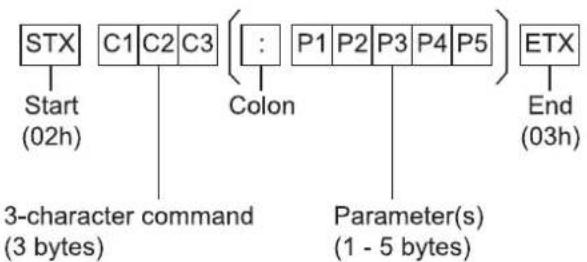
text_image
STX Start (02h) C1 C2 C3 Colon P1 P2 P3 P4 P5 ETX End (03h) 3-character command (3 bytes) Parameter(s) (1 - 5 bytes)Command
| Command | Parameter | Control details |
| PON | None | Power ON |
| POF | None | Power OFF |
| AVL | ** | Volume 00 - 63 |
| AMT | 0 | Audio MUTE OFF |
| 1 | Audio MUTE ON | |
| IMS | None | Input select (toggle) |
| SL1 | SLOT 1 input(SLOT1) | |
| S1A | SLOT 1A input(SLOT1A) | |
| S1B | SLOT 1B input(SLOT1B) | |
| SL2 | SLOT 2 input(SLOT2) | |
| SL2A | SLOT 2A input(SLOT2A) | |
| SL2B | SLOT 2B input(SLOT2B) | |
| HM1 | HDMI 1 input(HDMI1) | |
| HM2 | HDMI 2 input(HDMI2) | |
| HM3 | HDMI 3 input(HDMI3) | |
| HM4 | HDMI 4 input(HDMI4) | |
| DP1 | DisplayPort input(DisplayPort) | |
| DV1 | DVI-D IN input(DVI-D) | |
| PC1 | PC IN input (PC) | |
| DL1 | DIGITAL LINK input(DIGITAL LINK) |
Note
- If multiple commands are transmitted, be sure to wait for the response for the first command to come from this unit before sending the next command.
- The unit normally responds to the received commands within 200ms.
If the response does not come after 1 second, a communication error might have occurred, so send the command again. - When sending a command which does not require parameter, a colon (:) is not needed.
- If an incorrect command is sent by mistake, this unit will send an "ER401" command back to the computer.
- In Standby condition (power OFF with remote control), the unit responds to PON command only. After sending "PON", send the next command after 15 seconds.
- S1A and S1B of Command IMS are available only when a dual input terminal board is attached.
- Consult your local Panasonic dealer for detail instructions on command usage.
DIGITAL LINK terminal connection
A twisted pair cable transmitter such as the Panasonic Digital Interface Box (ET-YFB100G) uses twisted pair cables to transmit inputted video and audio signals, and these digital signals can be input to the Display via the DIGITAL LINK terminal.

flowchart
graph TD
    A["DisplayPort 3.3V 500mA MAX"] --> B["Digital Link LAN"]
    B --> C["Analogou signal is output as Digital signal."]
    C --> D["Computer"]
    D --> E["Video IN"]
    D --> F["COMPUTER 1 IN"]
    D --> G["COMPUTER 2 IN"]
    E --> H["Remote In"]
    E --> I["Serial In"]
    E --> J["DC IN 16V"]
    E --> K["Digital Link"]
    E --> L["LAN"]
    F --> M["Video IN"]
    F --> N["COMPUTER 1 IN"]
    F --> O["COMPUTER 2 IN"]
    G --> P["HDMI"]
    G --> Q["In-1"]
    G --> R["In-2"]
    G --> S["In-3"]
    G --> T["In-4"]
    G --> U["In-5"]
① Computer to control the unit
② When a Panasonic ET-YFB100G is used
③ Computer
④ Video Cassette Recorder
⑤ DVD Player
Note
- When connecting with DIGITAL LINK, be sure to configure each of the [Network settings] settings. For the cautions for DIGITAL LINK setting and connection, see page 65 to 70.
- Corresponding signal for DIGITAL LINK input is the same as that of HDMI input.
- The Panasonic Digital Interface Box (ET-YFB100G) does not correspond to 4K signal.
AUDIO OUT terminal connection

text_image
AUDIO OUT ⬤ SERIAL 1 L R line-in 2① Stereophonic sound code (not supplied)
② Audio equipment
Note
• Audio equipment and the cable shown are not supplied with this set.
- To output sound from AUDIO OUT Terminal of the unit, be sure to set [Output select] in the [Sound] menu to [AUDIO OUT]. (see page 36)
Identifying Controls
Main Unit
text_image
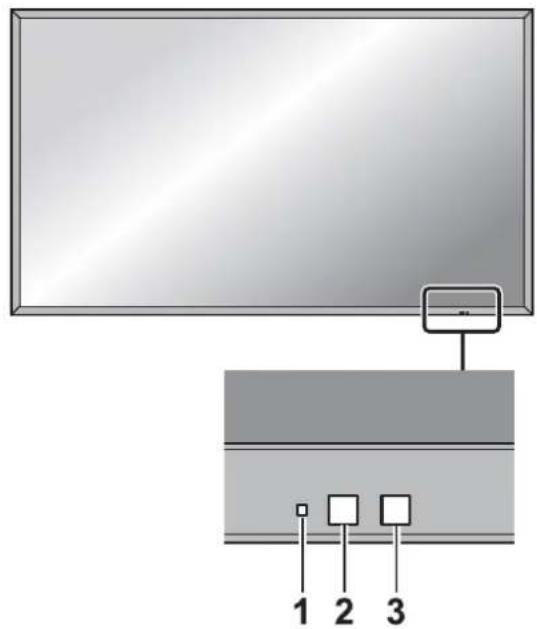
Diagram showing a monitor with labeled components and a zoomed-in view of the screen, marked with numbered pins 1, 2, and 3.1 Power Indicator
The Power Indicator will light.
When the power of the unit is ON (Main Power On / Off switch: ON)
• Picture is displayed: Green
- Power OFF (Standby) with remote control: Red When [Network control] is set to [On] (see page 54): Orange
- Power OFF with "Power management" function: Orange
"Power management" function (see page 48)
When the power of the unit is OFF (Main Power On / Off switch: OFF): No light
Note
- The unit will still consume some power as long as the power cord is still inserted into the wall outlet.
- When the power indicator is orange, power consumption during standby is generally larger than that of when the power indicator is red.
2 Remote control sensor
3 Brightness Sensor
- Detects the brightness in the viewing environment. (see page 47)

text_image
1 2 3 4 +/▲ VOL -/▼ MENU 5 6 INPUT ○/I 71 SLOT 1, SLOT 2
- Connect to Terminal Board (optional accessories). (see page 7)
2 External Input Terminal
- Connect to video equipment, PC, etc. (see page 16)
3
- Configures the item on menu screen. Switches aspect mode. (see page 33)
- While the item is selected on the menu screen, by pressing
, ▲▼ on the button operation guide will be switched to ◀▶.
4 /
• Volume Up "+" Down "-"
- When the menu screen is displayed:
“+”: press to move the cursor up
“-”: press to move the cursor down (see page 29, 33)
5
• Each time the
- Do not place any objects between the unit's remote control signal receiver and the remote control.
- Situate the unit away from sunshine or other sources of bright light not to shine on the unit's remote control signal receiver.
- In this manual, buttons of the remote control and the unit are indicated as < >.
(Example:.)
The operation is mainly explained indicating the remote control buttons but you can also operate with the buttons on the unit when there are the same buttons.
Basic Controls

text_image
AC socket outlet Power supply cord (supplied) Remote Control Sensor Power Indicator Main Power On / Off switchOperate pointing the remote control directly at the unit's Remote Control Sensor.

text_image
POWER ON I ASPECT MULTI DISPLAY AUTO SETUP DEFAULT RETURN ENTER INPUT RECALL MUTE VOL- VOL+ PICTURE SOUND SETUP POSITION OFF TIMER ECO 1 2 3 4 5 6 7 8 9 FUNCTION GROUP 0 ID SET ON OFF Panasonic ID MODE DISPLAY1 Connect the AC cord plug to the Display.
(see page 14)
2 Connect the plug to the socket outlet.
Note
- Main plug types vary between countries. The power plug shown at left may, therefore, not be the type fitted to your set.
- When disconnecting the AC cord, be absolutely sure to disconnect the AC cord plug at the socket outlet first.
3 Press the on the unit to turn the set on: Power-On.
• Power Indicator: Green (Picture is displayed.)
- When the power of the unit is ON, remote control operation is possible.
■ To turn the power ON/OFF with the remote control
Press the
• Power Indicator: Green (Picture is displayed.)
Press the
• Power Indicator: Red (standby)
Press the
Note
- During operation of the "Power management" function, the power indicator turns orange in the power off state.
"Power management" function (see page 47)
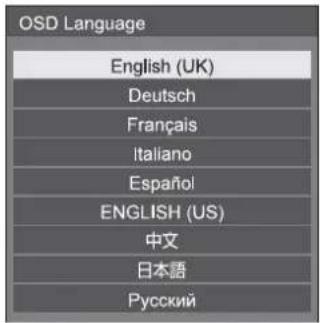
■ When the Unit is turned on for the first time
Following screen will be displayed.
Set with the remote control. Unit buttons are invalid.
1 Select the language with ▲▼ and press .
text_image
OSD Language English (UK) Deutsch Français Italiano Español ENGLISH (US) 中文 日本語 Русский2 Select [Day] or [Time] with ▲▼ and set with ◀▶.
![PANASONIC TH-98LQ70LW - Select [Day] or [Time] with ▲▼ and set with ◀▶. - 1](/content/2026/05/1100567/images/109a18ccb16b7f98d6987f93474bdd702eae397c1c244d90a932b2a36c12b58e.jpg)
text_image
Day/Time settings Time MONDAY 99:99 Set Day TUESDAY Time 18:003 Select [Set] with ▲▼ and press .
![PANASONIC TH-98LQ70LW - Select [Set] with ▲▼ and press . - 1](/content/2026/05/1100567/images/2d721c2758c5f65bb660f1dc2ac5e9e342fefb136d0c4d098bfb0cdaf13f8a00.jpg)
text_image
Day/Time settings Time TUESDAY 18:00 Set Day TUESDAY Time 18:004 For vertical installation, select [Portrait] with ▲▼ and press .
![PANASONIC TH-98LQ70LW - For vertical installation, select [Portrait] with ▲▼ and press . - 1](/content/2026/05/1100567/images/ccd9fbb01c253df2fed59b1ac396b4a8cec0abf2a989563ed1ce9692f0ea7854.jpg)
text_image
Display orientation Landscape Portrait5 Select [On] or [Off] with ◀▶ and press .
![PANASONIC TH-98LQ70LW - Select [On] or [Off] with ◀▶ and press . - 1](/content/2026/05/1100567/images/74ba4ec9bebc647bd70d553bc7374f1595e2257095f3e81f942092fee2cb2f88.jpg)
text_image
High altitude mode Switch to high altitude mode "On" if over 1400m(4593Ft). On OffNote
- Once the items are set, the screens won't be displayed when switching on the unit next time. After the setting, the items can be changed in the following menus. [OSD language] (see page 53) [Day/Time settings] (see page 51) [Display orientation] (see page 52) [High altitude mode] (see page 52)
■ Power ON message
The following message may be displayed when turning the unit power ON:
No activity power off Precautions
'No activity power off' is enabled.
When [No activity power off] in the [Setup] menu is set to [Enable], a warning message is displayed every time the power is turned ON. (see page 52)
"Power management" Information
Last turn off due to 'Power management'.
When "Power management" is functioned, an information message is displayed every time the power is turned ON. (see page 47)
These message displays can be set with the following menu:
- [Options] menu Power on message(No activity power off) (see page 62) Power on message(Power management) (see page 63)
Selecting the input signal
Select the signals input to the unit.
Press or

text_image
POWER ON STANDBY I ASPECT MULTI DISPLAY AUTO SETUP DEFAULT RETURN ENTER INPUT RECALL MUTE VOL- VOL+ PICTURE SOUND SETUP Unit ENTER +/▲ VOL -/▼ MENU INPUT ∅/ISwitches input every time the buttons are pressed.
- Or, press , select the input with ▲▼ and press

text_image
INPUT HDMI1 HDMI2 HDMI3 HDMI4 DisplayPort DIGITAL LINK DVI-D PC SDI1 SDI2 SDI3 SDI4 1 2 3 4 5 6 7 8 91 Input in HDMI 1 terminal (Supports 4K picture)*
2 Input in HDMI 2 terminal (Supports 4K picture)*
3 Input in HDMI 3 terminal*
4 Input in HDMI 4 terminal*
5 Input in DisplayPort terminal (Supports 4K picture)
6 Input in DIGITAL LINK terminal (Supports 4K picture)
7 Input in DVI-D IN terminal
8 Input in PC IN terminal
9 Displayed when the optional "3G-SDI Terminal Board with Audio" (TY-TBN03G) is connected.
*: During 4K picture input, [HDMI1] - [HDMI4] may be displayed differently depending on the settings of [Setup] - [HDMI 4K Interface]. (see page 52)
Note
- Displays the signal name as set in [Input label]. (see page 49)
- Outputs the sound as set in [Audio input select] in the [Options] menu. (see page 58)
- Input will not be switched unless [Input lock] is set to [Off]. (see page 59)
- Image retention (image lag) may occur on the LCD display panel when a still picture is kept on the panel for an extended period. To prevent such a problem, using the screensaver is recommended. (see page 46)
RECALL
It is possible to check the setting status of input label, picture mode, etc.
Press

text_image
POWER ON I ASPECT MULTI DISPLAY DEFAULT AUTO SETUP RETURN ENTER INPUT RECALL MUTE VOL- VOL+Current setting status will be displayed.

text_image
HDMI 1 16:9 AUDIO IN Memory name: MEMORY2 1 2 3 4
text_image
10:00 Off timer 90 min 5 61 Input label
2 Aspect mode (see page 30)
3 Audio input (see page 58)
4 Profile name (see page 41)
5 Off timer remaining time (see page 29)
6 Clock / Mute (see page 29)
- When there is no signal to the selected input, [No Signal] is displayed for about 30 seconds at the end.
- To display the clock, set [Time], and then set [Clock display] to [On]. (see page 51, 62)
- You can set its position to be displayed with [Setup] - [OSD position]. (see page 52)
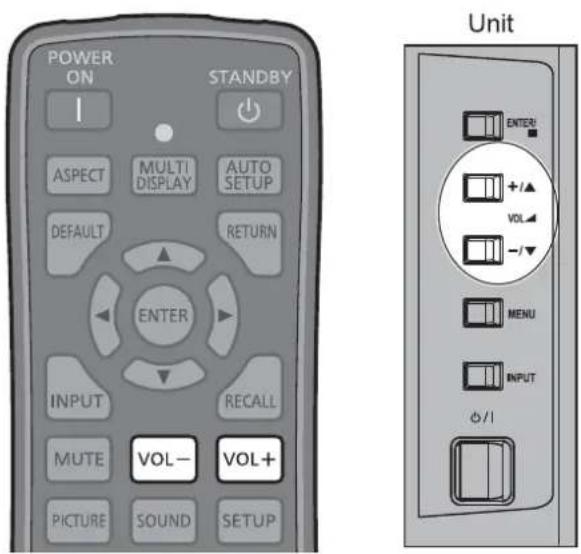
Volume Adjustment
Press
text_image
POWER ON STANDBY I ASPECT MULTI DISPLAY AUTO SETUP DEFAULT RETURN ENTER INPUT RECALL MUTE VOL- VOL+ PICTURE SOUND SETUP Unit ENTER: +/▲ VOL- -/▼ MENU INPUT 0/1Volume
20
- The current sound volume level is memorised even if the power is turned off.
- When [Maximum VOL level] is set to [On], the volume can only be adjusted to the maximum point you set, and the displayed value turns red when it reached its maximum. (see page 59)
Sound mute On / Off
It is useful when you want to mute the sound temporarily, for example, when answering the phone or door.
Press .
- 📄 appears on the screen and the sound is muted. Press again to reactivate the sound.
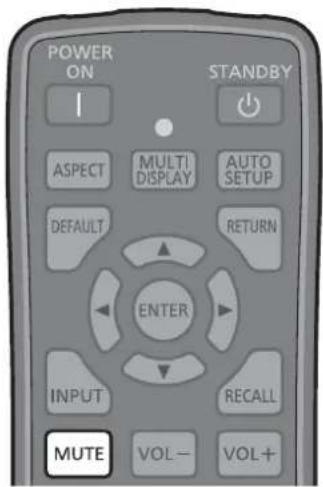
text_image
POWER ON I ASPECT MULTI DISPLAY AUTO SETUP DEFAULT RETURN ENTER INPUT RECALL MUTE VOL - VOL+- It is also reactivated when the power is turned on / off or the volume level is changed.
- While MUTE is active, ☒ is displayed as a reminder after operation.
- In [ENGLISH(US)] OSD language, ☒ is displayed as [MUTE].
OFF TIMER
The Display can be preset to switch to stand-by after a fixed period. (30 min, 60 min, 90 min)
The setting switches each time is pressed.
• [30 min] → [60 min] → [90 min] → [0 min] (Cancel)
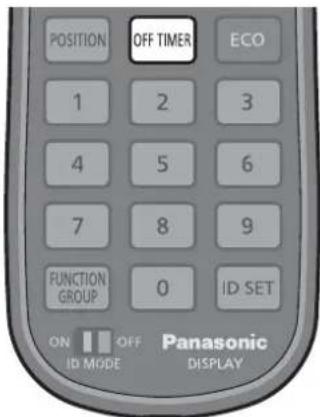
text_image
POSITION OFF TIMER ECO 1 2 3 4 5 6 7 8 9 FUNCTION GROUP 0 ID SET ON OFF Panasonic ID MODE DISPLAY- When three minutes remain, the remaining time will flash (Red). After that, it switches to stand-by.
- To see the Off timer remaining time, press
. - The Off timer is cancelled if a power interruption occurs.
ASPECT Controls
Press

text_image
POWER ON STANDBY I ASPECT MULTI DISPLAY AUTO SETUP DEFAULT RETURN ENTER INPUT RECALL MUTE VOL- VOL+ PICTURE SOUND SETUP Unit ENTER/ +/▲ VOL▲ -/-▼ MENU INPUT 0/1The Display will allow you to enjoy viewing the picture at its maximum size, including wide screen cinema format picture.
$$ [ 4: 3 ] \rightarrow [ \text { Zoom1 } ] \rightarrow [ \text { Zoom2 } ] \rightarrow [ 1 6: 9 ] $$
Note
- The aspect mode is memorised separately for each input terminal.
■ List of Aspect Modes
| Aspect mode | Description |
| 16:9 |  Pictures are displayed filling the screen.For SD signal, pictures with a 4:3 aspect ratio are enlarged horizontally.This mode is suited for displaying anamorphic pictures with a 16:9 aspect ratio. Pictures are displayed filling the screen.For SD signal, pictures with a 4:3 aspect ratio are enlarged horizontally.This mode is suited for displaying anamorphic pictures with a 16:9 aspect ratio. |
| Aspect mode | Description |
| 4:3 | 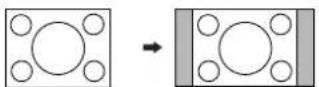 Pictures with a 4:3 aspect ratio are displayed with their original aspect ratio. Side panels are displayed at the left and right edges of the screen. Pictures with a 4:3 aspect ratio are displayed with their original aspect ratio. Side panels are displayed at the left and right edges of the screen. |
 Pictures with a 4:3 aspect ratio in 16:9 signals are displayed with their original aspect ratio. The left and right edges of the pictures are masked by side panels. Pictures with a 4:3 aspect ratio in 16:9 signals are displayed with their original aspect ratio. The left and right edges of the pictures are masked by side panels. | |
| Zoom1 |  Letterbox pictures with a 16:9 aspect ratio are enlarged vertically and horizontally to fill the screen. The top and bottom edges of the pictures are cut off. Letterbox pictures with a 16:9 aspect ratio are enlarged vertically and horizontally to fill the screen. The top and bottom edges of the pictures are cut off. |
| Zoom2 |  Letterbox pictures with a 16:9 aspect ratio are enlarged vertically and horizontally to fill the screen. The top and bottom edges as well as the left and right edges of the pictures are cut off. Letterbox pictures with a 16:9 aspect ratio are enlarged vertically and horizontally to fill the screen. The top and bottom edges as well as the left and right edges of the pictures are cut off. |
Note
- Do not allow the picture to be displayed in 4:3 mode for an extended period, as this can cause a permanent image retention to remain on the Display Panel.
- Be aware that if you put the display in a public place for commercial purposes or a public showing and then use the aspect mode select function to shrink or expand the picture, you may be violating the copyright under copyright law. It is prohibited to show or alter the copyrighted materials of other people for commercial purposes without the prior permission of the copyright holder.
- In [ENGLISH(US)] OSD language, [16:9] is displayed as [FULL].
4 Input multi display
Displays the pictures input from 4 devices in "1-screen display" by dividing the screen into 4 sections.
4-screen display
Press
Switches "1-screen display" and "4-screen display" every time the button is pressed.
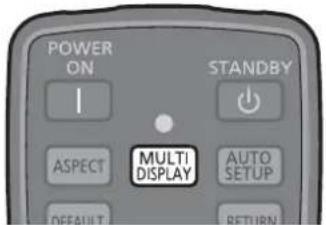
text_image
POWER ON I ASPECT MULTI DISPLAY DEFAULT STANDBY AUTO SETUP RETURN1-screen display

text_image
HDMI1

4-screen display

text_image
HDMI1 HDMI2 HDMI3 HDMI4Note
- The remote control is used for all the operations of 4 Input multi display. Unit buttons cannot be used for these operations.
- Set the input to display in "4-screen display" in [Setup] - [4 Input multi display settings].
(see page 43) - 4K picture with 1-terminal or 2-terminal input or input from SLOT cannot be displayed in "4-screen display".
When connecting 4K video device to HDMI 1 or HDMI 2 terminals, change settings to output signal other than 4K.
For details, refer to the manual of the video device being used. - In "4-screen display", the sound set in [Sound] - [4 Input multi display audio select] will be output. (see page 36)
- When displaying 4K picture with 4-terminal input from HDMI 1 to HDMI 4, match the Picture adjustment values of the 4 inputs, since those of the each input are reflected. However, there are cases where the lines are visible on the borders of the screens. (see page 37)
Changing "4-screen display" to "1-screen display"
While displaying in "4-screen display", select 1 of them to display in "1-screen display".
1 Select the screen with ▲▼◀▶.
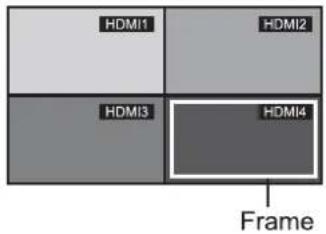
text_image
HDMI1 HDMI2 HDMI3 HDMI4 FrameFrame appears when the cursor buttons are pressed. Move the frame to the screen you want to display in "1-screen display".
- The frame disappears when there is no operation for more than 5 seconds.
- The frame also appears when the following buttons are pressed:
Move it using the cursor buttons.
2 Press .
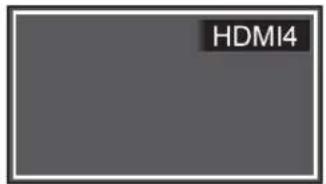
text_image
HDMI4- The selected screen is displayed in "1-screen display".
- Press
to put back to "4-screen display" while displaying the frame. will be invalid after the frame disappeared. To display in "4-screen display" again, press .
Switching the input of "4-screen display"
1 Select the screen with ▲▼◀▶.
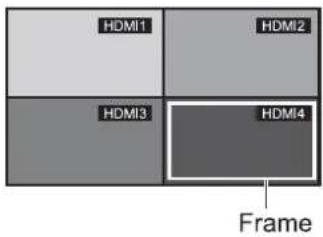
text_image
HDMI1 HDMI2 HDMI3 HDMI4 FrameFrame appears when the cursor buttons are pressed. Move the frame to the screen you want to switch input.
- The frame disappears when there is no operation for more than 5 seconds.
- The frame also appears when the following buttons are pressed:
Move it using the cursor buttons.
2 Press to switch input.
Selecting the input signal (see page 28)

text_image
HDMI1 HDMI2 HDMI3 PCNote
- Depending on the input combination of the following 4 screens, the input unable to be switched will be greyed out.
Input combination of 4 screens
It is possible to select 1 input from each of the following 4 groups (A to D).

flowchart
graph TD
    A["Port A"] -->|HDMI1| B["Port B"]
    A -->|HDMI2| B
    A -->|DisplayPort| B
    A -->|DIGITAL LINK| B
    B -->|HDMI1| C["Port C"]
    B -->|HDMI2| C
    B -->|DisplayPort| C
    B -->|DIGITAL LINK| C
    C -->|HDMI3| D["Port D"]
    C -->|HDMI4| D
    C -->|DVI-D| D
    C -->|PC| D
    note[" A to D can be displayed on any quarter of the screen. "]
    note right of A: [Screen with four vertical color blocks]
    note right of D: [Screen with four vertical color blocks]
Note
- It is possible to display an image from 1 input in 4-screen display.
Example: HDMI1 for all the 4 screens - When 1 input is displayed in 2 to 4-screen display, the picture may look slightly different from each other, but it is not a malfunction.
- For details on input combinations which are possible to display, refer to the document on the site below. http://panasonic.net/prodisplays/download/specsheets02.html
On-Screen Menu Displays
1 Display the menu screen.

text_image
Remote Control MUTE VOL- VOL+ PICTURE SOUND SETUP POSITION OFF TIMER ECO Press to select.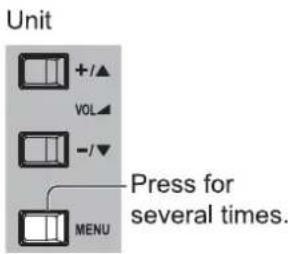
text_image
Unit +/▲ VOL -/▼ MENU Press for several times.Each time the button is pressed, the menu screen will switch.
Normal Viewing → [Picture] → [Setup] → [Position] → [Sound]
2 Select the item.

text_image
DEFAULT RETURN ENTER INPUT RECALL
text_image
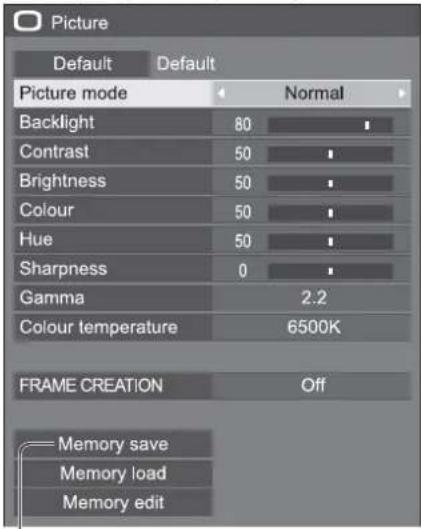
ENTER ② Press. + /▲ VOL - /▼ ① Press to select.(Example: [Picture] menu)
text_image
Picture Default Default Picture mode Normal Backlight 80 Contrast 50 Brightness 50 Colour 50 Hue 50 Sharpness 0 Gamma 2.2 Colour temperature 6500K FRAME CREATION Off Memory save Memory load Memory editSubmenu
Press
3 Set.

text_image
DEFAULT RETURN ENTER INPUT RECALL
text_image
ENTER/ ② Press. + /▲ VOL - /▼ ① Press to select.4 Exit from the menu.

text_image
MUTE VOL- VOL+ PICTURE SOUND SETUP POSITION OFF TIMER ECO Press.
Press
Menu display list
- Menu that cannot be adjusted is greyed out. Adjustable menu changes depending on signal, input and menu setting.
[Picture] menu

text_image
Picture Default Default Picture mode Normal Backlight 80 Contrast 50 Brightness 50 Colour 50 Hue 50 Sharpness 0 Gamma 2.2 Colour temperature 6500K FRAME CREATION Off Memory save Memory load Memory edit(see page 37-38)
[Setup] menu

text_image
Setup 4 Input multi display settings Network settings Signal Screensaver ECO mode settings Input label Function button settings On/Off timer settings Day/Time settings HDMI 4K Interface Single [HDMI1,HDMI2] Display orientation Landscape High altitude mode Off No activity power off Disable Menu display duration 60 sec OSD brightness 5 OSD position Right OSD language English(UK)(see page 43-55)
[Position] menu

text_image
Position Default Default Auto setup H-position 0 H-size 0 V-position 0 V-size 0 Dot clock 0 Clock phase 0 Clamp position 0 Over scan On(see page 34-35)
[Sound] menu

text_image
Sound Default Default Output select SPEAKERS Sound mode Normal Bass 0 Mid 0 Treble 0 Balance 0 Surround Off 4 input multi display audio select Off(see page 36)
Adjusting Position
1 Press to display the [Position] menu.
![PANASONIC TH-98LQ70LW - Press to display the [Position] menu. - 1](/content/2026/05/1100567/images/d2335485af7b61bb400fa9aeb4c4f258d8b9aa8352ce9f5b051c54a9a1f8c599.jpg)
text_image
Position Default Default Auto setup H-position 0 H-size 0 V-position 0 V-size 0 Dot clock 0 Clock phase 0 Clamp position 0 Over scan On2 Select the item to adjust with ▲▼.
- Unadjustable items are greyed out. Adjustable items differ depending on the input signal and the display mode.
3 Adjust with ◀▶.
4 Press to exit from adjust mode.
■ To return to the previous screen
Press
■ To reset to defaults
Press
Note
- [Position] cannot be adjusted during 4 Input multi display.
- [Position] is invalid during 4K picture mode. 4K format signal will be displayed filling the entire screen.
- For 4096 × 2160 signal (2048 × 1080 signal), the left and right side of the picture will be cut off according to the pixel number of the panel.
- Settings for [Position] are memorised separately for each input terminal.
Setting [Position] when the display is installed vertically
When adjusting, please note that even when the display is installed vertically, setting directions of position / size are the same as that of horizontal installation.
Auto setup
When inputting a PC signal as an example, [H-position] / [V-position], [H-size] / [V-size], [Dot clock] and [Clock phase] are automatically corrected.
This setting is enabled under the following conditions:
- When inputting an analogue signal (PC):
This setting is enabled when [Component/RGB-in select] (see page 44) in [Signal] menu is [RGB]. - When inputting a digital signal (HDMI/DVI-D/DisplayPort):
A PC format signal enables this setting.
This setting is enabled when the signal is not PC format or [Over scan] (see page 35) is [Off]. [H-size] / [V-size] is not automatically adjusted.
While displaying the picture of the corresponding signal, select [Auto setup] and press .
Using Remote Control
Press .
When Auto Setup does not work, [Invalid] is displayed.
Auto mode
When the [Auto setup] is set to [Auto] in the [Options] menu (see page 62), automatic position adjustment starts:
- When the display power is turned ON.
- When the input signal is switched.
Note
• [Auto setup] is invalid during 4K picture mode.
- When the dot clock frequency of an analogue signal is 162 MHz or higher, [Dot clock] and [Clock phase] cannot be automatically corrected.
- During digital signal input, auto setup for [Dot clock] and [Clock phase] cannot be made.
- Auto Setup may not work when a cropped or dark image is input. In such case, switch to a bright image with borders and other objects are clearly shown, and then try auto setup again.
- Depending on the signal, out of alignment may occur after Auto Setup. Carry out fine tuning for the position/size as required.
- If Auto Setup cannot set properly for vertical frequency 60Hz XGA signal (1024×768@60Hz, 1280×768@60Hz, and 1366×768@60Hz), pre-selecting the individual signal in [XGA mode] (see page 44) may results in correct Auto Setup.
- Auto Setup does not work well when a signal such as additional information is superimposed out of valid image period or intervals between synchronizing and image signals are short, or for image signal with tri-level synchronizing signal added.
- If Auto Setup does not work well, select [Default], press
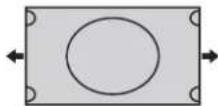
[H-position] Adjust the horizontal position with ◀▶.


[H-size] Adjust the horizontal size with ◀▶.

[V-position] Adjust the vertical position with ◀▶.
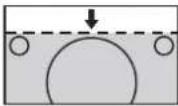

[V-size] Adjust the vertical size with ◀▶.


[Dot clock] (During PC input signal)
Periodic striped pattern interference (noise) may occur when a striped pattern is displayed. If this happens, adjust so that any such noise is minimized.
[Clock (During PC input signal)]
In some cases, frame of the screen appears blurred or smudged, when RGB signal or PC signal are input.
[Clamp (During PC input signal)]
Adjusts the clamp position when black parts of the image have no detail due to underexposure or are tinged with green.
Optimum value for Clamp Position adjustment
When black parts have no detail due to underexposure (blackout)
- Value that causes least blackout is the optimum.
When black parts are tinged with green - Value that cancels the greenishness without causing blackout is the optimum.
[Over scan] Turn image over scan On/Off.
Configurable signals are as follows: 525i, 525p, 625i, 625p, 750/60p, 750/50p (Component Video, RGB, DVI-D, SDI, HDMI)
1125 (1080) / 60i, 50i, 60p, 50p, 24p, 25p, 30p
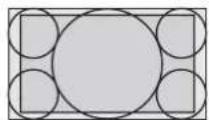
[On]

[Off]
Note
- This menu cannot be adjusted during 4K mode.
- When [Off] is set, [H-size] and [V-size] cannot be adjusted.
Note
- In some cases, noise appears outside the area picture is displayed, but it is not a malfunction.
Sound Adjustment
1 Press to display the [Sound] menu.
![PANASONIC TH-98LQ70LW - Press to display the [Sound] menu. - 1](/content/2026/05/1100567/images/26c49b6e5bb9d5b537e53f1cca15d5af6935526527a6d4c2c74b69746b70a516.jpg)
text_image
Sound Default Default Output select SPEAKERS Sound mode Normal Bass 0 ■ Mid 0 ■ Treble 0 ■ Balance 0 ■ Surround Off 4 Input multi display audio select Off2 Select the item to adjust with ▲▼.
- Menu that cannot be adjusted is greyed out. Adjustable menu changes depending on signal, input and menu setting.
3 Select the desired level with ◀▶ by listening to the sound.
4 Press to exit from adjust mode.
■ To return to the previous screen
Press
■ To reset to defaults
Press
[Output select] Select the audio output.
[SPEAKERS]: Internal speakers
[AUDIO OUT]: AUDIO OUT terminal output
- When [AUDIO OUT] is selected, only [Balance] can be selected. The other menus are greyed out and cannot be selected.
• Audio volume and [Balance] settings are memorized separately for each output.
[Sound mode] [Normal]: Emits the original sound.
[Dynamic]: Accentuates sharp sound.
[Clear]: Attenuates human voice.
[Bass] Adjusts low pitch sounds.
[Mid] Adjusts normal sounds.
[Treble] Adjusts high pitch sounds.
[Balance] Adjusts left and right volumes.
[Surround]
[Off]: Normal sound
[On]: Surround sound
[4 Input multi display audio select]
Sets the sound for 4 Input multi display.
[Upper right] - [Lower left]: The input sound of the selected screen will be output.
[Off]: The sound will not be output during 4 Input multi display.
Note
• [Bass], [Mid], [Treble] and [Surround] settings are memorised separately for [Normal], [Dynamic] and [Clear] in [Sound mode].
Picture Adjustments
1 Press to display the [Picture] menu.
![PANASONIC TH-98LQ70LW - Press to display the [Picture] menu. - 1](/content/2026/05/1100567/images/001431d2522b977f13e76e118a801cfc9113911d8551835a2e5cefc2a88253fd.jpg)
text_image
Picture Default Default Picture mode Normal Backlight 80 Contrast 50 Brightness 50 Colour 50 Hue 50 Sharpness 0 Gamma 2.2 Colour temperature 6500K FRAME CREATION Off Memory save Memory load Memory edit2 Select the item to adjust with ▲▼.
- Menu that cannot be adjusted is greyed out. Adjustable menu changes depending on signal, input and menu setting.
3 Select the desired level with ◀▶ by looking at the picture behind the menu.
4 Press to exit from adjust mode.
■ To return to the previous screen
Press
■ To reset to defaults
(except [FRAME CREATION])
Press
| [Picture mode] | This menu switches to easy-to-see pictures suitable to the picture source or environment where this unit is used. |
| [Normal] | |
| For viewing in standard (evening lighting) environments. | |
| [Dynamic] | |
| For viewing in brighter environments. | |
| [Cinema] | |
| For use in viewing tone-focused pictures with brightness reduced. | |
| The setting are memorised separately for each input terminal. | |
| Set [Backlight] to [Colour temperature], for each [Picture mode]. | |
| In [ENGLISH(US)] OSD language, [Normal] is displayed as [STANDARD]. | |
| In [ENGLISH(US)] OSD language, the [Picture mode] is displayed as [PICTURE MENU]. | |
| [Backlight] | Adjusts luminance of the back light. |
| Darker ↔ Brighter | |
| Adjustable when [ECO mode] is set to [Custom] and [Power save] to [Off]. (see page 47) | |
| [Contrast] | Selects the proper brightness and density for the room. |
| Less ↔ More | |
| In [ENGLISH(US)] OSD language, [Contrast] is displayed as [PICTURE]. | |
| [Brightness] | Adjusts for easier viewing of dark pictures such as night scenes and black hair. |
| Darker ↔ Brighter | |
| [Colour] | Adjusts colour saturation. |
| Less ↔ More | |
| [Hue] | Adjusts for nice skin colour. |
| Reddish ↔ Greenish | |
| [Sharpness] | Adjusts picture sharpness. |
| Less ↔ More | |
| [Gamma] | Adjusts gamma. |
| [2.0] - [2.6] | |
| Small tilt - Large tilt | |
[Colour temperature]
Adjusts colour tone.
[3000K] - [11500K], [USER1], [USER2], [USER3]
Note
- Emphasizes red when the numerical value of [Colour temperature] is small, and emphasizes blue when it is big. You can select [USER1] - [USER3] when you set the following user settings.
User setting of [Colour temperature]
3 kinds of detailed [Colour temperature] settings can be stored.
1 Press
![PANASONIC TH-98LQ70LW - User setting of [Colour temperature] - 1](/content/2026/05/1100567/images/a486f338d4fb89641499fd50da6dd98a38b4fd9a0dfe9201d1ff85a715ba0a09.jpg)
text_image
Sharpness 0 Gamma 2.2 Colour temperature 6500KExample: When [Colour temperature] is [6500K], it is possible to reflect the set point, [6500K], to the set point of [USER1] to [USER3].
2 Select the user to memorise settings with ▲▼ and press
![PANASONIC TH-98LQ70LW - User setting of [Colour temperature] - 2](/content/2026/05/1100567/images/37c1efa22af056b4a1ae99d62344825f0d6a481fa9cd86313a3f029bd262c993.jpg)
text_image
Adjust colour temperature Change to 6500K USER1 USER2 USER33 Select [Ok] with ◀▶ and press
![PANASONIC TH-98LQ70LW - User setting of [Colour temperature] - 3](/content/2026/05/1100567/images/cda28d17bfb91cc5bcb88a870ea3707edddeb668f3897500e21f117e79687971.jpg)
text_image
Adjust colour temperature Overwrite colour temperature "USER1"? Ok Cancel4 Set each item on detail settings screen.
![PANASONIC TH-98LQ70LW - User setting of [Colour temperature] - 4](/content/2026/05/1100567/images/b2c2e0cf25780d4b6300e32fc2b0862ba25d282f6023eb2a85dc27a54f121b7b.jpg)
text_image
Adjust colour temperature USER1 R gain 255 G gain 150 B gain 64 R bias 0 G bias 0 B bias 0[R gain]
Adjusts the white balance for light red areas.
0 (colour temperature high) to 255 (colour temperature low)
[G gain]
Adjusts the white balance for light green areas.
0 to 255
[B gain]
Adjusts the white balance for light blue areas.
0 (colour temperature low) to 255 (colour temperature high)
[R bias]
Adjusts the white balance for dark red areas.
-120 (colour temperature high) to +120 (colour temperature low)
[G bias]
Adjusts the white balance for dark green areas.
-120 to +120
[B bias]
Adjusts the white balance for dark blue areas.
-120 (colour temperature low) to +120 (colour temperature high)
The settings are memorised separately for each input terminal.
When you return to [Picture] menu, the user you have set is selected for [Colour temperature].
![PANASONIC TH-98LQ70LW - [B bias] - 1](/content/2026/05/1100567/images/3588e803aa127baf768b14aa7bdf23f21ef8aaba82acd74035629f9e1e4da8d3.jpg)
text_image
Sharpness 5 Gamma 2.2 Colour temperature USER1[FRAME CREATION]
Improves motion picture quality. Select [Off] when the motion picture looks unnatural.
Note
- The mode is memorised per input terminal.
During 4 Input multi display, all the 4 screens are switched to On / Off. The mode is also memorised separately from that of 1-screen display.
• Even when [Default] is selected, the Normal setting will not be restored. - The picture and the menu will disappear for a moment after you changed settings.
Picture Profiles
Up to 8 combinations of picture adjustment values (in the [Picture] menu) can be stored in the display memory as profiles and applied as needed, for a convenient way to enjoy your preferred picture settings.
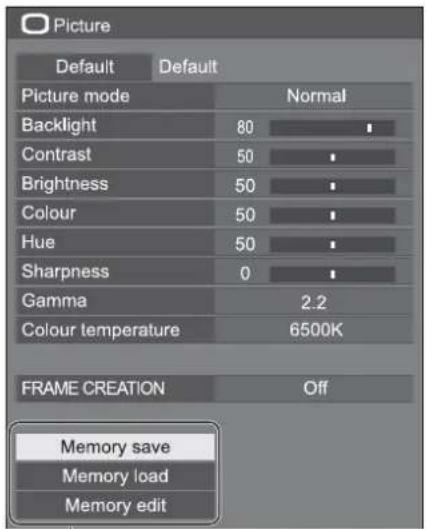
text_image
Picture Default Default Picture mode Normal Backlight 80 Contrast 50 Brightness 50 Colour 50 Hue 50 Sharpness 0 Gamma 2.2 Colour temperature 6500K FRAME CREATION Off Memory save Memory load Memory edit[Memory save]
(see page 40)
[Memory load]
(see page 41)
[Memory edit]
(see page 41)
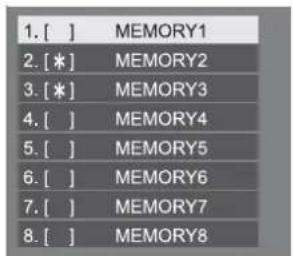
text_image
1. [ ] MEMORY1 2. [ * ] MEMORY2 3. [ * ] MEMORY3 4. [ ] MEMORY4 5. [ ] MEMORY5 6. [ ] MEMORY6 7. [ ] MEMORY7 8. [ ] MEMORY8Overview of Picture Profiles
Original picture

natural_image
Black-and-white street scene showing a tall tower and multi-story buildings with pedestrians (no visible text or signage)Adjust picture. (see page 37)

Custom picture

natural_image
Black-and-white street scene with tall buildings and pedestrians, no visible text or signageExample:
Save the picture adjustment values in the [MEMORY1] profile.
[Memory save]
Original picture

natural_image
Black-and-white street scene showing a tall tower with a statue and pedestrians, adjacent to a multi-story building (no visible text or signage)Example:
Load [MEMORY1].
[Memory load]

Custom picture

natural_image
Black-and-white street scene showing a tall tower with a column of buildings and pedestrians (no visible text or signage)[Memory edit] screen
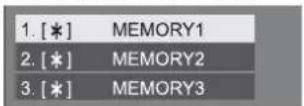
Example:
Change the memory name to [MY PICTURE].
[Memory edit]


Note
- The remote control is used for all the operations of Picture Profiles function. Unit buttons cannot be used for these operations.
Saving profiles
Follow these steps to save picture adjustment values as profiles.
1 Specify the picture quality in the [Picture] menu.
(see page 37)
2 In the [Picture] menu, select [Memory save] with ▲▼ and press
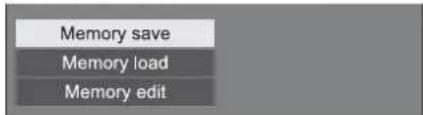
text_image
Memory save Memory load Memory edit3 Select a profile name for saving the picture adjustment values with ▲▼ and press

text_image
Memory save 1. [ ] MEMORY1 2. [ * ] MEMORY2 3. [ * ] MEMORY3 4. [ ] MEMORY4 5. [ ] MEMORY5 6. [ ] MEMORY6 7. [ ] MEMORY7 8. [ ] MEMORY8- [*] appears for a profile in which the picture adjustments have already been saved.
4 Select [Ok] with ◀▶ and press
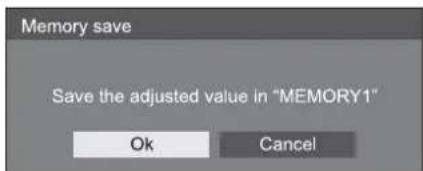
text_image
Memory save Save the adjusted value in "MEMORY1" Ok Cancel5 Enter a profile name with ▲▼◀▶.
- Entering characters (see page 74)

text_image
Memory name input MEMORY1 A B C D E F G H I J K L M All delete N O P Q R S T U V W X Y Z Delete a b c d e f g h i j k l m n o p q r s t u v w x y z 0 1 2 3 4 5 6 7 8 9 Space ! " # $ % & ' * + - / = ? @ \ * _ ' | ~ < > ( ) [ ] { } . . : : Ok Cancel6 When you finished entering the profile name, select [Ok] with ▲▼◀ ▶ and press
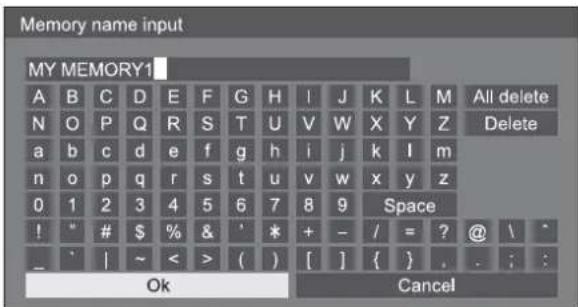
text_image
Memory name input MY MEMORY1 A B C D E F G H I J K L M All delete N O P Q R S T U V W X Y Z Delete a b c d e f g h i j k l m n o p q r s t u v w x y z 0 1 2 3 4 5 6 7 8 9 Space ! * # $ % & ' * + - / = ? @ \ * - ' | ~ < > ( ) [ ] { } . - : : Ok Cancel• To cancel saving the profile, select [Cancel].
Loading profiles
Load profiles and apply the picture adjustment values to the display as follows.
1 In the [Picture] menu, select [Memory load] with ▲▼ and press

text_image
Memory save Memory load Memory edit2 Select the profile to load with ▲▼ and press
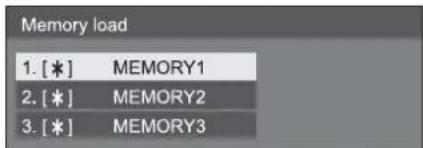
text_image
Memory load 1. [ * ] MEMORY1 2. [ * ] MEMORY2 3. [ * ] MEMORY3Loading profiles using numeric buttons on the remote control.
Each numeric button <1> - <8> is allocated for loading [MEMORY1] - [MEMORY8].
[Function button settings] (see page 49)
1 Press any of <1> - <8>.
2 Select [Ok] with ◀▶ and press

text_image
Memory load Load from "MEMORY2" Ok Cancel
text_image
When profile is being loaded, profile name is displayed. PC 16:9 Memory name: MEMORY2Note
- Loaded profiles are stored in memory according to the selected input terminal.
Editing profiles
Delete or rename profiles as follows.
■ Deleting profiles
1 In the [Picture] menu, select [Memory edit] with ▲▼ and press

text_image
Memory save Memory load Memory edit2 Select [Memory delete] with ▲▼ and press

text_image
Memory edit Memory delete Memory name change3 Select the profile to delete with ▲▼ and press

text_image
Memory delete 1. [ * ] MEMORY1 2. [ * ] MEMORY2 3. [ * ] MEMORY3 All delete• To delete all profiles, select [All delete].
4 Select [Ok] with ◀▶ and press
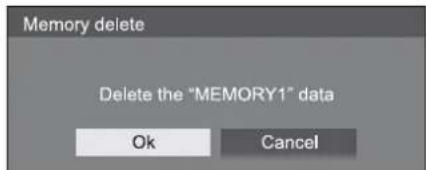
text_image
Memory delete Delete the "MEMORY1" data Ok Cancel■ Renaming profiles
1 In the [Picture] menu, select [Memory edit] with ▲▼ and press

text_image
Memory save Memory load Memory edit2 Select [Memory name change] with ▲▼ and press
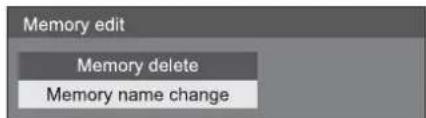
text_image
Memory edit Memory delete Memory name change3 Select the profile to rename with ▲▼ and press

text_image
Memory name change 1. [ * ] MEMORY1 2. [ * ] MEMORY2 3. [ * ] MEMORY34 Enter a name for the profile with ▲▼ ◀▶.
- Entering characters (see page 74)

text_image
Memory name input MEMORY1 A B C D E F G H I J K L M All delete N O P Q R S T U V W X Y Z Delete a b c d e f g h i j k l m n o p q r s t u v w x y z 0 1 2 3 4 5 6 7 8 9 Space ! " # $ % & ' * + - / = ? @ \ * _ ` | ~ < > ( ) [ ] { }. : : : Ok Cancel5 When you finished entering the profile name, select [Ok] with ▲▼◀▶ and press .
![PANASONIC TH-98LQ70LW - When you finished entering the profile name, select [Ok] with ▲▼◀▶ and press . - 1](/content/2026/05/1100567/images/826b1bcf38c5902a883838204ad226f59219b7d6222202187ece6f13a29ccd1c.jpg)
• To cancel renaming the profile, select [Cancel].
Setup menu
1 Press to display the [Setup] menu.
![PANASONIC TH-98LQ70LW - Press to display the [Setup] menu. - 1](/content/2026/05/1100567/images/0cfa248f3b8b56637866bdef625361e495167650f0639a7de000afcd40d38b92.jpg)
text_image
Setup 4 Input multi display settings Network settings Signal Screensaver ECO mode settings Input label Function button settings On/Off timer settings Day/Time settings HDMI 4K Interface Single [HDMI1,HDMI2] Display orientation Landscape High altitude mode Off No activity power off Disable Menu display duration 60 sec OSD brightness 5 OSD position Right OSD language English(UK)2 Select the item to set with ▲▼.
- Menu that cannot be adjusted is greyed out. Adjustable menu changes depending on signal, input and menu setting.
3 Set with ◀▶.
4 Press to exit from adjust mode.
■ To return to the previous screen
Press
4 Input multi display settings
Set 4 Input multi display function.
• 4 Input multi display (see page 31)

text_image
4 Input multi display settings 4 Input multi display On INPUT(upper-left) HDMI1 INPUT(upper-right) HDMI2 INPUT(lower-left) HDMI3 INPUT(lower-right) HDMI4[4 Input multi display]
When this is set to [On], the display will be in "4-screen display".
The following settings will be available.
[INPUT(upper-left)] - [INPUT(lower-right)]
Set the inputs to display in "4-screen display".
Note
- The mode set in [4 Input multi display settings] are maintained even when the unit is turned on or off.
Network settings
Set to communicate with computers via Network. (see page 53)
For details about PJLink and Network, see page 64.
Signal
For Digital
| Signal | |
| Signal range | Auto |
| 1080i/PsF | Auto |
| Noise reduction | Off |
| H-Freq. | 33.7 kHz |
| V-Freq. | 60.0 Hz |
| Dot Clock Freq. | 108.0 MHz |
| Signal Format | 1125(1080)/60i |
For Component
| Signal | |
| Component/RGB-in select | Component |
| Sync | Auto |
| XGA mode | Auto |
| Input level | 0 |
| 1080i/PsF | Auto |
| Noise reduction | Off |
| H-Freq. | 33.7 kHz |
| V-Freq. | 60.0 Hz |
| Dot Clock Freq. | -- Hz |
| Signal Format | 1125(1080)/60i |
For RGB
| Signal | |
| Component/RGB-in select | RGB |
| Sync | Auto |
| XGA mode | Auto |
| Input level | 0 |
| 1080i/PsF | Auto |
| Noise reduction | Off |
| H-Freq. | 33.7 kHz |
| V-Freq. | 60.0 Hz |
| Dot Clock Freq. | -- Hz |
| Signal Format | 1125(1080)/60i |
For DisplayPort
| Signal | |
| Signal range | Auto |
| Stream setting | Auto |
| 1080i/PsF | Auto |
| Noise reduction | Off |
| H-Freq. | 33.7 kHz |
| V-Freq. | 60.0 Hz |
| Dot Clock Freq. | 108.0 MHz |
| Signal Format | 1125(1080)/60i |
Note
- Depending on the input signal type, an optional Terminal Board may be required.
- [Signal] setup menu displays a different setting condition for each input signal.
[Component/RGB-in select]
Select to match the signals from the source connected to the PC IN terminal.
[Component] Y, PB, PR/Y, CB, CR signals
[RGB] RGB signals
[YUV/RGB-in select]
Select to match the signals from the source connected to the DVI-D IN terminal.
[YUV] YUV signals
[RGB] RGB signals
[Sync]
This function operates only during PC input.
Setting RGB/PC sync signal
[Auto]:
The H and V sync or synchronized signal is automatically selected. When both of them have sync, H and V sync will be selected.
[on G]:
Uses a synchronized signal on the Video G signal, which is input from the G connector.
Setting Component sync signal
[Auto]:
The H and V sync or synchronized signal is automatically selected. When both of them have sync, H and V sync will be selected.
[on Y]:
Uses a synchronized signal on the Video Y signal, which is input from the Y connector.
[XGA mode]
This menu is displayed when the input signal is analogue (Component/PC). This unit supports three types of XGA signals with 60Hz vertical frequency having different aspect ratios and sampling rates (1024 × 768 @60Hz, 1280 × 768 @60Hz and 1366 × 768 @60Hz).
[Auto]:
Automatically selected from [1024x768]/[1280x768]/[1366x768].
Switch the setting to suit the input signal for better display depends on the angle of view or display resolution condition.
Note
- After making this setting, be sure to make each adjustment (such as [Auto setup]) on the [Position] menu as necessary. (see page 34)
[Signal range]
Switches the dynamic range according to the input signals below.
HDMI1 to HDMI4, DIGITAL LINK, DisplayPort, SLOT (SDI1 to SDI4)
[Video(16-235)]:
If the input signal is the video range, Example: HDMI terminal output for DVD player
[Full(0-255)]:
If the input signal is full range, Example: HDMI terminal output for personal computer
[Auto]:
Switches the dynamic range automatically between [Video(16-235)] and [Full(0-255)] according to the input signal.
• [Auto] cannot be selected during the DIGITAL LINK and SLOT (SDI1 to SDI4) input.
[Stream setting]
This menu is displayed during DisplayPort input. Set the display method for stream of the device connected to the DisplayPort terminal.
[Auto]:
Automatically switches to the appropriate stream according to the input signal.
[Single stream]:
Displayed as single stream.
[Input level]
This menu is displayed at PC IN input.
Adjustment of parts which are extremely bright and hard to see.
- 32 to + 32:
(Level low) - (Level high)
[1080i/PsF]
Sets the mode of image processing most suitable for the picture to display.
[Auto]:
Discriminates automatically according to the input signal.
[i]:
Displays the picture signal with IP conversion processing.
[PsF]:
Displays the picture signal with progressive conversion processing.
[Noise reduction]
Reduces picture noise.
[Off]:
Disables Noise Reduction.
[Min], [Mid], [Max]:
Sets strength of Noise Reduction.
Note
- [Noise reduction] cannot be adjusted while a PC signal is being applied.
Input signal display
Displays the frequency and the type of the current input signal.
| H-Freq. | 33.7 kHz |
| V-Freq. | 60.0 Hz |
| Dot Clock Freq. | 108.0 MHz |
| Signal Format | 1125(1080)/60i |
Display range:
Horizontal (15 kHz - 135 kHz)
Vertical (24 Hz - 120 Hz)
The dot clock frequency is displayed during Digital signal input.
Displays each signal of the 4 inputs during [4 Input multi display].
| Signal | |
| Upper left | HDMI1 |
| H-Freq. 33.7 kHzV-Freq. 60.0 HzDot Clock Freq. 108.0 MHzSignal Format 1125(1080)/60i | |
| Upper right | HDMI2 |
| H-Freq. 48.1 kHzV-Freq. 59.6 HzDot Clock Freq. 64.6 MHzSignal Format 1024x768/60Hz | |
| Lower left | HDMI3 |
| H-Freq. 48.1 kHzV-Freq. 59.6 HzDot Clock Freq. 64.6 MHzSignal Format 1024x768/60Hz | |
| Lower right | HDMI4 |
| H-Freq. 48.1 kHzV-Freq. 59.6 HzDot Clock Freq. 64.6 MHzSignal Format 1024x768/60Hz | |
Displays each signal during 4K input from 2 terminals (Dual Link), HDMI 1 and HDMI 2.
| Signal | |
| Signal range | Auto |
| 1080i/PsF | Auto |
| Noise reduction | Off |
| Left HDMI1 | |
| H-Freq. 33.7 kHz | |
| V-Freq. 60.0 Hz | |
| Dot Clock Freq. 108.0 MHz | |
| Signal Format 1125(1080)/60i | |
| Right HDMI2 | |
| H-Freq. 33.7 kHz | |
| V-Freq. 60.0 Hz | |
| Dot Clock Freq. 108.0 MHz | |
| Signal Format 1125(1080)/60i | |
Screensaver
(For preventing image retention)
Do not display a still picture, especially in 4:3 mode, for any length of time.
If the display must remain on, a Screensaver should be used.

text_image
Screensaver Start Time 10:00 Mode Off Side panel Off■ Screensaver settings
Screensaver operation
When the Screensaver is operating, the following 5 patterns are displayed full screen for 5 seconds each, and it will be repeated.
Black → Dark grey → Grey → Light grey → White → Light grey → Grey → Dark grey
Note
- When the Screensaver is operating, the screen brightness will be reduced, but it is not a malfunction.
To start Screensaver now
① Select [On] in [Mode].
② Select [Start] and press
- The menu screen will disappear and the Screensaver will be activated.

text_image
Screensaver Time 10:00 Start Mode OnNote
- To stop the Screensaver under On, press the
button or any buttons on the main unit. - When the display is turned off, the Screensaver will be deactivated.
To set interval of Screensaver
① Select [Interval] in [Mode].
② Set [Periodic time].
- Press ◀▶ to change the time by 15 minutes.
③ Set [Operating time].
- Press ◀▶ once to change the time by 1 minute. Keep pressing down to change the time by 15 minutes.

text_image
Screensaver Time 10:00 Start Mode Interval Periodic time 0:00 Operating time 0:00Periodic time

text_image
Deactivated. Operating timeTo set start and finish time of Screensaver
① Select [Time designation] in [Mode].
② Set [Start time] and [Finish time].
- Press ◀▶ once to change the time by 1 minute. Keep pressing down to change the time by 15 minutes.

text_image
Screensaver Start Time 10:00 Mode Time designation Start time 0:00 Finish time 0:00Note
- Please set [Time] before setting [Start time] and [Finish time]. (see page 51)
To turn the power off after Screensaver
① Select [Standby after SCR saver] in [Mode].
② Set [Screensaver duration].
- Press ◀▶ once to change the time by 1 minute. Keep pressing down to change the time by 15 minutes.
③ Select [Start] and press
- Screensaver will be activated and the power will be turned off (Standby) at the time set.

text_image
Screensaver Time 10:00 Start Mode Standby after SCR saver Operating time 0:00Note
- [Screensaver duration] can be set from 0:00 to 23:59.
When this is set to [0:00], [Standby after SCR saver] will not be activated.
■ Side panel
Do not display a picture in 4:3 mode for an extended period, as this can cause an image retention to remain on the side panels on either side of the display field.
To reduce the risk of such an image retention, illuminate the side panels.
This function may be applicable to the non-picture area.

flowchart
graph LR
    A["side panel"] --> B["4:3 Screen Display"]
    B --> C["image retention"]
[Off]: Darken both ends.
[Low]: Make it dark grey.
[Mid]: Make it grey.
[High]: Make it light grey.
Note
- To reduce the occurrence of image retention, set the [Side panel] to [High].
ECO mode settings
Set each item to reduce power consumption.
| ECO mode settings | |
| ECO mode | Custom |
| Power save | Off |
| HDMI1 power management | Off |
| HDMI2 power management | Off |
| HDMI3 Power management | Off |
| HDMI4 power management | Off |
| PC power management | Off |
| DVI-D power management | Off |
| No signal power off | Disable |
ECO mode settings
Using Remote Control
When

■ ECO mode: On
The following fixed values are set to the menu of power consumption reduction. Individual setting is not available.
■ ECO mode: Custom
The menu of the power consumption reduction is individually set. This setting is enabled when [ECO mode] is set to [Custom].
[Power save]
This function adjusts the brightness of the backlight to reduce power consumption.
[Off]:
This function does not operate.
[On]:
Backlight brightness is reduced.
[Sensor]:
The backlight brightness is automatically adjusted according to the viewing environment.
Note
- When this function is set to [On] or [Sensor], the [Backlight] setting in the [Picture] menu is disabled.
[HDMI1 power management] -
[HDMI4 power management]
When this function is set to [On], it operates under the following conditions to turn the power on or off automatically.
[Standard mode]
When no pictures (sync signal) are detected for 60 or so seconds at HDMI1 - HDMI4 input:
Power is turned off (standby); the power indicator lights up orange.
When pictures (sync signal) are subsequently detected:
Power is turned on; the power indicator lights up green.
[Low power mode]
When neither +5V DC nor pictures (sync signal) from HDMI terminals are detected for 60 or so seconds at HDMI1 - HDMI4 input:
Power is turned off (standby); the power indicator lights up orange.
When +5 V DC and pictures (sync signal) are subsequently detected:
Power is turned on; the power indicator lights up green.
- In the [Standard mode], power consumption during sleep is higher than that in the [Low power mode].
You can switch the [Standard mode] / [Low power mode] in [HDMI power management mode] of the [Options] menu. (see page 62)
[PC power management] (DPMS function)
When this function is set to [On], it operates under the following conditions to turn the power on or off automatically.
When no pictures (HD/VD sync signals) are detected for 60 or so seconds at PC input:
Power is turned off (standby); the power indicator lights up orange.
When pictures (HD/VD sync signals) are subsequently detected:
Power is turned on; the power indicator lights up green.
Note
- This function is effective when [Sync] in [Signal] is set to [Auto] and [Component/RGB-in select] is set to [RGB] and during normal viewing. (see page 44)
[DVI-D power management]
When this function is set to [On], it operates under the following conditions to turn the power on or off automatically.
[Standard mode]
When no pictures (sync signal) are detected for 60 or so seconds at DVI-D input:
Power is turned off (standby); the power indicator lights up orange.
When pictures (sync signal) are subsequently detected:
Power is turned on; the power indicator lights up green.
[Low power mode]
When +5V DC in DVI-D IN terminal or pictures (sync signal) are not detected for about 60 seconds at DVI-D input:
Power is turned off (standby); the power indicator lights up orange.
When +5V DC or pictures (sync signal) are subsequently detected:
Power is turned on; the power indicator lights up green.
- In the [Standard mode], power consumption during sleep is higher than that in the [Low power mode].
You can switch the [Standard mode] / [Low power mode] in [DVI-D power management mode] of the [Options] menu. (see page 62)
[No signal power off]
When this is set to [Enable], the power supply of the unit goes off automatically when there is no operation or sync signal for about 10 minutes.
Input label
This function can change the label of the Input signal to be displayed.
| Input label | |
| HDMI1 | HDMI1 |
| HDMI2 | HDMI2 |
| HDMI3 | HDMI3 |
| HDMI4 | HDMI4 |
| DisplayPort | DisplayPort |
| DIGITAL LINK | DIGITAL LINK |
| DVI-D | DVI-D |
| PC | PC |
| SDI1 | SDI1 |
| SDI2 | SDI2 |
| SDI3 | SDI3 |
| SDI4 | SDI4 |
| [HDMI1] | [HDMI1] / [DVD1] / [DVD2] / [DVD3] / [DVD4] / [Blu-ray1] / [Blu-ray2] / [Blu-ray3] / [Blu-ray4] / [CATV] / [VCR] / [STB] / (Skip) |
| [HDMI2] | [HDMI2] / [DVD1] / [DVD2] / [DVD3] / [DVD4] / [Blu-ray1] / [Blu-ray2] / [Blu-ray3] / [Blu-ray4] / [CATV] / [VCR] / [STB] / (Skip) |
| [HDMI3] | [HDMI3] / [DVD1] / [DVD2] / [DVD3] / [DVD4] / [Blu-ray1] / [Blu-ray2] / [Blu-ray3] / [Blu-ray4] / [CATV] / [VCR] / [STB] / (Skip) |
| [HDMI4] | [HDMI4] / [DVD1] / [DVD2] / [DVD3] / [DVD4] / [Blu-ray1] / [Blu-ray2] / [Blu-ray3] / [Blu-ray4] / [CATV] / [VCR] / [STB] / (Skip) |
| [DisplayPort] | [DisplayPort] / [DVD1] / [DVD2] / [DVD3] / [DVD4] / [Blu-ray1] / [Blu-ray2] / [Blu-ray3] / [Blu-ray4] / [CATV] / [VCR] / [STB] / (Skip) |
| [DIGITAL LINK] | [DIGITAL LINK] / [DVD1] / [DVD2] / [DVD3] / [DVD4] / [Blu-ray1] / [Blu-ray2] / [Blu-ray3] / [Blu-ray4] / [CATV] / [VCR] / [STB] / (Skip) |
| [DVI-D] | [DVI-D] / [DVD1] / [DVD2] / [DVD3] / [DVD4] / [Blu-ray1] / [Blu-ray2] / [Blu-ray3] / [Blu-ray4] / [CATV] / [VCR] / [STB] / (Skip) |
| [PC] | [PC] / [DVD1] / [DVD2] / [DVD3] / [DVD4] / [Blu-ray1] / [Blu-ray2] / [Blu-ray3] / [Blu-ray4] / [CATV] / [VCR] / [STB] / (Skip) |
| [SDI1]* | [SDI1] / (Skip) |
| [SDI2]* | [SDI2] / (Skip) |
| [SDI3]* | [SDI3] / (Skip) |
| [SDI4]* | [SDI4] / (Skip) |
*: [SDI1] - [SDI4] is displayed when a 3G-SDI Terminal Board with Audio (TY-TBN03G) is installed.
- (Skip): When is pressed, the input will be skipped.
Function button settings
Assigns specific functions to the numeric buttons (<0> to <9>). The buttons can be used as shortcut keys by assigning frequently used operations.
1 Switch [Function group] with ◀▶.
![PANASONIC TH-98LQ70LW - Switch [Function group] with ◀▶. - 1](/content/2026/05/1100567/images/6f594e443925e5c2a8ba91fd11ef3133137c201a597ddab97db80d8e25ba13cc.jpg)
text_image
Function button settings Function group INPUT Function button 1 HDMI1 Function button 2 HDMI2 Function button 3 HDMI3 Function button 4 HDMI4 Function button 5 DisplayPort Function button 6 DIGITAL LINK Function button 7 DVI-D Function button 8 PC Function button 9 SDI1 Function button 0 SDI2 Function button guide On INPUT ↓ Memory load ↓ Shortcut2 Select the numeric button with ▲▼ and set the function to assign with ◀▶.
■ Functions assignable to the numeric buttons
[INPUT] (Direct input select)
Input can be selected with single-touch operation.
HDMI1 - HDMI4 / DisplayPort / DIGITAL LINK / DVI-D / PC / SDI1 - SDI4
- SDI1 to SDI4 can be set when 3G-SDI Terminal Board with Audio (TY-TBN03G) is mounted.
[Memory load]
Memory can be loaded with single-touch operation. Memory load (see page 41)
[MEMORY1] - [MEMORY8]
- [MEMORY1] to [MEMORY8] load functions are already assigned to <1> to <8> respectively. These settings cannot be changed.
[Shortcut]
[ECO mode settings], [Signal], [On/Off timer settings], [Network settings], [4 Input multi display settings]
- Pressing the numeric button displays the menu screen. Pressing the button again exits the menu screen.
[AV Mute]
- Pressing the numeric button mutes the audio and pictures.
To cancel, press any button on the remote control.
Shipping condition
The following functions are assigned to the numeric buttons as factory default.
| [INPUT] | [Memory load] | [Shortcut] | |
| 1 | HDMI1 | MEMORY1 | [AV Mute] |
| 2 | HDMI2 | MEMORY2 | [ECO mode settings] |
| 3 | HDMI3 | MEMORY3 | [Signal] |
| 4 | HDMI4 | MEMORY4 | [On/Off timer settings] |
| 5 | DisplayPort | MEMORY5 | [Network settings] |
| 6 | DIGITAL LINK | MEMORY6 | 4 Input multi display settings |
| 7 | DVI-D | MEMORY7 | — |
| 8 | PC | MEMORY8 | — |
| 9 | — | — | — |
| 0 | — | — | — |
■ Function button guide
Sets the function display when numeric buttons are pressed. Set this for each function group.
[On]: Displays the function list for the numeric buttons.
[Off]: Does not display the function list. Operation starts when numeric buttons are pressed.
Note
- When
To use shortcut (numeric buttons)
1 Press or <0> - <9>.
[Function button guide] will be displayed.
[Function button guide]: When [Off] is set, pressing the numeric button starts operation.
| INPUT |
| 1. HDMI 1 |
| 2. HDMI 2 |
| 3. HDMI 3 |
| 4. HDMI 4 |
| 5. DisplayPort |
| 6. DIGITAL LINK |
| 7. DVI-D |
| 8. PC |
| 9. SDI1 |
| 0. SDI2 |
2 Press to switch function group.
| Memory load |
| 1. MEMORY 1 |
| 2. MEMORY 2 |
| 3. MEMORY 3 |
| 4. MEMORY 4 |
| 5. MEMORY 5 |
| 6. MEMORY 6 |
| 7. MEMORY 7 |
| 8. MEMORY 8 |
| 9. --- |
| 0. --- |
Example: Memory load
3 Press <0> - <9>.
The function for the pressed button starts to operate.

text_image
Memory load Load from "MEMORY2" Ok CancelExample: When <2> is pressed.
On/Off timer settings
Set to turn the power on / off automatically.

text_image
On/Off timer settings Time 10:00 Power on function Off Power on time 0:00 Power off function Off Power off time 0:00■ To turn the power on or off at the time set
① Select [Power on time] or [Power off time].
② Set [Power on time] or [Power off time].
- Press ◀▶ once to change the time by 1 minute. Keep pressing down to change the time by 15 minutes.
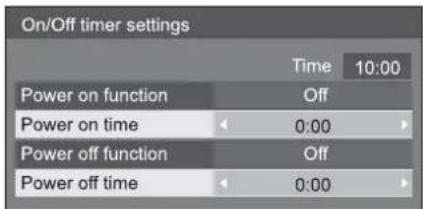
text_image
On/Off timer settings Time 10:00 Power on function Off Power on time 0:00 Power off function Off Power off time 0:00③ Select [Power on function] or [Power off function].
④ Set to [On].

text_image
On/Off timer settings Time 10:00 Power on function Off Power on time 0:00 Power off function Off Power off time 0:00Note
- Please set [Time] first. (see page 51)
Day/Time settings
Set day and the current time.
(They are not set when [99:99] is displayed.)

text_image
Day/Time settings Set Time MONDAY 99:99 Day MONDAY Time 18:00■ Set [Day] and [Time]
① Select [Day] or [Time].
② Set [Day] or [Time].
- Press ◀▶ once to change the time by 1 minute. Keep pressing down to change the time by 15 minutes.
![PANASONIC TH-98LQ70LW - ■ Set [Day] and [Time] - 1](/content/2026/05/1100567/images/e531725d97bbfba66b2725900c7d0328c1908416956efd6f3f6ff73da87adad5.jpg)
text_image
Day/Time settings Time MONDAY 99:99 Set Day TUESDAY Time 18:00③ Select [Set] and press
![PANASONIC TH-98LQ70LW - ■ Set [Day] and [Time] - 2](/content/2026/05/1100567/images/2212f9e2741d40b42748753be3355b955647935d0a95b92434b092ee55519004.jpg)
text_image
Day/Time settings Time TUESDAY 18:00 Set Day TUESDAY Time 18:00Note
• [Set] cannot be selected unless [Time] is set.
- The settings of [Day] and [Time] are reset when leaving the display turned off for more than about 7 days for the following reasons:
-
• The AC cord was disconnected.
• Interruption of power supply.
- Unless setting the present time other than [99:99], [Day] and [Time] cannot be set.
HDMI 4K Interface
Sets the combination of input for HDMI 1 to HDMI 2 terminals in 4K resolution images.
[Single [HDMI1,HDMI2]]:
4K input with 1 terminal via HDMI 1 or HDMI 2
[Dual [HDMI1&HDMI2]]:
4K input with 2 terminals via HDMI 1 and HDMI 2
Note
- Input combination in 4K resolution images (see page 16)
Display orientation
Sets the on-screen display orientation in the portrait setting.
[Landscape]:
Cooling fan control will be set for horizontal installation.
[Portrait]:
Cooling fan control will be set for vertical installation.
The on-screen display rotates anticlockwise by 90 degrees for easy view in the portrait setting.
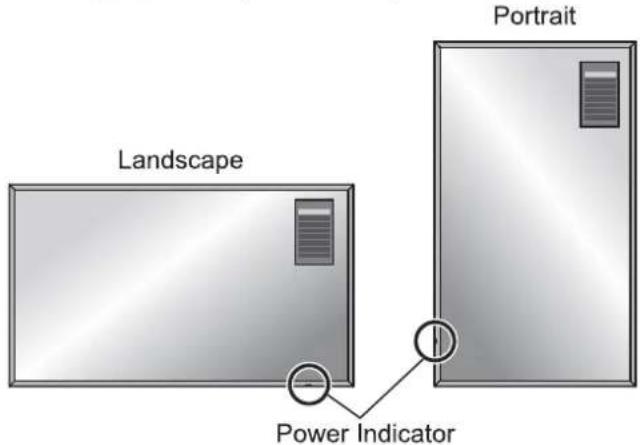
text_image
Landscape Power Indicator PortraitNote
- In the portrait setting, the power indicator shall come to the downside.
- Make sure to set to [Landscape] when installing horizontally, and set to [Portrait] when installing vertically.
Failure to do so may shorten the life of the internal parts and result in malfunctions.
High altitude mode
Change settings when using the unit at high altitudes.
[Off]: Cooling fan control will be set to use the unit where it is below 1 400 m (4 593 ft) above sea level
[On]: Cooling fan control will be set to use the unit at high altitudes (1 400 m (4 593 ft) and higher and below 2 400 m (7 874 ft) above sea level)
Note
- When using the unit where it is 1 400 m (4 593 ft) and higher and below 2 400 m (7 874 ft) above sea level, make sure to set to [On].
Failure to do so may shorten the life of the internal parts and result in malfunctions.
No activity power off
When this function is set to [Enable], the power is turned off (standby) automatically when there is no operation of the Display for 4 hours.
Starting from 3 minutes before the turn off, the remaining time will be displayed.

text_image
Press any key to abort. No activity power off 3 minWhen the power is turned off due to this function, a message [Last turn off due to 'No activity power off'.] is displayed next time the power is turned on.
Note
- During the screensaver is running, this function is disabled.
Menu display duration / OSD brightness / OSD position
Set the display time, brightness and the position of the on-screen menu display.
[Menu display duration]: [5 sec] - [180 sec]
[OSD brightness]: [1] - [5]
[OSD position]: [Right], [Left]
(Display installation: Horizontal)
[Upper], [Lower]
(Display installation: Vertical)
OSD language
Select your preferred language.
Selectable languages
English(UK)
Deutsch
Français
Italiano
Español
ENGLISH(US)
中文 : Chinese
日本語 : Japanese
Русский : Russian
Network settings
Set when networking with a computer.
[Network settings] submenu will be displayed.

text_image
Network settings LAN setup Name change Network control On AMX D.D. Off Crestron Connected™ Off DIGITAL LINK DIGITAL LINK status Digital Interface Box DIGITAL LINK mode Auto(LAN) Extron XTP OffNote
- The remote control is used for all the [Network settings] menu operations. Unit buttons cannot be used for these operations.
■ [LAN setup]
Detailed network settings for the LAN established via the LAN terminal of the Display or twisted pair cable transmitter can be configured.
Select [LAN setup] with ▲▼ and press
![PANASONIC TH-98LQ70LW - ■ [LAN setup] - 1](/content/2026/05/1100567/images/9f4fc6981a75403f077ee1c6a67d1135c8d8a1afebf1f3df2cf1aec82d33f2d4.jpg)
text_image
LAN setup Save DHCP Off IP address 192.168. 0. 8 Subnet mask 255.255.255. 0 Gateway 192.168. 0. 1 Port 1024 DUPLEX Auto Network ID 0 MAC address ----DHCP, IP address, Subnet mask, Gateway
① Press ◀▶ to set [On] / [Off] of DHCP and press
When [Off] is selected, IP address and other settings can be set manually.
[DHCP]:
(DHCP client function)
[On]:
Obtains an IP address automatically when a DHCP server exists in the network the Display is going to be connected.
[Off]:
When a DHCP server does not exist in the network the Display is going to be connected, set IP address, Subnet mask and Gateway manually.
[IP address]:
(IP address display and setting)
Enter an IP address when DHCP server is not used.
[Subnet mask]:
(Subnet mask display and setting)
Enter a Subnet mask when DHCP server is not used.
[Gateway]:
(Gateway address display and setting)
Enter a gateway address when DHCP server is not used.
Note
- IP address will not be displayed when DHCP is set to [On].
Entering numbers
- Select the item and press
. - Select digits with ◀▶.
- Change numbers with numeric buttons (<0> - <9>).
It is also possible to change with ▲▼. - Press
.
You can cancel the change by pressing.
② Select [Save] and press .
Save the current network Setup.
Note
- To use a DHCP server, make sure the DHCP server is started.
- Contact your network administrator for details on IP address, Subnet mask and Gateway.
- Shipping condition
[Port]
Set the port number used for command control.
Select [Port] and press to set the number.
• The available setting range is 1024 - 65535.
- Entering numbers (see page 54)
Note
- When the PJLink protocol is used, the port setting is not necessary.
[DUPLEX]
Set the transmission method of the LAN environment.
[Auto], [100 Half], [100 Full]
[Network ID]
Set the ID to identify this unit.
Press [Network ID] and press to set the number.
• The available setting range is 0 - 99.
- Entering numbers (see page 54)
■ [Name change]
The name of the Display that is shown on the network can be changed.
Select [Name change] with ▲▼ and press .
![PANASONIC TH-98LQ70LW - Select [Name change] with ▲▼ and press . - 1](/content/2026/05/1100567/images/a1d15301ef45a430b53fc135d4ecb5a5480521d7b0df2c548ef1d1613e4b74de.jpg)
text_image
Name change Name0000 A B C D E F G H I J K L M All delete N O P Q R S T U V W X Y Z Delete a b c d e f g h i j k l m n o p q r s t u v w x y z 0 1 2 3 4 5 6 7 8 9 Space ! " # $ % & ' * + - / = ? @ \ * _ ' | ~ < > ( ) [ ] { } , . : : Ok Cancel- Up to 8 characters can be set for Display name.
- Entering characters (see page 74)
■ [Network control]
Set when controlling with the unit's DIGITAL LINK / LAN terminal.
[On]:
Controls via LAN using the LAN terminal of the Display or twisted pair cable transmitter or via RS-232C using the SERIAL (RS-232C) terminal of twisted pair cable transmitter. The power indicator lights orange when the power is turned off with the remote control (standby).
[Off]:
Invalidates control with DIGITAL LINK / LAN terminal.
(In this case, the power consumption of Standby condition (when the power is turned off with the remote control) will be slightly reduced.)
Note
- Even when [Off] is selected, when the power is turned on, HDMI communication via twisted pair cable transmitter becomes possible.
- For the case of [On], see [DIGITAL LINK mode] (see page 55)
- When this is set to [On] and [DIGITAL LINK(RS-232C)] is selected in [DIGITAL LINK mode], it is not possible to control with the unit's SERIAL terminal.
■ [AMX D.D.]
Set whether to allow the Display to be detected by AMX Device Discovery.
[On]:
Enables detection by AMX Device Discovery.
[Off]:
Disables detection by AMX Device Discovery.
- For more details, visit the following web site.
http://www.amx.com/
■ [Crestron Connected™]
When this function is set to [On], the Display can be monitored or controlled via the network using equipment and application software of Crestron Electronics, Inc.
This Display supports the following application software from Crestron Electronics, Inc.
- RoomView® Express
- Fusion RV®
• RoomView® Server Edition
[Crestron Connected™] is a function to connect to a system developed by Crestron Electronics, Inc. which manages and controls multiple system devices connected to the network.
- For details of "Crestron Connected™", refer to the Crestron Electronics, Inc. web site (Provided only in English).
http://www.crestron.com/
For the download of "RoomView® Express", refer to the Crestron Electronics, Inc. web site (Provided only in English).
http://www.crestron.com/getroomview
■ [DIGITAL LINK status]
Display the DIGITAL LINK connection environment. Select [DIGITAL LINK status] with ▲▼ and press
![PANASONIC TH-98LQ70LW - ■ [DIGITAL LINK status] - 1](/content/2026/05/1100567/images/94030b33ce539ba7d9eb047c0625114fd7239d407135215566b8c75a3f55941e.jpg)
text_image
DIGITAL LINK status LINK status No link HDMI status No HDMI Signal quality Min -XX dB Max -YY dB[LINK status]:
1 of the followings will be displayed.
[No link]:
No LAN connection, etc.
[DIGITAL LINK]:
Connected to the DIGITAL LINK device by LAN.
[Ethernet]:
The PC is connected to the DIGITAL LINK terminal of this product and is LAN connected.
[HDMI status]:
1 of the followings will be displayed.
[No HDMI]: DIGITAL LINK not connected
[HDMI ON]: DIGITAL LINK connected
[HDCP ON]: HDCP supported on DIGITAL LINK
[Signal quality]:
It is the quantified minimum and maximum numbers of errors that have occurred. The display colours are red, yellow, or green, depending on the number.
| Signal quality | Display Colours | Reception Status |
| -12dB or below | Green | Good |
| -11 to -8dB | Yellow | Bad |
| -7dB or above | Red | Terrible |
- The number is represented by yellow or red if the LAN cable is disconnected or the cable is not shielded.
- This signal quality shows figures between the twisted pair cable transmitter that is connected and the display.
■ [Digital Interface Box]
Displays the setting menu of Digital Interface Box. Select [Digital Interface Box] with ▲▼ and press
Note
- This function can only be selected when the Digital Interface Box (ET-YFB100G) made by our company is connected to a LAN terminal and its power is on.
■ [DIGITAL LINK mode]
You can switch the setting of DIGITAL LINK/LAN terminal.
[LAN]:
Enables LAN communication via the Display's LAN terminal.
[Auto(LAN)]:
Enables automatic selection between LAN communication via the Display's LAN terminal and HDMI/LAN communication via the twisted pair cable transmitter.
[DIGITAL LINK(LAN)]:
Enables HDMI/LAN communication via the twisted pair cable transmitter.
[DIGITAL LINK(RS-232C)]:
Enables HDMI/RS-232C communication via the twisted pair cable transmitter.
Note
- To use the control methods shown on pages 68 to 70, select [LAN], [Auto(LAN)] or [DIGITAL LINK(LAN)].
- Power consumption during standby is slightly larger when you set to any other setting than [LAN].
- When [DIGITAL LINK(RS-232C)] is selected, it is not possible to control with the unit's SERIAL terminal.
■ [Extron XTP]
Set to [On] when connecting XTP Transmitter made by Extron to DIGITAL LINK terminal.
- For more details on Extron, visit the following web site.
http://www.extron.com
Options Adjustments
This unit offers special functions conveniently used according to the installation location and application.
1 Press
[Setup] menu screen will be displayed.
2 Select [OSD language] with ▲▼ and press
Following screen will be displayed.
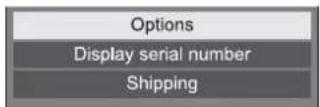
3 Select [Options] with ▲▼ and press
[Options] menu screen will be displayed.

text_image
Options 1/3 Weekly command timer Audio input select Input search On screen display Initial input Initial VOL level Maximum VOL level Input lock Button lock Controller user level Local dimming
text_image
Options 2/3 Off-timer function Enable Initial power mode Normal Display ID 0 Controller ID function Off Serial ID function Off LAN control protocol Protocol 1 RS-232C/LAN information timing
text_image
Options 3/3 Power on screen delay Off DVI-D power management mode Standard mode HDMI power management mode Standard mode Clock display Off Auto setup Manual Power on message(No activity power off) On Power on message(Power management) On4 Select the item to set with ▲▼.
- For [Weekly command timer], [Audio input select], [Input search] and [RS-232C/LAN information timing], the sub menu screen will be displayed when you press
5 Set with ◀▶.
6 Press
Note
- The remote control is used for all the [Options] menu operations. Unit buttons cannot be used for these operations.
- Press
to return to the previous menu. - The serial number of this device is displayed when [Display serial number] is selected in step 3.
Weekly command timer
You can set 7-day timer programming by setting time and command.
- Before setting [Weekly command timer], set [Day/Time settings]. (see page 51)
1 Select [Function] with ▲▼.
Select [On] with ◀▶.
| Weekly command timer | |
| Function | On |
| MONDAY | Program1 |
| TUESDAY | Program3 |
| WEDNESDAY | --- |
| THURSDAY | Program3 |
| FRIDAY | --- |
| SATURDAY | Program6 |
| SUNDAY | Program4 |
| ProgramEdit | |
2 Select day with ▲▼.
Select programme number with ◀▶.
You can set from [Program1] to [Program7]. [---] indicates it is not set.
Note
- When [Function] is set to [On], [On/Off timer settings] (see page 51) is unavailable and [Interval] / [Time designation] in [Mode] of [Screensaver] (see page 46) cannot be selected.
3 Select [ProgramEdit] with ▲▼ and press .
The following screen will be displayed.
![PANASONIC TH-98LQ70LW - Select [ProgramEdit] with ▲▼ and press . - 1](/content/2026/05/1100567/images/70c72bdd6b7d7d992c3d8bdd6a5f0498b59d3a4782cf79f1c046344b1243356c.jpg)
text_image
Weekly command timer Program 1 01 8:00 PON 02 10:30 IMS:SL1 03 —— ... 04 —— ... 05 —— ... 06 12:00 POF 07 9:12 AVL:10 08 —— ... 31 Programme number (1 - 7)
2 Setting status of the programme number, currently selected
- [--:--] indicates the time is not set.
[---] indicates the command is not set.
3 Command number (1 - 64)
On this screen, setting status for each program number is displayed. You can set up to 64 command numbers for 1 programme.
4 Select [Program] with ▲▼, and then switch programme number (1 - 7) with ◀▶.
5 Select the command number to set with ▲▼.
The command numbers to be displayed on the screen are 8 commands. Press ◀▶ to switch page.
6 Press .
The following screen will be displayed.
| Weekly command timer | ||
| Program | 1 | |
| Command No | 02 | |
| Time | 12:34 | |
| Command | IMS:SL1 | |
7 Select [Time] or [Command] with ▲▼ and set with ◀▶.
[Time]:
Press ◀▶ once to change the time by 1 minute.
Keep pressing down to change the time by 15 minutes.
[Command]:
Select a command to execute at the set time. This unit has 64 commands to set. (see page 75)
To set other command numbers
Select [Command No] with ▲▼, and then select command number with ◀▶ to set other command numbers directly without returning to the previous screen.
Note
- Press
to return to the previous screen. - Command is performed in order of execution time, regardless of the command number.
- When a command execution time overlaps with that of other commands, these commands are performed in number order.
- By pressing
, [Time] is displayed as --:--, and [Command] is displayed as ---.
Audio input select
Set up the sound when an image input is selected.
Select image input with ▲▼.
Select audio input with ◀▶.
| Audio input select | |
| HDMI1 | HDMI1 |
| HDMI2 | HDMI2 |
| HDMI3 | HDMI3 |
| HDMI4 | HDMI4 |
| DisplayPort | DisplayPort |
| DIGITAL LINK | DIGITAL LINK |
| DVI-D | AUDIO IN |
| PC | AUDIO IN |
| SDI1 | AUDIO IN |
| Image input | Audio input |
| HDMI1 | HDMI1 / AUDIO IN / NO AUDIO |
| HDMI2 | HDMI2 / AUDIO IN / NO AUDIO |
| HDMI3 | HDMI3 / AUDIO IN / NO AUDIO |
| HDMI4 | HDMI4 / AUDIO IN / NO AUDIO |
| DisplayPort | AUDIO IN / DisplayPort /NO AUDIO |
| DIGITAL LINK | AUDIO IN / DIGITAL LINK /NO AUDIO |
| DVI-D / PC | AUDIO IN / NO AUDIO |
| SDI1* | SDI1*/AUDIO IN / NO AUDIO |
• [NO AUDIO]: No audio input (Mute)
*: When a Terminal Board is installed to the SLOT, its Terminal name will be displayed and it will be possible to select sound.
When Image input and Audio input differ from each other, the Audio input is displayed as below.
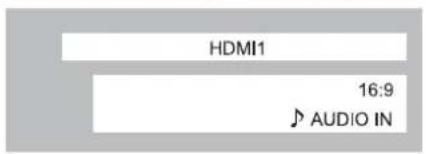
text_image
HDMI1 16:9 AUDIO INInput search
When a signal is not detected, another input with a signal is automatically selected.
Select the item with ▲▼.
Select the set point with ◀▶.

text_image
Input search Input search Off Primary input Secondary input[Input search]
[Off]:
When there is no signal, the input is not switched automatically.
[All inputs]:
Searches all inputs and switches to an input with a signal.
Input search is executed in the following order.
(Example) When the current input is [PC]
$$ [ \mathrm{PC} ] \rightarrow [ \mathrm{SDI1} ] ^ {*} \rightarrow \dots \dots \rightarrow [ \mathrm{DVI-D} ] $$
[Priority]:
Searches [Primary input] and [Secondary input] in order and switches to an input with a signal.
![PANASONIC TH-98LQ70LW - [Priority]: - 1](/content/2026/05/1100567/images/6534e7289b415aea910fb4db1be77d31370ae91fd5107a8afbcf68a524b52ca6.jpg)
text_image
Searching...[Searching...] is displayed during the input search.
[Primary input], [Secondary input]
Set the input to search when [Priority] is selected. (NONE) / [HDMI1] / [HDMI2] / [HDMI3] / [HDMI4] / [DisplayPort] / [DIGITAL LINK] / [DVI-D] / [PC] / [SDI1]*
*: When a Terminal Board is installed to the SLOT, its Terminal name will be displayed.
Note
- This menu is available only when [Input lock] is [Off]. (see page 59)
- If the input is changed by this function, the last input is selected when the power is turned on next time. If you wish to retain the original input when the power is turned on, set [initial input] to the original input.
• Not available during [4 Input multi display].
Onscreen display
Set to display / hide the following Onscreen display.
• Power on display
• Input signal switch display
- No signal display
• MUTE display after displaying the menu screen
- MUTE and off timer remaining time display after
- Off timer remaining time display when 3 minutes remaining
[On]: Displays the Onscreen display.
[Off]: Hides the Onscreen display.
Initial input
Adjusts the input signal when the unit is turned on.
[Off] / [HDMI1] / [HDMI2] / [HDMI3] / [HDMI4] / [DisplayPort] / [DIGITAL LINK] / [DVI-D] / [PC] / [SDI1]*
*: When a Terminal Board is installed to the SLOT, its Terminal name will be displayed.
Note
- This menu is available only when [Input lock] is [Off]. (see page 59)
Initial VOL level
Adjusts the sound volume level when the unit is turned on.
[Off]: It will be the sound volume level which had been set before the power of the unit was turned off.
[On]: Sets your preferred volume.
- You can hear the changed volume regardless of your volume setting before opening the [Options] menu if you adjust the volume when [Initial VOL level] is [On] and cursor is on the menu.
■ To adjust sound volume level
Press
Note
- When [Maximum VOL level] is [On], the volume can only be adjusted between 0 and your maximum range. (see page 59)
Maximum VOL level
Adjusts the maximum volume.
[Off]: The sound volume level can be set up to 63 (maximum).
[On]: The sound volume level will not exceed the set point.
■ To adjust sound volume level
Press
Note
- When the [Maximum VOL level] is set lower than the [Initial VOL level], the [Initial VOL level] automatically becomes the same as the [Maximum VOL level].
The volume display can go up to 63 regardless of the settings. - You can hear the changed volume regardless of your volume setting before opening the [Options] menu if you adjust the volume when [Maximum VOL level] is [On] and cursor is on the menu.
Input lock
Locks the input switch operation.
[Off] / [HDMI1] / [HDMI2] / [HDMI3] / [HDMI4] / [DisplayPort] / [DIGITAL LINK] / [DVI-D] / [PC] / [SDI1]*
*: When a Terminal Board is installed to the SLOT, its Terminal name will be displayed.
Note
- Input switch can be used when this is set to [Off].
Button lock
Limits operation of the buttons on the unit.
| [Off]: | All the buttons on main unit can be used. |
| [MENU&ENTER]: Locksand<ENTER (Unit)>buttons. | |
| [On]: | Locks all the buttons on the unit. |
■ To set [Button lock]
Set with the buttons on the unit.
[Off]:
① Press
② Press for 4 times.
③ Press
④ Press
[MENU&ENTER]:
① Press
② Press
③ Press for 4 times.
④Press
[On]:
① Press
②Press
③ Press
④ Press
Controller user level
Limits operation of the buttons on the remote control.
| [Off]: | You can use all of the buttons on the remote control. |
| [User1]: | You can only use,,,,,, andbuttons on the remote control. |
| [User2]: | You can only useandbuttons on the remote control. |
| [User3]: | Locks all the buttons on the remote control. |
Local dimming
This function partially controls the light emission amount of the LED back light to enhance the contrast. The contrast ratio for different areas in the same screen can be greatly increased.
| [Off]: | Disables the local dimming function. |
| [On]: | Enables the local dimming function. |
Off-timer function
Enables / disables Off timer function.
[Enable]: Enables the [Off-timer function].
[Disable]: Disables the [Off-timer function].
Note
- When [Disable] is set, the Off-timer is cancelled.
Initial power mode
Sets the power mode of the unit for when the power recovers from failure or after plugging off and in again.
[Normal]: Power returns in as the same state as before the power interruption.
[Standby]: Power returns in standby mode. (Power Indicator: red/orange)
[On]: Power returns in power On. (Power Indicator: green)
Note
- When using multiple displays, [Standby] is preferred to be set in order to reduce a power load.
Display ID
Sets ID number when controlling the Display with [Controller ID function] and [Serial ID function].
0 - 100 (Standard value: 0)
Controller ID function
Enables/Disables the ID remote control function.
| [Off]: | Disables the ID remote control function. (Can be operated as normal remote control.) |
| [On]: | Enables the ID remote control function.Effective on switching to [On]. |
Note
- To use the ID remote control function, setting ID numbers both for the remote control and for the display unit is required.
For ID number setting for the remote control and display unit, see page 73 and [Display ID] respectively.
Serial ID function
Set to control external control with the PC connected to SERIAL terminal according to the Display's ID number (Panel ID).
[Off]: Disables external control by the ID.
[On]: Enables the external control by the ID.
LAN control protocol
Select the LAN control protocol.
[Protocol 1]: Control with the Panasonic Display sequence.
[Protocol 2]: Control with the sequence that compatible with Panasonic Projector.
Note
- When using "Early Warning Software" (see page 67), set to [Protocol 2].
RS-232C/LAN information timing
Set up the informing manner for no signal or temperature rising.
During RS-232C controls:
Warning or error message sent on the display automatically.
During LAN controls:
Acquire the warning or error message from the display.
1 Select the item with ▲▼.
Select the set point with ◀▶.

text_image
RS-232C/LAN information timing No signal warning On No signal warning timing 5min No signal error On No signal error timing 10min Temperature warning On[No signal warning]
When set to [On], the display sends out the no signal warning.
[No signal warning timing]
Set up the detecting time for no signal warning.
(Range: 01 - 60, Interval: 1 minute)
[No signal error]
When set to [On], the display sends out the no signal error.
[No signal error timing]
Set up the detecting time for no signal error.
(Range: 01 - 90, Interval: 1 minute)
- The warning of [No signal warning] and the error of [No signal error] are not sent when the no signal state is detected through any of the following functions:
No signal power off, PC power management, DVI-D power management, HDMI1 power management - HDMI4 power management (see page 47)
- If there is no signal when [PC IN] is input, PC power management is activated first and the Display enters the standby mode.
Setting Example:
[No signal warning timing]: 5 minutes
[No signal error timing]: 10 minutes
Note
- The [No signal error timing] cannot be set shorter than [No signal warning timing].
[Temperature warning]
When set to [On], the display sends out the warning temperature.
Power on screen delay
You can set the power-on delay time of the displays to reduce the power load, when you press
Set each display's setting individually.
| [Off]: | The display will be turned on at the same time asispressed. |
| [AUTO]: | Sets the delay time automatically according to the number set for [Display ID]. |
| [1 to 30]: | Set the power-on delay time (second).After pressing, the display will be powered on with time delay depending on this setting. |
Note
- During this function is working, the power indicator is blinking green.
- This function also works when the power recovers from failure or after plugging off and in again the power cord.
DVI-D power management mode
Sets the operational mode of DVI-D power management.
[Standard mode]:
Activates power management when synchronization signals are not detected.
[Low power mode]:
Activates power management also when +5V DC in [DVI-D IN] terminal is not detected.
HDMI power management mode
Sets the operational mode of HDMI Power management.
[Standard mode]:
Activates power management when synchronization signals are not detected.
[Low power mode]:
Activates power management also when +5V DC in HDMI terminal is not detected.
Clock display
Sets to display / hide the clock.
[Off]: Hides the clock.
[On]: Displays the clock.
Note
- The clock is displayed at the lower left of the screen when
button is pressed. - When [Day/Time settings] is not set, the clock is not displayed even when [Clock display] is [On]. (see page 51)
Auto setup
Sets the operational mode of the automatic position adjustment in the [Position] menu.
[Manual]: Automatic position adjustment starts when
[Auto]: Other than remote control or menu operation, automatic position adjustment starts: When the display power is turned ON. When the input signal is switched.
Power on message(No activity power off)
Sets to show/hide [No activity power off] precautions at the time the unit is turned on.
[On]: The warning precautions are shown at the time of power ON.
[Off]: The warning precautions are not shown at the time of power ON.
Note
- This setting is enabled only when [No activity power off] is [Enable] (see page 52).
Power on message(Power management)
Whether to show/hide an information message that tells the power has been turned off by Power Management when the power is set to [On].
[On]: The information is shown at the time of power [On].
[Off]: The information is not shown at the time of power [On].
Note
- This setting is enabled only when "Power management" function is [On] (see page 47).
Initialization
When both main unit buttons and remote control buttons are disabled due to the [Button lock], [Controller user level] and [Controller ID function] settings, set all the values [Off] so that all the buttons are enabled again.
Press together with and hold for more than 5 seconds.
[Shipping] is displayed and the lock is released when it disappears.
Shipping
- Settings for [Button lock], [Controller user level] and [Controller ID function] will be back to [Off].
Using Network Function
This unit has a network function and you can control the Display connected to the network using your computer.
Necessary environment for computers to be connected
First of all, confirm your computer whether it has a wired LAN or a built-in wireless LAN.
Before connecting the Display to the computer, be sure to check the following settings.
Check 1: About LAN cable
• Is the cable connected properly?
- Use LAN cable that is compatible with category 5 or above.
Check 2: LAN settings
Computer with a built-in LAN function
• Is your LAN switched on?
Computer without a built-in LAN function
• Is your LAN adapter recognized properly?
• Is your LAN adapter switched on?
• Install the LAN adapter driver beforehand.
For details on how to install the driver, refer to the instructions accompanying the LAN adapter.
■ About Web Browser
Web Browser is necessary to use WEB control.
- Compatible OS:
Windows XP / Windows Vista / Windows 7 / Windows 8,
Mac OS X v10.4 / v10.5 / v10.6, OS X v10.7 / v10.8
• Compatible Web Browser:
Internet Explorer 7.0 / 8.0 / 9.0 / 10.0, Safari 4.x / 5.x / 6.x (Mac OS)
Example of network connection
Note
- To use the network function, set each item in [Network control] and make sure to set [Network control] to [On].
(see page 54)
When it is set to [On], power indicator lights orange under the condition of power "Off" with remote control (stand-by state).
■ LAN Terminal connection

flowchart
graph TD
    A["1: Digital LAN"] --> B["2: Laptop"]
    B --> C["3: Digital LAN"]
    C --> D["4: Port 1"]
    D --> E["4: Port 2"]
    E --> F["5: Port 3"]
    style A fill:#f9f,stroke:#333
    style B fill:#ccf,stroke:#333
    style C fill:#cfc,stroke:#333
    style D fill:#fcc,stroke:#333
    style E fill:#cff,stroke:#333
    style F fill:#ffc,stroke:#333
① Back of the Display
② COMPUTER
③ LAN Terminal
4 LAN cable (not supplied)
⑤ Hub or broadband router
Note
- For LAN cable, use shielded cable, otherwise picture noise may be caused.
• Make sure the broadband router or hub supports 100BASE-TX. - Touching the LAN Terminal with a statically charged hand (body) may cause damage to the device due to its discharge.
Do not touch the LAN Terminal or the metal part of the LAN cable.
- For instructions on connection, consult your network administrator.
■ DIGITAL LINK Terminal connection
A twisted pair cable transmitter, such as the Panasonic Digital Interface Box (ET-YFB100G), uses twisted pair cables to transmit inputted video and audio signals, and these digital signals can be input to the Display via the DIGITAL LINK terminal.

flowchart
graph TD
    A["Laptop"] -->|2| B["LAN"]
    B -->|4| C["Digital Link LAN"]
    C -->|3| D["Network Port 1"]
    D -->|4| E["Network Port 2"]
    E -->|4| F["Network Port 3"]
    F -->|6| G["Network Port 4"]
    G -->|4| H["Network Port 5"]
① Back of the Display
② COMPUTER
③ LAN Terminal
4 LAN cable (not supplied)
⑤ Example: Panasonic ET-YFB100G
6 Hub or broadband router
Note
- When using a DIGITAL LINK connection, set each item in [Network settings]. (see page 53)
- The Panasonic Digital Interface Box (ET-YFB100G) does not correspond to 4K signal.
Precautions for use while connecting with a twisted pair cable transmitter
About installation / connection
- Ask the dealer or a qualified technician to carry out the cable wiring work for DIGITAL LINK connections. Insufficient wiring work may cause the inability to apply the cable transmission characteristics and cropped or fuzzy images and sounds.
- The transmission distance between the twisted pair cable transmitter and the device is up to 100 meters. When transmitting 4K signal, the maximum is 50 meters.
Exceeding this distance can cause cropped images or sounds, as well as LAN communication errors.
- Do not use a hub between the twisted pair cable transmitter and the device.
- When connecting the Display using the twisted pair cable transmitter (receiver) of other manufacturer, do not use another twisted pair cable transmitter between the twisted pair cable transmitter of other manufacturer and this device. The images and sounds may be interrupted or become unstable.
- If possible, lay the cable extended and not coiled in order to minimize both external and internal noise.
- Lay out cables of the twist pair cable transmitter and this product away from other cables, especially from the power supply cable.
- When laying multiple cables, keep them together as close as possible running parallelly and not bundled.
- After laying the cable(s), check that the signal quality in [DIGITAL LINK status] is -12 dB or below.
About Twisted pair cables
- Between the twisted pair cable transmitter and the device, use a LAN cable that conforms to the following conditions.
- It meets or exceeds CAT5e standards
- It is a straight cable
- It is a shielded cable (with a connector)
-
It is a solid cable
-
When laying the cable(s), use an instrument such as a cable tester or cable analyser and check whether the cable characteristics are CAT5e or above. When using a relay connector along the path, also include this in the measurements.
- Do not pull cables hard. Also, avoid bending or folding them forcefully.
Other
- This device is compatible with our Digital Interface Box (ET-YFB100G). For the twisted pair cable transmitter of the other maker, see the web site: http://panasonic.net/prodisplays/support/digitallink.html
Command control
Network function of the unit can control the unit in the same way as serial control from a network.
Supported commands
Commands used in the serial control are supported. (see page 21)
Note
- If you would like more detail, please contact the dealer.
PJLink protocol
The unit's Network function is compatible with PJLink Class 1. The following operations can be performed from a computer when PJLink protocol is used.
- Setting the Display
• Querying the Display status
Supported commands
The commands to control the unit with PJLink protocol are as follows.
| Command | Control |
| POWR | Power control0: Standby1: Power On |
| POWR? | Power status query0: Standby1: Power On |
| INPT | Input switchThe numbers from 12 to 15 depend on the installed SLOT.31: HDMI1 input (HDMI1)32: HDMI2 input (HDMI2)33: HDMI3 input (HDMI3)34: HDMI4 input (HDMI4)35: DisplayPort input (DisplayPort)36: DIGITAL LINK input (DIGITAL LINK)37: DVI-D IN input (DVI-D)11: PC IN input (PC)When installed “3G-SDI Terminal Board with Audio” to either SLOT 1 or SLOT 2.12: SDI1 input / SDI3 input (SDI1 / SDI3)13: SDI2 input / SDI4 input (SDI2 / SDI4)When installed “3G-SDI Terminal Board with Audio” to both SLOT 1 and SLOT 2.12: SDI1 input (SDI1)13: SDI2 input (SDI2)14: SDI3 input (SDI3)15: SDI4 input (SDI4) |
| Command | Control |
| INPT? | Input switch queryThe numbers from 12 to 15 depend on the installed SLOT.31: HDMI1 input (HDMI1)32: HDMI2 input (HDMI2)33: HDMI3 input (HDMI3)34: HDMI4 input (HDMI4)35: DisplayPort input (DisplayPort)36: DIGITAL LINK input (DIGITAL LINK)37: DVI-D IN input (DVI-D)11: PC IN input (PC)When installed “3G-SDI Terminal Board with Audio” to either SLOT 1 or SLOT 2.12: SDI1 input / SDI3 input (SDI1 / SDI3)13: SDI2 input / SDI4 input (SDI2 / SDI4)When installed “3G-SDI Terminal Board with Audio” to both SLOT 1 and SLOT 2.12: SDI1 input (SDI1)13: SDI2 input (SDI2)14: SDI3 input (SDI3)15: SDI4 input (SDI4) |
| AVMT | Shutter control10: Picture On(picture mute deactivated)11: Picture Off(picture on mute)20: Audio On(audio mute deactivated)21: Audio Off(audio on mute)30: Shutter mode Off(picture and audio mute deactivated)31: Shutter mode On(picture and audio on mute) |
| AVMT? | Shutter control query11: Picture Off (picture on mute)21: Audio Off (audio on mute)30: Shutter mode Off(picture and audio mute deactivated)31: Shutter mode On(picture and audio on mute) |
| ERST? | Error status queryFirst byte: Fan error. 0 or 2.Second byte: 0Third byte: 0Fourth byte: 0Fifth byte: 0Sixth byte: Other error. 0 or 2.Meaning of 0, 2.0: Error is not detected,2: Error |
| LAMP? | Lamp status queryNot supported |
| INST? | Input switch list queryThe numbers from 12 to 15 depend on the installed SLOT.31: HDMI1 input (HDMI1)32: HDMI2 input (HDMI2)33: HDMI3 input (HDMI3)34: HDMI4 input (HDMI4)35: DisplayPort input (DisplayPort)36: DIGITAL LINK input (DIGITAL LINK)37: DVI-D IN input (DVI-D)11: PC IN input (PC)When installed “3G-SDI Terminal Board with Audio” to either SLOT 1 or SLOT 2.12: SDI1 input / SDI3 input (SDI1 / SDI3)13: SDI2 input / SDI4 input (SDI2 / SDI4)When installed “3G-SDI Terminal Board with Audio” to both SLOT 1 and SLOT 2.12: SDI1 input (SDI1)13: SDI2 input (SDI2)14: SDI3 input (SDI3)15: SDI4 input (SDI4) |
| NAME? | Display name queryThe name selected in [Network settings] is returned. |
| INF1? | Manufacturer name queryReturns “Panasonic”. |
| INF2? | Model name queryReturns “84LQ70U”.(Example: 84-inch U model)Returns “84LQ70W”.(Example: 84-inch W model) |
| INFO? | Other information queryReturns version number. |
| CLSS? | Class information queryReturns “1”. |
PJLink security authentication
When using PJLink with security authorization, either of the password set for administrator privileges and the password set for user privileges with Web browser control can be used as the password for PJLink. (see page 69)
When using PJLink without security authorization, set use without the password for administrator privileges and the password for user privileges of Web browser control.
- Concerning the specification of PJLink, see the web site of Japan Business Machine and Information System Industries Association (JBM|A) below: http://pjlink.jbmia.or.jp/english/index.html
Early Warning Software
This unit supports "Early Warning Software" which monitors the statuses of devices (projectors or flat-panel displays) connected to an intranet, reports failures of devices and gives advance warning by detecting a predicted abnormality.
The maximum number of devices that can be registered to monitor differs according to the type of license. Up to 2048 devices can be registered and used for free for a maximum of 90 days after the installation to PC has completed.
- For more details, visit the following web site. http://panasonic.net/prodisplays/products/et-swa100/index.html
Connecting with LAN
Note
- To use the network function, set each item in [Network settings] and be sure to enable LAN in [Network control] and [DIGITAL LINK mode]. (see page 55)
Computer operation
1 Turn on the computer.
2 Make the network setting according to your system administrator.
When the Display settings are the default settings (see page 53), the computer can be used with the following network settings.
| IP address | 192.168.0.9 |
| Subnet mask | 255.255.255.0 |
| Gateway | 192.168.0.1 |
Using Web Browser Control
You can use a Web browser to control the unit and set up a network and password.
Before Using Web Browser Control
To use the Web browser control, the unit and computer set ups are required.
■ About Web Browser
Set each item in [Network settings] and be sure to set [Network control] to [On]. (see page 54)
■ Computer Setup
Disable the proxy server settings and enable JavaScript.
- The setting procedure differs depending on the software version. Please refer to description in HELP, etc. of the software.
(Windows)
Windows 7 is used as an example.
Disable proxy server settings
1 Display [Internet Properties] window.
Click [Start] - [Control Panel] - [Network and Internet] - [Internet Options].
- If the on screen display looks different, please set [View by:] to [Category].
2 Click the [Connections] tab and then [LAN Settings].
3 Deselect the [Use automatic configuration script] and [Use a proxy server for your LAN] boxes.
4 Click [OK].
Enable JavaScript
1 Display [Internet Properties] window.
Click [Start] - [Control Panel] - [Network and Internet] - [Internet Options].
- If the on screen display looks different, please set [View by:] to [Category].
2 Set the security level on the [Security] tab to [Default Level]. Alternatively enable [Active scripting] from the [Custom Level] button.
(Macintosh)
Disable proxy server settings
1 From the [Safari] menu, click [Preferences]. General screen is displayed.
2 From the [Advanced] tab, click the [Change Settings...] button next to [Proxies].
Click [Proxies] and set up a proxy server.
3 Deselect the [Web Proxy] and [Automatic Proxy Configuration] boxes.
4 Click [Apply Now].
Enable JavaScript
1 Display [Security] of Safari.
2 Select [Enable JavaScript] under [Web content].
Access from Web Browser
Access to the TOP screen of the Web browser control using a Web browser.
1 Start your Web browser.
2 Enter the IP address set with the [LAN setup] of the unit.
(see page 53)

3 Enter the user name and password when the Authentication screen is displayed.

text_image
Windows Security The server 192.168.0.8 at Panasonic Display Control requires a username and password. User name Password Remember my credentials OK Cancel4 Click [OK].
After logged in, the TOP screen of the Web Browser Control is displayed. (see page 69)
Note
- The password used here is the same password used for command control and the PJLink security authentication.
- Default user name and password are as follows: User name: user1 (user rights)
Password: panasonic
Change password first. - The password can be changed on the Password Setup screen after logging in (see page 70). The user name cannot be changed.
- When using "Early Warning Software" (see page 67), log in with the administrator rights.
User name: admin1 (administrator rights)
Password: panasonic - Under no circumstances, Panasonic Corporation or its associated companies will ask customers their password directly.
Even if you are asked directly, please do not reveal your password.
Operating with Web Browser
■ Description of each section
After logging in, the TOP screen of the Web browser control is displayed.
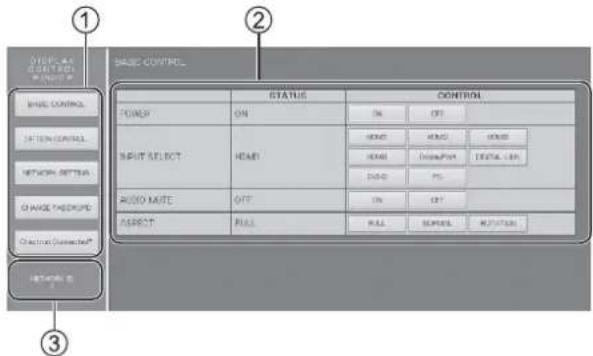
text_image
1 2 3 BASE CONTROL POWER ON CONTROL INPUT SELECT HEAD HONG HONG OTHER HONG DramaPort DIGITAL LIP DUSC PS AUDIO KATE OFF ON OFF OUTPUT OUTPUT OUTPUT① Menu items are displayed. When a button is clicked, setup screen of each item is displayed.
| BASICCONTROL | The following [BASICCONTROL] screen is displayed. |
| OPTIONCONTROL | The following [OPTIONCONTROL] screen is displayed. |
| NETWORKSETTING | Network settings screen isdisplayed. (see page 70) |
| CHANGEPASSWORD | Password setting screen isdisplayed. (see page 70) |
| CrestronConnectedTM | The Crestron ConnectedTMoperations screen is displayed.(see page 71)This button does not appearwhen [Crestron ConnectedTM]in [Network settings] is [Off].(see page 55) |
② According to the selected item from the menu, setup status or set items are displayed.
③ ID to identify the unit is displayed.
[BASIC CONTROL] screen
Click [BASIC CONTROL] from the menu. Unit status and buttons to change settings are displayed.
| STATUS | CONTROL | |||
| POWER | ON | ON | OFF | |
| INPUT SELECT | DWD | HDMI | HDMI | HDMI |
| HDMI | DisplayPort | COSTAL LINK | ||
| DVT-D | PO | |||
| AUDIO MUTE | OFF | ON | OFF | |
| ASPECT | FULL | FULL | NORMAL | ROTATION |
| POWER | Switch the power of the unit [ON] / [OFF]. |
| INPUT SELECT | Switch the input signals. Displayed buttons vary according to the connection status of the video device. |
| AUDIO MUTE | Switch the sound mute [ON] / [OFF]. |
| ASPECT | Switch the screen modes. |
[OPTION CONTROL] screen
Click [OPTION CONTROL] from the menu. Command input field for command control of the unit is displayed.
![PANASONIC TH-98LQ70LW - [OPTION CONTROL] screen - 1](/content/2026/05/1100567/images/f8cf88c02657da8cfd62ead76e95312fb21242faae691904613842573903faa8.jpg)
text_image
COMMAND RESPONSE SEND| COMMAND | Enter a command. Use the same command used for the serial control. (see page 21) |
| RESPONSE | Response from the unit is displayed. |
| SEND | Command is sent and run. |
Note
- After the settings are changed, it may take a while until the Display's response is displayed.
[NETWORK SETTING] screen
Click [NETWORK SETTING from the menu. Various settings of a network can be set. For details of the setting items, please check [LAN setup] in [Network settings] of the unit. (see page 53)
![PANASONIC TH-98LQ70LW - [NETWORK SETTING] screen - 1](/content/2026/05/1100567/images/f3ba4de5dc07a614336e8e8ea7e5faf258cf18dfa6ff1ab30950467096d37787.jpg)
text_image
DHCP IP ADDRESS SUBNET MASK GATEWAY PORT DUPLEX NETWORK ID OFF ON 192.168 0.8 255.255 255.0 192.168 0.1 1024 AUTO 100 FULL 100 HALF 0 SAVE| DHCP | Set to [ON] when a DHCP server is used, or [OFF] when it is not used. |
| IP ADDRESS | Enter an IP address. |
| SUBNET MASK | Enter a subnet mask. |
| GATEWAY | Enter a gateway address. |
| PORT | Enter the port number used for command control. The available setting range is 1024 - 65535. |
| DUPLEX | Set the connection speed of the LAN environment. |
| NETWORK ID | Set the ID to identify this unit. The available setting range is 0 - 99. |
| SAVE | Save the each set value. |
Note
- To use a DHCP server, make sure the DHCP server is started.
- While a DHCP server is used, IP ADDRESS, SUBNET MASK, and GATEWAY values cannot be entered.
- When the set values are changed successfully, [NETWORK SETTING CHANGED.] message and the changed set items are displayed.
[CHANGE PASSWORD] screen
Click [CHANGE PASSWORD] from the menu. Password to access the Web Browser Control can be set. When the password is changed in this screen, the password used for command control and the PJLink security authentication is also changed.
![PANASONIC TH-98LQ70LW - [CHANGE PASSWORD] screen - 1](/content/2026/05/1100567/images/040f830e35a211a90e3a50d77bc7382b044f86c52cb51322f99d8a4d6a8a818e.jpg)
text_image
OLD PASSWORD NEW PASSWORD NEW PASSWORD (RETYPE) SAVE| OLD PASSWORD | Enter the old password. |
| NEW PASSWORD | Enter the new password. |
| NEW PASSWORD (RETYPE) | Enter the password entered in [NEW PASSWORD] for confirmation. |
| SAVE | Save the new password.The confirmation screen is displayed. Click [OK] to change the password. |
Note
• The default password is [panasonic].
- Up to 32 alphanumeric characters can be used for a password.
- When the password is changed properly, [Password has changed.] message is displayed.
Crestron Connected™ page
You can monitor or control the Display using Crestron Connected™.
If Adobe Flash Player is not installed in your computer, or if the browser does not support Flash, this page does not appear. In this case, return to the previous page by clicking [Back] in the operation page.
■ Operation page
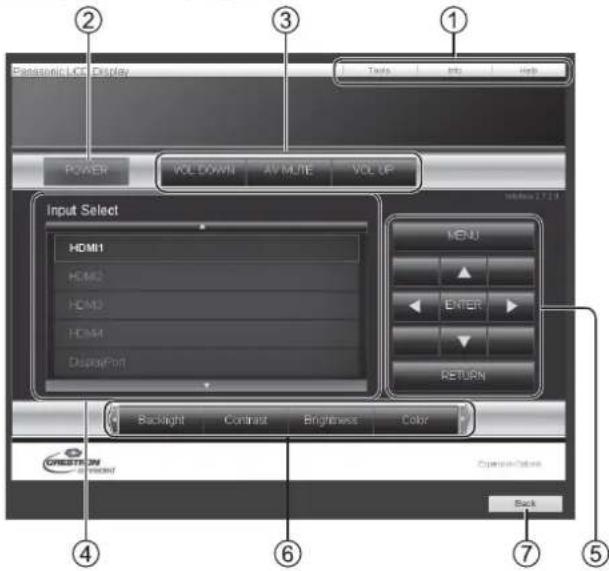
text_image
Panasonic LCD Display POWER VOL DOWN AV MUTE VOL UP Input Select HDMI1 HDMI2 HDMI3 HDMI4 DisplayPort MND ENTER RETURN Backlight Contrast Brightness Color CREDITAIN CREDIT ON Open/Close Back ① Tools ② Info ③ Help ④ ⑥ ⑦ ⑤① [Tools], [Info], [Help]
Switches the pages for tools, information, help using the tab.
② [POWER]
Switches between on and off of the power.
③ [VOL DOWN], [AV MUTE], [VOL UP]
Sets the volume, AV mute.
When the power of the Display is turned off, these operations are not available.
④ [Input Select]
Sets the input selection.
When the power of the Display is turned off, this operation is not available.
⑤ Operation buttons on the menu screen
Operates on the menu screen.
⑥ Image quality adjustments
Operate items related to image quality.
⑦ [Back]
Returns to the previous page.
[Tools] page
Click [Tools] on the operation page.
![PANASONIC TH-98LQ70LW - [Tools] page - 1](/content/2026/05/1100567/images/9feb77589c531bfe88a8ff024462101400b0e93ad4134405de0b154ce1d1e5a6.jpg)
text_image
Panasonic LCD Display Control System IF Address PID Post: 41724 Send User Password Enabled New Password Confirm Send DHCP Enabled IP Address: 192.168.03 Sub Don't Use: 256.256.256.9 Default/Security: 192.168.01 Admin Password Enabled New Password Confirm Send Edit CRESTRON connected Explain Options Back ① ② ③ ④ ⑤① [Control System]
Sets the information required for the communication with the controller that is connected to the Display.
② [User Password]
Sets the password for the user rights in the operation page of Crestron Connected™.
③ [Admin Password]
Sets the password for the administrator rights in the operation page of Crestron Connected™.
④ [Network Status]
Displays the setting of LAN.
• DHCP
- [IpAddress]
- [SubnetMask]
- [DefaultGateway]
Displays the value in the current setting.
⑤ [Exit]
Returns to the operation page.
Note
- When you monitor or control the Display using Crestron Connected™, set [Crestron Connected™] to [On] in the [Network settings] menu. (see page 55)
■ [Info] page
Click [Info] on the operation page.
![PANASONIC TH-98LQ70LW - ■ [Info] page - 1](/content/2026/05/1100567/images/66f7d5a7de78bfc189aa73c47ba4dd0cdef11da3fc0903d9c9fd89e11519f979.jpg)
text_image
Panasonic LCD Display Display Information Chrome Name: 0075-81 Max Address: 90.189.97.20.72.62 Resolution: NO SIGNAL Display Status Power Status: POWER ON Strait: HDMI Exit CREATION SINOCORE Exercise Online Back① [Display Name]
Displays the name of the Display.
② [Mac Address]
Displays the MAC address.
③ [Resolution]
Displays the resolution of the Display.
④ [Power Status]
Displays the status of the power.
⑤ [Source]
Displays the selected video input.
⑥ [Exit]
Returns the operation page.
■ [Help] page
Click [Help] on the operation page.
The [Help Desk] screen is displayed.
![PANASONIC TH-98LQ70LW - ■ [Help] page - 1](/content/2026/05/1100567/images/b93b91ee0ddafea3fa1b8bdd97b566328f39063e58816676504e7f46d410e375.jpg)
text_image
Panasonic LCD Display Display Information Display Name: E2019-8X Mac Address: WJ 89 97 TO F2 62 Resolution: NO B3N4L Display Status Power Status: POWER 0.6x Source: HDMI Exit C:\STINON\connected Extension Online Back① [Help Desk]
Sends or receives messages to the administrator who uses Crestron Connected™.
ID Remote Control Function
You can set the remote control ID when you want to use this remote control on one of several different displays. In that case, you need to set the remote control's ID number to match the Display's ID number you have set in [Display ID] following the steps below.

text_image
1 2 3 4 5 6 7 8 9 FUNCTION GROUP 0 ID SET ON OFF Panasonic ID MODE DISPLAYSetting the remote control's ID number
1 Set [Controller ID function] to [On]. (see page 60)
- While displaying [Options] menu, you can operate even if the ID does not match.
2 Set the remote control's
3 Pointing the remote control at the Display you want to control, press
| ID Set | |
| Display ID | 100 |
| Controller ID | --- |
4 Press one of <0> - <9>. Sets the tens digit.
5 Press one of <0> - <9>.
Sets the units digit.
- The steps from 3 to 5 need to be done within 5 seconds.
- Adjustable ID number range is 0 - 100.
Example:
- To set the ID to "1": After step 3, press <0> and then <1>.
- To set the ID to "12": After step 3, press <1> and then <2>.
- To set the ID to "100": After step 3, press <1> <0> <0>.
Cancelling the setting of remote control's ID number (ID [0])
You can operate even if the ID does not match the ID set in [Display ID].
Press for more then 3 seconds.
This has the same effect as pressing
Note
- The ID remote control cannot be used when [Display ID] is set to anything other than "0", and the remote control ID is not the same as the [Display ID] number. (see page 60)
Entering characters
Some settings require to enter characters.
To enter text, select characters in the on-screen keyboard.
Example: Entering profile names ([Memory save])

text_image
Memory name input MEMORY1 A B C D E F G H I J K L M All delete N O P Q R S T U V W X Y Z Delete a b c d e f g h i j k l m n o p q r s t u v w x y z 0 1 2 3 4 5 6 7 8 9 Space ! ^ # $ % & ' * + - / = ? @ \ ^ _ ' | ~ < > ( ) [ ] { } . ; : Ok CancelThe default profile name is [MEMORY1], here, we are changing it to [MY PICTURE] as an example.
1 Select [All delete] with ▲▼◀▶, and press
MEMORY1
All text is deleted.
To delete individual characters, select [Delete].
2 Select [M] with ▲▼◀▶, and press
M
Repeat this process to enter the next character.
3 Select [Space] with ▲▼◀▶, and press
MY
As shown in step 2, select the characters to enter [PICTURE].
4 When you finished entering the profile name, select [Ok] with ▲▼◀ ▶ and press

text_image
Memory name input MY PICTURE A B C D E F G H I J K L M All delete N O P Q R S T U V W X Y Z Delete a b c d e f g h i j k l m n o p q r s t u v w x y z 0 1 2 3 4 5 6 7 8 9 Space ! " # $ % & ' * + - / = ? @ \ " - | ~ < > ( ) [ ] { } , . : : Ok Cancel- To cancel saving the profile, select [Cancel].
Command list of Weekly Command Timer
| No. | Command | Control details |
| 1 | AAC:4IM0 | 4 Input multi displaySound: Off |
| 2 | AAC:4IM1 | 4 Input multi displaySound: Upper left |
| 3 | AAC:4IM2 | 4 Input multi displaySound: Upper right |
| 4 | AAC:4IM3 | 4 Input multi displaySound: Lower left |
| 5 | AAC:4IM4 | 4 Input multi displaySound: Lower right |
| 6 | AMT:0 | Audio Mute (OFF) |
| 7 | AMT:1 | Audio Mute (ON) |
| 8 | - | - |
| 9 | - | - |
| 10 | AVL:00 | Audio Volume (00) |
| 11 | AVL:10 | Audio Volume (10) |
| 12 | AVL:20 | Audio Volume (20) |
| 13 | AVL:30 | Audio Volume (30) |
| 14 | AVL:40 | Audio Volume (40) |
| 15 | AVL:50 | Audio Volume (50) |
| 16 | AVL:60 | Audio Volume (60) |
| 17 | DAM:FULL | Aspect (16:9) |
| 18 | DAM:NORM | Aspect (4:3) |
| 19 | DAM:ZOOM | Aspect (Zoom) |
| 20 | IMS:HM1 | Input select (During 4 Input multi display: Upper left)HDMI1 |
| 21 | IMS:HM2 | Input select (During 4 Input multi display: Upper left)HDMI2 |
| 22 | IMS:HM3 | Input select (During 4 Input multi display: Upper left)HDMI3 |
| 23 | IMS:HM4 | Input select (During 4 Input multi display: Upper left)HDMI4 |
| 24 | IMS:DP1 | Input select (During 4 Input multi display: Upper left)DisplayPort |
| 25 | IMS:DL1 | Input select (During 4 Input multi display: Upper left)DIGITAL LINK |
| 26 | IMS:DV1 | Input select (During 4 Input multi display: Upper left)DVI-D |
| No. | Command | Control details |
| 27 | IMS:PC1 | Input select (During 4 Input multi display: Upper left) PC |
| 28 | IMS:S1A | Input select SLOT 1A |
| 29 | IMS:S1B | Input select SLOT 1B |
| 30 | IMS:S2A | Input select SLOT 2A |
| 31 | IMS:S2B | Input select SLOT 2B |
| 32 | SSU:4IM2HM1 | Input select during 4 Input multi display (Upper right) HDMI1 |
| 33 | SSU:4IM2HM2 | Input select during 4 Input multi display (Upper right) HDMI2 |
| 34 | SSU:4IM2HM3 | Input select during 4 Input multi display (Upper right) HDMI3 |
| 35 | SSU:4IM2HM4 | Input select during 4 Input multi display (Upper right) HDMI4 |
| 36 | SSU:4IM2DP1 | Input select during 4 Input multi display (Upper right) DisplayPort |
| 37 | SSU:4IM2DL1 | Input select during 4 Input multi display (Upper right) DIGITAL LINK |
| 38 | SSU:4IM2DV1 | Input select during 4 Input multi display (Upper right) DVI-D |
| 39 | SSU:4IM2PC1 | Input select during 4 Input multi display (Upper right) PC |
| 40 | SSU:4IM3HM1 | Input select during 4 Input multi display (Lower left) HDMI1 |
| 41 | SSU:4IM3HM2 | Input select during 4 Input multi display (Lower left) HDMI2 |
| 42 | SSU:4IM3HM3 | Input select during 4 Input multi display (Lower left) HDMI3 |
| 43 | SSU:4IM3HM4 | Input select during 4 Input multi display (Lower left) HDMI4 |
| 44 | SSU:4IM3DP1 | Input select during 4 Input multi display (Lower left) DisplayPort |
| 45 | SSU:4IM3DL1 | Input select during 4 Input multi display (Lower left) DIGITAL LINK |
| 46 | SSU:4IM3DV1 | Input select during 4 Input multi display (Lower left) DVI-D |
| 47 | SSU:4IM3PC1 | Input select during 4 Input multi display (Lower left) PC |
| 48 | SSU:4IM4HM1 | Input select during 4 Input multi display (Lower right) HDMI1 |
| 49 | SSU:4IM4HM2 | Input select during 4 Input multi display (Lower right) HDMI2 |
| 50 | SSU:4IM4HM3 | Input select during 4 Input multi display (Lower right) HDMI3 |
| 51 | SSU:4IM4HM4 | Input select during 4 Input multi display (Lower right) HDMI4 |
| 52 | SSU:4IM4DP1 | Input select during 4 Input multi display (Lower right) DisplayPort |
| 53 | SSU:4IM4DL1 | Input select during 4 Input multi display(Lower right) DIGITAL LINK |
| 54 | SSU:4IM4DV1 | Input select during 4 Input multi display (Lower right) DVI-D |
| 55 | SSU:4IM4PC1 | Input select during 4 Input multi display(Lower right) PC |
| 56 | - | - |
| 57 | POF | Power OFF |
| 58 | PON | Power ON |
| 59 | SSU:4IM0 | 4 Input multi display Off |
| 60 | SSU:4IM1 | 4 Input multi display On |
| 61 | SSC:MOD0 | Screen Saver (Mode (Off)) |
| 62 | SSC:MOD3 | Screen Saver (Mode (On)) |
| 63 | VMT:0* | Picture Mute (OFF) |
| 64 | VMT:1* | Picture Mute (ON) |
*: Picture Mute cannot be unlocked by powering off/on with the remote control. Turn off and on again with the button on the unit or enter the command VMT:0 to unlock Picture Mute.
Following signal timing is preset to this unit.
These preset signals are written on EDID of the each input terminal. (Except for *6)
In many cases, it is possible to receive the signals other than below with this unit's multi scan function. (Except for 4K signal)
√ Mark: Preset signal
| Signal name | H-Freq. (kHz) | V-Freq. (Hz) | Dot clock frequency (Hz) | PC IN | HDMI 1 HDMI 2 | HDMI 3 HDMI 4 DVI-D IN | DIGITAL LINK | DisplayPort |
| 525 (480) / 60i | 15.73 | 59.94 | 13.5 | √ | ||||
| 625 (576) / 50i | 15.63 | 50.00 | 13.5 | √ | ||||
| 525 (480) / 60i*2 | 15.75 | 60.00 | 27.0 | √ | √ | √ | ||
| 625 (576) / 50i | 15.63 | 50.00 | 27.0 | √ | √ | √ | ||
| 525 (480) / 60p*2 | 31.50 | 60.00 | 27.0 | √ | √ | √ | √ | |
| 625 (576) / 50p | 31.25 | 50.00 | 27.0 | √ | √ | √ | √ | |
| 750 (720) / 60p*2 | 45.00 | 60.00 | 74.25 | √ | √ | √ | √ | √ |
| 750 (720) / 50p | 37.50 | 50.00 | 74.25 | √ | √ | √ | √ | √ |
| 1 125 (1080) / 60i*1 *2 | 33.75 | 60.00 | 74.25 | √ | √ | √ | √ | |
| 1 125 (1080) / 50i*1 | 28.13 | 50.00 | 74.25 | √ | √ | √ | √ | |
| 1 125 (1080) / 24p*1 *2 | 27.00 | 24.00 | 74.25 | √ | √ | √ | √ | |
| 1 125 (1080) / 25p*1 | 28.13 | 25.00 | 74.25 | √ | √ | √ | √ | |
| 1 125 (1080) / 30p*1 *2 | 33.75 | 30.00 | 74.25 | √ | √ | √ | √ | |
| 1 125 (1080) / 60p*1 *2 | 67.50 | 60.00 | 148.5 | √ | √ | √ | √ | √ |
| 1 125 (1080) / 50p*1 | 56.25 | 50.00 | 148.5 | √ | √ | √ | √ | √ |
| 640 × 480 (VGA) | 31.47 | 59.94 | 25.18 | √ | √ | √ | √ | √ |
| 800 × 600 (SVGA) | 37.88 | 60.32 | 40.00 | √ | √ | √ | √ | √ |
| 1 024 × 768 (XGA) | 48.36 | 60.00 | 65.00 | √ | √ | √ | √ | √ |
| 1 280 × 768 | 47.70 | 60.00 | 80.14 | √ | √*6 | √ | √ | √ |
| 1 366 × 768 | 48.39 | 60.04 | 86.71 | √ | √*6 | √ | √ | √ |
| 1 280 × 1 024 (SXGA) | 63.98 | 60.02 | 108.0 | √ | √ | √ | √ | √ |
| 1 600 × 900 | 60.00 | 60.00 | 108.0 | √ | √ | √ | √ | √ |
| 1 920 × 1 080 | 67.50 | 60.00 | 148.5 | √ | √ | √ | √ | √ |
| 1 920 × 1 200 (UXGA) | 74.04 | 59.95 | 154.0 | √ | √ | √ | √ | √ |
| 4K signal | ||||||||
| 3 840 / 24p*2 | 54.00 | 24.00 | 297.0 | √ | √ | √ | ||
| 3 840 / 25p | 56.25 | 25.00 | 297.0 | √ | √ | √ | ||
| 3 840 / 30p*2 | 67.50 | 30.00 | 297.0 | √ | √ | √ | ||
| 4 096 / 24p*2 | 54.00 | 24.00 | 297.0 | √ | √ | |||
| 3 840 / 50p | 112.5 | 50.00 | 594.0 | √ | √*4 | √*5 | ||
| 3 840 / 60p*2 | 135.0 | 60.00 | 594.0 | √ | √*4 | √*5 | ||
| 4 096 / 50p | 112.5 | 50.00 | 594.0 | √ | √*4 | |||
| 4 096 / 60p*2 | 135.0 | 60.00 | 594.0 | √ | √*4 | |||
| 4K (Dual Link) signal | ||||||||
| 3 840 / 50p | 112.5 | 50.00 | 297.0 | √*3 | ||||
| 3 840 / 60p*2 | 135.0 | 60.00 | 297.0 | √*3 | ||||
| 4 096 / 50p | 112.5 | 50.00 | 297.0 | √*3*6 | ||||
| 4 096 / 60p*2 | 135.0 | 60.00 | 297.0 | √*3*6 | ||||
*1: Based on SMPTE 274M standard.
*4: Supported in YCBCR 4:2:0 format
*2: Compatible with frame frequency 1/1.001
*5: Supported with MST(Multi Stream Transport) only
*3: The format supports Dual Link. (see page 16)
*6: Not written on EDID
In some cases, these signals may not be displayed when setting Resolution on your PC.
Note
• Signals without above specification may not be displayed properly.
- For the signals when 3G-SDI Terminal Board with Audio is installed, refer to the manual included with it.
Shipping condition
You can reset the settings / the adjusted values of the following menus to the factory settings:
[Picture], [Sound], [Setup], [Position], [Options]
■ Remote control
1 Press
2 Select [OSD language] with ▲▼ and press
The following screen will be displayed.
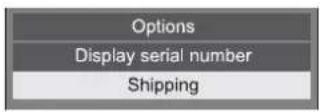
3 Select [Shipping] with ▲▼ and press

text_image
Shipping YES NO4 Select [YES] with ◀▶ and press
The message [Shipping (wait a moment)] will be displayed.
5 After the message [Please turn off the power] is displayed, turn the power off pressing
Unit
1 Press
- Design and specifications are subject to change without notice. Mass and dimensions shown are approximate.
- This equipment complies with the EMC standards listed below.
EN55022, EN55024, EN61000-3-2, EN61000-3-3.
■ Software Information for This Product
This product has software installed partially licensed under the Free BSD LICENSE.
Free BSD LICENSE regulations under the above specifications are as follows:
(These regulations are set by the third party; therefore the original (English) regulations are stated.)
Copyright © 1980, 1986, 1993
The Regents of the University of California. All rights reserved.
Redistribution and use in source and binary forms, with or without modification, are permitted provided that the following conditions are met:
- Redistributions of source code must retain the above copyright notice, this list of conditions and the following disclaimer.
- Redistributions in binary form must reproduce the above copyright notice, this list of conditions and the following disclaimer in the documentation and/or other materials provided with the distribution.
- All advertising materials mentioning features or use of this software must display the following acknowledgement: This product includes software developed by the University of California, Berkeley and its contributors.
- Neither the name of the University nor the names of its contributors may be used to endorse or promote products derived from this software without specific prior written permission.
THIS SOFTWARE IS PROVIDED BY THE REGENTS AND CONTRIBUTORS "AS IS" AND ANY EXPRESS OR IMPLIED WARRANTIES, INCLUDING, BUT NOT LIMITED TO, THE IMPLIED WARRANTIES OF MERCHANTABILITY AND FITNESS FOR A PARTICULAR PURPOSE ARE DISCLAIMED. IN NO EVENT SHALL THE REGENTS OR CONTRIBUTORS BE LIABLE FOR ANY DIRECT, INDIRECT, INCIDENTAL, SPECIAL, EXEMPLARY, OR CONSEQUENTIAL DAMAGES (INCLUDING, BUT NOT LIMITED TO, PROCUREMENT OF SUBSTITUTE GOODS OR SERVICES; LOSS OF USE, DATA, OR PROFITS; OR BUSINESS INTERRUPTION) HOWEVER CAUSED AND ON ANY THEORY OF LIABILITY, WHETHER IN CONTRACT, STRICT LIABILITY, OR TORT (INCLUDING NEGLIGENCE OR OTHERWISE) ARISING IN ANY WAY OUT OF THE USE OF THIS SOFTWARE, EVEN IF ADVISED OF THE POSSIBILITY OF SUCH DAMAGE.
Information for Users on Collection and Disposal of Old Equipment and used Batteries

These symbols on the products, packaging, and/or accompanying documents mean that used electrical and electronic products and batteries should not be mixed with general household waste. For proper treatment, recovery and recycling of old products and used batteries, please take them to applicable collection points, in accordance with your national legislation and the Directives 2002/96/EC and 2006/66/EC.
By disposing of these products and batteries correctly, you will help to save valuable resources and prevent any potential negative effects on human health and the environment which could otherwise arise from inappropriate waste handling.

For more information about collection and recycling of old products and batteries, please contact your local municipality, your waste disposal service or the point of sale where you purchased the items.
Penalties may be applicable for incorrect disposal of this waste, in accordance with national legislation.
For business users in the European Union
If you wish to discard electrical and electronic equipment, please contact your dealer or supplier for further information.

[Information on Disposal in other Countries outside the European Union]
These symbols are only valid in the European Union. If you wish to discard these items, please contact your local authorities or dealer and ask for the correct method of disposal.
Note for the battery symbol (bottom two symbol examples):
This symbol might be used in combination with a chemical symbol. In this case it complies with the requirement set by the Directive for the chemical involved.
USA only: Disposal may be regulated in your community due to environmental considerations. For disposal or recycling information, please visit Panasonic website: http://www.panasonic.com/environmental or call 1-888-769-0149.
Customer's Record
The model number and serial number of this product may be found on its rear panel. You should note this serial number in the space provided below and retain this book, plus your purchase receipt, as a permanent record of your purchase to aid in identification in the event of theft or loss, and for Warranty Service purposes.
Model Number
Serial Number
For TH-84LQ70U, TH-98LQ70U, TH-84LQ70LU and TH-98LQ70LU Panasonic System Communications Company of North America
Unit of Panasonic Corporation of North America
Executive Office :
Two Riverfront Plaza, Newark, New Jersey 07102-5490
Panasonic Canada Inc.
5770 Ambler Drive
Mississauga, Ontario
L4W 2T3
For TH-84LQ70W, TH-98LQ70W, TH-84LQ70LW and TH-98LQ70LW
Pursuant to the directive 2004/108/EC, article 9(2)
Panasonic Testing Centre
Panasonic Service Europe, a division of Panasonic Marketing Europe GmbH
Winsbergring 15, 22525 Hamburg, F.R. Germany