
CA-4100 - Loudspeaker Cyber Acoustics - Free user manual and instructions
Find the device manual for free CA-4100 Cyber Acoustics in PDF.


| Product Type | Speaker System |
| Brand | Cyber Acoustics |
| Model | CA-4100 |
| Dimensions (W x H x D) | 4.5 x 7.2 x 5.5 inches |
| Weight | 1.5 lbs |
| Power Supply | AC adapter (included) |
| Speaker Type | 2.0 stereo speakers |
| Audio Input | 3.5mm auxiliary input |
| Volume Control | Front knob |
| Power Indicator | LED light on front |
| Frequency Response | 80 Hz - 20 kHz |
| Output Power | 6W total (3W per channel) |
| Compatibility | PC, laptop, smartphone, tablet |
| Cleaning Instructions | Wipe with dry, soft cloth |
| Safety Warning | Do not expose to water or moisture |
| Spare Parts Availability | Contact manufacturer for parts |
| Warranty | 1 year limited warranty |
Frequently Asked Questions - CA-4100 Cyber Acoustics
User questions about CA-4100 Cyber Acoustics
0 question about this device. Answer the ones you know or ask your own.
Ask a new question about this device
Download the instructions for your Loudspeaker in PDF format for free! Find your manual CA-4100 - Cyber Acoustics and take your electronic device back in hand. On this page are published all the documents necessary for the use of your device. CA-4100 by Cyber Acoustics.
USER MANUAL CA-4100 Cyber Acoustics
- Use only the AC/DC power adapter supplied with these speakers. Cyber Acoustics cannot be held responsible for damage caused by other power supplies.
- Disconnect the power supply before making any connections.
- Although the CA-4100 satellite speakers are magnetically shielded, keep discs and tapes away from them. The subwoofer speaker is not magnetically shielded. Keep away from monitor, disc, etc. Cyber Acoustics is not responsible for any damage caused by misuse.
- Keep your speakers away from extreme heat or humid and wet conditions.
TROUBLESHOOTING
Speakers produce no sound
- Are the speakers getting power? Is the power indicator light on? Check the power supply connections.
- Is there any output from your sound card? Check your sound card setting. Also, you can check the speakers easily by connecting them to another music source such as a portable CD player or cassette player. Just plug them into the headphone jack or line out jack. If the speakers work on this other source, they are OK and the problem is with the soundcard.
- No sound from rear speakers: Check rear speaker volume control. Note: Sound from the front/master volume control must be turned up before sound output can be heard from rear channel.
Speakers produce weak sound
- Again, check your soundcard setting. Make sure your software speaker volume control is turned up to a desired level.
One speaker does not play
- Check the balance control on your mixer software.
- Check the plug connections.
Customer Service
If you have questions or need assistance with your speakers, please call or consult our web site.
Tel: 360 883 0333
Web site: www.cyber-acoustics.com

Cyber Acoustics
CA-4100 COMPUTER SPEAKERS
Thank you for purchasing the CA-4100 Quad Surround computer speaker system by Cyber Acoustics. This 4.1 surround system is designed to provide multi- channel sound for multimedia games and audio. It is perfect for 3D positional audio sound cards (sound cards with front and rear' surround outputs, otherwise known as 4-channel) but it can also be used with standard 2-channel sound cards (sound cards with only one output jack).
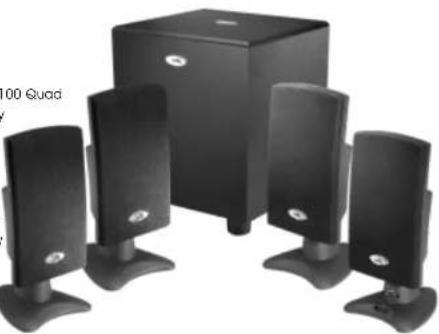
Outputs of 3D positional audio sound cards are usually marked as "Out 1" and "Out 2" or "front" and "surround" out this may vary. Consult your sound card user guloe. When connected to a 3D positional audio sound card, the CA-4100 will play back sounds so they appear to be coming from all directions. Sounds will literally be in front of you, behind you, below you, etc. It is the perfect gaming experience!
If your computer's sound card is a standard 2-channel type, the CA-4100 will still operate as a stereo-amplified system with all four satellites playing. The right front and right rear/surround speakers will playback one channel while the left front and left rear/surround speakers will playback the other channel. While this will still surround you with sound, you may want to upgrade your computer system with a 3D positional sound card if you want the ultimate gaming experience.
This multimedia speaker system is easy to install and all plugs and jacks are color coded. The following pages will illustrate the set up and connections in easy step, by step procedures.
CA-4100
MAGNETICALLY SHIELDED
AMPLIFIED COMPUTER SPEAKERS

Cyber Acoustics
CA-4100 COMPUTER SPEAKERS CA-4100 COMPUTER SPEAKERS
PREPARING THE SPEAKERS
Please read the entire manual before making any connections. Follow these steps before connecting or attempting to turn speakers on:
1) After you finish reading the entire manual, come back to this point. Before you take the next step, familiarize yourself with the outputs on your sound card. Determine if you have a 2-channel or 3D positional (4-channel) sound card and make sure you know which lacks are the output/outputs.
2) Take the speakers and all cables out of the box and familiarize yourself with each component. See diagram below which helps illustrate each piece and the features:
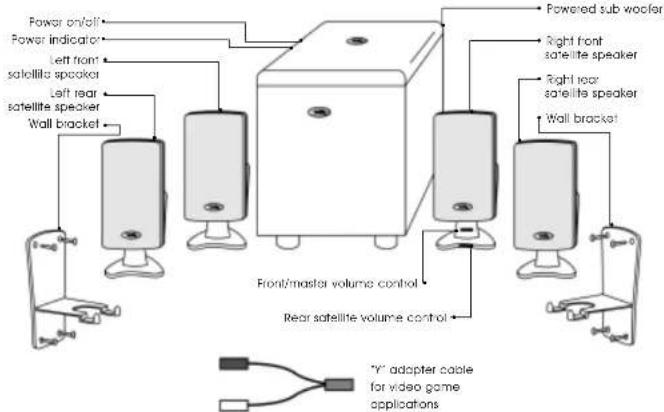
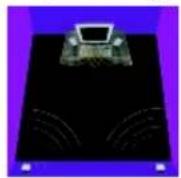
3) Start placing your speakers in the desired positions. The following diagrams illustrate a couple of recommended options. Note: Do not secure/mount the wall brackets until you have finished all connections and have made sure the system is functioning property.

CONNECTIONS
The following diagram illustrates the connections to the computer sound card and power source.
![graph TD A["Video game connection"] --> B["Green to front channel output of soundboard"] A --> C["Back to rear (around) channel output of soundboard"] D["AC/DC adapter to DC 12V"] --> E["Red - Volume controls"] D --> F["Blue - Right front speaker"] D --> G["Yellow - Left rear speaker"] D --> H["Gray…](/content/2026/05/996074/images/11bc449d8c9edd29259f594a5517f1baefa0cefc3cefaf7a01f57e351350be2d.jpg)
Note: In case of 2-channel (one stereo output) sound cards, meet the green front) plug to the sound cord output. There is no need to hook up the block (rear) cable. The CA-4100 will automatically process the stereo information so the right front and right rear/sound speakers will playback one channel while the left front and left rear/sound speakers will preyback the other channel. Again, there is no need to hook up the block (rear) cable when connecting to a 2-channel sound card.
1) Follow above connection diagram and connect speakers to your computer sound card.
2) Check that the volume controls are turned down to the minimum position.
3) Connect the power adapter by inserting the cable into the back of the sub woofer "DC12V" input jack.
4) Tum the system on by pressing the "power" switch in. Check to make sure the power indicator light comes on.
5) When testing your speaker system on a 3D positional audio sound card, consult your sound card user guide for details. Normally a sound card like this will have a test program that ensures that all channels are playing through the proper speaker. When checking your speaker system on a 2-channel sound card, use a regular audio CD in your systems CD / DVD device.
6) Slowly turn up the volume controls up to the desired listening level. NOTE: The rear/surround speakers volume level can only be as loud as the front satellites. In other words, you have to turn up the front/master volume up before you can turn up the rear volume.
7) Your computer sound card has different ways to adjust your volume and tones. Consult your sound card user guide to change any desired settings. Normally, the speaker volume control in your software should be turned up to approximately 75%.
Note: This product is not endorsed by or licensed by Sony, Nintendo or Sega. PlayStation is a registered trademark of Sony Corporation Nintendo is a registered trademark of Nintendo Corporation Sega is a registered trademark of Sega Corporation
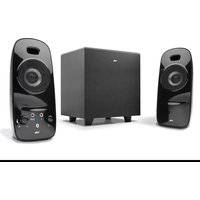
Brand : Cyber Acoustics
Model : CA-4100
Category : Loudspeaker