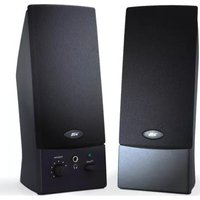
CA-2016WB - Loudspeaker Cyber Acoustics - Free user manual and instructions
Find the device manual for free CA-2016WB Cyber Acoustics in PDF.


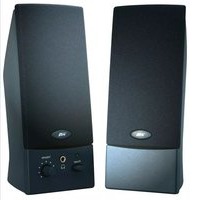
| Product Type | 2.0 Computer Speaker System |
| Model | CA-2016WB |
| Brand | Cyber Acoustics |
| Speaker Configuration | Two speakers (left and right) |
| Power Source | USB (5V DC) |
| Audio Input | 3.5mm stereo mini plug (attached cable) |
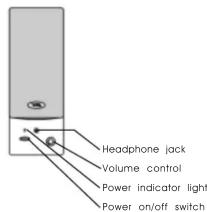
| Headphone Jack | 3.5mm front panel jack |
| Power Indicator | LED light on right speaker |
| Volume Control | Rotary knob on right speaker (front) |
| Power Switch | Push button on right speaker (front) |
| Dimensions (Approx.) | 3.5 x 3.5 x 5.5 inches (each speaker) |
| Weight (Approx.) | 1.2 lbs (total system) |
| Compatibility | PC, Mac, MP3 players, CD players |
| USB Cable Length | Approx. 4 ft |
| Audio Cable Length | Approx. 5 ft (attached) |
| Warranty | 1 Year Limited |
| Placement | Left and right of monitor |
| Cleaning | Wipe with dry cloth; avoid liquids |
| Operating Temperature | 50°F - 95°F (10°C - 35°C) |
| RoHS Compliant | Yes |
Frequently Asked Questions - CA-2016WB Cyber Acoustics
User questions about CA-2016WB Cyber Acoustics
0 question about this device. Answer the ones you know or ask your own.
Ask a new question about this device
Download the instructions for your Loudspeaker in PDF format for free! Find your manual CA-2016WB - Cyber Acoustics and take your electronic device back in hand. On this page are published all the documents necessary for the use of your device. CA-2016WB by Cyber Acoustics.
USER MANUAL CA-2016WB Cyber Acoustics
Please read the entire manual before making any connections. Follow these steps before connecting or attempting to turn speakers on:
1) The speaker with the controls is the "right speaker". Normally, these are placed on the right side of your monitor. Place the speaker without controls (the left speaker) on the left side of the monitor.
2) Switch power to off position.
3) Turn the volume to the minimum position (rotate counter clockwise).
CONNECTIONS
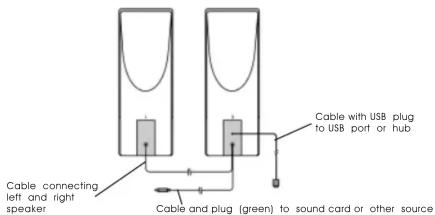
The following examples show a couple of the multiple applications in which your speakers can be used. Switch the power off while making these connections.
![graph TD A["Left speaker"] --> B["MP3 player"] B --> C["Computer"] D["Personal CD player"] --> E["Green plug"] E --> F["Attached 3.5mm mini plug cable"] F --> G["Right speaker"] G --> H["USB port or hub"]](/content/2026/05/1068598/images/e1f4d882ed623124374892d0c26966209bcbe69f9138d107c616aa466339b041.jpg)
1) Plug in the USB port into the USB port on your computer or a USB hub.
2) Check the volume is turned to the minimum position.
3) Press the power button on the right front panel. Check that the "power indicator" light comes on.
4) Normally, the best way to test your speakers is to play a regular audio CD in your systems CD ROM or DVD device.
5) Slowly turn volume up to desired listening level. (Note: Your multimedia computer system has different ways to adjust the volume tones. Consult your soundcard or music source user guide to change any desired settings. Normally, the speaker volume control/mixer in your software should be turned up around 80 - 85%.)
6) When using headphones. You can use headphones with 3.5mm plugs with these speakers. When you plug your headphones into the jack on the front of the speaker, the speakers stop producing sound. The volume control on the speaker adjusts the volume for your headphones.
CA-2016 COMPUTER SPEAKERS
PRECAUTION TIPS
- Disconnect the USB plug from USB port of your computer before making any audio connections.
- Keep discs and tapes away from them.
- Keep your speakers away from extreme heat or humid and wet conditions.
TROUBLESHOOTING
Speakers produce no sound
- Are the speakers getting power? Is the power indicator light on? Check the USB connections.
- Is there any output from your sound card? Check your sound card settings. Also, you can check the speakers easily by connecting them to another music source such as a portable CD player or cassette player. Just plug them into the headphone jack or line out jack. If the speakers work on this other source, they are OK and the problem is with the soundcard. Note: Speakers still need to be connected to a USB port for power.
One speaker does not play
- Check the balance control on your mixer software.
- Check the plug connections.
Customer Service
If you have questions or need assistance with your speakers, please call or consult our web site.
Tel: 360 823 4100
Web site: www.cyberacoustics.com
Note:
1) For technical support and questions, please contact Cyber Acoustics
Tel: 360-823-4100 / Fax: 360-883-4888 / E-mail: tech.support@cyberacoustics.com
2) You can now register your Cyber Acoustics product on line through our web site in lieu of filling out and mailing this card: www.cyberacoustics.com
Cyber Acoustics, Inc.
P.O. Box 821348
Vancouver,
WA 98682

Name
Address
Phone.
Model purchase_
Date purchase
Name of store_
One Year Limited Warranty Registration
Brand : Cyber Acoustics
Model : CA-2016WB
Category : Loudspeaker