IMAGERUNNER C1028IF - Laser MFP CANON - Free user manual and instructions
Find the device manual for free IMAGERUNNER C1028IF CANON in PDF.


User questions about IMAGERUNNER C1028IF CANON
0 question about this device. Answer the ones you know or ask your own.
Ask a new question about this device
Download the instructions for your Laser MFP in PDF format for free! Find your manual IMAGERUNNER C1028IF - CANON and take your electronic device back in hand. On this page are published all the documents necessary for the use of your device. IMAGERUNNER C1028IF by CANON.
USER MANUAL IMAGERUNNER C1028IF CANON
natural_image
Illustration of a Canon printer with open lid and internal components (no text or symbols visible)Starter Guide
Read this guide first.
Please read this guide before operating this product.
After you finish reading this guide, store it in a safe place for future reference.
Guide de démarrage
Overview of Machine Functions....1
Manuals for the Machine....1
1 Set Up the Machine to Suit Your Purposes 2
2 Set Up the Machine....3
Turn on the Machine 3
Set Date and Time .... 4
Make Fax Settings....10
Register User Telephone Number and Unit Name.... 10
Information About the Keys....10
About Sender Information 13
Select the Receive Mode that Suits Your Needs 14
About the Receive Modes....14
If You Need to Use Pulse Dialing.... 17
Set Up Network Connection....18
Specify the IP Address Settings.... 18
Set IP Address Automatically....21
Check IP Address Setting 21
3 Set Up Computers and Software 23
Types of Connection between Computers and the Machine....23
About User Software CD-ROM....24
Network Connection....26
Installation Procedure 26
Check Installation 34
USB Connection 35
Installation Procedure 35
Check Installation 41
4 Appendix....42
User Manual CD-ROM (e-Manual) 42
System Requirements 42
Using the User Manual CD-ROM (e-Manual) 42
Overview of Machine Functions
This manual describes how to set the required settings to set up the machine and install the software. After you set up the machine, you can use the functions described in the illustration shown bellow.
For the details of each function, refer to the e-Manual.
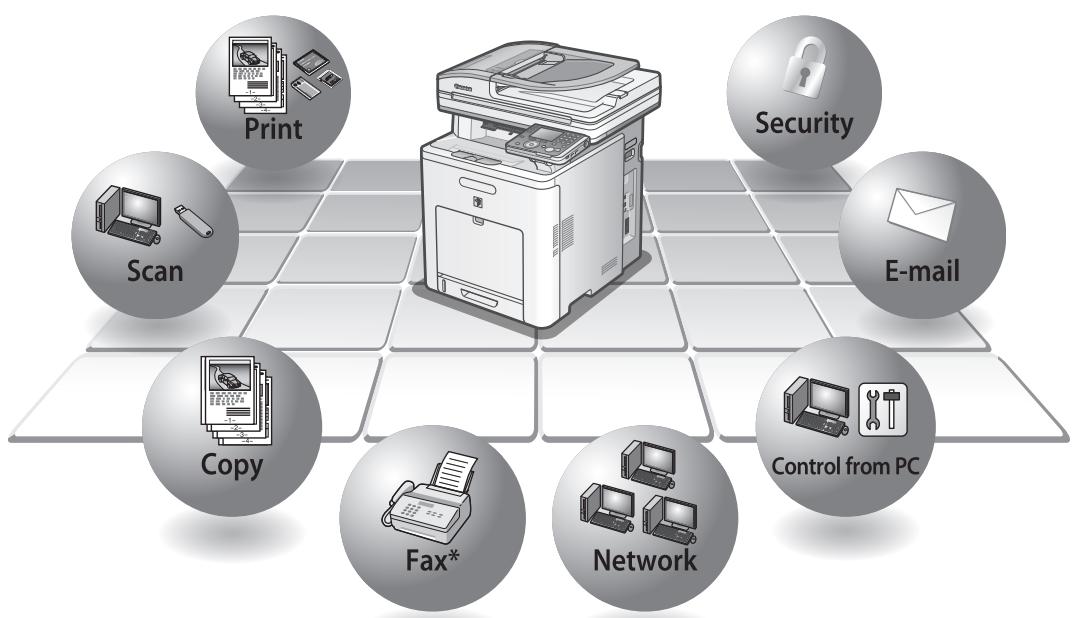
flowchart
graph TD
    A["Printer"] --> B["Print"]
    A --> C["Security"]
    A --> D["E-mail"]
    A --> E["Copy"]
    A --> F["Fax*"]
    A --> G["Network"]
    A --> H["Control from PC"]
*To use this function with the imageRUNNER C1028i, the optional Super G3 FAX Board is required.
Manuals for the Machine
flowchart
graph LR
    A["Starter Guide"] --> B["e-Manual"]
    B --> C["Setup Installation"]
    C --> D["Total Operation Features"]
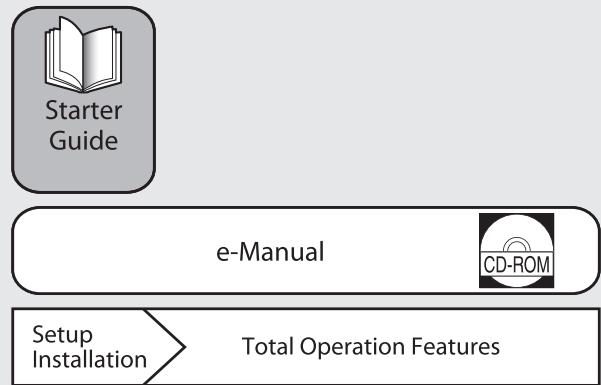
- Starter Guide (This Document): Machine setup and software installation. Read this guide before operating this product.
● e-Manual (located on the User Manual CD-ROM): Total operation features.
Unless otherwise mentioned, illustrations and screens used in this manual are those taken when no optional equipment is attached to the imageRUNNER C1028iF.
If there is any difference between the imageRUNNER C1028iF and C1028i, it is clearly indicated in the text, for instance "imageRUNNER C1028iF Only."
1 Set Up the Machine to Suit Your Purposes
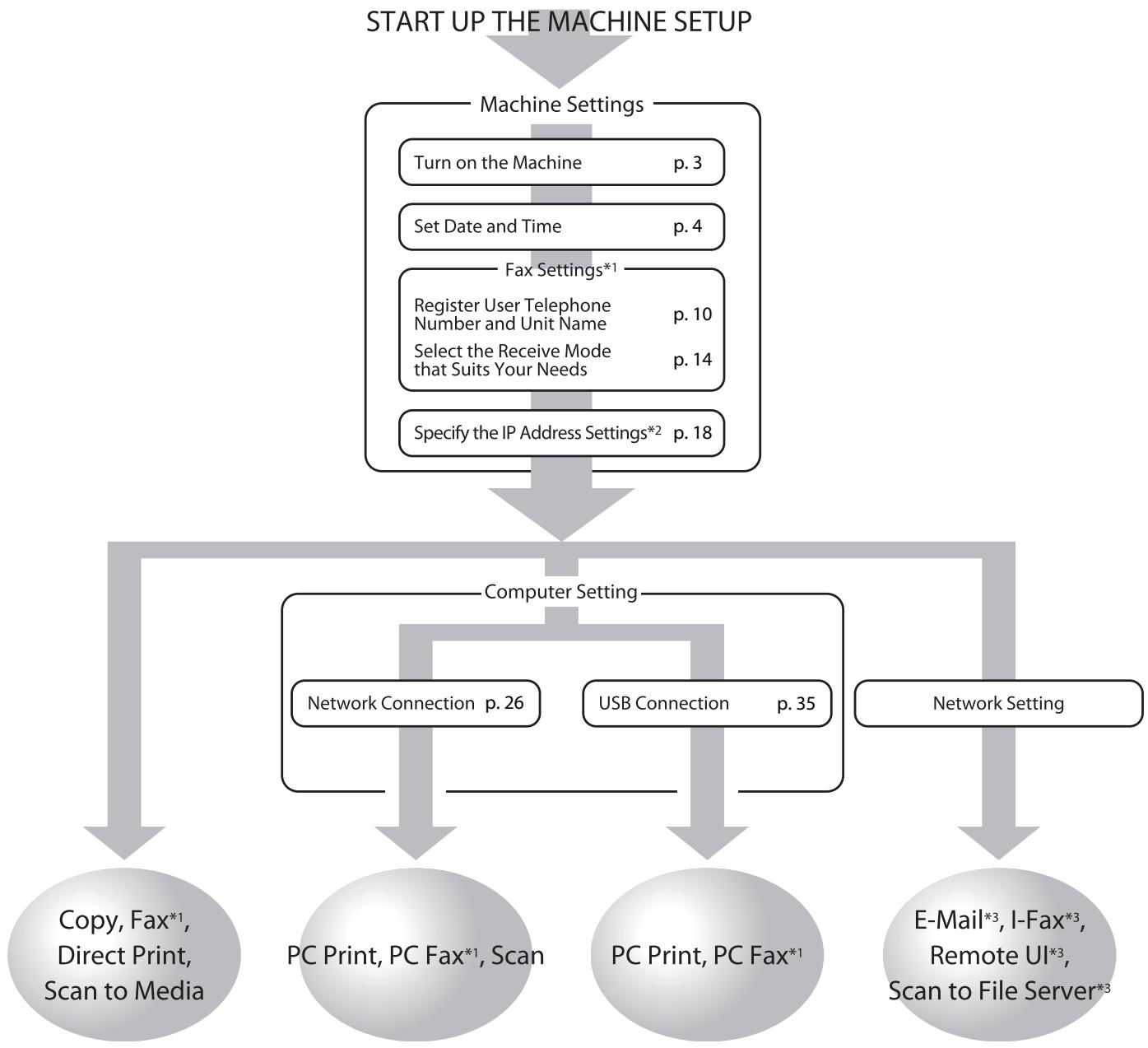
To use the functions (Copy, Fax, Direct Print, Scan to Media, PC Print, PC Fax, Scan, E-Mail, I-Fax, Remote UI, Scan to File Server) of the machine, you need to make the settings in the flowchart below.
For example, if you intend to use the copy function, you need to make the settings in "Machine Settings."
imageRUNNER C1028i/C1028iF set up flow
flowchart
graph TD
    A["START UP THE MACHINE SETUP"] --> B["Machine Settings"]
    B --> C["Turn on the Machine p. 3"]
    B --> D["Set Date and Time p. 4"]
    B --> E["Fax Settings*1"]
    E --> F["Register User Telephone Number and Unit Name p. 10"]
    E --> G["Select the Receive Mode that Suits Your Needs p. 14"]
    E --> H["Specify the IP Address Settings*2 p. 18"]
    B --> I["Computer Setting"]
    I --> J["Network Connection p. 26"]
    I --> K["USB Connection p. 35"]
    I --> L["Network Setting"]
    L --> M["Copy, Fax*1, Direct Print, Scan to Media"]
    L --> N["PC Print, PC Fax*1, Scan"]
    L --> O["PC Print, PC Fax*1"]
    L --> P["E-Mail*3, I-Fax*3, Remote UI*3, Scan to File Server*3"]
*1 When using the fax function, you need to connect the telephone line cable.
(To use this function with the imageRUNNER C1028i, the optional Super G3 FAX Board is required.)
*2 If the machine is connected to an IEEE802.1X network, you also need to configure the IEEE802.1X Settings.
*3 The machine must be connected to the network.
(To use the following functions, settings for each function is required: E-Mail, I-Fax, Remote UI, and Scan to File Server.)
2 Set Up the Machine
Turn on the Machine
What if...
● The display returns to the Standby mode:
The machine may enter the Standby mode (Auto Clear function) while you are setting it up. Make the setting again from the main menu. The default setting is 2 minutes. To change the settings, see "Introduction of the Machine" in the e-Manual.
● The display turned OFF:
The machine may enter the Sleep mode while you are performing setup. Press ⏻ (Power) to turn the display back ON and continue the setup. The default setting is 15 minutes. To change the settings, see "Introduction of the Machine" in the e-Manual.
1 Press the [I] side of the main power switch (A) to ON.
![CANON IMAGERUNNER C1028IF - Press the [I] side of the main power switch (A) to ON. - 1](/content/2020/05/99494/images/ea245c4c047cd0a92facbb8d0a567d8475cbb9b3a8f5afcc3395243a87d15c9e.jpg)
text_image
Diagram of a computer setup with labeled components and an inset showing a control panel with power switch and power outlet.![CANON IMAGERUNNER C1028IF - Press the [I] side of the main power switch (A) to ON. - 2](/content/2020/05/99494/images/7fd1833785566b2ac71a50b78386e10cbfee9e85d6d8207a8bed2246807c0cd1.jpg)
NOTE
- Do not connect the machine and the computer with a USB cable at this time. Connect the machine and the computer with a USB cable only during the software installation procedure. (A USB cable is not used when the machine is used via a network connection.)
- Apply the power switch label to the space above the main power switch.
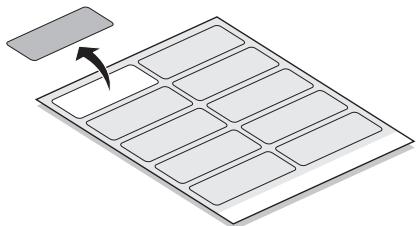
natural_image
Diagram of a solar panel array with an arrow indicating direction (no text or symbols)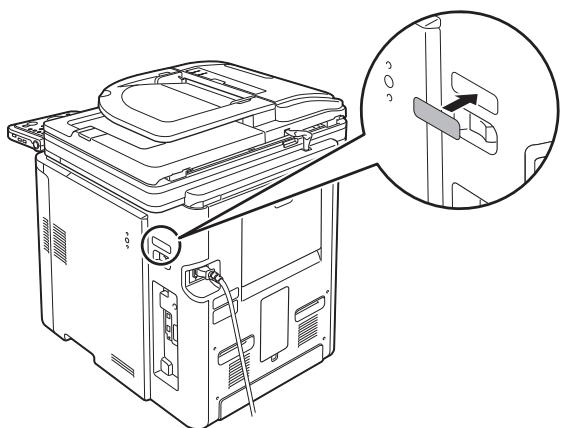
natural_image
Line drawing of a refrigerator internal structure with an inset showing a close-up of the door panel (no text or symbols present)2 If the screen to select the language appears as shown below, use [▼], [▲] or Ⓞ (Scroll Wheel) to select a language, then press [OK].
Language Switch Display in English
English
French
German
Italian
Spanish
Portuguese
The machine restarts automatically.

NOTE
The language setting can be changed later.
Press ⬆ (Main Menu) →
3 If the screen to select the country/region appears as shown below, use [▼], [▲] or Ⓞ (Scroll Wheel) to select a country/region, then press [OK].
Select Country/Region Set to United Kingdom
Spain
Sweden
Switzerland
Slovenia
United Kingdom
Others
The machine restarts automatically.

NOTE
Make sure that the country/region is set correctly for your country/region.
If the country/region is not set or set incorrectly, you may have problems in sending/receiving faxes.
4 The main screen appears on the display as shown below.
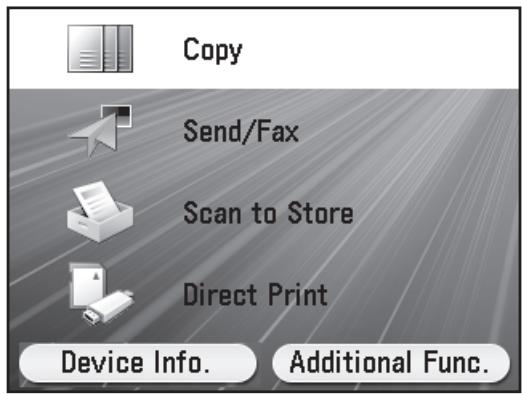
text_image
Copy Send/Fax Scan to Store Direct Print Device Info. Additional Func.
NOTE
Set Date and Time
Before using the machine, you MUST set the current date and time. The date and time settings are used as standard for timer settings functions.
● Information About the Keys
- Press [▼] [▲] [◀] [▶] to move the cursor position.
- Use Ⓞ (Scroll Wheel) to move the cursor position.
- Press the Left/Right Any key to select the alternative key at the bottom of the display.
- Press ①-⑨ (numeric keys) to enter numbers.
- Press [OK] to set the entry or to proceed to the next screen.
- Press [Back] to return to the previous screen.
- Press © (Clear) to delete the entire entry.
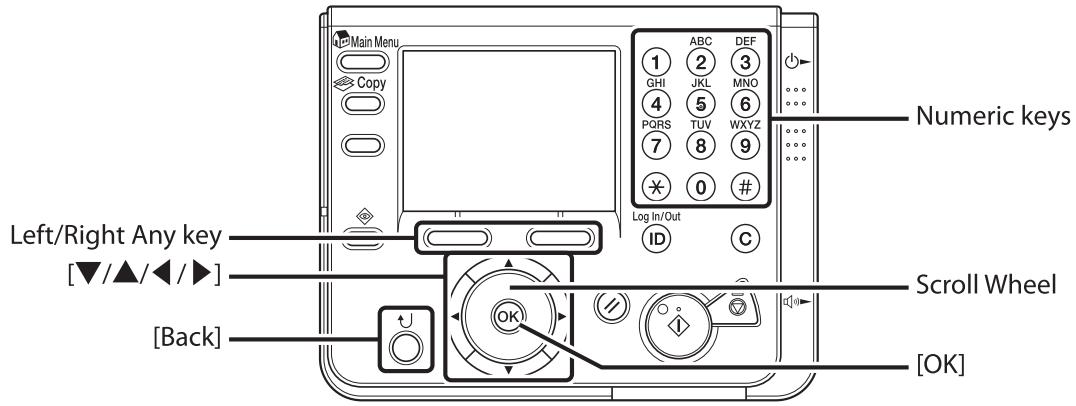
text_image
Main Menu Copy 1 ABC DEF GHI 2 3 4 JKL MNO PQRS 5 6 7 TUV WXYZ * 0 # Numeric keys Log In/Out ID C Left/Right Any key [▼/▲/◄/►] [Back] Scroll Wheel OK [OK]What if...
● The display returns to the Standby mode:
The machine may enter the Standby mode (Auto Clear function) while you are setting it up. Make the setting again from the main menu. The default setting is 2 minutes. To change the settings, see "Introduction of the Machine" in the e-Manual.
● The display turned OFF:
The machine may enter the Sleep mode while you are performing setup. Press ⏻ (Power) to turn the display back ON and continue the setup. The default setting is 15 minutes. To change the settings, see "Introduction of the Machine" in the e-Manual.
1 Press (Main Menu).
2 Press the right Any key to select
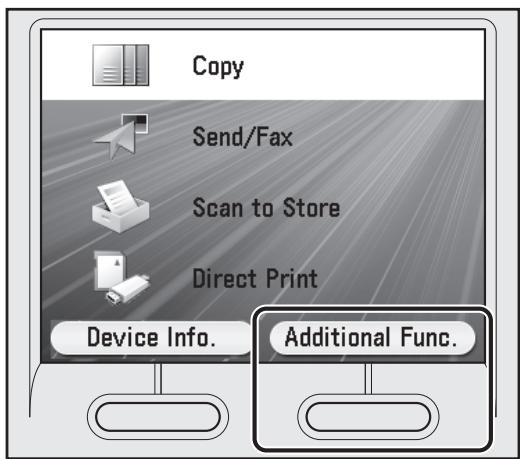
text_image
Copy Send/Fax Scan to Store Direct Print Device Info. Additional Func.3 Use [▼], [▲] or Ⓞ (Scroll Wheel) to select
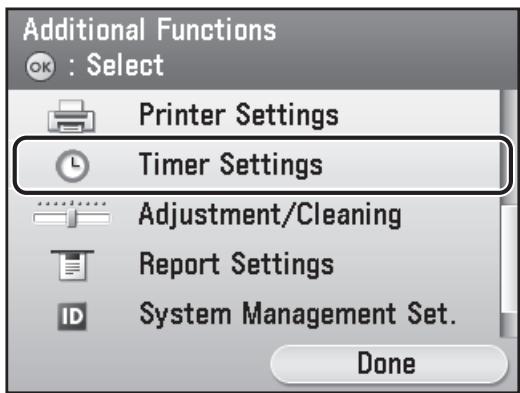
text_image
Additional Functions OK : Select Printer Settings Timer Settings Adjustment/Cleaning Report Settings System Management Set. Done4 Use [▼], [▲] or Ⓞ (Scroll Wheel) to select
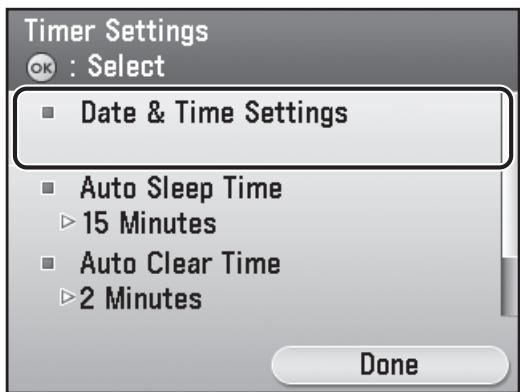
text_image
Timer Settings OK : Select Date & Time Settings Auto Sleep Time 15 Minutes Auto Clear Time 2 Minutes Done5 Use [▼], [▲] or Ⓞ (Scroll Wheel) to select
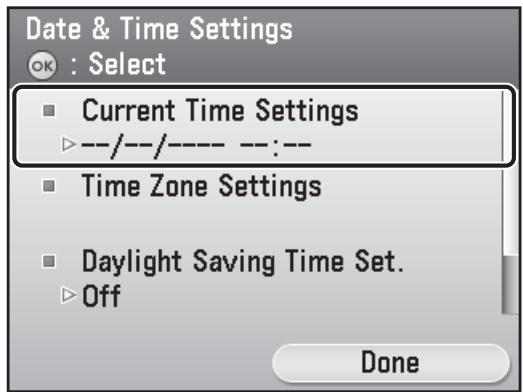
text_image
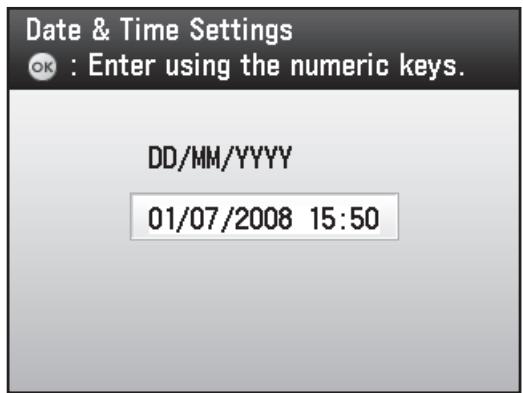
Date & Time Settings OK : Select ■ Current Time Settings ►--/--/---- --:-- ■ Time Zone Settings ■ Daylight Saving Time Set. ► Off Done6 Use ①-⑨ (numeric keys) to enter the date (day/month/year) and time (in 24-hour/military time format), then press [OK].
text_image
Date & Time Settings OK : Enter using the numeric keys. DD/MM/YYYY 01/07/2008 15:50Enter the month and the day using four digits (including zeros). Enter all four digits of the year, and the time in 24-hour notation, as four digits (including zeros) without a space.
| Examples: | ||
| May 6 | → | 0605 |
| 9:05 a.m. | → | 0905 |
| 4:18 p.m. | → | 1618 |

NOTE
- If you make a mistake when entering values, press © (Clear) then enter the values again, starting with the month.
- If you want to set the time zone, go to step 7.
- If you want to set Daylight Saving Time without setting the time zone, go to step 9.
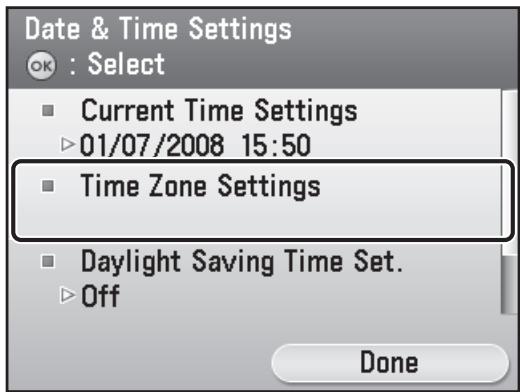
7 Use [▼], [▲] or Ⓞ (Scroll Wheel) to select
text_image
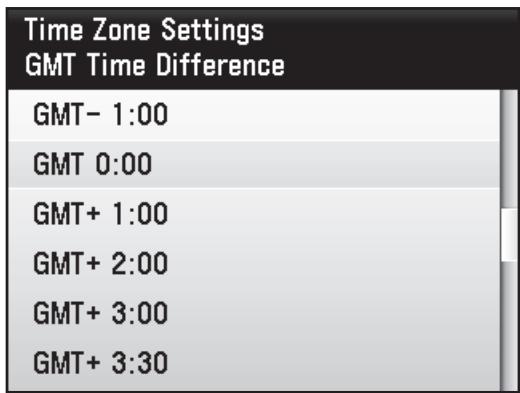
Date & Time Settings OK : Select ■ Current Time Settings ► 01/07/2008 15:50 ■ Time Zone Settings ■ Daylight Saving Time Set. ► Off Done8 Use [▼], [▲] or Ⓞ (Scroll Wheel) to select the time zone in which the machine is located, then press [OK].
text_image
Time Zone Settings GMT Time Difference GMT- 1:00 GMT 0:00 GMT+ 1:00 GMT+ 2:00 GMT+ 3:00 GMT+ 3:30
NOTE
- The standard time zones of the world are expressed globally in terms of the difference in hours (± 12 hours) from GMT (0 hours). A time zone is a region throughout which this time difference is the same.
- The time at the Greenwich Observatory in England is called GMT (Greenwich Mean Time).
– The default setting is 'GMT 0:00'. - If you want to set the Daylight Saving Time, go to step 9.
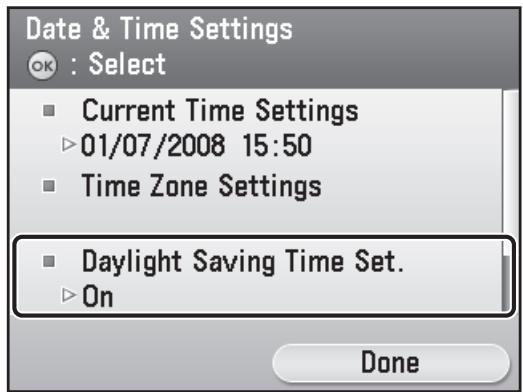
9 Use [▼], [▲] or Ⓞ (Scroll Wheel) to select
text_image
Date & Time Settings OK : Select ■ Current Time Settings ►01/07/2008 15:50 ■ Time Zone Settings ■ Daylight Saving Time Set. ► On Done
NOTE
- In some countries, time is advanced throughout the summer season. The period in which this is applied is called "Daylight Saving Time."
- If you set Daylight Saving Time, the machine automatically sets the standard time of the machine one hour forward at 2:00 am on the specified date.
- The default setting is
.
10 Use [▼], [▲] or Ⓞ (Scroll Wheel) to select
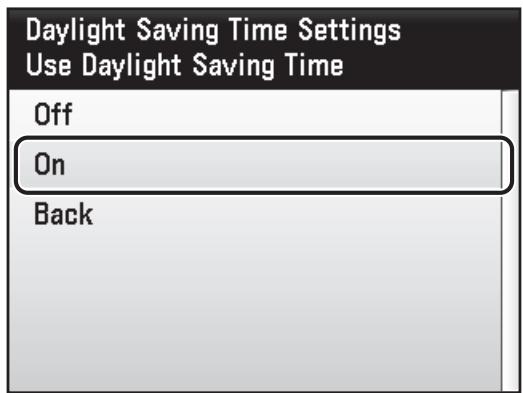
text_image
Daylight Saving Time Settings Use Daylight Saving Time Off On Back11 Use [▼], [▲] or Ⓞ (Scroll Wheel) to select
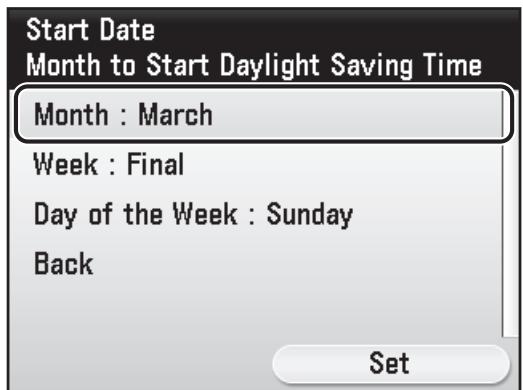
text_image
Start Date Month to Start Daylight Saving Time Month : March Week : Final Day of the Week : Sunday Back Set12 Use [▼], [▲] or Ⓞ (Scroll Wheel) to select the month when Daylight Saving Time starts, then press [OK].
| MonthStart Date Month Selection | |
| January | |
| February | |
| March | |
| April | |
| May | |
| June | |
13 Use [▼], [▲] or Ⓞ (Scroll Wheel) to select
| Start Date |
| Week to Start Daylight Saving Time |
| Month : March |
| Week : Final |
| Day of the Week : Sunday |
| Back |
14 Use [▼], [▲] or Ⓞ (Scroll Wheel) to select the week, then press [OK].
| WeekStart Date Week Selection | |
| 1st | |
| 2nd | |
| 3rd | |
| 4th | |
| Final | |
| Back | |
15 Use [▼], [▲] or Ⓞ (Scroll Wheel) to select
| Start DateDay of the Week to Start DST |
| Month : March |
| Week : Final |
| Day of the Week : Sunday |
| Back |
16 Use [▼], [▲] or Ⓞ (Scroll Wheel) to select the day of the week, then press [OK].
| DayStart Date Day Selection | |
| Sunday | |
| Monday | |
| Tuesday | |
| Wednesday | |
| Thursday | |
| Friday | |
17 Press the right Any key to select
| Start Date |
| Day of the Week to Start DST |
| Month : March |
| Week : Final |
| Day of the Week : Sunday |
| Back |
18 Use [▼], [▲] or Ⓞ (Scroll Wheel) to select
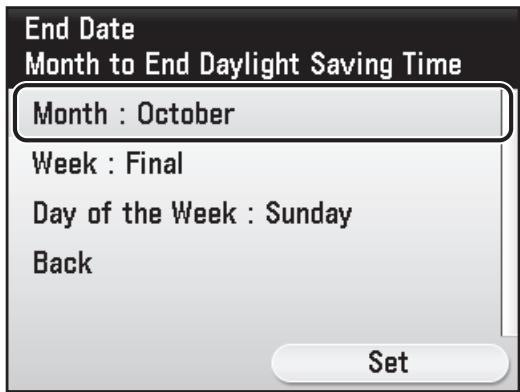
text_image
End Date Month to End Daylight Saving Time Month : October Week : Final Day of the Week : Sunday Back Set19 Use [▼], [▲] or Ⓞ (Scroll Wheel) to select the month when Daylight Saving Time ends, then press [OK].
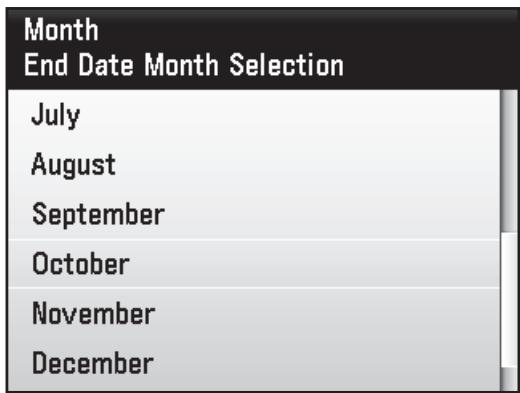
text_image
Month End Date Month Selection July August September October November December20 Use [▼], [▲] or Ⓞ (Scroll Wheel) to select
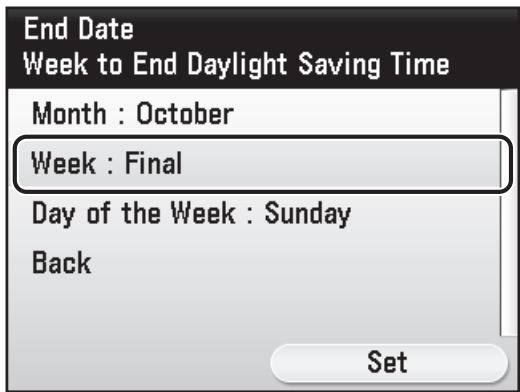
text_image
End Date Week to End Daylight Saving Time Month : October Week : Final Day of the Week : Sunday Back Set21 Use [▼], [▲] or Ⓞ (Scroll Wheel) to select the week, then press [OK].
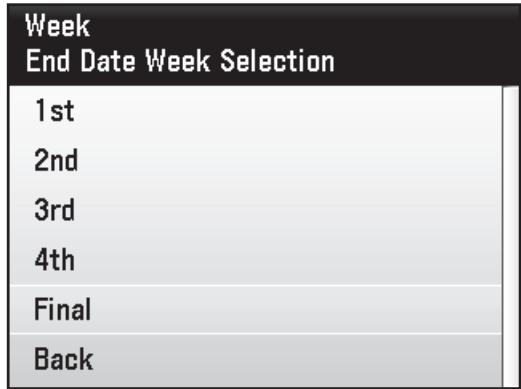
text_image
Week End Date Week Selection 1st 2nd 3rd 4th Final Back22 Use [▼], [▲] or Ⓞ (Scroll Wheel) to select
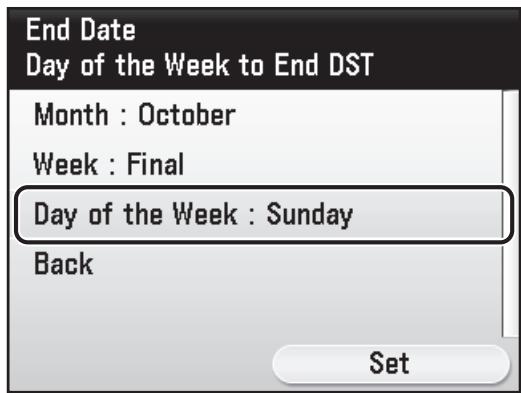
text_image
End Date Day of the Week to End DST Month : October Week : Final Day of the Week : Sunday Back Set23 Use [▼], [▲] or Ⓞ (Scroll Wheel) to select the day of the week, then press [OK].
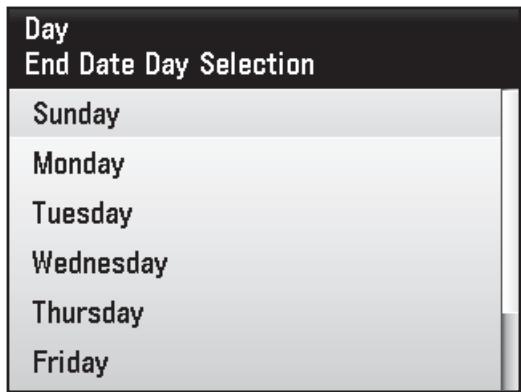
text_image
Day End Date Day Selection Sunday Monday Tuesday Wednesday Thursday Friday24 Press the right Any key to select .
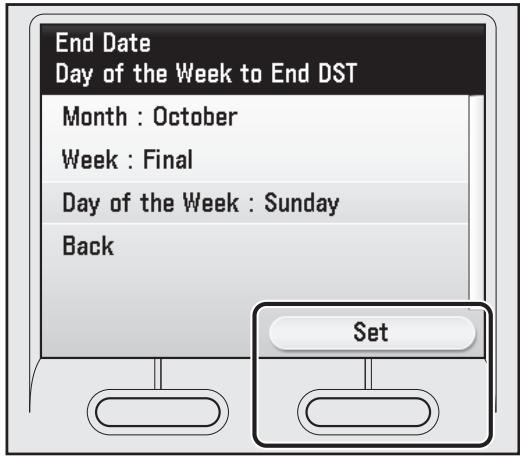
text_image
End Date Day of the Week to End DST Month : October Week : Final Day of the Week : Sunday Back Set25 Press (Main Menu) to return to the Main Menu screen.
Make Fax Settings
This section describes how to make the fax settings.

NOTE
If you are using the imageRUNNER C1028i without the optional Super G3 FAX Board, skip the procedure described in this section. Go to "Set up Network Connection," on p. 18.
Register User Telephone Number and Unit Name
This section describes the procedure for registering the user telephone number and unit name. Refer to the "Information About the Keys" below.
Information About the Keys
Use the keys shown below to enter information in the machine.
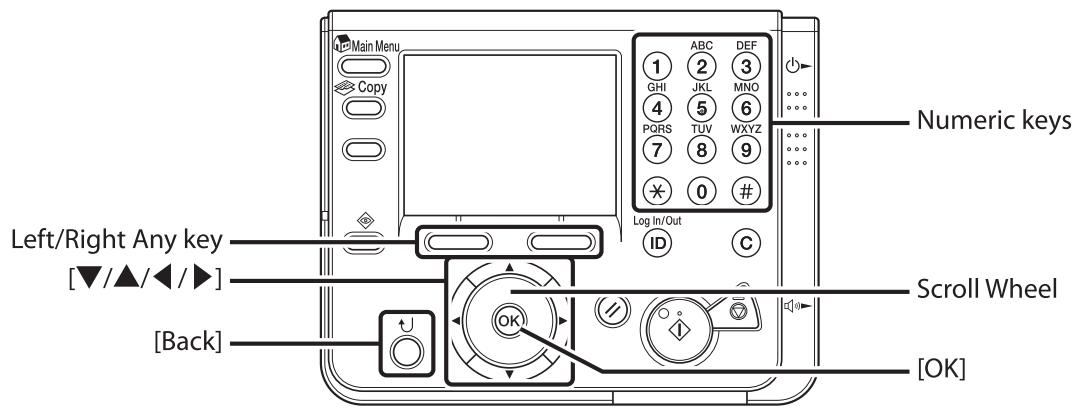
text_image
Main Menu Copy 1 ABC DEF GHI 2 3 4 JKL MNO PQRS 5 6 7 TUV WXYZ 0 9 Log In/Out ID C Numeric keys Left/Right Any key [▼/▲/◄/►] [Back] Scroll Wheel [OK]You can enter the following characters in each input mode:
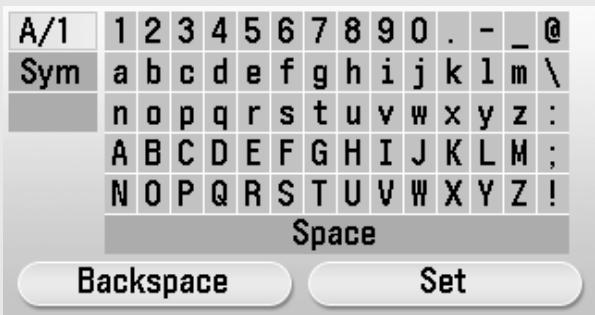
text_image
A/1 1 2 3 4 5 6 7 8 9 0 . - _ @ Sym a b c d e f g h i j k l m \ n o p q r s t u v w x y z : A B C D E F G H I J K L M ; N O P Q R S T U V W X Y Z ! Space Backspace Set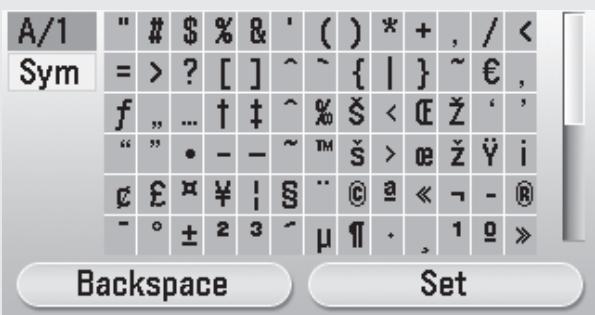
text_image
A/1 Sym = > ? [ ] ^ ~ { | } ~ € , f , ... † ‡ ^ % ŝ < Ⓔ Z ' ' “ ” • - - ~ ™ ŝ > æ ž Ÿ i € £ x ¥ | S .. Ⓞ a « ¬ - ® - ° ± 2 3 - μ ¶ · , 1 o » Backspace Set- Press ①-⑨ (numeric keys) to enter numbers.
- Press the Left/Right Any key to select the alternative key at the bottom of the display.
- Press [▼] [▲] [◀] [▶] to move the cursor position.
- Use Ⓤ (Scroll Wheel) to move the cursor position.
- Press [OK] to set the entry or to proceed to the next screen.
● Press [Back] to return to the previous screen.

NOTE
For screens that require alphanumeric entries.
- Press [▼] [▲] [◀] [▶] and Ⓞ (Scroll Wheel) to move the highlighted cursor position.
: Alphanumeric character entry mode
- Press [OK] to enter the highlighted character or space and to determine the entry mode.
- You can also use ⑩-⑨ (numeric keys) to enter numbers.
- Select
by pressing the left Any key to clear the entered characters one by one. - Select
by pressing the right Any key to complete the entry and return to the previous screen.
What if...
● The display returns to the Standby mode:
The machine may enter the Standby mode (Auto Clear function) while you are setting it up. Make the setting again from the main menu. The default setting is 2 minutes. To change the settings, see "Introduction of the Machine" in the e-Manual.
● The display turned OFF:
The machine may enter the Sleep mode while you are performing setup. Press ⏻ (Power) to turn the display back ON and continue the setup. The default setting is 15 minutes. To change the settings, see "Introduction of the Machine" in the e-Manual.
1 Press ☐ (Main Menu).
2 Press the right Any key to select
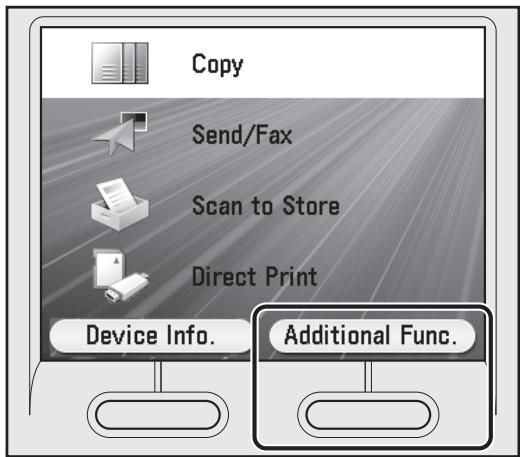
text_image
Copy Send/Fax Scan to Store Direct Print Device Info. Additional Func.3 Use [▼], [▲] or Ⓞ (Scroll Wheel) to select
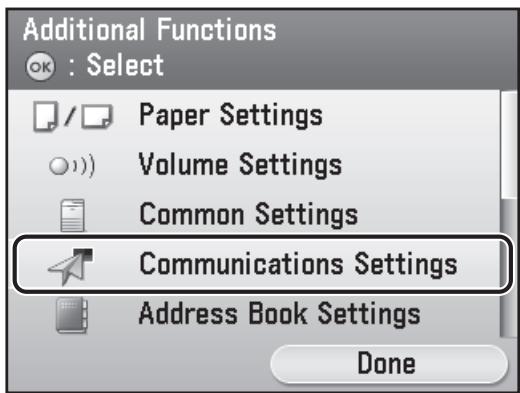
text_image
Additional Functions OK : Select Paper Settings Volume Settings Common Settings Communications Settings Address Book Settings Done4 Use [▼], [▲] or Ⓞ (Scroll Wheel) to select
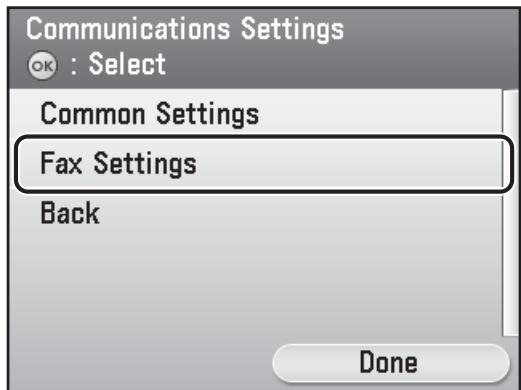
text_image
Communications Settings OK : Select Common Settings Fax Settings Back Done5 Use [▼], [▲] or Ⓞ (Scroll Wheel) to select
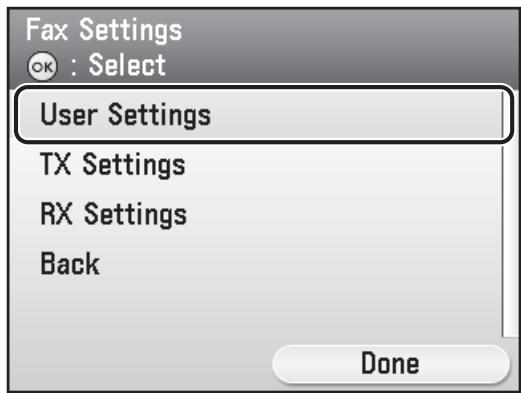
text_image
Fax Settings OK : Select User Settings TX Settings RX Settings Back Done6 Use [▼], [▲] or Ⓞ (Scroll Wheel) to select
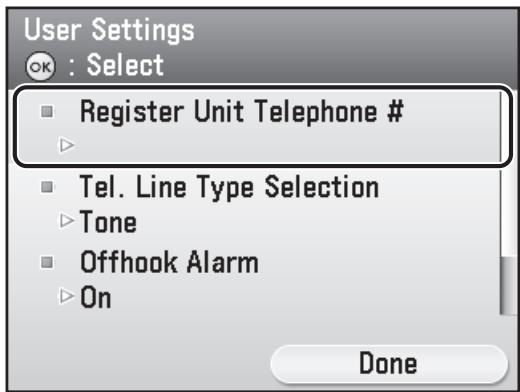
text_image
User Settings OK : Select Register Unit Telephone # Tel. Line Type Selection Tone Offhook Alarm On Done7 Use 0-9 (numeric keys) to enter your fax number (up to 20 digits). To confirm your entry, press the right Any key to select [Register] or use [▼], [▲] or ⓞ (Scroll Wheel) to select register, then press [OK]. (For information on how to enter characters, see p. 10.)
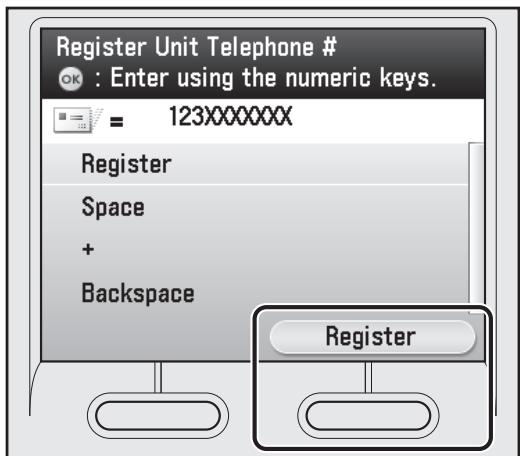
text_image
Register Unit Telephone # OK : Enter using the numeric keys. 123X00000X Register Space + Backspace RegisterThe following keys are available to select with [▼], [▲] or Ⓞ (Scroll Wheel).
<+>: Inserts a plus sign.

NOTE
To delete all of the entered number, press © (Clear).
8 Press the right Any key to select
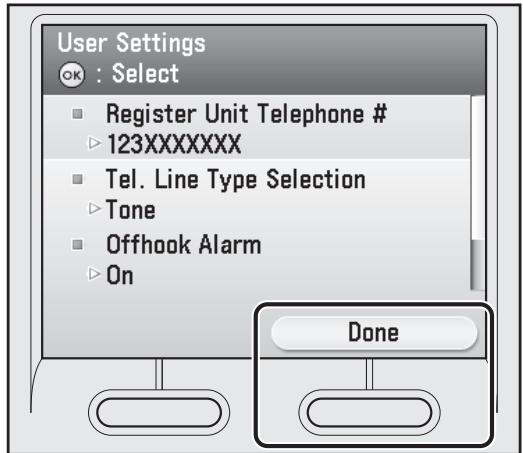
text_image
User Settings OK : Select Register Unit Telephone # 123XXXXXXXX Tel. Line Type Selection Tone Offhook Alarm On Done9 Press the right Any key to select
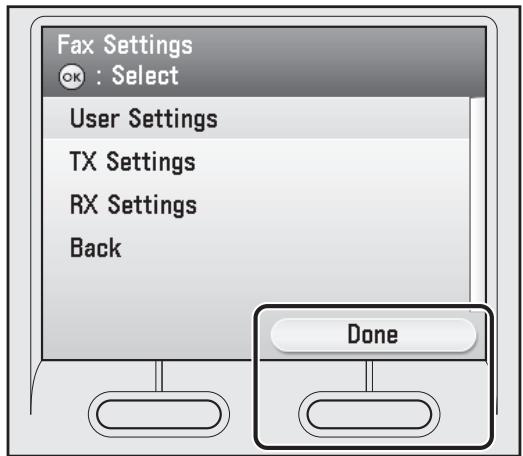
text_image
Fax Settings OK : Select User Settings TX Settings RX Settings Back Done10 Use [▼], [▲] or ⓔ (Scroll Wheel) to select
text_image
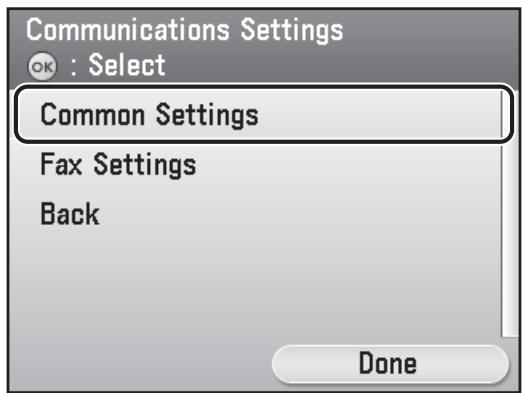
Communications Settings OK : Select Common Settings Fax Settings Back Done11 Use [▼], [▲] or Ⓞ (Scroll Wheel) to select
text_image
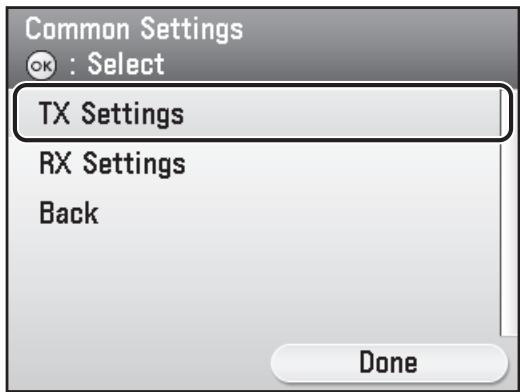
Common Settings OK : Select TX Settings RX Settings Back Done12 Use [▼], [▲] or Ⓞ (Scroll Wheel) to select
text_image
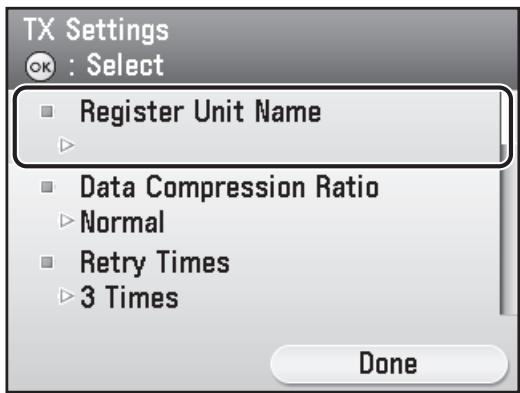
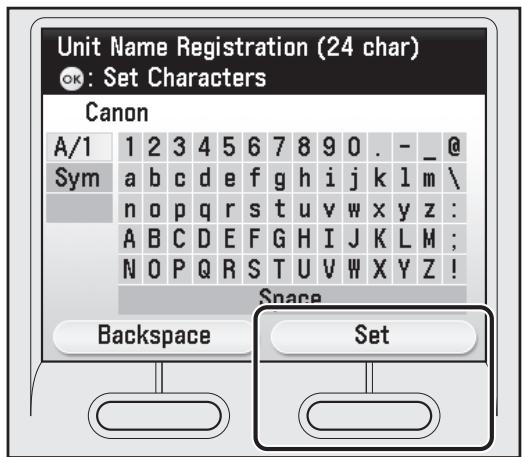
TX Settings OK : Select Register Unit Name Data Compression Ratio Normal Retry Times 3 Times Done13 Enter the unit name (your name, company name, etc.) using [▼], [▲], [◀], [▶] or Ⓞ (Scroll Wheel) to select the characters then press [OK] to enter. To confirm your entry, press the right Any key to select
text_image
Unit Name Registration (24 char) OK: Set Characters Canon A/1 1 2 3 4 5 6 7 8 9 0 . - _ @ Sym a b c d e f g h i j k l m \ n o p q r s t u v w x y z : A B C D E F G H I J K L M ; N O P Q R S T U V W X Y Z ! Space Backspace Set
NOTE
- You can register only one unit name.
- To delete the last entered characters, press the left Any key to select
. - To delete all of the entered characters, press © (Clear).
14 Press (Main Menu) to return to the Main Menu screen.
About Sender Information
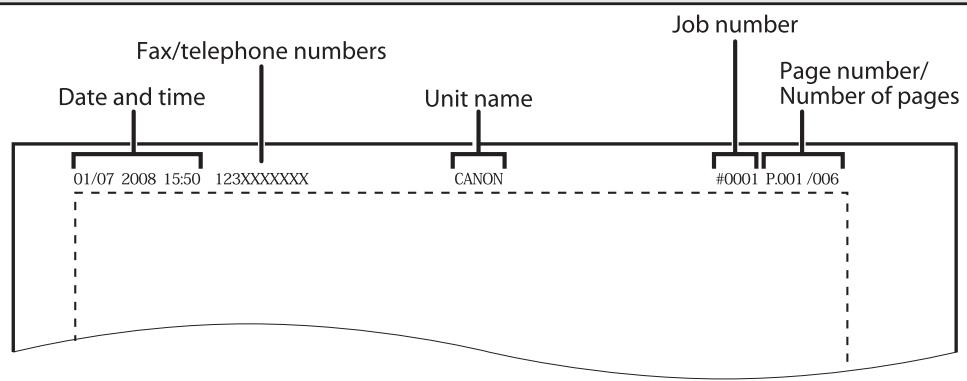
Before sending documents, you MUST register your fax number, unit name, and the current date and time in the machine. The sender information you register in the machine appears in the header of each page received by the recipient.
text_image
Fax/telephone numbers Date and time 123XXXXXX Unit name CANON #0001 P.001 /006 Job number Page number/ Number of pages 01/07 2008 15:50Select the Receive Mode that Suits Your Needs
About the Receive Modes
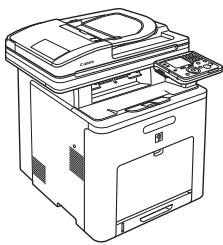
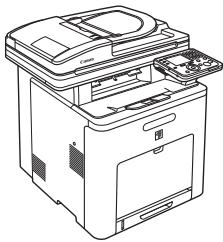
Receives faxes automatically. When you use only the fax function, select this mode without connecting an external telephone.
●When Receiving FAX
The machine receives faxes automatically.
natural_image
Line drawing of a printer with lid and paper holder (no text or symbols)●When Receiving VOICE CALL
The machine does not respond.
natural_image
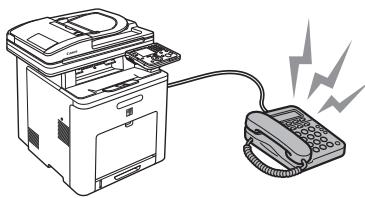
Line drawing of a printer with lid and paper clip (no text or symbols)Receives faxes automatically and routes voice calls to the telephone with built-in answering machine.
●When Receiving FAX
The telephone with built-in answering machine rings and the machine receives faxes automatically.

natural_image
Illustration of a printer connected to a telephone with sound waves (no text or symbols)●When Receiving VOICE CALL
The telephone with built-in answering machine rings and records voice messages.
natural_image
Illustration of a printer connected to a telephone with sound waves (no text or symbols)Automatically switches between fax calls and voice calls. The machine receives faxes automatically and rings for voice calls.
●When Receiving FAX
The machine receives faxes automatically.
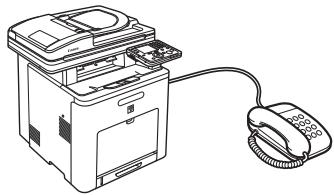
natural_image
Line drawing of a printer connected to a telephone receiver (no text or symbols present)●When Receiving VOICE CALL
The machine rings. Answer the call.
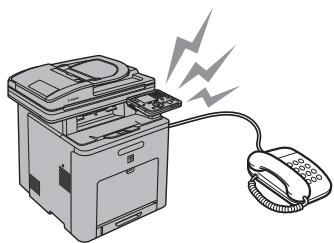
natural_image
Illustration of a printer emitting sound waves to a telephone receiver (no text or symbols present)Rings for every call, whether it is a fax call or a voice call. For a fax call, you have to manually activate the machine to receive the fax.
●When Receiving FAX
The external phone rings. To receive the fax, pick up the receiver then select
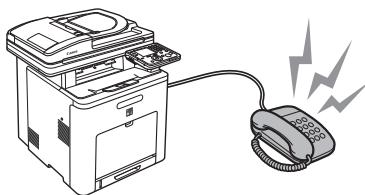
natural_image
Illustration of a printer connected to a telephone with sound waves (no text or symbols)●When Receiving VOICE CALL
The external telephone rings. Answer the call.
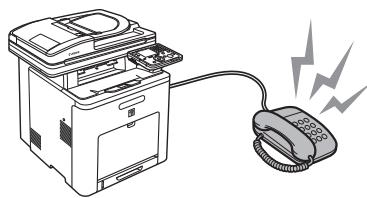
natural_image
Illustration of a printer emitting a ringing phone to a paper airplane (no text or symbols present)The receive mode determines how the machine responds to incoming faxes and voice calls. Select the mode that most suits your needs from the chart below. For more information about the receive modes, see “About the Receive Modes,” on p. 14.

flowchart
graph TD
    A["Do you have a dedicated fax telephone line?"] -->|YES| B["Auto RX"]
    A -->|NO| C["Receive faxes automatically and use telephone to receive calls?"]
    C -->|YES| D["Fax/Tel Auto Switch"]
    C -->|NO| E["Receive faxes automatically and use answering machine for calls?"]
    E -->|YES| F["Answer Mode"]
    E -->|NO| G["Manual RX"]

NOTE
- The remote reception function is useful when the receive mode is set to
and your machine is connected to an external telephone. You can receive faxes by picking up the external telephone and pressing a two-digit remote reception ID (the default setting is 25). For details, see "Fax," in the e-Manual. - Your telephone with built-in answering machine or answering machine must be connected directly to the machine to use
. Make sure that the auto answering function of the telephone with built-in answering machine or answering machine is activated. - The external telephone must be connected to the machine to use
or . - Incoming calls or outgoing calls may not work properly, depending on the type of the external telephone connected to the machine.
- By default,
is selected in . If an external telephone is connected to the machine and receives a fax or voice call, the external telephone rings. You can answer voice calls while the external telephone is ringing. - To disable the incoming ring, press Ⓞ (Main Menu) to select
→ → → → , then select .
– Voice mail is not supported with.
1 Press (Main Menu).
2 Press the right Any key to select
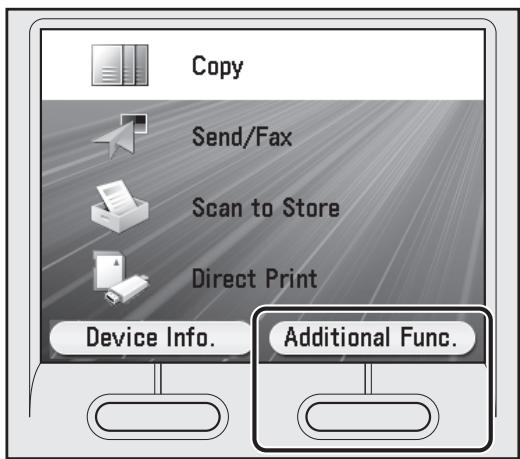
text_image
Copy Send/Fax Scan to Store Direct Print Device Info. Additional Func.3 Use [▼], [▲] or Ⓞ (Scroll Wheel) to select
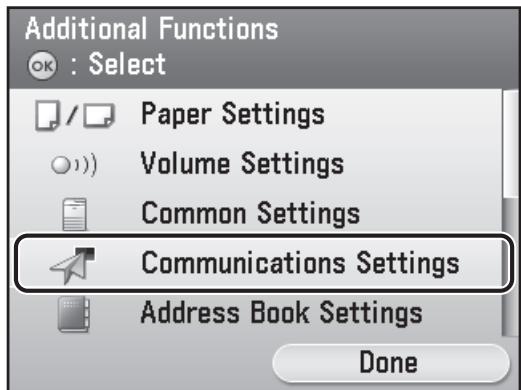
text_image
Additional Functions OK : Select Paper Settings Volume Settings Common Settings Communications Settings Address Book Settings Done4 Use [▼], [▲] or Ⓞ (Scroll Wheel) to select
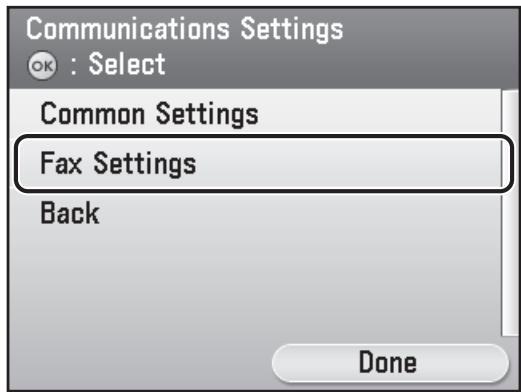
text_image
Communications Settings OK : Select Common Settings Fax Settings Back Done5 Use [▼], [▲] or Ⓞ (Scroll Wheel) to select
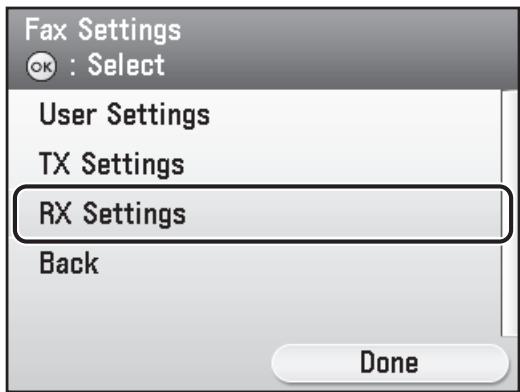
text_image
Fax Settings OK : Select User Settings TX Settings RX Settings Back Done6 Use [▼], [▲] or Ⓞ (Scroll Wheel) to select
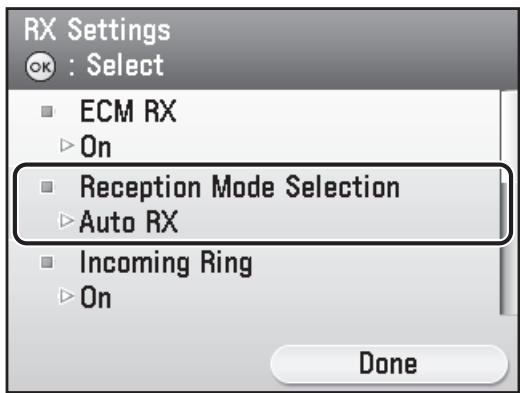
text_image
RX Settings OK : Select ECM RX On Reception Mode Selection Auto RX Incoming Ring On Done7 Use [▼], [▲] or Ⓞ (Scroll Wheel) to select a reception mode, then press [OK].
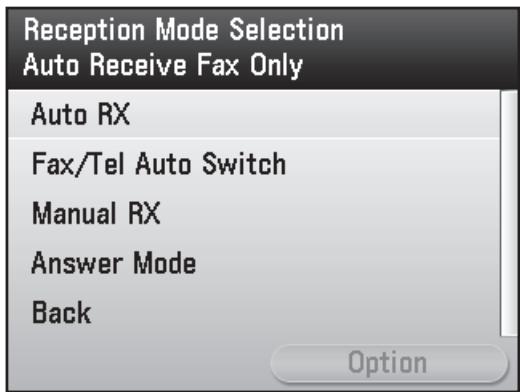
text_image
Reception Mode Selection Auto Receive Fax Only Auto RX Fax/Tel Auto Switch Manual RX Answer Mode Back Option8 Press ☐ (Main Menu) to return to the Main Menu screen.
If You Need to Use Pulse Dialing
By default, the telephone line type on the machine is set to tone dialing. If you use tone dialing, skip the following procedure. If you use pulse dialing, follow the procedure below and change the telephone line type setting on the machine to pulse dialing.
If you do not know the type of telephone line you use, contact your local telephone company.
1 Press ☐ (Main Menu).
2 Press the right Any key to select
3 Use [▼], [▲] or Ⓤ (Scroll Wheel) to select
4 Use [▼], [▲] or Ⓞ (Scroll Wheel) to select
5 Use [▼], [▲] or Ⓞ (Scroll Wheel) to select
6 Use [▼], [▲] or Ⓞ (Scroll Wheel) to select
7 Use [▼], [▲] or Ⓞ (Scroll Wheel) to select
8 Use [▼], [▲] or Ⓞ (Scroll Wheel) to select the telephone line type, then press [OK].
-
-
9 Press ☐ (Main Menu) to return to the Main Menu screen.
Set Up Network Connection
To use the machine by connecting to the network, you must set up the IP address.
An IP (Internet Protocol) address is an identification number assigned to each individual computer connected to the Internet.
To use the following functions, you must set up the IP address in advance.
Remote UI: Access and change the machine settings from a web browser on the computer by using the remote UI software.
E-Mail: Send scanned documents attached to an e-mail message through a network.
Scan to File Server: Send a scanned document to a file server from the computer.
I-Fax: Send a document to a machine that is compatible with I-fax.
PC Print: Print documents on a computer.
PC Fax: Fax a document on a computer.
Scan with Color Network ScanGear (application on the UFRII LT/FAX User Software CD-ROM):
Save scanned documents to a computer.
The flow chart below indicates the settings needed for each function.
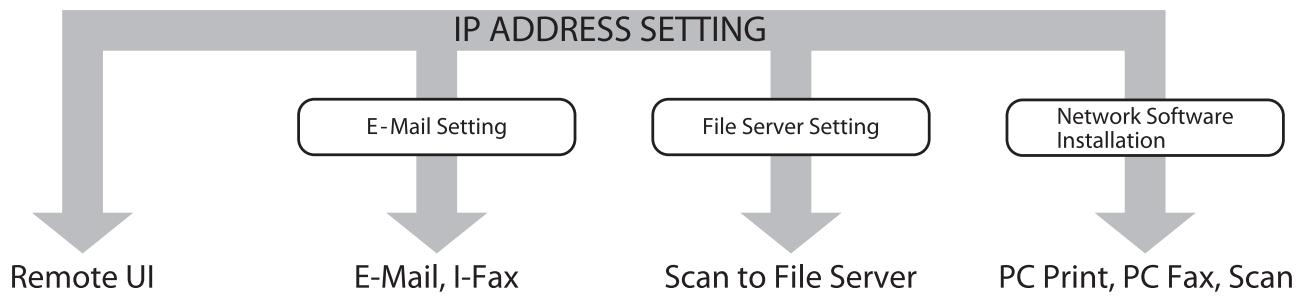
flowchart
graph TD
    A["IP ADDRESS SETTING"] --> B["Remote UI"]
    A --> C["E-Mail Setting"]
    A --> D["File Server Setting"]
    A --> E["Network Software Installation"]
    C --> F["E-Mail, I-Fax"]
    D --> G["Scan to File Server"]
    E --> H["PC Print, PC Fax, Scan"]

NOTE
If the machine is connected to an IEEE802.1X network, you also need to configure the IEEE802.1X Settings. (See "Network Settings," in the e-Manual.)
Specify the IP Address Settings
An IP address must be specified in order to enable communication between the machine and computer.

NOTE
- It is recommended that the network administrator perform the following procedure.
– Before performing the following procedure, make sure that the machine is turned on and connected to a network. - This machine supports automatic IP addresses using DHCP, BOOTP and RARP protocols. If you use these protocols, select
at step 9 of the following procedure. - This machine supports IPv6. (See "Network Settings," in the e-Manual.)
What if...
● The display returns to the Standby mode:
The machine may enter the Standby mode (Auto Clear function) while you are setting it up. Make the setting again from the main menu. The default setting is 2 minutes. To change the settings, see "Introduction of the Machine" in the e-Manual.
● The display turned OFF:
The machine may enter the Sleep mode while you are performing setup. Press ⏻ (Power) to turn the display back ON and continue the setup. The default setting is 15 minutes. To change the settings, see "Introduction of the Machine" in the e-Manual.
1 Press ☐ (Main Menu).
2 Press the right Any key to select
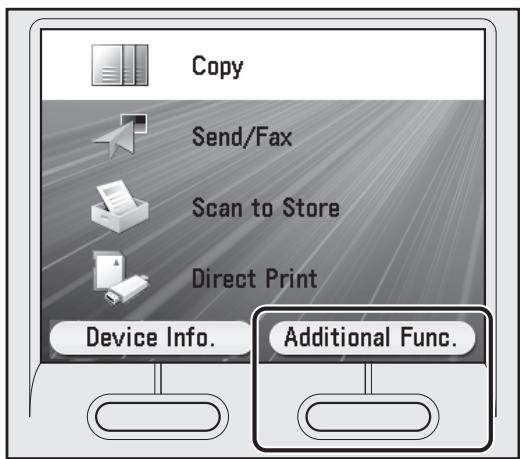
text_image
Copy Send/Fax Scan to Store Direct Print Device Info. Additional Func.3 Use [▼], [▲] or Ⓞ (Scroll Wheel) to select
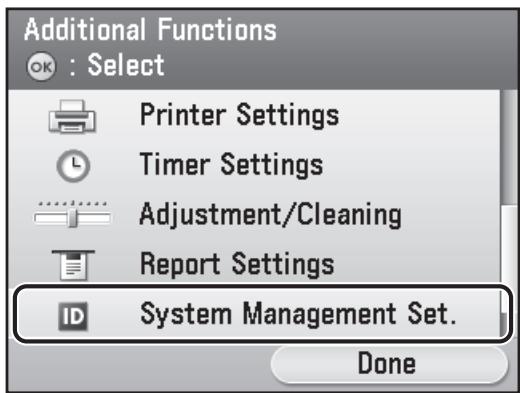
text_image
Additional Functions OK : Select Printer Settings Timer Settings Adjustment/Cleaning Report Settings System Management Set. Done
NOTE
If the screen appears prompting you to enter the System Manager ID and System Password, enter the System Manager ID and System Password using ①-⑨ (numeric keys), then press ⑩ (Log In/Out). For details, see "Security," in the e-Manual.
4 Use [▼], [▲] or Ⓞ (Scroll Wheel) to select
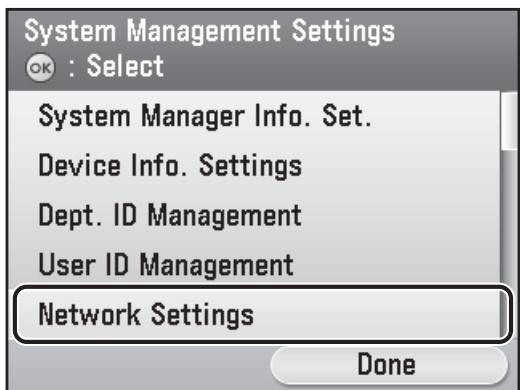
text_image
System Management Settings OK : Select System Manager Info. Set. Device Info. Settings Dept. ID Management User ID Management Network Settings Done5 Press the right Any key to select
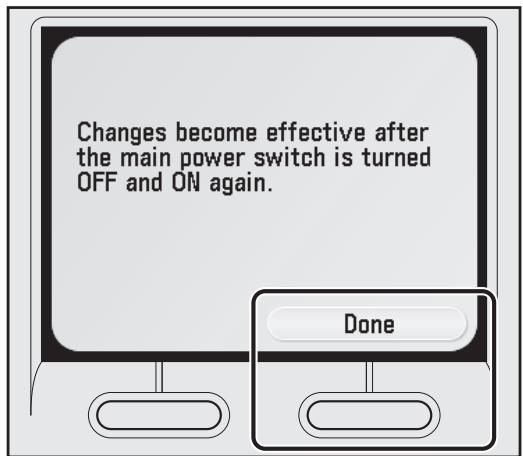
text_image
Changes become effective after the main power switch is turned OFF and ON again. Done
NOTE
Changes to the IP address, subnet mask, and gateway address settings will be effective after restarting the machine.
6 Use [▼], [▲] or Ⓞ (Scroll Wheel) to select
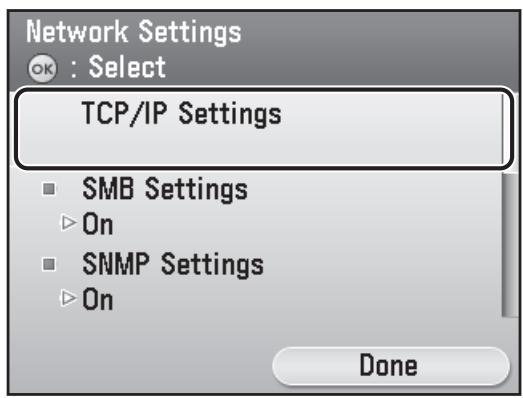
text_image
Network Settings OK : Select TCP/IP Settings ■ SMB Settings ► On ■ SNMP Settings ► On Done7 Use [▼], [▲] or Ⓞ (Scroll Wheel) to select
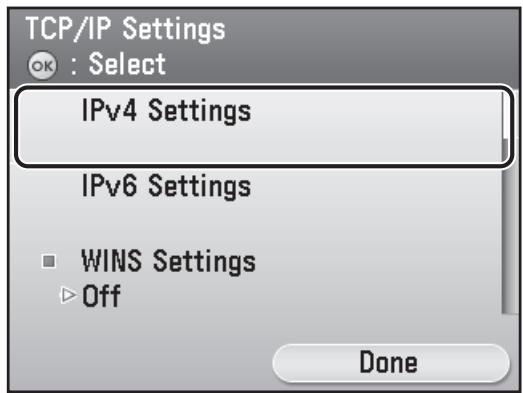
text_image
TCP/IP Settings OK : Select IPv4 Settings IPv6 Settings ■ WINS Settings ▶ Off Done
NOTE
For instructions on the settings for IPv6, see "Network Settings," in the e-Manual.
8 Use [▼], [▲] or Ⓞ (Scroll Wheel) to select
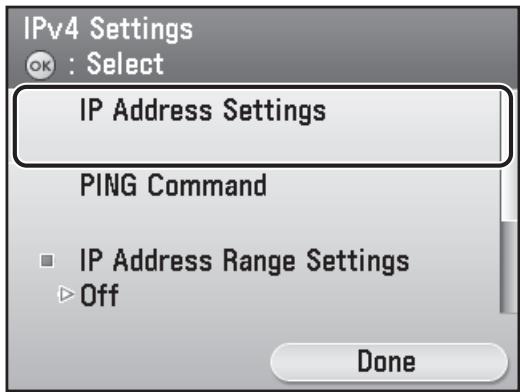
text_image
IPv4 Settings OK : Select IP Address Settings PING Command IP Address Range Settings Off Done9 Use [▼], [▲] or Ⓞ (Scroll Wheel) to select
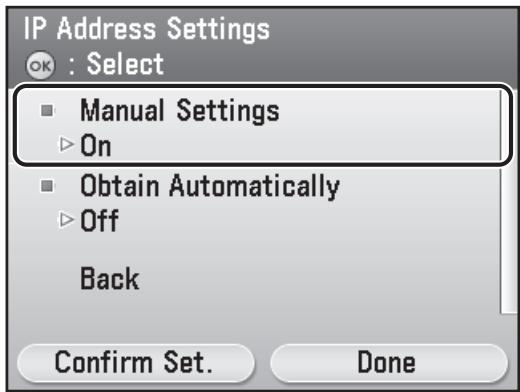
text_image
IP Address Settings OK : Select ■ Manual Settings ► On ■ Obtain Automatically ► Off Back Confirm Set. Done10 Use ①-⑨ (numeric keys) to enter the IP address, then press [OK].
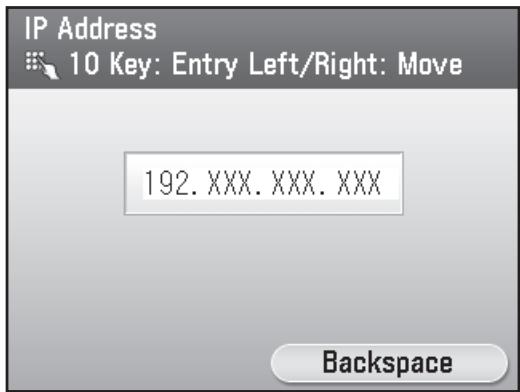
text_image
IP Address 10 Key: Entry Left/Right: Move 192. XXX. XXX. XXX Backspace11 Use ①-⑨ (numeric keys) to enter the subnet mask then press [OK].
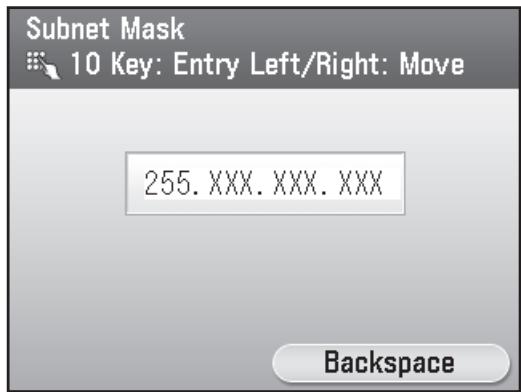
text_image
Subnet Mask 10 Key: Entry Left/Right: Move 255. XXX. XXX. XXX Backspace12 Use ①-⑨ (numeric keys) to enter the gateway address, then press [OK].
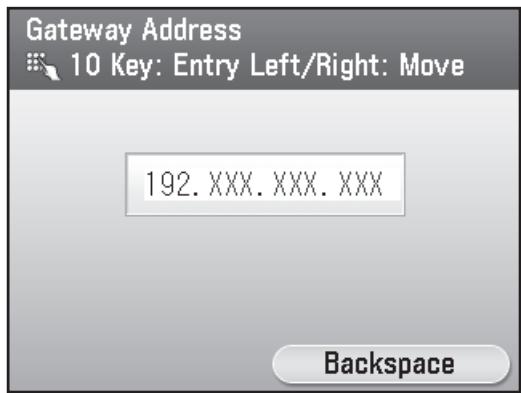
text_image
Gateway Address 10 Key: Entry Left/Right: Move 192. XXX. XXX. XXX Backspace13 Press (Main Menu) to return to the Main Menu screen.
14 Press the main power switch on the right side of the machine to “☐” side, wait at least 10 seconds, and then press the main power switch to “I” side.
Set IP Address Automatically
This is the setting for obtaining an IP address automatically. If you do not need to configure this setting manually, follow the procedure below.
(In case the machine cannot obtain the IP address automatically, you can specify the IP address, subnet mask, and gateway address. If you do not know them, skip each entry by pressing [OK].)
Press (Main Menu) →
* If the screen appears prompting you to enter the System Manager ID and System Password, enter the System Manager ID and System Password using ①-⑨ (numeric keys), then press ⑩ (Log In/Out). For details, see "Security," in the e-Manual.
For more information on this setting, see "Network Settings," in the e-Manual.
Check IP Address Setting
To make sure this machine is communicating with the network properly, follow the procedure below.
1 Press ☐ (Main Menu).
2 Press the right Any key to select
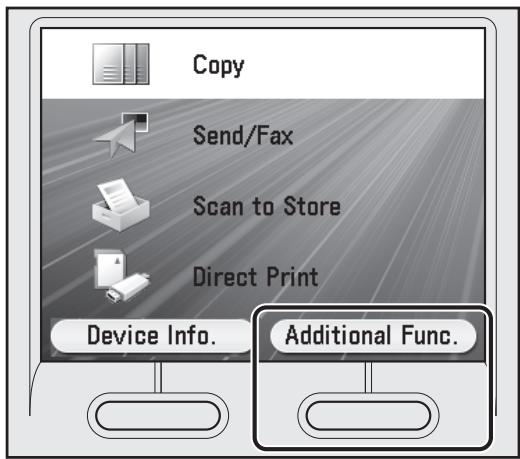
text_image
Copy Send/Fax Scan to Store Direct Print Device Info. Additional Func.3 Use [▼], [▲] or Ⓞ (Scroll Wheel) to select
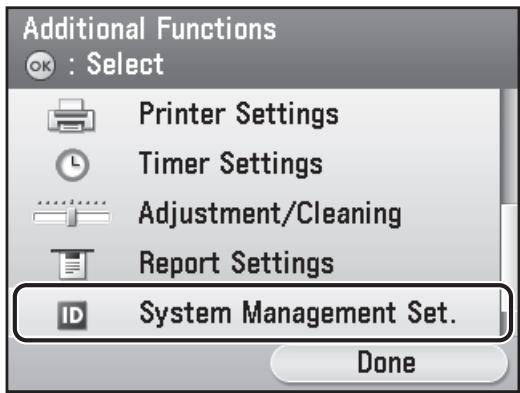
text_image
Additional Functions OK : Select Printer Settings Timer Settings Adjustment/Cleaning Report Settings System Management Set. DoneNOTE
If the screen appears prompting you to enter the System Manager ID and System Password, enter the System Manager ID and System Password using ①-⑨ (numeric keys), then press ⑩ (Log In/Out). For details, see "Security," in the e-Manual.
4 Use [▼], [▲] or Ⓞ (Scroll Wheel) to select
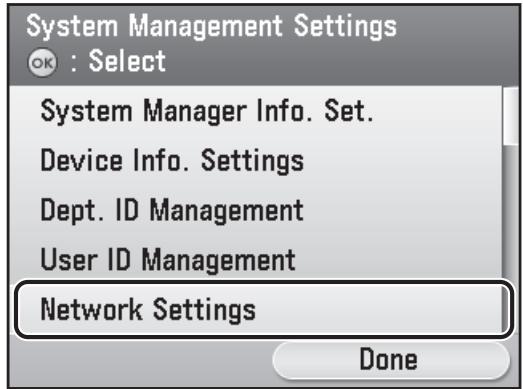
text_image
System Management Settings OK : Select System Manager Info. Set. Device Info. Settings Dept. ID Management User ID Management Network Settings Done5 Press the right Any key to select
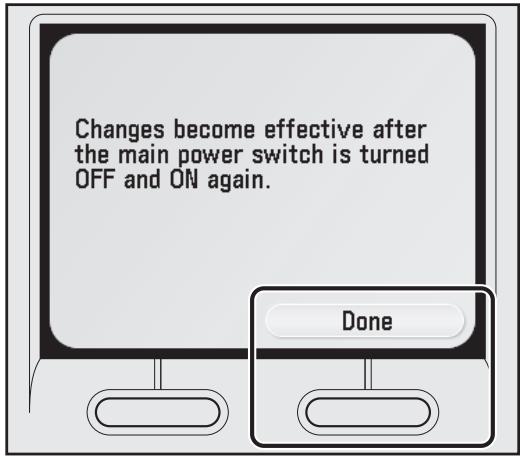
text_image
Changes become effective after the main power switch is turned OFF and ON again. Done
NOTE
Changes to the IP address, subnet mask, and gateway address settings will be effective after restarting the machine.
6 Use [▼], [▲] or Ⓞ (Scroll Wheel) to select
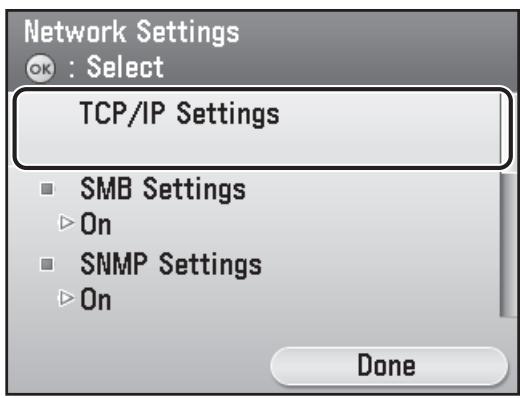
text_image
Network Settings OK : Select TCP/IP Settings ■ SMB Settings ► On ■ SNMP Settings ► On Done7 Use [▼], [▲] or Ⓞ (Scroll Wheel) to select
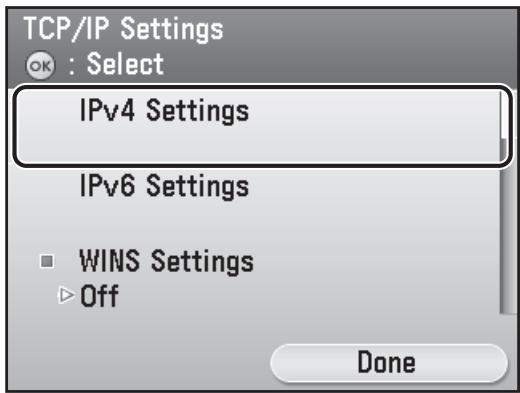
text_image
TCP/IP Settings OK : Select IPv4 Settings IPv6 Settings ■ WINS Settings ▶ Off Done
NOTE
For instructions on the settings for IPv6, see "Network Settings," in the e-Manual.
8 Use [▼], [▲] or Ⓞ (Scroll Wheel) to select
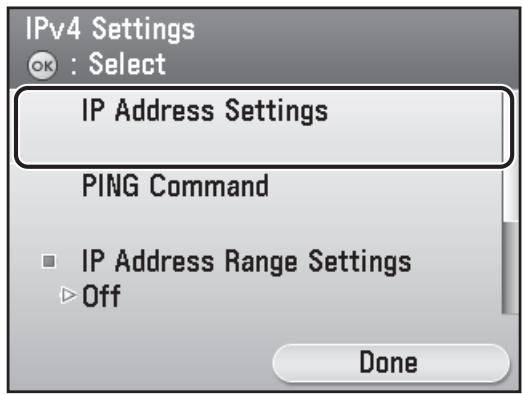
text_image
IPv4 Settings OK : Select IP Address Settings PING Command IP Address Range Settings Off Done9 Press the left Any key to select
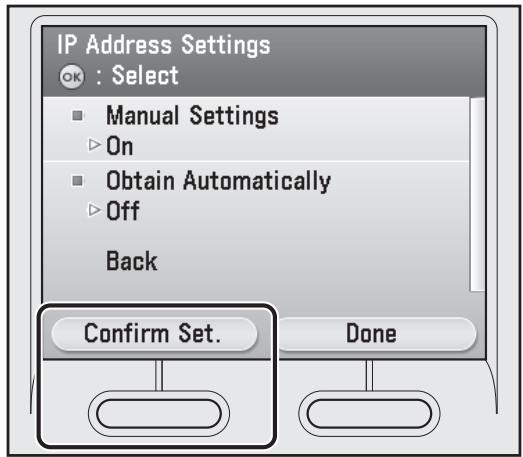
text_image
IP Address Settings OK : Select ■ Manual Settings ▶ On ■ Obtain Automatically ▶ Off Back Confirm Set. Done10 Press the right Any key to select
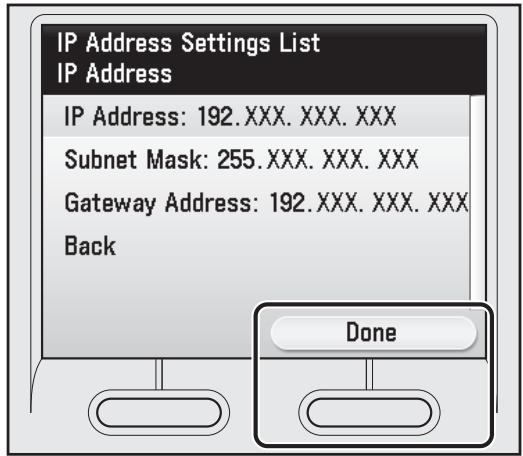
text_image
IP Address Settings List IP Address IP Address: 192. XXX. XXX. XXX Subnet Mask: 255. XXX. XXX. XXX Gateway Address: 192. XXX. XXX. XXX Back Done
NOTE
- If the machine is communicating with the network properly, the IP address, subnet mask, and gateway address are displayed. If not, "000.000.000.000" is displayed.
- If the machine dose not obtain the IP address 3 minutes after you connected the LAN cable, check the IP address settings and the network cable.
11 Press (Main Menu) to return to the Main Menu screen.
3 Set Up Computers and Software
Types of Connection between Computers and the Machine
There are two ways to connect the machine and computers: USB connection and network connection.
Network Connection (For details about the set up, see p. 26.)
The following functions are available with Network Connection: PC Print, Remote UI, PC Fax, Scan, E-Mail/I-Fax Scan to File Server
For more information on how to use each function with network connection, refer to the following:
| PC Print | → | "Print," in the e-Manual |
| Remote UI | → | "Settings from a PC," in the e-Manual |
| PC Fax | → | "Fax," in the e-Manual |
| Scan | → | "Scan," in the e-Manual |
| E-Mail/I-Fax | → | "E-mail"/"Fax," in the e-Manual |
| Scan to File Server | → | "Scan," in the e-Manual |
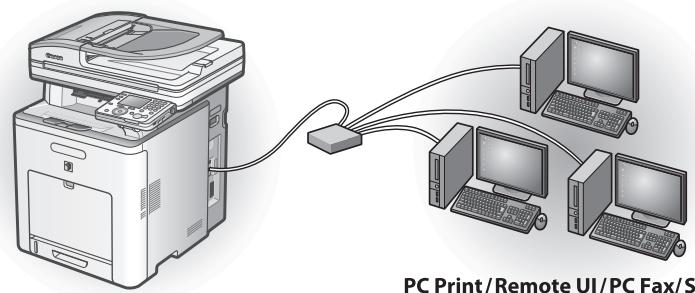
flowchart
graph TD
    A["PC Printer"] --> B["Router"]
    C["Computer 1"] --> B
    D["Computer 2"] --> B
    E["Computer 3"] --> B
    B --> F["PC Print/Remote UI/PC Fax/S"]
PC Print/Remote UI/PC Fax/Scan/E-Mail/I-Fax/Scan to File Server
USB Connection (For details about the set up, see p. 35.)
The following functions are available with USB Connection: PC Print, PC Fax
For more information on how to use each function with USB Connection, refer to the following:
| PC Print | → | "Print," in the e-Manual |
| PC Fax | → | "Fax," in the e-Manual |
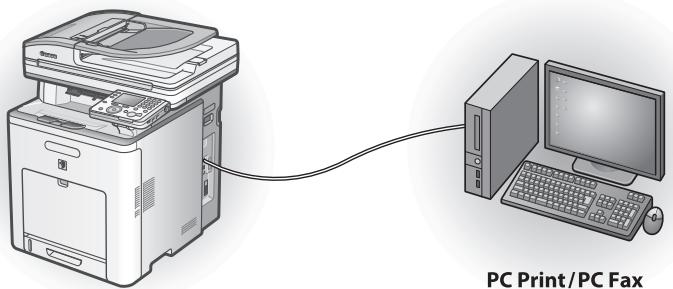
natural_image
Illustration of a printer connected to a computer via cable, labeled 'PC Print/PC Fax' (no other text or symbols)
NOTE
- You can use the USB connection and the network connection together.
- To use the fax function with the imageRUNNER C1028i, the optional Super G3 FAX Board is required.
System Requirements
Windows 2000
CPU: Intel Pentium/133 MHz or faster
Memory: 128 MB or more
Windows XP
CPU: Intel Pentium/Celeron series
300 MHz or faster
Memory: 128 MB or more
Windows Server 2003
CPU: Intel Pentium/Celeron series
133 MHz or faster
Memory: 128 MB or more
Windows Vista
CPU: Intel Pentium 800 MHz or faster
Memory: 512 MB or more
Windows Server 2008
CPU: Intel processor/1 GHz (x86 processor), 1.4 GHz (x64 processor) or faster
Memory: 512 MB or more
Windows 7
CPU: 1 GHz (x86 processor, x64 processor) or faster
Memory: 1 GB (x86 processor), 2 GB (x64 processor) or more
About User Software CD-ROM
Details about each drivers installation can be found in the corresponding HTML manuals listed in the Manuals subsection on p. 25.

UFRII LT Driver
Using the UFRII LT Driver, the various data processing tasks conventionally executed within the printer are appropriately divided between the host computer and the printer to greatly reduce the overall printing time. The workload can be delegated to match the output data, thus realizing a significant increase in speed through optimization.

FAX Driver
The FAX Driver is conceptually akin to a printer driver. A user selects [Print] from any Windows application software, selects the Canon fax driver as the printer, and specifies its destination(s) and options. The FAX Driver then converts this into an image that conforms to standard fax protocols, to be printed or stored on the recipient fax machine(s).

NOTE
To use the FAX Driver with the imageRUNNER C1028i, the optional Super G3 FAX Board is required.
Color Network ScanGear
Color Network ScanGear enables you to remotely scan originals from your computer over the network and transmit the scanned images to your computer.

PCL Printer Driver
The PCL5c, PCL5e, and PCL6 printer drivers can be used with most kinds of business application software. The PCL5c printer driver is for color printers, the PCL5e printer driver is for black-and-white printers, and the PCL6 printer driver is for both color and black-and-white printers. PCL6 is an advanced version of PCL5c and PCL5e, and offers superior printing quality and speed. The PCL5e printer driver is provided as standard with black-and-white printers.

PS Printer Driver
The PS printer driver converts print data from applications into data for use with PS printers, and sends it to the printer. As well as converting print data, it can also enable you to configure settings relating to finishing and detailed settings such as color adjustment, and provides an appropriate print environment for desktop publishing and publishing on demand.

NOTE
To use the PS Printer Driver with the machine, the optional PS Printer Kit is required.
Details about each program installation can be found in the corresponding HTML manuals listed in the Manuals subsection below.
Canon Font Manager
Font Manager is a comprehensive program that helps you manage your fonts in Microsoft Windows.

Printer Driver Installation Guide
The Printer Driver Installation Guide describes UFR II printer driver installation, updating shared printer information, uninstallation, configuration, and printing.

Canon Products Supported by UFR II Driver
The Canon Products Supported by UFR II Driver describes compatible Canon products that are compatible with the UFR II printer driver.

Fax Driver Installation Guide
The Fax Driver Installation Guide describes Fax driver installation, updating shared printer information, uninstallation, configuration, and printing.

NOTE
To use the FAX Driver with the imageRUNNER C1028i, the optional Super G3 FAX Board is required.

Canon Products Supported by Fax Driver
The Canon Products Supported by Fax Driver describes compatible Canon products that are compatible with the Fax driver.

NOTE
To use the FAX Driver with the imageRUNNER C1028i, the optional Super G3 FAX Board is required.

Network ScanGear Installation Guide
The Network ScanGear Installation Guide describes Color Network ScanGear installation and uninstallation.

About Other Software Programs
The About Other Software Programs describes Canon Font Manager installation and uninstallation.

Printer Driver Installation Guide
The Printer Driver Installation Guide describes PCL printer driver installation, updating shared printer information, uninstallation, configuration, and printing.

Canon Products Supported by PCL Driver
The Canon Products Supported by PCL Driver describes compatible Canon products that are compatible with the PCL printer driver.

Printer Driver Installation Guide
The Printer Driver Installation Guide describes PS printer driver installation, updating shared printer information, uninstallation, configuration, and printing.

NOTE
To use the PS Printer Driver with the machine, the optional PS Printer Kit is required.

Canon Products Supported by PS Driver
The Canon Products Supported by PS Driver describes compatible Canon products that are compatible with the PS printer driver.

NOTE
To use the PS Printer Driver with the machine, the optional PS Printer Kit is required.
Network Connection
Before Installation
- The following procedures are explained using sample screens from Windows XP Professional.
- Log on as an Administrator to install the software.
- Make sure the machine is turned ON. (See "Turn on the Machine," on p. 3.)
- Make sure the network cable is connected to the machine.
- If you want to use the machine as a network scanner, it must be connected to a computer over an IPv4 network.
- Make sure an IP address is assigned to the machine. (See "Check IP address Setting," on p. 21.)
- Click on the circled button on each screen to proceed to the next step.
Installation Procedure
1
Connect the machine to the network correctly, and confirm that the power is on.
2
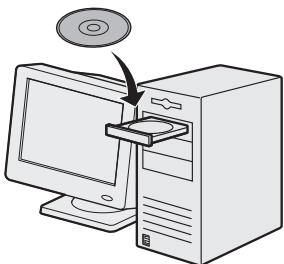
natural_image
Illustration of a desktop computer with an open CD and a monitor, showing no text or symbols.Insert the UFRII LT/FAX User Software CD-ROM.

NOTE
- If you want to install only the PCL Driver, proceed to step 37. For more information refer to the Printer Driver Installation Guide (located on the PCL User Software CD-ROM).
- If you want to install only the PS Driver (when the optional PS Printer Kit is attached), proceed to step 56. For more information refer to the Printer Driver Installation Guide (located on the PS User Software CD-ROM).
3
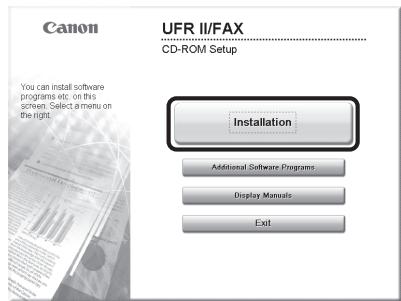
text_image
Canon UFR II/FAX CD-ROM Setup You can install software programs etc. on this screen. Select a menu on the right. Installation Additional Software Programs Display Manuals Exit.If the CD-ROM Setup screen is not displayed, click [start] on the Windows task bar → [My Computer].
Windows 2000: double-click [My Computer] on the Windows desktop.
Windows Vista/7/Server 2003/Server 2008: click [Start] on the Windows task bar → [Computer] ([My Computer]).
Open the CD-ROM icon, then double-click [MInst] ([MInst.exe]).

NOTE
If a language selection screen is displayed before the CD-ROM Setup screen, select a language and then click [Next].
4
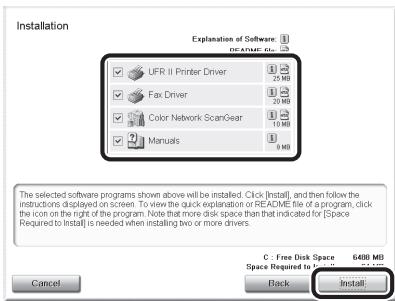
text_image
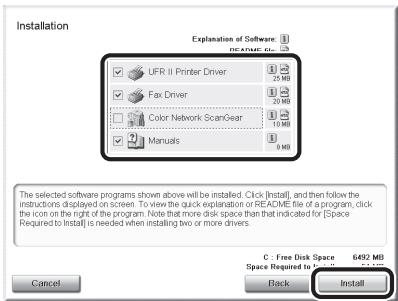
Installation Explanation of Software: UFR II Printer Driver Fax Driver Color Network ScanGear Manuals 3 25 MB 20 MB 10 MB 9 MB The selected software programs shown above will be installed. Click (Install), and then follow the instructions displayed on screen. To view the quick explanation or README file of a program, click the icon on the right of the program. Note that more disk space than that indicated for [Space Required to Install] is needed when installing two or more drivers. C : Free Disk Space 6480 MB Space Required to Install Cancel Black InstallMake sure that the boxes next to the UFR II Printer Driver, FAX Driver (imageRUNNER C1028iF or C1028i with the optional Super G3 FAX Board attached), Color Network ScanGear and Manuals are checked. Unchecked items will not be installed.

NOTE
- If you want to install only the UFR II Driver, select only the UFR II Printer Driver in this step, then proceed to the next step. For more information refer to the Printer Driver Installation Guide (located on the UFRII LT/FAX User Software CD-ROM).
- If you want to install only the fax driver, select only the FAX Driver in this step, then proceed to step 16. For more information refer to the Fax Driver Installation Guide (located on the UFRII LT/FAX User Software CD-ROM).

NOTE
- If you want to install only Color Network ScanGear, select only Color Network ScanGear in this step, then proceed to step 25. For more information refer to the Network ScanGear Installation Guide (located on the UFRII LT/FAX User Software CD-ROM).
- If the amount of free disk space is insufficient to install the software, an error message is displayed. Make sure there is sufficient disk space, and then try installing the software again.
5
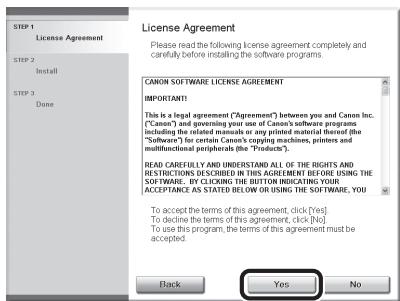
text_image
License Agreement Please read the following license agreement completely and canfully installing the software programs. STEP 1 License Agreement STEP 2 Install STEP 3 Done CANON SOFTWARE LICENSE AGREEMENT IMPORTANT! This is a legal agreement ("Agreement") between you and Canon Inc. ("Canon") and governing your use of Canon's software programs including the related manuals or any printed material thereof (the "Software") for certain Canon's copying machines, printers and multifunctional peripherals (the "Products"). READ CARELLY AND UNDERSTAND ALL OF THE RIGHTS AND RESTRICTIONS DESCRIBED IN THIS AGREEMENT BEFORE USING THE SOFTWARE. BY CLICKING THE BUTTON INDICATING YOUR ACCEPTANCE AS STATED BELOW OR USING THE SOFTWARE, YOU To accept the terms of this agreement, click [Yes] To decline the terms of this agreement, click [No] To use this program, the terms of this agreement must be accepted. Back Yes No6
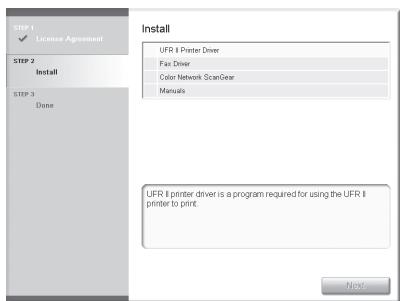
text_image
STEP 1 ✓ License Agreement STEP 2 Install STEP 3 Done Install UFR II Printer Driver Fax Driver Color Network ScanGear Manuals UFR II printer driver is a program required for using the UFR II printer to print. Next7
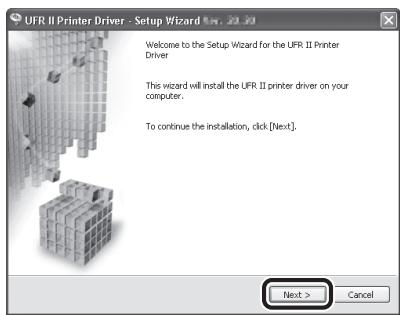
text_image
UFR II Printer Driver - Setup Wizard Welcome to the Setup Wizard for the UFR II Printer Driver This wizard will install the UFR II printer driver on your computer. To continue the installation, click [Next]. Next > Cancel8

text_image
UFR II Printer Driver - Setup Wizard Printer Installation Select printer installation. Printer Installation Manually Set Port to Install Search for Network Printers to Install In thousands of printers in the sleep mode and Search Install with USB Connection Installs printers connected to the TCP/IP network. < Back Next > Cancel9
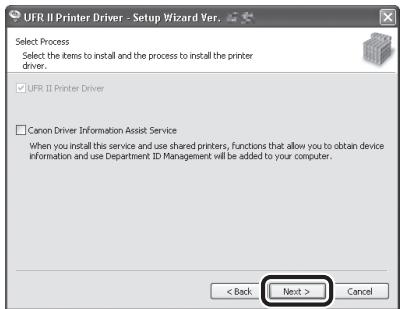
text_image
UFR II Printer Driver - Setup Wizard Yes. Select Process Select the items to install and the process to install the printer driver. UFR II Printer Driver Canon Driver Information Assist Service When you install this service and use shared printers, functions that allow you to obtain device information and use Department ID Management will be added to your computer. < Back Next > Cancel
NOTE
- If you are using a shared printer in the Print Server (Point and Print) environment, it is necessary to install the Canon Driver Information Assist Service in the server computer to set up the printer configuration automatically or use Department ID Management.
- If the Canon Driver Information Assist Service is already installed on your computer, this screen is not displayed.
- If you are using an operating system equipped with Windows Firewall, the following message box may appear. If you want to use Canon Driver Information Assist Service, click [Yes]. If you select [No], you cannot use Canon Driver Information Assist Service.
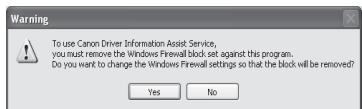
text_image
To use Canon Driver Information Assist Service, you must remove the Windows Firewall block set against this program. Do you want to change the Windows Firewall settings so that the block will be removed? Yes No10
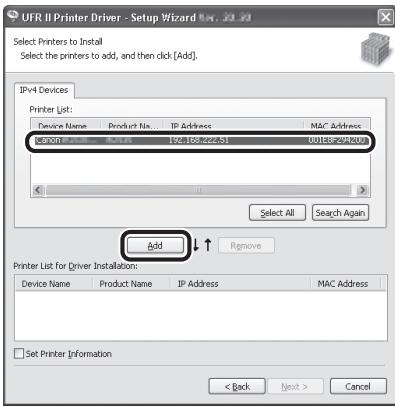
text_image
UFR II Printer Driver - Setup Wizard Select Printers to Install Select the printers to add, and then click [Add]. IP+4 Devices Printer List: Device Name Product No IP Address MAC Address Region: IP-100 IP-100 IP-100 IP-100 IP-100 IP-100 IP-100 IP-100 IP-100 IP-100 IP-100 IP-100 IP-100 IP-100 IP-100 IP-100 IP-100 IP-100 IP-100 IP-100 IP-10 Select All Search Again Add Remove Printer List for Driver Installation: Device Name Product Name IP Address MAC Address Set Printer Information < Back Next > CancelSelect the machine (Product Name: iR C1028) using the information displayed in [Printer List] → press [Add].

NOTE
If the machine's information is not displayed in [Printer List] on the screen, click [Search Again].
11
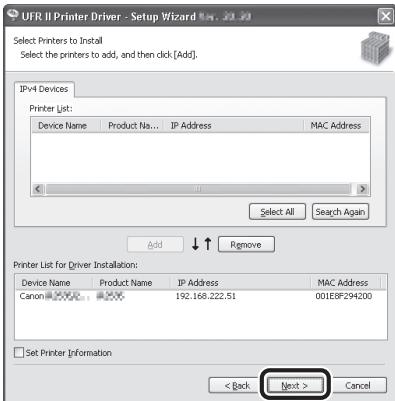
text_image
UFR II Printer Driver - Setup Wizard Select Printers to Install Select the printers to add, and then click [Add]. IPv4 Devices Printer List: Device Name Product Na... IP Address MAC Address Add Remove Printer List for Driver Installation: Device Name Product Name IP Address MAC Address Canon 192.168.222.51 001E8F294200 Set Printer Information < Back Next > Cancel12
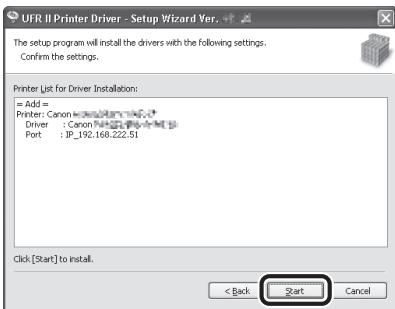
text_image
UFR II Printer Driver - Setup Wizard Ver. The setup program will install the drivers with the following settings. Confirm the settings. Printer List for Driver Installation: = Add = Printer: Canon Driver : Canon Port : JP_192.168.222.51 Click [Start] to install. < Back Start Cancel13
text_image
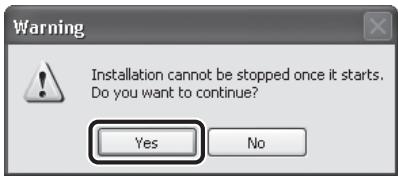
Warning Installation cannot be stopped once it starts. Do you want to continue? Yes No14
text_image
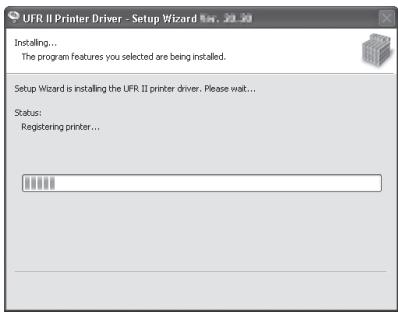
UFR II Printer Driver - Setup Wizard No. 30.30 Installing... The program features you selected are being installed. Setup Wizard is installing the UFR II printer driver. Please wait... Status: Registering printer...15
text_image
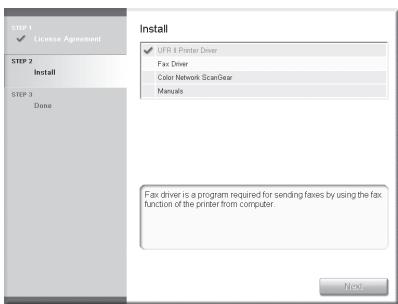
STEP 1 ✓ License Agreement STEP 2 Install STEP 3 Done Install ✓ UFR 8 Printer Driver Fax Driver Color Network ScanGear Manuals Fax driver is a program required for sending taxes by using the fax function of the printer from computer. NextInstallation of the printer driver is completed and the installation of the fax driver will begin.

NOTE
If the optional Super G3 FAX Board is not installed on the imageRUNNER C1028i, proceed to step 25.
16
text_image
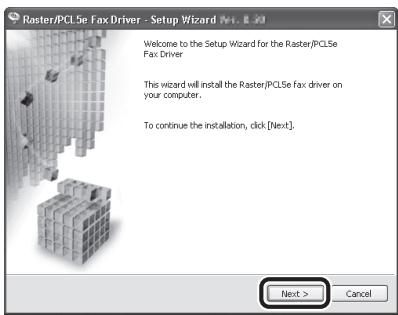
Raster/PCL5e Fax Driver - Setup Wizard [M. 8.20] Welcome to the Setup Wizard for the Raster/PCL5e Fax Driver This wizard will install the Raster/PCL5e fax driver on your computer. To continue the installation, click [Next]. Next > Cancel17
text_image
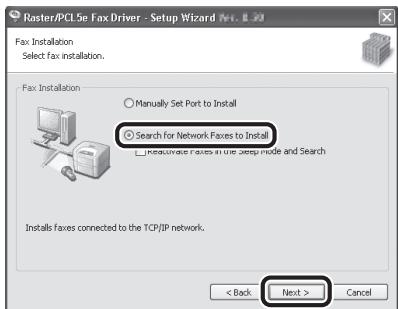
Raster/PCI.5e Fax Driver - Setup Wizard No. 8.0 Fax Installation Select fax installation. Fax Installation ○ Manually Set Port to Install ● Search for Network Faxes to Install □ Reusurized Faxes in the deep mode and Search Installs Faxes connected to the TCP/IP network. < Back Next > Cancel18
text_image
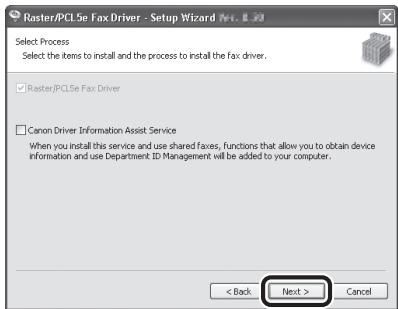
Raster/PCL5e Fax Driver - Setup Wizard (Rev. 8.20) Select Process Select the items to install and the process to install the fax driver. Raster/PCL5e Fax Driver Canon Driver Information Assist Service When you install this service and use shared faxes, functions that allow you to obtain device information and use Department ID Management will be added to your computer. < Back Next > Cancel
NOTE
- If you are using a shared printer in the Print Server (Point and Print) environment, it is necessary to install the Canon Driver Information Assist Service in the server computer to set up the printer configuration automatically or use Department ID Management.
- If the Canon Driver Information Assist Service is already installed on your computer, this screen is not displayed.
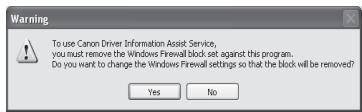
- If you are using an operating system equipped with Windows Firewall, the following message box may appear. If you want to use Canon Driver Information Assist Service, click [Yes]. If you select [No], you cannot use Canon Driver Information Assist Service.
text_image
To use Canon Driver Information Assist Service, you must remove the Windows Firewall block set against this program. Do you want to change the Windows Firewall settings so that the block will be removed? Yes No19
text_image
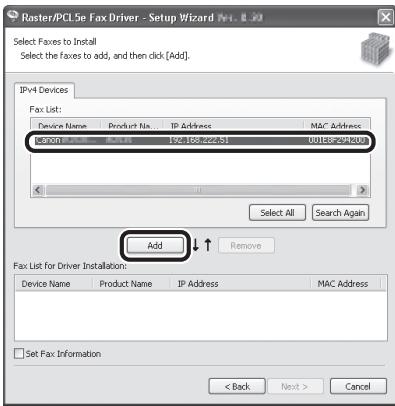
Raster/PCL SE Fax Driver - Setup Wizard No. 8.03 Select Faxes to Install Select the faxes to add, and then click [Add] IPv4 Devices Fax List: Device Name Product No. IP Address Mac Address Login: IP-168262653 U1188-294500 Add Remove Fax List for Driver Installation: Device Name Product Name IP Address MAC Address Set Fax Information < Back Next > CancelSelect the machine (Product Name: iR C1028) using the information displayed in [Fax List] → press [Add].
20
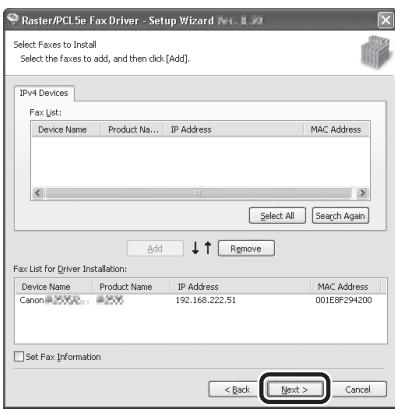
text_image
Raster/PCL5e Fax Driver - Setup Wizard [M1, M2] Select Faxes to Install Select the faxes to add, and then click [Add]. IP+4 Devices Fax List: Device Name Product Na... IP Address MAC Address Add Remove Add Remove Fax List for Driver Installation: Device Name Product Name IP Address MAC Address Canon 192.168.222.51 001E8F294200 Set Fax Information < Back Next > Cancel21
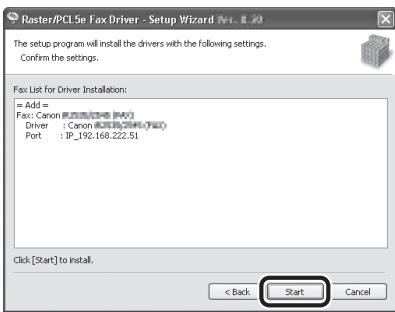
text_image
Raster/PCL5e Fax Driver - Setup Wizard [M. 8.20] The setup program will install the drivers with the following settings. Confirm the settings. Fax List for Driver Installation: = Add = Fax: Canon (R201936 [F4]) Driver : Canon (R201936 [F4]) Port : JP_192.168.222.51 Click [Start] to install. < Back Start Cancel22
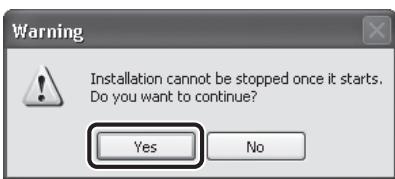
text_image
Warning Installation cannot be stopped once it starts. Do you want to continue? Yes No23
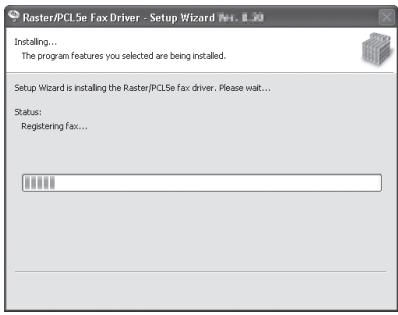
text_image
Raster/PCLSe Fax Driver - Setup Wizard No. 8.30 Installing... The program features you selected are being installed. Setup Wizard is installing the Raster/PCLSe fax driver. Please wait... Status: Registering Fax...24
text_image
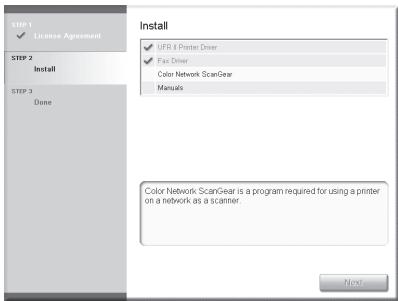
STEP 1 ✓ License Agreement STEP 2 Install STEP 3 Done Install ✓ UFR 8 Printer Driver ✓ Fax Driver Color Network ScanGear Manuals Color Network ScanGear is a program required for using a printer on a network as a scanner. NextInstallation of the fax driver is completed and the installation of Color Network ScanGear will begin.
25
text_image
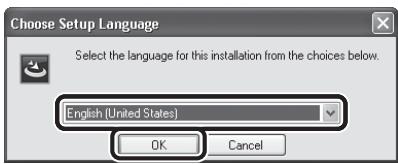
Choose Setup Language Select the language for this installation from the choices below. English (United States) OK CancelSelect the same language as your operating system.
26
text_image
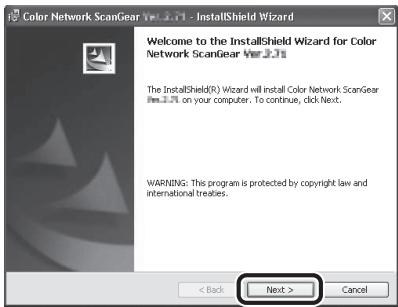
Color Network ScanGear Ver 3.71 - InstallShield Wizard Welcome to the InstallShield Wizard for Color Network ScanGear Ver 3.71 The InstallShield(R) Wizard will install Color Network ScanGear Ver 3.71 on your computer. To continue, click Next. WARNING: This program is protected by copyright law and international treaties. < Back Next > Cancel27
text_image
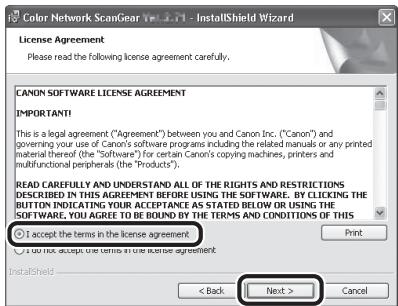
Color Network ScanGear We 3.71 - InstallShield Wizard License Agreement Please read the following license agreement carefully. CANON SOFTWARE LICENSE AGREEMENT IMPORTANT! This is a legal agreement ("Agreement") between you and Canon Inc. ("Canon") and governing your use of Canon's software programs including the related manuals or any printed material thereof (the "Software") for certain Canon's copying machines, printers and multifunctional peripherals (the "Products"). READ CAREFULLY AND UNDERSTAND ALL OF THE RIGHTS AND RESTRICTIONS DESCRIBED IN THIS AGREEMENT BEFORE USING THE SOFTWARE. BY CLICKING THE BUTTON INDICATING YOUR ACCEPTANCE AS STATED BELOW OR USING THE SOFTWARE, YOU AGREE TO BE BOUND BY THE TERMS AND CONDITIONS OF THIS Accept the terms in the license agreement Print You note, except the terms in the license agreement InstallShield < Back Next > Cancel28
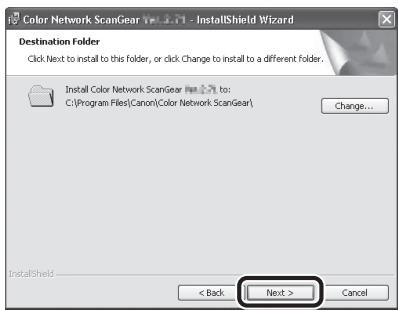
text_image
Color Network ScanGear V=3.71 - InstallShield Wizard Destination Folder Click Next to install to this folder, or click Change to install to a different folder. Install Color Network ScanGear V=3.71 to: C:\Program Files\Canon\Color Network ScanGear\ Change... InstallShield < Back Next > Cancel29
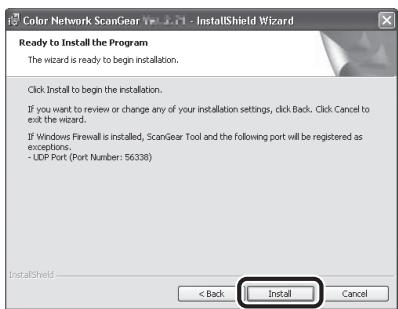
text_image
Color Network ScanGear Ver 3.71 - InstallShield Wizard Ready to Install the Program The wizard is ready to begin installation. Click Install to begin the installation. If you want to review or change any of your installation settings, click Back. Click Cancel to exit the wizard. If Windows Firewall is installed, ScanGear Tool and the following port will be registered as exceptions. - UDP Port (Port Number: 56338) InstallShield < Back Install Cancel30
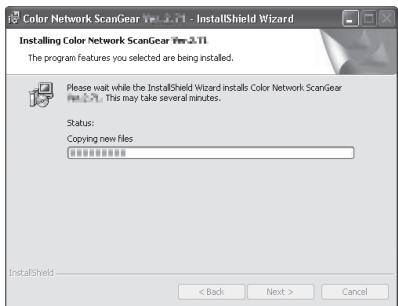
text_image
Color Network ScanGear Vm 2.11 - InstallShield Wizard Installing Color Network ScanGear Vm 2.11 The program features you selected are being installed. Please wait while the InstallShield Wizard installs Color Network ScanGear Vm 2.11. This may take several minutes. Status: Copying new files InstallShield < Back Next > Cancel31
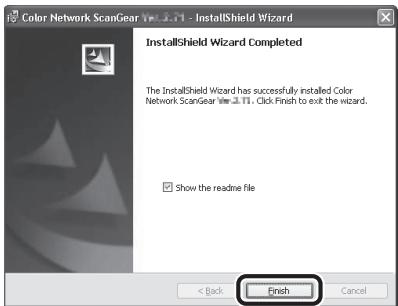
text_image
Color Network ScanGear Web 3.71 - InstallShield Wizard InstallShield Wizard Completed The InstallShield Wizard has successfully installed Color Network ScanGear Web 3.71. Click Finish to exit the wizard. Show the readme file < Back Finish Cancel
NOTE
The Readme file opens. After reading through the information provided, proceed to the next step.
32
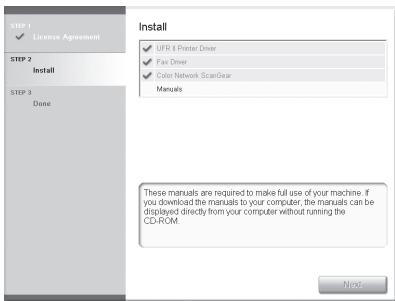
text_image
STEP 1 ✓ License Agreement STEP 2 Install STEP 3 Done Install ✓ UFR 8 Printer Driver ✓ Fax Driver ✓ Color Network ScanGear Manuals These manuals are required to make full use of your machine. If you download the manuals to your computer, the manuals can be displayed directly from your computer without running the CD-ROM. NextInstallation of Color Network ScanGear is completed and the installation of the manuals will begin.
33
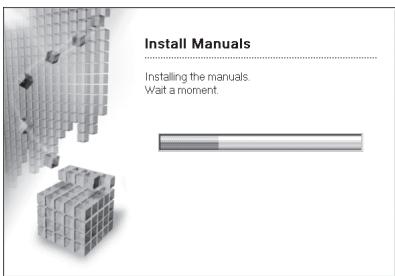
text_image
Install Manuals Installing the manuals. Wait a moment.34
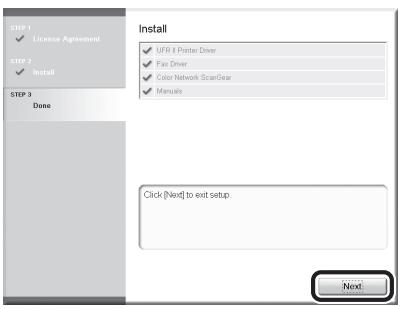
text_image
STEP 1 ✓ License Agreement STEP 2 ✓ Install STEP 3 Done Install ✓ UFR & Printer Driver ✓ Fax Driver ✓ Color Network ScanGear ✓ Manuals Click [Next] to exit setup. NextThe Printer Driver Installation Guide and the Fax Driver Installation Guide are installed on your computer and shortcuts are created on the desktop.
35
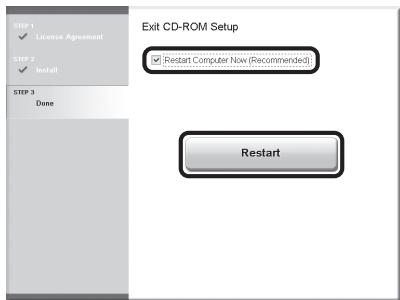
text_image
EXIT CD-ROM Setup ✓ Restart Computer Now (Recommended) Restart36
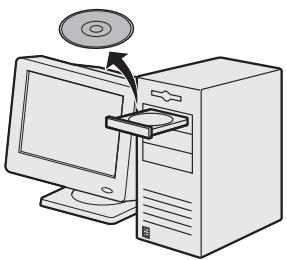
natural_image
Illustration of a desktop computer with an open CD and monitor, no text or symbols presentRemove the UFRII LT/FAX User Software CD-ROM.

NOTE
If you want to install the PCL Driver, go to the next step.
37
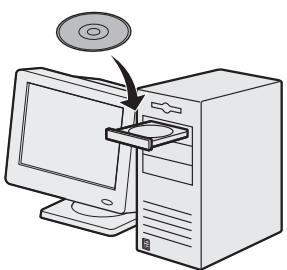
natural_image
Illustration of a desktop computer with an open CD and a monitor, showing no text or symbols.Insert the PCL User Software CD-ROM.
38
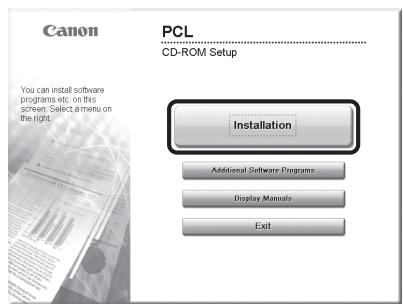
text_image
Canon PCL CD-ROM Setup You can install software programs etc. on this screen Select a menu on the right. Installation Additional Software Programs Display Manuals ExitIf the CD-ROM Setup screen is not displayed, click [start] on the Windows task bar → [My Computer].
Windows 2000: double-click [My Computer] on the Windows desktop.
Windows Vista/7/Server 2003/Server 2008: click [Start] on the Windows task bar → [Computer] ([My Computer]).
Open the CD-ROM icon, then double-click [MInst] ([MInst.exe]).

NOTE
If a language selection screen is displayed before the CD-ROM Setup screen, select a language and then click [Next].
39
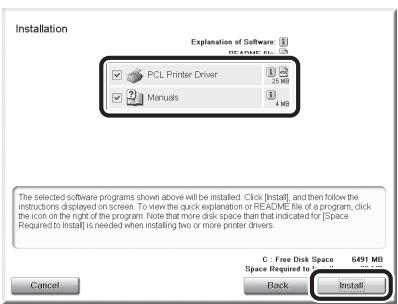
text_image
Installation Explanation of Software PCL Printer Driver Manuals 4 KB The selected software programs shown above will be installed. Click [install], and then follow the instructions displayed on screen. To view the quick explanation or README file of a program, click the icon on the right of the program. Note that more disk space than that indicated for [Space Required to Install] is needed when installing two or more printer drivers. C : Free Disk Space 6491 MB Space Required to Install Cancel Back InstallSelect the PCL Printer Driver and Manuals.
40
text_image
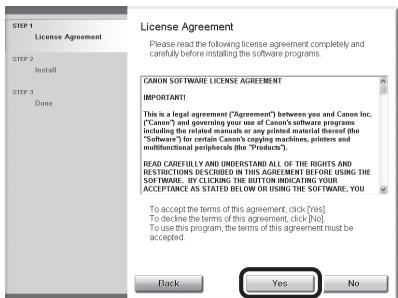
License Agreement Please read the following license agreement completely and canfully before installing the software programs. CANON SOFTWARE LICENSE AGREEMENT IMPORTANT! This is a legal agreement ("Agreement") between you and Canon Inc. ("Canon") and generating your use of Canon's software programs including the related manuals or any printed material thereof (the "Software") for certain Canon's copying machines, printers and multifunctional peripherals (the "Python's") READ CAREFULLY AND UNDERSTAND ALL OF THE RIGHTS AND RESTRICTIONS DESCRIBED IN THIS AGREEMENT BEFORE USING THE SOFTWARE. BY CLICKING THE BUTTON INDICATING YOUR ACCEPTANCE AS STATED BELOW OR USING THE SOFTWARE, YOU To accept the terms of this agreement, click [Yes] To decline the terms of this agreement, click [No] To use this program, the terms of this agreement must be accepted.41
text_image
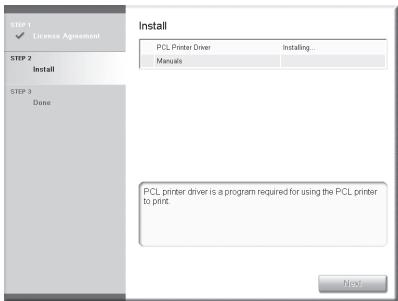
STEP 1 ✓ License Agreement STEP 2 Install STEP 3 Done Install PCL Printer Driver Installing... Manuals PCL printer driver is a program required for using the PCL printer to print. Next...42
text_image
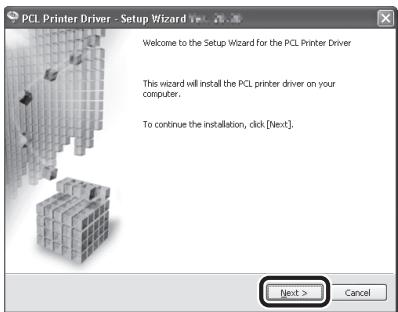
PCL Printer Driver - Setup Wizard Welcome to the Setup Wizard for the PCL Printer Driver This wizard will install the PCL printer driver on your computer. To continue the installation, click [Next]. Next > Cancel43
text_image
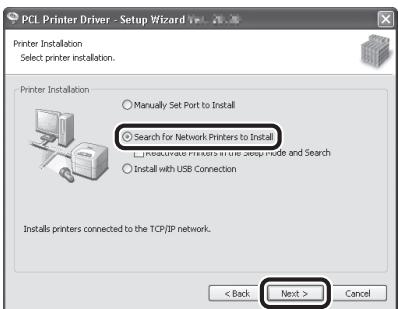
PCL Printer Driver - Setup Wizard V Printer Installation Select printer installation. Printer Installation Manually Set Port to Install Search for Network Printers to Install Install with USB Connection Installs printers connected to the TCP/IP network. < Back: Next > Cancel44
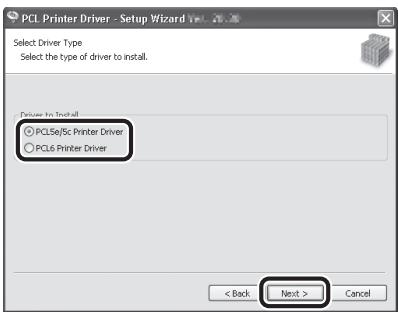
text_image
PCL Printer Driver - Setup Wizard Select Driver Type Select the type of driver to install. Driver to Install ○ PCL56/5C Printer Driver ○ PCL6 Printer Driver < Back Next > CancelSelect [PCL5e/5c Printer Driver] or [PCL6 Printer Driver].
45
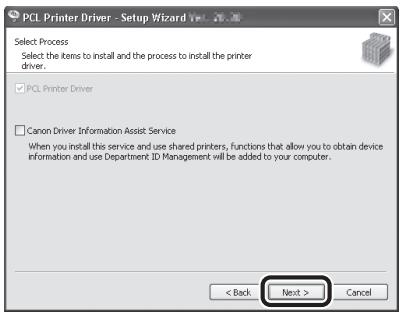
text_image
PCL Printer Driver - Setup Wizard Yes Select Process Select the items to install and the process to install the printer driver. PCL Printer Driver Canon Driver Information Assist Service When you install this service and use shared printers, functions that allow you to obtain device information and use Department ID Management will be added to your computer. < Back Next > Cancel
NOTE
- If you are using a shared printer in the Print Server (Point and Print) environment, it is necessary to install the Canon Driver Information Assist Service in the server computer to set up the printer configuration automatically or use Department ID Management.
- If the Canon Driver Information Assist Service is already installed on your computer, this screen is not displayed.
- If you are using an operating system equipped with Windows Firewall, the following message box may appear. If you want to use Canon Driver Information Assist Service, click [Yes]. If you select [No], you cannot use Canon Driver Information Assist Service.
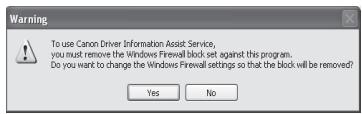
text_image
To use Canon Driver Information Assist Service, you must remove the Windows Firewall block set against this program. Do you want to change the Windows Firewall settings so that the block will be removed? Yes No46
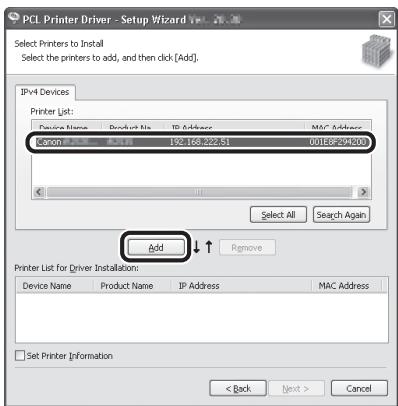
text_image
PCL Printer Driver - Setup Wizard Yes Select Printers to Install Select the printers to add, and then click [Add]. IPv4 Devices Printer List: Device Name Product No IP Address MAC Address Canon 192.168.222.51 001E5F-242300 Select All Search Again Add Remove Printer List for Driver Installation: Device Name Product Name IP Address MAC Address Set Printer Information < Back Next > CancelSelect the machine (Product Name: iR C1028) using the information displayed in [Printer List] → press [Add].
47
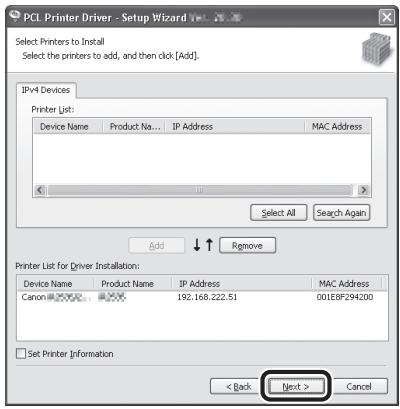
text_image
PCL Printer Driver - Setup Wizard Yes Select Printers to Install Select the printers to add, and then click [Add]. IP+4 Devices Printer List: Device Name Product Na... IP Address MAC Address Select All Search Again Add ↓ Remove Printer List for Driver Installation: Device Name Product Name IP Address MAC Address Canon 192.168.222.51 001E8F294200 Set Printer Information < Back Next > Cancel48
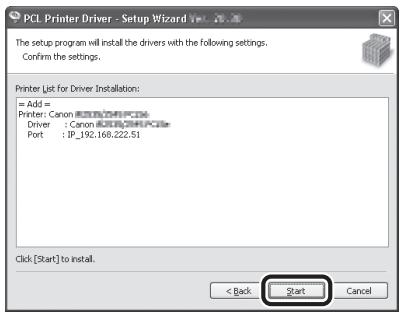
text_image
PCL Printer Driver - Setup Wizard Yes The setup program will install the drivers with the following settings. Confirm the settings. Printer List for Driver Installation: = Add = Printer Canon ASCII/PC10 Driver : Canon ASCII/PC10 Port : IP_192.168.222.51 Click [Start] to install. < Back Start Cancel49
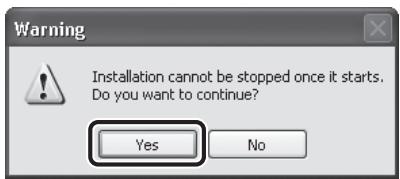
text_image
Warning Installation cannot be stopped once it starts. Do you want to continue? Yes No50
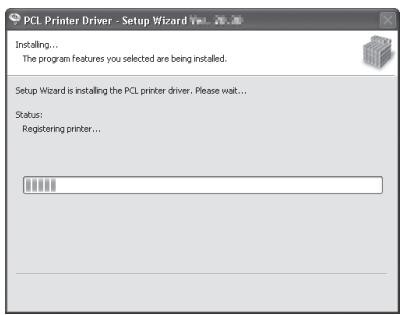
text_image
PCL Printer Driver - Setup Wizard Vw... Installing... The program features you selected are being installed. Setup Wizard is installing the PCL printer driver. Please wait... Status: Registering printer...51
text_image
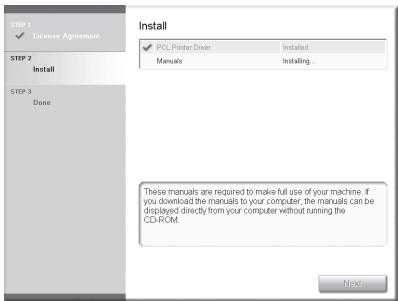
STEP 1 ✓ License Agreement STEP 2 Install STEP 3 Done Install ✓ PCL Printer Driver Installed. Manuals Installing... These manuals are required to make full use of your machine. If you download the manuals to your computer, the manuals can be displayed directly from your computer without running the CD-ROM. Next...Installation of the printer driver is completed and the installation of the manuals will begin.
52
text_image
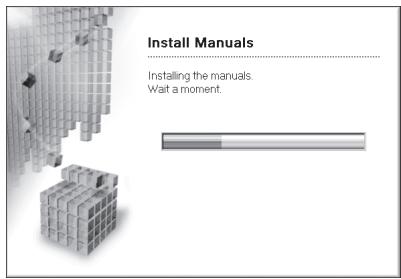
Install Manuals Installing the manuals. Wait a moment.53
text_image
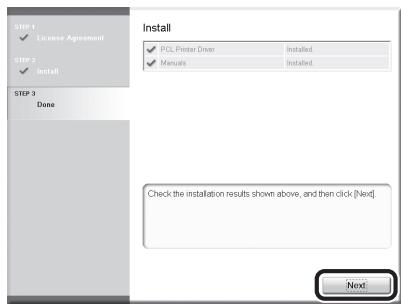
Step 1 ✓ License Agreement Step 2 ✓ Install STEP 3 Done Install ✓ PCL Printer Driver Installed ✓ Manuals Installed Check the installation results shown above, and then click [Next] Next:The Printer Driver Installation Guide is installed on your computer and a shortcut is created on the desktop.
54
text_image
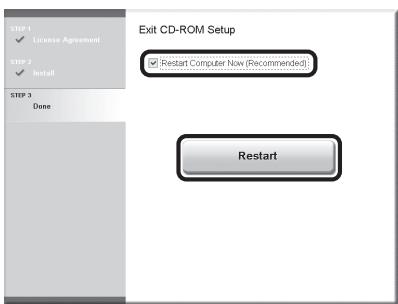
EXIT CD-ROM Setup ✓ Restart Computer New (Recommended) Restart55
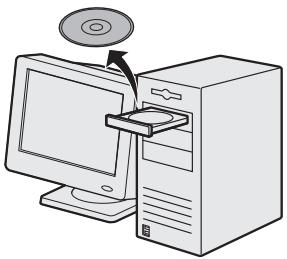
natural_image
Illustration of a desktop computer with an open CD and monitor, no text or symbols presentRemove the PCL User Software CD-ROM.

NOTE
If you want to install the PS Driver (when the optional PS Printer Kit is attached), go to the next step.
56
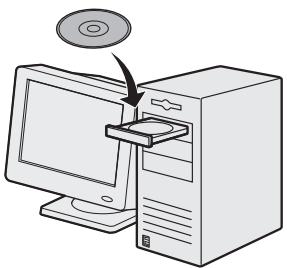
natural_image
Illustration of a desktop computer with an open CD and a monitor, showing no text or symbols.Insert the PS User Software CD-ROM.
57
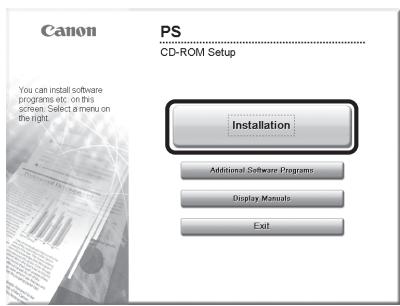
text_image
Canon PS CD-ROM Setup You can install software programs etc. on this screen. Select a menu on the right. Installation Additional Software Programs Display Manuals ExitIf the CD-ROM Setup screen is not displayed, click [start] on the Windows task bar → [My Computer].
Windows 2000: double-click [My Computer] on the Windows desktop.
Windows Vista/7/Server 2003/
Server 2008: click [Start] on the Windows task bar → [Computer] ([My Computer]).
Open the CD-ROM icon, then double-click [MInst] ([MInst.exe]).

NOTE
If a language selection screen is displayed before the CD-ROM Setup screen, select a language and then click [Next].
58
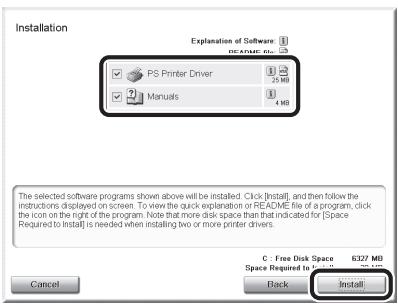
text_image
Installation Explanation of Software PS Printer Driver Manuals 1 2 3 4 5 6 7 8 9 10 11 12 13 14 15 16 17 18 19 20 21 22 23 24 25 26 27 28 29 30 31 32 33 34 35 36 37 38 39 40 41 42 43 44 45 46 47 48 49 50 51 52 53 54 55 56 57 58 59 60 61 62 63 64 65 66 67 68 69 70 71 72 73 74 75 76 77 78 79 80 81 82 83 84 85 86 87 88 89 90 91 92 93 94 95 96 97 98 99 100 The selected software programs shown above will be installed. Click [install], and then follow the instructions displayed on screen. To view the quick explanation or README file of a program, click the icon on the right of the program. Note that more disk space than that indicated for [Space Required to Install] is needed when installing two or more printer drivers. C : Free Disk Space 6327 MB Space Required to Install Install Cancel BackSelect the PS Printer Driver and Manuals.
59
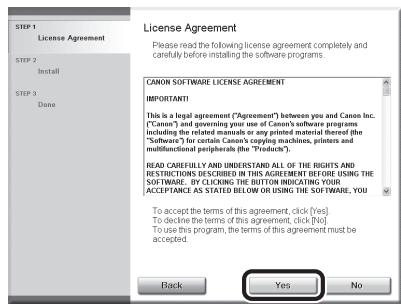
text_image
License Agreement Please read the following license agreement completely and carefully before installing the software programs. STEP 1 License Agreement STEP 2 Install STEP 3 Done CANON SOFTWARE LICENSE AGREEMENT IMPORTANT This is a legal agreement ("Agreement") between you and Canon Inc. ("Canon") and governing your use of Canon's software programs including the related manuals or any printed material thereof (the "Software" for certain Canon's copying machines, printers and multifunctional peripherals (the "Products"). READ CAREFULLY AND UNDERSTAND ALL OF THE RIGHTS AND RESTRICTIONS DESCRIBED IN THIS AGREEMENT BEFORE USING THE SOFTWARE. BY CLICKING THE BUTTON INDICATING YOUR ACCEPTANCE AS STATED BELOW OR USING THE SOFTWARE, YOU To accept the terms of this agreement, click [Yes]. To decline the terms of this agreement, click [No]. To use this program, the terms of this agreement must be accepted. Back Yes No60
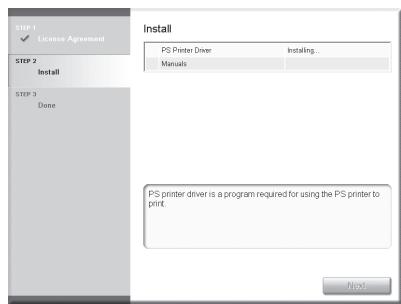
text_image
STEP 1 ✓ License Agreement STEP 2 Install STEP 3 Done Install PS Printer Driver Installing... Manuals PS printer driver is a program required for using the PS printer to print. Next...61
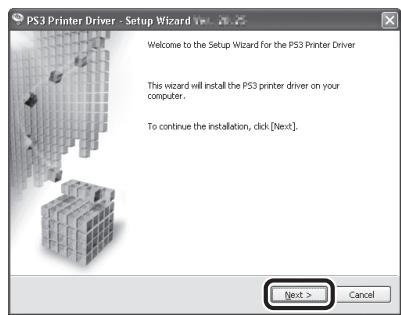
text_image
PS3 Printer Driver - Setup Wizard to be 2025 Welcome to the Setup Wizard for the PS3 Printer Driver This wizard will install the PS3 printer driver on your computer. To continue the installation, click [Next]. Next > Cancel62
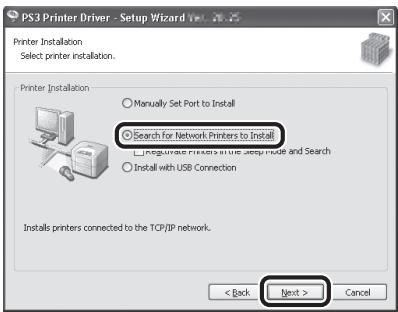
text_image
PS3 Printer Driver - Setup Wizard Yes Printer Installation Select printer installation. Printer Installation Manually Set Port to Install Search for Network Printers to Install Install with USB Connection Installs printers connected to the TCP/IP network. < Back Next > Cancel63
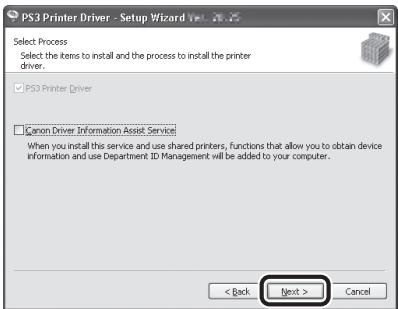
text_image
PS3 Printer Driver - Setup Wizard Yes Select Process Select the items to install and the process to install the printer driver. PS3 Printer Driver Cancel Driver Information Assist Service When you install this service and use shared printers, functions that allow you to obtain device Information and use Department ID Management will be added to your computer. < Back Next > Cancel
NOTE
- If you are using a shared printer in the Print Server (Point and Print) environment, it is necessary to install the Canon Driver Information Assist Service in the server computer to set up the printer configuration automatically or use Department ID Management.
- If the Canon Driver Information Assist Service is already installed on your computer, this screen is not displayed.
- If you are using an operating system equipped with Windows Firewall, the following message box may appear. If you want to use Canon Driver Information Assist Service, click [Yes]. If you select [No], you cannot use Canon Driver Information Assist Service.
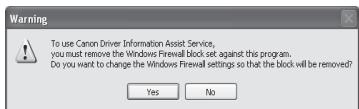
text_image
To use Canon Driver Information Assist Service, you must remove the Windows Firewall block set against this program. Do you want to change the Windows Firewall settings so that the block will be removed? Yes No64
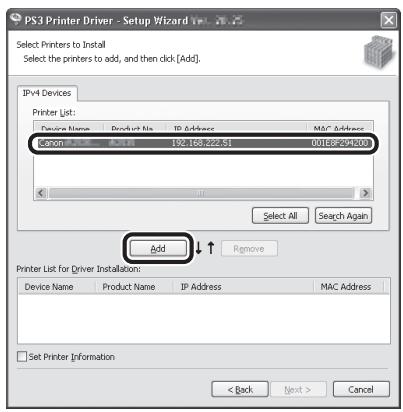
text_image
PS3 Printer Driver - Setup Wizard Yes Select Printers to Install Select the printers to add, and then click [Add]. IPv4 Devices Printer List: Device Name Product No IP Address MAC Address Canon 192.168.222.51 0018E-294200 Add Remove Printer List for Driver Installation: Device Name Product Name IP Address MAC Address Set Printer Information < Back Next > CancelSelect the machine (Product Name: iR C1028) using the information displayed in [Printer List] → press [Add].
65
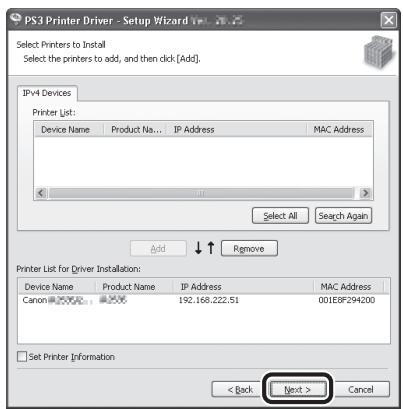
text_image
PS3 Printer Driver - Setup Wizard V Select Printers to Install Select the printers to add, and then click [Add]. IPv4 Devices Printer List: Device Name Product Name IP Address MAC Address Add Select All Search Again Add Remove Printer List for Driver Installation: Device Name Product Name IP Address MAC Address Canon 192.168.222.51 001EBF294200 Set Printer Information < Back Next > Cancel66
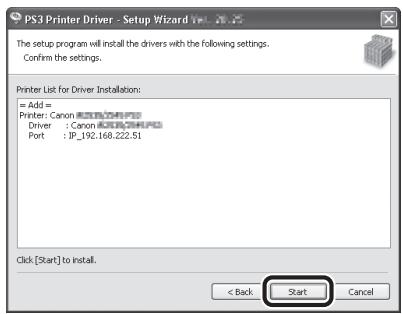
text_image
PS3 Printer Driver - Setup Wizard V1.2.2 The setup program will install the drivers with the following settings. Confirm the settings. Printer List for Driver Installation: = Add = Printer: Canon BIOSOMAPOS Driver : Canon BIOSOMAPOS Port : IP_192.168.222.51 Click [Start] to install. < Back Start Cancel67
text_image
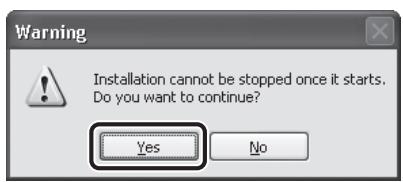
Warning Installation cannot be stopped once it starts. Do you want to continue? Yes No68
text_image
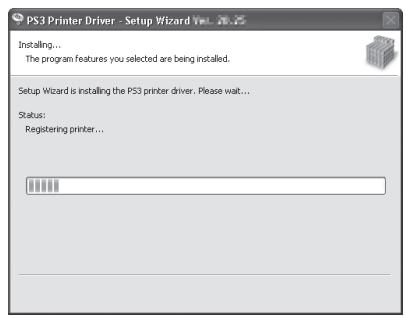
PS3 Printer Driver - Setup Wizard Vol. 20.25 Installing... The program features you selected are being installed. Setup Wizard is installing the PS3 printer driver. Please wait... Status: Registering printer...69
text_image
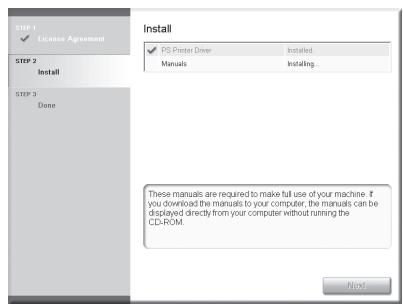
STEP 1 ✓ License Agreement STEP 2 Install STEP 3 Done Install ✓ PS Printer Driver Installed. Manuals Installing. These manuals are required to make full use of your machine. If you download the manuals to your computer, the manuals can be displayed directly from your computer without running the CD-ROM. NextInstallation of the printer driver is completed and the installation of the manuals will begin.
70
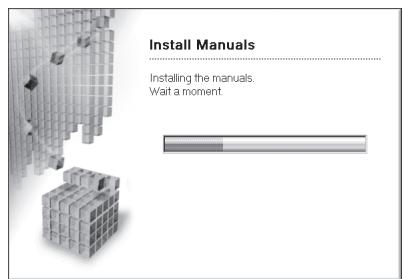
text_image
Install Manuals Installing the manuals. Wait a moment.71
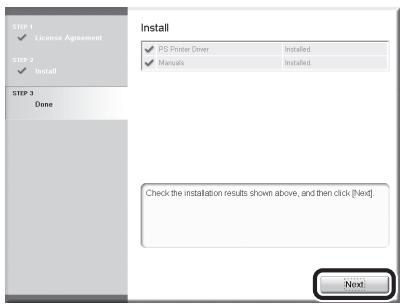
text_image
STEP 1 ✓ License Agreement STEP 2 ✓ Install STEP 3 Done Install ✓ PS Printer Driver Installed. ✓ Manuals Installed. Check the installation results shown above, and then click [Next] Next:The Printer Driver Installation Guide is installed on your computer and a shortcut is created on the desktop.
72
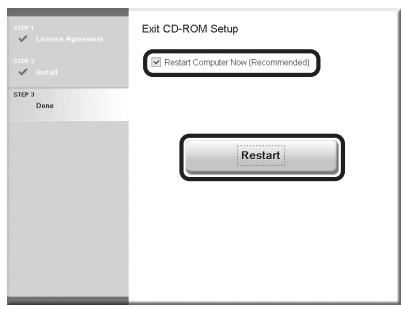
text_image
EXIT CD-ROM Setup ✓ Restart Computer Now (Recommended) Restart73
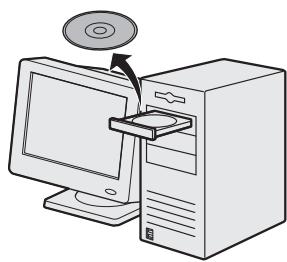
natural_image
Illustration of a desktop computer with an open CD and a monitor, no text or symbols presentRemove the PS User Software CD-ROM. Installation is complete.
Check Installation
Verify that the drivers have been installed successfully and that the machine has been set as the default printer.

NOTE
If the name of your machine is selected on the [Printer] screen from an application, it is set as the default printer.
1 Open the [Printers], [Printers and Faxes], or [Devices and Printers] folder.
Windows 2000: From the Windows task bar, click [Start] → [Settings] → [Control Panel] → double-click [Printers].
Windows XP/Server 2003: From the Windows task bar, click [start] or [Start] → select [Printers and Faxes].
Windows Vista: From the Windows task bar, click [Start] → select [Control Panel] → [Hardware and Sound] → double-click [Printers].
Windows Server 2008: From the Windows task bar, click [Start] → select [Control Panel] → double-click [Printers].
Windows 7/Server 2008 R2: From the Windows task bar, click [Start] → select [Devices and Printers].
Verify that the printer driver icons are displayed.
2 Set your machine as the default printer.
Right-click the printer icon for this machine and then click [Set as Default Printer] or [Set as default printer].
3 Verify that the [Color Network ScanGear] appears in the program list.
Windows 2000: From the Windows task bar, click [Start] → [Programs].
Windows XP/Server 2003: From the Windows task bar, click [start] or [Start] → select [All Programs].
Windows Vista/7/Server 2008: From the Windows task bar, click [Start] → select [All Programs].
Verify that the [Color Network ScanGear] is listed in [All Programs] (or [Programs]).
Before Installation
- The following procedures are explained using sample screens from Windows XP Professional.
- Do not connect the USB cable before installing the software. If you connect the USB cable before installing the software and the Found New Hardware Wizard screen appears, click [Cancel].
- Log on as Administrator to install the software.
- Make sure the machine is turned ON before connecting the USB cable.
- Click on the circled button on each screen to proceed to the next step.
- A USB cable is not included with the machine.
Installation Procedure
1
natural_image
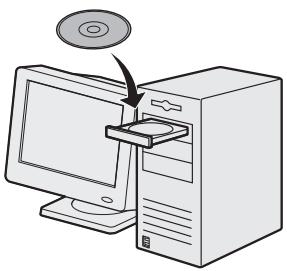
Illustration of a desktop computer with an open CD and a monitor, showing no text or symbols.Insert the UFRII LT/FAX User Software CD-ROM.

NOTE
- If you want to install only the PCL Driver, proceed to step 28. For more information refer to the Printer Driver Installation Guide (located on the PCL User Software CD-ROM).
- If you want to install only the PS Driver (when the optional PS Printer Kit is attached), proceed to step 28. For more information refer to the Printer Driver Installation Guide (located on the PS User Software CD-ROM).

NOTE
- If you want to install the PCL/PS driver by connecting the USB cable (plug and play), it is necessary to change the settings of the machine. Press (Main Menu) →
* If the screen appears prompting you to enter the System Manager ID and System Password, enter the System Manager ID and System Password using 0-9 (numeric keys), then press ID (Log In/Out). For details, see "Security," in the e-Manual.
2
text_image
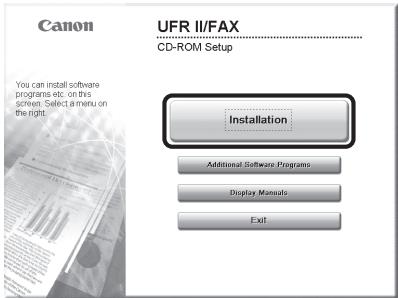
Canon UFR II/FAX CD-ROM Setup You can install software programs etc. on this screen. Select a menu on the right. Installation Additional Software Programs Display Manuals ExitIf the CD-ROM Setup screen is not displayed, click [start] on the Windows task bar → [My Computer]. Windows 2000: double-click [My Computer] on the Windows desktop.
Windows Vista/7/Server 2003/Server 2008: click [Start] on the Windows task bar → [Computer] ([My Computer]).
Open the CD-ROM icon, then double-click [MInst] ([MInst.exe]).

NOTE
If a language selection screen is displayed before the CD-ROM Setup screen, select a language and then click [Next].
3
text_image
Installation Explanation of Software UFR II Printer Driver Fax Driver Color Network ScanGear Manuals 9 MB The selected software programs shown above will be installed. Click (Install), and then follow the instructions displayed on screen. To view the quick explanation or README file of a program, click the icon on the right of the program. Note that more disk space than that indicated for [Space Required to Install] is needed when installing two or more drivers. C : Free Disk Space 6492 MB Space Required to Install Cancel Back InstallMake sure that the boxes next to the UFR II Printer Driver, FAX Driver (imageRUNNER C1028iF or C1028i with the optional Super G3 FAX Board attached) and Manuals are checked.

NOTE
- Color Network ScanGear is an application software that can only be used in the network. If the machine is connected using a USB connection, uncheck the box next to Color Network ScanGear, as it is unnecessary.
- If you want to install only the UFR II Driver, select only the UFR II Printer Driver in this step, then proceed to the next step. For more information refer to the Printer Driver Installation Guide (located on the UFRII LT/ FAX User Software CD-ROM).
- If you want to install only the fax driver, select only the FAX Driver in this step, then proceed to step 13. For more information refer to the Fax Driver Installation Guide (located on the UFRII LT/FAX User Software CD-ROM).
- If the amount of free disk space is insufficient to install the software, an error message is displayed. Make sure there is sufficient disk space, and then try installing the software again.
4
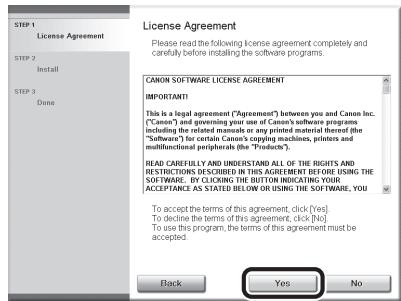
text_image
License Agreement Please read the following license agreement completely and canfully before installing the software programs. CANON SOFTWARE LICENSE AGREEMENT IMPORTANT! This is a legal agreement ("Agreement") between you and Canon Inc. ("Canon") and governing your use of Canon's software programs including the related manuals or any printed material thereof (the "Software") for certain Canon's copying machines, printers and multifunctional peripherals (the "Products"). Read CAREFULLY AND UNDERSTAND ALL OF THE RIGHTS AND RESTRICTIONS DESCRIBED IN THIS AGREEMENT BEFORE USING THE SOFTWARE. BY CLICKING THE BUTTON INDICATING YOUR ACCEPTANCE AS STATED BELOW OR USING THE SOFTWARE, YOU To accept the terms of this agreement, click (Yes)... To decline the terms of this agreement, click (No)... To use this program, the terms of this agreement must be accepted. Back Yes No5
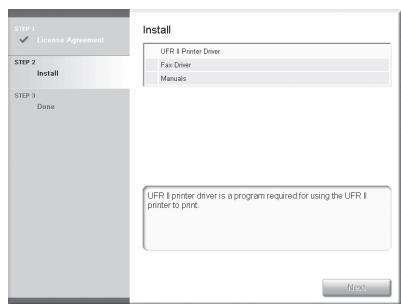
text_image
STEP 1 ✓ License Agreement STEP 2 Install STEP 3 Done Install UFR II Printer Driver Fax Driver Manuals UFR II printer driver is a program required for using the UFR II printer to print. Next6
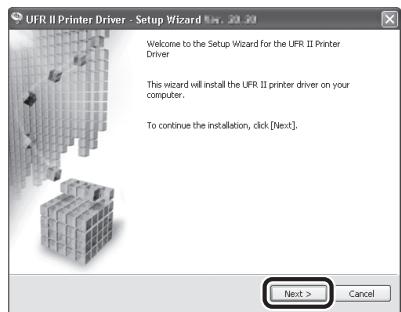
text_image
UFR II Printer Driver - Setup Wizard Nov. 20.20 Welcome to the Setup Wizard for the UFR II Printer Driver This wizard will install the UFR II printer driver on your computer. To continue the installation, click [Next]. Next > Cancel7
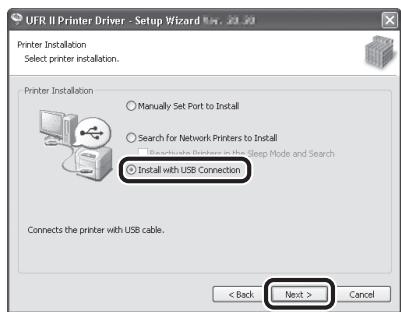
text_image
UFR II Printer Driver - Setup Wizard May, 2019 Printer Installation Select printer installation. Printer Installation ○ Manually Set Port to Install ○ Search for Network Printers to Install ○ Uninstallable Printers to the Sleep Mode and Search ● Install with USB Connection Connects the printer with USB cable. < Back Next > Cancel8
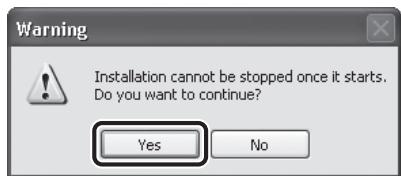
text_image
Warning Installation cannot be stopped once it starts. Do you want to continue? Yes No9
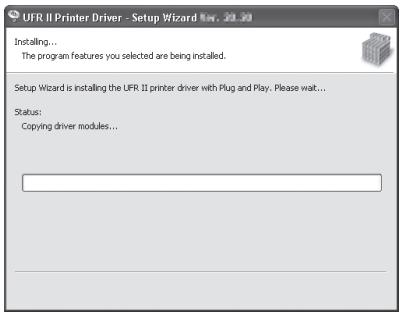
text_image
UFR II Printer Driver - Setup Wizard 20.20 Installing... The program features you selected are being installed. Setup Wizard is installing the UFR II printer driver with Plug and Play. Please wait... Status: Copying driver modules...10
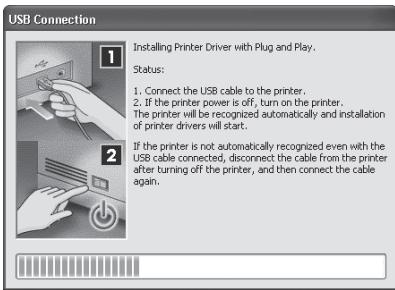
text_image
USB Connection 1 Installing Printer Driver with Plug and Play. Status: 1. Connect the USB cable to the printer. 2. If the printer power is off, turn on the printer. The printer will be recognized automatically and installation of printer drivers will start. 3 If the printer is not automatically recognized even with the USB cable connected, disconnect the cable from the printer after turning off the printer, and then connect the cable again.
NOTE
If the dialog box shown below appears, press [Retry] to continue the installation.
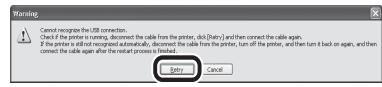
11
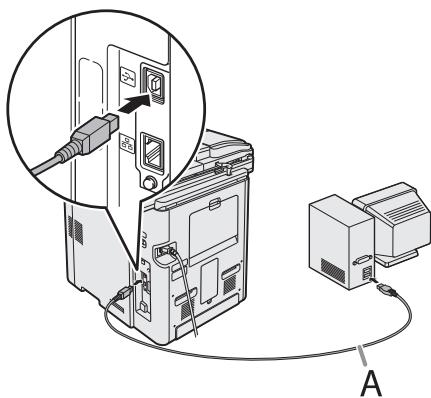
text_image
Diagram showing cable connection between a device and a power adapter, with labeled component AConnect the machine and your computer with a USB cable (A).

NOTE
- The USB cable is not included.
- If the Found New Hardware Wizard appears, click [Cancel] and continue the installation.
12
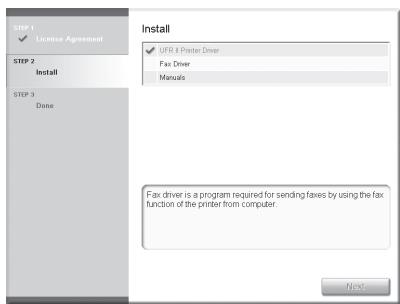
text_image
STEP 1 ✓ License Agreement STEP 2 Install STEP 3 Done Install ✓ UFR 4 Printer Driver Fax Driver Manuals Fax driver is a program required for sending faxes by using the fax function of the printer from computer. NextInstallation of the printer driver is completed and the installation of the fax driver will begin.

NOTE
If the optional Super G3 FAX Board is not installed on the imageRUNNER C1028i, proceed to step 24.
13
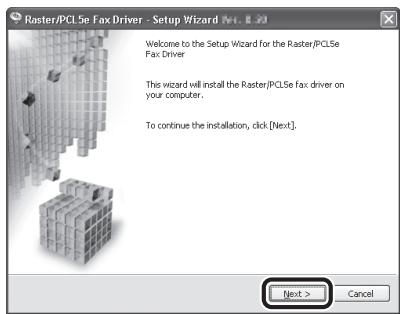
text_image
Raster/PCL5e Fax Driver - Setup Wizard 194.8.20 Welcome to the Setup Wizard for the Raster/PCL5e Fax Driver This wizard will install the Raster/PCL5e fax driver on your computer. To continue the installation, click [Next]. Next > Cancel14
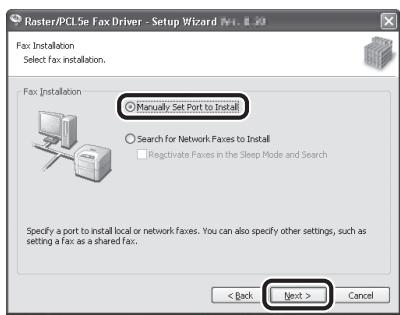
text_image
Raster/PCLSe Fax Driver - Setup Wizard (W1. & 20) Fax Installation Select fax installation. Fax Installation Manually Set Port to Install Search for Network Faxes to Install Regenerate Faxes in the Sleep Mode and Search Specify a port to install local or network faxes. You can also specify other settings, such as setting a fax as a shared fax. < Back Next > Cancel15
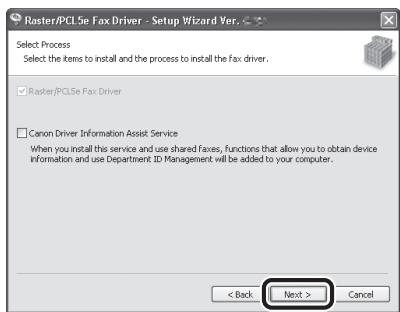
text_image
Raster/PCI5e Fax Driver - Setup Wizard Ver. Select Process Select the items to install and the process to install the fax driver. Raster/PCI5e Fax Driver Canon Driver Information Asset Service When you install this service and use shared fixes, functions that allow you to obtain device information and use Department ID Management will be added to your computer. < Back Next > Cancel
NOTE
- If you are using a shared printer in the Print Server (Point and Print) environment, it is necessary to install the Canon Driver Information Assist Service in the server computer to set up the printer configuration automatically or use the Department ID Management.
- If the Canon Driver Information Assist Service is already installed on your computer, this screen is not displayed.
- If you are using an operating system equipped with Windows Firewall, the following message box may appear. If you want to use Canon Driver Information Assist Service, click [Yes]. If you select [No], you cannot use Canon Driver Information Assist Service.
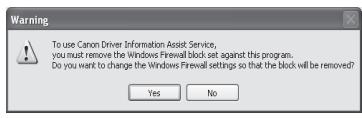
text_image
To use Canon Driver Information Assist Service, you must remove the Windows Firewall block set against this program. Do you want to change the Windows Firewall settings so that the block will be removed? Yes No16
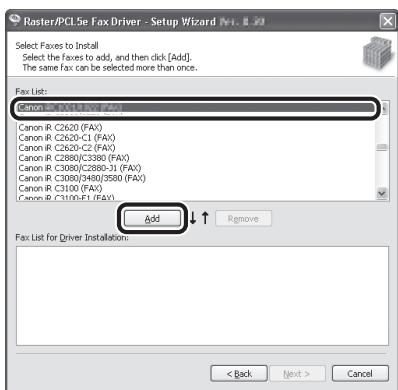
text_image
Raster/PCL5e Fax Driver - Setup Wizard [M. & J.] Select Faxes to Install Select the faxes to add, and then click [Add]. The same fax can be selected more than once. Fax List: Canon IR C2610 (FAX) Canon IR C2620 (FAX) Canon IR C2620-C2 (FAX) Canon IR C2880/C3380 (FAX) Canon IR C3080/C2880-1 (FAX) Canon IR C3080/3480/3580 (FAX) Canon IR C3100 (FAX) Canon IR C3100-F1 (FAX) Add Remove Fax List for Driver Installations: < Back Next > CancelSelect [Canon iR C1028/1030 (FAX)].
17
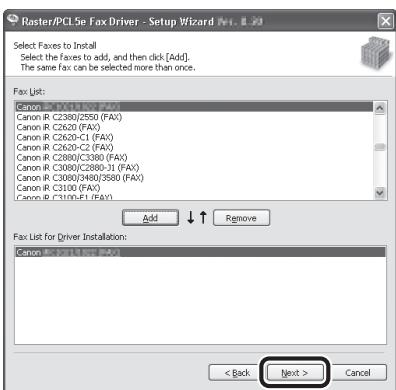
text_image
Raster/PCL5e Fax Driver - Setup Wizard (A). 8.30 Select Faxes to Install Select the Faxes to add, and then click [Add]. The same Fax can be selected more than once. Fax List: Canon IR C2380/2550 (FAX) Canon IR C2620 (FAX) Canon IR C2620-C1 (FAX) Canon IR C2620-C2 (FAX) Canon IR C2880/C3380 (FAX) Canon IR C3880/C2880-31 (FAX) Canon IR C3880/3480/3580 (FAX) Canon IR C3100 (FAX) Canon IR C1100-E1 (FAX) Add ↓ ↑ Remove Fax List for Driver Installation: Canon IR C2311/2550 (FAX) < Back Next > Cancel18
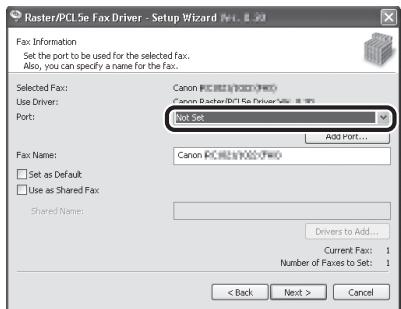
text_image
Raster/PCL Se Fax Driver - Setup Wizard No. 8.10 Fax Information Set the port to be used for the selected Fax. Also, you can specify a name for the Fax. Selected Fax: Canon PC361/PC361/PC361 Use Driver: Canon Excel/PC361/PC361/PC361 Port: Not Set Add Port... Fax Name: Canon PC361/PC361/PC361 □ Set as Default □ Use as Shared Fax Shared Name: Drivers to Add... Current Fax: 1 Number of Faxes to Set: 1 < Back Next > CancelSelect the USB port you want to use from the [Port] drop-down list. If you want to add a port, click [Add Port] and then select the USB port that you want to add.
19
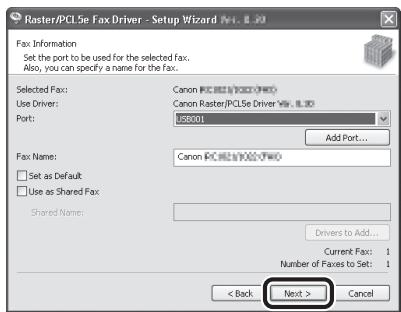
text_image
Raster/PCL5e Fax Driver - Setup Wizard No. 1.0 Fax Information Set the port to be used for the selected fax. Also, you can specify a name for the fax. Selected Fax: Canon PCL5e / (PCL5e) Fax Use Driver: Canon Raster/PCL5e Driver Yes: 1.00 Port: 588001 Add Port... Fax Name: Canon PCL5e / (PCL5e) Two □ Set as Default □ Use as Shared Fax Shared Name: Drivers to Add... Current Fax: 1 Number of Faxes to Set: 1 < Back Next > Cancel20
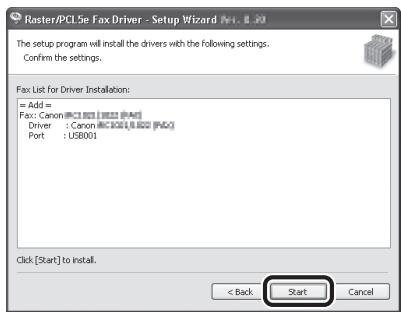
text_image
Raster/PCL5ir Fax Driver - Setup Wizard M1.8.20 The setup program will install the drivers with the following settings. Confirm the settings. Fax List for Driver Installation: = Add = Fax: Canon @C1.801 / 800 (F46) Driver : Canon @C201/800 (F60) Port : US8001 Click [Start] to install. < Back Start Cancel21
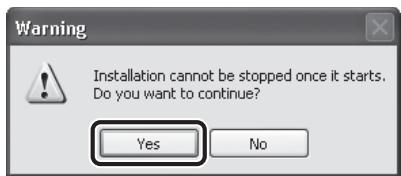
text_image
Warning Installation cannot be stopped once it starts. Do you want to continue? Yes No22
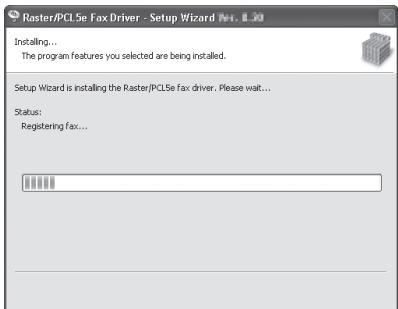
text_image
Raster/PCL5e Fax Driver - Setup Wizard No. 8.10 Installing... The program features you selected are being installed. Setup Wizard is installing the Raster/PCL5e fax driver. Please wait... Status: Registering fax...23
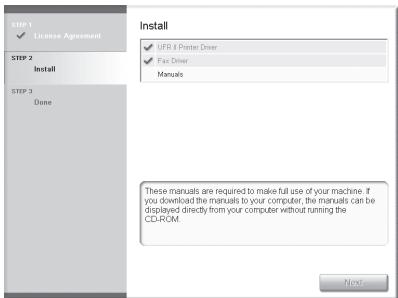
text_image
STEP 1 ✓ License Agreement STEP 2 Install STEP 3 Done Install ✓ UFR 8 Prieter Driver ✓ Fax Driver Manuals These manuals are required to make full use of your machine. If you download the manuals to your computer, the manuals can be displayed directly from your computer without running the CD-ROM. NextInstallation of the fax driver is completed and installation of the manuals will begin.
24
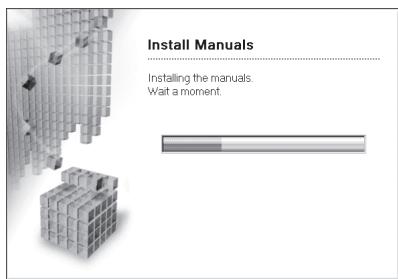
text_image
Install Manuals Installing the manuals. Wait a moment.25
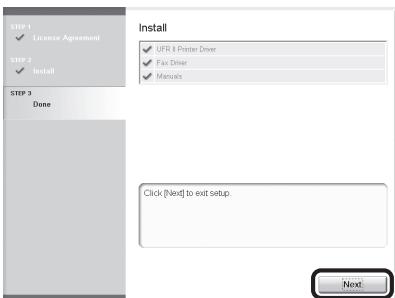
text_image
STEP 1 ✓ License Agreement STEP 2 ✓ Install STEP 3 Done Install ✓ UFR 4 Printer Driver ✓ Fax Driver ✓ Manuals Click (Next) to exit setup. NextThe Printer Driver Installation Guide and the Fax Driver Installation Guide are installed on your computer and shortcuts are created on the desktop.
26
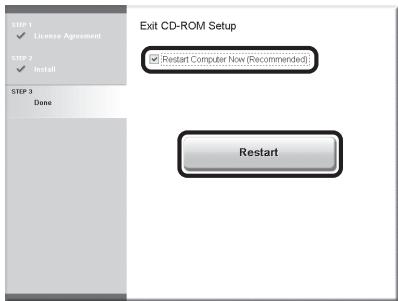
text_image
Exit CD-ROM Setup ✓ [Restart Computer Now (Recommended)] Restart27
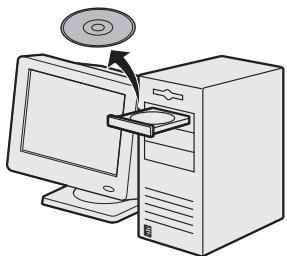
natural_image
Illustration of a desktop computer with an open CD and monitor, no text or symbols presentRemove the UFRII LT/FAX User Software CD-ROM.

NOTE
If you want to install the PCL Driver or PS Driver (when the optional PS Printer Kit is attached), go to the next step.
28
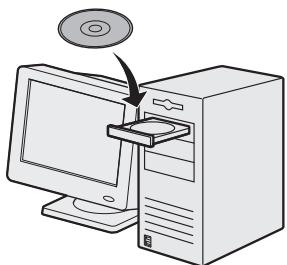
natural_image
Illustration of a desktop computer with an open CD and a monitor, showing no text or symbols.Insert the PCL User Software CD-ROM or PS User Software CD-ROM. (The screen shots shown below may differ from actual displays depending on the CD-ROM inserted.)
29
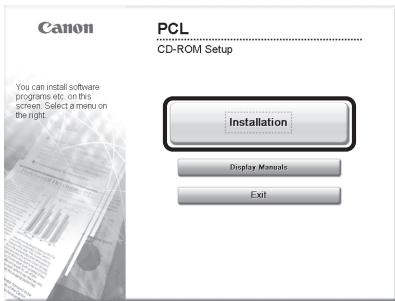
text_image
Canon PCL CD-ROM Setup You can install software programs etc. on this screen. Select a menu on the right. Installation Display Manuals Exit.If the CD-ROM Setup screen is not displayed, click [start] on the Windows task bar → [My Computer].
Windows 2000: double-click [My Computer] on the Windows desktop.
Windows Vista/7/Server 2003/Server 2008: click [Start] on the Windows task bar → [Computer] ([My Computer]).
Open the CD-ROM icon, then double-click [MInst] ([MInst.exe]).

NOTE
If a language selection screen is displayed before the CD-ROM Setup screen, select a language and then click [Next]
30
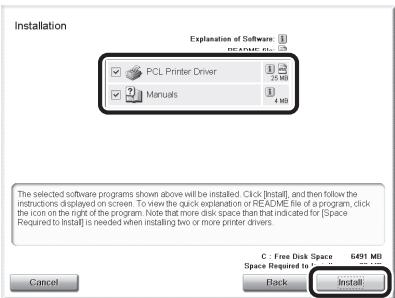
text_image
Installation Explanation of Software PCL Printer Driver Manuals 25 MB 4 MB The selected software programs shown above will be installed. Click (Install), and then follow the instructions displayed on screen. To view the quick explanation or README file of a program, click the icon on the right of the program. Note that more disk space than that indicated for [Space Required to Install] is needed when installing two or more printer drivers. C : Free Disk Space 6491 MB Space Required to Install Cancel Black InstallSelect the PCL Printer Driver or PS Printer Driver, and Manuals.
31
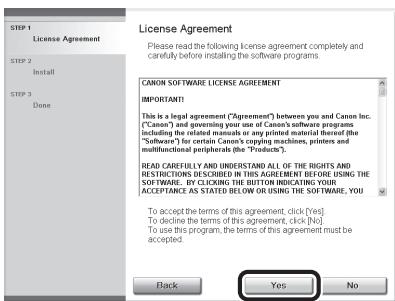
text_image
License Agreement Please read the following license agreement completely and canfully before installing the software programs. CANON SOFTWARE LICENSE AGREEMENT IMPORTANT! This is a legal agreement ("Agreement") between you and Canon Inc. ("Canon") and governing your use of Canon's software programs including the related manuals or any printed material thereof (the ("Software") for certain Canon's copying machines, printers and multinational peripherals (the "Products"). READ CAREFULLY AND UNDERSTAND ALL OF THE RIGHTS AND RESTRICTIONS DESCRIBED IN THIS AGREEMENT BEFORE USING THE SOFTWARE... BY CLICKING THE BUTTON INDICATING YOUR ACCEPTANCE AS STATED BELOW OR USING THE SOFTWARE. YOU To accept the terms of this agreement, click [Yes]. To decline the terms of this agreement, click [No]. To use this program, the terms of this agreement must be accepted. Back Yes No32
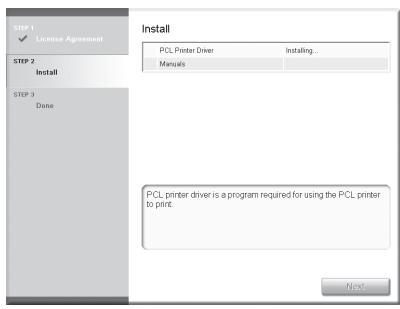
text_image
STEP 1 ✓ License Agreement STEP 2 Install STEP 3 Done Install PCL Printer Driver Installing... Manuals PCL printer driver is a program required for using the PCL printer to print. Next...33
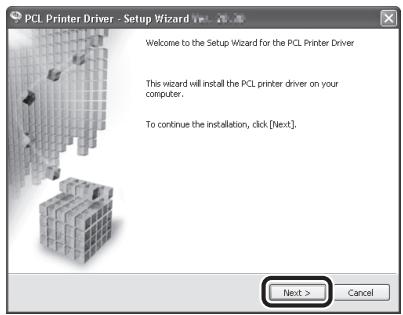
text_image
PCL Printer Driver - Setup Wizard Welcome to the Setup Wizard for the PCL Printer Driver This wizard will install the PCL printer driver on your computer. To continue the installation, click [Next]. Next > Cancel34
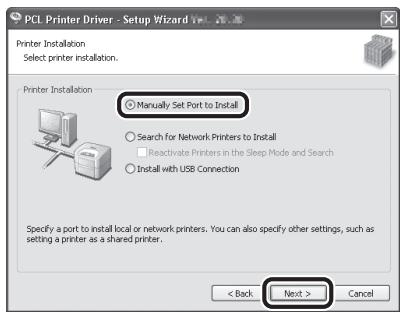
text_image
PCL Printer Driver - Setup Wizard Printer Installation Select printer installation. Printer Installation Manually Set Port to Install Search for Network Printers to Install Reactivate Printers in the Sleep Mode and Search Install with USB Connection Specify a port to install local or network printers. You can also specify other settings, such as setting a printer as a shared printer. < Back Next > Cancel35
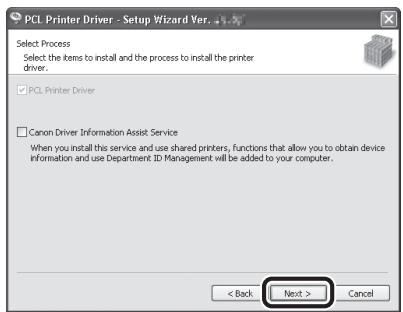
text_image
PCL Printer Driver - Setup Wizard Ver. 42 Select Process Select the items to install and the process to install the printer driver. □ PCL Printer Driver □ Canon Driver Information Assist Service When you install this service and use shared printers, functions that allow you to obtain device information and use Department ID Management will be added to your computer. < Back Next > Cancel
NOTE
- If you are using a shared printer in the Print Server (Point and Print) environment, it is necessary to install the Canon Driver Information Assist Service in the server computer to set up the printer configuration automatically or use Department ID Management.
- If the Canon Driver Information Assist Service is already installed on your computer, this screen is not displayed.
- If you are using an operating system equipped with Windows Firewall, the following message box may appear. If you want to use Canon Driver Information Assist Service, click [Yes]. If you select [No], you cannot use Canon Driver Information Assist Service.
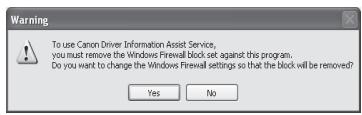
text_image
To use Canon Driver Information Assist Service, you must remove the Windows Firewall block set against this program. Do you want to change the Windows Firewall settings so that the block will be removed? Yes No36
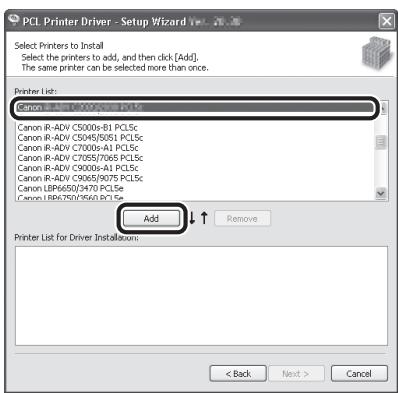
text_image
PCL Printer Driver - Setup Wizard V Select Printers to Install Select the printers to add, and then click [Add]. The same printer can be selected more than once. Printer List: Canon IR-ADV C5000s-B1 PCLSc Canon IR-ADV C5045/S051 PCLSc Canon IR-ADV C7000s-A1 PCLSc Canon IR-ADV C7085/7065 PCLSc Canon IR-ADV C9000s-A1 PCLSc Canon IR-ADV C9065/9075 PCLSc Canon LBP6650/9470 PCLSc Canon LBP6750/9560 PCLSc Add Remove Printer List for Driver Installions: < Back Next > CancelPCL Printer Driver:
Select [Canon iR C1028/1030 PCL5c] or [Canon iR C1028/1030 PCL6].
PS Printer Driver:
Select [Canon iR C1028/1030 PS3].
37
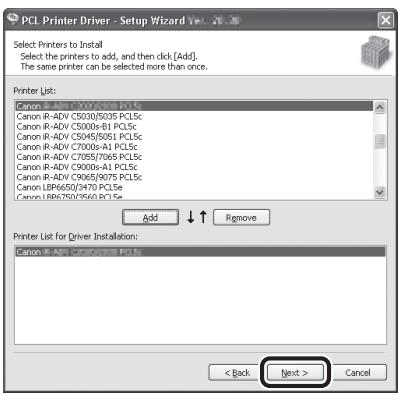
text_image
PCL Printer Driver - Setup Wizard V Select Printers to Install Select the printers to add, and then click [Add]. The same printer can be selected more than once. Printer List: Canon IR-ADV C500S/9015 PCLSc Canon IR-ADV C500S/9015 PCLSc Canon IR-ADV C500S/81 PCLSc Canon IR-ADV C500S/9015 PCLSc Canon IR-ADV C700S/A1 PCLSc Canon IR-ADV C700S/7065 PCLSc Canon IR-ADV C900S/A1 PCLSc Canon IR-ADV C900S/9075 PCLSc Canon LBP665I/9470 PCLSc Canon LBP675I/9560 PCLSc Add ↓ ↑ Remove Printer List for Driver Installation: Canon IR-ADV C500S/9015 PCLSc < Back Next > Cancel38
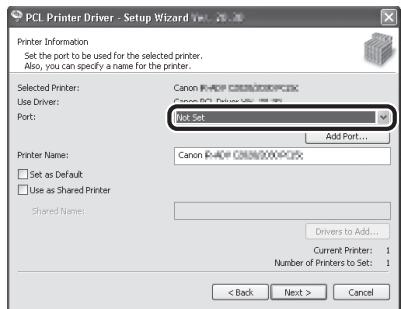
text_image
PCL Printer Driver - Setup Wizard V#.20.36 Printer Information Set the port to be used for the selected printer. Also, you can specify a name for the printer. Selected Printer: Use Driver: Port: Canon PC-400 C#N/00PCX Canon PC-400 C#N/00PCX Not Set Add Port... Printer Name: Canon PC-400 C#N/00PCX □ Set as Default □ Use as Shared Printer Shared Name: Drivers to Add... Current Printer: 1 Number of Printers to Set: 1 < Back Next > CancelSelect the USB port you want to use from the [Port] drop-down list. If you want to add a port, click [Add Port] and then select the printer port that you want to add.
39
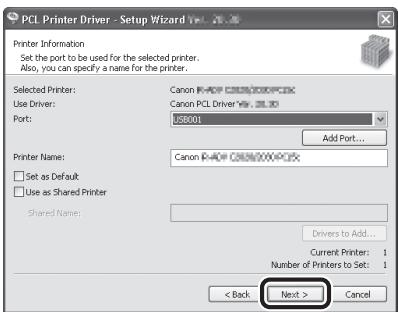
text_image
PCL Printer Driver - Setup Wizard Yes Printer Information Set the port to be used for the selected printer. Also, you can specify a name for the printer. Selected Printer: Canon PC-001000PC-001 Use Driver: Canon PCL Driver No. 20.00 Port: USB001 Add Port... Printer Name: Canon PC-001000PC-001 □ Set as Default □ Use as Shared Printer Shared Name: Drivers to Add... Current Printer: 1 Number of Printers to Set: 1 < Back Next > Cancel40
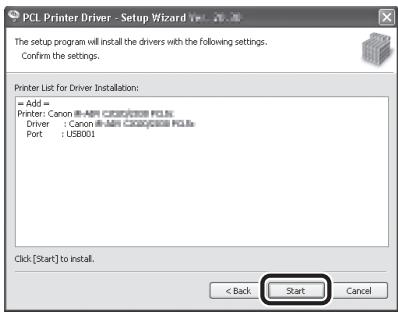
text_image
PCL Printer Driver - Setup Wizard Yes The setup program will install the drivers with the following settings. Confirm the settings. Printer List for Driver Installation: = Add = Printer: Canon iB-ARI C000/000 FLS Driver : Canon iB-ARI C000/000 FLS Port : USB001 Click [Start] to install. < Back Start Cancel41
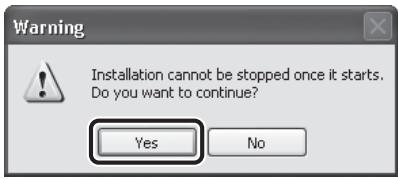
text_image
Warning Installation cannot be stopped once it starts. Do you want to continue? Yes No42
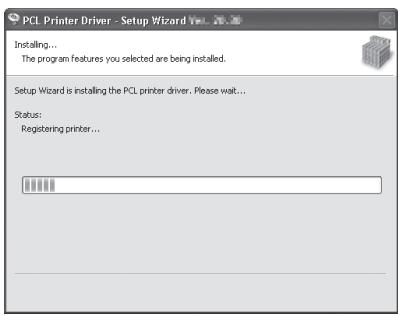
text_image
PCL Printer Driver - Setup Wizard Vvl... 26.36 Installing... The program features you selected are being installed. Setup Wizard is installing the PCL printer driver. Please wait... Status: Registering printer...43
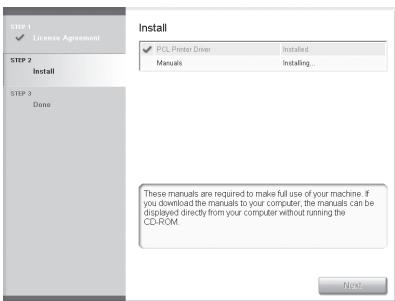
text_image
STEP 1 ✓ License Agreement STEP 2 Install STEP 3 Done Install ✓ PCL Printer Driver Installed. Manuals Installing... These manuals are required to make full use of your machine. If you download the manuals to your computer, the manuals can be displayed directly from your computer without running the CD-ROM. NextInstallation of the printer driver is completed and the installation of the manuals will begin.
44
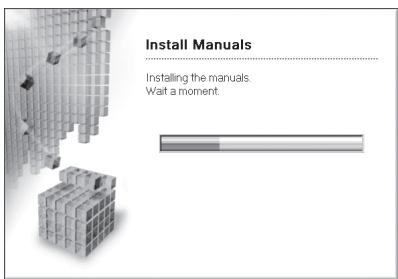
text_image
Install Manuals Installing the manuals. Wait a moment.45
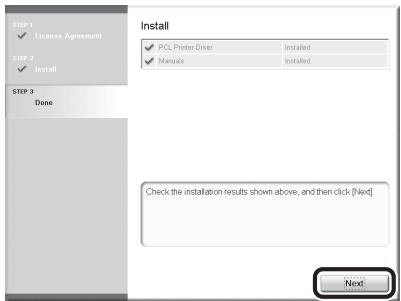
text_image
STEP 1 ✓ License Agreement STEP 2 ✓ Install STEP 3 Done Install ✓ PCL Printer Driver Installed ✓ Manuals Installed Check the installation results shown above, and then click (Next) NextThe Printer Driver Installation Guide is installed on your computer and a shortcut is created on the desktop.
46
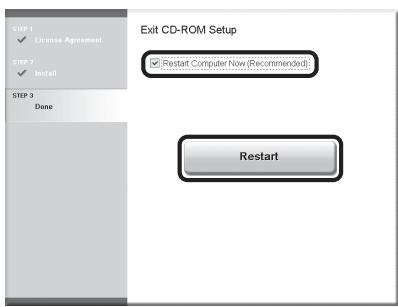
text_image
EXIT CD-ROM Setup ✓ Restart Computer Now (Recommended) Restart47
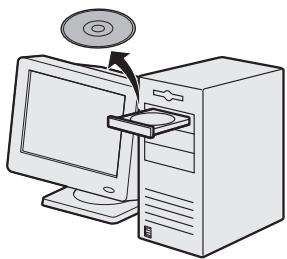
natural_image
Illustration of a desktop computer with an open CD and monitor, no text or symbols presentRemove the PCL User Software CD-ROM or PS User Software CD-ROM. Installation is complete.
Check Installation
Verify that the drivers have been installed successfully and that the machine has been set as the default printer.

NOTE
If the name of your machine is selected on the [Printer] screen from an application, it is set as the default printer.
1 Open the [Printers], [Printers and Faxes], or [Devices and Printers] folder.
Windows 2000: From the Windows task bar, click [Start] → [Settings] → [Control Panel] → double-click [Printers].
Windows XP/Server 2003: From the Windows task bar, click [start] or [Start] → select [Printers and Faxes].
Windows Vista: From the Windows task bar, click [Start] → select [Control Panel] → [Hardware and Sound] → double-click [Printers].
Windows Server 2008: From the Windows task bar, click [Start] → select [Control Panel] → double-click [Printers].
Windows 7/Server 2008 R2: From the Windows task bar, click [Start] → select [Devices and Printers].
Verify that the printer driver icons are displayed.
2 Set your machine as the default printer.
Right-click the printer icon for this machine and then click [Set as Default Printer] or [Set as default printer].
User Manual CD-ROM (e-Manual)
The User Manual CD-ROM (e-Manual) is a software that enables you to select and view the HTML Manuals included on the CD-ROM via your computer screen. The e-Manual describes all of the functions and troubleshooting for the machine. Follow the instructions below to use the User Manual CD-ROM (e-Manual).
System Requirements
The User Manual CD-ROM (e-Manual) can be used in the following system environments.
● OS (Operating System)
- Windows 2000 SP4, Windows XP, Windows Vista, Windows 7
(Internet Explorer 6 is required if you are using Windows 2000 SP4.)
• Mac OS X v10.4.x, v10.5.x, v10.6.x
- Web Browser
• Windows: Internet Explorer 6, 7, 8
• Mac: Safari 2, 3, 4
● Flash Player
- Flash Player 8 or later

NOTE
- The memory and CPU required to run each operating system are also required.
- A display resolution of 1024 × 768 pixels or higher is required.
- The User Manual CD-ROM (e-Manual) may not operate correctly if Flash Player is not installed or a version of Flash Player earlier than Flash Player 8 installed on your computer
Using the User Manual CD-ROM (e-Manual)
When using the e-Manual with Windows, follow the steps below.
- Insert the User Manual CD-ROM on your computer.
- Select the language.
- Click [Install] or [Display manual].
- When you click [Install], the e-Manual is installed on your computer and the short cut is created on the desktop.
- When you click [Display manual], the e-Manual is displayed.
- To display the e-Manual that you installed on your computer, double-click the short cut icon on the desktop.
When using the e-Manual with Macintosh, follow the steps below.
- Insert the User Manual CD-ROM on your computer.
- Drag-and-drop the [uk_imageRUNNERC1028_Manual] folder into the location you want to save it.
- Open the [uk_imageRUNNERC1028_Manual] folder.
- Double-click index.html, and the e-Manual is displayed.

NOTE
- If the menu is not displayed automatically after you insert the CD-ROM, click [start] on the Windows task bar [My Computer]. (Windows Vista/7: click [Start] on the Windows task bar [Computer]. Windows 2000: double-click [My Computer] on the Windows desktop.) Open the User Manual CD-ROM icon, then double-click start.exe.
- Depending on the operating system you are using, a security protection message may be displayed. In this case, allow the contents to be displayed.
- In the [UserManual_CDROM] [PDF] folder, there are information concerning the PCL/PS fonts.
When you start the e-Manual, the screen shown below is displayed.

NOTE
If you are using a browser such as Internet Explorer for Windows XP, ActiveX blocks pop-ups in the background. If the e-Manual is not displayed properly, look for an information bar at the top of the page and click the information bar.
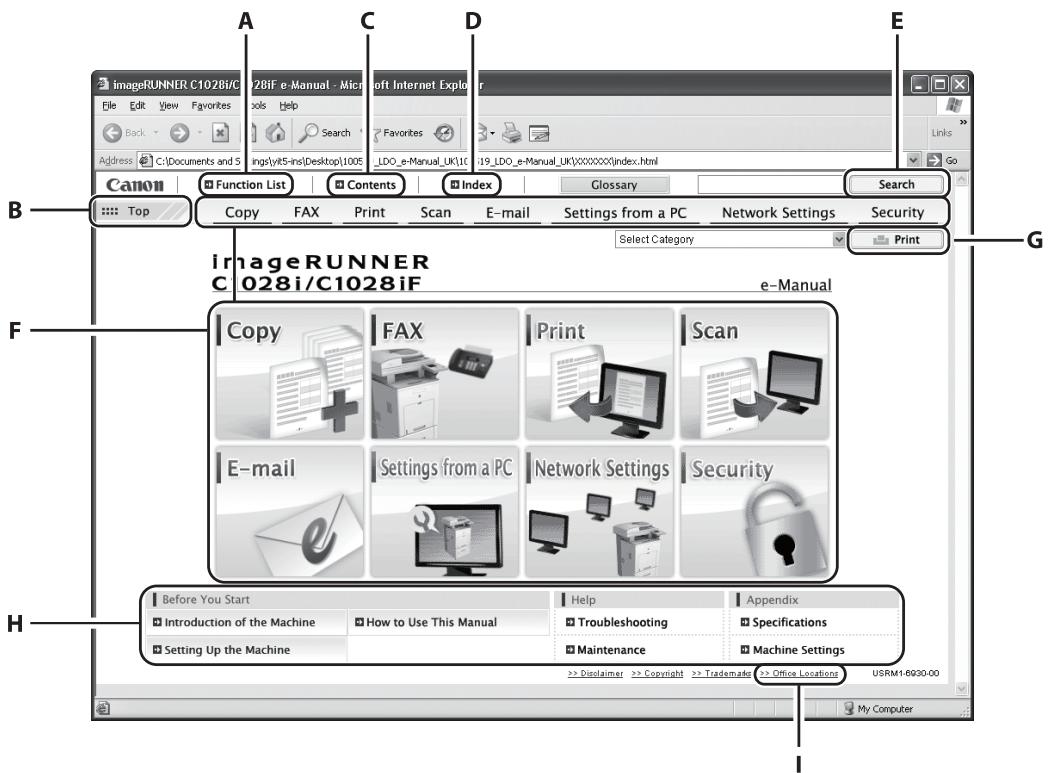
text_image
ImageRUNNER C1028i/C 2Bif e-Manual - Microsoft Internet Explorer File Edit View Favorites Back Address C:\Documents and 5 ings\lyt5-ins\Desktop\1005 LDO_e-Manual_UK\1005 :19_LDO_e-Manual_UK\2000000\index.html Canon Function List Contents Index Glossary Search Copy FAX Print Scan E-mail Settings from a PC Network Settings Security Select Category Print ImageRUNNER C1028i/C1028iF e-Manual Copy FAX Print Scan E-mail Settings from a PC Network Settings Security Before You Start Help Appendix Introduction of the Machine How to Use This Manual Troubleshooting Specifications Setting Up the Machine Maintenance Machine Settings >> Disclaimer >> Copyright >> Trademark >> Office Locations USRM1-6020.00 My ComputerA [Function List]
Click to display the topic pages for function categories.
B [Top]
Click to return to the top page.
C [Contents]
Click to display the topic pages for Contents.
D [Index]
Click to display the topic pages for Index.
E [Search]
Click to display a list of the topic page titles that include the phrase you enter. Click a title to display the corresponding topic page.
F Function Categories
Select a function category to display a list of image icons for the topics corresponding to that function. Click an image icon or [Display Function List] to display the topic pages for the function category.
G [Print]
Click to print all categories or a single category.
H Appendix Categories
Select an appendix category to display the topic pages not related to functions, such as the maintenance and troubleshooting topics.
I [Office Locations]
Click to display Canon contact details in a separate window.

NOTE
- When performing a search, make sure to enter a phrase that will match a keyword. Depending on the phrase you enter, the correct search results may not be displayed.
- Topic pages can be printed by page or by category.
- The background color and images of the Topic Page may not be printed, depending on the web browser settings.
Symbols Used in This Manual
The following symbols are used in this manual to explain procedures, restrictions, handling precautions, and instructions that should be observed for safety.

WARNING
Indicates a warning concerning operations that may lead to death or injury to persons if not performed correctly. To use the machine safely, always pay attention to these warnings.

CAUTION
Indicates a caution concerning operations that may lead to injury to persons if not performed correctly. To use the machine safely, always pay attention to these cautions.

Indicates an operation that must not be performed. Read these items carefully, and make sure not to perform the described operations.

NOTE
Indicates a clarification of an operation, or contains additional explanations for a procedure. Reading these notes is highly recommended.
Keys and Buttons Used in This Manual
The following symbols and key names are a few examples of how keys to be pressed are expressed in this manual.
- Operation Panel Keys:
Example: ◇ (Stop).
- Buttons on the computer operation screen: [Button name]
Example: [OK]
- Information in the display appears in angle brackets:
Important Safety Instructions
Please read these "Important Safety Instructions" thoroughly before operating the machine.
As these instructions are intended to prevent injury to the user and other persons or destruction of property, always pay attention to these instructions and operational requirements.
Also, as it may result in unexpected accidents or injuries, do not perform any operation unless otherwise specified in the manual.
Installation

WARNING
- Do not install the machine in a location near alcohol, paint thinner, or other flammable substances. If flammable substances come into contact with electrical parts inside the machine, this may result in a fire or electrical shock.
-
Do not place the following items on the machine. If these items come into contact with a high-voltage area inside the machine, this may result in a fire or electrical shock.
If these items are dropped or spilled inside the machine, immediately turn off the power switches of the machine and computer (1) and disconnect the interface cable if it is connected (2). Then, unplug the power plug from the AC power outlet (3) and contact your local authorized Canon dealer. -
Necklaces and other metal objects
- Cups, vases, flowerpots, and other containers filled with water or liquids
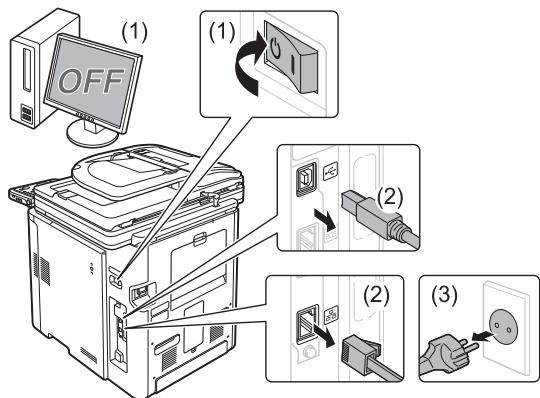
text_image
(1) OFF (1) (2) (2) (3)- When installing and removing the optional accessories, be sure to turn the machine off, unplug the power plug, and then disconnect all the interface cables and power cord from the machine. Otherwise, the power cord or interface cables may be damaged, resulting in a fire or electrical shock.

CAUTION
- Do not install the machine in unstable locations, such as on unsteady platforms or inclined floors, or in locations subject to excessive vibrations, as this may cause the machine to fall or tip over, resulting in personal injury.
- The ventilation slots are provided for proper ventilation of working parts inside the machine. Never place the machine on a soft surface, such as a bed, sofa, or rug. Blocking the slots can cause the machine to overheat, resulting in a fire.
-
Do not install the machine in the following locations, as this may result in a fire or electrical shock.
-
A damp or dusty location
- A location exposed to smoke and steam, such as near a cookery or humidifier
- A location exposed to rain or snow
- A location near a water faucet or water
-
A location exposed to direct sunlight
• A location subject to high temperatures
• A location near open flames -
When installing the machine, gently lower the machine to the installation site so as not to catch your hands between the machine and the floor or between the machine and other equipment, as this may result in personal injury.
- When connecting the interface cable, connect it properly by following the instructions in this manual. If not connected properly, this may result in malfunction or electrical shock.
- When installing the machine with casters, always lock the casters. Otherwise, the machine may move or tip over, resulting in personal injury.
- When moving the machine, follow the instructions in this manual to hold it correctly. Failure to do so may cause you to drop the machine, resulting in personal injury. (See "Transporting the Machine," in the e-Manual)
Power Supply

WARNING
- Do not damage or modify the power cord. Also, do not place heavy objects on the power cord or pull on or excessively bend it. This can cause electrical damage, resulting in fire or electrical shock.
- Keep the power cord away from all heat sources. Failure to do so can cause the power cord insulation to melt, resulting in a fire or electrical shock.
- The power cord should not be taut, as this may lead to a loose connection and cause overheating, which could result in a fire.
- The power cord may become damaged if it is stepped on, fixed with staples, or if heavy objects are placed on it. Continued use of a damaged power cord can lead to an accident, such as a fire or electrical shock.
- Do not plug or unplug the power plug with wet hands, as this can result in electrical shock.
-
Do not plug the power cord into a multiplug power strip, as this can result in a fire or electrical shock.
-
Do not bundle up or tie up the power cord in a knot, as this can result in a fire or electrical shock.
- Insert the power plug completely into the AC power outlet. Failure to do so can result in a fire or electrical shock.
- If excessive stress is applied to the connection part of the power cord, it may damage the power cord or the wires inside the machine may disconnect. This could result in a fire. Avoid the following situations:
- Connecting and disconnecting the power connector frequently
- Tripping over the power cord
- The power cord is bent near the connection part, and continuous stress is being applied to the power outlet or the connection part.
- Applying a shock to the power connector
- Do not use power cords other than the one provided, as this can result in a fire or electrical shock.
- As a general rule, do not use extension cords. Using an extension cord may result in a fire or electrical shock.
- Remove the power plug from the AC power outlet and refrain from using the machine while it thunders. Lightening can result in a fire, electrical shock or malfunction.

CAUTION
- Do not use a power supply voltage other than that listed herein, as this may result in a fire or electrical shock.
- Always grasp the power plug when unplugging the power plug. Do not pull on the power cord, as this may expose the core wire of the power cord or damage the cord insulation, causing electricity to leak, resulting in a fire or electrical shock.
- Leave sufficient space around the power plug so that it can be unplugged easily. If objects are placed around the power plug, you may be unable to unplug it in an emergency.
Handling

WARNING
- Do not disassemble or modify the machine. There are high-temperature and high-voltage components inside the machine which may result in a fire or electrical shock.
- Electrical equipment can be hazardous if not used properly. Do not allow children to touch the power cord, cables, internal gears, or electrical parts.
- If the machine makes an unusual noise or emits smoke, heat, or an unusual smell, immediately turn off the power switches of the machine and computer and disconnect the interface cable if it is connected. Then, unplug the power plug from the AC power outlet and contact your local authorized Canon dealer. Continued use can result in a fire or electrical shock.
- Do not use flammable sprays near the machine. If flammable substances come into contact with electrical parts inside the machine, this may result in a fire or electrical shock.
- Always turn off the power switches of the machine and computer, and then unplug the power plug and interface cables before moving the machine. Failure to do so can damage the cables or cords, resulting in a fire or electrical shock.
- Confirm that the power plug or power connector is inserted completely after moving the machine. Failure to do so can result in an overheating and fire.
- Do not drop paper clips, staples, or other metal objects inside the machine. Also, do not spill water, liquids, or other flammable substances (alcohol, benzene, paint thinner, etc.) inside the machine. If these items come into contact with a high-voltage area inside the machine, this may result in a fire or electrical shock. If these items are dropped or spilled inside the machine, immediately turn off the power switches of the machine and computer and disconnect the interface cable if it is connected. Then, unplug the power plug from the AC power outlet and contact your local authorized Canon dealer.
- When plugging or unplugging a USB cable when the power plug is plugged into an AC power outlet, do not touch the metal part of the connector, as this can result in electrical shock.

CAUTION
- Do not place heavy objects on the machine. The object or the machine may fall, resulting in personal injury.
- Turn off the power switch when the machine will not be used for a long period of time, such as overnight. Turn off the machine and unplug the power plug if the machine will not be used for an extended period of time, such as for several days.
- Open or close covers and install or remove cassettes gently and carefully. Be careful not to hurt your fingers.
- Keep your hands and clothing away from the roller in the output area. Even if the machine is not printing, the roller may suddenly rotate and catch your hands or clothing, resulting in personal injury.
- The output slot is hot during and immediately after printing. Do not touch the area surrounding the output slot, as this may result in burns.
- Printed paper may be hot immediately after being output. Be careful when removing the paper and aligning the removed paper, especially after continuous printing. Failure to do so may result in burns.
- When performing copy with a thick book placed on the platen glass, do not press the feeder forcefully. This may damage the platen glass and cause personal injury.
- Be careful not to drop a heavy object, such as a dictionary, on the platen glass. This may damage the platen glass and cause personal injury.
- Close the feeder gently so as not to catch your hand. This may result in personal injury.
- The laser beam can be harmful to human bodies. The laser beam is confined in the laser scanner unit by a cover, so there is no danger of the laser beam escaping during normal machine operation. Read the following remarks and instructions for safety.
- Never open covers other than those indicated in this manual.
- Do not remove the caution label attached to the cover of the laser scanner unit.
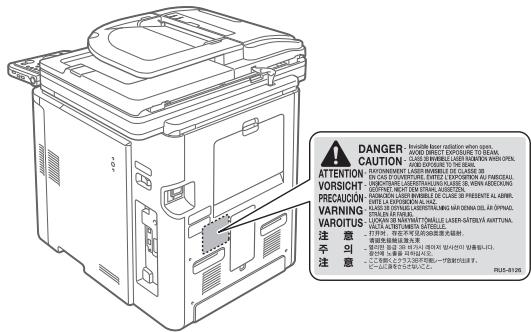
text_image
DANGER: Inade Bitter (R) protection when 2019 CAUTION: ADOO DIRECT EXPOSURE TO 10 LBM, CLASS OR WIREBIE, LASER RAINION WITH OPEN. ENVIRONMENT: LASER IMBILE DE LAASE 30 EN CASE OF QUANTURE, ENTRE Z. EXPOSORA AU FABRICIAUL, NATIONAL LASER MINIMUM DE LAISE, WORK ENDECKING, EXTRAPEZ ON THE STRAPEZ, SURFACE EXTRAPEZ ON THE STRAPEZ, SURFACE PRECAUCION: ELISA FOR CHINA DE PRESENTE AL ABIR. ENTILE LASER EXPOSUAL BALANCE EXTRAPEZ ON THE STRAPEZ, SURFACE EXTRAPEZ ON THE STRAPEZ, SURFACE 注意 注意 注意 FLU5-0126- If the laser beam should escape and enter your eyes, exposure may cause damage to your eyes.
- If you operate this machine in manners other than the control, adjustment, and operating procedures prescribed in this manual, this may result in hazardous radiation exposure.
- This machine is confirmed as the class 1 laser product in IEC60825-1:2007.
Maintenance and Inspections

WARNING
- When cleaning the machine, turn off the machine and computer, and unplug the interface cables and power plug. Failure to do so can result in a fire or electrical shock.
- Unplug the power plug from the AC power outlet periodically and clean the area around the base of the power plug's metal pins and the AC power outlet with a dry cloth to remove all dust and grime. In damp, dusty, or smoky locations, dust can build up around the power plug and become damp, which can cause a short circuit, resulting in a fire.
- Clean the machine with a well wrung out cloth dampened with water or mild detergent diluted with water. Do not use alcohol, benzene, paint thinner, or other flammable substances. If flammable substances come into contact with electrical parts inside the machine, this may result in a fire or electrical shock.
-
Some areas inside the machine are subject to high-voltage. When removing jammed paper or when inspecting inside of the machine, be careful not to allow necklaces, bracelets, or other metal objects to touch the inside of the machine, as this can result in burns or electrical shock.
-
Do not dispose of used toner cartridges in open flames. This may cause the toner remaining inside the cartridges to ignite, resulting in burns or fire.
- Confirm that the power plug or power connector is inserted completely after cleaning the machine. Failure to do so can result in an overheating and fire.
- Check regularly that the power cord and plug are not handled in the following manner. Failure to do so can result in a fire or electrical shock.
- There are burn marks on the power plug.
- The blade on the power plug is deformed or broken.
- The power is turned OFF or ON when bending the power cord.
- The coating of the power cord is damaged, cracked, or dented.
- A part of the power cord becomes hot.
- The power connector is loosened.
- Stress is being applied to the power cord by a heavy object or by fixing it with staples.
• The power plug is loosened. - The power cord is tied in a bundle.
- A part of the power cord is put in an aisle.
- The power cord is put in front of the heating appliance.

CAUTION
- The fixing unit and its surroundings inside the machine become hot during use. When removing jammed paper or when inspecting the inside of the machine, do not touch the fixing unit and its surroundings, as this may result in burns.
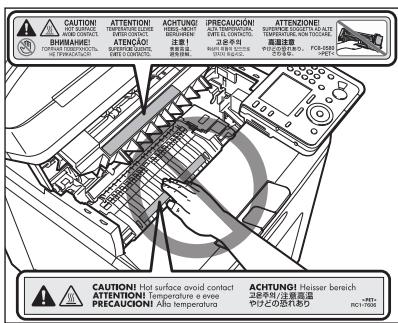
text_image
CAUTIONI A. Warm contact BUNIAGE! FOR FUTURES: 100% temperature. No. 100% temperature. ATTENTIONI ATTENTIONI PRECAUCIONI EARTH CONTACT ATTENUO! SUSPETER SQUISSE EARTH CONTACT ACHTUNG PRECAUCIONI A. Warm contact BUNIAGE! FOR FUTURES: 100% temperature. No. 100% temperature. IPRECAUCIONI A. Warm contact BUNIAGE! ATTENUO! SURFACE ADJUSTABLE TEMPERATURE, SON TOCARE 25 °C AIR CHAPES AIR CHAPES (SINCE) AIR CHAPES (SINCE) AIR CHAPES (SINCE) AIR CHAPES (SINCE) AIR CHAPES (SINCE) AIR CHAPES (SINCE) AIR CHAPES (SINCE) AIR CHAPES (SINCE) AIR CHAPES (SINCE) AIR CHAPES (SINCE) AIR CHAPES (SINCE) AIR CHAPES (SINCE) A. Warm contact BUNIAGE! FOR FUTURES: 100% temperature. No. 100% temperature. ATTENUO! SURFACE ADJUSTABLE TEMPERATURE, SON TOCARE 25 °C AIR CHAPES AIR CHAPES (SINCE) AIR CHAPES (SINCE) AIR CHAPES (SINCE) AIR CHAPES (SINCE) AIR CHAPES (SINCE) AIR CHAPES (SINCE) AIR CHAPES (SINCE) AIR CHAPES (SINCEL) AIR CHAPES (SINCEL) AIR CHAPES (SINCEL) AIR CHAPES (SINCEL) AIR CHAPES (SINCEL) AIR CHAPES (SINCEL) AIR CHAPES (SINCEL) AIR CHAPES (SINCEL) AIR CHAPES (SINCEL) AIR CHAPES (SINCEL) AIR CHAPES (SINCEL) AIR CHAPES (SINCEL)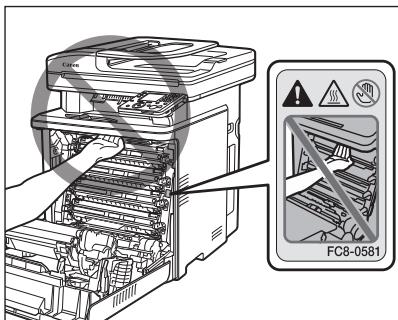
text_image
FC8-0581- When removing jammed paper or when inspecting the inside of the machine, do not expose yourself to the heat emitted from the fixing unit and its surroundings for a prolonged period of time. Doing so may result in low temperature burns, even though you did not touch the fixing unit and its surroundings directly.
- If paper is jammed, remove the jammed paper so that any pieces of paper do not remain inside the machine according to the displayed message. Also, do not put your hand in an area other than indicated areas, as this may result in personal injuries or burns.
- When removing jammed paper or replacing a toner cartridge, be careful not to get any toner on your hands or clothing, as this will dirty your hands or clothing. If toner gets on your hands or clothing, wash them immediately with cold water. Washing with warm water sets the toner, making it impossible to remove the toner stains.
- When removing jammed paper, be careful not to allow the toner on the paper to scatter. The toner may get into your eyes or mouth. If toner gets into your eyes or mouth, wash them immediately with cold water and consult a physician.
- When loading paper or removing jammed documents or paper, be careful not to cut your hands with the edges of the paper.
-
When removing a toner cartridge, remove the toner cartridge carefully so as to prevent the toner from scattering and getting into your eyes or mouth. If toner gets into your eyes or mouth, wash them immediately with cold water and consult a physician.
-
Do not attempt to disassemble the toner cartridge. The toner may scatter and get into your eyes or mouth. If toner gets into your eyes or mouth, wash them immediately with cold water and consult a physician.
- If toner leaks from the toner cartridge, be careful not to inhale the toner or allow it to come into direct contact with your skin. If the toner comes into contact with your skin, wash with soap. If the skin becomes irritated or you inhale the toner, consult a physician immediately.
Consumables

WARNING
- Do not dispose of used toner cartridges in open flames. This may cause the toner to ignite, resulting in burns or fire.
- Do not store toner cartridges or paper in a location exposed to open flames. This may cause the toner or paper to ignite, resulting in burns or fire.
- When disposing of a toner cartridge, place the toner cartridge into a bag to prevent the toner from scattering, and then dispose of the toner cartridge according to local regulations.

CAUTION
- Keep the toner cartridges and other consumables out of the reach of small children. If the toner or other parts are ingested, consult a physician immediately.
- Do not attempt to disassemble the toner cartridge. The toner may scatter and get into your eyes or mouth. If toner gets into your eyes or mouth, wash them immediately with cold water and consult a physician.
- If toner leaks from the toner cartridge, be careful not to inhale the toner or allow it to come into direct contact with your skin. If the toner comes into contact with your skin, wash with soap. If the skin becomes irritated or you inhale the toner, consult a physician immediately.
- Do not pull out the sealing tape forcefully or stop at midpoint, as this may cause toner to spill out. If toner gets into your eyes or mouth, wash them immediately with cold water and consult a physician.
Others

WARNING
If you are using a cardiac pacemaker
This machine generates a low level magnetic field. If you use a cardiac pacemaker and feel abnormalities, please move away from this machine and consult your physician immediately.
Installation Requirements and Handling
In order to use this machine in a safe and trouble-free manner, install the machine in a place that fulfills the following conditions. Also, read the remarks carefully.
Temperature and Humidity Conditions
– Temperature range: 10 to 30 °C (50 to 86 °F)
– Humidity range: 20 to 80 % RH (no condensation)

NOTE
Protecting the machine from condensation
- To prevent condensation from forming inside the machine in the following cases, let the machine adjust to the ambient temperature and humidity for at least two hours before use.
- When the room where the machine is installed is heated rapidly.
- When the machine is moved from a cool or dry location to a hot or humid location.
- If water droplets (condensation) form inside the machine, this can result in paper jams or poor print quality.
When using an ultrasonic humidifier
- When you are using an ultrasonic humidifier, it is therefore recommended that you use purified water or other water that is free of impurities. If you use tap water or well water, impurities in the water will be dispersed through the air. This can be trapped inside the machine, causing degradation in print quality.
220 V to 240 V, 50/60 Hz

NOTE
Precautions when connecting the power cord
- Do not connect this machine to an uninterruptible power source.
- Use an AC power outlet exclusively for the machine. Do not use the other sockets of the AC power outlet.
- Do not plug the power plug into the auxiliary outlet on a computer.
- Do not use the same AC power outlet for both the machine and any of the following equipment.
- Copy machine
- Air conditioner
- Shredder
• Equipment that consumes a large amount of electricity
• Equipment that generates electrical noise
- When unplugging the power cord, keep interval of 10 seconds or more before plugging it again.
Miscellaneous precautions
- The maximum power consumption of the machine is as follows. imageRUNNER C1028i/C1028iF: Less than 1210 W, 1260 W (with optional equipment)
- Electrical noise or a dramatic drop in mains voltage may cause the machine or computer to operate incorrectly or lose data.
Installation Requirements
– A location with sufficient space
– A location with good ventilation
– A location with a flat, even surface
- A location able to fully support the weight of the machine

NOTE
Do not install the machine in the following locations, as this may result in damage to the machine.
- A location subject to dramatic changes in temperature or humidity
– A location subject to condensation - A poorly ventilated location (If you use the machine for a long time or to perform a large amount of printing in a poorly ventilated room, the ozone or other odors generated by the machine may create an uncomfortable working environment. In addition, chemical particles are dispersed during printing; therefore, it is important to provide adequate ventilation.)
- A location near equipment that generates magnetic or electromagnetic waves
– A laboratory or location where chemical reactions occur - A location exposed to salt air, corrosive gases, or toxic gases
- A location, such as on a carpet or mat, that may warp from the weight of the machine or where the machine is liable to sink
Installation Space
Required installation space
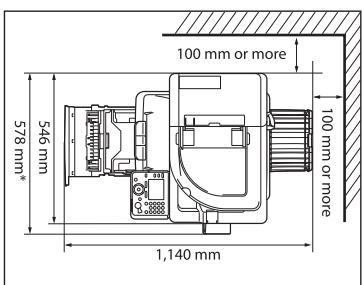
text_image
100 mm or more 546 mm 578 mm* 1,140 mm 100 mm or more* When the optional Card Reader-E1 is attached.
Maintenance and Inspections

NOTE
- Follow the instructions in the caution label attached to this machine.
-
Avoid shaking or applying a shock to this machine.
-
To prevent the paper jam, do not turn the power ON/OFF, open/close the operation panel or rear cover, and load/unload paper in the middle of printing operation.
- Be sure to remove the toner cartridge from the machine when transporting the machine.
- To avoid exposing the toner cartridge to light, place it in the protective bag included with this machine or wrap it in a thick cloth.
- Do not store toner cartridges in a location subject to high temperature or humidity or in a location with dramatic changes in temperature or humidity.
Storage temperature range: 0 to 35 °C (32 to 95 °F) Storage humidity range: 35 to 85 % RH (no condensation)
- Clean this machine regularly. If this machine becomes dusty, it may operate improperly.
- Use a modular cable of 3m or shorter in length.
- Depending on your locale or your telephone connection, you may be unable to perform data communication. In this case, contact your local authorized Canon dealer or the Canon help line.
- The repairing parts and toner cartridges for the machine will be available for at least seven (7) years after production of this machine model has been discontinued.
Legal Notices
Model Names
F151100 (imageRUNNER C1028i)
F151100 (imageRUNNER C1028iF)
WEEE Directive


European Union (and EEA) only.
These symbols indicate that this product is not to be disposed of with your household waste, according to the WEEE Directive (2002/96/EC), the Battery Directive (2006/66/EC) and/or your national laws implementing those Directives.
If a chemical symbol is printed beneath the symbol shown above, in accordance with the Battery Directive, this indicates that a heavy metal (Hg = Mercury, Cd = Cadmium, Pb = Lead) is present in this battery or accumulator at a concentration above an applicable threshold specified in the Battery Directive.
This product should be handed over to a designated collection point, e.g., on an authorized one-for-one basis when you buy a new similar product or to an authorized collection site for recycling waste electrical and electronic equipment (EEE) and batteries and accumulators.
Improper handling of this type of waste could have a possible impact on the environment and human health due to potentially hazardous substances that are generally associated with EEE.
Your cooperation in the correct disposal of this product will contribute to the effective usage of natural resources.
For more information about the recycling of this product, please contact your local city office, waste authority, approved scheme or your household waste disposal service or visit
www.canon-europe.com/environment.
(EEA: Norway, Iceland and Liechtenstein)
R & TTE Directive

This equipment (F151100) conforms with the essential requirements of EC Directive 1999/5/EC and is usable in EU. (Only for models with facsimile functionality.)
(For Europe only)
Canon Inc. / Canon Europa N.V
EMC requirements of EC Directive
This equipment conforms with the essential EMC requirements of EC Directive. We declare that this product conforms with the EMC requirements of EC Directive at nominal mains input 230 V, 50 Hz although the rated input of the product is 220 to 240 V, 50/60 Hz. Use of shielded cable is necessary to comply with the technical EMC requirements of EC Directive.
International ENERGY STAR Program

As an ENERGY STAR® Partner, Canon Inc. has determined that this product meets the ENERGY STAR Program for energy efficiency.
The International ENERGY STAR Office Equipment Program is an international program that promotes energy saving through the use of computers and other office equipment.
The program backs the development and dissemination of products with functions that effectively reduce energy consumption. It is an open system in which business proprietors can participate voluntarily.
The targeted products are office equipment, such as computers, displays, printers, facsimiles, and copiers. The standards and logos are uniform among participating nations.
IPv6 Ready Logo

The protocol stack included in this machine has obtained the IPv6 Ready Logo Phase-1 established by the IPv6 Forum.
Laser Safety Information
Laser radiation could be hazardous to the human body. For this reason, laser radiation emitted inside this equipment is hermetically sealed within the protective housing and external cover. No radiation can leak from the machine in the normal operation of the product by the user. This machine is classified as a Class 1 Laser Product under IEC60825-1:2007 and EN60825-1:2007.
220-240 V Model
The label shown below is attached to the laser scan unit on the machine.

DANGER CAUTION
Invisible laser radiation when open. AVOID DIRECT EXPOSURE TO BEAM. CLASS 3B INVISIBLE LASER RADIATION WHEN OPEN. AVOID EXPOSURE TO THE BEAM. LASER INVISIBLE DE CLASSE 3B
ATTENTION
VORSICHT
PRECAUCIÓN
WARNING
VAROITUS
注意
주의
注意
EN CAS D'OUVERTURE. ÉVITEZ L'EXPOSITION AU FAISCEAU. UNSICHTBARE LASERSTRAHLUNG KLASSE 3B, WENN ABDECKUNG GEÖFFNET. NICHT DEM STRAHL AUSSETZEN.
This machine has been classified under IEC60825-1:2007 and EN60825-1:2007 and conforms to the following classes:
CLASS 1 LASER PRODUCT
LASER KLASSE 1
APPAREIL Á LASER DECLASSE 1
APPARECCHIO LASER DI CLASSE 1
PRODUCTO LÁSER DE CLASE 1
APARELHO A LASER DE CLASSE 1
LUOKAN 1 LASER-TUOTE
LASERPRODUKT KLASS 1

CAUTION
Use of controls, adjustments, or performance of procedures other than those specified in the manuals for the machine may result in hazardous radiation exposure.
Trademarks
Canon, Canon logo, imageRUNNER, and iW are trademarks of Canon Inc. Microsoft, Windows, Windows Server, and Windows Vista are trademarks or registered trademarks of Microsoft Corporation in the U.S. and/or other countries.
All other product and brand names are registered trademarks, trademarks or service marks of their respective owners.
Copyright
Copyright © 2010 by Canon Inc. All rights reserved. No part of this publication may be reproduced, transmitted, transcribed, stored in a retrieval system, or translated into any language or computer language in any form or by any means, electronic, mechanical, magnetic, optical, chemical, manual, or otherwise, without the prior written permission of Canon Inc.
UFST: Copyright (C) 1989-2003 Monotype Imaging, Inc.
Third Party Software
A. This product includes third-party software modules. Use and distribution of this software modules, including any updates of such software modules (collectively, the "SOFTWARE") are subject to conditions (1) through (9) below.
(1) You agree that you will comply with any applicable export control laws, restrictions or regulations of the countries involved in the event that this product including the SOFTWARE is shipped, transferred or exported into any country.
(2) Rights holders of the SOFTWARE retain in all respects the title, ownership and intellectual property rights in and to the SOFTWARE. Except as expressly provided herein, no license or right, expressed or implied, is hereby conveyed or granted by rights holders of the SOFTWARE to you for any intellectual property of rights holders of the SOFTWARE.
(3) You may use the SOFTWARE solely for use with the Canon product you purchased (the "PRODUCT").
(4) You may not assign, sublicense, market, distribute, or transfer the SOFTWARE to any third party without prior written consent of rights holders of the SOFTWARE.
(5) Notwithstanding the foregoing, you may transfer the SOFTWARE only when (a) you assign all of your rights to the PRODUCT and all rights and obligations under the conditions to transferee and (b) such transferee agrees to be bound by all these conditions.
(6) You may not decompile, reverse engineer, disassemble or otherwise reduce the code of the SOFTWARE to human readable form.
(7) You may not modify, adapt, translate, rent, lease or loan the SOFTWARE or create derivative works based on the SOFTWARE.
(8) You are not entitled to remove or make separate copies of the SOFTWARE from the PRODUCT.
(9) The human-readable portion (the source code) of the SOFTWARE is not licensed to you.
Disclaimers
The information in this document is subject to change without notice. CANON INC. MAKES NO WARRANTY OF ANY KIND WITH REGARD TO THIS MATERIAL, EITHER EXPRESS OR IMPLIED, EXCEPT AS PROVIDED HEREIN, INCLUDING WITHOUT LIMITATION, THEREOF, WARRANTIES AS TO MARKETABILITY, MERCHANTABILITY, FITNESS FOR A PARTICULAR PURPOSE OF USE OR NON-INFRINGEMENT. CANON INC. SHALL NOT BE LIABLE FOR ANY DIRECT, INCIDENTAL, OR CONSEQUENTIAL DAMAGES OF ANY NATURE, OR LOSSES OR EXPENSES RESULTING FROM THE USE OF THIS MATERIAL.
Legal Limitations on Usage of Your Product and the Use of Images
Using your product to scan, print or otherwise reproduce certain documents, and the use of such images as scanned, printed or otherwise reproduced by your product, may be prohibited by law and may result in criminal and/or civil liability. A non-exhaustive list of these documents is set forth below. This list is intended to be a guide only. If you are uncertain about the legality of using your product to scan, print or otherwise reproduce any particular document, and/or of the use of the images scanned, printed or otherwise reproduced, you should consult in advance with your legal advisor for guidance.
- Paper Money
- Traveler's Checks
- Money Orders
- Food Stamps
– Certificates of Deposit - Passports
- Postage Stamps (canceled or uncanceled)
- Immigration Papers
– Identifying Badges or Insignias
– Internal Revenue Stamps (canceled or uncanceled)
– Selective Service or Draft Papers
– Bonds or Other Certificates of Indebtedness
– Checks or Drafts Issued by Governmental Agencies - Stock Certificates
– Motor Vehicle Licenses and Certificates of Title
– Copyrighted Works/Works of Art without Permission of Copyright Owner
Considerable effort has been made to make sure that the manuals for the machine are free of inaccuracies and omissions. However, as we are constantly improving our products if you need an exact specification, please contact Canon.
Table des matières
text_image
Diagram of a device with labeled cable and power outlet, showing connection to a wall-mounted switch labeled 'I'
REMARQUE
natural_image
Diagram of a solar panel array with one panel highlighted and arrow indicating rotation (no text or symbols)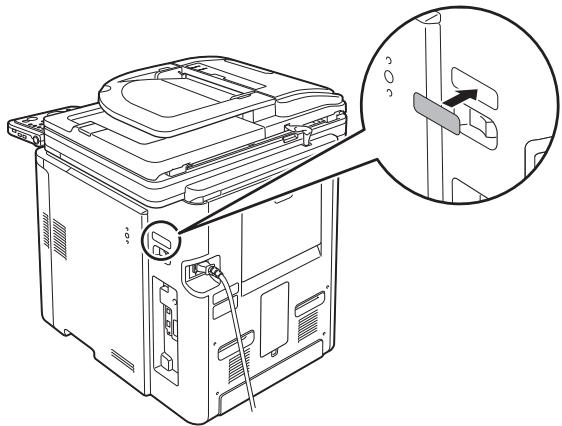
natural_image
Line drawing of a refrigerator interior with a magnified inset showing the door handle (no text or symbols)Language Switch Display in French
English
French
German
Italian
Spanish
Portuguese
natural_image
Line drawing of a printer with lid and front panel (no text or symbols)natural_image
Line drawing of a printer with lid and front panel (no text or symbols)natural_image
Illustration of a printer connected to a telephone with sound waves (no text or symbols)natural_image
Illustration of a printer connected to a telephone with sound waves (no text or symbols)natural_image
Line drawing of a printer with a telephone handset connected to a paper airplane (no text or symbols)natural_image
Illustration of a printer emitting a ringing phone to a rack with lightning bolts (no text or symbols)natural_image
Illustration of a printer connected to a telephone with sound waves (no text or symbols)natural_image
Illustration of a printer connected to a telephone with sound waves (no text or symbols)natural_image
Illustration of a desktop computer with an open CD and a monitor, showing no text or symbols.Insérez le CD-ROM UFRII LT/FAX User Software.

REMARQUE
natural_image
Illustration of a desktop computer with an open CD and monitor, no text or symbols presentRetirez le CD-ROM UFRII LT/FAX User Software.

REMARQUE
natural_image
Illustration of a desktop computer with an open CD and a monitor, showing no text or symbols.Insérez le CD-ROM PCL User Software.
38
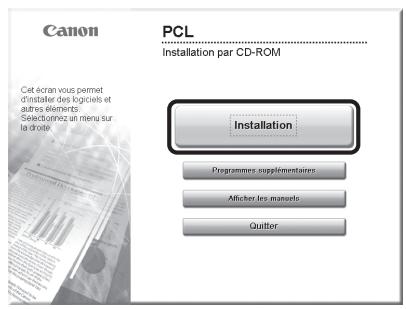
natural_image
Illustration of a desktop computer with an open CD and monitor, no text or symbols presentRetirez le CD-ROM PCL User Software.

REMARQUE
natural_image
Illustration of a desktop computer with an open CD and a monitor, showing no text or symbols.Insérez le CD-ROM PS User Software.
57
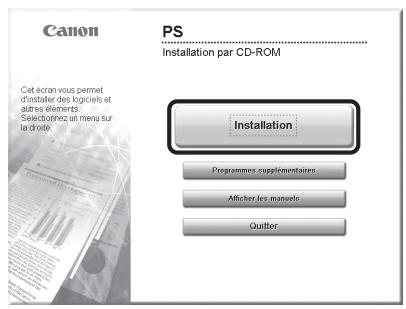
natural_image
Illustration of a desktop computer with an open CD and monitor, no text or symbols presentnatural_image
Illustration of a desktop computer with an open CD and a monitor, showing no text or symbols.Insérez le CD-ROM UFRII LT/FAX User Software.

REMARQUE
text_image
Diagram showing connection between a device with labeled components and an inset magnified view of the device's cable or connector.natural_image
Illustration of a desktop computer with an open CD and monitor, no text or symbols presentRetirez le CD-ROM UFRII LT/FAX User Software.

REMARQUE
natural_image
Illustration of a desktop computer with an open CD and a monitor, showing a close-up of the screen (no text or symbols present)natural_image
Illustration of a desktop computer with an open CD and monitor, no text or symbols presentInvisible laser radiation when open.
AVOID DIRECT EXPOSURE TO BEAM.
CLASS 3B INVISIBLE LASER RADIATION WHEN OPEN.
AVOID EXPOSURE TO THE BEAM.
ATTENTION
VORSICHT
PRECAUCIÓN
WARNING
VAROITUS
注意
주의
注意
RAYONNEMENT LASER INVISIBLE DE CLASSE 3B EN CAS D'OUVERTURE. ÉVITEZ L'EXPOSITION AU FAISCEAU. UNŞICHTBARE LASERSTRAHLUNG KLASSE 3B, WENN ABDECKUNG GEÖFFNET. NICHT DEM STRAHL AUSSETZEN.
CLASS 1 LASER PRODUCT
LASER KLASSE 1
APPAREIL À LASER DE CLASSE 1
APPARECCHIO LASER DI CLASSE 1
PRODUCTO LÁSER DE CLASE 1
APARELHO A LASER DE CLASSE 1
LUOKAN 1 LASER-TUOTE
LASERPRODUKT KLASS 1
UFST : Copyright (C) 1989-2003 Monotype Imaging, Inc.
Logiciels tiers
text_image
Diagram of a microwave oven with labeled components and an inset showing a power switch interface.
HINWEIS
natural_image
Diagram of a solar panel array with an arrow indicating direction (no text or symbols)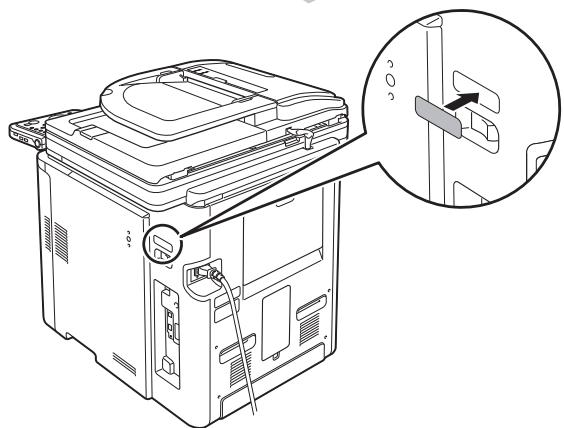
natural_image
Line drawing of a refrigerator internal components with an inset showing a close-up of the door handle (no text or symbols present)Language Switch Display in German
| English |
| French |
| German |
| Italian |
| Spanish |
| Portuguese |
natural_image
Line drawing of a printer with lid and front panel (no text or symbols)natural_image
Line drawing of a printer with lid and front panel, no text or symbols presentnatural_image
Line drawing of a printer connected to a telephone receiver (no text or symbols present)natural_image
Illustration of a printer emitting sound waves to a telephone receiver (no text or symbols present)natural_image
Illustration of a printer connected to a telephone with lightning bolts (no text or symbols)●Bei Telefonanrufen
natural_image
Illustration of a printer connected to a telephone with sound waves (no text or symbols)natural_image
Illustration of a printer connected to a keypad with a lightning bolt symbol (no text or labels)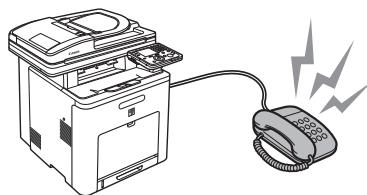
natural_image
Illustration of a printer connected to a telephone with sound waves (no text or symbols)natural_image
Diagram of a printer connected to a desktop computer via cable, labeled 'PC-Druck/PC-Fax' (no other text or symbols)
HINWEIS
natural_image
Illustration of a desktop computer with an open CD and a monitor, showing no text or symbols.natural_image
Illustration of a computer tower with an open CD and monitor, no text or symbols presentnatural_image
Illustration of a desktop computer with an open CD and a disc on top (no text or symbols)natural_image
Illustration of a desktop computer with an open CD and monitor, no text or symbols presentnatural_image
Illustration of a desktop computer with an open CD and a disc on top (no text or symbols)natural_image
Illustration of a desktop computer with an open CD and monitor, no text or symbols presentnatural_image
Illustration of a desktop computer with an open CD and a monitor, showing no text or symbols.text_image
Diagram showing cable connection between a device and a power unit, with labeled components and an arrow indicating direction of connection.natural_image
Illustration of a desktop computer with an open CD and monitor, no text or symbols presentnatural_image
Illustration of a desktop computer with an open CD and a monitor, showing a close-up of the screen (no text or symbols present)natural_image
Illustration of a desktop computer with an open CD and monitor, no text or symbols presentInvisible laser radiation when open.
AVOID DIRECT EXPOSURE TO BEAM.
CLASS 3B INVISIBLE LASER RADIATION WHEN OPEN.
AVOID EXPOSURE TO THE BEAM.
LASER INVISIBLE DE CLASSE 3B
ATTENTION
VORSICHT
PRECAUCIÓN
WARNING
VAROITUS
注
意
주
의
注
意
EN CAS D'OUVERTURE. ÉVITEZ L'EXPOSITION AU FAISCEAU. UNSICHTBARE LASERSTRAHLUNG KLASSE 3B, WENN ABDECKUNG GEÖFFNET. NICHT DEM STRAHL AUSSETZEN.
CLASS 1 LASER PRODUCT
LASER KLASSE 1
APPAREIL À LASER DE CLASSE 1
APPARECCHIO LASER DI CLASSE 1
PRODUCTO LÁSER DE CLASE 1
APARELHO A LASER DE CLASSE 1
LUOKAN 1 LASER-TUOTE
LASERPRODUKT KLASS 1

VORSICHT
UFST: Copyright (C) 1989-2003 Monotype Imaging, Inc.
Software Dritter
text_image
Diagram of a computer setup with labeled components and an inset showing a power switch labeled 'I'
NOTA
natural_image
Diagram of a solar panel array with an arrow indicating direction (no text or symbols)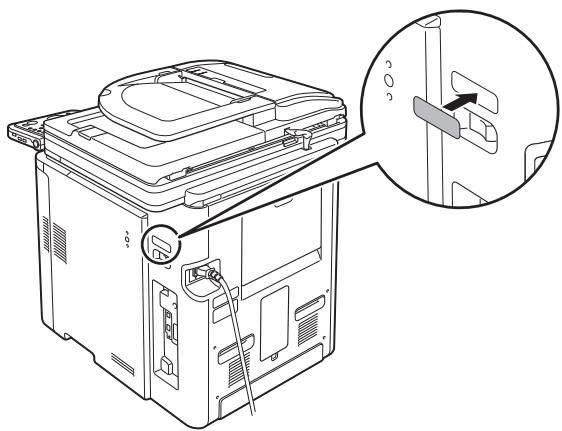
natural_image
Line drawing of a server rack with an inset close-up showing internal components (no text or symbols)Language Switch Display in Italian
English
French
German
Italian
Spanish
Portuguese
text_image
Selezionare paese/regione Impostare Italy Germany Greece Netherlands Hungary Ireland Italynatural_image
Line drawing of a printer with lid and paper holder (no text or symbols)natural_image
Line drawing of a printer with lid and front panel (no text or symbols)natural_image
Line drawing of a printer with a telephone handset connected to a paper airplane (no text or symbols)natural_image
Illustration of a printer emitting a ringing phone to a device with lightning bolts (no text or symbols)natural_image
Illustration of a printer connected to a telephone with sound waves (no text or symbols)natural_image
Illustration of a printer connected to a telephone with sound waves (no text or symbols)natural_image
Illustration of a printer emitting a ringing phone with lightning bolts (no text or symbols)natural_image
Illustration of a printer emitting a ringing phone with lightning bolts (no text or symbols)natural_image
Illustration of a desktop computer with an open CD and a monitor, showing no text or symbols.natural_image
Illustration of a desktop computer with an open CD and monitor, no text or symbols presentnatural_image
Illustration of a desktop computer with an open CD and a monitor, showing no text or symbols.natural_image
Illustration of a desktop computer with an open CD and monitor, no text or symbols presentnatural_image
Illustration of a desktop computer with an open CD and a monitor, showing no text or symbols.natural_image
Illustration of a desktop computer with an open CD and monitor, no text or symbols presentnatural_image
Illustration of a desktop computer with an open CD and a monitor, showing no text or symbols.natural_image
Diagram showing connection between a device with cable and a separate unit, no text or symbols presentnatural_image
Illustration of a desktop computer with an open CD and monitor, no text or symbols presentnatural_image
Illustration of a desktop computer with an open CD and a monitor, no text or symbols presentDriver stampante PCL:
Selezionare [Canon iR C1028/1030 PCL5c] o [Canon iR C1028/1030 PCL6].
Driver stampante PS:
natural_image
Illustration of a desktop computer with an open CD and monitor, no text or symbols presentInvisible laser radiation when open.
AVOID DIRECT EXPOSURE TO BEAM.
CLASS 3B INVISIBLE LASER RADIATION WHEN OPEN.
AVOID EXPOSURE TO THE BEAM.
ATTENTION
VORSICHT
PRECAUCIÓN
WARNING
VAROITUS
注意
주의
注意
- RAYONNEMENT LASER INVISIBLE DE CLASSE 3B
EN CAS D'OUVERTURE. ÉVITEZ L'EXPOSITION AU FAISCEAU.
CLASS 1 LASER PRODUCT
LASER KLASSE 1
APPAREIL À LASER DE CLASSE 1
APPARECCHIO LASER DI CLASSE 1
PRODUCTO LÁSER DE CLASE 1
APARELHO A LASER DE CLASSE 1
LUOKAN 1 LASER-TUOTE
LASERPRODUKT KLASS 1
UFST: Copyright (C) 1989-2003 Monotype Imaging, Inc.
text_image
Diagram showing a device with labeled cable and power outlet, including an inset image of a control panel with a switch.
NOTA
natural_image
Diagram of a solar panel array with one panel highlighted and an arrow indicating rotation (no text or symbols)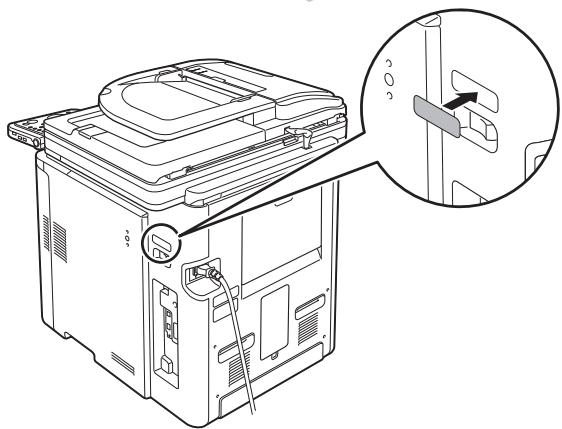
natural_image
Line drawing of a server rack with an inset showing a close-up of the internal components (no text or symbols)Language Switch Display in Spanish
Spanish
French
German
Italian
Spanish
Portuguese
text_image
Seleccionar país/region Fijar a España Spain Sweden Swiss Slovenia United Kingdom Othersnatural_image
Line drawing of a printer with lid and paper holder (no text or symbols)natural_image
Line drawing of a printer with lid and paper clip (no text or symbols)natural_image
Line drawing of a printer connected to a telephone receiver (no text or symbols present)natural_image
Illustration of a printer emitting a ringing phone to a device with lightning bolts (no text or symbols)natural_image
Illustration of a printer connected to a telephone with sound waves (no text or symbols)natural_image
Illustration of a printer connected to a telephone with sound waves (no text or symbols)natural_image
Illustration of a printer connected to a telephone with sound waves (no text or symbols)natural_image
Illustration of a printer connected to a telephone with sound waves (no text or symbols)CPU: series Intel Pentium/Celeron
300 MHz o superior
CPU: series Intel Pentium/Celeron
133 MHz o superior
natural_image
Illustration of a desktop computer with an open CD and a monitor, showing no text or symbols.Introduzca el CD-ROM del UFRII LT/FAX User Software.

NOTA
natural_image
Illustration of a computer tower with an open CD and monitor, no text or symbols presentExtraiga el CD-ROM del UFRII LT/FAX User Software.

NOTA
natural_image
Illustration of a desktop computer with an open CD and a monitor, showing no text or symbols.Introduzca el CD-ROM del PCL User Software.
38
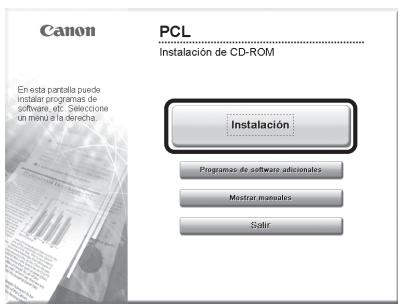
natural_image
Illustration of a desktop computer with an open CD and monitor, no text or symbols presentExtraiga el CD-ROM del PCL User Software.

NOTA
natural_image
Illustration of a desktop computer with an open CD and a monitor, showing no text or symbols.Introduzca el CD-ROM del PS User Software.
57
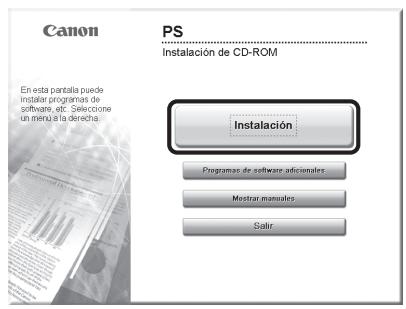
natural_image
Illustration of a computer monitor with an open CD and an open drive (no text or symbols)natural_image
Illustration of a desktop computer with an open CD and a monitor, showing no text or symbols.Introduzca el CD-ROM del UFRII LT/FAX User Software.

NOTA
text_image
Diagram showing cable connection between a device and a power strip, with labeled cable A and magnified detail view.natural_image
Illustration of a desktop computer with an open CD and monitor, no text or symbols presentExtraiga el CD-ROM del UFRII LT/FAX User Software.

NOTA
natural_image
Illustration of a desktop computer with an open CD and a monitor, showing no text or symbols.natural_image
Illustration of a desktop computer with an open CD and monitor, no text or symbols presentCLASS 1 LASER PRODUCT
LASER KLASSE 1
APPAREIL À LASER DE CLASSE 1
APPARECCHIO LASER DI CLASSE 1
PRODUCTO LÁSER DE CLASE 1
APARELHO A LASER DE CLASSE 1
LUOKAN 1 LASER-TUOTE
LASERPRODUKT KLASS 1

ATENCIÓN
UFST: Copyright (C) 1989-2003 Monotype Imaging, Inc.
30-2, Shimomaruko 3-chome, Ohta-ku, Tokyo 146-8501, Japan
One Canon Plaza, Lake Success, NY 11042, U.S.A.
CANON EUROPA N.V.
Bovenkerkerweg, 59-61, 1185 XB Amstelveen, The Netherlands
15F Jinbao Building No.89, Jinbao Street, Dongcheng District, Beijing 100005, PRC
CANON SINGAPORE PTE LTD
1 HarbourFront Avenue, #04-01 Keppel Bay Tower, Singapore 098632
CANON AUSTRALIA PTY LTD
1 Thomas Holt Drive, North Ryde, Sydney NSW 2113, Australia
CANON GLOBAL WORLDWIDE SITES
http://www.canon.com/