
EASY 1800 - Headphones SAMSUNG - Free user manual and instructions
Find the device manual for free EASY 1800 SAMSUNG in PDF.



| Product Type | Wireless Audio Headset |
| Brand | SAMSUNG |
| Model | EASY 1800 |
| Dimensions (L x W x H) | 180 x 150 x 50 mm |
| Weight | 180 g |
| Power Source | Rechargeable lithium-ion battery |
| Battery Life | 20 hours |
| Connectivity | Bluetooth 4.2 |
| Main Functions | Music listening, hands-free calls, volume control |
| Care and Cleaning | Clean with a soft, dry cloth |
| Safety | Use at moderate volume to protect hearing |
| Spare Parts and Repairability | Ear cushions and charging cable available |
| General Information | Compliant with CE standards |
Frequently Asked Questions - EASY 1800 SAMSUNG
User questions about EASY 1800 SAMSUNG
0 question about this device. Answer the ones you know or ask your own.
Ask a new question about this device
Download the instructions for your Headphones in PDF format for free! Find your manual EASY 1800 - SAMSUNG and take your electronic device back in hand. On this page are published all the documents necessary for the use of your device. EASY 1800 by SAMSUNG.
USER MANUAL EASY 1800 SAMSUNG
natural_image
Abstract composition of blue squares and dots on white background (no text or symbols)English....1
Română 27
Български 55
Srpski....83
Hrvatski....109
Contents
Getting started
Your headset overview....4
Button functions....5
Charging the headset....6
Wearing the headset....8
Using your headset
Turning the headset on or off....10
Using voice prompts....10
Pairing and connecting the headset 12
Using call functions....15
Resetting the headset....18
Appendix
Frequently asked questions....19
Warranty and parts replacement 21
Correct disposal of this product....22
Correct disposal of batteries in this product....23
Specifications....24
Please read this manual before operating your headset, and keep it for future reference. Graphics used in this manual are for illustration purposes. The actual products may vary.
Copyright
Copyright © 2011 Samsung Electronics
This user manual is protected under international copyright laws.
No part of this user manual may be reproduced, distributed, translated, or transmitted in any form or by any means, electronic or mechanical, including photocopying, recording, or storing in any information storage and retrieval system, without the prior written permission of Samsung Electronics.
Trademarks
• SAMSUNG, and the SAMSUNG logo are registered trademarks of Samsung Electronics.
- Bluetooth® is a registered trademark of the Bluetooth SIG, Inc. worldwide. More information about Bluetooth is available at www.bluetooth.com
• All other trademarks and copyrights are the property of their respective owners.
Please read all Safety precautions before using your headset to ensure safe and proper use.

Safety precautions
CE
- When using your headset while driving, follow local regulations in the region you are in.
- Never disassemble or modify your headset for any reason. Doing this may cause the headset to malfunction or become combustible. Bring the headset to an authorised service centre to repair it.
- Keep your device and all accessories out of the reach of small children or animals. Small parts may cause choking or serious injury if swallowed.
- Avoid exposing your device to very cold or very hot temperatures (below 0 °C or above 45 °C). Extreme temperatures can cause the deformation of the device and reduce the charging capacity and life of your device.
- Do not allow your device to get wet — liquids can cause serious damage. Do not handle your device with wet hands. Water damage to your device can void your manufacturer's warranty.
- Avoid using your device's light close to the eyes of children or animals.
- Do not use the device during a thunderstorm. Thunderstorms can cause the device to malfunction and increase the risk of electric shock.

Excessive exposure to loud sounds can cause hearing damage. Exposure to loud sounds while driving may distract your attention and cause an accident. Use only the minimum volume setting necessary to hear your conversation.
Getting started
Your headset overview
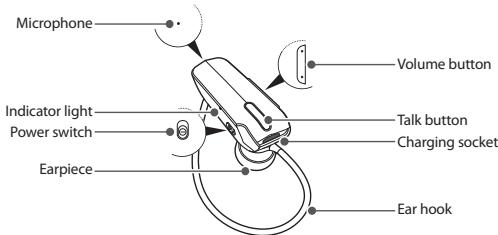

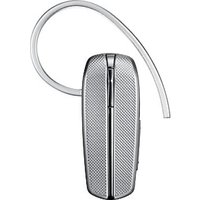
Make sure you have the following items: headset, travel adapter, ear hook, ear rubbers and user manual. The supplied items may vary.
Button functions
| Button | Function | |
| [14*1] | Power switch | Slide to turn the headset on or off. |
| [26*3] | Talk | Press and hold for 3 seconds to enter Pairing mode.Press to answer or end a call.Press and hold to reject an incoming call.Press and hold to place a call on hold.Press and hold to switch between calls. |
| [28*5] | Volume | Press to adjust the volume.Press and hold to turn the microphone on or off during a call.Press and hold both Volume buttons simultaneously to turn the indicator light on or off. |
Charging the headset
This headset has a rechargeable internal battery which is non-removable. Make sure the headset is fully charged before using it for the first time.
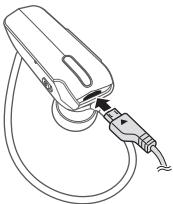
1 Connect the travel adapter to the charging socket on the headset.
2 Plug the travel adapter in to the wall outlet. During charging, the indicator light will turn red. If charging does not begin, unplug the travel adapter and plug it in again.
3 When the headset is fully charged, the red indicator light changes to blue. Unplug the travel adapter from the wall outlet and the headset.
natural_image
Line drawing of a handheld electronic device with cable and connector (no text or symbols)
- Use only Samsung-approved chargers. Unauthorised or Non-Samsung chargers could cause damage to the headset or in extreme circumstances an explosion, it could also invalidate any warranty on the product.
- Repeatedly charging and discharging of the headset, over time will cause the battery performance to diminish. This is normal for all rechargeable batteries.

- Never make or receive calls while charging, always disconnect your headset from the charger and answer the call.
- To save energy, unplug the travel adapter when not in use. The travel adapter does not have a power switch, so you must unplug it from the outlet when not in use to avoid wasting power. The travel adapter should remain close to the socket when in use.
Checking the battery level
To check the battery level, press and hold the Volume down button and the Talk button at the same time. Depending on the battery level, the indicator light flashes 5 times in one of the following colours:
| Battery level | Indicator light colour |
| Above 80% | Blue |
| 80 ~20% | Violet |
| Below 20% | Red |
When the headset battery is low
The headset beeps and the indicator light flashes red. If the headset powers off during a call, the call will be automatically transferred to the phone.
Wearing the headset
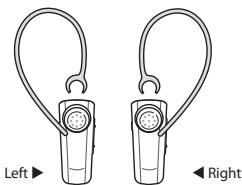
Depending on which ear you are going to wear the headset, simply adjust the ear hook accordingly.
natural_image
Two identical handbags with ropes, one left-pointing and one right-pointing, shown without any text or symbols.
You can also use the optional ear rubbers instead of the ear hook. Remove the earpiece cover and attach the ear rubber. Then, rotate the ear rubber left or right slightly depending on which ear you are going to wear the headset.
Using your headset
This section explains how to turn the headset on, pair and connect to the phone, and use various functions.

- Activated functions and features may differ depending on the phone type.
- Some devices, especially those that are not tested or approved by Bluetooth SIG, may be incompatible with your headset.
To ensure you get the best performance from your headset
- Keep the distance between your headset and device as small as possible and avoid placing your body or other objects in the signals path.
- If you usually use your mobile phone with your right hand, wear the headset on your right ear.
- Covering your headset or device could effect its performance so keep contact to a minimum.
Turning the headset on or off
To turn the headset on
Slide up the power switch. The blue indicator light flashes 4 times.

Turning the headset on for the first time, it will automatically enter pairing mode for approx 3 minutes. For more information, see page 12.
To turn the headset off
Slide down the power switch. The indicator light flashes blue and red then turns off.
Using voice prompts
Voice prompts will inform you about the current status of the headset and usage instructions. Voice prompts are available in English only. If you can't hear any voice prompts, make sure the voice prompt feature is turned on.
Turning the voice prompt on or off
In Pairing mode, press and hold both volume buttons simultaneously for 3 seconds to turn the Voice prompts on or off. To enter Pairing mode, see page 12.
If the Voice prompts turned on,
The blue indicator light flashes 2 times and you will hear "Ready to Pair. Pin code is 0000" repeatedly from your headset.
If the Voice prompts turned off,
The red indicator light flashes 2 times and the repeated mention is stopped.
List of voice prompts
| Status | Voice prompt |
| When you turn the headset on or off | “Power on” or “Power off” |
| When you enter Pairing mode | “Ready to pair. Pin code is 0000” |
| When you connect the headset to devices | “Connected” |
| When you disconnect the headset from the device | “Disconnected” |
| When a call is ended | “Call terminated” |
Pairing and connecting the headset
Pairing means unique and encrypted wireless connection between two Bluetooth devices when they agree to communicate with each other.
In Pairing mode, two devices should be placed close enough to each other.
Pairing and connecting the headset with a phone
1 Enter Pairing mode. (The blue indicator light stays lit and stays for 3 minutes.)
- With the headset turned on, press and hold the Talk button for 3 seconds.
- If the headset is turned on for the first time, it will go into Pairing mode immediately.
2 Activate the Bluetooth feature on your phone and search for the headset (see your phone's user manual).
3 Select the headset (HM1800) from the list of devices found by your phone.
4 If requested, enter the Bluetooth PIN 0000 (4 zeros) to pair and connect the headset to your phone. Once pairing is completed, the headset will attempt to reconnect each time you turn it on.

Your headset supports the Simple Pairing feature which allows the headset to be paired with a Bluetooth device without requesting a PIN. This feature is available for devices that are compliant with Bluetooth version 2.1 or higher.
Pairing via the Active pairing feature
With the Active pairing feature, your headset automatically looks for a Bluetooth device within range and tries to make a connection with it.
Make sure the phone's Bluetooth visibility option is set on.
- In Pairing mode, press and hold the Talk button on the headset. The indicator light colour changes to violet from blue. The headset will attempt active paring for up to 20 seconds.

- The Bluetooth phone you want to connect with must not be paired with other devices. If the phone is already connected to another device, end the connection and restart the Active pairing feature.
- This feature may not be supported on some devices.
Connecting with two Bluetooth phones
With the Multi-point feature activated, your headset can be connected to 2 Bluetooth phones at the same time.
To turn Multi-point feature on
In Pairing mode, press and hold the Volume up button. The blue indicator light flashes twice.
To turn Multi-point feature off
In Pairing mode, press and hold the Volume down button. The red indicator light flashes twice.
1 After connecting with the first Bluetooth phone, enter Pairing mode again.
2 Activate the Bluetooth feature on the second Bluetooth phone and search for the headset.
3 Select the headset (HM1800) from the list of devices found by the second Bluetooth phone.
4 If requested, enter the Bluetooth PIN 0000 (4 zeros) to connect the headset to the second Bluetooth phone.
5 Reconnect to the headset from the first Bluetooth phone.

Some phones may not be able to connect as a second Bluetooth phone.
Reconnecting the headset
If the connection is lost while in use:
Press the Talk button on the headset or use the Bluetooth menu on your phone.

When the headset is paired with a phone, it will attempt to automatically reconnect each time you turn it on. If the Multi-point feature is activated, your headset will attempt to reconnect to the two most recently connected devices. This feature may not be supported on some devices.
Disconnecting the headset
Turn off the headset or use the Bluetooth menu on your phone.
Using call functions

• Available call functions may differ from phone to phone.
- Some functions are only available when using the Hands-Free profile.
Making a call
Redialling the latest number
To redial the last number dialed on the primary phone,
- Press the Talk button.
To redial the last number dialed on the secondary phone,
- Press the Talk button twice.

Some phones open the call log list on the first press of the Talk button. Press the Talk button again to dial the selected number.
Dialling a number by voice
Press and hold the Talk button.

This function is only available on the primary phone.
Answering a call
Press the Talk button to answer a call when a call comes in.
Rejecting a call
Press and hold the Talk button to reject a call when a call comes in.

If you receive calls on both connected devices at the same time you can only answer or reject the call on the primary phone.
Ending a call
Press the Talk button to end a call.
Options available during a call
You can use the following functions during a call.
Adjusting the volume
Press the Volume up or down button to adjust the volume.

You will hear a beep when the volume level of the headset reaches it's lowest or highest level.
Muting the microphone
Press and hold the Volume up or down button to turn the microphone off so that the person with whom you are speaking cannot hear you. When the microphone is turned off, the headset beeps at regular intervals. Press and hold the Volume up or down button again to turn the microphone back on.
Transferring a call from the phone to the headset
Press the Talk button to transfer a call from the phone to the headset.
Placing a call on hold
Press and hold the Talk button to place the current call on hold.
Answering a second call
- Press the Talk button to end the first call and answer a second call.
- Press and hold the Talk button to place the first call on hold and answer a second call. To switch between the current call and the held call, press and hold the Talk button.
Resetting the headset
When the headset is paired with a device, it automatically saves connection and feature settings, such as the Bluetooth address or device type of the mobile phone. If you want to reset the connection settings in the headset:
- In Pairing mode, press and hold both Volume buttons and Talk button at the same time for 3 seconds. The headset will turn on automatically.

When you reset the headset, all connection settings in the headset will be deleted and the connection with your phone will be lost. In order to use the headset, you will have to pair it again.
Appendix
Frequently asked questions
| Will my headset work with laptops, PCs, and PDAs? | Your headset will work with devices that support your headset's Bluetooth version and profiles. For specifications, see page 24. |
| Why do I hear static or interference while on a call? | Appliances such as cordless phones and wireless networking equipment may cause interference, which usually sounds like static. To reduce any interference, keep the headset away from other devices that use or produce radio waves. |
| Will my headset interfere with my car's electronics, radio, or computer? | Your headset produces significantly less power than a typical mobile phone. It also only emits signals that are in compliance with the international Bluetooth standard. Therefore, you should not expect any interference with standard consumer-grade electronics equipment. |
| Can other Bluetooth phone users hear my conversation? | When you pair your headset to your Bluetooth phone, you are creating a private link between only these two Bluetooth devices. The wireless Bluetooth technology used in your headset is not easily monitored by third parties because Bluetooth wireless signals are significantly lower in radio frequency power than those produced by a typical mobile phone. |
| Why do I hear an echo while on a call? | Adjust the headset volume, or move to another area and try again. |
| How do I clean my headset? | Wipe it with a soft dry cloth. |
| The headset does not fully charge. | The headset and the travel adapter may not have been connected properly.Separate the headset from the travel adapter, reconnect, and charge the headset. |
| I cannot use all the features described in the manual. | Available features may vary depending on the connected device. If your headset is connected to two devices at once, some features may be unavailable. |
Warranty and parts replacement
Samsung warrants this product as free of defects in material, design and workmanship for the period of one year from the original date of purchase.*
If during the period of warranty this product proves defective under normal use and service you should return the product to the retailer from whom it was originally purchased or a qualified service centre. The liability of Samsung and its appointed maintenance company is limited to the cost of repair and/or replacement of the unit under warranty.
- The warranty is limited to the original purchaser.
- A copy of your receipt or other proof of purchase is required for a proper warranty service.
- The warranty is void if the product label is removed, or if the product has been subject to physical abuse, improper installation, modification, or repair by unauthorised third parties.
- Specifically exempt from any warranty are limited-life consumable components such as batteries and other accessories.
- Samsung will not assume any responsibility for any loss or damage incurred in shipping. All repair work on Samsung products by unauthorised third parties voids any warranty.
Correct disposal of this product

natural_image
Symbol of a trash bin crossed out by two crossed lines (no text or numbers present)(Waste Electrical & Electronic Equipment)
(Applicable in the European Union and other European countries with separate collection systems)
This marking on the product, accessories or literature indicates that the product and its electronic accessories (e.g. charger, headset, USB cable) should not be disposed of with other household waste at the end of their working life. To prevent possible harm to the environment or human health from uncontrolled waste disposal, please separate these items from other types of waste and recycle them responsibly to promote the sustainable reuse of material resources.
Household users should contact either the retailer where they purchased this product, or their local government office, for details of where and how they can take these items for environmentally safe recycling.
Business users should contact their supplier and check the terms and conditions of the purchase contract. This product and its electronic accessories should not be mixed with other commercial wastes for disposal.
Correct disposal of batteries in this product

natural_image
Symbol of a trash bin crossed out by two crossed lines (no text or numbers present)(Applicable in the European Union and other European countries with separate battery return systems)
The marking on the battery, manual or packaging indicates that the battery in this product should not be disposed of with other household waste. Where marked, the chemical symbols Hg, Cd or Pb indicate that the battery contains mercury, cadmium or lead above the reference levels in EC Directive 2006/66.
The battery incorporated in this product is not user replaceable. For information on its replacement, please contact your service provider. Do not attempt to remove the battery or dispose it in a fire. Do not disassemble, crush, or puncture the battery. If you intend to discard the product, the waste collection site will take the appropriate measures for the recycling and treatment of the product, including the battery.
Specifications
| Item | Specifications and description |
| Bluetooth version | 3.0 |
| Support profile | Headset Profile, Hands-Free Profile |
| Operating range | Up to 10 metres |
| Standby time | Up to 200 hours* |
| Talk time | Up to 5 hours* |
| Charging time | Approximately 2 hours* |
* Depending on the phone type and usage, the actual time may vary.
Declaration of Conformity (R&TTE)
We,
Samsung Electronics
declare under our sole responsibility that the product
Bluetooth Headset : HM1800
to which this declaration relates, is in conformity with the following standards and/or other normative documents.
SAFETY EN 60950-1:2006+A1:2010
EMC EN 301 489-01 V1.8.1 (04-2008)
We hereby declare that [all essential radio test suites have been carried out and that] the above named product is in conformity to all the essential requirements of Directive 1999/5/EC.
which will be made available upon request.
(Representative in the EU)

Samsung Electronics Euro QA Lab.
Blackbushe Business Park, Saxony Way,
Yateley, Hampshire, GU46 6GG, UK*
2011.09.29
(place and date of issue)

natural_image
Abstract line drawing with intersecting curves and a wavy base (no text or symbols)Joong-Hoon Choi / Lab Manager
(name and signature of authorised person)
Cuprins
Introducere
natural_image
Line drawing of a handheld electronic device with a cable and connector (no text or symbols)
natural_image
Symbol of a trash bin crossed out by two diagonal lines (no text or numbers present)natural_image
Symbol of a trash bin crossed out by two crossed lines (no text or numbers present)Cască Bluetooth: HM1800,
Blackbushe Business Park, Saxony Way,
Yateley, Hampshire, GU46 6GG, UK*
2011.09.29
natural_image
Abstract line drawing with intersecting curves and a wavy base (no text or symbols)Joong-Hoon Choi / Lab Manager
Copyright © 2011 Samsung Electronics
natural_image
Line drawing of a handheld electronic device with cable and connector (no text or symbols)
natural_image
Symbol of a trash bin crossed out by two diagonal lines (no text or numbers present)natural_image
Symbol of a trash bin crossed out by two crossed lines (no text or numbers present)Blackbushe Business Park, Saxony Way,
Yateley, Hampshire, GU46 6GG, UK*
2011.09.29
natural_image
Abstract line drawing with intersecting curves and a wavy base (no text or symbols)Joong-Hoon Choi / Lab Manager
Copyright © 2011 Samsung Electronics
Ovo uputstvo za upotrebu je zaštićeno međunarodnim zakonima za zaštitu autorskih prava.
Nijedan deo ovog uputstva se ne sme reprodukovati, distribuirati, prevoditi ili prenositi u bilo kom obliku i na bilo koji način, elektronski ili mehanički, uključujući fotokopiranje, snimanje ili čuvanje u sistemu za skladištenje i preuzimanje informacija, bez prethodne pismene dozvole kompanije Samsung Electronics.
Žigovi
• SAMSUNG i SAMSUNG logotip su registrovani žigovi kompanije Samsung Electronics.
- Bluetooth® je registrovani žig kompanije Bluetooth SIG, Inc. u celom svetu.
Više informacija o usluzi Bluetooth dostupno je na adresi www.bluetooth.com.
- Svi ostali žigovi i autorska prava pripadaju odgovarajućim vlasnicima.
natural_image
Line drawing of a handheld electronic device with a cable and connector (no text or symbols)
- Koristite samo punjače koji su odobreni od strane kompanije Samsung. Punjači koji nisu odobreni ili nisu proizvod kompanije Samsung mogu da izazovu oštećenje slušalica ili u ekstremnim okolnostima eksploziju, a to bi moglo da dovede do poništenja garancije za proizvod.
- Često punjenje i pražnjenje slušalica će vremenom dovesti do toga da se učinak baterije smanji. Ovo je normalno za sve punjive baterije.
- Nikada nemojte upućivati ili primati pozive u toku punjenja, uvek prvo isključite slušalice iz punjača i odgovorite na poziv.

- Da biste sačuvali energiju, isključite putni ispravljač kada ga ne koristite. Putni ispravljač nema prekidač za isključivanje, tako da ga morate izvaditi iz utičnice da biste prekinuli napajanje električnom energijom. Putni ispravljač treba da ostane u blizini utičnice kada se koristi.
Provera nivoa baterije
Da biste proverili nivo baterije, istovremeno pritisnite i držite dugme za smanjenje jačine zvuka i dugme za razgovor. U zavisnosti od nivoa baterije, lampica indikatora treperi 5 puta u jednoj od sledećih boja:
| Nivo baterije | Boja lampice indikatora |
| Iznad 80 % | Plava |
| 80 ~20 % | Ljubičasta |
| Ispod 20 % | Crvena |

Takođe možete da koristite opcionalne gumene navlake umesto kukice za uho. Skinite poklopac slušalice i postavite gumene navlake. Zatim okrenite gumene navlake malo nalevo ili nadesno, u zavisnosti od toga na kom uhu nosite slušalicu.
natural_image
Symbol of a trash bin crossed out by two diagonal lines (no text or numbers present)natural_image
Symbol of a trash bin crossed out by a diagonal line, representing no waste or elimination (no text or labels present)Blackbushe Business Park, Saxony Way,
Yateley, Hampshire, GU46 6GG, UK*
2011.09.29
natural_image
Abstract line drawing with intersecting curves and a wavy base (no text or symbols)Joong-Hoon Choi / Menadžer laboratorije
(ime i potpis ovlašćene osobe)
Sadržaj
natural_image
Line drawing of a handheld electronic device with a cable and connector (no text or symbols)
- Upotrebljavajte samo punjače koje je odobrio Samsung. Neodobreni ili punjači koje nije isporučio Samsung mogu poništiti valjanost jamstva na proizvod, ošetiti uređaj, a u krajnjem slučaju i uzrokovati eksploziju.
- Učestalo punjenje i pražnjenje baterije u slušalici s mikrofonom s vremenom će uzrokovati smanjenje performansi baterije. Ovo je normalno za sve punjive baterije.

- Tijekom punjenja nikad nemojte nazivati ili prihvaćati pozive. Prvo odspojite punjač iz uređaja, a zatim odgovorite na poziv.
- Da biste uštedjeli energiju, odspojite prijenosni punjač kada nije u uporabi. Prijenosni punjač nema prekidač, tako da ga morate iskopčati iz utičnice za prekid napajanja. Prijenosni punjač treba ostati u blizini utičnice kada je u uporabi.

natural_image
Symbol of a trash bin crossed out by two diagonal lines (no text or numbers present)(Električni i elektronički otpad)
natural_image
Symbol of a trash bin crossed out by two crossed lines (no text or numbers present)Blackbushe Business Park, Saxony Way,
Yateley, Hampshire, GU46 6GG, UK*
2011.09.29
natural_image
Abstract line drawing with intersecting curves and a wavy base (no text or symbols)Joong-Hoon Choi / Lab Manager
EU E. 11/2011. Rev. 1.0


- Contents
- Getting started
- Using your headset
- Appendix
- Copyright
- Trademarks
- Safety precautions
- CE
- Button functions
- Charging the headset
- Checking the battery level
- When the headset battery is low
- Wearing the headset
- To ensure you get the best performance from your headset
- Turning the headset on or off
- To turn the headset on
- To turn the headset off
- Using voice prompts
- Turning the voice prompt on or off
- If the Voice prompts turned on,
- If the Voice prompts turned off,
- Pairing and connecting the headset
- Pairing and connecting the headset with a phone
- Pairing via the Active pairing feature
- Connecting with two Bluetooth phones
- To turn Multi-point feature on
- To turn Multi-point feature off
- Reconnecting the headset
- Disconnecting the headset
- Using call functions
- Making a call
- Redialling the latest number
- Dialling a number by voice
- Answering a call
- Rejecting a call
- Ending a call
- Options available during a call
- Adjusting the volume
- Muting the microphone
- Transferring a call from the phone to the headset
- Placing a call on hold
- Answering a second call
- Resetting the headset
- Warranty and parts replacement
- Correct disposal of this product
- Correct disposal of batteries in this product
- Specifications
- Declaration of Conformity (R&TTE)
- Samsung Electronics
- Bluetooth Headset : HM1800
- Cuprins
- Introducere
- Cască Bluetooth: HM1800,
- Žigovi
- Provera nivoa baterije
- Sadržaj
Brand : SAMSUNG
Model : EASY 1800
Category : Headphones