
I80 - Camera SAMSUNG - Free user manual and instructions
Find the device manual for free I80 SAMSUNG in PDF.


User questions about I80 SAMSUNG
0 question about this device. Answer the ones you know or ask your own.
Ask a new question about this device
Download the instructions for your Camera in PDF format for free! Find your manual I80 - SAMSUNG and take your electronic device back in hand. On this page are published all the documents necessary for the use of your device. I80 by SAMSUNG.
USER MANUAL I80 SAMSUNG
Thank you for buying a Samsung Camera.
This manual has basic instructions for quick and easy picture taking.
For more information, refer to the user manual included in the supplied CD-Rom.
ENGLISH/DEUTSCH/FRANÇAIS/ITALIANO/POLSKA/
CESTINA/SL.OVENCINA/MAGYAR/ROMANA/B'BJIAPCKH
Getting to know your camera
- Microsoft, Windows and Windows logo are registered trademarks of Microsoft Corporation incorporated in the United States and/or other countries
- All brand and product names appearing in this manual are registered trademarks of their respective companies.
- The contents and illustrations of this manual are subject to change without prior notice for upgrading the camera functions.
Refer to the user manual included on the Software CD for more information. - PDF documents of user manual are included in the Software CD-ROM supplied with this camera. Search the PDF files with Windows explorer. Before opening the PDF files, you must install the Adobe Reader included in the Software CD-ROM.
SRS is a trademark of SRS Labs, Inc.
WOW HD technology is incorporated under license from SRS Labs, Inc.
Contents
Getting to know your camera 1 Identification of features / Contents of camera 4 Battery life & Number of shots (Recording time) 5 When Using the Camera for the First Time 6
LCD monitor indicator 7
Mode Button 8
Taking a picture 9
Playing back/Deleting images 10
MULTIMEDIA mode 11
Downloading images 14
Specifications 15
FCC notice
■ NOTE:
This equipment has been tested and found to comply with the limits for a Class B digital device, pursuant to part 15 of the FCC Rules. These limits are designed to provide reasonable protection against harmful interference in a residential installation.
This equipment generates, uses and can radiate radio frequency energy and, if not installed and used in accordance with the instructions, may cause harmful interference to radio communications. However, there is no guarantee that interference will not occur in a particular installation. If this equipment does cause harmful interference to radio or television reception, which can be determined by turning the equipment off and on, the user is encouraged to try to correct the interference by one or more of the following measures:
- Reorient or relocate the receiving antenna.
- Increase the distance between the equipment and receiver.
- Connect the equipment to an outlet on a circuit different from that to which the receiver is connected.
- Consult the dealer or an experienced radio/TV technician for help.
CAUTION:
Changes or modifications not expressly approved by the manufacturer responsible for compliance could void the user's authority to operate the equipment.
Declaration of Conformity
Address : 105 Challenger Road Ridgefield Park NJ
Telephone No. : 1-800-SAMSUNG(726-7864)
This device complies with Part 15 of the FCC Rules. Operation is subject to the following two conditions: (1) This device may not cause harmful interference, and (2) this device must accept any interference received, including interference that may cause undesired operation.
Getting to know your camera
DANGER
DANGER indicates an imminently hazardous situation which, if not avoided, will result in death or serious injury.

Do not attempt to modify this camera in any way. To do so may result in fire, injury, electric shock or severe damage to you or your camera. Internal inspection, maintenance and repairs should only be carried out by your dealer or Samsung Camera Service centre.

Should any form of liquid or a foreign object enter the camera, do not use it. Switch off the camera, and then disconnect the power source. You must contact your dealer or Samsung Camera Service centre. Do not continue to use the camera as this may cause a fire or electric shock.

Please do not use this product in close proximity to flammable or explosive gases, as this could increase the risk of explosion.

Do not insert or drop metallic or inflammable foreign objects into the camera through access points e.g. the memory card slot and battery chamber. This may cause a fire or electric shock.

Do not operate this camera with wet hands. This could pose a risk of electric shock.
WARNING
WARNING indicates a potentially hazardous situation which, if not avoided, could result in death or serious injury.

Do not use the flash in close proximity to people or animals. Positioning the flash too close to your subject's eyes may cause eyesight damage.

For safety reasons keep this product and accessories out of reach of children or animals to prevent accidents e.g.:
- Swallowing battery or small camera accessories. If an accident should occur, please consult a doctor immediately.
- There is the possibility of injury from the camera's moving parts.

Battery and camera may become hot during prolonged use and it may result in camera malfunction. Should this be the case, allow the camera to sit idle for a few minutes to allow it time to cool.

Do not leave this camera in places subject to extremely high temperatures, such as a sealed vehicle, direct sunlight or other places with extremes in temperature. Exposure to extreme temperatures may adversely affect the camera's internal components and could cause a fire.

When in use, do not cover the camera or Charger. This may cause heat to build up and distort the camera body or cause a fire. Always use the camera and its accessories in a well-ventilated area.
Getting to know your camera
CAUTION
CAUTION indicates a potentially hazardous situation which, if not avoided, may result in a minor or moderate injury.

Remove the battery when not planning to use the camera for a long period of time.
Otherwise the battery may leak corrosive electrolyte and permanently damage the camera's components.

Leaking, overheating, or damaged battery could result in fire or injury.
- Use battery with the correct specification for the camera.
- Do not short circuit, heat or dispose of battery in fire.
- Do not insert the battery with the polarities reversed.

Be sure to format the memory card if you are using a newly purchased memory card for the first time, if it contains data that the camera cannot recognise, or if it contains images captured with a different camera.

Do not fire the flash while it is in contact with hands or objects. Do not touch the flash after using it continuously. It may cause burns.

Take care not to touch the lens or lens cover to avoid taking an unclear image and possibly causing camera malfunction.

Do not move the camera while it is switched on when you are using the AC Charger. After use, always switch off the camera before unplugging the cable from the wall socket. Then make sure that any connector cords or cables to other devices are disconnected before moving the camera.
Failure to do so may damage the cords or cables and cause a fire or electric shock.

Credit cards may be demagnetized if left near a camera case. Avoid leaving magnetic strip cards near the case.

Do not insert the memory card the wrong way round.

Before inserting any cables or AC adapter, check the directions and do not insert by force. It may cause breakage of cable or camera. Never the connect the 20 pin connector to a USB port of a PC. Doing so is highly likely to cause a computer malfunction.

Before an important event or going on a trip, you should check the camera condition. Samsung cannot be held responsible for camera malfunctions.
Identification of features / Contents of camera
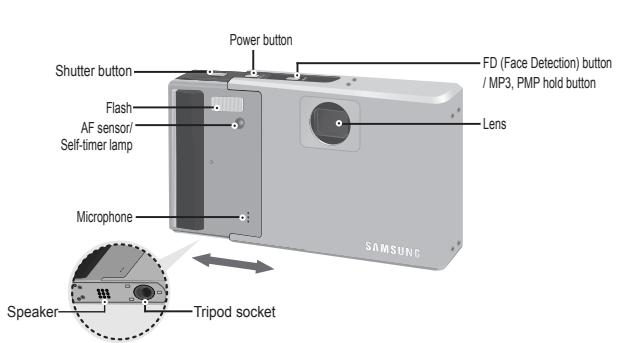
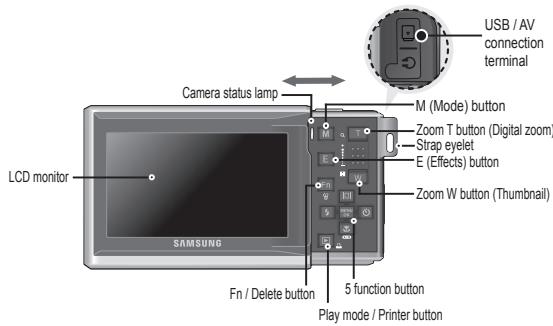
Included items
Camera

Rechargeable battery (SLB-1137D)
AC adapter (SAC-47)/JSB cable (SUC-C3)

AV Cable

Camera strap

Earphones

Optional items
SD/SDHC memory card/MMC

Camera case

20 Pin Gender
User manual, Product warranty
Software CD
Battery life & Number of shots (Recording time)
Number of images and battery life: Using the SLB-1137D
| Battery life / Number of images | Conditions | ||
| Still image | Approx. 160 MIN / Approx. 320 shots | Using the fully charged battery, Auto mode, 8M image size, Fine image quality, Shot to shot interval: 30Sec. Changing the zoom position between Wide and Tele after every shot. Using the flash on every second shot. Using the camera for 5 minutes and then Powering it off for 1 minute. | |
| Movie | Approx. 160 MIN | Using the fully charged battery 640x480 image size 30fps frame rate | |
| Multi Media | MP3 | Approx. 400 MIN | Using the fully charged battery Turning off the LCD monitor |
| PMP | Approx. 380 MIN | Using the fully charged battery | |
These figures are measured under Samsung's standard conditions and shooting conditions and may vary depending on the user's methods.
- When using a 256MB MMC memory, the specified shooting capacity will be as follows. These figures are approximate as image capacities can be affected by variables such as subject matter and memory card type.
| Recorded image size | Super Fine | Fine | Normal | 30 FPS | 20 FPS | 15 FPS | |
| Still image | 8+ | About 58 | About 89 | About 137 | - | - | - |
| 7+ | About 66 | About 100 | About 150 | - | - | - | |
| 6+ | About 77 | About 115 | About 177 | - | - | - | |
| 5+ | About 91 | About 133 | About 198 | - | - | - | |
| 3+ | About 155 | About 190 | About 216 | - | - | - | |
| 1+ | About 355 | About 414 | About 452 | - | - | - | |
| *Movie clip | 800 | - | - | - | - | About 10'53" | About 12'00" |
| 720 | - | - | - | - | About 11'41" | About 12'58" | |
| 640 | - | - | - | About 11'23" | - | About 17'47" | |
| 320 | - | - | - | About 38'51" | - | About 01:07'31" | |
The zoom button doesn't operate during the movie recording. The recording times can be changed by the zoom operation.
When Using the Camera for the First Time
Charge the rechargeable battery fully before using the camera for the first time.
- Turning on the camera
To turn on the camera, press the Power button (①) or Open the camera (②) as shown.
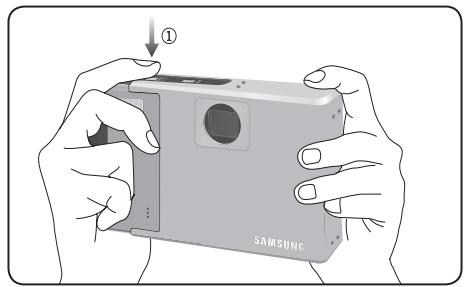
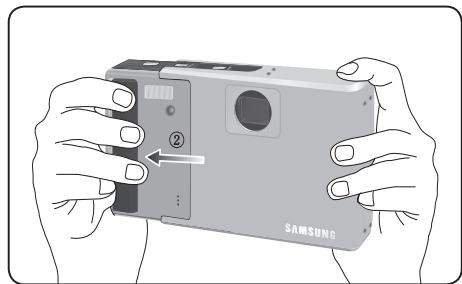

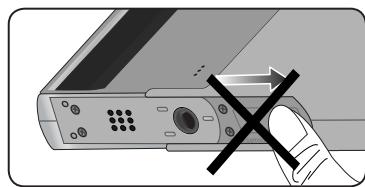
- When closing the camera, handle it as shown in the picture above. Your finger could be caught in the top or bottom groove and you could be injured as shown below.
LCD monitor indicator
The LCD monitor displays information about the shooting functions and selections.
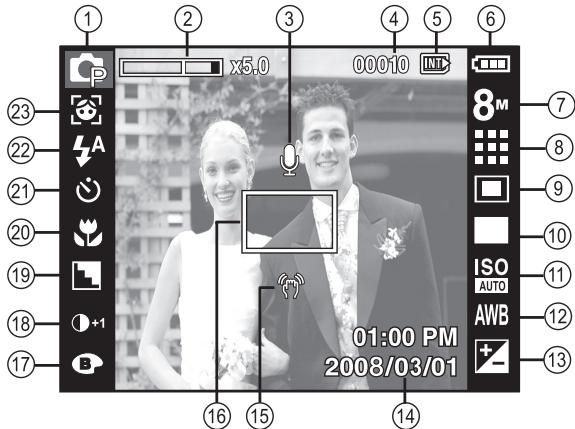
[Image & Full Status]
| No. | Description | Icons |
| 1 | Recording mode | |
| 2 | Optical / Digital Zoom bar / Digital Zoom rate | x5.0 |
| 3 | Voice Memo | |
| 4 | Number of available shots remaining | 00010 |
| Remaining time | 00:00:00 |
| No. | Description | Icons |
| 5 | Memory card icon / Internal memory icon | / INT |
| 6 | Battery | |
| 7 | Image Size | 3x24 10x24 100x100 200 180 440 320 |
| 8 | Image Quality / Frame Rate | / 30 20 15 |
| 9 | Metering | |
| 10 | Drive mode | AEB |
| 11 | ISO | ISO 150 ISO 100 ISO 200 ISO 200 ISO 1501 ISO 200 |
| 12 | White Balance | AWB |
| 13 | Exposure compensation | |
| 14 | Date / Time | 2008/03/01 01:00 PM |
| 15 | Camera shake Warning | |
| 16 | Auto Focus Frame | |
| 17 | Color / Saturation | |
| 18 | Contrast | |
| 19 | Sharpness / Without Sound | / |
| 20 | Macro | |
| 21 | Self-timer | |
| 22 | Flash | |
| 23 | Face Detection / Self Portrait / Photo Style Selector | / |
Mode Button
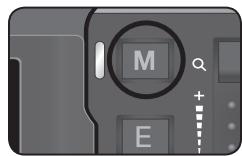
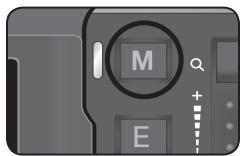
- You can select a desired camera mode by using the M (Mode) button on the back of the camera.

AUTO
Selects this mode for quick and easy picture taking with minimal user interaction.

PHOTO HELP GUIDE
Helps the user to learn the correct picture taking method. This includes solutions for potential problems that may occur, and enables the user to practice shooting.

PROGRAM
Selecting the program mode will configure the camera with optimal settings. You can still manually configure all functions except the aperture value and shutter speed.

MOVIECLIP
A movie clip can be recorded for as long as the available recording time.

DIS
This mode will reduce the effect of camera shake and help you get a well-exposed image in dim conditions.
SCENE
SCENE
#
Use the menu to easily configure optimal settings for a variety of shooting situations.

FUN
In this mode, you can take pictures with various effects easily and simply.
MULTIMEDIA
MULTIMEDIA
This camera has an embedded MP3, TEXT VIEWER & Portable Media Player program. You can take a picture, listen to the MP3 files and watch the movie clip (Movie and Video clip) whenever you want. You can listen to the MP3 music while reading the text on the LCD monitor or taking a picture.
How to take a picture
- Turn on the camera and select a camera mode by using the M (Mode) button.
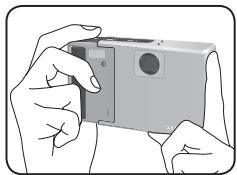
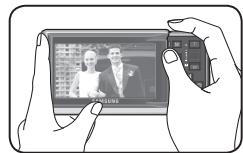
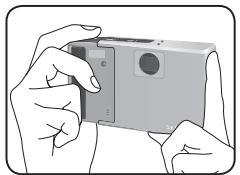
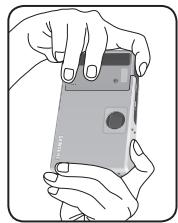
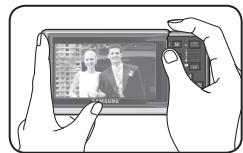
- Hold the camera as shown
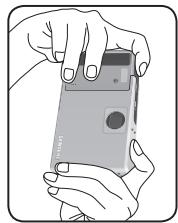
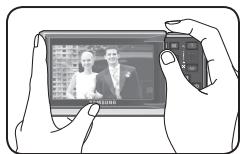
- Confirm the composition
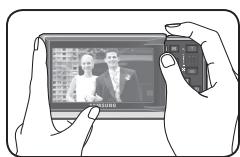
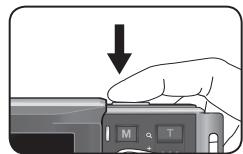
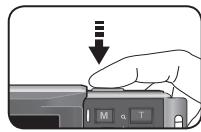
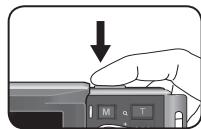
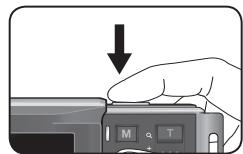
- Take a picture.
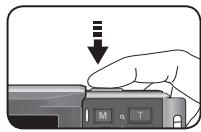
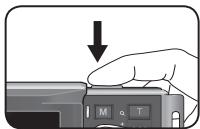
Pressing halfway down Focus and Flash status are checked.
Pressing fully Image is taken
How to record a movie Select the Movie clip mode by pressing the M (Mode) button.
- Confirm the composition
- Start the recording Press the Shutter button and the recording starts and press the Shutter button again to stop the recording.
Playing back / Deleting images
Playing back the images
- The last image stored on the memory is displayed.
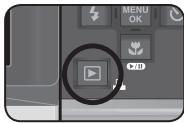
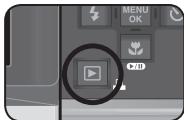
Press the play button (回)。
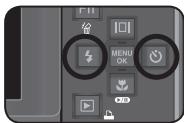
Select an image that you want to play back by pressing the Left/Right button
※Manner mode: Pressing the play mode button for more than 3 seconds changes the buzzer and start-up sound setting to OFF, even though you may have set these to ON.
-
Deleting images
-
This deletes images stored on the memory card.
-
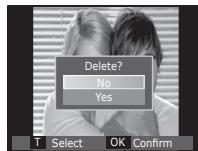
Select an image that you want to delete by pressing the Left / Right button and press the DELETE ( 合 ) button.
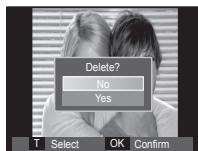
[Single image]
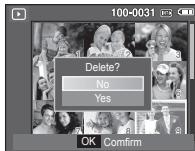
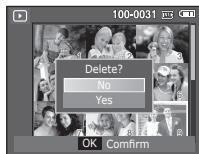
[Thumbnail Image]
-
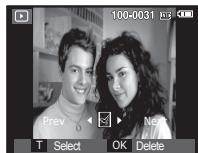
To add images to delete, press the T button.
-
Left / Right button : Selects images
- T button : Checks for deletion
- OK button : deletes the selected images.
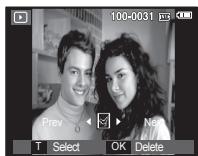
-
Select the submenu values by pressing the Up / Down button and then press the OK button.
-
If [No] is selected : cancels "Delete Image".
-
If [Yes] is selected : deletes the selected images.
-
This camera has an embedded MP3, TEXT VIEWER & Portable Media Player program. You can take a picture, listen to the MP3 files and watch the movie clip (Movie and Video clip) whenever you want. To use the PMP mode, you must convert the multimedia file with the Samsung Converter. In the TEXT VIEWER mode you can see the text on the LCD monitor when listening to MP3 music.
- If the file or folder name is over 120 (Including 1 Byte/2 Byte language, Korean, Chinese, etc.) characters, the file or folder name doesn't appear on the play list.
Downloading files
To use MP3, PMP and TEXT VIEWER functions, MP3, PMP (multimedia files) and TEXT files must be saved in the internal memory or memory card of this camera.
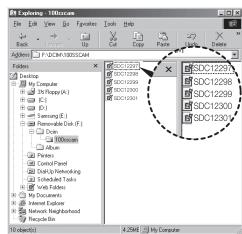
- Save the desired files on your PC.
- Connect the camera to your PC with the USB cable and turn on the camera.
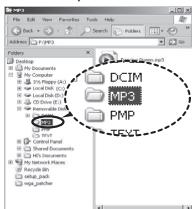
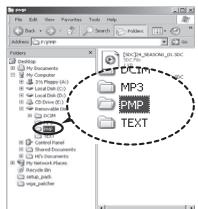
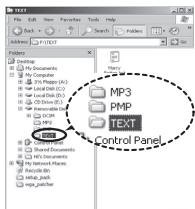
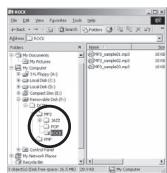
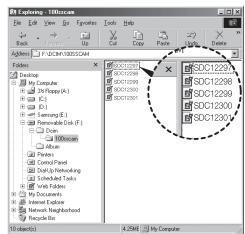
- Open Windows EXPLOREER and search for Removable Disk.
- Make a folder under the Removable Disk.
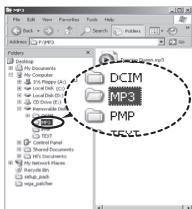
MP3 Mode: [MP3]
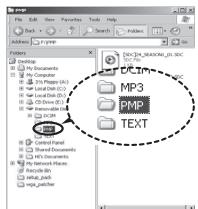
PMP Mode: [PMP]
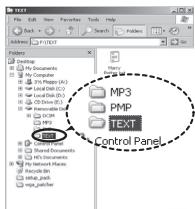
TEXT VIEWER mode: [TEXT]
- Select files that you want to save and copy them to the desired folder.

- Be aware of the illegal duplication of MP3 & multimedia files. It violates various copyright laws.
- Without permission of Samsung, you cannot copy, modify and/or distribute any part or all of MP3, PMP file provided in the internal memory.
- This camera can only play back MP3 files in the MP3 mode and SDC files (modified XviD MPEG4 video / MPEG Layer2 audio type) in the PMP mode.
- If a file can not be played back on this camera, convert it into the supported file format by using the Samsung Converter.
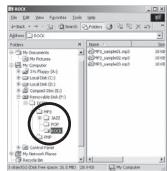
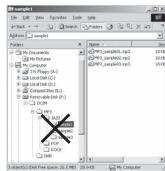
- Up to 200 files and 100 sub folders can be saved in a folder.
You can only save a total of 200 files and sub folders at one time. - New folders can be created within the MP3, PMP and TEXT folders. Otherwise any files in other folders that you create cannot be played back.
MULTIMEDIA mode
Insert the memory card that holds MP3, PMP and TEXT files. As this camera has a 40MB internal memory, you can save the files on the internal memory too.
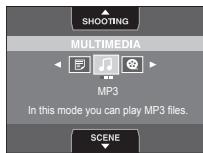
- Select a desired Multi media mode.
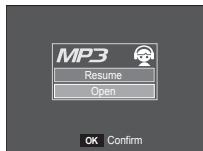
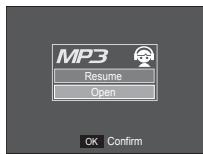
- A menu will display as shown.
[Resume] : Memorizes the latest stopped frame.
MP3 mode : Plays back from the beginning of the file.
PMP mode: Plays back from the latest stopped frame.
TEXT VIEWER mode : Plays back from the latest stopped frame.
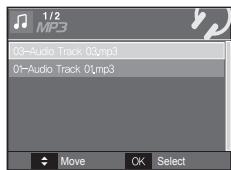
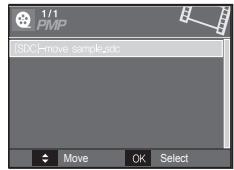
[Open] : The browsing menu will be displayed to select a desired file.
- Select a desired file and press the OK button. The file will then be played back.
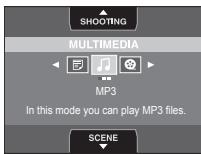
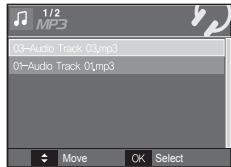

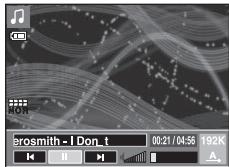
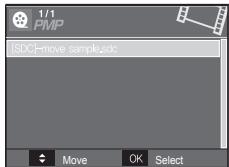

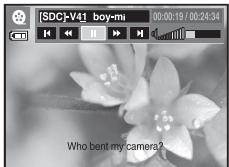
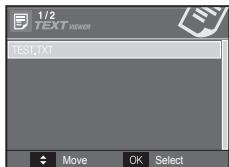

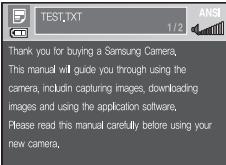
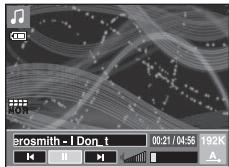
The LCD monitor displays information about the MP3, multimedia and Text file.
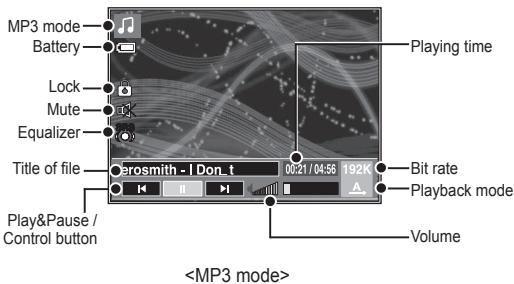
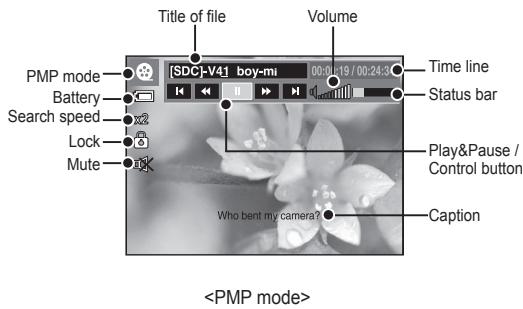
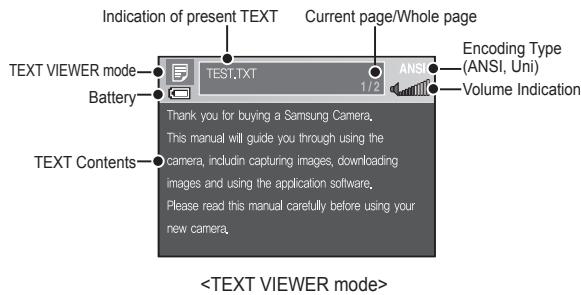
※ Encoding Type: ANSI (American National Standards Institute) Type, Uni (Unicode) Type
- When the ANSI encoding type is displayed:
- You should set the Language of the TEXT VIEWER menu to view the text.
- Set the Language menu as one that is the same as the Operating System language that the text was created.
- When the UNI encoding type is displayed: The text file will be displayed with any language menu.
※ If the text file size is over 10MB, it may take a long time or even be impossible to view the text file. In this case, please divide the text file.
Downloading images
| For Windows | For Macintosh |
| PC with processor better than Pentium II 450MHz(Pentium II 800MHz recommended)※ Samsung ConverterPC with processor better than Pentium 500MHz(Pentium IV recommended) | Power Mac G3 or later |
| Windows 98SE / 2000 / ME / XP/ Vista※ Samsung ConverterWindows 2000 or later recommended | Mac OS 10.1 ~ 10.4 |
| Minimum 128MB RAM(Over 512MB recommended)200MB of available hard disk space(Over 1GB recommend) | Minimum 256MB RAM110MB of available hard-disk space |
| USB port | USB port |
| CD-ROM drive | CD-ROM drive |
| 1024x768 pixels, 16bit color displaycompatible monitor(24bit color display recommended)Microsoft DirectX 9.0 or later | MPlayer (For movie clip) |
PC connection mode
- Install the supplied Software.

- Download the images
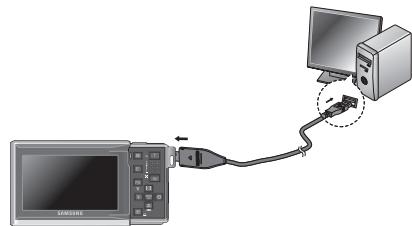
- Connect the camera and Computer with supplied USB cable and download the image on your computer to save them.
Specifications
Image Sensor - Type : 1/2.5" CCD
- Effective Pixel: Approx. 8.2 Mega-pixel
- Total Pixel : Approx. 8.3 Mega-pixel
Lens - Focal Length : Samsung Lens f = 6.3 ~ 18.9mm (35mm film equivalent : 38 ~ 114mm)
-F No.: F3.5(W) ~ F4.5(T)
- Digital Zoom : ·Still Image mode :1.0X ~ 5.0X
- Play mode : 1.0X ~ 10.2X (depends on image size)
LCD Monitor -3.0" Wide (16:9) color TFT LCD (230,000 pixel)
- Type : TTL auto focus (Multi AF, Center AF, Face Detection AF) - Range
| Normal | Macro | Super Macro | Auto Macro | |
| Wide | 80cm ~ Infinity | 5cm ~ 80cm | 1cm ~ 5cm | 5cm ~ Infinity |
| Tele | 40cm ~ 80cm | - | 40cm ~ Infinity |
Shutter - Speed 1~1/2,000 sec. (Night: 16~1/2,000 sec.)
Exposure - Control: Program AE
- Metering : Multi, Spot, Center-Weighted, Face Detection
- Compensation: ±2EV (1/3EV steps)
- ISO : Auto, 50, 100, 200, 400, 800, 1600, 3200(Upto 3M)
| Flash | - Modes: Auto, Auto & Red-eye reduction, Fill-in flash, Slow sync, Flash off, Red-eye Fix - Range: Wide: 0.2m ~ 3.2m, Tele: 0.5m ~ 2.5m - Recharging Time: Approx. 4 sec |
| Sharpness | - Soft+, Soft, Normal, Vivid, Vivid+ |
| Color Effect | - Normal, B&W, Sepia, Red, Green, Blue, Negative, Custom Color |
| White Balance | - Auto, Daylight, Cloudy, Fluorescent_H, Fluorescent_L, Tungsten, Custom |
| Voice Recording | - Voice Recording (max. 10 hours) - Voice Memo in Still Image (max. 10 sec.) |
| Date Imprinting | - Date, Date & Time, Off (user selectable) |
| Shooting | - Still Image ·Mode: Auto, Program, DIS, FUN, Photo Help Guide, Scene ·Scene: Nightscene, Portrait, Children, Landscape, Close-up, Text, Sunset, Dawn, Backlight, Firework, Beach & Snow, Self Shot, Food, Café ·Shooting: Single, Continuous, AEB, Motion Capture ·Self-timer: 10 sec., 2 sec., Double, Motion Timer |
Specifications
| - Movie Clip ·With Audio (recording time : max 2 hours) ·Size : 800x592, 720x480, 640x480, 320x240 ·Optical Zoom with sound recording ·Frame rate : 30 fps, 20 fps, 15 fps (15/20 fps for 800x592, 720x480) (15/30 fps for 640x480, 320x240) ·Optical Zoom up to 3.0X ·Movie Editing (Embedded) : Pause during recording, Still Image Capture, Time Trimming | |||||
| Storage | - Media ·Internal memory : About 40MB flash memory ·External Memory (Optional): MMC card (Up to 2GB guaranteed) SD/SDHC card (Up to 4GB guaranteed, 4bit 20MHz) ※ Internal memory capacity is subject to change without prior notice. - File Format ·Still Image : JPEG (DCF), EXIF 2.2, DPOF 1.1, PictBridge 1.0 ·Movie Clip : AVI (MPEG-4) ·Audio : WAV - Image Size | ||||
| 8M | 7° | 6° | 5M | 3M | 1M |
| 3264x 2448 | 3264x 2176 | 3264x 1824 | 2592X 1944 | 2048X 1536 | 1024X 768 |
- Capacity (256 MB Size)
These figures are measured under Samsung standard conditions and may vary depending on shooting conditions and camera settings.
| 8# | 7# | 6# | 5# | 3# | 1# | |
| Super Fine | About 58 | About 66 | About 77 | About 91 | About 155 | About 355 |
| Fine | About 89 | About 100 | About 115 | About 133 | About 190 | About 414 |
| Normal | About 137 | About 150 | About 177 | About 198 | About 216 | About 452 |
| “E” Button | - Effect : Photo Style Selector (Normal, Soft, Vivid, Forest, Retro, Cool, Calm, Classic), Color, Image Adjust (Sharpness, Contrast, Saturation), Fun (Cartoon, Photo Frame, High Light, Composite,Color Mask) |
| - Editing : Image Edit (Resize, Rotate), Color, Image Adjust (ACB, Red Eye Fix, Brightness, Contrast, Saturation, Add Noise), Fun (Cartoon, Photo Frame, High Light, Composite, Sticker, Color Filter, Color Mask) | |
| Image Play | - Type : Single image, Thumbsails, Multi slide show※ Multi Slide show : Slide show with Effect & Music by folders |
| Multi function | - MP3, PMP, Text Viewer, Storage Driver, Voice Recorder |
Specifications
| Interface | - Digital output connector : USB 2.0 - Audio: Mono(Speaker), Stereo(Earphone) - Video output : NTSC, PAL (user selectable) - DC power input connector : 4.2V (20-pin connector) |
| Power Source | - Rechargeable battery : SLB-1137D (1100mAh) - Adaptor : SAC-47, SUC-C3 (20pin) ※ Included battery may vary depending on sale region. |
| Dimensions (WxHxD) | - 90 X 62 X 21.6mm (excluding protrusions) |
| Weight | - Approx. 157g (without batteries and card) |
| Operating Temperature | - 0 ~ 40°C |
| Operating Humidity | - 5 ~ 85% |
| Software | - Samsung Master, Samsung Converter, Adobe Reader |
| ※ MP3 Specification | |
| Audio | - Frequency: 20Hz ~ 20KHz - Earphone Port: 20Pin Port (Stereo Type) - Output: Maximum Volume Left 40mW + Right 40mW (16Ω) - Noise Ratio: 80 dB |
| File | - File Format: MP3 (MPEG-1/2/2.5 Layer 3) - Bit Rate: 48 ~ 320kbps (Including VBR) |
| Sound Effect | - SRS, Normal, Classic, Dance, Jazz, Live, Rock |
| Play Mode | - All, Repeat One, Repeat All, Shuffle - Skipping in Play, Auto Skipping - Slide Show On/Off (User Selectable) - MP3&Capturing (Capturing Mode is Auto Default, 3M) - Remember last played file - Background skin of MP3 playback using user images |
| ※ PMP Specification | |
| PMP Decoder | - Movie: Xvid MPEG4 (Using Samsung Converter S/W) - Audio: MPEG Layer 2 (Samsung Convert S/W) |
| Play Mode | - Fast Forward/Rewind(Max 32x) - Seeking in Play, Skipping in Play - Auto skipping after one file played - Remember last played frame - Support Full Screen in Converting S/W |
| Subtitle | - Support SMI file (Using Samsung Converter S/W) |
Specifications
Text Specification
| File | - TXT extension name, up to 99999 pages |
| File format | - Window: ANSI (Windows 98 or later), Unicode /Unicode (Big-Endian) / UTF-8 (Windows 2000/XP) - Mac: ANSI, Unicode (UTF-16) |
| Function | - Auto Scroll (0.8 sec ~ 2.3 sec) - Skipping by 1 page / 10 pages - Auto reload function (Remember last page) - Support MP3 BGM during displaying text file |
| Language | - English, Korean, French, German, Spanish, Italian, Chinese, Taiwanese, Japanese, Russian, Portuguese, Dutch, Danish, Swedish, Finnish, Bahasa, Polish, Hungarian, Czech, Turkish. ※ Supportable language is subject to change without prior notice. |
※ Specifications are subject to change without prior notice.
※All trademarks are the property of their respective owners.
Correct Disposal of This Product

Correct Disposal of This Product (Waste Electrical & Electronic Equipment)
(Applicable in the European Union and other European countries with separate collection systems) This marking
shown on the product or its literature, indicates that it should
not be disposed with other household waste at the end of its working life. To prevent possible harm to the environment or human health from uncontrolled waste disposal, please separate this from other types of waste and recycle it responsibly to promote the sustainable re-use of material resources. Household users should contact either the retailer where they purchased this product, or their local government office, for details of where and how they can take this item for environmentally safe recycling. Business users should contact their supplier and check the terms and conditions of the purchase contract. This product should not be mixed with other commercial waste for disposal.

eco
RoHS compliant
Samsung Techwin cares for the environment at all product manufacturing stages to preserve the environment, and is taking a number of steps to provide customers with more environment-friendly products. The Eco mark represents Samsung Techwin's will to create environment-friendly products, and indicates that the product satisfies the EU RoHS Directive.
MEMO
Inhalt
Before inserting any cables or AC adapter, check the directions and do not insert by force. It may cause breakage of cable or camera.
It is highly likely to result in computer malfunctions when the 20 pin connector is connected to the USB port of a PC. Never connect the 20 pin connector to USB port of a PC.


Pile rechargeable (SLB-1137D)
To use MP3, PMP and TEXT VIEWER functions, MP3, PMP (multimedia files) and TEXT files must be saved in the internal memory or memory card of this camera.
| 8" | 7" | 6" | 5" | 3" | 1" | |
| OTTIMA | circa 58 | circa 66 | circa 77 | circa 91 | circa 155 | circa 355 |
| BUONA | circa 89 | circa 100 | circa 115 | circa 133 | circa 190 | circa 414 |
| NORMALE | circa 137 | circa 150 | circa 177 | circa 198 | circa 216 | circa 452 |
Thank you for buying a Samsung Camera. This manual will guide you through using the camera, including capturing images, downloading images and using the application software. Please read this manual carefully before using your new camera.
Preehravani/Mazanisnimumku 10
Režim MULTIMÉDIA 11
Staženi snímku 14
Technicke udaje 15
Thank you for buying a Samsung Camera.
This manual will guide you through using the
camera, includin capturing images, downloading
images and using the application software,
Please read this manual carefully before using your
new camera,
| 8M | 7M | 6M | 5M | 3M | 1M | |
| VELMI JEMNÁ | Asi 58 | Asi 66 | Asi 77 | Asi 91 | Asi 155 | Asi 355 |
| JEMNÁ | Asi 89 | Asi 100 | Asi 115 | Asi 133 | Asi 190 | Asi 414 |
| NORMÁLNI | Asi 137 | Asi 150 | Asi 177 | Asi 198 | Asi 216 | Asi 452 |
MOVIE CLIP (FILMOVY KLIP)
SRS(●) TbproBcKa Mapka Ha SRS Labs, Inc. TexholornaTOW HD ce n3no3Ba no Imuen3 Ha SRS Labs, Inc.
3aNo3HaBaHe c foToanapaTa
ONACHOCT!
TekctbT "OPANCHOCT!"npedynpeKdaba 3a pnckoBa cnTuaynca, KOToA, aKe he bSe de OcTpae HauoMeJaDa oBeDe Do cMbPT, cepno3Hn HapahBaanHnn NIn NobPeDn.

He ce onitbaiye da moiHnPhiuipate To3n foToanapat no HNKakBb NauHn. AkoTo Hanpabite, MoKeJa de pnuHnHITE noJap, eNEKTPeCKN yUAP, da ce hapAInane, KAKTO andepno3HO da nobpeDte foToanapata. TexHnueckNte pnerEnei, noOpdbjKkata n nonpaBHTe TpR6Ba da ne3hBpuAT camo ot BauWra Tpbrobeu nIIN oTcHbpa 3a oc6cnyKBaute 3a foToanapata h Samsir.

He 3aIbAHTe C TeHocT I He NOCTABYte Dpyn npEdmTe
BbB foTOAnapata. H3KIOHcTe FOToANapata, CleD KOETo
N3BaTe 3axpaHbAunia KabeN OKTKaTa. TpRbBa da ce
CcbPxete C Baws N TBProBeu IN c CEHTpb a 3a o6CnykBahe
3a FoTOanapatNa H Samsung. He npOblKnabaiTe da
n3No3Bate FOToAnapata, Tb KaTO ToBA Moke da DoBede
do Noxapn INI eLEKTPnueckn UdAp.

He n3noJ3BaiTe To3n IpoDyKr B 6nI3OCT Do leChO3aNaJIIM NIn EcKnI03NBH BeueCTBa, Tb KaTO TOBA MOKe DA DOBeDE Do PNCK OT EcKnO3INa.

He noctabYte He nyckaTe MeTaJIHn HInI leCHO3aANIMB bHuNHn PJeDMeN T BoUKHTe Ha ODCtbn Ha FOtoAnapata (HaNPmEp, B rHe3dOTo 3a KaPc C nAmet NnI rHe3dOTo 3a BaTepeR).TOBa MoKe Da pniuHn NoXap Nn EneKtpueeCKn yApd.

He do kocbaite foToanapata c mokpn pue. Toba moKe da doBeJe do eNeKtpnueckn ydp.
PPEyIPPEXDEHNEI
TeKCTbT "PPEdYpPEXJDEHNE!" pEeDypeXdaba 3a pCKOba CNTyaun, KOtO, aKe H Je6 de OTCpaHaHe, MoKe da DoBede do Cmbpt, cepo3nH npaaHbAHHnn Nn NobpeDi.

He n3no13BaIte CBeTKaBuaTa B npKa 6In3oCT Do xopa HIN JXIBOTHNI. NocTABHETO HA CBeTKaBuaTa TBbpe 6bn3O do OUnHTe HcIMAHNIO oEKT MOKe Da DOBeNe do yBpexKaDaHe Ha 3peHMeTO.

Ot cboobpaeHme 3a cnpyhOCT naTe To3n pOdykT nAkeceCaoPte My daeJe O deLa nn JN KJBOTNH, 3a da npedOTBpATITMe HekEnaHn HnUdEHTn, HnPIMeP:
-Погьшане На Бateгеля Или Дуг Малък Akcecoap на Фтолара.TА.АКВьзИнКЕЗлОпУКа, He3a6abHо СКонСУТипайтсЕ КЕР.
-IMa OnaCHOCT O T HapaHbAbe NT OIOBnXhNtte ChaHa foTOAnapata.

BaTepyaI n foToanapatbT MoKe Da ce 3arpeT npn noPnoBjLnxIeHa yNoTpe6a, a ToBa MoKe Da DoBede doHnePabHOCT ha FoToanapata. Ako ToBa Ce cnuyn, He paOboTe c foToanapata BpoDjNxEHe Ha NkOKnMOHyTu, 3a da MoKe ToJ Da N3CTInHe.

He octabraye foToanapata Ha MeCTa C MHOrO BnCOKa TEmpepatyka KATO 3aTboPeHO NpeBO3HO CpEcdTO, Ha DnPEKTHa CbHueBa CBETInHa Nn DpyrN MeCTa C BnCOKn TEmpepatyn Hp4nIKu. N3laRaHcHo Tn BnCOKn TEmpepatyn MoKe da 3aceRHe BvTpeWHTe KOMNoHeHTn Ha FoToanapata N da npuHHn Noxap.

Ipn ynotpe6a, He nokpmbaiTe foToanapata nn 3aepnHOYCTPOJCTBO.Taka KOPNcBt Ha foTOanapata Moke da Ce HArOpeseu N da Ce n3KpNBn IIN da npednBaKnaNoxapar. NnOn3NBAte foTOanaparu Akcecoapnte My camo Ha do6pe npobertpehi Mecta.
3an03HabaHe c foToanapaTa
BHIMAHHE!
Tekctb "BHMHAHNE!" npedynpexdaba 3a pnckoBa cmtyaunia, KOrTo, aKe h6bde OTCpaHeHa, MoKe da oBoDe IO MaKn iJnI rOJIeMn NOBpeDi IIN HAparBAHnA.

N3baxdaIte 6ateprrta, ako ftoanapaTt Hma da ce n3no13ba 3a npdoIbIXKIIeHEnpe npOIO T@Pme. B npOTnBEH cnyai ot bateprta moke da n3Teue Kopo3BHeEneKETPOnIT n TOBA nOBpeDn TpaHIO KOMNOHEHTNE Ha fTOAnapata.

I3tuaheTo, npeprbaHeto nIIN nobpejdaHeto Ha 6atepma Moke da doBeJe Do noKap, hapaHbaHe nIIN nobpeJa.
- I-NsIOn3BaIte 6atepe,OTroBaPauHa Na CneuΦnKaunnte 3a foToanapara.
- He cbeinnaBaeThe NaBcO,HarpaBae The He n3laarAte 6bepnraTa Ha oBh.
- He noctabaTe 6aTeepnTa c 0bphat nonpntet.

FopMatnpaIte KapTata C nAmT, aKO I3nOJI3BaTe HOBa Takaba 3a IIbpyn PbT, aKO KapTata CbIbPka DAHNH, KOIT0 FOtoAnaparbT He MOe Da pa3No3Ae, INI AKO CbIbPka CHMKN, HanpabeHn C dpyr FOtoanpat.

He n3non3BaIte CBeTkAunuata, DOKaTO E B KOHTAKC pBue nnn PnpdmTe. He DokocBaIte CBeTkAunuataCTneD npOdbPnKtJenHO n3nON3BaHoe. Moede a npUnHHN 3r4arHnA.

He DOKOSBAITE O6EKTIBNA IIN KANAKA Ha 06EKTINBA, 3a Da IpeoTBPaTNE 3aChEMaHETo Ha p3aMa3AHN CHMKNI H BPOETNI NPO6bEMn C foTOanapata.

Ako n3no3BaTe npomeHnBOTOKO 3aprAno yCTpoiCTBO, He npemeCTBaTe FOATOAPATA,doKato e BkIIOUeH B yCTPOiCTBO. CneyIOTpe6a BnHaruN3KnIOUbaTe FOATOAPATA, npEe Da I3BaIante Ka6eMa ot enekTpueeckn KONTAKT. CneD Koeto Ce yBepete,ue npEe NpEmeCTBaHa He FOToaIapATA BCNUKu Ka6eNt 3a DpyTu nycTPOCTBa Ca I3BaDeHn OI Hero.Ako He ro HnpaBnTE, MOKe da NoPBePeNTe Ka6eNtte N da npEeN3BnuKate Toxkap uIN enekTpueeckn U yapd.

Ako octabnte kpeintha Kapta 6n3no Do kaIb7a 3a foToanapata, KaptaTAt MOnke Da ce pa3MaHHTN. He octabnte MaHHTNt KaPTo 6n3no Do kaIb7a.

He noctabrayte KapTaTc n amet Osbphata.

Ipein da BkIouHite Ka6eI nn IpomEnIbOTOKOB aadTep, npOEBaBte Nocokite My n He ro noCTabRyTe cbc cna.Taka Ka6eBt nn fOtoanapatbT Moxe da ce nobPei. MHoro BeporTHo e HnpeBaNIO hYHKUOnHpaHe Na KOMNtbpRa pnp CBp3BaHe Ha KOHEKTopa C 20 n3bOda KbM KomNtbpEh USB nopT. HnKora He cbp3BaIte KOHEKTopa C 20 n3bOda KbM KomNtbpEh USB nopT.

Pnepa Baxho Cbntne Hnn nTbYBaHe 3aBnKTeHno npOBepaBte CbctOHa He foToanapata. Samsung he Hocn OTROBOPHOCTa Heu3npAbaCTc c foTOAnapata.
IeHTnΦHKaunHaΦyHKunTe / CbIbpxKaHne Ha foToanapaTa
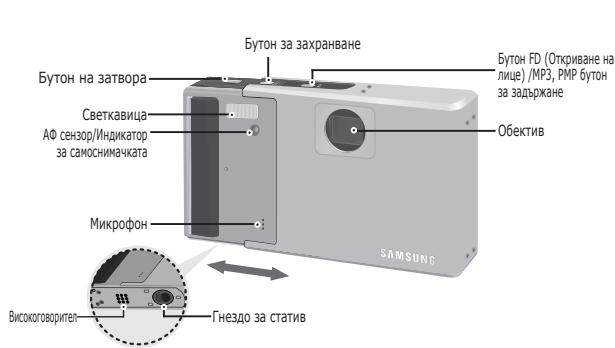
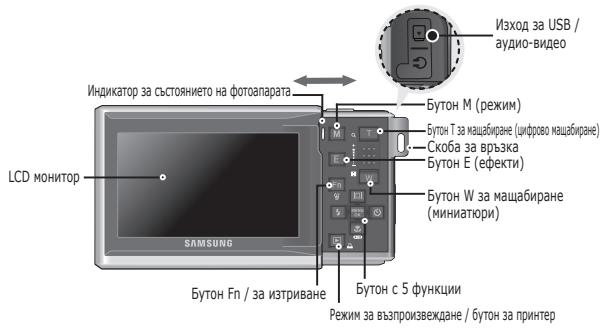
BkIIOUeHEn eMeHTn
ΦoToaIapaT

Akymynatopha 6aTepeyra (SLB-1137D)
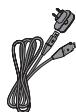
Посемпиновотоков Адтэн (SAC-47)/USB kbase6 (SUC-C3)

Kaeben 3a ayduo-BVdeo

Bpb3ka 3a photoanapata

CnyuzaJIKN
Дьнгелпсйн elememntn:

SD/SDHC/ MMC Kapra c namet

KanbФЗафοτanapara
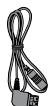
KoheKTopc20n3Bovda

PbKo8OCTBO 3a notpe6ntenra, raparunna 3a npodkyta

KomnakTdNcK cbc coTyepa
們 Ipei Da n3noI3BaTe To3n npOyKT, npOBepe TaIu pa3noIarate C npaBnHToC bDpKaHne BkyTna. CbDpKaHneTO BkyTna MoKe da Bapnpa B 3aBcIMoCT OT TbproBcKna PerHO. 3a 3akynBaHe NaOnbInHteHNO o6OpyDbAbe Ce CbpxKeTe C hai-6n3Kna TbproBeHa Samsung nIc cIeHTbp 3a 06cnykBaHe Ha Samsung.
XNBOT Ha 6aTepeyra n 6pOJ cHmKn (ocTaBaIo BpeMe 3a 3aNtC)
БpochIMKInJXnBOTHa6aTePnTa: npu n3NoI3BaHe Ha SLB-1137D
| ЖИВОТ HA 6ATERЯТА/ бpoй симмкп | УСLOВИА | ||
| Статчна симмka | Приблзително 160 мин./ Проблзително 320 симмк | При ИЗПОЛЗВАЕ на HaNBЛно 3apeDEа 6aterя, в АВТOMATUЧЕРжIM, 8 МergампесILA размер на симмКITE, Добpo качев STO на симмКITE, INTEРВал mexdny симаньда: 30 cek. Прмяна HA пONSИЗТА на MaцAZБИРANЕ мeжду широ и{TeLEФОТ MauZaBIPANе след BСЮД ЗАСHMеА. ИзрOLЗВАЕ HA CBETKABUÇA附а рpr BCASKO BTOPO 3aCHMeА. ИзрOLЗВАЕ на Фотоanapata 3a 5 MINHTI, след КОЕТ N3KЛQUCHВАе 3a 1 MINHTA. | |
| ФИЛМ | Приблзително 160 мин. | ИЗПОЛЗВАЕ на HaNBЛно 3apeDEа 6aterя рpr рazмер на симмКITE 640 x 480 NIKCEla n COKOpST ha KaDPNTe 30 Кад./сек. | |
| Мулиmedиа | MP3 | Приблзително 400 мин. | При ИЗПОЛЗВАЕ на HaNBЛно 3apeDEа сaterяи ИзКЛIOЧЕN LCD MOHITOP. |
| PMP | Приблзително 380 мин. | При ИЗПОЛЗВАЕ на HaNBЛно 3apeDEа сaterяи ИзКЛIOCH 3apeDEа сaterя | |
※Teu cnpa c b6pa3eHn CbC CTaHapTHe YcNoBna Ha Samsung u c ycNoBnaTa Ha cHmHa, KaTo MoKe da BapnPaT B 3aBncMocT OT HaunHa Ha n3noJ3BaHe OT Notpe6nteJia.
Ipiu n3noJIbaHe Ha MMC KapTa c 256 M5 NaMeT, yKa3aHnT KanaUHT He CHIMaHe ige bJe kAKTo CneDbA. Te3n UePn Ca np6In3NeHH, Tb KaTO KANAUITeBtHa CHMKNITEMOE Da Bapnpa B3ABNCIMOC T O p3JNUH N fakTopu (KATO HApnPmep o6eKaTa Ha CHIMaHe n TINa HA KapTaTc C NaMeT).
| Размер на засhevпITE симмк | Super Fine (Много мальк) | Fine (Мальк) | Normal (Норmaлен) | 30FPS (30 кад./сек.) | 20FPS (20 кад./сек.) | 15FPS (15 кад./сек.) | |
| Статчна симмka | 8+ | Okono 58 | Okono 89 | Okono 137 | - | - | - |
| 7+ | Okono 66 | Okono 100 | Okono 150 | - | - | - | |
| 6+ | Okono 77 | Okono 115 | Okono 177 | - | - | - | |
| 5+ | Okono 91 | Okono 133 | Okono 198 | - | - | - | |
| 3+ | Okono 155 | Okono 190 | Okono 216 | - | - | - | |
| 7+ | Okono 355 | Okono 414 | Okono 452 | - | - | - | |
| *Видаеокліп | 800 | - | - | - | - | Okono 10'53" | Okono 12'00" |
| 720 | - | - | - | - | Okono 11'41" | Okono 12'58" | |
| 640 | - | - | - | Okono 11'23" | - | Okono 17'47" | |
| 320 | - | - | - | Okono 38'51" | - | Okono 01:07'31" | |
※ ByToHnTe 3a MaIa6bIpaHe Ha MoKe Za ca NeIIOJI3BaT PnI 3aChMaHe Ha BInDeOeklnn. BpeMeTo 3a 3aChMaHe Bapipa Cnpoe Maua6bIpaHeto.
I3noJ3BaHe Ha foToanapaTa 3a nbpBn nbT
PROGRAM (ПИОГРAMИPAHE)
I36b0tHa pexmHa 3a nporgpmahe Ie KOHnpynpa CTOAnMaHnHe NaCTpoKn. MoKeTe pbHDo KaOHnpynpate BCNUKu fynHKc cNkHoueHne H anepTpHaTc TOnHoCT n CKOPOCTTa Ha 3aTbOpa.

MOVIE CLIP (BnDEOKJIIN)
Moxete da 3aCheme TE Bndeoklin C taKaBa a npOdbJNkTIeHOCCT, KaKBATO N03BOLra BA OCTaBaIoTO BpeMe 3a 3aInc.

DIS
To3n pexkIm hAmalBa efeKta OT trpTeHe ha foToanapata n NOMara npn noJyabaHeto Ha no- rCHN CHMKN B He6NaIornpaTHn ycIOBna.
SCENE
SCENE (CLUEHA)
M3noJI3BaIte MeHIOTo 3a JecHO KOHfNpynpaHe Ha ONTImaJIHnTe HAcTPOIKn Pn3aChemaHe Ha pa3JIuHn CITyauIN.

FUN
BTO3npeKIMMOKTe Da npaBNTe PPOCTO NJIeCHO CHIMKNCpa3NIHNe eFeKTN.
MULTIMEDIA
MULTIMEDIA(MyNTIMEDNIA)
To3n foTOanapat p3nOJana c BrpaJeH npENoCm
MynTImMeDHeN PJIeIbP, MP3 PJIeIbP nIporpama 3a
nprrLeXJaHa Ha TeKToBe. MoKTe Da zAcHEMaTe CHIMKn,
da CnyuTaPe MP3 FaiNoBe I da TneDaTe BNeOKeINNoBe
BInHar, KOrto NoKeJaTe. MoKTe EeNOBpeMeHNo Da
cnyuTaPe MP3 My3KnAIIHa FaiNoBe I da Yetete TEKT Ha
LCD MOHITopA INI da ZAcHEMaTe CHIMKn.
3aChemaHe Ha CHIMKa
Kak ce 3achema CHIMka
- BkIIOUeTe foToanapata n 36peTe peKIMa, KaTO n3noJ3BaTe 6yToHa 3a peKIM M.
2.ДьжTe ФоToanapapa,TakTo e nokaHaO.
3.ПOTврдЕТКOMПОЗИЦИЯТА.
4.3aChemaHa CHIMka
HattnckKaHe HanoNobuHa HandoIy IpoBepka Ha CbCToRHaMeTo HA FOOKYCINaHETO H CBETKABUdTa.
HaTtCKaHe DOKpaH 3aChemaHe Ha CHMkA
Kak ce 3aChema Bndeoklin
I36epete pexima 3a BnEoekln, kato n3noL3BaTe 6yToHa M (Pexmm).
1.ПOTврдeteKOMПОЗИЦЯТа.
- CstaptnaIte 3aChemaHETO. HataCTbOpa, 3a da cTAPtnaTe 3aChemaHETO, HataCTeTo IOBTOPO, 3a da IpeyCTaHOBITE 3aChemaHETO.
Bb3npo3Bexkahe / N3tpnbaHe Ha cHmKn
Bb3Pon3BekdaHe Na CHIMKInTe
- Ie ce nokaxe nocneHaTa cbxpaheNa B nametTa cHmKa.
HaTnCHeTe 6yToHa 3a Bb3PpOn3BExKahe (回).
I36epeTe keJanaHaTa 3a Bb3POn3BExJaHe cHIMKa, KaTO I3No3BaTe 6yToHa 3a HaJIaBO/ HADrCHO.
※Pbueh pexnHa HATNCKaHTo Ha 6yToHa 3apexnMa HbB3pOINBExJaHe 3a NOBeYeOT 3 cekynn N3KlIOUBa HAcTPOKnTe Ha 3ByKOBnCnHnI CnHnA npi CTaptnpaHe DOpn AKO Te Ca BkJIooHeH.
I3tpBaHeHaCHIMKNTe
- C To3n 6ytoH MoKTe Da n3tpuBaTe CBxpaHeHne B KaptTa C nAmet ChmMkn.
1.Изберетежеланараза3иЗТрИВаЧСМКа,кATOиЗПОЛБаTE6уToHA3aHaHЯBO/HaДяСНо,CпEDкоЕТоHaTCHETe6уTOHA3aИЗТрИВаGE()。
[Single Image] (Erdha cHIMKa)
[Thumbnail Image] (Mннаюра)
- 3a Do6abABye Ha CHMkn 3a N3TpInBaHe HATINCHETe 6yToHa T.
-БутонзанlaBO/HaЯCHO: n3bupaHe Na ChmKn
-БутонТ:провера заизтувае
-Бутон OK :иЗбразни Te ChИМКи Ze ce n3TpmaT
3.ИЗберете селемпгдпг ДОПМЕНЮТ,КАТОИЗПОЛБАТБуTOHA 3aHaROpe/HaDOJLY,CLEДKOETOHATINCHETe6yToHOK
- Акоизбере Te onцят a [No] (He) : n3tpnbaeTo ha
CHIMKata 1ue Ce OTMeHn.
-Ako n36epete onueta [Yes] (Дa): n36paHnTe cHmKn ige ce n3TPnT.
To3n foTOanapat pa3nolara c Bpaaden HpeHocm MuyTImeDneH neBp, MP3 nIeBp nporpama 3a npereJekdahe Ha teKCTObe. MoXete da zachemate ChMMKn, da cnlyate MP3 faInoBe n da rneadedte BIndeoklnIOBE BinHar, KOrato noKeJaete. 3a da n3noL3BaTe pexkma PMP, Tpr6ba da KOHNbTePnate CbOTBeTHN MaYTImeDneH fainC npinoXeHHeTo Samsung Converter. B pexkma 3a npereJeHa teKCT moXete da npereJeDate JcElaHra TeKT Ha LCD MOHITopa n da cnlyatae My3kAkeH eai n B MP3 fOpmat.
- Ako IMeTo Ha faIHa IINI pNkTa e HAd 120 3nKa (BKnIOHTeHNO 1- INI 2-6aTobN e3nI KAto KopeiCKN, KITAIckN iDp.), IMeTo Ha faiJa IINI pNkTa HMa Da Ce nOKa3Ba B CnncbKa 3a Bb3PON3BexDaHe.
U3TeTgIaHnHaФaIIOBe
3aДИЗПОЛБАТЕФУHKUПЕТЯВБЗПОПЗВЕЖДАнеHA MP3,PMP (MЛТIMЕДИНи)файLOBEизпргл徳HA TEKCT,CbOTBETHITe ФайLOBEТРЯбBAДСаЗдИСаньВВВВТpeSHATA NaMet ИлиΚAPТATA C NaMeT HA TO3N ФTOAnapat.
- 3aannneTe JeJaanHe TaJIIOBe Ha KOMNIObP.
- Cbpxte foToanapata KbM KOMNIObpa c NMOoTa Ha USB KaBeLa n BkIIOHe foToanapata.
- OToBopeTe Windows Explorer n noTbpcTe 3a npHeocm Dnck.
- Hanpabete nanka pod ta3n Ha Cmehyemmy dNCK.
MP3 pexm:[MP3]
PMP pexkm: [PMP]
Pexim 3a nprrnna TKeCT [TEXT] (TeKT)
5.Изберетефайоветe,конт поckeadingа залшete,слд КотгКонираiteВжеланatura nanka.

IoprrnkeTe ce Ha ne Dy6nnpate Heaakohno MP3 m MyTmEniHnTe faJInObe. TaKa MoKe Da HApUWte 3aKOHnTe 3a ABTOPKn npaba.
He ce no3b0laBa konipaHe, modnphiupaHe n/nn pa3npoctpaHHe Ha cactn nn ci en MP3 u PMP fainobe, npedoctabeHH BbB bTpewHaTa naMeT 6e3 pa3peWeHHe Na Samsung.
- To3n foToanapat MoKe da Ba3npo3BexJa MP3 paIIObe cMoB MP3 peKIma, KaKTo n SDC paIIObe (MoDnPhiuPAnH BIneOcpaIIObe XviD MPEG4/MPEG Layer2 ot ayDnOTin) B PMP peKIm.
Ako JdAne Hn MeOKe Da Ce Bb3npOnB3eNe Ha To3nФoToanapat, KOhBePtnaPeTc AoiBa NpOdbPxah FopMaT, Kato I3NoJ3Bate npInOxoHeNTo Samsung Converter
BДадена пanka може да се заисbatdo 200 phaila n 100 podanpkn. Иma оранчehня за endobpemenen zannc ha do obso 200 phaila n podanpkn.
B nankhe MP3, PMP n TEXT MORAT da 6bDat cb3daBAHN HOBn nankn. Bcunny dpyrn faainoe 3aiancaHn Bdpyrn nankn Hma da morat da ce B3bnpOn3BeKdAaT.

PexnHa MyltnMeia
IIOCTABETe KAPTATA C nameT, cBbIpxaJMa MP3, PMP IN TEKCTOBN Φainlobe. T'k KaTo toOnc foAnopanapat pAnonla r 40 M5 BbTpseHn aNameT, moXete da 3aannet e fainoBe n H neh.
1.ИЗберетежелань ржим наMuNTIMEDIN.
2. Ha monHToPA ige ce noRbMHeHO, KaKTo e noka3aHo.
[Resume] (Bb360HOBaBAHe): 3anaMoTeBaHa Ha nocIeNo cnpEnHa KaIbP.
MP3 pekm: Bb3npoun3Bexdane OTHaayaloto Ha faIna.
PMP pexnM: B3npoN3BvEaJHe OTo nocJeHNo cnpenHa KaIbP.
Pexim 3a npereHn TaKCT: Bb3pon3BwDahe O T noCleJn4 CNpRn KaDbT.
[Open] (OTbapnHe): Ⅲe ce otBorOpmMeHIO 3a nperrIeD, 3a daN36peTe XeJAHNAФIaI.
3.ИЗберетежеланьфайинатис悔6утонаOK.Cлд коетофайптше сБвзпронзvepe.


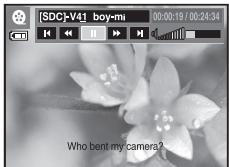
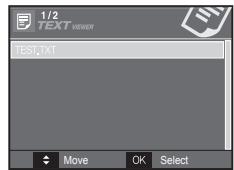

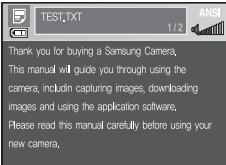
LCD MoHITOpbT nok3Ba HnHOpMaunr 3a CbOTBeTHnTe MP3, MyIImMeDneH IN TeKCTOBn FauNoB.
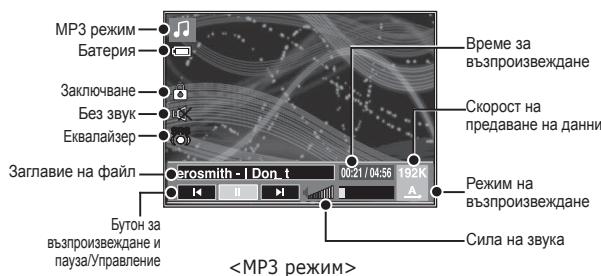
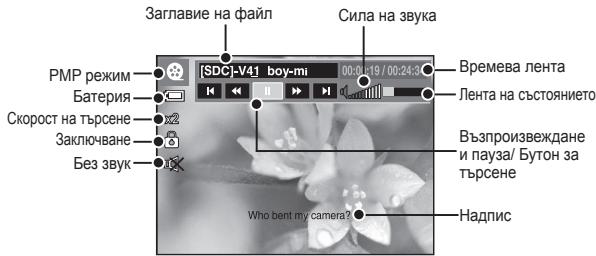
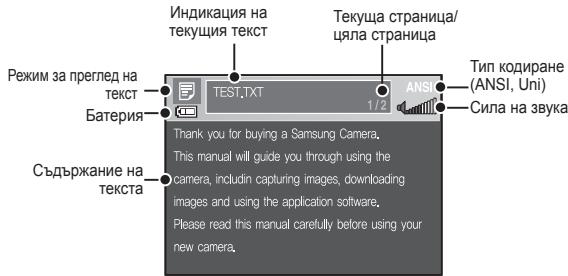
※Ttн kOДиранe:ANSI TtN (American National Standards Institute;AmepNKaHcKN INCTHTyT 3a HauNoHaJIHn CTahdApTn),Uni TtN (Unicode)
-Пи noka3BaHe h ANSI Tuna h KoDIPAhe: Tp86Ba Да 3aДaTe e3nka 3a MeHOTO 3a IperJIeH a TEKCT, 3a Да можete Да pnerIeJaTe TEKCTA. 3aДaIte MeHOTO 3a e3NK Ha HactpoiKaTа, 3mON3BbAha 3a e3nka Ha OpeauNoHHa CTcEma, C KOTo eCb3dAeH TeKCTbT.
-Пи пokазане на UNI тиа на Кдранe:Ткстовrt сьлп ecе спokамго.TaHCTpoKaTaHaMeHOTOЗаE3NK.
※Ako pa3mepbT ha TekCTOBnI faai n e had 10 M6, e b3mOxHO da OTHEME NOBcE BVPe, 3a Da nprrneDate TcKTA INH N3o6Udo Da He MoKeTe Da ro nprrneDate. BTo3n Cnyauy e Hno6XoDMIO da TbpcNTe np6bMeBA KOMNIObTa.
I3TeTJIaHe Ha cHmKn
| 3a Windows: | 3a Macintosh: |
| Комп��ър с пожescop, по-добър от Pentium II 450 MXь (пpenорьчba ce Pentium II 800 MXь)※ Samsung ConverterКомп��ър с пожescop, по-добър от Pentium 500 MXь (пpenорьчba ce Pentium IV) | Power Mac G3 ялno不好意思 |
| Windows 98SE / 2000 / ME / XP/ Vista※ Samsung ConverterПpenорьчba ce сисемaWindows 2000 ялно по-новаВерсан | Mac OS 10.1 ~ 10.4 |
| Минимуm 128 МБ RAM яамет(npenорьчba ce над 512 МБ)200 MБ сбобдю дисковоюprooctpanctBO(npenорьчba ce над 1 ГБ) | Минимуm 256 MБ RAM яамет110 MБ сбобдю дисковоюprooctpanctBO |
| USB пот | USB пот |
| CD-ROM устroyостvo | CD-ROM устroyostvo |
| 1024 x 768 пьксяа, 16 битовсльва symteмцьеведимцьеведимцьеведимцьеведимцьеведимцьеведимцьеведимцьеведимцьеведимцьеведимцьеведимцьеведимцьеведимцьеведимцьеведимцьеведимцьеведимцьеведимцьеведимцьеведимцьевед trim | MPlayer (за видаекли�е) |
| DirectX 9.0 ял noу-nова Версан |
PexmHa Cbpb3BaHe KbM KOMHOTbp
1.Инсталпайт eprniloxeони cofoTyep.
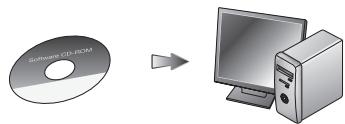
2.ИЗТЕЛЕТЕСHIMКИTE.
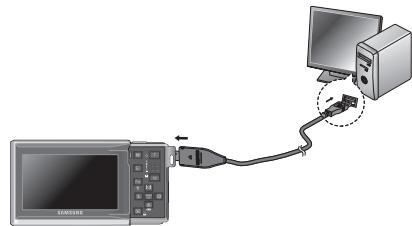
-Cbpxte foToanapata n KOMnIObpa c nOmoUta Ha npINOxKeHna USB ka6en, a CneT TOBA n3TeIeTe CHMkNTe HA KOMnIObpa, 3a da Tn 3aIIuWeTe.
Cneunphikaun
| Сенистору симлки - Тип : 1/2,5-инчов ССД -Еф ekтунho мелолзвани римкеля: приблизително 8,2 мeraликеля -Ообто пимкеля: приблизително 8,3 мeraликеля |
| Обektун - Фокуcho pastryн: SHD obektун f = 6,3 ~ 18,9 MM (35 MM Фли mob ekвьалент: 38 ~ 114 MM) -F №: F3,5(W) ~ F4,5(T) -Цфраво машабирaine: -Реким застучна симлka: 1,0x ~ 5,0x -Реким На виз四项基本原则: 1,0x ~ 10,2x (B.Завсимост.от.размера.на симлкая). |
| LCD MOHITOP | -3.0" Wide (16:9)-MHUOB ΒBETEH TFT LCD MOHITOP (230 000 TOOKH) |
| Φokucipanhe | -Tin:TTL auto focus (aBtOMaTHNO TTL φokycipanhe) Multi AF, Center AF, Face Detection AF (MHOxECTBO TOKH ha ΕH, ΕB vcentbpa, ΕH c OTKpmbaHe ha liune) |
| -06x8aT |
Please refer to the warranty that came with the product you purchased, or go to our website http://www.samsungcamera.com/ for after-sales service or inquiries.
Internet address - http ://www.samsungcamera.com

The CE Mark is a Directive conformity mark of the European Community (EC)
AD68-02908A