
MiniTrack 4K Pro - Video Conferencing System HuddleCamHD - Free user manual and instructions
Find the device manual for free MiniTrack 4K Pro HuddleCamHD in PDF.


| Product Type | Video Conferencing PTZ Camera |
| Model | MiniTrack 4K Pro |
| Brand | HuddleCamHD |
| Video Resolution | 4K Ultra HD (3840x2160) |
| Optical Zoom | 12x |
| Field of View | 72.5° (horizontal) |
| Sensor Type | 1/2.5" CMOS |
| Video Outputs | HDMI, USB 3.0, IP (RTSP/RTMP) |
| Audio Support | Built-in microphone array |
| Pan/Tilt Range | Pan: ±170°, Tilt: -30° to +90° |
| Dimensions (W x H x D) | 210 x 140 x 145 mm |
| Weight | 1.5 kg (3.3 lbs) |
| Power Supply | 12V DC, 2A (included adapter) |
| Power Consumption | 12W (max) |
| Mounting Options | Desktop, tripod, or ceiling mount |
| Control Interfaces | IR remote, USB, RS-232, IP |
| Main Functions | Auto framing, preset positions, motion tracking |
| Care and Cleaning | Wipe lens with soft cloth; avoid harsh chemicals. |
| Safety Warnings | Do not expose to moisture; use mount-rated hardware. |
| Spare Parts and Repairability | Contact HuddleCamHD for replacement parts; not user-serviceable. |
| General Information | Compatible with Zoom, Teams, Skype, etc. |
Frequently Asked Questions - MiniTrack 4K Pro HuddleCamHD
User questions about MiniTrack 4K Pro HuddleCamHD
0 question about this device. Answer the ones you know or ask your own.
Ask a new question about this device
Download the instructions for your Video Conferencing System in PDF format for free! Find your manual MiniTrack 4K Pro - HuddleCamHD and take your electronic device back in hand. On this page are published all the documents necessary for the use of your device. MiniTrack 4K Pro by HuddleCamHD.
USER MANUAL MiniTrack 4K Pro HuddleCamHD
natural_image
Abstract icon of three stylized human figures seated at a table, no text or symbols presentHuddleCamHD™
MiniTrack 4K Pro

natural_image
Black HuddleCamHD 4K remote device with camera lens and control buttons (no readable text beyond branding)User Manual Model No. HC-MT-4KPRO V1.0 (English)
Please check huddlecamhd.com for the most up to date version of this document.

HuddleCamHD™
Table of Contents
Preface 3
Precautions 3
Warranty 4
Supplied Accessories 4
FCC Statement 4
Connection Guide 5
Dimensional Drawings (mm) 5
Features: 6
Technical Specifications 7
IR Remote Control....8
Maintenance and Troubleshooting 9
Camera Maintenance 9

HuddleCamHD™
Preface
Congratulations on receiving your new MiniTrack 4K Pro. This manual introduces the function, installation, and operation of the HD camera. Prior to installation and usage, please read the manual thoroughly.
Precautions
To avoid any damage to the unit, please take these precautions when using your MiniTrack 4K Pro.
- Please read this manual carefully before using the camera.
- Avoid damage from stress, violent vibration or liquid intrusion during transportation, storage or installation.
• Take care of the camera during installation to prevent damage to the camera case, ports, or lens. - Do not apply excessive voltage. (Use only the specified voltage.) Otherwise, you may experience electrical shock.
- Keep the camera away from strong electromagnetic sources.
- Do not aim the camera at bright light sources (e.g. bright lights, the sun, etc.) for extended periods of time.
- Do not clean the camera with any active chemicals or corrosive detergents.
- Do not disassemble the camera or any of the camera's components. If problems arise, please contact your authorized dealer.
- After long term operation, moving components can wear down. Contact your authorized dealer for repair.

HuddleCamHD™
Warranty
HuddleCamHD includes a limited parts & labor warranty for all HuddleCamHD manufactured cameras. The warranty is valid only if HuddleCamHD receives proper notice of such defects during the warranty period. HuddleCamHD, at its option, will repair or replace products that prove to be defective. HuddleCamHD manufacturers its hardware products from parts and components that are new or equivalent to new in accordance with industry standard practices.
Supplied Accessories
When you unpack your camera, make sure that all the supplied accessories are included:
- Camera 1
- USB Cable 1
- Remote Control 1
- AAA Batteries 2
- Quick Start Guide 1

FCC Statement
This equipment has been tested and found to comply with the limits for a Class A digital device, pursuant to part 15 of the FCC Rules. These limits are designed to provide reasonable protection against harmful interference when the equipment is operated in a commercial environment. This equipment generates, uses, and can radiate radiofrequency energy and, if not installed and used in accordance with the instruction manual, may cause harmful interference to radio communications. FCC Caution: Any changes or modifications not expressly approved by the party responsible for compliance could void the user's authority to operate this equipment. Operation is subject to the following two conditions: This device may not cause harmful interference, and (2) this device must accept any interference received, including interference that may cause undesired operation.
- Warning - This is a class A product. In a domestic environment, this product may cause radio interference in which case the user may be required to take adequate measures.
- Remote Control Battery Safety Information - Store batteries in a cool and dry place. Do not throw away used batteries in the trash. Properly dispose of used batteries through specially approved disposal methods. Remove the batteries if they are not in use for long periods of time. Battery leakage and corrosion can damage the remote control. Do not use old batteries with new batteries. Do not mix and use different types of batteries: alkaline, standard (carbon-zinc) or rechargeable (nickel-cadmium). Do not dispose of batteries in a fire. Do not attempt to short-circuit the battery terminals.
Copyright Notice
The entire contents of this manual / guide, whose copyright belongs to HuddleCamHD, may not be cloned, copied, or translated in any way without the explicit permission of the company. The product specifications referred to in this document are for reference only and as such are subject to updating at any time without prior notice.

HuddleCamHD™
Connection Guide
When the monitor thickness is less than or equal to 45mm, you can mount the conference camera onto the monitor as shown:

natural_image
Simple line drawing of a blank rectangular frame with a small camera on top (no text or symbols)Dimensional Drawings (mm)
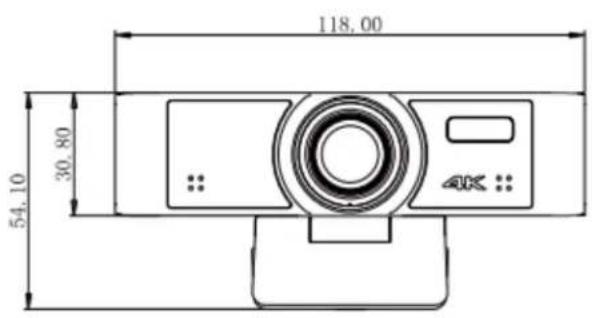

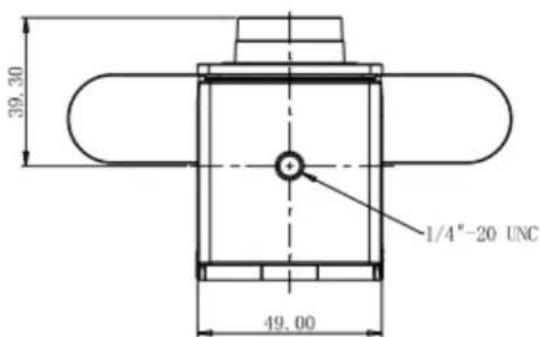
Rev 1 6/22

HuddleCamHD™
Features:
• Ultra HD Super Large Field of View
This new generation of UHD CMOS image sensors features more accurate native resolution, richer color, and a low-distortion 4K lens. With a 108-degree viewing angle, this ultra-large panoramic view allows the best possible visibility.
- USB 3.0
Supports USB 3.0 interface, power supply, video, audio in one, can support 2 USB video signal sources (optional) + 1 audio source at the same time.
• Built-in Microphone Array
Built-in beamforming microphone array, unique noise suppression algorithm and automatic gain algorithm. The pickup distance is up to 6 meters, so that your voice is perfectly presented.
- AI Ability
Multi-layer convolutional neural network design and cutting edge algorithms make the Mini-Track 4K Pro one of the most intelligent cameras on the market. High-quality analysis data can be obtained through open API.
- Auto Framing
Using advanced deep learning algorithms, the camera automatically adjusts the viewing angle of the screen according to the people in the detection field of view, eliminating the need for manual adjustment of camera operations, eliminating the need for manual adjustment of camera operations, bringing you a better user experience.
- AI Tracking
Built-in NNE hardware unit, using deep learning technology, by extracting target features, it can achieve smooth human shape tracking no matter where the face is facing, which is suitable for application scenarios such as speaker automatic tracking.
- Convenient Operation
The MiniTrack 4K Pro features infrared remote control, exclusive control software, one-button automatic frame selection, and auto-tracking to suit any workflow. It allows you to set preset positions, ePTZ, image parameters, and more.
Rev 1 6/22

HuddleCamHD™
Technical Specifications
| Model HC-MT-4KPRO | |
| Type HuddleCamHD MiniTrack 4K Pro | |
| Camera & Lens Specifications | |
| Sensor 1/2.8" CMOS, 8.29M Effective | Pixels |
| Zoom[1] | 8X Digital Zoom |
| Field of View Horizontal: 20° (Tele) ~ | 108° (Wide), Vertical: 11° (Tele) ~ 68° (Wide), |
| Shutter 1/1 ~ 1/10000 | |
| Minimal Illumination 0.5 Lux @ F1.8 (AGC ON) | |
| White Balance Auto, Indoor, Outdoor, | OnePush, Manual, VAR |
| Backlight Compensation Supported | |
| Digital Noise Reduction 2D & 3D Digital Noise Reduction | |
| USB Specifications | |
| USB Port USB 3.0, Type C | |
| Operating Systems Windows 8.1 / 7 / | 10 / 11, Mac OS X+, Google Chromebook V29.0.1547.70+, Linux (supports UVC) |
| Hardware 2.4 GHz Intel® Core 2 Duo | processor or higher 2 GB RAM or more |
| Compression | H.264 / MJPEG / YUY2[2] |
| Resolution | 3840x2160, 2560x1440, 1920x1080, 1280x720,1024x576, 800x600, 640x480, etc. |
| Frame Rate[3] | 50Hz = 1 ~ 50, 60Hz = 1 ~ 60 |
| Video Communication Protocol | UVC Version 1.1, supports EPTZ |
| General Specifications | |
| Control Methods | IR Remote, UVC 1.1 |
| Input Voltage | 5V USB Power |
| Current Consumption | 600mA (Max) |
| Power consumption 3.0W (Max) | |
| Operating Temperature | 32°F ~ 104°F (-10°C ~ 40°C) |
| Storage Temperature | -40°F ~ 140°F (-40°C ~ 60°C) |
| WTBF | 300000h |
| Dimensions (W x D x H) | 4.65" x 2.74" x 2.13" | 118 W x 69.5 D x 54.1 H |
| Weight | 0.35 lbs | 0.16kg |
[1] 3840x2160 (4K) & 2560x1440 (2K) are limited to 3x digital zoom
[2] YUY2 compression is limited to 30 FPS
[3] 3840x2160 (4K) & 2560x1440 (2K) are limited to 30 FPS
Rev 1 6/22

HuddleCamHD™
IR Remote Controller

1. Standby Button
Enter / Exit Standby Mode
2. Direction Button
Electronic pan / tilt
Traverse the on screen display menu.
3. Return Button
Return to the previous on screen display menu position
4. Menu Button
Open / Close the on screen display menu.
5. No. 1 Preset Button
Press and hold the preset 1 button for 3 seconds to set preset 1.
Quickly press the preset 1 button to call preset 1.
6. No. 2 Preset Button
Press and hold the preset 2 button for 3 seconds to set preset 2.
Quickly Press the preset 2 button to call preset 2
7. Trackingracking On Button
Enable auto tracking / auto framing.
8. Tracking Off Button
Disable auto tracking / auto framing.
9. Mute Button
Enable / Disable the built-in microphone.
10. Home Button
Zoom out to the home position.
Make selections within the on screen display menu.
11. Zoom + Button
Electronic zoom in.
12. Switch Button
Toggle between auto tracking / auto framing.
Rev 1 6/22

HuddleCamHD™
Maintenance and Troubleshooting
Camera Maintenance
- If the camera will not be used for a long time, please disconnect it from the PC.
- Use a soft cloth or cotton paper to remove dust from the camera housing.
- Use a soft dry lint-free cloth to clean the lens. If the camera is very dirty, clean it with a diluted neutral detergent. Do not use any type of solvent or harsh detergent, which may damage the surface
• Unqualified Applications
o Avoid shooting at particularly bright objects, such as sunlight, lights, etc.
o The camera should not be used under unstable lighting conditions, otherwise the image will flash.
o Do not operate close to powerful electromagnetic radiation, such as TV or radio transmitters, etc.
Troubleshooting
- No image
- Check whether the USB cable is connected properly to the PC.
- Check whether the LED glows when USB is connected to the PC.
• Abnormal display of image
- Check OSD of camera through the OSD Menu app.
- Check settings of software you're viewing the video feed in.
• Image is shaky or vibrating.
- Check whether camera is mounted solidly or sitting on a steady horizontal and level surface.
- Check the building and any supporting furniture for vibration.
- Any external vibration that is affecting the camera will be more apparent when in zoomed in.



- HuddleCamHD™
- MiniTrack 4K Pro
- User Manual Model No. HC-MT-4KPRO V1.0 (English)
- Table of Contents
- Preface
- Precautions
- Warranty
- Supplied Accessories
- FCC Statement
- Copyright Notice
- Connection Guide
- Features:
- IR Remote Controller
- Standby Button
- Direction Button
- Return Button
- Menu Button
- No. 1 Preset Button
- No. 2 Preset Button
- Trackingracking On Button
- Tracking Off Button
- Mute Button
- Home Button
- Zoom + Button
- Switch Button
- Maintenance and Troubleshooting
- Camera Maintenance
- • Unqualified Applications
- Troubleshooting
- - No image
- • Abnormal display of image
- • Image is shaky or vibrating.
Brand : HuddleCamHD
Model : MiniTrack 4K Pro
Category : Video Conferencing System