
3X-G2 - Video Conferencing System HuddleCamHD - Free user manual and instructions
Find the device manual for free 3X-G2 HuddleCamHD in PDF.


| Product Type | Video Conferencing System |
| Model Number | HC3X-(xx)-G2 (xx: WH, BK, SV) |
| Image Sensor | 1/2.7" CMOS, 2.1 Megapixel |
| Video Resolution | 1920x1080p at 30fps |
| Optical Zoom | 3x (f=3-10mm, F2.0) |
| Horizontal Field of View | 36° (tele) to 82° (wide) |
| Pan Range | ±360° |
| Tilt Range | Up: 90°, Down: 45° |
| Presets | 64 |
| Video Interface | USB 2.0 |
| Control Interface | Mini DIN-8 (RS232, RS485, Pelco-D/P) |
| Power Supply | 12V DC, 2A (adapter included) |
| Power Consumption | 24W max |
| Dimensions (W x H x D) | 4.88" x 5.5" x 4.75" (124mm x 139mm x 120mm) |
| Weight | 1.66 lbs (0.75 kg) |
| Operating Temperature | 32°F to 113°F (0°C to 45°C) |
| Mounting Options | Desk, tripod (1/4-20 thread), wall/ceiling mount compatible |
| Included Accessories | 12V/2A adapter, USB 2.0 cable (3m), RS-232C cable, RS-232 to RS-485 adapter, IR remote, tripod mount, user manual |
| Warranty | 2 years parts and labor |
| Safety and Care | Avoid voltage above spec, bright light sources, and disassembly. Clean lens with blower only. |
Frequently Asked Questions - 3X-G2 HuddleCamHD
User questions about 3X-G2 HuddleCamHD
0 question about this device. Answer the ones you know or ask your own.
Ask a new question about this device
Download the instructions for your Video Conferencing System in PDF format for free! Find your manual 3X-G2 - HuddleCamHD and take your electronic device back in hand. On this page are published all the documents necessary for the use of your device. 3X-G2 by HuddleCamHD.
USER MANUAL 3X-G2 HuddleCamHD
natural_image
Black HuddleCam camera with lens and control buttons (no readable text beyond brand name)Precautions.
Safety Tips.
- Please read this manual carefully before using the camera.
- Avoid damage from stress, violent vibration or liquid intrusion during transportation, storage or installation.
- Take care of the camera during installation to prevent damage to the camera case, ports, lens or PTZ mechanism.
- Do not apply excessive voltage. (Use only the specified voltage.) Otherwise, you may experience electrical shock.
- Keep the camera away from strong electromagnetic sources.
- Do not aim the camera at bright light sources (e.g. bright lights, the sun, etc.) for extended periods of time.
- Do not clean the camera with any active chemicals or corrosive detergents.
- Do not disassemble the camera or any of the camera's components. If problems arise, please contact your authorized dealer.
- After long term operation, moving components can wear down. Contact your authorized dealer for repair.
In the Box
Supplied Equipment.
• 12V/2.0A DC Power Adapter (1)
- Tripod Mounting System (1)
• USB 2.0 A-A cable (3m)
• RS-232C Serial Control cable
• RS-232C to RS-485 adaptor cable
- IR Remote Controller
- User Manual (1)
• 3x Zoom USB 2.0 HD Video Conference Camera (1)

HuddleCamHD
152 Robbins Rd, Downingtown, PA, 19335, USA - HuddleCamHD.com I 1 800 - 486-5276
Physical Description
1. Front View.
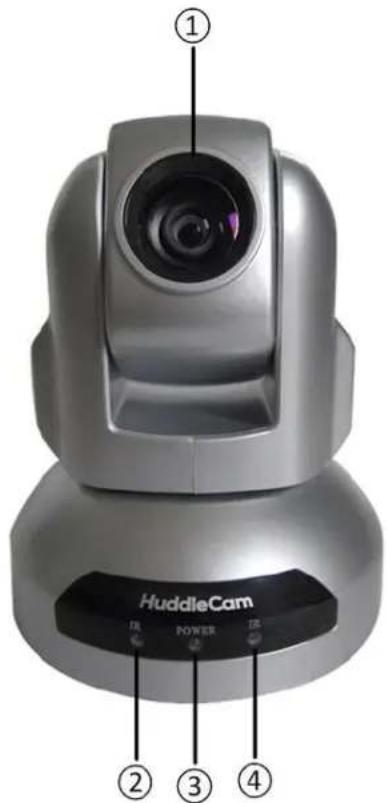
- Lens
- IR Receiver
To receive IR remote controller signal.
- Power LED
Blue LED lights when unit is powered, LED is dark for Stand-By status.
- IR Receiver
To receive IR remote controller signal.

HuddleCamHD
152 Robbins Rd, Downingtown, PA, 19335, USA - HuddleCamHD.com I 1 800 - 486-5276
- Rear View......

- DC IN 12V Socket
Only use the Power Adapter supplied with this camera.
- IR Receiver
To receive IR remote controller signals.
- RS232 IN Port
For hard wired remote control from a 3 ^rd party PC, joystick, etc...
- RS485 IN Port
For hard wired remote control from a 3^rd party PC, joystick, etc...
- USB 2.0 Interface
For connection to PC (USB 2.0 port. Will also function in a USB 3.0 port as USB 2.0 device).

HuddleCamHD
152 Robbins Rd, Downingtown, PA, 19335, USA - HuddleCamHD.com I 1 800 - 486-5276
3. Bottom View.


1. Tripod
Will accept 1/4-20 bolt from 3^rd party tripod, wall or ceiling mount using included tripod adapter.
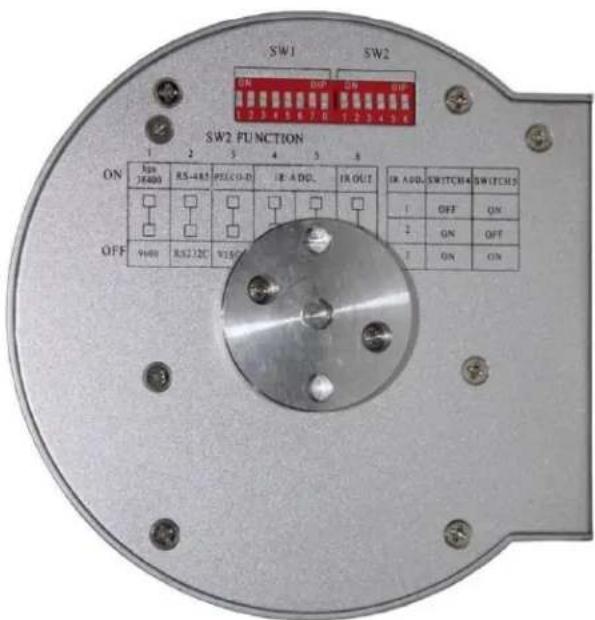
2. Dip-Switches
Used for selecting serial and IR communications settings.

HuddleCamHD
152 Robbins Rd, Downingtown, PA, 19335, USA - HuddleCamHD.com | 1 800 - 486-5276
- Dip-Switch Settings......
Note: When changing Dip-Switch settings, make all changes with camera powered off.

SW1: Used for setting RS232 address.
-
Broadcast address: If the Joystick is 255 (all dip switches on), any Camera can be controlled by any address.
-
Test Address: If the dome camera address is 0 (all dip switches off), any address code can control the dome camera.

HuddleCamHD
152 Robbins Rd, Downingtown, PA, 19335, USA - HuddleCamHD.com I 1 800 - 486-5276
SW2: Used for communication settings.
SW2 DIP-1,2,3: Baud Rate, Communication Protocol
| Baud Rate | SW2 DIP-1 | Communication Mode | SW2 DIP-2 | Communication Protocol | SW2 DIP-3 |
| 9600bps | OFF (Def) | RS-232 | OFF (Def) | VISCA | OFF (Def) |
| 38400bps | ON | RS-485 | ON | PELCO-D | ON |
SW2 DIP-4,5: IR Remote Control Receiving Address Table
| IR Remote Address | SW2 Switch State (4-5) | |
| DIP-4 | DIP-5 | |
| 0 | OFF (Def) | OFF (Def) |
| 1 | OFF | ON |
| 2 | ON | OFF |
| 3 | ON | ON |
SW2 DIP-6: IR Output
| IR Out | SW2 DIP-6 |
| Disabled | OFF (Def) |
| Enabled | ON |

HuddleCamHD
152 Robbins Rd, Downingtown, PA, 19335, USA - HuddleCamHD.com | 1 800 - 486-5276
Cable Connection Info.
VISCA RS-232C - IN Reference.

| Pin S/N | Function |
| 1 | DTR IN |
| 2 | DSR IN |
| 3 | TXD IN |
| 4 | GND |
| 5 | RXD IN |
| 6 | GND |
| 7 | IR Commander Signal OUTPUT |
| 8 | NO Connection |
VISCA RS-232C - Out Reference.
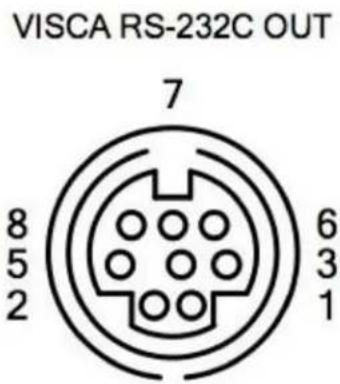
| Pin S/N | Function | |
| RS-232 | RS-485 | |
| 1 | DTR OUT | TX+ |
| 2 | DSR OUT | TX- |
| 3 | TXD OUT | |
| 4 | GND | |
| 5 | RXD OUT | |
| 6 | GND | |
| 7 | RS-485 - | |
| 8 | RS-485 + | |

HuddleCamHD
152 Robbins Rd, Downingtown, PA, 19335, USA - HuddleCamHD.com I 1 800 - 486-5276
OSD MENU....
There is no On Screen Display for the HuddlecamHD 3X.

HuddleCamHD
152 Robbins Rd, Downingtown, PA, 19335, USA - HuddleCamHD.com | 1 800 - 486-5276
IR Remote Controller
(Note: Some buttons do not operate for all camera models)
1. Reset:
Restarts the camera and restores it to Factory Default settings. (Note: Will delete all memory).
2. Camera Selection
Select Camera ID: 1, 2 or 3
3. Preset Positions
1-9: Preset Positions
Set: Setting Preset Position
Clear: Clear Preset Position
Call: Call Preset Position
Note: If you want to set (or call) the first preset position to 1, you should press number key "1", then press "Set" (or "Call") to set (call) the position.
4. Fast Zoom in/out Control Zone
+: Zoom in quickly
-: Zoom out quickly
5. Pan/Tilt Controller
Move Up

Move Down
Move Left

Move Right
Auto Pan
6. Additional Function Zone
Freeze: Image Freeze
BL: Back-light Compensation
WB: White Balance
AE: Auto Exposure
D Zoom: Digital Zoom
HDMI: Swap to HDMI video output
DVI: Swap to DVI video output
Format: Swap between different formats
7. Power Supply Switch
Switch for turning camera on
(i.e. Stand-By mode vs. Working mode)
8. OSD Menu Zone
Dome OSD: Enter Pan Tilt Zoom OSD menu
Lens OSD: Enter lens OSD menu
9. Slow Zoom In/Out Zone
+: Zoom in slowly
-: Zoom out slowly
10. Focus Control Zone
Auto: Turn on auto focus
Manual: Turn on manual focus
Far: Set focus at farther distance
Near: Set focus at nearer distance

Page 10 of 18

HuddleCamHD
152 Robbins Rd, Downingtown, PA, 19335, USA - HuddleCamHD.com | 1 800 - 486-5276
11. Pan/Tilt Function Zone
L-Limit: Set left boundary limit scanning position
Scan: Enable Boundary Scanning (Auto Panning)
R-Limit: Set right boundary limit scanning position
Home: Go to camera's Home position
Tour: Enable automatic patrol tour of presets
Rev: Enable image flip for ceiling mounting
Connection Instructions
- Connect included Power Supply to the camera.
- Wait for camera to come to Home Position.
- Connect included USB 2.0 cable to camera and USB 2.0 port of PC.
- Select and configure camera in your software of choice.
NOTE: Failure to follow this sequence may result in no connection to PC.
Care Of The Unit.
Remove dust or dirt on the surface of the lens with a blower (commercially available).

HuddleCamHD
152 Robbins Rd, Downingtown, PA, 19335, USA - HuddleCamHD.com | 1 800 - 486-5276
Installation Instructions......
Desktop Installation......
When using the HuddleCam™ on a desk, Make sure that it will stand level. If you want to use the camera on an incline, make sure the angle is less than 15 degrees to ensure that the camera's pan and tilt mechanism operates normally.
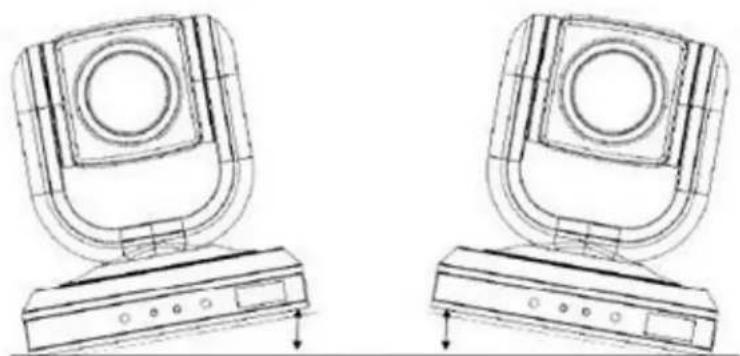
natural_image
Technical line drawing of two computer monitors with front and back views (no text or symbols)Max 15°
Tripod Installation......
When using the HuddleCam™ with a tripod, screw the tripod to the bottom of the camera. The tripod screw must fit below specifications:
Note: Tripod must stand on a level surface.

HuddleCamHD
152 Robbins Rd, Downingtown, PA, 19335, USA - HuddleCamHD.com | 1 800 - 486-5276
To fix the tripod mount to the bottom of the camera, use the supplied screws to hold it in place.
Then screw the tripod to the tripod bracket.


HuddleCamHD
152 Robbins Rd, Downingtown, PA, 19335, USA - HuddleCamHD.com | 1 800 - 486-5276
Troubleshooting
| Problem | Cause | Resolution |
| There is no power to the camera. | Power adapter is disconnected from mains or from camera. | Check the connections between the camera, power adapter and mains. If anything is disconnected, reconnect it. |
| Camera will not connect to the PC via USB. | USB cable is bad. | Try new USB Cable |
| Camera connects sometimes. | Connect USB only after camera has completely booted. | |
| Camera unable to pan, tilt, and/or zoom. | Menu is currently displayed on the screen. | Retry after exiting the menu. |
| Pan, tilt or zoom range limit was reached. | Try to pan/tilt/zoom in the other direction. | |
| Remote control not working. | The “camera select” button on the remote control is not set to match the “IR address” set on the camera dip switch. | Choose the correct “IR select” number to match camera settings. |
| Camera cannot be controlled via VISCA. | The connection between the PC and camera is incorrect. | Refer to Cable Connection Info section of this manual. |
| Commands being sent are incorrect. | Refer to VISCA manual. | |
| The Camera is not working at all. | No response or image from camera. | Disconnect power, and wait a few minutes, then connect the power again. Retry. |

HuddleCamHD
152 Robbins Rd, Downingtown, PA, 19335, USA - HuddleCamHD.com | 1 800 - 486-5276
Important Notes Regarding USB Connectivity:
USB 3.0 ports are backwards compatible with USB 2.0 devices. USB 2.0 ports are not completely forward compatible with USB 3.0 devices (some USB 3.0 devices will connect to USB 2.0 with limited functionality).
External USB hubs should be avoided (i.e. give the camera its own USB port on the device) as they are not well suited to transmitting HD video reliably.
USB extension systems must be fully compatible with the version of USB that you are using and must utilize an external power supply, when required. Caution: Some “compatible”
USB 3.0 extenders do not actually have the full 5Gbps bandwidth required for uncompressed HD video - so check bandwidth specs. Always connect the HuddleCam directly to the device in order to associate the UVC drivers before attempting to use any extension system.
USB 3.0 power saving settings in the device's operating system should be turned off completely for reliable USB 3.0 camera connectivity.
HuddleCam Cameras
All HuddleCamHD cameras utilize the UVC (USB Video Class) drivers that are built into Windows, Mac OS and Linux to stream HD video to your device via your device's USB port (USB 2.0 or USB 3.0 depending upon HuddleCam model). When your device successfully recognizes the camera, your device will register the HuddleCam as an “imaging device”. You can see this in your Windows Device Manager program (type “device manager” into the Windows search tool) as shown in the screenshot, below:

HuddleCamHD
152 Robbins Rd, Downingtown, PA, 19335, USA - HuddleCamHD.com | 1 800 - 486-5276
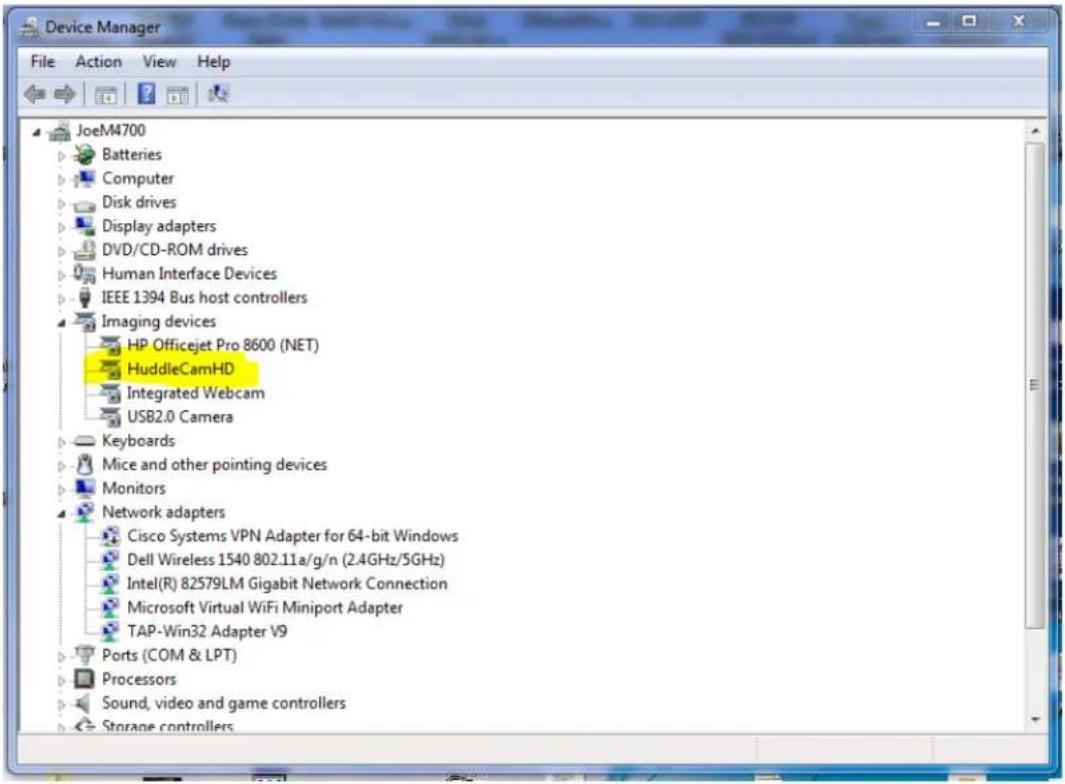
In this example, you can see the HuddleCam model in use connected as a fully functional USB 3.0 device (HuddleCamHD) as well as a USB 2.0 device with limited functionality (USB2.0 Camera).
If your device has not connected to or has not recognized the HuddleCam as an imaging device (in which case, you may see a new “unknown device”, “Westbridge” or “CYTFX3” labeled device show up in Device Manager’s “Universal Serial Bus Controllers” section rather than in the “Imaging Devices” section), the HuddleCam will not be available to programs that utilize a camera. In this case, try restarting the device and reconnecting the camera via USB (USB 2.0 or USB 3.0 depending upon HuddleCam model).

HuddleCamHD
152 Robbins Rd, Downingtown, PA, 19335, USA - HuddleCamHD.com | 1 800 - 486-5276
Similarly, you can see a connected device in System Information on a MAC. See screenshot below:

In this example, you can see the HuddleCam model in use connected as a fully functional USB 3.0 device “HuddleCamHD” as well as a “USB2.0 camera” with limited functionality (USB2.0 camera).
Specs.
Model Number: HC3X-(xx)-G2
Color (xx): WH=White; BK=Black; SV=Silver
Camera & Lens
• Video CMOS Sensor 1/2.7" CMOS, 2.1 Mega Pixel
• Frame Rate 30fps 1920 x 1080p
- Lens Zoom 3X Optical Zoom f = 3-10mm; F = 2.0
• Horizontal Field of View 36° (tele) to 82° (wide)
• Warranty 2 Years parts and labor
Pan/Tilt Movement
• Pan Movement ±360°
- Tilt Rotation Up: 90^ , Down: 45^
- Presets 64 Presets
Rear Board Connectors
• Video Interface USB 2.0
• Control Signal Interface Mini DIN-8 (RS232 IN, RS485 IN, Pelco-D/P IN/OUT)
• Control Signal Config. Dip-Switch Pin 7/TTL Signal
• Baud Rate 9600 bps
• Power Supply Interface DC 12V 2A
Electrical Index
• Power Supply Adapter 12V DC 2A
• Input Voltage 12V DC (10.5-14V DC)
• Input Power 24W (Max)
• Working Environment Indoor
Physical
• Material Aluminum, Plastic
- Dimensions 4.88"W x 5.5"H x 4.75"D [6"H w/ Tilt Up]
(124mm x 139mm x 120mm [152mmH w/ Tilt Up])
• Weight 1.66 lbs (0.75 kg)
- Box Dimensions 8.75" x 8.88" x 7" (222mm x 225mm x 178mm)
- Boxed Weight 3.66 lbs (1.66 kg)
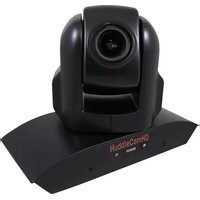
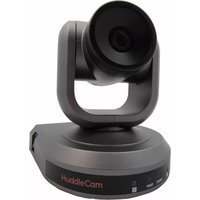
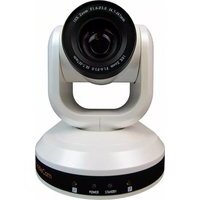
• Color Black, White, *Silver (*Special Order)
• Operating Temperature 32^ F to +113°F ( 0^ C to +45°C)
• Storage Temperature -14°F to 140°F (-10°C +60°C)
• Working Environment Indoor only


- Precautions.
- Safety Tips.
- In the Box
- Supplied Equipment.
- HuddleCamHD
- Physical Description
- Front View.
- Bottom View.
- Tripod
- Dip-Switches
- Cable Connection Info.
- IR Remote Controller
- Reset:
- Camera Selection
- Preset Positions
- Fast Zoom in/out Control Zone
- Pan/Tilt Controller
- Additional Function Zone
- Power Supply Switch
- OSD Menu Zone
- Slow Zoom In/Out Zone
- Focus Control Zone
- Pan/Tilt Function Zone
- Connection Instructions
- Care Of The Unit.
- Installation Instructions......
- Important Notes Regarding USB Connectivity:
- HuddleCam Cameras
- Specs.
- Camera & Lens
- Pan/Tilt Movement
- Rear Board Connectors
- Electrical Index
- Physical
Brand : HuddleCamHD
Model : 3X-G2
Category : Video Conferencing System