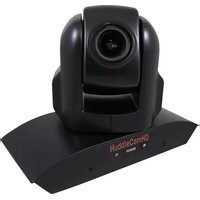
3XA with Audio - Video Conferencing System HuddleCamHD - Free user manual and instructions
Find the device manual for free 3XA with Audio HuddleCamHD in PDF.


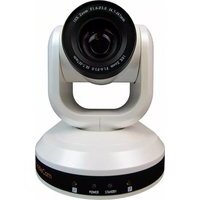
| Product Type | USB 2.0 PTZ Camera with Built-in Mic Array |
| Model Number | HC3XA-(xx) (BK=Black, WH=White, SV=Silver) |
| Optical Zoom | 3X Optical Zoom, f=3.3-10mm F1.6 |
| Image Sensor | 1/2.8" CMOS, 2.1 Megapixel |
| Resolutions | 1080p30/25, 720p30/25, SVGA, VGA (MJPEG up to 30fps) |
| Horizontal Field of View | 32° (Tele) to 84° (Wide) |
| Built-in Audio | Dual microphone array (360° pickup up to 16.5 ft / 5m) |
| Pan Movement | ±340° |
| Tilt Rotation | Up: 90°, Down: 30° |
| Presets | 64 presets |
| Video Interface | USB 2.0 (UVC compatible) |
| Control Interface | USB virtual COM port (VISCA, Pelco-D, baud rates 9600/38400) |
| Power Supply | DC 12V 2A adapter included (input 10.5-14V DC) |
| Power Consumption | 15W (max) |
| Dimensions (W x H x D) | 7.1" x 5.2" x 3.1" (180mm x 132mm x 78mm); height with tilt 140mm |
| Weight | 1.41 lbs (0.64 kg) |
| Operating Temperature | 32°F to 113°F (0°C to 45°C) |
| Storage Temperature | -14°F to 140°F (-10°C to 60°C) |
| Remote Control | IR remote included (camera ID selectable via dip-switch) |
| Mounting | Desktop, tripod (1/4-20 screw), ceiling mount compatible |
| Warranty | 2 years parts and labor |
| Safety Precautions | Avoid liquids, strong light, disassembly; use only supplied power adapter |
| Maintenance | Clean lens with blower; do not use chemicals |
| Included Accessories | Camera, power adapter, USB 2.0 cable (16ft), IR remote, tripod mount, manual |
Frequently Asked Questions - 3XA with Audio HuddleCamHD
User questions about 3XA with Audio HuddleCamHD
0 question about this device. Answer the ones you know or ask your own.
Ask a new question about this device
Download the instructions for your Video Conferencing System in PDF format for free! Find your manual 3XA with Audio - HuddleCamHD and take your electronic device back in hand. On this page are published all the documents necessary for the use of your device. 3XA with Audio by HuddleCamHD.
USER MANUAL 3XA with Audio HuddleCamHD
natural_image
Black HuddleCamHD camera with a curved base and control panel (no visible text or symbols on the device itself)USB 2.0 PTZ Camera w/ built-in Mic Array Installation and Operation Manual
Precautions
Safety Tips
- Please be aware any deviation from these tips may void your warranty
- Please read this manual carefully before using the camera.
- Avoid damage from stress, violent vibration or liquid intrusion during transportation, storage, or installation.
- Take care of the camera during installation to prevent damage to the camera case, ports, lens, or tilt mechanism.
- Keep the camera away from strong electromagnetic sources.
- Do not aim the camera at bright light sources (e.g. bright lights, the sun, etc.) for extended periods of time.
- Do not clean the camera with any active chemicals or corrosive detergents.
- Do not disassemble the camera or any of the camera's components. If problems arise, please contact your authorized HuddleCamHD dealer.
- After long term operation, moving components may wear down. Please contact your authorized HuddleCamHD dealer for repair.
What's in the Box
Supplied Hardware
• HuddleCamHD 3XA - 3X Optical Zoom USB 2.0 camera
○ Camera
- Dual Microphone Array
• 12V 2.0A DC Power Adapter
- Mounts: Tripod Mount
• USB 2.0 A-A cable (4.8m 16ft)
- IR Remote Controller
• This User Manual
Physical Description
Front View of the Camera

- Lens
3X Optical Zoom
-
Left Microphone Element
-
IR Receiver
To receive IR remote controller signal
- Power LED
Blue LED lights when unit is powered and is dark in Stand-By status.
- IR Receiver
To receive IR remote controller signal
- Right Microphone Element

HuddleCamHD
152 Robbins Rd, Downingtown, PA, 19335, USA - HuddleCamHD.com | 1 800 - 486-5276
Physical Description
Rear View of the Camera

7. USB 2.0 Interface
For video/audio connection to PC (USB 2.0 Port. Will also function in a USB 3.0 port as a USB 2.0 device)
8. IR Receiver
To receive IR remote controller signals
9. DC IN 12V socket
Only use the Power Adapter supplied with this camera

HuddleCamHD
152 Robbins Rd, Downingtown, PA, 19335, USA - HuddleCamHD.com | 1 800 - 486-5276
Physical Description
Bottom View of the Camera
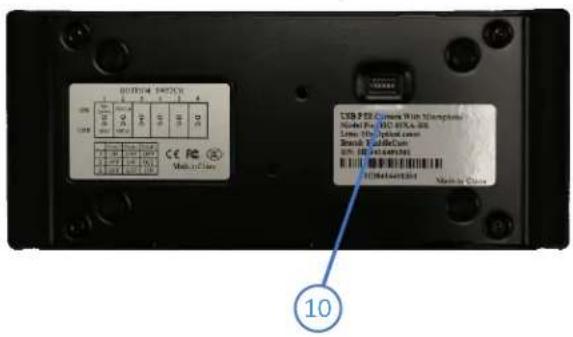

10. Dip-Switches
Used for selecting serial (virtual com port via USB) and IR communications settings.)
11. Tripod
Will accept 1 / 4 20 bolt from 3 ^rd party tripod, wall or ceiling mount using included tripod adapter.

HuddleCamHD
152 Robbins Rd, Downingtown, PA, 19335, USA - HuddleCamHD.com | 1 800 - 486-5276
Dip-Switch Settings
Bottom Switch: Used for serial and IR communication settings.
Note: When changing Dip-Switch settings, make all changes with camera powered off.
DIP-1,2:
Virtual COM Port – Baud Rate & Communication Protocol
| Baud Rate | Switch State | Communication Protocol | Switch State |
| DIP-1 | DIP-2 | ||
| 9600bps | OFF (Default) | VISCA | OFF (Default) |
| 38400bps | ON | PELCO-D | ON |
DIP-3,4,5:
IR Remote Control – Camera ID
| IR Remote Address | Switch State | ||
| DIP-3 | DIP-4 | DIP-5 | |
| 1 (Default) | OFF (Default) | OFF (Default) | OFF (Default) |
| 1 | ON | OFF | OFF |
| 2 | OFF | ON | OFF |
| 3 | OFF | OFF | ON |
OSD Menu
Dome
- Pan Speed Default Value: 20
- Set speed of Pan motor
■ Range = 1 - 63
- Tilt Speed Default Value: 20
- Set speed of Tilt Motor
■ Range = 1 - 63

HuddleCamHD
152 Robbins Rd, Downingtown, PA, 19335, USA - HuddleCamHD.com | 1 800 - 486-5276
• Scan Speed (Auto Pan Mode)
- Set speed of boundary scan
■ Range = 1 - 63
• Tour Path (Uses presets) Default Value: 1
○ Select desired tour path
■ Range = 1 - 4
• Tour Dwell Default Value: 5
- Set duration to dwell on each preset
■ Range = 1 - 60
• Proportion Default Value: On
(Pan + Tilt speed proportional to zoom level)
- Set Proportion
■ Range = On - Off
• Auto Rev Default Value: P
- Set camera mounting orientation
■ N for inv ceiling mount, P for std. mount
• Frame Default: 60Hz
- Set Refresh Rate
■ Range = 50Hz or 60Hz
- Preset Freeze Default: On
- Provides automatic temporary freeze frame when switching between presets
■ Range = On - Off
- POS COMEBACK
- Allows the camera to revert to last position left at for 30+ seconds
■ Range = On - Off
Lens
- BL (Backlight) Default Value: OFF
○ ON/OFF
• Saturation Default Value: 9
○ 0 - 15
- Sharpness Default Value: 3
○ 0 - 15
• NR (Noise Reduction) Default Value: Auto
○ Adjustable Value: OFF, AUTO, 1 – 4
• WB (White Balance) Default Value: Auto
○ Auto/Indoor/Outdoor/Onepush/ATW/Manual

HuddleCamHD
152 Robbins Rd, Downingtown, PA, 19335, USA - HuddleCamHD.com | 1 800 - 486-5276
Manual Settings:
• R GAIN (Red Gain) Default Value: 76
○ Adjustable Scope: 0 – 255
• B GAIN (Blue Gain) Default Value: 82
○ Adjustable Scope: 0 – 255
• AE (Auto Exposure) Default Value: Auto
○ Auto/Manual
Manual Settings:
• SHUTTER Default Value: 1/90
○ Shutter Speed Range: 1/60 – 1/10000
• IRIS
○ FIXED only
• BRIGHT Default Value: 8
- Set Brightness: 0 – 15
IR Remote Controller
(Note: Some buttons do not operate for all camera modes)
1. Reset
Restarts the camera and restores it to Factory Default Settings. (Note: Will delete all saved settings and presets.)
2. Camera Selection
Select which Camera to control via IR: 1, 2, or 3
3. Preset Positions
1-9: Preset Position
Set: Set a Preset Position
Clear: Clear a Preset Position
Call: Call a Preset Position
Note: If you want to set (or call) the first preset position
to 1, you simply press the number key "1", then press
"Set" or "Call" to set (call) the position
4. Fast Zoom in/out Control Zone
+: Zoom in quickly
-: Zoom out quickly
5. Pan/Tilt Controller
Move Up
↓Move Down
Move Left
Move Right
Auto Pan (through full pan range)
6. Additional Function Zone
Model Dependent Functions
Not Applicable to this model
7. Power Supply Switch
Switch for turning camera on/off
(i.e. Working Mode vs. Stand-By mode)
8. OSD Menu Zone
Model Dependent Functions
Not Applicable to this model
9. Slow Zoom in/out Zone
+: Zoom in quickly
-: Zoom out quickly
10. Focus Control Zone
Auto: Turn on Manual Focus
Manual: Turn on Manual Focus
Far: Set focus at a farther distance (req Man Focus)
Near: Set focus at a nearer distance (req man Focus)
11. Pan/Tilt Function Zone
Home: Go to camera's home position
Rev: Enable image flip for ceiling mounting
L-Limit: Sets left limit for Scan feature
R-Limit: Sets right limit for Scan feature
Scan: Auto Pan to L&R limits
Tour: Auto tour of all saved presets


HuddleCamHD
152 Robbins Rd, Downingtown, PA, 19335, USA - HuddleCamHD.com | 1 800 - 486-5276
Connection Instructions
- Connect included Power Supply to the camera.
- Wait for camera to come to Home Position.
- Connect included USB 2.0 cable to camera and USB 2.0 port of PC.
- Select and configure camera in your software of choice.
NOTE: Failure to follow this sequence may result in no connection to PC.
Care of the Unit
Remove dust or dirt on the surface of the lens with a blower (commercially available).
Installation Instructions
Desktop Installation
When using the HuddleCam on a desk, make sure that it will stand level. If you want to use the camera on an incline, make sure the angle is less than 15 degrees to ensure that the camera's pan and tilt mechanism operates normally.

natural_image
Line drawings of two computer monitors with control buttons and indicator lights (no text or symbols)Max 15°

HuddleCamHD
152 Robbins Rd, Downingtown, PA, 19335, USA - HuddleCamHD.com | 1 800 - 486-5276
Desktop Installation
When using the HuddleCam with a tripod, screw the tripod to the bottom of the camera. The tripod screw must fit below specifications:
Note: Tripod must stand on a level surface.
To fix the tripod mount to the bottom of the camera, use the supplied screws to hold it in place.

Then screw the tripod to the tripod bracket.

HuddleCamHD
152 Robbins Rd, Downingtown, PA, 19335, USA - HuddleCamHD.com | 1 800 - 486-5276
Troubleshooting
| Problem | Cause | Resolution |
| There is no power to the camera. | Power adapter is disconnected from mains or from camera. | Check the connection between the camera, power adapter, and mains. If anything is disconnected, reconnect it. |
| Camera will not connect to the PC via USB | USB cable is bad. | Try new USB Cable |
| Camera connects sometimes. | Connect USB only after camera has completely booted. | |
| Camera unable to pan, tilt, and/or zoom. | Power adapter is disconnected from mains or from the camera | See Camera Power, above |
| Pan, tilt, or zoom range limit was reached | Try to pan/tilt/zoom in the other direction | |
| Remote control not working | The “camera select” button on the remote control is not set to match the “IR address” set on the camera dip switch. | Choose the correct “IR select” number to match camera settings (default address 1). |
| Camera cannot be controlled via VISCA. | The connection between the PC and camera is incorrect. | Refer to USB connectivity section of this manual. |
| Commands being sent are incorrect. | Refer to VISCA section of this manual. | |
| The camera is not working at all. | No response or image from camera. | Disconnect power, and wait a few minutes, then connect the power again. Retry. |
Important Notes Regarding USB Connectivity
USB 3.0 ports are backwards compatible with USB 2.0 devices. USB 2.0 ports are not completely forward compatible with USB 3.0 devices (some USB 3.0 devices will connect to USB 2.0 with limited functionality).
External USB hubs should be avoided (i.e. give the camera its own USB port on the device) as they are not well suited to transmitting HD video reliably.
USB extension systems must be fully compatible with the version of USB that you are using and must utilize and external power supply, when required. Always connect the HuddleCam directly to the device in order to associate the UVC drivers before attempting to USB any extension system.
USB power saving settings in the device's operating system should be turned off completely for reliable USB camera connectivity.
HuddleCam Cameras – Video (General to all HuddleCamHD models)
All HuddleCamHD cameras utilize the UVC (USB Video Class) drivers that are built into Windows, Mac OS, and Linux to stream HD video to your device via your device's USB port (USB 2.0 or USB 3.0 depending upon HuddleCam model). When your device successfully recognizes the camera, your device will register the HuddleCam as an “image device”. You can see this in your Windows Device Manager program (type “device manager” into the Windows search tool) as shown in the screenshot, below:


HuddleCamHD
152 Robbins Rd, Downingtown, PA, 19335, USA - HuddleCamHD.com | 1 800 - 486-5276
In this example, you can see the HuddleCam model in use connected as a fully functional USB 3.0 device (HuddleCamHD) as well as a USB 2.0 device with limited functionality (USB 2.0 Camera).
If your device has not connected to or has not recognized the HuddleCam as an imaging device (in which case, you may see a new “unknown device”, “Westbridge” or “CYTFX3” labeled device show up in Device Manager’s “Universal Serial Bus Controllers” section rather than in the “Imaging Devices” section), the HuddleCam will not be available to programs that utilize a camera. In this case, try restarting the device and reconnecting the camera via USB – and to a different available USB port, if possible.
Similarly, you can see a connected device in System Information on a MAC. See screenshot below:

In this example, you can see the HuddleCam model in use connected as a fully functional USB 3.0 device "HuddleCamHD" as well as a "USB2.0 camera" with limited functionality (USB 2.0 camera).

HuddleCamHD
152 Robbins Rd, Downingtown, PA, 19335, USA - HuddleCamHD.com | 1 800 - 486-5276
HuddleCam Cameras – Audio (Specific to HuddleCamHD models with built-in audio)
In the case of the HuddleCamHD model HC3XA-xx, the unit also has a built-in microphone array. Because of this, it also shows up as a UAC (USB Audio Class) device on your PC.

In this example, you can find the camera's mic system under Sound Controllers in the Windows Device Manager, shown as "HuddleCamHD Mic". If the camera is connected properly, the mics will show up here and be available to any program that is able to utilize your connected audio devices.

HuddleCamHD
152 Robbins Rd, Downingtown, PA, 19335, USA - HuddleCamHD.com | 1 800 - 486-5276
HuddleCam Cameras – Serial Control (Specific to HuddleCamHD models with virtual COM)
Since the HuddleCamHD model HC3XA-xx also includes a virtual serial connection, the camera will actually make 3 separate connects to your PC: UVC for video, UAC for audio, and virtual com port for serial communication, as can be seen here:
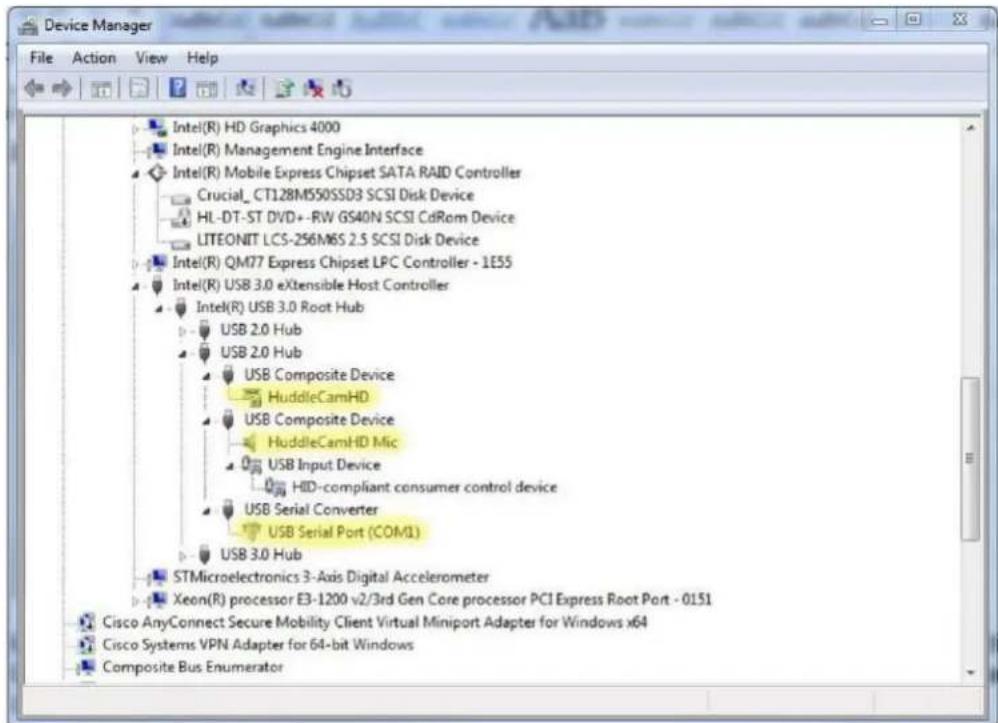
This view uses the Windows Device Manager's "View by Connection" mode rather than the default "View by Type" mode, which allows you to "sort" by physical connection to see your connected devices. However, all 3 USB connection types may be viewed in any of Device Manager's viewing modes (just not grouped together like this).
Changing the Advanced Port properties of the USB Serial Port (right click on “USB Serial Port (COMx)” connection as shown above) will allow you to set the virtual Com Port address of the camera to match the Com Port settings of your PTZ controlling software (like the free “Remote PTZ Control Software” available at http://huddlecamhd.com/resources/
Specifications
Model Number: HC3XA-(xx)
Color (xx): BK=Black; WH=White; SV=Silver
Camera & Lens
| Video CMOS Sensor | 1/2.8" CMOS, 2.1 Mega Pixel |
| Resolutions | 1080p-30/25, 720p-30/25, SVGA, VGA |
| Frame Rate Up to 30fps (MJPEG) | |
| Lens Zoom | 3X Optical Zoom f=3.3-10mm F1.6 |
| Min Lux 0.1 Lux at F1.6 | |
| Horizontal Field of View | 32° (Tele) to 84° (Wide) |
Built-in Audio
| • Mic Array | Dual Mics on front of camera base |
| • Pickup Range | 360° up to 16.5 ft (5m) |
| • Processing | Advanced Auto Gain and Noise Control |
Pan/Tilt Movement
| • Pan Movement | ±340° | |
| • Tilt Rotation | Up: 90°, Down: 30° | |
| • Presets | 64 Presets |
Rear Board Connectors
| Video interface USB 2.0 | |
| Control Signal Interface | USB 2.0 Virtual Com Port (VISCA, PelcoD) |
| Baud Rate | 9600, 38400 bps |
| Audio Interface | USB 2.0 Plug and Play |
| Power Supply Interface | DC 12V 1.2A |
Electrical Index
| Power Supply Adapter | 12V DC 2A |
| Input Voltage | 12V DC (10.5-14V DC) |
| Input Power | 15W (Max) |
Physical
| Material | Aluminum, Plastic |
| Dimensions 7.1"W x 5.2"H x 3.1"D | (180mm x 132mm x 78mm [140mmH w/ tilt]) |
| Weight | 1.41 lbs (0.64 kg) |
| Color | Black, White, *Silver (* Special Order) |
| Operating Temperature | 32°F to + 113°F (0°C to +45°C) |
| Storage Temperature | -14°F to 140°F (-10°C +60°) |
| Working Environment | Indoor only |
Warranty
| • Mfg Warranty | 2 Years parts and labor |



- Precautions
- Safety Tips
- What's in the Box
- Supplied Hardware
- Physical Description
- Front View of the Camera
- HuddleCamHD
- USB 2.0 Interface
- IR Receiver
- DC IN 12V socket
- Bottom View of the Camera
- Dip-Switches
- Tripod
- Dip-Switch Settings
- OSD Menu
- Dome
- Robbins Rd, Downingtown, PA, 19335, USA - HuddleCamHD.com | 1 800 - 486-5276
- • Scan Speed (Auto Pan Mode)
- • Tour Path (Uses presets) Default Value: 1
- • Tour Dwell Default Value: 5
- • Proportion Default Value: On
- • Auto Rev Default Value: P
- • Frame Default: 60Hz
- - Preset Freeze Default: On
- - POS COMEBACK
- Lens
- - BL (Backlight) Default Value: OFF
- • Saturation Default Value: 9
- - Sharpness Default Value: 3
- • NR (Noise Reduction) Default Value: Auto
- • WB (White Balance) Default Value: Auto
- Manual Settings:
- IR Remote Controller
- Reset
- Camera Selection
- Preset Positions
- Fast Zoom in/out Control Zone
- Pan/Tilt Controller
- Additional Function Zone
- Power Supply Switch
- OSD Menu Zone
- Slow Zoom in/out Zone
- Focus Control Zone
- Pan/Tilt Function Zone
- Connection Instructions
- Care of the Unit
- Installation Instructions
- Desktop Installation
- Important Notes Regarding USB Connectivity
- HuddleCam Cameras – Video (General to all HuddleCamHD models)
- HuddleCam Cameras – Audio (Specific to HuddleCamHD models with built-in audio)
- HuddleCam Cameras – Serial Control (Specific to HuddleCamHD models with virtual COM)
- Specifications
Brand : HuddleCamHD
Model : 3XA with Audio
Category : Video Conferencing System