R950 - Wireless pointer Mitsai - Free user manual and instructions
Find the device manual for free R950 Mitsai in PDF.


| Product Type | Wireless Presenter / Pointer |
| Brand | Mitsai |
| Model | R950 |
| Dimensions | 130 x 30 x 20 mm (approx.) |
| Weight | 45 g (approx.) |
| Power Source | 2x AAA batteries |
| Wireless Range | Up to 15 m |
| Connectivity | USB RF 2.4 GHz (nano receiver) |
| Laser Class | Class 2 |
| Functions | Laser pointer, slide navigation (next/previous), black screen |
| Compatible OS | Windows, macOS, Linux |
| Compatible Software | PowerPoint, Keynote, Google Slides, etc. |
| Storage | Receiver stored inside device |
| Battery Life | Approx. 20 hours continuous use |
| Cleaning | Wipe with a dry, soft cloth; avoid liquids |
| Safety Precautions | Do not point laser at eyes; keep away from children |
| Spare Parts / Repairability | Replaceable batteries; receiver included |
Frequently Asked Questions - R950 Mitsai
User questions about R950 Mitsai
0 question about this device. Answer the ones you know or ask your own.
Ask a new question about this device
Download the instructions for your Wireless pointer in PDF format for free! Find your manual R950 - Mitsai and take your electronic device back in hand. On this page are published all the documents necessary for the use of your device. R950 by Mitsai.
USER MANUAL R950 Mitsai
Wireless Focus Presenter R950
MWP5115SV
EN
WIRELESS FOCUS PRESENTER R950
INSTRUCTION MANUAL
Dear client,
We thank you for purchasing this product.
The quality of this appliance has been certified by several laboratory tests. This instructions manual is provided to simplify the use of the appliance as well as to guarantee a safe use.
Please read carefully the instructions and safety measures described in this manual.
We sincerely hope you will be satisfied when using your new appliance.
2
INDEX
1. Safety Instructions 4
1.1. Power Supply 8
1.2. Power Cord and Other Cables 8
1.3. Humidity and Water 8
1.4. Cleaning 9
1.5. General Precautions 9
2. Operation Instructions 10
2.1. Features 10
2.2. Operation system 11
2.3. Package contents 11
2.4. Specifications 11
3. Usability 12
3.1. Function map 12
3.2. Function description 13
3.3. Installation 14
3.4. Charging 16
4 Frequently Asked Questions 17
- Post-Sale Service 19
- Environmental Protection 20
3
1. SAFETY INSTRUCTIONS

WARNING RISK OF ELECTRIC SHOCK DO NOT OPEN

WARNING: TO AVOID THE RISK OF ELECTRIC SHOCK, DO NOT REMOVE THE COVER.
THE INTERIOR DOES NOT CONTAIN ANY PARTS THAT CAN BE REPAIRED BY THE USER.
ASK FOR ASSISTANCE FROM THE CUSTOMER SUPPORT SERVICE.
Important Warnings
Before using your appliance read these instructions manual carefully and keep it in a safe place as you may need to consult it in the future.
Before turning on your appliance, and to ensure a safe and correct operation, do not use if:
- It has fallen to the ground;
- You notice any evidence of damage;
- Any anomaly occurs during its operation.
To avoid hazards or deterioration of your appliance through
EN
WIRELESS FOCUS PRESENTER R950
incorrect use it is advisable to read these instructions thoroughly.
Your appliance may not be used for other purposes than the ones intended and solely for household use. Any damage resulting from using the appliance outside this scope, any incorrect use, as well as any manual modifications to the product will not be covered and automatically voids the warranty.
Assistance
In case of malfunction, take your appliance to a qualified technician for assistance.
6
THIS APPLIANCE CAN BE USED BY CHILDREN FROM THE AGE OF 8 AND BY PEOPLE WITH REDUCED PHYSICAL, SENSORIAL OR MENTAL CAPABILITIES AND/ OR LACK OF EXPERIENCE AND KNOWLEDGE IF THEY HAVE BEEN GIVEN INSTRUCTIONS ON USING THE APPLIANCE SAFELY AND IF THEY UNDERSTAND THE HAZARDS INVOLVED. CHILDREN MAY NOT PLAY WITH THE APPLIANCE. CLEANING AND MAINTENANCE MUST NOT BE CARRIED OUT BY CHILDREN WITHOUT SUPERVISION.
EN
WIRELESS FOCUS PRESENTER R950
THESE INSTRUCTIONS ARE ALSO AVAILABLE AT WWW.SUPORTEWORTEN.PT
1.1. Power Supply
Make sure the main voltage is compatible with the appliance's. If this is not the case, please consult the Customer Support Service.
1.2. Power Cord and Other Cables
Do not tangle the cord or pull it to disconnect the appliance. Also, keep the cord away from warm surfaces. Never use the appliance if it has a damaged cable or socket. Take it to the Technical Support Service for replacement.
1.3. Humidity and Water
Do not use your appliance in humid places. Do not allow the appliance to become wet under any circumstances as this may be dangerous. TO AVOID FIRE HAZARD OR ELECTRIC SHOCK DO NOT EXPOSE YOUR APPLIANCE TO HUMIDITY OR WATER. Furthermore, do not place your appliance under water (e.g. for cleaning).
8
1.4. Cleaning
Before cleaning, be sure to switch o the appliance and remove the plug from the main power supply. Always allow the unit to cool down before cleaning. To clean the exterior of the product use a dry soft cloth only.
1.5. General Precautions
- Please follow the instructions in the user manual which help to properly install and operate this product and enjoy its advanced features. Please keep the instructions for future reference.
- Read all instructions before using the product.
- Maintenance and service operations are only to be carried out by authorized professionals.
- Any damage caused by manual modifications to the product is not covered by the warranty.
- If this product is used for other purposes than the ones originally intended, or if it is not correctly connected, the product may become damaged and the warranty will be voided.
EN
WIRELESS FOCUS PRESENTER R950
2. OPERATING INSTRUCTIONS
2.1. Features
- Long press the digital pointer key to highlight, zoom in and control the mouse cursor. Click to open the video or link and double click to switch the pointer modes. (It must be used with Mitsai Focus R950 software)
- Full screen mark function, one key to mark and erase the mark.
• Volume control function, it can adjust the computer volume. - Support Page up/down function long press the page up/down key to use custom functions such as Fast Backward, Fast Forward, Scroll or Black Screen, etc. (It must be used with Mitsai Focus R950 software).
- Vibration feedback function, it can receive timer notice and low power reminder.
- 2.4GHz/868MHz international frequency, 50m control distance, 360 degrees control without directional restriction. With automatic frequency hopping technology, it can effectively avoid interference from other radio frequency signals.
- 300mAh lithium battery, Type-C USB port. You can charge it by computer USB port and mobile phone charger to avoid the trouble of changing batteries.
- Mitsai Focus R950 UniCoding 1 optimal control technology to ensure 1-to-1 precise control.
10
- Compatible with USB3.0, Plug and play, no need to install drivers.
2.2 Operation system
Windows7/ 8 /10 and above version, Mac OS/ Linux/ Android system. It may only support page turning function on Android/ Linux system.
2.3 Package contents
1) Wireless presenter (USB receiver included)
2) User Manual
3) Type-C USB Cable
2.4 Specifications
Transmitter
Technology: Radio Frequency
Control Distance: 50 m
Lithium Battery: 300 mAh
Charging Voltage: 5 V
Sleep Current: <0.3 mA
Dimension: 131 x 29 x 12.5 mm
Weight: 30.8 g
USB Receiver
Operating System: Windows 7/8/10, Mac OS, Linux, Android
USB Version: USB 2.0, compatible with 3.0
Working Voltage: 4.5-5.5 V
Dimension: 22.7 mm x 14 mm x 7.6 mm
Weight: 2.1 g
EN
WIRELESS FOCUS PRESENTER R950
3. USABILITY
3.1. Function map
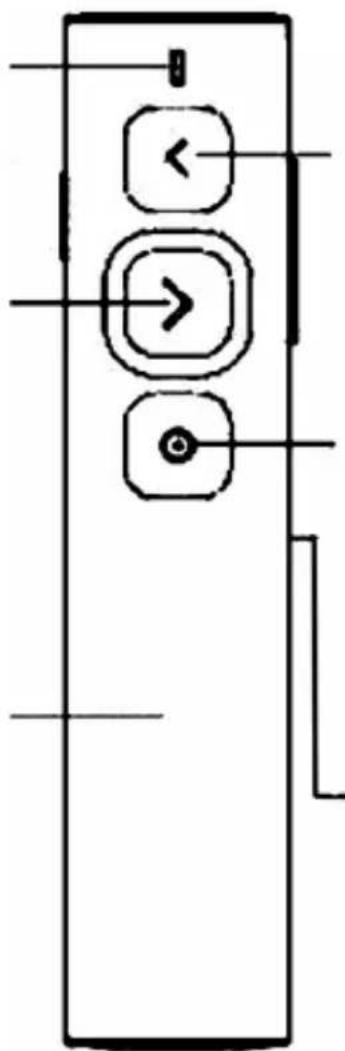
LED
- Power indicator
- Connection status
Page down
- Click to next page
- Long press to custom function e.g. exit full screen
Haptic feedback
- Receive timer notice
flowchart
graph TD
    A["Start"] --> B["Left"]
    B --> C["Right"]
    C --> D["Bottom"]
Page up
- Click to previous page
- Long press to custom function e.g. full screen
Digital laser
- Long press to spotlight, zoom in and control cursor
- Click to open video hyperlink
- Double click to switch pointer modes
USB charging port
• One time charge can use 3 months

3.2. Function description
- Power switch: push up to "ON" to turn on the presenter and push down to "OFF" to turn off the presenter.
- Page up key ◀:click to page up, long press to use customized function, like entering full screen.
EN
WIRELESS FOCUS PRESENTER R950
- Page down key ➤ : click to page down long press to use customized function, like entering black screen.
- Digital laser key: By working with the Mitsai Focus R950 software, long press to control digital laser, zoom in and highlight some of the content. Click to open video or hyperlink and double click to switch the pointer mode. When the Mitsai Focus R950 software is not running, long press to move cursor, single click to click and double click has no function.
- Mark function ⚠ When the PowerPoint is in the full screen presentation mode, move the cursor to the place to be marked, press the Mark key ⚠ and move the wireless presenter, you can draw line, circle on the screen freely, and release the key ⚠ to stop drawing.
- Eraser/Volume key: click the key, you can
erase the marks, and long press 1 second later, then move the wireless presenter up or down, the volume will be increased or decreased.
3.3. Installation
• Take out the USB receiver and install. Take out the USB receiver from the presenter and plug it into the computer's USB port. At this time, “Discover New Hardware” will be displayed in the lower right corner of the computer, and the driver will be installed automatically. When Windows displays «New hardware
14
is installed and ready to use», it means that the USB receiver is installed. (Take out the USB receiver from the presenter)

(Plug the USB receiver into the computer's USB port.)

natural_image
Technical line drawing of a mechanical component with a USB cable and directional arrow (no text or symbols)• Control the computer by operating the presenter.
- Turn off the presenter.
EN
WIRELESS FOCUS PRESENTER R950


natural_image
Simple line drawing of a remote control panel with three function buttons and an external device (no text or symbols)- Plug the USB receiver into the presenter and turn off the power switch when you stop using it.
3.4. Charging
- Low power indication - The blue LED on the wireless presenter will flash slowly to remind the user to charge the presenter.
- Charging the wireless presenter. Connect the Type-C port of wireless presenter to a USB port of computer via USB cable. When the charging indicator turns red light and is always on, it indicates that it's charging. If the red light turns off, it means the charging is completed. If you have a USB Type-C phone charger, you can also use it to charge the presenter.
- Charging time varies depending on the power supply of the USB port. Normally the charging time is about 2 hours.
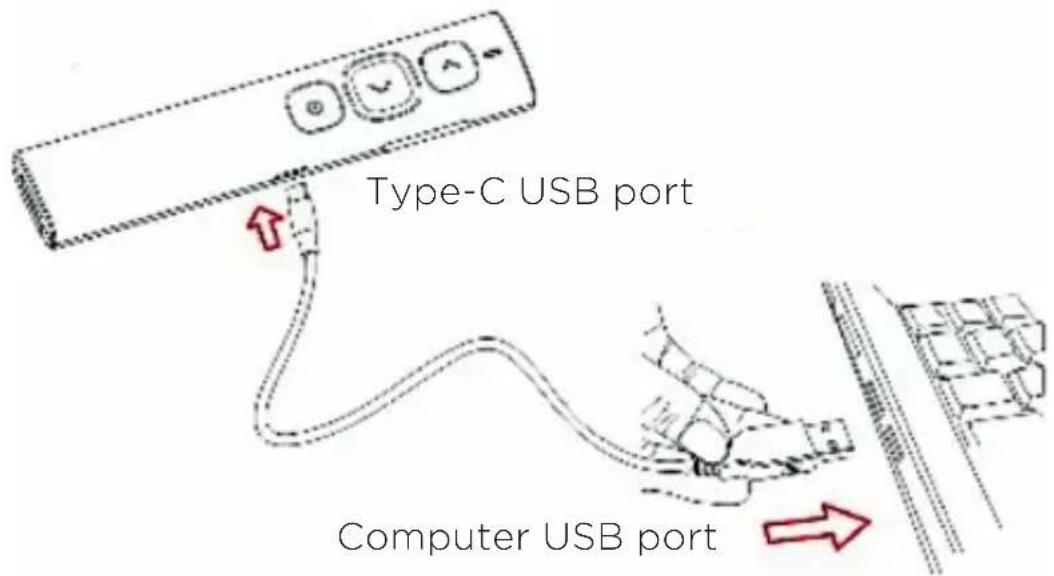
Charge the presenter by computer
4. FREQUENTLY ASKED QUESTIONS (FAQ'S)
How to know the battery is out of power?
When you turn on the power, press the key of wireless presenter, the LED indicator does not light that means the battery is out of power. When the battery is out of power, please charge it immediately. Over-discharge will shorten the life of the lithium battery. When the power is low, the LED indicator will turn blue and flash slowly, reminding the user that it needs to be charged.
When you plug the USB receiver into the USB port of the computer, the computer does not respond or does not detect the device?
Please try another USB port or another computer.
EN
WIRELESS FOCUS PRESENTER R950
How to download Mitsai Focus R950 software and how to pair the presenter and the USB receiver?
Please go to the official website www.suporteworten.pt to download the Mitsai Focus R950 software and use the software to pair.
The system function is disordered. What should I do if I press the corresponding button to perform other functions?
It may be that some shortcuts of the operating system or application (such as PowerPoint) are changed to other shortcut keys. Please check the system or application shortcut setting or reinstall the operating system and applications after backing up the data.
How to Calibrate?
When you move the product horizontally, the mouse on the computer is not moving horizontally, but moving obliquely, so it needs to be calibrated. The purpose of calibration is to provide horizontal and vertical benchmarks for products. Place the presenter on a level, stable surface, long press page down key, and turn on the presenter at the same time, the blue indicator will flash to indicate that you are in calibration mode. At this time, release your hands and try to keep the presenter in level. The blue indicator flashes for 3 seconds, then stops flashing, and remains off for 5 seconds, then turns off, indicating that the calibration is complete.
Charging special tips:
This product only supports standard 5V charging. It does not support all kinds of QC fast charging. When using a voltage higher than 5V for charging, it will burn out the product or cannot be charged.
18
5. POST-SALE SERVICE
Mitsai has designed this appliance in order to guarantee maximum reliability. However, if a problem occurs do not attempt to open the appliance - there is a risk of electrical shock.
If you are not able to solve the problem, please contact the Costumer Support Service of any Worten, Modelo or Continente store in order to be assisted. Worten Equipamentos para o Lar provides a 2-year warranty for manufacturing defects from the date of purchase of the appliance.
WARNING: Any attempt to repair the appliance without contacting the manufacturer or seller will void the warranty.
All users must be familiar with these instructions. Knowing what could go wrong can help prevent problems from occurring.
EN
WIRELESS FOCUS PRESENTER R950
6. ENVIRONMENTAL PROTECTION
In order to protect the environment we strive to reduce the volume of packaging used, limiting it to three easily sorted materials: cardboard, paper and plastic. The appliance is manufactured using recyclable materials after disassembled by a specialized company. Please comply with local regulations concerning the recycling of all materials.

natural_image
Symbol of a trash bin with crossed lines indicating no waste, and a solid black rectangle below (no text or labels)Worten hereby declares that this equipment (Wireless laser Presenter R950 MWP5115SV) is in compliance with Directive 2014/53/EU of the European Parliament and of the Council of 16 April 2014. The full declaration is available at the following Internet address: https://www.suporteworten.pt/.
20
EN
MITSAI
21
ES
flowchart
graph TD
    A["Start"] --> B["Left Arrow"]
    B --> C["Right Arrow"]
    C --> D["End Arrow"]
Siguiente página
natural_image
Pure electrical circuit lines without any symbols
natural_image
Pure electrical circuit lines without any symbolsBotón de marca
natural_image
Technical line drawing of a mechanical component with a directional arrow indicating movement (no text or symbols)natural_image
Simple line drawing of a computer monitor with three function buttons and an icon on the right (no text or symbols)natural_image
Symbol of a trash bin crossed with a diagonal line, no text or labels presentMANUAL DE INSTRUÇÕES
Caro(a) cliente,
flowchart
graph TD
    A["Start"] --> B["Left Arrow"]
    B --> C["Right Arrow"]
    C --> D["Bottom Arrow"]
Página seguinte
(Conecte o receptor USB na porta USB do computador.)

natural_image
Technical line drawing of a mechanical component with a curved pipe and attached parts, showing no text or symbols.natural_image
Simple line drawing of a trash bin with crossed x- and y-axes, no text or symbols present.natural_image
Abstract grid pattern with white circles connected by dashed lines on a dark background (no text or symbols)MITSAI
Magically Connected
- EN
- WIRELESS FOCUS PRESENTER R950
- INSTRUCTION MANUAL
- 2
- INDEX
- Safety Instructions 4
- Operation Instructions 10
- Usability 12
- Frequently Asked Questions 17
- SAFETY INSTRUCTIONS
- WARNING RISK OF ELECTRIC SHOCK DO NOT OPEN
- Important Warnings
- Assistance
- 6
- Power Supply
- Power Cord and Other Cables
- Humidity and Water
- Cleaning
- General Precautions
- OPERATING INSTRUCTIONS
- Features
- 10
- Operation system
- Package contents
- Specifications
- Transmitter
- USB Receiver
- USABILITY
- Function map
- LED
- Page down
- Haptic feedback
- Page up
- Digital laser
- USB charging port
- Function description
- Installation
- 14
- Charging
- FREQUENTLY ASKED QUESTIONS (FAQ'S)
- How to know the battery is out of power?
- When you plug the USB receiver into the USB port of the computer, the computer does not respond or does not detect the device?
- How to download Mitsai Focus R950 software and how to pair the presenter and the USB receiver?
- The system function is disordered. What should I do if I press the corresponding button to perform other functions?
- How to Calibrate?
- Charging special tips:
- POST-SALE SERVICE
- ENVIRONMENTAL PROTECTION
- ES
- MANUAL DE INSTRUÇÕES
- Página seguinte
Brand : Mitsai
Model : R950
Category : Wireless pointer