R910 - Wireless pointer Mitsai - Free user manual and instructions
Find the device manual for free R910 Mitsai in PDF.


| Product Type | Wireless Presentation Pointer |
| Brand | Mitsai |
| Model | R910 |
| Color | Black / Silver |
| Dimensions (L x W x H) | 10.5 x 3.5 x 2.0 cm |
| Weight (without batteries) | 45 g |
| Power Source | 2 x AAA batteries (not included) |
| Laser Type | Class 2, < 1 mW red laser |
| Wireless Technology | 2.4 GHz RF |
| Operating Range | Up to 30 m (100 ft) |
| Compatibility | Windows, macOS, Linux; USB plug-and-play |
| Buttons | Power/Page Up, Page Down, Laser On/Off |
| Receiver | USB nano receiver, stored inside pointer |
| Battery Life | Approximately 20 hours of continuous use |
| Maintenance | Wipe with a soft, dry cloth. Do not use solvents. |
| Safety Precautions | Do not shine laser into eyes. Avoid direct eye exposure. |
| Spare Parts & Repairability | Replaceable batteries; receiver available as spare |
| Package Contents | Pointer, USB receiver, user manual (40 pages) |
Frequently Asked Questions - R910 Mitsai
User questions about R910 Mitsai
0 question about this device. Answer the ones you know or ask your own.
Ask a new question about this device
Download the instructions for your Wireless pointer in PDF format for free! Find your manual R910 - Mitsai and take your electronic device back in hand. On this page are published all the documents necessary for the use of your device. R910 by Mitsai.
USER MANUAL R910 Mitsai
WIRELESS LASER
PRESENTER
R910
MAP3360BK
INSTRUCTION MANUAL
Dear client,
Thank you for purchasing this product.
The quality of this appliance has been certified by several laboratory tests. This instructions manual is provided to simplify the use of the appliance as well as to guarantee a safe use.
Please read carefully the instructions and safety measures described in this manual.
We sincerely hope you will be satisfied when using your new appliance.
Index
1. Safety Instructions 3
1.1. Power Supply 4
1.2. Power Cord and Other Cables 4
1.3. Humidity and Water 4
1.4. Cleaning 5
1.5. General Precautions 5
2. Operating Instructions 5
2.1. Product Description 6
2.2. Using the Product 8
4. Post-Sale Service 12
5. Environmental Protection 13
3. Technical Specifications 12
1. SAFETY INSTRUCTIONS

WARNING RISK OF ELECTRIC SHOCK DO NOT OPEN

WARNING: TO AVOID THE RISK OF ELECTRIC SHOCK, DO NOT REMOVE THE COVER. THE INTERIOR DOES NOT CONTAIN ANY PARTS THAT CAN BE REPAIRED BY THE USER. ASK FOR ASSISTANCE FROM QUALIFIED PERSONNEL.
Important Warnings
Before using your appliance read these instructions manual carefully and keep it in a safe place as you may need to consult it in the future.
Before turning on your appliance, and to ensure a safe and correct operation, do not use if:
- It has fallen to the ground;
- You notice any evidence of damage;
- Any anomaly occurs during its operation.
To avoid hazards or deterioration of your appliance through incorrect use it is advisable to read these instructions thoroughly.
Your appliance may not be used for other purposes than the ones intended and solely for household use. Any damage resulting from using the appliance outside this scope, any incorrect use, as well as any manual modifications to the product will not be covered and automatically voids the warranty.
Assistance
In case of malfunction, take your appliance to a qualified technician for assistance.
THIS APPLIANCE CAN BE USED BY CHILDREN FROM THE AGE OF 8 AND BY PEOPLE WITH REDUCED PHYSICAL, SENSORIAL OR MENTAL CAPABILITIES AND/OR LACK OF EXPERIENCE AND KNOWLEDGE IF THEY HAVE BEEN GIVEN INSTRUCTIONS ON USING THE APPLIANCE SAFELY AND IF THEY UNDERSTAND THE HAZARDS INVOLVED. CHILDREN MAY NOT PLAY WITH THE APPLIANCE. CLEANING AND MAINTENANCE MUST NOT BE CARRIED OUT BY CHILDREN WITHOUT SUPERVISION.
THESE INSTRUCTIONS ARE ALSO AVAILABLE AT WWW.SUPORTEWORTEN.PT
1.1. Power Supply
Make sure the main voltage is compatible with the appliance's. If this is not the case, please consult the Customer Support Service.
1.2. Power Cord and Other Cables
Do not tangle the cord or pull it to disconnect the appliance. Also, keep the cord away from warm surfaces.
Never use the appliance if it has a damaged cable or socket. Take it to the Technical Support Service for replacement.
1.3. Humidity and Water
Do not use your appliance in humid places. Do not allow the appliance to become wet under any circumstances as this may be dangerous. TO AVOID FIRE HAZARD OR ELECTRIC SHOCK DO NOT EXPOSE YOUR APPLIANCE TO HUMIDITY OR WATER. Furthermore, do not place your appliance under water (e.g. for cleaning).
1.4. Cleaning
Before cleaning, be sure to switch off the appliance and remove the plug from the main power supply. Always allow the unit to cool down before cleaning.
To clean the exterior of the product use a dry soft cloth only.
1.5. General Precautions
- Please follow the instructions in the user manual which help to properly install and operate this product and enjoy its advanced features. Please keep the instructions for future reference.
- Read all instructions before using the product.
- Maintenance and service operations are only to be carried out by authorized professionals.
- Any damage caused by manual modifications to the product is not covered by the warranty.
- If this product is used for other purposes than the ones originally intended, or if it is not correctly connected, the product may become damaged and the warranty will be voided.
2. OPERATING INSTRUCTIONS
Safety Measures
- To avoid possible eye damage, never point the device at people, especially their faces, or look directly into the device's laser beam.
- Avoid pointing the device's laser beam at a mirror or other highly reflective surfaces.
- Keep the device away from children.
- Never view the device's laser beam using telescopic devices, such as a microscope or binoculars.
- Any attempt to disassemble, adjust or repair the device may result in exposure to laser light or other safety hazards.
2.1. Product Description Overview

LabelNameFunction
| A Power switch Turn on/off the laser pen | ||
| B | Battery compartment | Holds an AAA battery for power |
| C Laser hole Emits infrared laser | ||
| D LED indicator | Indicates the working status: PgUp/PgDnLow battery: Battery needs to be replaced when LED flashes after tapping the PgUp/PgDn button (the LED indicator is not activated when the battery has sufficient power.) | |
| E PgUp | Tap: Page upLong press: Full screen/ESC | |
| F PgDn | Tap: Page downLong press: Black screen/ESC(Only with full slideshow) | |
| G Laser button | Press to use the laser beam, and release the button to stop. | |
| H Receiver | Receives signals from the Laser Pen to operate the files | |
2.2. Using the Product
- Battery Installation
The laser pen is powered by an AAA battery. Remove the cover to the battery compartment, place an AAA battery inside it and insert the cover back in place.

Note
- Ensure the battery is correctly aligned according to polarity (+) (-).
- Do not leave a damaged or used-up battery in the device.
- Please remove the battery if the device will not be used for an extended period of time.
- Please replace the battery if a malfunction occurs or the operating distance decreases.
• Install the USB receiver
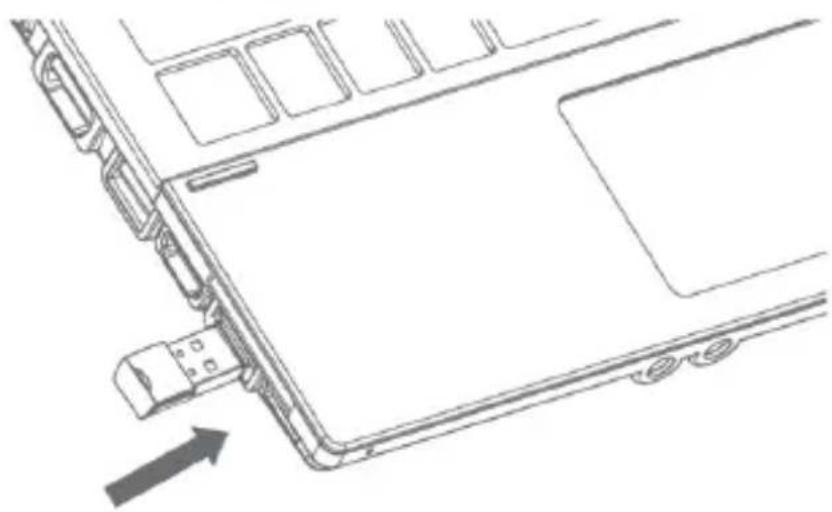
Pull the mini USB receiver out of the pen, plug it into computer's USB port. The "Found new hardware" message then pops up in the lower right corner of the desktop. The system will install the program automatically. Installation is complete when Windows displays the "New hardware installed and can be used" message.
a. Take out the receiver

b. Plug it into USB port
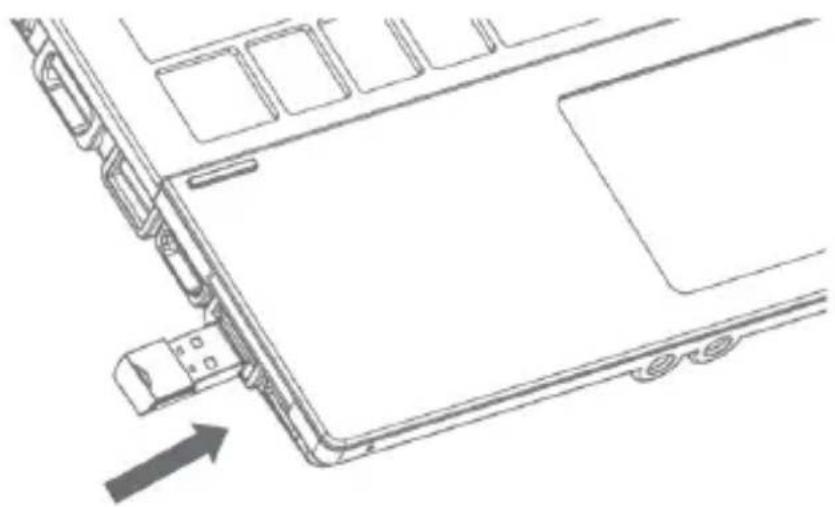
Upon installation on a mac, the Keyboard Set Assistant may appear and prompt that the keyboard cannot be identified. Just click "continue" to finish the installation, and then the presenter will work accordingly.
- Operating the Wireless Laser Pen
a. Slide the power switch from OFF to ON, and the LED indicator blinks twice meaning the presenter is ready to go.
b. Start PowerPoint or Keynote and open the document
c. Refer to the button features to interact with the presentation file Page Up/Down, full screen.
Note
- The Laser Pen will enter into sleep mode automatically when there is no activity for a while, and wake up when any button is pressed.
- The transmission distance between the USB receiver and the Laser Pen will be decreased by any disturbance caused by nearby electronic devices.
• Turning off the Wireless Laser Pen
Please insert the USB receiver back into the Laser Pen and slide the power switch from on to off in order to prevent potential damage caused by the power button being accidentally pressed in a bag or similar situation.

• How to check if the battery inside has power?
- Press the laser button when the power is on. If there is no laser beam, it means the battery has no power.
- Press other buttons when the power on. If the LED indicator does not blink, it means the battery has power left.
- Laser Pen does not blink
- Ensure the battery has been correctly installed according to its polarity (+)(-).
- Ensure the battery has sufficient power.
- Make sure the power switch is set to ON.
If the Laser Pen works normally except without a laser beam, this may be due to a fault with the laser module. Please contact our after-sales service.
- Unidentified receiver
- Ensure the computer's USB port works normally and try other ports.
- Try on another computer. If it works fine, then the problem may be caused by the USB driver. Please reinstall the USB driver.
- What should I if the pointer's laser beam is nor working?
Please replace the battery to ensure sufficient power.
• What should I do when some buttons stop working?
This may be caused by changes to some of the system's shortcuts or changes to shortcuts in the application program (such as PowerPoint). Please check the system or the application's shortcut key settings, or reinstall the operating system and application after backing up your data.
3. TECHNICAL SPECIFICATIONS
Transmitter
Remote control Radio Frequency Technology
RF Frequency 2.4GHz
Control distance 100m
Laser ray 3R laser
Output power <1mW
Laser distance 200m
Laser wavelength 650nm(red)
Working voltage 1.5V
Sleeping current <10uA
Dimension 138.8*17.6*15mm
Weight 18.6g (Without battery)
Receiver
Operating system Windows XP / 7 / 8, Mac OS, Linux, Android
USB version Compatible with USB1.1, USB2.0 & USB 3.0
Working Voltage 4.5-5.5V
Dimension 24.7*13.8*5.14mm
Weight 1.6g
4. POST-SALE SERVICE
Mitsai has designed this appliance in order to guarantee maximum reliability. However, if a problem occurs do not attempt to open the appliance - there is a risk of electrical shock. If you are not able to solve the problem, please contact the Costumer Support Service of any Worten, Modelo or Continente store in order to be assisted. Worten Equipamentos para o Lar provides a 2-year warranty for manufacturing defects from the date of purchase of the appliance.
WARNING: Any attempt to repair the appliance without contacting the manufacturer or seller will void the warranty.
All users must be familiar with these instructions. Knowing what could go wrong can help prevent problems from occurring.
5. ENVIRONMENTAL PROTECTION
In order to protect the environment we strive to reduce the volume of packaging used, limiting it to three easily sorted materials: cardboard, paper and plastic. The appliance is manufactured using recyclable materials after disassembled by a specialized company. Please comply with local regulations concerning the recycling of all materials.

Worten hereby declares that this equipment (Wireless laser Presenter R910 MAP3360BK) is in compliance with Directive 2014/53/EU of the European Parliament and of the Council of 16 April 2014. The full declaration is available at the following Internet address: https://www.suporteworten.pt/.
Nota
b. Conéctelo al puerto USB
MANUAL DE INSTRUÇÕES
Caro(a) cliente,
Nota
MITSAI

- INSTRUCTION MANUAL
- INDEX
- SAFETY INSTRUCTIONS 3
- OPERATING INSTRUCTIONS 5
- TECHNICAL SPECIFICATIONS 12
- SAFETY INSTRUCTIONS
- WARNING RISK OF ELECTRIC SHOCK DO NOT OPEN
- IMPORTANT WARNINGS
- ASSISTANCE
- POWER SUPPLY
- POWER CORD AND OTHER CABLES
- HUMIDITY AND WATER
- CLEANING
- GENERAL PRECAUTIONS
- OPERATING INSTRUCTIONS
- SAFETY MEASURES
- USING THE PRODUCT
- BATTERY INSTALLATION
- NOTE
- INSTALL THE USB RECEIVER
- OPERATING THE WIRELESS LASER PEN
- TURNING OFF THE WIRELESS LASER PEN
- HOW TO CHECK IF THE BATTERY INSIDE HAS POWER
- LASER PEN DOES NOT BLINK
- UNIDENTIFIED RECEIVER
- WHAT SHOULD I IF THE POINTER'S LASER BEAM IS NOR WORKING
- WHAT SHOULD I DO WHEN SOME BUTTONS STOP WORKING
- TECHNICAL SPECIFICATIONS
- TRANSMITTER
- RECEIVER
- POST-SALE SERVICE
- ENVIRONMENTAL PROTECTION
- NOTA
- MANUAL DE INSTRUÇÕES
Brand : Mitsai
Model : R910
Category : Wireless pointer