
iLive ACE - Blender ALLEN & HEATH - Free user manual and instructions
Find the device manual for free iLive ACE ALLEN & HEATH in PDF.


| Product Type | Digital Mixing Console |
| Brand | Allen & Heath |
| Model | iLive ACE |
| Channels | 64 input channels, 32 busses |
| Audio Processing | 96 kHz sampling rate, 24-bit AD/DA |
| Rack Mountable | Yes, 19-inch rack mount |
| Dimensions (W x D x H) | 19 x 18 x 5.25 inches (48.3 x 45.7 x 13.3 cm) |
| Weight | Approximately 33 lbs (15 kg) |
| Power Supply | 100-240 V AC, 50/60 Hz, 200W max |
| Audio Connections | XLR, TRS, AES/EBU, EtherCon |
| Networking | ACE (Allen & Heath Control Ethernet) protocol |
| Effects Processing | Built-in reverb, delay, modulation, dynamics |
| Control Surface | Touch screen and physical faders |
| Recording | Multi-track recording via USB or network |
| Operating System | Allen & Heath proprietary firmware |
| Maintenance | Clean with dry cloth; avoid liquids |
| Safety | Do not expose to moisture; use only supplied power cord |
| Spare Parts | Contact Allen & Heath support for replacement parts |
| Warranty | 1 year limited warranty |
Frequently Asked Questions - iLive ACE ALLEN & HEATH
User questions about iLive ACE ALLEN & HEATH
0 question about this device. Answer the ones you know or ask your own.
Ask a new question about this device
Download the instructions for your Blender in PDF format for free! Find your manual iLive ACE - ALLEN & HEATH and take your electronic device back in hand. On this page are published all the documents necessary for the use of your device. iLive ACE by ALLEN & HEATH.
USER MANUAL iLive ACE ALLEN & HEATH
natural_image
Close-up of a black electronic circuit board with ports and connectors, no visible text or symbolsNote For firmware V1.5 this option is not supported in the iLive Surface RAB2 module Port B. The only option supported in Surface Port B is the MMO module (ADAT, iDR link).
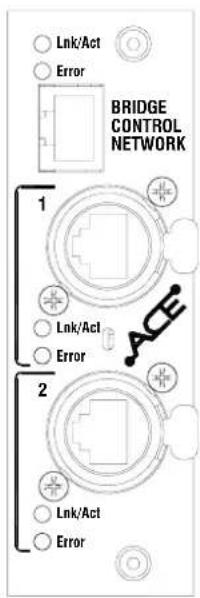
M-ACE is one of several plug-in card options that may be fitted to the iLive Series. It can provide a multi channel digital audio and network control link between two MixRacks or between a MixRack and Surface using a single CAT5 cable. ACE offers an alternative to EtherSound and other networking standards providing a digital audio snake for situations where point-to-point rather than distributed network connection is required.
ACE (Audio and Control over Ethernet) is a proprietary Allen & Heath system for transporting control and audio between MixRacks or between MixRack and Surface using standard RJ45 connectors and CAT5e Ethernet cable. It allows very low latency point-to-point connection of up to 64 audio channels in both directions. It can transport network control (TCP/IP Ethernet) over the same connection meaning that just one cable may be used to link devices. Cable length is up to 120m (400') depending on cable type.
Lnk/Act Yellow indicator flashes steadily to indicate that the network is linked and active. It lights solid if the port is connected to a second cable available as a redundant link.
Error Red indicator lights when a connection or data error is detected. It is normal for it to light briefly when the cable is plugged or unplugged.
BRIDGE CONTROL NETWORK Lets you link to a NETWORK port so that the Ethernet control can be transported over the same cable. A short network link cable is provided with the kit. If you do not need the network connection between the devices then leave this unplugged. If you use the bridge make sure there is no additional NETWORK cable connection between the devices.
ACE Port 1 Use a CAT5 cable to connect to the ACE port on the other device.
ACE Port 2 A second port is available for optional redundant backup connection using a second cable. There is no interruption to the audio when switching between main and redundant connection.
Fitting to iDR-32 and iDR-48
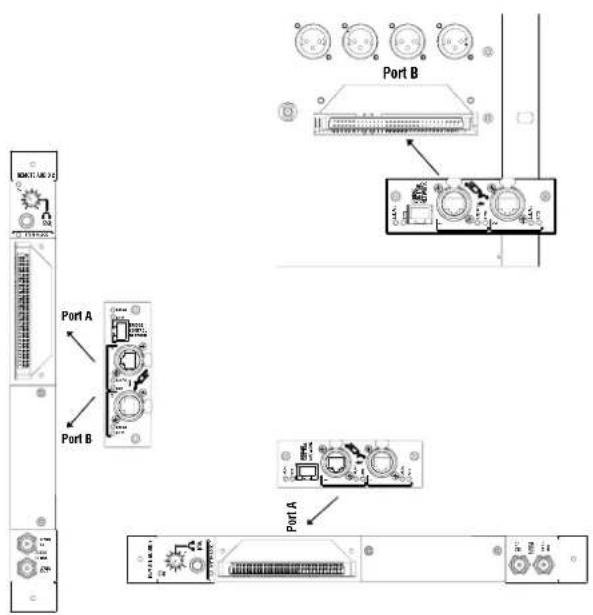
These MixRacks and the T Series surfaces already have one ACE port built in for linking audio and control to/from a connected Surface. The M-ACE card option may be fitted to Port B to add a second ACE connection for linking audio between MixRacks.
Make sure the MixRack is switched off. Remove the 2 sc securing the blank panel over Port B. Slide the M-ACE card into the slot and press it firmly into the mating connector. Secure the card in place using the 2 screws.
Fitting to iDR10 and iLive Surfaces
The option card can be fitted into the Port A (MixRack or Surface) or Port B (MixRack only) slot in the Remote Audio 2 (RAB2) module. Systems fitted with the older Remote Audio module can be upgraded with the new RAB2 module.
Note The option port is not available on the T Series surfaces.
Make sure the System is switched off. Remove the 2 securing the blank panel over the port slot. Slide the M-ACE card into the slot and press it firmly into the mating connector. Secure the card in place using the 2 screws.
flowchart
graph TD
    subgraph FOH_SYSTEM
        A["T Series Surface ACE"]
        B["iDR-48"]
        C["Port B ACE"]
        D["Network Bridge"]
    end

    subgraph MONITOR_SYSTEM
        E["T Series Surface ACE"]
        F["iDR-32"]
        G["Port B ACE"]
        H["Network Bridge"]
    end

    I["iao"] --> J["control"]
    K["audio"] --> L["control"]
    M["audio"] --> N["audio control"]
    O["iao"] --> P["control"]
    Q["audio"] --> R["audio control"]
    S["iao"] --> T["control"]
    U["audio"] --> V["audio control"]
    W["iao"] --> X["control"]
    Y["audio"] --> Z["audio control"]
    AA["iao"] --> AB["audio control"]
    AC["iao"] --> AD["audio control"]
    AE["iao"] --> AF["audio control"]
    AG["iao"] --> AH["audio control"]
    AI["iao"] --> AJ["audio control"]
    AK["iao"] --> AL["audio control"]
    AM["iao"] --> AN["audio control"]
    AO["iao"] --> AP["audio control"]
    AQ["iao"] --> AR["audio control"]
    AS["iao"] --> AT["audio control"]
    AU["iao"] --> AV["audio control"]
    AW["iao"] --> AX["audio control"]
    AY["iao"] --> AZ["audio control"]
    BA["iao"] --> BB["audio control"]
    BC["iao"] --> BD["audio control"]
    BE["iao"] --> BF["audio control"]
    BG["iao"] --> BH["audio control"]
    BI["iao"] --> BJ["audio control"]
    BK["iao"] --> BL["audio control"]
    BM["iao"] --> BN["audio control"]
    BO["iao"] --> BP["audio control"]
    BQ["iao"] --> BR["audio control"]
    BS["iao"] --> BT["audio control"]
    BU["iao"] --> BV["audio control"]
    BW["iao"] --> BX["audio control"]
    BY["iao"] --> BZ["audio control"]
    CA["iao"] --> CB["audio control"]
    CC["iao"] --> CD["audio control"]
    CE["iao"] --> CF["audio control"]
    CG["iao"] --> CH["audio control"]
    CI["iao"] --> CJ["audio control"]
    CK["iao"] --> CL["audio control"]
    CM["iao"] --> CN["audio control"]
    CO["iao"] --> COA["audio control"]
    CP["iao"] --> CPB["audio control"]
    CS["iao"] --> CSB["audio control"]
    CT["iao"] --> CU["aiou aio aio aio aio aio aio aio aio aio aio aio aio aio aio aio aio aio aio aio aio aio aio aio aio aio aio aio aio aio aio aio aio aio aio aio aio aio aio aio aio aio aio aio aio aio aio aio aio aio aio aIO"]
    CX["iao"] --> CY[aiou aio aio aio aio aio aio aio aio aio aio aio aio aio aio aio aio aio aio aio aio aio aio aio aio aio aio aio aio aio aio aio aio aio aio aio aio aio aio aio aio aio aio aio aio A
    CX
Linking MixRacks
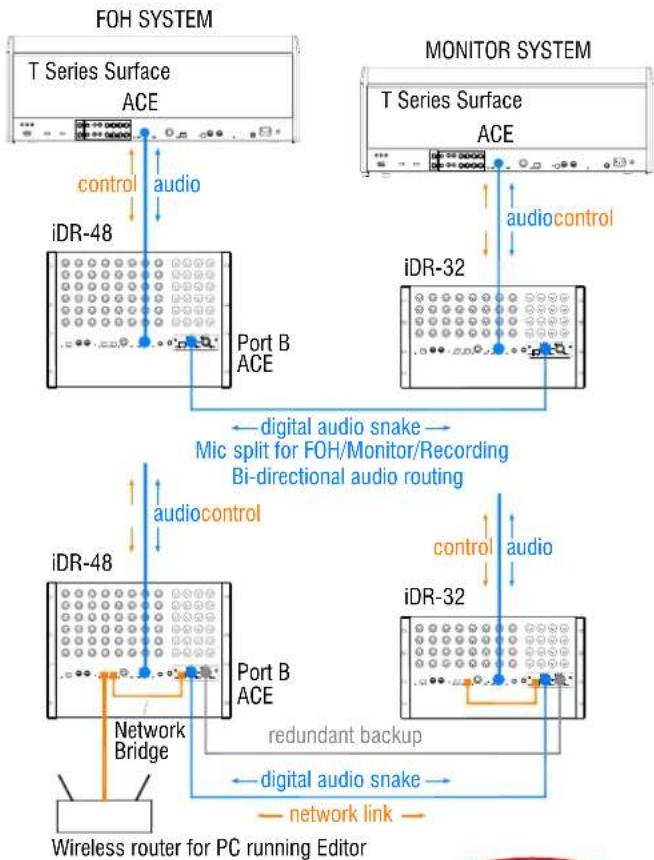
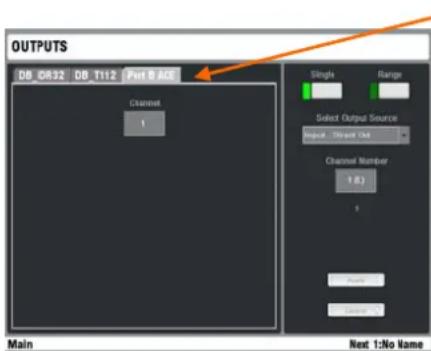
Link audio between two systems Use a single CAT5 cable to link up to 64 channels of audio in both directions between two systems. For example, create a digital mic splitter for a FOH/Monitor system or to another system for broadcast or recording. Signals such as talkback and inter-system communications can also be transported in either direction. Use the OUTPUTS screen Port B patchbay at either end to choose the signals to send via the link.
Bridge Network control over the same cable Use the short cables to link one of the NETWORK ports to the ACE Bridge socket at both ends. Use this if you want to put both systems on to the same TCP/IP network, for example for one laptop to access either system using two sessions of Editor.
Tunnel another TCP/IP network through ACE You can use the Bridge socket to transport a non-related 3 ^rd party TCP/IP network such as a lighting or amplifier system controller. Make sure their IP addresses do not conflict with those of the iLive systems.
Redundant backup cable Use the second ACE port if you want to run a second CAT5 cable as a backup. Audio switches seamlessly between the two in the event of one cable becoming damaged or disconnected.
Surface to MixRack link
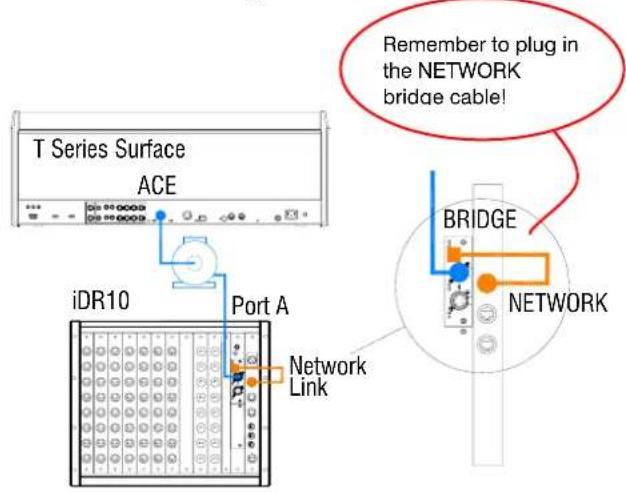
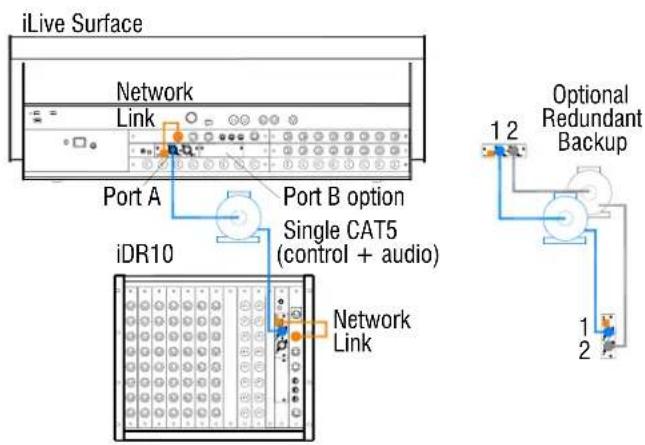
ACE can be used to provide a simple, single cable point-to-point link between the Surface and MixRack transporting both the audio and control. The iDR-32, iDR-48 and T Series surfaces already have Port A ACE built in for this purpose. The iDR10 MixRack and standard iLive Surfaces can have the M-ACE option fitted to Port A to provide the single cable rack to surface link instead of the two cable network and EtherSound (or other networking standard) link.
Note To use the M-ACE option with the iDR10 and iLive surfaces make sure they have the RAB2 Remote Audio 2 module fitted. Systems fitted with the earlier Remote Audio module may be upgraded to Rab2.
To combine the audio and network connection over the same CAT5 cable make sure you link one of the NETWORK ports to the ACE BRIDGE socket. Do this using the short CAT5 cable provided wherever the M-ACE card is fitted.
The iDR-32, iDR-48 and T Series surfaces bridge the network to ACE internally for their built-in ACE port.
Redundant backup cable Use the second ACE port if you want to run a second CAT5 cable as a backup between MixRack and Surface.

Cable and connectors
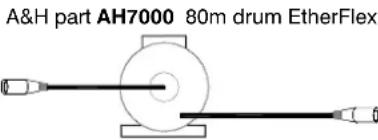
ACE is compatible with CAT5e T568A and T568B twisted pair cable standards. For on the road reliability and protection choose a heavy duty touring grade cable type.
Maximum length = 120m (400 feet) depending on cable type. Most good quality CAT5 cables should work reliably to around 40m (130 feet). We do not guarantee that all cable types will work reliably at longer lengths.
Two cable types we have tested to 120m and recommend are:
Neutrik EtherFlex SFTP CAT5e (www.neutrik.com) Belden Cat Snake 1305a (www.belden.com)
A tour grade connector combination we recommend is the Neutrik Ethercon (XLR type locking shell) with Hirose RJ45 TM21P-88P (21) (www.hiroseconnectors.com)
Patching signals to/from Port B
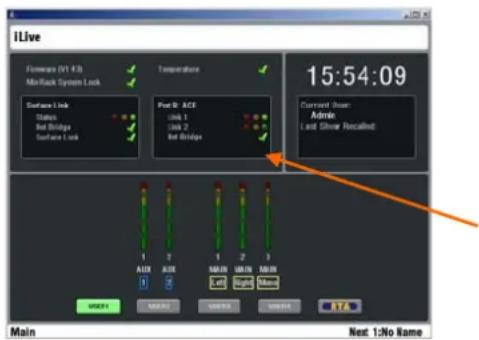
iLive recognises the type of the option cards fitted. Details are displayed on the Surface TouchScreen Status page.
Status Connection status is indicated. A green dot = no errors detected. Orange dot = 1x error, Red dot = more than 1x error during the last 3 minutes. A green tick = A TCP/IP network bridged to connect via the ACE cable has been detected. A red cross indicates errors associated with the bridge connection.
Patching signals to Port B Use the TouchScreen or Editor OUTPUTS screen Port B tab. You can assign one or a range of signals to the 64 ACE channels by choosing selections from the drop down menu. For a digital mic split it is typical to choose MixRack Inputs (the signal immediately after the preamp). Remember to touch Apply after making changes.
Patching signals from Port B to the iLive Source selections in several places within the iLive system are made using drop down menus. These include selection from the 64 ACE channels if the ACE card has been fitted to Port B. For example, you can patch ACE channels as sources to the mono or stereo IP channels, Mix Ext Inputs, Talkback or Ext Source to PAFL..
The input and output patching including Port B is archived within the Show memories and can be stored in the Scenes 'Patchbay' item.

This product complies with the European Electromagnetic Compatibility directives 89/336/EEC & 92/31/EEC.
Copyright© 2009 Allen & Heath Ltd. All rights reserved.
For further information refer to www.allen-heath.com
NOTE: Any changes or modifications to the equipment not approved by Allen & Heath could void the compliance of the equipment. Whilst we believe the information in these instructions to be reliable we do not assume responsibility for inaccuracies. We also reserve the right to make changes in the interest of further product development.
Brand : ALLEN & HEATH
Model : iLive ACE
Category : Blender