
DTC8021 - Receiver BUSH - Free user manual and instructions
Find the device manual for free DTC8021 BUSH in PDF.


| Product Type | Digital Terrestrial Receiver (DVB-T/T2) |
| Model | DTC8021 |
| Brand | Bush |
| Dimensions (W x D x H) | 160 mm x 100 mm x 40 mm |
| Weight | 0.4 kg |
| Power Supply | 5V DC, 1A (via USB or adapter) |
| Video Output | HDMI, SCART |
| Audio Output | HDMI, digital optical (optional) |
| USB Port | USB 2.0 (for playback and recording) |
| Supported Video Formats | MPEG-2, MPEG-4, H.264, H.265 (HEVC) |
| Maximum Resolution | 1080p Full HD |
| Electronic Program Guide | Yes (EPG, 7 days) |
| Timeshift | Yes (requires USB storage) |
| Recording | USB recording (timeshift and schedule) |
| Remote Control | Infrared, included |
| Channel Storage | 1000+ channels |
| Language Support | Multiple languages (menu and audio) |
| Subtitles | Yes (DVB subtitles) |
| Parental Control | Yes (channel lock) |
| Mains Frequency | 50/60 Hz |
| Operating Temperature | 0°C to 40°C |
| Package Contents | Receiver, remote control, power adapter, AV cable, user manual |
Frequently Asked Questions - DTC8021 BUSH
User questions about DTC8021 BUSH
0 question about this device. Answer the ones you know or ask your own.
Ask a new question about this device
Download the instructions for your Receiver in PDF format for free! Find your manual DTC8021 - BUSH and take your electronic device back in hand. On this page are published all the documents necessary for the use of your device. DTC8021 by BUSH.
USER MANUAL DTC8021 BUSH
ShowDrive Digital TV Recorder
(DTC8021)
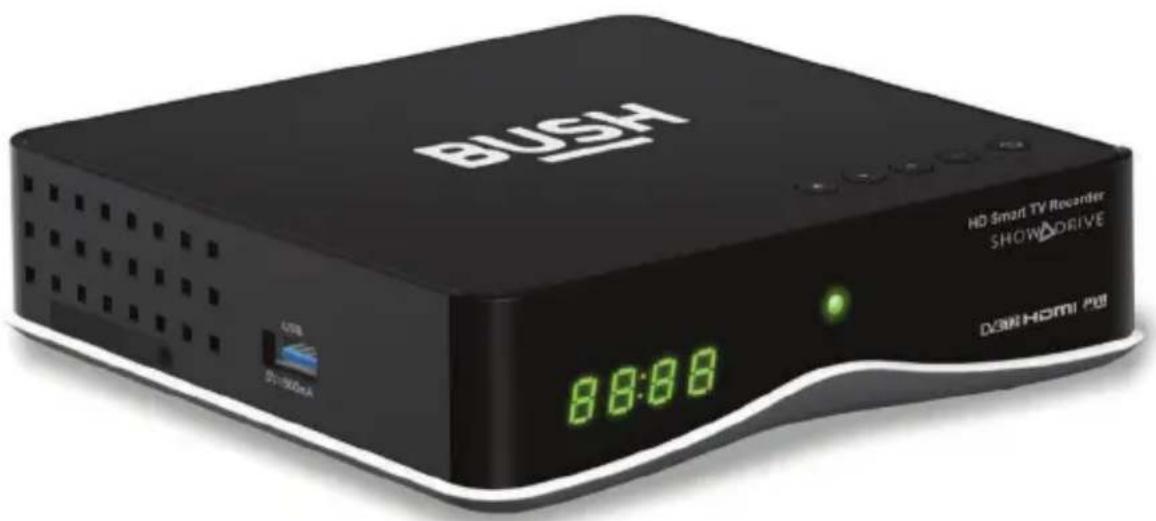
You'll soon be enjoying your new ShowDrive Digital TV Recoder (DTC8021)
It all begins here, with your instructions. Don't worry, there's nothing too technical coming up. Just simple, step-by-step guidance to get you up and running quickly. Sound good? Then let's get started.
Technical Specification
| Video/Audio Decoding | Hardware |
| MPEG2 SD & HD | Processor Mstar K3 Core ARM6 |
| F 263 IMPEG4) SD & HD | 5000 DDR5 |
| MPEC Audio | 3D graphic support |
| AAC | Permanent Storage |
| AAC-HD v2 | 1 high performance 16C I SD card |
| Do.by Digital | Resolutions |
| Do.by Digital Plus 720o | |
| Tuner | 1080p/p |
| Dual DVR-T2 tune? | 1080p/25 |
| 1080p/50 | |
| Memory Configuration | |
| 512MB DDR5 | Interfaces |
| CM3 NOR1 lssn | 5 x buttons |
| 256MB NAND Flash | BI-colour LED |
| Connectors | 4 x 7 segmon, display (grocent) |
| ILC-B Input | Power |
| R colourthrough | Internal power supply 100-240V AC |
| HDMI | BI colour LED |
| FJ45 | 4 x 7 segmon, display (grocent) |
| 1x JSB slot | <1W standby |
| UK plug |
Help and Guidance
We're here to help you get the most from your ShowDrive Digital TV Reporter. Should you require any guidance, a simple solution can often be found online at
www.argos-support.co.uk
If you st. I require further assistance, call one of our experts on 0345 604 0105.
If you require any technical guidance or if no that your product is not operating as intended, a simple solution can often be found in the Troubleshooting section of these instructions.
Contents
1 Safety information
Safety information 6
2 Getting to know your ShowDrive Recorder
Accessories 10 Your DTC8021 box 11
Your DTC8021 remote 12
Connect your aerial antenna 13
Connect your network 13
Connect your TV 14
Connect the power 14
First time set-up 15
Library 25
Record Schedule 26
Apos 26
Search 27
Settings 28
ShowDrive 32
4 Product support
Troubleshooting 58
Help and assistance 40
Disposal 40
3 Using your ShowDrive Recorder
Getting around 20 Display Overlays on Live TV 20 Channel Change 20 Info 20 Trick Play 21 List View – Now and Next 22 Main Menu 23 Guide 24
or online at www.argos-support.co.uk if you still require further assistance, call one of our experts on 0345.604.0105
1 Safe

natural_image
Abstract geometric pattern composed of gray triangles on a white background (no text or symbols)
Safety information
Important - Please read these instructions fully before installing or operating

Warning: REMOVING THE COVER OF THE DTC8021 MAY LEAD TO SEVERE AND POTENTIALLY FATAL ELECTRIC SHOCK.
This device has been manufactured to meet international safety standards. However, safety precautions must be followed to ensure the safe and reliable operation of the device. Please take note of the following guidelines to avoid the risk of an electric shock.
Electrical Connections
- This device operates with an external power supply in the range of 100 to 240V AC, 50/60 Hz. Use a standard AC wall outlet, a DC power source cannot be used. Remember that contact with a 110-240 Volt AC power supply can be lethal.
Ensure that all electrical connections are properly made before connecting the device to the power supply (the mains). Always unplug the device before connecting or disconnecting any cables.
- Whenever you connect the device to the power supply, always connect the power lead to the power input connector on the back panel of the device before you connect the power socket to the wall outlet.
- Whenever you disconnect the device from the power supply, always remove the power socket from the wall outlet before you remove the other end of the lead from the power input connector on the back panel of the device.
Keep it cool
- Allow adequate air circulation to prevent internal heat build-up.
- Keep the device away from other sources of heat, whenever possible.
- Don't expose the device to extreme temperatures, direct sun light or high humidity.
- Don't place the device on fabric furnishings, carpets or other flammable materials.

Safety information
Important - Please read these instructions fully before installing or operating
Don't Open It
- Never attempt to repair or reconstruct this device yourself. A serious electric shock may occur if this device is repaired, disassembled or reconstructed by an unauthorized person.
- Unplug the device and have it checked by a qualified technician if anything falls into the casing.
Don't Get It Wet
- Be extremely careful if this device comes into contact with water. Immediately disconnect the power socket if possible.
- Don't place the device anywhere where it might be exposed to dripping or splashing liquids.
If you require any technical guidance or find that your product is not operating as intended, a simple solution can often be found in the Troubleshooting section of these instructions.
or online at www.argossupport.co.uk if you still require further assistance, call, one of our experts on 0345 604 0105
Getting to know your ShowDrive Digital TV Recorder
Getting to know your ShowDrive Digital TV Recorder
You'll be up and running in no time
Ready? Let's begin...
Please read these instructions carefully. They contain important information which will help you get the best from your ShowDrive Digital TV Recorder (DTC8021) and ensure safe and correct installation and operation.
If you require any further assistance, our technical experts are happy to help. For full details, refer to the product support section at the end of these instructions.
Accessories
- Power supply
- HDMI cable - useful for connecting your DTC8021 to your TV
- USB Wi-Fi dongle – this is provided for your use if you have a Wi-Fi network that you'd like to connect your DTC8021 to. It is not required if you are using an Ethernet connection
- Remote control
- Batteries for the remote control

1. Power Supply
2. HDMI Cable
- USB Wi-Fi Dongle

- Remote Control

5. AA Batteries (2X)
Getting to know your ShowDrive Digital TV Recorder
You'll be up and running in no time
Your DTC8021 Box

- Channel Up/Down Volume Up/Down
- Power button
- Display
- Power indicator
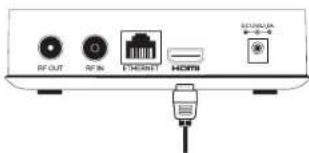
- Aerial antenna output
- Aerial antenna input
- Ethernet input
- HDMI video output
- Power supply input

BACK

If you require any technical guidance or find that your product is not operating as intended, a simple solution can offer be found in the Troubleshooting section of these instructions.
or online at www.argossupport.co.uk if you still require further assistance, etc., one of our experts on 0345 604 0105
Getting to know your ShowDrive Digital TV Recorder
You'll be up and running in no time.
Your DTC8021 Remote

If you require any technical guidance or find that your product is not operating as intended, a simple solution can often be found in the Troubleshooting section of these instructions.
Getting to know your ShowDrive Digital TV Recorder
You'll be up and running in no time
Connections
First things first - Let's connect the DTC8021! You can refer to the quick start guide, or follow the instructions below.
Connect your aerial antenna to the RF input
Your DTC8021 needs an aerial connection to watch TV. Unplug the aerial cable from your TV or existing set-top box, and plug it into the RF in on the back of the box. The number and visual quality of the free-to-air TV channels you get will depend on your location, aerial and cable.

Connect ethernet cable or WiFi USB stick
An internet connection is required for streaming online content as well as for operating the optional ShowDrive cloud storage service. Connect your DTC8021 to the internet using the Ethernet jack on the back of the box (cable not provided).

Connect the RF output to another receiver
If you have an additional digital TV receiver, such as a TV or a set-top box, you can optionally use the RF Out on the DTC821 to connect to its input.
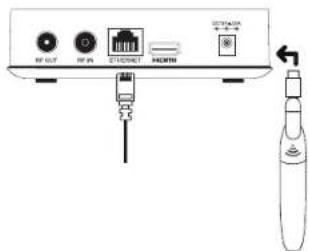
Optionally, if you have a strong Wi-Fi network in your home, you may use the included Wi-Fi USB stick. Connect it to the USB port on the side of the box.
or online at www.argossupport.co.uk if you still require further assistance, etc., one of our experts on 0345 604 0105
Getting to know your ShowDrive Digital TV Recorder
You'll be up and running in no time.
Connect to your TV
Use the included HDMI cable to connect your box to your TV's HDMI input, or if you are using a Surround Sound AV Receiver, to an HDMI input on your AV Receiver.
Connect the power supply
Using the included Power Supply, connect your box to a power socket. Turn on your TV and select the appropriate HDMI input (or AV Receiver settings if you are using one).

Put the included batteries in the remote control
Be sure to follow the polarity indicators in the battery compartment.
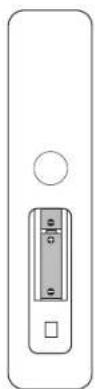
That's it! All your hardware connection should be set. Next, follow the on-screen instructions to complete your set-up.
Getting to know your ShowDrive Digital TV Recorder
You'll be up and running in no time
First time set-up
Your box will now lead you through a series of on-screen menus as you complete your set up.
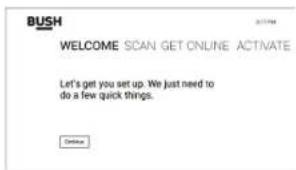
Welcome
If you see this screen, then you know for sure that your box is powered up, connected to your TV, and your TV is on the right input. Press "OK" button on the remote to start the set-up process.
Scanning for channels
The first step in getting you up and running is to scan your aerial antenna for a signal. This will take 10-15 minutes, and will continue in the background while you continue through the setup.

If you require any technical guidance or find that your product is not operating as intended, a simple solution can offer be found in the Troubleshooting section of these instructions.
or online at www.argossupport.co.uk if you still require further assistance, etc., one of our experts on 0345 604 0105
Getting to know your ShowDrive Digital TV Recorder
You'll be up and running in no time
Getting Online
Some of the best features of your box, like Apps and ShowDrive cloud storage, are only available with an internet connection.

If you connected your Wi-Fi USB adapter, you'll see a list of available networks from which you can choose. If you are using a wired connection, select that one.
Software Updates
Once your DTC8021 is connected to the internet, it will check to see if there is a new version of the software available. If there is, the box will automatically download and install it, restarting itself in the process. This usually takes a few minutes. Once the update is complete, you'll be back into the setup process where you left off.
Activating ShowDrive Cloud Recording
Your DTC8021 is ShowDrive-enabled. With an optional subscription to ShowDrive, you can store your favourite programmes in your own personal cloud locker. This can be set-up now, or at any time down the line.

Follow the on-screen instructions, or go to: www.showdrive.co.uk for more details.
Note: Your DTC8021 has very limited on-board storage, so you'll only have a few hours of recording time without ShowDrive.
Getting to know your ShowDrive Digital TV Recorder
You'll be up and running in no time
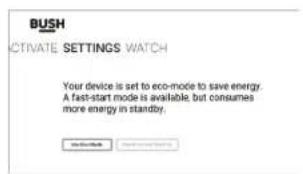
Turning on Eco-Mode
You can turn on eco-mode to save energy, or use fast-start-up mode.
Go Watch TV!

That's it! Your ready to watch TV.
Set your PIN
PINs are handy for ensuring that only you can set-up and manage the parental and system-level controls of your box. Be sure to pick a number you remember!

If you require any technical guidance or find that your product is not operating as intended, a simple solution can often be found in the Troubleshooting section of these instructions.
or online at www.argossupport.co.uk if you still require further assistance, call one of our experts on 0345 604 0105
Using your ShowDrive Digital TV Recorder
Using your ShowDrive Digital TV Recorder
Let's get started
Getting Around
Navigating around your ShowDrive Digital TV Recorder is straightforward. You can get just about anywhere using the D-Pad (the circular Up/Down, Left/Right & OK pad).
- Use Up/Down and Left/Right to move around.
- Use the "OK" button to activate your selection.
- Use the "Back" button to go back to the last menu you were looking at.


Display Overlays on Live TV
When watching live TV, there are four different types of screen overlays that you might see: Channel Change, Info, Trick Play, and List View
Channel Change
Firstly, when changing channels, we'll automatically pop up an overlay at the bottom of the screen that will display the date/time, the channel you are watching, and details about the programme and episode.
![Thursday 31 Dec Canals - The Making of a Nation 7:31pm 2/8 Geology: How the process of building the canals resulted in furthering geological knowledge, as surveyor William Smith created the first geological map of England and Wales. Also in HD. [5]](/content/2026/05/970620/images/2ca8cf7f77b123a6402407b4b8a848f69d2515eef13f7a07e50efc18bcf2c0ca.jpg)
If you require any technical guidance or find that your product is not operating as intended, a simple solution can often be found in the Troubleshooting section of these instructions.
2071
BUSH
Using your ShowDrive Digital TV Recorder Using your ShowDrive Digital TV Recorder
Using your ShowDrive Digital TV Recorder
Let's get started
Info
If you would like to get more information about the programme you are watching, or want to see what else is on, you can use the "Info" button on the remote to bring up the info overlay.
By using the D-pad Up/Down you can see what is one other channels. By using the D-Pad Left/Right, you can see which programmes are coming up next, or which were just on.
![Thursday 31 Dec Canals - The Making of a Nation 7:26pm Today 7:00pm - Duration 30 minutes News & Factual 1/6 Engineering: Liz Molver charts the struggles of the builders and engineers tasked with creating a landscape of canals over the rugged terrain surrounding the Fermine hills. Also in HD. [8] watch now record](/content/2026/05/970620/images/00bdd7d8ff576efe2cf6743d5c866a03aa49a246c33a4faee9c7c1b12dc0ddd1.jpg)
Trick Play
When using the pause/play button or using the fast forward/rewind and skip buttons, you'll see an overlay which displays the programme name, where you are within the programme, and programmes both before and after the one you are watching.

or online at www.argossupport.co.uk if you still require further assistance, call one of our experts or 0345 604 0105
BUSH
Using your ShowDrive Digital TV Recorder
Let's get started
List View – Now and Next
One nice way to browse through programmes that are on now, or coming up next, while you are watching live TV is to use the "List" mode. This mode will display programmes that are currently airing, as well as upcoming programs. Click "OK" on the remote during live TV viewing to bring this up.
Press down on the D-Pad to see what shows are coming up Next:

If you require any technical guidance or find that your product is not operating as intended, a simple solution can often be found in the Troubleshooting section of these instructions.
Using your ShowDrive Digital TV Recorder
Let's get started
Main Menu
The main menu for your PVR pops out from the left side of your screen. It's where you'll find the main sections of the system: Guide, Library, Apps, Search, and Settings (gear icon).

When watching a program, hitting the "Left" button on the D-Pad will bring up the Menu. Use the up and down arrows to select a section, then click "OK".
Clicking the right button, exit button, or back button will dismiss the menu.
or online at www.argos support.co.uk. If you still require further assistance, call one of our experts or 0345 604 0105
Using your ShowDrive Digital TV Recorder
Let's get started
Guide
The Guide is the place to go to see all of the live and upcoming programs on your ShowDrive Digital TV Recorder. The left side of the menu displays the channels you receive while the grid displays programmes and their start and end times. Use the D-pad to navigate around the grid.
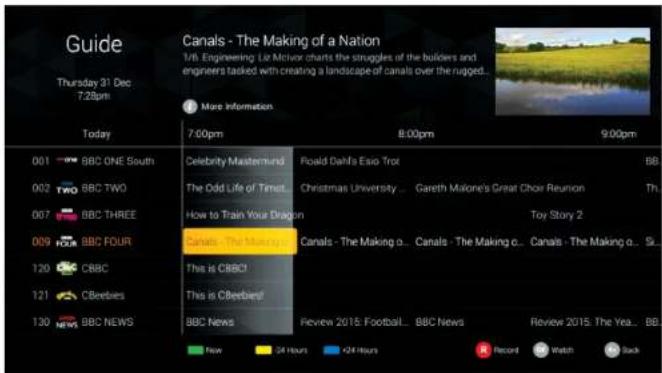
- To jump to a programme that is on now, highlight the program in the Guide and click "OK" on the remote.
- To be reminded about an upcoming programme, navigate to the programme and click "OK" on the remote.
- To record a programme, or schedule a series recording, select the programme to record and press the Record button on your remote.
- To exit to Guide, click on the "Exit" button or the "Back" button on the remote.
If you require any technical guidance or find that your product is not operating as intended, a simple solution can often be found in the Troubleshooting section of these instructions.
Using your ShowDrive Digital TV Recorder
Let's get started
Library (ShowDrive)
The Library is where all of your recorded programmes are displayed. Programmes are organized by series, and then episodes within a series.
You can browse the list using the Up/Down buttons on the D-pad. If there is more than one episode of a particular series, highlighting the series name and clicking OK will take you to a page which displays all of the episodes. If there is only one episode of a given series, clicking OK will play the programme.

Icons:

Segmented Recording (multiple parts)

Unwatched programme

Partially viewed programme

Watched programme
You can change the sorting order of the display (Title, Date recorded, or Watched/Un-watched) by using the Left/Right D-Pad buttons.
or online at www.argos-support.co.uk If you still require further assistance, call one of our experts on 0345 604 0105
Using your ShowDrive Digital TV Recorder
Let's get started
Record Schedule
Once you've set up several recordings, you might want to manage them. To do so, enter the "Recording Schedule" screen. Do this by pressing the Red colour button on the remote.
From this screen, you can cancel recordings or change your recording preferences.
The DTC8021 has two tuners, so you can record two programmes at the same time. You can also watch a programme you are recording, or one from your Library (ShowDrive activated) while two other programmes are recorded.
![Library SHOW+DRIVE 1% full 150 hours Title Date Channel Series Herald Delita Eau Tint Today- 7:30pm Retired bachelor Mr Hoppy is hopefully in live with his. neighbour Mrs Silver, but she is only interested in her pet tortose Aille - until Mr Hoppy hatches an audacious plan. Also in HD [ADIS] More information](/content/2026/05/970620/images/872dc744cd12fd20465b06e4642ef51a5973d0a0e146604046a3f8af31e4fd00.jpg)
If you require any technical guidance or find that your product is not operating as intended, a simple solution can often be found in the Troubleshooting section of these instructions.
Using your ShowDrive Digital TV Recorder
Let's get started
Apps
The Apps menu allows you to choose from a range of online video services. When you launch an app from the Apps menu, you'll be taken to a new screen which is optimized for that particular online video service.
Note that some online video Apps will require that you register for the service using your computer.
Search
The easiest way to find a specific TV program that you'd like to record is to use the Search menu. Access the Search menu from the Main menu and use the on-screen keyboard display to type in the name of the programme you'd like to find.

Once you've found the programme you're looking for, you can schedule a reminder or a recording.
or online at www.argos-support.co.uk if you still require further assistance, call one of our experts on 0345 604 0105
Using your ShowDrive Digital TV Recorder
Let's get started
Settings
You can access the Settings of your box via the 📋 icon on the main menu. Settings are divided into eight sections. Use your D-pad Left/Right to move between sections and D-pad Up/Down to select an item from the list within a section. Once you've selected a list item, use Left/Right or the OK button to change the setting.

Using your ShowDrive Digital TV Recorder
Let's get started
The available sections in the Settings screen are outlined below:
| Section | Setting | Options | Why this matters: |
| General | Subtitles | On/Off | |
| Subtitle language | English, Welsh, Gaelic, Irish | ||
| Subtitle type | Harc of Hearing, Normal | ||
| Auto Standby | Off, 1 hour, 2 hours, 4 hours,8 hours. | ||
| eco Mode | On/Off | ||
| Vision | Display Mode | Full Frame, Pilar Box | We recommend Full Frame. |
| HDMI Output | 1080p, 1080i, 728p | If you have a TV that supports it, we recommend leaving this set to 1080p, the highest quality output. | |
| Sound | Audio Language | English, Welsh, Gaelic, Irish | |
| Audio Description | On/Off | ||
| Audio Description Volume | 0-100 | ||
| HDMI Audio | PCM, Bitstream | Select PCM (default) to send a PCM processed video signal to your TV. If your TV supports unprocessed Bitstream audio (for example, surround sound formats), you can select Bitstream. |
If you require any technical guidance or find that your product is not operating as intended, a simple solution can often be found in the Troubleshooting section of these instructions.
or online at www.argos-support.co.uk If you still require further assistance, call one of our experts on 0345 604 0105
Using your ShowDrive Digital TV Recorder
Let's get started
| Section | Setting | Options | Why this matters: |
| Parental | Parental Guidance | On/Off | Parental Guidance "On" will prompt for a pin on any live or recorded TV content showing Adult rated material. |
| Idle Adult Channels | On/Off | ||
| Change PIN | |||
| Recording | Show Drive | Details | Accesses the Show/Drive menu – see below. |
| Default Record Mode | High Definition, Standard Definition; Always Ask | ||
| Skip Forward Time | 10 seconds, 20 seconds, 30 seconds, 60 seconds | ||
| Skip Forward Time | 10 seconds, 20 seconds, 30 seconds, 60 seconds | ||
| Networks | Setup Menu | This information may be helpful in troubleshooting your system. | |
| IP Address | This information may be helpful in troubleshooting your system. | ||
| Subnet Mask | This information may be helpful in troubleshooting your system. | ||
| DNS Address | This information may be helpful in troubleshooting your system. | ||
| MAC Address | This information may be helpful in troubleshooting your system. |
Using your ShowDrive Digital TV Recorder
Let's get started
| Section | Setting | Options | Why this matters: |
| System | Check for Updates | ||
| Region Select | |||
| Manual Scan | |||
| Full Scan | |||
| Reset to Factory | We only recommend doing this when directed to by a technical support representative. | ||
| Information | Version Details | Select to display information about the software, hardware, and model | This information may be helpful in troubleshooting your system |
| Signal | Select to display detailed information about the incoming TV signal on the tuner that is n use. It is OK! Tuner 2 isn't locked when viewing Tuner 1 and vice versa | This information may be helpful in troubleshooting your system |
If you require any technical guidance or find that your product is not operating as intended, a simple solution can
often be found in the Troubleshooting section of these instructions.
Using your ShowDrive Digital TV Recorder
Let's get started
ShowDrive
ShowDrive is an internet storage service that enables you to store your TV recordings in your own private digital locker. With an active ShowDrive account, you can store hundreds of hours of your favourite programmes
To find out more about ShowDrive, visit www.showdrive.co.uk
Activating ShowDrive
During the standard set-up process, you'll be given the opportunity to set up a ShowDrive account and then pair your PVR with your ShowDrive account.
If you choose to skip ShowDrive activation during the setup process, you can always do it later by going to the ShowDrive details menu in the Settings area of your box.
Main Menu -> Settings Icon -> Recording -> ShowDrive
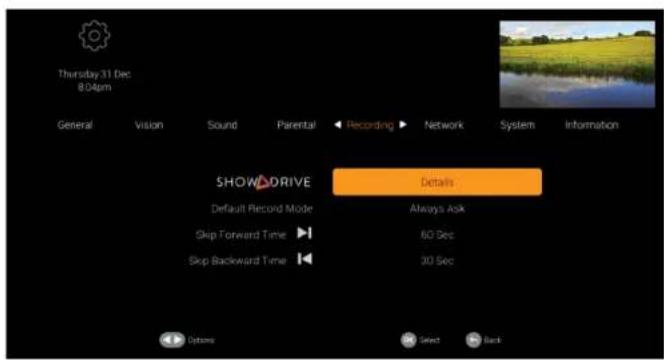
If you require any technical guidance or find that your product is not operating as intended, a simple solution can often be found in the Troubleshooting section of these instructions.
Using your ShowDrive Digital TV Recorder
Let's get started
ShowDrive Settings
If you haven't activated ShowDrive, select "Link" in the ShowDrive details menu in Settings. You will be instructed how to setup a ShowDrive account and pair it with your PVR.

or online at www.argos-support.co.uk if you still require further assistance, ca., one of our experts on 0345 604 0105
Using your ShowDrive Digital TV Recorder
Let's get started
With an active ShowDrive account, the ShowDrive Details menu displays the following:
• Storage: how many hours of storage you have and how many have been used
• Name: [the name you have associated with your ShowDrive account]
- Email: [the email address you have associated with your ShowDrive account]
• Upload Rate Limit: Auto, 10 Kbps, 50 Kbps, 100 Kbps, 500 Kbps, 1 Mbps
- Use Upload Limit to reduce the possible impact on other real-time services on your home network
• Streaming Rate Limit
- Use this setting to reduce bandwidth usage when lower quality is acceptable.
• Account: Un-link
Using your ShowDrive Digital TV Recorder
Let's get started
A Note About Recording Behavior
When you record, programmes are temporarily stored in local memory and then they are uploaded to the cloud to become playable back to your box and other devices. If you record more programmes than your box is able to upload (due to internet problems or bandwidth constraints) you will eventually run out of local storage space. When this happens, scheduled recordings and oldest complete (but not uploaded) recordings will be removed. They should be visible in the "Library - Scheduled recordings" view with a icon. This is correct behavior.
If you require any technical guidance or find that your product is not operating as intended, a simple solution can often be found in the Troubleshooting section of these instructions.
or online at www.argos-support.co.uk if you still require further assistance, ca., one of our experts on 0345 604 0105
Product support
Product support
Help is always at hand
Troubleshooting
Q: I'm not seeing any video.
A: Firstly, check all of your cable connections to ensure a good fit. Next, double check that your PVR is connected to an HDMI input on your TV and that your TV is set to that input. Finally, double check to see that you are getting power to the PVR. You should see a green light on the front.
Q: I'm not hearing any sound.
A: Double check the volume on your TV set or amplifier. Do you get sound from other devices or other TV inputs?
Q: The remote control doesn't seem to do anything.
A: Double check the remote to see that it has fresh batteries installed. Next, make sure you have a clear "line of sight" view to the PVR.
Q: I'm not getting any TV reception.
A: Firstly, check that your antenna has a good signal by connecting it directly to your TV. If you have a good signal and can see lots of stations, re-attach your antenna to the INPUT connector on the PVR and perform a channel scan by going to Settings >System >Channel Scan. Remember, your PVR will only get channels that you receive on your antenna. For more information about TV reception, check www.freeview.co.uk
Q: The picture quality for recorded video looks poor.
A: Check that you have a solid internet connection. You can re-run the speed test by going to Settings->Recording->ShowDrive. If you are using Wi-Fi, consider using a fixed line Ethernet connection.
If you require any technical guidance or find that your product is not operating as intended, a simple solution can often be found in the Troubleshooting section of these instructions.
Product support
Help is always at hand
Q: How many programmes can I record at once?
A: The DTC8021 PVR has two tuners, so you can record two programmes at the same time. You can also watch a show you are recording, or one from your Library (ShowDrive activated) while two other shows record.
Sometimes, a recording conflict can happen when you try to do something that requires 3 tuners. This is normally identified when you try and schedule a recording when both tuners are already booked. In this case you are asked to resolve the conflict and decide which programme you want to record. A conflict can also happen at record time because a programme has overrun its expected time or moved in the broadcast time window. In this case, the PVR will automatically try to find an alternative viewing to record and if it can't find one, it will cancel the recording.
Q: My PVR seems frozen and isn't responding to any remote control input.
A. First, is the video frozen, or just the navigation? If you have a navigation problem, double check that your remote control has a fresh battery. If the battery is fresh and your video is frozen, the best approach is to reboot the system. Press and hold on the box's power button for 3 seconds. If this doesn't reboot the box, you will need to unplug it and plug it back in.
Q: I can't seem to get an internet connection. What should I do?
A: There are many reasons for not having a network connection. Contact our technical support team for assistance.
Q: Is my internet speed fast enough to record with ShowDrive?
A: During setup, ShowDrive will test your connection speed. Speed test can also be re-run any time by going to Settings->Recording->ShowDrive. If Speed test passes on your computer but fails on the box please contact our technical support team for assistance.
or online at www.argos-support.co.uk if you still require further assistance, call one of our experts on 0545 604 0105
Product support
Help is always at hand
Help and assistance
If you require any technical guidance or find that your DTC8021 Cloud PVR is not operating as intended, a simple solution can often be found in the Troubleshooting section of these instructions or online at www.argos-support.co.uk
If you still require further assistance, call one of our experts on 0345 604 0105. To help give us give you a fast and efficient service please have the following information ready:
Model Ref.
Serial number
Date of purchase

natural_image
Three empty rectangular boxes with no text, numbers, or symbolsLocal call rates applies
Lines open 8am 7pm Monday to Saturday and 10am 4am Sunday.
*Calls to Argos encourly lines may attract a charge and set up fee from residential lines depending on your cat, plant tariff. Mobile and other providers costs may vary, see www.bt.com/pricing for details.
For Security and training purposes, telephone calls to and from customer service centres may be recorded and monitored. Calls from Republic of Ireland will attract international call charges.
Disposal
Your DTCR21 and remote control are closed as electrical or electro-instrument, so please DO NOT pull them in your normal runoff on. Instead, it should be hardened over to the applicable collection point for the recycling of electrical and electronic equipment. By ensuring this product is disposed of correctly, you will help prevent power fall negative consequences for the environment and human field, which could otherwise be caused by inappropriate waste handling of this product. For more detailed information about recycling, the product please contact your local council office, your household waste disposal service or the snap where the product was purchased.
Correct disposal of batteries in this product

This marking indicates that the batteries in its product should not be disposed of with other household waste at the end of their working life. I batteries are not properly disposed of, they can cause harm to human health or the environment.
This product is intended for use within the UK. This equipment compiles with the essential requirements for the Radio Equipment and Telecommunications Terminal Equipmcr Directive 1999/5/EC.
Declaration of Conformance
Hereby Argos Ltd, declares that this Band II. FD device is in compliance with the essential requirements and other relevant provisions of Directive 1999/b/c. The complete declaration of conformity can be obtained by contacting http://www.argos-support.co.uk/.

Call us now and activate your 12 month guarantee
Thank you for choosing Bush. Your new product is guaranteed against faults and breakdowns for 12 months. Don't forget to register it with us today so we can provide you with our best possible after-sales service and useful updates.
www.bushregistration.co.uk
FREEPHONE*
0800 597 8548
Lines are open 8am - 8pm, 565 days a year. *Calls may be recorded and monitored.
Your Bush Guarantee
This product is guaranteed for twelve months from the date of origine, purchase. Any defect that arises due to faulty materials or workmanship will be repaired free of charge (or if applicable) the product will be replaced or the purchase price refunded where possible during this period by the dealer from who your purchased the unit.
The guarantee is subject to the following provisions:
- The guarantee does not cover accidental damage, misuse, cabinet parts, knobs or consumable items.
- The product must be correctly installed and operated in accordance with the instructions contained in the manual.
- It must be used solely for domestic purposes. The guarantee will be rendered invalid if the product is
re sold or has been damaged by in expert report.
- Specifications are subject to change without notice.
- Push a claim any liability for loss or damage arising from the breakdown of the product
- In a guarantee is in addition to and does not diminish your statutory or legal rights.
Important Data Protection Information
If you provide us with information about another person, you confirm that they have appointed you to act for them, to consent to the processing of their personal data including sensitive personal data and that, you have informed them of our identity and the purposes (as set out in the Important Data Privacy notice displayed overhead) for which their personal data will be processed.
You are entitled to ask for a copy of the information we hold about, you (for which we may charge a small fee) and to have any inaccuracies in your information corrected.
Guarantor: Arqos Limited 489, 493 Anebury Road, Milton Keynes, MK9 2NW Produced by Eagle Kingdom Technologies, Jr. Room 4204-42/F China Resources Building, 26 Harbour Road, Wan Chai, Hung Kong Imported by Arqos, 489, 493 Anebury Boulevard, Central Miraton Keynes, AK9 2NW
For quality control and training purposes, we may monitor or record your communications with us.
If your personal details change, I you change you mind about any of your marketing preferences or if you have any queries about how we use your information, please let us know by contacting our Data Protection Officer, Domestic & General, Leicester House 17 Leicester Street, Bedford, Warwickshire CV12 BJP
BUSH
Contact:
www.argos-support.co.uk
Helpline: 0345 604 0105

- Help and Guidance
- www.argos-support.co.uk
- Contents
- Safety information
- Getting to know your ShowDrive Recorder
- Product support
- Using your ShowDrive Recorder
- Safety information
- Warning: REMOVING THE COVER OF THE DTC8021 MAY LEAD TO SEVERE AND POTENTIALLY FATAL ELECTRIC SHOCK.
- Electrical Connections
- Keep it cool
- Don't Open It
- Don't Get It Wet
- Getting to know your ShowDrive Digital TV Recorder
- Ready? Let's begin...
- Accessories
- Connections
- Connect your aerial antenna to the RF input
- Connect ethernet cable or WiFi USB stick
- Connect the RF output to another receiver
- Connect to your TV
- Connect the power supply
- Put the included batteries in the remote control
- First time set-up
- Welcome
- Scanning for channels
- Getting Online
- Software Updates
- Activating ShowDrive Cloud Recording
- Turning on Eco-Mode
- Set your PIN
- Using your ShowDrive Digital TV Recorder
- Getting Around
- Display Overlays on Live TV
- Channel Change
- Info
- Trick Play
- List View – Now and Next
- Main Menu
- Guide
- Library (ShowDrive)
- Record Schedule
- Apps
- Search
- Settings
- ShowDrive
- Activating ShowDrive
- ShowDrive Settings
- A Note About Recording Behavior
- Product support
- Troubleshooting
- Help and assistance
- Disposal
- Call us now and activate your 12 month guarantee
- www.bushregistration.co.uk
- Your Bush Guarantee
- The guarantee is subject to the following provisions:
- Important Data Protection Information
- BUSH
Brand : BUSH
Model : DTC8021
Category : Receiver