
BFSAT01HD - Receiver BUSH - Free user manual and instructions
Find the device manual for free BFSAT01HD BUSH in PDF.


| Product Type | Satellite Receiver |
| Brand | Bush |
| Model | BFSAT01HD |
| Input Voltage | 100-240V AC, 50/60Hz |
| Power Consumption | <15W (standby <1W) |
| Dimensions (approx) | 200 x 150 x 40 mm |
| Weight (approx) | 0.5 kg |
| Tuner | DVB-S/S2, 2x LNB input |
| Video Output | HDMI, Composite (RCA) |
| Audio Output | HDMI, Digital Optical, Analog RCA |
| USB Port | 1 x USB 2.0 (media playback, PVR) |
| Card Slot | 1 x CI+ slot |
| Channel Memory | Up to 4000 channels |
| EPG | Yes (7-day) |
| Parental Control | Yes |
| Remote Control | Included (batteries not included) |
| Manual Languages | English, French, German, Spanish |
| Maintenance | Clean with soft dry cloth; avoid liquids |
| Safety | Operate in ventilated area; protect from moisture |
| Spare Parts | Contact Bush customer support |
| Repairability | Do not open; refer to authorized service |
Frequently Asked Questions - BFSAT01HD BUSH
User questions about BFSAT01HD BUSH
0 question about this device. Answer the ones you know or ask your own.
Ask a new question about this device
Download the instructions for your Receiver in PDF format for free! Find your manual BFSAT01HD - BUSH and take your electronic device back in hand. On this page are published all the documents necessary for the use of your device. BFSAT01HD by BUSH.
USER MANUAL BFSAT01HD BUSH
IMPORTANT: Please read all instructions carefully before use and keep for future reference.
Thank you for choosing this Bush HD digital box. Not only can it receive over 80 subscription free channels, but you can also get free HD content*, and radio channels.
It's really simple to use; it's all done using the clear, easy to understand on screen menus which are operated from the remote control. It even has a reminder function so that you won't miss for favourite programmes.

For a one off payment, you can buy a digital box, satellite dish and installation giving you over 80 channels covering the best of TV and more. In addition, freesat will also provide HD content from broadcasters including the BBC and ITV.
A digital box that can receive HD content with a HDMI socket, lets you view HD programmes through your HD ready TV* when connected together using a HDMI cable.
*A HD digital box and HD Ready TV with a HDMI socket are required to receive HD content.
In the box
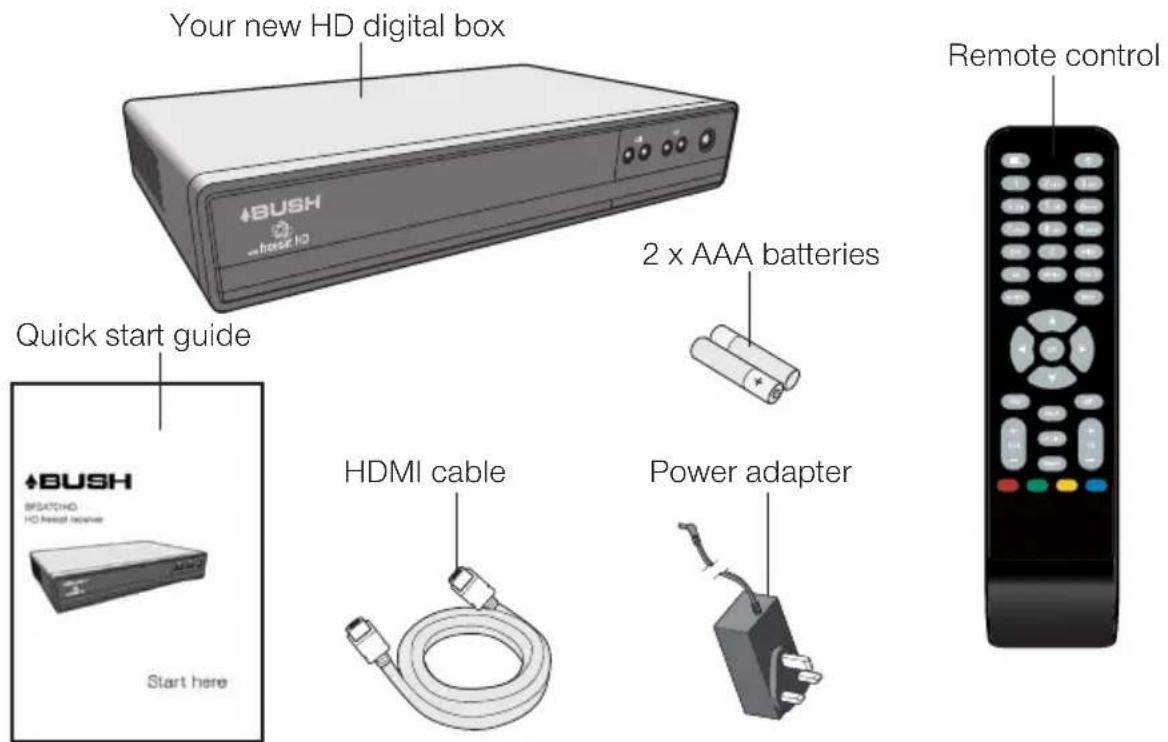
Front view

Rear view
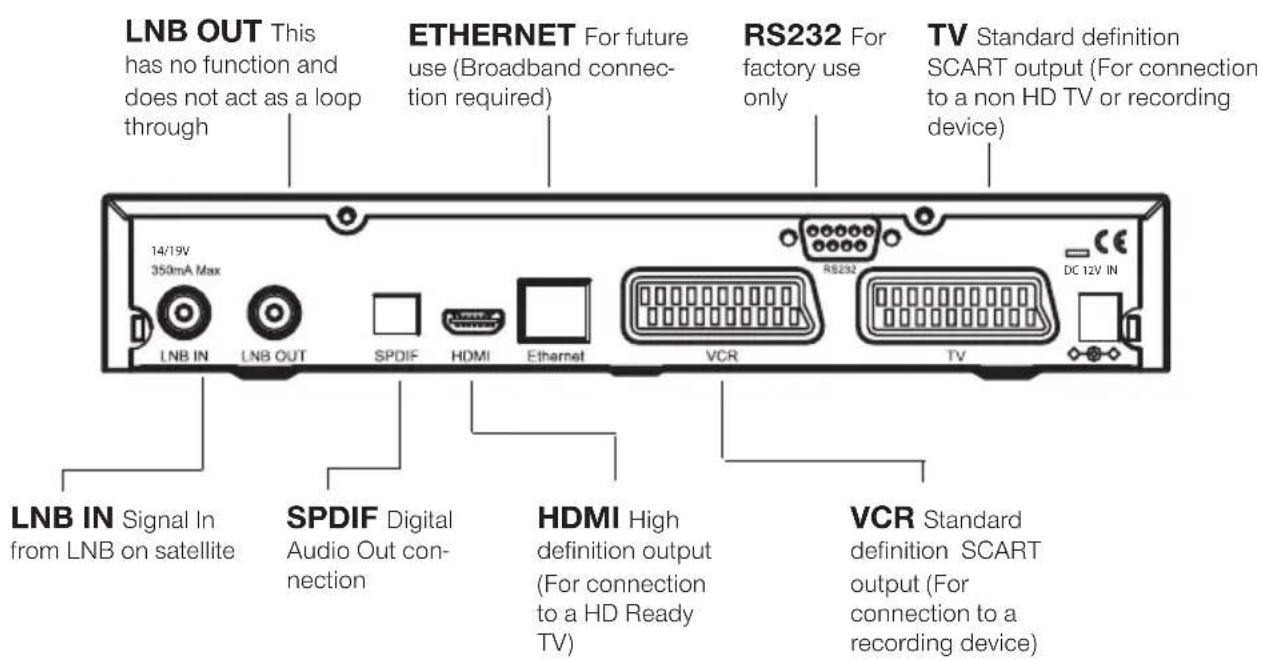

Introducing the channel lists
There are two channel lists available to you;
The 'Channel list' shows all the available channels that you can receive.

The 'Programme list' shows the scheduled programmes available on each channel.

You can use the arrow buttons to select a different channel and use the coloured buttons to move to a new page of channels.
Press [OK] to watch the selected programme.
Changing the channel
You can select the channel you want to watch by using the [CH+] and [CH-] buttons on the remote control. Alternatively use the number buttons to key in the channel number.
When you change the channel the info screen will be displayed for a few seconds. This shows the details of the programme currently showing and the next programme for the selected channel.
| Now: | Eastenders | 20:00 - 20:30 |
| Next: | Holby City | 20.30 - 21:00 |
| 101 | BBC One | 20:14 |
Changing the volume
You can change the volume by using the [VOL+] and [VOL-} buttons on the remote control. You can turn off the volume by pressing the [MUTE] button. To turn it back on press the [MUTE] button again.
Audio description
Audio description is an additional narration that describes all significant visual information such as body language, facial expression, scenery, costumes - anything that is important to the plot of the story, event or image.
Press the [AD] button to switch audio description on (if available). Press the [AD] button again to switch it off.
Subtitles
Press the [SUB] button to display subtitles (if available). Press the [SUB] button again to turn them off.
The menu system
The main menu
To open the main menu screen press the [MENU] button on the remote control.
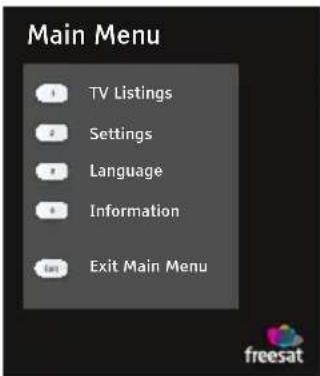
To select a menu, press the relevant number button to open it. For example press [1] on the remote control to open 'TV Listings'.
To close any of the menu screens, press the [EXIT] button.
TV listings menu
The TV listings menu shows you all of your available channels. This list is updated automatically each time you open the menu, so there is no need to re-tune your digital box when new channels become available.
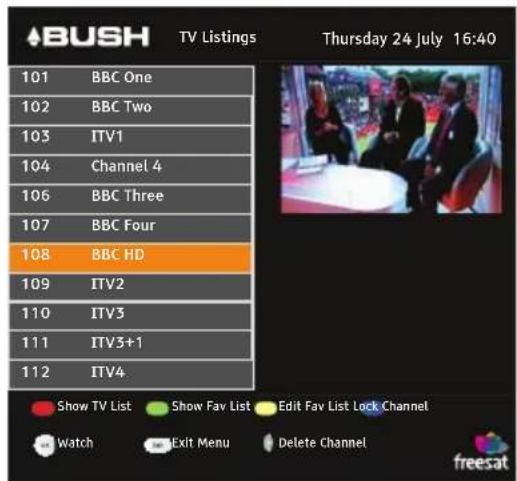
The [DELETE] button lets you delete a channel from the TV list.
The [RED] button opens/returns to the full TV listing menu and shows you the full channel line up available.
The [GREEN] button will show you all your channels in your favourite list. Favourite channels are shown with a tick next to them.
The [YELLOW] button lets you edit your favourite channel list so that you can add and delete channels that you use most often.
The [BLUE] button lets you lock channels so that they can't be viewed. This can be useful if you want to restrict children from watching unsuitable channel content.
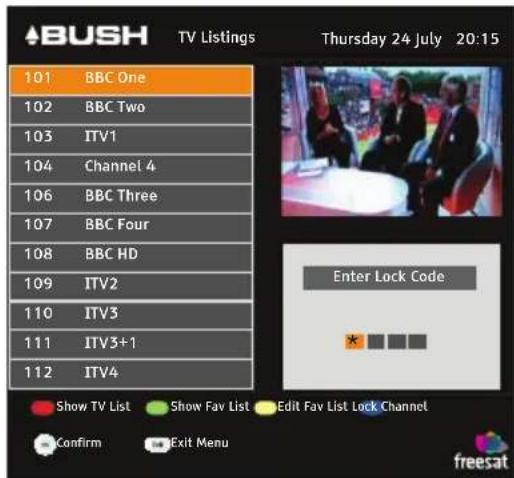
DON'T FORGET! To lock and unlock a channel you will need to enter the code 0000.
The menu system
The settings menu
The settings menu allows you to change the default settings on your digital box. To select one of the options use the arrow buttons, then press the [OK] button to select.
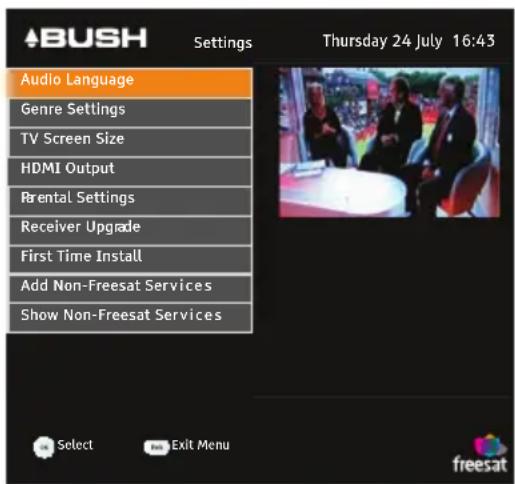
Audio language
You can change the default language to English, Welsh or Gaelic.
Genre Settings
This setting lets you turn off the Genre window when you press the [GUIDE] button on the remote control, so that all channels are shown in the programme list as default.
TV screen size
This changes the format of the screen. Select the option that best suits your type of TV.
HDMI output
You can set the output quality of the HDMI port. The options are 576p, 720p and 1080i.
Parental settings
This allows you to change the channel lock code.
Receiver upgrade
You can set your digital box to search for new system software either manually or automatically.
First time install
This allows you to put your digital box back to the factory default settings. You will need to enter your passcode to continue.

DON'T FORGET! Use the number keys on the remote control to enter your postcode. The right arrow moves to the next space and the left arrow deletes the previous character. Press the [OK] button to continue.
Add Non-Freesat Services
This menu allows you to add Free to Air channels to the channel list.
DON'T FORGET! Free to Air channels will not be shown in the programme list.
Show Non-Freesat Services
This menu allows you to see Free to Air channels in the channel list.
DON'T FORGET! The default setting is not to show Free to Air channels.
The menu system
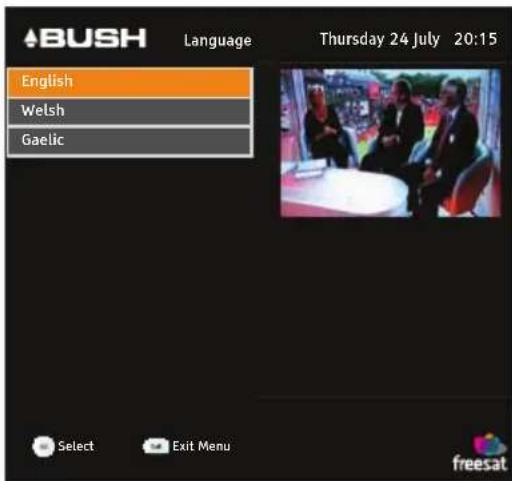
The language menu
The language menu allows you to change the default language settings for interactive services and subtitles. To select between English, Welsh or Gaelic use the arrow buttons, then press the [OK] button to select.
The information menu
This menu shows you information about your digital box.
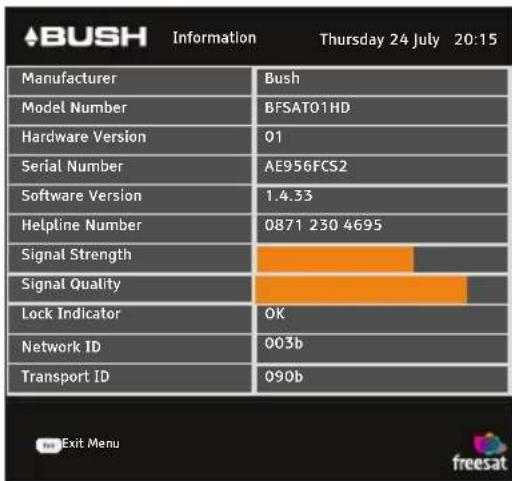
DON'T FORGET! It is useful to have this information to hand when contacting the call centre.
Using the programme reminder
You can use the reminder function to let you know when a programme is going to start.
Press the [GUIDE] button on the remote control and then press the [OK] button.
The programme list will be displayed. The channel and programme that you are currently watching are highlighted in orange.

Using the arrow buttons on the remote control, move to a different programme that you want to set as a reminder.
Press the [OK] button to set the reminder. When the reminder has been set a clock icon is shown before the programme name.
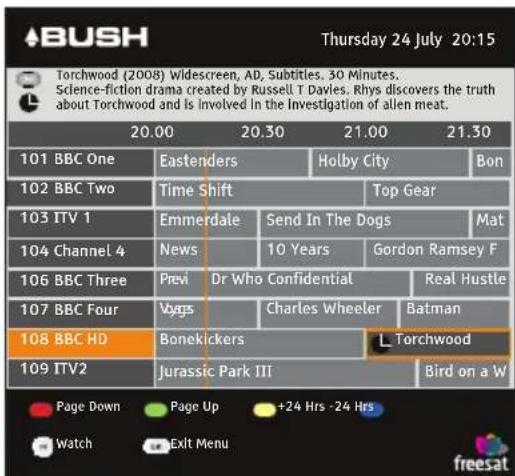
When the reminder time is reached, the digital box will automatically switch over to the correct channel and your programme will start.
DON'T FORGET! To cancel a programme reminder, highlight the programme where the reminder has been set, and press the [OK] button. The clock icon will disappear and the reminder will be cancelled.
Help and advice
In which direction should my satellite dish be positioned?
Your satellite dish should be fitted on a south facing wall in the direction of 28.2° East of South.
Can I connect more than one digital box to my satellite dish?
Yes you can. You will need an LNB fitted that has more than one connection. You will need one connection for each digital box.
Why do I have to enter my postcode in the first time setup?
This makes sure that you receive programmes from your local region. For example the local news and weather.
How do I do a first time install again?
Press the [MENU] button and choose option 2. Select 'First Time Installation' and press the [OK] button.
How do I look for new system software?
Press the [MENU] button and choose option 2. Select 'Receiver Upgrade' and press the [OK] button.
How do I find out system information about my digital box?
Press the [MENU] button and choose option 0.
How do I change the default audio language?
Press the [MENU] button and choose option 2. Select 'Audio Language'. The options are English, Welsh and Gaelic.
Can I use a SCART cable with my HD digital box?
Yes, but you will not be sending a high definition signal to your TV. To get the very best out of your HD digital box you will need to connect it to your HD Ready TV using the HDMI cable supplied.
Need extra information or help setting up?
You may find the information you are looking for on our website.
www.bushdigital.co.uk
or on the freesat website.
www.freesat.co.uk
If you still need help or information you can phone our call centre on:
0871 230 4695
Calls are charged at 10p per minute when called from a BT land line. Call charges may vary if using other networks.
Safety
General Safety
This equipment has been designed and manufactured to meet European safety standards, but like any electrical equipment, care must be taken if you are to obtain the best results and safety is to be assured.
Do read these operating instructions before you attempt to use the equipment.
Do ensure that all electrical connections (including the mains plug, extension leads and interconnections between pieces of equipment) are properly made in accordance with the manufacturer's instructions.
Switch off and remove the mains plug when making or changing any connections.
Do consult your dealer if you are ever in doubt about the installation, operation or safety of your equipment.
Don't continue to operate the equipment if you are ever in doubt about it working normally, or if it is damaged in any way. Switch it off withdraw the plug from the mains and consult your dealer.
Don't remove any fixed covers as this may expose you to dangerous voltages.
Don't leave the equipment switched On when it is unattended for long periods of time, unless it is specifically stated that it is designed for unattended operation or has a standby mode.
Make sure that other people in your household are conversant with the equipment.
Don't obstruct the ventilation vents on the equipment, for example with curtains or soft furnishings.
Overheating will cause damage and shorten the life of the product.
Don't allow electrical equipment to be exposed to rain or moisture.
Do use the mains adapter that is supplied with your equipment. Using other adapters may cause permanent damage to the equipment.

- THANK YOU FOR CHOOSING THIS BUSH HD DIGITAL BOX. NOT ONLY CAN IT RECEIVE OVER 80 SUBSCRIPTION FREE CHANNELS, BUT YOU CAN ALSO GET FREE HD CONTENT*, AND RADIO CHANNELS
- FRONT VIEW
- REAR VIEW
- INTRODUCING THE CHANNEL LISTS
- CHANGING THE CHANNEL
- CHANGING THE VOLUME
- AUDIO DESCRIPTION
- SUBTITLES
- THE MENU SYSTEM
- THE MAIN MENU
- TV LISTINGS MENU
- THE SETTINGS MENU
- AUDIO LANGUAGE
- GENRE SETTINGS
- TV SCREEN SIZE
- HDMI OUTPUT
- PARENTAL SETTINGS
- RECEIVER UPGRADE
- FIRST TIME INSTALL
- ADD NON-FREESAT SERVICES
- SHOW NON-FREESAT SERVICES
- THE LANGUAGE MENU
- THE INFORMATION MENU
- USING THE PROGRAMME REMINDER
- HELP AND ADVICE
- IN WHICH DIRECTION SHOULD MY SATELLITE DISH BE POSITIONED
- CAN I CONNECT MORE THAN ONE DIGITAL BOX TO MY SATELLITE DISH
- WHY DO I HAVE TO ENTER MY POSTCODE IN THE FIRST TIME SETUP
- HOW DO I DO A FIRST TIME INSTALL AGAIN
- HOW DO I LOOK FOR NEW SYSTEM SOFTWARE
- HOW DO I FIND OUT SYSTEM INFORMATION ABOUT MY DIGITAL BOX
- HOW DO I CHANGE THE DEFAULT AUDIO LANGUAGE
- CAN I USE A SCART CABLE WITH MY HD DIGITAL BOX
- NEED EXTRA INFORMATION OR HELP SETTING UP
- WWW.BUSHDIGITAL.CO.UK
- WWW.FREESAT.CO.UK
- 0871 230 4695
- SAFETY
- GENERAL SAFETY
Brand : BUSH
Model : BFSAT01HD
Category : Receiver