
BFSAT02SD - Receiver BUSH - Free user manual and instructions
Find the device manual for free BFSAT02SD BUSH in PDF.


| Product Type | Satellite Receiver |
| Model | BFSAT02SD |
| Brand | Bush |
| Dimensions (approximate) | 250 x 150 x 40 mm |
| Weight (approximate) | 0.5 kg |
| Power Supply | 12V DC, 1A (via external adapter) |
| Power Consumption | < 10 W |
| Video Output | HDMI, SCART (RGB/CVBS) |
| Audio Output | HDMI, Analog RCA (L/R) |
| Tuner Type | DVB-S2 (MPEG-4) |
| Number of Satellite Positions | Up to 100 |
| Channel Memory | Up to 2000 channels |
| USB Port | Yes, for media playback and firmware update |
| Interface Language | Multiple languages (including English) |
| EPG (Electronic Program Guide) | Yes, 7-day |
| Parental Lock | Yes |
| Remote Control | Infrared, included |
| Maintenance | Keep dry, clean with soft cloth, avoid direct sunlight |
| Safety | Do not open, risk of electric shock; use only supplied adapter |
| Spare Parts | Remote control and power adapter available from manufacturer |
| Repairability | Professional service recommended; no user-serviceable parts inside |
| Environmental | RoHS compliant |
Frequently Asked Questions - BFSAT02SD BUSH
User questions about BFSAT02SD BUSH
0 question about this device. Answer the ones you know or ask your own.
Ask a new question about this device
Download the instructions for your Receiver in PDF format for free! Find your manual BFSAT02SD - BUSH and take your electronic device back in hand. On this page are published all the documents necessary for the use of your device. BFSAT02SD by BUSH.
USER MANUAL BFSAT02SD BUSH
natural_image
Line drawing of a rectangular electronic device with perforated top surface and control panel (no text or symbols)IMPORTANT: Please read all instructions carefully before use and keep for future reference.
Welcome
Thank you for choosing this Bush digital box.
Not only can it receive over 140 subscription free channels, but you can also get radio channels.
It's really simple to use; it's all done using the clear, easy to understand on screen menus which are operated from the remote control. It even has a reminder function so that you won't miss your favourite programmes.

For a one off payment, you can buy a digital box, satellite dish and installation giving you over 140 channels covering the best of TV and more.

A digital box lets you access digital channels that are broadcast in the UK. It uses a digital signal, received through your satellite dish and lets you watch it through your existing television.
What's in the box?

Contents
our digital box.... 3
our remote control...... 4
03 connecting up.... 5
04t started....6
Daily use....7
Obe menu system...... 9
07ing the reminder...... 12
98n-freesat services...... 13
Help and advice.... 14
Safety.... 17
Electrical safety.... 18
Your digital box
Front view
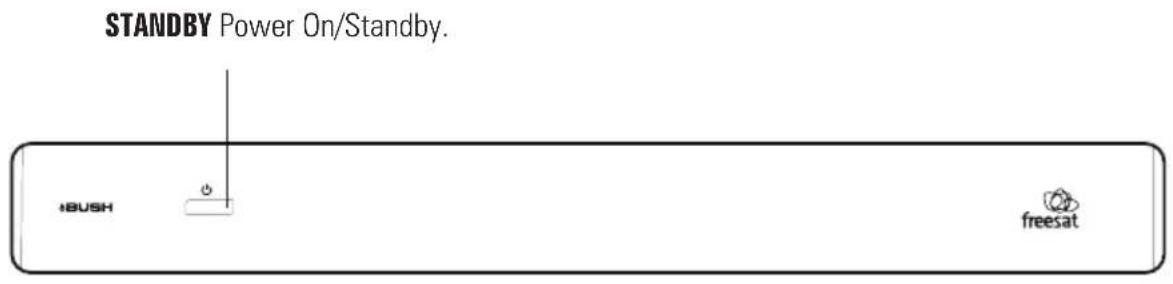
Rear view


Getting connected
Connecting to the TV

Connect a RG6 co-axial cable fitted with an 'F' type connector from your satellite dish to the 'LNB IN' socket on the back panel of your digital box.
Connect the SCART cable that came with your digital box between the TV socket on the back panel of your digital box and the SCART socket on your TV.
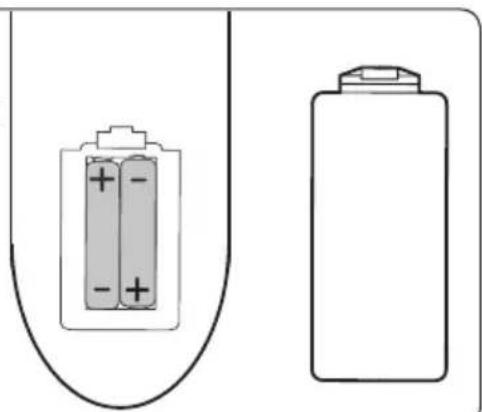
1 Put batteries in the remote control
Open the battery cover of the remote control and put two size AAA batteries so that the '+' and '-' marks on the batteries match the '+' and '-' marks inside the remote control. Replace the battery cover.
natural_image
Diagram showing two battery types: one with a positive charge and one with a negative charge, both enclosed in an open U-shaped container (no text or symbols)2 Plug in and switch on
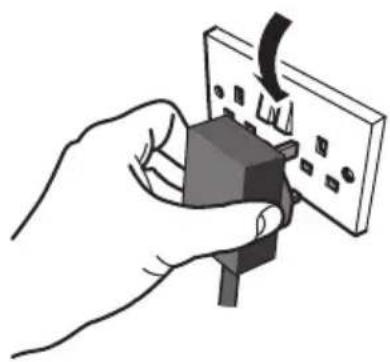
Insert the digital box mains plug into a mains socket. The standby light on the front will come on.
Switch your TV on, and then press the standby button on your digital box remote control.
natural_image
Illustration of a hand inserting a plug into an electrical outlet (no text or symbols)3 The easy install screen
The first time installation screen will appear on screen.
If the signal strength is above 50% press the [OK] button on your remote control to continue the setup.
Follow the instructions on screen to complete the setup.

Daily use
Introducing the channel lists
There are three channel lists available to you;
The 'Channel list' shows all the available channels that you can receive.
The 'Genre list' filters all the available TV and radio stations into specific genres.

You can use the arrow buttons to select a genre and the [OK] button to show the selected channels in the programme list.
The 'Programme list' shows the scheduled programmes for the selected genre.
![BUSH Friday 13 Mar 17:10 17:00 - 18:00 The weakest Link. Anne Robinson presents the quick-fire general knowledge quiz in which contestants must decide at the end of each round which of their number should be eliminated. [S] 17:00 Fri 13/03 19:00 101 BBC 1 East (E) The Weakest LI BBC News Look Fast 102 BBC 2 England Flog It! Egg Heads Priceless 103 ITV1 Anglia S Britlan's Best DI Angliaight ITV Evening Ne 104 Channel 4 The Bat O'God The Simpsons Hollyoaks 105 Five Five News Neighbours Home and Away Monkey 106 BBC THREE This Is BBC THREE 107 BBC FOUR This Is BBC FOUR 108 BBC HD In the Nig In the Nig Doctors After You Ree Down Ree Up +24 Hrs vwh Exit Menu freesat](/content/2026/05/964192/images/d12c56b6387b4d7a61b777449ad2fc0d1c11e87aa0308122ab59d28e9c8e736a.jpg)
You can use the arrow buttons to select a different channel and use the coloured buttons to move to a new page of channels.
Press [OK] to watch the selected programme.
Changing the channel
You can select the channel you want to watch by using the [CH+] and [CH-] buttons on the remote control. Alternatively use the number buttons to key in the channel number.
When you change the channel the information screen will be displayed for a few seconds. This shows the details of the programme currently showing and the next programme for the selected channel.
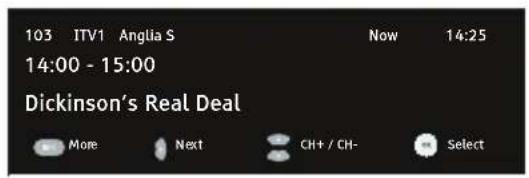
Daily use
If you press the [INFO] button while the information screen is displayed, the extended information screen will shown. This provides a programme summary.
If you press the [AD] button while the information screen is displayed, the audio menu will be shown.
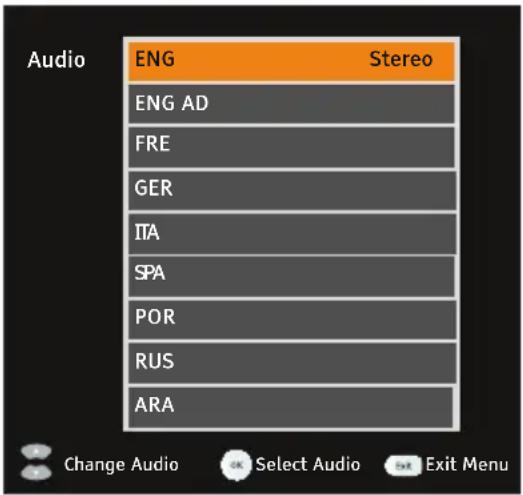
Use the arrow buttons to select an audio language, then press the [OK] button. Audio description languages have 'AD' after their description.
Changing the volume
You can change the volume by using the [VOL+] and [VOL-] buttons on the remote control. You can turn off the volume by pressing the [MUTE] button. To turn it back on press the [MUTE] button again.
Audio description
Audio description is an additional narration that describes all significant visual information such as body language, facial expression, scenery, costumes - anything that is important to the plot of the story, event or image.
Press the [AD] button to turn audio description on (if available). Press the [AD] button again to turn the audio description off.
Subtitles
Press the [SUB] button to display subtitles (if available). Press the [SUB] button again to turn them off.
The menu system
The main menu
To open the main menu screen press the [MENU] button on the remote control.

To select a menu, press the relevant number button to open it. For example press [1] on the remote control to open 'TV Listings'.
To close any of the menu screens, press the [EXIT] button.
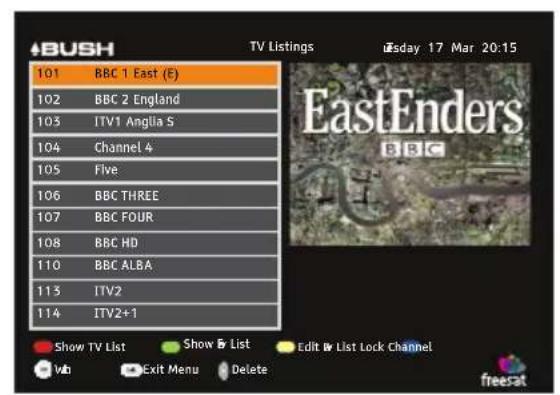
TV listings menu
The TV listings menu shows you all of your available channels. This list is updated automatically each time you open the menu, so there is no need to re-tune your digital box when new channels become available.

The right arrow button lets you delete a channel from the TV list.
The [RED] button opens/returns to the full TV listing menu and shows you the full channel line up available.
The [GREEN] button will show you all your channels in your favourite list.
The [YELLOW] button lets you edit your favourite channel list so that you can add and delete channels that you use most often.
The [BLUE] button lets you lock channels so that they can't be viewed. This can be useful if you want to restrict children from watching unsuitable channel content.

DON'T FORGET! To lock and unlock a channel you will need to enter the code 0000.
The [SWAP] button shows any Free to Air channels that you have manually tuned.
DON'T FORGET! You must enable 'Show Manual Channels' in the settings menu before you can view Free to Air channels.
The menu system
The settings menu
The settings menu allows you to change the default settings on your digital box.
To select one of the options use the arrow buttons, then press the [OK] button to select.
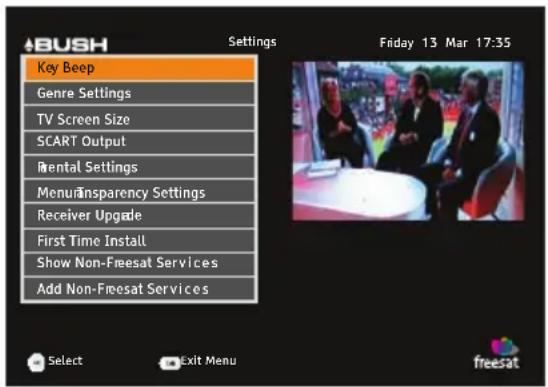
Key Beep
This setting lets you turn the Audio Description key beep on or off.
Genre Settings
This setting lets you turn off the Genre window when you press the [GUIDE] button on the remote control, so that all channels are shown in the programme list as default.
TV screen size
This changes the format of the screen. Select the option that best suits your type of TV.
SCART output
You can set the output type of the SCART socket. The options are Composite or RGB.
Parental settings
This allows you to change the channel lock code.
Menu transparency settings
This allows you to make the channel list and main menu transparent so that you can continue watching TV while using them.
Receiver upgrade
You can set your digital box to search for new system software either manually or automatically.
First time install
This allows you to put your digital box back to the factory default settings. You will need to enter your lock code to continue. The default lock code is 0000.

DON'T FORGET! Use the right arrow key on the remote control to select your TV screen size. Press the [OK] button to continue.
The menu system
Add Manual Channels
This menu allows you to manually add Free to Air channels to the channel list.
DON'T FORGET! Manually added Free to
Air channels will not be shown in the programme list.
Show Manual Channels
This menu allows you to see the manually added Free to Air channels in the channel list.
DON'T FORGET! The default setting is not to show manually added Free to Air channels.
The language menu
The language menu allows you to change the default language settings for audio and subtitle languages.
Use the arrow buttons to select a language type, then press the [OK] button to select.
To select between English, Welsh or Gaelic use the arrow buttons, then press the [OK] button to select.

The information menu
This menu shows you information about your digital box.

DON'T FORGET! It is useful to have this information when contacting the call centre.
Using the reminder
You can use the reminder function to let you know when a programme is going to start.
Press the [GUIDE] button on the remote control and then press the [OK] button.
The programme list will be displayed. The channel and programme that you are currently watching are highlighted in orange.

Using the arrow buttons on the remote control, move to a different programme that you want to set as a reminder.
Press the [OK] button to set the reminder. When the reminder has been set a clock icon is shown before the programme name.
![17:00 - 18:00 The Weakest Link. Anne Robinson presents the quick-fire genel knowledge quiz in which contestants must decide at the end of each round which of their number should be eliminated. [S] 17:00 Fri 13/03 19:00 101 BBC 1 East (E) The Weakest Li BBC News Look East 102 BBC 2 England Fog It! Egg Heads Priceless 103 ITV1 Anglia S Britian's Best Di Anglia Night ITV Evening Ne 104 Channel 4 The Mut O'Gad The Simpsons Hplyoaks 105 Five Five News Neighbours Home and Away Monkey 106 BBC THREE This is BBC THREE 107 BBC FOUR This is BBC FOUR 108 BBC HD In the Nig In the Nig Doctors After You Bge Down Bge Up +24 Hrs vib Exit Menu freesat](/content/2026/05/964192/images/83c54342639d7d12c5ed952505db6e6bfc02d489c9cb42733cba48f3637a9be7.jpg)
When the reminder time is reached, the digital box will automatically switch over to the correct channel and your programme will start.
DON'T FORGET! To cancel a programme reminder, highlight the programme where the reminder has been set, and press the [OK] button. The clock icon will disappear and the reminder will be cancelled.
Non-freesat services
You can manually tune any free channels on the digital box, if you have the frequency in MHz, the symbol rate and the LNB polarisation.
Adding Free to Air channels will not affect the freesat channels in any way. You can add free channels from the Astra satellite at 28.2° East and the Eurobird satellite at 28.5° East.
You can find channel frequencies online.
Open the add manual channels menu as described on page 11. Use the arrow buttons to select manual. Press the [OK] button. The add non-freesat services screen will be displayed.
Using the arrow and number buttons, select and enter the frequency, symbol rate and LNB polarisation.
Use the arrow buttons to select 'scan'. Press the right arrow button to begin searching for Free to Air channels.
Once the search is complete, any new channels will be available in the channel list.
DON'T FORGET! To view non freesat channels, you must select 'yes' in the 'show manual channels' menu.
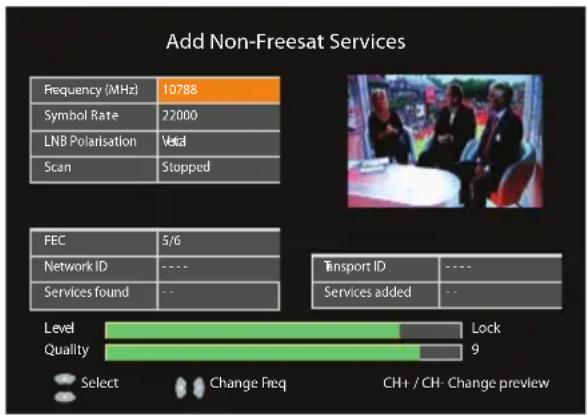
bar
Add Non-Freesat Services | Category | Value | |---|---| | Frequency (MHz) | 10788 | | Symbol Rate | 22000 | | LNB Polarisation | Valid | | Scan | Stopped | | FEC | 5/6 | | Network ID | --- | | Services found | --- | | Transport ID | --- | | Services added | --- | | Level | Lock | | Quality | 9 | Select Change Freq CH+ / CH- Change preview| Frequently asked questions What you can do | |
| In which direction should my satellite dish be positioned? | Your satellite dish should be fitted on a south facing wall in the direction of 28.2° east of south. |
| Can I connect more than one digital box to my satellite dish? | Yes you can. You will need an LNB (the box on your satellite dish) fitted that has more than one connection. You will need one connection for each digital box. |
| Can I connect this digital box to my normal roof aerial? | No. This box must be connected to a satellite dish for it to work. |
| The digital box will not switch on. What should I do? | Check the mains power cable and make sure it is plugged into a suitable power outlet. Check that the mains supply is switched On. Connect the power cable to a different power outlet. |
| My digital box can’t find the ‘Network ID’ and ‘Transport ID’ what should I do? | Make sure that your satellite dish is positioned correctly, and check the cables and connections again. |
| Why do I have to enter my postcode in the first time set-up? | This makes sure that you receive programmes for your local region. |
| How do I enter a space when entering the postcode? | Your digital box will automatically enter the space for you. Enter your full postcode using the number buttons and then press the ‘OK’ button. |
| How do I do a first-time installation again? You | can do a first-time installation again using the settings menu. See page 10 for more information. |
| I’m not getting a picture on the TV. What should I do? | Make sure that the digital box is On. (Press the ‘STANDBY’ button.)Make sure that the SCART cable is firmly connected to the TV.Check the brightness level of the TV. |
| Can I receive high-definition programmes with this digital box? | No. High-definition channels may be shown in the TV programme guide, but you cannot watch them with this receiver. |
| Can I change the audio language for the programme I am watching? | Yes. Some channels broadcast other audio languages. Press the [AD] button when you are watching a programme to see if other languages are available. |
| Do I have to retune my digital box when digital switchover happens in my region? | No. Freesat receivers do not have to be retuned as it receives its signal from a satellite and not an aerial. |
| Do I have to retune my digital box when new channels are added? | No. Your receiver will automatically add new channels for you, and display them in the TV programme guide. |
| Can I use ‘red button’ interactive services with this receiver? | Yes. Some channels offer interactive services such as news, sport and weather. When interactive services are available, a red dot will appear in the top right-hand side of the screen. Simply press the red button on your remote control to access them. |
| Can I add ‘FTA (Free To Air)’ channels to my digital box? | Yes. You can add these using the ‘Add Non-Freesat Services’ menu. See page 13 for more information. |
| I have been asked to enter a lock code. What is it? | Your default code is 0000. You can change this to something else in ‘Parental Settings’. |
| Why can’t I see my FTA channels? Free to Air | channels are not shown in the TV programme guide. Make sure that ‘Show Non-Freesat Services is set to ‘yes’. Press the ‘CH LIST’ button and then press the ‘SWAP’ button to see them. |
| How can I find out system information about my receiver? | Press the ‘MENU’ button and select option 0. |
Frequently asked questions What you can do
My picture and sound quality is poor. What should I do?
- Make sure there are no mobile phones, DECT phones, wireless routers or microwave ovens near the receiver.
- Keep the power and the satellite cable apart from each other.
- Check the signal levels using the system information screen. The signal level may be affected by weather conditions. If the LNB is covered with snow or there is heavy rain, the sound and picture quality may be poor temporarily.
Need extra information or help setting up?
You may find the information you are looking for on our web site.
www.bushdigital.co.uk
or on the freesat website
www.freesat.co.uk
If you still need help or information you can phone our call centre on:
0871 230 4695 Calls are charged at 10p per minute when called from a BT land line. Call charges may vary if using other networks.
Safety
General Safety
This equipment has been designed and manufactured to meet European safety standards, but like any electrical equipment, care must be taken if you are to obtain the best results and safety is to be assured.
Do read these operating instructions before you attempt to use the equipment.
Do ensure that all electrical connections (including the mains plug, extension leads and interconnections between pieces of equipment) are properly made in accordance with the manufacturer's instructions.
Switch off and remove the mains plug when making or changing any connections.
Do consult your dealer if you are ever in doubt about the installation, operation or safety of your equipment.
Don't continue to operate the equipment if you are ever in doubt about it working normally, or if it is damaged in any way. Switch it off withdraw the plug from the mains and consult your dealer.
Don't remove any fixed covers as this may expose you to dangerous voltages.
Don't leave the equipment switched On when it is unattended for long periods of time, unless it is specifically stated that it is designed for unattended operation or has a standby mode.
Make sure that other people in your household are conversant with the equipment.
Don't obstruct the ventilation vents on the equipment, for example with curtains or soft furnishings.
Overheating will cause damage and shorten the life of the product.
Don't allow electrical equipment to be exposed to rain or moisture.
Electrical Safety
Make sure your electricity supply is the same voltage as the voltage printed on the label on the bottom of the main unit of your receiver.
The receiver needs a 230-volt (V) 50-hertz (Hz) mains supply. Do not use any other supply. The receiver comes with a moulded plug. If the plug breaks, you cannot reuse the plug. If you need to change the fuse in a moulded plug you must refit the fuse cover. If you lose or damage the fuse cover, you must not use the plug until you have a replacement plug cover or plug.
If you have to change the plug because it is not suitable for your socket, or it is damaged, you should remove it and fit the right plug using the wiring diagram below. You must throw the plug away safely. You could get an electric shock if you use it again.

The colours of the wires in the receiver's power lead may not match the coloured markings in your plug, so you should follow these instructions.
You must connect the blue wire to the terminal marked with the letter 'N' or which is coloured black.
You must connect the brown wire to the terminal marked with the letter 'L' or which is coloured red.
You should not connect anything to the earth terminal of the plug marked with the letter 'E' or which is coloured green.
You must always use the same fuse value as your receiver's power-lead plug if you replace it.

- Welcome
- What's in the box?
- Contents
- Your digital box
- Getting connected
- Put batteries in the remote control
- Plug in and switch on
- The easy install screen
- Daily use
- Introducing the channel lists
- Changing the channel
- Changing the volume
- Audio description
- Subtitles
- The menu system
- The main menu
- TV listings menu
- The settings menu
- Key Beep
- Genre Settings
- TV screen size
- SCART output
- Parental settings
- Menu transparency settings
- Receiver upgrade
- First time install
- Add Manual Channels
- Show Manual Channels
- The language menu
- The information menu
- Using the reminder
- Non-freesat services
- Frequently asked questions What you can do
- Need extra information or help setting up?
- Safety
- General Safety
- Electrical Safety
Brand : BUSH
Model : BFSAT02SD
Category : Receiver