
L55 - Integrated amplifier NAD - Free user manual and instructions
Find the device manual for free L55 NAD in PDF.


| Product Type | DVD player / Video CD / Audio CD |
| Brand | NAD |
| Model | L55 |
| Dimensions (W x H x D) | 285 x 103 x 291 mm |
| Weight | 3.3 kg |
| Power supply | AC 230 V / 50 Hz (Europe) or AC 110 V / 60 Hz (USA/Canada) |
| Power consumption | 15 W |
| Laser system | Semiconductor laser, wavelength 650 nm |
| Supported disc formats | DVD video, Video CD, Audio CD |
| Video outputs | Composite (RCA), S-Video (Mini DIN), SCART (CVBS/RGB), Component (Y Cb Cr) |
| Analog audio outputs | 2 Vrms (1 kHz, 0 dB), 330 Ω, RCA (L, R) |
| Digital audio outputs | Coaxial (RCA) and optical (Toslink) |
| Frequency response (audio) | 4 Hz to 20 kHz |
| Signal-to-noise ratio (audio) | > 100 dB (EIAJ) |
| Harmonic distortion (audio) | 0.008% |
| Dynamic range (audio) | > 95 dB (EIAJ) |
| Supported digital audio formats | Dolby Digital, DTS, PCM, MPEG |
| Special features | Repeat, zoom (x4/x16), viewing angle, audio/subtitle language switching, CD track programming, settings memory for 15 DVDs, parental lock |
| Remote control | Infrared, AAA battery (included) |
| Maintenance | Clean with a soft, dry cloth; do not use solvents |
| Safety | Do not expose to moisture; unplug before cleaning; do not open the casing (risk of electric shock and laser exposure) |
| Supplied accessories | Video cable (RCA), audio cable (RCA), remote control, batteries, user manual |
Frequently Asked Questions - L55 NAD
User questions about L55 NAD
0 question about this device. Answer the ones you know or ask your own.
Ask a new question about this device
Download the instructions for your Integrated amplifier in PDF format for free! Find your manual L55 - NAD and take your electronic device back in hand. On this page are published all the documents necessary for the use of your device. L55 by NAD.
USER MANUAL L55 NAD
The lightning flash with arrowhead symbol, within an equilateral triangle, is intended to alert the user to the presence of uninsulated 'dangerous voltage' within the product's enclosure that may be of sufficient magnitude to constitute a risk of electric shock to persons.

The exclamation point within an equilateral triangle is intended to alert the user to the presence of important operating and maintenance (servicing) instructions in the literature accompanying the appliance.
WARNING
TO REDUCE THE RISK OF FIRE OR ELECTRIC SHOCK, DO NOT EXPOSE THIS PRODUCT TO RAIN OR MOISTURE.
CAUTION
TO PREVENT ELECTRIC SHOCK, MATCH WIDE BLADE OF PLUG TO WIDE SLOT, FULLY INSERT.
CAUTION
This Digital Video Disc Player employs a Laser System. To ensure proper use of this product, please read this owner's manual carefully and retain for future reference. Should the unit require maintenance, contact an authorized service location. (See service procedure). Use of controls, adjustments or the performance of procedures other than those specified may result in exposure to laser radiation. To prevent direct exposure to laser beam, do not try to open the enclosure. Visible laser radiation when the enclosure is opened. DO NOT STARE INTO BEAM.
FCC NOTICE
This equipment has been tested and found to comply with the limits for a Class B digital device, pursuant to part 15 of the FCC Rules. These limits are designed to provide reasonable protection against harmful interference in a residential installation.
This equipment generates, uses and can radiate radio frequency energy and if not installed and used in accordance with the instructions, may cause harmful interference to radio communications.
However, there is no guarantee that interference will not occur in a particular installation.
If this equipment does cause harmful interference to radio or television reception, which can be determined by turning the equipment off and on, the user is encouraged to try to correct the interference by one or more of the following measures:
• Reorient or relocate the receiving antenna.
- Increase the separation between the equipment and receiver.
- Connect the equipment into an outlet on a circuit different from that to which the receiver is connected.
- Consult the dealer or an experienced radio/TV technician for help.
FCC WARNING
Changes or modifications not expressly approved by the party responsible for compliance could void the user's authority to operate the equipment.
INDUSTRY CANADA REQUIREMENT
This Class B digital apparatus meets all requirements of the Canadian Interference-Causing Equipment Regulations.
RECORD YOUR MODEL NUMBER (Now, while you can see it)
The model and serial number of your new DVD player are located on the back of the DVD player cabinet. For your future convenience, we suggest that you record these numbers here:
MODEL NO :
SERIAL NO.:
TABLE OF CONTENTS
INTRODUCTION
Safety Precautions 2
Table of Contents. 3
IMPORTANT SAFETY INSTRUCTIONS ....4-5
Precautions 6
Notes on Discs ....7
Identification of Controls ....8-11
Front Panel/Display window 8
Rear Panel 9
Remote Control 10
Preparing the Remote Control.... 11
Operating with the Remote Control 11
INSTALLATION
Connecting to a TV 12
Connecting to an Audio System ....13
Connecting to Optional Audio System 14-16
Enjoying Dolby Digital (AC-3) Sound 14
Enjoying Dolby Pro Logic Surround Sound 15
Enjoying 2 Channel Digital Stereo Sound....16
Enjoying DTS Sound 16
BASIC OPERATION
Basic Playback 17-19
Various speed playback .....20
General Information about Display Menu Icons ....21
Detailed description of each Display Menu Icon .....22
ADVANCED OPERATION
Using a title menu....23
Using a DVD menu .....23
Changing subtitle language .....24
Changing audio soundtrack language .....24
Viewing from another angle ....25
Producing a 3D Surround effect .....25
Repeat Play 26
Zoom Feature 27
Memorizing Settings for Viewed DVDs .....28
Program Play 29
INITIAL SETTINGS
Common procedures of initial settings ....30
Selecting disc Languages ....31
Selecting rating level and password ....32-33
Selecting TV Aspect ....34
Selecting Menu Language ....35
Selecting TV Output ....35
Selecting Pseudo PAL 36
Setting the TV system ....36
Selecting Digital Audio Output ....37
Table of Languages and Their Abbreviations .....38
REFERENCE
Disc Requirements/Copyright Information 39
Before Calling Service Personnel 40
Specifications 41
CAUTION
PLEASE READ AND OBSERVE ALL WARNINGS AND INSTRUCTIONS IN THIS OWNER'S MANUAL AND THOSE MARKED ON THE UNIT. RETAIN THIS BOOKLET FOR FUTURE REFERENCE.
This set has been designed and manufactured to assure personal safety. Improper use can result in electric shock or fire hazard. The safeguards incorporated in this unit will protect you if you observe the following procedures for installation, use and servicing.
This unit is fully transistorized and does not contain any parts that can be repaired by the user.
DO NOT REMOVE THE CABINET COVER, OR YOU MAY BE EXPOSED TO DANGEROUS VOLTAGE. REFER SERVICING TO QUALIFIED SERVICE PERSONNEL ONLY.
1 Read owner's manual - After unpacking this product, read the owner's manual carefully and follow all the operating and other instructions.
2 Power Sources - This product should be operated only from the type of power source indicated on the marking label. If you are not sure of the type of power supply in your home, consult your product dealer or local power company. For products intended to operate from battery power or other sources, refer to the operating instructions.
3 Grounding or Polarization - This product is equipped with a polarized alternating current line plug (a plug having one blade wider than the other). This plug will fit into the power outlet only one way. This is a safety feature. If you are unable to insert the plug fully into the outlet, try reversing the plug. If the plug should still fail to fit, contact your electrician to replace your obsolete outlet. Do not defeat the safety purpose of the polarized plug.
4 Heat - The product should be situated away from heat sources such as radiators, heat registers, stoves or other products (including amplifiers) that produce heat.
5 Water and Moisture - Do not use this product near water-for example, near a bath tub, wash bowl, kitchen sink. or laundry tub; in a wet basement; or near a swimming pool and the like.
6 Cleaning - Unplug this product from the wall outlet before cleaning. Do not use liquid cleaners or aerosol cleaners. Use a damp cloth for cleaning.
7 Power-Cord Protection - Power-supply cords should be routed so that they are not likely to be walked on or pinched by items placed upon or against them, playing particular attention to cords at plugs, convenience receptacles, and the point where they exit from the product.
8 Overloading - Do not overload wall outlets, extension cords or integral convenience receptacles as this can result in a risk of fire or electric shock.
9 Lightning - For added protection of this product during storms, or when it is left unattended and unused for long periods of time, unplug it from the wall outlet. This will prevent damage to the product due to lightning and power-line surges.
10 Object and Liquid Entry - Never push objects of any kind into this product through openings as they may touch dangerous voltage points or short-out parts that could result in a fire or electric shock. Never spill liquid of any kind on the product.
11 Attachments - Do not use attachments not recommended by the product manufacturer as they may cause hazards.
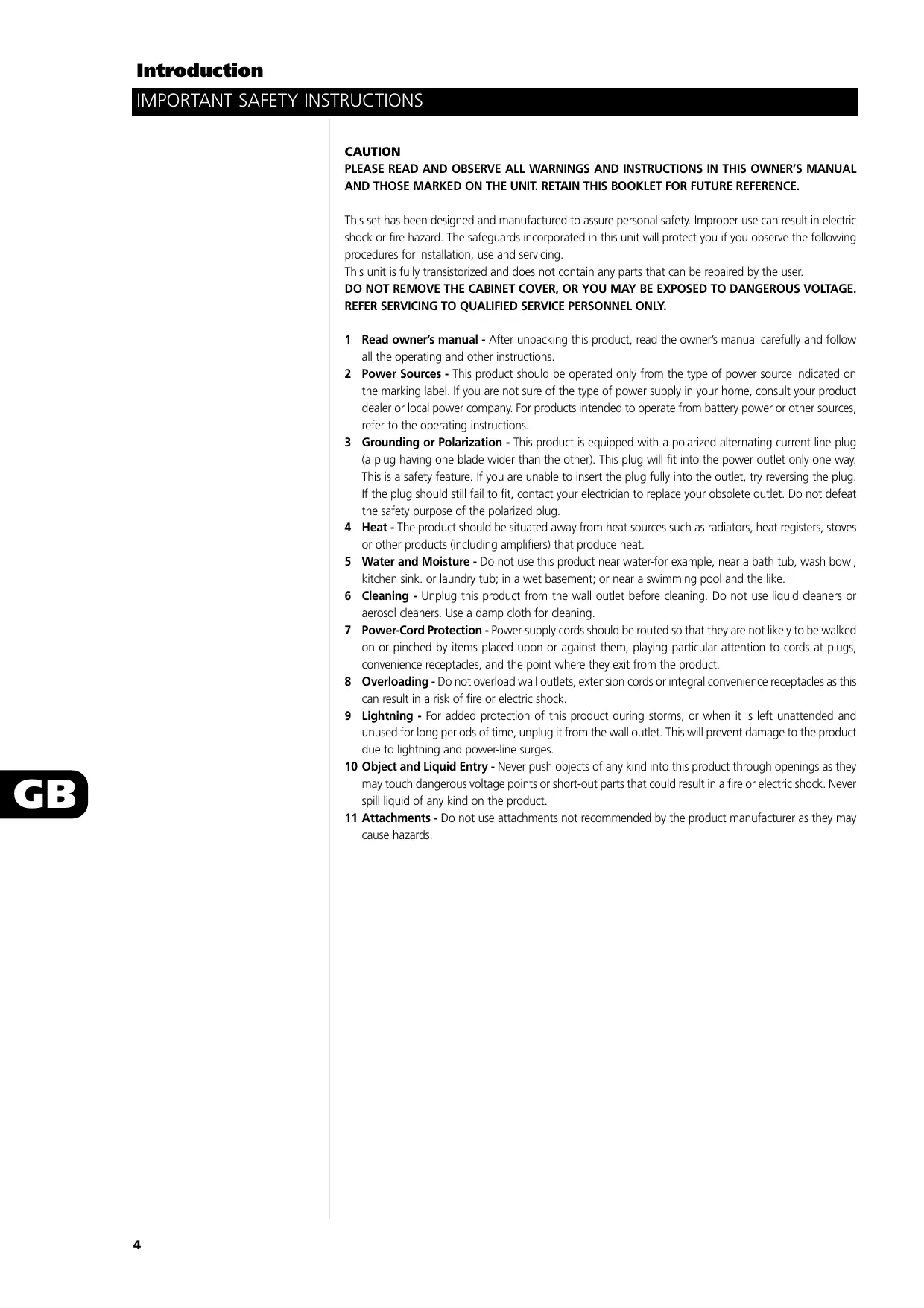
12 Accessories - Do not place this product on an unstable cart, stand, tripod, bracket or table. The product may fall, causing serious injury to a child or adult and serious damage to the product. Use only with a cart, stand, tripod, bracket, or table recommended by the manufacturer, or sold with the product. Any mounting of the product should follow the manufacturer's instructions, and should use a mounting accessory recommended by the manufacturer. A product and cart combination should be moved with care. Quick stops, excessive force and uneven surfaces may cause the product and cart combination to overturn.
13 Disc Tray - Keep your fingers well clear of the disc tray as it is closing. It may cause serious personal injury.
14 Burden - Do not place a heavy object on top of the product. The object may fall, causing serious personal injury and serious damage to the product.
15 Connecting - When you connect the product to other equipment, turn off the power and unplug all of the equipment from the wall outlet. Failure to do so may cause an electric shock and serious personal injury. Read the owner's manual of the other equipment carefully and follow the instructions when making any connections.
16 Sound Volume - Reduce the volume to the minimum level before you turn on the product. Otherwise, sudden high volume sound may cause hearing or speaker damage.
17 Sound Distortion - Do not allow the product to output distorted sound for a longtime. It may cause speaker overheating and fire.
18 Headphones - When you use headphones, keep the volume at a moderate level. If you use the headphones continuously with high volume sound, it may cause hearing damage.
19 Laser Beam - Do not look into the opening of the disc tray or ventilation opening of the product to see the source of the laser beam. It may cause sight damage.
20 Disc - Do not use a cracked, deformed or repaired disc. These discs are easily broken and may cause serious personal injury and product malfunction.
21 Damage Requiring Service - Unplug this product from the wall outlet and refer servicing to qualified service personnel under the following conditions:
- When the power supply cord or plug is damaged.
- If liquid has been spilled, or objects have fallen into the product.
- If the product has been exposed to rain or water.
- If the product does not operate normally by following the operating instructions. Adjust only those controls that are covered by the operating instructions as an improper adjustment of other controls may result in damage and will often require extensive work by a qualified technician to restore the product to its normal operation.
- If the product has been dropped or damaged in any way.
- When the product exhibits a distinct change in performance (This indicates a need for service).
22 Servicing - Do not attempt to service this product yourself as opening or removing covers may expose you to dangerous voltage or other hazards. Refer all servicing to qualified service personnel.
23 Replacement parts - When replacement parts are required, be sure the service technician has used replacement parts specified by the manufacturer or have the same characteristics as the original part. Unauthorized substitutions may result in fire, electric shock or other hazards.
24 Safety Check - Upon completion of any service or repairs to this product, ask the service technician to perform safety checks to determine that the product is in proper operating condition.

NOTES ON HANDLING
- When shipping the DVD player, always use the original shipping carton and packing materials. For maximum protection, repack the unit as it was originally packed at the factory.
- Do not use volatile liquids, such as insect spray, near the DVD player. Do not leave rubber or plastic products in contact with the DVD player for a long time. They will leave marks on the finish.
- The top and rear panels of the DVD player may become warm after a long period of use. This is normal and not a malfunction.
- When the DVD player is not in use, be sure to remove the disc and turn off the power.
- If you do not use the DVD player for a long period, the unit may not function properly in the future. Turn on and use the DVD player occasionally.
NOTES ON LOCATING
- When you place this DVD player near a TV, radio, or VCR, the playback picture may become poor and the sound may be distorted. In this case, move the DVD player away from the TV, radio, or VCR.
NOTES ON CLEANING
Use a soft, dry cloth for cleaning.
- For stubborn dirt, soak the cloth in a weak detergent solution, wring well and wipe. Use a dry cloth to wipe it dry. Do not use any type of solvent, such as thinner and benzine, as they may damage the surface of the DVD player.
- If you use a chemical saturated cloth to clean the unit, follow that product's instructions.
WARNING
Cleaning and adjustment of lenses and/or other components of playback mechanism should be performed by a qualified service technician.
TO OBTAIN A CLEAR PICTURE
The DVD player is a high technology, precision device. If the optical pick-up lens and disc drive parts are dirty or worn down, the picture quality becomes poor. To obtain a clear picture, we recommend regular inspection and maintenance (cleaning or parts replacement) every 1,000 hours of use depending on the operating environment. For details, contact your nearest dealer.
NOTES ON MOISTURE CONDENSATION
Moisture condensation damages the DVD player. Please read the following carefully.
Moisture condensation occurs, for example, when you pour a cold drink into a glass on a warm day. Drops of water form on the outside of the glass. In the same way, moisture may condense on the opti-cal pick-up lens inside this unit, one of the most crucial internal parts of the DVD player.
Moisture condensation occurs during the following cases.
- When you bring the DVD player directly from a cold place to a warm place.
- When you use the DVD player in a room where you just turned on the heater, or a place where the cold wind from the air conditioner directly hits the unit.
- In summer, when you use the DVD player in a hot and humid place just after you move the unit from an air conditioned room.
- When you use the DVD player in a humid place.
- Do not use the DVD player when moisture condensation may occur. If you use the DVD player in such a situation, it may damage discs and internal parts. Remove the disc, connect the power cord of the DVD player to the wall outlet, turn on the DVD player and leave it "ON" for two or three hours. After two or three hours, the DVD player will have warmed up and evaporated any moisture. Keep the DVD player connected to the wall outlet and moisture condensation will seldom occur.
This section shows you how to handle, clean and store discs.
ON HANDLING DISCS
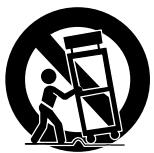
- Do not touch the playback side of the disc.
- Do not attach paper or tape to discs.
ON CLEANING DISCS
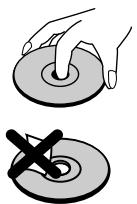
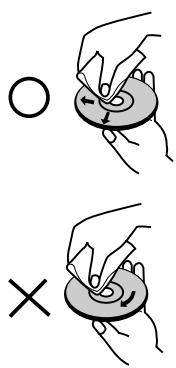
- Fingerprints and dust on the disc cause picture and sound deterioration. Wipe the disc from the center outward with a soft cloth. Always keep the disc clean.
- If you cannot wipe off the dust with a soft cloth, wipe the disc lightly with a slightly moistened soft cloth and finish with a dry cloth. Do not use any type of solvents such as thinner, benzine, commercially available cleaners or anti-static spray for vinyl LPs. They may damage the disc.
ON STORING DISCS
- Do not store discs in a place subject to direct sunlight or near heat sources.
- Do not store discs in places subject to moisture and dust such as a bathroom or near a humidifier.
- Store discs vertically in a case. Stacking or placing objects on discs outside of their case may cause warping.
ABOUT THIS OWNER'S MANUAL
- This owner's manual explains the basic instructions of this DVD player.
- Some DVD video discs have functions that may not be explained in this owner's manual. Therefore, some instructions may differ from this owner's manual, and there may be extra instructions. In this case, follow the instructions displayed on the TV screen or package.
- “ ⊗” may appear on the TV screen during operation. This icon means the function explained in this owner's manual is not available on that specific DVD video disc.
FRONT PANEL
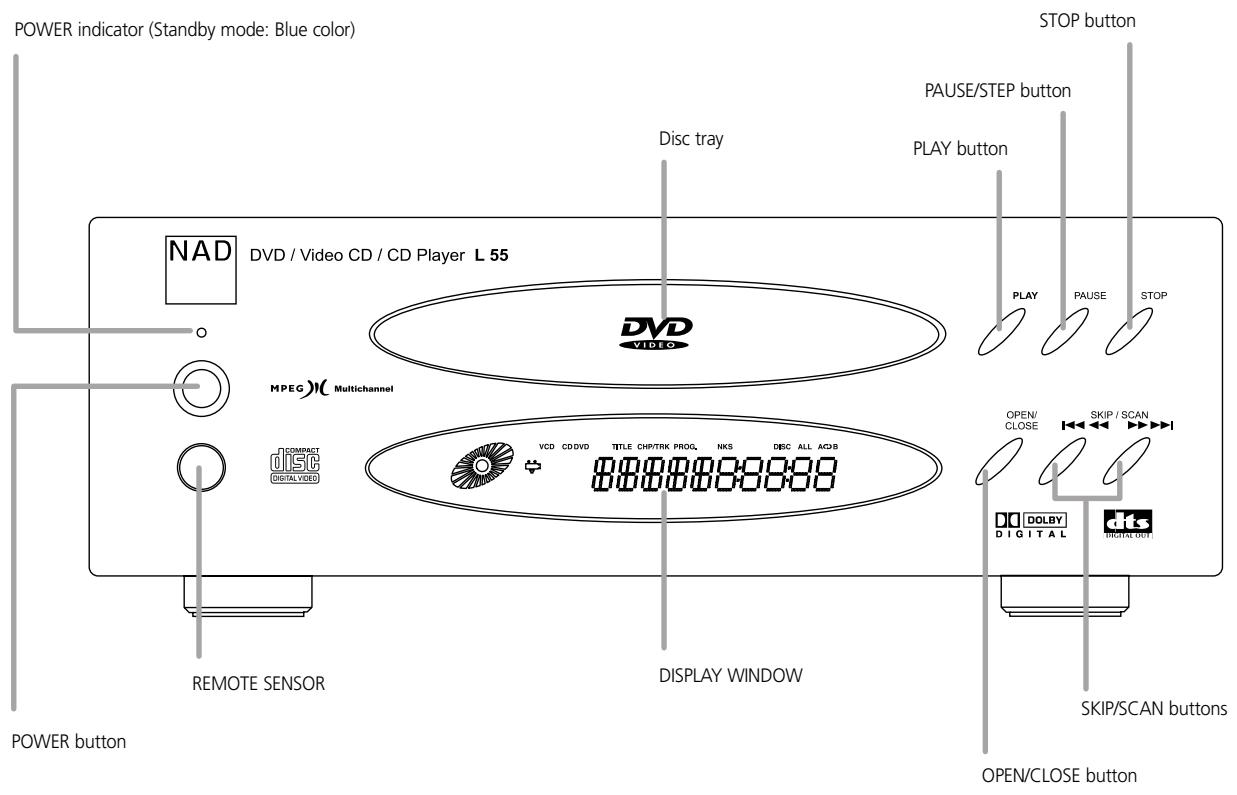
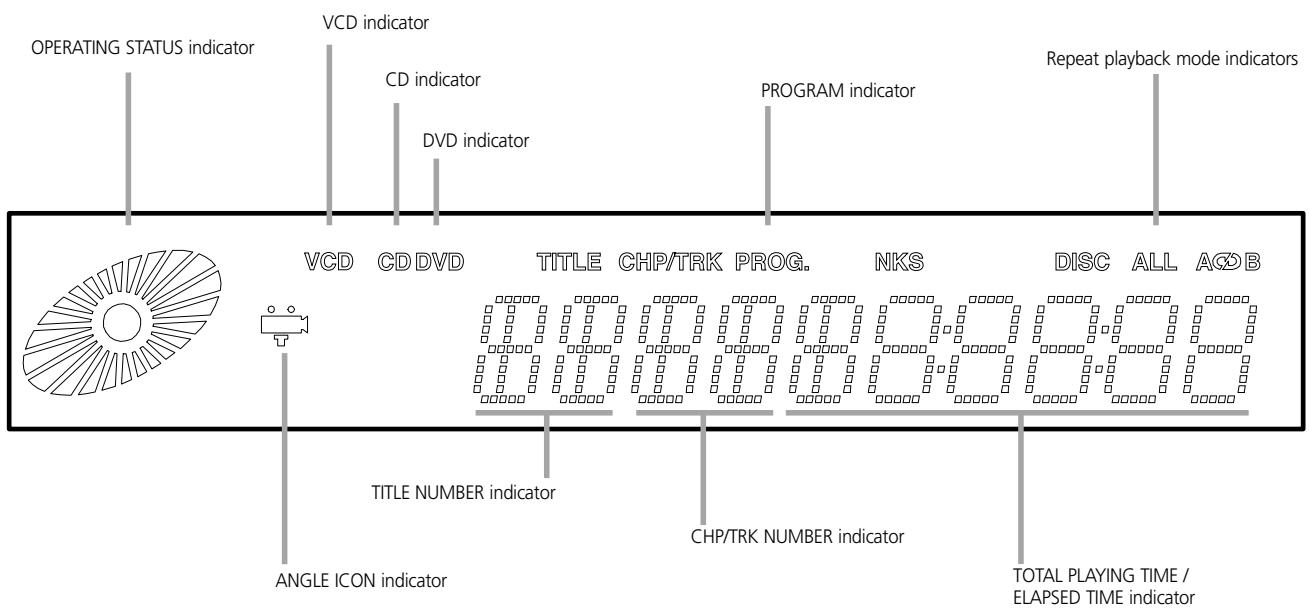
DISPLAY WINDOW
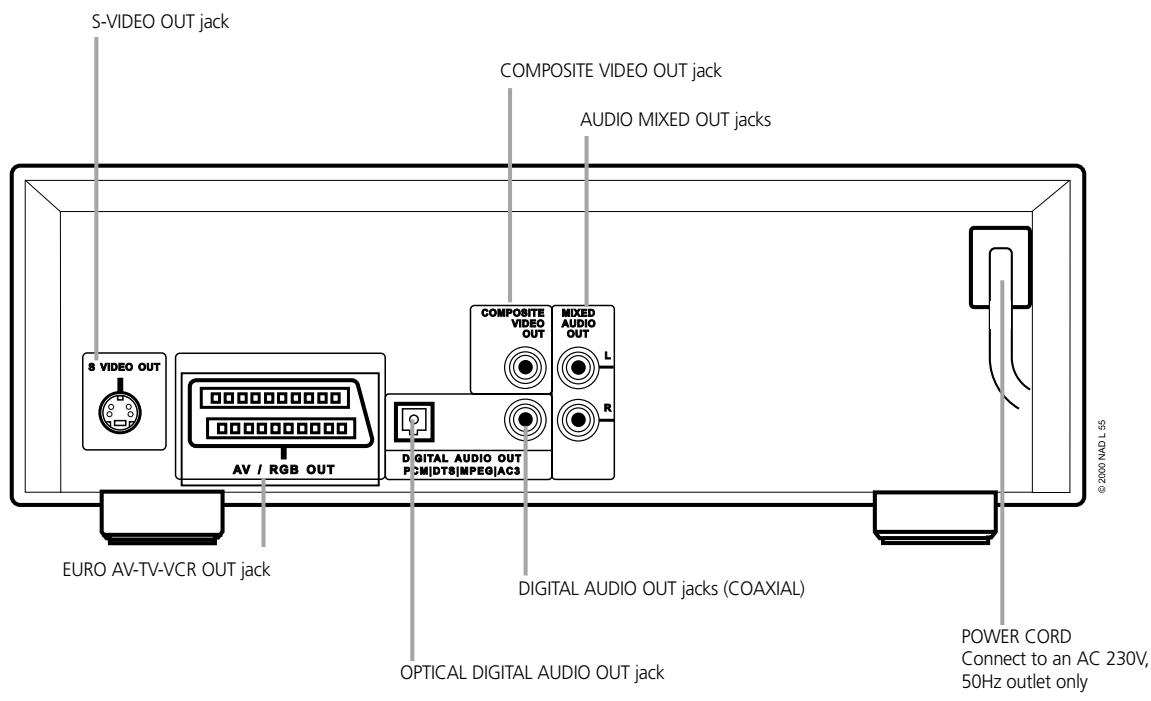
REAR PANEL
EUROPEAN VERSION
USA/CANADA VERSION
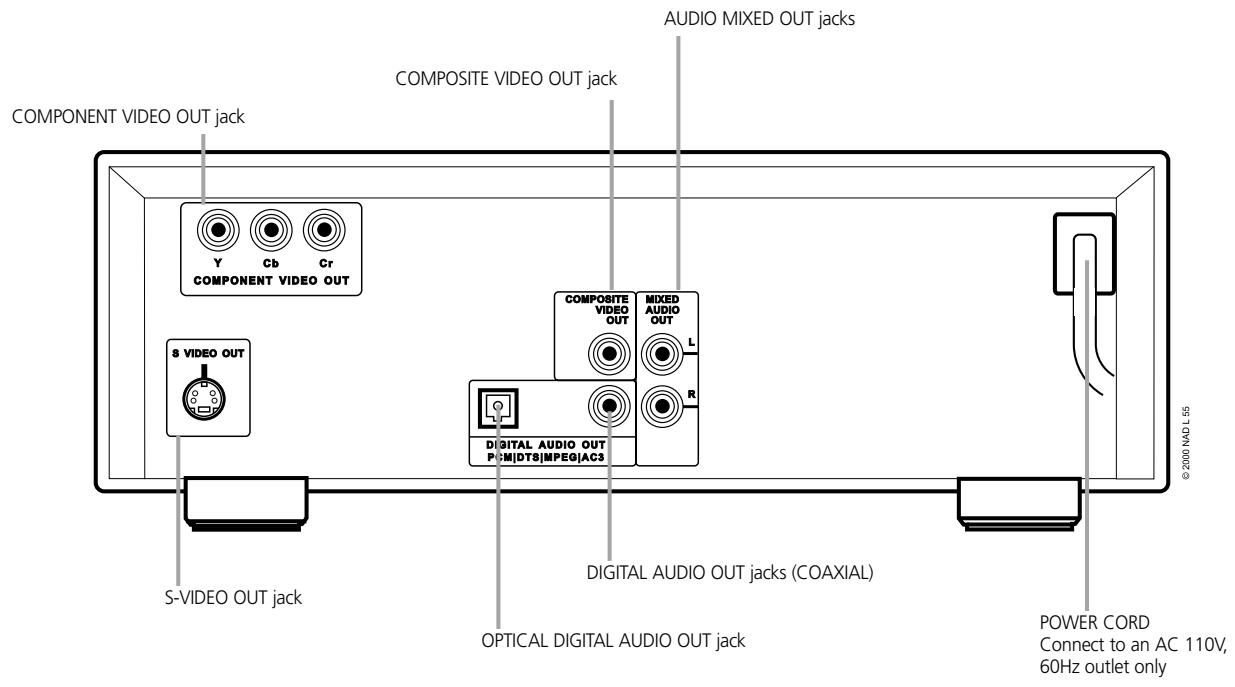
OPTICAL DIGITAL AUDIO OUT JACK
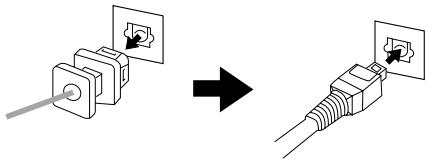
Remove the dust protection cap from the connector and connect the optical digital cable (not supplied) firmly so that the configurations of both the cable and the connector match. Keep the dust protection cap and always reattach the cap when not using the connector to protect against dust.
Dust protection cap
REMOTE CONTROL
You will find instructions for each of the remote control functions in the appropriate sections of this instruction manual.
(Remote control unit is included in L75 AV Surround Receiver)
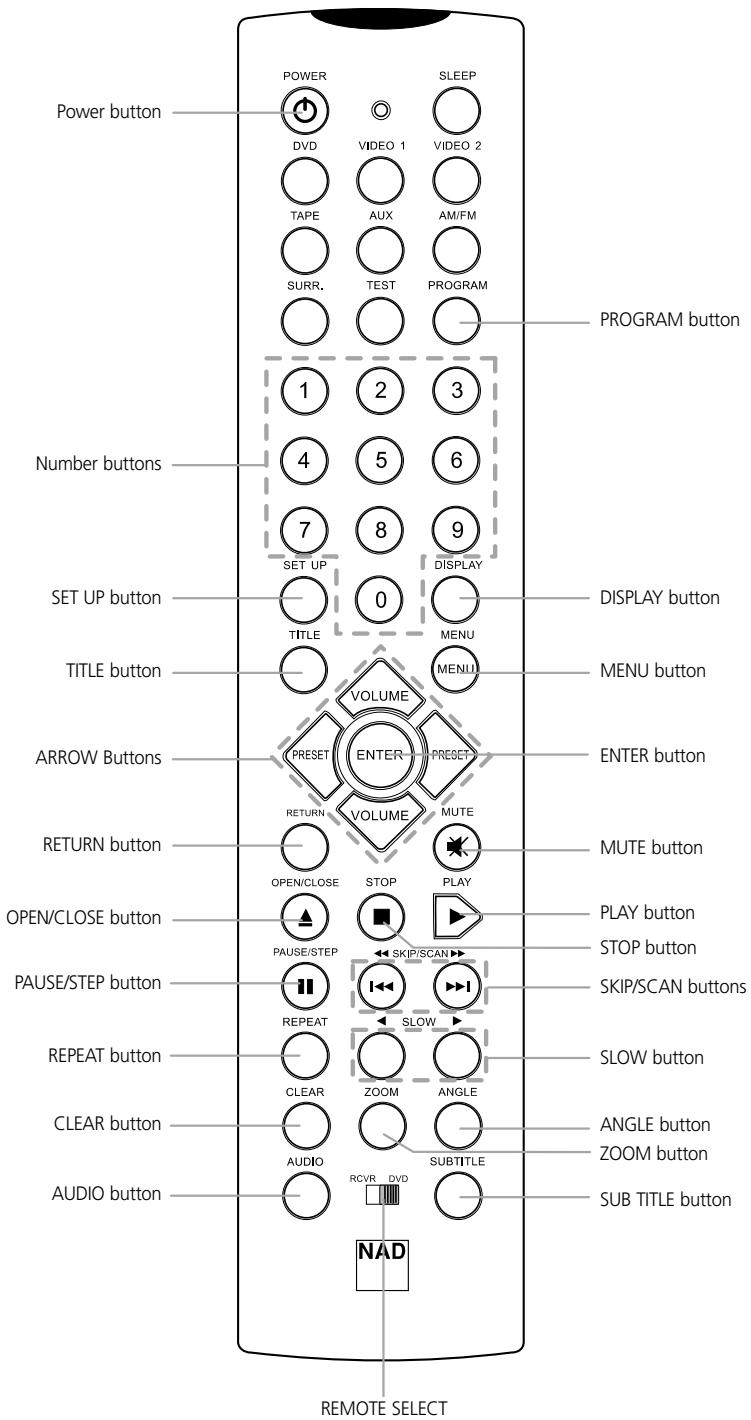
TITLE BUTTON
Use the TITLE button to display the title screen included on DVD video discs. To operate a menu screen, follow the instructions in "Using a Title Menu" (page 23).
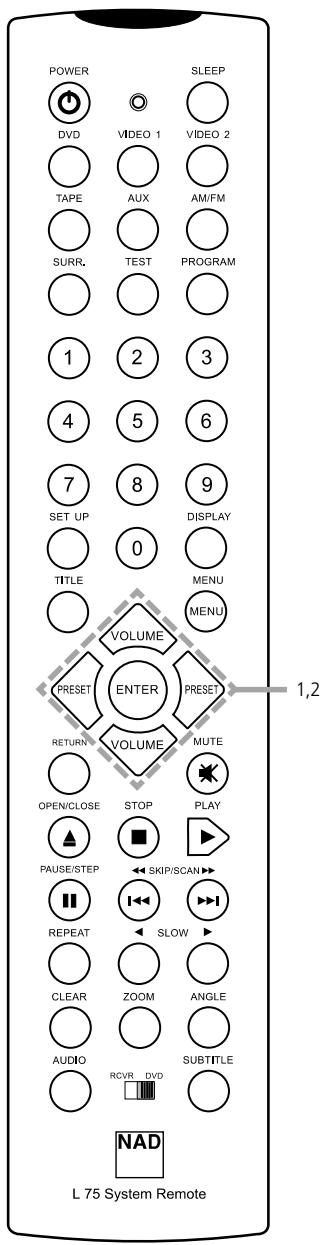
DIRECTIONAL ARROW BUTTONS
(up, down, left, right) for use in highlighting a selection on a DISPLAY menu screen, TITLE and MENU screen.
MENU BUTTON
Use the MENU button to display the menu screen included on DVD video discs. To operate a menu screen, follow the instructions in "Using a DVD Menu" (page 23).
REMOTE SELECT
Using the power, numbers, set up, display & arrow buttons for DVD player, change the switch to DVD position.
PREPARING THE REMOTE CONTROL
Insert the batteries into the remote control so you can use it to operate the DVD player.
1 Open the battery cover.
2 Insert batteries (AAA size). Make sure to match the + and - on the batteries to the marks inside the battery compartment.
3 Close the cover.
NOTES ON BATTERIES
- Improper use of batteries may cause battery leakage and corrosion.
• To operate the remote control correctly, follow the instructions. - Do not insert the batteries into the remote control in the wrong direction.
- Do not charge, heat, open or short-circuit the batteries. Do not throw the batteries into fire.
- Do not leave dead or exhausted batteries in the remote control.
- Do not use different types of batteries together, or mix old and new batteries.
- If you do not use the remote control for a long period of time, remove the batteries to avoid possible damage from battery corrosion.
- If the remote control does not function correctly or if the operating range becomes reduced, replace all batteries with new ones.
- If battery leakage occurs, wipe the battery liquid from the battery compartment, then insert new batteries.
- The batteries should last about one year with normal use.
OPERATING WITH THE REMOTE CONTROL
This section shows you how to use the remote control.
Point the remote control at the remote sensor and press the buttons.
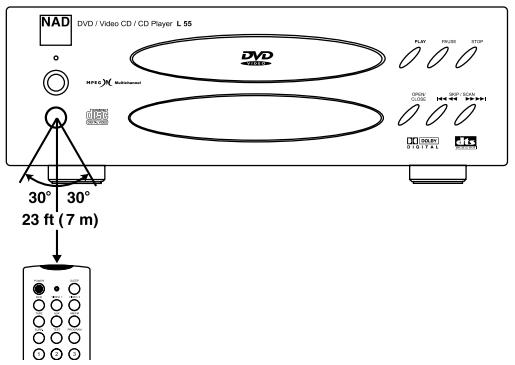
Distance: About 23 ft (7 m) from the front of the remote sensor
Angle: About 30^ in each direction of the front of the remote sensor
- Do not expose the remote sensor of the DVD player to a strong light source such as direct sunlight or illumination. If you do so, you may not be able to operate the DVD player with the remote control.
NOTES ON THE REMOTE CONTROL
- Direct the remote control at the remote sensor of the DVD player.
- Do not drop or give the remote control a shock.
- Do not leave the remote control near extremely hot or humid place.
- Do not spill water or put anything wet on the remote control.
- Do not open the remote control.
CONNECT THE DVD PLAYER TO YOUR TV
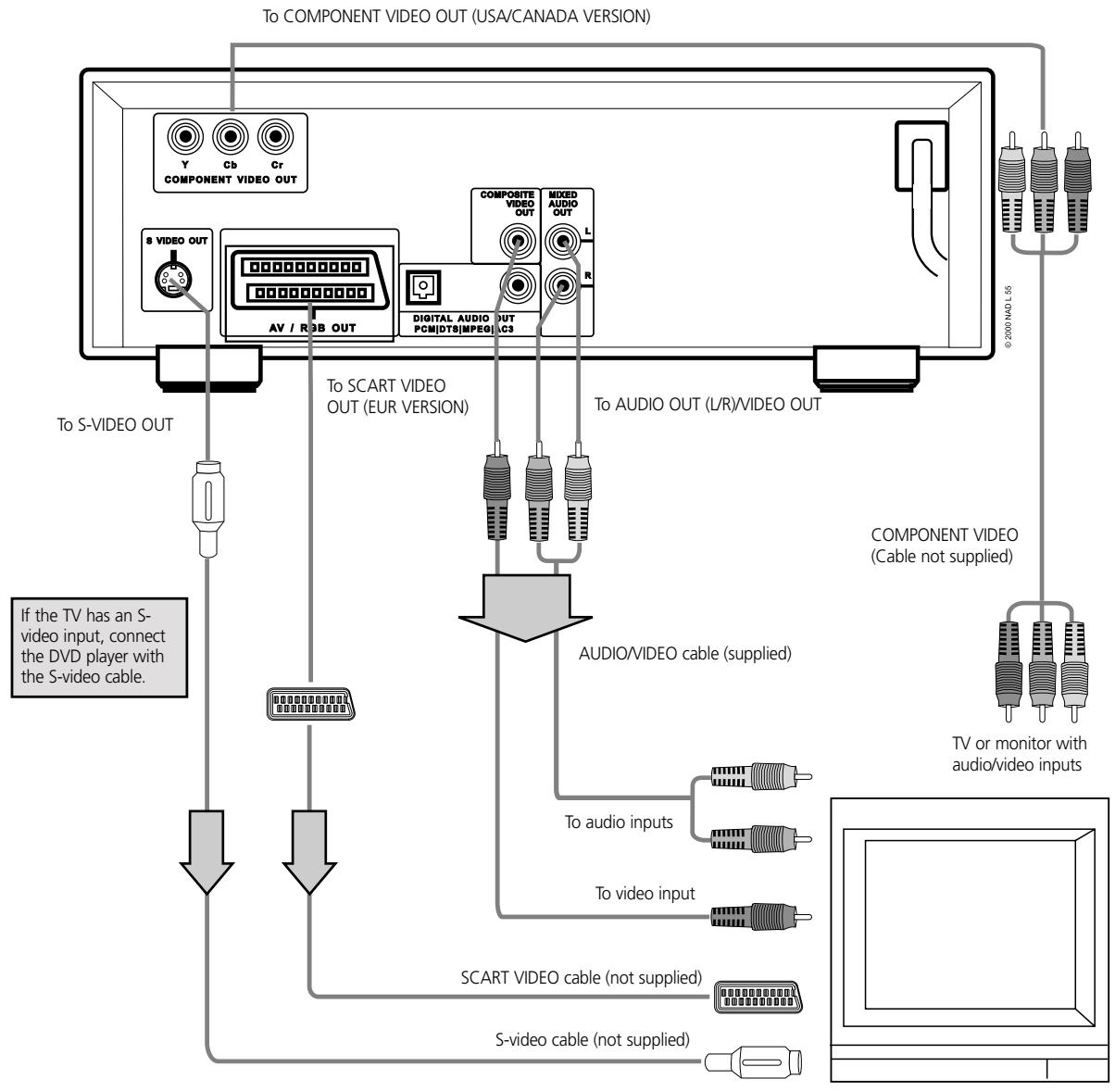
flowchart
graph TD
    A["TV or monitor with audio/video inputs"] --> B["COMPONENT VIDEO (Cable not supplied)"]
    B --> C["To audio inputs"]
    B --> D["To video input"]
    C --> E["SCART VIDEO cable (not supplied)"]
    D --> F["S-video cable (not supplied)"]
    E --> G["To SVIDEO OUT"]
    F --> H["To SCART VIDEO OUT (EUR VERSION)"]
    G --> I["AV / RGB OUT"]
    H --> J["DIGITAL AUDIO OUT PCM(DTS|MPEG)|G3"]
    I --> K["COMPOSITE VIDEO OUT"]
    J --> L["MIXED AUDIO OUT"]
    K --> M["To AUDIO OUT (L/R)/VIDEO OUT"]
    L --> N["To S-VIDEO OUT"]
    M --> O["To S-VIDEO OUT"]
    N --> P["To S-VIDEO OUT"]
NOTES
- Refer to the owner's manual of your TV as well.
- When you connect the DVD player to your TV, be sure to turn off the power and unplug both units from the wall outlet before making any connections.
- Connect the DVD player to your TV directly. If you connect the DVD player to a VCR, the playback picture will be distorted because DVD video discs are copy protected.
- To connect with S-video or SCART VIDEO (Component Video), you have to select TV output mode properly (Refer to "selecting TV Output" on Page 35).
YOU CAN LISTEN TO THE SOUND OF AUDIO CDS AND DVD VIDEO DISCS IN STEREO
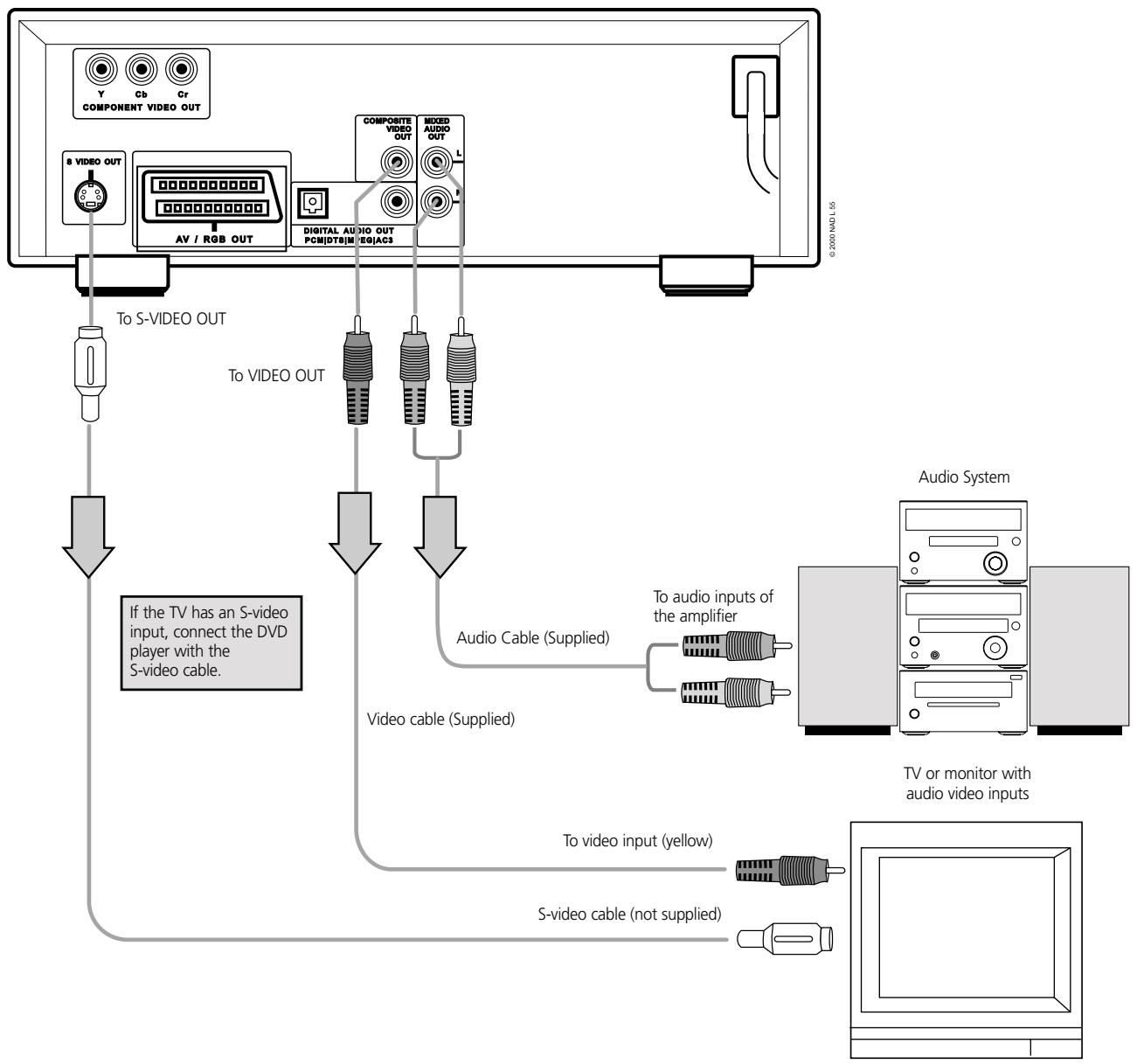
flowchart
graph TD
    A["COMPONENT VIDEO OUT"] --> B["8 VIDEO OUT"]
    B --> C["AV / RGB OUT"]
    C --> D["COMPOSITE VIDEO OUT"]
    D --> E["PCM/DTB/MEG/ACS"]
    E --> F["MIXED AUDIO OUT"]
    F --> G["L"]
    G --> H["Digital Audio Out PCM/DTB/MEG/ACS"]
    H --> I["To S-VIDEO OUT"]
    I --> J["If the TV has an S-video input, connect the DVD player with the S-video cable."]
    J --> K["To video OUT"]
    K --> L["Audio Cable (Supplied)"]
    L --> M["To audio inputs of the amplifier"]
    M --> N["Video cable (Supplied)"]
    N --> O["To video input (yellow)"]
    O --> P["S-video cable (not supplied)"]
    P --> Q["Video cable (Supplied)"]
    Q --> R["Audio Cable (Supplied)"]
    R --> S["To audio inputs of the amplifier"]
    S --> T["TV or monitor with audio video inputs"]
NOTES
- Refer to the owner's manual of your audio system as well.
- When you connect the DVD player to other equipment, be sure to turn off the power and unplug all of the equipment from the wall outlet before making any connections.
- If you place the DVD player near a tuner or radio, the radio broadcast sound might be distorted. In this case, move the DVD player away from the tuner and radio.
- The output sound of the DVD player has a wide dynamic range. Be sure to adjust the receiver's volume to a moderate listening level. Otherwise, the speakers may be damaged by a sudden high volume sound.
- Turn off the receiver before you connect or disconnect the DVD player's power cord. If you leave the receiver power on, the speakers may be damaged.

WARNING
Do not set the Digital Audio Output of this DVD player to “Dolby Digital” unless you are connecting the DIGITAL AUDIO jack of this DVD player to an AV decoder that has the Dolby Digital decoding function. High volume sound may damage your hearing as well as the speakers (Refer to “Selecting Digital Audio Output” on page 37).
CONNECTING TO OPTIONAL AUDIO SYSTEM
ENJOYING DOLBY DIGITAL SOUND
You can enjoy the high quality dynamic sound of Dolby Digital (AC-3), Dolby Pro Logic, and 2 Channel Digital Stereo.
DOLBY DIGITAL
Dolby Digital is the surround sound technology used in theaters showing the latest movies, and is now available to reproduce this realistic effect in the home. You can enjoy motion picture and live concert DVD video discs with this dynamic realistic sound by connecting the DVD player to a 6 channel receiver equipped with a Dolby Digital (decoder or Dolby Digital processor).
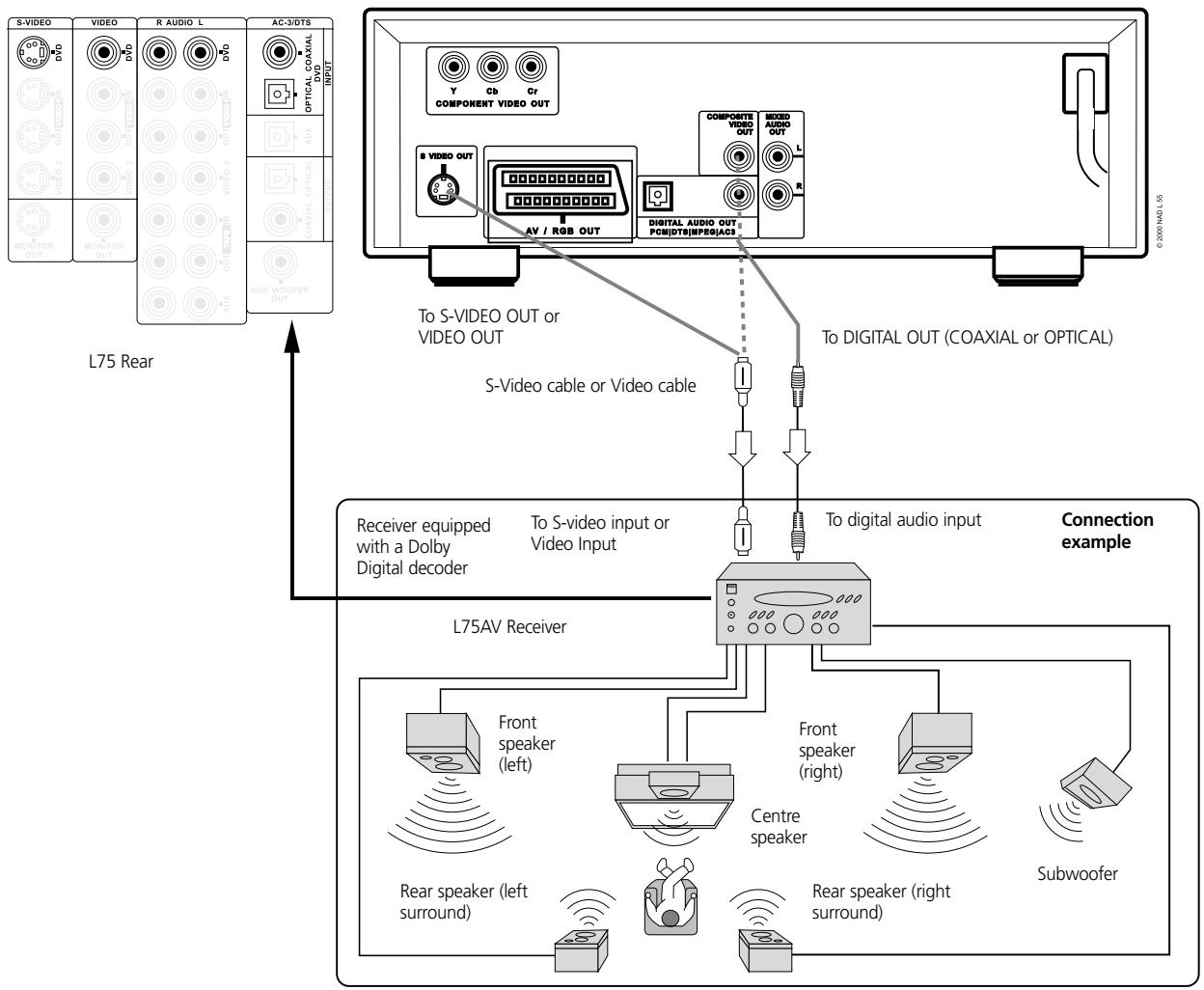
flowchart
graph TD
    A["L75 Rear"] --> B["To S-VIDEO OUT or VIDEO OUT"]
    B --> C["S-Video cable or Video cable"]
    C --> D["Digital Audio Out PCB(DTS)|SPE0|AC3"]
    D --> E["To digital OUT (COAXIAL or OPTICAL)"]
    E --> F["To digital audio input"]
    F --> G["Connection example"]
    G --> H["L75AV Receiver"]
    H --> I["Front speaker (left)"]
    H --> J["Front speaker (right)"]
    H --> K["Centre speaker"]
    H --> L["Rear speaker (left surround)"]
    H --> M["Rear speaker (right surround)"]
    H --> N["Subwoofer"]
    style A fill:#f9f,stroke:#333
    style B fill:#ccf,stroke:#333
    style C fill:#cfc,stroke:#333
    style D fill:#fcc,stroke:#333
    style E fill:#ffc,stroke:#333
    style F fill:#cff,stroke:#333
    style G fill:#ffc,stroke:#333
    style H fill:#cfc,stroke:#333
    style I fill:#fcc,stroke:#333
    style J fill:#fcc,stroke:#333
    style K fill:#fcc,stroke:#333
    style L fill:#fcc,stroke:#333
NOTES
To enjoy Dolby Digital sound from this DVD player you need the following:
• DVD recorded in Dolby Digital
- 6 channel receiver equipped with a Dolby Digital decoder or Dolby Digital processor and power receiver
• 5 speakers and 1 subwoofer
- To enjoy Dolby Digital sound, you need to select "Dolby Digital" on the SETUP menu.
- Refer to the owner's manual of your audio equipment as well.
- When you connect the DVD player to other equipment, be sure to turn off the power and unplug all of the equipment from the wall outlet before making any connections.
- The output sound of the DVD player has a wide dynamic range. Be sure to adjust the receiver's volume to a moderate listening level. Otherwise, the speakers may be damaged by a sudden high volume sound.
- Turn off the receiver before you connect or disconnect the DVD player's power cord. If you leave the receiver power on, the speakers may be damaged.
Manufactured under license from Dolby Laboratories Licensing Corporation. "Dolby", and the double-D symbol are trademarks of Dolby Laboratories Licensing Corporation. Confidential Unpublished Works. 1992-1997 Dolby Laboratories, Inc. All rights reserved.
You can still enjoy the excitement of Surround Sound even if your A/V receiver does not offer Dolby Digital (AC-3) decoding.
If your A/V receiver has a Dolby Pro Logic decoder, refer to the following connection diagram.
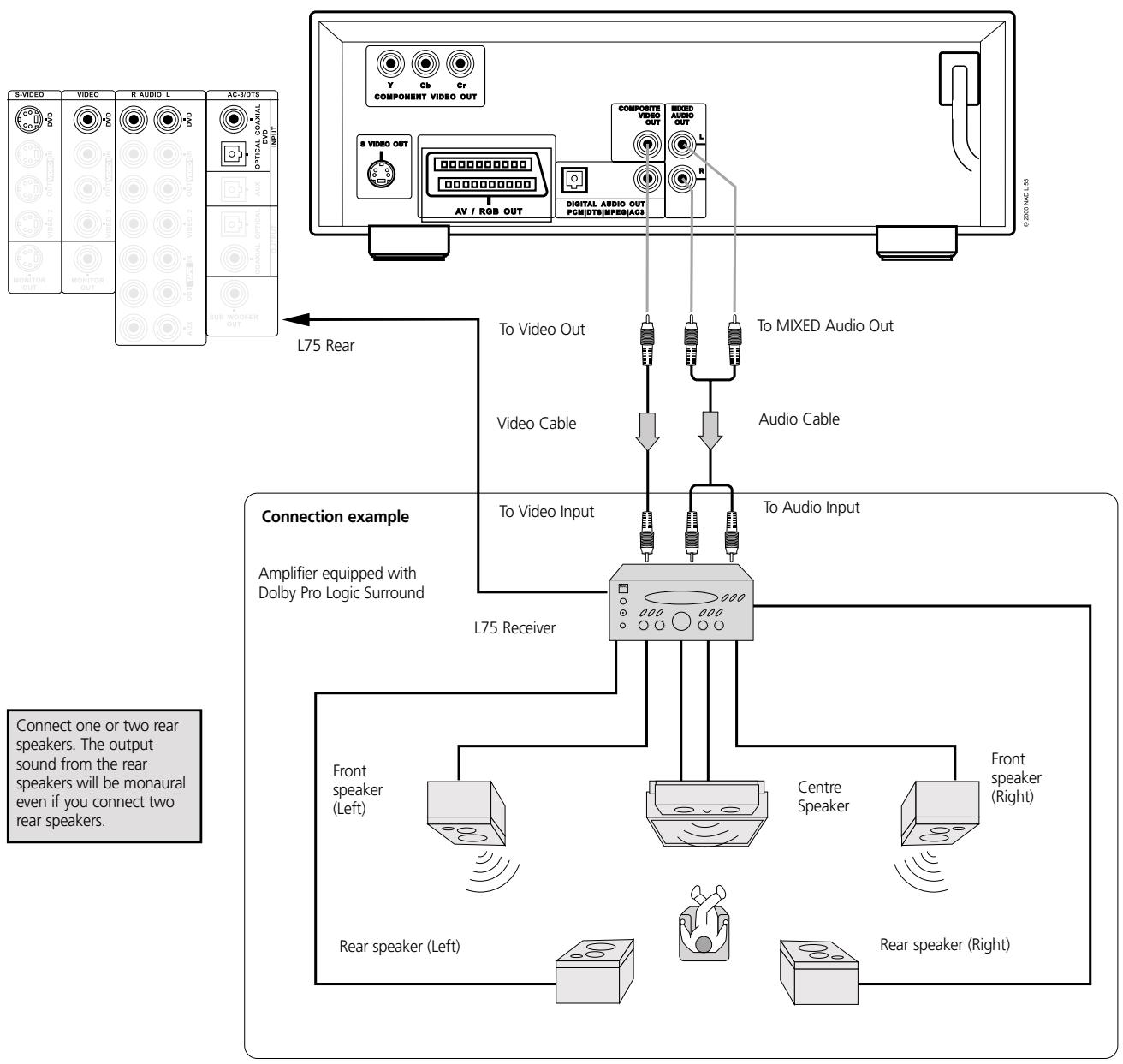
flowchart
graph TD
    A["S-VIDEO"] -->|L75 Rear| B["To Video Out"]
    C["VIDEO"] -->|L75 Rear| D["To Video Cable"]
    E["R AUDIO L"] -->|L75 Rear| F["To Video Input"]
    G["AC-3/DT6"] -->|L75 Rear| H["To Audio Input"]
    I["OPTICAL COXIAL"] -->|L75 Rear| J["L75 Receiver"]
    K["AV / RGB OUT"] --> L["COMPOSITE VIDEO OUT"]
    M["PCM|DT8|MPEG|ACS"] --> N["MIXED AUDIO OUT"]
    O["COMPONENT VIDEO OUT"] --> P["TO MIXED Audio Out"]
    Q["S VIDEO OUT"] --> R["Video Cable"]
    S["COMPOSITE VIDEO OUT"] --> T["TO MIXED Audio Out"]
    U["AV / RGB OUT"] --> V["COMPOSITE VIDEO OUT"]
    W["COMPOSITE VIDEO OUT"] --> X["TO MIXED Audio Out"]
    Y["COMPOSITE VIDEO OUT"] --> Z["TO MIXED Audio Out"]
    AA["COMPOSITE VIDEO OUT"] --> AB["TO MIXED Audio Out"]
    AC["COMPOSITE VIDEO OUT"] --> AD["TO MIXED Audio Out"]
    AE["COMPOSITE VIDEO OUT"] --> AF["TO MIXED Audio Out"]
    AG["COMPOSITE VIDEO OUT"] --> AH["TO MIXED Audio Out"]
    AI["COMPOSITE VIDEO OUT"] --> AJ["TO MIXED Audio Out"]
    AK["COMPOSITE VIDEO OUT"] --> AL["TO MIXED Audio Out"]
    AM["COMPOSITE VIDEO OUT"] --> AN["TO MIXED Audio Out"]
    AO["COMPOSITE VIDEO OUT"] --> AP["TO MIXED Audio Out"]
    AQ["COMPOSITE VIDEO OUT"] --> AR["TO MIXED Audio Out"]
    AS["L75 Receiver"] --> AT["L75 Rear"]
    AU["Front speaker (Left)"] --> AV["L75 Receiver"]
    AW["Front speaker (Right)"] --> AX["L75 Receiver"]
    AY["Rear speaker (Left)"] --> AZ["Rear Speaker (Right)"]
    BA["Rear Speaker (Right)"] --> BB["Rear Speaker (Right)"]
WITH A RECEIVER EQUIPPED WITH DOLBY DIGITAL
Connect the equipment the same way as described in “Enjoying Dolby Digital (AC-3) Sound” on the previous page. Refer to that receiver's owner's manual and set the receiver so you can enjoy Dolby Pro Logic Surround sound..

WARNING
Do not set the Digital Audio Output of this DVD player to “Dolby Digital” unless you are connecting the DIGITAL AUDIO jack of this DVD player to an AV decoder that has the Dolby Digital decoding function. High volume sound may damage your hearing as well as the speakers (Refer to “Selecting Digital Audio Output” on page 37).
CONNECTING TO OPTIONAL AUDIO SYSTEM
ENJOYING 2 CHANNEL DIGITAL STEREO SOUND
2 Channel Digital Stereo
You can enjoy the dynamic sound of 2 Channel Digital Stereo by connecting this DVD player to a receiver equipped with a digital audio input and speaker system (right and left front speakers).
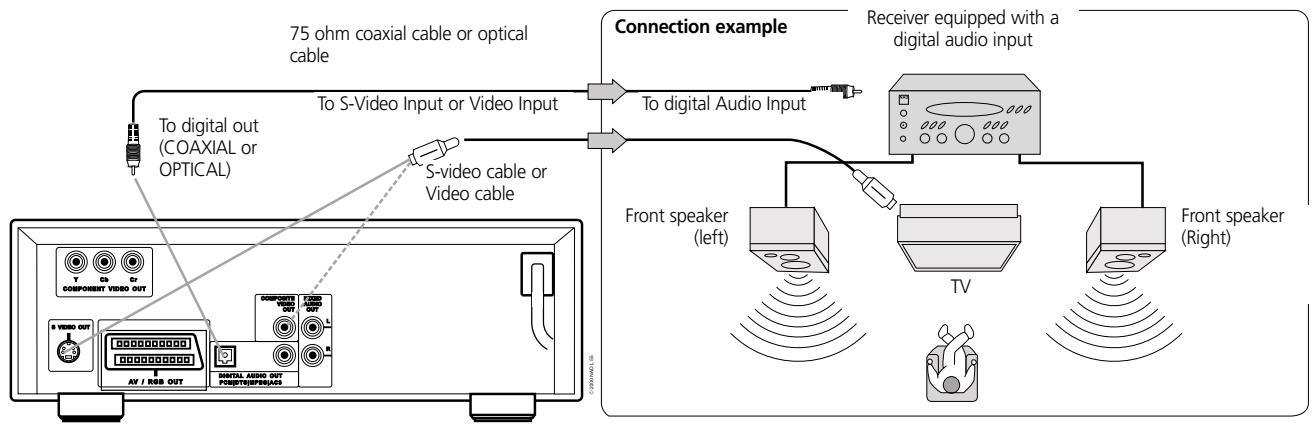
flowchart
graph TD
    A["Device with 75 ohm coaxial cable or optical cable"] --> B["To digital out (COAXIAL or OPTICAL)"]
    A --> C["S-video cable or Video cable"]
    A --> D["To S-Video Input or Video Input"]
    D --> E["Connection example"]
    E --> F["Receiver equipped with a digital audio input"]
    F --> G["Front speaker (left)"]
    F --> H["TV"]
    F --> I["Front speaker (Right)"]
    G --> J["Antenna"]
    H --> K["Antenna"]
    I --> L["Antenna"]
ENJOYING DTS SOUND
Introducing DTS Digital Surround™ ...the finest technology ever invented to transform existing "home theater" systems into six discrete channels of exceptionally clear, better-than-compact disc, digital audio performance. And DTS Digital Surround is the only 5.1 surround sound format that can deliver this revolutionary 3-dimensional experience through new music recordings on compact discs, original 5.1 soundtracks on motion picture laserdiscs, and soon, a wide variety of products on DVD.
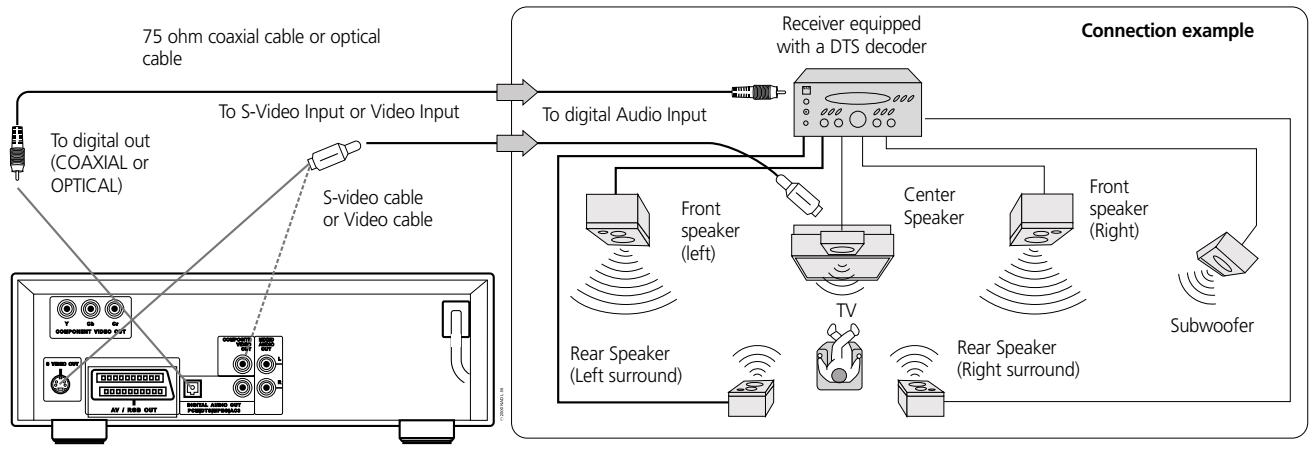
flowchart
graph TD
    A["75 ohm coaxial cable or optical cable"] --> B["To digital Audio Input"]
    B --> C["Receiver equipped with a DTS decoder"]
    C --> D["Front speaker (left)"]
    C --> E["Center Speaker"]
    C --> F["Rear Speaker (Left surround)"]
    C --> G["Rear Speaker (Right surround)"]
    D --> H["Subwoofer"]
    E --> I["TV"]
    F --> J["Subwoofer"]
    G --> K["Subwoofer"]
    L["To digital out (COAXIAL or OPTICAL)"] --> M["S-video cable or Video cable"]
    M --> N["75 ohm coaxial cable or optical cable"]
"DTS" and "DTS Digital Out" are trademarks of Digital Theater Systems, Inc..
NOTES
- Refer to the owner's manual of your receiver as well.
- When you connect the DVD player to other equipment, be sure to turn off the power and unplug all of the equipment from the wall outlet before making any connections.
- The output sound of the DVD player has a wide dynamic range. Be sure to adjust the receiver's volume to a moderate listening level. Otherwise, the speakers may be damaged by a sudden high volume sound.
- Turn off the receiver before you connect or disconnect the DVD player's power cord. If you leave the receiver power on, the speakers may be damaged.
This section shows you the basics on how to play back a DVD video disc.
PREPARATIONS
- When you want to play back DVD video discs, turn on the TV and select the video input source connected to the DVD player.
- When you want to enjoy the sound of DVD video discs or audio CDs from the audio system, turn on the audio system and select the input source connected to the DVD player.
- For connection details, see pages 12 through 16.
- Set the playback picture size according to the aspect ratio of the connected TV at the SETUP menu (TV Aspect).
- If you do not have the necessary equipment to enjoy Dolby Digital sound, set the Digital Audio Output at the SETUP (Digital Audio Output) menu to "PCM".
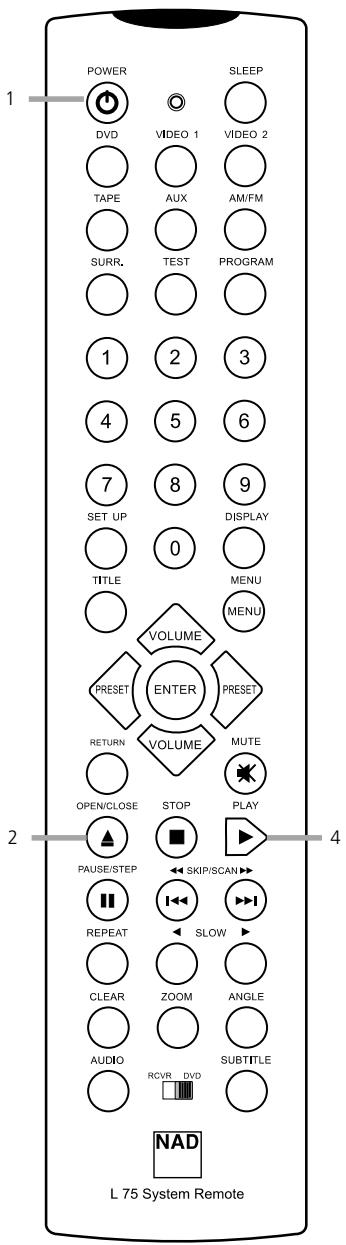
1 Press POWER. The DVD player turns on and the power indicator turns off.
2 Press OPEN/CLOSE. The disc tray opens. You can open the disc tray by pressing this button even if the DVD player is in standby mode.
3 Place a disc on the disc tray with the playback side down. There are two different disc sizes. Place the disc in the correct guide on the disc tray. If the disc is out of the guide, it may damage the disc and cause the DVD player to malfunction. Do not place anything except 3" discs or 5" discs on the disc tray.
4 Press PLAY. The disc tray is automatically closed and playback begins. If the disc is placed in upside down (and it is a single sided disc), "NO DISC" or "DISC ERROR" appears on the TV screen.
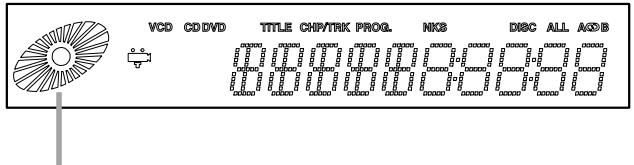
Operating status indicator
- If you insert an audio CD, the CD indicator lights up in the DVD display. The title number does not appear.
- After playing back all of the chapters in the title, the DVD player automatically stops and returns to the menu screen.
WHEN A MENU SCREEN APPEARS ON THE TV SCREEN
In case of interactive DVDs with control, a menu screen appears on the TV screen. Perform step 5 on page 18 to start play.
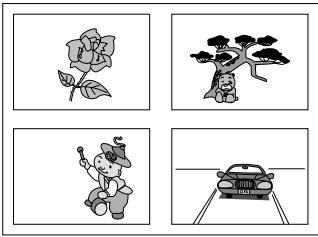
natural_image
Four-panel illustration showing a flower, tree, cartoon character, and car (no text or symbols)Example of interactive DVD On-Screen Menu.
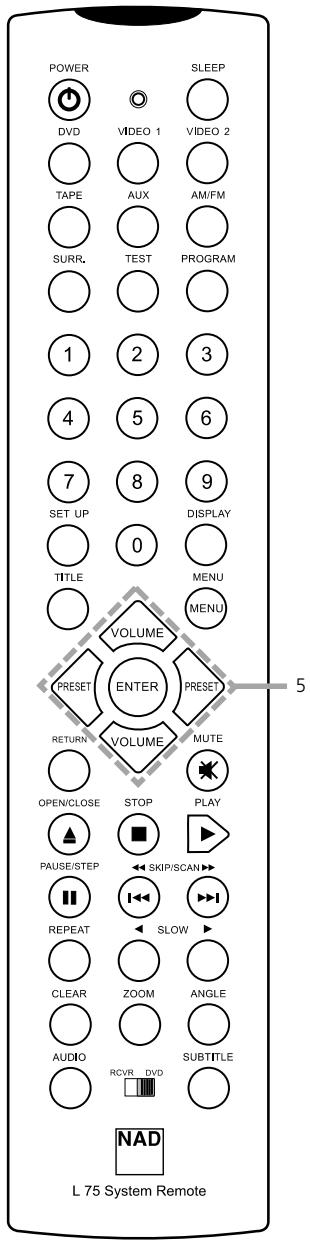
5 Press ▲/▼/◄/► and press ENTER, or press the numeric button(s), to select the desired item.
Play of the selected item now begins.
For further info, also refer to the jacket or case of the disc you are playing.
AFTER OPERATION
When the unit is not in use, remove the disc and press POWER to turn off the power.
NOTES
- Do not move the DVD player during playback. Doing so may damage the disc and the DVD player.
- Use the OPEN/CLOSE button on the remote control or DVD player to open and close the disc tray. Do not push the disc tray while it is moving. Doing so may cause the DVD player to malfunction.
- Do not push up the disc tray or put any objects other than discs on the disc tray. Doing so may cause the DVD video player to malfunction.
- Keep your fingers well clear of the disc tray as it is closing. Be especially careful with children's fingers around the closing disc tray as there is a risk of personal injury.
- When " ⊙ " appears on the TV screen while a button is pressed, it means that this function is not available on the disc you are playing.
- Depending on the DVD disc, some operations may be different or restricted. Refer to the jacket or case of the disc you are playing.
STOPPING PLAY
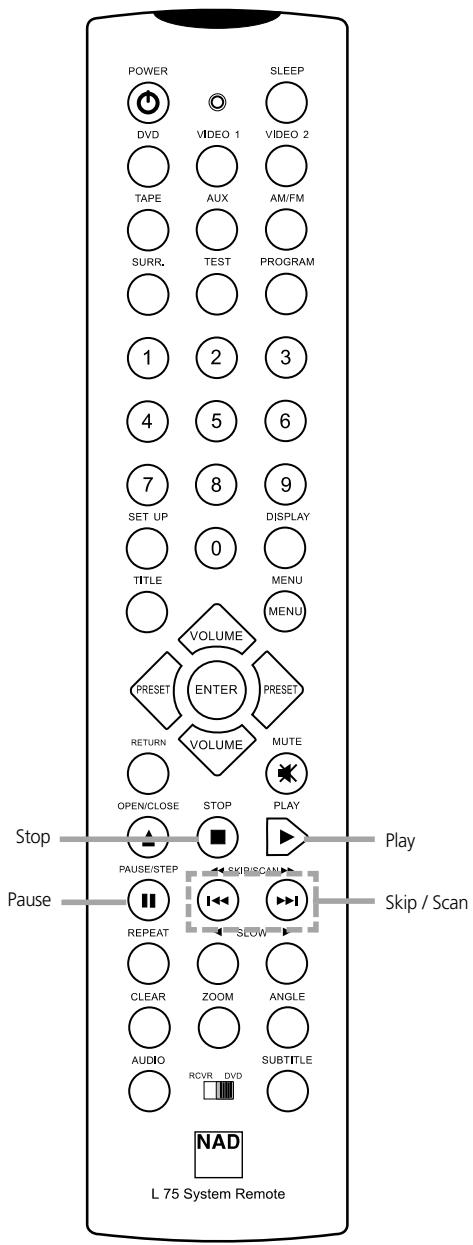
Press STOP during playback.
RESUME PLAY
- When play is stopped, the unit records the point where STOP was pressed (RESUME function).
Press PLAY and play will resume from this point. - The RESUME function works only with discs for which the elapsed playing time appears on the window display during playback.
NOTES
- Resume function will be cleared when the power is turned off and then on.
- Opening the disc tray cancels Resume function.
- The Resume function may not be available on some DVD discs.
- If the player is left in the stop mode for more than 8 minutes, the power shuts off automatically.
STILL PICTURE (PAUSE)
Press PAUSE/STEP during playback.
• DVD The player will be placed in the still picture mode.
• CD The player will be placed in the pause mode.
FRAME ADVANCE (DVD ONLY)
Press PAUSE/STEP during still playback.
(Each time you press PAUSE/STEP, the picture advance one frame)
To resume normal playback, press PLAY.
SKIPPING FORWARD OR BACK
Skipping forward Press SKIP ▶▶ during playback. A chapter (DVD) or a track (CD) is skipped each time the button is pressed.
Skipping back Press SKIP ◄◀ during playback. When the button is pressed once midway through a chapter/track, the player returns to the start of that chapter/track. When it is pressed again, a chapter/track is skipped each time the button is pressed.
NOTE
When SKIP/SCAN button is pressed and held for more than 0.5 second, scan function will engage.
You can play back discs at various speeds, and resume normal playback.
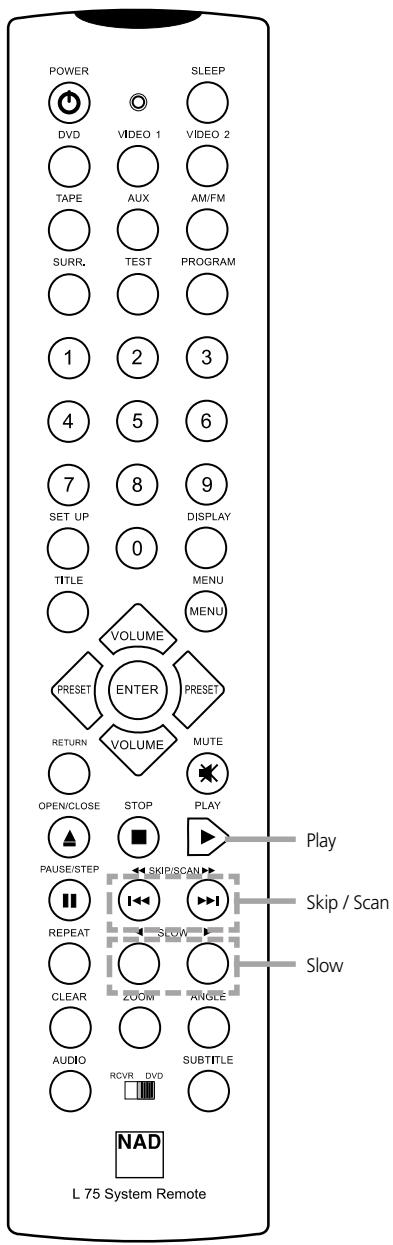
Press SLOW ◀ or SLOW ▶ during playback.
- During slow playback, the playback speed and direction can be selected with SLOW ◀ or SLOW ▶.
- To increase the playback speed, press the one button as the playback direction.
- To reverse the playback direction, press the other button opposite to the playback direction.
- With Video CD, reverse play is not possible.
To return to normal playback, press PLAY button.
TO SCAN AT FAST FORWARD OR FAST REVERSE
- Fast forward and reverse, press and hold SKIP / SCAN on remote control unit for more than 0.5 second during play-back.
- On the front panel, continue pressing the ◀◀◀ ◀◀◀ or ▶▶▶ ▶▶▶ button.
- During fast playback, the playback speed and direction can be selected with SKIP / SCAN.
- To increase the playback speed, press the button as the playback direction.
- To reverse the playback direction, press the other button opposite to the playback direction.
To return to normal playback, press PLAY
NOTES
- When SKIP/SCAN button is pressed and held for more than 0.5 second, scan function will engage.
- The DVD player does not play back sound during slow-motion playback, the high speed reverse and forward playback of DVD video discs. However, the DVD player plays back sound during fast forward or fast reverse playback of audio CDs.
- Subtitles do not appear on the screen during slow motion and scan playback.
- The DVD player provides four (4) scan speeds for DVD movie play. Only one (1) scan speed is available dung Audio CD play.
- The DVD player does not play back in slow-motion in case of audio CD.
- In some equipment that is connected to digital output for DTS sound, a noise can occur during fast forward or fast reverse playback of DTS CDs.

This unit features DISPLAY Menu Icons showing disc information (title/chapter/track number, elapsed playing time, audio/subtitle language, angle and sound) and player information (repeat play, play mode, etc.). Some icons only show the indicated information. Other icons allow the settings to be changed.
COMMON PROCEDURES
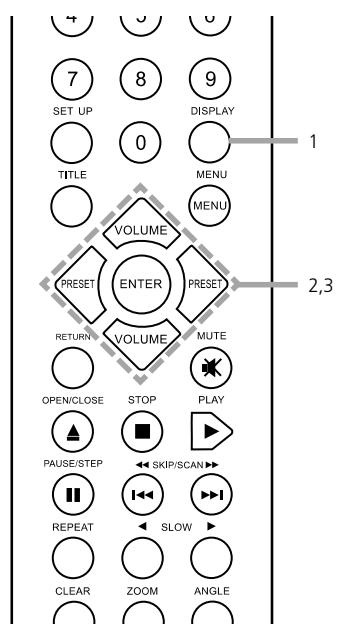
1 Press DISPLAY during playback.
• Title function can be accessed from the stop mode.
2 Press ▲/▼ to select the desired item.
- The currently selected item is indicated by a yellow frame on its DISPLAY menu icons.
3 Press ◀/▶ to select the desired setting.
- When numbers are displayed (e.g. title number), the numeric buttons can also be used for setting instead of ◀/▶
- For some functions, the setting will be registered immediately; for others, ENTER must be pressed.
To clear the DISPLAY Menu Icons, press DISPLAY.
EXAMPLES OF DISPLAY MENU ICONS
The screens may differ depending on the disc contents.
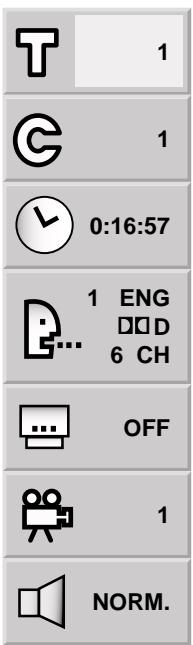
DVD DISPLAY
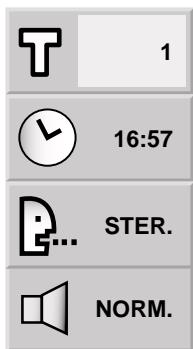
CD DISPLAY
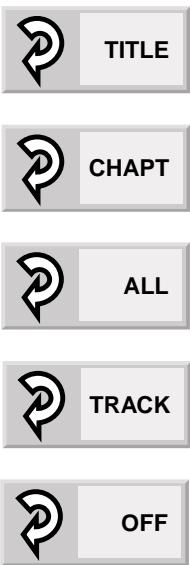
DVD and CD DISPLAY

Operation Using Display Menu Icons
DETAILED DESCRIPTION OF EACH DISPLAY MENU ICON DVD DISC
You can view information about a disc and its operational status on the TV screen.
PRESS DISPLAY DURING
| PLAYBACK[TV screen] DVD DISPLAY | FUNCTION(Press ▲/▼ to select desired item) | SELECTIONMETHOD | |
 | 1 | To show the current title number and to jump to the desired title number | ◀/▶ + Enter, or Numeric + Enter |
 | 1 | To show the current chapter number and to jump to the desired chapter number | ◀/▶ + Enter, or Numeric + Enter |
 | 0:16:57 | To show the elapsed time and directly select scenes by the desired time. | SKIP, Numeric + ENTER |
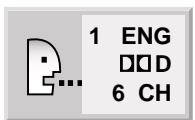
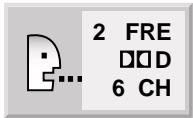
 | 1 ENG D□D 6 CH | To show the current audio soundtrack language, encoding method, channel number and to change the settings | ◀/▶ , AUDIO |
| [BYKG] | OFF | To show the current subtitles language and to change the setting | ◀/▶ , SUBTITLE |
 | 1 | To show the current angle number and to change the angle | ◀/▶ , ANGLE |
| [6BYH] | NORM. | To show the current sound (NORMAL or 3D SURROUND) and to change the setting | ◀/▶ |
PRESS DISPLAY DURING
| PLAYBACK [TV screen] CD DISPLAY | FUNCTION (Press ▲/▼ to select desired item) | SELECTION METHOD | |
 | 1 | To show the current track number and to jump to the desired track number | ◀/▶ + Enter, or Numeric + Enter, or SKIP |
 | 16:57 | To show the elapsed time | (Display only) |
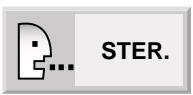
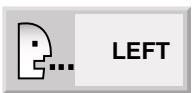
 | STER. | To show the current audio (STEREO, LEFT, RIGHT) and to select to the desired audio channel | ◀/▶, AUDIO |
 | NORM. | To show the current sound (NORMAL or 3D SURROUND) and to change the setting | ◀/▶ |
NOTE
Some DVD discs may not provide all of the above DISPLAY menu icons.
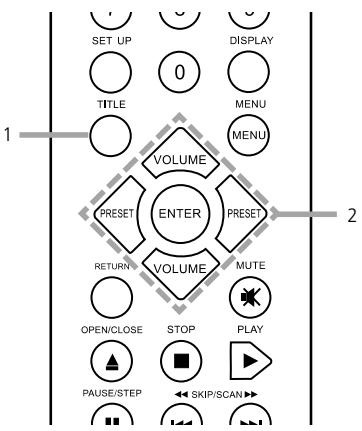
Some movie discs may contain two or more titles. If the disc has a title menu recorded on it, the TITLE button can be used to select the movie title (The details of operation differ depending on the disc used). Selecting a title may not be possible on certain DVD discs.
1 Press TITLE. A list of the titles on the disc is displayed. Press TITLE again to resume play from the scene when TITLE was first pressed.
2 Press ▲/▼/◄/► and press ENTER or PLAY, or press the numeric button(s), to select desired title. The selected title now starts playing.
flowchart
graph TD
    A["SET UP"] --> B["0"]
    C["DISPLAY"] --> B
    D["TITLE"] --> E["MENU"]
    F["VOLUME"] --> G["ENTER"]
    H["PRESET"] --> I["PRESET"]
    J["RETURN"] --> K["VOLUME"]
    L["OPEN/CLOSE"] --> M["STOP"]
    N["PLAY"] --> O["SKIP/SCAN"]
    P["PAUSE/STEP"] --> Q["◀"]
    R["2"] --> S["1"]
    T["2"] --> U["2"]
DVD VIDEO USING A DVD MENU
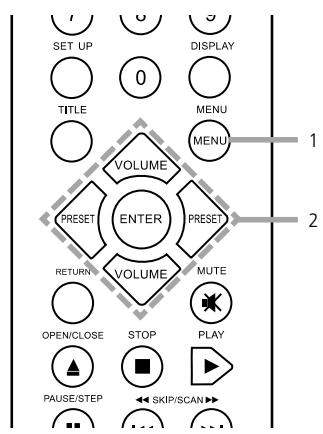
Some DVDs have unique menu structures called DVD menus. For example, DVDs programmed with complex contents provide guide menus, and those recorded with various languages provide menus for audio and subtitle language. Although the DVD menu's contents and operation differ from disc to disc, the following explains the basic operation when this feature is used.
1 Press MENU during play. The DVD menu available on the disc is now displayed. Pressing MENU again resumes play from the scene when MENU was first pressed. Resume play may not be possible on certain discs.
2 Press ▲/▼/◄/► and press ENTER, or press the numeric button(s), to select desired item. The selected item is now executed.
flowchart
graph TD
    A["SET UP"] --> B["0"]
    C["DISPLAY"] --> B
    D["TITLE"] --> E["MENU"]
    F["VOLUME"] --> G["ENTER"]
    H["PRESDET"] --> I["PRET"]
    J["RETURN"] --> K["VOLUME"]
    L["MUTE"] --> M["OPEN/CLOSE"]
    N["STOP"] --> O["PLAY"]
    P["PAUSE/STEP"] --> Q["◀ SKIP/SCAN▶"]
    R["1"] --> S["2"]

Advanced Operation
CHANGING SUBTITLE LANGUAGE DVD
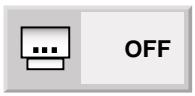
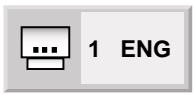
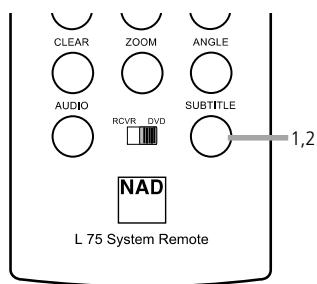
It is possible to change the subtitle language to a different language from the one selected at the initial settings (See page 31 for further info). This operation works only with discs on which multiple subtitle languages are recorded.
1 Press SUBTITLE during playback. When no subtitles are recorded, "OFF" will be displayed instead of the language number.
2 Press repeatedly SUBTITLE until the desired language is selected. Number of the subtitle language being played back.
To eliminate the On Screen Subtitles.
Press SUBTITLE repeatedly to select OFF at step 2.
NOTES
- In some cases, the subtitle language is not changed to the selected one immediately.
- When a disc supporting the closed caption is played, the subtitle and the closed caption may overlap each other on the TV screen. In this case, turn the subtitle off.
- When the desired language is not selected even after pressing the button several times, it means that the language is not available on the disc.
- When the power is turned on or the disc is removed, subtitles appears in the language selected at the initial settings. If this language is not recorded on the disc, the disc's priority language appears.
CHANGING AUDIO SOUNDTRACK LANGUAGE
DVD vioso COMPACT disc DIGITAL RADIO
It is possible to change the audio soundtrack language to a different language from the one selected at the initial settings in case of DVD disc (See page 31 for further info). This operation works only with discs on which multiple audio soundtrack languages are recorded.
And it is possible to change the audio channel in case of audio CD.
DVD
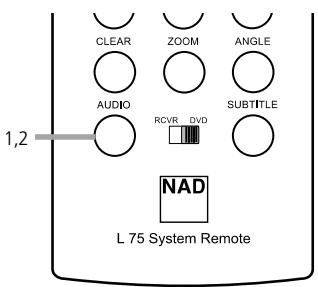
1 Press AUDIO during play. Number of the audio soundtrack language being played back.
2 Press AUDIO repeatedly until the desired language is selected.
CD
1 Press AUDIO during play.
2 Press AUDIO repeatedly until the desired sound is selected.
NOTES
- When the desired language is not selected even after pressing the button several times, it means that the language is not available on the disc.
- When the power is turned on or the disc is removed, the language heard is the one selected at the initial settings. If this language is not recorded on the disc, only the available language on the disc will be heard.
• Some discs may not respond to Audio feature.
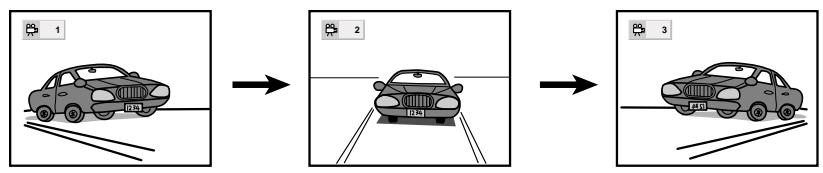
Some DVDs may contain scenes which have been shot simultaneously from a number of different angles. For these discs, the same scene can be viewed from each of these different angles using the ANGLE button (The recorded angles differ depending on the disc used).
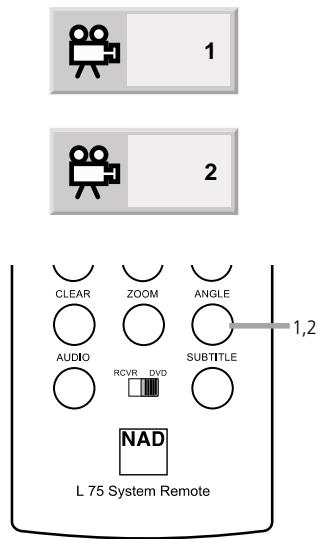
1 Press ANGLE during playback. Number of angle being played back.
2 Press ANGLE repeatedly until the desired angle is selected.
flowchart
graph LR
    A["1: Initial View"] --> B["2: Intermediate View"]
    B --> C["3: Final View"]
NOTE
- The ANGLE indicator will blink in the DVD display window at scenes recorded at different angles to indicate that angle switching is possible.
- The angle number can be programmed beforehand; the angle will be switched to the selected number when the ANGLE indicator blinks.
- This function only works for discs having scenes recorded at different angles.
DVD DISC SCIENCE disc PRODUCING A 3D SURROUND EFFECT
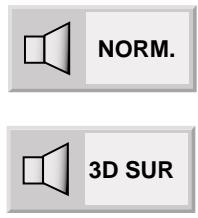
This unit can produce a 3D Surround effect, using Spatializer™ technology, which simulates multi-channel audio playback from two conventional stereo speakers instead of the five or more speakers normally required to listen to multi-channel audio from a home theater. This feature works with DVD discs encoded with Dolby Pro Logic, Dolby Digital (AC-3) and DTS multi-channel audio tracks.
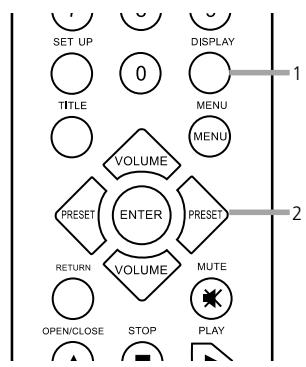
1 Press DISPLAY during playback. Using the arrow key, move the cursor to 3D SURROUND ICON.
2 Press ◀/▶ repeatedly until the desired sound is selected.
NOTES
- This 3D Surround effect may not be available on some DVD discs, such as those recorded with a mono audio sound-track.
- Turn off the TV surround sound and other surround effects when using this 3D surround effect.
- For best 3D Surround effect using only two speakers it is recommended that the two speakers be positioned approximately 2m to 2.5m apart, and the listening position should be 2m to 2.5m away from the speakers.
flowchart
graph TD
    A["SET UP"] --> B["0"]
    C["DISPLAY"] --> D["1"]
    E["TITLE"] --> F["MENU"]
    G["VOLUME"] --> H["ENTER"]
    I["PRESET"] --> J["PRESET"]
    K["VOLUME"] --> L["PRESET"]
    M["RETURN"] --> N["OPEN/CLOSE"]
    O["STOP"] --> P["PLAY"]

flowchart
graph TD
    A["CHAPT"] --> B["TITLE"]
    B --> C["OFF"]
flowchart
graph TD
    A["TRACK"] --> B["ALL"]
    B --> C["OFF"]
REPEAT VIEWING (LISTENING)
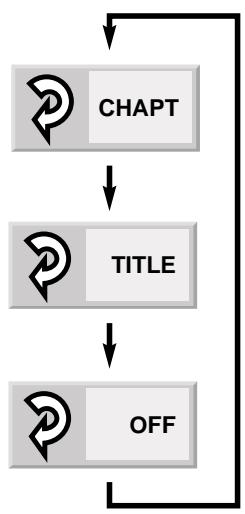
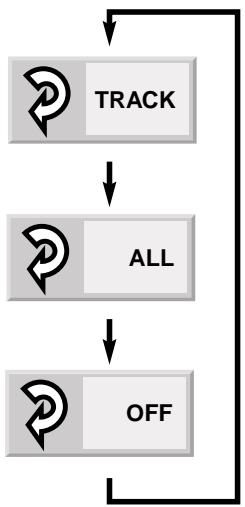
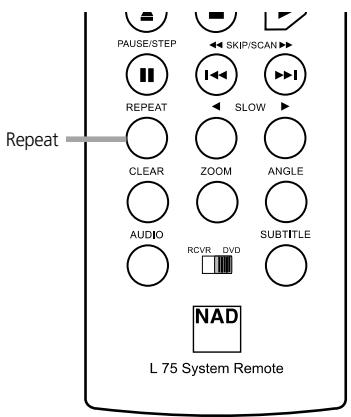
Press REPEAT during playback. Each time this button is pressed, the TV screen changes as shown below and the disc will repeat a chapter or title (DVD) or a track (CD).
DVD
Repeat of chapter being played
Repeat of title being played
Cancel repeat mode (normal play)
CD
Repeat of track being played
Repeat of entire disc contents
Cancel repeat mode (normal play)
To return to normal play
Press REPEAT several times until "OFF" is displayed. Notes
NOTES
- Repeat play works only with discs for which the elapsed playing time appears in the DVD display window during playback.
- Repeat play may not work correctly with some DVDs.
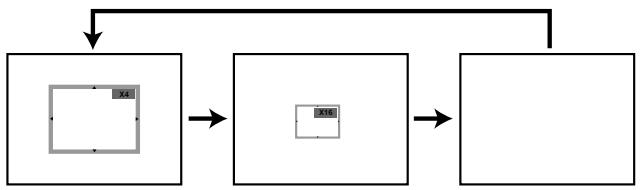
The Zoom feature allows you to "ZOOM-IN" and enlarge the picture on the screen to either 4 times (X4) or 16 times (X16) its normal size.
flowchart
graph TD
    A["Input"] --> B["Processing"]
    B --> C["Output"]
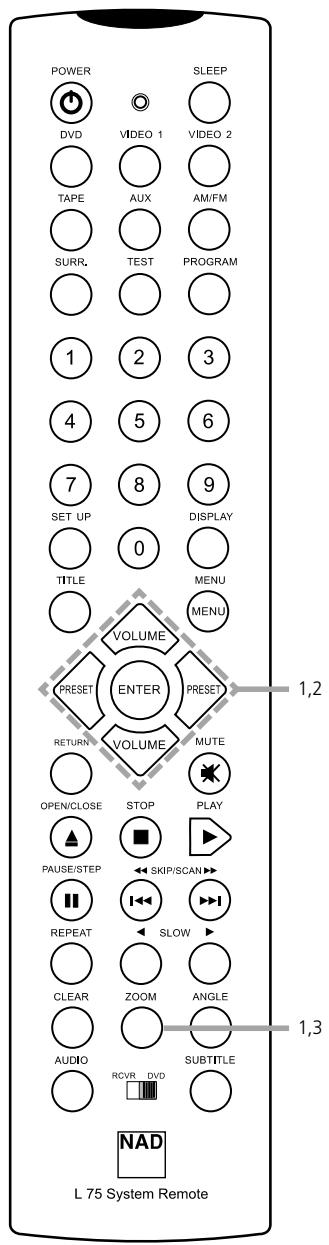
1 Press ZOOM during normal playback or still playback.
- The square frame will be displayed in the center of the picture. If any button is not pressed for more than 10 seconds, the square frame will disappear.
- Each press of the ZOOM button changes the TV screen in the left sequence.
- The magnification level will be displayed in the upper right corner of the zoom area. If you press ▲/▼/◄/► buttons the zoom point shifts.
2 Press ENTER. The selected frame is displayed in full size on the TV screen.
3 To resume normal playback Press ZOOM again to cancel Zoom feature and resume normal playback or still playback.
NOTES
• Some discs may not respond to Zoom feature.
- Zoom does not work on subtitles or menus included on DVD video discs.

This unit will memorize the settings for DVDs you have already watched. Settings remain in memory even if you remove the disc from the player, or switch the power OFF. Settings are stored in memory for use any time automatically. If you load a disc that has its settings memorized, the "Memorized Disc Resume?" message will appear on the TV screen. When you start playing the disc, the memorized settings are automatically recalled.
You can memorize details for the following six settings.
- Latest Stop Position (Page 19)
• TV Aspect (Page 34)
• Disc Audio Language (Page 24)
• Disc Subtitle Language (Page 24)
• Disc Menu Language (Page 31) - Angle (Page 25)
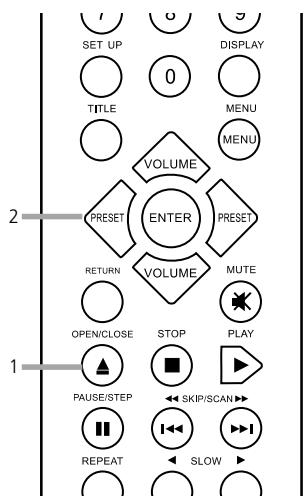
1 Load the DVD that has memorized. It will appear on the TV screen as below. If the screen is left for more than 7 seconds, play back will start automatically.
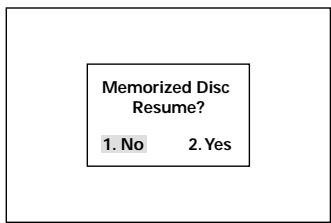
2 Press 2 or ENTER to select "Yes". The memorized settings are automatically recalled.
natural_image
Simple line drawing of a car on a road with lane markings (no text or symbols)NOTES
- Settings are stored in memory for use any time automatically.
- You can store settings for up to 15 DVDs in memory. If you memorize settings for more than 15 DVDs and try to call up these previously memorized settings, you will get the latest settings that have taken their place.
- Switching of the audio mode etc., is automatic on some discs.
The player plays the tracks in the disc in an order you specify.
NOTE
Program play function is possible only with audio CDs. It does not work with DVD movie discs.
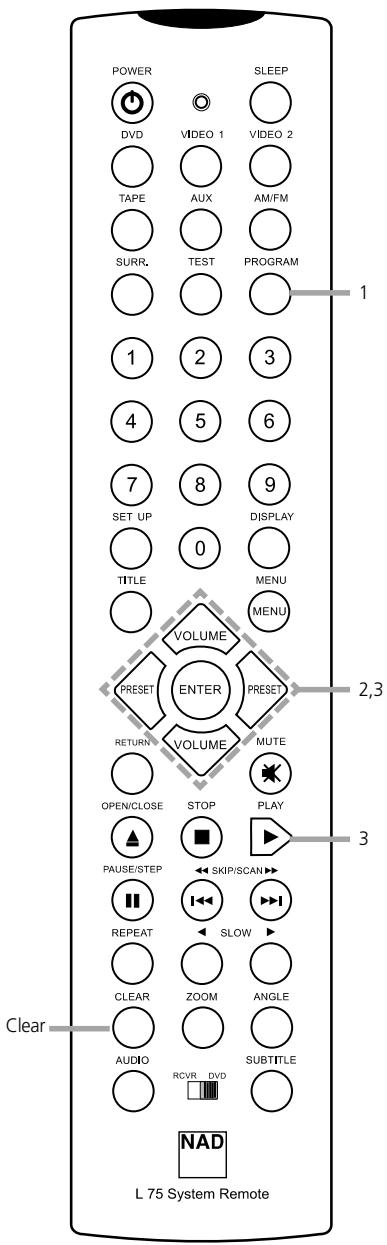
1 Press PROGRAM during playback or stop mode. The program playback screen appears on the TV screen.
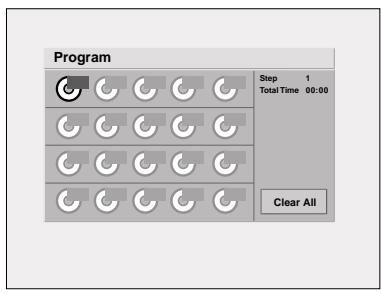
• To exit the screen, press PLAY, PROGRAM.
2 Press ▲/▼/◄/► and press the numeric button(s), to select the desired track number.
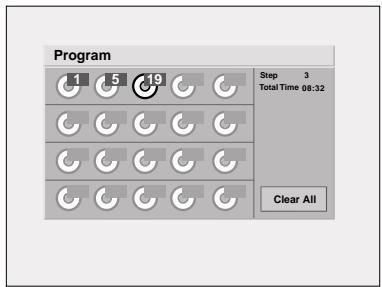
- Repeat step 2 to select another track.
- Up to 20 tracks can be programmed.
3 Press PLAY or ENTER to exit the screen. The selected track is stored in the memory and play now begins in the programmed sequence. If you press PROGRAM to exit the screen, the selected tracks are not memorized.
After playback of all programmed tracks
Play is stopped.
CLEARING THE PROGRAM
- To clear the program one by one Press ▲/▼/◄/► to select the unwanted number and then press CLEAR.
- To clear all the programs Press ▲/▼/◄/► to select the "Clear All" and press ENTER. Press PLAY or ENTER to exit the screen. If you press PROGRAM to exit the screen, the programs are not cleared (The programs are also cleared when the power is turned off or the disc is removed).
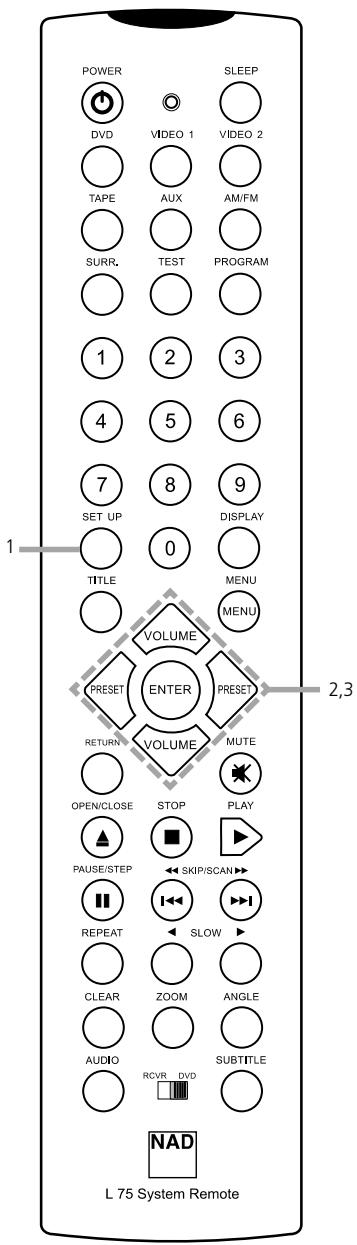
Once the initial settings have been completed, the player can always be operated under the same conditions (especially with DVD discs). The settings will be retained in the memory until they are changed, even if the power is switched off.
COMMON PROCEDURES OF INITIAL SETTINGS
1 Press SETUP in the stop or playback mode. The SETUP menu is displayed.
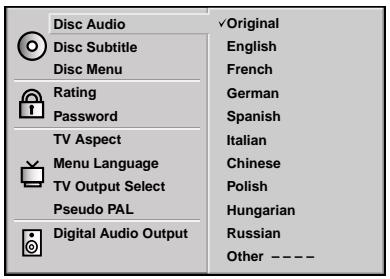
2 Press ▲/▼ to select the desired item. The screen will show the current setting for the selected item, and the alternate setting(s).
• Disc Audio (see page 31)
• Disc Subtitle (see page 31)
• Disc Menu (see page 31)
• Rating (see page 32)
- Password (see page 33)
• TV Aspect (see page 34)
- Menu Language (see page 35)
• TV Output (see page 35)
- Pseudo Pal (see page 36)
• Digital Audio Output (see page 37)
3 Press ▶ and then ▲/▼ to select the desired setting and press ENTER. Some items require additional steps (See the respective page).
When the alternate setting is selected the screen returns to the Initial Settings display.
To exit SETUP menu Press SETUP, RETURN or PLAY.
This is to select the audio soundtrack language, subtitle language and the language used in title menus or DVD menus which will always be used for every disc to be played back.
When you play back a DVD video disc, the DVD player automatically displays the pre-selected subtitle language if it is included on the disc.
1 At the setup screen, press ▲/▼ to select "Disc Audio" and press ▶
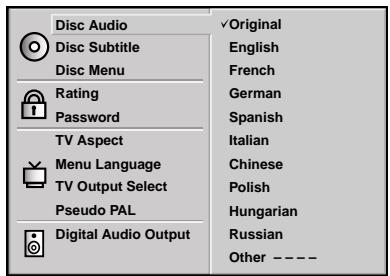
2 Press ▲/▼ to select the desired language and then press ENTER.
• Original The original language of each disc will be selected.
• English The English will be Selected.
- Other Another language can be selected. You can input 4-digit language code (Refer to the language codes on page 38. Press CLEAR if an incorrect language code is entered).
The “Disc Subtitle” and “Disc Menu” are selected by the same method.
NOTE
- If the language selected is not available on the disc, the original language designated by each disc will be selected.
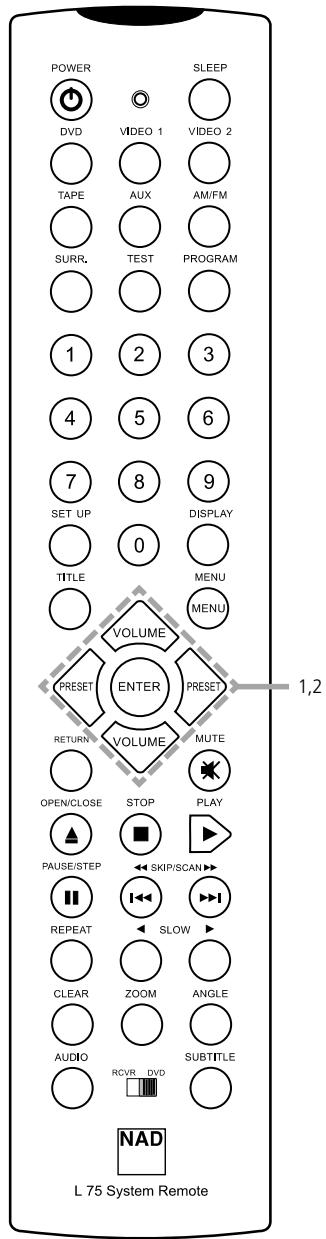

This is to prohibit the playing of specified DVDs which are unsuitable for children. Some DVD discs contain a restriction level which enables parents to remove scenes or prevent playback of discs by children. DVD players are equipped with a password designed to prevent children changing the level.
SELECTING RATING LEVEL (DVD ONLY)
1 At the SETUP screen, press ▲/▼ to select "Rating" and press ▶
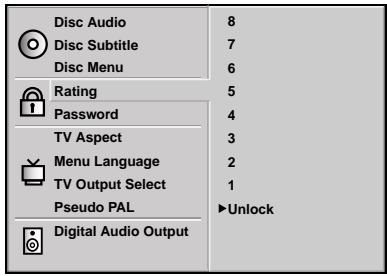
2 Press ▲/▼ to select the desired level and press ENTER.
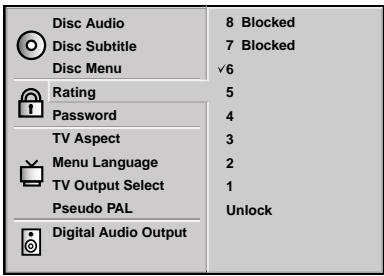
You cannot play DVD video discs rated higher than the level you selected unless you cancel the parental lock function.
For example, when you select level 7, discs rated higher than level 7 are blocked and cannot be played.
The parent lock level is equivalent to the following USA movie ratings.
Level 7: NC-17
Level 6: R
Level 4: PG 13
Level 3: PG
Level 1: G
- Some titles do not match with the rating level described as above.
If you change the level and enter a password, playback of all DVDs with ratings higher than your selection will be blocked, unless the correct password is entered again. For example: if you change the level to "5", the DVD player will not play discs with ratings of "6", "7" or "8" unless the correct password is entered on the remote control.
SETTING YOUR PASSWORD (DVD ONLY)
If you change the rating level to "7" or lower, you must enter a 4-digit "password" to prevent playback of discs with higher ratings.
1 At the SETUP screen, press ▼ to select "Password" and press ▶
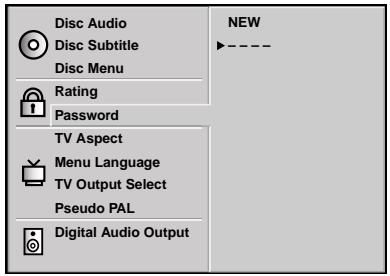
2 Input a 4-digit password and press ENTER.
Example: 1234
DO NOT FORGET YOUR PASSWORD
3 Input the 4-digit password again and press ENTER to verify. Setting is finished.
- The rating is locked. Any discs whose rating is higher than the setting cannot be played back unless the correct password is entered.
TO CHANGE/CLEAR MEMORIZED PASSWORD
1 At the SETUP screen, press ▼ to select "Password" and press ▶
2 Input your password and Press ENTER.
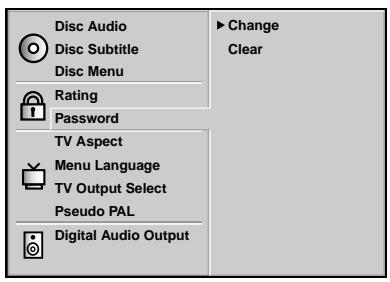
3 To change or clear your password, press ▲/▼ to select the "Change" or "Clear" and press ENTER.
TO CLEAR YOUR 4-DIGIT PASSWORD
If you forget your password, to clear the current password, follow the procedure below.
At the SETUP screen
1 Press ▼ to select "Password" item.
2 Enter 6-digit number "210499" and then press ENTER. The 4-digit password is cleared.
3 Enter a new password. Refer to "Setting your password" section above.
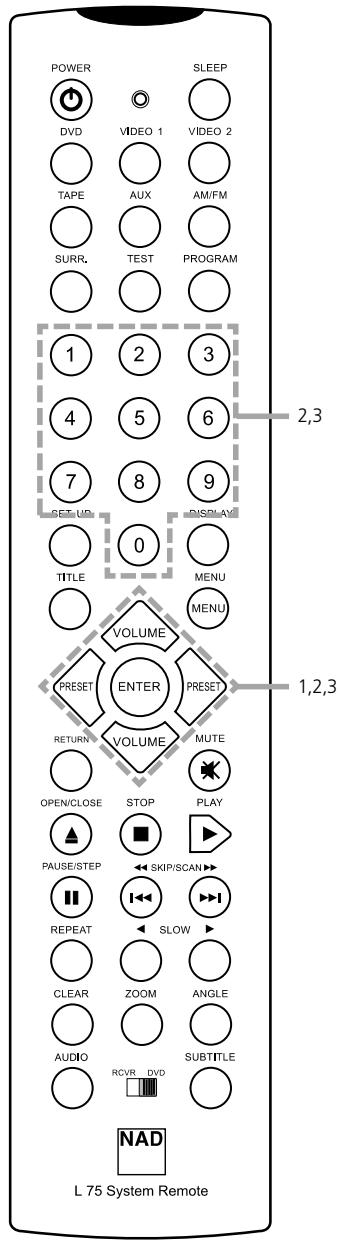

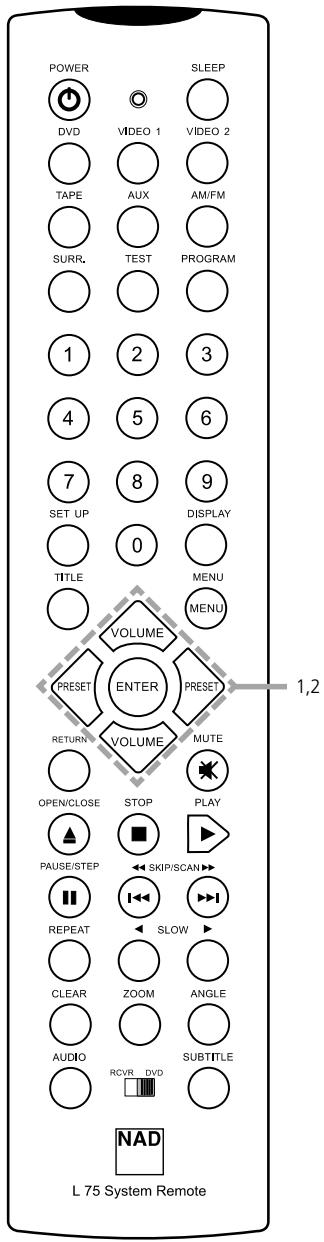
Select the appropriate screen type according to your TV set; conventional size screen (4:3) or wide-screen (16:9).
1 At the SETUP screen, press ▲/▼ to select "TV Aspect" and press ▶
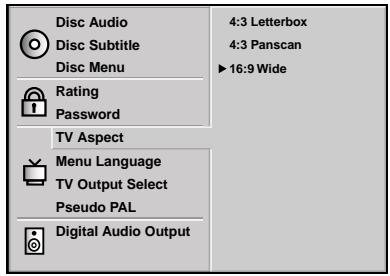
2 Press ▲/▼ to select the desired Aspect and press ENTER.
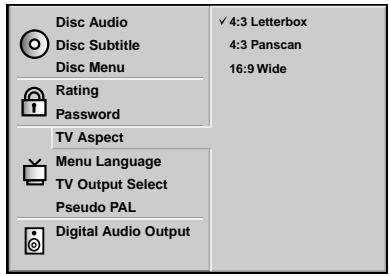
4:3 Letterbox : The video material not formatted in the Pan & Scan style is played back in the letterbox style (black bands appear at top and bottom of screen).
4:3 Panscan : Select when a conventional TV set is connected. The video material formatted in the Pan & Scan style is played back in that style (the left and right edges are cut off).
16:9 Wide : Select when a wide-screen TV set is connected. Played in "FULL" size (Setting the wide-screen TV to "FULL" mode is also necessary).
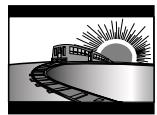
4:3 Letterbox
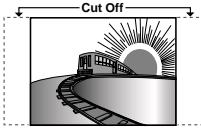
4:3 Panscan
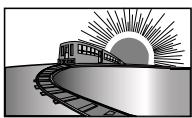
16:9 Wide
- Each screen shows an example when the video material for a wide-screen is played (This setting does not affect the video material for conventional size).
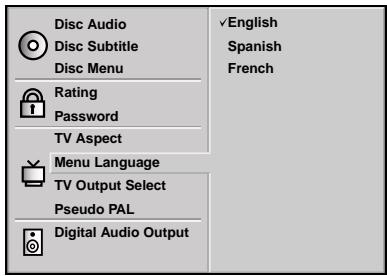
Selects language for DVD menus and displays on the TV.
1 At the SETUP screen, press ▲/▼ to select "Menu Language" and press ▶
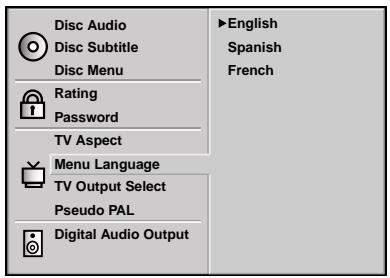
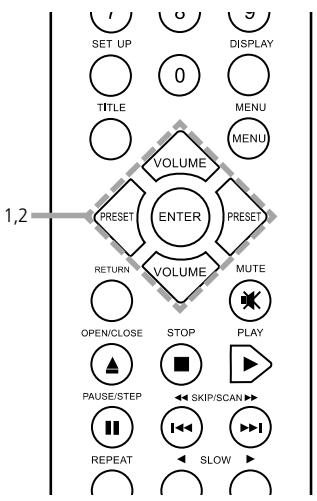
2 Press ▲/▼ to select the desired Language and press ENTER.
DVD SELECTING TV OUTPUT
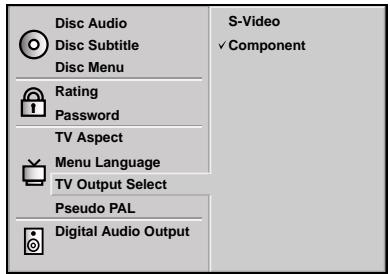
It can be used to select the video output between S-VIDEO OUT and COMPONENT VIDEO OUT.
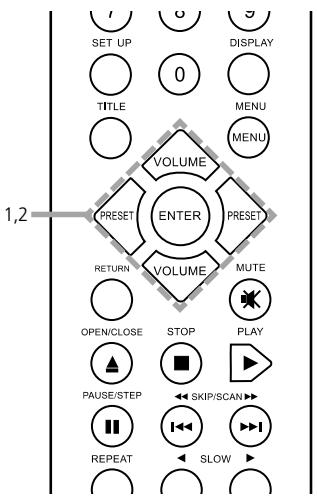
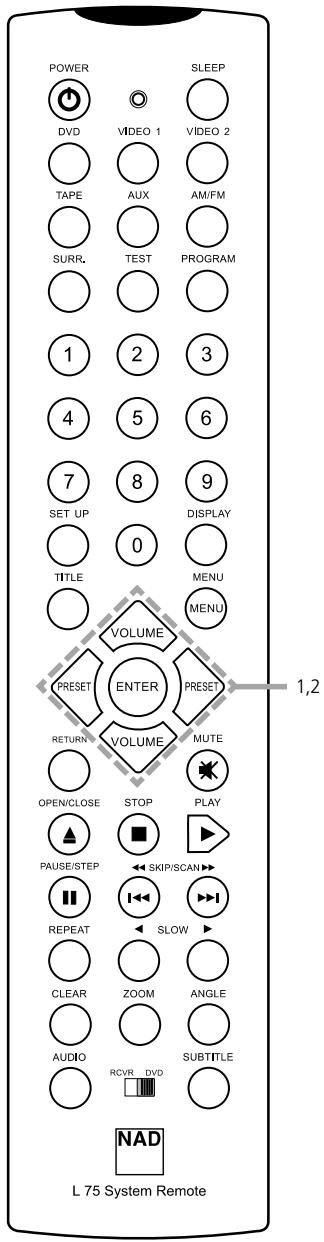
1 At the SETUP screen, press ▲/▼ to select "TV Output Select" and press ▶
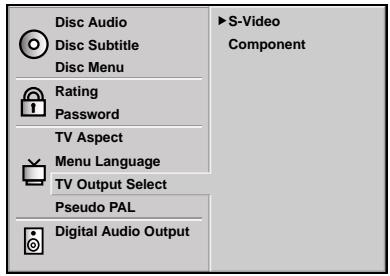
2 Press ▲/▼ to select the desired TV Output and press ENTER.
flowchart
graph TD
    A["SET UP"] --> B["0"]
    C["DISPLAY"] --> B
    D["TITLE"] --> E["MENU"]
    F["VOLUME"] --> G["ENTER"]
    H["PRESET"] --> I["PRESET"]
    J["VOLUME"] --> K["MUTE"]
    L["RETURN"] --> M["OPEN/CLOSE"]
    N["STOP"] --> O["PLAY"]
    P["PAUSE/STEP"] --> Q["SKIP/SCAN"]
    R["REPEAT"] --> S["SLOW"]
    T["1,2"] --> U["1,2"]

Depending on the DISC, you can play an NTSC-DVD DISC, in PSEUDO PAL MODE.
1 At the SETUP screen, press ▲/▼ to select "Pseudo PAL" and press ▶
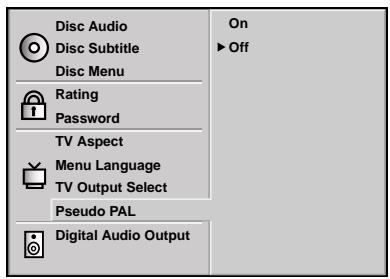
2 Press ▲/▼ to select the desired output and press ENTER.
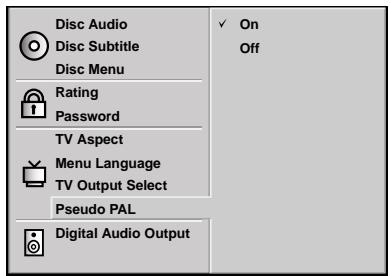
NOTES
- The Pseudo PAL can be displayed when the TV system setting is set to PAL mode and NTSC disc is inserted in this unit.
- If there are some problems during playing back a NTSC disc, select the "Pseudo PAL" to "On" mode.
- The picture can be streamed according to TV type when the "Pseudo PAL" is set to "On" mode.
SETTING THE TV SYSTEM
You can enjoy NTSC or PAL discs by changing the TV SYSTEM SETTING to choose the appropriate system.
- If you try to play back PAL disc with NTSC-TV, The player will not playback the disc.
- When the selected TV SYSTEM SETTING does not coincide with the system of your TV, normal color picture may not be displayed.
- When you playback NTSC disc with PAL-TV, some discs may produce black bands at the top and bottom of the screen.
| TV SYSTEM SETTING | Connected TV | Available disc |
| PAL | PAL | NTSC/PAL DVD disc |
| NTSC | NTSC | NTSC DVD disc |
| AUTO | MULTI system TV | NTSC/PAL DVD disc |
- To enter the TV SYSTEM SETTING mode, in STANDBY mode, press and hold the PAUSE/STEP button on the front panel for 3 seconds. In the TV system setting mode, the display window displays the current setting. Press the PAUSE/STEP button to change the setting. To change the settings, press the POWER button to confirm the desired setting.
Each DVD disc has a variety of audio output options. Set the player's Digital Audio Output according to the type of audio system you use.
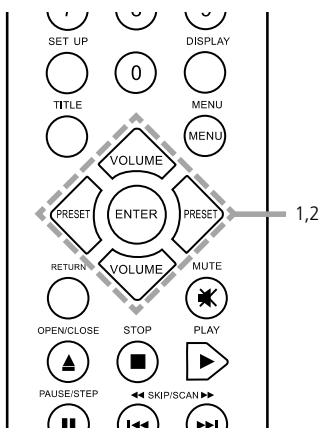
1 At the SETUP screen, press ▲/▼ to select Digital Audio Output and press ▶
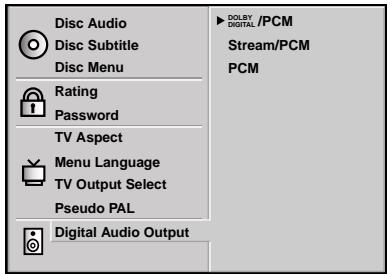
2 Press ▲/▼ to select the desired output and press ENTER.
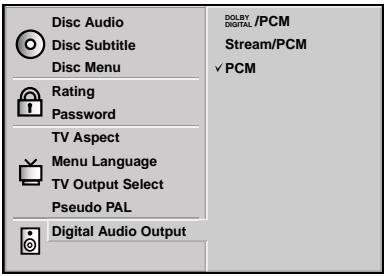
DOLBY DIGITAL/PCM
Select "DOLBY DIGITAL/PCM" if an active digital output is supplied to the Dolby Digital decoder, (or an amplifier or other equipment with a Dolby Digital decoder).
STREAM/PCM
Select “Stream/PCM” if an active digital output is supplied to an amplifier or other equipment with DTS decoder, Dolby Digital decoder and MPEG decoder.
PCM
Select "PCM" if an active digital output is supplied to an amplifier or other equipment with linear PCM only (or MD recorder or DAT deck).
NOTES
- When you are not using the player's digital audio output, don't select any of the options.
- If an active digital audio output signal is supplied to an receiver or other equipment without a corresponding digital decoding capability, a very loud noise may be produced which could permanently damage the speakers.
- The DTS DVD disc sound is played back only when the DVD player is connected to a receiver with a DTS decoder.
flowchart
graph TD
    A["SET UP"] --> B["0"]
    C["DISPLAY"] --> D["0"]
    E["TITLE"] --> F["0"]
    G["MENU"] --> H["0"]
    I["VOLUME"] --> J["ENTER"]
    K["PRESET"] --> L["ENTER"]
    M["PRESET"] --> N["ENTER"]
    O["RETURN"] --> P["VOLUME"]
    Q["MUTE"] --> R["VOLUME"]
    S["OPEN/CLOSE"] --> T["STOP"]
    U["PLAY"] --> V["PLAY"]
    W["PAUSE/STEP"] --> X["SKIP/SCAN"]
    Y["0"] --> Z["1,2"]
| Playback Disc | OUTPUT | ||
| Stream / PCM | Dolby Digital / PCM | PCM only | |
| 96 kHz Linear PCM DVD | PCM | PCM | PCM |
| DTS DVD | DTS Bit Stream | No Output | Audio Output |
| Dolby Digital DVD | Dolby Digital Bit Stream | Dolby Digital Bit Stream | PCM |
| MPEG DVD | MPEG Bit Stream | PCM | PCM |
| Audio CD | PCM | PCM | PCM |
| DTS Audio CD | DTS Bit Stream | DTS Bit Stream | DTS Bit Stream |
TABLE OF LANGUAGES AND THEIR ABBREVIATIONS
Enter the appropriate code number for the initial settings "Audio", "Subtitle" and/or "Menu" (See page 31)
| Code | Language | Code | Language | Code | Language | Code | Language |
| 6565 | Afar | 7079 | Faroese | 7678 | Lingala | 8375 | Slovak |
| 6566 | Abkhazian | 7082 | French | 7679 | Laothian | 8376 | Slovenian |
| 6570 | Afrikaans | 7089 | Frisian | 7684 | Lithuanian | 8377 | Samoan |
| 6577 | Ameharic | 7165 | Irish | 7686 | Latvian, Lettish | 8378 | Shona |
| 6582 | Arabic | 7168 | Scots Gaelic | 7771 | Malagasy | 8379 | Somali |
| 6583 | Assamese | 7176 | Galician | 7773 | Maori | 8381 | Albanian |
| 6588 | Aymara | 7178 | Guarani | 7775 | Macedonian | 8382 | Serbian |
| 6590 | Azerbaijani | 7185 | Gujarati | 7776 | Malayalam | 8385 | Sundanese |
| 6665 | Bashkir | 7265 | Hausa | 7778 | Mongolian | 8386 | Swedish |
| 6669 | Byelorussian | 7273 | Hindi | 7779 | Moldavian | 8387 | Swahili |
| 6671 | Bulgarian | 7282 | Croatian | 7782 | Marathi | 8465 | Tamil |
| 6672 | Bihari | 7285 | Hungarian | 7783 | Malay | 8469 | Telugu |
| 6678 | Bengali; Bangla | 7289 | Armenian | 7784 | Maltese | 8471 | Tajik |
| 6679 | Tibetan | 7365 | Interlingua | 7789 | Burmese | 8472 | Thai |
| 6682 | Breton | 7378 | Indonesian | 7865 | Nauru | 8473 | Tigrinya |
| 6765 | Catalan | 7383 | Icelandic | 7869 | Nepali | 8475 | Turkmen |
| 6779 | Corsican | 7384 | Italian | 7876 | Dutch | 8476 | Tagalog |
| 6783 | Czech | 7387 | Hebrew | 7879 | Norwegian | 8479 | Tonga |
| 6789 | Welsh | 7465 | Japanese | 7982 | Oriya | 8482 | Turkish |
| 6865 | Danish | 7473 | Yiddish | 8065 | Panjabi | 8484 | Tatar |
| 6869 | German | 7487 | Javanese | 8076 | Polish | 8487 | Twi |
| 6890 | Bhutani | 7565 | Georgian | 8083 | Pashto, Pushto | 8575 | Ukrainian |
| 6976 | Greek | 7575 | Kazakh | 8084 | Portuguese | 8582 | Urdu |
| 6978 | English | 7576 | Greenlandic | 8185 | Quechua | 8590 | Uzbek |
| 6979 | Esperanto | 7577 | Cambodian | 8277 | Rhaeto-Romance | 8673 | Vietnamese |
| 6983 | Spanish | 7578 | Kannada | 8279 | Rumanian | 8679 | Volapük |
| 6984 | Estonian | 7579 | Korean | 8285 | Russian | 8779 | Wolof |
| 6985 | Basque | 7583 | Kashmiri | 8365 | Sanskrit | 8872 | Xhosa |
| 7065 | Persian | 7585 | Kurdish | 8368 | Sindhi | 8979 | Yoruba |
| 7073 | Finnish | 7589 | Kirghiz | 8372 | Serbo-Croatian | 9072 | Chinese |
| 7074 | Fiji | 7665 | Latin | 8373 | Singhalese | 9085 | Zulu |
PLAYABLE DISCS
This DVD player can play back the following discs.
| Disc Mark | Contents | Disc size | Maximum playback time | |
| DVD video discs |  | Audio+ Video (moving pictures) | 12 cm | Approx. 4 hours (single sided disc) |
| Approx. 8 hours (double sided disc) | ||||
| 8 cm | Approx. 80 minutes (single sided disc) | |||
| Approx. 160 minutes (double sided disc) | ||||
| Audio CDs |  | Audio | 12 cm | 74 minutes |
| 8 cm | 20 minutes | |||
| Video CDs (EUROPEAN version only) |  | Audio+ Video (moving pictures) | 12 cm | 74 minutes |
| 8 cm | 20 minutes |
You cannot playback discs other than those listed above (CD-ROM, CD-G, photo CD, and CD-i discs can not be played on this DVD player).
"Certain audio features of this product are manufactured under license from Desper Products, Inc.,
Spatializer® 3-D Stereo, Spatializer N-2-2™ and the circle-in-square device are trademarks owned by Desper Products, Inc.
REGION MANAGEMENT INFORMATION
This DVD Player is designed and manufactured to respond to the Region
Management Information that is recorded on a DVD disc. If the Region number described on the DVD disc does not correspond to the Region number of this DVD player, this DVD player cannot play that disc.
The Region number of this DVD player is .

EUROPE

USA / CANADA
NOTES ON UNAUTHORIZED DISCS
You may not be able to play back some DVD video discs on this player if they were purchased from outside your geographic area or made for business purposes.
When you try to play back an unauthorized disc, "Check Regional Code" appears on the TV screen.
NOTES ON COPYRIGHT
It is forbidden by law to copy, broadcast, show, broadcast on cable, play in public, and rent copyrighted material without permission.
DVD video discs are copy protected, and any recordings made from these discs will be distorted.
This product incorporates copyright protection technology that is protected by method claims of certain U.S. patents and other intellectual property rights owned by Macrovision Corporation and other rights owners. Use of this copyright protection technology must be authorized by Macrovision Corporation, and is intended for home and other limited viewing uses only, unless otherwise authorized by Macrovision Corporation. Reverse engineering or disassembly is prohibited.
SYMPTOMS AND CORRECTION
Check the following guide for the possible cause of a problem before contacting service.
| SYMPTOM | CAUSE | CORRECTION |
| No power | The power cord is disconnected | Plug the power cord into the wall outlet securely. |
| The power is on, but the DVD player does not work. | No disc is inserted. | Insert a disc (Check that the DVD or, audio CD indicator in the DVD display is lit). |
| No picture | The TV is not set to receive DVD signal output. | Select the appropriate video input mode on the TV so that the picture from the DVD player appears on the TV screen. |
| The video cable is not connected securely. | Connect the video cable into the jacks securely. | |
| The connected TV power is turned off. | Turn on the TV. | |
| No sound | The equipment connected with the audio cable is not set to receive DVD signal output. | Select the correct input mode of the audio receiver so you can listen to the sound from the DVD player. |
| The audio cables are not connected securely. | Connect the audio cable into the jacks securely. | |
| The power of the equipment connected with the audio cable is turned off. | Turn on the equipment connected with the audio cable. | |
| The Digital Audio Output is set to the wrong position. | Set the Digital Audio Output to the correct position, then turn on the DVD player again by pressing the POWER button. | |
| The playback picture is poor | The disc is dirty. | Clean the disc. |
| The DVD player does not start playback | No disc is inserted. | Insert a disc (Check that the DVD, or audio CD indicator in the DVD display is lit). |
| An unplayable disc is inserted. | Insert a playable disc (Check the disc type, color system and Regional code). | |
| The disc is placed upside down. | Place the disc with the playback side down. | |
| The disc is not placed within the guide. | Place the disc on the disc tray correctly inside the guide. | |
| The disc is dirty. | Clean the disc. | |
| A menu is on the TV screen. | Press the SETUP button to turn off the menu screen. | |
| The Rating level is set. | Cancel the Rating function or change the rating level. | |
| The remote control does not work properly. | The remote control is not pointed at the remote sensor of the DVD player. | Point the remote control at the remote sensor of the DVD player. |
| The remote control is too far from the DVD player. | Operate the remote control within about 23 ft (7 m). | |
| There is an obstacle in the path of the remote control and the DVD player. | Remove the obstacle. | |
| The batteries in the remote control are exhausted. | Replace the batteries with new ones. |
DVD PLAYER
| Power supply | AC 230V / 50 Hz (EUROPE), AC 110V/60Hz (USA / CANADA) |
| Power consumption | 15 W |
| Mass | 3.3 kg |
| External dimensions (W X H X D) | 285 x 103x 291 mm |
| Signal system | PAL (EUR) , NTSC (USA / CANADA) |
| Laser | Semiconductor laser, wavelength 650 nm |
| Frequency range (audio) | 4 Hz to 20 kHz |
| Signal-to-noise ratio (audio) | More than 100 dB (EIAJ) |
| Dynamic range (audio) | More than 95 dB (EIAJ) |
| Harmonic distortion (audio) | 0.008 % |
| Wow and flutter | Below measurable level (less than + 0.001 % (W.PEAK) (EIAJ) |
| Operating conditions | Temperature: 41°F to 95°F, Operation status: Horizontal |
OUTPUTS
| Video output | 1.0 V (p-p), 75Ω, negative sync., RCA jack x 1 |
| S-video output | (Y) 1.0 V (p-p), 75Ω, negative sync., Mini DIN 4-pin x 1(C) 0.286 V (p-p), 75Ω |
| SCART video output | CVBS 1.0 V (p-p), 75Ω, negative sync., RCA jack x 1(RGB) 0.63 V (p-p), 75Ω |
| Audio output (digital audio) | 0.5 V (p-p), 75Ω, RCA jack x 1 |
| Audio output (optical audio) | Optical connector x 1 |
| Audio output (analog audio) | 2.0 Vrms(1 KHz, 0 dB), 330 , RCA jack (L, R) x 1 |
SUPPLIED ACCESSORIES
| Video cable | 1 |
| Audio cable | 1 |
NOTE
- Designs and specifications are subject to change without notice.
All rights reserved. No part of this publication may be reproduced, stored or transmitted in any from without the written permission of NAD Electronics International

WWW.NADELECTRONICS.COM
©2001 NAD ELECTRONICS INTERNATIONAL
- WARNING
- CAUTION
- FCC NOTICE
- FCC WARNING
- INDUSTRY CANADA REQUIREMENT
- TABLE OF CONTENTS
- INTRODUCTION
- INSTALLATION
- BASIC OPERATION
- ADVANCED OPERATION
- INITIAL SETTINGS
- REFERENCE
- NOTES ON HANDLING
- NOTES ON LOCATING
- NOTES ON CLEANING
- TO OBTAIN A CLEAR PICTURE
- NOTES ON MOISTURE CONDENSATION
- ON HANDLING DISCS
- ON CLEANING DISCS
- ON STORING DISCS
- ABOUT THIS OWNER'S MANUAL
- FRONT PANEL
- DISPLAY WINDOW
- REAR PANEL
- EUROPEAN VERSION
- OPTICAL DIGITAL AUDIO OUT JACK
- REMOTE CONTROL
- TITLE BUTTON
- DIRECTIONAL ARROW BUTTONS
- MENU BUTTON
- REMOTE SELECT
- PREPARING THE REMOTE CONTROL
- NOTES ON BATTERIES
- OPERATING WITH THE REMOTE CONTROL
- NOTES ON THE REMOTE CONTROL
- CONNECT THE DVD PLAYER TO YOUR TV
- NOTES
- YOU CAN LISTEN TO THE SOUND OF AUDIO CDS AND DVD VIDEO DISCS IN STEREO
- CONNECTING TO OPTIONAL AUDIO SYSTEM
- ENJOYING DOLBY DIGITAL SOUND
- DOLBY DIGITAL
- WITH A RECEIVER EQUIPPED WITH DOLBY DIGITAL
- ENJOYING 2 CHANNEL DIGITAL STEREO SOUND
- Channel Digital Stereo
- ENJOYING DTS SOUND
- PREPARATIONS
- WHEN A MENU SCREEN APPEARS ON THE TV SCREEN
- AFTER OPERATION
- STOPPING PLAY
- RESUME PLAY
- STILL PICTURE (PAUSE)
- FRAME ADVANCE (DVD ONLY)
- SKIPPING FORWARD OR BACK
- NOTE
- TO SCAN AT FAST FORWARD OR FAST REVERSE
- COMMON PROCEDURES
- Press DISPLAY during playback.
- Press ▲/▼ to select the desired item.
- Press ◀/▶ to select the desired setting.
- EXAMPLES OF DISPLAY MENU ICONS
- Operation Using Display Menu Icons
- DETAILED DESCRIPTION OF EACH DISPLAY MENU ICON DVD DISC
- DVD VIDEO USING A DVD MENU
- CHANGING SUBTITLE LANGUAGE DVD
- To eliminate the On Screen Subtitles.
- CHANGING AUDIO SOUNDTRACK LANGUAGE
- DVD
- CD
- DVD DISC SCIENCE disc PRODUCING A 3D SURROUND EFFECT
- REPEAT VIEWING (LISTENING)
- To return to normal play
- Press ZOOM during normal playback or still playback.
- You can memorize details for the following six settings.
- After playback of all programmed tracks
- CLEARING THE PROGRAM
- COMMON PROCEDURES OF INITIAL SETTINGS
- SELECTING RATING LEVEL (DVD ONLY)
- SETTING YOUR PASSWORD (DVD ONLY)
- TO CHANGE/CLEAR MEMORIZED PASSWORD
- TO CLEAR YOUR 4-DIGIT PASSWORD
- DVD SELECTING TV OUTPUT
- SETTING THE TV SYSTEM
- DOLBY DIGITAL/PCM
- STREAM/PCM
- PCM
- TABLE OF LANGUAGES AND THEIR ABBREVIATIONS
- PLAYABLE DISCS
- REGION MANAGEMENT INFORMATION
- NOTES ON UNAUTHORIZED DISCS
- NOTES ON COPYRIGHT
- SYMPTOMS AND CORRECTION
- ©2001 NAD ELECTRONICS INTERNATIONAL
Brand : NAD
Model : L55
Category : Integrated amplifier