
SW-220-TX - Router WyreStorm - Free user manual and instructions
Find the device manual for free SW-220-TX WyreStorm in PDF.


| Product Type | HDMI Switcher with Wireless Casting |
| Model | SW-220-TX (SW-220-TX-W) |
| Brand | WyreStorm |
| Input Ports | HDMI, USB-C (for audio/video), USB 3.0, Wi-Fi (via optional APO-DG1 dongle) |
| Output Ports | HDMI with CEC support, Analog Audio (5-pin phoenix connector) |
| Power Supply | 12V DC, included (US/UK/EU/AU adapters) |
| Mounting | Brackets and screws included |
| Web UI | Yes, accessible via network, static IP recommended |
| API Control | Telnet (port 23) and TLS (port 24) |
| Wireless Casting | Compatible with optional APO-DG1 dongle (up to 2 dongles) |
| Guide Screen | Customizable connection instructions on connected display |
| EDID Support | Configurable via Web UI for lower resolutions |
| Operating Temperature | 0°C to 45°C |
| Wi-Fi Frequency | 2412–2472 MHz |
| Maximum RF Power | 16.74 dBm (E.I.R.P.) |
| Compliance | FCC Part 15 Class B, CE (2014/53/EU) |
| Safety Distance | At least 20 cm from body |
| Warranty | 5 years limited |
| Care Instructions | Clean with a dry cloth |
| Dimensions (Approx.) | Not specified in manual; typical desktop switcher size |
| Weight (Approx.) | Not specified in manual |
Frequently Asked Questions - SW-220-TX WyreStorm
User questions about SW-220-TX WyreStorm
0 question about this device. Answer the ones you know or ask your own.
Ask a new question about this device
Download the instructions for your Router in PDF format for free! Find your manual SW-220-TX - WyreStorm and take your electronic device back in hand. On this page are published all the documents necessary for the use of your device. SW-220-TX by WyreStorm.
USER MANUAL SW-220-TX WyreStorm
WyreStorm recommends reading through this document in its entirety to become familiar with the product's features prior to starting the installation process.

HDMI®

IMPORTANT! Installation
- Read through the Wiring and Connections section for important wiring guidelines before creating or choosing premade cables.
- While these products support CEC for the HDMI outputs, WyreStorm cannot guarantee compatibility with all forms of CEC communication.
- Visit the product pages to download the latest firmware, document version, additional documentation, and configuration tools.
In the Box
1x SW-220-TX-W Switcher
1x 12V Power Supply (US/UK/EU/AU)
1x 5-pin Terminal Block
2x Mounting Brackets with Screws
1x Quickstart Guide (This Document)
Basic Wiring Diagram

flowchart
graph TD
    A["Display Device"] --> B["USB Camera"]
    B --> C["SW-220-TX-W"]
    C --> D["Laptop"]
    C --> E["Laptop with Cable"]
    C --> F["Tablet with Casting"]
    style A fill:#f9f,stroke:#333
    style B fill:#ccf,stroke:#333
    style C fill:#cfc,stroke:#333
    style D fill:#fcc,stroke:#333
    style E fill:#cff,stroke:#333
    style F fill:#ffc,stroke:#333
    note right of A KEY: HDMI (purple), USB-C (green), Power (red), USB 3.0 (black)
Wiring and Connections
WyreStorm recommends that all wiring for the installation is run and terminated prior to making connections to the switcher. Read through this section in its entirety before running or terminating any wires to ensure proper operation and to avoid damaging the equipment.

IMPORTANT! Wiring Guidelines
- The use of patch panels, wall plates, cable transmitters, kinks in cables, and electrical or environmental interference will have an adverse effect on signal transmission which may limit performance. Steps should be taken to minimize or remove these factors completely during installation for best results.
- This product contains a USB-C connection that can be used as an audio/video input. When using this connection verify that the USB-C cable used supports audio/video functionality as not all USB-C cables support this requirement.
Audio Connections
The analog audio output uses a 5-pin balanced phoenix connector
| WyreStorm Connector | 3rd Party Device | ||
| Pin 1 | Left Positive (L+) | To | Left Positive (L+) |
| Pin 2 | Left Negative (L-) | To | Left Negative (L-) |
| Pin 3 | Ground (G) | To | Ground (G) |
| Pin 4 | Right Negative (R-) | To | Right Negative (R-) |
| Pin 5 | Right Positive (R+) | To | Right Positive (R+) |
API Control & Web UI
The SW-220-TX-W contains a web UI that can be accessed by connecting to a network and entering the IP address. WyreStorm recommends settings a static IP to the switcher before permanent installation. API commands can be sent from a 3rd-party control system to control various aspects of the switcher. For full details on the API see the separate API documentation at wyrestorm.com.
LAN Settings
| Default IP Address: DHCP | |
| Telnet IP Port (Default): 23 | |
| TLS IP Port: 24 |
APO-DG1 Pairing
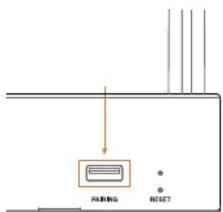
The SW-220-TX-W is compatible with the optional APO-DG1 wireless casting dongle. To pair an APO-DG1 with the switcher, insert the USB-C connector of the dongle into the USB-C "Pairing" port on the front of the switcher. A message will appear on the display connected to the switcher saying "Pairing Dongle". Wait for the pairing process to complete before disconnecting the APO-DG1. Up to two dongles can be actively used with a SW-220-TX-W.
Guide Screen
The switcher uses a Guide Screen to convey the basic connection instructions for user access.
The Guide Screen can be personalized to allow custom connection instructions on the switcher's Web UI page.

Troubleshooting
No or Poor Quality Picture (snow or noisy image)
- Verify that power is being supplied to the switcher
- Verify that all HDMI and USB connections are not loose and are functioning properly.
- Verify that the output resolution of the source and display is supported by this switcher.
- Configure EDID Settings to a lower resolution.
• If transmitting 4K, verify that the HDMI cables used are 4K rated.
Unable to Wirelessly Cast
- Ensure your device is connected to the correct Wi-Fi signal
- If a casting pin has been enabled on the switcher, ensure you are entering the correct value.
- APO-DG1: Ensure the dongle is properly paired to the switcher per the pairing instructions
- APO-DG1: Only use a direct connection to a PC. Do not use any USB

This equipment has been tested and found to comply with the limits for a Class B digital device, pursuant to part 15 of the FCC Rules. These limits are designed to provide reasonable protection against harmful interference in a residential installation. This equipment generates, uses and can radiate radio frequency energy and, if not installed and used in accordance with the instructions, may cause harmful interference to radio communications. However, there is no guarantee that interference will not occur in a particular installation. If this equipment does cause harmful interference to radio or television reception, which can be determined by turning the equipment off and on, the user is encouraged to try to correct the interference by one or more of the following measures:
- Reorient or relocate the receiving antenna.
- Increase the separation between the equipment and receiver.
- Connect the equipment into an outlet on a circuit different from that to which the receiver is connected.
- Consult the dealer or an experienced radio/TV technician for help.
Changes or modifications not expressly approved by the party responsible for compliance could void the user's authority to operate the equipment.
The distance between user and products should be no less than 20cm.

We declare that this device is in compliance with the essential requirements and other relevant provisions of Directive 2014/53/EU.
Manufacturer: Shen Zhen Proitav Technology Co., Ltd
Address: 301-401, Building 16, Hejing Industrial Park, No.87, Hexiu west Road, Heping Community, Fuhai street, Baoan District, Shenzhen, China
Accessory Manufacturer: ShenZhen Tianweixun Wireless Technology Co., Ltd Adapter: Antenna Address of Manufacturer: 9/F, Building 1, Guole Science and Technology Park, No. 1 Lirong Road, Dalang Street, Longhua New District, Shenzhen
Accessory Manufacturer: Dongguan NB Power Electronic Limited
Adapter: Power supply
Address of Manufacturer: No.365, South Dongkeng Road, Dongkeng Town, Dongguan City, 523443, P. R. China
The adapter shall be installed near the equipment and shall be easily accessible.
Accessory Manufacturer: Shenzhen Ohonda Technoligy Co., LTD Adapter: Terminal block Address of Manufacturer: Room 609, Block D, Hongtaifu Building, Zone No.34, Baoan District, Shenzhen
Operating temperature: 0°C to 45°C
Wi-Fi Operation Frequency: 2412MHz\~2472MHz Maximum Power: 16.74dBm(E.I.R.P.)
Warranty Information
WyreStorm Technologies ProAV Corporation warrants that its products to be free from defects in material and workmanship under normal use for a period of five (5) years from the date of purchase. Refer to the Product Warranty page on wyrestorm.com for more details on our limited product warranty.



Brand : WyreStorm
Model : SW-220-TX
Category : Router