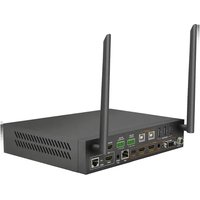
SW-540-TX - Router WyreStorm - Free user manual and instructions
Find the device manual for free SW-540-TX WyreStorm in PDF.


| Product Type | Wireless Presentation Switcher / Router |
| Brand | WyreStorm |
| Model | SW-540-TX |
| Video Inputs | 2x HDMI, 1x USB-C (alt-mode), 1x VGA |
| Video Outputs | 2: Output1 (HDMI + HDBaseT mirror), Output2 (HDMI, semi-discrete) |
| Audio Output | 3.5mm stereo de-embed (follows Output1) |
| USB Ports | 3 host (2x USB-B, 1x USB-C) and 3 device ports |
| RS232 | Control and Passthrough ports |
| Wi-Fi | Built-in access point (2.4/5 GHz) with router, disabled, or bridge mode |
| Wireless Casting | AirPlay and Miracast |
| Maximum Resolution | 4K@30Hz (YUV444 support) |
| Multiview | Up to 4 sources (auto or custom layouts via API) |
| Output Scaling | Per output scaler (force resolution/refresh) |
| EDID Management | Per-input EDID assignment, custom upload supported |
| Display Control | CEC and RS232 (trigger on hot plug or API) |
| Network | LAN port for web UI and API access |
| Security | HTTPS (default on) and TLS (off by default) |
| Power Supply | External DC adapter (not specified) |
| Maintenance | Clean with dry cloth; avoid liquids |
| Safety | Use only provided power supply; keep away from moisture |
| Spare Parts & Repair | Contact WyreStorm for authorized service |
| General Info | HDBaseT spec 2.0, USB 2.0 over HDBaseT limited to 190 Mbps |
Frequently Asked Questions - SW-540-TX WyreStorm
User questions about SW-540-TX WyreStorm
0 question about this device. Answer the ones you know or ask your own.
Ask a new question about this device
Download the instructions for your Router in PDF format for free! Find your manual SW-540-TX - WyreStorm and take your electronic device back in hand. On this page are published all the documents necessary for the use of your device. SW-540-TX by WyreStorm.
USER MANUAL SW-540-TX WyreStorm
Wireless Access Point & Casting 7
Output Settings 9
Adjusting EDID 10
Display Control....11
Splash Screen 12
Connections
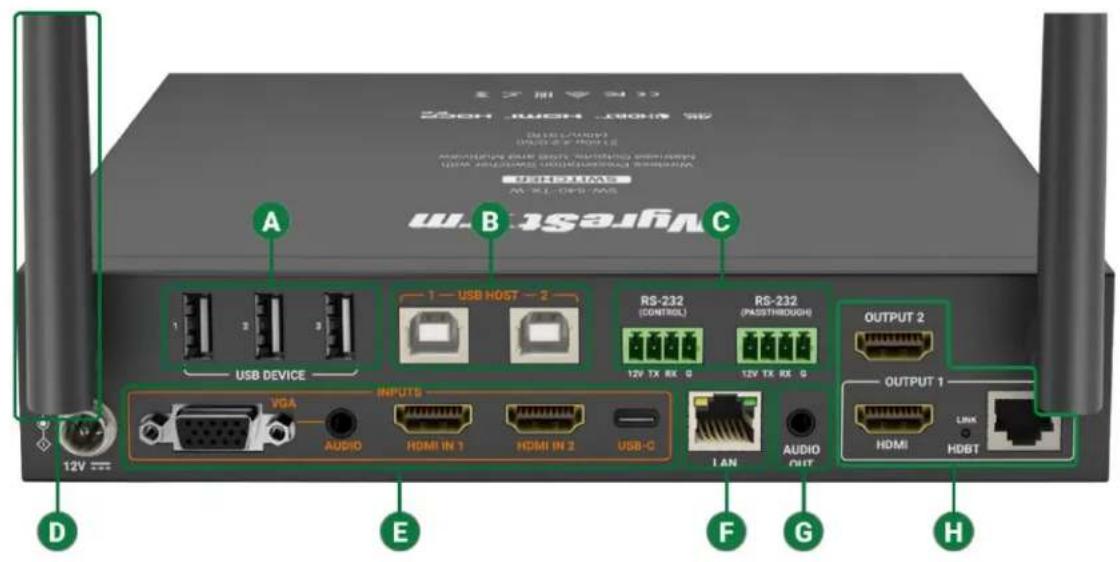
| A | USB Device Ports | Allows you to connect local USB peripheral devices to the switcher such as a keyboard/mouse, speakerphone, camera etc....these devices will connect to a host PC via the USB-B or USB-C port. |
| B | USB Host Ports | USB 2.0 Type B host ports for accessing devices connected either to the 3 x device ports on the switcher or USB devices connected over an HDBaseT connection. The host ports can be set as auto-switch to follow video sync or manually assigned via the web UI. |
| C | RS232 Connectors | RS232 (Control) allows access to the switchers API for controlling various functions. RS232 (Passthrough) outputs commands that are sent to the RS232 (Control) port for local control of peripherals devices. |
| D | Wi-Fi Antennas | Wi-Fi antennas for casting to the switcher wirelessly. The built-in access point can be configured via the web UI based on application requirements. |
| E | A/V Inputs | Video inputs for PCs and mobile devices. The USB-C port supports alt-mode meaning it can transmit A/V and also act as a USB Host for accessing connected peripheral USB devices. |
| F | LAN | Allows access to the integrated web interface for configurations. Can also be used for connecting to the API for controlling the switcher. |
| G | Audio Output | 3.5mm stereo audio de-embed which will follow Output 1. |
| H | A/V Outputs | Output 1 features a mirrored HDMI and HDBaseT output. Output 2 is a semi-discrete matrix output (details on limitations below). |
USB Behavior & Performance
The SW-540-TX-W features three USB host ports. Two ports are USB Type B connectors and the third utilizes the USB-C port. By default, the switcher is configured to auto-switch based on the most recent USB connection made to a computer.
With the exception of the USB-C input, the two USB Type B host ports are not tied to any video input. Meaning that USB auto-switching is independent of video auto-switching.
USB behavior can be manipulated via the web interface of the switcher. If you do not want the USB host to auto-switch, you can uncheck the Auto check box and manually choose which host port will always be active.

The 3 x USB device ports integrated into the switcher support full USB 2.0 data speeds. The SW-540-TX-W is equipped with HDBaseT spec 2.0 and can transmit USB over the Category output to a compatible receiver (RX-500 recommended). In this scenario, due to limitations with HDBaseT, USB 2.0 bandwidth is restricted to 190Mbps vs the full 480Mbps. Keep this limitation in mind when connecting isochronous devices such as webcams over HDBaseT. WyreStorm has tested our own FOCUS webcams and CAM-200-PTZ to work with the SW-540-TX-W over HDBaseT. WyreStorm cannot guarantee performance or compatibility of 3rd -party webcams.
Note: When the switcher is in a multiview layout, the most recent active USB host will remain. If a new USB host connection is made while in a multiview layout, the new host connection will become active.
Security
Security protocols are implemented on the SW-540-TX-W including HTTPS for secure access to the switcher's web interface and TLS for accessing the API.
HTTPS is enabled by default but can be disabled if required. TLS is disabled by default and the switcher uses a standard Telnet connection to access the API. If a secure connection to the API is required, TLS can be enabled. The TLS connection allows you to change the default password to a custom value. Keep in mind that WyreStorm drivers will use default credentials. It is recommended to keep the default credentials unless you are writing a custom driver for the switcher.
Connection information and API commands can be found in the SW-540-TX-W's API document available at wyrestorm.com.
Network Security

Multiview
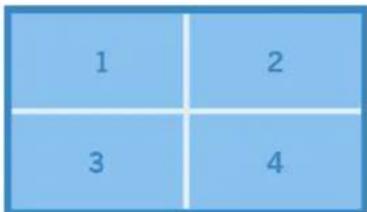
The SW-540-TX-W is capable of processing up to four inputs on a single display in a multiview layout. By default, the switcher automatically builds the multiview layout based on the number of simultaneous sources that are connected. For example, if two laptops are connected via HDMI 1 and HDMI 2 the switcher will automatically build a split screen layout. If four devices are connected the screen will be split into quadrants. Examples are shown below.

Multiview sources can be any combination of wired and wireless devices (Airplay & Miracast). For example, an iPad casting via AirPlay and a hardwired connection via HDMI can be in a split screen layout. Any combination is possible but limited to four simultaneous streams.
Multiview layouts can be customized via API commands if a specific layout is required. Refer to the API document for details.
Input Switching & Modes
The SW-540-TX-W features three unique switching modes.
Standard: This is the default mode of the switcher. It supports full screen and multiview processing. Multiview layouts are automatically built by the switch when it detects a second, third or fourth input. When the switch is in multiview mode you will be able to select or de-select multiple inputs for the Primary output (output 1). The Primary and Secondary outputs are mirrored in this mode.
Input Switching
| Primary | Secondary | Video Source | Timing | Format | Addition |
| TYPE-C | NoSignal | ||||
| VGA | NoSignal | ||||
| HDMI1 | 1920x1080P@60 | YUV444 | |||
| HDMI2 | 1920x1080P@60 | YUV444 | |||
| Show Guide Screen | Full Screen Mode | Matrix Mode | Refresh | ||
Full Screen: Multiview processing is not supported in this mode. Both the Primary and Secondary outputs will mirror the same content.
Input Switching

Matrix: In this mode, the Secondary output (output 2) can be matrix switched independently from output 1. However, when in matrix mode output 2 does not support multiview processing. Only a single full screen input can be selected and displayed on output 2. The Primary output can still process multiview.
Input Switching

Wireless Access Point & Casting
This switcher has a built-in wireless access point that can be used to cast content via AirPlay or Miracast. There are three modes for the AP.
Router Mode: This is the default mode. When connecting to the AP in this mode, the switcher acts as a bridge to an existing network via its LAN connection. This is useful if there is no existing Wi-Fi network available and you wish to use the switcher as the primary wireless AP.
Router Disabled: This mode doesn't allow the switcher to bridge the wireless connection to its LAN port. This mode is useful if you wish to isolate the wireless casting from an enterprise/existing network. When clients connect to the switcher's AP in this mode, they will only be able to wirelessly cast content. They will not have internet access.

AP Disabled: This mode completely disables the built-in AP. This mode should be used when you plan to use an existing network's access point(s). This requires a LAN connection to the switcher in order for it to be found and discoverable on the existing network.

There are a number of additional settings related to the AP and screen casting. The AP password can be set to a custom value. This must be an alphanumeric value. It cannot contain special characters or spaces.

Casting can be discretely enabled or disabled separately to the access point. If you wish to leave the access point enabled but disable Airplay and Miracast abilities, disable the BYOD functionality.
Also related to screen casting is an access code. By default, no access code is set, however you can enable this feature as an extra layer of security to prevent accidental or malicious casting. The access code can be either a static 4-digit number or uniquely generated each time a new casting session is attempted by checking the Auto box.
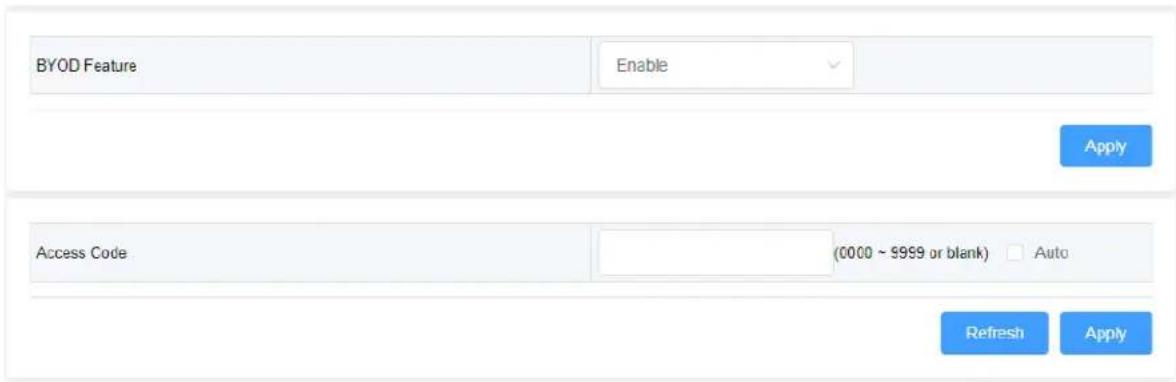
You can change the AP SSID/screen cast name by changing the Device Name field and clicking apply. The AP also allows for adjusting the wireless channel it broadcasts on. This is adjustable for both the 2.4 and 5Ghz bands. WyreStorm recommends leaving this set on the default values. Only change a wireless channel if severe interference is occurring or connection problems arise.
Before changing the wireless channel, it is best practice to perform a radio frequency search to show you the surrounding area's Wi-Fi. This can show you what channels are already occupied so you can appropriately choose the best option available.
inSSIDer is a great free software that can analyze Wi-Fi signals and usage.

Output Settings
Each output features a scaler that can be used to force a specific video timing to a display. By default, the switcher is set to auto-negotiate the output timing based on a display's EDID. However, if you experience compatibility problems you can choose to force a resolution and refresh rate. Also, by forcing an output timing you may experience slightly faster switching times.
Note: Forcing an output timing does not affect the HDBT output, only the HDMI ports.
If you are using the 3.5mm stereo audio output and experience lip-sync problems, you can adjust the latency on the Output Settings webpage as well. Simply enter in a value between 0-200ms and click apply.
![Output Setting Primary output timing 3840x2160P@60 Auto Refresh Apply Secondary output timing 1920x1080P@60 Auto Refresh Apply Output HDCP Support Enable Apply Analog Audio Latency 80 (0-200ms) Note: The acceptable range is [0, 200] and it must be an integer multiple of 20. Apply](/content/2026/05/1063053/images/df8e793b4031cc4a47f77cfbdc2ca2def7d297fe569687d1a1e8d2ac7eccc556.jpg)
Adjusting EDID
Each input allows for manual assignment of an EDID. If you experience compatibility problems with a device, you can adjust the EDID for the input port respectively. You can also upload a custom EDID binary file if the pre-loaded files do not meet a timing requirement.
EDID Settings
| TYPE-C | 4K@30Hz, Audio 2CH PCM.bin |
| VGA | 1080P@60Hz, No Audio.bin |
| HDMI1 | 4K@30Hz, Audio 2CH PCM.bin |
| HDMI2 | 4K@30Hz, Audio 2CH PCM.bin |
Note: Restart to take effect.
| EDID File | Browse | Upload |
Display Control
The SW-540-TX-W is capable of sending both CEC and RS232 signals to a connected display for power on/off.
CEC will use the default one-touch play and standby commands. These values will work with most major display manufacturers. If you experience issues with one or both of these default commands not working, you can enter a custom HEX value for both the Wakeup and Standby commands.
For RS232, enter in the connection parameters for the peripheral device along with the serial strings for power on and off.
These display commands can be triggered in two ways, either via hot plug detect when you connect a PC for the first time or manually via an API command.
Note: RS232 power triggers do not transmit over HDBaseT and only function via the RS232 passthrough port on the switcher.

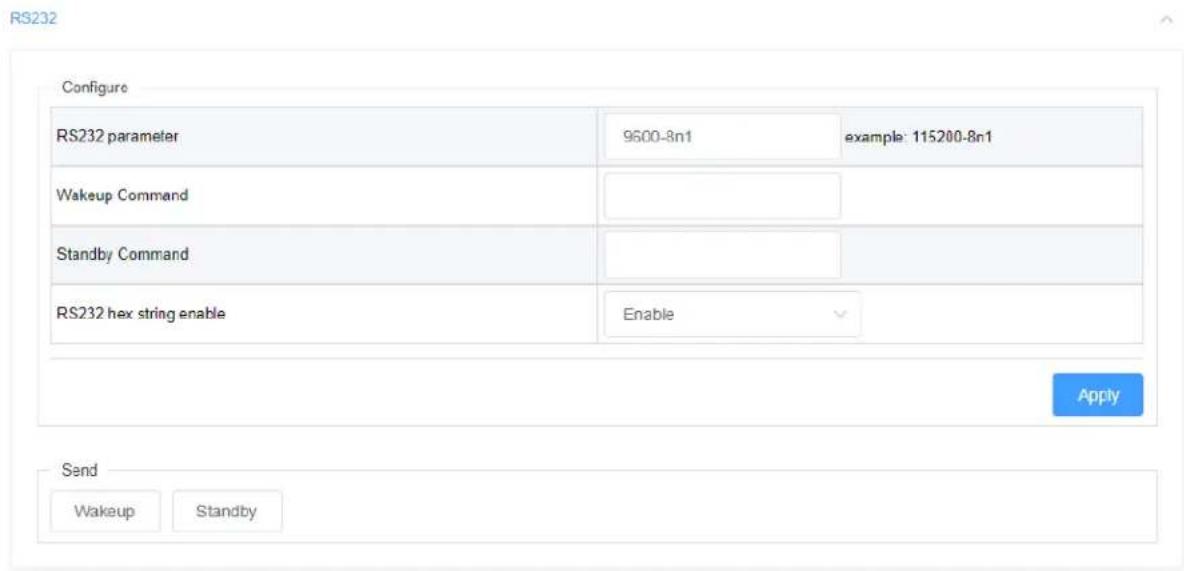
The switcher is also capable of automatically sending a power off command after X minutes when there is no input sync detected. In the Control Strategy drop down enter in a value between 0-60 to set how long the switcher will wait before sending the power off command. Enter in a value of 0 to disable auto standby.
You can also choose what type of command is sent (CEC, RS232 or Both) during auto-sync detection.
Control Strategy
| Auto StandBy (Minute, ranges from 0 to 60, set to 0 for deactivation) | 1 |
| Sink Power Mode | Both |
| Stop Video Signal In Standby Mode | Enable |
Apply
Splash Screen
When no video signal is being transmitted, the SW-540-TX-W will display a splash screen. This screen shows quick connection steps, so users understand how to cast to the display. This image can be replaced with any image you require. This is useful for inserting company logos or custom background images based on the installation environment.


Brand : WyreStorm
Model : SW-540-TX
Category : Router