
OV18 - Digital audio player MPMAN - Free user manual and instructions
Find the device manual for free OV18 MPMAN in PDF.


User questions about OV18 MPMAN
0 question about this device. Answer the ones you know or ask your own.
Ask a new question about this device
Download the instructions for your Digital audio player in PDF format for free! Find your manual OV18 - MPMAN and take your electronic device back in hand. On this page are published all the documents necessary for the use of your device. OV18 by MPMAN.
USER MANUAL OV18 MPMAN
DIGITALVIDEO/MUSICPLAYER MP3/WMA/AMV
USER MANUAL
MP-CS187 / MPOV18
www.mpmaneurope.com
1.1 CS187/OV18 characteristics
Support MP1/MP2/MP3/WMA/WMV/ASF/WAV/OGG music format.
Support AMV movie format
Support JPEG/BMP/GIF picture format
Support WAV/MP3 format voice recording
1.8" high resolution full color display
- Graphic user control interface
1.2 Box set includes
- MP3 player
- Stereo earphone
- Driver & utilities CD disc
Quick guide
USB cable
1.3 Computer requirements
- Pentium 100 MHz or faster
32MB RAM or above
CD-ROM - Hard disk with at least 15MB free memory space
USB 1.1/2.0 - Windows 98/ME/2000/XP, Mac OS 10, Linux 2.4.2
1.4 The player appearance interface
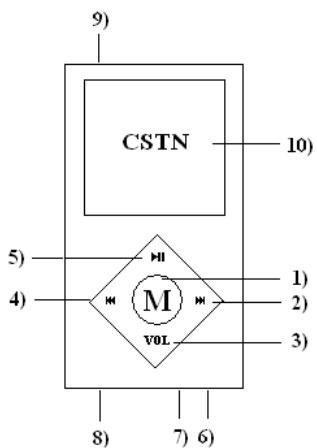
1.5 Figure & Keys
(1) MENU" [ ]. Switch modes, menu selection by pressing on button
(2) NEXT/FWD or volume increase
(3) "VOL" selects Volume adjustments mode or A-B replay
(4) PREV/REV or volume decrease
(5) PLAY “▶ II” [.]. OPEN/PLAY/PAUSE/STOP/POWER OFF
(6) Earphone
(7) MIC
(8) USB connector
(9) ON/OFF switch
(10)Color screen
1.6 Battery
CS187/ OV18 has an on screen battery monitor:
- When battery level low, recharge immediately (connect CS187/ OV18 to external charger or PC)
- Player must be switched on when charging!
- Nine level battery indicator (indicator flashes when charging)
Attention: Voice recording can only work at battery level 2 or above!
1.7 Power on/off
Power on/off the player by switching "POWER" switch to on position
- When powered on, press and hold the "PLAY" key for 2 seconds. Player will power-off. Press and hold "PLAY" key to power on again.
2.0 Main Menu
Seven mode at main menu with different featuring, respectively:
Music
Movie
Record
Voice
- JPG View
Setting
Use “NEXT” or “PREV” keys to select among these modes, then press “MENU” key to enter
2.1 Music mode
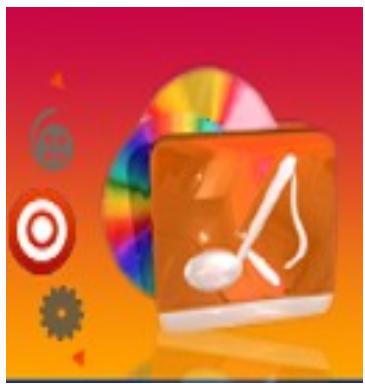
From main menu, select MUSIC mode and press MENU button to enter.
Use “PREV” or “NEXT” keys to select music file, press “PLAY” key for specific music playback
There are two sub-modes at Music mode, respectively:
- Play mode (available during playback)
- Stop mode (available during standby)
Play mode
During music playback, press "MENU" key to enter. Seven options:
Repeat
| Normal | All songs are played once |
| Repeat One | Repeats the current song |
| Folder | Plays all the music of a specific folder |
| Repeat Folder | Repeats the music of a specific folder |
| Repeat All | Repeats all the music |
| Random | Plays music at random |
| Intro | First 10 seconds of each song is played |
Equalizer
| Natural |
| Rock |
| Pop |
| Classic |
| Soft |
| Jazz |
| DBB |
Tempo rate
Change music playback speed by pressing "NEXT" and "PREV" keys
Attention: Tempo rate setting works only on MP3 file!
Replay
A-B replay - user can mark certain segment of music for continuous repeat
When replay mode selected, icon appears with letter "A" flashing
Press "NEXT" to set repeat segment starting point A.
Letter "B" starts flashing
Press "NEXT" to set repeat segment ending point B
A-B music segment repeats continuously. Press "MENU" button to return to normal playback
Adding voice to A-B segment
During A-B segment playback, press and hold "NEXT" key, icon appears
Voice is recorded. Press "MENU" key to stop recording
A-B music segment mixed with recorded voice will repeated continuously. Press "MENU" button to return to normal playback
Replay times
Choose how many times the A-B segment must replayed, range from 1-10 times
Replay gap
- Configure the time gap between each A-B segment, range from 1-10 seconds
Exit
Stop mode
During standby, short press "MENU" key to enter. Four options:
Local folder
Here the user is able to browse between all files and folders stored on the device
Use "NEXT" or "PREV" keys and "MENU" key to enter or confirm a selection
Delete file
Here the user is able to delete any file stored on the device
use "NEXT" or "PREV" keys and "MENU" key for delete confirmation
Delete all
- Deletes all music files stored on the device
Exit
2.2 Movie mode
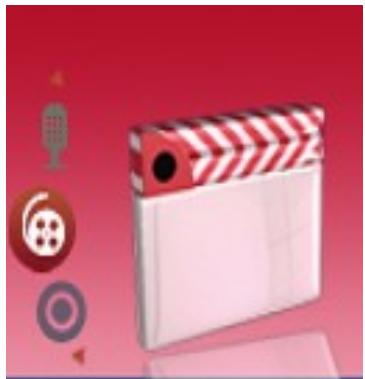
From main menu, select MOVIE mode and press MENU button to enter
This player can only play AMV movie files.
Remember that most currently popular movie formats such as AVI, RM, 3GP, MP4...are not directly supported by CS187/ OV18. File conversion by computer with AMV Converter software is needed. AMV Converter is included on the CDROM.
Use "NEXT" or "PREV" keys to select AMV file, press "PLAY" key to playback movie
During pause, press "MENU" key to enter movie mode submenu:
- Local Folder
- Delete
Repeat - Exit
(Options features and controls are similar to Music mode, see 2.1 for reference)
Attention: Volume cannot be increased or decreased during movie playback. Volume can only be set at movie standby mode by pressing "VOL" key to recall volume control interface
2.3 Record mode
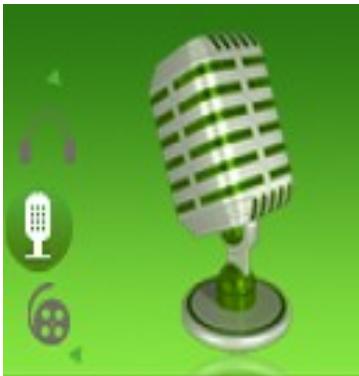
From main menu, select RECORD mode and press MENU button to enter
- Press "PLAY" key to start recording
- Press "PLAY" key again to pause recording (recording time flashes)
- Press "PLAY" key again to continue recording.
- Press and hold "PLAY" button to stop recording and save recorded voice to file ("SAVING..." message appears)
When the device is not recording, short press "MENU" to enter RECORD submenu, options available:
Local folder
REC type (choose between WAV or MP3 format in SETTING mode)
32K BPS (WAV)
64K BPS (WAV)
192K BPS (WAV)
384KBPS(WAV)
or
192KBPS(MP3)
128K BPS (MP3)
64K BPS (MP3)
32K BPS (MP3)
Exit
Attention: 384K BPS WAV file provides the highest quality, but requires a lot of storage space. High compression rate MP3 format consumes less storage space than WAV format at same sampling rate Recorded MP3 music files can replayed in Music mode Recorded WAV files are stored at [device:\RECORD\VOICE] folder and can be replayed in VOICE mode
2.4 Voice mode
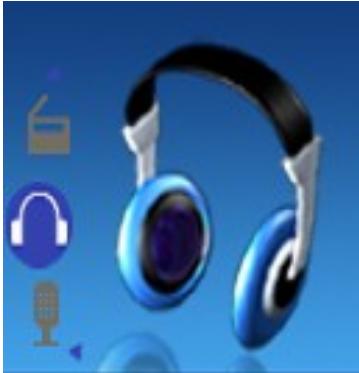
From main menu, select VOICE mode and press MENU button to enter
Voice files recorded in Record mode can be replayed in VOICE mode
VOICE mode supports WAV recorded files only; MP3 recorded files need to replayed in Music mode
When playback is paused, short press "MENU" button to enter VOICE submenu:
- Local folder
- Delete
- Delete all
- Exit
(Detail features and controls are similar to MUSIC mode, please check for reference)
2.5.JPG View
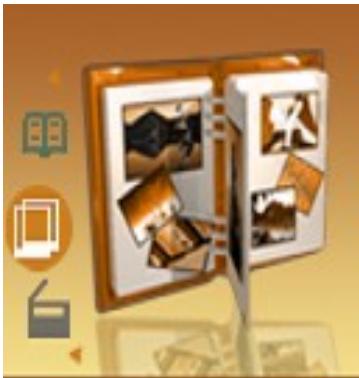
From main menu, select RECORD mode and press MENU button to enter
JPEG View is designed for picture viewing.
JPEG, BMP and GIF format files are supported.
Use "NEXT" or "PREV" to select pictures file you like to view, then press "PLAY" for confirmation.
Push "MENU" button to enter submenu, options:
- Local folder
- Play set
- Delete file
- Exit
2.6 Setting Mode
From main menu, select SETTING mode and press MENU button to enter
- Record type
Selection of voice recording file format. Choose between WAV and MP3.
Dark mode
Setting of standby time before LCD screen switches off.
Push any button to switch the LCD screen back on.
Time can be set between 0 and 30 seconds. 0 seconds means dark mode is deactivated
Language
Selection of display language
Power off
Off time Setting of "automatic power off" time from 0-60 minutes with 10 minutes interval.
Sleep time - Setting of "automatic power off" time from 0-120 minutes at 10 minutes interval
Attention: 0 minutes means automatic power off or sleep mode is deactivate
Sleep mode features only once when selected.
Memory
- Showing CS187/ OV18 total storage size (MB) and percentage of storage being used.
F/W version
- Showing current firmware version information.
- Exit
SPECIFICATION
| DISPLAY PC CONNECTION | 1.8" Diagonal CSTN Display USB 2.0 High Speed |
| FLASH MEMORY | 1, 2, 4, 8GB |
| POWER SUPPLY | 3.8V Rechargeable Lithium Battery |
| MUSIC FORMAT | MP1, MP2, MP3, WMA, WMV, ASF, WAV, MTV, OGG |
| MOVIE FORMAT | AMV (16 frames/second) |
| RECORD FORMAT | WAV (32-384K BPS sampling rate) MP3 (32-192K BPS sampling rate) |
| DISTORTION | Less than 0.1% |
| FREQUENCY RESPONSE | 20Hz~20KHz |
| HEADSET OUTPUT | 5mW (320Ohm) |
| OPERATION SYSTEM | WINDOWS 98/2000/ME/2000/XP, Mac OS 10, Linux 2.4.2 |
TECHNICAL SUPPORT
Furthermore information, visit our website www.mpmaneurope.com